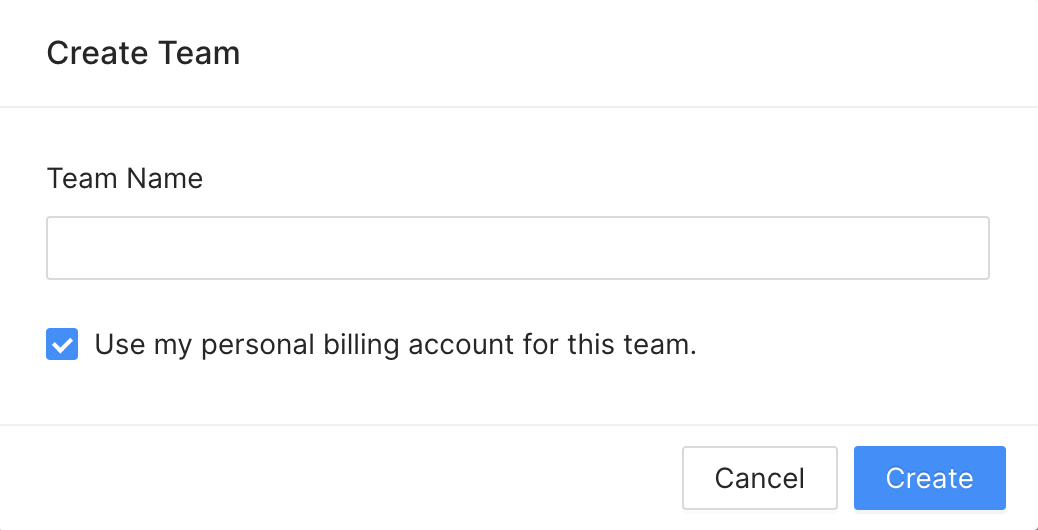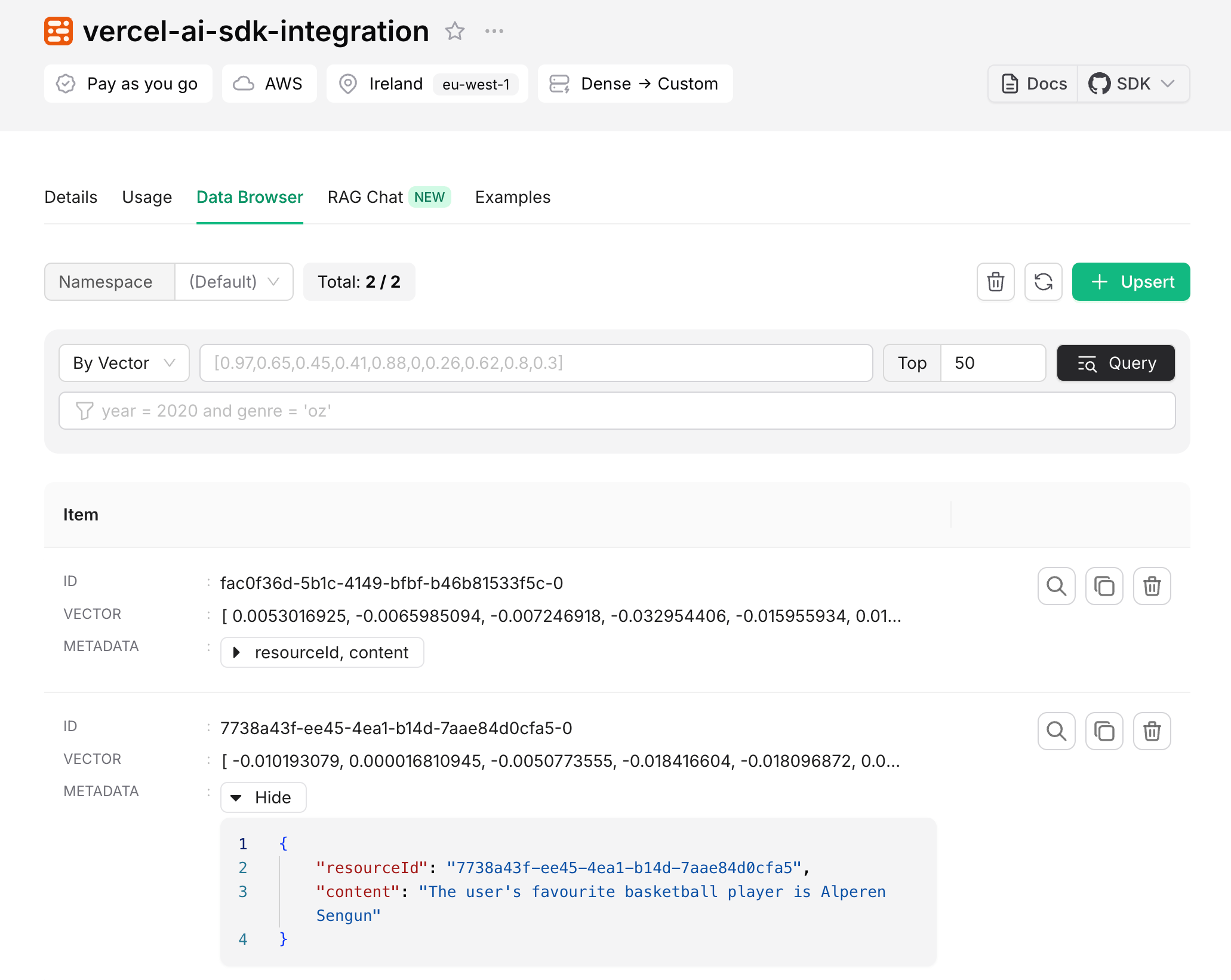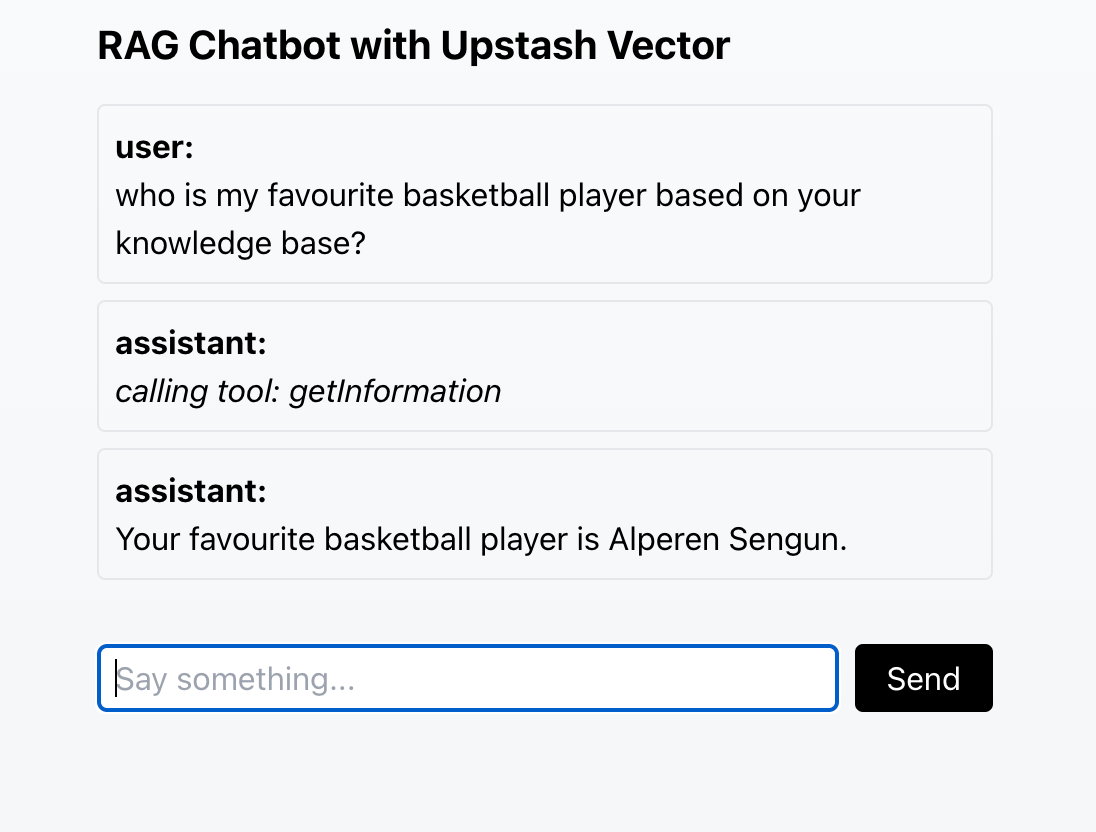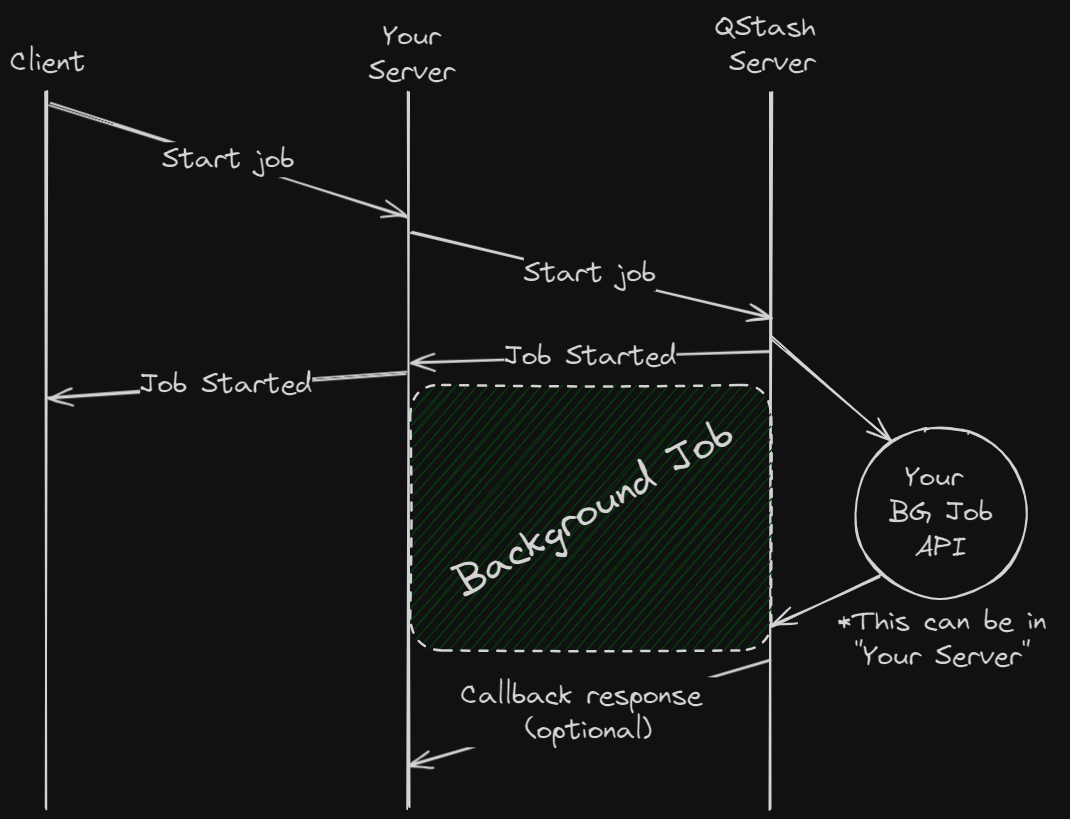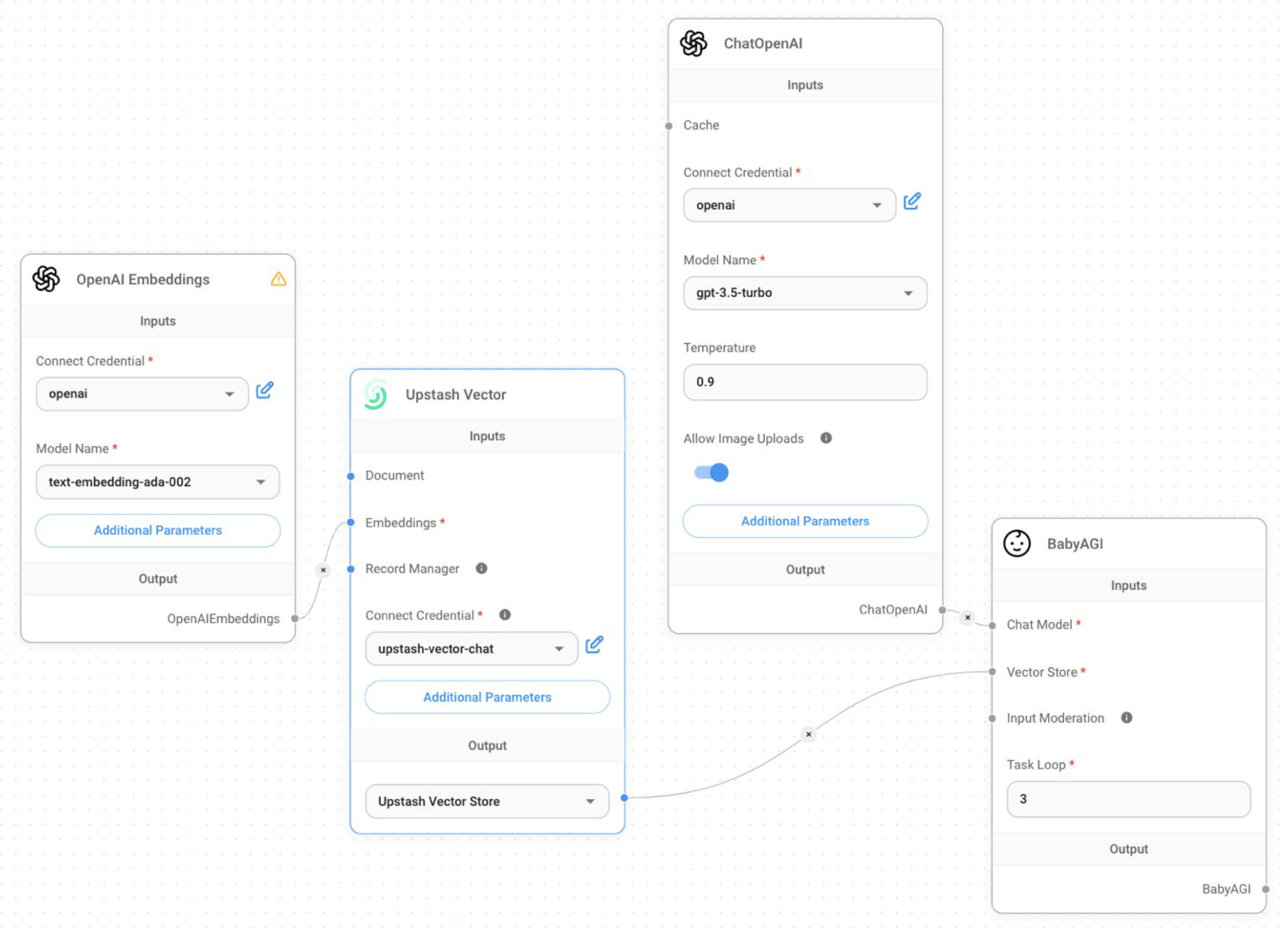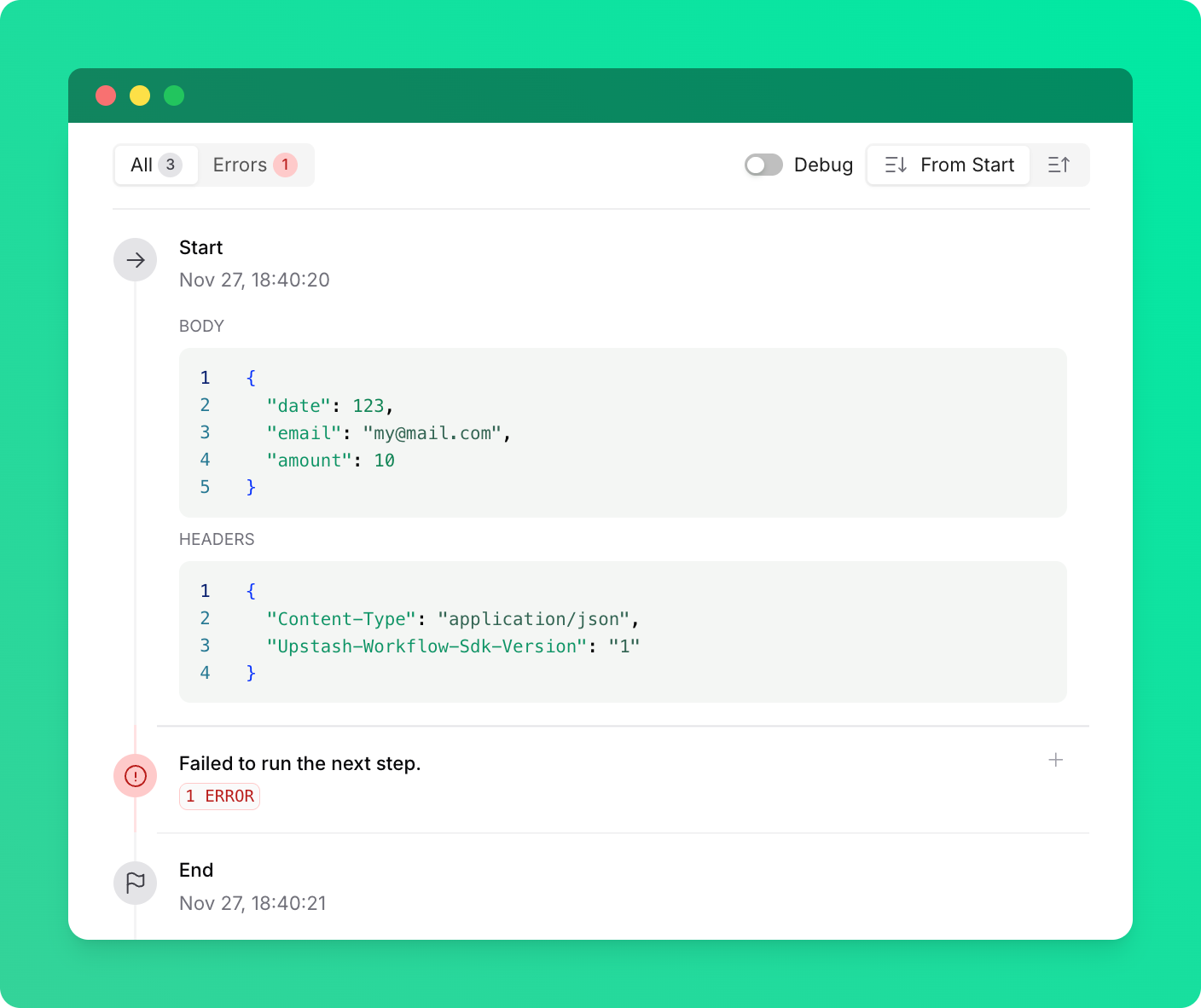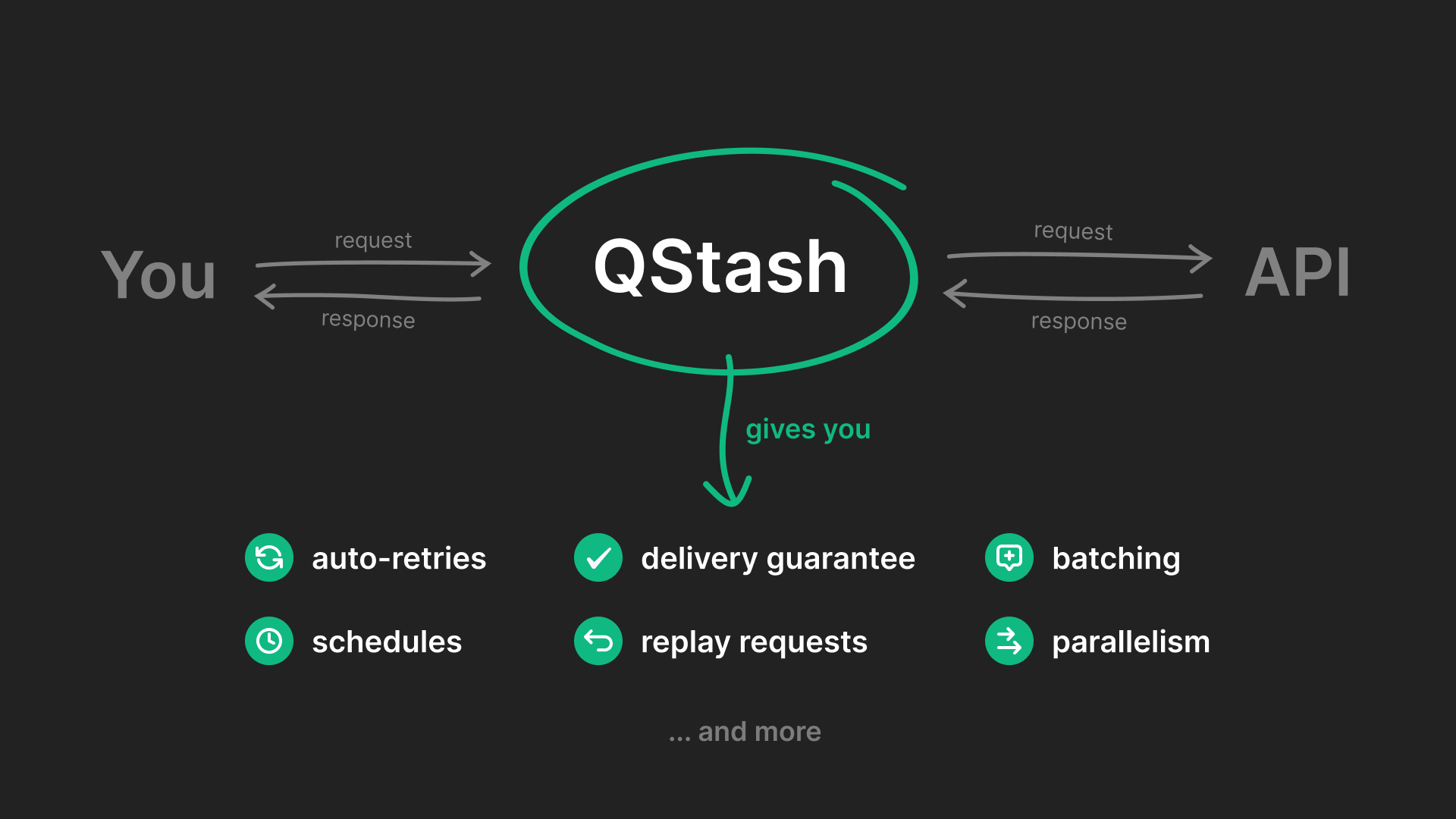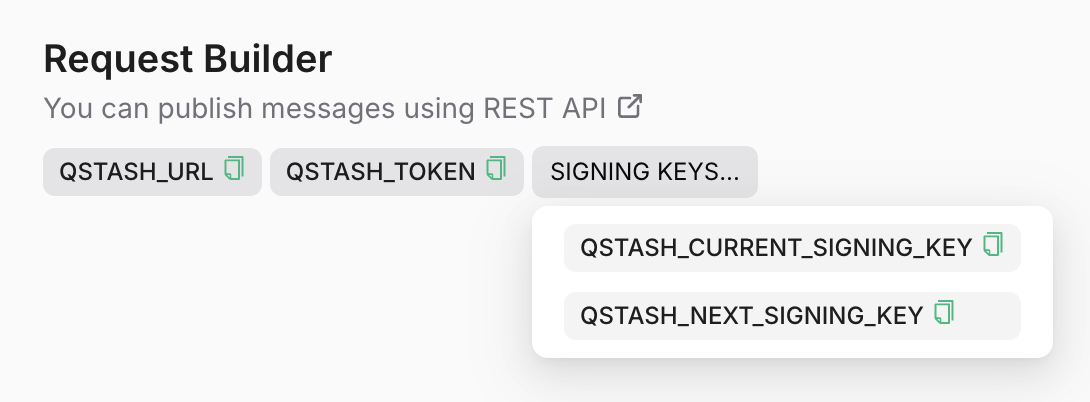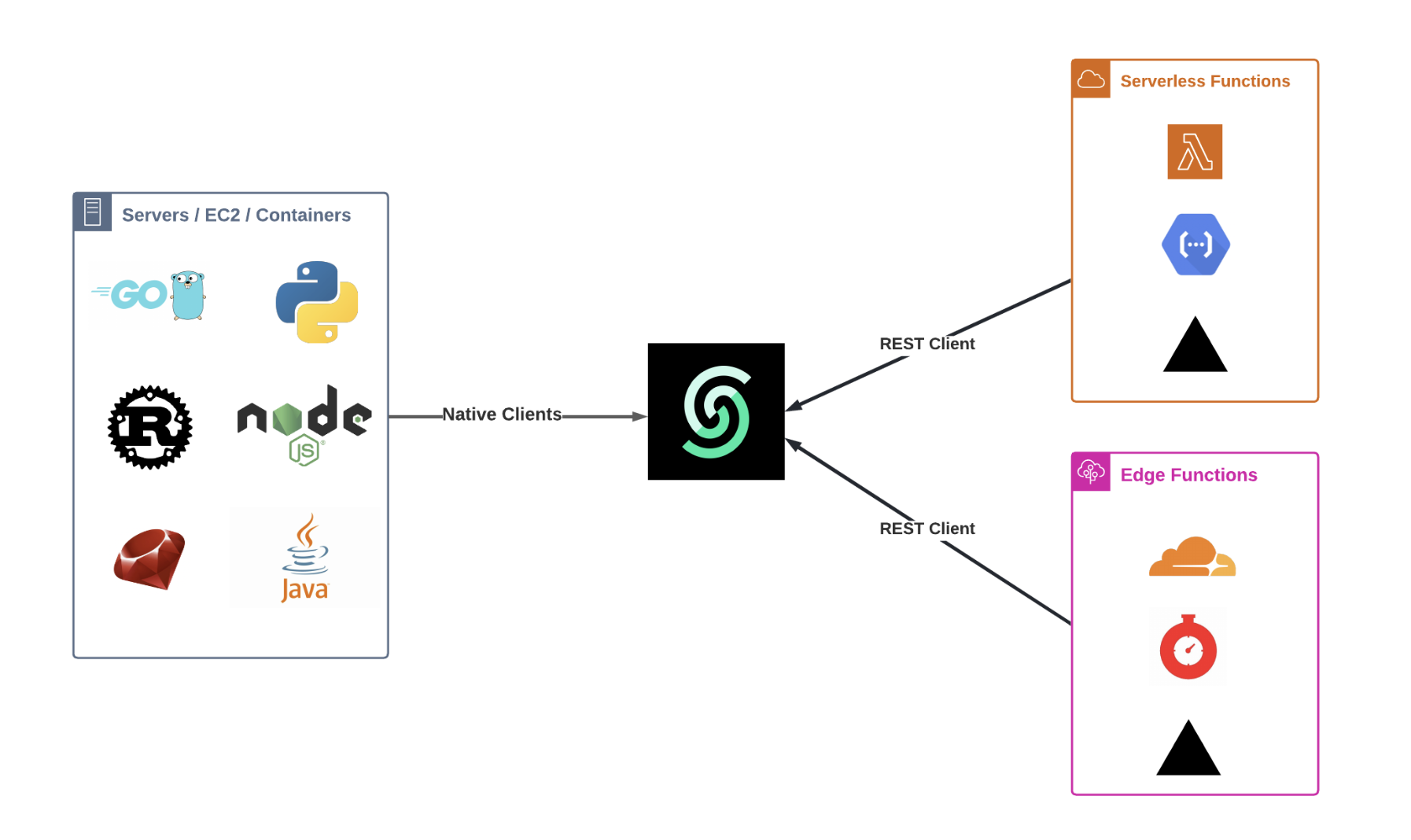
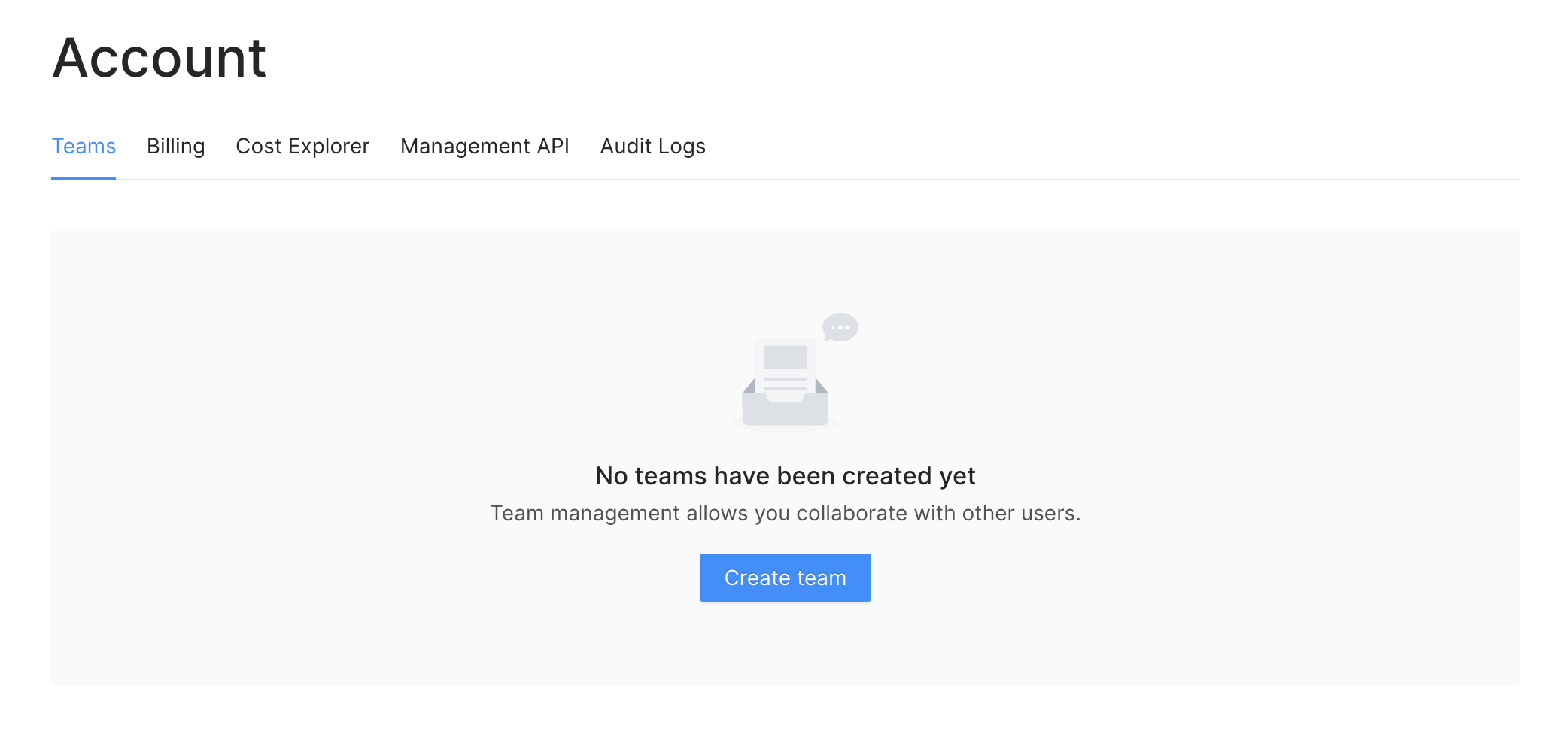
# Upstash > ## Documentation Index --- # Source: https://upstash.com/docs/common/concepts/access-anywhere.md > ## Documentation Index > Fetch the complete documentation index at: https://upstash.com/docs/llms.txt > Use this file to discover all available pages before exploring further. # Access Anywhere Upstash has integrated REST APIs into all its products to facilitate access from various runtime environments. This integration is particularly beneficial for edge runtimes like Cloudflare Workers and Vercel Edge, which do not permit TCP connections, and for serverless functions such as AWS Lambda, which are stateless and do not retain connection information between invocations. ### Rationale The absence of TCP connection support in edge runtimes and the stateless nature of serverless functions necessitate a different approach for persistent connections typically used in traditional server setups. The stateless REST API provided by Upstash addresses this gap, enabling consistent and reliable communication with data stores from these platforms. ### REST API Design The REST APIs for Upstash services are thoughtfully designed to align closely with the conventions of each product. This ensures that users who are already familiar with these services will find the interactions intuitive and familiar. Our API endpoints are self-explanatory, following standard REST practices to guarantee ease of use and seamless integration. ### SDKs for Popular Languages To enhance the developer experience, Upstash is developing SDKs in various popular programming languages. These SDKs simplify the process of integrating Upstash services with your applications by providing straightforward methods and functions that abstract the underlying REST API calls. ### Resources [Redis REST API Docs](/redis/features/restapi) [QStash REST API Docs](/qstash/api/authentication) [Redis SDK - Typescript](https://github.com/upstash/upstash-redis) [Redis SDK - Python](https://github.com/upstash/redis-python) [QStash SDK - Typescript](https://github.com/upstash/sdk-qstash-ts) --- # Source: https://upstash.com/docs/common/help/account.md > ## Documentation Index > Fetch the complete documentation index at: https://upstash.com/docs/llms.txt > Use this file to discover all available pages before exploring further. # Account & Teams ## Create an Account You can sign up to Upstash using your Amazon, Github or Google accounts. Alternatively you can sign up using email/password registration if you don't want to use these auth providers, or you want to sign up using a corporate email address. We do not access your information other than: * Your email * Your name * Your profile picture and we never share your information with third parties. Team management allows you collaborate with other users. You can create a team and invite people to the team by email addresses. The team members will have access to the databases created under the team depending on their roles. ## Teams ### Create Team You can create a team using the menu `Account > Teams`
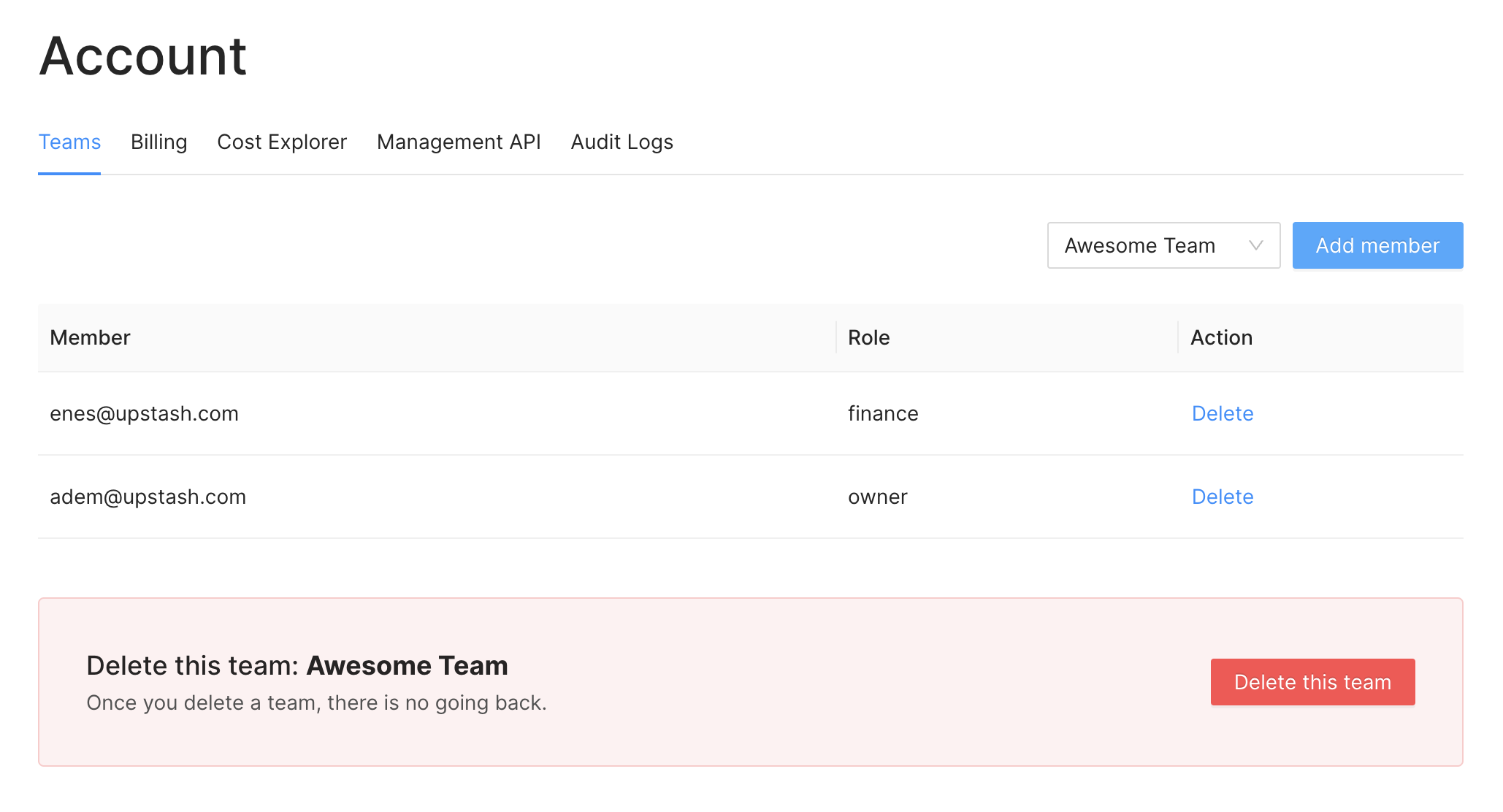
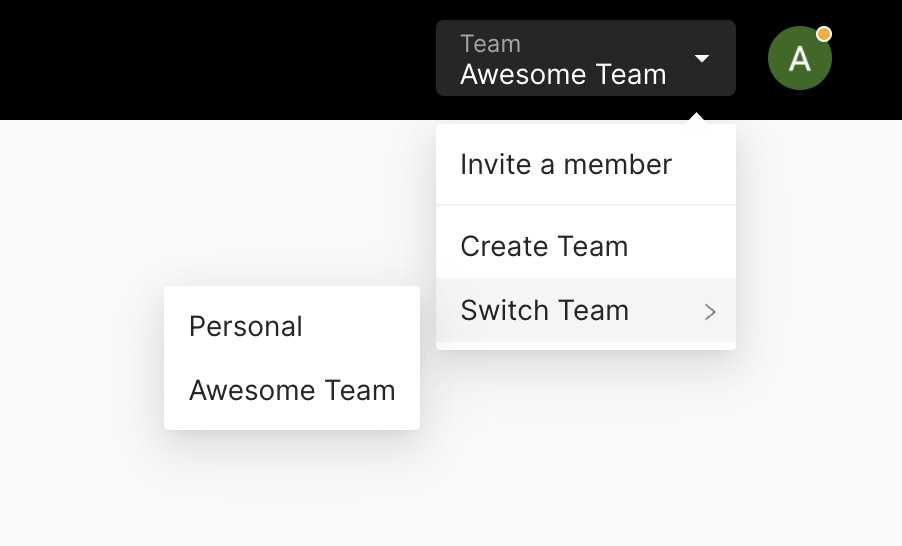
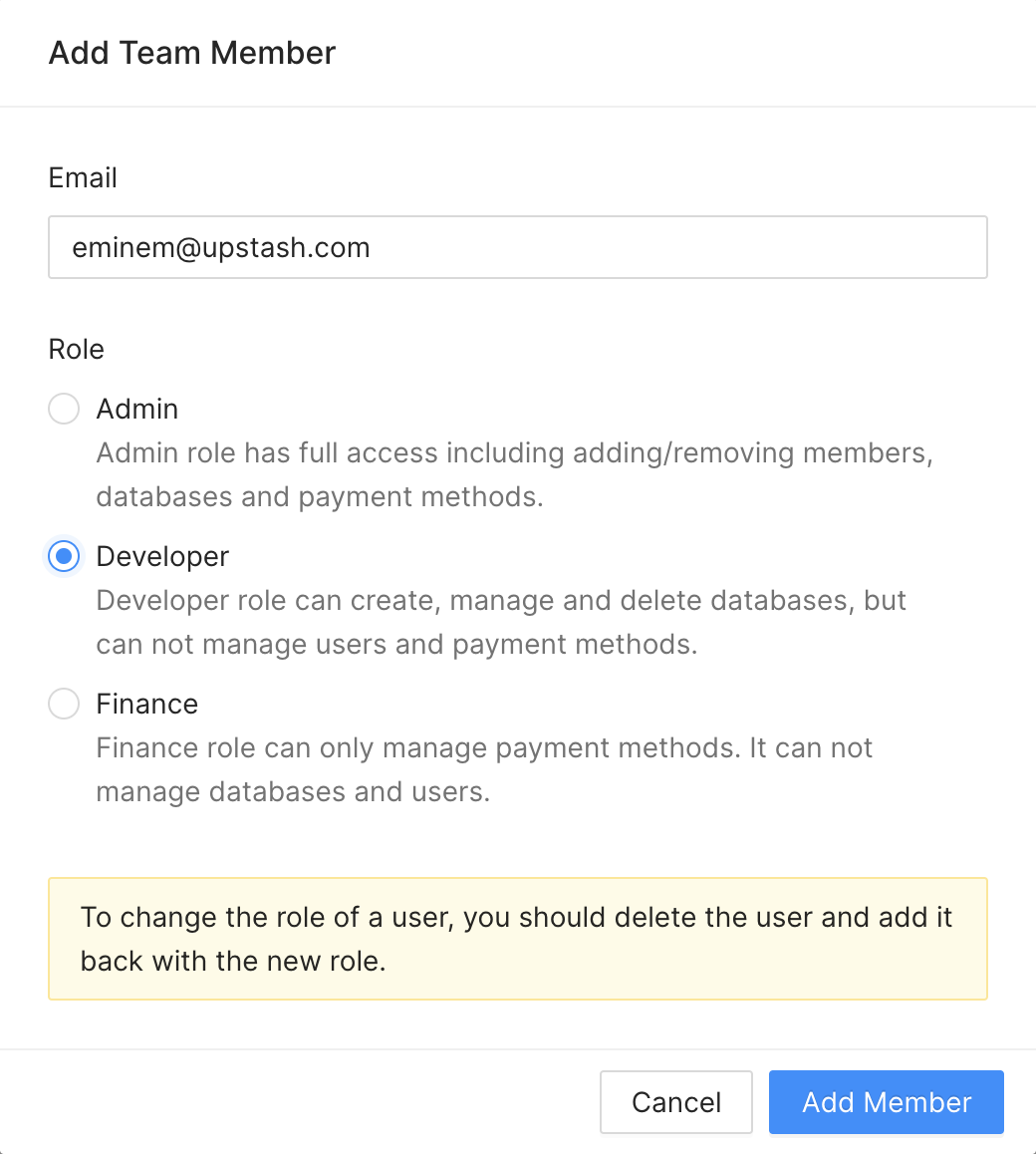
> A user can create up to 5 teams. You can be part of even more teams but only > be the owner of 5 teams. If you need to own more teams please email us at > [support@upstash.com](mailto:support@upstash.com). You can still continue using your personal account or switch to a team. > The databases in your personal account are not shared with anyone. If you want > your database to be accessible by other users, you need to create it under a > team. ### Switch Team You need to switch to the team to create databases shared with other team members. You can switch to the team via the switch button in the team table. Or you can click your profile pic in the top right and switch to any team listed there. ### Add/Remove Team Member Once you switched to a team, you can add team members in `Account > Teams` if you are Owner or Admin for of the team. Entering email will be enough. The email may not registered to Upstash yet, it is not a problem. Once the user registers with that email, he/she will be able to switch to the team. We do not send invitation, so when you add a member, he/she becomes a member directly. You can remove the members from the same page. > Only Admins or the Owner can add/remove users. ### Roles While adding a team member you need to select a role. Here the privileges of each role: * Admin: This role has full access including adding removing members, databases, payment methods. * Dev: This role can create, manage and delete databases. It can not manage users and payment methods. * Finance: This role can only manage payment methods. It can not manage the databases and users. * Owner: Owner has all the privileges that admin has. In addition he is the only person who can delete the team. This role is assigned to the user who created the team. So you can not create a member with Owner role. > If you want change role of a user, you need to delete and add again. ### Delete Team Only the original creator (owner) can delete a team. Also the team should not have any active databases, namely all databases under the team should be deleted first. To delete your team, first you need to switch your personal account then you can delete your team in the team list under `Account > Teams`. --- # Source: https://upstash.com/docs/qstash/api/url-groups/add-endpoint.md # Upsert URL Group and Endpoint > Add an endpoint to a URL Group If the URL Group does not exist, it will be created. If the endpoint does not exist, it will be created. ## Request The name of your URL Group (topic). If it doesn't exist yet, it will be created. The endpoints to add to the URL Group. The name of the endpoint The URL of the endpoint ## Response This endpoint returns 200 if the endpoints are added successfully. ```sh curl theme={"system"} curl -XPOST https://qstash.upstash.io/v2/topics/:urlGroupName/endpoints \ -H "Authorization: Bearer " \ -H "Content-Type: application/json" \ -d '{ "endpoints": [ { "name": "endpoint1", "url": "https://example.com" }, { "name": "endpoint2", "url": "https://somewhere-else.com" } ] }' ``` ```js Node theme={"system"} const response = await fetch('https://qstash.upstash.io/v2/topics/:urlGroupName/endpoints', { method: 'POST', headers: { 'Authorization': 'Bearer ', 'Content-Type': 'application/json' }, body: JSON.stringify({ 'endpoints': [ { 'name': 'endpoint1', 'url': 'https://example.com' }, { 'name': 'endpoint2', 'url': 'https://somewhere-else.com' } ] }) }); ``` ```python Python theme={"system"} import requests headers = { 'Authorization': 'Bearer ', 'Content-Type': 'application/json', } json_data = { 'endpoints': [ { 'name': 'endpoint1', 'url': 'https://example.com', }, { 'name': 'endpoint2', 'url': 'https://somewhere-else.com', }, ], } response = requests.post( 'https://qstash.upstash.io/v2/topics/:urlGroupName/endpoints', headers=headers, json=json_data ) ``` ```go Go theme={"system"} var data = strings.NewReader(`{ "endpoints": [ { "name": "endpoint1", "url": "https://example.com" }, { "name": "endpoint2", "url": "https://somewhere-else.com" } ] }`) req, err := http.NewRequest("POST", "https://qstash.upstash.io/v2/topics/:urlGroupName/endpoints", data) if err != nil { log.Fatal(err) } req.Header.Set("Authorization", "Bearer ") req.Header.Set("Content-Type", "application/json") resp, err := http.DefaultClient.Do(req) if err != nil { log.Fatal(err) } defer resp.Body.Close() ``` --- # Source: https://upstash.com/docs/devops/developer-api/teams/add_team_member.md > ## Documentation Index > Fetch the complete documentation index at: https://upstash.com/docs/llms.txt > Use this file to discover all available pages before exploring further. # Add Team Member > This endpoint adds a new team member to the specified team. ## OpenAPI ````yaml devops/developer-api/openapi.yml post /teams/member openapi: 3.0.4 info: title: Developer API - Upstash description: >- This is a documentation to specify Developer API endpoints based on the OpenAPI 3.0 specification. contact: name: Support Team email: support@upstash.com license: name: Apache 2.0 url: https://www.apache.org/licenses/LICENSE-2.0.html version: 1.0.0 servers: - url: https://api.upstash.com/v2 security: [] tags: - name: redis description: Manage redis databases. externalDocs: description: Find out more url: https://upstash.com/docs/devops/developer-api/introduction - name: teams description: Manage teams and team members. externalDocs: description: Find out more url: https://upstash.com/docs/devops/developer-api/introduction - name: vector description: Manage vector indices. externalDocs: description: Find out more url: https://upstash.com/docs/devops/developer-api/introduction - name: search description: Manage search indices. externalDocs: description: Find out more url: https://upstash.com/docs/devops/developer-api/introduction - name: qstash description: Manage QStash. externalDocs: description: Find out more url: https://upstash.com/docs/devops/developer-api/introduction externalDocs: description: Find out more about Upstash url: https://upstash.com/ paths: /teams/member: post: tags: - teams summary: Add Team Member description: This endpoint adds a new team member to the specified team. operationId: addTeamMember requestBody: required: true content: application/json: schema: $ref: '#/components/schemas/AddTeamMemberRequest' responses: '200': description: Team member added successfully content: application/json: schema: $ref: '#/components/schemas/TeamMember' security: - basicAuth: [] components: schemas: AddTeamMemberRequest: type: object properties: team_id: type: string description: Id of the team to add the member to example: 95849b27-40d0-4532-8695-d2028847f823 member_email: type: string description: Email of the new team member example: example@upstash.com member_role: type: string description: Role of the new team member enum: - admin - dev - finance example: dev required: - team_id - member_email - member_role TeamMember: type: object properties: team_id: type: string description: ID of the team example: 3423cb72-e50d-43ec-a9c0-f0f359941223 team_name: type: string description: Name of the team example: test_team_name_2 member_email: type: string description: Email of the team member example: example@upstash.com member_role: type: string description: Role of the team member enum: - owner - admin - dev - finance example: dev copy_cc: type: boolean description: >- Whether to copy existing credit card information to team member or not example: true xml: name: teamMember securitySchemes: basicAuth: type: http scheme: basic ```` --- # Source: https://upstash.com/docs/common/account/addapaymentmethod.md > ## Documentation Index > Fetch the complete documentation index at: https://upstash.com/docs/llms.txt > Use this file to discover all available pages before exploring further. # Add a Payment Method Upstash does not require a credit card for Free databases. However, for paid databases, you need to add at least one payment method. To add a payment method, follow these steps: 1. Click on your profile at the top right. 2. Select  `Account` from the dropdown menu. 3. Navigate to the `Billing` tab. 4. On the screen, click the `Add Your Card` button. 5. Enter your name and credit card information in the following form: You can enter multiple credit cards and set one of them as the default one. The payments will be charged from the default credit card. ## Payment Security Upstash does not store users' credit card information in its servers. We use Stripe Inc payment processing company to handle payments. You can read more about payment security in Stripe [here](https://stripe.com/docs/security/stripe). --- # Source: https://upstash.com/docs/search/features/advanced-settings.md > ## Documentation Index > Fetch the complete documentation index at: https://upstash.com/docs/llms.txt > Use this file to discover all available pages before exploring further. # Advanced Settings This page covers the advanced configuration options available in the Upstash Search. These parameters allow you to fine-tune search behavior for your specific use case and requirements. ## Reranking The `reranking` parameter enables enhanced search result reranking using advanced AI models. It's disabled by default (`false`) and incurs additional costs when enabled. ```typescript TypeScript theme={"system"} const results = await index.search({ query: "complex technical documentation", reranking: true // Enable reranking }); ``` ```python Python theme={"system"} results = index.search( query="complex technical documentation", reranking=True # Enable reranking ) ``` **Reranking Options:** * **Standard Reranking** (`reranking: false`, default): Uses a simpler, faster model with no additional cost * **Advanced Reranking** (`reranking: true`): Uses state-of-the-art models for highest quality results at \$1 per 1K operations Learn more about how reranking works in our [Algorithm documentation](/search/features/algorithm#3-reranking). ## Semantic Weight The `semanticWeight` parameter controls the balance between semantic search and full-text search in the hybrid search process. It accepts values from 0 to 1, with a default of 0.75 (75% semantic, 25% full-text). ```typescript TypeScript theme={"system"} // More semantic matching (better for conceptual searches) const semanticResults = await index.search({ query: "artificial intelligence concepts", semanticWeight: 0.9 // 90% semantic, 10% full-text }); // More keyword matching (better for exact terms) const keywordResults = await index.search({ query: "API documentation React hooks", semanticWeight: 0.3 // 30% semantic, 70% full-text }); ``` ```python Python theme={"system"} # More semantic matching semantic_results = index.search( query="artificial intelligence concepts", semantic_weight=0.9 # 90% semantic, 10% full-text ) # More keyword matching keyword_results = index.search( query="API documentation React hooks", semantic_weight=0.3 # 30% semantic, 70% full-text ) ``` **Optimization Guidelines:** * **Higher semantic weight (0.7-1.0)**: Better for conceptual searches, finding related content, and handling synonyms * **Lower semantic weight (0.0-0.4)**: Better for exact keyword matching, technical queries, and specific terms Read more about hybrid search in our [Algorithm documentation](/search/features/algorithm#2-hybrid-vector-search). ## Input Enrichment The `inputEnrichment` parameter controls whether queries are enhanced using AI before searching. It's enabled by default (`true`) and significantly improves search quality at the cost of some additional latency. ```typescript TypeScript theme={"system"} // Disable input enrichment for faster responses const results = await index.search({ query: "space opera", inputEnrichment: false // Faster but less enhanced results }); // Default behavior (enrichment enabled) const enrichedResults = await index.search({ query: "space opera" // inputEnrichment: true is the default }); ``` ```python Python theme={"system"} # Disable input enrichment for faster responses results = index.search( query="space opera", input_enrichment=False # Faster but less enhanced results ) # Default behavior (enrichment enabled) enriched_results = index.search( query="space opera" # input_enrichment=True is the default ) ``` **When to Disable Input Enrichment:** * When you need the fastest possible response times * When you want to preserve the exact user query for full-text search **Benefits of Input Enrichment:** * Handles typos and alternative phrasings * Expands queries with related terms and context * Improves understanding of user intent * Adds semantic context to ambiguous queries Learn more about input enrichment in our [Algorithm documentation](/search/features/algorithm#1-input-enrichment). ## Keep Original Query After Enrichment The `keepOriginalQueryAfterEnrichment` parameter controls whether the original user query is preserved alongside the AI-enriched version during search. It's disabled by default (`false`) and only has an effect when `inputEnrichment` is enabled. ```typescript TypeScript theme={"system"} // Keep both original and enriched queries const results = await index.search({ query: "space opera", keepOriginalQueryAfterEnrichment: true // Uses both original and enriched }); ``` **When to Enable This Option:** * When you want to ensure exact keyword matches are included * When the original query contains specific technical terms or identifiers * When you want to balance AI enhancement with literal query matching This parameter has no effect when `inputEnrichment` is set to `false`, since there's no enriched query to compare against. ## Filter The `filter` parameter allows you to restrict search results based on content criteria. It accepts either a string expression (SQL-like syntax) or a structured filter object (TypeScript SDK only). ```typescript TypeScript theme={"system"} // String filter expression (SQL-like syntax) const results = await index.search({ query: "wireless headphones", filter: "category = 'Electronics' AND in_stock > 0" }); // TypeSafe structured filter (TypeScript SDK only) const results2 = await index.search({ query: "wireless headphones", filter: { AND: [ { category: { equals: 'Electronics' } }, { in_stock: { greaterThan: 0 } } ] } }); ``` ```python Python theme={"system"} # String filter expression (SQL-like syntax) results = index.search( query="wireless headphones", filter="category = 'Electronics' AND in_stock > 0" ) ``` For detailed information about filter syntax, operators, and examples, see the [Filtering documentation](/search/features/filtering). ## Example: Complete Configuration Here's an example showing all parameters configured together: ```typescript TypeScript theme={"system"} const results = await index.search({ query: "machine learning algorithms for data analysis", limit: 15, filter: "category = 'data-science' AND difficulty_level <= 'intermediate'", reranking: true, semanticWeight: 0.8, inputEnrichment: true }); ``` ```python Python theme={"system"} results = index.search( query="machine learning algorithms for data analysis", limit=15, filter="category = 'data-science' AND difficulty_level <= 'intermediate'", reranking=True, semantic_weight=0.8, input_enrichment=True ) ``` This configuration: * Searches for ML content with enhanced query processing * Returns up to 15 results * Filters for data science content at beginner to intermediate levels * Uses premium reranking for best quality results * Emphasizes semantic matching (80%) over keyword matching (20%) * Enables input enrichment for better intent understanding --- # Source: https://upstash.com/docs/workflow/features/failureFunction/advanced.md # Source: https://upstash.com/docs/workflow/basics/serve/advanced.md # Source: https://upstash.com/docs/vector/sdks/ts/advanced.md # Source: https://upstash.com/docs/redis/sdks/ts/advanced.md > ## Documentation Index > Fetch the complete documentation index at: https://upstash.com/docs/llms.txt > Use this file to discover all available pages before exploring further. # Advanced ## Disable automatic serialization Your data is (de)serialized as `json` by default. This works for most use cases but you can disable it if you want: ```ts theme={"system"} const redis = new Redis({ // ... automaticDeserialization: false, }); // or const redis = Redis.fromEnv({ automaticDeserialization: false, }); ``` This probably breaks quite a few types, but it's a first step in that direction. Please report bugs and broken types [here](https://github.com/upstash/upstash-redis/issues/49). ## Keep-Alive `@upstash/redis` optimizes performance by reusing connections wherever possible, reducing latency. This is achieved by keeping the client in memory instead of reinitializing it with each new function invocation. As a result, when a hot lambda function receives a new request, it uses the already initialized client, allowing for the reuse of existing connections to Upstash. This functionality is enabled by default. ## Request Timeout You can configure the SDK so that it will throw an error if the request takes longer than a specified time. You can achieve this using the signal parameter like this: ```ts theme={"system"} const redis = new Redis({ url: "", token: "", // set a timeout of 1 second signal: () => AbortSignal.timeout(1000), }); try { await redis.get( ... ) } catch (error) { if (error.name === "TimeoutError") { console.error("Request timed out"); } else { console.error("An error occurred:", error); } } ``` ## Telemetry This library sends anonymous telemetry data to help us improve your experience. We collect the following: * SDK version * Platform (Deno, Cloudflare, Vercel) * Runtime version ([node@18.x](mailto:node@18.x)) You can opt out by setting the `UPSTASH_DISABLE_TELEMETRY` environment variable to any truthy value. ```sh theme={"system"} UPSTASH_DISABLE_TELEMETRY=1 ``` Alternatively, you can pass `enableTelemetry: false` when initializing the Redis client: ```ts theme={"system"} const redis = new Redis({ // ..., enableTelemetry: false, }); ``` --- # Source: https://upstash.com/docs/vector/integrations/ai-sdk.md > ## Documentation Index > Fetch the complete documentation index at: https://upstash.com/docs/llms.txt > Use this file to discover all available pages before exploring further. # Vercel AI SDK with Upstash Vector The [AI SDK](https://sdk.vercel.ai/docs/introduction) is a TypeScript toolkit designed to help developers build AI-powered applications using React, Next.js, Vue, Svelte, Node.js, and more. Upstash Vector integrates with the AI SDK to provide AI applications with the benefits of vector databases, enabling applications to perform semantic search and RAG (Retrieval-Augmented Generation). In this guide, we’ll build a RAG chatbot using the AI SDK. This chatbot will be able to both store and retrieve information from a knowledge base. We’ll use Upstash Vector as our vector database, and the OpenAI API to generate responses. ## Prerequisites Before getting started, make sure you have: * An Upstash account (to upsert and query data) * An OpenAI API key (to generate responses and embeddings) ## Setup and Installation We will start by bootstrapping a Next.js application with the following command: ```bash theme={"system"} npx create-next-app rag-chatbot --typescript cd rag-chatbot ``` Next, we will install the required packages using the following command: ```bash npm theme={"system"} npm install @ai-sdk/openai ai zod @upstash/vector ``` ```bash pnpm theme={"system"} pnpm install @ai-sdk/openai ai zod @upstash/vector ``` ```bash bun theme={"system"} bun install @ai-sdk/openai ai zod @upstash/vector ``` We need to set the following environment variables in our `.env` file: ```bash theme={"system"} OPENAI_API_KEY=your_openai_api_key UPSTASH_VECTOR_REST_URL=your_upstash_url UPSTASH_VECTOR_REST_TOKEN=your_upstash_token ``` You can get your Upstash credentials after creating a Vector Index in the [Upstash Console](https://console.upstash.com). If you are going to use Upstash hosted embedding models, you should select one of the available options when creating your index. If you are going to use custom embedding models, you should specify the dimensions of your embedding model. ## Implementation **RAG (Retrieval-Augmented Generation)** is the process of enabling the model to respond with information outside of its training data by embedding a user's query, retrieving the relevant source material (chunks) with the highest semantic similarity, and then passing them alongside the initial query as context. Let's consider a simple example. Initially, a chatbot doesn't know who your favorite basketball player is. During a conversation, I inform the chatbot that my favorite player is Alperen Sengun, and it stores this information in its knowledge base. Later, in another conversation, when I ask, "Who is my favorite basketball player?" the chatbot retrieves this information from the knowledge base and responds with "Alperen Sengun." ### Chunking + Embedding Logic **Embeddings** are a way to represent the semantic meaning of words and phrases. The larger the input to your embedding, the lower the quality the embedding will be. So, how should we approach long inputs? One approach would be to use **chunking**. Chunking refers to the process of breaking down a particular source material into smaller pieces. Once your source material is appropriately chunked, you can embed each one and then store the embedding and the chunk together in a database (Upstash Vector in our case). Using Upstash Vector, you can upsert embeddings generated from a custom embedding model, or you can directly upsert data, and Upstash Vector will generate embeddings for you. In this guide, we demonstrate both methods—using Upstash-hosted embedding models and using a custom embedding model (e.g., OpenAI). ### Using Upstash Hosted Embedding Models ```typescript lib/ai/upstashVector.ts theme={"system"} import { Index } from '@upstash/vector' // Configure Upstash Vector client // Make sure UPSTASH_VECTOR_REST_URL and UPSTASH_VECTOR_REST_TOKEN are in your .env const index = new Index({ url: process.env.UPSTASH_VECTOR_REST_URL!, token: process.env.UPSTASH_VECTOR_REST_TOKEN!, }) // Chunking logic: split on period function generateChunks(input: string): string[] { return input .trim() .split('.') .filter(i => i !== '') } // Upsert export async function upsertEmbedding(resourceId: string, content: string) { const chunks = generateChunks(content) // Convert each chunk into an Upstash upsert object const toUpsert = chunks.map((chunk, i) => ({ id: `${resourceId}-${i}`, data: chunk, // Using the data field instead of vector because embeddings are generated by Upstash metadata: { resourceId, content: chunk, // Store the chunk as metadata to use during response generation }, })) await index.upsert(toUpsert) } // Query export async function findRelevantContent(query: string, k = 4) { const result = await index.query({ data: query, // Again, using the data field instead of vector field topK: k, includeMetadata: true, // Fetch metadata as well }) return result } ``` So, in this file, we create a function to upsert data into our index, and another function to query our index. While upserting data, we chunk the content into smaller pieces and store those chunks in our index. This approach is a lot simpler compared to using a custom embedding model, because we don't need to generate embeddings ourselves, Upstash does it for us. ### Using a Custom Embedding Model Now, let's look at how we can use a custom embedding model. We will use OpenAI's `text-embedding-ada-002` embedding model. ```typescript lib/ai/upstashVector.ts theme={"system"} import { Index } from '@upstash/vector' import { embed, embedMany } from 'ai' import { openai } from '@ai-sdk/openai' // Configure Upstash Vector client const index = new Index({ url: process.env.UPSTASH_VECTOR_REST_URL!, token: process.env.UPSTASH_VECTOR_REST_TOKEN!, }) // Chunking logic: split on period function generateChunks(input: string): string[] { return input .trim() .split('.') .filter(i => i !== '') } // Define the embedding model const embeddingModel = openai.embedding('text-embedding-ada-002') // Function to generate a single embedding async function generateEmbedding(value: string): Promise { const input = value.replaceAll('\\n', ' ') const { embedding } = await embed({ model: embeddingModel, value: input, }) return embedding } // Function to generate embeddings for multiple chunks async function generateEmbeddings( value: string, ): Promise> { const chunks = generateChunks(value) const { embeddings } = await embedMany({ model: embeddingModel, values: chunks, }) return embeddings.map((vector, i) => ({ content: chunks[i], embedding: vector, })) } // Upsert export async function upsertEmbeddings(resourceId: string, content: string) { // Generate embeddings for each chunk const chunkEmbeddings = await generateEmbeddings(content) // Convert each chunk into an Upstash upsert object const toUpsert = chunkEmbeddings.map((chunk, i) => ({ id: `${resourceId}-${i}`, // e.g. "abc123-0" vector: chunk.embedding, metadata: { resourceId, content: chunk.content, }, })) await index.upsert(toUpsert) } // Query export async function findRelevantContent(query: string, k = 4) { const userEmbedding = await generateEmbedding(query) const result = await index.query({ vector: userEmbedding, topK: k, includeMetadata: true, }) return result } ``` In this approach, we need to generate embeddings ourselves, which is an extra step. But the advantage is that we can use any embedding model we want. OpenAI's `text-embedding-ada-002` generates embeddings with 1536 dimensions, so the index we created must have 1536 dimensions. ## Create Resource Server Action We will create a server action to create a new resource and upsert it to the index. This will be used by our chatbot to store information. ```typescript lib/actions/resources.ts theme={"system"} 'use server' import { z } from 'zod' import { upsertEmbeddings } from '@/lib/ai/upstashVector' // A simple schema for incoming resource content const NewResourceSchema = z.object({ content: z.string().min(1), }) // Server action to parse the input and upsert to the index export async function createResource(input: { content: string }) { const { content } = NewResourceSchema.parse(input) // Generate a random ID const resourceId = crypto.randomUUID() // Upsert the chunks/embeddings to Upstash Vector await upsertEmbeddings(resourceId, content) return `Resource ${resourceId} created and embedded.` } ``` ## Chat API route This route will act as the “backend” for our chatbot. The Vercel AI SDK’s useChat hook will, by default, POST to `/api/chat` with the conversation state. We’ll define that route and specify the AI model, system instructions, and any tools we’d like the model to use. ```typescript app/api/chat/route.ts theme={"system"} import { openai } from '@ai-sdk/openai' import { streamText, tool } from 'ai' import { z } from 'zod' // Tools import { createResource } from '@/lib/actions/resources' import { findRelevantContent } from '@/lib/ai/upstashVector' // Allow streaming responses up to 30 seconds export const maxDuration = 30 export async function POST(req: Request) { const { messages } = await req.json() const result = streamText({ // 1. Choose your AI model model: openai('gpt-4o'), // 2. Pass along the conversation messages from the user messages, // 3. Prompt the model system: `You are a helpful RAG assistant. You have the ability to add and retrieve content from your knowledge base. Only respond to the user with information found in your knowledge base. If no relevant information is found, respond with: "Sorry, I don't know."`, // 4. Provide your "tools": resource creation & retrieving content tools: { addResource: tool({ description: `Add new content to the knowledge base.`, parameters: z.object({ content: z.string().describe('The content to embed and store'), }), execute: async ({ content }) => { const msg = await createResource({ content }) return msg }, }), getInformation: tool({ description: `Retrieve relevant knowledge from your knowledge base to answer user queries.`, parameters: z.object({ question: z.string().describe('The question to search for'), }), execute: async ({ question }) => { const hits = await findRelevantContent(question) // Return array of metadata for each chunk // e.g. [{ id, score, metadata: { resourceId, content }}, ... ] return hits }, }), }, }) // 5. Return the streaming response return result.toDataStreamResponse() } ``` ## Chat UI Finally, we will implement our chat UI on the home page. We will use the Vercel AI SDK’s `useChat` hook to render the chat UI. By default, the Vercel AI SDK will POST to `/api/chat` on submit. ```typescript app/page.tsx theme={"system"} 'use client' import { useChat } from 'ai/react' export default function Home() { // This hook handles message state + streaming from /api/chat const { messages, input, handleInputChange, handleSubmit } = useChat({ // You can enable multi-step calls if you want the model to call multiple tools in one session maxSteps: 3, }) return (
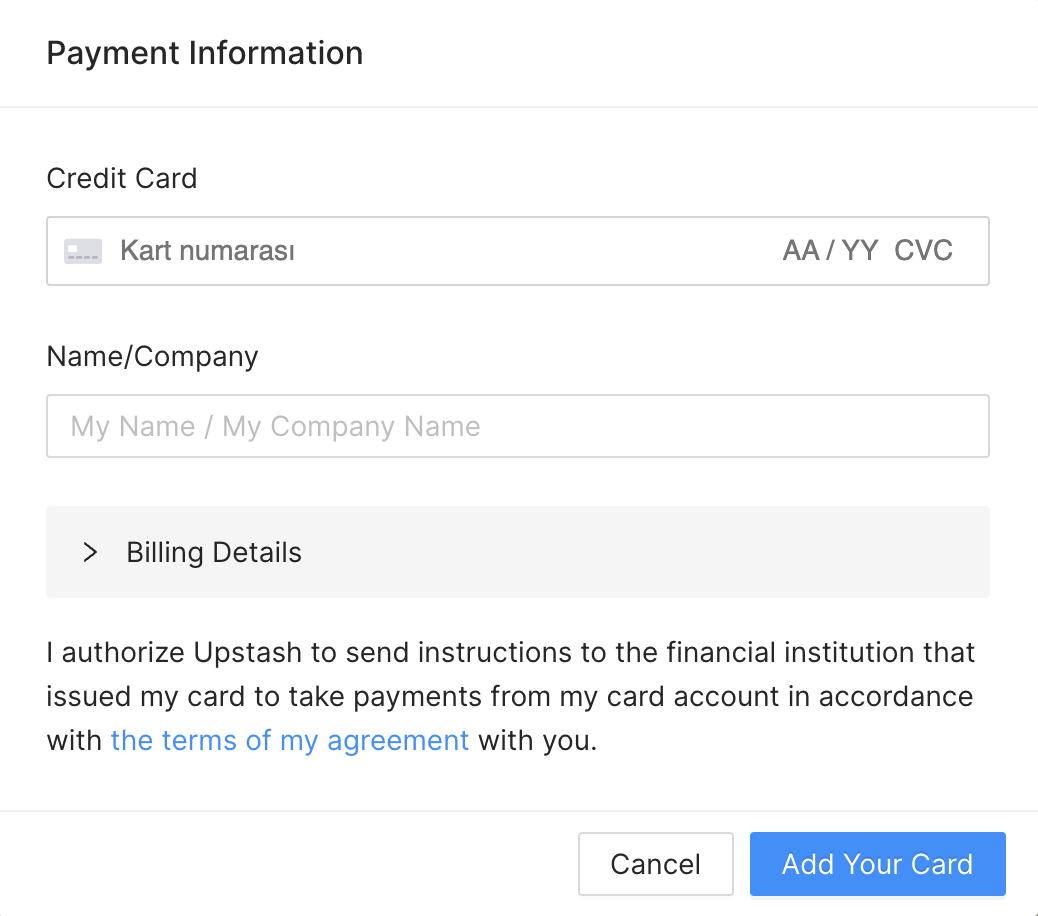
RAG Chatbot with Upstash Vector

{/* Render messages */}
{messages.map(m => (
{m.role}:
{/* If the model calls a tool, show which tool it called */} {m.content.length > 0 ? ( m.content ) : ( calling tool: {m?.toolInvocations?.[0]?.toolName} )}
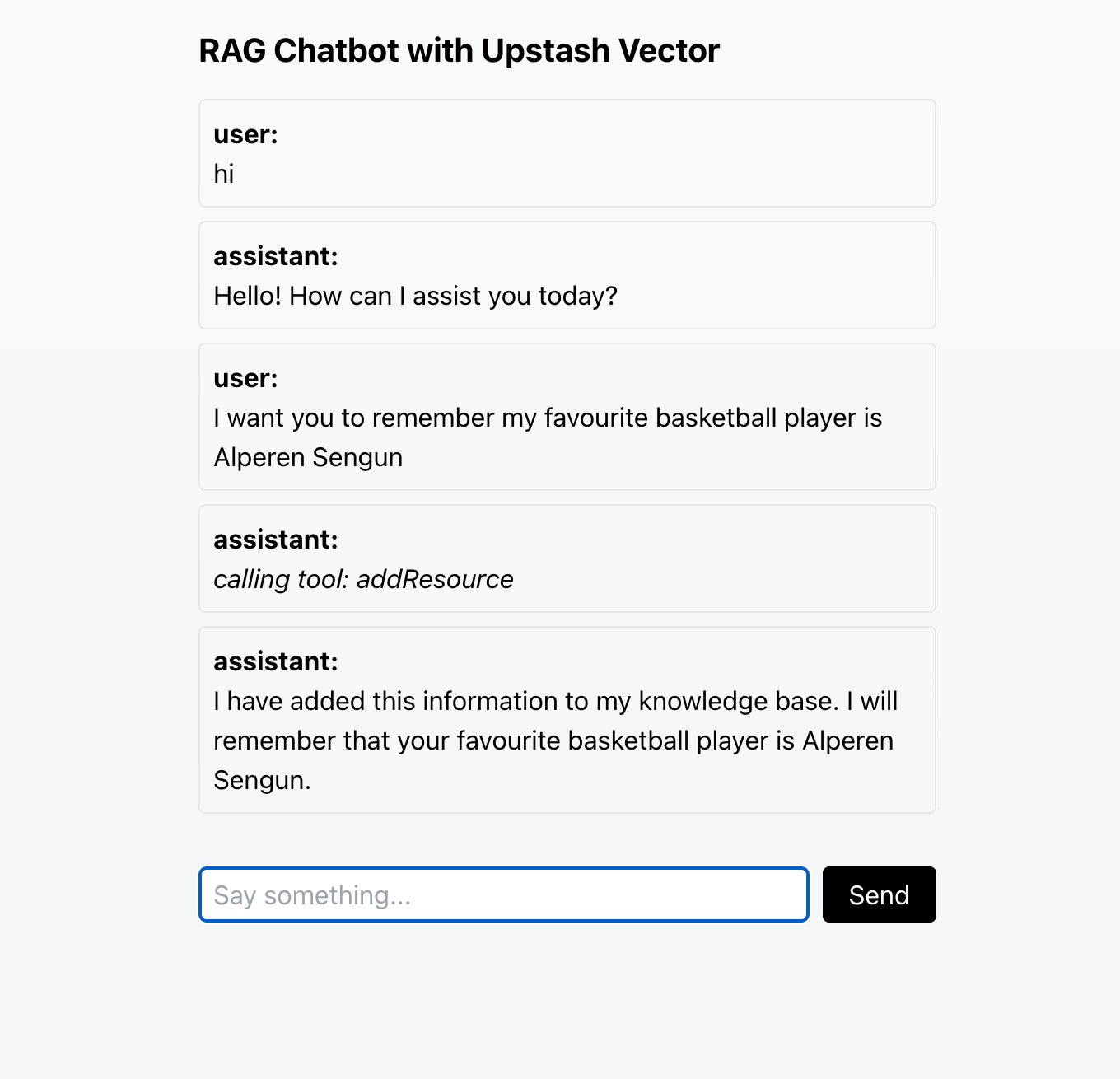
))}
{/* Text input */}
) } ``` ## Run the Chatbot Now, we can run our chatbot with the following command: ```bash theme={"system"} npm run dev ``` Here is a screenshot of the chatbot in action: If you would like to see the entire code of a slightly revised version of this chatbot, you can check out the [GitHub repository](https://github.com/Abdusshh/rag-chatbot-ai-sdk). In this version, the user chooses which embedding model to use through the UI. ## Conclusion Congratulations! You have successfully created a RAG chatbot that uses Upstash Vector to store and retrieve information. To learn more about Upstash Vector, please visit the [Upstash Vector documentation](/vector). To learn more about the AI SDK, visit the [Vercel AI SDK documentation](https://sdk.vercel.ai/docs/introduction). While creating this tutorial, we used the [RAG Chatbot guide](https://sdk.vercel.ai/docs/guides/rag-chatbot) created by Vercel, which uses PostgreSQL with pgvector as a vector database. Make sure to check it out if you want to learn how to create a RAG chatbot using pgvector. --- # Source: https://upstash.com/docs/workflow/integrations/aisdk.md > ## Documentation Index > Fetch the complete documentation index at: https://upstash.com/docs/llms.txt > Use this file to discover all available pages before exploring further. # Vercel AI SDK This feature is not yet available in [workflow-py](https://github.com/upstash/workflow-py). See our [Roadmap](/workflow/roadmap) for feature parity plans and [Changelog](/workflow/changelog) for updates. You can find the project source code which uses real APIs on Github. Upstash Workflow integrates with the Vercel AI SDK to provide durable and reliable AI applications. This allows you to: * Build resilient AI applications with automatic retries * Manage AI operations with workflow steps * Implement tools and function calling with durability * Handle errors gracefully across your AI operations * Handle long-running AI operations with extended timeouts This guide will walk you through setting up and implementing AI features using Upstash Workflow's durability guarantees with Vercel AI SDK's capabilities. ## Prerequisites Before getting started, make sure you have: * An OpenAI API key * Basic familiarity with Upstash Workflow and Vercel AI SDK * Vercel AI SDK version 4.0.12 or higher (required for ToolExecutionError handling) ## Installation Install the required packages: ```bash npm theme={"system"} npm install @ai-sdk/openai ai zod ``` ```bash pnpm theme={"system"} pnpm install @ai-sdk/openai ai zod ``` ```bash bun theme={"system"} bun install @ai-sdk/openai ai zod ``` ## Implementation ### Creating OpenAI client AI SDKs (Vercel AI SDK, OpenAI SDK etc.) uses the client's default fetch implementation to make API requests, but allows you to provide a custom fetch implementation. In the case of Upstash Workflow, we need to use the `context.call` method to make HTTP requests. We can create a custom fetch implementation that uses `context.call` to make requests. By using `context.call`, Upstash Workflow is the one making the HTTP request and waiting for the response, even if it takes too long to receive response from the LLM. The following code snippet can also be generalized to work with other LLM SDKs, such as Anthropic or Google. ```typescript {18-24} theme={"system"} import { createOpenAI } from '@ai-sdk/openai'; import { HTTPMethods } from '@upstash/qstash'; import { WorkflowAbort, WorkflowContext } from '@upstash/workflow'; export const createWorkflowOpenAI = (context: WorkflowContext) => { return createOpenAI({ compatibility: "strict", fetch: async (input, init) => { try { // Prepare headers from init.headers const headers = init?.headers ? Object.fromEntries(new Headers(init.headers).entries()) : {}; // Prepare body from init.body const body = init?.body ? JSON.parse(init.body as string) : undefined; // Make network call const responseInfo = await context.call("openai-call-step", { url: input.toString(), method: init?.method as HTTPMethods, headers, body, }); // Construct headers for the response const responseHeaders = new Headers( Object.entries(responseInfo.header).reduce((acc, [key, values]) => { acc[key] = values.join(", "); return acc; }, {} as Record) ); // Return the constructed response return new Response(JSON.stringify(responseInfo.body), { status: responseInfo.status, headers: responseHeaders, }); } catch (error) { if (error instanceof WorkflowAbort) { throw error } else { console.error("Error in fetch implementation:", error); throw error; // Rethrow error for further handling } } }, }); }; ``` ### Using OpenAI client to generate text Now that we've created the OpenAI client, we can use it to generate the text. For that, we're going to create a new workflow endpoint that uses the payload as prompt to generate text using the OpenAI client. ```typescript {8, 16-20} theme={"system"} import { serve } from "@upstash/workflow/nextjs"; import { WorkflowAbort } from '@upstash/workflow'; import { generateText, ToolExecutionError } from 'ai'; import { createWorkflowOpenAI } from './model'; export const { POST } = serve<{ prompt: string }>(async (context) => { const openai = createWorkflowOpenAI(context); // Important: Must have a step before generateText const prompt = await context.run("get prompt", async () => { return context.requestPayload.prompt; }); try { const result = await generateText({ model: openai('gpt-3.5-turbo'), maxTokens: 2048, prompt, }); await context.run("text", () => { console.log(`TEXT: ${result.text}`); return result.text; }); } catch (error) { if (error instanceof ToolExecutionError && error.cause instanceof WorkflowAbort) { throw error.cause; } else { throw error; } } }); ``` We can either [run the app locally](/workflow/howto/local-development) or deploy it. Once the app is running, we can trigger the workflow using the following code: ```ts theme={"system"} import { Client } from "@upstash/workflow"; const client = new Client({ token: "" }); const { workflowRunId } = await client.trigger({ url: "https:///", body: { "prompt": "How is the weather in San Francisco around this time?" } }); ``` The workflow will execute, and we can view the logs in [the Workflow dashboard](/workflow/howto/monitor): Workflow logs in dashboard ### Advanced Implementation with Tools Tools allow the AI model to perform specific actions during text generation. You can learn more about tools in the [Vercel AI SDK documentation](https://sdk.vercel.ai/docs/ai-sdk-core/tools-and-tool-calling). When using tools with Upstash Workflow, each tool execution must be wrapped in a workflow step. The `maxSteps` parameter must be greater than 1 when using tools to allow the model to process tool results and generate final responses. See the [tool steps documentation](https://sdk.vercel.ai/docs/ai-sdk-core/tools-and-tool-calling#tool-steps) for detailed explanation. ```typescript {24-30, 33} theme={"system"} import { z } from 'zod'; import { serve } from "@upstash/workflow/nextjs"; import { WorkflowAbort } from '@upstash/workflow'; import { generateText, ToolExecutionError, tool } from 'ai'; import { createWorkflowOpenAI } from './model'; export const { POST } = serve<{ prompt: string }>(async (context) => { const openai = createWorkflowOpenAI(context); const prompt = await context.run("get prompt", async () => { return context.requestPayload.prompt; }); try { const result = await generateText({ model: openai('gpt-3.5-turbo'), tools: { weather: tool({ description: 'Get the weather in a location', parameters: z.object({ location: z.string().describe('The location to get the weather for'), }), execute: ({ location }) => context.run("weather tool", () => { // Mock data, replace with actual weather API call return { location, temperature: 72 + Math.floor(Math.random() * 21) - 10, }; }) }), }, maxSteps: 2, prompt, }); await context.run("text", () => { console.log(`TEXT: ${result.text}`); return result.text; }); } catch (error) { if (error instanceof ToolExecutionError && error.cause instanceof WorkflowAbort) { throw error.cause; } else { throw error; } } }); ``` When called with the same prompt as above, we will see the following logs: ## Important Considerations When using Upstash Workflow with the Vercel AI SDK, there are several critical requirements that must be followed: ### Step Execution Order The most critical requirement is that `generateText` cannot be called before any workflow step. Always have a step before `generateText`. This could be a step which gets the prompt: ```typescript ❌ Wrong {4} theme={"system"} export const { POST } = serve<{ prompt: string }>(async (context) => { const openai = createWorkflowOpenAI(context); // Will throw "prompt is undefined" const result = await generateText({ model: openai('gpt-3.5-turbo'), prompt: context.requestPayload.prompt }); }); ``` ```typescript ✅ Correct {3-7} theme={"system"} export const { POST } = serve<{ prompt: string }>(async (context) => { const openai = createWorkflowOpenAI(context); // Get prompt in a step first const prompt = await context.run("get prompt", async () => { return context.requestPayload.prompt; }); const result = await generateText({ model: openai('gpt-3.5-turbo'), prompt }); }); ``` ### Error Handling Pattern You must use the following error handling pattern exactly as shown. The conditions and their handling should not be modified: ```typescript {3-9} theme={"system"} try { // Your generation code } catch (error) { if (error instanceof ToolExecutionError && error.cause instanceof WorkflowAbort) { throw error.cause; } else { throw error; } } ``` ### Tool Implementation When implementing tools: * Each tool's `execute` function must be wrapped in a `context.run()` call * Tool steps should have descriptive names for tracking * Tools must follow the same error handling pattern as above Example: ```typescript theme={"system"} execute: ({ location }) => context.run("weather tool", () => { // Mock data, replace with actual weather API call return { location, temperature: 72 + Math.floor(Math.random() * 21) - 10, }; }) ``` --- # Source: https://upstash.com/docs/vector/features/algorithm.md # Source: https://upstash.com/docs/search/features/algorithm.md > ## Documentation Index > Fetch the complete documentation index at: https://upstash.com/docs/llms.txt > Use this file to discover all available pages before exploring further. # Algorithm Our algorithm combines AI-powered query enhancement, hybrid search techniques, and intelligent reranking to understand user intent (also known as [search intent](https://backlinko.com/hub/seo/search-intent)) and return the most accurate results. Upstash Search processes every query through three key stages: 1. **Input Enrichment**: Enhances the search query using AI to better understand user intent. 2. **Hybrid Vector Search**: Combines semantic search and full-text search to find relevant documents. 3. **Reranking**: Uses AI models to reorder results based on relevance. ### 1. Input Enrichment The first stage enhances your search query using a Large Language Model (LLM). This process: * Expands the original query with related terms and context * Improves understanding of user intent * Handles typos and alternative phrasings * Adds semantic context that might be missing from the original query While input enrichment introduces some latency, it significantly improves search quality. Input enrichment is enabled by default. You can disable this feature if you want to preserve the user query for full text-search or if you want to reduce latency. ```typescript TypeScript theme={"system"} const results = await index.search({ query: "space opera", inputEnrichment: false // faster but less enhanced results }); ``` ```python Python theme={"system"} results = index.search( query="space opera", input_enrichment=False # faster but less enhanced results ) ``` ### 2. Hybrid Vector Search The second stage performs hybrid search by combining semantic search and full-text search: * **Semantic Search**: Uses vector embeddings to understand meaning and context * **Full-Text Search**: Performs traditional keyword matching * **Result Combination**: Merges results using configurable weights By default, Upstash Search uses a 75% semantic weight and 25% full-text weight. You can adjust this balance based on your use case: * Higher semantic weight: Better for conceptual searches and finding related content * Lower semantic weight: Better for exact keyword matching and technical queries ```typescript TypeScript theme={"system"} const results = await index.search({ query: "artificial intelligence concepts", semanticWeight: 0.9 // 90% semantic, 10% full-text }); ``` ```python Python theme={"system"} results = index.search( query="artificial intelligence concepts", semantic_weight=0.9 # 90% semantic, 10% full-text ) ``` ### 3. Reranking The final stage reranks the hybrid search results using AI models. Upstash Search offers two reranking options: **Advanced Reranking (`reranking: true`)** * Uses a powerful, state-of-the-art reranking model * Provides the highest quality results * Costs \$1 per 1K reranking operations * Recommended for applications where search quality is critical **Standard Reranking (`reranking: false`, default)** * Uses a simpler, faster reranking model * Still provides significant improvements over raw hybrid results * No additional cost ```typescript TypeScript theme={"system"} const results = await index.search({ query: "complex technical documentation", reranking: true // uses premium reranking model }); ``` ```python Python theme={"system"} results = index.search( query="complex technical documentation", reranking=True # uses premium reranking model ) ``` ## Conclusion This three-stage approach ensures that Upstash Search: * **Understands Intent**: Input enrichment helps the system understand what users are really looking for * **Finds Relevant Content**: Hybrid search captures both semantic meaning and exact keyword matches * **Prioritizes Quality**: Reranking ensures the most relevant results appear first * **Stays Flexible**: Each stage can be configured based on your specific needs The result is a search system that works well across all kinds of content and domains, handling everything from precise technical queries to broad conceptual searches. --- # Source: https://upstash.com/docs/redis/sdks/ratelimit-ts/algorithms.md # Source: https://upstash.com/docs/redis/sdks/ratelimit-py/algorithms.md > ## Documentation Index > Fetch the complete documentation index at: https://upstash.com/docs/llms.txt > Use this file to discover all available pages before exploring further. # Ratelimiting Algorithms ## Fixed Window This algorithm divides time into fixed durations/windows. For example each window is 10 seconds long. When a new request comes in, the current time is used to determine the window and a counter is increased. If the counter is larger than the set limit, the request is rejected. In fixed & sliding window algorithms, the reset time is based on fixed time boundaries (which depend on the period), not on when the first request was made. So two requests made right before the window ends still count toward the current window, and limits reset at the start of the next window. ### Pros * Very cheap in terms of data size and computation * Newer requests are not starved due to a high burst in the past ### Cons * Can cause high bursts at the window boundaries to leak through * Causes request stampedes if many users are trying to access your server, whenever a new window begins ### Usage ```python theme={"system"} from upstash_ratelimit import Ratelimit, FixedWindow from upstash_redis import Redis ratelimit = Ratelimit( redis=Redis.from_env(), limiter=FixedWindow(max_requests=10, window=10), ) ``` ## Sliding Window Builds on top of fixed window but instead of a fixed window, we use a rolling window. Take this example: We have a rate limit of 10 requests per 1 minute. We divide time into 1 minute slices, just like in the fixed window algorithm. Window 1 will be from 00:00:00 to 00:01:00 (HH:MM:SS). Let's assume it is currently 00:01:15 and we have received 4 requests in the first window and 5 requests so far in the current window. The approximation to determine if the request should pass works like this: ```python theme={"system"} limit = 10 # 4 request from the old window, weighted + requests in current window rate = 4 * ((60 - 15) / 60) + 5 = 8 return rate < limit # True means we should allow the request ``` ### Pros * Solves the issue near boundary from fixed window. ### Cons * More expensive in terms of storage and computation * It's only an approximation because it assumes a uniform request flow in the previous window ### Usage ```python theme={"system"} from upstash_ratelimit import Ratelimit, SlidingWindow from upstash_redis import Redis ratelimit = Ratelimit( redis=Redis.from_env(), limiter=SlidingWindow(max_requests=10, window=10), ) ``` `reset` field in the [`limit`](/redis/sdks/ratelimit-py/gettingstarted) method of sliding window does not provide an exact reset time. Instead, the reset time is the start time of the next window. ## Token Bucket Consider a bucket filled with maximum number of tokens that refills constantly at a rate per interval. Every request will remove one token from the bucket and if there is no token to take, the request is rejected. ### Pros * Bursts of requests are smoothed out and you can process them at a constant rate. * Allows setting a higher initial burst limit by setting maximum number of tokens higher than the refill rate ### Cons * Expensive in terms of computation ### Usage ```python theme={"system"} from upstash_ratelimit import Ratelimit, TokenBucket from upstash_redis import Redis ratelimit = Ratelimit( redis=Redis.from_env(), limiter=TokenBucket(max_tokens=10, refill_rate=5, interval=10), ) ``` --- # Source: https://upstash.com/docs/workflow/examples/allInOne.md > ## Documentation Index > Fetch the complete documentation index at: https://upstash.com/docs/llms.txt > Use this file to discover all available pages before exploring further. # AI Generation ## Introduction This example demonstrates advanced AI data processing using Upstash Workflow. The following example workflow downloads a large dataset, processes it in chunks using OpenAI's GPT-4 model, aggregates the results and generates a report. ## Use Case Our workflow will: 1. Receive a request to process a dataset 2. Download the dataset from a remote source 3. Process the data in chunks using OpenAI 4. Aggregate results 5. Generate and send a final report ## Code Example ```typescript api/workflow/route.ts theme={"system"} import { serve } from "@upstash/workflow/nextjs" import { downloadData, aggregateResults, generateReport, sendReport, getDatasetUrl, splitIntoChunks, } from "./utils" type OpenAiResponse = { choices: { message: { role: string, content: string } }[] } export const { POST } = serve<{ datasetId: string; userId: string }>( async (context) => { const request = context.requestPayload // Step 1: Download the dataset const datasetUrl = await context.run("get-dataset-url", async () => { return await getDatasetUrl(request.datasetId) }) // HTTP request with much longer timeout (2hrs) const { body: dataset } = await context.call("download-dataset", { url: datasetUrl, method: "GET" }) // Step 2: Process data in chunks using OpenAI const chunkSize = 1000 const chunks = splitIntoChunks(dataset, chunkSize) const processedChunks: string[] = [] for (let i = 0; i < chunks.length; i++) { const { body: processedChunk } = await context.api.openai.call( `process-chunk-${i}`, { token: process.env.OPENAI_API_KEY, operation: "chat.completions.create", body: { model: "gpt-4", messages: [ { role: "system", content: "You are an AI assistant tasked with analyzing data chunks. Provide a brief summary and key insights for the given data.", }, { role: "user", content: `Analyze this data chunk: ${JSON.stringify(chunks[i])}`, }, ], max_completion_tokens: 150, }, } ) processedChunks.push(processedChunk.choices[0].message.content!) // Every 10 chunks, we'll aggregate intermediate results if (i % 10 === 9 || i === chunks.length - 1) { await context.run(`aggregate-results${i}`, async () => { await aggregateResults(processedChunks) processedChunks.length = 0 }) } } // Step 3: Generate and send data report const report = await context.run("generate-report", async () => { return await generateReport(request.datasetId) }) await context.run("send-report", async () => { await sendReport(report, request.userId) }) } ) ``` ```python main.py theme={"system"} from fastapi import FastAPI import json import os from typing import Dict, List, Any, TypedDict from upstash_workflow.fastapi import Serve from upstash_workflow import AsyncWorkflowContext, CallResponse from utils import ( aggregate_results, generate_report, send_report, get_dataset_url, split_into_chunks, ) app = FastAPI() serve = Serve(app) class RequestPayload(TypedDict): dataset_id: str user_id: str @serve.post("/ai-generation") async def ai_generation(context: AsyncWorkflowContext[RequestPayload]) -> None: request = context.request_payload dataset_id = request["dataset_id"] user_id = request["user_id"] # Step 1: Download the dataset async def _get_dataset_url() -> str: return await get_dataset_url(dataset_id) dataset_url = await context.run("get-dataset-url", _get_dataset_url) # HTTP request with much longer timeout (2hrs) response: CallResponse[Any] = await context.call( "download-dataset", url=dataset_url, method="GET" ) dataset = response.body # Step 2: Process data in chunks using OpenAI chunk_size = 1000 chunks = split_into_chunks(dataset, chunk_size) processed_chunks: List[str] = [] for i, chunk in enumerate(chunks): openai_response: CallResponse[Dict[str, str]] = await context.call( f"process-chunk-{i}", url="https://api.openai.com/v1/chat/completions", method="POST", headers={ "authorization": f"Bearer {os.getenv('OPENAI_API_KEY')}", }, body={ "model": "gpt-4", "messages": [ { "role": "system", "content": "You are an AI assistant tasked with analyzing data chunks. Provide a brief summary and key insights for the given data.", }, { "role": "user", "content": f"Analyze this data chunk: {json.dumps(chunk)}", }, ], "max_tokens": 150, }, ) processed_chunks.append( openai_response.body["choices"][0]["message"]["content"] ) # Every 10 chunks, we'll aggregate intermediate results if i % 10 == 9 or i == len(chunks) - 1: async def _aggregate_results() -> None: await aggregate_results(processed_chunks) processed_chunks.clear() await context.run(f"aggregate-results{i}", _aggregate_results) # Step 3: Generate and send data report async def _generate_report() -> Any: return await generate_report(dataset_id) report = await context.run("generate-report", _generate_report) async def _send_report() -> None: await send_report(report, user_id) await context.run("send-report", _send_report) ``` ## Code Breakdown ### 1. Preparing our data We start by retrieving the dataset URL and then downloading the dataset: ```typescript api/workflow/route.ts theme={"system"} const datasetUrl = await context.run("get-dataset-url", async () => { return await getDatasetUrl(request.datasetId) }) const { body: dataset } = await context.call("download-dataset", { url: datasetUrl, method: "GET" }) ``` ```python main.py theme={"system"} async def _get_dataset_url() -> str: return await get_dataset_url(dataset_id) dataset_url = await context.run("get-dataset-url", _get_dataset_url) response: CallResponse[Any] = await context.call( "download-dataset", url=dataset_url, method="GET" ) dataset = response.body ``` Note that we use `context.call` for the download, a way to make HTTP requests that run for much longer than your serverless execution limit would normally allow. ### 2. Processing our data We split the dataset into chunks and process each one using OpenAI's GPT-4 model: ```typescript api/workflow/route.ts theme={"system"} for (let i = 0; i < chunks.length; i++) { const { body: processedChunk } = await context.api.openai.call( `process-chunk-${i}`, { token: process.env.OPENAI_API_KEY!, operation: "chat.completions.create", body: { model: "gpt-4", messages: [ { role: "system", content: "You are an AI assistant tasked with analyzing data chunks. Provide a brief summary and key insights for the given data.", }, { role: "user", content: `Analyze this data chunk: ${JSON.stringify(chunks[i])}`, }, ], max_completion_tokens: 150, }, } ) } ``` ```python main.py theme={"system"} for i, chunk in enumerate(chunks): openai_response: CallResponse[Dict[str, str]] = await context.call( f"process-chunk-{i}", url="https://api.openai.com/v1/chat/completions", method="POST", headers={ "authorization": f"Bearer {os.getenv('OPENAI_API_KEY')}", }, body={ "model": "gpt-4", "messages": [ { "role": "system", "content": "You are an AI assistant tasked with analyzing data chunks. Provide a brief summary and key insights for the given data.", }, { "role": "user", "content": f"Analyze this data chunk: {json.dumps(chunk)}", }, ], "max_tokens": 150, }, ) ``` ### 3. Aggregating our data After processing our data in smaller chunks to avoid any function timeouts, we aggregate results every 10 chunks: ```typescript api/workflow/route.ts theme={"system"} if (i % 10 === 9 || i === chunks.length - 1) { await context.run(`aggregate-results${i}`, async () => { await aggregateResults(processedChunks) processedChunks.length = 0 }) } ``` ```python main.py theme={"system"} if i % 10 == 9 or i == len(chunks) - 1: async def _aggregate_results() -> None: await aggregate_results(processed_chunks) processed_chunks.clear() await context.run(f"aggregate-results{i}", _aggregate_results) ``` ### 4. Sending a report Finally, we generate a report based on the aggregated results and send it to the user: ```typescript api/workflow/route.ts theme={"system"} const report = await context.run("generate-report", async () => { return await generateReport(request.datasetId) }) await context.run("send-report", async () => { await sendReport(report, request.userId) }) ``` ```python main.py theme={"system"} async def _generate_report() -> Any: return await generate_report(dataset_id) report = await context.run("generate-report", _generate_report) async def _send_report() -> None: await send_report(report, user_id) await context.run("send-report", _send_report) ``` ## Key Features 1. **Non-blocking HTTP Calls**: We use `context.call` for API requests so they don't consume the endpoint's execution time (great for optimizing serverless cost). 2. **Long-running tasks**: The dataset download can take up to 2 hours, though is realistically limited by function memory. --- # Source: https://upstash.com/docs/common/help/announcements.md > ## Documentation Index > Fetch the complete documentation index at: https://upstash.com/docs/llms.txt > Use this file to discover all available pages before exploring further. # Announcements > Upstash Announcements! Removal of GraphQL API and edge caching (Redis) (October 1, 2022) These two features have been already deprecated. We are planning to deactivate them completely on November 1st. We recommend use of REST API to replace GraphQL API and Global databases instead of Edge caching. Removal of strong consistency (Redis) (October 1, 2022) Upstash supported Strong Consistency mode for the single region databases. We decided to deprecate this feature because its effect on latency started to conflict with the performance expectations of Redis use cases. Moreover, we improved the consistency of replication to guarantee Read-Your-Writes consistency. Strong consistency will be disabled on existing databases on November 1st. #### Redis pay-as-you-go usage cap (October 1, 2022) We are increasing the max usage cap to \$160 from \$120 as of October 1st. This update is needed because of the increasing infrastructure cost due to replicating all databases to multiple instances. After your database exceeds the max usage cost, your database might be rate limited. #### Replication is enabled (Sep 29, 2022) All new and existing paid databases will be replicated to multiple replicas. Replication enables high availability in case of system and infrastructure failures. Starting from October 1st, we will gradually upgrade all databases without downtime. Free databases will stay single replica.
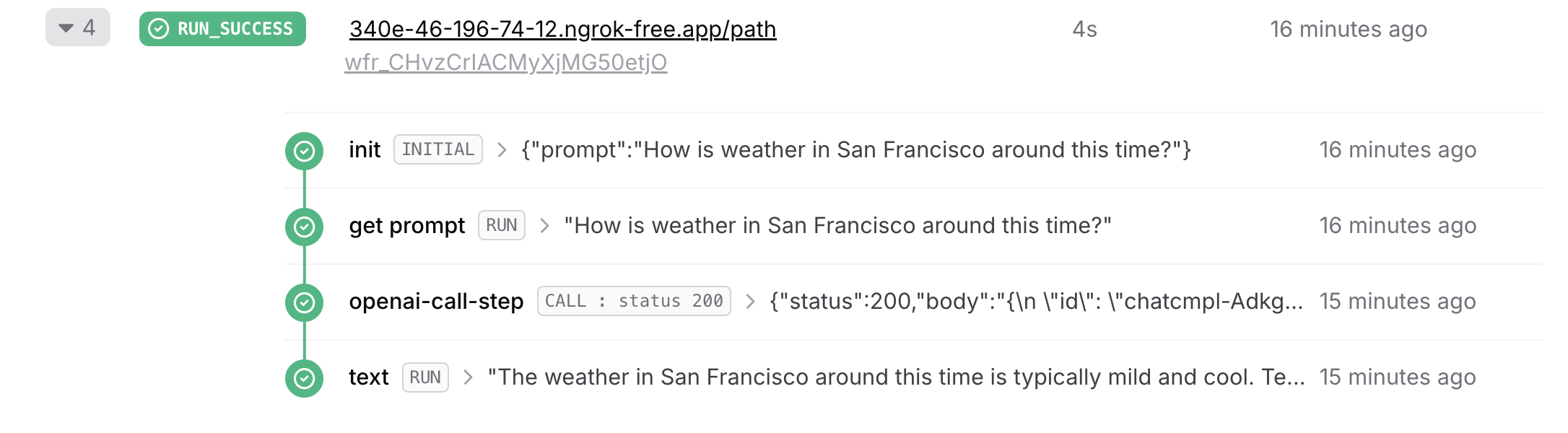
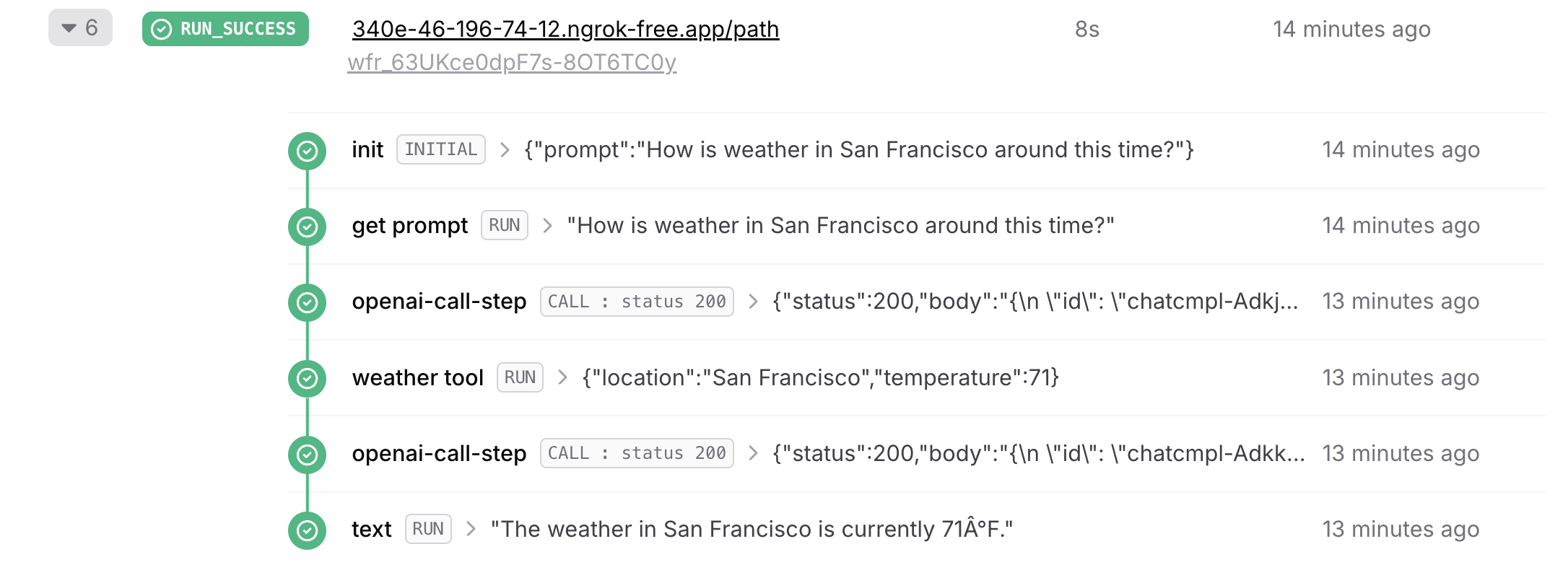
#### QStash Price Decrease (Sep 15, 2022) The price is \$1 per 100K requests.
#### [Pulumi Provider is available](https://upstash.com/blog/upstash-pulumi-provider) (August 4, 2022)
#### [QStash is released and announced](https://upstash.com/blog/qstash-announcement) (July 18, 2022)
#### [Announcing Upstash CLI](https://upstash.com/blog/upstash-cli) (May 16, 2022)
#### [Introducing Redis 6 Compatibility](https://upstash.com/blog/redis-6) (April 10, 2022)
#### Strong Consistency Deprecated (March 29, 2022) We have deprecated Strong Consistency mode for Redis databases due to its performance impact. This will not be available for new databases. We are planning to disable it on existing databases before the end of 2023. The database owners will be notified via email.
#### [Announcing Upstash Redis SDK v1.0.0](https://upstash.com/blog/upstash-redis-sdk-v1) (March 14, 2022)
#### Support for Google Cloud (June 8, 2021) Google Cloud is available for Upstash Redis databases. We initially support US-Central-1 (Iowa) region. Check the [get started guide](https://docs.upstash.com/redis/howto/getstartedgooglecloudfunctions).
#### Support for AWS Japan (March 1, 2021) こんにちは日本 Support for AWS Tokyo Region was the most requested feature by our users. Now our users can create their database in AWS Asia Pacific (Tokyo) region (ap-northeast-1). In addition to Japan, Upstash is available in the regions us-west-1, us-east-1, eu-west-1. Click [here](https://console.upstash.com) to start your database for free. Click [here](https://roadmap.upstash.com) to request new regions to be supported.
#### Vercel Integration (February 22, 2021) Upstash\&Vercel integration has been released. Now you are able to integrate Upstash to your project easily. We believe Upstash is the perfect database for your applications thanks to its: * Low latency data * Per request pricing * Durable storage * Ease of use Below are the resources about the integration: See [how to guide](https://docs.upstash.com/redis/howto/vercelintegration). See [integration page](https://vercel.com/integrations/upstash). See [Roadmap Voting app](https://github.com/upstash/roadmap) as a showcase for the integration. --- # Source: https://upstash.com/docs/workflow/integrations/anthropic.md # Source: https://upstash.com/docs/qstash/integrations/anthropic.md > ## Documentation Index > Fetch the complete documentation index at: https://upstash.com/docs/llms.txt > Use this file to discover all available pages before exploring further. # LLM with Anthropic QStash integrates smoothly with Anthropic's API, allowing you to send LLM requests and leverage QStash features like retries, callbacks, and batching. This is especially useful when working in serverless environments where LLM response times vary and traditional timeouts may be limiting. QStash provides an HTTP timeout of up to 2 hours, which is ideal for most LLM cases. ### Example: Publishing and Enqueueing Requests Specify the `api` as `llm` with the provider set to `anthropic()` when publishing requests. Use the `Upstash-Callback` header to handle responses asynchronously, as streaming completions aren’t supported for this integration. #### Publishing a Request ```typescript theme={"system"} import { anthropic, Client } from "@upstash/qstash"; const client = new Client({ token: "" }); await client.publishJSON({ api: { name: "llm", provider: anthropic({ token: "" }) }, body: { model: "claude-3-5-sonnet-20241022", messages: [{ role: "user", content: "Summarize recent tech trends." }], }, callback: "https://example.com/callback", }); ``` ### Enqueueing a Chat Completion Request Use `enqueueJSON` with Anthropic as the provider to enqueue requests for asynchronous processing. ```typescript theme={"system"} import { anthropic, Client } from "@upstash/qstash"; const client = new Client({ token: "" }); const result = await client.queue({ queueName: "your-queue-name" }).enqueueJSON({ api: { name: "llm", provider: anthropic({ token: "" }) }, body: { model: "claude-3-5-sonnet-20241022", messages: [ { role: "user", content: "Generate ideas for a marketing campaign.", }, ], }, callback: "https://example.com/callback", }); console.log(result); ``` ### Sending Chat Completion Requests in Batches Use `batchJSON` to send multiple requests at once. Each request in the batch specifies the same Anthropic provider and includes a callback URL. ```typescript theme={"system"} import { anthropic, Client } from "@upstash/qstash"; const client = new Client({ token: "" }); const result = await client.batchJSON([ { api: { name: "llm", provider: anthropic({ token: "" }) }, body: { model: "claude-3-5-sonnet-20241022", messages: [ { role: "user", content: "Describe the latest in AI research.", }, ], }, callback: "https://example.com/callback1", }, { api: { name: "llm", provider: anthropic({ token: "" }) }, body: { model: "claude-3-5-sonnet-20241022", messages: [ { role: "user", content: "Outline the future of remote work.", }, ], }, callback: "https://example.com/callback2", }, // Add more requests as needed ]); console.log(result); ``` #### Analytics with Helicone To monitor usage, include Helicone analytics by passing your Helicone API key under `analytics`: ```typescript theme={"system"} await client.publishJSON({ api: { name: "llm", provider: anthropic({ token: "" }), analytics: { name: "helicone", token: process.env.HELICONE_API_KEY! }, }, body: { model: "claude-3-5-sonnet-20241022", messages: [{ role: "user", content: "Hello!" }] }, callback: "https://example.com/callback", }); ``` With this setup, Anthropic can be used seamlessly in any LLM workflows in QStash. --- # Source: https://upstash.com/docs/qstash/api/api-ratelimiting.md # API Rate Limit Response > This page documents the rate limiting behavior of our API and explains how to handle different types of rate limit errors. ## Overview There is no request per second limit for operational API's as listed below: * trigger, publish, enqueue, notify, wait, batch * Other endpoints (like logs,listing flow-controls, queues, schedules etc) have rps limit. This is a short-term limit **per second** to prevent rapid bursts of requests. **Headers**: * `Burst-RateLimit-Limit`: Maximum number of requests allowed in the burst window (1 second) * `Burst-RateLimit-Remaining`: Remaining number of requests in the burst window (1 second) * `Burst-RateLimit-Reset`: Time (in unix timestamp) when the burst limit will reset ### Example Rate Limit Error Handling ```typescript Handling Daily Rate Limit Error theme={"system"} import { QstashDailyRatelimitError } from "@upstash/qstash"; try { // Example of a publish request that could hit the daily rate limit const result = await client.publishJSON({ url: "https://my-api...", // or urlGroup: "the name or id of a url group" body: { hello: "world", }, }); } catch (error) { if (error instanceof QstashDailyRatelimitError) { console.log("Daily rate limit exceeded. Retry after:", error.reset); // Implement retry logic or notify the user } else { console.error("An unexpected error occurred:", error); } } ``` ```typescript Handling Burst Rate Limit Error theme={"system"} import { QstashRatelimitError } from "@upstash/qstash"; try { // Example of a request that could hit the burst rate limit const result = await client.publishJSON({ url: "https://my-api...", // or urlGroup: "the name or id of a url group" body: { hello: "world", }, }); } catch (error) { if (error instanceof QstashRatelimitError) { console.log("Burst rate limit exceeded. Retry after:", error.reset); // Implement exponential backoff or delay before retrying } else { console.error("An unexpected error occurred:", error); } } ``` --- # Source: https://upstash.com/docs/workflow/basics/context/api.md > ## Documentation Index > Fetch the complete documentation index at: https://upstash.com/docs/llms.txt > Use this file to discover all available pages before exploring further. # context.api In addition to `context.call`, you can also make third‑party requests using the `context.api` namespace. This namespace provides built‑in integrations for **OpenAI**, **Anthropic**, and **Resend**, allowing you to make requests in a **type‑safe** manner. ```typescript OpenAI theme={"system"} const { status, body } = await context.api.openai.call("Call OpenAI", { token: "", operation: "chat.completions.create", body: { model: "gpt-4o", messages: [ { role: "system", content: "Assistant says 'hello!'", }, { role: "user", content: "User shouts back 'hi!'" }, ], }, }); ``` ```typescript Anthropic theme={"system"} const { status, body } = await context.api.anthropic.call( "Call Anthropic", { token: "", operation: "messages.create", body: { model: "claude-3-5-sonnet-20241022", max_tokens: 1024, messages: [ {"role": "user", "content": "Hello, world"} ] }, } ); ``` ```typescript Resend theme={"system"} const { status, body } = await context.api.resend.call("Call Resend", { token: "", body: { from: "Acme ", to: ["delivered@resend.dev"], subject: "Hello World", html: "

It works!

", }, headers: { "content-type": "application/json", }, }); ```
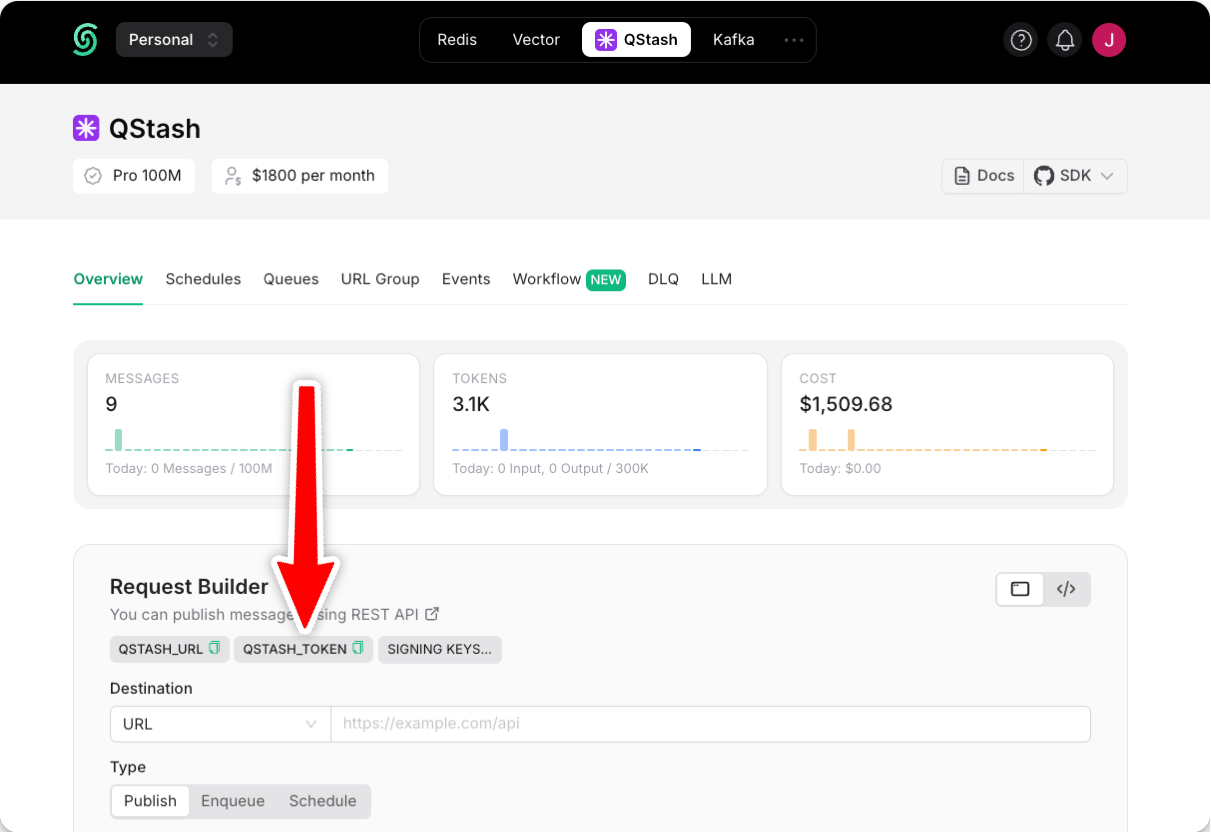
We'll continue adding more integrations over time. If you'd like to see a specific integration, feel free to contribute to the SDK or contact us with your suggestion. For detailed guides on usage and configuration, see the [Integrations section](/workflow/integrations/openai). --- # Source: https://upstash.com/docs/redis/tutorials/api_with_cdk.md > ## Documentation Index > Fetch the complete documentation index at: https://upstash.com/docs/llms.txt > Use this file to discover all available pages before exploring further. # Deploy a Serverless API with AWS CDK and AWS Lambda You can find the project source code on GitHub. In this tutorial, we will implement a Serverless API using AWS Lambda and we will deploy it using AWS CDK. We will use Typescript as the CDK language. It will be a view counter where we keep the state in Redis. ### What is AWS CDK? AWS CDK is an interesting project which allows you to provision and deploy AWS infrastructure with code. Currently TypeScript, JavaScript, Python, Java, C#/.Net and Go are supported. You can compare AWS CDK with following technologies: * AWS CloudFormation * AWS SAM * Serverless Framework The above projects allows you to set up the infrastructure with configuration files (yaml, json) while with AWS CDK, you set up the resources with code. For more information about CDK see the related [AWS Docs](https://docs.aws.amazon.com/cdk/latest/guide/home.html). ### Prerequisites * Complete all steps in [Getting started with the AWS CDK](https://docs.aws.amazon.com/cdk/v2/guide/getting_started.html) ### Project Setup Create and navigate to a directory named `counter-cdk`. The CDK CLI uses this directory name to name things in your CDK code, so if you decide to use a different name, don't forget to make the appropriate changes when applying this tutorial. ```shell theme={"system"} mkdir counter-cdk && cd counter-cdk ``` Initialize a new CDK project. ```shell theme={"system"} cdk init app --language typescript ``` Install `@upstash/redis`. ```shell theme={"system"} npm install @upstash/redis ``` ### Counter Function Setup Create `/api/counter.ts`. ```ts /api/counter.ts theme={"system"} import { Redis } from '@upstash/redis'; const redis = Redis.fromEnv(); export const handler = async function() { const count = await redis.incr("counter"); return { statusCode: 200, body: JSON.stringify('Counter: ' + count), }; }; ``` ### Counter Stack Setup Update `/lib/counter-cdk-stack.ts`. ```ts /lib/counter-cdk-stack.ts theme={"system"} import * as cdk from 'aws-cdk-lib'; import { Construct } from 'constructs'; import * as lambda from 'aws-cdk-lib/aws-lambda'; import * as nodejs from 'aws-cdk-lib/aws-lambda-nodejs'; export class CounterCdkStack extends cdk.Stack { constructor(scope: Construct, id: string, props?: cdk.StackProps) { super(scope, id, props); const counterFunction = new nodejs.NodejsFunction(this, 'CounterFunction', { entry: 'api/counter.ts', handler: 'handler', runtime: lambda.Runtime.NODEJS_20_X, environment: { UPSTASH_REDIS_REST_URL: process.env.UPSTASH_REDIS_REST_URL || '', UPSTASH_REDIS_REST_TOKEN: process.env.UPSTASH_REDIS_REST_TOKEN || '', }, bundling: { format: nodejs.OutputFormat.ESM, target: "node20", nodeModules: ['@upstash/redis'], }, }); const counterFunctionUrl = counterFunction.addFunctionUrl({ authType: lambda.FunctionUrlAuthType.NONE, }); new cdk.CfnOutput(this, "counterFunctionUrlOutput", { value: counterFunctionUrl.url, }) } } ``` ### Database Setup Create a Redis database using [Upstash Console](https://console.upstash.com) or [Upstash CLI](https://github.com/upstash/cli) and export `UPSTASH_REDIS_REST_URL` and `UPSTASH_REDIS_REST_TOKEN` to your environment. ```shell theme={"system"} export UPSTASH_REDIS_REST_URL= export UPSTASH_REDIS_REST_TOKEN= ``` ### Deploy Run in the top folder: ```shell theme={"system"} cdk synth cdk bootstrap cdk deploy ``` Visit the output URL. --- # Source: https://upstash.com/docs/qstash/overall/apiexamples.md > ## Documentation Index > Fetch the complete documentation index at: https://upstash.com/docs/llms.txt > Use this file to discover all available pages before exploring further. # API Examples ### Use QStash via: * cURL * [Typescript SDK](https://github.com/upstash/sdk-qstash-ts) * [Python SDK](https://github.com/upstash/qstash-python) Below are some examples to get you started. You can also check the [how to](/qstash/howto/publishing) section for more technical details or the [API reference](/qstash/api/messages) to test the API. ### Publish a message to an endpoint Simple example to [publish](/qstash/howto/publishing) a message to an endpoint. ```shell theme={"system"} curl -XPOST \ -H 'Authorization: Bearer XXX' \ -H "Content-type: application/json" \ -d '{ "hello": "world" }' \ 'https://qstash.upstash.io/v2/publish/https://example.com' ``` ```typescript theme={"system"} const client = new Client({ token: "" }); await client.publishJSON({ url: "https://example.com", body: { hello: "world", }, }); ``` ```python theme={"system"} from qstash import QStash client = QStash("") client.message.publish_json( url="https://example.com", body={ "hello": "world", }, ) # Async version is also available ``` ### Publish a message to a URL Group The [URL Group](/qstash/features/url-groups) is a way to publish a message to multiple endpoints in a fan out pattern. ```shell theme={"system"} curl -XPOST \ -H 'Authorization: Bearer XXX' \ -H "Content-type: application/json" \ -d '{ "hello": "world" }' \ 'https://qstash.upstash.io/v2/publish/myUrlGroup' ``` ```typescript theme={"system"} const client = new Client({ token: "" }); await client.publishJSON({ urlGroup: "myUrlGroup", body: { hello: "world", }, }); ``` ```python theme={"system"} from qstash import QStash client = QStash("") client.message.publish_json( url_group="my-url-group", body={ "hello": "world", }, ) # Async version is also available ``` ### Publish a message with 5 minutes delay Add a delay to the message to be published. After QStash receives the message, it will wait for the specified time (5 minutes in this example) before sending the message to the endpoint. ```shell theme={"system"} curl -XPOST \ -H 'Authorization: Bearer XXX' \ -H "Content-type: application/json" \ -H "Upstash-Delay: 5m" \ -d '{ "hello": "world" }' \ 'https://qstash.upstash.io/v2/publish/https://example.com' ``` ```typescript theme={"system"} const client = new Client({ token: "" }); await client.publishJSON({ url: "https://example.com", body: { hello: "world", }, delay: 300, }); ``` ```python theme={"system"} from qstash import QStash client = QStash("") client.message.publish_json( url="https://example.com", body={ "hello": "world", }, delay="5m", ) # Async version is also available ``` ### Send a custom header Add a custom header to the message to be published. ```shell theme={"system"} curl -XPOST \ -H 'Authorization: Bearer XXX' \ -H 'Upstash-Forward-My-Header: my-value' \ -H "Content-type: application/json" \ -d '{ "hello": "world" }' \ 'https://qstash.upstash.io/v2/publish/https://example.com' ``` ```typescript theme={"system"} const client = new Client({ token: "" }); await client.publishJSON({ url: "https://example.com", body: { hello: "world", }, headers: { "My-Header": "my-value", }, }); ``` ```python theme={"system"} from qstash import QStash client = QStash("") client.message.publish_json( url="https://example.com", body={ "hello": "world", }, headers={ "My-Header": "my-value", }, ) # Async version is also available ``` ### Schedule to run once a day ```shell theme={"system"} curl -XPOST \ -H 'Authorization: Bearer XXX' \ -H "Upstash-Cron: 0 0 * * *" \ -H "Content-type: application/json" \ -d '{ "hello": "world" }' \ 'https://qstash.upstash.io/v2/schedules/https://example.com' ``` ```typescript theme={"system"} const client = new Client({ token: "" }); await client.schedules.create({ destination: "https://example.com", cron: "0 0 * * *", }); ``` ```python theme={"system"} from qstash import QStash client = QStash("") client.schedule.create( destination="https://example.com", cron="0 0 * * *", ) # Async version is also available ``` ### Publish messages to a FIFO queue By default, messges are published concurrently. With a [queue](/qstash/features/queues), you can enqueue messages in FIFO order. ```shell theme={"system"} curl -XPOST -H 'Authorization: Bearer XXX' \ -H "Content-type: application/json" \ 'https://qstash.upstash.io/v2/enqueue/my-queue/https://example.com' -d '{"message":"Hello, World!"}' ``` ```typescript theme={"system"} const client = new Client({ token: "" }); const queue = client.queue({ queueName: "my-queue" }) await queue.enqueueJSON({ url: "https://example.com", body: { "Hello": "World" } }) ``` ```python theme={"system"} from qstash import QStash client = QStash("") client.message.enqueue_json( queue="my-queue", url="https://example.com", body={ "Hello": "World", }, ) # Async version is also available ``` ### Publish messages in a [batch](/qstash/features/batch) Publish multiple messages in a single request. ```shell theme={"system"} curl -XPOST https://qstash.upstash.io/v2/batch \ -H 'Authorization: Bearer XXX' \ -H "Content-type: application/json" \ -d ' [ { "destination": "https://example.com/destination1" }, { "destination": "https://example.com/destination2" } ]' ``` ```typescript theme={"system"} import { Client } from "@upstash/qstash"; const client = new Client({ token: "" }); const res = await client.batchJSON([ { url: "https://example.com/destination1", }, { url: "https://example.com/destination2", }, ]); ``` ```python theme={"system"} from qstash import QStash client = QStash("") client.message.batch_json( [ { "url": "https://example.com/destination1", }, { "url": "https://example.com/destination2", }, ] ) # Async version is also available ``` ### Set max retry count to 3 Configure how many times QStash should retry to send the message to the endpoint before sending it to the [dead letter queue](/qstash/features/dlq). ```shell theme={"system"} curl -XPOST \ -H 'Authorization: Bearer XXX' \ -H "Upstash-Retries: 3" \ -H "Content-type: application/json" \ -d '{ "hello": "world" }' \ 'https://qstash.upstash.io/v2/publish/https://example.com' ``` ```typescript theme={"system"} const client = new Client({ token: "" }); await client.publishJSON({ url: "https://example.com", body: { hello: "world", }, retries: 3, }); ``` ```python theme={"system"} from qstash import QStash client = QStash("") client.message.publish_json( url="https://example.com", body={ "hello": "world", }, retries=3, ) # Async version is also available ``` ### Set custom retry delay Configure the delay between retry attempts when message delivery fails. [By default, QStash uses exponential backoff](/qstash/features/retry). You can customize this using mathematical expressions with the special variable `retried` (current retry attempt count starting from 0). ```shell theme={"system"} curl -XPOST \ -H 'Authorization: Bearer XXX' \ -H "Upstash-Retries: 3" \ -H "Upstash-Retry-Delay: pow(2, retried) * 1000" \ -H "Content-type: application/json" \ -d '{ "hello": "world" }' \ 'https://qstash.upstash.io/v2/publish/https://example.com' ``` ```typescript theme={"system"} const client = new Client({ token: "" }); await client.publishJSON({ url: "https://example.com", body: { hello: "world", }, retries: 3, retryDelay: "pow(2, retried) * 1000", // 2^retried * 1000ms }); ``` ```python theme={"system"} from qstash import QStash client = QStash("") client.message.publish_json( url="https://example.com", body={ "hello": "world", }, retries=3, retry_delay="pow(2, retried) * 1000", # 2^retried * 1000ms ) # Async version is also available ``` **Supported functions for retry delay expressions:** * `pow` - Power function * `sqrt` - Square root * `abs` - Absolute value * `exp` - Exponential * `floor` - Floor function * `ceil` - Ceiling function * `round` - Rounding function * `min` - Minimum of values * `max` - Maximum of values **Examples:** * `1000` - Fixed 1 second delay * `1000 * (1 + retried)` - Linear backoff: 1s, 2s, 3s, 4s... * `pow(2, retried) * 1000` - Exponential backoff: 1s, 2s, 4s, 8s... * `max(1000, pow(2, retried) * 100)` - Exponential with minimum 1s delay ### Set callback url Receive a response from the endpoint and send it to the specified callback URL. If the endpoint does not return a response, QStash will send it to the failure callback URL. ```shell theme={"system"} curl -XPOST \ -H 'Authorization: Bearer XXX' \ -H "Content-type: application/json" \ -H "Upstash-Callback: https://example.com/callback" \ -H "Upstash-Failure-Callback: https://example.com/failure" \ -d '{ "hello": "world" }' \ 'https://qstash.upstash.io/v2/publish/https://example.com' ``` ```typescript theme={"system"} const client = new Client({ token: "" }); await client.publishJSON({ url: "https://example.com", body: { hello: "world", }, callback: "https://example.com/callback", failureCallback: "https://example.com/failure", }); ``` ```python theme={"system"} from qstash import QStash client = QStash("") client.message.publish_json( url="https://example.com", body={ "hello": "world", }, callback="https://example.com/callback", failure_callback="https://example.com/failure", ) # Async version is also available ``` ### Get message logs Retrieve logs for all messages that have been published (filtering is also available). ```shell theme={"system"} curl https://qstash.upstash.io/v2/logs \ -H "Authorization: Bearer XXX" ``` ```typescript theme={"system"} const client = new Client({ token: "" }); const logs = await client.logs() ``` ```python theme={"system"} from qstash import QStash client = QStash("") client.event.list() # Async version is also available ``` ### List all schedules ```shell theme={"system"} curl https://qstash.upstash.io/v2/schedules \ -H "Authorization: Bearer XXX" ``` ```typescript theme={"system"} const client = new Client({ token: "" }); const scheds = await client.schedules.list(); ``` ```python theme={"system"} from qstash import QStash client = QStash("") client.schedule.list() # Async version is also available ``` --- # Source: https://upstash.com/docs/redis/sdks/ts/commands/string/append.md # Source: https://upstash.com/docs/redis/sdks/py/commands/string/append.md > ## Documentation Index > Fetch the complete documentation index at: https://upstash.com/docs/llms.txt > Use this file to discover all available pages before exploring further. # APPEND > Append a value to a string stored at key. ## Arguments The key to get. The value to append. ## Response How many characters were added to the string. ```py Example theme={"system"} redis.set("key", "Hello") assert redis.append("key", " World") == 11 assert redis.get("key") == "Hello World" ``` --- # Source: https://upstash.com/docs/redis/sdks/ts/commands/json/arrappend.md # Source: https://upstash.com/docs/redis/sdks/py/commands/json/arrappend.md > ## Documentation Index > Fetch the complete documentation index at: https://upstash.com/docs/llms.txt > Use this file to discover all available pages before exploring further. # JSON.ARRAPPEND > Append values to the array at path in the JSON document at key. To specify a string as an array value to append, wrap the quoted string with an additional set of single quotes. Example: '"silver"'. ## Arguments The key of the json entry. The path of the array. `$` is the root. One or more values to append to the array. ## Response The length of the array after the appending. ```py Example theme={"system"} redis.json.arrappend("key", "$.path.to.array", "a") ``` --- # Source: https://upstash.com/docs/redis/sdks/ts/commands/json/arrindex.md # Source: https://upstash.com/docs/redis/sdks/py/commands/json/arrindex.md > ## Documentation Index > Fetch the complete documentation index at: https://upstash.com/docs/llms.txt > Use this file to discover all available pages before exploring further. # JSON.ARRINDEX > Search for the first occurrence of a JSON value in an array. ## Arguments The key of the json entry. The path of the array. The value to search for. The start index. The stop index. ## Response The index of the first occurrence of the value in the array, or -1 if not found. ```py Example theme={"system"} index = redis.json.arrindex("key", "$.path.to.array", "a") ``` --- # Source: https://upstash.com/docs/redis/sdks/ts/commands/json/arrinsert.md # Source: https://upstash.com/docs/redis/sdks/py/commands/json/arrinsert.md > ## Documentation Index > Fetch the complete documentation index at: https://upstash.com/docs/llms.txt > Use this file to discover all available pages before exploring further. # JSON.ARRINSERT > Insert the json values into the array at path before the index (shifts to the right). ## Arguments The key of the json entry. The path of the array. The index where to insert the values. One or more values to append to the array. ## Response The length of the array after the insertion. ```py Example theme={"system"} length = redis.json.arrinsert("key", "$.path.to.array", 2, "a", "b") ``` --- # Source: https://upstash.com/docs/redis/sdks/ts/commands/json/arrlen.md # Source: https://upstash.com/docs/redis/sdks/py/commands/json/arrlen.md > ## Documentation Index > Fetch the complete documentation index at: https://upstash.com/docs/llms.txt > Use this file to discover all available pages before exploring further. # JSON.ARRLEN > Report the length of the JSON array at `path` in `key`. ## Arguments The key of the json entry. The path of the array. `$` is the root. ## Response The length of the array. ```py Example theme={"system"} length = redis.json.arrlen("key", "$.path.to.array") ``` --- # Source: https://upstash.com/docs/redis/sdks/ts/commands/json/arrpop.md # Source: https://upstash.com/docs/redis/sdks/py/commands/json/arrpop.md > ## Documentation Index > Fetch the complete documentation index at: https://upstash.com/docs/llms.txt > Use this file to discover all available pages before exploring further. # JSON.ARRPOP > Remove and return an element from the index in the array. By default the last element from an array is popped. ## Arguments The key of the json entry. The path of the array. `$` is the root. The index of the element to pop. ## Response The popped element or null if the array is empty. ```py Example theme={"system"} element = redis.json.arrpop("key", "$.path.to.array") ``` ```py First theme={"system"} firstElement = redis.json.arrpop("key", "$.path.to.array", 0) ``` --- # Source: https://upstash.com/docs/redis/sdks/ts/commands/json/arrtrim.md # Source: https://upstash.com/docs/redis/sdks/py/commands/json/arrtrim.md > ## Documentation Index > Fetch the complete documentation index at: https://upstash.com/docs/llms.txt > Use this file to discover all available pages before exploring further. # JSON.ARRTRIM > Trim an array so that it contains only the specified inclusive range of elements. ## Arguments The key of the json entry. The path of the array. The start index of the range. The stop index of the range. ## Response The length of the array after the trimming. ```py Example theme={"system"} length = redis.json.arrtrim("key", "$.path.to.array", 2, 10) ``` --- # Source: https://upstash.com/docs/workflow/quickstarts/astro.md > ## Documentation Index > Fetch the complete documentation index at: https://upstash.com/docs/llms.txt > Use this file to discover all available pages before exploring further. # Astro You can find the project source code on GitHub. Deploy the project to Vercel with a single click. This guide provides detailed, step-by-step instructions on how to use and deploy Upstash Workflow with Astro. You can also explore [the source code](https://github.com/upstash/workflow-js/tree/main/examples/astro) for a detailed, end-to-end example and best practices. ## Prerequisites 1. An Upstash QStash API key. 2. Node.js and npm (another package manager) installed. If you haven't obtained your QStash API key yet, you can do so by [signing up](https://console.upstash.com/login) for an Upstash account and navigating to your QStash dashboard. ## Step 1: Installation First, install the Workflow SDK in your Astro project: ```bash npm theme={"system"} npm install @upstash/workflow ``` ```bash pnpm theme={"system"} pnpm install @upstash/workflow ``` ```bash bun theme={"system"} bun add @upstash/workflow ``` ## Step 2: Configure Environment Variables Create a `.env` file in your project root and add your QStash token. This key is used to authenticate your application with the QStash service. ```bash Terminal theme={"system"} touch .env ``` Upstash Workflow is powered by [QStash](/qstash/overall/getstarted), which requires access to your endpoint to execute workflows. When your app is deployed, QStash will use the app's URL. However, for local development, you have two main options: [use a local QStash server or set up a local tunnel](/workflow/howto/local-development). ### Option 1: Local QStash Server To start the local QStash server, run: ```bash theme={"system"} npx @upstash/qstash-cli dev ``` Once the command runs successfully, you’ll see `QSTASH_URL` and `QSTASH_TOKEN` values in the console. Add these values to your `.env` file: ```txt theme={"system"} QSTASH_URL="http://127.0.0.1:8080" QSTASH_TOKEN="" ``` This approach allows you to test workflows locally without affecting your billing. However, runs won't be logged in the Upstash Console. ### Option 2: Local Tunnel Alternatively, you can set up a local tunnel. For this option: 1. Copy the `QSTASH_TOKEN` from the Upstash Console. 2. Update your `.env` file with the following: ```txt theme={"system"} QSTASH_TOKEN="***" UPSTASH_WORKFLOW_URL="" ``` * Replace `***` with your actual QStash token. * Set `UPSTASH_WORKFLOW_URL` to the public URL provided by your local tunnel. Here’s where you can find your QStash token: Using a local tunnel connects your endpoint to the production QStash, enabling you to view workflow logs in the Upstash Console. ## Step 3: Create a Workflow Endpoint A workflow endpoint allows you to define a set of steps that, together, make up a workflow. Each step contains a piece of business logic that is automatically retried on failure, with easy monitoring via our visual workflow dashboard. To define a workflow endpoint with Astro, navigate into your entrypoint file (usually `src/index.ts`) and add the following code: ```typescript src/pages/api/workflow.ts theme={"system"} import { serve } from "@upstash/workflow/astro"; export const { POST } = serve(async (context) => { const result1 = await context.run("initial-step", () => { console.log("initial step ran") return "hello world!" }) await context.run("second-step", () => { console.log(`second step ran with value ${result1}`) }) }, { // env must be passed in astro. // for local dev, we need import.meta.env. // For deployment, we need process.env: env: { ...process.env, ...import.meta.env } }) ``` ## Step 4: Run the Workflow Endpoint After defining the endpoint, you can trigger your workflow by starting your app: ```bash Terminal theme={"system"} npm run dev ``` Then, make a POST request to your workflow endpoint. For each workflow run, a unique workflow run ID is returned: ```bash Terminal theme={"system"} curl -X POST http://localhost:3000/api/workflow \ -H "Content-Type: application/json" \ -d '{"message": "Hello from the workflow!"}' # result: {"workflowRunId":"wfr_xxxxxx"} ``` See the [documentation on starting a workflow](/workflow/howto/start) for other ways you can start your workflow. If you are using a local tunnel, you can use this ID to track the workflow run and see its status in your QStash workflow dashboard. All steps are listed with their statuses, headers, and body for a detailed overview of your workflow from start to finish. Click on a step to see its detailed logs. ## Step 5: Deploying to Production When deploying your Astro app with Upstash Workflow to production, there are a few key points to keep in mind: 1. **Environment Variables**: Make sure that all necessary environment variables from your `.env` file are set in your Vercel project settings. For example, your `QSTASH_TOKEN`, and any other configuration variables your workflow might need. 2. **Remove Local Development Settings**: In your production code, you can remove or conditionally exclude any local development settings. For example, if you used [local tunnel for local development](/workflow/howto/local-development#local-tunnel-with-ngrok) 3. **Deployment**: Deploy your Astro app to production as you normally would, for example to Vercel, Heroku, or AWS. 4. **Verify Workflow Endpoint**: After deployment, verify that your workflow endpoint is accessible by making a POST request to your production URL: ```bash Terminal theme={"system"} curl -X POST /api/workflow \ -H "Content-Type: application/json" \ -d '{"message": "Hello from the workflow!"}' ``` 5. **Monitor in QStash Dashboard**: Use the QStash dashboard to monitor your production workflows. You can track workflow runs, view step statuses, and access detailed logs. 6. **Set Up Alerts**: Consider setting up alerts in Sentry or other monitoring tools to be notified of any workflow failures in production. ## Next Steps 1. Learn how to protect your workflow endpoint from unauthorized access by [securing your workflow endpoint](/workflow/howto/security). 2. Explore [the source code](https://github.com/upstash/workflow-js/tree/main/examples/astro) for a detailed, end-to-end example and best practices. 3. For setting up and testing your workflows in a local environment, check out our [local development guide](/workflow/howto/local-development). --- # Source: https://upstash.com/docs/common/account/auditlogs.md > ## Documentation Index > Fetch the complete documentation index at: https://upstash.com/docs/llms.txt > Use this file to discover all available pages before exploring further. # Audit Logs Audit logs give you a chronological set of activity records that have affected your databases and Upstash account. You can see the list of all activities on a single page. You can access your audit logs under `Account > Audit Logs` in your console: Here the `Source` column shows if the action has been called by the console or via an API key. The `Entity` column gives you the name of the resource that has been affected by the action. For example, when you delete a database, the name of the database will be shown here. Also, you can see the IP address which performed the action. ## Security You can track your audit logs to detect any unusual activity on your account and databases. When you suspect any security breach, you should delete the API key related to suspicious activity and inform us by emailing [support@upstash.com](mailto:support@upstash.com) ## Retention period After the retention period, the audit logs are deleted. The retention period for free databases is 7 days, for pay-as-you-go databases, it is 30 days, and for the Pro tier, it is one year. --- # Source: https://upstash.com/docs/workflow/examples/authWebhook.md > ## Documentation Index > Fetch the complete documentation index at: https://upstash.com/docs/llms.txt > Use this file to discover all available pages before exploring further. # Auth Provider Webhook This example demonstrates an authentication provider webhook process using Upstash Workflow. The workflow handles the user creation, trial management, email reminders and notifications. ## Use Case Our workflow will: 1. Receive a webhook event from an authentication provider (e.g. Firebase, Auth0, Clerk etc.) 2. Create a new user in our database 3. Create a new user in Stripe 4. Start a trial in Stripe 5. Send a welcome email 6. Send a reminder email if the user hasn't solved any questions in the last 7 days 7. Send a trial warning email if the user hasn't upgraded 2 days before the trial ends 8. Send a trial ended email if the user hasn't upgraded ## Code Example ```typescript api/workflow/route.ts theme={"system"} import { serve } from "@upstash/workflow/nextjs"; import { WorkflowContext } from '@upstash/qstash/workflow' /** * This can be the payload of the user created webhook event coming from your * auth provider (e.g. Firebase, Auth0, Clerk etc.) */ type UserCreatedPayload = { name: string; email: string; }; export const { POST } = serve(async (context) => { const { name, email } = context.requestPayload; const { userid } = await context.run("sync user", async () => { return await createUserInDatabase({ name, email }); }); await context.run("create new user in stripe", async () => { await createNewUserInStripe(email); }); await context.run("start trial in Stripe", async () => { await startTrialInStripe(email); }); await context.run("send welcome email", async () => { await sendEmail( email, "Welcome to our platform!, You have 14 days of free trial." ); }); await context.sleep("wait", 7 * 24 * 60 * 60); // get user stats and send email with them const stats = await context.run("get user stats", async () => { return await getUserStats(userid); }); await sendProblemSolvedEmail({context, email, stats}); // wait until there are two days to the end of trial period // and check upgrade status await context.sleep("wait for trial warning", 5 * 24 * 60 * 60); const isUpgraded = await context.run("check upgraded plan", async () => { return await checkUpgradedPlan(email); }); // end the workflow if upgraded if (isUpgraded) return; await context.run("send trial warning email", async () => { await sendEmail( email, "Your trial is about to end in 2 days. Please upgrade your plan to keep using our platform." ); }); await context.sleep("wait for trial end", 2 * 24 * 60 * 60); await context.run("send trial end email", async () => { await sendEmail( email, "Your trial has ended. Please upgrade your plan to keep using our platform." ); }); }); async function sendProblemSolvedEmail({ context: WorkflowContext email: string, stats: { totalProblemsSolved: number } }) { if (stats.totalProblemsSolved === 0) { await context.run("send no answers email", async () => { await sendEmail( email, "Hey, you haven't solved any questions in the last 7 days..." ); }); } else { await context.run("send stats email", async () => { await sendEmail( email, `You have solved ${stats.totalProblemsSolved} problems in the last 7 days. Keep it up!` ); }); } } async function createUserInDatabase({ name, email, }: { name: string; email: string; }) { console.log("Creating a user in the database:", name, email); return { userid: "12345" }; } async function createNewUserInStripe(email: string) { // Implement logic to create a new user in Stripe console.log("Creating a user in Stripe for", email); } async function startTrialInStripe(email: string) { // Implement logic to start a trial in Stripe console.log("Starting a trial of 14 days in Stripe for", email); } async function getUserStats(userid: string) { // Implement logic to get user stats console.log("Getting user stats for", userid); return { totalProblemsSolved: 10_000, mostInterestedTopic: "JavaScript", }; } async function checkUpgradedPlan(email: string) { // Implement logic to check if the user has upgraded the plan console.log("Checking if the user has upgraded the plan", email); return false; } async function sendEmail(email: string, content: string) { // Implement logic to send an email console.log("Sending email to", email, content); } ``` ```python main.py theme={"system"} from fastapi import FastAPI from typing import Dict, TypedDict from upstash_workflow.fastapi import Serve from upstash_workflow import AsyncWorkflowContext app = FastAPI() serve = Serve(app) class UserCreatedPayload(TypedDict): name: str email: str class UserStats(TypedDict): total_problems_solved: int most_interested_topic: str async def create_user_in_database(name: str, email: str) -> Dict[str, str]: print("Creating a user in the database:", name, email) return {"userid": "12345"} async def create_new_user_in_stripe(email: str) -> None: # Implement logic to create a new user in Stripe print("Creating a user in Stripe for", email) async def start_trial_in_stripe(email: str) -> None: # Implement logic to start a trial in Stripe print("Starting a trial of 14 days in Stripe for", email) async def get_user_stats(userid: str) -> UserStats: # Implement logic to get user stats print("Getting user stats for", userid) return {"total_problems_solved": 10000, "most_interested_topic": "Python"} async def check_upgraded_plan(email: str) -> bool: # Implement logic to check if the user has upgraded the plan print("Checking if the user has upgraded the plan", email) return False async def send_email(email: str, content: str) -> None: # Implement logic to send an email print("Sending email to", email, content) async def send_problem_solved_email( context: AsyncWorkflowContext[UserCreatedPayload], email: str, stats: UserStats ) -> None: if stats["total_problems_solved"] == 0: async def _send_no_answers_email() -> None: await send_email( email, "Hey, you haven't solved any questions in the last 7 days..." ) await context.run("send no answers email", _send_no_answers_email) else: async def _send_stats_email() -> None: await send_email( email, f"You have solved {stats['total_problems_solved']} problems in the last 7 days. Keep it up!", ) await context.run("send stats email", _send_stats_email) @serve.post("/auth-provider-webhook") async def auth_provider_webhook( context: AsyncWorkflowContext[UserCreatedPayload], ) -> None: payload = context.request_payload name = payload["name"] email = payload["email"] async def _sync_user() -> str: return await create_user_in_database(name, email) result = await context.run("sync user", _sync_user) userid = result["userid"] async def _create_new_user_in_stripe() -> None: await create_new_user_in_stripe(email) await context.run("create new user in stripe", _create_new_user_in_stripe) async def _start_trial_in_stripe() -> None: await start_trial_in_stripe(email) await context.run("start trial in Stripe", _start_trial_in_stripe) async def _send_welcome_email() -> None: await send_email( email, "Welcome to our platform!, You have 14 days of free trial." ) await context.run("send welcome email", _send_welcome_email) await context.sleep("wait", 7 * 24 * 60 * 60) # get user stats and send email with them async def _get_user_stats() -> UserStats: return await get_user_stats(userid) stats: UserStats = await context.run("get user stats", _get_user_stats) await send_problem_solved_email(context, email, stats) # wait until there are two days to the end of trial period and check upgrade status await context.sleep("wait for trial warning", 5 * 24 * 60 * 60) async def _check_upgraded_plan() -> bool: return await check_upgraded_plan(email) is_upgraded = await context.run("check upgraded plan", _check_upgraded_plan) # end the workflow if upgraded if is_upgraded: return async def _send_trial_warning_email() -> None: await send_email( email, "Your trial is about to end in 2 days. Please upgrade your plan to keep using our platform.", ) await context.run("send trial warning email", _send_trial_warning_email) await context.sleep("wait for trial end", 2 * 24 * 60 * 60) async def _send_trial_end_email() -> None: await send_email( email, "Your trial has ended. Please upgrade your plan to keep using our platform.", ) await context.run("send trial end email", _send_trial_end_email) ``` ## Code Breakdown ### 1. Sync User We start by creating a new user in our database: ```typescript TypeScript theme={"system"} const { userid } = await context.run("sync user", async () => { return await createUserInDatabase({ name, email }); }); ``` ```python Python theme={"system"} async def _sync_user() -> str: return await create_user_in_database(name, email) result = await context.run("sync user", _sync_user) userid = result["userid"] ``` ### 2. Create New User in Stripe Next, we create a new user in Stripe: ```typescript TypeScript theme={"system"} await context.run("create new user in stripe", async () => { await createNewUserInStripe(email); }); ``` ```python Python theme={"system"} async def _create_new_user_in_stripe() -> None: await create_new_user_in_stripe(email) await context.run("create new user in stripe", _create_new_user_in_stripe) ``` ### 3. Start Trial in Stripe We start a trial in Stripe: ```typescript TypeScript theme={"system"} await context.run("start trial in Stripe", async () => { await startTrialInStripe(email); }); ``` ```python Python theme={"system"} async def _start_trial_in_stripe() -> None: await start_trial_in_stripe(email) await context.run("start trial in Stripe", _start_trial_in_stripe) ``` ### 4. Send Welcome Email We send a welcome email to the user: ```typescript TypeScript theme={"system"} await context.run("send welcome email", async () => { await sendEmail( email, "Welcome to our platform!, You have 14 days of free trial." ); }); ``` ```python Python theme={"system"} async def _send_welcome_email() -> None: await send_email( email, "Welcome to our platform!, You have 14 days of free trial." ) await context.run("send welcome email", _send_welcome_email) ``` ### 5. Send Reminder Email After 7 days, we check if the user has solved any questions. If not, we send a reminder email: ```typescript TypeScript theme={"system"} await context.sleep("wait", 7 * 24 * 60 * 60); const stats = await context.run("get user stats", async () => { return await getUserStats(userid); }); await sendProblemSolvedEmail({context, email, stats}); ``` ```python Python theme={"system"} await context.sleep("wait", 7 * 24 * 60 * 60) async def _get_user_stats() -> UserStats: return await get_user_stats(userid) stats: UserStats = await context.run("get user stats", _get_user_stats) await send_problem_solved_email(context, email, stats) ``` The `sendProblemSolvedEmail` method: ```typescript TypeScript theme={"system"} async function sendProblemSolvedEmail({ context: WorkflowContext email: string, stats: { totalProblemsSolved: number } }) { if (stats.totalProblemsSolved === 0) { await context.run("send no answers email", async () => { await sendEmail( email, "Hey, you haven't solved any questions in the last 7 days..." ); }); } else { await context.run("send stats email", async () => { await sendEmail( email, `You have solved ${stats.totalProblemsSolved} problems in the last 7 days. Keep it up!` ); }); } } ``` ```python Python theme={"system"} async def send_problem_solved_email( context: AsyncWorkflowContext[UserCreatedPayload], email: str, stats: UserStats ) -> None: if stats["total_problems_solved"] == 0: async def _send_no_answers_email() -> None: await send_email( email, "Hey, you haven't solved any questions in the last 7 days..." ) await context.run("send no answers email", _send_no_answers_email) else: async def _send_stats_email() -> None: await send_email( email, f"You have solved {stats['total_problems_solved']} problems in the last 7 days. Keep it up!", ) await context.run("send stats email", _send_stats_email) ``` ### 6. Send Trial Warning Email If the user hasn't upgraded 2 days before the trial ends, we send a trial warning email: ```typescript TypeScript theme={"system"} await context.sleep("wait for trial warning", 5 * 24 * 60 * 60); const isUpgraded = await context.run("check upgraded plan", async () => { return await checkUpgradedPlan(email); }); if (isUpgraded) return; await context.run("send trial warning email", async () => { await sendEmail( email, "Your trial is about to end in 2 days. Please upgrade your plan to keep using our platform." ); }); ``` ```python Python theme={"system"} await context.sleep("wait for trial warning", 5 * 24 * 60 * 60) async def _check_upgraded_plan() -> bool: return await check_upgraded_plan(email) is_upgraded = await context.run("check upgraded plan", _check_upgraded_plan) # end the workflow if upgraded if is_upgraded: return async def _send_trial_warning_email() -> None: await send_email( email, "Your trial is about to end in 2 days. Please upgrade your plan to keep using our platform.", ) await context.run("send trial warning email", _send_trial_warning_email) ``` If they upgraded, we end the workflow by returning. ### 7. Send Trial Ended Email If the user hasn't upgraded after the trial ends, we send a trial ended email: ```typescript TypeScript theme={"system"} await context.sleep("wait for trial end", 2 * 24 * 60 * 60); await context.run("send trial end email", async () => { await sendEmail( email, "Your trial has ended. Please upgrade your plan to keep using our platform." ); }); ``` ```python Python theme={"system"} await context.sleep("wait for trial end", 2 * 24 * 60 * 60) async def _send_trial_end_email() -> None: await send_email( email, "Your trial has ended. Please upgrade your plan to keep using our platform.", ) await context.run("send trial end email", _send_trial_end_email) ``` --- # Source: https://upstash.com/docs/qstash/api/authentication.md # Source: https://upstash.com/docs/devops/developer-api/authentication.md > ## Documentation Index > Fetch the complete documentation index at: https://upstash.com/docs/llms.txt > Use this file to discover all available pages before exploring further. # Authentication > Authentication for the Upstash Developer API The Upstash API requires API keys to authenticate requests. You can view and manage API keys at the Upstash Console. Upstash API uses HTTP Basic authentication. You should pass `EMAIL` and `API_KEY` as basic authentication username and password respectively. With a client such as `curl`, you can pass your credentials with the `-u` option, as the following example shows: ```curl theme={"system"} curl https://api.upstash.com/v2/redis/databases -u EMAIL:API_KEY ``` Replace `EMAIL` and `API_KEY` with your email and API key. --- # Source: https://upstash.com/docs/redis/sdks/ts/pipelining/auto-pipeline.md > ## Documentation Index > Fetch the complete documentation index at: https://upstash.com/docs/llms.txt > Use this file to discover all available pages before exploring further. # Auto-Pipelining ### Auto Pipelining Auto pipelining allows you to use the Redis client as usual while in the background it tries to send requests in batches whenever possible. In a nutshell, the client will accumulate commands in a pipeline and wait for a short amount of time for more commands to arrive. When there are no more commands, it will execute them as a batch. To enable the feature, simply pass `enableAutoPipelining: true` when creating the Redis client: ```ts Redis theme={"system"} import { Redis } from "@upstash/redis"; const redis = Redis.fromEnv({ latencyLogging: false, enableAutoPipelining: true }); ``` ```ts fromEnv theme={"system"} import { Redis } from "@upstash/redis"; const redis = new Redis({ url: , token: , enableAutoPipelining: true }) ``` This is especially useful in cases when we want to make async requests or when we want to make requests in batches. ```ts theme={"system"} import { Redis } from "@upstash/redis"; const redis = Redis.fromEnv({ latencyLogging: false, enableAutoPipelining: true }); // async call to redis. Not executed right away, instead // added to the pipeline redis.hincrby("Brooklyn", "visited", 1); // making requests in batches const brooklynInfo = Promise.all([ redis.hget("Brooklyn", "coordinates"), redis.hget("Brooklyn", "population") ]); // when we call await, the three commands are executed // as a pipeline automatically. A single PIPELINE command // is executed instead of three requests and the results // are returned: const [ coordinates, population ] = await brooklynInfo; ``` The benefit of auto pipelining is that it reduces the number of HTTP requests made like pipelining and transaction while being extremely simple to enable and use. It's especially useful in cases like Vercel Edge and [Cloudflare Workers, where the number of simultaneous requests is limited by 6](https://developers.cloudflare.com/workers/platform/limits/#account-plan-limits). To learn more about how auto pipelining can be utilized in a project, see [the auto-pipeline example project under `upstash-redis` repository](https://github.com/upstash/upstash-redis/tree/main/examples/auto-pipeline) ### How it Works For auto pipeline to work, the client keeps an active pipeline and adds incoming commands to this pipeline. After the command is added to the pipeline, execution of the pipeline is delayed by releasing the control of the Node thread. The pipeline executes when one of these two conditions are met: No more commands are being added or at least one of the commands added is being 'awaited'. This means that if you are awaiting every time you run a command, you won't benefit much from auto pipelining since each await will trigger a pipeline: ```ts theme={"system"} const foo = await redis.get("foo") // makes a PIPELINE call const bar = await redis.get("bar") // makes another PIPELINE call ``` In these cases, we suggest using `Promise.all`: ```ts theme={"system"} // makes a single PIPELINE call: const [ foo, bar ] = await Promise.all([ redis.get("foo"), redis.get("bar") ]) ``` In addition to resulting in a single PIPELINE call, the commands in `Promise.all` are executed in the order they are written! --- # Source: https://upstash.com/docs/redis/features/auto-upgrade.md > ## Documentation Index > Fetch the complete documentation index at: https://upstash.com/docs/llms.txt > Use this file to discover all available pages before exploring further. # Auto Upgrade By default, Upstash will apply usage limits based on your current plan. When you reach these limits, behavior depends on the specific limit type - bandwidth limits will throttle your traffic, while storage limits will reject new write operations. However, Upstash offers an Auto Upgrade feature that automatically upgrades your database to the next higher plan when you reach your usage limits, ensuring uninterrupted service. Auto Upgrade is particularly useful for applications with fluctuating or growing workloads, as it prevents service disruptions during high-traffic periods or when your data storage needs expand beyond your current plan. This feature allows your database to automatically scale with your application's demands without requiring manual intervention. ## How Auto Upgrade Works When enabled: * For **bandwidth limits**: Instead of throttling your traffic when you reach the bandwidth limit, your database will automatically upgrade to the next plan to accommodate the increased traffic. * For **storage limits**: * **When eviction is off**: Instead of rejecting write operations when you reach maximum data size, your database will upgrade to a plan with larger storage capacity. * **When eviction is on**: Your data will be evicted and operations will resume. Auto Upgrade will not be triggered and system will rely on eviction mechanism in this case. ## Managing Auto Upgrade * You can enable Auto Upgrade by checking the Auto Upgrade checkbox while creating a new database: * Or for an existing database by clicking Enable in the Configuration/Auto Upgrade box in the database details page: --- # Source: https://upstash.com/docs/redis/tutorials/auto_complete_with_serverless_redis.md > ## Documentation Index > Fetch the complete documentation index at: https://upstash.com/docs/llms.txt > Use this file to discover all available pages before exploring further. # Autocomplete API with Serverless Redis This tutorial implements an autocomplete API powered by serverless Redis. See [the demo](https://auto-complete-example.vercel.app/) and [API endpoint](https://wfgz7cju24.execute-api.us-east-1.amazonaws.com/query?term=ca) and [the source code](https://github.com/upstash/examples/tree/main/examples/auto-complete-api). We will keep country names in a Redis Sorted set. In Redis sorted set, elements with the same score are sorted lexicographically. So in our case, all country names will have the same score, 0. We keep all prefixes of country and use ZRANK to find the terms to suggest. See [this blog post](https://oldblog.antirez.com/post/autocomplete-with-redis.html) for the details of the algorithm. ### Step 1: Project Setup I will use Serverless framework for this tutorial. You can also use [AWS SAM](/redis/tutorials/using_aws_sam) If you do not have it already install serverless framework via: `npm install -g serverless` In any folder run `serverless` as below: ```text theme={"system"} >> serverless Serverless: No project detected. Do you want to create a new one? Yes Serverless: What do you want to make? AWS Node.js Serverless: What do you want to call this project? test-upstash Project successfully created in 'test-upstash' folder. You can monitor, troubleshoot, and test your new service with a free Serverless account. Serverless: Would you like to enable this? No You can run the “serverless” command again if you change your mind later. ``` Inside the project folder create a node project with the command: ``` npm init ``` Then install the redis client with: ``` npm install ioredis ``` ### Step 2: API Implementation Edit handler.js file as below. See [the blog post](https://oldblog.antirez.com/post/autocomplete-with-redis.html) for the details of the algorithm. ```javascript theme={"system"} var Redis = require("ioredis"); if (typeof client === "undefined") { var client = new Redis(process.env.REDIS_URL); } const headers = { "Access-Control-Allow-Origin": "*", "Access-Control-Allow-Credentials": true, }; module.exports.query = async (event, context, callback) => { if (!event.queryStringParameters || !event.queryStringParameters.term) { return { statusCode: 400, headers: headers, body: JSON.stringify({ message: "Invalid parameters. Term needed as query param.", }), }; } let term = event.queryStringParameters.term.toUpperCase(); let res = []; let rank = await client.zrank("terms", term); if (rank != null) { let temp = await client.zrange("terms", rank, rank + 100); for (const el of temp) { if (!el.startsWith(term)) { break; } if (el.endsWith("*")) { res.push(el.substring(0, el.length - 1)); } } } return { statusCode: 200, headers: headers, body: JSON.stringify({ message: "Query:" + event.queryStringParameters.term, result: res, }), }; }; ``` ### Step 3: Create database on Upstash If you do not have one, create a database following this [guide](../overall/getstarted). Copy the Redis URL by clicking `Redis Connect` button inside database page. Copy the URL for ioredis as we use ioredis in our application. Create .env file and paste your Redis URL: ```text theme={"system"} REDIS_URL=YOUR_REDIS_URL ``` ### Step 4: Initialize Database We will initialize the database with country names. Copy and run initdb.js script from [here](https://github.com/upstash/examples/tree/main/examples/auto-complete-api/initdb.js). We simply put the country names and all their prefixes to the sorted set. ```javascript theme={"system"} require('dotenv').config() var Redis = require("ioredis"); var countries = [ {"name": "Afghanistan", "code": "AF"}, {"name": "Åland Islands", "code": "AX"}, {"name": "Albania", "code": "AL"}, {"name": "Algeria", "code": "DZ"}, ... ] var client = new Redis(process.env.REDIS_URL); for (const country of countries) { let term = country.name.toUpperCase(); let terms = []; for (let i = 1; i < term.length; i++) { terms.push(0); terms.push(term.substring(0, i)); } terms.push(0); terms.push(term + "*"); (async () => { await client.zadd("terms", ...terms) })(); } ``` ### Step 5: Deploy Your Function Edit `serverless.yml` as below and replace your Redis URL: ```yaml theme={"system"} service: auto-complete-api # add this if you set REDIS_URL in .env useDotenv: true frameworkVersion: "2" provider: name: aws runtime: nodejs14.x lambdaHashingVersion: 20201221 environment: REDIS_URL: REPLACE_YOUR_REDIS_URL functions: query: handler: handler.query events: - httpApi: path: /query method: get cors: true ``` In the project folder run: ``` serverless deploy ``` Now you can run your function with: ```shell theme={"system"} serverless invoke -f query -d '{ "queryStringParameters": {"term":"ca"}}' ``` It should give the following output: ```json theme={"system"} { "statusCode": 200, "headers": { "Access-Control-Allow-Origin": "*", "Access-Control-Allow-Credentials": true }, "body": "{\"message\":\"Query:ca\",\"result\":[\"CAMBODIA\",\"CAMEROON\",\"CANADA\",\"CAPE VERDE\",\"CAYMAN ISLANDS\"]}" } ``` You can also test your function using AWS console. In your AWS Lambda section, click on your function. Scroll down to the code sections and click on the `Test` button on the top right. Use `{ "queryStringParameters": {"term":"ar"}}` as your event data. ### Step 6: Run Your Function Locally In your project folder run: ```shell theme={"system"} serverless invoke local -f query -d '{ "queryStringParameters": {"term":"ca"}}' ``` It should give the following output: ```json theme={"system"} { "statusCode": 200, "headers": { "Access-Control-Allow-Origin": "*", "Access-Control-Allow-Credentials": true }, "body": "{\"message\":\"Query:ca\",\"result\":[\"CAMBODIA\",\"CAMEROON\",\"CANADA\",\"CAPE VERDE\",\"CAYMAN ISLANDS\"]}" } ``` --- # Source: https://upstash.com/docs/redis/quickstarts/aws-lambda.md > ## Documentation Index > Fetch the complete documentation index at: https://upstash.com/docs/llms.txt > Use this file to discover all available pages before exploring further. # AWS Lambda You can find the project source code on GitHub. ### Prerequisites * Complete all steps in [Getting started with the AWS CDK](https://docs.aws.amazon.com/cdk/v2/guide/getting_started.html) ### Project Setup Create and navigate to a directory named `counter-cdk`. The CDK CLI uses this directory name to name things in your CDK code, so if you decide to use a different name, don't forget to make the appropriate changes when applying this tutorial. ```shell theme={"system"} mkdir counter-cdk && cd counter-cdk ``` Initialize a new CDK project. ```shell theme={"system"} cdk init app --language typescript ``` Install `@upstash/redis`. ```shell theme={"system"} npm install @upstash/redis ``` ### Counter Function Setup Create `/api/counter.ts`. ```ts /api/counter.ts theme={"system"} import { Redis } from '@upstash/redis'; const redis = Redis.fromEnv(); export const handler = async function() { const count = await redis.incr("counter"); return { statusCode: 200, body: JSON.stringify('Counter: ' + count), }; }; ``` ### Counter Stack Setup Update `/lib/counter-cdk-stack.ts`. ```ts /lib/counter-cdk-stack.ts theme={"system"} import * as cdk from 'aws-cdk-lib'; import { Construct } from 'constructs'; import * as lambda from 'aws-cdk-lib/aws-lambda'; import * as nodejs from 'aws-cdk-lib/aws-lambda-nodejs'; export class CounterCdkStack extends cdk.Stack { constructor(scope: Construct, id: string, props?: cdk.StackProps) { super(scope, id, props); const counterFunction = new nodejs.NodejsFunction(this, 'CounterFunction', { entry: 'api/counter.ts', handler: 'handler', runtime: lambda.Runtime.NODEJS_20_X, environment: { UPSTASH_REDIS_REST_URL: process.env.UPSTASH_REDIS_REST_URL || '', UPSTASH_REDIS_REST_TOKEN: process.env.UPSTASH_REDIS_REST_TOKEN || '', }, bundling: { format: nodejs.OutputFormat.ESM, target: "node20", nodeModules: ['@upstash/redis'], }, }); const counterFunctionUrl = counterFunction.addFunctionUrl({ authType: lambda.FunctionUrlAuthType.NONE, }); new cdk.CfnOutput(this, "counterFunctionUrlOutput", { value: counterFunctionUrl.url, }) } } ``` ### Database Setup Create a Redis database using [Upstash Console](https://console.upstash.com) or [Upstash CLI](https://github.com/upstash/cli) and export `UPSTASH_REDIS_REST_URL` and `UPSTASH_REDIS_REST_TOKEN` to your environment. ```shell theme={"system"} export UPSTASH_REDIS_REST_URL= export UPSTASH_REDIS_REST_TOKEN= ``` ### Deploy Run in the top folder: ```shell theme={"system"} cdk synth cdk bootstrap cdk deploy ``` Visit the output URL. --- # Source: https://upstash.com/docs/redis/tutorials/aws_app_runner_with_redis.md > ## Documentation Index > Fetch the complete documentation index at: https://upstash.com/docs/llms.txt > Use this file to discover all available pages before exploring further. # Build Stateful Applications with AWS App Runner and Serverless Redis > This tutorial shows how to create a serverless and stateful application using AWS App Runner and Redis AWS App Runner is a container service where AWS runs and scales your container in a serverless way. The container storage is ephemeral so you should keep the state in an external data store. In this tutorial we will build a simple application which will keep the state on Redis and deploy the application to AWS App Runner. ### The Stack * Serverless compute: AWS App Runner (Node.js) * Serverless data store: Redis via Upstash * Deployment source: github repo ### Project Setup Create a directory for your project: ``` mkdir app_runner_example cd app_runner_example ``` Create a node project and install dependencies: ``` npm init npm install ioredis ``` Create a Redis DB from [Upstash](https://console.upstash.com). In the database details page, copy the connection code (Node tab). ### The Code In your node project folder, create server.js and copy the below code: ```javascript theme={"system"} var Redis = require("ioredis"); const http = require("http"); if (typeof client === "undefined") { var client = new Redis(process.env.REDIS_URL); } const requestListener = async function (req, res) { if (req.url !== "/favicon.ico") { let count = await client.incr("counter"); res.writeHead(200); res.end("Page view:" + count); } }; const server = http.createServer(requestListener); server.listen(8080); ``` As you see, the code simple increment a counter on Redis and returns the response as the page view count. ### Deployment You have two options to deploy your code to the App Runner. You can either share your Github repo with AWS or register your docker image to ECR. In this tutorial, we will share [our Github repo](https://github.com/upstash/app_runner_example) with App Runner. Create a github repo for your project and push your code. In AWS console open the App Runner service. Click on `Create Service` button. Select `Source code repository` option and add your repository by connecting your Github and AWS accounts. In the next page, choose `Nodejs 12` as your runtime, `npm install` as your build command, `node server` as your start command and `8080` as your port. The next page configures your App Runner service. Set a name for your service. Set your Redis URL that you copied from Upstash console as `REDIS_URL` environment variable. Your Redis URL should be something like this: `rediss://:d34baef614b6fsdeb01b25@us1-lasting-panther-33618.upstash.io:33618` You can leave other settings as default. Click on `Create and Deploy` at the next page. Your service will be ready in a few minutes. Click on the default domain, you should see the page with a view counter as [here](https://xmzuanrpf3.us-east-1.awsapprunner.com/). ### App Runner vs AWS Lambda * AWS Lambda runs functions, App Runner runs applications. So with App Runner you do not need to split your application to functions. * App Runner is a more portable solution. You can move your application from App Runner to any other container service. * AWS Lambda price scales to zero, App Runner's does not. With App Runner you need to pay for an at least one instance unless you pause the system. App Runner is great alternative when you need more control on your serverless runtime and application. Check out [this video](https://www.youtube.com/watch?v=x_1X_4j16A4) to learn more about App Runner. --- # Source: https://upstash.com/docs/common/account/awsmarketplace.md > ## Documentation Index > Fetch the complete documentation index at: https://upstash.com/docs/llms.txt > Use this file to discover all available pages before exploring further. # AWS Marketplace **Prerequisite** You need an Upstash account before subscribing on AWS, create one [here](https://console.upstash.com). Upstash is available on the AWS Marketplace, which is particularly beneficial for users who already get other services from AWS Marketplace and can consolidate Upstash under a single bill. You can search "Upstash" on AWS Marketplace or just click [here](https://aws.amazon.com/marketplace/pp/prodview-fssqvkdcpycco). Once you click subscribe, you will be prompted to select which personal or team account you wish to link with your AWS Subscription. Once your account is linked, regardless of which Upstash product you use, all of your usage will be billed to your AWS Account. You can also upgrade or downgrade your subscription through Upstash console. --- # Source: https://upstash.com/docs/redis/quickstarts/azure-functions.md > ## Documentation Index > Fetch the complete documentation index at: https://upstash.com/docs/llms.txt > Use this file to discover all available pages before exploring further. # Azure Functions You can find the project source code on GitHub. ### Prerequisites 1. [Create an Azure account.](https://azure.microsoft.com/en-us/free/) 2. [Set up Azure CLI](https://learn.microsoft.com/en-us/cli/azure/install-azure-cli) 3. [Install the Azure Functions Core Tools](https://learn.microsoft.com/en-us/azure/azure-functions/create-first-function-cli-typescript) ### Project Setup Initialize the project: ```shell theme={"system"} func init --typescript ``` Install `@upstash/redis` ```shell theme={"system"} npm install @upstash/redis ``` ### Counter Function Setup Create a new function from template. ```shell theme={"system"} func new --name CounterFunction --template "HTTP trigger" --authlevel "anonymous" ``` Update `/src/functions/CounterFunction.ts` ```ts /src/functions/CounterFunction.ts theme={"system"} import { app, HttpRequest, HttpResponseInit, InvocationContext } from "@azure/functions"; import { Redis } from "@upstash/redis"; const redis = new Redis({ url: process.env.UPSTASH_REDIS_REST_URL, token: process.env.UPSTASH_REDIS_REST_TOKEN }); export async function CounterFunction(request: HttpRequest, context: InvocationContext): Promise { const count = await redis.incr("counter"); return { status: 200, body: `Counter: ${count}` }; }; app.http('CounterFunction', { methods: ['GET', 'POST'], authLevel: 'anonymous', handler: CounterFunction }); ``` ### Create Azure Resources You can use the command below to find the `name` of a region near you. ```shell theme={"system"} az account list-locations ``` Create a resource group. ```shell theme={"system"} az group create --name AzureFunctionsQuickstart-rg --location ``` Create a storage account. ```shell theme={"system"} az storage account create --name --location --resource-group AzureFunctionsQuickstart-rg --sku Standard_LRS --allow-blob-public-access false ``` Create your Function App. ```shell theme={"system"} az functionapp create --resource-group AzureFunctionsQuickstart-rg --consumption-plan-location --runtime node --runtime-version 18 --functions-version 4 --name --storage-account ``` ### Database Setup Create a Redis database using [Upstash Console](https://console.upstash.com) or [Upstash CLI](https://github.com/upstash/cli) and set `UPSTASH_REDIS_REST_URL` and `UPSTASH_REDIS_REST_TOKEN` in your Function App's settings. ```shell theme={"system"} az functionapp config appsettings set --name --resource-group AzureFunctionsQuickstart-rg --settings UPSTASH_REDIS_REST_URL= UPSTASH_REDIS_REST_TOKEN= ``` ### Deploy Take a build of your application. ```shell theme={"system"} npm run build ``` Publish your application. ```shell theme={"system"} func azure functionapp publish ``` Visit the given Invoke URL. --- # Source: https://upstash.com/docs/qstash/features/background-jobs.md > ## Documentation Index > Fetch the complete documentation index at: https://upstash.com/docs/llms.txt > Use this file to discover all available pages before exploring further. # Background Jobs ## When do you need background jobs Background jobs are essential for executing tasks that are too time-consuming to run in the main execution thread without affecting the user experience. These tasks might include data processing, sending batch emails, performing scheduled maintenance, or any other operations that are not immediately required to respond to user requests. Utilizing background jobs allows your application to remain responsive and scalable, handling more requests simultaneously by offloading heavy lifting to background processes. In Serverless frameworks, your hosting provider will likely have a limit for how long each task can last. Try searching for the maximum execution time for your hosting provider to find out more. ## How to use QStash for background jobs QStash provides a simple and efficient way to run background jobs, you can understand it as a 2 step process: 1. **Public API** Create a public API endpoint within your application. The endpoint should contain the logic for the background job. QStash requires a public endpoint to trigger background jobs, which means it cannot directly access localhost APIs. To get around this, you have two options: * Run QStash [development server](/qstash/howto/local-development) locally * Set up a [local tunnel](/qstash/howto/local-tunnel) for your API 2. **QStash Request** Invoke QStash to start/schedule the execution of the API endpoint. Here's what this looks like in a simple Next.js application: ```tsx app/page.tsx theme={"system"} "use client" export default function Home() { async function handleClick() { // Send a request to our server to start the background job. // For proper error handling, refer to the quick start. // Note: This can also be a server action instead of a route handler await fetch("/api/start-email-job", { method: "POST", body: JSON.stringify({ users: ["a@gmail.com", "b@gmail.com", "c.gmail.com"] }), }) } return (
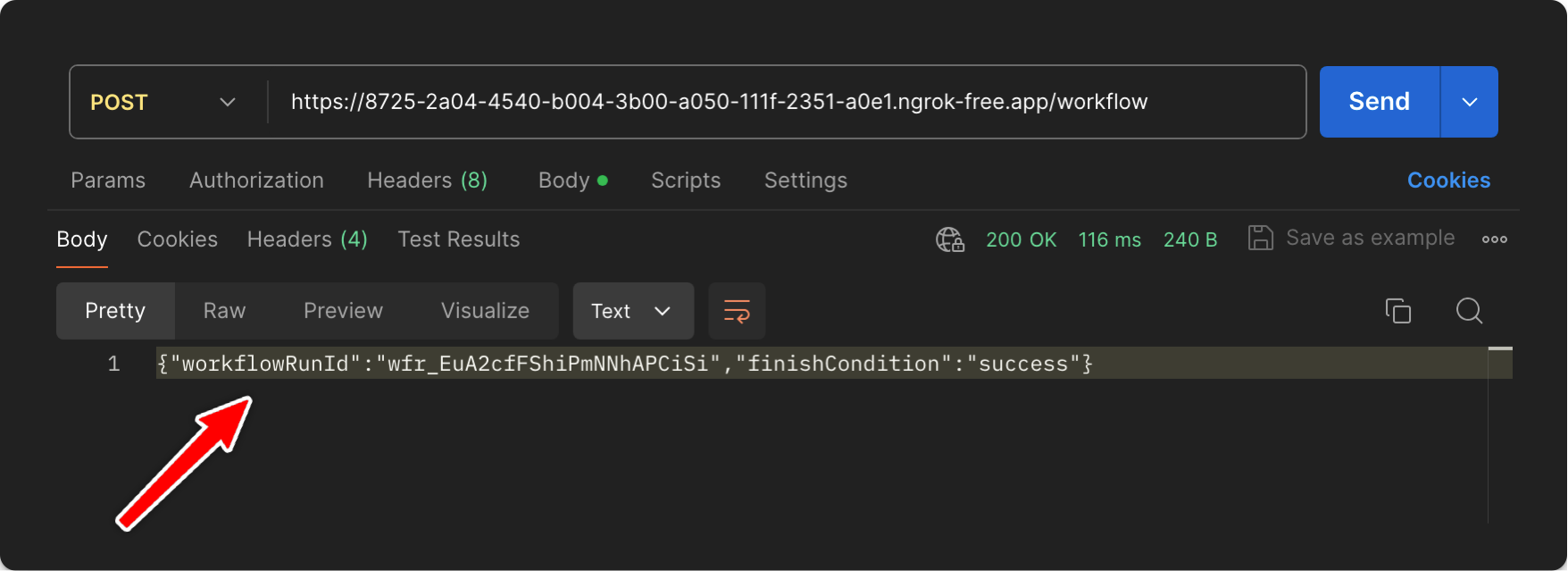
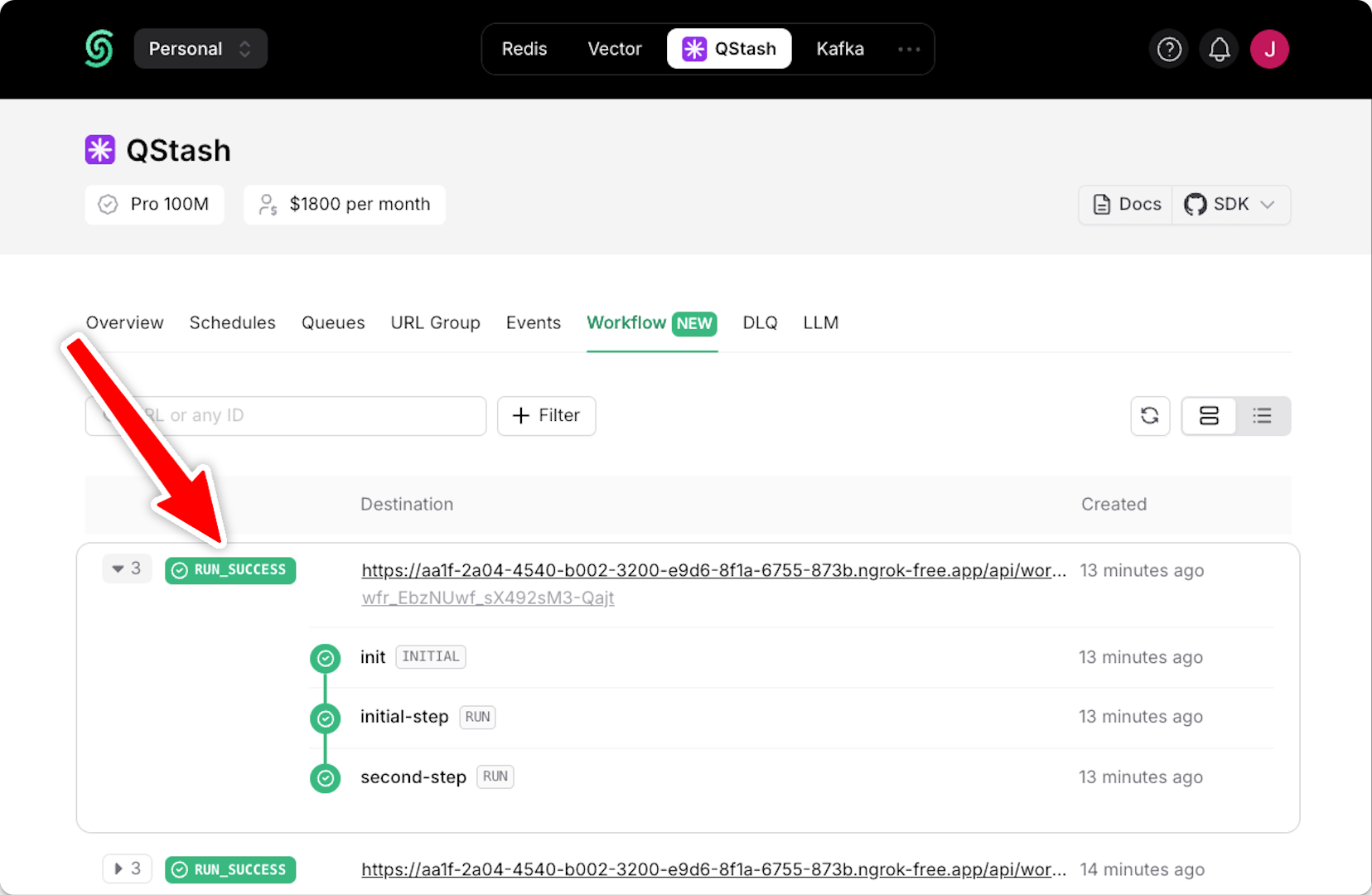
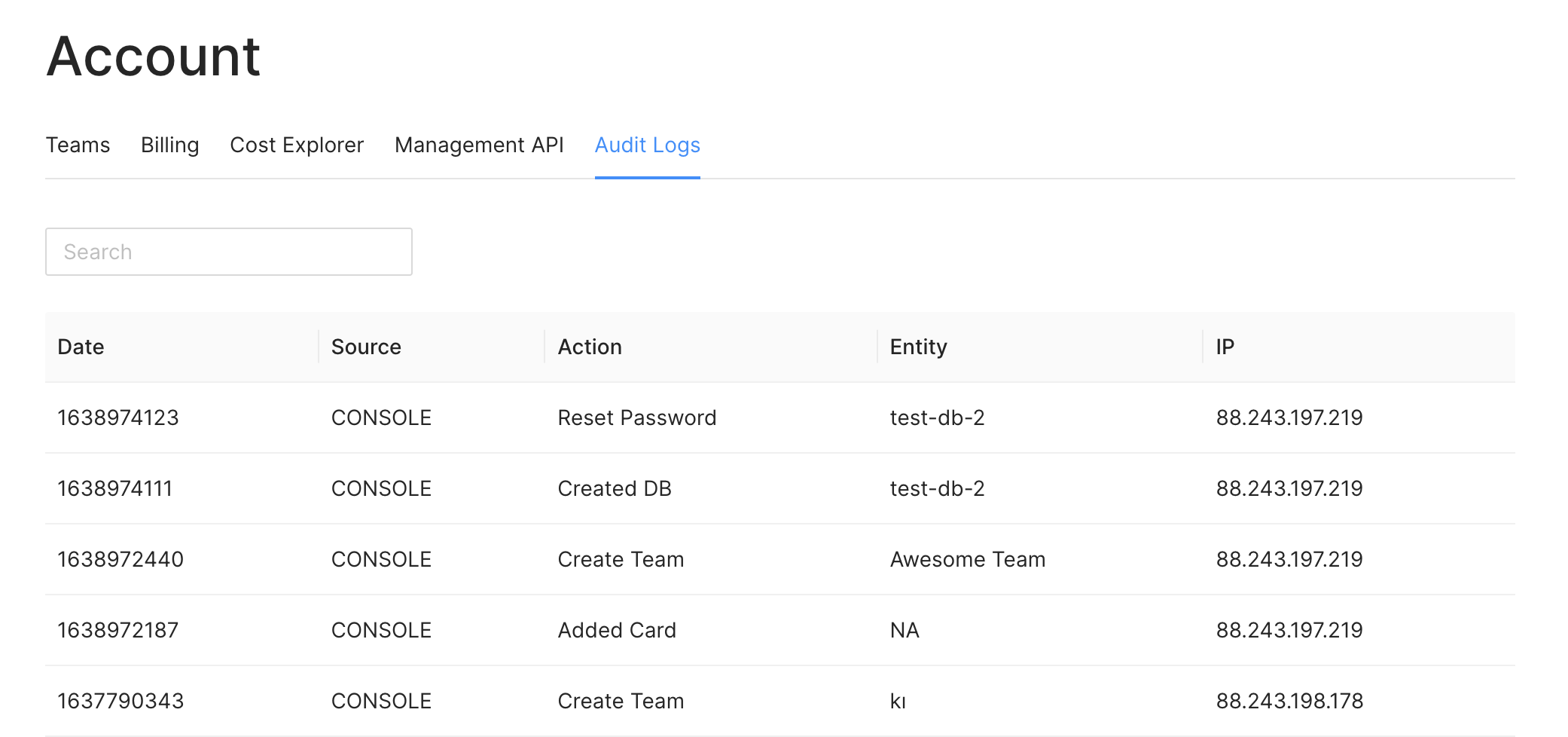
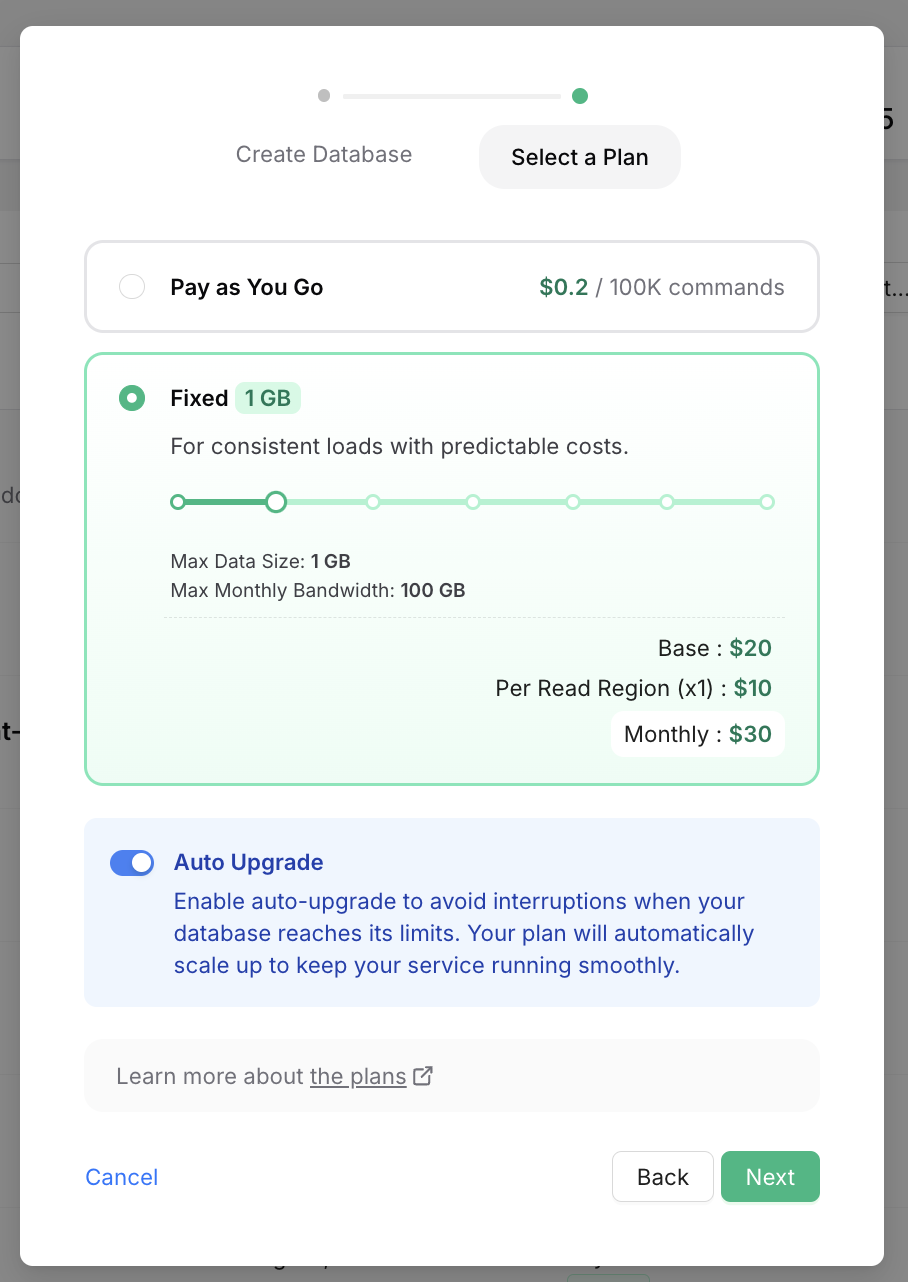
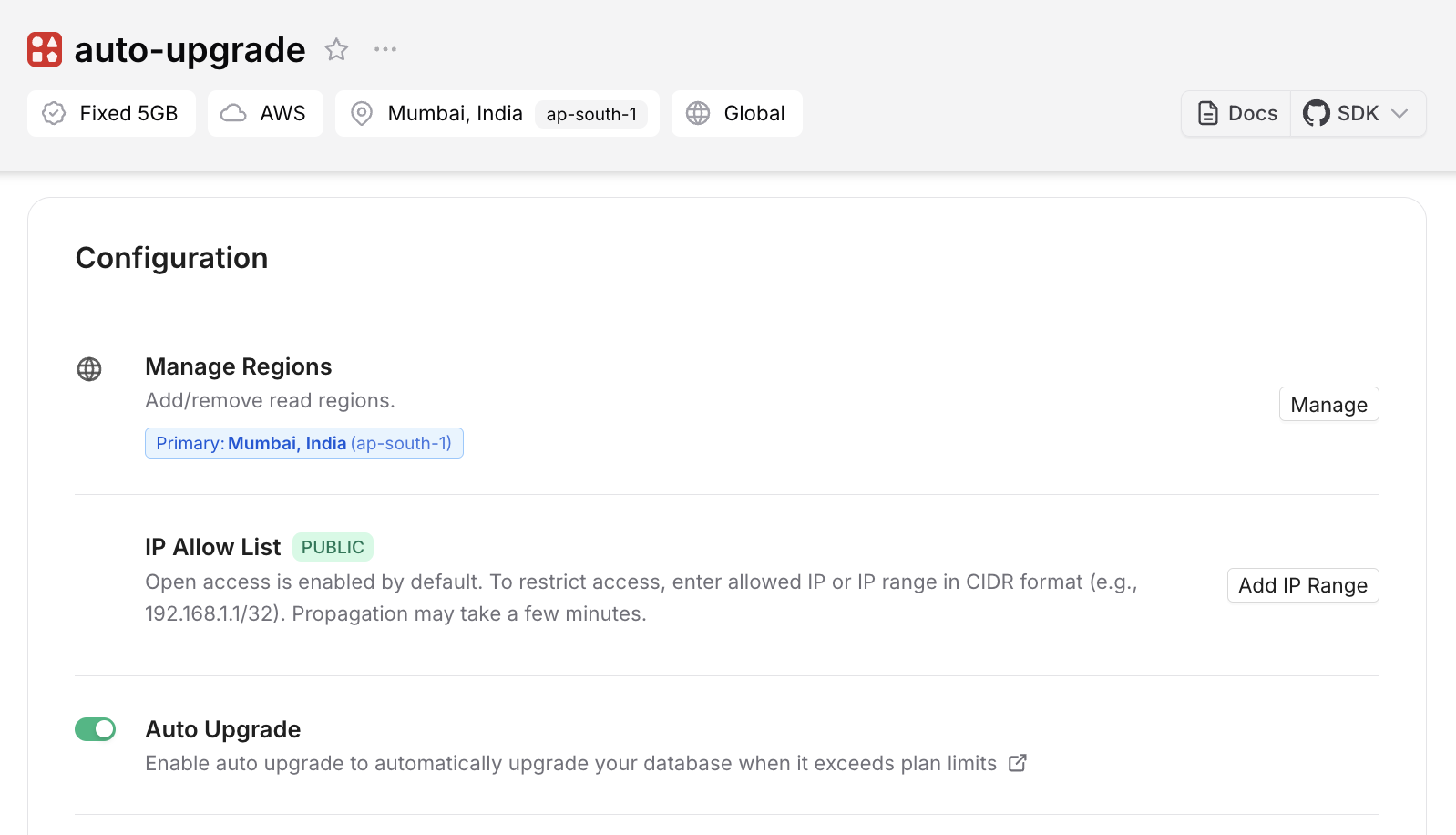
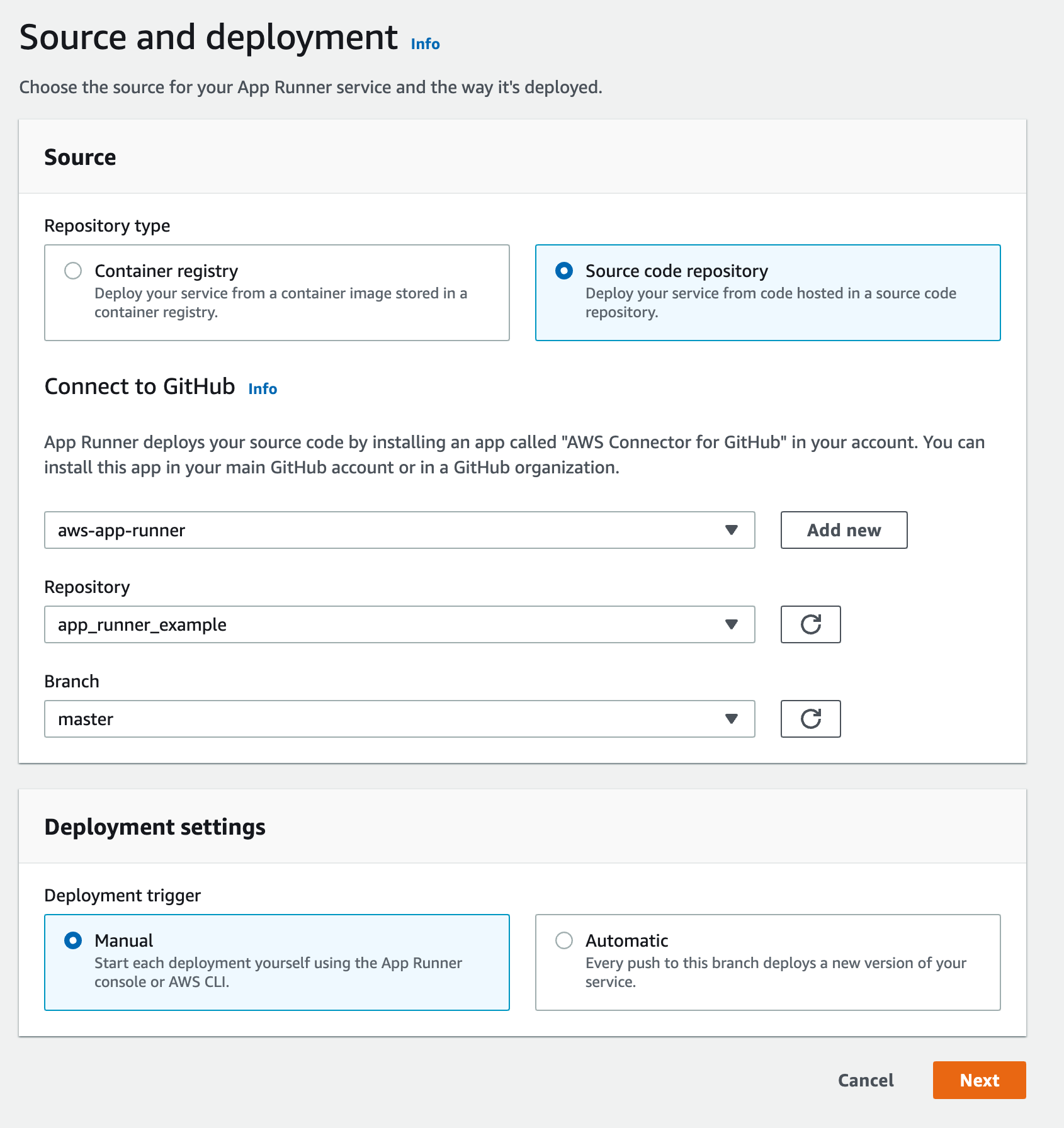
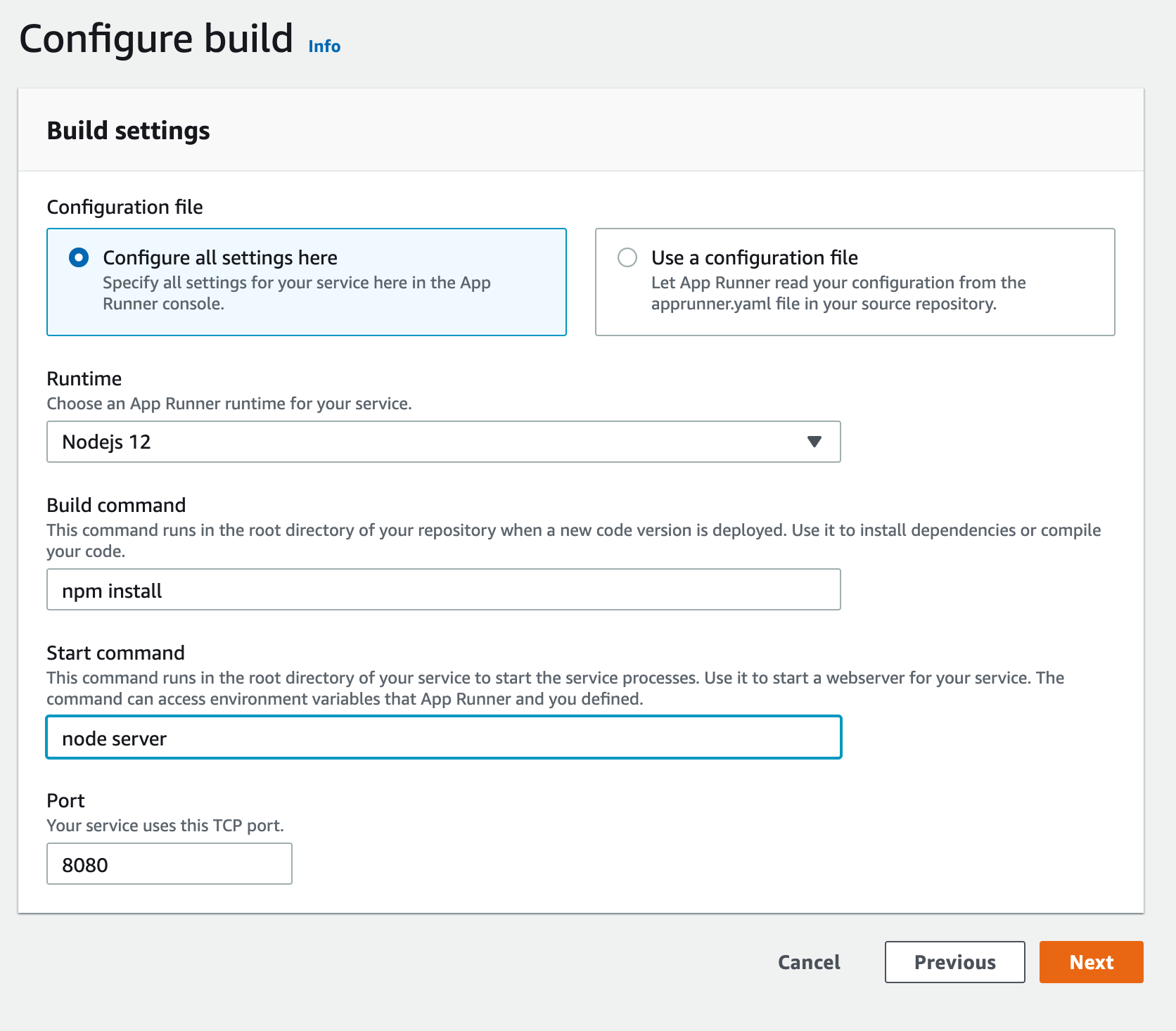
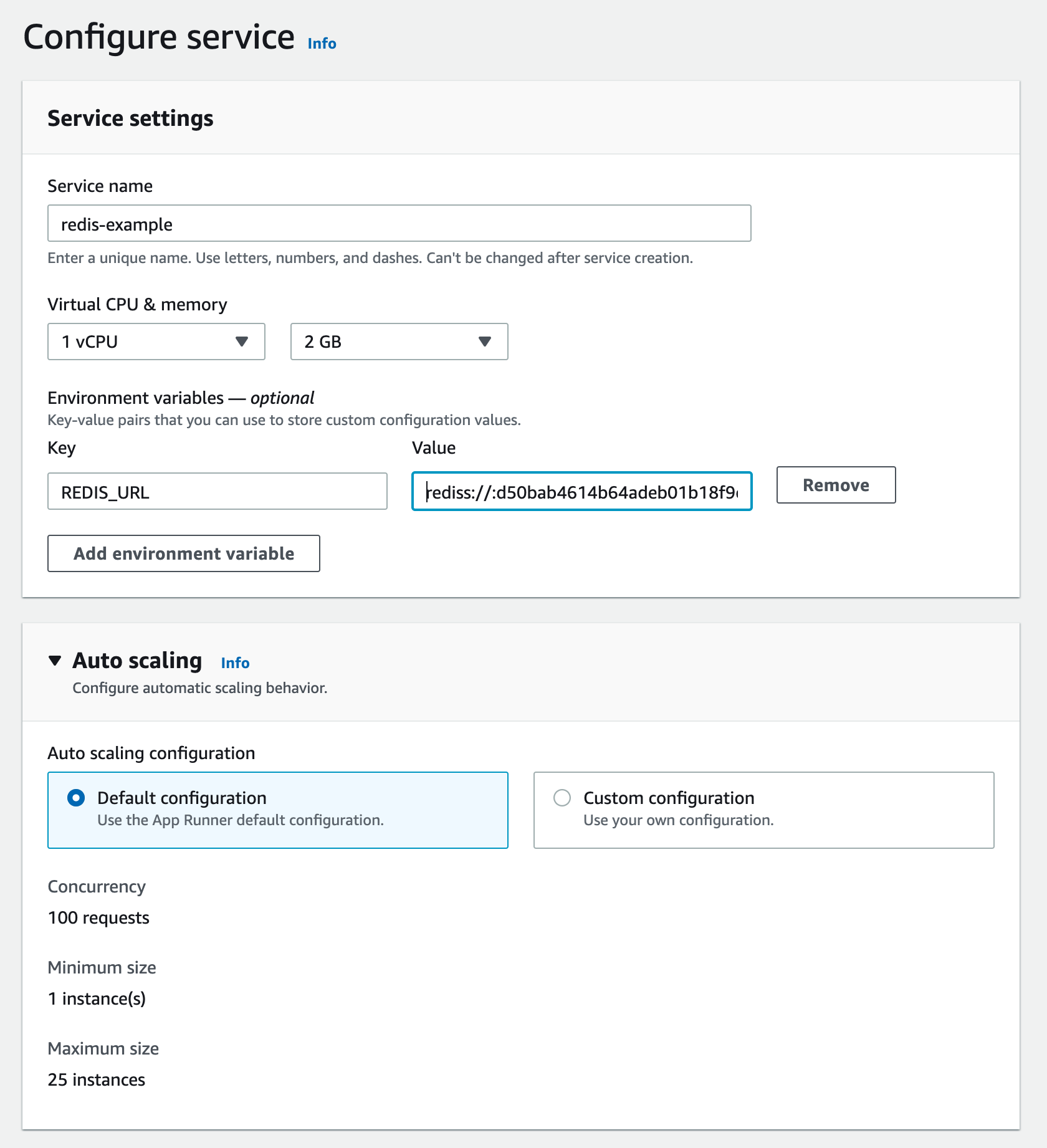
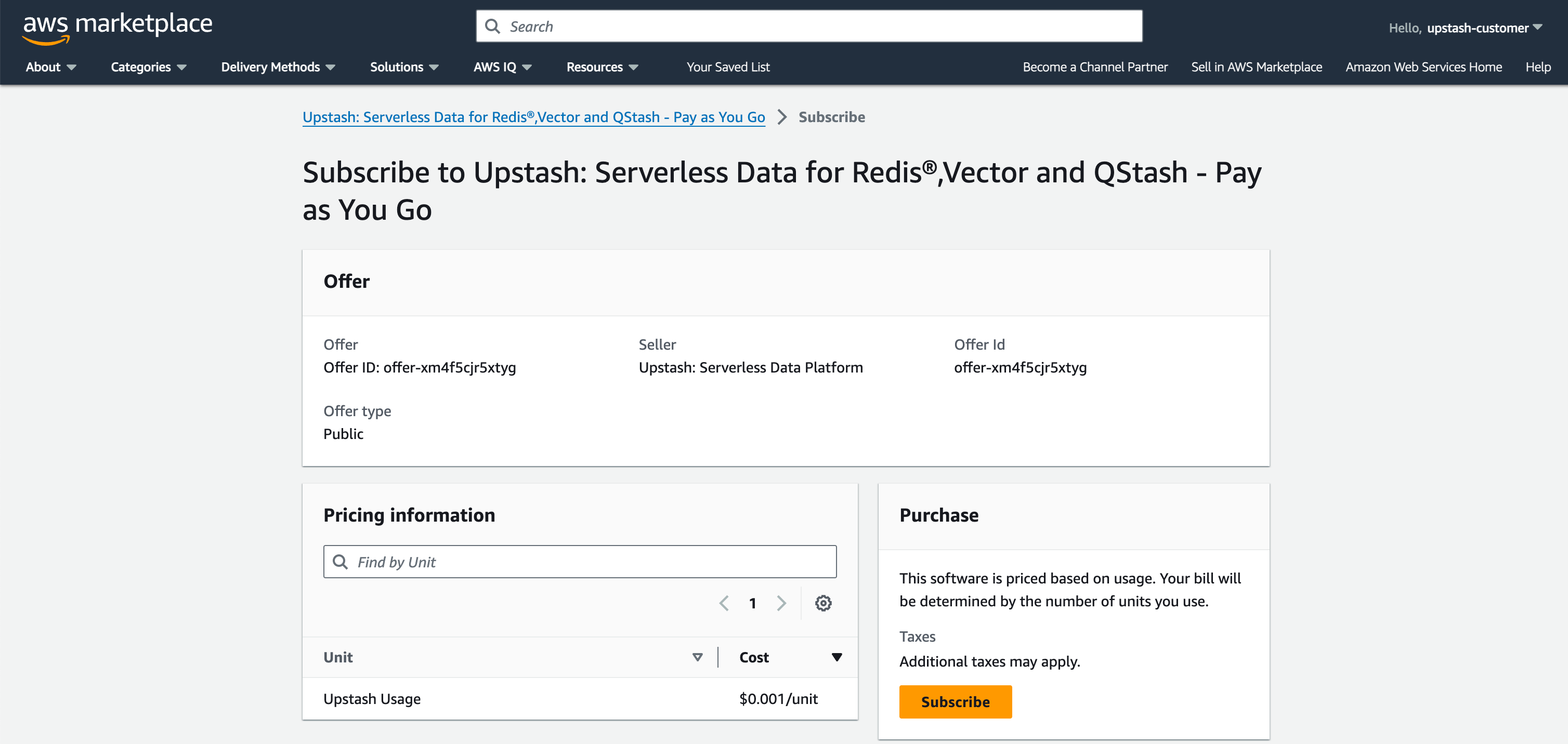
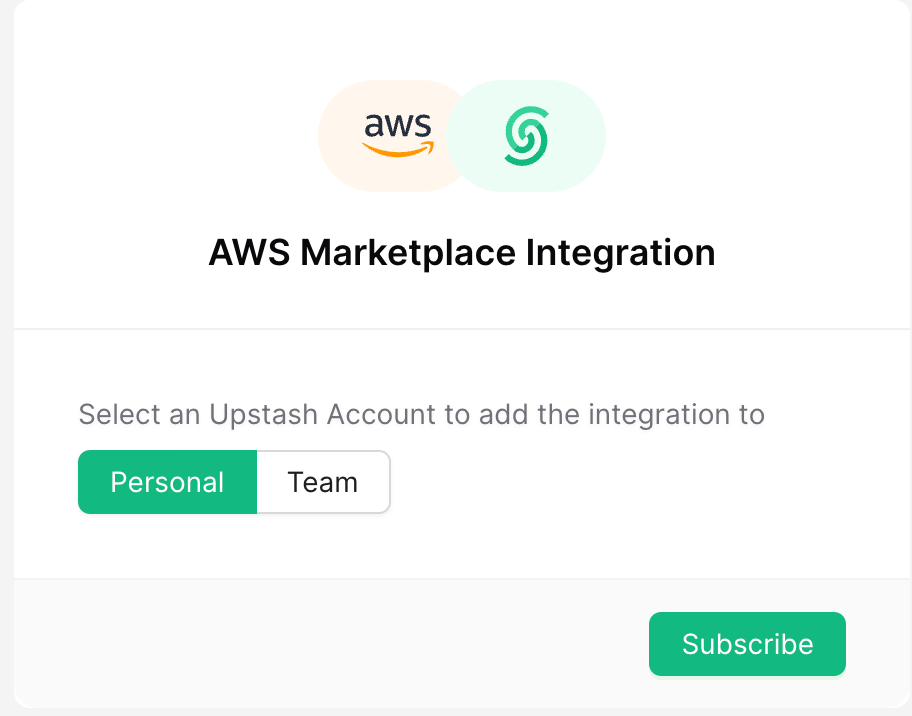
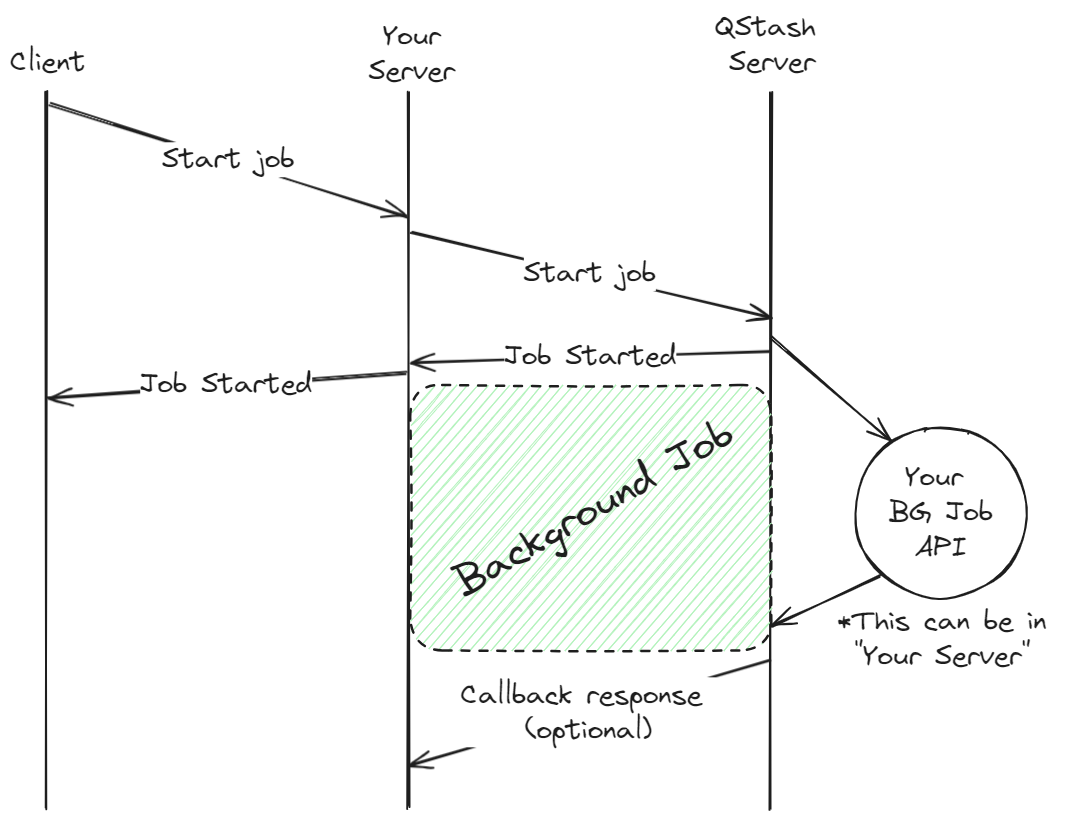
); } ``` ```typescript app/api/start-email-job/route.ts theme={"system"} import { Client } from "@upstash/qstash"; const qstashClient = new Client({ token: "YOUR_TOKEN", }); export async function POST(request: Request) { const body = await request.json(); const users: string[] = body.users; // If you know the public URL of the email API, you can use it directly const rootDomain = request.url.split('/').slice(0, 3).join('/'); const emailAPIURL = `${rootDomain}/api/send-email`; // ie: https://yourapp.com/api/send-email // Tell QStash to start the background job. // For proper error handling, refer to the quick start. await qstashClient.publishJSON({ url: emailAPIURL, body: { users } }); return new Response("Job started", { status: 200 }); } ``` ```typescript app/api/send-email/route.ts theme={"system"} // This is a public API endpoint that will be invoked by QStash. // It contains the logic for the background job and may take a long time to execute. import { sendEmail } from "your-email-library"; export async function POST(request: Request) { const body = await request.json(); const users: string[] = body.users; // Send emails to the users for (const user of users) { await sendEmail(user); } return new Response("Job started", { status: 200 }); } ```
To better understand the application, let's break it down: 1. **Client**: The client application contains a button that, when clicked, sends a request to the server to start the background job. 2. **Next.js server**: The first endpoint, `/api/start-email-job`, is invoked by the client to start the background job. 3. **QStash**: The QStash client is used to invoke the `/api/send-email` endpoint, which contains the logic for the background job. Here is a visual representation of the process: Background job diagram Background job diagram To view a more detailed Next.js quick start guide for setting up QStash, refer to the [quick start](/qstash/quickstarts/vercel-nextjs) guide. It's also possible to schedule a background job to run at a later time using [schedules](/qstash/features/schedules). If you'd like to invoke another endpoint when the background job is complete, you can use [callbacks](/qstash/features/callbacks). --- # Source: https://upstash.com/docs/redis/features/backup.md > ## Documentation Index > Fetch the complete documentation index at: https://upstash.com/docs/llms.txt > Use this file to discover all available pages before exploring further. # Backup/Restore You can create backups of your Redis database and restore them when needed. Backups allow you to preserve your data and recover it to any database in your account or team. ## Creating a Backup During a backup operation, certain administrative operations will be temporarily unavailable: Backup operations, database config changes, plan and region setup, transferring database. Regular Redis commands (GET, SET, etc.) are not blocked and continue to work normally. There are two ways to create a backup of your database: ### Create an Immediate Backup To create a backup right now: * Go to the database details page and navigate to the `Backups` tab * Click on the `Backup & Export` button * Choose `Backup` Backup process will start and will appear in the backups table below. ### Schedule Periodic Backups To automatically create backups on a regular schedule: * Go to the database details page and navigate to the `Backups` tab * Click the switch next to `Daily Backup` to enable daily backup or click on `Daily Backup` text itself to select how long the backup is to be stored (1 or 3 days) With daily backups enabled, your database will be automatically backed up every day. ### Managing Backups All created backups are displayed in the backups table in the `Backups` tab. From this table, you can: * View backup details (name, creation date, size) * Restore your database from any backup * Delete backups you no longer need ## Restoring from Backup All existing data in the target database will be deleted before the restore operation begins. You can restore your database from any backup in your account or team. ### Restore from the Backups Table To restore from a backup of the current database: * Go to the database details page and navigate to the `Backups` tab * Find the backup you want to restore in the backups table * Click on the `Restore` button next to the backup * Confirm that you are deleting existing data and want to proceed with the restore ### Restore from Any Database Backup To restore from a backup created from any database in your account or team: * Go to the database details page and navigate to the `Backups` tab * Click on the `Restore...` button * Select the source database (the database from which the backup was created) * Select the backup you want to restore * Click on `Start Restore` ### Restore from the Redis List Page You can also restore databases directly from the Redis list page. This method is explained in detail in the [Import/Export documentation](/redis/howto/importexport). --- # Source: https://upstash.com/docs/workflow/howto/realtime/basic.md > ## Documentation Index > Fetch the complete documentation index at: https://upstash.com/docs/llms.txt > Use this file to discover all available pages before exploring further. # Realtime Quickstart [**Upstash Realtime**](/realtime/overall/quickstart) lets you emit events from your workflow and subscribe to them in real-time on your frontend. ## How It Works Upstash Realtime is powered by Upstash Redis and provides a clean, 100% type-safe API for publishing and subscribing to events: * Your frontend can subscribe to events * When you **emit** an event, it's instantly delivered to live subscribers on the frontend * You can also replay events that happened in the past This guide shows you how to integrate Upstash Workflow with Upstash Realtime to display real-time progress updates in your frontend. ## Setup ### 1. Install Packages ```bash theme={"system"} npm install @upstash/workflow @upstash/realtime @upstash/redis zod ``` ### 2. Configure Upstash Realtime Create a Realtime instance in `lib/realtime.ts`: ```typescript theme={"system"} import { InferRealtimeEvents, Realtime } from "@upstash/realtime" import { Redis } from "@upstash/redis" import z from "zod/v4" const redis = Redis.fromEnv() const schema = { workflow: { runFinish: z.object({}), stepFinish: z.object({ stepName: z.string(), result: z.unknown().optional(), }), }, } export const realtime = new Realtime({ schema, redis }) export type RealtimeEvents = InferRealtimeEvents ``` ### 3. Create a Realtime Endpoint Create an API route at `app/api/realtime/route.ts` to handle Realtime connections: ```typescript title="app/api/realtime/route.ts" theme={"system"} import { handle } from "@upstash/realtime" import { realtime } from "@/lib/realtime" export const GET = handle({ realtime }) ``` This endpoint enables Server-Sent Events (SSE) connections for real-time updates. ### 4. Add the Realtime Provider Wrap your application in the `RealtimeProvider` by updating your root layout at `app/layout.tsx`: ```tsx title="app/layout.tsx" theme={"system"} "use client" import { RealtimeProvider } from "@upstash/realtime/client" export default function RootLayout({ children }: { children: React.ReactNode }) { return ( {children} ) } ``` ### 5. Create a Typed Client Hook Create a typed `useRealtime` hook at `lib/realtime-client.ts`: ```typescript title="lib/realtime-client.ts" theme={"system"} "use client" import { createRealtime } from "@upstash/realtime/client" import type { RealtimeEvents } from "./realtime" export const { useRealtime } = createRealtime() ``` *** ## Building the Workflow ### 1. Create the Workflow Endpoint Create your workflow at `app/api/workflow/route.ts`: ```typescript title="app/api/workflow/route.ts" theme={"system"} import { serve } from "@upstash/workflow/nextjs" import { realtime } from "@/lib/realtime" type WorkflowPayload = { userId: string action: string } export const { POST } = serve(async (context) => { const { userId, action } = context.requestPayload const workflowRunId = context.workflowRunId const channel = realtime.channel(workflowRunId) await context.run("validate-data", async () => { const result = { valid: true, userId, action } // emit step completion await channel.emit("workflow.stepFinish", { stepName: "validate-data", result, }) return result }) // emit run completion await context.run("run-finish", () => channel.emit("workflow.runFinish", {})) return { success: true, workflowRunId } }) ``` **Key points:** * We use `realtime.channel(workflowRunId)` to create a unique channel per workflow run * Emit events after each step completes * Emit events inside `context.run` steps to ensure that they are emitted only once * Events are emitted to separate event names like `workflow.stepFinish` and `workflow.runFinish` ### 2. Create a Trigger Endpoint Create an endpoint to trigger workflows at `app/api/trigger/route.ts`: ```typescript title="app/api/trigger/route.ts" theme={"system"} import { NextRequest, NextResponse } from "next/server" import { Client } from "@upstash/workflow" export const workflowClient = new Client({ token: process.env.QSTASH_TOKEN, baseUrl: process.env.QSTASH_URL, }) export async function POST(request: NextRequest) { const workflowUrl = `${request.nextUrl.origin}/api/workflow` const { workflowRunId } = await workflowClient.trigger({ url: workflowUrl, body: { userId: "user-123", action: "process-data", }, }) return NextResponse.json({ workflowRunId }) } ``` *** ## Building the Frontend ### 1. Create a Custom Hook Create a React hook to manage the Realtime subscription at `hooks/useWorkflow.ts`: ```typescript theme={"system"} "use client" import { useRealtime } from "@/lib/realtime-client" import { useState, useCallback } from "react" interface WorkflowStep { stepName: string result?: unknown } export function useWorkflow() { const [workflowRunId, setWorkflowRunId] = useState(null) const [steps, setSteps] = useState([]) const [isRunFinished, setIsRunFinished] = useState(false) useRealtime({ enabled: Boolean(workflowRunId), channels: workflowRunId ? [workflowRunId] : [], events: ["workflow.stepFinish", "workflow.runFinish"], onData({ event, data }) { if (event === "workflow.stepFinish") { setSteps((data) => [...prev, data]) } if (event === "workflow.runFinish") { setIsRunFinished(true) } }, }) const trigger = () => { setSteps([]) setIsRunFinished(false) const response = await fetch("/api/trigger", { method: "POST", }) const data = await response.json() setWorkflowRunId(data.workflowRunId) } return { trigger, workflowRunId, steps, isRunFinished, } } ``` **Key features:** * Subscribe to multiple events using the `events` array: `["workflow.stepFinish", "workflow.runFinish"]` * The hook manages both triggering the workflow and subscribing to updates * Type-safe event handling with TypeScript ### 2. Use the Hook in Your Component ```tsx theme={"system"} "use client" import { useWorkflow } from "@/hooks/useWorkflow" export default function WorkflowPage() { const { trigger, steps, isRunFinished } = useWorkflow() return (
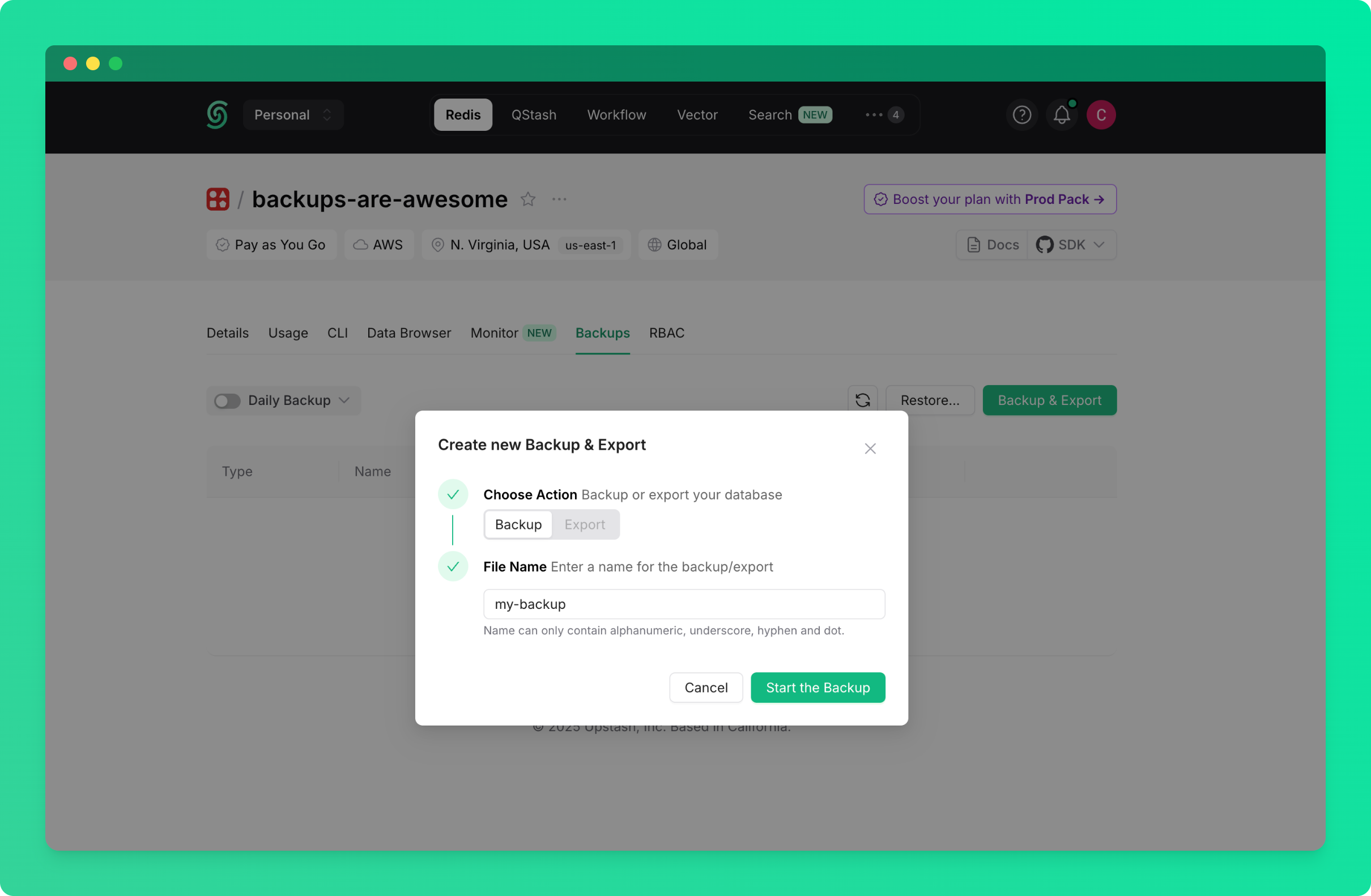
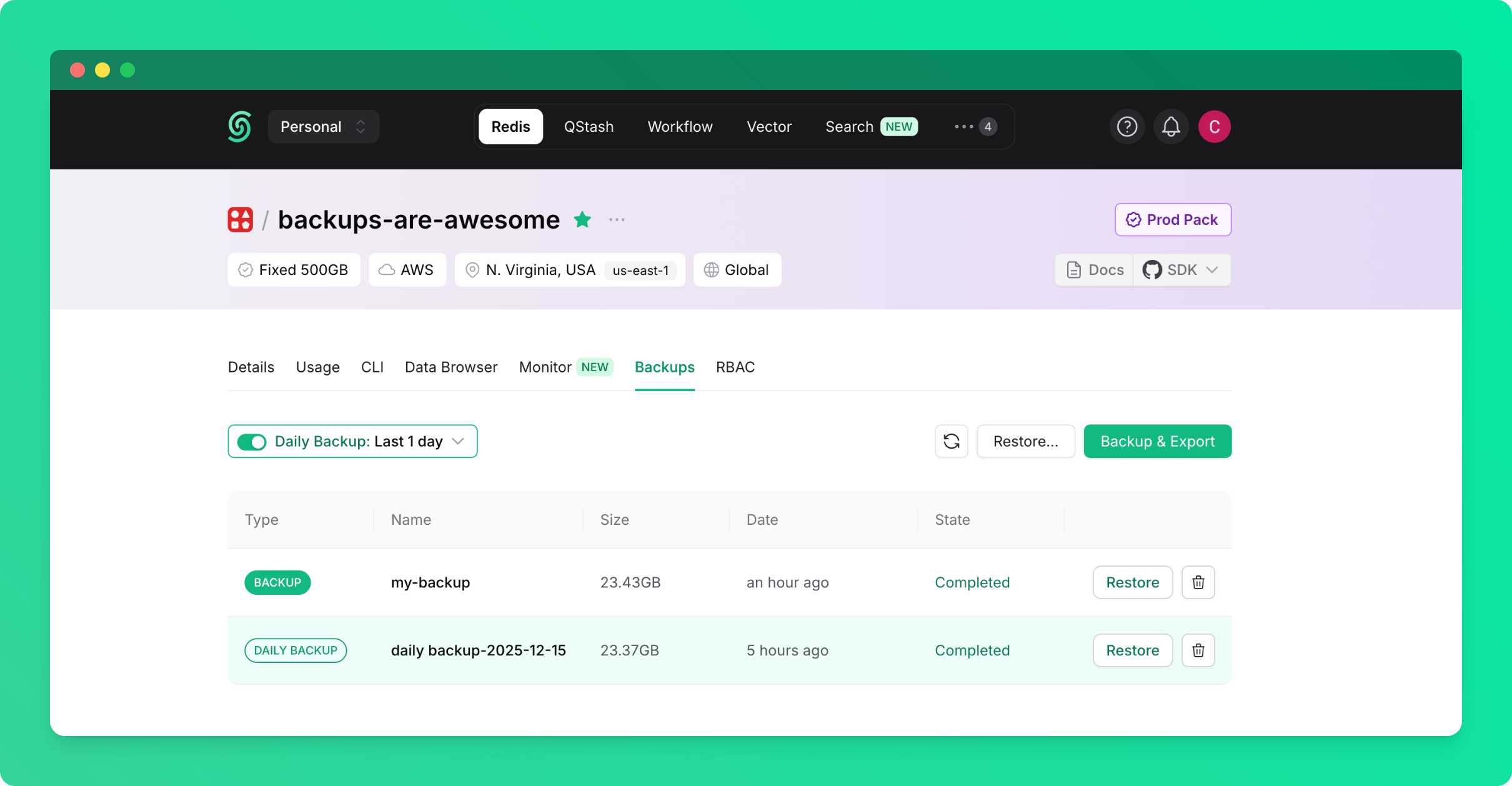
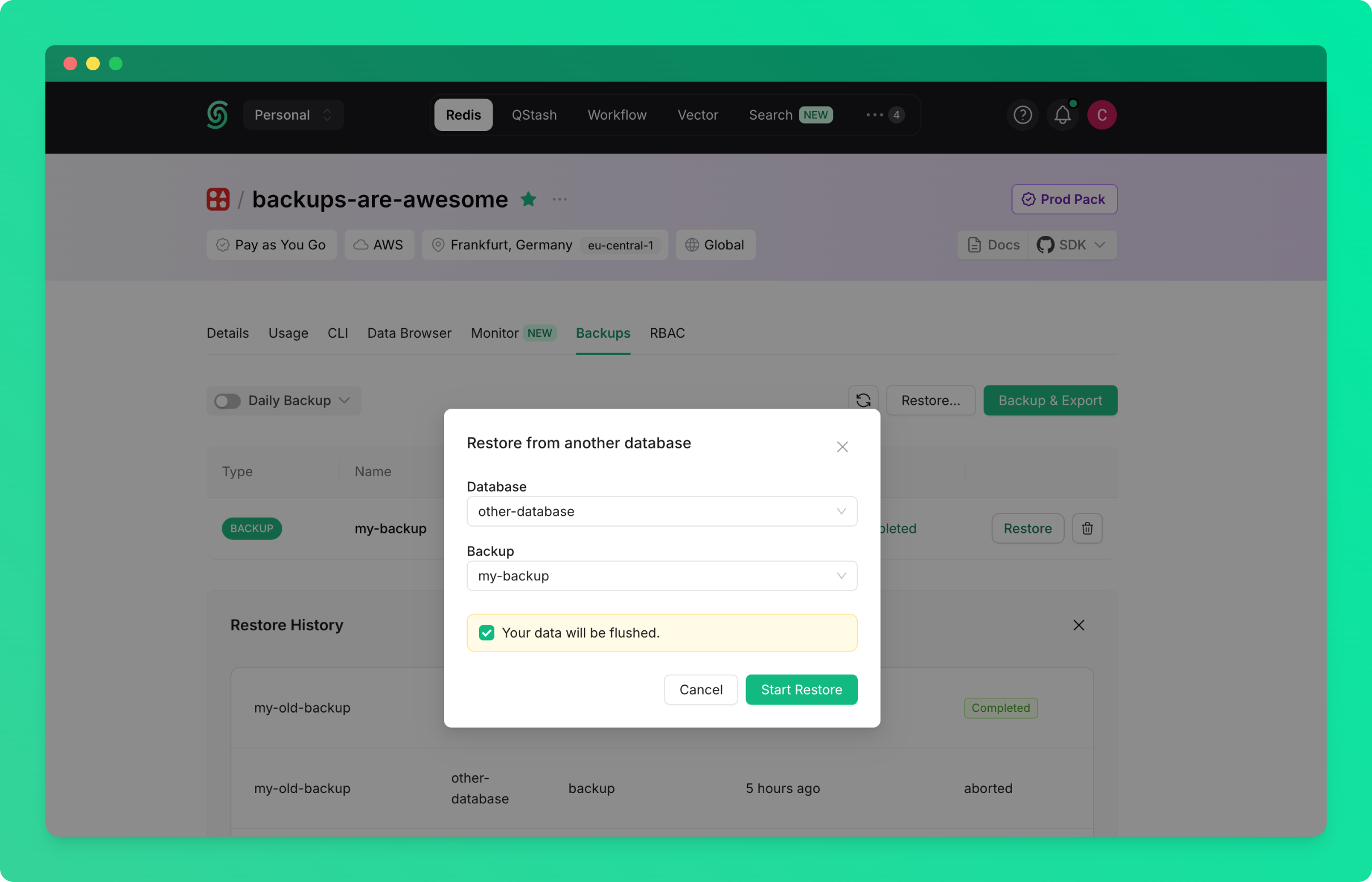
{isRunFinished &&

✅ Workflow Finished!

}

Workflow Steps:

{steps.map((step, index) => (
{step.stepName} {Boolean(step.result) && : {JSON.stringify(step.result)}}
))}
) } ``` ## How It All Works Together 1. **User triggers workflow**: The frontend calls `/api/trigger`, which returns a `workflowRunId` 2. **Frontend subscribes**: Using the `workflowRunId`, the frontend subscribes to the Realtime channel 3. **Workflow executes**: The workflow runs as a background job, emitting events at each step 4. **Real-time updates**: As the workflow emits events, they're instantly delivered to the frontend via Server-Sent Events ## Full Example For a complete working example with all steps, error handling, and UI components, check out the [Upstash Realtime example on GitHub](https://github.com/upstash/workflow-js/tree/main/examples/upstash-realtime). ## Next Steps * Learn about [human-in-the-loop workflows with Realtime](./human-in-the-loop) * Explore [Realtime features](/realtime/overall/quickstart) * Check out [Workflow configuration options](/workflow/howto/configure) --- # Source: https://upstash.com/docs/qstash/api-refence/messages/batch-messages.md > ## Documentation Index > Fetch the complete documentation index at: https://upstash.com/docs/llms.txt > Use this file to discover all available pages before exploring further. # Batch Messages > Send multiple messages in a single request ## OpenAPI ````yaml qstash/openapi.yaml post /v2/batch openapi: 3.1.0 info: title: QStash REST API description: | QStash is a message queue and scheduler built on top of Upstash Redis. version: 2.0.0 contact: name: Upstash url: https://upstash.com servers: - url: https://qstash.upstash.io security: - bearerAuth: [] - bearerAuthQuery: [] tags: - name: Messages description: Publish and manage messages - name: Queues description: Manage message queues - name: Schedules description: Create and manage scheduled messages - name: URL Groups description: Manage URL groups and endpoints - name: DLQ description: Dead Letter Queue operations - name: Logs description: Log operations - name: Signing Keys description: Manage signing keys - name: Flow Control description: Monitor flow control keys paths: /v2/batch: post: tags: - Messages summary: Batch Messages description: Send multiple messages in a single request requestBody: required: true content: application/json: schema: type: array items: type: object required: - destination properties: destination: type: string description: > Destination can either be a valid URL where the message gets sent to, or a URL Group name. - If the destination is a URL, make sure the URL is prefixed with a valid protocol (http:// or https://) - If the destination is a URL Group, a new message will be created for each endpoint in the group. Note that destination must be publicly accessible over the internet. If you are working with local endpoints, consider using QStash local development server or a public tunnel service. body: type: string description: The raw request message passed to the endpoints as is headers: type: object additionalProperties: type: string description: >- HTTP headers of the message. You can pass all the headers supported in the single publish API. queue: type: string description: Queue name to enqueue the message to if desired. responses: '200': description: Messages published successfully content: application/json: schema: type: array items: $ref: '#/components/schemas/PublishResponse' '400': description: Bad request content: application/json: schema: $ref: '#/components/schemas/Error' components: schemas: PublishResponse: type: object properties: messageId: type: string description: >- Unique identifier for the published message or the old message ID if deduplicated deduplicated: type: boolean description: >- Whether this message is a duplicate and was not sent to the destination. Error: type: object required: - error properties: error: type: string description: Error message securitySchemes: bearerAuth: type: http scheme: bearer bearerFormat: JWT description: QStash authentication token bearerAuthQuery: type: apiKey in: query name: qstash_token description: QStash authentication token passed as a query parameter ```` --- # Source: https://upstash.com/docs/qstash/features/batch.md > ## Documentation Index > Fetch the complete documentation index at: https://upstash.com/docs/llms.txt > Use this file to discover all available pages before exploring further. # Batching [Publishing](/qstash/howto/publishing) is great for sending one message at a time, but sometimes you want to send a batch of messages at once. This can be useful to send messages to a single or multiple destinations. QStash provides the `batch` endpoint to help you with this. If the format of the messages are valid, the response will be an array of responses for each message in the batch. When batching URL Groups, the response will be an array of responses for each destination in the URL Group. If one message fails to be sent, that message will have an error response, but the other messages will still be sent. You can publish to destination, URL Group or queue in the same batch request. ## Batching messages with destinations You can also send messages to the same destination! ```shell cURL theme={"system"} curl -XPOST https://qstash.upstash.io/v2/batch \ -H 'Authorization: Bearer XXX' \ -H "Content-type: application/json" \ -d ' [ { "destination": "https://example.com/destination1" }, { "destination": "https://example.com/destination2" } ]' ``` ```typescript TypeScript theme={"system"} import { Client } from "@upstash/qstash"; // Each message is the same as the one you would send with the publish endpoint const client = new Client({ token: "" }); const res = await client.batchJSON([ { url: "https://example.com/destination1", }, { url: "https://example.com/destination2", }, ]); ``` ```python Python theme={"system"} from qstash import QStash client = QStash("") client.message.batch_json( [ {"url": "https://example.com/destination1"}, {"url": "https://example.com/destination2"}, ] ) ``` ## Batching messages with URL Groups If you have a [URL Group](/qstash/howto/url-group-endpoint), you can batch send with the URL Group as well. ```shell cURL theme={"system"} curl -XPOST https://qstash.upstash.io/v2/batch \ -H 'Authorization: Bearer XXX' \ -H "Content-type: application/json" \ -d ' [ { "destination": "myUrlGroup" }, { "destination": "https://example.com/destination2" } ]' ``` ```typescript TypeScript theme={"system"} const client = new Client({ token: "" }); // Each message is the same as the one you would send with the publish endpoint const res = await client.batchJSON([ { urlGroup: "myUrlGroup", }, { url: "https://example.com/destination2", }, ]); ``` ```python Python theme={"system"} from qstash import QStash client = QStash("") client.message.batch_json( [ {"url_group": "my-url-group"}, {"url": "https://example.com/destination2"}, ] ) ``` ## Batching messages with queue If you have a [queue](/qstash/features/queues), you can batch send with the queue. It is the same as publishing to a destination, but you need to set the queue name. ```shell cURL theme={"system"} curl -XPOST https://qstash.upstash.io/v2/batch \ -H 'Authorization: Bearer XXX' \ -H "Content-type: application/json" \ -d ' [ { "queue": "my-queue", "destination": "https://example.com/destination1" }, { "queue": "my-second-queue", "destination": "https://example.com/destination2" } ]' ``` ```typescript TypeScript theme={"system"} const client = new Client({ token: "" }); const res = await client.batchJSON([ { queueName: "my-queue", url: "https://example.com/destination1", }, { queueName: "my-second-queue", url: "https://example.com/destination2", }, ]); ``` ```python Python theme={"system"} from upstash_qstash import QStash from upstash_qstash.message import BatchRequest qstash = QStash("") messages = [ BatchRequest( queue="my-queue", url="https://httpstat.us/200", body=f"hi 1", retries=0 ), BatchRequest( queue="my-second-queue", url="https://httpstat.us/200", body=f"hi 2", retries=0 ), ] qstash.message.batch(messages) ``` ## Batching messages with headers and body You can provide custom headers and a body for each message in the batch. ```shell cURL theme={"system"} curl -XPOST https://qstash.upstash.io/v2/batch -H "Authorization: Bearer XXX" \ -H "Content-Type: application/json" \ -d ' [ { "destination": "myUrlGroup", "headers":{ "Upstash-Delay":"5s", "Upstash-Forward-Hello":"123456" }, "body": "Hello World" }, { "destination": "https://example.com/destination1", "headers":{ "Upstash-Delay":"7s", "Upstash-Forward-Hello":"789" } }, { "destination": "https://example.com/destination2", "headers":{ "Upstash-Delay":"9s", "Upstash-Forward-Hello":"again" } } ]' ``` ```typescript TypeScript theme={"system"} const client = new Client({ token: "" }); // Each message is the same as the one you would send with the publish endpoint const msgs = [ { urlGroup: "myUrlGroup", delay: 5, body: "Hello World", headers: { hello: "123456", }, }, { url: "https://example.com/destination1", delay: 7, headers: { hello: "789", }, }, { url: "https://example.com/destination2", delay: 9, headers: { hello: "again", }, body: { Some: "Data", }, }, ]; const res = await client.batchJSON(msgs); ``` ```python Python theme={"system"} from qstash import QStash client = QStash("") client.message.batch_json( [ { "url_group": "my-url-group", "delay": "5s", "body": {"hello": "world"}, "headers": {"random": "header"}, }, { "url": "https://example.com/destination1", "delay": "1m", }, { "url": "https://example.com/destination2", "body": {"hello": "again"}, }, ] ) ``` #### The response for this will look like ```json theme={"system"} [ [ { "messageId": "msg_...", "url": "https://myUrlGroup-endpoint1.com" }, { "messageId": "msg_...", "url": "https://myUrlGroup-endpoint2.com" } ], { "messageId": "msg_..." }, { "messageId": "msg_..." } ] ``` --- # Source: https://upstash.com/docs/img/bg-color-codes.md > ## Documentation Index > Fetch the complete documentation index at: https://upstash.com/docs/llms.txt > Use this file to discover all available pages before exploring further. # null Recommended Background Color Transition: Primary: #34D399 (Emerald Green) Secondary: #00E9A3 (Cyan Green) --- # Source: https://upstash.com/docs/redis/sdks/ts/commands/bitmap/bitcount.md # Source: https://upstash.com/docs/redis/sdks/py/commands/bitmap/bitcount.md > ## Documentation Index > Fetch the complete documentation index at: https://upstash.com/docs/llms.txt > Use this file to discover all available pages before exploring further. # BITCOUNT > Count the number of set bits. The `BITCOUNT` command in Redis is used to count the number of set bits (bits with a value of 1) in a range of bytes within a key that is stored as a binary string. It is primarily used for bit-level operations on binary data stored in Redis. ## Arguments The key to get. Specify the range of bytes within the binary string to count the set bits. If not provided, it counts set bits in the entire string. Either specify both `start` and `end` or neither. Specify the range of bytes within the binary string to count the set bits. If not provided, it counts set bits in the entire string. Either specify both `start` and `end` or neither. ## Response The number of set bits in the specified range. ```py Example theme={"system"} redis.setbit("mykey", 7, 1) redis.setbit("mykey", 8, 1) redis.setbit("mykey", 9, 1) # With range assert redis.bitcount("mykey", 0, 10) == 3 # Without range assert redis.bitcount("mykey") == 3 ``` --- # Source: https://upstash.com/docs/redis/sdks/py/commands/bitmap/bitfield.md > ## Documentation Index > Fetch the complete documentation index at: https://upstash.com/docs/llms.txt > Use this file to discover all available pages before exploring further. # BITFIELD > Sets or gets parts of a bitfield The `bitfield` function returns a `BitFieldCommands` instance that can be used to execute multiple bitfield operations in a single command. The encoding can be a signed or unsigned integer, by prefixing the type with `i` or `u`. For example, `i4` is a signed 4-bit integer, and `u8` is an unsigned 8-bit integer. ```py theme={"system"} redis.set("mykey", "") # Sets the first 4 bits to 1 # Increments the next 4 bits by 1 result = redis.bitfield("mykey") .set("u4", 0, 16) .incr("u4", 4, 1) .execute() assert result == [0, 1] ``` ## Commands ### `get(type: str, offset: int)` Returns a value from the bitfield at the given offset. ### `set(type: str, offset: int, value: int)` Sets a value and returns the old value. ### `incr(type: str, offset: int, increment: int)` Increments a value and returns the new value. ## Arguments The string key to operate on. ## Response A list of integers, one for each operation. ```py Get theme={"system"} redis.set("mykey", "\x05\x06\x07") result = redis.bitfield("mykey") \ .get("u8", 0) \ .get("u8", 8) \ .get("u8", 16) \ .execute() assert result == [5, 6, 7] ``` ```py Set theme={"system"} redis.set("mykey", "") result = redis.bitfield("mykey") \ .set("u4", 0, 16) \ .set("u4", 4, 1) \ .execute() assert result == [0, 1] ``` ```py Incr theme={"system"} redis.set("mykey", "") # Increment offset 0 by 16, return # Increment offset 4 by 1 result = redis.bitfield("mykey") \ .incr("u4", 0, 16) \ .incr("u4", 4, 1) \ .execute() assert result == [0, 1] ``` --- # Source: https://upstash.com/docs/redis/sdks/ts/commands/bitmap/bitop.md # Source: https://upstash.com/docs/redis/sdks/py/commands/bitmap/bitop.md > ## Documentation Index > Fetch the complete documentation index at: https://upstash.com/docs/llms.txt > Use this file to discover all available pages before exploring further. # BITOP > Perform bitwise operations between strings. The `BITOP` command in Redis is used to perform bitwise operations on multiple keys (or Redis strings) and store the result in a destination key. It is primarily used for performing logical AND, OR, XOR, and NOT operations on binary data stored in Redis. ## Arguments Specifies the type of bitwise operation to perform, which can be one of the following: `AND`, `OR`, `XOR`, or `NOT`. The key to store the result of the operation in. One or more keys to perform the operation on. ## Response The size of the string stored in the destination key. ```py Example theme={"system"} # key1 = 00000001 # key2 = 00000010 redis.setbit("key1", 0, 1) redis.setbit("key2", 0, 0) redis.setbit("key2", 1, 1) assert redis.bitop("AND", "dest", "key1", "key2") == 1 # result = 00000000 assert redis.getbit("dest", 0) == 0 assert redis.getbit("dest", 1) == 0 ``` --- # Source: https://upstash.com/docs/redis/sdks/ts/commands/bitmap/bitpos.md # Source: https://upstash.com/docs/redis/sdks/py/commands/bitmap/bitpos.md > ## Documentation Index > Fetch the complete documentation index at: https://upstash.com/docs/llms.txt > Use this file to discover all available pages before exploring further. # BITPOS > Find the position of the first set or clear bit (bit with a value of 1 or 0) in a Redis string key. ## Arguments The key to search in. The key to store the result of the operation in. The index to start searching at. The index to stop searching at. ## Response The index of the first occurrence of the bit in the string. ```py Example theme={"system"} redis.setbit("mykey", 7, 1) redis.setbit("mykey", 8, 1) assert redis.bitpos("mykey", 1) == 7 assert redis.bitpos("mykey", 0) == 0 # With a range assert redis.bitpos("mykey", 1, 0, 2) == 0 assert redis.bitpos("mykey", 1, 2, 3) == -1 ``` ```py With Range theme={"system"} redis.bitpos("key", 1, 5, 20) ``` --- # Source: https://upstash.com/docs/search/tutorials/buildsearchbar.md > ## Documentation Index > Fetch the complete documentation index at: https://upstash.com/docs/llms.txt > Use this file to discover all available pages before exploring further. # Docs Search Quickstart > Add Upstash Search to your website in minutes *** ## Introduction Upstash Search makes it easy to add a fast, ready-to-use search bar to your docs site, no complex setup needed. In this tutorial, you’ll learn how to quickly integrate a modern search experience that helps your users find what they need. With just a few tweaks, you can use this solution in any project and deliver great search lightning fast. *** ### 1. Project Setup First, create an Upstash Search Database if you don't already have one ([Getting Started guide](/search/overall/getstarted)) and then create a new Next.js application and install the related packages: ```shell theme={"system"} npx create-next-app@latest search-docs-app cd search-docs-app npm install @upstash/search @upstash/search-ui lucide-react ``` *** ### 2. Add Environment Variables Find the environment variables from your database dashboard and add them to your `.env` file: ```bash theme={"system"} NEXT_PUBLIC_UPSTASH_SEARCH_URL= NEXT_PUBLIC_UPSTASH_SEARCH_READONLY_TOKEN= ``` *** ### 3. Create the Component Create the [search component](https://github.com/upstash/search-ui) in `app/components/search-bar.tsx`: ```typescript title="app/components/search-bar.tsx" theme={"system"} "use client" import { SearchBar } from "@upstash/search-ui" import "@upstash/search-ui/dist/index.css" import { Search } from "@upstash/search" import { FileText } from "lucide-react" const client = new Search({ url: process.env.NEXT_PUBLIC_UPSTASH_SEARCH_URL! , token: process.env.NEXT_PUBLIC_UPSTASH_SEARCH_READONLY_TOKEN!, }) // 👇 your search index name const index = client.index<{ title: string }>("default") export default function SearchComponent() { return (
{ // 👇 100% type-safe: whatever you return here is // automatically typed as `result` below return index.search({ query, limit: 10, reranking: true }) }} > {(result) => (
{ window.open(result.metadata?.url as string, "_blank") }}> {result.content.title}

Docs

)}
) } ``` *** ### 4. Crawl Docs to Feed the Component Call [`npx @upstash/search-crawler`](https://github.com/upstash/search-crawler) in your command line and follow the CLI, you will be prompted to provide: * Upstash Search URL (as set in your environment variables) * Upstash Search Rest Token (as set in your environment variables) * Upstash Search Index Name (Go for `default` for convenience) * Docs URL to crawl (Let's go for `https://upstash.com/docs`) If you prefer not to choose `default` index name, don't forget to update the line in the `SearchComponent` where you provide the index name. *** ### 5. Prepare the UI Replace the following code snippet with the code in `app/page.tsx`: ```typescript title="app/page.tsx" theme={"system"} import SearchComponent from "./components/search-bar"; export default function Home() { return (

Search Upstash Documentation

Find exactly what you're looking for in our comprehensive documentation. Search through guides, APIs, tutorials, and more with lightning-fast results.

{/* Search Component */}

Lightning Fast

Get instant search results powered by advanced indexing

Accurate Results

Reranking ensures the most relevant content appears first

Comprehensive

Search across all documentation, guides, and API references

); } ``` *** ### 6. Start the Project Run the following command to start the development server: ```bash theme={"system"} npm run dev ``` Open your browser and navigate to `http://localhost:3000` to test the application. You can search through Upstash docs, and results will redirect you to the page you are looking for. *** ### Next Steps Learn more about: * [Typescript SDK](/search/sdks/ts/getting-started) * [Docusaurus Integration](/search/integrations/docusaurus) --- # Source: https://upstash.com/docs/qstash/api-refence/messages/bulk-cancel-messages.md > ## Documentation Index > Fetch the complete documentation index at: https://upstash.com/docs/llms.txt > Use this file to discover all available pages before exploring further. # Bulk Cancel Messages > Delete all pending messages Cancelling a message will remove it from QStash and stop it from being delivered in the future. If a message is in flight to your API, it might be too late to cancel. If you provide a set of message IDs in the request, only those messages will be cancelled. If you include filter parameters in the request, only the messages that match the filters will be canceled. If no filter or messageIds are sent, QStash will cancel all of your messages. We highly recommend at least providing count parameter and cancel in batches. This operation scans all your messages and attempts to cancel them. If an individual message cannot be cancelled, it will not continue and will return an error message. Therefore, some messages may not be cancelled at the end. In such cases, you can run the bulk cancel operation multiple times. ## OpenAPI ````yaml qstash/openapi.yaml delete /v2/messages openapi: 3.1.0 info: title: QStash REST API description: | QStash is a message queue and scheduler built on top of Upstash Redis. version: 2.0.0 contact: name: Upstash url: https://upstash.com servers: - url: https://qstash.upstash.io security: - bearerAuth: [] - bearerAuthQuery: [] tags: - name: Messages description: Publish and manage messages - name: Queues description: Manage message queues - name: Schedules description: Create and manage scheduled messages - name: URL Groups description: Manage URL groups and endpoints - name: DLQ description: Dead Letter Queue operations - name: Logs description: Log operations - name: Signing Keys description: Manage signing keys - name: Flow Control description: Monitor flow control keys paths: /v2/messages: delete: tags: - Messages summary: Bulk Cancel Messages description: Delete all pending messages parameters: - name: messageIds in: query required: false schema: type: array items: type: string description: >- A list of message IDs to delete. If provided, other filters are ignored. - name: topicName in: query required: false schema: type: string description: Filter messages by URL Group name. - name: queueName in: query required: false schema: type: string description: Filter messages by Queue name. - name: url in: query required: false schema: type: string description: Filter messages by URL. - name: label in: query required: false schema: type: string description: Filter messages by label. - name: flowControlKey in: query required: false schema: type: string description: Filter messages by Flow Control Key. - name: fromDate in: query required: false schema: type: integer description: >- Filter messages created after this timestamp (Unix milli, inclusive). - name: toDate in: query required: false schema: type: integer description: >- Filter messages created before this timestamp (Unix milli, inclusive). - name: scheduleId in: query required: false schema: type: string description: Filter messages by Schedule ID. - name: callerIP in: query required: false schema: type: string description: Filter messages by Caller IP. - name: count in: query required: false schema: type: integer description: >- Maximum number of messages to delete. There is no default value, so if not provided, all messages matching the filters will be deleted. responses: '200': description: All messages deleted successfully content: application/json: schema: type: object properties: cancelled: type: integer description: Number of messages cancelled components: securitySchemes: bearerAuth: type: http scheme: bearer bearerFormat: JWT description: QStash authentication token bearerAuthQuery: type: apiKey in: query name: qstash_token description: QStash authentication token passed as a query parameter ```` --- # Source: https://upstash.com/docs/workflow/rest/runs/bulk-cancel.md > ## Documentation Index > Fetch the complete documentation index at: https://upstash.com/docs/llms.txt > Use this file to discover all available pages before exploring further. # Bulk Cancel Workflows > Cancel multiple workflow runs Bulk cancel allows you to cancel multiple workflow runs at once. If you provide a list of workflow run IDs in the request body, only those specific workflow runs will be canceled. If you include the workflow URL parameter, all workflow runs matching the URL filter will be canceled. If the request body is empty, all workflow runs will be canceled. This operation scans all your workflow runs and attempts to cancel them. If a specific workflow run cannot be canceled, it will return an error message. Therefore, some workflow runs may not be cancelled at the end. In such cases, you can run the bulk cancel operation multiple times. ## Request The list of workflow run IDs to cancel. The prefix filter to match workflow run URLs. Workflow runs with URLs starting with this prefix will be canceled. ## Response A cancelled object with the number of cancelled workflow runs. ```JSON theme={"system"} { "cancelled": number } ``` ```sh curl theme={"system"} curl -XDELETE https://qstash.upstash.io/v2/workflows/runs \ -H "Content-Type: application/json" \ -H "Authorization: Bearer " \ -d '{"workflowUrl": "https://example.com"}' ``` ```js Workflow SDK theme={"system"} import { Client } from "@upstash/workflow"; // cancel a set of workflow runs await client.cancel({ ids: [ "", "", ]}) // cancel workflows starting with a url await client.cancel({ urlStartingWith: "https://your-endpoint.com" }) // cancel all workflows await client.cancel({ all: true }) ``` ```js Node theme={"system"} const response = await fetch('https://qstash.upstash.io/v2/workflows/runs', { method: 'DELETE', headers: { 'Authorization': 'Bearer ', 'Content-Type': 'application/json', body: { workflowRunIds: [ "run_id_1", "run_id_2", "run_id_3", ], }, } }); ``` ```python Python theme={"system"} import requests headers = { 'Authorization': 'Bearer ', 'Content-Type': 'application/json', } data = { "workflowRunIds": [ "run_id_1", "run_id_2", "run_id_3" ] } response = requests.delete( 'https://qstash.upstash.io/v2/workflows/runs', headers=headers, data=data ) ``` ```go Go theme={"system"} var data = strings.NewReader(`{ "workflowRunIds": [ "run_id_1", "run_id_2", "run_id_3" ] }`) req, err := http.NewRequest("DELETE", "https://qstash.upstash.io/v2/workflows/runs", data) if err != nil { log.Fatal(err) } req.Header.Set("Authorization", "Bearer ") req.Header.Set("Content-Type", "application/json") resp, err := http.DefaultClient.Do(req) if err != nil { log.Fatal(err) } defer resp.Body.Close() ``` ```json 202 Accepted theme={"system"} { "cancelled": 10 } ``` --- # Source: https://upstash.com/docs/qstash/api-refence/dlq/bulk-delete-dlq-messages.md > ## Documentation Index > Fetch the complete documentation index at: https://upstash.com/docs/llms.txt > Use this file to discover all available pages before exploring further. # Bulk Delete DLQ messages > Delete multiple messages from the DLQ ## OpenAPI ````yaml qstash/openapi.yaml delete /v2/dlq openapi: 3.1.0 info: title: QStash REST API description: | QStash is a message queue and scheduler built on top of Upstash Redis. version: 2.0.0 contact: name: Upstash url: https://upstash.com servers: - url: https://qstash.upstash.io security: - bearerAuth: [] - bearerAuthQuery: [] tags: - name: Messages description: Publish and manage messages - name: Queues description: Manage message queues - name: Schedules description: Create and manage scheduled messages - name: URL Groups description: Manage URL groups and endpoints - name: DLQ description: Dead Letter Queue operations - name: Logs description: Log operations - name: Signing Keys description: Manage signing keys - name: Flow Control description: Monitor flow control keys paths: /v2/dlq: delete: tags: - DLQ summary: Bulk Delete DLQ messages description: Delete multiple messages from the DLQ parameters: - name: dlqIds in: query schema: type: array items: type: string description: List of DLQ IDs to delete. If provided, other filters are ignored. - name: cursor in: query schema: type: string description: >- By providing a cursor you can paginate through all of the messages in the DLQ - name: messageId in: query schema: type: string description: Filter DLQ messages by message ID - name: url in: query schema: type: string description: Filter DLQ messages by destination URL - name: topicName in: query schema: type: string description: Filter DLQ messages by URL Group name - name: scheduleId in: query schema: type: string description: Filter DLQ messages by schedule ID - name: queueName in: query schema: type: string description: Filter DLQ messages by queue name - name: fromDate in: query schema: type: integer format: int64 description: >- Filter DLQ messages by starting date, in milliseconds (Unix timestamp). This is inclusive. - name: toDate in: query schema: type: integer format: int64 description: >- Filter DLQ messages by ending date, in milliseconds (Unix timestamp). This is inclusive. - name: responseStatus in: query schema: type: integer description: >- Filter DLQ messages by HTTP response status code of the last delivery attempt - name: callerIp in: query schema: type: string description: Filter DLQ messages by IP address of the publisher - name: label in: query schema: type: string description: Filter DLQ messages by the label of the message assigned by the user - name: flowControlKey in: query schema: type: string description: Filter DLQ messages by Flow Control Key - name: count in: query schema: type: integer default: 100 maximum: 100 description: The number of messages to delete. responses: '200': description: DLQ messages deleted successfully content: application/json: schema: type: object properties: cursor: type: string description: > A cursor which you can use in subsequent requests to paginate through all messages. If no cursor is returned, you have reached the end of the messages. deleted: type: integer description: The number of messages that were deleted. components: securitySchemes: bearerAuth: type: http scheme: bearer bearerFormat: JWT description: QStash authentication token bearerAuthQuery: type: apiKey in: query name: qstash_token description: QStash authentication token passed as a query parameter ```` --- # Source: https://upstash.com/docs/workflow/rest/dlq/bulk-restart.md > ## Documentation Index > Fetch the complete documentation index at: https://upstash.com/docs/llms.txt > Use this file to discover all available pages before exploring further. # Bulk Restart Workflow Runs > Restart multiple failed workflow runs in a single request. The bulk restart feature allows you to restart multiple failed workflow runs from the Dead Letter Queue (DLQ), using their original payloads and configurations. You can specify individual DLQ IDs or apply filters to identify the workflow runs you want to restart. A maximum of 50 workflow runs can be restarted per request. If more runs are available, a cursor is returned, which can be used in subsequent requests to continue the operation. When no cursor is returned, all entries have been processed. Each restarted workflow run is assigned a new random Run ID. ## Request Parameters A list of DLQ IDs corresponding to the failed workflow runs you want to restart. Optional. Restart workflow runs that failed on or after this unix millisecond timestamp. Optional. Restart workflow runs that failed on or before this unix millisecond timestamp. Optional. Restart workflow runs where the workflow URL matches this value. Optional. Restart workflow runs matching this specific Run ID or ID prefix. Optional. Restart workflow runs created at the specified unix millisecond timestamp. Optional. Override the flow control key for the restarted workflows. If not provided, the original key is reused. Optional. Override the flow control value for the restarted workflows. If not provided, the original value is reused. Optional. Override the retry configuration for the steps in the restarted workflows. ## Response A cursor to paginate through additional matching DLQ entries. If not present, there are no more entries to process. A list of resumed workflow runs, each containing a new run ID and creation timestamp. ## Request Example ```sh theme={"system"} curl -X POST https://qstash.upstash.io/v2/workflows/dlq/restart \ -H "Authorization: Bearer " \ -H "Upstash-Flow-Control-Key: custom-key" \ -H "Upstash-Flow-Control-Value: parallelism=1" \ -H "Upstash-Retries: 3" \ ``` ```json theme={"system"} { "cursor": "", "workflowRuns": [ { "workflowRunId": "wfr_resumed_A", "workflowCreatedAt": 1748527971000 }, { "workflowRunId": "wfr_resumed_B", "workflowCreatedAt": 1748527971000 } ] } ``` --- # Source: https://upstash.com/docs/workflow/rest/dlq/bulk-resume.md > ## Documentation Index > Fetch the complete documentation index at: https://upstash.com/docs/llms.txt > Use this file to discover all available pages before exploring further. # Bulk Resume Workflow Runs > Resume multiple workflow runs at once The bulk resume feature allows you to resume multiple failed workflow runs from the Dead Letter Queue (DLQ) in a single request, continuing each run from the point of failure rather than starting over. This is useful when you want to preserve the progress of long-running workflows that partially succeeded before failing, and resume them all efficiently without losing successful step results. Each resumed workflow is created as a new run. All successfully completed steps from the original runs are preserved, and only the failed or pending steps are executed again. A maximum of 50 workflow runs can be resumed per request. If more runs are available, a cursor is returned, which can be used in subsequent requests to continue the operation. When no cursor is returned, all entries have been processed. You can specify exact DLQ IDs or apply filters to select which workflows to resume. You may modify the workflow code **after the point of failure**, but changes **before the failed step** are not supported and may cause the resume to fail. For more information, see [Handle workflow route code changes](/workflow/howto/changes). ## Request Parameters A list of DLQ IDs corresponding to the failed workflow runs you want to resume. Optional. Resume workflow runs that failed on or after this unix millisecond timestamp. Optional. Resume workflow runs that failed on or before this unix millisecond timestamp. Optional. Resume workflow runs where the workflow URL matches this value. Optional. Resume workflow runs matching this specific Run ID or ID prefix. Optional. Resume workflow runs created at the specified unix millisecond timestamp. Optional. Override the flow control key for the resumed workflows. If not provided, the original key is reused. Optional. Override the flow control value for the resumed workflows. If not provided, the original value is reused. Optional. Override the retry configuration for the steps in the resumed workflows. ## Response A cursor to paginate through additional matching DLQ entries. If not present, all matching entries have been processed. A list of resumed workflow runs, each containing a new run ID and creation timestamp. ## Request Example ```sh theme={"system"} curl -X POST https://qstash.upstash.io/v2/workflows/dlq/resume \ -H "Authorization: Bearer " \ -H "Upstash-Flow-Control-Key: custom-key" \ -H "Upstash-Flow-Control-Value: parallelism=1" \ -H "Upstash-Retries: 3" ``` ```json theme={"system"} { "cursor": "", "workflowRuns": [ { "workflowRunId": "wfr_resumed_A", "workflowCreatedAt": 1748527971000 }, { "workflowRunId": "wfr_resumed_B", "workflowCreatedAt": 1748527971000 } ] } ``` --- # Source: https://upstash.com/docs/qstash/api-refence/dlq/bulk-retry-dlq-messages.md > ## Documentation Index > Fetch the complete documentation index at: https://upstash.com/docs/llms.txt > Use this file to discover all available pages before exploring further. # Bulk Retry DLQ messages > Retry delivery of multiple messages from the DLQ When DLQ messages are retried, new messages with the same body and headers are created and scheduled for delivery. The original DLQ messages are then removed from the DLQ. You can pass all configuration headers to override the configuration of the original messages. For example, if the retry count of the original messages is 5, you can set it to 0 for the retried messages by passing `Upstash-Retries: 0 ` header to this request. Check out publish documentation for complete list of configuration options you can pass. ## OpenAPI ````yaml qstash/openapi.yaml post /v2/dlq/retry openapi: 3.1.0 info: title: QStash REST API description: | QStash is a message queue and scheduler built on top of Upstash Redis. version: 2.0.0 contact: name: Upstash url: https://upstash.com servers: - url: https://qstash.upstash.io security: - bearerAuth: [] - bearerAuthQuery: [] tags: - name: Messages description: Publish and manage messages - name: Queues description: Manage message queues - name: Schedules description: Create and manage scheduled messages - name: URL Groups description: Manage URL groups and endpoints - name: DLQ description: Dead Letter Queue operations - name: Logs description: Log operations - name: Signing Keys description: Manage signing keys - name: Flow Control description: Monitor flow control keys paths: /v2/dlq/retry: post: tags: - DLQ summary: Bulk Retry DLQ messages description: Retry delivery of multiple messages from the DLQ parameters: - name: dlqIds in: query schema: type: array items: type: string description: List of DLQ IDs to retry. If provided, other filters are ignored. - name: messageId in: query schema: type: string description: Filter DLQ messages by message ID - name: url in: query schema: type: string description: Filter DLQ messages by destination URL - name: topicName in: query schema: type: string description: Filter DLQ messages by URL Group name - name: scheduleId in: query schema: type: string description: Filter DLQ messages by schedule ID - name: queueName in: query schema: type: string description: Filter DLQ messages by queue name - name: fromDate in: query schema: type: integer format: int64 description: >- Filter DLQ messages by starting date, in milliseconds (Unix timestamp). This is inclusive. - name: toDate in: query schema: type: integer format: int64 description: >- Filter DLQ messages by ending date, in milliseconds (Unix timestamp). This is inclusive. - name: responseStatus in: query schema: type: integer description: >- Filter DLQ messages by HTTP response status code of the last delivery attempt - name: callerIp in: query schema: type: string description: Filter DLQ messages by IP address of the publisher - name: label in: query schema: type: string description: Filter DLQ messages by the label of the message assigned by the user - name: flowControlKey in: query schema: type: string description: Filter DLQ messages by Flow Control Key responses: '201': description: Messages retry initiated successfully content: application/json: schema: type: object properties: cursor: type: string description: > A cursor which you can use in subsequent requests to paginate through all messages. If no cursor is returned, you have reached the end of the messages. responses: type: array items: $ref: '#/components/schemas/PublishResponse' '404': description: Some messages were not found in the DLQ content: application/json: schema: $ref: '#/components/schemas/Error' components: schemas: PublishResponse: type: object properties: messageId: type: string description: >- Unique identifier for the published message or the old message ID if deduplicated deduplicated: type: boolean description: >- Whether this message is a duplicate and was not sent to the destination. Error: type: object required: - error properties: error: type: string description: Error message securitySchemes: bearerAuth: type: http scheme: bearer bearerFormat: JWT description: QStash authentication token bearerAuthQuery: type: apiKey in: query name: qstash_token description: QStash authentication token passed as a query parameter ```` --- # Source: https://upstash.com/docs/redis/integrations/bullmq.md > ## Documentation Index > Fetch the complete documentation index at: https://upstash.com/docs/llms.txt > Use this file to discover all available pages before exploring further. # BullMQ with Upstash Redis You can use BullMQ and Bull with Upstash Redis. BullMQ is a Node.js queue library that is built on top of Bull. It is a Redis-based queue library so you can use Upstash Redis as its storage. ## Install ```bash theme={"system"} npm install bullmq upstash-redis ``` ## Usage ```javascript theme={"system"} import { Queue } from 'bullmq'; const myQueue = new Queue('foo', { connection: { host: "UPSTASH_REDIS_ENDPOINT", port: 6379, password: "UPSTASH_REDIS_PASSWORD", tls: {} }}); async function addJobs() { await myQueue.add('myJobName', { foo: 'bar' }); await myQueue.add('myJobName', { qux: 'baz' }); } await addJobs(); ``` ## Billing Optimization BullMQ accesses Redis regularly, even when there is no queue activity. This can incur extra costs because Upstash charges per request on the Pay-As-You-Go plan. With the introduction of [our Fixed plans](/redis/overall/pricing#all-plans-and-limits), **we recommend switching to a Fixed plan to avoid increased command count and high costs in BullMQ use cases.** --- # Source: https://upstash.com/docs/workflow/basics/context/call.md # Source: https://upstash.com/docs/redis/sdks/ts/commands/functions/call.md > ## Documentation Index > Fetch the complete documentation index at: https://upstash.com/docs/llms.txt > Use this file to discover all available pages before exploring further. # FCALL > Invoke a function. ## Arguments The function name. The keys that the function accesses. The function can only read/write from the keys that are provided in the `keys` argument. The arguments for the function. ## Response The return value of the function. ```ts Basic theme={"system"} const code = ` #!lua name=mylib redis.register_function('helloworld', function() return 'Hello World!' end ) `; await redis.functions.load({ code, replace: true }); const res = await redis.functions.call("helloworld"); console.log(res); // "Hello World!" ``` ```ts Advanced theme={"system"} const code = ` #!lua name=mylib redis.register_function('my_hset', function (keys, args) local hash = keys[1] local time = redis.call('TIME')[1] return redis.call('HSET', hash, '_last_modified_', time, unpack(args)) end ) `; await redis.functions.load({ code, replace: true }); const res = await redis.functions.call( "my_hset", ["myhash"], [ "myfield", "some value", "another_field", "another value", ], ); ``` --- # Source: https://upstash.com/docs/redis/sdks/ts/commands/functions/call_ro.md > ## Documentation Index > Fetch the complete documentation index at: https://upstash.com/docs/llms.txt > Use this file to discover all available pages before exploring further. # FCALL_RO > Invoke a read-only function The function must be declared with the `no-writes` flag for it to be used with `callRo`. ## Arguments The function name. The keys that the function accesses. The function can only read from the keys that are provided in the `keys` argument. The arguments for the function. ## Response The return value of the function. ```ts Example theme={"system"} const code = ` #!lua name=ro_lib local function get_value(keys, args) return redis.call('GET', keys[1]) end redis.register_function({ function_name='get_value', callback=get_value, flags={ 'no-writes' } }) `; await redis.functions.load({ code, replace: true }); // Call the read-only function // Note: We can modify the keys usage here, but since it represents a read-only operation // and we marked it with 'no-writes', it is safe to use callRo. const value = await redis.functions.callRo("get_value", ["mykey"]) ``` --- # Source: https://upstash.com/docs/workflow/rest/dlq/callback.md # Source: https://upstash.com/docs/workflow/features/dlq/callback.md # Source: https://upstash.com/docs/workflow/basics/client/dlq/callback.md > ## Documentation Index > Fetch the complete documentation index at: https://upstash.com/docs/llms.txt > Use this file to discover all available pages before exploring further. # client.dlq.retryFailureFunction If a workflow's `failureFunction` or `failureUrl` request has failed, you can retry it using the `retryFailureFunction` method: ## Arguments ## Response ## Usage ```ts theme={"system"} import { Client } from "@upstash/workflow"; const client = new Client({ token: "" }); // Retry the failure callback for a specific DLQ message const response = await client.dlq.retryFailureFunction({ dlqId: "dlq-12345" // The ID of the DLQ message to retry }); ``` --- # Source: https://upstash.com/docs/qstash/features/callbacks.md > ## Documentation Index > Fetch the complete documentation index at: https://upstash.com/docs/llms.txt > Use this file to discover all available pages before exploring further. # Callbacks All serverless function providers have a maximum execution time for each function. Usually you can extend this time by paying more, but it's still limited. QStash provides a way to go around this problem by using callbacks. ## What is a callback? A callback allows you to call a long running function without having to wait for its response. Instead of waiting for the request to finish, you can add a callback url to your published message and we will call your callback URL with the response. Note that the callback might be called multiple times for each retry until the endpoint returns success(status code 2XX) or retries are exhausted. You can assert that retries are exhausted via `callbackBody.retried == callbackBody.maxRteries`. See the complete callback body json below. 1. You publish a message to QStash using the `/v2/publish` endpoint 2. QStash will enqueue the message and deliver it to the destination 3. QStash waits for the response from the destination 4. When the response is ready, QStash calls your callback URL with the response Callbacks publish a new message with the response to the callback URL. Messages created by callbacks are charged as any other message. ## How do I use Callbacks? You can add a callback url in the `Upstash-Callback` header when publishing a message. The value must be a valid URL. ```bash cURL theme={"system"} curl -X POST \ https://qstash.upstash.io/v2/publish/https://my-api... \ -H 'Content-Type: application/json' \ -H 'Authorization: Bearer ' \ -H 'Upstash-Callback: ' \ -d '{ "hello": "world" }' ``` ```typescript Typescript theme={"system"} import { Client } from "@upstash/qstash"; const client = new Client({ token: "" }); const res = await client.publishJSON({ url: "https://my-api...", body: { hello: "world" }, callback: "https://my-callback...", }); ``` ```python Python theme={"system"} from qstash import QStash client = QStash("") client.message.publish_json( url="https://my-api...", body={ "hello": "world", }, callback="https://my-callback...", ) ``` The callback body sent to you will be a JSON object with the following fields: ```json theme={"system"} { "status": 200, "header": { "key": ["value"] }, // Response header "body": "YmFzZTY0IGVuY29kZWQgcm9keQ==", // base64 encoded response body "retried": 2, // How many times we retried to deliver the original message "maxRetries": 3, // Number of retries before the message assumed to be failed to delivered. "sourceMessageId": "msg_xxx", // The ID of the message that triggered the callback "topicName": "myTopic", // The name of the URL Group (topic) if the request was part of a URL Group "endpointName": "myEndpoint", // The endpoint name if the endpoint is given a name within a topic "url": "http://myurl.com", // The destination url of the message that triggered the callback "method": "GET", // The http method of the message that triggered the callback "sourceHeader": { "key": "value" }, // The http header of the message that triggered the callback "sourceBody": "YmFzZTY0kZWQgcm9keQ==", // The base64 encoded body of the message that triggered the callback "notBefore": "1701198458025", // The unix timestamp of the message that triggered the callback is/will be delivered in milliseconds "createdAt": "1701198447054", // The unix timestamp of the message that triggered the callback is created in milliseconds "scheduleId": "scd_xxx", // The scheduleId of the message if the message is triggered by a schedule "callerIP": "178.247.74.179" // The IP address where the message that triggered the callback is published from } ``` In Next.js you could use the following code to handle the callback: ```js theme={"system"} // pages/api/callback.js import { verifySignature } from "@upstash/qstash/nextjs"; function handler(req, res) { // responses from qstash are base64-encoded const decoded = atob(req.body.body); console.log(decoded); return res.status(200).end(); } export default verifySignature(handler); export const config = { api: { bodyParser: false, }, }; ``` We may truncate the response body if it exceeds your plan limits. You can check your `Max Message Size` in the [console](https://console.upstash.com/qstash?tab=details). Make sure you verify the authenticity of the callback request made to your API by [verifying the signature](/qstash/features/security/#request-signing-optional). # What is a Failure-Callback? Failure callbacks are similar to callbacks but they are called only when all the retries are exhausted and still the message can not be delivered to the given endpoint. This is designed to be an serverless alternative to [List messages to DLQ](/qstash/api/dlq/listMessages). You can add a failure callback URL in the `Upstash-Failure-Callback` header when publishing a message. The value must be a valid URL. ```bash cURL theme={"system"} curl -X POST \ https://qstash.upstash.io/v2/publish/ \ -H 'Content-Type: application/json' \ -H 'Authorization: Bearer ' \ -H 'Upstash-Failure-Callback: ' \ -d '{ "hello": "world" }' ``` ```typescript Typescript theme={"system"} import { Client } from "@upstash/qstash"; const client = new Client({ token: "" }); const res = await client.publishJSON({ url: "https://my-api...", body: { hello: "world" }, failureCallback: "https://my-callback...", }); ``` ```python Python theme={"system"} from qstash import QStash client = QStash("") client.message.publish_json( url="https://my-api...", body={ "hello": "world", }, failure_callback="https://my-callback...", ) ``` The callback body sent to you will be a JSON object with the following fields: ```json theme={"system"} { "status": 400, "header": { "key": ["value"] }, // Response header "body": "YmFzZTY0IGVuY29kZWQgcm9keQ==", // base64 encoded response body "retried": 3, // How many times we retried to deliver the original message "maxRetries": 3, // Number of retries before the message assumed to be failed to delivered. "dlqId": "1725323658779-0", // Dead Letter Queue id. This can be used to retrieve/remove the related message from DLQ. "sourceMessageId": "msg_xxx", // The ID of the message that triggered the callback "topicName": "myTopic", // The name of the URL Group (topic) if the request was part of a topic "endpointName": "myEndpoint", // The endpoint name if the endpoint is given a name within a topic "url": "http://myurl.com", // The destination url of the message that triggered the callback "method": "GET", // The http method of the message that triggered the callback "sourceHeader": { "key": "value" }, // The http header of the message that triggered the callback "sourceBody": "YmFzZTY0kZWQgcm9keQ==", // The base64 encoded body of the message that triggered the callback "notBefore": "1701198458025", // The unix timestamp of the message that triggered the callback is/will be delivered in milliseconds "createdAt": "1701198447054", // The unix timestamp of the message that triggered the callback is created in milliseconds "scheduleId": "scd_xxx", // The scheduleId of the message if the message is triggered by a schedule "callerIP": "178.247.74.179" // The IP address where the message that triggered the callback is published from } ``` You can also use a callback and failureCallback together! ## Configuring Callbacks Publishes/enqueues for callbacks can also be configured with the same HTTP headers that are used to configure direct publishes/enqueues. You can refer to headers that are used to configure `publishes` [here](/qstash/api/publish) and for `enqueues` [here](/qstash/api/enqueue) Instead of the `Upstash` prefix for headers, the `Upstash-Callback`/`Upstash-Failure-Callback` prefix can be used to configure callbacks as follows: ``` Upstash-Callback-Timeout Upstash-Callback-Retries Upstash-Callback-Delay Upstash-Callback-Method Upstash-Failure-Callback-Timeout Upstash-Failure-Callback-Retries Upstash-Failure-Callback-Delay Upstash-Failure-Callback-Method ``` You can also forward headers to your callback endpoints as follows: ``` Upstash-Callback-Forward-MyCustomHeader Upstash-Failure-Callback-Forward-MyCustomHeader ``` --- # Source: https://upstash.com/docs/qstash/api-refence/messages/cancel-a-message.md > ## Documentation Index > Fetch the complete documentation index at: https://upstash.com/docs/llms.txt > Use this file to discover all available pages before exploring further. # Cancel a Message > Cancel a pending message ## OpenAPI ````yaml qstash/openapi.yaml delete /v2/messages/{messageId} openapi: 3.1.0 info: title: QStash REST API description: | QStash is a message queue and scheduler built on top of Upstash Redis. version: 2.0.0 contact: name: Upstash url: https://upstash.com servers: - url: https://qstash.upstash.io security: - bearerAuth: [] - bearerAuthQuery: [] tags: - name: Messages description: Publish and manage messages - name: Queues description: Manage message queues - name: Schedules description: Create and manage scheduled messages - name: URL Groups description: Manage URL groups and endpoints - name: DLQ description: Dead Letter Queue operations - name: Logs description: Log operations - name: Signing Keys description: Manage signing keys - name: Flow Control description: Monitor flow control keys paths: /v2/messages/{messageId}: delete: tags: - Messages summary: Cancel a Message description: Cancel a pending message parameters: - name: messageId in: path required: true schema: type: string description: The identifier of the message to cancel. responses: '200': description: Message canceled successfully '404': description: Message not found content: application/json: schema: $ref: '#/components/schemas/Error' components: schemas: Error: type: object required: - error properties: error: type: string description: Error message securitySchemes: bearerAuth: type: http scheme: bearer bearerFormat: JWT description: QStash authentication token bearerAuthQuery: type: apiKey in: query name: qstash_token description: QStash authentication token passed as a query parameter ```` --- # Source: https://upstash.com/docs/workflow/rest/runs/cancel.md # Source: https://upstash.com/docs/workflow/howto/cancel.md # Source: https://upstash.com/docs/workflow/basics/context/cancel.md # Source: https://upstash.com/docs/workflow/basics/client/cancel.md > ## Documentation Index > Fetch the complete documentation index at: https://upstash.com/docs/llms.txt > Use this file to discover all available pages before exploring further. # client.cancel There are multiple ways you can cancel workflow runs: * Pass one or more workflow run ids to cancel them * Pass a workflow url to cancel all runs starting with this url * cancel all pending or active workflow runs ## Arguments The set of workflow run IDs you want to cancel The URL address you want to filter while canceling Whether you want to cancel all workflow runs without any filter. ## Usage ### Cancel a set of workflow runs ```ts theme={"system"} // cancel a single workflow await client.cancel({ ids: "" }); // cancel a set of workflow runs await client.cancel({ ids: ["", ""] }); ``` ### Cancel workflow runs with URL filter If you have an endpoint called `https://your-endpoint.com` and you want to cancel all workflow runs on it, you can use `urlStartingWith`. Note that this will cancel workflows in all endpoints under `https://your-endpoint.com`. ```ts theme={"system"} await client.cancel({ urlStartingWith: "https://your-endpoint.com" }); ``` ### Cancel *all* workflows To cancel all pending and currently running workflows, you can do it like this: ```ts theme={"system"} await client.cancel({ all: true }); ``` --- # Source: https://upstash.com/docs/workflow/basics/caveats.md > ## Documentation Index > Fetch the complete documentation index at: https://upstash.com/docs/llms.txt > Use this file to discover all available pages before exploring further. # Caveats ## Introduction In this guide, we'll look at best practices and caveats for using Upstash Workflow. ## Core Principles ### Execute business logic in `context.run` Your workflow endpoint will be called multiple times during a workflow run. Therefore: * Place your business logic code inside the `context.run` function for each step * Code outside `context.run` only serves to connect steps Example: ```typescript api/workflow/route.ts theme={"system"} export const { POST } = serve(async (context) => { const input = context.requestPayload const result = await context.run("step-1", () => { return { success: true } }) console.log("This log will appear multiple times") await context.run("step-2", () => { console.log("This log will appear just once") console.log("Step 1 status is:", result.success) }) }) ``` ```python main.py theme={"system"} @serve.post("/api/example") async def example(context: AsyncWorkflowContext[str]) -> None: input = context.request_payload async def _step_1() -> Dict: return {"success": True} result = await context.run("step-1", _step_1) print("This log will appear multiple times") async def _step_2() -> None: print("This log will appear just once") print("Step 1 status is:", result["success"]) await context.run("step-2", _step_2) ``` ### Return Results from context.run for Later Use Always return step results if needed in subsequent steps. ```typescript ❌ Incorrect - TypeScript theme={"system"} export const { POST } = serve(async (context) => { const input = context.requestPayload let result await context.run("step-1", async () => { result = await someWork(input) }) await context.run("step-2", async () => { await someOtherWork(result) }) }) ``` ```typescript ✅ Correct - TypeScript theme={"system"} export const { POST } = serve(async (context) => { const input = context.requestPayload const result = await context.run("step-1", async () => { return await someWork(input) }) await context.run("step-2", async () => { someOtherWork(result) }) }) ``` ```python ❌ Incorrect - Python theme={"system"} @serve.post("/api/example") async def example(context: AsyncWorkflowContext[str]) -> None: input = context.request_payload result = None async def _step_1() -> Dict: nonlocal result result = await some_work(input) await context.run("step-1", _step_1) async def _step_2() -> None: await some_other_work(result) await context.run("step-2", _step_2) ``` ```python ✅ Correct - Python theme={"system"} @serve.post("/api/example") async def example(context: AsyncWorkflowContext[str]) -> None: input = context.request_payload async def _step_1() -> Dict: return await some_work(input) result = await context.run("step-1", _step_1) async def _step_2() -> None: await some_other_work(result) await context.run("step-2", _step_2) ``` Because your workflow endpoint is called multiple times, `result` will be unitialized when the endpoint is called again to run `step-2`. If you are curious about why an endpoint is called multiple times, see [how Workflow works](/workflow/basics/how). ## Avoiding Common Pitfalls ### Avoid Non-deterministic Code Outside `context.run` A workflow endpoint should always produce the same results, even if it's called multiple times. Avoid: * Non-idempotent functions * Time-dependent code * Randomness Example of what to avoid: ```typescript ❌ Non-idempotent functions - TypeScript theme={"system"} export const { POST } = serve<{ entryId: string }>(async (context) => { const { entryId } = context.requestPayload; // 👇 Problem: Non-idempotent function outside context.run: const result = await getResultFromDb(entryId); if (result.return) { return; } // ... }) ``` ```typescript ❌ Time-dependent code - TypeScript theme={"system"} export const { POST } = serve(async (context) => { const input = context.requestPayload // 👇 Problem: time-dependent code if (Date.now() % 5 == 2) { await context.run("step-1", () => { // ... }) } else { await context.run("step-2", () => { // ... }) } }) ``` ```typescript ❌ Random code - TypeScript theme={"system"} export const { POST } = serve(async (context) => { const input = context.requestPayload // 👇 Problem: random code if (Math.floor(Math.random() * 10) % 5 == 2) { await context.run("step-1", () => { // ... }) } else { await context.run("step-2", () => { // ... }) } }) ``` ```python ❌ Non-idempotent functions - Python theme={"system"} @serve.post("/api/example") async def example(context: AsyncWorkflowContext[str]) -> None: entry_id = context.request_payload["entry_id"] # 👇 Problem: Non-idempotent function outside context.run: result = await get_result_from_db(entry_id) if result.should_return: return # ... ``` ```python ❌ Time-dependent code - Python theme={"system"} @serve.post("/api/example") async def example(context: AsyncWorkflowContext[str]) -> None: input = context.request_payload # 👇 Problem: time-dependent code if time.time() % 5 == 2: await context.run("step-1", lambda: ...) else: await context.run("step-2", lambda: ...) ``` ```python ❌ Random code - Python theme={"system"} @serve.post("/api/example") async def example(context: AsyncWorkflowContext[str]) -> None: input = context.request_payload # 👇 Problem: random code if random.randint(0, 9) % 5 == 2: await context.run("step-1", lambda: ...) else: await context.run("step-2", lambda: ...) ``` If you implement a non-idempotent code like the one shown above, you might encounter `Failed to authenticate Workflow request.` errors. This can happen if you `return` based on the result of the non-idempotent code before any workflow step. To prevent this, ensure that the non-idempotent code (such as `getResultFromDb` in the example) runs within `context.run`. ```typescript TypeScript theme={"system"} const result = await context.run(async () => { await getResultFromDb(entryId) }); if (result.return) { return; } ``` ```python Python theme={"system"} async def _get_result_from_db(): return await get_result_from_db(entry_id) result = await context.run("get-result-from-db", _get_result_from_db) if result.should_return: return ``` ### Ensure Idempotency in `context.run` Business logic should be idempotent due to potential retries in distributed systems. In other words, **when a workflow runs twice with the same input, the end result should be the same as if the workflow only ran once**. In the example below, the `someWork` function must be idempotent: ```typescript api/workflow/route.ts theme={"system"} export const { POST } = serve(async (context) => { const input = context.requestPayload await context.run("step-1", async () => { return someWork(input) }) }) ``` ```python main.py theme={"system"} @serve.post("/api/example") async def example(context: AsyncWorkflowContext[str]) -> None: input = context.request_payload async def _step_1() -> None: return await some_work(input) await context.run("step-1", _step_1) ``` Imagine that `someWork` executes once and makes a change to a database. However, before the database had a chance to respond with the successful change, the connection is lost. Your Workflow cannot know if the database change was successful or not. The caller has no choice but to retry, which will cause `someWork` to run twice. If `someWork` is not idempotent, this could lead to unintended consequences. For example duplicated records or corrupted data. Idempotency is crucial to maintaining the integrity and reliability of your workflow. ### Don't Nest Context Methods Avoid calling `context.call`, `context.sleep`, `context.sleepFor`, or `context.run` within another `context.run`. ```typescript api/workflow/route.ts theme={"system"} import { serve } from "@upstash/workflow/nextjs" export const { POST } = serve(async (context) => { const input = context.requestPayload await context.run("step-1", async () => { await context.sleep(...) // ❌ INCORRECT await context.run(...) // ❌ INCORRECT await context.call(...) // ❌ INCORRECT }) }) ``` ```python main.py theme={"system"} @serve.post("/api/example") async def example(context: AsyncWorkflowContext[str]) -> None: input = context.request_payload async def _step_1() -> None: await context.sleep(...) # ❌ INCORRECT await context.run(...) # ❌ INCORRECT await context.call(...) # ❌ INCORRECT await context.run("step-1", _step_1) ``` ### Include At Least One Step in Workflow Every workflow must include at least one step execution with `context.run`. If no steps are defined, the workflow will throw a `Failed to authenticate Workflow request.` error. ```typescript ❌ Missing steps - TypeScript theme={"system"} export const { POST } = serve(async (context) => { const input = context.requestPayload // 👇 Problem: No context.run call console.log("Processing input:", input) // This workflow will fail with "Failed to authenticate Workflow request." }) ``` ```typescript ✅ Correct - TypeScript theme={"system"} export const { POST } = serve(async (context) => { const input = context.requestPayload // 👇 At least one step is required await context.run("dummy-step", async () => { return }) }) ``` ```python ❌ Missing steps - Python theme={"system"} @serve.post("/api/example") async def example(context: AsyncWorkflowContext[str]) -> None: input = context.request_payload # 👇 Problem: No context.run call print("Processing input:", input) # This workflow will fail with "Failed to authenticate Workflow request." ``` ```python ✅ Correct - Python theme={"system"} @serve.post("/api/example") async def example(context: AsyncWorkflowContext[str]) -> None: input = context.request_payload # 👇 At least one step is required async def _dummy_step(): return await context.run("dummy-step", _dummy_step) ``` Even for the placeholder implementations, you must include one dummy step for the Workflow authentication mechanism to function properly. ### Avoid Promise.any In workflow-js, you can use [`Promise.all` to run steps in parallel](/workflow/howto/parallel-runs). However, a similar method, [`Promise.any`](https://developer.mozilla.org/en-US/docs/Web/JavaScript/Reference/Global_Objects/Promise/any), is not supported for workflow steps. While `Promise.all` works seamlessly, `Promise.any` does not currently function with workflow steps. We are exploring the possibility of adding support for `Promise.any` in the future. If you have a specific use case that requires `Promise.any`, don't hesitate to reach out to Upstash support. --- # Source: https://upstash.com/docs/redis/integrations/celery.md > ## Documentation Index > Fetch the complete documentation index at: https://upstash.com/docs/llms.txt > Use this file to discover all available pages before exploring further. # Celery with Upstash Redis You can use **Celery** with Upstash Redis to build scalable and serverless task queues. Celery is a Python library that manages asynchronous task execution, while Upstash Redis acts as both the broker (queue) and the result backend. ## Setup ### Install Celery To get started, install the necessary libraries using `pip`: ```bash theme={"system"} pip install "celery[redis]" ``` ### Database Setup Create a Redis database using the [Upstash Console](https://console.upstash.com). Export the `UPSTASH_REDIS_HOST`, `UPSTASH_REDIS_PORT`, and `UPSTASH_REDIS_PASSWORD` to your environment: ```bash theme={"system"} export UPSTASH_REDIS_HOST= export UPSTASH_REDIS_PORT= export UPSTASH_REDIS_PASSWORD= ``` You can also use `python-dotenv` to load environment variables from a `.env` file: ```text .env theme={"system"} UPSTASH_REDIS_HOST= UPSTASH_REDIS_PORT= UPSTASH_REDIS_PASSWORD= ## Documentation Index > Fetch the complete documentation index at: https://upstash.com/docs/llms.txt > Use this file to discover all available pages before exploring further. # Change Database Plan > This endpoint changes the plan of a Redis database. ## OpenAPI ````yaml devops/developer-api/openapi.yml post /redis/change-plan/{id} openapi: 3.0.4 info: title: Developer API - Upstash description: >- This is a documentation to specify Developer API endpoints based on the OpenAPI 3.0 specification. contact: name: Support Team email: support@upstash.com license: name: Apache 2.0 url: https://www.apache.org/licenses/LICENSE-2.0.html version: 1.0.0 servers: - url: https://api.upstash.com/v2 security: [] tags: - name: redis description: Manage redis databases. externalDocs: description: Find out more url: https://upstash.com/docs/devops/developer-api/introduction - name: teams description: Manage teams and team members. externalDocs: description: Find out more url: https://upstash.com/docs/devops/developer-api/introduction - name: vector description: Manage vector indices. externalDocs: description: Find out more url: https://upstash.com/docs/devops/developer-api/introduction - name: search description: Manage search indices. externalDocs: description: Find out more url: https://upstash.com/docs/devops/developer-api/introduction - name: qstash description: Manage QStash. externalDocs: description: Find out more url: https://upstash.com/docs/devops/developer-api/introduction externalDocs: description: Find out more about Upstash url: https://upstash.com/ paths: /redis/change-plan/{id}: post: tags: - redis summary: Change Database Plan description: This endpoint changes the plan of a Redis database. operationId: changePlan parameters: - name: id in: path description: The ID of the database whose plan will be changed required: true schema: type: string requestBody: required: true content: application/json: schema: $ref: '#/components/schemas/ChangePlanRequest' responses: '200': description: Plan changed successfully content: application/json: schema: type: string example: OK security: - basicAuth: [] components: schemas: ChangePlanRequest: type: object properties: database_id: type: string description: ID of the database example: 6gcefvfd-9627-2tz5-4l71-c5679g19d2g4 plan_name: type: string description: The new plan for the database enum: - free - payg - fixed_250mb - fixed_1gb - fixed_5gb - fixed_10gb - fixed_50gb - fixed_100gb - fixed_500gb example: fixed_1gb auto_upgrade: type: boolean description: Whether to enable automatic upgrade for the database example: true prod_pack_enabled: type: boolean description: Whether to enable the production pack for the database example: false required: - plan_name securitySchemes: basicAuth: type: http scheme: basic ```` --- # Source: https://upstash.com/docs/workflow/changelog.md # Source: https://upstash.com/docs/vector/overall/changelog.md # Source: https://upstash.com/docs/redis/overall/changelog.md # Source: https://upstash.com/docs/qstash/overall/changelog.md > ## Documentation Index > Fetch the complete documentation index at: https://upstash.com/docs/llms.txt > Use this file to discover all available pages before exploring further. # Changelog We have moved the roadmap and the changelog to [Github Discussions](https://github.com/orgs/upstash/discussions) starting from October 2025.Now you can follow `In Progress` features. You can see that your `Feature Requests` are recorded. You can vote for them and comment your specific use-cases to shape the feature to your needs. * **TypeScript SDK (`qstash-js`):** * `Label` feature is added. This will enable our users to label their publishes so that * Logs can be filtered with user given label. * DLQ can be filtered with user given label. * **Console:** * `Flat view` on the `Logs` tab is removed. The purpose is to simplify the `Logs` tab. All the information is already available on the default(grouped) view. Let us know if there is something missing via Discord/Support so that we can fill in the gaps. * **Console:** * Added ability to hide/show columns on the Schedules tab. * Local mode is added to enable our users to use the console with their local development envrionment. See [docs](http://localhost:3000/qstash/howto/local-development) for details. * **TypeScript SDK (`qstash-js`):** * Added `retryDelay` option to dynamicaly program the retry duration of a failed message. The new parameter is available in publish/batch/enqueue/schedules. See [here](/qstash/features/retry#custom-retry-delay) * Full changelog, including all fixes, is available [here](https://github.com/upstash/qstash-js/compare/v2.8.1...v2.8.2). * No new features for QStash this month. We are mostly focused on stability and performance. * **TypeScript SDK (`qstash-js`):** * Added `flow control period` and deprecated `ratePerSecond`. See [here](https://github.com/upstash/qstash-js/pull/237). * Added `IN_PROGRESS` state filter. See [here](https://github.com/upstash/qstash-js/pull/236). * Full changelog, including all fixes, is available [here](https://github.com/upstash/qstash-js/compare/v2.7.23...v2.8.1). * **Python SDK (`qstash-py`):** * Added `IN_PROGRESS` state filter. See [here](https://github.com/upstash/qstash-js/pull/236). * Added various missing features: Callback Headers, Schedule with Queue, Overwrite Schedule ID, Flow Control Period. See [here](https://github.com/upstash/qstash-py/pull/41). * Full changelog, including all fixes, is available [here](https://github.com/upstash/qstash-py/compare/v2.0.5...v3.0.0). * **Console:** * Improved logs tab behavior to prevent collapsing or unnecessary refreshes, increasing usability. * **QStash Server:** * Added support for filtering messages by `FlowControlKey` (Console and SDK support in progress). * Applied performance improvements for bulk cancel operations. * Applied performance improvements for bulk publish operations. * Fixed an issue where scheduled publishes with queues would reset queue parallelism to 1. * Added support for updating existing queue parallelisms even when the max queue limit is reached. * Applied several additional performance optimizations. * **QStash Server:** * Added support for `flow-control period`, allowing users to define a period for a given rate—up to 1 week.\ Previously, the period was fixed at 1 second.\ For example, `rate: 3 period: 1d` means publishes will be throttled to 3 per day. * Applied several performance optimizations. * **Console:** * Added `IN_PROGRESS` as a filter option when grouping by message ID, making it easier to query in-flight messages.\ See [here](/qstash/howto/debug-logs#lifecycle-of-a-message) for an explanation of message states. * **TypeScript SDK (`qstash-js`):** * Renamed `events` to `logs` for clarity when referring to QStash features. `client.events()` is now deprecated, and `client.logs()` has been introduced. See [details here](https://github.com/upstash/qstash-js/pull/225). * For all fixes, see the full changelog [here](https://github.com/upstash/qstash-js/compare/v2.7.22...v2.7.23). * **QStash Server:** * Fixed an issue where messages with delayed callbacks were silently failing. Now, such messages are explicitly rejected during insertion. * **Python SDK (`qstash-py`):** * Flow Control Parallelism and Rate. See [here](https://github.com/upstash/qstash-py/pull/36) * Addressed a few minor bugs. See the full changelog [here](https://github.com/upstash/qstash-py/compare/v2.0.3...v2.0.5) * **QStash Server:** * Introduced RateLimit and Parallelism controls to manage the rate and concurrency of message processing. Learn more [here](/qstash/features/flowcontrol). * Improved connection timeout detection mechanism to enhance scalability. * Added several new features to better support webhook use cases: * Support for saving headers in a URL group. See [here](/qstash/howto/webhook#2-url-group). * Ability to pass configuration parameters via query strings instead of headers. See [here](/qstash/howto/webhook#1-publish). * Introduced a new `Upstash-Header-Forward` header to forward all headers from the incoming request. See [here](/qstash/howto/webhook#1-publish). * **Python SDK (`qstash-py`):** * Addressed a few minor bugs. See the full changelog [here](https://github.com/upstash/qstash-py/compare/v2.0.2...v2.0.3). * **Local Development Server:** * The local development server is now publicly available. This server allows you to test your Qstash setup locally. Learn more about the local development server [here](/qstash/howto/local-development). * **Console:** * Separated the Workflow and QStash consoles for an improved user experience. * Separated their DLQ messages as well. * **QStash Server:** * The core team focused on RateLimit and Parallelism features. These features are ready on the server and will be announced next month after the documentation and SDKs are completed. * **TypeScript SDK (`qstash-js`):** * Added global headers to the client, which are automatically included in every publish request. * Resolved issues related to the Anthropics and Resend integrations. * Full changelog, including all fixes, is available [here](https://github.com/upstash/qstash-js/compare/v2.7.17...v2.7.20). * **Python SDK (`qstash-py`):** * Introduced support for custom `schedule_id` values. * Enabled passing headers to callbacks using the `Upstash-Callback-Forward-...` prefix. * Full changelog, including all fixes, is available [here](https://github.com/upstash/qstash-py/compare/v2.0.0...v2.0.1). * **Qstash Server:** * Finalized the local development server, now almost ready for public release. * Improved error reporting by including the field name in cases of invalid input. * Increased the maximum response body size for batch use cases to 100 MB per REST call. * Extended event retention to up to 14 days, instead of limiting to the most recent 10,000 events. Learn more on the [Pricing page](https://upstash.com/pricing/qstash). * **TypeScript SDK (qstash-js):** * Added support for the Anthropics provider and refactored the `api` field of `publishJSON`. See the documentation [here](/qstash/integrations/anthropic). * Full changelog, including fixes, is available [here](https://github.com/upstash/qstash-js/compare/v2.7.14...v2.7.17). * **Qstash Server:** * Fixed a bug in schedule reporting. The Upstash-Caller-IP header now correctly reports the user’s IP address instead of an internal IP for schedules. * Validated the scheduleId parameter. The scheduleId must now be alphanumeric or include hyphens, underscores, or periods. * Added filtering support to bulk message cancellation. Users can now delete messages matching specific filters. See Rest API [here](/qstash/api/messages/bulk-cancel). * Resolved a bug that caused the DLQ Console to become unusable when data was too large. * Fixed an issue with queues that caused them to stop during temporary network communication problems with the storage layer. * **TypeScript SDK (qstash-js):** * Fixed a bug on qstash-js where we skipped using the next signing key when the current signing key fails to verify the `upstash-signature`. Released with qstash-js v2.7.14. * Added resend API. See [here](/qstash/integrations/resend). Released with qstash-js v2.7.14. * Added `schedule to queues` feature to the qstash-js. See [here](/qstash/features/schedules#scheduling-to-a-queue). Released with qstash-js v2.7.14. * **Console:** * Optimized the console by trimming event bodies, reducing resource usage and enabling efficient querying of events with large payloads. * **Qstash Server:** * Began development on a new architecture to deliver faster event processing on the server. * Added more fields to events in the [REST API](/qstash/api/events/list), including `Timeout`, `Method`, `Callback`, `CallbackHeaders`, `FailureCallback`, `FailureCallbackHeaders`, and `MaxRetries`. * Enhanced retry backoff logic by supporting additional headers for retry timing. Along with `Retry-After`, Qstash now recognizes `X-RateLimit-Reset`, `X-RateLimit-Reset-Requests`, and `X-RateLimit-Reset-Tokens` as backoff time indicators. See [here](/qstash/features/retry#retry-after-headers) for more details. * Improved performance, resulting in reduced latency for average publish times. * Set the `nbf` (not before) claim on Signing Keys to 0. This claim specifies the time before which the JWT must not be processed. Previously, this was incorrectly used, causing validation issues when there were minor clock discrepancies between systems. * Fixed queue name validation. Queue names must now be alphanumeric or include hyphens, underscores, or periods, consistent with other API resources. * Resolved bugs related to [overwriting a schedule](/qstash/features/schedules#overwriting-an-existing-schedule). * Released [Upstash Workflow](/qstash/workflow). * Fixed a bug where paused schedules were mistakenly resumed after a process restart (typically occurring during new version releases). * Big update on the UI, where all the Rest functinality exposed in the Console. * Addded order query parameter to [/v2/events](/qstash/api/events/list) and [/v2/dlq](/qstash/api/dlq/listMessages) endpoints. * Added [ability to configure](/qstash/features/callbacks#configuring-callbacks) callbacks(/failure\_callbacks) * A critical fix for schedule pause and resume Rest APIs where the endpoints were not working at all before the fix. * Pause and resume for scheduled messages * Pause and resume for queues * [Bulk cancel](/qstash/api/messages/bulk-cancel) messages * Body and headers on [events](/qstash/api/events/list) * Fixed inaccurate queue lag * [Retry-After](/qstash/features/retry#retry-after-header) support for rate-limited endpoints * [Upstash-Timeout](/qstash/api/publish) header * [Queues and parallelism](/qstash/features/queues) * [Event filtering](/qstash/api/events/list) * [Batch publish messages](/qstash/api/messages/batch) * [Bulk delete](/qstash/api/dlq/deleteMessages) for DLQ * Added [failure callback support](/qstash/api/schedules/create) to scheduled messages * Added Upstash-Caller-IP header to outgoing messages. See \[[https://upstash.com/docs/qstash/howto/receiving](https://upstash.com/docs/qstash/howto/receiving)] for all headers * Added Schedule ID to [events](/qstash/api/events/list) and [messages](/qstash/api/messages/get) * Put last response in DLQ * DLQ [get message](/qstash/api/dlq/getMessage) * Pass schedule ID to the header when calling the user's endpoint * Added more information to [callbacks](/qstash/features/callbacks) * Added [Upstash-Failure-Callback](/qstash/features/callbacks#what-is-a-failure-callback) --- # Source: https://upstash.com/docs/workflow/howto/changes.md > ## Documentation Index > Fetch the complete documentation index at: https://upstash.com/docs/llms.txt > Use this file to discover all available pages before exploring further. # Update a Workflow Workflows are composed of multiple steps. When you modify workflow code, it's important to consider how these changes might affect in-progress workflows. ## Issues You cannot change the step order of an existing workflow. If your code changes remove or reorder existing steps, in-progress workflows may attempt to continue from a point that no longer exists. This can lead to workflow failures, typically resulting in the following error: ```bash theme={"system"} HTTP status 400. Incompatible step name. Expected , got ``` ## Safe changes Updating workflow code is safe in the following cases: * No active workflow runs exist * Only new steps are added to the end of the workflow ## Guidelines for updating workflows Consider the following approaches when updating your workflow code: * **Accept potential failures:** If you're fine with in-progress workflows failing, you can make any code changes. * **Use a different route:** To avoid failures, consider serving the updated workflow under a different route. * **Stop traffic before deployment:** If you need to keep the same route, stop all traffic before deploying new code. * **Add steps only:** If stopping traffic is not an option, limit your changes to adding new steps at the end of the workflow. For a deeper understanding of these limitations, see our [how workflows work](/workflow/basics/how) section. --- # Source: https://upstash.com/docs/realtime/features/channels.md > ## Documentation Index > Fetch the complete documentation index at: https://upstash.com/docs/llms.txt > Use this file to discover all available pages before exploring further. # Channels Channels allow you to scope events to specific people or rooms. For example: * Chat rooms * Emitting events to a specific user ## Default Channel By default, events are sent to the `default` channel. If we emit an event without specifying a channel like so: ```typescript theme={"system"} await realtime.emit("notification.alert", "hello world!") ``` it can automatically be read using the default channel: ```typescript theme={"system"} useRealtime({ events: ["notification.alert"], onData({ event, data, channel }) { console.log(data) }, }) ``` *** ## Custom Channels Emit events to a specific channel: ```typescript route.ts theme={"system"} const channel = realtime.channel("user-123") await channel.emit("notification.alert", "hello world!") ``` Subscribe to one or more channels: ```tsx page.tsx theme={"system"} "use client" import { useRealtime } from "@/lib/realtime-client" export default function Page() { useRealtime({ channels: ["user-123"], events: ["notification.alert"], onData({ event, data, channel }) { console.log(data) }, }) return <>... } ``` ## Channel Patterns Send notifications to individual users: ```typescript route.ts theme={"system"} const channel = realtime.channel(`user-${userId}`) await channel.emit("notification.alert", "hello world!") ``` ```typescript page.tsx theme={"system"} useRealtime({ channels: [`user-${user.id}`], events: ["notification.alert"], onData({ data }) {}, }) ``` Broadcast to all users in a room: ```typescript route.ts theme={"system"} await realtime.channel(`room-${roomId}`).emit("room.message", { text: "Hello everyone!", sender: "Alice", }) ``` Scope events to team workspaces: ```typescript route.ts theme={"system"} await realtime.channel(`team-${teamId}`).emit("project.update", { project: "Website Redesign", status: "In Progress", }) ``` ## Dynamic Channels Subscribe to multiple channels at the same time: ```tsx page.tsx theme={"system"} "use client" import { useState } from "react" import { useRealtime } from "@/lib/realtime-client" export default function Page() { const [channels, setChannels] = useState(["lobby"]) useRealtime({ channels, events: ["chat.message"], onData({ event, data, channel }) { console.log(`Message from ${channel}:`, data) }, }) const joinRoom = (roomId: string) => { setChannels((prev) => [...prev, roomId]) } const leaveRoom = (roomId: string) => { setChannels((prev) => prev.filter((c) => c !== roomId)) } return (

Active channels: {channels.join(", ")}
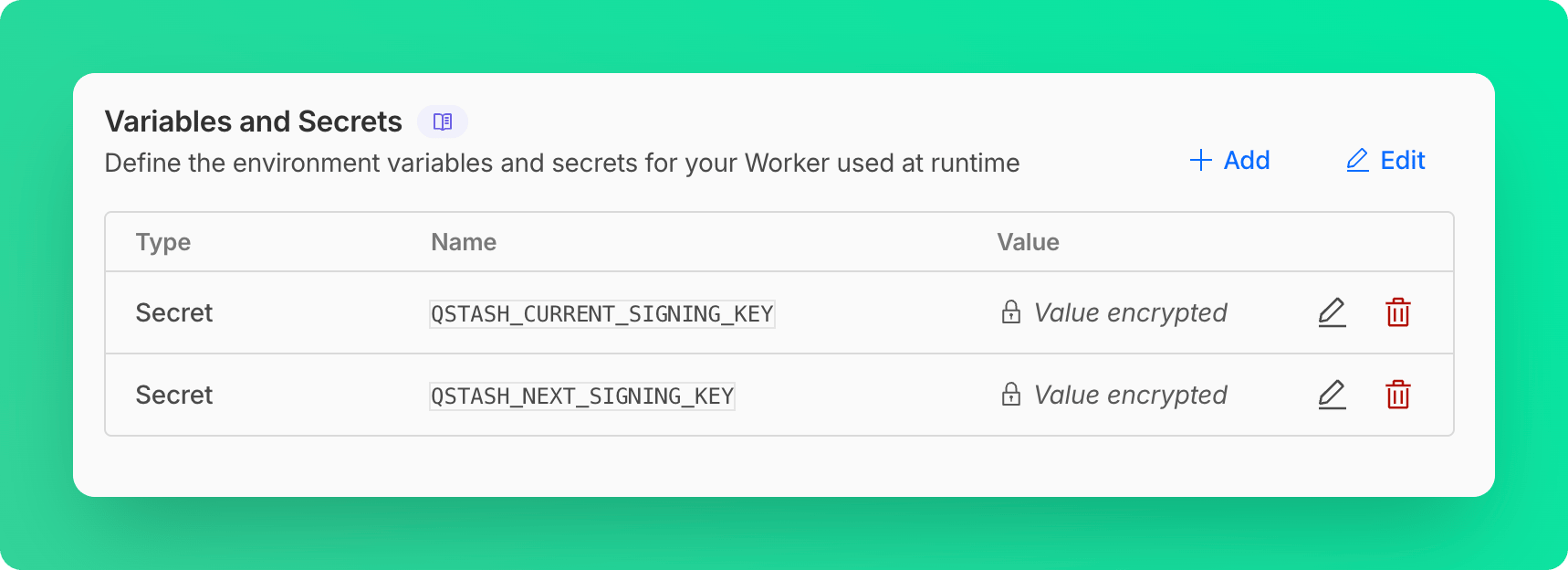
) } ``` ## Broadcasting to Multiple Channels Emit to multiple channels at the same time: ```typescript route.ts theme={"system"} const rooms = ["lobby", "room-1", "room-2"] await Promise.all( rooms.map((room) => { const channel = realtime.channel(room) return channel.emit("chat.message", `Hi channel ${room}!`) }) ) ``` ## Channel Security Combine channels with [middleware](/realtime/features/middleware) for secure access control: ```typescript title="app/api/realtime/route.ts" theme={"system"} import { handle } from "@upstash/realtime" import { realtime } from "@/lib/realtime" import { currentUser } from "@/auth" export const GET = handle({ realtime, middleware: async ({ request, channels }) => { const user = await currentUser(request) for (const channel of channels) { if (!user.canAccessChannel(channel)) { return new Response("Unauthorized", { status: 401 }) } } }, }) ``` See the middleware documentation for authentication examples --- # Source: https://upstash.com/docs/redis/sdks/ts/commands/json/clear.md # Source: https://upstash.com/docs/redis/sdks/py/commands/json/clear.md > ## Documentation Index > Fetch the complete documentation index at: https://upstash.com/docs/llms.txt > Use this file to discover all available pages before exploring further. # JSON.CLEAR > Clear container values (arrays/objects) and set numeric values to 0. ## Arguments The key of the json entry. The path to clear. `$` is the root. ## Response How many keys cleared from the objects. ```py Example theme={"system"} redis.json.clear("key") ``` ```py With path theme={"system"} redis.json.clear("key", "$.my.key") ``` --- # Source: https://upstash.com/docs/workflow/basics/client.md > ## Documentation Index > Fetch the complete documentation index at: https://upstash.com/docs/llms.txt > Use this file to discover all available pages before exploring further. # Overview The Workflow Client lets you programmatically interact with your workflow runs. You can use it from the same application that hosts your workflows, or from any external service. ## Initialization Initialize a new client with your credentials: ```javascript theme={"system"} import { Client } from "@upstash/workflow" const client = new Client({ baseUrl: process.env.QSTASH_URL!, token: process.env.QSTASH_TOKEN! }) ``` The client is lightweight and stateless. You can safely reuse a single instance across your application. ## Functionality The client exposes a set of functions to manage workflow runs and inspect their state: * [client.trigger](/workflow/basics/client/trigger) * [client.cancel](/workflow/basics/client/cancel) * [client.notify](/workflow/basics/client/notify) * [client.logs](/workflow/basics/client/logs) * [client.getWaiters](/workflow/basics/client/waiters) * client.dlq * [client.dlq.list](/workflow/basics/client/dlq/list) * [client.dlq.restart](/workflow/basics/client/dlq/restart) * [client.dlq.resume](/workflow/basics/client/dlq/resume) * [client.dlq.retryFailureFunction](/workflow/basics/client/dlq/callback) --- # Source: https://upstash.com/docs/redis/tutorials/cloud_run_sessions.md > ## Documentation Index > Fetch the complete documentation index at: https://upstash.com/docs/llms.txt > Use this file to discover all available pages before exploring further. # Session Management on Google Cloud Run with Serverless Redis > This tutorial shows how to manage user sessions on Google Cloud Run using Serverless Redis. Developers are moving their apps to serverless architectures and one of the most common questions is [how to store user sessions](https://stackoverflow.com/questions/57711095/are-users-sessions-on-google-cloud-run-apps-directed-to-the-same-instance). You need to keep your state and session data in an external data store because serverless environments are stateless by design. Unfortunately most of the databases are not serverless friendly. They do not support per-request pricing or they require heavy and persistent connections. These also explain the motivations why we built Upstash. Upstash is a serverless Redis database with per-request pricing, durable storage. In this article I will write a basic web application which will run on Google Cloud Run and keep the user sessions in Upstash Redis. Google Cloud Run provides Serverless Container service which is also stateless. Cloud Run is more powerful than serverless functions (AWS Lambda, Cloud Functions) as you can run your own container. But you can not guarantee that the same container instance will process the requests of the same user. So you need to keep the user session in an external storage. Redis is the most popular choice to keep the session data thanks to its speed and simplicity. Upstash gives you the serverless Redis database which fits perfectly to your serverless stack. If you want to store your session data manually on Redis, check [here](/redis/tutorials/using_google_cloud_functions). But in this article I will use [Express session](https://github.com/expressjs/session) middleware which can work with Redis for user session management. Here is the [live demo.](https://cloud-run-sessions-dr7fcdmn3a-uc.a.run.app) Here is the [source code](https://github.com/upstash/examples/tree/master/examples/cloud-run-sessions) ## The Stack Serverless processing: Google Cloud Run Serverless data: Upstash Web framework: Express ## Project Setup Create a directory for your project: ``` mkdir cloud-run-sessions cd cloud-run-sessions ``` Create a node project and install dependencies: ``` npm init npm install express redis connect-redis express-session ``` Create a Redis DB from [Upstash](https://console.upstash.com). In the database details page, click the Connect button, copy the connection code (Node.js node-redis). If you do not have it already, install Google Cloud SDK as described [here.](https://cloud.google.com/sdk/docs/install) Set the project and enable Google Run and Build services: ``` gcloud config set project cloud-run-sessions gcloud services enable run.googleapis.com gcloud services enable cloudbuild.googleapis.com ``` ## The Code Create index.js and update as below: ```javascript theme={"system"} var express = require("express"); var parseurl = require("parseurl"); var session = require("express-session"); const redis = require("redis"); var RedisStore = require("connect-redis")(session); var client = redis.createClient({ // REPLACE HERE }); var app = express(); app.use( session({ store: new RedisStore({ client: client }), secret: "forest squirrel", resave: false, saveUninitialized: true, }) ); app.use(function (req, res, next) { if (!req.session.views) { req.session.views = {}; } // get the url pathname var pathname = parseurl(req).pathname; // count the views req.session.views[pathname] = (req.session.views[pathname] || 0) + 1; next(); }); app.get("/", function (req, res, next) { res.send("you viewed this page " + req.session.views["/"] + " times"); }); app.get("/foo", function (req, res, next) { res.send("you viewed this page " + req.session.views["/foo"] + " times"); }); app.get("/bar", function (req, res, next) { res.send("you viewed this page " + req.session.views["/bar"] + " times"); }); app.listen(8080, function () { console.log("Example app listening on port 8080!"); }); ``` Run the app: `node index.js` Check [http://localhost:3000/foo](http://localhost:3000/foo) in different browsers to validate it keeps the session. Add the start script to your `package.json`: ```json theme={"system"} "scripts": { "test": "echo \"Error: no test specified\" && exit 1", "start": "node index" } ``` ## Build Create a Docker file (Dockerfile) in the project folder as below: ``` # Use the official lightweight Node.js 12 image. # https://hub.docker.com/_/node FROM node:12-slim # Create and change to the app directory. WORKDIR /usr/src/app # Copy application dependency manifests to the container image. # A wildcard is used to ensure both package.json AND package-lock.json are copied. # Copying this separately prevents re-running npm install on every code change. COPY package*.json ./ # Install dependencies. RUN npm install # Copy local code to the container image. COPY . ./ # Run the web service on container startup. CMD [ "npm", "start" ] ``` Build your container image: ``` gcloud builds submit --tag gcr.io/cloud-run-sessions/main ``` List your container images: `gcloud container images list` Run the container locally: ``` gcloud auth configure-docker docker run -d -p 8080:8080 gcr.io/cloud-run-sessions/main:v0.1 ``` In case you have an issue on docker run, check [here](https://cloud.google.com/container-registry/docs/troubleshooting). ## Deploy Run: ``` gcloud run deploy cloud-run-sessions \ --image gcr.io/cloud-run-sessions/main:v0.1 \ --platform managed \ --region us-central1 \ --allow-unauthenticated ``` This command should give you [the URL of your application](https://cloud-run-sessions-dr7fcdmn3a-uc.a.run.app) as below: ``` Deploying container to Cloud Run service [cloud-run-sessions] in project [cloud-run-sessions] region [us-central1] ✓ Deploying... Done. ✓ Creating Revision... ✓ Routing traffic... ✓ Setting IAM Policy... Done. Service [cloud-run-sessions] revision [cloud-run-sessions-00006-dun] has been deployed and is serving 100 percent of traffic. Service URL: https://cloud-run-sessions-dr7fcdmn3a-uc.a.run.app ``` ## Cloud Run vs Cloud Functions I have developed two small prototypes with both. Here my impression: * Simplicity: Cloud functions are simpler to deploy as it does not require any container building step. * Portability: Cloud Run leverages your container, so anytime you can move your application to any containerized system. This is a plus for Cloud Run. * Cloud Run looks more powerful as it runs your own container with more configuration options. It also allows running longer tasks (can be extended to 60 minutes) * Cloud Run looks more testable as you can run the container locally. Cloud Functions require a simulated environment. Personally, I see Cloud Functions as a pure serverless solution where Cloud Run is a hybrid solution. I would choose Cloud functions for simple, self contained tasks or event driven solutions. If my use case is more complex with portability/testability requirements, then I would choose Cloud Run. --- # Source: https://upstash.com/docs/workflow/quickstarts/cloudflare-workers.md # Source: https://upstash.com/docs/qstash/quickstarts/cloudflare-workers.md > ## Documentation Index > Fetch the complete documentation index at: https://upstash.com/docs/llms.txt > Use this file to discover all available pages before exploring further. # Cloudflare Workers This is a step by step guide on how to receive webhooks from QStash in your Cloudflare Worker. ### Project Setup We will use **C3 (create-cloudflare-cli)** command-line tool to create our functions. You can open a new terminal window and run C3 using the prompt below. ```shell npm theme={"system"} npm create cloudflare@latest ``` ```shell yarn theme={"system"} yarn create cloudflare@latest ``` This will install the `create-cloudflare` package, and lead you through setup. C3 will also install Wrangler in projects by default, which helps us testing and deploying the projects. ```text theme={"system"} ➜ npm create cloudflare@latest Need to install the following packages: create-cloudflare@2.52.3 Ok to proceed? (y) y using create-cloudflare version 2.52.3 ╭ Create an application with Cloudflare Step 1 of 3 │ ├ In which directory do you want to create your application? │ dir ./cloudflare_starter │ ├ What would you like to start with? │ category Hello World example │ ├ Which template would you like to use? │ type Worker only │ ├ Which language do you want to use? │ lang TypeScript │ ├ Do you want to use git for version control? │ yes git │ ╰ Application created ``` We will also install the **Upstash QStash library**. ```bash theme={"system"} npm install @upstash/qstash ``` ### 3. Use QStash in your handler First we import the library: ```ts src/index.ts theme={"system"} import { Receiver } from "@upstash/qstash"; ``` Then we adjust the `Env` interface to include the `QSTASH_CURRENT_SIGNING_KEY` and `QSTASH_NEXT_SIGNING_KEY` environment variables. ```ts src/index.ts theme={"system"} export interface Env { QSTASH_CURRENT_SIGNING_KEY: string; QSTASH_NEXT_SIGNING_KEY: string; } ``` And then we validate the signature in the `handler` function. First we create a new receiver and provide it with the signing keys. ```ts src/index.ts theme={"system"} const receiver = new Receiver({ currentSigningKey: env.QSTASH_CURRENT_SIGNING_KEY, nextSigningKey: env.QSTASH_NEXT_SIGNING_KEY, }); ``` Then we verify the signature. ```ts src/index.ts theme={"system"} const body = await request.text(); const isValid = await receiver.verify({ signature: request.headers.get("Upstash-Signature")!, body, }); ``` The entire file looks like this now: ```ts src/index.ts theme={"system"} import { Receiver } from "@upstash/qstash"; export interface Env { QSTASH_CURRENT_SIGNING_KEY: string; QSTASH_NEXT_SIGNING_KEY: string; } export default { async fetch(request, env, ctx): Promise { const receiver = new Receiver({ currentSigningKey: env.QSTASH_CURRENT_SIGNING_KEY, nextSigningKey: env.QSTASH_NEXT_SIGNING_KEY, }); const body = await request.text(); const isValid = await receiver.verify({ signature: request.headers.get("Upstash-Signature")!, body, }); if (!isValid) { return new Response("Invalid signature", { status: 401 }); } // signature is valid return new Response("Hello World!"); }, } satisfies ExportedHandler; ``` ### Configure Credentials There are two methods for setting up the credentials for QStash. One for worker level, the other for account level. #### Using Cloudflare Secrets (Worker Level Secrets) This is the common way of creating secrets for your worker, see [Workflow Secrets](https://developers.cloudflare.com/workers/configuration/secrets/) * Navigate to [Upstash Console](https://console.upstash.com) and get your QStash credentials. * In [Cloudflare Dashboard](https://dash.cloudflare.com/), Go to **Compute (Workers)** > **Workers & Pages**. * Select your worker and go to **Settings** > **Variables and Secrets**. * Add your QStash credentials as secrets here: #### Using Cloudflare Secrets Store (Account Level Secrets) This method requires a few modifications in the worker code, see [Access to Secret on Env Object](https://developers.cloudflare.com/secrets-store/integrations/workers/#3-access-the-secret-on-the-env-object) ```ts src/index.ts theme={"system"} import { Receiver } from "@upstash/qstash"; export interface Env { QSTASH_CURRENT_SIGNING_KEY: SecretsStoreSecret; QSTASH_NEXT_SIGNING_KEY: SecretsStoreSecret; } export default { async fetch(request, env, ctx): Promise { const c = new Receiver({ currentSigningKey: await env.QSTASH_CURRENT_SIGNING_KEY.get(), nextSigningKey: await env.QSTASH_NEXT_SIGNING_KEY.get(), }); // Rest of the code }, }; ``` After doing these modifications, you can deploy the worker to Cloudflare with `npx wrangler deploy`, and follow the steps below to define the secrets: * Navigate to [Upstash Console](https://console.upstash.com) and get your QStash credentials. * In [Cloudflare Dashboard](https://dash.cloudflare.com/), Go to **Secrets Store** and add QStash credentials as secrets. * Under **Compute (Workers)** > **Workers & Pages**, find your worker and add these secrets as bindings. ### Deployment Newer deployments may revert the configurations you did in the dashboard. While worker level secrets persist, the bindings will be gone! Deploy your function to Cloudflare with `npx wrangler deploy` The endpoint of the function will be provided to you, once the deployment is done. ### Publish a message Open a different terminal and publish a message to QStash. Note the destination url is the same that was printed in the previous deploy step. ```bash theme={"system"} curl --request POST "https://qstash.upstash.io/v2/publish/https://..workers.dev" \ -H "Authorization: Bearer " \ -H "Content-Type: application/json" \ -d "{ \"hello\": \"world\"}" ``` In the logs you should see something like this: ```bash theme={"system"} $ npx wrangler tail ⛅️ wrangler 4.43.0 -------------------- Successfully created tail, expires at 2025-10-16T00:25:17Z Connected to , waiting for logs... POST https://..workers.dev/ - Ok @ 10/15/2025, 10:34:55 PM ``` ## Next Steps That's it, you have successfully created a secure Cloudflare Worker, that receives and verifies incoming webhooks from qstash. Learn more about publishing a message to qstash [here](/qstash/howto/publishing). You can find the source code [here](https://github.com/upstash/qstash-examples/tree/main/cloudflare-workers). --- # Source: https://upstash.com/docs/redis/tutorials/cloudflare_workers_with_redis.md > ## Documentation Index > Fetch the complete documentation index at: https://upstash.com/docs/llms.txt > Use this file to discover all available pages before exploring further. # Use Redis in Cloudflare Workers You can find the project source code on GitHub. This tutorial showcases using Redis with REST API in Cloudflare Workers. We will write a sample edge function (Cloudflare Workers) which will show a custom greeting depending on the location of the client. We will load the greeting message from Redis so you can update it without touching the code. ### Why Upstash? * Cloudflare Workers does not allow TCP connections. Upstash provides REST API on top of the Redis database. * Upstash is a serverless offering with per-request pricing which fits for edge and serverless functions. * Upstash Global database provides low latency all over the world. ### Prerequisites 1. Install the Cloudflare Wrangler CLI with `npm install wrangler --save-dev` ### Project Setup Create a Cloudflare Worker with the following options: ```shell theme={"system"} ➜ tutorials > ✗ npx wrangler init ╭ Create an application with Cloudflare Step 1 of 3 │ ├ In which directory do you want to create your application? │ dir ./greetings-cloudflare │ ├ What would you like to start with? │ category Hello World example │ ├ Which template would you like to use? │ type Hello World Worker │ ├ Which language do you want to use? │ lang TypeScript │ ├ Copying template files │ files copied to project directory │ ├ Updating name in `package.json` │ updated `package.json` │ ├ Installing dependencies │ installed via `npm install` │ ╰ Application created ╭ Configuring your application for Cloudflare Step 2 of 3 │ ├ Installing @cloudflare/workers-types │ installed via npm │ ├ Adding latest types to `tsconfig.json` │ added @cloudflare/workers-types/2023-07-01 │ ├ Retrieving current workerd compatibility date │ compatibility date 2024-10-22 │ ├ Do you want to use git for version control? │ no git │ ╰ Application configured ``` Install Upstash Redis: ```shell theme={"system"} cd greetings-cloudflare npm install @upstash/redis ``` ### Database Setup Create a Redis database using [Upstash Console](https://console.upstash.com) or [Upstash CLI](https://github.com/upstash/cli) and copy the `UPSTASH_REDIS_REST_URL` and `UPSTASH_REDIS_REST_TOKEN` into your `wrangler.toml` file. ```toml wrangler.toml theme={"system"} # existing config [vars] UPSTASH_REDIS_REST_URL = UPSTASH_REDIS_REST_TOKEN = ``` Using CLI Tab in the Upstash Console, add some greetings to your database: CLI Tab ### Greetings Function Setup Update `src/index.ts`: ```typescript src/index.ts theme={"system"} import { Redis } from '@upstash/redis/cloudflare'; type RedisEnv = { UPSTASH_REDIS_REST_URL: string; UPSTASH_REDIS_REST_TOKEN: string; }; export default { async fetch(request: Request, env: RedisEnv) { const redis = Redis.fromEnv(env); const country = request.headers.get('cf-ipcountry'); if (country) { const greeting = await redis.get(country); if (greeting) { return new Response(greeting); } } return new Response('Hello!'); }, }; ``` The code tries to find out the user's location checking the "cf-ipcountry" header. Then it loads the corresponding greeting for that location using the Redis REST API. ### Run Locally Run the following command to start your dev session: ```shell theme={"system"} npx wrangler dev ``` Visit [localhost:8787](http://localhost:8787) ### Build and Deploy Build and deploy your app to Cloudflare: ```shell theme={"system"} npx wrangler deploy ``` Visit the output url. --- # Source: https://upstash.com/docs/redis/quickstarts/cloudflareworkers.md > ## Documentation Index > Fetch the complete documentation index at: https://upstash.com/docs/llms.txt > Use this file to discover all available pages before exploring further. # Cloudflare Workers ### Database Setup Create a Redis database using [Upstash Console](https://console.upstash.com) or [Upstash CLI](https://github.com/upstash/cli). ### Project Setup We will use **C3 (create-cloudflare-cli)** command-line tool to create our application. You can open a new terminal window and run C3 using the prompt below. ```shell npm theme={"system"} npm create cloudflare@latest -- upstash-redis-worker ``` ```shell yarn theme={"system"} yarn create cloudflare upstash-redis-worker ``` ```shell pnpm theme={"system"} pnpm create cloudflare upstash-redis-worker ``` This will create a new Cloudflare Workers project: ```text theme={"system"} ➜ npm create cloudflare@latest -- upstash-redis-worker > npx > create-cloudflare upstash-redis-worker ───────────────────────────────────────────────────────────────────────────────────────────────── 👋 Welcome to create-cloudflare v2.50.8! 🧡 Let's get started. 📊 Cloudflare collects telemetry about your usage of Create-Cloudflare. Learn more at: https://github.com/cloudflare/workers-sdk/blob/main/packages/create-cloudflare/telemetry.md ───────────────────────────────────────────────────────────────────────────────────────────────── ╭ Create an application with Cloudflare Step 1 of 3 │ ├ In which directory do you want to create your application? │ dir ./upstash-redis-worker │ ├ What would you like to start with? │ category Hello World example │ ├ Which template would you like to use? │ type Worker only │ ├ Which language do you want to use? │ lang TypeScript │ ├ Copying template files │ files copied to project directory │ ├ Updating name in `package.json` │ updated `package.json` │ ├ Installing dependencies │ installed via `npm install` │ ╰ Application created ... ──────────────────────────────────────────────────────────── 🎉 SUCCESS Application created successfully! ``` We will also install the **Upstash Redis SDK** to connect to Redis. ```bash theme={"system"} npm install @upstash/redis ``` ### The Code Here is a Worker template to configure and test Upstash Redis connection. ```ts src/index.ts theme={"system"} import { Redis } from "@upstash/redis/cloudflare"; export interface Env { UPSTASH_REDIS_REST_URL: string; UPSTASH_REDIS_REST_TOKEN: string; } export default { async fetch(request, env, ctx): Promise { const redis = Redis.fromEnv(env); const count = await redis.incr("counter"); return new Response(JSON.stringify({ count })); }, } satisfies ExportedHandler; ``` ```js src/index.js theme={"system"} import { Redis } from "@upstash/redis/cloudflare"; export default { async fetch(request, env, ctx) { const redis = Redis.fromEnv(env); const count = await redis.incr("counter"); return new Response(JSON.stringify({ count })); }, }; ``` ### Configure Credentials There are two methods for setting up the credentials for Redis. One for worker level, the other for account level. #### Using Cloudflare Secrets (Worker Level Secrets) This is the common way of creating secrets for your worker, see [Workflow Secrets](https://developers.cloudflare.com/workers/configuration/secrets/) * Navigate to [Upstash Console](https://console.upstash.com) and get your Redis credentials. * In [Cloudflare Dashboard](https://dash.cloudflare.com/), Go to **Compute (Workers)** > **Workers & Pages**. * Select your worker and go to **Settings** > **Variables and Secrets**. * Add your Redis credentials as secrets here: #### Using Cloudflare Secrets Store (Account Level Secrets) This method requires a few modifications in the worker code, see [Access to Secret on Env Object](https://developers.cloudflare.com/secrets-store/integrations/workers/#3-access-the-secret-on-the-env-object) ```ts src/index.ts theme={"system"} import { Redis } from "@upstash/redis/cloudflare"; export interface Env { UPSTASH_REDIS_REST_URL: SecretsStoreSecret; UPSTASH_REDIS_REST_TOKEN: SecretsStoreSecret; } export default { async fetch(request, env, ctx): Promise { const redis = Redis.fromEnv({ UPSTASH_REDIS_REST_URL: await env.UPSTASH_REDIS_REST_URL.get(), UPSTASH_REDIS_REST_TOKEN: await env.UPSTASH_REDIS_REST_TOKEN.get(), }); const count = await redis.incr("counter"); return new Response(JSON.stringify({ count })); }, } satisfies ExportedHandler; ``` After doing these modifications, you can deploy the worker to Cloudflare with `npx wrangler deploy`, and follow the steps below to define the secrets: * Navigate to [Upstash Console](https://console.upstash.com) and get your Redis credentials. * In [Cloudflare Dashboard](https://dash.cloudflare.com/), Go to **Secrets Store** and add Redis credentials as secrets. * Under **Compute (Workers)** > **Workers & Pages**, find your worker and add these secrets as bindings. ### Deployment Newer deployments may revert the configurations you did in the dashboard. While worker level secrets persist, the bindings will be gone! Deploy your function to Cloudflare with `npx wrangler deploy` The endpoint of the function will be provided to you, once the deployment is done. ### Testing Open a different terminal and test the endpoint. Note the destination url is the same that was printed in the previous deploy step. ```bash theme={"system"} curl -X POST 'https://..workers.dev' \ -H 'Content-Type: application/json' ``` The response will be in the format of `{"count":20}` In the logs you should see something like this: ```bash theme={"system"} $ npx wrangler tail ⛅️ wrangler 4.43.0 -------------------- Successfully created tail, expires at 2025-10-16T18:59:18Z Connected to , waiting for logs... POST https://..workers.dev/ - Ok @ 10/16/2025, 4:05:30 PM ``` ## Repositories Javascript: [https://github.com/upstash/upstash-redis/tree/main/examples/cloudflare-workers](https://github.com/upstash/upstash-redis/tree/main/examples/cloudflare-workers) Typescript: [https://github.com/upstash/upstash-redis/tree/main/examples/cloudflare-workers-with-typescript](https://github.com/upstash/upstash-redis/tree/main/examples/cloudflare-workers-with-typescript) --- # Source: https://upstash.com/docs/redis/tutorials/coin_price_list.md > ## Documentation Index > Fetch the complete documentation index at: https://upstash.com/docs/llms.txt > Use this file to discover all available pages before exploring further. # Backendless Coin Price List with GraphQL API, Serverless Redis and Next.JS In this tutorial, we will develop a simple coin price list using GraphQL API of Upstash. You can call the application `backendless` because we will access the database directly from the client (javascript). See the [code](https://github.com/upstash/examples/tree/master/examples/coin-price-list). ## Motivation We want to give a use case where you can use the GraphQL API without any backend code. The use case is publicly available read only data for web applications where you need low latency. The data is updated frequently by another backend application, you want your users to see the last updated data. Examples: Leaderboards, news list, blog list, product list, top N items in the homepages. ### `1` Project Setup: Create a Next application: `npx create-next-app`. Install Apollo GraphQL client: `npm i @apollo/client` ### `2` Database Setup If you do not have one, create a database following this [guide](../overall/getstarted). Connect your database via Redis CLI and run: ```shell theme={"system"} rpush coins '{ "name" : "Bitcoin", "price": 56819, "image": "https://s2.coinmarketcap.com/static/img/coins/64x64/1.png"}' '{ "name" : "Ethereum", "price": 2130, "image": "https://s2.coinmarketcap.com/static/img/coins/64x64/1027.png"}' '{ "name" : "Cardano", "price": 1.2, "image": "https://s2.coinmarketcap.com/static/img/coins/64x64/2010.png"}' '{ "name" : "Polkadot", "price": 35.96, "image": "https://s2.coinmarketcap.com/static/img/coins/64x64/6636.png"}' '{ "name" : "Stellar", "price": 0.506, "image": "https://s2.coinmarketcap.com/static/img/coins/64x64/512.png"}' ``` ### `3` Code In the Upstash console, copy the read only access key in your API configuration page (GraphQL Explorer > Configure API). In the `_app.js` create the Apollo client and replace the your access key as below: You need to use Read Only Access Key, because the key will be accessible publicly. ```javascript theme={"system"} import "../styles/globals.css"; import { ApolloClient, ApolloProvider, createHttpLink, InMemoryCache, } from "@apollo/client"; const link = createHttpLink({ uri: "https://graphql-us-east-1.upstash.io/", headers: { Authorization: "Bearer YOUR_ACCESS_TOKEN", }, }); const client = new ApolloClient({ uri: "https://graphql-us-east-1.upstash.io/", cache: new InMemoryCache(), link, }); function MyApp({ Component, pageProps }) { return ( {" "} ); } export default MyApp; ``` Edit `index.js` as below: ```javascript theme={"system"} import Head from "next/head"; import styles from "../styles/Home.module.css"; import { gql, useQuery } from "@apollo/client"; import React from "react"; const GET_COIN_LIST = gql` query { redisLRange(key: "coins", start: 0, stop: 6) } `; export default function Home() { let coins = []; const { loading, error, data } = useQuery(GET_COIN_LIST); if (!loading && !error) { for (let x of data.redisLRange) { let dd = JSON.parse(x); coins.push(dd); } } return (
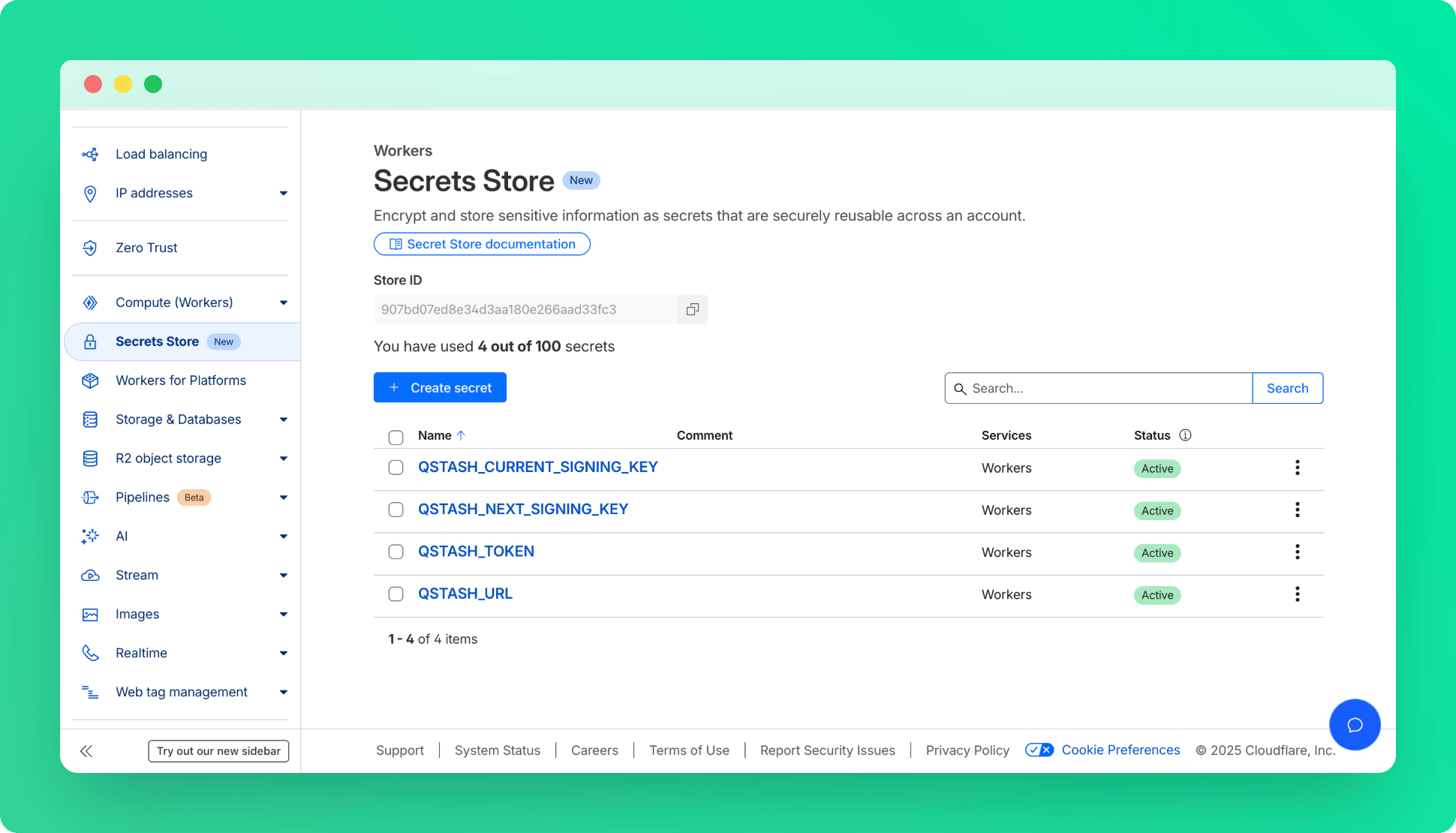
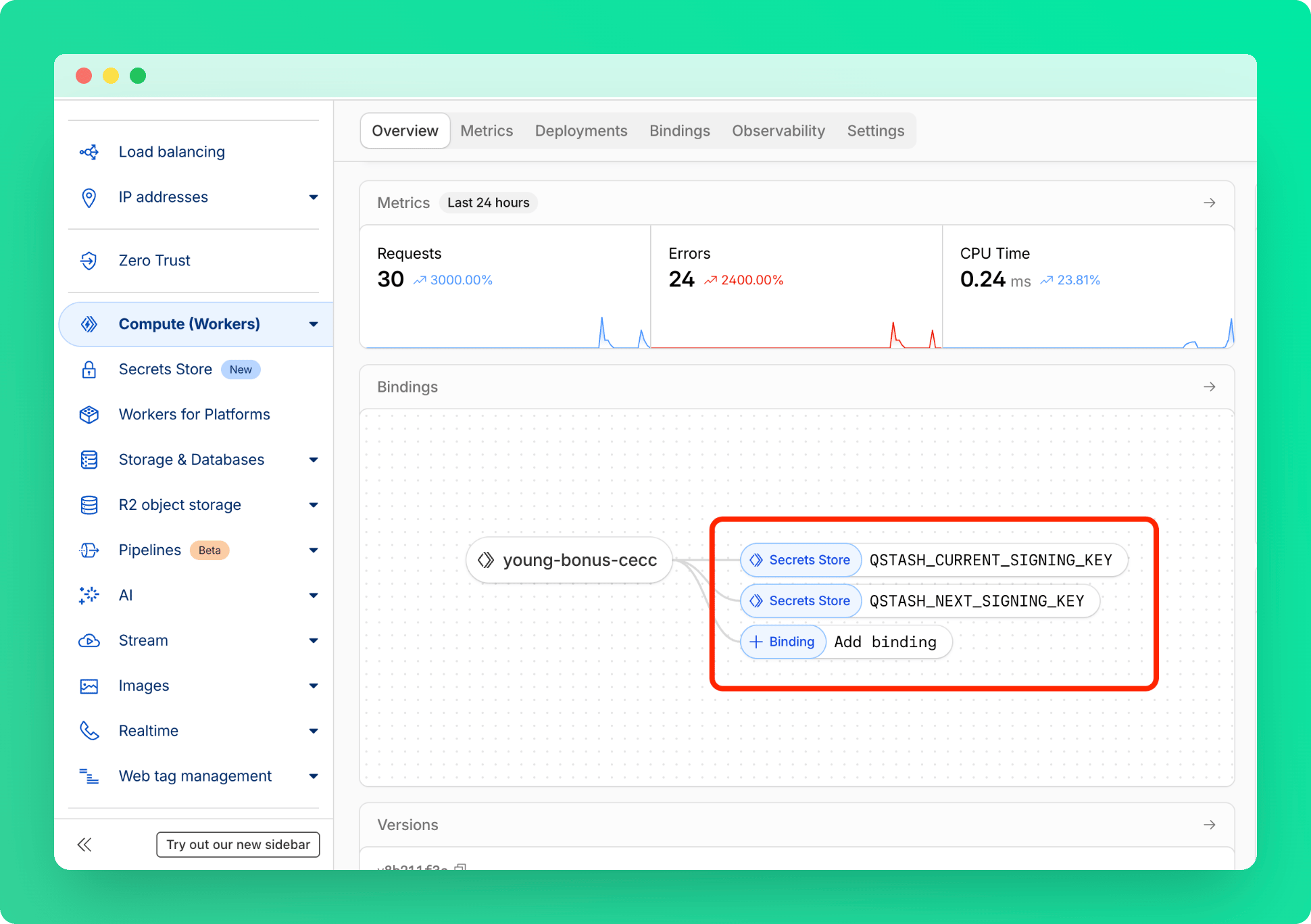
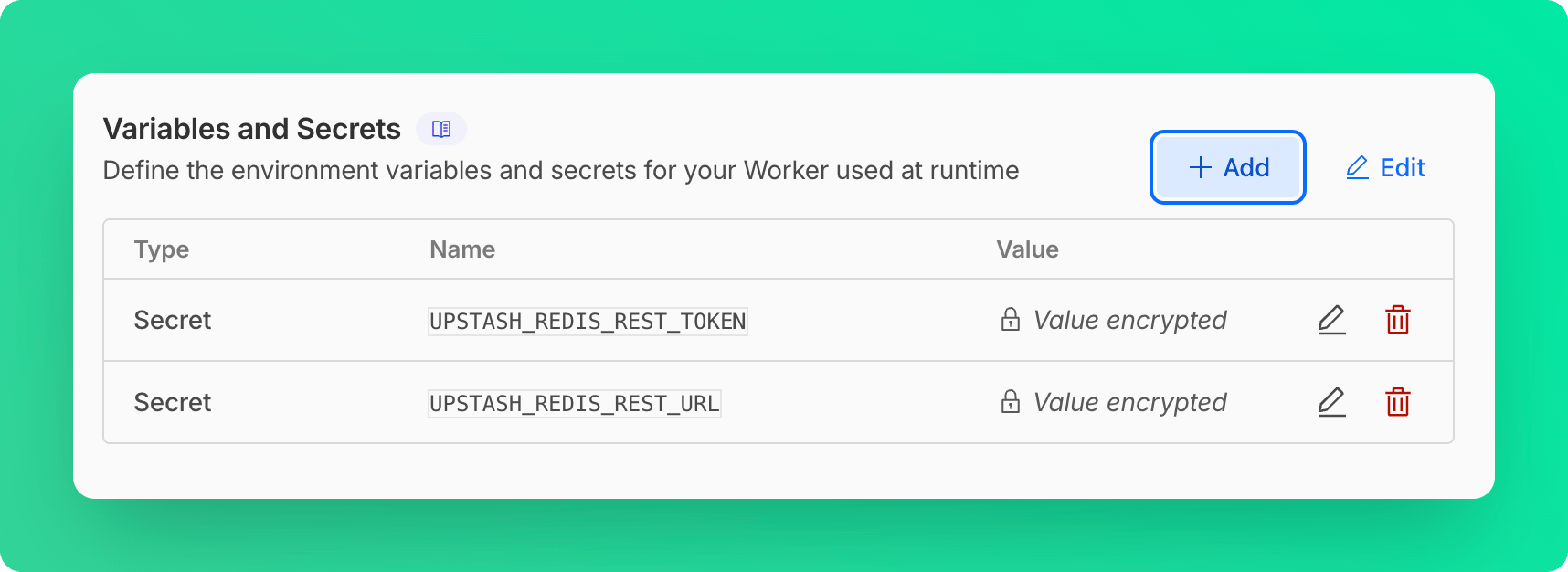
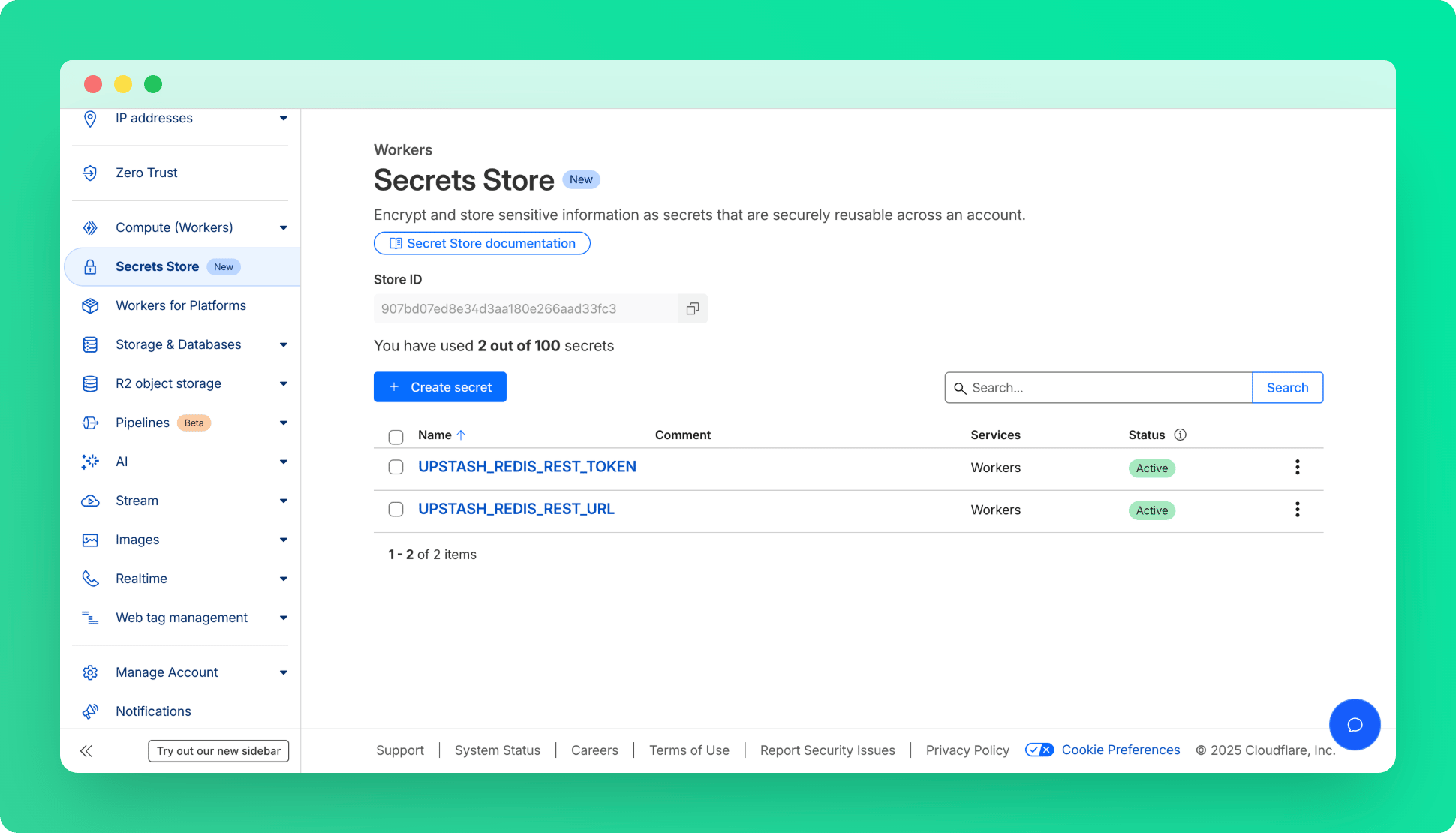
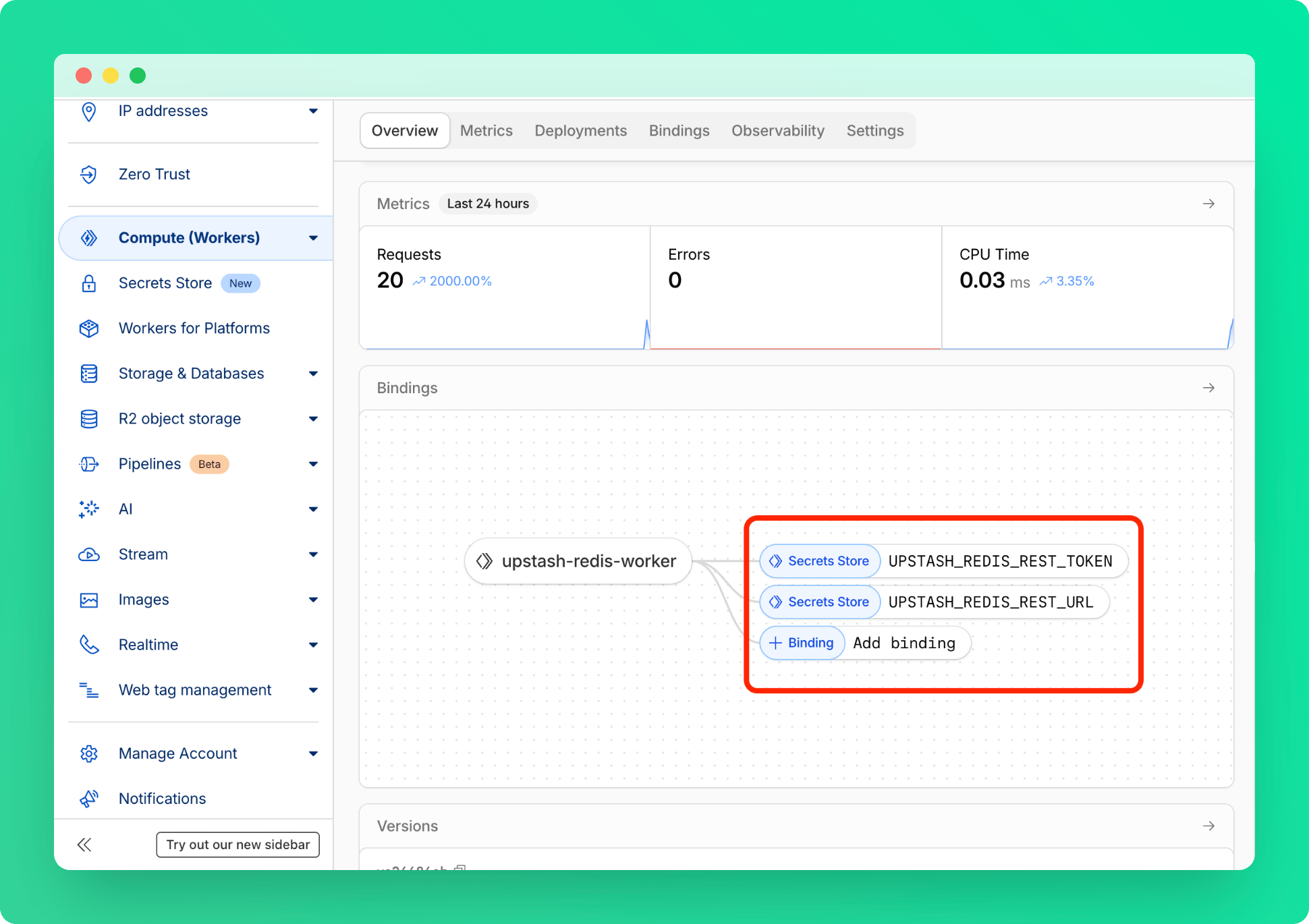
Create Next App

Coin Price List

{!loading ? ( coins.map((item, ind) => ( )) ) : ( )}
{item.name} ${item.price}
); } ``` ### `4` Run Run your application locally: `npm run dev` ### `5` Live! Go to [http://localhost:3000/](http://localhost:3000/) 🎉 --- # Source: https://upstash.com/docs/redis/troubleshooting/command_count_increases_unexpectedly.md > ## Documentation Index > Fetch the complete documentation index at: https://upstash.com/docs/llms.txt > Use this file to discover all available pages before exploring further. # Unexpected Increase in Command Count ### Symptom You notice an increasing command count for your Redis database in the Upstash Console, even when there are no connected clients. ### Diagnosis The Upstash Console interacts with your Redis database to provide its functionality, which can result in an increased command count. This behavior is normal and expected. Here's a breakdown of why this occurs: 1. **Data Browser functionality:** The Data Browser tab sends various commands to list and display your keys, including: * SCAN: To iterate through the keyspace * GET: To retrieve values for keys * TTL: To check the time-to-live for keys 2. **Rate Limiting check:** The Console checks if your database is being used for Rate Limiting. This involves sending EXISTS commands for rate limiting-related keys. 3. **Other Console features:** Additional features in the Console may send commands to your database to retrieve or display information. ### Verification You can use the Monitor tab in the Upstash Console to observe which commands are being sent by the Console itself. This can help you distinguish between Console-generated commands and those from your application or other clients. Also, Usage tab contains 'Top Commands Usage' graph which shows the exact command history. ### Conclusion The increasing command count you're seeing is likely due to the Console's normal operations and should not be a cause for concern. These commands do not significantly impact your database's performance or your usage limits. If you have any further questions or concerns about command usage, please don't hesitate to contact Upstash support. --- # Source: https://upstash.com/docs/vector/overall/compare.md # Source: https://upstash.com/docs/redis/overall/compare.md # Source: https://upstash.com/docs/qstash/overall/compare.md > ## Documentation Index > Fetch the complete documentation index at: https://upstash.com/docs/llms.txt > Use this file to discover all available pages before exploring further. # Compare In this section, we will compare QStash with alternative solutions. ### BullMQ BullMQ is a message queue for NodeJS based on Redis. BullMQ is open source project, you can run BullMQ yourself. * Using BullMQ in serverless environments is problematic due to stateless nature of serverless. QStash is designed for serverless environments. * With BullMQ, you need to run a stateful application to consume messages. QStash calls the API endpoints, so you do not need your application to consume messages continuously. * You need to run and maintain BullMQ and Redis yourself. QStash is completely serverless, you maintain nothing and pay for just what you use. ### Zeplo Zeplo is a message queue targeting serverless. Just like QStash it allows users to queue and schedule HTTP requests. While Zeplo targets serverless, it has a fixed monthly price in paid plans which is \$39/month. In QStash, price scales to zero, you do not pay if you are not using it. With Zeplo, you can send messages to a single endpoint. With QStash, in addition to endpoint, you can submit messages to a URL Group which groups one or more endpoints into a single namespace. Zeplo does not have URL Group functionality. ### Quirrel Quirrel is a job queueing service for serverless. It has a similar functionality with QStash. Quirrel is acquired by Netlify, some of its functionality is available as Netlify scheduled functions. QStash is platform independent, you can use it anywhere. --- # Source: https://upstash.com/docs/redis/help/compliance.md # Source: https://upstash.com/docs/common/help/compliance.md > ## Documentation Index > Fetch the complete documentation index at: https://upstash.com/docs/llms.txt > Use this file to discover all available pages before exploring further. # Compliance ## Upstash Legal & Security Documents * [Upstash Terms of Service](https://upstash.com/static/trust/terms.pdf) * [Upstash Privacy Policy](https://upstash.com/static/trust/privacy.pdf) * [Upstash Data Processing Agreement](https://upstash.com/static/trust/dpa.pdf) * [Upstash Technical and Organizational Security Measures](https://upstash.com/static/trust/security-measures.pdf) * [Upstash Subcontractors](https://upstash.com/static/trust/subprocessors.pdf) ## Is Upstash SOC2 Compliant? Upstash Redis databases under Pro and Enterprise support plans are SOC2 compliant. Check our [trust page](https://trust.upstash.com/) for details. ## Is Upstash ISO-27001 Compliant? We are in process of getting this certification. Contact us ([support@upstash.com](mailto:support@upstash.com)) to learn about the expected date. ## Is Upstash GDPR Compliant? Yes. For more information, see our [Privacy Policy](https://upstash.com/static/trust/privacy.pdf). We acquire DPAs from each [subcontractor](https://upstash.com/static/trust/subprocessors.pdf) that we work with. ## Is Upstash HIPAA Compliant? Yes. Upstash Redis is HIPAA compliant and we are in process of getting this compliance for our other products. See [Managing Healthcare Data](https://upstash.com/docs/redis/help/managing-healthcare-data) for more details. ## Is Upstash PCI Compliant? Upstash does not store personal credit card information. We use Stripe for payment processing. Stripe is a certified PCI Service Provider Level 1, which is the highest level of certification in the payments industry. ## Does Upstash conduct vulnerability scanning and penetration tests? Yes, we use third party tools and work with pen testers. We share the results with Enterprise customers. Contact us ([support@upstash.com](mailto:support@upstash.com)) for more information. ## Does Upstash take backups? Yes, we take regular snapshots of the data cluster to the AWS S3 platform. ## Does Upstash encrypt data? Customers can enable TLS when creating a database or cluster, and we recommend this for production environments. Additionally, we encrypt data at rest upon customer request. --- # Source: https://upstash.com/docs/redis/sdks/ratelimit-ts/integrations/strapi/configurations.md # Source: https://upstash.com/docs/redis/integrations/ratelimit/strapi/configurations.md > ## Documentation Index > Fetch the complete documentation index at: https://upstash.com/docs/llms.txt > Use this file to discover all available pages before exploring further. # Configure Upstash Ratelimit Strapi Plugin After setting up the plugin, it's possible to customize the ratelimiter algorithm and rates. You can also define different rate limits and rate limit algorithms for different routes. ## General Configurations Enable or disable the plugin. ## Database Configurations The token to authenticate with the Upstash Redis REST API. You can find this credential on Upstash Console with the name `UPSTASH_REDIS_REST_TOKEN` The URL for the Upstash Redis REST API. You can find this credential on Upstash Console with the name `UPSTASH_REDIS_REST_URL` The prefix for the rate limit keys. The plugin uses this prefix to store the rate limit data in Redis.
For example, if the prefix is `@strapi`, the key will be `@strapi:::`.
Enable analytics for the rate limit. When enabled, the plugin extra insights related to your ratelimits. You can use this data to analyze the rate limit usage on [Upstash Console](https://console.upstash.com/ratelimit). ## Strategy The plugin uses a strategy array to define the rate limits per route. Each strategy object has the following properties: An array of HTTP methods to apply the rate limit.
For example, `["GET", "POST"]`
The path to apply the rate limit. You can use wildcards to match multiple routes. For example, `*` matches all routes.
Some examples:
* `path: "/api/restaurants/:id"`
* `path: "/api/restaurants"`
The source to identifiy the user. Requests with the same identifier will be rate limited under the same limit.
Available sources are:
* `ip`: The IP address of the user.
* `header`: The value of a header key. You should pass the source in the `header.` format.
For example, `header.Authorization` will use the value of the `Authorization`
Enable debug mode for the route. When enabled, the plugin logs the remaining limits and the block status for each request.
The limiter configuration for the route. The limiter object has the following properties: The rate limit algorithm to use. For more information related to algorithms, see docs [**here**](/redis/sdks/ratelimit-ts/algorithms).
* `fixed-window`: The fixed-window algorithm divides time into fixed intervals. Each interval has a set limit of allowed requests. When a new interval starts, the count resets.
* `sliding-window`: The sliding-window algorithm uses a rolling time frame. It considers requests from the past X time units, continuously moving forward. This provides a smoother distribution of requests over time.
* `token-bucket`: The token-bucket algorithm uses a bucket that fills with tokens at a steady rate. Each request consumes a token. If the bucket is empty, requests are denied. This allows for bursts of traffic while maintaining a long-term rate limit.
The number of tokens allowed in the time window.
The time window for the rate limit. Available units are `"ms" | "s" | "m" | "h" | "d"`
For example, `20s` means 20 seconds.
The rate at which the bucket refills. **This property is only used for the token-bucket algorithm.**
## Examples ```json Apply rate limit for all routes theme={"system"} { "strapi-plugin-upstash-ratelimit":{ "enabled":true, "resolve":"./src/plugins/strapi-plugin-upstash-ratelimit", "config":{ "enabled":true, "token":"process.env.UPSTASH_REDIS_REST_TOKEN", "url":"process.env.UPSTASH_REDIS_REST_URL", "strategy":[ { "methods":[ "GET", "POST" ], "path":"*", "identifierSource":"header.Authorization", "limiter":{ "algorithm":"fixed-window", "tokens":10, "window":"20s" } } ], "prefix":"@strapi" } } } ``` ```json Apply rate limit with IP theme={"system"} { "strapi-plugin-upstash-ratelimit": { "enabled": true, "resolve": "./src/plugins/strapi-plugin-upstash-ratelimit", "config": { "enabled": true, "token": "process.env.UPSTASH_REDIS_REST_TOKEN", "url": "process.env.UPSTASH_REDIS_REST_URL", "strategy": [ { "methods": ["GET", "POST"], "path": "*", "identifierSource": "ip", "limiter": { "algorithm": "fixed-window", "tokens": 10, "window": "20s" } } ], "prefix": "@strapi" } } } ``` ```json Routes with different rate limit algorithms theme={"system"} { "strapi-plugin-upstash-ratelimit": { "enabled": true, "resolve": "./src/plugins/strapi-plugin-upstash-ratelimit", "config": { "enabled": true, "token": "process.env.UPSTASH_REDIS_REST_TOKEN", "url": "process.env.UPSTASH_REDIS_REST_URL", "strategy": [ { "methods": ["GET", "POST"], "path": "/api/restaurants/:id", "identifierSource": "header.x-author", "limiter": { "algorithm": "fixed-window", "tokens": 10, "window": "20s" } }, { "methods": ["GET"], "path": "/api/restaurants", "identifierSource": "header.x-author", "limiter": { "algorithm": "tokenBucket", "tokens": 10, "window": "20s", "refillRate": 1 } } ], "prefix": "@strapi" } } } ``` --- # Source: https://upstash.com/docs/workflow/howto/configure.md > ## Documentation Index > Fetch the complete documentation index at: https://upstash.com/docs/llms.txt > Use this file to discover all available pages before exploring further. # Configure a Run You can configure a workflow run when starting it. The following are the options you can configure: 1. Retries: The number of retry attempt Upstash Workflow does when a step fails in the workflow run 2. Retry Delay: The delay strategy between retries when Upstash Workflow attempts retries. 3. Flow Control: The rate, period and parallelism that steps should respect and logical grouping key to share with other workflow runs. You can pass these configuration options when starting a workflow run: ```typescript theme={"system"} import { Client } from "@upstash/workflow"; const client = Client() const { workflowRunId } = await client.trigger({ url: `http://localhost:3000/api/workflow`, retries: 3, retryDelay: "(1 + retries) * 1000", flowControl: { key: "limit-ads", rate: 1, parallelism: 10 } }); ``` The workflow run configuration does **not** apply to `context.call()` and `context.invoke()` steps. These steps accept their own configuration options, allowing fine-grained control over external requests. If not specified, they fall back to their default values. For details, see: * [context.call](/workflow/basics/context/run) * [context.invoke](/workflow/basics/context/run) Upstash Workflow does not support step level configuration. The configuration applies to all steps executed by a workflow run. If you want to specifically throttle a step, there is a workaround by splitting step to another workflow and using `context.invoke()`. --- # Source: https://upstash.com/docs/redis/howto/connectclient.md > ## Documentation Index > Fetch the complete documentation index at: https://upstash.com/docs/llms.txt > Use this file to discover all available pages before exploring further. # Connect Your Client Upstash works with Redis® API, that means you can use any Redis client with Upstash. At the [Redis Clients](https://redis.io/clients) page you can find the list of Redis clients in different languages. Probably, the easiest way to connect to your database is to use `redis-cli`. Because it is already covered in [Getting Started](../overall/getstarted), we will skip it here. ## Database After completing the [getting started](../overall/getstarted) guide, you will see the database page as below: The information required for Redis clients is displayed here as **Endpoint**, **Port** and **Password**. Also when you click on `Clipboard` button on **Connect to your database** section, you can copy the code that is required for your client. Below, we will provide examples from popular Redis clients, but the information above should help you configure all Redis clients similarly. TLS is enabled by default for all Upstash Redis databases. It's not possible to disable it. ## upstash-redis Because upstash-redis is HTTP based, we recommend it for Serverless functions. Other TCP based clients can cause connection problems in highly concurrent use cases. **Library**: [upstash-redis](https://github.com/upstash/upstash-redis) **Example**: ```typescript theme={"system"} import { Redis } from "@upstash/redis"; const redis = new Redis({ url: "UPSTASH_REDIS_REST_URL", token: "UPSTASH_REDIS_REST_TOKEN", }); (async () => { try { const data = await redis.get("key"); console.log(data); } catch (error) { console.error(error); } })(); ``` ## Node.js **Library**: [ioredis](https://github.com/luin/ioredis) **Example**: ```javascript theme={"system"} const Redis = require("ioredis"); let client = new Redis("rediss://:YOUR_PASSWORD@YOUR_ENDPOINT:YOUR_PORT"); await client.set("foo", "bar"); let x = await client.get("foo"); console.log(x); ``` ## Python **Library**: [redis-py](https://github.com/andymccurdy/redis-py) **Example**: ```python theme={"system"} import redis r = redis.Redis( host= 'YOUR_ENDPOINT', port= 'YOUR_PORT', password= 'YOUR_PASSWORD', ssl=True) r.set('foo','bar') print(r.get('foo')) ``` ## Java **Library**: [jedis](https://github.com/xetorthio/jedis) **Example**: ```java theme={"system"} Jedis jedis = new Jedis("YOUR_ENDPOINT", "YOUR_PORT", true); jedis.auth("YOUR_PASSWORD"); jedis.set("foo", "bar"); String value = jedis.get("foo"); System.out.println(value); ``` Jedis does not offer command level retry config by default, but you can handle retries using connection pool. Check [Retrying a command after a connection failure](https://redis.io/docs/latest/develop/clients/jedis/connect/#retrying-a-command-after-a-connection-failure) ## PHP **Library**: [phpredis](https://github.com/phpredis/phpredis) **Example**: ```php theme={"system"} connect("YOUR_ENDPOINT", "YOUR_PORT"); $redis->auth("YOUR_PASSWORD"); $redis->set("foo", "bar"); print_r($redis->get("foo")); ``` Phpredis supports connection level retries through `OPT_MAX_RETRIES`. However, for command level retries, it only supports [SCAN command](https://github.com/phpredis/phpredis?tab=readme-ov-file#example-29). ## Go **Library**: [redigo](https://github.com/gomodule/redigo) **Example**: ```go theme={"system"} func main() { c, err := redis.Dial("tcp", "YOUR_ENDPOINT:YOUR_PORT", redis.DialUseTLS(true)) if err != nil { panic(err) } _, err = c.Do("AUTH", "YOUR_PASSWORD") if err != nil { panic(err) } _, err = c.Do("SET", "foo", "bar") if err != nil { panic(err) } value, err := redis.String(c.Do("GET", "foo")) if err != nil { panic(err) } println(value) } ``` --- # Source: https://upstash.com/docs/redis/howto/connectwithupstashredis.md > ## Documentation Index > Fetch the complete documentation index at: https://upstash.com/docs/llms.txt > Use this file to discover all available pages before exploring further. # Connect with upstash-redis [upstash-redis](https://github.com/upstash/redis-js) is an HTTP/REST based Redis client built on top of [Upstash REST API](/redis/features/restapi). For more information, refer to the documentation of Upstash redis client ([TypeScript](/redis/sdks/ts/overview) & [Python](/redis/sdks/py/overview)). It is the only connectionless (HTTP based) Redis client and designed for: * Serverless functions (AWS Lambda ...) * Cloudflare Workers (see [the example](https://github.com/upstash/redis-js/tree/main/examples/cloudflare-workers-with-typescript)) * Fastly Compute\@Edge * Next.js, Jamstack ... * Client side web/mobile applications * WebAssembly * and other environments where HTTP is preferred over TCP. See [the list of APIs](https://upstash.com/docs/redis/features/restapi#rest-redis-api-compatibility) supported. ## Quick Start ### Install ```bash theme={"system"} npm install @upstash/redis ``` ### Usage ```typescript theme={"system"} import { Redis } from "@upstash/redis"; const redis = new Redis({ url: "UPSTASH_REDIS_REST_URL", token: "UPSTASH_REDIS_REST_TOKEN", }); (async () => { try { const data = await redis.get("key"); console.log(data); } catch (error) { console.error(error); } })(); ``` If you define `UPSTASH_REDIS_REST_URL` and`UPSTASH_REDIS_REST_TOKEN` environment variables, you can load them automatically. ```typescript theme={"system"} import { Redis } from "@upstash/redis"; const redis = Redis.fromEnv()(async () => { try { const data = await redis.get("key"); console.log(data); } catch (error) { console.error(error); } })(); ``` --- # Source: https://upstash.com/docs/redis/features/consistency.md > ## Documentation Index > Fetch the complete documentation index at: https://upstash.com/docs/llms.txt > Use this file to discover all available pages before exploring further. # Consistency Upstash utilizes a leader-based replication mechanism. Under this mechanism, each key is assigned to a leader replica, which is responsible for handling write operations on that key. The remaining replicas serve as backups to the leader. When a write operation is performed on a key, it is initially processed by the leader replica and then asynchronously propagated to the backup replicas. This ensures that data consistency is maintained across the replicas. Reads can be performed from any replica. Each replica employs a failure detector to track liveness of the leader replica. When the leader replica fails for a reason, remaining replicas start a new leader election round and elect a new leader. This is the only unavailability window for the cluster where *write* your requests can be blocked for a short period of time. Also in case of cluster wide failures like network partitioning (split brain); periodically running anti entropy jobs resolve the conflicts using `Last-Writer-Wins` algorithm and converge the replicas to the same state. This model gives a better write consistency and read scalability but can provide only **Eventual Consistency**. Additionally you can achieve **Causal Consistency** (`Read-Your-Writes`, `Monotonic-Reads`, `Monotonic-Writes` and `Writes-Follow-Reads` guarantees) for a single Redis connection. (A TCP connection forms a session between client and server). Checkout [Read Your Writes](/redis/howto/readyourwrites) for more details on how to achieve RYW consistency. Checkout [Replication](/redis/features/replication) for more details on Replication mechanism. Previously, Upstash supported `Strong Consistency` mode for the single region databases. We decided to deprecate this feature because its effect on latency started to conflict with the performance expectations of Redis use cases. Also we are gradually moving to **CRDT** based Redis data structures, which will provide `Strong Eventual Consistency`. --- # Source: https://upstash.com/docs/search/features/content-and-metadata.md > ## Documentation Index > Fetch the complete documentation index at: https://upstash.com/docs/llms.txt > Use this file to discover all available pages before exploring further. # Content and Metadata > How to use content and metadata fields in your documents *** ## Content The `content` field contains the searchable data of your documents. This is what gets indexed and can be queried. * **Required**: You must provide `content` when upserting documents * **Format**: JSON object structure * **Searchable**: All fields within content are indexed for search * **Filterable**: Content fields can be used in filter queries ```py theme={"system"} index.upsert( documents=[ { "id": "star-wars", "content": { "text": "Star Wars is a sci-fi space opera."} } ] ) ``` ```ts theme={"system"} await index.upsert([ { id: "star-wars", content: { title: "Star Wars", genre: "sci-fi", category: "classic" } } ]); ``` *** ## Metadata The `metadata` field stores additional context about your documents that won't be indexed for search. This is useful for data you want to retrieve with your search results but don't need to search through. * **Optional**: You can upsert documents without metadata * **Format**: JSON object structure * **Not Searchable**: Metadata fields are not indexed ```py theme={"system"} index.upsert( documents=[ { "id": "star-wars", "content": { "text": "Star Wars is a sci-fi space opera."}, "metadata": { "genre": "sci-fi", } } ] ) ``` ```ts theme={"system"} await index.upsert([ { id: "star-wars", content: { title: "Star Wars", genre: "sci-fi", category: "classic" }, metadata: { director: "George Lucas" } , } ]); ``` *** ## Best Practices | Use Content When | Use Metadata When | | ----------------------------------------------------- | ---------------------------------------------------- | | Users need to search for this information | Information is for display/reference only (e.g. IDs) | | The field is important for finding relevant documents | The field provides context after finding documents | | You want to filter results by this field | You need to track internal system information | *** ## Examples & Common Patterns 1. E-commerce Products ```javascript theme={"system"} { // 👇 searchable and filterable content: { name: "Wireless Headphones", description: "Noise-cancelling bluetooth headphones", brand: "Sony", category: "Electronics" }, // 👇 not searchable, for reference only metadata: { sku: "AT-WH-001", warehouse_location: "A3-15", supplier_id: "SUP-123" } } ``` 2. Knowledge Base Articles ```javascript theme={"system"} { // 👇 searchable and filterable content: { title: "How to Reset Your Password", body: "Follow these steps to reset your password...", tags: ["password", "security", "account"] }, // 👇 not searchable, for reference only metadata: { author_id: "usr_123", version: 3, approved_by: "usr_456", view_count: 1523 } } ``` 3. News Articles ```javascript theme={"system"} { // 👇 searchable and filterable content: { headline: "Tech Company Announces New Product", excerpt: "In a press conference today...", category: "Technology", keywords: ["innovation", "product launch"] }, // 👇 not searchable, for reference only metadata: { source_url: "https://news.example.com/article/123", syndication_rights: true, word_count: 200 } } ``` --- # Source: https://upstash.com/docs/workflow/basics/context.md > ## Documentation Index > Fetch the complete documentation index at: https://upstash.com/docs/llms.txt > Use this file to discover all available pages before exploring further. # Overview A workflow's **context** is an object provided by the route function. The context object provides: * **Workflow APIs** – functions for defining workflow steps. * **Workflow Run Properties** – request payload, request headers, and other metadata. ```typescript api/workflow/route.ts highlight={4-5} theme={"system"} import { serve } from "@upstash/workflow/nextjs"; export const { POST } = serve( // 👇 the workflow context async (context) => { // ... } ); ``` ```python main.py theme={"system"} from fastapi import FastAPI from upstash_workflow.fastapi import Serve from upstash_workflow import AsyncWorkflowContext app = FastAPI() serve = Serve(app) @serve.post("/api/example") async def example(context: AsyncWorkflowContext[str]) -> None: ... ``` ## Context Object Properties The request payload passed to the workflow run via `trigger()` call. The request headers passed to the workflow run via `trigger()` call. The unique identifier of the current workflow run. The public URL of the workflow endpoint. The URL used for workflow failure callback. If a failure function is defined, this is the same as the workflow's `url`. The environment variables available to the workflow. The QStash client instance used by the workflow endpoint. The label of the current workflow run, if set in [client.trigger](/workflow/basics/client/trigger). ## Context Object Functions You can use the functions exposed by context object to define workflow steps. * [context.run](/workflow/basics/context/run) * [context.sleep](/workflow/basics/context/sleep) * [context.sleepUntil](/workflow/basics/context/sleepUntil) * [context.waitForEvent](/workflow/basics/context/waitForEvent) * [context.createWebhook](/workflow/basics/context/createWebhook) * [context.waitForWebhook](/workflow/basics/context/waitForWebhook) * [context.notify](/workflow/basics/context/notify) * [context.invoke](/workflow/basics/context/invoke) * [context.call](/workflow/basics/context/call) * [context.cancel](/workflow/basics/context/cancel) * [context.api](/workflow/basics/context/api) --- # Source: https://upstash.com/docs/vector/sdks/ts/contributing.md # Source: https://upstash.com/docs/search/sdks/ts/contributing.md > ## Documentation Index > Fetch the complete documentation index at: https://upstash.com/docs/llms.txt > Use this file to discover all available pages before exploring further. # Contributing ## Preparing the environment This project uses [Bun](https://bun.sh/) for packaging and dependency management. Make sure you have the relevant dependencies. ```commandline theme={"system"} curl -fsSL https://bun.sh/install | bash ``` You will also need a search database on [Upstash](https://console.upstash.com/search). *** ## Code Formatting Run the following command to format code: ```bash theme={"system"} bun run fmt ``` *** ## Running tests To run all the tests, make sure you have the relevant environment variables. ```bash theme={"system"} bun run test ``` --- # Source: https://upstash.com/docs/common/account/costexplorer.md > ## Documentation Index > Fetch the complete documentation index at: https://upstash.com/docs/llms.txt > Use this file to discover all available pages before exploring further. # Cost Explorer The Cost Explorer pages allow you to view your current and previous months’ costs. To access the Cost Explorer, navigate to the left menu and select Account > Cost Explorer. Below is an example report: You can select a specific month to view the cost breakdown for that period. Here's the explanation of the fields in the report: **Request:** This represents the total number of requests sent to the database. **Storage:** This indicates the average size of the total storage consumed. Upstash database includes a persistence layer for data durability. For example, if you have 1 GB of data in your database throughout the entire month, this value will be 1 GB. Even if your database is empty for the first 29 days of the month and then expands to 30 GB on the last day, this value will still be 1 GB. **Cost:** This field represents the total cost of your database in US Dollars. > The values for the current month is updated hourly, so values can be stale up > to 1 hour. --- # Source: https://upstash.com/docs/redis/sdks/ratelimit-ts/costs.md > ## Documentation Index > Fetch the complete documentation index at: https://upstash.com/docs/llms.txt > Use this file to discover all available pages before exploring further. # Costs This page details the cost of the Ratelimit algorithms in terms of the number of Redis commands. Note that these are calculated for Regional Ratelimits. For [Multi Region Ratelimit](/redis/sdks/ratelimit-ts/features#multi-region), costs will be higher. Additionally, if a Global Upstash Redis is used as the database, number of commands should be calculated as `(1+readRegionCount) * writeCommandCount + readCommandCount` and plus 1 if analytics is enabled. The Rate Limit SDK minimizes Redis calls to reduce latency overhead and cost. Number of commands executed by the Rate Limit algorithm depends on the chosen algorithm, as well as the state of the algorithm and the caching. #### Algorithm State By state of the algorithm, we refer to the entry in our Redis store regarding some identifier `ip1`. You can imagine that there is a state for every identifier. We name these states in the following manner for the purpose of attributing costs to each one: | State | Success | Explanation | | ------------ | ------- | ------------------------------------------------------------------------ | | First | true | First time the Ratelimit was called with identifier `ip1` | | Intermediate | true | Second or some other time the Ratelimit was called with identifier `ip1` | | Rate-Limited | false | Requests with identifier `ip1` which are rate limited. | For instance, first time we call the algorithm with `ip1`, `PEXPIRE` is called so that the key expires after some time. In the following calls, we still use the same script but don't call `PEXPIRE`. In the rate-limited state, we may avoid using Redis altogether if we can make use of the cache. #### Cache Result We distinguish the two cases when the identifier `ip1` is found in cache, resulting in a "hit" and the case when the identifier `ip1` is not found in the cache, resulting in a "miss". The cache only exists in the runtime environment and is independent of the Redis database. The state of the cache is especially relevant for serverless contexts, where the cache will usually be empty because of a cold start. | Result | Explanation | | ------ | ------------------------------------------------------------------------------------------------------- | | Hit | Identifier `ip1` is found in the runtime cache | | Miss | Identifier `ip1` is not found in cache or the value in the cache doesn't block (rate-limit) the request | An identifier is saved in the cache only when a request is rate limited after a call to the Redis database. The request to Redis returns a timestamp for the time when such a request won't be rate limited anymore. We save this timestamp in the cache and this allows us to reject any request before this timestamp without having to consult the Redis database. See the [section on caching](/redis/sdks/ratelimit-ts/features) for more details. # Costs ### `limit()` #### Fixed Window | Cache Result | Algorithm State | Command Count | Commands | | ------------ | --------------- | ------------- | ------------------- | | Hit/Miss | First | 3 | EVAL, INCR, PEXPIRE | | Hit/Miss | Intermediate | 2 | EVAL, INCR | | Miss | Rate-Limited | 2 | EVAL, INCR | | Hit | Rate-Limited | 0 | *utilized cache* | #### Sliding Window | Cache Result | Algorithm State | Command Count | Commands | | ------------ | --------------- | ------------- | ----------------------------- | | Hit/Miss | First | 5 | EVAL, GET, GET, INCR, PEXPIRE | | Hit/Miss | Intermediate | 4 | EVAL, GET, GET, INCR | | Miss | Rate-Limited | 3 | EVAL, GET, GET | | Hit | Rate-Limited | 0 | *utilized cache* | #### Token Bucket | Cache Result | Algorithm State | Command Count | Commands | | ------------ | ------------------ | ------------- | -------------------------- | | Hit/Miss | First/Intermediate | 4 | EVAL, HMGET, HSET, PEXPIRE | | Miss | Rate-Limited | 2 | EVAL, HMGET | | Hit | Rate-Limited | 0 | *utilized cache* | ### `getRemaining()` This method doesn't use the cache or it doesn't have a state it depends on. Therefore, every call results in the same number of commands in Redis. | Algorithm | Command Count | Commands | | -------------- | ------------- | -------------- | | Fixed Window | 2 | EVAL, GET | | Sliding Window | 3 | EVAL, GET, GET | | Token Bucket | 2 | EVAL, HMGET | ### `resetUsedTokens()` This method starts with a `SCAN` command and deletes every key that matches with `DEL` commands: | Algorithm | Command Count | Commands | | -------------- | ------------- | -------------------- | | Fixed Window | 3 | EVAL, SCAN, DEL | | Sliding Window | 4 | EVAL, SCAN, DEL, DEL | | Token Bucket | 3 | EVAL, SCAN, DEL | ### `blockUntilReady()` Works the same as `limit()`. # Deny List Enabling deny lists introduces a cost of 2 additional command per `limit` call. Values passed in `identifier`, `ip`, `userAgent` and `country` are checked with a single `SMISMEMBER` command. The other command is TTL which is for checking the status of the current ip deny list to figure out whether it is expired, valid or disabled. If [Auto IP deny list](/redis/sdks/ratelimit-ts/features#auto-ip-deny-list) is enabled, the Ratelimit SDK will update the ip deny list everyday, in the first `limit` invocation after 2 AM UTC. This will consume 9 commands per day. If a value is found in the deny list at redis, the client saves this value in the cache and denies any further requests with that value for a minute without calling Redis (except for analytics). # Analytics If analytics is enabled, all calls of `limit` will result in 1 more command since `ZINCRBY` will be called to update the analytics. # Dynamic Limits When [dynamic limits](/redis/sdks/ratelimit-ts/features#dynamic-limits) are enabled, each `limit` and `getRemaining` call will execute one additional command. Both `setDynamicLimit` and `getDynamicLimit` execute 1 command each. --- # Source: https://upstash.com/docs/qstash/api-refence/schedules/create-a-schedule.md > ## Documentation Index > Fetch the complete documentation index at: https://upstash.com/docs/llms.txt > Use this file to discover all available pages before exploring further. # Create a Schedule > Create a schedule to send messages periodically ## OpenAPI ````yaml qstash/openapi.yaml post /v2/schedules/{destination} openapi: 3.1.0 info: title: QStash REST API description: | QStash is a message queue and scheduler built on top of Upstash Redis. version: 2.0.0 contact: name: Upstash url: https://upstash.com servers: - url: https://qstash.upstash.io security: - bearerAuth: [] - bearerAuthQuery: [] tags: - name: Messages description: Publish and manage messages - name: Queues description: Manage message queues - name: Schedules description: Create and manage scheduled messages - name: URL Groups description: Manage URL groups and endpoints - name: DLQ description: Dead Letter Queue operations - name: Logs description: Log operations - name: Signing Keys description: Manage signing keys - name: Flow Control description: Monitor flow control keys paths: /v2/schedules/{destination}: post: tags: - Schedules summary: Create a Schedule description: Create a schedule to send messages periodically parameters: - name: destination in: path required: true schema: type: string description: > Destination can either be a valid URL where the message gets sent to, or a URL Group name. - If the destination is a URL, make sure the URL is prefixed with a valid protocol (http:// or https://) - If the destination is a URL Group, a new message will be created for each endpoint in the group. - name: Upstash-Cron in: header required: true schema: type: string examples: - '*/5 * * * *' - CRON_TZ=America/New_York */5 * * * * description: > Cron expression defining the schedule frequency. QStash republishes this message whenever the cron expression triggers. Timezones are supported and can be specified with the cron expression. The maximum schedule resolution is 1 minute. - name: Upstash-Schedule-Id in: header schema: type: string description: > Assign a custom schedule ID to the created schedule. This header allows you to set the schedule ID yourself instead of QStash assigning a random ID. If a schedule with the provided ID exists, the settings of the existing schedule will be updated with the new settings. - name: Content-Type in: header schema: type: string description: > `Content-Type` is the MIME type of the message. We highly recommend sending a `Content-Type` header along, as this will help your destination API to understand the content of the message. Set this to whatever data you are sending through QStash, if your message is json, then use `application/json`. Some frameworks like Next.js will not parse your body correctly if the content type is not correct. Examples: - `application/json` - `application/xml` - `application/octet-stream` - `text/plain` - name: Upstash-Method in: header schema: type: string enum: - GET - POST - PUT - PATCH - DELETE default: POST description: The HTTP method to use when sending the request to your API. - name: Upstash-Timeout in: header schema: type: string examples: - 5s - 2m - 1h description: > Specifies the maximum duration the request is allowed to take before timing out. This parameter can be used to shorten the default allowed timeout value on your plan. See Max HTTP Connection Timeout on the pricing page for default values. The format of this header is `` where value is a number and unit is one of: - `s` for seconds - `m` for minutes - `h` for hours. - name: Upstash-Retries in: header schema: type: integer description: > How many times should this message be retried in case the destination API returns an error or is not available. The total number of deliveries is 1 (initial attempt) + retries. If it is not provided, the plan default retry value will be used: - Free Plan: 3 retries - Paid Plans: 5 retries - name: Upstash-Retry-Delay in: header schema: type: string description: > Customize the delay between retry attempts when message delivery fails. By default, QStash uses exponential backoff. You can override this by providing a mathematical expressions to compute next delay. This expression is computed after each failed attempt. You can use the special variable `retried`, which is current retry attempt. The `retried` is 0 for the first retry. This variable is provided during computation of the expression by QStash. Supported functions: | Function | Description | |-------------|--------------------------------------| | `pow(x, y)`| Returns x raised to the power of y| | `exp(x)`| Returns e raised to the power of x| | `sqrt(x)`| Takes the square root of x| | `abs(x)`| Returns the absolute value of x| | `floor(x)`| Returns the largest integer less than or equal to x| | `ceil(x)`| Returns the smallest integer greater than or equal to x| | `round(x)`| Rounds x to the nearest integer| | `min(x, y)`| Returns the smaller of x and y| | `max(x, y)`| Returns the larger of x and y| Examples: - `1000`: Fixed 1 second delay - `1000 * (1 + retried)`: Linear backoff - `pow(2, retried) * 1000`: Exponential backoff - `max(1000, pow(2, retried) * 100)`: Exponential with minimum 1s delay - name: Upstash-Delay in: header schema: type: string examples: - 50s - 1d10m - 10h - 1d description: > Delay the message delivery. The format of this header is `` where value is a number and unit is one of: - `s` for seconds - `m` for minutes - `h` for hours. - `d` for days. - name: Upstash-Forward-* in: header schema: type: string description: > You can send custom headers to your endpoint along with your message. To send a custom header, prefix the header name with `Upstash-Forward-`. We will strip prefix and send them to the destination. | Header | Forwarded As | |--------|--------------| | Upstash-Forward-My-Header: my-value | My-Header: my-value | | Upstash-Forward-Authorization: Bearer | Authorization: Bearer | - name: Upstash-Callback in: header schema: type: string description: > You can define a callback url that will be called after each attempt. See the content of what will be delivered to a callback here The callback URL must be prefixed with a valid protocol (http:// or https://) Callbacks are charged as a regular message. Callbacks will use the retry setting from the original request. - name: Upstash-Callback-Forward-* in: header schema: type: string description: > You can send custom headers along with your callback message. To send a custom header, prefix the header name with `Upstash-Callback-Forward-`. We will strip prefix and them to the callback URL. Example: - `Upstash-Callback-Forward-My-Header: my-value` will be forwarded as `My-Header: my-value` to your callback destination. - name: Upstash-Callback-* in: header schema: type: string description: > You can customize the callback message configuration. | Header | Description | |--------|--------------| | Upstash-Callback-Method | HTTP method to use for the callback request. Default is POST. | | Upstash-Callback-Timeout | Timeout for the callback request. Format is same as Upstash-Timeout header. | | Upstash-Callback-Retries | Number of retries for the callback request. Default is same as original message retries. | | Upstash-Callback-Retry-Delay | Retry delay for the callback request. Format is same as Upstash-Retry-Delay header. | - name: Upstash-Failure-Callback in: header schema: type: string description: > You can define a failure callback url that will be called when a delivery is failed. That is when all the defined retries are exhausted. See the content of what will be delivered to a failure callback here The failure callback url must be prefixed with a valid protocol (http:// or https://) Callbacks are charged as a regular message. Callbacks will use the retry setting from the original request. - name: Upstash-Failure-Callback-Forward-* in: header schema: type: string description: > You can send custom headers along with your failure callback message. To send a custom header, prefix the header name with `Upstash-Failure-Callback-Forward-`. We will strip prefix and them to the failure callback URL. Example: - `Upstash-Failure-Callback-Forward-My-Header: my-value` will be forwarded as `My-Header: my-value` to your failure callback destination. - name: Upstash-Failure-Callback-* in: header schema: type: string description: > You can customize the failure callback message configuration. | Header | Description | |--------|--------------| | Upstash-Failure-Callback-Method | HTTP method to use for the callback request. Default is POST. | | Upstash-Failure-Callback-Timeout | Timeout for the callback request. Format is same as Upstash-Timeout header. | | Upstash-Failure-Callback-Retries | Number of retries for the callback request. Default is same as original message retries. | | Upstash-Failure-Callback-Retry-Delay | Retry delay for the callback request. Format is same as Upstash-Retry-Delay header. | requestBody: description: The raw request message passed to the endpoints as is content: text/plain: schema: type: string application/json: schema: type: object application/octet-stream: schema: type: string format: binary responses: '200': description: Schedule created successfully content: application/json: schema: type: object properties: scheduleId: type: string description: Unique identifier for the schedule '400': description: >- Schedule ID is invalid. Schedule IDs can only contain alphanumeric characters, hyphens, periods, and underscores. content: application/json: schema: $ref: '#/components/schemas/Error' '412': description: Exceeded the maximum number of schedules allowed. content: application/json: schema: $ref: '#/components/schemas/Error' components: schemas: Error: type: object required: - error properties: error: type: string description: Error message securitySchemes: bearerAuth: type: http scheme: bearer bearerFormat: JWT description: QStash authentication token bearerAuthQuery: type: apiKey in: query name: qstash_token description: QStash authentication token passed as a query parameter ```` --- # Source: https://upstash.com/docs/api-reference/search/create-search-index.md > ## Documentation Index > Fetch the complete documentation index at: https://upstash.com/docs/llms.txt > Use this file to discover all available pages before exploring further. # Create Search Index > Creates a new search index with the specified configuration ## OpenAPI ````yaml devops/developer-api/openapi.yml post /search openapi: 3.0.4 info: title: Developer API - Upstash description: >- This is a documentation to specify Developer API endpoints based on the OpenAPI 3.0 specification. contact: name: Support Team email: support@upstash.com license: name: Apache 2.0 url: https://www.apache.org/licenses/LICENSE-2.0.html version: 1.0.0 servers: - url: https://api.upstash.com/v2 security: [] tags: - name: redis description: Manage redis databases. externalDocs: description: Find out more url: https://upstash.com/docs/devops/developer-api/introduction - name: teams description: Manage teams and team members. externalDocs: description: Find out more url: https://upstash.com/docs/devops/developer-api/introduction - name: vector description: Manage vector indices. externalDocs: description: Find out more url: https://upstash.com/docs/devops/developer-api/introduction - name: search description: Manage search indices. externalDocs: description: Find out more url: https://upstash.com/docs/devops/developer-api/introduction - name: qstash description: Manage QStash. externalDocs: description: Find out more url: https://upstash.com/docs/devops/developer-api/introduction externalDocs: description: Find out more about Upstash url: https://upstash.com/ paths: /search: post: tags: - search summary: Create Search Index description: Creates a new search index with the specified configuration operationId: createSearchIndex requestBody: required: true content: application/json: schema: type: object required: - name - region - type properties: name: type: string description: Name of the search index example: mySearchIndex region: type: string enum: - eu-west-1 - us-central1 description: Region of the index example: eu-west-1 type: type: string enum: - free - payg - fixed description: >- Index payment type. Currently 'free' and 'payg' are available. example: payg responses: '200': description: Index created successfully content: application/json: schema: $ref: '#/components/schemas/SearchIndex' security: - basicAuth: [] components: schemas: SearchIndex: type: object properties: customer_id: type: string description: The associated ID of the owner of the index example: example@upstash.com id: type: string format: uuid description: Unique ID of the index example: 99a4c327-31f0-490f-a594-043ade84085a name: type: string description: Name of the search index example: mySearchIndex endpoint: type: string description: The REST endpoint of the index example: glowing-baboon-15797-us1 type: type: string description: The payment plan of the index enum: - free - payg - fixed example: payg region: type: string description: The region where the index is currently deployed enum: - eu-west-1 - us-central1 example: us-central1 vercel_email: type: string description: >- The email associated with Vercel integration, if any. Empty string otherwise. example: example@vercel.com token: type: string description: The REST authentication token for the index example: ZXhhbXBsZUB1cHN0YXNoLmNvbTpuYWJlcg== read_only_token: type: string description: The REST authentication read only token for the search index example: ZXhhbXBsZUB1cHN0YXNoLmNvbTpuYWJlcg== max_vector_count: type: integer description: Maximum number of vectors allowed in the index example: 2000000 max_monthly_reranks: type: integer description: Maximum monthly rerank operations (-1 for unlimited) example: -1 max_daily_updates: type: integer description: Maximum daily update operations (-1 for unlimited) example: -1 max_daily_queries: type: integer description: Maximum daily query operations (-1 for unlimited) example: -1 max_monthly_bandwidth: type: integer description: Maximum monthly bandwidth in bytes (-1 for unlimited) example: -1 max_writes_per_second: type: integer description: Maximum write operations per second (rate limit) example: 1000 max_query_per_second: type: integer description: Maximum query operations per second (rate limit) example: 1000 max_reads_per_request: type: integer description: Maximum number of reads allowed per request example: 100 max_writes_per_request: type: integer description: Maximum number of writes allowed per request example: 100 creation_time: type: integer format: int64 description: Unix timestamp of creation example: 1761200000 input_enrichment_enabled: type: boolean description: Whether input enrichment is enabled for this index example: true throughput_vector: type: array items: $ref: '#/components/schemas/TimeSeriesData' description: Throughput metrics over time example: - x: 2025-10-23 20:54:00.000 +0000 UTC 'y': 0 TimeSeriesData: type: object properties: x: type: string description: Timestamp when measurement was taken example: 2023-05-22 10:59:23.426 +0000 UTC 'y': type: number description: The measured value example: 320 required: - x - 'y' securitySchemes: basicAuth: type: http scheme: basic ```` --- # Source: https://upstash.com/docs/qstash/api/schedules/create.md # Create Schedule > Create a schedule to send messages periodically ## Request Destination can either be a topic name or id that you configured in the Upstash console or a valid url where the message gets sent to. If the destination is a URL, make sure the URL is prefixed with a valid protocol (`http://` or `https://`) Cron allows you to send this message periodically on a schedule. Add a Cron expression and we will requeue this message automatically whenever the Cron expression triggers. We offer an easy to use UI for creating Cron expressions in our [console](https://console.upstash.com/qstash) or you can check out [Crontab.guru](https://crontab.guru). Note: it can take up to 60 seconds until the schedule is registered on an available qstash node. Example: `*/5 * * * *` Timezones are also supported. You can specify timezone together with cron expression as follows: Example: `CRON_TZ=America/New_York 0 4 * * *` Delay the message delivery. Delay applies to the delivery of the scheduled messages. For example, with the delay set to 10 minutes for a schedule that runs everyday at 00:00, the scheduled message will be created at 00:00 and it will be delivered at 00:10. Format for this header is a number followed by duration abbreviation, like `10s`. Available durations are `s` (seconds), `m` (minutes), `h` (hours), `d` (days). example: "50s" | "3m" | "10h" | "1d" Assign a schedule id to the created schedule. This header allows you to set the schedule id yourself instead of QStash assigning a random id. If a schedule with the provided id exists, the settings of the existing schedule will be updated with the new settings. ## Response The unique id of this schedule. You can use it to delete the schedule later. ```sh curl theme={"system"} curl -XPOST https://qstash.upstash.io/v2/schedules/https://www.example.com/endpoint \ -H "Authorization: Bearer " \ -H "Upstash-Cron: */5 * * * *" ``` ```js Node theme={"system"} const response = await fetch('https://qstash.upstash.io/v2/schedules/https://www.example.com/endpoint', { method: 'POST', headers: { 'Authorization': 'Bearer ', 'Upstash-Cron': '*/5 * * * *' } }); ``` ```python Python theme={"system"} import requests headers = { 'Authorization': 'Bearer ', 'Upstash-Cron': '*/5 * * * *' } response = requests.post( 'https://qstash.upstash.io/v2/schedules/https://www.example.com/endpoint', headers=headers ) ``` ```go Go theme={"system"} req, err := http.NewRequest("POST", "https://qstash.upstash.io/v2/schedules/https://www.example.com/endpoint", nil) if err != nil { log.Fatal(err) } req.Header.Set("Authorization", "Bearer ") req.Header.Set("Upstash-Cron", "*/5 * * * *") resp, err := http.DefaultClient.Do(req) if err != nil { log.Fatal(err) } defer resp.Body.Close() ``` ```json 200 OK theme={"system"} { "scheduleId": "scd_1234" } ``` --- # Source: https://upstash.com/docs/workflow/basics/context/createWebhook.md > ## Documentation Index > Fetch the complete documentation index at: https://upstash.com/docs/llms.txt > Use this file to discover all available pages before exploring further. # context.createWebhook `context.createWebhook()` creates a unique webhook that can be called by external services to trigger workflow continuation. The webhook URL generated can be called multiple times to resume multiple [`context.waitForWebhook`](/workflow/basics/context/waitForWebhook) steps. ## Arguments Name of the step. ## Response The unique webhook URL that external services should call to resume the workflow. Can be called multiple times to resume multiple [`context.waitForWebhook`](/workflow/basics/context/waitForWebhook) steps. The internal event identifier associated with this webhook. This is primarily used internally by [`context.waitForWebhook`](/workflow/basics/context/waitForWebhook). ## Usage ```typescript highlight={4} theme={"system"} import { serve } from "@upstash/workflow/nextjs"; export const { POST } = serve(async (context) => { const webhook = await context.createWebhook("create webhook"); console.log(webhook.webhookUrl); // Use this URL with external services }); ``` For more complete examples and use cases, see [the page on webhooks](/workflow/features/webhooks). --- # Source: https://upstash.com/docs/devops/developer-api/redis/backup/create_backup.md > ## Documentation Index > Fetch the complete documentation index at: https://upstash.com/docs/llms.txt > Use this file to discover all available pages before exploring further. # Create Backup > This endpoint creates a backup for a Redis database. ## OpenAPI ````yaml devops/developer-api/openapi.yml post /redis/create-backup/{id} openapi: 3.0.4 info: title: Developer API - Upstash description: >- This is a documentation to specify Developer API endpoints based on the OpenAPI 3.0 specification. contact: name: Support Team email: support@upstash.com license: name: Apache 2.0 url: https://www.apache.org/licenses/LICENSE-2.0.html version: 1.0.0 servers: - url: https://api.upstash.com/v2 security: [] tags: - name: redis description: Manage redis databases. externalDocs: description: Find out more url: https://upstash.com/docs/devops/developer-api/introduction - name: teams description: Manage teams and team members. externalDocs: description: Find out more url: https://upstash.com/docs/devops/developer-api/introduction - name: vector description: Manage vector indices. externalDocs: description: Find out more url: https://upstash.com/docs/devops/developer-api/introduction - name: search description: Manage search indices. externalDocs: description: Find out more url: https://upstash.com/docs/devops/developer-api/introduction - name: qstash description: Manage QStash. externalDocs: description: Find out more url: https://upstash.com/docs/devops/developer-api/introduction externalDocs: description: Find out more about Upstash url: https://upstash.com/ paths: /redis/create-backup/{id}: post: tags: - redis summary: Create Backup description: This endpoint creates a backup for a Redis database. operationId: createBackup parameters: - name: id in: path description: The ID of the Redis database required: true schema: type: string requestBody: required: true content: application/json: schema: type: object properties: name: type: string description: Name of the backup required: - name responses: '200': description: Backup created successfully content: application/json: schema: type: string example: OK security: - basicAuth: [] components: securitySchemes: basicAuth: type: http scheme: basic ```` --- # Source: https://upstash.com/docs/devops/developer-api/redis/create_database_global.md > ## Documentation Index > Fetch the complete documentation index at: https://upstash.com/docs/llms.txt > Use this file to discover all available pages before exploring further. # Create Redis Database > This endpoint creates a new Redis database. ## OpenAPI ````yaml devops/developer-api/openapi.yml post /redis/database openapi: 3.0.4 info: title: Developer API - Upstash description: >- This is a documentation to specify Developer API endpoints based on the OpenAPI 3.0 specification. contact: name: Support Team email: support@upstash.com license: name: Apache 2.0 url: https://www.apache.org/licenses/LICENSE-2.0.html version: 1.0.0 servers: - url: https://api.upstash.com/v2 security: [] tags: - name: redis description: Manage redis databases. externalDocs: description: Find out more url: https://upstash.com/docs/devops/developer-api/introduction - name: teams description: Manage teams and team members. externalDocs: description: Find out more url: https://upstash.com/docs/devops/developer-api/introduction - name: vector description: Manage vector indices. externalDocs: description: Find out more url: https://upstash.com/docs/devops/developer-api/introduction - name: search description: Manage search indices. externalDocs: description: Find out more url: https://upstash.com/docs/devops/developer-api/introduction - name: qstash description: Manage QStash. externalDocs: description: Find out more url: https://upstash.com/docs/devops/developer-api/introduction externalDocs: description: Find out more about Upstash url: https://upstash.com/ paths: /redis/database: post: tags: - redis summary: Create Redis Database description: This endpoint creates a new Redis database. operationId: createDatabase requestBody: required: true content: application/json: schema: $ref: '#/components/schemas/CreateDatabaseRequest' responses: '200': description: Database created successfully content: application/json: schema: $ref: '#/components/schemas/Database' security: - basicAuth: [] components: schemas: CreateDatabaseRequest: type: object properties: database_name: type: string description: Name of the database example: myredis platform: type: string description: Desired cloud platform for the database. enum: - aws - gcp example: aws primary_region: type: string description: Primary Region of the Global Database enum: - us-east-1 - us-east-2 - us-west-1 - us-west-2 - ca-central-1 - eu-central-1 - eu-west-1 - eu-west-2 - sa-east-1 - ap-south-1 - ap-northeast-1 - ap-southeast-1 - ap-southeast-2 - af-south-1 - us-central1 - us-east4 - europe-west1 - asia-northeast1 example: us-east-1 read_regions: type: array items: type: string enum: - us-east-1 - us-east-2 - us-west-1 - us-west-2 - ca-central-1 - eu-central-1 - eu-west-1 - eu-west-2 - sa-east-1 - ap-south-1 - ap-northeast-1 - ap-southeast-1 - ap-southeast-2 description: Array of Read Regions of the Database example: - us-west-1 - us-west-2 plan: type: string description: > Specifies the fixed plan type for the database. If omitted, the database defaults to either the pay-as-you-go or free plan, based on the account type. enum: - free - payg - fixed_250mb - fixed_1gb - fixed_5gb - fixed_10gb - fixed_50gb - fixed_100gb - fixed_500gb example: payg budget: type: integer description: Monthly budget of the database example: 360 eviction: type: boolean description: Whether to enable eviction for the database example: false tls: type: boolean description: Whether to enable TLS for the database example: true required: - database_name - platform - primary_region Database: type: object properties: database_id: type: string description: ID of the database example: 96ad0856-03b1-4ee7-9666-e81abd0349e1 database_name: type: string description: Name of the database example: MyRedis region: type: string description: The region where database is hosted enum: - global example: global port: type: integer description: Database port for clients to connect format: int64 example: 6379 creation_time: type: integer description: Creation time of the database as Unix time format: int64 example: 1752649602 state: type: string description: State of database enum: - active - suspended - passive example: active endpoint: type: string description: >- Endpoint identifier or hostname of the database (may be a slug like "beloved-stallion-58500" or a full host) example: beloved-stallion-58500 tls: type: boolean description: TLS/SSL is enabled or not example: true db_max_clients: type: integer description: >- Max number of concurrent clients can be opened on this database currently format: int64 example: 10000 db_max_request_size: type: integer description: >- Max size of a request that will be accepted by the database currently(in bytes) format: int64 example: 10485760 db_disk_threshold: type: integer description: >- Total disk size limit that can be used for the database currently(in bytes) format: int64 example: 107374182400 db_max_entry_size: type: integer description: >- Max size of an entry that will be accepted by the database currently(in bytes) format: int64 example: 104857600 db_memory_threshold: type: integer description: Max size of a memory the database can use(in bytes) format: int64 example: 3221225472 db_max_commands_per_second: type: integer description: Max number of commands can be sent to the database per second format: int64 example: 10000 db_request_limit: type: integer description: Total number of commands can be sent to the database format: int64 example: 8024278031528737000 type: type: string description: Payment plan of the database enum: - free - payg - pro - paid example: paid budget: type: integer description: Allocated monthly budget for the database format: int64 example: 360 primary_region: type: string description: Primary region of the database cluster enum: - us-east-1 - us-east-2 - us-west-1 - us-west-2 - ca-central-1 - eu-central-1 - eu-west-1 - eu-west-2 - sa-east-1 - ap-south-1 - ap-northeast-1 - ap-southeast-1 - ap-southeast-2 - af-south-1 - us-central1 - us-east4 - europe-west1 - asia-northeast1 example: us-east-1 primary_members: type: array items: type: string description: List of primary regions in the database cluster example: - us-east-1 all_members: type: array items: type: string description: List of all regions in the database cluster example: - us-east-1 eviction: type: boolean description: Entry eviction is enabled example: false auto_upgrade: type: boolean description: Automatic upgrade capability is enabled example: false consistent: type: boolean description: Strong consistency mode is enabled example: false modifying_state: type: string description: Current modifying state of the database example: '' db_resource_size: type: string description: Resource allocation tier enum: - S - M - L - XL - XXL - 3XL example: L db_type: type: string description: Database storage engine type enum: - bolt - badger - pebble example: pebble db_conn_idle_timeout: type: integer description: Connection idle timeout in nanoseconds format: int64 example: 21600000000000 db_lua_timeout: type: integer description: Lua script execution timeout in nanoseconds format: int64 example: 250000000 db_lua_credits_per_min: type: integer description: Lua script execution credits per minute format: int64 example: 10000000000 db_store_max_idle: type: integer description: Store connection idle timeout in nanoseconds format: int64 example: 900000000000 db_max_loads_per_sec: type: integer description: Maximum load operations per second format: int64 example: 1000000 db_acl_enabled: type: string description: Access Control List enabled status enum: - 'true' - 'false' example: 'false' db_acl_default_user_status: type: string description: Default user access status in ACL enum: - 'true' - 'false' example: 'true' db_eviction: type: boolean description: Database-level eviction policy status example: false last_plan_upgrade_time: type: integer format: int64 description: Unix timestamp of the last plan upgrade example: 0 replicas: type: integer description: Replica factor of the database example: 5 customer_id: type: string description: >- Owner identifier of the database (may be email or marketplace-scoped email) example: example@upstash.com daily_backup_enabled: type: boolean description: Whether daily backup is enabled example: false read_regions: type: array items: type: string description: Array of read regions of the database example: - us-east-2 securityAddons: type: object description: Security add-ons and their enablement status properties: ipWhitelisting: type: boolean vpcPeering: type: boolean privateLink: type: boolean tlsMutualAuth: type: boolean encryptionAtRest: type: boolean example: ipWhitelisting: false vpcPeering: false privateLink: false tlsMutualAuth: false encryptionAtRest: false prometheus_enabled: type: string description: Prometheus integration enabled status enum: - 'true' - 'false' example: 'false' prod_pack_enabled: type: boolean description: Production pack enabled status example: false xml: name: database securitySchemes: basicAuth: type: http scheme: basic ```` --- # Source: https://upstash.com/docs/devops/developer-api/vector/create_index.md > ## Documentation Index > Fetch the complete documentation index at: https://upstash.com/docs/llms.txt > Use this file to discover all available pages before exploring further. # Create Index > This endpoint creates an index. ## OpenAPI ````yaml devops/developer-api/openapi.yml post /vector/index openapi: 3.0.4 info: title: Developer API - Upstash description: >- This is a documentation to specify Developer API endpoints based on the OpenAPI 3.0 specification. contact: name: Support Team email: support@upstash.com license: name: Apache 2.0 url: https://www.apache.org/licenses/LICENSE-2.0.html version: 1.0.0 servers: - url: https://api.upstash.com/v2 security: [] tags: - name: redis description: Manage redis databases. externalDocs: description: Find out more url: https://upstash.com/docs/devops/developer-api/introduction - name: teams description: Manage teams and team members. externalDocs: description: Find out more url: https://upstash.com/docs/devops/developer-api/introduction - name: vector description: Manage vector indices. externalDocs: description: Find out more url: https://upstash.com/docs/devops/developer-api/introduction - name: search description: Manage search indices. externalDocs: description: Find out more url: https://upstash.com/docs/devops/developer-api/introduction - name: qstash description: Manage QStash. externalDocs: description: Find out more url: https://upstash.com/docs/devops/developer-api/introduction externalDocs: description: Find out more about Upstash url: https://upstash.com/ paths: /vector/index: post: tags: - vector summary: Create Index description: This endpoint creates an index. operationId: createIndex requestBody: required: true content: application/json: schema: $ref: '#/components/schemas/CreateIndexRequest' responses: '200': description: Index created successfully content: application/json: schema: $ref: '#/components/schemas/VectorIndex' security: - basicAuth: [] components: schemas: CreateIndexRequest: type: object properties: name: type: string description: Name of the index example: myindex region: type: string description: Region of the database enum: - eu-west-1 - us-east-1 - us-central1 example: us-east-1 similarity_function: type: string description: >- Similarity function that's used to calculate the distance between two vectors enum: - COSINE - EUCLIDEAN - DOT_PRODUCT example: COSINE dimension_count: type: number description: The amount of values in a single vector example: 1024 type: type: string description: The payment plan of your index enum: - payg - fixed - paid example: payg embedding_model: type: string description: The embedding model to use for the index enum: - BGE_SMALL_EN_V1_5 - BGE_BASE_EN_V1_5 - BGE_LARGE_EN_V1_5 - BGE_M3 example: BGE_M3 index_type: type: string description: The type of the vector index enum: - DENSE - SPARSE - HYBRID example: HYBRID sparse_embedding_model: type: string description: The sparse embedding model to be used for indexes enum: - BM25 - BGE_M3 example: BM25 required: - name - region - similarity_function - dimension_count VectorIndex: type: object properties: customer_id: type: string description: The associated ID of the owner of the index example: example@upstash.com id: type: string description: Unique ID of the index example: 0639864f-ece6-429c-8118-86a287b0e808 name: type: string description: The name of the index example: myindex similarity_function: type: string description: >- Similarity function that's used to calculate the distance between two vectors enum: - COSINE - EUCLIDEAN - DOT_PRODUCT example: COSINE dimension_count: type: number description: The amount of values in a single vector example: 384 embedding_model: type: string description: The predefined embedding model to vectorize your plain text enum: - BGE_SMALL_EN_V1_5 - BGE_BASE_EN_V1_5 - BGE_LARGE_EN_V1_5 - BGE_M3 example: BGE_SMALL_EN_V1_5 sparse_embedding_model: type: string description: The sparse embedding model to be used for indexes enum: - BM25 - BGE_M3 example: BM25 endpoint: type: string description: The REST endpoint of the index example: glowing-baboon-15797-us1 token: type: string description: The REST authentication token for the index example: QkZGAsWp2tdW0tdC0zNzM1LWV1MkFkNQzB1ExUb3hOekF0TVRJbFpMDNLVSm1GZw== read_only_token: type: string description: The REST authentication read only token for the index example: QkZGRk1heGSKC0MtdRlZC0zNzM1LWTj3pAV0Wm1aZ01p05qY3RNR0U0TkRtRt2s9azJU type: type: string description: The payment plan of the index enum: - free - payg - fixed example: fixed region: type: string description: The region where the index is currently deployed enum: - eu-west-1 - us-east-1 - us-central1 example: us-east-1 max_vector_count: type: number description: The number of maximum that your index can contain example: 5210000 max_daily_updates: type: number description: >- The number of maximum update operations you can perform in a day. Only upsert operations are included in update count. example: 1000000 max_daily_queries: type: number description: >- The number of maximum query operations you can perform in a day. Only query operations are included in query count. example: 1000000 max_monthly_bandwidth: type: number description: >- The maximum amount of monthly bandwidth for the index. Unit is bytes. -1 if the limit is unlimited. example: -1 max_writes_per_second: type: number description: >- The number of maximum write operations you can perform per second. Only upsert operations are included in write count. example: 1000 max_query_per_second: type: number description: >- The number of maximum query operations you can perform per second. Only query operations are included in query count. example: 1000 max_reads_per_request: type: number description: >- The number of maximum vectors in a read operation. Query and fetch operations are included in read operations. example: 1000 max_writes_per_request: type: number description: >- The number of maximum vectors in a write operation. Only upsert operations are included in write operations. example: 1000 max_total_metadata_size: type: number description: >- The amount of maximum size for the total metadata sizes in your index. example: 53687091200 reserved_price: type: number description: >- Monthly pricing of your index. Only available for fixed and pro plans. example: 60 creation_time: type: number description: The creation time of the vector index in UTC as unix timestamp. example: 1753207106 index_type: type: string description: The type of the vector index enum: - DENSE - SPARSE - HYBRID example: DENSE throughput_vector: type: array items: $ref: '#/components/schemas/TimeSeriesData' description: Throughput data for the vector index over time example: - x: 2025-09-04 14:55:00.000 +0000 UTC 'y': 0 - x: 2025-09-04 14:56:00.000 +0000 UTC 'y': 0 xml: name: vectorIndex TimeSeriesData: type: object properties: x: type: string description: Timestamp when measurement was taken example: 2023-05-22 10:59:23.426 +0000 UTC 'y': type: number description: The measured value example: 320 required: - x - 'y' securitySchemes: basicAuth: type: http scheme: basic ```` --- # Source: https://upstash.com/docs/devops/developer-api/teams/create_team.md > ## Documentation Index > Fetch the complete documentation index at: https://upstash.com/docs/llms.txt > Use this file to discover all available pages before exploring further. # Create Team > This endpoint creates a new team. ## OpenAPI ````yaml devops/developer-api/openapi.yml post /team openapi: 3.0.4 info: title: Developer API - Upstash description: >- This is a documentation to specify Developer API endpoints based on the OpenAPI 3.0 specification. contact: name: Support Team email: support@upstash.com license: name: Apache 2.0 url: https://www.apache.org/licenses/LICENSE-2.0.html version: 1.0.0 servers: - url: https://api.upstash.com/v2 security: [] tags: - name: redis description: Manage redis databases. externalDocs: description: Find out more url: https://upstash.com/docs/devops/developer-api/introduction - name: teams description: Manage teams and team members. externalDocs: description: Find out more url: https://upstash.com/docs/devops/developer-api/introduction - name: vector description: Manage vector indices. externalDocs: description: Find out more url: https://upstash.com/docs/devops/developer-api/introduction - name: search description: Manage search indices. externalDocs: description: Find out more url: https://upstash.com/docs/devops/developer-api/introduction - name: qstash description: Manage QStash. externalDocs: description: Find out more url: https://upstash.com/docs/devops/developer-api/introduction externalDocs: description: Find out more about Upstash url: https://upstash.com/ paths: /team: post: tags: - teams summary: Create Team description: This endpoint creates a new team. operationId: createTeam requestBody: required: true content: application/json: schema: $ref: '#/components/schemas/CreateTeamRequest' responses: '200': description: Team created successfully content: application/json: schema: $ref: '#/components/schemas/Team' security: - basicAuth: [] components: schemas: CreateTeamRequest: type: object properties: team_name: type: string description: Name of the new team example: myteam copy_cc: type: boolean description: Whether to copy existing credit card information to team or not example: true required: - team_name - copy_cc Team: type: object properties: team_id: type: string description: ID of the team example: 95849b27-40d0-4532-8695-d2028847f823 team_name: type: string description: Name of the team example: test_team_name copy_cc: type: boolean description: Whether creditcard information added to team during creation or not example: true xml: name: team securitySchemes: basicAuth: type: http scheme: basic ```` --- # Source: https://upstash.com/docs/common/account/createaccount.md > ## Documentation Index > Fetch the complete documentation index at: https://upstash.com/docs/llms.txt > Use this file to discover all available pages before exploring further. # Create an Account You can sign up for Upstash using your Amazon, Github or Google accounts. Alternatively, if you prefer not to use these authentication providers or want to sign up with a corporate email address, you can also sign up using email and password. We do not access your information other than: * Your email * Your name * Your profile picture and we never share your information with third parties. --- # Source: https://upstash.com/docs/redis/features/credential-protection.md > ## Documentation Index > Fetch the complete documentation index at: https://upstash.com/docs/llms.txt > Use this file to discover all available pages before exploring further. # Credential Protection Enabling Credential Protection ensures your database credentials are never stored within Upstash infrastructure. This enhances security by making credentials accessible only once—at the moment they are generated. Credential Protection is a [Production Pack](/redis/overall/enterprise#prod-pack-features) feature. ## How It Works When enabled: * Redis database credentials are no longer stored in Upstash infrastructure * Credentials are displayed only once during enablement - save them immediately * Console features requiring database access are disabled (CLI, Data Browser, Monitor, RBAC) ## Managing Credential Protection 1. Go to database details page → Configuration section 2. Toggle **Protect Credentials** switch: 3. Save the credentials shown in the modal: Disabling this feature will permanently revoke current credentials and generate new ones, potentially breaking applications using those credentials. ## What If You Lose Your Credentials **Reset Credentials**: This function remains available and, when credential protection is enabled, will generate new protected credentials. --- # Source: https://upstash.com/docs/workflow/examples/customRetry.md > ## Documentation Index > Fetch the complete documentation index at: https://upstash.com/docs/llms.txt > Use this file to discover all available pages before exploring further. # Custom Retry Logic ## Key Features This example demonstrates how to implement custom retry logic when using third-party services in your Upstash Workflow. We'll use OpenAI as an example for such a third-party service. **Our retry logic uses response status codes and headers to control when to retry, sleep, or store the third-party API response**. ## Code Example The following code: 1. Attempts to make an API call up to 10 times. 2. Dynamically adjusts request delays based on response headers or status. 3. Stores successful responses asynchronously. ```typescript api/workflow/route.ts theme={"system"} import { serve } from "@upstash/workflow/nextjs" import { storeResponse } from "@/lib/utils" const BASE_DELAY = 10; const createSystemMessage = () => ({ role: "system", content: "You are an AI assistant providing a brief summary and key insights for any given data.", }) const createUserMessage = (data: string) => ({ role: "user", content: `Analyze this data chunk: ${data}`, }) export const { POST } = serve<{ userData: string }>(async (context) => { // 👇 initial data sent along when triggering the workflow const { userData } = context.requestPayload for (let attempt = 0; attempt < 10; attempt++) { const response = await context.api.openai.call(`call-openai`, { token: process.env.OPENAI_API_KEY!, operation: "chat.completions.create", body: { model: "gpt-3.5-turbo", messages: [createSystemMessage(), createUserMessage(userData)], max_completion_tokens: 150, }, }) // Success case if (response.status < 300) { await context.run("store-response-in-db", () => storeResponse(response.body)) return } // Rate limit case - wait and retry if (response.status === 429) { const resetTime = response.header["x-ratelimit-reset-tokens"]?.[0] || response.header["x-ratelimit-reset-requests"]?.[0] || BASE_DELAY // assuming `resetTime` is in seconds await context.sleep("sleep-until-retry", Number(resetTime)) continue } // Any other scenario - pause for 5 seconds to avoid overloading OpenAI API await context.sleep("pause-to-avoid-spam", 5) } }) ``` ```python main.py theme={"system"} from fastapi import FastAPI from typing import Dict, Any, TypedDict import os from upstash_workflow.fastapi import Serve from upstash_workflow import AsyncWorkflowContext, CallResponse from utils import store_response app = FastAPI() serve = Serve(app) class InitialData(TypedDict): user_data: str def create_system_message() -> Dict[str, str]: return { "role": "system", "content": "You are an AI assistant providing a brief summary and key insights for any given data.", } def create_user_message(data: str) -> Dict[str, str]: return {"role": "user", "content": f"Analyze this data chunk: {data}"} @serve.post("/custom-retry-logic") async def custom_retry_logic(context: AsyncWorkflowContext[InitialData]) -> None: # 👇 initial data sent along when triggering the workflow user_data = context.request_payload["user_data"] for attempt in range(10): response: CallResponse[Dict[str, Any]] = await context.call( "call-openai", url="https://api.openai.com/v1/chat/completions", method="POST", headers={ "authorization": f"Bearer {os.getenv('OPENAI_API_KEY')}", }, body={ "model": "gpt-4", "messages": [create_system_message(), create_user_message(user_data)], "max_tokens": 150, }, ) # Success case if response.status_code < 300: async def _store_response_in_db() -> None: await store_response(response.body) await context.run("store-response-in-db", _store_response_in_db) return # Rate limit case - wait and retry if response.status_code == 429: ratelimit_tokens_header = response.header.get("x-ratelimit-reset-tokens") ratelimit_requests_header = response.header.get( "x-ratelimit-reset-requests" ) reset_time = ( (ratelimit_tokens_header[0] if ratelimit_tokens_header else None) or (ratelimit_requests_header[0] if ratelimit_requests_header else None) or 10 ) # assuming `reset_time` is in seconds await context.sleep("sleep-until-retry", float(reset_time)) continue # Any other scenario - pause for 5 seconds to avoid overloading OpenAI API await context.sleep("pause-to-avoid-spam", 5) ``` ## Code Breakdown ### 1. Setting up our Workflow This POST endpoint serves our workflow. We create a loop to attempt the API call (we're about to write) up to 10 times. ```typescript TypeScript theme={"system"} export const { POST } = serve<{ userData: string }>(async (context) => { for (let attempt = 0; attempt < 10; attempt++) { // TODO: call API in here } }) ``` ```python Python theme={"system"} @serve.post("/custom-retry-logic") async def custom_retry_logic(context: AsyncWorkflowContext[InitialData]) -> None: for attempt in range(10): # TODO: call API in here ``` ### 2. Making a Third-Party API Call We use `context.api.openai.call` to send a request to OpenAI. `context.api.openai.call` uses `context.call` in the background and using `context.call` to request data from an API is one of the most powerful Upstash Workflow features. Your request can take much longer than any function timeout would normally allow, completely bypassing any platform-specific timeout limits. Our request to OpenAI includes an auth header, model parameters, and the data to be processed by the AI. The response from this function call (`response`) is used to determine our retry logic based on its status code and headers. ```typescript TypeScript theme={"system"} const response = await context.api.openai.call(`call-openai`, { token: process.env.OPENAI_API_KEY, operation: "chat.completions.create", body: { model: "gpt-3.5-turbo", messages: [createSystemMessage(), createUserMessage(userData)], max_completion_tokens: 150, }, }) ``` ```python Python theme={"system"} response: CallResponse[Dict[str, Any]] = await context.call( "call-openai", url="https://api.openai.com/v1/chat/completions", method="POST", headers={ "authorization": f"Bearer {os.getenv('OPENAI_API_KEY')}", }, body={ "model": "gpt-4", "messages": [create_system_message(), create_user_message(user_data)], "max_tokens": 150, }, ) ``` ### 3. Processing a Successful Response (Status Code \< 300) If the OpenAI response is successful (status code under 300), we store the response in our database. We create a new workflow task (`workflow.run`) to do this for maximum reliability. ```typescript TypeScript theme={"system"} if (response.status < 300) { await context.run("store-response-in-db", () => storeResponse(response.body)) return } ``` ```python Python theme={"system"} if response.status_code < 300: async def _store_response_in_db() -> None: await store_response(response.body) await context.run("store-response-in-db", _store_response_in_db) return ``` ### 4. Handling Rate Limits (Status Code 429) If the API response indicates a rate limit error (status code 429), we retrieve our rate limit reset values from the response headers. We calculate the time until the rate limit resets and then pause execution (`workflow.sleep`) for this duration. ```typescript TypeScript theme={"system"} if (response.status === 429) { const resetTime = response.header["x-ratelimit-reset-tokens"]?.[0] || response.header["x-ratelimit-reset-requests"]?.[0] || BASE_DELAY // assuming `resetTime` is in seconds await context.sleep("sleep-until-retry", Number(resetTime)) continue } ``` ```python Python theme={"system"} if response.status_code == 429: ratelimit_tokens_header = response.header.get("x-ratelimit-reset-tokens") ratelimit_requests_header = response.header.get( "x-ratelimit-reset-requests" ) reset_time = ( (ratelimit_tokens_header[0] if ratelimit_tokens_header else None) or (ratelimit_requests_header[0] if ratelimit_requests_header else None) or 10 ) # assuming `reset_time` is in seconds await context.sleep("sleep-until-retry", float(reset_time)) continue ``` ### 5. Waiting Before the Next Retry Attempt To avoid making too many requests in a short period and possibly overloading the OpenAI API, we pause our workflow before the next retry attempt (i.e., 5 seconds), regardless of rate limits. ```typescript TypeScript theme={"system"} await context.sleep("pause-to-avoid-spam", 5) ``` ```python Python theme={"system"} await context.sleep("pause-to-avoid-spam", 5) ``` --- # Source: https://upstash.com/docs/workflow/examples/customerOnboarding.md > ## Documentation Index > Fetch the complete documentation index at: https://upstash.com/docs/llms.txt > Use this file to discover all available pages before exploring further. # Customer Onboarding This example demonstrates a customer onboarding process using Upstash Workflow. The following example workflow registers a new user, sends welcome emails, and periodically checks and responds to the user's activity state. ## Use Case Our workflow will: 1. Register a new user to our service 2. Send them a welcome email 3. Wait for a certain time 4. Periodically check the user's state 5. Send appropriate emails based on the user's activity ## Code Example ```typescript api/workflow/route.ts theme={"system"} import { serve } from "@upstash/workflow/nextjs" type InitialData = { email: string } export const { POST } = serve(async (context) => { const { email } = context.requestPayload await context.run("new-signup", async () => { await sendEmail("Welcome to the platform", email) }) await context.sleep("wait-for-3-days", 60 * 60 * 24 * 3) while (true) { const state = await context.run("check-user-state", async () => { return await getUserState() }) if (state === "non-active") { await context.run("send-email-non-active", async () => { await sendEmail("Email to non-active users", email) }) } else if (state === "active") { await context.run("send-email-active", async () => { await sendEmail("Send newsletter to active users", email) }) } await context.sleep("wait-for-1-month", 60 * 60 * 24 * 30) } }) async function sendEmail(message: string, email: string) { // Implement email sending logic here console.log(`Sending ${message} email to ${email}`) } type UserState = "non-active" | "active" const getUserState = async (): Promise => { // Implement user state logic here return "non-active" } ``` ```python main.py theme={"system"} from fastapi import FastAPI from typing import Literal, TypedDict from upstash_workflow.fastapi import Serve from upstash_workflow import AsyncWorkflowContext app = FastAPI() serve = Serve(app) UserState = Literal["non-active", "active"] class InitialData(TypedDict): email: str async def send_email(message: str, email: str) -> None: # Implement email sending logic here print(f"Sending {message} email to {email}") async def get_user_state() -> UserState: # Implement user state logic here return "non-active" @serve.post("/customer-onboarding") async def customer_onboarding(context: AsyncWorkflowContext[InitialData]) -> None: email = context.request_payload["email"] async def _new_signup() -> None: await send_email("Welcome to the platform", email) await context.run("new-signup", _new_signup) await context.sleep("wait-for-3-days", 60 * 60 * 24 * 3) while True: async def _check_user_state() -> UserState: return await get_user_state() state: UserState = await context.run("check-user-state", _check_user_state) if state == "non-active": async def _send_email_non_active() -> None: await send_email("Email to non-active users", email) await context.run("send-email-non-active", _send_email_non_active) else: async def _send_email_active() -> None: await send_email("Send newsletter to active users", email) await context.run("send-email-active", _send_email_active) await context.sleep("wait-for-1-month", 60 * 60 * 24 * 30) ``` ## Code Breakdown ### 1. New User Signup We start by sending a newly signed-up user a welcome email: ```typescript api/workflow/route.ts theme={"system"} await context.run("new-signup", async () => { await sendEmail("Welcome to the platform", email) }) ``` ```python main.py theme={"system"} async def _new_signup() -> None: await send_email("Welcome to the platform", email) await context.run("new-signup", _new_signup) ``` ### 2. Initial Waiting Period To leave time for the user to interact with our platform, we use `context.sleep` to pause our workflow for 3 days: ```typescript api/workflow/route.ts theme={"system"} await context.sleep("wait-for-3-days", 60 * 60 * 24 * 3) ``` ```python main.py theme={"system"} await context.sleep("wait-for-3-days", 60 * 60 * 24 * 3) ``` ### 3. Periodic State Check We enter an infinite loop to periodically (every month) check the user's engagement level with our platform and send appropriate emails: ```typescript api/workflow/route.ts theme={"system"} while (true) { const state = await context.run("check-user-state", async () => { return await getUserState() }) if (state === "non-active") { await context.run("send-email-non-active", async () => { await sendEmail("Email to non-active users", email) }) } else if (state === "active") { await context.run("send-email-active", async () => { await sendEmail("Send newsletter to active users", email) }) } await context.sleep("wait-for-1-month", 60 * 60 * 24 * 30) } ``` ```python main.py theme={"system"} while True: async def _check_user_state() -> UserState: return await get_user_state() state: UserState = await context.run("check-user-state", _check_user_state) if state == "non-active": async def _send_email_non_active() -> None: await send_email("Email to non-active users", email) await context.run("send-email-non-active", _send_email_non_active) else: async def _send_email_active() -> None: await send_email("Send newsletter to active users", email) await context.run("send-email-active", _send_email_active) await context.sleep("wait-for-1-month", 60 * 60 * 24 * 30) ``` ## Key Features 1. **Non-blocking sleep**: We use `context.sleep` for pausing the workflow without consuming execution time (great for optimizing serverless cost). 2. **Long-running task**: This workflow runs indefinitely, checking and responding to a users engagement state every month. --- # Source: https://upstash.com/docs/search/tools/databasemigrator.md > ## Documentation Index > Fetch the complete documentation index at: https://upstash.com/docs/llms.txt > Use this file to discover all available pages before exploring further. # Database Migrator > a CLI tool to migrate your data to Upstash Search ## Introduction This tool helps you to migrate your data from other service providers (e.g. Algolia, Meilisearch) to your Upstash Search Database. ### Migrate Using npx The command below prompts you to provide credentials for the indexes that you want to do the migration between. ```sh theme={"system"} npx @upstash/search-migrator ``` ### Using Flags You can also provide your credentials and other information as command-line flags. Here are some examples: #### Algolia to Upstash ```sh theme={"system"} npx @upstash/search-migrator \ --upstash-url "UPSTASH_SEARCH_REST_URL" \ --upstash-token "UPSTASH_SEARCH_REST_TOKEN" \ --algolia-app-id "YOUR_ALGOLIA_APP_ID" \ --algolia-api-key "YOUR_ALGOLIA_WRITE_API_KEY" ``` #### Meilisearch to Upstash ```sh theme={"system"} npx @upstash/search-migrator \ --upstash-url "UPSTASH_SEARCH_REST_URL" \ --upstash-token "UPSTASH_SEARCH_REST_TOKEN" \ --meilisearch-host "YOUR_MEILISEARCH_HOST" \ --meilisearch-api-key "YOUR_MEILISEARCH_API_KEY" ``` ## Obtaining Credentials ### Upstash 1. Go to your [Upstash Console](https://console.upstash.com/). 2. Select your Search Database. 3. Under the **Details** section, you will find your `UPSTASH_SEARCH_REST_URL` and `UPSTASH_SEARCH_REST_TOKEN`. * `--upstash-url` corresponds to `UPSTASH_SEARCH_REST_URL`. * `--upstash-token` corresponds to `UPSTASH_SEARCH_REST_TOKEN`. * You may want to check out [@upstash/search-migrator](https://www.npmjs.com/package/@upstash/search-migrator) to see how to find credentials for other service providers ## Migration Process The migrator will: 1. **Connect** to your source database (Algolia or Meilisearch) 2. **Fetch** all documents from the specified index 3. **Transform** the data to match Upstash Search's format 4. **Upload** the documents to your Upstash Search database 5. **Verify** the migration by comparing document counts ### Data Transformation The migrator automatically handles the transformation of your data: * **Document IDs**: Preserved from the source * **Content**: Mapped to Upstash Search's content field * **Metadata**: Preserved as metadata in Upstash Search * **Searchable fields**: All fields become searchable by default For free tier, 10000 documents can be upserted daily, so a database migration with more than 10000 entries could be interrupted. ### Getting Help If you encounter any issues during migration: 1. Check the error messages for specific details 2. Verify your credentials are correct 3. Ensure your source database is accessible 4. Contact support at [support@upstash.com](mailto:support@upstash.com) ## Final Remarks If you've come to this point without any issues, congratulations! you may resume your work with upstash search, an advanced, developer frinedly search product. For further insights, please visit [@upstash/search-migrator](https://www.npmjs.com/package/@upstash/search-migrator) --- # Source: https://upstash.com/docs/workflow/integrations/datadog.md # Source: https://upstash.com/docs/redis/howto/datadog.md # Source: https://upstash.com/docs/qstash/integrations/datadog.md > ## Documentation Index > Fetch the complete documentation index at: https://upstash.com/docs/llms.txt > Use this file to discover all available pages before exploring further. # Datadog - Upstash QStash Integration This guide walks you through connecting your Datadog account with Upstash QStash for monitoring and analytics of your message delivery, retries, DLQ, and schedules. **Integration Scope** Upstash Datadog Integration covers Prod Pack. ## **Step 1: Log in to Your Datadog Account** 1. Go to [Datadog](https://www.datadoghq.com/) and sign in. ## **Step 2: Install Upstash Application** 1. In Datadog, open the Integrations page. 2. Search for "Upstash" and open the integration. integration-tab.png Click "Install" to add Upstash to your Datadog account. installation.png ## **Step 3: Connect Accounts** After installing Upstash, click "Connect Accounts". Datadog will redirect you to Upstash to complete account linking. connect-acc.png ## **Step 4: Select Account to Integrate** 1. On Upstash, select the Datadog account to integrate. 2. Personal and team accounts are supported. **Caveats** * The integration can be established once at a time. To change the account scope (e.g., add/remove teams), re-establish the integration from scratch. personal.png team.png ## **Step 5: Wait for Metrics Availability** Once the integration is completed, metrics from QStash (publish counts, success/error rates, retries, DLQ, schedule executions) will start appearing in Datadog dashboards shortly. upstash-dashboard.png ## **Step 6: Datadog Integration Removal Process** From Datadog → Integrations → Upstash, press "Remove" to break the connection. ### Confirm Removal Upstash will stop publishing metrics after removal. Ensure any Datadog API keys/configurations for this integration are also removed on the Datadog side. ## **Conclusion** You’ve connected Datadog with Upstash QStash. Explore Datadog dashboards to monitor message delivery performance and reliability. If you need help, contact support. --- # Source: https://upstash.com/docs/redis/troubleshooting/db_capacity_quota_exceeded.md > ## Documentation Index > Fetch the complete documentation index at: https://upstash.com/docs/llms.txt > Use this file to discover all available pages before exploring further. # ERR DB capacity quota exceeded ### Symptom The client gets an exception similar to: ``` ReplyError: ERR DB capacity quota exceeded ``` ### Diagnosis Your total database size exceeds the max data size limit of your current plan. When this limit is reached, write requests may be rejected. Read and delete requests will not be affected. ### Solution-1 You can manually delete some entries to allow further writes. Additionally you can consider setting TTL (expiration time) for your keys or enable [eviction](../features/eviction) for your database. ### Solution-2 You can upgrade your database to Pro for higher limits. --- # Source: https://upstash.com/docs/redis/sdks/ts/commands/server/dbsize.md # Source: https://upstash.com/docs/redis/sdks/py/commands/server/dbsize.md > ## Documentation Index > Fetch the complete documentation index at: https://upstash.com/docs/llms.txt > Use this file to discover all available pages before exploring further. # DBSIZE > Count the number of keys in the database. ## Arguments This command has no arguments ## Response The number of keys in the database ```py Example theme={"system"} redis.dbsize() ``` --- # Source: https://upstash.com/docs/qstash/howto/debug-logs.md > ## Documentation Index > Fetch the complete documentation index at: https://upstash.com/docs/llms.txt > Use this file to discover all available pages before exploring further. # Debug Logs To debug the logs, first you need to understand the different states a message can be in. Only the last 10.000 logs are kept and older logs are removed automatically. ## Lifecycle of a Message To understand the lifecycle of each message, we'll look at the following chart: [comment]: # "https://mermaid.live/edit#pako:eNptU9uO2jAQ_RXLjxVXhyTED5UQpBUSZdtAK7VNtfLGTmIpsZHjrEoR_17HBgLdztPMmXPm4ssJZpIyiGGjiWYrTgpF6uErSgUw9vPdLzAcvgfLJF7s45UDL4FNbEnN6FLWB9lwzVz-EbO0xXK__hb_L43Bevv8OXn6mMS7nSPYSf6tcgIXc5zOkniffH9TvrM4SZ4Sm3GcXne-rLDYLuPNcxJ_-Rrvrrs4cGMiRxLS9K1YroHM3yowqFnTkIKBjIiMVYA3xqsqRp3azWQLu3EwaFUFFNOtEg3ICa9uU91xV_HGuIltcM9v2iwz_fpN-u0_LNYbyzdcdQQVr7k2PsnK6yx90Y5vLtXBF-ED1h_CA5wKOICF4hRirVo2gDVTNelCeOoYKdQlq1kKsXEpy0lb6RSm4mxkByJ-SFlflUq2RQlxTqrGRO2B9u_uhpJWy91RZFeNY8WUa6lupEoSykx4gvp46J5wwRtt-mVS5LzocHOABi61PjR4PO7So4Lrsn0ZZbIeN5yWROnyNQrGAQrmBHksCD3iex7NXqbRPEezaU7DyRQReD4PILP9P7n_Yr-N2YYJM8RStkJDHHqRXbfr_RviaDbyQg9NJz7yg9ksCAfwCHGARn6AfC9CKJqiiT83lf_Y85mM5uEsurfzX7VrENs" Either you or a previously setup schedule will create a message. When a message is ready for execution, it will be become `ACTIVE` and a delivery to your API is attempted. If you API responds with a status code between `200 - 299`, the task is considered successful and will be marked as `DELIVERED`. Otherwise the message is being retried if there are any retries left and moves to `RETRY`. If all retries are exhausted, the task has `FAILED` and the message will be moved to the DLQ. During all this a message can be cancelled via [DELETE /v2/messages/:messageId](https://docs.upstash.com/qstash/api/messages/cancel). When the request is received, `CANCEL_REQUESTED` will be logged first. If retries are not exhausted yet, in the next deliver time, the message will be marked as `CANCELLED` and will be completely removed from the system. ## Console Head over to the [Upstash Console](https://console.upstash.com/qstash) and go to the `Logs` tab, where you can see the latest status of your messages. --- # Source: https://upstash.com/docs/redis/sdks/ts/commands/string/decr.md # Source: https://upstash.com/docs/redis/sdks/py/commands/string/decr.md > ## Documentation Index > Fetch the complete documentation index at: https://upstash.com/docs/llms.txt > Use this file to discover all available pages before exploring further. # DECR > Decrement the integer value of a key by one If a key does not exist, it is initialized as 0 before performing the operation. An error is returned if the key contains a value of the wrong type or contains a string that can not be represented as integer. ## Arguments The key to decrement. ## Response The value at the key after the decrementing. ```py Example theme={"system"} redis.set("key", 6) assert redis.decr("key") == 5 ``` --- # Source: https://upstash.com/docs/redis/sdks/ts/commands/string/decrby.md # Source: https://upstash.com/docs/redis/sdks/py/commands/string/decrby.md > ## Documentation Index > Fetch the complete documentation index at: https://upstash.com/docs/llms.txt > Use this file to discover all available pages before exploring further. # DECRBY > Decrement the integer value of a key by a given number. If a key does not exist, it is initialized as 0 before performing the operation. An error is returned if the key contains a value of the wrong type or contains a string that can not be represented as integer. ## Arguments The key to decrement. The amount to decrement by. ## Response The value at the key after the decrementing. ```py Example theme={"system"} redis.set("key", 6) assert redis.decrby("key", 4) == 2 ``` --- # Source: https://upstash.com/docs/qstash/features/deduplication.md > ## Documentation Index > Fetch the complete documentation index at: https://upstash.com/docs/llms.txt > Use this file to discover all available pages before exploring further. # Deduplication Messages can be deduplicated to prevent duplicate messages from being sent. When a duplicate message is detected, it is accepted by QStash but not enqueued. This can be useful when the connection between your service and QStash fails, and you never receive the acknowledgement. You can simply retry publishing and can be sure that the message will enqueued only once. In case a message is a duplicate, we will accept the request and return the messageID of the existing message. The only difference will be the response status code. We'll send HTTP `202 Accepted` code in case of a duplicate message. ## Deduplication ID To deduplicate a message, you can send the `Upstash-Deduplication-Id` header when publishing the message. ```shell cURL theme={"system"} curl -XPOST \ -H 'Authorization: Bearer XXX' \ -H "Content-type: application/json" \ -H "Upstash-Deduplication-Id: abcdef" \ -d '{ "hello": "world" }' \ 'https://qstash.upstash.io/v2/publish/https://my-api..."' ``` ```typescript TypeScript theme={"system"} import { Client } from "@upstash/qstash"; const client = new Client({ token: "" }); const res = await client.publishJSON({ url: "https://my-api...", body: { hello: "world" }, deduplicationId: "abcdef", }); ``` ```python Python theme={"system"} from qstash import QStash client = QStash("") client.message.publish_json( url="https://my-api...", body={ "hello": "world", }, deduplication_id="abcdef", ) ``` ## Content Based Deduplication If you want to deduplicate messages automatically, you can set the `Upstash-Content-Based-Deduplication` header to `true`. ```shell cURL theme={"system"} curl -XPOST \ -H 'Authorization: Bearer XXX' \ -H "Content-type: application/json" \ -H "Upstash-Content-Based-Deduplication: true" \ -d '{ "hello": "world" }' \ 'https://qstash.upstash.io/v2/publish/...' ``` ```typescript TypeScript theme={"system"} import { Client } from "@upstash/qstash"; const client = new Client({ token: "" }); const res = await client.publishJSON({ url: "https://my-api...", body: { hello: "world" }, contentBasedDeduplication: true, }); ``` ```python Python theme={"system"} from qstash import QStash client = QStash("") client.message.publish_json( url="https://my-api...", body={ "hello": "world", }, content_based_deduplication=True, ) ``` Content based deduplication creates a unique deduplication ID for the message based on the following fields: * **Destination**: The URL Group or endpoint you are publishing the message to. * **Body**: The body of the message. * **Header**: This includes the `Content-Type` header and all headers, that you forwarded with the `Upstash-Forward-` prefix. See [custom HTTP headers section](/qstash/howto/publishing#sending-custom-http-headers). The deduplication window is 10 minutes. After that, messages with the same ID or content can be sent again. --- # Source: https://upstash.com/docs/redis/sdks/ts/commands/json/del.md # Source: https://upstash.com/docs/redis/sdks/ts/commands/generic/del.md # Source: https://upstash.com/docs/redis/sdks/py/commands/json/del.md # Source: https://upstash.com/docs/redis/sdks/py/commands/generic/del.md > ## Documentation Index > Fetch the complete documentation index at: https://upstash.com/docs/llms.txt > Use this file to discover all available pages before exploring further. # DEL > Removes the specified keys. A key is ignored if it does not exist. ## Arguments One or more keys to remove. ## Response The number of keys that were removed. ```py Example theme={"system"} redis.set("key1", "Hello") redis.set("key2", "World") redis.delete("key1", "key2") assert redis.get("key1") is None assert redis.get("key2") is None ``` --- # Source: https://upstash.com/docs/qstash/features/delay.md > ## Documentation Index > Fetch the complete documentation index at: https://upstash.com/docs/llms.txt > Use this file to discover all available pages before exploring further. # Delay When publishing a message, you can delay it for a certain amount of time before it will be delivered to your API. See the [pricing table](https://upstash.com/pricing/qstash) for more information For free: The maximum allowed delay is **7 days**. For pay-as-you-go: The maximum allowed delay is **1 year**. For fixed pricing: The maximum allowed delay is **Custom(you may delay as much as needed)**. ## Relative Delay Delay a message by a certain amount of time relative to the time the message was published. The format for the duration is ``. Here are some examples: * `10s` = 10 seconds * `1m` = 1 minute * `30m` = half an hour * `2h` = 2 hours * `7d` = 7 days You can send this duration inside the `Upstash-Delay` header. ```shell cURL theme={"system"} curl -XPOST \ -H 'Authorization: Bearer XXX' \ -H "Content-type: application/json" \ -H "Upstash-Delay: 1m" \ -d '{ "hello": "world" }' \ 'https://qstash.upstash.io/v2/publish/https://my-api...' ``` ```typescript Typescript theme={"system"} import { Client } from "@upstash/qstash"; const client = new Client({ token: "" }); const res = await client.publishJSON({ url: "https://my-api...", body: { hello: "world" }, delay: 60, }); ``` ```python Python theme={"system"} from qstash import QStash client = QStash("") client.message.publish_json( url="https://my-api...", body={ "hello": "world", }, headers={ "test-header": "test-value", }, delay="60s", ) ``` `Upstash-Delay` will get overridden by `Upstash-Not-Before` header when both are used together. ## Absolute Delay Delay a message until a certain time in the future. The format is a unix timestamp in seconds, based on the UTC timezone. You can send the timestamp inside the `Upstash-Not-Before` header. ```shell cURL theme={"system"} curl -XPOST \ -H 'Authorization: Bearer XXX' \ -H "Content-type: application/json" \ -H "Upstash-Not-Before: 1657104947" \ -d '{ "hello": "world" }' \ 'https://qstash.upstash.io/v2/publish/https://my-api...' ``` ```typescript Typescript theme={"system"} import { Client } from "@upstash/qstash"; const client = new Client({ token: "" }); const res = await client.publishJSON({ url: "https://my-api...", body: { hello: "world" }, notBefore: 1657104947, }); ``` ```python Python theme={"system"} from qstash import QStash client = QStash("") client.message.publish_json( url="https://my-api...", body={ "hello": "world", }, headers={ "test-header": "test-value", }, not_before=1657104947, ) ``` `Upstash-Not-Before` will override the `Upstash-Delay` header when both are used together. ## Delays in Schedules Adding a delay in schedules is only possible via `Upstash-Delay`. The delay will affect the messages that will be created by the schedule and not the schedule itself. For example when you create a new schedule with a delay of `30s`, the messages will be created when the schedule triggers but only delivered after 30 seconds. --- # Source: https://upstash.com/docs/qstash/api-refence/dlq/delete-a-dlq-message.md > ## Documentation Index > Fetch the complete documentation index at: https://upstash.com/docs/llms.txt > Use this file to discover all available pages before exploring further. # Delete a DLQ message > Manually remove a message from the DLQ ## OpenAPI ````yaml qstash/openapi.yaml delete /v2/dlq/{dlqId} openapi: 3.1.0 info: title: QStash REST API description: | QStash is a message queue and scheduler built on top of Upstash Redis. version: 2.0.0 contact: name: Upstash url: https://upstash.com servers: - url: https://qstash.upstash.io security: - bearerAuth: [] - bearerAuthQuery: [] tags: - name: Messages description: Publish and manage messages - name: Queues description: Manage message queues - name: Schedules description: Create and manage scheduled messages - name: URL Groups description: Manage URL groups and endpoints - name: DLQ description: Dead Letter Queue operations - name: Logs description: Log operations - name: Signing Keys description: Manage signing keys - name: Flow Control description: Monitor flow control keys paths: /v2/dlq/{dlqId}: delete: tags: - DLQ summary: Delete a DLQ message description: Manually remove a message from the DLQ parameters: - name: dlqId in: path required: true schema: type: string description: | The DLQ ID of the message you want to remove. responses: '200': description: Message deleted successfully '404': description: > If the message is not found in the DLQ, (either is has been removed by you, or automatically), the endpoint returns a 404 status code. content: application/json: schema: $ref: '#/components/schemas/Error' components: schemas: Error: type: object required: - error properties: error: type: string description: Error message securitySchemes: bearerAuth: type: http scheme: bearer bearerFormat: JWT description: QStash authentication token bearerAuthQuery: type: apiKey in: query name: qstash_token description: QStash authentication token passed as a query parameter ```` --- # Source: https://upstash.com/docs/qstash/api-refence/queues/delete-a-queue.md > ## Documentation Index > Fetch the complete documentation index at: https://upstash.com/docs/llms.txt > Use this file to discover all available pages before exploring further. # Delete a queue > Deletes a queue ## OpenAPI ````yaml qstash/openapi.yaml delete /v2/queues/{queueName} openapi: 3.1.0 info: title: QStash REST API description: | QStash is a message queue and scheduler built on top of Upstash Redis. version: 2.0.0 contact: name: Upstash url: https://upstash.com servers: - url: https://qstash.upstash.io security: - bearerAuth: [] - bearerAuthQuery: [] tags: - name: Messages description: Publish and manage messages - name: Queues description: Manage message queues - name: Schedules description: Create and manage scheduled messages - name: URL Groups description: Manage URL groups and endpoints - name: DLQ description: Dead Letter Queue operations - name: Logs description: Log operations - name: Signing Keys description: Manage signing keys - name: Flow Control description: Monitor flow control keys paths: /v2/queues/{queueName}: delete: tags: - Queues summary: Delete a queue description: Deletes a queue parameters: - name: queueName in: path required: true schema: type: string description: The name of the queue to delete. responses: '200': description: Queue deleted successfully components: securitySchemes: bearerAuth: type: http scheme: bearer bearerFormat: JWT description: QStash authentication token bearerAuthQuery: type: apiKey in: query name: qstash_token description: QStash authentication token passed as a query parameter ```` --- # Source: https://upstash.com/docs/qstash/api-refence/schedules/delete-a-schedule.md > ## Documentation Index > Fetch the complete documentation index at: https://upstash.com/docs/llms.txt > Use this file to discover all available pages before exploring further. # Delete a Schedule > Delete a schedule ## OpenAPI ````yaml qstash/openapi.yaml delete /v2/schedules/{scheduleId} openapi: 3.1.0 info: title: QStash REST API description: | QStash is a message queue and scheduler built on top of Upstash Redis. version: 2.0.0 contact: name: Upstash url: https://upstash.com servers: - url: https://qstash.upstash.io security: - bearerAuth: [] - bearerAuthQuery: [] tags: - name: Messages description: Publish and manage messages - name: Queues description: Manage message queues - name: Schedules description: Create and manage scheduled messages - name: URL Groups description: Manage URL groups and endpoints - name: DLQ description: Dead Letter Queue operations - name: Logs description: Log operations - name: Signing Keys description: Manage signing keys - name: Flow Control description: Monitor flow control keys paths: /v2/schedules/{scheduleId}: delete: tags: - Schedules summary: Delete a Schedule description: Delete a schedule parameters: - name: scheduleId in: path required: true schema: type: string description: The ID of the schedule to delete. responses: '200': description: Schedule deleted successfully components: securitySchemes: bearerAuth: type: http scheme: bearer bearerFormat: JWT description: QStash authentication token bearerAuthQuery: type: apiKey in: query name: qstash_token description: QStash authentication token passed as a query parameter ```` --- # Source: https://upstash.com/docs/qstash/api-refence/url-groups/delete-a-url-group.md > ## Documentation Index > Fetch the complete documentation index at: https://upstash.com/docs/llms.txt > Use this file to discover all available pages before exploring further. # Delete a URL Group > Delete a topic and all its endpoints The URL Group and all its endpoints are removed. In flight messages in the URL Group are not removed but you will not be able to send messages to the URL Group anymore. If you have a schedule that is publishing to this URL Group, you need to delete the schedule first before deleting the URL Group. ## OpenAPI ````yaml qstash/openapi.yaml delete /v2/topics/{urlGroupName} openapi: 3.1.0 info: title: QStash REST API description: | QStash is a message queue and scheduler built on top of Upstash Redis. version: 2.0.0 contact: name: Upstash url: https://upstash.com servers: - url: https://qstash.upstash.io security: - bearerAuth: [] - bearerAuthQuery: [] tags: - name: Messages description: Publish and manage messages - name: Queues description: Manage message queues - name: Schedules description: Create and manage scheduled messages - name: URL Groups description: Manage URL groups and endpoints - name: DLQ description: Dead Letter Queue operations - name: Logs description: Log operations - name: Signing Keys description: Manage signing keys - name: Flow Control description: Monitor flow control keys paths: /v2/topics/{urlGroupName}: delete: tags: - URL Groups summary: Delete a URL Group description: Delete a topic and all its endpoints parameters: - name: urlGroupName in: path required: true schema: type: string description: The name of the URL Group to delete. responses: '200': description: URL Group deleted successfully components: securitySchemes: bearerAuth: type: http scheme: bearer bearerFormat: JWT description: QStash authentication token bearerAuthQuery: type: apiKey in: query name: qstash_token description: QStash authentication token passed as a query parameter ```` --- # Source: https://upstash.com/docs/vector/api/endpoints/delete-namespace.md > ## Documentation Index > Fetch the complete documentation index at: https://upstash.com/docs/llms.txt > Use this file to discover all available pages before exploring further. # Delete Namespace > Deletes a namespace of an index. The default namespace, which is the empty string `""`, cannot be deleted. ## Request This endpoint doesn't require any additional data. ## Path The namespace to delete. ## Response `"Success"` string. ```sh curl theme={"system"} curl $UPSTASH_VECTOR_REST_URL/delete-namespace/ns \ -X DELETE \ -H "Authorization: Bearer $UPSTASH_VECTOR_REST_TOKEN" ``` ```json 200 OK theme={"system"} { "result": "Success" } ``` ```json 404 Not Found theme={"system"} { "error": "Namespace ns for the index $NAME does not exist", "status": 404 } ``` --- # Source: https://upstash.com/docs/qstash/howto/delete-schedule.md > ## Documentation Index > Fetch the complete documentation index at: https://upstash.com/docs/llms.txt > Use this file to discover all available pages before exploring further. # Delete Schedules Deleting schedules can be done using the [schedules api](/qstash/api/schedules/remove). ```shell cURL theme={"system"} curl -XDELETE \ -H 'Authorization: Bearer XXX' \ 'https://qstash.upstash.io/v2/schedules/' ``` ```typescript Typescript theme={"system"} import { Client } from "@upstash/qstash"; const client = new Client({ token: "" }); await client.schedules.delete(""); ``` ```python Python theme={"system"} from qstash import QStash client = QStash("") client.schedule.delete("") ``` Deleting a schedule does not stop existing messages from being delivered. It only stops the schedule from creating new messages. ## Schedule ID If you don't know the schedule ID, you can get a list of all of your schedules from [here](/qstash/api/schedules/list). ```shell cURL theme={"system"} curl \ -H 'Authorization: Bearer XXX' \ 'https://qstash.upstash.io/v2/schedules' ``` ```typescript Typescript theme={"system"} import { Client } from "@upstash/qstash"; const client = new Client({ token: "" }); const allSchedules = await client.schedules.list(); ``` ```python Python theme={"system"} from qstash import QStash client = QStash("") client.schedule.list() ``` --- # Source: https://upstash.com/docs/api-reference/search/delete-search-index.md > ## Documentation Index > Fetch the complete documentation index at: https://upstash.com/docs/llms.txt > Use this file to discover all available pages before exploring further. # Delete Search Index > Permanently deletes a search index and all its data ## OpenAPI ````yaml devops/developer-api/openapi.yml delete /search/{id} openapi: 3.0.4 info: title: Developer API - Upstash description: >- This is a documentation to specify Developer API endpoints based on the OpenAPI 3.0 specification. contact: name: Support Team email: support@upstash.com license: name: Apache 2.0 url: https://www.apache.org/licenses/LICENSE-2.0.html version: 1.0.0 servers: - url: https://api.upstash.com/v2 security: [] tags: - name: redis description: Manage redis databases. externalDocs: description: Find out more url: https://upstash.com/docs/devops/developer-api/introduction - name: teams description: Manage teams and team members. externalDocs: description: Find out more url: https://upstash.com/docs/devops/developer-api/introduction - name: vector description: Manage vector indices. externalDocs: description: Find out more url: https://upstash.com/docs/devops/developer-api/introduction - name: search description: Manage search indices. externalDocs: description: Find out more url: https://upstash.com/docs/devops/developer-api/introduction - name: qstash description: Manage QStash. externalDocs: description: Find out more url: https://upstash.com/docs/devops/developer-api/introduction externalDocs: description: Find out more about Upstash url: https://upstash.com/ paths: /search/{id}: delete: tags: - search summary: Delete Search Index description: Permanently deletes a search index and all its data operationId: deleteSearchIndex parameters: - name: id in: path description: The unique ID of the search index to be deleted required: true schema: type: string responses: '200': description: Search Index Deleted Successfully content: application/json: schema: type: string example: OK security: - basicAuth: [] components: securitySchemes: basicAuth: type: http scheme: basic ```` --- # Source: https://upstash.com/docs/vector/sdks/php/commands/delete-vectors.md > ## Documentation Index > Fetch the complete documentation index at: https://upstash.com/docs/llms.txt > Use this file to discover all available pages before exploring further. # Deleting Vectors You can easily delete vectors from our vector database, ensuring your data remains organized and up-to-date. Our SDK allows you to delete vector data from indexes and/or namespaces. ## Delete Every vector in our database has an ID defined by you. This ID is used to reference the vectors you want to delete. We'll use the `delete()` method to instruct the SDK to delete vectors 1, 2, and 3, as shown below: ```php simple theme={"system"} use Upstash\Vector\Index; $index = new Index( url: "", token: "", ); $index->delete(['1', '2', '3']); ``` ```php using namespaces theme={"system"} use Upstash\Vector\Index; $index = new Index( url: "", token: "", ); $index->namespace('my-namespace')->delete(['1', '2', '3']); ``` ### Delete using ID prefixes In the case that you logically group your vectors by a common prefix, you can delete all those vectors at once using the code below: ```php simple theme={"system"} use Upstash\Vector\Index; use Upstash\Vector\VectorDeleteByPrefix; $index = new Index( url: "", token: "", ); $index->delete(new VectorDeleteByPrefix( prefix: 'users:', )); ``` ```php using namespaces theme={"system"} use Upstash\Vector\Index; use Upstash\Vector\VectorDeleteByPrefix; $index = new Index( url: "", token: "", ); $index->namespace('my-namespace')->delete(new VectorDeleteByPrefix( prefix: 'users:', )); ``` ### Delete using a metadata filter If you want to delete vectors based on some query result over the metadata, you can use the `VectorDeleteByMetadataFilter` class as shown below: ```php simple theme={"system"} use Upstash\Vector\Index; use Upstash\Vector\VectorDeleteByMetadataFilter; $index = new Index( url: "", token: "", ); $index->delete(new VectorDeleteByMetadataFilter( filter: 'salary > 1000', )); ``` ```php using namespaces theme={"system"} use Upstash\Vector\Index; use Upstash\Vector\VectorDeleteByMetadataFilter; $index = new Index( url: "", token: "", ); $index->namespace('my-namespace')->delete(new VectorDeleteByMetadataFilter( filter: 'salary > 1000', )); ``` You can read more about [Namespaces](/vector/features/namespaces) on our docs. --- # Source: https://upstash.com/docs/workflow/rest/dlq/delete.md # Source: https://upstash.com/docs/vector/sdks/ts/commands/delete.md # Source: https://upstash.com/docs/vector/sdks/py/example_calls/delete.md # Source: https://upstash.com/docs/vector/api/endpoints/delete.md # Source: https://upstash.com/docs/search/sdks/ts/commands/delete.md # Source: https://upstash.com/docs/search/sdks/py/commands/delete.md # Source: https://upstash.com/docs/redis/sdks/ts/commands/functions/delete.md > ## Documentation Index > Fetch the complete documentation index at: https://upstash.com/docs/llms.txt > Use this file to discover all available pages before exploring further. # FUNCTION DELETE > Delete a library and all its functions. ## Arguments The name of the library to delete. ## Response "OK" ```ts Example theme={"system"} await redis.functions.delete("mylib") ``` --- # Source: https://upstash.com/docs/qstash/api/dlq/deleteMessage.md # Delete a message from the DLQ > Manually remove a message Delete a message from the DLQ. ## Request The dlq id of the message you want to remove. You will see this id when listing all messages in the dlq with the [/v2/dlq](/qstash/api/dlq/listMessages) endpoint. ## Response The endpoint doesn't return anything, a status code of 200 means the message is removed from the DLQ. If the message is not found in the DLQ, (either is has been removed by you, or automatically), the endpoint returns a 404 status code. ```sh theme={"system"} curl -X DELETE https://qstash.upstash.io/v2/dlq/my-dlq-id \ -H "Authorization: Bearer " ``` --- # Source: https://upstash.com/docs/qstash/api/dlq/deleteMessages.md # Delete multiple messages from the DLQ > Manually remove messages Delete multiple messages from the DLQ. You can get the `dlqId` from the [list DLQs endpoint](/qstash/api/dlq/listMessages). ## Request The list of DLQ message IDs to remove. ## Response A deleted object with the number of deleted messages. ```JSON theme={"system"} { "deleted": number } ``` ```json 200 OK theme={"system"} { "deleted": 3 } ``` ```sh curl theme={"system"} curl -XDELETE https://qstash.upstash.io/v2/dlq \ -H "Authorization: Bearer " \ -H "Content-Type: application/json" \ -d '{ "dlqIds": ["11111-0", "22222-0", "33333-0"] }' ``` ```js Node theme={"system"} const response = await fetch("https://qstash.upstash.io/v2/dlq", { method: "DELETE", headers: { Authorization: "Bearer ", "Content-Type": "application/json", }, body: { dlqIds: [ "11111-0", "22222-0", "33333-0", ], }, }); ``` ```python Python theme={"system"} import requests headers = { 'Authorization': 'Bearer ', 'Content-Type': 'application/json', } data = { "dlqIds": [ "11111-0", "22222-0", "33333-0" ] } response = requests.delete( 'https://qstash.upstash.io/v2/dlq', headers=headers, data=data ) ``` ```go Go theme={"system"} var data = strings.NewReader(`{ "dlqIds": [ "11111-0", "22222-0", "33333-0" ] }`) req, err := http.NewRequest("DELETE", "https://qstash.upstash.io/v2/dlq", data) if err != nil { log.Fatal(err) } req.Header.Set("Authorization", "Bearer ") req.Header.Set("Content-Type", "application/json") resp, err := http.DefaultClient.Do(req) if err != nil { log.Fatal(err) } defer resp.Body.Close() ``` --- # Source: https://upstash.com/docs/devops/developer-api/redis/backup/delete_backup.md > ## Documentation Index > Fetch the complete documentation index at: https://upstash.com/docs/llms.txt > Use this file to discover all available pages before exploring further. # Delete Backup > This endpoint deletes a backup of a Redis database. ## OpenAPI ````yaml devops/developer-api/openapi.yml delete /redis/delete-backup/{id}/{backup_id} openapi: 3.0.4 info: title: Developer API - Upstash description: >- This is a documentation to specify Developer API endpoints based on the OpenAPI 3.0 specification. contact: name: Support Team email: support@upstash.com license: name: Apache 2.0 url: https://www.apache.org/licenses/LICENSE-2.0.html version: 1.0.0 servers: - url: https://api.upstash.com/v2 security: [] tags: - name: redis description: Manage redis databases. externalDocs: description: Find out more url: https://upstash.com/docs/devops/developer-api/introduction - name: teams description: Manage teams and team members. externalDocs: description: Find out more url: https://upstash.com/docs/devops/developer-api/introduction - name: vector description: Manage vector indices. externalDocs: description: Find out more url: https://upstash.com/docs/devops/developer-api/introduction - name: search description: Manage search indices. externalDocs: description: Find out more url: https://upstash.com/docs/devops/developer-api/introduction - name: qstash description: Manage QStash. externalDocs: description: Find out more url: https://upstash.com/docs/devops/developer-api/introduction externalDocs: description: Find out more about Upstash url: https://upstash.com/ paths: /redis/delete-backup/{id}/{backup_id}: delete: tags: - redis summary: Delete Backup description: This endpoint deletes a backup of a Redis database. operationId: deleteBackup parameters: - name: id in: path description: The ID of the Redis database required: true schema: type: string - name: backup_id in: path description: The ID of the backup to delete required: true schema: type: string responses: '200': description: Backup deleted successfully content: application/json: schema: type: string example: OK security: - basicAuth: [] components: securitySchemes: basicAuth: type: http scheme: basic ```` --- # Source: https://upstash.com/docs/devops/developer-api/redis/delete_database.md > ## Documentation Index > Fetch the complete documentation index at: https://upstash.com/docs/llms.txt > Use this file to discover all available pages before exploring further. # Delete Database > This endpoint deletes a database. ## OpenAPI ````yaml devops/developer-api/openapi.yml delete /redis/database/{id} openapi: 3.0.4 info: title: Developer API - Upstash description: >- This is a documentation to specify Developer API endpoints based on the OpenAPI 3.0 specification. contact: name: Support Team email: support@upstash.com license: name: Apache 2.0 url: https://www.apache.org/licenses/LICENSE-2.0.html version: 1.0.0 servers: - url: https://api.upstash.com/v2 security: [] tags: - name: redis description: Manage redis databases. externalDocs: description: Find out more url: https://upstash.com/docs/devops/developer-api/introduction - name: teams description: Manage teams and team members. externalDocs: description: Find out more url: https://upstash.com/docs/devops/developer-api/introduction - name: vector description: Manage vector indices. externalDocs: description: Find out more url: https://upstash.com/docs/devops/developer-api/introduction - name: search description: Manage search indices. externalDocs: description: Find out more url: https://upstash.com/docs/devops/developer-api/introduction - name: qstash description: Manage QStash. externalDocs: description: Find out more url: https://upstash.com/docs/devops/developer-api/introduction externalDocs: description: Find out more about Upstash url: https://upstash.com/ paths: /redis/database/{id}: delete: tags: - redis summary: Delete Database description: This endpoint deletes a database. operationId: deleteDatabase parameters: - name: id in: path description: The ID of the database to be deleted required: true schema: type: string responses: '200': description: OK content: application/json: schema: type: string example: OK security: - basicAuth: [] components: securitySchemes: basicAuth: type: http scheme: basic ```` --- # Source: https://upstash.com/docs/devops/developer-api/vector/delete_index.md > ## Documentation Index > Fetch the complete documentation index at: https://upstash.com/docs/llms.txt > Use this file to discover all available pages before exploring further. # Delete Index > This endpoint deletes an index. ## OpenAPI ````yaml devops/developer-api/openapi.yml delete /vector/index/{id} openapi: 3.0.4 info: title: Developer API - Upstash description: >- This is a documentation to specify Developer API endpoints based on the OpenAPI 3.0 specification. contact: name: Support Team email: support@upstash.com license: name: Apache 2.0 url: https://www.apache.org/licenses/LICENSE-2.0.html version: 1.0.0 servers: - url: https://api.upstash.com/v2 security: [] tags: - name: redis description: Manage redis databases. externalDocs: description: Find out more url: https://upstash.com/docs/devops/developer-api/introduction - name: teams description: Manage teams and team members. externalDocs: description: Find out more url: https://upstash.com/docs/devops/developer-api/introduction - name: vector description: Manage vector indices. externalDocs: description: Find out more url: https://upstash.com/docs/devops/developer-api/introduction - name: search description: Manage search indices. externalDocs: description: Find out more url: https://upstash.com/docs/devops/developer-api/introduction - name: qstash description: Manage QStash. externalDocs: description: Find out more url: https://upstash.com/docs/devops/developer-api/introduction externalDocs: description: Find out more about Upstash url: https://upstash.com/ paths: /vector/index/{id}: delete: tags: - vector summary: Delete Index description: This endpoint deletes an index. operationId: deleteIndex parameters: - name: id in: path description: The unique ID of the index to be deleted required: true schema: type: string responses: '200': description: Index deleted successfully content: application/json: schema: type: string example: OK security: - basicAuth: [] components: securitySchemes: basicAuth: type: http scheme: basic ```` --- # Source: https://upstash.com/docs/devops/developer-api/teams/delete_team.md > ## Documentation Index > Fetch the complete documentation index at: https://upstash.com/docs/llms.txt > Use this file to discover all available pages before exploring further. # Delete Team > This endpoint deletes a team. ## OpenAPI ````yaml devops/developer-api/openapi.yml delete /team/{id} openapi: 3.0.4 info: title: Developer API - Upstash description: >- This is a documentation to specify Developer API endpoints based on the OpenAPI 3.0 specification. contact: name: Support Team email: support@upstash.com license: name: Apache 2.0 url: https://www.apache.org/licenses/LICENSE-2.0.html version: 1.0.0 servers: - url: https://api.upstash.com/v2 security: [] tags: - name: redis description: Manage redis databases. externalDocs: description: Find out more url: https://upstash.com/docs/devops/developer-api/introduction - name: teams description: Manage teams and team members. externalDocs: description: Find out more url: https://upstash.com/docs/devops/developer-api/introduction - name: vector description: Manage vector indices. externalDocs: description: Find out more url: https://upstash.com/docs/devops/developer-api/introduction - name: search description: Manage search indices. externalDocs: description: Find out more url: https://upstash.com/docs/devops/developer-api/introduction - name: qstash description: Manage QStash. externalDocs: description: Find out more url: https://upstash.com/docs/devops/developer-api/introduction externalDocs: description: Find out more about Upstash url: https://upstash.com/ paths: /team/{id}: delete: tags: - teams summary: Delete Team description: This endpoint deletes a team. operationId: deleteTeam parameters: - name: id in: path description: The ID of the team to delete required: true schema: type: string responses: '200': description: Team deleted successfully content: application/json: schema: type: string example: OK security: - basicAuth: [] components: securitySchemes: basicAuth: type: http scheme: basic ```` --- # Source: https://upstash.com/docs/devops/developer-api/teams/delete_team_member.md > ## Documentation Index > Fetch the complete documentation index at: https://upstash.com/docs/llms.txt > Use this file to discover all available pages before exploring further. # Delete Team Member > This endpoint deletes a team member from the specified team. ## OpenAPI ````yaml devops/developer-api/openapi.yml delete /teams/member openapi: 3.0.4 info: title: Developer API - Upstash description: >- This is a documentation to specify Developer API endpoints based on the OpenAPI 3.0 specification. contact: name: Support Team email: support@upstash.com license: name: Apache 2.0 url: https://www.apache.org/licenses/LICENSE-2.0.html version: 1.0.0 servers: - url: https://api.upstash.com/v2 security: [] tags: - name: redis description: Manage redis databases. externalDocs: description: Find out more url: https://upstash.com/docs/devops/developer-api/introduction - name: teams description: Manage teams and team members. externalDocs: description: Find out more url: https://upstash.com/docs/devops/developer-api/introduction - name: vector description: Manage vector indices. externalDocs: description: Find out more url: https://upstash.com/docs/devops/developer-api/introduction - name: search description: Manage search indices. externalDocs: description: Find out more url: https://upstash.com/docs/devops/developer-api/introduction - name: qstash description: Manage QStash. externalDocs: description: Find out more url: https://upstash.com/docs/devops/developer-api/introduction externalDocs: description: Find out more about Upstash url: https://upstash.com/ paths: /teams/member: delete: tags: - teams summary: Delete Team Member description: This endpoint deletes a team member from the specified team. operationId: deleteTeamMember requestBody: required: true content: application/json: schema: $ref: '#/components/schemas/DeleteTeamMemberRequest' responses: '200': description: Team member deleted successfully content: application/json: schema: type: string example: OK security: - basicAuth: [] components: schemas: DeleteTeamMemberRequest: type: object properties: team_id: type: string description: Id of the team to remove the member from example: 95849b27-40d0-4532-8695-d2028847f823 member_email: type: string description: Email of the team member to remove example: example@upstash.com required: - team_id - member_email securitySchemes: basicAuth: type: http scheme: basic ```` --- # Source: https://upstash.com/docs/redis/quickstarts/deno-deploy.md # Source: https://upstash.com/docs/qstash/quickstarts/deno-deploy.md > ## Documentation Index > Fetch the complete documentation index at: https://upstash.com/docs/llms.txt > Use this file to discover all available pages before exploring further. # Deno Deploy [Source Code](https://github.com/upstash/qstash-examples/tree/main/deno-deploy) This is a step by step guide on how to receive webhooks from QStash in your Deno deploy project. ### 1. Create a new project Go to [https://dash.deno.com/projects](https://dash.deno.com/projects) and create a new playground project. ### 2. Edit the handler function Then paste the following code into the browser editor: ```ts theme={"system"} import { serve } from "https://deno.land/std@0.142.0/http/server.ts"; import { Receiver } from "https://deno.land/x/upstash_qstash@v0.1.4/mod.ts"; serve(async (req: Request) => { const r = new Receiver({ currentSigningKey: Deno.env.get("QSTASH_CURRENT_SIGNING_KEY")!, nextSigningKey: Deno.env.get("QSTASH_NEXT_SIGNING_KEY")!, }); const isValid = await r .verify({ signature: req.headers.get("Upstash-Signature")!, body: await req.text(), }) .catch((err: Error) => { console.error(err); return false; }); if (!isValid) { return new Response("Invalid signature", { status: 401 }); } console.log("The signature was valid"); // do work return new Response("OK", { status: 200 }); }); ``` ### 3. Add your signing keys Click on the `settings` button at the top of the screen and then click `+ Add Variable` Get your current and next signing key from [Upstash](https://console.upstash.com/qstash) and then set them in deno deploy. ### 4. Deploy Simply click on `Save & Deploy` at the top of the screen. ### 5. Publish a message Make note of the url displayed in the top right. This is the public url of your project. ```bash theme={"system"} curl --request POST "https://qstash.upstash.io/v2/publish/https://early-frog-33.deno.dev" \ -H "Authorization: Bearer " \ -H "Content-Type: application/json" \ -d "{ \"hello\": \"world\"}" ``` In the logs you should see something like this: ```basheurope-west3isolate start time: 2.21 ms theme={"system"} Listening on http://localhost:8000/ The signature was valid ``` ## Next Steps That's it, you have successfully created a secure deno API, that receives and verifies incoming webhooks from qstash. Learn more about publishing a message to qstash [here](/qstash/howto/publishing) --- # Source: https://upstash.com/docs/redis/sdks/ts/deployment.md > ## Documentation Index > Fetch the complete documentation index at: https://upstash.com/docs/llms.txt > Use this file to discover all available pages before exploring further. # Deployment We support various platforms, such as nodejs, cloudflare and fastly. Platforms differ slightly when it comes to environment variables and their `fetch` api. Please use the correct import when deploying to special platforms. ## Node.js / Browser Examples: Vercel, Netlify, AWS Lambda If you are running on nodejs you can set `UPSTASH_REDIS_REST_URL` and `UPSTASH_REDIS_REST_TOKEN` as environment variable and create a redis instance like this: ```ts theme={"system"} import { Redis } from "@upstash/redis" const redis = new Redis({ url: , token: , }) // or load directly from env const redis = Redis.fromEnv() ``` If you are running on nodejs v17 and earlier, `fetch` will not be natively supported. Platforms like Vercel, Netlify, Deno, Fastly etc. provide a polyfill for you. But if you are running on bare node, you need to either specify a polyfill yourself or change the import path slightly: ```typescript theme={"system"} import { Redis } from "@upstash/redis/with-fetch"; ``` * [Code example](https://github.com/upstash/upstash-redis/blob/main/examples/nodejs) ## Cloudflare Workers Cloudflare handles environment variables differently than Node.js. Please add `UPSTASH_REDIS_REST_URL` and `UPSTASH_REDIS_REST_TOKEN` using `wrangler secret put ...` or in the cloudflare dashboard. Afterwards you can create a redis instance: ```ts theme={"system"} import { Redis } from "@upstash/redis/cloudflare" const redis = new Redis({ url: , token: , }) // or load directly from global env // service worker const redis = Redis.fromEnv() // module worker export default { async fetch(request: Request, env: Bindings) { const redis = Redis.fromEnv(env) // ... } } ``` * [Code example](https://github.com/upstash/upstash-redis/tree/main/examples/cloudflare-workers) * [Code example typescript](https://github.com/upstash/upstash-redis/tree/main/examples/cloudflare-workers-with-typescript) * [Code example Wrangler 1](https://github.com/upstash/upstash-redis/tree/main/examples/cloudflare-workers-with-wrangler-1) * [Documentation](https://docs.upstash.com/redis/tutorials/cloudflare_workers_with_redis) ## Fastly Fastly introduces a concept called [backend](https://developer.fastly.com/reference/api/services/backend/). You need to configure a backend in your `fastly.toml`. An example can be found [here](https://github.com/upstash/upstash-redis/blob/main/examples/fastly/fastly.toml). Until the fastly api stabilizes we recommend creating an instance manually: ```ts theme={"system"} import { Redis } from "@upstash/redis/fastly" const redis = new Redis({ url: , token: , backend: , }) ``` * [Code example](https://github.com/upstash/upstash-redis/tree/main/examples/fastly) * [Documentation](https://blog.upstash.com/fastly-compute-edge-with-redis) ## Deno Examples: [Deno Deploy](https://deno.com/deploy), [Netlify Edge](https://www.netlify.com/products/edge/) ```ts theme={"system"} import { Redis } from "https://deno.land/x/upstash_redis/mod.ts" const redis = new Redis({ url: , token: , }) // or const redis = Redis.fromEnv(); ``` --- # Source: https://upstash.com/docs/common/account/developerapi.md > ## Documentation Index > Fetch the complete documentation index at: https://upstash.com/docs/llms.txt > Use this file to discover all available pages before exploring further. # Developer API Using Upstash API, you can develop applications that can create and manage Upstash databases and Upstash Vector Indexes. You can automate everything that you can do in the console. To use developer API, you need to create an API key in the console. Note: The Developer API is only available to native Upstash accounts. Accounts created via third-party platforms like Vercel or Fly.io are not supported. See [DevOps](/devops) for details. --- # Source: https://upstash.com/docs/redis/sdks/ts/developing.md > ## Documentation Index > Fetch the complete documentation index at: https://upstash.com/docs/llms.txt > Use this file to discover all available pages before exploring further. # Developing or Testing When developing or testing your application, you might not want or can not use Upstash over the internet. In this case, you can use a community project called [Serverless Redis HTTP (SRH)](https://github.com/hiett/serverless-redis-http) created by [Scott Hiett](https://x.com/hiettdigital). SRH is a Redis proxy and connection pooler that uses HTTP rather than the Redis binary protocol. The aim of this project is to be entirely compatible with Upstash, and work with any Upstash supported Redis version. We are working with Scott together to keep SRH up to date with the latest Upstash features. ## Use cases for SRH: * For usage in your CI pipelines, creating Upstash databases is tedious, or you have lots of parallel runs. * See [Using in GitHub Actions](#in-github-actions) on how to quickly get SRH setup for this context. * For usage inside of Kubernetes, or any network whereby the Redis server is not exposed to the internet. * See [Using in Docker Compose](#via-docker-compose) for the various setup options directly using the Docker Container. * For local development environments, where you have a local Redis server running, or require offline access. * See [Using the Docker Command](#via-docker-command), or [Using Docker Compose](#via-docker-compose). ## Setting up SRH ### Via Docker command If you have a locally running Redis server, you can simply start an SRH container that connects to it. In this example, SRH will be running on port `8080`. ```bash theme={"system"} docker run \ -it -d -p 8080:80 --name srh \ -e SRH_MODE=env \ -e SRH_TOKEN=your_token_here \ -e SRH_CONNECTION_STRING="redis://your_server_here:6379" \ hiett/serverless-redis-http:latest ``` ### Via Docker Compose If you wish to run in Kubernetes, this should contain all the basics would need to set that up. However, be sure to read the Configuration Options, because you can create a setup whereby multiple Redis servers are proxied. ```yml theme={"system"} version: "3" services: redis: image: redis ports: - "6379:6379" serverless-redis-http: ports: - "8079:80" image: hiett/serverless-redis-http:latest environment: SRH_MODE: env SRH_TOKEN: example_token SRH_CONNECTION_STRING: "redis://redis:6379" # Using `redis` hostname since they're in the same Docker network. ``` ### In GitHub Actions SRH works nicely in GitHub Actions because you can run it as a container in a job's services. Simply start a Redis server, and then SRH alongside it. You don't need to worry about a race condition of the Redis instance not being ready, because SRH doesn't create a Redis connection until the first command comes in. ```yml theme={"system"} name: Test @upstash/redis compatibility on: push: workflow_dispatch: env: SRH_TOKEN: example_token jobs: container-job: runs-on: ubuntu-latest container: denoland/deno services: redis: image: redis/redis-stack-server:6.2.6-v6 # 6.2 is the Upstash compatible Redis version srh: image: hiett/serverless-redis-http:latest env: SRH_MODE: env # We are using env mode because we are only connecting to one server. SRH_TOKEN: ${{ env.SRH_TOKEN }} SRH_CONNECTION_STRING: redis://redis:6379 steps: # You can place your normal testing steps here. In this example, we are running SRH against the upstash/upstash-redis test suite. - name: Checkout code uses: actions/checkout@v3 with: repository: upstash/upstash-redis - name: Run @upstash/redis Test Suite run: deno test -A ./pkg env: UPSTASH_REDIS_REST_URL: http://srh:80 UPSTASH_REDIS_REST_TOKEN: ${{ env.SRH_TOKEN }} ``` A huge thanks goes out to [Scott](https://hiett.dev/) for creating this project, and for his continued efforts to keep it up to date with Upstash. --- # Source: https://upstash.com/docs/workflow/howto/local-development/development-server.md > ## Documentation Index > Fetch the complete documentation index at: https://upstash.com/docs/llms.txt > Use this file to discover all available pages before exploring further. # Development Server Upstash Workflow is built on top of Upstash QStash. The QStash CLI provides a local development server that performs QStash functionality locally for development and testing purposes. Start the development server using the QStash CLI: ```javascript theme={"system"} npx @upstash/qstash-cli dev ``` The QStash CLI output will look something like this: ```plaintext QStash CLI Output theme={"system"} Upstash QStash development server is runnning at A default user has been created for you to authorize your requests. QSTASH_TOKEN=eyJVc2VySUQiOiJkZWZhdWx0VXNlciIsIlBhc3N3b3JkIjoiZGVmYXVsdFBhc3N3b3JkIn0= QSTASH_CURRENT_SIGNING_KEY=sig_7RvLjqfZBvP5KEUimQCE1pvpLuou QSTASH_NEXT_SIGNING_KEY=sig_7W3ZNbfKWk5NWwEs3U4ixuQ7fxwE Sample cURL request: curl -X POST http://127.0.0.1:8080/v2/publish/https://example.com -H "Authorization: Bearer eyJVc2VySUQiOiJkZWZhdWx0VXNlciIsIlBhc3N3b3JkIjoiZGVmYXVsdFBhc3N3b3JkIn0=" Check out documentation for more details: https://upstash.com/docs/qstash/howto/local-development ``` For detailed instructions on setting up the development server, see our [QStash Local Development Guide](/qstash/howto/local-development). Once you start the local server, you can go to the Workflow tab on Upstash Console and enable local mode, which will allow you to monitor and debug workflow runs with the local server. Once your development server is running, update your environment variables to route QStash requests to your local server. ```env theme={"system"} QSTASH_URL="http://127.0.0.1:8080" QSTASH_TOKEN="eyJVc2VySUQiOiJkZWZhdWx0VXNlciIsIlBhc3N3b3JkIjoiZGVmYXVsdFBhc3N3b3JkIn0=" QSTASH_CURRENT_SIGNING_KEY="sig_7RvLjqfZBvP5KEUimQCE1pvpLuou" QSTASH_NEXT_SIGNING_KEY="sig_7W3ZNbfKWk5NWwEs3U4ixuQ7fxwE" ``` It's all set up 🎉 Now, you can use your local address when triggering the workflow runs. ```javascript theme={"system"} import { Client } from "@upstash/workflow"; const client = Client() const { workflowRunId } = await client.trigger({ url: `http://localhost:3000/api/workflow`, retries: 3 }); ``` Inside the `trigger()` call, you need to provide the URL of your workflow endpoint: * Local development → use the URL where your app is running, for example: [http://localhost:3000/api/PATH](http://localhost:3000/api/PATH) * Production → use the URL of your deployed app, for example: [https://yourapp.com/api/PATH](https://yourapp.com/api/PATH) To avoid hardcoding URLs, you can define a `BASE_URL` constant and set it based on the environment. A common pattern is to check an environment variable that only exists in production: ```javascript theme={"system"} const BASE_URL = process.env.VERCEL_URL ? `https://${process.env.VERCEL_URL}` : `http://localhost:3000` const { workflowRunId } = await client.trigger({ url: `${BASE_URL}/api/workflow`, retries: 3 }); ``` --- # Source: https://upstash.com/docs/redis/quickstarts/digitalocean.md > ## Documentation Index > Fetch the complete documentation index at: https://upstash.com/docs/llms.txt > Use this file to discover all available pages before exploring further. # DigitalOcean Upstash has native integration with [DigitalOcean Add-On Marketplace](https://marketplace.digitalocean.com/add-ons/upstash-redis). This quickstart shows how to create an Upstash for Redis® Database from DigitalOcean Add-On Marketplace. ### Database Setup Creating Upstash for Redis Database requires a DigitalOcean account. [Login or Sign-up](https://cloud.digitalocean.com/login) for DigitalOcean account. Then navigate the [Upstash Redis Marketplace](https://marketplace.digitalocean.com/add-ons/upstash-redis) page. Click `Add Upstash Redis` button. Now setup page will open and it will ask `Database Name / Plan / Region` info. After selecting Name, Plan and Region, click `Add Upstash Redis` button. ### Connecting to Database - SSO After creating database, Overview/Details page will be opened. Environment variables can be shown in that page. While creating a Droplet, Upstash Addon can be selected and environment variables are automatically injected to Droplet. These Steps can be followed: `Create --> Droplets --> Marketplace Add-Ons` then select the previously created Upstash Redis Addon. Upstash also support Single Sign-On from DigitalOcean to Upstash Console. So databases created from DigitalOcean can benefit from Upstash Console features. In order to access Upstash Console from DigitalOcean just click `Dashboard` link when you create the Upstash addon. --- # Source: https://upstash.com/docs/devops/developer-api/redis/disable_autoscaling.md > ## Documentation Index > Fetch the complete documentation index at: https://upstash.com/docs/llms.txt > Use this file to discover all available pages before exploring further. # Disable Auto Upgrade > This endpoint disables Auto Upgrade for given database. ## OpenAPI ````yaml devops/developer-api/openapi.yml post /redis/disable-autoupgrade/{id} openapi: 3.0.4 info: title: Developer API - Upstash description: >- This is a documentation to specify Developer API endpoints based on the OpenAPI 3.0 specification. contact: name: Support Team email: support@upstash.com license: name: Apache 2.0 url: https://www.apache.org/licenses/LICENSE-2.0.html version: 1.0.0 servers: - url: https://api.upstash.com/v2 security: [] tags: - name: redis description: Manage redis databases. externalDocs: description: Find out more url: https://upstash.com/docs/devops/developer-api/introduction - name: teams description: Manage teams and team members. externalDocs: description: Find out more url: https://upstash.com/docs/devops/developer-api/introduction - name: vector description: Manage vector indices. externalDocs: description: Find out more url: https://upstash.com/docs/devops/developer-api/introduction - name: search description: Manage search indices. externalDocs: description: Find out more url: https://upstash.com/docs/devops/developer-api/introduction - name: qstash description: Manage QStash. externalDocs: description: Find out more url: https://upstash.com/docs/devops/developer-api/introduction externalDocs: description: Find out more about Upstash url: https://upstash.com/ paths: /redis/disable-autoupgrade/{id}: post: tags: - redis summary: Disable Auto Upgrade description: This endpoint disables Auto Upgrade for given database. operationId: disableAutoUpgrade parameters: - name: id in: path description: The ID of the database to disable auto upgrade required: true schema: type: string responses: '200': description: Auto upgrade disabled successfully content: application/json: schema: type: string example: OK security: - basicAuth: [] components: securitySchemes: basicAuth: type: http scheme: basic ```` --- # Source: https://upstash.com/docs/devops/developer-api/redis/backup/disable_dailybackup.md > ## Documentation Index > Fetch the complete documentation index at: https://upstash.com/docs/llms.txt > Use this file to discover all available pages before exploring further. # Disable Daily Backup > This endpoint disables daily backup for a Redis database. ## OpenAPI ````yaml devops/developer-api/openapi.yml patch /redis/disable-dailybackup/{id} openapi: 3.0.4 info: title: Developer API - Upstash description: >- This is a documentation to specify Developer API endpoints based on the OpenAPI 3.0 specification. contact: name: Support Team email: support@upstash.com license: name: Apache 2.0 url: https://www.apache.org/licenses/LICENSE-2.0.html version: 1.0.0 servers: - url: https://api.upstash.com/v2 security: [] tags: - name: redis description: Manage redis databases. externalDocs: description: Find out more url: https://upstash.com/docs/devops/developer-api/introduction - name: teams description: Manage teams and team members. externalDocs: description: Find out more url: https://upstash.com/docs/devops/developer-api/introduction - name: vector description: Manage vector indices. externalDocs: description: Find out more url: https://upstash.com/docs/devops/developer-api/introduction - name: search description: Manage search indices. externalDocs: description: Find out more url: https://upstash.com/docs/devops/developer-api/introduction - name: qstash description: Manage QStash. externalDocs: description: Find out more url: https://upstash.com/docs/devops/developer-api/introduction externalDocs: description: Find out more about Upstash url: https://upstash.com/ paths: /redis/disable-dailybackup/{id}: patch: tags: - redis summary: Disable Daily Backup description: This endpoint disables daily backup for a Redis database. operationId: disableDailyBackup parameters: - name: id in: path description: The ID of the Redis database required: true schema: type: string responses: '200': description: Daily backup disabled successfully content: application/json: schema: type: string example: OK security: - basicAuth: [] components: securitySchemes: basicAuth: type: http scheme: basic ```` --- # Source: https://upstash.com/docs/devops/developer-api/redis/disable_eviction.md > ## Documentation Index > Fetch the complete documentation index at: https://upstash.com/docs/llms.txt > Use this file to discover all available pages before exploring further. # Disable Eviction > This endpoint disables eviction for given database. ## OpenAPI ````yaml devops/developer-api/openapi.yml post /redis/disable-eviction/{id} openapi: 3.0.4 info: title: Developer API - Upstash description: >- This is a documentation to specify Developer API endpoints based on the OpenAPI 3.0 specification. contact: name: Support Team email: support@upstash.com license: name: Apache 2.0 url: https://www.apache.org/licenses/LICENSE-2.0.html version: 1.0.0 servers: - url: https://api.upstash.com/v2 security: [] tags: - name: redis description: Manage redis databases. externalDocs: description: Find out more url: https://upstash.com/docs/devops/developer-api/introduction - name: teams description: Manage teams and team members. externalDocs: description: Find out more url: https://upstash.com/docs/devops/developer-api/introduction - name: vector description: Manage vector indices. externalDocs: description: Find out more url: https://upstash.com/docs/devops/developer-api/introduction - name: search description: Manage search indices. externalDocs: description: Find out more url: https://upstash.com/docs/devops/developer-api/introduction - name: qstash description: Manage QStash. externalDocs: description: Find out more url: https://upstash.com/docs/devops/developer-api/introduction externalDocs: description: Find out more about Upstash url: https://upstash.com/ paths: /redis/disable-eviction/{id}: post: tags: - redis summary: Disable Eviction description: This endpoint disables eviction for given database. operationId: disableEviction parameters: - name: id in: path description: The ID of the database to disable eviction required: true schema: type: string responses: '200': description: Eviction disabled successfully content: application/json: schema: type: string example: OK security: - basicAuth: [] components: securitySchemes: basicAuth: type: http scheme: basic ```` --- # Source: https://upstash.com/docs/redis/quickstarts/django.md > ## Documentation Index > Fetch the complete documentation index at: https://upstash.com/docs/llms.txt > Use this file to discover all available pages before exploring further. # Django ### Introduction In this quickstart tutorial, we will demonstrate how to use Django with Upstash Redis to build a simple web application that increments a counter every time the homepage is accessed. ### Environment Setup First, install Django and the Upstash Redis client for Python: ```shell theme={"system"} pip install django pip install upstash-redis ``` ### Database Setup Create a Redis database using the [Upstash Console](https://console.upstash.com) or [Upstash CLI](https://github.com/upstash/cli) and export the `UPSTASH_REDIS_REST_URL` and `UPSTASH_REDIS_REST_TOKEN` to your environment: ```shell theme={"system"} export UPSTASH_REDIS_REST_URL= export UPSTASH_REDIS_REST_TOKEN= ``` You can also use `python-dotenv` to load environment variables from your `.env` file. ### Project Setup Create a new Django project: ```shell theme={"system"} django-admin startproject myproject cd myproject python manage.py startapp myapp ``` In `myproject/settings.py`, add your new app (`myapp`) to the `INSTALLED_APPS` list. ### Application Setup In `myapp/views.py`, add the following: ```python theme={"system"} from django.http import HttpResponse from upstash_redis import Redis redis = Redis.from_env() def index(request): count = redis.incr('counter') return HttpResponse(f'Page visited {count} times.') ``` In `myproject/urls.py`, connect the view to a URL pattern: ```python theme={"system"} from django.urls import path from myapp import views urlpatterns = [ path('', views.index), ] ``` ### Running the Application Run the development server: ```shell theme={"system"} python manage.py runserver ``` Visit `http://127.0.0.1:8000/` in your browser, and the counter will increment with each page refresh. ### Code Breakdown 1. **Redis Setup**: We use the Upstash Redis client to connect to our Redis database using the environment variables `UPSTASH_REDIS_REST_URL` and `UPSTASH_REDIS_REST_TOKEN`. The `Redis.from_env()` method initializes this connection. 2. **Increment Counter**: In the `index` view, we increment the `counter` key each time the homepage is accessed. If the key doesn't exist, Redis creates it and starts counting from 1. 3. **Display the Count**: The updated count is returned as an HTTP response each time the page is loaded. --- # Source: https://upstash.com/docs/workflow/features/dlq.md # Source: https://upstash.com/docs/qstash/sdks/ts/examples/dlq.md # Source: https://upstash.com/docs/qstash/sdks/py/examples/dlq.md # Source: https://upstash.com/docs/qstash/features/dlq.md > ## Documentation Index > Fetch the complete documentation index at: https://upstash.com/docs/llms.txt > Use this file to discover all available pages before exploring further. # Dead Letter Queues At times, your API may fail to process a request. This could be due to a bug in your code, a temporary issue with a third-party service, or even network issues. QStash automatically retries messages that fail due to a temporary issue but eventually stops and moves the message to a dead letter queue to be handled manually. Read more about retries [here](/qstash/features/retry). ## How to Use the Dead Letter Queue You can manually republish messages from the dead letter queue in the console. 1. **Retry** - Republish the message and remove it from the dead letter queue. Republished messages are just like any other message and will be retried automatically if they fail. 2. **Delete** - Delete the message from the dead letter queue. ## Limitations Dead letter queues are subject only to a retention period that depends on your plan. Messages are deleted when their retention period expires. See the “Max DLQ Retention” row on the [QStash Pricing](https://upstash.com/pricing/qstash) page. --- # Source: https://upstash.com/docs/search/tools/documentationcrawler.md > ## Documentation Index > Fetch the complete documentation index at: https://upstash.com/docs/llms.txt > Use this file to discover all available pages before exploring further. # Documentation Crawler > A tool to crawl docs and feed Upstash Search database ## Introduction This tool helps you crawl documentation websites incrementally, extract their content, and create a search index in Upstash Search. ## Usage It is available both as a CLI tool and a library. ### CLI Usage You can run the CLI directly using `npx` (no installation required): ```sh theme={"system"} npx @upstash/search-crawler ``` Or with command-line options: ```sh theme={"system"} npx @upstash/search-crawler \ --upstash-url "UPSTASH_SEARCH_REST_URL" \ --upstash-token "UPSTASH_SEARCH_REST_TOKEN" \ --index-name "my-index" \ --doc-url "https://example.com/docs" ``` You will be prompted for any missing options: * Your Upstash Search URL * Your Upstash Search token * (Optional) Custom index name * The documentation URL to crawl #### What the Tool Does 1. **Discover** all internal documentation links 2. **Crawl** each page and extract content 3. **Track** new or obsolete data 4. **Upsert** the new records into your Upstash Search index ### Library Usage You can also use this as a library in your own code: ```typescript theme={"system"} import { crawlAndIndex, type CrawlerOptions, type CrawlerResult, } from "@upstash/search-crawler"; const options: CrawlerOptions = { upstashUrl: "UPSTASH_SEARCH_REST_URL", upstashToken: "UPSTASH_SEARCH_REST_TOKEN", indexName: "my-docs", docUrl: "https://example.com/docs", silent: true, // no console output }; const result: CrawlerResult = await crawlAndIndex(options); ``` ## Obtaining Upstash Credentials 1. Go to your [Upstash Console](https://console.upstash.com/). 2. Select your Search index. (See [How to Create Search Index](/search/overall/getstarted#create-a-database)) 3. Under the **Details** section, copy your `UPSTASH_SEARCH_REST_URL` and `UPSTASH_SEARCH_REST_TOKEN`. * `--upstash-url` corresponds to `UPSTASH_SEARCH_REST_URL` * `--upstash-token` corresponds to `UPSTASH_SEARCH_REST_TOKEN` ## Further Reading Try combining this tool with [Qstash Schedule](/qstash/features/schedules) to keep your database up to date with docs. You may deploy your crawler on a server and call it on a schedule regularly to fetch updates in your docs. Check out our example project for implementation details: [A modern documentation library to search and track the docs.](https://github.com/upstash/search-js/tree/main/examples/search-docs) For further insights, see [@upstash/search-crawler](https://github.com/upstash/search-crawler) --- # Source: https://upstash.com/docs/search/integrations/docusaurus.md > ## Documentation Index > Fetch the complete documentation index at: https://upstash.com/docs/llms.txt > Use this file to discover all available pages before exploring further. # Docusaurus Integration > AI-powered search component for Docusaurus using Upstash Search. ## Features * 🤖 AI-powered search results based on your documentation * 🎨 Modern and responsive UI * 🌜 Dark/Light mode support ## Installation To install the package, run: ```bash theme={"system"} npm install @upstash/docusaurus-theme-upstash-search ``` ## Configuration ### Enabling the Searchbar To enable the searchbar, add the following to your docusaurus config file: ```js theme={"system"} export default { themes: ['@upstash/docusaurus-theme-upstash-search'], // ... themeConfig: { // ... upstash: { upstashSearchRestUrl: "UPSTASH_SEARCH_REST_URL", upstashSearchReadOnlyRestToken: "UPSTASH_SEARCH_READ_ONLY_REST_TOKEN", upstashSearchIndexName: "UPSTASH_SEARCH_INDEX_NAME", }, }, }; ``` The default index name is `docusaurus`. You can override it by setting the `upstashSearchIndexName` option. You can fetch your URL and read only token from [Upstash Console](https://console.upstash.com/search). **Make sure to use the read only token!** If you do not have a search database yet, you can create one from [Upstash Console](https://console.upstash.com/search). Make sure to use Upstash generated embedding model. ## Indexing Your Documentation ### Setting Up Environment Variables To index your documentation, create a `.env` file with the following environment variables: ```bash theme={"system"} UPSTASH_SEARCH_REST_URL= UPSTASH_SEARCH_REST_TOKEN= UPSTASH_SEARCH_INDEX_NAME= DOCS_PATH= ``` You can fetch your URL and token from [Upstash Console](https://console.upstash.com/search). This time **do not use the read only token** since we are upserting data. ### Running the Indexing Script After setting up your environment variables, run the indexing command: ```bash theme={"system"} npx index-docs-upstash ``` ### Configuration Options * **DOCS\_PATH**: The indexing script looks for documentation in the `docs` directory by default. You can specify a different path using the `DOCS_PATH` option. * **UPSTASH\_SEARCH\_INDEX\_NAME**: The default index name is `docusaurus`. You can override it by setting the `UPSTASH_SEARCH_INDEX_NAME` option. Make sure the name you set while indexing matches with your themeConfig `upstashSearchIndexName` option. For more details on how this integration works, check out [the official repository](https://github.com/upstash/docusaurus-theme-upstash-search). --- # Source: https://upstash.com/docs/redis/integrations/drizzle.md > ## Documentation Index > Fetch the complete documentation index at: https://upstash.com/docs/llms.txt > Use this file to discover all available pages before exploring further. # DrizzleORM with Upstash Redis ### Quickstart DrizzleORM provides an `upstashCache()` helper to easily connect with Upstash Redis. To prevent surprises, the cache is always opt-in by default. Nothing is cached until you opt-in for a specific query or enable global caching. First, install the drizzle package: ```bash theme={"system"} npm install drizzle-orm ``` **Configure your Drizzle instance:** ```ts theme={"system"} import { upstashCache } from "drizzle-orm/cache/upstash" import { drizzle } from "drizzle-orm/..." const db = drizzle(process.env.DB_URL!, { cache: upstashCache(), }) ``` You can also explicitly define your Upstash credentials, enable global caching for all queries by default (opt-out) or pass custom caching options: ```ts theme={"system"} import { upstashCache } from "drizzle-orm/cache/upstash" import { drizzle } from "drizzle-orm/..." const db = drizzle(process.env.DB_URL!, { cache: upstashCache({ // 👇 Redis credentials (optional — can also be pulled from env vars) url: "", token: "", // 👇 Enable caching for all queries (optional, default false) global: true, // 👇 Default cache behavior (optional) config: { ex: 60 }, }), }) ``` *** ### Cache Behavior * **Per-query caching (opt-in, default):**\ No queries are cached unless you explicitly call `.$withCache()`. ```ts theme={"system"} await db.insert(users).value({ email: "cacheman@upstash.com" }); // 👇 reads from cache await db.select().from(users).$withCache() ``` * **Global caching:**\ When setting `global: true`, all queries will read from cache by default. ```ts theme={"system"} const db = drizzle(process.env.DB_URL!, { cache: upstashCache({ global: true }), }) // 👇 reads from cache (no more explicit `$withCache()`) await db.select().from(users) ``` You can always turn off caching for a specific query: ```ts theme={"system"} await db.select().from(users).$withCache(false) ``` *** ### Manual Cache Invalidation Cache invalidation is fully automatic by default. If you ever need to, you can manually invalidate cached queries by table name or custom tags: ```ts theme={"system"} // 👇 invalidate all queries that use the `users` table await db.$cache?.invalidate({ tables: ["usersTable"] }) // 👇 invalidate all queries by custom tag (defined in previous queries) await db.$cache?.invalidate({ tags: ["custom_key"] }) ``` *** For more details on this integration, refer to the [Drizzle ORM caching documentation](https://cache.drizzle-orm-fe.pages.dev/docs/cache). --- # Source: https://upstash.com/docs/redis/features/durability.md > ## Documentation Index > Fetch the complete documentation index at: https://upstash.com/docs/llms.txt > Use this file to discover all available pages before exploring further. # Durable Storage > This article explains the persistence provided by Upstash databases. In Upstash, persistence is always enabled, setting it apart from other Redis offerings. Every write operation is consistently stored in both memory and the block storage provided by cloud providers, such as AWS's EBS. This dual storage approach ensures data durability. Read operations are optimized to first check if the data exists in memory, facilitating faster access. If the data is not in memory, it is retrieved from disk. This combination of memory and disk storage in Upstash guarantees reliable data access and maintains data integrity, even during system restarts or failures. ### Multi Tier Storage Upstash keeps your data both in memory and disk. This design provides: * Data safety with persistent storage * Low latency with in memory access * Price flexibility by using memory only for active data In Upstash, an entry in memory is evicted if it remains idle, meaning it has not been accessed for an extended period. It's important to note that eviction does not result in data loss since the entry is still stored in the block storage. When a read operation occurs for an evicted entry, it is efficiently reloaded from the block storage back into memory, ensuring fast access to the data. This eviction mechanism in Upstash optimizes memory usage by prioritizing frequently accessed data while maintaining the ability to retrieve less frequently accessed data when needed. Definitely, yes. Some users are worried that Redis data will be lost when a server crashes. This is not the case for Upstash thanks to Durable Storage. Data is reloaded to memory from block storage in case of a server crash. Moreover, except for the free tier, all paid tier databases provide extra redundancy by replicating data to multiple instances. --- # Source: https://upstash.com/docs/workflow/examples/dynamicWorkflow.md > ## Documentation Index > Fetch the complete documentation index at: https://upstash.com/docs/llms.txt > Use this file to discover all available pages before exploring further. # Dynamic Workflows This example demonstrates how to build **dynamic, configurable workflows** using Upstash Workflow, while safely handling ordering, naming, and versioning constraints. The workflow dynamically executes a list of steps provided at runtime, allowing different customers or versions to run different flows, without breaking the workflow resolution mechanism. ## Use Case Our workflow will: 1. Receive a list of steps to execute 2. Execute each step **in order**, one by one 3. Persist step results between requests 4. Support multiple workflow versions with different step orders 5. Ensure workflows do not break when retried or resumed This pattern is useful when: * Customers want dynamic workflows with different type of steps and ordering * Workflow logic is driven by configuration * You need safe retries, resumes, and idempotency ## Code Example ```typescript api/workflow/route.ts theme={"system"} import { WorkflowNonRetryableError } from "@upstash/workflow"; import { serve } from "@upstash/workflow/nextjs"; const addOne = (data: number): number => { return data + 1 } const multiplyWithTwo = (data: number): number => { return data * 2 } type FunctionName = "AddOne" | "MultiplyWithTwo" const functions: Record number> = { AddOne: addOne, MultiplyWithTwo: multiplyWithTwo, } interface WorkflowPayload { version: string functions: FunctionName[] } export const { POST } = serve(async (context) => { const { functions: steps } = context.requestPayload let lastResult = 0 for (let i = 0; i < steps.length; i++) { const stepName = steps[i] lastResult = await context.run( `step-${i}:${stepName}`, async () => { const fn = functions[stepName] if (!fn) throw new WorkflowNonRetryableError("Unknown step") return fn(lastResult) } ) } }) ``` ## Code Breakdown ### 1. Dynamic Step Configuration Instead of hardcoding the workflow, we accept a **list of step names** from the request payload. ```typescript api/workflow/route.ts theme={"system"} interface WorkflowPayload { version: string functions: FunctionName[] } ``` This allows different customers or versions to define workflow flows such as: * Run X: `AddOne → MultiplyWithTwo` * Run Y: `MultiplyWithTwo → AddOne → AddOne` * Run Z: `AddOne` Instead of passing the step list in the request payload, you can store it somewhere else and fetch it inside the workflow as well. ### 2. Executing Steps One by One At first glance, the `for` loop looks like a normal synchronous loop. However, in Upstash Workflow, **each iteration of the loop (in other terms, every step) is executed across multiple HTTP requests**, not in a single function invocation. ```typescript api/workflow/route.ts theme={"system"} let lastResult = 0 for (let i = 0; i < steps.length; i++) { const stepName = steps[i] lastResult = await context.run( `step-${i}:${stepName}`, async () => { const fn = functions[stepName] if (!fn) throw new WorkflowNonRetryableError("Unknown step") return fn(lastResult) } ) } ``` Here is what actually happens behind the scenes: **First request** 1. The workflow endpoint is called with the initial payload. 2. The loop starts at `i = 0`. 3. `context.run("step-0:AddOne")` is encountered. 4. Since this step has never run before, Upstash executes the function body. 5. The result is stored in durable state. 6. The HTTP request ends immediately after this step completes. **Second request** 1. Upstash triggers the workflow endpoint again. 2. The request payload now includes the result of `step-0`. 3. The loop runs again from the beginning. 4. `context.run("step-0:AddOne")` is encountered, but it is **skipped** because it already exists in state. 5. The loop continues to `i = 1`. 6. `context.run("step-1:MultiplyWithTwo")` executes. 7. The result is persisted, and the request ends. **Subsequent requests** * This process repeats until every step in the loop has been executed exactly once. * Each iteration of the loop corresponds to a **separate HTTP execution**. This is critical — **each logical step must be isolated in its own `context.run` call** so the workflow engine can: * Resume execution safely * Skip completed work * Retry failed steps independently * Guarantee exactly-once execution semantics If you place multiple logical operations inside a single `context.run`, the engine cannot resume partway through that logic. ### 3. Step Naming and Ordering Upstash Workflow identifies steps using: * The **order** of `context.run` calls * The **step name** passed to `context.run` For a given workflow execution: * Step names **must not change** between retries * Step order **must remain the same** Changing either will break the resolve mechanism. ### 4. Versioning Workflows Safely If you want to change: * Step order * Step names * Number of steps You must create a **new version**: * Keep old versions immutable * Route versions inside the same endpoint if needed * Ensure each version always executes the same flow Example: * `version = v1` → `AddOne → MultiplyWithTwo` * `version = v2` → `MultiplyWithTwo → AddOne` As long as each version is internally consistent, the workflow will work correctly. ### 5. How the Step Result Resolve Mechanism Works Behind the scenes, the workflow endpoint is called multiple times. On each request: 1. The request contains the initial payload 2. Plus results of already executed steps 3. The engine determines which step is next 4. Only the next step is executed As long as the workflow definition does **not change**, execution resumes correctly. ### 6. Common Pitfalls Avoid the following: * ❌ Running multiple logical steps inside a single `context.run` * ❌ Changing step names and order between executions * ❌ Conditional execution based on non-deterministic logic (`Math.random`, `Date.now`) All workflow logic must be **idempotent**. --- # Source: https://upstash.com/docs/workflow/examples/eCommerceOrderFulfillment.md > ## Documentation Index > Fetch the complete documentation index at: https://upstash.com/docs/llms.txt > Use this file to discover all available pages before exploring further. # E-commerce Order Fulfillment ## Introduction This example demonstrates an automated e-commerce order fulfillment process using Upstash Workflow. The workflow takes an order, verifies the stock, processes the payment, and handles order dispatch and customer notifications. ## Use Case Our workflow will: 1. Receive an order request 2. Verify the availability of the items in stock 3. Process the payment 4. Initiate the dispatch of the order 5. Send confirmation and delivery notifications to the customer ## Code Example ```typescript api/workflow/route.ts theme={"system"} import { serve } from "@upstash/workflow/nextjs" import { createOrderId, checkStockAvailability, processPayment, dispatchOrder, sendOrderConfirmation, sendDispatchNotification, } from "./utils" type OrderPayload = { userId: string items: { productId: string, quantity: number }[] } export const { POST } = serve(async (context) => { const { userId, items } = context.requestPayload; // Step 1: Create Order Id const orderId = await context.run("create-order-id", async () => { return await createOrderId(userId); }); // Step 2: Verify stock availability const stockAvailable = await context.run("check-stock", async () => { return await checkStockAvailability(items); }); if (!stockAvailable) { console.warn("Some items are out of stock"); return; }; // Step 3: Process payment await context.run("process-payment", async () => { return await processPayment(orderId) }) // Step 4: Dispatch the order await context.run("dispatch-order", async () => { return await dispatchOrder(orderId, items) }) // Step 5: Send order confirmation email await context.run("send-confirmation", async () => { return await sendOrderConfirmation(userId, orderId) }) // Step 6: Send dispatch notification await context.run("send-dispatch-notification", async () => { return await sendDispatchNotification(userId, orderId) }) }) ``` ```python main.py theme={"system"} from fastapi import FastAPI from typing import List, TypedDict from upstash_workflow.fastapi import Serve from upstash_workflow import AsyncWorkflowContext from utils import ( create_order_id, check_stock_availability, process_payment, dispatch_order, send_order_confirmation, send_dispatch_notification, ) app = FastAPI() serve = Serve(app) class OrderItem(TypedDict): product_id: str quantity: int class OrderPayload(TypedDict): user_id: str items: List[OrderItem] @serve.post("/order-fulfillment") async def order_fulfillment(context: AsyncWorkflowContext[OrderPayload]) -> None: # Get the order payload from the request payload = context.request_payload user_id = payload["user_id"] items = payload["items"] # Step 1: Create Order Id async def _create_order_id(): return await create_order_id(user_id) order_id: str = await context.run("create-order-id", _create_order_id) # Step 2: Verify stock availability async def _check_stock(): return await check_stock_availability(items) stock_available: bool = await context.run("check-stock", _check_stock) if not stock_available: print("Some items are out of stock") return # Step 3: Process payment async def _process_payment(): return await process_payment(order_id) await context.run("process-payment", _process_payment) # Step 4: Dispatch the order async def _dispatch_order(): return await dispatch_order(order_id, items) await context.run("dispatch-order", _dispatch_order) # Step 5: Send order confirmation email async def _send_confirmation(): return await send_order_confirmation(user_id, order_id) await context.run("send-confirmation", _send_confirmation) # Step 6: Send dispatch notification async def _send_dispatch_notification(): return await send_dispatch_notification(user_id, order_id) await context.run("send-dispatch-notification", _send_dispatch_notification) ``` ## Code Breakdown ### 1. Verifying Stock Availability We start by creating an order id and verifying if the items in the order are available in stock. If not, we throw an error to halt the process: ```typescript api/workflow/route.ts theme={"system"} const orderId = await context.run("create-order-id", async () => { return await createOrderId(userId); }); const stockAvailable = await context.run("check-stock", async () => { return await checkStockAvailability(items) }) if (!stockAvailable) { console.warn("Some items are out of stock") return; } ``` ```python main.py theme={"system"} async def _create_order_id(): return await create_order_id(user_id) order_id: str = await context.run("create-order-id", _create_order_id) async def _check_stock(): return await check_stock_availability(items) stock_available: bool = await context.run("check-stock", _check_stock) if not stock_available: print("Some items are out of stock") return ``` ### 2. Processing Payment Once the stock is verified, the workflow processes the payment for the order: ```typescript api/workflow/route.ts theme={"system"} await context.run("process-payment", async () => { return await processPayment(orderId) }) ``` ```python main.py theme={"system"} async def _process_payment(): return await process_payment(order_id) await context.run("process-payment", _process_payment) ``` ### 3. Dispatching the Order After payment confirmation, we dispatch the order for delivery: ```typescript api/workflow/route.ts theme={"system"} await context.run("dispatch-order", async () => { return await dispatchOrder(orderId, items) }) ``` ```python main.py theme={"system"} async def _dispatch_order(): return await dispatch_order(order_id, items) await context.run("dispatch-order", _dispatch_order) ``` ### 4. Sending Confirmation and Notification Emails Lastly, we send an order confirmation email to the customer and notify them when the order is dispatched: ```typescript api/workflow/route.ts theme={"system"} await context.run("send-confirmation", async () => { return await sendOrderConfirmation(userId, orderId) }) await context.run("send-dispatch-notification", async () => { return await sendDispatchNotification(userId, orderId) }) ``` ```python main.py theme={"system"} async def _send_confirmation(): return await send_order_confirmation(user_id, order_id) await context.run("send-confirmation", _send_confirmation) async def _send_dispatch_notification(): return await send_dispatch_notification(user_id, order_id) await context.run("send-dispatch-notification", _send_dispatch_notification) ``` ## Key Features 1. **Stock Verification**: Ensures items are available in stock before processing the payment, avoiding issues with unavailable products. 2. **Payment Processing**: Handles payment securely and only proceeds to dispatch if successful. 3. **Customer Notifications**: Keeps the customer informed at each step of the order process, improving user experience. --- # Source: https://upstash.com/docs/redis/sdks/ts/commands/auth/echo.md # Source: https://upstash.com/docs/redis/sdks/py/commands/auth/echo.md > ## Documentation Index > Fetch the complete documentation index at: https://upstash.com/docs/llms.txt > Use this file to discover all available pages before exploring further. # ECHO Returns a message back to you. Useful for debugging the connection. ## Arguments A message to send to the server. ## Response The same message you sent. ```py Example theme={"system"} assert redis.echo("hello world") == "hello world" ``` --- # Source: https://upstash.com/docs/redis/troubleshooting/econn_reset.md > ## Documentation Index > Fetch the complete documentation index at: https://upstash.com/docs/llms.txt > Use this file to discover all available pages before exploring further. # Error read ECONNRESET ### Symptom The client can not connect to the database throwing an exception similar to: ``` [ioredis] Unhandled error event: Error: read ECONNRESET at TCP.onStreamRead (node:internal/stream_base_commons:211:20) ``` ### Diagnosis The server is TLS enabled but your connection (client) is not. ### Solution Check your connection parameters and ensure you enable TLS. If you are using a Redis URL then it should start with `rediss://`. You can copy the correct client configuration from Upstash console clicking on **Redis Connect** button. --- # Source: https://upstash.com/docs/redis/tutorials/edge_leaderboard.md > ## Documentation Index > Fetch the complete documentation index at: https://upstash.com/docs/llms.txt > Use this file to discover all available pages before exploring further. # Build a Leaderboard API At Edge using Cloudflare Workers and Redis > This tutorial shows how to build a Leaderboard API At Edge using Cloudflare Workers and Redis. With edge functions, it is possible to run your backend at the closest location to your users. Cloudflare Workers and Fastly Compute\@Edge runs your function at the closest location to your user using their CDN infrastructure. In this article we will implement a very common web use case at Edge. We will implement a leaderboard API without any backend servers, containers or even serverless functions. We will just use edge functions. Leaderboard will have the following APIs: * addScore: Adds a score with the player's name. This will write the score to the Upstash Redis directly from the Edge functions. * getLeaderBoard: Returns the list of score-player pairs. This call will first check the Edge cache. If the leaderboard does not exist at the Edge Cache then it will fetch it from the Upstash Redis. Edge caching is deprecated. Please use global database instead. ## Project Setup In this tutorial, we will use Cloudflare Workers and Upstash. You can create a free database from [Upstash Console](https://console.upstash.com). Then create a Workers project using [Wrangler](https://developers.cloudflare.com/workers/get-started/guide). Install wrangler: `npm install -g @cloudflare/wrangler` Authenticate: `wrangler login` or `wrangler config` Then create a project: `wrangler generate edge-leaderboard` Open `wrangler.toml`. Run `wrangler whoami` and copy/paste your account id to your wrangler.toml. Find your REST token from database details page in the [Upstash Console](https://console.upstash.com). Copy/paste your token to your wrangler toml as below: ``` name = "edge-leaderboard" type = "javascript" account_id = "REPLACE_YOUR_ACCOUNT_ID" workers_dev = true route = "" zone_id = "" [vars] TOKEN = "REPLACE_YOUR_UPSTASH_REST_TOKEN" ``` ## The Code The only file we need is the Workers Edge function. Update the index.js as below: ```javascript theme={"system"} addEventListener("fetch", (event) => { event.respondWith(handleRequest(event.request)); }); async function handleRequest(request) { if (request.method === "GET") { return getLeaderboard(); } else if (request.method === "POST") { return addScore(request); } else { return new Response("Invalid Request!"); } } async function getLeaderboard() { let url = "https://us1-full-bug-31874.upstash.io/zrevrange/scores/0/1000/WITHSCORES/?_token=" + TOKEN; let res = await fetch(new Request(url), { cf: { cacheTtl: 10, cacheEverything: true, cacheKey: url, }, }); return res; } async function addScore(request) { const { searchParams } = new URL(request.url); let player = searchParams.get("player"); let score = searchParams.get("score"); let url = "https://us1-full-bug-31874.upstash.io/zadd/scores/" + score + "/" + player + "?_token=" + TOKEN; let res = await fetch(url); return new Response(await res.text()); } ``` We route the request to two methods: if it is a GET, we return the leaderboard. If it is a POST, we read the query parameters and add a new score. In the getLeaderboard() method, you will see we pass a cache configuration to the fetch() method. It caches the result of the request at the Edge for 10 seconds. ## Test The API In your project folder run `wrangler dev`. It will give you a local URL. You can test your API with curl: Add new scores: ```shell theme={"system"} curl -X POST http://127.0.0.1:8787\?player\=messi\&score\=13 curl -X POST http://127.0.0.1:8787\?player\=ronaldo\&score\=17 curl -X POST http://127.0.0.1:8787\?player\=benzema\&score\=18 ``` Get the leaderboard: ```shell theme={"system"} curl -w '\n Latency: %{time_total}s\n' http://127.0.0.1:8787 ``` Call the “curl -w '\n Total: %{time_total}s\n' [http://127.0.0.1:8787](http://127.0.0.1:8787)” multiple times. You will see the latency becomes very small with the next calls as the cached result comes from the edge. If you wait more than 10 seconds then you will see the latency becomes higher as the cache is evicted and the function fetches the leaderboard from the Upstash Redis again. ## Deploy The API First change the type in the wrangler.toml to `webpack` ``` name = "edge-leaderboard" type = "webpack" ``` Then, run `wrangler publish`. Wrangler will output the URL. If you want to deploy to a custom domain see [here](https://developers.cloudflare.com/workers/get-started/guide#optional-configure-for-deploying-to-a-registered-domain). --- # Source: https://upstash.com/docs/redis/quickstarts/elixir.md > ## Documentation Index > Fetch the complete documentation index at: https://upstash.com/docs/llms.txt > Use this file to discover all available pages before exploring further. # Elixir > Tutorial on Using Upstash Redis In Your Phoenix App and Deploying it on Fly. This tutorial showcases how one can use [fly.io](https://fly.io) to deploy a Phoenix app using Upstash Redis to store results of external API calls. See [code](https://github.com/upstash/examples/tree/master/examples/elixir-with-redis) and [demo](https://elixir-redis.fly.dev/). ### `1` Create a Elixir app with Phoenix To create an app, run the following command: ``` mix phx.new redix_demo --no-ecto ``` Phoenix apps are initialized with a datastore. We pass `--no-ecto` flag to disable the datastore since we will only use Redis. See [Phoenix documentation](https://hexdocs.pm/phoenix/up_and_running.html) for more details. Navigate to the new directory by running ``` cd redix_demo ``` ### `2` Add Redix To connect to the Upstash Redis, we will use the [Redix client](https://github.com/whatyouhide/redix.git) written for Elixir. To add Redix to our project, we will first update the dependencies of our project. Simply add the following two entries to the dependencies in the `mix.exs` file (See [Redix documentation](https://github.com/whatyouhide/redix.git)): ```elixir theme={"system"} defp deps do [ {:redix, "~> 1.1"}, {:castore, ">= 0.0.0"} ] end ``` Then, run `mix deps.get` to install the new dependencies. Next, we will add Redix to our app. In our case, we will add a single global Redix instance. Open the `application.ex` file and find the `children` list in the `start` function. First, add a method to read the connection parameters from the `REDIS_URL` environment variable. We choose this name for the environment variable because Fly will create a secret with this name when we launch the app with a Redis store. Use regex to extract the password, host and port information from the Redis URL: ```elixir theme={"system"} def start(_type, _args) do [_, password, host, port] = Regex.run( ~r{(.+):(.+)@(.+):(\d+)}, System.get_env("REDIS_URL"), capture: :all_but_first ) port = elem(Integer.parse(port), 0) # ... end ``` Next, add the Redix client to the project by adding it to the `children` array. ([See Redix Documentation for more details](https://hexdocs.pm/redix/real-world-usage.html#single-named-redix-instance)) ```elixir theme={"system"} children = [ # ... { Redix, name: :redix, host: host, port: port, password: password, socket_opts: [:inet6] } ] ``` Here, we would like to draw attention to the `socket_opts` parameter. If you wish to test your app locally by creating an Upstash Redis yourself without Fly, you must define Redix client **without the `socket_opts: [:inet6]` field**. ### `3` Testing the Connection At this point, our app should now be able to communicate with Redix. To test if this connection works as expected, we will first add a status page to our app. To add this page, we will change the default landing page of our Phoenix app. Go to the `lib/redix_demo_web/controllers/page_html/home.html.heex` file. Replace the content of the file with: ```html theme={"system"} <.flash_group flash={@flash} />
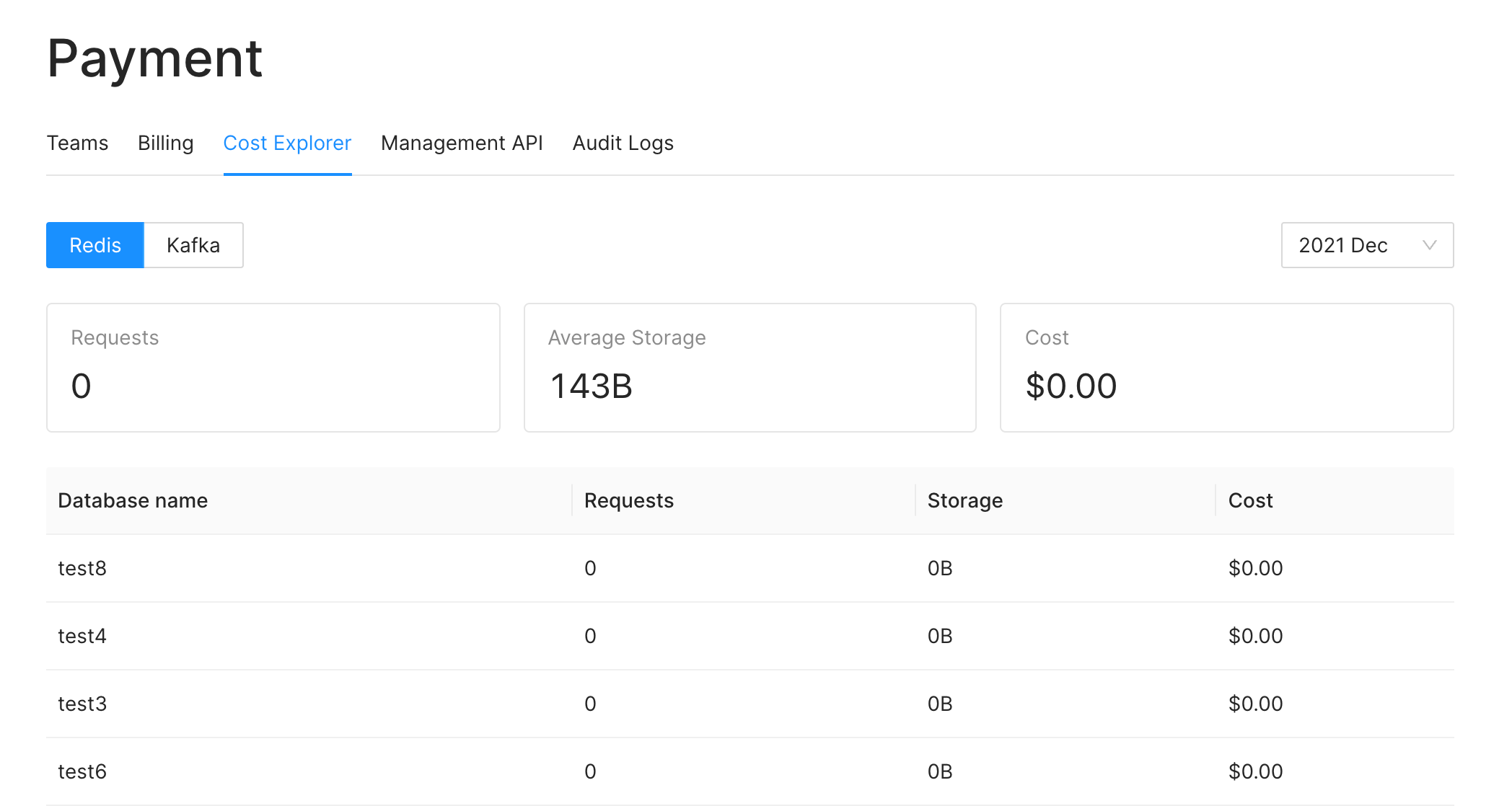
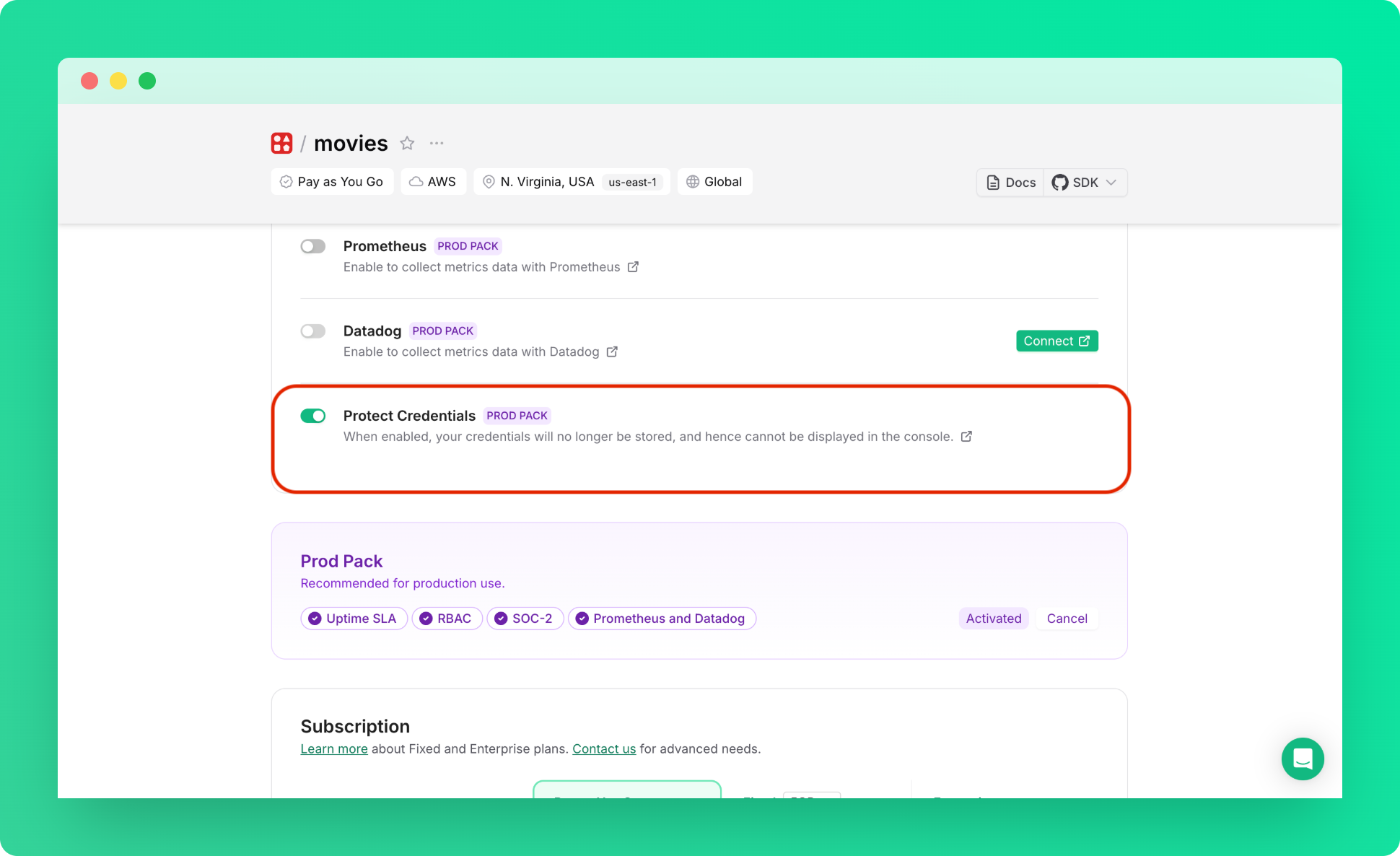
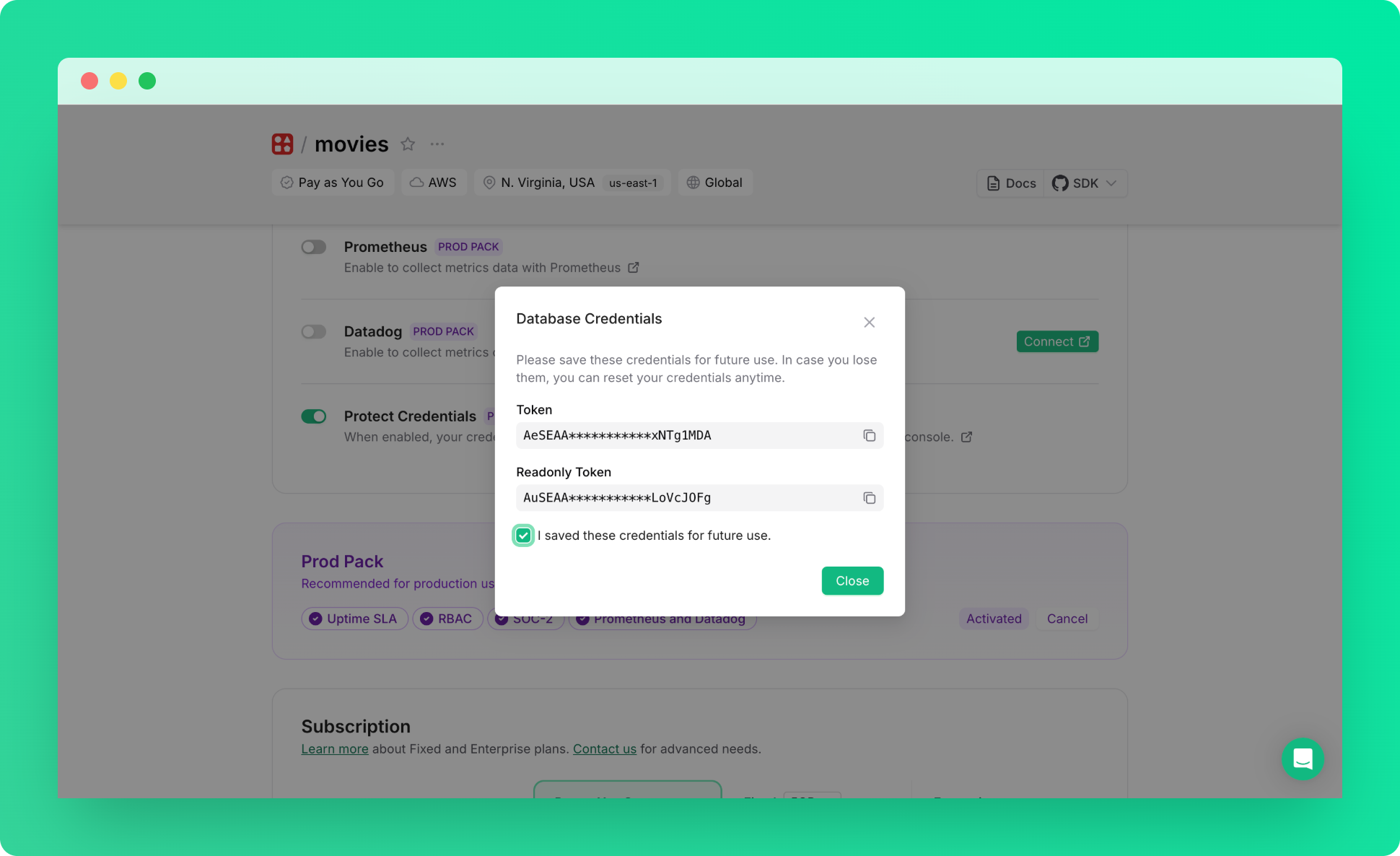
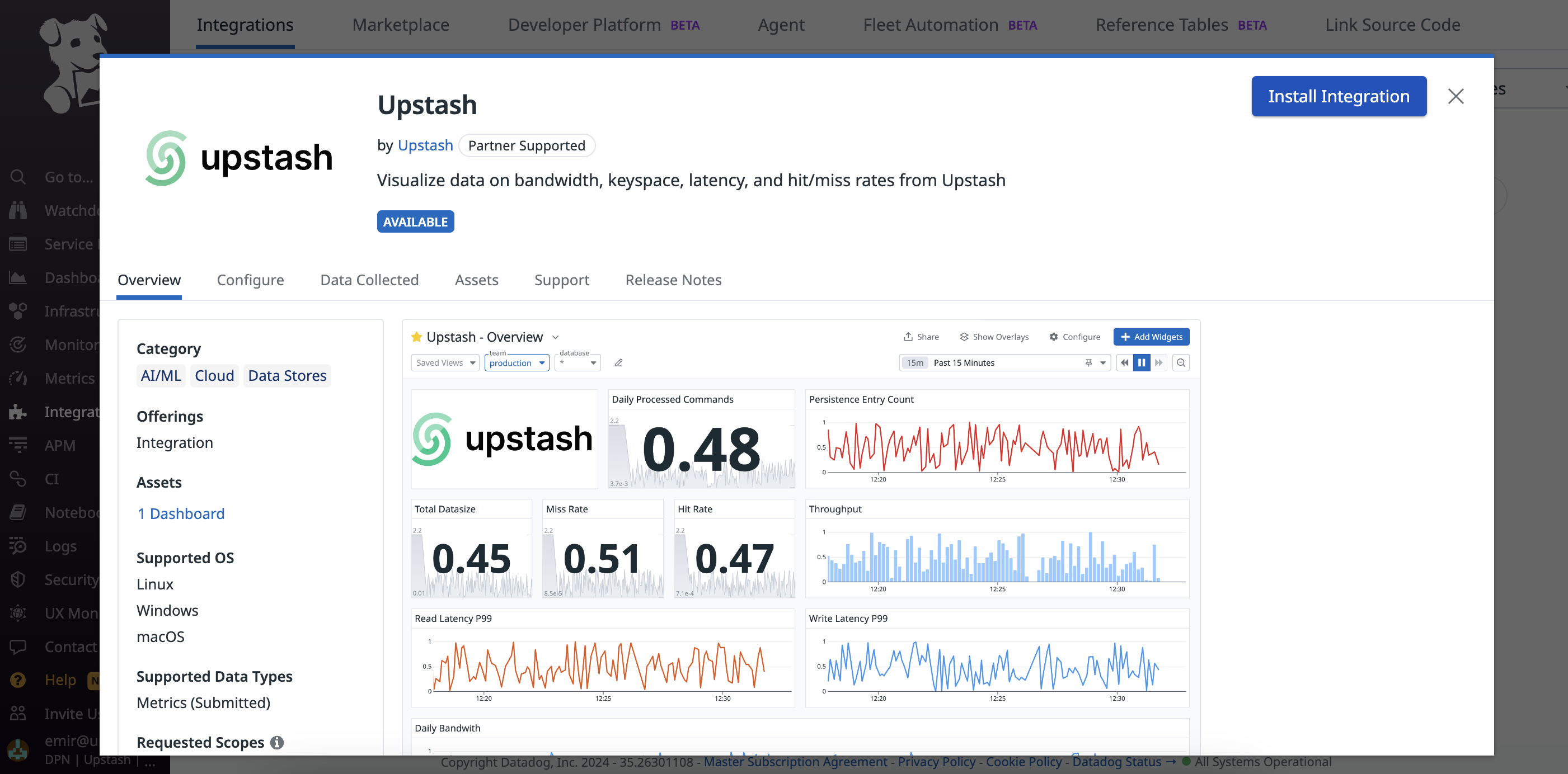
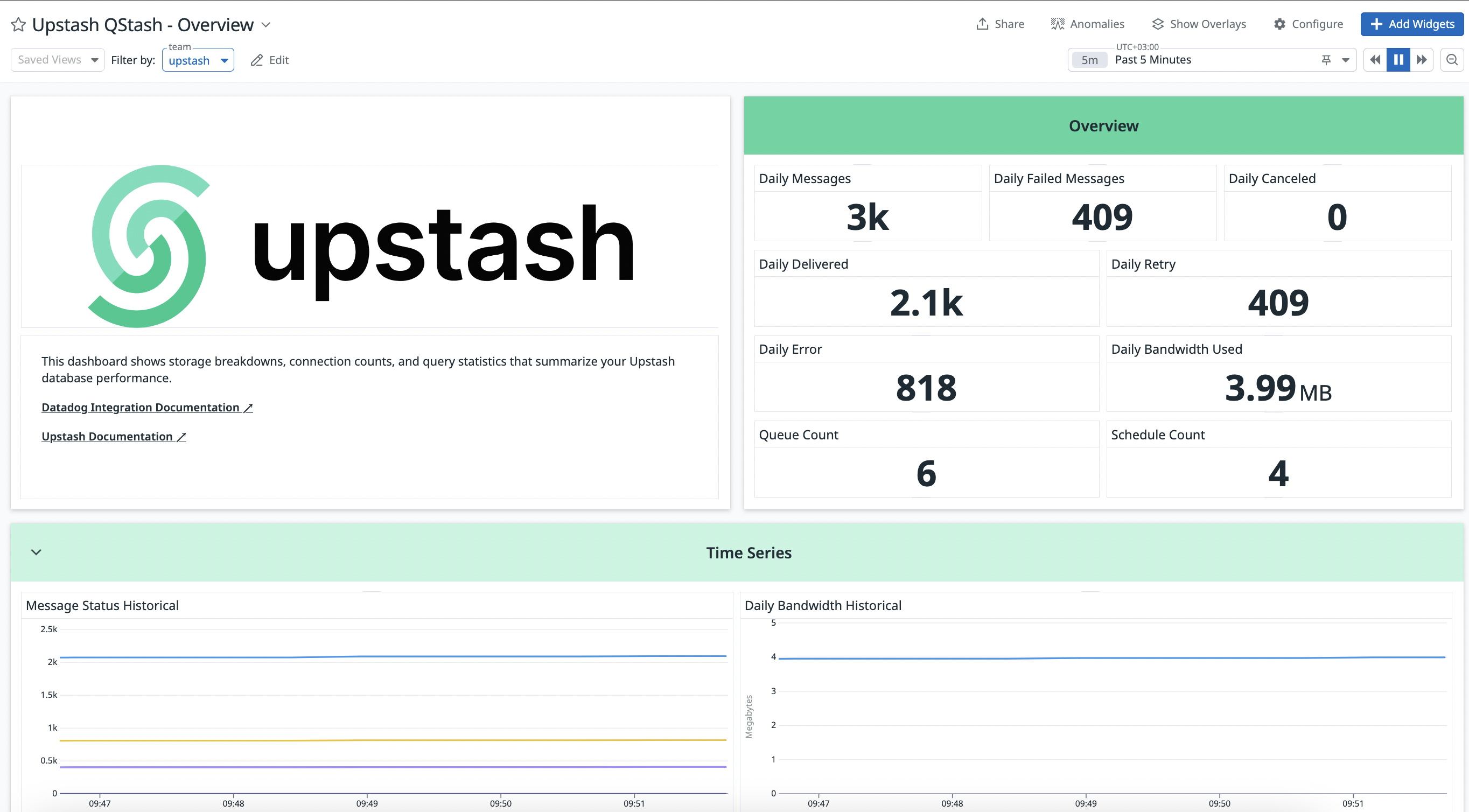
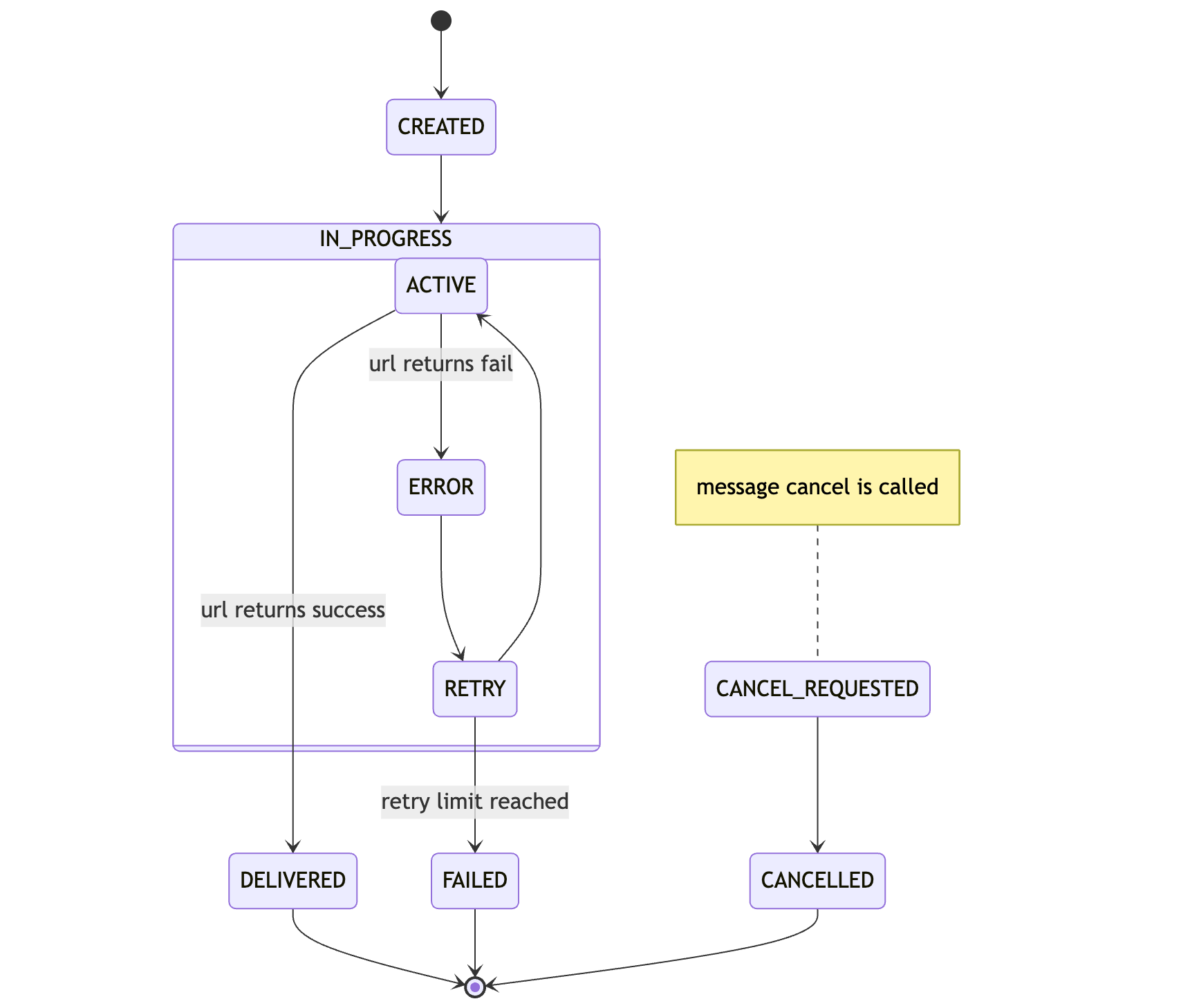
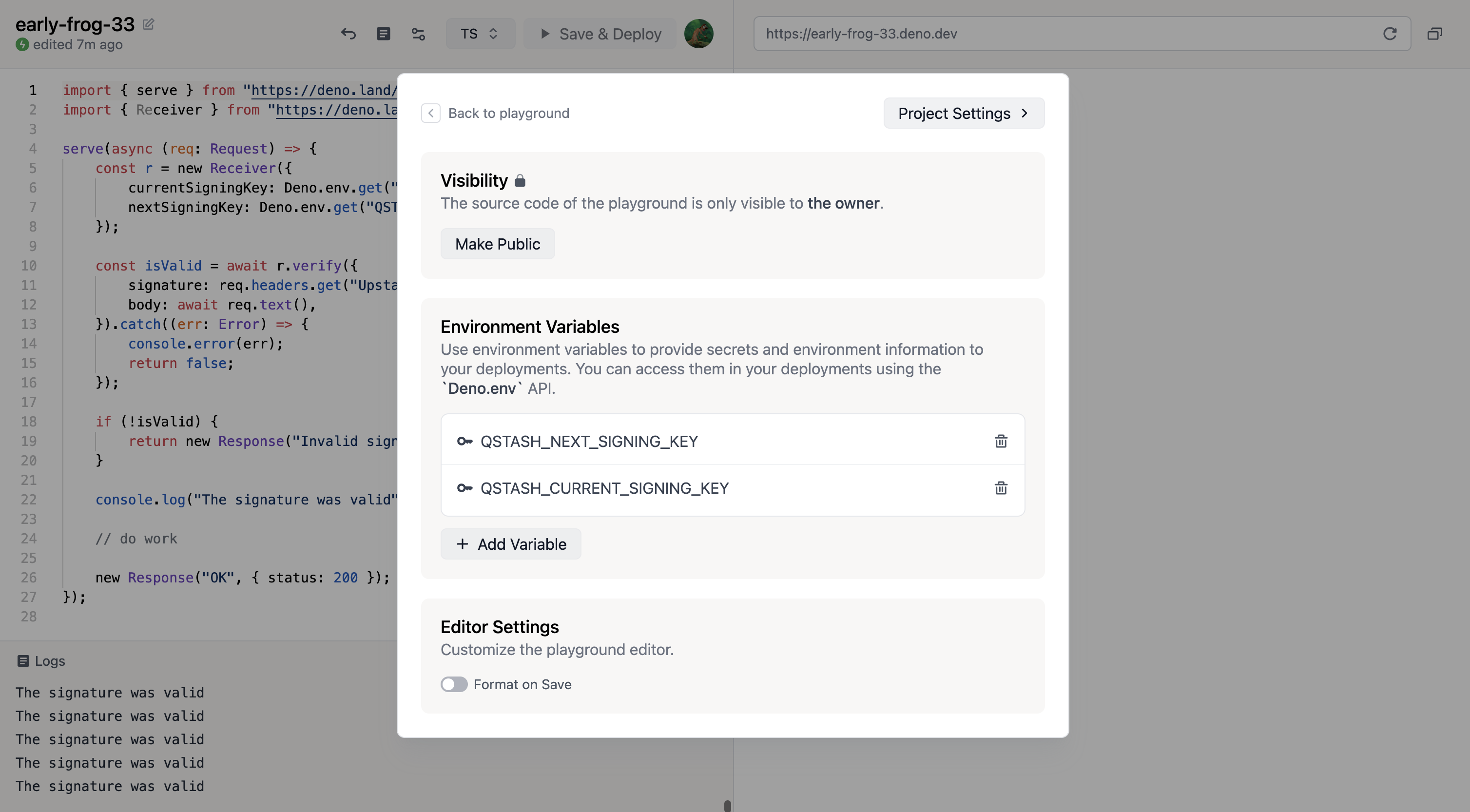
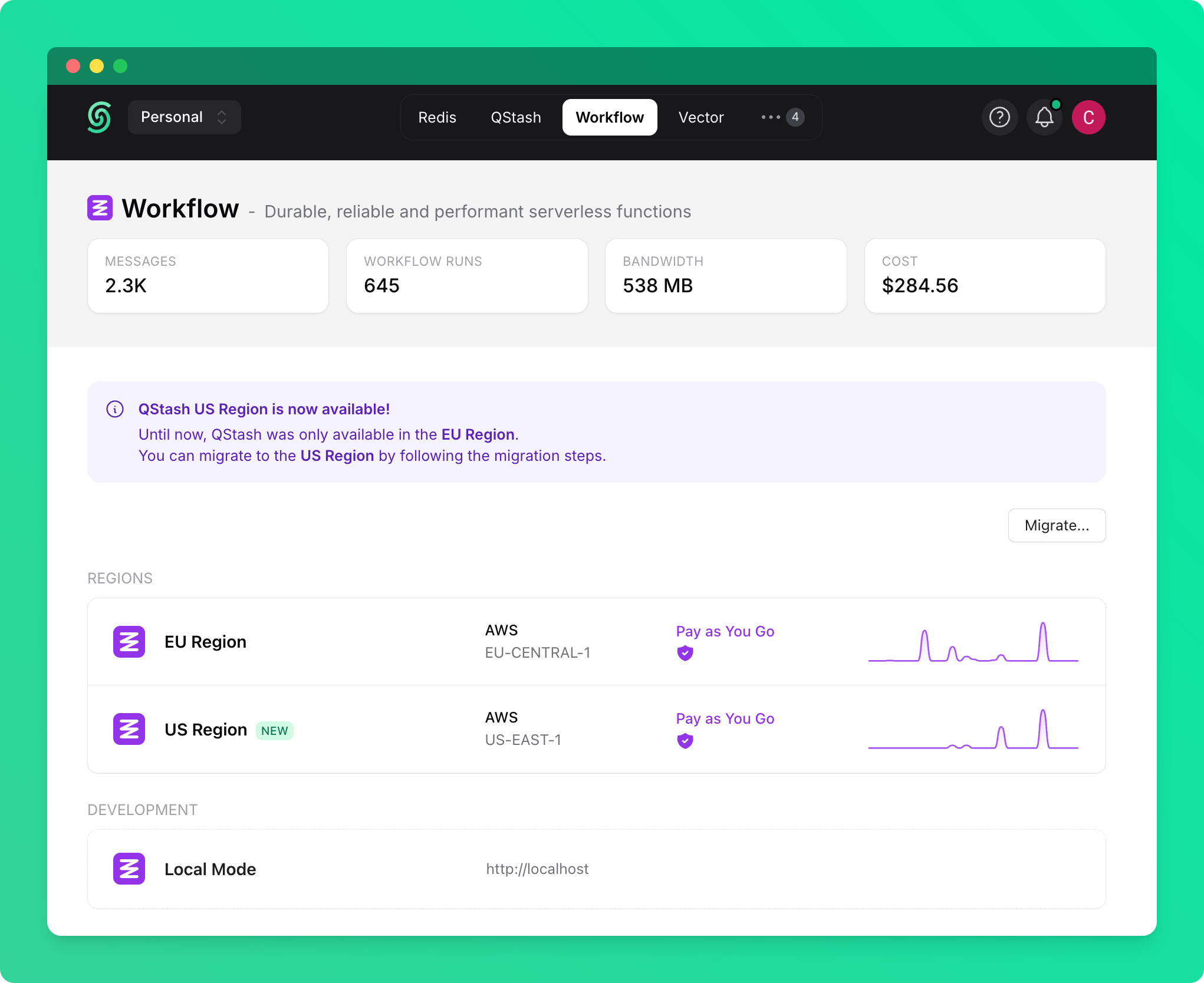
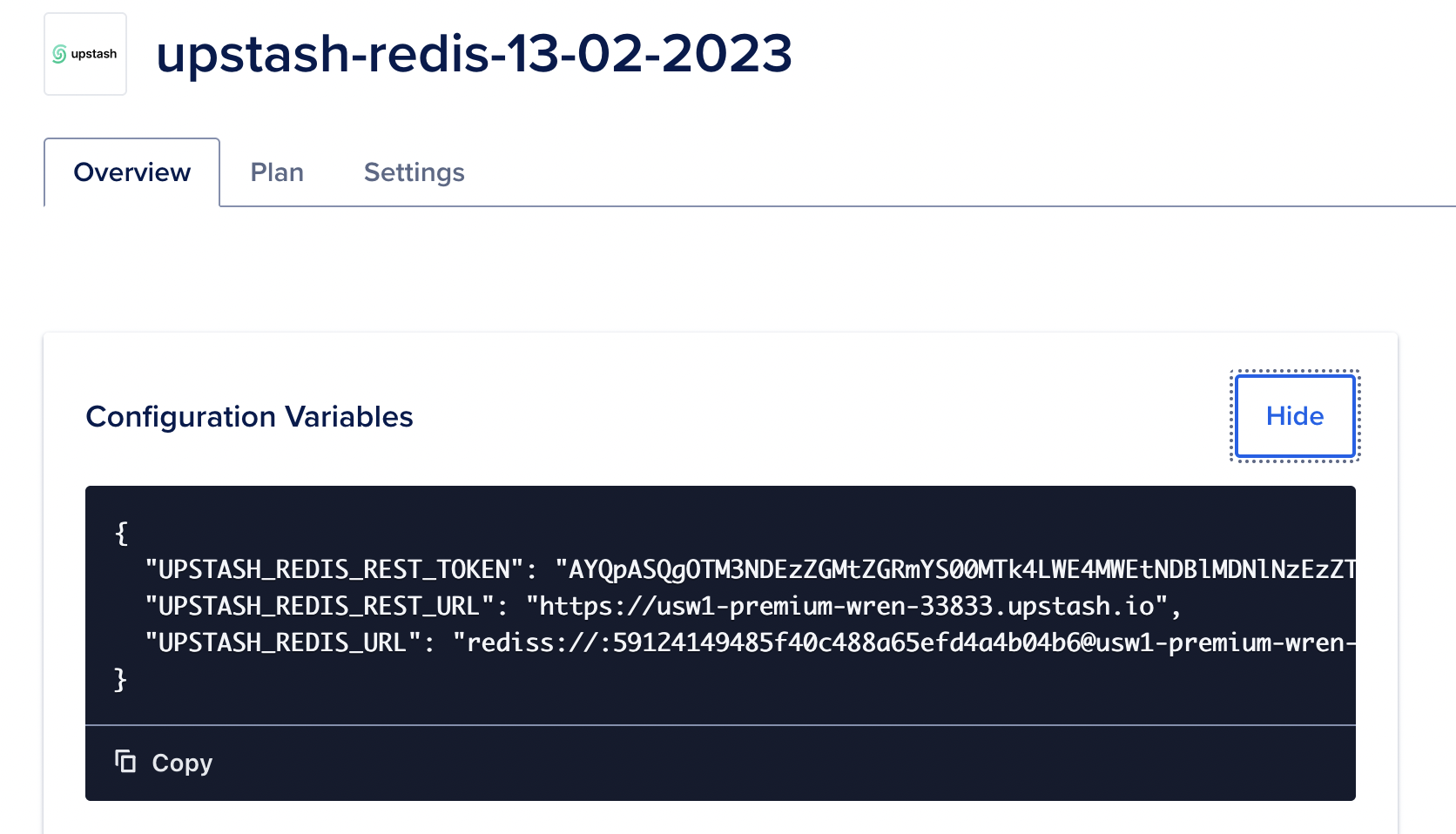
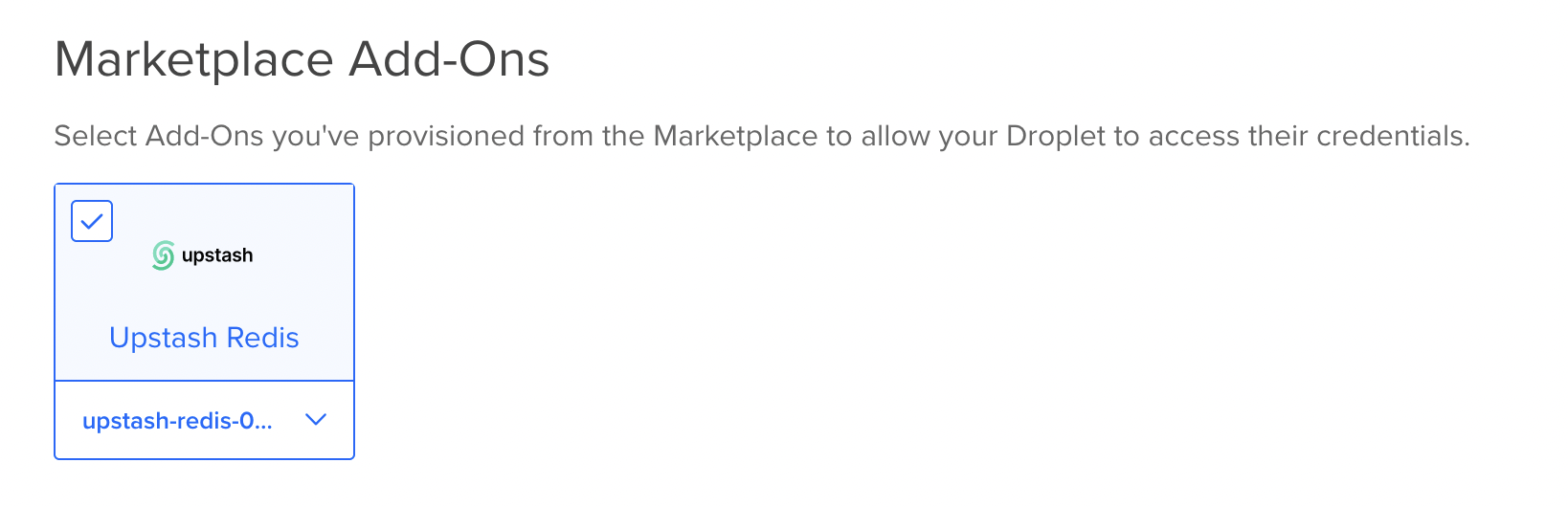
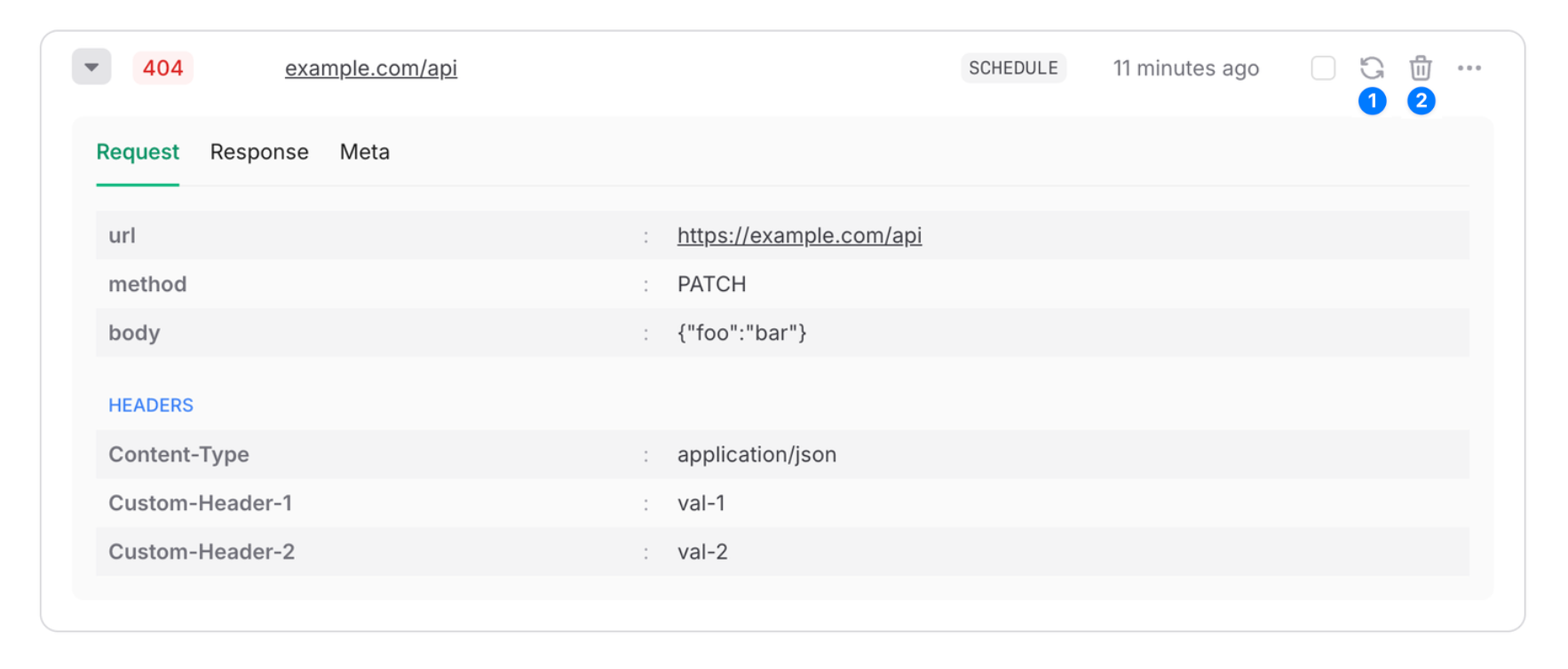
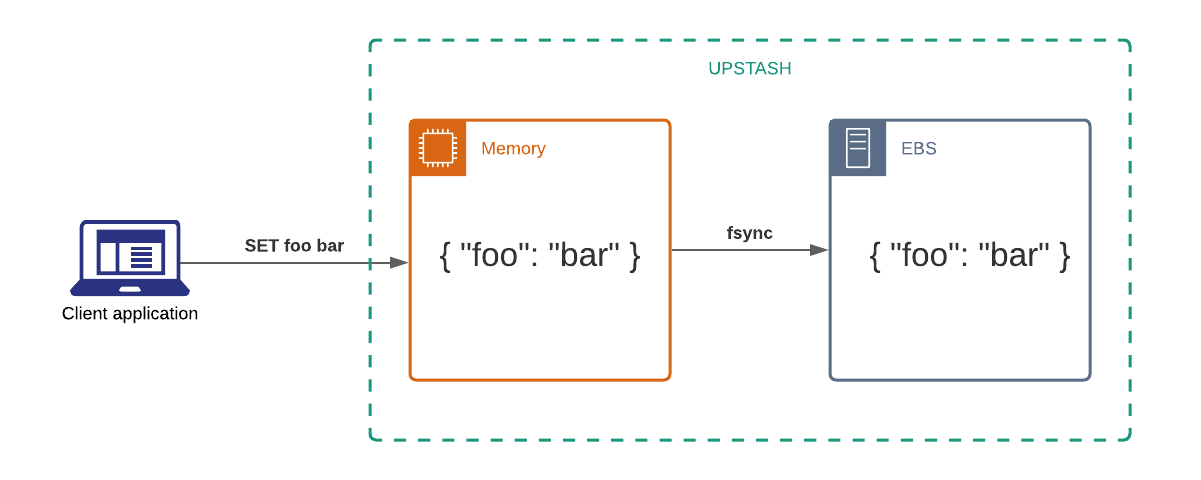
Redix Demo

<%= if @text do %> <%= @text %> <% end %> <%= if @weather do %>
<%= if @location do %> Location: <%= @location %> <% end %>

Weather: <%= @weather %> °C
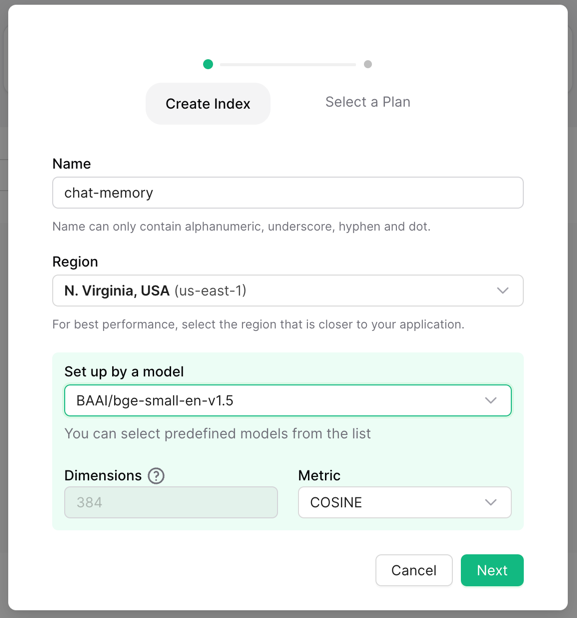
<% end %>
``` This HTML will show different content depending on the parameters we pass it. It has a form at the top which is where the user will enter some location. Below, we will show the weather information. Next, open the `lib/redix_demo_web/router.ex` file. In this file, URL paths are defined with the `scope` keyword. Update the scope in the following way: ``` scope "/", RedixDemoWeb do pipe_through :browser get "/status", PageController, :status get "/", PageController, :home get "/:text", PageController, :home end ``` Our website will have a `/status` path, which will be rendered with the `status` method we will define. The website will also render the home page in `/` and in `/:text`. `/:text` will essentially match any route and the route will be available to our app as a parameter when rendering. Finally, we will define the status page in `lib/redix_demo_web/controllers/page_controller.ex`. We will define a struct `Payload` and a private method `render_home`. Then, we will define the home page and the status page: ```elixir theme={"system"} defmodule RedixDemoWeb.PageController do use RedixDemoWeb, :controller defmodule Payload do defstruct text: nil, weather: nil, location: nil end def status(conn, _params) do case Redix.command(:redix, ["PING"]) do {:ok, response} -> render_home(conn, %Payload{text: "Redis Connection Status: Success! Response to 'PING': '#{response}'"}) {:error, response} -> render_home(conn, %Payload{text: "Redis Connection Status: Error. Reason: #{response.reason}"}) end end def home(conn, _params) do render_home(conn, %Payload{text: "Enter a location above to get the weather info!"}) end defp render_home(conn, %Payload{} = payload) do render(conn, "home.html", text: payload.text, weather: payload.weather, location: payload.location) end end ``` The home page simply renders our home page. The status page renders the same page, but shows the response of a `PING` request to our Redis server. We are now ready to deploy the app on Fly! ### `4` Deploy on Fly To deploy the app on Fly, first [install Fly CLI](https://fly.io/docs/hands-on/install-flyctl/) and authenticate. Then, launch the app with: ``` fly launch ``` If you haven't set `REDIS_URL` environment variable in your environment, `fly launch` command will show an error when compiling the app but don't worry. You can still continue with launching the app. Fly will add this environment variable itself. Fly will at some point ask if we want to tweak the settings of the app. Choose yes (`y`): ``` >>> fly launch Detected a Phoenix app Creating app in /Users/examples/redix_demo We're about to launch your Phoenix app on Fly.io. Here's what you're getting: Organization: C. Arda (fly launch defaults to the personal org) Name: redix_demo (derived from your directory name) Region: Bucharest, Romania (this is the fastest region for you) App Machines: shared-cpu-1x, 1GB RAM (most apps need about 1GB of RAM) Postgres: (not requested) Redis: (not requested) Sentry: false (not requested) ? Do you want to tweak these settings before proceeding? (y/N) ``` This will open the settings on the browser. Two settings are relevant to this guide: * Region: Upstash is not available in all regions. Choose Amsterdam. * Redis: Choose "Redis with Upstash" If you already have a Redis on Fly you want to use, you may want to not choose the "Redis with Upstash". Instead, you can get the `REDIS_URL` from [the Upstash Fly console](https://console.upstash.com/flyio/redis) and add it as a secret with `fly secrets set REDIS_URL=****`. Note that the `REDIS_URL` will be in `redis://default:****@fly-****.upstash.io:****` format. Once the app is launched, deploy it with: ``` fly deploy ``` The website will become avaiable after some time. Check the `/status` page to see that the redis connection is correctly done. In the rest of our tutorial, we will work on caching the responses from an external api. If you are only interested in how a Phoenix app with Redis can be deployed on Fly, you may not need to read the rest of the tutorial. ### `5` Using Redix to Cache External API Responses Finally, we will now build our website to offer weather information. We will use the API of [WeatherAPI](https://www.weatherapi.com/) to get the weather information upon user request. We will cache the results of our calls in Upstash Redis to reduce the number of calls we make to the external API and to reduce the response time of our app. In the end, we will have a method `def home(conn, %{"text" => text})` in the `lib/redix_demo_web/controllers/page_controller.ex` file. To see the final file, find the [`page_controller.ex` file Upstash examples repository](https://github.com/upstash/examples/blob/main/examples/elixir-with-redis/lib/redix_demo_web/controllers/page_controller.ex). First, we need to define some private methods to handle the request logic. We start off with a function to fetch the weather. The method gets the location string and replaces the empty characters with `%20`. Then it calls `fetch_weather_from_cache` method we will define. Depending on the result, it either returns the result from cache, or fetches the result from the api. ```elixir theme={"system"} defp fetch_weather(location) do location = String.replace(location, " ", "%20") case fetch_weather_from_cache(location) do {:ok, cached_weather} -> {:ok, cached_weather} {:error, :not_found} -> fetch_weather_from_api(location) {:error, reason} -> {:error, reason} end end ``` Now, we will define the `fetch_weather_from_cache` method. This method will use Redix to fetch the weather from the location. If it's not found, we will return `{:error, :not_found}`. If it's found, we will return after decoding it into a map. ```elixir theme={"system"} defp fetch_weather_from_cache(location) do case Redix.command(:redix, ["GET", "weather:#{location}"]) do {:ok, nil} -> {:error, :not_found} {:ok, cached_weather_json} -> {:ok, Jason.decode!(cached_weather_json)} {:error, _reason} -> {:error, "Failed to fetch weather data from cache."} end end ``` Next, we will define the `fetch_weather_from_api` method. This method requests the weather information from the external API. If the request is successfull, it also saves the result in the cache with the `cache_weather_response` method. ```elixir theme={"system"} defp fetch_weather_from_api(location) do weather_api_key = System.get_env("WEATHER_API_KEY") url = "http://api.weatherapi.com/v1/current.json?key=#{weather_api_key}&q=#{location}&aqi=no" case HTTPoison.get(url) do {:ok, %{status_code: 200, body: body}} -> weather_info = body |> Jason.decode!() |> get_weather_info() # Cache the weather response in Redis for 8 hours cache_weather_response(location, Jason.encode!(weather_info)) {:ok, weather_info} {:ok, %{status_code: status_code, body: body}} -> {:error, "#{body} (#{status_code})"} {:error, _reason} -> {:error, "Failed to fetch weather data."} end end ``` In the `cache_weather_response` method, we simply store the weather information in our Redis: ```elixir theme={"system"} defp cache_weather_response(location, weather_data) do case Redix.command(:redix, ["SET", "weather:#{location}", weather_data, "EX", 8 * 60 * 60]) do {:ok, _} -> :ok {:error, _reason} -> {:error, "Failed to cache weather data."} end end ``` Finally, we define the `get_weather_info` and `home` methods. ```elixir theme={"system"} def home(conn, %{"text" => text}) do case fetch_weather(text) do {:ok, %{"location" => location, "temp" => temp_c, "condition" => condition_text}} -> render_home(conn, %Payload{weather: "#{condition_text}, #{temp_c}", location: location}) {:error, reason} -> render_home(conn, %Payload{text: reason}) end end defp get_weather_info(%{ "location" => %{ "name" => name, "region" => region }, "current" => %{ "temp_c" => temp_c, "condition" => %{ "text" => condition_text } } }) do %{"location" => "#{name}, #{region}", "temp" => temp_c, "condition" => condition_text} end ``` ### `6` Re-deploying the App To deploy the app after adding the home page logic, only a few steps remain to deploy the finished app. First, add `{:httpoison, "~> 1.5"}` dependency to `mix.exs` file and run `mix deps.get`. Then, get an API key from [WeatherAPI](https://www.weatherapi.com/) and set it as secret in fly with: ``` fly secrets set WEATHER_API_KEY=**** ``` Now, you can run `fly deploy` in your directory to deploy the completed app! --- # Source: https://upstash.com/docs/vector/features/embeddingmodels.md > ## Documentation Index > Fetch the complete documentation index at: https://upstash.com/docs/llms.txt > Use this file to discover all available pages before exploring further. # Embedding Models To store text in a vector database, it must first be converted into a vector, also known as an embedding. Typically, this vectorization is done by a third party. By selecting an embedding model when you create your Upstash Vector database, you can now upsert and query raw string data when using your database instead of converting your text to a vector first. The vectorization is done automatically by your selected model. ## Upstash Embedding Models - Video Guide Let's look at how Upstash embeddings work, how the models we offer compare, and which model is best for your use case.