npm install ultravox-client
flutter add ultravox_client
npm install ultravox-react-native
pip install ultravox-client
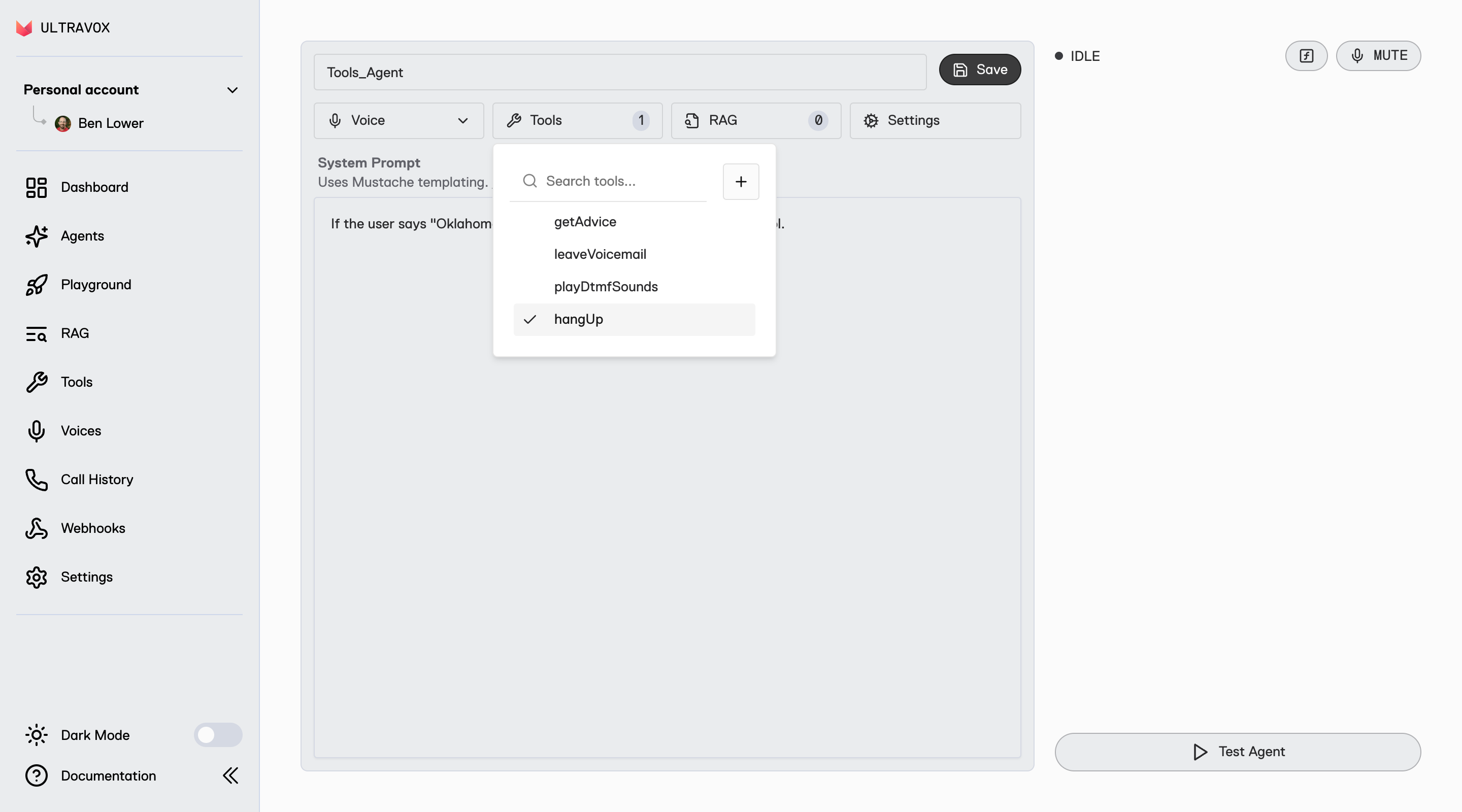
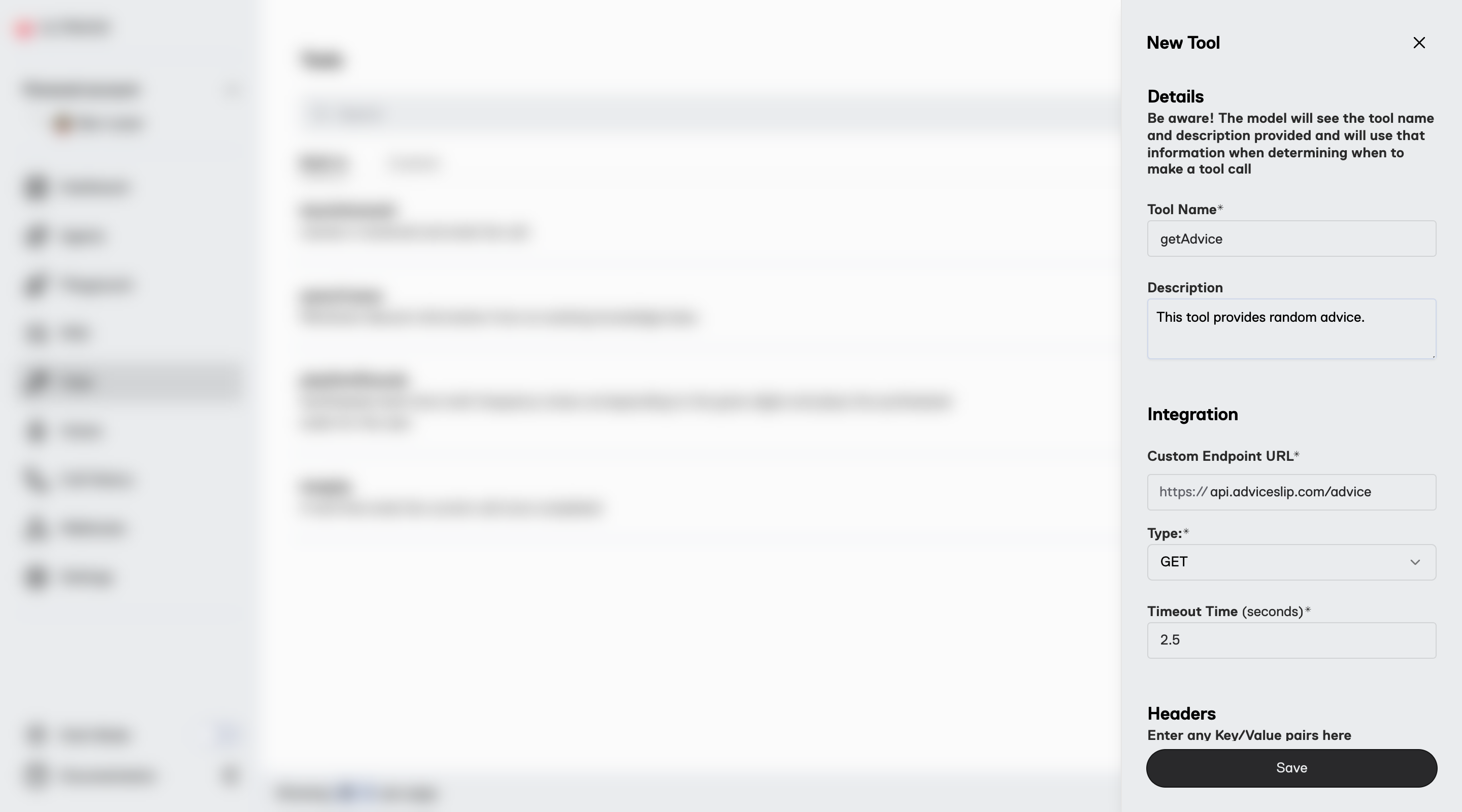
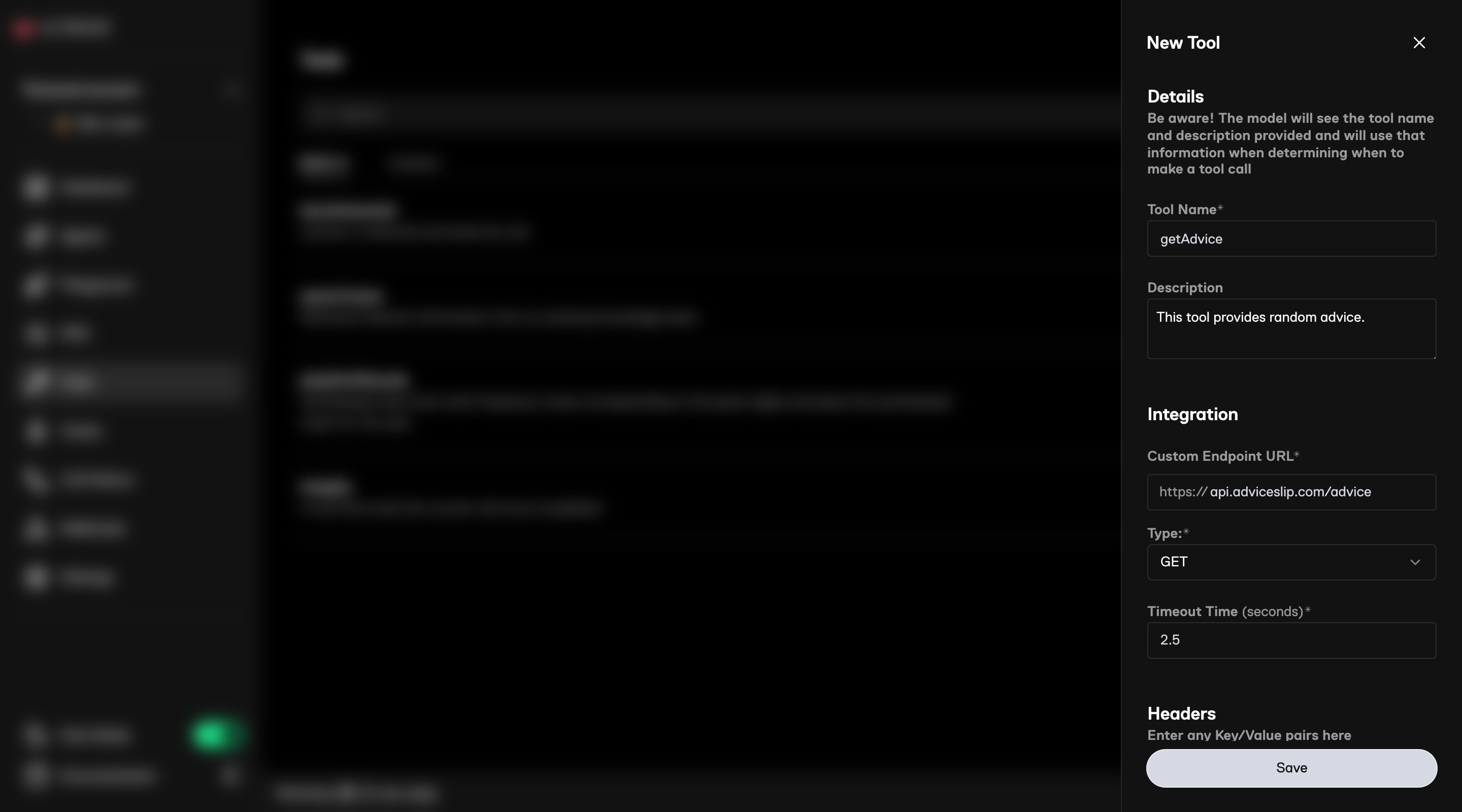 Under `Tools` click on [New Tool](https://app.ultravox.ai/tools/new). Set properties as follows and then click on `Save`:
**Tool Name:**
```text theme={null}
getAdvice
```
**Description:**
```text theme={null}
This tool provides random advice.
```
**Custom Endpoint URL:**
```text theme={null}
api.adviceslip.com/advice
```
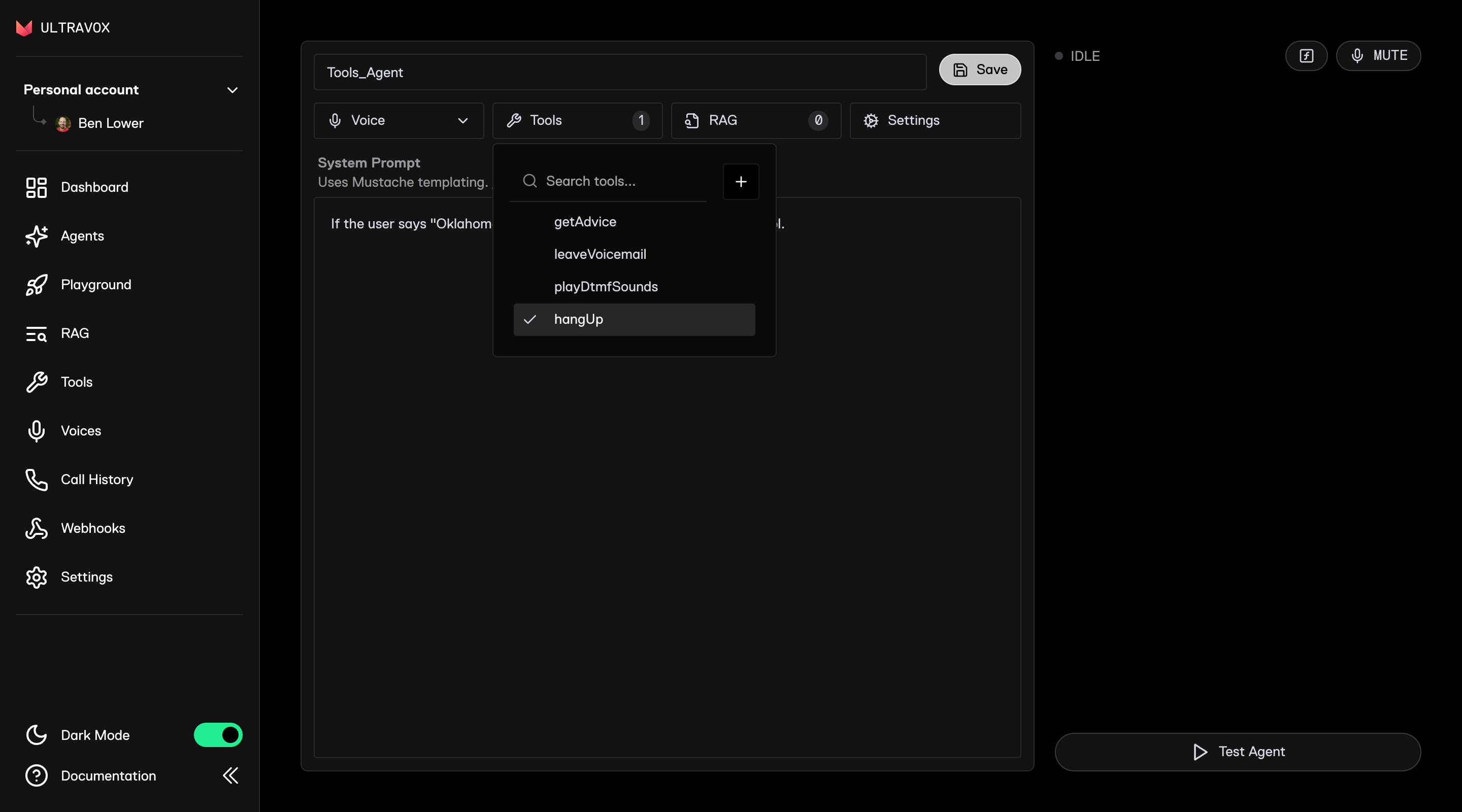
Under `Tools` click on [New Tool](https://app.ultravox.ai/tools/new). Set properties as follows and then click on `Save`:
**Tool Name:**
```text theme={null}
getAdvice
```
**Description:**
```text theme={null}
This tool provides random advice.
```
**Custom Endpoint URL:**
```text theme={null}
api.adviceslip.com/advice
```
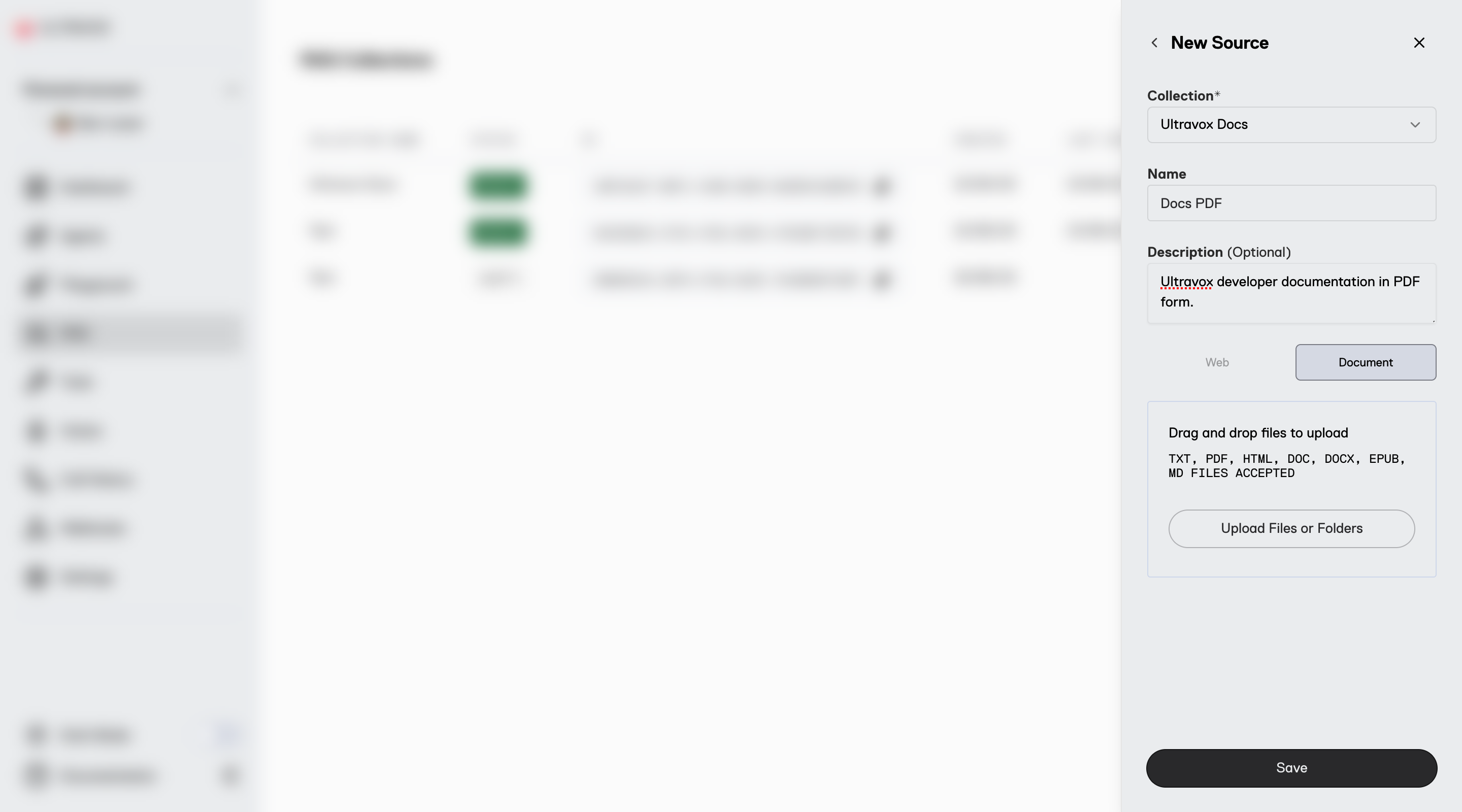
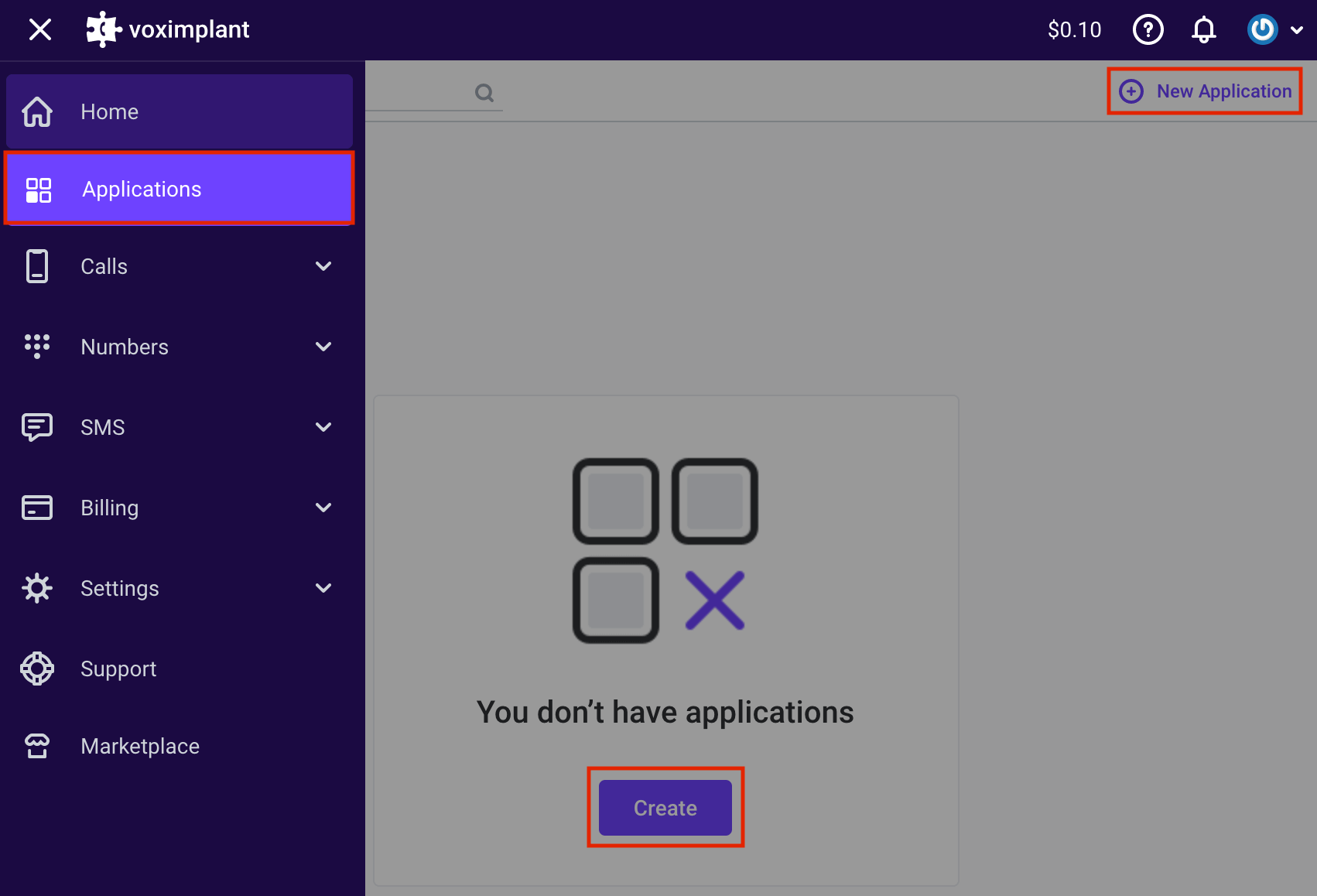 This opens a new application editor window where you can set it up and save by clicking **Create**. The newly created app appears in the application list. To modify its name, icon, or description, click the three dots menu and select **Edit**.
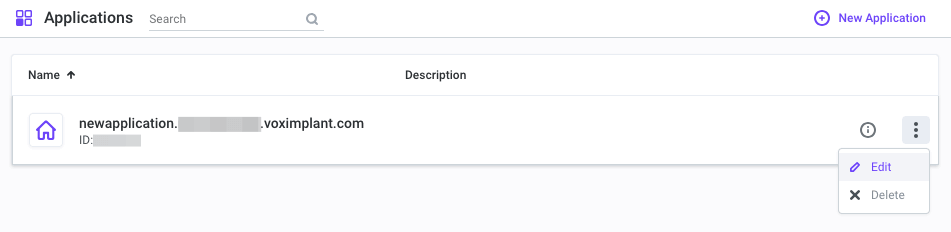 You can learn more about Voximplant applications and their sections in the [Getting started → Applications](https://voximplant.com/docs/getting-started/basic-concepts/applications) section of their documentation.
### Step 2: Create Scenarios Within the Application
Scenarios in Voximplant are JavaScript documents within a Voximplant application, where you can implement logic processing calls and messages.
To create a scenario, open your existing or newly created [application](https://voximplant.com/docs/getting-started/basic-concepts/applications), select **Scenarios** on the left menu, and click on the plus icon to create a new scenario. Give it a name.
You can learn more about Voximplant applications and their sections in the [Getting started → Applications](https://voximplant.com/docs/getting-started/basic-concepts/applications) section of their documentation.
### Step 2: Create Scenarios Within the Application
Scenarios in Voximplant are JavaScript documents within a Voximplant application, where you can implement logic processing calls and messages.
To create a scenario, open your existing or newly created [application](https://voximplant.com/docs/getting-started/basic-concepts/applications), select **Scenarios** on the left menu, and click on the plus icon to create a new scenario. Give it a name.
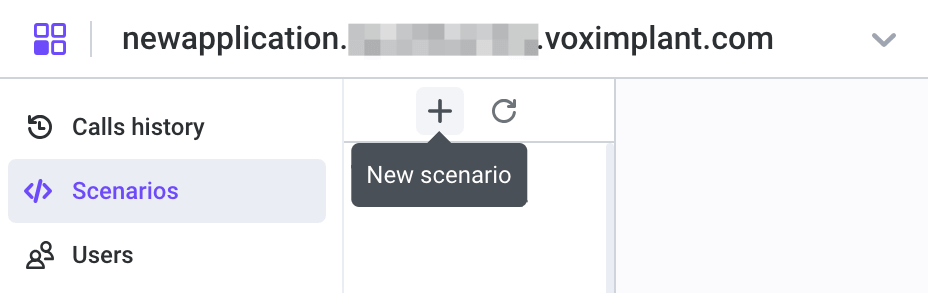 This opens a new tab in the online IDE on the right, where you can write your code. If needed, you can rename the scenario or modify the source code later.
You can learn more about scenarios and their best practice tips in the [Getting started → Scenarios](https://voximplant.com/docs/getting-started/basic-concepts/scenarios) section of the Voximplant documentation.
### Step 3: Utilize Ready-to-use Scenarios
To connect your SIP PBX with Ultravox, Voximplant prepared two ready-to use scenarios for incoming and outgoing calls.
This opens a new tab in the online IDE on the right, where you can write your code. If needed, you can rename the scenario or modify the source code later.
You can learn more about scenarios and their best practice tips in the [Getting started → Scenarios](https://voximplant.com/docs/getting-started/basic-concepts/scenarios) section of the Voximplant documentation.
### Step 3: Utilize Ready-to-use Scenarios
To connect your SIP PBX with Ultravox, Voximplant prepared two ready-to use scenarios for incoming and outgoing calls.
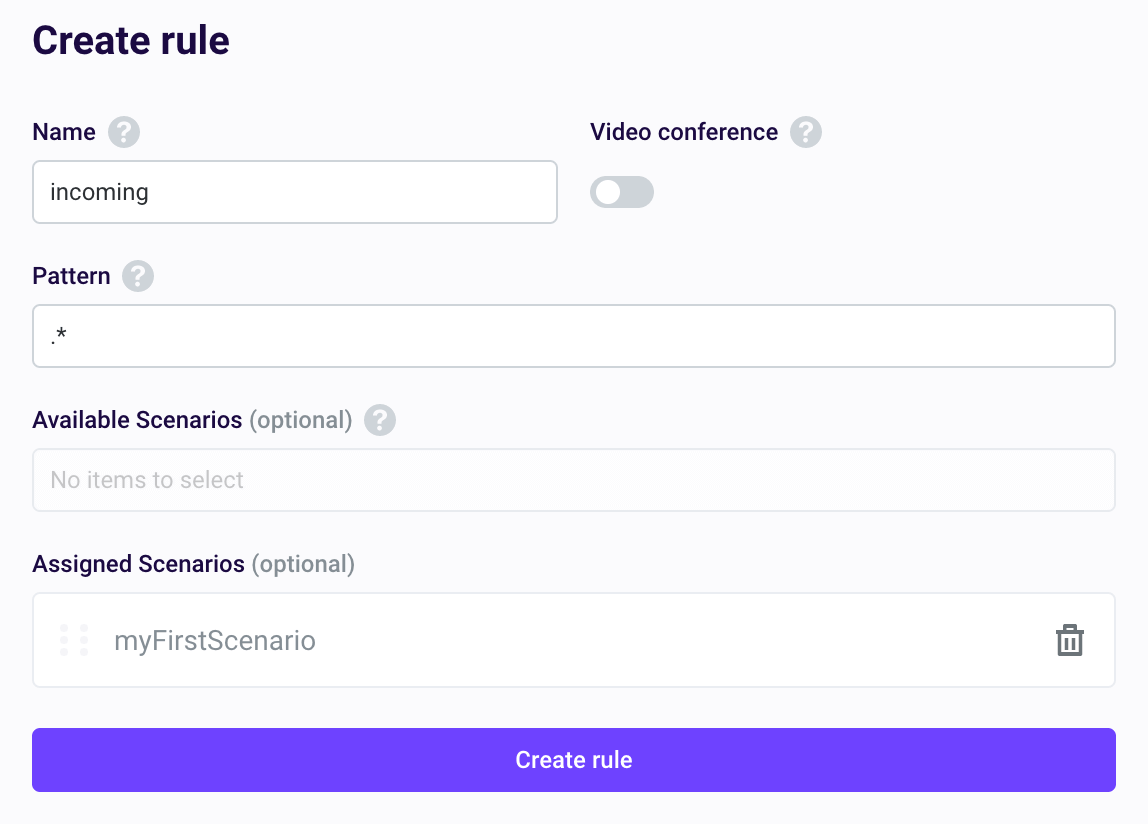
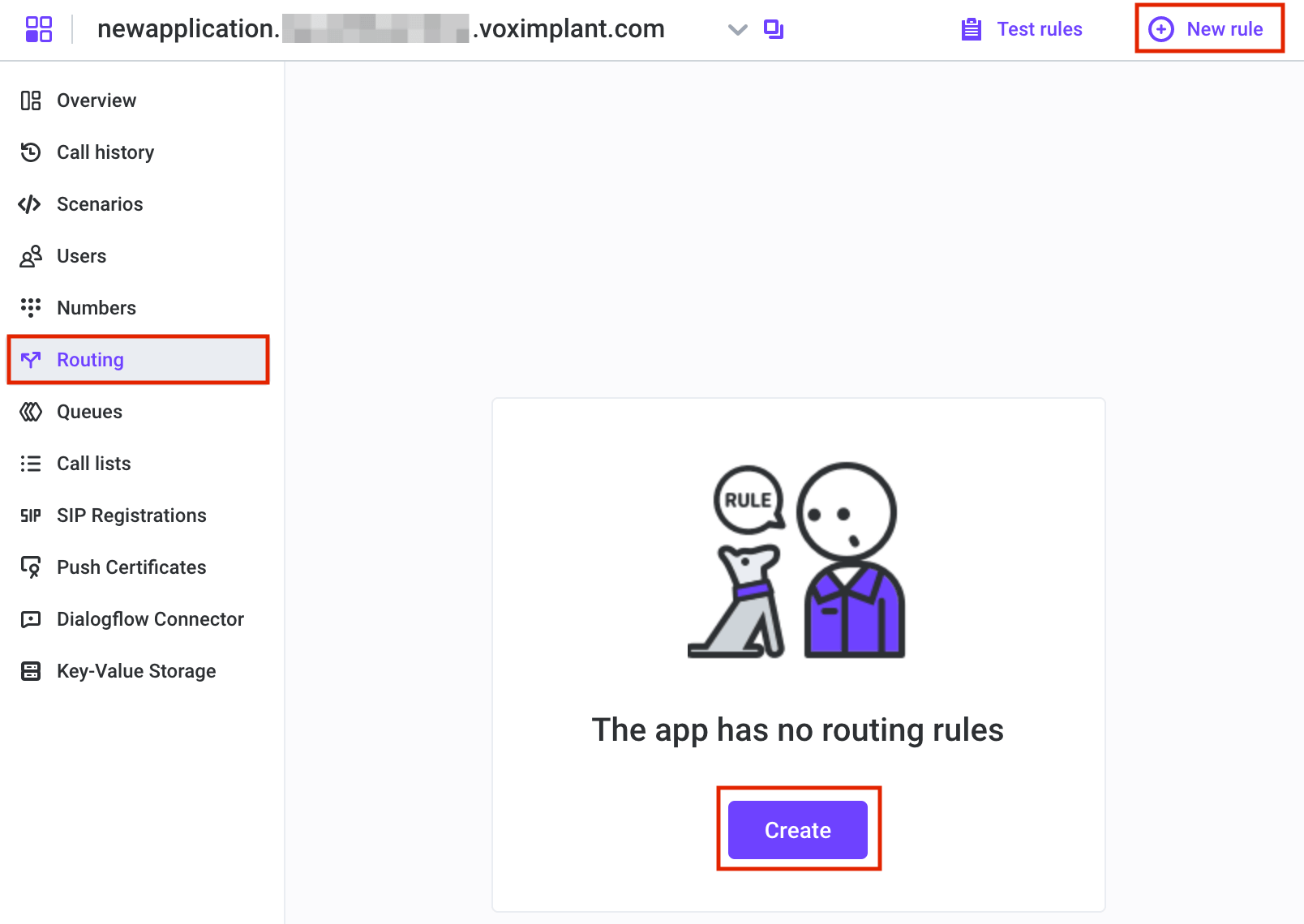 This opens the **New rule** editor, where you can specify the rule name, properties, and attach one or more scenarios:
 If you intend to use the scenario for video conferencing, enable the **Video conference** switch. Without this parameter, all video conferences fail with an error.
Disable the **Video conference** switch, as you do not plan to use the scenario as a video conference.
The **Pattern** field checks if the call’s destination (the dialed number or username specified in the `e.destination` property of the incoming call) matches any rule’s pattern. If the call’s destination aligns with the pattern, the attached scenario(s) are executed. If the call’s destination doesn’t match the pattern, the attached scenario(s) remain inactive, and the call proceeds to the next routing rule.
The application systematically evaluates the routing rules from top to bottom, with higher-priority rules taking precedence. When the call’s destination matches one of the rules, the rule is executed, and the application disregards any subsequent rules, ensuring that only one rule is executed at a time.
If you intend to use the scenario for video conferencing, enable the **Video conference** switch. Without this parameter, all video conferences fail with an error.
Disable the **Video conference** switch, as you do not plan to use the scenario as a video conference.
The **Pattern** field checks if the call’s destination (the dialed number or username specified in the `e.destination` property of the incoming call) matches any rule’s pattern. If the call’s destination aligns with the pattern, the attached scenario(s) are executed. If the call’s destination doesn’t match the pattern, the attached scenario(s) remain inactive, and the call proceeds to the next routing rule.
The application systematically evaluates the routing rules from top to bottom, with higher-priority rules taking precedence. When the call’s destination matches one of the rules, the rule is executed, and the application disregards any subsequent rules, ensuring that only one rule is executed at a time.