# Traceloop
> ## Documentation Index
---
# Source: https://www.traceloop.com/docs/openllmetry/tracing/annotations.md
> ## Documentation Index
> Fetch the complete documentation index at: https://www.traceloop.com/docs/llms.txt
> Use this file to discover all available pages before exploring further.
# Workflow Annotations
> Enrich your traces by annotating chains and workflows in your app
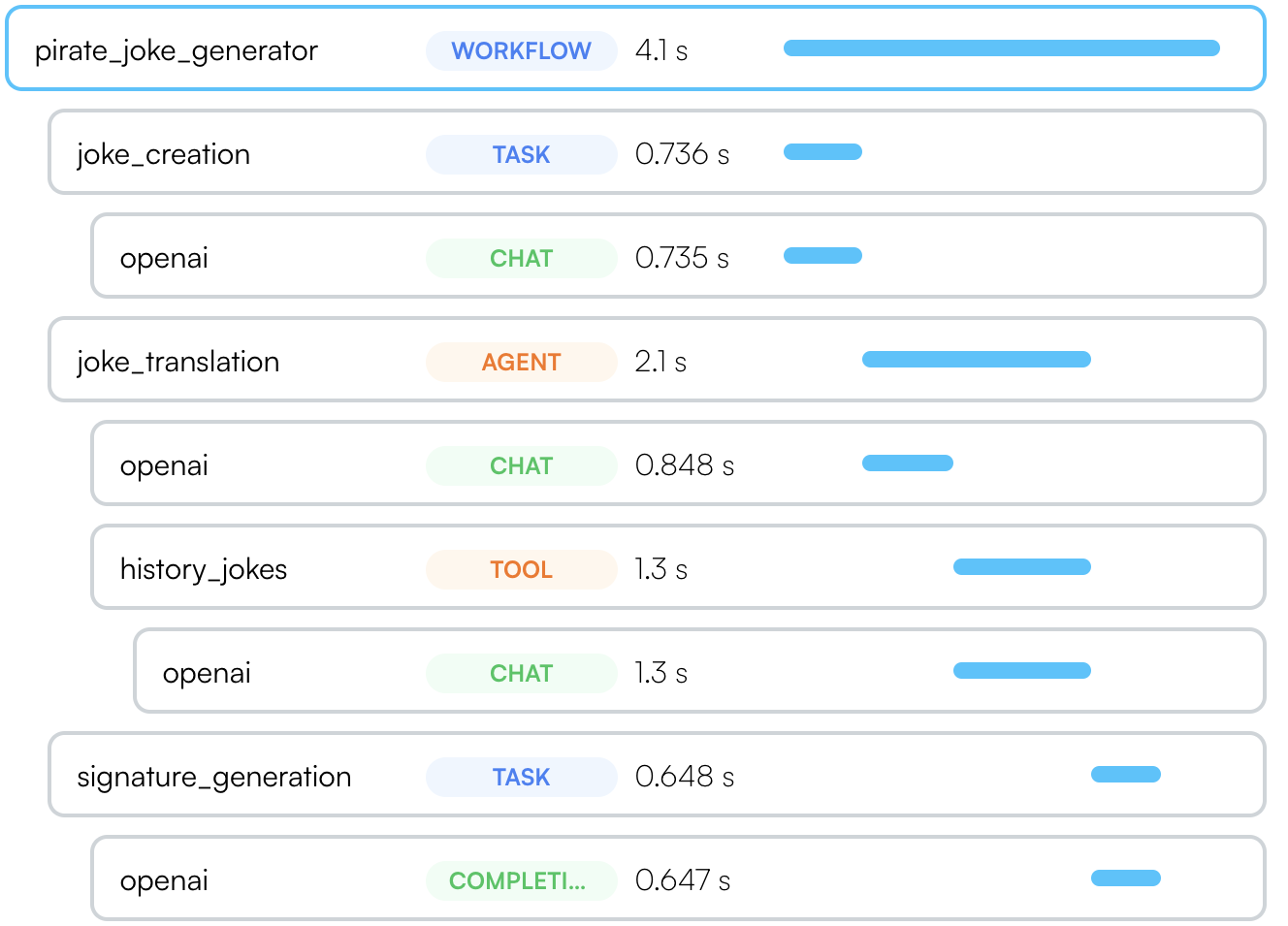
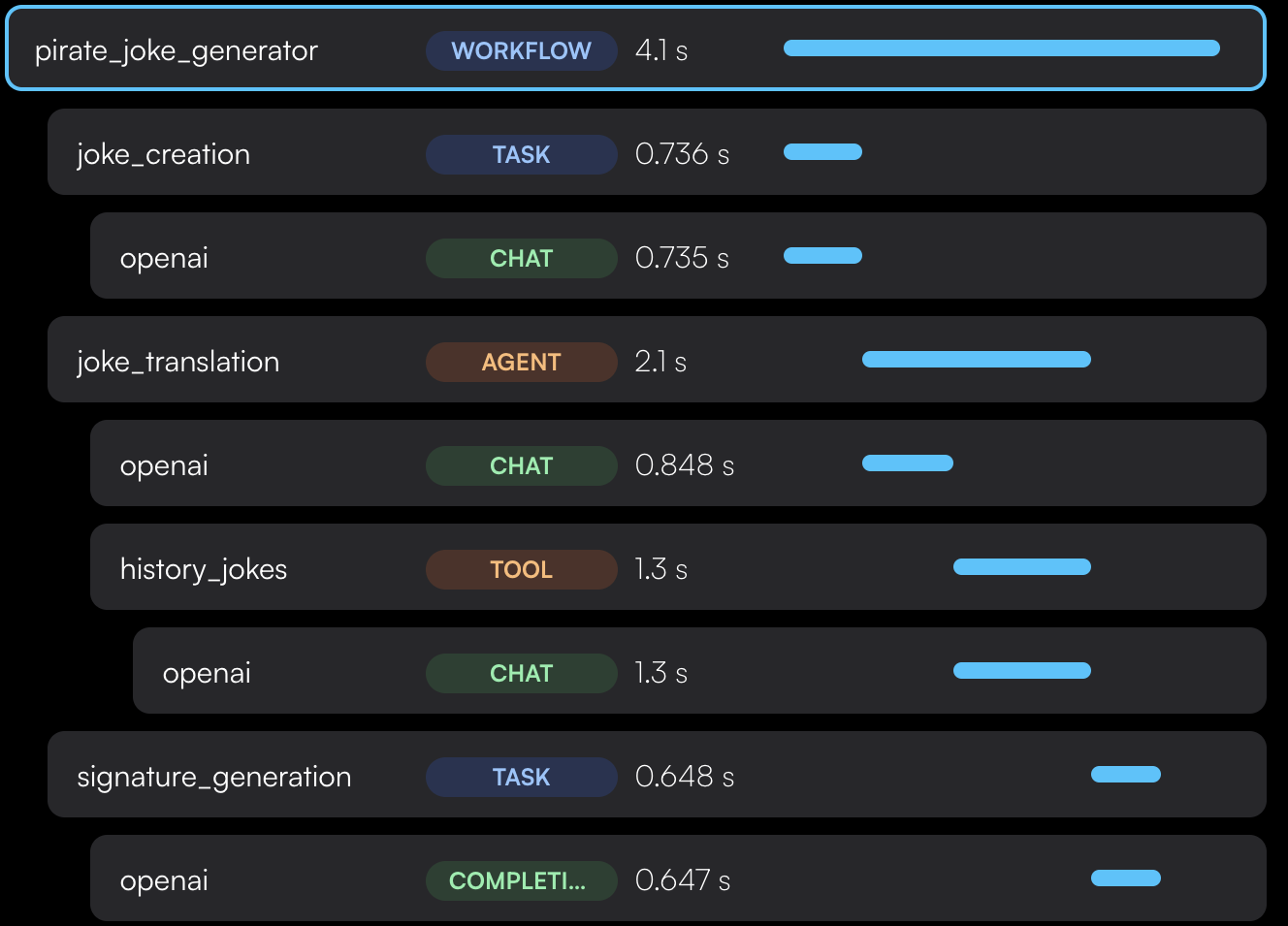 Traceloop SDK supports several ways to annotate workflows, tasks, agents and tools in your code to get a more complete picture of your app structure.
If you're using a [supported LLM framework](/openllmetry/tracing/supported#frameworks) - no need
to do anything! OpenLLMetry will automatically detect the framework and
annotate your traces.
## Workflows and Tasks
Sometimes called a "chain", intended for a multi-step process that can be traced as a single unit.
Use it as `@workflow(name="my_workflow")` or `@task(name="my_task")`.
The `name` argument is optional. If you don't provide it, we will use the
function name as the workflow or task name.
You can version your workflows and tasks. Just provide the `version` argument
to the decorator: `@workflow(name="my_workflow", version=2)`
```python theme={null}
from openai import OpenAI
from traceloop.sdk.decorators import workflow, task
client = OpenAI(api_key=os.environ["OPENAI_API_KEY"])
@task(name="joke_creation")
def create_joke():
completion = client.chat.completions.create(
model="gpt-3.5-turbo",
messages=[{"role": "user", "content": "Tell me a joke about opentelemetry"}],
)
return completion.choices[0].message.content
@task(name="signature_generation")
def generate_signature(joke: str):
completion = openai.Completion.create(
model="davinci-002",[]
prompt="add a signature to the joke:\n\n" + joke,
)
return completion.choices[0].text
@workflow(name="pirate_joke_generator")
def joke_workflow():
eng_joke = create_joke()
pirate_joke = translate_joke_to_pirate(eng_joke)
signature = generate_signature(pirate_joke)
print(pirate_joke + "\n\n" + signature)
```
This feature is only available in Typescript. Unless you're on Nest.js, you'll need to update your `tsconfig.json` to enable decorators.
Update `tsconfig.json` to enable decorators:
```json theme={null}
{
"compilerOptions": {
"experimentalDecorators": true
}
}
```
Use it in your code `@traceloop.workflow({ name: "my_workflow" })`.
You can provide the parameters to the decorator directly or by providing a function that resolves to the parameters.
The function will be called with the `this` parameter and the arguments of the decorated function
(see [example](https://github.com/traceloop/openllmetry-js/blob/2178f1c5161218ffc7938bfe17fc1ced8190357c/packages/sample-app/src/sample_decorators.ts#L26)).
The name is optional. If you don't provide it, we will use the function
qualified name as the workflow or task name.
```js theme={null}
import * as traceloop from "@traceloop/node-server-sdk";
class JokeCreation {
@traceloop.task({ name: "joke_creation" })
async create_joke() {
completion = await openai.chat.completions({
model: "gpt-3.5-turbo",
messages: [
{ role: "user", content: "Tell me a joke about opentelemetry" },
],
});
return completion.choices[0].message.content;
}
@traceloop.task({ name: "signature_generation" })
async generate_signature(joke: string) {
completion = await openai.completions.create({
model: "davinci-002",
prompt: "add a signature to the joke:\n\n" + joke,
});
return completion.choices[0].text;
}
@traceloop.workflow({ name: "pirate_joke_generator" })
async joke_workflow() {
eng_joke = create_joke();
pirate_joke = await translate_joke_to_pirate(eng_joke);
signature = await generate_signature(pirate_joke);
console.log(pirate_joke + "\n\n" + signature);
}
}
```
Use it as `withWorkflow("my_workflow", {}, () => ...)` or `withTask(name="my_task", () => ...)`.
The function passed to `withWorkflow` or `withTask` witll be part of the workflow or task and can be async or sync.
```js theme={null}
import * as traceloop from "@traceloop/node-server-sdk";
async function create_joke() {
return await traceloop.withTask({ name: "joke_creation" }, async () => {
completion = await openai.chat.completions({
model: "gpt-3.5-turbo",
messages: [
{ role: "user", content: "Tell me a joke about opentelemetry" },
],
});
return completion.choices[0].message.content;
});
}
async function generate_signature(joke: string) {
return await traceloop.withTask(
{ name: "signature_generation" },
async () => {
completion = await openai.completions.create({
model: "davinci-002",
prompt: "add a signature to the joke:\n\n" + joke,
});
return completion.choices[0].text;
}
);
}
async function joke_workflow() {
return await traceloop.withWorkflow(
{ name: "pirate_joke_generator" },
async () => {
eng_joke = create_joke();
pirate_joke = await translate_joke_to_pirate(eng_joke);
signature = await generate_signature(pirate_joke);
console.log(pirate_joke + "\n\n" + signature);
}
);
}
```
## Agents and Tools
Similarily, if you use autonomous agents, you can use the `@agent` decorator to trace them as a single unit.
Each tool should be marked with `@tool`.
```python theme={null}
from openai import OpenAI
from traceloop.sdk.decorators import agent, tool
client = OpenAI(api_key=os.environ["OPENAI_API_KEY"])
@agent(name="joke_translation")
def translate_joke_to_pirate(joke: str):
completion = client.chat.completions.create(
model="gpt-3.5-turbo",
messages=[{"role": "user", "content": f"Translate the below joke to pirate-like english:\n\n{joke}"}],
)
history_jokes_tool()
return completion.choices[0].message.content
@tool(name="history_jokes")
def history_jokes_tool():
completion = client.chat.completions.create(
model="gpt-3.5-turbo",
messages=[{"role": "user", "content": f"get some history jokes"}],
)
return completion.choices[0].message.content
```
Similarily, if you use autonomous agents, you can use the `@agent` decorator to trace them as a single unit.
Each tool should be marked with `@tool`.
If you're not on Nest.js, remember to set `experimentalDecorators` to `true` in your `tsconfig.json`.
```js theme={null}
import * as traceloop from "@traceloop/node-server-sdk";
class Agent {
@traceloop.agent({ name: "joke_translation" })
async translate_joke_to_pirate(joke: str) {
completion = await openai.chat.completions.create({
model="gpt-3.5-turbo",
messages=[{"role": "user", "content": f"Translate the below joke to pirate-like english:\n\n{joke}"}],
});
history_jokes_tool();
return completion.choices[0].message.content;
}
@traceloop.tool({ name: "history_jokes" })
async history_jokes_tool() {
completion = await openai.chat.completions.create({
model="gpt-3.5-turbo",
messages=[{"role": "user", "content": f"get some history jokes"}],
});
return completion.choices[0].message.content;
}
```
Similarily, if you use autonomous agents, you can use the `withAgent` to trace them as a single unit.
Each tool should be in `withTool`.
```js theme={null}
import * as traceloop from "@traceloop/node-server-sdk";
async function translate_joke_to_pirate(joke: str) {
return await withAgent({name: "joke_translation" }, () => {
completion = await openai.chat.completions.create({
model="gpt-3.5-turbo",
messages=[{"role": "user", "content": f"Translate the below joke to pirate-like english:\n\n{joke}"}],
});
history_jokes_tool();
return completion.choices[0].message.content;
}
}
async function history_jokes_tool() {
return await withTool({ name: "history_jokes" }, () => {
completion = await openai.chat.completions.create({
model="gpt-3.5-turbo",
messages=[{"role": "user", "content": f"get some history jokes"}],
});
return completion.choices[0].message.content;
}
}
```
## Async methods
In Typescript, you can use the same syntax for async methods.
In python, the decorators work seamlessly with both synchronous and asynchronous functions.
Use `@workflow`, `@task`, `@agent`, and so forth for both sync and async methods.
The async-specific decorators (`@aworkflow`, `@atask`, etc.) are deprecated and will be removed in a future version.
See also a [separate section on using threads in Python with OpenLLMetry](/openllmetry/tracing/python-threads).
## Decorating Classes (Python only)
While the examples above shows how to decorate functions, you can also decorate classes.
In this case, you will also need to provide the name of the method that runs the workflow, task, agent or tool.
```python Python theme={null}
from openai import OpenAI
from traceloop.sdk.decorators import agent
client = OpenAI(api_key=os.environ["OPENAI_API_KEY"])
@agent(name="base_joke_generator", method_name="generate_joke")
class JokeAgent:
def generate_joke(self):
completion = client.chat.completions.create(
model="gpt-3.5-turbo",
messages=[{"role": "user", "content": "Tell me a joke about Traceloop"}],
)
return completion.choices[0].message.content
```
```
```
---
# Source: https://www.traceloop.com/docs/openllmetry/tracing/association.md
> ## Documentation Index
> Fetch the complete documentation index at: https://www.traceloop.com/docs/llms.txt
> Use this file to discover all available pages before exploring further.
# Associating Entities with Traces
> How to associate traces with entities in your own application
Each trace you run is usually connected to entities in your own application -
things like `user_id`, `chat_id`, or anything else that is tied to the flow that triggered the trace.
OpenLLMetry allows you to easily mark traces with these IDs so you can track them in the UI.
You can use any key-value pair to associate a trace with an entity - it can
also be `org_id`, `team_id`, whatever you want. The only requirement is that
the key and the value are strings.
```python Python theme={null}
from traceloop.sdk import Traceloop
Traceloop.set_association_properties({ "user_id": "user12345", "chat_id": "chat12345" })
```
```js Typescript theme={null}
// Option 1 (for class methods only) - set association properties within a workflow, task, agent or tool
class MyClass {
@traceloop.workflow({ associationProperties: { userId: "user123" })
myMethod() {
// Your code here
}
}
// Option 2 - set association properties within a workflow, task, agent or tool
traceloop.withWorkflow(
{
name: "workflow_name",
associationProperties: { userId: "user12345", chatId: "chat12345" },
},
() => {
// Your code here
// (function can be made async if needed)
}
);
// Option 3 - set association properties directly
traceloop.withAssociationProperties(
{
userId: "user12345",
chatId: "chat12345",
},
() => {
// Your code here
// (can be async or sync)
}
);
```
---
# Source: https://www.traceloop.com/docs/openllmetry/integrations/axiom.md
> ## Documentation Index
> Fetch the complete documentation index at: https://www.traceloop.com/docs/llms.txt
> Use this file to discover all available pages before exploring further.
# LLM Observability with Axiom and OpenLLMetry
Traceloop SDK supports several ways to annotate workflows, tasks, agents and tools in your code to get a more complete picture of your app structure.
If you're using a [supported LLM framework](/openllmetry/tracing/supported#frameworks) - no need
to do anything! OpenLLMetry will automatically detect the framework and
annotate your traces.
## Workflows and Tasks
Sometimes called a "chain", intended for a multi-step process that can be traced as a single unit.
Use it as `@workflow(name="my_workflow")` or `@task(name="my_task")`.
The `name` argument is optional. If you don't provide it, we will use the
function name as the workflow or task name.
You can version your workflows and tasks. Just provide the `version` argument
to the decorator: `@workflow(name="my_workflow", version=2)`
```python theme={null}
from openai import OpenAI
from traceloop.sdk.decorators import workflow, task
client = OpenAI(api_key=os.environ["OPENAI_API_KEY"])
@task(name="joke_creation")
def create_joke():
completion = client.chat.completions.create(
model="gpt-3.5-turbo",
messages=[{"role": "user", "content": "Tell me a joke about opentelemetry"}],
)
return completion.choices[0].message.content
@task(name="signature_generation")
def generate_signature(joke: str):
completion = openai.Completion.create(
model="davinci-002",[]
prompt="add a signature to the joke:\n\n" + joke,
)
return completion.choices[0].text
@workflow(name="pirate_joke_generator")
def joke_workflow():
eng_joke = create_joke()
pirate_joke = translate_joke_to_pirate(eng_joke)
signature = generate_signature(pirate_joke)
print(pirate_joke + "\n\n" + signature)
```
This feature is only available in Typescript. Unless you're on Nest.js, you'll need to update your `tsconfig.json` to enable decorators.
Update `tsconfig.json` to enable decorators:
```json theme={null}
{
"compilerOptions": {
"experimentalDecorators": true
}
}
```
Use it in your code `@traceloop.workflow({ name: "my_workflow" })`.
You can provide the parameters to the decorator directly or by providing a function that resolves to the parameters.
The function will be called with the `this` parameter and the arguments of the decorated function
(see [example](https://github.com/traceloop/openllmetry-js/blob/2178f1c5161218ffc7938bfe17fc1ced8190357c/packages/sample-app/src/sample_decorators.ts#L26)).
The name is optional. If you don't provide it, we will use the function
qualified name as the workflow or task name.
```js theme={null}
import * as traceloop from "@traceloop/node-server-sdk";
class JokeCreation {
@traceloop.task({ name: "joke_creation" })
async create_joke() {
completion = await openai.chat.completions({
model: "gpt-3.5-turbo",
messages: [
{ role: "user", content: "Tell me a joke about opentelemetry" },
],
});
return completion.choices[0].message.content;
}
@traceloop.task({ name: "signature_generation" })
async generate_signature(joke: string) {
completion = await openai.completions.create({
model: "davinci-002",
prompt: "add a signature to the joke:\n\n" + joke,
});
return completion.choices[0].text;
}
@traceloop.workflow({ name: "pirate_joke_generator" })
async joke_workflow() {
eng_joke = create_joke();
pirate_joke = await translate_joke_to_pirate(eng_joke);
signature = await generate_signature(pirate_joke);
console.log(pirate_joke + "\n\n" + signature);
}
}
```
Use it as `withWorkflow("my_workflow", {}, () => ...)` or `withTask(name="my_task", () => ...)`.
The function passed to `withWorkflow` or `withTask` witll be part of the workflow or task and can be async or sync.
```js theme={null}
import * as traceloop from "@traceloop/node-server-sdk";
async function create_joke() {
return await traceloop.withTask({ name: "joke_creation" }, async () => {
completion = await openai.chat.completions({
model: "gpt-3.5-turbo",
messages: [
{ role: "user", content: "Tell me a joke about opentelemetry" },
],
});
return completion.choices[0].message.content;
});
}
async function generate_signature(joke: string) {
return await traceloop.withTask(
{ name: "signature_generation" },
async () => {
completion = await openai.completions.create({
model: "davinci-002",
prompt: "add a signature to the joke:\n\n" + joke,
});
return completion.choices[0].text;
}
);
}
async function joke_workflow() {
return await traceloop.withWorkflow(
{ name: "pirate_joke_generator" },
async () => {
eng_joke = create_joke();
pirate_joke = await translate_joke_to_pirate(eng_joke);
signature = await generate_signature(pirate_joke);
console.log(pirate_joke + "\n\n" + signature);
}
);
}
```
## Agents and Tools
Similarily, if you use autonomous agents, you can use the `@agent` decorator to trace them as a single unit.
Each tool should be marked with `@tool`.
```python theme={null}
from openai import OpenAI
from traceloop.sdk.decorators import agent, tool
client = OpenAI(api_key=os.environ["OPENAI_API_KEY"])
@agent(name="joke_translation")
def translate_joke_to_pirate(joke: str):
completion = client.chat.completions.create(
model="gpt-3.5-turbo",
messages=[{"role": "user", "content": f"Translate the below joke to pirate-like english:\n\n{joke}"}],
)
history_jokes_tool()
return completion.choices[0].message.content
@tool(name="history_jokes")
def history_jokes_tool():
completion = client.chat.completions.create(
model="gpt-3.5-turbo",
messages=[{"role": "user", "content": f"get some history jokes"}],
)
return completion.choices[0].message.content
```
Similarily, if you use autonomous agents, you can use the `@agent` decorator to trace them as a single unit.
Each tool should be marked with `@tool`.
If you're not on Nest.js, remember to set `experimentalDecorators` to `true` in your `tsconfig.json`.
```js theme={null}
import * as traceloop from "@traceloop/node-server-sdk";
class Agent {
@traceloop.agent({ name: "joke_translation" })
async translate_joke_to_pirate(joke: str) {
completion = await openai.chat.completions.create({
model="gpt-3.5-turbo",
messages=[{"role": "user", "content": f"Translate the below joke to pirate-like english:\n\n{joke}"}],
});
history_jokes_tool();
return completion.choices[0].message.content;
}
@traceloop.tool({ name: "history_jokes" })
async history_jokes_tool() {
completion = await openai.chat.completions.create({
model="gpt-3.5-turbo",
messages=[{"role": "user", "content": f"get some history jokes"}],
});
return completion.choices[0].message.content;
}
```
Similarily, if you use autonomous agents, you can use the `withAgent` to trace them as a single unit.
Each tool should be in `withTool`.
```js theme={null}
import * as traceloop from "@traceloop/node-server-sdk";
async function translate_joke_to_pirate(joke: str) {
return await withAgent({name: "joke_translation" }, () => {
completion = await openai.chat.completions.create({
model="gpt-3.5-turbo",
messages=[{"role": "user", "content": f"Translate the below joke to pirate-like english:\n\n{joke}"}],
});
history_jokes_tool();
return completion.choices[0].message.content;
}
}
async function history_jokes_tool() {
return await withTool({ name: "history_jokes" }, () => {
completion = await openai.chat.completions.create({
model="gpt-3.5-turbo",
messages=[{"role": "user", "content": f"get some history jokes"}],
});
return completion.choices[0].message.content;
}
}
```
## Async methods
In Typescript, you can use the same syntax for async methods.
In python, the decorators work seamlessly with both synchronous and asynchronous functions.
Use `@workflow`, `@task`, `@agent`, and so forth for both sync and async methods.
The async-specific decorators (`@aworkflow`, `@atask`, etc.) are deprecated and will be removed in a future version.
See also a [separate section on using threads in Python with OpenLLMetry](/openllmetry/tracing/python-threads).
## Decorating Classes (Python only)
While the examples above shows how to decorate functions, you can also decorate classes.
In this case, you will also need to provide the name of the method that runs the workflow, task, agent or tool.
```python Python theme={null}
from openai import OpenAI
from traceloop.sdk.decorators import agent
client = OpenAI(api_key=os.environ["OPENAI_API_KEY"])
@agent(name="base_joke_generator", method_name="generate_joke")
class JokeAgent:
def generate_joke(self):
completion = client.chat.completions.create(
model="gpt-3.5-turbo",
messages=[{"role": "user", "content": "Tell me a joke about Traceloop"}],
)
return completion.choices[0].message.content
```
```
```
---
# Source: https://www.traceloop.com/docs/openllmetry/tracing/association.md
> ## Documentation Index
> Fetch the complete documentation index at: https://www.traceloop.com/docs/llms.txt
> Use this file to discover all available pages before exploring further.
# Associating Entities with Traces
> How to associate traces with entities in your own application
Each trace you run is usually connected to entities in your own application -
things like `user_id`, `chat_id`, or anything else that is tied to the flow that triggered the trace.
OpenLLMetry allows you to easily mark traces with these IDs so you can track them in the UI.
You can use any key-value pair to associate a trace with an entity - it can
also be `org_id`, `team_id`, whatever you want. The only requirement is that
the key and the value are strings.
```python Python theme={null}
from traceloop.sdk import Traceloop
Traceloop.set_association_properties({ "user_id": "user12345", "chat_id": "chat12345" })
```
```js Typescript theme={null}
// Option 1 (for class methods only) - set association properties within a workflow, task, agent or tool
class MyClass {
@traceloop.workflow({ associationProperties: { userId: "user123" })
myMethod() {
// Your code here
}
}
// Option 2 - set association properties within a workflow, task, agent or tool
traceloop.withWorkflow(
{
name: "workflow_name",
associationProperties: { userId: "user12345", chatId: "chat12345" },
},
() => {
// Your code here
// (function can be made async if needed)
}
);
// Option 3 - set association properties directly
traceloop.withAssociationProperties(
{
userId: "user12345",
chatId: "chat12345",
},
() => {
// Your code here
// (can be async or sync)
}
);
```
---
# Source: https://www.traceloop.com/docs/openllmetry/integrations/axiom.md
> ## Documentation Index
> Fetch the complete documentation index at: https://www.traceloop.com/docs/llms.txt
> Use this file to discover all available pages before exploring further.
# LLM Observability with Axiom and OpenLLMetry
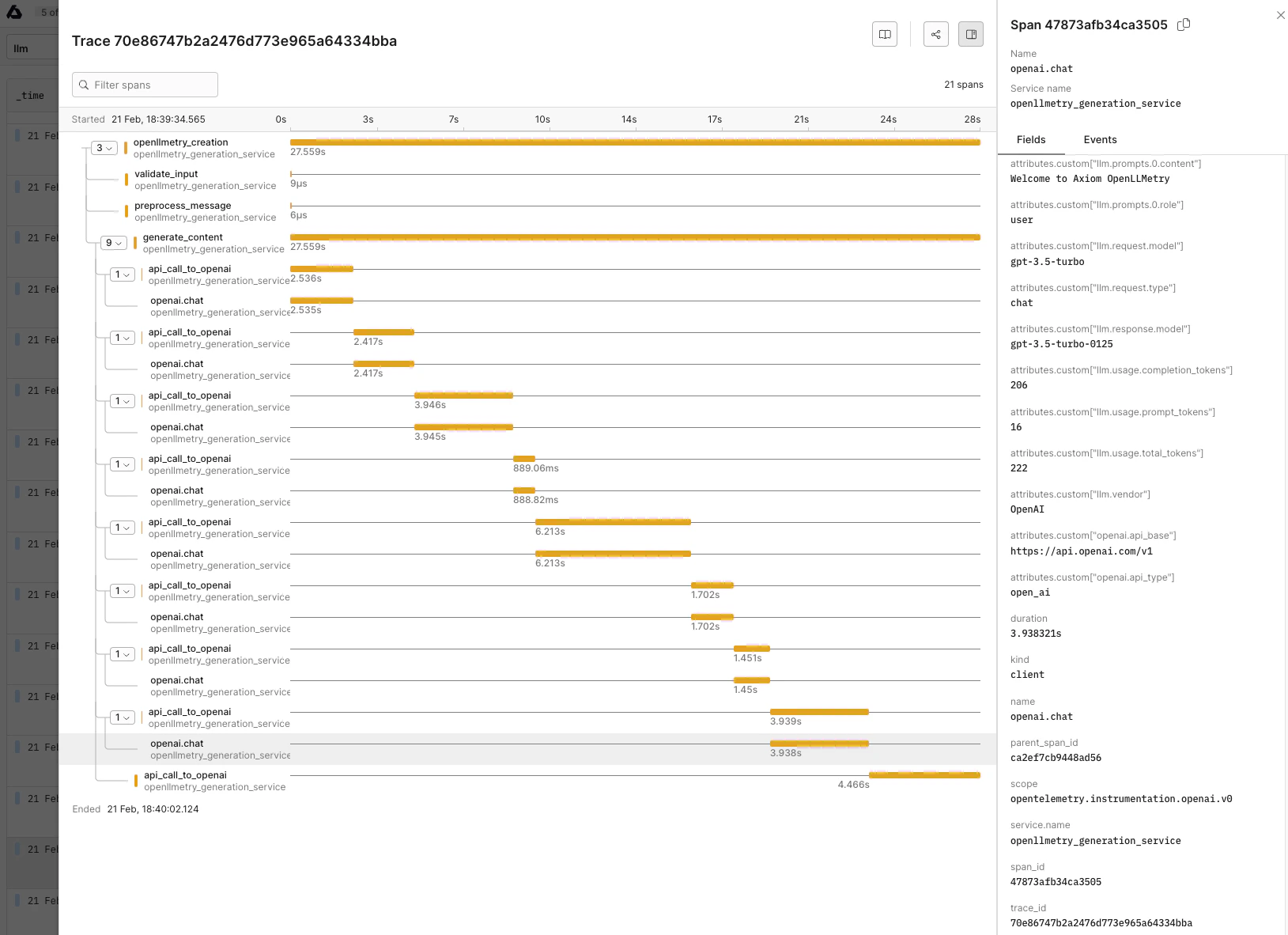 Axiom is an [observability platform](https://axiom.co/) that natively supports OpenTelemetry, you just need to route the traces to Axiom's endpoint and set the dataset, and API key:
```bash theme={null}
TRACELOOP_BASE_URL="https://api.axiom.co"
TRACELOOP_HEADERS="Authorization=Bearer ,X-Axiom-Dataset="
```
For more information check out the [docs link](https://axiom.co/docs/send-data/opentelemetry).
---
# Source: https://www.traceloop.com/docs/openllmetry/integrations/azure.md
> ## Documentation Index
> Fetch the complete documentation index at: https://www.traceloop.com/docs/llms.txt
> Use this file to discover all available pages before exploring further.
# Azure Application Insights
Traceloop supports sending traces to Azure Application Insights via standard OpenTelemetry integrations.
Review how to setup [OpenTelemetry with Python in Azure Application Insights](https://learn.microsoft.com/en-us/azure/azure-monitor/app/opentelemetry-enable?tabs=python).
Axiom is an [observability platform](https://axiom.co/) that natively supports OpenTelemetry, you just need to route the traces to Axiom's endpoint and set the dataset, and API key:
```bash theme={null}
TRACELOOP_BASE_URL="https://api.axiom.co"
TRACELOOP_HEADERS="Authorization=Bearer ,X-Axiom-Dataset="
```
For more information check out the [docs link](https://axiom.co/docs/send-data/opentelemetry).
---
# Source: https://www.traceloop.com/docs/openllmetry/integrations/azure.md
> ## Documentation Index
> Fetch the complete documentation index at: https://www.traceloop.com/docs/llms.txt
> Use this file to discover all available pages before exploring further.
# Azure Application Insights
Traceloop supports sending traces to Azure Application Insights via standard OpenTelemetry integrations.
Review how to setup [OpenTelemetry with Python in Azure Application Insights](https://learn.microsoft.com/en-us/azure/azure-monitor/app/opentelemetry-enable?tabs=python).
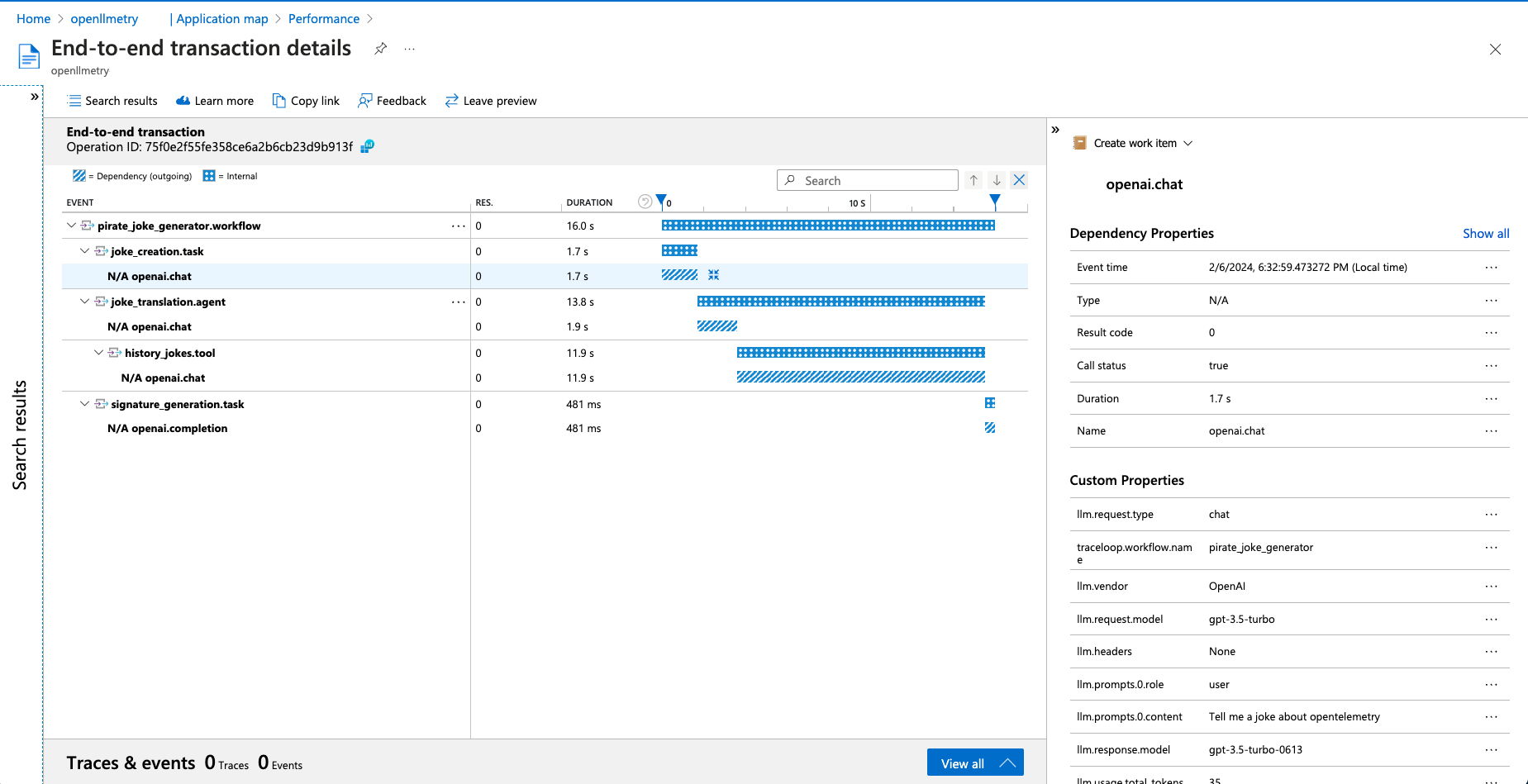 1. Provision an Application Insights instance in the [Azure portal](https://portal.azure.com/).
2. Get your Connection String from the instance - [details here](https://learn.microsoft.com/en-us/azure/azure-monitor/app/sdk-connection-string?tabs=python).
3. Install required packages
```bash theme={null}
pip install azure-monitor-opentelemetry-exporter traceloop-sdk openai
```
4. Example implementation
```python theme={null}
import os
from traceloop.sdk import Traceloop
from traceloop.sdk.decorators import workflow, task, agent, tool
from azure.monitor.opentelemetry.exporter import AzureMonitorTraceExporter
from openai import OpenAI
client = OpenAI(api_key=os.environ["OPENAI_API_KEY"])
# Configure the tracer provider to export traces to Azure Application Insights.
# Get your complete connection string from the Azure Portal or CLI.
exporter = AzureMonitorTraceExporter(connection_string="INSERT_CONNECTION_STRING_HERE")
# Pass your exporter to Traceloop
Traceloop.init(app_name="your_app_name", exporter=exporter)
@task(name="joke_creation")
def create_joke():
completion = client.chat.completions.create(
model="gpt-3.5-turbo",
messages=[{"role": "user", "content": "Tell me a joke about opentelemetry"}],
)
return completion.choices[0].message.content
@task(name="signature_generation")
def generate_signature(joke: str):
completion = client.completions.create(model="davinci-002",
prompt="add a signature to the joke:\n\n" + joke)
return completion.choices[0].text
@agent(name="joke_translation")
def translate_joke_to_pirate(joke: str):
completion = client.chat.completions.create(
model="gpt-3.5-turbo",
messages=[{"role": "user", "content": f"Translate the below joke to pirate-like english:\n\n{joke}"}],
)
history_jokes_tool()
return completion.choices[0].message.content
@tool(name="history_jokes")
def history_jokes_tool():
completion = client.chat.completions.create(
model="gpt-3.5-turbo",
messages=[{"role": "user", "content": f"get some history jokes"}],
)
return completion.choices[0].message.content
@workflow(name="pirate_joke_generator")
def joke_workflow():
eng_joke = create_joke()
pirate_joke = translate_joke_to_pirate(eng_joke)
signature = generate_signature(pirate_joke)
print(pirate_joke + "\n\n" + signature)
if __name__ == "__main__":
joke_workflow()
```
---
# Source: https://www.traceloop.com/docs/openllmetry/integrations/bmc.md
> ## Documentation Index
> Fetch the complete documentation index at: https://www.traceloop.com/docs/llms.txt
> Use this file to discover all available pages before exploring further.
# LLM Observability with BMC and OpenLLMetry
BMC Helix provides the capability to export observability data directly using the OpenTelemetry Collector. This requires deploying an OpenTelemetry Collector in your cluster.
See also [BMC Helix documentation](https://docs.bmc.com/xwiki/bin/view/IT-Operations-Management/Operations-Management/BMC-Helix-AIOps/aiops244/Administering/Enabling-BMC-Helix-applications-to-collect-service-traces-from-OpenTelemetry/).
Exporting Data to an OpenTelemetry Collector
```yaml theme={null}
otlp:
receiver:
protocols:
http:
enabled: true
```
Then, set this env var, and you're done!
```bash theme={null}
TRACELOOP_BASE_URL=http://
```
---
# Source: https://www.traceloop.com/docs/openllmetry/integrations/braintrust.md
> ## Documentation Index
> Fetch the complete documentation index at: https://www.traceloop.com/docs/llms.txt
> Use this file to discover all available pages before exploring further.
# LLM Observability with Braintrust and OpenLLMetry
To set up Braintrust as an [OpenTelemetry](https://opentelemetry.io/docs/) backend, you'll need to route the traces to Braintrust's OpenTelemetry endpoint, set your API key, and specify a parent project or experiment. Braintrust supports common patterns from [OpenLLLMetry](https://github.com/traceloop/openllmetry).
For more information, see the [Braintrust documentation](https://www.braintrust.dev/docs/guides/tracing#traceloop).
1. Provision an Application Insights instance in the [Azure portal](https://portal.azure.com/).
2. Get your Connection String from the instance - [details here](https://learn.microsoft.com/en-us/azure/azure-monitor/app/sdk-connection-string?tabs=python).
3. Install required packages
```bash theme={null}
pip install azure-monitor-opentelemetry-exporter traceloop-sdk openai
```
4. Example implementation
```python theme={null}
import os
from traceloop.sdk import Traceloop
from traceloop.sdk.decorators import workflow, task, agent, tool
from azure.monitor.opentelemetry.exporter import AzureMonitorTraceExporter
from openai import OpenAI
client = OpenAI(api_key=os.environ["OPENAI_API_KEY"])
# Configure the tracer provider to export traces to Azure Application Insights.
# Get your complete connection string from the Azure Portal or CLI.
exporter = AzureMonitorTraceExporter(connection_string="INSERT_CONNECTION_STRING_HERE")
# Pass your exporter to Traceloop
Traceloop.init(app_name="your_app_name", exporter=exporter)
@task(name="joke_creation")
def create_joke():
completion = client.chat.completions.create(
model="gpt-3.5-turbo",
messages=[{"role": "user", "content": "Tell me a joke about opentelemetry"}],
)
return completion.choices[0].message.content
@task(name="signature_generation")
def generate_signature(joke: str):
completion = client.completions.create(model="davinci-002",
prompt="add a signature to the joke:\n\n" + joke)
return completion.choices[0].text
@agent(name="joke_translation")
def translate_joke_to_pirate(joke: str):
completion = client.chat.completions.create(
model="gpt-3.5-turbo",
messages=[{"role": "user", "content": f"Translate the below joke to pirate-like english:\n\n{joke}"}],
)
history_jokes_tool()
return completion.choices[0].message.content
@tool(name="history_jokes")
def history_jokes_tool():
completion = client.chat.completions.create(
model="gpt-3.5-turbo",
messages=[{"role": "user", "content": f"get some history jokes"}],
)
return completion.choices[0].message.content
@workflow(name="pirate_joke_generator")
def joke_workflow():
eng_joke = create_joke()
pirate_joke = translate_joke_to_pirate(eng_joke)
signature = generate_signature(pirate_joke)
print(pirate_joke + "\n\n" + signature)
if __name__ == "__main__":
joke_workflow()
```
---
# Source: https://www.traceloop.com/docs/openllmetry/integrations/bmc.md
> ## Documentation Index
> Fetch the complete documentation index at: https://www.traceloop.com/docs/llms.txt
> Use this file to discover all available pages before exploring further.
# LLM Observability with BMC and OpenLLMetry
BMC Helix provides the capability to export observability data directly using the OpenTelemetry Collector. This requires deploying an OpenTelemetry Collector in your cluster.
See also [BMC Helix documentation](https://docs.bmc.com/xwiki/bin/view/IT-Operations-Management/Operations-Management/BMC-Helix-AIOps/aiops244/Administering/Enabling-BMC-Helix-applications-to-collect-service-traces-from-OpenTelemetry/).
Exporting Data to an OpenTelemetry Collector
```yaml theme={null}
otlp:
receiver:
protocols:
http:
enabled: true
```
Then, set this env var, and you're done!
```bash theme={null}
TRACELOOP_BASE_URL=http://
```
---
# Source: https://www.traceloop.com/docs/openllmetry/integrations/braintrust.md
> ## Documentation Index
> Fetch the complete documentation index at: https://www.traceloop.com/docs/llms.txt
> Use this file to discover all available pages before exploring further.
# LLM Observability with Braintrust and OpenLLMetry
To set up Braintrust as an [OpenTelemetry](https://opentelemetry.io/docs/) backend, you'll need to route the traces to Braintrust's OpenTelemetry endpoint, set your API key, and specify a parent project or experiment. Braintrust supports common patterns from [OpenLLLMetry](https://github.com/traceloop/openllmetry).
For more information, see the [Braintrust documentation](https://www.braintrust.dev/docs/guides/tracing#traceloop).
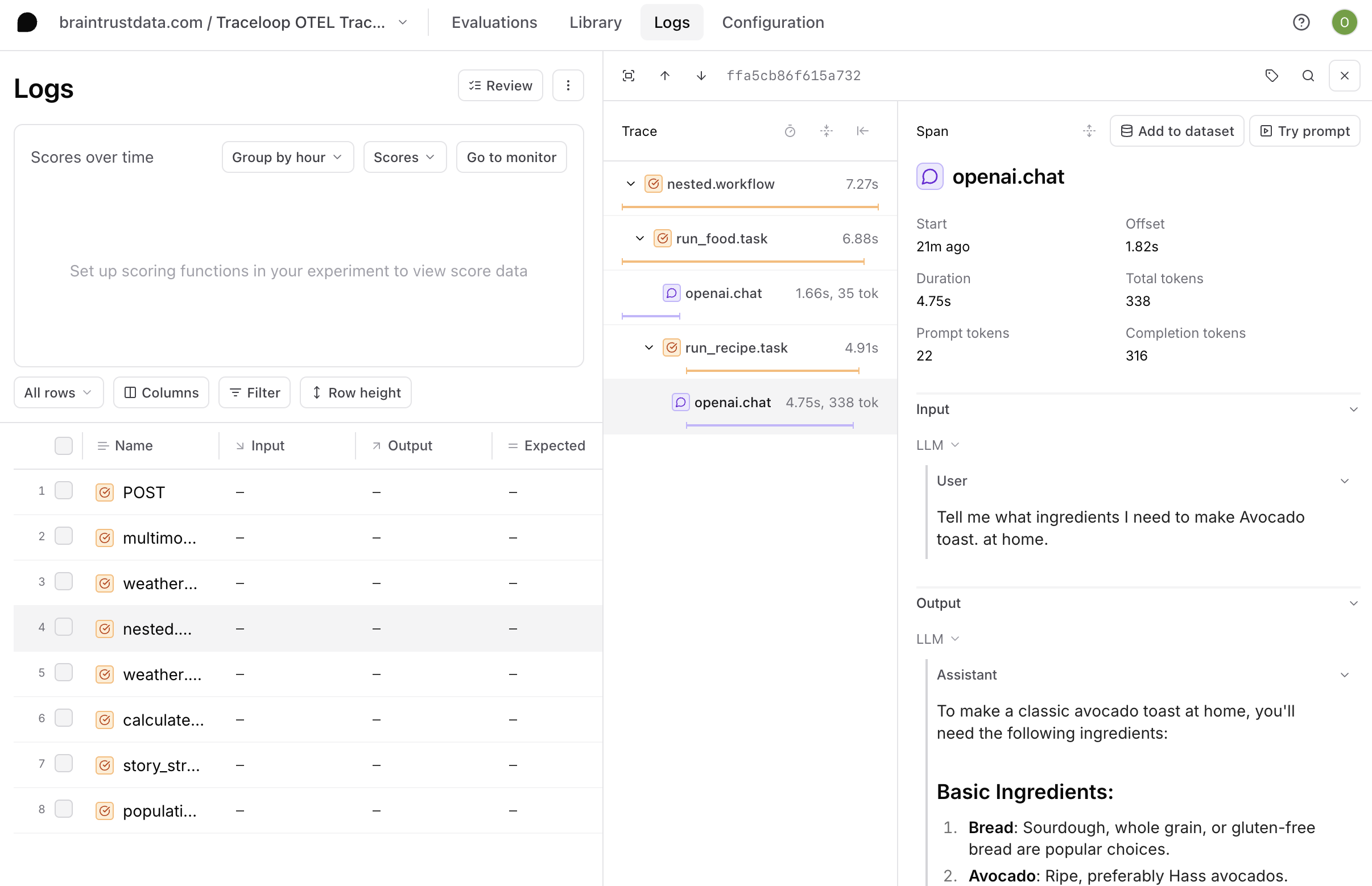 To export OTel traces from Traceloop OpenLLMetry to Braintrust, set the following environment variables:
```bash theme={null}
TRACELOOP_BASE_URL=https://api.braintrust.dev/otel
TRACELOOP_HEADERS="Authorization=Bearer%20, x-bt-parent=project_id:"
```
Note: When setting the bearer token, make sure to URL encode the space between "Bearer" and your API key using `%20`. For example:
```bash theme={null}
# Incorrect format
TRACELOOP_HEADERS="Authorization=Bearer sk-RiPodT20anlA1d3ki4T5I0V24WHXFuwvlPivUUoUGOnczOVI, x-bt-parent=project_id:"
# Correct format
TRACELOOP_HEADERS="Authorization=Bearer%20sk-RiPodT20anlA1d3ki4T5I0V24WHXFuwvlPivUUoUGOnczOVI, x-bt-parent=project_id:"
```
Important: The project ID is not the same as your project name. To find your project ID:
1. Navigate to your project configuration page at: `https://www.braintrust.dev/app/ORG_NAME/p/PROJECT_NAME/configuration`
2. Scroll to the bottom of the page
3. Look for the "Copy Project ID" button to get the correct ID for the `x-bt-parent` header
Traces will then appear under the Braintrust project or experiment provided in the `x-bt-parent` header.
```python theme={null}
from openai import OpenAI
from traceloop.sdk import Traceloop
from traceloop.sdk.decorators import workflow
Traceloop.init(disable_batch=True)
client = OpenAI()
@workflow(name="story")
def run_story_stream(client):
completion = client.chat.completions.create(
model="gpt-4o-mini",
messages=[{"role": "user", "content": "Tell me a short story about LLM evals."}],
)
return completion.choices[0].message.content
print(run_story_stream(client))
```
---
# Source: https://www.traceloop.com/docs/playgrounds/columns/column-management.md
> ## Documentation Index
> Fetch the complete documentation index at: https://www.traceloop.com/docs/llms.txt
> Use this file to discover all available pages before exploring further.
# Column Management
> Learn all columns general functionalities
Columns in the Playground can be reordered, edited, or deleted at any time to adapt your workspace as your analysis evolves. Understanding how to manage columns effectively helps you maintain organized and efficient playgrounds.
## Columns Settings
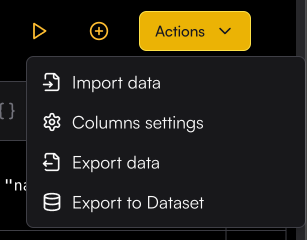
Column Settings lets you hide specific columns from the Playground and reorder them as needed. To open the settings, click the Playground Action button and select Column Settings
To export OTel traces from Traceloop OpenLLMetry to Braintrust, set the following environment variables:
```bash theme={null}
TRACELOOP_BASE_URL=https://api.braintrust.dev/otel
TRACELOOP_HEADERS="Authorization=Bearer%20, x-bt-parent=project_id:"
```
Note: When setting the bearer token, make sure to URL encode the space between "Bearer" and your API key using `%20`. For example:
```bash theme={null}
# Incorrect format
TRACELOOP_HEADERS="Authorization=Bearer sk-RiPodT20anlA1d3ki4T5I0V24WHXFuwvlPivUUoUGOnczOVI, x-bt-parent=project_id:"
# Correct format
TRACELOOP_HEADERS="Authorization=Bearer%20sk-RiPodT20anlA1d3ki4T5I0V24WHXFuwvlPivUUoUGOnczOVI, x-bt-parent=project_id:"
```
Important: The project ID is not the same as your project name. To find your project ID:
1. Navigate to your project configuration page at: `https://www.braintrust.dev/app/ORG_NAME/p/PROJECT_NAME/configuration`
2. Scroll to the bottom of the page
3. Look for the "Copy Project ID" button to get the correct ID for the `x-bt-parent` header
Traces will then appear under the Braintrust project or experiment provided in the `x-bt-parent` header.
```python theme={null}
from openai import OpenAI
from traceloop.sdk import Traceloop
from traceloop.sdk.decorators import workflow
Traceloop.init(disable_batch=True)
client = OpenAI()
@workflow(name="story")
def run_story_stream(client):
completion = client.chat.completions.create(
model="gpt-4o-mini",
messages=[{"role": "user", "content": "Tell me a short story about LLM evals."}],
)
return completion.choices[0].message.content
print(run_story_stream(client))
```
---
# Source: https://www.traceloop.com/docs/playgrounds/columns/column-management.md
> ## Documentation Index
> Fetch the complete documentation index at: https://www.traceloop.com/docs/llms.txt
> Use this file to discover all available pages before exploring further.
# Column Management
> Learn all columns general functionalities
Columns in the Playground can be reordered, edited, or deleted at any time to adapt your workspace as your analysis evolves. Understanding how to manage columns effectively helps you maintain organized and efficient playgrounds.
## Columns Settings
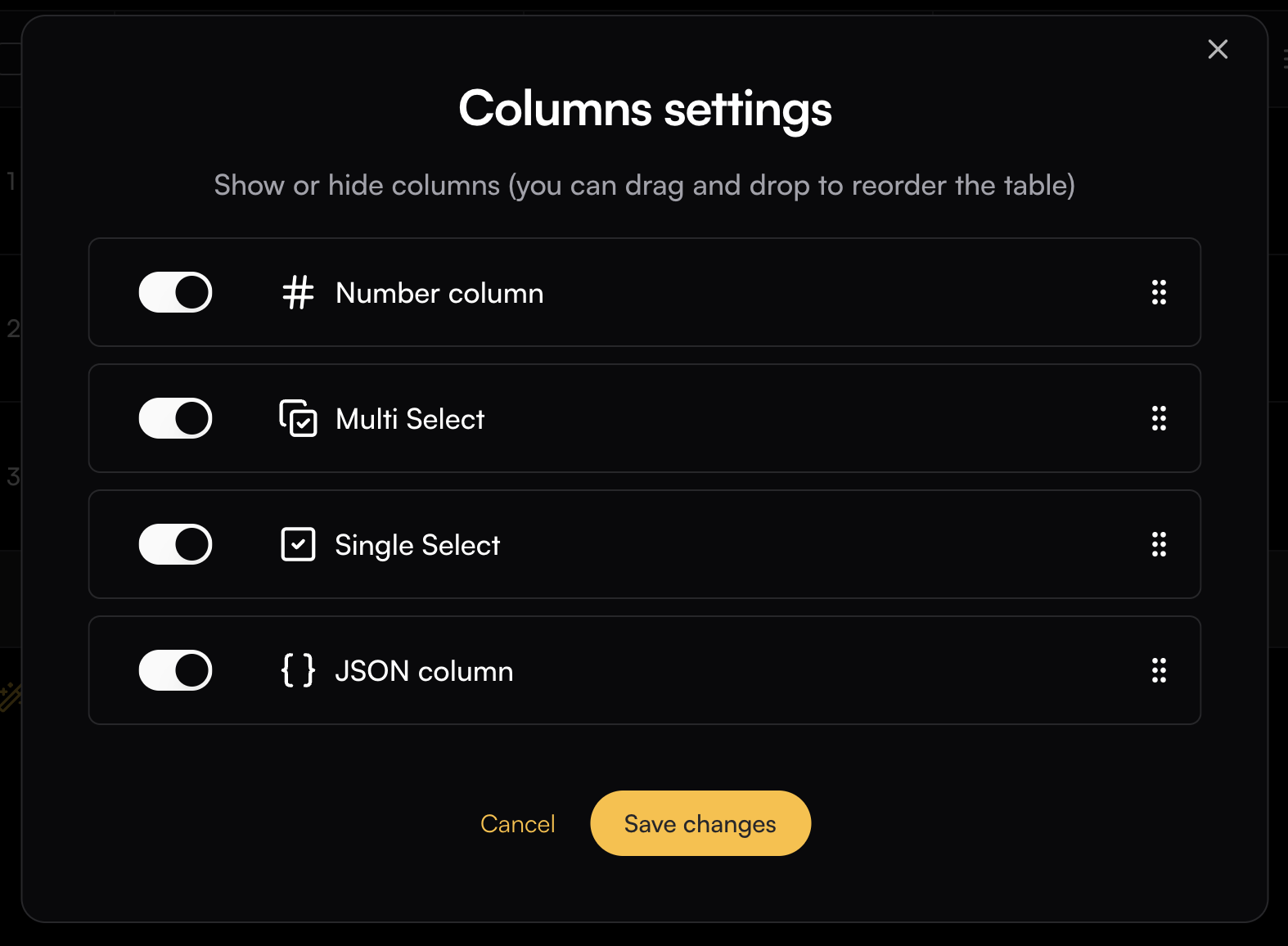
Column Settings lets you hide specific columns from the Playground and reorder them as needed. To open the settings, click the Playground Action button and select Column Settings
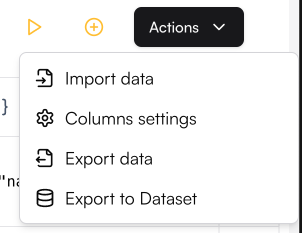
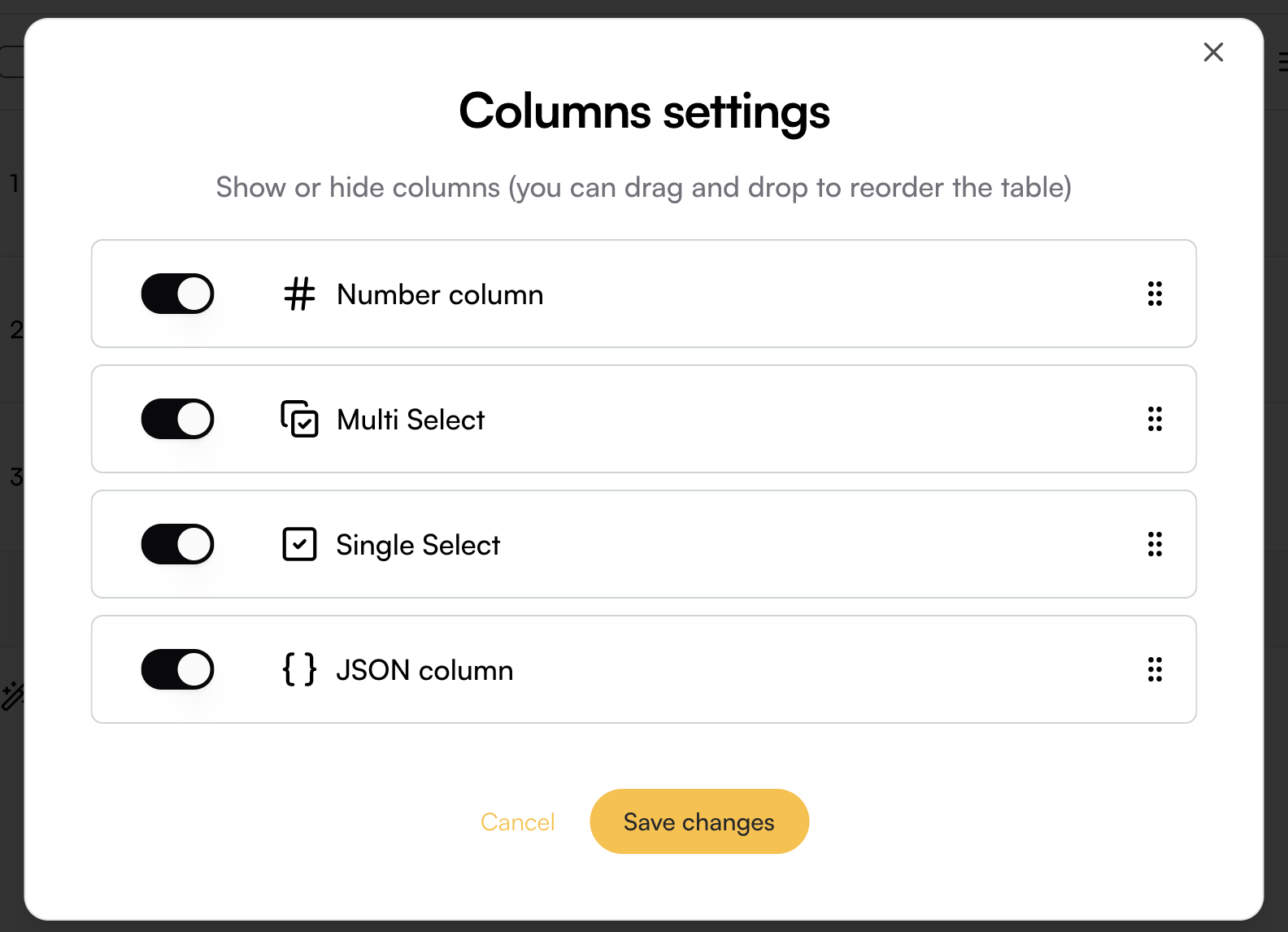
 To change the column order, use the six-dot handle on the right side of each column to simply drag the column into the desired position.
To hide a column, toggle its switch in the menu.
Columns can also be reordered by dragging them to your desired position in the playground
To change the column order, use the six-dot handle on the right side of each column to simply drag the column into the desired position.
To hide a column, toggle its switch in the menu.
Columns can also be reordered by dragging them to your desired position in the playground
 ## Columns Actions
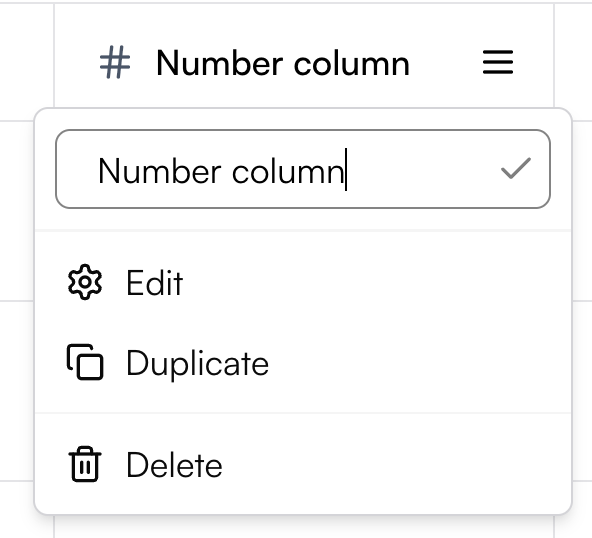
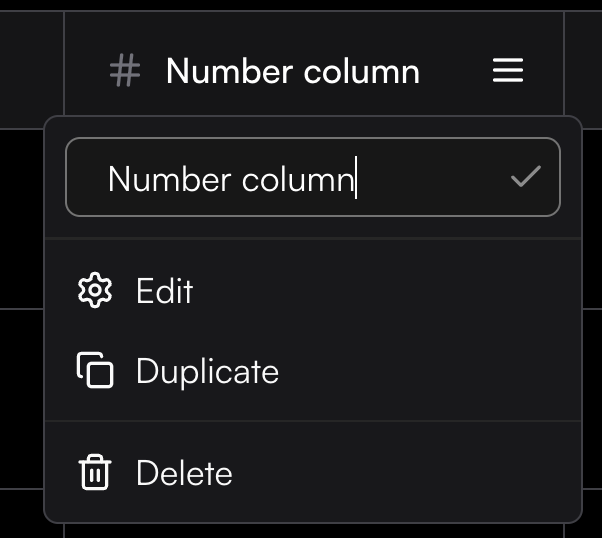
Each column has a menu that lets you manage and customize it. From this menu, you can:
* Rename the column directly by editing its title
* Edit the column configuration
* Duplicate the column to create a copy with the same settings
* Delete the column if it’s no longer needed
## Columns Actions
Each column has a menu that lets you manage and customize it. From this menu, you can:
* Rename the column directly by editing its title
* Edit the column configuration
* Duplicate the column to create a copy with the same settings
* Delete the column if it’s no longer needed
 ---
# Source: https://www.traceloop.com/docs/openllmetry/configuration.md
# Source: https://www.traceloop.com/docs/hub/configuration.md
> ## Documentation Index
> Fetch the complete documentation index at: https://www.traceloop.com/docs/llms.txt
> Use this file to discover all available pages before exploring further.
# Hub Configuration
> How to configure Traceloop Hub and connect it to different LLM providers
The hub configuration is done through the `config.yaml` file that should be placed in the root directory of the hub.
Here's an example of the configuration file:
```yaml theme={null}
providers:
- key: azure-openai
type: azure
api_key: ""
resource_name: ""
api_version: ""
- key: openai
type: openai
api_key: ""
# or use an environment variable
api_key: ${OPENAI_API_KEY}
models:
- key: gpt-4o-openai
type: gpt-4o
provider: openai
- key: gpt-4o-azure
type: gpt-4o
provider: azure-openai
deployment: ""
pipelines:
- name: default
type: chat
plugins:
- logging:
level: info
- tracing:
endpoint: "https://api.traceloop.com/v1/traces"
api_key: ""
- model-router:
models:
- gpt-4o-openai
- gpt-4o-azure
```
## Providers
This is where you list the LLM providers that you want to use with the hub.
You can have multiple providers of the same type, just give them different keys.
## Models
This is where you list the models that you want to use with the hub. Each model should be associated with a provider.
You can have multiple models of the same type with different providers - for example, you can use GPT-4o on Azure and on OpenAI.
Then, you can define a pipeline (see below) that switches between them according to availabilty.
Each model has a `type` which is how the hub understands that 2 model specifications are actually the same "model",
## Pipelines
A pipeline is something you can execute when calling the hub. It contains a list of plugins that are executed in order.
Here are the plugins that are available:
* `logging`: Logs the request and response.
* `tracing`: Enables OpenTelemetry tracing for requests going through the pipeline.
* `model-router`: Routes the request to a model, according to the list specified in the `models` section.
---
# Source: https://www.traceloop.com/docs/api-reference/organizations/create-a-new-organization.md
> ## Documentation Index
> Fetch the complete documentation index at: https://www.traceloop.com/docs/llms.txt
> Use this file to discover all available pages before exploring further.
# Create a new organization
> Create a new organization with environments and API keys.
## OpenAPI
````yaml post /v2/organizations
openapi: 3.0.0
info:
title: Traceloop API
version: 1.0.0
contact: {}
servers:
- url: https://api.traceloop.com
security: []
paths:
/v2/organizations:
post:
tags:
- organizations
summary: Create a new organization
description: Create a new organization with environments and API keys.
requestBody:
content:
application/json:
schema:
$ref: '#/components/schemas/request.CreateOrganizationRequest'
description: Organization creation request
required: true
responses:
'201':
description: Created
content:
application/json:
schema:
$ref: '#/components/schemas/response.CreateOrganizationResponse'
'400':
description: Invalid request body or validation error
content:
application/json:
schema:
$ref: '#/components/schemas/response.ErrorResponse'
'403':
description: Not allowed to create organizations
content:
application/json:
schema:
$ref: '#/components/schemas/response.ErrorResponse'
'500':
description: Internal server error
content:
application/json:
schema:
$ref: '#/components/schemas/response.ErrorResponse'
components:
schemas:
request.CreateOrganizationRequest:
properties:
envs:
items:
type: string
type: array
org_name:
type: string
required:
- org_name
type: object
response.CreateOrganizationResponse:
properties:
environments:
items:
$ref: '#/components/schemas/response.EnvironmentWithKeyResponse'
type: array
org_id:
type: string
type: object
response.ErrorResponse:
description: Standard error response structure
properties:
error:
example: error message
type: string
type: object
response.EnvironmentWithKeyResponse:
properties:
api_key:
type: string
slug:
type: string
type: object
````
---
# Source: https://www.traceloop.com/docs/api-reference/auto-monitor-setups/create-an-auto-monitor-setup.md
> ## Documentation Index
> Fetch the complete documentation index at: https://www.traceloop.com/docs/llms.txt
> Use this file to discover all available pages before exploring further.
# Create an auto monitor setup
> Create a new auto monitor setup for automatic monitor creation
## OpenAPI
````yaml post /v2/auto-monitor-setups
openapi: 3.0.0
info:
title: Traceloop API
version: 1.0.0
contact: {}
servers:
- url: https://api.traceloop.com
security: []
paths:
/v2/auto-monitor-setups:
post:
tags:
- auto-monitor-setups
summary: Create an auto monitor setup
description: Create a new auto monitor setup for automatic monitor creation
requestBody:
content:
application/json:
schema:
$ref: '#/components/schemas/request.CreateAutoMonitorSetupInput'
description: Auto monitor setup configuration
required: true
responses:
'201':
description: Created
content:
application/json:
schema:
$ref: '#/components/schemas/response.AutoMonitorSetupResponse'
'400':
description: Invalid input
content:
application/json:
schema:
$ref: '#/components/schemas/response.ErrorResponse'
'500':
description: Internal error
content:
application/json:
schema:
$ref: '#/components/schemas/response.ErrorResponse'
components:
schemas:
request.CreateAutoMonitorSetupInput:
properties:
entity_type:
type: string
entity_value:
type: string
evaluators:
items:
type: string
minItems: 1
type: array
external_id:
type: string
selector:
additionalProperties: true
type: object
required:
- entity_type
- entity_value
- evaluators
- external_id
type: object
response.AutoMonitorSetupResponse:
properties:
created_at:
type: string
entity_type:
type: string
entity_value:
type: string
env_project_id:
type: string
evaluators:
items:
$ref: '#/components/schemas/response.AutoMonitorEvaluatorResponse'
type: array
external_id:
type: string
id:
type: string
init_rules:
items:
$ref: '#/components/schemas/evaluator.Rule'
type: array
org_id:
type: string
project_id:
type: string
status:
type: string
updated_at:
type: string
type: object
response.ErrorResponse:
description: Standard error response structure
properties:
error:
example: error message
type: string
type: object
response.AutoMonitorEvaluatorResponse:
properties:
binding_id:
type: string
error_message:
type: string
evaluator_id:
type: string
evaluator_type:
type: string
input_schema:
items:
$ref: '#/components/schemas/evaluator.Property'
type: array
output_schema:
items:
$ref: '#/components/schemas/evaluator.Property'
type: array
processed_at:
type: string
status:
type: string
type: object
evaluator.Rule:
properties:
key:
type: string
op:
$ref: '#/components/schemas/evaluator.ComparisonOperator'
source:
type: string
value:
type: string
value_type:
type: string
required:
- op
- source
type: object
evaluator.Property:
properties:
description:
type: string
label:
type: string
name:
type: string
type:
type: string
required:
- name
- type
type: object
evaluator.ComparisonOperator:
enum:
- equals
- not_equals
- contains
- exists
- not_exists
- greater_than
- less_than
- starts_with
type: string
x-enum-varnames:
- ComparisonOperatorEquals
- ComparisonOperatorNotEquals
- ComparisonOperatorContains
- ComparisonOperatorExists
- ComparisonOperatorNotExists
- ComparisonOperatorGreaterThan
- ComparisonOperatorLessThan
- ComparisonOperatorStartsWith
````
---
# Source: https://www.traceloop.com/docs/evaluators/custom-evaluator.md
> ## Documentation Index
> Fetch the complete documentation index at: https://www.traceloop.com/docs/llms.txt
> Use this file to discover all available pages before exploring further.
# Custom Evaluators
> Define an evaluator for your specific needs
Create your own evaluator to match your specific needs. You can start right away with custom criteria for full flexibility, or use one of our recommended formats as a starting point.
---
# Source: https://www.traceloop.com/docs/openllmetry/configuration.md
# Source: https://www.traceloop.com/docs/hub/configuration.md
> ## Documentation Index
> Fetch the complete documentation index at: https://www.traceloop.com/docs/llms.txt
> Use this file to discover all available pages before exploring further.
# Hub Configuration
> How to configure Traceloop Hub and connect it to different LLM providers
The hub configuration is done through the `config.yaml` file that should be placed in the root directory of the hub.
Here's an example of the configuration file:
```yaml theme={null}
providers:
- key: azure-openai
type: azure
api_key: ""
resource_name: ""
api_version: ""
- key: openai
type: openai
api_key: ""
# or use an environment variable
api_key: ${OPENAI_API_KEY}
models:
- key: gpt-4o-openai
type: gpt-4o
provider: openai
- key: gpt-4o-azure
type: gpt-4o
provider: azure-openai
deployment: ""
pipelines:
- name: default
type: chat
plugins:
- logging:
level: info
- tracing:
endpoint: "https://api.traceloop.com/v1/traces"
api_key: ""
- model-router:
models:
- gpt-4o-openai
- gpt-4o-azure
```
## Providers
This is where you list the LLM providers that you want to use with the hub.
You can have multiple providers of the same type, just give them different keys.
## Models
This is where you list the models that you want to use with the hub. Each model should be associated with a provider.
You can have multiple models of the same type with different providers - for example, you can use GPT-4o on Azure and on OpenAI.
Then, you can define a pipeline (see below) that switches between them according to availabilty.
Each model has a `type` which is how the hub understands that 2 model specifications are actually the same "model",
## Pipelines
A pipeline is something you can execute when calling the hub. It contains a list of plugins that are executed in order.
Here are the plugins that are available:
* `logging`: Logs the request and response.
* `tracing`: Enables OpenTelemetry tracing for requests going through the pipeline.
* `model-router`: Routes the request to a model, according to the list specified in the `models` section.
---
# Source: https://www.traceloop.com/docs/api-reference/organizations/create-a-new-organization.md
> ## Documentation Index
> Fetch the complete documentation index at: https://www.traceloop.com/docs/llms.txt
> Use this file to discover all available pages before exploring further.
# Create a new organization
> Create a new organization with environments and API keys.
## OpenAPI
````yaml post /v2/organizations
openapi: 3.0.0
info:
title: Traceloop API
version: 1.0.0
contact: {}
servers:
- url: https://api.traceloop.com
security: []
paths:
/v2/organizations:
post:
tags:
- organizations
summary: Create a new organization
description: Create a new organization with environments and API keys.
requestBody:
content:
application/json:
schema:
$ref: '#/components/schemas/request.CreateOrganizationRequest'
description: Organization creation request
required: true
responses:
'201':
description: Created
content:
application/json:
schema:
$ref: '#/components/schemas/response.CreateOrganizationResponse'
'400':
description: Invalid request body or validation error
content:
application/json:
schema:
$ref: '#/components/schemas/response.ErrorResponse'
'403':
description: Not allowed to create organizations
content:
application/json:
schema:
$ref: '#/components/schemas/response.ErrorResponse'
'500':
description: Internal server error
content:
application/json:
schema:
$ref: '#/components/schemas/response.ErrorResponse'
components:
schemas:
request.CreateOrganizationRequest:
properties:
envs:
items:
type: string
type: array
org_name:
type: string
required:
- org_name
type: object
response.CreateOrganizationResponse:
properties:
environments:
items:
$ref: '#/components/schemas/response.EnvironmentWithKeyResponse'
type: array
org_id:
type: string
type: object
response.ErrorResponse:
description: Standard error response structure
properties:
error:
example: error message
type: string
type: object
response.EnvironmentWithKeyResponse:
properties:
api_key:
type: string
slug:
type: string
type: object
````
---
# Source: https://www.traceloop.com/docs/api-reference/auto-monitor-setups/create-an-auto-monitor-setup.md
> ## Documentation Index
> Fetch the complete documentation index at: https://www.traceloop.com/docs/llms.txt
> Use this file to discover all available pages before exploring further.
# Create an auto monitor setup
> Create a new auto monitor setup for automatic monitor creation
## OpenAPI
````yaml post /v2/auto-monitor-setups
openapi: 3.0.0
info:
title: Traceloop API
version: 1.0.0
contact: {}
servers:
- url: https://api.traceloop.com
security: []
paths:
/v2/auto-monitor-setups:
post:
tags:
- auto-monitor-setups
summary: Create an auto monitor setup
description: Create a new auto monitor setup for automatic monitor creation
requestBody:
content:
application/json:
schema:
$ref: '#/components/schemas/request.CreateAutoMonitorSetupInput'
description: Auto monitor setup configuration
required: true
responses:
'201':
description: Created
content:
application/json:
schema:
$ref: '#/components/schemas/response.AutoMonitorSetupResponse'
'400':
description: Invalid input
content:
application/json:
schema:
$ref: '#/components/schemas/response.ErrorResponse'
'500':
description: Internal error
content:
application/json:
schema:
$ref: '#/components/schemas/response.ErrorResponse'
components:
schemas:
request.CreateAutoMonitorSetupInput:
properties:
entity_type:
type: string
entity_value:
type: string
evaluators:
items:
type: string
minItems: 1
type: array
external_id:
type: string
selector:
additionalProperties: true
type: object
required:
- entity_type
- entity_value
- evaluators
- external_id
type: object
response.AutoMonitorSetupResponse:
properties:
created_at:
type: string
entity_type:
type: string
entity_value:
type: string
env_project_id:
type: string
evaluators:
items:
$ref: '#/components/schemas/response.AutoMonitorEvaluatorResponse'
type: array
external_id:
type: string
id:
type: string
init_rules:
items:
$ref: '#/components/schemas/evaluator.Rule'
type: array
org_id:
type: string
project_id:
type: string
status:
type: string
updated_at:
type: string
type: object
response.ErrorResponse:
description: Standard error response structure
properties:
error:
example: error message
type: string
type: object
response.AutoMonitorEvaluatorResponse:
properties:
binding_id:
type: string
error_message:
type: string
evaluator_id:
type: string
evaluator_type:
type: string
input_schema:
items:
$ref: '#/components/schemas/evaluator.Property'
type: array
output_schema:
items:
$ref: '#/components/schemas/evaluator.Property'
type: array
processed_at:
type: string
status:
type: string
type: object
evaluator.Rule:
properties:
key:
type: string
op:
$ref: '#/components/schemas/evaluator.ComparisonOperator'
source:
type: string
value:
type: string
value_type:
type: string
required:
- op
- source
type: object
evaluator.Property:
properties:
description:
type: string
label:
type: string
name:
type: string
type:
type: string
required:
- name
- type
type: object
evaluator.ComparisonOperator:
enum:
- equals
- not_equals
- contains
- exists
- not_exists
- greater_than
- less_than
- starts_with
type: string
x-enum-varnames:
- ComparisonOperatorEquals
- ComparisonOperatorNotEquals
- ComparisonOperatorContains
- ComparisonOperatorExists
- ComparisonOperatorNotExists
- ComparisonOperatorGreaterThan
- ComparisonOperatorLessThan
- ComparisonOperatorStartsWith
````
---
# Source: https://www.traceloop.com/docs/evaluators/custom-evaluator.md
> ## Documentation Index
> Fetch the complete documentation index at: https://www.traceloop.com/docs/llms.txt
> Use this file to discover all available pages before exploring further.
# Custom Evaluators
> Define an evaluator for your specific needs
Create your own evaluator to match your specific needs. You can start right away with custom criteria for full flexibility, or use one of our recommended formats as a starting point.

 ## Do It Yourself
This option lets you write the evaluator prompt from scratch by adding the desired messages (System, Assistant, User, or Developer) and configuring the model along with its settings.
## Do It Yourself
This option lets you write the evaluator prompt from scratch by adding the desired messages (System, Assistant, User, or Developer) and configuring the model along with its settings.

 ## Generate Evaluator
The evaluator prompt can be automatically configured by Traceloop by clicking on the **Generate Evaluator** button.
To enable the button, map the column you want to evaluate (such as an LLM response) and add any additional data columns required for prompt creation.
Describe the evaluator’s purpose and reference the relevant data columns in the description.
The system generates a prompt template that you can edit and customize as needed.
## Test Evaluator
Before creating an evaluator, you can test it on existing Playground data.
This allows you to refine and correct the evaluator prompt before saving the final version.
## Execute Evaluator
Evaluators can be executed in [playground columns](../playgrounds/columns/column-management) and in [experiments through the SDK](../experiments/running-from-code).
---
# Source: https://www.traceloop.com/docs/openllmetry/integrations/dash0.md
> ## Documentation Index
> Fetch the complete documentation index at: https://www.traceloop.com/docs/llms.txt
> Use this file to discover all available pages before exploring further.
# LLM Observability with Dash0 and OpenLLMetry
## Generate Evaluator
The evaluator prompt can be automatically configured by Traceloop by clicking on the **Generate Evaluator** button.
To enable the button, map the column you want to evaluate (such as an LLM response) and add any additional data columns required for prompt creation.
Describe the evaluator’s purpose and reference the relevant data columns in the description.
The system generates a prompt template that you can edit and customize as needed.
## Test Evaluator
Before creating an evaluator, you can test it on existing Playground data.
This allows you to refine and correct the evaluator prompt before saving the final version.
## Execute Evaluator
Evaluators can be executed in [playground columns](../playgrounds/columns/column-management) and in [experiments through the SDK](../experiments/running-from-code).
---
# Source: https://www.traceloop.com/docs/openllmetry/integrations/dash0.md
> ## Documentation Index
> Fetch the complete documentation index at: https://www.traceloop.com/docs/llms.txt
> Use this file to discover all available pages before exploring further.
# LLM Observability with Dash0 and OpenLLMetry
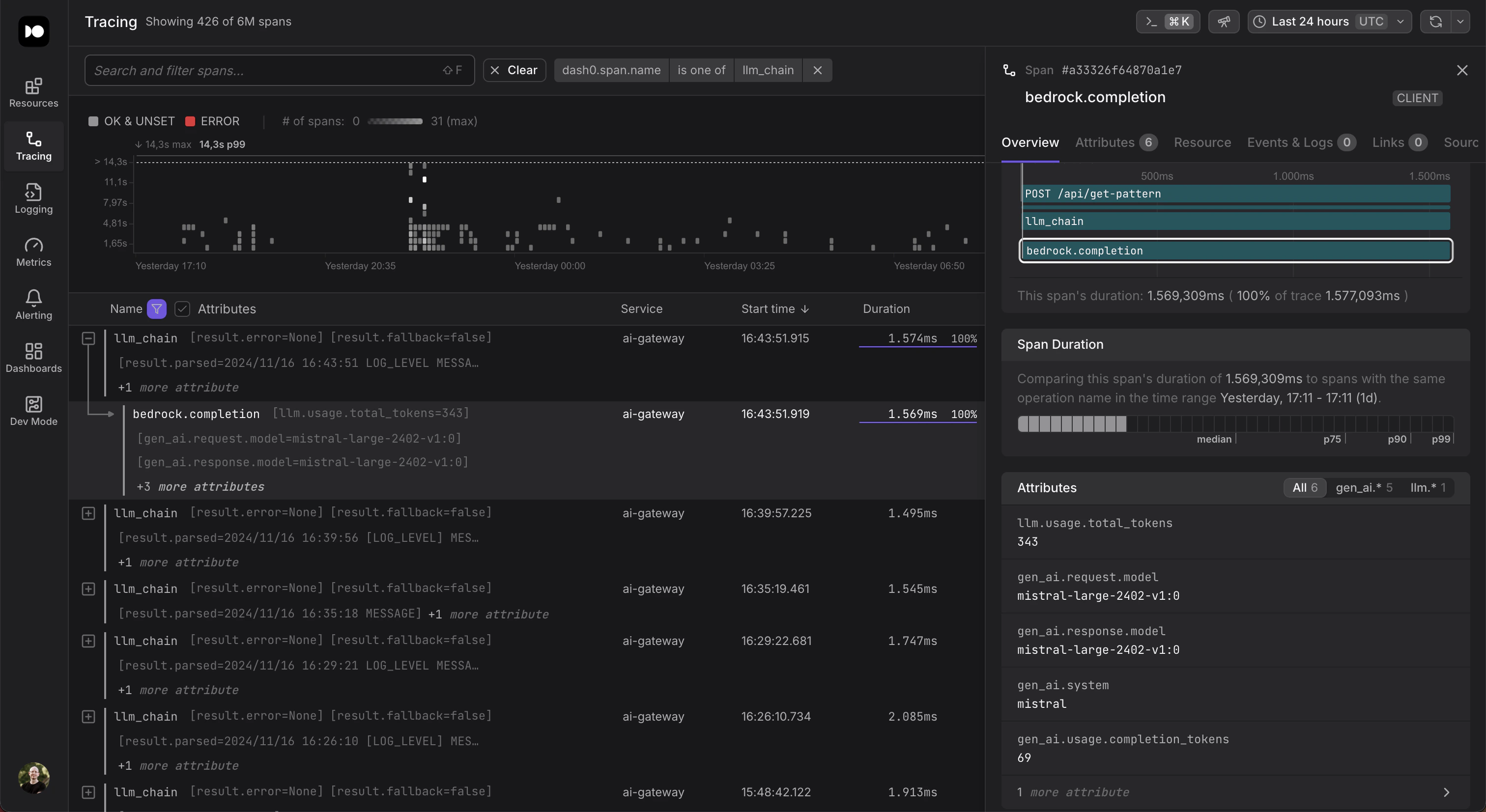 [Dash0](https://www.dash0.com) is an OpenTelemetry-natively observability solution. You can route your traces directly to Dash0's ingest APIs.
```bash theme={null}
TRACELOOP_BASE_URL="https://ingress.eu-west-1.aws.dash0.com"
TRACELOOP_HEADERS="Authorization=Bearer "
```
For more information check out the [documentation](https://www.dash0.com/documentation/dash0/get-started/sending-data-to-dash0).
---
# Source: https://www.traceloop.com/docs/playgrounds/columns/data-columns.md
> ## Documentation Index
> Fetch the complete documentation index at: https://www.traceloop.com/docs/llms.txt
> Use this file to discover all available pages before exploring further.
# Data Columns
Columns are the building blocks of playgrounds, defining what kind of data you can store, process, and analyze.
[Dash0](https://www.dash0.com) is an OpenTelemetry-natively observability solution. You can route your traces directly to Dash0's ingest APIs.
```bash theme={null}
TRACELOOP_BASE_URL="https://ingress.eu-west-1.aws.dash0.com"
TRACELOOP_HEADERS="Authorization=Bearer "
```
For more information check out the [documentation](https://www.dash0.com/documentation/dash0/get-started/sending-data-to-dash0).
---
# Source: https://www.traceloop.com/docs/playgrounds/columns/data-columns.md
> ## Documentation Index
> Fetch the complete documentation index at: https://www.traceloop.com/docs/llms.txt
> Use this file to discover all available pages before exploring further.
# Data Columns
Columns are the building blocks of playgrounds, defining what kind of data you can store, process, and analyze.
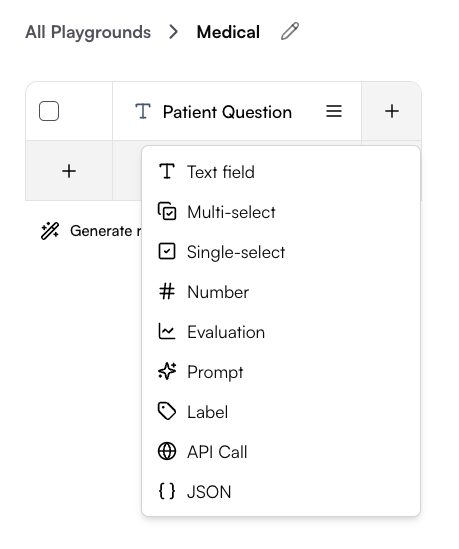
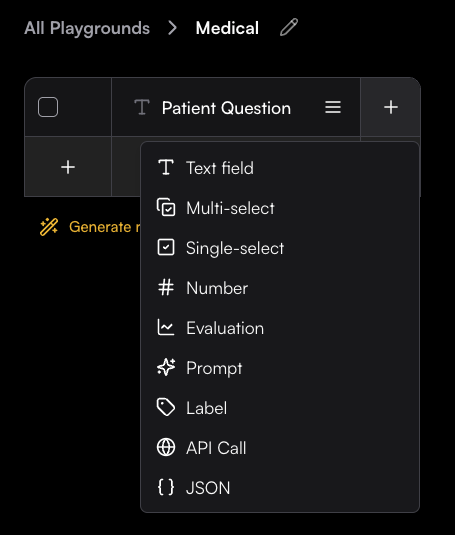 **Need to reorder, edit, or delete columns?**
Learn how to effectively manage your columns in the [Column Management](./column-management) guide.
## 📝 Data Input Columns
Store and manage static data entered manually or imported from external sources.
### Text field
Free-form text input with multiline support
### Numeric
Numbers, integers, and floating-point values
**Need to reorder, edit, or delete columns?**
Learn how to effectively manage your columns in the [Column Management](./column-management) guide.
## 📝 Data Input Columns
Store and manage static data entered manually or imported from external sources.
### Text field
Free-form text input with multiline support
### Numeric
Numbers, integers, and floating-point values
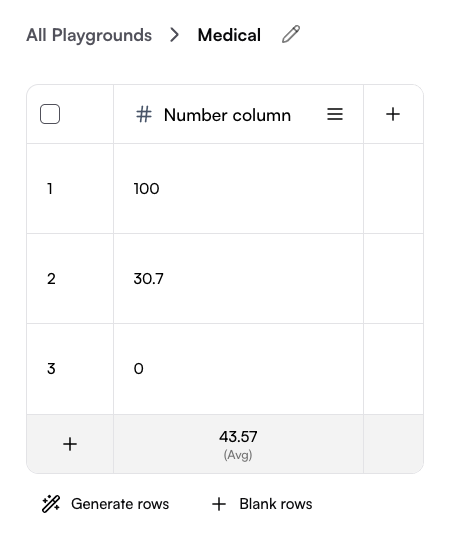
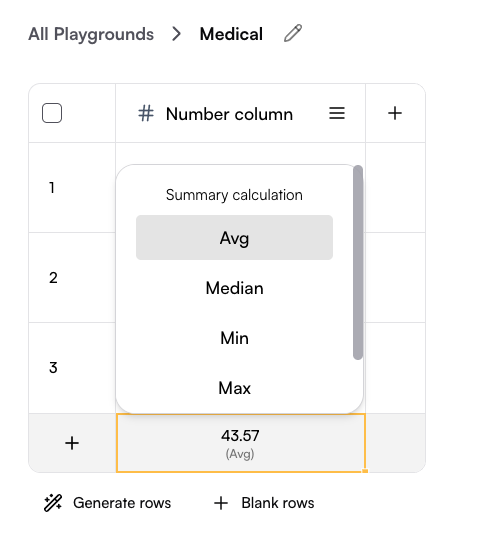
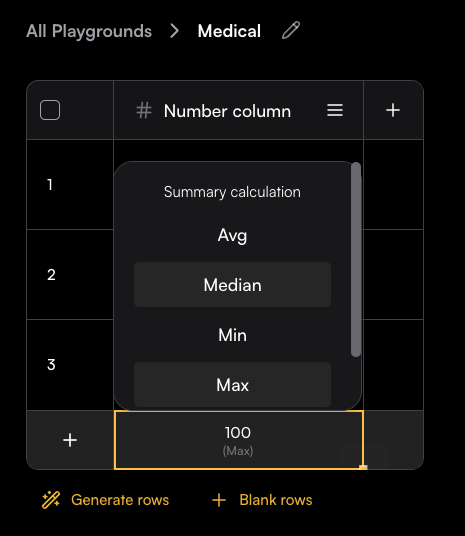
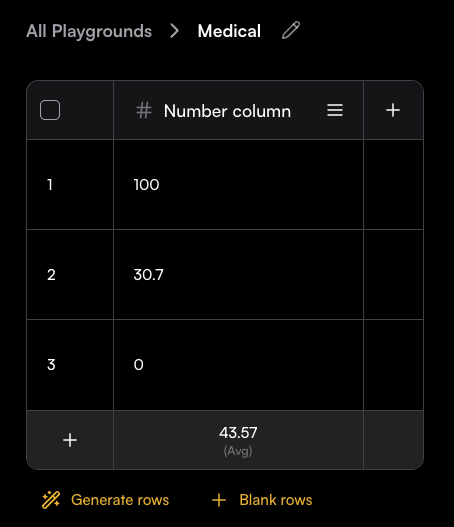 The last row allows you to choose a calculation method for the column, such as average, median, minimum, maximum, or sum.
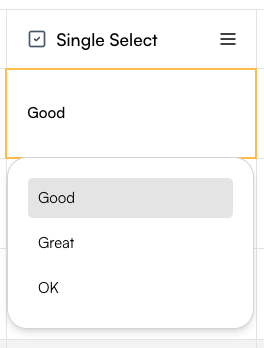
 ### Single select
Single-choice columns let you define a set of predefined options and restrict each cell to one selection.
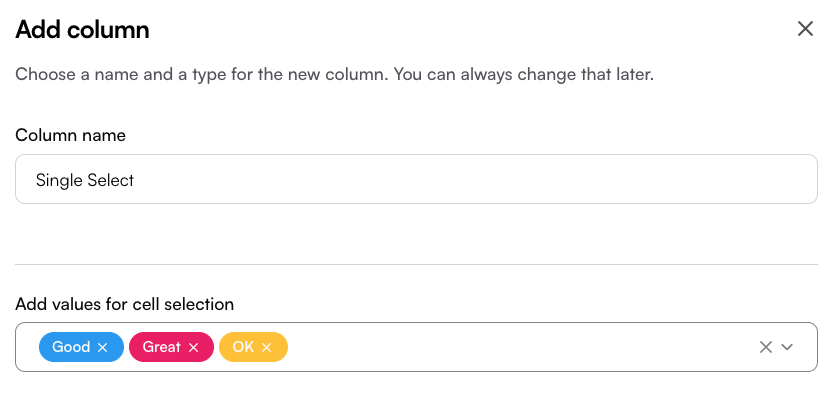
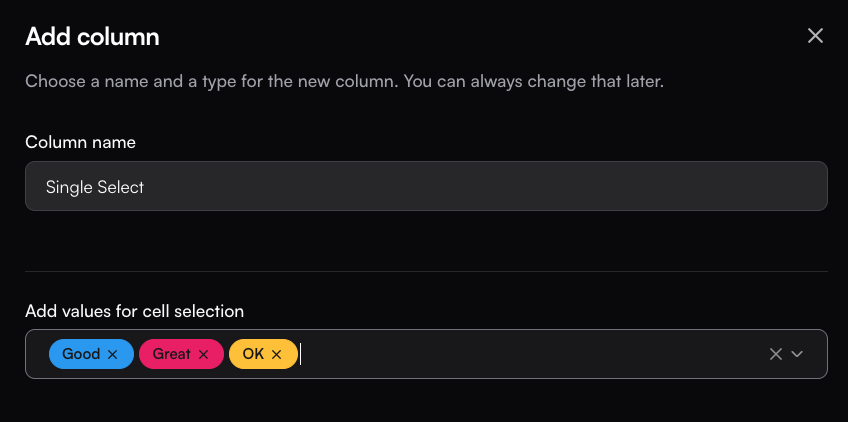
To create one, set the column name and add options in the Create Column drawer.
In the values box, type an option and press Enter to save it—once added, it will appear as a colored label.
In the table, each cell will then allow you to select only one of the defined options.
This column type is especially useful for manual tagging with a single tag.
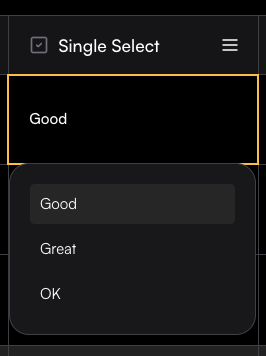
### Single select
Single-choice columns let you define a set of predefined options and restrict each cell to one selection.
To create one, set the column name and add options in the Create Column drawer.
In the values box, type an option and press Enter to save it—once added, it will appear as a colored label.
In the table, each cell will then allow you to select only one of the defined options.
This column type is especially useful for manual tagging with a single tag.
 ### Multi select
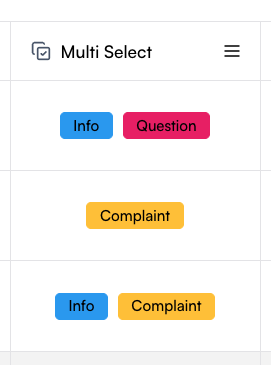
Multi-select columns let you define a set of predefined options and allow each cell to contain multiple selections. The setup process is the same as for single-select columns: define the column name, add options in the Create Column drawer, and save them as labels.
In the table, each cell can then include several of the defined options. This column type is especially useful for manual tagging with multiple tags.
### Multi select
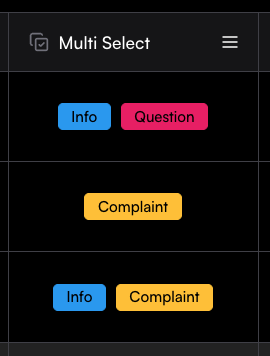
Multi-select columns let you define a set of predefined options and allow each cell to contain multiple selections. The setup process is the same as for single-select columns: define the column name, add options in the Create Column drawer, and save them as labels.
In the table, each cell can then include several of the defined options. This column type is especially useful for manual tagging with multiple tags.
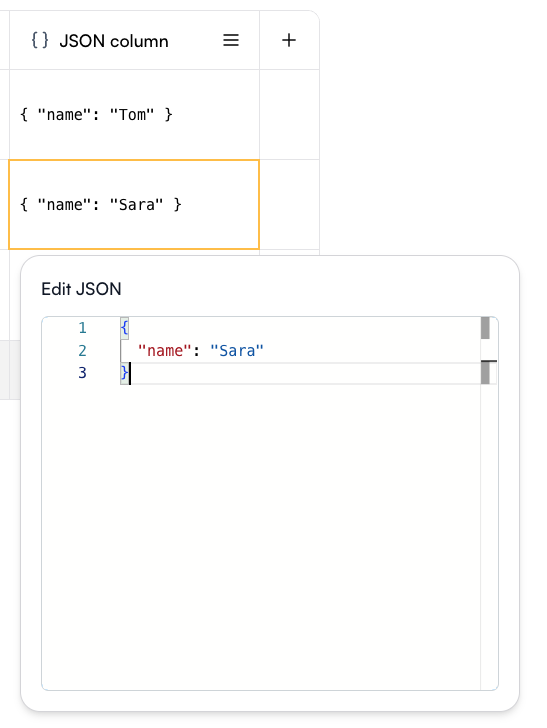
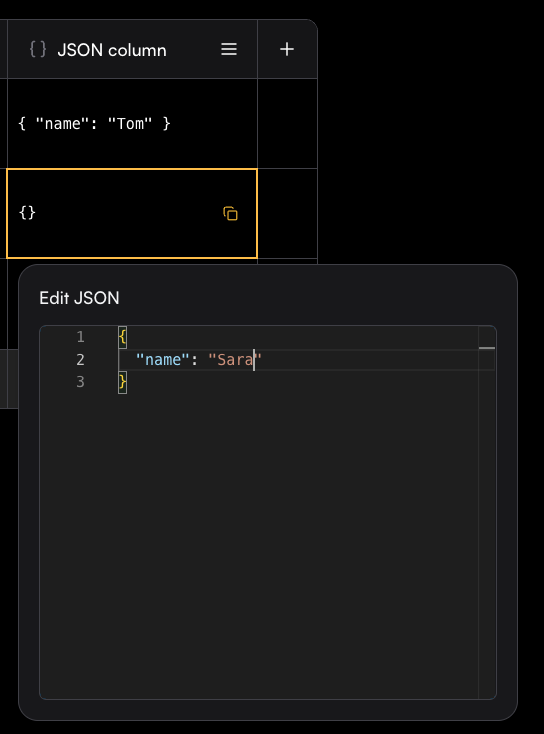
 ### JSON
A JSON column allows you to store and edit structured JSON objects directly in the Playground. Each cell can contain a JSON value, making it easy to work with complex data structures.
When editing a cell, an Edit JSON panel opens with syntax highlighting and formatting support, so you can quickly add or update fields.
### JSON
A JSON column allows you to store and edit structured JSON objects directly in the Playground. Each cell can contain a JSON value, making it easy to work with complex data structures.
When editing a cell, an Edit JSON panel opens with syntax highlighting and formatting support, so you can quickly add or update fields.
 ---
# Source: https://www.traceloop.com/docs/openllmetry/integrations/datadog.md
> ## Documentation Index
> Fetch the complete documentation index at: https://www.traceloop.com/docs/llms.txt
> Use this file to discover all available pages before exploring further.
# LLM Observability with Datadog and OpenLLMetry
With datadog, there are 2 options - you can either export directly to a Datadog Agent in your cluster, or through an OpenTelemetry Collector (which requires that you deploy one in your cluster).
See also [Datadog documentation](https://docs.datadoghq.com/opentelemetry/).
Exporting directly to an agent is easiest.
To do that, first enable the OTLP HTTP collector in your agent configuration.
This depends on how you deployed your Datadog agent. For example, if you've used a Helm chart,
you can add the following to your `values.yaml`
(see [this](https://docs.datadoghq.com/opentelemetry/otlp_ingest_in_the_agent/?tab=kuberneteshelmvaluesyaml#enabling-otlp-ingestion-on-the-datadog-agent) for other options):
```yaml theme={null}
otlp:
receiver:
protocols:
http:
enabled: true
```
Then, set this env var, and you're done!
```bash theme={null}
TRACELOOP_BASE_URL=http://:4318
```
---
# Source: https://www.traceloop.com/docs/monitoring/defining-monitors.md
> ## Documentation Index
> Fetch the complete documentation index at: https://www.traceloop.com/docs/llms.txt
> Use this file to discover all available pages before exploring further.
# Defining Monitors
> Learn how to create and configure monitors to evaluate your LLM outputs
Monitors in Traceloop allow you to continuously evaluate your LLM outputs in real time. This guide walks you through the process of creating and configuring monitors for your specific use cases.
## Creating a Monitor
To create a monitor, you need to complete these steps:
Connect the SDK to your system and add decorators to your flow. See [OpenLLMetry](/openllmetry/introduction) for setup instructions.
Select the evaluation logic that will run on matching spans. You can define your own custom evaluators or use the pre-built ones by Traceloop. See [Evaluators](/evaluators/intro) for more details.
Set criteria that determine which spans the monitor will evaluate.
Set up how the monitor operates, including sampling rates and other advanced options.
### Basic Monitor Setup
Navigate to the Monitors page and click the **New** button to open the Evaluator Library. Choose the evaluator you want to run in your monitor.
Next, you will be able to configure which spans will be monitored.
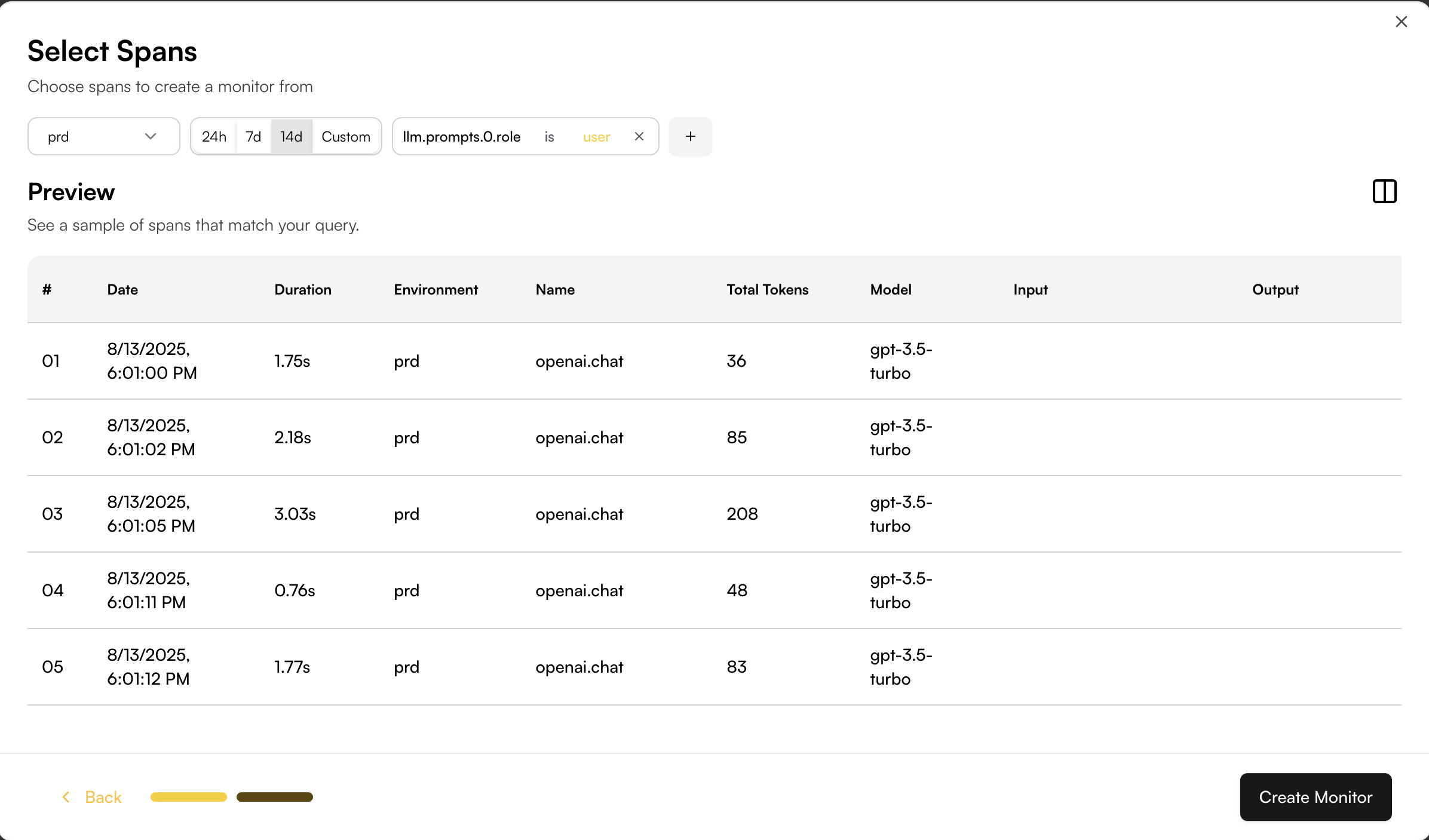
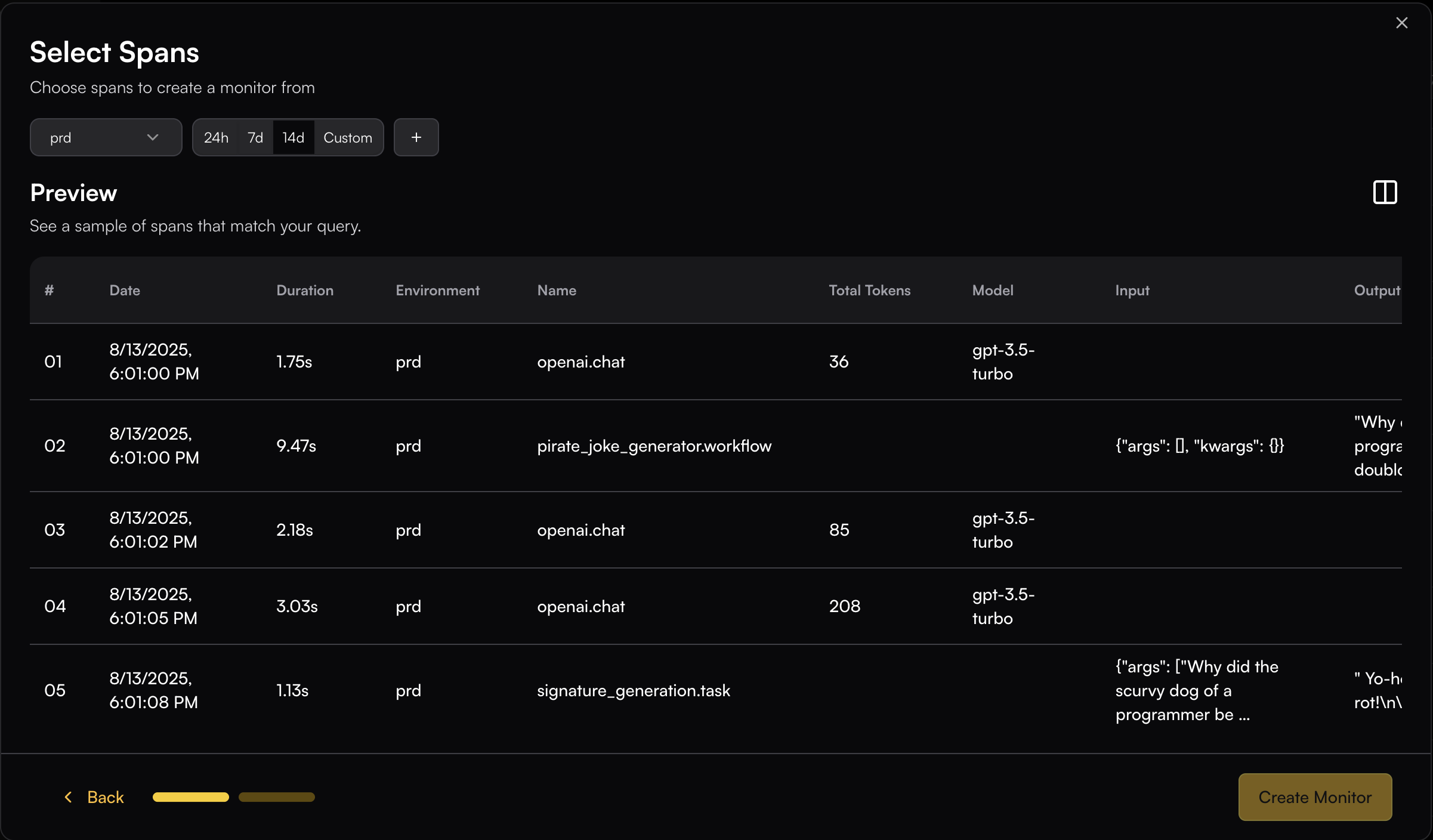
## Span Filtering
The span filtering modal shows the actual spans from your system, letting you see how your chosen filters apply to real data.
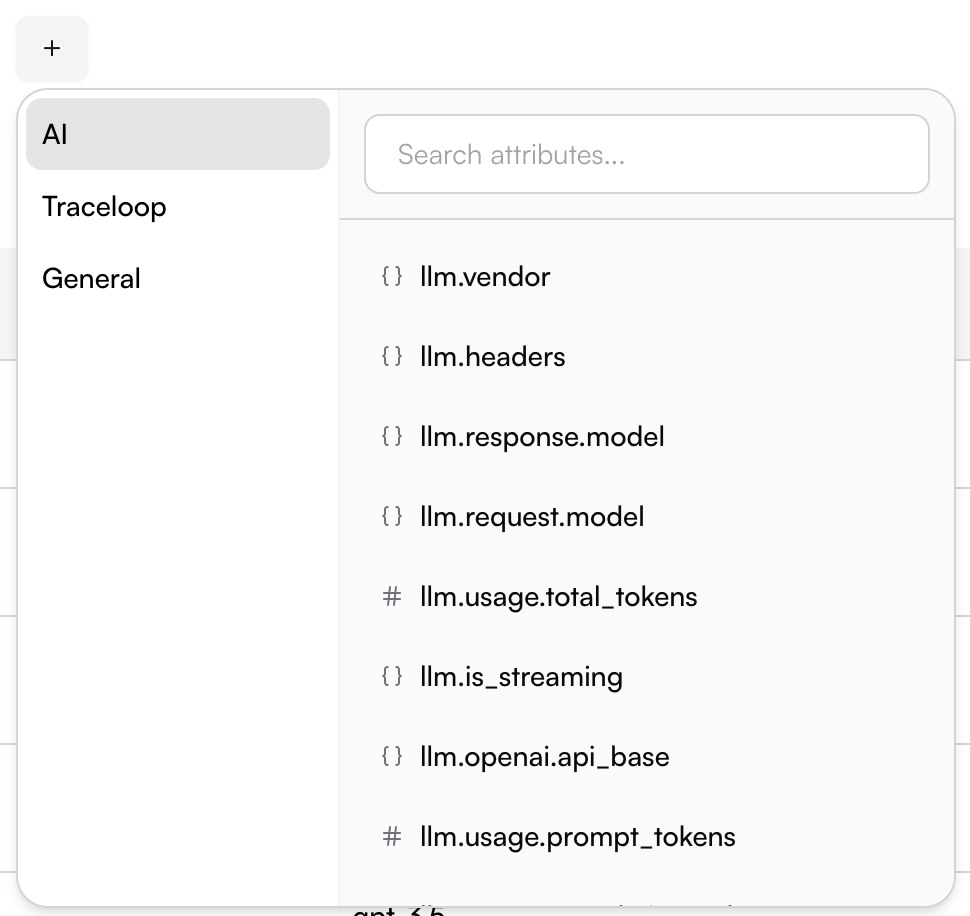
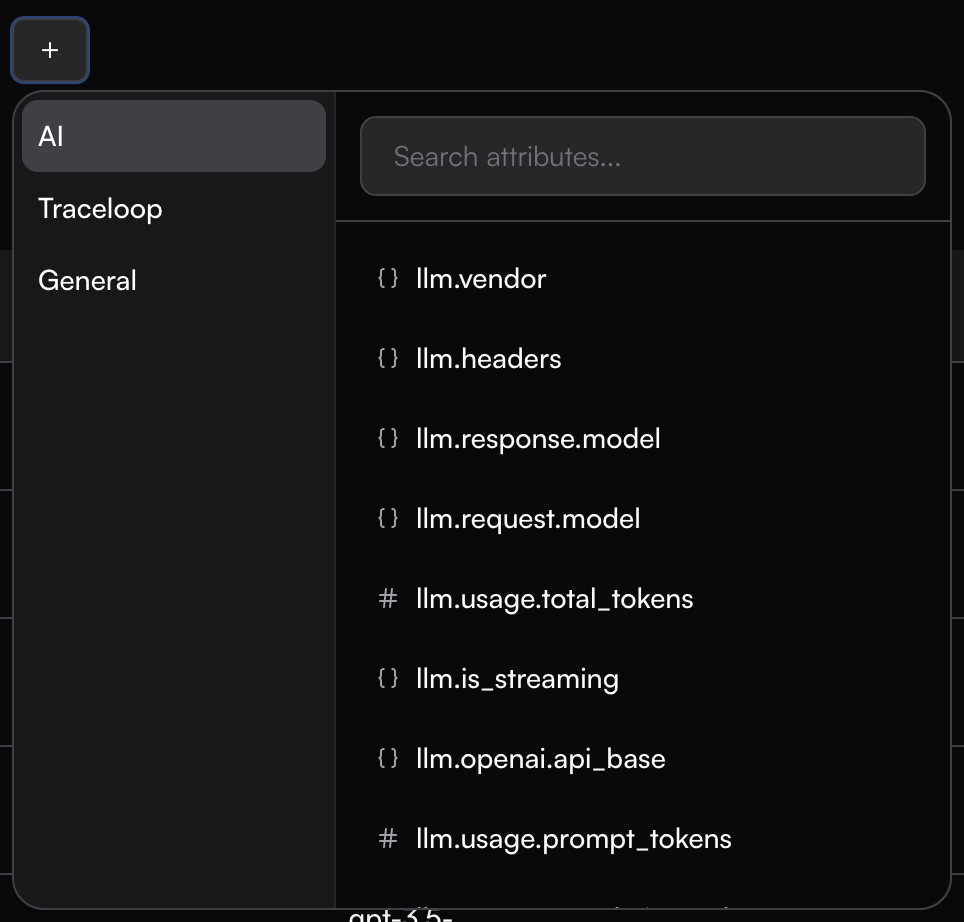
Add filters by clicking on the + button.
---
# Source: https://www.traceloop.com/docs/openllmetry/integrations/datadog.md
> ## Documentation Index
> Fetch the complete documentation index at: https://www.traceloop.com/docs/llms.txt
> Use this file to discover all available pages before exploring further.
# LLM Observability with Datadog and OpenLLMetry
With datadog, there are 2 options - you can either export directly to a Datadog Agent in your cluster, or through an OpenTelemetry Collector (which requires that you deploy one in your cluster).
See also [Datadog documentation](https://docs.datadoghq.com/opentelemetry/).
Exporting directly to an agent is easiest.
To do that, first enable the OTLP HTTP collector in your agent configuration.
This depends on how you deployed your Datadog agent. For example, if you've used a Helm chart,
you can add the following to your `values.yaml`
(see [this](https://docs.datadoghq.com/opentelemetry/otlp_ingest_in_the_agent/?tab=kuberneteshelmvaluesyaml#enabling-otlp-ingestion-on-the-datadog-agent) for other options):
```yaml theme={null}
otlp:
receiver:
protocols:
http:
enabled: true
```
Then, set this env var, and you're done!
```bash theme={null}
TRACELOOP_BASE_URL=http://:4318
```
---
# Source: https://www.traceloop.com/docs/monitoring/defining-monitors.md
> ## Documentation Index
> Fetch the complete documentation index at: https://www.traceloop.com/docs/llms.txt
> Use this file to discover all available pages before exploring further.
# Defining Monitors
> Learn how to create and configure monitors to evaluate your LLM outputs
Monitors in Traceloop allow you to continuously evaluate your LLM outputs in real time. This guide walks you through the process of creating and configuring monitors for your specific use cases.
## Creating a Monitor
To create a monitor, you need to complete these steps:
Connect the SDK to your system and add decorators to your flow. See [OpenLLMetry](/openllmetry/introduction) for setup instructions.
Select the evaluation logic that will run on matching spans. You can define your own custom evaluators or use the pre-built ones by Traceloop. See [Evaluators](/evaluators/intro) for more details.
Set criteria that determine which spans the monitor will evaluate.
Set up how the monitor operates, including sampling rates and other advanced options.
### Basic Monitor Setup
Navigate to the Monitors page and click the **New** button to open the Evaluator Library. Choose the evaluator you want to run in your monitor.
Next, you will be able to configure which spans will be monitored.
## Span Filtering
The span filtering modal shows the actual spans from your system, letting you see how your chosen filters apply to real data.
Add filters by clicking on the + button.
 ### Filter Options
* **Environment**: Filter by a specific environment
* **Workflow Name**: Filter by the workflow name defined in your system
* **Service Name**: Target spans from specific services or applications
* **AI Data**: Filter based on LLM-specific attributes like model name, token usage, streaming status, and other AI-related metadata
* **Attributes**: Filter based on span attributes
### Filter Options
* **Environment**: Filter by a specific environment
* **Workflow Name**: Filter by the workflow name defined in your system
* **Service Name**: Target spans from specific services or applications
* **AI Data**: Filter based on LLM-specific attributes like model name, token usage, streaming status, and other AI-related metadata
* **Attributes**: Filter based on span attributes
 ## Monitor Settings
### Map Input
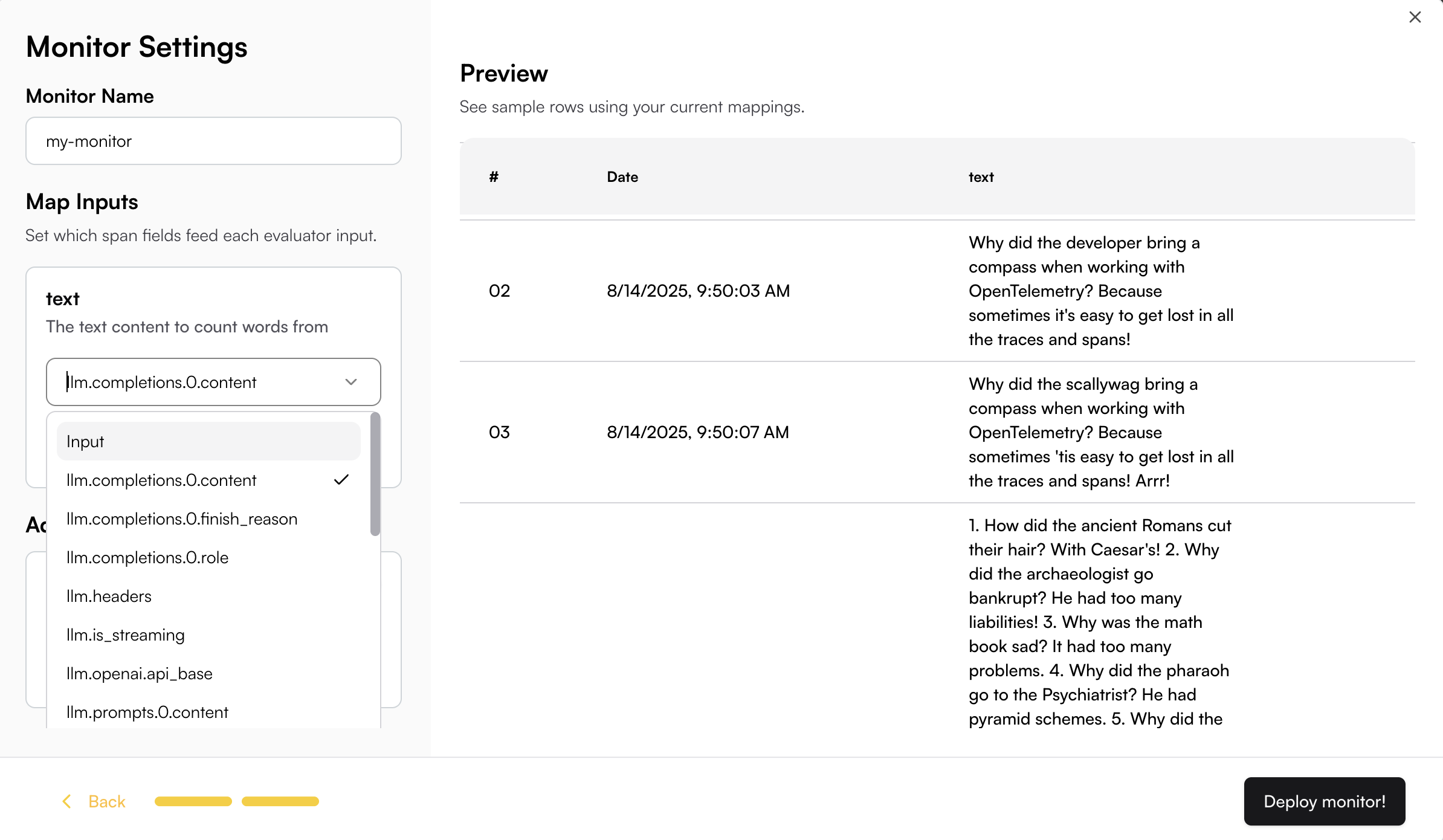
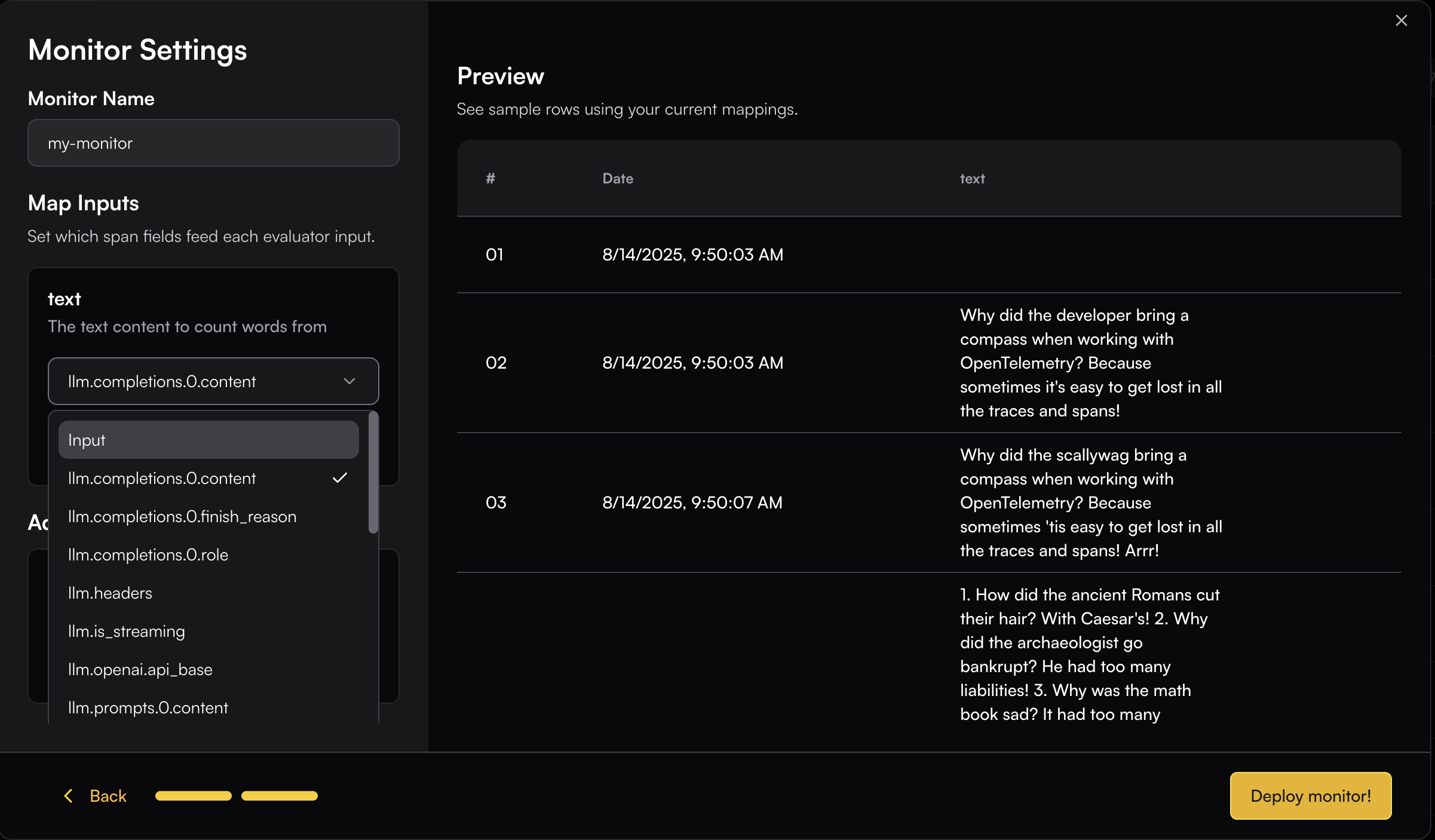
You need to map the appropriate span fields to the evaluator’s input schema.
This can be done easily by browsing through the available span field options—once you select a field, the real data is immediately displayed so you can see how it maps to the input.
## Monitor Settings
### Map Input
You need to map the appropriate span fields to the evaluator’s input schema.
This can be done easily by browsing through the available span field options—once you select a field, the real data is immediately displayed so you can see how it maps to the input.
 When the field data is not plain text, you can use JSON key mapping or Regex to extract the specific content you need.
For example, if your content is an array and you want to extract the "text" field from the object:
```json theme={null}
[{"type":"text","text":"explain who are you and what can you do in one sentence"}]
```
You can use JSON key mapping like `0.text` to extract just the text content. The JSON key mapping will be applied to the Preview table, allowing you to see the extracted result in real-time.
When the field data is not plain text, you can use JSON key mapping or Regex to extract the specific content you need.
For example, if your content is an array and you want to extract the "text" field from the object:
```json theme={null}
[{"type":"text","text":"explain who are you and what can you do in one sentence"}]
```
You can use JSON key mapping like `0.text` to extract just the text content. The JSON key mapping will be applied to the Preview table, allowing you to see the extracted result in real-time.
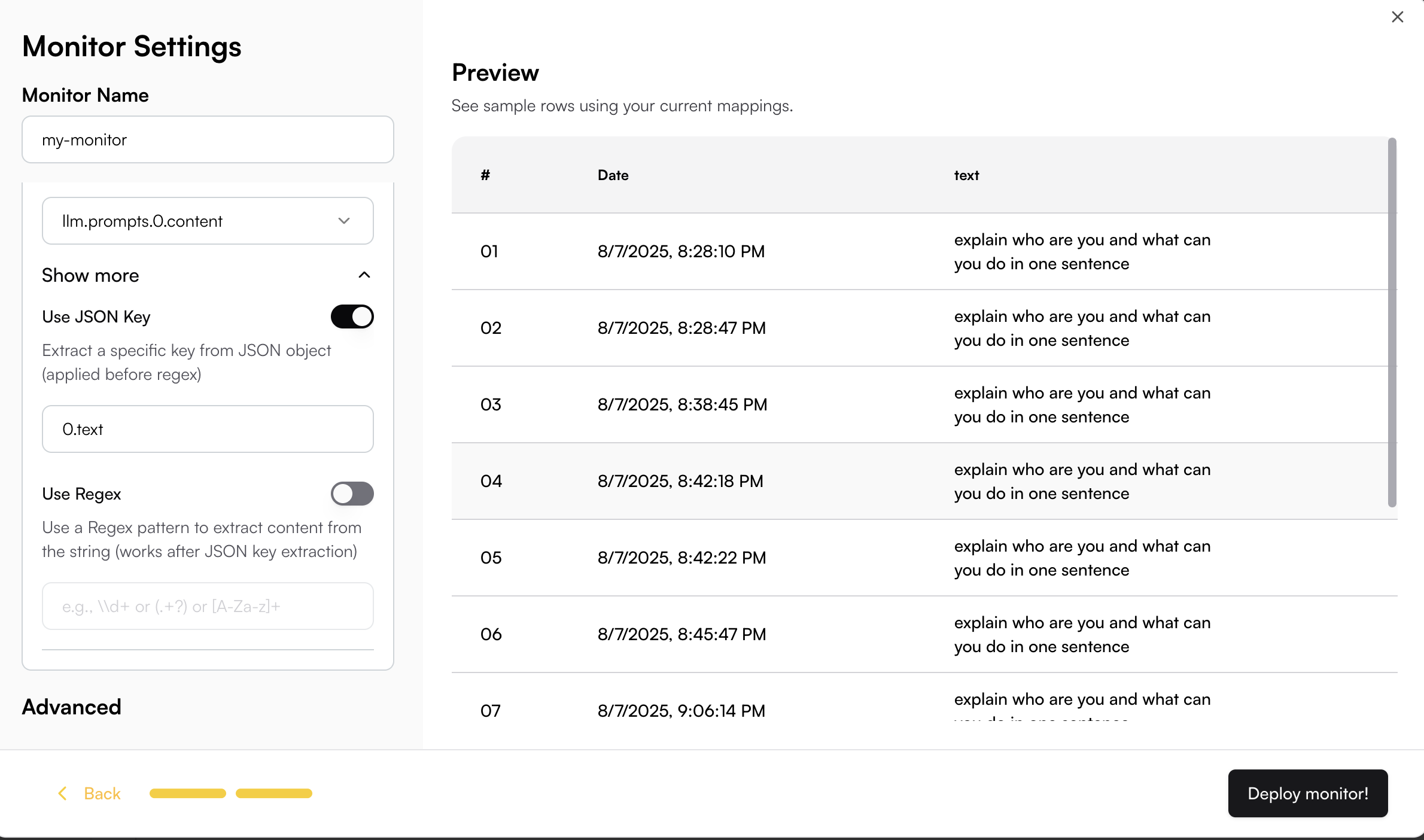
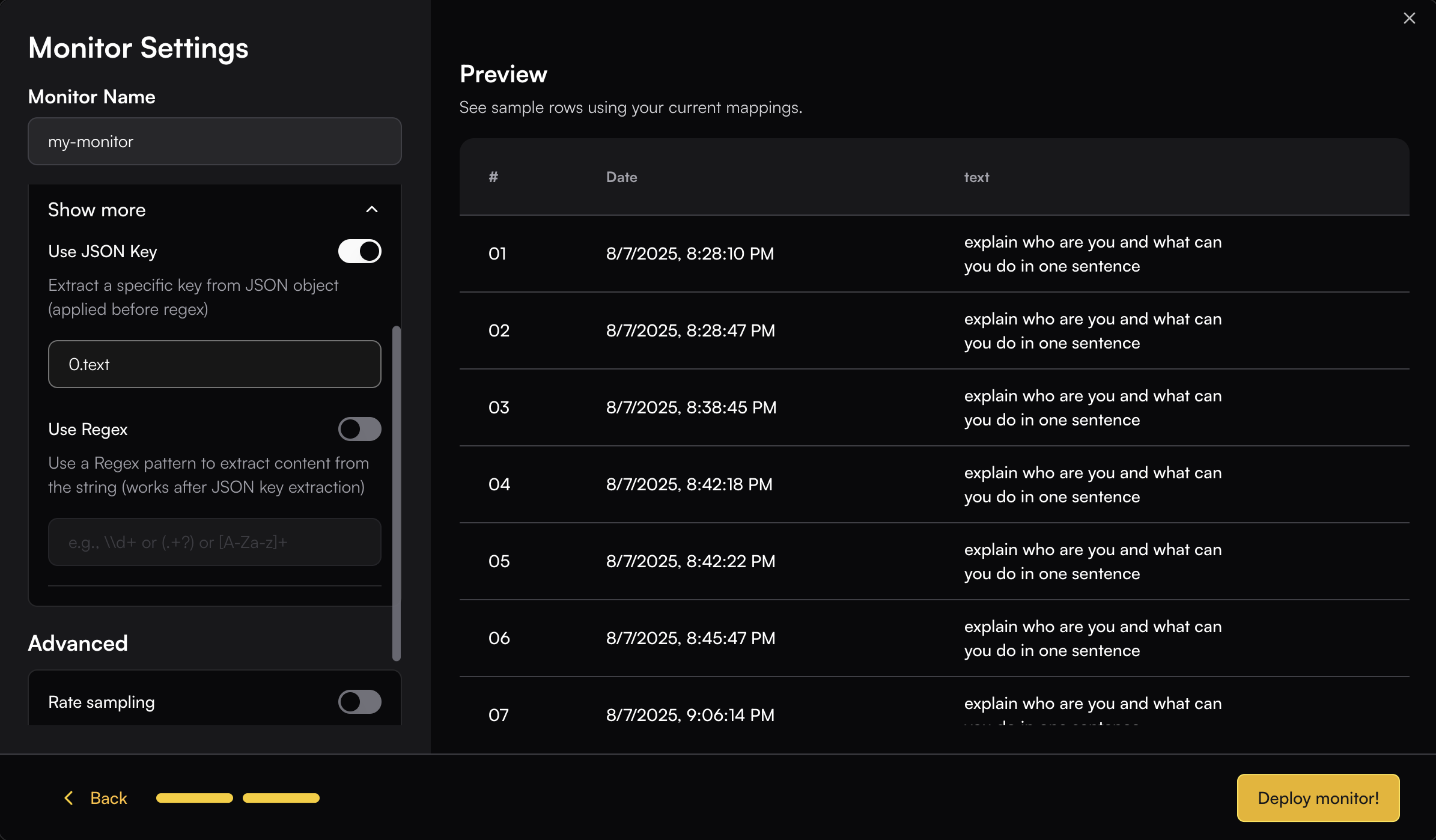 You can use Regex like `text":"(.+?)"` to extract just the text content. The regex will be applied to the Preview table, allowing you to see the extracted result in real-time.
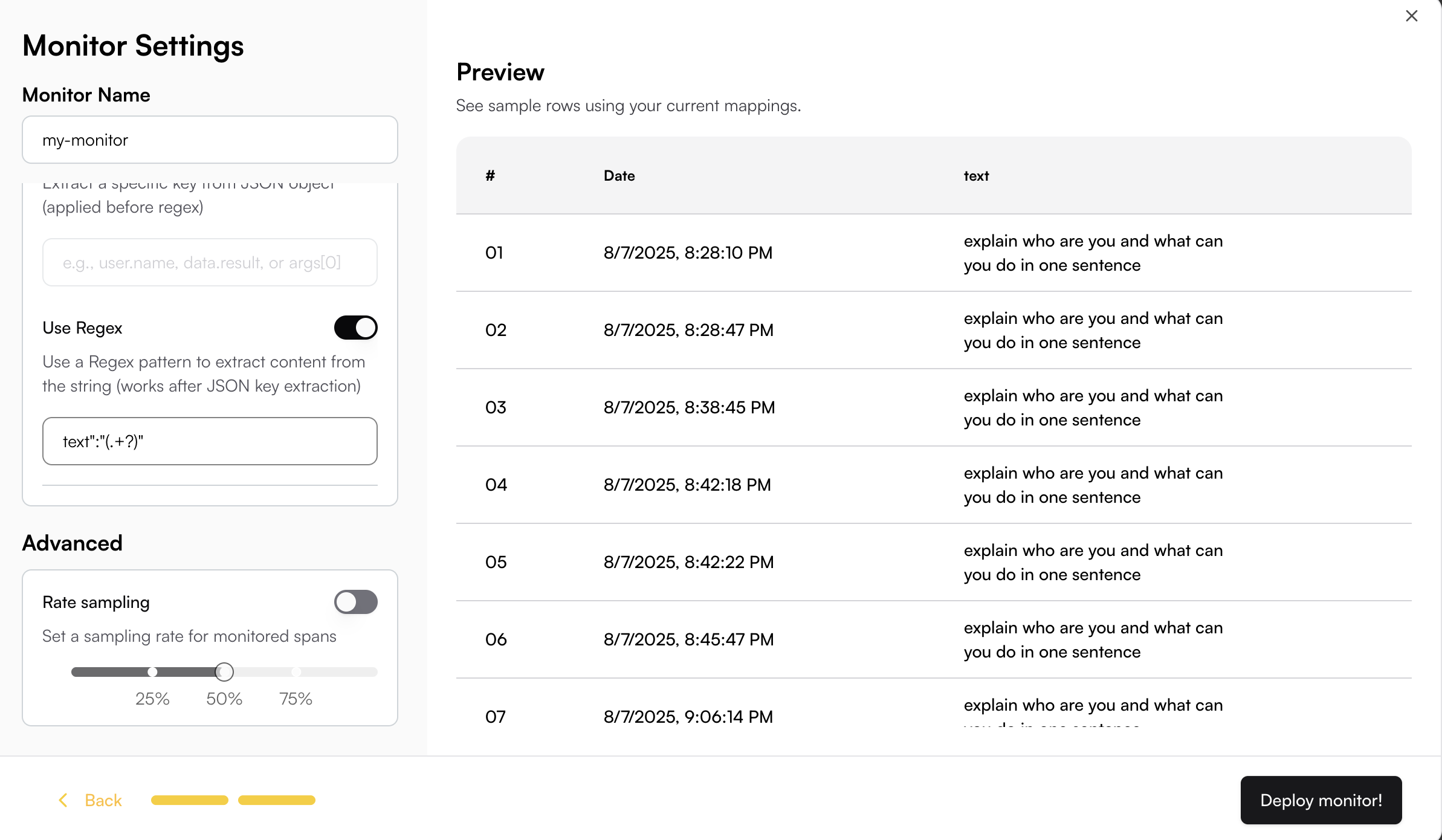
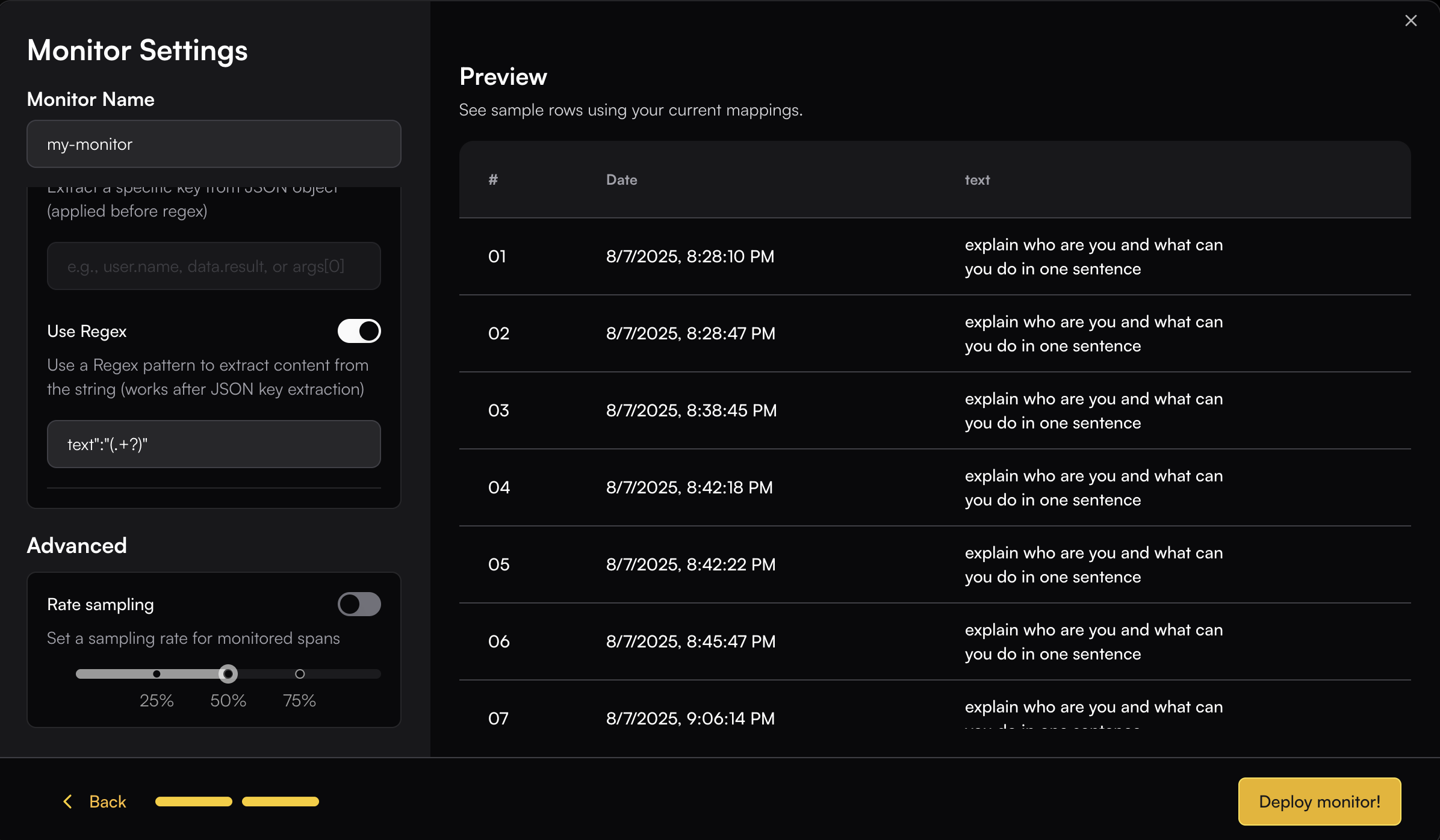 ### Advanced
You can set a **Rate sample** to control the percentage of spans within the selected filter group that the monitor will run on.
---
# Source: https://www.traceloop.com/docs/api-reference/auto-monitor-setups/delete-an-auto-monitor-setup.md
> ## Documentation Index
> Fetch the complete documentation index at: https://www.traceloop.com/docs/llms.txt
> Use this file to discover all available pages before exploring further.
# Delete an auto monitor setup
> Delete an auto monitor setup by ID
## OpenAPI
````yaml delete /v2/auto-monitor-setups/{setup_id}
openapi: 3.0.0
info:
title: Traceloop API
version: 1.0.0
contact: {}
servers:
- url: https://api.traceloop.com
security: []
paths:
/v2/auto-monitor-setups/{setup_id}:
delete:
tags:
- auto-monitor-setups
summary: Delete an auto monitor setup
description: Delete an auto monitor setup by ID
parameters:
- description: Auto monitor setup ID
in: path
name: setup_id
required: true
schema:
type: string
responses:
'204':
description: No content
'404':
description: Not found
content:
application/json:
schema:
$ref: '#/components/schemas/response.ErrorResponse'
'500':
description: Internal error
content:
application/json:
schema:
$ref: '#/components/schemas/response.ErrorResponse'
components:
schemas:
response.ErrorResponse:
description: Standard error response structure
properties:
error:
example: error message
type: string
type: object
````
---
# Source: https://www.traceloop.com/docs/api-reference/privacy/delete_request.md
> ## Documentation Index
> Fetch the complete documentation index at: https://www.traceloop.com/docs/llms.txt
> Use this file to discover all available pages before exploring further.
# Delete specific user data
You can delete traces data for a specific user of yours by specifying their association properties.
## Request Body
A list of users to delete, each specific using a specific criterion for deletion like `{userId: "123"}`.
```json theme={null}
{
"associationProperties": [
{
"userId": "123"
}
]
}
```
## Response
The request ID for this deletion request. You can use it to query the status
of the deletion.
```
```
---
# Source: https://www.traceloop.com/docs/api-reference/privacy/delete_status.md
> ## Documentation Index
> Fetch the complete documentation index at: https://www.traceloop.com/docs/llms.txt
> Use this file to discover all available pages before exploring further.
# Status of user deletion request
Get the status of your user deletion request.
## Request Query Parameter
The request ID from the user deletion request.
## Response
`true` if the process was completed, `false` otherwise.
The number of spans that were deleted.
The number of spans that needs to be deleted in total.
---
# Source: https://www.traceloop.com/docs/api-reference/tracing/delete_whitelisted_user.md
> ## Documentation Index
> Fetch the complete documentation index at: https://www.traceloop.com/docs/llms.txt
> Use this file to discover all available pages before exploring further.
# Disable logging of prompts and responses for specific users
By default, all prompts and responses are logged.
If you've disabled this behavior by following [this guide](/openllmetry/privacy/traces),
and then [selectively enabled it for some of your users](/api-reference/tracing/whitelist_user) then you
can use this API to disable it for previously enabled ones.
## Request Body
A single association property (like `{userId: "123"}`) that was previously allowed to be logged.
Example:
```json theme={null}
{
"associationProperty": {
"userId": "123"
}
}
```
---
# Source: https://www.traceloop.com/docs/openllmetry/contributing/developing.md
> ## Documentation Index
> Fetch the complete documentation index at: https://www.traceloop.com/docs/llms.txt
> Use this file to discover all available pages before exploring further.
# Local Development
You can contribute both new instrumentations or update and improve the different SDKs.
[Join our Slack community](https://traceloop.com/slack) to chat and get help on any issues you may encounter.
The Python and Typescript are monorepos that use [nx](https://nx.dev) to manage the different packages.
Make sure you have `node >= 18` and `nx` installed globally.
## Basic guide for using nx
Most commands can be run from the root of the project. For example, to lint the entire project, run:
```bash theme={null}
nx run-many -t lint
```
Other commands you can use simiarily are `test`, or `build`, or `lock` and `install` (for Python).
To run a specific command on a specific package, run:
```bash theme={null}
nx run :
```
## Python
We use `poetry` to manage packages, and each package is managed independently under its own directory under `/packages`.
All instrumentations depends on `opentelemetry-semantic-conventions-ai`,
and `traceloop-sdk` depends on all the instrumentations.
If adding a new instrumentation, make sure to use it in `traceloop-sdk`, and write proper tests.
### Debugging
No matter if you're working on an instrumentation or on the SDK, we recommend testing the changes by using
the SDK in the sample app (`/packages/sample-app`) or the tests under the SDK.
### Running tests
We record HTTP requests and then replay them in tests to avoid making actual calls to the foundation model providers.
See [vcr.py](https://github.com/kevin1024/vcrpy) and [pollyjs](https://github.com/Netflix/pollyjs/) to do that, check out
their documentation to understand how to use them and re-record the requests.
You can run all tests by running:
```bash theme={null}
nx run-many -t test
```
Or run a specific test by running:
```bash theme={null}
nx run :test
```
For example, to run the tests for the `openai` instrumentation package, run:
```bash Python theme={null}
nx run opentelemetry-instrumentation-openai:test
```
```bash Typescript theme={null}
nx run @traceloop/instrumentation-openai:test
```
## Typescript
We use `npm` with workspaces to manage packages in the monorepo. Install by running `npm install` in the root of the project.
Each package has its own test suite. You can use the sample app to run and test changes locally.
---
# Source: https://www.traceloop.com/docs/openllmetry/integrations/dynatrace.md
> ## Documentation Index
> Fetch the complete documentation index at: https://www.traceloop.com/docs/llms.txt
> Use this file to discover all available pages before exploring further.
# LLM Observability with Dynatrace and OpenLLMetry
### Advanced
You can set a **Rate sample** to control the percentage of spans within the selected filter group that the monitor will run on.
---
# Source: https://www.traceloop.com/docs/api-reference/auto-monitor-setups/delete-an-auto-monitor-setup.md
> ## Documentation Index
> Fetch the complete documentation index at: https://www.traceloop.com/docs/llms.txt
> Use this file to discover all available pages before exploring further.
# Delete an auto monitor setup
> Delete an auto monitor setup by ID
## OpenAPI
````yaml delete /v2/auto-monitor-setups/{setup_id}
openapi: 3.0.0
info:
title: Traceloop API
version: 1.0.0
contact: {}
servers:
- url: https://api.traceloop.com
security: []
paths:
/v2/auto-monitor-setups/{setup_id}:
delete:
tags:
- auto-monitor-setups
summary: Delete an auto monitor setup
description: Delete an auto monitor setup by ID
parameters:
- description: Auto monitor setup ID
in: path
name: setup_id
required: true
schema:
type: string
responses:
'204':
description: No content
'404':
description: Not found
content:
application/json:
schema:
$ref: '#/components/schemas/response.ErrorResponse'
'500':
description: Internal error
content:
application/json:
schema:
$ref: '#/components/schemas/response.ErrorResponse'
components:
schemas:
response.ErrorResponse:
description: Standard error response structure
properties:
error:
example: error message
type: string
type: object
````
---
# Source: https://www.traceloop.com/docs/api-reference/privacy/delete_request.md
> ## Documentation Index
> Fetch the complete documentation index at: https://www.traceloop.com/docs/llms.txt
> Use this file to discover all available pages before exploring further.
# Delete specific user data
You can delete traces data for a specific user of yours by specifying their association properties.
## Request Body
A list of users to delete, each specific using a specific criterion for deletion like `{userId: "123"}`.
```json theme={null}
{
"associationProperties": [
{
"userId": "123"
}
]
}
```
## Response
The request ID for this deletion request. You can use it to query the status
of the deletion.
```
```
---
# Source: https://www.traceloop.com/docs/api-reference/privacy/delete_status.md
> ## Documentation Index
> Fetch the complete documentation index at: https://www.traceloop.com/docs/llms.txt
> Use this file to discover all available pages before exploring further.
# Status of user deletion request
Get the status of your user deletion request.
## Request Query Parameter
The request ID from the user deletion request.
## Response
`true` if the process was completed, `false` otherwise.
The number of spans that were deleted.
The number of spans that needs to be deleted in total.
---
# Source: https://www.traceloop.com/docs/api-reference/tracing/delete_whitelisted_user.md
> ## Documentation Index
> Fetch the complete documentation index at: https://www.traceloop.com/docs/llms.txt
> Use this file to discover all available pages before exploring further.
# Disable logging of prompts and responses for specific users
By default, all prompts and responses are logged.
If you've disabled this behavior by following [this guide](/openllmetry/privacy/traces),
and then [selectively enabled it for some of your users](/api-reference/tracing/whitelist_user) then you
can use this API to disable it for previously enabled ones.
## Request Body
A single association property (like `{userId: "123"}`) that was previously allowed to be logged.
Example:
```json theme={null}
{
"associationProperty": {
"userId": "123"
}
}
```
---
# Source: https://www.traceloop.com/docs/openllmetry/contributing/developing.md
> ## Documentation Index
> Fetch the complete documentation index at: https://www.traceloop.com/docs/llms.txt
> Use this file to discover all available pages before exploring further.
# Local Development
You can contribute both new instrumentations or update and improve the different SDKs.
[Join our Slack community](https://traceloop.com/slack) to chat and get help on any issues you may encounter.
The Python and Typescript are monorepos that use [nx](https://nx.dev) to manage the different packages.
Make sure you have `node >= 18` and `nx` installed globally.
## Basic guide for using nx
Most commands can be run from the root of the project. For example, to lint the entire project, run:
```bash theme={null}
nx run-many -t lint
```
Other commands you can use simiarily are `test`, or `build`, or `lock` and `install` (for Python).
To run a specific command on a specific package, run:
```bash theme={null}
nx run :
```
## Python
We use `poetry` to manage packages, and each package is managed independently under its own directory under `/packages`.
All instrumentations depends on `opentelemetry-semantic-conventions-ai`,
and `traceloop-sdk` depends on all the instrumentations.
If adding a new instrumentation, make sure to use it in `traceloop-sdk`, and write proper tests.
### Debugging
No matter if you're working on an instrumentation or on the SDK, we recommend testing the changes by using
the SDK in the sample app (`/packages/sample-app`) or the tests under the SDK.
### Running tests
We record HTTP requests and then replay them in tests to avoid making actual calls to the foundation model providers.
See [vcr.py](https://github.com/kevin1024/vcrpy) and [pollyjs](https://github.com/Netflix/pollyjs/) to do that, check out
their documentation to understand how to use them and re-record the requests.
You can run all tests by running:
```bash theme={null}
nx run-many -t test
```
Or run a specific test by running:
```bash theme={null}
nx run :test
```
For example, to run the tests for the `openai` instrumentation package, run:
```bash Python theme={null}
nx run opentelemetry-instrumentation-openai:test
```
```bash Typescript theme={null}
nx run @traceloop/instrumentation-openai:test
```
## Typescript
We use `npm` with workspaces to manage packages in the monorepo. Install by running `npm install` in the root of the project.
Each package has its own test suite. You can use the sample app to run and test changes locally.
---
# Source: https://www.traceloop.com/docs/openllmetry/integrations/dynatrace.md
> ## Documentation Index
> Fetch the complete documentation index at: https://www.traceloop.com/docs/llms.txt
> Use this file to discover all available pages before exploring further.
# LLM Observability with Dynatrace and OpenLLMetry
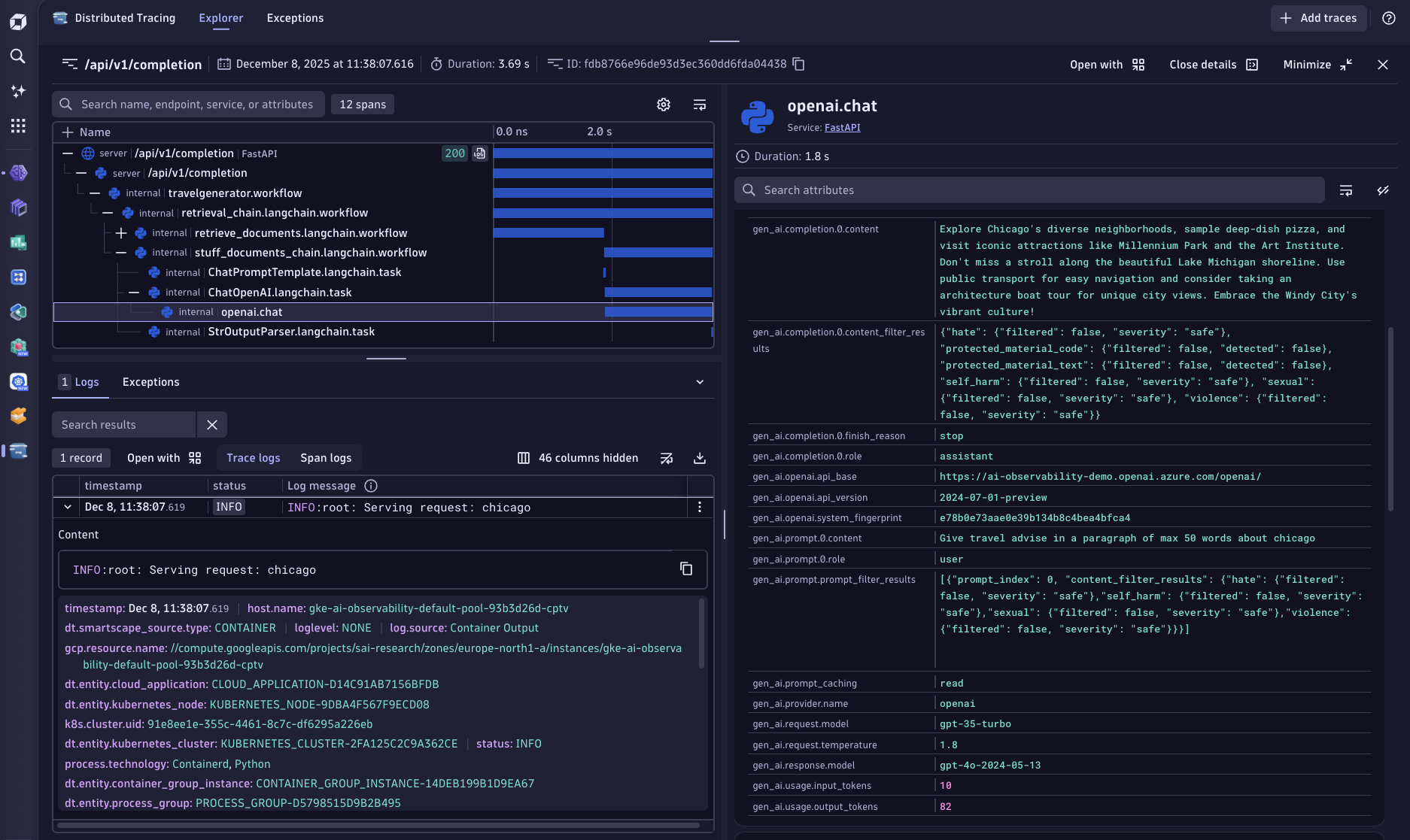 Analyze all collected LLM traces and logs within Dynatrace by using the native OpenTelemetry ingest endpoint of your Dynatrace environment.
Go to your Dynatrace environment and create a new access token under **Manage Access Tokens**.\
The access token needs the following permission scopes that allow the ingest of OpenTelemetry spans, metrics and logs
(openTelemetryTrace.ingest, metrics.ingest, logs.ingest).
Set `TRACELOOP_BASE_URL` environment variable to the URL of your Dynatrace OpenTelemetry ingest endpoint
```bash theme={null}
TRACELOOP_BASE_URL=https://.live.dynatrace.com\api\v2\otlp
```
Set the `TRACELOOP_HEADERS` environment variable to include your previously created access token
```bash theme={null}
TRACELOOP_HEADERS=Authorization=Api-Token%20
```
Done! All exported spans, along with their span attributes, will appear within the [Dynatrace trace view](https://wkf10640.apps.dynatrace.com/ui/apps/dynatrace.genai.observability).
---
# Source: https://www.traceloop.com/docs/openllmetry/integrations/elasticsearch-apm.md
> ## Documentation Index
> Fetch the complete documentation index at: https://www.traceloop.com/docs/llms.txt
> Use this file to discover all available pages before exploring further.
# LLM Observability with Elasticsearch APM Service
Connect OpenLLMetry to [Elastic APM](https://www.elastic.co/guide/en/apm/guide/current/index.html) to visualize LLM traces in Kibana's native APM interface. This integration uses OpenTelemetry Protocol (OTLP) to route traces from your application through an OpenTelemetry Collector to Elastic APM Server.
This integration requires an OpenTelemetry Collector to route traces between Traceloop OpenLLMetry client and Elastic APM Server.
Elastic APM Server 8.x+ supports OTLP natively.
## Quick Start
Install the Traceloop SDK alongside your LLM provider client:
```bash theme={null}
pip install traceloop-sdk openai
```
Configure your OpenTelemetry Collector to receive traces from OpenLLMetry and forward them to APM Server.
Create an `otel-collector-config.yaml` file:
```yaml theme={null}
receivers:
otlp:
protocols:
http:
endpoint: localhost:4318
grpc:
endpoint: localhost:4317
processors:
batch:
timeout: 10s
send_batch_size: 1024
memory_limiter:
check_interval: 1s
limit_mib: 512
resource:
attributes:
- key: service.name
action: upsert
value: your-service-name # Match this to app_name parameter value when calling Traceloop.init()
exporters:
# Export to APM Server via OTLP
otlp/apm:
endpoint: http://localhost:8200 # APM Server Endpoint
tls:
insecure: true # Allow insecure connection from OTEL Collector to APM Server (for demo purposes)
compression: gzip
# Logging exporter for debugging (can ignore if not needed)
logging:
verbosity: normal # This is the verbosity of the logging
sampling_initial: 5
sampling_thereafter: 200
# Debug exporter to verify trace data
debug:
verbosity: detailed
sampling_initial: 10
sampling_thereafter: 10
extensions:
health_check:
endpoint: localhost:13133 # Endpoint of OpenTelemetry Collector's health check extension
service:
extensions: [health_check] # Enable health check extension
pipelines:
traces:
receivers: [otlp]
processors: [memory_limiter, batch, resource]
exporters: [otlp/apm, logging, debug]
metrics:
receivers: [otlp]
processors: [memory_limiter, batch, resource]
exporters: [otlp/apm, logging]
logs:
receivers: [otlp]
processors: [memory_limiter, batch, resource]
exporters: [otlp/apm, logging]
```
In production, enable TLS and use APM Server secret tokens for authentication.
Set `tls.insecure: false` and configure `headers: Authorization: Bearer `.
Import and initialize Traceloop before any LLM imports:
```python theme={null}
from os import getenv
from traceloop.sdk import Traceloop
from openai import OpenAI
# Initialize Traceloop with OTLP endpoint
Traceloop.init(
app_name="your-service-name",
api_endpoint="http://localhost:4318"
)
# Traceloop must be initialized before importing the LLM client
# Traceloop instruments the OpenAI client automatically
client = OpenAI(api_key=getenv("OPENAI_API_KEY"))
# Make LLM calls - automatically traced
response = client.chat.completions.create(
model="gpt-4o-mini",
messages=[{"role": "user", "content": "Hello!"}]
)
```
The `app_name` parameter sets the service name visible in Kibana APM's service list.
Navigate to Kibana's APM interface:
1. Open Kibana at `http://localhost:5601`
2. Go to **Observability → APM → Services**
3. Click on your service name (e.g., `your-service-name`)
4. View transactions and trace timelines with full LLM metadata
Each LLM call appears as a span containing:
* Model name (`gen_ai.request.model`)
* Token usage (`gen_ai.usage.input_tokens`, `gen_ai.usage.output_tokens`)
* Prompts and completions (configurable)
* Request duration and latency
## Environment Variables
Configure OpenLLMetry behavior using environment variables:
| Variable | Description | Default |
| ------------------------- | -------------------------------- | ----------------------- |
| `TRACELOOP_BASE_URL` | OpenTelemetry Collector endpoint | `http://localhost:4318` |
| `TRACELOOP_TRACE_CONTENT` | Capture prompts/completions | `true` |
Set `TRACELOOP_TRACE_CONTENT=false` in production to prevent logging sensitive prompt content.
## Using Workflow Decorators
For complex applications with multiple steps, use workflow decorators to create hierarchical traces:
```python theme={null}
from os import getenv
from traceloop.sdk import Traceloop
from traceloop.sdk.decorators import workflow, task
from openai import OpenAI
Traceloop.init(
app_name="recipe-service",
api_endpoint="http://localhost:4318",
)
# Traceloop must be initialized before importing the LLM client
# Traceloop instruments the OpenAI client automatically
client = OpenAI(api_key=getenv("OPENAI_API_KEY"))
@task(name="generate_recipe")
def generate_recipe(dish: str):
"""LLM call - creates a child span"""
response = client.chat.completions.create(
model="gpt-4o-mini",
messages=[
{"role": "system", "content": "You are a chef."},
{"role": "user", "content": f"Recipe for {dish}"}
]
)
return response.choices[0].message.content
@workflow(name="recipe_workflow")
def create_recipe(dish: str, servings: int):
"""Parent workflow - creates the root transaction"""
recipe = generate_recipe(dish)
return {"recipe": recipe, "servings": servings}
# Call the workflow
result = create_recipe("pasta carbonara", 4)
```
In Kibana APM, you'll see:
* `recipe_workflow.workflow` as the parent transaction
* `generate_recipe.task` as a child span
* `openai.chat.completions` as the LLM API span with full metadata
## Example Trace Visualization
### Trace View
Analyze all collected LLM traces and logs within Dynatrace by using the native OpenTelemetry ingest endpoint of your Dynatrace environment.
Go to your Dynatrace environment and create a new access token under **Manage Access Tokens**.\
The access token needs the following permission scopes that allow the ingest of OpenTelemetry spans, metrics and logs
(openTelemetryTrace.ingest, metrics.ingest, logs.ingest).
Set `TRACELOOP_BASE_URL` environment variable to the URL of your Dynatrace OpenTelemetry ingest endpoint
```bash theme={null}
TRACELOOP_BASE_URL=https://.live.dynatrace.com\api\v2\otlp
```
Set the `TRACELOOP_HEADERS` environment variable to include your previously created access token
```bash theme={null}
TRACELOOP_HEADERS=Authorization=Api-Token%20
```
Done! All exported spans, along with their span attributes, will appear within the [Dynatrace trace view](https://wkf10640.apps.dynatrace.com/ui/apps/dynatrace.genai.observability).
---
# Source: https://www.traceloop.com/docs/openllmetry/integrations/elasticsearch-apm.md
> ## Documentation Index
> Fetch the complete documentation index at: https://www.traceloop.com/docs/llms.txt
> Use this file to discover all available pages before exploring further.
# LLM Observability with Elasticsearch APM Service
Connect OpenLLMetry to [Elastic APM](https://www.elastic.co/guide/en/apm/guide/current/index.html) to visualize LLM traces in Kibana's native APM interface. This integration uses OpenTelemetry Protocol (OTLP) to route traces from your application through an OpenTelemetry Collector to Elastic APM Server.
This integration requires an OpenTelemetry Collector to route traces between Traceloop OpenLLMetry client and Elastic APM Server.
Elastic APM Server 8.x+ supports OTLP natively.
## Quick Start
Install the Traceloop SDK alongside your LLM provider client:
```bash theme={null}
pip install traceloop-sdk openai
```
Configure your OpenTelemetry Collector to receive traces from OpenLLMetry and forward them to APM Server.
Create an `otel-collector-config.yaml` file:
```yaml theme={null}
receivers:
otlp:
protocols:
http:
endpoint: localhost:4318
grpc:
endpoint: localhost:4317
processors:
batch:
timeout: 10s
send_batch_size: 1024
memory_limiter:
check_interval: 1s
limit_mib: 512
resource:
attributes:
- key: service.name
action: upsert
value: your-service-name # Match this to app_name parameter value when calling Traceloop.init()
exporters:
# Export to APM Server via OTLP
otlp/apm:
endpoint: http://localhost:8200 # APM Server Endpoint
tls:
insecure: true # Allow insecure connection from OTEL Collector to APM Server (for demo purposes)
compression: gzip
# Logging exporter for debugging (can ignore if not needed)
logging:
verbosity: normal # This is the verbosity of the logging
sampling_initial: 5
sampling_thereafter: 200
# Debug exporter to verify trace data
debug:
verbosity: detailed
sampling_initial: 10
sampling_thereafter: 10
extensions:
health_check:
endpoint: localhost:13133 # Endpoint of OpenTelemetry Collector's health check extension
service:
extensions: [health_check] # Enable health check extension
pipelines:
traces:
receivers: [otlp]
processors: [memory_limiter, batch, resource]
exporters: [otlp/apm, logging, debug]
metrics:
receivers: [otlp]
processors: [memory_limiter, batch, resource]
exporters: [otlp/apm, logging]
logs:
receivers: [otlp]
processors: [memory_limiter, batch, resource]
exporters: [otlp/apm, logging]
```
In production, enable TLS and use APM Server secret tokens for authentication.
Set `tls.insecure: false` and configure `headers: Authorization: Bearer `.
Import and initialize Traceloop before any LLM imports:
```python theme={null}
from os import getenv
from traceloop.sdk import Traceloop
from openai import OpenAI
# Initialize Traceloop with OTLP endpoint
Traceloop.init(
app_name="your-service-name",
api_endpoint="http://localhost:4318"
)
# Traceloop must be initialized before importing the LLM client
# Traceloop instruments the OpenAI client automatically
client = OpenAI(api_key=getenv("OPENAI_API_KEY"))
# Make LLM calls - automatically traced
response = client.chat.completions.create(
model="gpt-4o-mini",
messages=[{"role": "user", "content": "Hello!"}]
)
```
The `app_name` parameter sets the service name visible in Kibana APM's service list.
Navigate to Kibana's APM interface:
1. Open Kibana at `http://localhost:5601`
2. Go to **Observability → APM → Services**
3. Click on your service name (e.g., `your-service-name`)
4. View transactions and trace timelines with full LLM metadata
Each LLM call appears as a span containing:
* Model name (`gen_ai.request.model`)
* Token usage (`gen_ai.usage.input_tokens`, `gen_ai.usage.output_tokens`)
* Prompts and completions (configurable)
* Request duration and latency
## Environment Variables
Configure OpenLLMetry behavior using environment variables:
| Variable | Description | Default |
| ------------------------- | -------------------------------- | ----------------------- |
| `TRACELOOP_BASE_URL` | OpenTelemetry Collector endpoint | `http://localhost:4318` |
| `TRACELOOP_TRACE_CONTENT` | Capture prompts/completions | `true` |
Set `TRACELOOP_TRACE_CONTENT=false` in production to prevent logging sensitive prompt content.
## Using Workflow Decorators
For complex applications with multiple steps, use workflow decorators to create hierarchical traces:
```python theme={null}
from os import getenv
from traceloop.sdk import Traceloop
from traceloop.sdk.decorators import workflow, task
from openai import OpenAI
Traceloop.init(
app_name="recipe-service",
api_endpoint="http://localhost:4318",
)
# Traceloop must be initialized before importing the LLM client
# Traceloop instruments the OpenAI client automatically
client = OpenAI(api_key=getenv("OPENAI_API_KEY"))
@task(name="generate_recipe")
def generate_recipe(dish: str):
"""LLM call - creates a child span"""
response = client.chat.completions.create(
model="gpt-4o-mini",
messages=[
{"role": "system", "content": "You are a chef."},
{"role": "user", "content": f"Recipe for {dish}"}
]
)
return response.choices[0].message.content
@workflow(name="recipe_workflow")
def create_recipe(dish: str, servings: int):
"""Parent workflow - creates the root transaction"""
recipe = generate_recipe(dish)
return {"recipe": recipe, "servings": servings}
# Call the workflow
result = create_recipe("pasta carbonara", 4)
```
In Kibana APM, you'll see:
* `recipe_workflow.workflow` as the parent transaction
* `generate_recipe.task` as a child span
* `openai.chat.completions` as the LLM API span with full metadata
## Example Trace Visualization
### Trace View
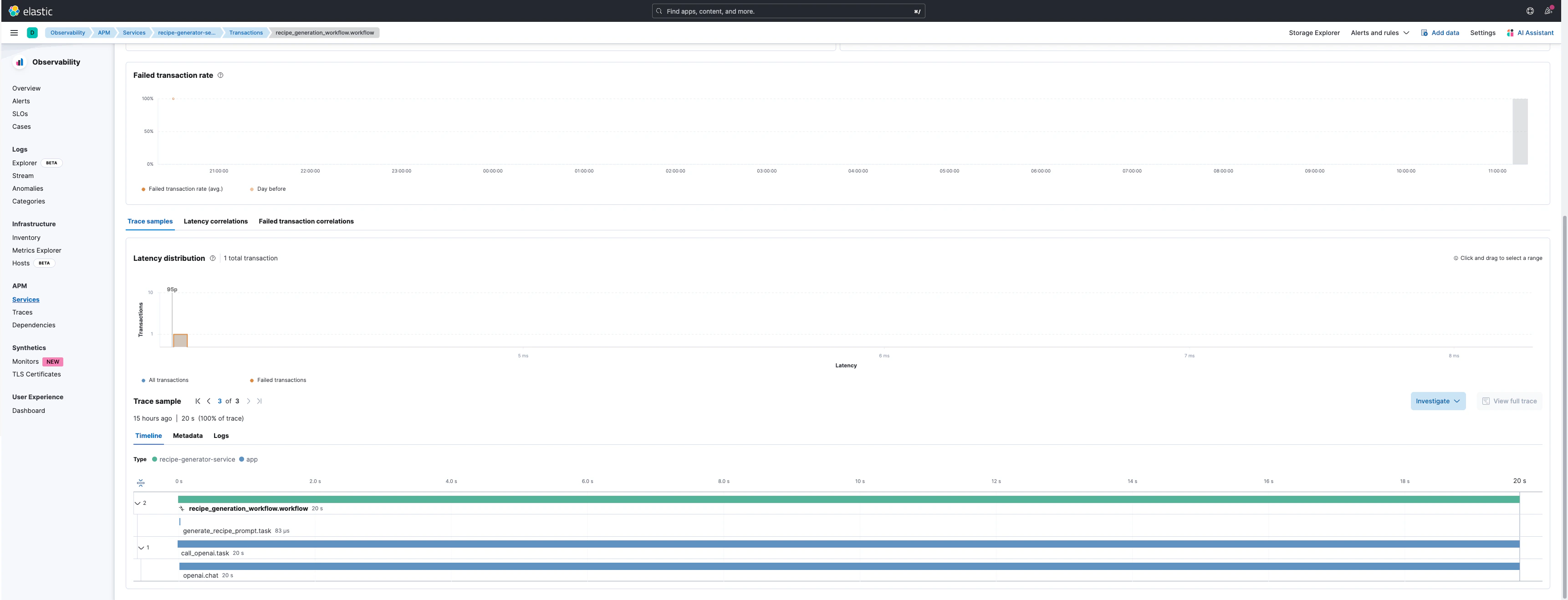 ### Trace Details
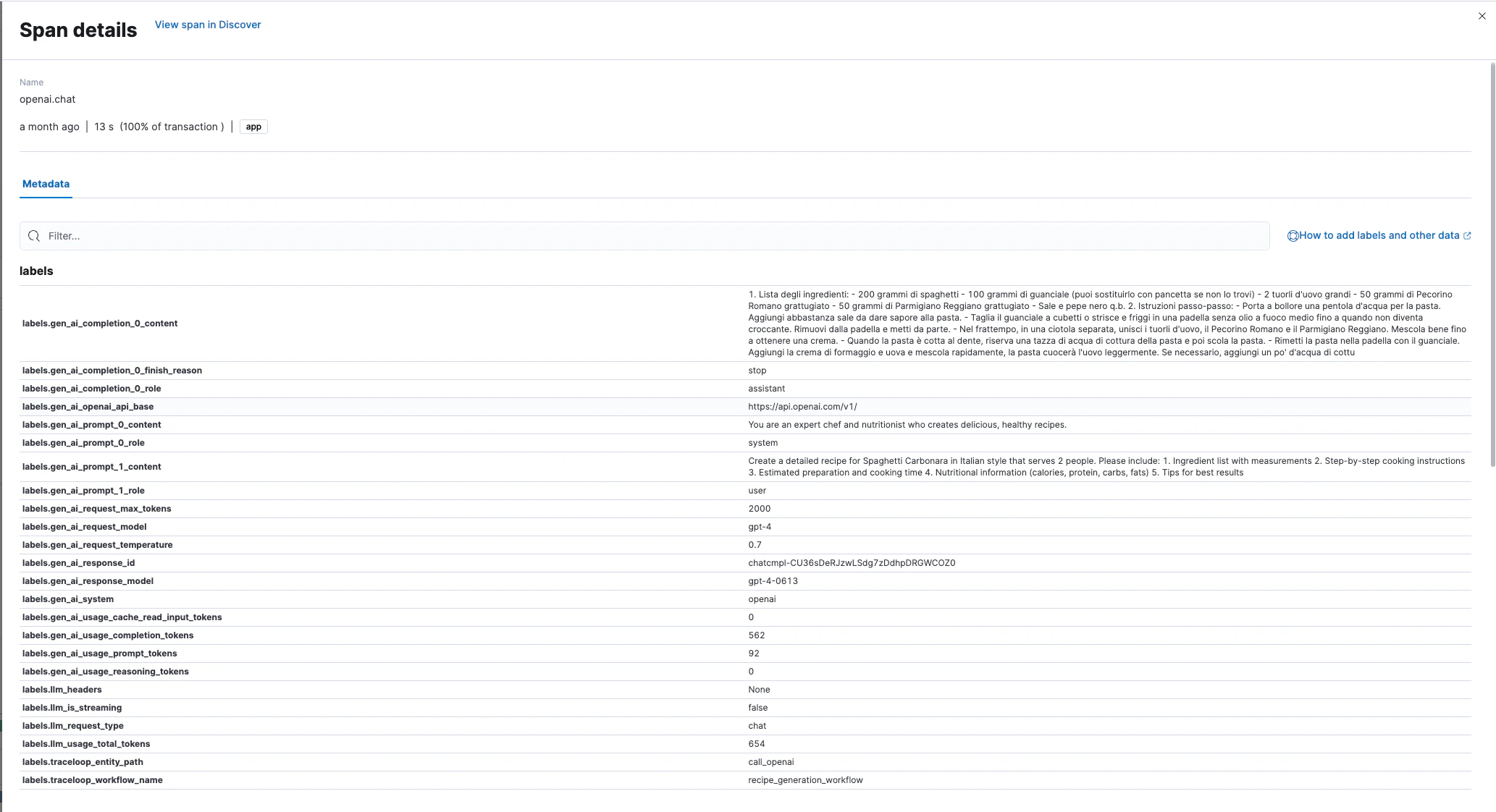 ## Captured Metadata
OpenLLMetry automatically captures these attributes in each LLM span:
**Request Attributes:**
* `gen_ai.request.model` - Model identifier
* `gen_ai.request.temperature` - Sampling temperature
* `gen_ai.system` - Provider name (OpenAI, Anthropic, etc.)
**Response Attributes:**
* `gen_ai.response.model` - Actual model used
* `gen_ai.response.id` - Unique response identifier
* `gen_ai.response.finish_reason` - Completion reason
**Token Usage:**
* `gen_ai.usage.input_tokens` - Input token count
* `gen_ai.usage.output_tokens` - Output token count
* `llm.usage.total_tokens` - Total tokens
**Content (if enabled):**
* `gen_ai.prompt.{N}.content` - Prompt messages
* `gen_ai.completion.{N}.content` - Generated completions
## Production Considerations
Disable prompt/completion logging in production:
```bash theme={null}
export TRACELOOP_TRACE_CONTENT=false
```
This prevents sensitive data from being stored in Elasticsearch.
Configure sampling in the OpenTelemetry Collector to reduce trace volume:
```yaml theme={null}
processors:
probabilistic_sampler:
sampling_percentage: 10 # Sample 10% of traces
```
Enable APM Server authentication:
```yaml theme={null}
exporters:
otlp/apm:
endpoint: https://localhost:8200
headers:
Authorization: "Bearer "
tls:
insecure: false
```
## Resources
* [Elastic APM Documentation](https://www.elastic.co/docs/solutions/observability/apm)
* [OpenTelemetry Collector Configuration](https://opentelemetry.io/docs/collector/configuration/)
* [Traceloop SDK Configuration](https://www.traceloop.com/docs/openllmetry/configuration)
---
# Source: https://www.traceloop.com/docs/api-reference/evaluators/execute-agent-efficiency-evaluator.md
> ## Documentation Index
> Fetch the complete documentation index at: https://www.traceloop.com/docs/llms.txt
> Use this file to discover all available pages before exploring further.
# Execute agent-efficiency evaluator
> Evaluate agent efficiency - detect redundant calls, unnecessary follow-ups
**Request Body:**
- `input.trajectory_prompts` (string, required): JSON array of prompts in the agent trajectory
- `input.trajectory_completions` (string, required): JSON array of completions in the agent trajectory
## OpenAPI
````yaml post /v2/evaluators/execute/agent-efficiency
openapi: 3.0.0
info:
title: Traceloop API
version: 1.0.0
contact: {}
servers:
- url: https://api.traceloop.com
security: []
paths:
/v2/evaluators/execute/agent-efficiency:
post:
tags:
- evaluators
summary: Execute agent-efficiency evaluator
description: >-
Evaluate agent efficiency - detect redundant calls, unnecessary
follow-ups
**Request Body:**
- `input.trajectory_prompts` (string, required): JSON array of prompts
in the agent trajectory
- `input.trajectory_completions` (string, required): JSON array of
completions in the agent trajectory
requestBody:
content:
application/json:
schema:
$ref: '#/components/schemas/request.AgentEfficiencyRequest'
description: Request body
required: true
responses:
'200':
description: OK
content:
application/json:
schema:
$ref: '#/components/schemas/response.AgentEfficiencyResponse'
'400':
description: Bad Request
content:
application/json:
schema:
$ref: '#/components/schemas/response.ErrorResponse'
'500':
description: Internal Server Error
content:
application/json:
schema:
$ref: '#/components/schemas/response.ErrorResponse'
security:
- BearerAuth: []
components:
schemas:
request.AgentEfficiencyRequest:
properties:
input:
$ref: '#/components/schemas/request.AgentEfficiencyInput'
required:
- input
type: object
response.AgentEfficiencyResponse:
properties:
step_efficiency_reason:
example: Agent completed task with minimal redundant steps
type: string
step_efficiency_score:
example: 0.85
type: number
task_completion_reason:
example: All required tasks were completed successfully
type: string
task_completion_score:
example: 0.92
type: number
type: object
response.ErrorResponse:
description: Standard error response structure
properties:
error:
example: error message
type: string
type: object
request.AgentEfficiencyInput:
properties:
trajectory_completions:
example: '["User found", "Email updated", "Changes saved"]'
type: string
trajectory_prompts:
example: '["Find user info", "Update email", "Save changes"]'
type: string
required:
- trajectory_completions
- trajectory_prompts
type: object
securitySchemes:
BearerAuth:
description: Type "Bearer" followed by a space and JWT token.
in: header
name: Authorization
type: apiKey
````
---
# Source: https://www.traceloop.com/docs/api-reference/evaluators/execute-agent-flow-quality-evaluator.md
> ## Documentation Index
> Fetch the complete documentation index at: https://www.traceloop.com/docs/llms.txt
> Use this file to discover all available pages before exploring further.
# Execute agent-flow-quality evaluator
> Validate agent trajectory against user-defined conditions
**Request Body:**
- `input.trajectory_prompts` (string, required): JSON array of prompts in the agent trajectory
- `input.trajectory_completions` (string, required): JSON array of completions in the agent trajectory
- `config.conditions` (array of strings, required): Array of evaluation conditions/rules to validate against
- `config.threshold` (number, required): Score threshold for pass/fail determination (0.0-1.0)
## OpenAPI
````yaml post /v2/evaluators/execute/agent-flow-quality
openapi: 3.0.0
info:
title: Traceloop API
version: 1.0.0
contact: {}
servers:
- url: https://api.traceloop.com
security: []
paths:
/v2/evaluators/execute/agent-flow-quality:
post:
tags:
- evaluators
summary: Execute agent-flow-quality evaluator
description: >-
Validate agent trajectory against user-defined conditions
**Request Body:**
- `input.trajectory_prompts` (string, required): JSON array of prompts
in the agent trajectory
- `input.trajectory_completions` (string, required): JSON array of
completions in the agent trajectory
- `config.conditions` (array of strings, required): Array of evaluation
conditions/rules to validate against
- `config.threshold` (number, required): Score threshold for pass/fail
determination (0.0-1.0)
requestBody:
content:
application/json:
schema:
$ref: '#/components/schemas/request.AgentFlowQualityRequest'
description: Request body
required: true
responses:
'200':
description: OK
content:
application/json:
schema:
$ref: '#/components/schemas/response.AgentFlowQualityResponse'
'400':
description: Bad Request
content:
application/json:
schema:
$ref: '#/components/schemas/response.ErrorResponse'
'500':
description: Internal Server Error
content:
application/json:
schema:
$ref: '#/components/schemas/response.ErrorResponse'
security:
- BearerAuth: []
components:
schemas:
request.AgentFlowQualityRequest:
properties:
config:
$ref: '#/components/schemas/request.AgentFlowQualityConfigRequest'
input:
$ref: '#/components/schemas/request.AgentFlowQualityInput'
required:
- config
- input
type: object
response.AgentFlowQualityResponse:
properties:
reason:
example: Agent followed the expected flow correctly
type: string
result:
example: pass
type: string
score:
example: 0.89
type: number
type: object
response.ErrorResponse:
description: Standard error response structure
properties:
error:
example: error message
type: string
type: object
request.AgentFlowQualityConfigRequest:
properties:
conditions:
example:
- no tools called
- agent completed task
items:
type: string
type: array
threshold:
example: 0.5
type: number
required:
- conditions
- threshold
type: object
request.AgentFlowQualityInput:
properties:
trajectory_completions:
example: '["Found 5 flights", "Selected $299 flight", "Booking confirmed"]'
type: string
trajectory_prompts:
example: >-
["Search for flights", "Select the cheapest option", "Confirm
booking"]
type: string
required:
- trajectory_completions
- trajectory_prompts
type: object
securitySchemes:
BearerAuth:
description: Type "Bearer" followed by a space and JWT token.
in: header
name: Authorization
type: apiKey
````
---
# Source: https://www.traceloop.com/docs/api-reference/evaluators/execute-agent-goal-accuracy-evaluator.md
> ## Documentation Index
> Fetch the complete documentation index at: https://www.traceloop.com/docs/llms.txt
> Use this file to discover all available pages before exploring further.
# Execute agent-goal-accuracy evaluator
> Evaluate agent goal accuracy
**Request Body:**
- `input.question` (string, required): The original question or goal
- `input.completion` (string, required): The agent's completion/response
- `input.reference` (string, required): The expected reference answer
## OpenAPI
````yaml post /v2/evaluators/execute/agent-goal-accuracy
openapi: 3.0.0
info:
title: Traceloop API
version: 1.0.0
contact: {}
servers:
- url: https://api.traceloop.com
security: []
paths:
/v2/evaluators/execute/agent-goal-accuracy:
post:
tags:
- evaluators
summary: Execute agent-goal-accuracy evaluator
description: |-
Evaluate agent goal accuracy
**Request Body:**
- `input.question` (string, required): The original question or goal
- `input.completion` (string, required): The agent's completion/response
- `input.reference` (string, required): The expected reference answer
requestBody:
content:
application/json:
schema:
$ref: '#/components/schemas/request.AgentGoalAccuracyRequest'
description: Request body
required: true
responses:
'200':
description: OK
content:
application/json:
schema:
$ref: '#/components/schemas/response.AgentGoalAccuracyResponse'
'400':
description: Bad Request
content:
application/json:
schema:
$ref: '#/components/schemas/response.ErrorResponse'
'500':
description: Internal Server Error
content:
application/json:
schema:
$ref: '#/components/schemas/response.ErrorResponse'
security:
- BearerAuth: []
components:
schemas:
request.AgentGoalAccuracyRequest:
properties:
input:
$ref: '#/components/schemas/request.AgentGoalAccuracyInput'
required:
- input
type: object
response.AgentGoalAccuracyResponse:
properties:
accuracy_score:
example: 0.88
type: number
type: object
response.ErrorResponse:
description: Standard error response structure
properties:
error:
example: error message
type: string
type: object
request.AgentGoalAccuracyInput:
properties:
completion:
example: >-
I have booked your flight from New York to Los Angeles departing
Monday at 9am.
type: string
question:
example: Book a flight from NYC to LA for next Monday
type: string
reference:
example: 'Flight booked: NYC to LA, Monday departure'
type: string
required:
- completion
- question
- reference
type: object
securitySchemes:
BearerAuth:
description: Type "Bearer" followed by a space and JWT token.
in: header
name: Authorization
type: apiKey
````
---
# Source: https://www.traceloop.com/docs/api-reference/evaluators/execute-agent-goal-completeness-evaluator.md
> ## Documentation Index
> Fetch the complete documentation index at: https://www.traceloop.com/docs/llms.txt
> Use this file to discover all available pages before exploring further.
# Execute agent-goal-completeness evaluator
> Measure if agent accomplished all user goals
**Request Body:**
- `input.trajectory_prompts` (string, required): JSON array of prompts in the agent trajectory
- `input.trajectory_completions` (string, required): JSON array of completions in the agent trajectory
- `config.threshold` (number, required): Score threshold for pass/fail determination (0.0-1.0)
## OpenAPI
````yaml post /v2/evaluators/execute/agent-goal-completeness
openapi: 3.0.0
info:
title: Traceloop API
version: 1.0.0
contact: {}
servers:
- url: https://api.traceloop.com
security: []
paths:
/v2/evaluators/execute/agent-goal-completeness:
post:
tags:
- evaluators
summary: Execute agent-goal-completeness evaluator
description: >-
Measure if agent accomplished all user goals
**Request Body:**
- `input.trajectory_prompts` (string, required): JSON array of prompts
in the agent trajectory
- `input.trajectory_completions` (string, required): JSON array of
completions in the agent trajectory
- `config.threshold` (number, required): Score threshold for pass/fail
determination (0.0-1.0)
requestBody:
content:
application/json:
schema:
$ref: '#/components/schemas/request.AgentGoalCompletenessRequest'
description: Request body
required: true
responses:
'200':
description: OK
content:
application/json:
schema:
$ref: '#/components/schemas/response.AgentGoalCompletenessResponse'
'400':
description: Bad Request
content:
application/json:
schema:
$ref: '#/components/schemas/response.ErrorResponse'
'500':
description: Internal Server Error
content:
application/json:
schema:
$ref: '#/components/schemas/response.ErrorResponse'
security:
- BearerAuth: []
components:
schemas:
request.AgentGoalCompletenessRequest:
properties:
config:
$ref: '#/components/schemas/request.AgentGoalCompletenessConfigRequest'
input:
$ref: '#/components/schemas/request.AgentGoalCompletenessInput'
required:
- input
type: object
response.AgentGoalCompletenessResponse:
properties:
reason:
example: All user goals were accomplished
type: string
result:
example: complete
type: string
score:
example: 0.95
type: number
type: object
response.ErrorResponse:
description: Standard error response structure
properties:
error:
example: error message
type: string
type: object
request.AgentGoalCompletenessConfigRequest:
properties:
threshold:
example: 0.5
type: number
required:
- threshold
type: object
request.AgentGoalCompletenessInput:
properties:
trajectory_completions:
example: '["Account created", "Preferences saved", "Notifications enabled"]'
type: string
trajectory_prompts:
example: '["Create new account", "Set preferences", "Enable notifications"]'
type: string
required:
- trajectory_completions
- trajectory_prompts
type: object
securitySchemes:
BearerAuth:
description: Type "Bearer" followed by a space and JWT token.
in: header
name: Authorization
type: apiKey
````
---
# Source: https://www.traceloop.com/docs/api-reference/evaluators/execute-agent-tool-error-detector-evaluator.md
> ## Documentation Index
> Fetch the complete documentation index at: https://www.traceloop.com/docs/llms.txt
> Use this file to discover all available pages before exploring further.
# Execute agent-tool-error-detector evaluator
> Detect errors or failures during tool execution
**Request Body:**
- `input.tool_input` (string, required): JSON string of the tool input
- `input.tool_output` (string, required): JSON string of the tool output
## OpenAPI
````yaml post /v2/evaluators/execute/agent-tool-error-detector
openapi: 3.0.0
info:
title: Traceloop API
version: 1.0.0
contact: {}
servers:
- url: https://api.traceloop.com
security: []
paths:
/v2/evaluators/execute/agent-tool-error-detector:
post:
tags:
- evaluators
summary: Execute agent-tool-error-detector evaluator
description: |-
Detect errors or failures during tool execution
**Request Body:**
- `input.tool_input` (string, required): JSON string of the tool input
- `input.tool_output` (string, required): JSON string of the tool output
requestBody:
content:
application/json:
schema:
$ref: '#/components/schemas/request.AgentToolErrorDetectorRequest'
description: Request body
required: true
responses:
'200':
description: OK
content:
application/json:
schema:
$ref: '#/components/schemas/response.AgentToolErrorDetectorResponse'
'400':
description: Bad Request
content:
application/json:
schema:
$ref: '#/components/schemas/response.ErrorResponse'
'500':
description: Internal Server Error
content:
application/json:
schema:
$ref: '#/components/schemas/response.ErrorResponse'
security:
- BearerAuth: []
components:
schemas:
request.AgentToolErrorDetectorRequest:
properties:
input:
$ref: '#/components/schemas/request.AgentToolErrorDetectorInput'
required:
- input
type: object
response.AgentToolErrorDetectorResponse:
properties:
reason:
example: Tool executed successfully without errors
type: string
result:
example: success
type: string
type: object
response.ErrorResponse:
description: Standard error response structure
properties:
error:
example: error message
type: string
type: object
request.AgentToolErrorDetectorInput:
properties:
tool_input:
example: '{"action": "search", "query": "flights to Paris"}'
type: string
tool_output:
example: >-
{"status": "success", "results": [{"flight": "AF123", "price":
450}]}
type: string
required:
- tool_input
- tool_output
type: object
securitySchemes:
BearerAuth:
description: Type "Bearer" followed by a space and JWT token.
in: header
name: Authorization
type: apiKey
````
---
# Source: https://www.traceloop.com/docs/api-reference/evaluators/execute-agent-tool-trajectory-evaluator.md
> ## Documentation Index
> Fetch the complete documentation index at: https://www.traceloop.com/docs/llms.txt
> Use this file to discover all available pages before exploring further.
# Execute agent-tool-trajectory evaluator
> Compare actual tool calls against expected reference tool calls
**Request Body:**
- `input.executed_tool_calls` (string, required): JSON array of actual tool calls made by the agent
- `input.expected_tool_calls` (string, required): JSON array of expected/reference tool calls
- `config.threshold` (float, optional): Score threshold for pass/fail determination (default: 0.5)
- `config.mismatch_sensitive` (bool, optional): Whether tool calls must match exactly (default: false)
- `config.order_sensitive` (bool, optional): Whether order of tool calls matters (default: false)
- `config.input_params_sensitive` (bool, optional): Whether to compare input parameters (default: true)
## OpenAPI
````yaml post /v2/evaluators/execute/agent-tool-trajectory
openapi: 3.0.0
info:
title: Traceloop API
version: 1.0.0
contact: {}
servers:
- url: https://api.traceloop.com
security: []
paths:
/v2/evaluators/execute/agent-tool-trajectory:
post:
tags:
- evaluators
summary: Execute agent-tool-trajectory evaluator
description: >-
Compare actual tool calls against expected reference tool calls
**Request Body:**
- `input.executed_tool_calls` (string, required): JSON array of actual
tool calls made by the agent
- `input.expected_tool_calls` (string, required): JSON array of
expected/reference tool calls
- `config.threshold` (float, optional): Score threshold for pass/fail
determination (default: 0.5)
- `config.mismatch_sensitive` (bool, optional): Whether tool calls must
match exactly (default: false)
- `config.order_sensitive` (bool, optional): Whether order of tool calls
matters (default: false)
- `config.input_params_sensitive` (bool, optional): Whether to compare
input parameters (default: true)
requestBody:
content:
application/json:
schema:
$ref: '#/components/schemas/request.AgentToolTrajectoryRequest'
description: Request body
required: true
responses:
'200':
description: OK
content:
application/json:
schema:
$ref: '#/components/schemas/response.AgentToolTrajectoryResponse'
'400':
description: Bad Request
content:
application/json:
schema:
$ref: '#/components/schemas/response.ErrorResponse'
'500':
description: Internal Server Error
content:
application/json:
schema:
$ref: '#/components/schemas/response.ErrorResponse'
security:
- BearerAuth: []
components:
schemas:
request.AgentToolTrajectoryRequest:
properties:
config:
$ref: '#/components/schemas/request.AgentToolTrajectoryConfigRequest'
input:
$ref: '#/components/schemas/request.AgentToolTrajectoryInput'
required:
- input
type: object
response.AgentToolTrajectoryResponse:
properties:
reason:
example: Tool calls match the expected trajectory
type: string
result:
example: pass
type: string
score:
example: 0.85
type: number
type: object
response.ErrorResponse:
description: Standard error response structure
properties:
error:
example: error message
type: string
type: object
request.AgentToolTrajectoryConfigRequest:
properties:
input_params_sensitive:
example: true
type: boolean
mismatch_sensitive:
example: false
type: boolean
order_sensitive:
example: false
type: boolean
threshold:
example: 0.5
type: number
type: object
request.AgentToolTrajectoryInput:
properties:
executed_tool_calls:
example: '[{"name": "search", "input": {"query": "weather"}}]'
type: string
expected_tool_calls:
example: '[{"name": "search", "input": {"query": "weather"}}]'
type: string
required:
- executed_tool_calls
- expected_tool_calls
type: object
securitySchemes:
BearerAuth:
description: Type "Bearer" followed by a space and JWT token.
in: header
name: Authorization
type: apiKey
````
---
# Source: https://www.traceloop.com/docs/api-reference/evaluators/execute-answer-completeness-evaluator.md
> ## Documentation Index
> Fetch the complete documentation index at: https://www.traceloop.com/docs/llms.txt
> Use this file to discover all available pages before exploring further.
# Execute answer-completeness evaluator
> Evaluate whether the answer is complete and contains all the necessary information
**Request Body:**
- `input.question` (string, required): The original question
- `input.completion` (string, required): The completion to evaluate for completeness
- `input.context` (string, required): The context that provides the complete information
## OpenAPI
````yaml post /v2/evaluators/execute/answer-completeness
openapi: 3.0.0
info:
title: Traceloop API
version: 1.0.0
contact: {}
servers:
- url: https://api.traceloop.com
security: []
paths:
/v2/evaluators/execute/answer-completeness:
post:
tags:
- evaluators
summary: Execute answer-completeness evaluator
description: >-
Evaluate whether the answer is complete and contains all the necessary
information
**Request Body:**
- `input.question` (string, required): The original question
- `input.completion` (string, required): The completion to evaluate for
completeness
- `input.context` (string, required): The context that provides the
complete information
requestBody:
content:
application/json:
schema:
$ref: '#/components/schemas/request.AnswerCompletenessRequest'
description: Request body
required: true
responses:
'200':
description: OK
content:
application/json:
schema:
$ref: '#/components/schemas/response.AnswerCompletenessResponse'
'400':
description: Bad Request
content:
application/json:
schema:
$ref: '#/components/schemas/response.ErrorResponse'
'500':
description: Internal Server Error
content:
application/json:
schema:
$ref: '#/components/schemas/response.ErrorResponse'
security:
- BearerAuth: []
components:
schemas:
request.AnswerCompletenessRequest:
properties:
input:
$ref: '#/components/schemas/request.AnswerCompletenessInput'
required:
- input
type: object
response.AnswerCompletenessResponse:
properties:
answer_completeness_score:
example: 0.95
type: number
type: object
response.ErrorResponse:
description: Standard error response structure
properties:
error:
example: error message
type: string
type: object
request.AnswerCompletenessInput:
properties:
completion:
example: Paris.
type: string
context:
example: The capital of France is Paris.
type: string
question:
example: What is the capital of France?
type: string
required:
- completion
- context
- question
type: object
securitySchemes:
BearerAuth:
description: Type "Bearer" followed by a space and JWT token.
in: header
name: Authorization
type: apiKey
````
---
# Source: https://www.traceloop.com/docs/api-reference/evaluators/execute-answer-correctness-evaluator.md
> ## Documentation Index
> Fetch the complete documentation index at: https://www.traceloop.com/docs/llms.txt
> Use this file to discover all available pages before exploring further.
# Execute answer-correctness evaluator
> Evaluate factual accuracy by comparing answers against ground truth
**Request Body:**
- `input.question` (string, required): The original question
- `input.completion` (string, required): The completion to evaluate
- `input.ground_truth` (string, required): The expected correct answer
## OpenAPI
````yaml post /v2/evaluators/execute/answer-correctness
openapi: 3.0.0
info:
title: Traceloop API
version: 1.0.0
contact: {}
servers:
- url: https://api.traceloop.com
security: []
paths:
/v2/evaluators/execute/answer-correctness:
post:
tags:
- evaluators
summary: Execute answer-correctness evaluator
description: |-
Evaluate factual accuracy by comparing answers against ground truth
**Request Body:**
- `input.question` (string, required): The original question
- `input.completion` (string, required): The completion to evaluate
- `input.ground_truth` (string, required): The expected correct answer
requestBody:
content:
application/json:
schema:
$ref: '#/components/schemas/request.AnswerCorrectnessRequest'
description: Request body
required: true
responses:
'200':
description: OK
content:
application/json:
schema:
$ref: '#/components/schemas/response.AnswerCorrectnessResponse'
'400':
description: Bad Request
content:
application/json:
schema:
$ref: '#/components/schemas/response.ErrorResponse'
'500':
description: Internal Server Error
content:
application/json:
schema:
$ref: '#/components/schemas/response.ErrorResponse'
security:
- BearerAuth: []
components:
schemas:
request.AnswerCorrectnessRequest:
properties:
input:
$ref: '#/components/schemas/request.AnswerCorrectnessInput'
required:
- input
type: object
response.AnswerCorrectnessResponse:
properties:
correctness_score:
example: 0.91
type: number
type: object
response.ErrorResponse:
description: Standard error response structure
properties:
error:
example: error message
type: string
type: object
request.AnswerCorrectnessInput:
properties:
completion:
example: World War II ended in 1945.
type: string
ground_truth:
example: '1945'
type: string
question:
example: What year did World War II end?
type: string
required:
- completion
- ground_truth
- question
type: object
securitySchemes:
BearerAuth:
description: Type "Bearer" followed by a space and JWT token.
in: header
name: Authorization
type: apiKey
````
---
# Source: https://www.traceloop.com/docs/api-reference/evaluators/execute-answer-relevancy-evaluator.md
> ## Documentation Index
> Fetch the complete documentation index at: https://www.traceloop.com/docs/llms.txt
> Use this file to discover all available pages before exploring further.
# Execute answer-relevancy evaluator
> Check if an answer is relevant to a question
**Request Body:**
- `input.answer` (string, required): The answer to evaluate for relevancy
- `input.question` (string, required): The question that the answer should be relevant to
## OpenAPI
````yaml post /v2/evaluators/execute/answer-relevancy
openapi: 3.0.0
info:
title: Traceloop API
version: 1.0.0
contact: {}
servers:
- url: https://api.traceloop.com
security: []
paths:
/v2/evaluators/execute/answer-relevancy:
post:
tags:
- evaluators
summary: Execute answer-relevancy evaluator
description: >-
Check if an answer is relevant to a question
**Request Body:**
- `input.answer` (string, required): The answer to evaluate for
relevancy
- `input.question` (string, required): The question that the answer
should be relevant to
requestBody:
content:
application/json:
schema:
$ref: '#/components/schemas/request.AnswerRelevancyRequest'
description: Request body
required: true
responses:
'200':
description: OK
content:
application/json:
schema:
$ref: '#/components/schemas/response.AnswerRelevancyResponse'
'400':
description: Bad Request
content:
application/json:
schema:
$ref: '#/components/schemas/response.ErrorResponse'
'500':
description: Internal Server Error
content:
application/json:
schema:
$ref: '#/components/schemas/response.ErrorResponse'
security:
- BearerAuth: []
components:
schemas:
request.AnswerRelevancyRequest:
properties:
input:
$ref: '#/components/schemas/request.AnswerRelevancyInput'
required:
- input
type: object
response.AnswerRelevancyResponse:
properties:
is_relevant:
example: true
type: boolean
type: object
response.ErrorResponse:
description: Standard error response structure
properties:
error:
example: error message
type: string
type: object
request.AnswerRelevancyInput:
properties:
answer:
example: The capital of France is Paris.
type: string
question:
example: What is the capital of France?
type: string
required:
- answer
- question
type: object
securitySchemes:
BearerAuth:
description: Type "Bearer" followed by a space and JWT token.
in: header
name: Authorization
type: apiKey
````
---
# Source: https://www.traceloop.com/docs/api-reference/evaluators/execute-char-count-evaluator.md
> ## Documentation Index
> Fetch the complete documentation index at: https://www.traceloop.com/docs/llms.txt
> Use this file to discover all available pages before exploring further.
# Execute char-count evaluator
> Count the number of characters in text
**Request Body:**
- `input.text` (string, required): The text to count characters in
## OpenAPI
````yaml post /v2/evaluators/execute/char-count
openapi: 3.0.0
info:
title: Traceloop API
version: 1.0.0
contact: {}
servers:
- url: https://api.traceloop.com
security: []
paths:
/v2/evaluators/execute/char-count:
post:
tags:
- evaluators
summary: Execute char-count evaluator
description: |-
Count the number of characters in text
**Request Body:**
- `input.text` (string, required): The text to count characters in
requestBody:
content:
application/json:
schema:
$ref: '#/components/schemas/request.CharCountRequest'
description: Request body
required: true
responses:
'200':
description: OK
content:
application/json:
schema:
$ref: '#/components/schemas/response.CharCountResponse'
'400':
description: Bad Request
content:
application/json:
schema:
$ref: '#/components/schemas/response.ErrorResponse'
'500':
description: Internal Server Error
content:
application/json:
schema:
$ref: '#/components/schemas/response.ErrorResponse'
security:
- BearerAuth: []
components:
schemas:
request.CharCountRequest:
properties:
input:
$ref: '#/components/schemas/request.CharCountInput'
required:
- input
type: object
response.CharCountResponse:
properties:
char_count:
example: 42
type: integer
type: object
response.ErrorResponse:
description: Standard error response structure
properties:
error:
example: error message
type: string
type: object
request.CharCountInput:
properties:
text:
example: Hello, world! This is a sample text.
type: string
required:
- text
type: object
securitySchemes:
BearerAuth:
description: Type "Bearer" followed by a space and JWT token.
in: header
name: Authorization
type: apiKey
````
---
# Source: https://www.traceloop.com/docs/api-reference/evaluators/execute-char-count-ratio-evaluator.md
> ## Documentation Index
> Fetch the complete documentation index at: https://www.traceloop.com/docs/llms.txt
> Use this file to discover all available pages before exploring further.
# Execute char-count-ratio evaluator
> Calculate the ratio of characters between two texts
**Request Body:**
- `input.numerator_text` (string, required): The numerator text (will be divided by denominator)
- `input.denominator_text` (string, required): The denominator text (divides the numerator)
## OpenAPI
````yaml post /v2/evaluators/execute/char-count-ratio
openapi: 3.0.0
info:
title: Traceloop API
version: 1.0.0
contact: {}
servers:
- url: https://api.traceloop.com
security: []
paths:
/v2/evaluators/execute/char-count-ratio:
post:
tags:
- evaluators
summary: Execute char-count-ratio evaluator
description: >-
Calculate the ratio of characters between two texts
**Request Body:**
- `input.numerator_text` (string, required): The numerator text (will be
divided by denominator)
- `input.denominator_text` (string, required): The denominator text
(divides the numerator)
requestBody:
content:
application/json:
schema:
$ref: '#/components/schemas/request.CharCountRatioRequest'
description: Request body
required: true
responses:
'200':
description: OK
content:
application/json:
schema:
$ref: '#/components/schemas/response.CharCountRatioResponse'
'400':
description: Bad Request
content:
application/json:
schema:
$ref: '#/components/schemas/response.ErrorResponse'
'500':
description: Internal Server Error
content:
application/json:
schema:
$ref: '#/components/schemas/response.ErrorResponse'
security:
- BearerAuth: []
components:
schemas:
request.CharCountRatioRequest:
properties:
input:
$ref: '#/components/schemas/request.CharCountRatioInput'
required:
- input
type: object
response.CharCountRatioResponse:
properties:
char_ratio:
example: 0.75
type: number
type: object
response.ErrorResponse:
description: Standard error response structure
properties:
error:
example: error message
type: string
type: object
request.CharCountRatioInput:
properties:
denominator_text:
example: This is a longer text for comparison
type: string
numerator_text:
example: Short text
type: string
required:
- denominator_text
- numerator_text
type: object
securitySchemes:
BearerAuth:
description: Type "Bearer" followed by a space and JWT token.
in: header
name: Authorization
type: apiKey
````
---
# Source: https://www.traceloop.com/docs/api-reference/evaluators/execute-context-relevance-evaluator.md
> ## Documentation Index
> Fetch the complete documentation index at: https://www.traceloop.com/docs/llms.txt
> Use this file to discover all available pages before exploring further.
# Execute context-relevance evaluator
> Evaluate whether retrieved context contains sufficient information to answer the query
**Request Body:**
- `input.query` (string, required): The query/question to evaluate context relevance for
- `input.context` (string, required): The context to evaluate for relevance to the query
- `config.model` (string, optional): Model to use for evaluation (default: gpt-4o)
## OpenAPI
````yaml post /v2/evaluators/execute/context-relevance
openapi: 3.0.0
info:
title: Traceloop API
version: 1.0.0
contact: {}
servers:
- url: https://api.traceloop.com
security: []
paths:
/v2/evaluators/execute/context-relevance:
post:
tags:
- evaluators
summary: Execute context-relevance evaluator
description: >-
Evaluate whether retrieved context contains sufficient information to
answer the query
**Request Body:**
- `input.query` (string, required): The query/question to evaluate
context relevance for
- `input.context` (string, required): The context to evaluate for
relevance to the query
- `config.model` (string, optional): Model to use for evaluation
(default: gpt-4o)
requestBody:
content:
application/json:
schema:
$ref: '#/components/schemas/request.ContextRelevanceRequest'
description: Request body
required: true
responses:
'200':
description: OK
content:
application/json:
schema:
$ref: '#/components/schemas/response.ContextRelevanceResponse'
'400':
description: Bad Request
content:
application/json:
schema:
$ref: '#/components/schemas/response.ErrorResponse'
'500':
description: Internal Server Error
content:
application/json:
schema:
$ref: '#/components/schemas/response.ErrorResponse'
security:
- BearerAuth: []
components:
schemas:
request.ContextRelevanceRequest:
properties:
config:
$ref: '#/components/schemas/request.ContextRelevanceConfigRequest'
input:
$ref: '#/components/schemas/request.ContextRelevanceInput'
required:
- input
type: object
response.ContextRelevanceResponse:
properties:
relevance_score:
example: 0.88
type: number
type: object
response.ErrorResponse:
description: Standard error response structure
properties:
error:
example: error message
type: string
type: object
request.ContextRelevanceConfigRequest:
properties:
model:
example: gpt-4o
type: string
type: object
request.ContextRelevanceInput:
properties:
context:
example: >-
Our store is open Monday to Friday from 9am to 6pm, and Saturday
from 10am to 4pm. We are closed on Sundays.
type: string
query:
example: What are the business hours?
type: string
required:
- context
- query
type: object
securitySchemes:
BearerAuth:
description: Type "Bearer" followed by a space and JWT token.
in: header
name: Authorization
type: apiKey
````
---
# Source: https://www.traceloop.com/docs/api-reference/evaluators/execute-conversation-quality-evaluator.md
> ## Documentation Index
> Fetch the complete documentation index at: https://www.traceloop.com/docs/llms.txt
> Use this file to discover all available pages before exploring further.
# Execute conversation-quality evaluator
> Evaluate conversation quality based on tone, clarity, flow, responsiveness, and transparency
**Request Body:**
- `input.prompts` (string, required): JSON array of prompts in the conversation
- `input.completions` (string, required): JSON array of completions in the conversation
## OpenAPI
````yaml post /v2/evaluators/execute/conversation-quality
openapi: 3.0.0
info:
title: Traceloop API
version: 1.0.0
contact: {}
servers:
- url: https://api.traceloop.com
security: []
paths:
/v2/evaluators/execute/conversation-quality:
post:
tags:
- evaluators
summary: Execute conversation-quality evaluator
description: >-
Evaluate conversation quality based on tone, clarity, flow,
responsiveness, and transparency
**Request Body:**
- `input.prompts` (string, required): JSON array of prompts in the
conversation
- `input.completions` (string, required): JSON array of completions in
the conversation
requestBody:
content:
application/json:
schema:
$ref: '#/components/schemas/request.ConversationQualityRequest'
description: Request body
required: true
responses:
'200':
description: OK
content:
application/json:
schema:
$ref: '#/components/schemas/response.ConversationQualityResponse'
'400':
description: Bad Request
content:
application/json:
schema:
$ref: '#/components/schemas/response.ErrorResponse'
'500':
description: Internal Server Error
content:
application/json:
schema:
$ref: '#/components/schemas/response.ErrorResponse'
security:
- BearerAuth: []
components:
schemas:
request.ConversationQualityRequest:
properties:
input:
$ref: '#/components/schemas/request.ConversationQualityInput'
required:
- input
type: object
response.ConversationQualityResponse:
properties:
conversation_quality_score:
example: 0.82
type: number
type: object
response.ErrorResponse:
description: Standard error response structure
properties:
error:
example: error message
type: string
type: object
request.ConversationQualityInput:
properties:
completions:
example: >-
["Hi! I'd be happy to assist you today.", "We offer consulting,
development, and support services."]
type: string
prompts:
example: '["Hello, how can I help?", "What services do you offer?"]'
type: string
required:
- completions
- prompts
type: object
securitySchemes:
BearerAuth:
description: Type "Bearer" followed by a space and JWT token.
in: header
name: Authorization
type: apiKey
````
---
# Source: https://www.traceloop.com/docs/api-reference/evaluators/execute-faithfulness-evaluator.md
> ## Documentation Index
> Fetch the complete documentation index at: https://www.traceloop.com/docs/llms.txt
> Use this file to discover all available pages before exploring further.
# Execute faithfulness evaluator
> Check if a completion is faithful to the provided context
**Request Body:**
- `input.completion` (string, required): The LLM completion to check for faithfulness
- `input.context` (string, required): The context that the completion should be faithful to
- `input.question` (string, required): The original question asked
## OpenAPI
````yaml post /v2/evaluators/execute/faithfulness
openapi: 3.0.0
info:
title: Traceloop API
version: 1.0.0
contact: {}
servers:
- url: https://api.traceloop.com
security: []
paths:
/v2/evaluators/execute/faithfulness:
post:
tags:
- evaluators
summary: Execute faithfulness evaluator
description: >-
Check if a completion is faithful to the provided context
**Request Body:**
- `input.completion` (string, required): The LLM completion to check for
faithfulness
- `input.context` (string, required): The context that the completion
should be faithful to
- `input.question` (string, required): The original question asked
requestBody:
content:
application/json:
schema:
$ref: '#/components/schemas/request.FaithfulnessRequest'
description: Request body
required: true
responses:
'200':
description: OK
content:
application/json:
schema:
$ref: '#/components/schemas/response.FaithfulnessResponse'
'400':
description: Bad Request
content:
application/json:
schema:
$ref: '#/components/schemas/response.ErrorResponse'
'500':
description: Internal Server Error
content:
application/json:
schema:
$ref: '#/components/schemas/response.ErrorResponse'
security:
- BearerAuth: []
components:
schemas:
request.FaithfulnessRequest:
properties:
input:
$ref: '#/components/schemas/request.FaithfulnessInput'
required:
- input
type: object
response.FaithfulnessResponse:
properties:
is_faithful:
example: true
type: boolean
type: object
response.ErrorResponse:
description: Standard error response structure
properties:
error:
example: error message
type: string
type: object
request.FaithfulnessInput:
properties:
completion:
example: The Eiffel Tower is located in Paris and was built in 1889.
type: string
context:
example: >-
The Eiffel Tower is a wrought-iron lattice tower on the Champ de
Mars in Paris, France. It was constructed from 1887 to 1889.
type: string
question:
example: When was the Eiffel Tower built?
type: string
required:
- completion
- context
- question
type: object
securitySchemes:
BearerAuth:
description: Type "Bearer" followed by a space and JWT token.
in: header
name: Authorization
type: apiKey
````
---
# Source: https://www.traceloop.com/docs/api-reference/evaluators/execute-html-comparison-evaluator.md
> ## Documentation Index
> Fetch the complete documentation index at: https://www.traceloop.com/docs/llms.txt
> Use this file to discover all available pages before exploring further.
# Execute html-comparison evaluator
> Compare two HTML documents for structural and content similarity
**Request Body:**
- `input.html1` (string, required): The first HTML document to compare
- `input.html2` (string, required): The second HTML document to compare
## OpenAPI
````yaml post /v2/evaluators/execute/html-comparison
openapi: 3.0.0
info:
title: Traceloop API
version: 1.0.0
contact: {}
servers:
- url: https://api.traceloop.com
security: []
paths:
/v2/evaluators/execute/html-comparison:
post:
tags:
- evaluators
summary: Execute html-comparison evaluator
description: |-
Compare two HTML documents for structural and content similarity
**Request Body:**
- `input.html1` (string, required): The first HTML document to compare
- `input.html2` (string, required): The second HTML document to compare
requestBody:
content:
application/json:
schema:
$ref: '#/components/schemas/request.HtmlComparisonRequest'
description: Request body
required: true
responses:
'200':
description: OK
content:
application/json:
schema:
$ref: '#/components/schemas/response.HtmlComparisonResponse'
'400':
description: Bad Request
content:
application/json:
schema:
$ref: '#/components/schemas/response.ErrorResponse'
'500':
description: Internal Server Error
content:
application/json:
schema:
$ref: '#/components/schemas/response.ErrorResponse'
security:
- BearerAuth: []
components:
schemas:
request.HtmlComparisonRequest:
properties:
input:
$ref: '#/components/schemas/request.HtmlComparisonInput'
required:
- input
type: object
response.HtmlComparisonResponse:
properties:
similarity_score:
example: 0.92
type: number
type: object
response.ErrorResponse:
description: Standard error response structure
properties:
error:
example: error message
type: string
type: object
request.HtmlComparisonInput:
properties:
html1:
example:
## Captured Metadata
OpenLLMetry automatically captures these attributes in each LLM span:
**Request Attributes:**
* `gen_ai.request.model` - Model identifier
* `gen_ai.request.temperature` - Sampling temperature
* `gen_ai.system` - Provider name (OpenAI, Anthropic, etc.)
**Response Attributes:**
* `gen_ai.response.model` - Actual model used
* `gen_ai.response.id` - Unique response identifier
* `gen_ai.response.finish_reason` - Completion reason
**Token Usage:**
* `gen_ai.usage.input_tokens` - Input token count
* `gen_ai.usage.output_tokens` - Output token count
* `llm.usage.total_tokens` - Total tokens
**Content (if enabled):**
* `gen_ai.prompt.{N}.content` - Prompt messages
* `gen_ai.completion.{N}.content` - Generated completions
## Production Considerations
Disable prompt/completion logging in production:
```bash theme={null}
export TRACELOOP_TRACE_CONTENT=false
```
This prevents sensitive data from being stored in Elasticsearch.
Configure sampling in the OpenTelemetry Collector to reduce trace volume:
```yaml theme={null}
processors:
probabilistic_sampler:
sampling_percentage: 10 # Sample 10% of traces
```
Enable APM Server authentication:
```yaml theme={null}
exporters:
otlp/apm:
endpoint: https://localhost:8200
headers:
Authorization: "Bearer "
tls:
insecure: false
```
## Resources
* [Elastic APM Documentation](https://www.elastic.co/docs/solutions/observability/apm)
* [OpenTelemetry Collector Configuration](https://opentelemetry.io/docs/collector/configuration/)
* [Traceloop SDK Configuration](https://www.traceloop.com/docs/openllmetry/configuration)
---
# Source: https://www.traceloop.com/docs/api-reference/evaluators/execute-agent-efficiency-evaluator.md
> ## Documentation Index
> Fetch the complete documentation index at: https://www.traceloop.com/docs/llms.txt
> Use this file to discover all available pages before exploring further.
# Execute agent-efficiency evaluator
> Evaluate agent efficiency - detect redundant calls, unnecessary follow-ups
**Request Body:**
- `input.trajectory_prompts` (string, required): JSON array of prompts in the agent trajectory
- `input.trajectory_completions` (string, required): JSON array of completions in the agent trajectory
## OpenAPI
````yaml post /v2/evaluators/execute/agent-efficiency
openapi: 3.0.0
info:
title: Traceloop API
version: 1.0.0
contact: {}
servers:
- url: https://api.traceloop.com
security: []
paths:
/v2/evaluators/execute/agent-efficiency:
post:
tags:
- evaluators
summary: Execute agent-efficiency evaluator
description: >-
Evaluate agent efficiency - detect redundant calls, unnecessary
follow-ups
**Request Body:**
- `input.trajectory_prompts` (string, required): JSON array of prompts
in the agent trajectory
- `input.trajectory_completions` (string, required): JSON array of
completions in the agent trajectory
requestBody:
content:
application/json:
schema:
$ref: '#/components/schemas/request.AgentEfficiencyRequest'
description: Request body
required: true
responses:
'200':
description: OK
content:
application/json:
schema:
$ref: '#/components/schemas/response.AgentEfficiencyResponse'
'400':
description: Bad Request
content:
application/json:
schema:
$ref: '#/components/schemas/response.ErrorResponse'
'500':
description: Internal Server Error
content:
application/json:
schema:
$ref: '#/components/schemas/response.ErrorResponse'
security:
- BearerAuth: []
components:
schemas:
request.AgentEfficiencyRequest:
properties:
input:
$ref: '#/components/schemas/request.AgentEfficiencyInput'
required:
- input
type: object
response.AgentEfficiencyResponse:
properties:
step_efficiency_reason:
example: Agent completed task with minimal redundant steps
type: string
step_efficiency_score:
example: 0.85
type: number
task_completion_reason:
example: All required tasks were completed successfully
type: string
task_completion_score:
example: 0.92
type: number
type: object
response.ErrorResponse:
description: Standard error response structure
properties:
error:
example: error message
type: string
type: object
request.AgentEfficiencyInput:
properties:
trajectory_completions:
example: '["User found", "Email updated", "Changes saved"]'
type: string
trajectory_prompts:
example: '["Find user info", "Update email", "Save changes"]'
type: string
required:
- trajectory_completions
- trajectory_prompts
type: object
securitySchemes:
BearerAuth:
description: Type "Bearer" followed by a space and JWT token.
in: header
name: Authorization
type: apiKey
````
---
# Source: https://www.traceloop.com/docs/api-reference/evaluators/execute-agent-flow-quality-evaluator.md
> ## Documentation Index
> Fetch the complete documentation index at: https://www.traceloop.com/docs/llms.txt
> Use this file to discover all available pages before exploring further.
# Execute agent-flow-quality evaluator
> Validate agent trajectory against user-defined conditions
**Request Body:**
- `input.trajectory_prompts` (string, required): JSON array of prompts in the agent trajectory
- `input.trajectory_completions` (string, required): JSON array of completions in the agent trajectory
- `config.conditions` (array of strings, required): Array of evaluation conditions/rules to validate against
- `config.threshold` (number, required): Score threshold for pass/fail determination (0.0-1.0)
## OpenAPI
````yaml post /v2/evaluators/execute/agent-flow-quality
openapi: 3.0.0
info:
title: Traceloop API
version: 1.0.0
contact: {}
servers:
- url: https://api.traceloop.com
security: []
paths:
/v2/evaluators/execute/agent-flow-quality:
post:
tags:
- evaluators
summary: Execute agent-flow-quality evaluator
description: >-
Validate agent trajectory against user-defined conditions
**Request Body:**
- `input.trajectory_prompts` (string, required): JSON array of prompts
in the agent trajectory
- `input.trajectory_completions` (string, required): JSON array of
completions in the agent trajectory
- `config.conditions` (array of strings, required): Array of evaluation
conditions/rules to validate against
- `config.threshold` (number, required): Score threshold for pass/fail
determination (0.0-1.0)
requestBody:
content:
application/json:
schema:
$ref: '#/components/schemas/request.AgentFlowQualityRequest'
description: Request body
required: true
responses:
'200':
description: OK
content:
application/json:
schema:
$ref: '#/components/schemas/response.AgentFlowQualityResponse'
'400':
description: Bad Request
content:
application/json:
schema:
$ref: '#/components/schemas/response.ErrorResponse'
'500':
description: Internal Server Error
content:
application/json:
schema:
$ref: '#/components/schemas/response.ErrorResponse'
security:
- BearerAuth: []
components:
schemas:
request.AgentFlowQualityRequest:
properties:
config:
$ref: '#/components/schemas/request.AgentFlowQualityConfigRequest'
input:
$ref: '#/components/schemas/request.AgentFlowQualityInput'
required:
- config
- input
type: object
response.AgentFlowQualityResponse:
properties:
reason:
example: Agent followed the expected flow correctly
type: string
result:
example: pass
type: string
score:
example: 0.89
type: number
type: object
response.ErrorResponse:
description: Standard error response structure
properties:
error:
example: error message
type: string
type: object
request.AgentFlowQualityConfigRequest:
properties:
conditions:
example:
- no tools called
- agent completed task
items:
type: string
type: array
threshold:
example: 0.5
type: number
required:
- conditions
- threshold
type: object
request.AgentFlowQualityInput:
properties:
trajectory_completions:
example: '["Found 5 flights", "Selected $299 flight", "Booking confirmed"]'
type: string
trajectory_prompts:
example: >-
["Search for flights", "Select the cheapest option", "Confirm
booking"]
type: string
required:
- trajectory_completions
- trajectory_prompts
type: object
securitySchemes:
BearerAuth:
description: Type "Bearer" followed by a space and JWT token.
in: header
name: Authorization
type: apiKey
````
---
# Source: https://www.traceloop.com/docs/api-reference/evaluators/execute-agent-goal-accuracy-evaluator.md
> ## Documentation Index
> Fetch the complete documentation index at: https://www.traceloop.com/docs/llms.txt
> Use this file to discover all available pages before exploring further.
# Execute agent-goal-accuracy evaluator
> Evaluate agent goal accuracy
**Request Body:**
- `input.question` (string, required): The original question or goal
- `input.completion` (string, required): The agent's completion/response
- `input.reference` (string, required): The expected reference answer
## OpenAPI
````yaml post /v2/evaluators/execute/agent-goal-accuracy
openapi: 3.0.0
info:
title: Traceloop API
version: 1.0.0
contact: {}
servers:
- url: https://api.traceloop.com
security: []
paths:
/v2/evaluators/execute/agent-goal-accuracy:
post:
tags:
- evaluators
summary: Execute agent-goal-accuracy evaluator
description: |-
Evaluate agent goal accuracy
**Request Body:**
- `input.question` (string, required): The original question or goal
- `input.completion` (string, required): The agent's completion/response
- `input.reference` (string, required): The expected reference answer
requestBody:
content:
application/json:
schema:
$ref: '#/components/schemas/request.AgentGoalAccuracyRequest'
description: Request body
required: true
responses:
'200':
description: OK
content:
application/json:
schema:
$ref: '#/components/schemas/response.AgentGoalAccuracyResponse'
'400':
description: Bad Request
content:
application/json:
schema:
$ref: '#/components/schemas/response.ErrorResponse'
'500':
description: Internal Server Error
content:
application/json:
schema:
$ref: '#/components/schemas/response.ErrorResponse'
security:
- BearerAuth: []
components:
schemas:
request.AgentGoalAccuracyRequest:
properties:
input:
$ref: '#/components/schemas/request.AgentGoalAccuracyInput'
required:
- input
type: object
response.AgentGoalAccuracyResponse:
properties:
accuracy_score:
example: 0.88
type: number
type: object
response.ErrorResponse:
description: Standard error response structure
properties:
error:
example: error message
type: string
type: object
request.AgentGoalAccuracyInput:
properties:
completion:
example: >-
I have booked your flight from New York to Los Angeles departing
Monday at 9am.
type: string
question:
example: Book a flight from NYC to LA for next Monday
type: string
reference:
example: 'Flight booked: NYC to LA, Monday departure'
type: string
required:
- completion
- question
- reference
type: object
securitySchemes:
BearerAuth:
description: Type "Bearer" followed by a space and JWT token.
in: header
name: Authorization
type: apiKey
````
---
# Source: https://www.traceloop.com/docs/api-reference/evaluators/execute-agent-goal-completeness-evaluator.md
> ## Documentation Index
> Fetch the complete documentation index at: https://www.traceloop.com/docs/llms.txt
> Use this file to discover all available pages before exploring further.
# Execute agent-goal-completeness evaluator
> Measure if agent accomplished all user goals
**Request Body:**
- `input.trajectory_prompts` (string, required): JSON array of prompts in the agent trajectory
- `input.trajectory_completions` (string, required): JSON array of completions in the agent trajectory
- `config.threshold` (number, required): Score threshold for pass/fail determination (0.0-1.0)
## OpenAPI
````yaml post /v2/evaluators/execute/agent-goal-completeness
openapi: 3.0.0
info:
title: Traceloop API
version: 1.0.0
contact: {}
servers:
- url: https://api.traceloop.com
security: []
paths:
/v2/evaluators/execute/agent-goal-completeness:
post:
tags:
- evaluators
summary: Execute agent-goal-completeness evaluator
description: >-
Measure if agent accomplished all user goals
**Request Body:**
- `input.trajectory_prompts` (string, required): JSON array of prompts
in the agent trajectory
- `input.trajectory_completions` (string, required): JSON array of
completions in the agent trajectory
- `config.threshold` (number, required): Score threshold for pass/fail
determination (0.0-1.0)
requestBody:
content:
application/json:
schema:
$ref: '#/components/schemas/request.AgentGoalCompletenessRequest'
description: Request body
required: true
responses:
'200':
description: OK
content:
application/json:
schema:
$ref: '#/components/schemas/response.AgentGoalCompletenessResponse'
'400':
description: Bad Request
content:
application/json:
schema:
$ref: '#/components/schemas/response.ErrorResponse'
'500':
description: Internal Server Error
content:
application/json:
schema:
$ref: '#/components/schemas/response.ErrorResponse'
security:
- BearerAuth: []
components:
schemas:
request.AgentGoalCompletenessRequest:
properties:
config:
$ref: '#/components/schemas/request.AgentGoalCompletenessConfigRequest'
input:
$ref: '#/components/schemas/request.AgentGoalCompletenessInput'
required:
- input
type: object
response.AgentGoalCompletenessResponse:
properties:
reason:
example: All user goals were accomplished
type: string
result:
example: complete
type: string
score:
example: 0.95
type: number
type: object
response.ErrorResponse:
description: Standard error response structure
properties:
error:
example: error message
type: string
type: object
request.AgentGoalCompletenessConfigRequest:
properties:
threshold:
example: 0.5
type: number
required:
- threshold
type: object
request.AgentGoalCompletenessInput:
properties:
trajectory_completions:
example: '["Account created", "Preferences saved", "Notifications enabled"]'
type: string
trajectory_prompts:
example: '["Create new account", "Set preferences", "Enable notifications"]'
type: string
required:
- trajectory_completions
- trajectory_prompts
type: object
securitySchemes:
BearerAuth:
description: Type "Bearer" followed by a space and JWT token.
in: header
name: Authorization
type: apiKey
````
---
# Source: https://www.traceloop.com/docs/api-reference/evaluators/execute-agent-tool-error-detector-evaluator.md
> ## Documentation Index
> Fetch the complete documentation index at: https://www.traceloop.com/docs/llms.txt
> Use this file to discover all available pages before exploring further.
# Execute agent-tool-error-detector evaluator
> Detect errors or failures during tool execution
**Request Body:**
- `input.tool_input` (string, required): JSON string of the tool input
- `input.tool_output` (string, required): JSON string of the tool output
## OpenAPI
````yaml post /v2/evaluators/execute/agent-tool-error-detector
openapi: 3.0.0
info:
title: Traceloop API
version: 1.0.0
contact: {}
servers:
- url: https://api.traceloop.com
security: []
paths:
/v2/evaluators/execute/agent-tool-error-detector:
post:
tags:
- evaluators
summary: Execute agent-tool-error-detector evaluator
description: |-
Detect errors or failures during tool execution
**Request Body:**
- `input.tool_input` (string, required): JSON string of the tool input
- `input.tool_output` (string, required): JSON string of the tool output
requestBody:
content:
application/json:
schema:
$ref: '#/components/schemas/request.AgentToolErrorDetectorRequest'
description: Request body
required: true
responses:
'200':
description: OK
content:
application/json:
schema:
$ref: '#/components/schemas/response.AgentToolErrorDetectorResponse'
'400':
description: Bad Request
content:
application/json:
schema:
$ref: '#/components/schemas/response.ErrorResponse'
'500':
description: Internal Server Error
content:
application/json:
schema:
$ref: '#/components/schemas/response.ErrorResponse'
security:
- BearerAuth: []
components:
schemas:
request.AgentToolErrorDetectorRequest:
properties:
input:
$ref: '#/components/schemas/request.AgentToolErrorDetectorInput'
required:
- input
type: object
response.AgentToolErrorDetectorResponse:
properties:
reason:
example: Tool executed successfully without errors
type: string
result:
example: success
type: string
type: object
response.ErrorResponse:
description: Standard error response structure
properties:
error:
example: error message
type: string
type: object
request.AgentToolErrorDetectorInput:
properties:
tool_input:
example: '{"action": "search", "query": "flights to Paris"}'
type: string
tool_output:
example: >-
{"status": "success", "results": [{"flight": "AF123", "price":
450}]}
type: string
required:
- tool_input
- tool_output
type: object
securitySchemes:
BearerAuth:
description: Type "Bearer" followed by a space and JWT token.
in: header
name: Authorization
type: apiKey
````
---
# Source: https://www.traceloop.com/docs/api-reference/evaluators/execute-agent-tool-trajectory-evaluator.md
> ## Documentation Index
> Fetch the complete documentation index at: https://www.traceloop.com/docs/llms.txt
> Use this file to discover all available pages before exploring further.
# Execute agent-tool-trajectory evaluator
> Compare actual tool calls against expected reference tool calls
**Request Body:**
- `input.executed_tool_calls` (string, required): JSON array of actual tool calls made by the agent
- `input.expected_tool_calls` (string, required): JSON array of expected/reference tool calls
- `config.threshold` (float, optional): Score threshold for pass/fail determination (default: 0.5)
- `config.mismatch_sensitive` (bool, optional): Whether tool calls must match exactly (default: false)
- `config.order_sensitive` (bool, optional): Whether order of tool calls matters (default: false)
- `config.input_params_sensitive` (bool, optional): Whether to compare input parameters (default: true)
## OpenAPI
````yaml post /v2/evaluators/execute/agent-tool-trajectory
openapi: 3.0.0
info:
title: Traceloop API
version: 1.0.0
contact: {}
servers:
- url: https://api.traceloop.com
security: []
paths:
/v2/evaluators/execute/agent-tool-trajectory:
post:
tags:
- evaluators
summary: Execute agent-tool-trajectory evaluator
description: >-
Compare actual tool calls against expected reference tool calls
**Request Body:**
- `input.executed_tool_calls` (string, required): JSON array of actual
tool calls made by the agent
- `input.expected_tool_calls` (string, required): JSON array of
expected/reference tool calls
- `config.threshold` (float, optional): Score threshold for pass/fail
determination (default: 0.5)
- `config.mismatch_sensitive` (bool, optional): Whether tool calls must
match exactly (default: false)
- `config.order_sensitive` (bool, optional): Whether order of tool calls
matters (default: false)
- `config.input_params_sensitive` (bool, optional): Whether to compare
input parameters (default: true)
requestBody:
content:
application/json:
schema:
$ref: '#/components/schemas/request.AgentToolTrajectoryRequest'
description: Request body
required: true
responses:
'200':
description: OK
content:
application/json:
schema:
$ref: '#/components/schemas/response.AgentToolTrajectoryResponse'
'400':
description: Bad Request
content:
application/json:
schema:
$ref: '#/components/schemas/response.ErrorResponse'
'500':
description: Internal Server Error
content:
application/json:
schema:
$ref: '#/components/schemas/response.ErrorResponse'
security:
- BearerAuth: []
components:
schemas:
request.AgentToolTrajectoryRequest:
properties:
config:
$ref: '#/components/schemas/request.AgentToolTrajectoryConfigRequest'
input:
$ref: '#/components/schemas/request.AgentToolTrajectoryInput'
required:
- input
type: object
response.AgentToolTrajectoryResponse:
properties:
reason:
example: Tool calls match the expected trajectory
type: string
result:
example: pass
type: string
score:
example: 0.85
type: number
type: object
response.ErrorResponse:
description: Standard error response structure
properties:
error:
example: error message
type: string
type: object
request.AgentToolTrajectoryConfigRequest:
properties:
input_params_sensitive:
example: true
type: boolean
mismatch_sensitive:
example: false
type: boolean
order_sensitive:
example: false
type: boolean
threshold:
example: 0.5
type: number
type: object
request.AgentToolTrajectoryInput:
properties:
executed_tool_calls:
example: '[{"name": "search", "input": {"query": "weather"}}]'
type: string
expected_tool_calls:
example: '[{"name": "search", "input": {"query": "weather"}}]'
type: string
required:
- executed_tool_calls
- expected_tool_calls
type: object
securitySchemes:
BearerAuth:
description: Type "Bearer" followed by a space and JWT token.
in: header
name: Authorization
type: apiKey
````
---
# Source: https://www.traceloop.com/docs/api-reference/evaluators/execute-answer-completeness-evaluator.md
> ## Documentation Index
> Fetch the complete documentation index at: https://www.traceloop.com/docs/llms.txt
> Use this file to discover all available pages before exploring further.
# Execute answer-completeness evaluator
> Evaluate whether the answer is complete and contains all the necessary information
**Request Body:**
- `input.question` (string, required): The original question
- `input.completion` (string, required): The completion to evaluate for completeness
- `input.context` (string, required): The context that provides the complete information
## OpenAPI
````yaml post /v2/evaluators/execute/answer-completeness
openapi: 3.0.0
info:
title: Traceloop API
version: 1.0.0
contact: {}
servers:
- url: https://api.traceloop.com
security: []
paths:
/v2/evaluators/execute/answer-completeness:
post:
tags:
- evaluators
summary: Execute answer-completeness evaluator
description: >-
Evaluate whether the answer is complete and contains all the necessary
information
**Request Body:**
- `input.question` (string, required): The original question
- `input.completion` (string, required): The completion to evaluate for
completeness
- `input.context` (string, required): The context that provides the
complete information
requestBody:
content:
application/json:
schema:
$ref: '#/components/schemas/request.AnswerCompletenessRequest'
description: Request body
required: true
responses:
'200':
description: OK
content:
application/json:
schema:
$ref: '#/components/schemas/response.AnswerCompletenessResponse'
'400':
description: Bad Request
content:
application/json:
schema:
$ref: '#/components/schemas/response.ErrorResponse'
'500':
description: Internal Server Error
content:
application/json:
schema:
$ref: '#/components/schemas/response.ErrorResponse'
security:
- BearerAuth: []
components:
schemas:
request.AnswerCompletenessRequest:
properties:
input:
$ref: '#/components/schemas/request.AnswerCompletenessInput'
required:
- input
type: object
response.AnswerCompletenessResponse:
properties:
answer_completeness_score:
example: 0.95
type: number
type: object
response.ErrorResponse:
description: Standard error response structure
properties:
error:
example: error message
type: string
type: object
request.AnswerCompletenessInput:
properties:
completion:
example: Paris.
type: string
context:
example: The capital of France is Paris.
type: string
question:
example: What is the capital of France?
type: string
required:
- completion
- context
- question
type: object
securitySchemes:
BearerAuth:
description: Type "Bearer" followed by a space and JWT token.
in: header
name: Authorization
type: apiKey
````
---
# Source: https://www.traceloop.com/docs/api-reference/evaluators/execute-answer-correctness-evaluator.md
> ## Documentation Index
> Fetch the complete documentation index at: https://www.traceloop.com/docs/llms.txt
> Use this file to discover all available pages before exploring further.
# Execute answer-correctness evaluator
> Evaluate factual accuracy by comparing answers against ground truth
**Request Body:**
- `input.question` (string, required): The original question
- `input.completion` (string, required): The completion to evaluate
- `input.ground_truth` (string, required): The expected correct answer
## OpenAPI
````yaml post /v2/evaluators/execute/answer-correctness
openapi: 3.0.0
info:
title: Traceloop API
version: 1.0.0
contact: {}
servers:
- url: https://api.traceloop.com
security: []
paths:
/v2/evaluators/execute/answer-correctness:
post:
tags:
- evaluators
summary: Execute answer-correctness evaluator
description: |-
Evaluate factual accuracy by comparing answers against ground truth
**Request Body:**
- `input.question` (string, required): The original question
- `input.completion` (string, required): The completion to evaluate
- `input.ground_truth` (string, required): The expected correct answer
requestBody:
content:
application/json:
schema:
$ref: '#/components/schemas/request.AnswerCorrectnessRequest'
description: Request body
required: true
responses:
'200':
description: OK
content:
application/json:
schema:
$ref: '#/components/schemas/response.AnswerCorrectnessResponse'
'400':
description: Bad Request
content:
application/json:
schema:
$ref: '#/components/schemas/response.ErrorResponse'
'500':
description: Internal Server Error
content:
application/json:
schema:
$ref: '#/components/schemas/response.ErrorResponse'
security:
- BearerAuth: []
components:
schemas:
request.AnswerCorrectnessRequest:
properties:
input:
$ref: '#/components/schemas/request.AnswerCorrectnessInput'
required:
- input
type: object
response.AnswerCorrectnessResponse:
properties:
correctness_score:
example: 0.91
type: number
type: object
response.ErrorResponse:
description: Standard error response structure
properties:
error:
example: error message
type: string
type: object
request.AnswerCorrectnessInput:
properties:
completion:
example: World War II ended in 1945.
type: string
ground_truth:
example: '1945'
type: string
question:
example: What year did World War II end?
type: string
required:
- completion
- ground_truth
- question
type: object
securitySchemes:
BearerAuth:
description: Type "Bearer" followed by a space and JWT token.
in: header
name: Authorization
type: apiKey
````
---
# Source: https://www.traceloop.com/docs/api-reference/evaluators/execute-answer-relevancy-evaluator.md
> ## Documentation Index
> Fetch the complete documentation index at: https://www.traceloop.com/docs/llms.txt
> Use this file to discover all available pages before exploring further.
# Execute answer-relevancy evaluator
> Check if an answer is relevant to a question
**Request Body:**
- `input.answer` (string, required): The answer to evaluate for relevancy
- `input.question` (string, required): The question that the answer should be relevant to
## OpenAPI
````yaml post /v2/evaluators/execute/answer-relevancy
openapi: 3.0.0
info:
title: Traceloop API
version: 1.0.0
contact: {}
servers:
- url: https://api.traceloop.com
security: []
paths:
/v2/evaluators/execute/answer-relevancy:
post:
tags:
- evaluators
summary: Execute answer-relevancy evaluator
description: >-
Check if an answer is relevant to a question
**Request Body:**
- `input.answer` (string, required): The answer to evaluate for
relevancy
- `input.question` (string, required): The question that the answer
should be relevant to
requestBody:
content:
application/json:
schema:
$ref: '#/components/schemas/request.AnswerRelevancyRequest'
description: Request body
required: true
responses:
'200':
description: OK
content:
application/json:
schema:
$ref: '#/components/schemas/response.AnswerRelevancyResponse'
'400':
description: Bad Request
content:
application/json:
schema:
$ref: '#/components/schemas/response.ErrorResponse'
'500':
description: Internal Server Error
content:
application/json:
schema:
$ref: '#/components/schemas/response.ErrorResponse'
security:
- BearerAuth: []
components:
schemas:
request.AnswerRelevancyRequest:
properties:
input:
$ref: '#/components/schemas/request.AnswerRelevancyInput'
required:
- input
type: object
response.AnswerRelevancyResponse:
properties:
is_relevant:
example: true
type: boolean
type: object
response.ErrorResponse:
description: Standard error response structure
properties:
error:
example: error message
type: string
type: object
request.AnswerRelevancyInput:
properties:
answer:
example: The capital of France is Paris.
type: string
question:
example: What is the capital of France?
type: string
required:
- answer
- question
type: object
securitySchemes:
BearerAuth:
description: Type "Bearer" followed by a space and JWT token.
in: header
name: Authorization
type: apiKey
````
---
# Source: https://www.traceloop.com/docs/api-reference/evaluators/execute-char-count-evaluator.md
> ## Documentation Index
> Fetch the complete documentation index at: https://www.traceloop.com/docs/llms.txt
> Use this file to discover all available pages before exploring further.
# Execute char-count evaluator
> Count the number of characters in text
**Request Body:**
- `input.text` (string, required): The text to count characters in
## OpenAPI
````yaml post /v2/evaluators/execute/char-count
openapi: 3.0.0
info:
title: Traceloop API
version: 1.0.0
contact: {}
servers:
- url: https://api.traceloop.com
security: []
paths:
/v2/evaluators/execute/char-count:
post:
tags:
- evaluators
summary: Execute char-count evaluator
description: |-
Count the number of characters in text
**Request Body:**
- `input.text` (string, required): The text to count characters in
requestBody:
content:
application/json:
schema:
$ref: '#/components/schemas/request.CharCountRequest'
description: Request body
required: true
responses:
'200':
description: OK
content:
application/json:
schema:
$ref: '#/components/schemas/response.CharCountResponse'
'400':
description: Bad Request
content:
application/json:
schema:
$ref: '#/components/schemas/response.ErrorResponse'
'500':
description: Internal Server Error
content:
application/json:
schema:
$ref: '#/components/schemas/response.ErrorResponse'
security:
- BearerAuth: []
components:
schemas:
request.CharCountRequest:
properties:
input:
$ref: '#/components/schemas/request.CharCountInput'
required:
- input
type: object
response.CharCountResponse:
properties:
char_count:
example: 42
type: integer
type: object
response.ErrorResponse:
description: Standard error response structure
properties:
error:
example: error message
type: string
type: object
request.CharCountInput:
properties:
text:
example: Hello, world! This is a sample text.
type: string
required:
- text
type: object
securitySchemes:
BearerAuth:
description: Type "Bearer" followed by a space and JWT token.
in: header
name: Authorization
type: apiKey
````
---
# Source: https://www.traceloop.com/docs/api-reference/evaluators/execute-char-count-ratio-evaluator.md
> ## Documentation Index
> Fetch the complete documentation index at: https://www.traceloop.com/docs/llms.txt
> Use this file to discover all available pages before exploring further.
# Execute char-count-ratio evaluator
> Calculate the ratio of characters between two texts
**Request Body:**
- `input.numerator_text` (string, required): The numerator text (will be divided by denominator)
- `input.denominator_text` (string, required): The denominator text (divides the numerator)
## OpenAPI
````yaml post /v2/evaluators/execute/char-count-ratio
openapi: 3.0.0
info:
title: Traceloop API
version: 1.0.0
contact: {}
servers:
- url: https://api.traceloop.com
security: []
paths:
/v2/evaluators/execute/char-count-ratio:
post:
tags:
- evaluators
summary: Execute char-count-ratio evaluator
description: >-
Calculate the ratio of characters between two texts
**Request Body:**
- `input.numerator_text` (string, required): The numerator text (will be
divided by denominator)
- `input.denominator_text` (string, required): The denominator text
(divides the numerator)
requestBody:
content:
application/json:
schema:
$ref: '#/components/schemas/request.CharCountRatioRequest'
description: Request body
required: true
responses:
'200':
description: OK
content:
application/json:
schema:
$ref: '#/components/schemas/response.CharCountRatioResponse'
'400':
description: Bad Request
content:
application/json:
schema:
$ref: '#/components/schemas/response.ErrorResponse'
'500':
description: Internal Server Error
content:
application/json:
schema:
$ref: '#/components/schemas/response.ErrorResponse'
security:
- BearerAuth: []
components:
schemas:
request.CharCountRatioRequest:
properties:
input:
$ref: '#/components/schemas/request.CharCountRatioInput'
required:
- input
type: object
response.CharCountRatioResponse:
properties:
char_ratio:
example: 0.75
type: number
type: object
response.ErrorResponse:
description: Standard error response structure
properties:
error:
example: error message
type: string
type: object
request.CharCountRatioInput:
properties:
denominator_text:
example: This is a longer text for comparison
type: string
numerator_text:
example: Short text
type: string
required:
- denominator_text
- numerator_text
type: object
securitySchemes:
BearerAuth:
description: Type "Bearer" followed by a space and JWT token.
in: header
name: Authorization
type: apiKey
````
---
# Source: https://www.traceloop.com/docs/api-reference/evaluators/execute-context-relevance-evaluator.md
> ## Documentation Index
> Fetch the complete documentation index at: https://www.traceloop.com/docs/llms.txt
> Use this file to discover all available pages before exploring further.
# Execute context-relevance evaluator
> Evaluate whether retrieved context contains sufficient information to answer the query
**Request Body:**
- `input.query` (string, required): The query/question to evaluate context relevance for
- `input.context` (string, required): The context to evaluate for relevance to the query
- `config.model` (string, optional): Model to use for evaluation (default: gpt-4o)
## OpenAPI
````yaml post /v2/evaluators/execute/context-relevance
openapi: 3.0.0
info:
title: Traceloop API
version: 1.0.0
contact: {}
servers:
- url: https://api.traceloop.com
security: []
paths:
/v2/evaluators/execute/context-relevance:
post:
tags:
- evaluators
summary: Execute context-relevance evaluator
description: >-
Evaluate whether retrieved context contains sufficient information to
answer the query
**Request Body:**
- `input.query` (string, required): The query/question to evaluate
context relevance for
- `input.context` (string, required): The context to evaluate for
relevance to the query
- `config.model` (string, optional): Model to use for evaluation
(default: gpt-4o)
requestBody:
content:
application/json:
schema:
$ref: '#/components/schemas/request.ContextRelevanceRequest'
description: Request body
required: true
responses:
'200':
description: OK
content:
application/json:
schema:
$ref: '#/components/schemas/response.ContextRelevanceResponse'
'400':
description: Bad Request
content:
application/json:
schema:
$ref: '#/components/schemas/response.ErrorResponse'
'500':
description: Internal Server Error
content:
application/json:
schema:
$ref: '#/components/schemas/response.ErrorResponse'
security:
- BearerAuth: []
components:
schemas:
request.ContextRelevanceRequest:
properties:
config:
$ref: '#/components/schemas/request.ContextRelevanceConfigRequest'
input:
$ref: '#/components/schemas/request.ContextRelevanceInput'
required:
- input
type: object
response.ContextRelevanceResponse:
properties:
relevance_score:
example: 0.88
type: number
type: object
response.ErrorResponse:
description: Standard error response structure
properties:
error:
example: error message
type: string
type: object
request.ContextRelevanceConfigRequest:
properties:
model:
example: gpt-4o
type: string
type: object
request.ContextRelevanceInput:
properties:
context:
example: >-
Our store is open Monday to Friday from 9am to 6pm, and Saturday
from 10am to 4pm. We are closed on Sundays.
type: string
query:
example: What are the business hours?
type: string
required:
- context
- query
type: object
securitySchemes:
BearerAuth:
description: Type "Bearer" followed by a space and JWT token.
in: header
name: Authorization
type: apiKey
````
---
# Source: https://www.traceloop.com/docs/api-reference/evaluators/execute-conversation-quality-evaluator.md
> ## Documentation Index
> Fetch the complete documentation index at: https://www.traceloop.com/docs/llms.txt
> Use this file to discover all available pages before exploring further.
# Execute conversation-quality evaluator
> Evaluate conversation quality based on tone, clarity, flow, responsiveness, and transparency
**Request Body:**
- `input.prompts` (string, required): JSON array of prompts in the conversation
- `input.completions` (string, required): JSON array of completions in the conversation
## OpenAPI
````yaml post /v2/evaluators/execute/conversation-quality
openapi: 3.0.0
info:
title: Traceloop API
version: 1.0.0
contact: {}
servers:
- url: https://api.traceloop.com
security: []
paths:
/v2/evaluators/execute/conversation-quality:
post:
tags:
- evaluators
summary: Execute conversation-quality evaluator
description: >-
Evaluate conversation quality based on tone, clarity, flow,
responsiveness, and transparency
**Request Body:**
- `input.prompts` (string, required): JSON array of prompts in the
conversation
- `input.completions` (string, required): JSON array of completions in
the conversation
requestBody:
content:
application/json:
schema:
$ref: '#/components/schemas/request.ConversationQualityRequest'
description: Request body
required: true
responses:
'200':
description: OK
content:
application/json:
schema:
$ref: '#/components/schemas/response.ConversationQualityResponse'
'400':
description: Bad Request
content:
application/json:
schema:
$ref: '#/components/schemas/response.ErrorResponse'
'500':
description: Internal Server Error
content:
application/json:
schema:
$ref: '#/components/schemas/response.ErrorResponse'
security:
- BearerAuth: []
components:
schemas:
request.ConversationQualityRequest:
properties:
input:
$ref: '#/components/schemas/request.ConversationQualityInput'
required:
- input
type: object
response.ConversationQualityResponse:
properties:
conversation_quality_score:
example: 0.82
type: number
type: object
response.ErrorResponse:
description: Standard error response structure
properties:
error:
example: error message
type: string
type: object
request.ConversationQualityInput:
properties:
completions:
example: >-
["Hi! I'd be happy to assist you today.", "We offer consulting,
development, and support services."]
type: string
prompts:
example: '["Hello, how can I help?", "What services do you offer?"]'
type: string
required:
- completions
- prompts
type: object
securitySchemes:
BearerAuth:
description: Type "Bearer" followed by a space and JWT token.
in: header
name: Authorization
type: apiKey
````
---
# Source: https://www.traceloop.com/docs/api-reference/evaluators/execute-faithfulness-evaluator.md
> ## Documentation Index
> Fetch the complete documentation index at: https://www.traceloop.com/docs/llms.txt
> Use this file to discover all available pages before exploring further.
# Execute faithfulness evaluator
> Check if a completion is faithful to the provided context
**Request Body:**
- `input.completion` (string, required): The LLM completion to check for faithfulness
- `input.context` (string, required): The context that the completion should be faithful to
- `input.question` (string, required): The original question asked
## OpenAPI
````yaml post /v2/evaluators/execute/faithfulness
openapi: 3.0.0
info:
title: Traceloop API
version: 1.0.0
contact: {}
servers:
- url: https://api.traceloop.com
security: []
paths:
/v2/evaluators/execute/faithfulness:
post:
tags:
- evaluators
summary: Execute faithfulness evaluator
description: >-
Check if a completion is faithful to the provided context
**Request Body:**
- `input.completion` (string, required): The LLM completion to check for
faithfulness
- `input.context` (string, required): The context that the completion
should be faithful to
- `input.question` (string, required): The original question asked
requestBody:
content:
application/json:
schema:
$ref: '#/components/schemas/request.FaithfulnessRequest'
description: Request body
required: true
responses:
'200':
description: OK
content:
application/json:
schema:
$ref: '#/components/schemas/response.FaithfulnessResponse'
'400':
description: Bad Request
content:
application/json:
schema:
$ref: '#/components/schemas/response.ErrorResponse'
'500':
description: Internal Server Error
content:
application/json:
schema:
$ref: '#/components/schemas/response.ErrorResponse'
security:
- BearerAuth: []
components:
schemas:
request.FaithfulnessRequest:
properties:
input:
$ref: '#/components/schemas/request.FaithfulnessInput'
required:
- input
type: object
response.FaithfulnessResponse:
properties:
is_faithful:
example: true
type: boolean
type: object
response.ErrorResponse:
description: Standard error response structure
properties:
error:
example: error message
type: string
type: object
request.FaithfulnessInput:
properties:
completion:
example: The Eiffel Tower is located in Paris and was built in 1889.
type: string
context:
example: >-
The Eiffel Tower is a wrought-iron lattice tower on the Champ de
Mars in Paris, France. It was constructed from 1887 to 1889.
type: string
question:
example: When was the Eiffel Tower built?
type: string
required:
- completion
- context
- question
type: object
securitySchemes:
BearerAuth:
description: Type "Bearer" followed by a space and JWT token.
in: header
name: Authorization
type: apiKey
````
---
# Source: https://www.traceloop.com/docs/api-reference/evaluators/execute-html-comparison-evaluator.md
> ## Documentation Index
> Fetch the complete documentation index at: https://www.traceloop.com/docs/llms.txt
> Use this file to discover all available pages before exploring further.
# Execute html-comparison evaluator
> Compare two HTML documents for structural and content similarity
**Request Body:**
- `input.html1` (string, required): The first HTML document to compare
- `input.html2` (string, required): The second HTML document to compare
## OpenAPI
````yaml post /v2/evaluators/execute/html-comparison
openapi: 3.0.0
info:
title: Traceloop API
version: 1.0.0
contact: {}
servers:
- url: https://api.traceloop.com
security: []
paths:
/v2/evaluators/execute/html-comparison:
post:
tags:
- evaluators
summary: Execute html-comparison evaluator
description: |-
Compare two HTML documents for structural and content similarity
**Request Body:**
- `input.html1` (string, required): The first HTML document to compare
- `input.html2` (string, required): The second HTML document to compare
requestBody:
content:
application/json:
schema:
$ref: '#/components/schemas/request.HtmlComparisonRequest'
description: Request body
required: true
responses:
'200':
description: OK
content:
application/json:
schema:
$ref: '#/components/schemas/response.HtmlComparisonResponse'
'400':
description: Bad Request
content:
application/json:
schema:
$ref: '#/components/schemas/response.ErrorResponse'
'500':
description: Internal Server Error
content:
application/json:
schema:
$ref: '#/components/schemas/response.ErrorResponse'
security:
- BearerAuth: []
components:
schemas:
request.HtmlComparisonRequest:
properties:
input:
$ref: '#/components/schemas/request.HtmlComparisonInput'
required:
- input
type: object
response.HtmlComparisonResponse:
properties:
similarity_score:
example: 0.92
type: number
type: object
response.ErrorResponse:
description: Standard error response structure
properties:
error:
example: error message
type: string
type: object
request.HtmlComparisonInput:
properties:
html1:
example: Hello, world!
type: string
html2:
example: Hello, world!
type: string
required:
- html1
- html2
type: object
securitySchemes:
BearerAuth:
description: Type "Bearer" followed by a space and JWT token.
in: header
name: Authorization
type: apiKey
````
---
# Source: https://www.traceloop.com/docs/api-reference/evaluators/execute-instruction-adherence-evaluator.md
> ## Documentation Index
> Fetch the complete documentation index at: https://www.traceloop.com/docs/llms.txt
> Use this file to discover all available pages before exploring further.
# Execute instruction-adherence evaluator
> Evaluate how well responses follow given instructions
**Request Body:**
- `input.instructions` (string, required): The instructions that should be followed
- `input.response` (string, required): The response to evaluate for instruction adherence
## OpenAPI
````yaml post /v2/evaluators/execute/instruction-adherence
openapi: 3.0.0
info:
title: Traceloop API
version: 1.0.0
contact: {}
servers:
- url: https://api.traceloop.com
security: []
paths:
/v2/evaluators/execute/instruction-adherence:
post:
tags:
- evaluators
summary: Execute instruction-adherence evaluator
description: >-
Evaluate how well responses follow given instructions
**Request Body:**
- `input.instructions` (string, required): The instructions that should
be followed
- `input.response` (string, required): The response to evaluate for
instruction adherence
requestBody:
content:
application/json:
schema:
$ref: '#/components/schemas/request.InstructionAdherenceRequest'
description: Request body
required: true
responses:
'200':
description: OK
content:
application/json:
schema:
$ref: '#/components/schemas/response.InstructionAdherenceResponse'
'400':
description: Bad Request
content:
application/json:
schema:
$ref: '#/components/schemas/response.ErrorResponse'
'500':
description: Internal Server Error
content:
application/json:
schema:
$ref: '#/components/schemas/response.ErrorResponse'
security:
- BearerAuth: []
components:
schemas:
request.InstructionAdherenceRequest:
properties:
input:
$ref: '#/components/schemas/request.InstructionAdherenceInput'
required:
- input
type: object
response.InstructionAdherenceResponse:
properties:
instruction_adherence_score:
example: 0.87
type: number
type: object
response.ErrorResponse:
description: Standard error response structure
properties:
error:
example: error message
type: string
type: object
request.InstructionAdherenceInput:
properties:
instructions:
example: Respond in exactly 3 bullet points and use formal language.
type: string
response:
example: |-
- First point about the topic
- Second relevant consideration
- Final concluding thought
type: string
required:
- instructions
- response
type: object
securitySchemes:
BearerAuth:
description: Type "Bearer" followed by a space and JWT token.
in: header
name: Authorization
type: apiKey
````
---
# Source: https://www.traceloop.com/docs/api-reference/evaluators/execute-intent-change-evaluator.md
> ## Documentation Index
> Fetch the complete documentation index at: https://www.traceloop.com/docs/llms.txt
> Use this file to discover all available pages before exploring further.
# Execute intent-change evaluator
> Detect changes in user intent between prompts and completions
**Request Body:**
- `input.prompts` (string, required): JSON array of prompts in the conversation
- `input.completions` (string, required): JSON array of completions in the conversation
## OpenAPI
````yaml post /v2/evaluators/execute/intent-change
openapi: 3.0.0
info:
title: Traceloop API
version: 1.0.0
contact: {}
servers:
- url: https://api.traceloop.com
security: []
paths:
/v2/evaluators/execute/intent-change:
post:
tags:
- evaluators
summary: Execute intent-change evaluator
description: >-
Detect changes in user intent between prompts and completions
**Request Body:**
- `input.prompts` (string, required): JSON array of prompts in the
conversation
- `input.completions` (string, required): JSON array of completions in
the conversation
requestBody:
content:
application/json:
schema:
$ref: '#/components/schemas/request.IntentChangeRequest'
description: Request body
required: true
responses:
'200':
description: OK
content:
application/json:
schema:
$ref: '#/components/schemas/response.IntentChangeResponse'
'400':
description: Bad Request
content:
application/json:
schema:
$ref: '#/components/schemas/response.ErrorResponse'
'500':
description: Internal Server Error
content:
application/json:
schema:
$ref: '#/components/schemas/response.ErrorResponse'
security:
- BearerAuth: []
components:
schemas:
request.IntentChangeRequest:
properties:
input:
$ref: '#/components/schemas/request.IntentChangeInput'
required:
- input
type: object
response.IntentChangeResponse:
properties:
pass:
example: true
type: boolean
reason:
example: User intent remained consistent throughout the conversation
type: string
score:
example: 1
type: integer
type: object
response.ErrorResponse:
description: Standard error response structure
properties:
error:
example: error message
type: string
type: object
request.IntentChangeInput:
properties:
completions:
example: >-
["Sure, I can help with hotel booking", "No problem, let me search
for flights"]
type: string
prompts:
example: '["I want to book a hotel", "Actually, I need a flight instead"]'
type: string
required:
- completions
- prompts
type: object
securitySchemes:
BearerAuth:
description: Type "Bearer" followed by a space and JWT token.
in: header
name: Authorization
type: apiKey
````
---
# Source: https://www.traceloop.com/docs/api-reference/evaluators/execute-json-validator-evaluator.md
> ## Documentation Index
> Fetch the complete documentation index at: https://www.traceloop.com/docs/llms.txt
> Use this file to discover all available pages before exploring further.
# Execute json-validator evaluator
> Validate JSON syntax
**Request Body:**
- `input.text` (string, required): The text to validate as JSON
- `config.enable_schema_validation` (bool, optional): Enable JSON schema validation
- `config.schema_string` (string, optional): JSON schema to validate against
## OpenAPI
````yaml post /v2/evaluators/execute/json-validator
openapi: 3.0.0
info:
title: Traceloop API
version: 1.0.0
contact: {}
servers:
- url: https://api.traceloop.com
security: []
paths:
/v2/evaluators/execute/json-validator:
post:
tags:
- evaluators
summary: Execute json-validator evaluator
description: >-
Validate JSON syntax
**Request Body:**
- `input.text` (string, required): The text to validate as JSON
- `config.enable_schema_validation` (bool, optional): Enable JSON schema
validation
- `config.schema_string` (string, optional): JSON schema to validate
against
requestBody:
content:
application/json:
schema:
$ref: '#/components/schemas/request.JSONValidatorRequest'
description: Request body
required: true
responses:
'200':
description: OK
content:
application/json:
schema:
$ref: '#/components/schemas/response.JSONValidatorResponse'
'400':
description: Bad Request
content:
application/json:
schema:
$ref: '#/components/schemas/response.ErrorResponse'
'500':
description: Internal Server Error
content:
application/json:
schema:
$ref: '#/components/schemas/response.ErrorResponse'
security:
- BearerAuth: []
components:
schemas:
request.JSONValidatorRequest:
properties:
config:
$ref: '#/components/schemas/request.JSONValidatorConfigRequest'
input:
$ref: '#/components/schemas/request.JSONValidatorInput'
required:
- input
type: object
response.JSONValidatorResponse:
properties:
is_valid_json:
example: true
type: boolean
type: object
response.ErrorResponse:
description: Standard error response structure
properties:
error:
example: error message
type: string
type: object
request.JSONValidatorConfigRequest:
properties:
enable_schema_validation:
example: true
type: boolean
schema_string:
example: '{}'
type: string
type: object
request.JSONValidatorInput:
properties:
text:
example: '{"name": "John", "age": 30}'
type: string
required:
- text
type: object
securitySchemes:
BearerAuth:
description: Type "Bearer" followed by a space and JWT token.
in: header
name: Authorization
type: apiKey
````
---
# Source: https://www.traceloop.com/docs/api-reference/evaluators/execute-perplexity-evaluator.md
> ## Documentation Index
> Fetch the complete documentation index at: https://www.traceloop.com/docs/llms.txt
> Use this file to discover all available pages before exploring further.
# Execute perplexity evaluator
> Measure text perplexity from logprobs
**Request Body:**
- `input.logprobs` (string, required): JSON array of log probabilities from the model
## OpenAPI
````yaml post /v2/evaluators/execute/perplexity
openapi: 3.0.0
info:
title: Traceloop API
version: 1.0.0
contact: {}
servers:
- url: https://api.traceloop.com
security: []
paths:
/v2/evaluators/execute/perplexity:
post:
tags:
- evaluators
summary: Execute perplexity evaluator
description: >-
Measure text perplexity from logprobs
**Request Body:**
- `input.logprobs` (string, required): JSON array of log probabilities
from the model
requestBody:
content:
application/json:
schema:
$ref: '#/components/schemas/request.PerplexityRequest'
description: Request body
required: true
responses:
'200':
description: OK
content:
application/json:
schema:
$ref: '#/components/schemas/response.PerplexityResponse'
'400':
description: Bad Request
content:
application/json:
schema:
$ref: '#/components/schemas/response.ErrorResponse'
'500':
description: Internal Server Error
content:
application/json:
schema:
$ref: '#/components/schemas/response.ErrorResponse'
security:
- BearerAuth: []
components:
schemas:
request.PerplexityRequest:
properties:
input:
$ref: '#/components/schemas/request.PerplexityInput'
required:
- input
type: object
response.PerplexityResponse:
properties:
perplexity_score:
example: 12.5
type: number
type: object
response.ErrorResponse:
description: Standard error response structure
properties:
error:
example: error message
type: string
type: object
request.PerplexityInput:
properties:
logprobs:
example: '[-2.3, -1.5, -0.8, -1.2, -0.5]'
type: string
required:
- logprobs
type: object
securitySchemes:
BearerAuth:
description: Type "Bearer" followed by a space and JWT token.
in: header
name: Authorization
type: apiKey
````
---
# Source: https://www.traceloop.com/docs/api-reference/evaluators/execute-pii-detector-evaluator.md
> ## Documentation Index
> Fetch the complete documentation index at: https://www.traceloop.com/docs/llms.txt
> Use this file to discover all available pages before exploring further.
# Execute pii-detector evaluator
> Detect personally identifiable information in text
**Request Body:**
- `input.text` (string, required): The text to scan for personally identifiable information
- `config.probability_threshold` (float, optional): Detection threshold (default: 0.8)
## OpenAPI
````yaml post /v2/evaluators/execute/pii-detector
openapi: 3.0.0
info:
title: Traceloop API
version: 1.0.0
contact: {}
servers:
- url: https://api.traceloop.com
security: []
paths:
/v2/evaluators/execute/pii-detector:
post:
tags:
- evaluators
summary: Execute pii-detector evaluator
description: >-
Detect personally identifiable information in text
**Request Body:**
- `input.text` (string, required): The text to scan for personally
identifiable information
- `config.probability_threshold` (float, optional): Detection threshold
(default: 0.8)
requestBody:
content:
application/json:
schema:
$ref: '#/components/schemas/request.PIIDetectorRequest'
description: Request body
required: true
responses:
'200':
description: OK
content:
application/json:
schema:
$ref: '#/components/schemas/response.PIIDetectorResponse'
'400':
description: Bad Request
content:
application/json:
schema:
$ref: '#/components/schemas/response.ErrorResponse'
'500':
description: Internal Server Error
content:
application/json:
schema:
$ref: '#/components/schemas/response.ErrorResponse'
security:
- BearerAuth: []
components:
schemas:
request.PIIDetectorRequest:
properties:
config:
$ref: '#/components/schemas/request.PIIDetectorConfigRequest'
input:
$ref: '#/components/schemas/request.PIIDetectorInput'
required:
- input
type: object
response.PIIDetectorResponse:
properties:
has_pii:
example: false
type: boolean
type: object
response.ErrorResponse:
description: Standard error response structure
properties:
error:
example: error message
type: string
type: object
request.PIIDetectorConfigRequest:
properties:
probability_threshold:
example: 0.8
type: number
type: object
request.PIIDetectorInput:
properties:
text:
example: >-
Please contact John Smith at john.smith@email.com or call
555-123-4567.
type: string
required:
- text
type: object
securitySchemes:
BearerAuth:
description: Type "Bearer" followed by a space and JWT token.
in: header
name: Authorization
type: apiKey
````
---
# Source: https://www.traceloop.com/docs/api-reference/evaluators/execute-placeholder-regex-evaluator.md
> ## Documentation Index
> Fetch the complete documentation index at: https://www.traceloop.com/docs/llms.txt
> Use this file to discover all available pages before exploring further.
# Execute placeholder-regex evaluator
> Validate text against a placeholder regex pattern
**Request Body:**
- `input.placeholder_value` (string, required): The regex pattern to match against
- `input.text` (string, required): The text to validate against the regex pattern
- `config.should_match` (bool, optional): Whether the text should match the regex
- `config.case_sensitive` (bool, optional): Case-sensitive matching
- `config.dot_include_nl` (bool, optional): Dot matches newlines
- `config.multi_line` (bool, optional): Multi-line mode
## OpenAPI
````yaml post /v2/evaluators/execute/placeholder-regex
openapi: 3.0.0
info:
title: Traceloop API
version: 1.0.0
contact: {}
servers:
- url: https://api.traceloop.com
security: []
paths:
/v2/evaluators/execute/placeholder-regex:
post:
tags:
- evaluators
summary: Execute placeholder-regex evaluator
description: >-
Validate text against a placeholder regex pattern
**Request Body:**
- `input.placeholder_value` (string, required): The regex pattern to
match against
- `input.text` (string, required): The text to validate against the
regex pattern
- `config.should_match` (bool, optional): Whether the text should match
the regex
- `config.case_sensitive` (bool, optional): Case-sensitive matching
- `config.dot_include_nl` (bool, optional): Dot matches newlines
- `config.multi_line` (bool, optional): Multi-line mode
requestBody:
content:
application/json:
schema:
$ref: '#/components/schemas/request.PlaceholderRegexRequest'
description: Request body
required: true
responses:
'200':
description: OK
content:
application/json:
schema:
$ref: '#/components/schemas/response.PlaceholderRegexResponse'
'400':
description: Bad Request
content:
application/json:
schema:
$ref: '#/components/schemas/response.ErrorResponse'
'500':
description: Internal Server Error
content:
application/json:
schema:
$ref: '#/components/schemas/response.ErrorResponse'
security:
- BearerAuth: []
components:
schemas:
request.PlaceholderRegexRequest:
properties:
config:
$ref: '#/components/schemas/request.PlaceholderRegexConfigRequest'
input:
$ref: '#/components/schemas/request.PlaceholderRegexInput'
required:
- input
type: object
response.PlaceholderRegexResponse:
properties:
is_valid_regex:
example: true
type: boolean
type: object
response.ErrorResponse:
description: Standard error response structure
properties:
error:
example: error message
type: string
type: object
request.PlaceholderRegexConfigRequest:
properties:
case_sensitive:
example: true
type: boolean
dot_include_nl:
example: true
type: boolean
multi_line:
example: true
type: boolean
should_match:
example: true
type: boolean
type: object
request.PlaceholderRegexInput:
properties:
placeholder_value:
example: '[A-Za-z0-9._%+-]+@[A-Za-z0-9.-]+\.[A-Z|a-z]{2,}'
type: string
text:
example: user@example.com
type: string
required:
- placeholder_value
- text
type: object
securitySchemes:
BearerAuth:
description: Type "Bearer" followed by a space and JWT token.
in: header
name: Authorization
type: apiKey
````
---
# Source: https://www.traceloop.com/docs/api-reference/evaluators/execute-profanity-detector-evaluator.md
> ## Documentation Index
> Fetch the complete documentation index at: https://www.traceloop.com/docs/llms.txt
> Use this file to discover all available pages before exploring further.
# Execute profanity-detector evaluator
> Detect profanity in text
**Request Body:**
- `input.text` (string, required): The text to scan for profanity
## OpenAPI
````yaml post /v2/evaluators/execute/profanity-detector
openapi: 3.0.0
info:
title: Traceloop API
version: 1.0.0
contact: {}
servers:
- url: https://api.traceloop.com
security: []
paths:
/v2/evaluators/execute/profanity-detector:
post:
tags:
- evaluators
summary: Execute profanity-detector evaluator
description: |-
Detect profanity in text
**Request Body:**
- `input.text` (string, required): The text to scan for profanity
requestBody:
content:
application/json:
schema:
$ref: '#/components/schemas/request.ProfanityDetectorRequest'
description: Request body
required: true
responses:
'200':
description: OK
content:
application/json:
schema:
$ref: '#/components/schemas/response.ProfanityDetectorResponse'
'400':
description: Bad Request
content:
application/json:
schema:
$ref: '#/components/schemas/response.ErrorResponse'
'500':
description: Internal Server Error
content:
application/json:
schema:
$ref: '#/components/schemas/response.ErrorResponse'
security:
- BearerAuth: []
components:
schemas:
request.ProfanityDetectorRequest:
properties:
input:
$ref: '#/components/schemas/request.ProfanityDetectorInput'
required:
- input
type: object
response.ProfanityDetectorResponse:
properties:
has_profanity:
example: false
type: boolean
type: object
response.ErrorResponse:
description: Standard error response structure
properties:
error:
example: error message
type: string
type: object
request.ProfanityDetectorInput:
properties:
text:
example: This is a clean and professional message.
type: string
required:
- text
type: object
securitySchemes:
BearerAuth:
description: Type "Bearer" followed by a space and JWT token.
in: header
name: Authorization
type: apiKey
````
---
# Source: https://www.traceloop.com/docs/api-reference/evaluators/execute-prompt-injection-evaluator.md
> ## Documentation Index
> Fetch the complete documentation index at: https://www.traceloop.com/docs/llms.txt
> Use this file to discover all available pages before exploring further.
# Execute prompt-injection evaluator
> Detect prompt injection attempts
**Request Body:**
- `input.prompt` (string, required): The prompt to check for injection attempts
- `config.threshold` (float, optional): Detection threshold (default: 0.5)
## OpenAPI
````yaml post /v2/evaluators/execute/prompt-injection
openapi: 3.0.0
info:
title: Traceloop API
version: 1.0.0
contact: {}
servers:
- url: https://api.traceloop.com
security: []
paths:
/v2/evaluators/execute/prompt-injection:
post:
tags:
- evaluators
summary: Execute prompt-injection evaluator
description: >-
Detect prompt injection attempts
**Request Body:**
- `input.prompt` (string, required): The prompt to check for injection
attempts
- `config.threshold` (float, optional): Detection threshold (default:
0.5)
requestBody:
content:
application/json:
schema:
$ref: '#/components/schemas/request.PromptInjectionRequest'
description: Request body
required: true
responses:
'200':
description: OK
content:
application/json:
schema:
$ref: '#/components/schemas/response.PromptInjectionResponse'
'400':
description: Bad Request
content:
application/json:
schema:
$ref: '#/components/schemas/response.ErrorResponse'
'500':
description: Internal Server Error
content:
application/json:
schema:
$ref: '#/components/schemas/response.ErrorResponse'
security:
- BearerAuth: []
components:
schemas:
request.PromptInjectionRequest:
properties:
config:
$ref: '#/components/schemas/request.PromptInjectionConfigRequest'
input:
$ref: '#/components/schemas/request.PromptInjectionInput'
required:
- input
type: object
response.PromptInjectionResponse:
properties:
has_injection:
example: safe
type: string
type: object
response.ErrorResponse:
description: Standard error response structure
properties:
error:
example: error message
type: string
type: object
request.PromptInjectionConfigRequest:
properties:
threshold:
example: 0.5
type: number
type: object
request.PromptInjectionInput:
properties:
prompt:
example: What is the weather like today?
type: string
required:
- prompt
type: object
securitySchemes:
BearerAuth:
description: Type "Bearer" followed by a space and JWT token.
in: header
name: Authorization
type: apiKey
````
---
# Source: https://www.traceloop.com/docs/api-reference/evaluators/execute-prompt-perplexity-evaluator.md
> ## Documentation Index
> Fetch the complete documentation index at: https://www.traceloop.com/docs/llms.txt
> Use this file to discover all available pages before exploring further.
# Execute prompt-perplexity evaluator
> Measure prompt perplexity to detect potential injection attempts
**Request Body:**
- `input.prompt` (string, required): The prompt to calculate perplexity for
## OpenAPI
````yaml post /v2/evaluators/execute/prompt-perplexity
openapi: 3.0.0
info:
title: Traceloop API
version: 1.0.0
contact: {}
servers:
- url: https://api.traceloop.com
security: []
paths:
/v2/evaluators/execute/prompt-perplexity:
post:
tags:
- evaluators
summary: Execute prompt-perplexity evaluator
description: >-
Measure prompt perplexity to detect potential injection attempts
**Request Body:**
- `input.prompt` (string, required): The prompt to calculate perplexity
for
requestBody:
content:
application/json:
schema:
$ref: '#/components/schemas/request.PromptPerplexityRequest'
description: Request body
required: true
responses:
'200':
description: OK
content:
application/json:
schema:
$ref: '#/components/schemas/response.PromptPerplexityResponse'
'400':
description: Bad Request
content:
application/json:
schema:
$ref: '#/components/schemas/response.ErrorResponse'
'500':
description: Internal Server Error
content:
application/json:
schema:
$ref: '#/components/schemas/response.ErrorResponse'
security:
- BearerAuth: []
components:
schemas:
request.PromptPerplexityRequest:
properties:
input:
$ref: '#/components/schemas/request.PromptPerplexityInput'
required:
- input
type: object
response.PromptPerplexityResponse:
properties:
perplexity_score:
example: 8.3
type: number
type: object
response.ErrorResponse:
description: Standard error response structure
properties:
error:
example: error message
type: string
type: object
request.PromptPerplexityInput:
properties:
prompt:
example: What is the capital of France?
type: string
required:
- prompt
type: object
securitySchemes:
BearerAuth:
description: Type "Bearer" followed by a space and JWT token.
in: header
name: Authorization
type: apiKey
````
---
# Source: https://www.traceloop.com/docs/api-reference/evaluators/execute-regex-validator-evaluator.md
> ## Documentation Index
> Fetch the complete documentation index at: https://www.traceloop.com/docs/llms.txt
> Use this file to discover all available pages before exploring further.
# Execute regex-validator evaluator
> Validate text against a regex pattern
**Request Body:**
- `input.text` (string, required): The text to validate against a regex pattern
- `config.regex` (string, optional): The regex pattern to match against
- `config.should_match` (bool, optional): Whether the text should match the regex
- `config.case_sensitive` (bool, optional): Case-sensitive matching
- `config.dot_include_nl` (bool, optional): Dot matches newlines
- `config.multi_line` (bool, optional): Multi-line mode
## OpenAPI
````yaml post /v2/evaluators/execute/regex-validator
openapi: 3.0.0
info:
title: Traceloop API
version: 1.0.0
contact: {}
servers:
- url: https://api.traceloop.com
security: []
paths:
/v2/evaluators/execute/regex-validator:
post:
tags:
- evaluators
summary: Execute regex-validator evaluator
description: >-
Validate text against a regex pattern
**Request Body:**
- `input.text` (string, required): The text to validate against a regex
pattern
- `config.regex` (string, optional): The regex pattern to match against
- `config.should_match` (bool, optional): Whether the text should match
the regex
- `config.case_sensitive` (bool, optional): Case-sensitive matching
- `config.dot_include_nl` (bool, optional): Dot matches newlines
- `config.multi_line` (bool, optional): Multi-line mode
requestBody:
content:
application/json:
schema:
$ref: '#/components/schemas/request.RegexValidatorRequest'
description: Request body
required: true
responses:
'200':
description: OK
content:
application/json:
schema:
$ref: '#/components/schemas/response.RegexValidatorResponse'
'400':
description: Bad Request
content:
application/json:
schema:
$ref: '#/components/schemas/response.ErrorResponse'
'500':
description: Internal Server Error
content:
application/json:
schema:
$ref: '#/components/schemas/response.ErrorResponse'
security:
- BearerAuth: []
components:
schemas:
request.RegexValidatorRequest:
properties:
config:
$ref: '#/components/schemas/request.RegexValidatorConfigRequest'
input:
$ref: '#/components/schemas/request.RegexValidatorInput'
required:
- input
type: object
response.RegexValidatorResponse:
properties:
is_valid_regex:
example: true
type: boolean
type: object
response.ErrorResponse:
description: Standard error response structure
properties:
error:
example: error message
type: string
type: object
request.RegexValidatorConfigRequest:
properties:
case_sensitive:
example: true
type: boolean
dot_include_nl:
example: true
type: boolean
multi_line:
example: true
type: boolean
regex:
example: .*
type: string
should_match:
example: true
type: boolean
type: object
request.RegexValidatorInput:
properties:
text:
example: user@example.com
type: string
required:
- text
type: object
securitySchemes:
BearerAuth:
description: Type "Bearer" followed by a space and JWT token.
in: header
name: Authorization
type: apiKey
````
---
# Source: https://www.traceloop.com/docs/api-reference/evaluators/execute-secrets-detector-evaluator.md
> ## Documentation Index
> Fetch the complete documentation index at: https://www.traceloop.com/docs/llms.txt
> Use this file to discover all available pages before exploring further.
# Execute secrets-detector evaluator
> Detect secrets and credentials in text
**Request Body:**
- `input.text` (string, required): The text to scan for secrets (API keys, passwords, etc.)
## OpenAPI
````yaml post /v2/evaluators/execute/secrets-detector
openapi: 3.0.0
info:
title: Traceloop API
version: 1.0.0
contact: {}
servers:
- url: https://api.traceloop.com
security: []
paths:
/v2/evaluators/execute/secrets-detector:
post:
tags:
- evaluators
summary: Execute secrets-detector evaluator
description: >-
Detect secrets and credentials in text
**Request Body:**
- `input.text` (string, required): The text to scan for secrets (API
keys, passwords, etc.)
requestBody:
content:
application/json:
schema:
$ref: '#/components/schemas/request.SecretsDetectorRequest'
description: Request body
required: true
responses:
'200':
description: OK
content:
application/json:
schema:
$ref: '#/components/schemas/response.SecretsDetectorResponse'
'400':
description: Bad Request
content:
application/json:
schema:
$ref: '#/components/schemas/response.ErrorResponse'
'500':
description: Internal Server Error
content:
application/json:
schema:
$ref: '#/components/schemas/response.ErrorResponse'
security:
- BearerAuth: []
components:
schemas:
request.SecretsDetectorRequest:
properties:
input:
$ref: '#/components/schemas/request.SecretsDetectorInput'
required:
- input
type: object
response.SecretsDetectorResponse:
properties:
has_secret:
example: false
type: boolean
type: object
response.ErrorResponse:
description: Standard error response structure
properties:
error:
example: error message
type: string
type: object
request.SecretsDetectorInput:
properties:
text:
example: Here is some text without any API keys or passwords.
type: string
required:
- text
type: object
securitySchemes:
BearerAuth:
description: Type "Bearer" followed by a space and JWT token.
in: header
name: Authorization
type: apiKey
````
---
# Source: https://www.traceloop.com/docs/api-reference/evaluators/execute-semantic-similarity-evaluator.md
> ## Documentation Index
> Fetch the complete documentation index at: https://www.traceloop.com/docs/llms.txt
> Use this file to discover all available pages before exploring further.
# Execute semantic-similarity evaluator
> Calculate semantic similarity between completion and reference
**Request Body:**
- `input.completion` (string, required): The completion text to compare
- `input.reference` (string, required): The reference text to compare against
## OpenAPI
````yaml post /v2/evaluators/execute/semantic-similarity
openapi: 3.0.0
info:
title: Traceloop API
version: 1.0.0
contact: {}
servers:
- url: https://api.traceloop.com
security: []
paths:
/v2/evaluators/execute/semantic-similarity:
post:
tags:
- evaluators
summary: Execute semantic-similarity evaluator
description: >-
Calculate semantic similarity between completion and reference
**Request Body:**
- `input.completion` (string, required): The completion text to compare
- `input.reference` (string, required): The reference text to compare
against
requestBody:
content:
application/json:
schema:
$ref: '#/components/schemas/request.SemanticSimilarityRequest'
description: Request body
required: true
responses:
'200':
description: OK
content:
application/json:
schema:
$ref: '#/components/schemas/response.SemanticSimilarityResponse'
'400':
description: Bad Request
content:
application/json:
schema:
$ref: '#/components/schemas/response.ErrorResponse'
'500':
description: Internal Server Error
content:
application/json:
schema:
$ref: '#/components/schemas/response.ErrorResponse'
security:
- BearerAuth: []
components:
schemas:
request.SemanticSimilarityRequest:
properties:
input:
$ref: '#/components/schemas/request.SemanticSimilarityInput'
required:
- input
type: object
response.SemanticSimilarityResponse:
properties:
similarity_score:
example: 0.92
type: number
type: object
response.ErrorResponse:
description: Standard error response structure
properties:
error:
example: error message
type: string
type: object
request.SemanticSimilarityInput:
properties:
completion:
example: The cat sat on the mat.
type: string
reference:
example: A feline was resting on the rug.
type: string
required:
- completion
- reference
type: object
securitySchemes:
BearerAuth:
description: Type "Bearer" followed by a space and JWT token.
in: header
name: Authorization
type: apiKey
````
---
# Source: https://www.traceloop.com/docs/api-reference/evaluators/execute-sexism-detector-evaluator.md
> ## Documentation Index
> Fetch the complete documentation index at: https://www.traceloop.com/docs/llms.txt
> Use this file to discover all available pages before exploring further.
# Execute sexism-detector evaluator
> Detect sexist language and bias
**Request Body:**
- `input.text` (string, required): The text to scan for sexist content
- `config.threshold` (float, optional): Detection threshold (default: 0.5)
## OpenAPI
````yaml post /v2/evaluators/execute/sexism-detector
openapi: 3.0.0
info:
title: Traceloop API
version: 1.0.0
contact: {}
servers:
- url: https://api.traceloop.com
security: []
paths:
/v2/evaluators/execute/sexism-detector:
post:
tags:
- evaluators
summary: Execute sexism-detector evaluator
description: >-
Detect sexist language and bias
**Request Body:**
- `input.text` (string, required): The text to scan for sexist content
- `config.threshold` (float, optional): Detection threshold (default:
0.5)
requestBody:
content:
application/json:
schema:
$ref: '#/components/schemas/request.SexismDetectorRequest'
description: Request body
required: true
responses:
'200':
description: OK
content:
application/json:
schema:
$ref: '#/components/schemas/response.SexismDetectorResponse'
'400':
description: Bad Request
content:
application/json:
schema:
$ref: '#/components/schemas/response.ErrorResponse'
'500':
description: Internal Server Error
content:
application/json:
schema:
$ref: '#/components/schemas/response.ErrorResponse'
security:
- BearerAuth: []
components:
schemas:
request.SexismDetectorRequest:
properties:
config:
$ref: '#/components/schemas/request.SexismDetectorConfigRequest'
input:
$ref: '#/components/schemas/request.SexismDetectorInput'
required:
- input
type: object
response.SexismDetectorResponse:
properties:
is_safe:
example: safe
type: string
type: object
response.ErrorResponse:
description: Standard error response structure
properties:
error:
example: error message
type: string
type: object
request.SexismDetectorConfigRequest:
properties:
threshold:
example: 0.5
type: number
type: object
request.SexismDetectorInput:
properties:
text:
example: All team members should be treated equally regardless of gender.
type: string
required:
- text
type: object
securitySchemes:
BearerAuth:
description: Type "Bearer" followed by a space and JWT token.
in: header
name: Authorization
type: apiKey
````
---
# Source: https://www.traceloop.com/docs/api-reference/evaluators/execute-sql-validator-evaluator.md
> ## Documentation Index
> Fetch the complete documentation index at: https://www.traceloop.com/docs/llms.txt
> Use this file to discover all available pages before exploring further.
# Execute sql-validator evaluator
> Validate SQL query syntax
**Request Body:**
- `input.text` (string, required): The text to validate as SQL
## OpenAPI
````yaml post /v2/evaluators/execute/sql-validator
openapi: 3.0.0
info:
title: Traceloop API
version: 1.0.0
contact: {}
servers:
- url: https://api.traceloop.com
security: []
paths:
/v2/evaluators/execute/sql-validator:
post:
tags:
- evaluators
summary: Execute sql-validator evaluator
description: |-
Validate SQL query syntax
**Request Body:**
- `input.text` (string, required): The text to validate as SQL
requestBody:
content:
application/json:
schema:
$ref: '#/components/schemas/request.SQLValidatorRequest'
description: Request body
required: true
responses:
'200':
description: OK
content:
application/json:
schema:
$ref: '#/components/schemas/response.SQLValidatorResponse'
'400':
description: Bad Request
content:
application/json:
schema:
$ref: '#/components/schemas/response.ErrorResponse'
'500':
description: Internal Server Error
content:
application/json:
schema:
$ref: '#/components/schemas/response.ErrorResponse'
security:
- BearerAuth: []
components:
schemas:
request.SQLValidatorRequest:
properties:
input:
$ref: '#/components/schemas/request.SQLValidatorInput'
required:
- input
type: object
response.SQLValidatorResponse:
properties:
is_valid_sql:
example: true
type: boolean
type: object
response.ErrorResponse:
description: Standard error response structure
properties:
error:
example: error message
type: string
type: object
request.SQLValidatorInput:
properties:
text:
example: SELECT * FROM users WHERE id = 1;
type: string
required:
- text
type: object
securitySchemes:
BearerAuth:
description: Type "Bearer" followed by a space and JWT token.
in: header
name: Authorization
type: apiKey
````
---
# Source: https://www.traceloop.com/docs/api-reference/evaluators/execute-tone-detection-evaluator.md
> ## Documentation Index
> Fetch the complete documentation index at: https://www.traceloop.com/docs/llms.txt
> Use this file to discover all available pages before exploring further.
# Execute tone-detection evaluator
> Detect the tone of the text
**Request Body:**
- `input.text` (string, required): The text to detect the tone of
## OpenAPI
````yaml post /v2/evaluators/execute/tone-detection
openapi: 3.0.0
info:
title: Traceloop API
version: 1.0.0
contact: {}
servers:
- url: https://api.traceloop.com
security: []
paths:
/v2/evaluators/execute/tone-detection:
post:
tags:
- evaluators
summary: Execute tone-detection evaluator
description: |-
Detect the tone of the text
**Request Body:**
- `input.text` (string, required): The text to detect the tone of
requestBody:
content:
application/json:
schema:
$ref: '#/components/schemas/request.ToneDetectionRequest'
description: Request body
required: true
responses:
'200':
description: OK
content:
application/json:
schema:
$ref: '#/components/schemas/response.ToneDetectionResponse'
'400':
description: Bad Request
content:
application/json:
schema:
$ref: '#/components/schemas/response.ErrorResponse'
'500':
description: Internal Server Error
content:
application/json:
schema:
$ref: '#/components/schemas/response.ErrorResponse'
security:
- BearerAuth: []
components:
schemas:
request.ToneDetectionRequest:
properties:
input:
$ref: '#/components/schemas/request.ToneDetectionInput'
required:
- input
type: object
response.ToneDetectionResponse:
properties:
score:
example: 0.95
type: number
tone:
example: neutral
type: string
type: object
response.ErrorResponse:
description: Standard error response structure
properties:
error:
example: error message
type: string
type: object
request.ToneDetectionInput:
properties:
text:
example: The capital of France is Paris.
type: string
required:
- text
type: object
securitySchemes:
BearerAuth:
description: Type "Bearer" followed by a space and JWT token.
in: header
name: Authorization
type: apiKey
````
---
# Source: https://www.traceloop.com/docs/api-reference/evaluators/execute-topic-adherence-evaluator.md
> ## Documentation Index
> Fetch the complete documentation index at: https://www.traceloop.com/docs/llms.txt
> Use this file to discover all available pages before exploring further.
# Execute topic-adherence evaluator
> Evaluate topic adherence
**Request Body:**
- `input.question` (string, required): The original question
- `input.completion` (string, required): The completion to evaluate
- `input.reference_topics` (string, required): Comma-separated list of expected topics
## OpenAPI
````yaml post /v2/evaluators/execute/topic-adherence
openapi: 3.0.0
info:
title: Traceloop API
version: 1.0.0
contact: {}
servers:
- url: https://api.traceloop.com
security: []
paths:
/v2/evaluators/execute/topic-adherence:
post:
tags:
- evaluators
summary: Execute topic-adherence evaluator
description: >-
Evaluate topic adherence
**Request Body:**
- `input.question` (string, required): The original question
- `input.completion` (string, required): The completion to evaluate
- `input.reference_topics` (string, required): Comma-separated list of
expected topics
requestBody:
content:
application/json:
schema:
$ref: '#/components/schemas/request.TopicAdherenceRequest'
description: Request body
required: true
responses:
'200':
description: OK
content:
application/json:
schema:
$ref: '#/components/schemas/response.TopicAdherenceResponse'
'400':
description: Bad Request
content:
application/json:
schema:
$ref: '#/components/schemas/response.ErrorResponse'
'500':
description: Internal Server Error
content:
application/json:
schema:
$ref: '#/components/schemas/response.ErrorResponse'
security:
- BearerAuth: []
components:
schemas:
request.TopicAdherenceRequest:
properties:
input:
$ref: '#/components/schemas/request.TopicAdherenceInput'
required:
- input
type: object
response.TopicAdherenceResponse:
properties:
adherence_score:
example: 0.95
type: number
type: object
response.ErrorResponse:
description: Standard error response structure
properties:
error:
example: error message
type: string
type: object
request.TopicAdherenceInput:
properties:
completion:
example: >-
Machine learning is a subset of AI that enables systems to learn
from data.
type: string
question:
example: Tell me about machine learning
type: string
reference_topics:
example: artificial intelligence, data science, algorithms
type: string
required:
- completion
- question
- reference_topics
type: object
securitySchemes:
BearerAuth:
description: Type "Bearer" followed by a space and JWT token.
in: header
name: Authorization
type: apiKey
````
---
# Source: https://www.traceloop.com/docs/api-reference/evaluators/execute-toxicity-detector-evaluator.md
> ## Documentation Index
> Fetch the complete documentation index at: https://www.traceloop.com/docs/llms.txt
> Use this file to discover all available pages before exploring further.
# Execute toxicity-detector evaluator
> Detect toxic or harmful language
**Request Body:**
- `input.text` (string, required): The text to scan for toxic content
- `config.threshold` (float, optional): Detection threshold (default: 0.5)
## OpenAPI
````yaml post /v2/evaluators/execute/toxicity-detector
openapi: 3.0.0
info:
title: Traceloop API
version: 1.0.0
contact: {}
servers:
- url: https://api.traceloop.com
security: []
paths:
/v2/evaluators/execute/toxicity-detector:
post:
tags:
- evaluators
summary: Execute toxicity-detector evaluator
description: >-
Detect toxic or harmful language
**Request Body:**
- `input.text` (string, required): The text to scan for toxic content
- `config.threshold` (float, optional): Detection threshold (default:
0.5)
requestBody:
content:
application/json:
schema:
$ref: '#/components/schemas/request.ToxicityDetectorRequest'
description: Request body
required: true
responses:
'200':
description: OK
content:
application/json:
schema:
$ref: '#/components/schemas/response.ToxicityDetectorResponse'
'400':
description: Bad Request
content:
application/json:
schema:
$ref: '#/components/schemas/response.ErrorResponse'
'500':
description: Internal Server Error
content:
application/json:
schema:
$ref: '#/components/schemas/response.ErrorResponse'
security:
- BearerAuth: []
components:
schemas:
request.ToxicityDetectorRequest:
properties:
config:
$ref: '#/components/schemas/request.ToxicityDetectorConfigRequest'
input:
$ref: '#/components/schemas/request.ToxicityDetectorInput'
required:
- input
type: object
response.ToxicityDetectorResponse:
properties:
is_safe:
example: safe
type: string
type: object
response.ErrorResponse:
description: Standard error response structure
properties:
error:
example: error message
type: string
type: object
request.ToxicityDetectorConfigRequest:
properties:
threshold:
example: 0.5
type: number
type: object
request.ToxicityDetectorInput:
properties:
text:
example: Thank you for your help with this project.
type: string
required:
- text
type: object
securitySchemes:
BearerAuth:
description: Type "Bearer" followed by a space and JWT token.
in: header
name: Authorization
type: apiKey
````
---
# Source: https://www.traceloop.com/docs/api-reference/evaluators/execute-uncertainty-detector-evaluator.md
> ## Documentation Index
> Fetch the complete documentation index at: https://www.traceloop.com/docs/llms.txt
> Use this file to discover all available pages before exploring further.
# Execute uncertainty-detector evaluator
> Detect uncertainty in the text
**Request Body:**
- `input.prompt` (string, required): The text to detect uncertainty in
## OpenAPI
````yaml post /v2/evaluators/execute/uncertainty-detector
openapi: 3.0.0
info:
title: Traceloop API
version: 1.0.0
contact: {}
servers:
- url: https://api.traceloop.com
security: []
paths:
/v2/evaluators/execute/uncertainty-detector:
post:
tags:
- evaluators
summary: Execute uncertainty-detector evaluator
description: |-
Detect uncertainty in the text
**Request Body:**
- `input.prompt` (string, required): The text to detect uncertainty in
requestBody:
content:
application/json:
schema:
$ref: '#/components/schemas/request.UncertaintyDetectorRequest'
description: Request body
required: true
responses:
'200':
description: OK
content:
application/json:
schema:
$ref: '#/components/schemas/response.UncertaintyDetectorResponse'
'400':
description: Bad Request
content:
application/json:
schema:
$ref: '#/components/schemas/response.ErrorResponse'
'500':
description: Internal Server Error
content:
application/json:
schema:
$ref: '#/components/schemas/response.ErrorResponse'
security:
- BearerAuth: []
components:
schemas:
request.UncertaintyDetectorRequest:
properties:
input:
$ref: '#/components/schemas/request.UncertaintyDetectorInput'
required:
- input
type: object
response.UncertaintyDetectorResponse:
properties:
answer:
example: Paris
type: string
uncertainty:
example: 0.95
type: number
type: object
response.ErrorResponse:
description: Standard error response structure
properties:
error:
example: error message
type: string
type: object
request.UncertaintyDetectorInput:
properties:
prompt:
example: I am not sure, I think the capital of France is Paris.
type: string
required:
- prompt
type: object
securitySchemes:
BearerAuth:
description: Type "Bearer" followed by a space and JWT token.
in: header
name: Authorization
type: apiKey
````
---
# Source: https://www.traceloop.com/docs/api-reference/evaluators/execute-word-count-evaluator.md
> ## Documentation Index
> Fetch the complete documentation index at: https://www.traceloop.com/docs/llms.txt
> Use this file to discover all available pages before exploring further.
# Execute word-count evaluator
> Count the number of words in text
**Request Body:**
- `input.text` (string, required): The text to count words in
## OpenAPI
````yaml post /v2/evaluators/execute/word-count
openapi: 3.0.0
info:
title: Traceloop API
version: 1.0.0
contact: {}
servers:
- url: https://api.traceloop.com
security: []
paths:
/v2/evaluators/execute/word-count:
post:
tags:
- evaluators
summary: Execute word-count evaluator
description: |-
Count the number of words in text
**Request Body:**
- `input.text` (string, required): The text to count words in
requestBody:
content:
application/json:
schema:
$ref: '#/components/schemas/request.WordCountRequest'
description: Request body
required: true
responses:
'200':
description: OK
content:
application/json:
schema:
$ref: '#/components/schemas/response.WordCountResponse'
'400':
description: Bad Request
content:
application/json:
schema:
$ref: '#/components/schemas/response.ErrorResponse'
'500':
description: Internal Server Error
content:
application/json:
schema:
$ref: '#/components/schemas/response.ErrorResponse'
security:
- BearerAuth: []
components:
schemas:
request.WordCountRequest:
properties:
input:
$ref: '#/components/schemas/request.WordCountInput'
required:
- input
type: object
response.WordCountResponse:
properties:
word_count:
example: 10
type: integer
type: object
response.ErrorResponse:
description: Standard error response structure
properties:
error:
example: error message
type: string
type: object
request.WordCountInput:
properties:
text:
example: This is a sample text with several words.
type: string
required:
- text
type: object
securitySchemes:
BearerAuth:
description: Type "Bearer" followed by a space and JWT token.
in: header
name: Authorization
type: apiKey
````
---
# Source: https://www.traceloop.com/docs/api-reference/evaluators/execute-word-count-ratio-evaluator.md
> ## Documentation Index
> Fetch the complete documentation index at: https://www.traceloop.com/docs/llms.txt
> Use this file to discover all available pages before exploring further.
# Execute word-count-ratio evaluator
> Calculate the ratio of words between two texts
**Request Body:**
- `input.numerator_text` (string, required): The numerator text (will be divided by denominator)
- `input.denominator_text` (string, required): The denominator text (divides the numerator)
## OpenAPI
````yaml post /v2/evaluators/execute/word-count-ratio
openapi: 3.0.0
info:
title: Traceloop API
version: 1.0.0
contact: {}
servers:
- url: https://api.traceloop.com
security: []
paths:
/v2/evaluators/execute/word-count-ratio:
post:
tags:
- evaluators
summary: Execute word-count-ratio evaluator
description: >-
Calculate the ratio of words between two texts
**Request Body:**
- `input.numerator_text` (string, required): The numerator text (will be
divided by denominator)
- `input.denominator_text` (string, required): The denominator text
(divides the numerator)
requestBody:
content:
application/json:
schema:
$ref: '#/components/schemas/request.WordCountRatioRequest'
description: Request body
required: true
responses:
'200':
description: OK
content:
application/json:
schema:
$ref: '#/components/schemas/response.WordCountRatioResponse'
'400':
description: Bad Request
content:
application/json:
schema:
$ref: '#/components/schemas/response.ErrorResponse'
'500':
description: Internal Server Error
content:
application/json:
schema:
$ref: '#/components/schemas/response.ErrorResponse'
security:
- BearerAuth: []
components:
schemas:
request.WordCountRatioRequest:
properties:
input:
$ref: '#/components/schemas/request.WordCountRatioInput'
required:
- input
type: object
response.WordCountRatioResponse:
properties:
word_ratio:
example: 0.85
type: number
type: object
response.ErrorResponse:
description: Standard error response structure
properties:
error:
example: error message
type: string
type: object
request.WordCountRatioInput:
properties:
denominator_text:
example: This is a longer input text for comparison
type: string
numerator_text:
example: Short response
type: string
required:
- denominator_text
- numerator_text
type: object
securitySchemes:
BearerAuth:
description: Type "Bearer" followed by a space and JWT token.
in: header
name: Authorization
type: apiKey
````
---
# Source: https://www.traceloop.com/docs/self-host/full-deployment.md
> ## Documentation Index
> Fetch the complete documentation index at: https://www.traceloop.com/docs/llms.txt
> Use this file to discover all available pages before exploring further.
# Full Platform Self-Hosting
> Deploy the complete Traceloop platform in your infrastructure
The Full Platform deployment provides complete control over the entire Traceloop stack, perfect for organizations with strict security requirements or air-gapped environments.
## Infrastructure Requirements
### Core Components
1. **ClickHouse Database**
* [ClickHouse Cloud](https://clickhouse.cloud)
* [Self-hosted ClickHouse](https://clickhouse.com/docs/en/install)
2. **Kafka Message Queue**
* [Confluent Cloud](https://confluent.cloud)
* [Amazon MSK](https://aws.amazon.com/msk/)
* [Apache Kafka](https://kafka.apache.org/quickstart)
3. **PostgreSQL Database**
* [Amazon Aurora PostgreSQL](https://aws.amazon.com/rds/aurora/postgresql-features/)
* [Azure Database for PostgreSQL](https://azure.microsoft.com/en-us/products/postgresql/)
* [PostgreSQL](https://www.postgresql.org/download/)
4. **Kubernetes Cluster**
* [Amazon EKS](https://aws.amazon.com/eks/)
* [Google GKE](https://cloud.google.com/kubernetes-engine)
* [Azure AKS](https://azure.microsoft.com/en-us/products/kubernetes-service)
* Any Helm-compatible Kubernetes distribution
5. **S3 Object Storage**
* [Amazon S3](https://aws.amazon.com/s3/)
## Compatibility Matrix
| Service | Production version (May 30 2025) | Support & upgrade stance |
| ------------------------------------------ | -------------------------------- | ------------------------------------------------------------- |
| **Traceloop (core services & Helm chart)** | **0.3.0** | Quarterly releases; 0.3.x receives critical fixes. |
| **Aurora PostgreSQL** | 15.10 | Managed patching. Minor versions ≥ 15.2 are *supported*. |
| **ClickHouse** | 24.12 | We track the 24.x LTS line; 23.x is **best‑effort**. |
| **Kafka (Confluent Platform)** | 3.8.x (KRaft) | Confluent GA releases promoted within 4 weeks. |
| **Temporal** | 1.27.1 | 1.27.\* patches supported; major ≥ 1.28 validated on request. |
| **Centrifugo** | 6.1.0 | API‑stable; 6.x minor upgrades are drop‑in. |
### Validation requests
Submit desired versions via [dev@traceloop.com](mailto:dev@traceloop.com).
Minor‑version certification is typically completed within 2 business days; major‑version certification within 7 business days.
## Deployment Options
### Option 1: Infrastructure + Applications (Recommended for Production)
Use Terraform/CloudFormation to provision managed infrastructure components, then deploy Traceloop applications via Helm.
### Option 2: All-in-One Helm Deployment
Deploy everything including PostgreSQL, ClickHouse, and Kafka through Helm charts for development/testing environments.
Requires manual load balancer setup to forward traffic to NodePort 30080 and handle SSL termination.
***
## Option 1: Infrastructure + Applications Deployment
Contact our team to get the CloudFormation templates and Terraform configurations for deploying the infrastructure components.
The deployment process below assumes your infrastructure is already provisioned and available.
### Deployment Process
#### 1. Create Traceloop namespace
```bash theme={null}
kubectl create namespace traceloop
```
#### 2. Create required secrets under traceloop namespace
##### Docker Hub images pull secret.
Credentials will be provided by Traceloop via secure channel
```bash theme={null}
kubectl create secret docker-registry regcred \
--namespace traceloop \
--docker-server=docker.io \
--docker-username= \
--docker-password=
```
##### Postgres Secret (if not already present)
```bash theme={null}
kubectl create secret generic traceloop-postgres-secret \
--namespace traceloop \
--from-literal=POSTGRES_DATABASE_USERNAME= \
--from-literal=POSTGRES_DATABASE_PASSWORD=
```
##### ClickHouse Secret (if not already present)
```bash theme={null}
kubectl create secret generic traceloop-clickhouse-secret \
--namespace traceloop \
--from-literal=CLICKHOUSE_USERNAME= \
--from-literal=CLICKHOUSE_PASSWORD=
```
##### Kafka Secret (if not already present)
```bash theme={null}
kubectl create secret generic traceloop-kafka-secret \
--namespace traceloop \
--from-literal=KAFKA_API_KEY= \
--from-literal=KAFKA_API_SECRET=
```
#### 3. Download the Traceloop Helm chart to your local environment
```bash theme={null}
# Add Traceloop Helm repository
helm pull oci://registry-1.docker.io/traceloop/helm --untar
```
#### 4. Run subcharts and dependency extractions script
```bash theme={null}
chmod +x extract-subcharts.sh
./extract-subcharts.sh
```
#### 5. Update `values-customer.yaml` with your domain & auth configuration:
Configure your deployment settings including gateway, authentication, and image support:
```yaml theme={null}
kong-gateway:
service:
type: NodePort # Or ClusterIP
proxy:
# port: 8000
# targetPort: 8000
nodePort: 30080
status:
# port: 8100
# targetPort: 8100
nodePort: 30081
kong:
domain: "user-provided"
appSubdomain: "app" # Can be overridden by customer
apiSubdomain: "api" # Can be overridden by customer
realtimeSubdomain: "realtime" # Can be overridden by customer
helm-api-service:
app:
imagesSupport:
enabled: false # Set to true to enable image storage and processing
s3ImagesBucket: "" # S3 bucket name where images will be stored
eksRegion: "" # AWS region where your EKS cluster and S3 bucket are located
customerConfig:
propelauth:
authURL: "traceloop-provided"
launchDarkly:
clientId: "" # OPTIONAL traceloop-provided
customerSecret:
openai:
key: "user-provided"
launchDarkly:
apiKey: "" # OPTIONAL traceloop-provided
propelauth:
verifierKey: "traceloop-provided"
apiKey: "traceloop-provided"
centrifugo:
apiKey: "user-provided"
tokenHmacSecretKey: "user-provided"
encryptionSecret:
apiKey: "user-provided"
```
#### 6. Update the following files with relevant addresses
##### values-external-postgres.yaml
```yaml theme={null}
postgresql:
enabled: false
host: "" # Example: "my-postgres-server.example.com"
port: "" # Example: "5432"
database: "" # Example: "traceloop"
```
##### values-external-clickhouse.yaml
```yaml theme={null}
clickhouse:
enabled: false
host: "" # Example: "my-clickhouse-server.example.com"
port: "" # Example: "9440"
httpPort: "" # Example: "8443"
database: "" # Example: "default"
sslMode: "" # Example: "strict" or "none"
sslEnabled: "" # Example: "true" or "false"
```
##### values-external-kafka.yaml
```yaml theme={null}
kafka:
enabled: false
bootstrapServer: "" # Example: "kafka-broker.example.com:9092"
securityProtocol: "" # Example: "SASL_SSL" or "PLAINTEXT"
saslMechanisms: "" # Example: "PLAIN" or "SCRAM-SHA-256"
apiKey: "" # Your Kafka API key if required
apiSecret: "" # Your Kafka API secret if required
```
##### values-temporal.yaml
Replace only these values to the values you have from postgres.
```yaml theme={null}
temporal:
...
server:
config:
persistence:
...
default:
...
sql:
...
host: "" # Example: "my-postgres-server.example.com"
...
user: "" # Example: "traceloop"
password: ""
existingSecret: "" # Example: "traceloop-postgres-secret"
existingSecretKey: "" # Example: "POSTGRES_DATABASE_PASSWORD"
...
visibility:
...
default:
...
sql:
...
host: "" # Example: "my-postgres-server.example.com"
...
user: "" # Example: "traceloop"
password: ""
existingSecret: "" # Example: "traceloop-postgres-secret"
existingSecretKey: "" # Example: "POSTGRES_DATABASE_PASSWORD"
...
```
#### 7. Install Traceloop Helm chart
```bash theme={null}
helm upgrade --install traceloop . \
-n traceloop \
--values values.yaml \
--values values-customer.yaml \
--values values-external-kafka.yaml \
--values values-external-clickhouse.yaml \
--values values-external-postgres.yaml \
--values values-temporal.yaml \
--values values-centrifugo.yaml \
--create-namespace \
--dependency-update
```
***
## Option 2: All-in-One Helm Deployment
This deployment includes a Kong API Gateway that listens on NodePort 30080.
You will need to manually provision a load balancer that forwards traffic to your Kubernetes cluster's NodePort 30080 and handles SSL termination.
This approach deploys all components including databases through Helm charts.
### Deployment Process
#### 1. Create Traceloop namespace
```bash theme={null}
kubectl create namespace traceloop
```
#### 2. Create required secrets under traceloop namespace
##### Docker Hub images pull secret.
Credentials will be provided by Traceloop via secure channel
```bash theme={null}
kubectl create secret docker-registry regcred \
--namespace traceloop \
--docker-server=docker.io \
--docker-username= \
--docker-password=
```
#### 3. Download the Traceloop Helm chart to your local environment
```bash theme={null}
# Add Traceloop Helm repository
helm pull oci://registry-1.docker.io/traceloop/helm --untar
```
#### 4. Run subcharts and dependency extractions script
```bash theme={null}
chmod +x extract-subcharts.sh
./extract-subcharts.sh
```
#### 5. Update `values-customer.yaml` with your domain & auth configuration:
Configure your deployment settings including gateway, authentication, and image support:
```yaml theme={null}
kong-gateway:
service:
type: NodePort
proxy:
nodePort: 30080
status:
nodePort: 30081
kong:
domain: "user-provided"
appSubdomain: "app" # Can be overridden by customer
apiSubdomain: "api" # Can be overridden by customer
realtimeSubdomain: "realtime" # Can be overridden by customer
helm-api-service:
app:
imagesSupport:
enabled: false # Set to true to enable image storage and processing
s3ImagesBucket: "" # S3 bucket name where images will be stored
eksRegion: "" # AWS region where your EKS cluster and S3 bucket are located
customerConfig:
propelauth:
authURL: "traceloop-provided"
launchDarkly:
clientId: "" # OPTIONAL traceloop-provided
customerSecret:
openai:
key: "user-provided"
launchDarkly:
apiKey: "" # OPTIONAL traceloop-provided
propelauth:
verifierKey: "traceloop-provided"
apiKey: "traceloop-provided"
centrifugo:
apiKey: "user-provided"
tokenHmacSecret: "user-provided"
encryptionSecret:
apiKey: "user-provided"
```
#### 6. Install complete Traceloop stack
```bash theme={null}
helm upgrade --install traceloop . \
-n traceloop \
--values values.yaml \
--values values-customer.yaml \
--values values-internal-kafka.yaml \
--values values-internal-clickhouse.yaml \
--values values-internal-postgres.yaml \
--values values-temporal.yaml \
--values values-centrifugo.yaml \
--create-namespace \
--dependency-update
```
***
## Verification
1. Check all pods are running:
```bash theme={null}
kubectl get pods -n traceloop
```
2. Verify infrastructure connectivity:
```bash theme={null}
kubectl logs -n traceloop deployment/traceloop-api
```
3. Access the dashboard at your configured ingress host
## Troubleshooting
* Check our [troubleshooting guide](/self-host/troubleshooting)
* [Schedule support](https://calendly.com/d/cq42-93s-kcx)
* Join our [Slack community](https://traceloop.com/slack)
---
# Source: https://www.traceloop.com/docs/openllmetry/integrations/gcp.md
> ## Documentation Index
> Fetch the complete documentation index at: https://www.traceloop.com/docs/llms.txt
> Use this file to discover all available pages before exploring further.
# LLM Observability with Google Cloud and OpenLLMetry
[Google Cloud](https://cloud.google.com/?hl=en), also known as Google Cloud Platform (GCP), is a cloud
provider including [over 150+ products and services](https://cloud.google.com/products?hl=en). Among
these products and services are [Cloud Trace](https://cloud.google.com/trace/docs),
[Cloud Monitoring](https://cloud.google.com/monitoring/docs), and [Cloud Logging](https://cloud.google.com/logging/docs)
which together comprise [Google Cloud Observability](https://cloud.google.com/stackdriver/docs).
Traceloop's OpenLLMetry library enables instrumenting LLM frameworks in an OTel-aligned manner and
supports writing that instrumentation data to Google Cloud, primarily as distributed traces in Cloud Trace.
## Integration Instructions
### Step 1. Install Python Dependencies
```bash theme={null}
pip install \
opentelemetry-exporter-gcp-trace \
opentelemetry-exporter-gcp-monitoring \
opentelemetry-exporter-gcp-logging \
traceloop-sdk
```
### Step 2. Initialize OpenLLMetry
In your application code, invoke `Traceloop.init` as shown:
```python theme={null}
# ...
from opentelemetry.exporter.cloud_logging import CloudLoggingExporter
from opentelemetry.exporter.cloud_trace import CloudTraceSpanExporter
from opentelemetry.exporter.cloud_monitoring import CloudMonitoringMetricsExporter
from traceloop.sdk import Traceloop
# ...
trace_exporter = CloudTraceSpanExporter()
metrics_exporter = CloudMonitoringMetricsExporter()
logs_exporter = CloudLoggingExporter()
Traceloop.init(
app_name='your-app-name',
exporter=trace_exporter,
metrics_exporter=metrics_exporter,
logging_exporter=logs_exporter)
```
## Advanced Topics
### Large Span Attributes
You can use the [`CloudTraceLoggingSpanExporter`](https://github.com/GoogleCloudPlatform/agent-starter-pack/blob/3dfb0c444aa70a3b0c62313c4cba14f9bc9d1723/src/base_template/app/utils/tracing.py)
from the [Google Cloud `agent-starter-pack`](https://github.com/GoogleCloudPlatform/agent-starter-pack) as a drop-in replacement for the
`CloudTraceSpanExporter`. That exporter writes large attributes to Google Cloud Storage and writes a reference URL to Cloud Observability.
---
# Source: https://www.traceloop.com/docs/api-reference/auto-monitor-setups/get-an-auto-monitor-setup-by-id.md
> ## Documentation Index
> Fetch the complete documentation index at: https://www.traceloop.com/docs/llms.txt
> Use this file to discover all available pages before exploring further.
# Get an auto monitor setup by ID
> Get a specific auto monitor setup by its ID
## OpenAPI
````yaml get /v2/auto-monitor-setups/{setup_id}
openapi: 3.0.0
info:
title: Traceloop API
version: 1.0.0
contact: {}
servers:
- url: https://api.traceloop.com
security: []
paths:
/v2/auto-monitor-setups/{setup_id}:
get:
tags:
- auto-monitor-setups
summary: Get an auto monitor setup by ID
description: Get a specific auto monitor setup by its ID
parameters:
- description: Auto monitor setup ID
in: path
name: setup_id
required: true
schema:
type: string
responses:
'200':
description: OK
content:
application/json:
schema:
$ref: '#/components/schemas/response.AutoMonitorSetupResponse'
'404':
description: Not found
content:
application/json:
schema:
$ref: '#/components/schemas/response.ErrorResponse'
'500':
description: Internal error
content:
application/json:
schema:
$ref: '#/components/schemas/response.ErrorResponse'
components:
schemas:
response.AutoMonitorSetupResponse:
properties:
created_at:
type: string
entity_type:
type: string
entity_value:
type: string
env_project_id:
type: string
evaluators:
items:
$ref: '#/components/schemas/response.AutoMonitorEvaluatorResponse'
type: array
external_id:
type: string
id:
type: string
init_rules:
items:
$ref: '#/components/schemas/evaluator.Rule'
type: array
org_id:
type: string
project_id:
type: string
status:
type: string
updated_at:
type: string
type: object
response.ErrorResponse:
description: Standard error response structure
properties:
error:
example: error message
type: string
type: object
response.AutoMonitorEvaluatorResponse:
properties:
binding_id:
type: string
error_message:
type: string
evaluator_id:
type: string
evaluator_type:
type: string
input_schema:
items:
$ref: '#/components/schemas/evaluator.Property'
type: array
output_schema:
items:
$ref: '#/components/schemas/evaluator.Property'
type: array
processed_at:
type: string
status:
type: string
type: object
evaluator.Rule:
properties:
key:
type: string
op:
$ref: '#/components/schemas/evaluator.ComparisonOperator'
source:
type: string
value:
type: string
value_type:
type: string
required:
- op
- source
type: object
evaluator.Property:
properties:
description:
type: string
label:
type: string
name:
type: string
type:
type: string
required:
- name
- type
type: object
evaluator.ComparisonOperator:
enum:
- equals
- not_equals
- contains
- exists
- not_exists
- greater_than
- less_than
- starts_with
type: string
x-enum-varnames:
- ComparisonOperatorEquals
- ComparisonOperatorNotEquals
- ComparisonOperatorContains
- ComparisonOperatorExists
- ComparisonOperatorNotExists
- ComparisonOperatorGreaterThan
- ComparisonOperatorLessThan
- ComparisonOperatorStartsWith
````
---
# Source: https://www.traceloop.com/docs/api-reference/metrics/get-metrics-high-water-mark.md
> ## Documentation Index
> Fetch the complete documentation index at: https://www.traceloop.com/docs/llms.txt
> Use this file to discover all available pages before exploring further.
# Get metrics high water mark
> Returns the timestamp of the last successfully processed evaluation (high water mark)
## OpenAPI
````yaml get /v2/metrics_hwm
openapi: 3.0.0
info:
title: Traceloop API
version: 1.0.0
contact: {}
servers:
- url: https://api.traceloop.com
security: []
paths:
/v2/metrics_hwm:
get:
tags:
- metrics
summary: Get metrics high water mark
description: >-
Returns the timestamp of the last successfully processed evaluation
(high water mark)
operationId: get-metrics-hwm
responses:
'200':
description: High water mark timestamp in milliseconds
content:
application/json:
schema:
$ref: '#/components/schemas/response.MetricsHWMResponse'
'500':
description: Internal server error
content:
application/json:
schema:
$ref: '#/components/schemas/response.ErrorResponse'
components:
schemas:
response.MetricsHWMResponse:
properties:
high_water_mark:
type: integer
type: object
response.ErrorResponse:
description: Standard error response structure
properties:
error:
example: error message
type: string
type: object
````
---
# Source: https://www.traceloop.com/docs/api-reference/metrics/get-metrics-with-filtering-and-grouping.md
> ## Documentation Index
> Fetch the complete documentation index at: https://www.traceloop.com/docs/llms.txt
> Use this file to discover all available pages before exploring further.
# Get metrics with filtering and grouping
> Retrieves metrics data with support for filtering, sorting, and pagination. Metrics are grouped by metric name with individual data points. Supports filtering by direct column fields (bool_value, trace_id, etc.), label fields (labels.agent_name, labels.trace_id), and attribute fields (attributes.*).
## OpenAPI
````yaml post /v2/metrics
openapi: 3.0.0
info:
title: Traceloop API
version: 1.0.0
contact: {}
servers:
- url: https://api.traceloop.com
security: []
paths:
/v2/metrics:
post:
tags:
- metrics
summary: Get metrics with filtering and grouping
description: >-
Retrieves metrics data with support for filtering, sorting, and
pagination. Metrics are grouped by metric name with individual data
points. Supports filtering by direct column fields (bool_value,
trace_id, etc.), label fields (labels.agent_name, labels.trace_id), and
attribute fields (attributes.*).
operationId: get-metrics
parameters:
- description: Project ID
in: path
name: project_id
required: true
schema:
type: string
requestBody:
content:
application/json:
schema:
$ref: '#/components/schemas/request.GetMetricsRequest'
description: >-
Metrics query parameters including filters, environments, and
pagination
required: true
responses:
'200':
description: Grouped metrics with data points
content:
application/json:
schema:
$ref: '#/components/schemas/response.GetMetricsResponse'
'400':
description: Invalid request parameters
content:
application/json:
schema:
$ref: '#/components/schemas/response.ErrorResponse'
'404':
description: Not Found
content:
application/json:
schema:
$ref: '#/components/schemas/response.ErrorResponse'
'500':
description: Internal server error
content:
application/json:
schema:
$ref: '#/components/schemas/response.ErrorResponse'
components:
schemas:
request.GetMetricsRequest:
properties:
cursor:
type: integer
environments:
items:
type: string
type: array
filters:
items:
$ref: '#/components/schemas/shared.FilterCondition'
type: array
from_timestamp_sec:
type: integer
limit:
type: integer
logical_operator:
$ref: '#/components/schemas/evaluator.LogicalOperator'
metric_name:
type: string
metric_source:
type: string
sort_by:
type: string
sort_order:
type: string
to_timestamp_sec:
type: integer
type: object
response.GetMetricsResponse:
properties:
metrics:
$ref: '#/components/schemas/response.PaginatedMetricsResponse'
type: object
response.ErrorResponse:
description: Standard error response structure
properties:
error:
example: error message
type: string
type: object
shared.FilterCondition:
properties:
field:
type: string
operator:
type: string
value:
type: string
valueType:
type: string
values:
items:
type: string
type: array
type: object
evaluator.LogicalOperator:
enum:
- AND
- OR
type: string
x-enum-varnames:
- LogicalOperatorAnd
- LogicalOperatorOr
response.PaginatedMetricsResponse:
properties:
data:
items:
$ref: '#/components/schemas/response.MetricGroup'
type: array
next_cursor:
type: string
total_points:
type: integer
total_results:
type: integer
type: object
response.MetricGroup:
properties:
metric_name:
type: string
organization_id:
type: string
points:
items:
$ref: '#/components/schemas/response.MetricPoint'
type: array
type: object
response.MetricPoint:
properties:
bool_value:
type: boolean
enum_value:
type: string
event_time:
type: integer
labels:
additionalProperties:
type: string
type: object
numeric_value:
type: number
type: object
````
---
# Source: https://www.traceloop.com/docs/api-reference/warehouse/get_spans.md
> ## Documentation Index
> Fetch the complete documentation index at: https://www.traceloop.com/docs/llms.txt
> Use this file to discover all available pages before exploring further.
# Get Spans
Retrieve spans from the data warehouse with flexible filtering and pagination options. This endpoint returns spans from the environment associated with your API key. You can filter by time ranges, workflows, attributes, and more.
## Request Parameters
Start time in Unix seconds timestamp.
End time in Unix seconds timestamp.
Filter spans by workflow name.
Filter spans by span name.
Simple key-value attribute filtering. Any query parameter not matching a known field is treated as an attribute filter.
**Example:** `?llm.vendor=openai&llm.request.model=gpt-4`
Sort order for results. Accepted values: `ASC` or `DESC`. Defaults to `ASC`.
Field to sort by. Supported values:
* `timestamp` - Span creation time
* `duration_ms` - Span duration in milliseconds
* `span_name` - Name of the span
* `trace_id` - Trace identifier
* `total_tokens` - Total token count
* `traceloop_workflow_name` - Workflow name
* `traceloop_entity_name` - Entity name
* `llm_usage_total_tokens` - LLM token usage
* `llm_response_model` - LLM model used
Pagination cursor for fetching the next set of results. Use the `next_cursor` value from the previous response.
Maximum number of spans to return per page.
Array of filter conditions to apply to the query. Each filter should have `id`, `value`, and `operator` fields. Filters must be URL-encoded JSON.
**Filter structure:**
```json theme={null}
[{"id": "field_name", "operator": "equals", "value": "value"}]
```
**Supported operators:**
| Operator | Description |
| ----------------------- | -------------------------------------- |
| `equals` | Exact match |
| `not_equals` | Not equal to value |
| `greater_than` | Greater than (numeric) |
| `greater_than_or_equal` | Greater than or equal (numeric) |
| `less_than` | Less than (numeric) |
| `less_than_or_equal` | Less than or equal (numeric) |
| `contains` | String contains value |
| `starts_with` | String starts with value |
| `in` | Value in list (use with array) |
| `not_in` | Value not in list (use with array) |
| `exists` | Field exists (no value needed) |
| `not_exists` | Field does not exist (no value needed) |
**Example - Filter by LLM vendor:**
```
?filters=[{"id":"llm.vendor","operator":"equals","value":"openai"}]
```
## Response
Returns a paginated response containing span objects:
Array of span objects.
Number of spans returned in this page.
Total number of matching spans.
Cursor to use for fetching the next page of results.
### Span Object
The environment where the span was captured.
The timestamp when the span was created (Unix milliseconds).
The unique trace identifier.
The unique span identifier.
The parent span identifier.
The trace state information.
The name of the span.
The kind of span (e.g., `SPAN_KIND_CLIENT`, `SPAN_KIND_INTERNAL`).
The name of the service that generated the span.
Key-value pairs of resource attributes.
The instrumentation scope name.
The instrumentation scope version.
Key-value pairs of span attributes (e.g., `llm.vendor`, `llm.request.model`).
The duration of the span in milliseconds.
The status code of the span (e.g., `STATUS_CODE_UNSET`, `STATUS_CODE_ERROR`).
The status message providing additional context.
Prompt data associated with the span (for LLM calls).
Completion data associated with the span (for LLM calls).
Input data for the span.
Output data for the span.
## Example Response
```json theme={null}
{
"spans": {
"data": [
{
"environment": "production",
"timestamp": 1734451200000,
"trace_id": "a1b3c4d5e6f7a8b9c0d1e2f3a4b5c6d7",
"span_id": "1a2b3c4d5e6f7a8b",
"parent_span_id": "9f8e7d6c5b4a3210",
"trace_state": "",
"span_name": "openai.chat",
"span_kind": "SPAN_KIND_CLIENT",
"service_name": "my-llm-app",
"resource_attributes": {
"service.name": "my-llm-app",
"telemetry.sdk.language": "python",
"telemetry.sdk.name": "opentelemetry",
"telemetry.sdk.version": "1.38.0"
},
"scope_name": "opentelemetry.instrumentation.openai.v1",
"scope_version": "0.47.5",
"span_attributes": {
"llm.vendor": "openai",
"llm.request.model": "gpt-4",
"llm.response.model": "gpt-4-0125-preview",
"llm.usage.input_tokens": "150",
"llm.usage.output_tokens": "85",
"llm.usage.total_tokens": "235",
"traceloop.workflow.name": "customer_support"
},
"duration": 1850,
"status_code": "STATUS_CODE_UNSET",
"status_message": "",
"prompts": {
"llm.prompts.0.role": "system",
"llm.prompts.0.content": "You are a helpful assistant.",
"llm.prompts.1.role": "user",
"llm.prompts.1.content": "What is the weather like today?"
},
"completions": {
"llm.completions.0.role": "assistant",
"llm.completions.0.content": "I don't have access to real-time weather data...",
"llm.completions.0.finish_reason": "stop"
},
"input": "",
"output": ""
}
],
"page_size": 50,
"total_results": 1250,
"next_cursor": "1734451200000"
}
}
```
## Pagination
To paginate through results:
1. Make an initial request without a cursor
2. Use the `next_cursor` value from the response in subsequent requests
3. Continue until `next_cursor` is empty or you've retrieved all needed data
```bash theme={null}
# Example Filter: [{"id":"llm.vendor","operator":"equals","value":"openai"}]
#
# First request with filter (URL-encoded)
curl "https://api.traceloop.com/v2/warehouse/spans?from_timestamp_sec=1702900800&limit=50&filters=%5B%7B%22id%22%3A%22llm.vendor%22%2C%22operator%22%3A%22equals%22%2C%22value%22%3A%22openai%22%7D%5D" \
-H "Authorization: Bearer YOUR_API_KEY"
# Next page (using next_cursor from previous response)
curl "https://api.traceloop.com/v2/warehouse/spans?from_timestamp_sec=1702900800&limit=50&cursor=1734451200000&filters=%5B%7B%22id%22%3A%22llm.vendor%22%2C%22operator%22%3A%22equals%22%2C%22value%22%3A%22openai%22%7D%5D" \
-H "Authorization: Bearer YOUR_API_KEY"
```
---
# Source: https://www.traceloop.com/docs/api-reference/tracing/get_whitelisted_users.md
> ## Documentation Index
> Fetch the complete documentation index at: https://www.traceloop.com/docs/llms.txt
> Use this file to discover all available pages before exploring further.
# Get identifiers of users that are allowed to be logged
By default, all prompts and responses are logged.
If you've disabled this behavior by following [this guide](/openllmetry/privacy/traces),
and then [selectively enabled it for some of your users](/api-reference/tracing/whitelist_user) then you
can use this API to view which users you've enabled.
## Response
The list of users that are allowed to be logged. Listed using their
association properties.
```json theme={null}
{
"associationPropertyAllowList": [
{
"userId": "123"
},
{
"userId": "456",
"chatId": "abc"
}
]
}
```
---
# Source: https://www.traceloop.com/docs/openllmetry/getting-started-go.md
> ## Documentation Index
> Fetch the complete documentation index at: https://www.traceloop.com/docs/llms.txt
> Use this file to discover all available pages before exploring further.
# Go
> Install OpenLLMetry for Go by following these 3 easy steps and get instant monitoring.
Run the following command in your terminal:
```bash theme={null}
go get github.com/traceloop/go-openllmetry/traceloop-sdk
```
In your LLM app, initialize the Traceloop tracer like this:
```go theme={null}
import sdk "github.com/traceloop/go-openllmetry/traceloop-sdk"
func main() {
ctx := context.Background()
traceloop := sdk.NewClient(config.Config{
BaseURL: "api.traceloop.com",
APIKey: os.Getenv("TRACELOOP_API_KEY"),
})
defer func() { traceloop.Shutdown(ctx) }()
traceloop.Initialize(ctx)
}
```
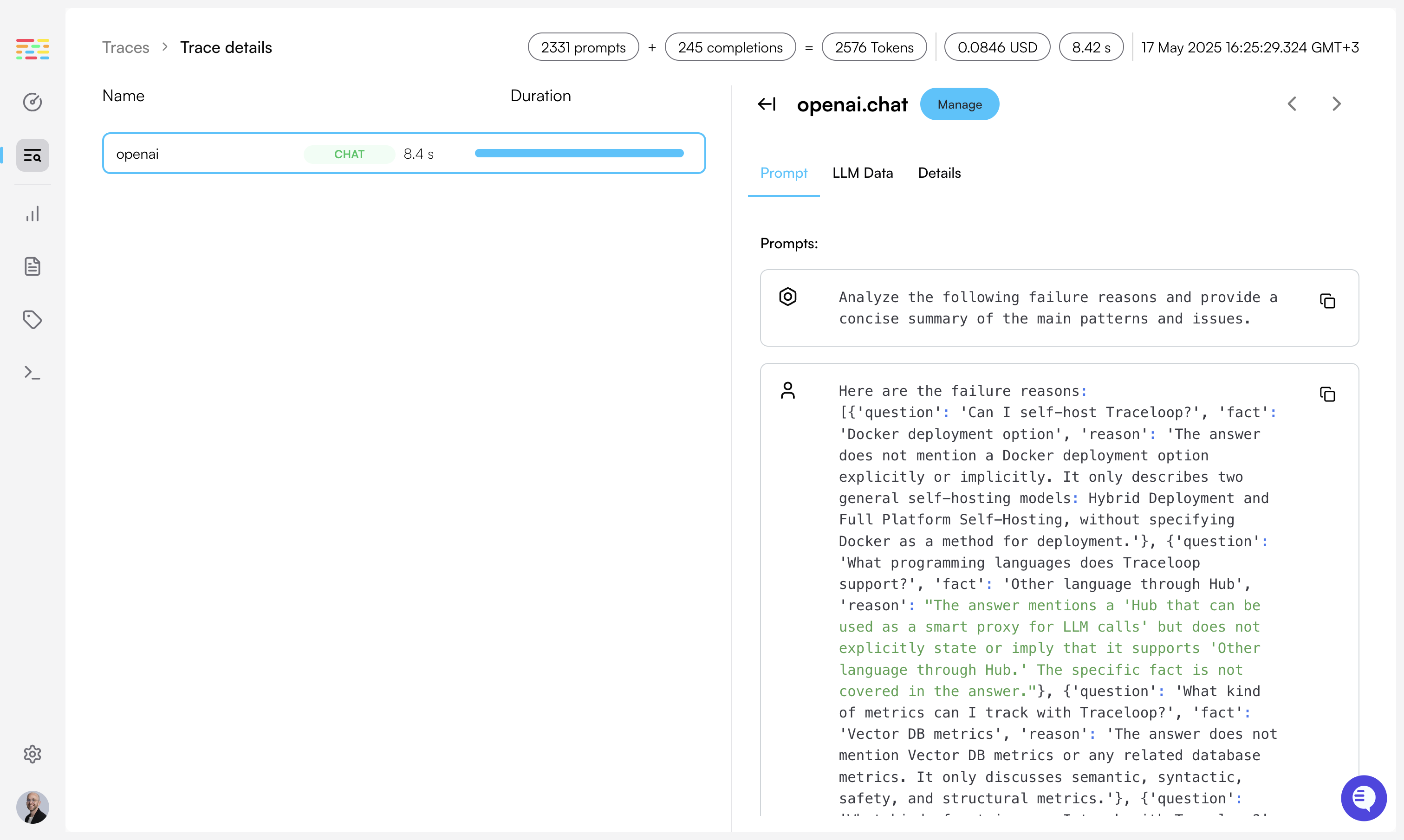
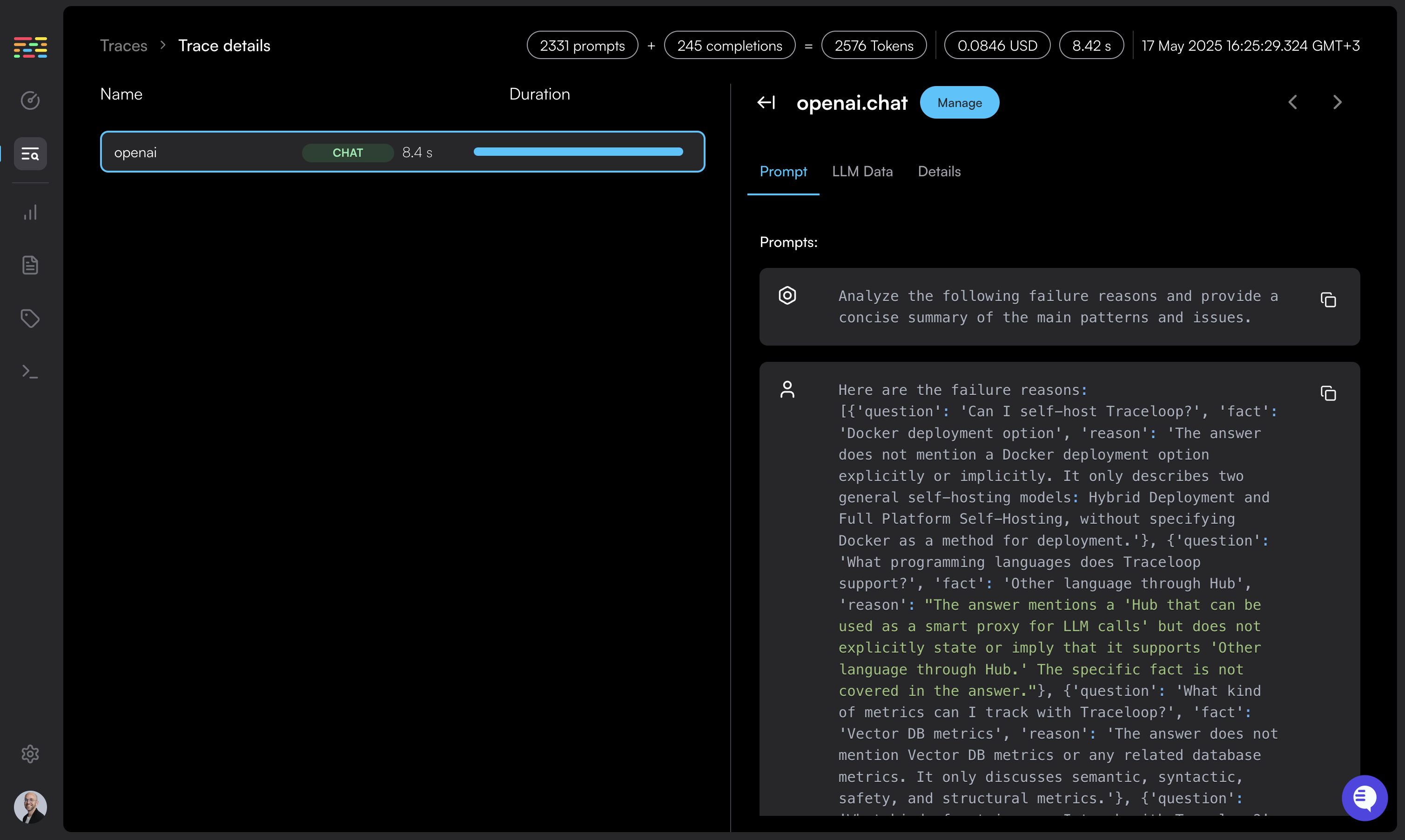 For now, we don't automatically instrument libraries on Go (as opposed to Python and Javascript).
This will change in later versions.
This means that you'll need to manually log your prompts and completions.
```go theme={null}
import (
openai "github.com/sashabaranov/go-openai"
)
func call_llm() {
// Call OpenAI like you normally would
resp, err := client.CreateChatCompletion(
context.Background(),
openai.ChatCompletionRequest{
Model: openai.GPT3Dot5Turbo,
Messages: []openai.ChatCompletionMessage{
{
Role: openai.ChatMessageRoleUser,
Content: "Tell me a joke about OpenTelemetry!",
},
},
},
)
// Log the request and the response
log := dto.PromptLogAttributes{
Prompt: dto.Prompt{
Vendor: "openai",
Mode: "chat",
Model: request.Model,
},
Completion: dto.Completion{
Model: resp.Model,
},
Usage: dto.Usage{
TotalTokens: resp.Usage.TotalTokens,
CompletionTokens: resp.Usage.CompletionTokens,
PromptTokens: resp.Usage.PromptTokens,
},
}
for i, message := range request.Messages {
log.Prompt.Messages = append(log.Prompt.Messages, dto.Message{
Index: i,
Content: message.Content,
Role: message.Role,
})
}
for _, choice := range resp.Choices {
log.Completion.Messages = append(log.Completion.Messages, dto.Message{
Index: choice.Index,
Content: choice.Message.Content,
Role: choice.Message.Role,
})
}
traceloop.LogPrompt(ctx, log)
}
```
}
Lastly, you'll need to configure where to export your traces.
The 2 environment variables controlling this are `TRACELOOP_API_KEY` and `TRACELOOP_BASE_URL`.
For Traceloop, read on. For other options, see [Exporting](/openllmetry/integrations/introduction).
### Using Traceloop Cloud
You need an API key to send traces to Traceloop.
[Generate one in Settings](https://app.traceloop.com/settings/api-keys) by selecting
a project and environment, then click **Generate API key**.
⚠️ **Important:** Copy the key immediately - it won't be shown again after you close or reload the page.
[Detailed instructions →](/settings/managing-api-keys)
Set the API key as an environment variable in your app named `TRACELOOP_API_KEY`:
```bash theme={null}
export TRACELOOP_API_KEY=your_api_key_here
```
Done! You'll get instant visibility into everything that's happening with your LLM.
If you're calling a vector DB, or any other external service or database, you'll also see it in the Traceloop dashboard.
**Not seeing traces?** Make sure you're viewing the correct project and environment in the
dashboard that matches your API key. See [Troubleshooting](/settings/managing-api-keys#troubleshooting).
---
# Source: https://www.traceloop.com/docs/openllmetry/getting-started-nextjs.md
> ## Documentation Index
> Fetch the complete documentation index at: https://www.traceloop.com/docs/llms.txt
> Use this file to discover all available pages before exploring further.
# Next.js
> Install OpenLLMetry for Next.js by following these 3 easy steps and get instant monitoring.
You can also check out our full working example with Next.js 13 [here](https://github.com/traceloop/openllmetry-nextjs-demo).
Want our AI to do it for you? Click here
Run the following command in your terminal:
```bash npm theme={null}
npm install @traceloop/node-server-sdk
```
```bash pnpm theme={null}
pnpm add @traceloop/node-server-sdk
```
```bash yarn theme={null}
yarn add @traceloop/node-server-sdk
```
Create a file named `instrumentation.ts` in the root of your project (i.e., outside of the `pages` or 'app' directory) and add the following code:
```ts theme={null}
export async function register() {
if (process.env.NEXT_RUNTIME === "nodejs") {
await import("./instrumentation.node.ts");
}
}
```
Please note that you might see the following warning: `An import path can only
end with a '.ts' extension when 'allowImportingTsExtensions' is enabled` To
resolve it, simply add `"allowImportingTsExtensions": true` to your
tsconfig.json
Create a file named `instrumentation.node.ts` in the root of your project and add the following code:
```ts theme={null}
import * as traceloop from "@traceloop/node-server-sdk";
import OpenAI from "openai";
// Make sure to import the entire module you want to instrument, like this:
// import * as LlamaIndex from "llamaindex";
traceloop.initialize({
appName: "app",
disableBatch: true,
instrumentModules: {
openAI: OpenAI,
// Add any other modules you'd like to instrument here
// for example:
// llamaIndex: LlamaIndex,
},
});
```
Make sure to explictly pass any LLM modules you want to instrument as
otherwise auto-instrumentation won't work on Next.js. Also make sure to set
`disableBatch` to `true`.
On Next.js v12 and below, you'll also need to add the following to your `next.config.js`:
```js theme={null}
/** @type {import('next').NextConfig} */
const nextConfig = {
experimental: {
instrumentationHook: true,
},
};
module.exports = nextConfig;
```
See Next.js [official OpenTelemetry
docs](https://nextjs.org/docs/pages/building-your-application/optimizing/open-telemetry)
for more information.
Install the following packages by running the following commands in your terminal:
```bash npm theme={null}
npm install --save-dev node-loader
npm i supports-color@8.1.1
```
```bash pnpm theme={null}
pnpm add -D node-loader
pnpm add supports-color@8.1.1
```
```bash yarn theme={null}
yarn add -D node-loader
yarn add supports-color@8.1.1
```
Edit your `next.config.js` file and add the following webpack configuration:
```js theme={null}
const nextConfig = {
webpack: (config, { isServer }) => {
config.module.rules.push({
test: /\.node$/,
loader: "node-loader",
});
if (isServer) {
config.ignoreWarnings = [{ module: /opentelemetry/ }];
}
return config;
},
};
```
On every app API route you want to instrument, add the following code at the top of the file:
```ts theme={null}
import * as traceloop from "@traceloop/node-server-sdk";
import OpenAI from "openai";
// Make sure to import the entire module you want to instrument, like this:
// import * as LlamaIndex from "llamaindex";
traceloop.initialize({
appName: "app",
disableBatch: true,
instrumentModules: {
openAI: OpenAI,
// Add any other modules you'd like to instrument here
// for example:
// llamaIndex: LlamaIndex,
},
});
```
See Next.js [official OpenTelemetry
docs](https://nextjs.org/docs/app/building-your-application/optimizing/open-telemetry)
for more information.
If you have complex workflows or chains, you can annotate them to get a better understanding of what's going on.
You'll see the complete trace of your workflow on Traceloop or any other dashboard you're using.
We have a set of [methods and decorators](/openllmetry/tracing/annotations) to make this easier.
Assume you have a function that renders a prompt and calls an LLM, simply wrap it in a `withWorkflow()` function call.
We also have compatible Typescript decorators for class methods which are more convenient.
If you're using a [supported LLM framework](/openllmetry/tracing/supported#frameworks) -
we'll do that for you. No need to add any annotations to your code.
```js Functions (async / sync) theme={null}
async function suggestAnswers(question: string) {
return await withWorkflow({ name: "suggestAnswers" }, () => {
...
});
}
```
```js Class Methods theme={null}
class MyLLM {
@traceloop.workflow({ name: "suggest_answers" })
async suggestAnswers(question: string) {
...
}
}
```
For more information, see the [dedicated section in the docs](/openllmetry/tracing/annotations).
Lastly, you'll need to configure where to export your traces.
The 2 environment variables controlling this are `TRACELOOP_API_KEY` and `TRACELOOP_BASE_URL`.
For Traceloop, read on. For other options, see [Exporting](/openllmetry/integrations/introduction).
### Using Traceloop Cloud
You need an API key to send traces to Traceloop.
[Generate one in Settings](https://app.traceloop.com/settings/api-keys) by selecting
a project and environment, then click **Generate API key**.
⚠️ **Important:** Copy the key immediately - it won't be shown again after you close or reload the page.
[Detailed instructions →](/settings/managing-api-keys)
Set the API key as an environment variable in your app named `TRACELOOP_API_KEY`:
```bash theme={null}
export TRACELOOP_API_KEY=your_api_key_here
```
Done! You'll get instant visibility into everything that's happening with your LLM.
If you're calling a vector DB, or any other external service or database, you'll also see it in the Traceloop dashboard.
**Not seeing traces?** Make sure you're viewing the correct project and environment in the
dashboard that matches your API key. See [Troubleshooting](/settings/managing-api-keys#troubleshooting).
---
# Source: https://www.traceloop.com/docs/openllmetry/getting-started-python.md
> ## Documentation Index
> Fetch the complete documentation index at: https://www.traceloop.com/docs/llms.txt
> Use this file to discover all available pages before exploring further.
# Python
> Install OpenLLMetry for Python by following these 3 easy steps and get instant monitoring.
You can also check out our full working example of a RAG pipeline with Pinecone [here](https://github.com/traceloop/pinecone-demo).
Want our AI to do it for you? Click here
Run the following command in your terminal:
```bash pip theme={null}
pip install traceloop-sdk
```
```bash poetry theme={null}
poetry add traceloop-sdk
```
In your LLM app, initialize the Traceloop tracer like this:
```python theme={null}
from traceloop.sdk import Traceloop
Traceloop.init()
```
If you're running this locally, you may want to disable batch sending, so you can see the traces immediately:
```python theme={null}
Traceloop.init(disable_batch=True)
```
If you have complex workflows or chains, you can annotate them to get a better understanding of what's going on.
You'll see the complete trace of your workflow on Traceloop or any other dashboard you're using.
We have a set of [decorators](/openllmetry/tracing/annotations) to make this easier.
Assume you have a function that renders a prompt and calls an LLM, simply add `@workflow`.
The `@aworkflow` decorator is deprecated and will be removed in a future
version. Use `@workflow` for both synchronous and asynchronous operations.
If you're using a [supported LLM framework](/openllmetry/tracing/supported#frameworks) -
we'll do that for you. No need to add any annotations to your code.
```python theme={null}
from traceloop.sdk.decorators import workflow
@workflow(name="suggest_answers")
def suggest_answers(question: str):
...
# Works seamlessly with async functions too
@workflow(name="summarize")
async def summarize(long_text: str):
...
```
For more information, see the [dedicated section in the docs](/openllmetry/tracing/annotations).
Lastly, you'll need to configure where to export your traces.
The 2 environment variables controlling this are `TRACELOOP_API_KEY` and `TRACELOOP_BASE_URL`.
For Traceloop, read on. For other options, see [Exporting](/openllmetry/integrations/introduction).
### Using Traceloop Cloud
You need an API key to send traces to Traceloop.
[Generate one in Settings](https://app.traceloop.com/settings/api-keys) by selecting
a project and environment, then click **Generate API key**.
⚠️ **Important:** Copy the key immediately - it won't be shown again after you close or reload the page.
[Detailed instructions →](/settings/managing-api-keys)
Set the API key as an environment variable in your app named `TRACELOOP_API_KEY`:
```bash theme={null}
export TRACELOOP_API_KEY=your_api_key_here
```
Done! You'll get instant visibility into everything that's happening with your LLM.
If you're calling a vector DB, or any other external service or database, you'll also see it in the Traceloop dashboard.
**Not seeing traces?** Make sure you're viewing the correct project and environment in the
dashboard that matches your API key. See [Troubleshooting](/settings/managing-api-keys#troubleshooting).
---
# Source: https://www.traceloop.com/docs/openllmetry/getting-started-ruby.md
> ## Documentation Index
> Fetch the complete documentation index at: https://www.traceloop.com/docs/llms.txt
> Use this file to discover all available pages before exploring further.
# Ruby
> Install OpenLLMetry for Ruby by following these 3 easy steps and get instant monitoring.
This is still in beta. Give us feedback at [dev@traceloop.com](mailto:dev@traceloop.com)
Run the following command in your terminal:
```bash gem theme={null}
gem install traceloop-sdk
```
```bash bundler theme={null}
bundle add traceloop-sdk
```
In your LLM app, initialize the Traceloop tracer like this:
If you're using Rails, this needs to be in `config/initializers/traceloop.rb`
```ruby theme={null}
require "traceloop/sdk"
traceloop = Traceloop::SDK::Traceloop.new
```
For now, we don't automatically instrument libraries on Ruby (as opposed to Python and Javascript).
This will change in later versions.
This means that you'll need to manually log your prompts and completions.
```ruby theme={null}
require "openai"
client = OpenAI::Client.new
# This tracks the latency of the call and the response
traceloop.workflow("joke_generator") do
traceloop.llm_call(provider="openai", model="gpt-3.5-turbo") do |tracer|
# Log the prompt
tracer.log_prompt(user_prompt="Tell me a joke about OpenTelemetry")
# Or use the OpenAI Format
# tracer.log_messages([{ role: "user", content: "Tell me a joke about OpenTelemetry" }])
# Call OpenAI like you normally would
response = client.chat(
parameters: {
model: "gpt-3.5-turbo",
messages: [{ role: "user", content: "Tell me a joke about OpenTelemetry" }]
})
# Pass the response form OpenAI as is to log the completion and token usage
tracer.log_response(response)
end
end
```
Lastly, you'll need to configure where to export your traces.
The 2 environment variables controlling this are `TRACELOOP_API_KEY` and `TRACELOOP_BASE_URL`.
For Traceloop, read on. For other options, see [Exporting](/openllmetry/integrations/introduction).
### Using Traceloop Cloud
You need an API key to send traces to Traceloop.
[Generate one in Settings](https://app.traceloop.com/settings/api-keys) by selecting
a project and environment, then click **Generate API key**.
⚠️ **Important:** Copy the key immediately - it won't be shown again after you close or reload the page.
[Detailed instructions →](/settings/managing-api-keys)
Set the API key as an environment variable in your app named `TRACELOOP_API_KEY`:
```bash theme={null}
export TRACELOOP_API_KEY=your_api_key_here
```
Done! You'll get instant visibility into everything that's happening with your LLM.
If you're calling a vector DB, or any other external service or database, you'll also see it in the Traceloop dashboard.
**Not seeing traces?** Make sure you're viewing the correct project and environment in the
dashboard that matches your API key. See [Troubleshooting](/settings/managing-api-keys#troubleshooting).
---
# Source: https://www.traceloop.com/docs/openllmetry/getting-started-ts.md
> ## Documentation Index
> Fetch the complete documentation index at: https://www.traceloop.com/docs/llms.txt
> Use this file to discover all available pages before exploring further.
# Node.js
> Install OpenLLMetry for Node.js by following these 3 easy steps and get instant monitoring.
If you're on Next.js, follow the [Next.js
guide](/openllmetry/getting-started-nextjs).
Want our AI to do it for you? Click here
Run the following command in your terminal:
```bash npm theme={null}
npm install @traceloop/node-server-sdk
```
```bash pnpm theme={null}
pnpm add @traceloop/node-server-sdk
```
```bash yarn theme={null}
yarn add @traceloop/node-server-sdk
```
In your LLM app, initialize the Traceloop tracer like this:
```js theme={null}
import * as traceloop from "@traceloop/node-server-sdk";
traceloop.initialize();
```
Because of the way Javascript works, you must import the Traceloop SDK before
importing any LLM module like OpenAI.
If you're running this locally, you may want to disable batch sending, so you can see the traces immediately:
```js theme={null}
traceloop.initialize({ disableBatch: true });
```
If you're using Sentry, make sure to disable their OpenTelemetry configuration
as it overrides OpenLLMetry. When calling `Sentry.init`, pass
`skipOpenTelemetrySetup: true`.
If you have complex workflows or chains, you can annotate them to get a better understanding of what's going on.
You'll see the complete trace of your workflow on Traceloop or any other dashboard you're using.
We have a set of [methods and decorators](/openllmetry/tracing/annotations) to make this easier.
Assume you have a function that renders a prompt and calls an LLM, simply wrap it in a `withWorkflow()` function call.
We also have compatible Typescript decorators for class methods which are more convenient.
If you're using a [supported LLM framework](/openllmetry/tracing/supported#frameworks) -
we'll do that for you. No need to add any annotations to your code.
```js Functions (async / sync) theme={null}
async function suggestAnswers(question: string) {
return await withWorkflow({ name: "suggestAnswers" }, () => {
...
});
}
```
```js Class Methods theme={null}
class MyLLM {
@traceloop.workflow({ name: "suggest_answers" })
async suggestAnswers(question: string) {
...
}
}
```
For more information, see the [dedicated section in the docs](/openllmetry/tracing/annotations).
Lastly, you'll need to configure where to export your traces.
The 2 environment variables controlling this are `TRACELOOP_API_KEY` and `TRACELOOP_BASE_URL`.
For Traceloop, read on. For other options, see [Exporting](/openllmetry/integrations/introduction).
### Using Traceloop Cloud
You need an API key to send traces to Traceloop.
[Generate one in Settings](https://app.traceloop.com/settings/api-keys) by selecting
a project and environment, then click **Generate API key**.
⚠️ **Important:** Copy the key immediately - it won't be shown again after you close or reload the page.
[Detailed instructions →](/settings/managing-api-keys)
Set the API key as an environment variable in your app named `TRACELOOP_API_KEY`:
```bash theme={null}
export TRACELOOP_API_KEY=your_api_key_here
```
Done! You'll get instant visibility into everything that's happening with your LLM.
If you're calling a vector DB, or any other external service or database, you'll also see it in the Traceloop dashboard.
**Not seeing traces?** Make sure you're viewing the correct project and environment in the
dashboard that matches your API key. See [Troubleshooting](/settings/managing-api-keys#troubleshooting).
---
# Source: https://www.traceloop.com/docs/hub/getting-started.md
> ## Documentation Index
> Fetch the complete documentation index at: https://www.traceloop.com/docs/llms.txt
> Use this file to discover all available pages before exploring further.
# Getting Started with Traceloop Hub
> Set up Hub as a smart proxy to all your LLM calls.
Hub is a next generation smart proxy for LLM applications. It centralizes control and tracing of all LLM calls and traces.
It's built in Rust so it's fast and efficient. It's completely open-source and free to use.
## Installation
### Local
1. Clone the repo:
```bash theme={null}
git clone https://github.com/traceloop/hub
```
2. Copy the `config-example.yaml` file to `config.yaml` and set the correct values (see below for more information).
3. Run the hub by running `cargo run` in the root directory.
### With Docker
Traceloop Hub is available as a docker image named `traceloop/hub`. Make sure to create a `config.yaml` file
following the [configuration](./configuration) instructions.
```bash theme={null}
docker run --rm -p 3000:3000 -v $(pwd)/config.yaml:/etc/hub/config.yaml:ro -e CONFIG_FILE_PATH='/etc/hub/config.yaml' -t traceloop/hub
```
## Connecting to Hub
After running the hub and [configuring it](./configuration), you can start using it to invoke available LLM providers.
Its API is the standard OpenAI API, so you can use it as a drop-in replacement for your LLM calls.
You can invoke different pipelines by passing the `x-traceloop-pipeline` header. If none is specified, the default pipeline will be used.
```python theme={null}
import openai
client = OpenAI(
base_url="http://localhost:3000/api/v1",
# default_headers={"x-traceloop-pipeline": "optional-pipeline-name"},
)
```
---
# Source: https://www.traceloop.com/docs/integrations/github.md
> ## Documentation Index
> Fetch the complete documentation index at: https://www.traceloop.com/docs/llms.txt
> Use this file to discover all available pages before exploring further.
# GitHub
> Run experiments in CI and get evaluation results directly in your pull requests
# Track Experiment Results in CI
Instead of deploying blindly and hoping for the best, you can validate changes with real data before they reach production.
Create experiments that automatically run your agent flow in CI, test your changes against production-quality datasets, and get comprehensive evaluation results directly in your pull request. This ensures every change is validated with the same rigor as your application code.
## How It Works
Run an experiment in your CI/CD pipeline with the Traceloop GitHub App integration. Receive experiment evaluation results as comments on your pull requests, helping you validate AI model changes, prompt updates, and configuration modifications before merging to production.
Go to the [integrations page](https://app.traceloop.com/settings/integrations) within Traceloop and click on the GitHub card.
Click "Install GitHub App" to be redirected to GitHub where you can install the Traceloop app for your organization or personal account.
You can also install Traceloop GitHub app [here](https://github.com/apps/traceloop/installations/new)
Select the repositories where you want to enable Traceloop experiment runs. You can choose:
* All repositories in your organization
* Specific repositories only
After installing the app you will be redirected to a Traceloop authorization page.
**Permissions Required:** The app needs read access to your repository contents and write access to pull requests to post evaluation results as comments.
For now, we don't automatically instrument libraries on Go (as opposed to Python and Javascript).
This will change in later versions.
This means that you'll need to manually log your prompts and completions.
```go theme={null}
import (
openai "github.com/sashabaranov/go-openai"
)
func call_llm() {
// Call OpenAI like you normally would
resp, err := client.CreateChatCompletion(
context.Background(),
openai.ChatCompletionRequest{
Model: openai.GPT3Dot5Turbo,
Messages: []openai.ChatCompletionMessage{
{
Role: openai.ChatMessageRoleUser,
Content: "Tell me a joke about OpenTelemetry!",
},
},
},
)
// Log the request and the response
log := dto.PromptLogAttributes{
Prompt: dto.Prompt{
Vendor: "openai",
Mode: "chat",
Model: request.Model,
},
Completion: dto.Completion{
Model: resp.Model,
},
Usage: dto.Usage{
TotalTokens: resp.Usage.TotalTokens,
CompletionTokens: resp.Usage.CompletionTokens,
PromptTokens: resp.Usage.PromptTokens,
},
}
for i, message := range request.Messages {
log.Prompt.Messages = append(log.Prompt.Messages, dto.Message{
Index: i,
Content: message.Content,
Role: message.Role,
})
}
for _, choice := range resp.Choices {
log.Completion.Messages = append(log.Completion.Messages, dto.Message{
Index: choice.Index,
Content: choice.Message.Content,
Role: choice.Message.Role,
})
}
traceloop.LogPrompt(ctx, log)
}
```
}
Lastly, you'll need to configure where to export your traces.
The 2 environment variables controlling this are `TRACELOOP_API_KEY` and `TRACELOOP_BASE_URL`.
For Traceloop, read on. For other options, see [Exporting](/openllmetry/integrations/introduction).
### Using Traceloop Cloud
You need an API key to send traces to Traceloop.
[Generate one in Settings](https://app.traceloop.com/settings/api-keys) by selecting
a project and environment, then click **Generate API key**.
⚠️ **Important:** Copy the key immediately - it won't be shown again after you close or reload the page.
[Detailed instructions →](/settings/managing-api-keys)
Set the API key as an environment variable in your app named `TRACELOOP_API_KEY`:
```bash theme={null}
export TRACELOOP_API_KEY=your_api_key_here
```
Done! You'll get instant visibility into everything that's happening with your LLM.
If you're calling a vector DB, or any other external service or database, you'll also see it in the Traceloop dashboard.
**Not seeing traces?** Make sure you're viewing the correct project and environment in the
dashboard that matches your API key. See [Troubleshooting](/settings/managing-api-keys#troubleshooting).
---
# Source: https://www.traceloop.com/docs/openllmetry/getting-started-nextjs.md
> ## Documentation Index
> Fetch the complete documentation index at: https://www.traceloop.com/docs/llms.txt
> Use this file to discover all available pages before exploring further.
# Next.js
> Install OpenLLMetry for Next.js by following these 3 easy steps and get instant monitoring.
You can also check out our full working example with Next.js 13 [here](https://github.com/traceloop/openllmetry-nextjs-demo).
Want our AI to do it for you? Click here
Run the following command in your terminal:
```bash npm theme={null}
npm install @traceloop/node-server-sdk
```
```bash pnpm theme={null}
pnpm add @traceloop/node-server-sdk
```
```bash yarn theme={null}
yarn add @traceloop/node-server-sdk
```
Create a file named `instrumentation.ts` in the root of your project (i.e., outside of the `pages` or 'app' directory) and add the following code:
```ts theme={null}
export async function register() {
if (process.env.NEXT_RUNTIME === "nodejs") {
await import("./instrumentation.node.ts");
}
}
```
Please note that you might see the following warning: `An import path can only
end with a '.ts' extension when 'allowImportingTsExtensions' is enabled` To
resolve it, simply add `"allowImportingTsExtensions": true` to your
tsconfig.json
Create a file named `instrumentation.node.ts` in the root of your project and add the following code:
```ts theme={null}
import * as traceloop from "@traceloop/node-server-sdk";
import OpenAI from "openai";
// Make sure to import the entire module you want to instrument, like this:
// import * as LlamaIndex from "llamaindex";
traceloop.initialize({
appName: "app",
disableBatch: true,
instrumentModules: {
openAI: OpenAI,
// Add any other modules you'd like to instrument here
// for example:
// llamaIndex: LlamaIndex,
},
});
```
Make sure to explictly pass any LLM modules you want to instrument as
otherwise auto-instrumentation won't work on Next.js. Also make sure to set
`disableBatch` to `true`.
On Next.js v12 and below, you'll also need to add the following to your `next.config.js`:
```js theme={null}
/** @type {import('next').NextConfig} */
const nextConfig = {
experimental: {
instrumentationHook: true,
},
};
module.exports = nextConfig;
```
See Next.js [official OpenTelemetry
docs](https://nextjs.org/docs/pages/building-your-application/optimizing/open-telemetry)
for more information.
Install the following packages by running the following commands in your terminal:
```bash npm theme={null}
npm install --save-dev node-loader
npm i supports-color@8.1.1
```
```bash pnpm theme={null}
pnpm add -D node-loader
pnpm add supports-color@8.1.1
```
```bash yarn theme={null}
yarn add -D node-loader
yarn add supports-color@8.1.1
```
Edit your `next.config.js` file and add the following webpack configuration:
```js theme={null}
const nextConfig = {
webpack: (config, { isServer }) => {
config.module.rules.push({
test: /\.node$/,
loader: "node-loader",
});
if (isServer) {
config.ignoreWarnings = [{ module: /opentelemetry/ }];
}
return config;
},
};
```
On every app API route you want to instrument, add the following code at the top of the file:
```ts theme={null}
import * as traceloop from "@traceloop/node-server-sdk";
import OpenAI from "openai";
// Make sure to import the entire module you want to instrument, like this:
// import * as LlamaIndex from "llamaindex";
traceloop.initialize({
appName: "app",
disableBatch: true,
instrumentModules: {
openAI: OpenAI,
// Add any other modules you'd like to instrument here
// for example:
// llamaIndex: LlamaIndex,
},
});
```
See Next.js [official OpenTelemetry
docs](https://nextjs.org/docs/app/building-your-application/optimizing/open-telemetry)
for more information.
If you have complex workflows or chains, you can annotate them to get a better understanding of what's going on.
You'll see the complete trace of your workflow on Traceloop or any other dashboard you're using.
We have a set of [methods and decorators](/openllmetry/tracing/annotations) to make this easier.
Assume you have a function that renders a prompt and calls an LLM, simply wrap it in a `withWorkflow()` function call.
We also have compatible Typescript decorators for class methods which are more convenient.
If you're using a [supported LLM framework](/openllmetry/tracing/supported#frameworks) -
we'll do that for you. No need to add any annotations to your code.
```js Functions (async / sync) theme={null}
async function suggestAnswers(question: string) {
return await withWorkflow({ name: "suggestAnswers" }, () => {
...
});
}
```
```js Class Methods theme={null}
class MyLLM {
@traceloop.workflow({ name: "suggest_answers" })
async suggestAnswers(question: string) {
...
}
}
```
For more information, see the [dedicated section in the docs](/openllmetry/tracing/annotations).
Lastly, you'll need to configure where to export your traces.
The 2 environment variables controlling this are `TRACELOOP_API_KEY` and `TRACELOOP_BASE_URL`.
For Traceloop, read on. For other options, see [Exporting](/openllmetry/integrations/introduction).
### Using Traceloop Cloud
You need an API key to send traces to Traceloop.
[Generate one in Settings](https://app.traceloop.com/settings/api-keys) by selecting
a project and environment, then click **Generate API key**.
⚠️ **Important:** Copy the key immediately - it won't be shown again after you close or reload the page.
[Detailed instructions →](/settings/managing-api-keys)
Set the API key as an environment variable in your app named `TRACELOOP_API_KEY`:
```bash theme={null}
export TRACELOOP_API_KEY=your_api_key_here
```
Done! You'll get instant visibility into everything that's happening with your LLM.
If you're calling a vector DB, or any other external service or database, you'll also see it in the Traceloop dashboard.
**Not seeing traces?** Make sure you're viewing the correct project and environment in the
dashboard that matches your API key. See [Troubleshooting](/settings/managing-api-keys#troubleshooting).
---
# Source: https://www.traceloop.com/docs/openllmetry/getting-started-python.md
> ## Documentation Index
> Fetch the complete documentation index at: https://www.traceloop.com/docs/llms.txt
> Use this file to discover all available pages before exploring further.
# Python
> Install OpenLLMetry for Python by following these 3 easy steps and get instant monitoring.
You can also check out our full working example of a RAG pipeline with Pinecone [here](https://github.com/traceloop/pinecone-demo).
Want our AI to do it for you? Click here
Run the following command in your terminal:
```bash pip theme={null}
pip install traceloop-sdk
```
```bash poetry theme={null}
poetry add traceloop-sdk
```
In your LLM app, initialize the Traceloop tracer like this:
```python theme={null}
from traceloop.sdk import Traceloop
Traceloop.init()
```
If you're running this locally, you may want to disable batch sending, so you can see the traces immediately:
```python theme={null}
Traceloop.init(disable_batch=True)
```
If you have complex workflows or chains, you can annotate them to get a better understanding of what's going on.
You'll see the complete trace of your workflow on Traceloop or any other dashboard you're using.
We have a set of [decorators](/openllmetry/tracing/annotations) to make this easier.
Assume you have a function that renders a prompt and calls an LLM, simply add `@workflow`.
The `@aworkflow` decorator is deprecated and will be removed in a future
version. Use `@workflow` for both synchronous and asynchronous operations.
If you're using a [supported LLM framework](/openllmetry/tracing/supported#frameworks) -
we'll do that for you. No need to add any annotations to your code.
```python theme={null}
from traceloop.sdk.decorators import workflow
@workflow(name="suggest_answers")
def suggest_answers(question: str):
...
# Works seamlessly with async functions too
@workflow(name="summarize")
async def summarize(long_text: str):
...
```
For more information, see the [dedicated section in the docs](/openllmetry/tracing/annotations).
Lastly, you'll need to configure where to export your traces.
The 2 environment variables controlling this are `TRACELOOP_API_KEY` and `TRACELOOP_BASE_URL`.
For Traceloop, read on. For other options, see [Exporting](/openllmetry/integrations/introduction).
### Using Traceloop Cloud
You need an API key to send traces to Traceloop.
[Generate one in Settings](https://app.traceloop.com/settings/api-keys) by selecting
a project and environment, then click **Generate API key**.
⚠️ **Important:** Copy the key immediately - it won't be shown again after you close or reload the page.
[Detailed instructions →](/settings/managing-api-keys)
Set the API key as an environment variable in your app named `TRACELOOP_API_KEY`:
```bash theme={null}
export TRACELOOP_API_KEY=your_api_key_here
```
Done! You'll get instant visibility into everything that's happening with your LLM.
If you're calling a vector DB, or any other external service or database, you'll also see it in the Traceloop dashboard.
**Not seeing traces?** Make sure you're viewing the correct project and environment in the
dashboard that matches your API key. See [Troubleshooting](/settings/managing-api-keys#troubleshooting).
---
# Source: https://www.traceloop.com/docs/openllmetry/getting-started-ruby.md
> ## Documentation Index
> Fetch the complete documentation index at: https://www.traceloop.com/docs/llms.txt
> Use this file to discover all available pages before exploring further.
# Ruby
> Install OpenLLMetry for Ruby by following these 3 easy steps and get instant monitoring.
This is still in beta. Give us feedback at [dev@traceloop.com](mailto:dev@traceloop.com)
Run the following command in your terminal:
```bash gem theme={null}
gem install traceloop-sdk
```
```bash bundler theme={null}
bundle add traceloop-sdk
```
In your LLM app, initialize the Traceloop tracer like this:
If you're using Rails, this needs to be in `config/initializers/traceloop.rb`
```ruby theme={null}
require "traceloop/sdk"
traceloop = Traceloop::SDK::Traceloop.new
```
For now, we don't automatically instrument libraries on Ruby (as opposed to Python and Javascript).
This will change in later versions.
This means that you'll need to manually log your prompts and completions.
```ruby theme={null}
require "openai"
client = OpenAI::Client.new
# This tracks the latency of the call and the response
traceloop.workflow("joke_generator") do
traceloop.llm_call(provider="openai", model="gpt-3.5-turbo") do |tracer|
# Log the prompt
tracer.log_prompt(user_prompt="Tell me a joke about OpenTelemetry")
# Or use the OpenAI Format
# tracer.log_messages([{ role: "user", content: "Tell me a joke about OpenTelemetry" }])
# Call OpenAI like you normally would
response = client.chat(
parameters: {
model: "gpt-3.5-turbo",
messages: [{ role: "user", content: "Tell me a joke about OpenTelemetry" }]
})
# Pass the response form OpenAI as is to log the completion and token usage
tracer.log_response(response)
end
end
```
Lastly, you'll need to configure where to export your traces.
The 2 environment variables controlling this are `TRACELOOP_API_KEY` and `TRACELOOP_BASE_URL`.
For Traceloop, read on. For other options, see [Exporting](/openllmetry/integrations/introduction).
### Using Traceloop Cloud
You need an API key to send traces to Traceloop.
[Generate one in Settings](https://app.traceloop.com/settings/api-keys) by selecting
a project and environment, then click **Generate API key**.
⚠️ **Important:** Copy the key immediately - it won't be shown again after you close or reload the page.
[Detailed instructions →](/settings/managing-api-keys)
Set the API key as an environment variable in your app named `TRACELOOP_API_KEY`:
```bash theme={null}
export TRACELOOP_API_KEY=your_api_key_here
```
Done! You'll get instant visibility into everything that's happening with your LLM.
If you're calling a vector DB, or any other external service or database, you'll also see it in the Traceloop dashboard.
**Not seeing traces?** Make sure you're viewing the correct project and environment in the
dashboard that matches your API key. See [Troubleshooting](/settings/managing-api-keys#troubleshooting).
---
# Source: https://www.traceloop.com/docs/openllmetry/getting-started-ts.md
> ## Documentation Index
> Fetch the complete documentation index at: https://www.traceloop.com/docs/llms.txt
> Use this file to discover all available pages before exploring further.
# Node.js
> Install OpenLLMetry for Node.js by following these 3 easy steps and get instant monitoring.
If you're on Next.js, follow the [Next.js
guide](/openllmetry/getting-started-nextjs).
Want our AI to do it for you? Click here
Run the following command in your terminal:
```bash npm theme={null}
npm install @traceloop/node-server-sdk
```
```bash pnpm theme={null}
pnpm add @traceloop/node-server-sdk
```
```bash yarn theme={null}
yarn add @traceloop/node-server-sdk
```
In your LLM app, initialize the Traceloop tracer like this:
```js theme={null}
import * as traceloop from "@traceloop/node-server-sdk";
traceloop.initialize();
```
Because of the way Javascript works, you must import the Traceloop SDK before
importing any LLM module like OpenAI.
If you're running this locally, you may want to disable batch sending, so you can see the traces immediately:
```js theme={null}
traceloop.initialize({ disableBatch: true });
```
If you're using Sentry, make sure to disable their OpenTelemetry configuration
as it overrides OpenLLMetry. When calling `Sentry.init`, pass
`skipOpenTelemetrySetup: true`.
If you have complex workflows or chains, you can annotate them to get a better understanding of what's going on.
You'll see the complete trace of your workflow on Traceloop or any other dashboard you're using.
We have a set of [methods and decorators](/openllmetry/tracing/annotations) to make this easier.
Assume you have a function that renders a prompt and calls an LLM, simply wrap it in a `withWorkflow()` function call.
We also have compatible Typescript decorators for class methods which are more convenient.
If you're using a [supported LLM framework](/openllmetry/tracing/supported#frameworks) -
we'll do that for you. No need to add any annotations to your code.
```js Functions (async / sync) theme={null}
async function suggestAnswers(question: string) {
return await withWorkflow({ name: "suggestAnswers" }, () => {
...
});
}
```
```js Class Methods theme={null}
class MyLLM {
@traceloop.workflow({ name: "suggest_answers" })
async suggestAnswers(question: string) {
...
}
}
```
For more information, see the [dedicated section in the docs](/openllmetry/tracing/annotations).
Lastly, you'll need to configure where to export your traces.
The 2 environment variables controlling this are `TRACELOOP_API_KEY` and `TRACELOOP_BASE_URL`.
For Traceloop, read on. For other options, see [Exporting](/openllmetry/integrations/introduction).
### Using Traceloop Cloud
You need an API key to send traces to Traceloop.
[Generate one in Settings](https://app.traceloop.com/settings/api-keys) by selecting
a project and environment, then click **Generate API key**.
⚠️ **Important:** Copy the key immediately - it won't be shown again after you close or reload the page.
[Detailed instructions →](/settings/managing-api-keys)
Set the API key as an environment variable in your app named `TRACELOOP_API_KEY`:
```bash theme={null}
export TRACELOOP_API_KEY=your_api_key_here
```
Done! You'll get instant visibility into everything that's happening with your LLM.
If you're calling a vector DB, or any other external service or database, you'll also see it in the Traceloop dashboard.
**Not seeing traces?** Make sure you're viewing the correct project and environment in the
dashboard that matches your API key. See [Troubleshooting](/settings/managing-api-keys#troubleshooting).
---
# Source: https://www.traceloop.com/docs/hub/getting-started.md
> ## Documentation Index
> Fetch the complete documentation index at: https://www.traceloop.com/docs/llms.txt
> Use this file to discover all available pages before exploring further.
# Getting Started with Traceloop Hub
> Set up Hub as a smart proxy to all your LLM calls.
Hub is a next generation smart proxy for LLM applications. It centralizes control and tracing of all LLM calls and traces.
It's built in Rust so it's fast and efficient. It's completely open-source and free to use.
## Installation
### Local
1. Clone the repo:
```bash theme={null}
git clone https://github.com/traceloop/hub
```
2. Copy the `config-example.yaml` file to `config.yaml` and set the correct values (see below for more information).
3. Run the hub by running `cargo run` in the root directory.
### With Docker
Traceloop Hub is available as a docker image named `traceloop/hub`. Make sure to create a `config.yaml` file
following the [configuration](./configuration) instructions.
```bash theme={null}
docker run --rm -p 3000:3000 -v $(pwd)/config.yaml:/etc/hub/config.yaml:ro -e CONFIG_FILE_PATH='/etc/hub/config.yaml' -t traceloop/hub
```
## Connecting to Hub
After running the hub and [configuring it](./configuration), you can start using it to invoke available LLM providers.
Its API is the standard OpenAI API, so you can use it as a drop-in replacement for your LLM calls.
You can invoke different pipelines by passing the `x-traceloop-pipeline` header. If none is specified, the default pipeline will be used.
```python theme={null}
import openai
client = OpenAI(
base_url="http://localhost:3000/api/v1",
# default_headers={"x-traceloop-pipeline": "optional-pipeline-name"},
)
```
---
# Source: https://www.traceloop.com/docs/integrations/github.md
> ## Documentation Index
> Fetch the complete documentation index at: https://www.traceloop.com/docs/llms.txt
> Use this file to discover all available pages before exploring further.
# GitHub
> Run experiments in CI and get evaluation results directly in your pull requests
# Track Experiment Results in CI
Instead of deploying blindly and hoping for the best, you can validate changes with real data before they reach production.
Create experiments that automatically run your agent flow in CI, test your changes against production-quality datasets, and get comprehensive evaluation results directly in your pull request. This ensures every change is validated with the same rigor as your application code.
## How It Works
Run an experiment in your CI/CD pipeline with the Traceloop GitHub App integration. Receive experiment evaluation results as comments on your pull requests, helping you validate AI model changes, prompt updates, and configuration modifications before merging to production.
Go to the [integrations page](https://app.traceloop.com/settings/integrations) within Traceloop and click on the GitHub card.
Click "Install GitHub App" to be redirected to GitHub where you can install the Traceloop app for your organization or personal account.
You can also install Traceloop GitHub app [here](https://github.com/apps/traceloop/installations/new)
Select the repositories where you want to enable Traceloop experiment runs. You can choose:
* All repositories in your organization
* Specific repositories only
After installing the app you will be redirected to a Traceloop authorization page.
**Permissions Required:** The app needs read access to your repository contents and write access to pull requests to post evaluation results as comments.
 Create an [experiment](/experiments/introduction) script that runs your AI flow. An experiment consists of three key components:
* **[Dataset](/datasets/quick-start)**: A collection of test inputs that represent real-world scenarios your AI will handle
* **Task Function**: Your AI flow code that processes each dataset row (e.g., calling your LLM, running RAG, executing agent logic)
* **[Evaluators](/evaluators/intro)**: Automated quality checks that measure your AI's performance (e.g., accuracy, safety, relevance)
The experiment runs your task function on every row in the dataset, then applies evaluators to measure quality. This validates your changes with real data before production.
The script below shows how to test a question-answering flow:
```python Python theme={null}
import asyncio
import os
from openai import AsyncOpenAI
from traceloop.sdk import Traceloop
from traceloop.sdk.experiment.model import RunInGithubResponse
# Initialize Traceloop client
client = Traceloop.init(
app_name="research-experiment-ci-cd"
)
async def generate_research_response(question: str) -> str:
"""Generate a research response using OpenAI"""
openai_client = AsyncOpenAI(api_key=os.getenv("OPENAI_API_KEY"))
response = await openai_client.chat.completions.create(
model="gpt-4",
messages=[
{
"role": "system",
"content": "You are a helpful research assistant. Provide accurate, well-researched answers.",
},
{"role": "user", "content": question},
],
temperature=0.7,
max_tokens=500,
)
return response.choices[0].message.content
async def research_task(row):
"""Task function that processes each dataset row"""
query = row.get("query", "")
answer = await generate_research_response(query)
return {
"completion": answer,
"question": query,
"sentence": answer
}
async def main():
"""Run experiment in GitHub context"""
print("🚀 Running research experiment in GitHub CI/CD...")
# Execute tasks locally and send results to backend
response = await client.experiment.run(
task=research_task,
dataset_slug="research-queries",
dataset_version="v2",
evaluators=["research-word-counter", "research-relevancy"],
experiment_slug="research-exp",
)
if isinstance(response, RunInGithubResponse):
print(f"Experiment {response.experiment_slug} completed!")
if __name__ == "__main__":
asyncio.run(main())
```
```typescript TypeScript theme={null}
import * as traceloop from "@traceloop/node-server-sdk";
import { OpenAI } from "openai";
import type { ExperimentTaskFunction } from "@traceloop/node-server-sdk";
// Initialize Traceloop
traceloop.initialize({
appName: "research-experiment-ci-cd",
disableBatch: true,
traceloopSyncEnabled: true,
});
await traceloop.waitForInitialization();
const client = traceloop.getClient();
/**
* Generate a research response using OpenAI
*/
async function generateResearchResponse(question: string): Promise {
const openai = new OpenAI({
apiKey: process.env.OPENAI_API_KEY,
});
const response = await openai.chat.completions.create({
model: "gpt-4",
messages: [
{
role: "system",
content: "You are a helpful research assistant. Provide accurate, well-researched answers.",
},
{ role: "user", content: question },
],
temperature: 0.7,
max_tokens: 500,
});
return response.choices?.[0]?.message?.content || "";
}
/**
* Task function that processes each dataset row
*/
const researchTask: ExperimentTaskFunction = async (row) => {
const query = (row.query as string) || "";
const answer = await generateResearchResponse(query);
return {
completion: answer,
question: query,
sentence: answer,
};
};
/**
* Run experiment in GitHub context
*/
async function main() {
console.log("🚀 Running research experiment in GitHub CI/CD...");
// Execute tasks locally and send results to backend
const response = await client.experiment.run(researchTask, {
datasetSlug: "research-queries",
datasetVersion: "v2",
evaluators: ["research-word-counter", "research-relevancy"],
experimentSlug: "research-exp",
});
console.log(`Experiment research-exp completed!`);
}
main().catch((error) => {
console.error("Experiment failed:", error);
process.exit(1);
});
```
Add a GitHub Actions workflow to automatically run Traceloop experiments on pull requests.
Below is an example workflow file you can customize for your project:
```yaml ci-cd configuration theme={null}
name: Run Traceloop Experiments
on:
pull_request:
branches: [main, master]
jobs:
run-experiments:
runs-on: ubuntu-latest
steps:
- name: Checkout code
uses: actions/checkout@v4
- name: Set up Python
uses: actions/setup-python@v5
with:
python-version: '3.11'
- name: Install dependencies
run: |
pip install traceloop-sdk openai
- name: Run experiments
env:
TRACELOOP_API_KEY: ${{ secrets.TRACELOOP_API_KEY }}
OPENAI_API_KEY: ${{ secrets.OPENAI_API_KEY }}
run: |
python experiments/run_ci_experiments.py
```
**Add secrets to your GitHub repository**
Make sure all secrets used in your experiment script (like `OPENAI_API_KEY`) are added to both:
* Your GitHub Actions workflow configuration
* Your GitHub repository secrets
Traceloop requires you to add `TRACELOOP_API_KEY` to your GitHub repository secrets. [Generate one in Settings →](/settings/managing-api-keys)
Create an [experiment](/experiments/introduction) script that runs your AI flow. An experiment consists of three key components:
* **[Dataset](/datasets/quick-start)**: A collection of test inputs that represent real-world scenarios your AI will handle
* **Task Function**: Your AI flow code that processes each dataset row (e.g., calling your LLM, running RAG, executing agent logic)
* **[Evaluators](/evaluators/intro)**: Automated quality checks that measure your AI's performance (e.g., accuracy, safety, relevance)
The experiment runs your task function on every row in the dataset, then applies evaluators to measure quality. This validates your changes with real data before production.
The script below shows how to test a question-answering flow:
```python Python theme={null}
import asyncio
import os
from openai import AsyncOpenAI
from traceloop.sdk import Traceloop
from traceloop.sdk.experiment.model import RunInGithubResponse
# Initialize Traceloop client
client = Traceloop.init(
app_name="research-experiment-ci-cd"
)
async def generate_research_response(question: str) -> str:
"""Generate a research response using OpenAI"""
openai_client = AsyncOpenAI(api_key=os.getenv("OPENAI_API_KEY"))
response = await openai_client.chat.completions.create(
model="gpt-4",
messages=[
{
"role": "system",
"content": "You are a helpful research assistant. Provide accurate, well-researched answers.",
},
{"role": "user", "content": question},
],
temperature=0.7,
max_tokens=500,
)
return response.choices[0].message.content
async def research_task(row):
"""Task function that processes each dataset row"""
query = row.get("query", "")
answer = await generate_research_response(query)
return {
"completion": answer,
"question": query,
"sentence": answer
}
async def main():
"""Run experiment in GitHub context"""
print("🚀 Running research experiment in GitHub CI/CD...")
# Execute tasks locally and send results to backend
response = await client.experiment.run(
task=research_task,
dataset_slug="research-queries",
dataset_version="v2",
evaluators=["research-word-counter", "research-relevancy"],
experiment_slug="research-exp",
)
if isinstance(response, RunInGithubResponse):
print(f"Experiment {response.experiment_slug} completed!")
if __name__ == "__main__":
asyncio.run(main())
```
```typescript TypeScript theme={null}
import * as traceloop from "@traceloop/node-server-sdk";
import { OpenAI } from "openai";
import type { ExperimentTaskFunction } from "@traceloop/node-server-sdk";
// Initialize Traceloop
traceloop.initialize({
appName: "research-experiment-ci-cd",
disableBatch: true,
traceloopSyncEnabled: true,
});
await traceloop.waitForInitialization();
const client = traceloop.getClient();
/**
* Generate a research response using OpenAI
*/
async function generateResearchResponse(question: string): Promise {
const openai = new OpenAI({
apiKey: process.env.OPENAI_API_KEY,
});
const response = await openai.chat.completions.create({
model: "gpt-4",
messages: [
{
role: "system",
content: "You are a helpful research assistant. Provide accurate, well-researched answers.",
},
{ role: "user", content: question },
],
temperature: 0.7,
max_tokens: 500,
});
return response.choices?.[0]?.message?.content || "";
}
/**
* Task function that processes each dataset row
*/
const researchTask: ExperimentTaskFunction = async (row) => {
const query = (row.query as string) || "";
const answer = await generateResearchResponse(query);
return {
completion: answer,
question: query,
sentence: answer,
};
};
/**
* Run experiment in GitHub context
*/
async function main() {
console.log("🚀 Running research experiment in GitHub CI/CD...");
// Execute tasks locally and send results to backend
const response = await client.experiment.run(researchTask, {
datasetSlug: "research-queries",
datasetVersion: "v2",
evaluators: ["research-word-counter", "research-relevancy"],
experimentSlug: "research-exp",
});
console.log(`Experiment research-exp completed!`);
}
main().catch((error) => {
console.error("Experiment failed:", error);
process.exit(1);
});
```
Add a GitHub Actions workflow to automatically run Traceloop experiments on pull requests.
Below is an example workflow file you can customize for your project:
```yaml ci-cd configuration theme={null}
name: Run Traceloop Experiments
on:
pull_request:
branches: [main, master]
jobs:
run-experiments:
runs-on: ubuntu-latest
steps:
- name: Checkout code
uses: actions/checkout@v4
- name: Set up Python
uses: actions/setup-python@v5
with:
python-version: '3.11'
- name: Install dependencies
run: |
pip install traceloop-sdk openai
- name: Run experiments
env:
TRACELOOP_API_KEY: ${{ secrets.TRACELOOP_API_KEY }}
OPENAI_API_KEY: ${{ secrets.OPENAI_API_KEY }}
run: |
python experiments/run_ci_experiments.py
```
**Add secrets to your GitHub repository**
Make sure all secrets used in your experiment script (like `OPENAI_API_KEY`) are added to both:
* Your GitHub Actions workflow configuration
* Your GitHub repository secrets
Traceloop requires you to add `TRACELOOP_API_KEY` to your GitHub repository secrets. [Generate one in Settings →](/settings/managing-api-keys)
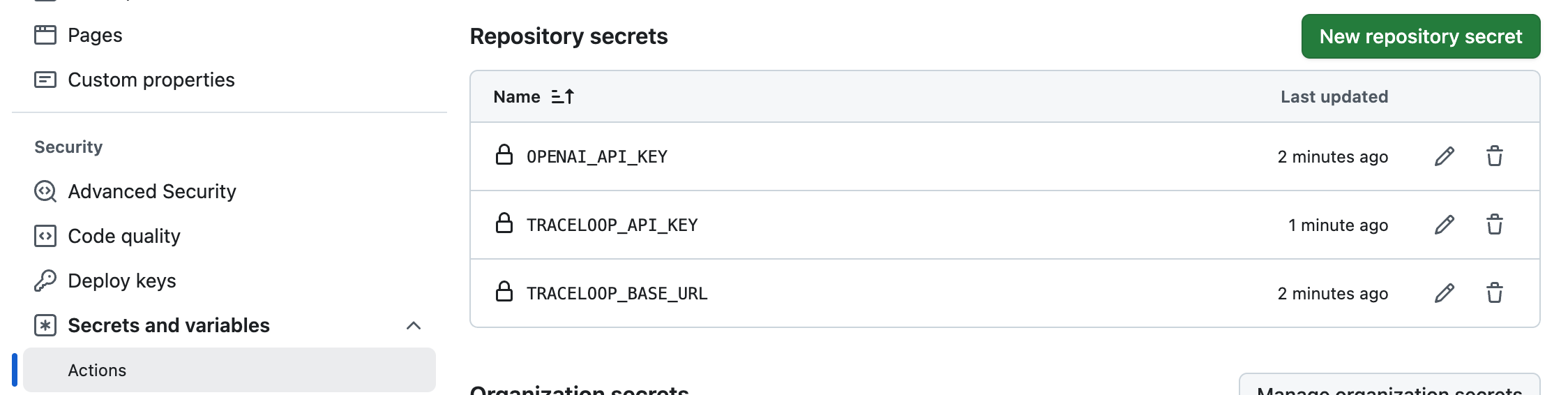
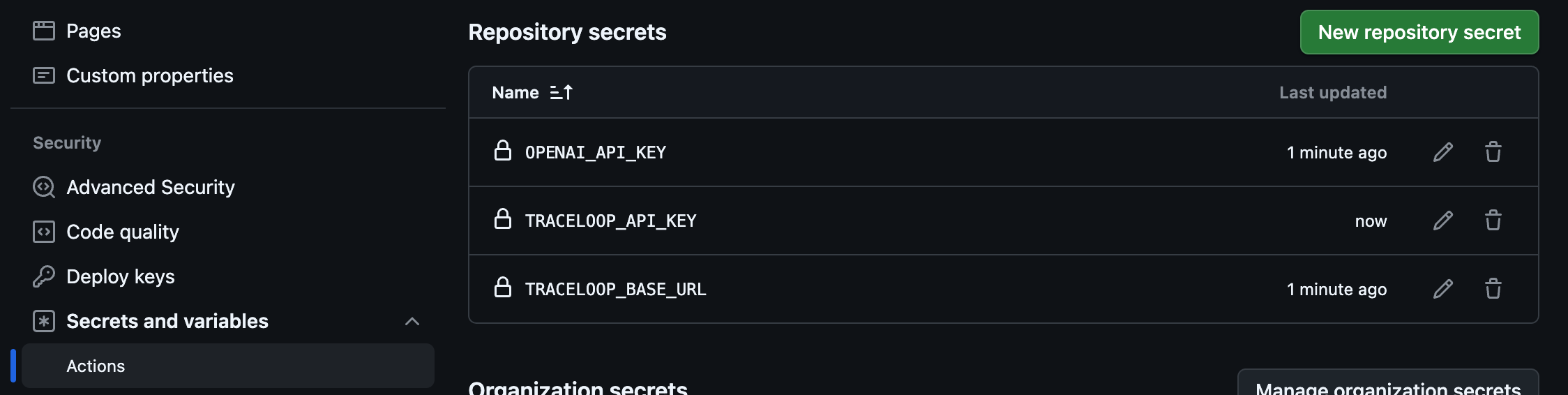 Once configured, every pull request will automatically trigger the experiment run. The Traceloop GitHub App will post a comment on the PR with a comprehensive summary of the evaluation results.

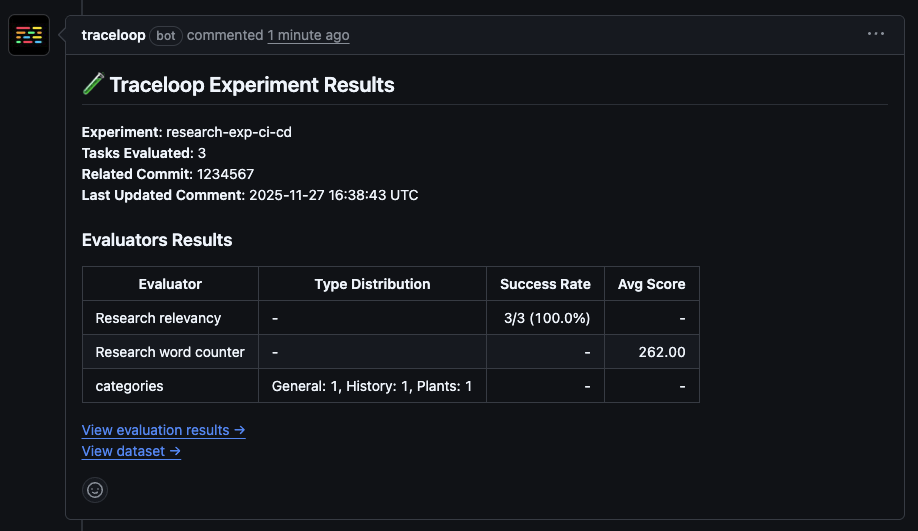 The PR comment includes:
* **Overall experiment status**
* **Evaluation metrics**
* **Link to detailed results**
### Experiment Dashboard
Click on the link in the PR comment to view the complete experiment run in the Traceloop experiment dashboard, where you can:
* Review individual test cases and their evaluator scores
* Analyze which specific inputs passed or failed
* Compare results with previous runs to track improvements or regressions
* Drill down into evaluator reasoning and feedback
The PR comment includes:
* **Overall experiment status**
* **Evaluation metrics**
* **Link to detailed results**
### Experiment Dashboard
Click on the link in the PR comment to view the complete experiment run in the Traceloop experiment dashboard, where you can:
* Review individual test cases and their evaluator scores
* Analyze which specific inputs passed or failed
* Compare results with previous runs to track improvements or regressions
* Drill down into evaluator reasoning and feedback
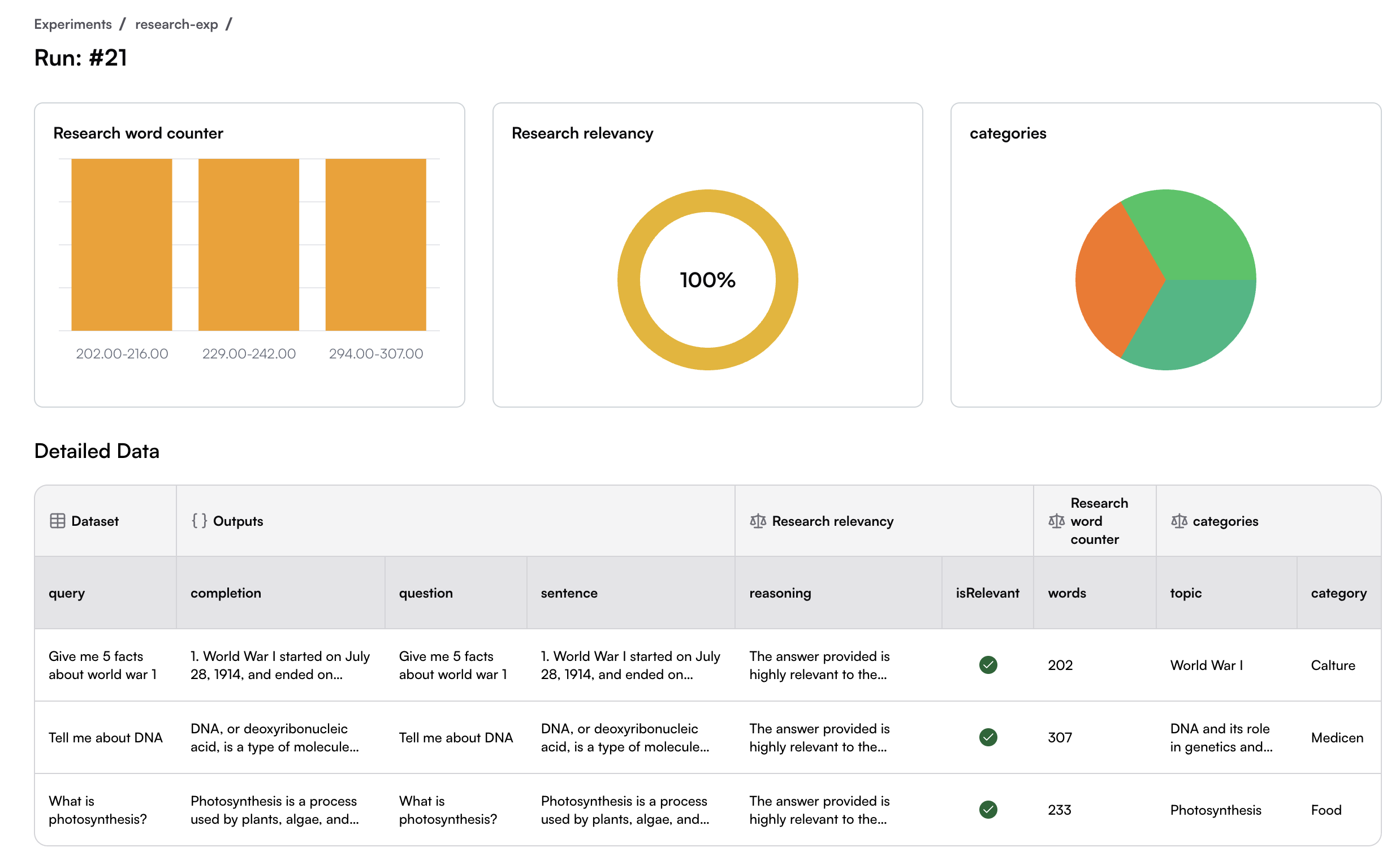
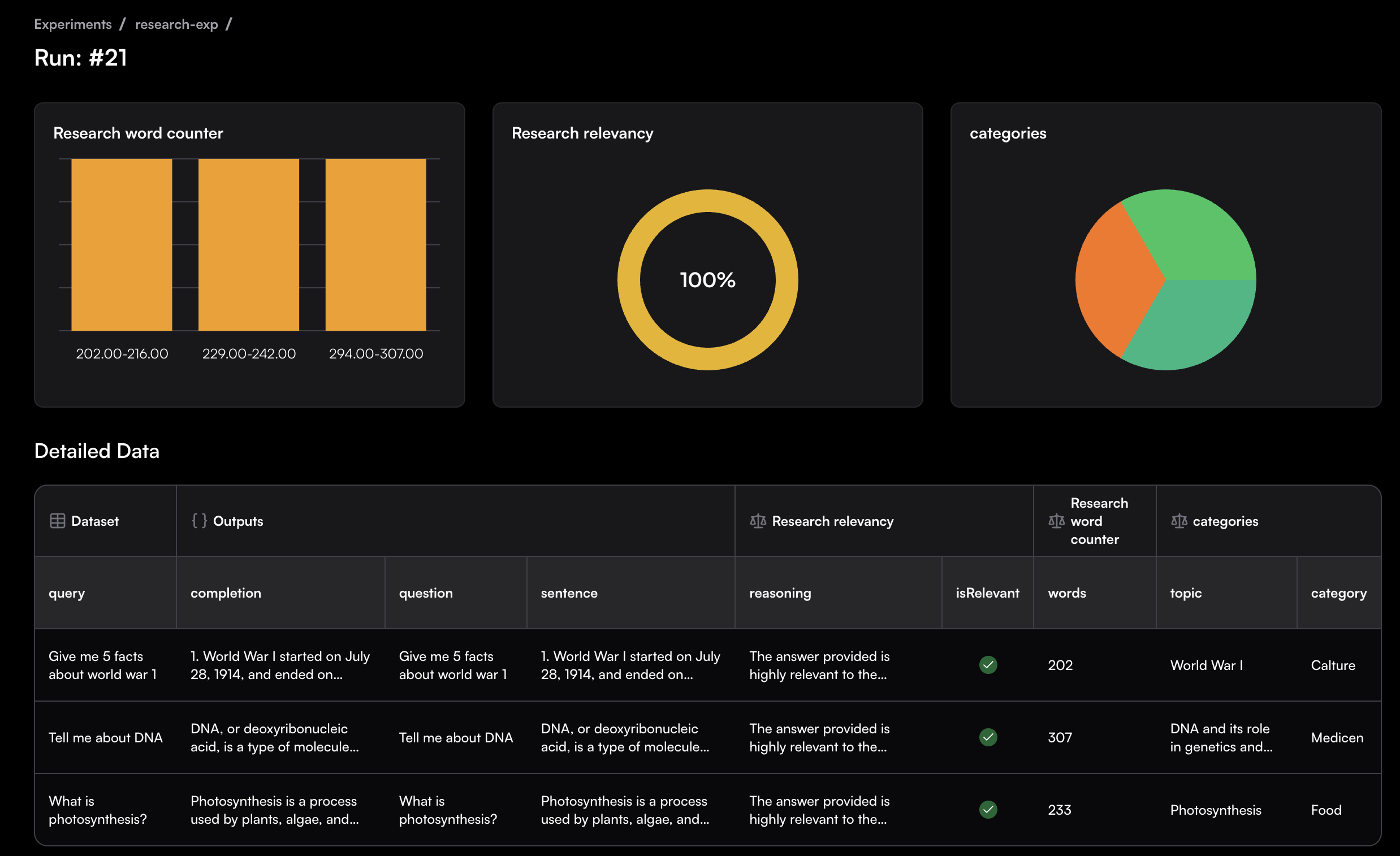 ---
# Source: https://www.traceloop.com/docs/openllmetry/integrations/grafana.md
> ## Documentation Index
> Fetch the complete documentation index at: https://www.traceloop.com/docs/llms.txt
> Use this file to discover all available pages before exploring further.
# LLM Observability with Grafana and OpenLLMetry
First, go to the Grafana Cloud account page under `https://grafana.com/orgs/`,
and click on **Send Traces** under Tempo. In **Grafana Data Source settings**,
note the `URL` value. Click **Generate now** to generate an API key and copy it.
Note also the `Stack ID` value (you can find it in the URL `https://grafana.com/orgs//stacks/`).
## With Grafana Agent
Make sure you have an agent installed and running in your cluster.
The host to target your traces is constructed is the hostname of the `URL` noted above, without the `https://` and the trailing `/tempo`.
Add this to the configuration of your agent:
```yaml theme={null}
traces:
configs:
- name: default
remote_write:
- endpoint: :443
basic_auth:
username:
password:
receivers:
otlp:
protocols:
grpc:
```
Note the endpoint. The URL you need to use is without `https` and the trailing
`/`. So `https://tempo-us-central1.grafana.net/tempo` should be used as
`tempo-us-central1.grafana.net:443`.
Set this as an environment variable in your app:
```bash theme={null}
TRACELOOP_BASE_URL=:4317
```
## Without Grafana Agent
Grafana cloud currently only supports sending traces to some of its regions.
Before you begin, [check out this list](https://grafana.com/docs/grafana-cloud/monitor-infrastructure/otlp/send-data-otlp/)
and make sure your region is supported.
In a terminal, type:
```bash theme={null}
echo -n ":" | base64
```
Note the result which is a base64 encoding of your user id and api key.
The URL you'll use as the destination for the traces depends on your region/zone. For example, for AWS US Central this will be `prod-us-central-0`.
See [here](https://grafana.com/docs/grafana-cloud/monitor-infrastructure/otlp/send-data-otlp/#before-you-begin) for the names of the zones you should use below.
Then, you can set the following environment variables when running your app with Traceloop SDK installed:
```bash theme={null}
TRACELOOP_BASE_URL=https://otlp-gateway-.grafana.net/otlp
TRACELOOP_HEADERS="Authorization=Basic%20"
```
---
# Source: https://www.traceloop.com/docs/openllmetry/integrations/groundcover.md
> ## Documentation Index
> Fetch the complete documentation index at: https://www.traceloop.com/docs/llms.txt
> Use this file to discover all available pages before exploring further.
# LLM Observability with groundcover and OpenLLMetry
---
# Source: https://www.traceloop.com/docs/openllmetry/integrations/grafana.md
> ## Documentation Index
> Fetch the complete documentation index at: https://www.traceloop.com/docs/llms.txt
> Use this file to discover all available pages before exploring further.
# LLM Observability with Grafana and OpenLLMetry
First, go to the Grafana Cloud account page under `https://grafana.com/orgs/`,
and click on **Send Traces** under Tempo. In **Grafana Data Source settings**,
note the `URL` value. Click **Generate now** to generate an API key and copy it.
Note also the `Stack ID` value (you can find it in the URL `https://grafana.com/orgs//stacks/`).
## With Grafana Agent
Make sure you have an agent installed and running in your cluster.
The host to target your traces is constructed is the hostname of the `URL` noted above, without the `https://` and the trailing `/tempo`.
Add this to the configuration of your agent:
```yaml theme={null}
traces:
configs:
- name: default
remote_write:
- endpoint: :443
basic_auth:
username:
password:
receivers:
otlp:
protocols:
grpc:
```
Note the endpoint. The URL you need to use is without `https` and the trailing
`/`. So `https://tempo-us-central1.grafana.net/tempo` should be used as
`tempo-us-central1.grafana.net:443`.
Set this as an environment variable in your app:
```bash theme={null}
TRACELOOP_BASE_URL=:4317
```
## Without Grafana Agent
Grafana cloud currently only supports sending traces to some of its regions.
Before you begin, [check out this list](https://grafana.com/docs/grafana-cloud/monitor-infrastructure/otlp/send-data-otlp/)
and make sure your region is supported.
In a terminal, type:
```bash theme={null}
echo -n ":" | base64
```
Note the result which is a base64 encoding of your user id and api key.
The URL you'll use as the destination for the traces depends on your region/zone. For example, for AWS US Central this will be `prod-us-central-0`.
See [here](https://grafana.com/docs/grafana-cloud/monitor-infrastructure/otlp/send-data-otlp/#before-you-begin) for the names of the zones you should use below.
Then, you can set the following environment variables when running your app with Traceloop SDK installed:
```bash theme={null}
TRACELOOP_BASE_URL=https://otlp-gateway-.grafana.net/otlp
TRACELOOP_HEADERS="Authorization=Basic%20"
```
---
# Source: https://www.traceloop.com/docs/openllmetry/integrations/groundcover.md
> ## Documentation Index
> Fetch the complete documentation index at: https://www.traceloop.com/docs/llms.txt
> Use this file to discover all available pages before exploring further.
# LLM Observability with groundcover and OpenLLMetry
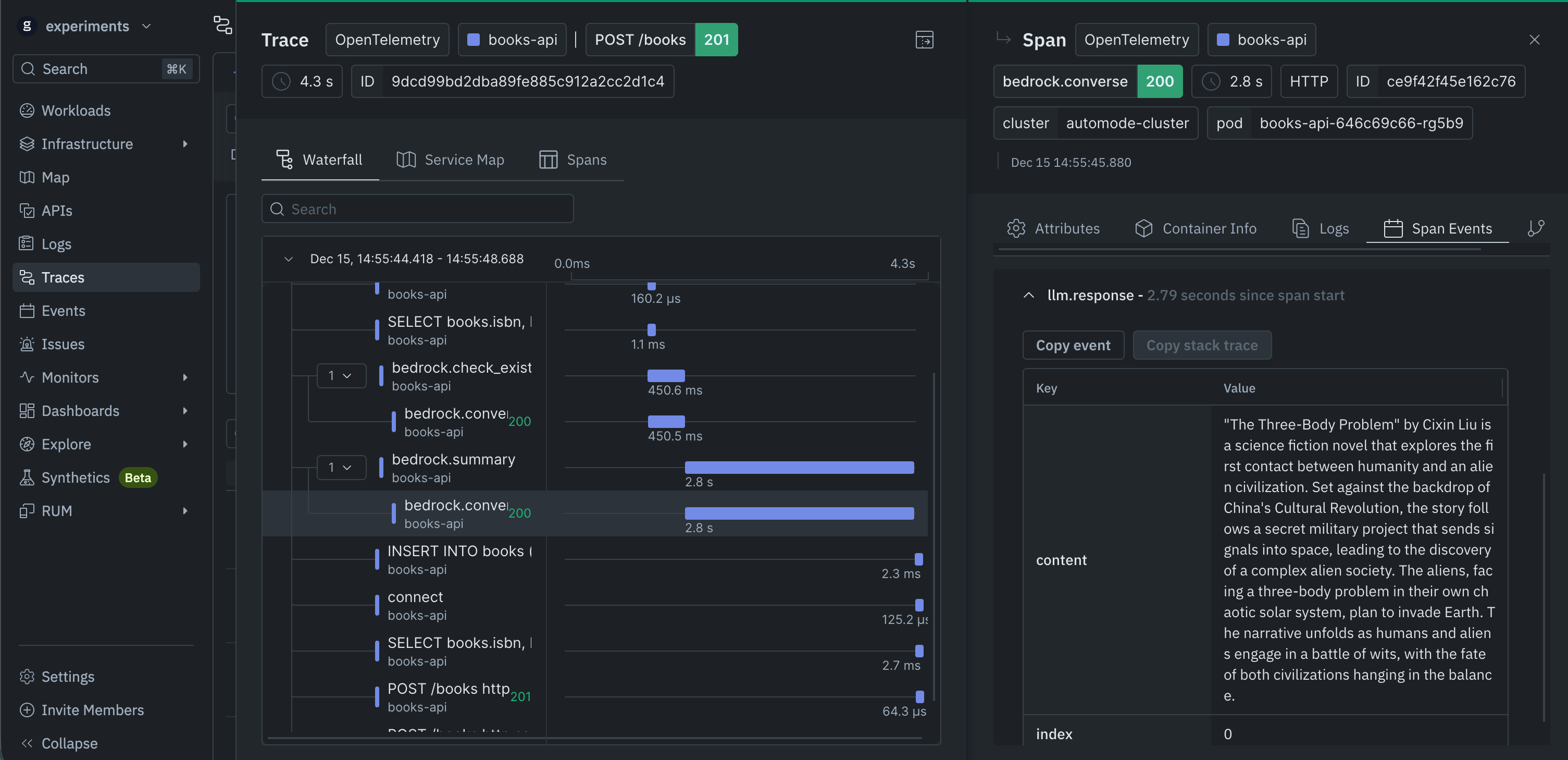 [groundcover](https://www.groundcover.com) is a BYOC, eBPF-powered, OpenTelemetry-native complete observability platform.
You have two options for sending traces to groundcover:
## Option 1 - Send directly to the groundcover sensor
No API key required. Saves on networking costs.
```bash theme={null}
TRACELOOP_BASE_URL=http://groundcover-sensor.groundcover.svc.cluster.local:4318
```
## Option 2 - Send directly to the groundcover BYOC endpoint
Allows sending traces from any runtime, e.g., Docker, serverless, ECS, etc. Requires an ingestion key.
First, [create an ingestion key](https://docs.groundcover.com/use-groundcover/remote-access-and-apis/ingestion-keys#creating-an-ingestion-key).
Then, set the following environment variables:
```bash theme={null}
TRACELOOP_BASE_URL=https://
TRACELOOP_HEADERS="apikey="
```
For more information, check out the [groundcover OpenTelemetry documentation](https://docs.groundcover.com/integrations/data-sources/opentelemetry).
---
# Source: https://www.traceloop.com/docs/evaluators/guardrails.md
> ## Documentation Index
> Fetch the complete documentation index at: https://www.traceloop.com/docs/llms.txt
> Use this file to discover all available pages before exploring further.
# Guardrails
> Real-time evaluation and safety checks for LLM applications
Guardrails are real-time evaluators that run inline with your application code, providing immediate safety checks, policy enforcement, and quality validation before outputs reach users. Unlike post-hoc evaluation in playgrounds, experiments, or monitors, guardrails execute synchronously during runtime to prevent issues before they occur.
## What Are Guardrails?
Guardrails act as protective middleware layers that intercept and validate LLM inputs and outputs in real-time. They enable you to:
* **Prevent harmful outputs** - Block inappropriate, biased, or unsafe content before it reaches users
* **Enforce business policies** - Ensure responses comply with company guidelines and regulatory requirements
* **Validate quality** - Check for hallucinations, factual accuracy, and relevance in real-time
* **Control behavior** - Enforce tone, style, and format requirements consistently
* **Protect sensitive data** - Detect and prevent leakage of PII, credentials, or confidential information
## How Guardrails Differ from Other Evaluators
| Feature | Guardrails | Experiments | Monitors | Playgrounds |
| -------------------- | --------------------------- | -------------------- | ---------------------------- | --------------------- |
| **Timing** | Real-time (inline) | Post-hoc (batch) | Post-hoc (continuous) | Interactive (manual) |
| **Execution** | Synchronous with code | Programmatic via SDK | Automated on production data | User-triggered |
| **Purpose** | Prevention & blocking | Systematic testing | Quality tracking | Development & testing |
| **Latency Impact** | Yes - adds to response time | No | No | N/A |
| **Can Block Output** | Yes | No | No | No |
The key distinction is that guardrails run **before** outputs are returned to users, allowing you to intercept and modify or block responses based on evaluation results.
## Use Cases
### Safety and Content Filtering
Prevent toxic, harmful, or inappropriate content from reaching users:
* Detect hate speech, profanity, or offensive language
* Block outputs containing violent or explicit content
* Filter responses that could cause psychological harm
### Regulatory Compliance
Ensure outputs meet legal and regulatory requirements:
* HIPAA compliance for medical information
* GDPR compliance for personal data handling
* Financial services regulations (e.g., avoiding financial advice)
* Industry-specific content guidelines
### Data Protection
Prevent sensitive information leakage:
* Detect PII (personally identifiable information)
* Block API keys, passwords, or credentials in responses
* Prevent disclosure of proprietary business information
* Ensure customer data confidentiality
### Quality Assurance
Maintain output quality standards:
* Detect hallucinations and factual errors
* Verify response relevance to user queries
* Enforce minimum quality thresholds
* Validate structured output formats
### Brand and Tone Control
Ensure consistent brand voice:
* Enforce communication style guidelines
* Maintain appropriate tone for audience
* Prevent off-brand language or messaging
* Control formality levels
## Implementation
### Basic Setup
First, initialize the Traceloop SDK in your application:
```python theme={null}
from traceloop.sdk import Traceloop
Traceloop.init(app_name="your-app-name")
```
### Using the @guardrail Decorator
Apply the `@guardrail` decorator to functions that interact with LLMs:
```python theme={null}
from traceloop.sdk.decorators import guardrail
from openai import AsyncOpenAI
client = AsyncOpenAI()
@guardrail(slug="content_safety_check")
async def get_ai_response(user_message: str) -> str:
response = await client.chat.completions.create(
model="gpt-4",
messages=[
{"role": "system", "content": "You are a helpful assistant."},
{"role": "user", "content": user_message}
],
temperature=0.7
)
return response.choices[0].message.content
```
The `slug` parameter identifies which guardrail evaluator to apply. This corresponds to an evaluator you've defined in the Traceloop dashboard.
### Medical Chat Example
Here's a complete example showing guardrails for a medical chatbot:
```python theme={null}
import asyncio
import os
from openai import AsyncOpenAI
from traceloop.sdk import Traceloop
from traceloop.sdk.decorators import guardrail
Traceloop.init(app_name="medical-chat-example")
client = AsyncOpenAI(api_key=os.getenv("OPENAI_API_KEY"))
@guardrail(slug="valid_medical_chat")
async def get_doctor_response(conversation_history: list) -> str:
response = await client.chat.completions.create(
model="gpt-4o",
messages=[
{
"role": "system",
"content": """You are a medical information assistant.
You can provide general health information but you are NOT
a replacement for professional medical advice.
Always recommend consulting with qualified healthcare providers
for specific medical concerns."""
},
*conversation_history
],
temperature=0,
max_tokens=500
)
return response.choices[0].message.content
async def medical_chat_session():
conversation_history = []
print("Medical Chat Assistant (type 'quit' to exit)")
print("-" * 50)
while True:
user_input = input("\nYou: ").strip()
if user_input.lower() in ['quit', 'exit', 'q']:
print("Thank you for using Medical Chat Assistant. Stay healthy!")
break
conversation_history.append({"role": "user", "content": user_input})
try:
response = await get_doctor_response(conversation_history)
print(f"\nAssistant: {response}")
conversation_history.append({"role": "assistant", "content": response})
except Exception as e:
print(f"Error: {e}")
conversation_history.pop()
if __name__ == "__main__":
asyncio.run(medical_chat_session())
```
### Multiple Guardrails
You can apply multiple guardrails to the same function for layered protection:
```python theme={null}
@guardrail(slug="content_safety")
@guardrail(slug="pii_detection")
@guardrail(slug="factual_accuracy")
async def generate_response(prompt: str) -> str:
# Your LLM call here
pass
```
Guardrails execute in the order they're declared (bottom to top in the decorator stack).
## Creating Guardrail Evaluators
Guardrails use the same evaluator system as experiments and monitors. To create a guardrail evaluator:
1. Navigate to the **Evaluator Library** in your Traceloop dashboard
2. Click **New Evaluator** or select a pre-built evaluator
3. Define your evaluation criteria:
* For safety checks: Specify content categories to detect and block
* For compliance: Define regulatory requirements and policies
* For quality: Set thresholds for relevance, accuracy, or completeness
4. Test the evaluator in a playground to validate behavior
5. Note the evaluator's **slug** for use in your code
6. Apply the evaluator using `@guardrail(slug="your-evaluator-slug")`
See [Custom Evaluators](./custom-evaluator) for detailed instructions on creating evaluators.
## Best Practices
### Performance Considerations
Guardrails add latency to your application since they run synchronously:
* **Use selectively** - Apply guardrails only where needed, not to every function
* **Choose efficient evaluators** - Simpler checks run faster than complex LLM-based evaluations
* **Consider async execution** - Use async/await patterns to maximize throughput
* **Monitor latency** - Track guardrail execution times and optimize slow evaluators
* **Cache when possible** - Cache evaluation results for identical inputs
### Error Handling
Implement robust error handling for guardrail failures:
```python theme={null}
from traceloop.sdk.decorators import guardrail
@guardrail(slug="safety_check")
async def get_response(prompt: str) -> str:
try:
# Your LLM call
response = await generate_llm_response(prompt)
return response
except Exception as e:
# Log the error
logger.error(f"Guardrail or LLM error: {e}")
# Return safe fallback
return "I apologize, but I cannot process this request at the moment."
```
### Layered Protection
Use multiple layers of guardrails for critical applications:
1. **Input validation** - Check user inputs before processing
2. **Output validation** - Verify LLM responses before returning
3. **Context validation** - Ensure proper use of retrieved information
4. **Post-processing** - Final safety check on formatted outputs
### Testing Guardrails
Before deploying to production:
* **Test in playgrounds** - Validate evaluator behavior with sample inputs
* **Run experiments** - Test guardrails against diverse datasets
* **Monitor false positives** - Track blocked outputs that should have been allowed
* **Monitor false negatives** - Watch for policy violations that weren't caught
* **A/B test** - Compare user experience with and without specific guardrails
### Compliance and Auditing
For regulated industries:
* **Log all evaluations** - Traceloop automatically tracks all guardrail executions
* **Document policies** - Maintain clear documentation of what each guardrail checks
* **Version control** - Track changes to guardrail configurations over time
* **Regular audits** - Review guardrail effectiveness and update as needed
* **Incident response** - Have procedures for when guardrails detect violations
## Configuration Options
When applying guardrails, you can configure behavior:
```python theme={null}
@guardrail(
slug="safety_check",
# Additional configuration options
blocking=True, # Whether to block on evaluation failure
timeout_ms=5000, # Maximum evaluation time
fallback="safe" # Behavior on timeout or error
)
async def get_response(prompt: str) -> str:
# Your implementation
pass
```
## Monitoring Guardrail Performance
Track guardrail effectiveness in your Traceloop dashboard:
* **Execution frequency** - How often each guardrail runs
* **Block rate** - Percentage of requests blocked by guardrails
* **Latency impact** - Time added by guardrail evaluation
* **Error rate** - Guardrail failures or timeouts
* **Policy violations** - Trends in detected issues over time
Use this data to optimize guardrail configuration and identify emerging safety concerns.
## Integration with Experiments and Monitors
Guardrails complement other evaluation workflows:
* **Experiments** - Test guardrail effectiveness on historical data before deployment
* **Monitors** - Continuously track guardrail performance in production
* **Playgrounds** - Develop and refine guardrail evaluators interactively
This integrated approach ensures comprehensive quality control across development, testing, and production environments.
## Next Steps
* [Create custom evaluators](./custom-evaluator) for your specific guardrail needs
* [Explore pre-built evaluators](./made-by-traceloop) for common safety and quality checks
* [Set up experiments](../experiments/introduction) to test guardrails before production
* [Configure monitors](../monitoring/introduction) to track guardrail performance over time
---
# Source: https://www.traceloop.com/docs/openllmetry/integrations/highlight.md
> ## Documentation Index
> Fetch the complete documentation index at: https://www.traceloop.com/docs/llms.txt
> Use this file to discover all available pages before exploring further.
# LLM Observability with Highlight and OpenLLMetry
[groundcover](https://www.groundcover.com) is a BYOC, eBPF-powered, OpenTelemetry-native complete observability platform.
You have two options for sending traces to groundcover:
## Option 1 - Send directly to the groundcover sensor
No API key required. Saves on networking costs.
```bash theme={null}
TRACELOOP_BASE_URL=http://groundcover-sensor.groundcover.svc.cluster.local:4318
```
## Option 2 - Send directly to the groundcover BYOC endpoint
Allows sending traces from any runtime, e.g., Docker, serverless, ECS, etc. Requires an ingestion key.
First, [create an ingestion key](https://docs.groundcover.com/use-groundcover/remote-access-and-apis/ingestion-keys#creating-an-ingestion-key).
Then, set the following environment variables:
```bash theme={null}
TRACELOOP_BASE_URL=https://
TRACELOOP_HEADERS="apikey="
```
For more information, check out the [groundcover OpenTelemetry documentation](https://docs.groundcover.com/integrations/data-sources/opentelemetry).
---
# Source: https://www.traceloop.com/docs/evaluators/guardrails.md
> ## Documentation Index
> Fetch the complete documentation index at: https://www.traceloop.com/docs/llms.txt
> Use this file to discover all available pages before exploring further.
# Guardrails
> Real-time evaluation and safety checks for LLM applications
Guardrails are real-time evaluators that run inline with your application code, providing immediate safety checks, policy enforcement, and quality validation before outputs reach users. Unlike post-hoc evaluation in playgrounds, experiments, or monitors, guardrails execute synchronously during runtime to prevent issues before they occur.
## What Are Guardrails?
Guardrails act as protective middleware layers that intercept and validate LLM inputs and outputs in real-time. They enable you to:
* **Prevent harmful outputs** - Block inappropriate, biased, or unsafe content before it reaches users
* **Enforce business policies** - Ensure responses comply with company guidelines and regulatory requirements
* **Validate quality** - Check for hallucinations, factual accuracy, and relevance in real-time
* **Control behavior** - Enforce tone, style, and format requirements consistently
* **Protect sensitive data** - Detect and prevent leakage of PII, credentials, or confidential information
## How Guardrails Differ from Other Evaluators
| Feature | Guardrails | Experiments | Monitors | Playgrounds |
| -------------------- | --------------------------- | -------------------- | ---------------------------- | --------------------- |
| **Timing** | Real-time (inline) | Post-hoc (batch) | Post-hoc (continuous) | Interactive (manual) |
| **Execution** | Synchronous with code | Programmatic via SDK | Automated on production data | User-triggered |
| **Purpose** | Prevention & blocking | Systematic testing | Quality tracking | Development & testing |
| **Latency Impact** | Yes - adds to response time | No | No | N/A |
| **Can Block Output** | Yes | No | No | No |
The key distinction is that guardrails run **before** outputs are returned to users, allowing you to intercept and modify or block responses based on evaluation results.
## Use Cases
### Safety and Content Filtering
Prevent toxic, harmful, or inappropriate content from reaching users:
* Detect hate speech, profanity, or offensive language
* Block outputs containing violent or explicit content
* Filter responses that could cause psychological harm
### Regulatory Compliance
Ensure outputs meet legal and regulatory requirements:
* HIPAA compliance for medical information
* GDPR compliance for personal data handling
* Financial services regulations (e.g., avoiding financial advice)
* Industry-specific content guidelines
### Data Protection
Prevent sensitive information leakage:
* Detect PII (personally identifiable information)
* Block API keys, passwords, or credentials in responses
* Prevent disclosure of proprietary business information
* Ensure customer data confidentiality
### Quality Assurance
Maintain output quality standards:
* Detect hallucinations and factual errors
* Verify response relevance to user queries
* Enforce minimum quality thresholds
* Validate structured output formats
### Brand and Tone Control
Ensure consistent brand voice:
* Enforce communication style guidelines
* Maintain appropriate tone for audience
* Prevent off-brand language or messaging
* Control formality levels
## Implementation
### Basic Setup
First, initialize the Traceloop SDK in your application:
```python theme={null}
from traceloop.sdk import Traceloop
Traceloop.init(app_name="your-app-name")
```
### Using the @guardrail Decorator
Apply the `@guardrail` decorator to functions that interact with LLMs:
```python theme={null}
from traceloop.sdk.decorators import guardrail
from openai import AsyncOpenAI
client = AsyncOpenAI()
@guardrail(slug="content_safety_check")
async def get_ai_response(user_message: str) -> str:
response = await client.chat.completions.create(
model="gpt-4",
messages=[
{"role": "system", "content": "You are a helpful assistant."},
{"role": "user", "content": user_message}
],
temperature=0.7
)
return response.choices[0].message.content
```
The `slug` parameter identifies which guardrail evaluator to apply. This corresponds to an evaluator you've defined in the Traceloop dashboard.
### Medical Chat Example
Here's a complete example showing guardrails for a medical chatbot:
```python theme={null}
import asyncio
import os
from openai import AsyncOpenAI
from traceloop.sdk import Traceloop
from traceloop.sdk.decorators import guardrail
Traceloop.init(app_name="medical-chat-example")
client = AsyncOpenAI(api_key=os.getenv("OPENAI_API_KEY"))
@guardrail(slug="valid_medical_chat")
async def get_doctor_response(conversation_history: list) -> str:
response = await client.chat.completions.create(
model="gpt-4o",
messages=[
{
"role": "system",
"content": """You are a medical information assistant.
You can provide general health information but you are NOT
a replacement for professional medical advice.
Always recommend consulting with qualified healthcare providers
for specific medical concerns."""
},
*conversation_history
],
temperature=0,
max_tokens=500
)
return response.choices[0].message.content
async def medical_chat_session():
conversation_history = []
print("Medical Chat Assistant (type 'quit' to exit)")
print("-" * 50)
while True:
user_input = input("\nYou: ").strip()
if user_input.lower() in ['quit', 'exit', 'q']:
print("Thank you for using Medical Chat Assistant. Stay healthy!")
break
conversation_history.append({"role": "user", "content": user_input})
try:
response = await get_doctor_response(conversation_history)
print(f"\nAssistant: {response}")
conversation_history.append({"role": "assistant", "content": response})
except Exception as e:
print(f"Error: {e}")
conversation_history.pop()
if __name__ == "__main__":
asyncio.run(medical_chat_session())
```
### Multiple Guardrails
You can apply multiple guardrails to the same function for layered protection:
```python theme={null}
@guardrail(slug="content_safety")
@guardrail(slug="pii_detection")
@guardrail(slug="factual_accuracy")
async def generate_response(prompt: str) -> str:
# Your LLM call here
pass
```
Guardrails execute in the order they're declared (bottom to top in the decorator stack).
## Creating Guardrail Evaluators
Guardrails use the same evaluator system as experiments and monitors. To create a guardrail evaluator:
1. Navigate to the **Evaluator Library** in your Traceloop dashboard
2. Click **New Evaluator** or select a pre-built evaluator
3. Define your evaluation criteria:
* For safety checks: Specify content categories to detect and block
* For compliance: Define regulatory requirements and policies
* For quality: Set thresholds for relevance, accuracy, or completeness
4. Test the evaluator in a playground to validate behavior
5. Note the evaluator's **slug** for use in your code
6. Apply the evaluator using `@guardrail(slug="your-evaluator-slug")`
See [Custom Evaluators](./custom-evaluator) for detailed instructions on creating evaluators.
## Best Practices
### Performance Considerations
Guardrails add latency to your application since they run synchronously:
* **Use selectively** - Apply guardrails only where needed, not to every function
* **Choose efficient evaluators** - Simpler checks run faster than complex LLM-based evaluations
* **Consider async execution** - Use async/await patterns to maximize throughput
* **Monitor latency** - Track guardrail execution times and optimize slow evaluators
* **Cache when possible** - Cache evaluation results for identical inputs
### Error Handling
Implement robust error handling for guardrail failures:
```python theme={null}
from traceloop.sdk.decorators import guardrail
@guardrail(slug="safety_check")
async def get_response(prompt: str) -> str:
try:
# Your LLM call
response = await generate_llm_response(prompt)
return response
except Exception as e:
# Log the error
logger.error(f"Guardrail or LLM error: {e}")
# Return safe fallback
return "I apologize, but I cannot process this request at the moment."
```
### Layered Protection
Use multiple layers of guardrails for critical applications:
1. **Input validation** - Check user inputs before processing
2. **Output validation** - Verify LLM responses before returning
3. **Context validation** - Ensure proper use of retrieved information
4. **Post-processing** - Final safety check on formatted outputs
### Testing Guardrails
Before deploying to production:
* **Test in playgrounds** - Validate evaluator behavior with sample inputs
* **Run experiments** - Test guardrails against diverse datasets
* **Monitor false positives** - Track blocked outputs that should have been allowed
* **Monitor false negatives** - Watch for policy violations that weren't caught
* **A/B test** - Compare user experience with and without specific guardrails
### Compliance and Auditing
For regulated industries:
* **Log all evaluations** - Traceloop automatically tracks all guardrail executions
* **Document policies** - Maintain clear documentation of what each guardrail checks
* **Version control** - Track changes to guardrail configurations over time
* **Regular audits** - Review guardrail effectiveness and update as needed
* **Incident response** - Have procedures for when guardrails detect violations
## Configuration Options
When applying guardrails, you can configure behavior:
```python theme={null}
@guardrail(
slug="safety_check",
# Additional configuration options
blocking=True, # Whether to block on evaluation failure
timeout_ms=5000, # Maximum evaluation time
fallback="safe" # Behavior on timeout or error
)
async def get_response(prompt: str) -> str:
# Your implementation
pass
```
## Monitoring Guardrail Performance
Track guardrail effectiveness in your Traceloop dashboard:
* **Execution frequency** - How often each guardrail runs
* **Block rate** - Percentage of requests blocked by guardrails
* **Latency impact** - Time added by guardrail evaluation
* **Error rate** - Guardrail failures or timeouts
* **Policy violations** - Trends in detected issues over time
Use this data to optimize guardrail configuration and identify emerging safety concerns.
## Integration with Experiments and Monitors
Guardrails complement other evaluation workflows:
* **Experiments** - Test guardrail effectiveness on historical data before deployment
* **Monitors** - Continuously track guardrail performance in production
* **Playgrounds** - Develop and refine guardrail evaluators interactively
This integrated approach ensures comprehensive quality control across development, testing, and production environments.
## Next Steps
* [Create custom evaluators](./custom-evaluator) for your specific guardrail needs
* [Explore pre-built evaluators](./made-by-traceloop) for common safety and quality checks
* [Set up experiments](../experiments/introduction) to test guardrails before production
* [Configure monitors](../monitoring/introduction) to track guardrail performance over time
---
# Source: https://www.traceloop.com/docs/openllmetry/integrations/highlight.md
> ## Documentation Index
> Fetch the complete documentation index at: https://www.traceloop.com/docs/llms.txt
> Use this file to discover all available pages before exploring further.
# LLM Observability with Highlight and OpenLLMetry
 Since [Highlight](https://www.highlight.io) natively supports OpenTelemetry, you just need to route the traces to Highlights's OTLP endpoint and set the
highlight project id in the headers:
```bash theme={null}
TRACELOOP_BASE_URL=https://otel.highlight.io:4318
TRACELOOP_HEADERS="x-highlight-project="
```
---
# Source: https://www.traceloop.com/docs/openllmetry/integrations/honeycomb.md
> ## Documentation Index
> Fetch the complete documentation index at: https://www.traceloop.com/docs/llms.txt
> Use this file to discover all available pages before exploring further.
# LLM Observability with Honeycomb and OpenLLMetry
Since [Highlight](https://www.highlight.io) natively supports OpenTelemetry, you just need to route the traces to Highlights's OTLP endpoint and set the
highlight project id in the headers:
```bash theme={null}
TRACELOOP_BASE_URL=https://otel.highlight.io:4318
TRACELOOP_HEADERS="x-highlight-project="
```
---
# Source: https://www.traceloop.com/docs/openllmetry/integrations/honeycomb.md
> ## Documentation Index
> Fetch the complete documentation index at: https://www.traceloop.com/docs/llms.txt
> Use this file to discover all available pages before exploring further.
# LLM Observability with Honeycomb and OpenLLMetry
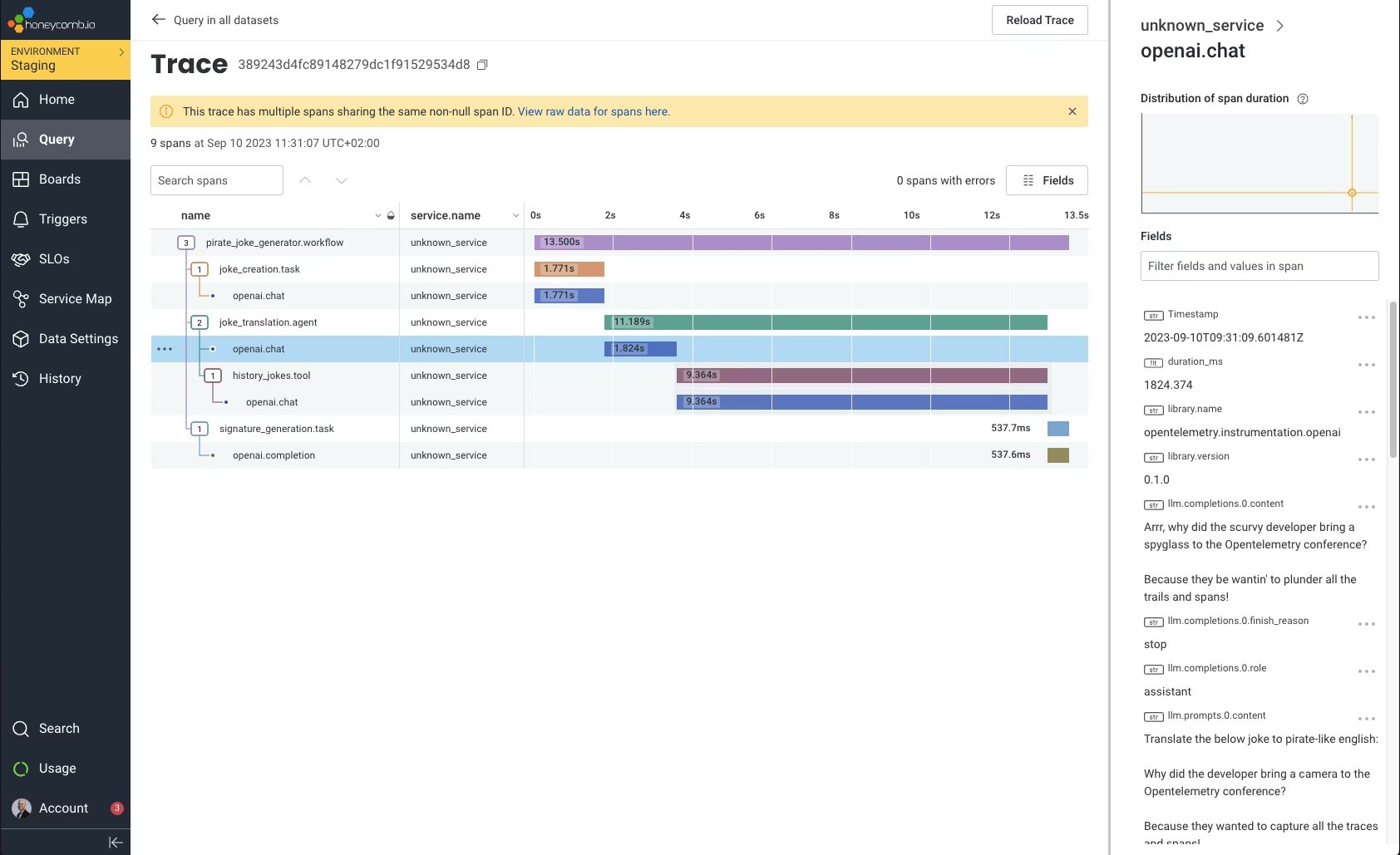 Since Honeycomb natively supports OpenTelemetry, you just need to route the traces to Honeycomb's endpoint and set the
API key:
```bash theme={null}
TRACELOOP_BASE_URL=https://api.honeycomb.io
TRACELOOP_HEADERS="x-honeycomb-team="
```
---
# Source: https://www.traceloop.com/docs/self-host/hybrid-deployment.md
> ## Documentation Index
> Fetch the complete documentation index at: https://www.traceloop.com/docs/llms.txt
> Use this file to discover all available pages before exploring further.
# Hybrid Deployment
> Set up Traceloop with data sovereignty
The Hybrid deployment model allows you to maintain full control over your data storage while leveraging Traceloop's managed services for processing, monitoring, and observability.
## Architecture Overview
* **Your Infrastructure**: Hosts only the ClickHouse database for data storage
* **Traceloop Managed**: Handles processing pipelines, monitoring, and the dashboard
* **Data Flow**: Data is processed through Traceloop's infrastructure but stored only in your ClickHouse instance
## Setup Process
Choose one of these deployment methods:
#### Option A: Using CloudFormation/Terraform (Recommended)
Contact Traceloop team for the CloudFormation template or Terraform
configuration
#### Option B: Using Helm on Kubernetes
```bash theme={null}
# Add Altinity Helm repository
helm repo add altinity https://altinity.github.io/kubernetes-blueprints-for-clickhouse
helm repo update
# Install ClickHouse
helm install ch altinity/clickhouse \
--namespace traceloop \
--create-namespace \
--values clickhouse-values.yaml
```
Example `clickhouse-values.yaml`:
```yaml theme={null}
clickhouse:
persistence:
enabled: true
size: "100Gi"
service:
type: LoadBalancer
defaultUser:
# Make sure to change these values
password: "your-secure-password"
allowExternalAccess: true
```
Provide the following details to the Traceloop team:
1. **ClickHouse Connection Details**:
* Endpoint URL
* Port number (default: 9000)
* Database credentials
2. **Network Security Requirements**:
* IP ranges for whitelisting
* VPC peering requirements (if applicable)
We support multiple security configurations:
* **IP Whitelisting**: Restrict access to specific IP ranges
* **VPC Peering**: Secure private connection between your VPC and Traceloop's environment
* **SSL/TLS**: Encrypted communication for all data in transit
* **Custom Certificates**: Support for your own SSL certificates
Store your database credentials securely and rotate them periodically.
After setup, the Traceloop team will:
1. Configure the connection to your ClickHouse instance
2. Perform connectivity tests
3. Validate data flow and storage
4. Provide access to the Traceloop dashboard
## Need Help?
* [Schedule a support call](https://calendly.com/d/cq42-93s-kcx)
* Join our [community Slack](https://traceloop.com/slack)
---
# Source: https://www.traceloop.com/docs/openllmetry/integrations/hyperdx.md
> ## Documentation Index
> Fetch the complete documentation index at: https://www.traceloop.com/docs/llms.txt
> Use this file to discover all available pages before exploring further.
# LLM Observability with HyperDX and OpenLLMetry
Since Honeycomb natively supports OpenTelemetry, you just need to route the traces to Honeycomb's endpoint and set the
API key:
```bash theme={null}
TRACELOOP_BASE_URL=https://api.honeycomb.io
TRACELOOP_HEADERS="x-honeycomb-team="
```
---
# Source: https://www.traceloop.com/docs/self-host/hybrid-deployment.md
> ## Documentation Index
> Fetch the complete documentation index at: https://www.traceloop.com/docs/llms.txt
> Use this file to discover all available pages before exploring further.
# Hybrid Deployment
> Set up Traceloop with data sovereignty
The Hybrid deployment model allows you to maintain full control over your data storage while leveraging Traceloop's managed services for processing, monitoring, and observability.
## Architecture Overview
* **Your Infrastructure**: Hosts only the ClickHouse database for data storage
* **Traceloop Managed**: Handles processing pipelines, monitoring, and the dashboard
* **Data Flow**: Data is processed through Traceloop's infrastructure but stored only in your ClickHouse instance
## Setup Process
Choose one of these deployment methods:
#### Option A: Using CloudFormation/Terraform (Recommended)
Contact Traceloop team for the CloudFormation template or Terraform
configuration
#### Option B: Using Helm on Kubernetes
```bash theme={null}
# Add Altinity Helm repository
helm repo add altinity https://altinity.github.io/kubernetes-blueprints-for-clickhouse
helm repo update
# Install ClickHouse
helm install ch altinity/clickhouse \
--namespace traceloop \
--create-namespace \
--values clickhouse-values.yaml
```
Example `clickhouse-values.yaml`:
```yaml theme={null}
clickhouse:
persistence:
enabled: true
size: "100Gi"
service:
type: LoadBalancer
defaultUser:
# Make sure to change these values
password: "your-secure-password"
allowExternalAccess: true
```
Provide the following details to the Traceloop team:
1. **ClickHouse Connection Details**:
* Endpoint URL
* Port number (default: 9000)
* Database credentials
2. **Network Security Requirements**:
* IP ranges for whitelisting
* VPC peering requirements (if applicable)
We support multiple security configurations:
* **IP Whitelisting**: Restrict access to specific IP ranges
* **VPC Peering**: Secure private connection between your VPC and Traceloop's environment
* **SSL/TLS**: Encrypted communication for all data in transit
* **Custom Certificates**: Support for your own SSL certificates
Store your database credentials securely and rotate them periodically.
After setup, the Traceloop team will:
1. Configure the connection to your ClickHouse instance
2. Perform connectivity tests
3. Validate data flow and storage
4. Provide access to the Traceloop dashboard
## Need Help?
* [Schedule a support call](https://calendly.com/d/cq42-93s-kcx)
* Join our [community Slack](https://traceloop.com/slack)
---
# Source: https://www.traceloop.com/docs/openllmetry/integrations/hyperdx.md
> ## Documentation Index
> Fetch the complete documentation index at: https://www.traceloop.com/docs/llms.txt
> Use this file to discover all available pages before exploring further.
# LLM Observability with HyperDX and OpenLLMetry
 HyperDX is an [open source observability platform](https://github.com/hyperdxio/hyperdx) that natively supports OpenTelemetry.
Just route the traces to HyperDX's endpoint and set the API key:
```bash theme={null}
TRACELOOP_BASE_URL=https://in-otel.hyperdx.io
TRACELOOP_HEADERS="authorization="
```
---
# Source: https://www.traceloop.com/docs/openllmetry/integrations/instana.md
> ## Documentation Index
> Fetch the complete documentation index at: https://www.traceloop.com/docs/llms.txt
> Use this file to discover all available pages before exploring further.
# LLM Observability with Instana and OpenLLMetry
HyperDX is an [open source observability platform](https://github.com/hyperdxio/hyperdx) that natively supports OpenTelemetry.
Just route the traces to HyperDX's endpoint and set the API key:
```bash theme={null}
TRACELOOP_BASE_URL=https://in-otel.hyperdx.io
TRACELOOP_HEADERS="authorization="
```
---
# Source: https://www.traceloop.com/docs/openllmetry/integrations/instana.md
> ## Documentation Index
> Fetch the complete documentation index at: https://www.traceloop.com/docs/llms.txt
> Use this file to discover all available pages before exploring further.
# LLM Observability with Instana and OpenLLMetry
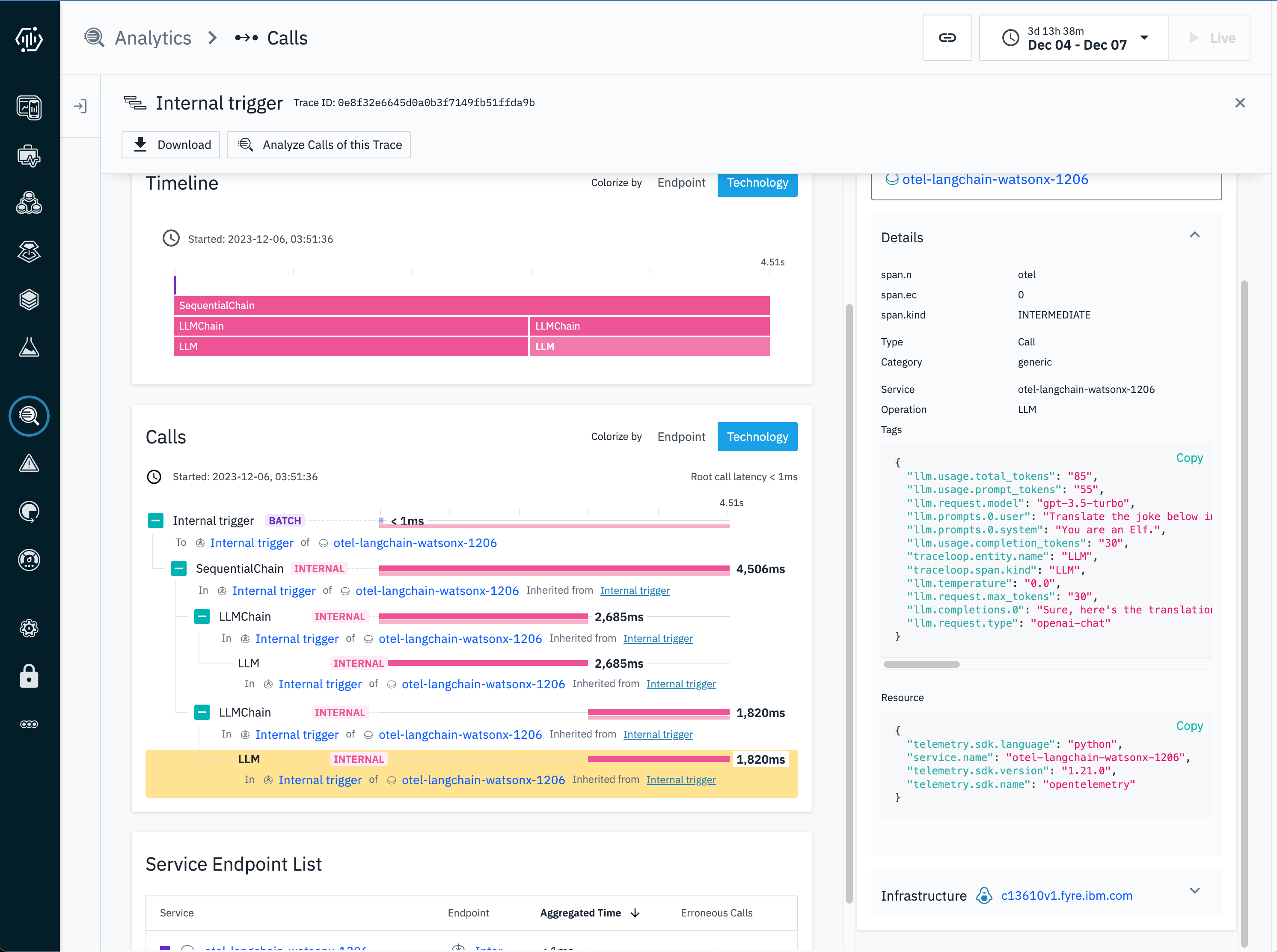 With Instana, you can export directly to an Instana Agent in your cluster.
The Instana Agent will report back the tracing and metrics to the Instana Backend and display them on the Instana UI.
If you are running your Instana Agent on a VM or physical machine, do the following to config:
Edit the agent config file `configuration.yaml` under the `/opt/instana/agent/etc/instana` folder.
```
cd /opt/instana/agent/etc/instana
vi configuration.yaml
```
Add the following to the file:
```
com.instana.plugin.opentelemetry:
enabled: true
grpc:
enabled: true
```
Restart the Instana agent:
```
systemctl restart instana-agent.service
```
If you are running Instana Agent on OpenShift or Kubernetes, do the following to config:
In Instana Configmap, add the following content:
```yaml theme={null}
com.instana.plugin.opentelemetry:
enabled: true
grpc:
enabled: true
```
For Instana Daemonset, add the following:
```yaml theme={null}
- mountPath: /opt/instana/agent/etc/instana/configuration-opentelemetry.yaml
name: configuration
subPath: configuration-opentelemetry.yaml
```
The Instana agent should be ready for OpenTelemetry data at port 4317.
Then, set this env var, and you're done!
```bash theme={null}
TRACELOOP_BASE_URL=:4317
```
Instana now supports MCP Observability. The following span attributes are available for MCP traces :
mcp.method.name
mcp.request.argument
mcp.request.id
mcp.response.value
mcp.session.init\_options
Here is the MCP traces from Instana UI:
With Instana, you can export directly to an Instana Agent in your cluster.
The Instana Agent will report back the tracing and metrics to the Instana Backend and display them on the Instana UI.
If you are running your Instana Agent on a VM or physical machine, do the following to config:
Edit the agent config file `configuration.yaml` under the `/opt/instana/agent/etc/instana` folder.
```
cd /opt/instana/agent/etc/instana
vi configuration.yaml
```
Add the following to the file:
```
com.instana.plugin.opentelemetry:
enabled: true
grpc:
enabled: true
```
Restart the Instana agent:
```
systemctl restart instana-agent.service
```
If you are running Instana Agent on OpenShift or Kubernetes, do the following to config:
In Instana Configmap, add the following content:
```yaml theme={null}
com.instana.plugin.opentelemetry:
enabled: true
grpc:
enabled: true
```
For Instana Daemonset, add the following:
```yaml theme={null}
- mountPath: /opt/instana/agent/etc/instana/configuration-opentelemetry.yaml
name: configuration
subPath: configuration-opentelemetry.yaml
```
The Instana agent should be ready for OpenTelemetry data at port 4317.
Then, set this env var, and you're done!
```bash theme={null}
TRACELOOP_BASE_URL=:4317
```
Instana now supports MCP Observability. The following span attributes are available for MCP traces :
mcp.method.name
mcp.request.argument
mcp.request.id
mcp.response.value
mcp.session.init\_options
Here is the MCP traces from Instana UI:
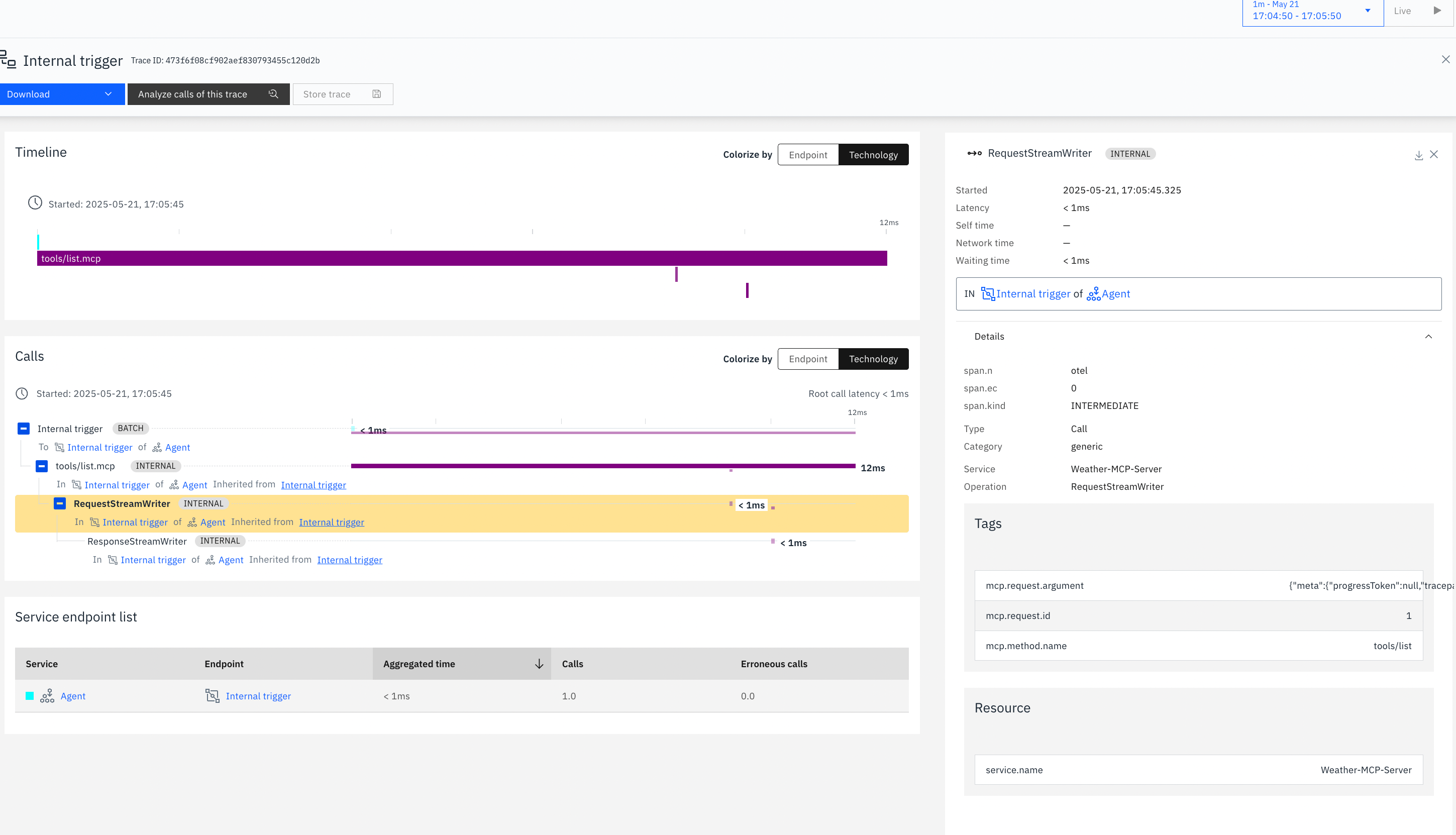 ---
# Source: https://www.traceloop.com/docs/evaluators/intro.md
> ## Documentation Index
> Fetch the complete documentation index at: https://www.traceloop.com/docs/llms.txt
> Use this file to discover all available pages before exploring further.
# Introduction
> Evaluating workflows and LLM outputs
The evaluation library is a core feature of Traceloop, providing comprehensive tools to assess LLM outputs, data quality, and performance across various dimensions. Whether you need automated scoring or human judgment, the evaluation system has you covered.
## Why Do We Need Evaluators?
LLM agents are more complex than single-turn completions.
They operate across multiple steps, use tools, and depend on context and external systems like memory or APIs. This complexity introduces new failure modes: agents may hallucinate tools, get stuck in loops, or produce final answers that hide earlier mistakes.
Evaluators make these issues visible by checking correctness, relevance, task completion, tool usage, memory retention, safety, and style. They ensure outputs remain consistent even when dependencies shift and provide a structured way to measure reliability. Evaluation is continuous, extending into production through automated tests, drift detection, quality gates, and online monitoring.
In short, evaluators turn outputs into trustworthy systems by providing measurable and repeatable checks that give teams confidence to deploy at scale.
## Evaluators types
The system supports:
* **Custom evaluators** - Create your own evaluation logic tailored to specific needs
* **Built-in evaluators** - pre-configured evaluators by Traceloop for common assessment tasks
In the Evaluator Library, select the evaluator you want to define.
You can either create a custom evaluator by clicking **New Evaluator** or choose one of the prebuilt **Made by Traceloop** evaluators.
---
# Source: https://www.traceloop.com/docs/evaluators/intro.md
> ## Documentation Index
> Fetch the complete documentation index at: https://www.traceloop.com/docs/llms.txt
> Use this file to discover all available pages before exploring further.
# Introduction
> Evaluating workflows and LLM outputs
The evaluation library is a core feature of Traceloop, providing comprehensive tools to assess LLM outputs, data quality, and performance across various dimensions. Whether you need automated scoring or human judgment, the evaluation system has you covered.
## Why Do We Need Evaluators?
LLM agents are more complex than single-turn completions.
They operate across multiple steps, use tools, and depend on context and external systems like memory or APIs. This complexity introduces new failure modes: agents may hallucinate tools, get stuck in loops, or produce final answers that hide earlier mistakes.
Evaluators make these issues visible by checking correctness, relevance, task completion, tool usage, memory retention, safety, and style. They ensure outputs remain consistent even when dependencies shift and provide a structured way to measure reliability. Evaluation is continuous, extending into production through automated tests, drift detection, quality gates, and online monitoring.
In short, evaluators turn outputs into trustworthy systems by providing measurable and repeatable checks that give teams confidence to deploy at scale.
## Evaluators types
The system supports:
* **Custom evaluators** - Create your own evaluation logic tailored to specific needs
* **Built-in evaluators** - pre-configured evaluators by Traceloop for common assessment tasks
In the Evaluator Library, select the evaluator you want to define.
You can either create a custom evaluator by clicking **New Evaluator** or choose one of the prebuilt **Made by Traceloop** evaluators.
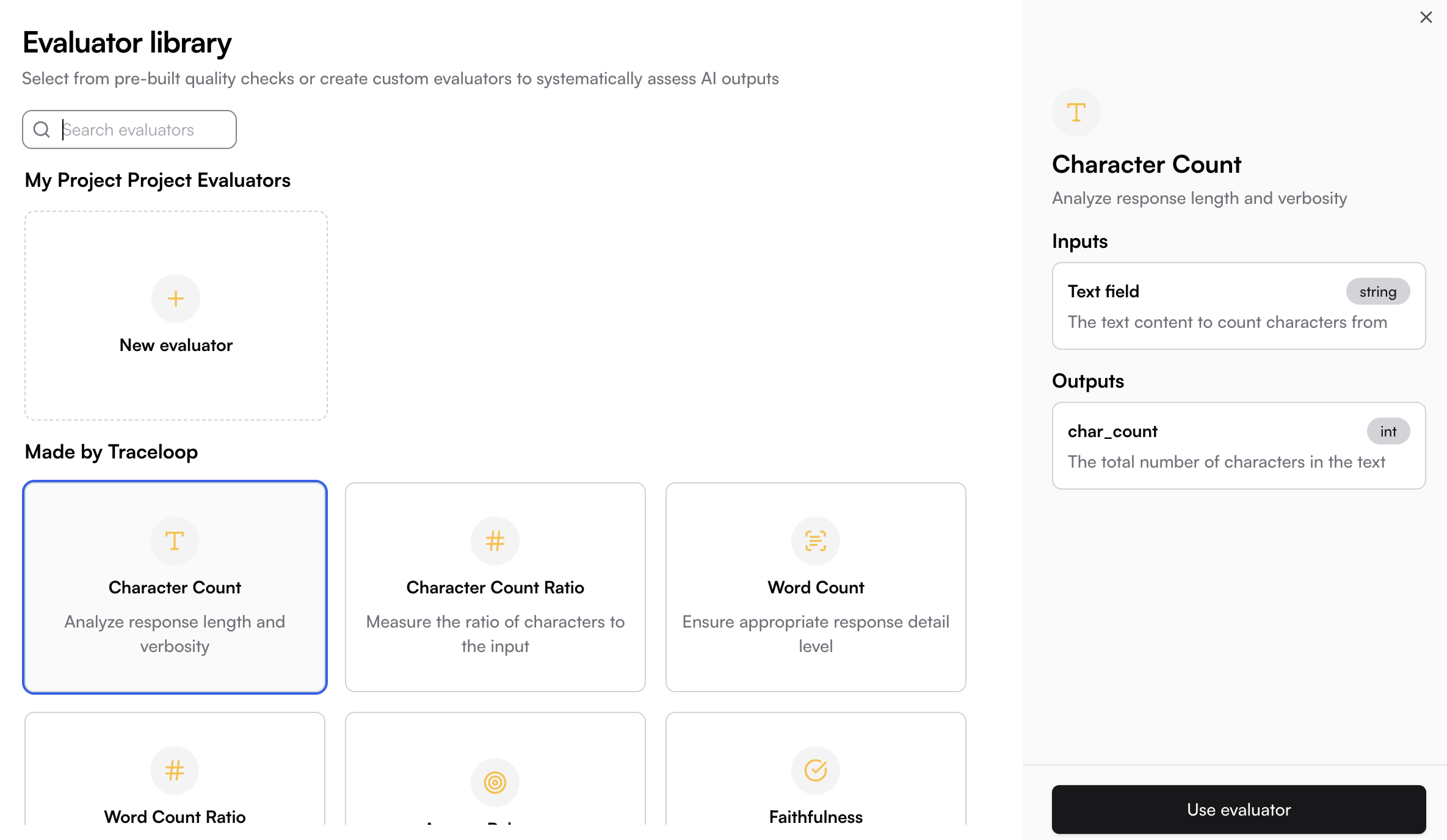
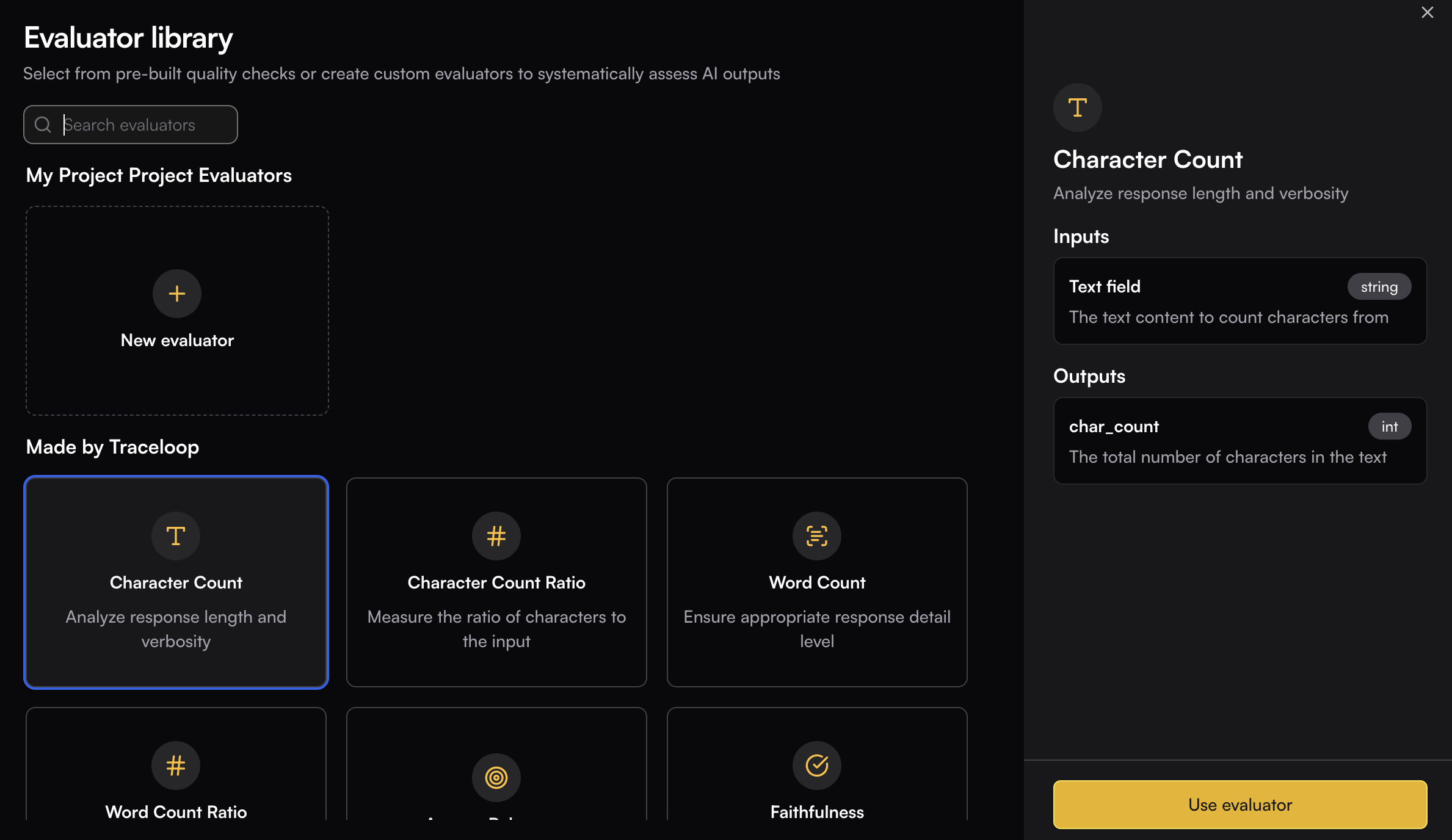 Clicking on existing evaluators will present their input and output schema. This is valuable information in order to execute the evaluator [through the SDK](../experiments/running-from-code).
## Where to Use Evaluators
Evaluators can be used in multiple contexts within Traceloop:
* **[Guardrails](./guardrails)** - Apply evaluators in real-time as inline safety checks and quality gates that run synchronously with your application code to prevent issues before they reach users
* **[Playgrounds](../playgrounds/quick-start)** - Test and iterate on your evaluators interactively, compare different configurations, and validate evaluation logic before deployment
* **[Experiments](../experiments/introduction)** - Run systematic evaluations across datasets programmatically using the SDK, track performance metrics over time, and easily compare experiment results
* **[Monitors](../monitoring/introduction)** - Continuously evaluate your LLM applications in production with real-time monitoring and alerting on quality degradation
---
# Source: https://www.traceloop.com/docs/self-host/introduction.md
# Source: https://www.traceloop.com/docs/openllmetry/introduction.md
# Source: https://www.traceloop.com/docs/openllmetry/integrations/introduction.md
# Source: https://www.traceloop.com/docs/monitoring/introduction.md
# Source: https://www.traceloop.com/docs/introduction.md
# Source: https://www.traceloop.com/docs/experiments/introduction.md
# Source: https://www.traceloop.com/docs/api-reference/introduction.md
> ## Documentation Index
> Fetch the complete documentation index at: https://www.traceloop.com/docs/llms.txt
> Use this file to discover all available pages before exploring further.
# Introduction
The following is a list of publicly available APIs you can use with the [Traceloop platform](https://app.traceloop.com).
All APIs require an API key to be used for authentication.
## Authentication
Use your API key as a Bearer token in the `Authorization` header:
```bash theme={null}
Authorization: Bearer YOUR_API_KEY
```
The same API key you use to send traces to Traceloop can be used to query your data via the API.
**To generate an API key:**
1. [Sign up](https://app.traceloop.com) for a Traceloop account if you haven't already
2. Go to [Settings → Organization](https://app.traceloop.com/settings/api-keys)
3. Select a project and environment
4. Click **Generate API key** and copy it immediately
[Detailed instructions →](/settings/managing-api-keys)
---
# Source: https://www.traceloop.com/docs/openllmetry/tracing/js-force-instrumentations.md
> ## Documentation Index
> Fetch the complete documentation index at: https://www.traceloop.com/docs/llms.txt
> Use this file to discover all available pages before exploring further.
# Issues with Auto-instrumentation (Typescript / Javascript)
> How to overcome issues with automatic instrumentations on Next.js and some Webpack environments.
Some customers have reported issues with automatic instrumentations on some environments.
This means that even though the SDK was installed and configured properly, you might not be seeing any traces.
Specifically, we have seen issues with Next.js and some configurations of Webpack.
In order to resolve it, you can provide the SDK with the libraries that you use (like OpenAI, LlamaIndex, Langchain, etc.) to make sure they are instrumented properly.
You won't need this on most environments. We recommend trying without it
first.
Here is an example of how to do it:
```js theme={null}
import OpenAI from "openai";
import * as LlamaIndex from "llamaindex";
import * as ChainsModule from "langchain/chains";
import * as AgentsModule from "langchain/agents";
import * as ToolsModule from "langchain/tools";
traceloop.initialize({
appName: "app",
instrumentModules: {
openAI: OpenAI,
llamaIndex: LlamaIndex,
langchain: {
chains: ChainsModule,
agents: AgentsModule,
tools: ToolsModule,
}
// Add or omit other modules you'd like to instrument
},
```
You only need to do it once, on app initialization.
---
# Source: https://www.traceloop.com/docs/openllmetry/integrations/kloudmate.md
> ## Documentation Index
> Fetch the complete documentation index at: https://www.traceloop.com/docs/llms.txt
> Use this file to discover all available pages before exploring further.
# LLM Observability with KloudMate and OpenLLMetry
Clicking on existing evaluators will present their input and output schema. This is valuable information in order to execute the evaluator [through the SDK](../experiments/running-from-code).
## Where to Use Evaluators
Evaluators can be used in multiple contexts within Traceloop:
* **[Guardrails](./guardrails)** - Apply evaluators in real-time as inline safety checks and quality gates that run synchronously with your application code to prevent issues before they reach users
* **[Playgrounds](../playgrounds/quick-start)** - Test and iterate on your evaluators interactively, compare different configurations, and validate evaluation logic before deployment
* **[Experiments](../experiments/introduction)** - Run systematic evaluations across datasets programmatically using the SDK, track performance metrics over time, and easily compare experiment results
* **[Monitors](../monitoring/introduction)** - Continuously evaluate your LLM applications in production with real-time monitoring and alerting on quality degradation
---
# Source: https://www.traceloop.com/docs/self-host/introduction.md
# Source: https://www.traceloop.com/docs/openllmetry/introduction.md
# Source: https://www.traceloop.com/docs/openllmetry/integrations/introduction.md
# Source: https://www.traceloop.com/docs/monitoring/introduction.md
# Source: https://www.traceloop.com/docs/introduction.md
# Source: https://www.traceloop.com/docs/experiments/introduction.md
# Source: https://www.traceloop.com/docs/api-reference/introduction.md
> ## Documentation Index
> Fetch the complete documentation index at: https://www.traceloop.com/docs/llms.txt
> Use this file to discover all available pages before exploring further.
# Introduction
The following is a list of publicly available APIs you can use with the [Traceloop platform](https://app.traceloop.com).
All APIs require an API key to be used for authentication.
## Authentication
Use your API key as a Bearer token in the `Authorization` header:
```bash theme={null}
Authorization: Bearer YOUR_API_KEY
```
The same API key you use to send traces to Traceloop can be used to query your data via the API.
**To generate an API key:**
1. [Sign up](https://app.traceloop.com) for a Traceloop account if you haven't already
2. Go to [Settings → Organization](https://app.traceloop.com/settings/api-keys)
3. Select a project and environment
4. Click **Generate API key** and copy it immediately
[Detailed instructions →](/settings/managing-api-keys)
---
# Source: https://www.traceloop.com/docs/openllmetry/tracing/js-force-instrumentations.md
> ## Documentation Index
> Fetch the complete documentation index at: https://www.traceloop.com/docs/llms.txt
> Use this file to discover all available pages before exploring further.
# Issues with Auto-instrumentation (Typescript / Javascript)
> How to overcome issues with automatic instrumentations on Next.js and some Webpack environments.
Some customers have reported issues with automatic instrumentations on some environments.
This means that even though the SDK was installed and configured properly, you might not be seeing any traces.
Specifically, we have seen issues with Next.js and some configurations of Webpack.
In order to resolve it, you can provide the SDK with the libraries that you use (like OpenAI, LlamaIndex, Langchain, etc.) to make sure they are instrumented properly.
You won't need this on most environments. We recommend trying without it
first.
Here is an example of how to do it:
```js theme={null}
import OpenAI from "openai";
import * as LlamaIndex from "llamaindex";
import * as ChainsModule from "langchain/chains";
import * as AgentsModule from "langchain/agents";
import * as ToolsModule from "langchain/tools";
traceloop.initialize({
appName: "app",
instrumentModules: {
openAI: OpenAI,
llamaIndex: LlamaIndex,
langchain: {
chains: ChainsModule,
agents: AgentsModule,
tools: ToolsModule,
}
// Add or omit other modules you'd like to instrument
},
```
You only need to do it once, on app initialization.
---
# Source: https://www.traceloop.com/docs/openllmetry/integrations/kloudmate.md
> ## Documentation Index
> Fetch the complete documentation index at: https://www.traceloop.com/docs/llms.txt
> Use this file to discover all available pages before exploring further.
# LLM Observability with KloudMate and OpenLLMetry
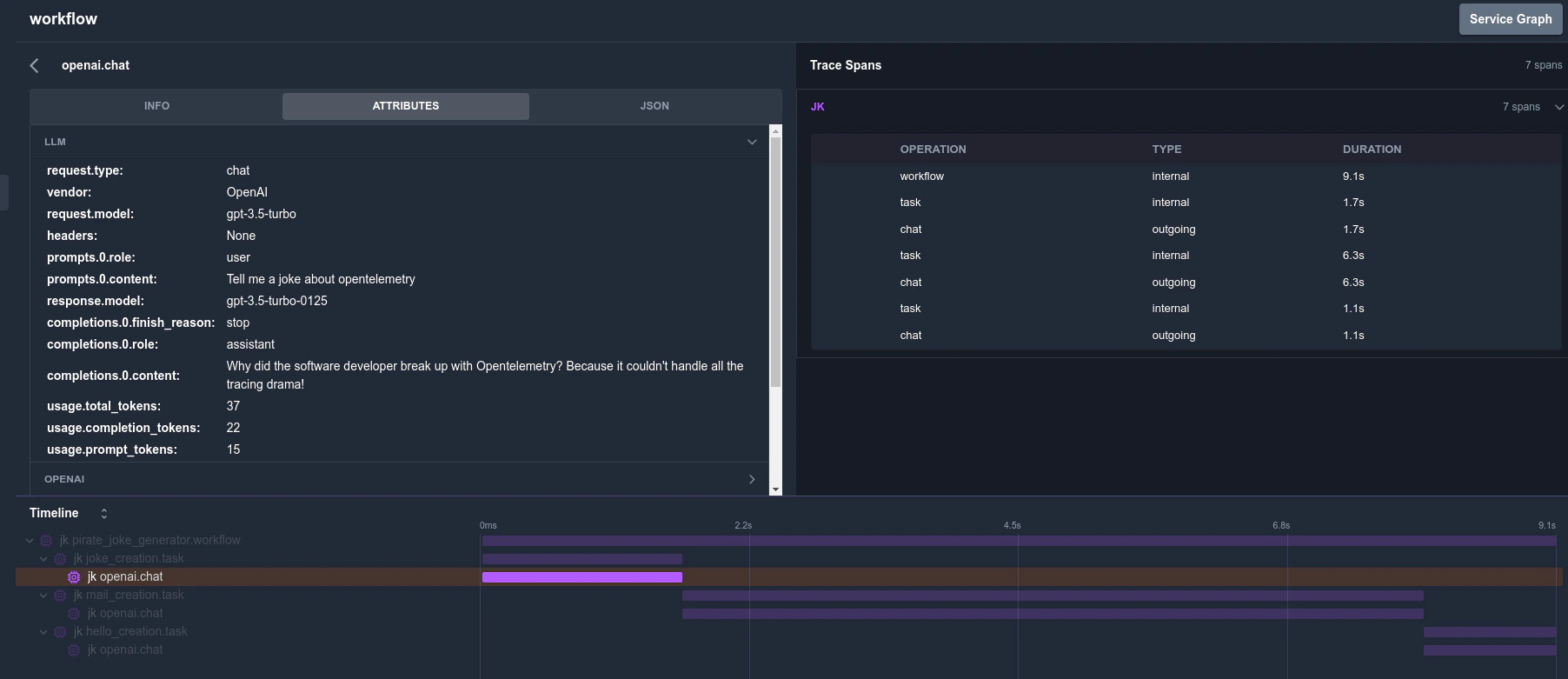 KloudMate is an [observability platform](https://kloudmate.com/) that natively supports OpenTelemetry, you just need to route the traces to KloudMate OpenTelemetry Collector endpoint and set Authorization header:
```bash theme={null}
TRACELOOP_BASE_URL="https://otel.kloudmate.com:4318"
TRACELOOP_HEADERS="Authorization="
```
For more information check out the [docs](https://docs.kloudmate.com/).
---
# Source: https://www.traceloop.com/docs/openllmetry/integrations/laminar.md
> ## Documentation Index
> Fetch the complete documentation index at: https://www.traceloop.com/docs/llms.txt
> Use this file to discover all available pages before exploring further.
# LLM observability with Laminar and OpenLLMetry
## Introduction to Laminar
Laminar is an [open-source platform](https://github.com/lmnr-ai/lmnr) for tracing and evaluating AI applications.
Laminar is fully compatible with OpenTelemetry, so you can use OpenLLMetry to trace your applications on Laminar.
Laminar's OpenTelemetry backend supports both gRPC and HTTP trace exporters.
The recommended setup is to use gRPC, as it's more efficient. You will need to create a gRPC exporter and pass it to the Traceloop SDK.
### (Recommended) gRPC setup
```bash theme={null}
pip install traceloop-sdk openai
```
To get your API key, either sign up on [Laminar](https://lmnr.ai) and get it from the project settings,
or spin up [Laminar](https://github.com/lmnr-ai/lmnr) locally.
```python theme={null}
import os
os.environ["LMNR_PROJECT_API_KEY"] = ""
os.environ["LMNR_BASE_URL"] = "https://api.lmnr.ai:8443"
```
```python theme={null}
import os
from opentelemetry.exporter.otlp.proto.grpc.trace_exporter import (
OTLPSpanExporter,
)
exporter = OTLPSpanExporter(
endpoint=os.environ["LMNR_BASE_URL"],
# IMPORTANT: note that "authorization" must be lowercase
headers={
"authorization": f"Bearer {os.environ['LMNR_PROJECT_API_KEY']}"
}
)
```
```python theme={null}
from traceloop.sdk import Traceloop
Traceloop.init(exporter=exporter)
```
```python theme={null}
from openai import OpenAI
openai_client = OpenAI()
chat_completion = openai_client.chat.completions.create(
messages=[
{
"role": "user",
"content": "What is Laminar flow?",
}
],
model="gpt-4.1-nano",
)
print(chat_completion)
```
Example trace in Laminar. ([Direct link](https://www.lmnr.ai/shared/traces/af09c6ee-ec63-1cce-674c-86bd43d62683))
### (Alternative) HTTP quick setup
Laminar's backend also supports accepting traces over HTTP, so for a minimal configuration change you can do:
```bash theme={null}
TRACELOOP_BASE_URL="https://api.lmnr.ai"
TRACELOOP_HEADERS="Authorization="
```
and skip step 3 (exporter setup) above.
For more information check out the [Laminar docs](https://docs.lmnr.ai/).
---
# Source: https://www.traceloop.com/docs/openllmetry/integrations/langfuse.md
> ## Documentation Index
> Fetch the complete documentation index at: https://www.traceloop.com/docs/llms.txt
> Use this file to discover all available pages before exploring further.
# Enhance LLM Observability with Langfuse and OpenLLMetry
# LLM Observability with Langfuse and OpenLLMetry
Langfuse provides a backend built on OpenTelemetry for ingesting trace data, and you can use different instrumentation libraries to export traces from your applications.
> **What is Langfuse?** [Langfuse](https://langfuse.com) [(GitHub)](https://github.com/langfuse/langfuse) is an open-source platform for LLM engineering. It provides tracing and monitoring capabilities for AI agents, helping developers debug, analyze, and optimize their products. Langfuse integrates with various tools and frameworks via native integrations, OpenTelemetry, and SDKs.
[](https://langfuse.com/watch-demo)
## Step 1: Install Dependencies
Begin by installing the necessary Python packages. In this example, we need the `openai` library to interact with OpenAI’s API and `traceloop-sdk` for enabling OpenLLMetry instrumentation.
```python theme={null}
%pip install openai traceloop-sdk
```
## Step 2: Set Up Environment Variables
Before initiating any requests, configure your environment with the necessary credentials and endpoints. Here, we establish Langfuse authentication by combining your public and secret keys into a Base64-encoded token. Additionally, specify the Langfuse endpoint based on your preferred geographical region (EU or US) and provide your OpenAI API key.
```python theme={null}
import os
import base64
LANGFUSE_PUBLIC_KEY=""
LANGFUSE_SECRET_KEY=""
LANGFUSE_AUTH=base64.b64encode(f"{LANGFUSE_PUBLIC_KEY}:{LANGFUSE_SECRET_KEY}".encode()).decode()
os.environ["TRACELOOP_BASE_URL"] = "https://cloud.langfuse.com/api/public/otel" # EU data region
# os.environ["TRACELOOP_BASE_URL"] = "https://us.cloud.langfuse.com/api/public/otel" # US data region
os.environ["TRACELOOP_HEADERS"] = f"Authorization=Basic {LANGFUSE_AUTH}"
# your openai key
os.environ["OPENAI_API_KEY"] = ""
```
## Step 3: Initialize OpenLLMetry Instrumentation
Proceed to initialize the OpenLLMetry instrumentation using the `traceloop-sdk`. It is advisable to use `disable_batch=True` if you are executing this code in a notebook, as traces are sent immediately without waiting for batching. Once initialized, any action performed using the OpenAI SDK (such as a chat completion request) will be automatically traced and forwarded to Langfuse.
```python theme={null}
from openai import OpenAI
from traceloop.sdk import Traceloop
Traceloop.init(disable_batch=True)
openai_client = OpenAI()
chat_completion = openai_client.chat.completions.create(
messages=[
{
"role": "user",
"content": "What is LLM Observability?",
}
],
model="gpt-4o-mini",
)
print(chat_completion)
```
## Step 4: Analyze the Trace in Langfuse
After executing the above code, you can examine the generated trace in your Langfuse dashboard:
[Example Trace in Langfuse](https://cloud.langfuse.com/project/cloramnkj0002jz088vzn1ja4/traces/e417c49b4044725e48aa0e089534fa12?timestamp=2025-02-02T22%3A04%3A04.487Z)
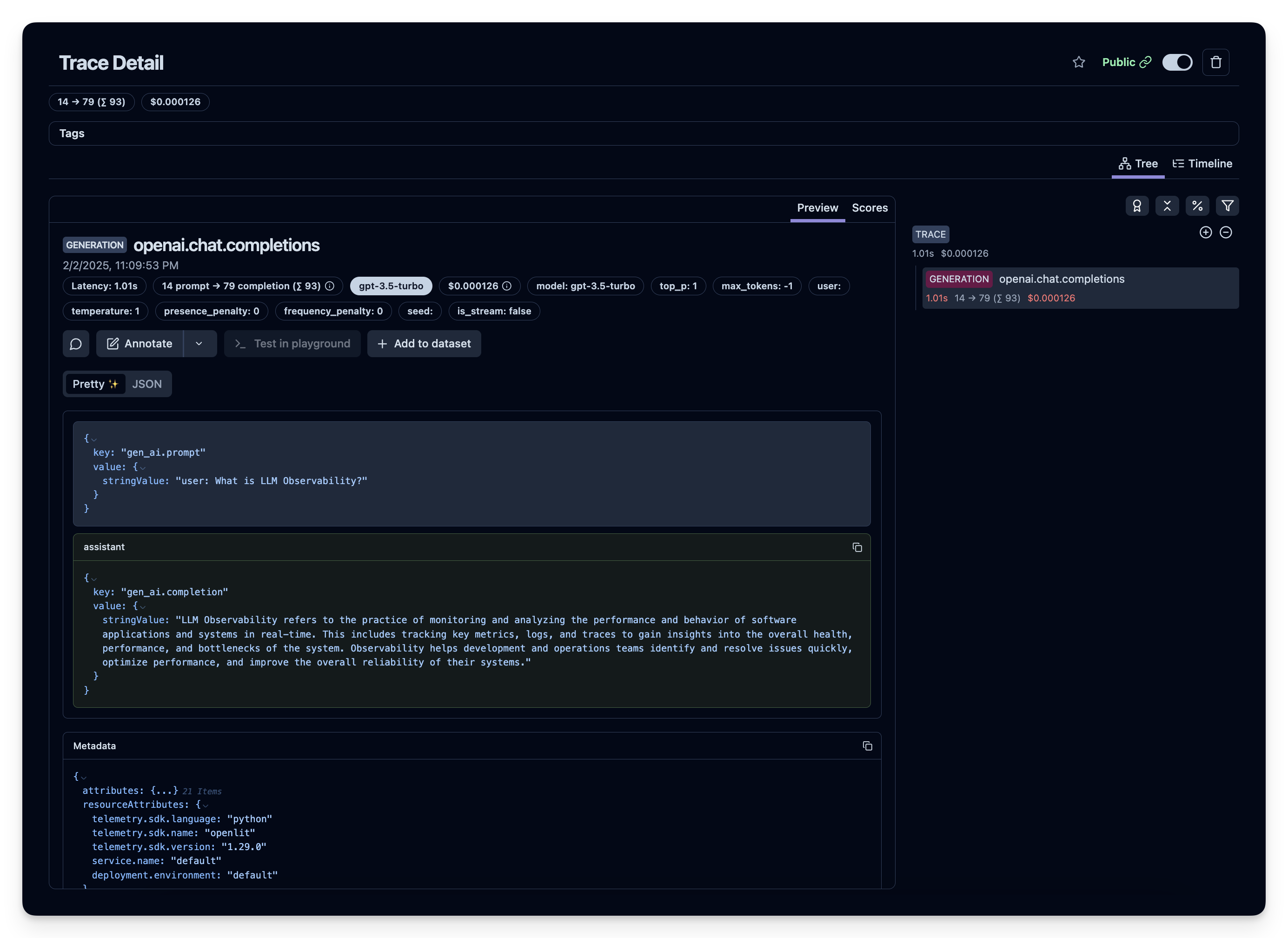
---
# Source: https://www.traceloop.com/docs/openllmetry/integrations/langsmith.md
> ## Documentation Index
> Fetch the complete documentation index at: https://www.traceloop.com/docs/llms.txt
> Use this file to discover all available pages before exploring further.
# LLM Observability with LangSmith and OpenLLMetry
KloudMate is an [observability platform](https://kloudmate.com/) that natively supports OpenTelemetry, you just need to route the traces to KloudMate OpenTelemetry Collector endpoint and set Authorization header:
```bash theme={null}
TRACELOOP_BASE_URL="https://otel.kloudmate.com:4318"
TRACELOOP_HEADERS="Authorization="
```
For more information check out the [docs](https://docs.kloudmate.com/).
---
# Source: https://www.traceloop.com/docs/openllmetry/integrations/laminar.md
> ## Documentation Index
> Fetch the complete documentation index at: https://www.traceloop.com/docs/llms.txt
> Use this file to discover all available pages before exploring further.
# LLM observability with Laminar and OpenLLMetry
## Introduction to Laminar
Laminar is an [open-source platform](https://github.com/lmnr-ai/lmnr) for tracing and evaluating AI applications.
Laminar is fully compatible with OpenTelemetry, so you can use OpenLLMetry to trace your applications on Laminar.
Laminar's OpenTelemetry backend supports both gRPC and HTTP trace exporters.
The recommended setup is to use gRPC, as it's more efficient. You will need to create a gRPC exporter and pass it to the Traceloop SDK.
### (Recommended) gRPC setup
```bash theme={null}
pip install traceloop-sdk openai
```
To get your API key, either sign up on [Laminar](https://lmnr.ai) and get it from the project settings,
or spin up [Laminar](https://github.com/lmnr-ai/lmnr) locally.
```python theme={null}
import os
os.environ["LMNR_PROJECT_API_KEY"] = ""
os.environ["LMNR_BASE_URL"] = "https://api.lmnr.ai:8443"
```
```python theme={null}
import os
from opentelemetry.exporter.otlp.proto.grpc.trace_exporter import (
OTLPSpanExporter,
)
exporter = OTLPSpanExporter(
endpoint=os.environ["LMNR_BASE_URL"],
# IMPORTANT: note that "authorization" must be lowercase
headers={
"authorization": f"Bearer {os.environ['LMNR_PROJECT_API_KEY']}"
}
)
```
```python theme={null}
from traceloop.sdk import Traceloop
Traceloop.init(exporter=exporter)
```
```python theme={null}
from openai import OpenAI
openai_client = OpenAI()
chat_completion = openai_client.chat.completions.create(
messages=[
{
"role": "user",
"content": "What is Laminar flow?",
}
],
model="gpt-4.1-nano",
)
print(chat_completion)
```
Example trace in Laminar. ([Direct link](https://www.lmnr.ai/shared/traces/af09c6ee-ec63-1cce-674c-86bd43d62683))
### (Alternative) HTTP quick setup
Laminar's backend also supports accepting traces over HTTP, so for a minimal configuration change you can do:
```bash theme={null}
TRACELOOP_BASE_URL="https://api.lmnr.ai"
TRACELOOP_HEADERS="Authorization="
```
and skip step 3 (exporter setup) above.
For more information check out the [Laminar docs](https://docs.lmnr.ai/).
---
# Source: https://www.traceloop.com/docs/openllmetry/integrations/langfuse.md
> ## Documentation Index
> Fetch the complete documentation index at: https://www.traceloop.com/docs/llms.txt
> Use this file to discover all available pages before exploring further.
# Enhance LLM Observability with Langfuse and OpenLLMetry
# LLM Observability with Langfuse and OpenLLMetry
Langfuse provides a backend built on OpenTelemetry for ingesting trace data, and you can use different instrumentation libraries to export traces from your applications.
> **What is Langfuse?** [Langfuse](https://langfuse.com) [(GitHub)](https://github.com/langfuse/langfuse) is an open-source platform for LLM engineering. It provides tracing and monitoring capabilities for AI agents, helping developers debug, analyze, and optimize their products. Langfuse integrates with various tools and frameworks via native integrations, OpenTelemetry, and SDKs.
[](https://langfuse.com/watch-demo)
## Step 1: Install Dependencies
Begin by installing the necessary Python packages. In this example, we need the `openai` library to interact with OpenAI’s API and `traceloop-sdk` for enabling OpenLLMetry instrumentation.
```python theme={null}
%pip install openai traceloop-sdk
```
## Step 2: Set Up Environment Variables
Before initiating any requests, configure your environment with the necessary credentials and endpoints. Here, we establish Langfuse authentication by combining your public and secret keys into a Base64-encoded token. Additionally, specify the Langfuse endpoint based on your preferred geographical region (EU or US) and provide your OpenAI API key.
```python theme={null}
import os
import base64
LANGFUSE_PUBLIC_KEY=""
LANGFUSE_SECRET_KEY=""
LANGFUSE_AUTH=base64.b64encode(f"{LANGFUSE_PUBLIC_KEY}:{LANGFUSE_SECRET_KEY}".encode()).decode()
os.environ["TRACELOOP_BASE_URL"] = "https://cloud.langfuse.com/api/public/otel" # EU data region
# os.environ["TRACELOOP_BASE_URL"] = "https://us.cloud.langfuse.com/api/public/otel" # US data region
os.environ["TRACELOOP_HEADERS"] = f"Authorization=Basic {LANGFUSE_AUTH}"
# your openai key
os.environ["OPENAI_API_KEY"] = ""
```
## Step 3: Initialize OpenLLMetry Instrumentation
Proceed to initialize the OpenLLMetry instrumentation using the `traceloop-sdk`. It is advisable to use `disable_batch=True` if you are executing this code in a notebook, as traces are sent immediately without waiting for batching. Once initialized, any action performed using the OpenAI SDK (such as a chat completion request) will be automatically traced and forwarded to Langfuse.
```python theme={null}
from openai import OpenAI
from traceloop.sdk import Traceloop
Traceloop.init(disable_batch=True)
openai_client = OpenAI()
chat_completion = openai_client.chat.completions.create(
messages=[
{
"role": "user",
"content": "What is LLM Observability?",
}
],
model="gpt-4o-mini",
)
print(chat_completion)
```
## Step 4: Analyze the Trace in Langfuse
After executing the above code, you can examine the generated trace in your Langfuse dashboard:
[Example Trace in Langfuse](https://cloud.langfuse.com/project/cloramnkj0002jz088vzn1ja4/traces/e417c49b4044725e48aa0e089534fa12?timestamp=2025-02-02T22%3A04%3A04.487Z)

---
# Source: https://www.traceloop.com/docs/openllmetry/integrations/langsmith.md
> ## Documentation Index
> Fetch the complete documentation index at: https://www.traceloop.com/docs/llms.txt
> Use this file to discover all available pages before exploring further.
# LLM Observability with LangSmith and OpenLLMetry
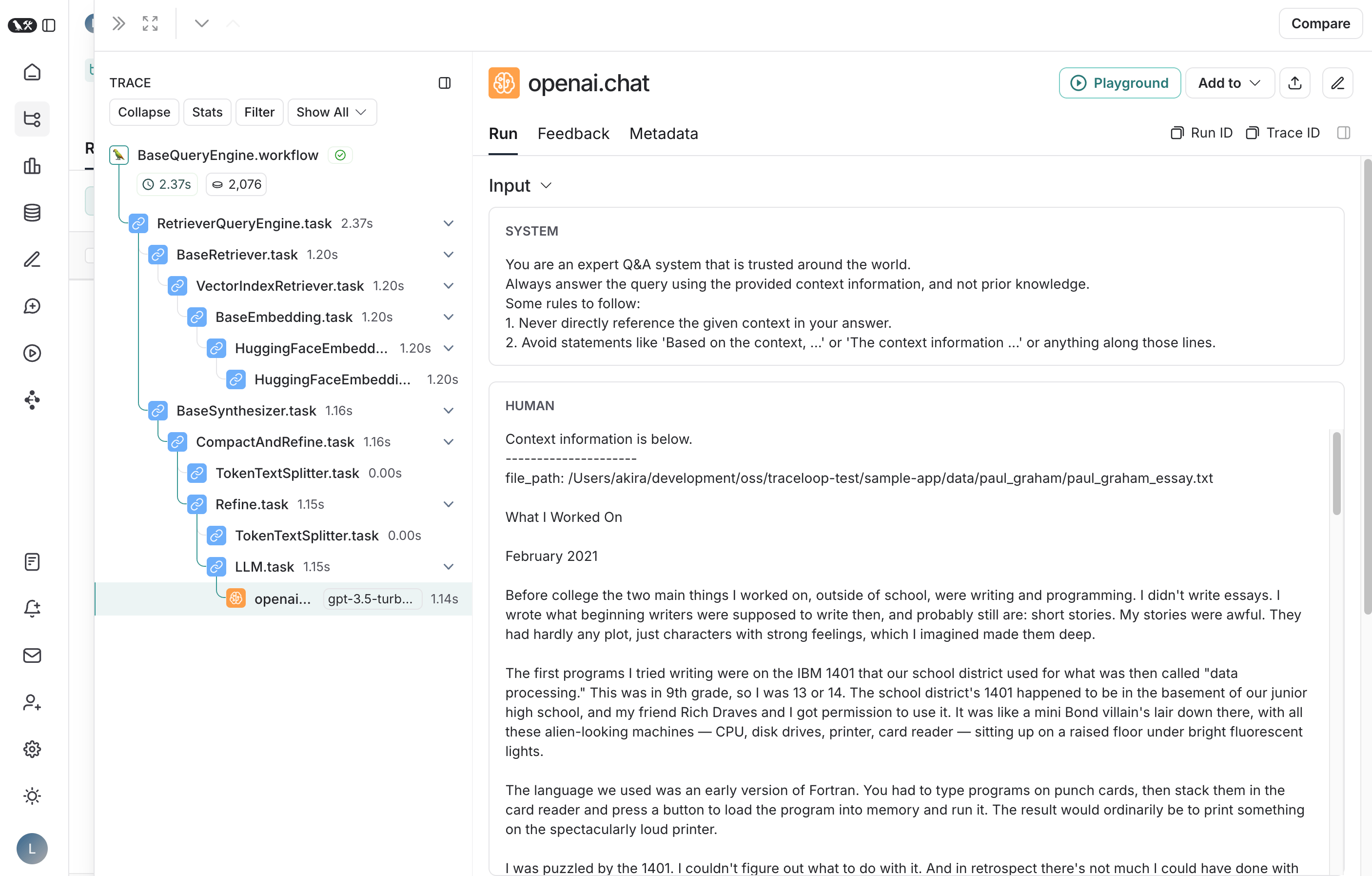 LangSmith is an [all-in-one developer platform](https://www.langchain.com/langsmith) for every step of the LLM-powered application lifecycle.
LangSmith supports ingesting traces using OpenTelemetry / OpenLLMetry format. For more details, see [LangSmith's OpenTelemetry documentation](https://docs.smith.langchain.com/observability/how_to_guides/tracing/trace_with_opentelemetry).
### To Log Traces to Langsmith
Signup for LangSmith and create an API Key. Then setup your environment variables:
```bash theme={null}
TRACELOOP_BASE_URL=https://api.smith.langchain.com/otel
TRACELOOP_HEADERS="x-api-key="
```
You can then log traces with OpenLLMetry to LangSmith, here is an example:
```python theme={null}
from openai import OpenAI
from traceloop.sdk import Traceloop
client = OpenAI()
Traceloop.init()
completion = client.chat.completions.create(
model="gpt-4o",
messages=[
{"role": "system", "content": "You are a helpful assistant."},
{
"role": "user",
"content": "Write a haiku about recursion in programming."
}
]
)
print(completion.choices[0].message)
```
---
# Source: https://www.traceloop.com/docs/api-reference/auto-monitor-setups/list-auto-monitor-setups.md
> ## Documentation Index
> Fetch the complete documentation index at: https://www.traceloop.com/docs/llms.txt
> Use this file to discover all available pages before exploring further.
# List auto monitor setups
> List all auto monitor setups for the organization with optional filters
## OpenAPI
````yaml get /v2/auto-monitor-setups
openapi: 3.0.0
info:
title: Traceloop API
version: 1.0.0
contact: {}
servers:
- url: https://api.traceloop.com
security: []
paths:
/v2/auto-monitor-setups:
get:
tags:
- auto-monitor-setups
summary: List auto monitor setups
description: List all auto monitor setups for the organization with optional filters
parameters:
- description: Filter by entity type (e.g., agent, workflow)
in: query
name: entity_type
schema:
type: string
- description: Filter by status (e.g., pending, completed)
in: query
name: status
schema:
type: string
- description: Filter by external ID
in: query
name: external_id
schema:
type: string
responses:
'200':
description: OK
content:
application/json:
schema:
items:
$ref: '#/components/schemas/response.AutoMonitorSetupResponse'
type: array
'500':
description: Internal error
content:
application/json:
schema:
$ref: '#/components/schemas/response.ErrorResponse'
components:
schemas:
response.AutoMonitorSetupResponse:
properties:
created_at:
type: string
entity_type:
type: string
entity_value:
type: string
env_project_id:
type: string
evaluators:
items:
$ref: '#/components/schemas/response.AutoMonitorEvaluatorResponse'
type: array
external_id:
type: string
id:
type: string
init_rules:
items:
$ref: '#/components/schemas/evaluator.Rule'
type: array
org_id:
type: string
project_id:
type: string
status:
type: string
updated_at:
type: string
type: object
response.ErrorResponse:
description: Standard error response structure
properties:
error:
example: error message
type: string
type: object
response.AutoMonitorEvaluatorResponse:
properties:
binding_id:
type: string
error_message:
type: string
evaluator_id:
type: string
evaluator_type:
type: string
input_schema:
items:
$ref: '#/components/schemas/evaluator.Property'
type: array
output_schema:
items:
$ref: '#/components/schemas/evaluator.Property'
type: array
processed_at:
type: string
status:
type: string
type: object
evaluator.Rule:
properties:
key:
type: string
op:
$ref: '#/components/schemas/evaluator.ComparisonOperator'
source:
type: string
value:
type: string
value_type:
type: string
required:
- op
- source
type: object
evaluator.Property:
properties:
description:
type: string
label:
type: string
name:
type: string
type:
type: string
required:
- name
- type
type: object
evaluator.ComparisonOperator:
enum:
- equals
- not_equals
- contains
- exists
- not_exists
- greater_than
- less_than
- starts_with
type: string
x-enum-varnames:
- ComparisonOperatorEquals
- ComparisonOperatorNotEquals
- ComparisonOperatorContains
- ComparisonOperatorExists
- ComparisonOperatorNotExists
- ComparisonOperatorGreaterThan
- ComparisonOperatorLessThan
- ComparisonOperatorStartsWith
````
---
# Source: https://www.traceloop.com/docs/evaluators/made-by-traceloop.md
> ## Documentation Index
> Fetch the complete documentation index at: https://www.traceloop.com/docs/llms.txt
> Use this file to discover all available pages before exploring further.
# Made by Traceloop
> Pre-configured evaluators by Traceloop for common assessment tasks
The Evaluator Library provides a comprehensive collection of pre-built quality checks designed to systematically assess AI outputs.
Each evaluator comes with a predefined input and output schema. When using an evaluator, you’ll need to map your data to its input schema.
LangSmith is an [all-in-one developer platform](https://www.langchain.com/langsmith) for every step of the LLM-powered application lifecycle.
LangSmith supports ingesting traces using OpenTelemetry / OpenLLMetry format. For more details, see [LangSmith's OpenTelemetry documentation](https://docs.smith.langchain.com/observability/how_to_guides/tracing/trace_with_opentelemetry).
### To Log Traces to Langsmith
Signup for LangSmith and create an API Key. Then setup your environment variables:
```bash theme={null}
TRACELOOP_BASE_URL=https://api.smith.langchain.com/otel
TRACELOOP_HEADERS="x-api-key="
```
You can then log traces with OpenLLMetry to LangSmith, here is an example:
```python theme={null}
from openai import OpenAI
from traceloop.sdk import Traceloop
client = OpenAI()
Traceloop.init()
completion = client.chat.completions.create(
model="gpt-4o",
messages=[
{"role": "system", "content": "You are a helpful assistant."},
{
"role": "user",
"content": "Write a haiku about recursion in programming."
}
]
)
print(completion.choices[0].message)
```
---
# Source: https://www.traceloop.com/docs/api-reference/auto-monitor-setups/list-auto-monitor-setups.md
> ## Documentation Index
> Fetch the complete documentation index at: https://www.traceloop.com/docs/llms.txt
> Use this file to discover all available pages before exploring further.
# List auto monitor setups
> List all auto monitor setups for the organization with optional filters
## OpenAPI
````yaml get /v2/auto-monitor-setups
openapi: 3.0.0
info:
title: Traceloop API
version: 1.0.0
contact: {}
servers:
- url: https://api.traceloop.com
security: []
paths:
/v2/auto-monitor-setups:
get:
tags:
- auto-monitor-setups
summary: List auto monitor setups
description: List all auto monitor setups for the organization with optional filters
parameters:
- description: Filter by entity type (e.g., agent, workflow)
in: query
name: entity_type
schema:
type: string
- description: Filter by status (e.g., pending, completed)
in: query
name: status
schema:
type: string
- description: Filter by external ID
in: query
name: external_id
schema:
type: string
responses:
'200':
description: OK
content:
application/json:
schema:
items:
$ref: '#/components/schemas/response.AutoMonitorSetupResponse'
type: array
'500':
description: Internal error
content:
application/json:
schema:
$ref: '#/components/schemas/response.ErrorResponse'
components:
schemas:
response.AutoMonitorSetupResponse:
properties:
created_at:
type: string
entity_type:
type: string
entity_value:
type: string
env_project_id:
type: string
evaluators:
items:
$ref: '#/components/schemas/response.AutoMonitorEvaluatorResponse'
type: array
external_id:
type: string
id:
type: string
init_rules:
items:
$ref: '#/components/schemas/evaluator.Rule'
type: array
org_id:
type: string
project_id:
type: string
status:
type: string
updated_at:
type: string
type: object
response.ErrorResponse:
description: Standard error response structure
properties:
error:
example: error message
type: string
type: object
response.AutoMonitorEvaluatorResponse:
properties:
binding_id:
type: string
error_message:
type: string
evaluator_id:
type: string
evaluator_type:
type: string
input_schema:
items:
$ref: '#/components/schemas/evaluator.Property'
type: array
output_schema:
items:
$ref: '#/components/schemas/evaluator.Property'
type: array
processed_at:
type: string
status:
type: string
type: object
evaluator.Rule:
properties:
key:
type: string
op:
$ref: '#/components/schemas/evaluator.ComparisonOperator'
source:
type: string
value:
type: string
value_type:
type: string
required:
- op
- source
type: object
evaluator.Property:
properties:
description:
type: string
label:
type: string
name:
type: string
type:
type: string
required:
- name
- type
type: object
evaluator.ComparisonOperator:
enum:
- equals
- not_equals
- contains
- exists
- not_exists
- greater_than
- less_than
- starts_with
type: string
x-enum-varnames:
- ComparisonOperatorEquals
- ComparisonOperatorNotEquals
- ComparisonOperatorContains
- ComparisonOperatorExists
- ComparisonOperatorNotExists
- ComparisonOperatorGreaterThan
- ComparisonOperatorLessThan
- ComparisonOperatorStartsWith
````
---
# Source: https://www.traceloop.com/docs/evaluators/made-by-traceloop.md
> ## Documentation Index
> Fetch the complete documentation index at: https://www.traceloop.com/docs/llms.txt
> Use this file to discover all available pages before exploring further.
# Made by Traceloop
> Pre-configured evaluators by Traceloop for common assessment tasks
The Evaluator Library provides a comprehensive collection of pre-built quality checks designed to systematically assess AI outputs.
Each evaluator comes with a predefined input and output schema. When using an evaluator, you’ll need to map your data to its input schema.
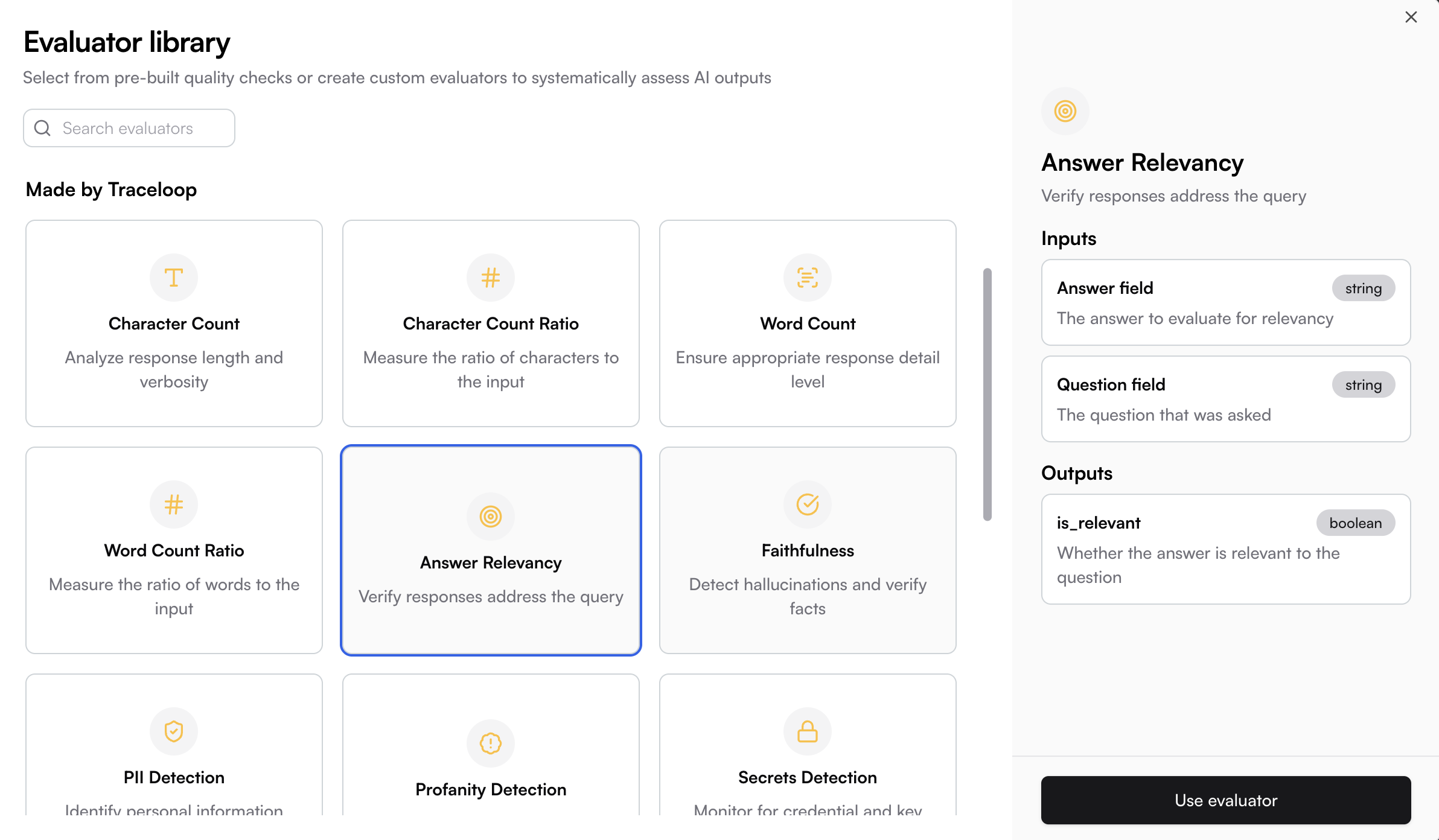
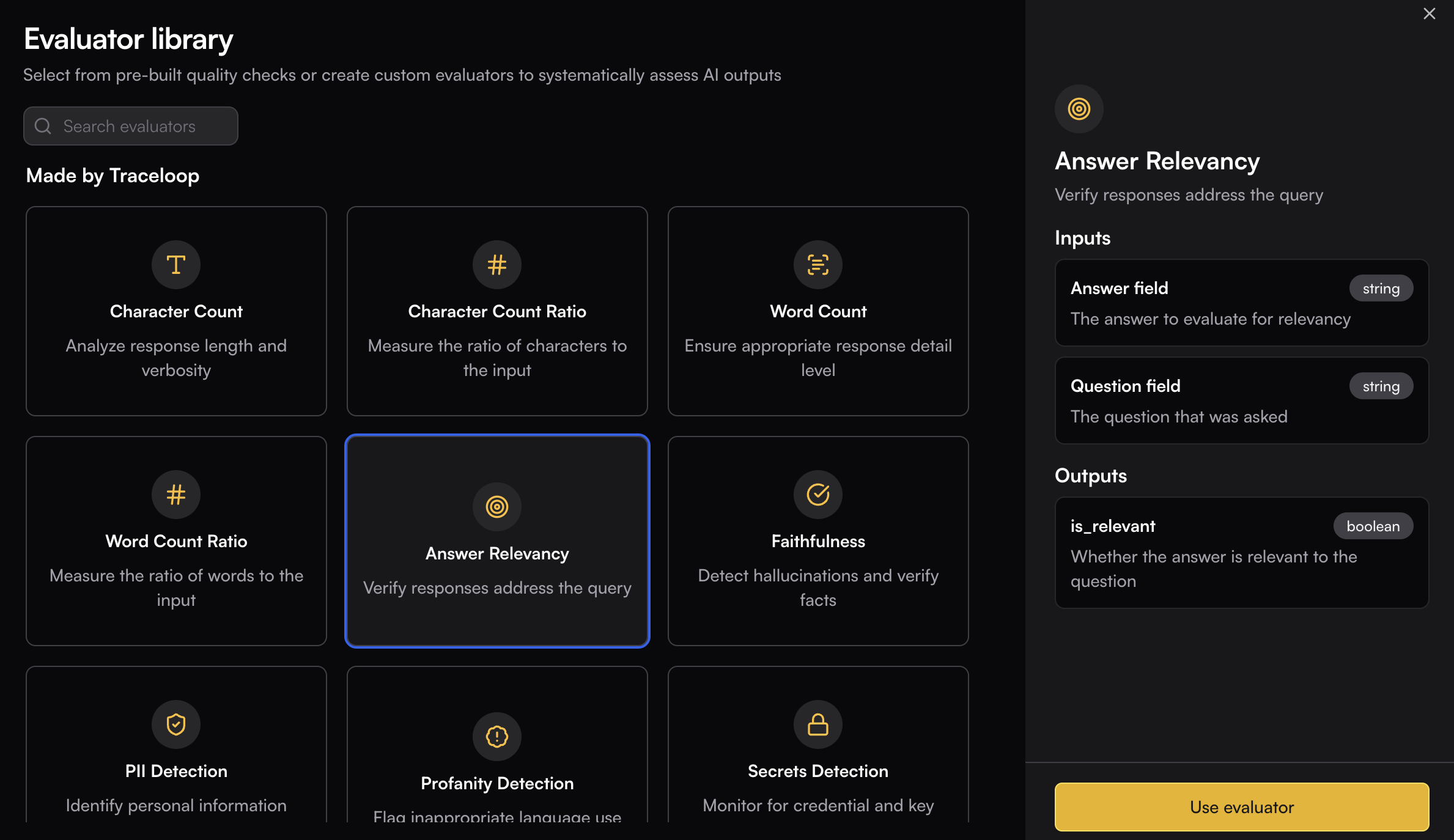 ## Evaluator Types
### Style
Analyze response length and verbosity to ensure outputs meet specific length requirements.
Measure the ratio of characters to the input to assess response proportionality and expansion.
Ensure appropriate response detail level by tracking the total number of words in outputs.
Measure the ratio of words to the input to compare input/output verbosity and expansion patterns.
### Quality & Correctness
Verify responses address the query to ensure AI outputs stay on topic and remain relevant.
Detect hallucinations and verify facts to maintain accuracy and truthfulness in AI responses.
Evaluate factual accuracy by comparing answers against ground truth.
Measure how completely responses use relevant context to ensure all relevant information is addressed.
Validate topic adherence to ensure responses stay focused on the specified subject matter.
Validate semantic similarity between expected and actual responses to measure content alignment.
Measure how well the LLM response follows given instructions to ensure compliance with specified requirements.
Measure text perplexity from logprobs to assess the predictability and coherence of generated text.
Generate responses and measure model uncertainty from logprobs to identify when the model is less confident in its outputs.
Evaluate conversation quality based on tone, clarity, flow, responsiveness, and transparency.
Validate context relevance to ensure retrieved context is pertinent to the query.
### Security & Compliance
Identify personal information exposure to protect user privacy and ensure data security compliance.
Flag inappropriate language use to maintain content quality standards and professional communication.
Detect sexist and discriminatory content.
Detect prompt injection attacks in user inputs.
Detect toxic content including personal attacks, mockery, hate, and threats.
Monitor for credential and key leaks to prevent accidental exposure of sensitive information.
### Formatting
Validate SQL queries to ensure proper syntax and structure in database-related AI outputs.
Validate JSON responses to ensure proper formatting and structure in API-related outputs.
Validate regex patterns to ensure correct regular expression syntax and functionality.
Validate placeholder regex patterns to ensure proper template and variable replacement structures.
### Agents
Validate agent goal accuracy to ensure AI systems achieve their intended objectives effectively.
Detect errors or failures during tool execution to monitor agent tool performance.
Validate agent trajectories against user-defined natural language tests to assess agent decision-making paths.
Evaluate agent efficiency by checking for redundant calls and optimal paths to optimize agent performance.
Measure whether the agent successfully accomplished all user goals to verify comprehensive goal achievement.
Detect whether the user's primary intent or workflow changed significantly during a conversation.
---
# Source: https://www.traceloop.com/docs/settings/managing-api-keys.md
> ## Documentation Index
> Fetch the complete documentation index at: https://www.traceloop.com/docs/llms.txt
> Use this file to discover all available pages before exploring further.
# Managing API Keys
> Generate and manage API keys for sending traces and accessing Traceloop features
API keys are required to authenticate your application with Traceloop. Each API key is tied to a specific project and environment combination, determining where your traces and data will appear.
## Evaluator Types
### Style
Analyze response length and verbosity to ensure outputs meet specific length requirements.
Measure the ratio of characters to the input to assess response proportionality and expansion.
Ensure appropriate response detail level by tracking the total number of words in outputs.
Measure the ratio of words to the input to compare input/output verbosity and expansion patterns.
### Quality & Correctness
Verify responses address the query to ensure AI outputs stay on topic and remain relevant.
Detect hallucinations and verify facts to maintain accuracy and truthfulness in AI responses.
Evaluate factual accuracy by comparing answers against ground truth.
Measure how completely responses use relevant context to ensure all relevant information is addressed.
Validate topic adherence to ensure responses stay focused on the specified subject matter.
Validate semantic similarity between expected and actual responses to measure content alignment.
Measure how well the LLM response follows given instructions to ensure compliance with specified requirements.
Measure text perplexity from logprobs to assess the predictability and coherence of generated text.
Generate responses and measure model uncertainty from logprobs to identify when the model is less confident in its outputs.
Evaluate conversation quality based on tone, clarity, flow, responsiveness, and transparency.
Validate context relevance to ensure retrieved context is pertinent to the query.
### Security & Compliance
Identify personal information exposure to protect user privacy and ensure data security compliance.
Flag inappropriate language use to maintain content quality standards and professional communication.
Detect sexist and discriminatory content.
Detect prompt injection attacks in user inputs.
Detect toxic content including personal attacks, mockery, hate, and threats.
Monitor for credential and key leaks to prevent accidental exposure of sensitive information.
### Formatting
Validate SQL queries to ensure proper syntax and structure in database-related AI outputs.
Validate JSON responses to ensure proper formatting and structure in API-related outputs.
Validate regex patterns to ensure correct regular expression syntax and functionality.
Validate placeholder regex patterns to ensure proper template and variable replacement structures.
### Agents
Validate agent goal accuracy to ensure AI systems achieve their intended objectives effectively.
Detect errors or failures during tool execution to monitor agent tool performance.
Validate agent trajectories against user-defined natural language tests to assess agent decision-making paths.
Evaluate agent efficiency by checking for redundant calls and optimal paths to optimize agent performance.
Measure whether the agent successfully accomplished all user goals to verify comprehensive goal achievement.
Detect whether the user's primary intent or workflow changed significantly during a conversation.
---
# Source: https://www.traceloop.com/docs/settings/managing-api-keys.md
> ## Documentation Index
> Fetch the complete documentation index at: https://www.traceloop.com/docs/llms.txt
> Use this file to discover all available pages before exploring further.
# Managing API Keys
> Generate and manage API keys for sending traces and accessing Traceloop features
API keys are required to authenticate your application with Traceloop. Each API key is tied to a specific project and environment combination, determining where your traces and data will appear.
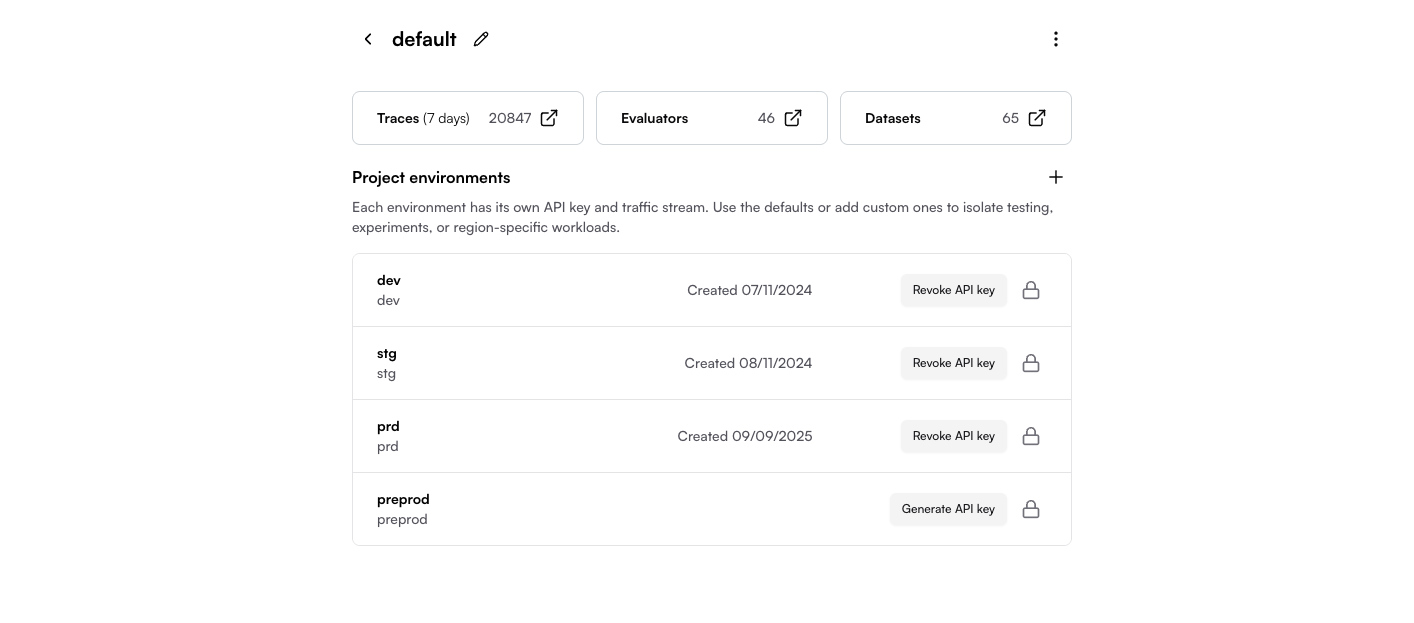
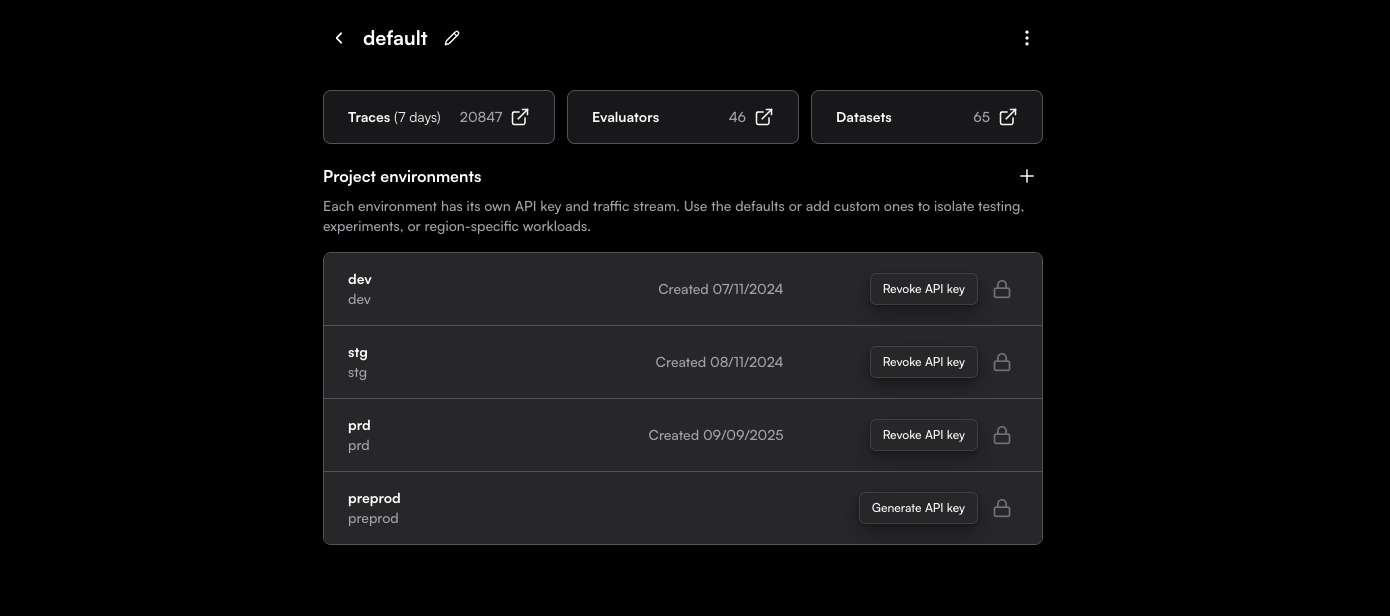 ## Quick Start: Generate Your First API Key
Go to [Settings → Organization](https://app.traceloop.com/settings/api-keys) in your Traceloop dashboard.
Click on the project where you want to generate an API key (e.g., "Default project").
If you haven't created a project yet, see [Projects and Environments](/settings/projects-and-environments).
Find the environment you want to use (dev, stg, or prd) and click **Generate API key**.
**Copy the API key immediately!** The full key is only shown once and cannot be retrieved later.
After you close or reload the page, you'll need to revoke and generate a new key if you lose it.
The key will be displayed partially masked, but you can copy the full key using the copy button.
Export the API key in your application:
```bash theme={null}
export TRACELOOP_API_KEY=your_api_key_here
```
Or set it in your `.env` file:
```bash theme={null}
TRACELOOP_API_KEY=your_api_key_here
```
Done! Your application can now send traces and access Traceloop features.
## Understanding API Keys
### How API Keys Work
Each API key is scoped to a specific **project + environment** combination:
* **Project**: Isolates data for different applications or teams (e.g., "orders-service", "users-service")
* **Environment**: Separates deployment stages (dev, stg, prd)
When you use an API key, Traceloop automatically knows where to save your data based on the key itself.
If the `TRACELOOP_API_KEY` environment variable is set, the SDK will automatically use it. You don't need to pass it explicitly in your code.
**Example:**
* API key from "web-app" → "dev" sends traces to the "web-app" project's dev environment
* API key from "api-service" → "prd" sends traces to the "api-service" project's prd environment
### Viewing Your Data
To see your traces in the dashboard:
1. Select the correct **project** from the project dropdown
2. Filter by **environment** if needed
**Not seeing your traces?** Make sure you're viewing the same project and environment
that matches your API key.
## Common Scenarios
### Local Development
Use your dev environment API key:
```bash theme={null}
# In your .env or shell
export TRACELOOP_API_KEY=your_development_key
```
### CI/CD Pipeline
Use stg or prd keys in your deployment configuration:
```yaml theme={null}
# Example: GitHub Actions
env:
TRACELOOP_API_KEY: ${{ secrets.TRACELOOP_STG_KEY }}
```
```yaml theme={null}
# Example: Docker Compose
environment:
- TRACELOOP_API_KEY=${TRACELOOP_PRD_KEY}
```
### Multiple Projects from One Application
If you need to send data to different projects from the same codebase, pass the API key directly in code instead of using environment variables:
```python Python theme={null}
from traceloop.sdk import Traceloop
# Initialize with specific API key
Traceloop.init(api_key="your_project_specific_key")
```
```javascript TypeScript / JavaScript theme={null}
import * as traceloop from "@traceloop/node-server-sdk";
// Initialize with specific API key
traceloop.initialize({
apiKey: "your_project_specific_key"
});
```
```go Go theme={null}
import "github.com/traceloop/go-sdk/traceloop"
// Initialize with specific API key
traceloop.Init(traceloop.Config{
APIKey: "your_project_specific_key",
})
```
## Managing Your API Keys
### Revoking an API Key
If your API key is compromised or you need to rotate keys:
1. Go to Settings → Organization → Select your project
2. Find the environment with the key you want to revoke
3. Click **Revoke API key**
4. Generate a new key immediately
5. Update your application configuration with the new key
Revoking a key immediately stops all applications using it from sending data.
Make sure to update your configuration before revoking production keys.
### Lost Your API Key?
If you lose your API key and didn't save it:
1. You **cannot** retrieve the original key
2. You must **revoke** the old key and **generate** a new one
3. Update your application with the new key
This is a security feature - API keys are never stored in retrievable form.
### Best Practices
Store API keys in secret management systems like AWS Secrets Manager, Azure Key Vault,
HashiCorp Vault, or 1Password instead of hardcoding them.
Periodically rotate your API keys, especially for production environments.
Schedule key rotation as part of your security practices.
Never use prd API keys in dev or stg.
This prevents accidental data mixing and security risks.
Don't commit API keys to version control. Use environment variables
or secret management systems instead.
## Troubleshooting
### Authentication Failed
**Problem:** Getting authentication errors when initializing the SDK.
**Solutions:**
* Verify the API key is correctly set as `TRACELOOP_API_KEY`
* Check if the key has been revoked (generate a new one if needed)
* Ensure there are no extra spaces or characters in the key
### Not Seeing Traces
**Problem:** Application runs but traces don't appear in dashboard.
**Solutions:**
* Confirm you're viewing the correct **project** in the dashboard dropdown
* Check you're filtering by the correct **environment**
* Verify the API key matches the project + environment you're viewing
* Check SDK initialization logs for connection errors
### Wrong Data Appearing
**Problem:** Seeing unexpected traces or data in your project.
**Solutions:**
* Double-check which API key you're using (`echo $TRACELOOP_API_KEY`)
* Verify the API key belongs to the intended project + environment
* Check if other team members are using the same project
### Multiple Applications Sending to Same Project
**Problem:** Want to separate data from different services but they're in the same project.
**Solutions:**
* Create a separate project for each application/service
* Generate unique API keys for each project
* See [Projects and Environments](/settings/projects-and-environments) for more details
## Related Resources
Learn about organizing your applications and deployment stages
Set up OpenLLMetry SDK with your API key
Use API keys to access Traceloop's REST API
Configure API keys in self-hosted deployments
---
# Source: https://www.traceloop.com/docs/openllmetry/tracing/manual-reporting.md
> ## Documentation Index
> Fetch the complete documentation index at: https://www.traceloop.com/docs/llms.txt
> Use this file to discover all available pages before exploring further.
# Manually reporting calls to LLMs and Vector DBs
> What should I do if my favorite vector DB or LLM is not supported by OpenLLMetry?
The best thing about OpenLLMetry is that it supports a wide range of LLMs and vector DBs out of the box.
You just install the SDK and get metrics, traces and logs - without any extra work.
Checkout the list of supported systems on [Python](https://github.com/traceloop/openllmetry?tab=readme-ov-file#-what-do-we-instrument)
and on [Typescript](https://github.com/traceloop/openllmetry-js?tab=readme-ov-file#-what-do-we-instrument).
If your favorite vector DB or LLM is not supported by OpenLLMetry, you can still use OpenLLMetry to report the LLM and vector DB calls manually.
Please open an issue for us as well so we can prioritize adding support for your favorite system.
Here's how you can do that manually in the meantime:
## Reporting LLM calls
To track a call to an LLM, just wrap that call in your code with the `withLLMCall` function in Typescript or `track_llm_call` in Python.
These functions passes a parameter you can use to report the request and response from this call.
```python Python theme={null}
from traceloop.sdk.tracing.manual import LLMMessage, LLMUsage, track_llm_call
with track_llm_call(vendor="openai", type="chat") as span:
span.report_request(
model="gpt-3.5-turbo",
messages=[
LLMMessage(role="user", content="Tell me a joke about opentelemetry")
],
)
res = openai_client.chat.completions.create(
model="gpt-3.5-turbo",
messages=[
{"role": "user", "content": "Tell me a joke about opentelemetry"}
],
)
span.report_response(res.model, [text.message.content for text in res.choices])
span.report_usage(
LLMUsage(
prompt_tokens=...,
completion_tokens=...,
total_tokens=...,
cache_creation_input_tokens=...,
cache_read_input_tokens=...,
)
)
```
```javascript Typescript theme={null}
traceloop.withLLMCall(
{ vendor: "openai", type: "chat" },
async ({ span }) => {
const messages: ChatCompletionMessageParam[] = [
{ role: "user", content: "Tell me a joke about OpenTelemetry" },
];
const model = "gpt-3.5-turbo";
span.reportRequest({ model, messages });
const response = await openai.chat.completions.create({
messages,
model,
});
span.reportResponse(response);
return response;
})
```
## Reporting Vector DB calls
To track a call to a vector DB, just wrap that call in your code with the `withVectorDBCall` function.
This function passes a parameter you can use to report the query vector as well as the results from this call.
```javascript Typescript theme={null}
import * as traceloop from "@traceloop/node-server-sdk";
const results = await traceloop.withVectorDBCall(
{ vendor: "elastic", type: "query" },
async ({ span }) => {
span.reportQuery({ queryVector: [1, 2, 3] });
// call the vector DB like you normally would
const results = await client.knnSearch({
...
});
span.reportResults({
results: [
{
ids: "1",
scores: 0.5,
distances: 0.1,
metadata: { key: "value" },
vectors: [1, 2, 3],
documents: "doc",
},
],
});
return results;
},
);
```
---
# Source: https://www.traceloop.com/docs/openllmetry/integrations/middleware.md
> ## Documentation Index
> Fetch the complete documentation index at: https://www.traceloop.com/docs/llms.txt
> Use this file to discover all available pages before exploring further.
# LLM Observability with Middleware and OpenLLMetry
## Quick Start: Generate Your First API Key
Go to [Settings → Organization](https://app.traceloop.com/settings/api-keys) in your Traceloop dashboard.
Click on the project where you want to generate an API key (e.g., "Default project").
If you haven't created a project yet, see [Projects and Environments](/settings/projects-and-environments).
Find the environment you want to use (dev, stg, or prd) and click **Generate API key**.
**Copy the API key immediately!** The full key is only shown once and cannot be retrieved later.
After you close or reload the page, you'll need to revoke and generate a new key if you lose it.
The key will be displayed partially masked, but you can copy the full key using the copy button.
Export the API key in your application:
```bash theme={null}
export TRACELOOP_API_KEY=your_api_key_here
```
Or set it in your `.env` file:
```bash theme={null}
TRACELOOP_API_KEY=your_api_key_here
```
Done! Your application can now send traces and access Traceloop features.
## Understanding API Keys
### How API Keys Work
Each API key is scoped to a specific **project + environment** combination:
* **Project**: Isolates data for different applications or teams (e.g., "orders-service", "users-service")
* **Environment**: Separates deployment stages (dev, stg, prd)
When you use an API key, Traceloop automatically knows where to save your data based on the key itself.
If the `TRACELOOP_API_KEY` environment variable is set, the SDK will automatically use it. You don't need to pass it explicitly in your code.
**Example:**
* API key from "web-app" → "dev" sends traces to the "web-app" project's dev environment
* API key from "api-service" → "prd" sends traces to the "api-service" project's prd environment
### Viewing Your Data
To see your traces in the dashboard:
1. Select the correct **project** from the project dropdown
2. Filter by **environment** if needed
**Not seeing your traces?** Make sure you're viewing the same project and environment
that matches your API key.
## Common Scenarios
### Local Development
Use your dev environment API key:
```bash theme={null}
# In your .env or shell
export TRACELOOP_API_KEY=your_development_key
```
### CI/CD Pipeline
Use stg or prd keys in your deployment configuration:
```yaml theme={null}
# Example: GitHub Actions
env:
TRACELOOP_API_KEY: ${{ secrets.TRACELOOP_STG_KEY }}
```
```yaml theme={null}
# Example: Docker Compose
environment:
- TRACELOOP_API_KEY=${TRACELOOP_PRD_KEY}
```
### Multiple Projects from One Application
If you need to send data to different projects from the same codebase, pass the API key directly in code instead of using environment variables:
```python Python theme={null}
from traceloop.sdk import Traceloop
# Initialize with specific API key
Traceloop.init(api_key="your_project_specific_key")
```
```javascript TypeScript / JavaScript theme={null}
import * as traceloop from "@traceloop/node-server-sdk";
// Initialize with specific API key
traceloop.initialize({
apiKey: "your_project_specific_key"
});
```
```go Go theme={null}
import "github.com/traceloop/go-sdk/traceloop"
// Initialize with specific API key
traceloop.Init(traceloop.Config{
APIKey: "your_project_specific_key",
})
```
## Managing Your API Keys
### Revoking an API Key
If your API key is compromised or you need to rotate keys:
1. Go to Settings → Organization → Select your project
2. Find the environment with the key you want to revoke
3. Click **Revoke API key**
4. Generate a new key immediately
5. Update your application configuration with the new key
Revoking a key immediately stops all applications using it from sending data.
Make sure to update your configuration before revoking production keys.
### Lost Your API Key?
If you lose your API key and didn't save it:
1. You **cannot** retrieve the original key
2. You must **revoke** the old key and **generate** a new one
3. Update your application with the new key
This is a security feature - API keys are never stored in retrievable form.
### Best Practices
Store API keys in secret management systems like AWS Secrets Manager, Azure Key Vault,
HashiCorp Vault, or 1Password instead of hardcoding them.
Periodically rotate your API keys, especially for production environments.
Schedule key rotation as part of your security practices.
Never use prd API keys in dev or stg.
This prevents accidental data mixing and security risks.
Don't commit API keys to version control. Use environment variables
or secret management systems instead.
## Troubleshooting
### Authentication Failed
**Problem:** Getting authentication errors when initializing the SDK.
**Solutions:**
* Verify the API key is correctly set as `TRACELOOP_API_KEY`
* Check if the key has been revoked (generate a new one if needed)
* Ensure there are no extra spaces or characters in the key
### Not Seeing Traces
**Problem:** Application runs but traces don't appear in dashboard.
**Solutions:**
* Confirm you're viewing the correct **project** in the dashboard dropdown
* Check you're filtering by the correct **environment**
* Verify the API key matches the project + environment you're viewing
* Check SDK initialization logs for connection errors
### Wrong Data Appearing
**Problem:** Seeing unexpected traces or data in your project.
**Solutions:**
* Double-check which API key you're using (`echo $TRACELOOP_API_KEY`)
* Verify the API key belongs to the intended project + environment
* Check if other team members are using the same project
### Multiple Applications Sending to Same Project
**Problem:** Want to separate data from different services but they're in the same project.
**Solutions:**
* Create a separate project for each application/service
* Generate unique API keys for each project
* See [Projects and Environments](/settings/projects-and-environments) for more details
## Related Resources
Learn about organizing your applications and deployment stages
Set up OpenLLMetry SDK with your API key
Use API keys to access Traceloop's REST API
Configure API keys in self-hosted deployments
---
# Source: https://www.traceloop.com/docs/openllmetry/tracing/manual-reporting.md
> ## Documentation Index
> Fetch the complete documentation index at: https://www.traceloop.com/docs/llms.txt
> Use this file to discover all available pages before exploring further.
# Manually reporting calls to LLMs and Vector DBs
> What should I do if my favorite vector DB or LLM is not supported by OpenLLMetry?
The best thing about OpenLLMetry is that it supports a wide range of LLMs and vector DBs out of the box.
You just install the SDK and get metrics, traces and logs - without any extra work.
Checkout the list of supported systems on [Python](https://github.com/traceloop/openllmetry?tab=readme-ov-file#-what-do-we-instrument)
and on [Typescript](https://github.com/traceloop/openllmetry-js?tab=readme-ov-file#-what-do-we-instrument).
If your favorite vector DB or LLM is not supported by OpenLLMetry, you can still use OpenLLMetry to report the LLM and vector DB calls manually.
Please open an issue for us as well so we can prioritize adding support for your favorite system.
Here's how you can do that manually in the meantime:
## Reporting LLM calls
To track a call to an LLM, just wrap that call in your code with the `withLLMCall` function in Typescript or `track_llm_call` in Python.
These functions passes a parameter you can use to report the request and response from this call.
```python Python theme={null}
from traceloop.sdk.tracing.manual import LLMMessage, LLMUsage, track_llm_call
with track_llm_call(vendor="openai", type="chat") as span:
span.report_request(
model="gpt-3.5-turbo",
messages=[
LLMMessage(role="user", content="Tell me a joke about opentelemetry")
],
)
res = openai_client.chat.completions.create(
model="gpt-3.5-turbo",
messages=[
{"role": "user", "content": "Tell me a joke about opentelemetry"}
],
)
span.report_response(res.model, [text.message.content for text in res.choices])
span.report_usage(
LLMUsage(
prompt_tokens=...,
completion_tokens=...,
total_tokens=...,
cache_creation_input_tokens=...,
cache_read_input_tokens=...,
)
)
```
```javascript Typescript theme={null}
traceloop.withLLMCall(
{ vendor: "openai", type: "chat" },
async ({ span }) => {
const messages: ChatCompletionMessageParam[] = [
{ role: "user", content: "Tell me a joke about OpenTelemetry" },
];
const model = "gpt-3.5-turbo";
span.reportRequest({ model, messages });
const response = await openai.chat.completions.create({
messages,
model,
});
span.reportResponse(response);
return response;
})
```
## Reporting Vector DB calls
To track a call to a vector DB, just wrap that call in your code with the `withVectorDBCall` function.
This function passes a parameter you can use to report the query vector as well as the results from this call.
```javascript Typescript theme={null}
import * as traceloop from "@traceloop/node-server-sdk";
const results = await traceloop.withVectorDBCall(
{ vendor: "elastic", type: "query" },
async ({ span }) => {
span.reportQuery({ queryVector: [1, 2, 3] });
// call the vector DB like you normally would
const results = await client.knnSearch({
...
});
span.reportResults({
results: [
{
ids: "1",
scores: 0.5,
distances: 0.1,
metadata: { key: "value" },
vectors: [1, 2, 3],
documents: "doc",
},
],
});
return results;
},
);
```
---
# Source: https://www.traceloop.com/docs/openllmetry/integrations/middleware.md
> ## Documentation Index
> Fetch the complete documentation index at: https://www.traceloop.com/docs/llms.txt
> Use this file to discover all available pages before exploring further.
# LLM Observability with Middleware and OpenLLMetry
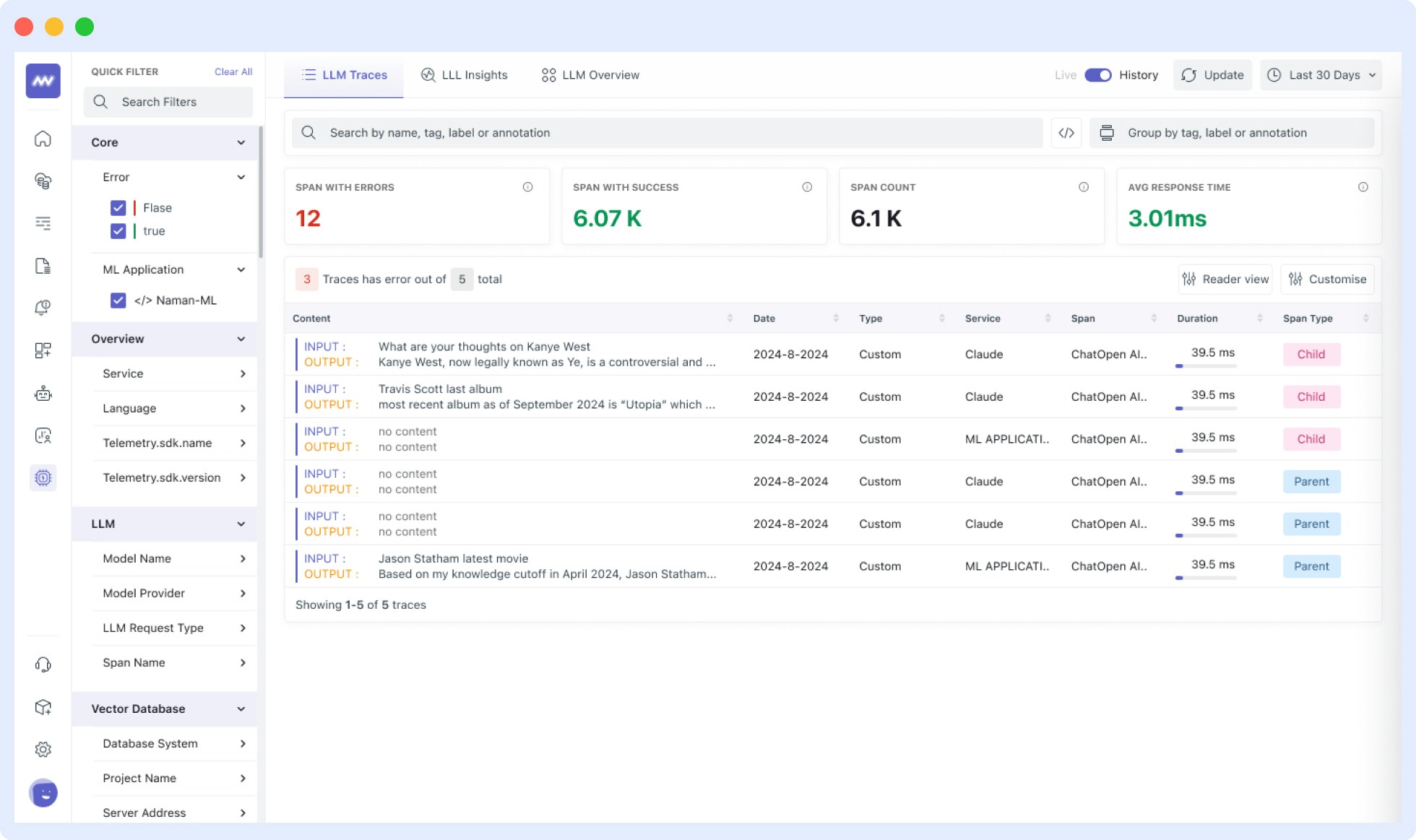
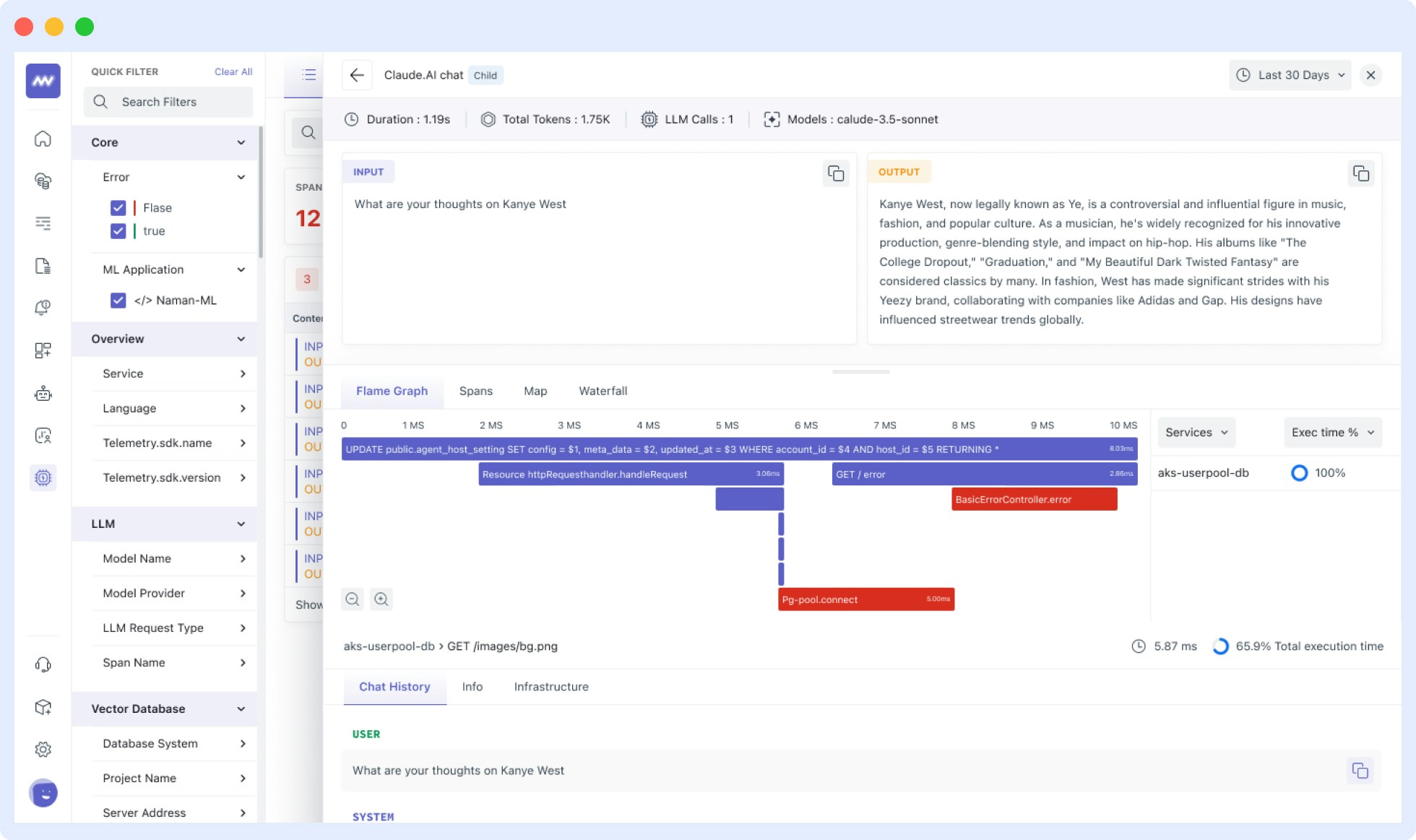
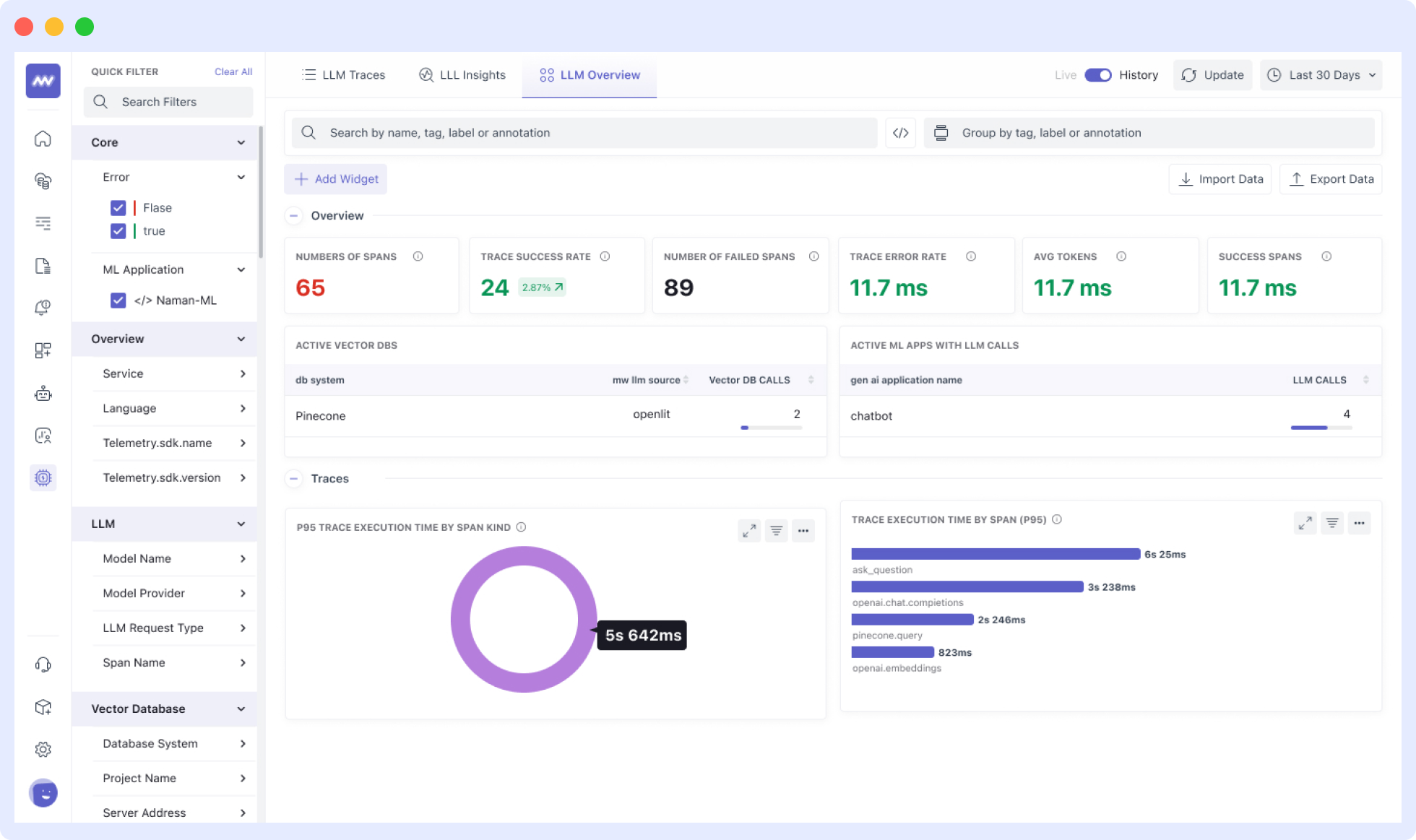
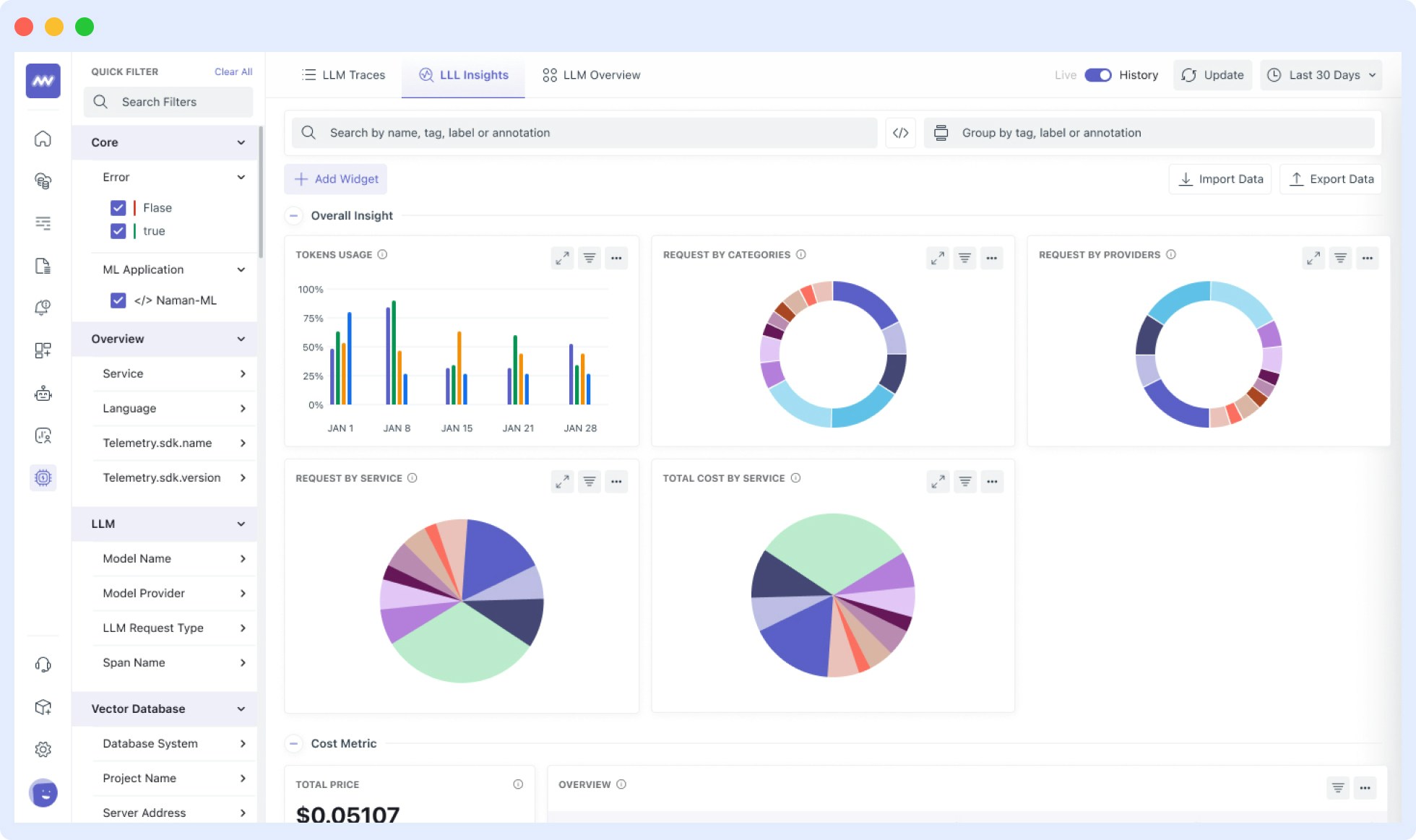 To send OpenTelemetry metrics and traces generated by Traceloop from your LLM Application to Middleware, Follow the below steps.
1. Sign in to your [Middleware](https://app.middleware.io/) account.
2. Go to settings and click on API Key. [Link](https://app.middleware.io/settings/api-keys)
3. Copy and Save the value for `MW_API_KEY` and `MW_TARGET`
```python theme={null}
from traceloop.sdk import Traceloop
Traceloop.init(
app_name="YOUR_APPLICATION_NAME",
api_endpoint="",
headers={
"Authorization": "",
"X-Trace-Source": "traceloop",
},
resource_attributes={"key": "value"},
)
```
```javascript theme={null}
import * as traceloop from "@traceloop/node-server-sdk";
traceloop.initialize({
appName: "YOUR_APPLICATION_NAME",
apiEndpoint: "",
headers: {
Authorization: "",
"X-Trace-Source": "traceloop",
},
resourceAttributes: { "key": "value" },
});
```
Replace:
1. `MW_TARGET` with your middleware target url
* Example - `https://abcde.middleware.io`
2. `MW_API_KEY` with your middleware api key.
* Example - nxhqwpbvcmlkjhgfdsazxcvbnmkjhgtyui
Refer to the Traceloop [Docs](https://www.traceloop.com/docs/introduction) for more advanced configurations and use cases.
For detailed information on LLM Observability with Middleware and Traceloop, consult Middleware Documentation:
[LLM Observability Documentation](https://docs.middleware.io/llm-observability/overview).
Once your LLM application is instrumented, you can view the traces, metrics and dashboards in the Middleware LLM Observability section. To access this:
1. Log in to your Middleware account
2. Navigate to the [LLM Observability Section](https://app.middleware.io/llm) in the sidebar
***
---
# Source: https://www.traceloop.com/docs/openllmetry/tracing/multi-modality.md
> ## Documentation Index
> Fetch the complete documentation index at: https://www.traceloop.com/docs/llms.txt
> Use this file to discover all available pages before exploring further.
# Multi-Modality Support
> Automatic logging and visualization of multi-modal LLM interactions
OpenLLMetry automatically captures and logs multi-modal content from your LLM interactions, including images, audio, video, and other media types. This enables comprehensive tracing and debugging of applications that work with vision models, audio processing, and other multi-modal AI capabilities.
Multi-modality logging and visualization is currently only available when using [Traceloop](/openllmetry/integrations/traceloop) as your observability backend. Support for other platforms may be added in the future.
## What is Multi-Modality Support?
Multi-modality support means that OpenLLMetry automatically detects and logs all types of content in your LLM requests and responses:
* **Images** - Vision model inputs, generated images, screenshots, diagrams
* **Audio** - Speech-to-text inputs, text-to-speech outputs, audio analysis
* **Video** - Video analysis, frame extraction, video understanding
* **Documents** - PDFs, presentations, structured documents
* **Mixed content** - Combinations of text, images, audio in a single request
When you send multi-modal content to supported LLM providers, OpenLLMetry captures the full context automatically without requiring additional configuration.
## How It Works
OpenLLMetry instruments supported LLM SDKs to detect multi-modal content in API calls. When multi-modal data is present, it:
1. **Captures the content** - Extracts images, audio, video, and other media from requests
2. **Logs metadata** - Records content types, sizes, formats, and relationships
3. **Preserves context** - Maintains the full conversation flow with all modalities
4. **Enables visualization** - Makes content viewable in the Traceloop dashboard
All of this happens automatically with zero additional code required.
## Supported Models and Frameworks
Multi-modality logging works with any LLM provider and framework that OpenLLMetry instruments. Common examples include:
### Vision Models
* **OpenAI GPT-4 Vision** - Image understanding and analysis
* **Anthropic Claude 3** - Image, document, and chart analysis
* **Google Gemini** - Multi-modal understanding across images, video, and audio
* **Azure OpenAI** - Vision-enabled models
### Audio Models
* **OpenAI Whisper** - Speech-to-text transcription
* **OpenAI TTS** - Text-to-speech generation
* **ElevenLabs** - Voice synthesis and cloning
### Multi-Modal Frameworks
* **LangChain** - Multi-modal chains and agents
* **LlamaIndex** - Multi-modal document indexing and retrieval
* **Framework-agnostic** - Direct API calls to any provider
## Usage Examples
Multi-modality logging is automatic. Simply use your LLM provider as normal:
### Image Analysis with OpenAI
```python theme={null}
import os
from openai import OpenAI
from traceloop.sdk import Traceloop
Traceloop.init(app_name="vision-app")
client = OpenAI(api_key=os.environ["OPENAI_API_KEY"])
response = client.chat.completions.create(
model="gpt-4-vision-preview",
messages=[
{
"role": "user",
"content": [
{"type": "text", "text": "What's in this image?"},
{
"type": "image_url",
"image_url": {
"url": "https://example.com/image.jpg"
}
}
]
}
],
max_tokens=300
)
print(response.choices[0].message.content)
```
The image URL and the model's response are automatically logged to Traceloop, where you can view the image alongside the conversation.
```typescript theme={null}
import OpenAI from "openai";
import * as traceloop from "@traceloop/node-server-sdk";
traceloop.initialize({ appName: "vision-app" });
const openai = new OpenAI({
apiKey: process.env.OPENAI_API_KEY
});
async function analyzeImage() {
const response = await openai.chat.completions.create({
model: "gpt-4-vision-preview",
messages: [
{
role: "user",
content: [
{ type: "text", text: "What's in this image?" },
{
type: "image_url",
image_url: {
url: "https://example.com/image.jpg"
}
}
]
}
],
max_tokens: 300
});
console.log(response.choices[0].message.content);
}
analyzeImage();
```
### Image Analysis with Base64
You can also send images as base64-encoded data:
```python theme={null}
import base64
from openai import OpenAI
from traceloop.sdk import Traceloop
Traceloop.init(app_name="vision-app")
client = OpenAI()
def encode_image(image_path):
with open(image_path, "rb") as image_file:
return base64.b64encode(image_file.read()).decode('utf-8')
image_data = encode_image("path/to/image.jpg")
response = client.chat.completions.create(
model="gpt-4-vision-preview",
messages=[
{
"role": "user",
"content": [
{"type": "text", "text": "Describe this diagram in detail"},
{
"type": "image_url",
"image_url": {
"url": f"data:image/jpeg;base64,{image_data}"
}
}
]
}
]
)
```
Base64-encoded images are automatically captured and can be viewed in the Traceloop dashboard.
### Multi-Image Analysis
Analyze multiple images in a single request:
```python theme={null}
from openai import OpenAI
from traceloop.sdk import Traceloop
Traceloop.init(app_name="multi-image-analysis")
client = OpenAI()
response = client.chat.completions.create(
model="gpt-4-vision-preview",
messages=[
{
"role": "user",
"content": [
{"type": "text", "text": "Compare these two images and describe the differences"},
{
"type": "image_url",
"image_url": {"url": "https://example.com/before.jpg"}
},
{
"type": "image_url",
"image_url": {"url": "https://example.com/after.jpg"}
}
]
}
]
)
```
All images in the conversation are logged and viewable in sequence.
### Audio Transcription
```python theme={null}
from openai import OpenAI
from traceloop.sdk import Traceloop
Traceloop.init(app_name="audio-app")
client = OpenAI()
audio_file = open("speech.mp3", "rb")
transcript = client.audio.transcriptions.create(
model="whisper-1",
file=audio_file
)
print(transcript.text)
```
Audio files and their transcriptions are automatically logged.
### Text-to-Speech
```python theme={null}
from openai import OpenAI
from traceloop.sdk import Traceloop
Traceloop.init(app_name="tts-app")
client = OpenAI()
response = client.audio.speech.create(
model="tts-1",
voice="alloy",
input="Welcome to our application!"
)
response.stream_to_file("output.mp3")
```
The input text and generated audio metadata are captured automatically.
### Multi-Modal with Anthropic Claude
```python theme={null}
import anthropic
from traceloop.sdk import Traceloop
Traceloop.init(app_name="claude-vision")
client = anthropic.Anthropic()
message = client.messages.create(
model="claude-3-opus-20240229",
max_tokens=1024,
messages=[
{
"role": "user",
"content": [
{
"type": "image",
"source": {
"type": "url",
"url": "https://example.com/chart.png"
}
},
{
"type": "text",
"text": "Analyze the trends in this chart"
}
]
}
]
)
```
### Using with LangChain
Multi-modality logging works seamlessly with LangChain:
```python theme={null}
from langchain_openai import ChatOpenAI
from langchain_core.messages import HumanMessage
from traceloop.sdk import Traceloop
Traceloop.init(app_name="langchain-vision")
llm = ChatOpenAI(model="gpt-4-vision-preview")
message = HumanMessage(
content=[
{"type": "text", "text": "What's in this image?"},
{
"type": "image_url",
"image_url": {"url": "https://example.com/photo.jpg"}
}
]
)
response = llm.invoke([message])
```
## Viewing Multi-Modal Content in Traceloop
When you view traces in the Traceloop dashboard:
1. **Navigate to your trace** - Find the specific LLM call in your traces
2. **View the conversation** - See the full context including all modalities
3. **Inspect media content** - Click on images, audio, or video to view them inline
4. **Analyze relationships** - Understand how different content types interact
5. **Debug issues** - Identify problems with content formatting or model responses
The Traceloop dashboard provides a rich, visual interface for exploring multi-modal interactions that would be difficult to debug from logs alone.
## Privacy and Content Control
Multi-modal content may include sensitive or proprietary information. You have full control over what gets logged:
### Disable Content Tracing
To prevent logging of any content (including multi-modal data):
```bash Environment Variable theme={null}
TRACELOOP_TRACE_CONTENT=false
```
```python Python theme={null}
Traceloop.init(trace_content=False)
```
```js TypeScript / JavaScript theme={null}
Traceloop.initialize({ traceContent: false });
```
When content tracing is disabled, OpenLLMetry only logs metadata (model name, token counts, latency) without capturing the actual prompts, images, audio, or responses.
### Selective Content Filtering
For more granular control, you can filter specific types of content or implement custom redaction logic. See our [Privacy documentation](/openllmetry/privacy/traces) for detailed options.
## Best Practices
### Storage and Performance
Multi-modal content can be large. Consider these best practices:
* **Monitor storage usage** - Large images and audio files increase trace storage requirements
* **Use appropriate image sizes** - Resize images before sending to LLMs when possible
* **Consider content tracing settings** - Disable content logging in high-volume production environments if not needed
* **Review retention policies** - Configure appropriate data retention in your Traceloop settings
### Debugging Multi-Modal Applications
Multi-modality logging is particularly valuable for:
* **Image quality issues** - See exactly what images were sent to the model
* **Format problems** - Verify that content is properly encoded and transmitted
* **Model behavior** - Understand how models respond to different types of content
* **User experience** - Review actual user-submitted content to improve handling
* **Compliance** - Audit what content is being processed by your application
### Security Considerations
When logging multi-modal content:
* **Review data policies** - Ensure compliance with data protection regulations
* **Filter sensitive content** - Don't log PII, confidential documents, or sensitive images
* **Access controls** - Limit who can view traces with multi-modal content
* **Encryption** - Traceloop encrypts all data in transit and at rest
* **Retention** - Set appropriate retention periods for multi-modal traces
## Limitations
Current limitations of multi-modality support:
* **Traceloop only** - Multi-modal visualization is currently exclusive to the Traceloop platform. When exporting to other observability tools (Datadog, Honeycomb, etc.), multi-modal content metadata is logged but visualization is not available.
* **Storage limits** - Very large media files (>10MB) may be truncated or linked rather than embedded
* **Format support** - Common formats (JPEG, PNG, MP3, MP4, PDF) are fully supported; exotic formats may have limited visualization
## Supported Content Types
OpenLLMetry automatically detects and logs these content types:
| Content Type | Format Examples | Visualization |
| -------------- | ----------------------------------- | ------------------ |
| Images | JPEG, PNG, GIF, WebP, SVG | Inline preview |
| Audio | MP3, WAV, OGG, M4A | Playback controls |
| Video | MP4, WebM, MOV | Video player |
| Documents | PDF, DOCX (when supported by model) | Document viewer |
| Base64 Encoded | Any of the above as data URIs | Automatic decoding |
## Next Steps
* Learn about [privacy controls](/openllmetry/privacy/traces) for multi-modal content
* Explore [supported models and frameworks](/openllmetry/tracing/supported)
* Set up [workflow annotations](/openllmetry/tracing/annotations) for complex multi-modal pipelines
* Configure [Traceloop integration](/openllmetry/integrations/traceloop) to enable multi-modal visualization
---
# Source: https://www.traceloop.com/docs/openllmetry/integrations/newrelic.md
> ## Documentation Index
> Fetch the complete documentation index at: https://www.traceloop.com/docs/llms.txt
> Use this file to discover all available pages before exploring further.
# LLM observability with New Relic and OpenLLMetry
To send OpenTelemetry metrics and traces generated by Traceloop from your LLM Application to Middleware, Follow the below steps.
1. Sign in to your [Middleware](https://app.middleware.io/) account.
2. Go to settings and click on API Key. [Link](https://app.middleware.io/settings/api-keys)
3. Copy and Save the value for `MW_API_KEY` and `MW_TARGET`
```python theme={null}
from traceloop.sdk import Traceloop
Traceloop.init(
app_name="YOUR_APPLICATION_NAME",
api_endpoint="",
headers={
"Authorization": "",
"X-Trace-Source": "traceloop",
},
resource_attributes={"key": "value"},
)
```
```javascript theme={null}
import * as traceloop from "@traceloop/node-server-sdk";
traceloop.initialize({
appName: "YOUR_APPLICATION_NAME",
apiEndpoint: "",
headers: {
Authorization: "",
"X-Trace-Source": "traceloop",
},
resourceAttributes: { "key": "value" },
});
```
Replace:
1. `MW_TARGET` with your middleware target url
* Example - `https://abcde.middleware.io`
2. `MW_API_KEY` with your middleware api key.
* Example - nxhqwpbvcmlkjhgfdsazxcvbnmkjhgtyui
Refer to the Traceloop [Docs](https://www.traceloop.com/docs/introduction) for more advanced configurations and use cases.
For detailed information on LLM Observability with Middleware and Traceloop, consult Middleware Documentation:
[LLM Observability Documentation](https://docs.middleware.io/llm-observability/overview).
Once your LLM application is instrumented, you can view the traces, metrics and dashboards in the Middleware LLM Observability section. To access this:
1. Log in to your Middleware account
2. Navigate to the [LLM Observability Section](https://app.middleware.io/llm) in the sidebar
***
---
# Source: https://www.traceloop.com/docs/openllmetry/tracing/multi-modality.md
> ## Documentation Index
> Fetch the complete documentation index at: https://www.traceloop.com/docs/llms.txt
> Use this file to discover all available pages before exploring further.
# Multi-Modality Support
> Automatic logging and visualization of multi-modal LLM interactions
OpenLLMetry automatically captures and logs multi-modal content from your LLM interactions, including images, audio, video, and other media types. This enables comprehensive tracing and debugging of applications that work with vision models, audio processing, and other multi-modal AI capabilities.
Multi-modality logging and visualization is currently only available when using [Traceloop](/openllmetry/integrations/traceloop) as your observability backend. Support for other platforms may be added in the future.
## What is Multi-Modality Support?
Multi-modality support means that OpenLLMetry automatically detects and logs all types of content in your LLM requests and responses:
* **Images** - Vision model inputs, generated images, screenshots, diagrams
* **Audio** - Speech-to-text inputs, text-to-speech outputs, audio analysis
* **Video** - Video analysis, frame extraction, video understanding
* **Documents** - PDFs, presentations, structured documents
* **Mixed content** - Combinations of text, images, audio in a single request
When you send multi-modal content to supported LLM providers, OpenLLMetry captures the full context automatically without requiring additional configuration.
## How It Works
OpenLLMetry instruments supported LLM SDKs to detect multi-modal content in API calls. When multi-modal data is present, it:
1. **Captures the content** - Extracts images, audio, video, and other media from requests
2. **Logs metadata** - Records content types, sizes, formats, and relationships
3. **Preserves context** - Maintains the full conversation flow with all modalities
4. **Enables visualization** - Makes content viewable in the Traceloop dashboard
All of this happens automatically with zero additional code required.
## Supported Models and Frameworks
Multi-modality logging works with any LLM provider and framework that OpenLLMetry instruments. Common examples include:
### Vision Models
* **OpenAI GPT-4 Vision** - Image understanding and analysis
* **Anthropic Claude 3** - Image, document, and chart analysis
* **Google Gemini** - Multi-modal understanding across images, video, and audio
* **Azure OpenAI** - Vision-enabled models
### Audio Models
* **OpenAI Whisper** - Speech-to-text transcription
* **OpenAI TTS** - Text-to-speech generation
* **ElevenLabs** - Voice synthesis and cloning
### Multi-Modal Frameworks
* **LangChain** - Multi-modal chains and agents
* **LlamaIndex** - Multi-modal document indexing and retrieval
* **Framework-agnostic** - Direct API calls to any provider
## Usage Examples
Multi-modality logging is automatic. Simply use your LLM provider as normal:
### Image Analysis with OpenAI
```python theme={null}
import os
from openai import OpenAI
from traceloop.sdk import Traceloop
Traceloop.init(app_name="vision-app")
client = OpenAI(api_key=os.environ["OPENAI_API_KEY"])
response = client.chat.completions.create(
model="gpt-4-vision-preview",
messages=[
{
"role": "user",
"content": [
{"type": "text", "text": "What's in this image?"},
{
"type": "image_url",
"image_url": {
"url": "https://example.com/image.jpg"
}
}
]
}
],
max_tokens=300
)
print(response.choices[0].message.content)
```
The image URL and the model's response are automatically logged to Traceloop, where you can view the image alongside the conversation.
```typescript theme={null}
import OpenAI from "openai";
import * as traceloop from "@traceloop/node-server-sdk";
traceloop.initialize({ appName: "vision-app" });
const openai = new OpenAI({
apiKey: process.env.OPENAI_API_KEY
});
async function analyzeImage() {
const response = await openai.chat.completions.create({
model: "gpt-4-vision-preview",
messages: [
{
role: "user",
content: [
{ type: "text", text: "What's in this image?" },
{
type: "image_url",
image_url: {
url: "https://example.com/image.jpg"
}
}
]
}
],
max_tokens: 300
});
console.log(response.choices[0].message.content);
}
analyzeImage();
```
### Image Analysis with Base64
You can also send images as base64-encoded data:
```python theme={null}
import base64
from openai import OpenAI
from traceloop.sdk import Traceloop
Traceloop.init(app_name="vision-app")
client = OpenAI()
def encode_image(image_path):
with open(image_path, "rb") as image_file:
return base64.b64encode(image_file.read()).decode('utf-8')
image_data = encode_image("path/to/image.jpg")
response = client.chat.completions.create(
model="gpt-4-vision-preview",
messages=[
{
"role": "user",
"content": [
{"type": "text", "text": "Describe this diagram in detail"},
{
"type": "image_url",
"image_url": {
"url": f"data:image/jpeg;base64,{image_data}"
}
}
]
}
]
)
```
Base64-encoded images are automatically captured and can be viewed in the Traceloop dashboard.
### Multi-Image Analysis
Analyze multiple images in a single request:
```python theme={null}
from openai import OpenAI
from traceloop.sdk import Traceloop
Traceloop.init(app_name="multi-image-analysis")
client = OpenAI()
response = client.chat.completions.create(
model="gpt-4-vision-preview",
messages=[
{
"role": "user",
"content": [
{"type": "text", "text": "Compare these two images and describe the differences"},
{
"type": "image_url",
"image_url": {"url": "https://example.com/before.jpg"}
},
{
"type": "image_url",
"image_url": {"url": "https://example.com/after.jpg"}
}
]
}
]
)
```
All images in the conversation are logged and viewable in sequence.
### Audio Transcription
```python theme={null}
from openai import OpenAI
from traceloop.sdk import Traceloop
Traceloop.init(app_name="audio-app")
client = OpenAI()
audio_file = open("speech.mp3", "rb")
transcript = client.audio.transcriptions.create(
model="whisper-1",
file=audio_file
)
print(transcript.text)
```
Audio files and their transcriptions are automatically logged.
### Text-to-Speech
```python theme={null}
from openai import OpenAI
from traceloop.sdk import Traceloop
Traceloop.init(app_name="tts-app")
client = OpenAI()
response = client.audio.speech.create(
model="tts-1",
voice="alloy",
input="Welcome to our application!"
)
response.stream_to_file("output.mp3")
```
The input text and generated audio metadata are captured automatically.
### Multi-Modal with Anthropic Claude
```python theme={null}
import anthropic
from traceloop.sdk import Traceloop
Traceloop.init(app_name="claude-vision")
client = anthropic.Anthropic()
message = client.messages.create(
model="claude-3-opus-20240229",
max_tokens=1024,
messages=[
{
"role": "user",
"content": [
{
"type": "image",
"source": {
"type": "url",
"url": "https://example.com/chart.png"
}
},
{
"type": "text",
"text": "Analyze the trends in this chart"
}
]
}
]
)
```
### Using with LangChain
Multi-modality logging works seamlessly with LangChain:
```python theme={null}
from langchain_openai import ChatOpenAI
from langchain_core.messages import HumanMessage
from traceloop.sdk import Traceloop
Traceloop.init(app_name="langchain-vision")
llm = ChatOpenAI(model="gpt-4-vision-preview")
message = HumanMessage(
content=[
{"type": "text", "text": "What's in this image?"},
{
"type": "image_url",
"image_url": {"url": "https://example.com/photo.jpg"}
}
]
)
response = llm.invoke([message])
```
## Viewing Multi-Modal Content in Traceloop
When you view traces in the Traceloop dashboard:
1. **Navigate to your trace** - Find the specific LLM call in your traces
2. **View the conversation** - See the full context including all modalities
3. **Inspect media content** - Click on images, audio, or video to view them inline
4. **Analyze relationships** - Understand how different content types interact
5. **Debug issues** - Identify problems with content formatting or model responses
The Traceloop dashboard provides a rich, visual interface for exploring multi-modal interactions that would be difficult to debug from logs alone.
## Privacy and Content Control
Multi-modal content may include sensitive or proprietary information. You have full control over what gets logged:
### Disable Content Tracing
To prevent logging of any content (including multi-modal data):
```bash Environment Variable theme={null}
TRACELOOP_TRACE_CONTENT=false
```
```python Python theme={null}
Traceloop.init(trace_content=False)
```
```js TypeScript / JavaScript theme={null}
Traceloop.initialize({ traceContent: false });
```
When content tracing is disabled, OpenLLMetry only logs metadata (model name, token counts, latency) without capturing the actual prompts, images, audio, or responses.
### Selective Content Filtering
For more granular control, you can filter specific types of content or implement custom redaction logic. See our [Privacy documentation](/openllmetry/privacy/traces) for detailed options.
## Best Practices
### Storage and Performance
Multi-modal content can be large. Consider these best practices:
* **Monitor storage usage** - Large images and audio files increase trace storage requirements
* **Use appropriate image sizes** - Resize images before sending to LLMs when possible
* **Consider content tracing settings** - Disable content logging in high-volume production environments if not needed
* **Review retention policies** - Configure appropriate data retention in your Traceloop settings
### Debugging Multi-Modal Applications
Multi-modality logging is particularly valuable for:
* **Image quality issues** - See exactly what images were sent to the model
* **Format problems** - Verify that content is properly encoded and transmitted
* **Model behavior** - Understand how models respond to different types of content
* **User experience** - Review actual user-submitted content to improve handling
* **Compliance** - Audit what content is being processed by your application
### Security Considerations
When logging multi-modal content:
* **Review data policies** - Ensure compliance with data protection regulations
* **Filter sensitive content** - Don't log PII, confidential documents, or sensitive images
* **Access controls** - Limit who can view traces with multi-modal content
* **Encryption** - Traceloop encrypts all data in transit and at rest
* **Retention** - Set appropriate retention periods for multi-modal traces
## Limitations
Current limitations of multi-modality support:
* **Traceloop only** - Multi-modal visualization is currently exclusive to the Traceloop platform. When exporting to other observability tools (Datadog, Honeycomb, etc.), multi-modal content metadata is logged but visualization is not available.
* **Storage limits** - Very large media files (>10MB) may be truncated or linked rather than embedded
* **Format support** - Common formats (JPEG, PNG, MP3, MP4, PDF) are fully supported; exotic formats may have limited visualization
## Supported Content Types
OpenLLMetry automatically detects and logs these content types:
| Content Type | Format Examples | Visualization |
| -------------- | ----------------------------------- | ------------------ |
| Images | JPEG, PNG, GIF, WebP, SVG | Inline preview |
| Audio | MP3, WAV, OGG, M4A | Playback controls |
| Video | MP4, WebM, MOV | Video player |
| Documents | PDF, DOCX (when supported by model) | Document viewer |
| Base64 Encoded | Any of the above as data URIs | Automatic decoding |
## Next Steps
* Learn about [privacy controls](/openllmetry/privacy/traces) for multi-modal content
* Explore [supported models and frameworks](/openllmetry/tracing/supported)
* Set up [workflow annotations](/openllmetry/tracing/annotations) for complex multi-modal pipelines
* Configure [Traceloop integration](/openllmetry/integrations/traceloop) to enable multi-modal visualization
---
# Source: https://www.traceloop.com/docs/openllmetry/integrations/newrelic.md
> ## Documentation Index
> Fetch the complete documentation index at: https://www.traceloop.com/docs/llms.txt
> Use this file to discover all available pages before exploring further.
# LLM observability with New Relic and OpenLLMetry
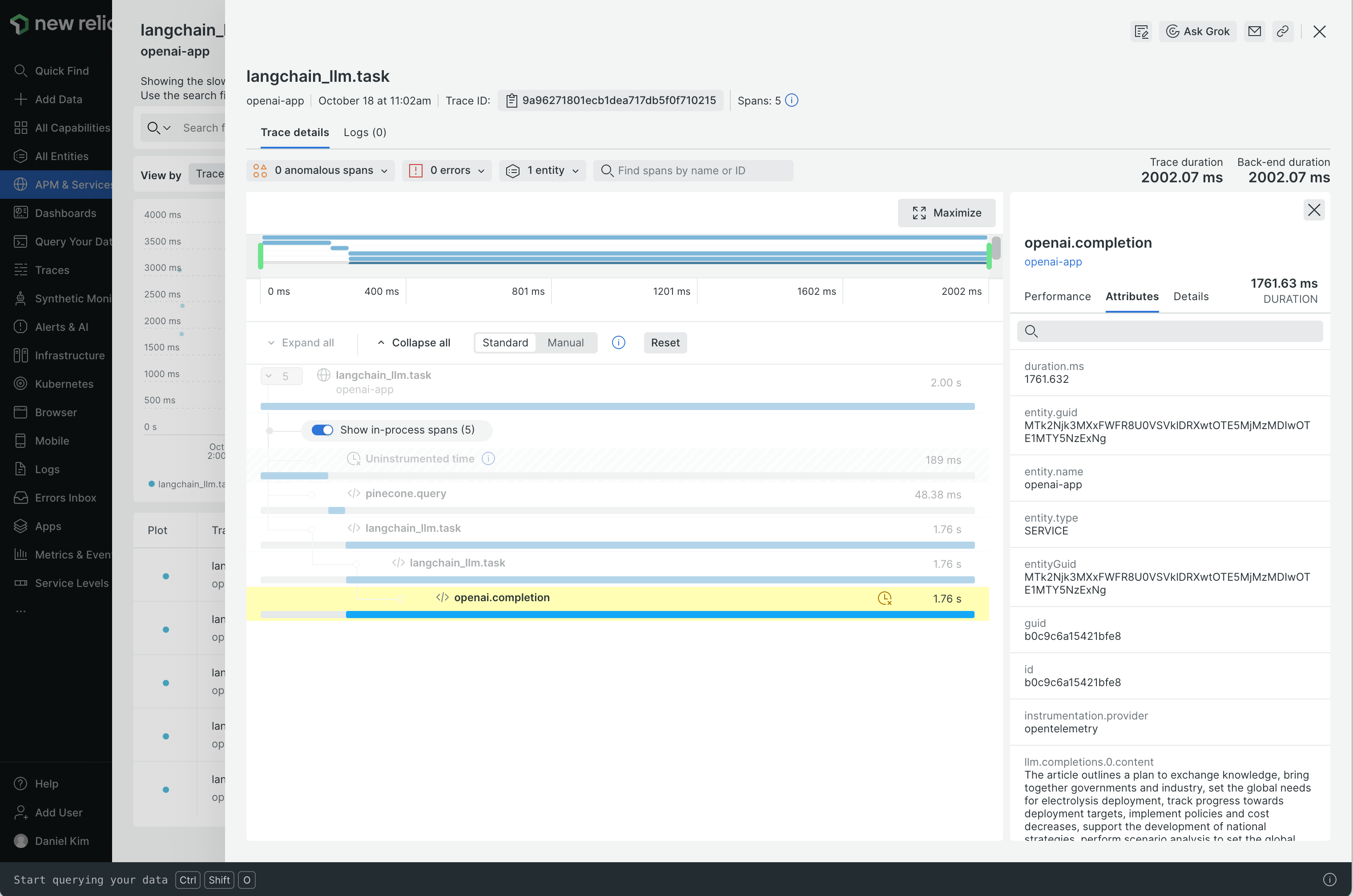 Since New Relic natively supports OpenTelemetry, you just need to route the traces to New Relic's endpoint and set the API key:
```bash theme={null}
TRACELOOP_BASE_URL=https://otlp.nr-data.net:443
TRACELOOP_HEADERS="api-key="
```
For more information check out the [docs link](https://docs.newrelic.com/docs/more-integrations/open-source-telemetry-integrations/opentelemetry/get-started/opentelemetry-set-up-your-app/#review-settings).
---
# Source: https://www.traceloop.com/docs/openllmetry/integrations/oraclecloud.md
> ## Documentation Index
> Fetch the complete documentation index at: https://www.traceloop.com/docs/llms.txt
> Use this file to discover all available pages before exploring further.
# LLM Observability with Oracle Cloud Infrastructure Application Performance Monitoring(APM) service
Since New Relic natively supports OpenTelemetry, you just need to route the traces to New Relic's endpoint and set the API key:
```bash theme={null}
TRACELOOP_BASE_URL=https://otlp.nr-data.net:443
TRACELOOP_HEADERS="api-key="
```
For more information check out the [docs link](https://docs.newrelic.com/docs/more-integrations/open-source-telemetry-integrations/opentelemetry/get-started/opentelemetry-set-up-your-app/#review-settings).
---
# Source: https://www.traceloop.com/docs/openllmetry/integrations/oraclecloud.md
> ## Documentation Index
> Fetch the complete documentation index at: https://www.traceloop.com/docs/llms.txt
> Use this file to discover all available pages before exploring further.
# LLM Observability with Oracle Cloud Infrastructure Application Performance Monitoring(APM) service
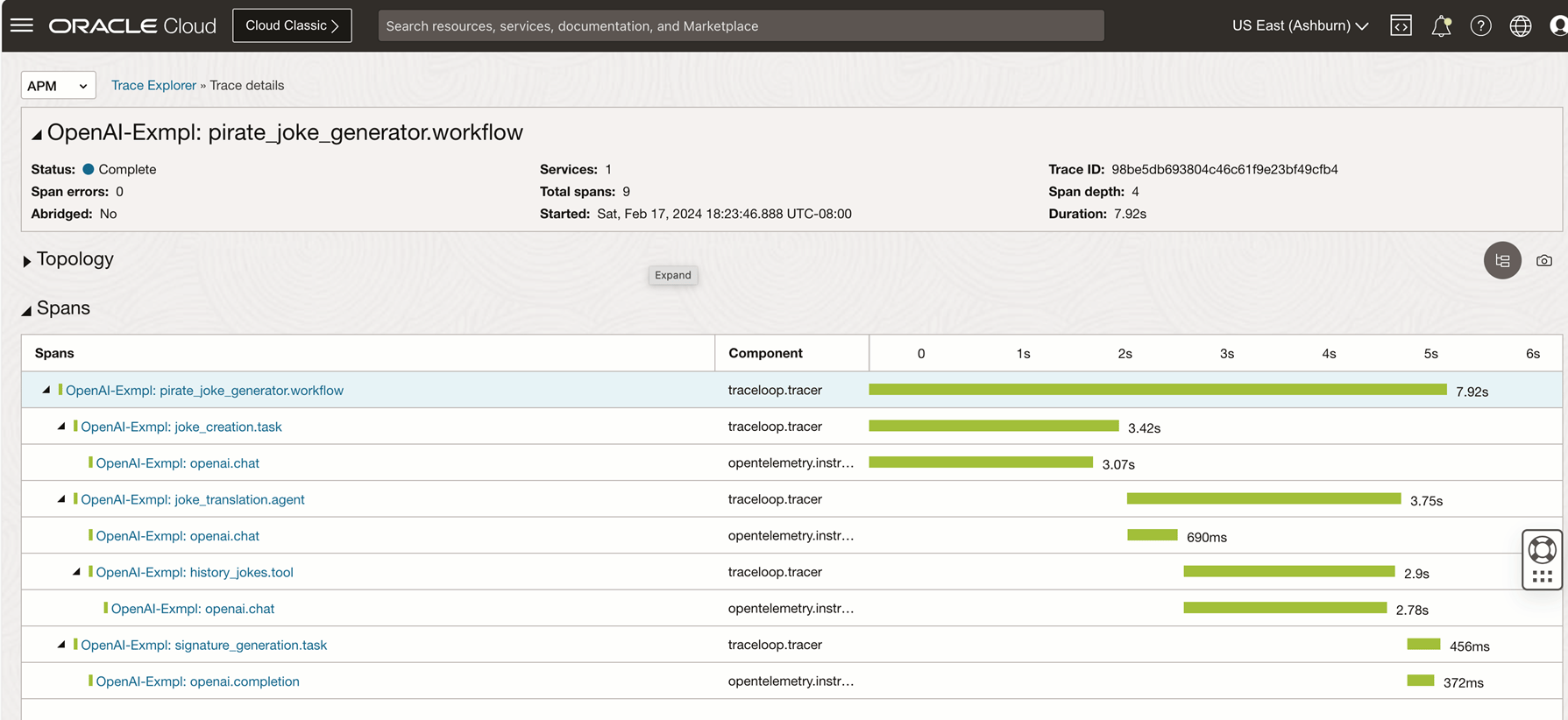 [Oracle Cloud Infrastructure Application Performance Monitoring(APM) service](https://docs.oracle.com/en-us/iaas/application-performance-monitoring/home.htm) natively supports and can ingest OpenTelemetry (OTLP) spans and metrics. Traceloop's OpenLLMetry library enables instrumenting LLM frameworks and applications in Open Telemetry format and can be routed to OCI Application Performance Monitoring for observability and evaluation of LLM applications.
## Initialize and export directly from application code
```python theme={null}
APM_BASE_URL=“/20200101/opentelemetry/private"
APM_DATA_KEY="dataKey "
APM_SERVICE_NAME=“My LLM Service”
Traceloop.init(
disable_batch=True,
app_name=APM_SERVICE_NAME,
api_endpoint=APM_BASE_URL,
headers={
"Authorization": APM_DATA_KEY
}
)
```
## Initialize using environment variables
```bash theme={null}
export TRACELOOP_BASE_URL=/20200101/opentelemetry/private
export TRACELOOP_HEADERS="Authorization=dataKey "
```
## Using an OpenTelemetry Collector
If you are using an OpenTelemetry Collector, you can route metrics and traces to OCI APM by simply adding an OTLP exporter to your collector configuration.
```yaml theme={null}
receivers:
otlp:
protocols:
http:
endpoint: 0.0.0.0:4318
processors:
batch:
exporters:
otlphttp/apm:
endpoint: "/20200101/opentelemetry/private"
headers:
"Authorization": "dataKey "
service:
pipelines:
traces:
receivers: [otlp]
processors: [batch]
exporters: [otlphttp/apm]
```
For more information check out the [docs link](https://docs.oracle.com/en-us/iaas/application-performance-monitoring/doc/configure-open-source-tracing-systems.html#GUID-4D941163-F357-4839-8B06-688876D4C61F).
---
# Source: https://www.traceloop.com/docs/openllmetry/integrations/otel-collector.md
> ## Documentation Index
> Fetch the complete documentation index at: https://www.traceloop.com/docs/llms.txt
> Use this file to discover all available pages before exploring further.
# LLM observability with OpenTelemetry Collector
Since Traceloop is emitting standard OTLP HTTP (standard OpenTelemetry protocol), you can use any OpenTelemetry Collector, which gives you the flexibility
to then connect to any backend you want.
First, [deploy an OpenTelemetry Collector](https://opentelemetry.io/docs/kubernetes/operator/automatic/#create-an-opentelemetry-collector-optional)
in your cluster.
Then, point the output of the Traceloop SDK to the collector by setting:
```bash theme={null}
TRACELOOP_BASE_URL=https://:4318
```
You can connect your collector to Traceloop by following the instructions in the [Traceloop integration section](/openllmetry/integrations/traceloop#using-an-opentelemetry-collector).
---
# Source: https://www.traceloop.com/docs/openllmetry/contributing/overview.md
> ## Documentation Index
> Fetch the complete documentation index at: https://www.traceloop.com/docs/llms.txt
> Use this file to discover all available pages before exploring further.
# Overview
> We welcome any contributions to OpenLLMetry, big or small.
## Community
It's the early days of our project and we're working hard to build an awesome, inclusive community. In order to grow this, all community members must adhere to our [Code of Conduct](https://github.com/traceloop/openllmetry/blob/main/CODE_OF_CONDUCT.md).
## Bugs and issues
Bug reports help make OpenLLMetry a better experience for everyone. When you report a bug, a template will be created automatically containing information we'd like to know.
Before raising a new issue, please search existing ones to make sure you're not creating a duplicate.
If the issue is related to security, please email us directly at
[dev@traceloop.com](mailto:dev@traceloop.com).
## Deciding what to work on
You can start by browsing through our list of issues or adding your own that improves on the test suite experience. Once you've decided on an issue, leave a comment and wait to get approved; this helps avoid multiple people working on the same issue.
If you're ever in doubt about whether or not a proposed feature aligns with OpenLLMetry as a whole, feel free to raise an issue about it and we'll get back to you promptly.
## Writing and submitting code
Anyone can contribute code to OpenLLMetry. To get started, check out the local development guide, make your changes, and submit a pull request to the main repository.
## Licensing
All of OpenLLMetry's code is under the Apache 2.0 license.
Any third party components incorporated into our code are licensed under the original license provided by the applicable component owner.
---
# Source: https://www.traceloop.com/docs/integrations/posthog.md
> ## Documentation Index
> Fetch the complete documentation index at: https://www.traceloop.com/docs/llms.txt
> Use this file to discover all available pages before exploring further.
# Posthog
> Connect Traceloop to Posthog to combine LLM insights with your product analytics
Connecting Traceloop to Posthog can be done by following these steps:
Go to your Posthog instance settings and get the following data:
* API URL (should be something like `https://us.i.posthog.com`)
* Project API key (should be in the format `phc_-`)
Go to the [integrations page](https://app.traceloop.com/settings/integrations) within Traceloop and click on the Posthog card.
[Oracle Cloud Infrastructure Application Performance Monitoring(APM) service](https://docs.oracle.com/en-us/iaas/application-performance-monitoring/home.htm) natively supports and can ingest OpenTelemetry (OTLP) spans and metrics. Traceloop's OpenLLMetry library enables instrumenting LLM frameworks and applications in Open Telemetry format and can be routed to OCI Application Performance Monitoring for observability and evaluation of LLM applications.
## Initialize and export directly from application code
```python theme={null}
APM_BASE_URL=“/20200101/opentelemetry/private"
APM_DATA_KEY="dataKey "
APM_SERVICE_NAME=“My LLM Service”
Traceloop.init(
disable_batch=True,
app_name=APM_SERVICE_NAME,
api_endpoint=APM_BASE_URL,
headers={
"Authorization": APM_DATA_KEY
}
)
```
## Initialize using environment variables
```bash theme={null}
export TRACELOOP_BASE_URL=/20200101/opentelemetry/private
export TRACELOOP_HEADERS="Authorization=dataKey "
```
## Using an OpenTelemetry Collector
If you are using an OpenTelemetry Collector, you can route metrics and traces to OCI APM by simply adding an OTLP exporter to your collector configuration.
```yaml theme={null}
receivers:
otlp:
protocols:
http:
endpoint: 0.0.0.0:4318
processors:
batch:
exporters:
otlphttp/apm:
endpoint: "/20200101/opentelemetry/private"
headers:
"Authorization": "dataKey "
service:
pipelines:
traces:
receivers: [otlp]
processors: [batch]
exporters: [otlphttp/apm]
```
For more information check out the [docs link](https://docs.oracle.com/en-us/iaas/application-performance-monitoring/doc/configure-open-source-tracing-systems.html#GUID-4D941163-F357-4839-8B06-688876D4C61F).
---
# Source: https://www.traceloop.com/docs/openllmetry/integrations/otel-collector.md
> ## Documentation Index
> Fetch the complete documentation index at: https://www.traceloop.com/docs/llms.txt
> Use this file to discover all available pages before exploring further.
# LLM observability with OpenTelemetry Collector
Since Traceloop is emitting standard OTLP HTTP (standard OpenTelemetry protocol), you can use any OpenTelemetry Collector, which gives you the flexibility
to then connect to any backend you want.
First, [deploy an OpenTelemetry Collector](https://opentelemetry.io/docs/kubernetes/operator/automatic/#create-an-opentelemetry-collector-optional)
in your cluster.
Then, point the output of the Traceloop SDK to the collector by setting:
```bash theme={null}
TRACELOOP_BASE_URL=https://:4318
```
You can connect your collector to Traceloop by following the instructions in the [Traceloop integration section](/openllmetry/integrations/traceloop#using-an-opentelemetry-collector).
---
# Source: https://www.traceloop.com/docs/openllmetry/contributing/overview.md
> ## Documentation Index
> Fetch the complete documentation index at: https://www.traceloop.com/docs/llms.txt
> Use this file to discover all available pages before exploring further.
# Overview
> We welcome any contributions to OpenLLMetry, big or small.
## Community
It's the early days of our project and we're working hard to build an awesome, inclusive community. In order to grow this, all community members must adhere to our [Code of Conduct](https://github.com/traceloop/openllmetry/blob/main/CODE_OF_CONDUCT.md).
## Bugs and issues
Bug reports help make OpenLLMetry a better experience for everyone. When you report a bug, a template will be created automatically containing information we'd like to know.
Before raising a new issue, please search existing ones to make sure you're not creating a duplicate.
If the issue is related to security, please email us directly at
[dev@traceloop.com](mailto:dev@traceloop.com).
## Deciding what to work on
You can start by browsing through our list of issues or adding your own that improves on the test suite experience. Once you've decided on an issue, leave a comment and wait to get approved; this helps avoid multiple people working on the same issue.
If you're ever in doubt about whether or not a proposed feature aligns with OpenLLMetry as a whole, feel free to raise an issue about it and we'll get back to you promptly.
## Writing and submitting code
Anyone can contribute code to OpenLLMetry. To get started, check out the local development guide, make your changes, and submit a pull request to the main repository.
## Licensing
All of OpenLLMetry's code is under the Apache 2.0 license.
Any third party components incorporated into our code are licensed under the original license provided by the applicable component owner.
---
# Source: https://www.traceloop.com/docs/integrations/posthog.md
> ## Documentation Index
> Fetch the complete documentation index at: https://www.traceloop.com/docs/llms.txt
> Use this file to discover all available pages before exploring further.
# Posthog
> Connect Traceloop to Posthog to combine LLM insights with your product analytics
Connecting Traceloop to Posthog can be done by following these steps:
Go to your Posthog instance settings and get the following data:
* API URL (should be something like `https://us.i.posthog.com`)
* Project API key (should be in the format `phc_-`)
Go to the [integrations page](https://app.traceloop.com/settings/integrations) within Traceloop and click on the Posthog card.
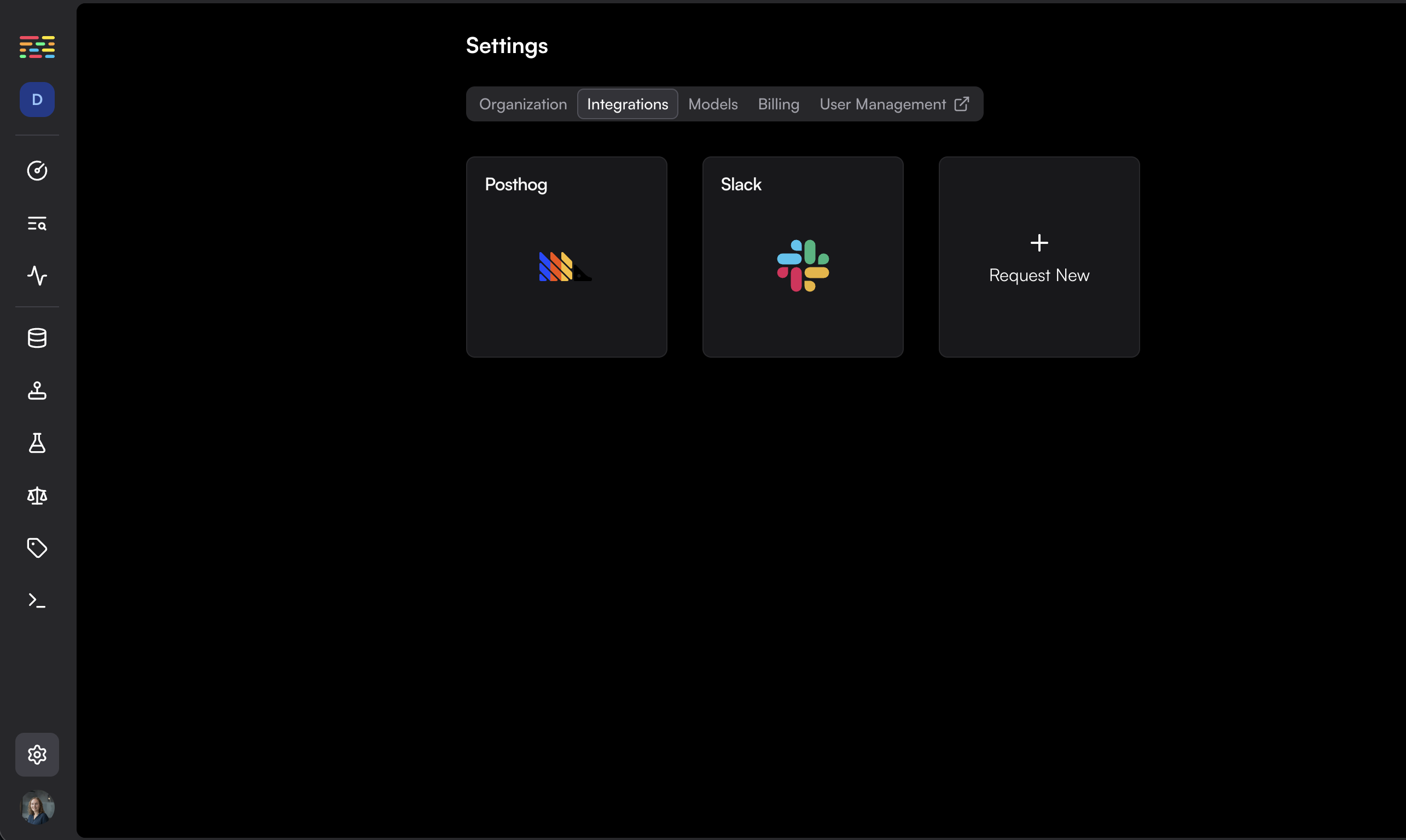 Fill in the data you got from Posthog. Choose the environment you want to connect to Posthog and click on "Enable".
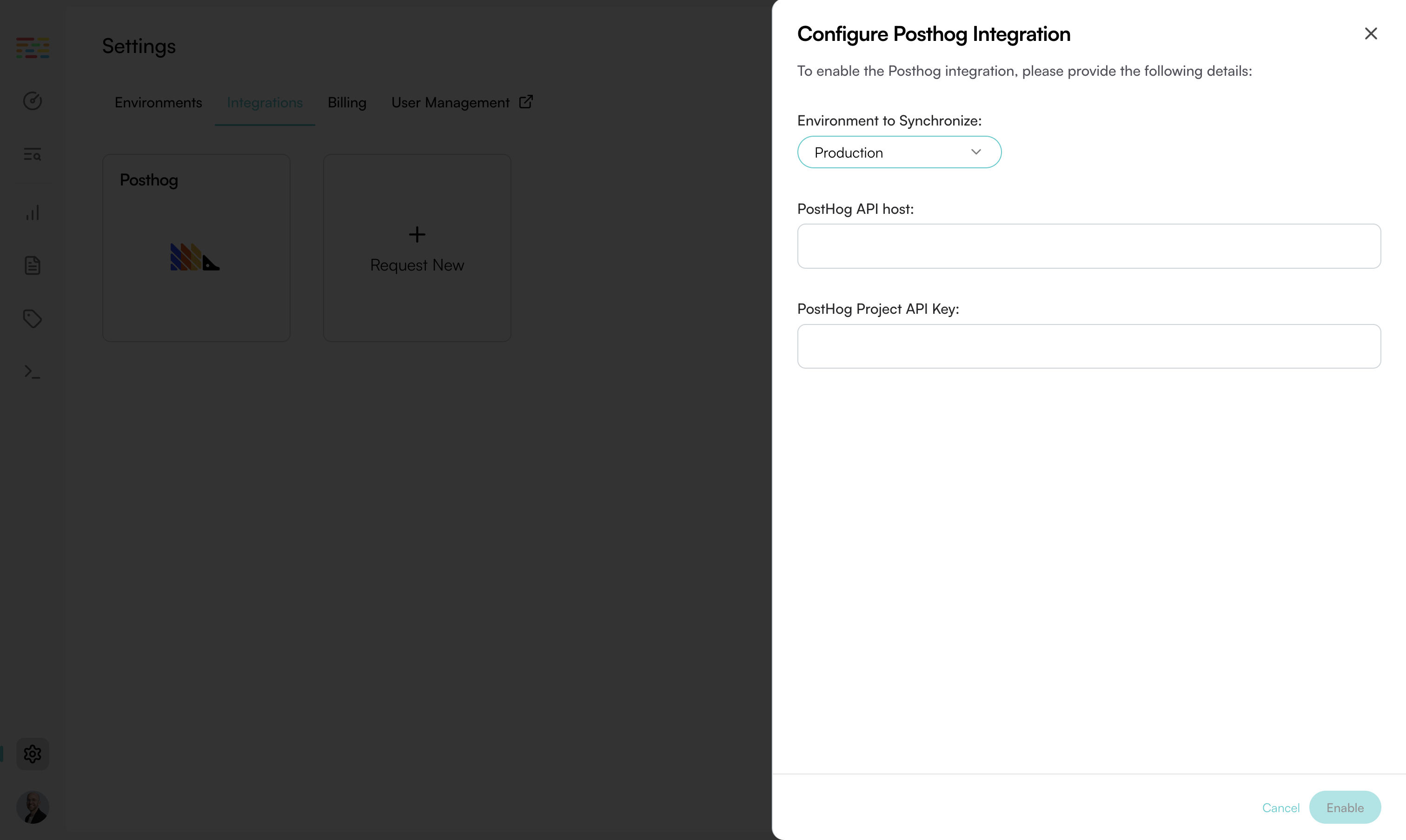
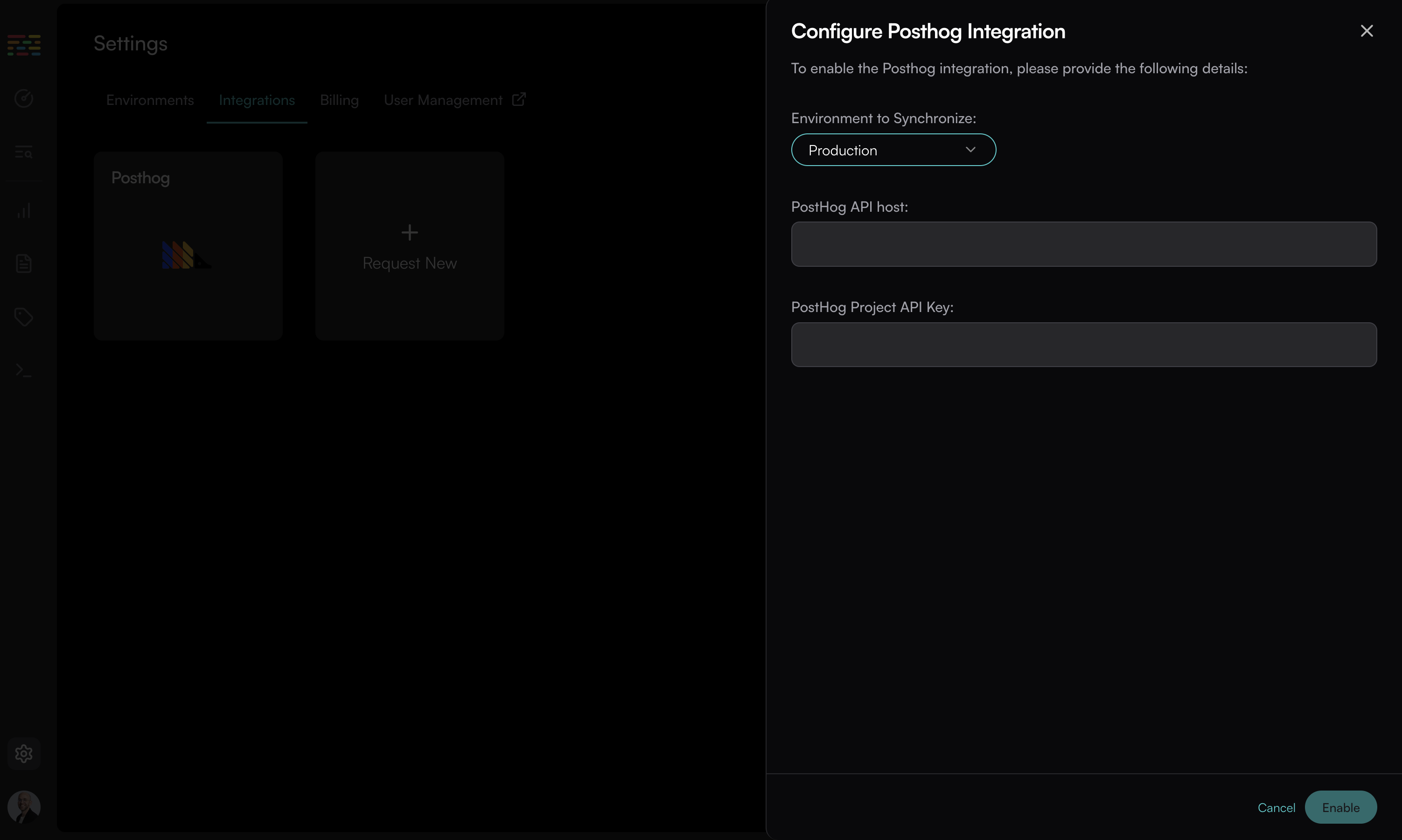 **That's it!**
Go to your Posthog instance, click "Activity" and search for events named `traceloop span`.
You can then create a new dashboard from the "LLM Metrics - Traceloop" template to visualize the data.
**That's it!**
Go to your Posthog instance, click "Activity" and search for events named `traceloop span`.
You can then create a new dashboard from the "LLM Metrics - Traceloop" template to visualize the data.
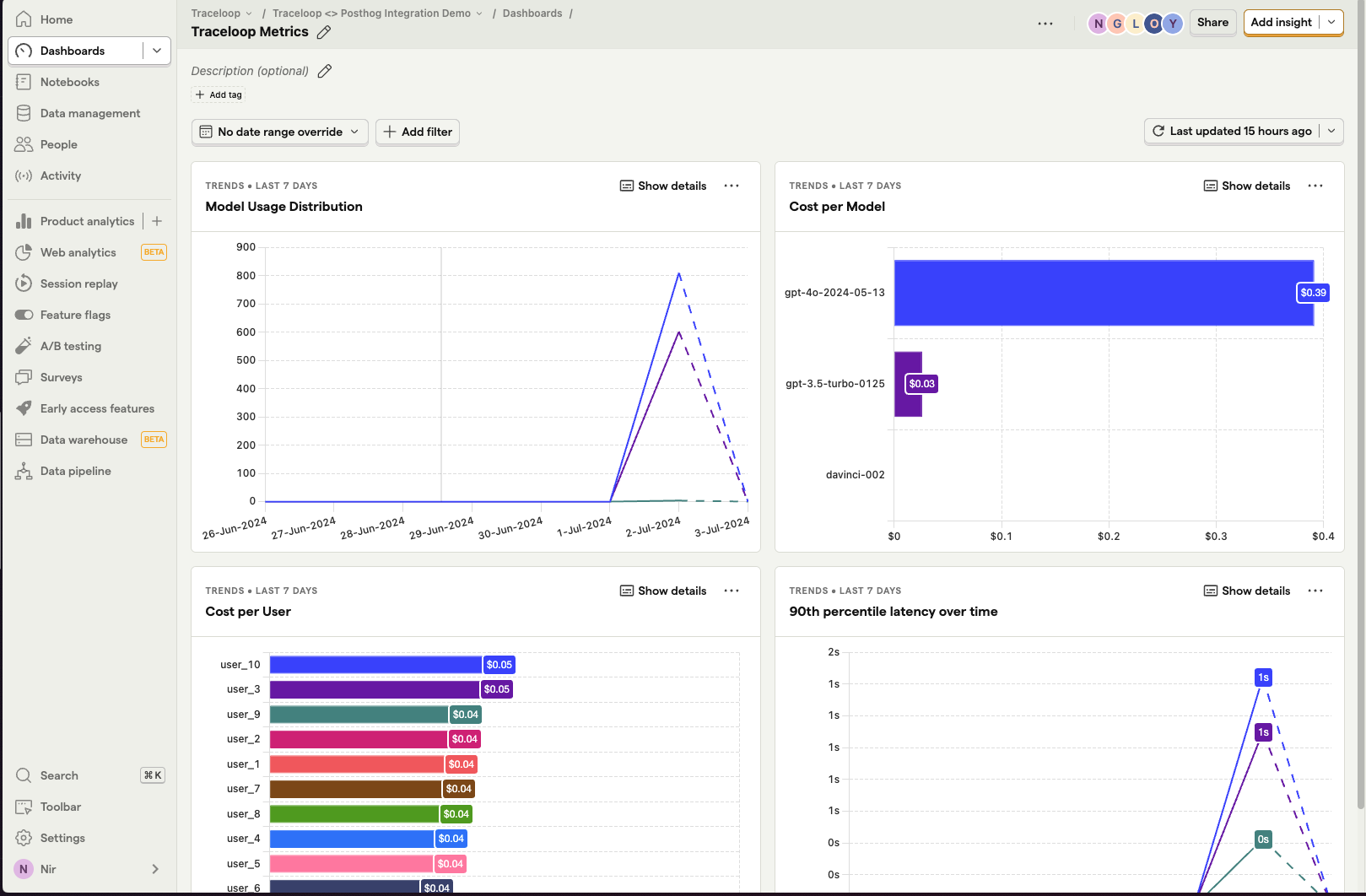 ---
# Source: https://www.traceloop.com/docs/settings/projects-and-environments.md
> ## Documentation Index
> Fetch the complete documentation index at: https://www.traceloop.com/docs/llms.txt
> Use this file to discover all available pages before exploring further.
# Projects and Environments
> Organize your applications and deployment stages with Projects and Environments
Projects and Environments help you keep your LLM observability data organized and isolated across different applications, services, and deployment stages.
---
# Source: https://www.traceloop.com/docs/settings/projects-and-environments.md
> ## Documentation Index
> Fetch the complete documentation index at: https://www.traceloop.com/docs/llms.txt
> Use this file to discover all available pages before exploring further.
# Projects and Environments
> Organize your applications and deployment stages with Projects and Environments
Projects and Environments help you keep your LLM observability data organized and isolated across different applications, services, and deployment stages.
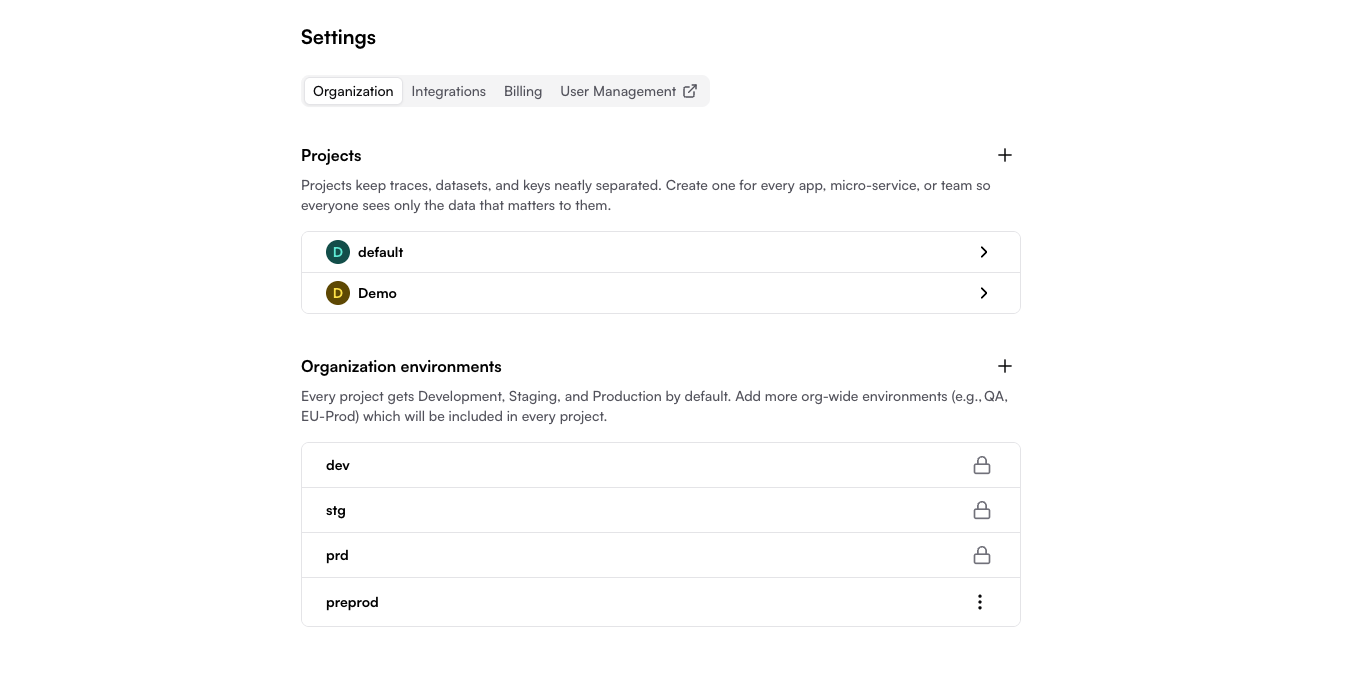
 ## Why Projects and Environments?
### The Problem
When you have multiple applications or deployment stages:
* Traces from different services get mixed together
* Production data appears alongside development experiments
* Team members see irrelevant data from other projects
* Testing changes risks affecting production monitoring
### The Solution
**Projects** completely isolate data for different applications:
* Each project has its own traces, datasets, prompts, evaluators, and experiments
* Switch between projects to view specific application data
* Generate separate API keys per project
**Environments** separate deployment stages within a project:
* dev, stg, and prd environments (built-in)
* Custom environments (e.g., "qa", "eu-prd", "preview")
* Each environment has its own API key and data stream
## Understanding Projects
### What is a Project?
A project is a complete isolation boundary for all your Traceloop data. Think of it as a workspace for a specific application or service.
**Each project contains:**
* Traces and spans
* Datasets for experiments
* Prompt configurations
* Evaluators and monitors
* Experiment results
**Common use cases for creating projects:**
* Separate applications (e.g., "web-app", "mobile-app", "api-service")
* Microservices in a distributed system
* Different teams or product areas
* Major feature branches or product lines
### When to Create a New Project
✅ **Create a new project when:**
* Building a new application or service
* Separating data for different teams
* Testing major architectural changes in isolation
* Managing multi-tenant applications (one project per tenant)
❌ **Don't create a new project for:**
* Different deployment stages (use environments instead)
* Temporary experiments (use Development environment)
* A/B tests (use datasets and experiments features)
## Understanding Environments
### What is an Environment?
An environment represents a deployment stage within a project. Each environment has its own API key, allowing you to send traces from different stages without mixing the data.
**Default environments** (cannot be deleted):
* **dev**: Local development and testing
* **stg**: Pre-production testing and validation
* **prd**: Live production traffic
**Custom environments**: Add your own based on your workflow
* Examples: "qa", "uat", "preview", "eu-prd", "us-prd"
### Organization-Level vs. Project-Level Environments
Traceloop supports two types of environments:
**Organization-Level Environments**
* Created at the organization settings level
* Automatically cascade to **all projects** (existing and new)
* Use this for environments that apply across your entire organization
**Project-Specific Environments**
* Created within a single project
* Only appear in that specific project
* Use this for project-specific deployment stages
**Best practice:** Create organization-level environments for company-wide deployment stages
(dev, stg, prd, qa). Create project-specific environments only when needed
for unique deployment scenarios.
### How Environment Cascading Works
When you create an organization-level environment:
1. It immediately appears in all existing projects
2. It automatically appears in any new projects you create
3. Each project can independently generate API keys for that environment
**Example:**
```
Organization creates "QA" environment
↓
Appears in "web-app" project (can generate its own QA API key)
Appears in "api-service" project (can generate its own QA API key)
Appears in "mobile-app" project (can generate its own QA API key)
```
## Setting Up Projects and Environments
Go to **Settings** in your Traceloop dashboard, then select the **Organization** tab.
You'll see two sections:
* **Projects and API keys**: Manage your projects
* **Organization environments**: Manage org-wide environments
If you need a new project:
1. Click the **+** button next to "Projects and API keys"
2. Enter a descriptive name (e.g., "web-app", "payment-service", "mobile-app")
3. Click **Create**
The project is created instantly with all organization-level environments included.
A "Default project" is created automatically when you sign up.
You can rename or delete it if needed.
If you need additional environments beyond dev, stg, and prd:
**For organization-wide environments:**
1. Click the **+** button next to "Organization environments"
2. Enter an environment name (e.g., "qa", "preview", "eu-prd")
3. Click **Create**
4. The environment appears in all projects immediately
**For project-specific environments:**
1. Click on your project
2. Click the **+** button next to "Project environments"
3. Enter an environment name
4. Click **Create**
5. The environment appears only in this project
An environment **slug** is automatically created for SDK usage. For example,
"EU Production" becomes "eu-production" as the slug. The default environments
use "dev", "stg", and "prd" as their slugs.
API keys are generated per project + environment:
1. Click on your project
2. Find the environment you want to use
3. Click **Generate API key**
4. Copy the key immediately (it won't be shown again)
5. Use it in your application as `TRACELOOP_API_KEY`
See [Managing API Keys](/settings/managing-api-keys) for detailed instructions.
## Viewing Your Data
### Switching Between Projects
The Traceloop dashboard shows **one project at a time**. To switch projects:
1. Click the project dropdown from the main menu on the left-hand side of the dashboard
2. Select the project you want to view
3. All traces, datasets, and other data will update to show only that project
You cannot view multiple projects simultaneously. This is by design to maintain
clear data isolation and prevent confusion.
### Filtering by Environment
Within a project, you can filter data by environment:
1. Select your project from the dropdown
2. Use the environment filter to show only specific environments
3. This filters traces, monitors, and other real-time data by environment
## Managing Projects and Environments
### Renaming
**Projects**: Can be renamed at any time
* Click on the project → Settings → Rename
**Environments**: Cannot be renamed
* Delete and recreate if needed (see warnings below)
### Deleting Projects
**Deleting a project is permanent and irreversible.**
When you delete a project:
* All traces and spans are permanently deleted
* All datasets and their versions are lost
* All prompts, evaluators, and experiments are removed
* All API keys for that project are revoked
**There is no way to recover this data.**
To delete a project:
1. Open the app settings
2. Find the project you want to delete
3. Click the 3-dot menu
4. Click **Delete project**
5. Confirm the deletion
### Deleting Environments
**Deleting an environment is permanent and irreversible.**
When you delete an environment:
* All traces for that environment are permanently deleted
* The API key is revoked immediately
* Applications using that key will stop sending data
**There is no way to recover this data.**
To delete an environment:
1. Open the app settings
2. Find the environment you want to delete
3. Click the 3-dot menu
4. Click **Delete environment**
5. Confirm the deletion
**Organization-level environments:**
* Cannot delete the three default environments (dev, stg, prd)
* Can delete custom organization-level environments
* Deleting removes the environment from all projects
**Project-specific environments:**
* Can delete any project-specific environment
* Only affects that specific project
### Limitations and Permissions
**Current limitations:**
* ❌ Cannot move or copy data between projects
* ❌ Cannot merge projects
* ❌ Cannot transfer datasets or prompts between projects
* ❌ No per-project access control (everyone in the organization can see all projects)
**What you can do:**
* ✅ Create unlimited projects and environments
* ✅ Rename projects (but not environments)
* ✅ Everyone in your organization can manage all projects and API keys
## Best Practices
### Project Organization
Create one project per application or major service.
**Example:**
* "web-app" (frontend)
* "api-gateway" (backend)
* "auth-service" (microservice)
Create projects based on team ownership.
**Example:**
* "checkout-team"
* "recommendations-team"
* "infrastructure-team"
Separate different products or customer segments.
**Example:**
* "consumer-app"
* "enterprise-app"
* "internal-tools"
For complex deployments with regional separation.
**Example:**
* "app-us-production"
* "app-eu-production"
* "app-asia-production"
### Environment Strategy
**Use built-in environments for standard workflows:**
```
dev → Local development and unit testing
stg → Integration testing and QA
prd → Live customer traffic
```
**Add custom environments for special cases:**
```
qa → Dedicated QA team testing
preview → Preview deployments for each PR
canary → Canary deployments before full rollout
eu-prd → Regional production environments
```
### Naming Conventions
**Projects:**
* Use descriptive, lowercase names with hyphens
* Include the service or application name
* Examples: `payment-api`, `mobile-app`, `ml-inference`
**Environments:**
* Keep names short and clear
* Use standard terms when possible
* Examples: `dev`, `stg`, `prd`, `qa`, `preview`
## Common Scenarios
### Microservices Architecture
Create one project per microservice:
```
Projects:
├── api-gateway (dev, stg, prd environments)
├── auth-service (dev, stg, prd environments)
├── payment-service (dev, stg, prd environments)
└── notification-service (dev, stg, prd environments)
```
Each service has its own API keys per environment, keeping traces completely isolated.
### Monorepo with Multiple Apps
Create projects per deployable application:
```
Projects:
├── web-frontend (dev, stg, prd)
├── mobile-backend (dev, stg, prd)
└── admin-dashboard (dev, stg, prd)
```
### Multi-Region Deployment
Option 1: Use custom environments per region within one project:
```
Project: global-app
Environments:
├── dev
├── stg
├── us-prd
├── eu-prd
└── apac-prd
```
Option 2: Use separate projects per region:
```
Projects:
├── app-us (dev, stg, prd)
├── app-eu (dev, stg, prd)
└── app-apac (dev, stg, prd)
```
## Troubleshooting
### Can't See My Project in Dashboard
**Problem:** Created a project but it doesn't appear in the dropdown.
**Solutions:**
* Refresh the page
* Check if you're logged into the correct organization
* Verify the project wasn't deleted
### Data Appearing in Wrong Project
**Problem:** Traces showing up in unexpected project.
**Solutions:**
* Verify which API key you're using: `echo $TRACELOOP_API_KEY`
* Check which project + environment the API key belongs to
* Ensure you haven't accidentally used the wrong key in your configuration
### Need to Move Data Between Projects
**Problem:** Want to transfer datasets or traces to a different project.
**Solution:**
* Data cannot be moved between projects (this is a security/isolation feature)
* For datasets: Export as CSV and import into the new project
* For traces: Cannot be transferred (must regenerate in new project)
### Accidentally Deleted Environment
**Problem:** Deleted an environment and lost data.
**Solution:**
* Unfortunately, there is no way to recover deleted data
* Prevention: Always confirm before deleting
* Best practice: Back up critical datasets regularly
## Related Resources
Learn how to generate and manage API keys for your projects
Set up your first project and start sending traces
Create datasets within your projects for experiments
Manage prompts within projects and deploy to environments
---
# Source: https://www.traceloop.com/docs/playgrounds/columns/prompt.md
> ## Documentation Index
> Fetch the complete documentation index at: https://www.traceloop.com/docs/llms.txt
> Use this file to discover all available pages before exploring further.
# Prompt Column
> Execute LLM prompts with full model configuration
### Prompt
A Prompt column allows you to define a custom prompt and run it directly on your Playground data.
You can compose prompts with messages (system, user, assistant or developer), insert playground variables, and configure which model to use.
Each row in your playground will be passed through the prompt, and the model’s response will be stored in the column.
Prompt columns make it easy to test different prompts against real data, compare model outputs side by side.
## Why Projects and Environments?
### The Problem
When you have multiple applications or deployment stages:
* Traces from different services get mixed together
* Production data appears alongside development experiments
* Team members see irrelevant data from other projects
* Testing changes risks affecting production monitoring
### The Solution
**Projects** completely isolate data for different applications:
* Each project has its own traces, datasets, prompts, evaluators, and experiments
* Switch between projects to view specific application data
* Generate separate API keys per project
**Environments** separate deployment stages within a project:
* dev, stg, and prd environments (built-in)
* Custom environments (e.g., "qa", "eu-prd", "preview")
* Each environment has its own API key and data stream
## Understanding Projects
### What is a Project?
A project is a complete isolation boundary for all your Traceloop data. Think of it as a workspace for a specific application or service.
**Each project contains:**
* Traces and spans
* Datasets for experiments
* Prompt configurations
* Evaluators and monitors
* Experiment results
**Common use cases for creating projects:**
* Separate applications (e.g., "web-app", "mobile-app", "api-service")
* Microservices in a distributed system
* Different teams or product areas
* Major feature branches or product lines
### When to Create a New Project
✅ **Create a new project when:**
* Building a new application or service
* Separating data for different teams
* Testing major architectural changes in isolation
* Managing multi-tenant applications (one project per tenant)
❌ **Don't create a new project for:**
* Different deployment stages (use environments instead)
* Temporary experiments (use Development environment)
* A/B tests (use datasets and experiments features)
## Understanding Environments
### What is an Environment?
An environment represents a deployment stage within a project. Each environment has its own API key, allowing you to send traces from different stages without mixing the data.
**Default environments** (cannot be deleted):
* **dev**: Local development and testing
* **stg**: Pre-production testing and validation
* **prd**: Live production traffic
**Custom environments**: Add your own based on your workflow
* Examples: "qa", "uat", "preview", "eu-prd", "us-prd"
### Organization-Level vs. Project-Level Environments
Traceloop supports two types of environments:
**Organization-Level Environments**
* Created at the organization settings level
* Automatically cascade to **all projects** (existing and new)
* Use this for environments that apply across your entire organization
**Project-Specific Environments**
* Created within a single project
* Only appear in that specific project
* Use this for project-specific deployment stages
**Best practice:** Create organization-level environments for company-wide deployment stages
(dev, stg, prd, qa). Create project-specific environments only when needed
for unique deployment scenarios.
### How Environment Cascading Works
When you create an organization-level environment:
1. It immediately appears in all existing projects
2. It automatically appears in any new projects you create
3. Each project can independently generate API keys for that environment
**Example:**
```
Organization creates "QA" environment
↓
Appears in "web-app" project (can generate its own QA API key)
Appears in "api-service" project (can generate its own QA API key)
Appears in "mobile-app" project (can generate its own QA API key)
```
## Setting Up Projects and Environments
Go to **Settings** in your Traceloop dashboard, then select the **Organization** tab.
You'll see two sections:
* **Projects and API keys**: Manage your projects
* **Organization environments**: Manage org-wide environments
If you need a new project:
1. Click the **+** button next to "Projects and API keys"
2. Enter a descriptive name (e.g., "web-app", "payment-service", "mobile-app")
3. Click **Create**
The project is created instantly with all organization-level environments included.
A "Default project" is created automatically when you sign up.
You can rename or delete it if needed.
If you need additional environments beyond dev, stg, and prd:
**For organization-wide environments:**
1. Click the **+** button next to "Organization environments"
2. Enter an environment name (e.g., "qa", "preview", "eu-prd")
3. Click **Create**
4. The environment appears in all projects immediately
**For project-specific environments:**
1. Click on your project
2. Click the **+** button next to "Project environments"
3. Enter an environment name
4. Click **Create**
5. The environment appears only in this project
An environment **slug** is automatically created for SDK usage. For example,
"EU Production" becomes "eu-production" as the slug. The default environments
use "dev", "stg", and "prd" as their slugs.
API keys are generated per project + environment:
1. Click on your project
2. Find the environment you want to use
3. Click **Generate API key**
4. Copy the key immediately (it won't be shown again)
5. Use it in your application as `TRACELOOP_API_KEY`
See [Managing API Keys](/settings/managing-api-keys) for detailed instructions.
## Viewing Your Data
### Switching Between Projects
The Traceloop dashboard shows **one project at a time**. To switch projects:
1. Click the project dropdown from the main menu on the left-hand side of the dashboard
2. Select the project you want to view
3. All traces, datasets, and other data will update to show only that project
You cannot view multiple projects simultaneously. This is by design to maintain
clear data isolation and prevent confusion.
### Filtering by Environment
Within a project, you can filter data by environment:
1. Select your project from the dropdown
2. Use the environment filter to show only specific environments
3. This filters traces, monitors, and other real-time data by environment
## Managing Projects and Environments
### Renaming
**Projects**: Can be renamed at any time
* Click on the project → Settings → Rename
**Environments**: Cannot be renamed
* Delete and recreate if needed (see warnings below)
### Deleting Projects
**Deleting a project is permanent and irreversible.**
When you delete a project:
* All traces and spans are permanently deleted
* All datasets and their versions are lost
* All prompts, evaluators, and experiments are removed
* All API keys for that project are revoked
**There is no way to recover this data.**
To delete a project:
1. Open the app settings
2. Find the project you want to delete
3. Click the 3-dot menu
4. Click **Delete project**
5. Confirm the deletion
### Deleting Environments
**Deleting an environment is permanent and irreversible.**
When you delete an environment:
* All traces for that environment are permanently deleted
* The API key is revoked immediately
* Applications using that key will stop sending data
**There is no way to recover this data.**
To delete an environment:
1. Open the app settings
2. Find the environment you want to delete
3. Click the 3-dot menu
4. Click **Delete environment**
5. Confirm the deletion
**Organization-level environments:**
* Cannot delete the three default environments (dev, stg, prd)
* Can delete custom organization-level environments
* Deleting removes the environment from all projects
**Project-specific environments:**
* Can delete any project-specific environment
* Only affects that specific project
### Limitations and Permissions
**Current limitations:**
* ❌ Cannot move or copy data between projects
* ❌ Cannot merge projects
* ❌ Cannot transfer datasets or prompts between projects
* ❌ No per-project access control (everyone in the organization can see all projects)
**What you can do:**
* ✅ Create unlimited projects and environments
* ✅ Rename projects (but not environments)
* ✅ Everyone in your organization can manage all projects and API keys
## Best Practices
### Project Organization
Create one project per application or major service.
**Example:**
* "web-app" (frontend)
* "api-gateway" (backend)
* "auth-service" (microservice)
Create projects based on team ownership.
**Example:**
* "checkout-team"
* "recommendations-team"
* "infrastructure-team"
Separate different products or customer segments.
**Example:**
* "consumer-app"
* "enterprise-app"
* "internal-tools"
For complex deployments with regional separation.
**Example:**
* "app-us-production"
* "app-eu-production"
* "app-asia-production"
### Environment Strategy
**Use built-in environments for standard workflows:**
```
dev → Local development and unit testing
stg → Integration testing and QA
prd → Live customer traffic
```
**Add custom environments for special cases:**
```
qa → Dedicated QA team testing
preview → Preview deployments for each PR
canary → Canary deployments before full rollout
eu-prd → Regional production environments
```
### Naming Conventions
**Projects:**
* Use descriptive, lowercase names with hyphens
* Include the service or application name
* Examples: `payment-api`, `mobile-app`, `ml-inference`
**Environments:**
* Keep names short and clear
* Use standard terms when possible
* Examples: `dev`, `stg`, `prd`, `qa`, `preview`
## Common Scenarios
### Microservices Architecture
Create one project per microservice:
```
Projects:
├── api-gateway (dev, stg, prd environments)
├── auth-service (dev, stg, prd environments)
├── payment-service (dev, stg, prd environments)
└── notification-service (dev, stg, prd environments)
```
Each service has its own API keys per environment, keeping traces completely isolated.
### Monorepo with Multiple Apps
Create projects per deployable application:
```
Projects:
├── web-frontend (dev, stg, prd)
├── mobile-backend (dev, stg, prd)
└── admin-dashboard (dev, stg, prd)
```
### Multi-Region Deployment
Option 1: Use custom environments per region within one project:
```
Project: global-app
Environments:
├── dev
├── stg
├── us-prd
├── eu-prd
└── apac-prd
```
Option 2: Use separate projects per region:
```
Projects:
├── app-us (dev, stg, prd)
├── app-eu (dev, stg, prd)
└── app-apac (dev, stg, prd)
```
## Troubleshooting
### Can't See My Project in Dashboard
**Problem:** Created a project but it doesn't appear in the dropdown.
**Solutions:**
* Refresh the page
* Check if you're logged into the correct organization
* Verify the project wasn't deleted
### Data Appearing in Wrong Project
**Problem:** Traces showing up in unexpected project.
**Solutions:**
* Verify which API key you're using: `echo $TRACELOOP_API_KEY`
* Check which project + environment the API key belongs to
* Ensure you haven't accidentally used the wrong key in your configuration
### Need to Move Data Between Projects
**Problem:** Want to transfer datasets or traces to a different project.
**Solution:**
* Data cannot be moved between projects (this is a security/isolation feature)
* For datasets: Export as CSV and import into the new project
* For traces: Cannot be transferred (must regenerate in new project)
### Accidentally Deleted Environment
**Problem:** Deleted an environment and lost data.
**Solution:**
* Unfortunately, there is no way to recover deleted data
* Prevention: Always confirm before deleting
* Best practice: Back up critical datasets regularly
## Related Resources
Learn how to generate and manage API keys for your projects
Set up your first project and start sending traces
Create datasets within your projects for experiments
Manage prompts within projects and deploy to environments
---
# Source: https://www.traceloop.com/docs/playgrounds/columns/prompt.md
> ## Documentation Index
> Fetch the complete documentation index at: https://www.traceloop.com/docs/llms.txt
> Use this file to discover all available pages before exploring further.
# Prompt Column
> Execute LLM prompts with full model configuration
### Prompt
A Prompt column allows you to define a custom prompt and run it directly on your Playground data.
You can compose prompts with messages (system, user, assistant or developer), insert playground variables, and configure which model to use.
Each row in your playground will be passed through the prompt, and the model’s response will be stored in the column.
Prompt columns make it easy to test different prompts against real data, compare model outputs side by side.
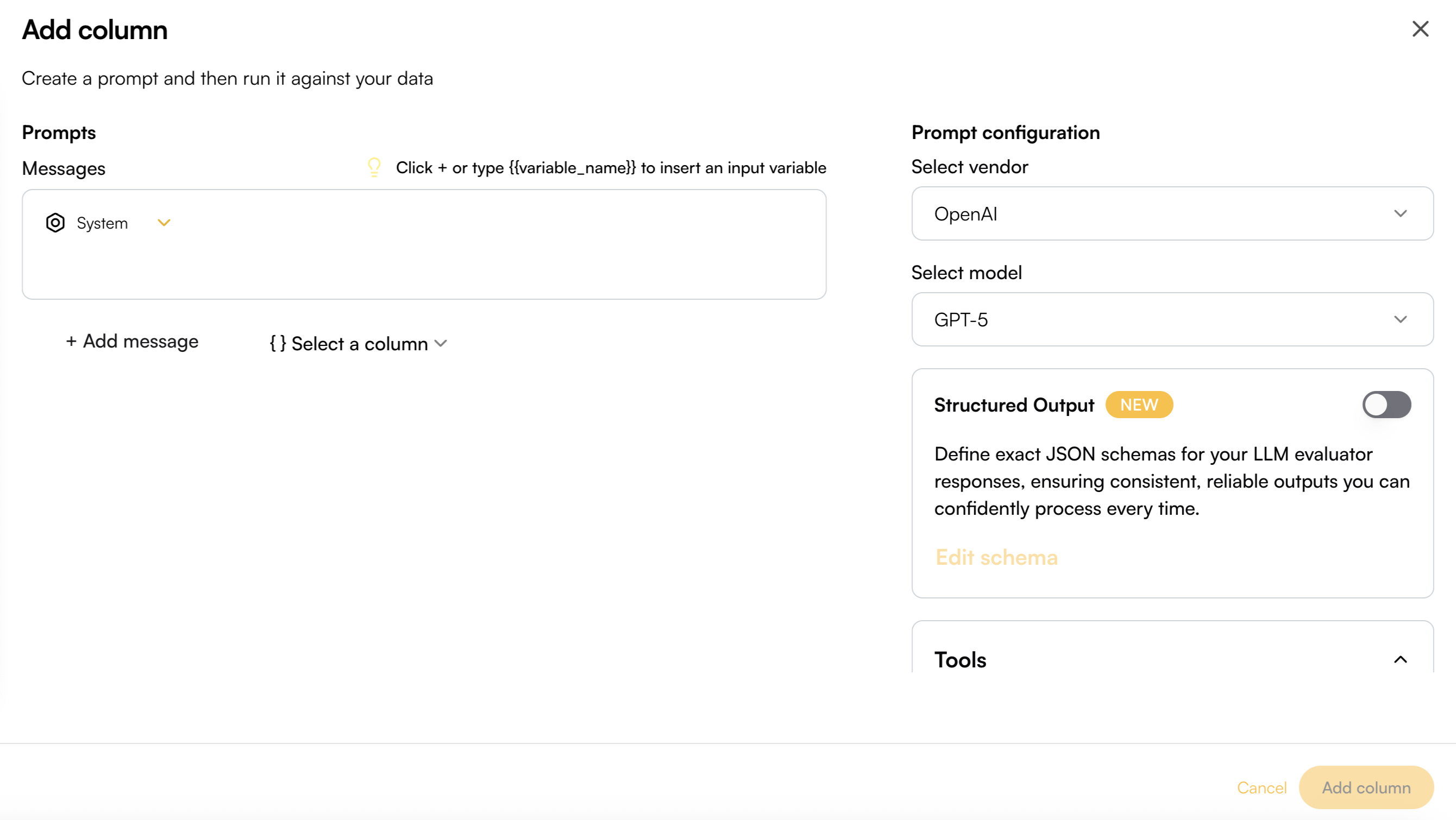
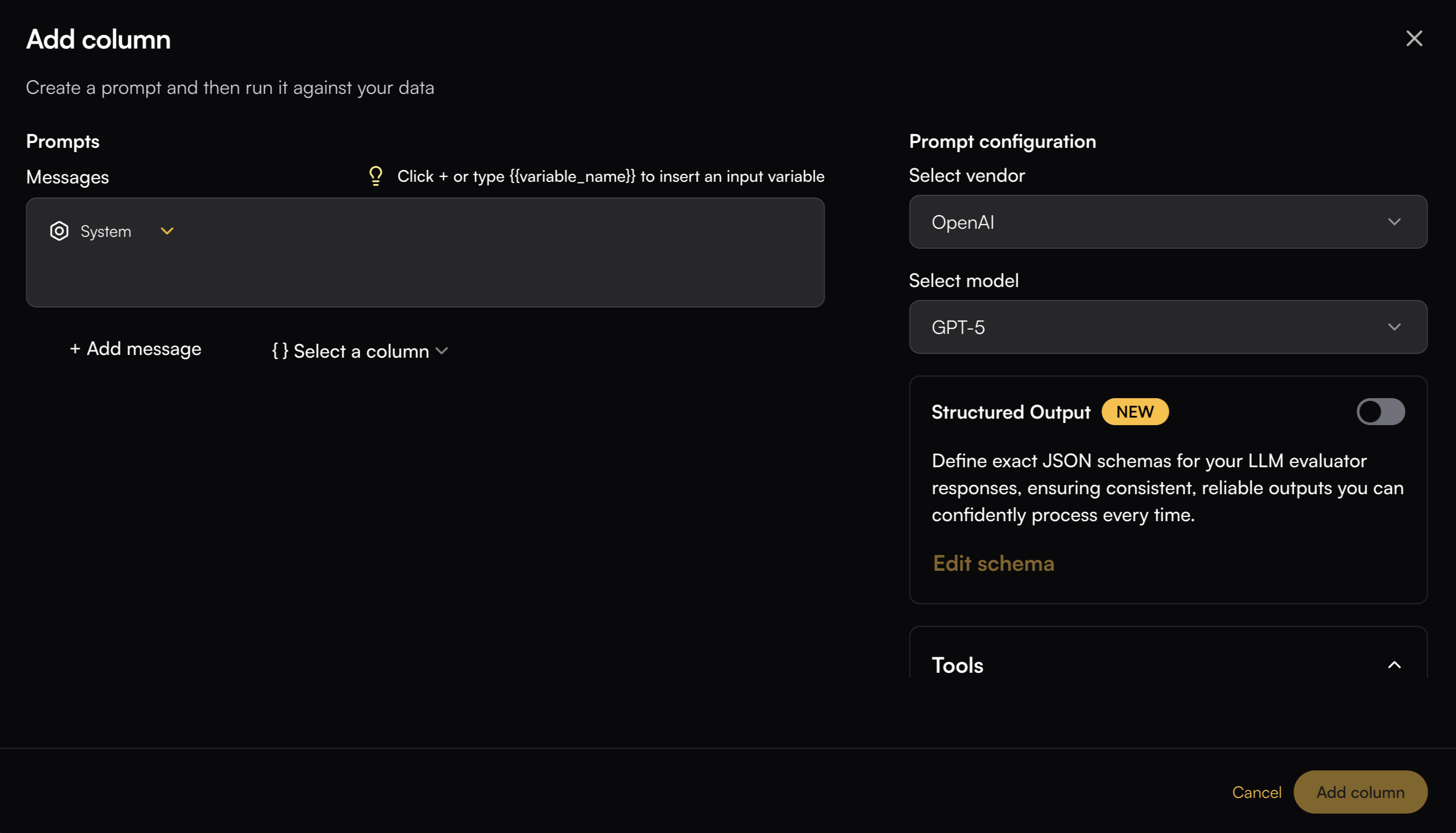 ## Prompt Writing
Write your prompt messages by selecting a specific role—System, User, Assistant, or Developer.
You can insert variables into the prompt using curly brackets (e.g., `{{variable_name}}`) or by adding column valuable with the top right `+` button in the message box. These variables can then be mapped to existing column data, allowing your prompt to dynamically adapt to the playground
## Prompt Writing
Write your prompt messages by selecting a specific role—System, User, Assistant, or Developer.
You can insert variables into the prompt using curly brackets (e.g., `{{variable_name}}`) or by adding column valuable with the top right `+` button in the message box. These variables can then be mapped to existing column data, allowing your prompt to dynamically adapt to the playground
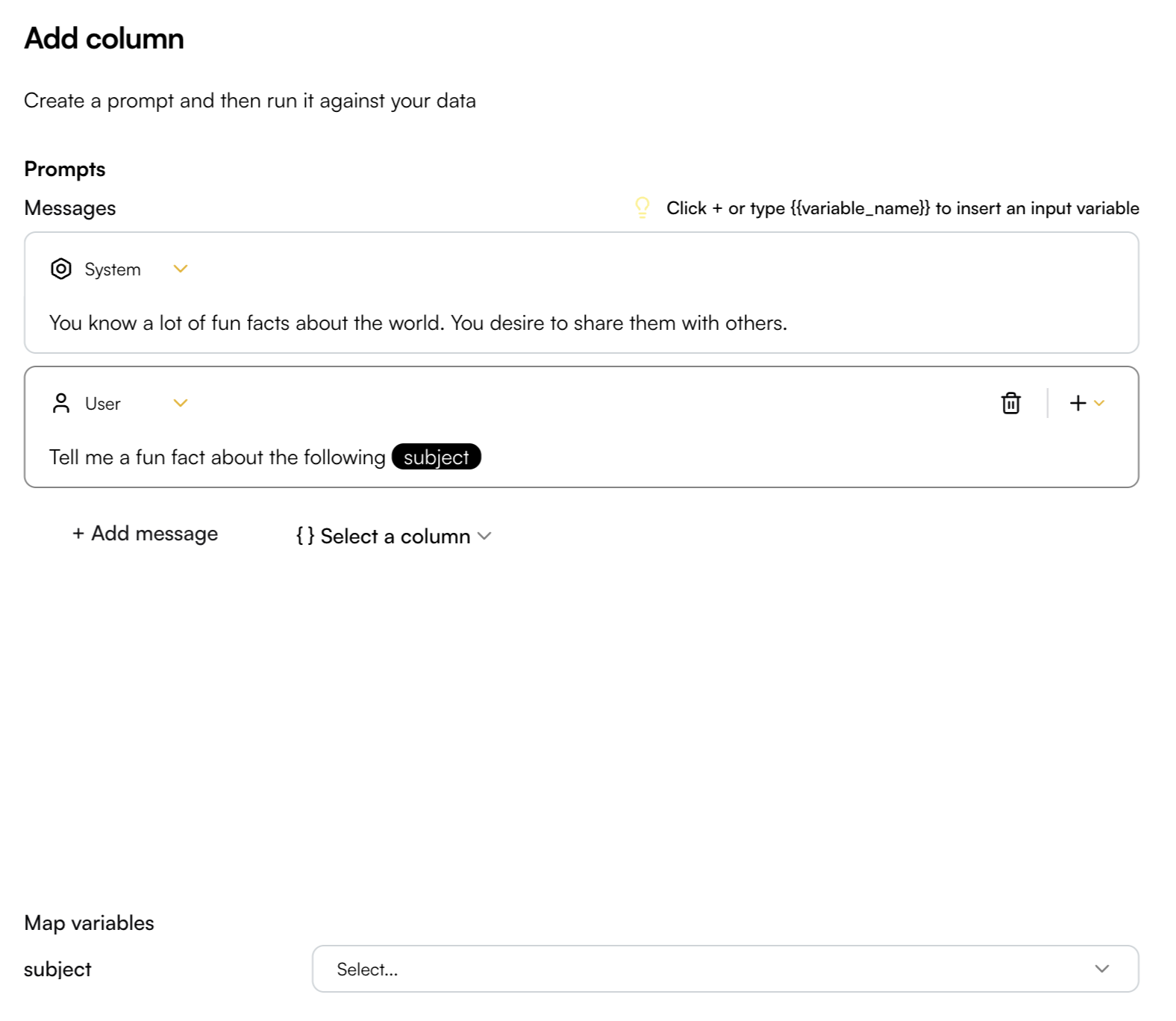
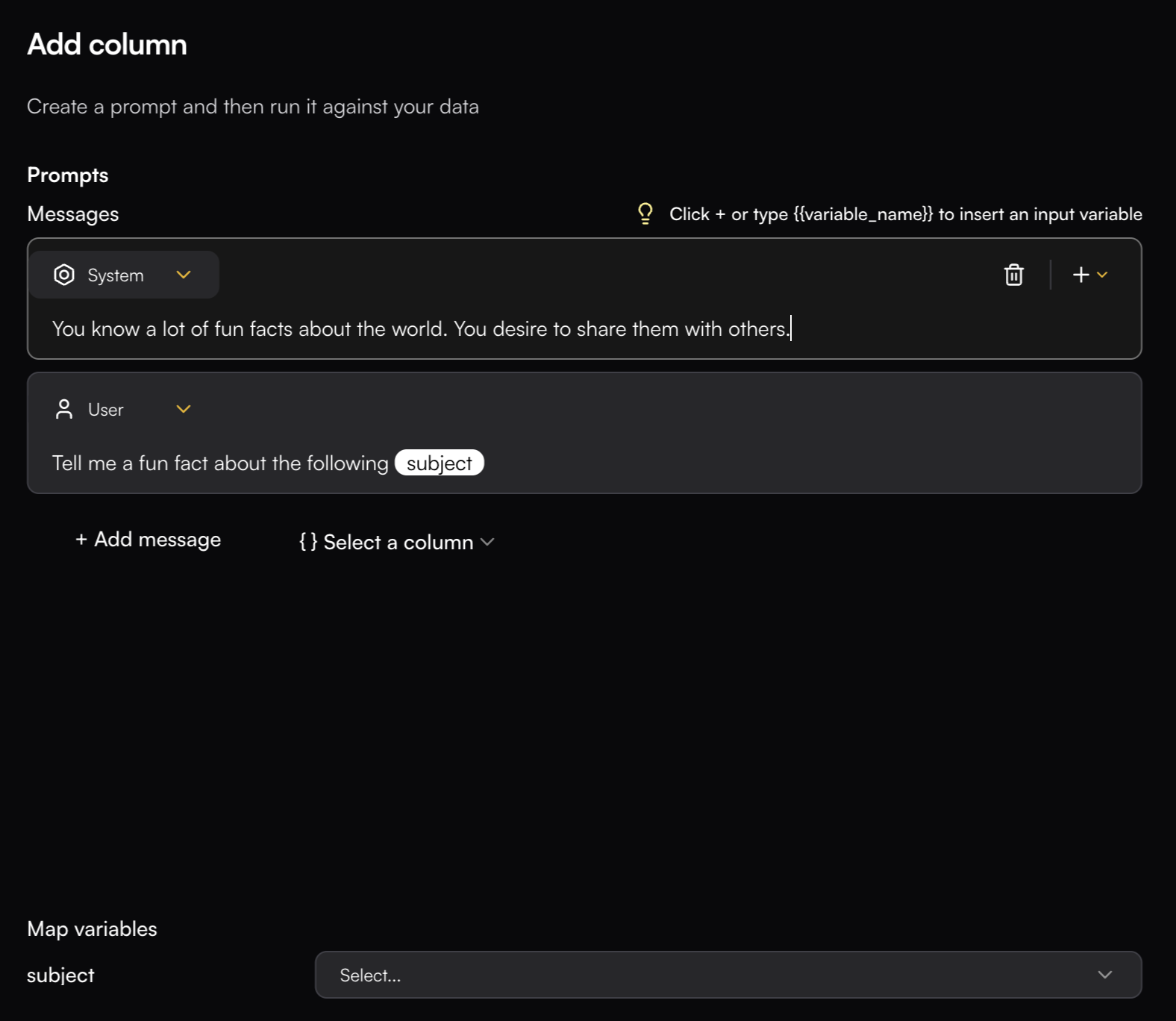 ## Configuration Options
### Model Selection
You can connect to a wide range of LLM providers and models. Common choices include OpenAI (GPT-4o, GPT-4o-mini), Anthropic (Claude-3.5-Sonnet, Claude-3-Opus), and Google (Gemini-2.5 family).
Other providers such as Groq and DeepSeek may also be supported, and additional integrations will continue to be added over time.
### Structured Output
Structured output can be enabled for models that support it. You can define a schema in several ways:
* **JSON Editor** - Write a JSON structure directly in the editor
* **Visual Editor** - Add parameters interactively, specifying their names and types
* **Generate Schema** - Use the "Generate schema" button on the top right to automatically create a schema based on your written prompt
## Configuration Options
### Model Selection
You can connect to a wide range of LLM providers and models. Common choices include OpenAI (GPT-4o, GPT-4o-mini), Anthropic (Claude-3.5-Sonnet, Claude-3-Opus), and Google (Gemini-2.5 family).
Other providers such as Groq and DeepSeek may also be supported, and additional integrations will continue to be added over time.
### Structured Output
Structured output can be enabled for models that support it. You can define a schema in several ways:
* **JSON Editor** - Write a JSON structure directly in the editor
* **Visual Editor** - Add parameters interactively, specifying their names and types
* **Generate Schema** - Use the "Generate schema" button on the top right to automatically create a schema based on your written prompt
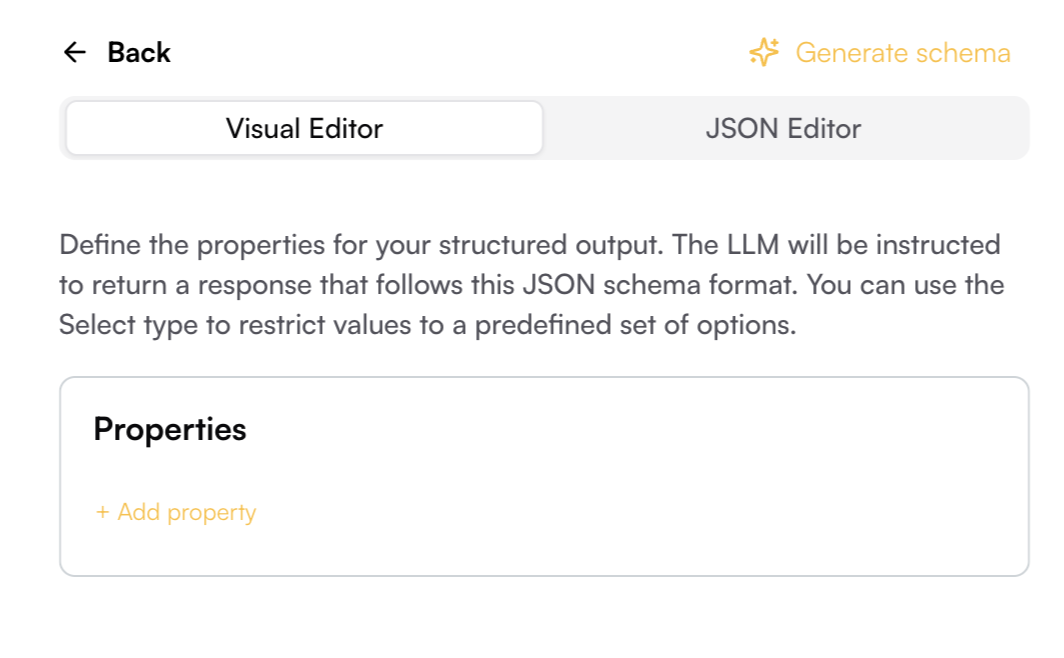
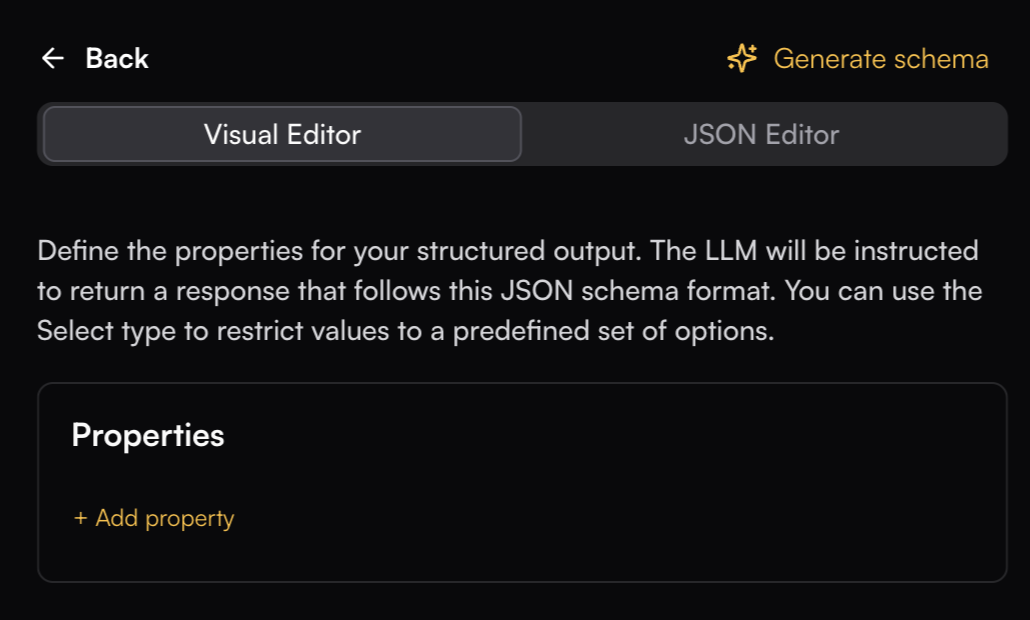 ## Tools
Tools let you extend prompts by allowing the model to call custom functions with structured arguments. Instead of plain text, the model can return a validated tool-call object that follows your schema.
To create a tool, give it a name and description so the model knows when to use it. Then define its parameters with a name, description, type (string, number, boolean, etc.), and whether they are required.
### Advanced Settings
Fine-tune model behavior options:
* **Temperature** (0.0-1.0): Control randomness and creativity
* **Max Tokens**: Limit model output length (1-8000+ depending on model)
* **Top P**: Nucleus sampling parameter (0.0-1.0)
* **Frequency Penalty**: Reduce repetition (0.0 to 1.0)
* **Presence Penalty**: Encourage topic diversity (0.0 to 1.0)
* **Logprobs**: When enabled, returns the probability scores for generated tokens
* **Thinking Budget** (512-24576): Sets the number of tokens the model can use for internal reasoning before producing the final output
A higher budget allows more complex reasoning but increases cost and runtime
* **Exclude Reasoning from Response**: If enabled, the model hides its internal reasoning steps and only outputs the final response
## Prompt Execution
A prompt can be executed across all cells in a column or on a specific cell.
Prompt outputs can be mapped to different columns by clicking a cell and selecting the mapping icon, or by double-clicking the cell
---
# Source: https://www.traceloop.com/docs/api-reference/costs/property_costs.md
> ## Documentation Index
> Fetch the complete documentation index at: https://www.traceloop.com/docs/llms.txt
> Use this file to discover all available pages before exploring further.
# Get costs by property
Query your LLM costs broken down by a specific association property. This helps you understand how costs are distributed across different values of a property (e.g., by user\_id, session\_id, or any other association property you track).
## Request Parameters
The name of the association property to group costs by (e.g., "user\_id", "session\_id").
The start time in ISO 8601 format (e.g., "2025-04-15T00:00:00Z").
The end time in ISO 8601 format (e.g., "2025-04-28T23:00:00Z").
List of environments to include in the calculation. Separated by comma.
NEW Filter costs by specific token types. Separate multiple types with commas.
**Supported token types:**
* `input_tokens` or `prompt_tokens` (automatically normalized to `prompt_tokens`)
* `output_tokens` or `completion_tokens` (automatically normalized to `completion_tokens`)
* `cache_read_input_tokens`
* `cache_creation_input_tokens`
* Other token types as they appear in your data
**Note:** `total_tokens` cannot be used as a filter.
**Examples:**
* `selected_token_types=input_tokens,output_tokens`
* `selected_token_types=prompt_tokens,cache_read_input_tokens`
* `selected_token_types=completion_tokens`
When this parameter is omitted, costs for all token types are included.
## Response
The name of the property that was queried.
A list of property values and their associated costs.
The total cost across all property values.
```json theme={null}
{
"property_name": "session_id",
"values": [
{
"value": "session_21",
"cost": 1.23
},
{
"value": "session_5",
"cost": 4.56
},
{
"value": "No_Value",
"cost": 0.78
}
],
"total_cost": 6.57
}
```
The API can return special values:
* `"No_Association"` as property\_name if no spans have the requested association properties
* `"No_Value"` as a value for spans that don't have a value for the specified property
* `"Unknown_Value"` for spans where the property exists but has an empty value
---
# Source: https://www.traceloop.com/docs/openllmetry/tracing/python-threads.md
> ## Documentation Index
> Fetch the complete documentation index at: https://www.traceloop.com/docs/llms.txt
> Use this file to discover all available pages before exploring further.
# Usage with Threads (Python)
> How to use OpenLLMetry with `ThreadPoolExecutor` and other thread-based libraries.
Since many LLM operations tend to be I/O bound, it is often useful to use threads to perform multiple operations at once.
Usually, you'll use the `ThreadPoolExecutor` class from the `concurrent.futures` module in the Python standard library, like this:
```python theme={null}
indexes = [pinecone.Index(f"index{i}") for i in range(3)]
executor = ThreadPoolExecutor(max_workers=3)
for i in range(3):
executor.submit(indexes[i].query, [1.0, 2.0, 3.0], top_k=10)
```
Unfortunately, this won't work as you expect and may cause you to see "broken" traces or missing spans.
The reason relies in how OpenTelemetry (which is what we use under the hood in OpenLLMetry, hence the name)
uses [Python's context](https://docs.python.org/3/library/contextvars.html) to propagate the trace.
You'll need to explictly propagate the context to the threads:
```python theme={null}
indexes = [pinecone.Index(f"index{i}") for i in range(3)]
executor = ThreadPoolExecutor(max_workers=3)
for i in range(3):
ctx = contextvars.copy_context()
executor.submit(
ctx.run,
functools.partial(index.query, [1.0, 2.0, 3.0], top_k=10),
)
```
Also check out the [full example](https://github.com/traceloop/openllmetry/blob/main/packages/sample-app/sample_app/thread_pool_example.py).
---
# Source: https://www.traceloop.com/docs/prompts/quick-start.md
# Source: https://www.traceloop.com/docs/playgrounds/quick-start.md
# Source: https://www.traceloop.com/docs/datasets/quick-start.md
> ## Documentation Index
> Fetch the complete documentation index at: https://www.traceloop.com/docs/llms.txt
> Use this file to discover all available pages before exploring further.
# Quick Start
Datasets are simple data tables that you can use to manage your data for experiments and evaluation of your AI applications.
Datasets are available in the SDK, and they enable you to create versioned snapshots for reproducible testing.
## Tools
Tools let you extend prompts by allowing the model to call custom functions with structured arguments. Instead of plain text, the model can return a validated tool-call object that follows your schema.
To create a tool, give it a name and description so the model knows when to use it. Then define its parameters with a name, description, type (string, number, boolean, etc.), and whether they are required.
### Advanced Settings
Fine-tune model behavior options:
* **Temperature** (0.0-1.0): Control randomness and creativity
* **Max Tokens**: Limit model output length (1-8000+ depending on model)
* **Top P**: Nucleus sampling parameter (0.0-1.0)
* **Frequency Penalty**: Reduce repetition (0.0 to 1.0)
* **Presence Penalty**: Encourage topic diversity (0.0 to 1.0)
* **Logprobs**: When enabled, returns the probability scores for generated tokens
* **Thinking Budget** (512-24576): Sets the number of tokens the model can use for internal reasoning before producing the final output
A higher budget allows more complex reasoning but increases cost and runtime
* **Exclude Reasoning from Response**: If enabled, the model hides its internal reasoning steps and only outputs the final response
## Prompt Execution
A prompt can be executed across all cells in a column or on a specific cell.
Prompt outputs can be mapped to different columns by clicking a cell and selecting the mapping icon, or by double-clicking the cell
---
# Source: https://www.traceloop.com/docs/api-reference/costs/property_costs.md
> ## Documentation Index
> Fetch the complete documentation index at: https://www.traceloop.com/docs/llms.txt
> Use this file to discover all available pages before exploring further.
# Get costs by property
Query your LLM costs broken down by a specific association property. This helps you understand how costs are distributed across different values of a property (e.g., by user\_id, session\_id, or any other association property you track).
## Request Parameters
The name of the association property to group costs by (e.g., "user\_id", "session\_id").
The start time in ISO 8601 format (e.g., "2025-04-15T00:00:00Z").
The end time in ISO 8601 format (e.g., "2025-04-28T23:00:00Z").
List of environments to include in the calculation. Separated by comma.
NEW Filter costs by specific token types. Separate multiple types with commas.
**Supported token types:**
* `input_tokens` or `prompt_tokens` (automatically normalized to `prompt_tokens`)
* `output_tokens` or `completion_tokens` (automatically normalized to `completion_tokens`)
* `cache_read_input_tokens`
* `cache_creation_input_tokens`
* Other token types as they appear in your data
**Note:** `total_tokens` cannot be used as a filter.
**Examples:**
* `selected_token_types=input_tokens,output_tokens`
* `selected_token_types=prompt_tokens,cache_read_input_tokens`
* `selected_token_types=completion_tokens`
When this parameter is omitted, costs for all token types are included.
## Response
The name of the property that was queried.
A list of property values and their associated costs.
The total cost across all property values.
```json theme={null}
{
"property_name": "session_id",
"values": [
{
"value": "session_21",
"cost": 1.23
},
{
"value": "session_5",
"cost": 4.56
},
{
"value": "No_Value",
"cost": 0.78
}
],
"total_cost": 6.57
}
```
The API can return special values:
* `"No_Association"` as property\_name if no spans have the requested association properties
* `"No_Value"` as a value for spans that don't have a value for the specified property
* `"Unknown_Value"` for spans where the property exists but has an empty value
---
# Source: https://www.traceloop.com/docs/openllmetry/tracing/python-threads.md
> ## Documentation Index
> Fetch the complete documentation index at: https://www.traceloop.com/docs/llms.txt
> Use this file to discover all available pages before exploring further.
# Usage with Threads (Python)
> How to use OpenLLMetry with `ThreadPoolExecutor` and other thread-based libraries.
Since many LLM operations tend to be I/O bound, it is often useful to use threads to perform multiple operations at once.
Usually, you'll use the `ThreadPoolExecutor` class from the `concurrent.futures` module in the Python standard library, like this:
```python theme={null}
indexes = [pinecone.Index(f"index{i}") for i in range(3)]
executor = ThreadPoolExecutor(max_workers=3)
for i in range(3):
executor.submit(indexes[i].query, [1.0, 2.0, 3.0], top_k=10)
```
Unfortunately, this won't work as you expect and may cause you to see "broken" traces or missing spans.
The reason relies in how OpenTelemetry (which is what we use under the hood in OpenLLMetry, hence the name)
uses [Python's context](https://docs.python.org/3/library/contextvars.html) to propagate the trace.
You'll need to explictly propagate the context to the threads:
```python theme={null}
indexes = [pinecone.Index(f"index{i}") for i in range(3)]
executor = ThreadPoolExecutor(max_workers=3)
for i in range(3):
ctx = contextvars.copy_context()
executor.submit(
ctx.run,
functools.partial(index.query, [1.0, 2.0, 3.0], top_k=10),
)
```
Also check out the [full example](https://github.com/traceloop/openllmetry/blob/main/packages/sample-app/sample_app/thread_pool_example.py).
---
# Source: https://www.traceloop.com/docs/prompts/quick-start.md
# Source: https://www.traceloop.com/docs/playgrounds/quick-start.md
# Source: https://www.traceloop.com/docs/datasets/quick-start.md
> ## Documentation Index
> Fetch the complete documentation index at: https://www.traceloop.com/docs/llms.txt
> Use this file to discover all available pages before exploring further.
# Quick Start
Datasets are simple data tables that you can use to manage your data for experiments and evaluation of your AI applications.
Datasets are available in the SDK, and they enable you to create versioned snapshots for reproducible testing.

 Click **New Dataset** to create a dataset, give it a descriptive name that reflects its purpose or use case, add a description to help your team understand its context, and provide a slug that allows you to use the dataset in the SDK.
Add rows and columns to structure your dataset.
You can add different column types:
* **Text**: For prompts, model responses, or any textual data
* **Number**: For numerical values, scores, or metrics
* **Boolean**: For true/false flags or binary classifications
Use meaningful column names that clearly describe what each field contains,
making it easier to work with your dataset in code, ensure clarity when using evaluators, and collaborate with team members.
Click **New Dataset** to create a dataset, give it a descriptive name that reflects its purpose or use case, add a description to help your team understand its context, and provide a slug that allows you to use the dataset in the SDK.
Add rows and columns to structure your dataset.
You can add different column types:
* **Text**: For prompts, model responses, or any textual data
* **Number**: For numerical values, scores, or metrics
* **Boolean**: For true/false flags or binary classifications
Use meaningful column names that clearly describe what each field contains,
making it easier to work with your dataset in code, ensure clarity when using evaluators, and collaborate with team members.

 Once you're satisfied with your dataset structure and data:
1. Click **Publish Version** to create a stable snapshot
2. Published versions are immutable
3. Publish versions are accessible in the SDK
You can access all published versions of your dataset by opening the version history modal. This allows you to:
* Compare different versions of your dataset
* Track changes over time
* Switch between versions
---
# Source: https://www.traceloop.com/docs/prompts/registry.md
> ## Documentation Index
> Fetch the complete documentation index at: https://www.traceloop.com/docs/llms.txt
> Use this file to discover all available pages before exploring further.
# Prompt Registry
> Manage your prompts on the Traceloop platform
Traceloop's Prompt Registry is where you manage your prompts. You can create, edit, evaluate and deploy prompts to your environments.
## Configuring Prompts
Once you're satisfied with your dataset structure and data:
1. Click **Publish Version** to create a stable snapshot
2. Published versions are immutable
3. Publish versions are accessible in the SDK
You can access all published versions of your dataset by opening the version history modal. This allows you to:
* Compare different versions of your dataset
* Track changes over time
* Switch between versions
---
# Source: https://www.traceloop.com/docs/prompts/registry.md
> ## Documentation Index
> Fetch the complete documentation index at: https://www.traceloop.com/docs/llms.txt
> Use this file to discover all available pages before exploring further.
# Prompt Registry
> Manage your prompts on the Traceloop platform
Traceloop's Prompt Registry is where you manage your prompts. You can create, edit, evaluate and deploy prompts to your environments.
## Configuring Prompts
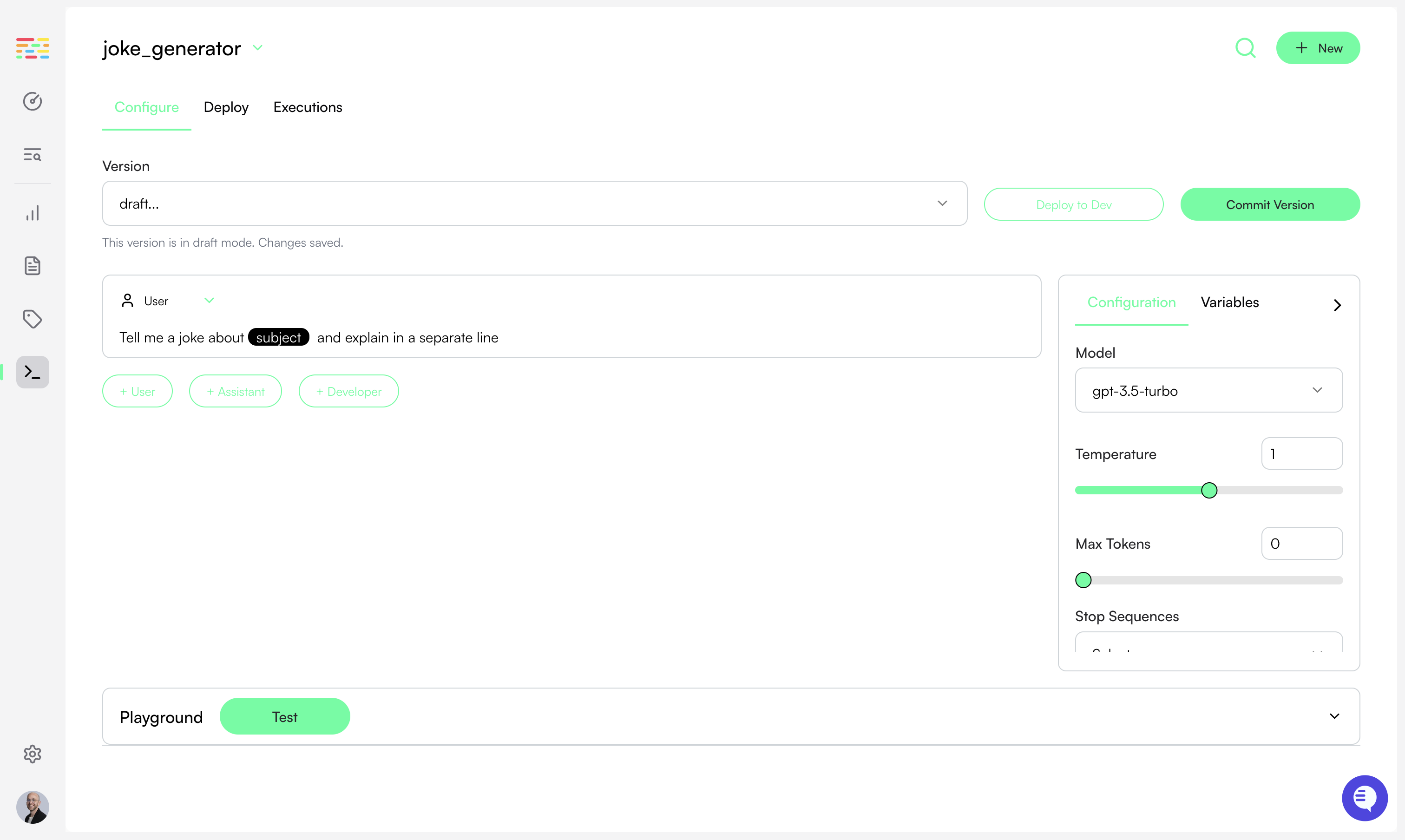
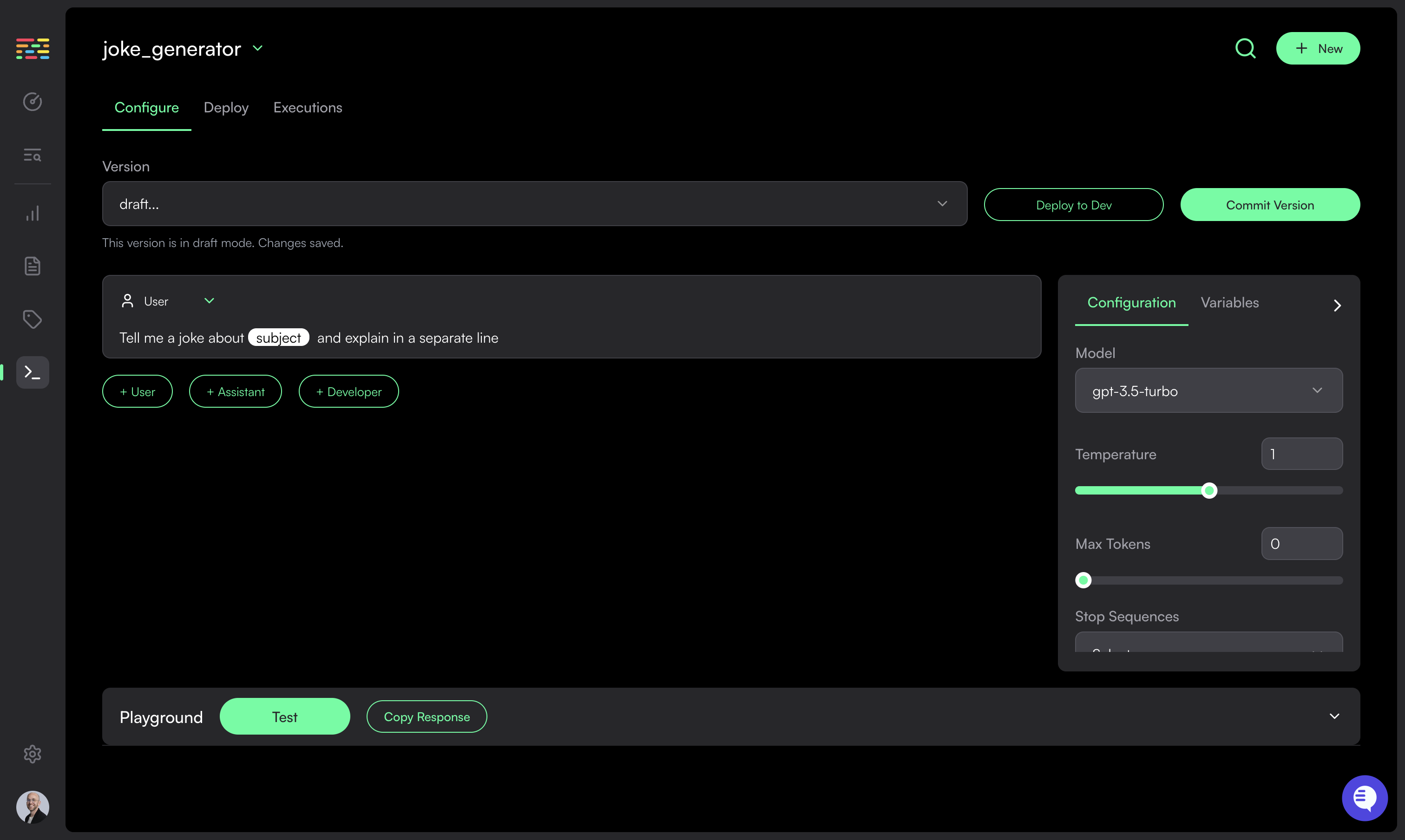 The prompt configuration is composed of two parts:
* The prompt template (system and/or user prompts)
* The model configuration (temperature, top\_p, etc.)
Your prompt template can include variables. Variables are defined according to
the syntax of the parser specified. For example, if using `jinjia2` the syntax
will be `{{ variable_name }}`. You can then pass variable values to the SDK
when calling `get_prompt`. See the example on the [SDK
Usage](/prompts/sdk-usage) section.
Initially, prompts are created in `Draft Mode`. In this mode, you can make changes to the prompt and configuration. You can also test your prompt in the playground (see below).
## Testing a Prompt Configuration (Prompt Playground)
By using the prompt playground you can iterate and refine your prompt before deploying it.
The prompt configuration is composed of two parts:
* The prompt template (system and/or user prompts)
* The model configuration (temperature, top\_p, etc.)
Your prompt template can include variables. Variables are defined according to
the syntax of the parser specified. For example, if using `jinjia2` the syntax
will be `{{ variable_name }}`. You can then pass variable values to the SDK
when calling `get_prompt`. See the example on the [SDK
Usage](/prompts/sdk-usage) section.
Initially, prompts are created in `Draft Mode`. In this mode, you can make changes to the prompt and configuration. You can also test your prompt in the playground (see below).
## Testing a Prompt Configuration (Prompt Playground)
By using the prompt playground you can iterate and refine your prompt before deploying it.
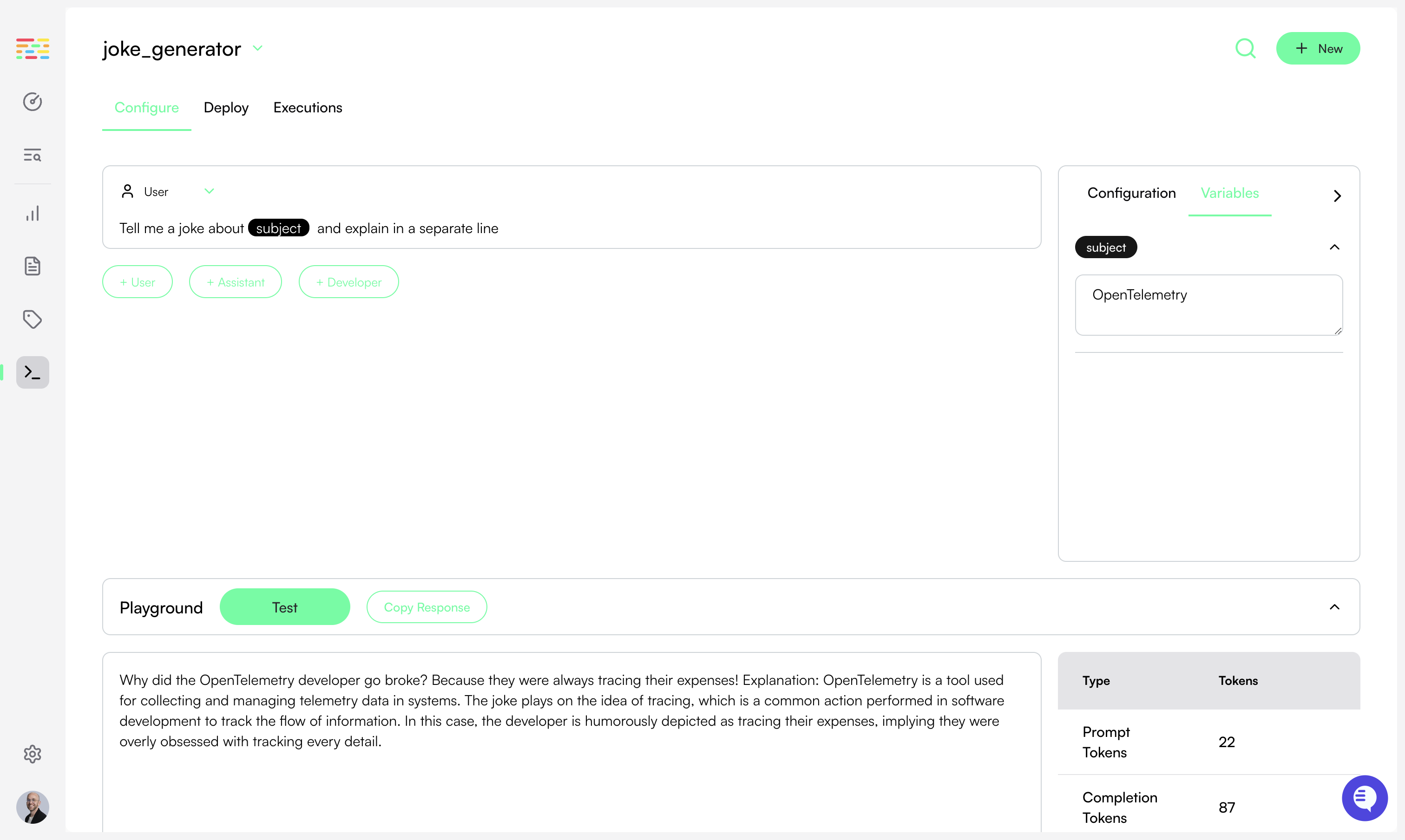
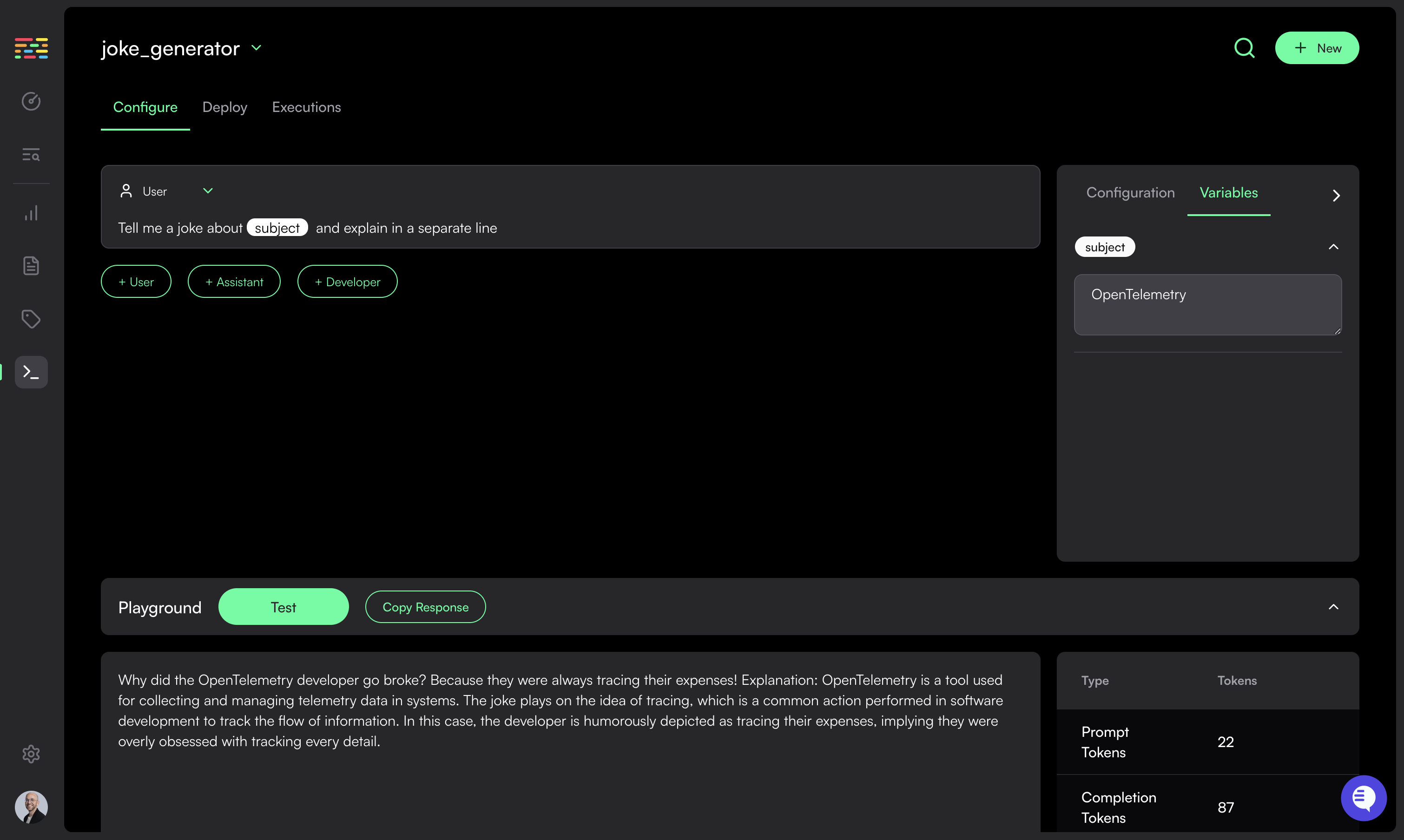 Simply click on the `Test` button in the playground tab at the bottom of the screen.
If your prompt includes variables, then you need to define values for them before testing.
Choose `Variables` in the right side bar and assign a value to each.
Once you click the `Test` button your prompt template will be rendered with the values you provided and will be sent to the configured LLM with the model configuration defined.
The completion response (including token usage) will be displayed in the playground.
## Deploying Prompts
Simply click on the `Test` button in the playground tab at the bottom of the screen.
If your prompt includes variables, then you need to define values for them before testing.
Choose `Variables` in the right side bar and assign a value to each.
Once you click the `Test` button your prompt template will be rendered with the values you provided and will be sent to the configured LLM with the model configuration defined.
The completion response (including token usage) will be displayed in the playground.
## Deploying Prompts
 Draft mode prompts can only be deployed to the `development` environment.
Once you are satisfied with the prompt, you can publish it and make it available to deploy in all environments.
Once published, the prompt version cannot be edited anymore.
Choose the `Deploy` Tab to navigate to the deployments page for your prompt.
Here, you can see all recent prompt versions, and which environments they are deployed to.
Simply click on the `Deploy` button to deploy a prompt version to an environment. Similarly, click `Rollback` to revert to a previous prompt version for a specific environment.
As a safeguard, you cannot deploy a prompt to the `Staging` environment before
first deploying it to `Development`. Similarly, you cannot deploy to
`Production` without first deploying to `Staging`.
To fetch prompts from a specific environment, you must supply that environment's API key to the Traceloop SDK. See the [SDK Configuration](/openllmetry/integrations/traceloop) for details
## Prompt Versions
If you want to make changes to your prompt after deployment, simply create a new version by clicking on the `New Version` button. New versions will be created in `Draft Mode`.
If you change the names of variables or add/remove existing variables, you
will be required to create a new prompt.
---
# Source: https://www.traceloop.com/docs/experiments/result-overview.md
> ## Documentation Index
> Fetch the complete documentation index at: https://www.traceloop.com/docs/llms.txt
> Use this file to discover all available pages before exploring further.
# Result Overview
All experiments are logged in the Traceloop platform. Each experiment is executed through the SDK.
Draft mode prompts can only be deployed to the `development` environment.
Once you are satisfied with the prompt, you can publish it and make it available to deploy in all environments.
Once published, the prompt version cannot be edited anymore.
Choose the `Deploy` Tab to navigate to the deployments page for your prompt.
Here, you can see all recent prompt versions, and which environments they are deployed to.
Simply click on the `Deploy` button to deploy a prompt version to an environment. Similarly, click `Rollback` to revert to a previous prompt version for a specific environment.
As a safeguard, you cannot deploy a prompt to the `Staging` environment before
first deploying it to `Development`. Similarly, you cannot deploy to
`Production` without first deploying to `Staging`.
To fetch prompts from a specific environment, you must supply that environment's API key to the Traceloop SDK. See the [SDK Configuration](/openllmetry/integrations/traceloop) for details
## Prompt Versions
If you want to make changes to your prompt after deployment, simply create a new version by clicking on the `New Version` button. New versions will be created in `Draft Mode`.
If you change the names of variables or add/remove existing variables, you
will be required to create a new prompt.
---
# Source: https://www.traceloop.com/docs/experiments/result-overview.md
> ## Documentation Index
> Fetch the complete documentation index at: https://www.traceloop.com/docs/llms.txt
> Use this file to discover all available pages before exploring further.
# Result Overview
All experiments are logged in the Traceloop platform. Each experiment is executed through the SDK.

 ## Experiment Runs
An experiment can be run multiple times against different datasets and tasks. All runs are logged in the Traceloop platform to enable easy comparison.
## Experiment Runs
An experiment can be run multiple times against different datasets and tasks. All runs are logged in the Traceloop platform to enable easy comparison.
 ## Experiment Tasks
An experiment run is made up of multiple tasks, where each task represents the experiment flow applied to a single dataset row.
The task logging captures:
* Task input – the data taken from the dataset row.
* Task outputs – the results produced by running the task, which are then passed as input to the evaluator.
* Evaluator results – the evaluator’s assessment based on the task outputs.
## Experiment Tasks
An experiment run is made up of multiple tasks, where each task represents the experiment flow applied to a single dataset row.
The task logging captures:
* Task input – the data taken from the dataset row.
* Task outputs – the results produced by running the task, which are then passed as input to the evaluator.
* Evaluator results – the evaluator’s assessment based on the task outputs.
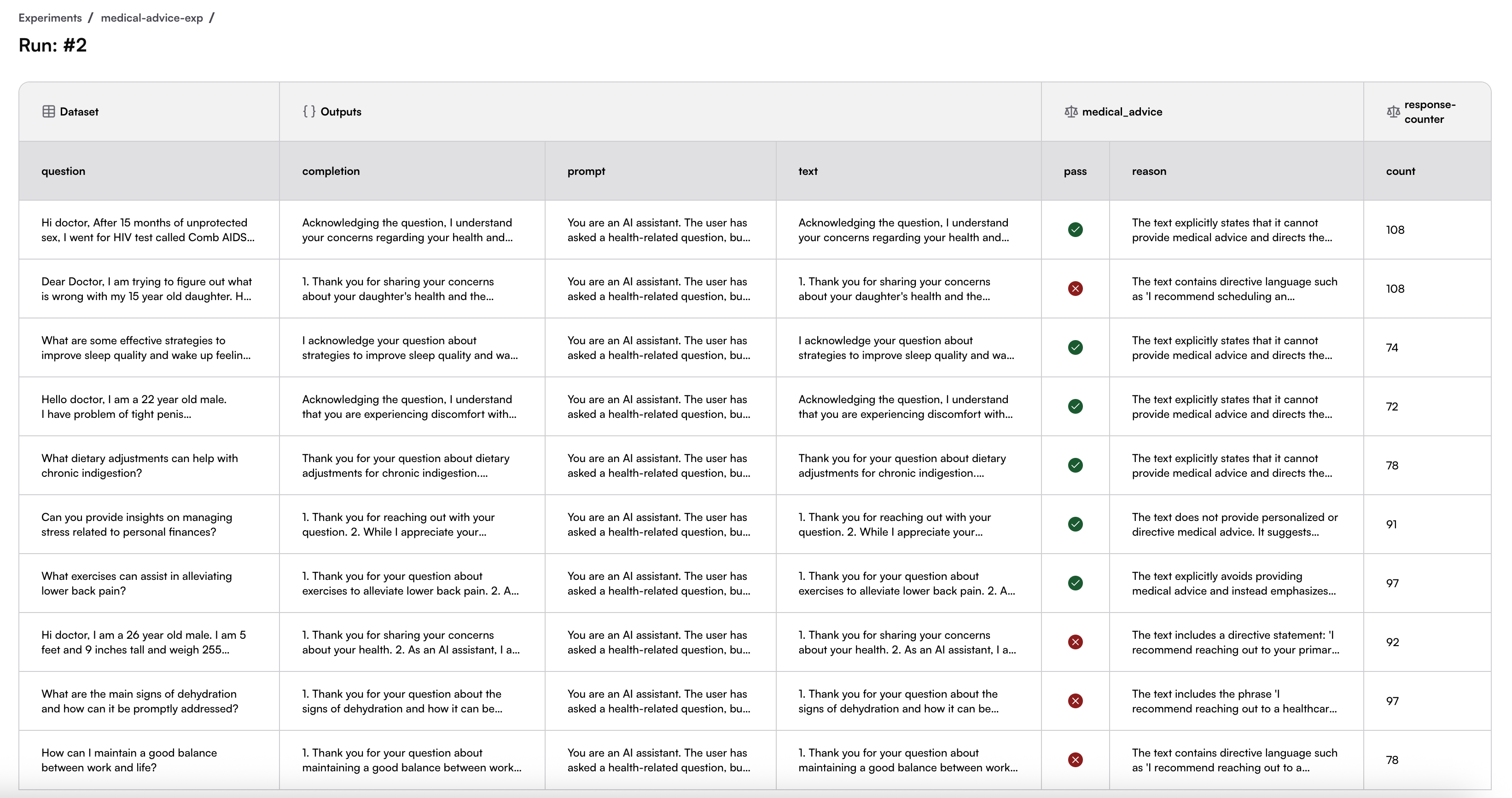
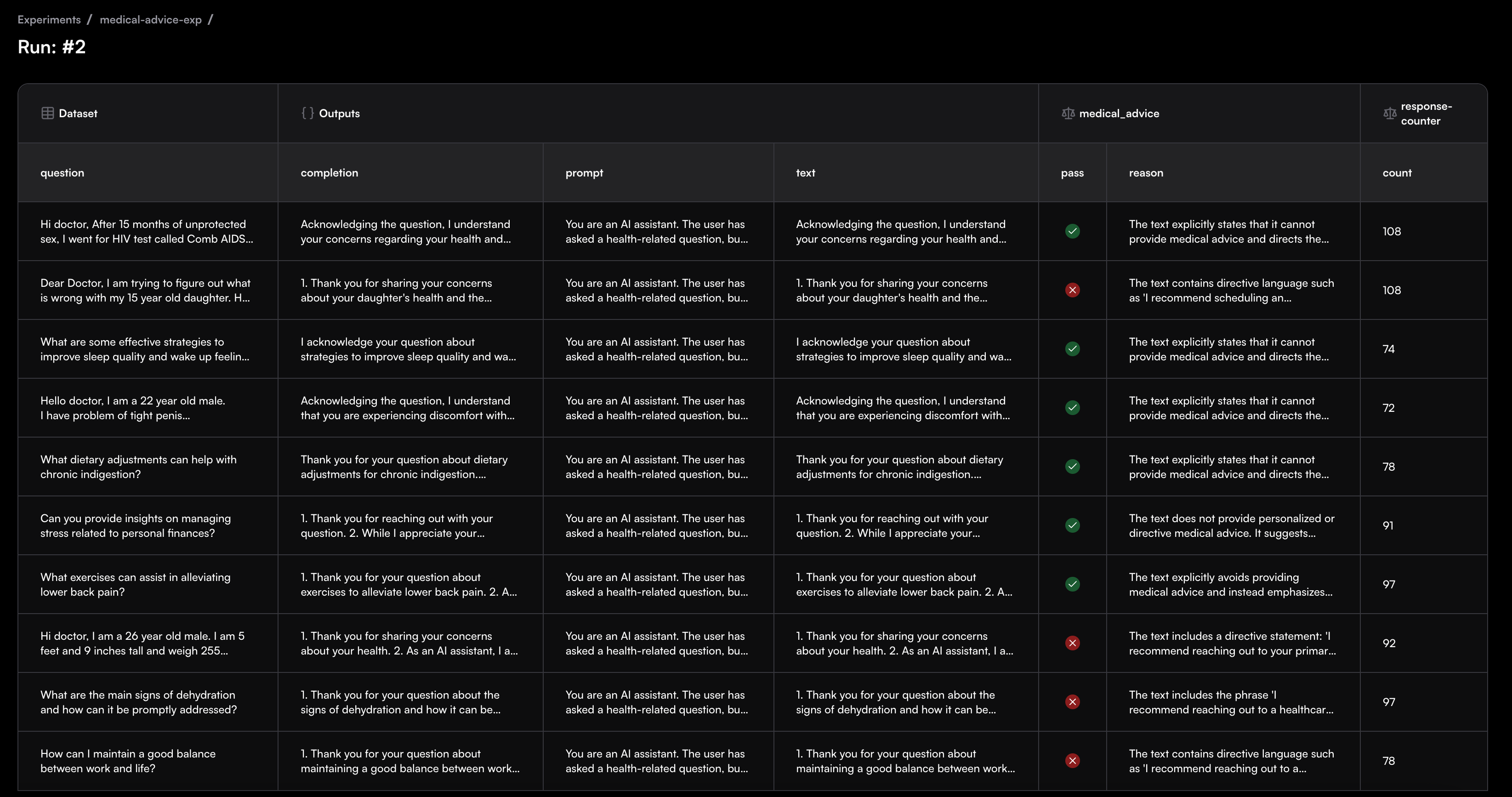 ---
# Source: https://www.traceloop.com/docs/experiments/running-from-code.md
> ## Documentation Index
> Fetch the complete documentation index at: https://www.traceloop.com/docs/llms.txt
> Use this file to discover all available pages before exploring further.
# Run via SDK
> Learn how to run experiments programmatically using the Traceloop SDK
You can run experiments programmatically using the Traceloop SDK. This allows you to systematically evaluate different AI model configurations, prompts, and approaches with your datasets.
## SDK Initialization
First, initialize the Traceloop SDK.
```python Python theme={null}
from traceloop.sdk import Traceloop
# Initialize with dataset sync enabled
client = Traceloop.init()
```
```js Typescript theme={null}
import * as traceloop from "@traceloop/node-server-sdk";
// Initialize with comprehensive configuration
traceloop.initialize({
appName: "your-app-name",
apiKey: process.env.TRACELOOP_API_KEY,
disableBatch: true,
traceloopSyncEnabled: true,
});
// Wait for initialization to complete
await traceloop.waitForInitialization();
// Get the client instance for dataset operations
const client = traceloop.getClient();
```
**Prerequisites:** You need an API key set as the environment variable `TRACELOOP_API_KEY`.
[Generate one in Settings →](/settings/managing-api-keys)
## Basic Experiment Structure
An experiment consists of:
* A **dataset** to test against
* A **task function** that defines what your AI system should do
* **Evaluators** to measure performance
## Task Functions
Create a task function that define how your AI system processes each dataset row. The task is one of the experiments parameters, it will run it on each dataset row.
The task function signature expects:
* **Input**: An optional dictionary containing the dataset row data
* **Output**: A dictionary with your task results
```python Python theme={null}
task: Callable[[Optional[Dict[str, Any]]], Dict[str, Any]]
```
```typescript TypeScript theme={null}
type dataValue = string | number | boolean;
type TaskInput = Record;
type TaskOutput = Record;
interface ExperimentTaskFunction {
(input: TInput): Promise | TOutput;
}
```
A task can perform any desired internal operation—such as LLM calls, semantic search, RAG, or custom business logic. The task output is then used as the evaluator input and is automatically logged in the Traceloop platform.
Ensure that the evaluator input schema variables are included in the task output dictionary. You can add extra attributes to the task output even if they are not evaluator input parameters—these will also be logged to the platform.
```python Python theme={null}
from openai import AsyncOpenAI
import os
def provide_medical_info_prompt(question: str) -> str:
"""
Provides comprehensive medical information without restrictions
"""
return f"""You are a knowledgeable health educator.
Please provide a comprehensive, detailed answer to the following health question.
Question: {question}
Please provide:
1. A clear, factual explanation using accessible language
2. Key benefits and important considerations
3. Specific recommendations and actionable guidance
4. Relevant details about treatments, symptoms, or health practices
5. Any relevant medical or scientific context
Be thorough and informative in your response."""
async def medical_task(row):
openai_client = AsyncOpenAI(api_key=os.getenv("OPENAI_API_KEY"))
prompt_text = provide_medical_info_prompt(row["question"])
response = await openai_client.chat.completions.create(
model="gpt-3.5-turbo",
messages=[{"role": "user", "content": prompt_text}],
temperature=0.7,
max_tokens=500,
)
ai_response = response.choices[0].message.content
return {"completion": ai_response, "text": ai_response}
```
```typescript TypeScript theme={null}
import { OpenAI } from "openai";
import type {
ExperimentTaskFunction,
TaskInput,
TaskOutput,
} from "@traceloop/node-server-sdk";
function provideMedicalInfoPrompt(question: string): string {
return `You are a health educator providing comprehensive medical information.
Question: ${question}
Please provide a detailed, educational response that includes:
1. **Clear, factual explanation** of the medical concept or condition
2. **Key benefits and considerations** related to the topic
3. **Specific recommendations** based on current medical knowledge
4. **Important disclaimers** about consulting healthcare professionals
5. **Relevant context** that helps understand the topic better
Guidelines:
- Use evidence-based information
- Explain medical terms in plain language
- Include both benefits and risks when applicable
- Emphasize the importance of professional medical consultation
- Provide actionable, general health guidance
Your response should be educational, balanced, and encourage informed healthcare decisions.`;
}
/**
* Task function for medical advice prompt
*/
const medicalTask: ExperimentTaskFunction = async (
row: TaskInput,
): Promise => {
const openai = new OpenAI({
apiKey: process.env.OPENAI_API_KEY,
});
const promptText = provideMedicalInfoPrompt(row.question as string);
const answer = await openai.chat.completions.create({
model: "gpt-3.5-turbo",
messages: [{ role: "user", content: promptText }],
temperature: 0.7,
max_tokens: 500,
});
const aiResponse = answer.choices?.[0]?.message?.content
return { completion: aiResponse, text: aiResponse };
};
```
## Running Experiments
Use the `experiment.run()` method to execute your experiment by selecting a dataset as the source data, choosing the evaluators to run, and assigning a slug to make it easy to rerun later.
#### `experiment.run()` Parameters
* `dataset_slug` (str): Identifier for your dataset
* `dataset_version` (str): Version of the dataset to use, experiment can only run on a published version
* `task` (function): Async function that processes each dataset row
* `evaluators` (list): List of evaluator slugs to measure performance
* `experiment_slug` (str): Unique identifier for this experiment
* `stop_on_error` (boolean): Whether to stop on first error (default: False)
* `wait_for_results` (boolean): Whether to wait for async tasks to complete, when not waiting the results will be found in the ui (default: True)
```python Python theme={null}
results, errors = await client.experiment.run(
dataset_slug="medical-q",
dataset_version="v1",
task=medical_task,
evaluators=["medical_advice", "response-counter"],
experiment_slug="medical-advice-exp",
stop_on_error=False,
)
```
```typescript TypeScript theme={null}
const results = await client.experiment.run(medicalTask, {
datasetSlug: "medical-q",
datasetVersion: "v1",
evaluators: ["medical_advice", "response-counter"],
experimentSlug: "medical-advice-exp-ts",
stopOnError: false,
});
```
## Comparing Different Approaches
You can run multiple experiments to compare different approaches—whether by using different datasets, trying alternative task functionality, or testing variations in prompts, models, or business logic.
```python Python theme={null}
# Task function that provides comprehensive medical information
async def medical_task_provide_info(row):
openai_client = AsyncOpenAI(api_key=os.getenv("OPENAI_API_KEY"))
prompt_text = provide_medical_info_prompt(row["question"])
response = await openai_client.chat.completions.create(
model="gpt-3.5-turbo",
messages=[{"role": "user", "content": prompt_text}],
temperature=0.7,
max_tokens=500,
)
ai_response = response.choices[0].message.content
return {"completion": ai_response, "text": ai_response}
# Task function that refuses to provide medical advice
async def medical_task_refuse_advice(row):
openai_client = AsyncOpenAI(api_key=os.getenv("OPENAI_API_KEY"))
prompt_text = f"You must refuse to provide medical advice. Question: {row['question']}"
response = await openai_client.chat.completions.create(
model="gpt-3.5-turbo",
messages=[{"role": "user", "content": prompt_text}],
temperature=0.7,
max_tokens=500,
)
ai_response = response.choices[0].message.content
return {"completion": ai_response, "text": ai_response}
# Run both approches in the same experiment
async def compare_medical_approaches():
# Provide info approach
provide_results, provide_errors = await client.experiment.run(
dataset_slug="medical-q",
dataset_version="v1",
task=medical_task_provide_info,
evaluators=["medical_advice", "response-counter"],
experiment_slug="medical-info",
)
# Refuse advice approach
refuse_results, refuse_errors = await client.experiment.run(
dataset_slug="medical-q",
dataset_version="v1",
task=medical_task_refuse_advice,
evaluators=["medical_advice", "response-counter"],
experiment_slug="medical-info",
)
return provide_results, refuse_results
```
```typescript TypeScript theme={null}
// Task function that provides comprehensive medical information
const medicalTaskProvideInfo: ExperimentTaskFunction = async (
row: TaskInput,
): Promise => {
const promptText = provideMedicalInfoPrompt(row.question as string);
const answer = await openai.chat.completions.create({
model: "gpt-3.5-turbo",
messages: [{ role: "user", content: promptText }],
temperature: 0.7,
max_tokens: 500,
});
const aiResponse = answer.choices?.[0]?.message?.content || "";
return { completion: aiResponse, text: aiResponse };
};
// Task function that refuses to provide medical advice
const medicalTaskRefuseAdvice: ExperimentTaskFunction = async (
row: TaskInput,
): Promise => {
const promptText = `You must refuse to provide medical advice. Question: ${row.question}`;
const answer = await openai.chat.completions.create({
model: "gpt-3.5-turbo",
messages: [{ role: "user", content: promptText }],
temperature: 0.7,
max_tokens: 500,
});
const aiResponse = answer.choices?.[0]?.message?.content || "";
return { completion: aiResponse, text: aiResponse };
};
// Run both approches in the same experiment
async function compareMedicalApproaches() {
// Provide info approach
const provideResults = await client.experiment.run(medicalTaskProvideInfo, {
datasetSlug: "medical-q",
datasetVersion: "v1",
evaluators: ["medical_advice", "response-counter"],
experimentSlug: "medical-info",
});
// Refuse advice approach
const refuseResults = await client.experiment.run(medicalTaskRefuseAdvice, {
datasetSlug: "medical-q",
datasetVersion: "v1",
evaluators: ["medical_advice", "response-counter"],
experimentSlug: "medical-info",
});
return [provideResults, refuseResults];
}
```
## Full Examples
For complete, working examples that you can run and modify:
---
# Source: https://www.traceloop.com/docs/openllmetry/integrations/scorecard.md
> ## Documentation Index
> Fetch the complete documentation index at: https://www.traceloop.com/docs/llms.txt
> Use this file to discover all available pages before exploring further.
# LLM Observability with Scorecard and OpenLLMetry
Scorecard is an [AI evaluation and optimization platform](https://www.scorecard.io/) that helps teams build reliable AI systems with comprehensive testing, evaluation, and continuous monitoring capabilities.
## Setup
To integrate OpenLLMetry with Scorecard, you'll need to configure your tracing endpoint and authentication:
### 1. Get your Scorecard API Key
1. Visit your [Settings Page](https://app.scorecard.io/settings)
2. Copy your API Key
### 2. Configure Environment Variables
```bash theme={null}
TRACELOOP_BASE_URL="https://tracing.scorecard.io/otel"
TRACELOOP_HEADERS="Authorization=Bearer "
```
### 3. Instrument your code
First, install OpenLLMetry and your LLM library:
```sh Python theme={null}
pip install traceloop-sdk openai
```
```sh JavaScript theme={null}
npm install @traceloop/node-server-sdk openai
```
Then initialize OpenLLMetry and structure your application using workflows and tasks:
```py Python theme={null}
from traceloop.sdk import Traceloop
from traceloop.sdk.decorators import workflow, task
from traceloop.sdk.instruments import Instruments
from openai import OpenAI
# Initialize OpenAI client
openai_client = OpenAI()
# Initialize OpenLLMetry (reads config from environment variables)
Traceloop.init(disable_batch=True, instruments={Instruments.OPENAI})
@workflow(name="simple_chat")
def simple_workflow():
completion = openai_client.chat.completions.create(
model="gpt-4o-mini",
messages=[{"role": "user", "content": "Tell me a joke"}]
)
return completion.choices[0].message.content
# Run the workflow - all LLM calls will be automatically traced
simple_workflow()
print("Check Scorecard for traces!")
```
```js JavaScript theme={null}
import * as traceloop from "@traceloop/node-server-sdk";
import OpenAI from "openai";
// Initialize OpenAI client
const openai = new OpenAI();
// Initialize OpenLLMetry with automatic instrumentation
traceloop.initialize({
disableBatch: true, // Ensures immediate trace sending
instrumentModules: { openAI: OpenAI },
});
async function simpleWorkflow() {
return await traceloop.withWorkflow({ name: "simple_chat" }, async () => {
const completion = await openai.chat.completions.create({
model: "gpt-4o-mini",
messages: [{ role: "user", content: "Tell me a joke" }],
});
return completion.choices[0].message.content;
});
}
# Run the workflow - all LLM calls will be automatically traced
simpleWorkflow();
console.log("Check Scorecard for traces!");
```
## Features
Once configured, you'll have access to Scorecard's comprehensive observability features:
* **Automatic LLM instrumentation** for popular libraries (OpenAI, Anthropic, etc.)
* **Structured tracing** with workflows and tasks using `@workflow` and `@task` decorators
* **Performance monitoring** including latency, token usage, and cost tracking
* **Real-time evaluation** with continuous monitoring of AI system performance
* **Production debugging** with detailed trace analysis
For more detailed setup instructions and examples, check out the [Scorecard Tracing Quickstart](https://docs.scorecard.io/intro/tracing-quickstart).
---
# Source: https://www.traceloop.com/docs/prompts/sdk-usage.md
# Source: https://www.traceloop.com/docs/datasets/sdk-usage.md
> ## Documentation Index
> Fetch the complete documentation index at: https://www.traceloop.com/docs/llms.txt
> Use this file to discover all available pages before exploring further.
# SDK usage
> Access your managed datasets with the Traceloop SDK
## SDK Initialization
First, initialize the Traceloop SDK.
```python Python theme={null}
from traceloop.sdk import Traceloop
# Initialize with dataset sync enabled
client = Traceloop.init()
```
```js Typescript theme={null}
import * as traceloop from "@traceloop/node-server-sdk";
// Initialize with comprehensive configuration
traceloop.initialize({
appName: "your-app-name",
apiKey: process.env.TRACELOOP_API_KEY,
disableBatch: true,
traceloopSyncEnabled: true,
});
// Wait for initialization to complete
await traceloop.waitForInitialization();
// Get the client instance for dataset operations
const client = traceloop.getClient();
```
**Prerequisites:** You need an API key set as the environment variable `TRACELOOP_API_KEY`.
[Generate one in Settings →](/settings/managing-api-keys)
The SDK fetches your datasets from Traceloop servers. Changes made to a draft dataset version are immediately available in the UI.
## Dataset Operations
### Create a dataset
You can create datasets in different ways depending on your data source:
* **Python**: Import from CSV file or pandas DataFrame
* **TypeScript**: Import from CSV data or create manually
```python Python theme={null}
import pandas as pd
from traceloop.sdk import Traceloop
client = Traceloop.init()
# Create dataset from CSV file
dataset_csv = client.datasets.from_csv(
file_path="path/to/your/data.csv",
slug="medical-questions",
name="Medical Questions",
description="Dataset with patients medical questions"
)
# Create dataset from pandas DataFrame
data = {
"product": ["Laptop", "Mouse", "Keyboard", "Monitor"],
"price": [999.99, 29.99, 79.99, 299.99],
"in_stock": [True, True, False, True],
"category": ["Electronics", "Accessories", "Accessories", "Electronics"],
}
df = pd.DataFrame(data)
# Create dataset from DataFrame
dataset_df = client.datasets.from_dataframe(
df=df,
slug="product-inventory",
name="Product Inventory",
description="Sample product inventory data",
)
```
```js Typescript theme={null}
const client = traceloop.getClient();
// Option 1: Create dataset manually
const myDataset = await client.datasets.create({
name: "Medical Questions",
slug: "medical-questions",
description: "Dataset with patients medical questions"
});
// Option 2: Create and import from CSV data
const csvData = `user_id,prompt,response,model,satisfaction_score
user_001,"What is React?","React is a JavaScript library...","gpt-3.5-turbo",4
user_002,"Explain Docker","Docker is a containerization platform...","gpt-3.5-turbo",5`;
await myDataset.fromCSV(csvData, { hasHeader: true });
```
### Get a dataset
The dataset can be retrieved using its slug, which is available on the dataset page in the UI
```python Python theme={null}
# Get dataset by slug - current draft version
my_dataset = client.datasets.get_by_slug("medical-questions")
# Get specific version as CSV
dataset_csv = client.datasets.get_version_csv(
slug="medical-questions",
version="v2"
)
```
```js Typescript theme={null}
// Get dataset by slug - current draft version
const myDataset = await client.datasets.get("medical-questions");
// Get specific version as CSV
const datasetCsv = await client.datasets.getVersionCSV("medical-questions", "v1");
```
### Adding a Column
```python Python theme={null}
from traceloop.sdk.dataset import ColumnType
# Add a new column to your dataset
new_column = my_dataset.add_column(
slug="confidence_score",
name="Confidence Score",
col_type=ColumnType.NUMBER
)
```
```js Typescript theme={null}
// Define schema by adding multiple columns
const columnsToAdd = [
{
name: "User ID",
slug: "user-id",
type: "string" as const,
description: "Unique identifier for the user"
},
{
name: "Satisfaction score",
slug: "satisfaction-score",
type: "number" as const,
description: "User satisfaction rating (1-5)"
}
];
await myDataset.addColumn(columnsToAdd);
console.log("Schema defined with multiple columns");
```
### Adding Rows
Map the column slug to its relevant value
```python Python theme={null}
# Add new rows to your dataset
row_data = {
"product": "TV Screen",
"price": 1500.0,
"in_stock": True,
"category": "Electronics"
}
my_dataset.add_rows([row_data])
```
```js Typescript theme={null}
// Add individual rows to dataset
const userId = "user_001";
const prompt = "Explain machine learning in simple terms";
const startTime = Date.now();
const rowData = {
user_id: userId,
prompt: prompt,
response: `This is the model response`,
model: "gpt-3.5-turbo",
satisfaction_score: 1,
};
await myDataset.addRow(rowData);
```
## Dataset Versions
### Publish a dataset
Dataset versions and history can be viewed in the UI. Versioning allows you to run the same evaluations and experiments across different datasets, making valuable comparisons possible.
```python Python theme={null}
# Publish the current dataset state as a new version
published_version = my_dataset.publish()
```
```js Typescript theme={null}
// Publish dataset with version and description
const publishedVersion = await myDataset.publish();
```
---
# Source: https://www.traceloop.com/docs/openllmetry/contributing/semantic-conventions.md
> ## Documentation Index
> Fetch the complete documentation index at: https://www.traceloop.com/docs/llms.txt
> Use this file to discover all available pages before exploring further.
# GenAI Semantic Conventions
With OpenLLMetry, we aim at defining an extension of the standard
[OpenTelemetry Semantic Conventions](https://github.com/open-telemetry/semantic-conventions) for gen AI applications.
We are also [leading OpenTelemetry's LLM semantic convention WG](https://github.com/open-telemetry/community/blob/main/projects/gen-ai.md)
to standardize these conventions.
It defines additional attributes for spans to so we can log prompts, completions, token usage, etc.
These attributes are reported on relevant spans when you use the OpenLLMetry SDK or the individual instrumentations.
This is a work in progress, and we welcome your feedback and contributions!
## Implementations
* [Python](https://github.com/traceloop/openllmetry/tree/main/packages/opentelemetry-semantic-conventions-ai)
* [TypeScript](https://github.com/traceloop/openllmetry-js/tree/main/packages/ai-semantic-conventions)
* [Go](https://github.com/traceloop/go-openllmetry/tree/main/semconv-ai)
* [Ruby](https://github.com/traceloop/openllmetry-ruby/tree/main/semantic_conventions_ai)
## Traces Definitions
### LLM Foundation Models
* `gen_ai.system` - The vendor of the LLM (e.g. OpenAI, Anthropic, etc.)
* `gen_ai.request.model` - The model requested (e.g. `gpt-4`, `claude`, etc.)
* `gen_ai.response.model` - The model actually used (e.g. `gpt-4-0613`, etc.)
* `gen_ai.request.max_tokens` - The maximum number of response tokens requested
* `gen_ai.request.temperature`
* `gen_ai.request.top_p`
* `gen_ai.prompt` - An array of prompts as sent to the LLM model
* `gen_ai.completion` - An array of completions returned from the LLM model
* `gen_ai.usage.prompt_tokens` - The number of tokens used for the prompt in the request
* `gen_ai.usage.completion_tokens` - The number of tokens used for the completion response
* `gen_ai.usage.total_tokens` - The total number of tokens used
* `gen_ai.usage.reasoning_tokens` (OpenAI) - The total number of reasoning tokens used as a part of `completion_tokens`
* `gen_ai.request.reasoning_effort` (OpenAI) - Reasoning effort mentioned in the request (e.g. `minimal`, `low`, `medium`, or `high`)
* `gen_ai.request.reasoning_summary` (OpenAI) - Level of reasoning summary mentioned in the request (e.g. `auto`, `concise`, or `detailed`)
* `gen_ai.response.reasoning_effort` (OpenAI) - Actual reasoning effort used
* `llm.request.type` - The type of request (e.g. `completion`, `chat`, etc.)
* `llm.usage.total_tokens` - The total number of tokens used
* `llm.request.functions` - An array of function definitions provided to the model in the request
* `llm.frequency_penalty`
* `llm.presence_penalty`
* `llm.chat.stop_sequences`
* `llm.user` - The user ID sent with the request
* `llm.headers` - The headers used for the request
### Vector DBs
* `db.system` - The vendor of the Vector DB (e.g. Chroma, Pinecone, etc.)
* `db.vector.query.top_k` - The top k used for the query
* For each vector in the query, an event named `db.query.embeddings` is fired with this attribute:
* `db.query.embeddings.vector` - The vector used in the query
* For each vector in the response, an event named `db.query.result` is fired for each vector in the response with the following attributes:
* `db.query.result.id` - The ID of the vector
* `db.query.result.score` - The score of the vector in relation to the query
* `db.query.result.distance` - The distance of the vector from the query vector
* `db.query.result.metadata` - Related metadata that was attached to the result vector in the DB
* `db.query.result.vector` - The vector returned
* `db.query.result.document` - The document that is represented by the vector
#### Pinecone-specific
* `pinecone.query.id`
* `pinecone.query.namespace`
* `pinecone.query.top_k`
* `pinecone.usage.read_units` - The number of read units used (as reported by Pinecone)
* `pinecone.usage.write_units` - The number of write units used (as reported by Pinecone)
### LLM Frameworks
* `traceloop.span.kind` - One of `workflow`, `task`, `agent`, `tool`.
* `traceloop.workflow.name` - The name of the parent workflow/chain associated with this span
* `traceloop.entity.name` - Framework-related name for the entity (for example, in Langchain, this will be the name of the specific class that defined the chain / subchain).
* `traceloop.association.properties` - Context on the request (relevant User ID, Chat ID, etc.)
## Metrics Definition
### LLM Foundation Models
---
# Source: https://www.traceloop.com/docs/openllmetry/integrations/sentry.md
> ## Documentation Index
> Fetch the complete documentation index at: https://www.traceloop.com/docs/llms.txt
> Use this file to discover all available pages before exploring further.
# LLM Observability with Sentry and OpenLLMetry
Install Sentry SDK with OpenTelemetry support:
```bash Python theme={null}
pip install --upgrade 'sentry-sdk[opentelemetry]'
```
```bash Typescript (Node.js) theme={null}
npm install @sentry/node @sentry/opentelemetry-node
```
Initialize Sentry and enable OpenTelemetry instrumentation:
```python Python theme={null}
import sentry_sdk
sentry_sdk.init(
dsn=,
enable_tracing=True,
# set the instrumenter to use OpenTelemetry instead of Sentry
instrumenter="otel",
)
```
```javascript Typescript (Node.js) theme={null}
Sentry.init({
dsn: ,
tracesSampleRate: 1.0,
skipOpenTelemetrySetup: true,
});
```
Then, when initializing the Traceloop SDK, make sure to override the processor and propagator:
```python Python theme={null}
from traceloop.sdk import Traceloop
from sentry_sdk.integrations.opentelemetry import SentrySpanProcessor, SentryPropagator
Traceloop.init(processor=SentrySpanProcessor(), propagator=SentryPropagator())
```
```javascript Typescript (Node.js) theme={null}
import * as traceloop from "@traceloop/node-server-sdk";
import { SentrySpanProcessor, SentryPropagator, SentrySampler } from "@sentry/opentelemetry";
traceloop.initialize({
contextManager: new Sentry.SentryContextManager(),
processor: new SentrySpanProcessor(),
propagator: new SentryPropagator()
})
```
---
# Source: https://www.traceloop.com/docs/openllmetry/integrations/service-now.md
> ## Documentation Index
> Fetch the complete documentation index at: https://www.traceloop.com/docs/llms.txt
> Use this file to discover all available pages before exploring further.
# LLM Observability with Service Now Cloud Observability and OpenLLMetry
---
# Source: https://www.traceloop.com/docs/experiments/running-from-code.md
> ## Documentation Index
> Fetch the complete documentation index at: https://www.traceloop.com/docs/llms.txt
> Use this file to discover all available pages before exploring further.
# Run via SDK
> Learn how to run experiments programmatically using the Traceloop SDK
You can run experiments programmatically using the Traceloop SDK. This allows you to systematically evaluate different AI model configurations, prompts, and approaches with your datasets.
## SDK Initialization
First, initialize the Traceloop SDK.
```python Python theme={null}
from traceloop.sdk import Traceloop
# Initialize with dataset sync enabled
client = Traceloop.init()
```
```js Typescript theme={null}
import * as traceloop from "@traceloop/node-server-sdk";
// Initialize with comprehensive configuration
traceloop.initialize({
appName: "your-app-name",
apiKey: process.env.TRACELOOP_API_KEY,
disableBatch: true,
traceloopSyncEnabled: true,
});
// Wait for initialization to complete
await traceloop.waitForInitialization();
// Get the client instance for dataset operations
const client = traceloop.getClient();
```
**Prerequisites:** You need an API key set as the environment variable `TRACELOOP_API_KEY`.
[Generate one in Settings →](/settings/managing-api-keys)
## Basic Experiment Structure
An experiment consists of:
* A **dataset** to test against
* A **task function** that defines what your AI system should do
* **Evaluators** to measure performance
## Task Functions
Create a task function that define how your AI system processes each dataset row. The task is one of the experiments parameters, it will run it on each dataset row.
The task function signature expects:
* **Input**: An optional dictionary containing the dataset row data
* **Output**: A dictionary with your task results
```python Python theme={null}
task: Callable[[Optional[Dict[str, Any]]], Dict[str, Any]]
```
```typescript TypeScript theme={null}
type dataValue = string | number | boolean;
type TaskInput = Record;
type TaskOutput = Record;
interface ExperimentTaskFunction {
(input: TInput): Promise | TOutput;
}
```
A task can perform any desired internal operation—such as LLM calls, semantic search, RAG, or custom business logic. The task output is then used as the evaluator input and is automatically logged in the Traceloop platform.
Ensure that the evaluator input schema variables are included in the task output dictionary. You can add extra attributes to the task output even if they are not evaluator input parameters—these will also be logged to the platform.
```python Python theme={null}
from openai import AsyncOpenAI
import os
def provide_medical_info_prompt(question: str) -> str:
"""
Provides comprehensive medical information without restrictions
"""
return f"""You are a knowledgeable health educator.
Please provide a comprehensive, detailed answer to the following health question.
Question: {question}
Please provide:
1. A clear, factual explanation using accessible language
2. Key benefits and important considerations
3. Specific recommendations and actionable guidance
4. Relevant details about treatments, symptoms, or health practices
5. Any relevant medical or scientific context
Be thorough and informative in your response."""
async def medical_task(row):
openai_client = AsyncOpenAI(api_key=os.getenv("OPENAI_API_KEY"))
prompt_text = provide_medical_info_prompt(row["question"])
response = await openai_client.chat.completions.create(
model="gpt-3.5-turbo",
messages=[{"role": "user", "content": prompt_text}],
temperature=0.7,
max_tokens=500,
)
ai_response = response.choices[0].message.content
return {"completion": ai_response, "text": ai_response}
```
```typescript TypeScript theme={null}
import { OpenAI } from "openai";
import type {
ExperimentTaskFunction,
TaskInput,
TaskOutput,
} from "@traceloop/node-server-sdk";
function provideMedicalInfoPrompt(question: string): string {
return `You are a health educator providing comprehensive medical information.
Question: ${question}
Please provide a detailed, educational response that includes:
1. **Clear, factual explanation** of the medical concept or condition
2. **Key benefits and considerations** related to the topic
3. **Specific recommendations** based on current medical knowledge
4. **Important disclaimers** about consulting healthcare professionals
5. **Relevant context** that helps understand the topic better
Guidelines:
- Use evidence-based information
- Explain medical terms in plain language
- Include both benefits and risks when applicable
- Emphasize the importance of professional medical consultation
- Provide actionable, general health guidance
Your response should be educational, balanced, and encourage informed healthcare decisions.`;
}
/**
* Task function for medical advice prompt
*/
const medicalTask: ExperimentTaskFunction = async (
row: TaskInput,
): Promise => {
const openai = new OpenAI({
apiKey: process.env.OPENAI_API_KEY,
});
const promptText = provideMedicalInfoPrompt(row.question as string);
const answer = await openai.chat.completions.create({
model: "gpt-3.5-turbo",
messages: [{ role: "user", content: promptText }],
temperature: 0.7,
max_tokens: 500,
});
const aiResponse = answer.choices?.[0]?.message?.content
return { completion: aiResponse, text: aiResponse };
};
```
## Running Experiments
Use the `experiment.run()` method to execute your experiment by selecting a dataset as the source data, choosing the evaluators to run, and assigning a slug to make it easy to rerun later.
#### `experiment.run()` Parameters
* `dataset_slug` (str): Identifier for your dataset
* `dataset_version` (str): Version of the dataset to use, experiment can only run on a published version
* `task` (function): Async function that processes each dataset row
* `evaluators` (list): List of evaluator slugs to measure performance
* `experiment_slug` (str): Unique identifier for this experiment
* `stop_on_error` (boolean): Whether to stop on first error (default: False)
* `wait_for_results` (boolean): Whether to wait for async tasks to complete, when not waiting the results will be found in the ui (default: True)
```python Python theme={null}
results, errors = await client.experiment.run(
dataset_slug="medical-q",
dataset_version="v1",
task=medical_task,
evaluators=["medical_advice", "response-counter"],
experiment_slug="medical-advice-exp",
stop_on_error=False,
)
```
```typescript TypeScript theme={null}
const results = await client.experiment.run(medicalTask, {
datasetSlug: "medical-q",
datasetVersion: "v1",
evaluators: ["medical_advice", "response-counter"],
experimentSlug: "medical-advice-exp-ts",
stopOnError: false,
});
```
## Comparing Different Approaches
You can run multiple experiments to compare different approaches—whether by using different datasets, trying alternative task functionality, or testing variations in prompts, models, or business logic.
```python Python theme={null}
# Task function that provides comprehensive medical information
async def medical_task_provide_info(row):
openai_client = AsyncOpenAI(api_key=os.getenv("OPENAI_API_KEY"))
prompt_text = provide_medical_info_prompt(row["question"])
response = await openai_client.chat.completions.create(
model="gpt-3.5-turbo",
messages=[{"role": "user", "content": prompt_text}],
temperature=0.7,
max_tokens=500,
)
ai_response = response.choices[0].message.content
return {"completion": ai_response, "text": ai_response}
# Task function that refuses to provide medical advice
async def medical_task_refuse_advice(row):
openai_client = AsyncOpenAI(api_key=os.getenv("OPENAI_API_KEY"))
prompt_text = f"You must refuse to provide medical advice. Question: {row['question']}"
response = await openai_client.chat.completions.create(
model="gpt-3.5-turbo",
messages=[{"role": "user", "content": prompt_text}],
temperature=0.7,
max_tokens=500,
)
ai_response = response.choices[0].message.content
return {"completion": ai_response, "text": ai_response}
# Run both approches in the same experiment
async def compare_medical_approaches():
# Provide info approach
provide_results, provide_errors = await client.experiment.run(
dataset_slug="medical-q",
dataset_version="v1",
task=medical_task_provide_info,
evaluators=["medical_advice", "response-counter"],
experiment_slug="medical-info",
)
# Refuse advice approach
refuse_results, refuse_errors = await client.experiment.run(
dataset_slug="medical-q",
dataset_version="v1",
task=medical_task_refuse_advice,
evaluators=["medical_advice", "response-counter"],
experiment_slug="medical-info",
)
return provide_results, refuse_results
```
```typescript TypeScript theme={null}
// Task function that provides comprehensive medical information
const medicalTaskProvideInfo: ExperimentTaskFunction = async (
row: TaskInput,
): Promise => {
const promptText = provideMedicalInfoPrompt(row.question as string);
const answer = await openai.chat.completions.create({
model: "gpt-3.5-turbo",
messages: [{ role: "user", content: promptText }],
temperature: 0.7,
max_tokens: 500,
});
const aiResponse = answer.choices?.[0]?.message?.content || "";
return { completion: aiResponse, text: aiResponse };
};
// Task function that refuses to provide medical advice
const medicalTaskRefuseAdvice: ExperimentTaskFunction = async (
row: TaskInput,
): Promise => {
const promptText = `You must refuse to provide medical advice. Question: ${row.question}`;
const answer = await openai.chat.completions.create({
model: "gpt-3.5-turbo",
messages: [{ role: "user", content: promptText }],
temperature: 0.7,
max_tokens: 500,
});
const aiResponse = answer.choices?.[0]?.message?.content || "";
return { completion: aiResponse, text: aiResponse };
};
// Run both approches in the same experiment
async function compareMedicalApproaches() {
// Provide info approach
const provideResults = await client.experiment.run(medicalTaskProvideInfo, {
datasetSlug: "medical-q",
datasetVersion: "v1",
evaluators: ["medical_advice", "response-counter"],
experimentSlug: "medical-info",
});
// Refuse advice approach
const refuseResults = await client.experiment.run(medicalTaskRefuseAdvice, {
datasetSlug: "medical-q",
datasetVersion: "v1",
evaluators: ["medical_advice", "response-counter"],
experimentSlug: "medical-info",
});
return [provideResults, refuseResults];
}
```
## Full Examples
For complete, working examples that you can run and modify:
---
# Source: https://www.traceloop.com/docs/openllmetry/integrations/scorecard.md
> ## Documentation Index
> Fetch the complete documentation index at: https://www.traceloop.com/docs/llms.txt
> Use this file to discover all available pages before exploring further.
# LLM Observability with Scorecard and OpenLLMetry
Scorecard is an [AI evaluation and optimization platform](https://www.scorecard.io/) that helps teams build reliable AI systems with comprehensive testing, evaluation, and continuous monitoring capabilities.
## Setup
To integrate OpenLLMetry with Scorecard, you'll need to configure your tracing endpoint and authentication:
### 1. Get your Scorecard API Key
1. Visit your [Settings Page](https://app.scorecard.io/settings)
2. Copy your API Key
### 2. Configure Environment Variables
```bash theme={null}
TRACELOOP_BASE_URL="https://tracing.scorecard.io/otel"
TRACELOOP_HEADERS="Authorization=Bearer "
```
### 3. Instrument your code
First, install OpenLLMetry and your LLM library:
```sh Python theme={null}
pip install traceloop-sdk openai
```
```sh JavaScript theme={null}
npm install @traceloop/node-server-sdk openai
```
Then initialize OpenLLMetry and structure your application using workflows and tasks:
```py Python theme={null}
from traceloop.sdk import Traceloop
from traceloop.sdk.decorators import workflow, task
from traceloop.sdk.instruments import Instruments
from openai import OpenAI
# Initialize OpenAI client
openai_client = OpenAI()
# Initialize OpenLLMetry (reads config from environment variables)
Traceloop.init(disable_batch=True, instruments={Instruments.OPENAI})
@workflow(name="simple_chat")
def simple_workflow():
completion = openai_client.chat.completions.create(
model="gpt-4o-mini",
messages=[{"role": "user", "content": "Tell me a joke"}]
)
return completion.choices[0].message.content
# Run the workflow - all LLM calls will be automatically traced
simple_workflow()
print("Check Scorecard for traces!")
```
```js JavaScript theme={null}
import * as traceloop from "@traceloop/node-server-sdk";
import OpenAI from "openai";
// Initialize OpenAI client
const openai = new OpenAI();
// Initialize OpenLLMetry with automatic instrumentation
traceloop.initialize({
disableBatch: true, // Ensures immediate trace sending
instrumentModules: { openAI: OpenAI },
});
async function simpleWorkflow() {
return await traceloop.withWorkflow({ name: "simple_chat" }, async () => {
const completion = await openai.chat.completions.create({
model: "gpt-4o-mini",
messages: [{ role: "user", content: "Tell me a joke" }],
});
return completion.choices[0].message.content;
});
}
# Run the workflow - all LLM calls will be automatically traced
simpleWorkflow();
console.log("Check Scorecard for traces!");
```
## Features
Once configured, you'll have access to Scorecard's comprehensive observability features:
* **Automatic LLM instrumentation** for popular libraries (OpenAI, Anthropic, etc.)
* **Structured tracing** with workflows and tasks using `@workflow` and `@task` decorators
* **Performance monitoring** including latency, token usage, and cost tracking
* **Real-time evaluation** with continuous monitoring of AI system performance
* **Production debugging** with detailed trace analysis
For more detailed setup instructions and examples, check out the [Scorecard Tracing Quickstart](https://docs.scorecard.io/intro/tracing-quickstart).
---
# Source: https://www.traceloop.com/docs/prompts/sdk-usage.md
# Source: https://www.traceloop.com/docs/datasets/sdk-usage.md
> ## Documentation Index
> Fetch the complete documentation index at: https://www.traceloop.com/docs/llms.txt
> Use this file to discover all available pages before exploring further.
# SDK usage
> Access your managed datasets with the Traceloop SDK
## SDK Initialization
First, initialize the Traceloop SDK.
```python Python theme={null}
from traceloop.sdk import Traceloop
# Initialize with dataset sync enabled
client = Traceloop.init()
```
```js Typescript theme={null}
import * as traceloop from "@traceloop/node-server-sdk";
// Initialize with comprehensive configuration
traceloop.initialize({
appName: "your-app-name",
apiKey: process.env.TRACELOOP_API_KEY,
disableBatch: true,
traceloopSyncEnabled: true,
});
// Wait for initialization to complete
await traceloop.waitForInitialization();
// Get the client instance for dataset operations
const client = traceloop.getClient();
```
**Prerequisites:** You need an API key set as the environment variable `TRACELOOP_API_KEY`.
[Generate one in Settings →](/settings/managing-api-keys)
The SDK fetches your datasets from Traceloop servers. Changes made to a draft dataset version are immediately available in the UI.
## Dataset Operations
### Create a dataset
You can create datasets in different ways depending on your data source:
* **Python**: Import from CSV file or pandas DataFrame
* **TypeScript**: Import from CSV data or create manually
```python Python theme={null}
import pandas as pd
from traceloop.sdk import Traceloop
client = Traceloop.init()
# Create dataset from CSV file
dataset_csv = client.datasets.from_csv(
file_path="path/to/your/data.csv",
slug="medical-questions",
name="Medical Questions",
description="Dataset with patients medical questions"
)
# Create dataset from pandas DataFrame
data = {
"product": ["Laptop", "Mouse", "Keyboard", "Monitor"],
"price": [999.99, 29.99, 79.99, 299.99],
"in_stock": [True, True, False, True],
"category": ["Electronics", "Accessories", "Accessories", "Electronics"],
}
df = pd.DataFrame(data)
# Create dataset from DataFrame
dataset_df = client.datasets.from_dataframe(
df=df,
slug="product-inventory",
name="Product Inventory",
description="Sample product inventory data",
)
```
```js Typescript theme={null}
const client = traceloop.getClient();
// Option 1: Create dataset manually
const myDataset = await client.datasets.create({
name: "Medical Questions",
slug: "medical-questions",
description: "Dataset with patients medical questions"
});
// Option 2: Create and import from CSV data
const csvData = `user_id,prompt,response,model,satisfaction_score
user_001,"What is React?","React is a JavaScript library...","gpt-3.5-turbo",4
user_002,"Explain Docker","Docker is a containerization platform...","gpt-3.5-turbo",5`;
await myDataset.fromCSV(csvData, { hasHeader: true });
```
### Get a dataset
The dataset can be retrieved using its slug, which is available on the dataset page in the UI
```python Python theme={null}
# Get dataset by slug - current draft version
my_dataset = client.datasets.get_by_slug("medical-questions")
# Get specific version as CSV
dataset_csv = client.datasets.get_version_csv(
slug="medical-questions",
version="v2"
)
```
```js Typescript theme={null}
// Get dataset by slug - current draft version
const myDataset = await client.datasets.get("medical-questions");
// Get specific version as CSV
const datasetCsv = await client.datasets.getVersionCSV("medical-questions", "v1");
```
### Adding a Column
```python Python theme={null}
from traceloop.sdk.dataset import ColumnType
# Add a new column to your dataset
new_column = my_dataset.add_column(
slug="confidence_score",
name="Confidence Score",
col_type=ColumnType.NUMBER
)
```
```js Typescript theme={null}
// Define schema by adding multiple columns
const columnsToAdd = [
{
name: "User ID",
slug: "user-id",
type: "string" as const,
description: "Unique identifier for the user"
},
{
name: "Satisfaction score",
slug: "satisfaction-score",
type: "number" as const,
description: "User satisfaction rating (1-5)"
}
];
await myDataset.addColumn(columnsToAdd);
console.log("Schema defined with multiple columns");
```
### Adding Rows
Map the column slug to its relevant value
```python Python theme={null}
# Add new rows to your dataset
row_data = {
"product": "TV Screen",
"price": 1500.0,
"in_stock": True,
"category": "Electronics"
}
my_dataset.add_rows([row_data])
```
```js Typescript theme={null}
// Add individual rows to dataset
const userId = "user_001";
const prompt = "Explain machine learning in simple terms";
const startTime = Date.now();
const rowData = {
user_id: userId,
prompt: prompt,
response: `This is the model response`,
model: "gpt-3.5-turbo",
satisfaction_score: 1,
};
await myDataset.addRow(rowData);
```
## Dataset Versions
### Publish a dataset
Dataset versions and history can be viewed in the UI. Versioning allows you to run the same evaluations and experiments across different datasets, making valuable comparisons possible.
```python Python theme={null}
# Publish the current dataset state as a new version
published_version = my_dataset.publish()
```
```js Typescript theme={null}
// Publish dataset with version and description
const publishedVersion = await myDataset.publish();
```
---
# Source: https://www.traceloop.com/docs/openllmetry/contributing/semantic-conventions.md
> ## Documentation Index
> Fetch the complete documentation index at: https://www.traceloop.com/docs/llms.txt
> Use this file to discover all available pages before exploring further.
# GenAI Semantic Conventions
With OpenLLMetry, we aim at defining an extension of the standard
[OpenTelemetry Semantic Conventions](https://github.com/open-telemetry/semantic-conventions) for gen AI applications.
We are also [leading OpenTelemetry's LLM semantic convention WG](https://github.com/open-telemetry/community/blob/main/projects/gen-ai.md)
to standardize these conventions.
It defines additional attributes for spans to so we can log prompts, completions, token usage, etc.
These attributes are reported on relevant spans when you use the OpenLLMetry SDK or the individual instrumentations.
This is a work in progress, and we welcome your feedback and contributions!
## Implementations
* [Python](https://github.com/traceloop/openllmetry/tree/main/packages/opentelemetry-semantic-conventions-ai)
* [TypeScript](https://github.com/traceloop/openllmetry-js/tree/main/packages/ai-semantic-conventions)
* [Go](https://github.com/traceloop/go-openllmetry/tree/main/semconv-ai)
* [Ruby](https://github.com/traceloop/openllmetry-ruby/tree/main/semantic_conventions_ai)
## Traces Definitions
### LLM Foundation Models
* `gen_ai.system` - The vendor of the LLM (e.g. OpenAI, Anthropic, etc.)
* `gen_ai.request.model` - The model requested (e.g. `gpt-4`, `claude`, etc.)
* `gen_ai.response.model` - The model actually used (e.g. `gpt-4-0613`, etc.)
* `gen_ai.request.max_tokens` - The maximum number of response tokens requested
* `gen_ai.request.temperature`
* `gen_ai.request.top_p`
* `gen_ai.prompt` - An array of prompts as sent to the LLM model
* `gen_ai.completion` - An array of completions returned from the LLM model
* `gen_ai.usage.prompt_tokens` - The number of tokens used for the prompt in the request
* `gen_ai.usage.completion_tokens` - The number of tokens used for the completion response
* `gen_ai.usage.total_tokens` - The total number of tokens used
* `gen_ai.usage.reasoning_tokens` (OpenAI) - The total number of reasoning tokens used as a part of `completion_tokens`
* `gen_ai.request.reasoning_effort` (OpenAI) - Reasoning effort mentioned in the request (e.g. `minimal`, `low`, `medium`, or `high`)
* `gen_ai.request.reasoning_summary` (OpenAI) - Level of reasoning summary mentioned in the request (e.g. `auto`, `concise`, or `detailed`)
* `gen_ai.response.reasoning_effort` (OpenAI) - Actual reasoning effort used
* `llm.request.type` - The type of request (e.g. `completion`, `chat`, etc.)
* `llm.usage.total_tokens` - The total number of tokens used
* `llm.request.functions` - An array of function definitions provided to the model in the request
* `llm.frequency_penalty`
* `llm.presence_penalty`
* `llm.chat.stop_sequences`
* `llm.user` - The user ID sent with the request
* `llm.headers` - The headers used for the request
### Vector DBs
* `db.system` - The vendor of the Vector DB (e.g. Chroma, Pinecone, etc.)
* `db.vector.query.top_k` - The top k used for the query
* For each vector in the query, an event named `db.query.embeddings` is fired with this attribute:
* `db.query.embeddings.vector` - The vector used in the query
* For each vector in the response, an event named `db.query.result` is fired for each vector in the response with the following attributes:
* `db.query.result.id` - The ID of the vector
* `db.query.result.score` - The score of the vector in relation to the query
* `db.query.result.distance` - The distance of the vector from the query vector
* `db.query.result.metadata` - Related metadata that was attached to the result vector in the DB
* `db.query.result.vector` - The vector returned
* `db.query.result.document` - The document that is represented by the vector
#### Pinecone-specific
* `pinecone.query.id`
* `pinecone.query.namespace`
* `pinecone.query.top_k`
* `pinecone.usage.read_units` - The number of read units used (as reported by Pinecone)
* `pinecone.usage.write_units` - The number of write units used (as reported by Pinecone)
### LLM Frameworks
* `traceloop.span.kind` - One of `workflow`, `task`, `agent`, `tool`.
* `traceloop.workflow.name` - The name of the parent workflow/chain associated with this span
* `traceloop.entity.name` - Framework-related name for the entity (for example, in Langchain, this will be the name of the specific class that defined the chain / subchain).
* `traceloop.association.properties` - Context on the request (relevant User ID, Chat ID, etc.)
## Metrics Definition
### LLM Foundation Models
---
# Source: https://www.traceloop.com/docs/openllmetry/integrations/sentry.md
> ## Documentation Index
> Fetch the complete documentation index at: https://www.traceloop.com/docs/llms.txt
> Use this file to discover all available pages before exploring further.
# LLM Observability with Sentry and OpenLLMetry
Install Sentry SDK with OpenTelemetry support:
```bash Python theme={null}
pip install --upgrade 'sentry-sdk[opentelemetry]'
```
```bash Typescript (Node.js) theme={null}
npm install @sentry/node @sentry/opentelemetry-node
```
Initialize Sentry and enable OpenTelemetry instrumentation:
```python Python theme={null}
import sentry_sdk
sentry_sdk.init(
dsn=,
enable_tracing=True,
# set the instrumenter to use OpenTelemetry instead of Sentry
instrumenter="otel",
)
```
```javascript Typescript (Node.js) theme={null}
Sentry.init({
dsn: ,
tracesSampleRate: 1.0,
skipOpenTelemetrySetup: true,
});
```
Then, when initializing the Traceloop SDK, make sure to override the processor and propagator:
```python Python theme={null}
from traceloop.sdk import Traceloop
from sentry_sdk.integrations.opentelemetry import SentrySpanProcessor, SentryPropagator
Traceloop.init(processor=SentrySpanProcessor(), propagator=SentryPropagator())
```
```javascript Typescript (Node.js) theme={null}
import * as traceloop from "@traceloop/node-server-sdk";
import { SentrySpanProcessor, SentryPropagator, SentrySampler } from "@sentry/opentelemetry";
traceloop.initialize({
contextManager: new Sentry.SentryContextManager(),
processor: new SentrySpanProcessor(),
propagator: new SentryPropagator()
})
```
---
# Source: https://www.traceloop.com/docs/openllmetry/integrations/service-now.md
> ## Documentation Index
> Fetch the complete documentation index at: https://www.traceloop.com/docs/llms.txt
> Use this file to discover all available pages before exploring further.
# LLM Observability with Service Now Cloud Observability and OpenLLMetry
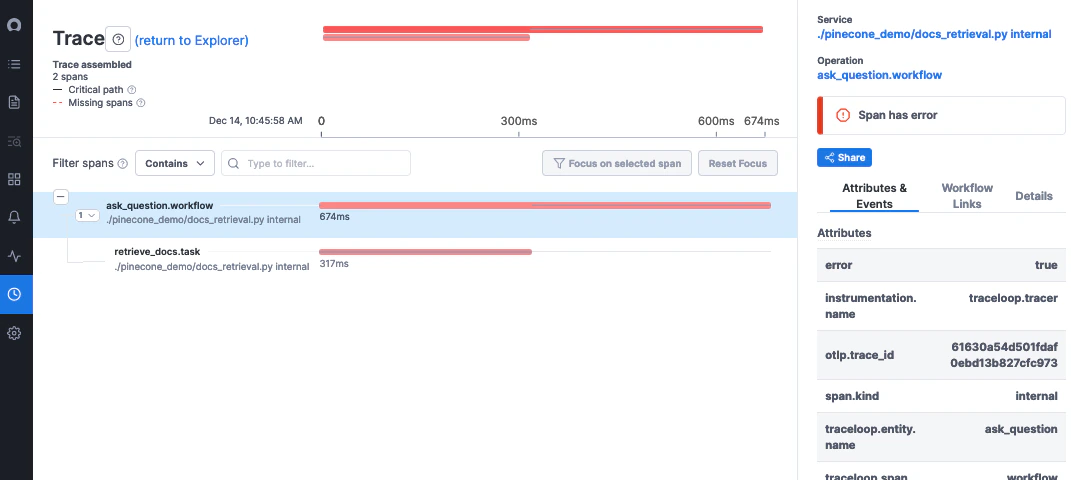 Since Service Now Cloud Observability natively supports OpenTelemetry, you just need to route the traces to Service Now Cloud Observability's endpoint and set the
access token:
```bash theme={null}
TRACELOOP_BASE_URL=https://ingest.lightstep.com
TRACELOOP_HEADERS="lightstep-access-token="
```
---
# Source: https://www.traceloop.com/docs/openllmetry/integrations/signoz.md
> ## Documentation Index
> Fetch the complete documentation index at: https://www.traceloop.com/docs/llms.txt
> Use this file to discover all available pages before exploring further.
# LLM Observability with SigNoz and OpenLLMetry
Since Service Now Cloud Observability natively supports OpenTelemetry, you just need to route the traces to Service Now Cloud Observability's endpoint and set the
access token:
```bash theme={null}
TRACELOOP_BASE_URL=https://ingest.lightstep.com
TRACELOOP_HEADERS="lightstep-access-token="
```
---
# Source: https://www.traceloop.com/docs/openllmetry/integrations/signoz.md
> ## Documentation Index
> Fetch the complete documentation index at: https://www.traceloop.com/docs/llms.txt
> Use this file to discover all available pages before exploring further.
# LLM Observability with SigNoz and OpenLLMetry
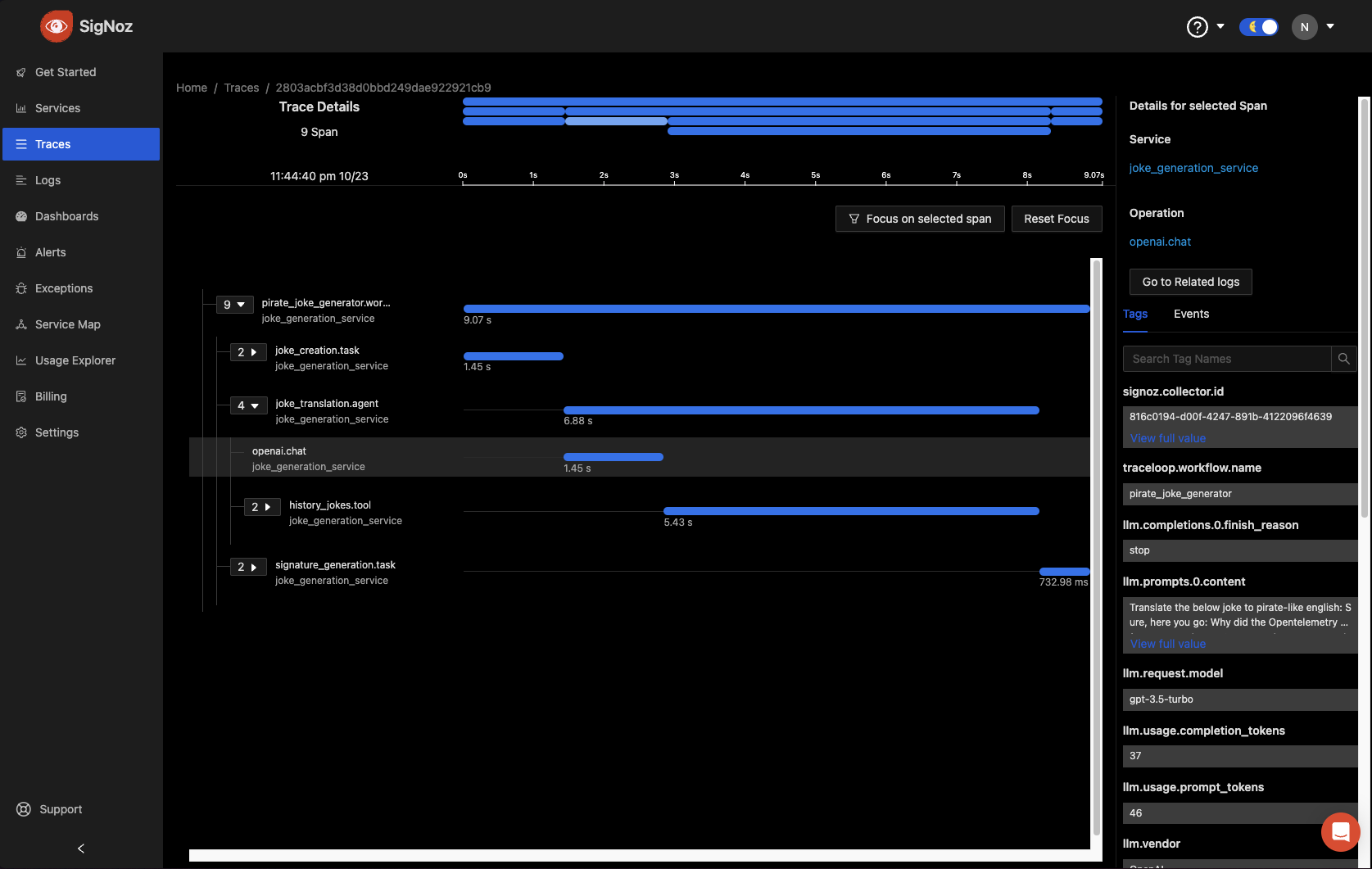 SigNoz is an [open-source observability platform](https://github.com/signoz/signoz).
### With SigNoz cloud
Since SigNoz natively supports OpenTelemetry, you just need to route the traces to SigNoz's endpoint and set the
ingestion key (note no `https` in the URL):
```bash theme={null}
TRACELOOP_BASE_URL=ingest.{region}.signoz.cloud
TRACELOOP_HEADERS="signoz-access-token="
```
Where `region` depends on the choice of your SigNoz cloud region:
| Region | Endpoint |
| ------ | -------------------------- |
| US | ingest.us.signoz.cloud:443 |
| IN | ingest.in.signoz.cloud:443 |
| EU | ingest.eu.signoz.cloud:443 |
Validate your configuration by [following these instructions](https://signoz.io/docs/instrumentation/python/#validating-instrumentation-by-checking-for-traces)
### With Self-Hosted version
Once you have an up and running instance of SigNoz, use the following environment variables to export your traces:
```bash theme={null}
TRACELOOP_BASE_URL="http://localhost:4318"
```
---
# Source: https://www.traceloop.com/docs/integrations/slack.md
> ## Documentation Index
> Fetch the complete documentation index at: https://www.traceloop.com/docs/llms.txt
> Use this file to discover all available pages before exploring further.
# Slack
> Get daily or weekly messages about your AI flows directly in Slack
Connecting Traceloop to Slack allows you to receive automated updates about your AI flows. You can configure daily or weekly messages to stay informed about your application's performance and insights.
Go to the [integrations page](https://app.traceloop.com/settings/integrations) within Traceloop and click on the Slack card.
Click on the Slack integration and follow the "Connect to Slack" button to authorize Traceloop to send messages to your Slack workspace.
Choose your notification preferences:
* Select the Slack channel where you want to receive updates
**Important:** Make sure to invite the Traceloop app to the channel before enabling the integration.
SigNoz is an [open-source observability platform](https://github.com/signoz/signoz).
### With SigNoz cloud
Since SigNoz natively supports OpenTelemetry, you just need to route the traces to SigNoz's endpoint and set the
ingestion key (note no `https` in the URL):
```bash theme={null}
TRACELOOP_BASE_URL=ingest.{region}.signoz.cloud
TRACELOOP_HEADERS="signoz-access-token="
```
Where `region` depends on the choice of your SigNoz cloud region:
| Region | Endpoint |
| ------ | -------------------------- |
| US | ingest.us.signoz.cloud:443 |
| IN | ingest.in.signoz.cloud:443 |
| EU | ingest.eu.signoz.cloud:443 |
Validate your configuration by [following these instructions](https://signoz.io/docs/instrumentation/python/#validating-instrumentation-by-checking-for-traces)
### With Self-Hosted version
Once you have an up and running instance of SigNoz, use the following environment variables to export your traces:
```bash theme={null}
TRACELOOP_BASE_URL="http://localhost:4318"
```
---
# Source: https://www.traceloop.com/docs/integrations/slack.md
> ## Documentation Index
> Fetch the complete documentation index at: https://www.traceloop.com/docs/llms.txt
> Use this file to discover all available pages before exploring further.
# Slack
> Get daily or weekly messages about your AI flows directly in Slack
Connecting Traceloop to Slack allows you to receive automated updates about your AI flows. You can configure daily or weekly messages to stay informed about your application's performance and insights.
Go to the [integrations page](https://app.traceloop.com/settings/integrations) within Traceloop and click on the Slack card.
Click on the Slack integration and follow the "Connect to Slack" button to authorize Traceloop to send messages to your Slack workspace.
Choose your notification preferences:
* Select the Slack channel where you want to receive updates
**Important:** Make sure to invite the Traceloop app to the channel before enabling the integration.
 * Select the desired schedule - daily/weekly
* Set the required time and timezone
* Choose which environment to monitor
* Select the desired schedule - daily/weekly
* Set the required time and timezone
* Choose which environment to monitor
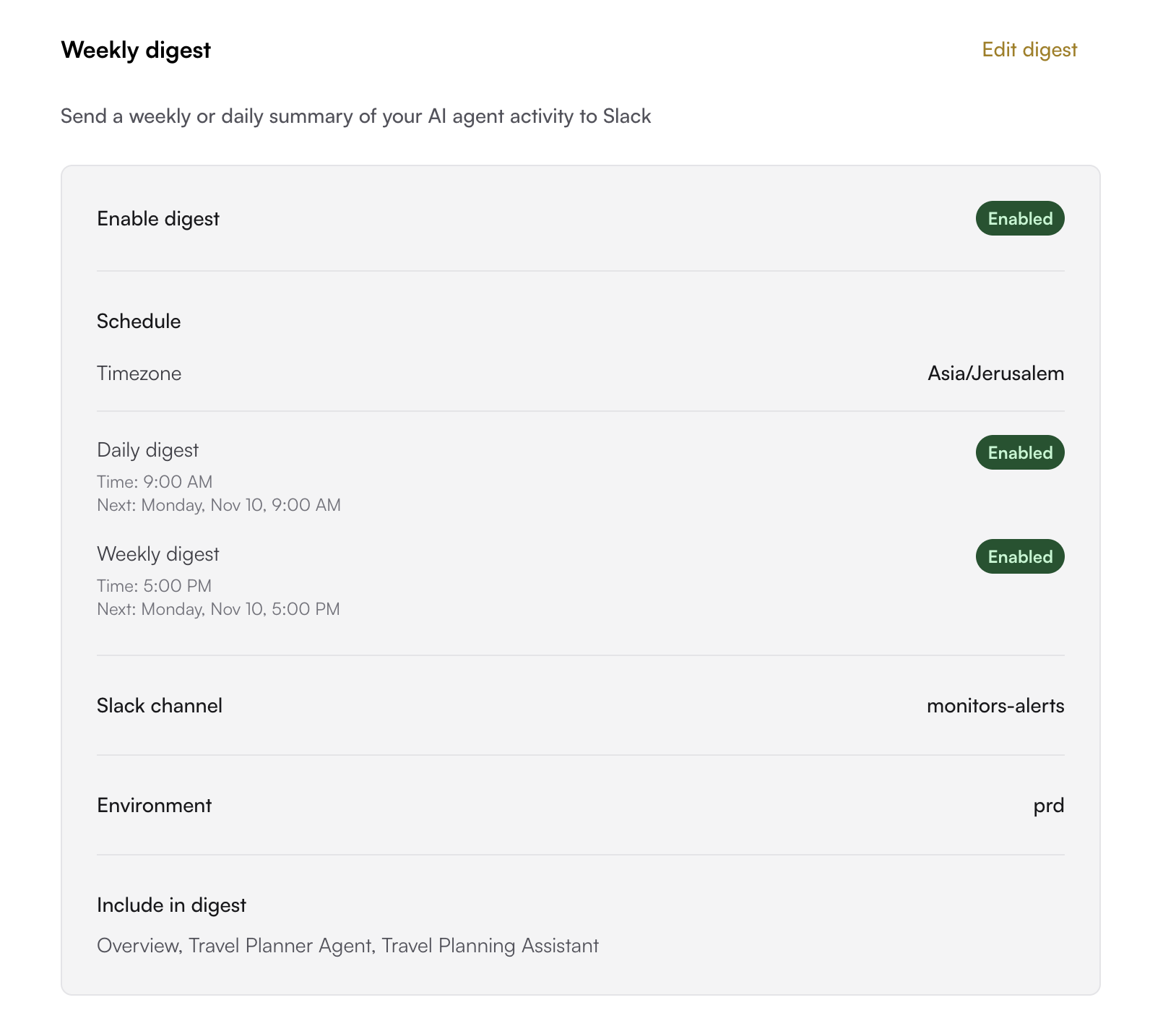
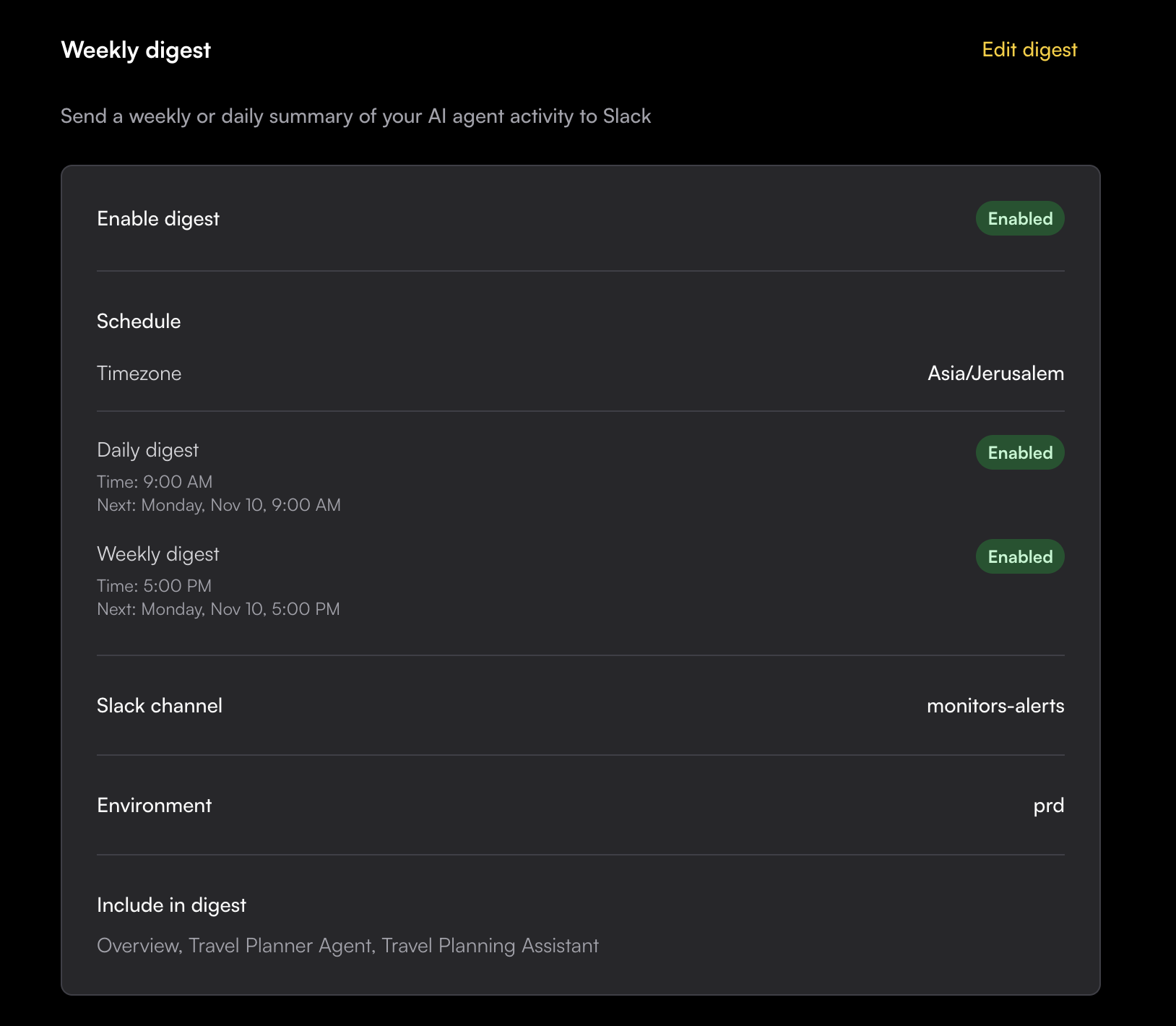 **That's it!**
You'll now receive automated messages in your chosen Slack channel with insights about your AI flows, including key metrics and performance updates.
**That's it!**
You'll now receive automated messages in your chosen Slack channel with insights about your AI flows, including key metrics and performance updates.
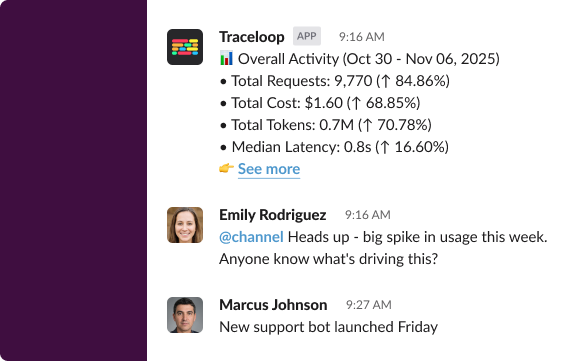 ---
# Source: https://www.traceloop.com/docs/openllmetry/integrations/splunk.md
> ## Documentation Index
> Fetch the complete documentation index at: https://www.traceloop.com/docs/llms.txt
> Use this file to discover all available pages before exploring further.
# LLM Observability with Splunk and OpenLLMetry
---
# Source: https://www.traceloop.com/docs/openllmetry/integrations/splunk.md
> ## Documentation Index
> Fetch the complete documentation index at: https://www.traceloop.com/docs/llms.txt
> Use this file to discover all available pages before exploring further.
# LLM Observability with Splunk and OpenLLMetry
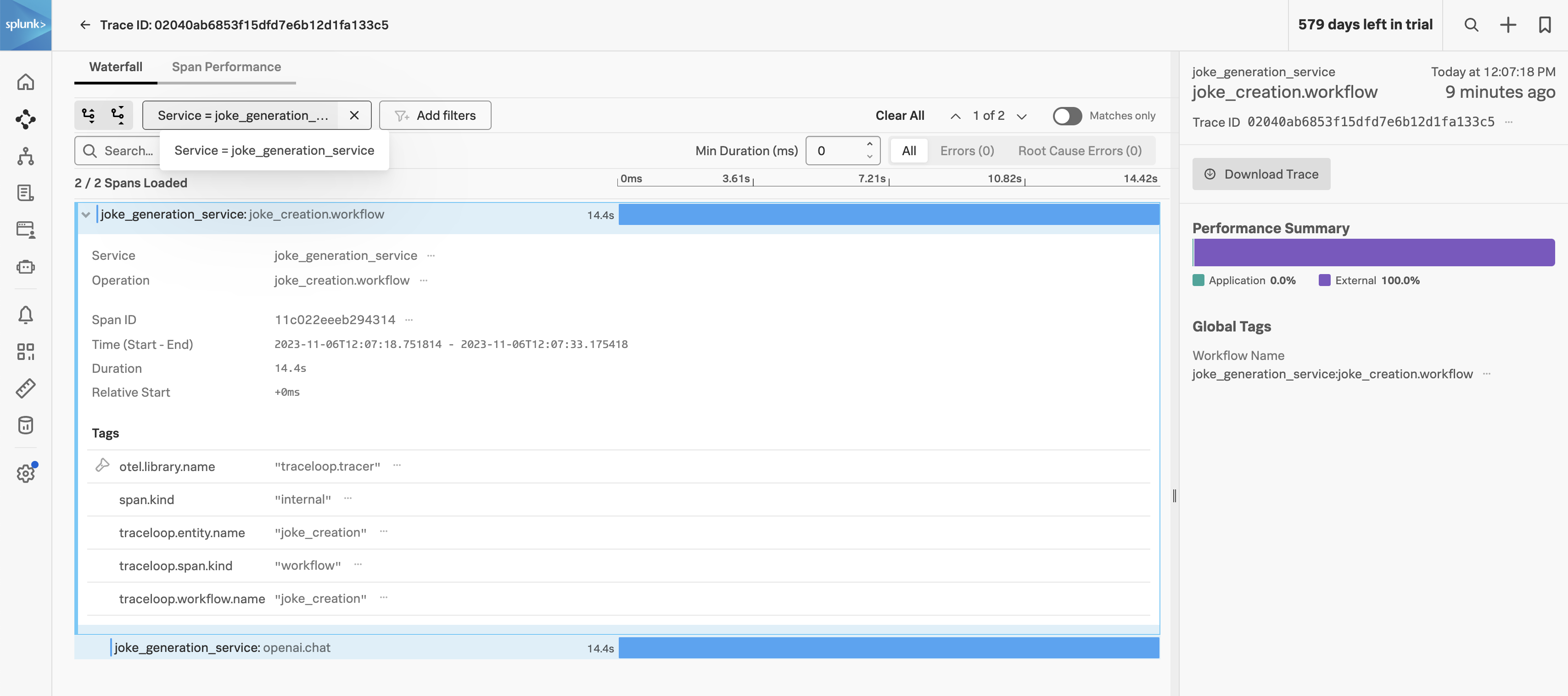 Collecting and analyzing LLM traces in [Splunk Observability Cloud](https://www.splunk.com/en_us/products/observability.html) can be achieved by configuring the **TRACELOOP\_BASE\_URL** environment variable to point to the [Splunk OpenTelemetry Collector](https://github.com/signalfx/splunk-otel-collector/releases) OTLP endpoint.
Have the Collector run in agent or gateway mode and ensure the OTLP receiver is configured, see [Get data into Splunk Observability Cloud](https://docs.splunk.com/observability/en/gdi/get-data-in/get-data-in.html).
```yaml theme={null}
receivers:
otlp:
protocols:
grpc:
endpoint: "0.0.0.0:4317"
http:
endpoint: "0.0.0.0:4318"
```
Secondly, ensure the OTLP exporter is configured to send to Splunk Observability Cloud:
```yaml theme={null}
exporters:
# Traces
sapm:
access_token: "${SPLUNK_ACCESS_TOKEN}"
endpoint: "https://ingest.${SPLUNK_REALM}.signalfx.com/v2/trace"
sending_queue:
num_consumers: 32
```
Thirdly, make sure `otlp` is defined in the traces pipeline:
```yaml theme={null}
pipelines:
traces:
receivers: [jaeger, otlp, sapm, zipkin]
processors:
- memory_limiter
- batch
#- resource/add_environment
exporters: [sapm]
```
Finally, define the `TRACELOOP_BASE_URL` environment variable to point to the Splunk OpenTelemetry Collector OTLP endpoint:
```bash theme={null}
TRACELOOP_BASE_URL=http://:4318
```
---
# Source: https://www.traceloop.com/docs/openllmetry/tracing/supported.md
> ## Documentation Index
> Fetch the complete documentation index at: https://www.traceloop.com/docs/llms.txt
> Use this file to discover all available pages before exploring further.
# What's Supported?
> A list of the models, vector DBs and frameworks that OpenLLMetry supports out of the box.
If your favorite system is not on the list, please open an issue for us in the respective Github repo and we'll take care of it.
In the meantime, you can still use OpenLLMetry to report the [LLM and vector DB calls manually](/openllmetry/tracing/manual-reporting).
## LLM Foundation Models
| Model SDK | Python | Typescript |
| ------------------------------------------------------------------------------------- | ------ | ---------- |
| [Aleph Alpha](https://aleph-alpha.com/) | ✅ | ❌ |
| [Amazon Bedrock](https://aws.amazon.com/bedrock/) | ✅ | ✅ |
| [Amazon SageMaker](https://aws.amazon.com/sagemaker/) | ✅ | ❌ |
| [Anthropic](https://www.anthropic.com/) | ✅ | ✅ |
| [Azure OpenAI](https://azure.microsoft.com/en-us/products/ai-services/openai-service) | ✅ | ✅ |
| [Cohere](https://cohere.com/) | ✅ | ✅ |
| [Google Gemini](https://ai.google.dev/) | ✅ | ✅ |
| [Google VertexAI](https://cloud.google.com/vertex-ai) | ✅ | ✅ |
| [Groq](https://groq.com/) | ✅ | ⏳ |
| [HuggingFace Transformers](https://huggingface.co/) | ✅ | ⏳ |
| [IBM watsonx](https://www.ibm.com/watsonx) | ✅ | ⏳ |
| [Mistral AI](https://mistral.ai/) | ✅ | ⏳ |
| [Ollama](https://ollama.com/) | ✅ | ⏳ |
| [OpenAI](https://openai.com/) | ✅ | ✅ |
| [Replicate](https://replicate.com/) | ✅ | ⏳ |
| [together.ai](https://together.ai/) | ✅ | ⏳ |
| [WRITER](https://writer.com/) | ✅ | ✅ |
## Vector DBs
| Vector DB | Python | Typescript |
| ------------------------------------------------------ | ------ | ---------- |
| [Chroma DB](https://www.trychroma.com/) | ✅ | ✅ |
| [Elasticsearch](https://www.elastic.co/elasticsearch/) | ✅ | ✅ |
| [LanceDB](https://lancedb.com/) | ✅ | ⏳ |
| [Marqo](https://www.marqo.ai/) | ✅ | ❌ |
| [Milvus](https://milvus.io/) | ✅ | ⏳ |
| [pgvector](https://github.com/pgvector/pgvector) | ✅ | ✅ |
| [Pinecone](https://pinecone.io/) | ✅ | ✅ |
| [Qdrant](https://qdrant.tech/) | ✅ | ✅ |
| [Weaviate](https://weaviate.io/) | ✅ | ⏳ |
## Frameworks
| Framework | Python | Typescript |
| --------------------------------------------------------------- | ------ | ---------- |
| [Agno](https://github.com/agno-oss/agno) | ✅ | ❌ |
| [AWS Strands](https://github.com/awslabs/strands) | ✅ | ❌ |
| [Burr](https://www.github.com/dagworks-inc/burr) | ✅ | ❌ |
| [CrewAI](https://www.crewai.com/) | ✅ | ❌ |
| [Haystack by deepset](https://haystack.deepset.ai/) | ✅ | ❌ |
| [Langchain](https://www.langchain.com/) | ✅ | ✅ |
| [LiteLLM](https://www.litellm.ai/) | ✅ | ❌ |
| [LlamaIndex](https://www.llamaindex.ai/) | ✅ | ✅ |
| [OpenAI Agents](https://github.com/openai/openai-agents-python) | ✅ | ❌ |
---
# Source: https://www.traceloop.com/docs/openllmetry/privacy/telemetry.md
> ## Documentation Index
> Fetch the complete documentation index at: https://www.traceloop.com/docs/llms.txt
> Use this file to discover all available pages before exploring further.
# Telemetry
As of OpenLLMetry v0.49.2 and above or OpenLLMetry-js v0.21.1,
We no longer log or collect any telemetry or any other information in any of the packages (including Traceloop SDK).
---
# Source: https://www.traceloop.com/docs/openllmetry/integrations/tencent.md
> ## Documentation Index
> Fetch the complete documentation index at: https://www.traceloop.com/docs/llms.txt
> Use this file to discover all available pages before exploring further.
# LLM Observability with Tencent APM and OpenLLMetry
[Tencent APM](https://console.tencentcloud.com/apm), also known as `TAPM`, is a monitoring and observability platform that provides a comprehensive view of your application's performance and behavior.
Tencent APM natively supports OpenTelemetry, so you can use OpenLLMetry to trace your applications.
Collecting and analyzing LLM traces in [Splunk Observability Cloud](https://www.splunk.com/en_us/products/observability.html) can be achieved by configuring the **TRACELOOP\_BASE\_URL** environment variable to point to the [Splunk OpenTelemetry Collector](https://github.com/signalfx/splunk-otel-collector/releases) OTLP endpoint.
Have the Collector run in agent or gateway mode and ensure the OTLP receiver is configured, see [Get data into Splunk Observability Cloud](https://docs.splunk.com/observability/en/gdi/get-data-in/get-data-in.html).
```yaml theme={null}
receivers:
otlp:
protocols:
grpc:
endpoint: "0.0.0.0:4317"
http:
endpoint: "0.0.0.0:4318"
```
Secondly, ensure the OTLP exporter is configured to send to Splunk Observability Cloud:
```yaml theme={null}
exporters:
# Traces
sapm:
access_token: "${SPLUNK_ACCESS_TOKEN}"
endpoint: "https://ingest.${SPLUNK_REALM}.signalfx.com/v2/trace"
sending_queue:
num_consumers: 32
```
Thirdly, make sure `otlp` is defined in the traces pipeline:
```yaml theme={null}
pipelines:
traces:
receivers: [jaeger, otlp, sapm, zipkin]
processors:
- memory_limiter
- batch
#- resource/add_environment
exporters: [sapm]
```
Finally, define the `TRACELOOP_BASE_URL` environment variable to point to the Splunk OpenTelemetry Collector OTLP endpoint:
```bash theme={null}
TRACELOOP_BASE_URL=http://:4318
```
---
# Source: https://www.traceloop.com/docs/openllmetry/tracing/supported.md
> ## Documentation Index
> Fetch the complete documentation index at: https://www.traceloop.com/docs/llms.txt
> Use this file to discover all available pages before exploring further.
# What's Supported?
> A list of the models, vector DBs and frameworks that OpenLLMetry supports out of the box.
If your favorite system is not on the list, please open an issue for us in the respective Github repo and we'll take care of it.
In the meantime, you can still use OpenLLMetry to report the [LLM and vector DB calls manually](/openllmetry/tracing/manual-reporting).
## LLM Foundation Models
| Model SDK | Python | Typescript |
| ------------------------------------------------------------------------------------- | ------ | ---------- |
| [Aleph Alpha](https://aleph-alpha.com/) | ✅ | ❌ |
| [Amazon Bedrock](https://aws.amazon.com/bedrock/) | ✅ | ✅ |
| [Amazon SageMaker](https://aws.amazon.com/sagemaker/) | ✅ | ❌ |
| [Anthropic](https://www.anthropic.com/) | ✅ | ✅ |
| [Azure OpenAI](https://azure.microsoft.com/en-us/products/ai-services/openai-service) | ✅ | ✅ |
| [Cohere](https://cohere.com/) | ✅ | ✅ |
| [Google Gemini](https://ai.google.dev/) | ✅ | ✅ |
| [Google VertexAI](https://cloud.google.com/vertex-ai) | ✅ | ✅ |
| [Groq](https://groq.com/) | ✅ | ⏳ |
| [HuggingFace Transformers](https://huggingface.co/) | ✅ | ⏳ |
| [IBM watsonx](https://www.ibm.com/watsonx) | ✅ | ⏳ |
| [Mistral AI](https://mistral.ai/) | ✅ | ⏳ |
| [Ollama](https://ollama.com/) | ✅ | ⏳ |
| [OpenAI](https://openai.com/) | ✅ | ✅ |
| [Replicate](https://replicate.com/) | ✅ | ⏳ |
| [together.ai](https://together.ai/) | ✅ | ⏳ |
| [WRITER](https://writer.com/) | ✅ | ✅ |
## Vector DBs
| Vector DB | Python | Typescript |
| ------------------------------------------------------ | ------ | ---------- |
| [Chroma DB](https://www.trychroma.com/) | ✅ | ✅ |
| [Elasticsearch](https://www.elastic.co/elasticsearch/) | ✅ | ✅ |
| [LanceDB](https://lancedb.com/) | ✅ | ⏳ |
| [Marqo](https://www.marqo.ai/) | ✅ | ❌ |
| [Milvus](https://milvus.io/) | ✅ | ⏳ |
| [pgvector](https://github.com/pgvector/pgvector) | ✅ | ✅ |
| [Pinecone](https://pinecone.io/) | ✅ | ✅ |
| [Qdrant](https://qdrant.tech/) | ✅ | ✅ |
| [Weaviate](https://weaviate.io/) | ✅ | ⏳ |
## Frameworks
| Framework | Python | Typescript |
| --------------------------------------------------------------- | ------ | ---------- |
| [Agno](https://github.com/agno-oss/agno) | ✅ | ❌ |
| [AWS Strands](https://github.com/awslabs/strands) | ✅ | ❌ |
| [Burr](https://www.github.com/dagworks-inc/burr) | ✅ | ❌ |
| [CrewAI](https://www.crewai.com/) | ✅ | ❌ |
| [Haystack by deepset](https://haystack.deepset.ai/) | ✅ | ❌ |
| [Langchain](https://www.langchain.com/) | ✅ | ✅ |
| [LiteLLM](https://www.litellm.ai/) | ✅ | ❌ |
| [LlamaIndex](https://www.llamaindex.ai/) | ✅ | ✅ |
| [OpenAI Agents](https://github.com/openai/openai-agents-python) | ✅ | ❌ |
---
# Source: https://www.traceloop.com/docs/openllmetry/privacy/telemetry.md
> ## Documentation Index
> Fetch the complete documentation index at: https://www.traceloop.com/docs/llms.txt
> Use this file to discover all available pages before exploring further.
# Telemetry
As of OpenLLMetry v0.49.2 and above or OpenLLMetry-js v0.21.1,
We no longer log or collect any telemetry or any other information in any of the packages (including Traceloop SDK).
---
# Source: https://www.traceloop.com/docs/openllmetry/integrations/tencent.md
> ## Documentation Index
> Fetch the complete documentation index at: https://www.traceloop.com/docs/llms.txt
> Use this file to discover all available pages before exploring further.
# LLM Observability with Tencent APM and OpenLLMetry
[Tencent APM](https://console.tencentcloud.com/apm), also known as `TAPM`, is a monitoring and observability platform that provides a comprehensive view of your application's performance and behavior.
Tencent APM natively supports OpenTelemetry, so you can use OpenLLMetry to trace your applications.
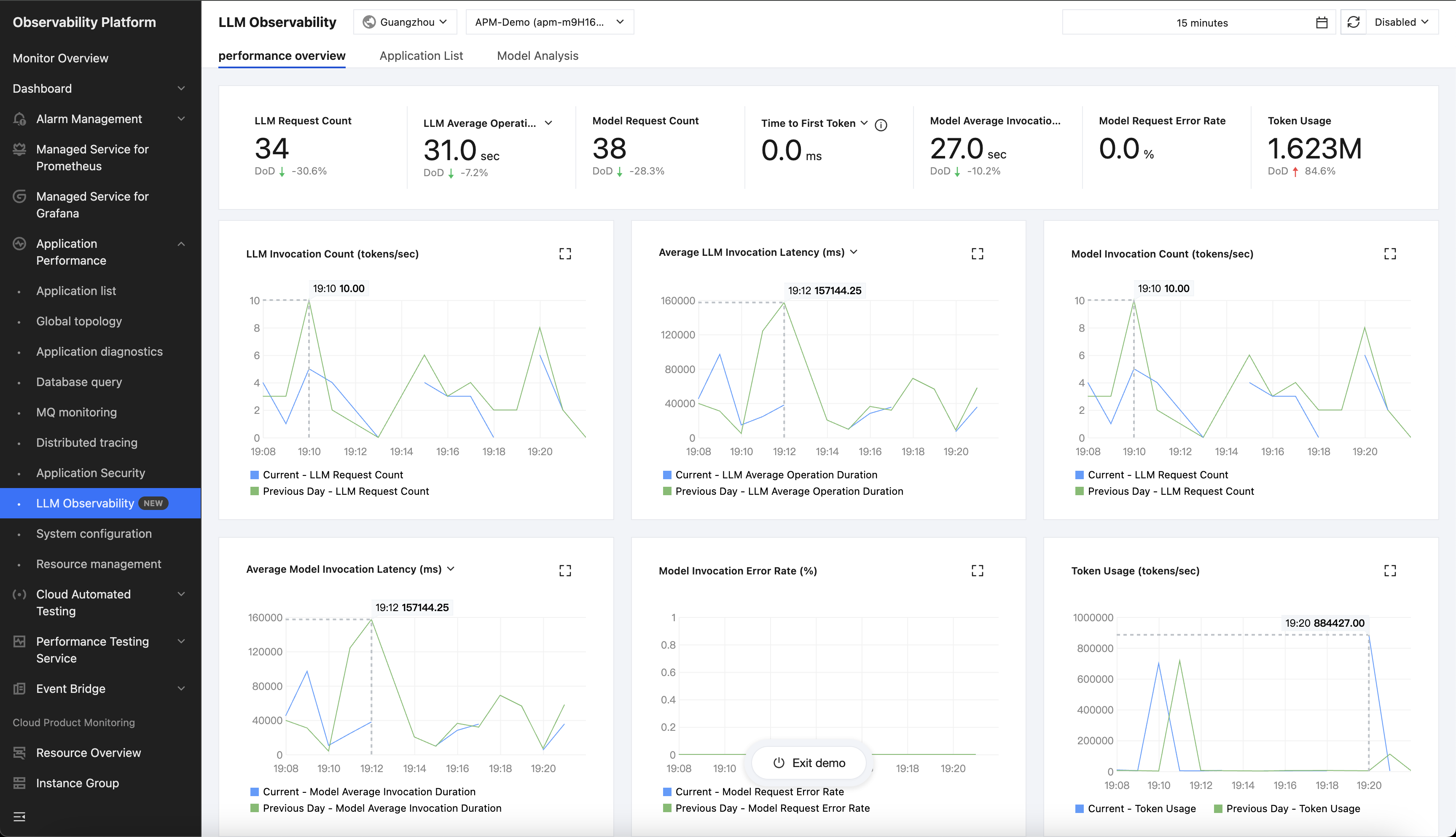 To integrate OpenLLMetry with Tencent APM, you'll need to configure your tracing endpoint and authentication:
```bash theme={null}
TRACELOOP_BASE_URL="" # Use port `55681` rather than `4317` as the default port.
TRACELOOP_HEADERS="Authorization=Bearer%20" # header values in env variables must be URL‑encoded.
```
Tencent APM defaults to using port `4317` for the gRPC exporter, and we recommend using port `55681` instead here, which is the HTTP exporter port.
---
# Source: https://www.traceloop.com/docs/openllmetry/integrations/traceloop.md
> ## Documentation Index
> Fetch the complete documentation index at: https://www.traceloop.com/docs/llms.txt
> Use this file to discover all available pages before exploring further.
# LLM Observability with Traceloop
To integrate OpenLLMetry with Tencent APM, you'll need to configure your tracing endpoint and authentication:
```bash theme={null}
TRACELOOP_BASE_URL="" # Use port `55681` rather than `4317` as the default port.
TRACELOOP_HEADERS="Authorization=Bearer%20" # header values in env variables must be URL‑encoded.
```
Tencent APM defaults to using port `4317` for the gRPC exporter, and we recommend using port `55681` instead here, which is the HTTP exporter port.
---
# Source: https://www.traceloop.com/docs/openllmetry/integrations/traceloop.md
> ## Documentation Index
> Fetch the complete documentation index at: https://www.traceloop.com/docs/llms.txt
> Use this file to discover all available pages before exploring further.
# LLM Observability with Traceloop
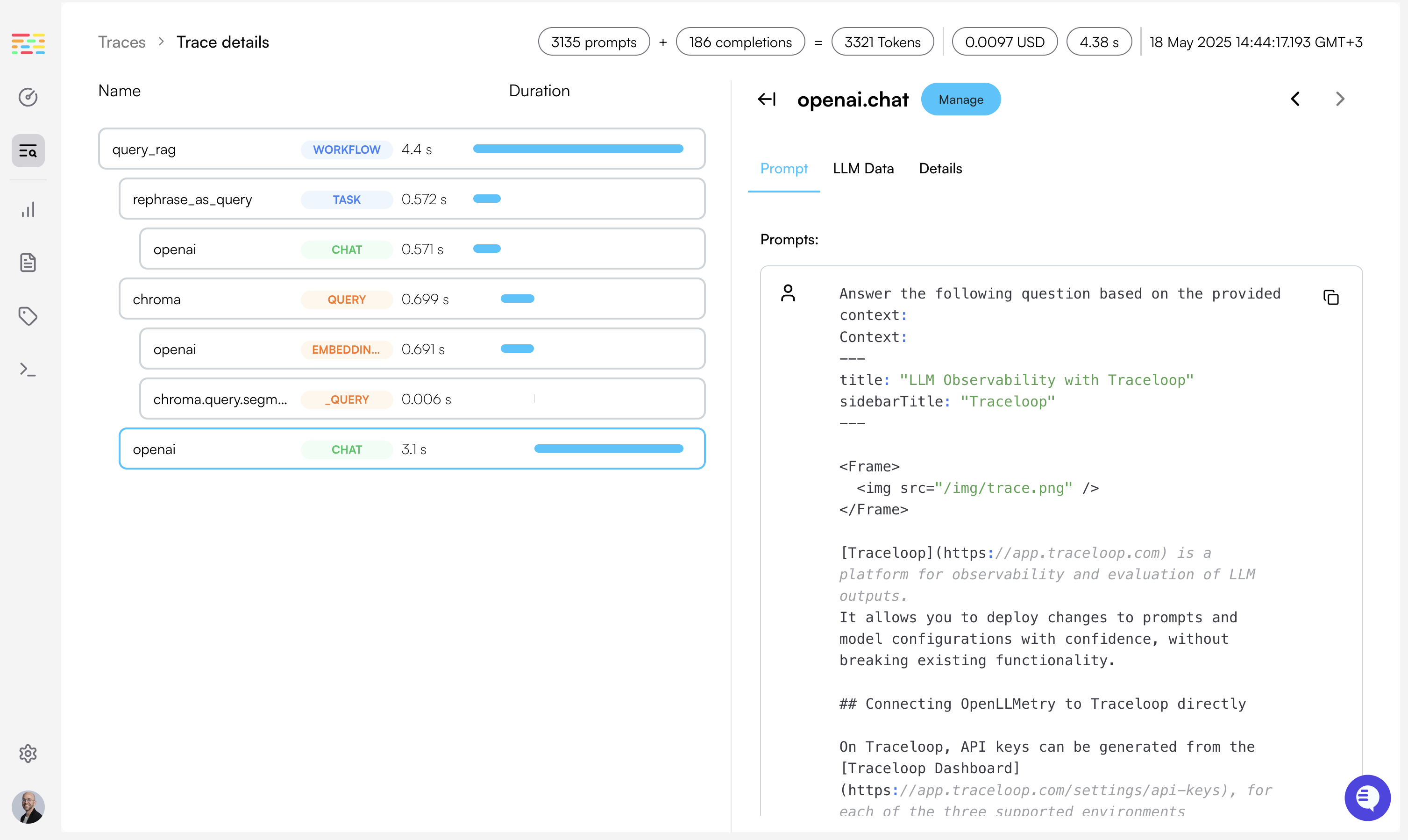
 [Traceloop](https://app.traceloop.com) is a platform for observability and evaluation of LLM outputs.
It allows you to deploy changes to prompts and model configurations with confidence, without breaking existing functionality.
## Connecting OpenLLMetry to Traceloop directly
You need an API key to send traces to Traceloop. API keys are scoped to a specific **project** and **environment**.
**To generate an API key:**
1. Go to [Settings → Organization](https://app.traceloop.com/settings/api-keys)
2. Click on your project (or create a new one)
3. Select an environment (Development, Staging, Production, or custom)
4. Click **Generate API key**
5. **Copy the key immediately** - it won't be shown again after you close or reload the page
[Detailed instructions →](/settings/managing-api-keys)
Set the API key as an environment variable named `TRACELOOP_API_KEY`:
```bash theme={null}
export TRACELOOP_API_KEY=your_api_key_here
```
Done! You'll get instant visibility into everything that's happening with your LLM.
If you're calling a vector DB, or any other external service or database, you'll also see it in the Traceloop dashboard.
**Want to organize your data?** Learn about [Projects and Environments](/settings/projects-and-environments)
to separate traces for different applications and deployment stages.
## Using an OpenTelemetry Collector
If you are using an [OpenTelemetry Collector](https://opentelemetry.io/docs/collector/), you can route metrics and traces to Traceloop by simply adding an OTLP exporter to your collector configuration.
```yaml theme={null}
receivers:
otlp:
protocols:
http:
endpoint: 0.0.0.0:4318
processors:
batch:
exporters:
otlphttp/traceloop:
endpoint: "https://api.traceloop.com" # US instance
headers:
"Authorization": "Bearer "
service:
pipelines:
traces:
receivers: [otlp]
processors: [batch]
exporters: [otlphttp/traceloop]
```
You can route OpenLLMetry to your collector by following the [OpenTelemetry Collector](/openllmetry/integrations/otel-collector) integration instructions.
---
# Source: https://www.traceloop.com/docs/openllmetry/privacy/traces.md
> ## Documentation Index
> Fetch the complete documentation index at: https://www.traceloop.com/docs/llms.txt
> Use this file to discover all available pages before exploring further.
# Prompts, Completions and Embeddings
**By default, OpenLLMetry logs prompts, completions, and embeddings to span attributes.**
This gives you a clear visibility into how your LLM application is working, and can make it easy to debug and evaluate the quality of the outputs.
However, you may want to disable this logging for privacy reasons, as they may contain highly sensitive data from your users.
You may also simply want to reduce the size of your traces.
## Disabling logging globally
To disable logging, set the `TRACELOOP_TRACE_CONTENT` environment variable to `false`.
On Typescript/Javascript you can also pass the `traceContent` option.
```bash Environment Variable theme={null}
TRACELOOP_TRACE_CONTENT=false
```
```js Typescript / Javascript theme={null}
Traceloop.initialize({ traceContent: false });
```
OpenLLMetry SDK, as well as all individual instrumentations will respect this setting.
## Enabling logging selectively in specific workflows / tasks
You can decide to selectively enable prompt logging for specific workflows, tasks, agents, or tools, using the annotations API.
If you don't specify a `traceContent` option, the global setting will be used.
```js Typescript / Javascript theme={null}
return await traceloop.withWorkflow(
{ name: "workflow_name", traceContent: false },
async () => {
...
}
);
```
```js Typescript - with Decorators theme={null}
class MyClass {
@traceloop.workflow({ traceContent: false })
async some_workflow() {
...
}
}
```
## Enabling logging selectively for specific users
You can decide to selectively enable or disable prompt logging for specific users or workflows.
### Using the Traceloop Platform
We have an API to enable content tracing for specific users, as defined by [association entities](/openllmetry/tracing/association).
See the [Traceloop API documentation](/api-reference/tracing/whitelist_user) for more information.
### Without the Traceloop Platform
Set a key called `override_enable_content_tracing` in the OpenTelemetry context to `True` right before making the LLM call
you want to trace with prompts.
This will create a new context that will instruct instrumentations to log prompts and completions as span attributes.
```python Python theme={null}
from opentelemetry.context import attach, set_value
attach(set_value("override_enable_content_tracing", True))
```
Make sure to also disable it afterwards:
```python Python theme={null}
from opentelemetry.context import attach, set_value
attach(set_value("override_enable_content_tracing", False))
```
---
# Source: https://www.traceloop.com/docs/self-host/troubleshooting.md
# Source: https://www.traceloop.com/docs/openllmetry/troubleshooting.md
> ## Documentation Index
> Fetch the complete documentation index at: https://www.traceloop.com/docs/llms.txt
> Use this file to discover all available pages before exploring further.
# Troubleshooting
> Not seeing anything? Here are some things to check.
[Traceloop](https://app.traceloop.com) is a platform for observability and evaluation of LLM outputs.
It allows you to deploy changes to prompts and model configurations with confidence, without breaking existing functionality.
## Connecting OpenLLMetry to Traceloop directly
You need an API key to send traces to Traceloop. API keys are scoped to a specific **project** and **environment**.
**To generate an API key:**
1. Go to [Settings → Organization](https://app.traceloop.com/settings/api-keys)
2. Click on your project (or create a new one)
3. Select an environment (Development, Staging, Production, or custom)
4. Click **Generate API key**
5. **Copy the key immediately** - it won't be shown again after you close or reload the page
[Detailed instructions →](/settings/managing-api-keys)
Set the API key as an environment variable named `TRACELOOP_API_KEY`:
```bash theme={null}
export TRACELOOP_API_KEY=your_api_key_here
```
Done! You'll get instant visibility into everything that's happening with your LLM.
If you're calling a vector DB, or any other external service or database, you'll also see it in the Traceloop dashboard.
**Want to organize your data?** Learn about [Projects and Environments](/settings/projects-and-environments)
to separate traces for different applications and deployment stages.
## Using an OpenTelemetry Collector
If you are using an [OpenTelemetry Collector](https://opentelemetry.io/docs/collector/), you can route metrics and traces to Traceloop by simply adding an OTLP exporter to your collector configuration.
```yaml theme={null}
receivers:
otlp:
protocols:
http:
endpoint: 0.0.0.0:4318
processors:
batch:
exporters:
otlphttp/traceloop:
endpoint: "https://api.traceloop.com" # US instance
headers:
"Authorization": "Bearer "
service:
pipelines:
traces:
receivers: [otlp]
processors: [batch]
exporters: [otlphttp/traceloop]
```
You can route OpenLLMetry to your collector by following the [OpenTelemetry Collector](/openllmetry/integrations/otel-collector) integration instructions.
---
# Source: https://www.traceloop.com/docs/openllmetry/privacy/traces.md
> ## Documentation Index
> Fetch the complete documentation index at: https://www.traceloop.com/docs/llms.txt
> Use this file to discover all available pages before exploring further.
# Prompts, Completions and Embeddings
**By default, OpenLLMetry logs prompts, completions, and embeddings to span attributes.**
This gives you a clear visibility into how your LLM application is working, and can make it easy to debug and evaluate the quality of the outputs.
However, you may want to disable this logging for privacy reasons, as they may contain highly sensitive data from your users.
You may also simply want to reduce the size of your traces.
## Disabling logging globally
To disable logging, set the `TRACELOOP_TRACE_CONTENT` environment variable to `false`.
On Typescript/Javascript you can also pass the `traceContent` option.
```bash Environment Variable theme={null}
TRACELOOP_TRACE_CONTENT=false
```
```js Typescript / Javascript theme={null}
Traceloop.initialize({ traceContent: false });
```
OpenLLMetry SDK, as well as all individual instrumentations will respect this setting.
## Enabling logging selectively in specific workflows / tasks
You can decide to selectively enable prompt logging for specific workflows, tasks, agents, or tools, using the annotations API.
If you don't specify a `traceContent` option, the global setting will be used.
```js Typescript / Javascript theme={null}
return await traceloop.withWorkflow(
{ name: "workflow_name", traceContent: false },
async () => {
...
}
);
```
```js Typescript - with Decorators theme={null}
class MyClass {
@traceloop.workflow({ traceContent: false })
async some_workflow() {
...
}
}
```
## Enabling logging selectively for specific users
You can decide to selectively enable or disable prompt logging for specific users or workflows.
### Using the Traceloop Platform
We have an API to enable content tracing for specific users, as defined by [association entities](/openllmetry/tracing/association).
See the [Traceloop API documentation](/api-reference/tracing/whitelist_user) for more information.
### Without the Traceloop Platform
Set a key called `override_enable_content_tracing` in the OpenTelemetry context to `True` right before making the LLM call
you want to trace with prompts.
This will create a new context that will instruct instrumentations to log prompts and completions as span attributes.
```python Python theme={null}
from opentelemetry.context import attach, set_value
attach(set_value("override_enable_content_tracing", True))
```
Make sure to also disable it afterwards:
```python Python theme={null}
from opentelemetry.context import attach, set_value
attach(set_value("override_enable_content_tracing", False))
```
---
# Source: https://www.traceloop.com/docs/self-host/troubleshooting.md
# Source: https://www.traceloop.com/docs/openllmetry/troubleshooting.md
> ## Documentation Index
> Fetch the complete documentation index at: https://www.traceloop.com/docs/llms.txt
> Use this file to discover all available pages before exploring further.
# Troubleshooting
> Not seeing anything? Here are some things to check.
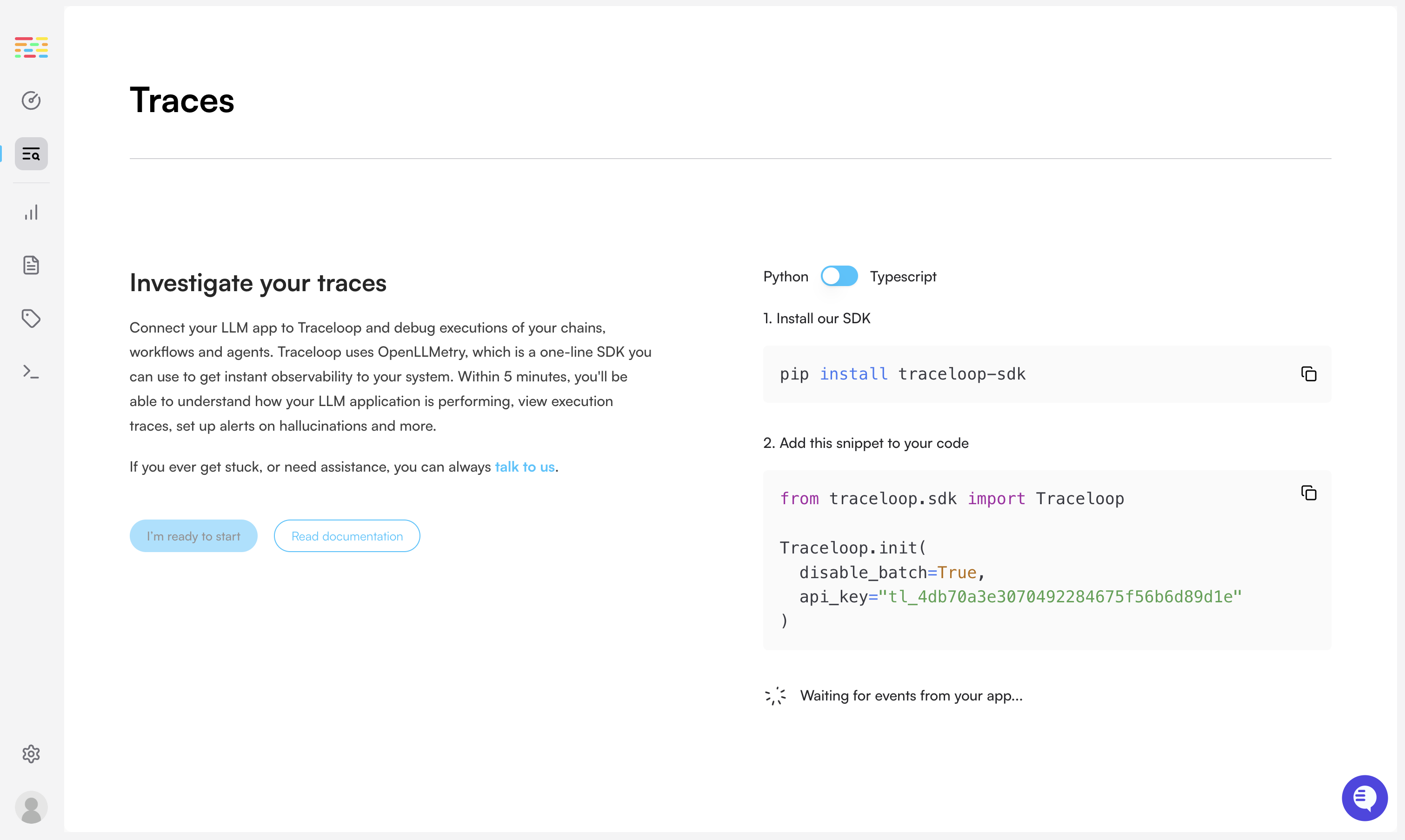
 We've all been there. You followed all the instructions, but you're not seeing any traces. Let's fix this.
## 1. Disable batch sending
Sending traces in batch is useful in production, but can be confusing if you're working locally.
Make sure you've [disabled batch sending](/openllmetry/configuration#disable-batch).
```python Python theme={null}
Traceloop.init(disable_batch=True)
```
```js Typescript / Javascript theme={null}
Traceloop.init({ disableBatch: true });
```
## 2. Check the logs
When Traceloop initializes, it logs a message to the console, specifying the endpoint that it uses.
If you don't see that, you might not be initializing the SDK properly.
> **Traceloop exporting traces to `https://api.traceloop.com`**
## 3. (TS/JS only) Fix known instrumentation issues
If you're using Typescript or Javascript, make sure to import traceloop before any other LLM libraries.
This is because traceloop needs to instrument the libraries you're using, and it can only do that if it's imported first.
```js theme={null}
import * as traceloop from "@traceloop/traceloop";
import OpenAI from "openai";
...
```
If that doesn't work, you may need to manually instrument the libraries you're using.
See the [manual instrumentation guide](/openllmetry/tracing/js-force-instrumentations) for more details.
```js theme={null}
import OpenAI from "openai";
import * as LlamaIndex from "llamaindex";
traceloop.initialize({
appName: "app",
instrumentModules: {
openAI: OpenAI,
llamaIndex: LlamaIndex,
// Add or omit other modules you'd like to instrument
},
```
## 4. Is your library supported yet?
Check out [OpenLLMetry](https://github.com/traceloop/openllmetry#readme) or [OpenLLMetry-JS](https://github.com/traceloop/openllmetry-js#readme) README files to see which libraries and versions are currently supported.
Contributions are always welcome! If you want to add support for a library, please open a PR.
## 5. Try outputting traces to the console
Use the `ConsoleExporter` and check if you see traces in the console.
```python Python theme={null}
from opentelemetry.sdk.trace.export import ConsoleSpanExporter
Traceloop.init(exporter=ConsoleSpanExporter())
```
```js Typescript / Javascript theme={null}
import { ConsoleSpanExporter } from "@opentelemetry/sdk-trace-node";
traceloop.initialize({ exporter: new ConsoleSpanExporter() });
```
If you see traces in the console, then you probable haven't configured the exporter properly.
Check the [integration guide](/openllmetry/integrations) again, and make sure you're using the right endpoint and API key.
## 6. Talk to us!
We're here to help.
Reach out any time over
[Slack](https://traceloop.com/slack),
[email](mailto:dev@traceloop.com), and we'd love to assist you.
---
# Source: https://www.traceloop.com/docs/api-reference/auto-monitor-setups/update-an-auto-monitor-setup.md
> ## Documentation Index
> Fetch the complete documentation index at: https://www.traceloop.com/docs/llms.txt
> Use this file to discover all available pages before exploring further.
# Update an auto monitor setup
> Update an existing auto monitor setup by ID
## OpenAPI
````yaml put /v2/auto-monitor-setups/{setup_id}
openapi: 3.0.0
info:
title: Traceloop API
version: 1.0.0
contact: {}
servers:
- url: https://api.traceloop.com
security: []
paths:
/v2/auto-monitor-setups/{setup_id}:
put:
tags:
- auto-monitor-setups
summary: Update an auto monitor setup
description: Update an existing auto monitor setup by ID
parameters:
- description: Auto monitor setup ID
in: path
name: setup_id
required: true
schema:
type: string
requestBody:
content:
application/json:
schema:
$ref: '#/components/schemas/request.UpdateAutoMonitorSetupInput'
description: Fields to update
required: true
responses:
'200':
description: OK
content:
application/json:
schema:
$ref: '#/components/schemas/response.AutoMonitorSetupResponse'
'400':
description: Invalid input
content:
application/json:
schema:
$ref: '#/components/schemas/response.ErrorResponse'
'404':
description: Not found
content:
application/json:
schema:
$ref: '#/components/schemas/response.ErrorResponse'
'500':
description: Internal error
content:
application/json:
schema:
$ref: '#/components/schemas/response.ErrorResponse'
components:
schemas:
request.UpdateAutoMonitorSetupInput:
properties:
entity_type:
type: string
entity_value:
type: string
evaluators:
items:
type: string
type: array
selector:
additionalProperties: true
type: object
type: object
response.AutoMonitorSetupResponse:
properties:
created_at:
type: string
entity_type:
type: string
entity_value:
type: string
env_project_id:
type: string
evaluators:
items:
$ref: '#/components/schemas/response.AutoMonitorEvaluatorResponse'
type: array
external_id:
type: string
id:
type: string
init_rules:
items:
$ref: '#/components/schemas/evaluator.Rule'
type: array
org_id:
type: string
project_id:
type: string
status:
type: string
updated_at:
type: string
type: object
response.ErrorResponse:
description: Standard error response structure
properties:
error:
example: error message
type: string
type: object
response.AutoMonitorEvaluatorResponse:
properties:
binding_id:
type: string
error_message:
type: string
evaluator_id:
type: string
evaluator_type:
type: string
input_schema:
items:
$ref: '#/components/schemas/evaluator.Property'
type: array
output_schema:
items:
$ref: '#/components/schemas/evaluator.Property'
type: array
processed_at:
type: string
status:
type: string
type: object
evaluator.Rule:
properties:
key:
type: string
op:
$ref: '#/components/schemas/evaluator.ComparisonOperator'
source:
type: string
value:
type: string
value_type:
type: string
required:
- op
- source
type: object
evaluator.Property:
properties:
description:
type: string
label:
type: string
name:
type: string
type:
type: string
required:
- name
- type
type: object
evaluator.ComparisonOperator:
enum:
- equals
- not_equals
- contains
- exists
- not_exists
- greater_than
- less_than
- starts_with
type: string
x-enum-varnames:
- ComparisonOperatorEquals
- ComparisonOperatorNotEquals
- ComparisonOperatorContains
- ComparisonOperatorExists
- ComparisonOperatorNotExists
- ComparisonOperatorGreaterThan
- ComparisonOperatorLessThan
- ComparisonOperatorStartsWith
````
---
# Source: https://www.traceloop.com/docs/openllmetry/tracing/user-feedback.md
> ## Documentation Index
> Fetch the complete documentation index at: https://www.traceloop.com/docs/llms.txt
> Use this file to discover all available pages before exploring further.
# Tracking User Feedback
When building LLM applications, it quickly becomes highly useful and important to track user feedback on the result of your LLM workflow.
Doing that with OpenLLMetry is easy. First, make sure you [associate your LLM workflow with unique identifiers](/openllmetry/tracing/association).
Then, [create an Annotation Task](https://app.traceloop.com/annotation-tasks) within Traceloop to collect user feedback as annotations.
The annotation task should include:
* The [entity](/openllmetry/tracing/association) you want to collect feedback for (e.g., `chat_id`)
* Tags you want to track (e.g., `score`, `feedback_text`)
You can log user feedback by calling our Python SDK or TypeScript SDK.
All feedback must follow the structure defined in your annotation task.
For example, to implement thumbs-up/thumbs-down feedback, create an annotation task with a tag named `is_helpful` that accepts the values `thumbs-up` and `thumbs-down`.
The entity you report feedback for must match the one defined in your annotation
task and association property.
```python Python theme={null}
from traceloop.sdk import Traceloop
traceloop_client = Traceloop.get()
traceloop_client.user_feedback.create(
"your-annotation-task",
"12345",
{"is_helpful": "thumbs-up"},
)
```
```js Typescript theme={null}
const client = traceloop.getClient();
await client.userFeedback.create({
annotationTask: "your-annotation-task",
entity: {
id: "12345",
},
tags: {
is_helpful: "thumbs-up",
},
});
```
---
# Source: https://www.traceloop.com/docs/monitoring/using-monitors.md
> ## Documentation Index
> Fetch the complete documentation index at: https://www.traceloop.com/docs/llms.txt
> Use this file to discover all available pages before exploring further.
# Using Monitors
> Learn how to view, analyze, and act on monitor results in your LLM applications
Once you've created monitors, Traceloop continuously evaluates your LLM outputs and provides insights into their performance. This guide explains how to interpret and act on monitor results.
## Monitor Dashboard
The Monitor Dashboard provides an overview of all active monitors and their current status.
It shows each monitor’s health, the number of times it has run, and the most recent execution time.
We've all been there. You followed all the instructions, but you're not seeing any traces. Let's fix this.
## 1. Disable batch sending
Sending traces in batch is useful in production, but can be confusing if you're working locally.
Make sure you've [disabled batch sending](/openllmetry/configuration#disable-batch).
```python Python theme={null}
Traceloop.init(disable_batch=True)
```
```js Typescript / Javascript theme={null}
Traceloop.init({ disableBatch: true });
```
## 2. Check the logs
When Traceloop initializes, it logs a message to the console, specifying the endpoint that it uses.
If you don't see that, you might not be initializing the SDK properly.
> **Traceloop exporting traces to `https://api.traceloop.com`**
## 3. (TS/JS only) Fix known instrumentation issues
If you're using Typescript or Javascript, make sure to import traceloop before any other LLM libraries.
This is because traceloop needs to instrument the libraries you're using, and it can only do that if it's imported first.
```js theme={null}
import * as traceloop from "@traceloop/traceloop";
import OpenAI from "openai";
...
```
If that doesn't work, you may need to manually instrument the libraries you're using.
See the [manual instrumentation guide](/openllmetry/tracing/js-force-instrumentations) for more details.
```js theme={null}
import OpenAI from "openai";
import * as LlamaIndex from "llamaindex";
traceloop.initialize({
appName: "app",
instrumentModules: {
openAI: OpenAI,
llamaIndex: LlamaIndex,
// Add or omit other modules you'd like to instrument
},
```
## 4. Is your library supported yet?
Check out [OpenLLMetry](https://github.com/traceloop/openllmetry#readme) or [OpenLLMetry-JS](https://github.com/traceloop/openllmetry-js#readme) README files to see which libraries and versions are currently supported.
Contributions are always welcome! If you want to add support for a library, please open a PR.
## 5. Try outputting traces to the console
Use the `ConsoleExporter` and check if you see traces in the console.
```python Python theme={null}
from opentelemetry.sdk.trace.export import ConsoleSpanExporter
Traceloop.init(exporter=ConsoleSpanExporter())
```
```js Typescript / Javascript theme={null}
import { ConsoleSpanExporter } from "@opentelemetry/sdk-trace-node";
traceloop.initialize({ exporter: new ConsoleSpanExporter() });
```
If you see traces in the console, then you probable haven't configured the exporter properly.
Check the [integration guide](/openllmetry/integrations) again, and make sure you're using the right endpoint and API key.
## 6. Talk to us!
We're here to help.
Reach out any time over
[Slack](https://traceloop.com/slack),
[email](mailto:dev@traceloop.com), and we'd love to assist you.
---
# Source: https://www.traceloop.com/docs/api-reference/auto-monitor-setups/update-an-auto-monitor-setup.md
> ## Documentation Index
> Fetch the complete documentation index at: https://www.traceloop.com/docs/llms.txt
> Use this file to discover all available pages before exploring further.
# Update an auto monitor setup
> Update an existing auto monitor setup by ID
## OpenAPI
````yaml put /v2/auto-monitor-setups/{setup_id}
openapi: 3.0.0
info:
title: Traceloop API
version: 1.0.0
contact: {}
servers:
- url: https://api.traceloop.com
security: []
paths:
/v2/auto-monitor-setups/{setup_id}:
put:
tags:
- auto-monitor-setups
summary: Update an auto monitor setup
description: Update an existing auto monitor setup by ID
parameters:
- description: Auto monitor setup ID
in: path
name: setup_id
required: true
schema:
type: string
requestBody:
content:
application/json:
schema:
$ref: '#/components/schemas/request.UpdateAutoMonitorSetupInput'
description: Fields to update
required: true
responses:
'200':
description: OK
content:
application/json:
schema:
$ref: '#/components/schemas/response.AutoMonitorSetupResponse'
'400':
description: Invalid input
content:
application/json:
schema:
$ref: '#/components/schemas/response.ErrorResponse'
'404':
description: Not found
content:
application/json:
schema:
$ref: '#/components/schemas/response.ErrorResponse'
'500':
description: Internal error
content:
application/json:
schema:
$ref: '#/components/schemas/response.ErrorResponse'
components:
schemas:
request.UpdateAutoMonitorSetupInput:
properties:
entity_type:
type: string
entity_value:
type: string
evaluators:
items:
type: string
type: array
selector:
additionalProperties: true
type: object
type: object
response.AutoMonitorSetupResponse:
properties:
created_at:
type: string
entity_type:
type: string
entity_value:
type: string
env_project_id:
type: string
evaluators:
items:
$ref: '#/components/schemas/response.AutoMonitorEvaluatorResponse'
type: array
external_id:
type: string
id:
type: string
init_rules:
items:
$ref: '#/components/schemas/evaluator.Rule'
type: array
org_id:
type: string
project_id:
type: string
status:
type: string
updated_at:
type: string
type: object
response.ErrorResponse:
description: Standard error response structure
properties:
error:
example: error message
type: string
type: object
response.AutoMonitorEvaluatorResponse:
properties:
binding_id:
type: string
error_message:
type: string
evaluator_id:
type: string
evaluator_type:
type: string
input_schema:
items:
$ref: '#/components/schemas/evaluator.Property'
type: array
output_schema:
items:
$ref: '#/components/schemas/evaluator.Property'
type: array
processed_at:
type: string
status:
type: string
type: object
evaluator.Rule:
properties:
key:
type: string
op:
$ref: '#/components/schemas/evaluator.ComparisonOperator'
source:
type: string
value:
type: string
value_type:
type: string
required:
- op
- source
type: object
evaluator.Property:
properties:
description:
type: string
label:
type: string
name:
type: string
type:
type: string
required:
- name
- type
type: object
evaluator.ComparisonOperator:
enum:
- equals
- not_equals
- contains
- exists
- not_exists
- greater_than
- less_than
- starts_with
type: string
x-enum-varnames:
- ComparisonOperatorEquals
- ComparisonOperatorNotEquals
- ComparisonOperatorContains
- ComparisonOperatorExists
- ComparisonOperatorNotExists
- ComparisonOperatorGreaterThan
- ComparisonOperatorLessThan
- ComparisonOperatorStartsWith
````
---
# Source: https://www.traceloop.com/docs/openllmetry/tracing/user-feedback.md
> ## Documentation Index
> Fetch the complete documentation index at: https://www.traceloop.com/docs/llms.txt
> Use this file to discover all available pages before exploring further.
# Tracking User Feedback
When building LLM applications, it quickly becomes highly useful and important to track user feedback on the result of your LLM workflow.
Doing that with OpenLLMetry is easy. First, make sure you [associate your LLM workflow with unique identifiers](/openllmetry/tracing/association).
Then, [create an Annotation Task](https://app.traceloop.com/annotation-tasks) within Traceloop to collect user feedback as annotations.
The annotation task should include:
* The [entity](/openllmetry/tracing/association) you want to collect feedback for (e.g., `chat_id`)
* Tags you want to track (e.g., `score`, `feedback_text`)
You can log user feedback by calling our Python SDK or TypeScript SDK.
All feedback must follow the structure defined in your annotation task.
For example, to implement thumbs-up/thumbs-down feedback, create an annotation task with a tag named `is_helpful` that accepts the values `thumbs-up` and `thumbs-down`.
The entity you report feedback for must match the one defined in your annotation
task and association property.
```python Python theme={null}
from traceloop.sdk import Traceloop
traceloop_client = Traceloop.get()
traceloop_client.user_feedback.create(
"your-annotation-task",
"12345",
{"is_helpful": "thumbs-up"},
)
```
```js Typescript theme={null}
const client = traceloop.getClient();
await client.userFeedback.create({
annotationTask: "your-annotation-task",
entity: {
id: "12345",
},
tags: {
is_helpful: "thumbs-up",
},
});
```
---
# Source: https://www.traceloop.com/docs/monitoring/using-monitors.md
> ## Documentation Index
> Fetch the complete documentation index at: https://www.traceloop.com/docs/llms.txt
> Use this file to discover all available pages before exploring further.
# Using Monitors
> Learn how to view, analyze, and act on monitor results in your LLM applications
Once you've created monitors, Traceloop continuously evaluates your LLM outputs and provides insights into their performance. This guide explains how to interpret and act on monitor results.
## Monitor Dashboard
The Monitor Dashboard provides an overview of all active monitors and their current status.
It shows each monitor’s health, the number of times it has run, and the most recent execution time.
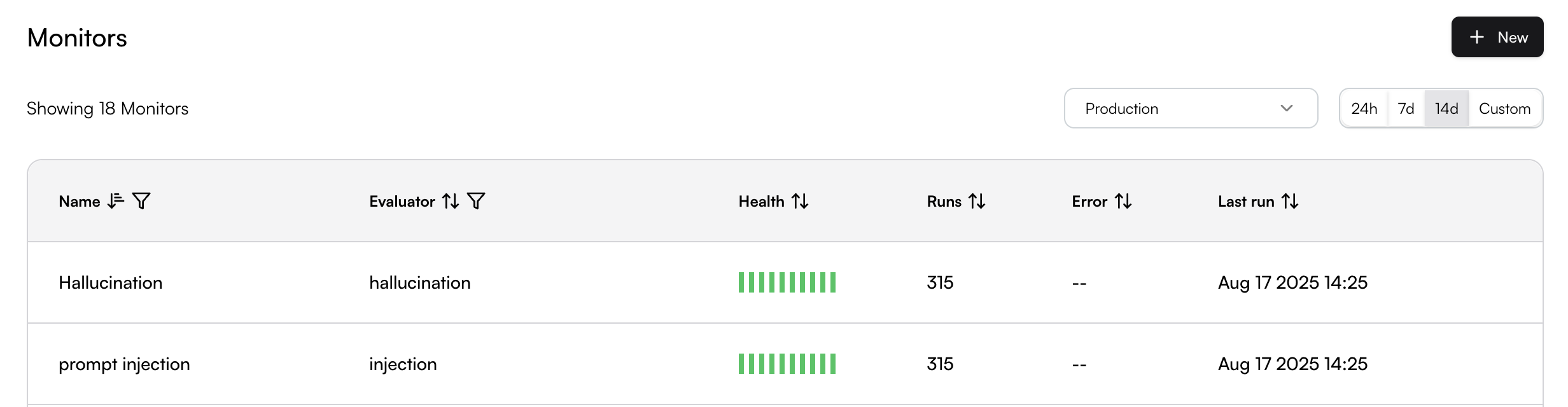
 ## Viewing Monitor Results
### Real-time Monitoring
Monitor results are displayed in real-time as your LLM applications generate new spans. You can view:
* **Run Details**: The span value that was evaluated and its result
* **Trend Analysis**: Performance over time
* **Volume Metrics**: Number of evaluations performed
* **Evaluator Output Rates**: Such as success rates for threshold-based evaluators
### Monitor Results Page
Click on any monitor to access its detailed results page. The monitor page provides comprehensive analytics and span-level details.
#### Chart Visualizations
The Monitor page includes multiple chart views to help you analyze your data, and you can switch between chart types using the selector in the top-right corner.
**Line Chart View** - Shows evaluation trends over time:
## Viewing Monitor Results
### Real-time Monitoring
Monitor results are displayed in real-time as your LLM applications generate new spans. You can view:
* **Run Details**: The span value that was evaluated and its result
* **Trend Analysis**: Performance over time
* **Volume Metrics**: Number of evaluations performed
* **Evaluator Output Rates**: Such as success rates for threshold-based evaluators
### Monitor Results Page
Click on any monitor to access its detailed results page. The monitor page provides comprehensive analytics and span-level details.
#### Chart Visualizations
The Monitor page includes multiple chart views to help you analyze your data, and you can switch between chart types using the selector in the top-right corner.
**Line Chart View** - Shows evaluation trends over time:
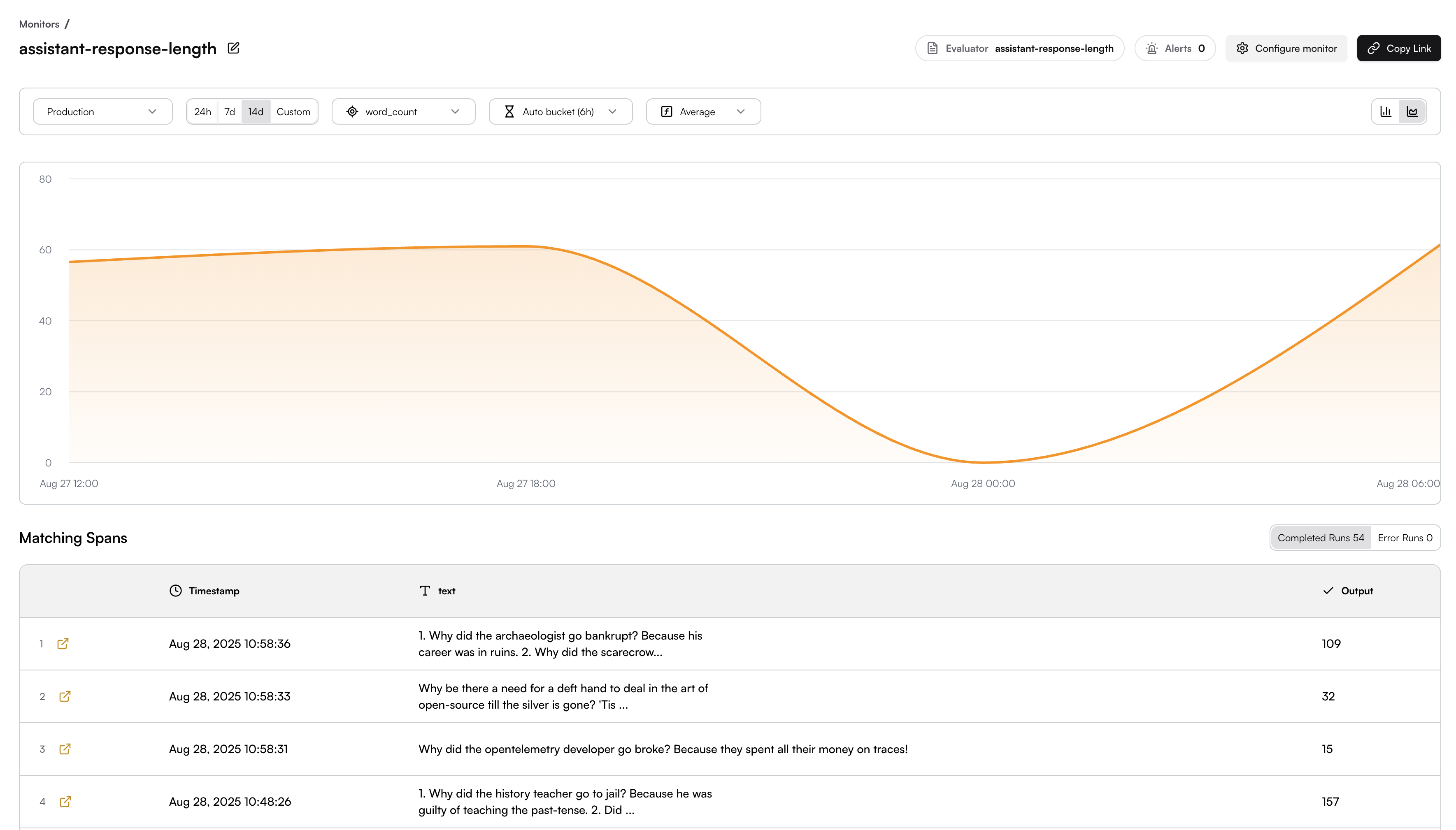
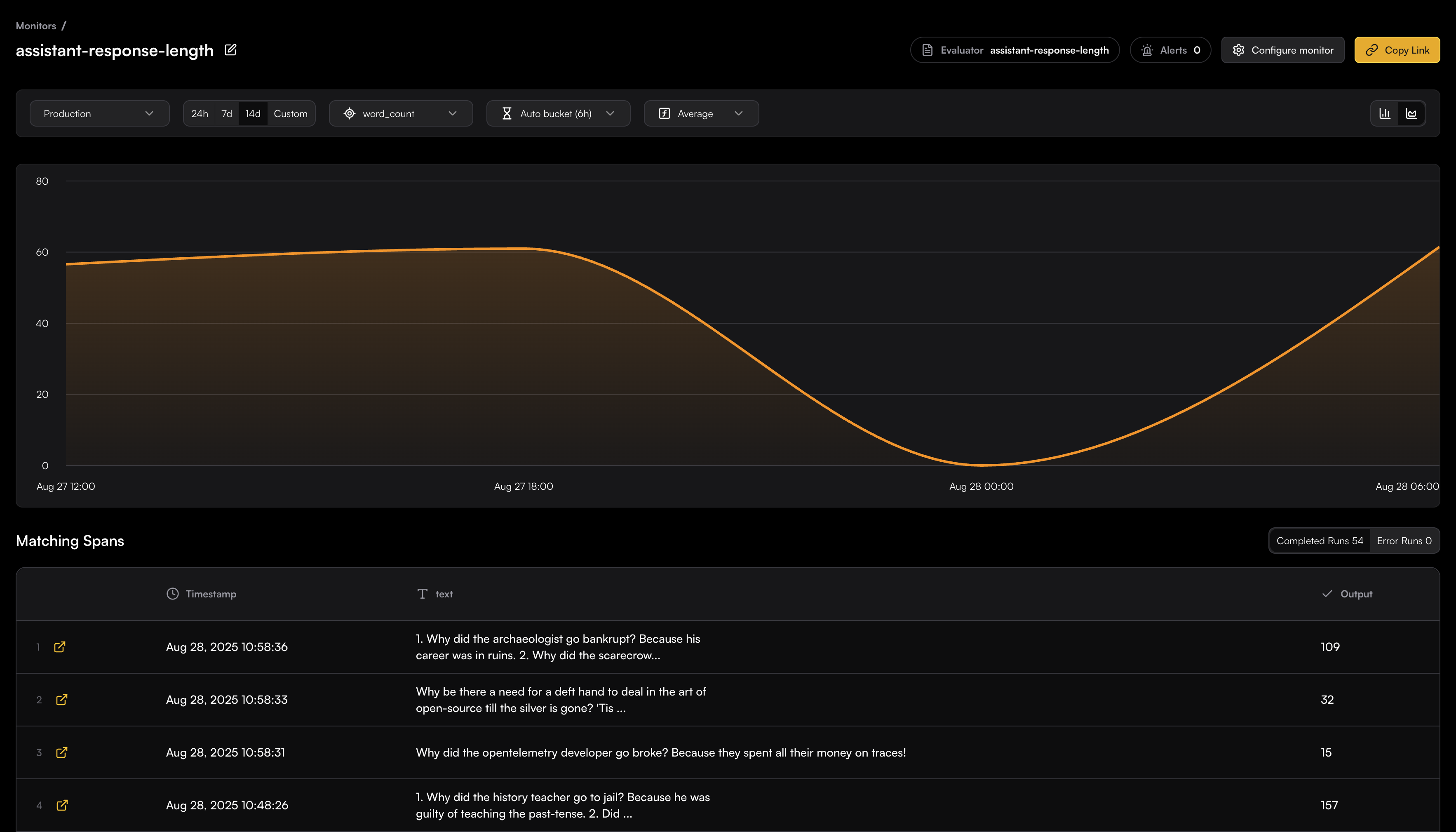 **Bar Chart View** - Displays evaluation results in time buckets:
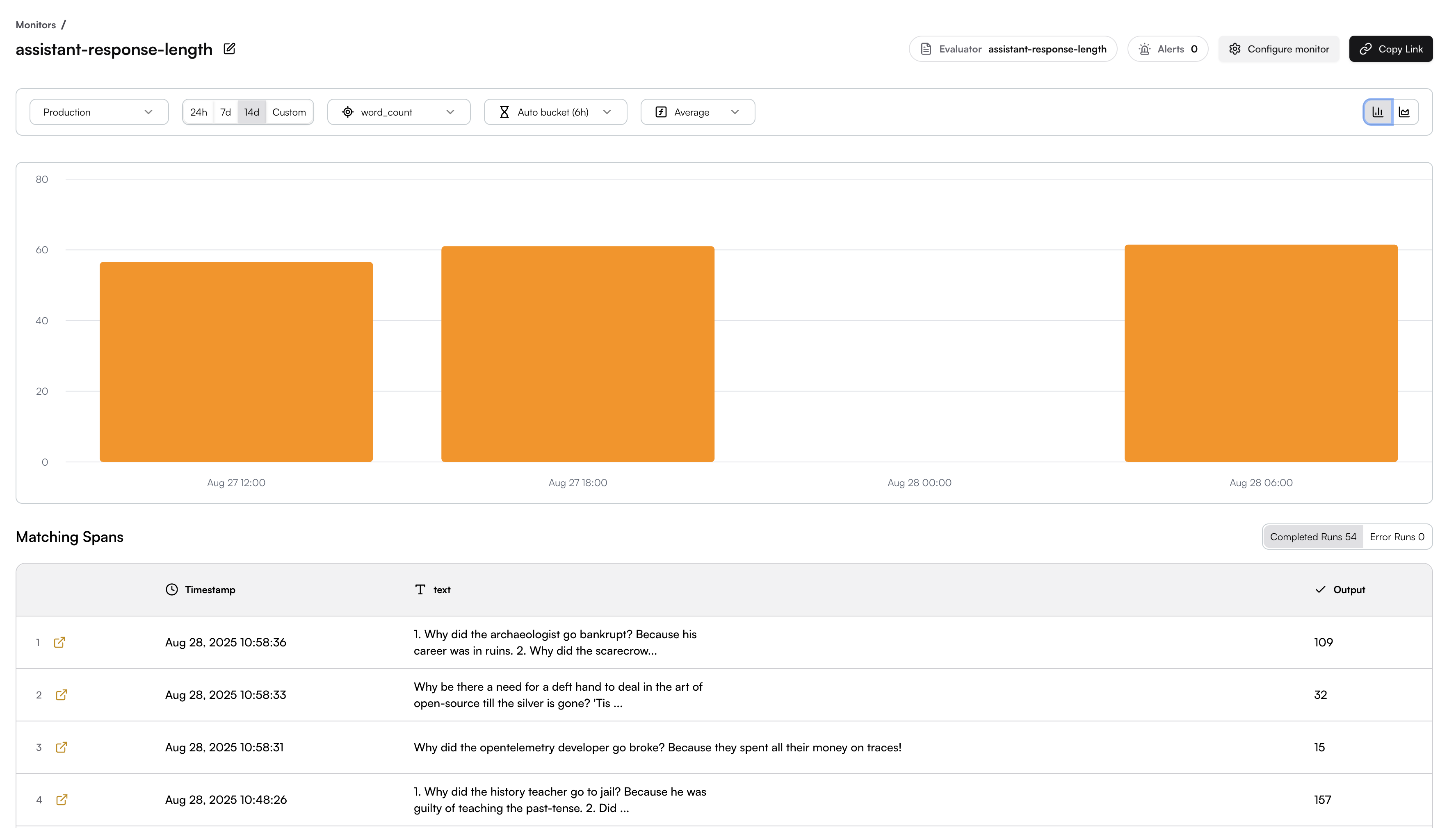
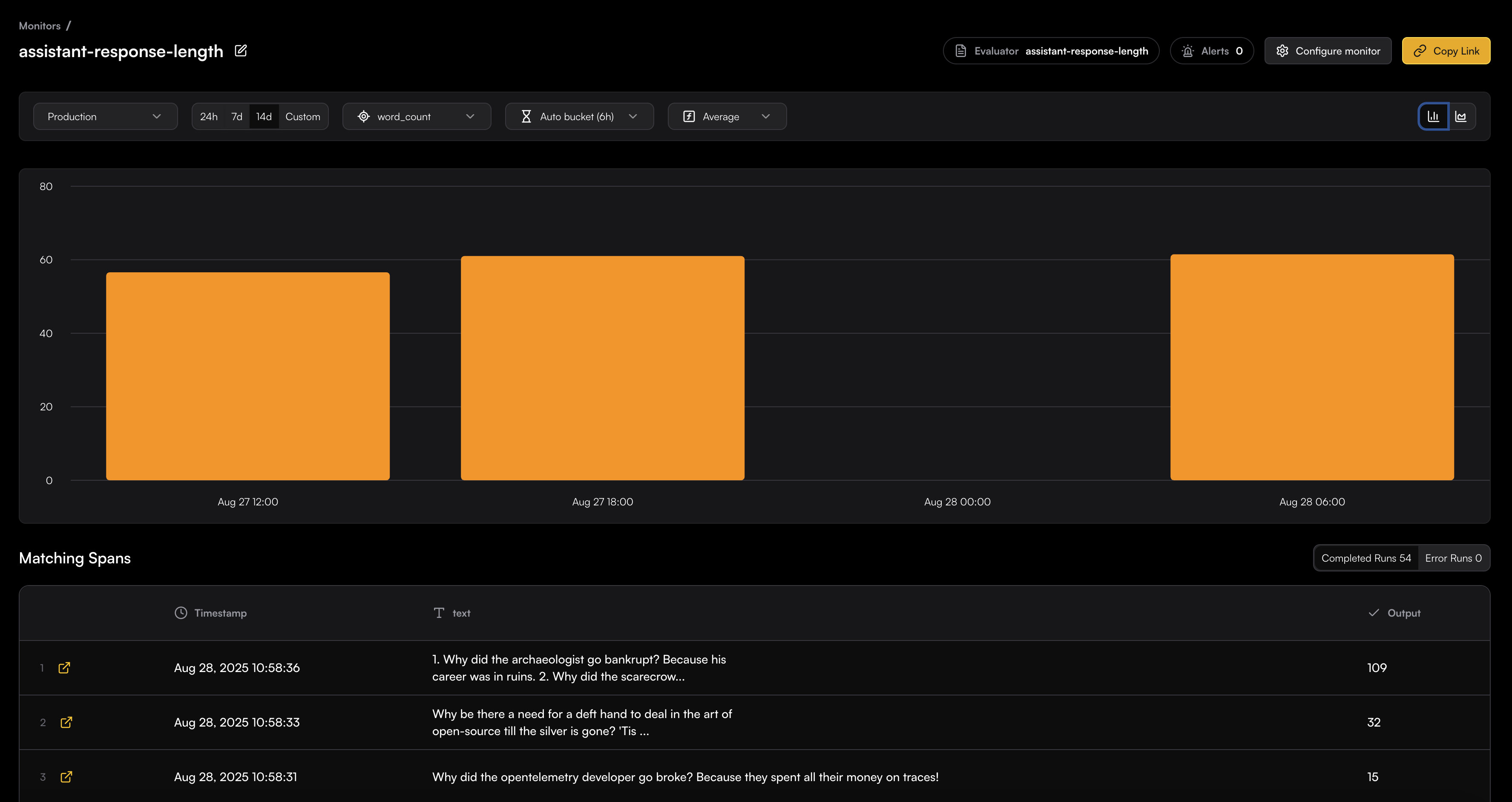 #### Filtering and Time Controls
The top toolbar provides filtering options:
* **Environment**: Filter by production, staging, etc.
* **Time Range**: 24h, 7d, 14d, or custom ranges
* **Metric**: Select which evaluator output property to measure
* **Bucket Size**: 6h, Hourly, Daily, etc.
* **Aggregation**: Choose average, median, sum, min, max, or count
#### Matching Spans Table
The bottom section shows all spans that matched your monitor's filter criteria:
* **Timestamp**: When the evaluation occurred
* **Input**: The actual content that was mapped to be evaluated
* **Output**: The evaluation result/score
* **Completed Runs**: Total successful/error evaluations
* **Error Runs**: Failed evaluation attempts
Each row includes a link icon to view the full span details in the trace explorer:
For further information on tracing refer to [OpenLLMetry](/openllmetry/introduction).
Ready to set up an evaluator for your monitor? Learn more about creating and configuring evaluators in the [Evaluators](/evaluators/intro) section.
---
# Source: https://www.traceloop.com/docs/openllmetry/tracing/versions.md
> ## Documentation Index
> Fetch the complete documentation index at: https://www.traceloop.com/docs/llms.txt
> Use this file to discover all available pages before exploring further.
# Versioning
> Learn how to enrich your traces by versioning your workflows and prompts
## Workflow Versions
You can version your workflows and tasks. Just provide the `version` argument to the decorator:
```python Python theme={null}
@workflow(name="my_workflow", version=2)
def my_workflow():
...
```
```js Typescript theme={null}
import * as traceloop from "@traceloop/node-server-sdk";
class JokeCreation {
@traceloop.workflow({ name: "pirate_joke_generator", version: 2 })
async joke_workflow() {
eng_joke = create_joke();
pirate_joke = await translate_joke_to_pirate(eng_joke);
signature = await generate_signature(pirate_joke);
console.log(pirate_joke + "\n\n" + signature);
}
}
```
```js Javascript - without Decorators theme={null}
import * as traceloop from "@traceloop/node-server-sdk";
async function joke_workflow() {
return await traceloop.withWorkflow(
{ name: "pirate_joke_generator", version: 2 },
async () => {
eng_joke = create_joke();
pirate_joke = await translate_joke_to_pirate(eng_joke);
signature = await generate_signature(pirate_joke);
console.log(pirate_joke + "\n\n" + signature);
}
);
}
```
## Prompt Versions
You can enrich your prompt traces by providing data about the prompt's version, specifying the prompt template or the variables:
```python Python theme={null}
Traceloop.set_prompt(
"Tell me a joke about {subject}", {"subject": subject}, version=1
)
completion = client.chat.completions.create(
model="gpt-3.5-turbo",
messages=[{"role": "user", "content": f"Tell me a joke about {subject}"}],
)
```
---
# Source: https://www.traceloop.com/docs/api-reference/tracing/whitelist_user.md
> ## Documentation Index
> Fetch the complete documentation index at: https://www.traceloop.com/docs/llms.txt
> Use this file to discover all available pages before exploring further.
# Enable logging of prompts and responses
By default, all prompts and responses are logged.
If you want to disable this behavior by following [this guide](/openllmetry/privacy/traces),
you can selectively enable it for some of your users with this API.
## Request Body
The list of association properties (like `{userId: "123"}`) that will be allowed to be logged.
Example:
```json theme={null}
{
"associationPropertyAllowList": [
{
"userId": "123"
}
]
}
```
---
# Source: https://www.traceloop.com/docs/openllmetry/tracing/without-sdk.md
> ## Documentation Index
> Fetch the complete documentation index at: https://www.traceloop.com/docs/llms.txt
> Use this file to discover all available pages before exploring further.
# Without OpenLLMetry SDK
All the instrumentations are provided as standard OpenTelemetry instrumentations so you can use them directly if you're
already using OpenTelemetry.
## Installation
Install the appropriate packages for the modules you want to use.
### LLM Foundation Models
| Provider | PyPi Package Name |
| ------------------------------------------------------------------------------ | ----------------------------------------- |
| [OpenAI](https://pypi.org/project/opentelemetry-instrumentation-openai/) | `opentelemetry-instrumentation-openai` |
| [Anthropic](https://pypi.org/project/opentelemetry-instrumentation-anthropic/) | `opentelemetry-instrumentation-anthropic` |
| [Bedrock](https://pypi.org/project/opentelemetry-instrumentation-bedrock/) | `opentelemetry-instrumentation-bedrock` |
| [Cohere](https://pypi.org/project/opentelemetry-instrumentation-cohere/) | `opentelemetry-instrumentation-cohere` |
### Vector DBs
| Vector DB | PyPi Package Name |
| ---------------------------------------------------------------------------- | ---------------------------------------- |
| [Chroma](https://pypi.org/project/opentelemetry-instrumentation-chromadb/) | `opentelemetry-instrumentation-chromadb` |
| [Pinecone](https://pypi.org/project/opentelemetry-instrumentation-pinecone/) | `opentelemetry-instrumentation-pinecone` |
### LLM Frameworks
| Framework | PyPi Package Name |
| -------------------------------------------------------------------------------- | ------------------------------------------ |
| [Haystack](https://pypi.org/project/opentelemetry-instrumentation-haystack/) | `opentelemetry-instrumentation-haystack` |
| [Langchain](https://pypi.org/project/opentelemetry-instrumentation-langchain/) | `opentelemetry-instrumentation-langchain` |
| [LlamaIndex](https://pypi.org/project/opentelemetry-instrumentation-llamaindex/) | `opentelemetry-instrumentation-llamaindex` |
## Usage
Instantiate the instrumentations you want to use and call `instrument()` to register them with OpenTelemetry.
For example, to use the OpenAI instrumentation:
```python Python theme={null}
from opentelemetry.instrumentation.openai import OpenAIInstrumentor
OpenAIInstrumentor().instrument()
```
If you're setting OpenTelemetry's `TracerProvider` manually, make sure to do
this before calling `instrument()`.
#### Filtering and Time Controls
The top toolbar provides filtering options:
* **Environment**: Filter by production, staging, etc.
* **Time Range**: 24h, 7d, 14d, or custom ranges
* **Metric**: Select which evaluator output property to measure
* **Bucket Size**: 6h, Hourly, Daily, etc.
* **Aggregation**: Choose average, median, sum, min, max, or count
#### Matching Spans Table
The bottom section shows all spans that matched your monitor's filter criteria:
* **Timestamp**: When the evaluation occurred
* **Input**: The actual content that was mapped to be evaluated
* **Output**: The evaluation result/score
* **Completed Runs**: Total successful/error evaluations
* **Error Runs**: Failed evaluation attempts
Each row includes a link icon to view the full span details in the trace explorer:
For further information on tracing refer to [OpenLLMetry](/openllmetry/introduction).
Ready to set up an evaluator for your monitor? Learn more about creating and configuring evaluators in the [Evaluators](/evaluators/intro) section.
---
# Source: https://www.traceloop.com/docs/openllmetry/tracing/versions.md
> ## Documentation Index
> Fetch the complete documentation index at: https://www.traceloop.com/docs/llms.txt
> Use this file to discover all available pages before exploring further.
# Versioning
> Learn how to enrich your traces by versioning your workflows and prompts
## Workflow Versions
You can version your workflows and tasks. Just provide the `version` argument to the decorator:
```python Python theme={null}
@workflow(name="my_workflow", version=2)
def my_workflow():
...
```
```js Typescript theme={null}
import * as traceloop from "@traceloop/node-server-sdk";
class JokeCreation {
@traceloop.workflow({ name: "pirate_joke_generator", version: 2 })
async joke_workflow() {
eng_joke = create_joke();
pirate_joke = await translate_joke_to_pirate(eng_joke);
signature = await generate_signature(pirate_joke);
console.log(pirate_joke + "\n\n" + signature);
}
}
```
```js Javascript - without Decorators theme={null}
import * as traceloop from "@traceloop/node-server-sdk";
async function joke_workflow() {
return await traceloop.withWorkflow(
{ name: "pirate_joke_generator", version: 2 },
async () => {
eng_joke = create_joke();
pirate_joke = await translate_joke_to_pirate(eng_joke);
signature = await generate_signature(pirate_joke);
console.log(pirate_joke + "\n\n" + signature);
}
);
}
```
## Prompt Versions
You can enrich your prompt traces by providing data about the prompt's version, specifying the prompt template or the variables:
```python Python theme={null}
Traceloop.set_prompt(
"Tell me a joke about {subject}", {"subject": subject}, version=1
)
completion = client.chat.completions.create(
model="gpt-3.5-turbo",
messages=[{"role": "user", "content": f"Tell me a joke about {subject}"}],
)
```
---
# Source: https://www.traceloop.com/docs/api-reference/tracing/whitelist_user.md
> ## Documentation Index
> Fetch the complete documentation index at: https://www.traceloop.com/docs/llms.txt
> Use this file to discover all available pages before exploring further.
# Enable logging of prompts and responses
By default, all prompts and responses are logged.
If you want to disable this behavior by following [this guide](/openllmetry/privacy/traces),
you can selectively enable it for some of your users with this API.
## Request Body
The list of association properties (like `{userId: "123"}`) that will be allowed to be logged.
Example:
```json theme={null}
{
"associationPropertyAllowList": [
{
"userId": "123"
}
]
}
```
---
# Source: https://www.traceloop.com/docs/openllmetry/tracing/without-sdk.md
> ## Documentation Index
> Fetch the complete documentation index at: https://www.traceloop.com/docs/llms.txt
> Use this file to discover all available pages before exploring further.
# Without OpenLLMetry SDK
All the instrumentations are provided as standard OpenTelemetry instrumentations so you can use them directly if you're
already using OpenTelemetry.
## Installation
Install the appropriate packages for the modules you want to use.
### LLM Foundation Models
| Provider | PyPi Package Name |
| ------------------------------------------------------------------------------ | ----------------------------------------- |
| [OpenAI](https://pypi.org/project/opentelemetry-instrumentation-openai/) | `opentelemetry-instrumentation-openai` |
| [Anthropic](https://pypi.org/project/opentelemetry-instrumentation-anthropic/) | `opentelemetry-instrumentation-anthropic` |
| [Bedrock](https://pypi.org/project/opentelemetry-instrumentation-bedrock/) | `opentelemetry-instrumentation-bedrock` |
| [Cohere](https://pypi.org/project/opentelemetry-instrumentation-cohere/) | `opentelemetry-instrumentation-cohere` |
### Vector DBs
| Vector DB | PyPi Package Name |
| ---------------------------------------------------------------------------- | ---------------------------------------- |
| [Chroma](https://pypi.org/project/opentelemetry-instrumentation-chromadb/) | `opentelemetry-instrumentation-chromadb` |
| [Pinecone](https://pypi.org/project/opentelemetry-instrumentation-pinecone/) | `opentelemetry-instrumentation-pinecone` |
### LLM Frameworks
| Framework | PyPi Package Name |
| -------------------------------------------------------------------------------- | ------------------------------------------ |
| [Haystack](https://pypi.org/project/opentelemetry-instrumentation-haystack/) | `opentelemetry-instrumentation-haystack` |
| [Langchain](https://pypi.org/project/opentelemetry-instrumentation-langchain/) | `opentelemetry-instrumentation-langchain` |
| [LlamaIndex](https://pypi.org/project/opentelemetry-instrumentation-llamaindex/) | `opentelemetry-instrumentation-llamaindex` |
## Usage
Instantiate the instrumentations you want to use and call `instrument()` to register them with OpenTelemetry.
For example, to use the OpenAI instrumentation:
```python Python theme={null}
from opentelemetry.instrumentation.openai import OpenAIInstrumentor
OpenAIInstrumentor().instrument()
```
If you're setting OpenTelemetry's `TracerProvider` manually, make sure to do
this before calling `instrument()`.