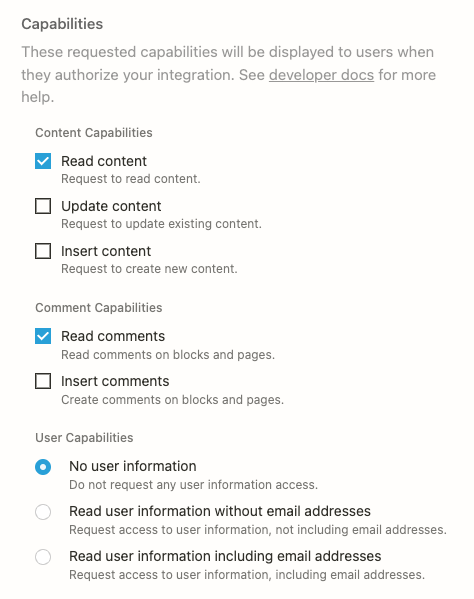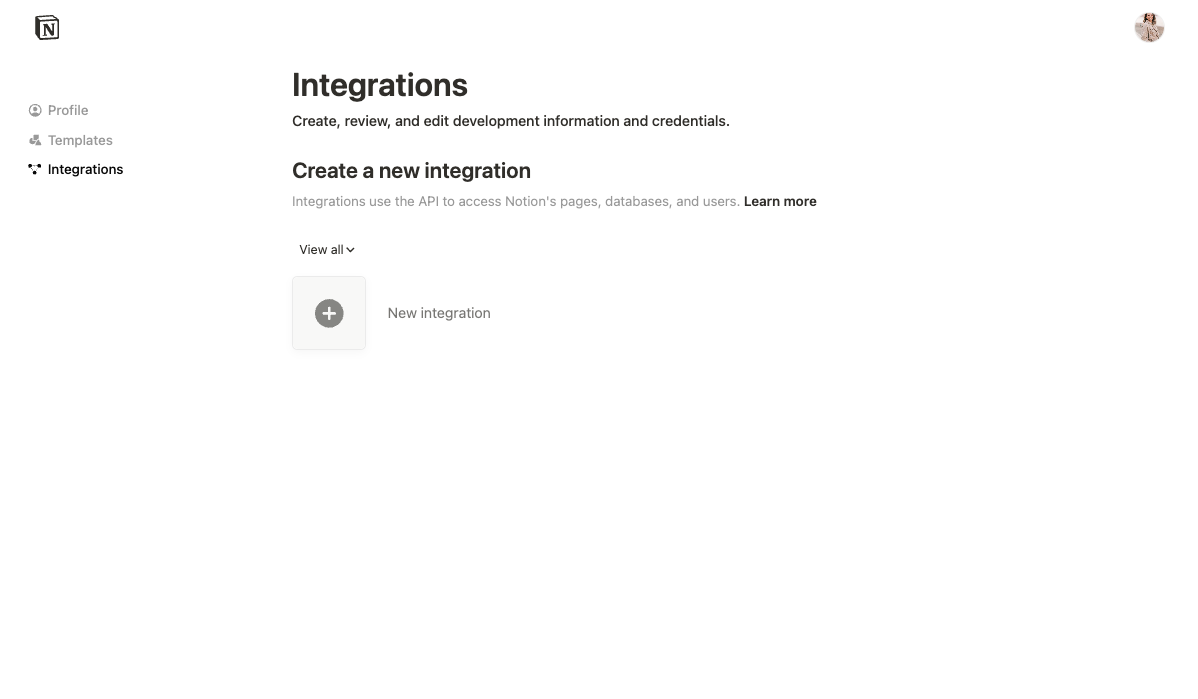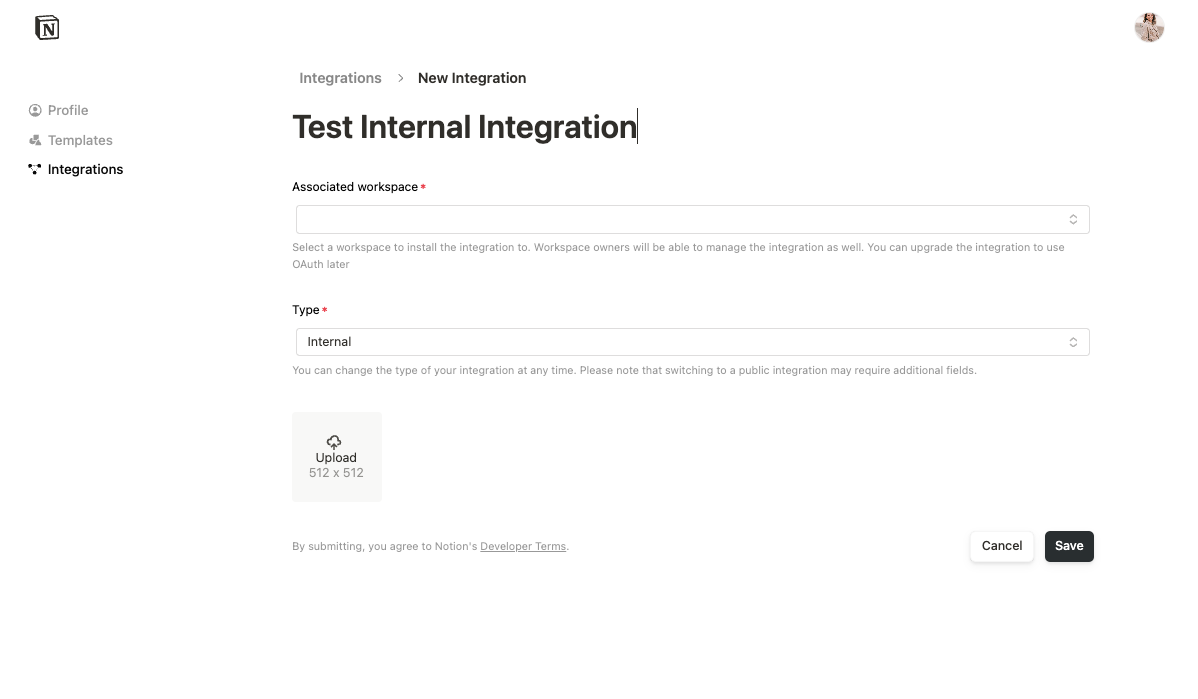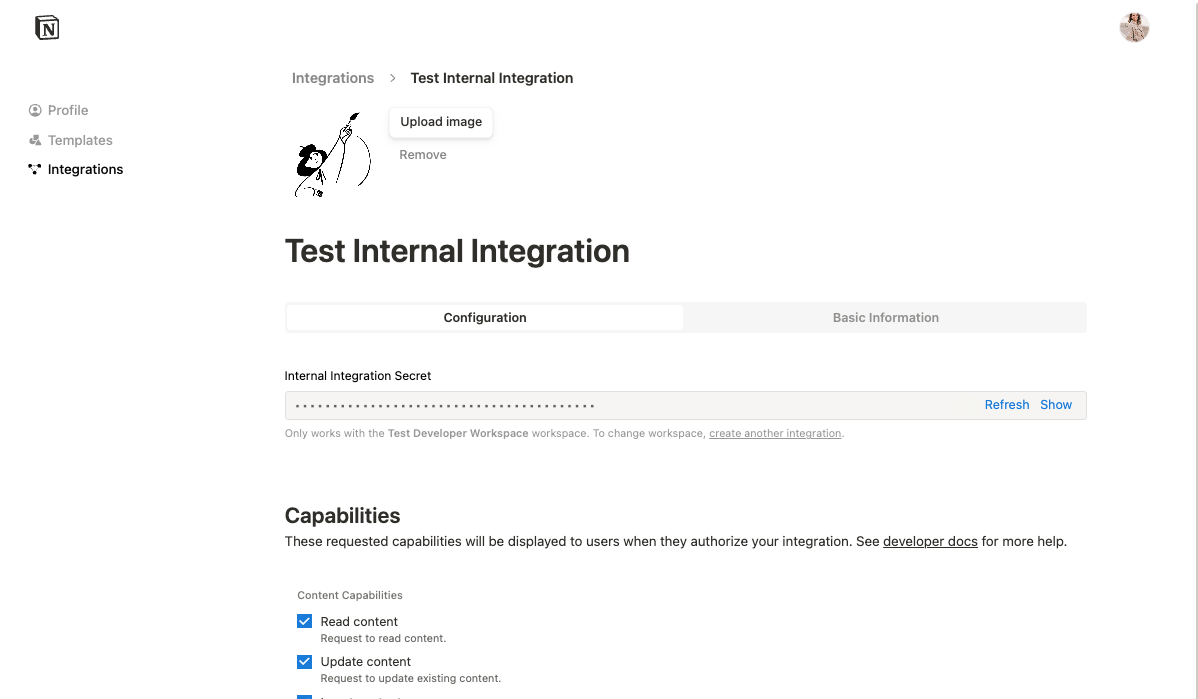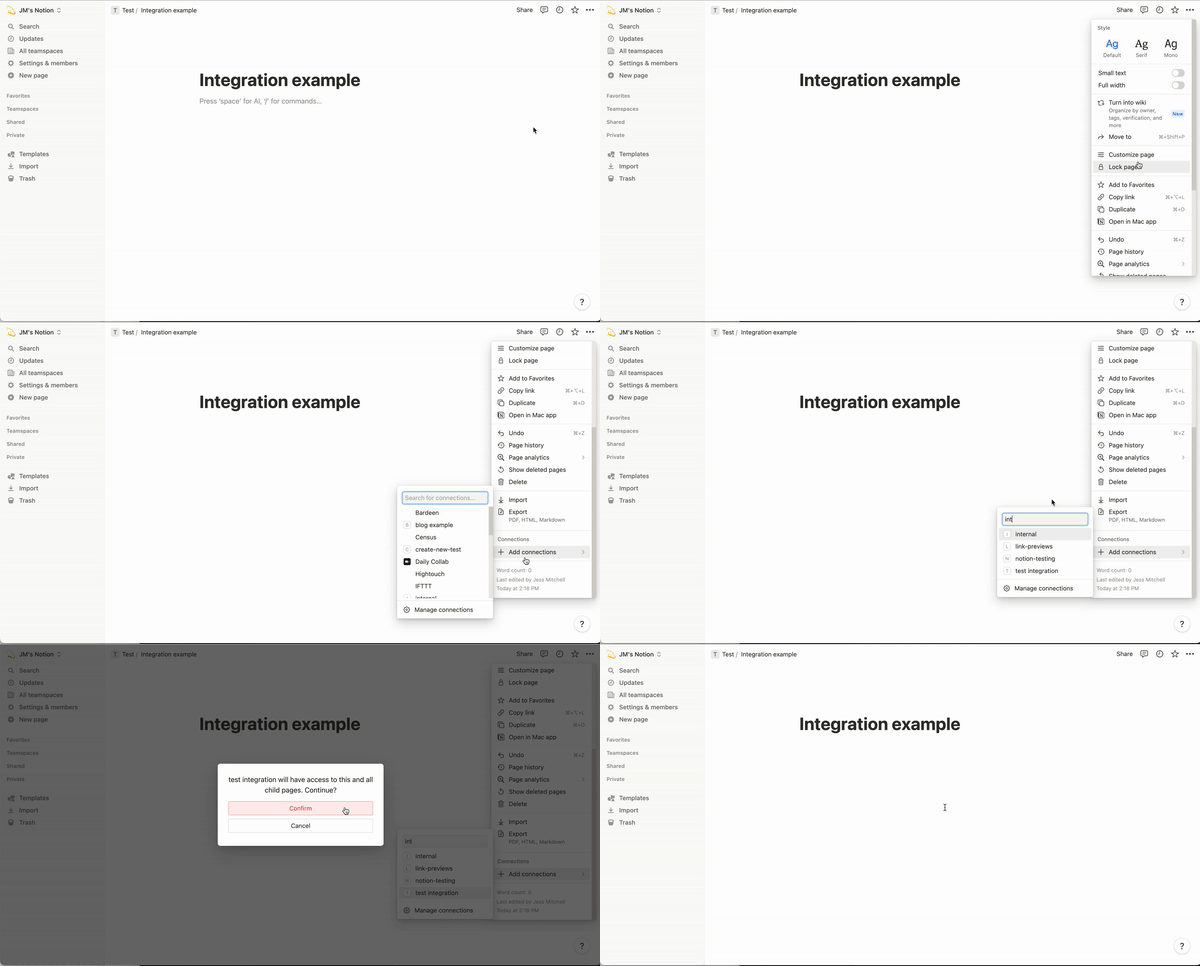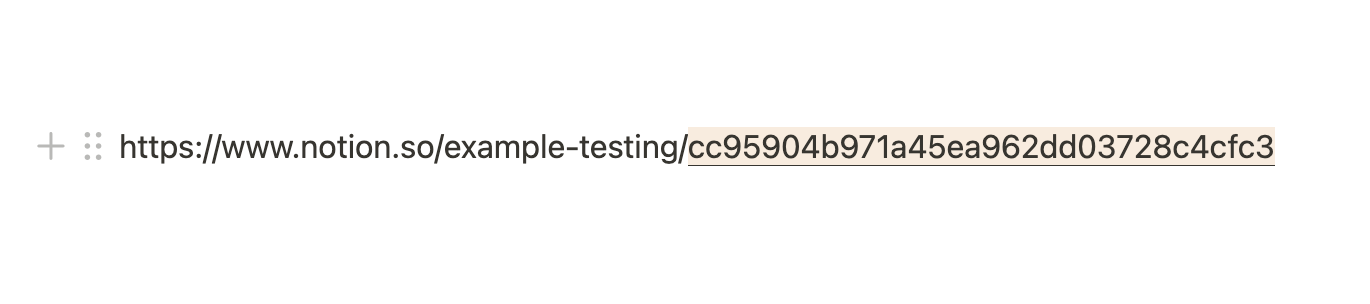
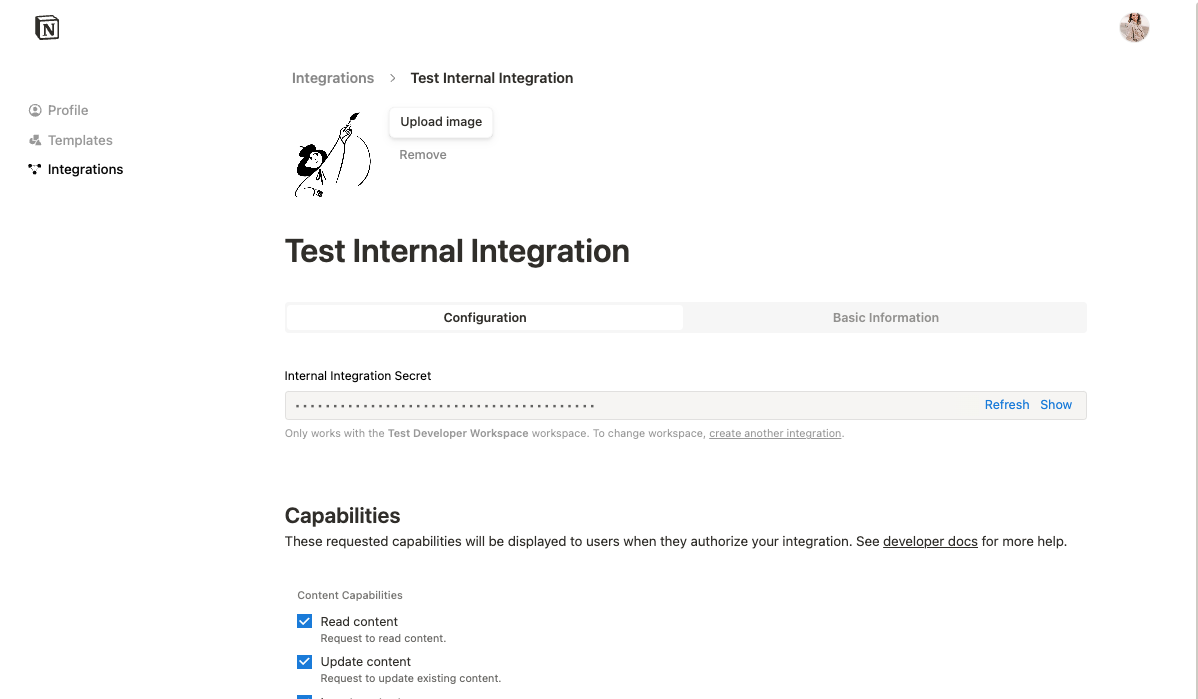
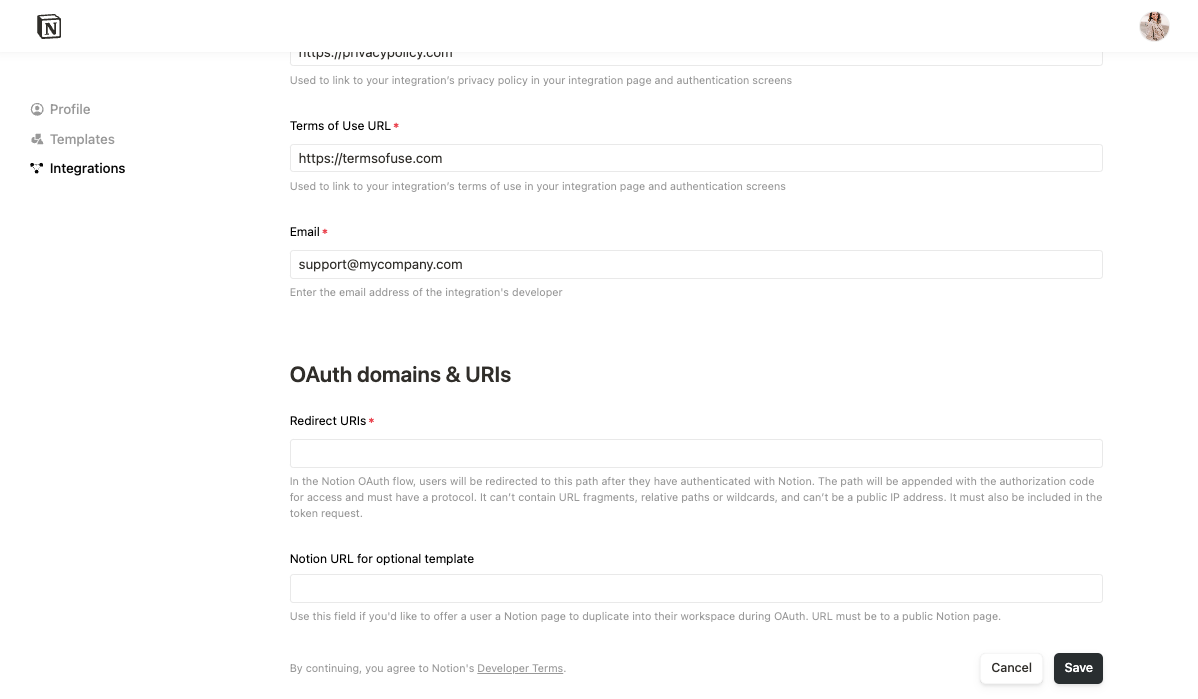
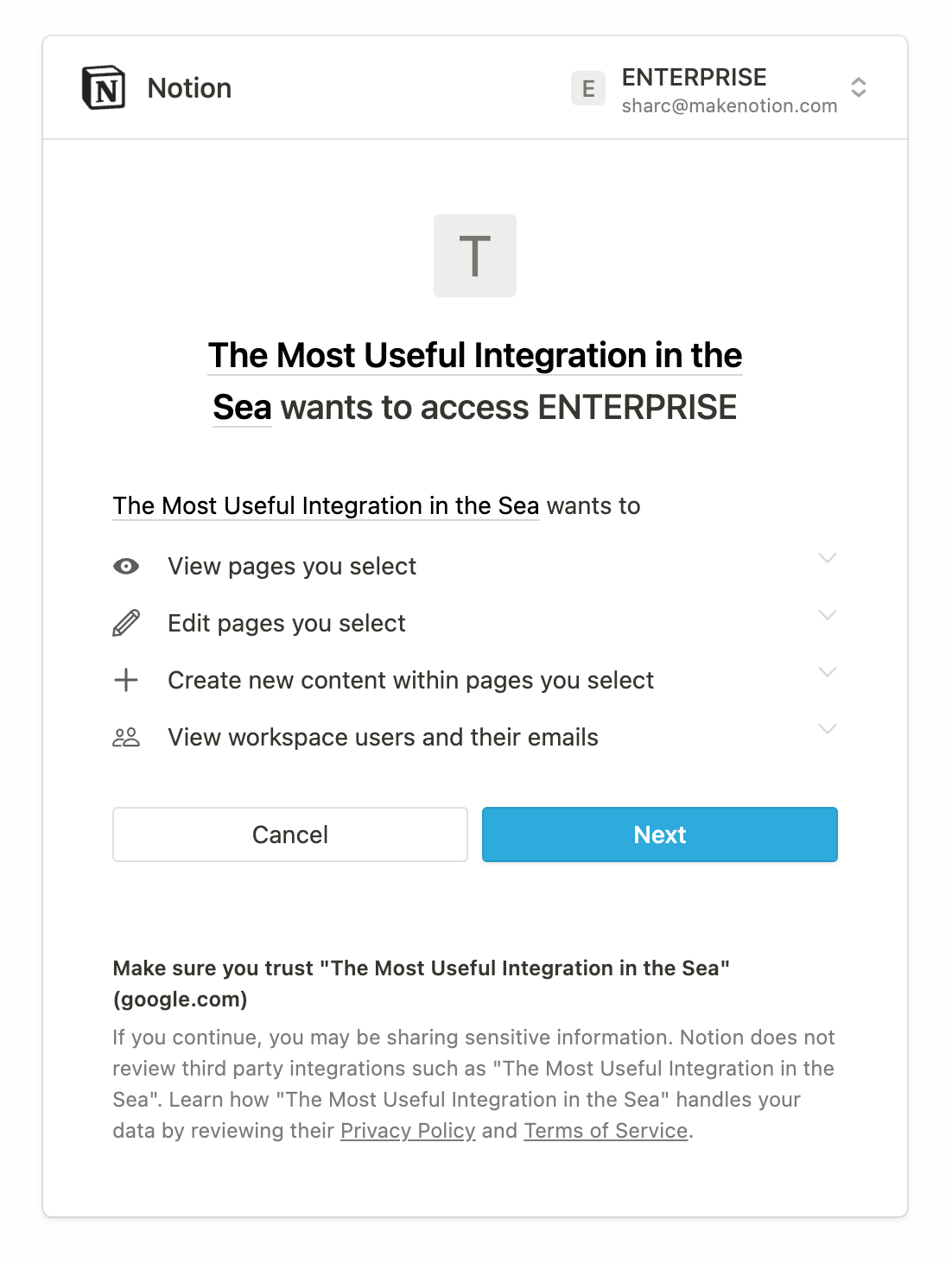
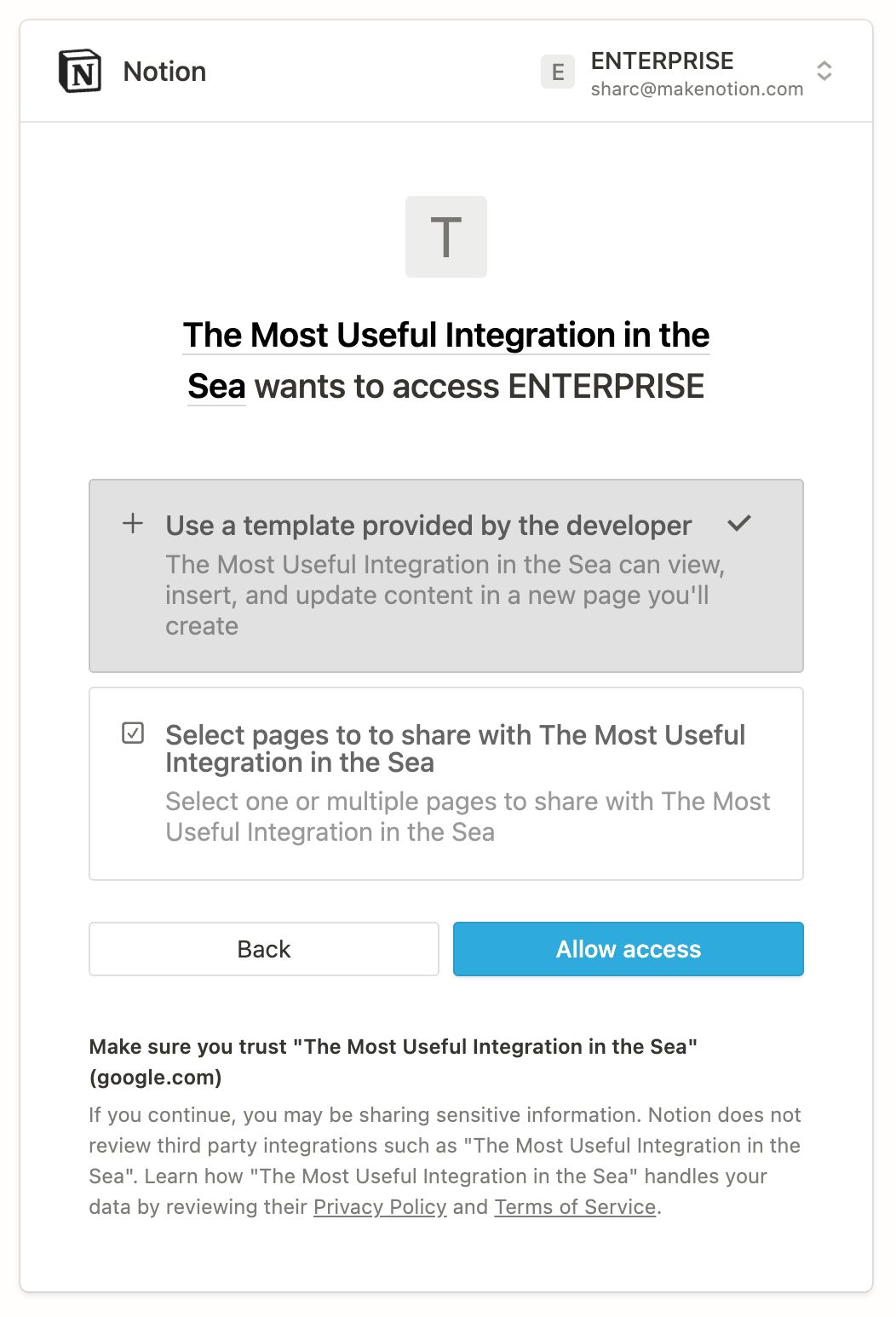
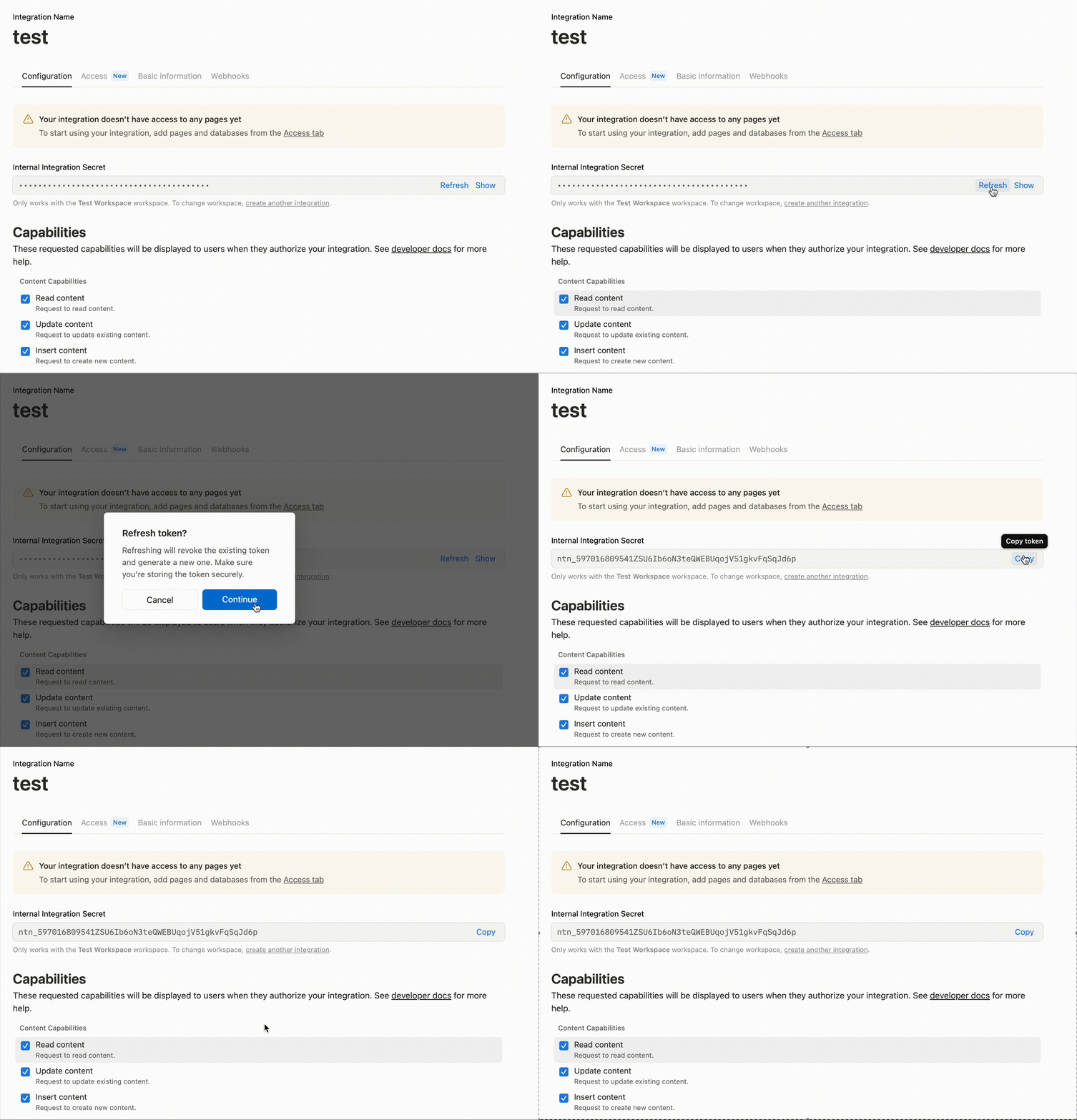
# Notion > ## Documentation Index --- # Source: https://developers.notion.com/reference/archive-a-page.md > ## Documentation Index > Fetch the complete documentation index at: https://developers.notion.com/llms.txt > Use this file to discover all available pages before exploring further. # Trash a page The API does not support permanently deleting pages. To archive a page via the API, send an [Update page](/reference/patch-page) request with the `archived` (or `in_trash`) body param set to `true`. To restore a page, set `archived` (or `in_trash`) to `false`. ## Example request: archive a Notion page ```bash cURL theme={null} curl https://api.notion.com/v1/pages/60bdc8bd-3880-44b8-a9cd-8a145b3ffbd7 \ -H 'Authorization: Bearer '"$NOTION_API_KEY"'' \ -H "Content-Type: application/json" \ -H "Notion-Version: 2022-06-28" \ -X PATCH \ --data '{ "archived": true }' ``` If you are using Notion’s [JavaScript SDK](https://github.com/makenotion/notion-sdk-js) to interact with the REST API, use the `update` method available for Notion pages. ```javascript JavaScript theme={null} const { Client } = require("@notionhq/client") // Initializing a client const notion = new Client({ auth: process.env.NOTION_API_KEY, }) const archivePage = async () => { await notion.pages.update({ page_id: pageId, archived: true, // or in_trash: true }); } ``` If successful, the API responds with a `200` HTTP status code and the archived page object, as in the following example: ```json JSON expandable theme={null} { "object": "page", "id": "be633bf1-dfa0-436d-b259-571129a590e5", "created_time": "2022-10-24T22:54:00.000Z", "last_edited_time": "2023-03-08T18:25:00.000Z", "created_by": { "object": "user", "id": "c2f20311-9e54-4d11-8c79-7398424ae41e" }, "last_edited_by": { "object": "user", "id": "9188c6a5-7381-452f-b3dc-d4865aa89bdf" }, "cover": null, "icon": { "type": "emoji", "emoji": "🐞" }, "parent": { "type": "database_id", "database_id": "a1d8501e-1ac1-43e9-a6bd-ea9fe6c8822b" }, "archived": true, "in_trash": true, "properties": { "Due date": { "id": "M%3BBw", "type": "date", "date": { "start": "2023-02-23", "end": null, "time_zone": null } }, "Status": { "id": "Z%3ClH", "type": "status", "status": { "id": "86ddb6ec-0627-47f8-800d-b65afd28be13", "name": "Not started", "color": "default" } }, "Title": { "id": "title", "type": "title", "title": [ { "type": "text", "text": { "content": "Bug bash", "link": null }, "annotations": { "bold": false, "italic": false, "strikethrough": false, "underline": false, "code": false, "color": "default" }, "plain_text": "Bug bash", "href": null } ] } }, "url": "https://www.notion.so/Bug-bash-be633bf1dfa0436db259571129a590e5" } ``` Refer to the [error codes](/reference/status-codes#error-codes) documentation for possible errors. ## Example request: restore a Notion page ```bash cURL theme={null} curl https://api.notion.com/v1/pages/60bdc8bd-3880-44b8-a9cd-8a145b3ffbd7 \ -H 'Authorization: Bearer '"$NOTION_API_KEY"'' \ -H "Content-Type: application/json" \ -H "Notion-Version: 2022-06-28" \ -X PATCH \ --data '{ "archived": false }' ``` ```javascript JavaScript theme={null} // Restore an archived page using the Notion JavaScript SDK const restorePage = async () => { await notion.pages.update({ page_id: pageId, archived: false, }); } ``` If successful, the API responds with a `200` HTTP status code and the restored [page object](/reference/page). Refer to the [error codes](/reference/status-codes#error-codes) documentation for possible errors. --- # Source: https://developers.notion.com/compliance/audit-log-events.md > ## Documentation Index > Fetch the complete documentation index at: https://developers.notion.com/llms.txt > Use this file to discover all available pages before exploring further. # Audit log events > A comprehensive list of events tracked in the Notion audit log for compliance and security monitoring. ## Event types Events are split into the following categories: 1. **Page events**: Events users take on a single Notion page. 2. **Data source events**: Events about data sources (databases). 3. **Workspace events**: Events users take on an entire Notion workspace. 4. **Account events**: Events about accounts of users in the workspace. 5. **Teamspace events**: Events users take on one or more teamspaces. 6. **Form events**: Events about forms in the workspace. 7. **Organization events**: Events about organization-level settings. *** ## Page events * **AI Meeting Notes audio recording downloaded**: That a meeting notes audio recording was downloaded. * **AI Meeting Notes consent confirmed**: That meeting notes consent was confirmed. * **Automation created**: That an automation was created. * **Automation deleted**: That an automation was deleted from a page. * **Automation edited**: That a user edited an automation. * **Comment added**: That a discussion comment was created on a page. * **Comment deleted**: That a discussion comment was deleted from a page. * **Comment updated**: That a user edited a comment. * **Email domain permission on page changed**: That a user granted page access to users with a specific email domain. * **File deleted**: That a file was deleted from a page. * **File downloaded**: That a user opened or downloaded a file from a certain page. * **File uploaded**: That a file was uploaded. * **Page created**: That a user created a new page nested under another page. * **Page deleted from Trash**: That a page was permanently deleted. * **Page edited**: That a user edited the content of a page. * **Page exported**: That a user exported a page. * **Page lock status changed**: That a page's lock status was updated. * **Page moved**: That a user moved a page. * **Page moved to Trash**: That a user moved a page to Trash. * **Page permanently deleted**: That a page was permanently removed from Trash. This can be done by a user, but it can also be done automatically by Notion after 30 days, or within a [custom time frame](https://www.notion.com/help/custom-data-retention-settings) on Enterprise Plans. * **Page permission updated**: That a member or guest's page permissions were updated. * **Page properties edited**: That a user edited a page's property, like a page title or a database property. * **Page read**: That comments on a page were read. * **Page restored**: That a user restored a formerly deleted page from Trash. * **Page shared to web**: That a user enabled sharing (or disabled sharing) a page to the web. * **Page viewed**: That a user viewed a page. * **Page viewed by user on shared email domain**: That a user with an email domain that was granted access viewed a page. * **Private content transferred**: That the private pages of a user who left the workspace were transferred to a current user. Learn more [here](https://www.notion.so/help/transfer-content-deprovisioned-user). * **Suggestion accepted**: That a suggestion was accepted on a page. * **Suggestion added**: That a suggestion was created on a page. * **Suggestion comment added**: That a comment was created on a suggestion. * **Suggestion comment deleted**: That a comment was deleted from a suggestion. * **Suggestion comment updated**: That a user updated a comment on a suggested edit in a page. * **Suggestion rejected**: That a suggestion was rejected on a page. * **Transcript deleted from transcription block**: That a transcription block's transcript was deleted. *** ## Data source events * **Data source created**: That a collection was created. * **Data source deleted from Trash**: That a collection was permanently deleted. * **Data source moved**: That a collection was moved. * **Data source moved to Trash**: That a collection was deleted. * **Data source page-level access rule updated**: That a collection's permissions were updated. * **Data source permanently deleted**: That a collection was purged. * **Data source restored from Trash**: That a collection was restored. * **Database can create pages permission was updated**: That a database's can create pages permission was updated. * **Database schema edited**: That a database schema was edited. *** ## Workspace events * **A managed user was logged out by an admin**: That an admin has logged out a single managed user account. * **A managed user’s password was cleared by an admin**: That an admin has cleared a single managed user account's password. * **Ability for managed users to edit their profile information updated**: That the ability for managed users to edit their profile information was updated. * **Ability for managed users to grant support access updated**: That the ability for managed users to grant support access was updated. * **Ability for managed users to join external workspaces updated**: That the ability for managed users to join external workspaces was updated. * **Added allowed email domain**: That a user added an allowed email domain to the workspace. * **Agent creation settings updated**: That the custom agent creation policy was updated. * **AI LEAP (Learning & Early Access Program) toggled**: That the AI LEAP (Learning & Early Access Program) setting was toggled. * **AI Meeting Notes availability updated**: That the AI meeting notes availability setting was updated. * **All managed users logged out**: That an admin has logged out every managed user account. * **All managed users’ passwords cleared**: That an admin has cleared all managed user accounts' passwords. * **Audit Log exported**: That the audit log was exported. * **Auto-create accounts on sign-in toggled**: That a workspace owner has enabled automatically creating accounts on sign-in. * **Claimable workspace deletion status change**: That the status of workspace deletion of a claimable workspace has changed. * **Claimable workspace transfer status change**: That the status of ownership transfer on a claimable workspace has changed. * **Claimable workspace upgrade status change**: That the status of a claim and upgrade to Enterprise of a claimable workspace has changed. * **CMK rotation on WEK completed**: That customer-managed key rotation was completed. * **Content Analytics exported**: That a user exported the Content Analytics table of [Workspace Analytics](https://www.notion.so/help/workspace-analytics). * **Content search queried**: That a workspace owner has used the [content search](https://www.notion.so/help/admin-content-search) functionality to find workspace content. * **Content search results exported**: That a workspace owner has exported the results from a [content search](https://www.notion.so/help/admin-content-search) query. * **Custom agent created**: That a custom agent was created. * **Custom agent creation setting updated**: That a group's custom agent creation setting was updated. * **Custom agent published**: That a custom agent was published. * **Custom emoji created**: That a custom emoji was created. * **Custom emoji deleted**: That a custom emoji was deleted. * **Custom emoji updated**: That a custom emoji was updated. * **DEK rotation completed**: That data encryption key rotation was completed. * **DEK rotation started**: That data encryption key rotation was started. * **Delete from Trash delay updated**: That the [custom data retention](https://www.notion.com/help/custom-data-retention-settings) delete from trash delay setting was updated. * **Disable guests toggled**: That a workspace owner has enabled or disabled the ability to add guests to a workspace. * **Disable teamspace guests toggled**: That the disable team guests setting was toggled. * **Export toggled**: That a workspace owner has disabled or enabled exporting. * **External AI tool name changed**: That an external agent's display name was changed. * **External membership requests toggled**: That external membership requests for the workspace were enabled or disabled. * **External/Public integration connected**: That a public/external integration was connected to the workspace. * **External/Public integration disconnected**: That a public/external integration was disconnected from the workspace, or a workspace owner removed access to a public integration for all users. * **Group created**: That a workspace group was created. * **Group deleted**: That a workspace group was deleted. * **Group renamed**: That a workspace group was renamed. * **Guest invite request created**: That a guest invite request was created. * **Guest invite request resolved**: That a guest invite to a page was requested for approval and the workspace owner either approved or denied the request. * **Guest invite requests toggled**: That the guest invite request approval setting was enabled or disabled. * **Guest membership requests toggled**: That guest membership requests for the workspace were enabled or disabled. * **Guest removed**: That a guest has been removed from a workspace. * **HIPAA Compliance updated for workspace.**: That a workspace owner has enabled or disabled HIPAA compliance by accepting or revoking Notion's Business Associate Agreement. * **IDP metadata URL updated**: That a workspace owner has set or updated the IdP metadata URL. * **IDP metadata XML removed**: That a workspace owner has removed IdP metadata XML. * **IDP metadata XML updated**: That a workspace owner has updated the IdP metadata XML. * **Integration added to approved connections**: That an integration was added to the workspace's list of approved connections. * **Integration added to workspace**: That a new integration has been added to a workspace. * **Integration installation toggled**: That a workspace owner has disabled or enabled integration restrictions. * **Integration permissions updated**: That an integration's capabilities (reading content, inserting a comment, etc.) have been changed. * **Integration removed from approved connections**: That an integration was removed from the workspace's list of approved connections. * **Integration removed from workspace**: That an integration has been deleted. * **Integration secret reset**: That an integration's secret token has been refreshed. * **Integration settings updated**: That an integration's basic settings, like its name or icon, have been changed. * **Integration webhook subscription failing**: That an integration's webhook was inactivated due to repeated delivery failures. * **Integration webhook subscription restored**: That an integration's webhook was reactivated after being inactive. * **Invite link reset**: That a user has reset an invite link. * **Invite link toggled**: That a user either enabled or disabled the invite link. * **MCP allowlist disabled**: That the MCP allowlist was disabled. * **MCP allowlist enabled**: That the MCP allowlist was enabled. * **MCP client added to allowlist**: That an MCP client was added to the allowlist. * **MCP client removed from allowlist**: That an MCP client was removed from the allowlist. * **MCP server connected**: That an MCP server was connected to the workspace. * **Member added to group**: That a workspace owner or membership admin has added a user to a group. * **Member invited**: That a workspace owner or Membership admin invited a user to the workspace. The new user's role will be specified as `Workspace owner` if they are invited as a workspace owner, or as `Membership admin` if they are invited as a membership admin. * **Member joined**: That a user has joined the workspace. * **Member removed**: That a workspace owner or membership admin has removed a user from the workspace. * **Member removed from group**: That a workspace owner or membership admin has removed a user from a group. * **Member role updated**: That a workspace owner has updated a user's role. * **Membership request resolved**: That a user has resolved a workspace membership request. * **Membership requests toggled**: That a user has enabled or disabled new workspace membership requests. * **Notion AI toggled for workspace.**: That a user has enabled or disabled Notion AI in a workspace. * **Page access requests toggled**: That a user has enabled or disabled page access requests from non-workspace-members. * **Pages to other workspaces toggled**: That a workspace owner has either disabled or enabled moving pages to other workspaces. * **People cards toggled**: That the people hover card setting was toggled. * **People directory toggled**: That the people directory setting was toggled. * **Permanently delete delay updated**: That the [custom data retention](https://www.notion.com/help/custom-data-retention-settings) purge delay setting was updated. * **Public domain created**: That a public domain was created for the workspace. * **Public domain deleted**: That a public domain was deleted from the workspace. * **Public domain updated**: That a public domain was updated for the workspace. * **Public home page link cleared**: That a workspace owner has cleared public home page. * **Public home page set**: That a workspace owner has changed public home page. * **Public page sharing toggled**: That a workspace owner has switched public page sharing on/off. * **Removed allowed email domain**: That a user removed an allowed email domain from a workspace. * **Restricted member invite request resolved**: That a restricted member invite request was resolved. * **SAML authorization for workspace**: That a user was authorized via SAML. * **SAML enable setting toggled**: That an organization owner has disabled or enabled SAML. * **SAML enforce setting toggled**: That an organization owner has disabled or enabled Enforce SAML. * **SCIM token generated**: That a workspace owner generated a SCIM API token. * **SCIM token revoked**: That a workspace owner revoked a SCIM API token. * **Session duration for managed users updated**: That the session duration for managed users was updated. * **Toggled ability for users to use ‘Send webhook’ action in automations**: That a workspace owner has enabled or disabled the ability for users to use 'Send webhook' action in automations. * **User Analytics exported**: That a user exported the User Analytics table of [Workspace Analytics](https://www.notion.so/help/workspace-analytics). * **WEK generated**: That a workspace encryption key was generated. * **WEK revoked**: That a workspace encryption key was revoked. * **Workspace analytics tracking toggled**: That a user enabled or disabled workspace analytics within the workspace. * **Workspace consolidation completed**: That the source or target workspace has finished consolidation. * **Workspace consolidation failed**: That workspace consolidation has failed for the source or target workspace. * **Workspace consolidation started**: That a Notion employee has initiated workspace consolidation from this source or to this target workspace. * **Workspace content exported**: That a user has exported content from a page or the entire workspace. * **Workspace creation setting updated**: That a workspace owner has restricted creation of new workspaces by users with the claimed enterprise email domain. * **Workspace domain changed**: That the domain of a workspace is changed. * **Workspace icon changed**: That the workspace icon was changed. * **Workspace members exported**: That workspace members were exported. * **Workspace name changed**: That a user updated the workspace's name. * **Workspace sidebar editing toggled**: That a workspace owner has enabled or disabled the ability for users to change the Workspace sidebar. * **Workspace teams read**: That workspace teams were read. * **Workspace users read**: That workspace users were read. *** ## Account events * **Email changed**: That the email of a user was changed. * **Granted support access**: That a user's account was granted Notion support access. * **Login**: When and from where a user has logged in. * **Logout**: That a user logged out. * **MFA backup code toggled**: That a user updated their MFA backup code settings. * **MFA SMS toggled**: That a user updated their MFA via SMS text messages settings. Learn more [here](https://www.notion.so/help/two-step-verification). * **MFA TOTP toggled**: That a user updated their MFA via a TOTP (time-sensitive one time passcode) app. Learn more [here](https://www.notion.so/help/two-step-verification). * **Name changed**: That a user has updated their account's preferred name. * **Password changed**: That a user changed their password. * **Password cleared**: That a user cleared their password. * **Password set**: That a user created a password. * **Picture changed**: That the profile photo of the user was changed. * **Revoked support access**: That a user's account was revoked Notion support access. * **User alias added**: That a user added an email alias. * **User alias made primary**: That a user made an email alias primary. * **User alias removed**: That a user removed an email alias. * **User analytics tracking toggled**: That a user updated their analytics tracking setting. * **User deleted**: That a specific user account has been deleted. * **User reactivated**: That an admin has unsuspended a managed user account. * **User suspended**: That an admin has suspended a managed user account. *** ## Teamspace events * **Custom permissions updated for a group in the teamspace**: That a teamspace owner modified access to a group. Learn more [here](https://www.notion.so/help/guides/grant-access-teamspaces). * **Custom permissions updated for a member in the teamspace**: That a teamspace owner modified access to a teamspace member. Learn more [here](https://www.notion.so/help/guides/grant-access-teamspaces). * **Enabled teamspaces**: That a user has enabled the teamspaces feature on a workspace. * **Everyone in workspace default page permission updated**: That the default page permissions of everyone at workspace have been changed. * **Group added to teamspace**: That a user added a permission group to the teamspace. * **Group removed from teamspace**: That a teamspace owner has removed a permission group from the teamspace. * **Member added to teamspace**: That a user added another user to the teamspace. Will specify "as Teamspace owner" if user is invited as a teamspace owner. * **Member joined teamspace**: That a user joined an open teamspace. * **Member left teamspace**: That a user left a teamspace. * **Member removed from teamspace**: That a teamspace owner has removed a teamspace member from the teamspace. * **Member teamspace role updated**: That a user has updated a teamspace member's role in the teamspace. * **Teamspace archived**: That a teamspace owner archived a teamspace. * **Teamspace created**: That a user created the teamspace. * **Teamspace creation setting toggled**: That a user has enabled or disabled the ability for everyone in the workspace to create a teamspace. * **Teamspace default toggled**: That a user enabled or disabled a teamspace as a default teamspace. * **Teamspace description changed**: That the teamspace description has been changed. * **Teamspace disable guests toggled**: That a teamspace owner has enabled or disabled the ability to add guests to a teamspace. * **Teamspace export toggled**: That a teamspace owner has disabled or enabled exporting for a teamspace. * **Teamspace Guests default permission updated**: That the default page permissions of teamspace guests have been changed. * **Teamspace icon changed**: That the teamspace icon has been changed. * **Teamspace invite access changed**: That a user has updated settings for who can invite teamspace members. * **Teamspace Members default permission updated**: That the default page permissions of teamspace members have been changed. * **Teamspace name changed**: That a user updated the teamspace's name. * **Teamspace privacy type changed**: That a teamspace owner has changed the teamspace privacy type. * **Teamspace public page sharing toggled**: That a teamspace owner has switched public page sharing on/off for a teamspace. * **Teamspace restored**: That a teamspace was restored. * **Teamspace sidebar editing toggled**: That a teamspace owner has enabled or disabled the ability for users to change the teamspace sidebar section. *** ## Form events * **Form created**: That a user created a form. * **Form edited**: That a user updated a form's content. * **Form permission updated**: That a form's permissions were updated. * **Form response created**: That a form response was submitted. * **Form viewed**: That a form was viewed. *** ## Organization events * **“Allow access to webhooks in database automations and buttons” toggled for the organization**: That the webhook automation action setting was toggled for an organization. * **“Allow any user to request to be added as a member of the workspace” toggled for the organization**: That the "Allow any user to request to be added as a member of the workspace" setting was toggled for an organization. * **“Allow members to request adding other members” toggled for the organization**: That the "Allow members to request adding other members" setting was toggled for an organization. * **“Allow page access requests from non-members” toggled for the organization**: That the "Allow page access requests from non-members" setting was toggled for an organization. * **“Allow page guests to request to be added as members to the workspace” toggled for the organization**: That the "Allow page guests to request to be added as members to the workspace" setting was toggled for an organization. * **“Disable export” toggled for the organization**: That the disable export setting was toggled for an organization. * **”Guest can create private pages” toggled for the organization**: That the guest private page creation setting was toggled for an organization. * **“People cards” toggled for the organization**: That the people hover card setting was toggled for an organization. * **“People directory” toggled for the organization**: That the people directory setting was toggled for an organization. * **A managed user was logged out by an admin**: That an admin has logged out a single managed user account in the organization. * **A managed user’s password was cleared by an admin**: That an admin has cleared a single managed user account's password in the organization. * **Ability for managed users to edit their profile information updated**: That the ability for managed users to edit their profile information was updated for an organization. * **Ability for managed users to grant support access updated**: That the ability for managed users to grant support access was updated for an organization. * **Ability for managed users to join external workspaces updated**: That the ability for managed users to join external workspaces was updated for an organization. * **AI toggled for the organization**: That the AI feature setting was toggled for an organization. * **All managed users logged out**: That an admin has logged out every managed user account in the organization. * **All managed users’ passwords cleared**: That an admin has cleared all managed user accounts' passwords in the organization. * **Auto-create accounts on sign-in toggled**: That automatic account creation on sign-in was toggled for an organization. * **Default new workspace region updated**: That the workspace region was updated for managed users. * **Disable duplicating pages to other workspaces toggled for the organization**: That the disable duplicating pages to other workspaces setting was toggled for an organization. * **Disable guests toggled for the organization**: That the disable guests setting was toggled for an organization. * **Disable publishing sites and forms toggled for the organization**: That the disable publishing sites and forms setting was toggled for an organization. * **IDP metadata URL updated**: That the IdP (Identity Provider) metadata URL was updated for an organization. * **IDP metadata XML removed**: That the IdP (Identity Provider) metadata XML was removed for an organization. * **IDP metadata XML updated**: That the IdP (Identity Provider) metadata XML was updated for an organization. * **Integration installation toggled for organization**: That the integration installation restriction was updated for an organization. * **IP allowlist created**: That an IP restriction was created for an organization. * **IP allowlist deleted**: That an IP restriction was deleted from an organization. * **IP allowlist updated**: That an IP restriction was updated for an organization. * **IP restrictions toggled**: That IP restriction was enabled or disabled for an organization. * **Legal hold content summary exported**: That a legal hold content summary was exported. * **Legal hold created for organization**: That a legal hold was created. * **Legal hold export content created**: That a legal hold export content was created. * **Legal hold member added**: That a member was added to a legal hold. * **Legal hold member removed**: That a member was removed from a legal hold. * **Legal hold name updated for organization**: That a legal hold's name was updated. * **Legal hold released for organization**: That a legal hold was released. * **Organization audit log exported**: That an organization's audit log was exported. * **Organization created**: That an organization was created. * **Organization name changed**: That an organization's name was changed. * **Organization owner added**: That an owner was added to an organization. * **Organization owner removed**: That an owner was removed from an organization. * **Organization unverified an email domain**: That an email domain was unverified for an organization. * **Organization verified an email domain**: That an email domain was verified for an organization. * **Organization’s request to claim a domain had its status updated**: That an organization's request to claim a domain had its status updated. * **Page view analytics toggled for the organization**: That the page view analytics setting was toggled for an organization. * **Session duration for managed users updated**: That the session duration for managed users was updated for an organization. * **Toggled enable SAML for all spaces in the organization**: That an organization owner has disabled or enabled SAML for all spaces in the organization. * **Toggled enforce SAML for all spaces in the organization**: That an organization owner has disabled or enabled Enforce SAML for all spaces in the organization. * **Toggled require SAML authorization for workspace access**: That the required auth step setting was updated for an organization. * **Workspace added to organization**: That a workspace was added to an organization. * **Workspace creation setting updated**: That the workspace creation setting was updated for an organization. * **Workspace removed from organization**: That a workspace was removed from an organization. --- # Source: https://developers.notion.com/reference/authentication.md > ## Documentation Index > Fetch the complete documentation index at: https://developers.notion.com/llms.txt > Use this file to discover all available pages before exploring further. # Authentication > Learn how to authenticate your integration requests using bearer tokens. Requests use the HTTP `Authorization` header to both authenticate and authorize operations. The Notion API accepts bearer tokens in this header. Bearer tokens are provided to you when you create an integration. If you're creating a public OAuth integration, the integration also receives bearer tokens each time a user completes the OAuth flow. ```curl cURL theme={null} curl 'https://api.notion.com/v1/users' \ -H 'Authorization: Bearer '"$NOTION_ACCESS_TOKEN"'' \ -H "Notion-Version: 2025-09-03" ``` Inside Notion, users will see updates made by integrations attributed to a bot. The bot's name and avatar are controlled in the integration settings. Using the [Notion SDK for JavaScript](https://github.com/makenotion/notion-sdk-js), a bearer token can be passed once to initialize a `Client` and the client can be used to send multiple authenticated requests. ```javascript Notion SDK for JS theme={null} const { Client } = require('@notionhq/client'); const client = new Client({ auth: process.env.NOTION_ACCESS_TOKEN }); ``` Learn more in the [Authorization guide](/guides/get-started/authorization). --- # Source: https://developers.notion.com/guides/get-started/authorization.md > ## Documentation Index > Fetch the complete documentation index at: https://developers.notion.com/llms.txt > Use this file to discover all available pages before exploring further. # Authorization > This guide describes the authorization flows for internal and public Notion integrations. export const integrationsDashboardUrl = "https://www.notion.so/profile/integrations"; ## What is authorization? Authorization is the process of granting an integration access to a user’s Notion data. That process varies depending on whether or not the integration is **public** or **internal**. [Link Preview integrations](/guides/link-previews/link-previews) — a subcategory of public integrations — use two-way OAuth, which differs from the authorization flow described in this guide. See the [Build a Link Preview integration guide](/guides/link-previews/build-a-link-preview-integration) to learn more about Link Preview authorization. ### What is an internal integration? An internal integration allows Notion workspace members to interact with the workspace through the Notion REST API. Each internal integration is tied to a single, specific workspace and only members within the workspace can use the integration. After an internal integration is added to a workspace, members must manually [give the integration access to the specific pages or databases](https://www.notion.so/help/add-and-manage-connections-with-the-api#add-connections-to-pages) that they want it to use. ### What is a public integration? Public integrations can be used by any Notion user in any workspace. They allow members to interact with their workspace using Notion’s REST API once the integration has been properly authorized. Public integrations follow the [OAuth 2.0](https://oauth.net/2/) protocol. This allows workspace members to give access to Notion pages directly through the auth flow, without having to open each Notion workspace page directly and manually give permission to the integration. (More on this below.) Public integrations can technically be used without permitting workspace pages access as long as the auth flow is completed and an [access token is created](/reference/create-a-token) — a process which will be described in detail below. For example, if a public integration *only* needs to interact with the Notion [User endpoints](/reference/get-users), it does not need to be given access to workspace pages. For more details on the differences between public and internal integrations, refer to the [getting started](/guides/get-started/getting-started#internal-vs-public-integrations) page. Read on to learn how to set up the auth flows for internal and public integrations. ## Internal integration auth flow set-up To use an internal integration, start by creating your integration in the integration's settings page. The internal integration will be associated with the workspace of your choice. You are required to be a workspace owner to create an integration. Once the integration is created, you can update its settings as needed under the `Configuration` tab and retrieve the integration token in this tab. The integration token will be used to authenticate REST API requests. The integration sends the same token in every API request. ### Integration permissions Before an integration can interact with your Notion workspace page(s), the page must be manually shared with the integration. To share a page with an integration, visit the page in your Notion workspace, click the ••• menu at the top right of a page, scroll down to `Add connections`, and use the search bar to find and select the integration from the dropdown list. Once the integration is shared, you can start making API requests. If the page is not shared, any API requests made will respond with an error. **Keep your token secret** Your integration token is a secret. To keep your integration secure, never store the token in your source code or commit it in version control. Instead, read the token from an environment variable. Use a secret manager or deployment system to set the token in the environment. [Learn more: Best Practices for Handling API Keys](/guides/resources/best-practices-for-handling-api-keys) ### Making API requests with an internal integration Any time your integration is interacting with your workspace, you will need to include the integration token in the `Authorization` header with every API request. However, if you are using Notion’s [SDK for JavaScript](https://github.com/makenotion/notion-sdk-js) to interact with the REST API, the token is set once when a client is initialized. ```http HTTP theme={null} GET /v1/pages/b55c9c91-384d-452b-81db-d1ef79372b75 HTTP/1.1 Authorization: Bearer {INTEGRATION_TOKEN} ``` ```javascript JavaScript theme={null} const { Client } = require("@notionhq/client") // Initializing a client const notion = new Client({ auth: process.env.NOTION_TOKEN, }) const getUsers = async () => { const listUsersResponse = await notion.users.list({}) } ``` If you are not using the [Notion SDK for JavaScript](https://github.com/makenotion/notion-sdk-js), you will also need to set the [`Notion-Version`](/reference/versioning) and [`Content-type`](https://developer.mozilla.org/en-US/docs/Web/HTTP/Headers/Content-Type) headers in all of in your requests, like so: ```json JSON theme={null} headers: { Authorization: `Bearer ${process.env.NOTION_TOKEN}`, "Notion-Version": "2022-06-28", "Content-Type": "application/json", }, ``` If you receive an error response from the API, check if the integration has been properly [added to the page](https://www.notion.so/help/add-and-manage-connections-with-the-api#manage-connections-in-your-workspace). If this does not solve the problem, refer to our [Status codes](/reference/status-codes) page for more information. ## Public integration auth flow set-up When an integration is made public, any Notion user in any workspace can use it. Since a public integration is not tied to a single workspace with a single integration token, public integrations instead follow the [OAuth 2.0 protocol](https://oauth.net/2/) to authorize an integration to interact with a workspace. ### How to make a public integration Select `New Integration` in your integration dashboard and select `Public` in the integration *Type* during the creation flow. You may also edit an existing internal integration to convert to `Public`. You will need to fill out the form with additional information, including your company name, website, and redirect URI(s). The redirect URI is the URI your users will be redirected to after authorizing the public integration. To learn more, read [OAuth’s description of redirect URIs](https://www.oauth.com/oauth2-servers/redirect-uris/). ### Public integration authorization overview Once your integration has been made public, you can update your integration code to use the public auth flow. As an overview, the authorization flow includes the following steps. Each step will be described in more detail below. Navigate the user to the integration’s authorization URL. This URL is provided in the integration's settings page. After the user selects which workspace pages to share, Notion redirects the user to the integration’s redirect URI and includes a `code` query parameter. The redirect URI is the one you specified in your integration's settings page. You will make a `POST` request to [create an access token](/reference/create-a-token) , which will exchange the temporary `code` for an access token. The Notion API responds with an access token and some additional information. You will store the access token for future API requests. View the [API reference docs](/reference/intro) to learn about available endpoints. ### Step 1 - Navigate the user to the integration’s authorization URL After your integration has been successfully made public in your integration's settings page, you will be able to access the integration’s secrets in the **Configuration** tab. Similarly to the internal integrations, these values should be protected and should never be included in source code or version control. As an example, your `.env` file using these secrets could look like this: ```shell Shell theme={null} #.env OAUTH_CLIENT_ID= OAUTH_CLIENT_SECRET= NOTION_AUTH_URL= ``` To start the authorization flow for a public integration, you need to direct the prospective user to the authorization URL. To do this, it is common to include a hyperlink in the integration app that will be interacting with the Notion REST API. For example, if you have an app that will allow users to create new Notion pages for their workspace(s), you will first need them to first visit the authorization URL by clicking on the link. The following example shows an authorization URL made available through a hyperlink: ```html HTML theme={null} Add to Notion ``` The URL begins with `https://api.notion.com/v1/oauth/authorize` and has the following parameters: | Parameter | Description | Required | | :-------------- | :---------------------------------------------------------------------------------------------------------------------------------------------------------------------------------- | :------- | | `client_id` | An identifier for your integration, found in the integration settings. | ✅ | | `redirect_uri` | The URL where the user should return after granting access. | ✅ | | `response_type` | Always use `code`. | ✅ | | `owner` | Always use `user`. | ✅ | | `state` | If the user was in the middle of an interaction or operation, then this parameter can be used to restore state after the user returns. It can also be used to prevent CSRF attacks. | | Once the authorization URL is visited, the user will be shown a prompt that varies depending on whether or not the integration comes with a Notion template option. #### Prompt for a standard integration with no template option (Default) In the standard integration permissions flow, a prompt describes the integration [capabilities](/reference/capabilities), presented to the user as what the integration would like to be able to do in the workspace. A user can either select pages to grant the integration access to, or cancel the request. If the user presses **Cancel**, they will be redirected to the redirect URI with and `error` query param added. ``` www.example.com/my-redirect-uri?error=access_denied&state= ``` You can use this `error`query parameter to conditionally update your app’s state as needed. If the user opts to `Select pages`, then a page picker interface opens. A user can search for and select pages and databases to share with the integration from the page picker. The page picker only displays pages or databases to which a user has [full access](https://www.notion.so/help/sharing-and-permissions), because a user needs full access to a resource in order to be able to share it with an integration. Users can select which pages to give the integration access to, including both private and public pages available to them. Parent pages can be selected to quickly provide access to child pages, as giving access to a parent page will provide access to all available child pages. Users can return to this view at a later time to update access settings if circumstances change. If the user clicks `Allow access`, they are then redirected to the `redirect_uri` with a temporary authorization `code`. If the user denies access, they are redirected to the `redirect_uri` with an `error` query parameter. If the user clicks `Allow access` and the rest of the auth flow is not completed, the integration will *not* have access to the pages that were selected. #### Prompt for an integration with a Notion template option Public integrations offer the option of providing a public Notion page to use as a template during the auth flow. To add a template to your workspace, complete the following steps: * Choose a public page in your workspace that you want users to be able to duplicate. * Navigate to your integration's settings and go to the **Basic Information** tab. * Scroll to the bottom of your distribution settings and add the URL of the Notion page you selected to the **Notion URL for optional template** input. Once this URL is added, your auth flow prompt appearance will be updated. Going back to your prompt view, if the integration offers a Notion template option, the first step in the permissions flow will describe the integration [capabilities](/reference/capabilities). This is presented to the user as what the integration would be able to do in the workspace, and it prompts the user to click `Next`. In the next step, a user can either choose to duplicate the template that you provided or to select existing pages to share with the integration. If the user chooses to duplicate the template, then the following happens automatically: * The integration is added to the user’s workspace. * The template is duplicated as a new page in the workspace. * The new page is shared with the integration. If the user chooses to select pages to share with the integration, then they continue to the page picker interface that’s part of the [prompt for a standard integration](#prompt-for-a-standard-integration-with-no-template-option-default). After a user installs a public integration, only that user is able to interact or share pages and databases with the integration. Unlike internal integrations, if multiple members in a workspace want to use a public integration, each prospective user needs to individually follow the auth flow for the integration. **User authorization failures** User authorization failures can happen. If a user chooses to `Cancel` the request, then a failure is triggered. Build your integration to handle these cases gracefully, as needed. In some cases, Notion redirects the user to the `redirect_uri` that you set up when you created the public integration, along with an `error` query parameter. Notion uses the common [error codes in the OAuth specification](https://datatracker.ietf.org/doc/html/rfc6749#section-4.1.2.1). Use the `error` code to create a helpful prompt for the user when they’re redirected here. ### Step 2 - Notion redirects the user to the integration’s redirect URI and includes a `code` parameter When you first created the public integration, you specified a redirect URI. If the user follows the prompt to `Allow access` for the integration, then Notion generates a temporary `code` and sends a request to the redirect URI with the following information in the query string: | Parameter | Description | Required | | :-------- | :------------------------------------------------------------------------------------------------------------------------------------------------- | :------- | | `code` | A temporary authorization code. | ✅ | | `state` | The value provided by the integration when the user was [prompted for access](#prompt-for-a-standard-integration-with-no-template-option-default). | | To complete the next set, you will need to retrieve the `code` query parameter provided in the redirect. How you retrieve this value will vary depending on your app’s tech stack. In a React component, for example, the query parameters are made available through the `useRouter()` hook: ```javascript JavaScript theme={null} export default function AuthRedirectPage() { const router = useRouter(); const { code } = router.query; ... } ``` ### Step 3 - Send the `code` in a `POST` request to the Notion API The integration needs to exchange the temporary `code` for an `access_token`. To set up this step, retrieve the `code` from the redirect URI. Next, you will need to send the `code` as part of a `POST` request to Notion’s token endpoint: [https://api.notion.com/v1/oauth/token](https://api.notion.com/v1/oauth/token). This endpoint is described in more detail in the API reference docs for [creating a token](/reference/create-a-token). The request is authorized using HTTP Basic Authentication. The credential is a colon-delimited combination of the integration’s `CLIENT_ID` and `CLIENT_SECRET`, like so: ```bash theme={null} CLIENT_ID:CLIENT_SECRET ``` You can find both of these values in the integration's settings. Note that in [HTTP Basic Authentication](https://developer.mozilla.org/en-US/docs/Web/HTTP/Authentication), credentials are `base64` encoded before being added to the `Authorization` header. The body of the request contains the following JSON-encoded fields: | Field | Type | Description | Required | | :--------------- | :------- | :----------------------------------------------------------------------------------------- | :---------------------------------------------------------------------------------------------------------------------------------------------------------------------------------------------------------------------------------------------------------------------------------------------------------------------------------- | | `"grant_type"` | `string` | Always use `"authorization_code"`. | ✅ | | `"code"` | `string` | The temporary authorization code received in the incoming request to the `"redirect_uri"`. | ✅ | | `"redirect_uri"` | `string` | The `"redirect_uri"` that was provided in the Authorization step. | ✅/❌\*
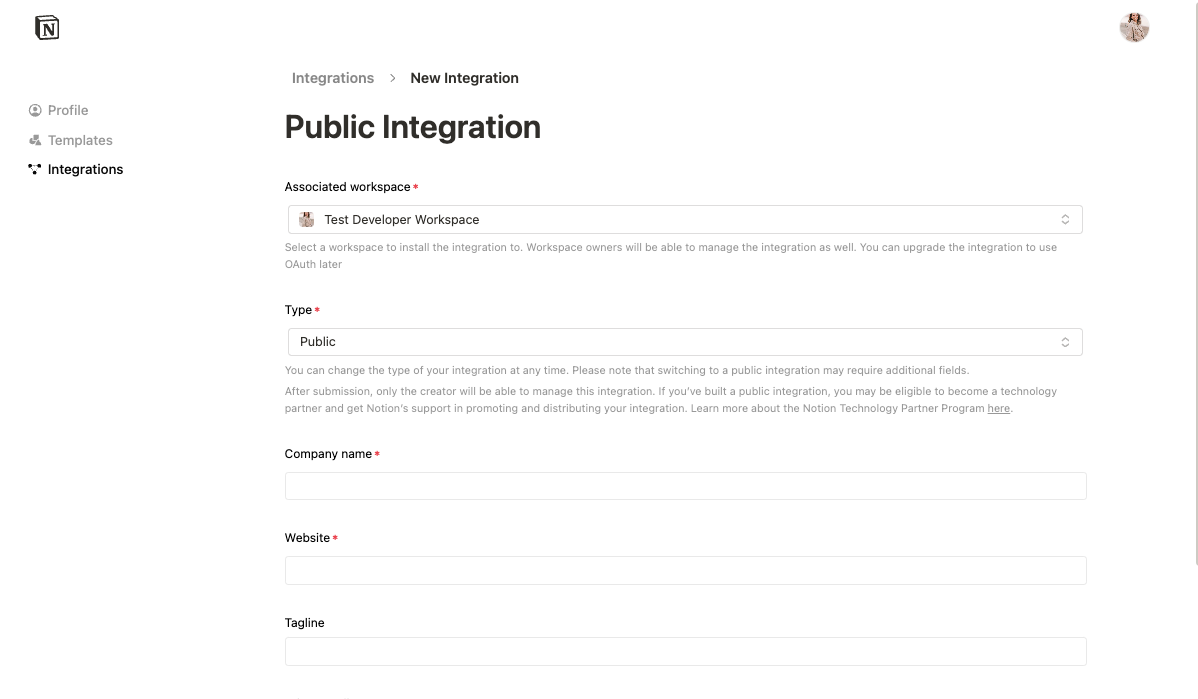
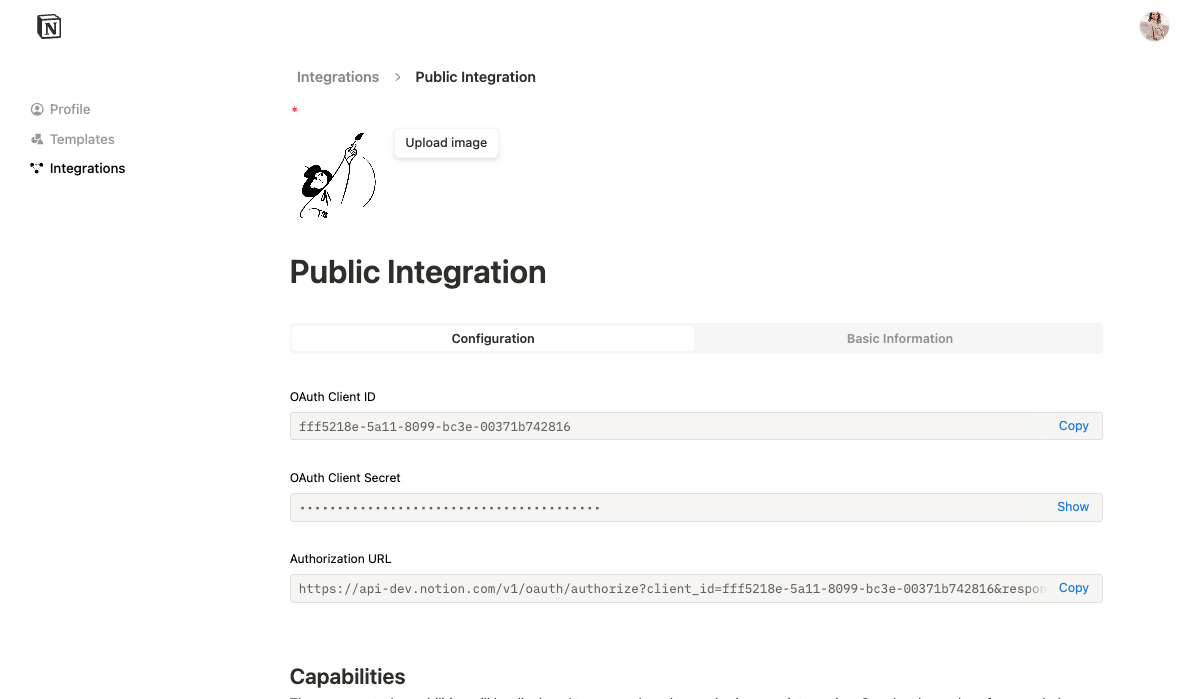
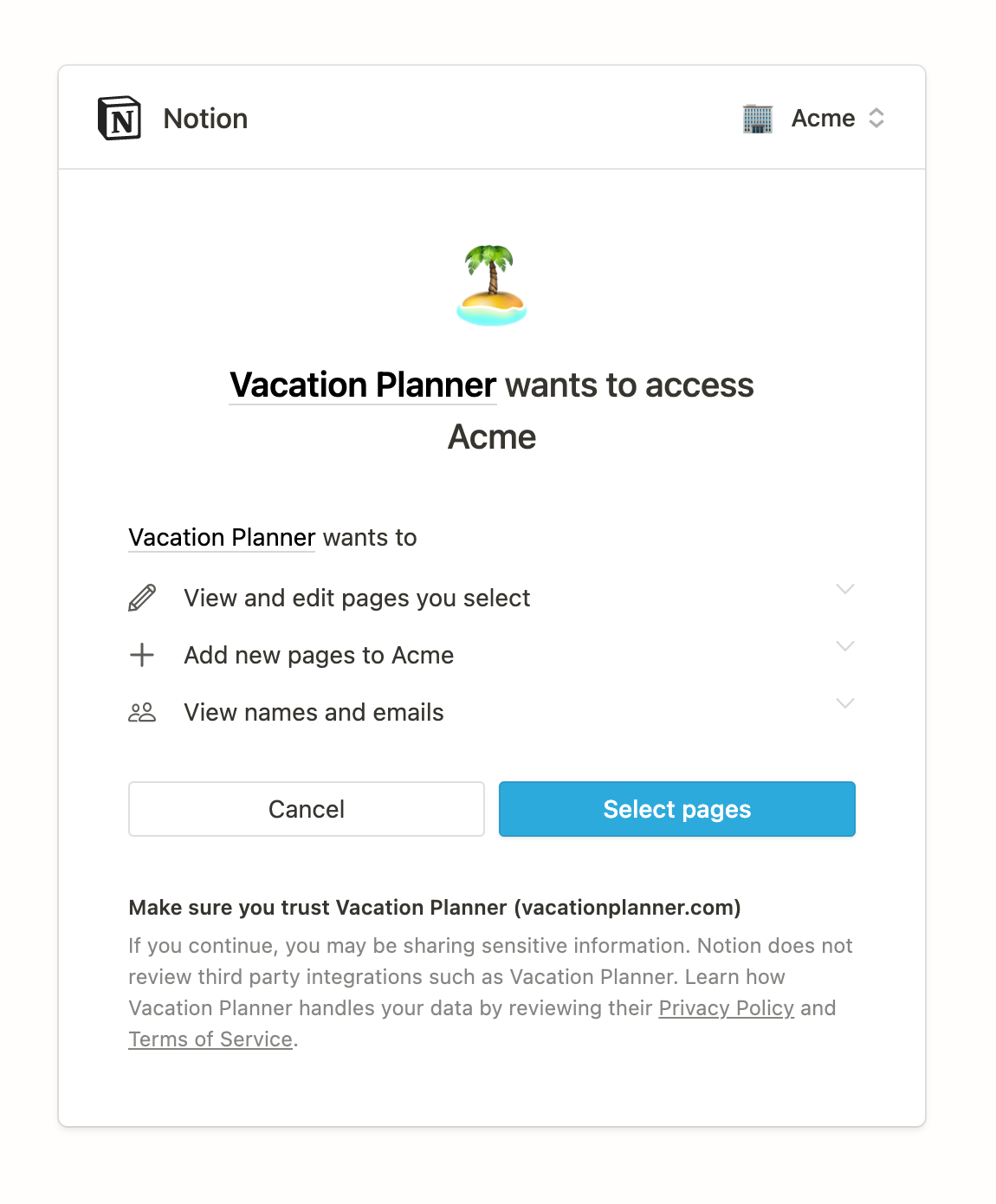
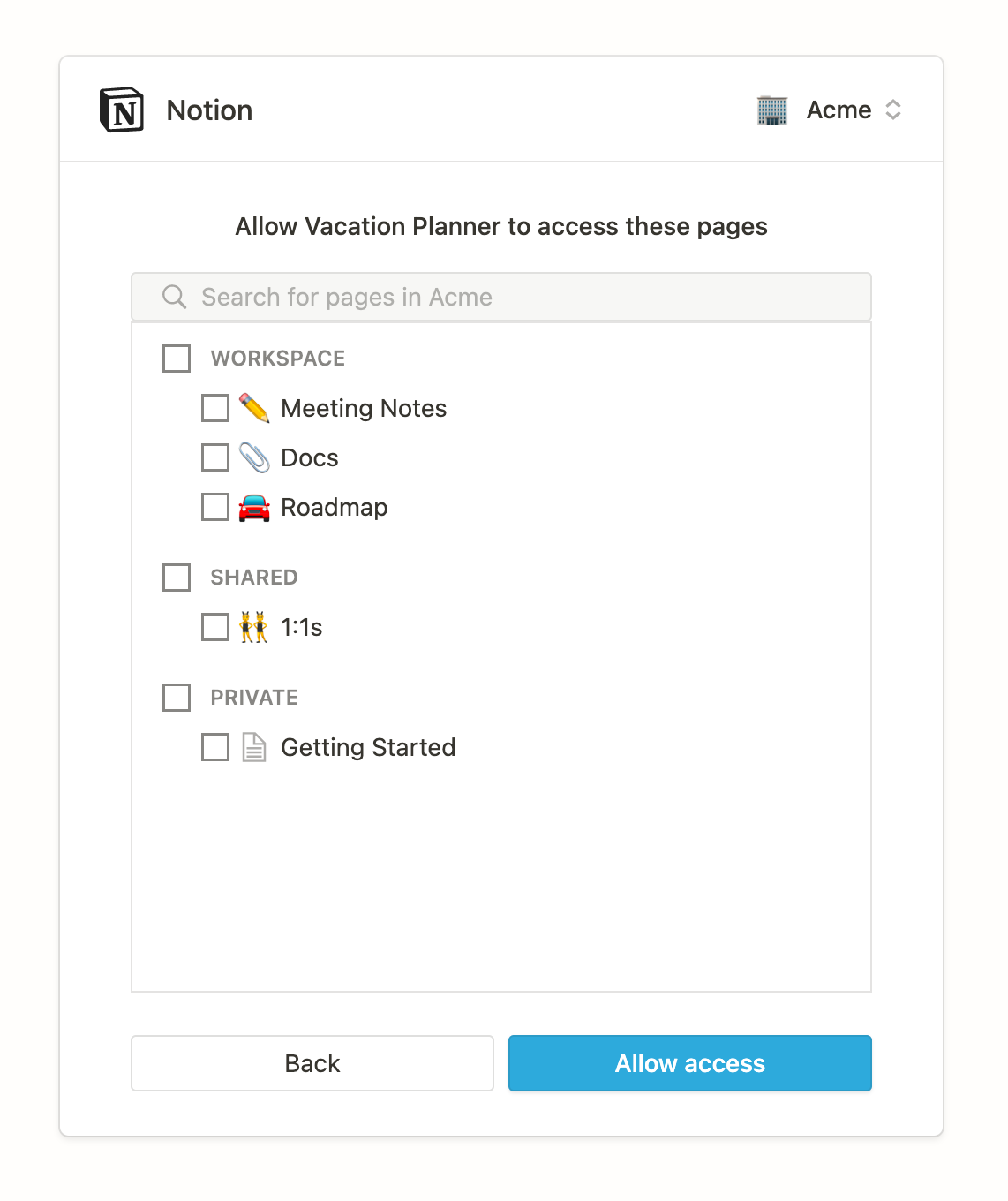
\* If the redirect URI was supplied as a query param in the Authorization URL, this field is required. If there are more than one redirect URIs included in your integration settings, this field is required. Otherwise, it is not allowed. Learn more in the [Create a token page](/reference/create-a-token). | The following is an example request to exchange the authorization code for an access token: ```http HTTP theme={null} POST /v1/oauth/token HTTP/1.1 Authorization: Basic "$CLIENT_ID:$CLIENT_SECRET" Content-Type: application/json {"grant_type":"authorization_code","code":"e202e8c9-0990-40af-855f-ff8f872b1ec6", "redirect_uri":"https://example.com/auth/notion/callback"} ``` The Node-equivalent of this example would look something like this: ```javascript JavaScript theme={null} ... const clientId = process.env.OAUTH_CLIENT_ID; const clientSecret = process.env.OAUTH_CLIENT_SECRET; const redirectUri = process.env.OAUTH_REDIRECT_URI; // encode in base 64 const encoded = btoa(`${clientId}:${clientSecret}`); const response = await fetch("https://api.notion.com/v1/oauth/token", { method: "POST", headers: { Accept: "application/json", "Content-Type": "application/json", Authorization: `Basic ${encoded}`, }, body: JSON.stringify({ grant_type: "authorization_code", code: "your-temporary-code", redirect_uri: redirectUri, }), }); ... ``` ### Step 4 - Notion responds with an `access_token` , `refresh_token`, and additional information Notion responds to the request with an `access_token`, `refresh_token`, and additional information. The `access_token` will be used to authenticate subsequent Notion REST API requests. The `refresh_token` will be used to refresh the access token, which generates a new `access_token`. The response contains the following JSON-encoded fields: | Field | Type | Description | Not null | | :------------------------- | :------- | :---------------------------------------------------------------------------------------------------------------------------------------------------------------------------------------------------------------------------------------------- | :------- | | `"access_token"` | `string` | An access token used to authorize requests to the Notion API. | ✅ | | `"refresh_token"` | `string` | A refresh token used to generate a new access token | ✅ | | `"bot_id"` | `string` | An identifier for this authorization. | ✅ | | `"duplicated_template_id"` | `string` | The ID of the new page created in the user’s workspace. The new page is a duplicate of the template that the developer provided with the integration. If the developer didn’t provide a template for the integration, then the value is `null`. | | | `"owner"` | `object` | An object containing information about who can view and share this integration. `{ "workspace": true }` is returned for installations of workspace-level tokens. For user level tokens, a [user object](/reference/user) is returned. | ✅ | | `"workspace_icon"` | `string` | A URL to an image that can be used to display this authorization in the UI. | | | `"workspace_id"` | `string` | The ID of the workspace where this authorization took place. | ✅ | | `"workspace_name"` | `string` | A human-readable name that can be used to display this authorization in the UI. | | **Token request failures** If something goes wrong when the integration attempts to exchange the `code` for an `access_token`, then the response contains a JSON-encoded body with an `"error"` field. Notion uses the common [error codes from the OAuth specification](https://datatracker.ietf.org/doc/html/rfc6749#section-5.2). ### Step 5 - The integration stores the `access_token` and `refresh_token` for future requests You need to set up a way for your integration to store both the `access_token` and `refresh_token` that it receives. The `access_token` is used to make authorized requests to the Notion API, and the `refresh_token` is used to generate a new `access_token`. **Tips for storing and using token access** * Setting up a database is a typical solution for storing access tokens. If you’re using a database, then build relations between an `access_token`, `refresh_token`, and the corresponding Notion resources that your integration accesses with that token. For example, if you store a Notion database or page ID, relate those records with the correct `access_token` that you use to authorize requests to read or write to that database or page, and the `refresh_token` for ongoing token lifecycle support.. * Store all of the information that your integration receives with the `access_token` and `refresh_token`. You never know when your UI or product requirements might change and you’ll need this data. It's really hard (or impossible) to send users to repeat the authorization flow to generate the information again. * The `bot_id` returned along with your tokens should act as your primary key when storing information. ### Step 6 - Refreshing an access token Refreshing an access token will generate a new access token and a new refresh token. You will need to send the `refresh_token` provided from [Step 4](/guides/get-started/authorization#step-4-notion-responds-with-an-access-token-%2C-refresh-token%2C-and-additional-information) as part of a `POST` request to Notion’s token endpoint: [https://api.notion.com/v1/oauth/token](https://api.notion.com/v1/oauth/token). This endpoint is described in more detail in the API reference docs for [refreshing a token](/reference/refresh-a-token). The request is authorized using HTTP Basic Authentication. The credential is a colon-delimited combination of the integration’s `CLIENT_ID` and `CLIENT_SECRET`, like so: ```bash theme={null} CLIENT_ID:CLIENT_SECRET ``` You can find both of these values in the integration's settings. Note that in [HTTP Basic Authentication](https://developer.mozilla.org/en-US/docs/Web/HTTP/Authentication), credentials are `base64` encoded before being added to the `Authorization` header. The body of the request contains the following JSON-encoded fields: | Field | Type | Description | Required | | :---------------- | :------- | :-------------------------------------------------------- | :------- | | `"grant_type"` | `string` | Always use `"refresh_token"`. | ✅ | | `"refresh_token"` | `string` | The `"refresh_token"` returned in the Authorization step. | ✅ | The following is an example request to exchange the `refresh_token` for a new access token and new refresh token ```http HTTP theme={null} POST /v1/oauth/token HTTP/1.1 Authorization: Basic "$CLIENT_ID:$CLIENT_SECRET" Content-Type: application/json {"grant_type":"refresh_token","refresh_token":"nrt_4991090011501Ejc6Xn4sHguI7jZIN449mKe9PRhpMfNK"} ``` The Node-equivalent of this example would look something like this: ```javascript JavaScript theme={null} ... const clientId = process.env.OAUTH_CLIENT_ID; const clientSecret = process.env.OAUTH_CLIENT_SECRET; // encode in base 64 const encoded = btoa(`${clientId}:${clientSecret}`); const response = await fetch("https://api.notion.com/v1/oauth/token", { method: "POST", headers: { Accept: "application/json", "Content-Type": "application/json", Authorization: `Basic ${encoded}`, }, body: JSON.stringify({ grant_type: "refresh_token", refresh_token: "your-refresh-token", }), }); ... ``` --- # Source: https://developers.notion.com/guides/resources/best-practices-for-handling-api-keys.md > ## Documentation Index > Fetch the complete documentation index at: https://developers.notion.com/llms.txt > Use this file to discover all available pages before exploring further. # Best practices for handling API keys > Learn how to manage and secure your Notion API tokens. export const integrationsDashboardUrl = "https://www.notion.so/profile/integrations"; API keys are powerful credentials that provide access to your Notion workspace through our Public API. If these keys fall into the wrong hands, they can pose serious security risks to your integrations, data and workspace. ## Why leaked API keys are dangerous When your Notion API key is exposed, malicious actors could potentially: * **Access sensitive data**: Read all pages, databases, and content in your workspace * **Modify or delete content**: Make unauthorized changes to your workspace data * **Export your data**: Download and steal your intellectual property * **Perform actions on your behalf**: Create, update, or delete pages and databases * **Access user information**: View workspace members and their permissions The scope of access depends on the permissions granted to the integration that owns the API key, but even limited access can be dangerous in the wrong hands. ## Best practices ### *NEVER* share your API keys * Keep your API key private: Treat your API key like your personal password—don’t share it with anyone. If others need access, they should request their own key. * Never post your key publicly: Avoid sharing your API key in public spaces such as forums, emails, or support tickets, with the Notion support team. * Be careful with third-party tools: Uploading your API key to external services will provide your key to those services. Only share your key with trusted services. Always store your API key as an encrypted secret when working with third-party platforms. Never put your key directly into code or configuration files - use environment variables! ### Use environment variables Never hardcode API keys directly in your source code. Instead, use environment variables: ```bash theme={null} # .env file (never commit this file) NOTION_API_KEY=ntn_abc123def456ghi789jkl012mno345pqr ``` ```typescript TypeScript theme={null} // In your code const notion = new Client({ auth: process.env.NOTION_API_KEY, }); ``` ### Secure your environment files * Add `.env` files to your `.gitignore` to prevent accidental commits * Use different API keys for development, staging, and production environments * Store production keys in secure secret management systems like AWS Secrets Manager, Azure Key Vault, or HashiCorp Vault ### Implement secret scanning Use tools like [GitLeaks](https://github.com/gitleaks/gitleaks), [Detect Secrets](https://github.com/Yelp/detect-secrets), [Trufflehog](https://github.com/trufflesecurity/trufflehog), or [BitPatrol](https://bitpatrol.io/) to automatically detect and prevent the commitment of sensitive information like API keys to your repositories. These tools can: * Scan your codebase for potential secrets before commits * Integrate with CI/CD pipelines for continuous scanning * Alert developers when secrets are accidentally committed ### Regular key rotation * Rotate API keys on a schedule and set calendar reminders to do so * Immediately rotate keys when team members with access leave * Keep an inventory of all API keys and their purposes ## What should I do if I suspect my API key has been compromised? If you suspect that your API key may be compromised, we recommend taking action immediately: ### Step 1 - Revoke the compromised key Log into your Notion account Go to **Settings & members** → **Connections** → **Develop or manage integrations** Find the integration with the compromised key Click “Refresh” on your integration ### Step 2 - Generate a new API key Rotate the compromised key by clicking **Refresh** in your integrations page and update your applications with your new key. ### Step 3 - review recent activity Check your workspace for any suspicious activity Review recent changes to pages and databases Look for any unauthorized integrations in **Settings & members** → **Connections** ### Step 4 - update your applications * Replace the old API key in all your applications and environments * Test that your integrations are working with the new key * Remove the old key from any configuration files or documentation ## Getting help If you need assistance with API key security or suspect unauthorized access, contact [Notion support](https://www.notion.com/help) at [team@makenotion.com](mailto:team@makenotion.com) --- # Source: https://developers.notion.com/reference/block.md > ## Documentation Index > Fetch the complete documentation index at: https://developers.notion.com/llms.txt > Use this file to discover all available pages before exploring further. # Block > A block object represents a piece of content within Notion. The API translates the headings, toggles, paragraphs, lists, media, and more that you can interact with in the Notion UI as different [block type objects](/reference/block#block-type-objects). For example, the following block object represents a `Heading 2` in the Notion UI: ```json Example Block Object expandable theme={null} { "object": "block", "id": "c02fc1d3-db8b-45c5-a222-27595b15aea7", "parent": { "type": "page_id", "page_id": "59833787-2cf9-4fdf-8782-e53db20768a5" }, "created_time": "2022-03-01T19:05:00.000Z", "last_edited_time": "2022-07-06T19:41:00.000Z", "created_by": { "object": "user", "id": "ee5f0f84-409a-440f-983a-a5315961c6e4" }, "last_edited_by": { "object": "user", "id": "ee5f0f84-409a-440f-983a-a5315961c6e4" }, "has_children": false, "archived": false, "in_trash": false, "type": "heading_2", "heading_2": { "rich_text": [ { "type": "text", "text": { "content": "Lacinato kale", "link": null }, "annotations": { "bold": false, "italic": false, "strikethrough": false, "underline": false, "code": false, "color": "green" }, "plain_text": "Lacinato kale", "href": null } ], "color": "default", "is_toggleable": false } } ``` Use the [Retrieve block children](/reference/get-block-children) endpoint to list all of the blocks on a page. ## Keys Fields marked with an \* are available to integrations with any capabilities. Other properties require read content capabilities in order to be returned from the Notion API. Consult the [integration capabilities reference](/reference/capabilities) for details. | Field | Type | Description | Example value | | :----------------- | :---------------------------------------------------------------------- | :------------------------------------------------------------------------------------------------------------------------------------------------------------------------------------------------------------------------------------------------------------------------------------------------------------------------------------------------------------------------------------------------------------------------------------------------------------------------------------------------------------------------------------------------------------------------------------------------------------------------------------------------------------------------------------------------------------------------------------------------------------------------------------------------------------------------------------------------------------------------------------------------------------------------------------------------------------------------------------------------------------------------------------------------------------------------------------------------------------------------------------------------------------------------------------------------------------------------------------------------------------------------------------------------------------------------------------------------------------------------------------------------------------------------------------------------------------------------------------------------------------------------------------------------------------------------------------------------------------------------------------------------------ | :------------------------------------------------------------------------------------------------------------- | | `object`\* | `string` | Always `"block"`. | `"block"` | | `id`\* | `string` (UUIDv4) | Identifier for the block. | `"7af38973-3787-41b3-bd75-0ed3a1edfac9"` | | `parent` | `object` | Information about the block's parent. See [Parent object](/reference/parent-object). | `{ "type": "block_id", "block_id": "7d50a184-5bbe-4d90-8f29-6bec57ed817b" }` | | `type` | `string` (enum) | Type of block. Possible values are:

- [`"bookmark"`](/reference/block#bookmark)
- [`"breadcrumb"`](/reference/block#breadcrumb)
- [`"bulleted_list_item"`](/reference/block#bulleted-list-item)
- [`"callout"`](/reference/block#callout)
- [`"child_database"`](/reference/block#child-database)
- [`"child_page"`](/reference/block#child-page)
- [`"column"`](/reference/block#column-list-and-column)
- [`"column_list"`](/reference/block#column-list-and-column)
- [`"divider"`](/reference/block#divider)
- [`"embed"`](/reference/block#embed)
- [`"equation"`](/reference/block#equation)
- [`"file"`](/reference/block#file)
- [`"heading_1"`](/reference/block#headings)
- [`"heading_2"`](/reference/block#headings)
- [`"heading_3"`](/reference/block#headings)
- [`"image"`](/reference/block#image)
- [`"link_preview"`](/reference/block#link-preview)
- [`"numbered_list_item"`](/reference/block#numbered-list-item)
- [`"paragraph"`](/reference/block#paragraph)
- [`"pdf"`](/reference/block#pdf)
- [`"quote"`](/reference/block#quote)
- [`"synced_block"`](/reference/block#synced-block)
- [`"table"`](/reference/block#table)
- [`"table_of_contents"`](/reference/block#table-of-contents)
- [`"table_row"`](/reference/block#table-rows)
- [`"template"`](/reference/block#template)
- [`"to_do"`](/reference/block#to-do)
- [`"toggle"`](/reference/block#toggle-blocks)
- `"unsupported"`
- [`"video"`](/reference/block#video) | `"paragraph"` | | `created_time` | `string` ([ISO 8601 date time](https://en.wikipedia.org/wiki/ISO_8601)) | Date and time when this block was created. Formatted as an [ISO 8601 date time](https://en.wikipedia.org/wiki/ISO_8601) string. | `"2020-03-17T19:10:04.968Z"` | | `created_by` | [Partial User](/reference/user) | User who created the block. | `{"object": "user","id": "45ee8d13-687b-47ce-a5ca-6e2e45548c4b"}` | | `last_edited_time` | `string` ([ISO 8601 date time](https://en.wikipedia.org/wiki/ISO_8601)) | Date and time when this block was last updated. Formatted as an [ISO 8601 date time](https://en.wikipedia.org/wiki/ISO_8601) string. | `"2020-03-17T19:10:04.968Z"` | | `last_edited_by` | [Partial User](/reference/user) | User who last edited the block. | `{"object": "user","id": "45ee8d13-687b-47ce-a5ca-6e2e45548c4b"}` | | `archived` | `boolean` | The archived status of the block. | `false` | | `in_trash` | `boolean` | Whether the block has been deleted. | `false` | | `has_children` | `boolean` | Whether or not the block has children blocks nested within it. | `true` | | `{type}` | [`block type object`](/reference/block#block-type-objects) | An object containing type-specific block information. | Refer to the [block type object section](/reference/block#block-type-objects) for examples of each block type. | #### Block types that support child blocks Some block types contain nested blocks. The following block types support child blocks: * [Bulleted list item](/reference/block#bulleted-list-item) * [Callout](/reference/block#callout) * [Child database](/reference/block#child-database) * [Child page](/reference/block#child-page) * [Column](/reference/block#column-list-and-column) * [Heading 1](/reference/block#headings), when the `is_toggleable` property is `true` * [Heading 2](/reference/block#headings), when the `is_toggleable` property is `true` * [Heading 3](/reference/block#headings), when the `is_toggleable` property is `true` * [Numbered list item](/reference/block#numbered-list-item) * [Paragraph](/reference/block#paragraph) * [Quote](/reference/block#quote) * [Synced block](/reference/block#synced-block) * [Table](/reference/block#table) * [Template](/reference/block#template) * [To do](/reference/block#to-do) * [Toggle](/reference/block#toggle-blocks) **The API does not support all block types.** Only the block type objects listed in the reference below are supported. Any unsupported block types appear in the structure, but contain a `type` set to `"unsupported"`. ## Block type objects Every block object has a key corresponding to the value of `type`. Under the key is an object with type-specific block information. Many block types support rich text. In cases where it is supported, a [`rich_text` object](/reference/rich-text) will be included in the block `type` object. All `rich_text` objects will include a `plain_text` property, which provides a convenient way for developers to access unformatted text from the Notion block. ### Audio Audio block objects contain a [file object](/reference/file-object) detailing information about the audio file. ```json Example Audio block object theme={null} { "type": "audio", //...other keys excluded "audio": { "type": "external", "external": { "url": "https://companywebsite.com/files/sample.mp3" } } } ``` #### Supported audio types The following file types can be attached with external URLs in the API as well as in the Notion app UI: * `.mp3` * `.wav` * `.ogg` * `.oga` * `.m4a` A wider set of audio files is [supported in the File Upload API](/guides/data-apis/working-with-files-and-media) and can be attached using a `file_upload` ID. #### Supported file upload types See the [file upload reference](/reference/file-upload#file-types-and-sizes) for a list of supported file extensions and content types when attaching a File Upload to a block. Audio blocks only support file types in the "audio" section of the table. ### Bookmark Bookmark block objects contain the following information within the `bookmark` property: | Field | Type | Description | | :-------- | :------------------------------------------------------ | :---------------------------- | | `caption` | array of [rich text objects](/reference/rich-text) text | The caption for the bookmark. | | `url` | string | The link for the bookmark. | ```json Example Bookmark block object theme={null} { //...other keys excluded "type": "bookmark", //...other keys excluded "bookmark": { "caption": [], "url": "https://companywebsite.com" } } ``` ### Breadcrumb Breadcrumb block objects do not contain any information within the `breadcrumb` property. ```json Example Breadcrumb block object theme={null} { //...other keys excluded "type": "breadcrumb", //...other keys excluded "breadcrumb": {} } ``` ### Bulleted list item Bulleted list item block objects contain the following information within the `bulleted_list_item` property: | Field | Type | Description | | :---------- | :--------------------------------------------------- | :-------------------------------------------------------------------------------------------------------------------------------------------------------------------------------------------------------------------------------------------------------------------------------------------------------------------------------------------------------------------------------------------------------------------------------------------------------------------------------------------------------------------------- | | `rich_text` | `array` of [rich text objects](/reference/rich-text) | The rich text in the `bulleted_list_item` block. | | `color` | `string` (enum) | The color of the block. Possible values are:

- `"blue"`
- `"blue_background"`
- `"brown"`
- `"brown_background"`
- `"default"`
- `"gray"`
- `"gray_background"`
- `"green"`
- `"green_background"`
- `"orange"`
- `"orange_background"`
- `"yellow"`
- `"green"`
- `"pink"`
- `"pink_background"`
- `"purple"`
- `"purple_background"`
- `"red"`
- `"red_background"`
- `"yellow_background"` | | `children` | `array` of [block objects](/reference/block) | The nested child blocks (if any) of the `bulleted_list_item` block. | ```json Example Bulleted list item block object theme={null} { //...other keys excluded "type": "bulleted_list_item", //...other keys excluded "bulleted_list_item": { "rich_text": [{ "type": "text", "text": { "content": "Lacinato kale", "link": null } // ..other keys excluded }], "color": "default", "children":[{ "type": "paragraph" // ..other keys excluded }] } } ``` ### Callout Callout block objects contain the following information within the `callout` property: | Field | Type | Description | | :---------- | :--------------------------------------------------- | :-------------------------------------------------------------------------------------------------------------------------------------------------------------------------------------------------------------------------------------------------------------------------------------------------------------------------------------------------------------------------------------------------------------------------------------------------------------------------------------------------------------------------- | | `rich_text` | `array` of [rich text objects](/reference/rich-text) | The rich text in the `callout` block. | | `icon` | `object` | An [emoji](/reference/emoji-object) or [file](/reference/file-object) object that represents the callout's icon. If the callout does not have an icon. | | `color` | `string` (enum) | The color of the block. Possible values are:

- `"blue"`
- `"blue_background"`
- `"brown"`
- `"brown_background"`
- `"default"`
- `"gray"`
- `"gray_background"`
- `"green"`
- `"green_background"`
- `"orange"`
- `"orange_background"`
- `"yellow"`
- `"green"`
- `"pink"`
- `"pink_background"`
- `"purple"`
- `"purple_background"`
- `"red"`
- `"red_background"`
- `"yellow_background"` | ```json Example Callout block object expandable theme={null} { //...other keys excluded "type": "callout", // ..other keys excluded "callout": { "rich_text": [{ "type": "text", "text": { "content": "Lacinato kale", "link": null } // ..other keys excluded }], "icon": { "emoji": "⭐" }, "color": "default" } } ``` ### Child database Child database block objects contain the following information within the `child_database` property: | Field | Type | Description | | :------ | :------- | :------------------------------------ | | `title` | `string` | The plain text title of the database. | ```json Example Child database block theme={null} { //...other keys excluded "type": "child_database", //...other keys excluded "child_database": { "title": "My database" } } ``` **Creating and updating `child_database` blocks** To create or update `child_database` type blocks, use the [Create a database](/reference/create-a-database) and the [Update a database](/reference/update-a-database) endpoints, specifying the ID of the parent page in the `parent` body param. ### Child page Child page block objects contain the following information within the `child_page` property: | Field | Type | Description | | :------ | :------- | :---------------------------------- | | `title` | `string` | The plain text `title` of the page. | ```json Example Child page block object theme={null} { //...other keys excluded "type": "child_page", //...other keys excluded "child_page": { "title": "Lacinato kale" } } ``` **Creating and updating `child_page` blocks** To create or update `child_page` type blocks, use the [Create a page](/reference/post-page) and the [Update page](/reference/patch-page) endpoints, specifying the ID of the parent page in the `parent` body param. ### Code Code block objects contain the following information within the `code` property: | Field | Type | Description | | :---------- | :-------------------------------------------------------------------------------------------------------------------------------------------------------------------------------------------------------------------------------------------------------------------------------------------------------------------------------------------------------------------------------------------------------------------------------------------------------------------------------------------------------------------------------------------------------------------------------------------------------------------------------------------------------------------------------------------------------------------------------------------------------------------------------------------------------------------------------------------------------------------------------------------------------------------------------------------- | :---------------------------------------------------- | | `caption` | `array` of [Rich text object](/reference/rich-text) text objects | The rich text in the caption of the code block. | | `rich_text` | `array` of [Rich text object](/reference/rich-text) text objects | The rich text in the code block. | | `language` | - `"abap"` - `"arduino"` - `"bash"` - `"basic"` - `"c"` - `"clojure"` - `"coffeescript"` - `"c++"` - `"c#"` - `"css"` - `"dart"` - `"diff"` - `"docker"` - `"elixir"` - `"elm"` - `"erlang"` - `"flow"` - `"fortran"` - `"f#"` - `"gherkin"` - `"glsl"` - `"go"` - `"graphql"` - `"groovy"` - `"haskell"` - `"html"` - `"java"` - `"javascript"` - `"json"` - `"julia"` - `"kotlin"` - `"latex"` - `"less"` - `"lisp"` - `"livescript"` - `"lua"` - `"makefile"` - `"markdown"` - `"markup"` - `"matlab"` - `"mermaid"` - `"nix"` - `"objective-c"` - `"ocaml"` - `"pascal"` - `"perl"` - `"php"` - `"plain text"` - `"powershell"` - `"prolog"` - `"protobuf"` - `"python"` - `"r"` - `"reason"` - `"ruby"` - `"rust"` - `"sass"` - `"scala"` - `"scheme"` - `"scss"` - `"shell"` - `"sql"` - `"swift"` - `"typescript"` - `"vb.net"` - `"verilog"` - `"vhdl"` - `"visual basic"` - `"webassembly"` - `"xml"` - `"yaml"` - `"java/c/c++/c#"` | The language of the code contained in the code block. | ```json Example Code block object theme={null} { // ... other keys excluded "type": "code", // ... other keys excluded "code": { "caption": [], "rich_text": [{ "type": "text", "text": { "content": "const a = 3" } }], "language": "javascript" } } ``` ### Column list and column Column lists are parent blocks for columns. They do not contain any information within the `column_list` property. ```json Example Column list block object theme={null} { // ... other keys excluded "type": "column_list", // ... other keys excluded "column_list": {} } ``` Columns are parent blocks for any block types listed in this reference except for other `column`s. They do not require any information within the `column` property, but a `width_ratio` number between 0 and 1 can be provided to customize the width of a column relative to others in the same column list. When omitted, the default is to use equal widths for all columns. When provided, `width_ratio`s should add up to 1. Columns can only be appended to `column_list`s. ```json Example Column object theme={null} { // ... other keys excluded "type": "column", // ... other keys excluded "column": { "width_ratio": 0.25 } } ``` When creating a `column_list` block via [Append block children](/reference/patch-block-children), the `column_list` must have at least two `column`s, and each `column` must have at least one child. #### Retrieve the content in a column list Follow these steps to fetch the content in a `column_list`: Get the `column_list` ID from a query to [Retrieve block children](/reference/get-block-children) for the parent page. Get the `column` children from a query to Retrieve block children for the `column_list`. Get the content in each individual `column` from a query to Retrieve block children for the unique `column` ID. ### Divider Divider block objects do not contain any information within the `divider` property. ```json Example Divider block object theme={null} { //...other keys excluded "type": "divider", //...other keys excluded "divider": {} } ``` ### Embed Embed block objects include information about another website displayed within the Notion UI. The `embed` property contains the following information: | Field | Type | Description | | :---- | :------- | :----------------------------------------------------- | | `url` | `string` | The link to the website that the embed block displays. | ```json Example Embed block object theme={null} { //...other keys excluded "type": "embed", //...other keys excluded "embed": { "url": "https://companywebsite.com" } } ``` **Differences in embed blocks between the Notion app and the API** The Notion app uses a 3rd-party service, iFramely, to validate and request metadata for embeds given a URL. This works well in a web app because Notion can kick off an asynchronous request for URL information, which might take seconds or longer to complete, and then update the block with the metadata in the UI after receiving a response from iFramely. We chose not to call iFramely when creating embed blocks in the API because the API needs to be able to return faster than the UI, and because the response from iFramely could actually cause us to change the block type. This would result in a slow and potentially confusing experience as the block in the response would not match the block sent in the request. The result is that embed blocks created via the API may not look exactly like their counterparts created in the Notion app. Vimeo video links can be embedded in a Notion page via the public API using the embed block type. For example, the following object can be passed to the [Append block children endpoint](/reference/patch-block-children): ```json JSON theme={null} { "children": [ { "embed": { "url": "https://player.vimeo.com/video/226053498?h=a1599a8ee9" } } ] } ``` For other video sources, see [Supported video types](/reference/block#supported-video-types). ### Equation Equation block objects are represented as children of [paragraph](/reference/block#paragraph) blocks. They are nested within a [rich text object](/reference/rich-text) and contain the following information within the `equation` property: | Field | Type | Description | | :----------- | :------- | :------------------------- | | `expression` | `string` | A KaTeX compatible string. | ```json Example Equation object theme={null} { //...other keys excluded "type": "equation", //...other keys excluded "equation": { "expression": "e=mc^2" } } ``` ### File File block objects contain the following information within the `file` property: | Field | Type | Description | | :------------ | :-------------------------------------------------------------------------- | :-------------------------------------------------------------------------------------------------------------------------------------------------------------------------------------------------------------------------------------------------------------------------------------------------------------------------------------------------------------------------------------------------- | | `caption` | `array` of [rich text objects](/reference/rich-text) | The caption of the file block. | | `type` | One of:

- `"file"`
- `"external"`
- `"file_upload"` | Type of file. This enum value indicates which of the following three objects are populated. | | `file` | [Notion-hosted file object](/reference/file-object#notion-hosted-files) | A file object that details information about the file contained in the block: a temporary download `url` and `expiry_time`. After the `expiry_time`, fetch the block again from the API to get a new `url`.

Only valid as a parameter if copied verbatim from the `file` field of a recent block API response from Notion. To attach a file, provide a `type` of `file_upload` instead. | | `external` | [External file object](/reference/file-object#external-files) | An object with a `url` property, identifying a publicly accessible URL. | | `file_upload` | [File upload object](/reference/file-upload#file-types-and-sizes) | An object with the `id` of a [FileUpload](/reference/file-upload) to attach to the block. After attaching, the API response responds with a type of `file`, not `file_upload`, so your integration can access a download `url`. | | `name` | `string` | The name of the file, as shown in the Notion UI. Note that the UI may auto-append `.pdf` or other extensions.

When attaching a `file_upload`, the `name` parameter is not required. | ```json Example File block theme={null} { // ... other keys excluded "type": "file", // ... other keys excluded "file": { "caption": [], "type": "external", "external": { "url": "https://companywebsite.com/files/doc.txt" }, "name": "doc.txt" } } ``` ### Headings All heading block objects, `heading_1`, `heading_2`, and `heading_3`, contain the following information within their corresponding objects: | Field | Type | Description | | :-------------- | :--------------------------------------------------- | :-------------------------------------------------------------------------------------------------------------------------------------------------------------------------------------------------------------------------------------------------------------------------------------------------------------------------------------------------------------------------------------------------------------------------------------------------------------------------------------------------------------------------- | | `rich_text` | `array` of [rich text objects](/reference/rich-text) | The rich text of the heading. | | `color` | `string` (enum) | The color of the block. Possible values are:

- `"blue"`
- `"blue_background"`
- `"brown"`
- `"brown_background"`
- `"default"`
- `"gray"`
- `"gray_background"`
- `"green"`
- `"green_background"`
- `"orange"`
- `"orange_background"`
- `"yellow"`
- `"green"`
- `"pink"`
- `"pink_background"`
- `"purple"`
- `"purple_background"`
- `"red"`
- `"red_background"`
- `"yellow_background"` | | `is_toggleable` | `boolean` | Whether or not the heading block is a toggle heading or not. If `true`, then the heading block toggles and can support children. If `false`, then the heading block is a static heading block. | ```json Example Heading 1 block object theme={null} { //...other keys excluded "type": "heading_1", //...other keys excluded "heading_1": { "rich_text": [{ "type": "text", "text": { "content": "Lacinato kale", "link": null } }], "color": "default", "is_toggleable": false } } ``` ```json Example Heading 2 block object theme={null} { //...other keys excluded "type": "heading_2", //...other keys excluded "heading_2": { "rich_text": [{ "type": "text", "text": { "content": "Lacinato kale", "link": null } }], "color": "default", "is_toggleable": false } } ``` ```json Example Heading 3 block object theme={null} { //...other keys excluded "type": "heading_3", //...other keys excluded "heading_3": { "rich_text": [{ "type": "text", "text": { "content": "Lacinato kale", "link": null } }], "color": "default", "is_toggleable": false } } ``` ### Image Image block objects contain a [file object](/reference/file-object) detailing information about the image. ```json Example Image block object theme={null} { // ... other keys excluded "type": "image", // ... other keys excluded "image": { "type": "external", "external": { "url": "https://website.domain/images/image.png" } } } ``` #### Supported external image types The image must be directly hosted. In other words, the `url` cannot point to a service that retrieves the image. The following image types are supported: * `.bmp` * `.gif` * `.heic` * `.jpeg` * `.jpg` * `.png` * `.svg` * `.tif` * `.tiff` #### Supported file upload types See the [file upload reference](/reference/file-upload#file-types-and-sizes) for a list of supported file extensions and content types when attaching a File Upload to a block. Image blocks only support file types in the "image" section of the table. ### Link Preview [Link Preview](/guides/link-previews/link-previews) block objects contain the originally pasted `url`: ```json Example Link preview block object theme={null} { //...other keys excluded "type": "link_preview", //...other keys excluded "link_preview": { "url": "https://github.com/example/example-repo/pull/1234" } } ``` The `link_preview` block can only be returned as part of a response. The API does not support creating or appending `link_preview` blocks. ### Mention A mention block object is a child of a [rich text object](/reference/rich-text) that is nested within a [paragraph block object](/reference/block#paragraph). This block type represents any `@` tag in the Notion UI, for a user, date, Notion page, Notion database, or a miniaturized version of a [Link Preview](/reference/unfurl-attribute-object). A mention block object contains the following fields: | Field | Type | Description | | :------------------------------------------------------------------------------------------------------- | :------------------------------------------------------------------------------------------------------- | :---------------------------------------------------------- | | `type` | `"database"`

`"date"`

`"link_preview"`

`"page"`

`"user"` | A constant string representing the type of the mention. | | `"database"`

`"date"`

`"link_preview"`

`"page"`

`"user"` | `object` | An object with type-specific information about the mention. | ```json Example Mention object theme={null} { //...other keys excluded "type": "page", "page": { "id": "3c612f56-fdd0-4a30-a4d6-bda7d7426309" } } ``` ### Numbered list item Numbered list item block objects contain the following information within the `numbered_list_item` property: | Field | Type | Description | | :----------------- | :--------------------------------------------------- | :-------------------------------------------------------------------------------------------------------------------------------------------------------------------------------------------------------------------------------------------------------------------------------------------------------------------------------------------------------------------------------------------------------------------------------------------------------------------------------------------------------------------------- | | `rich_text` | `array` of [rich text objects](/reference/rich-text) | The rich text displayed in the `numbered_list_item` block. | | `color` | `string` (enum) | The color of the block. Possible values are:

- `"blue"`
- `"blue_background"`
- `"brown"`
- `"brown_background"`
- `"default"`
- `"gray"`
- `"gray_background"`
- `"green"`
- `"green_background"`
- `"orange"`
- `"orange_background"`
- `"yellow"`
- `"green"`
- `"pink"`
- `"pink_background"`
- `"purple"`
- `"purple_background"`
- `"red"`
- `"red_background"`
- `"yellow_background"` | | `list_start_index` | `integer` (optional) | The start index of a list, used to represent a list that doesn't start at 1.
Only present on the first item of a list. | | `list_format` | `string` (enum) (optional) | The type of list format. Possible values are: `"numbers"`, `"letters"`, and `"roman"`.
Only present on the first item of a list. | | `children` | `array` of [block objects](/reference/block) | The nested child blocks (if any) of the `numbered_list_item` block. | ```json Example Numbered list item block theme={null} { //...other keys excluded "type": "numbered_list_item", "numbered_list_item": { "rich_text": [ { "type": "text", "text": { "content": "Finish reading the docs", "link": null } } ], "color": "default" } } ``` ### Paragraph Paragraph block objects contain the following information within the `paragraph` property: | Field | Type | Description | | :---------- | :--------------------------------------------------- | :-------------------------------------------------------------------------------------------------------------------------------------------------------------------------------------------------------------------------------------------------------------------------------------------------------------------------------------------------------------------------------------------------------------------------------------------------------------------------------------------------------------------------- | | `rich_text` | `array` of [rich text objects](/reference/rich-text) | The rich text displayed in the paragraph block. | | `color` | `string` (enum) | The color of the block. Possible values are:

- `"blue"`
- `"blue_background"`
- `"brown"`
- `"brown_background"`
- `"default"`
- `"gray"`
- `"gray_background"`
- `"green"`
- `"green_background"`
- `"orange"`
- `"orange_background"`
- `"yellow"`
- `"green"`
- `"pink"`
- `"pink_background"`
- `"purple"`
- `"purple_background"`
- `"red"`
- `"red_background"`
- `"yellow_background"` | | `children` | `array` of [block objects](/reference/block) | The nested child blocks (if any) of the `paragraph` block. | ```json Example Paragraph block object theme={null} { //...other keys excluded "type": "paragraph", //...other keys excluded "paragraph": { "rich_text": [{ "type": "text", "text": { "content": "Lacinato kale", "link": null } }], "color": "default" } ``` ```json Example Paragraph block object with a child Mention block object expandable theme={null} { //...other keys excluded "type": "paragraph", "paragraph":{ "rich_text": [ { "type": "mention", "mention": { "type": "date", "date": { "start": "2023-03-01", "end": null, "time_zone": null } }, "annotations": { "bold": false, "italic": false, "strikethrough": false, "underline": false, "code": false, "color": "default" }, "plain_text": "2023-03-01", "href": null }, { "type": "text", "text": { "content": " ", "link": null }, "annotations": { "bold": false, "italic": false, "strikethrough": false, "underline": false, "code": false, "color": "default" }, "plain_text": " ", "href": null } ], "color": "default" } } ``` ### PDF A PDF block object represents a PDF that has been embedded within a Notion page. It contains the following fields: | Property | Type | Description | | :---------------------------------- | :-------------------------------------------------------------------------- | :----------------------------------------------------------------------------------------------------------------------------------------------------------------------------------------------------------------------------------------------------------- | | `caption` | `array` of [rich text objects](/reference/rich-text) | A caption, if provided, for the PDF block. | | `type` | One of:

- `"file"`
- `"external"`
- `"file_upload"` | A constant string representing the type of PDF. `file` indicates a Notion-hosted file, and `external` represents a third-party link. `file_upload` is only valid when providing parameters to attach a [File Upload](/reference/file-upload) to a PDF block. | | `external` \|`file` \|`file_upload` | [file object](/reference/file-object) | An object containing type-specific information about the PDF. | ```json JSON theme={null} { //...other keys excluded "type": "pdf", //...other keys excluded "pdf": { "type": "external", "external": { "url": "https://website.domain/files/doc.pdf" } } } ``` #### Supported file upload types See the [file upload reference](/reference/file-upload#file-types-and-sizes) for a list of supported file extensions and content types when attaching a File Upload to a block. PDF blocks only support a type of `.pdf`. ### Quote Quote block objects contain the following information within the `quote` property: | Field | Type | Description | | :---------- | :--------------------------------------------------- | :-------------------------------------------------------------------------------------------------------------------------------------------------------------------------------------------------------------------------------------------------------------------------------------------------------------------------------------------------------------------------------------------------------------------------------------------------------------------------------------------------------------------------- | | `rich_text` | `array` of [rich text objects](/reference/rich-text) | The rich text displayed in the quote block. | | `color` | `string` (enum) | The color of the block. Possible values are:

- `"blue"`
- `"blue_background"`
- `"brown"`
- `"brown_background"`
- `"default"`
- `"gray"`
- `"gray_background"`
- `"green"`
- `"green_background"`
- `"orange"`
- `"orange_background"`
- `"yellow"`
- `"green"`
- `"pink"`
- `"pink_background"`
- `"purple"`
- `"purple_background"`
- `"red"`
- `"red_background"`
- `"yellow_background"` | | `children` | `array` of [block objects](/reference/block) | The nested child blocks, if any, of the quote block. | ```json Example Quote block theme={null} { //...other keys excluded "type": "quote", //...other keys excluded "quote": { "rich_text": [{ "type": "text", "text": { "content": "To be or not to be...", "link": null }, //...other keys excluded }], //...other keys excluded "color": "default" } } ``` ### Synced block Similar to the Notion UI, there are two versions of a `synced_block` object: the original block that was created first and doesn't yet sync with anything else, and the duplicate block or blocks synced to the original. An original synced block must be created before corresponding duplicate block or blocks can be made. #### Original synced block Original synced block objects contain the following information within the `synced_block` property: | Field | Type | Description | | :------------ | :------------------------------------------- | :--------------------------------------------------------------------------------------------------------------------------- | | `synced_from` | `null` | The value is always `null` to signify that this is an original synced block that does not refer to another block. | | `children` | `array` of [block objects](/reference/block) | The nested child blocks, if any, of the `synced_block` block. These blocks will be mirrored in the duplicate `synced_block`. | ```json Example Original synced block theme={null} { //...other keys excluded "type": "synced_block", "synced_block": { "synced_from": null, "children": [ { "callout": { "rich_text": [ { "type": "text", "text": { "content": "Callout in synced block" } } ] } } ] } } ``` #### Duplicate synced block Duplicate synced block objects contain the following information within the `synced_from` object: | Field | Type | Description | | :--------- | :---------------- | :---------------------------------------------------------------------------------------------- | | `type` | `string` (enum) | The type of the synced from object.

Possible values are:

- `"block_id"` | | `block_id` | `string` (UUIDv4) | An identifier for the original `synced_block`. | ```json Example Duplicate synced block object theme={null} { //...other keys excluded "type": "synced_block", "synced_block": { "synced_from": { "block_id": "original_synced_block_id" } } } ``` The API does not supported updating synced block content. ### Table Table block objects are parent blocks for table row children. Table block objects contain the following fields within the `table` property: | Field | Type | Description | | :------------------ | :-------- | :---------------------------------------------------------------------------------------------------------------------------------- | | `table_width` | `integer` | The number of columns in the table.

**Note that this cannot be changed via the public API once a table is created.** | | `has_column_header` | `boolean` | Whether the table has a column header. If `true`, then the first row in the table appears visually distinct from the other rows. | | `has_row_header` | `boolean` | Whether the table has a header row. If `true`, then the first column in the table appears visually distinct from the other columns. | ```json Example Table block object theme={null} { //...other keys excluded "type": "table", "table": { "table_width": 2, "has_column_header": false, "has_row_header": false } } ``` **`table_width` can only be set when the table is first created.** Note that the number of columns in a table can only be set when the table is first created. Calls to the Update block endpoint to update `table_width` fail. #### Table rows Follow these steps to fetch the `table_row`s of a `table`: Get the `table` ID from a query to [Retrieve block children](/reference/get-block-children) for the parent page. Get the `table_rows` from a query to Retrieve block children for the `table`. A `table_row` block object contains the following fields within the `table_row` property: | Property | Type | Description | | :------- | :------------------------------------------------------------ | :------------------------------------------------------------------------------------------------- | | `cells` | `array` of array of [rich text objects](/reference/rich-text) | An array of cell contents in horizontal display order. Each cell is an array of rich text objects. | ```json Example Table row block object expandable theme={null} { //...other keys excluded "type": "table_row", "table_row": { "cells": [ [ { "type": "text", "text": { "content": "column 1 content", "link": null }, "annotations": { "bold": false, "italic": false, "strikethrough": false, "underline": false, "code": false, "color": "default" }, "plain_text": "column 1 content", "href": null } ], [ { "type": "text", "text": { "content": "column 2 content", "link": null }, "annotations": { "bold": false, "italic": false, "strikethrough": false, "underline": false, "code": false, "color": "default" }, "plain_text": "column 2 content", "href": null } ], [ { "type": "text", "text": { "content": "column 3 content", "link": null }, "annotations": { "bold": false, "italic": false, "strikethrough": false, "underline": false, "code": false, "color": "default" }, "plain_text": "column 3 content", "href": null } ] ] } } ``` When creating a table block via the [Append block children](/reference/patch-block-children) endpoint, the `table` must have at least one `table_row` whose `cells` array has the same length as the `table_width`. ### Table of contents Table of contents block objects contain the following information within the `table_of_contents` property: | Property | Type | Description | | :------- | :-------------- | :-------------------------------------------------------------------------------------------------------------------------------------------------------------------------------------------------------------------------------------------------------------------------------------------------------------------------------------------------------------------------------------------------------------------------------------------------------------------------------------------------------------------------- | | `color` | `string` (enum) | The color of the block. Possible values are:

- `"blue"`
- `"blue_background"`
- `"brown"`
- `"brown_background"`
- `"default"`
- `"gray"`
- `"gray_background"`
- `"green"`
- `"green_background"`
- `"orange"`
- `"orange_background"`
- `"yellow"`
- `"green"`
- `"pink"`
- `"pink_background"`
- `"purple"`
- `"purple_background"`
- `"red"`
- `"red_background"`
- `"yellow_background"` | ```json Example Table of contents block object theme={null} { //...other keys excluded "type": "table_of_contents", "table_of_contents": { "color": "default" } } ``` ### Template **Deprecation Notice** As of March 27, 2023 creation of template blocks will no longer be supported. Template blocks represent [template buttons](https://www.notion.so/help/template-buttons) in the Notion UI. Template block objects contain the following information within the `template` property: | Field | Type | Description | | :---------- | :--------------------------------------------------- | :----------------------------------------------------------------------------------------------------------------------------- | | `rich_text` | `array` of [rich text objects](/reference/rich-text) | The rich text displayed in the title of the template. | | `children` | `array` of [block objects](/reference/block) | The nested child blocks, if any, of the template block. These blocks are duplicated when the template block is used in the UI. | ```json Example Template block object theme={null} { //...other keys excluded "template": { "rich_text": [ { "type": "text", "text": { "content": "Add a new to-do", "link": null }, "annotations": { //...other keys excluded }, "plain_text": "Add a new to-do", "href": null } ] } } ``` ### To do To do block objects contain the following information within the `to_do` property: | Field | Type | Description | | :---------- | :--------------------------------------------------- | :-------------------------------------------------------------------------------------------------------------------------------------------------------------------------------------------------------------------------------------------------------------------------------------------------------------------------------------------------------------------------------------------------------------------------------------------------------------------------------------------------------------------------- | | `rich_text` | `array` of [rich text objects](/reference/rich-text) | The rich text displayed in the To do block. | | `checked` | `boolean` (optional) | Whether the To do is checked. | | `color` | `string` (enum) | The color of the block. Possible values are:

- `"blue"`
- `"blue_background"`
- `"brown"`
- `"brown_background"`
- `"default"`
- `"gray"`
- `"gray_background"`
- `"green"`
- `"green_background"`
- `"orange"`
- `"orange_background"`
- `"yellow"`
- `"green"`
- `"pink"`
- `"pink_background"`
- `"purple"`
- `"purple_background"`
- `"red"`
- `"red_background"`
- `"yellow_background"` | | `children` | `array` of [block objects](/reference/block) | The nested child blocks, if any, of the To do block. | ```json Example To do block object theme={null} { //...other keys excluded "type": "to_do", "to_do": { "rich_text": [{ "type": "text", "text": { "content": "Finish Q3 goals", "link": null } }], "checked": false, "color": "default", "children":[{ "type": "paragraph" // ..other keys excluded }] } } ``` ### Toggle blocks Toggle block objects contain the following information within the `toggle` property: | Field | Type | Description | | :---------- | :--------------------------------------------------- | :-------------------------------------------------------------------------------------------------------------------------------------------------------------------------------------------------------------------------------------------------------------------------------------------------------------------------------------------------------------------------------------------------------------------------------------------------------------------------------------------------------------------------- | | `rich_text` | `array` of [rich text objects](/reference/rich-text) | The rich text displayed in the Toggle block. | | `color` | `string` (enum) | The color of the block. Possible values are:

- `"blue"`
- `"blue_background"`
- `"brown"`
- `"brown_background"`
- `"default"`
- `"gray"`
- `"gray_background"`
- `"green"`
- `"green_background"`
- `"orange"`
- `"orange_background"`
- `"yellow"`
- `"green"`
- `"pink"`
- `"pink_background"`
- `"purple"`
- `"purple_background"`
- `"red"`
- `"red_background"`
- `"yellow_background"` | | `children` | `array` of [block objects](/reference/block) | The nested child blocks, if any, of the Toggle block. | ```json Toggle Block theme={null} { //...other keys excluded "type": "toggle", "toggle": { "rich_text": [{ "type": "text", "text": { "content": "Additional project details", "link": null } //...other keys excluded }], "color": "default", "children":[{ "type": "paragraph" // ..other keys excluded }] } } ``` ### Video Video block objects contain a [file object](/reference/file-object) detailing information about the video. ```json Example Video block object theme={null} { "type": "video", //...other keys excluded "video": { "type": "external", "external": { "url": "https://companywebsite.com/files/video.mp4" } } } ``` #### Supported video types * `.amv` * `.asf` * `.avi` * `.f4v` * `.flv` * `.gifv` * `.mkv` * `.mov` * `.mpg` * `.mpeg` * `.mpv` * `.mp4` * `.m4v` * `.qt` * `.wmv` * YouTube video links that include `embed` or `watch`. E.g. `https://www.youtube.com/watch?v=[id]`, `https://www.youtube.com/embed/[id]` Vimeo video links are not currently supported by the video block type. However, they can be embedded in Notion pages using the `embed` block type. See [Embed](/reference/block#embed) for more information. #### Supported file upload types See the [file upload reference](/reference/file-upload#file-types-and-sizes) for a list of supported file extensions and content types when attaching a File Upload to a block. Video blocks only support file types in the "video" section of the table. --- # Source: https://developers.notion.com/guides/link-previews/build-a-link-preview-integration.md > ## Documentation Index > Fetch the complete documentation index at: https://developers.notion.com/llms.txt > Use this file to discover all available pages before exploring further. # Build a Link Preview integration > Follow this step-by-step guide to create your first Link Preview. export const integrationsDashboardUrl = "https://www.notion.so/profile/integrations"; A Link Preview is a real-time excerpt of authenticated content that unfurls in Notion when an authenticated user pastes a supported link in their workspace. Developers can build Link Preview integrations to customize how links unfurl in Notion workspaces for domains they own.