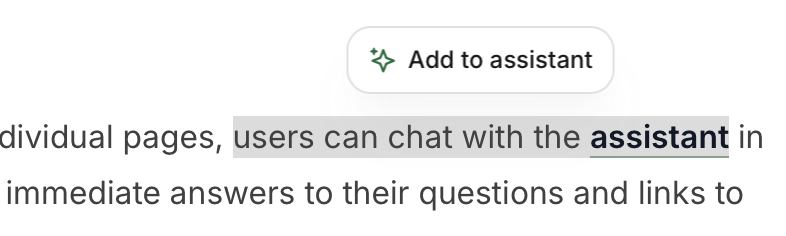
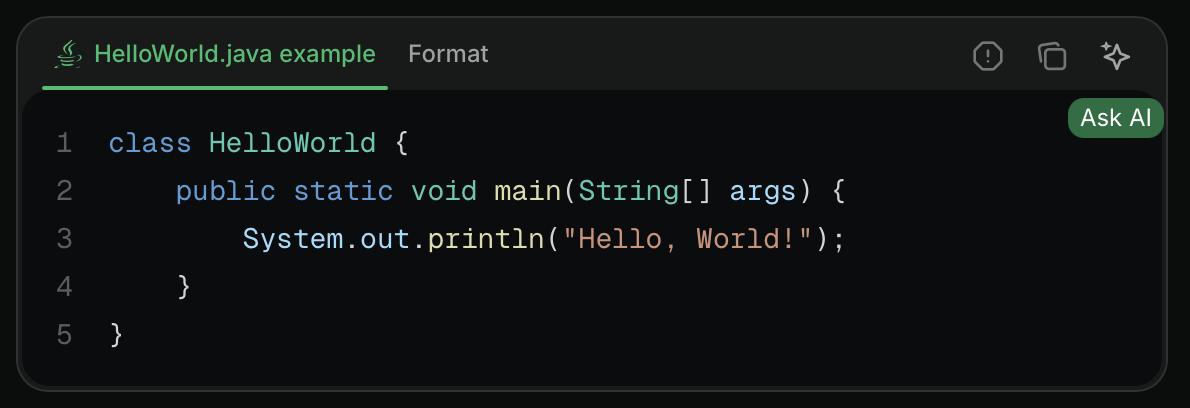
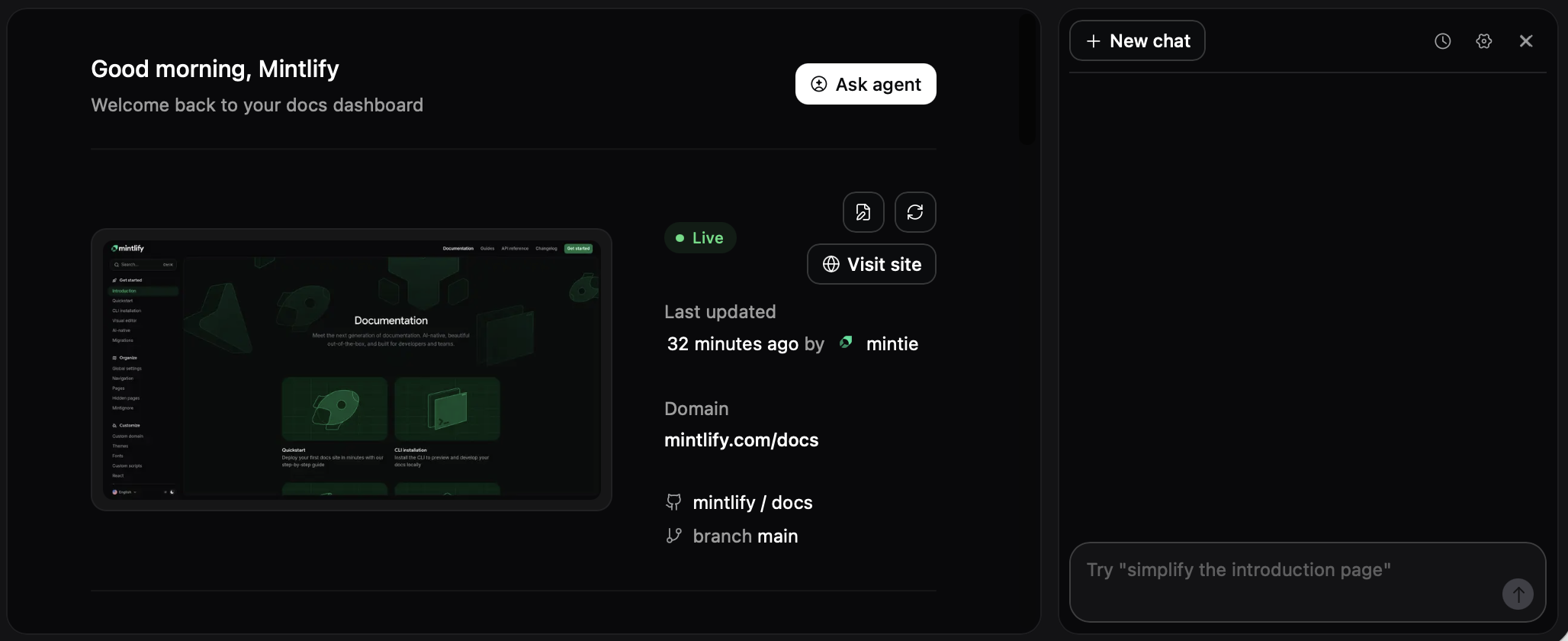
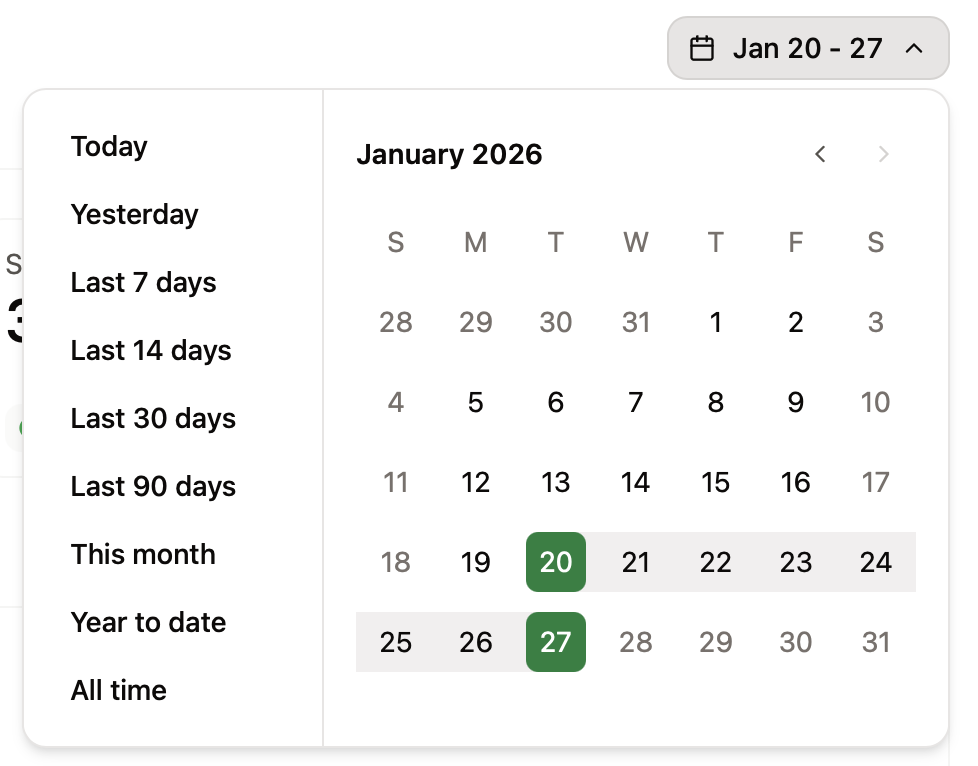
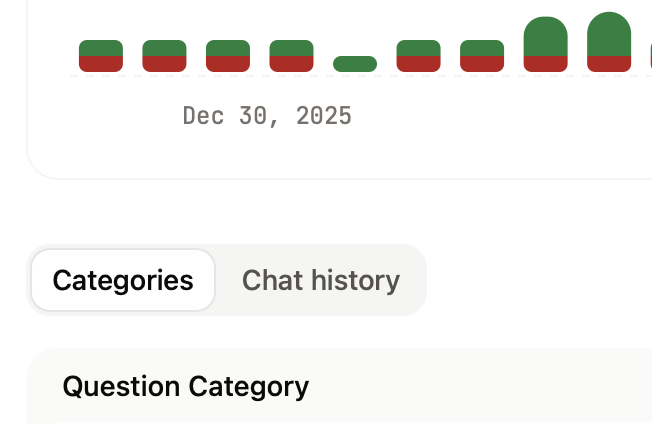
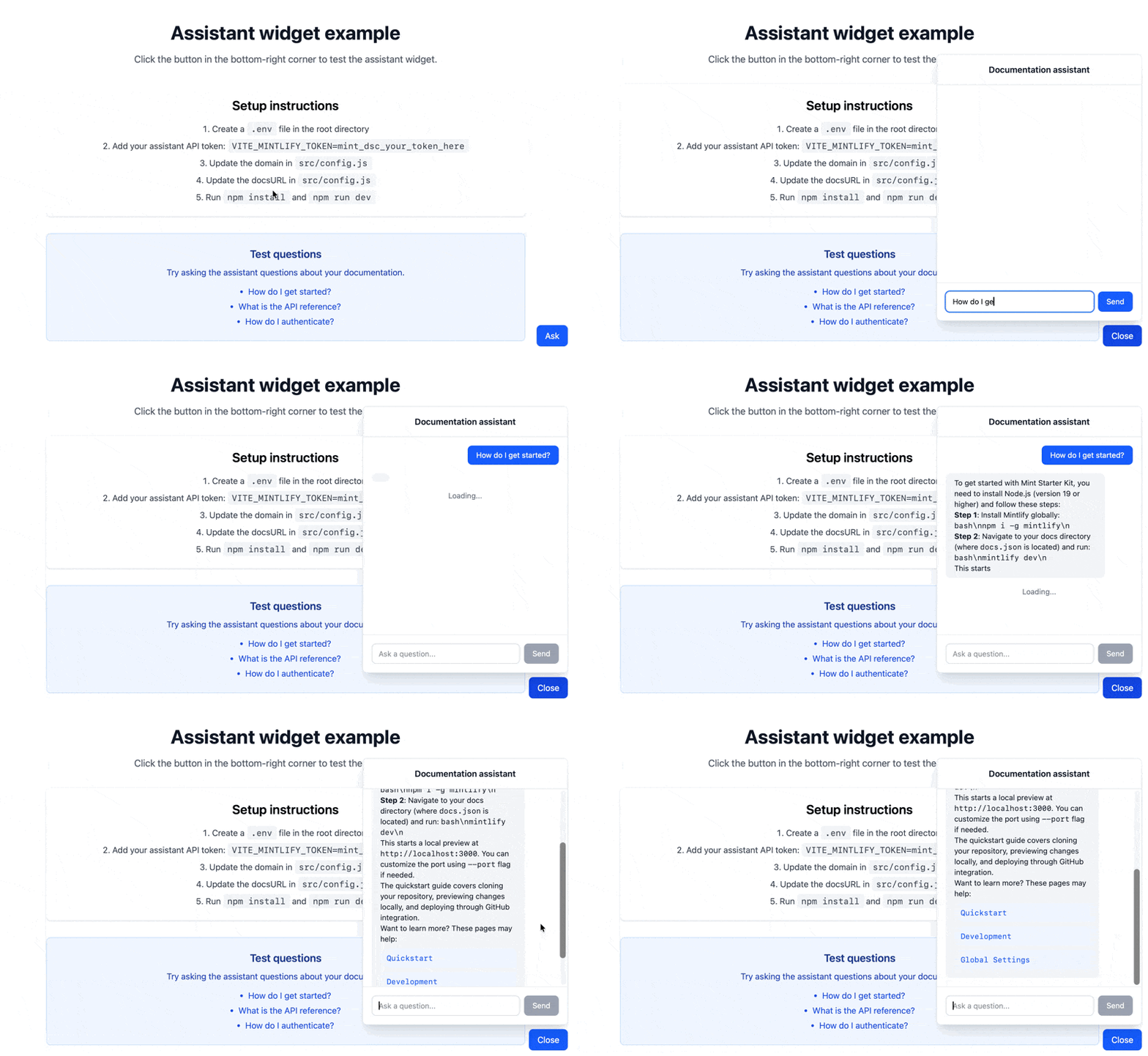
# Mintlify > ## Documentation Index --- # Source: https://www.mintlify.com/docs/guides/accessibility.md > ## Documentation Index > Fetch the complete documentation index at: https://www.mintlify.com/docs/llms.txt > Use this file to discover all available pages before exploring further. # Accessibility > Create documentation that as many people as possible can use with WCAG compliance. When you create accessible documentation, you prioritize content design that makes your documentation usable by as many people as possible regardless of how they access and interact with your documentation. Accessible documentation improves the user experience for everyone. Your content is more clear, better structured, and easier to navigate. This guide offers some best practices for creating accessible documentation, but it is not exhaustive. You should consider accessibility an ongoing process. Technologies and standards change over time, which introduce new opportunities to improve documentation. ## What is accessibility? Accessibility (sometimes abbreviated as a11y for the number of letters between the first and last letters of "accessibility") is intentionally designing and building websites and tools that as many people as possible can use. People with temporary or permanent disabilities should have the same level of access to digital technologies. And designing for accessibility benefits everyone, including people who access your website on mobile devices or slow networks. Accessible documentation follows web accessibility standards, primarily the [Web Content Accessibility Guidelines (WCAG)](https://www.w3.org/WAI/WCAG22/quickref/). These guidelines help ensure your content is perceivable, operable, understandable, and robust. ## Getting started with accessibility Making your documentation accessible is a process. You don't have to fix everything all at once and you can't do it only once. If you're just beginning to implement accessibility practices for your documentation, consider a phased approach where you start with high-impact changes and build from there. ### First steps Here are three things you can do right now to improve the accessibility of your documentation: 1. **Run `mint a11y`** to identify accessibility issues in your content. 2. **Add alt text** to all images. 3. **Check your heading hierarchy** to ensure one H1 per page and headings follow sequential order. ### Plan your accessibility work The best workflow is the one that works for your team. Here is one way that you can approach accessibility work: **Phase 1: Images and structure** * Review all images for descriptive alt text. * Audit link text and replace generic phrases like "click here." * Fix heading hierarchy issues across your documentation. **Phase 2: Navigation and media** * Test keyboard navigation on your documentation. * Test screen reader support. * Add captions and transcripts to embedded videos. * Review color contrast. **Phase 3: Build it into your workflow** * Run `mint a11y` before publishing new content. * Include accessibility checks in your content review process. * Test keyboard navigation when adding interactive features. * Verify new external links and embeds include proper titles and descriptions. Starting small and building accessibility into your regular workflow makes it sustainable. Each improvement helps more users access your documentation successfully. ## Structure your content Well-structured content is easier to navigate and understand, especially for screen reader users who rely on headings to move through pages and people who use keyboard navigation. ### Use proper heading hierarchy Each page should have a single H1 heading, which is defined by the `title:` property in a page's frontmatter. Use additional headings in order without skipping. For example, don't skip from H2 to H4. ```mdx theme={null} # Page title (H1) ## Main section (H2) ### Subsection (H3) ### Another subsection (H3) ## Another main section (H2) # Page title (H1) ## Main section (H2) #### Subsection (H4) ### Another subsection (H3) ``` Headings at the same level should have unique names. ```mdx theme={null} ## Accessibility tips (H2) ### Write effective alt text (H3) ### Use proper color contrast (H3) ## Accessibility tips (H2) ### Tip (H3) ### Tip (H3) ``` ### Write descriptive link text Link text should be meaningful and connected to the destination. Avoid vague phrases like "click here" or "read more." ```mdx theme={null} Learn how to [configure your navigation](/organize/navigation). [Learn more](/organize/navigation). ``` ### Keep content scannable * Break up long paragraphs. * Use lists for steps and options. * Highlight information with callouts. ### Use proper table structure Use tables sparingly and only for tabular data that has meaning inherited from the column and row headers. When using tables, include headers so screen readers can associate data with the correct column: ```mdx theme={null} | Feature | Status | | ------- | ------ | | Search | Active | | Analytics | Active | ``` ## Write descriptive alt text Alt text makes images accessible to screen reader users and appears when images fail to load. Images in your documentation should have alt text that describes the image and makes it clear why the image is included. Even with alt text, you should not rely on images alone to convey information. Make sure your content describes what the image communicates. ### Write effective alt text * **Be specific**: Describe what the image shows, not just that it's an image. * **Be concise**: Aim for one to two sentences. * **Avoid redundancy**: Don't start with "Image of" because screen readers will already know that the alt text is associated with an image. However, you should include descriptions like "Screenshot of" or "Diagram of" if that context is important to the image. ```mdx theme={null} ![Screenshot of the dashboard showing three active projects and two pending invitations](/images/dashboard.png) ![Dashboard screenshot](/images/dashboard.png) ``` ### Add alt text to images For Markdown images, include alt text in the square brackets: ```mdx theme={null} ![Description of the image](/path/to/image.png) ``` For HTML images, use the `alt` attribute: ```html theme={null} Settings panel with accessibility options enabled. The options are emphasized with an orange rectangle. ``` ### Add titles to embedded content Iframes and video embeds require descriptive titles: ```html theme={null} ``` ## Design for readability Visual design choices affect how accessible your documentation is to users with low vision, color blindness, or other visual disabilities. ### Ensure sufficient color contrast If you customize your theme colors, verify the contrast ratios meet WCAG requirements: * Body text: minimum 4.5:1 contrast ratio * Large text: minimum 3:1 contrast ratio * Interactive elements: minimum 3:1 contrast ratio Test both light and dark mode. The `mint a11y` command checks for color contrast. ### Don't rely on color alone If you use color to convey information, include a text label or icon as well. For example, don't mark errors only with red text. Include an error icon or the word "Error." ### Use clear, concise language * Write in plain language. * Define technical terms when first used. * Avoid run-on sentences. * Use active voice. ## Make code examples accessible Code blocks are a core part of technical documentation, but they require specific accessibility considerations to ensure screen reader users can understand them. In general, follow these guidelines: * Break long code examples into smaller, logical chunks. * Comment complex logic within the code. * Consider providing a text description for complex algorithms. * When showing file structure, use actual code blocks with language labels rather than ASCII art. ### Specify the programming language Always declare the language for syntax highlighting. This helps screen readers announce the code context to users: ````mdx theme={null} ```javascript function getUserData(id) { return fetch(`/api/users/${id}`); } ``` ```` ### Provide context around code Provide clear context for code blocks: ````mdx theme={null} The following function fetches user data from the API: ```javascript function getUserData(id) { return fetch(`/api/users/${id}`); } ``` This returns a promise that resolves to the user object. ```` ## Video and multimedia accessibility Videos, animations, and other multimedia content need text alternatives so all users can access the information they contain. ### Add captions to videos Captions make video content accessible to users who are deaf or hard of hearing. They also help users in sound-sensitive environments and non-native speakers: * Use captions for all spoken content in videos. * Include relevant sound effects in captions. * Ensure captions are synchronized with the audio. * Use proper punctuation and speaker identification when multiple people speak. Most video hosting platforms support adding captions. Upload caption files or use auto-generated captions as a starting point, then review for accuracy. ### Provide transcripts Transcripts offer an alternative way to access video content. They're searchable, easier to reference, and accessible to screen readers: ```mdx theme={null} In this tutorial, we'll walk through setting up authentication... ``` Place transcripts near the video or provide a clear link to access them. ### Consider alternatives to video-only content If critical information only appears in a video: * Provide the same information in text form. * Include key screenshots with descriptive alt text. * Create a written tutorial that covers the same material. This ensures users who can't access video content can still complete their task. ## Test your documentation Regular testing helps you catch accessibility issues before users encounter them. ### Check for accessibility issues with `mint a11y` Use the `mint a11y` CLI command to automatically scan your documentation for common accessibility issues: ```bash theme={null} mint a11y ``` The command checks for: * Missing alt text on images and videos. * Insufficient color contrast. When the scan completes, review the reported issues and fix them in your content. Run the command again to verify your fixes. Use flags to check for specific accessibility issues. ```bash theme={null} # Check only for missing alt text mint a11y --skip-contrast # Check only for color contrast issues mint a11y --skip-alt-text ``` ### Basic keyboard navigation test Navigate through your documentation using only your keyboard: 1. Press Tab to move forward through interactive elements. 2. Press Shift + Tab to move backward. 3. Press Enter to activate links and buttons. 4. Verify all interactive elements are reachable and have visible focus indicators. ### Go deeper with accessibility testing For more comprehensive testing: * **Screen readers**: Test with [NVDA (Windows)](https://www.nvaccess.org/) or [VoiceOver (Mac)](https://www.apple.com/accessibility/voiceover/). * **Browser extensions**: Install [axe DevTools](https://www.deque.com/axe/browser-extensions/) or [WAVE](https://wave.webaim.org/extension/) to scan pages for issues. * **WCAG guidelines**: Review the [Web Content Accessibility Guidelines](https://www.w3.org/WAI/WCAG22/quickref/) for detailed standards. ## Additional resources Continue learning about accessibility with these trusted resources: * **[WebAIM](https://webaim.org/)**: Practical articles and tutorials on web accessibility * **[The A11y Project](https://www.a11yproject.com/)**: Community-driven accessibility resources and checklist * **[W3C Web Accessibility Initiative (WAI)](https://www.w3.org/WAI/)**: Official accessibility standards and guidance --- # Source: https://www.mintlify.com/docs/components/accordions.md > ## Documentation Index > Fetch the complete documentation index at: https://www.mintlify.com/docs/llms.txt > Use this file to discover all available pages before exploring further. # Accordions > Use accordions to show and hide content. Accordions allow users to expand and collapse content sections. Use accordions for progressive disclosure and to organize information. ## Single accordion You can put any content in here, including other components, like code: ```java HelloWorld.java theme={null} class HelloWorld { public static void main(String[] args) { System.out.println("Hello, World!"); } } ``` ````mdx Accordion example theme={null} You can put any content in here, including other components, like code: ```java HelloWorld.java class HelloWorld { public static void main(String[] args) { System.out.println("Hello, World!"); } } ``` ```` ## Accordion Groups Group related accordions together using ``. This creates a cohesive section of accordions that can be individually expanded or collapsed. You can put other components inside Accordions. ```java HelloWorld.java theme={null} class HelloWorld { public static void main(String[] args) { System.out.println("Hello, World!"); } } ``` Add icons to make accordions more visually distinct and scannable. Keep related content organized into groups. ````mdx Accordion Group Example theme={null} You can put other components inside Accordions. ```java HelloWorld.java class HelloWorld { public static void main(String[] args) { System.out.println("Hello, World!"); } } ``` Add icons to make accordions more visually distinct and scannable. Keep related content organized into groups. ```` ## Properties Title in the Accordion preview. Detail below the title in the Accordion preview. Whether the Accordion is open by default. The icon to display. Options: * [Font Awesome](https://fontawesome.com/icons) icon name, if you have the `icons.library` [property](/organize/settings#param-icons) set to `fontawesome` in your `docs.json` * [Lucide](https://lucide.dev/icons) icon name, if you have the `icons.library` [property](/organize/settings#param-icons) set to `lucide` in your `docs.json` * URL to an externally hosted icon * Path to an icon file in your project * SVG code wrapped in curly braces For custom SVG icons: 1. Convert your SVG using the [SVGR converter](https://react-svgr.com/playground/). 2. Paste your SVG code into the SVG input field. 3. Copy the complete `...` element from the JSX output field. 4. Wrap the JSX-compatible SVG code in curly braces: `icon={ ... }`. 5. Adjust `height` and `width` as needed. The [Font Awesome](https://fontawesome.com/icons) icon style. Only used with Font Awesome icons. Options: `regular`, `solid`, `light`, `thin`, `sharp-solid`, `duotone`, `brands`. --- # Source: https://www.mintlify.com/docs/api-playground/adding-sdk-examples.md > ## Documentation Index > Fetch the complete documentation index at: https://www.mintlify.com/docs/llms.txt > Use this file to discover all available pages before exploring further. # Add SDK examples > Display SDK code samples in your API documentation. If your users interact with your API using an SDK rather than directly through a network request, you can use the `x-codeSamples` extension to add code samples to your OpenAPI document and display them in your OpenAPI pages. This property can be added to any request method and has the following schema. The language of the code sample. The label for the sample. This is useful when providing multiple examples for a single endpoint. The source code of the sample. Here is an example of code samples for a plant tracking app, which has both a Bash CLI tool and a JavaScript SDK. ```yaml theme={null} paths: /plants: get: # ... x-codeSamples: - lang: bash label: List all unwatered plants source: | planter list -u - lang: javascript label: List all unwatered plants source: | const planter = require('planter'); planter.list({ unwatered: true }); - lang: bash label: List all potted plants source: | planter list -p - lang: javascript label: List all potted plants source: | const planter = require('planter'); planter.list({ potted: true }); ``` --- # Source: https://mintlify.com/docs/ai/agent.md # Agent > Automate documentation updates with the agent. Create pull requests from Slack messages, PRs, or API calls. The agent is available on [Pro and Custom plans](https://mintlify.com/pricing?ref=agent) for anyone with access to your dashboard. The agent creates pull requests with proposed changes to your documentation based on your prompts. When you send a request to the agent, it references your documentation, connected repositories, and Slack messages to create content that follows technical writing best practices and adheres to the Mintlify schema. Access the agent in your Slack workspace or embed it in custom applications with the API. Use the agent to: * Write new content based on your prompts, links to pull requests, or Slack threads * Revise outdated code examples and API references * Search and update existing content * Answer questions about your docs and technical writing topics To get started, add the agent to your Slack workspace and mention it with `@mintlify` in a channel. ## Add the agent to your Slack workspace If your Slack Workspace Owner requires admin approval to install apps, ask them to approve the Mintlify app before you connect it. 1. Navigate to the [agent](https://dashboard.mintlify.com/products/agent) page of your dashboard. 2. Select the **Connect** button. 3. Follow the Slack prompts to add the `mintlify` app to your workspace. 4. Follow the Slack prompts to link your Mintlify account to your Slack workspace. 5. Test that the agent is working and responds when you: * Send a direct message to it. * Mention it with `@mintlify` in a channel. ## Connect repositories as context The agent can only access repositories that you connect through the Mintlify GitHub App. Modify which repositories the agent can access in the [GitHub App settings](https://github.com/apps/mintlify/installations/new). ## Embed the agent via API Use the agent endpoints to [create jobs](/api-reference/agent/create-agent-job), [get a specific job](/api-reference/agent/get-agent-job), and [get all jobs](/api-reference/agent/get-all-jobs). ## Write effective prompts Think of the agent as a helpful assistant that needs your guidance to complete tasks. Give it clear instructions and context. More focused tasks are easier to complete, so break down complex projects into smaller steps. Make your prompts specific and outcome-focused. Generic prompts like `@mintlify Improve the onboarding page` apply general best practices, but may not improve content in the specific way that you were picturing. Try prompts based on outcomes you want your users to achieve or problems that they encounter. For example: * `@mintlify A lot of users have trouble installing the CLI. Review the onboarding page and update the docs so that users can easily install the CLI` * `@mintlify Developers keep getting 401 errors when following our authentication guide. Review the auth docs and add clearer examples showing how to properly format the API key` Use broad prompts for general content maintenance like fixing typos, updating redirects, or renaming a feature throughout your docs. For example: * `@mintlify Find and fix all typos in the docs` * `@mintlify change all unordered lists to use * instead of -` ## Specify a subdomain If you have multiple documentation sites with their own subdomains, include the `subdomain` parameter in your message to specify which subdomain the agent should work on. Use the format `@mintlify subdomain= ` to prompt the agent to work on a specific subdomain. Examples: * `@mintlify subdomain=public-docs Add a new section to the quickstart about inviting collaborators based on this PR`: Prompts the agent to update the quickstart only on the `public-docs` subdomain. * `@mintlify subdomain=customer-docs Update the auth docs for the new authentication method`: Prompts the agent to update the auth docs only on the `customer-docs` subdomain. ## Agent workflows The agent assists with many different documentation tasks. These workflows show some of the ways you can integrate the agent into your documentation process. Try an approach that fits how your team currently works and adapt it to your specific needs. ### Iterate on a prompt in a Slack thread Prompt the agent, then continue to mention it with `@mintlify` in the same thread to refine and iterate on the pull request that it creates. For example: `@mintlify Our quickstart page needs a new section on inviting collaborators`. Then `@mintlify The new section should be called "Inviting collaborators"`. Followed by any other iterations. ### Start with the agent, finish manually Prompt the agent to begin a project, then check out the branch it creates and finish the task in your local environment or the web editor. The agent can help you get started, then you can take over to complete the task. For example: `@mintlify Update the quickstart page to include information about inviting collaborators` and then checkout the branch to make any additional changes using your preferred method. ### Update docs when merging feature changes When you merge a feature pull request, share the PR link with the agent to update relevant docs. For example: `@mintlify This PR adds a new authentication method. Update the docs to include the new auth flow: [PR link]`. ### Generate release notes from a pull request Prompt the agent with a specific pull request to generate release notes or changelog updates based on the commit history. For example: `@mintlify Generate release notes for this PR: [PR link]`. ### Generate code examples Prompt the agent to generate code examples for features throughout your docs or on specific pages. For example: `@mintlify Generate a code example to make the authentication method easier to understand`. ### Review existing content Prompt the agent to review existing content for technical accuracy, style, grammar, or other issues. For example: `@mintlify Review the API rate limiting section. We changed limits last month`. ### Respond to user feedback Prompt the agent with feedback from your users to make focused updates to your docs. For example: `@mintlify Users are getting confused by step 3 in the setup guide. What might be making it unclear?`. ### Automate with the API Integrate the agent into your existing automation tools to automatically update documentation when code changes occur, trigger content reviews, or sync documentation updates across multiple repositories. Learn how in the [Auto-update documentation when code is merged](/guides/automate-agent) tutorial. --- # Source: https://www.mintlify.com/docs/ai-native.md > ## Documentation Index > Fetch the complete documentation index at: https://www.mintlify.com/docs/llms.txt > Use this file to discover all available pages before exploring further. # AI-native documentation > Learn how AI enhances reading, writing, and discovering your documentation When you host your documentation on Mintlify, built-in AI features help your users find answers and your team maintain content more efficiently. Your content provides the context for these AI-native features to improve the experiences of reading, writing, and discovering your documentation. ## What makes your documentation AI-native ### Reading In addition to reading individual pages, users can chat with the [assistant](/ai/assistant) in your documentation for immediate answers to their questions and links to relevant content. The assistant helps guide users through your product with accurate information from your documentation. Embed the assistant into custom apps with the [API](api-reference/assistant/create-assistant-message) to extend where users can access your documentation. ### Writing The [agent](/agent) helps you write and maintain documentation. It creates pull requests with proposed changes based on your prompts, pull requests, and Slack threads. Add the agent to your Slack workspace so that anyone on your team can help maintain your documentation by chatting with the agent. Or embed the agent into custom apps via the [API](/api-reference/agent/create-agent-job). You can configure the agent to monitor connected repositories and proactively [suggest](/agent/suggestions) documentation updates when it identifies user-facing changes. Configure popular tools like [Cursor](/guides/cursor), [Claude Code](/guides/claude-code), and [Windsurf](/guides/windsurf) to reference the Mintlify schema, your style guide, and best practices. ### Discovering Your site is automatically optimized for AI tools and search engines to help users discover your documentation. All pages send their content as Markdown to AI agents instead of HTML, which helps these tools process your content faster and use fewer tokens. Every page is also available to view as Markdown by appending `.md` to the URL. Mintlify hosts `llms.txt` and `skill.md` files for your documentation. These industry-standard files help LLMs respond efficiently with relevant information to user queries and provide a list of capabilities for agents to use, so that users are more successful with your product. Your documentation site also hosts an MCP server that lets users connect your documentation directly to their AI tools for up to date information about your product directly where they want it. Full-text search and semantic understanding help users and AI tools find relevant information quickly. Search understands user intent rather than just matching keywords. And if a user encounters a 404 error, your site suggests related pages to help them find what they're looking for. No configuration required. ## Enable AI features Select any of the following cards for more information. Configure the assistant to search external sites or direct people to your support team if it can't answer their questions. Use the agent in your dashboard to create documentation updates. Monitor Git repositories for changes and receive suggested documentation updates. Add a menu to pages that lets users query AI tools, connect to your MCP server, and copy pages as context with one click. --- # Source: https://www.mintlify.com/docs/integrations/analytics/amplitude.md > ## Documentation Index > Fetch the complete documentation index at: https://www.mintlify.com/docs/llms.txt > Use this file to discover all available pages before exploring further. # Amplitude > Track user behavior and documentation analytics with Amplitude. Add the following to your `docs.json` file to send analytics to Amplitude. ```json Analytics options in docs.json theme={null} "integrations": { "amplitude": { "apiKey": "required" } } ``` ```json Example theme={null} "integrations": { "amplitude": { "apiKey": "76bb138bf3fbf58186XXX00000" } } ``` --- # Source: https://www.mintlify.com/docs/optimize/analytics.md > ## Documentation Index > Fetch the complete documentation index at: https://www.mintlify.com/docs/llms.txt > Use this file to discover all available pages before exploring further. # Analytics > Track documentation analytics and understand content effectiveness with visitor data. The [analytics](https://dashboard.mintlify.com/products/analytics/v2/) page in your dashboard shows data about visitors to your docs, how they interact with the assistant, what they search for, and their feedback. Use this information to identify which pages are most valuable to your users and track trends over time. ## Filter by AI or human visitors Filter your analytics data by traffic source to analyze AI agent traffic separately from human visitors. The traffic source filter on the analytics page. The traffic source filter on the analytics page. When you change the traffic source, the analytics page only displays relevant metrics to that traffic source. For AI traffic, the analytics page only displays visitors and MCP searches. For human traffic, the analytics page displays visitors, assistant insights, searches, and feedback. ## Filter time period Use the range selector to adjust the time period for displayed data. The range selector expanded to show options for viewing different time periods of data. The range selector expanded to show options for viewing different time periods of data. ## Visitors The visitors tab displays a bar chart of visitors over time, a list of popular pages, and referral sources. Review your visitors analytics to: * **Monitor traffic trends**: Observe changes in traffic after updates or new content to understand the impact of your changes. * **Identify popular pages**: Use popular pages to understand what content is most important to your users so that you can make sure it is up to date and comprehensive. * **Track traffic sources**: Understand where your users are coming from to help you optimize your content for the right audience. ### Top agents When viewing AI traffic, top agents replaces referrals in the visitors tab. Top agents shows which AI agents are visiting your documentation. Use this information to help determine: * **AI agent distribution**: See which AI platforms are accessing your docs to learn which tools your users prefer. * **Integration opportunities**: Identify which AI platforms to prioritize for optimization and testing. * **AI traffic patterns**: Monitor which agents are most active and how their usage changes over time. ## Assistant The assistant tab displays a bar chart of assistant usage over time, a list of categories, and chat history. Review your assistant analytics to: * **Monitor assistant usage**: Observe changes in assistant usage to understand how your users engage with your content. * **Identify frequent categories**: Use high occurrence categories to understand what topics are most important to your users. Identify gaps in coverage and prioritize content updates. * **Review chat history**: Get detailed high intent data about how your users think about your product by reviewing their chat history with the assistant. See what terms they use, what they need help with, and what tasks they try to accomplish. ### Categories The categories tab uses LLMs to automatically group conversations by topic or theme. The categories tab in the assistant analytics page. The categories tab in the assistant analytics page. Use categories to identify common topics, patterns in user needs and behavior, and areas where documentation might need expansion or clarification. Click a category row to expand it and view related conversations grouped under that category. Click an individual conversation to view the complete chat thread, including the user's question, the assistant's response, and any sources cited. ### Chat history The chat history tab displays chronological records of all assistant conversations. Click any message to view the complete chat thread, including the user's question, the assistant's response, and any sources cited. ### Export queries For deeper analysis, export a CSV file of your queries, responses, and sources. Use your preferred tools to analyze the exported data. Sample analysis prompts: * List any queries that had no sources cited. * Find patterns in unsuccessful interactions. ## Searches The Searches metric is only available when viewing human traffic. It is hidden when the AI traffic filter is selected. The searches tab displays a bar chart of searches over time and specific queries. Review your searches analytics to: * **Monitor search trends**: Observe changes in search queries to understand how your users are finding your content and what topics they want information on. * **Identify frequent queries**: Use frequent queries to understand what topics are most important to your users. Identify gaps in coverage and prioritize content updates. * **Identify low click through rates**: Click through rates (CTR) show how many users click a search result after typing in a query. Low CTR can indicate that the search results are not relevant to users' queries. If you have frequent search terms with low CTR, consider improving the relevance of search results by adding keywords and updating your content. ## MCP searches The MCP Searches metric is only available when viewing AI traffic. It is hidden when viewing all traffic or human traffic. The MCP searches tab displays AI agent search interactions through the Model Context Protocol (MCP). This metric shows how AI agents query and interact with your documentation. Review your MCP searches analytics to: * **Monitor AI search activity**: Track how frequently AI agents search your documentation and identify trends in AI-driven queries. * **Identify common AI queries**: Understand what information AI agents are looking for to optimize your content for AI consumption. * **Improve AI discoverability**: Use frequent MCP search queries to identify gaps in your documentation that AI agents struggle to find answers for. ## Feedback The feedback tab displays a bar chart of feedback over time and specific feedback items. See [Feedback](/optimize/feedback) for more information on using feedback data to improve your content. --- # Source: https://www.mintlify.com/docs/api/analytics/assistant-conversations.md > ## Documentation Index > Fetch the complete documentation index at: https://www.mintlify.com/docs/llms.txt > Use this file to discover all available pages before exploring further. # Get assistant conversations > Returns paginated AI assistant conversation history ## Usage Use this endpoint to export AI assistant conversation history from your documentation. Each conversation includes the user query, assistant response, sources cited, and query category. Paginate through results using the `cursor` parameter returned in the response. Continue fetching while `hasMore` is `true`. ## Filtering Filter conversations by date range using `dateFrom` and `dateTo` parameters. ## Conversation data Each conversation includes: * **query**: The user's question * **response**: The assistant's answer * **sources**: Pages referenced in the response, with title and URL * **queryCategory**: Classification of the query type (if available) ## OpenAPI ````yaml analytics.openapi.json get /api/external/v1/analytics/{projectId}/assistant openapi: 3.1.0 info: title: Mintlify Analytics Export API version: 1.0.0 description: API for exporting documentation analytics data servers: - url: https://api.mintlify.com description: Production security: [] paths: /api/external/v1/analytics/{projectId}/assistant: get: tags: - Analytics summary: Get assistant conversations description: Returns paginated AI assistant conversation history parameters: - $ref: '#/components/parameters/projectId' - schema: type: string description: Date in ISO 8601 or YYYY-MM-DD format example: '2024-01-01' required: false name: dateFrom in: query - schema: type: string description: Date in ISO 8601 or YYYY-MM-DD format example: '2024-01-01' required: false name: dateTo in: query - schema: type: number minimum: 1 maximum: 1000 default: 100 description: Max results per page required: false name: limit in: query - schema: type: string format: ulid description: Pagination cursor (ULID format) required: false name: cursor in: query responses: '200': description: Conversation data with pagination content: application/json: schema: $ref: '#/components/schemas/AssistantConversationsResponse' '400': description: Invalid query parameters content: application/json: schema: $ref: '#/components/schemas/AnalyticsErrorResponse' '500': description: Server error content: application/json: schema: $ref: '#/components/schemas/AnalyticsErrorResponse' security: - bearerAuth: [] components: parameters: projectId: schema: $ref: '#/components/schemas/projectId' required: true name: projectId in: path schemas: AssistantConversationsResponse: type: object properties: conversations: type: array description: List of assistant conversations. items: type: object properties: id: type: string description: Unique conversation identifier. timestamp: type: string description: Timestamp when the conversation occurred. query: type: string description: The user's question to the assistant. response: type: string description: The assistant's response. sources: type: array description: Documentation pages referenced in the response. items: type: object properties: title: type: string description: Title of the referenced documentation page. url: type: string description: URL of the referenced documentation page. required: - title - url queryCategory: type: - string - 'null' description: >- Auto-assigned category grouping for the conversation, if applicable. required: - id - timestamp - query - response - sources - queryCategory nextCursor: type: - string - 'null' description: >- Cursor to retrieve the next page of results. Null if no more results. hasMore: type: boolean description: Whether additional results are available beyond this page. required: - conversations - nextCursor - hasMore AnalyticsErrorResponse: type: object properties: error: type: string description: Error message describing what went wrong. details: type: array description: Additional details about the error. items: type: object properties: message: type: string description: Description of a specific validation or processing error. required: - message required: - error projectId: type: string description: >- Your project ID. Can be copied from the [API keys](https://dashboard.mintlify.com/settings/organization/api-keys) page in your dashboard. securitySchemes: bearerAuth: type: http scheme: bearer description: >- The Authorization header expects a Bearer token. Use an admin API key (prefixed with `mint_`). This is a server-side secret key. Generate one on the [API keys page](https://dashboard.mintlify.com/settings/organization/api-keys) in your dashboard. ```` --- # Source: https://www.mintlify.com/docs/guides/assistant-embed.md > ## Documentation Index > Fetch the complete documentation index at: https://www.mintlify.com/docs/llms.txt > Use this file to discover all available pages before exploring further. # Tutorial: Build an in-app documentation assistant > Embed the assistant in your application to answer questions with information from your documentation. ## What you will build A reusable widget that embeds the [assistant](/ai/assistant) directly in your application. The widget provides: * A floating button that opens a chat panel when clicked * Real-time streaming responses based on information from your documentation * Message rendering with Markdown support Users can use the widget to get help with your product without leaving your application. Demo of the assistant widget being opened and the user typing in How do I get started? Then the assistant responds. ## Prerequisites * [Mintlify Pro or Enterprise plan](https://mintlify.com/pricing) * Your domain name, which appears at the end of your dashboard URL. For example, if your dashboard URL is `https://dashboard.mintlify.com/org-name/domain-name`, your domain name is `domain-name` * An [assistant API key](https://dashboard.mintlify.com/settings/organization/api-keys) * Node.js v18 or higher and npm installed * Basic React knowledge ### Get your assistant API key 1. Navigate to the [API keys](https://dashboard.mintlify.com/settings/organization/api-keys) page in your dashboard. 2. Click **Create Assistant API Key**. 3. Copy the assistant API key (starts with `mint_dsc_`) and save it securely. The assistant API key is a public token that you can use in frontend code. Calls using this token count toward your plan's message allowance and can incur overages. ## Set up the example Clone the [example repository](https://github.com/mintlify/assistant-embed-example) and customize it for your needs. ```bash theme={null} git clone https://github.com/mintlify/assistant-embed-example.git cd assistant-embed-example ``` The repository includes Next.js and Vite examples. Choose the tool you prefer to use. ```bash title="Next.js" theme={null} cd nextjs npm install ``` ```bash title="Vite" theme={null} cd vite npm install ``` Open `src/config.js` and update with your Mintlify project details. ```js src/config.js theme={null} export const ASSISTANT_CONFIG = { domain: 'your-domain', docsURL: 'https://yourdocs.mintlify.app', }; ``` Replace: * `your-domain` with your Mintlify project domain found at the end of your dashboard URL. * `https://yourdocs.mintlify.app` with your actual documentation URL. Create a `.env` file in the project root. ```bash .env theme={null} VITE_MINTLIFY_TOKEN=mint_dsc_your_token_here ``` Replace `mint_dsc_your_token_here` with your assistant API key. ```bash theme={null} npm run dev ``` Open your application in a browser and click the **Ask** button to open the assistant widget. ## Customization ideas ### Source citations Extract and display sources from assistant responses: ```jsx theme={null} const extractSources = (parts) => { return parts ?.filter(p => p.type === 'tool-invocation' && p.toolInvocation?.toolName === 'search') .flatMap(p => p.toolInvocation?.result || []) .map(source => ({ url: source.url || source.path, title: source.metadata?.title || source.path, })) || []; }; // In your message rendering: {messages.map((message) => { const sources = message.role === 'assistant' ? extractSources(message.parts) : []; return (

{/* message content */} {sources.length > 0 && (

Sources:

{sources.map((s, i) => ( {s.title} ))}


)}
); })} ``` ### Track conversation thread IDs Store thread IDs to maintain conversation history across sessions: ```jsx theme={null} import { useState, useEffect } from 'react'; export function AssistantWidget({ domain, docsURL }) { const [threadId, setThreadId] = useState(null); useEffect(() => { // Retrieve saved thread ID from localStorage const saved = localStorage.getItem('assistant-thread-id'); if (saved) { setThreadId(saved); } }, []); const { messages, input, handleInputChange, handleSubmit, isLoading } = useChat({ api: `https://api.mintlify.com/discovery/v1/assistant/${domain}/message`, headers: { 'Authorization': `Bearer ${import.meta.env.VITE_MINTLIFY_TOKEN}`, }, body: { fp: 'anonymous', retrievalPageSize: 5, ...(threadId && { threadId }), // Include thread ID if available }, streamProtocol: 'data', sendExtraMessageFields: true, fetch: async (url, options) => { const response = await fetch(url, options); const newThreadId = response.headers.get('x-thread-id'); if (newThreadId) { setThreadId(newThreadId); localStorage.setItem('assistant-thread-id', newThreadId); } return response; }, }); // ... rest of component } ``` ### Add keyboard shortcuts Allow users to open the widget and submit messages with keyboard shortcuts: ```jsx theme={null} useEffect(() => { const handleKeyDown = (e) => { // Cmd/Ctrl + Shift + I to toggle widget if ((e.metaKey || e.ctrlKey) && e.shiftKey && e.key === 'I') { e.preventDefault(); setIsOpen((prev) => !prev); } // Enter (when widget is focused) to submit if (e.key === 'Enter' && !e.shiftKey && document.activeElement.id === 'assistant-input') { e.preventDefault(); handleSubmit(); } }; window.addEventListener('keydown', handleKeyDown); return () => window.removeEventListener('keydown', handleKeyDown); }, [handleSubmit]); ``` --- # Source: https://www.mintlify.com/docs/ai/assistant.md > ## Documentation Index > Fetch the complete documentation index at: https://www.mintlify.com/docs/llms.txt > Use this file to discover all available pages before exploring further. # Assistant > Add AI-powered chat to your docs that answers questions, cites sources, and generates code examples. The assistant is automatically enabled on [Pro and Enterprise plans](https://mintlify.com/pricing?ref=assistant). ## About the assistant The assistant answers questions about your documentation through natural language queries. Users access the assistant on your documentation site, so they can find answers quickly and succeed with your product even if they don't know where to look. The assistant uses agentic RAG (retrieval-augmented generation) with tool calling. When users ask questions, the assistant: * **Searches and retrieves** relevant content from your documentation to provide accurate answers. * **Cites sources** and provides navigable links to take users directly to referenced pages. * **Generates copyable code examples** to help users implement solutions from your documentation. You can view assistant usage through your dashboard to understand user behavior and documentation effectiveness. Export and analyze query data to help identify: * Frequently asked questions that might need better coverage. * Content gaps where users struggle to find answers. * Popular topics that could benefit from additional content. ### How indexing works The assistant automatically indexes your published documentation to answer questions accurately. When you publish changes, the assistant immediately indexes new, updated, or deleted content. The assistant does not index draft branches or preview deployments. By default, the assistant does not index hidden pages. To include hidden pages in the assistant's index, set `seo.indexing: "all"` in your `docs.json`. See [Hidden pages](/organize/hidden-pages#search-seo-and-ai-indexing) for more information. ### How the assistant handles unknown questions The assistant only answers questions based on information in your documentation. If it cannot find relevant information after searching, it responds that it doesn't have enough information to answer. You can [set a deflection email](/ai/assistant#set-deflection-email) so that the assistant provides your support email to users whose questions it cannot answer. This gives users a path forward, even if the documentation doesn't address their specific question. ## Configure the assistant The assistant is active on Pro and Enterprise plans by default. Manage the assistant from the [Assistant Configurations](https://dashboard.mintlify.com/products/assistant/settings) page of your dashboard. Enable or disable the assistant, configure response handling, add default questions, and manage your message allowance. ### Enable or disable the assistant Toggle the assistant status to enable or disable the assistant for your documentation site. The assistant status toggle in the dashboard. The assistant status toggle in the dashboard. ### Set deflection email In the Response Handling section, enable the assistant to redirect unanswered questions to your support team. Specify an email address for the assistant to give to users if it cannot answer their question. You can also enable a "Contact support" button to appear in the assistant chat panel. The assistant deflection panel in the dashboard. Assistant deflection is toggled on and support@mintlify.com is set as the deflection email. The assistant deflection panel in the dashboard. Assistant deflection is toggled on and support@mintlify.com is set as the deflection email. ### Search domains In the Response Handling section, configure domains that the assistant can search for additional context when answering questions. * Domains must be publicly available. * Domains that require JavaScript to load are not supported. The assistant search domains panel enabled in the dashboard. The assistant is configured to search the mintlify.com/pricing domain. The assistant search domains panel enabled in the dashboard. The assistant is configured to search the mintlify.com/pricing domain. For more precise control over what the assistant can search, use filtering syntax. * **Domain-level filtering** * `example.com`: Search only the `example.com` domain * `docs.example.com`: Search only the `docs.example.com` subdomain * `*.example.com`: Search all subdomains of `example.com` * **Path-level filtering** * `docs.example.com/api`: Search all pages under the `/api` subpath * **Multiple patterns** * Add multiple entries to target different sections of sites ### Add sample questions Help your users begin conversations with the assistant by adding starter questions. Add commonly asked questions or questions about topics that you want your users to know about. Click **Ask AI** for recommended questions based on your documentation. The search suggestions panel in the dashboard with starter questions enabled and populated with three questions. The search suggestions panel in the dashboard with starter questions enabled and populated with three questions. ## Manage billing The assistant uses tiered message allowances. A message is any user interaction with the assistant that receives a correct response. If you have unused messages, up to half of your message allowance can carry over to the next billing cycle. For example, if you have a 1,000 message allowance and you use 300 messages, 500 messages carry over to the next billing cycle giving you a total of 1,500 messages for the next billing cycle. By default, the assistant allows overages. You can disable overages to avoid incurring additional costs for usage beyond your tier. If you reach your message allowance with overages disabled, the assistant is unavailable until your message allowance resets. If you allow overages, each message beyond your allowance incurs an overage charge, but occasional overages may be cheaper than upgrading to a higher tier depending on your usage. ### Change your assistant tier Assistant tiers determine your monthly message allowance and pricing. View and change your current tier on the [Billing tab](https://dashboard.mintlify.com/products/assistant/settings/billing) of the assistant page in your dashboard. In the **Spending Controls** section, select your preferred tier from the dropdown menu. **Upgrade your tier:** * Your new message allowance is available immediately. * You pay a prorated difference for the current billing cycle. **Downgrade your tier:** * Your message allowance updates immediately. * Pricing changes take effect at the start of your next billing cycle. * Unused messages from your current tier **do not** carry over. ### Allow overages If you want to disallow overages, disable them in the **Billing Controls** section of the [Billing tab](https://dashboard.mintlify.com/products/assistant/settings/billing) of the assistant page in your dashboard. ### Set usage alerts In the Billing Controls section, set usage alerts to receive an email when you reach a certain percentage of your message allowance. ## Connect apps In the connect apps section, add the assistant to your [Discord](/ai/discord) server and [Slack](/ai/slack-bot) workspace to allow users to get answers from your documentation on those platforms. ## Assistant insights Use assistant insights to understand how users interact with your documentation and identify improvement opportunities. The [assistant page](https://dashboard.mintlify.com/products/assistant) shows usage trends for the month to date. View more detailed insights on the [analytics](/optimize/analytics#assistant) page. ## Make content AI ingestible Structure your documentation to help the assistant provide accurate, relevant answers. Clear organization and comprehensive context benefit both human readers and AI understanding. * Use semantic markup. * Write descriptive headings for sections. * Create a logical information hierarchy. * Use consistent formatting across your docs. * Include comprehensive metadata in page frontmatter. * Break up long blocks of text into shorter paragraphs. * Define specific terms and acronyms when first introduced. * Provide sufficient conceptual content about features and procedures. * Include examples and use cases. * Cross-reference related topics. * Add [hidden pages](/organize/hidden-pages) with additional context that users don't need, but the assistant can reference. ## Use the assistant Users have multiple ways to start a conversation with the assistant. Each method opens a chat panel on the right side of your docs. Users can ask any question and the assistant searches your documentation for an answer. If the assistant cannot retrieve relevant information, the assistant responds that it cannot answer the question. Add the assistant as a bot to your [Slack workspace](/ai/slack-bot) or [Discord server](/ai/discord) so that your community can ask questions without leaving their preferred platform. ### UI placement The assistant appears in two locations: as a button next to the search bar and as a bar at the bottom of the page. Search bar and assistant button in light mode. Search bar and assistant button in dark mode. Assistant bar in light mode. Assistant bar in dark mode. ### Keyboard shortcut Open the assistant chat panel with the keyboard shortcut Command + I on macOS and Ctrl + I on Windows. ### Highlight text Highlight text on a page and click the **Add to assistant** pop up button to open the assistant chat panel and add the highlighted text as context. You can add multiple text snippets or code blocks to the assistant's context. The Add to assistant button above highlighted text in light mode. The Add to assistant button above highlighted text in dark mode. ### Code blocks Click the **Ask AI** button in a code block to open the assistant chat panel and add the code block as context. You can add multiple code blocks or text snippets to the assistant's context. The Ask AI button in a code block in light mode. The Ask AI button in a code block in dark mode. ### URLs Open the assistant with a URL query parameter to create deep links that guide users to specific information or share assistant conversations with pre-filled questions. * **Open the assistant**: Append `?assistant=open` to open the assistant chat panel when the page loads. * Example: [https://mintlify.com/docs?assistant=open](https://mintlify.com/docs?assistant=open) * **Open with a pre-filled query**: Append `?assistant=YOUR_QUERY` to open the assistant and automatically submit a question. * Example: [https://mintlify.com/docs?assistant=explain webhooks](https://mintlify.com/docs?assistant=explain%20webhooks) ## Troubleshooting If the assistant UI is not visible in specific browsers, you may need to submit a false positive report to [EasyList](https://easylist.to). Browsers that use the EasyList Cookies List like Brave and Comet sometimes block the assistant or other UI elements. The EasyList Cookies List includes a domain-specific rule that hides fixed elements on certain domains to block cookie banners. This rule inadvertently affects legitimate UI components. Submit a false positive report to [EasyList](https://github.com/easylist/easylist) to request removal of the rule. This resolves the issue for all users once the filter list updates. --- # Source: https://www.mintlify.com/docs/api-playground/asyncapi-setup.md > ## Documentation Index > Fetch the complete documentation index at: https://www.mintlify.com/docs/llms.txt > Use this file to discover all available pages before exploring further. # AsyncAPI setup > Create websocket documentation with AsyncAPI specifications. ## Demo See the [websocket playground](/api-playground/websocket-playground) for an example of the AsyncAPI playground. ## Add an AsyncAPI specification file To create pages for your websockets, you must have a valid AsyncAPI schema document in either JSON or YAML format that follows the [AsyncAPI specification 3.0+](https://www.asyncapi.com/docs/reference/specification/v3.0.0). Use the [AsyncAPI Studio](https://studio.asyncapi.com/) to validate your AsyncAPI schema. ```json {3} theme={null} /your-project |- docs.json |- asyncapi.json ``` ## Auto-populate websockets pages To automatically generate pages for all channels in your AsyncAPI schema, add an `asyncapi` property to any navigation element. The `asyncapi` property accepts a path to an AsyncAPI schema document in your documentation repo, a URL to a hosted AsyncAPI document, or an array of links to AsyncAPI schema documents. ### Examples with tabs ```json Local file theme={null} "navigation": { "tabs": [ { "tab": "API Reference", "asyncapi": "/path/to/asyncapi.json" } ] } ``` ```json Remote URL theme={null} "navigation": { "tabs": [ { "tab": "API Reference", "asyncapi": "https://github.com/asyncapi/spec/blob/master/examples/simple-asyncapi.yml" } ] } ``` ```json Multiple files theme={null} "navigation": { "tabs": [ { "tab": "API Reference", "asyncapi": [ "/path/to/events.json", "/path/to/webhooks.json" ] } ] } ``` When you specify multiple AsyncAPI files, each file generates its own set of channel pages. ### Examples with groups ```json theme={null} "navigation": { "tabs": [ { "tab": "AsyncAPI", "groups": [ { "group": "Websockets", "asyncapi": { "source": "/path/to/asyncapi.json", "directory": "websockets" } } ] } ] } ``` The `directory` field is optional. If not specified, the files will be placed in the **api-reference** folder of the docs repo. ## Channel page If you want more control over how you order your channels or if you want to reference only specific channels, create an MDX file with the `asyncapi` property in the frontmatter. ```mdx theme={null} --- title: "Websocket Channel" asyncapi: "/path/to/asyncapi.json channelName" --- ``` --- # Source: https://www.mintlify.com/docs/dashboard/audit-logs.md > ## Documentation Index > Fetch the complete documentation index at: https://www.mintlify.com/docs/llms.txt > Use this file to discover all available pages before exploring further. # Audit logs > Review the actions that members of your organization perform. Audit logs are available on [Enterprise plans](https://mintlify.com/pricing?ref=audit-logs). Use audit logs to monitor and track actions performed by members of your organization. Audit logs provide a record of activities for security, compliance, and troubleshooting purposes. * **Monitor security**: Track authentication attempts and permission changes. * **Ensure compliance**: Maintain records of all organizational activities. * **Troubleshoot issues**: Investigate failed actions and their causes. * **Track changes**: Review who made specific changes and when. ## View audit logs Go to the [Audit log](https://dashboard.mintlify.com/settings/organization/audit-logs) page of your dashboard to view audit logs. Click on any log entry to expand it and view detailed information, including: | Field | Description | | --------- | -------------------------------------------------- | | Timestamp | Date and time when the action occurred | | Actor | Email address of the user who performed the action | | Action | What action the user performed | | Category | Type of resource affected | | Outcome | Whether the action succeeded or failed | | Metadata | Additional context about the action | ### Filter logs Filter audit logs to find specific activities. **Date range**: Select a preset date range to view logs over a specific period. **Category**: Filter logs by the type of action. | Category | Description | | ------------------ | ------------------------------------------------------------------------------------------- | | Organization | Organization settings updates and deletion requests. | | Member | Team member invitations, removals, and role changes. | | Deployment | Deployment configuration changes including custom domains, authentication, and Git sources. | | Preview deployment | Preview deployment creation, updates, and authentication changes. | | API key | API key and discovery API key creation and deletion. | | Assistant | Assistant setting updates like deflection email, web search sites, and starter questions. | | PDF export | PDF export generation and deletion. | | Integration | GitHub, Slack, and Discord installations and removals. | | Billing | Subscription updates, add-on purchases, and invoice views. | | Quota | Overage policy and alert configuration changes. | | User | Individual user notification settings. | | Suggestions | Suggestion configurations and repository management. | | Audit log | Audit log views and exports. | | Auth | Login attempts, logouts, and session creations. | ## Export audit logs Export audit logs to CSV for analysis, compliance reporting, or long-term archival. 1. Navigate to the [Audit log](https://dashboard.mintlify.com/settings/organization/audit-logs) page of your dashboard. 2. Optionally, apply filters to narrow down the logs you want to export. 3. Click **Export CSV**. 4. Mintlify sends you an email with a download link when the export is ready. --- # Source: https://www.mintlify.com/docs/deploy/authentication-setup.md > ## Documentation Index > Fetch the complete documentation index at: https://www.mintlify.com/docs/llms.txt > Use this file to discover all available pages before exploring further. # Authentication setup > Control access to your documentation by authenticating users. [Pro plans](https://mintlify.com/pricing?ref=authentication) include password authentication. [Enterprise plans](https://mintlify.com/pricing?ref=authentication) include all authentication methods. Authentication requires users to log in before accessing your documentation. When you enable authentication, users must log in to access any content. You can configure specific pages or groups as public while keeping other pages protected. ## Configure authentication Select the handshake method that you want to configure. Password authentication provides access control only and does **not** support user-specific features like group-based access control or API playground pre-filling. ### Prerequisites * Your security requirements allow sharing passwords among users. ### Set up 1. In your dashboard, go to [Authentication](https://dashboard.mintlify.com/settings/deployment/authentication). 2. Enable authentication. 3. In the **Password Protection** section, enter a secure password After you enter a password, your site redploys. When it finishes deploying, anyone who visits your site must enter the password to access your content. Securely share the password and documentation URL with authorized users. ### Example Your host your documentation at `docs.foo.com` and you need basic access control without tracking individual users. You want to prevent public access while keeping setup simple. **Create a strong password** in your dashboard. **Share credentials** with authorized users. That's it! ### Prerequisites * Everyone who needs to access your documentation must be a member of your Mintlify organization. ### Set up 1. In your dashboard, go to [Authentication](https://dashboard.mintlify.com/settings/deployment/authentication). 2. Enable authentication. 3. In the **Custom Authentication** section, click **Mintlify Auth**. 4. Click **Enable Mintlify Auth**. After you enable Mintlify authentication, your site redeploys. When it finishes deploying, anyone who visits your site must log in to your Mintlify organization to access your content. 1. In your dashboard, go to [Members](https://dashboard.mintlify.com/settings/organization/members). 2. Add each person who should have access to your documentation. 3. Assign appropriate roles based on their editing permissions. ### Example Your host your documentation at `docs.foo.com` and your entire team has access to your dashboard. You want to restrict access to team members only. **Enable Mintlify authentication** in your dashboard settings. **Verify team access** by checking that all team members are active in your organization. ### Prerequisites * An OAuth or OIDC server that supports the Authorization Code Flow. * Ability to create an API endpoint accessible by OAuth access tokens (optional, to enable group-based access control). ### Set up 1. In your dashboard, go to [Authentication](https://dashboard.mintlify.com/settings/deployment/authentication). 2. Enable authentication. 3. In the **Custom Authentication** section, click **OAuth**. 4. Configure these fields: * **Authorization URL**: Your OAuth endpoint. * **Client ID**: Your OAuth 2.0 client identifier. * **Client Secret**: Your OAuth 2.0 client secret. * **Scopes** (optional): Permissions to request. Copy the **entire** scope string (for example, for a scope like `provider.users.docs`, copy the complete `provider.users.docs`). Use multiple scopes if you need different access levels. * **Additional authorization parameters** (optional): Additional query parameters to add to the initial authorization request. * **Token URL**: Your OAuth token exchange endpoint. * **Info API URL** (optional): Endpoint on your server that Mintlify calls to retrieve user info. Required for group-based access control. If omitted, the OAuth flow only verifies identity. * **Logout URL** (optional): The native logout URL for your OAuth provider. When users log out, Mintlify validates the logout redirect against this configured URL for security. The redirect only succeeds if it exactly matches the configured `logoutUrl`. If you do not configure a logout URL, users redirect to `/login`. Mintlify redirects users with a `GET` request and does not append query parameters, so include any parameters (for example, `returnTo`) directly in the URL. * **Redirect URL** (optional): The URL to redirect users to after authentication. 5. Click **Save changes**. After you configure your OAuth settings, your site redeploys. When it finishes deploying, anyone who visits your site must log in to your OAuth provider to access your content. 1. Copy the **Redirect URL** from your [authentication settings](https://dashboard.mintlify.com/settings/deployment/authentication). 2. Add the redirect URL as an authorized redirect URL for your OAuth server. To enable group-based access control, create an API endpoint that: * Responds to `GET` requests. * Accepts an `Authorization: Bearer ` header for authentication. * Returns user data in the `User` format. See [User data format](#user-data-format) for more information. Mintlify calls this endpoint with the OAuth access token to retrieve user information. No additional query parameters are sent. Add this endpoint URL to the **Info API URL** field in your [authentication settings](https://dashboard.mintlify.com/settings/deployment/authentication). ### Example Your host your documentation at `foo.com/docs` and you have an existing OAuth server at `auth.foo.com` that supports the Authorization Code Flow. **Configure your OAuth server details** in your dashboard: * **Authorization URL**: `https://auth.foo.com/authorization` * **Client ID**: `ydybo4SD8PR73vzWWd6S0ObH` * **Scopes**: `['provider.users.docs']` * **Token URL**: `https://auth.foo.com/exchange` * **Info API URL**: `https://api.foo.com/docs/user-info` * **Logout URL**: `https://auth.foo.com/logout?returnTo=https%3A%2F%2Ffoo.com%2Fdocs` **Create a user info endpoint** at `api.foo.com/docs/user-info`, which requires an OAuth access token with the `provider.users.docs` scope, and returns: ```json theme={null} { "groups": ["engineering", "admin"], "expiresAt": 1735689600, "apiPlaygroundInputs": { "header": { "Authorization": "Bearer user_abc123" } } } ``` Control session length with the `expiresAt` field in your user info response. This is a Unix timestamp (seconds since epoch) indicating when the session should expire. See [User data format](#user-data-format) for more details. **Configure your OAuth server to allow redirects** to your callback URL. ### Prerequisites * An authentication system that can generate and sign JWTs. * A backend service that can create redirect URLs. ### Set up 1. In your dashboard, go to [Authentication](https://dashboard.mintlify.com/settings/deployment/authentication). 2. Enable authentication. 3. In the **Custom Authentication** section, click **JWT**. 4. Enter the URL of your existing login flow. 5. Click **Save changes**. 6. Click **Generate new key**. 7. Store your key securely where it can be accessed by your backend. After you generate a private key, your site redeploys. When it finishes deploying, anyone who visits your site must log in to your JWT authentication system to access your content. Modify your existing login flow to include these steps after user authentication: * Create a JWT containing the authenticated user's info in the `User` format. See [User data format](#user-data-format) for more information. * Sign the JWT with your secret key, using the EdDSA algorithm. * Create a redirect URL back to the `/login/jwt-callback` path of your docs, including the JWT as the hash. ### Example Your host your documentation at `docs.foo.com` with an existing authentication system at `foo.com`. You want to extend your login flow to grant access to the docs while keeping your docs separate from your dashboard (or you don't have a dashboard). Create a login endpoint at `https://foo.com/docs-login` that extends your existing authentication. After verifying user credentials: * Generate a JWT with user data in Mintlify's format. * Sign the JWT and redirect to `https://docs.foo.com/login/jwt-callback#{SIGNED_JWT}`. ```ts TypeScript theme={null} import * as jose from 'jose'; import { Request, Response } from 'express'; const TWO_WEEKS_IN_MS = 1000 * 60 * 60 * 24 * 7 * 2; const signingKey = await jose.importPKCS8(process.env.MINTLIFY_PRIVATE_KEY, 'EdDSA'); export async function handleRequest(req: Request, res: Response) { const user = { expiresAt: Math.floor((Date.now() + TWO_WEEKS_IN_MS) / 1000), // 2 week session expiration groups: res.locals.user.groups, apiPlaygroundInputs: { header: { "Authorization": `Bearer ${res.locals.user.apiKey}`, }, }, }; const jwt = await new jose.SignJWT(user) .setProtectedHeader({ alg: 'EdDSA' }) .setExpirationTime('10 s') // 10 second JWT expiration .sign(signingKey); return res.redirect(`https://docs.foo.com/login/jwt-callback#${jwt}`); } ``` ```python Python theme={null} import jwt # pyjwt import os from datetime import datetime, timedelta from fastapi.responses import RedirectResponse private_key = os.getenv(MINTLIFY_JWT_PEM_SECRET_NAME, '') @router.get('/auth') async def return_mintlify_auth_status(current_user): jwt_token = jwt.encode( payload={ 'exp': int((datetime.now() + timedelta(seconds=10)).timestamp()), # 10 second JWT expiration 'expiresAt': int((datetime.now() + timedelta(weeks=2)).timestamp()), # 2 week session expiration 'groups': ['admin'] if current_user.is_admin else [], 'apiPlaygroundInputs': { 'header': { 'Authorization': f'Bearer {current_user.api_key}', }, }, }, key=private_key, algorithm='EdDSA' ) return RedirectResponse(url=f'https://docs.foo.com/login/jwt-callback#{jwt_token}', status_code=302) ``` ### Redirect unauthenticated users When an unauthenticated user tries to access a protected page, the redirect to your login URL preserves the user's intended destination. 1. User attempts to visit a protected page: `https://docs.foo.com/quickstart`. 2. Redirect to your login URL with a redirect query parameter: `https://foo.com/docs-login?redirect=%2Fquickstart`. 3. After authentication, redirect to `https://docs.foo.com/login/jwt-callback?redirect=%2Fquickstart#{SIGNED_JWT}`. 4. User lands in their original destination. ## Make pages public When using authentication, all pages require authentication to access by default. You can make specific pages viewable without authentication at the page or group level with the `public` property. ### Individual pages To make a page public, add `public: true` to the page's frontmatter. ```mdx Public page example theme={null} --- title: "Public page" public: true --- ``` ### Groups of pages To make all pages in a group public, add `"public": true` beneath the group's name in the `navigation` object of your `docs.json`. ```json Public group example theme={null} { "navigation": { "groups": [ { "group": "Public group", "public": true, "icon": "play", "pages": [ "quickstart", "installation", "settings" ] }, { "group": "Private group", "icon": "pause", "pages": [ "private-information", "secret-settings" ] } ] } } ``` ## Control access with groups When you use OAuth or JWT authentication, you can restrict specific pages to certain user groups. This is useful when you want different users to see different content based on their role or attributes. Manage groups through user data passed during authentication. See [User data format](#user-data-format) for details. ```json Example user info theme={null} { "groups": ["admin", "beta-users"], "expiresAt": 1735689600 } ``` Specify which groups can access specific pages using the `groups` property in frontmatter. ```mdx Example page restricted to the admin group highlight={3} theme={null} --- title: "Admin dashboard" groups: ["admin"] --- ``` Users must belong to at least one of the listed groups to access the page. If a user tries to access a page without the required group, they'll receive a 404 error. ### How groups interact with public pages * All pages require authentication by default. * Pages with a `groups` property are only accessible to authenticated users in those groups. * Pages without a `groups` property are accessible to all authenticated users. * Pages with `public: true` and no `groups` property are accessible to everyone. ```mdx Public page theme={null} --- title: "Public guide" public: true --- ``` ```mdx Protected page theme={null} --- title: "API reference" --- ``` ```mdx Protected page with groups theme={null} --- title: "Advanced configurations" groups: ["pro", "enterprise"] --- ``` ## User data format When using OAuth or JWT authentication, your system returns user data that controls session length, group membership, and [content personalization](/create/personalization). ```tsx Format theme={null} type User = { expiresAt?: number; groups?: string[]; content?: Record; apiPlaygroundInputs?: { server?: Record; header?: Record; query?: Record; cookie?: Record; }; }; ``` ```json Example theme={null} { "expiresAt": 1735689600, "groups": ["admin", "beta-users"], "content": { "firstName": "Jane", "company": "Acme Corp" }, "apiPlaygroundInputs": { "header": { "Authorization": "Bearer user_abc123" }, "server": { "baseUrl": "https://api.foo.com" } } } ``` Session expiration time in seconds since epoch. When the current time passes this value, the user must re-authenticate. **For JWT:** This differs from the JWT's `exp` claim, which determines when a JWT is considered invalid. Set the JWT `exp` claim to a short duration (10 seconds or less) for security. Use `expiresAt` for the actual session length (hours to weeks). List of groups the user belongs to. Pages with matching `groups` in their frontmatter are accessible to this user. **Example**: A user with `groups: ["admin", "engineering"]` can access pages tagged with either the `admin` or `engineering` groups. Custom data accessible in MDX pages via the `user` variable for [personalized content](/create/personalization#dynamic-mdx-content). Pre-fills API playground fields with user-specific values. When a user authenticates, these values populate the corresponding input fields in the API playground. Users can override pre-filled values, and their overrides persist in local storage. Only values that match the current endpoint's security scheme are applied. Header values to pre-fill, keyed by header name. Query parameter values to pre-fill, keyed by parameter name. Cookie values to pre-fill, keyed by cookie name. Server variable values to pre-fill, keyed by variable name. --- # Source: https://www.mintlify.com/docs/guides/automate-agent.md > ## Documentation Index > Fetch the complete documentation index at: https://www.mintlify.com/docs/llms.txt > Use this file to discover all available pages before exploring further. # Tutorial: Auto-update documentation when code is changed > Use the agent API to automatically update your documentation. ## What you will build An automation that updates your documentation when code is pushed to your main branch. The workflow can be built on multiple platforms, including GitHub Actions and n8n. It watches your code repository and then calls the agent API to update your documentation in a separate documentation repository. This workflow connects two separate repositories: * **Code repository**: Where you store application code. You'll set up the automation trigger on this repository. Examples include a backend API, frontend app, SDK, or CLI tool. * **Documentation repository**: Where you store your documentation and connect to your Mintlify project. The agent creates pull requests with documentation updates in this repository. This tutorial assumes your documentation is in a separate repository from your application code. If you have a monorepo, modify the workflow to target the directory where you store your documentation. ### Workflow overview 1. Someone pushes code to your main branch. 2. The workflow triggers. 3. The workflow calls the agent API to update your documentation. 4. The agent creates a pull request with documentation updates in your documentation repository. ## Choose your platform GitHub Actions is the simplest option if your code is already on GitHub. No additional services required. ## Prerequisites * GitHub Actions enabled on your code and documentation repositories * [Mintlify GitHub App](/deploy/github) installed in both your code and documentation repositories * [Mintlify admin API key](https://dashboard.mintlify.com/settings/organization/api-keys) * [Mintlify project ID](https://dashboard.mintlify.com/settings/organization/api-keys) * [Mintlify Enterprise plan](https://mintlify.com/pricing) * Admin access to the GitHub repositories for your code and documentation ### Install the Mintlify app on your code repository The Mintlify app must be installed on your code repository so the agent can fetch context from your codebase. To add the app to new repositories: 1. Open the agent panel in your Mintlify dashboard. The agent panel in light mode. The agent panel in dark mode. 2. Click the **Settings** button. The settings button in light mode. The settings button in dark mode. 3. Click **Add to New Organization**. This will take you to the app installation page on GitHub. 4. Select the repositories you want to grant access to from the list. 5. Save your changes. ### Get your admin API key 1. Navigate to the [API keys](https://dashboard.mintlify.com/settings/organization/api-keys) page in your dashboard. 2. Select **Create Admin API Key**. 3. Copy the key and save it securely. ## Build the workflow ### Create the workflow file 1. In your code repository, create a new file: `.github/workflows/update-docs.yml` 2. Add this workflow: ```yaml theme={null} name: Update Docs on: push: branches: - main jobs: update-docs: runs-on: ubuntu-latest steps: - uses: actions/github-script@v8 env: MINTLIFY_API_KEY: ${{ secrets.MINTLIFY_API_KEY }} PROJECT_ID: ${{ secrets.MINTLIFY_PROJECT_ID }} with: script: | const { owner, repo } = context.repo; const projectId = process.env.PROJECT_ID; const apiKey = process.env.MINTLIFY_API_KEY; if (!projectId || !apiKey) { core.setFailed('Missing MINTLIFY_PROJECT_ID or MINTLIFY_API_KEY secrets'); return; } const url = `https://api.mintlify.com/v1/agent/${projectId}/job`; const payload = { branch: `mintlify/docs-update-${Date.now()}`, messages: [ { role: 'system', content: 'You are an action runner that updates documentation based on code changes. You should never ask questions. If you are not able to access the repository, report the error and exit.' }, { role: 'user', content: `Update the documentation for our recent pushes to main:\n\nRepository: ${owner}/${repo}` } ], asDraft: false }; try { const response = await fetch(url, { method: 'POST', headers: { 'Authorization': `Bearer ${apiKey}`, 'Content-Type': 'application/json' }, body: JSON.stringify(payload) }); if (!response.ok) { throw new Error(`API request failed with status ${response.status}: ${await response.text()}`); } const reader = response.body.getReader(); const decoder = new TextDecoder(); let buffer = ''; while (true) { const { done, value } = await reader.read(); if (done) break; buffer += decoder.decode(value, { stream: true }); const lines = buffer.split('\n'); buffer = lines.pop() || ''; for (const line of lines) { if (line.trim()) { console.log(line); } } } if (buffer.trim()) { console.log(buffer); } core.notice(`Documentation update job triggered for ${owner}/${repo}`); } catch (error) { core.setFailed(`Failed to create documentation update job: ${error.message}`); } ``` ### Add secrets 1. In your code repository, go to **Settings** → **Secrets and variables** → **Actions**. 2. Click **New repository secret**. 3. Add the following secrets: * Name: `MINTLIFY_API_KEY`, Secret: Your Mintlify admin API key * Name: `MINTLIFY_PROJECT_ID`, Secret: Your Mintlify project ID (found on the [API keys](https://dashboard.mintlify.com/settings/organization/api-keys) page of your dashboard) For more information, see [Using secrets in GitHub Actions](https://docs.github.com/en/actions/how-tos/write-workflows/choose-what-workflows-do/use-secrets) in the GitHub documentation. ## Test the automation 1. Make a small change in your code repository and push to main: ```bash theme={null} git add . git commit -m "Test: trigger docs automation" git push origin main ``` 2. Check the **Actions** tab in your code repository to see the workflow running. 3. After the workflow runs, check your documentation repository for a new branch and pull request with documentation updates. ## Troubleshooting ### Workflow not running * Verify GitHub Actions is enabled in your code repository. * Check the **Actions** tab for error messages. * Ensure the workflow file is in `.github/workflows/` with a `.yml` extension. ### 401 error from agent API * Verify your API key starts with `mint_`. * Check the Authorization header is formatted as `Bearer mint_yourkey`. * Confirm the API key is for the correct Mintlify organization. ### No documentation updates appearing * Check that the documentation repository is connected to your Mintlify project. * Verify the agent has write access to the documentation repository. * Check the workflow logs for error messages from the agent. n8n provides a visual workflow editor and can integrate with multiple services. ## Prerequisites * n8n workspace * [Mintlify Enterprise plan](https://mintlify.com/pricing) * Mintlify app installed on your code repository * Mintlify admin API key * Admin access to the GitHub repositories for your code and documentation * GitHub personal access token ### Install the Mintlify app on your code repository The Mintlify app must be installed on your code repository so the agent can fetch context from your codebase. To add the app to new repositories: 1. Open the agent panel in your Mintlify dashboard. The agent panel in light mode. The agent panel in dark mode. 2. Click the **Settings** button. The settings button in light mode. The settings button in dark mode. 3. Click **Add to New Organization**. This will take you to the app installation page on GitHub. 4. Select the repositories you want to grant access to from the list. 5. Save your changes. ### Get your admin API key 1. Navigate to the [API keys](https://dashboard.mintlify.com/settings/organization/api-keys) page in your dashboard. 2. Select **Create Admin API Key**. 3. Copy the key and save it securely. ### Get your GitHub personal access token 1. In GitHub, navigate to **Settings**. 2. Click **Developer settings**. 3. Click **Personal access tokens**. 4. Click **Tokens (classic)**. 5. Click **Generate new token (classic)**. 6. Select these scopes: * `repo` (full control of private repositories) * `admin:repo_hook` (if you want n8n to create webhooks) 7. Generate and save the token securely. For more information, see [Creating a personal access token (classic)](https://docs.github.com/en/authentication/keeping-your-account-and-data-secure/managing-your-personal-access-tokens?versionId=free-pro-team%40latest\&productId=account-and-profile#creating-a-personal-access-token-classic) in the GitHub documentation. ## Build the workflow ### Create the webhook trigger 1. In n8n, create a new workflow. 2. Add a webhook node. 3. Configure the webhook: * HTTP Method: `POST` * Path: `auto-update-documentation` (or any unique path) * Authentication: None * Respond: Immediately 4. Save the workflow. 5. Copy the production webhook URL. It looks like: `https://your-n8n-instance.app.n8n.cloud/webhook/auto-update-documentation` Screenshot of the configurations for the webhook node. ### Set up the GitHub webhook 1. Navigate to your code repository on GitHub. 2. Click **Settings**. 3. Click **Webhooks**. 4. Click **Add webhook**. 5. Configure the webhook: * Payload URL: Paste your n8n webhook URL * Content type: `application/json` * Which events would you like to trigger this webhook? * Select **Let me select individual events.** * Select only **Push events**. * Select **Active** 6. Click **Add webhook**. ### Filter for main branch pushes Add a code node after the webhook to filter for pushes to main and extract the relevant information. 1. Add a code node. 2. Name it "Filter main pushes." 3. Set mode to **Run Once for All Items**. 4. Add this JavaScript: ```javascript theme={null} const webhookData = $input.first().json.body; // Only continue if this is a push to main if (webhookData.ref !== "refs/heads/main") { return []; } // Extract information const repository = webhookData.repository; const pusher = webhookData.pusher; // Build message for agent const agentMessage = `Update documentation for changes pushed to main in ${repository.name}. Always edit files and create a pull request.`; return { json: { codeRepoName: repository.full_name, codeRepoShortName: repository.name, agentMessage: agentMessage } }; ``` Screenshot of the configurations for the filter main pushes node. This code stops the workflow if the push wasn't to main, extracts all relevant information from the GitHub webhook, and creates a message for the agent API. ### Call the agent API Add an HTTP request node to create a documentation job. 1. Add an HTTP request node. 2. Name it "Create agent job." 3. Configure the request: * Method: `POST` * URL: `https://api.mintlify.com/v1/agent/YOUR_PROJECT_ID/job` (replace `YOUR_PROJECT_ID` with your project ID from the [API keys](https://dashboard.mintlify.com/settings/organization/api-keys) page) * Authentication: Generic Credential Type → Header Auth * Create a new credential: * Name: `Authorization` * Value: `Bearer mint_YOUR_API_KEY` (replace with your API key) * Send Body: On * Body Content Type: JSON * Specify Body: Using JSON * Add this JSON: ```json theme={null} { "branch": "docs-update-from-{{ $json.codeRepoShortName }}-{{ $now.toISOString() }}", "messages": [ { "role": "system", "content": "{{ $json.agentMessage }}" } ], "asDraft": false } ``` Screenshot of the configurations for the create agent job node. The agent creates a pull request in your documentation repository using a descriptive branch name that includes the source repository name and timestamp. ### Activate the workflow 1. Save your workflow. 2. Set it to active. Your workflow is now monitoring your code repository for pushes to main. Screenshot of the automation workflow in the n8n editor. ## Test the automation 1. Create a test branch in your code repository: ```bash theme={null} git checkout -b test-docs-automation ``` 2. Make a small change and commit it: ```bash theme={null} git add . git commit -m "Test: trigger docs automation" git push origin test-docs-automation ``` 3. Open a pull request on GitHub. 4. Merge the pull request. ### Verify the automation You should see a new n8n execution with all nodes completed successfully, and a new branch and pull request in your documentation repository. ## Troubleshooting ### Webhook not triggering * Verify the workflow is active in n8n. * Check GitHub repository Settings → Webhooks → Recent Deliveries for the response code. * Confirm the webhook URL matches your n8n webhook URL exactly. ### 401 error from agent API * Verify your API key starts with `mint_`. * Check the Authorization header is formatted as `Bearer mint_yourkey`. * Confirm the API key is for the correct Mintlify organization. ### 401 error from GitHub * Verify your token has the `repo` scope. * Check that the token hasn't expired. * Confirm you included the `User-Agent` header in the GitHub request. --- # Source: https://www.mintlify.com/docs/components/badge.md > ## Documentation Index > Fetch the complete documentation index at: https://www.mintlify.com/docs/llms.txt > Use this file to discover all available pages before exploring further. # Badge > Use badges to highlight status, labels, or metadata inline or standalone. Use badges to display status indicators, labels, or metadata. Badges can be used inline within text or as standalone elements. ## Basic badge Badge ```mdx theme={null} Badge ``` ## Colors Badges support multiple color variants to convey different meanings. Badge Badge Badge Badge Badge Badge Badge Badge Badge Badge Badge ```mdx theme={null} Badge Badge Badge Badge Badge Badge Badge Badge Badge Badge Badge ``` ## Sizes Badges come in four sizes to match your content hierarchy. Badge Badge Badge Badge ```mdx theme={null} Badge Badge Badge Badge ``` ## Shapes Choose between rounded corners or pill-shaped badges. Badge Badge ```mdx theme={null} Badge Badge ``` ## Icons Add icons to badges for additional context. Badge Badge Badge ```mdx theme={null} Badge Badge Badge ``` ## Stroke variant Use the stroke variant for a more subtle appearance. Badge Badge Badge Badge ```mdx theme={null} Badge Badge Badge Badge ``` ## Disabled state Disable badges to indicate inactive or unavailable states. Badge Badge ```mdx theme={null} Badge Badge ``` ## Inline usage Badges work naturally within text content. For example, this feature requires a Premium subscription, or this API endpoint returns JSON format. ```mdx theme={null} This feature requires a Premium subscription. ``` ## Combined properties Combine multiple properties for custom badge styles. Premium Verified Beta ```mdx theme={null} Premium Verified Beta ``` ## Properties Badge color variant. Options: `gray`, `blue`, `green`, `yellow`, `orange`, `red`, `purple`, `white`, `surface`, `white-destructive`, `surface-destructive`. Badge size. Options: `xs`, `sm`, `md`, `lg`. Badge shape. Options: `rounded`, `pill`. The icon to display. Options: * [Font Awesome](https://fontawesome.com/icons) icon name, if you have the `icons.library` [property](/organize/settings#param-icons) set to `fontawesome` in your `docs.json` * [Lucide](https://lucide.dev/icons) icon name, if you have the `icons.library` [property](/organize/settings#param-icons) set to `lucide` in your `docs.json` * URL to an externally hosted icon * Path to an icon file in your project * SVG code wrapped in curly braces For custom SVG icons: 1. Convert your SVG using the [SVGR converter](https://react-svgr.com/playground/). 2. Paste your SVG code into the SVG input field. 3. Copy the complete `...` element from the JSX output field. 4. Wrap the JSX-compatible SVG code in curly braces: `icon={ ... }`. 5. Adjust `height` and `width` as needed. The [Font Awesome](https://fontawesome.com/icons) icon style. Only used with Font Awesome icons. Options: `regular`, `solid`, `light`, `thin`, `sharp-solid`, `duotone`, `brands`. Display badge with an outline instead of filled background. Display badge in a disabled state with reduced opacity. Additional CSS classes to apply to the badge. --- # Source: https://www.mintlify.com/docs/components/banner.md > ## Documentation Index > Fetch the complete documentation index at: https://www.mintlify.com/docs/llms.txt > Use this file to discover all available pages before exploring further. # Banner > Add a banner to display important site-wide announcements and notifications. Use banners to display important announcements, updates, or notifications across your entire documentation site. Banners appear at the top of every page, support Markdown formatting, and can be made dismissible. Banners use the color defined by the `colors.dark` property in your `docs.json`. To add a banner, use the `banner` property in your `docs.json`: ```json Product announcements wrap theme={null} "banner": { "content": "🚀 Version 2.0 is now live! See our [changelog](/changelog) for details.", "dismissible": true } ``` ```json Maintenance notices wrap theme={null} "banner": { "content": "⚠️ Scheduled maintenance: API will be unavailable December 15, 2-4 AM UTC", "dismissible": false } ``` ```json Required actions wrap theme={null} "banner": { "content": "**Action required:** Migrate to our new version by January 1. [Migration guide](/migration)", "dismissible": true } ``` You can also configure banners per language by setting `banner` in `navigation.languages`. See [Language-specific banners](#language-specific-banners). ## Properties The banner message. Supports plain text and Markdown formatting. Whether users can dismiss the banner. When `true`, users can close the banner and it won't reappear for their session. Defaults to `false`. ## Language-specific banners Configure different banner content for each language in your documentation. Define language-specific banners in the `navigation.languages` array in your `docs.json`. ```json theme={null} { "navigation": { "languages": [ { "language": "en", "banner": { "content": "🚀 Version 2.0 is now live! See our [changelog](/en/changelog) for details.", "dismissible": true }, "groups": [ { "group": "Getting started", "pages": ["en/overview", "en/quickstart"] } ] }, { "language": "es", "banner": { "content": "🚀 ¡La versión 2.0 ya está disponible! Consulta nuestro [registro de cambios](/es/changelog) para más detalles.", "dismissible": true }, "groups": [ { "group": "Getting started", "pages": ["es/overview", "es/quickstart"] } ] } ] }, "banner": { "content": "🚀 Version 2.0 is now live!", "dismissible": true } } ``` ### Fallback behavior Banners follow a priority order when determining which content to display: 1. **Language-specific banner**: If the current language has a `banner` configuration, it takes priority. 2. **Global banner**: If no language-specific banner exists, display the global `banner`. --- # Source: https://www.mintlify.com/docs/guides/branches.md > ## Documentation Index > Fetch the complete documentation index at: https://www.mintlify.com/docs/llms.txt > Use this file to discover all available pages before exploring further. # Work with branches > Create branches to preview changes and collaborate before publishing. Branches are a feature of version control that point to specific commits in your repository. Your deployment branch, usually called `main`, represents the content used to build your live documentation site. All other branches are independent of your live docs unless you choose to merge them into your deployment branch. Branches let you create separate instances of your documentation to make changes, get reviews, and try new approaches before publishing. Your team can work on branches to update different parts of your documentation simultaneously without affecting what users see on your live site. The following diagram shows an example of a branch workflow where a feature branch is created, changes are made, and then the feature branch is merged into the main branch. ```mermaid theme={null} gitGraph commit id: "Initial commit" commit id: "Branch created" branch feature-branch checkout feature-branch commit id: "Add Changes" commit id: "Add more changes" checkout main checkout feature-branch commit id: "Add reviewer feedback" checkout main merge feature-branch id: "Merge into main" type: HIGHLIGHT commit id: "Live docs" ``` We recommend always working from branches when updating documentation to keep your live site stable and enable review workflows. ## Branch naming conventions Use clear, descriptive names that explain the purpose of a branch. **Use**: * `fix-broken-links` * `add-webhooks-guide` * `reorganize-getting-started` * `ticket-123-oauth-guide` **Avoid**: * `temp` * `my-branch` * `updates` * `branch1` ## Create a branch 1. Click the branch name in the editor. 2. Click **New Branch**. 3. Enter a descriptive name. 4. Click **Create Branch**. ```bash theme={null} git checkout -b branch-name ``` This creates the branch and switches to it in one command. ```bash theme={null} git push -u origin branch-name ``` The `-u` flag sets up tracking so future pushes just need `git push`. ## Save changes on a branch Select the **Save as commit** button in the top-right of the editor toolbar. This creates a commit and pushes your work to your branch automatically. Stage, commit, and push your changes. ```bash theme={null} git add . git commit -m "Describe your changes" git push ``` ## Switch branches 1. Select the branch name in the editor toolbar. 2. Select the branch you want to switch to from the dropdown menu. Unsaved changes are lost when switching branches. Save your work first. Switch to an existing branch: ```bash theme={null} git checkout branch-name ``` Or create and switch in one command: ```bash theme={null} git checkout -b new-branch-name ``` ## Merge branches Once your changes are ready to publish, create a pull request to merge your branch into the deployment branch. --- # Source: https://www.mintlify.com/docs/components/callouts.md > ## Documentation Index > Fetch the complete documentation index at: https://www.mintlify.com/docs/llms.txt > Use this file to discover all available pages before exploring further. # Callouts > Use callouts to style and emphasize important content. Callouts can be styled as a Note, Warning, Info, Tip, Check, Danger, or create your own callout: This adds a note in the content ```mdx theme={null} This adds a note in the content ``` This raises a warning to watch out for ```mdx theme={null} This raises a warning to watch out for ``` This draws attention to important information ```mdx theme={null} This draws attention to important information ``` This suggests a helpful tip ```mdx theme={null} This suggests a helpful tip ``` This brings us a checked status ```mdx theme={null} This brings us a checked status ``` This is a danger callout ```mdx theme={null} This is a danger callout ``` This is a custom callout ```mdx wrap theme={null} This is a custom callout ``` --- # Source: https://www.mintlify.com/docs/components/cards.md > ## Documentation Index > Fetch the complete documentation index at: https://www.mintlify.com/docs/llms.txt > Use this file to discover all available pages before exploring further. # Cards > Highlight main points or links with customizable layouts and icons. Use cards to create visual containers for content. Cards are flexible containers that can include text, icons, images, and links. ## Basic card This is how you use a card with an icon and a link. Clicking on this card brings you to the Columns page. ```mdx Card example theme={null} This is how you use a card with an icon and a link. Clicking on this card brings you to the Columns page. ``` ## Card variations Cards support several layout and styling options to fit different content needs. ### Horizontal layout Add the `horizontal` property to display cards in a more compact, horizontal layout. This is an example of a horizontal card. ```mdx Horizontal card example theme={null} This is an example of a horizontal card. ``` ### Image cards Add an `img` property to display an image at the top of the card. This is an example of a card with an image. ```mdx Image card example theme={null} This is an example of a card with an image. ``` ### Link cards with custom CTAs You can customize the call-to-action text and control whether an arrow appears. By default, arrows only show for external links. This is an example of a card with an icon and a link. Clicking on this card brings you to the Columns page. ```mdx Link card example theme={null} This is an example of a card with an icon and a link. Clicking on this card brings you to the Columns page. ``` ## Group cards Use the [Columns component](/components/columns) to organize multiple cards side by side. The Columns component supports one to four columns and automatically adjusts for smaller screens. This is the first card. This is the second card. ```mdx Columns example theme={null} This is the first card. This is the second card. ``` ## Properties The title displayed on the card The icon to display. Options: * [Font Awesome](https://fontawesome.com/icons) icon name, if you have the `icons.library` [property](/organize/settings#param-icons) set to `fontawesome` in your `docs.json` * [Lucide](https://lucide.dev/icons) icon name, if you have the `icons.library` [property](/organize/settings#param-icons) set to `lucide` in your `docs.json` * URL to an externally hosted icon * Path to an icon file in your project * SVG code wrapped in curly braces For custom SVG icons: 1. Convert your SVG using the [SVGR converter](https://react-svgr.com/playground/). 2. Paste your SVG code into the SVG input field. 3. Copy the complete `...` element from the JSX output field. 4. Wrap the JSX-compatible SVG code in curly braces: `icon={ ... }`. 5. Adjust `height` and `width` as needed. The [Font Awesome](https://fontawesome.com/icons) icon style. Only used with Font Awesome icons. Options: `regular`, `solid`, `light`, `thin`, `sharp-solid`, `duotone`, `brands`. Icon color as a hex code (for example, `#FF6B6B`). URL to navigate to when the card is clicked. Display the card in a compact horizontal layout. URL or local path to an image displayed at the top of the card. Custom text for the action button. Show or hide the link arrow icon. --- # Source: https://www.mintlify.com/docs/create/changelogs.md > ## Documentation Index > Fetch the complete documentation index at: https://www.mintlify.com/docs/llms.txt > Use this file to discover all available pages before exploring further. # Changelogs > Create product changelogs with RSS feed support for subscribers. Create a changelog for your docs by adding [Update components](/components/update) to a page. Check out the [Mintlify changelog](/changelog) as an example: you can include links, images, text, and demos of your new features in each update. ## Setting up your changelog 1. Create a new page in your docs such as `changelog.mdx` or `updates.mdx`. 2. Add your changelog page to your navigation scheme in your `docs.json`. Add an `Update` for each changelog entry. Include relevant information like feature releases, bug fixes, or other announcements. ```mdx Example changelog.mdx theme={null} --- title: "Changelog" description: "Product updates and announcements" --- Added a new Wintergreen flavor. Released a new version of the Spearmint flavor, now with 10% more mint. Released a new version of the Spearmint flavor. ``` ## Customizing your changelog Control how people navigate your changelog and stay up to date with your product information. ### Table of contents Each `label` property for an `Update` automatically creates an entry in the right sidebar's table of contents. This is the default navigation for your changelog. Changelog with table of contents displayed in light mode. Changelog with table of contents displayed in dark mode. ### Tag filters Add `tags` to your `Update` components to replace the table of contents with tag filters. Users can filter the changelog by selecting one or more tags: ```mdx Tag filters example wrap theme={null} Added a new Wintergreen flavor. Released a new version of the Spearmint flavor, now with 10% more mint. Released a new version of the Spearmint flavor. Deprecated the Peppermint flavor. Released a new version of the Spearmint flavor. ``` Changelog in light mode with the Peppermint tag filter selected. Changelog in dark mode with the Peppermint tag filter selected. The table of contents and changelog filters are hidden when using `custom`, `center`, or `wide` page modes. Learn more about [page modes](/organize/pages#page-mode). ### Subscribable changelogs RSS feeds are only available on public documentation. Use `Update` components to create a subscribable RSS feed at your page URL with `/rss.xml` appended. For example, `mintlify.com/docs/changelog/rss.xml`. The RSS feed publishes entries when you add new `Update` components and when modify headings inside of existing `Update` components. RSS feed entries contain pure Markdown only. Components, code, and HTML elements are excluded. Use the `rss` property to provide alternative text descriptions for RSS subscribers when your updates include content that is excluded. ```xml Example RSS feed theme={null} <![CDATA[Product updates]]> https://mintlify.com/docs RSS for Node Mon, 21 Jul 2025 21:21:47 GMT https://mintlify.com/docs <![CDATA[June 2025]]> https://mintlify.com/docs/changelog#june-2025 https://mintlify.com/docs/changelog#june-2025 Mon, 23 Jun 2025 16:54:22 GMT ``` RSS feeds can integrate with Slack, email, or other subscription tools to notify users of product changes. Some options include: * [Slack](https://slack.com/help/articles/218688467-Add-RSS-feeds-to-Slack) * [Email](https://zapier.com/apps/email/integrations/rss/1441/send-new-rss-feed-entries-via-email) via Zapier * Discord bots like [Readybot](https://readybot.io) or [RSS Feeds to Discord Bot](https://rss.app/en/bots/rssfeeds-discord-bot) To make the RSS feed discoverable, you can display an RSS icon button that links to the feed at the top of the page. Add `rss: true` to the page frontmatter: ```mdx theme={null} --- rss: true --- ``` Changelog page in light mode with RSS feed button enabled. Changelog page in dark mode with RSS feed button enabled. --- # Source: https://www.mintlify.com/docs/deploy/ci.md > ## Documentation Index > Fetch the complete documentation index at: https://www.mintlify.com/docs/llms.txt > Use this file to discover all available pages before exploring further. # CI checks > Automate broken link checks, linting, and grammar validation in CI/CD. [Pro and Enterprise plans](https://mintlify.com/pricing?ref=docs-ci) include CI checks for GitHub repositories. Use CI checks to lint your docs for errors and provide warnings before you deploy. Mintlify CI checks run on pull requests against a configured deployment branch. ## Installation To begin, follow the steps on the [GitHub](/deploy/github) page. Only access to the repository where your documentation content exists is required, so it is highly recommended to only grant access to that repository. ## Configuration Configure the CI checks enabled for a deployment by navigating to the [Add-ons](https://dashboard.mintlify.com/products/addons) page of your dashboard. Enable the checks that you want to run. When enabling checks, you can choose to run them at a `Warning` or `Blocking` level. * A `Warning` level check will never provide a failure status, even if there is an error or suggestions. * A `Blocking` level check will provide a failure status if there is an error or suggestions. ## Available CI checks ### Broken links Similar to how the [CLI link checker](/installation#find-broken-links) works on your local machine, the broken link CI check automatically searches your documentation content for broken internal links. To see the results of this check, visit GitHub's check results page for a specific commit. ### Vale [Vale](https://vale.sh/) is an open source rule-based prose linter which supports a range of document types, including Markdown and MDX. Use Vale to check for consistency of style and tone in your documentation. Mintlify supports automatically running Vale in a CI check and displaying the results as a check status. #### Configuration If you have a `.vale.ini` file in the root content directory of your deployment, the Vale CI check uses that configuration file and any configuration files in your specified `stylesPath`. If you don't have a Vale config file, the default configuration automatically loads. ```mdx Default vale.ini configuration expandable theme={null} # Top level styles StylesPath = /app/styles MinAlertLevel = suggestion # Inline HTML tags to ignore (code/tt for code snippets, img/url for links/images, a for anchor tags) IgnoredScopes = code, tt, img, url, a SkippedScopes = script, style, pre, figure # Vocabularies Vocab = Mintlify # Packages Packages = MDX # Only match MDX [*.mdx] BasedOnStyles = Vale Vale.Terms = NO # Enforces really harsh capitalization rules, keep off # Ignore JSX/MDX-specific syntax patterns # `import ...`, `export ...` # `` # `...` # `{ ... }` TokenIgnores = (?sm)((?:import|export) .+?$), \ (?)(?!`), \ (<[A-Z]\w+>.+?<\/[A-Z]\w+>) # Exclude multiline JSX and curly braces # `` BlockIgnores = (?sm)^(<\w+\n .*\s\/>)$, \ (?sm)^({.+.*}) ``` The default Vale vocabulary includes the following words. ```text Default Vale vocabulary expandable theme={null} Mintlify mintlify VSCode openapi OpenAPI Github APIs repo npm dev Lorem ipsum impsum amet const myName myObject bearerAuth favicon topbar url borderRadius args modeToggle ModeToggle isHidden autoplay _italic_ Strikethrough Blockquotes Blockquote Singleline Multiline onboarding async await boolean enum func impl init instanceof typeof params stdin stdout stderr stdout stdin var const let null undefined struct bool cors csrf env xhr xhr2 jwt oauth websocket localhost middleware runtime webhook stdin stdout json yaml yml md txt tsx jsx css scss html png jpg svg cdn cli css dom dto env git gui http https ide jvm mvc orm rpc sdk sql ssh ssl tcp tls uri url ux ui nodejs npm yarn pnpm eslint pytest golang rustc kubectl mongo postgres redis JavaScript TypeScript Python Ruby Rust Go Golang Java Kotlin Swift Node.js NodeJS Deno React Vue Angular Next.js Nuxt Express Django Flask Spring Laravel Redux Vuex TensorFlow PostgreSQL MongoDB Redis PNPM Docker Kubernetes AWS Azure GCP Terraform Jenkins CircleCI GitLab Heroku Git git GitHub GitLab Bitbucket VSCode Visual Studio Code IntelliJ WebStorm ESLint eslint Prettier prettier Webpack webpack Vite vite Babel babel Jest jest Mocha Cypress Postman HTTP HTTPS OAuth JWT GraphQL REST WebSocket TCP/IP NPM Yarn PNPM Pip PIP Cargo RubyGems Swagger OpenAPI Markdown MDX Storybook TypeDoc JSDoc MySQL PostgreSQL MongoDB Redis Elasticsearch DynamoDB Linux Unix macOS iOS Firefox Chromium WebKit config ctx desc dir elem err len msg num obj prev proc ptr req res str tmp val vars todo href lang nav prev next toc ``` To add your own vocabulary for the default configuration, create a `styles/config/vocabularies/Mintlify` directory with `accept.txt` and `reject.txt` files. * `accept.txt`: Words that should be ignored by the Vale linter. For example, product names or uncommon terms. * `reject.txt`: Words that should be flagged as errors. For example, jargon or words that are not appropriate for the tone of your documentation. ```text Example Vale file structure theme={null} /your-project |- docs.json |- .vale.ini |- styles/ |- config/ |- vocabularies/ |- Mintlify/ |- accept.txt |- reject.txt |- example-page.mdx ``` ```text Example monorepo Vale file structure theme={null} /your-monorepo |- main.ts |- docs/ |- docs.json |- .vale.ini |- styles/ |- config/ |- vocabularies/ |- Mintlify/ |- accept.txt |- reject.txt |- example-page.mdx |- test/ ``` For security reasons, absolute `stylesPath`, or `stylesPath` which include `..` values aren't supported. Use relative paths and include the `stylesPath` in your repository. #### Packages Vale supports a range of [packages](https://vale.sh/docs/keys/packages), which can be used to check for spelling and style errors. Any packages you include in your repository under the correct `stylesPath` are automatically installed and used in your Vale configuration. For packages not included in your repository, you may specify any packages from the [Vale package registry](https://vale.sh/explorer), and they're automatically downloaded and used in your Vale configuration. For security reasons, automatically downloading packages that aren't from the [Vale package registry](https://vale.sh/explorer) is **not** supported. #### Vale with `MDX` MDX native support requires Vale 3.10.0 or later. Check your Vale version with `vale --version`. To use Vale's in-document comments in MDX files, use MDX-style comments `{/* ... */}`: ```mdx theme={null} {/* vale off */} This text is ignored by Vale {/* vale on */} ``` Vale automatically recognizes and respects these comments in MDX files without additional configuration. Use comments to skip lines or sections that should be ignored by the linter. --- # Source: https://www.mintlify.com/docs/integrations/analytics/clarity.md > ## Documentation Index > Fetch the complete documentation index at: https://www.mintlify.com/docs/llms.txt > Use this file to discover all available pages before exploring further. # Clarity > Track user sessions with Microsoft Clarity analytics. Add the following to your `docs.json` file to send analytics to Microsoft Clarity. ```json Analytics options in docs.json theme={null} "integrations": { "clarity": { "projectId": "required" } } ``` ```json Example theme={null} "integrations": { "clarity": { "projectId": "abc123xyz" } } ``` ## Get your project ID 1. Create a [Clarity account](https://clarity.microsoft.com/projects). 2. Click **Get tracking code.** 3. Copy your project ID from the tracking code. --- # Source: https://www.mintlify.com/docs/guides/claude-code.md > ## Documentation Index > Fetch the complete documentation index at: https://www.mintlify.com/docs/llms.txt > Use this file to discover all available pages before exploring further. # Claude Code > Configure Claude Code to write, review, and update your documentation. Claude Code is an agentic command line tool that can help you maintain your documentation. It can write new content, review existing pages, and keep docs up to date. You can train Claude Code to understand your documentation standards and workflows by adding a `CLAUDE.md` file to your project and refining it over time. ## Getting started **Prerequisites:** * Active Claude subscription (Pro, Max, or API access) **Setup:** 1. Install Claude Code: ```bash theme={null} npm install -g @anthropic-ai/claude-code ``` 2. Navigate to your docs directory. 3. (Optional) Add the `CLAUDE.md` file below to your project. 4. Run `claude` to start. ## CLAUDE.md template Save a `CLAUDE.md` file at the root of your docs directory to help Claude Code understand your project. This file trains Claude Code on your documentation standards, preferences, and workflows. See [Manage Claude's memory](https://docs.anthropic.com/en/docs/claude-code/memory) in the Anthropic docs for more information. Copy this example template or make changes for your docs specifications: ```mdx theme={null} # Mintlify documentation ## Working relationship - You can push back on ideas-this can lead to better documentation. Cite sources and explain your reasoning when you do so - ALWAYS ask for clarification rather than making assumptions - NEVER lie, guess, or make up anything ## Project context - Format: MDX files with YAML frontmatter - Config: docs.json for navigation, theme, settings - Components: Mintlify components ## Content strategy - Document just enough for user success - not too much, not too little - Prioritize accuracy and usability - Make content evergreen when possible - Search for existing content before adding anything new. Avoid duplication unless it is done for a strategic reason - Check existing patterns for consistency - Start by making the smallest reasonable changes ## docs.json - Refer to the [docs.json schema](https://mintlify.com/docs.json) when building the docs.json file and site navigation ## Frontmatter requirements for pages - title: Clear, descriptive page title - description: Concise summary for SEO/navigation ## Writing standards - Second-person voice ("you") - Prerequisites at start of procedural content - Test all code examples before publishing - Match style and formatting of existing pages - Include both basic and advanced use cases - Language tags on all code blocks - Alt text on all images - Relative paths for internal links ## Git workflow - NEVER use --no-verify when committing - Ask how to handle uncommitted changes before starting - Create a new branch when no clear branch exists for changes - Commit frequently throughout development - NEVER skip or disable pre-commit hooks ## Do not - Skip frontmatter on any MDX file - Use absolute URLs for internal links - Include untested code examples - Make assumptions - always ask for clarification ``` ## Sample prompts Once you have Claude Code set up, try these prompts to see how it can help with common documentation tasks. You can copy and paste these examples directly, or adapt them for your specific needs. ### Convert notes to polished docs Turn rough drafts into proper Markdown pages with components and frontmatter. **Example prompt:** ```text wrap theme={null} Convert this text into a properly formatted MDX page: [paste your text here] ``` ### Review docs for consistency Get suggestions to improve style, formatting, and component usage. **Example prompt:** ```text wrap theme={null} Review the files in docs/ and suggest improvements for consistency and clarity ``` ### Update docs when features change Keep documentation current when your product evolves. **Example prompt:** ```text wrap theme={null} Our API now requires a version parameter. Update our docs to include version=2024-01 in all examples ``` ### Generate comprehensive code examples Create multi-language examples with error handling. **Example prompt:** ```text wrap theme={null} Create code examples for [your API endpoint] in JavaScript, Python, and cURL with error handling ``` ## Extending Claude Code Beyond manually prompting Claude Code, you can integrate it with your existing workflows. ### Automation with GitHub Actions Run Claude Code automatically when code changes to keep docs up to date. You can trigger documentation reviews on pull requests or update examples when API changes are detected. ### Multi-instance workflows Use separate Claude Code sessions for different tasks - one for writing new content and another for reviewing and quality assurance. This helps maintain consistency and catch issues that a single session might miss. ### Team collaboration Share your refined `CLAUDE.md` file with your team to ensure consistent documentation standards across all contributors. Teams often develop project-specific prompts and workflows that become part of their documentation process. ### Custom commands Create reusable slash commands in `.claude/commands/` for frequently used documentation tasks specific to your project or team. --- # Source: https://www.mintlify.com/docs/integrations/analytics/clearbit.md > ## Documentation Index > Fetch the complete documentation index at: https://www.mintlify.com/docs/llms.txt > Use this file to discover all available pages before exploring further. # Clearbit > Enrich user data with Clearbit intelligence. Add the following to your `docs.json` file to send analytics to Clearbit. ```json Analytics options in docs.json theme={null} "integrations": { "clearbit": { "publicApiKey": "required" } } ``` ```json Example theme={null} "integrations": { "clearbit": { "publicApiKey": "pk_1a1882" } } ``` --- # Source: https://www.mintlify.com/docs/deploy/cloudflare.md > ## Documentation Index > Fetch the complete documentation index at: https://www.mintlify.com/docs/llms.txt > Use this file to discover all available pages before exploring further. # Cloudflare > Host documentation at a subpath on Cloudflare Workers. To host your documentation at a subpath such as `yoursite.com/docs` using Cloudflare, you must create and configure a Cloudflare Worker. Before you begin, you need a Cloudflare account and a domain name (can be managed on or off Cloudflare). ## Set up a Cloudflare Worker Create a Cloudflare Worker by following the [Cloudflare Workers getting started guide](https://developers.cloudflare.com/workers/get-started/dashboard/), if you have not already. If your DNS provider is Cloudflare, disable proxying for the CNAME record to avoid potential configuration issues. ### Proxies with Vercel deployments If you use Cloudflare as a proxy with Vercel deployments, you must ensure proper configuration to avoid conflicts with Vercel's domain verification and SSL certificate provisioning. Improper proxy configuration can prevent Vercel from provisioning Let's Encrypt SSL certificates and cause domain verification failures. #### Required path allowlist Your Cloudflare Worker must allow traffic to these specific paths without blocking or redirecting: * `/.well-known/acme-challenge/*` - Required for Let's Encrypt certificate verification * `/.well-known/vercel/*` - Required for Vercel domain verification While Cloudflare automatically handles many verification rules, creating additional custom rules may inadvertently block this critical traffic. #### Header forwarding requirements Ensure that the `HOST` header is correctly forwarded in your Worker configuration. Failure to properly forward headers will cause verification requests to fail. ### Configure routing In your Cloudflare dashboard, select **Edit Code** and add the following script into your Worker's code. See the [Cloudflare documentation](https://developers.cloudflare.com/workers-ai/get-started/dashboard/#development) for more information on editing a Worker. Replace `[SUBDOMAIN]` with your unique subdomain, `[YOUR_DOMAIN]` with your website's base URL, and `/docs` with your desired subpath if different. ```javascript theme={null} addEventListener("fetch", (event) => { event.respondWith(handleRequest(event.request)); }); async function handleRequest(request) { try { const urlObject = new URL(request.url); // If the request is to a Vercel verification path, allow it to pass through if (urlObject.pathname.startsWith('/.well-known/')) { return await fetch(request); } // If the request is to the docs subpath if (/^\/docs/.test(urlObject.pathname)) { // Then Proxy to Mintlify const DOCS_URL = "[SUBDOMAIN].mintlify.dev"; const CUSTOM_URL = "[YOUR_DOMAIN]"; let url = new URL(request.url); url.hostname = DOCS_URL; let proxyRequest = new Request(url, request); proxyRequest.headers.set("Host", DOCS_URL); proxyRequest.headers.set("X-Forwarded-Host", CUSTOM_URL); proxyRequest.headers.set("X-Forwarded-Proto", "https"); // If deploying to Vercel, preserve client IP proxyRequest.headers.set("CF-Connecting-IP", request.headers.get("CF-Connecting-IP")); return await fetch(proxyRequest); } } catch (error) { // If no action found, play the regular request return await fetch(request); } } ``` Select **Deploy** and wait for the changes to propagate. After configuring your DNS, custom subdomains are usually available within a few minutes. DNS propagation can sometimes take 1-4 hours, and in rare cases up to 48 hours. If your subdomain is not immediately available, please wait before troubleshooting. ### Test your Worker After your code deploys, test your Worker to ensure it routes to your Mintlify docs. 1. Test using the Worker's preview URL: `your-worker.your-subdomain.workers.dev/docs` 2. Verify the Worker routes to your Mintlify docs and your website. ### Add custom domain 1. In your [Cloudflare dashboard](https://dash.cloudflare.com/), navigate to your Worker. 2. Go to **Settings > Domains & Routes > Add > Custom Domain**. 3. Add your domain. We recommend you add your domain both with and without `www.` prepended. See [Add a custom domain](https://developers.cloudflare.com/workers/configuration/routing/custom-domains/#add-a-custom-domain) in the Cloudflare documentation for more information. ### Resolve DNS conflicts If your domain already points to another service, you must remove the existing DNS record. Your Cloudflare Worker must be configured to control all traffic for your domain. 1. Delete the existing DNS record for your domain. See [Delete DNS records](https://developers.cloudflare.com/dns/manage-dns-records/how-to/create-dns-records/#delete-dns-records) in the Cloudflare documentation for more information. 2. Return to your Worker and add your custom domain. ## Webflow custom routing If you use Webflow to host your main site and want to serve Mintlify docs at `/docs` on the same domain, you'll need to configure custom routing through Cloudflare Workers to proxy all non-docs traffic to your main site. Make sure your main site is set up on a landing page before deploying this Worker, or visitors to your main site will see errors. 1. In Webflow, set up a landing page for your main site like `landing.yoursite.com`. This will be the page that visitors see when they visit your site. 2. Deploy your main site to the landing page. This ensures that your main site remains accessible while you configure the Worker. 3. To avoid conflicts, update any absolute URLs in your main site to be relative. 4. In Cloudflare, select **Edit Code** and add the following script into your Worker's code. Replace `[SUBDOMAIN]` with your unique subdomain, `[YOUR_DOMAIN]` with your website's base URL, `[LANDING_DOMAIN]` with your landing page URL, and `/docs` with your desired subpath if different. ```javascript theme={null} addEventListener("fetch", (event) => { event.respondWith(handleRequest(event.request)); }); async function handleRequest(request) { try { const urlObject = new URL(request.url); // If the request is to a Vercel verification path, allow it to pass through if (urlObject.pathname.startsWith('/.well-known/')) { return await fetch(request); } // If the request is to the docs subpath if (/^\/docs/.test(urlObject.pathname)) { // Proxy to Mintlify const DOCS_URL = "[SUBDOMAIN].mintlify.dev"; const CUSTOM_URL = "[YOUR_DOMAIN]"; let url = new URL(request.url); url.hostname = DOCS_URL; let proxyRequest = new Request(url, request); proxyRequest.headers.set("Host", DOCS_URL); proxyRequest.headers.set("X-Forwarded-Host", CUSTOM_URL); proxyRequest.headers.set("X-Forwarded-Proto", "https"); // If deploying to Vercel, preserve client IP proxyRequest.headers.set("CF-Connecting-IP", request.headers.get("CF-Connecting-IP")); return await fetch(proxyRequest); } // Route everything else to main site const MAIN_SITE_URL = "[LANDING_DOMAIN]"; if (MAIN_SITE_URL && MAIN_SITE_URL !== "[LANDING_DOMAIN]") { let mainSiteUrl = new URL(request.url); mainSiteUrl.hostname = MAIN_SITE_URL; return await fetch(mainSiteUrl, { method: request.method, headers: request.headers, body: request.body }); } } catch (error) { // If no action found, serve the regular request return await fetch(request); } } ``` 5. Select **Deploy** and wait for the changes to propagate. After configuring your DNS, custom subdomains are usually available within a few minutes. DNS propagation can sometimes take 1-4 hours, and in rare cases up to 48 hours. If your subdomain is not immediately available, please wait before troubleshooting. --- # Source: https://www.mintlify.com/docs/components/code-groups.md > ## Documentation Index > Fetch the complete documentation index at: https://www.mintlify.com/docs/llms.txt > Use this file to discover all available pages before exploring further. # Code groups > Display multiple code examples in one component Use the `CodeGroup` component to display multiple code blocks in a tabbed interface, allowing users to compare implementations across different programming languages or see alternative approaches for the same task. ```javascript helloWorld.js theme={null} console.log("Hello World"); ``` ```python hello_world.py theme={null} print('Hello World!') ``` ```java HelloWorld.java theme={null} class HelloWorld { public static void main(String[] args) { System.out.println("Hello, World!"); } } ``` Code groups inherit global styling from your `docs.json` file. Customize your theme using `styling.codeblocks`. See [Settings](/organize/settings#styling) for configuration options. Code groups automatically synchronize with other code groups and [tabs](/components/tabs) on the same page when their labels match. When you select a language in one code group, all tabs and code groups with matching labels update to show the same language. ## Create code groups To create a code group, wrap multiple code blocks with `` tags. Each code block must include a title, which becomes the tab label. ````mdx theme={null} ```javascript helloWorld.js console.log("Hello World"); ``` ```python hello_world.py print('Hello World!') ``` ```java HelloWorld.java class HelloWorld { public static void main(String[] args) { System.out.println("Hello, World!"); } } ``` ```` ## Language dropdown You can replace the tabs in a code group with a dropdown menu to toggle between languages using the `dropdown` prop. ```javascript helloWorld.js theme={null} console.log("Hello World"); ``` ```python hello_world.py theme={null} print('Hello World!') ``` ```java HelloWorld.java theme={null} class HelloWorld { public static void main(String[] args) { System.out.println("Hello, World!"); } } ``` ````mdx highlight=1 theme={null} ```javascript helloWorld.js console.log("Hello World"); ``` ```python hello_world.py print('Hello World!') ``` ```java HelloWorld.java class HelloWorld { public static void main(String[] args) { System.out.println("Hello, World!"); } } ``` ```` --- # Source: https://www.mintlify.com/docs/create/code.md > ## Documentation Index > Fetch the complete documentation index at: https://www.mintlify.com/docs/llms.txt > Use this file to discover all available pages before exploring further. # Format code > Display and style inline code and code blocks. ## Adding code samples You can add inline code snippets or code blocks. Code blocks support meta options for syntax highlighting, titles, line highlighting, icons, and more. ### Inline code To denote a `word` or `phrase` as code, enclose it in backticks (\`). ```mdx theme={null} To denote a `word` or `phrase` as code, enclose it in backticks (`). ``` ### Code blocks Use [fenced code blocks](https://www.markdownguide.org/extended-syntax/#fenced-code-blocks) by enclosing code in three backticks. Code blocks are copyable, and if you have the assistant enabled, users can ask AI to explain the code. Specify the programming language for syntax highlighting and to enable meta options. Add any meta options, like a title or icon, after the language. ```java HelloWorld.java example icon=java lines theme={null} class HelloWorld { public static void main(String[] args) { System.out.println("Hello, World!"); } } ``` ````mdx Format theme={null} ```java HelloWorld.java example lines icon="java" class HelloWorld { public static void main(String[] args) { System.out.println("Hello, World!"); } } ``` ```` ## Code block options Add meta options to your code blocks to customize their appearance. You must specify a programming language for a code block before adding any other meta options. ### Option syntax * **String and boolean options**: Wrap with `""`, `''`, or no quotes. * **Expression options**: Wrap with `{}`, `""`, or `''`. ### Syntax highlighting Enable syntax highlighting by specifying the programming language after the opening backticks of a code block. We use [Shiki](https://shiki.style/) for syntax highlighting and support all available languages. See the full list of [languages](https://shiki.style/languages) in Shiki's documentation. Customize code block themes globally using `styling.codeblocks` in your `docs.json` file. Set simple themes like `system` or `dark`, or configure custom [Shiki themes](https://shiki.style/themes) for light and dark modes. See [Settings](/organize/settings#param-styling) for configuration options. ```java Syntax highlighting example theme={null} class HelloWorld { public static void main(String[] args) { System.out.println("Hello, World!"); } } ``` ````mdx Format theme={null} ```java Syntax highlighting example class HelloWorld { public static void main(String[] args) { System.out.println("Hello, World!"); } } ``` ```` For custom themes, set your theme in `docs.json` to `"css-variables"` and override syntax highlighting colors using CSS variables with the `--mint-` prefix. The following variables are available: **Basic colors** * `--mint-color-text`: Default text color * `--mint-color-background`: Background color **Token colors** * `--mint-token-constant`: Constants and literals * `--mint-token-string`: String values * `--mint-token-comment`: Comments * `--mint-token-keyword`: Keywords * `--mint-token-parameter`: Function parameters * `--mint-token-function`: Function names * `--mint-token-string-expression`: String expressions * `--mint-token-punctuation`: Punctuation marks * `--mint-token-link`: Links **ANSI colors** * `--mint-ansi-black`, `--mint-ansi-black-dim` * `--mint-ansi-red`, `--mint-ansi-red-dim` * `--mint-ansi-green`, `--mint-ansi-green-dim` * `--mint-ansi-yellow`, `--mint-ansi-yellow-dim` * `--mint-ansi-blue`, `--mint-ansi-blue-dim` * `--mint-ansi-magenta`, `--mint-ansi-magenta-dim` * `--mint-ansi-cyan`, `--mint-ansi-cyan-dim` * `--mint-ansi-white`, `--mint-ansi-white-dim` * `--mint-ansi-bright-black`, `--mint-ansi-bright-black-dim` * `--mint-ansi-bright-red`, `--mint-ansi-bright-red-dim` * `--mint-ansi-bright-green`, `--mint-ansi-bright-green-dim` * `--mint-ansi-bright-yellow`, `--mint-ansi-bright-yellow-dim` * `--mint-ansi-bright-blue`, `--mint-ansi-bright-blue-dim` * `--mint-ansi-bright-magenta`, `--mint-ansi-bright-magenta-dim` * `--mint-ansi-bright-cyan`, `--mint-ansi-bright-cyan-dim` * `--mint-ansi-bright-white`, `--mint-ansi-bright-white-dim` **Custom syntax highlighting** Add syntax highlighting for languages not included in Shiki's default set by providing custom TextMate grammar files. Create a JSON file following the [TextMate grammar format](https://macromates.com/manual/en/language_grammars), then reference it in your `docs.json`. You can add multiple custom languages by including additional paths in the array. ```json docs.json theme={null} { "styling": { "codeblocks": { "languages": { "custom": ["/languages/my-custom-language.json"] } } } } ``` ### Twoslash In JavaScript and TypeScript code blocks, use `twoslash` to enable interactive type information. Users can hover over variables, functions, and parameters to see types and errors like in an IDE. ```ts twoslash Twoslash example theme={null} type Pet = "cat" | "dog" | "hamster"; function adoptPet(name: string, type: Pet) { return `${name} the ${type} is now adopted!`; } // Hover to see the inferred types const message = adoptPet("Mintie", "cat"); ``` ````mdx Format theme={null} ```ts twoslash Twoslash example type Pet = "cat" | "dog" | "hamster"; function adoptPet(name: string, type: Pet) { return `${name} the ${type} is now adopted!`; } // Hover to see the inferred types const message = adoptPet("Mintie", "cat"); ``` ```` ### Title Add a title to label your code example. Use `title="Your title"` or a string on a single line. ```javascript Title example theme={null} const hello = "world"; ``` ````mdx Format theme={null} ```javascript Title example const hello = "world"; ``` ```` ### Icon Add an icon to your code block using the `icon` property. See [Icons](/components/icons) for all available options. ```javascript Icon example icon=square-js theme={null} const hello = "world"; ``` ````mdx Format theme={null} ```javascript Icon example icon="square-js" const hello = "world"; ``` ```` ### Line highlighting Highlight specific lines in your code blocks using `highlight` with the line numbers or ranges you want to highlight. ```javascript Line highlighting example {1,2,5} theme={null} const greeting = "Hello, World!"; function sayHello() { console.log(greeting); } sayHello(); ``` ````mdx Format theme={null} ```javascript Line highlighting example highlight={1-2,5} const greeting = "Hello, World!"; function sayHello() { console.log(greeting); } sayHello(); ``` ```` ### Line focusing Focus on specific lines in your code blocks using `focus` with line numbers or ranges. ```javascript Line focusing example focus=2,4,5 theme={null} const greeting = "Hello, World!"; function sayHello() { console.log(greeting); } sayHello(); ``` ````mdx Format theme={null} ```javascript Line focusing example focus={2,4-5} const greeting = "Hello, World!"; function sayHello() { console.log(greeting); } sayHello(); ``` ```` ### Show line numbers Display line numbers on the left side of your code block using `lines`. ```javascript Show line numbers example lines theme={null} const greeting = "Hello, World!"; function sayHello() { console.log(greeting); } sayHello(); ``` ````mdx Format theme={null} ```javascript Show line numbers example lines const greeting = "Hello, World!"; function sayHello() { console.log(greeting); } sayHello(); ``` ```` ### Expandable Allow users to expand and collapse long code blocks using `expandable`. ```python Expandable example expandable theme={null} from datetime import datetime, timedelta from typing import Dict, List, Optional from dataclasses import dataclass @dataclass class Book: title: str author: str isbn: str checked_out: bool = False due_date: Optional[datetime] = None class Library: def **init**(self): self.books: Dict[str, Book] = {} self.checkouts: Dict[str, List[str]] = {} # patron -> list of ISBNs def add_book(self, book: Book) -> None: if book.isbn in self.books: raise ValueError(f"Book with ISBN {book.isbn} already exists") self.books[book.isbn] = book def checkout_book(self, isbn: str, patron: str, days: int = 14) -> None: if patron not in self.checkouts: self.checkouts[patron] = [] book = self.books.get(isbn) if not book: raise ValueError("Book not found") if book.checked_out: raise ValueError("Book is already checked out") if len(self.checkouts[patron]) >= 3: raise ValueError("Patron has reached checkout limit") book.checked_out = True book.due_date = datetime.now() + timedelta(days=days) self.checkouts[patron].append(isbn) def return_book(self, isbn: str) -> float: book = self.books.get(isbn) if not book or not book.checked_out: raise ValueError("Book not found or not checked out") late_fee = 0.0 if datetime.now() > book.due_date: days_late = (datetime.now() - book.due_date).days late_fee = days_late * 0.50 book.checked_out = False book.due_date = None # Remove from patron's checkouts for patron, books in self.checkouts.items(): if isbn in books: books.remove(isbn) break return late_fee def search(self, query: str) -> List[Book]: query = query.lower() return [ book for book in self.books.values() if query in book.title.lower() or query in book.author.lower() ] def main(): library = Library() # Add some books books = [ Book("The Hobbit", "J.R.R. Tolkien", "978-0-261-10295-4"), Book("1984", "George Orwell", "978-0-452-28423-4"), ] for book in books: library.add_book(book) # Checkout and return example library.checkout_book("978-0-261-10295-4", "patron123") late_fee = library.return_book("978-0-261-10295-4") print(f"Late fee: ${late_fee:.2f}") if **name** == "**main**": main() ``` ````text Format theme={null} ```python Expandable example expandable from datetime import datetime, timedelta from typing import Dict, List, Optional from dataclasses import dataclass # ... if __name__ == "__main__": main() ``` ```` ### Wrap Enable text wrapping for long lines using `wrap`. This prevents horizontal scrolling and makes long lines easier to read. ```javascript Wrap example wrap theme={null} const greeting = "Hello, World! I am a long line of text that will wrap to the next line."; function sayHello() { console.log(greeting); } sayHello(); ``` ````mdx Format theme={null} ```javascript Wrap example wrap const greeting = "Hello, World! I am a long line of text that will wrap to the next line."; function sayHello() { console.log(greeting); } sayHello(); ``` ```` ### Diff Show a visual diff of added or removed lines in your code blocks. Added lines are highlighted in green and removed lines are highlighted in red. To create diffs, add these special comments at the end of lines in your code block: * `// [!code ++]`: Mark a line as added (green highlight). * `// [!code --]`: Mark a line as removed (red highlight). For multiple consecutive lines, specify the number of lines after a colon: * `// [!code ++:3]`: Mark the current line plus the next two lines as added. * `// [!code --:5]`: Mark the current line plus the next four lines as removed. The comment syntax must match your programming language (for example, `//` for JavaScript or `#` for Python). ```js Diff example lines theme={null} const greeting = "Hello, World!"; // [!code ++] function sayHello() { console.log("Hello, World!"); // [!code --] console.log(greeting); // [!code ++] } sayHello(); ``` ````text Format theme={null} ```js Diff example lines const greeting = "Hello, World!"; // [!code ++] function sayHello() { console.log("Hello, World!"); // [!code --] console.log(greeting); // [!code ++] } sayHello(); ``` ```` ## CodeBlock component Use the `` component in custom React components to programmatically render code blocks with the same styling and features as markdown code blocks. ### Props The programming language for syntax highlighting. The filename to display in the code block header. The icon to display in the code block header. See [Icons](/components/icons) for available options. Whether to show line numbers. Whether to wrap the code block. Whether to expand the code block. The lines to highlight. Provide a stringified array of numbers. Example: `"[1,3,4,5]"`. The lines to focus on. Provide a stringified array of numbers. Example: `"[1,3,4,5]"`. ### Example ```jsx theme={null} export const CustomCodeBlock = ({ filename, icon, language, highlight, children, }) => { return ( {children} ); }; ``` --- # Source: https://www.mintlify.com/docs/editor/collaborate.md > ## Documentation Index > Fetch the complete documentation index at: https://www.mintlify.com/docs/llms.txt > Use this file to discover all available pages before exploring further. # Collaborate in the web editor > Work together on documentation with branches, pull requests, and preview deployments. Collaborate with your team on documentation using branch-based workflows, pull requests, and preview deployments. If you aren't familiar with Git, see [Git concepts](/guides/git-concepts). ## Branch-based collaboration Use branches to work on documentation updates in parallel without affecting your live site. ### Why use branches * **Isolate changes**: Work on updates without affecting your live documentation. * **Review before publishing**: Get feedback from team members before changes go live. * **Parallel work**: Multiple team members can work on different branches simultaneously. ## Recommended workflow Use pull requests to propose changes and collaborate with your team before merging to your live documentation. This workflow ensures your team reviews changes before publishing and maintains a clear history of updates. Create a pull request from the editor when you're ready to publish your changes. See Publish changes in the web editor for more information on using pull requests. Review pull requests in your Git provider like GitHub or GitLab. When reviewers request changes, make the requested changes and save your changes. Additional changes automatically push to the existing pull request. Merge your pull request after addressing all requested changes, required reviewers approve the pull request, and any automated checks pass. ## Preview deployments Preview deployments create temporary URLs where you can see your changes before they go live. ### Access preview deployments 1. Click **Share** in the editor tool bar. 2. Click **Preview** to open the preview deployment in a new tab. 3. The preview URL shows your documentation with all saved changes applied. Share button in the editor toolbar Share button in the editor toolbar ### Share previews Share the preview deployment URL with team members to gather feedback. Previews update automatically when you save additional changes. ### Preview authentication Preview URLs are publicly accessible by default. Enable preview authentication in the [Add-ons](https://dashboard.mintlify.com/products/addons) page of your dashboard to restrict access to authenticated organization members. --- # Source: https://www.mintlify.com/docs/components/color.md > ## Documentation Index > Fetch the complete documentation index at: https://www.mintlify.com/docs/llms.txt > Use this file to discover all available pages before exploring further. # Color > Display color palettes with click-to-copy functionality. Use the Color component to showcase color palettes in your documentation. Colors can be displayed in a compact grid or organized in a table with labeled rows. ## Compact variant Display colors in a simple grid layout with color names and values. ```mdx Compact example theme={null} ``` ## Table variant Organize colors into labeled rows for design system documentation. ```mdx Table example theme={null} ``` ## Color formats The component supports all CSS color formats including hex, rgb, rgba, hsl, and oklch. ```mdx Color formats example theme={null} ``` ## Theme-aware colors Define different colors for light and dark modes using an object with `light` and `dark` properties. ```mdx Theme-aware example theme={null} ``` ## Properties ### Color Display style for the color palette. Options: `compact` or `table`. Color items or rows to display. ### Color.Row Label for the row of colors. Color items to display in the row. ### Color.Item Name or label for the color. Color value in any CSS format, or an object with light and dark mode values. --- # Source: https://www.mintlify.com/docs/components/columns.md > ## Documentation Index > Fetch the complete documentation index at: https://www.mintlify.com/docs/llms.txt > Use this file to discover all available pages before exploring further. # Columns > Show elements side by side The `Columns` component lets you group multiple `Card` components together. It's most often used to put cards in a grid, by specifying the number of grid columns. Columns are responsive and automatically adjust for smaller screens. Set up your project with our quickstart guide. Explore endpoints, parameters, and examples for your API. ```mdx Columns example theme={null} Set up your project with our quickstart guide. Explore endpoints, parameters, and examples for your API. ``` ## Properties The number of columns per row. Accepts values from 1 to 4. --- # Source: https://www.mintlify.com/docs/api-playground/complex-data-types.md > ## Documentation Index > Fetch the complete documentation index at: https://www.mintlify.com/docs/llms.txt > Use this file to discover all available pages before exploring further. # Complex data types > Describe APIs with flexible schemas, optional properties, and multiple data formats using `oneOf`, `anyOf`, and `allOf` keywords. When your API accepts multiple data formats, has conditional fields, or uses inheritance patterns, OpenAPI's schema composition keywords help you document these flexible structures. Using `oneOf`, `anyOf`, and `allOf`, you can describe APIs that handle different input types or combine multiple schemas into comprehensive data models. ## `oneOf`, `anyOf`, `allOf` keywords For complex data types, OpenAPI provides keywords for combining schemas: * `allOf`: Combines multiple schemas (like merging objects or extending a base schema). Functions like an `and` operator. * `anyOf`: Accepts data matching any of the provided schemas. Functions like an `or` operator. * `oneOf`: Accepts data matching exactly one of the provided schemas. Functions like an `exclusive-or` operator. Mintlify treats `oneOf` and `anyOf` identically since the practical difference rarely affects using the API. For detailed specifications of these keywords see the [OpenAPI documentation](https://swagger.io/docs/specification/data-models/oneof-anyof-allof-not/). The `not` keyword is currently unsupported. ### Combining schemas with `allOf` When you use `allOf`, Mintlify performs some preprocessing on your OpenAPI document to display complex combinations in a readable way. For example, when you combine two object schemas with `allOf`, Mintlify combines the properties of both into a single object. This becomes especially useful when leveraging OpenAPI's reusable [components](https://swagger.io/docs/specification/components/). ```yaml theme={null} org_with_users: allOf: - $ref: '#/components/schemas/Org' - type: object properties: users: type: array description: An array containing all users in the organization # ... components: schemas: Org: type: object properties: id: type: string description: The ID of the organization ``` The ID of the organization An array containing all users in the organization ### Providing options with `oneOf` and `anyOf` When you use `oneOf` or `anyOf`, the options are displayed in a tabbed container. Specify a `title` field in each subschema to give your options names. For example, here's how you might display two different types of delivery addresses: ```yaml theme={null} delivery_address: oneOf: - title: StreetAddress type: object properties: address_line_1: type: string description: The street address of the recipient # ... - title: POBox type: object properties: box_number: type: string description: The number of the PO Box # ... ```
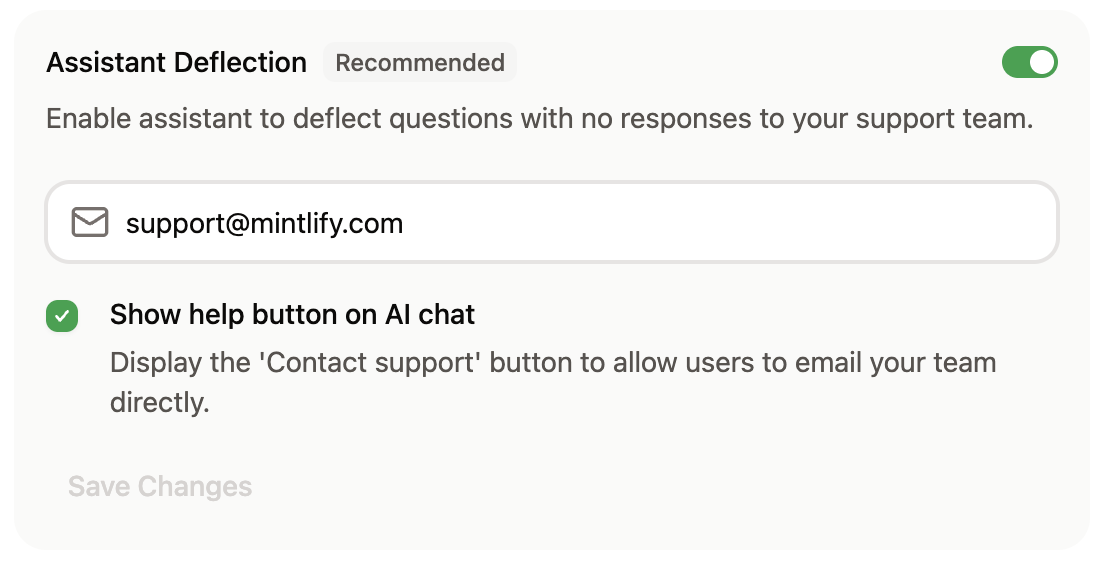
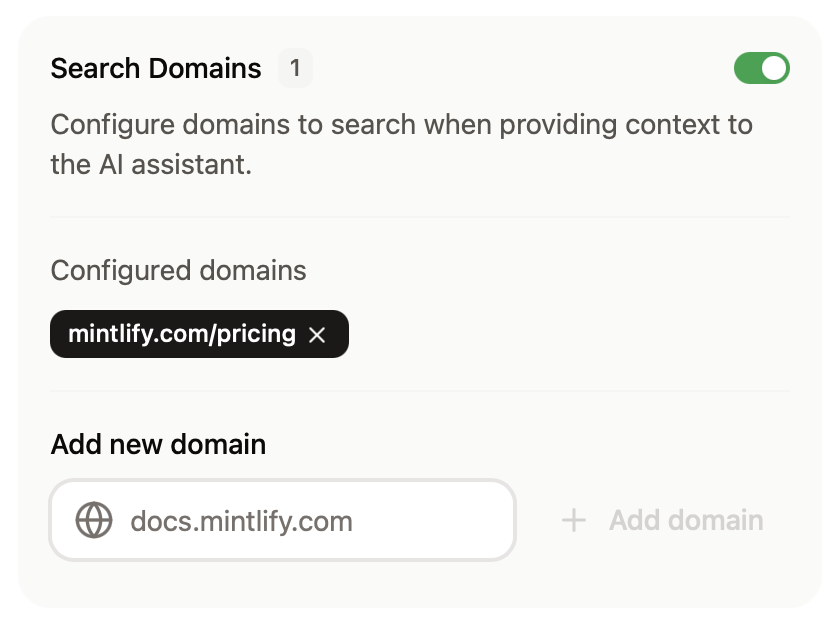
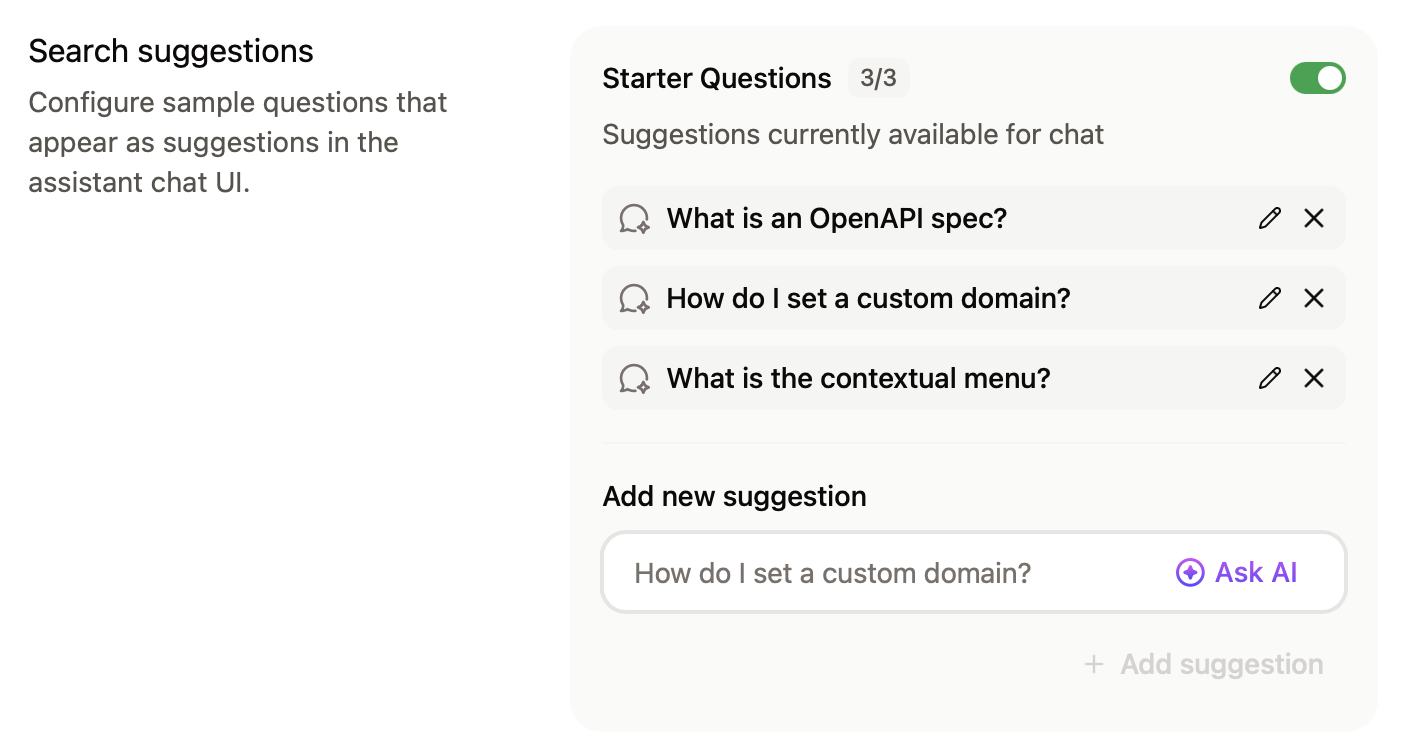

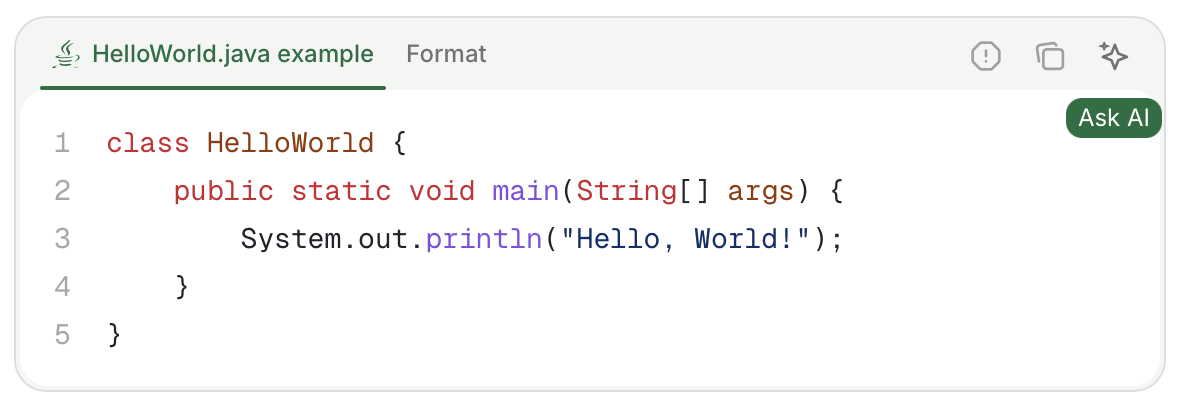
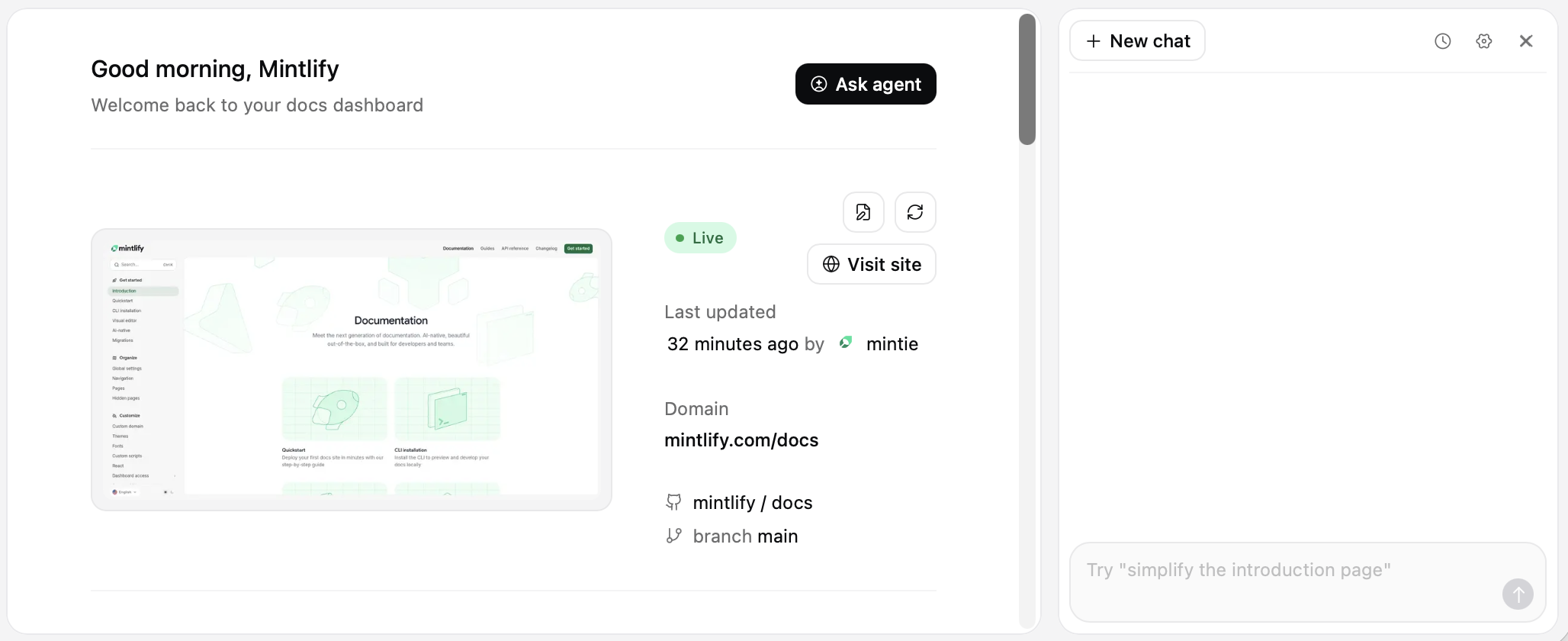
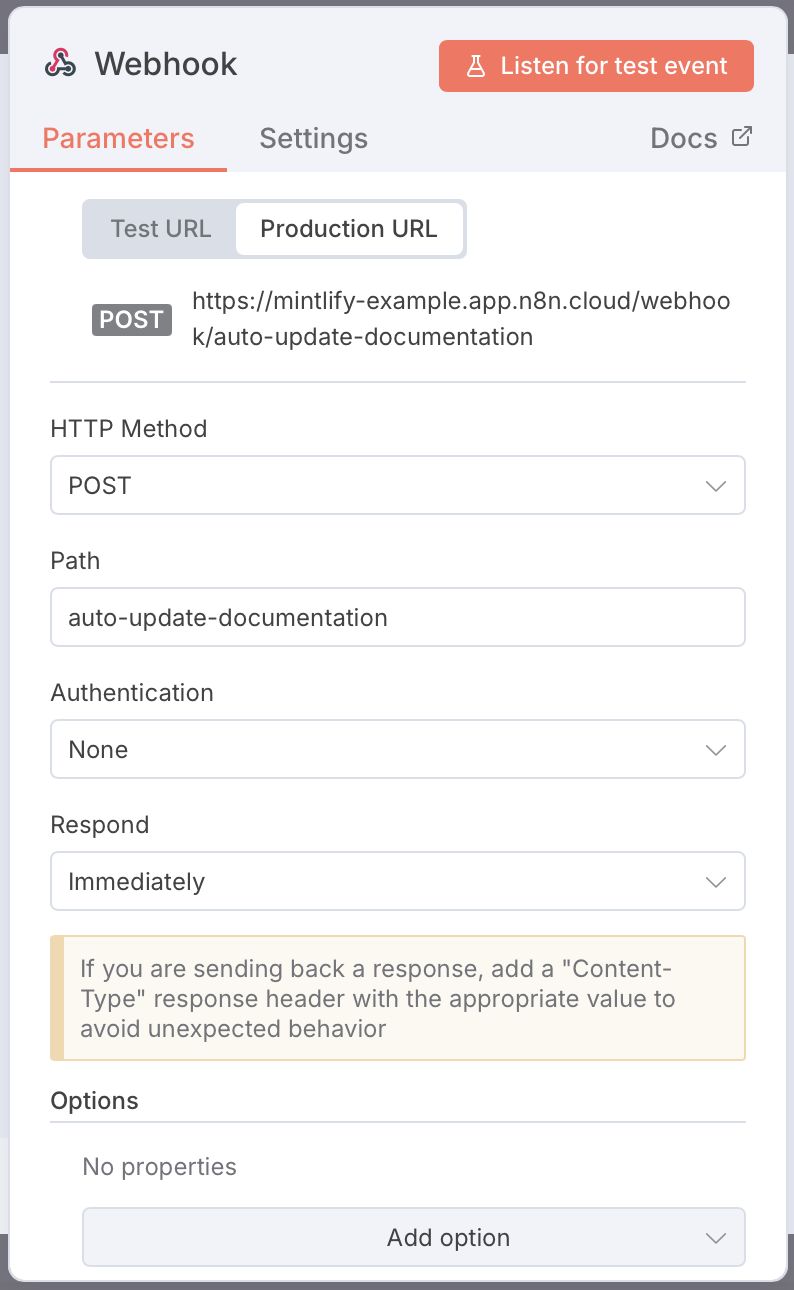
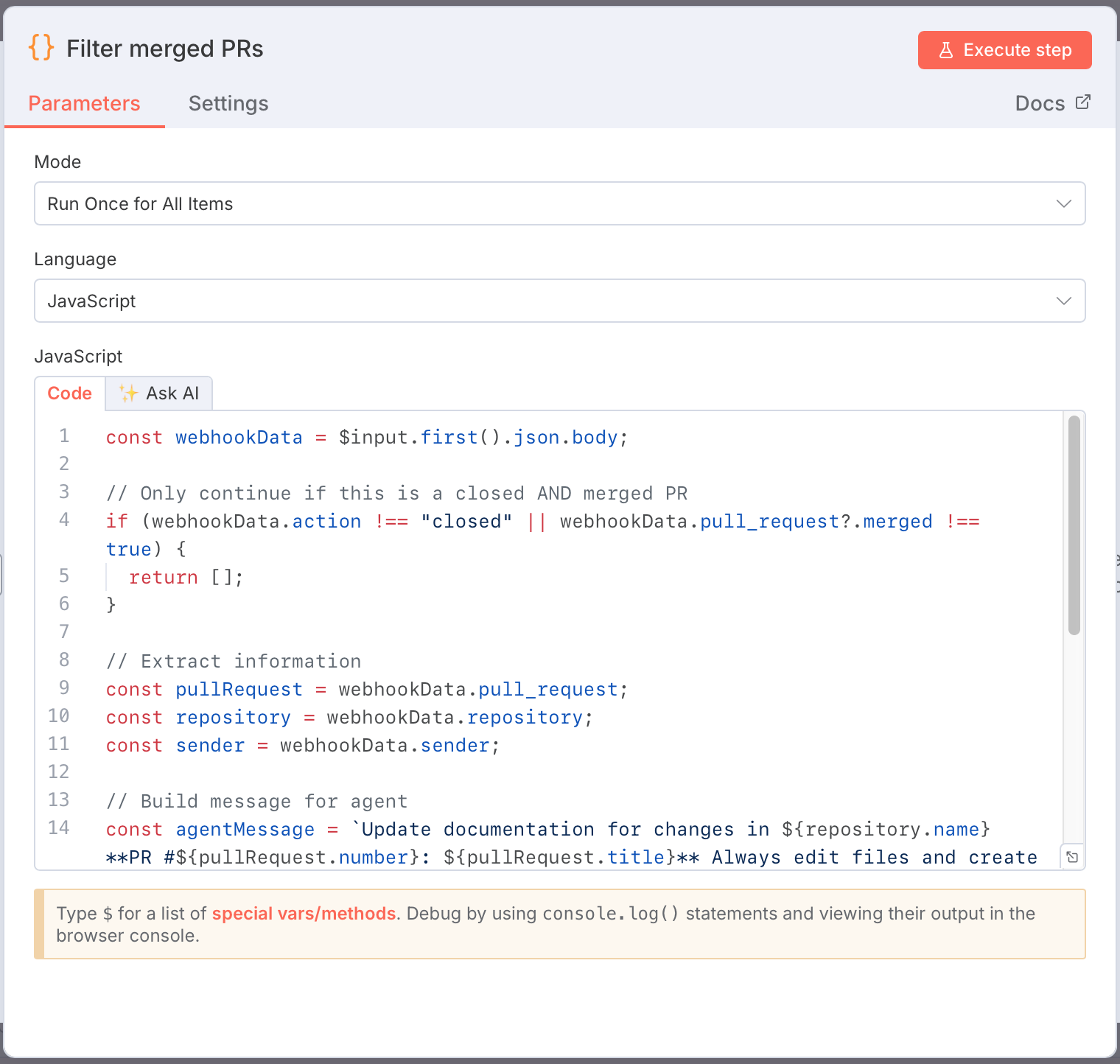
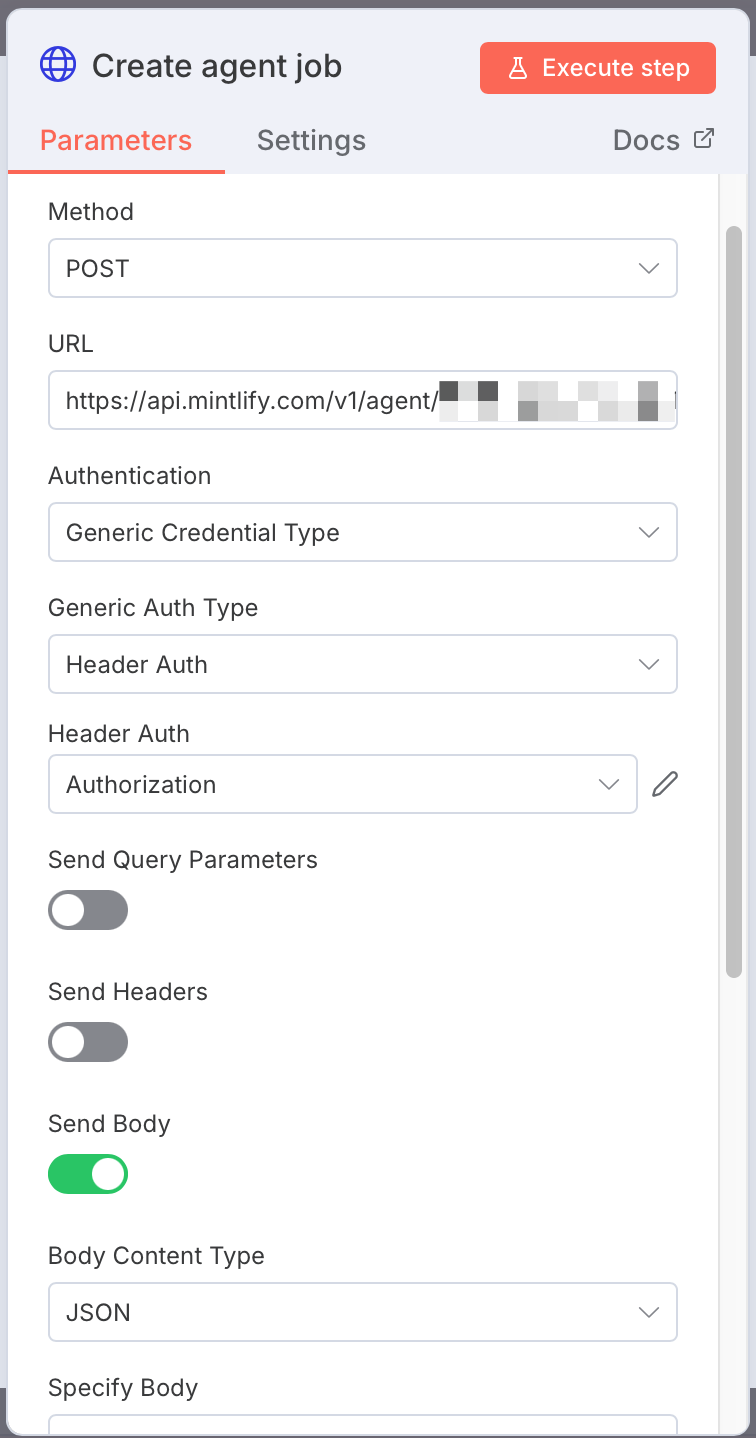
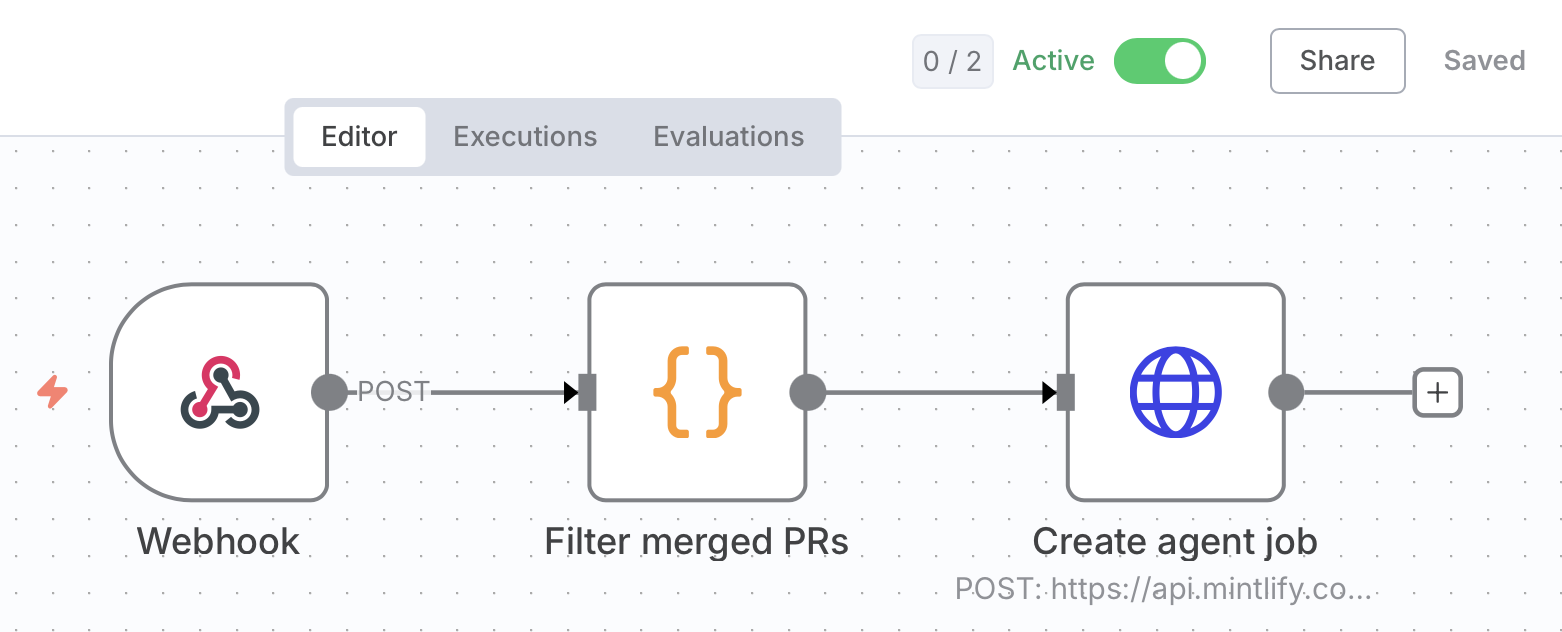
The street address of the residence The number of the PO Box
--- # Source: https://www.mintlify.com/docs/editor/configurations.md > ## Documentation Index > Fetch the complete documentation index at: https://www.mintlify.com/docs/llms.txt > Use this file to discover all available pages before exploring further. # Configurations > Configure pages, navigation elements, and media using configuration sheets. Configure your documentation site's branding, appearance, and features from the **Configurations** panel in the web editor. Configurations settings in the sidebar in light mode. Configurations settings in the sidebar in dark mode. ## Brand your site Set your site's identity and how it appears to visitors. * **Docs title**: The name of your documentation. Appears in browser tabs and search results. * **Description**: Brief summary of your documentation. Used for SEO and site metadata. * **Favicon**: Small icon that appears in browser tabs. Upload ICO, PNG, GIF, or JPG files. * **Theme**: Choose a [theme](/customize/themes) for your documentation's overall appearance. ## Customize colors and appearance Control your site's visual identity and color scheme. * **Primary color**: The main accent color used throughout your site for links, buttons, and highlights. * **Light mode color**: Accent color variation for light mode. How themes apply this varies by theme. * **Dark mode color**: Accent color variation for dark mode. How themes apply this varies by theme. * **Logo**: Your brand logo. Upload SVG, PNG, or JPG files. You can set different logos for light and dark modes. * **Logo link**: Where users go when they click your logo. Typically your homepage or marketing site. * **Background colors**: Set custom background colors for light and dark modes separately. * **Background image**: Add a background image to your site. Upload PNG, GIF, or JPG files. * **Background decoration**: Apply visual styles to your background image. * **Theme toggle**: Show or hide the light/dark mode switcher for users. * **Default theme**: Set whether your site loads in light or dark mode by default. ## Set custom fonts Replace default fonts with your brand's typography. * **Default font**: The base font family and weight for all text. Provide a source URL and format (WOFF or WOFF2). * **Heading font**: Font family and weight specifically for headings (h1, h2, etc.). Set separately from body text. * **Body font**: Font family and weight for body text and paragraphs. For each font, specify the family name, weight, source URL (like Google Fonts), and format. ## Configure header Add navigation elements to the top of your site. * **Navbar button**: Add a primary call-to-action button in your header. Set the button type, label, and destination URL. * **Navbar links**: Add additional navigation links in your header. Each link includes text and a URL. ## Configure footer Add links and social media handles to your site footer. * **Social links**: Add your profiles on platforms like GitHub, X (Twitter), LinkedIn, Discord, YouTube, Slack, and more. * **Footer columns**: Organize footer links into columns with custom headings and link groups. ## Enhance content Customize how content appears on your site. * **Thumbnail background**: Set a custom background image for page thumbnails and social previews. * **Thumbnail appearance**: Control how thumbnails display. * **Thumbnail font**: Set a custom font for text in thumbnails. * **Page eyebrow**: Add small labels above page titles. * **Code block theme**: Choose the syntax highlighting theme for code blocks. * **LaTeX support**: Enable mathematical notation rendering with LaTeX. ## Set up AI chat and search Customize the search experience. * **Search placeholder**: The text that appears in the search box before users type. Default is "Search or ask...". ## Configure API specifications Add [OpenAPI](/api-playground/openapi-setup) or [AsyncAPI](/api-playground/asyncapi-setup) specification files to document endpoints. * **OpenAPI specs**: Upload an OpenAPI specification file or enter a URL to an external OpenAPI file. * **AsyncAPI specs**: Upload an AsyncAPI specification file or enter a URL to an external AsyncAPI file. * **Playground display**: Choose to display the [interactive API playground](/api-playground/overview#visibility-modes), simple API playground, or no API playground. * **Proxy server**: Enable or disable the proxy server for API requests. ## Add analytics and integrations Connect analytics and third-party tools to your documentation. Track visitor behavior with: * **Amplitude, Mixpanel, Heap**: Product analytics platforms * **Google Analytics, Google Tag Manager**: Web analytics * **PostHog, Plausible, Fathom**: Privacy-focused analytics * **Segment, Hightouch**: Customer data platforms * **Hotjar, LogRocket**: Session replay and heatmaps * **Microsoft Clarity**: User behavior analytics * **Intercom**: Customer messaging * **Clearbit, Koala**: Visitor identification Additional integrations: * **Telemetry**: Enable or disable usage telemetry * **Cookies**: Set custom cookie key and value pairs --- # Source: https://www.mintlify.com/docs/guides/content-templates.md > ## Documentation Index > Fetch the complete documentation index at: https://www.mintlify.com/docs/llms.txt > Use this file to discover all available pages before exploring further. # Content templates > Copy and modify these templates to quickly create documentation for different content types. Use these templates as starting points for creating documentation. Customize the templates for your documentation and your audience. 1. Copy the template that matches your content type. 2. Replace placeholders and example content with your actual content. 3. Adjust sections as needed. 4. Remove any sections that don't apply. Not sure which template to use? Read about [content types](/guides/content-types) to understand when to use each one. ## How-to guide template Use how-to guides when users need to accomplish a specific task and already have some familiarity with your product. How-tos are goal-driven and get straight to the solution. ````mdx How-to guide template theme={null} --- title: "[Titles should start with a verb]" description: "[Do specific task] to [achieve outcome]." --- Start with a brief statement of what this guide helps users accomplish. ## Prerequisites (optional) List only what's necessary: - Required setup or configuration - Permissions needed - Related features that should be configured first ## [Action-oriented heading describing the task] Provide direct instructions focused on achieving the goal. 1. Open [location] and navigate to [specific place] 2. Click [button or option] 3. Enter [required information] 4. Click [confirmation button] ```language // Include code examples that users can copy and modify ``` Include practical tips that help users avoid common mistakes or work more efficiently. ## Verify the result (optional) If success is ambiguous, explain how users can confirm they completed the task successfully. ## Troubleshooting (optional) Address common issues users might encounter: - **Problem description**: Solution or workaround - **Another common issue**: How to resolve it ## Related tasks Link to related how-to guides or next steps. ```` ## Tutorial template Use tutorials when you want to help new users learn through hands-on practice. Tutorials guide users step-by-step through a complete learning experience with a clear outcome. ````mdx Tutorial template theme={null} --- title: "[Action verb] [specific outcome]" description: "Learn how to [specific outcome] by [method or approach]." --- Use an introduction paragraph to explain what users will learn and what they'll be able to do after completing this tutorial. ## Prerequisites List what users need before starting: - Required knowledge or skills - Tools, accounts, or permissions - Time commitment (optional) ## Step 1: [First action] Provide clear, specific instructions for the first step. ```language // Include code examples where helpful ``` Explain what this step accomplishes and why it matters. ## Step 2: [Second action] Continue with sequential steps that build on previous work. Point out milestones and progress markers so users know they're on track. ## Step 3: [Third action] Keep steps focused on concrete actions rather than theory. Minimize choices that users need to make. ## Next steps Summarize what users learned and suggest logical next steps: - Related tutorials to try - How-to guides for common tasks - Additional resources for deeper learning ```` ## Explanation template Use explanations when users need to understand concepts, design decisions, or how complex features work. Explanations provide context and deepen understanding rather than giving step-by-step instructions. ```mdx Explanation template theme={null} --- title: "About [concept or feature]" description: "Understand [concept] and how it works within [product or context]." --- Start with a clear statement of what this explanation covers and why understanding it matters. Define the concept in plain language. Explain what it is, what it does, and why it exists. Use analogies or comparisons to familiar concepts when helpful. ## How [concept] works Explain the underlying mechanics, architecture, or process. Diagram showing how [concept] works Break down complex ideas into digestible sections. ## Why [design decision or approach] Provide context about why things work the way they do. Discuss trade-offs, alternatives that were considered, or constraints that influenced the design. ## When to use [concept] Help users understand when this concept or approach is most appropriate. - **Use case 1**: When this approach makes sense - **Use case 2**: Another scenario where this is the right choice - **Not recommended for**: Situations where alternatives are better ## Relationship to other features Draw connections to related concepts or features in your product. Explain how this concept fits into the broader system or workflow. ## Common misconceptions Address misunderstandings or clarify subtle distinctions. ## Further reading Link to related explanations, tutorials, or reference documentation. ``` ## Reference template Use reference documentation when users need to look up specific details about your product's functionality. Reference docs prioritize accuracy, consistency, and scannability. ````mdx Reference template theme={null} --- title: "[Feature or API name] reference" description: "Complete reference for [feature or API] properties, parameters, and options." --- Provide a one-sentence description of what this feature or API does. ## Properties Brief description of the property. Brief description with default value if applicable. Brief description. ## Parameters Description of what this parameter does and when to use it. ```language // Example showing typical usage ``` Description of the parameter. Available options: - `option1`: Description of this option. - `option2`: Description of this option. ## Examples ### Basic example ```language title="Basic usage" // Minimal example showing common use case ``` ### Advanced example ```language title="Advanced configuration" // Example with multiple options configured ``` ## Response If documenting an API, describe the response structure. Description of the response field. Description of another response field. Example response: ```json { "field1": "value", "field2": 123 } ``` ## Related references Link to related reference documentation. ```` ## Related pages Choose the right content type for your documentation goals. Write effective documentation with consistent style. Learn how to format text and style content. --- # Source: https://www.mintlify.com/docs/guides/content-types.md > ## Documentation Index > Fetch the complete documentation index at: https://www.mintlify.com/docs/llms.txt > Use this file to discover all available pages before exploring further. # Content types > Choose the right content type for your documentation goals. This page explains different content types, when to use each one, and how to approach writing for each type. Documentation should be organized around the specific goal you're trying to help people achieve. ## Categorize using the Diátaxis framework The [Diátaxis framework](https://diataxis.fr) is a helpful guide for categorizing content based on your audience's needs. Documentation can generally be mapped into one of these types: 1. Tutorials: Learning-oriented content for new users 2. How-to guides: Task-oriented guidance for specific problems 3. Explanations: Understanding-oriented conceptual discussions 4. Reference: Information-oriented technical descriptions Defining content types helps you plan documentation with a clear purpose and makes it easier for users to find what they need. A diagram of the Diátaxis framework showing four quadrants that correspond to the four content types: Tutorials, How-To Guides, Reference, and Explanation. ## Picking a type | Question | Tutorial | How-To | Reference | Explanation | | :------------------------------------- | :--------------------- | :----------------------- | :----------------------- | :---------------------- | | What is the user's goal? | Learn through practice | Solve a specific problem | Find precise information | Understand concepts | | What is the user's knowledge? | Beginner | Intermediate | Experienced | Any level | | What is the primary focus? | Learning by doing | Achieving a goal | Providing information | Deepening understanding | | How is the content structured? | Step-by-step | Problem-solution | Organized facts | Conceptual discussions | | Is it task-oriented? | Yes, guided tasks | Yes, specific tasks | No, informational | No, conceptual | | Is it designed for linear progression? | Yes | No | No | No | ## Writing for each type ### Tutorials (Learning-oriented) * **Audience goal**: Learn something new through step-by-step instructions. * **Characteristics**: Sequential and assumes no prior knowledge. * **Writing approach**: * Set expectations of what the user will achieve after reading. * Use clear, incremental steps. Minimize choices that need to be made by the user. * Point out milestones along the way. * Minimize theory and focus on concrete actions. ### How-To Guides (Problem-oriented) * **Audience goal**: Perform a specific task correctly. * **Characteristics**: Goal-driven and assumes some prior knowledge. * **Writing approach**: * Write from the perspective of the user, not the product. * Describe a logical sequence and omit unnecessary details. * Minimize context beyond what is necessary. ### Reference (Information-oriented) * **Audience goal**: Find details about a product's functionality. * **Characteristics**: Unambiguous, product-focused, scannable. * **Writing approach**: * Be scannable and concise. * Prioritize consistency. * Avoid explanatory content. Focus on examples that are easy to copy and modify. ### Explanation (Understanding-oriented) * **Audience goal**: Expand general understanding of a concept or highly complex feature. * **Characteristics**: Theoretical, potentially opinionated, broad in scope. * **Writing approach**: * Provide background context, such as design decisions or technical constraints. * Acknowledge opinions and alternatives. * Draw connections to other areas in the product or industry. ## Tips and tricks 1. **Maintain purpose**: Before writing, assign each page a specific content type and make it top of mind in the doc throughout your writing. 2. **Consider content freshness**: Regardless of content type, try to optimize for evergreen documentation. If something represents a moment in time of what a feature looks like on a specific date, it's probably better suited for a changelog or blog post than in your documentation. Or if something changes very frequently avoid putting it in your docs. 3. **Think like your users**: Consider different user personas when organizing content. See [Understand your audience](/guides/understand-your-audience) for more information. 4. **Use templates**: Start with [content templates](/guides/content-templates) that provide the basic structure for each content type. While the Diátaxis framework provides a starting point, successful documentation requires contextual adaptation to your product. Start by understanding the framework's principles, then adjust them to serve your users' needs. ## Related pages Copy and modify templates for each content type. Write effective documentation with consistent style. Research and define your documentation audience. Organize your documentation structure effectively. Use data and metrics to improve documentation. --- # Source: https://www.mintlify.com/docs/ai/contextual-menu.md > ## Documentation Index > Fetch the complete documentation index at: https://www.mintlify.com/docs/llms.txt > Use this file to discover all available pages before exploring further. # Contextual menu > Add one-click AI integrations to your docs. export const PreviewButton = ({children, href}) => { return {children} ; }; The contextual menu provides quick access to AI-optimized content and direct integrations with popular AI tools. When users select the contextual menu on any page, they can copy content as context for AI tools or open conversations in ChatGPT, Claude, Perplexity, or a custom tool of your choice with your documentation already loaded as context. ## Menu options The contextual menu includes several pre-built options that you can enable by adding their identifier to your configuration. | Option | Identifier | Description | | :---------------------- | :----------- | :----------------------------------------------------------------------- | | **Copy page** | `copy` | Copies the current page as Markdown for pasting as context into AI tools | | **View as Markdown** | `view` | Opens the current page as Markdown | | **Open in ChatGPT** | `chatgpt` | Creates a ChatGPT conversation with the current page as context | | **Open in Claude** | `claude` | Creates a Claude conversation with the current page as context | | **Open in Perplexity** | `perplexity` | Creates a Perplexity conversation with the current page as context | | **Open in Grok** | `grok` | Creates a Grok conversation with the current page as context | | **Copy MCP server URL** | `mcp` | Copies your MCP server URL to the clipboard | | **Connect to Cursor** | `cursor` | Installs your hosted MCP server in Cursor | | **Connect to VS Code** | `vscode` | Installs your hosted MCP server in VS Code | | **Custom options** | Object | Add custom options to the contextual menu | The expanded contextual menu showing the Copy page, View as Markdown, Open in ChatGPT, and Open in Claude menu items. ## Enabling the contextual menu Add the `contextual` field to your `docs.json` file and specify which options you want to include. ```json theme={null} { "contextual": { "options": [ "copy", "view", "chatgpt", "claude", "perplexity", "grok", "mcp", "cursor", "vscode" ] } } ``` ## Adding custom options Create custom options in the contextual menu by adding an object to the `options` array. Each custom option requires these properties: The title of the option. The description of the option. Displayed beneath the title when the contextual menu is expanded. The icon to display. Options: * [Font Awesome icon](https://fontawesome.com/icons) name, if you have the `icons.library` [property](/organize/settings#param-icons) set to `fontawesome` in your `docs.json` * [Lucide icon](https://lucide.dev/icons) name, if you have the `icons.library` [property](/organize/settings#param-icons) set to `lucide` in your `docs.json` * URL to an externally hosted icon * Path to an icon file in your project The [Font Awesome](https://fontawesome.com/icons) icon style. Only used with Font Awesome icons. Options: `regular`, `solid`, `light`, `thin`, `sharp-solid`, `duotone`, `brands`. The href of the option. Use a string for simple links or an object for dynamic links with query parameters. The base URL for the option. The query parameters for the option. The query parameter key. The query parameter value. We will replace the following placeholders with the corresponding values: * Use `$page` to insert the current page content in Markdown. * Use `$path` to insert the current page path. * Use `$mcp` to insert the hosted MCP server URL. Example custom option: ```json {9-14} wrap theme={null} { "contextual": { "options": [ "copy", "view", "chatgpt", "claude", "perplexity", { "title": "Request a feature", "description": "Join the discussion on GitHub to request a new feature", "icon": "plus", "href": "https://github.com/orgs/mintlify/discussions/categories/feature-requests" } ] } } ``` ### Custom option examples ```json theme={null} { "title": "Request a feature", "description": "Join the discussion on GitHub", "icon": "plus", "href": "https://github.com/orgs/mintlify/discussions/categories/feature-requests" } ``` ```json theme={null} { "title": "Share on X", "description": "Share this page on X", "icon": "x", "href": { "base": "https://x.com/intent/tweet", "query": [ { "key": "text", "value": "Check out this documentation: $page" } ] } } ``` --- # Source: https://www.mintlify.com/docs/api/agent/create-agent-job.md > ## Documentation Index > Fetch the complete documentation index at: https://www.mintlify.com/docs/llms.txt > Use this file to discover all available pages before exploring further. # Create agent job > Creates a new agent job that can generate and edit documentation based on provided messages and branch information. This endpoint creates an agent job based on provided messages and branch information. The job executes asynchronously and returns a streaming response with the execution details and results. If a branch doesn't exist, the agent creates one. If files are edited successfully, a pull request is automatically created at the end of the job. ## Rate limits The agent API has the following limits: * 100 uses per Mintlify project per hour ## Suggested usage For best results, use the [useChat hook from ai-sdk](https://ai-sdk.dev/docs/reference/ai-sdk-ui/use-chat#usechat) to send requests and handle responses. ## OpenAPI ````yaml admin-openapi.json post /agent/{projectId}/job openapi: 3.0.1 info: title: Mintlify Admin API description: >- An API for administrative operations including documentation updates and agent management. version: 1.0.0 servers: - url: https://api.mintlify.com/v1 security: - bearerAuth: [] paths: /agent/{projectId}/job: post: summary: Create agent job description: >- Creates a new agent job that can generate and edit documentation based on provided messages and branch information. parameters: - name: projectId in: path required: true schema: type: string description: >- Your project ID. Can be copied from the [API keys](https://dashboard.mintlify.com/settings/organization/api-keys) page in your dashboard. requestBody: required: true content: application/json: schema: type: object required: - branch - messages properties: branch: type: string description: >- The name of the Git branch that the agent should work on, will be automatically created if it doesn't exist messages: type: array description: >- A list of messages to provide to the agent. A default system prompt is always prepended automatically, so you typically only need to include user messages. items: type: object required: - role - content properties: role: type: string enum: - system - user description: >- The role of the message sender. Use `user` for task instructions. Use `system` to add supplementary instructions that are appended after the default system prompt (does not replace it). content: type: string description: The content of the message. asDraft: type: boolean default: true description: >- Control whether the pull request is created in draft or non-draft mode. When true, creates a draft pull request. When false, creates a regular (non-draft) pull request ready for review. model: type: string enum: - sonnet - opus default: sonnet description: >- The AI model to use for the agent job. Use `sonnet` for faster, cost-effective processing. Use `opus` for more capable, but slower processing. responses: '200': description: >- Agent job created successfully (streaming response). X-Session-Id Header is sent back in the response headers: X-Message-Id: schema: type: string description: Message identifier for the created job content: text/plain: schema: type: string description: >- Streaming response containing the agent job execution details and results. components: securitySchemes: bearerAuth: type: http scheme: bearer description: >- The Authorization header expects a Bearer token. Use an admin API key (prefixed with `mint_`). This is a server-side secret key. Generate one on the [API keys page](https://dashboard.mintlify.com/settings/organization/api-keys) in your dashboard. ```` --- # Source: https://www.mintlify.com/docs/api/assistant/create-assistant-message-v2.md > ## Documentation Index > Fetch the complete documentation index at: https://www.mintlify.com/docs/llms.txt > Use this file to discover all available pages before exploring further. # Assistant message v2 > Generates a response message from the assistant for the specified domain. Compatible with AI SDK v5+. The assistant message v2 endpoint is compatible with **AI SDK v5+**. If you use AI SDK v4, use the [assistant message v1 endpoint](/api-reference/assistant/create-assistant-message) instead. ## Integration with `useChat` The `useChat` hook from Vercel's AI SDK is the recommended way to integrate the assistant API into your application. ```bash theme={null} npm i ai@^6 @ai-sdk/react ``` ```tsx theme={null} import { useState } from "react"; import { useChat } from "@ai-sdk/react"; import { DefaultChatTransport } from "ai"; function MyComponent({ domain }) { const [input, setInput] = useState(""); const { messages, sendMessage } = useChat({ transport: new DefaultChatTransport({ api: `https://api.mintlify.com/discovery/v2/assistant/${domain}/message`, headers: { Authorization: `Bearer ${process.env.PUBLIC_MINTLIFY_ASSISTANT_KEY}`, }, body: { fp: "anonymous", retrievalPageSize: 5, context: [ { type: "code", value: 'const example = "code snippet";', elementId: "code-block-1", }, ], }, }), }); return (
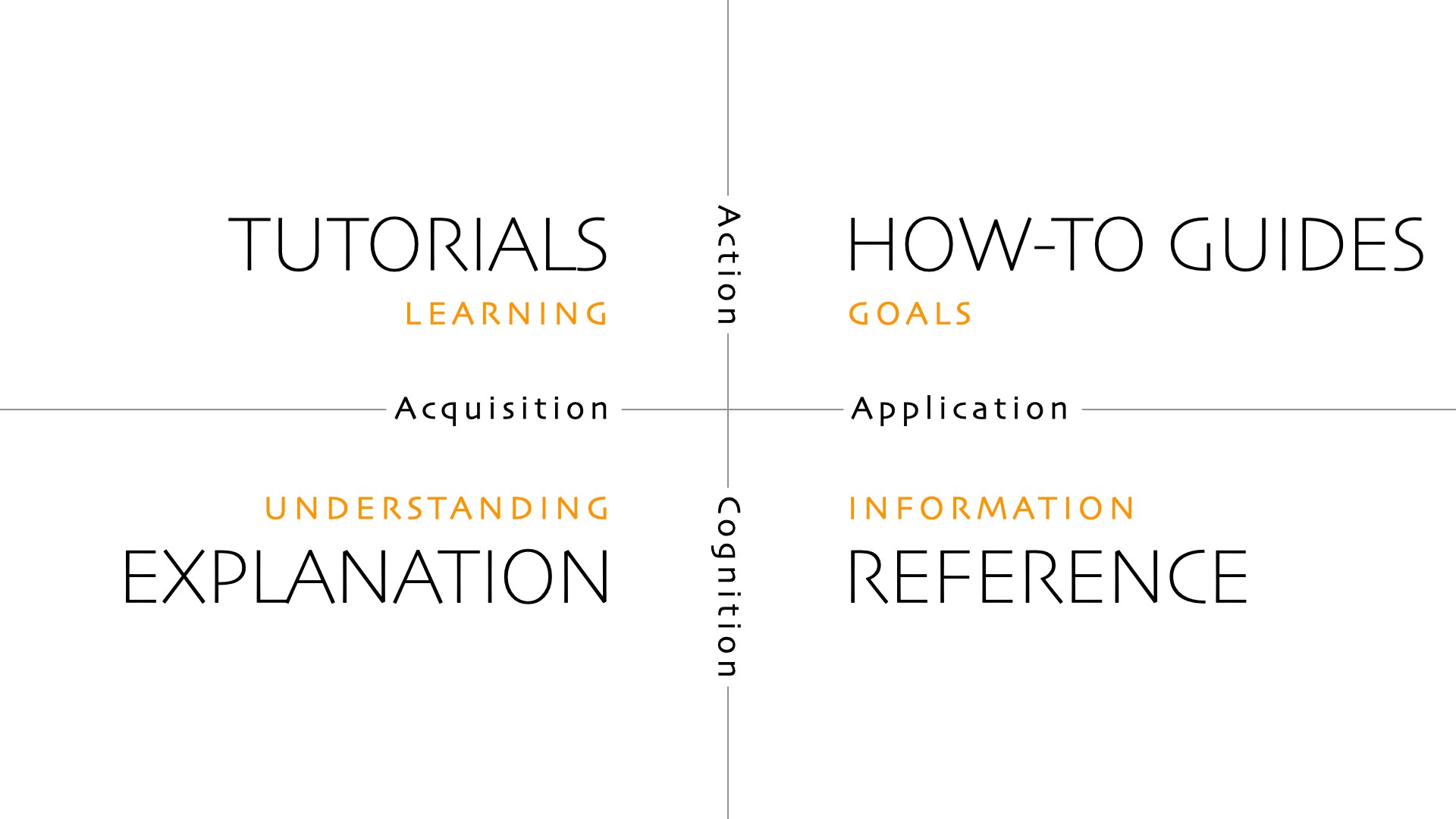
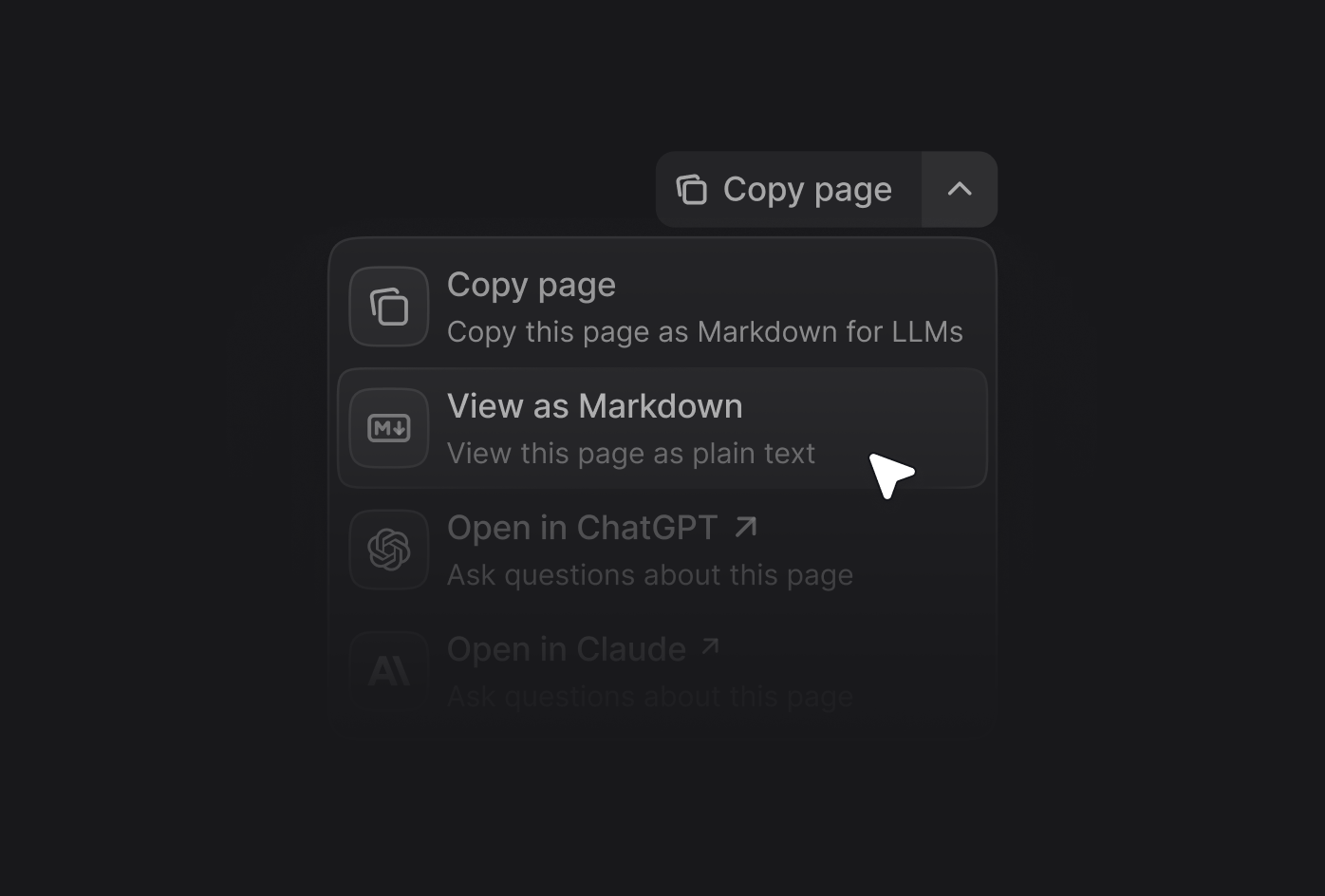
{messages.map((message) => (
{message.role === "user" ? "User: " : "Assistant: "} {message.parts .filter((part) => part.type === "text") .map((part) => part.text) .join("")}
))}
{ e.preventDefault(); if (input.trim()) { sendMessage({ text: input }); setInput(""); } }} > setInput(e.target.value)} />
); } ``` **Required configuration:** * `transport` - Use `DefaultChatTransport` to configure the API connection. * `body.fp` - Fingerprint identifier (use `'anonymous'` or a unique user identifier). * `body.retrievalPageSize` - Number of search results to use (recommended: 5). **Optional configuration:** * `body.context` - Array of contextual information to provide to the assistant. Each context object contains: * `type` - Either `'code'` or `'textSelection'`. * `value` - The code snippet or selected text content. * `path` (optional) - Path to the source file or page. * `elementId` (optional) - Identifier for the UI element containing the context.
See [useChat](https://ai-sdk.dev/docs/reference/ai-sdk-ui/use-chat) and [Transport](https://ai-sdk.dev/docs/ai-sdk-ui/transport) in the AI SDK documentation for more details. ## Rate limits The assistant API has the following limits: * 10,000 uses per key per month * 10,000 requests per Mintlify organization per hour * 10,000 requests per IP per day ## OpenAPI ````yaml discovery-openapi.json post /v2/assistant/{domain}/message openapi: 3.0.1 info: title: Mintlify Assistant API description: An API to integrate Mintlify discovery features into your product. version: 1.0.0 servers: - url: https://api.mintlify.com/discovery security: - bearerAuth: [] paths: /v2/assistant/{domain}/message: post: summary: Assistant message v2 description: >- Generates a response message from the assistant for the specified domain. Compatible with AI SDK v5+. parameters: - name: domain in: path required: true schema: type: string description: >- The domain identifier from your `domain.mintlify.app` URL. Can be found at the end of your dashboard URL. For example, `dashboard.mintlify.com/organization/domain` has a domain identifier of `domain`. requestBody: required: true content: application/json: schema: type: object required: - fp - messages properties: fp: type: string description: >- Fingerprint identifier for tracking conversation sessions. Use `anonymous` for anonymous users or provide a unique user identifier. threadId: default: null type: string description: >- An optional identifier used to maintain conversation continuity across multiple messages. When provided, it allows the system to associate follow-up messages with the same conversation thread. The `threadId` is returned in the response as `event.threadId` when `event.type === 'finish'`. messages: type: array default: - id: foobar role: user parts: - type: text text: How do I get started items: type: object properties: id: type: string description: Unique identifier for the message. role: type: string enum: - system - assistant - user description: The role of the message sender. createdAt: type: string format: date-time description: Timestamp when the message was created. parts: type: array items: oneOf: - type: object description: Text content part. properties: type: type: string enum: - text text: type: string required: - type - text - type: object description: >- Reasoning content part with optional provider metadata. properties: type: type: string enum: - reasoning text: type: string providerMetadata: type: object description: Optional provider-specific metadata. required: - type - text - type: object description: Source URL reference part. properties: type: type: string enum: - source-url sourceId: type: string url: type: string title: type: string providerMetadata: type: object description: Optional provider-specific metadata. required: - type - sourceId - url - type: object description: File attachment part. properties: type: type: string enum: - file mediaType: type: string url: type: string filename: type: string required: - type - mediaType - url - type: object description: Marks the start of a new step. properties: type: type: string enum: - step-start required: - type description: >- Array of message parts. Each part has a type and type-specific fields. metadata: type: object description: Optional metadata associated with the message. required: - id - role - parts description: >- Array of messages in the conversation. Use the handleSubmit function from the @ai-sdk/react package's useChat hook to manage messages and streaming responses. retrievalPageSize: type: number default: 5 description: >- Number of documentation search results to use for generating the response. Higher values provide more context but may increase response time. Recommended: 5. filter: type: object default: null properties: version: type: string description: Optional version filter. language: type: string description: Optional language filter. groups: type: array items: type: string description: Optional array of group identifiers to filter results. description: Optional filter criteria for the search. context: type: array items: type: object properties: type: type: string enum: - code - textSelection description: The type of context being provided. value: type: string description: The code snippet or selected text content. path: type: string description: Optional path to the source file or page. elementId: type: string description: >- Optional identifier for the UI element containing the context. required: - type - value description: >- Optional array of contextual information to provide to the assistant. responses: '200': description: Message generated successfully content: application/json: schema: type: object description: >- Streaming response compatible with AI SDK v5. Use the [useChat hook from @ai-sdk/react](https://ai-sdk.dev/docs/reference/ai-sdk-ui/use-chat#usechat) to handle the response stream. components: securitySchemes: bearerAuth: type: http scheme: bearer description: >- The Authorization header expects a Bearer token. Use an assistant API key (prefixed with `mint_dsc_`). This is a public key safe for use in client-side code. Generate one on the [API keys page](https://dashboard.mintlify.com/settings/organization/api-keys) in your dashboard. ```` --- # Source: https://www.mintlify.com/docs/api/assistant/create-assistant-message.md > ## Documentation Index > Fetch the complete documentation index at: https://www.mintlify.com/docs/llms.txt > Use this file to discover all available pages before exploring further. # Assistant message v1 > Generates a response message from the assistant for the specified domain. Compatible with AI SDK v4. Deprecated The assistant message v1 endpoint is compatible with **AI SDK v4**. If you use AI SDK v5 or later, use the [assistant message v2 endpoint](/api-reference/assistant/create-assistant-message-v2) instead. ## Integration with `useChat` The `useChat` hook from Vercel's AI SDK is the recommended way to integrate the assistant API into your application. ```bash theme={null} npm i ai@^4.1.15 ``` ```tsx theme={null} import { useChat } from 'ai/react'; function MyComponent({ domain }) { const { messages, input, handleInputChange, handleSubmit, isLoading } = useChat({ api: `https://api.mintlify.com/discovery/v1/assistant/${domain}/message`, headers: { 'Authorization': `Bearer ${process.env.PUBLIC_MINTLIFY_ASSISTANT_KEY}`, }, body: { fp: 'anonymous', retrievalPageSize: 5, context: [ { type: 'code', value: 'const example = "code snippet";', elementId: 'code-block-1', }, ], }, streamProtocol: 'data', sendExtraMessageFields: true, }); return (
{messages.map((message) => (
{message.role === 'user' ? 'User: ' : 'Assistant: '} {message.content}
))}
); } ``` **Required configuration for Mintlify:** * `streamProtocol: 'data'` - Required for streaming responses. * `sendExtraMessageFields: true` - Required to send message metadata. * `body.fp` - Fingerprint identifier (use 'anonymous' or a user identifier). * `body.retrievalPageSize` - Number of search results to use (recommended: 5). **Optional configuration:** * `body.context` - Array of contextual information to provide to the assistant. Each context object contains: * `type` - Either `'code'` or `'textSelection'`. * `value` - The code snippet or selected text content. * `elementId` (optional) - Identifier for the UI element containing the context.
See [useChat](https://ai-sdk.dev/docs/reference/ai-sdk-ui/use-chat) in the AI SDK documentation for more details. ## Rate limits The assistant API has the following limits: * 10,000 uses per key per month * 10,000 requests per Mintlify organization per hour * 10,000 requests per IP per day ## OpenAPI ````yaml discovery-openapi.json post /v1/assistant/{domain}/message openapi: 3.0.1 info: title: Mintlify Assistant API description: An API to integrate Mintlify discovery features into your product. version: 1.0.0 servers: - url: https://api.mintlify.com/discovery security: - bearerAuth: [] paths: /v1/assistant/{domain}/message: post: summary: Assistant message v1 description: >- Generates a response message from the assistant for the specified domain. Compatible with AI SDK v4. parameters: - name: domain in: path required: true schema: type: string description: >- The domain identifier from your `domain.mintlify.app` URL. Can be found at the end of your dashboard URL. For example, `dashboard.mintlify.com/organization/domain` has a domain identifier of `domain`. requestBody: required: true content: application/json: schema: type: object required: - fp - messages properties: fp: type: string description: >- Fingerprint identifier for tracking conversation sessions. Use 'anonymous' for anonymous users or provide a unique user identifier. threadId: default: null type: string description: >- An optional identifier used to maintain conversation continuity across multiple messages. When provided, it allows the system to associate follow-up messages with the same conversation thread. The threadId is returned in the response as event.threadId when event.type === 'finish'. messages: type: array default: - id: foobar role: user content: how do i get started parts: - type: text text: How do I get started items: type: object properties: id: type: string description: Unique identifier for the message. role: type: string enum: - system - assistant - data - user description: The role of the message sender. createdAt: type: string format: date-time description: Timestamp when the message was created. content: type: string description: The content of the message. annotations: type: array items: {} description: Optional array of annotations for the message. parts: type: array items: oneOf: - type: object properties: type: type: string enum: - text text: type: string required: - type - text - type: object properties: type: type: string enum: - reasoning reasoning: type: string details: type: array items: oneOf: - type: object properties: type: type: string enum: - text text: type: string signature: type: string required: - type - text - type: object properties: type: type: string enum: - redacted data: type: string required: - type - data required: - type - reasoning - details - type: object properties: type: type: string enum: - step-start required: - type - type: object properties: type: type: string enum: - source source: type: object properties: sourceType: type: string enum: - url id: type: string url: type: string title: type: string required: - sourceType - id - url required: - type - source - type: object properties: type: type: string enum: - tool-invocation toolInvocation: oneOf: - type: object properties: state: type: string enum: - partial-call step: type: number toolCallId: type: string toolName: type: string args: {} required: - state - toolCallId - toolName - args - type: object properties: state: type: string enum: - call step: type: number toolCallId: type: string toolName: type: string args: {} required: - state - toolCallId - toolName - args - type: object properties: state: type: string enum: - result step: type: number toolCallId: type: string toolName: type: string args: {} result: {} required: - state - toolCallId - toolName - args - result required: - type - toolInvocation description: >- Array of message parts with different types including text, reasoning, sources, and tool invocations. experimental_attachments: type: array items: type: object properties: name: type: string contentType: type: string url: type: string required: - url description: >- Optional array of experimental attachments for the message. required: - id - role - content - parts description: >- Array of messages in the conversation. On the frontend, you will likely want to use the handleSubmit function from the @ai-sdk package's useChat hook to append user messages and handle streaming responses, rather than manually defining the objects in this array as they have so many parameters. retrievalPageSize: type: number default: 5 description: >- Number of documentation search results to use for generating the response. Higher values provide more context but may increase response time. Recommended: 5. filter: type: object default: null properties: version: type: string description: Optional version filter. language: type: string description: Optional language filter. description: Optional filter criteria for the search. responses: '200': description: Message generated successfully content: application/json: schema: type: object description: >- Response object with data stream parts formatted with the specified status, headers, and content. For more information, see the AI SDK documentation at [ai-sdk.dev/docs/ai-sdk-ui/streaming-data](https://ai-sdk.dev/docs/ai-sdk-ui/streaming-data). Use the [useChat hook from ai-sdk](https://ai-sdk.dev/docs/reference/ai-sdk-ui/use-chat#usechat) to handle the response stream. components: securitySchemes: bearerAuth: type: http scheme: bearer description: >- The Authorization header expects a Bearer token. Use an assistant API key (prefixed with `mint_dsc_`). This is a public key safe for use in client-side code. Generate one on the [API keys page](https://dashboard.mintlify.com/settings/organization/api-keys) in your dashboard. ```` --- # Source: https://www.mintlify.com/docs/deploy/csp-configuration.md > ## Documentation Index > Fetch the complete documentation index at: https://www.mintlify.com/docs/llms.txt > Use this file to discover all available pages before exploring further. # Content Security Policy (CSP) configuration > Configure CSP headers to allow Mintlify resources while maintaining security for reverse proxies, firewalls, and networks that enforce strict security policies. Content Security Policy (CSP) is a security standard that helps prevent cross-site scripting (XSS) attacks by controlling which resources a web page can load. Mintlify serves a default CSP that protects most sites. If you host your documentation behind a reverse proxy or firewall, that overwrites the default CSP, you may need to configure CSP headers for features to function properly. ## CSP directives The following CSP directives are used to control which resources can be loaded: * `script-src`: Controls which scripts can be executed * `style-src`: Controls which stylesheets can be loaded * `font-src`: Controls which fonts can be loaded * `img-src`: Controls which images, icons, and logos can be loaded * `connect-src`: Controls which URLs can be connected to for API calls and WebSocket connections * `frame-src`: Controls which URLs can be embedded in frames or iframes * `default-src`: Fallback for other directives when not explicitly set ## Domain whitelist | Domain | Purpose | CSP directive | Required | | :------------------------------------ | :------------------------------ | :-------------------------- | :------- | | `d4tuoctqmanu0.cloudfront.net` | KaTeX CSS, fonts | `style-src`, `font-src` | Required | | `*.mintlify.dev` | Documentation content | `connect-src`, `frame-src` | Required | | `*.mintlify.com` | Dashboard, API, analytics proxy | `connect-src` | Required | | `leaves.mintlify.com` | Assistant API | `connect-src` | Required | | `d3gk2c5xim1je2.cloudfront.net` | Icons, images, logos | `img-src` | Required | | `d1ctpt7j8wusba.cloudfront.net` | Mint version and release files | `connect-src` | Required | | `mintcdn.com` | Images, favicons | `img-src`, `connect-src` | Required | | `*.mintcdn.com` | Images, favicons | `img-src`, `connect-src` | Required | | `api.mintlifytrieve.com` | Search API | `connect-src` | Required | | `cdn.jsdelivr.net` | Emoji assets for OG images | `script-src`, `img-src` | Required | | `mintlify.s3.us-west-1.amazonaws.com` | S3-hosted images | `img-src` | Required | | `fonts.googleapis.com` | Google Fonts | `style-src`, `font-src` | Optional | | `www.googletagmanager.com` | Google Analytics/GTM | `script-src`, `connect-src` | Optional | | `cdn.segment.com` | Segment analytics | `script-src`, `connect-src` | Optional | | `plausible.io` | Plausible analytics | `script-src`, `connect-src` | Optional | | `us.posthog.com` | PostHog analytics | `connect-src` | Optional | | `tag.clearbitscripts.com` | Clearbit tracking | `script-src` | Optional | | `cdn.heapanalytics.com` | Heap analytics | `script-src` | Optional | | `chat.cdn-plain.com` | Plain chat widget | `script-src` | Optional | | `chat-assets.frontapp.com` | Front chat widget | `script-src` | Optional | | `browser.sentry-cdn.com` | Sentry error tracking | `script-src`, `connect-src` | Optional | | `js.sentry-cdn.com` | Sentry JavaScript SDK | `script-src` | Optional | ## Example CSP configuration Only include domains for services that you use. Remove any analytics domains that you have not configured for your documentation. ```text wrap theme={null} Content-Security-Policy: default-src 'self'; script-src 'self' 'unsafe-inline' 'unsafe-eval' cdn.jsdelivr.net www.googletagmanager.com cdn.segment.com plausible.io us.posthog.com tag.clearbitscripts.com cdn.heapanalytics.com chat.cdn-plain.com chat-assets.frontapp.com browser.sentry-cdn.com js.sentry-cdn.com; style-src 'self' 'unsafe-inline' d4tuoctqmanu0.cloudfront.net fonts.googleapis.com; font-src 'self' d4tuoctqmanu0.cloudfront.net fonts.googleapis.com; img-src 'self' data: blob: d3gk2c5xim1je2.cloudfront.net mintcdn.com *.mintcdn.com cdn.jsdelivr.net mintlify.s3.us-west-1.amazonaws.com; connect-src 'self' *.mintlify.dev *.mintlify.com d1ctpt7j8wusba.cloudfront.net mintcdn.com *.mintcdn.com api.mintlifytrieve.com www.googletagmanager.com cdn.segment.com plausible.io us.posthog.com browser.sentry-cdn.com; frame-src 'self' *.mintlify.dev; ``` ## Common configurations by proxy type Most reverse proxies support adding custom headers. ### Cloudflare configuration Create a Response Header Transform Rule: 1. In your Cloudflare dashboard, go to **Rules > Overview**. 2. Select **Create rule > Response Header Transform Rule**. 3. Configure the rule: * **Modify response header**: Set static * **Header name**: `Content-Security-Policy` * **Header value**: ```text wrap theme={null} default-src 'self'; script-src 'self' 'unsafe-inline' 'unsafe-eval' cdn.jsdelivr.net; style-src 'self' 'unsafe-inline' d4tuoctqmanu0.cloudfront.net fonts.googleapis.com; font-src 'self' d4tuoctqmanu0.cloudfront.net fonts.googleapis.com; img-src 'self' data: blob: d3gk2c5xim1je2.cloudfront.net mintcdn.com *.mintcdn.com cdn.jsdelivr.net mintlify.s3.us-west-1.amazonaws.com; connect-src 'self' *.mintlify.dev *.mintlify.com d1ctpt7j8wusba.cloudfront.net mintcdn.com *.mintcdn.com api.mintlifytrieve.com; frame-src 'self' *.mintlify.dev; ``` 4. Deploy your rule. ### AWS CloudFront configuration Add a response headers policy in CloudFront: ```json theme={null} { "ResponseHeadersPolicy": { "Name": "MintlifyCSP", "Config": { "SecurityHeadersConfig": { "ContentSecurityPolicy": { "ContentSecurityPolicy": "default-src 'self'; script-src 'self' 'unsafe-inline' 'unsafe-eval' cdn.jsdelivr.net; style-src 'self' 'unsafe-inline' d4tuoctqmanu0.cloudfront.net fonts.googleapis.com; font-src 'self' d4tuoctqmanu0.cloudfront.net fonts.googleapis.com; img-src 'self' data: blob: d3gk2c5xim1je2.cloudfront.net mintcdn.com *.mintcdn.com cdn.jsdelivr.net mintlify.s3.us-west-1.amazonaws.com; connect-src 'self' *.mintlify.dev *.mintlify.com d1ctpt7j8wusba.cloudfront.net mintcdn.com *.mintcdn.com api.mintlifytrieve.com; frame-src 'self' *.mintlify.dev;", "Override": true } } } } } ``` ### Vercel configuration Add to your `vercel.json`: ```json theme={null} { "headers": [ { "source": "/(.*)", "headers": [ { "key": "Content-Security-Policy", "value": "default-src 'self'; script-src 'self' 'unsafe-inline' 'unsafe-eval' cdn.jsdelivr.net; style-src 'self' 'unsafe-inline' d4tuoctqmanu0.cloudfront.net fonts.googleapis.com; font-src 'self' d4tuoctqmanu0.cloudfront.net fonts.googleapis.com; img-src 'self' data: blob: d3gk2c5xim1je2.cloudfront.net mintcdn.com *.mintcdn.com cdn.jsdelivr.net mintlify.s3.us-west-1.amazonaws.com; connect-src 'self' *.mintlify.dev *.mintlify.com d1ctpt7j8wusba.cloudfront.net mintcdn.com *.mintcdn.com api.mintlifytrieve.com; frame-src 'self' *.mintlify.dev;" } ] } ] } ``` ## Troubleshooting Identify CSP violations in your browser console: 1. Open your browser's Developer Tools. 2. Go to the **Console** tab. 3. Look for errors starting with: * `Content Security Policy: The page's settings blocked the loading of a resource` * `Refused to load the script/stylesheet because it violates the following Content Security Policy directive` * `Refused to connect to because it violates the following Content Security Policy directive` --- # Source: https://www.mintlify.com/docs/guides/cursor.md > ## Documentation Index > Fetch the complete documentation index at: https://www.mintlify.com/docs/llms.txt > Use this file to discover all available pages before exploring further. # Cursor > Configure Cursor to be your writing assistant. Transform Cursor into a documentation expert that knows your components, style guide, and best practices. ## Use Cursor with Mintlify Cursor rules provide persistent context about your documentation, ensuring more consistent suggestions that fit your standards and style. * **Project rules** are stored in your documentation repository and shared with your team. * **User rules** apply to your personal Cursor environment. We recommend creating project rules for your docs so that all contributors have access to the same rules. Create rules files in the `.cursor/rules` directory of your docs repo. See the [Cursor Rules documentation](https://docs.cursor.com/context/rules) for complete setup instructions. ## Example project rule This rule provides Cursor with context to properly format Mintlify components and follow technical writing best practices. You can use this example as-is or customize it for your documentation: * **Writing standards**: Update language guidelines to match your style guide. * **Component patterns**: Add project-specific components or modify existing examples. * **Code examples**: Replace generic examples with real API calls and responses for your product. * **Style and tone preferences**: Adjust terminology, formatting, and other rules. Add this rule with any modifications as an `.mdc` file in the `.cursor/rules` directory of your docs repo. ````mdx wrap theme={null} # Mintlify technical writing rule You are an AI writing assistant specialized in creating exceptional technical documentation using Mintlify components and following industry-leading technical writing practices. ## Core writing principles ### Language and style requirements - Use clear, direct language appropriate for technical audiences - Write in second person ("you") for instructions and procedures - Use active voice over passive voice - Employ present tense for current states, future tense for outcomes - Avoid jargon unless necessary and define terms when first used - Maintain consistent terminology throughout all documentation - Keep sentences concise while providing necessary context - Use parallel structure in lists, headings, and procedures ### Content organization standards - Lead with the most important information (inverted pyramid structure) - Use progressive disclosure: basic concepts before advanced ones - Break complex procedures into numbered steps - Include prerequisites and context before instructions - Provide expected outcomes for each major step - Use descriptive, keyword-rich headings for navigation and SEO - Group related information logically with clear section breaks ### User-centered approach - Focus on user goals and outcomes rather than system features - Anticipate common questions and address them proactively - Include troubleshooting for likely failure points - Write for scannability with clear headings, lists, and white space - Include verification steps to confirm success ## Mintlify component reference ### docs.json - Refer to the [docs.json schema](https://mintlify.com/docs.json) when building the docs.json file and site navigation ### Callout components #### Note - Additional helpful information Supplementary information that supports the main content without interrupting flow #### Tip - Best practices and pro tips Expert advice, shortcuts, or best practices that enhance user success #### Warning - Important cautions Critical information about potential issues, breaking changes, or destructive actions #### Info - Neutral contextual information Background information, context, or neutral announcements #### Check - Success confirmations Positive confirmations, successful completions, or achievement indicators ### Code components #### Single code block Example of a single code block: ```javascript config.js const apiConfig = { baseURL: 'https://api.example.com', timeout: 5000, headers: { 'Authorization': `Bearer ${process.env.API_TOKEN}` } }; ``` #### Code group with multiple languages Example of a code group: ```javascript Node.js const response = await fetch('/api/endpoint', { headers: { Authorization: `Bearer ${apiKey}` } }); ``` ```python Python import requests response = requests.get('/api/endpoint', headers={'Authorization': f'Bearer {api_key}'}) ``` ```curl cURL curl -X GET '/api/endpoint' \ -H 'Authorization: Bearer YOUR_API_KEY' ``` #### Request/response examples Example of request/response documentation: ```bash cURL curl -X POST 'https://api.example.com/users' \ -H 'Content-Type: application/json' \ -d '{"name": "John Doe", "email": "john@example.com"}' ``` ```json Success { "id": "user_123", "name": "John Doe", "email": "john@example.com", "created_at": "2024-01-15T10:30:00Z" } ``` ### Structural components #### Steps for procedures Example of step-by-step instructions: Run `npm install` to install required packages. Verify installation by running `npm list`. Create a `.env` file with your API credentials. ```bash API_KEY=your_api_key_here ``` Never commit API keys to version control. #### Tabs for alternative content Example of tabbed content: ```bash brew install node npm install -g package-name ``` ```powershell choco install nodejs npm install -g package-name ``` ```bash sudo apt install nodejs npm npm install -g package-name ``` #### Accordions for collapsible content Example of accordion groups: - **Firewall blocking**: Ensure ports 80 and 443 are open - **Proxy configuration**: Set HTTP_PROXY environment variable - **DNS resolution**: Try using 8.8.8.8 as DNS server ```javascript const config = { performance: { cache: true, timeout: 30000 }, security: { encryption: 'AES-256' } }; ``` ### Cards and columns for emphasizing information Example of cards and card groups: Complete walkthrough from installation to your first API call in under 10 minutes. Learn how to authenticate requests using API keys or JWT tokens. Understand rate limits and best practices for high-volume usage. ### API documentation components #### Parameter fields Example of parameter documentation: Unique identifier for the user. Must be a valid UUID v4 format. User's email address. Must be valid and unique within the system. Maximum number of results to return. Range: 1-100. Bearer token for API authentication. Format: `Bearer YOUR_API_KEY` #### Response fields Example of response field documentation: Unique identifier assigned to the newly created user. ISO 8601 formatted timestamp of when the user was created. List of permission strings assigned to this user. #### Expandable nested fields Example of nested field documentation: Complete user object with all associated data. User profile information including personal details. User's first name as entered during registration. URL to user's profile picture. Returns null if no avatar is set. ### Media and advanced components #### Frames for images Wrap all images in frames: Main dashboard showing analytics overview Analytics dashboard with charts #### Videos Use the HTML video element for self-hosted video content: Embed YouTube videos using iframe elements: #### Tooltips Example of tooltip usage: API #### Updates Use updates for changelogs: ## New features - Added bulk user import functionality - Improved error messages with actionable suggestions ## Bug fixes - Fixed pagination issue with large datasets - Resolved authentication timeout problems ## Required page structure Every documentation page must begin with YAML frontmatter: ```yaml --- title: "Clear, specific, keyword-rich title" description: "Concise description explaining page purpose and value" --- ``` ## Content quality standards ### Code examples requirements - Always include complete, runnable examples that users can copy and execute - Show proper error handling and edge case management - Use realistic data instead of placeholder values - Include expected outputs and results for verification - Test all code examples thoroughly before publishing - Specify language and include filename when relevant - Add explanatory comments for complex logic - Never include real API keys or secrets in code examples ### API documentation requirements - Document all parameters including optional ones with clear descriptions - Show both success and error response examples with realistic data - Include rate limiting information with specific limits - Provide authentication examples showing proper format - Explain all HTTP status codes and error handling - Cover complete request/response cycles ### Accessibility requirements - Include descriptive alt text for all images and diagrams - Use specific, actionable link text instead of "click here" - Ensure proper heading hierarchy starting with H2 - Provide keyboard navigation considerations - Use sufficient color contrast in examples and visuals - Structure content for easy scanning with headers and lists ## Component selection logic - Use **Steps** for procedures and sequential instructions - Use **Tabs** for platform-specific content or alternative approaches - Use **CodeGroup** when showing the same concept in multiple programming languages - Use **Accordions** for progressive disclosure of information - Use **RequestExample/ResponseExample** specifically for API endpoint documentation - Use **ParamField** for API parameters, **ResponseField** for API responses - Use **Expandable** for nested object properties or hierarchical information ```` ## Enhance with MCP server Connect the Mintlify MCP server to Cursor to give it access to search the Mintlify documentation while helping you write. When you connect the MCP server, Cursor searches the up to date Mintlify documentation for context so you don't have to leave your IDE to reference documentation. See [Model Context Protocol](/ai/model-context-protocol#example%3A-connect-to-the-mintlify-mcp-server) for complete setup instructions. --- # Source: https://www.mintlify.com/docs/customize/custom-404-page.md > ## Documentation Index > Fetch the complete documentation index at: https://www.mintlify.com/docs/llms.txt > Use this file to discover all available pages before exploring further. # Custom 404 page > Customize the title and description of your 404 error page. All 404 pages automatically suggest relevant pages based on the requested URL. If users land on a 404 page, an agent analyzes the path and retrieves semantically related pages from your documentation to help them find what they're looking for. You can customize the title and description of the 404 error page. Use the description to add helpful links or guidance. ## Configuration Configure your 404 page in the `errors.404` section of your `docs.json` file: ```json theme={null} "errors": { "404": { "redirect": false, "title": "I can't be found", "description": "What ever **happened** to this _page_?" } } ``` ## Parameters Whether to automatically redirect to the home page when a page is not found. Set to `true` to redirect to the home page. Set to `false` to show the custom 404 page. Custom title for the 404 error page. This replaces the default "Page not found" heading. Custom description for the 404 error page. Supports Markdown formatting. --- # Source: https://www.mintlify.com/docs/customize/custom-domain.md > ## Documentation Index > Fetch the complete documentation index at: https://www.mintlify.com/docs/llms.txt > Use this file to discover all available pages before exploring further. # Custom domain > Host your documentation on a custom domain. To host your documentation on a custom domain: 1. Add your domain in your dashboard. 2. Configure DNS settings on your domain provider. 3. Allow time for DNS to propagate and TLS certificates to be automatically provisioned. Looking to set up a subpath like `example.com/docs`? See [/docs subpath](/deploy/docs-subpath). ## Add your custom domain 1. Navigate to the [Custom domain setup](https://dashboard.mintlify.com/settings/deployment/custom-domain) page in your dashboard. 2. Enter your domain name. For example, `docs.example.com` or `www.example.com`. 3. Click **Add domain**. The Custom domain setup page showing the field to enter your custom domain URL. The Custom domain setup page showing the field to enter your custom domain URL. ## Configure your DNS 1. On your domain provider's website, navigate to your domain's DNS settings. 2. Create a new DNS record with the following values: ```text theme={null} CNAME | docs | cname.mintlify-dns.com. ``` Each domain provider has different ways to add DNS records. Refer to your domain provider's documentation for specific instructions. ### DNS propagation DNS changes typically take 1-24 hours to propagate globally, though it can take up to 48 hours in some cases. You can verify your DNS is configured correctly using [DNSChecker](https://dnschecker.org). Once your DNS records are active, your documentation is first accessible via HTTP. HTTPS is available after Vercel provisions your TLS certificate. ### Automatic TLS provisioning Once your DNS records propagate and resolve correctly, Vercel automatically provisions a free SSL/TLS certificate for your domain using Let's Encrypt. This typically completes within a few hours of DNS propagation, though it can take up to 24 hours in rare cases. Certificates are automatically renewed before expiration. ### CAA records If your domain uses CAA (Certification Authority Authorization) records, you must authorize Let's Encrypt to issue certificates for your domain. Add the following CAA record to your DNS settings: ```text theme={null} 0 issue "letsencrypt.org" ``` ### Reserved paths The `/.well-known/acme-challenge` path is reserved for certificate validation and cannot be redirected or rewritten. If you have configured redirects or rewrites for this path, certificate provisioning will fail. ### Provider-specific settings If Vercel is your domain provider, you must add a verification `TXT` record. This information appears on your dashboard after submitting your custom domain, and is emailed to you. If Cloudflare is your DNS provider, you must enable the "Full (strict)" mode for the SSL/TLS encryption setting. Additionally, disable "Always Use HTTPS" in your Edge Certificates settings. Cloudflare's HTTPS redirect will block Let's Encrypt from validating your domain during certificate provisioning. ## Set a canonical URL After configuring your DNS, set a canonical URL to ensure search engines index your preferred domain. A canonical URL tells search engines which version of your documentation is the primary one. This improves SEO when your documentation is accessible from multiple URLs and prevents issues with duplicate content. Add the `canonical` meta tag to your `docs.json`: ```json theme={null} "seo": { "metatags": { "canonical": "https://www.your-custom-domain-here.com" } } ``` Replace `https://www.your-custom-domain-here.com` with your actual custom domain. For example, if your custom domain is `docs.mintlify.com`, you would use: ```json theme={null} "seo": { "metatags": { "canonical": "https://docs.mintlify.com" } } ``` --- # Source: https://www.mintlify.com/docs/customize/custom-scripts.md > ## Documentation Index > Fetch the complete documentation index at: https://www.mintlify.com/docs/llms.txt > Use this file to discover all available pages before exploring further. # Custom scripts > Add custom JavaScript and CSS to fully customize the look and feel of your documentation. Use CSS to style HTML elements or add custom CSS and JavaScript to fully customize the look and feel of your documentation. ## Styling with Tailwind CSS Use Tailwind CSS v3 to style HTML elements. You can control layout, spacing, colors, and other visual properties. Some common classes are: * `w-full` - Full width * `aspect-video` - 16:9 aspect ratio * `rounded-xl` - Large rounded corners * `block`, `hidden` - Display control * `dark:hidden`, `dark:block` - Dark mode visibility Tailwind CSS arbitrary values are not supported. For custom values, use the `style` prop instead. ```html theme={null} ``` Using the `style` prop can cause a layout shift on page load, especially on custom mode pages. Use Tailwind CSS classes or custom CSS files instead to avoid shifts or flickering. ## Custom CSS Add CSS files to your repository and their defined class names will be applied and available in all of your MDX files. ### Adding `style.css` For example, you can add the following `style.css` file to customize the styling of the navbar and footer. ```css theme={null} #navbar { background: #fffff2; padding: 1rem; } footer { margin-top: 2rem; } ``` ### Using identifiers and selectors Mintlify has a set of common identifiers and selectors to help you tag important elements of the UI. Use inspect element to find references to elements you're looking to customize. * APIPlaygroundInput: `api-playground-input` * AssistantEntry: `assistant-entry` * AssistantEntryMobile: `assistant-entry-mobile` * Banner: `banner` * BodyContent: `body-content` * ChangelogFilters: `changelog-filters` * ChangelogFiltersContent: `changelog-filters-content` * ChatAssistantSheet: `chat-assistant-sheet` * ChatAssistantTextArea: `chat-assistant-textarea` * ContentArea: `content-area` * ContentContainer: `content-container` * ContentSideLayout: `content-side-layout` * FeedbackForm: `feedback-form` * FeedbackFormCancel: `feedback-form-cancel` * FeedbackFormInput: `feedback-form-input` * FeedbackFormSubmit: `feedback-form-submit` * FeedbackThumbsDown: `feedback-thumbs-down` * FeedbackThumbsUp: `feedback-thumbs-up` * Footer: `footer` * Header: `header` * NavBarTransition: `navbar-transition` * NavigationItems: `navigation-items` * Navbar: `navbar` * PageContextMenu: `page-context-menu` * PageContextMenuButton: `page-context-menu-button` * PageTitle: `page-title` * Pagination: `pagination` * Panel: `panel` * RequestExample: `request-example` * ResponseExample: `response-example` * SearchBarEntry: `search-bar-entry` * SearchBarEntryMobile: `search-bar-entry-mobile` * SearchInput: `search-input` * Sidebar: `sidebar` * SidebarContent: `sidebar-content` * TableOfContents: `table-of-contents` * TableOfContentsContent: `table-of-contents-content` * TableOfContentsLayout: `table-of-contents-layout` * TopbarCtaButton: `topbar-cta-button` * Accordion: `accordion` * AccordionGroup: `accordion-group` * AlmondLayout: `almond-layout` * AlmondNavBottomSection: `almond-nav-bottom-section` * AlmondNavBottomSectionDivider: `almond-nav-bottom-section-divider` * Anchor: `nav-anchor` * Anchors: `nav-anchors` * APISection: `api-section` * APISectionHeading: `api-section-heading` * APISectionHeadingSubtitle: `api-section-heading-subtitle` * APISectionHeadingTitle: `api-section-heading-title` * Callout: `callout` * Card: `card` * CardGroup: `card-group` * ChatAssistantSheet: `chat-assistant-sheet` * ChatAssistantSheetHeader: `chat-assistant-sheet-header` * ChatAssistantSheetContent: `chat-assistant-sheet-content` * ChatAssistantInput: `chat-assistant-input` * ChatAssistantSendButton: `chat-assistant-send-button` * CodeBlock: `code-block` * CodeGroup: `code-group` * Content: `mdx-content` * DropdownTrigger: `nav-dropdown-trigger` * DropdownContent: `nav-dropdown-content` * DropdownItem: `nav-dropdown-item` * DropdownItemTextContainer: `nav-dropdown-item-text-container` * DropdownItemTitle: `nav-dropdown-item-title` * DropdownItemDescription: `nav-dropdown-item-description` * DropdownItemIcon: `nav-dropdown-item-icon` * Expandable: `expandable` * Eyebrow: `eyebrow` * FeedbackToolbar: `feedback-toolbar` * Field: `field` * Frame: `frame` * Icon: `icon` * Link: `link` * LoginLink: `login-link` * Logo: `nav-logo` * Mermaid: `mermaid` * MethodNavPill: `method-nav-pill` * MethodPill: `method-pill` * NavBarLink: `navbar-link` * NavTagPill: `nav-tag-pill` * NavTagPillText: `nav-tag-pill-text` * OptionDropdown: `option-dropdown` * PaginationNext: `pagination-next` * PaginationPrev: `pagination-prev` * PaginationTitle: `pagination-title` * Panel: `panel` * SidebarGroup: `sidebar-group` * SidebarGroupIcon: `sidebar-group-icon` * SidebarGroupHeader: `sidebar-group-header` * SidebarNavGroupDivider: `sidebar-nav-group-divider` * SidebarTitle: `sidebar-title` * Step: `step` * Steps: `steps` * Tab: `tab` * Tabs: `tabs` * TabsBar: `nav-tabs` * TabsBarItem: `nav-tabs-item` * TableOfContents: `toc` * TableOfContentsItem: `toc-item` * Tooltip: `tooltip` * TopbarRightContainer: `topbar-right-container` * TryitButton: `tryit-button` * Update: `update` References and the styling of common elements are subject to change as the platform evolves. Please use custom styling with caution. ## Custom JavaScript Custom JS allows you to add custom executable code globally. It is the equivalent of adding a `