# Lynx
> Accessibility (A11y) refers to the design concept of building accessibility through technical means to ensure that mobile applications can be equally accessed by all kinds of people.
---
# Source: https://lynxjs.org/guide/inclusion/accessibility.md
# Accessibility
Accessibility (A11y) refers to the design concept of building accessibility through technical means to ensure that mobile applications can be equally accessed by all kinds of people.
Its core goal is to break down usage barriers, allowing users with different physical conditions, perceptual abilities, and cognitive levels to smoothly obtain information and services.
Mainstream mobile platforms provide a complete accessibility support system: iOS and Android not only natively integrate APIs for users with disabilities but also come equipped with standardized assistive technology toolchains, such as screen readers (VoiceOver / TalkBack) designed specifically for visually impaired users.
On this basis, the Lynx framework encapsulates cross-platform accessibility interfaces, enabling developers to integrate accessibility features in their apps and build an information-accessible mobile ecosystem.
:::info
Different platforms have distinct designs and norms regarding accessibility; therefore, implementation and experience with Lynx may vary across platforms.
:::
## Default Accessibility Behavior
Only one accessibility element can be successfully accessed and focused by screen readers (VoiceOver on iOS and TalkBack on Android).
However, `` and `` are default accessibility elements and can be recognized without any further action.
**This is an example below: accessibility**
**Entry:** `src/Default.tsx`
**Bundle:** `dist/main.lynx.bundle` | Web: `dist/main.web.bundle`
```tsx {4-5}
export const Default = ({ src }: { src: string }) => {
return (
Hello world
);
};
```
## Tagging Accessibility Elements
Sometimes, you might want to control the size of accessibility elements or aggregate some accessibility information, requiring control over which elements are accessibility nodes.
Use [`accessibility-element`](/api/elements/built-in/view.md#accessibility-element) to tag an element as an accessibility element; nested elements are allowed.
In the example below, there will be only one accessibility focus point and it will be read as "Hello world".
**This is an example below: accessibility**
**Entry:** `src/Customized.tsx`
**Bundle:** `dist/main.lynx.bundle` | Web: `dist/main.web.bundle`
```tsx {5,8,9}
export const Customized = ({ src }: { src: string }) => {
return (
Hello
world
);
};
```
:::info
On `` and ``, this property is set to `true` by default.
:::
## Specifying the Characteristics and Content of Accessibility Elements
Use [`accessibility-trait`](/api/elements/built-in/view.md#accessibility-trait) to mark the characteristics of an accessibility element, which can be any of image, button, or text.
Use [`accessibility-label`](/api/elements/built-in/view.md#accessibility-label) to adjust the content that screen readers will read for an accessibility element.
:::info
On ``, the default is to read the content of the text.
:::
In the example below, the elements will be read as "Hello lynx" and "I am an image displaying the Lynx icon," respectively.
**This is an example below: accessibility**
**Entry:** `src/LabelAndTraits.tsx`
**Bundle:** `dist/main.lynx.bundle` | Web: `dist/main.web.bundle`
```tsx {6,7,16,17}
export const LabelAndTraits = ({ src }: { src: string }) => {
return (
Hello
world
);
};
```
## Adjusting the Reading Order of Accessibility Elements
iOS and Android systems default to arranging accessibility elements from top to bottom and left to right so they can be accessed sequentially by screen readers.
Use [`accessibility-elements`](/api/elements/built-in/view.md#accessibility-elements) to manually adjust this order. Note that each id should be separated by a comma.
Furthermore, if a parent node sets the [`accessibility-elements`](/api/elements/built-in/view.md#accessibility-elements) property, only child nodes specified by the [`accessibility-elements`](/api/elements/built-in/view.md#accessibility-elements) attribute can be accessed, while other child nodes cannot be focused.
In the example below, the order of accessibility elements will be adjusted, and they will be read as "Lynx" and "Hello" sequentially.
**This is an example below: accessibility**
**Entry:** `src/ReOrder.tsx`
**Bundle:** `dist/main.lynx.bundle` | Web: `dist/main.web.bundle`
```tsx {3,5,6}
export const ReOrder = ({ src }: { src: string }) => {
return (
Hello
Lynx
);
};
```
## Listening to Focus Changes of Accessibility Elements
When the focus of accessibility elements changes, a global event `activeElement` notifies the information of the newly focused node.
```tsx
export default class App extends Component {
componentDidMount() {
// Listen for focus changes
this.getJSModule('GlobalEventEmitter').addListener(
'activeElement',
this.handleActiveElement,
this,
);
}
handleActiveElement(info: any) {
this.setState({
activeElementJsonStr: JSON.stringify(info),
});
}
}
```
## Actively Focusing on an Accessibility Element
Use [`requestAccessibilityFocus`](/api/elements/built-in/view.md#requestaccessibilityfocus) to provide the capability to actively focus on an accessibility element.
```ts
lynx
.createSelectorQuery()
.select('#customId')
.invoke({
method: 'requestAccessibilityFocus',
params: {},
success: function (res) {
console.log(res);
},
fail: function (res) {
console.log(res);
},
})
.exec();
```
## Make Screen Readers Announce Specified Text Content
Use [`accessibilityAnnounce`](/api/lynx-api/lynx/lynx-accessibility-announce.md#accessibilityAnnounce) to make screen readers announce the specified text content, helping visually impaired users perceive interface state changes or operation results.
```jsx
lynx.accessibilityAnnounce(
{
content: 'hello lynx',
},
(res) => {
console.log('test: ' + JSON.stringify(res));
},
);
```
---
# Source: https://lynxjs.org/ai/agentsmd.md
# `AGENTS.md` for Lynx
The [`AGENTS.md`](https://agents.md) file is similar to `README.md`, but it's for agents.
In this document, you'll learn how to add a suitable `AGENTS.md` for your Lynx project, ensuring your agents can perform at their best within your Lynx project.
## Creating a New Project
We've included `AGENTS.md` in the initial project template. You can refer to [Quick Start](/guide/start/quick-start.md#create-a-new-lynx-project) to create a new Lynx project. The project's root directory will contain a pre-written `AGENTS.md` file.
## Adding `AGENTS.md` to an Existing Project
For Lynx projects, you can start with this file and then modify it according to your project needs:
- [`AGENTS.md` in Lynx Template Project](https://github.com/lynx-family/lynx-stack/blob/main/packages/rspeedy/create-rspeedy/template-common/AGENTS.md)
## Modifying the existing `AGENTS.md`
Below is an example; please add the "Read in Advance" section to your project's `AGENTS.md`:
:::info No Magic Spell
This section isn't a magic spell; it works because:
1. It provides the agent with the LLM-friendly Lynx website: [llms.txt](https://lynxjs.org/llms.txt).
2. It explicitly emphasizes the importance of reading [llms.txt](https://lynxjs.org/llms.txt) in `AGENTS.md` to agents.
:::
```markdown
# My Awesome Project
## Read in Advance
Read the docs below in advance to help you understand the library or frameworks this project depends on.
- Lynx: [llms.txt](https://lynxjs.org/llms.txt).
While dealing with a Lynx task, an agent **MUST** read this doc because it is an entry point of all available docs about Lynx.
## Build Instructions
## Test Instructions
```
## Using `AGENTS.md` in a Monorepo
In a monorepo, you can add an `AGENTS.md` file to each subproject to provide specific guidance and information to agents for each subproject. This helps ensure that agents can optimize and adapt to the needs and characteristics of their respective sub-projects.
However, you can use `AGENTS.md` in the monorepo root directory as a global guideline file, providing general information and guiding principles.
For example:
```bash
$ tree
.
├── AGENTS.md # the global AGENTS.md
├── README.md
└── packages
├── web
│ ├── AGENTS.md # the AGENTS.md for web project
│ ├── package-a
│ │ └── AGENTS.md
│ └── package-b
│ └── AGENTS.md
└── lynx
├── AGENTS.md # the AGENTS.md for lynx project
├── package-c
│ └── AGENTS.md
└── package-d
└── AGENTS.md # the AGENTS.md for d subproject
```
In this example, you should place Lynx-specific guidance and information in `packages/lynx/AGENTS.md`.
For example, when agents process tasks under package-d, they should first refer to `packages/lynx/package-d/AGENTS.md`, then `packages/lynx/AGENTS.md`, and finally the `AGENTS.md` in the root directory.
Organizing the `AGENTS.md` files in a tree structure avoids repetitive writing of the same information and ensures that agents can access the most relevant and up-to-date guidance. However, developers should ensure that the information in the various `AGENTS.md` files does not conflict with each other to avoid causing abnormal agent behavior.
## Using `llms.txt` as `AGENTS.md`
If agents are not reading the Lynx documentation as required, consider inlining or overwriting the contents of `llms.txt` into `AGENTS.md`.
```bash
curl https://lynxjs.org/llms.txt > packages/lynx/AGENTS.md
```
It is recommended to use this method only for public `AGENTS.md` files to avoid duplicate content across multiple files and to override customized instructions for specific subprojects.
If you want to keep `llms.txt` up-to-date, you can add the above command to the prepare script in your package.json (or root package.json for monorepo). Remember to gitignore the generated `AGENTS.md` file to avoid committing it to version control.
## Troubleshooting
### Agents Not Reading Lynx Documentation as Required
Ensure that the "Read in Advance" section is correctly added to `AGENTS.md`, explicitly stating that agents must read [llms.txt](https://lynxjs.org/llms.txt).
If the problem persists, consider inlining the contents of `llms.txt` directly into `AGENTS.md`, as shown in the example above.
---
# Source: https://lynxjs.org/guide/styling/animation.md
# Motion
Lynx offers extensive motion capabilities, allowing developers to create more modern, smooth, and intuitive user interfaces. Utilizing these features, developers can produce stunning transition effects and natural motion feedback, thereby enhancing user experience.
## Add transitions for layout and style changes.
If you need to smoothly apply new property values when the layout or style changes, you can use transitions.
Transitions provide a way to control the speed of animation changes when altering CSS properties. Instead of having changes take effect immediately, you can have the changes happen gradually over a period of time. For example, when you change an element's color from white to black, normally the change happens instantaneously. With transitions enabled, the change takes place over an interval that follows an easing curve, all of which can be customized.
Transitions are automatically triggered, non-repetitive, and easy to use. They can be defined using the shorthand [`transition`](/api/css/properties/transition.md) to set animation properties and duration, or you can specify them individually with [`transition-property`](/api/css/properties/transition-property.md) and [`transition-duration`](/api/css/properties/transition-duration.md), among others.
### Implement Collapse and Expand Effect for List Items
You can use transitions to add an animation effect for expanding and collapsing a list item in a list:
**This is an example below: animation**
**Entry:** `src/transition_toggle`
**Bundle:** `dist/toggle_transition_demo.lynx.bundle` | Web: `dist/toggle_transition_demo.web.bundle`
```tsx
import { root, useState } from "@lynx-js/react";
import type { ReactNode } from "@lynx-js/react";
import "./index.scss";
const AccordionItem = ({ title, content }: { title: ReactNode; content: ReactNode }) => {
const [isActive, setIsActive] = useState(false);
const toggleItem = () => {
setIsActive(!isActive);
};
return (
{title}
▼
{content}
);
};
const Accordion = () => {
const items = [
{
title: "Item 1",
content: "This is the content of item 1. ".repeat(10),
},
{
title: "Item 2",
content: "This is the content of item 2. ".repeat(10),
},
{
title: "Item 3",
content: "This is the content of item 3. ".repeat(10),
},
];
return (
{items.map((item, index) => )}
);
};
root.render();
if (import.meta.webpackHot) {
import.meta.webpackHot.accept();
}
```
## Achieve stunning effects with keyframes.
If you need multiple sets of styles to transition in sequence, you can use keyframe animations.
Keyframe animations are defined in CSS using the [`@keyframes`](/api/css/at-rule/keyframes.md) rule, which specifies the style changes at various stages of the animation. The [`animation`](/api/css/properties/animation.md) property is then used to apply the defined animation to elements, allowing you to set parameters such as animation name, duration, delay, and number of iterations.
Keyframe animations are more flexible and controllable compared to transitions, as they allow you to specify the process and provide finer control over timing curves. You can define them in CSS with [`@keyframes`](/api/css/at-rule/keyframes.md) and specify them using the shorthand [`animation`](/api/css/properties/animation.md) property, or define them with individual properties such as [`animation-name`](/api/css/properties/animation-name.md), [`animation-duration`](/api/css/properties/animation-duration.md), and others.
### To achieve a rotation effect
Keyframe animations can be used to achieve the effect of a bounding box rotation.
**This is an example below: animation**
**Entry:** `src/keyframe_rotate`
**Bundle:** `dist/keyframe_rotate.lynx.bundle` | Web: `dist/keyframe_rotate.web.bundle`
```scss
page {
background-color: #f7f7f7;
display: flex;
justify-content: center;
align-items: center;
height: 100vh;
}
.container {
border: 1px solid red;
}
.title-name-wrapper-border {
position: relative;
z-index: 0;
width: 100%;
height: 100%;
border-radius: 10px;
overflow: hidden;
padding: 2rem;
}
@keyframes rotate {
0% {
transform: rotate(0deg);
}
100% {
transform: rotate(1turn);
}
}
@keyframes opacityChange {
50% {
opacity: 1;
}
100% {
opacity: 0.5;
}
}
.container {
position: relative;
z-index: 0;
width: 80%;
height: 300px;
border-radius: 10px;
overflow: hidden;
}
.title-name-wrapper-border-before {
position: absolute;
z-index: -2;
left: -50%;
top: -50%;
width: 200%;
height: 200%;
background-color: red;
background-repeat: no-repeat, no-repeat, no-repeat, no-repeat;
background-size: 50% 50%, 50% 50%;
background-position: 0px 0px, 100% 0px, 100% 100%, 0px 100%;
background-image:
linear-gradient(#399953, #399953),
linear-gradient(#fbb300, #fbb300),
linear-gradient(#d53e33, #d53e33),
linear-gradient(#377af5, #377af5);
animation: rotate 4s linear infinite;
}
.title-name-wrapper-border-after {
position: absolute;
z-index: -1;
left: 6px;
top: 6px;
width: calc(100% - 12px);
height: calc(100% - 12px);
background: white;
border-radius: 5px;
animation: opacityChange 3s infinite alternate;
}
```
### To achieve a spring effect
Keyframe animations can add spring-like physics to element motion.
**This is an example below: animation**
**Entry:** `src/keyframe_spring`
**Bundle:** `dist/keyframe_spring.lynx.bundle` | Web: `dist/keyframe_spring.web.bundle`
```scss
.container {
display: flex;
justify-content: center;
align-items: center;
height: 100vh;
background-color: #f5f5f5;
}
.spring-box {
width: 200px;
height: 200px;
background-color: #4a90e2;
border-radius: 8px;
display: flex;
justify-content: center;
align-items: center;
}
.box-text {
color: white;
font-size: 24px;
}
.animate {
animation: kf-anim-spring 4s linear forwards;
}
@keyframes kf-anim-spring {
0% {
transform: scale(0, 0);
}
0.999% {
transform: scale(0.306, 0.306);
}
1.998% {
transform: scale(0.967, 0.967);
}
2.997% {
transform: scale(1.586, 1.586);
}
3.996% {
transform: scale(1.825, 1.825);
}
4.995% {
transform: scale(1.586, 1.586);
}
5.994% {
transform: scale(1.046, 1.046);
}
6.993% {
transform: scale(0.529, 0.529);
}
7.992% {
transform: scale(0.319, 0.319);
}
9.09% {
transform: scale(0.54, 0.54);
}
10.089% {
transform: scale(0.993, 0.993);
}
11.088% {
transform: scale(1.409, 1.409);
}
12.087% {
transform: scale(1.561, 1.561);
}
13.086% {
transform: scale(1.389, 1.389);
}
14.085% {
transform: scale(1.018, 1.018);
}
15.084% {
transform: scale(0.671, 0.671);
}
16.083% {
transform: scale(0.537, 0.537);
}
17.082% {
transform: scale(0.67, 0.67);
}
18.081% {
transform: scale(0.973, 0.973);
}
19.08% {
transform: scale(1.263, 1.263);
}
20.079% {
transform: scale(1.381, 1.381);
}
21.178% {
transform: scale(1.258, 1.258);
}
22.177% {
transform: scale(1.003, 1.003);
}
23.176% {
transform: scale(0.77, 0.77);
}
24.175% {
transform: scale(0.685, 0.685);
}
25.174% {
transform: scale(0.781, 0.781);
}
26.173% {
transform: scale(0.989, 0.989);
}
27.172% {
transform: scale(1.184, 1.184);
}
28.171% {
transform: scale(1.259, 1.259);
}
29.17% {
transform: scale(1.185, 1.185);
}
30.169% {
transform: scale(1.015, 1.015);
}
31.168% {
transform: scale(0.852, 0.852);
}
32.167% {
transform: scale(0.785, 0.785);
}
33.266% {
transform: scale(0.855, 0.855);
}
34.265% {
transform: scale(0.997, 0.997);
}
35.264% {
transform: scale(1.128, 1.128);
}
36.263% {
transform: scale(1.176, 1.176);
}
38.261% {
transform: scale(1.006, 1.006);
}
40.259% {
transform: scale(0.854, 0.854);
}
42.257% {
transform: scale(0.991, 0.991);
}
44.255% {
transform: scale(1.12, 1.12);
}
46.353% {
transform: scale(1.001, 1.001);
}
48.351% {
transform: scale(0.9, 0.9);
}
52.347% {
transform: scale(1.081, 1.081);
}
56.343% {
transform: scale(0.932, 0.932);
}
60.439% {
transform: scale(1.055, 1.055);
}
64.435% {
transform: scale(0.954, 0.954);
}
68.431% {
transform: scale(1.037, 1.037);
}
72.527% {
transform: scale(0.968, 0.968);
}
76.523% {
transform: scale(1.025, 1.025);
}
80.519% {
transform: scale(0.978, 0.978);
}
84.615% {
transform: scale(1.017, 1.017);
}
88.611% {
transform: scale(0.985, 0.985);
}
92.607% {
transform: scale(1.011, 1.011);
}
96.703% {
transform: scale(0.99, 0.99);
}
100% {
transform: scale(1.006, 1.006);
}
}
```
## Create flexible keyframe animations in JS.
Additionally, our [animate api](/api/lynx-api/lynx/lynx-animate-api.md) extends CSS keyframe animations, allowing for more flexible and dynamic creation and control of animations in JavaScript. Developers can dynamically generate and modify animations at runtime based on interactions or logic, offering users a more vibrant and interactive experience.
### To achieve a variable speed transform motions
By using the animate api, we can add a motion to the original that changes its rate in real time.
**This is an example below: animation**
**Entry:** `src/animate`
**Bundle:** `dist/animate.lynx.bundle`
```tsx
import { root } from "@lynx-js/react";
import "./index.scss";
const AnimateAnimationExample = () => {
return (
{
const ani = lynx.getElementById("view1").animate(
[
{
transform: "translate(0%, 0%) rotate(0deg)",
"animation-timing-function": "linear",
},
{
transform: "translate(200px, 0%) rotate(90deg)",
"animation-timing-function": "cubic-bezier(.91,.03,.94,.11)",
},
{
transform: "translate(200px, 100%) rotate(180deg)",
"animation-timing-function": "linear",
},
{
transform: "translate(0%, 100%) rotate(270deg)",
"animation-timing-function": "cubic-bezier(.91,.03,.94,.11)",
},
{
transform: "translate(0%, 0%) rotate(360deg)",
},
],
{
name: "js-animation-1",
duration: 5000,
iterations: Infinity,
easing: "linear",
},
);
}}
>
);
};
root.render();
if (import.meta.webpackHot) {
import.meta.webpackHot.accept();
}
```
---
# Source: https://lynxjs.org/help/api.md
# Documenting APIs
The Lynx documentation relies on a structured system to ensure API references are accurate and consistent.
## Compatibility Data (`lynx-compat-data`)
The source of truth for platform compatibility is stored in `packages/lynx-compat-data`. This is a JSON database similar to MDN's browser-compat-data.
### Adding a New API
1. Navigate to `packages/lynx-compat-data`.
2. Find the appropriate JSON file (e.g., `lynx-api/global/console/log.json`).
3. Add your API definition following the schema.
## Displaying API Tables
To display a compatibility table in your documentation, use the `` component.
### Using Frontmatter (Recommended)
It is recommended to define the `api` field in the frontmatter.
```yaml
---
api: lynx-api/global/console/log
---
```
Then place `` in your MDX file. It will automatically read the `api` field.
```tsx
```
### Multiple Tables (Explicit Query)
When you need to display multiple tables on a single page, you can pass the `query` prop explicitly.
For example, in [fetch](/api/lynx-api/global/fetch.md), separate tables are used for `Headers`, `Request`, and `Response`:
```tsx
### Headers
### Request
```
**Compatibility Table**
**Query:** `lynx-api.fetch.Headers`
**MDN Reference:** [https://developer.mozilla.org/docs/Web/API/Headers](https://developer.mozilla.org/docs/Web/API/Headers)
**Platform Support**
| Platform | Version Added | Notes |
|----------|---------------|-------|
| Android | 2.18 | - |
| iOS | 2.18 | - |
| HarmonyOS | 3.5 | - |
| Web | ✅ Yes | - |
You can verify valid queries using the [Interactive Explorer](#interactive-explorer) below.
## API Summary
For a high-level view of API groups (like methods, properties, events), use ``. Similar to ``, it defaults to reading from the `api` frontmatter field.
```tsx
```
## Interactive Explorer
You can use the explorer below to find valid API queries and preview their tables.
## Validating Documentation
We provide a script to ensure your API documentation matches the compatibility data.
```bash
pnpm run check-docs
```
This script (`scripts/check_api_doc`) checks for:
- Invalid `api` frontmatter keys.
- Missing documentation for defined APIs.
## TypeDoc Generation
API reference pages are automatically generated from TypeScript source code using TypeDoc.
- **Config**: `scripts/typedoc/`
- **Command**: `pnpm run typedoc`
Do not manually edit files generated by TypeDoc (usually in `docs/en/api/...`), as they will be overwritten. Edit the source comments instead.
---
# Source: https://lynxjs.org/guide/styling/appearance.md
# Visual Appearance
## Background and Borders
You can do a lot creative things with background and borders. Using [`background-image`](/api/css/properties/background-image.md) to
apply network image or gradient effects to the background area of an element, using [`border-radius`](/api/css/properties/border-radius.md) to add a rounded corner, using [`box-shadow`](/api/css/properties/box-shadow.md) to create a shadow effect.
In the following example, we add a background with gradient effect, two styles of borders at top and left sides, a black shadow to an element with the top right corner rounded.
**This is an example below: css**
**Entry:** `src/border_background_shadow`
**Bundle:** `dist/border_background_shadow.lynx.bundle` | Web: `dist/border_background_shadow.web.bundle`
```tsx {8-12}
import { root } from "@lynx-js/react";
function App() {
return (
);
}
root.render();
if (import.meta.webpackHot) {
import.meta.webpackHot.accept();
}
```
:::info
[`border-image`](https://developer.mozilla.org/en-US/docs/Web/CSS/border-image) and related properties are under development.
:::
## Colors
With Lynx CSS, you can apply color values to various properties to create the look you want.
### Properties that can have color
#### Text
- [`color`](/api/css/properties/color.md): The color to use when drawing the text.
- [`-x-handle-color`](): The color of selection handlers (the cursur on the two ends of the selected text) when text is selected.
- [`text-shadow`](/api/css/properties/text-shadow.md): The color of the shadow in the shape of text.
- [`text-decoration-color`](/api/css/properties/text-decoration.md#text-decoration-color): The color to use when drawing the decoration line on the text.
#### Background and Border
- [`background-color`](/api/css/properties/background-color.md): The background color of the element.
- [`box-shadow`](/api/css/properties/box-shadow.md): The color of shadow.
- [`border-color`](/api/css/properties/border-color.md): The color to use when drawing the border. Can be set separately for the foursides via [`border-top-color`](/api/css/properties/border-color.md), [`border-top-color`](/api/css/properties/border-color.md), [`border-top-color`](/api/css/properties/border-color.md) or [`border-top-color`](/api/css/properties/border-color.md) as well.
Colors can be set to the property via [`selectors`](/api/css/selectors.md) or the `style` property of the element directly.
The color value should be a hex number start with a '#', or a value calculated by function `rgb()`, `rgba()` or `hsl()`. View the specification for [``](/api/css/data-type/color.md) value for more details.
## Gradient
You can use [``](/api/css/data-type/gradient.md) value to define a gradient effect and apply it to the following properties:
- [`color`](/api/css/properties/color.md): Drawing the text with a gradient effect.
- [`background-image`](/api/css/properties/background-image.md): Fill the background area with a gradient effect.
- [`mask-image`](/api/css/properties/mask-image.md): Use the gradient effect to create a alpha mask.
Text with a gradient
color
|
Filling background with
radial-gradient
|
Create a 'fading edge' effect by adding
linear-gradient
to
mask-image
property
|
## Clipping and Masking
In Lynx, besides [`overflow`](/api/css/properties/overflow.md), you can show content of an element in the area you want using [`clip-path`](/api/css/properties/clip-path.md) and [`mask-image`](/api/css/properties/mask-image.md).
**This is an example below: css**
**Entry:** `src/clip_path_super_ellipse`
**Bundle:** `dist/clip_path_super_ellipse.lynx.bundle` | Web: `dist/clip_path_super_ellipse.web.bundle`
```tsx {14}
import { root } from "@lynx-js/react";
function App() {
return (
LYNX
);
}
root.render();
if (import.meta.webpackHot) {
import.meta.webpackHot.accept();
}
```
Using clip-path to clip out a super-elliptical area
**This is an example below: css**
**Entry:** `src/mask_image_circle_gradient`
**Bundle:** `dist/mask_image_circle_gradient.lynx.bundle` | Web: `dist/mask_image_circle_gradient.web.bundle`
```tsx {14}
import { root } from "@lynx-js/react";
function App() {
return (
LYNX
);
}
root.render();
if (import.meta.webpackHot) {
import.meta.webpackHot.accept();
}
```
Using mask-image to create a circle area with fading edge
---
# Source: https://lynxjs.org/rspeedy/assets.md
# Static Assets
Powered by Rsbuild, Rspeedy supports using static assets, including images, fonts, audios and videos.
:::tip What is Static Assets
Static assets are files that are part of a Lynx application and do not change, even when the application is being used.
Examples of static assets include images, fonts, medias, stylesheets, and JavaScript files. These assets are typically stored on a web server or CDN, and delivered to the users when the Lynx application is accessed.
Because they do not change, static assets can be cached by the App, which helps to improve the performance of the Lynx application.
:::
## Import Assets
You can directly import static assets in JavaScript:
```jsx
// Import the logo.png image in the static directory
import logo from './static/logo.png';
function App() {
return ; // Can be directly used in ReactLynx
}
```
The result of the import will be a URL string that represent the static asset. And the asset will be emitted to the output folder.
You can also use static assets in CSS:
```css
.logo {
background-image: url('../static/logo.png');
}
```
### URL Prefix
The URL returned after importing a asset will automatically include the path prefix:
- In development, using [`dev.assetPrefix`] to set the path prefix.
- In production, using [`output.assetPrefix`] to set the path prefix.
For example, you can set `output.assetPrefix` to `https://example.com`:
```js
import logo from './static/logo.png';
console.log(logo); // "https://example.com/assets/logo.6c12aba3.png"
```
### Public Folder
The `public` folder at the project root can be used to place some static assets. These assets will not be bundled by Rspeedy.
- When you start the dev server, these assets will be served under the root path, `/`.
- When you perform a production build, these assets will be copied to the output directory.
In JavaScript code, you can splice the URL via `process.env.ASSET_PREFIX`:
```js
const logoURL = `${process.env.ASSET_PREFIX}/logo.png`;
```
:::warning
- Avoid importing files from the public folder into your source code, instead reference them by URL.
- When referencing resources in the public folder via URL, please use absolute paths instead of relative paths.
- During the production build, the files in public folder will be copied to the output folder (default is `dist`). Please be careful to avoid name conflicts with the output files. When files in the `public` folder have the same name as outputs, the outputs have higher priority and will overwrite the files with the same name in the `public` folder.
:::
### Type Declaration
When you import static assets in TypeScript code, TypeScript may prompt that the module is missing a type definition:
```
TS2307: Cannot find module './static/logo.png' or its corresponding type declarations.
```
To fix this, you need to add a type declaration file for the static assets, please create a `src/rspeedy-env.d.ts` file, and add the corresponding type declaration.
```typescript title=src/rspeedy-env.d.ts
///
```
## Inline Assets
Inline static assets refer to the practice of including the content of a static asset directly in the JS output, instead of linking to an external file. This can improve the performance of a Lynx application by reducing the number of HTTP requests that Lynx has to make to load the application.
However, static assets inlining also has some disadvantages, such as increasing the size of a single file, which may lead to slower loading. Therefore, in the actual scenario, it is necessary to decide whether to use static assets inlining according to the specific situation.
### Automatic Inlining
Rspeedy will inline assets when the file size of is less than a threshold (the default is 2KiB). When inlined, the asset will be converted to a base64-encoded string and will no longer send a separate HTTP request. When the file size is greater than this threshold, it is loaded as a separate file with a separate HTTP request.
The threshold can be modified with the [`output.dataUriLimit`] config.
For example, set the threshold of images to 5000 bytes, and set media assets not to be inlined:
```ts title="lynx.config.ts"
import { defineConfig } from '@lynx-js/rspeedy';
export default defineConfig({
output: {
dataUriLimit: {
image: 5000,
media: 0,
},
},
});
```
### Force Inlining
You can force an asset to be inlined by adding the `inline` query when importing the asset, regardless of whether the asset's size is smaller than the size threshold.
```js
import img from './foo.png?inline';
console.log(img); // "data:image/png;base64,iVBORw0KGgo..."
```
In the above example, the `foo.png` image will always be inlined, regardless of whether the size of the image is larger than the threshold.
### Force No Inlining
When you want to always treat some assets as separate files, no matter how small the asset is, you can add the `url` query to force the asset not to be inlined.
```js
import img from '. /foo.png?url';
console.log(img); // "/static/foo.fe0bb4d0.png"
```
In the above example, the `foo.png` image will always be loaded as a separate file, even if the size of the image is smaller than the threshold.
## Extend Asset Types
If the built-in asset types in Rsbuild cannot meet your requirements, you can:
- Use the [`source.assetsInclude`] configuration option to specify additional file types to be treated as static assets.
- Modify the built-in Rspack configuration and extend the asset types you need using [`tools.rspack`].
For example, if you want to treat `*.pdf` files as assets and directly output them to the dist directory, you can add the following configuration:
```ts title="lynx.config.ts"
import { defineConfig } from '@lynx-js/rspeedy';
// planA: source.assetsInclude
export default defineConfig({
source: {
assetsInclude: /\.pdf$/,
},
});
// planB: tools.rspack
export default defineConfig({
tools: {
rspack(config, { addRules }) {
addRules([
{
test: /\.pdf$/,
// converts asset to a separate file and exports the URL address.
type: 'asset/resource',
},
]);
return config;
},
},
});
```
After adding the above configuration, you can import `*.pdf` files in your code, for example:
```js
import myFile from './static/myFile.pdf';
console.log(myFile); // "/static/myFile.6c12aba3.pdf"
```
For more information about asset modules, please refer to [Rspack - Asset modules](https://rspack.dev/guide/features/asset-module).
[`dev.assetPrefix`]: /api/rspeedy/rspeedy.dev.assetprefix.md
[`output.assetPrefix`]: /api/rspeedy/rspeedy.output.assetprefix.md
[`output.dataUriLimit`]: /api/rspeedy/rspeedy.output.dataurilimit.md
[`tools.rspack`]: /api/rspeedy/rspeedy.tools.rspack.md
[`source.assetsInclude`]: /api/rspeedy/rspeedy.source.assetsinclude.md
---
# Source: https://lynxjs.org/help/blog.md
# Writing Blog Posts
The Lynx website hosts a blog to share updates, tutorials, and announcements.
## Location
All blog posts are located in `docs/en/blog/`.
## Creating a New Post
1. Create a new `.mdx` file in `docs/en/blog/`. The filename will be part of the URL.
2. Add the necessary frontmatter.
```yaml
---
title: My New Blog Post
date: 2024-01-01
author: Your Name
description: A short summary of the post.
---
```
3. Write your content using standard Markdown and MDX components.
## Blog Components
We provide specialized components for blog listings and author avatars.
### ``
Renders the list of blog posts automatically.
```tsx
import { BlogList } from '@lynx';
;
```
[Lynx 3.5: Main Thread Script, React Compiler, HarmonyOS ImprovementsNovember 10, 2025
Leron LiuPerformance Lead @ LynxXuan HuangArchitect @ LynxThe Lynx Teamlynxjs.org](/next/blog/lynx-3-5)
### ``
Renders avatars for blog authors.
You can add new authors in `src/components/blog-avatar/authors.json`.
```tsx
import { BlogAvatar } from '@lynx';
;
```
## Blog Index
The blog index is automatically generated. Ensure your `date` field is correct so posts are ordered chronologically.
## Images
Place images in the `public/` directory or relative to the blog post if configured.
---
# Source: https://lynxjs.org/rspeedy/build-profiling.md
# Build Profiling
Performing a performance analysis can help you identify performance bottlenecks in your project, allowing for targeted optimization.
## Using Rsdoctor
Rsdoctor is a build analyser that can visually display the compilation time of each loaders and plugins.
Please refer to [Use Rsdoctor](/rspeedy/use-rsdoctor.md) for more information.
## Node.js Profiling
When Rspeedy executes a build, you can use Node.js profiling to analyze the JavaScript execution, which helps to identify performance bottlenecks.
For example, to perform the [CPU profiling](https://nodejs.org/docs/v20.17.0/api/cli.html#--cpu-prof) analysis, run the following command in the root directory of your project:
```bash
#dev
node --cpu-prof ./node_modules/@lynx-js/rspeedy/bin/rspeedy.js dev
# build
node --cpu-prof ./node_modules/@lynx-js/rspeedy/bin/rspeedy.js build
```
The above commands will generate a `*.cpuprofile` file. We can use [speedscope](https://github.com/jlfwong/speedscope) to visualize this file:
```bash
# Install speedscope
npm install -g speedscope
# View cpuprofile content
# Replace the name with the local file name
speedscope CPU.date.000000.00000.0.001.cpuprofile
```
## Rspack profiling
Rspeedy supports the use of the `RSPACK_PROFILE` environment variable for Rspack build performance profiling.
```bash
# dev
RSPACK_PROFILE=ALL rspeedy dev
# build
RSPACK_PROFILE=ALL rspeedy build
```
This command will generate a `rspack-profile-${timestamp}` folder in the dist folder, and it will contain `logging.json`, `trace.json` and `jscpuprofile.json` files:
- `trace.json`: The time spent on each phase of the Rust side is recorded at a granular level using tracing and can be viewed using [ui.perfetto.dev](https://ui.perfetto.dev/).
- `jscpuprofile.json`: The time spent at each stage on the JavaScript side is recorded at a granular level using [Node.js inspector](https://nodejs.org/dist/latest-v18.x/docs/api/inspector.html) and can be viewed using [speedscope.app](https://www.speedscope.app/).
- `logging.json`: Includes some logging information that keeps a coarse-grained record of how long each phase of the build took. (Not supported in development environment yet)
> For more information about Rspack build performance analysis usage, please refer to [Rspack - Profiling](https://web-infra-dev.github.io/rspack-dev-guide/profiling/intro.html#profiling).
---
# Source: https://lynxjs.org/rspeedy/cli.md
# CLI
Rspeedy comes with a lightweight CLI that includes commands such as `dev` and `build`.
## Using the global Rspeedy version
You can invoke Rspeedy using `npx rspeedy`, but it's more convenient to also install it globally so that it's always available in your shell `PATH`:
```bash
# Install the Rspeedy globally
npm install --global @lynx-js/rspeedy
```
:::info What if the globally installed Rspeedy binary is the wrong version?
Just like [Rush](https://rushstack.io/), Rspeedy implements a "version selector" feature that will automatically discover your local `node_modules` folder and invoke `./node_modules/.bin/rspeedy`, ensuring that the correct version is used.
:::
## Using Node.js TypeScript support
If the version of Node.js you are using supports TypeScript:
1. Node.js >= v23.6
2. Node.js >= v22.6 with [--experimental-strip-types](https://nodejs.org/api/cli.html#--experimental-strip-types)
3. Node.js >= v22.7 with [--experimental-transform-types](https://nodejs.org/api/cli.html#--experimental-transform-types)
you can use the built-in TS transformation of Node.js.
```json title="package.json"
{
"build": "NODE_OPTIONS=--experimental-transform-types rspeedy build"
}
```
See [Node.js - TypeScript](https://nodejs.org/api/typescript.html) for more details.
## rspeedy -h
To view all available CLI commands, run the following command in the project directory:
```bash
rspeedy -h
```
The output is shown below:
```text
➜ rspeedy --help
Usage: rspeedy [options]
Options:
-V, --version output the version number
--unmanaged Force to use the unmanaged version of Rspeedy, instead of the locally installed.
-h, --help display help for command
Commands:
build [options] Build the project in production mode
dev [options] Run the dev server and watch for source file changes while serving.
inspect [options] View the Rsbuild config and Rspack config of the project.
preview [options] Preview the production build outputs locally.
help [command] display help for command
```
## rspeedy dev
The `rspeedy dev` command is used to start a local dev server and compile the source code for development.
```text
➜ rspeedy dev --help
Usage: rspeedy dev [options]
Run the dev server and watch for source file changes while serving.
Options:
--base specify the base path of the server
--environment specify the name of environment to build
-c --config specify the configuration file, can be a relative or absolute path
--env-mode specify the env mode to load the .env.[mode] file
--no-env disable loading `.env` files"
-m --mode specify the build mode, can be `development`, `production` or `none`
-h, --help display help for command
```
The dev server will restart automatically when the content of the configuration file is modified.
## rspeedy build
The `rspeedy build` command will build the outputs for production in the `dist/` directory by default.
```text
➜ rspeedy build --help
Usage: rspeedy build [options]
Build the project in production mode
Options:
--environment specify the name of environment to build
--watch Enable watch mode to automatically rebuild on file changes
-c --config specify the configuration file, can be a relative or absolute path
--env-mode specify the env mode to load the .env.[mode] file
--no-env disable loading `.env` files"
-m --mode specify the build mode, can be `development`, `production` or `none`
-h, --help display help for command
```
## rspeedy preview
The `rspeedy preview` command is used to preview the production build outputs locally. Note that you need to execute the `rspeedy build` command beforehand to generate the build outputs.
```text
➜ rspeedy preview --help
Usage: rspeedy preview [options]
Preview the production build outputs locally.
Options:
--base specify the base path of the server
-c --config specify the configuration file, can be a relative or absolute path
--env-mode specify the env mode to load the .env.[mode] file
--no-env disable loading `.env` files"
-m --mode specify the build mode, can be `development`, `production` or `none`
-h, --help display help for command
```
:::tip
The preview command is only used for local preview. Do not use it for production servers, as it is not designed for that.
:::
## rspeedy inspect
The `rspeedy inspect` command is used to view the Rspeedy config and Rspack config of the project.
```text
➜ rspeedy inspect --help
Usage: rspeedy inspect [options]
View the Rsbuild config and Rspack config of the project.
Options:
--output }>
);
}
```
### Load lazy component when needed
In this example, the code for `LazyComponent` won’t be loaded until you attempt to render it. If `LazyComponent` hasn’t loaded yet, a "Loading..." will be shown in its place. For example:
```jsx title="src/App.tsx"
import { Suspense, lazy, useState } from '@lynx-js/react';
const LazyComponent = lazy(() => import('./LazyComponent.jsx'));
export function App() {
const [shouldDisplay, setShouldDisplay] = useState(false);
const handleClick = () => {
setShouldDisplay(true);
};
return (
Load Component
{shouldDisplay && (
Loading...}>
)}
);
}
```
:::warning Differences from the Web
In Lynx, CSS is scoped to each [Bundle](/api/lynx-native-api/template-bundle.md). Since lazy-loaded components generate their own Bundles (see output structure at [Output Files](/rspeedy/output.md)), you shouldn’t expect them to behave like on the Web. Global CSS defined in the main Bundle will not affect lazy-loaded components, and vice versa.
:::
### Error handling
#### Use ErrorBoundary
If loading is completed, lazy-loaded components are essentially also a React component, so the error handling practices in React are still applicable.
Checkout [React - Catching rendering errors with an error boundary](https://react.dev/reference/react/Component#catching-rendering-errors-with-an-error-boundary) for details.
## Lazy-loading standalone project
You may also lazy-load modules that being built in a standalone Rspeedy project.
### Glossary of Terms
- Producer (Remote): An application that exposes modules to be consumed by other Lynx applications.
- Consumer (Host): An application that consumes modules from other Producers.
### Create a standalone Producer project
Create a standalone project using [`create-rspeedy`](https://npmjs.com/create-rspeedy):
```bash
pnpm create rspeedy@latest
```
Then add [`experimental_isLazyBundle`] to the options of `pluginReactLynx` in the `lynx.config.js`:
```js
import { pluginReactLynx } from '@lynx-js/react-rsbuild-plugin';
import { defineConfig } from '@lynx-js/rspeedy';
export default defineConfig({
source: {
entry: './src/index.tsx',
},
plugins: [
pluginReactLynx({
experimental_isLazyBundle: true,
}),
],
});
```
Finally, change the `index.tsx` to export the `App`.
```js title="src/index.tsx"
import { App } from './App.jsx';
export default App;
```
### Modify the Consumer project
To load the Producer project, add an import to `@lynx-js/react/experimental/lazy/import` at the beginning of the entry.
```jsx title="src/index.tsx"
import '@lynx-js/react/experimental/lazy/import';
import { root } from '@lynx-js/react';
import { App } from './App.jsx';
root.render();
```
This would provide essential APIs that the Producer needs.
Then, the Producer could be loaded using [dynamic `import()`](https://developer.mozilla.org/en-US/docs/Web/JavaScript/Reference/Operators/import).
```jsx title="src/App.tsx"
import { Suspense, lazy } from '@lynx-js/react';
const LazyComponent = lazy(
() =>
import('https://:/path/to/lynx.bundle', {
with: { type: 'component' },
}),
);
export function App() {
return (
Loading...}>
);
}
```
### Developing Producer project
It is recommended to create a separated Consumer in the Producer project.
```jsx title="src/Consumer.tsx"
import { Suspense, lazy, root } from '@lynx-js/react';
// You may use static import if you want
const App = lazy(() => import('./App.jsx'));
root.render(
,
);
```
Then, create a separated `lynx.config.consumer.js`:
```js title="lynx.config.consumer.js"
import { pluginReactLynx } from '@lynx-js/react-rsbuild-plugin';
import { defineConfig } from '@lynx-js/rspeedy';
export default defineConfig({
source: {
entry: './src/Consumer.tsx',
},
plugins: [pluginReactLynx()],
});
```
Use `npx rspeedy dev --config lynx.config.consumer.js` to start developing the producer project.
[`experimental_isLazyBundle`]: /api/rspeedy/react-rsbuild-plugin.pluginreactlynxoptions.experimental_islazybundle.md
---
# Source: https://lynxjs.org/guide/compatibility.md
# Compatibility
This article explains how to ensure version compatibility between [Bundle] and [Lynx Engine], and how to handle challenges that come with Lynx Engine version evolution.
## Build from Source
A simple way to ensure compatibility is to **always build the Bundle with the Host application from source**.
- Bundle can fully utilize all features of the current Lynx Engine version
- Compatibility can be fully verified during development, what you see is what you get
## Multi-version Compatibility
However, in a complex project, the relationship between Bundle and Lynx Engine is not one-to-one:
- A Bundle might run in applications with different Lynx Engine versions
- An application can run multiple Bundles maintained by different teams
In this case, you need to set the [`engineVersion`] to ensure compatibility.
:::info Engine Version
When the Bundle's [`engineVersion`] is greater than the Lynx Engine version, it will not be able to run.
:::
For example: a Bundle with [`engineVersion`] 3.3 can run on Lynx Engine 3.3 and later versions, but cannot run on 3.2.
{`
graph TB
subgraph Bundle["🎯 Bundle"]
B10["Engine Version 3.3"]
end
subgraph Engine["⚙️ Lynx Engine"]
E12["Version 3.5"]
E11["Version 3.4"]
E10["Version 3.3"]
E09["Version 3.2"]
end
B10 -.->|❌ Not Supported| E09
B10 ==>|✅ Can Run| E10
B10 ==>|✅ Can Run| E11
B10 ==>|✅ Can Run| E12
%% Node styles
style E12 fill:#2b5a83,stroke:#4a90e2,stroke-width:3px,rx:10px
style E11 fill:#2b5a83,stroke:#4a90e2,stroke-width:3px,rx:10px
style E10 fill:#2b5a83,stroke:#4a90e2,stroke-width:3px,rx:10px
style E09 fill:#2b5a83,stroke:#4a90e2,stroke-width:2px,rx:10px,stroke-dasharray:5,5
style B10 fill:#2d5a1e,stroke:#7ed321,stroke-width:3px,rx:10px
%% Subgraph styles
style Bundle fill:transparent,stroke:#7ed321,stroke-width:2px,rx:10px
style Engine fill:transparent,stroke:#4a90e2,stroke-width:2px,rx:10px
%% Default styles
classDef default fill:#23272f,color:#ccc,font-family:system-ui
%% Connection line label styles
linkStyle default stroke-width:2px
`}
When a Bundle needs to run on multiple Lynx Engine versions, its [`engineVersion`] must be lower than all Lynx Engine versions.
When running multiple Bundles on a single Lynx Engine version, each Bundle can set different [`engineVersion`]s, but none can be greater than the Lynx Engine version.
### Version Incompatibility Handling
If you try to run a Bundle on a lower version of the Lynx Engine, a Fatal level error with code [10204](/api/errors/error-code.md#subcode-10204) will occur, and the rendering process will stop. This mechanism prevents potential runtime issues caused by version incompatibility.
### Configuring Engine Version
The [`engineVersion`] is a string containing two version numbers, and you can specify it in your configuration file:
```js title="lynx.config.js"
import { defineConfig } from '@lynx-js/rspeedy';
import { pluginReactLynx } from '@lynx-js/react-rsbuild-plugin';
export default defineConfig({
plugins: [
pluginReactLynx({
engineVersion: '3.2',
}),
],
});
```
## Upgrading Lynx Engine
As Lynx Engine evolves, new features are added and some features may be deprecated. Their compatibility is also managed by [`engineVersion`].
### New Features
Some new features **_will not_** affect existing Bundles, but if [`engineVersion`] is lower than the version where they were introduced, runtime detection is needed, for example:
```js
// Detect if `lynx.newlyAddedMethod` can be called
if (lynx.newlyAddedMethod) {
lynx.newlyAddedMethod();
}
```
While some new features cannot run on lower versions of the Lynx Engine at all, so they will only be enabled when [`engineVersion`] is greater than or equal to the corresponding version.
### Deprecated Features
Some features may be deprecated during iteration, and their behavior may change when a higher [`engineVersion`] is set.
- If only the Lynx Engine version is upgraded without upgrading the Bundle's [`engineVersion`], there will be no compatibility issues
- If both Lynx Engine and Bundle's [`engineVersion`] are upgraded, you need to read the CHANGELOG to ensure there are no unexpected behavior changes
## API Compatibility
Lynx provides comprehensive compatibility information for each API, built-in component, and CSS property. We offer two paired components to help you understand platform support:
### APISummary
The `` component provides a quick, high-level overview of an API's availability across platforms. It shows a summary status (e.g., "Widely available") and badges for supported platforms. Clicking on this summary card will automatically jump to the detailed compatibility table.
### APITable
The `` component displays detailed, version-specific support information for each platform. It breaks down support by OS (Android, iOS) and Web, including specific version numbers where applicable.
### Interactive Explorer
Use the interactive explorer below to search and discover compatibility information using both components:
- **CSS Properties**: Enter paths like `css/properties/gap`
- **Built-in Elements**: Enter paths like `elements/view` to see element compatibility
- **Nested APIs**: Use dot notation to access nested identifiers, e.g., `css/properties/align-self.supported_in_flex_layout`
[Bundle]: /guide/spec.md#app-bundle-aka-template-bundle
[Lynx Engine]: /guide/spec.md#engine
[`engineVersion`]: /api/rspeedy/react-rsbuild-plugin.pluginreactlynxoptions.targetsdkversion.md
---
# Source: https://lynxjs.org/help/components.md
# MDX Components Reference
This page serves as a reference for the custom components available in the Lynx documentation. You can import these from `@lynx`.
## Callout & Alerts
Used to highlight important information. You can use standard Markdown syntax `:::type` for callouts.
```markdown
:::info
This is an info callout.
:::
:::warning
This is a warning callout.
:::
:::tip
This is a tip callout.
:::
:::danger
This is a danger callout.
:::
```
:::info
This is an info callout.
:::
:::warning
This is a warning callout.
:::
:::tip
This is a tip callout.
:::
:::danger
This is a danger callout.
:::
## Badges
### Platform Badges
Indicate platform support.
```tsx
```
### Status Badges
Indicate API or feature status.
```tsx
```
### Runtime Badges
Indicate which thread the script runs on.
```tsx
```
### Version Badge
Indicates the Lynx version a feature was introduced.
```tsx
2.5.1
```
2.5.1
### Generic Badges
Standard Rspress badge.
```tsx
```
## Layout & Containers
### Platform Tabs
Organize content by platform.
```tsx
iOS Content
Android Content
```
iOS Content
Android Content
### Columns
Split content into columns. Pass `titles` prop for column headers.
```tsx
Content for the left column.
Content for the right column.
```
Content for the left column.
Content for the right column.
### Responsive Dual Column
A layout that switches to single column on smaller screens. Use `FlexItem` to control width.
```tsx
Left Content (min 300px)
Right Content (min 300px)
```
Left Content (min 300px)
Right Content (min 300px)
### Browser Container
Wraps content in a browser-like window frame.
```tsx
Browser Content
```
Browser Content
### CodeFold
Collapsible code block, optionally with an image.
````tsx
```ts console.log('Hidden code'); ```
````
```ts
console.log('Hidden code');
```
## Media & Embeds
### YouTube
```tsx
```
### Video List
Display a list of videos with titles.
```tsx
```
### Mermaid Diagrams
```tsx
graph TD;
A-->B;
A-->C;
B-->D;
C-->D;
```
graph TD; A-->B; A-->C; B-->D; C-->D;
## Complex Components
### Blog & Social
See [Writing Blog Posts](/help/blog.md) for details on `` and ``.
```tsx
```
### Interactive Example
See [Managing Interactive Examples](/help/example.md) for details on ``.
```tsx
```
### API Tables
See [Documenting APIs](/help/api.md) for details on `` and ``.
```tsx
```
## Documentation Utilities
### Edit This
Renders "Edit source" and "Edit in Cloud IDE" links.
```tsx
```
### Version Table
Renders a table of Lynx versions.
```tsx
```
---
# Source: https://lynxjs.org/api/css/properties/css-variable.md
# Custom properties (`--*`): CSS variables
## Introduction
CSS variables, are defined with a specific syntax (e.g., `--main-color: black;`) and their values are accessed using the`var()`function (e.g., `color: var(--main-color);`). Custom properties store a value in one place and allow it to be referenced in multiple other places throughout the stylesheet, promoting reusability and maintainability.
## Examples
**This is an example below: css**
**Entry:** `src/css_variable_theme`
**Bundle:** `dist/css_variable_theme.lynx.bundle` | Web: `dist/css_variable_theme.web.bundle`
```tsx {23-43}
import { root } from "@lynx-js/react";
import { useState } from "react";
import "./index.scss";
export default function App() {
const [isDark, setIsDark] = useState(false);
const [useJS, setUseJS] = useState(false);
const [showError, setShowError] = useState(false);
const themeClass = isDark ? "theme-dark" : "theme-light";
const toggleTheme = () => {
if (useJS) {
setShowError(true);
setTimeout(() => setShowError(false), 3000);
return;
}
setIsDark(prev => !prev);
};
const toggleThemeByJS = () => {
setUseJS(true);
const rootElement = lynx.getElementById("root");
const newTheme = isDark ? "light" : "dark";
if (rootElement) {
if (isDark) {
rootElement.setProperty({
"--bg-primary": "#ffffff",
"--bg-secondary": "#f5f5f5",
"--text-primary": "#1a1a1a",
"--text-secondary": "#666666",
"--shadow": "rgba(0, 0, 0, 0.1)",
});
} else {
rootElement.setProperty({
"--bg-primary": "#2d2d2d",
"--bg-secondary": "#1a1a1a",
"--text-primary": "#ffffff",
"--text-secondary": "#cccccc",
"--shadow": "rgba(0, 0, 0, 0.3)",
});
}
setIsDark(prev => !prev);
}
};
return (
{isDark ? "🌙" : "☀️"}
{isDark ? "Dark Mode" : "Light Mode"}
Tap to switch theme by className
{isDark ? "🌙" : "☀️"}
{isDark ? "Dark Mode" : "Light Mode"}
Tap to switch theme through JS
Card Sample 1
This is a demo card showing theme switching effects.
Card Sample 2
This is a demo card showing theme switching effects.
Card Sample 3
This is a demo card showing theme switching effects.
Card Sample 4
This is a demo card showing theme switching effects.
{showError && (
Cannot change variables through the class after modifying them in JS!
)}
);
}
root.render();
if (import.meta.webpackHot) {
import.meta.webpackHot.accept();
}
```
## Syntax
```css
/* Declare css variables */
--somekeyword: left;
--somecolor: #0000ff;
/* Reference css variables */
background: var(--somecolor);
```
## Basic Usage
### Declaration
CSS Variable is a property whose name starts with two hyphens (`-`), such as `--foo`, which can be referenced with `var()` after it is defined.
```css
:root {
--main-bg-color: yellow;
}
.two {
--main-height: 200px;
color: white;
background-color: black;
width: 100%;
height: 100%;
}
```
You can delcare CSS variables in `style` attribute as well{/* enable hints */}.
```tsx
```
:::info
CSS Variables can be defined in the `:root` selector to take effect globally, or in a separate selector to take effect on the applied element and its child elements.
:::
### How To Reference CSS variables
You use CSS variable by referencing the property in a `var()` function in place of a standard property value
```css
.three {
/* --main-bg-color: blue; */
color: white;
background-color: var(--main-bg-color);
width: 50%;
border: 1px blue solid;
}
```
You can use them in `style` attributes as well{/* enable hints */}:
```tsx
```
And a CSS variable is able to be a value of another:
```css
.nested-variables {
--first-var: blue;
/* Nested reference */
--nested-reference: var(--first-var); /* [!code highlight] */
}
```
#### Default Values
When a CSS variable cannot find a defined CSS variable value, a preset default value can be used:
```css
.two {
width: var(--view-width, 100px);
}
```
:::info
The part of the `var()` function after the first comma is returned as a whole and used as an alternate value for `var()`.
:::
#### CSS Variable With Calc expressions
In the CSS Variable declaration, the property value cannot be directly mathematically operated, and needs to use the `calc()` function, similar to:
```css
.four {
background-color: var(--main-bg-color);
width: 25%;
height: calc(var(--main-height) - 100px);
}
```
#### CSS Variable Scope
Like ordinary properties, the inheritance and priority of CSS variables also follow the CSS cascading rules.
If no CSS variable is defined on an element, the value of that variable is inherited from its parent element. Look up according to the cascading relationship. Finally, the root element is found, which is the variable defined by the :root selector used in the previous example. Therefore, the scope of a variable is the valid scope of the selector it is in.
:::info
Since CSS Variable is defined in the selector, the scope is the same as that of the selector. When the selector is applied to an element, the CSS variable on the selector will also be applied to the element.
:::
```html
```
```css
:root {
--main-bg-color: yellow;
}
.one {
color: white;
width: 100%;
height: 100%;
}
.two {
--main-bg-color: red;
--main-height: 200px;
color: white;
background-color: black;
width: 100%;
height: 100%;
}
.three {
--main-bg-color: blue;
color: white;
background-color: var(--main-bg-color);
width: 50%;
border: 1px blue solid;
}
.four {
background-color: var(--main-bg-color);
width: 25%;
height: calc(var(--main-height) - 100px);
}
```
For the above example, the values of the `var(--main-bg-color)` variable are:
- For elements with `class="three"`: blue;
- For elements with `class="four"`: red;
### Modifying the Value of CSS Variables
#### Modifying CSS Variables via JavaScript API
You can modify the value of `css-variable` by using the API on the JS side:
Get an element node through the [`lynx.getElementById().setProperty`](/api/lynx-api/lynx/lynx-get-element-by-id.md) method, and modify the value of `css-var` on the node:
```javascript
// Modify a css variable at a time
lynx.getElementById('test').setProperty('--main-height', '300px');
// Batch modify css variables
lynx.getElementById('test').setProperty({
'--main-height1': '300px',
'--main-height2': '400px',
});
```
:::warning
`setProperty` method's params must be `Object` or `String`.
:::
#### Modifying the Selector that Declares CSS Variables
In a selector, you can declare the value of CSS variables. By switching the selector applied to the corresponding ancestor node, you can modify the corresponding value of the CSS variables.
```css
.a {
--main-bg-color: red;
}
.b {
--main-bg-color: blue;
}
.child {
background-color: var(--main-bg-color);
width: 25%;
}
```
```jsx
```
In the example above, by toggling the class 'a' or 'b', you can achieve the effect of modifying the corresponding variable --main-bg-color.
## Compatibility
**Compatibility Table**
**Query:** `css.properties.custom-property`
**MDN Reference:** [https://developer.mozilla.org/en-US/docs/Web/CSS/--](https://developer.mozilla.org/en-US/docs/Web/CSS/--)
**Platform Support**
| Platform | Version Added | Notes |
|----------|---------------|-------|
| Android | 1.0 | - |
| iOS | 1.0 | - |
| HarmonyOS | 3.4 | - |
| Clay Android | 1.0 | - |
| Clay macOS | 1.0 | - |
| Clay Windows | 1.0 | - |
| Web | ✅ Yes | - |
---
# Source: https://lynxjs.org/guide/custom-native-component.md
# Custom Element
If the built-in elements do not meet your requirements, you can extend Lynx's capabilities by creating custom native elements. This section will guide you through creating and registering custom elements on Android, iOS and HarmonyOS platforms.
:::info Prerequisites
✅ Completed [Quick Start](/guide/start/quick-start.md)
✅ Completed [Lynx Integration](/guide/start/integrate-with-existing-apps.md)
✅ Familiar with [element Basics](/guide/ui/elements-components.md)
:::
## Building your Native Code
## Use your Native Element
Once you have completed the development of a custom element, you can use it just like a built-in element. Below is a simple example of using an `` element:
**This is an example below: native-element**
**Bundle:** `dist/main.lynx.bundle`
```tsx {33-39}
import { useState } from "@lynx-js/react";
import * as Lynx from "@lynx-js/types";
import "./App.css";
export function App() {
const [inputValue, setInputValue] = useState("");
const handleInput = (e: Lynx.BaseEvent<"input", { value: string }>) => {
const currentValue = e.detail.value.trim();
setInputValue(currentValue);
};
const requestFocus = () => {
lynx
.createSelectorQuery()
.select("#input-id")
.invoke({
method: "focus",
params: {},
success: function(res) {
console.log("lynx", "request focus success");
},
fail: function(res) {
console.log("lynx", "request focus fail");
},
})
.exec();
};
return (
Card URL
Go
);
}
```
---
# Source: https://lynxjs.org/guide/styling/custom-theming.md
# Theming
Lynx supports a wide range of [CSS properties](/api/css/properties.md), enabling seamless integration with [CSS selectors](/api/css/selectors.md), [CSS variables](/api/css/properties/css-variable.md), and opt-in CSS inheritance. By defining and managing different theme variables, developers can easily switch between various color schemes, font styles, and other visual elements, ensuring an optimal visual experience and interaction for users.
## Using CSS Descendant Selectors to Switch Themes
Similar to web development, using descendant selectors by toggling the class of a parent element can affect the styles of all its descendant nodes, thus enabling the switching of multiple theme styles.
### Defining CSS Themes
First, multiple theme CSS styles need to be defined, with different themes having different properties such as colors and backgrounds. For example, we can define both light and dark theme styles, with the light mode defined using `.theme-light .content` and the dark mode defined using `.theme-dark .content`.
```css
/* light theme */
.theme-light .content {
color: black;
background-color: white;
}
/* dark theme */
.theme-dark .content {
color: white;
background-color: black;
}
```
### Applying CSS Styles
In the page, set the class of the ancestor node (can be defined in the [`page`](/api/elements/built-in/page.md#using-page-element-explicitly)) to `theme-dark` or `theme-light`, and set the class of the descendant nodes to `content`. In this way, the descendant nodes can be styled with `.theme-light .content` or `.theme-dark .content` styles.
```tsx
function App() {
return (
text
);
}
```
### Switching Theme Styles
When the theme changes, switch the class of the ancestor node to `theme-dark` or `theme-light`, which will update the styles of the descendant nodes. In the Lynx development scenario, the front-end themes can be notified by the native client. For example, the native client can notify the front-end of theme changes by updating [globalProps](/api/lynx-api/lynx/lynx-global-props.md).
The corresponding front-end implementation:
```tsx
import { useMemo } from '@lynx-js/react';
import './App.css';
export function App() {
const themeClass = useMemo(
() => `theme-${lynx.__globalProps.appTheme}`,
[lynx.__globalProps.appTheme],
);
return (
//themeClass's value is 'theme-dark' or 'theme-light'
...
Hello Theme
...
);
}
```
### Example
**This is an example below: css**
**Entry:** `src/descendant_selectors_theme`
**Bundle:** `dist/descendant_selectors_theme.lynx.bundle` | Web: `dist/descendant_selectors_theme.web.bundle`
```tsx
import { root } from "@lynx-js/react";
import { useState } from "react";
import "./index.scss";
export default function App() {
const [isDark, setIsDark] = useState(false);
const themeClass = isDark ? "theme-dark" : "theme-light";
const toggleTheme = () => {
setIsDark(prev => !prev);
};
return (
{isDark ? "🌙" : "☀️"}
{isDark ? "Dark Mode" : "Light Mode"}
Tap to switch theme
Card Sample 1
This is a demo card showing theme switching effects.
Card Sample 2
This is a demo card showing theme switching effects.
Card Sample 3
This is a demo card showing theme switching effects.
Card Sample 4
This is a demo card showing theme switching effects.
);
}
root.render();
if (import.meta.webpackHot) {
import.meta.webpackHot.accept();
}
```
## Using CSS Variables to Switch Themes
When using descendant selectors for theme switching, we need to predefine selectors for different theme styles, which lacks flexibility when dealing with multiple themes.
Using [CSS Variable](/api/css/properties/css-variable.md) to define theme styles and achieve theme switching by directly modifying the variable values.
### Defining CSS Themes
Similarly, we define the theme style variables that need to change and assign different values to the same variables.
For example, under different themes, `color` and `background-color` need to change with the theme. Therefore, two CSS variables `--color` and `--bg` need to be defined.
The descendant nodes can obtain the values of these variables in the stylesheet using `var(--color)` and `var(--bg)`.
```css
.theme-light {
--color: black;
--bg: white;
}
.content {
color: var(--color);
background-color: var(--bg);
}
```
### Applying CSS Styles
Note that CSS variables need to be mounted on the ancestor node (can be defined in the [`page`](/api/elements/built-in/page.md#using-page-element-explicitly)) so that their descendant nodes can use these variables in their respective stylesheets.
The descendant nodes can apply the values of these variables in `.content` using the `var(--*)` syntax.
```tsx
function App() {
return (
text
);
}
```
### Switching Theme Styles
#### Directly Changing CSS Variable Values with JS
Use JS API ([`setProperty`](/api/css/properties/css-variable.md#modifying-css-variables-via-javascript-api)) to directly modify CSS variable values, allowing flexible batch updates of CSS variables.
```tsx
import './App.css';
export function App() {
const handleClick = () => {
lynx.getElementById('root').setProperty({
'--color': 'white',
'--bg': 'black',
});
};
return (
Hello Variable
);
}
```
#### Indirectly Changing Variable Values by Switching Classes
Alternatively, you can indirectly modify variable values by switching classes on the ancestor node that define different [CSS variables](/api/css/properties/css-variable.md#modifying-the-selector-that-declares-css-variables), triggering style updates for all child nodes using these variables when theme switching is needed.
For example, use `.theme-light` and `.theme-dark` to define CSS variable values for different themes:
```css
.theme-light {
--color: black;
--bg: white;
}
.theme-dark {
--color: white;
--bg: black;
}
.content {
color: var(--color);
background-color: var(--bg);
}
```
Switching between `.theme-light` or `.theme-dark` on the ancestor node changes the values of `--color` and `--bg`, which updates the styles for corresponding `.content` elements.
```tsx
import { useMemo } from '@lynx-js/react';
import './App.css';
export function App() {
const themeClass = useMemo(
() => `theme-${lynx.__globalProps.appTheme}`,
[lynx.__globalProps.appTheme],
);
return (
//themeClass's value is 'theme-dark' or 'theme-light'
Hello Variable
);
}
```
### Example
**This is an example below: css**
**Entry:** `src/css_variable_theme`
**Bundle:** `dist/css_variable_theme.lynx.bundle` | Web: `dist/css_variable_theme.web.bundle`
```tsx {23-43}
import { root } from "@lynx-js/react";
import { useState } from "react";
import "./index.scss";
export default function App() {
const [isDark, setIsDark] = useState(false);
const [useJS, setUseJS] = useState(false);
const [showError, setShowError] = useState(false);
const themeClass = isDark ? "theme-dark" : "theme-light";
const toggleTheme = () => {
if (useJS) {
setShowError(true);
setTimeout(() => setShowError(false), 3000);
return;
}
setIsDark(prev => !prev);
};
const toggleThemeByJS = () => {
setUseJS(true);
const rootElement = lynx.getElementById("root");
const newTheme = isDark ? "light" : "dark";
if (rootElement) {
if (isDark) {
rootElement.setProperty({
"--bg-primary": "#ffffff",
"--bg-secondary": "#f5f5f5",
"--text-primary": "#1a1a1a",
"--text-secondary": "#666666",
"--shadow": "rgba(0, 0, 0, 0.1)",
});
} else {
rootElement.setProperty({
"--bg-primary": "#2d2d2d",
"--bg-secondary": "#1a1a1a",
"--text-primary": "#ffffff",
"--text-secondary": "#cccccc",
"--shadow": "rgba(0, 0, 0, 0.3)",
});
}
setIsDark(prev => !prev);
}
};
return (
{isDark ? "🌙" : "☀️"}
{isDark ? "Dark Mode" : "Light Mode"}
Tap to switch theme by className
{isDark ? "🌙" : "☀️"}
{isDark ? "Dark Mode" : "Light Mode"}
Tap to switch theme through JS
Card Sample 1
This is a demo card showing theme switching effects.
Card Sample 2
This is a demo card showing theme switching effects.
Card Sample 3
This is a demo card showing theme switching effects.
Card Sample 4
This is a demo card showing theme switching effects.
{showError && (
Cannot change variables through the class after modifying them in JS!
)}
);
}
root.render();
if (import.meta.webpackHot) {
import.meta.webpackHot.accept();
}
```
## Leveraging CSS Inheritance As Needed
In pages with complex styles, using CSS inheritance can simplify development. However, implementing inheritance logic adds complexity to the style processing flow and can introduce some performance overhead. To optimize performance, Lynx does not enable inheritance for ordinary CSS properties by default, developers must enable it as needed. CSS custom properties (also known as CSS variables) are inherited by descendant nodes by default.
### Inheritance of CSS Custom Properties
[CSS Custom Properties](/api/css/properties/css-variable.md) (CSS variables, e.g., `--primary-color`) adhere to Web standards and are inherited by descendant nodes by default without additional configuration. Developers can define CSS custom properties in ancestor nodes to achieve dynamic style management.
### Inheritance of Regular (Non-Custom) Properties
To enable inheritance, configure[`enableCSSInheritance`](/api/rspeedy/react-rsbuild-plugin.pluginreactlynxoptions.enablecssinheritance.md).
#### Default-Inheritable Properties
After enabling `enableCSSInheritance`, these properties can be inherited:
[`direction`](/api/css/properties/direction.md),[`color`](/api/css/properties/color.md),[`font-family`](/api/css/properties/font-family.md),[`font-size`](/api/css/properties/font-size.md),[`font-style`](/api/css/properties/font-style.md),[`font-weight`](/api/css/properties/font-weight.md),[`letter-spacing`](/api/css/properties/letter-spacing.md),[`line-height`](/api/css/properties/line-height.md),[`text-align`](/api/css/properties/text-align.md),[`text-decoration`](/api/css/properties/text-decoration.md),[`text-shadow`](/api/css/properties/text-shadow.md)
Default inherited properties inherit behavior alignment with [🌐W3C definition](https://www.w3.org/TR/css-cascade-3/#inheriting)
#### Custom-Inheritable Properties
In addition to the default inheritable properties, you can configure the page with [`customCSSInheritanceList`](/api/rspeedy/react-rsbuild-plugin.pluginreactlynxoptions.customcssinheritancelist.md)to define custom inheritable CSS properties. When there are custom inheritance declarations, only the CSS properties listed in the `customCSSInheritanceList` will be inheritable.
Example:
```json
"customCSSInheritanceList":["font-size","flex-direction"]
```
#### Limitations of CSS Inheritance
1. Elements with `position: fixed` will always inherit properties only from the page.
2. The keyword "inherit" is not supported.
3. In addition to the default inheritable properties, only CSS properties with types enum or boolean support custom inheritance.
---
# Source: https://lynxjs.org/help/dashboard.md
# API Status Dashboard Guide
:::tip
This usage guide was generated with AI assistance. If you find any inaccuracies, please help us improve it by submitting a pull request.
:::
This guide explains how to use the Lynx API Status Dashboard to explore API compatibility across different platforms.

***
## 1. Select Platform
At the top of the dashboard, you'll find the **Platform Selector** which allows you to select one or multiple platforms to view their specific API coverage.
### Native Platforms
- **Android** - Mobile Android platform
- **iOS** - Apple iOS platform
- **Harmony** - HarmonyOS platform
- **Web** - Web Lynx implementation
Use the checkboxes to select multiple platforms simultaneously. The dashboard will update to show coverage statistics for the combined selection.
### Clay Platforms
Click the **Clay** toggle button to reveal additional Clay platform options:

Clay platforms include:
- **Clay (Android)** - Clay running on Android
- **Clay (iOS)** - Clay running on iOS
- **Clay (macOS)** - Clay running on macOS
- **Clay (Windows)** - Clay running on Windows
***
## 2. Search, Filter, and View APIs
### Search Box
Use the search box to quickly find specific APIs by name or description. The search is case-insensitive and matches partial text.
**Examples:**
- Search `image` to find all image-related APIs
- Search `scroll` to find scrolling functionality
- Search `animation` to find animation APIs
### Category Filter
The first dropdown allows you to filter APIs by category:
- **All** - Show all categories
- **ELEMENT** - Element-related APIs
- **CSS** - CSS property support
- **API** - JavaScript API methods
### State Filter
The second dropdown filters APIs by their support status on the selected platform:
- **All** - Show all APIs
- **Supported** - Only show supported APIs
- **Unsupported** - Only show unsupported APIs
### API List
The API list displays all matching APIs in a two-column grid layout. Each API item shows:
- **Category badge** (e.g., `ELEMENT`, `CSS`, `API`)
- **API name** (e.g., `commonality`, `image.loop-count`)
- **Color coding**:
- 🟢 **Green background** - API is supported on all selected platforms
- 🟡 **Yellow background** - API is partially supported (supported on some but not all selected platforms)
- 🔴 **Red background** - API is not supported on any selected platform
For partially supported APIs, a small indicator (e.g., "2/3") shows how many of the selected platforms support that feature.
By default, only the first 100 results are shown for performance. Click **"Show All"** to display all matching results.
### API Detail Drawer
Click on any API item to open the detailed compatibility drawer:

The drawer shows a compatibility table with:
- **Rows** - Each sub-API or property
- **Columns** - All platforms (Android, iOS, HarmonyOS, macOS, Windows, Web)
| Icon | Meaning |
| -------------- | ---------------------------- |
| ✓ with version | Supported since that version |
| ✗ No | Not supported |
| ? | Support status unknown |
Click the **"View source"** link to see the raw compatibility data in the GitHub repository.
***
## 3. View Platform Coverage and Trends
The bottom section shows platform statistics and historical trends:

### Coverage Card (Left)
- **Percentage** - Overall API coverage (e.g., 87%)
- **Fraction** - Exact count (e.g., 945 / 1,092)
- **Progress bar** - Visual representation with platform-specific color
### Trend Chart (Right)
- **X-axis** - Lynx versions (e.g., 2.14 → 3.4)
- **Y-axis** - API coverage percentage
- **Line** - Coverage progression over time
This helps you understand how API support has improved across versions.
### Category Table
The **Coverage** section provides a breakdown by API category:

| Column | Description |
| -------- | --------------------------------------- |
| Category | API category name (e.g., Elements, CSS) |
| Coverage | Percentage and count of supported APIs |
| Missing | Number of unsupported APIs (if any) |
**Highlight Modes:**
- **Highlight Good** (Green mode) - Emphasizes high coverage categories
- **Highlight Gap** (Red mode) - Emphasizes low coverage categories
Click on any category row to expand it and see the individual APIs. Unsupported APIs are highlighted in red for easy identification.
***
## 4. Recently Added APIs
The **Recently Added** section lists APIs that were recently added to Lynx, grouped by version.

Each version group shows:
- **Version number** (e.g., v3.5, v3.4, v2.18)
- **API count** for the selected platform
- **List of APIs** added in that version
This is useful for tracking new features in each Lynx release.
***
## Tips
1. **Start with platform selection** - Choose your target platforms (one or more) first to see relevant coverage data.
2. **Use Colorblind Mode** - Toggle the **Colorblind Mode** switch in the sidebar footer to enable a high-contrast Blue/Orange theme for better accessibility.
3. **Use search for specific APIs** - If you know the API name, search is faster than scrolling.
4. **Check the drawer for details** - The compatibility table shows version-specific information.
5. **Monitor trends** - Use the trend chart to understand coverage improvements over time.
6. **Toggle Clay for desktop** - Enable Clay platforms if you're building cross-platform desktop apps.
***
## Need Help?
If you have questions about API compatibility or need assistance:
- Check the [API documentation](/api/index.md)
- Contribute on [GitHub](https://github.com/lynx-family/lynx)
---
# Source: https://lynxjs.org/react/data-fetching.md
# Data Fetching
Whether fetching static content from a remote server or interacting with a REST API, ReactLynx applications often need to retrieve data from external sources. For example, you might want to load user posts in a social media app or fetch the latest product listings in an e-commerce application.
Lynx provides the [Fetch API](/api/lynx-api/global/fetch.md), enabling you to make network requests. You can refer to the [Networking](/guide/interaction/networking.md) chapter for more details. The Fetch API provided by Lynx can be used together with server state management libraries from the React ecosystem, such as [TanStack Query (React Query)](https://tanstack.com/query), to simplify data fetching and state management.
It is important to note that Lynx's Fetch API has subtle differences compared to the [Web Fetch API](https://developer.mozilla.org/en-US/docs/Web/API/Fetch_API). You can check the [Fetch API Reference - Compatibility](/api/lynx-api/global/fetch.md#compatibility) section to learn more about these differences. As a result, you may need to adapt libraries from the React ecosystem to ensure compatibility. If you encounter any issues on Lynx Fetch API, you are welcome to submit feature requests or [contribute](https://github.com/lynx-family/lynx/blob/develop/CONTRIBUTING.md) to help Lynx better support the React ecosystem.
## Using TanStack Query
TanStack Query is a popular server state management library in the React ecosystem, helping developers easily manage data fetching and caching.
### Installing Dependencies
### Example
The following example application shows how to use TanStack Query with the Fetch API in ReactLynx to fetch, display, and delete user posts provided by the [JSONPlaceholder API](https://jsonplaceholder.typicode.com/).
The application first uses the [`useQuery`](https://tanstack.com/query/v5/docs/framework/react/reference/useQuery) hook from TanStack Query to call `fetchPosts`, fetching and displaying the first 10 posts. When the user clicks the "Delete Post 1" button, it triggers an [Optimistic Update](https://tanstack.com/query/v4/docs/framework/react/guides/optimistic-updates) using the [`useMutation`](https://tanstack.com/query/latest/docs/framework/react/reference/useMutation) hook: the post with `id` 1 is immediately removed from the list, and the `deletePost` function calls the Fetch API to send a delete request. If the request fails, the state will roll back to its original state.
**This is an example below: networking**
**Entry:** `src/react-query`
**Bundle:** `dist/react-query.lynx.bundle`
```tsx
import { root } from "@lynx-js/react";
import { QueryClient, QueryClientProvider, useMutation, useQuery, useQueryClient } from "@tanstack/react-query";
import "./index.scss";
interface Post {
userId: number;
id: number;
title: string;
body: string;
}
const queryClient = new QueryClient();
const fetchPosts = async (): Promise => {
const response = await fetch("https://jsonplaceholder.typicode.com/posts");
if (!response.ok) {
throw new Error("Failed to fetch posts");
}
const data = await response.json();
return data.slice(0, 10); // Only show the first 10 posts
};
const deletePost = async (postId: number) => {
const response = await fetch(
`https://jsonplaceholder.typicode.com/posts/${postId}`,
{
method: "DELETE",
},
);
if (!response.ok) {
throw new Error("Failed to delete post");
}
return postId;
};
const App = () => {
const queryClient = useQueryClient();
// Fetch posts
const {
data: posts,
isLoading,
isError,
error,
} = useQuery({
queryKey: ["posts"],
queryFn: fetchPosts,
});
// Mutation to delete post optimistically
const mutation = useMutation({
mutationFn: () => deletePost(1),
onMutate: async () => {
await queryClient.cancelQueries({ queryKey: ["posts"] });
// Snapshot current state
const previousPosts = queryClient.getQueryData(["posts"]);
// Optimistically remove post with ID 1
queryClient.setQueryData(["posts"], (oldPosts: Post[] | undefined) => {
return oldPosts ? oldPosts.filter((post) => post.id !== 1) : [];
});
// Return previous state to OnError for rolling back optimistic update
return { previousPosts };
},
onError: (err, variables, context) => {
// Rollback to previous state
if (context?.previousPosts) {
queryClient.setQueryData(["posts"], context.previousPosts);
}
},
});
const deleteFirstPost = () => {
"background only";
mutation.mutate();
};
return (
{isLoading ? Loading... : isError
? (
{error?.message || "Error fetching posts"}
)
: (
posts?.map((post) => (
{`${post.id} : ${post.title}`}
))
)}
{/* Button to trigger mutation */}
Delete Post 1
);
};
root.render(
,
);
if (import.meta.webpackHot) {
import.meta.webpackHot.accept();
}
```
---
# Source: https://lynxjs.org/guide/devtool.md
# Lynx DevTool
Lynx DevTool is a collection of performance and debugging tools for Lynx apps.
You need to [integrate DevTool](/guide/start/integrate-lynx-devtool.md) into your Lynx pages, and then connect to the device via the [DevTool Desktop Application](#run-lynx-devtool-desktop-application) to debug the page.
## Experience Lynx DevTool
### Run Lynx Explorer
Please visit [Lynx Explorer](/guide/start/quick-start.md) and follow the documentation to run Lynx Explorer app locally.
### Enable Debugging Feature in Lynx Explorer
Ensure that the Lynx Debug and Lynx DevTool switches are enabled in the Switch page of Lynx Explorer.
### Run Lynx DevTool Desktop Application
:::tip Get Lynx DevTool Desktop Application
You can visit [Lynx DevTool](https://github.com/lynx-family/lynx-devtool/releases) to get the latest version of Lynx DevTool desktop application.
:::
Launch Lynx DevTool Desktop Application.
### Use Data Cable to Connect Debugging Device
Use a data cable to connect the debugging device, and Lynx DevTool Desktop Application will automatically recognize the debugging device and display the Lynx app information on the debugging device.
## View Device Connection Status
In the toolbar, you can view the connection status of the current device.
- USB represents that the device is connected via USB cable.
- Time represents the delay of communication with the device.
## Choose Debugging Device
In the toolbar, you can click this button, and select other connected devices from the pop-up menu.
:::tip Tip
After switching devices, please ensure that the Lynx app on the device is running in the foreground.
:::
## Common Issues and Troubleshooting
**Question**: Why can't Lynx DevTool desktop application recognize my debugging device?
**Answer**: Make sure you have connected your development device (e.g., your MacBook) and the device running the Lynx application (e.g., your phone) using a data cable.
For iOS devices, ensure that you have installed Xcode and iOS SDK with matching versions on your development device.
For Android devices, in addition to ensuring a data cable connection, you also need to enable Developer Mode and USB debugging on your Android device:
1. Enable Developer Mode on your Android device - specific steps may vary between devices, please refer to the [Android Developer Documentation](https://developer.android.com/studio/debug/dev-options)
2. Enable "USB Debugging" in the developer options
3. When the device is connected to your computer, an authorization prompt will appear, click "Allow"
You can try launching Xcode or Android Studio to compile and run an application to verify that you can connect to the device properly.
## Compatibility
**Error:** No compatibility data found for `devtool.integration.connection`
## Provide Feedback
Welcome to experience Lynx DevTool. If you need a hand, please file an issue in [Lynx Issues](https://github.com/lynx-family/lynx-devtool/issues). Thank you!
---
# Source: https://lynxjs.org/guide/ui/elements-components.md
# Composing Elements
A Lynx page may contain various visual elements such as text and images, presented in different layouts to create diverse page styles. This section aims to help everyone understand how to construct the most basic views.
## Element tag: UI Building Blocks
Lynx defines content and structure using a markup language, with the most basic unit being an [element tag](/guide/spec.md#element-tag). The concept of an element tag is similar to [HTML elements](https://developer.mozilla.org/en-US/docs/Glossary/Element), which can be used to encapsulate different parts of the content to present or operate in a specific manner.
Unlike HTML, Lynx uses some unique element tags such as [``](/api/elements/built-in/view.md), [``](/api/elements/built-in/text.md), and [``](/api/elements/built-in/image.md) to display different content. For example, in Lynx, the following source code can be used to display a piece of text:
```html
Hello Lynx
```
### Anatomy of an Element tag
The basic usage of element tags is very similar to [HTML elements](https://developer.mozilla.org/en-US/docs/Learn_web_development/Getting_started/Your_first_website/Creating_the_content#anatomy_of_an_html_element):
Each element tag consists of the following parts:
1. **Start tag**: Includes the name of the element tag (in this case, text) surrounded by angle brackets, indicating where the element tag begins.
2. **End tag**: Similar to the start tag but includes a forward slash before the element tag's name, indicating where the element tag ends.
3. **Content**: The content of the element tag, which for the `` element tag is the text itself.
Combining the start tag, end tag, and content forms a complete element tag.
### Attributes
Each element tag has its own attributes that can be set by adding attribute names and values within the element tag's tag to describe its behavior and appearance.
For example, each element tag can use attributes such as [`style`](/api/elements/built-in/view.md#style) and [`class`](/api/elements/built-in/view.md#class) to set background, border-radius, shadow styles, and support some CSS syntax. The following code sets the background color of an element tag to red:
```html
Hello Lynx
```
In this example, `style` is the attribute name, and `background:red` is the attribute value.
For more attributes, refer to the [API Reference](/api/elements/built-in/view.md).
### Empty Element tags
Some element tags do not have content, such as the `` element tag:
```html
```
It does not use an `` end tag, nor does it have any content inside because the `` element tag uses an attribute `src` to display an image rather than content.
### Nested Element tags
Element tags can be nested within other element tags. For example, multiple `` element tags can be nested inside a `` element tag:
```html
Hello
Lynx
```
### Element Tree
The element tags in the source code will be parsed by the Lynx engine at runtime and translated into [elements](/guide/spec.md#element) for rendering. Nested element tags will form a tree composed of elements, which we refer to as the [element tree](/guide/spec.md#element-tree). We rely on this tree structure to build and manage more complex interfaces.
## Built-in Elements
The Lynx Engine comes with some built-in elements by default to help you quickly build pages.
### View
The `` is the most basic element, commonly used to wrap other elements and carry some drawing capability. For example, the following code sets the entire view's background color to gray and adds some padding within the view:
```html
Hello Lynx
```
### Text
As mentioned earlier, the `` element is used to display text content. For instance, the following code can be used to display a piece of text:
```html
Hello Lynx
```
### Image
The `` element is used to display images. For example, the following code can be used to display an image:
```html
```
### More Built-in Elements
For all built-in Lynx elements, refer to [Built-in Elements Documentation](/api/elements/built-in/view.md).
## Behind the Elements: Native Rendering
Lynx elements are designed to be platform-agnostic. They are rendered natively by the Lynx Engine into the UI primitives for each platforms, such as iOS and Android views, or HTML elements (including [custom elements](https://developer.mozilla.org/en-US/docs/Web/API/Web_components/Using_custom_elements)) on the Web.
Lynx enables cross-platform application development based on the web technology, with its core being the establishment of a unified rendering system through element abstraction. Understanding the mapping relationship between the native views of the platform and Lynx elements is crucial to mastering the design concepts of elements within this framework. Below are some of the built-in elements and their corresponding concepts or analogues in different platforms:
| Element | Android | iOS | HarmonyOS | Web analogy | Description |
| :------------------------------------------------------- | :----------------------- | :-------------------------------- | :----------------------------------------- | :----------------------------- | :------------------------------------------------------------------------------------------------------------------------ |
| [`
`](/api/elements/built-in/view.md) | `ViewGroup` | `UIView` | `Stack` | Non-scrollable `` | Basic view container, often used for layout capabilities, stylization, and wrapping other elements. |
| [`
`](/api/elements/built-in/text.md) | `TextView` | `UITextView` | `Text` | `` | Used for displaying text content. Specific text styles can be aligned. |
| [``](/api/elements/built-in/image.md) | `ImageView` | `UIImageView` | `Image` | `
` | Used for displaying different types of images, including web images, static resources, and local disk images. |
| [``](/api/elements/built-in/scroll-view.md) | `ScrollView` | `UIScrollView` | `Scroll` | `` with `overflow:scroll` | Basic scrollable element that supports horizontal and vertical scrolling. Allows users to scroll to display more content. |
| [`
`](/api/elements/built-in/list.md) | `RecyclerView` | `UICollectionView` | `List` | None | High-performance scrollable element that reduces memory pressure through lazy loading and view reuse. |
| [``](/api/elements/built-in/page.md) | `ViewRootImpl` of a page | `UIViewController.view` of a page | A custom component decorated with `@Entry` | Non-resizable `` | Root node of a page, usually doesn't need to be added manually. |

## Extending with Custom Elements
If built-in elements can't meet your needs, you can expand Lynx's capabilities by implementing native elements customarily. This is one of Lynx's powerful features.
For more details, refer to [Extending Native Elements Documentation](/guide/custom-native-component.md).
## Components: Composition of Elements
In more complex Lynx view structures, various types of elements are often nested and combined layer by layer to form richer and more diverse interface units. This is the core idea of component-based development in front-end frameworks: achieving modular construction of interfaces through reusable encapsulation units.
In ReactLynx, we follow the React development paradigm. By using a function and JSX to assemble the elements and define a component, its design philosophy and basic principles follow the [React Component Design Documentation](https://react.dev/learn/describing-the-ui). For example:
**This is an example below: composing-elements**
**Entry:** `src/App.tsx`
**Bundle:** `dist/main.lynx.bundle` | Web: `dist/main.web.bundle`
```tsx {7-10}
// Copyright 2024 The Lynx Authors. All rights reserved.
// Licensed under the Apache License Version 2.0 that can be found in the
// LICENSE file in the root directory of this source tree.
export const App = ({ src }: { src: string }) => {
return (
Hello Lynx
);
};
```
***
In the next chapter, we will add more elaborate styles to the interface.
---
# Source: https://lynxjs.org/guide/interaction/event-handling.md
# Event Handling
Lynx provides an event mechanism similar to the Web, allowing developers to design and implement custom interaction logic based on events.
However, unlike the Web system, Lynx's event response mechanism supports dual-threaded processing. This means that event handling functions can be executed in the main thread or background thread as needed, thereby optimizing performance and response speed.
## What is an event
An event is a signal that triggers an action in the system. When an event is triggered, developers can implement the corresponding logic by listening to the event and executing the corresponding code. For example, developers can listen to click events and modify the background color of a node when a user clicks on the page.
**Example 1:**
**This is an example below: event**
**Entry:** `src/event_bubble`
**Bundle:** `dist/event_bubble.lynx.bundle` | Web: `dist/event_bubble.web.bundle`
```tsx {7-12,23}
import { root, useState } from "@lynx-js/react";
import type { TouchEvent } from "@lynx-js/types";
export default function App() {
const [bgColor, setBgColor] = useState("white");
function handleTap(e: TouchEvent) {
const rndCol = `rgb(${Math.floor(Math.random() * 256)}, ${Math.floor(Math.random() * 256)}, ${
Math.floor(Math.random() * 256)
})`;
setBgColor(rndCol);
}
return (
click me
);
}
root.render();
if (import.meta.webpackHot) {
import.meta.webpackHot.accept();
}
```
## Listen for user clicks
When a user clicks on a page, the system triggers a `tap` event.
As shown in the figure, developers can choose to handle the event in the main thread or the background thread.
- When timely event response is not required, you can choose to handle the event in the background thread, and the event processing of the background thread will not block the main thread.
- When timely event response is required, you can choose to handle the event in the main thread, which can avoid event delays caused by cross-threading, but it should be noted that excessive event processing may cause the main thread to be busy.
Specifically, if developers want to listen to the click event of a certain node, they can set the event handler property of type `bind` on the node:
```tsx
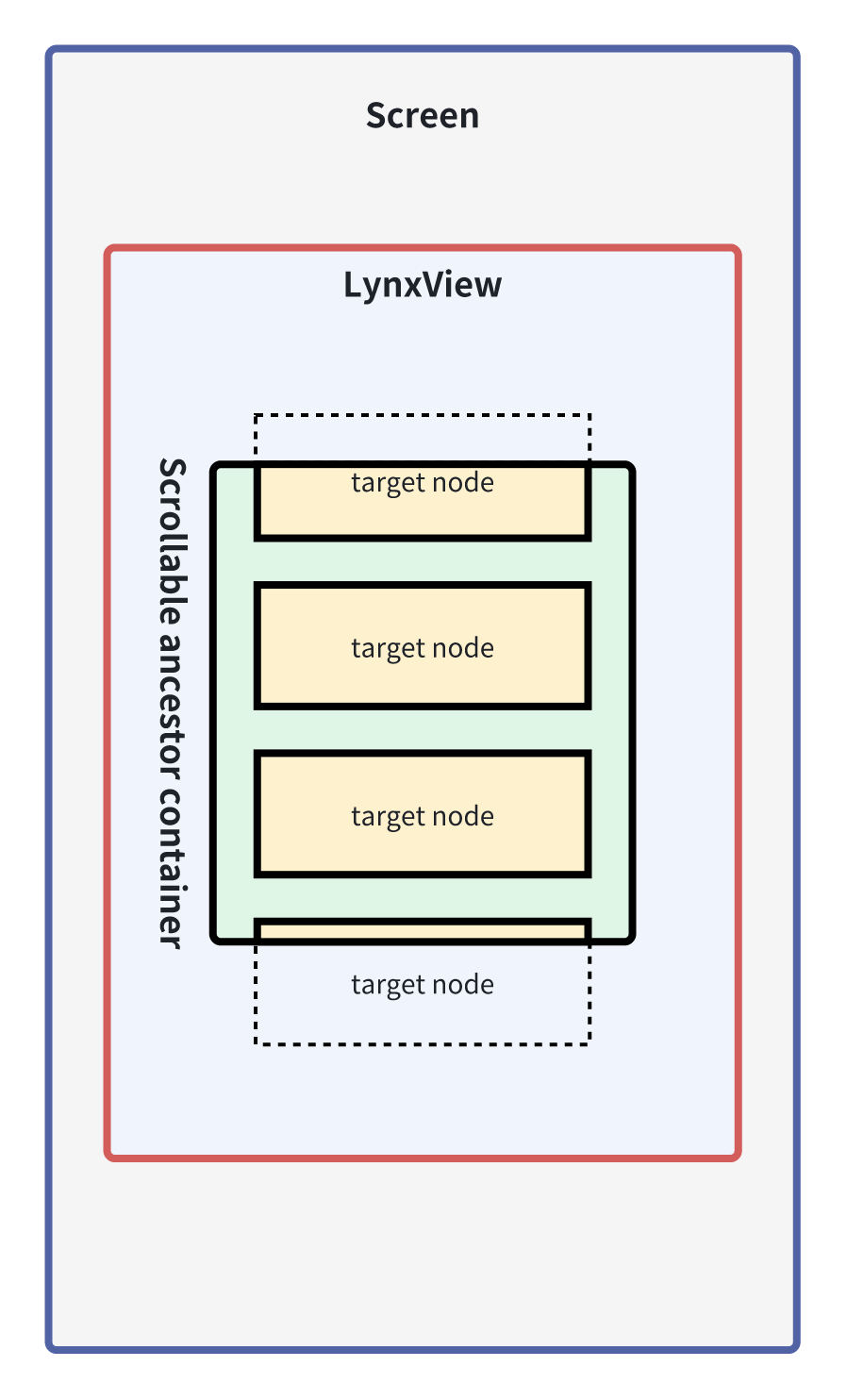
```
If the event handling function runs on the main thread, you need to add an additional `main-thread:` prefix before the event handler property, for example:
```tsx
```
In Lynx
, the event handler property can also implement event interception and cross-component event listening. For details, please refer to [Event Propagation](/guide/interaction/event-handling/event-propagation.md).
## Handling user clicks
When an event is triggered on a node, the event handling function set by the event handler property will be called. This function will receive an event object as a parameter, which contains detailed information about the event.
All event objects inherit from [Event](/api/lynx-api/event/event.md). Developers
can write event processing logic based on event objects in event processing
functions.
When the event processing function is a [main thread script](/react/main-thread-script.md), you need to add a [`'main thread'`](/api/react/Document.directives.md#main-thread) directive to the first line of the function body to indicate that the function runs on the main thread.
### Main thread event processing
In Lynx, the event objects of the main thread and the background thread are different. The event object of the background thread is a pure `json` object, while the event object of the main thread is an operable `Event Object`.
Lynx provides a variety of ways to operate nodes, please refer to
[Manipulating
elements](/guide/interaction/event-handling/manipulating-element.react.md) for
details.
For example, for **Example 1**, when the developer chooses to handle events in the main thread, he can directly get [`e.currentTarget`](/api/lynx-api/event/event.md#currenttarget) in the [main thread script](/react/main-thread-script.md) and call [`setStyleProperty`](/api/lynx-api/main-thread/main-thread-element.md#elementsetstyleproperty) to modify the background color of the node.
**Example 2**
**This is an example below: event**
**Entry:** `src/event_node_eom`
**Bundle:** `dist/event_node_eom.lynx.bundle` | Web: `dist/event_node_eom.web.bundle`
```tsx {4-11,16}
import { root } from "@lynx-js/react";
import type { MainThread } from "@lynx-js/types";
export default function App() {
function handleTapInMTS(e: MainThread.TouchEvent) {
"main thread";
const rndCol = `rgb(${Math.floor(Math.random() * 256)}, ${Math.floor(Math.random() * 256)}, ${
Math.floor(Math.random() * 256)
})`;
e.currentTarget.setStyleProperty("background-color", rndCol);
}
return (
click me
);
}
root.render();
if (import.meta.webpackHot) {
import.meta.webpackHot.accept();
}
```
### Background thread event processing
For the event processing function of the background thread, developers cannot directly operate the node through [`e.currentTarget`](/api/lynx-api/event/event.md#currenttarget), but can obtain the node reference through [`SelectorQuery`](/api/lynx-api/selector-query.md) and then call [`setNativeProps`](/api/lynx-api/nodes-ref/nodes-ref-set-native-props.md) Modify the background color of the node.
**Example 3:**
**This is an example below: event**
**Entry:** `src/event_node_sq`
**Bundle:** `dist/event_node_sq.lynx.bundle` | Web: `dist/event_node_sq.web.bundle`
```tsx {5-16,21}
import { root } from "@lynx-js/react";
import type { NodesRef, SelectorQuery, TouchEvent } from "@lynx-js/types";
export default function App() {
function handleTap(e: TouchEvent) {
const rndCol = `rgb(${Math.floor(Math.random() * 256)}, ${Math.floor(Math.random() * 256)}, ${
Math.floor(Math.random() * 256)
})`;
(lynx
.createSelectorQuery() as { selectUniqueID(uid: number): NodesRef } & SelectorQuery)
.selectUniqueID(e.currentTarget.uid)
.setNativeProps({
"background-color": rndCol,
})
.exec();
}
return (
click me
);
}
root.render();
if (import.meta.webpackHot) {
import.meta.webpackHot.accept();
}
```
## Summary
So far, you have learned how to listen to user clicks and perform corresponding operations based on the event object.
For developers, Lynx events provide a Web-like API, but with a unique dual-threaded event response mechanism, allowing developers to choose to perform event processing in the main thread or background thread as needed, thereby optimizing performance and response speed.
---
# Source: https://lynxjs.org/guide/interaction/event-handling/event-propagation.md
# Event Propagation
When an event is triggered, it will propagate along the event response chain. If the corresponding type of event handler property is set on the node, the node can listen to the corresponding event or even intercept it during the event propagation process.
In addition, Lynx also provides cross-component event monitoring, event aspect interface, and `GlobalEventEmitter` to implement special event propagation.
## Event handler property
By setting the event handler properties, developers can decide at which stage (or across components) of event propagation to listen or intercept the event, and specify the processing function to be called when the event is triggered. The names of these event handler properties are usually composed of the bound event type and event name.
| Event Type | Description |
| --------------- | ----------------------------------------------------------------------------------- |
| `bind` | Listen to events in the bubbling stage, and do not intercept event bubbling. |
| `catch` | Listen to events in the bubbling stage and intercept event bubbling. |
| `capture-bind` | Listen to events in the capture phase, do not intercept event capture and bubbling. |
| `capture-catch` | Listen to events in the capture phase, intercept event capture and bubbling. |
| `global-bind` | Listen to events across components. |
In particular, when the event handler is a [main thread script](/react/main-thread-script.md), you need to add the `main-thread:` prefix before the event handler property name to ensure that the handler is executed in the main thread.
## Event response chain
The event response chain refers to a linked list of nodes that can respond to events. Generally speaking, the event response chain consists of the path from the root node of the page to the node where the action is actually triggered. However, for non-[touch events](/api/lynx-api/event/touch-event.md), the event response chain only contains the node where the action is actually triggered.
**Example 1:**
**This is an example below: event**
**Entry:** `src/event_chain`
**Bundle:** `dist/event_chain.lynx.bundle` | Web: `dist/event_chain.web.bundle`
```tsx {50,65,78,95,108}
import { root, useState } from "@lynx-js/react";
import type { TouchEvent } from "@lynx-js/types";
export default function App() {
const [tap, setTap] = useState(false);
const [tap1, setTap1] = useState(false);
const [tap11, setTap11] = useState(false);
const [tap2, setTap2] = useState(false);
const [tap22, setTap22] = useState(false);
function handleTap(e: TouchEvent) {
if (e.currentTarget.id === "tap") {
setTap(!tap);
}
if (e.currentTarget.id === "tap1") {
setTap1(!tap1);
}
if (e.currentTarget.id === "tap11") {
setTap11(!tap11);
}
if (e.currentTarget.id === "tap2") {
setTap2(!tap2);
}
if (e.currentTarget.id === "tap22") {
setTap22(!tap22);
}
}
function handletouchstart(e: TouchEvent) {
setTap(false);
setTap1(false);
setTap11(false);
setTap2(false);
setTap22(false);
}
return (
click me 1
click me 2
);
}
root.render();
if (import.meta.webpackHot) {
import.meta.webpackHot.accept();
}
```
In the above example, when the user clicks on the page, the background color of the node on the event response chain will be set to orange.
## Event capture
The event will go through two stages in the event response chain: event capture and event bubbling. In the event capture stage, the event will start from the root node of the page and propagate down along the event response chain until the node where the action is actually triggered. In the event capture stage, nodes with the event handler property of the `capture-bind` type set can listen to the corresponding event.
**Example 2:**
**This is an example below: event**
**Entry:** `src/event_capture`
**Bundle:** `dist/event_capture.lynx.bundle` | Web: `dist/event_capture.web.bundle`
```tsx {7-9,14}
import { root, useState } from "@lynx-js/react";
import type { TouchEvent } from "@lynx-js/types";
export default function App() {
const [cnt, setCnt] = useState(0);
function handleTap(e: TouchEvent) {
setCnt(cnt + 1);
}
return (
Counts the number of clicks on a page: {cnt}
{[0, 1, 2, 3, 4, 5, 6].map((item) => {
return (
item-{item + 1}
);
})}
);
}
root.render();
if (import.meta.webpackHot) {
import.meta.webpackHot.accept();
}
```
In the above example, since event propagation starts from the capture phase, and the capture phase starts from the root node, when the user clicks on the page, the root node can always listen to the `tap` event, thereby realizing the function of counting the number of page clicks.
## Event bubble
In the event bubbling phase, the event will propagate upward along the event response chain from the node where the action is actually triggered, until the root node of the page. In the event bubbling phase, nodes with the `bind` type event handler attribute set can listen to the corresponding event.
**Example 3**
**This is an example below: event**
**Entry:** `src/event_bubble`
**Bundle:** `dist/event_bubble.lynx.bundle` | Web: `dist/event_bubble.web.bundle`
```tsx {7-12,23}
import { root, useState } from "@lynx-js/react";
import type { TouchEvent } from "@lynx-js/types";
export default function App() {
const [bgColor, setBgColor] = useState("white");
function handleTap(e: TouchEvent) {
const rndCol = `rgb(${Math.floor(Math.random() * 256)}, ${Math.floor(Math.random() * 256)}, ${
Math.floor(Math.random() * 256)
})`;
setBgColor(rndCol);
}
return (
click me
);
}
root.render();
if (import.meta.webpackHot) {
import.meta.webpackHot.accept();
}
```
In the above example, when the user clicks any node on the page, the event will bubble from the child node to the parent node by default. Therefore, the parent node can always listen to the `tap` event and change the background color of the node.
## Event interception
During the process of event propagation, the event can be intercepted midway to prevent the event from continuing to propagate. When the `catch` type event handler property is set on the node, the event will be intercepted when it propagates to the node and will no longer propagate.
**Example 4**
**This is an example below: event**
**Entry:** `src/event_static_catch`
**Bundle:** `dist/event_static_catch.lynx.bundle` | Web: `dist/event_static_catch.web.bundle`
```tsx {7-12,23,34}
import { root, useState } from "@lynx-js/react";
import type { TouchEvent } from "@lynx-js/types";
export default function App() {
const [bgColor, setBgColor] = useState("white");
function handleTap(e: TouchEvent) {
const rndCol = `rgb(${Math.floor(Math.random() * 256)}, ${Math.floor(Math.random() * 256)}, ${
Math.floor(Math.random() * 256)
})`;
setBgColor(rndCol);
}
return (
{}}
>
click me
);
}
root.render();
if (import.meta.webpackHot) {
import.meta.webpackHot.accept();
}
```
In the above example, since the `click me` area sets the static interception `tap` event, the event will bubble to the parent node and the background color of the node will change only when the non-`click me` area is clicked.
## Prevent Event Propagation in Main Thread Script
When used with [Main Thread Script](/react/main-thread-script.md), event propagation can be prevented by calling the [`stopPropagation`](/api/lynx-api/event/event.md#stoppropagation) method of the event object.
**Example 5:**
**This is an example below: event**
**Entry:** `src/event_stop_propagation`
**Bundle:** `dist/event_stop_propagation.lynx.bundle` | Web: `dist/event_stop_propagation.web.bundle`
```tsx {34}
import { root, runOnBackground, useState } from "@lynx-js/react";
import "./index.css";
import type { MainThread } from "@lynx-js/types";
export default function App() {
const [active, setActive] = useState({ outer: false, middle: false, inner: false });
// Utility to flash a box when it's clicked
const flashBT = (key: "outer" | "middle" | "inner") => {
setActive((prev) => ({ ...prev, [key]: true }));
setTimeout(() => setActive((prev) => ({ ...prev, [key]: false })), 200);
};
// Utility to flash a box when it's clicked
const flash = (
key: "outer" | "middle" | "inner",
) => {
"main thread";
runOnBackground(flashBT)(key);
};
function handleOuterTap(e: MainThread.TouchEvent) {
"main thread";
flash("outer");
}
function handleMiddleTap(e: MainThread.TouchEvent) {
"main thread";
flash("middle");
}
function handleInnerTap(e: MainThread.TouchEvent) {
"main thread";
e.stopPropagation(); // ✋ stop event bubbling
flash("inner");
}
return (
Outer {active.outer ? "(active)" : "(inactive)"}
Middle {active.middle ? "(active)" : "(inactive)"}
Inner (click me, stops propagation) {active.inner ? "(active)" : "(inactive)"}
);
}
root.render();
if (import.meta.webpackHot) {
import.meta.webpackHot.accept();
}
```
In the above example, click the inner will not trigger the `tap` event of the outer.
## Cross-component event listening
Generally speaking, when a node is not on the event response chain, the event cannot be monitored. Lynx provides a way to monitor cross-component events, allowing developers to register event monitoring on any node and receive corresponding events.
For example, developers can set the event handler property of the `global-bind` type on a node to listen to the `tap` event. When any node is clicked, the node can listen to the `tap` event, thereby realizing the function of counting the number of page clicks.
**Example 5:**
**This is an example below: event**
**Entry:** `src/event_global_bind`
**Bundle:** `dist/event_global_bind.lynx.bundle` | Web: `dist/event_global_bind.web.bundle`
```tsx {8-10,12-14,19-20,47-48}
import { root, useState } from "@lynx-js/react";
import type { TouchEvent } from "@lynx-js/types";
export function ComponentA() {
const [scrollContainer, setScrollContainer] = useState("");
const [cnt, setCnt] = useState(0);
function handleScroll(e: TouchEvent) {
setScrollContainer(e.target.id);
}
function handleTap(e: TouchEvent) {
setCnt(cnt + 1);
}
return (
Counts the number of clicks on a page: {cnt}
Current scroll container: {scrollContainer}
);
}
export function ComponentB() {
return (
{}}
>
{[0, 1, 2, 3, 4, 5, 6].map((item) => {
return (
scroll-1-item-{item + 1}
);
})}
{}}
>
{[0, 1, 2, 3, 4, 5, 6].map((item) => {
return (
scroll-2-item-{item + 1}
);
})}
);
}
export default function App() {
return (
ComponentA
ComponentB
);
}
root.render();
if (import.meta.webpackHot) {
import.meta.webpackHot.accept();
}
```
It should be noted that for non-[touch events](/api/lynx-api/event/touch-event.md), the event handler property of the non-cross-component event listening type needs to be set on the monitored node. In addition, developers can also set `global-target` on the node to specify that only events with a specific value of the node [`id`](/api/elements/built-in/view.md#id) are listened (type is `string`, multiple [`id`](/api/elements/built-in/view.md#id) can be specified, separated by commas).
## Event aspect interface
Sometimes, developers may need to uniformly listen to and handle events of a specific type somewhere, and do not rely on component registration event listeners. For example, count all triggered `tap` events on the page. At this time, developers can use the event aspect interface ([`beforePublishEvent`](/api/lynx-api/lynx/lynx-before-publish-event.md)) provided by Lynx to implement the corresponding function.
**Example 6:**
**This is an example below: event**
**Entry:** `src/event_aop`
**Bundle:** `dist/event_aop.lynx.bundle` | Web: `dist/event_aop.web.bundle`
```tsx {7-12,65}
import { root, useMemo, useState } from "@lynx-js/react";
import type { TouchEvent } from "@lynx-js/types";
export default function App() {
const [cnt, setCnt] = useState(0);
useMemo(() => {
"background-only";
lynx.beforePublishEvent.add("tap", () => {
setCnt((cnt) => cnt + 1);
});
}, []);
return (
Counts the number of clicks on a page: {cnt}
{[0, 1].map((item) => {
return (
{"Don't listen tap event-" + (item + 1)}
);
})}
{[0, 1, 2, 3].map((item) => {
return (
{}}
>
{"Listen tap event-" + (item + 1)}
);
})}
);
}
root.render();
if (import.meta.webpackHot) {
import.meta.webpackHot.accept();
}
```
The event aspect interface is a type of aspect programming. By injecting the corresponding interface at the event trigger point, the event is forwarded to a certain place when a specific event is triggered. This interface is only implemented in the BTS context. Therefore, it can only be used in the background thread, and the corresponding event can only be listened to when the event processing function is triggered.
## `GlobalEventEmitter`
Sometimes, developers may need to pass events between different elements and components, or need to pass events between the client and the front end, and do not rely on the element to register event listeners. At this time, developers can use `GlobalEventEmitter` to achieve global scope transmission of events in a page.
Developers can obtain the `GlobalEventEmitter` object through [`lynx.getJSModule`](/api/lynx-api/lynx/lynx-get-js-module.md), which provides the following interfaces:
| Function name | Function description | Function parameter |
| -------------------- | ------------------------------------------------------------------------------------------- | --------------------------------- |
| `addListener` | Subscribe to events and register event listeners. | `(eventName, listener, context?)` |
| `removeListener` | Remove the specified listener for a specific event. | `(eventName, listener)` |
| `removeAllListeners` | Remove all listeners for a specific event. | `(eventName)` |
| `toggle` | Broadcast an event with a specified event name, supporting multiple transparent parameters. | `(eventName, ...data)` |
| `trigger` | Broadcasts an event with a specified event name, supporting a transparent parameter. | `(eventName, params)` |
Note that `GlobalEventEmitter` is only supported in the BTS context, so it can only be used in background threads.
### Event broadcast
Developers can broadcast events through `GlobalEventEmitter` to send events to the front end.
In the following example, when the user clicks on the page, the developer broadcasts the event by calling the `toggle` method of `GlobalEventEmitter`, so that the click event is propagated from component `ComponentA` to `ComponentB`.
**Example 7:**
**This is an example below: event**
**Entry:** `src/event_emitter_toggle`
**Bundle:** `dist/event_emitter_toggle.lynx.bundle` | Web: `dist/event_emitter_toggle.web.bundle`
```tsx {8-10,22-24,41}
import { root, useState } from "@lynx-js/react";
import { useLynxGlobalEventListener } from "@lynx-js/react";
import type { TouchEvent } from "@lynx-js/types";
export function ComponentA() {
const [eventLog, setEventlog] = useState("");
useLynxGlobalEventListener("tapitem", (e) => {
setEventlog((e as TouchEvent).target.dataset.item);
});
return (
Tap on item-{eventLog}
);
}
export function ComponentB() {
function handleTap(e: TouchEvent) {
lynx.getJSModule("GlobalEventEmitter").toggle("tapitem", e);
}
return (
{[0, 1, 2, 3, 4, 5, 6].map((item) => {
return (
item-{item + 1}
);
})}
);
}
export default function App() {
return (
ComponentA
ComponentB
);
}
root.render();
if (import.meta.webpackHot) {
import.meta.webpackHot.accept();
}
```
For the client, the example is as follows:
```objective-c
// You can call the sendGlobalEvent function of LynxContext
// The first parameter is the event name monitored by the front end, and the second parameter is the data received by the front end
[LynxContext sendGlobalEvent:@"eventName" withParams:args];
// Or call the sendGlobalEvent function of LynxView
[LynxView sendGlobalEvent:@"eventName" withParams:args];
```
```java
// You can call the sendGlobalEvent function of LynxContext
// The first parameter is the event name monitored by the front end, and the second parameter is the data received by the front end
LynxContext.sendGlobalEvent("eventName", args);
// Or call the sendGlobalEvent function of LynxView
LynxView.sendGlobalEvent("eventName", args);
```
```js
// You can call the sendGlobalEvent function of LynxContext
// The first parameter is the event name monitored by the front end, and the second parameter is the data received by the front end
LynxContext.sendGlobalEvent('eventName', args);
```
### Event subscribe
Developers can also subscribe to events through the `addListener` method of `GlobalEventEmitter` to receive events from the front end and client.
In the following example, users can receive the [`onWindowResize`](/api/lynx-api/event/global-event.md#onwindowresize) event sent by Lynx, which is triggered when the Lynx page size changes.
**Example 8:**
**This is an example below: event**
**Entry:** `src/event_emitter_listen`
**Bundle:** `dist/event_emitter_listen.lynx.bundle` | Web: `dist/event_emitter_listen.web.bundle`
```tsx {7-9}
import { root, useState } from "@lynx-js/react";
import { useLynxGlobalEventListener } from "@lynx-js/react";
export default function App() {
const [eventLog, setEventLog] = useState("");
useLynxGlobalEventListener("onWindowResize", (e) => {
setEventLog("" + e);
});
return (
Listen onWindowResize Event:
LynxView's width has changed to: {eventLog}
);
}
root.render();
if (import.meta.webpackHot) {
import.meta.webpackHot.accept();
}
```
---
# Source: https://lynxjs.org/help/example.md
# Managing Interactive Examples (``)
Interactive examples allow users to preview and edit code directly in the documentation. This guide explains how to manage these examples using the dedicated workspace and the `` component.
## Overview
The interactive example system allows you to embed live, runnable Lynx code in your documentation. It consists of:
1. **Source Packages**: Examples are real npm packages managed in `packages/lynx-example-packages/`.
2. **Build Process**: A script bundles these packages into static assets for the website.
3. **`` Component**: A React component that renders the interactive editor and preview in your MDX files.
***
## 1. Using the `` Component
To embed an interactive example in your documentation, use the `` component.
### Basic Usage
Import `Go` from `@lynx` and provide the `example` ID (which corresponds to the package directory name).
```tsx
import { Go } from '@lynx';
;
```
### Component Props
| Prop | Type | Default | Description |
| :----------------- | :------- | :--------------- | :---------------------------------------------------------------------------------------------------------- |
| `example` | `string` | **Required** | The ID of the example to load (e.g., `"view"`). Matches the directory name in `docs/public/lynx-examples/`. |
| `defaultFile` | `string` | `"package.json"` | The file path to display in the code editor initially. |
| `defaultEntryName` | `string` | - | The specific entry point to run (if the example has multiple bundles). |
| `img` | `string` | - | URL to a custom preview image (overrides the default `preview-image.png`). |
| `highlight` | `object` | - | Line highlighting configuration. Format: `{ "path/to/file": "start-end" }`. |
| `schema` | `string` | - | Custom schema URL pattern for the preview. Use `{{{url}}}` as a placeholder for the bundle URL. |
### Advanced Example
```tsx
```
**This is an example below: view**
**Bundle:** `dist/main.lynx.bundle` | Web: `dist/main.web.bundle`
```tsx 5-10
// Copyright 2024 The Lynx Authors. All rights reserved.
// Licensed under the Apache License Version 2.0 that can be found in the
// LICENSE file in the root directory of this source tree.
import type { ReactElement } from "react";
const RenderExample = () => {
return (
);
};
const LayoutExample = () => {
return (
Hello World
Hello Lynx
);
};
export const App = () => {
const examples: ReactElement[] = [
,
,
];
return (
View Examples
{examples.map((example, index) => example)}
);
};
```
***
## 2. Managing Example Packages
All interactive examples are managed as dependencies in the `packages/lynx-example-packages/` workspace.
### Directory Structure
```text
packages/lynx-example-packages/
├── package.json # Manifest listing all example dependencies
├── pnpm-lock.yaml # Lockfile for examples
└── node_modules/ # Where installed examples reside
└── @lynx-example/ # Namespace for official examples
```
### Adding a New Example
To make a new example available to the `` component:
1. **Publish the Package**: Your example must be a valid npm package (e.g., `@lynx-example/my-feature`).
2. **Add Dependency**: Add the package to `packages/lynx-example-packages/package.json`.
3. **Install**: Run `pnpm install` in the workspace root to download the new example.
4. **Rebuild Assets**: The website build process will automatically detect and bundle the new example.
***
## 3. Build Architecture
For those interested in how it works under the hood:
- **Script**: `scripts/lynx-example.js` runs during the build.
- **Process**:
1. Scans `node_modules/@lynx-example/` for packages.
2. Identifies bundle files (`.lynx.bundle`, `.web.bundle`) and source code.
3. Generates an `example-metadata.json` for each example.
4. Copies assets to `docs/public/lynx-examples/`.
- **Runtime**: The `` component fetches this metadata at runtime to hydrate the editor and preview.
---
# Source: https://lynxjs.org/guide/interaction/visibility-detection/exposure-ability.md
# Exposure Ability
The exposure capability provides a capability to observe changes in the visibility of a target node. When a target node changes from invisible to visible, an exposure event is triggered. Otherwise, an anti-exposure event is triggered.
Developers can monitor the exposure/anti-exposure events of nodes by setting relevant properties for the target nodes to be observed, thereby achieving requirements such as point reporting and `UI` lazy loading.
The exposure capability observes changes in node visibility through timed exposure detection tasks. The visibility of a node depends on the following factors:
- Visibility of the target node: The target node itself has width and height and is opaque, and the parent node has no clipping with zero width or height.
- Viewport intersection of the target node: The target node intersects with the parent scroll container, `Lynxview`, and the viewport of the screen.
## Monitor exposure of the entire page
When developers need to monitor exposure/anti-exposure events of nodes in the entire page, they can subscribe to the exposure event [`exposure`](/api/lynx-api/event/global-event.md#exposure) and anti-exposure event [`disexposure`](/api/lynx-api/event/global-event.md#disexposure) of the node with the [`exposure-id`](/api/elements/built-in/view.md#exposure-id) attribute set through [`GlobalEventEmitter`](/guide/interaction/event-handling/event-propagation.md#globaleventemitter).
In the following example, the developer uses [`GlobalEventEmitter`](/guide/interaction/event-handling/event-propagation.md#globaleventemitter) to monitor whether the node in `ComponentA` is exposed, and outputs the exposed node [`exposure-id`](/api/elements/built-in/view.md#exposure-id) when it is exposed.
**Example 1:**
**This is an example below: event**
**Entry:** `src/visibility_expose_global`
**Bundle:** `dist/visibility_expose_global.lynx.bundle` | Web: `dist/visibility_expose_global.web.bundle`
```tsx {8-12,14-21,56}
import { root, useState } from "@lynx-js/react";
import { useLynxGlobalEventListener } from "@lynx-js/react";
export function ComponentA() {
const [eventLog, setEventLog] = useState("");
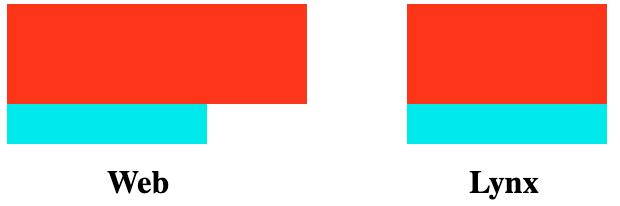
useLynxGlobalEventListener("exposure", (e) => {
(e as { "exposure-id": string }[]).forEach((item) => {
setEventLog((log) => log + (log === "" ? "" : ", ") + item["exposure-id"]);
});
});
useLynxGlobalEventListener("disexposure", (e) => {
let log = eventLog.split(", ");
(e as { "exposure-id": string }[]).forEach((item) => {
log = log.filter(id => id !== item["exposure-id"]);
});
log.sort();
setEventLog(log.join(", "));
});
return (
Exposed nodes:
{eventLog}
);
}
export function ComponentB() {
return (
{[0, 1, 2, 3, 4, 5, 6].map((item) => {
return (
scroll-item-{item + 1}
);
})}
);
}
export default function App() {
return (
ComponentA
ComponentB
);
}
root.render();
if (import.meta.webpackHot) {
import.meta.webpackHot.accept();
}
```
The format of the exposure/anti-exposure event is an array, which contains the target node information of each triggering exposure/anti-exposure event.
```json
[
{
"exposure-id": string, // exposure-id set on the target node
"exposure-scene": string, // exposure-scene set on the target node
"sign": string, // uid of the target node
"dataset": object, // "data-" field set on the target node
//......
},
//......
]
```
## Monitor the exposure of a certain node
When the developer only needs to listen to the exposure/anti-exposure events of a certain node, you can set the \[event handler]\(../event-handling/event-listening.mdx#Event handler properties) to listen to the node's [`uiappear`](/api/elements/built-in/view.md#binduiappear) and [`uidisappear`](/api/elements/built-in/view.md#binduidisappear) events.
In the following example, the developer sets the \[event handler]\(../event-handling/event-listening.mdx#Event handler properties) to listen to whether the node is exposed, and outputs the exposed node [`id`](/api/elements/built-in/view.md#id) when it is exposed.
**Example 2:**
**This is an example below: event**
**Entry:** `src/visibility_expose_custom`
**Bundle:** `dist/visibility_expose_custom.lynx.bundle` | Web: `dist/visibility_expose_custom.web.bundle`
```tsx {7-9,11-16,57-59}
import { root, useState } from "@lynx-js/react";
import type { Target, UIAppearanceDetailEvent } from "@lynx-js/types";
export default function App() {
const [eventLog, setEventLog] = useState("");
function handleUIAppear(e: UIAppearanceDetailEvent) {
setEventLog((log) => log + (log === "" ? "" : ", ") + e.detail.dataset.item);
}
function handleUIDisappear(e: UIAppearanceDetailEvent) {
let log = eventLog.split(", ");
log = log.filter(item => item !== e.detail.dataset.item);
log.sort();
setEventLog(log.join(", "));
}
return (
Exposed node:
{eventLog}
{[0, 1, 2, 3, 4, 5, 6].map((item) => {
return (
scroll-item-{item + 1}
);
})}
scroll container
);
}
root.render();
if (import.meta.webpackHot) {
import.meta.webpackHot.accept();
}
```
The event parameter `e.detail` contains the node information.
```json
{
"type": string // event name
"detail":
{
"exposure-id": string, // exposure-id set on the target node
"exposure-scene": string, // exposure-scene set on the target node
"unique-id": string, // uid of the target node
"dataset": object, // "data-" field set on the target node
//......
},
//......
}
```
## Control exposure detection
Lynx also provides some properties and methods to control the execution of exposure detection tasks.
For example, developers can use the following methods to control whether the exposure detection task is started, stopped, and the execution frequency.
- [`lynx.stopExposure [BTS]`](/api/lynx-api/lynx/lynx-stop-exposure.md) or [`lynx.stopExposure [MTS]`](/api/lynx-api/main-thread/lynx-stop-exposure.md): Called in the main thread or background thread to stop exposure detection, that is, no longer detect the visibility of the target node, and no exposure/anti-exposure events will be triggered later.
- [`lynx.resumeExposure [BTS]`](/api/lynx-api/lynx/lynx-resume-exposure.md) or [`lynx.resumeExposure [MTS]`](/api/lynx-api/main-thread/lynx-resume-exposure.md): Called in the main thread or background thread to start exposure detection, that is, restart the visibility detection of the target node, and then trigger the exposure/anti-exposure events normally.
- [`lynx.setObserverFrameRate`](/api/lynx-api/lynx/lynx-set-observer-frame-rate.md): used to set the frequency of exposure detection.
In addition, developers can also control the exposure detection logic of the node by setting exposure-related properties on the node, such as [`exposure-screen-margin-*`](/api/elements/built-in/view.md#exposure-screen-margin-), [`exposure-ui-margin-*`](/api/elements/built-in/view.md#exposure-ui-margin-), [`exposure-area`](/api/elements/built-in/view.md#exposure-area), etc.
---
# Source: https://lynxjs.org/guide/ui/layout/flexible-box-layout.md
# Flexible Box Layout
If you need to make the size of child elements adapt to the space of the parent element (such as expanding child elements to fill the unused space or shrinking child elements to avoid overflow), you can set the [`display: flex`](/api/css/properties/display.md) property to the parent element and use the **flexible box layout**.
::: info
For more information, please refer to the [CSS Flexible Box Layout](https://developer.mozilla.org/en-US/docs/Web/CSS/CSS_flexible_box_layout) on MDN. Lynx supports common flexible box layout properties and in most cases aligns with Web standards. For the supported properties, please refer to the [Reference section](#reference).
:::
**The following examples show typical features of the flexible box layout.**
## Typical Features
### Filling the Parent Element with `flex-grow`
The [`flex-grow`] property helps you allocate the remaining space of the parent element to the size of the sub-elements based on the weight declared by `flex-grow`.
**This is an example below: layout**
**Entry:** `src/flex_grow`
**Bundle:** `dist/flex_grow.lynx.bundle` | Web: `dist/flex_grow.web.bundle`
```tsx
import { root } from "@lynx-js/react";
import "./index.scss";
const FlexGrowExample = () => {
return (
flex-direction: column
flex-grow: 1
flex-grow: 2
100px
);
};
root.render();
if (import.meta.webpackHot) {
import.meta.webpackHot.accept();
}
```
### Shrinking Child Elements with `flex-shrink`
When the child elements are about to overflow the parent element, the child elements can shrinked according to the weight declared by [flex-shrink](/api/css/properties/flex-shrink.md) to fit the size of the parent element.
**This is an example below: layout**
**Entry:** `src/flex_shrink`
**Bundle:** `dist/flex_shrink.lynx.bundle` | Web: `dist/flex_shrink.web.bundle`
```tsx
import { root } from "@lynx-js/react";
import "./index.scss";
const FlexShrinkExample = () => {
return (
flex-direction: column
flex-shrink: 0
height 300px
flex-shrink: 1
height shrinks from 300px to fit container
);
};
root.render();
if (import.meta.webpackHot) {
import.meta.webpackHot.accept();
}
```
Lynx differs from Web in the minimum value for shrinking sub-elements.}>
Lynx currently does not support [`min-content`](https://developer.mozilla.org/en-US/docs/Web/CSS/min-content), and therefore treats it temporarily as `0px`. This means that while the Web can ensure sub-elements do not shrink below their minimum content width when fitting the parent element size, Lynx cannot guarantee this at present.
```html
```
### Wrapping with `flex-wrap`
The [`flex-wrap`] property allows content that doesn't fit on a single line to be displayed on subsequent lines. This attribute specifies whether flex elements are shown in a single or multiple lines. When allowed to wrap, this attribute can control the stacking direction of the lines.
**This is an example below: layout**
**Entry:** `src/flex_wrap`
**Bundle:** `dist/flex_wrap.lynx.bundle` | Web: `dist/flex_wrap.web.bundle`
```tsx
import { root } from "@lynx-js/react";
import "./index.scss";
const FlexWrapExample = () => {
return (
flex-direction: row;
flex-wrap: wrap;
Item 1
Item 2
Item 3
flex-direction: row;
flex-wrap: nowrap;
Item 1
Item 2
Item 3
);
};
root.render();
if (import.meta.webpackHot) {
import.meta.webpackHot.accept();
}
```
## Reference
Currently, Lynx supports the following common flexible box layout properties:
- **CSS Properties**
- [`flex`](/api/css/properties/flex.md)
- [`flex-basis`](/api/css/properties/flex-basis.md)
- [`flex-direction`](/api/css/properties/flex-direction.md)
- [`flex-flow`](/api/css/properties/flex-flow.md)
- [`flex-grow`](/api/css/properties/flex-grow.md)
- [`flex-shrink`](/api/css/properties/flex-shrink.md)
- [`flex-wrap`](/api/css/properties/flex-wrap.md)
- [`order`](/api/css/properties/order.md)
- **Alignment Properties**
- [`align-content`](/api/css/properties/align-content.md)
- [`align-items`](/api/css/properties/align-items.md)
- [`align-self`](/api/css/properties/align-self.md)
- [`justify-content`](/api/css/properties/justify-content.md)
- [`row-gap`](/api/css/properties/row-gap.md)
- [`column-gap`](/api/css/properties/column-gap.md)
- [`gap`](/api/css/properties/gap.md)
For more usage details, please refer to the [CSS Flexible Box Layout](https://developer.mozilla.org/en-US/docs/Web/CSS/CSS_flexible_box_layout) on MDN.
[`flex-grow`]: /api/css/properties/flex-grow.md
[`flex-shrink`]: /api/css/properties/flex-shrink.md
[`flex-wrap`]: /api/css/properties/flex-wrap.md
---
# Source: https://lynxjs.org/api/elements/built-in/frame.md
# ``
A page element similar to HTML's `