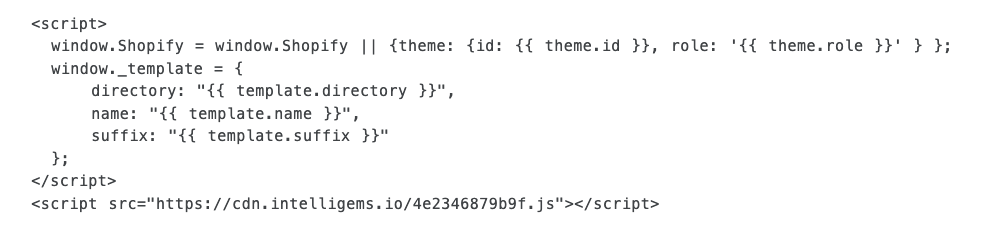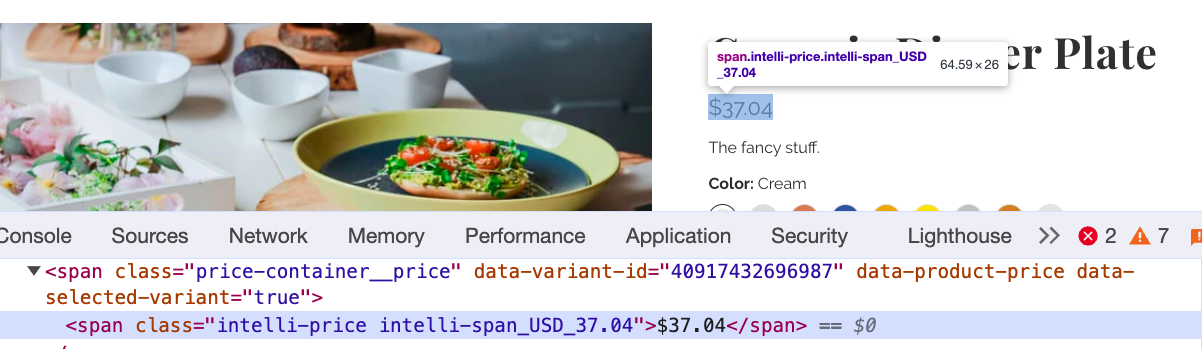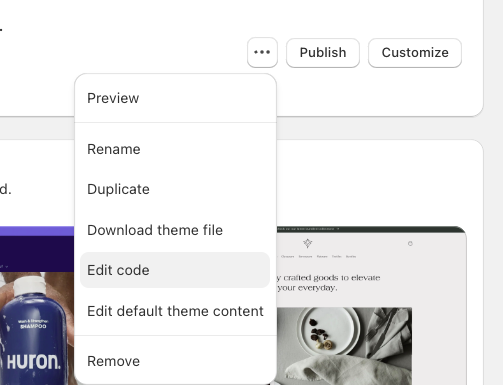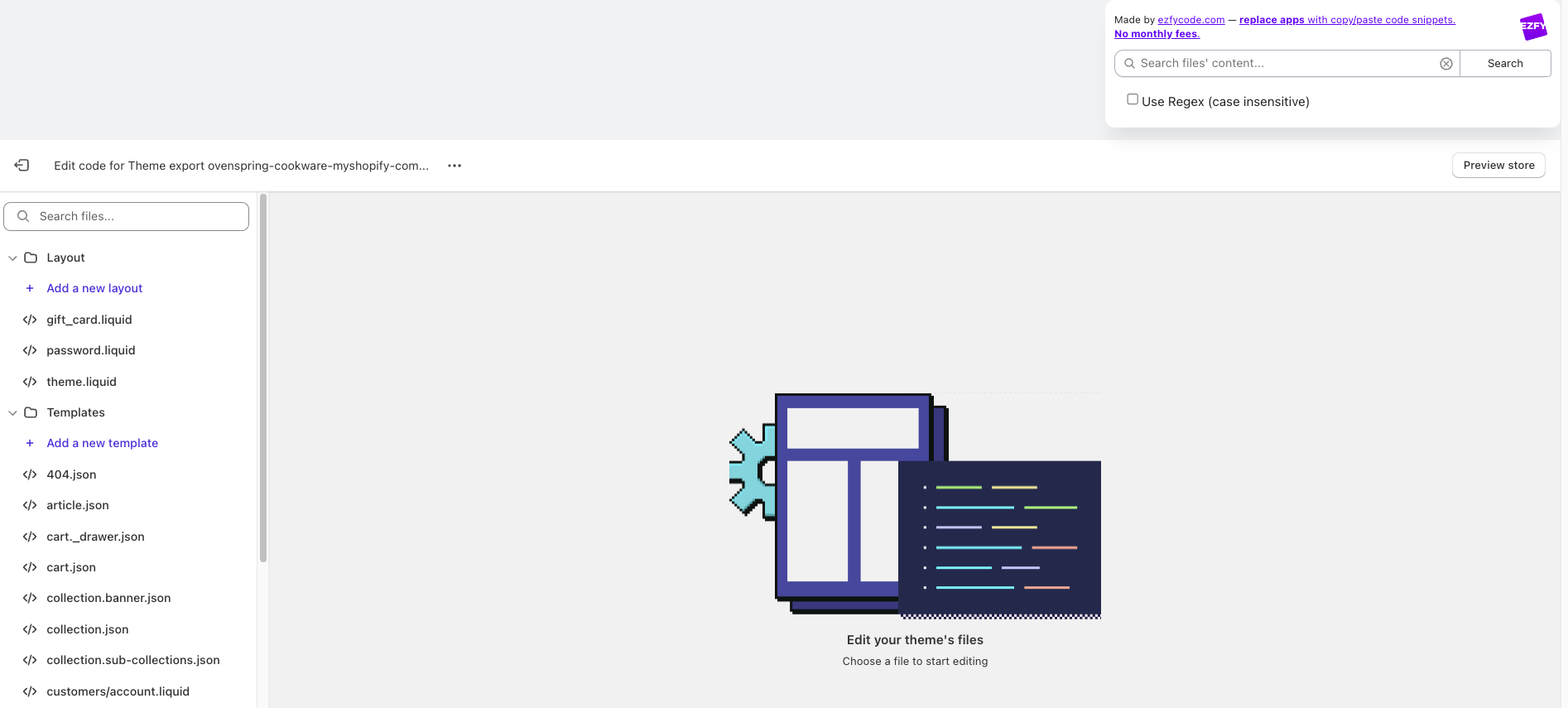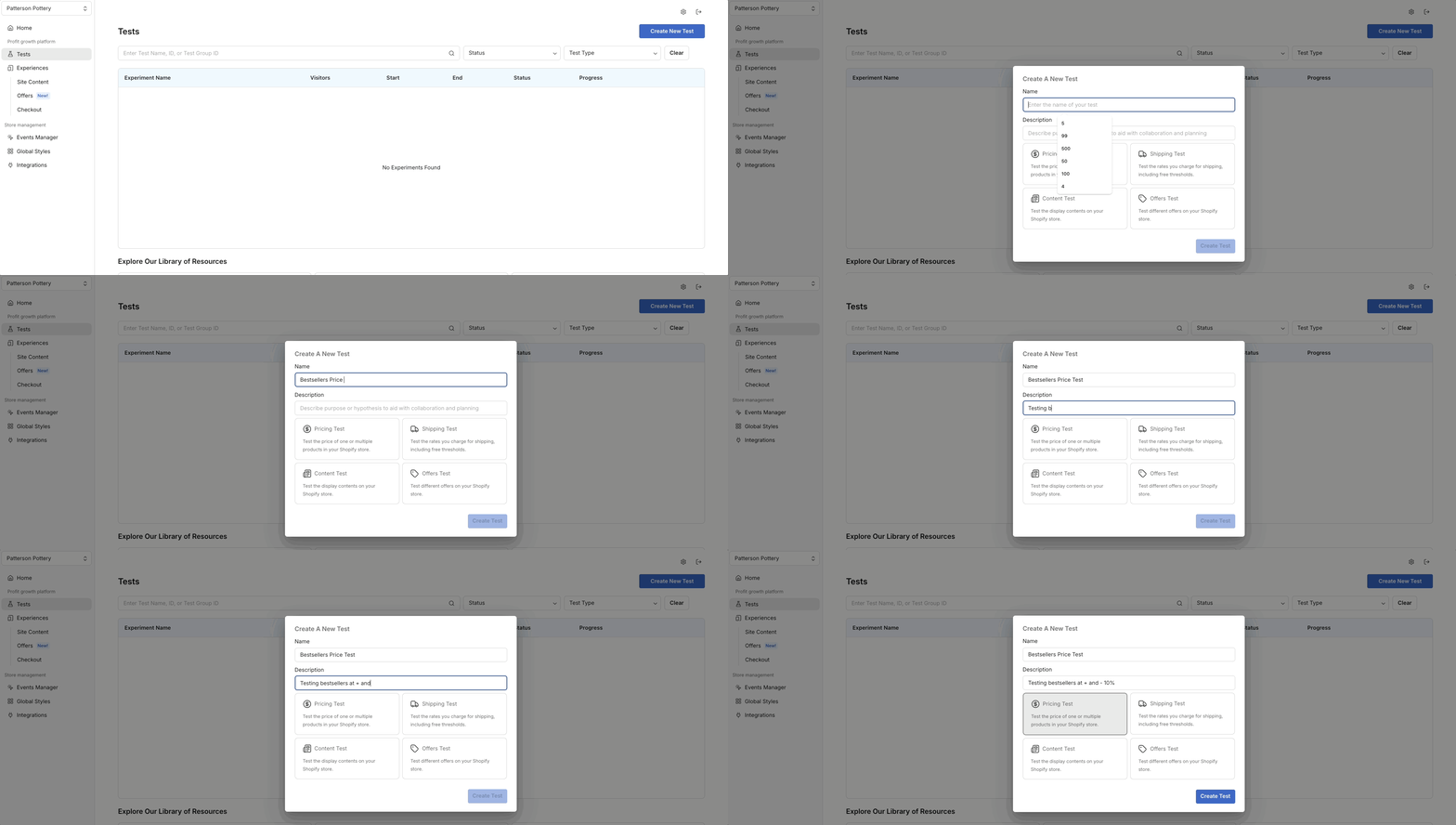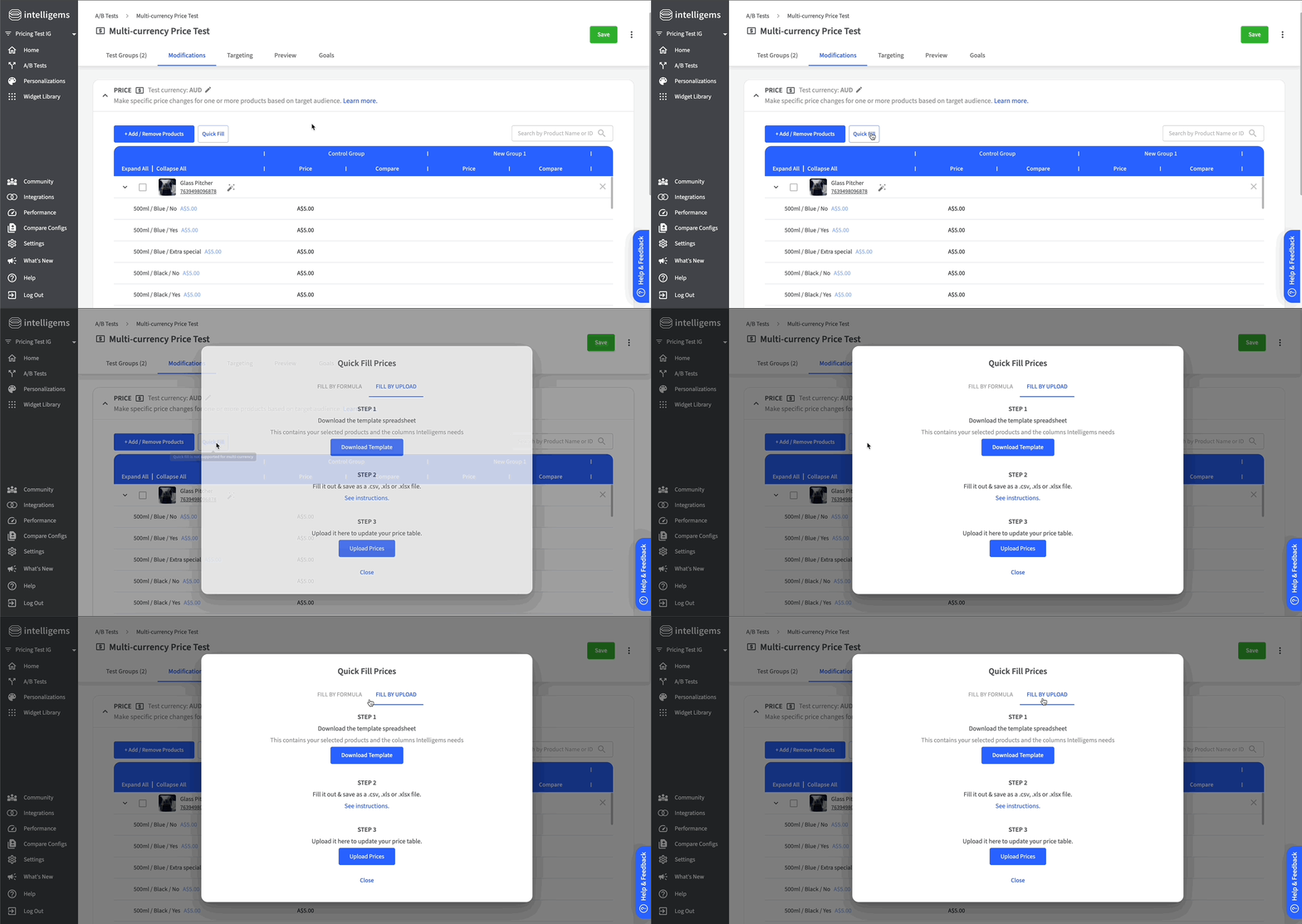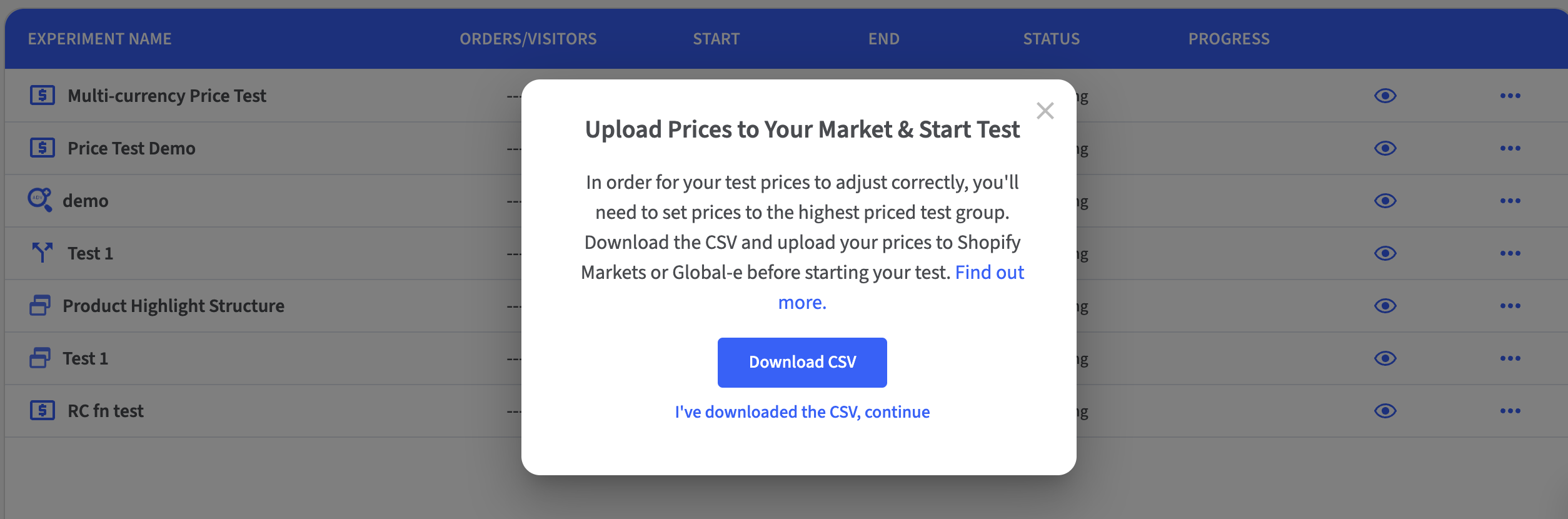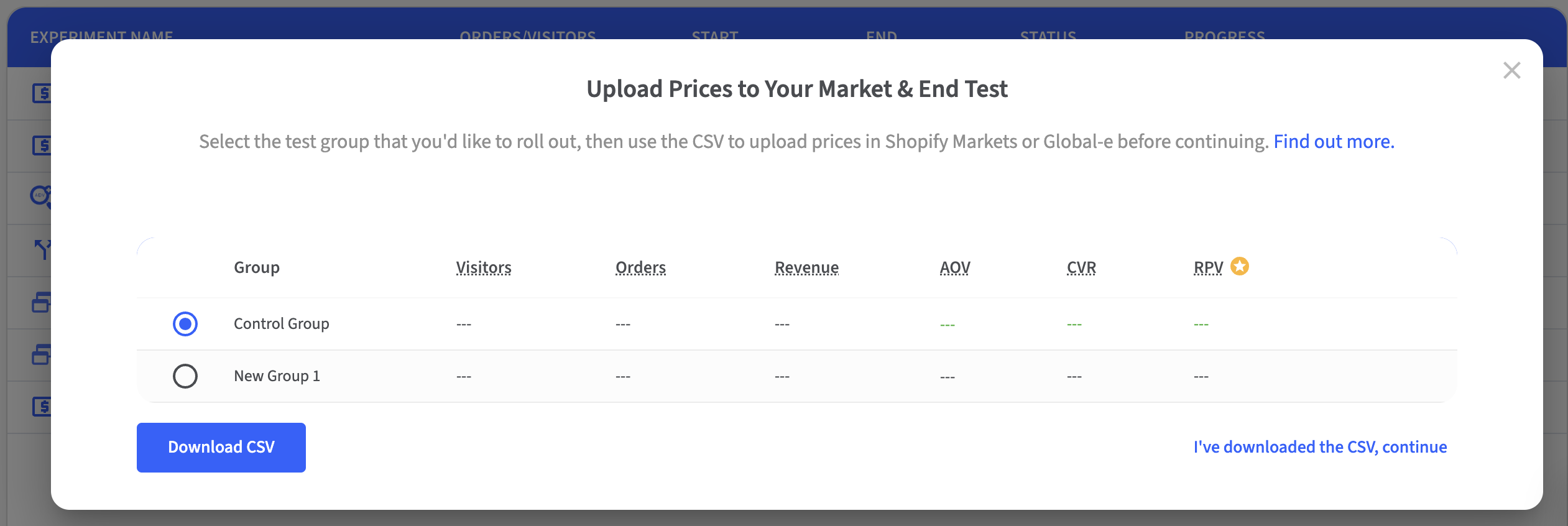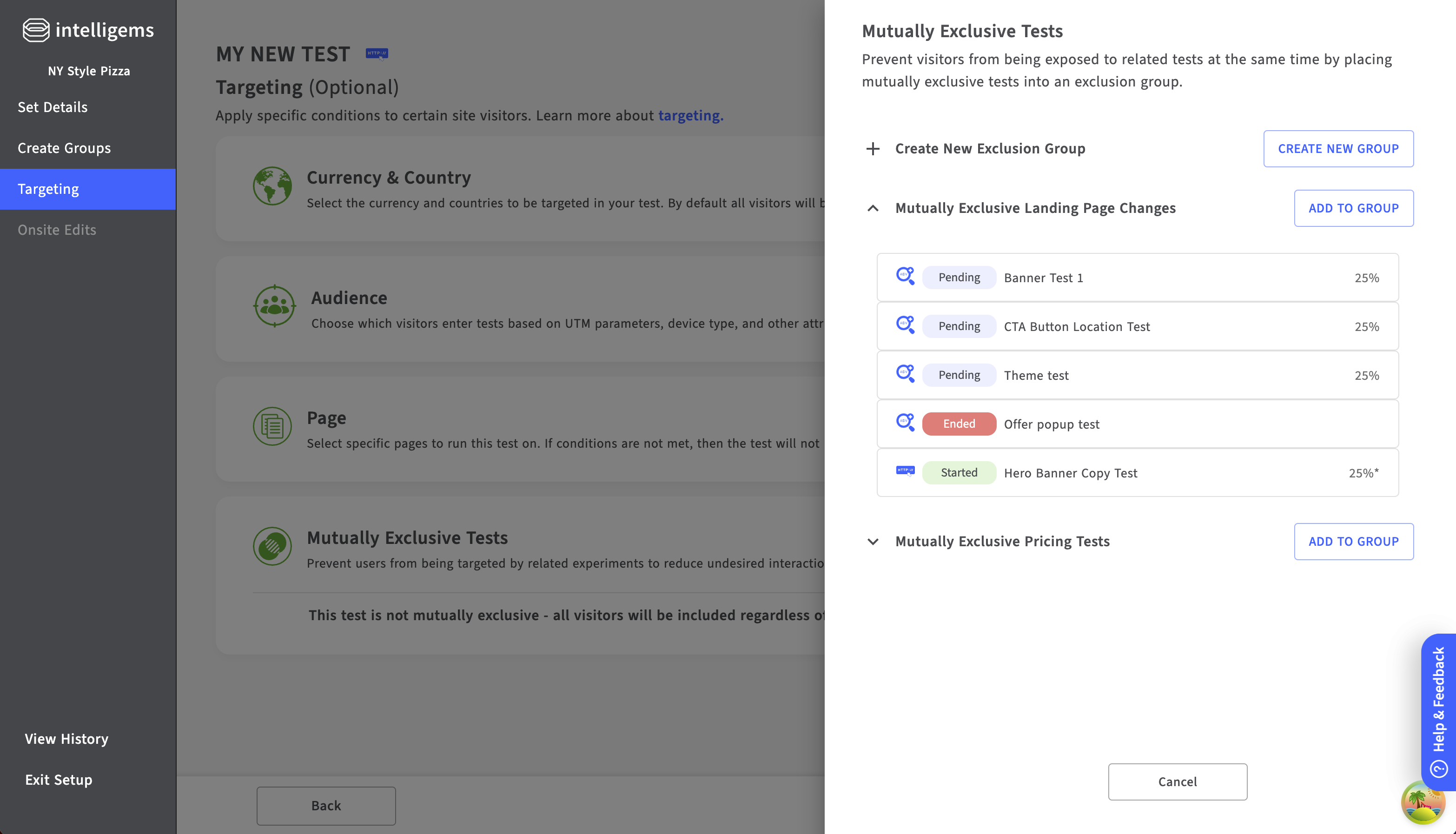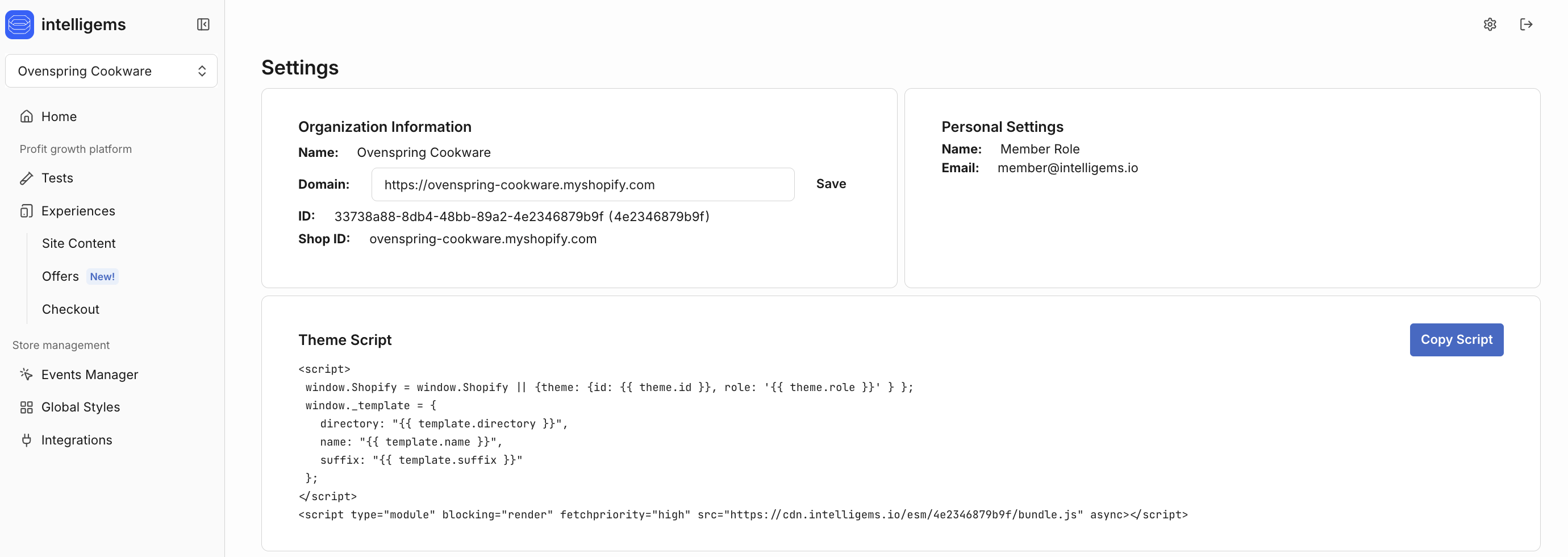
# Intelligems > Adding the Intelligems script to your site is the most important step to getting started with testing with Intelligems! Adding the Intelligems script to your site is the only mandatory integration ste --- # Source: https://docs.intelligems.io/getting-started/adding-intelligems-script-to-your-theme.md # Adding Intelligems Script to your Theme ## Introduction Adding the Intelligems script to your site is the most important step to getting started with testing with Intelligems! Adding the Intelligems script to your site is the only mandatory integration step for Content, Shipping and Campaigns testing, and is the first step to integrating for Price testing. There are two options below for adding the Intelligems script to your site. ## Option 1: Use the App Embed Block {% hint style="success" %} This is the easiest installation method that works for most stores! {% endhint %} The fastest way to add Intelligems JavaScript to your theme is to enable it in the "Customize" section of your theme editor. You can do so by logging into your Shopify Admin, and navigating to Sales Channels > Online Store > Live theme - Customize > App Embeds. Search "Intelligems", make sure it is toggled on, and click "Save" in the top right.\ \ This will load Intelligems in a fashion that works optimally for performance and A/B testing on most stores. If for any reason you encounter performance concerns, [see our docs on performance optimization](https://docs.intelligems.io/performance-optimization/optimizing-your-price-test-integration). {% hint style="warning" %} For any **password protected store**, we will not be able to automatically detect the script, so you will continue to get an error message in the app regarding the script not being in your theme. {% endhint %} ## Option 2: Add to Your Theme Code {% hint style="info" %} If you are on Shopify Plus and are still using checkout.liquid, you will still need to manually add Intelligems JavaScript to your checkout.liquid file in order to hide the discount or preview bar at checkout. Your individual script tag is located on the settings page in the Intelligems App. {% endhint %} {% hint style="danger" %} This will need to be manually removed if you uninstall Intelligems. {% endhint %} To complete this, go to the settings page in the Intelligems app. Once there, you'll see a section called "Theme Script". Click the blue button in that block that says "Copy Script". This will copy your unique Intelligems script to your clipboard.
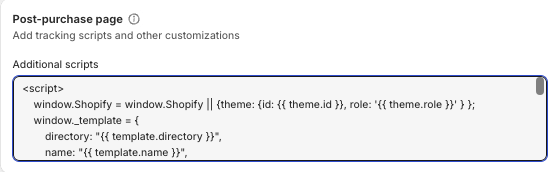
Now head over to your Shopify account, and paste the Intelligems Script as a source into the `` of each of these files: * theme.liquid * any other theme.\*.liquid files (e.g., theme.gempages.liquid if you have this file) Here's a video walking through those steps as well: {% embed url="" %} ### Post-Purchase Page for Theme Tests (Legacy Checkout Only) **Note:** *This step only applies if your store still has access to the legacy Shopify checkout (`checkout.liquid`). Most stores have been migrated to Checkout Extensibility and will not see this section in their Shopify admin. If you don't see a "Post-purchase page" section under Settings → Checkout, you can skip this step—the preview bar will be hidden automatically.* If you are planning to run a theme test and still have access to the Additional Scripts section for the Post-purchase page, you should add our script there. This will hide the theme preview bar from showing up on your thank you page.
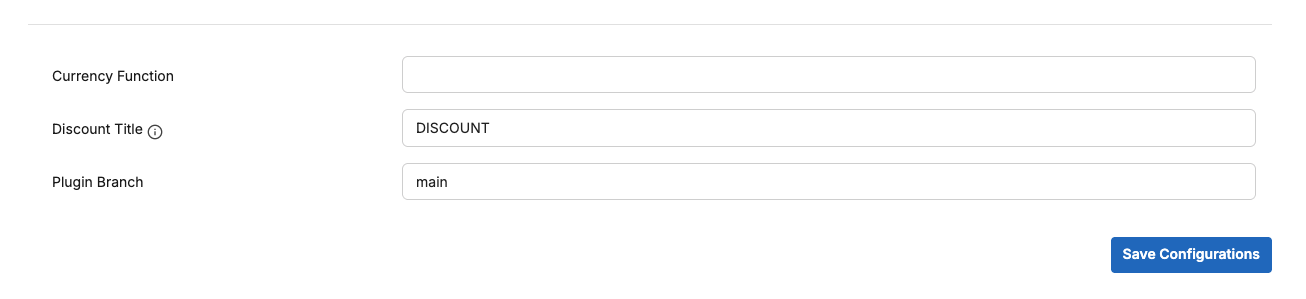
--- # Source: https://docs.intelligems.io/developer-resources/advanced-settings.md # Advanced Settings {% hint style="danger" %} The advanced settings are located in the Settings page of the Intelligems App. If you do not see this in your app, please reach out to our support team [here](https://portal.usepylon.com/intelligems/forms/intelligems-support-request) to receive access to this section of the settings page. {% endhint %} ## Intercept ATC XHR[​](https://docs.intelligems.io/docs/advanced-settings/#intercept-atc-xhr) By default, this is turned on to correctly change your prices using checkout scripts. When a user presses 'Add to Cart' with this setting on, the XHR script sent from the site to Shopify is intercepted and modified by Intelligems before sending to Shopify. ## Currency Format[​](https://docs.intelligems.io/docs/advanced-settings/#currency-format) Specifies format for how currencies are displayed on your website. When editing this field, make sure to press 'Validate' before pressing Save Configurations. ### **Currency Format Structure:** ```json { "options": { "localeMatcher": "string", "style": "string", "currency": "string", "currencyDisplay": "string", "currencySign": "string", "useGrouping": boolean, "minimumIntegerDigits": number, "minimumFractionDigits": number, "maximumFractionDigits": number, "minimumSignificantDigits": number, "maximumSignificantDigits": number, }, "symbol": "string", "suffix": "string", "removeTrailingZeros": boolean, } ``` ### **Currency Format Example** ```json { "options": { "minimumFractionDigits": 0, }, "symbol": "$", "suffix": " USD", } ``` See documentation [here](https://developer.mozilla.org/en-US/docs/Web/JavaScript/Reference/Global_Objects/Intl/NumberFormat/NumberFormat) for more information on the options object. ## Currency Function[​](https://docs.intelligems.io/docs/advanced-settings/#currency-function) Specifies which currency function to use when adding our prices to your site. If you use a standard formatMoney function in your window\.theme object (i.e. window\.theme.Currency.formatMoney), you can insert that into this field like this: window\.theme.Currency.formatMoney. You can also create a custom formatMoney function in your theme.liquid file. ## **Custom Currency Function** ```html ... ... ``` \\ --- # Source: https://docs.intelligems.io/integrations/amplitude-integration.md # Amplitude Integration Intelligems can send an event to Amplitude when a visitor first enters into an experiment. The event has the name `ig_impression` , and parameters `variation` (which includes both the experiment and test group name) and `experiment` (which has the experiment name). ### Additional settings By default, Intelligems will send an event to Amplitude only once per visitor per experiment. You can change this by choosing a `trackMode` in a `window.igSettings` object. For example: ```html ``` Track mode options are: * `impression` (send event on every page view for each experiment) * `assignment` (default, send event only once per visitor per experiment, on assignment) * `timed` (send event once per visitor per experiment, re-sending after a specified amount of time has passed) * `timeSinceAssignment` additional setting, in seconds, that controls the time threshold, defaults to 1800 (30 minutes) For example, to send the event once per visitor per experiment, and re-send it after at least 60 minutes has passed: ```html ``` --- # Source: https://docs.intelligems.io/analytics/analytics-faqs.md # Analytics FAQs
I just started an experiment. How long does it take to see results in the analytics dashboard? Data will arrive in nearly real-time, but there may be occasional delays. You should see data on visitors within about 30-60 seconds of their entrance into the experiment. Data on orders may take a little bit longer — generally they should appear within about 1 minute of the order being placed. If you're not seeing data yet and have just started an experiment, the reason may be exclusions. Visitors who started their browsing session before an experiment started (i.e., they were "mid-session" when the experiment started) are excluded from analytics, as are visitors who have opened the experiment in Intelligems' preview mode. See more about these default filters [here](https://docs.intelligems.io/experiment-analytics/filters#default-filters).
Why doesn't the data align with Shopify or Google Analytics? There are a few reasons why the data won't align perfectly with Shopify or GA in a given moment in time: * Intelligems shows data in nearly real-time, while Shopify and Google analytics typically have a lag of up to 1 day * Intelligems tracks conversion based on *visitors* instead of *sessions.* See more [here](https://docs.intelligems.io/analytics/experiment-analytics/metric-definitions/conversion-funnel) * By default, Intelligems filters out "outlier" orders (more than 3 standard deviations from the mean) to prevent rare, anomalously large orders skewing experiment results. See more [here](https://docs.intelligems.io/experiment-analytics/filters#filters-pane) under "Z-Score" * Intelligems includes only orders that are placed by visitors who were exposed to an experiment. This typically excludes orders outside of the "Online Store" sales channel (e.g. draft orders, subscription refills, app orders like Tapcart, etc.) * Intelligems cannot track orders through some quick checkout buttons, e.g., "Buy with Prime" — see the FAQ below this for more information on this * The dashboard may be filtered to "orders with target products" (i.e., orders with at least one product targeted by the experiment). See more [here](https://docs.intelligems.io/experiment-analytics/filters#filters-pane) under "Filter Orders by Product" * If your test uses [audience or page targeting](https://docs.intelligems.io/analytics/experiment-analytics/how-experiment-targeting-affects-analytics), only users who passed the targeting rules would have entered the test, and therefore the results. This includes targeting based on currency or location, UTMs, device types, whether they are new or returning, or whether they have hit a page you are targeting in the test. See more [here](https://docs.intelligems.io/analytics/experiment-analytics/how-experiment-targeting-affects-analytics) * For Split URL and template tests, which are naturally focused on a specific set of pages, visitors enter the experiment only once they have visited one of the origin pages (typically, this is the control page). Visitors who did not reach one of these pages would not be included in analytics. See more [here](https://docs.intelligems.io/experiment-analytics/how-experiment-targeting-affects-analytics#split-url-and-template-tests) * For Split URL tests specifically, you may notice a discrepancy between Intelligems and Shopify's "Landing Page" reporting. When a visitor lands on an origin page and redirects them to one of the test pages, that redirect executes client-side. Shopify may register the origin page as the landing page for these visitors, even though they are immediately redirected to a test page. This makes the landing page reporting unreliable during the duration of the experiment, and there it cannot be compared to Intelligems' test group reporting. We strongly recommend relying on Intelligems' reporting, rather than Shopify's, to analyze these experiments in particular If you still think the numbers don't align, [please send a few screenshots](https://portal.usepylon.com/intelligems/forms/intelligems-support-request) of what you're seeing in Shopify or another analytics app, and what test results you are looking at, and we can help look into it.
How does Intelligems track conversion rate? Intelligems tracks our conversion rates based off of *visitors* instead of *sessions*. Here's the difference between the two:\ In Shopify, sessions are the total number of interaction periods a user has with a store, while visitors are the total number of unique people who access the website: **Sessions**: A session is counted each time a user interacts with the store, such as by searching or entering the store's URL directly. A session can also be initiated when a user logs in to the website. However, a single user can have multiple sessions if they leave and return to the store, or if they use different devices to interact with the store. A session ends after 30 minutes of inactivity or at midnight UTC. Because of this, the number of sessions is usually higher than the number of visitors. **Visitors:** Visitors are the total number of people who access the website, regardless of how many times they visit. Learn more about Intelligems' metric definitions [here](https://docs.intelligems.io/analytics/experiment-analytics/metric-definitions/conversion-funnel).
Can I export the data from an Intelligems test? Yes! We support data exports of orders and line item sales. See more information on what’s included in those exports and how to get them [here](https://docs.intelligems.io/analytics/experiment-analytics/exporting-data).
Can Intelligems send data to my data warehouse via API? Yes! We integrate with a wide variety of data lakes and warehouses. This requires reaching out to us to setup
Does data from post-purchase upsells get counted in the analytics dashboard? In most cases yes, the order will be updated with the upsell and we will count it. See more about order accounting [here](https://docs.intelligems.io/analytics/order-and-revenue-accounting). If you have any questions about this, [contact our support team](https://portal.usepylon.com/intelligems/forms/intelligems-support-request) with information about the app you're using for post-purchase upsells, and include an example Shopify order number if possible. Note that we cannot track purchases that were created as draft orders.
How does Intelligems determine New vs Returning visitors? We assign every visitor an Intelligems ID when they first visit your store (and Intelligems' is live on the site). If a visitor has already been assigned an ID when they start their session, they are considered returning. If Intelligems is assigning them an ID on that visit, they are new.
Are tablets considered a mobile or desktop device? For Intelligems Targeting and Analytics filtering, tablets will be included in the mobile device category.
The experiments we have run using Intelligems resulted in uplifts, but we have not seen our performance improve in Shopify since implementing the changes that we tested. Why might that happen? The short answer is that Intelligems tests are measuring *incrementality*. For example, the data may confirm that experience B converted better than experience A while the test was running, but there are still a number of exogenous factors that go into overall conversion rate and site performance. For example, consider site performance for most industries in January. Many brands see lower conversion rates that time of year due to post-holiday demand. If you were to run a test and find a statistically significant result, and then implement the change in January, you may see site performance decline on a week-over-week basis, but this is because of exogenous seasonal factors, not necessarily because the change had a different effect than what was measured in the test. Similarly, it's possible that your ad campaigns are generating different types of customers who have fundamentally different likelihoods to convert. It still is *incrementally* better, but that natural conversion rate can vary quite a bit. These are all great reasons to continually test your site! Frequent testing will help to solve for seasonal changes and increase confidence in test results.
How does Intelligems calculate metrics when customers purchase in different currencies? In our analytics dashboard, we only use your store's default currency. For example if your store's default currency is in USD and a customer makes a purchase in EUR, Shopify converts this to USD, and Intelligems analytics reflects the USD figure.
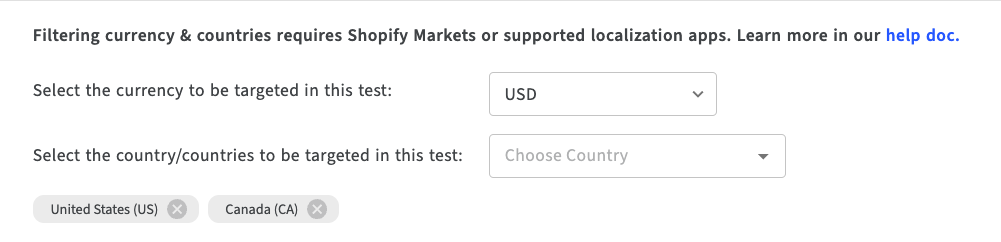
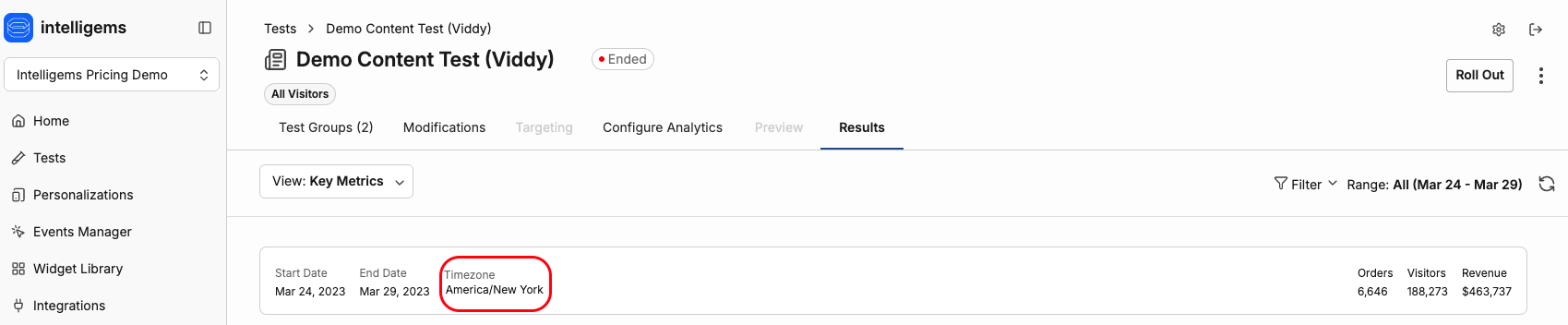
What time zone is used in analytics? Analytics in Intelligems are based on the timezone in your Shopify store's settings when you installed the app. If you would like to change the timezone, contact to our support team [here](https://portal.usepylon.com/intelligems/forms/intelligems-support-request).
How can I exclude an order from my results? The best way to exclude orders from results in Intelligems is by using order tags. You can do this by adding the tag "ig-exclude" in Shopify to any orders that you'd like to exclude from test results in Intelligems. Alternatively, if you'd prefer to use your own tag, you can do so by going to [Intelligems Settings](https://app.intelligems.io/settings) → scroll to Analytics Settings → enter tags in the "Exclude Order Tags" field. You can then add this tag to orders in Shopify to exclude them. We recommend using descriptive tags like "Intelligems Excluded" for clear identification.
How can I exclude internal traffic from my results? One way to exclude internal traffic from your results is by excluding your team member's IP addresses. You can do this by navigating to [Settings](https://app.intelligems.io/settings) in Intelligems > Analytics Settings and enter IP addresses in the "Exclude IP Addresses" field. IP addresses must be added one at a time. You will still be able to place orders and interact with tests normally - the data simply won't appear in your results.
How does resetting my test to pending work? **Why would I reset my test to pending?** You might want to reset a test to pending if you: * Accidentally viewed live groups and contaminated your data * Made configuration changes after launching and want a clean slate * Need to troubleshoot issues before collecting real visitor data * Want to start over with fresh results **How do I reset my test to pending?** 1. Navigate to your test in the dashboard 2. Click the more options menu (the three dots) on the right 3. Select "Reset to Pending" 4. Confirm that you want to remove existing results **What happens when I reset?** Resetting clears all collected data and moves your test back to pending status. Your test configuration remains intact—only the results are removed. You can then relaunch the test to begin collecting fresh data. **When should I avoid resetting?** Don't reset if you've already collected meaningful traffic data, as you'll lose all results and need to start over. Instead, consider creating a new test variation if you need to make significant changes.
Why do my test results look so different in the first few days and then stabilize? **This is completely normal and expected behavior — it's sample size in action.** In the first hours or days of a test, you have very few visitors in each group. When sample sizes are small, a single conversion creates huge percentage swings. **Example:** If 1 out of your first 10 visitors buys, that's a 10% conversion rate. But if another variation happens to get 0 out of 10, it shows 0%. That 10-point "gap" isn't meaningful — it's just randomness with small numbers. As more visitors flow through, those early fluctuations get diluted by the larger dataset. The curves smooth out because you're now measuring actual behavioral patterns rather than random noise. #### How long should I wait before reading into the results? We recommend waiting until you have **at least 300 orders per variation** before drawing conclusions. At that sample size, you have enough data for the metrics to reflect real differences (or lack thereof) rather than statistical noise. You can also use the statistical significance indicators in the analytics dashboard: * **Probability to beat control** shows confidence that a variation is outperforming * **Confidence intervals** narrow as more data accumulates For more on interpreting results, see [Statistical Significance](https://docs.intelligems.io/analytics/experiment-analytics/statistical-significance). #### What should I do during the early test period? * **Don't panic** if you see wild swings — this is expected * **Don't end tests early** based on early results alone * **Do check results regularly** to catch any actual issues (like zero traffic to a variation) * **Do wait** for sufficient sample size before making decisions #### Pro tip: Use discrete mode to see day-by-day patterns By default, the analytics time series shows **cumulative** data — a running total up to each point in time. If you want to see how metrics performed on individual days (which makes the early volatility even more visible), you can switch to **discrete mode** by unchecking the "Cumulative" checkbox in the time series chart. This can help you spot daily patterns and see exactly when results started stabilizing. Learn more: [Time series - Discrete Mode](https://docs.intelligems.io/analytics/experiment-analytics/timeseries#discrete) **Bottom line:** Early spikes and gaps are statistical noise, not signal. The smoothed-out data after you've accumulated sufficient orders is what actually tells the story.
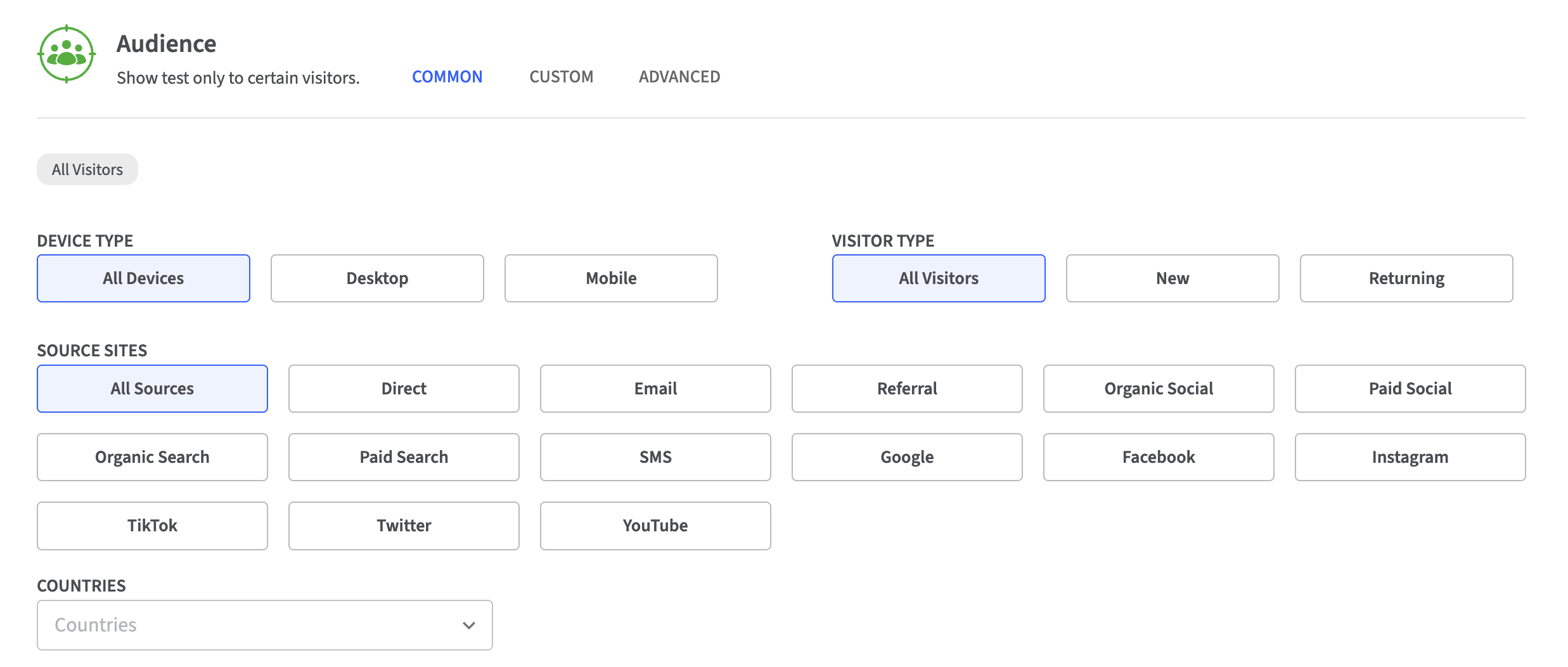
--- # Source: https://docs.intelligems.io/performance-optimization/anti-flicker-modes.md # Anti-Flicker Modes Intelligems adds an anti-flicker functionality to reduce the performance impacts of our JavaScript by default. Therefore, please do not `async` or `defer` your Intelligems script; this is handled internally and will cause flashing on your site if added. ### Anti-flicker Modes Intelligems offers two anti-flicker modes: 1. Element-specific anti-flicker (default). This will temporarily hide all price elements selected during your integration. 2. Page anti-flicker. This will temporarily hide all site content. The best mode will likely depend on your individual site; try out both and see which works best. Add the below snippet **above** the Intelligems script tag to enable mode (2). ```html   ... // Script must below:   ... ``` ## My Site is Still Flashing The default configuration above works for most sites. However, if you are still experiencing flashing on your site, please [reach out to our support team](https://portal.usepylon.com/intelligems/forms/intelligems-support-request). We have several internal tools we can use to help reduce flashing. --- # Source: https://docs.intelligems.io/analytics/sitewide-analytics/audience-dive.md # Audience Dive #### Page **Overview** The Audience Dive page brings audience-level visibility to Sitewide Analytics. It helps merchants identify which visitor segments drive the most profit across devices, countries, and channels. * Audience Comparison Snapshot: Shows key metrics for each audience: Visitors, Conversion Rate, Profit per Visitor (or Orders and Profit when toggled to Absolute) * Audience Details Over Time: Time-series visuals showing Visitors, Orders, Net Revenue, or Gross Profit by audience #### Audience Types Audience Dive includes six pre-built views: 1. **Device:** Mobile vs Desktop. 2. **New vs Returning:** Based on visitor’s first session since Intelligems tracking began. 3. **Channel:** Paid Social, Organic Search, Direct, Email, etc. 4. **Source Site:** Referring URLs or domains (e.g., Meta, Google, Pinterest). 5. **Country:** Top 10 traffic sources by country. 6. **Landing Page:** Top 10 entry URLs, recalculated dynamically based on filters. #### Metric Details: * **% Change:** calculates change in metric for an audience between current period and prior period * **Total Change Contribution:** calculates the contribution of the change in the given audience's impact on the total metric * **Impact from Visitor Mix Shift**, a unique Intelligems calculation showing the effect of traffic mix changes on conversion and profit, even if audience performance itself is stable. --- # Source: https://docs.intelligems.io/general-features/targeting/audience-targeting.md # Audience Targeting ## What is Intelligems Audience Targeting? Limit and customize the audience of your tests to specific segments based on device, URL parameters, traffic source, and more. By default, a test is shown to all visitors accessing your site. You may, however, choose to limit which visitors are exposed to a test. For example, you may wish to * Test several treatments of a “welcome back” banner for **returning visitors only** * Show a landing page test only to visitors arriving from a **social campaign** * Include only visitors from **a specific country** or place them in a specific test group Intelligems allows you to limit which visitors should be exposed to a test based on specific criteria. It also allows you to control which particular test group a visitor should be placed into. When setting up and modifying any type of test, you may choose from three different options to limit who should see your test: * **Target by Common Audience:** limit based on common criteria such as new/returning, device, traffic source (ex: email vs social), and country * **Target by Custom Audience:** limit by mixing any type of condition, including device, cookie, UTM parameters, and others into logical statements * **Advanced Targeting:** specify which audiences should be assigned to which groups in the test and more {% hint style="info" %} **A note on how targeting works:** Once a visitor matches the audience criteria, Intelligems assigns them to a test group and keeps them in that test group going forward. They will remain in that test group until the test or personalization is over (an exception is if you choose [Temporary Targeting](https://docs.intelligems.io/personalizations/targeting-personalizations/targeting-modes-for-personalizations#temporary-audience)). If they don’t match an audience, Intelligems will check again on the next page load and every page after that. This is handy when you’re targeting only logged-in visitors, for example, since they may not be logged in the moment they arrive. If the audience targeting rules change mid-test and a visitor has already been assigned to a group, they remain in that group even if they no longer match the audience. This ensures a consistent user experience. You can use Advanced Targeting to change this behavior. {% endhint %} ## Common Audiences Common audiences allow you to target your test based one or more common criteria (called **“Conditions”**). * **Device Type:** Target only users coming from desktop or mobile devices (tablet traffic is included with mobile traffic) * **New or Returning Visitors**: Target only users who have visited your site before, or who are brand new {% hint style="info" %} We can only track if a visitor has been to your site since you installed Intelligems, but not before. We assign every visitor an Intelligems ID when they come to your website once our JavaScript is live in the site. We assign the Intelligems ID to the user's cookie. If a visitor has an Intelligems ID already, they are returning, and if we are assigning them an ID on that visit, they are new. {% endhint %} * **Source Sites:** target users from *one or more* common site sources, such as email, SMS, social, and others, without having to define your own detailed targeting conditions. These can be divided into two categories * **Common Categories:** Direct, Email, Referral, Organic Social, Paid Social, Organic Search, Paid Search, SMS. Site traffic is classified using the same [industry standard rules used by Google Analytics](https://support.google.com/analytics/answer/9756891?hl=en#list), mostly via combination of UTM parameters and referring domain. * **Common Sources:** Google, Facebook, Instagram, TikTok, Twitter. Intelligems classifies traffic using a combination of referring domain, UTM source, and user agent to capture traffic from all possible entry points including in-app browsers, websites, and more. * **Country:** Target one or more countries. {% hint style="info" %} The source site logic is an approximation that may not perfectly classify all traffic. When using the traffic source feature to target tests or filter results, you may want to do a quick spot check to test that traffic is being directed as you expect. If you need more precision, you can always set up your own Custom Audience using UTM parameters and referring domain conditions. See the next section to find out more. {% endhint %} You may choose a single condition or a combination of conditions. If you combine conditions, a visitor must match ALL conditions to be included in your test. However, you may select multiple allowable values for country and source site. For example, you may limit a test to:

New visitors, on a mobile device, in any of the following countries: USA, Mexico, or Canada.

## Custom Audiences When Common audiences don’t suffice, Custom audiences allow you to define a very specific combination of criteria that a visitor must meet in order to be included in a test.

Here is an example of a Custom audience used to target a test to only mobile visitors in the USA that come from one of three social campaigns.

**Structure** You may be familiar with the structure of custom audiences from other e-commerce tools: * A custom audience contains one or more **clauses.** * Every clause contains one or more **conditions.** * The conditions in a clause are OR-ed together. This means that if at least one of the conditions in a clause is met by a visitor, the clause is satisfied. * The clauses are AND-ed together. This means that if there is more than one clause, all clauses must be satisfied.

This one-clause audience targets anyone coming from Klaviyo marketing

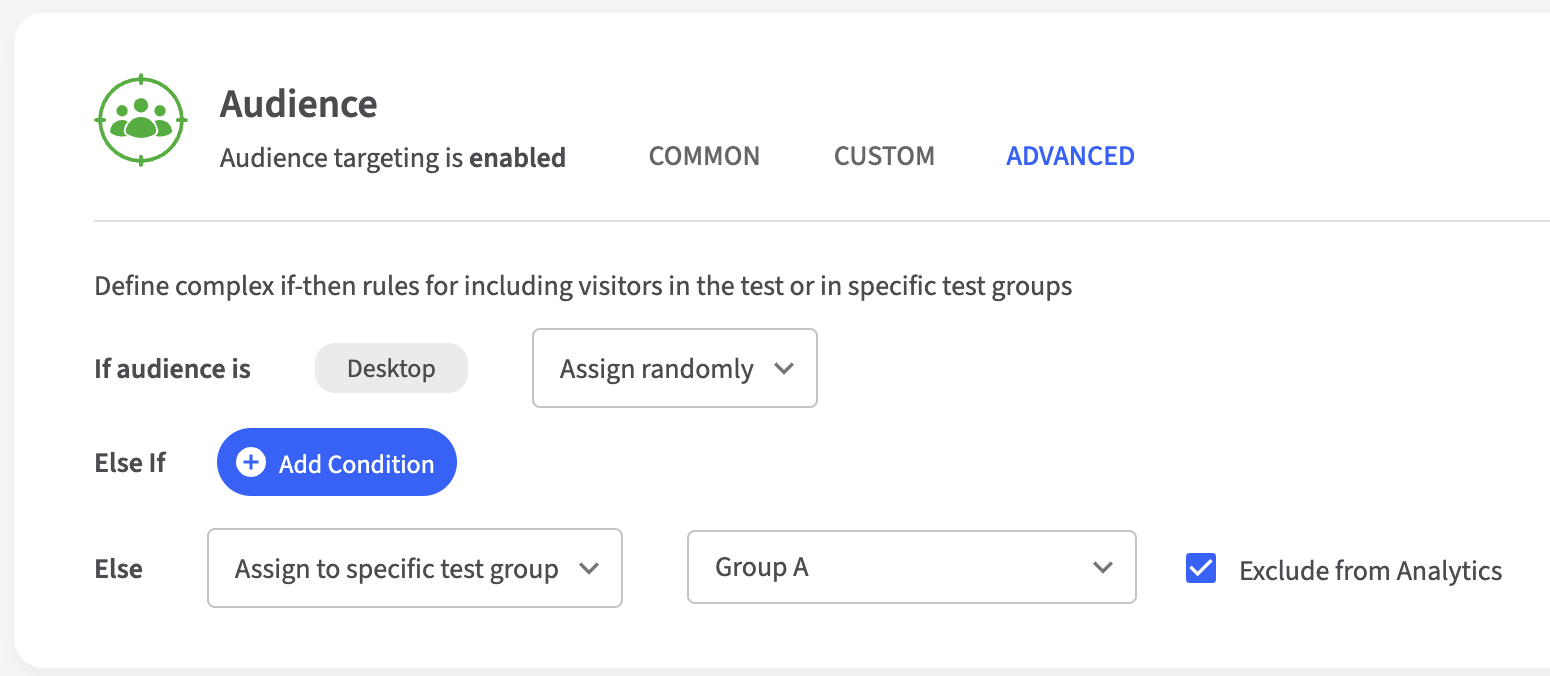
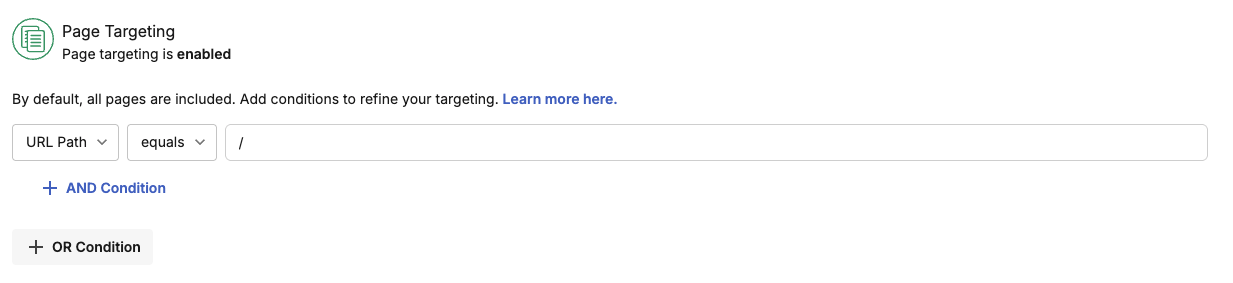
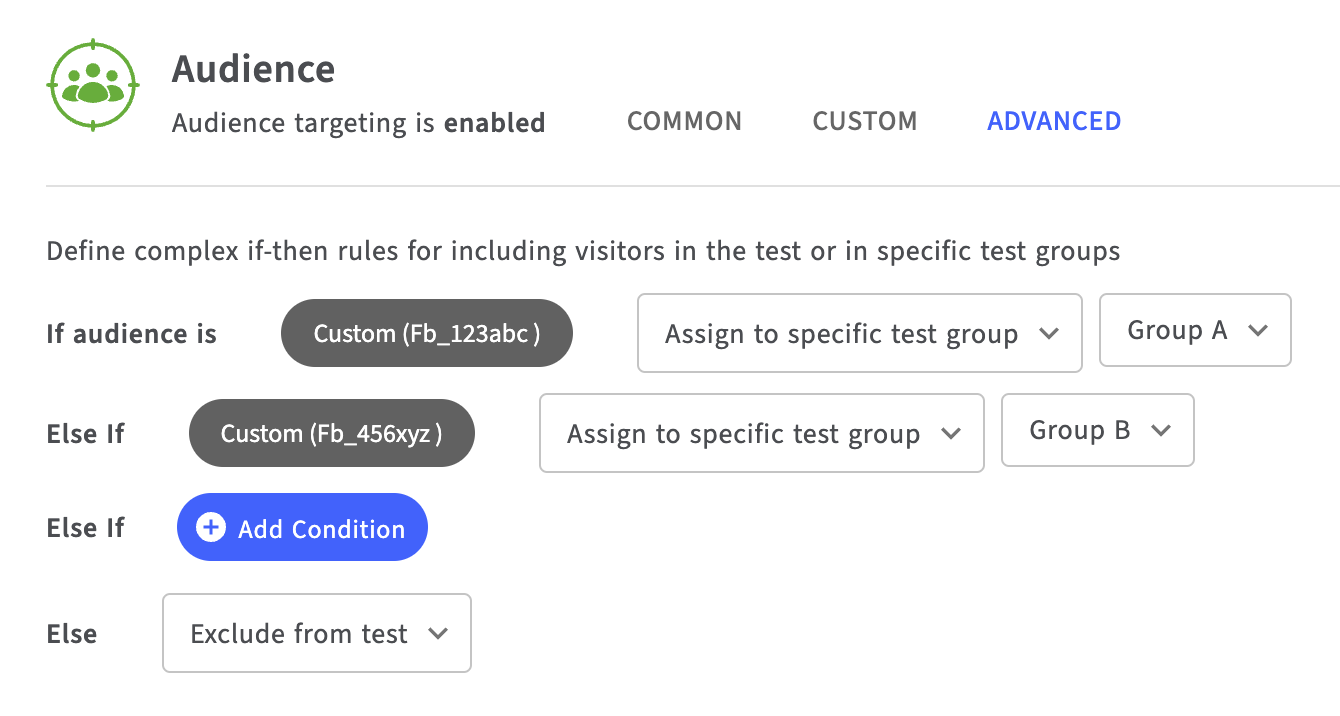
**Available Audience Conditions** * **Device Type:** desktop or mobile devices (tablet traffic is included with mobile traffic) * **New or Returning:** new or returning visitors * **Source Sites:** common traffic sources * **Country:** specific countries * **URL Parameter:** check if a particular URL parameter is defined or matches a value or pattern. Out of box UTM parameters such as campaign, medium, and source are commonly used for targeting traffic from a particular campaign or platform. * **Landing Page URL:** target only visitors who entered your site through a specific page or pages. If you frequently create ad campaigns that point to the same landing page, this can be an efficient way to target only visitors from these campaigns, rather than targeting by UTM parameters and frequently updating the test with new campaign UTM parameters. {% hint style="info" %} Landing Page URL conditions will consider the whole URL (`window.location.href`) when checking for filter equality. {% endhint %} {% hint style="info" %} **Combining with Page Targeting:** You can use page targeting on a test with a Landing Page audience condition but users will not be placed into the test unless / until they visit the page specified in page targeting. {% endhint %} * **Referring Domain:** check if visitor arrived via link from a particular domain, such as Google, LinkedIn, Amazon, or other. Often used in combination with URL Parameters. * **JavaScript Expression:** check if an arbitrary javascript expression of your choice evaluates to true. This is handy for many specialized scenarios: including only people that arrived via a particular landing page, excluding people arriving on any page that contains a certain element, excluding developers, and more. One example use case for this would be targeting Klaviyo subscribers. In order to do this, you could add the below to your theme code, and add localStorage.getItem('klaviyoIdentified') === 'true' to ur JavaScript targeting. ``` window.klaviyo.isIdentified((e) => { localStorage.setItem('klaviyoIdentified', e); }) ``` * **Cookie:** check if a particular cookie is set or matches a value or pattern. This is useful for targeting based on Shopify visitor characteristics, cart information, and previous behavior on the site. {% hint style="info" %} For security reasons, Intelligems can only identify first party cookies accessible by Javascript (not marked as “Secure”). Most cookies used for targeting should fall into this category. For example, when Klaviyo and Google Analytics are integrated with your site, their cookies are considered first party so can be used for targeting. {% endhint %} {% hint style="info" %} **City & State Targeting:** This feature is coming soon. In the meantime you can target your tests to specific cities and states by using our Cookie-based targeting. Simply check to see if the "ig-location" cookie contains or does not contain a certain city, state, or international region/province (ex: Quebec) using capital letters. The example test below targets anyone in Oregon outside of Eugene. {% endhint %} ## Advanced Targeting Rather than just identifying which visitors should be exposed to a test, Advanced Targeting additionally allows you to assign particular audiences to specific groups in the test, or to permanently exclude them. This is done by creating multiple if-then clauses, where each clause allows you to build an audience (Common or Custom) and then choose how that audience should be treated by the test. For each audience you define, Intelligems can take one of the following actions: * **Assign it to a specific test group:** include the visitor in the test and assign a specific group. For example, to reach statistical significance faster you may want to place all international visitors in the Control Group (rather than excluding them), and distribute everyone else across several treatment groups. * **Assign it a test group randomly:** include the visitor in the test and assign a test group as usual based on the %s defined in the test setup. * **Exclude it from the test:** exclude the visitor from this test permanently. Intelligems will no longer assess whether they match the audience or not on subsequent page loads. * **Do not assign it:** visitor will not be placed in the test but will also not be permanently excluded. Intelligems will re-assess every time they visit a new page. You might use Advanced Audiences to allocate specific ad campaigns to specific groups. For example: if `utm_campaign = fb_123abc` then assign to `Group A`, else if `utm_campaign = fb_456xyz` then assign to `Group B`, else leave unassigned. This will put all traffic from the first campaign into Group A and the second campaign into Group B, but leave everyone else out of the test. This way you can make sure your ads match each website experience you’re testing.
--- # Source: https://docs.intelligems.io/developer-resources/external-api/automations-and-guides/automated-test-alerting-for-slack.md # Automated Test Alerting for Slack ## Overview: This guide walks you through creating a daily automation that checks running tests for traffic or data issues (low visitors, SRM failures, large conversion drops, minimum orders per variant) and posts a Slack alert when a test fails health thresholds.
### Softwares Used To build this automated reporting pipeline, you will need the following tools: * [n8n](https://n8n.io/): The primary workflow automation platform used to connect APIs and schedule tasks. * [Slack](https://api.slack.com/apps): The final destination where the AI-generated health checks and reports will be posted. ## How to Create Your Automated Test Alerts ### Step 1: Get Your Intelligems API Keys To request access and receive your API key, [contact our support team](https://portal.usepylon.com/intelligems/forms/intelligems-support-request). ### Step 2: Create the Workflow in n8n #### **Node 1: Schedule Trigger** 1. Click the **"+"** button to add a node 2. Search for **"Schedule Trigger"** 3. Configure it: * **Trigger Interval**: "Hours" * **Hours Between Triggers**: 8 (runs 3x daily: morning, afternoon, evening) * Or set to **12** for 2x daily
#### **Node 2: Create Organization List** * Add **"Code"** node * Select **"Code in JavaScript"** * Select **"Run Once for All Items"** * Paste this code. Update it with a display name for your client & their API key: ``` // Define all your Intelligems organizations const organizations = [ { name: "Client 1", apiKey: "YOUR_API_KEY_1" }, { name: "Client 2", apiKey: "YOUR_API_KEY_2" }, { name: "Client 3", apiKey: "YOUR_API_KEY_3" } ]; // Return each org as a separate item for n8n to process return organizations.map(org => ({ json: org })); ```
#### **Node 3: Get All Running Tests** 1. Click **"+"** after the Schedule node 2. Search for **"HTTP Request"** 3. Configure: * **Method**: GET * **URL**: `https://api.intelligems.io/v25-10-beta/experiences-list` * **Authentication**: None * Enable **Send Headers** * **Name**: `intelligems-access-token` * **Value**: `{{ $json.apiKey }}` 4. Click "Execute step" to verify it works
#### **Node 4: Filter Tests by Status = "started"** * \ Add **"Code"** node * Select **"Code in JavaScript"** * Select **"Run Once for All Items"** * Update the below code so that `InsertOrgId` maps to match the Intelligems organization IDs of your clients (you can find these in Intelligems under Settings > General > Organization Settings), the `name` value is display name for your clients, and the `apiKey` value is the Intelligems API Key for those clients. Then paste this code into the Code section in n8n. ``` // Filter for running tests with status = started const items = $input.all(); const today = new Date(); const filteredTests = []; // Static mapping of organization IDs to client names AND API keys const clientMapping = { "InsertOrgId": { name: "Client 1", apiKey: "ig_live_11111" }, "InsertOrgId": { name: "Client 2", apiKey: "ig_live_22222" } }; for (const item of items) { // Get organization ID from the API response const orgId = item.json.organizationId || item.json.organization?.id || (item.json.experiencesList && item.json.experiencesList[0]?.organizationId); const clientData = clientMapping[orgId] || { name: "Unknown Client", apiKey: "" }; // Access the experiencesList array const experiencesList = item.json.experiencesList; // Iterate through each test in the experiencesList if (experiencesList) { for (const test of experiencesList) { // Only check if status is "started" if (test.status === "started") { // Calculate days running for reporting purposes const startDate = new Date(test.startedAtTs); const daysRunning = Math.floor((today - startDate) / (1000 * 60 * 60 * 24)); filteredTests.push({ json: { clientName: clientData.name, apiKey: clientData.apiKey, experienceId: test.id, testName: test.name, daysRunning: daysRunning, weekNumber: Math.ceil(daysRunning / 7), startDate: startDate.toISOString().split('T')[0], startDateReadable: startDate.toLocaleDateString('en-US', { month: 'short', day: 'numeric', year: 'numeric' }), endDate: today.toISOString().split('T')[0], endDateReadable: today.toLocaleDateString('en-US', { month: 'short', day: 'numeric', year: 'numeric' }) } }); } } } } return filteredTests; ```
#### **Node 5: Get Test Analytics Data (Loop)** 1. Add **"HTTP Request"** node 2. Configure: * **Method**: GET * **URL**: `https://api.intelligems.io/v25-10-beta/analytics/resource/{{ $json.experienceId }}` * **Authentication**: None * Enable **Send Headers** * **Name**: `intelligems-access-token` * **Value**: `{{ $json.apiKey }}` 3. Click "Execute step" to verify it works
#### Node 6: Check if below threshold * Add **"Code"** node * Select **"Code in JavaScript"** * Select **"Run Once for All Items"** * Update the below code so that the `minTotalVisitors`, `minOrdersPerVariant`, `srmPValueThreshold`, and `conversionDropThreshold` values match your threshold requirements. Then paste this code into the Code section in n8n. ``` const analytics = $input.item.json; const filterData = $('Code in JavaScript1').item.json; const testName = filterData.testName || "Unknown Test"; const clientName = filterData.clientName || "Unknown Client"; const experienceId = filterData.experienceId; const THRESHOLDS = { minTotalVisitors: 1000, minOrdersPerVariant: 50, srmPValueThreshold: 0.01, conversionDropThreshold: 0.20 }; const overview = analytics.overview || analytics; const variations = overview.variations || []; if (!variations || variations.length === 0) { return []; } let totalVisitors = 0; let controlVariation = null; const variantData = []; for (let i = 0; i < variations.length; i++) { const variant = variations[i]; const sessions = variant.sessions || 0; const orders = variant.orders || 0; const cvr = sessions > 0 ? orders / sessions : 0; totalVisitors = totalVisitors + sessions; const isControl = variant.isControl || variant.name === "Control" || variant.label === "Control"; const variantInfo = { name: variant.name || variant.label || "Variant " + i, sessions: sessions, orders: orders, cvr: cvr, isControl: isControl }; variantData.push(variantInfo); if (isControl) { controlVariation = variantInfo; } } const failedThresholds = []; const details = {}; if (totalVisitors < THRESHOLDS.minTotalVisitors) { failedThresholds.push("min_total_visitors"); details.minTotalVisitors = { current: totalVisitors, required: THRESHOLDS.minTotalVisitors, message: "Only " + totalVisitors + " visitors (need " + THRESHOLDS.minTotalVisitors + ")" }; } for (let i = 0; i < variantData.length; i++) { const variant = variantData[i]; if (variant.orders < THRESHOLDS.minOrdersPerVariant) { if (!details.minOrdersPerVariant) { failedThresholds.push("min_orders_per_variant"); details.minOrdersPerVariant = []; } details.minOrdersPerVariant.push({ variant: variant.name, current: variant.orders, required: THRESHOLDS.minOrdersPerVariant, message: variant.name + ": Only " + variant.orders + " orders" }); } } if (variantData.length >= 2 && totalVisitors > 0) { const expectedPerVariant = totalVisitors / variantData.length; let chiSquare = 0; for (let i = 0; i < variantData.length; i++) { const observed = variantData[i].sessions; const expected = expectedPerVariant; chiSquare = chiSquare + Math.pow(observed - expected, 2) / expected; } const df = variantData.length - 1; let isSRM = false; if (df === 1 && chiSquare > 6.635) { isSRM = true; } else if (df === 2 && chiSquare > 9.210) { isSRM = true; } else if (df >= 3 && chiSquare > 11.345) { isSRM = true; } if (isSRM) { failedThresholds.push("sample_ratio_mismatch"); const distribution = []; for (let i = 0; i < variantData.length; i++) { const v = variantData[i]; distribution.push({ variant: v.name, sessions: v.sessions, percentage: ((v.sessions / totalVisitors) * 100).toFixed(1) + "%" }); } details.sampleRatioMismatch = { chiSquare: chiSquare.toFixed(2), trafficDistribution: distribution, message: "Traffic split is uneven" }; } } if (controlVariation && controlVariation.cvr > 0) { for (let i = 0; i < variantData.length; i++) { const variant = variantData[i]; if (!variant.isControl) { const cvrChange = (variant.cvr - controlVariation.cvr) / controlVariation.cvr; if (cvrChange < -THRESHOLDS.conversionDropThreshold) { if (!details.conversionRateDrop) { failedThresholds.push("conversion_rate_drop"); details.conversionRateDrop = []; } const dropPercent = Math.abs(cvrChange * 100).toFixed(1); details.conversionRateDrop.push({ variant: variant.name, change: cvrChange, message: variant.name + ": CVR down " + dropPercent + "% vs control" }); } } } } if (failedThresholds.length > 0) { return [{ json: { hasIssues: true, testName: testName, clientName: clientName, experienceId: experienceId, failedThresholds: failedThresholds, details: details, totalVisitors: totalVisitors, variantCount: variantData.length } }]; } return []; ```
#### **Node 7: If hasIssues = True** 1. Add an **"If"** node 2. Set the condition as `{{ $json.hasIssues }}` is euqal to `true`
#### **Node 8: Send to Slack** 1. For the **"true"** response only, add a **"Slack"** node where the action is **"Send a message"**
2. **Authentication**: * Click "Create New Credential" * Click "Connect my account" and follow the prompts 3. **Channel/Use**: * Under "Send Message To" configure where you want this slack message to appear 4. **Message**: * in "Message Text" input: ``` 🔴 *TEST HEALTH ALERT* *Client:* {{ $json.clientName }} *Test:* *Failed Threshold(s):* {{ $json.failedThresholds }} *Action Required:* Review test setup and consider pausing if issues persist. ```
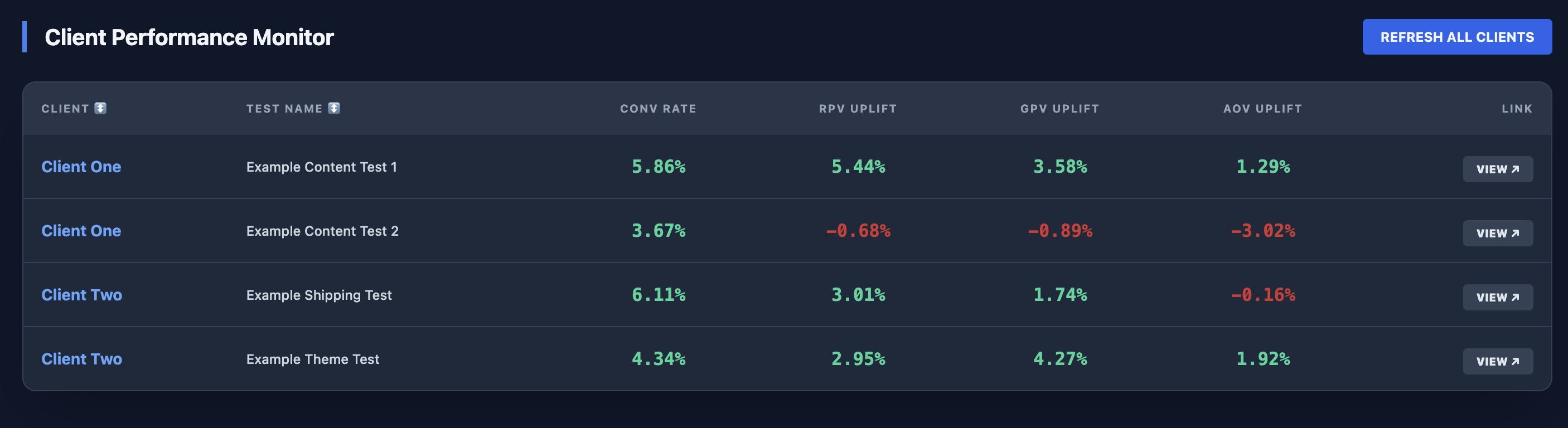
### Step 3: Activate the Workflow 1. Once everything works, click **"publish"** at the top to make this workflow go live! 2. Your workflow will now run 3 times a day and notify you if an active test does not meet your threshold. --- # Source: https://docs.intelligems.io/developer-resources/external-api/automations-and-guides.md # Automations & Guides ### Automations & Guides: Transform your workflow with these pre-built integration guides: #### **Dashboards** * [Multi-Client Performance Dashboard](https://docs.intelligems.io/developer-resources/external-api/automations-and-guides/build-a-multi-client-test-overview-dashboard): A step-by-step guide on building a centralized "single pane of glass" view to monitor all active tests across multiple client accounts simultaneously. #### Analysis * [Scheduled Analysis: 7 & 14-Day Test Reports](https://docs.intelligems.io/developer-resources/external-api/automations-and-guides/scheduled-analysis-building-7-and-14-day-post-launch-test-reports): Build an AI-powered reporting engine that automatically delivers technical and client-ready summaries to Slack at key milestones. * [Scheduled Analysis: Building Post-Test Reports](https://docs.intelligems.io/developer-resources/external-api/automations-and-guides/scheduled-analysis-building-post-test-reports): Automatically transform concluded experiments into comprehensive final reports. #### Alerts * [Automated Test Alerting for Slack](https://docs.intelligems.io/developer-resources/external-api/automations-and-guides/automated-test-alerting-for-slack): Build a proactive monitoring workflow to alert your team of SRM issues, low traffic, drop in conversion rate, or when a test falls below the minimum orders per variant. * [Automated Test Monitoring for Slack](https://docs.intelligems.io/developer-resources/external-api/automations-and-guides/build-an-automated-test-monitoring-integration-for-slack): Learn how to create your own daily proactive slack notification that shares the health of your tests. --- # Source: https://docs.intelligems.io/developer-resources/mcp-server/available-tools.md # Available Tools ## Organization & Configuration ### list\_organizations List all Intelligems organizations you have access to. Supports filtering by installation status and sorting. **Parameters:** * `isInstalled` (optional): Filter by installation status. Default: `true` * `sortBy` (optional): Sort field - `"name"`, `"shopId"`, `"createdAt"`, `"lastLogin"` * `nameContains` (optional): Filter by name (case-insensitive substring match) * `limit` (optional): Maximum results to return **Example response:** ```json { "organizations": [ { "id": "org_123abc", "name": "My Shopify Store", "shopId": "12345", "isInstalled": true, "createdAtTs": "2024-01-15T10:30:00Z", "lastLoginTs": "2024-12-01T14:22:00Z" } ], "totalCount": 5, "returnedCount": 5, "truncated": false } ``` ### get\_organization Get detailed information about a specific organization including currency, timezone, Shopify settings, and enabled features. **Parameters:** * `organization` (optional): Organization name or ID. Uses current organization if omitted. **Example response:** ```json { "id": "org_123abc", "name": "My Shopify Store", "shopDomain": "mystore.myshopify.com", "currency": "USD", "timezone": "America/New_York", "features": ["price-testing", "content-testing", "offers"] } ``` ### list\_integrations List all active integrations for an organization (Google Analytics, Klaviyo, Recharge, Slack, etc.). **Parameters:** * `enabled` (optional): Filter by enabled status * `integrationName` (optional): Filter by exact integration name * `nameContains` (optional): Filter by name (case-insensitive substring match) * `limit` (optional): Maximum results to return * `organization` (optional): Organization name or ID **Example response:** ```json { "integrations": [ { "name": "google_analytics", "enabled": true }, { "name": "recharge", "enabled": true } ] } ``` *** ## Experiences & Experiments ### search\_experiments Search for A/B tests and experiments. Returns minimal info (id, name, status, type, timestamps, variation count) for discovery purposes. **Parameters:** * `status` (optional): Filter by status - `"pending"`, `"started"`, `"ended"`, `"paused"` * `nameContains` (optional): Filter by name (case-insensitive substring match) * `sortBy` (optional): Sort field - `"name"`, `"createdAt"`, `"lastUpdate"`, `"startedAt"`, `"endedAt"` * `sortOrder` (optional): `"asc"` or `"desc"` (default) * `organization` (optional): Organization name or ID ### search\_personalizations Search for personalizations. Returns minimal info for discovery purposes. **Parameters:** Same as `search_experiments` ### list\_experiments Get full experiment details including variations, targeting rules, and configuration. **Parameters:** Same as `search_experiments` **Example response:** ```json { "experiences": [ { "id": "exp_456def", "name": "Holiday Price Test", "type": "experiment", "status": "started", "createdAtTs": "2024-12-01T00:00:00Z", "variations": [ { "id": "var_1", "name": "Control", "trafficAllocation": 50 }, { "id": "var_2", "name": "10% Discount", "trafficAllocation": 50 } ], "targeting": { "countries": ["US", "CA"], "deviceTypes": ["desktop", "mobile"] } } ] } ``` ### list\_personalizations Get full personalization details including variations, targeting rules, and configuration. **Parameters:** Same as `search_experiments` ### get\_experience Get detailed information about a specific experience including its variations, targeting rules, and configuration. **Parameters:** * `id` (required): The ID of the experience * `organization` (optional): Organization name or ID ### get\_experience\_metrics\_config Get the configured success metrics for a specific experience (e.g., revenue, conversion rate, AOV, custom goals). Returns metric configuration, not actual performance data. **Parameters:** * `experienceId` (required): The ID of the experience * `organization` (optional): Organization name or ID ### analyze\_experience Get actual A/B test performance results, statistical significance, and compare variation performance. **Parameters:** * `experienceId` (required): The ID of the experience * `view` (optional): `"overview"` for main metrics (default), `"audience"` for audience breakdown * `audience` (optional): Segment to analyze when view is `"audience"` - `"device_type"`, `"visitor_type"`, `"country_code"`, `"source_channel"`, `"source_site"`, `"landing_page_full_path"` * `analyticsViewType` (required): Analytics view type from the experience's `experienceAnalysis` configuration * `start` (optional): Start date in ISO 8601 format * `end` (optional): End date in ISO 8601 format * `organization` (optional): Organization name or ID **Example response:** ```json { "metrics": { "conversionRate": { "control": 3.2, "variation": 3.8, "lift": 18.75 }, "revenue": { "control": 15420.50, "variation": 17892.30, "lift": 16.03 }, "confidence": 95.2 } } ``` *** ## Shopify Store Data ### search\_products Search the Shopify product catalog by keyword, name, or description. **Parameters:** * `query` (required): Search term for product title, description, or tags * `limit` (optional): Maximum results (default: 20) * `organization` (optional): Organization name or ID **Example response:** ```json { "results": [ { "id": "7234567890", "title": "Organic Cotton T-Shirt", "vendor": "My Brand", "price": "29.99", "variants": 3, "tags": ["organic", "sustainable"] } ], "query": "organic cotton" } ``` ### list\_collections Browse or search product collections in the Shopify store. **Parameters:** * `first` (optional): Number of collections to fetch (default: 20) * `after` (optional): Cursor for pagination * `query` (optional): Search filter for collection name * `organization` (optional): Organization name or ID **Example response:** ```json { "collections": [ { "id": "123456789", "title": "Holiday Collection", "handle": "holiday-collection", "productsCount": 24 } ], "pageInfo": { "hasNextPage": true, "endCursor": "abc123" }, "totalFetched": 20 } ``` ### list\_pages Browse or search content pages in the Shopify store (About, Contact, FAQ, Terms, etc.). **Parameters:** * `first` (optional): Number of pages to fetch (default: 20) * `after` (optional): Cursor for pagination * `query` (optional): Search filter for page title * `organization` (optional): Organization name or ID **Example response:** ```json { "pages": [ { "id": "987654321", "title": "About Us", "handle": "about-us" } ], "pageInfo": { "hasNextPage": false }, "totalFetched": 5 } ``` ### search\_policies Search store policies, FAQs, shipping info, returns, privacy, and other store rules. **Parameters:** * `query` (required): Search term * `organization` (optional): Organization name or ID *** ## Analytics & Audience Data All audience analysis tools require an experience ID and return performance metrics broken down by the specified segment. ### get\_audience\_by\_country Analyze A/B test performance by visitor country/geography. **Parameters:** * `id` (required): The experience ID * `organization` (optional): Organization name or ID ### get\_audience\_by\_device Analyze A/B test performance by device type (desktop, mobile, tablet). **Parameters:** * `id` (required): The experience ID * `organization` (optional): Organization name or ID ### get\_audience\_by\_visitor\_type Compare A/B test performance between new and returning visitors. **Parameters:** * `id` (required): The experience ID * `organization` (optional): Organization name or ID ### get\_audience\_by\_source\_channel Analyze A/B test performance by traffic acquisition channel (organic, paid, social, email, direct). **Parameters:** * `id` (required): The experience ID * `organization` (optional): Organization name or ID ### get\_audience\_by\_source\_site Analyze A/B test performance by referring website/domain. **Parameters:** * `id` (required): The experience ID * `organization` (optional): Organization name or ID ### get\_audience\_by\_landing\_page Analyze A/B test performance by landing page URL. **Parameters:** * `id` (required): The experience ID * `organization` (optional): Organization name or ID **Example response (applies to all audience tools):** ```json { "summary": { "segments": [ { "segment": "US", "visitors": 15420, "conversions": 892, "conversionRate": 5.79, "revenue": 45230.50 }, { "segment": "CA", "visitors": 3240, "conversions": 187, "conversionRate": 5.77, "revenue": 12450.00 } ] } } ``` *** ## Custom Events ### list\_custom\_events List all custom tracking events configured for your organization. Includes page views, click events, scroll depth tracking, and custom JavaScript events. **Parameters:** * `organization` (optional): Organization name or ID **Example response:** ```json { "customEvents": [ { "name": "add_to_wishlist", "type": "custom", "description": "User adds product to wishlist" }, { "name": "scroll_depth_50", "type": "scroll", "description": "User scrolled 50% of page" } ] } ``` *** ## Offers ### list\_offers List all offers configured for your organization. Includes tiered discounts, cart discounts, free gifts, and free shipping. **Parameters:** * `enabled` (optional): Filter by enabled status * `isTest` (optional): Filter by test mode status * `isArchived` (optional): Filter by archived status * `applicationType` (optional): Filter by discount application type * `nameContains` (optional): Filter by name (case-insensitive substring match) * `limit` (optional): Maximum results to return * `organization` (optional): Organization name or ID **Example response:** ```json { "offers": [ { "id": "offer_789ghi", "name": "Free Shipping Over $50", "discountApplicationType": "free_shipping", "enabled": true, "isTest": false, "isArchived": false } ] } ``` --- # Source: https://docs.intelligems.io/getting-started/best-practices/best-practices-during-a-test.md # Best Practices During a Test ## QA'ing your Test (Before and Throughout the Test) Before launching any new test, it is important to QA the test to ensure everything is working as you would expect. See our checklists below for more information on how to QA each type of test: * [Price Test QA Checklist](https://docs.intelligems.io/price-testing/price-test-qa-checklist) * [Shipping Test QA Checklist](https://docs.intelligems.io/shipping-testing/shipping-test-qa-checklist) * [Content Test QA Checklist](https://docs.intelligems.io/content-testing/content-test-qa-checklist) We also recommend doing a sweep through the site immediately after starting the test, and at least every few days during the test to ensure nothing has changed that would affect the test (after all, sites change frequently). The best way to do this is in a **new** private or incognito window; this will get you assigned randomly to a new test group. *** ## Handling External Areas that Mention Price or Shipping Rates We recommend thinking through any areas other than on your Shopify site that could create inconsistencies with the test. Where possible, we will do our best to integrate with these external sources, but in certain cases we may recommend removing these instances. Some examples include: * **Advertisements:** It is often possible to keep test groups consistent with ad prices utilizing traffic selectors during test setup. Please [reach out to Intelligems support](https://portal.usepylon.com/intelligems/forms/intelligems-support-request) if you have questions on this! * **Google Shopping:** Monitor your Google Merchant Center frequently throughout the test. We will do our best to work with you to minimize issues with your Google Shopping feed. We also recommend turning on automatic price updates in your Google Merchant Center. See [here](https://support.google.com/merchants/answer/3246284?hl=en) for Google's documentation on this feature. * **A few other places to think about:** retargeting and newsletter emails, landing pages, affiliate marketing, social handles, PDP sections *** ## Theme Changes It is generally recommended to avoid major theme changes while a test is live. Examples include: * Major changes to theme code * Changes to text that mentions price or shipping rates (relevant if the test utilizes the find-replace function) * Installing or reconfiguring apps that are close to checkout (e.g. cart or upsell apps) *** ## Customer Experience Pay close attention to customer experience issues that arise. While issues are rare, we always recommend keeping your customer support team in the loop on tests. Additionally, we recommend equipping the team with a discount code to honor lower prices in the rare occurrence that a customer sees multiple prices (for instance, on multiple devices). *** ## Monitoring Results While it may take a while to start seeing significant results, we recommend checking the results in the Intelligems analytics dashboard frequently. This will help you discover any potential issues, and if necessary, can prompt you to end tests early if there's a material effect on conversion and profit. *** ## Iterate and Learn A/B testing is an iterative process. Use the insights gained from each test to inform future tests. Document your findings and build on what you learn to continually improve your store’s performance. --- # Source: https://docs.intelligems.io/getting-started/best-practices.md # Best Practices Following best practices for A/B testing is crucial to ensure the reliability and validity of your results. Check out the articles below for best practices when it comes to designing your tests, and while your tests are running. {% content-ref url="best-practices/test-design-best-practices" %} [test-design-best-practices](https://docs.intelligems.io/getting-started/best-practices/test-design-best-practices) {% endcontent-ref %} {% content-ref url="best-practices/best-practices-during-a-test" %} [best-practices-during-a-test](https://docs.intelligems.io/getting-started/best-practices/best-practices-during-a-test) {% endcontent-ref %} --- # Source: https://docs.intelligems.io/analytics/black-friday-live-tracker.md # Black Friday Live Tracker The Intelligems BFCM Tracker gives brands a real time performance view for Q4. It shows revenue, orders, and price levels at the hourly level and benchmarks performance against last year, a typical-day baseline, and the Intelligems Index. ### Holiday Index details * **Index:** Our Holiday Index is comprised of more than 1,000+ brands and represents more than $20B in annual GMV. We normalize each brand's performance relative to a 'typical-day' performance. We then average normalized performance relative to typical day to produce our index measurements * **Typical-Day performance:** We use average performance from October 1 to October 14, 2025 to establish a typical-day baseline * **2025 vs. 2024 comparisons:** In our charts, we match based on same day relative to holiday, with Black Friday last year (November 29, 2024) matched to Black Friday of this year (November 28, 2025) * E.g. Monday November 18, 2024 is matched to Monday, November 17, 2025 ### **Key Metrics** 1. **Revenue -** "How am I pacing vs. last year?" * Hourly: Shows total revenue for the day with a comparison to the same hour last year * Q4: Shows total revenue Q4-to-date compared to equivalent dates last year 2. **Revenue (as % of Typical Full Day) -** "How am I pacing vs. a typical day" * Hourly: Shows total revenue for the day thus far, divided by revenue for a typical day * If you hit a value of 120% by 1 pm, it means you have already exceeded a full normal day of revenue. * Q4: Shows average Q4 daily revenue relative to a typical day * A value of 120% means that an average Q4 day is +20% above a typical day 3. **Index (as % of Typical Full Day) - "**"How is the industry pacing vs. a typical day" * Hourly: Shows how total revenue for the day divided by a typical day for our index * Note - we do some normalization and adjustments, but easiest to explain as an ‘average’ * Q4: Shows average Q4 daily revenue relative to a typical day for our index ### **Common comparisons** To assess Black Friday and Cyber Monday performance, there are a few comparisons that you can do: 1. **Your performance vs. last year -** compare whether you are outperforming last year 2. **Your performance vs. your typical day -** compare the lift you are able to achieve relative to an ordinary day and whether those achieve expected targets 3. **Your % lift vs. Index % lift -** compare whether you generated more lift than observed by the index as a whole 4. **Index vs. last year** - compare whether the market appeared to have larger or smaller than typical levels of lift over the holiday period --- # Source: https://docs.intelligems.io/developer-resources/external-api/automations-and-guides/build-a-multi-client-test-overview-dashboard.md # Build a Multi-Client Test Overview Dashboard ## Overview: This guide provides a walkthrough for building a centralized, multi-client testing dashboard using the Intelligems External API. By consolidating data from multiple accounts into a single interface, your agency can monitor experiment performance, track key metrics like Conversion Rate and Revenue per Visitor (RPV), and identify winning tests without the friction of constant account switching.
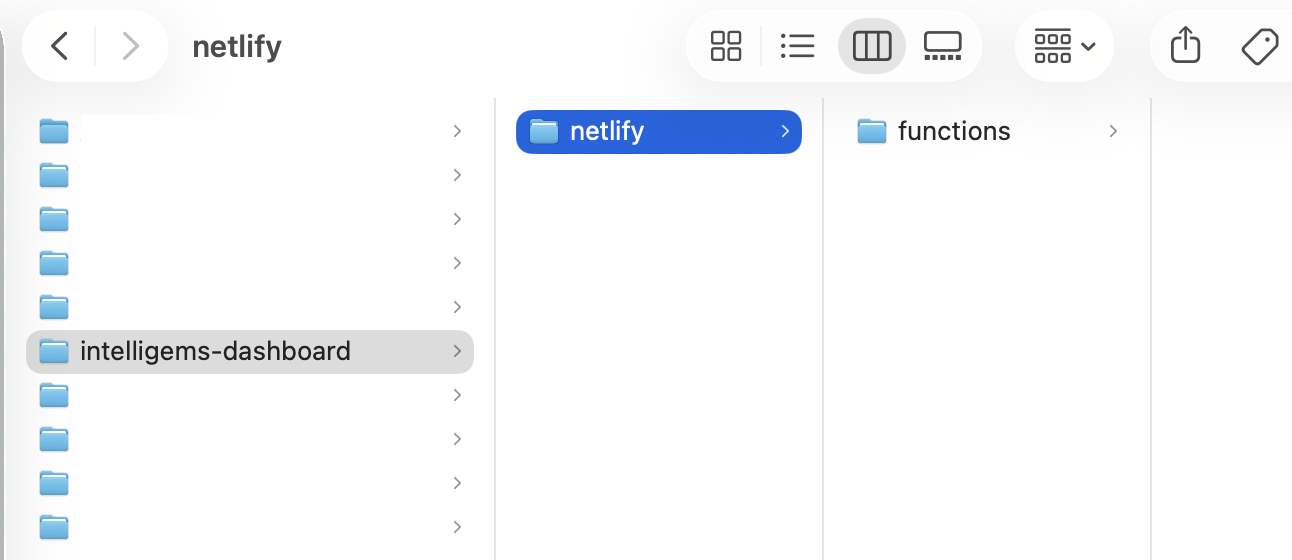
### Tools Used: This guide uses the following tools: * The Terminal: You will use the command line to initialize your project and execute deployment commands. * Netlify: This platform will host the dashboard and manage the Serverless Functions (Node.js) used to securely fetch and process data from the Intelligems External API. {% hint style="info" %} Want to use your own softwares? Give Claude/Gemini/ChatGPT this article and ask how to recreate this but with X software instead so that your report uses existing company tools. {% endhint %} ### Prerequisite * Requires a [Netlify](https://app.netlify.com/) account (free plan available!) ## Step 1: Create desktop folder structure On your desktop, create a new file titled *intelligems-dashboard*. Inside it, create the following folder structure:
## Step 2: Add an api.js file to the functions folder If you're using a Mac, you can create an .js document by: 1. Open **TextEdit** (in your Applications folder) 2. In the top menu bar, Go to **TextEdit** → **Settings** 3. Click **"Plain Text"** (very important - NOT Rich Text) 4. Close Settings 5. Create new document: **File** → **New** 6. Paste your code (shown below!) 7. **File** → **Save As** * Uncheck "If no extension is provided, use .txt" * Name it: `api.js` * Location: Navigate to `intelligems-dashboard/netlify/functions/` * Click **Save** Here's the code to put in your api.js file: ``` exports.handler = async (event) => { try { const rawKeys = process.env.INTELLIGEMS_KEYS || "[]"; const clients = JSON.parse(rawKeys); const allResults = await Promise.all(clients.map(async (client) => { try { const listRes = await fetch('https://api.intelligems.io/v25-10-beta/experiences-list?status=started', { headers: { 'intelligems-access-token': client.key } }); const listData = await listRes.json(); const experiences = listData.experiencesList || []; return await Promise.all(experiences.map(async (exp) => { try { const analyticsRes = await fetch(`https://api.intelligems.io/v25-10-beta/analytics/resource/${exp.id}`, { headers: { 'intelligems-access-token': client.key } }); const analyticsData = await analyticsRes.json(); const testVariant = analyticsData.variations?.find(v => v.isControl === false); const testVariantId = testVariant?.id; const vM = analyticsData.metrics?.find(m => m.variation_id === testVariantId) || {}; const getUpliftPct = (metric) => { const val = metric?.uplift?.value; return val !== undefined ? (val * 100).toFixed(2) : "0.00"; }; return { id: exp.id, clientName: client.name, name: analyticsData.experienceName || exp.name || "Unnamed Test", status: exp.status, // Only keeping the requested columns conversion: getUpliftPct(vM.conversion_rate), rpv: getUpliftPct(vM.net_revenue_per_visitor), gpv: getUpliftPct(vM.gross_profit_per_visitor), aov: getUpliftPct(vM.net_product_revenue_per_order), url: `https://app.intelligems.io/experiment/${exp.id}` }; } catch (err) { console.error(`Error fetching analytics for ${exp.id}:`, err); return null; } })); } catch (err) { console.error(`Error fetching experience list for ${client.name}:`, err); return []; } })); const finalData = allResults.flat().filter(item => item !== null); return { statusCode: 200, headers: { "Content-Type": "application/json", "Access-Control-Allow-Origin": "*" }, body: JSON.stringify(finalData), }; } catch (error) { return { statusCode: 500, body: JSON.stringify({ error: error.message }) }; } }; ``` ## Step 3: Add an netlify.toml file to the intelligems-dashboard folder If you're using a Mac, you can create an .toml document by: 1. Open **TextEdit** (in your Applications folder) 2. In the top menu bar, Go to **TextEdit** → **Settings** (you should have already done this is Step 2) 1. Click **"Plain Text"** (very important - NOT Rich Text) 2. Close Settings 3. Create new document: **File** → **New** 4. Paste your code (shown below!) 5. **File** → **Save As** * Uncheck "If no extension is provided, use .txt" * Name it: `netlify.toml` * Location: Navigate to `intelligems-dashboard/` * Click **Save** Here's the code to put in your netlify.toml file: ``` [build] publish = "." functions = "netlify/functions" [functions] node_bundler = "esbuild" external_node_modules = ["node-fetch"] ``` ## Step 4: Add an index.html file to the intelligems-dashboard folder If you're using a Mac, you can create an .html document by: 1. Open **TextEdit** (in your Applications folder) 2. In the top menu bar, Go to **TextEdit** → **Settings** (you should have already done this is Step 2) 1. Click **"Plain Text"** (very important - NOT Rich Text) 2. Close Settings 3. Create new document: **File** → **New** 4. Paste your code (shown below!) 5. **File** → **Save As** * Uncheck "If no extension is provided, use .txt" * Name it: `index.html` * Location: Navigate to `intelligems-dashboard/` * Click **Save** Here's the code to put in your index.html file (Callout: In the code below, update "intelligems2026" with your own desired password for this page): ``` Marketing Agency Dashboard

Client Performance Monitor

Client ↕ Test Name ↕ Conv Rate RPV Uplift GPV Uplift AOV Uplift Link
Connecting to Intelligems...
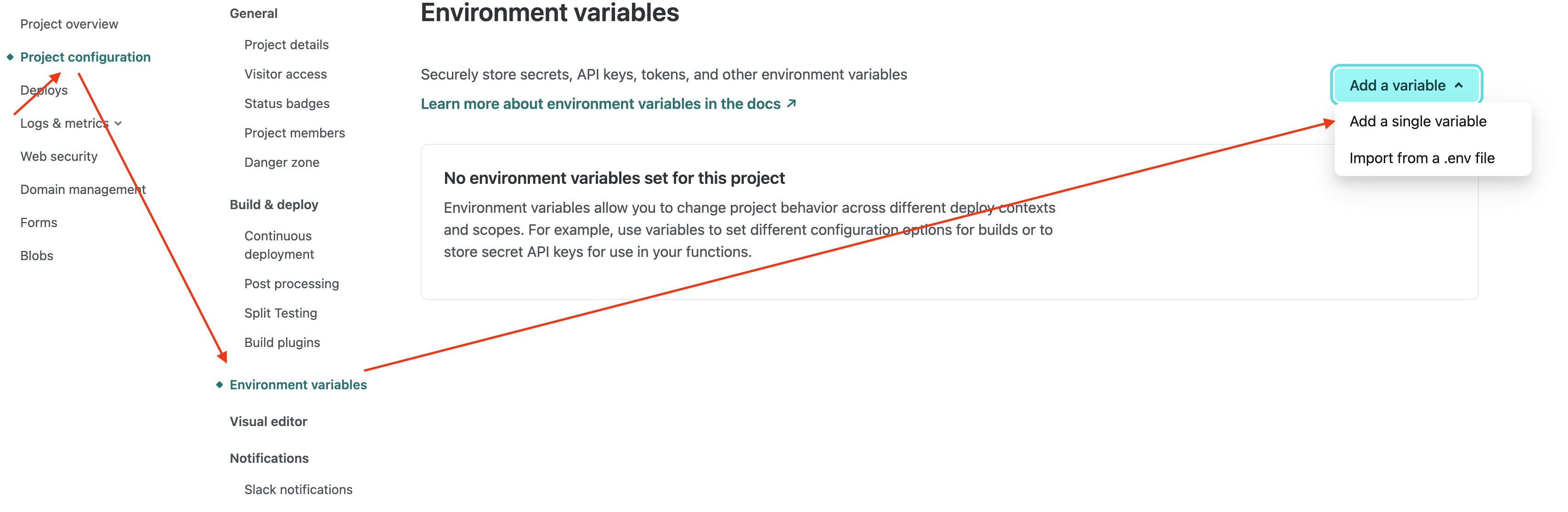
``` ## Step 5: Add a package.json file to the intelligems-dashboard folder If you're using a Mac, you can create an .html document by: 1. Open **TextEdit** (in your Applications folder) 2. In the top menu bar, Go to **TextEdit** → **Settings** (you should have already done this is Step 2) 1. Click **"Plain Text"** (very important - NOT Rich Text) 2. Close Settings 3. Create new document: **File** → **New** 4. Paste your code (shown below!) 5. **File** → **Save As** * Uncheck "If no extension is provided, use .txt" * Name it: `package.json` * Location: Navigate to `intelligems-dashboard/` * Click **Save** Here's the code to put in your index.html file: ``` { "name": "intelligems-dashboard", "version": "1.0.0", "description": "Dashboard for Intelligems test results", "dependencies": { "node-fetch": "^2.6.7" } } ``` ## Step 6: Deploy to Netlify Go to [app.netlify.com](https://app.netlify.com) and sign up (free). Find & open the Terminal Application on your computer. ![](https://docs.intelligems.io/~gitbook/image?url=https%3A%2F%2F2052204893-files.gitbook.io%2F%7E%2Ffiles%2Fv0%2Fb%2Fgitbook-x-prod.appspot.com%2Fo%2Fspaces%252F2SvefuMLsJyJPAcVXeWc%252Fuploads%252FDjdWSpcTHZm3VdZitzGs%252FScreenshot%25202026-01-13%2520at%25201.20.50%25E2%2580%25AFPM.png%3Falt%3Dmedia%26token%3D23af913e-e0db-4173-a835-0a4d1f83e9b4\&width=768\&dpr=4\&quality=100\&sign=165e3efc\&sv=2) Install Netlify CLI by pasting the following code into Terminal and hitting enter: ``` npm install -g netlify-cli ``` Navigate to your project folder in terminal by pasting the following code into Terminal and hitting enter: ``` cd ~/Desktop/intelligems-dashboard ``` Login to Netlify by pasting the following code into Terminal and hitting enter (this will open your browser - click "Authorize" when it does): ``` netlify login ``` Deploy to your site by pasting the following code into Terminal and hitting enter: ``` netlify deploy ``` In terminal, you'll be prompted with a few questions. Answer them the following way (navigate with arrow keys & hit enter to select the highlighted answer): * Choose to "Create & configure a new project" * Choose your team * Write in a site name like "YOURCOMPANY-intelligems-dashboard" Now deploy this to production by pasting the below code into your Terminal and pressing enter: ``` netlify deploy --prod ``` ## Step 7: Add your API keys In your browser, go to your [Netlify dashboard](https://app.netlify.com/). Click on your YOURCOMPANY-intelligems-dashboard project. Navigate to project configuration > Environment variables > Add a variable > Add a single variable
Set the key value to INTELLIGEMS\_KEYS*.* Set the value to your Intelligems API Key(s). \[[How to get Intelligems API Key](https://docs.intelligems.io/developer-resources/external-api#getting-started)] Follow this format: ``` [{"name":"Client One", "key":"ig_live_1111"}, {"name":"Client Two", "key":"ig_live_2222"}] ``` Replace "Client One" with yourself or if you're an agency, replace this with the name of the client associated with the API Key. Select Create Variable. Redeploy by pasting the below code into Terminal and hitting enter: ``` netlify deploy --prod ``` ## Step 8: Visit your dashboard In terminal, it will display your production URL. It'll be formatting like
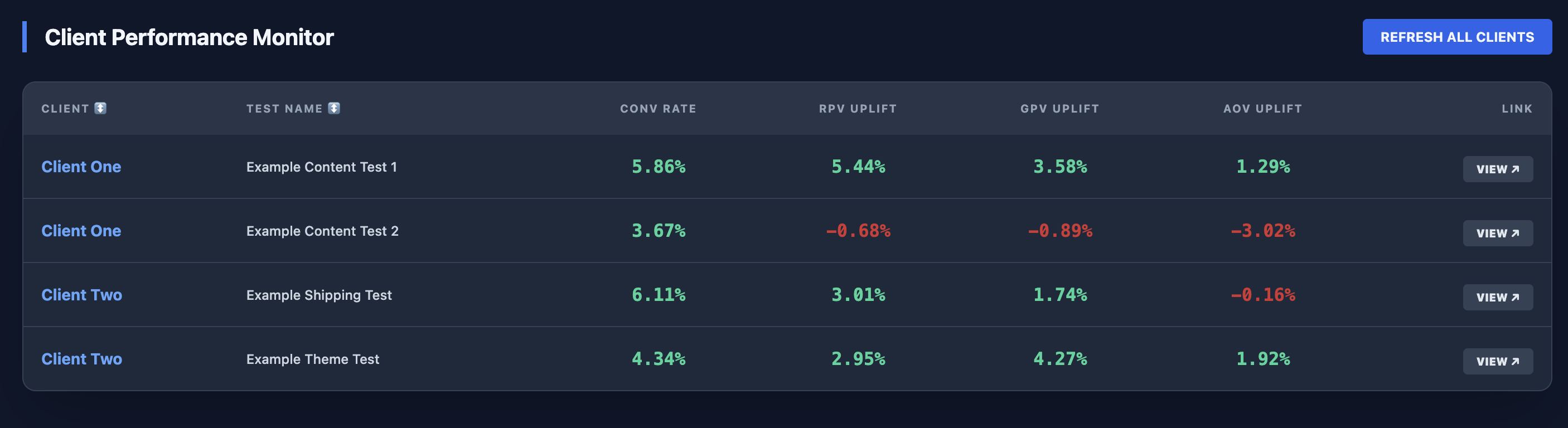
When you visit this URL, it'll prompt you for a password (unless you changed it in the code above it'll be intelligems2026). Once you enter your password, you'll see your new Multi-Client Dashboard!:
## Bonus: Enhancements You can customize this dashboard with specific metrics you are looking for! Here are a few ideas of metrics you can include & their mapping for the API: * Total visitors per variant * API: GET `/v25-10-beta/analytics/resource/{experienceId}` * Metric: `metrics[].n_visitors.value` (where `variation_id == [ID]`) * Total orders per variant * API: GET `/v25-10-beta/analytics/resource/{experienceId}` * Metric: `metrics[].n_orders.value` (where `variation_id == [ID]`) * Total revenue per variant * API: GET `/v25-10-beta/analytics/resource/{experienceId}` * Metric: `metrics[].net_revenue.value` (where `variation_id == [ID]`) * Launch date * API: GET `/v25-10-beta/experiences-list` * Metrics: `experiencesList[0].startedAtTs` * Total tests launched within the last 30 days * API: GET `/v25-10-beta/experiences-list` * Metric: Filter the `experiencesList` for objects where `startedAtTs` is less than or equal to 30 days ago. * List of tests in draft * API: GET `/v25-10-beta/experiences-list` * Metric: use `experiencesList[].status` (where the status is `pending`) --- # Source: https://docs.intelligems.io/developer-resources/external-api/automations-and-guides/build-an-automated-test-monitoring-integration-for-slack.md # Build an Automated Test Monitoring Integration for Slack ## Overview: This guide explains how to leverage the Intelligems External API & Claude Code to build a proactive monitoring system that sends split test health updates directly to Slack. By automating these notifications, your team can stay informed on experiment performance and quickly identify potential issues without needing to manually check the Intelligems dashboard.
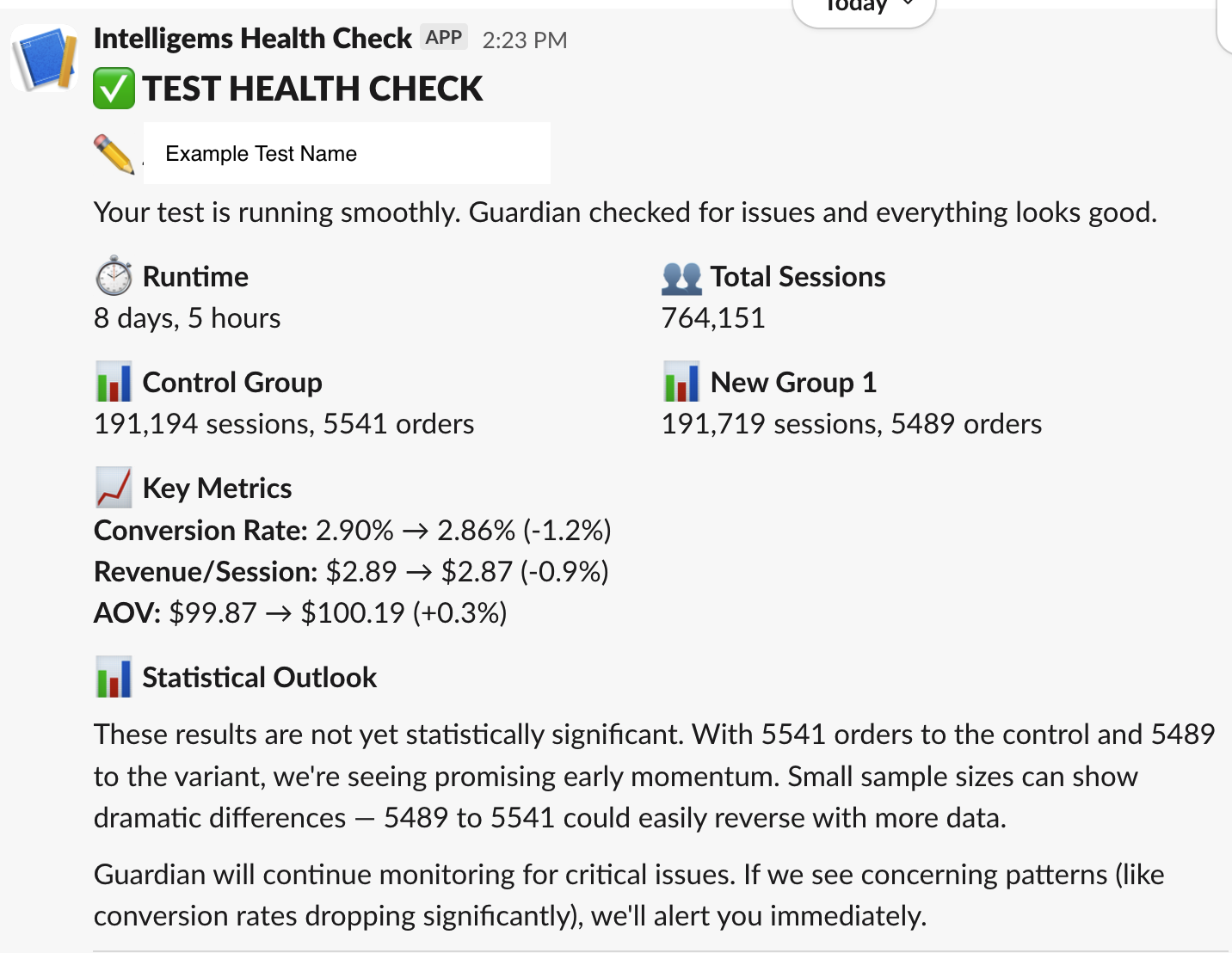
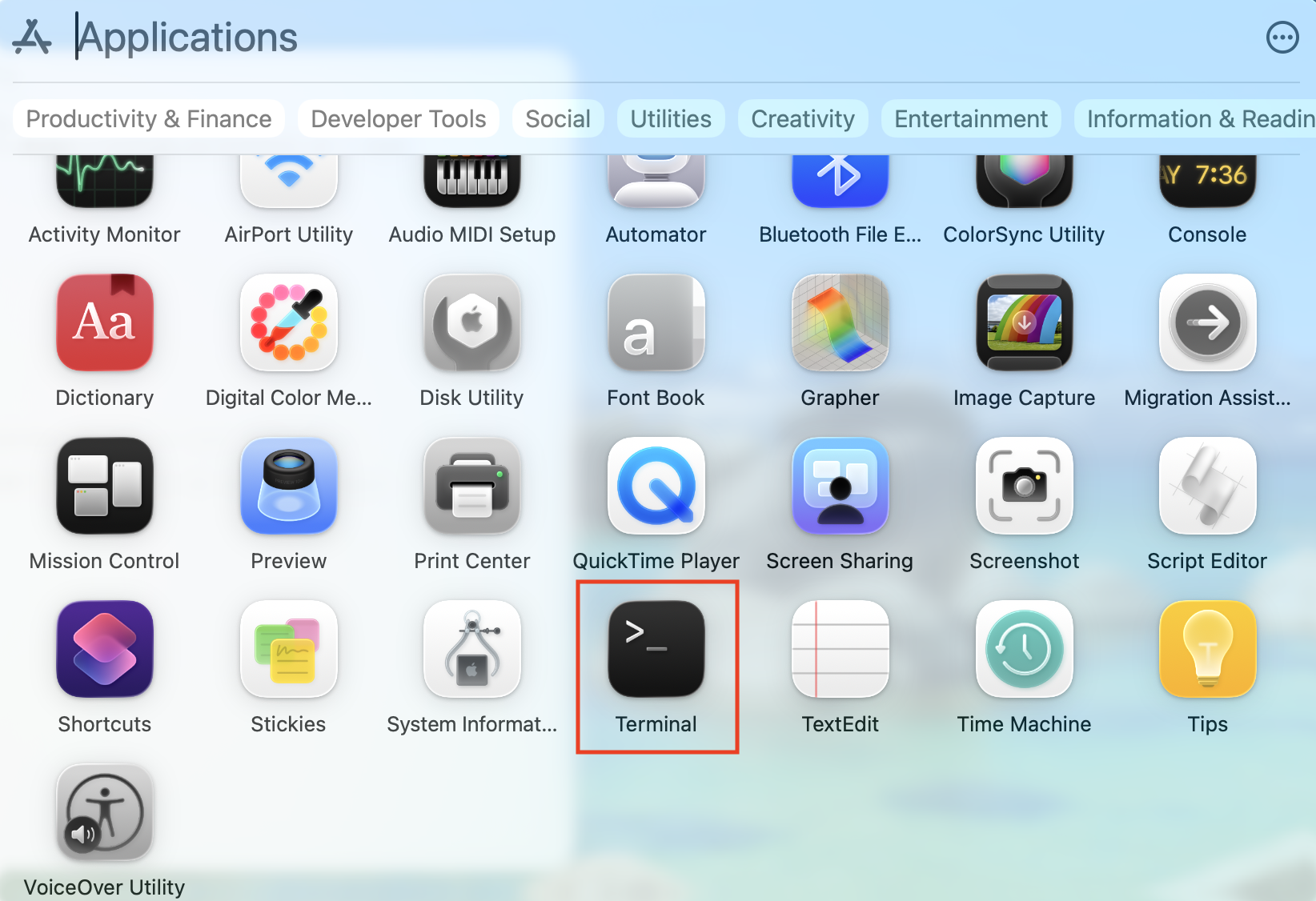
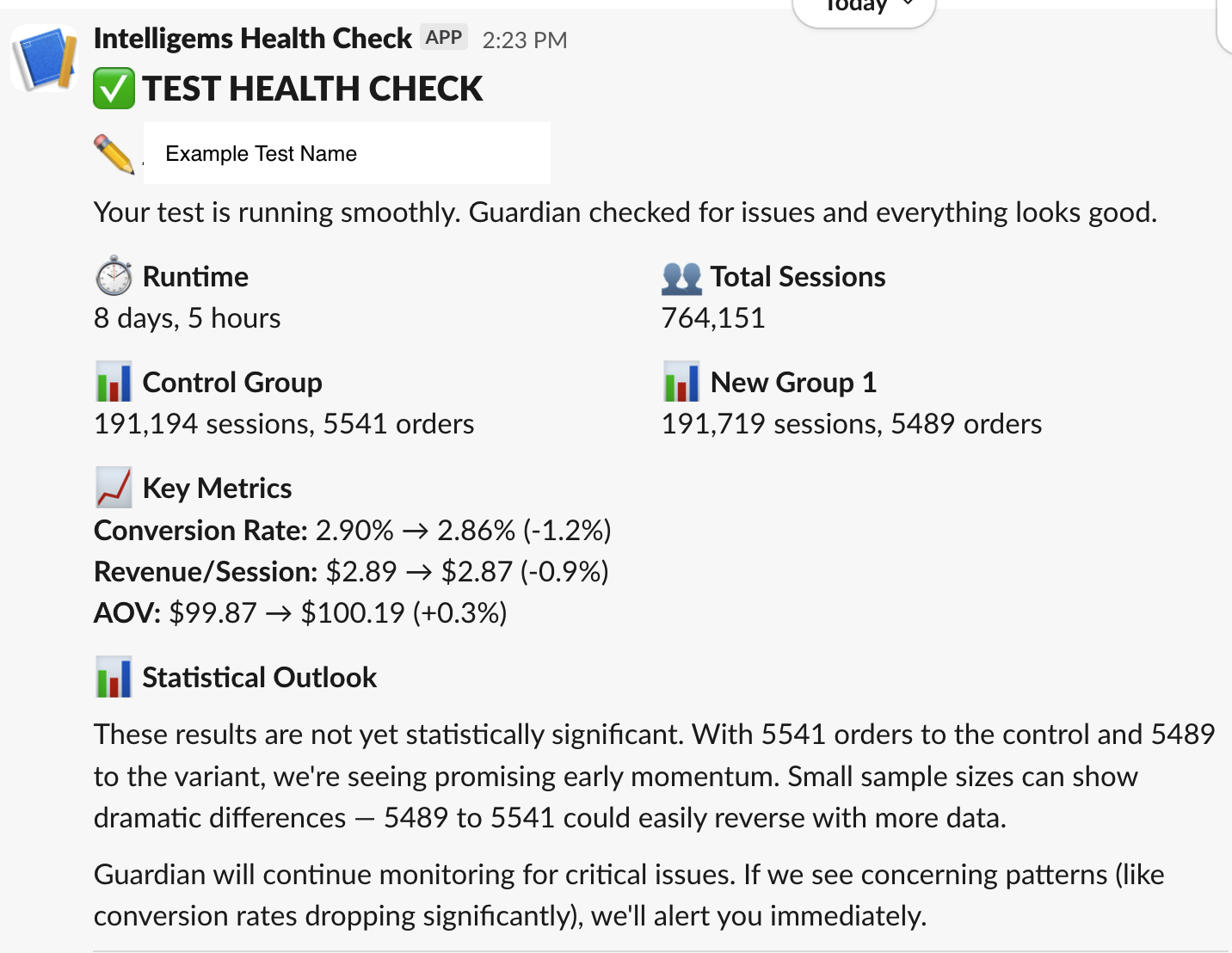
{% hint style="info" %} Note: Your computer needs to be actively online and connected to the internet in order for this alert to be sent. If you'd like this to run even if your computer is offline, consider using GitHub Actions instead. {% endhint %} {% hint style="success" %} *Don't have time to set this up manually? Use* [*https://github.com/Victorpay1/intelligems-plugins*](https://github.com/Victorpay1/intelligems-plugins) *— Claude will ask you a few setup questions and handle the rest automatically. Just run /test-health-check-setup after installing.* {% endhint %} ### Prerequisite * Requires a Claude Account (Pro, Max, Teams, or Enterprise) ## How To Create An Automated Test Monitoring Integration for Slack ### Step 1: [Install Claude Code](https://code.claude.com/docs/en/overview#get-started-in-30-seconds) Find & open the Terminal Application on your computer.
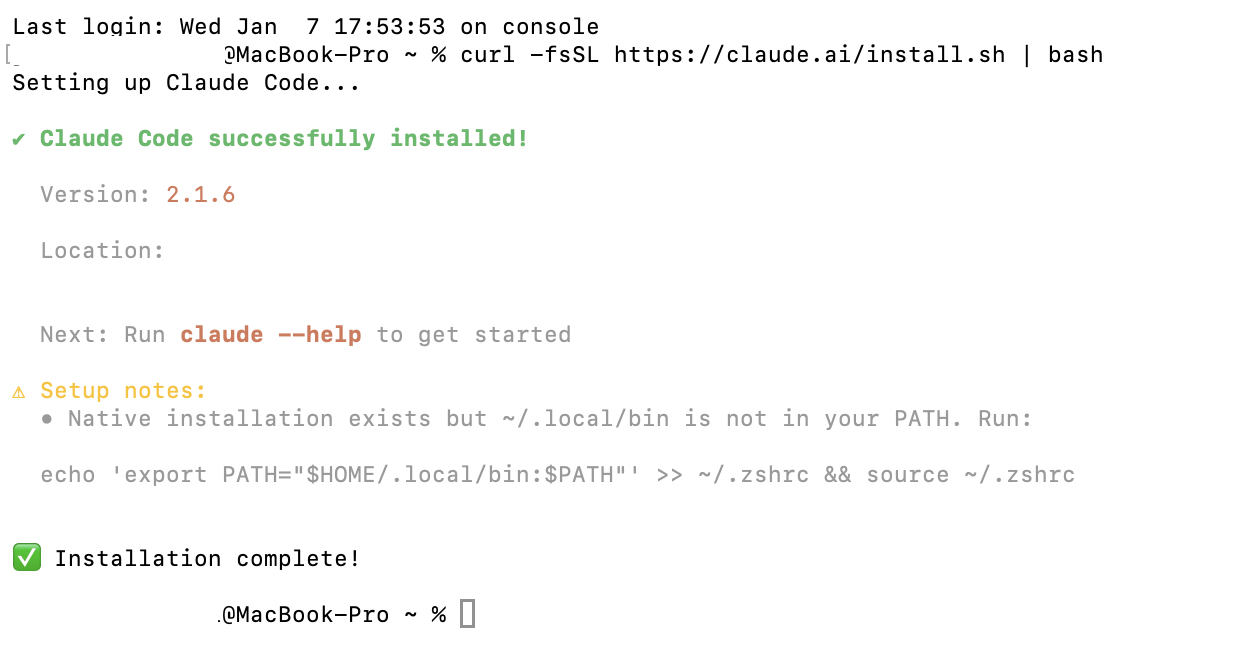
Install Claude Code into Terminal via Claude's instructions [here](https://code.claude.com/docs/en/overview#get-started-in-30-seconds).
### Step 2: Set Up Your Project In Terminal, paste in the following & hit enter: ```` mkdir intelligems-slack-health-check cd intelligems-slack-health-check # Create a virtual environment python3 -m venv venv source venv/bin/activate # On Windows: venv\Scripts\activate # Create project files touch intelligems_health_check.py touch config.py touch requirements.txt touch .env ``` ### Step 2: Install Dependencies Add to `requirements.txt`: ``` requests==2.31.0 python-dotenv==1.0.0 ```` After the above runs, also paste in the below & hit enter: ``` cat > requirements.txt << 'EOF' requests==2.31.0 python-dotenv==1.0.0 EOF ``` Finally, after the above runs, paste in the below & hit enter: ``` pip install -r requirements.txt ``` ### Step 3: Get Your Intelligems API Key & Slack Webhook URL #### Intelligems API Key: To request access and receive your API key, [contact our support team](https://portal.usepylon.com/intelligems/forms/intelligems-support-request). #### Slack Webhook URL: * Go to * Click "Create New App" → "From scratch" * Name it "Intelligems Health Check" and select your workspace * In the left sidebar, click "Incoming Webhooks" * Toggle "Activate Incoming Webhooks" to On * Click "Add New Webhook to Workspace" * Select the channel where you want health checks posted * Copy the webhook URL ### Step 4: Configure Environment Variables Take the below code, update with your API key and Webhook URL, and then paste into Terminal. Press enter. ``` echo "INTELLIGEMS_API_KEY=your_actual_api_key_here" > .env echo "SLACK_WEBHOOK_URL=https://hooks.slack.com/services/YOUR/ACTUAL/WEBHOOK" >> .env ``` ### Step 5: Create Configuration File The below code can be copied and pasted into Terminal. ``` cat > config.py << 'EOF' import os from dotenv import load_dotenv load_dotenv() # API Configuration INTELLIGEMS_API_KEY = os.getenv('INTELLIGEMS_API_KEY') SLACK_WEBHOOK_URL = os.getenv('SLACK_WEBHOOK_URL') INTELLIGEMS_API_BASE = "https://api.intelligems.io/v25-10-beta" # Health Check Thresholds MIN_SESSIONS_FOR_SIGNIFICANCE = 100 MIN_ORDERS_FOR_SIGNIFICANCE = 10 CONVERSION_DROP_ALERT_THRESHOLD = 0.20 # 20% drop triggers alert MIN_CONFIDENCE_LEVEL = 0.95 # 95% confidence # Formatting TIMEZONE = "UTC" EOF ``` #### Customizing Thresholds In the above script, you can customize the numbers under # Health Check Thresholds to make the alerting more in tune with your business. Learn more below: **MIN\_ORDERS\_FOR\_SIGNIFICANCE = 10** **What it does:** Sets the minimum number of total orders/conversions before the test has enough data. **If you change it:** * **Lower (e.g., 5):** More lenient - will consider tests with fewer orders as having sufficient data. * **Higher (e.g., 50):** More strict - requires more conversions before considering results meaningful. **Example:** If set to 10 and your test only has 7 total orders, Slack will show: "⚠️ Guardian detected some issues: Insufficient orders (7 orders)" **Recommendation:** For price/shipping tests with lower conversion rates, you might want this lower. For high-volume content tests, keep it higher. *** **CONVERSION\_DROP\_ALERT\_THRESHOLD = 0.20** **What it does:** Triggers an alert if the variant's conversion rate drops by this percentage compared to control. **If you change it:** * **Lower (e.g., 0.10):** More sensitive - will alert on a 10% drop. Good if you want early warnings. * **Higher (e.g., 0.30):** Less sensitive - only alerts on 30%+ drops. Use if you're okay with bigger swings. **Example:** * Control has 5% conversion rate * Variant has 3.5% conversion rate * Drop = (5% - 3.5%) / 5% = 30% drop * If threshold is 0.20 (20%), this triggers: "⚠️ Guardian detected some issues: Conversion rate dropped 30.0%" **Important:** This is calculated as: `(control - variant) / control` *** **MIN\_CONFIDENCE\_LEVEL = 0.95** **What it does:** Sets the statistical confidence level required before considering results "significant." **If you change it:** * **Lower (e.g., 0.90 or 90%):** Results will be marked as significant sooner, but with less certainty. * **Higher (e.g., 0.99 or 99%):** Requires stronger evidence before declaring significance, takes longer but more reliable. **Example:** If set to 0.95 (95%) and your test shows 92% confidence, Slack will show: > "These results are not yet statistically significant... Guardian will continue monitoring for critical issues." Once it reaches 95%+ confidence, it will show: > "✅ Results are statistically significant at 95.3% confidence." **Industry standard:** 95% (0.95) is typical for most A/B tests. Don't go below 90% unless you understand the risks. ### Step 6: Create Main Health Check Script Copy & paste the below code into Terminal. Press enter. ``` cat > intelligems_health_check.py << 'EOF' import requests import json from datetime import datetime, timedelta from typing import Dict, List, Optional from config import ( INTELLIGEMS_API_KEY, SLACK_WEBHOOK_URL, INTELLIGEMS_API_BASE, MIN_SESSIONS_FOR_SIGNIFICANCE, MIN_ORDERS_FOR_SIGNIFICANCE, CONVERSION_DROP_ALERT_THRESHOLD, MIN_CONFIDENCE_LEVEL ) class IntelligemsHealthCheck: """Fetch and analyze Intelligems test health data.""" def __init__(self): self.headers = { "intelligems-access-token": INTELLIGEMS_API_KEY, "Content-Type": "application/json" } def get_active_tests(self) -> List[Dict]: """Fetch all currently running tests.""" url = f"{INTELLIGEMS_API_BASE}/experiences-list" params = {"status": "started"} try: response = requests.get(url, headers=self.headers, params=params) response.raise_for_status() data = response.json() return data.get("experiencesList", []) except requests.exceptions.RequestException as e: print(f"Error fetching active tests: {e}") return [] def get_test_analytics(self, experience_id: str) -> Optional[Dict]: """Fetch analytics data for a specific test.""" url = f"{INTELLIGEMS_API_BASE}/analytics/resource/{experience_id}" params = {"view": "overview"} try: response = requests.get(url, headers=self.headers, params=params) response.raise_for_status() return response.json() except requests.exceptions.RequestException as e: print(f"Error fetching analytics for {experience_id}: {e}") return None def calculate_runtime(self, started_ts: Optional[float]) -> str: """Calculate how long a test has been running.""" if not started_ts: return "N/A" start_time = datetime.fromtimestamp(started_ts / 1000) runtime = datetime.now() - start_time days = runtime.days hours = runtime.seconds // 3600 if days > 0: return f"{days} day{'s' if days != 1 else ''}, {hours} hour{'s' if hours != 1 else ''}" else: return f"{hours} hour{'s' if hours != 1 else ''}" def analyze_variation_metrics(self, metrics: List[Dict]) -> Dict: """Extract and organize metrics by variation.""" variation_data = {} for metric in metrics: var_id = metric.get("variation_id") if not var_id: continue if var_id not in variation_data: variation_data[var_id] = { "visitors": 0, "orders": 0, "conversion_rate": 0, "revenue_per_session": 0, "aov": 0 } # Extract key metrics if "n_visitors" in metric: variation_data[var_id]["visitors"] = metric["n_visitors"].get("value", 0) if "n_orders" in metric: variation_data[var_id]["orders"] = metric["n_orders"].get("value", 0) if "conversion_rate" in metric: conv_rate = metric["conversion_rate"] variation_data[var_id]["conversion_rate"] = conv_rate.get("value", 0) variation_data[var_id]["confidence"] = conv_rate.get("confidence", 0) if "net_revenue_per_visitor" in metric: variation_data[var_id]["revenue_per_session"] = metric["net_revenue_per_visitor"].get("value", 0) if "net_revenue_per_order" in metric: variation_data[var_id]["aov"] = metric["net_revenue_per_order"].get("value", 0) return variation_data def get_variation_name(self, variations: List[Dict], var_id: str) -> str: """Get the name of a variation by ID.""" for var in variations: if var.get("id") == var_id: return var.get("name", "Unknown") return "Unknown" def assess_health(self, test: Dict, analytics: Dict) -> Dict: """Assess the health status of a test.""" metrics = analytics.get("metrics", []) variations = test.get("variations", []) variation_data = self.analyze_variation_metrics(metrics) # Calculate totals total_visitors = sum(v["visitors"] for v in variation_data.values()) total_orders = sum(v["orders"] for v in variation_data.values()) # Find control and variant control = None variant = None for var in variations: var_id = var.get("id") if var_id not in variation_data: continue if var.get("isControl"): control = {**variation_data[var_id], "name": var.get("name"), "id": var_id} else: variant = {**variation_data[var_id], "name": var.get("name"), "id": var_id} # Health assessment issues = [] is_healthy = True # Check sample sizes if total_visitors < MIN_SESSIONS_FOR_SIGNIFICANCE: issues.append(f"Low sample size ({total_visitors} sessions)") is_healthy = False if total_orders < MIN_ORDERS_FOR_SIGNIFICANCE: issues.append(f"Insufficient orders ({total_orders} orders)") is_healthy = False # Check for statistical significance if variant and control: if variant.get("confidence", 0) < MIN_CONFIDENCE_LEVEL: issues.append("Not yet statistically significant") # Check for concerning drops if control["conversion_rate"] > 0: conv_drop = (control["conversion_rate"] - variant["conversion_rate"]) / control["conversion_rate"] if conv_drop > CONVERSION_DROP_ALERT_THRESHOLD: issues.append(f"Conversion rate dropped {conv_drop*100:.1f}%") is_healthy = False return { "is_healthy": is_healthy, "issues": issues, "total_visitors": total_visitors, "total_orders": total_orders, "control": control, "variant": variant } class SlackNotifier: """Format and send health check messages to Slack.""" def __init__(self): self.webhook_url = SLACK_WEBHOOK_URL def format_health_check_message(self, test: Dict, health: Dict, runtime: str) -> Dict: """Format a health check message for Slack.""" # Determine header emoji and status if health["is_healthy"]: header_emoji = "✅" status_message = "Your test is running smoothly. Guardian checked for issues and everything looks good." else: header_emoji = "⚠️" status_message = f"Guardian detected some issues: {', '.join(health['issues'])}" test_type = self._format_test_type(test.get("type", "")) # Build blocks for Slack message blocks = [ { "type": "header", "text": { "type": "plain_text", "text": f"{header_emoji} TEST HEALTH CHECK" } }, { "type": "section", "text": { "type": "mrkdwn", "text": f"✏️ *{test.get('name', 'Unknown Test')}*\n\n{status_message}" } }, { "type": "section", "fields": [ { "type": "mrkdwn", "text": f"⏱️ *Runtime*\n{runtime}" }, { "type": "mrkdwn", "text": f"👥 *Total Sessions*\n{health['total_visitors']:,}" } ] } ] # Add control and variant groups if health["control"]: control = health["control"] blocks.append({ "type": "section", "fields": [ { "type": "mrkdwn", "text": f"📊 *Control Group*\n{control['visitors']:,} sessions, {control['orders']} orders" }, { "type": "mrkdwn", "text": f"📊 *New Group 1*\n{health['variant']['visitors']:,} sessions, {health['variant']['orders']} orders" if health['variant'] else "N/A" } ] }) # Add key metrics if health["control"] and health["variant"]: control = health["control"] variant = health["variant"] # Calculate lifts conv_lift = ((variant["conversion_rate"] - control["conversion_rate"]) / control["conversion_rate"] * 100) if control["conversion_rate"] > 0 else 0 rev_lift = ((variant["revenue_per_session"] - control["revenue_per_session"]) / control["revenue_per_session"] * 100) if control["revenue_per_session"] > 0 else 0 aov_lift = ((variant["aov"] - control["aov"]) / control["aov"] * 100) if control["aov"] > 0 else 0 blocks.append({ "type": "section", "text": { "type": "mrkdwn", "text": ( f"📈 *Key Metrics*\n" f"*Conversion Rate:* {control['conversion_rate']:.2%} → {variant['conversion_rate']:.2%} ({conv_lift:+.1f}%)\n" f"*Revenue/Session:* ${control['revenue_per_session']:.2f} → ${variant['revenue_per_session']:.2f} ({rev_lift:+.1f}%)\n" f"*AOV:* ${control['aov']:.2f} → ${variant['aov']:.2f} ({aov_lift:+.1f}%)" ) } }) # Add statistical outlook if health["variant"]: confidence = health["variant"].get("confidence", 0) * 100 if confidence >= MIN_CONFIDENCE_LEVEL * 100: stat_message = f"✅ Results are statistically significant at {confidence:.1f}% confidence." else: stat_message = ( f"📊 *Statistical Outlook*\n\n" f"These results are not yet statistically significant. With {health['control']['orders']} orders to the control and " f"{health['variant']['orders']} to the variant, we're seeing promising early momentum. Small sample sizes can show " f"dramatic differences — {health['variant']['orders']} to {health['control']['orders']} could easily reverse with more data.\n\n" f"Guardian will continue monitoring for critical issues. If we see concerning patterns (like conversion rates dropping significantly), " f"we'll alert you immediately." ) blocks.append({ "type": "section", "text": { "type": "mrkdwn", "text": stat_message } }) blocks.append({"type": "divider"}) return {"blocks": blocks} def _format_test_type(self, test_type: str) -> str: """Format test type for display.""" type_map = { "pricing": "Price Test", "shipping": "Shipping Test", "content/advanced": "Content Test", "personalization/offer": "Offer Test" } return type_map.get(test_type, test_type.title()) def send_message(self, message: Dict) -> bool: """Send a message to Slack.""" try: response = requests.post( self.webhook_url, json=message, headers={"Content-Type": "application/json"} ) response.raise_for_status() return True except requests.exceptions.RequestException as e: print(f"Error sending Slack message: {e}") return False def main(): """Main execution function.""" print(f"[{datetime.now().strftime('%Y-%m-%d %H:%M:%S')}] Starting Intelligems health check...") # Initialize components health_checker = IntelligemsHealthCheck() notifier = SlackNotifier() # Get all active tests active_tests = health_checker.get_active_tests() if not active_tests: print("No active tests found.") return print(f"Found {len(active_tests)} active test(s)") # Process each test for test in active_tests: test_name = test.get("name", "Unknown") test_id = test.get("id") print(f"\nProcessing: {test_name}") # Get analytics analytics = health_checker.get_test_analytics(test_id) if not analytics: print(f" ⚠️ Could not fetch analytics for {test_name}") continue # Calculate runtime runtime = health_checker.calculate_runtime(test.get("startedAtTs")) # Assess health health = health_checker.assess_health(test, analytics) # Format and send message message = notifier.format_health_check_message(test, health, runtime) if notifier.send_message(message): print(f" ✅ Health check sent to Slack") else: print(f" ❌ Failed to send to Slack") print(f"\n[{datetime.now().strftime('%Y-%m-%d %H:%M:%S')}] Health check complete!") if __name__ == "__main__": main() EOF ``` ### Step 7: Test the Script Paste the below code into Terminal & press enter: ``` source venv/bin/activate python intelligems_health_check.py ``` You should see an output like: ``` [2025-01-13 10:00:00] Starting Intelligems health check... Found 2 active test(s) Processing: Shipping $ Test ✅ Health check sent to Slack Processing: Price Test v2 ✅ Health check sent to Slack [2025-01-13 10:00:05] Health check complete! ``` or ``` [2026-01-13 14:00:09] Starting Intelligems health check... No active tests found. ``` ### Step 8: Schedule Daily Execution The below code will schedule the alert to fire everyday at 10AM (it uses the timezone of your device). If you don't want to customize the time, copy & paste this into Terminal before hitting enter. If you want to customize the time, continue reading below! ``` cat > ~/Library/LaunchAgents/com.intelligems.healthcheck.plist << 'EOF' Label com.intelligems.healthcheck ProgramArguments /Users/jericakrakowski/intelligems-slack-health-check/venv/bin/python /Users/jericakrakowski/intelligems-slack-health-check/intelligems_health_check.py StartCalendarInterval Hour 10 Minute 0 StandardOutPath /Users/jericakrakowski/intelligems-slack-health-check/logs.txt StandardErrorPath /Users/jericakrakowski/intelligems-slack-health-check/error.txt EOF ``` #### Customizing Alert You can customize the time by updating the integer values under `Hour` and `Minute`. Use 24-hour format: * 9 AM = `9` * 2 PM = `14` * 6 PM = `18` For example, the below will fire at 9:30AM. ``` Hour 9 Minute 30 ``` ### You did it! Now you'll get a Slack notification like the below each day with a health check for your Intelligems Tests.
## Bonus: Enhancements You can customize this alert based on your business needs. Here's a few example ideas: * Only trigger a Slack alert if there seems to be an issue with a test. * e.g. Total visitors is below a threshold, one or more variants have fewer than X orders, one variant is getting significantly less traffic, large negative conversion rate drop * Incorporate AI into your Slack Automation by sending the analytics data to an AI Agent first & then including their analysis in the result. Include details like your hypothesis of why you're running the test, the primary goal, any psychological factors, etc when uploading to the AI for context. * Every 7 days since a test was pushed live, trigger an slack message for your CRO strategiest that contains an AI analysis of the test (statsig, deeper interpretation, recommendations) and trigger a slack message for your client that contains a shorter summary (focused on business impact). * Include color-coded recommendations (e.g. blue = keep running, green = win, yellow = flat, red = loss) * Combine with Intelligems webhooks to trigger a slack notification when a test ends that shares an AI analysis of the results (e.g. overall outcome, learnings, recommendations) --- # Source: https://docs.intelligems.io/developer-resources/javascript-api/campaigns-object.md # Campaigns Object ``` window.igData.campaigns ``` The following functions are available in `igData.campaigns`: [**getAll()**](https://docs.intelligems.io/developer-resources/javascript-api/campaigns-object/campaigns.getall)\ [**getGWP(options)**](https://docs.intelligems.io/developer-resources/javascript-api/campaigns-object/campaigns.getgwp-options) --- # Source: https://docs.intelligems.io/developer-resources/javascript-api/campaigns-object/campaigns.getall.md # campaigns.getAll() {% hint style="success" %} Gets all eligible campaigns and returns a list of campaigns with all nested data. {% endhint %} **Example** ```javascript console.log(igData.campaigns.getAll()) ``` **Return** ```json [ { "id": "b95ee9e7-34c7-4612-ad9e-fc75195551fc", "campaignId": "b95ee9e7-34c7-4612-ad9e-fc75195551fc", "name": "My first Campaign", "description": "This is a test Campaign so I can see what the Campaign object looks like", "discountId": "0d0ce9d7-652c-4adb-827b-62d8eb87b836", "discount": { "id": "0d0ce9d7-652c-4adb-827b-62d8eb87b836", "enabled": true, "combinesWithIntelligems": true, "combinesWithShopify": true, "name": "Discount", "isTest": false, "unitType": "unit", "discountType": "percentage", "discountApplicationType": "tieredDiscount", "discountApplicationMethod": "perOrder", "tiers": [ { "id": "1944f444-d85d-45fc-9da5-bbd7566416f9", "minimumUnits": 5, "maximumUnits": 6, "unitDiscount": 10, "discountTitle": "5 units gets you 10% off", "isFreeShipping": false, "isGiftWithPurchase": false, "giftWithPurchaseProductId": null, "giftWithPurchaseVariantId": null, "autoAddGiftWithPurchase": true, "giftWithPurchaseHandle": null }, { "id": "2ca983ee-7e49-432f-9b4a-5b02db4c13c2", "minimumUnits": 7, "maximumUnits": 9, "unitDiscount": 15, "discountTitle": "7 units gets you 15% off", "isFreeShipping": false, "isGiftWithPurchase": false, "giftWithPurchaseProductId": null, "giftWithPurchaseVariantId": null, "autoAddGiftWithPurchase": true, "giftWithPurchaseHandle": null }, { "id": "9ef6de6c-b48f-4d57-8aa1-195f6be2527a", "minimumUnits": 10, "maximumUnits": 1000000000, "unitDiscount": 20, "discountTitle": "10 units gets you 20% off", "isFreeShipping": false, "isGiftWithPurchase": false, "giftWithPurchaseProductId": null, "giftWithPurchaseVariantId": null, "autoAddGiftWithPurchase": true, "giftWithPurchaseHandle": null } ], "testProducts": [ { "id": "8467185303848", "title": "Ceramic Risotto Plate", "variants": [ { "id": "46008284643624", "title": "Lapis / Large", "price": 35, "compareAtPrice": null }, { "id": "46008284676392", "title": "Lapis / XL", "price": 35, "compareAtPrice": null }, { "id": "46008284184872", "title": "Cream / Small", "price": 35, "compareAtPrice": null }, { "id": "46008284807464", "title": "Marigold / XL", "price": 35, "compareAtPrice": null }, { "id": "46008284348712", "title": "Gainsboro / Medium", "price": 35, "compareAtPrice": null }, { "id": "46008284545320", "title": "Volcanic / XL", "price": 35, "compareAtPrice": null }, { "id": "46008284447016", "title": "Volcanic / Small", "price": 35, "compareAtPrice": null }, { "id": "46008284774696", "title": "Marigold / Large", "price": 35, "compareAtPrice": null }, { "id": "46008284610856", "title": "Lapis / Medium", "price": 35, "compareAtPrice": null }, { "id": "46008284709160", "title": "Marigold / Small", "price": 35, "compareAtPrice": null }, { "id": "46008284512552", "title": "Volcanic / Large", "price": 35, "compareAtPrice": null }, { "id": "46008284217640", "title": "Cream / Medium", "price": 35, "compareAtPrice": null }, { "id": "46008284479784", "title": "Volcanic / Medium", "price": 35, "compareAtPrice": null }, { "id": "46008284578088", "title": "Lapis / Small", "price": 35, "compareAtPrice": null }, { "id": "46008284315944", "title": "Gainsboro / Small", "price": 25, "compareAtPrice": null }, { "id": "46008284283176", "title": "Cream / XL", "price": 35, "compareAtPrice": null }, { "id": "46008284414248", "title": "Gainsboro / XL", "price": 35, "compareAtPrice": null }, { "id": "46008284741928", "title": "Marigold / Medium", "price": 35, "compareAtPrice": null }, { "id": "46008284381480", "title": "Gainsboro / Large", "price": 35, "compareAtPrice": null }, { "id": "46008284250408", "title": "Cream / Large", "price": 35, "compareAtPrice": null } ] } ], "isArchived": false }, "findReplaces": [], "requiresLink": false, "linkBaseUrl": null, "enabledAtTs": null, "disabledAtTs": null, "isArchived": false, "isPreview": true, "createdAtTs": 1692908710645 } ] ``` --- # Source: https://docs.intelligems.io/developer-resources/javascript-api/campaigns-object/campaigns.getgwp-options.md # campaigns.getGWP(options) Returns all eligible Gift-with-Purchase tiers for the current user's cart. **Parameters** **options** *(object, optional)*: * **achieved** *(boolean, optional)* - When `true`, returns only gift-with-purchase tiers that the user has qualified for based on their current cart. When `false` or omitted, returns all available gift-with-purchase tiers regardless of qualification status. **Example** ```javascript console.log(igData.campaigns.getGWP({achieved: true})) [   {     giftWithPurchaseProductId: "7191907565616",     giftWithPurchaseVariantId: null,     autoAddGiftWithPurchase: false, giftWithPurchaseHandle: "ceramic-risotto-plate",     id: "0c8f4018-4b42-45ae-9fc4-8f5a9969c32a",     minimumUnits: 100,     unitDiscount: 0,     isFreeShipping: true,     isGiftWithPurchase: true,   } ] ``` **Return** The function returns a list of tiers: ```javascript [ { autoAddGiftWithPurchase: boolean, //if Intelligems will automatically add the GWP to cart  giftWithPurchaseProductId: string | null, // Shopify Product ID (i.e. "7191907565616")  giftWithPurchaseVariantId: string | null, // Shopify Variant ID (i.e. "435713513473145") giftWithPurchaseHandle: string | null, // Shopify handle (i.e. /products/) isGiftWithPurchase: boolean, isFreeShipping: boolean, minimumUnits: integer, // minimum requirement to be eligible, in dollars or items } ] ``` ### Adding a Gift-with-Purchase to the Cart When adding your own GWP to the cart, all you need to do is add `{"_igGWP": "true"}` to the item properties. #### Example ```javascript fetch("/cart/add.js", { method: "POST", headers: { "Content-Type": "application/json", }, body: JSON.stringify({ items: [{ id: variantID, quantity: 1, properties: {_igGWP: "true"} }]) } ); ``` --- # Source: https://docs.intelligems.io/developer-resources/javascript-api/campaigns-object/campaigns.sethistorystatus-params.md # campaigns.setHistoryStatus(params) {% hint style="success" %} Use this to customize how you include or exclude visitors from Intelligems campaigns {% endhint %} This function expects **two** parameters: 1. campaignId: full uuid for the campaign you want to modify 2. status: one of "E" (exclude) "I" (include) or "U" (unassigned) *most use cases will only utilize exclude or include* Call it like `window.igData.campaigns.setHistoryStatus("ef2c64e6-aac3-47c6-98b2-1854f641afd1", "U")` This function has no return value if successful. However, you'll see console warnings if you pass an invalid campaignId or status
--- # Source: https://docs.intelligems.io/developer-resources/cart-permalinks.md # Cart Permalinks [Cart Permalinks](https://shopify.dev/docs/apps/channels/cart-permalinks) are links that bring a visitor directly to Shopify checkout with specified items and discounts already in the cart. Under the hood, they create a new cart. Since Intelligems links orders back to visitors for analytics by adding their Intelligems ID to the cart as a note, we need to make sure that ID is on the new cart in order for the resulting order to be tracked. If the cart permalink is on a page as a normal HTML hyperlink, Intelligems will do this for you automatically. If you're directing the user to the cart permalink using Javascript (e.g., by a button action or redirect), you'll need to make a small edit to the URL in order for Intelligems to track the order. We need to add a query parameter, `attributes[igId]` , set to the user's Intelligems ID, which is available from the Intelligems window object API. For example: ``` // cart permalink const href = "https://my-shop-name.myshopify.com/cart/36485954240671:1?discount=mydiscountcode" // convert to JS URL so that we can add query params const url = new URL(href); // get the Intelligems ID const igId = window.igData?.user?.igId; // igId might be undefined here if Intelligems is not loaded if (igId) { // add the query param to the URL url.searchParams.set("attributes[igId]", igId); } // convert the URL object back to its string representation const newHref = url.toString(); ``` --- # Source: https://docs.intelligems.io/developer-resources/mcp-server/chatgpt.md # ChatGPT {% hint style="warning" %} Custom Connectors require a ChatGPT Plus, Team, or Enterprise plan. \[[OpenAI Documentation](https://platform.openai.com/docs/guides/developer-mode)] {% endhint %} ChatGPT supports MCP servers through Developer Mode. To add the Intelligems MCP Server: 1. Open ChatGPT in your web browser 2. Click your profile name in the sidebar and select Settings 3. Navigate to Apps > Advanced settings
4. Enable Developer mode
{% hint style="warning" %} Don't see Developer mode? This setting will only appear if you're on a ChatGPT Pro, Plus, Business, Enterprise or Education account. [Link to Documentation](https://platform.openai.com/docs/guides/developer-mode). {% endhint %} 5. Click Create app
6. Configure the connector: * **Name:** Intelligems * **MCP Server URL:** `https://ai.intelligems.io/mcp` * **Authentication:** Select OAuth * Check "I understand and want to continue" 7. Click Create and complete the OAuth authorization flow {% hint style="info" %} Are you an agency? Complete the OAuth flow using the email address in your Intelligems settings. Located in Settings > General > Personal Settings. {% endhint %} **To use in a chat:** 1. Open a new chat 2. Click the + icon in the message bar 3. Select More > Developer Mode 4. Choose Add sources and enable the Intelligems MCP server --- # Source: https://docs.intelligems.io/checkout/checkout-experiences-library.md # Checkout Personalizations Library We built Checkout Personalizations to be the best checkout tool to power content right on your Checkout page to improve conversion, AOV, and profit per visitor, right inside of Intelligems. ## How to Think About Checkout Personalizations Every great checkout experience comes down to three simple questions: **Where, Who, and What.**\ Together, these three pieces form the backbone of your checkout strategy, shaping how you communicate trust, urgency, and brand values at the final step of the journey. ### Where does it appear? The location of your block is one of the biggest levers for conversion impact. * **Above the Order Summary**: Build trust right before customers review their cart totals. * **Below the Order Total**: Reinforce key benefits before payment (for example, free returns or warranty). * **Above the Payment Section**: Encourage final commitment with social proof or guarantees. * **Bottom of Checkout**: Use closing reassurance like “Secure payment processing” or “Ships in 24 hours.” Each position changes the customer’s perception, from confidence before commitment to relief after reassurance. ### Who should see it? Checkout Experiences can be customized and targeted to reach the right customer segments. * **All Visitors**: Use universal trust signals like badges and guarantees. * **New vs. Returning Visitors**: Offer reassurance for first-time buyers or special perks for repeat customers. * **Geographic Targeting**: Display shipping promises or payment methods specific to a customer’s region. A well-targeted checkout experience feels personal, not generic, and reinforces confidence in the brand. ### What do you want to communicate? The content of your block should answer one question: > “What message will help a shopper complete their purchase with confidence?” * **Trust & Assurance**: Secure checkout, SSL encryption, 30-day returns, warranty. * **Value Reinforcement**: Free shipping, lifetime guarantee, made in USA, sustainably sourced. * **Social Proof**: “Trusted by 100,000+ customers” or influencer endorsements. * **Urgency or Timeliness**: “Orders placed before 2 PM ship same day.” Each message plays a role in reducing hesitation and improving conversion at the finish line. {% hint style="success" %} **Pro Tip:** A Checkout Personalization can include multiple blocks. Combine a trust badge above your payment section with a social proof header or image block for maximum impact. {% endhint %} ### Why it matters Checkout is your most valuable piece of real estate. A few well-placed words or icons can be the difference between an abandoned cart and a completed sale.\ By pairing the right message, to the right audience, in the right place, you create trust and momentum that carry shoppers across the finish line. Put simply:\ **A great checkout experience builds confidence, clarity, and connection, all in service of higher conversion and happier customers.** ## 6 Checkout Personalizations To Build Right Now with Intelligems 1. [Trust Badges – Brand Promises (Shipping, Returns, Warranty etc.)](https://docs.intelligems.io/checkout/checkout-experiences-library/how-to-set-up-brand-promise-badge-icons-at-checkout) 2. [Header – 100,000 Happy Customers](https://docs.intelligems.io/checkout/checkout-experiences-library/how-to-set-up-a-shipping-cutoff-message-at-checkout-1) 3. [Callout – Shipping Reminder](https://docs.intelligems.io/checkout/checkout-experiences-library/how-to-set-up-a-shipping-cutoff-message-at-checkout) 4. [Image – Influencer Endorsement](https://docs.intelligems.io/checkout/checkout-experiences-library/how-to-set-up-a-shipping-cutoff-message-at-checkout-2) 5. [Product - Upsell Test (showing 1 vs. 3 products)](https://docs.intelligems.io/checkout/checkout-experiences-library/how-to-set-up-a-product-upsell-checkout-test) 6. [Product - Showing a Single Product Upsell at Checkout](https://docs.intelligems.io/checkout/checkout-experiences-library/how-to-set-up-a-single-product-upsell-checkout-experience) ## More Checkout Personalization Ideas Once you’ve watched the walkthrough videos above, explore these examples for inspiration.\ Each one can be built directly using blocks in Intelligems. ### Callout Blocks Bold, single-line trust or reassurance statements. * Trusted by 1M+ Customers — Brand authority and social proof * Free Shipping on orders over $100 — Confirm benefit already earned * Holiday Delivery Guarantee — “Order now, arrives by Dec 24” * 100% Satisfaction Guaranteed — Comfort against buyer’s remorse * New Customer? No Worries — Easy Returns — Welcome new buyers * Limited Stock — Secure Your Order Now — Light urgency near payment * 30-Day Free Returns — Deepen return confidence * Ships in 24 Hours — Prevent hesitation over fulfillment speed * Lifetime Warranty Promise — Reinforce quality and durability * Questions? We’re Here to Help — Support presence builds trust * Order Protection Included — Call out Route or Corso coverage * Gift-Friendly Checkout — “Free gift receipt & exchange options” * Price Match Guarantee — Remove price-shopping hesitation * Made in the USA / Local Craft — Values-based purchase reinforcement * Trusted Since 2012 — Brand heritage and trust signal * Family Owned & Operated — Emotional brand connection * Student / Military Discounts Available — Value reinforcement ### Product Upsells Show one more multiple product upsells at checkout * Top-selling one-size-fits-all SKU –– no hesitation, no choices to make * Accessory Add-On — complementary item that pairs with your hero product * Care Kit Upsell — cleaning, maintenance, or care products for longevity * Under $25 Add-On –– top items to reach free shipping threshold * Merch or branded accessory — Lightweight brand extension item ### Badge Tiles / Badge Lists Multiple icons or certification badges. * Secure Payment Guarantee — Visa, Mastercard, SSL, Shop Pay * Buy Now, Pay Later Options — Afterpay, Klarna, Shop Pay * Verified Reviews Badge Row — “4.8★ from 10,000+ reviews” * Satisfaction Icons Set — Returns, Support, Secure grouped icons * Certifications & Ethical Icons — Fair Trade, Organic, FSC imagery * Carbon Neutral Shipping Badge Set — Environmental trust icons ### Image Blocks High-impact single images or seals. * Sustainably Sourced Materials — Ethical reassurance * Ethical Supply Chain Promise — Worker standards and sustainability * Climate Friendly Shipping — Carbon offset note * Handcrafted Quality — Craftsmanship and artisan value * Local Business Badge — “Family Owned” or “Handmade Locally” * Eco Certification Seal — Example: “Certified B-Corp” * Brand Story Signature Image — Founder signature or brand pledge * Donation Promise Image — “1% of sales donated” seal * Lifetime Guarantee Seal — Bold guarantee icon image * Magazine or Press Feature Badge — “As seen in Vogue / GQ” * Influencer or Brand Ambassador Quote — “Guy Fieri’s favorite cookware” --- # Source: https://docs.intelligems.io/checkout/checkout-test-qa-checklist.md # Checkout Test QA Checklist ## How Checkout Tests Work: When you create and save your Checkout Test, you configure blocks in Intelligems and add them to your Shopify checkout using unique Location IDs. Once you start your test, Intelligems will automatically display the correct block to each shopper based on their test group and other defined criteria. ## What to Check First: Before heading to your site to preview your test, there are a few things you should check to make sure your integration is functional: * [ ] Is Intelligems JavaScript in your live theme? Check out [this article](https://docs.intelligems.io/getting-started/adding-intelligems-script-to-your-theme) for more information on where to find this. * [ ] Have you added the necessary Intelligems A/B Testing blocks to your Shopify checkout? Check out [this article](https://docs.intelligems.io/testing-checkout-experiences#step-5-add-blocks-to-shopify-checkout) for more information on how to do this. ## Previewing your Test: Once you have confirmed both of those items are true, you can preview the test on your live site. Enter Preview mode by clicking on the eyeball icon next to your test.
This will open your site up in a new window with the Intelligems preview widget enabled. In the preview widget, you'll see: 1. The name of the test you are previewing in the top left 2. A dropdown to switch between different test groups in the bottom left 3. A toggle to highlight any replacements in the top right 4. An edit button in the bottom right: this enables integration mode, where you can edit onsite content
### Step 1: Confirm that blocks are displaying correctly Now it's time to verify your blocks are appearing correctly in your checkout. Choose one of the test groups from the preview widget dropdown, and add a product to your cart. #### Navigate to the checkout page Proceed through your cart to the checkout page. This is where your blocks will appear. #### Verify the correct block is visible **If you're testing one block in multiple locations:** * [ ] Check that the block appears in the correct position for the selected test group * [ ] If you're in the "Header" group, confirm the block appears near the top/header area * [ ] If you're in the "Below Total" group, confirm the block appears below the order total * [ ] Switch between test groups and verify each block appears in its designated position * [ ] Confirm that only one block appears at a time (not multiple blocks simultaneously) **If you're testing different content in the same checkout location:** * [ ] Check that the correct design/content appears for the selected test group * [ ] If testing different colors, verify the correct color variation shows * [ ] If testing different text, verify the correct messaging appears * [ ] If testing different icons, verify the correct icons display * [ ] Switch between test groups and confirm the content updates while staying in the same position ### Step 2: Check block styling and formatting Regardless of test type, verify that: * [ ] Icons display correctly and are the right size * [ ] Text is readable and properly formatted * [ ] Colors match your configuration * [ ] Spacing looks correct (not too cramped or too spread out) * [ ] The block fits well within the checkout design * [ ] All badges within the block are visible (if you have multiple badges) Be sure to test multiple scenarios to ensure the blocks are always displaying correctly. This list is not exhaustive, and these may not all be applicable to your site, but a few scenarios we recommend testing include: * Different checkout states and products * If you have a control group with no block, verify nothing appears * Verify targeting is working (if applicable) * Test on multiple devices (desktop and mobile) and browsers (such as desktop Chrome and mobile Safari) to confirm there are no discrepancies. Complete these steps in each test group, being sure to refresh or newly navigate to checkout when you switch to a new test group! If you notice any issues, or have any questions, please feel free to [reach out to support!](https://portal.usepylon.com/intelligems/forms/intelligems-support-request) ### What happens next? Now that you've completed the QA checklist for your Offer Test, you can start the test! --- # Source: https://docs.intelligems.io/developer-resources/mcp-server/claude-remove-manual-configuration.md # Claude: Remove Manual Configuration ## Overview If you were one of our early adopters to our Claude <> Intelligems MCP Server, you may have been instructed to manually add Intelligems to your claude account under the Developers Section. Before following [these steps](https://docs.intelligems.io/developer-resources/mcp-server/claude) to migrate to our latest Claude setup, first remove the manual configuration to prevent duplicate tool listings or conflicts. #### Remove the Manual Configuration 1. Open the [Claude Desktop](https://docs.intelligems.io/developer-resources/mcp-server/claude#claude-desktop) app. 2. Click your profile name in the sidebar and select Settings. 3. Go to the Developer tab, look under Local MCP servers, and click the trashcan button next to "intelligems".
--- # Source: https://docs.intelligems.io/developer-resources/mcp-server/claude.md # Claude {% hint style="warning" %} Custom Connectors require a Claude Pro, Max, Team or Enterprise plan. {% endhint %} The Intelligems MCP can be integrated with both Claude Desktop and Claude Code. Please see the applicable instructions below: ## **Claude Desktop** ### **Install** 1. Open the [Claude Desktop](https://docs.intelligems.io/developer-resources/mcp-server/claude#claude-desktop) app. 2. Click your profile name in the sidebar and select Settings. 3. Go to the Connectors tab. 4. Select "Add custom connector" 5. Title it "Intelligems" and add a URL of [`https://ai.intelligems.io/mcp`](https://ai.intelligems.io/mcp).Then press Add
6. When starting a new chat, confirm that Intelligems is toggled on in the options menu, pictured below
{% hint style="success" %} In order to avoid hitting "Allow" every time Claude pulls information from Intelligems, go to Settings > Connectors > Configure next to Intelligems > switch the dropdown next to "Read-only tools" to "Always allow". {% endhint %}
## **Claude Code** Add the Intelligems MCP Server using the CLI: ```bash # Add with HTTP transport (recommended) claude mcp add --transport http intelligems https://ai.intelligems.io/mcp # Or with SSE transport claude mcp add --transport sse intelligems https://ai.intelligems.io/mcp/sse ``` When you first use the server, Claude Code will trigger a browser-based OAuth login. Complete the authentication flow to authorize access to your Intelligems account. Tokens are stored securely and refresh automatically. Alternatively, you can add the server to your `.mcp.json` configuration file in your project root or `~/.claude.json` for user-wide access: ```json { "mcpServers": { "intelligems": { "type": "http", "url": "https://ai.intelligems.io/mcp" } } } ``` **Management commands:** ```bash claude mcp list # View all configured servers claude mcp get intelligems # Get server details claude mcp remove intelligems # Remove the server ``` --- # Source: https://docs.intelligems.io/getting-started/common-use-cases.md # Common Use Cases What you decide to test ultimately depends upon your business goals and priorities. The following common use cases are broken out by test type & can help get the creative juices flowing to jump-start your testing program, as well as walk you through the steps to get these tests set up. Please don't hesitate to reach out to support [here](https://portal.usepylon.com/intelligems/forms/intelligems-support-request) if you have any questions! {% content-ref url="common-use-cases/price-test-common-use-cases" %} [price-test-common-use-cases](https://docs.intelligems.io/getting-started/common-use-cases/price-test-common-use-cases) {% endcontent-ref %} {% content-ref url="common-use-cases/shipping-test-common-use-cases" %} [shipping-test-common-use-cases](https://docs.intelligems.io/getting-started/common-use-cases/shipping-test-common-use-cases) {% endcontent-ref %} {% content-ref url="common-use-cases/content-test-common-use-cases" %} [content-test-common-use-cases](https://docs.intelligems.io/getting-started/common-use-cases/content-test-common-use-cases) {% endcontent-ref %} {% content-ref url="common-use-cases/offer-test-common-use-cases" %} [offer-test-common-use-cases](https://docs.intelligems.io/getting-started/common-use-cases/offer-test-common-use-cases) {% endcontent-ref %} --- # Source: https://docs.intelligems.io/getting-started/common-use-cases/content-test-common-use-cases.md # Content Test Common Use Cases Content testing is a powerful tool for businesses because it enables them to determine what types of messages, formats, and visuals resonate best with their target audience. By experimenting with different content variations—whether it's headlines, images, or calls-to-action—companies can gather insights on what drives engagement, conversions, and brand loyalty. This data-driven approach helps optimize marketing strategies, ensuring content is not only relevant but also effective in achieving specific goals. Content testing reduces guesswork, improves ROI, and ensures that businesses connect with their audience in meaningful ways. Check out the below common test designs for inspiration on how to get started: {% content-ref url="content-test-common-use-cases/landing-page-testing" %} [landing-page-testing](https://docs.intelligems.io/getting-started/common-use-cases/content-test-common-use-cases/landing-page-testing) {% endcontent-ref %} {% content-ref url="content-test-common-use-cases/testing-a-brand-new-theme" %} [testing-a-brand-new-theme](https://docs.intelligems.io/getting-started/common-use-cases/content-test-common-use-cases/testing-a-brand-new-theme) {% endcontent-ref %} {% content-ref url="content-test-common-use-cases/testing-different-imagery" %} [testing-different-imagery](https://docs.intelligems.io/getting-started/common-use-cases/content-test-common-use-cases/testing-different-imagery) {% endcontent-ref %} {% content-ref url="content-test-common-use-cases/testing-cart-elements" %} [testing-cart-elements](https://docs.intelligems.io/getting-started/common-use-cases/content-test-common-use-cases/testing-cart-elements) {% endcontent-ref %} {% content-ref url="content-test-common-use-cases/testing-announcement-bar-text" %} [testing-announcement-bar-text](https://docs.intelligems.io/getting-started/common-use-cases/content-test-common-use-cases/testing-announcement-bar-text) {% endcontent-ref %} {% content-ref url="content-test-common-use-cases/navigation-menu" %} [navigation-menu](https://docs.intelligems.io/getting-started/common-use-cases/content-test-common-use-cases/navigation-menu) {% endcontent-ref %} {% content-ref url="content-test-common-use-cases/testing-checkout-blocks" %} [testing-checkout-blocks](https://docs.intelligems.io/getting-started/common-use-cases/content-test-common-use-cases/testing-checkout-blocks) {% endcontent-ref %} {% content-ref url="content-test-common-use-cases/tariff-testing-on-vs-off" %} [tariff-testing-on-vs-off](https://docs.intelligems.io/getting-started/common-use-cases/content-test-common-use-cases/tariff-testing-on-vs-off) {% endcontent-ref %} {% content-ref url="content-test-common-use-cases/testing-express-payment-options" %} [testing-express-payment-options](https://docs.intelligems.io/getting-started/common-use-cases/content-test-common-use-cases/testing-express-payment-options) {% endcontent-ref %} --- # Source: https://docs.intelligems.io/content-testing/content-test-qa-checklist.md # Content Test QA Checklist {% hint style="info" %} This QA list is specific to a content test. If you are QAing a [shipping test](https://docs.intelligems.io/shipping-testing/shipping-test-qa-checklist) or a [pricing test](https://docs.intelligems.io/price-testing/price-test-qa-checklist), please check out QA checklists for those types of tests! {% endhint %} Once your content test is setup, you'll need to QA your site to make sure everything is working as it should be. Before heading to your site, there are a few things you should check first to make sure your integration is functional: * [ ] Is Intelligems JavaScript in your live theme? Check out [this article](https://docs.intelligems.io/developer-resources/intelligems-javascript) for more information on where to find this. * [ ] Are you running a [Theme test](https://docs.intelligems.io/content-testing/content-testing-getting-started/how-to-set-up-a-theme-test)? If you are, is Intelligems JavaScript in the themes you are testing as well? Including in checkout.liquid, if you have that file? * [ ] Are you running a [Theme Template test](https://docs.intelligems.io/content-testing/how-to-set-up-a-content-test/how-to-set-up-a-template-test) on specific templates only? If you are, have you added [this snippet](https://docs.intelligems.io/developer-resources/intelligems-javascript#template-testing-snippet) to your theme yet? Once you have confirmed all of the above, you can preview the test on your live site. Enter Preview mode by clicking the `...` next to your test and select `Preview`
This will open your site up in a new window with the Intelligems preview widget enabled. In the preview widget, you'll see: 1. The name of the test you are previewing in the top left 2. A dropdown to switch between different test groups in the bottom left 3. A toggle to highlight any replacements in the top right 4. An edit button in the bottom right; this enables integration mode, where you can edit any replacements
Now that you are on your site, use the preview widget to toggle between your test groups to make sure the correct content is showing on your site for each test group. What you should check depends on what type of content test you are previewing. For a few areas you should check for each test type, see below. #### Theme Tests * [ ] When you switch test groups in the dropdown, does the theme update to display the correct theme? You can check this based on differences that you know of in the test theme, or by searching the source code for the current theme name. You should also see a message similar to the below at the bottom of the preview widget for any themes that are not currently live.
* [ ] Does a Shopify preview bar show at the bottom of your window when you are in a test theme? This shouldn't happen; confirm that the Intelligems JavaScript is in all themes included in the test in both the theme.liquid and the checkout.liquid files. * [ ] **Key Steps:** 1. Enter preview mode in the control group 2. Open JavaScript Console (`Cmd+Option+J` Mac / `Ctrl+Shift+J` Windows) 3. Type `Shopify.theme` to see current theme details 4. Switch groups and check that theme changes **What to verify:** Control shows your live theme name and version, variant shows the different test theme name and version. {% embed url="" %} #### Theme Template Tests * [ ] When you switch test groups in the dropdown, are the correct templates used where they are being tested? You can check this based on differences that you know of in the templates. * [ ] **Key Steps:** 1. Start in preview mode on the control group 2. Open Chrome Developer Tools → JavaScript Console (`Cmd+Option+J` Mac / `Ctrl+Shift+J` Windows) 3. Type `_template` to see the current template name 4. Switch groups and verify the template name changes **What to verify:** Control shows base template (e.g., `product`), variant shows template with suffix (e.g., `product.123456`) {% embed url="" %} #### Page Redirect Tests * [ ] Go to a page that is included in a redirect while in a non-control group in the preview widget. Are you redirected to the correct link? * [ ] Check the above for each test group and page being tested. You'll need to navigate away from the test page and go back once you have changed groups to be redirected. * [ ] Do you have the Redirect Once checkbox selected for any of your redirects? Read more about how that functions [here](https://docs.intelligems.io/content-testing/how-to-set-up-a-content-test/how-to-set-up-a-page-redirect-test#redirect-once) and confirm you have the correct setting on for your test. #### Find & Replace Tests * [ ] Navigate to a location on your website where you have set up a text, image, or CSS / JS replacement. Switch groups in the widget and confirm that the content is updating as expected. * [ ] Continue the above until you have checked all locations where a replacement has been set up. * [ ] Do a sweep of the site to make sure content is not being updated somewhere that it shouldn't be. Our replacements are based on selectors. If there is a selector that is the exact same somewhere else on the site, the content there could be updated inadvertently. To avoid this happening, try setting up [Page Targeting](https://docs.intelligems.io/content-testing/targeting#what-is-intelligems-page-targeting) or including a "Find" in your Find & Replace. #### A few other things to keep in mind: * [ ] Do you have Page Targeting set up on your test? If so, if you are on a URL that does not match your targeting, you'll see a message like the below in the preview widget. This will confirm that your page targeting is working as expected since you are not meeting any of the conditions.
* [ ] You can further confirm that Page Targeting is working by going to one of the URLs that does match your targeting. Once you do so, you'll see the widget will no longer show a message on the bottom about being excluded. --- # Source: https://docs.intelligems.io/content-testing/content-testing-faqs.md # Content Testing FAQs ## General
Why should I run a template or content replacement test instead of a theme test? Theme tests are a great way to test large changes to your store, or experiments that would otherwise require a developer to implement. There are a few drawbacks to keep in mind, however, so you may choose to run a template test or content replacement test instead: 1. A theme test means you have multiple live themes. Your customers are accessing your store via multiple themes, so you need to ensure any changes unrelated to the test (e.g., adding a landing page, editing copy or imagery) are made in all themes in the test. 2. Every visitor goes through a redirect. As mentioned above, theme tests are relatively high performing, but every visitor placed into a non-control group will still go through a one-time redirect to bring them to the correct theme for their group. While the UX impact of this one-time redirect is generally low, you may be able to avoid it altogether by using a content replacement test to dynamically edit content or inject HTML/CSS/JS. 3. You won't be able to delete any themes in the test for a while. During the experiment, visitors are sent to draft themes, and their browser will "remember" which theme to open the next time they visit your store via a session cookie. Once the test is over, if a visitor who was in one of the test groups re-visits your store and the cookie is still active, Shopify will first load the draft theme, and Intelligems will then immediately reset them back to the live theme. However, if the draft theme that was in the test has since been deleted, Intelligems won't be loaded and won't have the opportunity to reset the visitor's theme. Instead, the visitor see an error from Shopify, since they're trying to load a theme that does not exist.\ \ So, it's important to leave any themes that were tested in draft mode (rather than deleting them) for a while after the experiment (we recommend at least 1 week), to ensure any returning visitors are reset back to the live theme.
I'm running a content test and noticed the control content (i.e. URL, theme, language, etc.) flashes for a second before I see the test group content. How can I fix this? Intelligems has two options for installing our JavaScript in your theme: 1. By using our app embed 2. By manually installing it into the theme code The app embed works really well in most cases, but it can cause some flashing for certain tests and sites. If you notice this happening on your site, we recommend following these steps: 1. Turn the app embed off in all theme included in the test. You can do this by going to Shopify and in the online store section, click "Customize" next to each theme. In the left side menu, click the bottom option, which is "App Embeds". Turn the toggle off next to Intelligems and hit save. 2. Follow [these steps](https://docs.intelligems.io/developer-resources/intelligems-theme-snippets#option-2-add-script-tag-in-theme-head) to manually add the Intelligems script tag to your theme's head in the theme.liquid and all theme.\*.liquid files. If you still notice any flashing after making that change, please reach out to our support team [here](https://docs.intelligems.io/content-testing/broken-reference) - there are a few settings we can turn on that allows us to load more information more quickly to avoid any flashing.
Can I test the One Page vs Three Page checkout, or test specific components on the checkout page, such as whether to include upsells? Unfortunately we cannot A/B test the One Page vs Three Page checkout currently - this option has to be either on or off, so there isn't a way for us to turn it on for some visitors and not others. This is a Shopify limitation. We can test other components on the checkout page if you are on Shopify Plus. You can test components on that page using our Checkout Experiences feature, which you can read more about [here](https://docs.intelligems.io/checkout/testing-checkout-experiences). This feature is limited to Shopify Plus because it uses Shopify's Checkout Blocks feature, which is only available for brands on Shopify Plus.
## Split URL Tests
Why must visitors visit the Origin URL to be included in the test? Visitors must visit the Origin URL because this is the only page where Intelligems can detect their arrival and assign them to a test group. When a visitor lands on the Origin URL, our system: 1. Identifies that they've entered the test 2. Assigns them to either the Control Group or a test variation 3. Redirects test group visitors to their designated destination URL Without visiting the Origin URL first, there's no trigger point for test group assignment, so visitors remain outside the test entirely. This also keeps the test's denominator limited to people who have been exposed to the test, keeping your data as actionable as possible. Another thing to note is that URL redirect tests work in **one direction only**: from the Origin URL to the test destination URLs. Therefore, if a visitor lands directly on a destination URL (bypassing the Origin URL), they won't be included in the test. This is because: * They never triggered the test assignment process * Intelligems doesn't know they should be part of the test * They won't be tracked in test results or analytics To ensure accurate test results, visitors must enter through the Origin URL to be properly allocated and tracked.
I got an error that said I am on the wrong destination URL for my test group while previewing my test - what does this mean? In a split URL test, Intelligems monitors site visitors who visit your Origin URL, then either keeps them there or redirects them based on their assigned test group. Our preview widget detected that you're on a destination URL for a test group that you're not currently previewing. Please note, Intelligems will not redirect you away from a destination URL, as our redirects only function in one direction: from the origin to the destination. To continue testing your split URL test, please navigate to the Origin URL again.
I got an error that said I have enabled the setting for "Redirect One Time" for this test, and I have already been redirected while previewing my test - what does this mean? Intelligems has two options for how a visitor can be redirect in a split URL test - 1. Redirect One Time: A visitor will only be redirected the first time they land on the origin URL 2. Redirect Every Time: A visitor will be redirected every time they land on the origin URL Because you have enabled "Redirect One Time" for your test, and you have already been redirected one time, Intelligems will not redirect you again, unless you clear your redirect history by clicking the button to do so in the preview widget. If you'd prefer to change this setting, please see our help guide [here](https://docs.intelligems.io/content-testing/content-testing-getting-started/how-to-set-up-a-split-url-test#redirect-one-time-vs.-redirect-every-time) on where you can do so.
Can I run Split URL tests on multiple domains? Yes! If your brand operates multiple domains under one Shopify account, you can register all of them in **Settings → Domain Settings**. This allows you to: * Set up Split URL tests for any registered domain * Use subdomain redirects for each domain (e.g., shop.yourbrand.com → landing.yourbrand.com) **Important limitation:** Cross-domain redirects are not supported. You cannot redirect visitors from one top-level domain to another (e.g., yourbrand.com → yourbrand.co.uk). Redirects must stay within the same domain or its subdomains.
## Onsite Edits Tests
What is a query selector and why does Intelligems use them? A query selector is a way to select an element on a webpage using CSS-style syntax in JavaScript. In this case, we created a query selector based on the element you clicked on, which means it automatically targets that specific part of the page. However, this selector is just a starting point—you can edit it to be more general, more specific, or to target a different element altogether, depending on what you need your code to do.
Can we test an image vs. a video (MP4)? Yes! This can be done using an [HTML Onsite Edit](https://docs.intelligems.io/general-features/onsite-editor).
Can we test our Pop-Ups with Intelligems? Yes! **Overview** Testing pop-ups is a common way to evaluate the impact of on-site messaging, promotions, or lead capture strategies without making permanent code changes. With Intelligems, you can run A/B or multivariate tests on pop-ups to measure their effect on conversion rates, email capture rates, or profit per visitor. Pop-ups are often powered by third-party apps (e.g. Klaviyo, Justuno, Alia, Privy, Postscript etc.), or sometimes implemented natively in a Shopify theme. Intelligems can generally integrate with either approach by letting you toggle visibility, edit content, or inject custom logic on who sees the pop-up. **Test Setup Types** Pop-ups can be tested using multiple Intelligems test setups. The right choice depends on how the pop-up is built and what aspect you want to test: **1. Onsite Edits Test - CSS or Javascript Injection** * **Best for:** * Turning a third-party app’s pop-up hide/show. * Swapping content or offers inside an existing pop-up container. * Changing timing (e.g., show at 5s vs. 20s). * **How it works:** Use Intelligems’ editor to show, hide, or modify a pop-up on-page. **Example to show the Pop Up:** ```css #my-popup { display: block; } ``` *** **Example to hide the Pop Up:** ```css #my-popup { display: none !important; } ``` **Notes:** We generally recommend having the Pop-Up on your theme and using Intelligems to Show/Hide it rather than "injecting" the popup itself. If you want to change which popup is displaying, you should either: 1. Have multiple present in your theme, with all but one hidden by default, then use CSS to swap which one is hidden 2. Use JS to "tell" the popup provider which version to render If you would like us to take a deeper look at your set up, please reach out to our support team for help! **2. Split URL Test** * **Best for:** * Comparing two entirely different pop-up designs built in Shopify or a page builder (e.g. Replo, Shogun). * Testing different pop-up apps without overlap. * **How it works:** Control and variant each point to different Shopify pages or landing pages, each with their own pop-up configuration. * **Notes:** Each page must be self-contained with its own tracking and pop-up triggers. *** **Setup** To test pop-ups with Intelligems, you’ll generally follow one of these approaches: 1. **Follow the steps to set up an** [**Onsite Edits Test**](https://docs.intelligems.io/content-testing/content-testing-getting-started/how-to-set-up-an-onsite-edits-test) * In Control: no pop-up (or your original pop-up). * In Variant: show new pop-up design, offer, or timing. 2. **Swap Pop-Up Content** In your new group, adjust the pop up using the one of the methods described above. This can be useful for testing offers (e.g. “10% Off” vs. “Free Shipping”). 3. **Adjust Targeting & Triggering** * Combine Intelligems audience targeting with your pop-up (e.g. first-time visitors vs. returning customers). * Change when or how the pop-up fires (e.g. on scroll, after X seconds, exit intent). * Compare whether different timing increases conversions without disrupting browsing. **Use Custom Events to Filter Results** **Tracking Engagement with Custom Events** For deeper analysis, you can use [**custom events**](https://docs.intelligems.io/analytics/custom-events) to track whether a visitor actually engaged with a pop-up. This allows you to segment and filter results in reporting (e.g., conversion rates among users who saw or clicked the pop-up vs. those who did not). **Why this matters:** By tagging these events, you can evaluate whether the pop-up itself is influencing conversion behavior — not just whether the variant group had higher performance. This makes results easier to interpret and helps confirm if engagement with the pop-up is the driver of uplift. **Best Practices** * **Isolate one variable at a time**: Test *either* the offer, design, or timing, but not all at once, to avoid confounding results. * **Connect to downstream KPIs**: Go beyond email sign-ups—measure profit per visitor by adding your COGS in Intelligems to confirm the pop-up improves business results. * **Consider device experience**: Pop-ups can behave differently on mobile vs. desktop. Always QA on both. **Limitations** * **Third-party app restrictions**: Some pop-up apps don’t expose all timing/triggering logic to external scripts. In these cases, Intelligems can usually control *visibility* or *injection*, but not the app’s internal scheduling. * **Theme-level vs. app-level**: If the pop-up is baked into the theme code, edits must be structured as content tests. If powered by an app, you may need to coordinate app settings with Intelligems settings and targeting.
## Template Tests
Why must visitors visit a page assigned to the Control Group's template in Shopify to be included in a Template test? Visitors must visit a page that uses the Control Group's template because this is the only way Intelligems can detect their arrival and assign them to a test group. When a visitor lands on a page using the control template, our system: 1. Identifies that they've entered the test 2. Assigns them to either the Control Group or a test variation 3. Dynamically serves the appropriate template based on their test group Without visiting a page that uses the control template, there's no trigger point for test group assignment, so visitors remain outside the test entirely. You can check which pages are assigned to a template in Shopify by following [these steps](https://www.loom.com/share/5f4cd7c9e008488287d4086d370a50f3?sid=b4028c6b-b07d-4b6b-8690-ff1507766205), or in your Shopify admin. If your control template isn't assigned to any pages in Shopify, no visitors will be included in your test. To fix this: 1. Assign your control template to relevant pages in Shopify 2. Or choose a different template to use as your Control that's already assigned to pages you want to test
How can I roll out a winning homepage template? Shopify doesn't allow you to switch homepage templates. The winning template will have to be recreated in the original template. An easy way to do this is within the theme editor. Find the test template and copy its contents into the default template (usually `index.json`). ![](https://2052204893-files.gitbook.io/~/files/v0/b/gitbook-x-prod.appspot.com/o/spaces%2F2SvefuMLsJyJPAcVXeWc%2Fuploads%2Fgit-blob-0d56f6bf7fdff603a65918567a58a7342ff236bd%2Fimage%20\(13\).png?alt=media)
## Theme Tests
Why do I see the Shopify theme preview bar during my theme test? During a properly functioning Intelligems theme test, visitors will never see the Shopify theme preview bar. If you're seeing the preview bar, it's likely because the Intelligems JavaScript is not installed in all themes being tested. The Intelligems script needs to be in the live theme, plus all themes in the test. If the script is in only the live theme, for example, visitors will be put into test groups and will be redirected to a draft theme, but since the Intelligems script is not in the draft theme, the preview bar will not be hidden once they're there, and Intelligems' analytics tracking will not function properly. To fix this issue, install the Intelligems script in the live theme and all themes that you're testing. Since theme tests require a redirect, we recommend installing the Intelligems script synchronously by adding the script tag to your theme's head in the theme.liquid and all theme.\*.liquid files (learn more [here](https://docs.intelligems.io/developer-resources/intelligems-theme-snippets#option-2-add-script-tag-in-theme-head)).
How does a theme test impact page load speeds? Theme tests are relatively high performing, however, there may be a performance impact on a visitor's first page view. If Intelligems detects that a visitor is in the wrong theme, it will immediately reload the page in the correct theme. From then on, that visitor will be in the correct theme for their test group, which may be an unpublished theme. Our benchmarking shows that there is no performance impact on these subsequent page views, even for unpublished themes. If you're concerned abotu the potential performance impact of a reload on the first page view, you might consider using an onsite edit test instead.
--- # Source: https://docs.intelligems.io/content-testing/content-testing-getting-started.md # Content Testing - Getting Started There are a variety of ways to set up content tests with Intelligems. The five main options are listed below, but they can also be used in conjunction with one another. 1. Testing specific URLs using a page redirect. This is best for pages limited to certain pages and involve redirecting from one URL to another. 2. Testing smaller components on your site using our onsite editor. This is best for smaller changes, such as copy changes, color changes, image swaps, and more. 3. Testing a theme template. This is best for testing different templates across a section of your site, such as all product pages or collection pages. 4. Testing an entire theme. This is best for large changes and will involve redirecting from your live theme to one or multiple preview themes. 5. Testing using our JavaScript API. This is best for more custom scenarios. See the guides below for more information on setting up these options: {% content-ref url="content-testing-getting-started/how-to-set-up-a-split-url-test" %} [how-to-set-up-a-split-url-test](https://docs.intelligems.io/content-testing/content-testing-getting-started/how-to-set-up-a-split-url-test) {% endcontent-ref %} {% content-ref url="content-testing-getting-started/how-to-set-up-an-onsite-edits-test" %} [how-to-set-up-an-onsite-edits-test](https://docs.intelligems.io/content-testing/content-testing-getting-started/how-to-set-up-an-onsite-edits-test) {% endcontent-ref %} {% content-ref url="content-testing-getting-started/how-to-set-up-a-template-test" %} [how-to-set-up-a-template-test](https://docs.intelligems.io/content-testing/content-testing-getting-started/how-to-set-up-a-template-test) {% endcontent-ref %} {% content-ref url="content-testing-getting-started/how-to-set-up-a-theme-test" %} [how-to-set-up-a-theme-test](https://docs.intelligems.io/content-testing/content-testing-getting-started/how-to-set-up-a-theme-test) {% endcontent-ref %} {% content-ref url="content-testing-getting-started/how-to-set-up-a-test-using-our-javascript-api" %} [how-to-set-up-a-test-using-our-javascript-api](https://docs.intelligems.io/content-testing/content-testing-getting-started/how-to-set-up-a-test-using-our-javascript-api) {% endcontent-ref %} --- # Source: https://docs.intelligems.io/analytics/experiment-analytics/metric-definitions/conversion-funnel.md # Conversion Within the Conversion tab, you will find: #### Conversion Metrics * **View Collection Rate:** Percentage of visitors who viewed a collection page. * **View Product Rate:** Percentage of visitors who viewed a product detail page (PDP). * **ATC (Add to Cart) Rate**: Percentage of visitors who added at least one product to cart. If you have defined target products and have [filtered to “Orders with Target Products,”](https://docs.intelligems.io/analytics/filters#filters-pane) then only visitors who added at least one target product to cart would count in the numerator here. * **Abandoned Cart Rate**: Percentage of visitors who added to cart but did not make a purchase. * **Begin Checkout Rate:** Percentage of visitors who started checkout. If you have defined target products and have [filtered to “Orders with Target Products,”](https://docs.intelligems.io/analytics/filters#filters-pane) then only visitors who started checkout with at least one target product in cart would count in the numerator here. * **Abandoned Checkout Rate**: Percentage of visitors who started checkout but did not make a purchase. * **Conversion Rate**: Number of orders divided by number of unique visitors. Note the denominator is visitors, not sessions. Other tools, like Shopify reporting, may report conversion rate on a session basis. If you have defined target products and have [filtered to “Orders with Target Products,”](https://docs.intelligems.io/analytics/filters#filters-pane) then only orders with at least one target product would count in the numerator here. #### Conversion Funnel * **Checkout Stages**: You can view checkout stages as rates (i.e., percentage of visitors who reached the stage), or use them as filters (i.e., filter only to those visitors who reached the stage). Stages are sequential — if someone reached “Address Info Submitted,” for example, then they must have also reached “Started Checkout” and “Contact Info Submitted.” A visitor who made an order would have reached every stage. If you have defined target products and have [filtered to “Orders with Target Products,”](https://docs.intelligems.io/analytics/filters#filters-pane) then only visitors who reached checkout with at least one target product to cart would count * **Added to Cart:** Added at least one product to cart. * **Began Checkout**: Opened checkout page. * **Contact Info Submitted**: Entered email and/or phone number. * **Address Info Submitted**: Entered shipping address - a visitor who reached this stage saw shipping rate options. * **Converted:** Completed checkout. #### Metric Details This section provides statistical significance and time series for key conversion metrics. #### By Audience This section shows key conversion metrics by audience types. --- # Source: https://docs.intelligems.io/integrations/corso-testing.md # Corso Testing ## Introduction Intelligems' [Corso](https://corso.com/corso-shipping-plus/) integration allows merchants to test Corso shipping rate configurations via an Intelligems content test. You can test: * Shipping Rates - Test the impact of shipping rate modifications on conversion * Add additional fees * Apply shipping discount * Modify which rates are offered * Test Rate settings - A/B test rate type, price, name, and description combinations ## How It Works ### One time - prepare Corso and Intelligems applications for integration 1. Reach out to Intelligems support [here](https://portal.usepylon.com/intelligems/forms/intelligems-support-request) for help enabling the setting that allows Intelligems to add the test group ID. 2. Enable the Intelligems Integration in Corso. Toggling on this integration allows you to select an Intelligems test group id as an automation value. If this setting is not available to you, reach out to Corso to enable it
### To set up a Corso test: 1. Set up a `Content Test` within the Intelligems app, with the `On-site edits` type (you don’t need to do any modifications and can leave that section blank). 2. Copy the Intelligems test group ids for the test to use within Corso 1. From the tests page, click the `...` menu of the test, and then click `Show Info` 2. Copy the Intelligems test group id when settng up a modification in the next step 3. Create rules within Corso to assign Shipping Rate Modification rules per each Intelligems test group ID. If needed, reach out to Corso for further assistance 1. Set a rule condition using `Intelligems Test Group ID` copied from the Intelligems app in the previous step 2. Add whichever rate modifications you’d like to use for that test group
--- # Source: https://docs.intelligems.io/general-features/css-and-javascript-injection.md # CSS Styles and JavaScript Injection This feature enables you to test custom CSS styles and JavaScript for specific test groups. You'll find it in the Modifications tab for Pricing, Shipping, Offer, Checkout, and Onsite Edits tests. For all other content tests, access it through the onsite widget. To use the onsite widget's edit mode, first preview your test. When the preview appears, click the edit button in the bottom right corner of the widget. Then, click the `` button to enter edit mode.
## Editing the CSS of an Element **Adding CSS in the Intelligems App:** Navigate to your test's Modifications tab and scroll to the Styles & Javascript accordion. Click to expand it. **Adding CSS from the Onsite Widget:** Click the `` button on the widget to open a modal. You'll automatically start on the CSS tab. **Styling Page Elements:** Select the test group you want to edit using the dropdown at the top of the accordion or modal. To add CSS to any element, locate its classname using the dev tools inspector. Need help finding classnames? Check out [this video](https://www.youtube.com/watch?v=rjWUzxMjCAU). Once you have the classname, you can modify that element's styles. See the example below.
{% hint style="success" %} Not comfortable writing CSS? Describe what change you want to make to have it AI generated! {% endhint %} ## Editing the JavaScript **Adding JavaScript in the Intelligems App:** Navigate to your test's Modifications tab and scroll to the Styles & Javascript accordion. Click to expand it, and select the JavaScript tab. **Adding JavaScript from the Onsite Widget:** Click the `` button on the widget to open a modal and select the JavaScript tab. **Adding JavaScript:** Select the test group you want to edit using the dropdown at the top of the accordion or modal. Enter the Javascript that you'd like to inject for the selected test group into the editor. You can also control when your custom JavaScript is injected into the page using the JavaScript Injection Timing dropdown. The three injection timing mode options are: * **Immediately**: Injected as soon as possible and loads at the same time as the rest of your content. Ideal for critical code that needs to run without delay. * **After Page Load**: Injects when the page's content has fully loaded and is ready to use (after the DOM is loaded). Great for scripts that rely on the page’s structure. * **Delay**: Delays injection by a set time (e.g., 1-2 seconds). A delay of 1-2 seconds is recommended for most users to improve page load speed for non-essential scripts.
### Interacting with the DOM Injected JavaScript will execute according to the JavaScript Injection Timing that you've set up, which may be before the page has rendered. If you want to interact with the DOM with injected JavaScript, we recommend adding a listener, for example: ```javascript function myDOMChanges() { document.body.setAttribute("data-my-change", "true"); } if (document.readyState !== "loading") { // if the page is already ready, execute now myDOMChanges() } else { // otherwise, add a listener document.addEventListener('DOMContentLoaded', () => { myDOMChanges(); }) } ``` Our JavaScript only runs once per page, and often very early into the page lifecycle, so you may need to handle that situation as well (i.e., wrap the code in a `setInterval` or `setTimeout`). --- # Source: https://docs.intelligems.io/analytics/custom-events/css-selectors.md # CSS Selectors For events that track interactions with specific elements (clicks and “element visible”), you’ll need to provide CSS selectors for the elements you want to track. You can read more about CSS selectors [here](https://developer.mozilla.org/en-US/docs/Web/CSS/CSS_selectors). If you’re unfamiliar with CSS selectors, one good place to start is to use Google Chrome’s developer tools to find the element you’d like to select and copy its selector:
\\ --- # Source: https://docs.intelligems.io/general-features/targeting/currency-targeting.md # Currency Targeting ## What is Intelligems Currency & Country Targeting? Intelligems currency and country targeting allows you to limit your test to a single currency and/or a list of specific countries. {% hint style="warning" %} Your store must have Shopify Markets enabled or use localization. Intelligems currently supports Cookies: Shopify Markets (`cart_currency`), localization (`localization`), Global-E (`GlobalE_Data`), and Coin Currency App (`coin-currency`). If you do not use one of these cookies, please reach out to Intelligems Support. {% endhint %} ## How does Intelligems Currency & Country Targeting work? * A user can go from **excluded to included** if they meet the inclusion criteria within their **first 3 page views** of your store. After their initial page views, if a user is excluded they will remain excluded for the duration of that browsing period. An excluded user's page views and orders will not be included in the test results. * A user can go from **included to excluded** if they no longer meet the inclusion criteria at **any time** during their browsing period. * By default, all users will be **included** in the test unless otherwise specified. ## What types of tests can I use Intelligems Currency & Country Targeting for? Currency & Country Targeting is available for all test types! * For Price Tests, you'll see that the ability to change the Currency & Country Targeting is unavailable - Price Tests will only run in your store's default currency. If you are looking to run Price Tests in non-store-default currencies, please see our [Multi-Currency Testing doc](https://docs.intelligems.io/price-testing/multi-currency-testing). * If you would like to set up Country Targeting for your Price Test, please [reach out to our support team](https://portal.usepylon.com/intelligems/forms/intelligems-support-request) and we can help you set this up on the backend. ## Example of Intelligems Currency & Country Targeting **Currency targeted to USD**: In this example, customers shopping in USD and located in the selected countries will be **included** in the test. Users who do not meet the currency and country requirements will be **excluded** from the test.
## What experience will non-store-default visitors have in a Price Test? Non-store-default visitors will not be included in test analytics. Non-store-default visitors will be exposed to the following prices: **For Price Tests using Checkout Scripts or Functions:** * *If your non-store currency prices are auto-converted* -> non-store-default visitors will see converted prices of the highest price in the test * *If your non-store currency prices are manually set* -> non-store-default visitors will see your manually set price **For Price Tests using duplicate products:** * Non-store-default visitors will see the control price --- # Source: https://docs.intelligems.io/developer-resources/custom-add-to-cart-and-order-completed-events.md # Custom Add to Cart and Order Completed Events ## Add to Carts Intelligems automatically tracks add-to-carts using a mixture of client-side and server-side data. This automatic tracking is very robust, and can detect add-to-carts where other tools, even Shopify’s reporting, fail to. However, it’s not compatible with headless setups that do not use Shopify’s cart backend. In these cases, you can send a [custom event](https://docs.intelligems.io/analytics/custom-events/custom-javascript-events) to Intelligems on add-to-carts so that built-in add-to-cart reporting works normally: ```javascript { event: "igAddToCart", properties: { productVariants: [{variantId: 1234, productId: 1234}] } } ``` ## Order tracking For orders to count towards experiment analytics, Intelligems needs to be able to associate orders with the visitor session that created the order. For nearly all setups, this works automatically out-of-the-box. However, if you are creating orders in a custom way or through a third-party app, Intelligems may not receive the data it needs to match orders to sessions. In this case, you can send a [custom event](https://docs.intelligems.io/analytics/custom-events/custom-javascript-events) to Intelligems on order creation with the Shopify order ID: ```javascript { event: "orderPlaced", properties: { orderId: 123 } } ``` --- # Source: https://docs.intelligems.io/analytics/custom-events.md # Custom Events - [Overview](/analytics/custom-events/overview.md) - [CSS Selectors](/analytics/custom-events/css-selectors.md) - [Scoping to specific pages](/analytics/custom-events/scoping-to-specific-pages.md) - [Custom JavaScript Events](/analytics/custom-events/custom-javascript-events.md) - [Testing Custom Events](/analytics/custom-events/testing-custom-events.md) - [Using custom events in experiment analytics](/analytics/custom-events/using-custom-events-in-experiment-analytics.md) --- # Source: https://docs.intelligems.io/analytics/custom-events/custom-javascript-events.md # Custom JavaScript Events If you want to track events that are not covered by Intelligems’ built-in custom event types, you can write any custom event using JavaScript. There are two ways to do this: 1. JavaScript custom event managed in Intelligems: this can be set up from the Events Manager. Make sure you leave the event name as-is in the generated code (`javascripteventGVYMQ` in this example):
2. Events sent directly from your theme code: you can send events using JavaScript directly from your own site code, like this: ```html ``` This event will then appear in the Events Manager, where you must register it (acknowledging the event and giving it a name) before you can start using it in experiments. {% hint style="info" %} Custom event identifiers can be a maximum of 100 characters long {% endhint %} --- # Source: https://docs.intelligems.io/analytics/experiment-analytics/metric-definitions/data-reconciliation.md # Data Reconciliation {% hint style="info" %} **The Data Reconciliation tab is currently a beta feature within our Analytics dashboard.** If you don’t see it in your account and would like access, please reach out to our support team [here](https://portal.usepylon.com/intelligems/forms/intelligems-support-request) and we’d be happy to enable it for you. {% endhint %} #### **Introduction** When analyzing order data in experiment reporting, certain orders may be excluded to ensure accuracy and relevance. This doc includes a breakdown of each exclusion reason and what it means. #### **Not Excluded** * **What it means:**\ The order is included in experiment analytics. * **Why:**\ It met all criteria for valid test tracking and attribution. #### **Subscription Refill** * **What it means:**\ The order is part of a recurring subscription (not a new checkout). * **Why it's excluded:**\ Subscription refills are not influenced by experiments targeting live user decisions. #### Is Gift Card Only * **What it means:**\ The order only contains gift cards. * **Why it's excluded:**\ Revenue from gift cards is realized on redemption, not purchase. #### Draft Order * **What it means:**\ Created as a Shopify draft order. * **Why it's excluded:**\ Often times was not placed on the online store, or was done in a way that Intelligems cannot accurately track. #### Non-Online Store Order * **What it means:**\ Originated from a channel outside your Shopify Online Store (e.g., POS, Facebook). * **Why it's excluded:**\ These are not affected by site-based experiments. #### Orders Could Not Be Matched to a Session * **What it means:**\ The system couldn’t match the order to a session in the experiment. * **Why it's excluded:**\ Session-level tracking is required for attribution. #### Visitor Has Opened Intelligems Preview Mode * **What it means:**\ The visitor placed the order while in preview mode, or has had preview mode open previously. * **Why it's excluded:**\ Preview mode likely means the user is an internal employee. #### Visitor Excluded Due to Mutual Exclusion * **What it means:**\ The visitor was already assigned to another mutually exclusive test. * **Why it's excluded:**\ To prevent test overlap or interaction bias. #### Visitor Was Excluded by Audience Targeting * **What it means:**\ The visitor didn’t meet the audience targeting rules. * **Why it's excluded:**\ Experiment rules prevent inclusion. #### Visitor Did Not Enter Experiment During the Session When Order Was Created * **What it means:**\ The user placed an order during a session where they didn’t enter the test. * **Why it's excluded:**\ No valid experiment exposure occurred. #### Missing Experience Assignment Event * **What it means:**\ The visitor entered the experiment but a required event was not sent. This could be because of a data outage. * **Why it's excluded:**\ Without this, we can’t determine what experience was shown. #### Visitor Never Entered the Experiment * **What it means:**\ The visitor was never exposed to the test. * **Why it's excluded:**\ Orders must be linked to a test experience to be valid for analytics. #### Order Created Before Visitor Entered Experiment * **What it means:**\ The order happened before the test experience was assigned. * **Why it's excluded:**\ Test wasn’t influencing behavior at the time. #### Order Created During Experiment Pause * **What it means:**\ The order was placed while the test was paused. * **Why it's excluded:**\ Paused tests don’t apply active changes. #### Session Started During Experiment Pause * **What it means:**\ The session began while the test was paused. * **Why it's excluded:**\ Visitor never entered the test during their session. #### Order Was Refunded or Voided * **What it means:**\ The order was fully refunded or voided. * **Why it's excluded:**\ No net revenue contribution. #### Net Revenue \ window.Shopify = window.Shopify || {theme: {id: {{ theme.id }}, role: '{{ theme.role }}' } }; window._template = { directory: "{{ template.directory }}", name: "{{ template.name }}", suffix: "{{ template.suffix }}" }; ``` Copy this script and replace `` with your actual unique ID, which can be found on the Settings page of the Intelligems app. Alternatively, you can add `data-em-disable` to the Intelligems script tag so that it matches the above. --- # Source: https://docs.intelligems.io/price-testing/ending-a-price-test.md # Ending a Price Test ## Step 1: Press the Stop Button To end a test, navigate to the Tests tab in the menu on the left-hand side of the Intelligems app. Once you're there, locate the test you'd like to end in the Intelligems tests list and click the stop button, which you can find circled in red below.
## Step 2: Roll Out Prices Once you click the stop button, a modal will pop up with the key metrics for each test group. Choose which group's prices to implement in Shopify, then click Apply Prices and End Test.
* If ***checkout scripts or Shopify Functions*** were used to run the test, prices for the products in Shopify will be updated and the Intelligems Checkout Script or Functions will no longer be applied. * If ***duplicate products*** were used to run the test, prices for the original products in Shopify will be updated, if needed, and traffic will no longer be directed to the duplicate products. {% hint style="danger" %} If ***duplicate products*** were used to create the test, when you end the test, you also have the option in the next modal between: 1\. Immediately archiving the duplicate products. 2\. Archiving the duplicate products after 48 hours. If you choose this option, they will still be set to the `Active` status in Shopify for the **following 48 hours**, though we will not send any new traffic to them. We recommend this option so that if a customer has a duplicate product in their cart, they will still have a seamless checkout experience. 3\. Leaving the duplicate products set to 'Active' until you choose to change the status in Shopify directly. You can select this option by clicking outside of the pop-up where you select when you want products archived. {% endhint %} ## Step 3: Update Marketing As Needed Did you roll out new prices based on the results of the test? If so, you'll want to do a thorough sweep of anywhere you may include prices – think emails, social media, advertisements, etc. While you may have used our [Onsite Editor](https://docs.intelligems.io/general-features/onsite-editor) to change the text in these locations during the test, you'll want to update it again to match the new prices going forward. ## Step 4: Update Subscriptions As Needed If ***checkout scripts*** were used to run the test, there is no action needed here! By default, subscriptions will continue to run at the price the customer subscribed, which may not always be equal to the price on your site. For example, if you ran a test where the subscription price was $10 for one group and $8 for another and I signed up for the subscription in the $8 group, I would continue to pay $8 monthly, even if the $10 price point is rolled out to the entire site post-test. If ***duplicate products*** were used to run the test and you offered subscriptions on them, you'll need to merge the duplicate products with the original products within your subscription provider to ensure anyone who signed up for a subscription on the duplicate product is not impacted. If you use Recharge, [this article](https://support.rechargepayments.com/hc/en-us/articles/360008829533#h_01GK355HXA27ESB482GZM33HF9) will walk you through the process to do so. If you work with another subscription provider, we recommend reaching out to their support team for information on how to bulk update products. {% hint style="info" %} When reaching out to your subscription provider's support team, we recommend saying something along the following, as well as including a spreadsheet similar to the below with a row for each product that has subscriptions and was duplicated for the test: {% endhint %} *Hello Support,* *We’re looking to do a bulk swap of products/variants tied to subscriptions for **Store Name**. I’m attaching a spreadsheet which maps the current product / variant IDs to what they should be updated to in **Subscription Provider's** backend. We’re doing this because the current products are going to be deleted. Please let me know if you have any questions, or if this is something I can do on our end.* | **Product Title** | **Current Product ID** | **Desired Product ID** | **Current Variant ID** | **Desired Variant ID** | | ------------------- | ---------------------- | ---------------------- | ---------------------- | ---------------------- | | Duplicate Product A | 7926607872639 | 7066606823681 | 43624551698273 | 41124551612498 | | Duplicate Product B | 7926606823762 | 7082606823681 | 43624538571743 | 43629768571009 | --- # Source: https://docs.intelligems.io/shipping-testing/ending-a-shipping-test.md # Ending a Shipping Test {% hint style="info" %} The contents of this article are only relevant if you are using the Intelligems Carrier Rate Implementation of the shipping test. If you are using checkout scripts to run your shipping test, please[ reach out to Intelligems support](https://portal.usepylon.com/intelligems/forms/intelligems-support-request) to end your test! {% endhint %} ## Step 1: Press the Stop Button To end a test, navigate to the "A/B Tests" tab in the menu on the left-hand side of the Intelligems portal. Once you're there, locate the test you'd like to end in the Intelligems tests console. Click the stop button. ## Step 2: Configure the Shipping Rates in Shopify to Roll Out Navigate to "Settings" → "Shipping and Delivery" from within the Shopify admin console and select the shipping profile(s) you'd like to update. Update to match what you'd like to roll out.
## Step 3: Update Your Progress Bar, if Applicable If you used an Intelligems shipping progress bar during your test, you can continue to use it for a Shopify-powered free shipping offer. You'll simply need to create a sitewide [free shipping offer experience](https://docs.intelligems.io/personalizations/personalization-modifications/offer-modifications#free-shipping-offer) in Intelligems and select the "powered by Shopify" option. ## Step 4: Update Any References to the Shipping Policy on Your Site, if Needed Often these are addressed using the Intelligems Onsite Edit feature during the test, but will revert to whatever is configured in your theme once the test has ended. If you've chosen to roll out a new shipping fee, you'll want to change these in your theme. A few spots to check include: * Banner Text * Shipping Policy Page * FAQ's {% hint style="success" %} We recommend executing all steps of these instructions as concurrently as possible to ensure a seamless experience for your store's customers! {% endhint %} --- # Source: https://docs.intelligems.io/content-testing/ending-a-theme-test.md # Ending a Theme Test {% hint style="danger" %} After ending a theme test, we recommend you not delete any theme that was in the test for at least two months {% endhint %} During the experiment, visitors are sent to draft themes, and their browser will "remember" which theme to open the next time they visit your store via a session cookie. Once the test is over, if a visitor who was in one of the test groups re-visits your store and the cookie is still active, Shopify will load the draft theme, and Intelligems will then immediately reset them back to the live theme. However, if the draft theme that was in the test has since been deleted, Intelligems won't be loaded and won't have the opportunity to reset the visitor's theme. Instead, the visitor see an error from Shopify, since they're trying to load a theme that does not exist.\ \ So, it's important to leave any themes that were tested in draft mode (rather than deleting them) for a while after the experiment, to ensure any returning visitors are reset back to the live theme. --- # Source: https://docs.intelligems.io/developer-resources/mcp-server/examples-and-best-practices.md # Examples & Best Practices ## For Agencies **1. Monthly Client Performance Review** *Use when preparing for monthly client calls* ``` For [CLIENT NAME], give me a comprehensive analysis of all tests completed this month. Include: 1. Which tests reached statistical significance and their winners 2. The estimated revenue impact of implementing winners 3. Key insights to share with the client 4. Any tests that should be ended early or extended ``` **What you'll get:** List of completed tests with win/loss status, revenue per visitor and gross profit uplift percentages, statistical confidence levels, and actionable recommendations for client discussion. *** **2. Cross-Test Pattern Analysis** *Use to find winning strategies that work consistently* ``` Analyze all completed tests for [CLIENT NAME] over the past 3 months. What patterns appear across multiple winning tests? What concepts (urgency, trust, social proof, simplification, etc.) consistently win or lose for this customer base? ``` **What you'll get:** Patterns across winning variations, concepts that resonate with the client's audience, and strategic direction for future testing. *** **3. Customer Segment Intelligence** *Use to understand how different customer types respond* ``` For [CLIENT NAME], compare how these segments respond across all tests: - Mobile vs Desktop visitors - New vs Returning customers Are there segments consistently outperforming? Should we be running segment-specific tests? Where's the biggest opportunity gap? ``` **What you'll get:** Conversion rates by device type, performance differences between new vs returning visitors, and recommendations for segment-specific optimization. *** **4. Profit Trap Detection** *Use to catch tests where more conversions = less profit* ``` Review all tests for [CLIENT NAME] and identify any "profit traps" - tests where conversion rate improved but revenue per visitor or gross profit per visitor decreased. Flag any tests where we might be winning the battle but losing the war. ``` **What you'll get:** Tests where conversion went up but profit went down, warnings about implementing harmful "winners", and true profit-focused recommendations. *** **5. Quarterly Test Roadmap** *Use for strategic planning* ``` Based on [CLIENT NAME]'s test history: 1. What test categories have delivered the best ROI? 2. What areas haven't been tested yet (blind spots)? 3. Based on winners, what specific follow-up tests should we run? 4. Prioritize 5 test ideas for next quarter by potential impact. ``` **What you'll get:** Analysis of highest-performing test categories, untested areas, and a prioritized test roadmap for the next quarter. *** ## For Brand Operators **1. Weekly Test Pulse Check** *Use for quick status instead of reviewing dashboards* ``` Give me a quick status on all my running tests: - Which have reached statistical significance? - Which are trending positive vs negative? - Any that should be ended early (clear winner/loser)? - Any that need more time to reach significance? ``` **What you'll get:** Status of all running tests, statistical significance levels, clear winner/loser identification, and recommendations for early stopping or extension. *** **2. Profit Opportunity Scan** *Use to find biggest revenue opportunities* ``` Looking at my completed tests from the past 6 months: 1. Which winning variations had the highest revenue per visitor lift? 2. Which had the highest gross profit per visitor lift? 3. Are there any winners I haven't implemented yet? 4. Rank my top 3 profit opportunities by potential monthly revenue impact. ``` **What you'll get:** Ranked list of winners by revenue impact, un-implemented winners leaving money on the table, and a prioritized implementation list. *** **3. My Best Customer Segments** *Use to know where to focus optimization efforts* ``` Across my tests, which customer segments perform best? Compare response rates by: - Device (Mobile vs Desktop) - Customer type (New vs Returning) - Traffic source (if available) Where should I focus my optimization efforts for maximum ROI? ``` **What you'll get:** Performance breakdown by device type, new vs returning comparison, and recommendations for resource allocation. *** **4. Testing Strategy Health Check** *Use to evaluate testing program effectiveness* ``` Review my testing history and tell me: 1. How many tests have I completed in the past 3 months? 2. What's my win rate (% of tests with significant winners)? 3. What types of tests am I running most? What am I missing? 4. Am I building on previous learnings or testing randomly? 5. What's my testing velocity compared to best practices? ``` **What you'll get:** Test completion count, win rate analysis, test type distribution, and recommendations for improving your testing program. *** **5. Price Sensitivity Analysis** *Use to understand customer price tolerance* ``` Based on my price tests and offer tests: 1. What have I learned about my customers' price sensitivity? 2. Are there products or categories that are more price-sensitive? 3. Do new vs returning customers respond differently to pricing? 4. What's the optimal discount threshold based on test data? ``` **What you'll get:** Price sensitivity insights from test data, segment-specific price response differences, and data-backed discount recommendations. ## Best Practices ### Organization Context * Always specify the `organization` parameter when working with multiple organizations * Use `getOrganizationsList` first to see available organizations * Cache organization IDs in your workflow to avoid repeated lookups ### Security * Never share your access tokens * Tokens are scoped to all organizations you have access to * Revoke access immediately if compromised --- # Source: https://docs.intelligems.io/analytics/experiment-analytics.md # Experiment Analytics - [View / Metric Definitions](/analytics/experiment-analytics/metric-definitions.md) - [Conversion](/analytics/experiment-analytics/metric-definitions/conversion-funnel.md) - [Revenue](/analytics/experiment-analytics/metric-definitions/revenue.md) - [Discounts](/analytics/experiment-analytics/metric-definitions/discounts.md) - [Order Distribution](/analytics/experiment-analytics/metric-definitions/order-distribution.md) - [Profit](/analytics/experiment-analytics/metric-definitions/profit.md) - [Shipping](/analytics/experiment-analytics/metric-definitions/shipping.md) - [Subscriptions](/analytics/experiment-analytics/metric-definitions/subscriptions.md) - [Product Groups](/analytics/experiment-analytics/metric-definitions/product-groups.md) - [Data Reconciliation](/analytics/experiment-analytics/metric-definitions/data-reconciliation.md) - [How Experiment Targeting Affects Analytics](/analytics/experiment-analytics/how-experiment-targeting-affects-analytics.md) - [Statistical Significance](/analytics/experiment-analytics/statistical-significance.md) - [Experiment Filters](/analytics/experiment-analytics/filters.md) - [Time Series](/analytics/experiment-analytics/timeseries.md) - [Tagging Orders by Test Group in Shopify](/analytics/experiment-analytics/tagging-orders-by-test-group-in-shopify.md): Show which test group is associated with orders in your Shopify store. - [Exporting Experiment Data](/analytics/experiment-analytics/exporting-data.md) --- # Source: https://docs.intelligems.io/analytics/experiment-analytics/exporting-data.md # Exporting Experiment Data ## Introduction While the Intelligems experiment analytics dashboard includes comprehensive data, you can export additional details for deeper analysis. Access experiment order and line item data through the "More Options" menu:

Exporting data from an Intelligems experiment

{% hint style="info" %} These exports respect the filters that you have active at the time of exporting. To export all data, remove any active filters. {% endhint %} ## Data Definitions ### Orders Export
Column TitleDescription
test_group_nameName of test group from experiment in Intelligems
order_idShopify's unique identifier for the order
order_nameShort identifier for the order, usually beginning with "#"
customer_idShopify's unique identifier of the customer
order_created_dtTimestamp for when order was initially placed
shipping_methodShipping method on the order
order_has_experiment_productsTrue if the order included any of the targeted products in the experiment (if any)
product_idsAn array of all ID's for the products included in the order
unit_quantityTotal number of units sold in the order
net_product_revenueTotal revenue from products in the order, net of discounts
net_shipping_revenueTotal revenue from shipping in the order, net of discounts
net_revenueTotal revenue from product and shipping on the order, net of discounts
total_taxTotal sum of taxes on the order
net_revenue_incl_taxNet revenue including taxes
product_cogsTotal cost of goods for order
shipping_costAssumed cost of shipping for the order. Based on the configured shipping cost assumption
transaction_feeAssumed transaction fee for the order. Based on the configured transaction fee assumption
gross_profitGross profit from the order. Equal to net_revenue - product_cogs - shipping_cost - transaction_fee
order_value_z_scoreZ-score of the order net revenue, used to identify outliers. See here (under "Z-Score") for more.
is_subscription_orderTrue if the order is a subscription order (first subscription orders are included in analytics, automatically-filled recurring orders are not included)
order_tagsArray of tags on order
billing_country_codeCountry code from billing address on order
shipping_country_codeCountry code from shipping address on order
session_visitor_type"New" if the visitor who placed the order was new at the beginning of their first session in the experiment. "Returning" if they were returning
session_device_type"Mobile" if the visitor who placed the order was on a mobile device or tablet, "Desktop" if the visitor was on a desktop device
session_country_codeCountry code of the location of the visitor who placed the order
session_query_paramsDictionary of key-value pairs of the query parameters from the first page visit of the first session in the experiment for the visitor who placed the order
session_referrerDomain of the site that referred the visitor in their first session in the experiment, if any
session_source_channelSource channel of the first session in the experiment for visitor who placed the order
session_source_siteSource site of the first session in the experiment for visitor who placed the order
### Order Line Items Export
Column TitleDescription
test_group_nameName of test group from experiment in Intelligems
order_idShopify's unique identifier for the order
order_nameShort identifier for the order, usually beginning with "#"
customer_idShopify's unique identifier of the customer
order_created_dtTimestamp for when order was initially placed
product_idProduct ID of the line item
variant_idVariant ID of the line item
skuSKU of the line item
product_titleTitle of the product
variant_titleTitle of the variant
gross_revenueNet revenue plus discounts — i.e., price times quantity, before discounts
total_discountTotal discount for the line item
net_revenueTotal revenue from the line item, net of discounts
quantityUnit quantity for the line item
total_cogsTotal cost of goods sold from the line item, based on COGS inputs
product_cogsTotal cost of goods for order
order_value_z_scoreZ-score of the order net revenue, used to identify outliers. See here (under "Z-Score") for more.
order_tagsArray of tags on order
billing_country_codeCountry code from billing address on order
shipping_country_codeCountry code from shipping address on order
session_visitor_type"New" if the visitor who placed the order was new at the beginning of their first session in the experiment. "Returning" if they were returning
session_device_type"Mobile" if the visitor who placed the order was on a mobile device or tablet, "Desktop" if the visitor was on a desktop device
session_country_codeCountry code of the location of the visitor who placed the order
session_query_paramsDictionary of key-value pairs of the query parameters from the first page visit of the first session in the experiment for the visitor who placed the order
session_referrerDomain of the site that referred the visitor in their first session in the experiment, if any
session_source_channelSource channel of the first session in the experiment for visitor who placed the order
session_source_siteSource site of the first session in the experiment for visitor who placed the order
--- # Source: https://docs.intelligems.io/developer-resources/external-api.md # External API {% hint style="warning" %} Our external API is currently in beta. To request access and get your API key, contact our support team [here](https://portal.usepylon.com/intelligems/forms/intelligems-support-request). \ Have thoughts on how to make our API better? Email your feature suggestions to . {% endhint %} ### What is the External API? The Intelligems External API provides programmatic access to your Intelligems experiences and analytics data. This RESTful API allows you to integrate Intelligems functionality into your own applications, workflows, and data pipelines. ### What can you do with the External API? The External API enables you to: **Retrieve Test & Experience Data** * List all tests and experiences in your account * Get detailed configuration for specific tests and experiences including variations, targeting rules, offer details, and content modifications * Access test and experience metadata like status, test types, and historical actions **Access Analytics Data** * Pull performance metrics for any test or experience * View results by audience segments (device type, visitor type, traffic source, geography, etc.) * Export analytics data for custom reporting and analysis **Automate Workflows** * Integrate Intelligems data into your business intelligence tools * Build custom dashboards combining Intelligems metrics with other data sources * Automate reporting and alerting based on test performance ### Common Use Cases * **Custom Reporting**: Build internal dashboards that combine Intelligems test results with proprietary business metrics. * **Data Warehouse Integration**: Sync experience and analytics data to your data warehouse for unified analysis. * **Automated Monitoring**: Create alerts when tests reach statistical significance or meet specific performance thresholds. * **Cross-Platform Analysis**: Combine Intelligems data with other analytics platforms for comprehensive performance views. {% hint style="info" %} ***Checkout our*** [***Automations & Guides sections***](https://docs.intelligems.io/developer-resources/external-api/automations-and-guides) ***for how-tos of common use cases.*** {% endhint %} ### Getting Started Our External API is currently in beta. To request access and receive your API key, [contact our support team](https://portal.usepylon.com/intelligems/forms/intelligems-support-request). Once you have your API key, you can authenticate requests by including it in the `intelligems-access-token` header. ### Available Endpoints * **GET /v25-10-beta/experiences-list** - Retrieve a list of all experiences with optional filtering by category, status, and pagination * **GET /v25-10-beta/experiences/{experienceId}** - Get complete details for a specific experience * **GET /v25-10-beta/analytics/resource/{experienceId}** - Access analytics data for an experience with customizable date ranges and audience segmentation For detailed endpoint documentation including parameters, request examples, and response schemas, see the [API Reference](https://docs.intelligems.io/developer-resources/external-api/get-experience-data). --- # Source: https://docs.intelligems.io/analytics/experiment-analytics/filters.md # Experiment Filters Intelligems offers several filters that you can use to drill down on the sessions and orders included in experiment results. ## Default Filters There are a few filters that are always on behind the scenes: **Orders** * Recurring subscription orders (i.e., orders that are placed automatically, and are not the first in a recurring series) are excluded * Refunds, voids, and cancellations are excluded, unless you disable this setting as explained [here](https://docs.intelligems.io/order-and-revenue-accounting#refunds-and-cancellations) * Free orders (i.e., orders with $0 in net revenue) are excluded * Orders placed while an experiment is paused * Orders that only include gift cards **Sessions / Visitors** * Sessions that started before an experiment was started, or while an experiment was paused, are excluded * Visitors who open an experiment in Intelligems preview mode are excluded * Bots are excluded ## Filter by Time You can use the date picker to filter by date and time. Only sessions started and orders placed during the filtered period will be included in results. Intelligems uses your store’s local timezone for all dates and times. You can see this timezone in the information bar at the top of the Key Metrics analytics page.
## Filters Pane All other filters are available in the filters pane, which you can open by clicking the “Filter” button in the analytics header, circled in red in the screenshot below:
Filters are “ANDed” together across sections, and “ORed” together within sections. For example, if you were to select “Desktop” from the Device Type filter section and check off “Paid Social” and “Google” from the Source Channels & Sites section, this will filter to visitors on a Desktop device who came from either a Paid Social source or from Google. ### Available Filters **Device Type**: Filter between Desktop vs. Mobile visitors. Tablets like iPads are generally included in “Mobile”. **Visitor Type**: Filter between New vs. Returning visitors. A “Returning” visitor is a visitor who had visited the site while Intelligems was installed in a prior session before the experiment was started. Note that on initial installation, Intelligems won’t have seen your visitors before, so all visitors will be treated as new. It typically takes about 2 weeks for this data to normalize, and will become more accurate over time. **Source Channels & Source Sites**: Filter to visitors who came from certain sources. If you check off multiple sources, they’ll be “ORed” together, for example, checking off Paid Social and Google will filter to visitors who came from either a Paid Social source or from Google. Visitors who had multiple sessions are attributed to the source for their first session in the experiment. For example, if a visitor comes through a Paid Social ad and then comes back directly to the site, they would be considered Paid Social. **URL Parameter**: Filter the url parameters (eg, UTM parameters) set on a visitor’s landing page during their first session in the experiment. The parameters used here are those that were on the first page of the first session during which the visitor was exposed to the experiment, even if the visitor was not exposed on that page. For example, say a test is running targeted on a product page, and the visitor comes through an ad and lands on a landing page, then clicks through to a product page. The URL parameters considered for this filter are those that were set on that first landing page, even if they do not persist beyond that point. **User Behavior**: Filter by user behavior, including conversion funnel stage: * **Conversion Funnel:** For the conversion funnel, a visitor counts towards a stage if they reached at least that stage. For example, a visitor who started checkout and reached no further would be included in the “All Stages,” “Added to Cart,” and “Started Checkout” filters. * **Views:** When "Orders with Target Products" is active, "Visited Product Page" means "Visited *Target* Product Page." **Custom Events**: If you have set up and associated custom events with an experiment ([see here](https://docs.intelligems.io/analytics/custom-events) for more), you’ll see them show up in this section. A visitor counts towards a custom event if they triggered it at least once. Custom event filters are “ORed” together, i.e., selecting multiple custom events will filter to visitors who triggered any of those events. **Filter Orders by Product**: This filter is available only for price tests, or if you have chosen “Count only orders containing certain products” during experiment setup.
**When “All Orders” is selected:** All eligible orders are included ([see here](https://docs.intelligems.io/analytics/how-orders-and-sessions-are-attributed-to-experiments) for more on how orders are attributed to experiments). **When “Orders with Target Products” is selected:** Only orders that contained at least one target product are included. * For example, say product ID 123 is selected as a target product, and my order had two line items, one unit of product ID 123 and one unit of product ID 456, my order would be counted (because it contained product ID 123), and my whole order (including both product 123 and product 456) would contribute to revenue metrics, unit quantity, etc.. * When this filter is active, it also applies to add to cart, begin checkout, and view product rate metrics and filters. For example, when this filter is active, the Add to Cart rate is the % of visitors who added at least one target product to cart. **Z-Score**: Filter to exclude outlier orders. Each order is assigned a z-score which is the number of standard deviations its net revenue is above the average order value for the store, as of the creation time of the order. For example, a z-score of 3 means that the order is 3 standard deviations above the average for the store. Intelligems must have at least 750 orders in its dataset before it starts assigning z-scores to orders. By default, orders with a z-score >3 are excluded from analytics. You can change this filter on a case-by-case basis from the filters pane, or you can change the default for your store on the settings page. **Countries**: Filter to visitors from specific countries. **Landing Page:** Filter by the page a visitor first landed on on the site. --- # Source: https://docs.intelligems.io/getting-started/general-faqs.md # General FAQs ## Plan, Capabilities & Access FAQs
How much does Intelligems cost? Intelligems offers monthly and annual pricing options to meet your organization's needs. Prices vary depending on your store's order volume, what type of tests you'd like to run, and how long you are planning to test with us. Please see our [pricing page](https://intelligems.io/pricing) for more information.
What eCommerce platforms does Intelligems integrate with? Currently, Intelligems only supports Shopify stores. However, if you are on another platform and interested in using Intelligems, please [reach out to our support team](https://portal.usepylon.com/intelligems/forms/intelligems-support-request)! We'd love to keep you updated if this changes in the future.
How long does Intelligems take to set up? This depends on a few factors, including: * What test type or types you are planning to run * Whether you choose to integrate Intelligems on your own, or have the Intelligems team complete it on your behalf * What version of Shopify you are on and how many other apps and customizations your store has That said, if you choose to have Intelligems do the integration, our team typically completes it within 3-5 business days, depending on backlog. If you are starting with something simple like content testing, you can get up and running within about 30 minutes!
What types of tests can I run with Intelligems? Intelligems enables organizations to test just about anything on their Shopify store, including themes, page templates, pages, other content, discounts, product pricing, shipping and more. The types of tests that you can run depend on the plan that you are on, so we recommend checking out our [pricing page](https://intelligems.io/pricing) for a full look at what each plan includes. Please don't hesitate to [reach out to our support team](https://portal.usepylon.com/intelligems/forms/intelligems-support-request) if you have any questions!
What kind of test should I start with? The answer to this depends on your goals! If you are starting with price testing, most of our customers start off by testing the prices across their store or on their most popular product or collection as that will generate the fastest results and the most impact. When running a price test, we usually recommend testing both a lower and a higher price vs. the current price. If you are more interested in testing around shipping, another popular strategy is to test various free shipping thresholds to see what finds the “sweet spot” of AOV and conversion rate. You can see more test suggestions [here](https://docs.intelligems.io/getting-started/common-use-cases)!
Can I run multiple tests at once? Technically, there is no limit to the number of parallel tests you can have running on Intelligems. Strategically, you run the risk of creating *interference* between your tests if they are running on similar things at similar times. * For example, maybe you are testing pricing on a particular product while also testing the layout of the PDP. You may see these as two separate tests, but in reality customers are being exposed to both. So you end up with a combination of experiences that you don’t have full visibility into since visitors are being randomly assigned within each test. To control for interference, you can: 1. Set this up as one large test. Make a group for each combination of variables so that you can properly measure and compare (a multivariate test). You **can** have multiple products in the same test, which would keep users in the same group across all products being tested. 2. Run tests sequentially, one after another 3. Use our [Mutually Exclusive Experiments](https://docs.intelligems.io/content-testing/targeting/mutually-exclusive-experiments) feature (beta). If you don't see this as an option in your test setup, please [contact us](https://portal.usepylon.com/intelligems/forms/intelligems-support-request) and we'll enable it. Exceptions: You can run tests in parallel if there is *not meaningful overlap in their impact to the customer experience.* * For example, if you wanted to test a PDP layout for one product, and separately have a test running on a landing page for a completely different product and funnel - that should have minimal interference, as the customers won’t likely experience both. * Or if you ran a pricing test on women’s underwear at the same time you were testing men’s overcoats - those are likely to be pretty distinct sets of customers who won’t be exposed to both tests. Note: We do only allow *one shipping test at a time* for technical reasons.
Will Intelligems continue to function if I update to Shopify's One-page checkout? Overall, yes. Intelligems will continue to function if you update to Shopify's One-page checkout! That said, the full answer depends on the type of test you are looking at: **Price Test:** this will continue to work seamlessly! If you are on Shopify Plus, please ensure that your Line Item script still includes our Checkout Script. Note that hiding the added discount on the One-page checkout won't be possible, but we can customize the discount's name to your preference. **Shipping Test:** Intelligems will continue to operate without issues. **Content Test:** Running content tests on the One-page checkout isn't possible as it doesn't utilize the checkout.liquid file and doesn't allow third-party alterations. However, you can continue to run content tests on the rest of your site without any issues. You can read further about this [here](https://docs.intelligems.io/faqs/content-testing-faqs#can-i-test-the-new-shopify-checkout-vs.-the-old-shopify-checkout-or-test-specific-components-on-the).
Why does Intelligems need collaborator access to your store? Intelligems may ask for Shopify collaborator access for a few reasons: 1. To complete the integration on your behalf. The integration requires a few theme changes or other Shopify configurations to be made, so we need access to your Shopify account to complete those. 2. To help troubleshoot. If something is not working as expected, it is helpful for our team to have access to your Shopify account to solve the issue quickly. 3. To take a look at your analytics. This helps us understand if there are an discrepancies with the data we have captured. **Permissions Intelligems requires:** * **Orders:** Necessary to track test impact data such as AOV, product mix, etc. * **Products:** Necessary to find detail on products and variants that will be part of a test. * **Apps:** Necessary to access Shopify Checkout Scripts, in addition to apps that may play a role in things like managing the cart, collections pages, reviews, etc., which need to be updated as part of a test. * **Online Store Themes:** Necessary to duplicate a theme and update the code to integrate a test. * **Settings & Locations:** Necessary to run shipping tests and install Intelligems as a third party rate carrier. **Permissions Intelligems prefers to have:** * **Discounts:** In general, we want to be aware of what discounts may be impacting products that are in the test. Note that this is required if we are duplicating products. * **Customers/Reports/Dashboards:** Helpful to (a) check our data vs. historical data, and (b) confirm there are no discrepancies between the data we are presenting vs. what you see in Shopify. **Permissions Intelligems does not request access to:** * Apps developed for you * Marketing / gift cards * Edit Orders / Draft Orders
How can I add or remove users from my Intelligems account? The easiest way to access Intelligems is directly through Shopify - you can find us by clicking on Apps in the left hand navigation menu -> searching for Intelligems and selecting our app. Anyone who has the permissions to access apps in Shopify should be able to log in that way - you can add users via the Shopify admin by going to Settings -> Users and Permissions -> Add staff. Be sure to give the user permission to manage Intelligems in the App permissions section. If you need to remove users from Intelligems, you can do so by removing that permission. Please see [Shopify's documentation](https://help.shopify.com/en/manual/your-account/staff-accounts/staff-permissions/staff-permissions-descriptions#apps-and-channels-permissions) for additional details. In the rare case that you would like to provide a user access to Intelligems, but will not be providing them access to Shopify, please reach out to our support team [here](https://portal.usepylon.com/intelligems/forms/intelligems-support-request) and we can help get that set up.
I'm upgrading to Checkout Extensibility, is there anything I need to do to ensure Intelligems continues to operate correctly? And will current test results be impacted at all? There are no additional steps you need to take to ensure Intelligems continues to operate as expected when upgrading to Checkout Extensibility.\ \ There'll be no impact to any test results, or any Content, Shipping, or Offers tests when updating.\ \ While there is no impact on price tests or their results, there *will* be a visible discount on the checkout page if using our Checkout Script to manipulate prices.\ \ To remove the discount, you'll need to upgrade to Shopify Functions.\ \ Please reach out to support for help with updating to Shopify Functions at
I'm changing my site's primary URL domain – what do I need to do in Intelligems? As long as your Shopify Shop ID remains the same, the only change in Intelligems that you need to make will be updating your domain name in the settings page of the app. If additional changes are being made to the store that affect the Shop ID, please reach out to our Support team [here](https://portal.usepylon.com/intelligems/forms/intelligems-support-request). Please note that after a domain change all visitors to tests will be considered 'new' for targeting purposes, so we would recommend ending any ongoing tests and restarting them after the domain migration.
## Testing FAQs
Can I schedule tests to start, pause or end at a specific time? Yes! Intelligems allows you to schedule start times for all types of tests, including Price, Shipping, Content and Campaigns. Intelligems also allows you to schedule pause and end times for Content and Campaigns tests, but does not currently support scheduling pause or end times for Price or Shipping tests due to rollout requirements for ending those types of tests. To schedule a start, pause or end time, follow these steps: 1. Click on the More Options menu (the three dots) next to the test you'd like to set up a schedule for. 2. Click "Schedule Test". If you do not see this option, please reach out to our support team [here](https://portal.usepylon.com/intelligems/forms/intelligems-support-request) to request this feature be turned on for your account!
3. If you are setting up a schedule for a test that has not yet been started, this will open a modal that will ask you to confirm that you have completed the integration & QA'd your test. If you have not already done so, please be sure to complete both of these items before proceeding.
4. Once you have confirmed those items are complete, you'll be taken to a modal where you can set up a scheduled start, pause, and/or end time.
A few things to keep in mind as you set these up: 1. You must schedule items for times in the future only. 2. Test can only be scheduled at 5 minute increments. 3. The times will be based off of your device's current time zone, which will also be listed at the top of the modal. 4. You can only schedule pause and end times for Content and Campaign tests that are either live, or that have a scheduled start time. 5. Once you have scheduled a test to start, pause or end at a specific time, you'll see a clock symbol next to the status, and will be able to hover over that to get more information on the scheduled times like in the below screenshot.
Can I restart a test that I accidentally ended? The Intelligems Support Team can help set your ended Content, Price or Offer test back to a paused status, which will allow you to resume the test. We are not able to restart shipping tests due to technical reasons. Please reach out to our support team [here](https://portal.usepylon.com/intelligems/forms/intelligems-support-request) for help with this!
How long does it take to run a test? When should I end my test? Determining how long to run a test relies on 3 major things: 1. How big is the effect of this change? The smaller the effect, the harder it is to detect and be certain that the result is not just noise. 2. How many people visit your website every day, and more specifically, how many orders are being placed in a day? 3. How confident do you want to be? The more confident you want to be, the more data you need. ***Our rule of thumb is that if you want to detect a 10% change in conversion with 90% confidence, you need about 300 orders per group.*** * Smaller changes will likely require more data to pick out the signal from the noise * Larger changes will likely require less data to see a significant pattern Here are the steps we recommend you take when your test goes live to monitor results and determine when to end the test: 1. Always check in on your test after \~4 hours to make sure your data is flowing - this can be a helpful time to catch any errors in the test configuration (don't launch a test end of day on a Friday, when you won't be able to monitor it) 2. Try not to end any tests before a full week. This allows you to observe a mix of weekdays and weekends, and early results often change. 3. Take a look at the "Time Series" in the Key Metrics dashboard. Have those charts shown consistent results, or are they still varying from day to day? If there is still a lot of variability, it may make sense to run the test for a few more days. 4. Once a week has passed, you can check the “statistical significance” tab to get a read on the “probability to be best” for each group. Check out our [article on statistical significance](https://docs.intelligems.io/analytics/experiment-analytics/statistical-significance) to understand what you are looking for here! 5. You should have a risk tolerance in your head. * You can wait for everything to hit 95 or 99% confidence, but for smaller brands, that means a lot of time waiting around for results. Waiting around presents a big *opportunity cost* since you are not running other tests - which could be delivering more value! - during that time * We wouldn’t recommend making decisions with less than 75% confidence * Many of our customers look for confidence somewhere around 90% Some tests will not ever hit confidence - they’ll waffle around in the 40-60% range - that means there is *no real difference between the versions*. At that point, pick one to move forward with based on intuition or other strategic considerations, and move on ***Pro tip***: you’re able to change traffic allocation in the middle of a test. So if you have one group that is a clear loser, you can “shut it off” in the middle of your test and send more traffic to the more viable options.
How do I edit something in a live test? There are a few steps to safely edit your live test: **Step 1: Pause your test.** The pause button can be found next to the status column within your `A/B Tests` overview tab. *If you are pausing a shipping test,* we will automatically restore your shipping profiles while the test is paused. *If you are pausing a price test,* we will ask you to select which prices you would like to roll out while the test is paused. **Step 2: Make your edits.** The edit button can be found under the three dots to the right of your test. Select this and make any changes you need, such as adding a new product, removing a test group (you can do this by allocating 0% of traffic to that group), changing a price, or changing a shipping rate. Make sure you click through the entire edit flow and select the save button at the end to save your changes! **Step 3: Resume your test.** Now that you've made your edits, you can resume your test and keep getting results! The button to do so is right next to the test status. Keep your edits in mind when looking at the analytics dashboard if the change may have affected the results. Once a test has started, test group names cannot be changed and you can no longer add/remove test groups, but you can set traffic to 0% for a group to effectively remove that group from the test. We do this so that analytics are maintained for that old group that now has no traffic going to it. You can filter your results by date to see the results before and/or after edits were made.
How does the test status work in the test dashboard? There are several different statuses that a test can have: 1. Pending: You've set this test up, but have not yet started it. 2. Gathering Data: You've started this test within the last 21 days. 3. Ready For Analysis: This test has been running for at least 21 days. While this is a good baseline, there is ultimately no general rule on time. That said, we often start seeing significant results after about 300 orders *per group*. 4. Paused: You've paused this test; it is not active on the site, but you can resume it. 5. Ended: You've ended this test.
What will my orders look like in Shopify? Customers on your site will not see anything to indicate that an Intelligems test is running, but there are a few ways that Intelligems will show up on orders within your Shopify admin portal: 1. Each visitor gets tagged with a unique id that sorts them into a group. This id is passed to the order via [cart.attribute](https://shopify.dev/api/liquid/objects/cart) for tracking purposes and will show under “Additional Details” on the order page. This is hidden from the customer. If this causes any issues for your order forms, please reach out to our support team [here](https://portal.usepylon.com/intelligems/forms/intelligems-support-request) and we are able to remove this. 2. We also add each user's test group IDs to the order via [cart.attribute](https://shopify.dev/api/liquid/objects/cart) for tracking purposes and will show under “Additional Details” on the order page. This is hidden from the customer. 3. For Price Testing, we add a line\_item.property to each item equal to the price of that item for that customer. In most cases, this Line Item Property will be titled "\_igp". This is hidden from the customer. 4. For Shipping Testing, we add a line\_item.property to each item equal to the test group ID so that we are able to provide the correct shipping rate for their test group. This is hidden from the customer. 5. If you are using our Checkout Script integration for Price Testing, the Checkout Script applies a “[line-item discount](https://help.shopify.com/en/manual/sell-in-person/shopify-pos/discount-management/line-item-discount)” in order to generate the correct price for a customer’s product. While this shows as a discount in the admin view, this is always hidden from the customer (i.e. in this case they would just see “$13.99” for the product price). Here is an example of what an order would look like in Shopify:
Why does the "Additional Details" section on my Shopify orders contain a random string of numbers & letters that starts with "ig_"? That is the Intelligems ID that we have assigned to that user as this is what allows us to track the visitor and their activity. We add it as a cart attribute (if you look at an order's JSON on Shopify, its the field ​`note­_attributes`​) - this is something that many apps do when they need to add extra information to an order. In most cases, this additional note should be harmless. However, if it is impacting another software that you use (such as a fulfillment software), Intelligems only needs the Intelligems ID to be there on order creation - we do not need it to *remain* on the order. Because of this, you can set up a [Shopify Flow](https://help.shopify.com/en/manual/shopify-flow) to remove it, and that would fix the problem while retaining the data for Intelligems.
What happens while a test is paused? Visitors who were already part of a test group won't see the content of that test while its paused, but they will remain in the same test group. When the test is unpaused, they will resume seeing the test content. This is true for all test types.\ \ Conversions that take place during a paused period never count even if the test is later unpaused.
Will testing through Intelligems affect my SEO? No, Intelligems' tests do not impact your store's SEO. Our platform is designed to run tests without affecting search engine rankings or visibility. We detect all major bots and will block execution when one is detected - this ensures that the bot will see the page *without* intelligems running, which avoids SEO impact. For Price Tests, it also means the bots will see the price of the item as listed in Shopify and not a particular test group.
Can I test across domains or stores? Yes! Intelligems supports registering multiple domains for brands operating several domains under one Shopify account (e.g., yourbrand.com and yourbrand.co.uk). **To add multiple domains:** 1. Navigate to the Settings page in the Intelligems app 2. In the Domain Settings section, click "Add Domain" to register additional domains 3. All registered domains will appear in a list where you can manage them **What this enables:** * Run Split URL tests on any of your registered domains * Set up subdomain redirects for each domain (e.g., yourbrand.com → try.yourbrand.com AND yourbrand.co.uk → try.yourbrand.co.uk) **Current limitations:** * Cross-domain redirects are not supported. Visitors cannot be redirected from one top-level domain to another (e.g., yourbrand.com → yourbrand.co.uk will not work) * Visitor assignments and tracking do not persist across different domains * Each domain's tests operate independently **Alternative approaches:** * Use subdomains instead of separate domains when possible (e.g., shop.yourbrand.com vs yourbrand.com) * Focus on single-domain user journeys within each registered domain to get meaningful test results
How to Identify the Test Group of a Live Test Use the Intelligems JavaScript API to check which test group a user is assigned to in a live test. **Key Steps:** 1. Get your experiment ID from the test dashboard (Show Info → Test ID) 2. Open JavaScript Console (`Cmd+Option+J` Mac / `Ctrl+Shift+J` Windows) 3. Use: `window.igData?.user.getTestGroup("your-test-id-here")` 4. Review the returned group assignment **What to verify:** Function returns the correct test group name or `null` if no assignment.
## Integration FAQs
What analytics platforms does Intelligems integrate with? While Intelligems' analytics dashboards are quite robust, we also currently have an [integration with GA4](https://docs.intelligems.io/analytics/google-analytics-4-integration) if you prefer to take a look at your testing data there. Additionally, we have [integrations with several heatmapping tools](https://docs.intelligems.io/developer-resources/heatmap-integrations), including Microsoft Clarify, Heatmap.com and Hotjar. You can enable these integrations in the [integrations tab](https://app.intelligems.io/integrations) in the Intelligems app!
What page builders does Intelligems integrate with? Intelligems has experience integrating with various page builders for different types of testing. Below are some specific page builders our brands have tested with, along with details on the integration requirements for each. If you are using a page builder that is not listed below, please reach out to our team [here](https://portal.usepylon.com/intelligems/forms/intelligems-support-request) if you have any questions on integrating with those pages! 1. **Replo:** Typically works out of the box for Content Testing once the [Intelligems JavaScript](https://docs.intelligems.io/getting-started/adding-intelligems-script-to-your-theme) has been added to your theme.liquid file. If there are any files in the layout for Replo, our script should be added there as well. If you will be Price Testing, please follow [this guide](https://docs.intelligems.io/getting-started/pricing-integration-guides/replo-page-builder) to integrate your Replo pages - this step is not necessary if you will only be content testing. 2. **Gempages:** Typically works out of the box for Content Testing once the [Intelligems JavaScript](https://docs.intelligems.io/getting-started/adding-intelligems-script-to-your-theme) has been added to your theme.liquid file & to the Gempage layout files. These pages are also compatible with Price Testing, and should be integrated by following [these steps](https://docs.intelligems.io/price-testing/price-testing-integration-guides/integration-guide-using-shopify-functions/step-2-tag-product-prices) - please reach out to our team [here](https://portal.usepylon.com/intelligems/forms/intelligems-support-request) if you need help completing this. 3. **Shogun:** Typically works out of the box for Content Testing once the [Intelligems JavaScript](https://docs.intelligems.io/getting-started/adding-intelligems-script-to-your-theme) has been added to your theme.liquid file & to the Shogun layout files. These pages are also compatible with Price Testing, and should be integrated by following [these steps](https://docs.intelligems.io/price-testing/price-testing-integration-guides/integration-guide-using-shopify-functions/step-2-tag-product-prices) - please reach out to our team [here](https://portal.usepylon.com/intelligems/forms/intelligems-support-request) if you need help completing this. 4. **Pagedeck:** Typically works out of the box for Content Testing once the [Intelligems JavaScript](https://docs.intelligems.io/getting-started/adding-intelligems-script-to-your-theme) has been added to your theme.liquid file & to the Head Scripts section in the Pagedeck app. These pages may not be compatible with Price Testing - please reach out to our team [here](https://portal.usepylon.com/intelligems/forms/intelligems-support-request) if you are interested in testing prices on a Pagedeck page so we can help scope this out! 5. **PageFly:** Typically works out of the box for Content Testing once the [Intelligems JavaScript](https://docs.intelligems.io/getting-started/adding-intelligems-script-to-your-theme) has been added to your theme.liquid file & to the PageFly layout files. These pages may not be compatible with Price Testing - please reach out to our team [here](https://portal.usepylon.com/intelligems/forms/intelligems-support-request) if you are interested in testing prices on a PageFly page so we can help scope this out! 6. **Funnelish:** Typically works out of the box for Content Testing once the [Intelligems JavaScript](https://docs.intelligems.io/getting-started/adding-intelligems-script-to-your-theme) has been added to your theme.liquid file & to the Custom CSS / JS > Head HTML section in the Funnelish app. These pages may not be compatible with Price Testing - please reach out to our team [here](https://portal.usepylon.com/intelligems/forms/intelligems-support-request) if you are interested in testing prices on a Funnelish page so we can help scope this out! 7. **Webflow:** Typically works out of the box for Content Testing once the [Intelligems JavaScript](https://docs.intelligems.io/getting-started/adding-intelligems-script-to-your-theme) has been added to your theme.liquid file & to the Webflow layout files. These pages may not be compatible with Price Testing - please reach out to our team [here](https://portal.usepylon.com/intelligems/forms/intelligems-support-request) if you are interested in testing prices on a Webflow page so we can help scope this out! 8. **Builder.io:** These pages are typically built using the Storefront API, which is Headless & can cause complexities. If you are using Builder.io, please reach out to our team [here](https://portal.usepylon.com/intelligems/forms/intelligems-support-request) to discuss what will be possible.
What cart apps does Intelligems integrate with for Price Testing? Intelligems has experience integrating with various cart apps for different types of testing. Below are some specific cart apps our brands have tested with, along with details on the integration requirements for each. If you are using a cart app that is not listed below, please reach out to our team [here](https://portal.usepylon.com/intelligems/forms/intelligems-support-request) if you have any questions on integrating with that app! 1. **Rebuy:** Rebuy works with Price Testing out of the box. Prices of products that have been added to cart will be updated via a Checkout Script, Shopify Function or Duplicate Product, depending on which integration you are using. If you are using Rebuy upsells in your cart, those prices will need to be [tagged](https://docs.intelligems.io/price-testing/price-testing-integration-guides/integration-guide-using-shopify-functions/step-2-tag-product-prices) in order to be updated correctly. If you have any questions on this, please reach out to our team [here](https://portal.usepylon.com/intelligems/forms/intelligems-support-request)! 2. **Monster Cart Upsell:** Monster Cart Upsell is not compatible with Checkout Scripts - because of this, if you are using this cart app, you are only eligible for our Duplicate Product integration. If you have any questions on this, please reach out to our team [here](https://portal.usepylon.com/intelligems/forms/intelligems-support-request)! 3. **UpCart:** UpCart works with Price Testing out of the box. Prices of products that have been added to cart will be updated via a Checkout Script, Shopify Function or Duplicate Product, depending on which integration you are using. That said, there are two limitations when using UpCart: 1. Compare prices, discount tags, discount percentages & line item properties must either be hidden or shown incorrectly as UpCart does not allow Intelligems to manipulate these items 2. You will not be eligible for our Checkout Script integration 4. **Slide Cart by AMP:** Slide Cart by AMP does require a few extra integration steps to hide the strikethrough prices & discounts - our guide on these steps can be found [here](https://intelligems.notion.site/Integrations-Slide-Cart-by-AMP-854ccb8e6b024c9d9770d41be78727a2?pvs=4). If you have any questions on this, please reach out to our team [here](https://portal.usepylon.com/intelligems/forms/intelligems-support-request)!
I see an error associated with Intelligems under "Checkout Rules" — what does this mean? You may see an error under Intelligems' checkout extension that says, "There were errors during checkout. Some customers have abandoned checkout." This indicates there was at least one recent error in processing that may have caused an issue in completing checkout. While this of course sounds concerning, almost always, there were no issues encountered by real customers. Many Shopify stores are visited by automated bots that scrape various data, including product inventory. One of the ways they record inventory data is to add very large numbers of each product to cart and attempt to checkout until they get out of stock errors. These large carts, often containing nearly the entire product catalog, can cause timeouts from the Intelligems function that show up here. If you'd like Intelligems to investigate the errors, please [share error reports](https://shopify.dev/docs/apps/build/functions/monitoring-and-errors#sharing-an-error-report) with Intelligems through the Shopify admin, then [reach out to our support team](https://portal.usepylon.com/intelligems/forms/intelligems-support-request) and we'll review the logs.
## Preview FAQs
Can I preview a Shopify theme and Intelligems test at the same time? Yes, you can! This is a very common practice we use here at Intelligems. You can do this by entering preview mode for your theme and then entering preview mode for your test. The theme should be cached when you open your test preview.
How to Block Intelligems from Running Locally Temporarily disable Intelligems on your browser to troubleshoot issues or test baseline functionality. **Key Steps:** 1. Open Chrome Developer Tools → Network tab (`F12` or `Cmd+Option+I` Mac / `Ctrl+Shift+I` Windows) 2. Filter for "intelligems" and refresh the page 3. Right-click `bundle.js` and select "Block Request URL" 4. Refresh page to test without Intelligems running 5. **Important:** Unblock when finished testing **What to verify:** Intelligems widget disappears when blocked, reappears when unblocked.
## Traffic FAQs
How does Intelligems split the traffic and keep users in the same test group for the entirety of the test? All of our tests are run as true split tests where we segment your traffic in real time between test variants. Intelligems randomly assigns users to a test group when they visit your site for the first time during a test. Intelligems then saves a unique string of numbers and letters know as the Intelligems ID in a first-party cookie, which we then use to remember your site visitors and keep them in the same test group(s) for the entirety of your test(s). Because of this, every time they come back to the site on the same browser on the same device, the user will have a consistent experience. Cookies do expire - when they expire depends somewhat on the browser, since different browsers have different max allowed cookie ages. For example, on Chrome, our cookie life is about 1 year. On Safari (including all iOS browsers), cookies are deleted if the user does not visit the site for 7 days.
How does Intelligems handle customers who switch devices? Intelligems randomly assigns users to a test group when they visit your site for the first time during a test. We then use a cookie to ensure they remain in the same test group every time they come back to the site on the same browser and device. When a user visits your site on a new device, we cannot rely on that cookie to place them in the same group, so there is a chance they will end up in a different group. That said, in our testing, we have found that less than 1% of typical site traffic may be impacted by switching devices during a test. We recommend making your customer support team aware of any tests you may be running, and in the rare case that a customer does switch devices and notices a differing price, having a plan of action (such as a discount code) to create a positive customer experience.
## Targeting FAQs
Can I filter out blog traffic from my test(s)? Yes! Some brands use their blog pages for SEO. This generates a lot of traffic for their site, but does not result in many conversions or revenue. Because of this, blog traffic can create a lot of noise in analytics, therefore it might be better to filter blog traffic out of your tests to keep your results clean and actionable. If you do not have any UTMs set up for your blog pages, this article will walk you through how you can exclude that traffic from your test. **Step 1: Add snippet to theme.liquid file.** Add the below code to your theme.liquid file directly above your Intelligems JavaScript snippet. An example Intelligems JavaScript snippet is included at the bottom of the snippet below to illustrate where the new snippet should be placed. ```liquid ``` **Step 2: Set up UTM filter.** Set up the below Audience Targeting on your test. Note that this will need to be added to **each test that you want to exclude blog traffic**, and **will only exclude that traffic moving forward.** ![](https://2052204893-files.gitbook.io/~/files/v0/b/gitbook-x-prod.appspot.com/o/spaces%2F2SvefuMLsJyJPAcVXeWc%2Fuploads%2Fgit-blob-5613a70143eca9f422ec29f647d7bfa8967b59cd%2Fimage%20\(37\).png?alt=media)
How can I force myself into a specific test group? You can force yourself into a specific test group by adding the below to the end of your site's URL: `/?igTg=TEST-GROUP-ID` where `TEST-GROUP-ID` is the ID for the test group you would like to be forced into. You can find the test group ID by heading to the A/B Tests tab in the Intelligems app, clicking on the three dots / more options menu next to the test you are working on, and selecting "Show Info". This will bring up the experiment ID, as well as the test group ID for each test group. Click on the long ID for the group you'd like to be forced into to copy it to your clipboard. The final results should look something like this: `www.mywebsite.com/?igTg=44bae2e6-dbc3-4fc1-a68d-4218ac04f99c`
Will Intelligems remove UTM parameters when a visitor lands on my site and is part of a test? No, UTM parameters won't be removed from your URLs by Intelligems! While there are a few test types that involve redirects, such as Theme, Template and Split URL Tests, URL parameters are persisted, and therefore traffic attribution is preserved.
How do I target or exclude new vs. returning customers? Targeting new vs. returning customers is a bit tricky because Shopify does not share whether a customer is new or returning with Intelligems. There are, however, a few ways you can set up audience targeting to help target or exclude new vs. returning visitors. The first option is to use UTM parameters. To target only new visitors, we typically recommend applying the test to users visiting the site through specific UTM or media campaigns that you use for targeting new customers. There is a small chance that returning customers could come in through these campaigns. The second option is to use our New / Returning Visitor targeting. It is important to note that this is looking at whether someone is a new or returning *visitor*, and not necessarily whether they are a new or returning *customer*. It is also important to note that we determine whether a visitor is new or returning based off of whether they have an Intelligems ID assigned to them. We assign all site visitors an Intelligems ID when they come to your site, as long as our JavaScript is in your live site. Because of this, if you have just started working with Intelligems, most visitors will be seen as new since they don't have an Intelligems ID assigned to them yet. Both of these options can be set up in the Targeting step of test set up, which you can read more about [here](https://docs.intelligems.io/content-testing/targeting#what-is-intelligems-audience-targeting).
## Uninstalling FAQs
Can I remove the Intelligems script once my test is complete? While there are technically no issues with removing the Intelligems script from your site once your test is complete, we only recommend doing so in the rare case that the site is experiencing performance issues. Otherwise, we recommend leaving the lightweight script installed in your theme as testing shouldn't be one-and-done. We find that stores that approach testing with a roadmap and plan are the stores that unlock the most value. If you are stuck on coming up with an idea on what to test next, check out [this article!](https://docs.intelligems.io/getting-started/common-use-cases) Additionally, keeping the Intelligems script installed on your store allows Intelligems to continue assigning users an Intelligems ID - this will make New vs. Returning Visitor targeting much more powerful. If you do need to remove the Intelligems script from your site, delete or comment it out in your theme.liquid file. For Shopify Plus customers, this may also be located in your checkout.liquid file. The JavaScript to remove or comment out will look something like this: ``` ```
How do I uninstall Intelligems? ✨ We'd hate to see you go! If you plan on testing again any time in the future, we recommend moving to a Pause Plan instead of uninstalling. This will allow you to keep the integration live so it's easy to start a new test down the road, as well as maintain access to the analytics from any tests you've already run. If this sounds like a better option, you can do this from the Settings page of the Intelligems app. If you don't see the option there, please reach out to to get set up with a Pause Plan. {% hint style="info" %} Note: We do *not* recommend uninstalling and reinstalling the app as a technical troubleshooting step, as this will cause you to be charged again for the new installation. If you're experiencing an issue with the app or with a test, please reach out to for assistance. {% endhint %} **Step 1: Stop any tests.** Confirm that you've stopped any tests or campaigns from within the app! You'll want to make sure you also rolled out the winners while doing this - see more details on how to end a [Price Test](https://help.intelligems.io/how-to-end-price-tests) and a [Shipping Test](https://help.intelligems.io/ending-a-shipping-test) at each of those links. **Step 2: Uninstall the app via Shopify.** Follow Shopify's steps [here](https://help.shopify.com/en/manual/apps/uninstalling-apps#uninstall-app) to uninstall the Intelligems app - this will cancel billing. **Step 3: Remove Intelligems JavaScript.** During the integration, you or the Intelligems team added JavaScript as a source into your theme.liquid file - you can now remove the Intelligems script from your site. To do so, delete or comment it out in your theme.liquid file. For Shopify Plus customers, this may also be located in your checkout.liquid file. The JavaScript to remove or comment out will look like this: ❗Note that if you do not complete this step, we will continue to append an igId onto your orders in the 'Additional Details' section in Shopify. Customers will not see this, and it will not cause any issues, but may cause confusion for your team if they do not know where it is coming from! **Step 4: Remove Checkout Script *****or***** manage Duplicate Products, if applicable.** ❗This step is only applicable if you have run Price Tests! ***If you are on Shopify Plus and ran your test using a Checkout Script,*** you can now stop that script by either unpublishing the entire Checkout Script (if nothing else is in it), or by removing the Intelligems script if you use the Checkout Script for anything else. ***If you are not on Shopify Plus and ran your test using Duplicate Products,*** confirm those products are archived. See more details on managing Duplicate Products from previous tests [here](https://help.intelligems.io/can-i-delete-duplicate-products-once-a-pricing-test-is-over). **Step 5: Remove Intelligems as a shipping rate provider, if applicable.** ❗This step is only applicable if you have run Shipping Tests! Confirm that Intelligems is removed as a shipping rate provider. You can check this by going to your Settings in Shopify → Shipping and delivery → Manage by General Shipping Rates. Once you're there, confirm that 'Intelligems Shipping (Rates provided by app)' is not listed anywhere. If it is, please delete it using the three dots to the right and add your own rate to replace it if needed. **Step 6: Send us your feedback!** We are always looking to make improvements to our platform and processes! If there is something we could have done better, you have feature requests, or you just want to chat all things ecomm, please don't hesitate to reach out to .
--- # Source: https://docs.intelligems.io/developer-resources/external-api/get-experience-data.md # GET: Experience Data ## GET /v25-10-beta/experiences/{experienceId} > \*\*Rate Limit:\*\* 10 requests per 60s window, refilling 10 tokens every 60s. ```json {"openapi":"3.1.0","info":{"title":"Intelligems External API v25-10-beta","version":"v25-10-beta"},"security":[{"intelligems_access_token":[]}],"components":{"securitySchemes":{"intelligems_access_token":{"type":"apiKey","in":"header","name":"intelligems-access-token","description":"Intelligems external API access token."}}},"paths":{"/v25-10-beta/experiences/{experienceId}":{"get":{"tags":["GET: Experience Data"],"description":"**Rate Limit:** 10 requests per 60s window, refilling 10 tokens every 60s.","parameters":[{"in":"path","name":"experienceId","schema":{"type":"string","format":"uuid","pattern":"^([0-9a-fA-F]{8}-[0-9a-fA-F]{4}-[1-8][0-9a-fA-F]{3}-[89abAB][0-9a-fA-F]{3}-[0-9a-fA-F]{12}|00000000-0000-0000-0000-000000000000|ffffffff-ffff-ffff-ffff-ffffffffffff)$"},"required":true}],"responses":{"200":{"description":"OK","headers":{"access-control-allow-origin":{"schema":{"type":"string"},"description":"CORS allow-origin header."},"access-control-allow-credentials":{"schema":{"type":"string"},"description":"CORS allow-credentials header."},"content-type":{"schema":{"type":"string"},"description":"Response content type."},"Timing-Allow-Origin":{"schema":{"type":"string"},"description":"Allowed origin for Timing headers."},"X-RateLimit-Limit":{"schema":{"type":"string"},"description":"Maximum requests allowed in the current window."},"X-RateLimit-Remaining":{"schema":{"type":"string"},"description":"Remaining requests in the current window."},"X-RateLimit-Reset":{"schema":{"type":"string"},"description":"Unix timestamp (ms) when the rate limit resets."}},"content":{"application/json":{"schema":{"type":"object","properties":{"experience":{"type":"object","properties":{"id":{"type":"string","format":"uuid","pattern":"^([0-9a-fA-F]{8}-[0-9a-fA-F]{4}-[1-8][0-9a-fA-F]{3}-[89abAB][0-9a-fA-F]{3}-[0-9a-fA-F]{12}|00000000-0000-0000-0000-000000000000|ffffffff-ffff-ffff-ffff-ffffffffffff)$","description":"Unique identifier for the experience"},"name":{"type":"string","description":"Name of the A/B test experience"},"isPreview":{"default":true,"description":"Whether the experience is in preview mode. ALWAYS set to true","type":"boolean"},"description":{"description":"Detailed description of what this experience tests","anyOf":[{"type":"string"},{"type":"null"}]},"devicePreview":{"description":"Device and path configuration for previewing the experience","anyOf":[{"type":"object","properties":{"device":{"default":"desktop","description":"Device type for preview: 'desktop', 'mobile', or 'tablet'","type":"string","enum":["any","mobile","desktop"]},"path":{"default":"/","description":"URL path to use for preview (e.g., '/products/example')","type":"string"}},"required":["device","path"],"additionalProperties":false,"description":"Device and path configuration for previewing the experience"},{"type":"null"}]},"organizationId":{"type":"string","format":"uuid","pattern":"^([0-9a-fA-F]{8}-[0-9a-fA-F]{4}-[1-8][0-9a-fA-F]{3}-[89abAB][0-9a-fA-F]{3}-[0-9a-fA-F]{12}|00000000-0000-0000-0000-000000000000|ffffffff-ffff-ffff-ffff-ffffffffffff)$","description":"Organization that owns this experience"},"type":{"type":"string","enum":["content/advanced","content/onsiteEdits","content/url","content/theme","content/template","pricing","shipping","personalization","personalization/offer","sitewide","checkoutBlock"],"description":"Type of experience: 'content/advanced' for content tests, 'pricing' for price tests, 'shipping' for shipping tests"},"category":{"type":"string","enum":["experiment","personalization"],"description":"Experience type: 'experiment' for experiments, 'personalization' for personalizations"},"status":{"type":"string","enum":["pending","started","ended","paused"],"description":"Experience status: 'pending' (not started), 'started' (active), 'paused', 'ended'"},"testTypes":{"type":"object","properties":{"hasTestPricing":{"type":"boolean","description":"Whether pricing variations are enabled"},"hasTestShipping":{"type":"boolean","description":"Whether shipping variations are enabled"},"hasTestCampaign":{"type":"boolean","description":"Whether campaign/offer variations are enabled"},"hasTestContent":{"type":"boolean","description":"Whether any content variations are enabled"},"hasTestContentUrl":{"type":"boolean","description":"Whether URL redirect variations are enabled"},"hasTestContentAdvanced":{"type":"boolean","description":"Whether advanced content variations are enabled"},"hasTestContentOnsite":{"type":"boolean","description":"Whether onsite edit variations are enabled"},"hasTestContentTemplate":{"type":"boolean","description":"Whether template variations are enabled"},"hasTestContentTheme":{"type":"boolean","description":"Whether theme variations are enabled"},"hasTestOnsiteInjections":{"type":"boolean","description":"Whether CSS/JS injection variations are enabled"},"hasTestCheckoutBlocks":{"type":"boolean","description":"Whether checkout block variations are enabled"}},"required":["hasTestPricing","hasTestShipping","hasTestCampaign","hasTestContent","hasTestContentUrl","hasTestContentAdvanced","hasTestContentOnsite","hasTestContentTemplate","hasTestContentTheme","hasTestOnsiteInjections","hasTestCheckoutBlocks"],"additionalProperties":false,"description":"Which variation types are enabled: content, pricing, shipping"},"experiencePageTargeting":{"default":[],"description":"Page-level targeting rules for where the experience should run","type":"array","items":{"type":"object","properties":{"id":{"type":"string","format":"uuid","pattern":"^([0-9a-fA-F]{8}-[0-9a-fA-F]{4}-[1-8][0-9a-fA-F]{3}-[89abAB][0-9a-fA-F]{3}-[0-9a-fA-F]{12}|00000000-0000-0000-0000-000000000000|ffffffff-ffff-ffff-ffff-ffffffffffff)$"},"filter":{"anyOf":[{"type":"string","enum":["equals","contains","startsWith","endsWith","doesNotEqual","doesNotContain","doesNotStartWith","doesNotEndWith","isNull","isNotNull","regex"]},{"type":"null"}]},"filterType":{"default":"url","type":"string","enum":["utm","url","device","visitor","jsExpression","trafficSource","country","referrer","cookie"]},"value":{"type":"string"},"order":{"type":"number"},"expression":{"anyOf":[{"type":"array","items":{"type":"object","properties":{"query":{"type":"object","properties":{"key":{"type":"string","description":"Parameter name to match (e.g., 'utm_source', 'device_type')"},"value":{"type":"string","description":"Value to match against"},"filter":{"description":"Match type: 'simple', 'contains', 'regex', etc.","anyOf":[{"type":"string","enum":["equals","contains","startsWith","endsWith","doesNotEqual","doesNotContain","doesNotStartWith","doesNotEndWith","isNull","isNotNull","regex"]},{"type":"null"}]},"type":{"default":"utm","description":"Type of parameter being matched","type":"string","enum":["utm","url","urlPath","device","visitor","jsExpression","trafficSource","country","referrer","cookie","klaviyo","landingPage"]}},"required":["key","value","type"],"additionalProperties":false},"operator":{"type":"string","enum":["and","or","start_paren","end_paren"]}},"additionalProperties":false}},{"type":"null"}]},"experienceId":{"type":"string","format":"uuid","pattern":"^([0-9a-fA-F]{8}-[0-9a-fA-F]{4}-[1-8][0-9a-fA-F]{3}-[89abAB][0-9a-fA-F]{3}-[0-9a-fA-F]{12}|00000000-0000-0000-0000-000000000000|ffffffff-ffff-ffff-ffff-ffffffffffff)$"}},"required":["id","filterType","value","order"],"additionalProperties":false}},"experienceProductTargeting":{"default":[],"description":"Product-level targeting rules for where the experience should run","type":"array","items":{"type":"object","properties":{"id":{"type":"string","format":"uuid","pattern":"^([0-9a-fA-F]{8}-[0-9a-fA-F]{4}-[1-8][0-9a-fA-F]{3}-[89abAB][0-9a-fA-F]{3}-[0-9a-fA-F]{12}|00000000-0000-0000-0000-000000000000|ffffffff-ffff-ffff-ffff-ffffffffffff)$"},"experienceId":{"type":"string","format":"uuid","pattern":"^([0-9a-fA-F]{8}-[0-9a-fA-F]{4}-[1-8][0-9a-fA-F]{3}-[89abAB][0-9a-fA-F]{3}-[0-9a-fA-F]{12}|00000000-0000-0000-0000-000000000000|ffffffff-ffff-ffff-ffff-ffffffffffff)$"},"target":{"type":"string","enum":["productPage","productCard"],"description":"Where to evaluate: productPage or productCard"},"expression":{"anyOf":[{"type":"array","items":{"type":"object","properties":{"query":{"type":"object","properties":{"key":{"type":"string","enum":["productId","collection","tag","price","inventory"],"description":"Product attribute to match against"},"value":{"anyOf":[{"type":"string"},{"type":"number"}],"description":"Value to compare (string for text matching, number for numeric comparisons)"},"filter":{"type":"string","enum":["includes","doesNotInclude","greaterThan","lessThan"],"description":"Comparison operator"},"type":{"type":"string","enum":["productId","collection","tag","price","inventory"],"description":"Product attribute type (same as key)"}},"required":["key","value","filter","type"],"additionalProperties":false},"operator":{"type":"string","enum":["and","or","start_paren","end_paren"]}},"additionalProperties":false}},{"type":"null"}]}},"required":["id","experienceId","target"],"additionalProperties":false}},"experienceActions":{"type":"array","items":{"type":"object","properties":{"id":{"type":"string","format":"uuid","pattern":"^([0-9a-fA-F]{8}-[0-9a-fA-F]{4}-[1-8][0-9a-fA-F]{3}-[89abAB][0-9a-fA-F]{3}-[0-9a-fA-F]{12}|00000000-0000-0000-0000-000000000000|ffffffff-ffff-ffff-ffff-ffffffffffff)$"},"experienceId":{"type":"string","format":"uuid","pattern":"^([0-9a-fA-F]{8}-[0-9a-fA-F]{4}-[1-8][0-9a-fA-F]{3}-[89abAB][0-9a-fA-F]{3}-[0-9a-fA-F]{12}|00000000-0000-0000-0000-000000000000|ffffffff-ffff-ffff-ffff-ffffffffffff)$"},"action":{"type":"string","enum":["start","pause","end","delete","reset"]},"actionTs":{"type":"number"}},"required":["id","experienceId","action","actionTs"],"additionalProperties":false},"description":"Actions and events tracked for this experience"},"experienceIntegrations":{"default":[],"description":"Third-party integrations connected to this experience","type":"array","items":{"type":"object","properties":{"id":{"type":"string","format":"uuid","pattern":"^([0-9a-fA-F]{8}-[0-9a-fA-F]{4}-[1-8][0-9a-fA-F]{3}-[89abAB][0-9a-fA-F]{3}-[0-9a-fA-F]{12}|00000000-0000-0000-0000-000000000000|ffffffff-ffff-ffff-ffff-ffffffffffff)$"},"createdAtTs":{"type":"number"},"integration":{"type":"object","properties":{"id":{"type":"string","format":"uuid","pattern":"^([0-9a-fA-F]{8}-[0-9a-fA-F]{4}-[1-8][0-9a-fA-F]{3}-[89abAB][0-9a-fA-F]{3}-[0-9a-fA-F]{12}|00000000-0000-0000-0000-000000000000|ffffffff-ffff-ffff-ffff-ffffffffffff)$"},"name":{"type":"string","enum":["Recharge","StayAi","GrowLTV","OneClickUpsell","Google","Amped","Clarity","Hotjar","Heatmap","CustomApi","Klaviyo","Slack","Amplitude","Heap","Segment","IntelligemsAPI","IntelligemsMcp"]},"description":{"type":"string"},"enabled":{"type":"boolean"},"globalSettings":{},"apis":{"default":[],"type":"array","items":{"type":"object","properties":{"id":{"type":"string","format":"uuid","pattern":"^([0-9a-fA-F]{8}-[0-9a-fA-F]{4}-[1-8][0-9a-fA-F]{3}-[89abAB][0-9a-fA-F]{3}-[0-9a-fA-F]{12}|00000000-0000-0000-0000-000000000000|ffffffff-ffff-ffff-ffff-ffffffffffff)$"},"name":{"type":"string"},"description":{"anyOf":[{"type":"string"},{"type":"null"}]},"accessToken":{"type":"string"},"scopes":{"type":"array","items":{"type":"string","enum":["read_experiments","write_experiments","write_test_groups","read_integrations"]}},"organization":{"type":"object","properties":{"id":{"type":"string","format":"uuid","pattern":"^([0-9a-fA-F]{8}-[0-9a-fA-F]{4}-[1-8][0-9a-fA-F]{3}-[89abAB][0-9a-fA-F]{3}-[0-9a-fA-F]{12}|00000000-0000-0000-0000-000000000000|ffffffff-ffff-ffff-ffff-ffffffffffff)$"},"name":{"type":"string"}},"required":["id","name"],"additionalProperties":false}},"required":["id","name","accessToken","scopes","organization"],"additionalProperties":false}},"lastUpdateTs":{"type":"number"}},"required":["id","name","description","enabled","globalSettings","apis"],"additionalProperties":false},"experienceSettings":{},"enabled":{"default":false,"type":"boolean"}},"required":["id","createdAtTs","integration","experienceSettings","enabled"],"additionalProperties":false}},"experienceCustomMetrics":{"default":[],"description":"Custom event metrics being tracked for this experience","type":"array","items":{"type":"object","properties":{"id":{"type":"string","format":"uuid","pattern":"^([0-9a-fA-F]{8}-[0-9a-fA-F]{4}-[1-8][0-9a-fA-F]{3}-[89abAB][0-9a-fA-F]{3}-[0-9a-fA-F]{12}|00000000-0000-0000-0000-000000000000|ffffffff-ffff-ffff-ffff-ffffffffffff)$","description":"Unique identifier for the custom metric"},"experienceId":{"type":"string","format":"uuid","pattern":"^([0-9a-fA-F]{8}-[0-9a-fA-F]{4}-[1-8][0-9a-fA-F]{3}-[89abAB][0-9a-fA-F]{3}-[0-9a-fA-F]{12}|00000000-0000-0000-0000-000000000000|ffffffff-ffff-ffff-ffff-ffffffffffff)$","description":"Experience this metric belongs to"},"order":{"type":"number","description":"Display order in analytics dashboard"},"customEventId":{"type":"string","format":"uuid","pattern":"^([0-9a-fA-F]{8}-[0-9a-fA-F]{4}-[1-8][0-9a-fA-F]{3}-[89abAB][0-9a-fA-F]{3}-[0-9a-fA-F]{12}|00000000-0000-0000-0000-000000000000|ffffffff-ffff-ffff-ffff-ffffffffffff)$","description":"ID of custom event defined in your analytics"},"customEvent":{"oneOf":[{"type":"object","properties":{"id":{"type":"string","format":"uuid","pattern":"^([0-9a-fA-F]{8}-[0-9a-fA-F]{4}-[1-8][0-9a-fA-F]{3}-[89abAB][0-9a-fA-F]{3}-[0-9a-fA-F]{12}|00000000-0000-0000-0000-000000000000|ffffffff-ffff-ffff-ffff-ffffffffffff)$"},"identifier":{"type":"string"},"name":{"type":"string"},"description":{"anyOf":[{"type":"string"},{"type":"null"}]},"eventCountLastDay":{"anyOf":[{"type":"number"},{"type":"null"}]},"lastEventTs":{"anyOf":[{"type":"number"},{"type":"null"}]},"error":{"anyOf":[{"type":"string"},{"type":"null"}]},"createdAtTs":{"type":"number"},"archivedAtTs":{"anyOf":[{"type":"number"},{"type":"null"}]},"applyToUrls":{"anyOf":[{"type":"array","items":{"type":"object","properties":{"matchBy":{"type":"string","enum":["equals","contains","startsWith","endsWith","doesNotEqual","doesNotContain","doesNotStartWith","doesNotEndWith","isNull","isNotNull","regex"]},"value":{"type":"string"},"error":{"anyOf":[{"type":"string"},{"type":"null"}]}},"required":["matchBy","value"],"additionalProperties":false}},{"type":"null"}]},"experiencesList":{"anyOf":[{"default":[],"type":"array","items":{"type":"string"}},{"type":"null"}]},"type":{"type":"string","const":"pageView"},"settings":{"type":"object","properties":{},"additionalProperties":false}},"required":["id","identifier","name","createdAtTs","type","settings"],"additionalProperties":false},{"type":"object","properties":{"id":{"type":"string","format":"uuid","pattern":"^([0-9a-fA-F]{8}-[0-9a-fA-F]{4}-[1-8][0-9a-fA-F]{3}-[89abAB][0-9a-fA-F]{3}-[0-9a-fA-F]{12}|00000000-0000-0000-0000-000000000000|ffffffff-ffff-ffff-ffff-ffffffffffff)$"},"identifier":{"type":"string"},"name":{"type":"string"},"description":{"anyOf":[{"type":"string"},{"type":"null"}]},"eventCountLastDay":{"anyOf":[{"type":"number"},{"type":"null"}]},"lastEventTs":{"anyOf":[{"type":"number"},{"type":"null"}]},"error":{"anyOf":[{"type":"string"},{"type":"null"}]},"createdAtTs":{"type":"number"},"archivedAtTs":{"anyOf":[{"type":"number"},{"type":"null"}]},"applyToUrls":{"anyOf":[{"type":"array","items":{"type":"object","properties":{"matchBy":{"type":"string","enum":["equals","contains","startsWith","endsWith","doesNotEqual","doesNotContain","doesNotStartWith","doesNotEndWith","isNull","isNotNull","regex"]},"value":{"type":"string"},"error":{"anyOf":[{"type":"string"},{"type":"null"}]}},"required":["matchBy","value"],"additionalProperties":false}},{"type":"null"}]},"experiencesList":{"anyOf":[{"default":[],"type":"array","items":{"type":"string"}},{"type":"null"}]},"type":{"type":"string","const":"productPageView"},"settings":{"type":"array","items":{"type":"object","properties":{"productId":{"type":"string"},"handle":{"type":"string"}},"required":["productId","handle"],"additionalProperties":false}}},"required":["id","identifier","name","createdAtTs","type","settings"],"additionalProperties":false},{"type":"object","properties":{"id":{"type":"string","format":"uuid","pattern":"^([0-9a-fA-F]{8}-[0-9a-fA-F]{4}-[1-8][0-9a-fA-F]{3}-[89abAB][0-9a-fA-F]{3}-[0-9a-fA-F]{12}|00000000-0000-0000-0000-000000000000|ffffffff-ffff-ffff-ffff-ffffffffffff)$"},"identifier":{"type":"string"},"name":{"type":"string"},"description":{"anyOf":[{"type":"string"},{"type":"null"}]},"eventCountLastDay":{"anyOf":[{"type":"number"},{"type":"null"}]},"lastEventTs":{"anyOf":[{"type":"number"},{"type":"null"}]},"error":{"anyOf":[{"type":"string"},{"type":"null"}]},"createdAtTs":{"type":"number"},"archivedAtTs":{"anyOf":[{"type":"number"},{"type":"null"}]},"applyToUrls":{"anyOf":[{"type":"array","items":{"type":"object","properties":{"matchBy":{"type":"string","enum":["equals","contains","startsWith","endsWith","doesNotEqual","doesNotContain","doesNotStartWith","doesNotEndWith","isNull","isNotNull","regex"]},"value":{"type":"string"},"error":{"anyOf":[{"type":"string"},{"type":"null"}]}},"required":["matchBy","value"],"additionalProperties":false}},{"type":"null"}]},"experiencesList":{"anyOf":[{"default":[],"type":"array","items":{"type":"string"}},{"type":"null"}]},"type":{"type":"string","const":"collectionPageView"},"settings":{"type":"array","items":{"type":"object","properties":{"handle":{"type":"string"}},"required":["handle"],"additionalProperties":false}}},"required":["id","identifier","name","createdAtTs","type","settings"],"additionalProperties":false},{"type":"object","properties":{"id":{"type":"string","format":"uuid","pattern":"^([0-9a-fA-F]{8}-[0-9a-fA-F]{4}-[1-8][0-9a-fA-F]{3}-[89abAB][0-9a-fA-F]{3}-[0-9a-fA-F]{12}|00000000-0000-0000-0000-000000000000|ffffffff-ffff-ffff-ffff-ffffffffffff)$"},"identifier":{"type":"string"},"name":{"type":"string"},"description":{"anyOf":[{"type":"string"},{"type":"null"}]},"eventCountLastDay":{"anyOf":[{"type":"number"},{"type":"null"}]},"lastEventTs":{"anyOf":[{"type":"number"},{"type":"null"}]},"error":{"anyOf":[{"type":"string"},{"type":"null"}]},"createdAtTs":{"type":"number"},"archivedAtTs":{"anyOf":[{"type":"number"},{"type":"null"}]},"applyToUrls":{"anyOf":[{"type":"array","items":{"type":"object","properties":{"matchBy":{"type":"string","enum":["equals","contains","startsWith","endsWith","doesNotEqual","doesNotContain","doesNotStartWith","doesNotEndWith","isNull","isNotNull","regex"]},"value":{"type":"string"},"error":{"anyOf":[{"type":"string"},{"type":"null"}]}},"required":["matchBy","value"],"additionalProperties":false}},{"type":"null"}]},"experiencesList":{"anyOf":[{"default":[],"type":"array","items":{"type":"string"}},{"type":"null"}]},"type":{"type":"string","const":"clickEvent"},"settings":{"type":"object","properties":{"selectors":{"type":"array","items":{"type":"string"}}},"required":["selectors"],"additionalProperties":false}},"required":["id","identifier","name","createdAtTs","type","settings"],"additionalProperties":false},{"type":"object","properties":{"id":{"type":"string","format":"uuid","pattern":"^([0-9a-fA-F]{8}-[0-9a-fA-F]{4}-[1-8][0-9a-fA-F]{3}-[89abAB][0-9a-fA-F]{3}-[0-9a-fA-F]{12}|00000000-0000-0000-0000-000000000000|ffffffff-ffff-ffff-ffff-ffffffffffff)$"},"identifier":{"type":"string"},"name":{"type":"string"},"description":{"anyOf":[{"type":"string"},{"type":"null"}]},"eventCountLastDay":{"anyOf":[{"type":"number"},{"type":"null"}]},"lastEventTs":{"anyOf":[{"type":"number"},{"type":"null"}]},"error":{"anyOf":[{"type":"string"},{"type":"null"}]},"createdAtTs":{"type":"number"},"archivedAtTs":{"anyOf":[{"type":"number"},{"type":"null"}]},"applyToUrls":{"anyOf":[{"type":"array","items":{"type":"object","properties":{"matchBy":{"type":"string","enum":["equals","contains","startsWith","endsWith","doesNotEqual","doesNotContain","doesNotStartWith","doesNotEndWith","isNull","isNotNull","regex"]},"value":{"type":"string"},"error":{"anyOf":[{"type":"string"},{"type":"null"}]}},"required":["matchBy","value"],"additionalProperties":false}},{"type":"null"}]},"experiencesList":{"anyOf":[{"default":[],"type":"array","items":{"type":"string"}},{"type":"null"}]},"type":{"type":"string","const":"elementViewed"},"settings":{"type":"object","properties":{"selectors":{"type":"array","items":{"type":"string"}}},"required":["selectors"],"additionalProperties":false}},"required":["id","identifier","name","createdAtTs","type","settings"],"additionalProperties":false},{"type":"object","properties":{"id":{"type":"string","format":"uuid","pattern":"^([0-9a-fA-F]{8}-[0-9a-fA-F]{4}-[1-8][0-9a-fA-F]{3}-[89abAB][0-9a-fA-F]{3}-[0-9a-fA-F]{12}|00000000-0000-0000-0000-000000000000|ffffffff-ffff-ffff-ffff-ffffffffffff)$"},"identifier":{"type":"string"},"name":{"type":"string"},"description":{"anyOf":[{"type":"string"},{"type":"null"}]},"eventCountLastDay":{"anyOf":[{"type":"number"},{"type":"null"}]},"lastEventTs":{"anyOf":[{"type":"number"},{"type":"null"}]},"error":{"anyOf":[{"type":"string"},{"type":"null"}]},"createdAtTs":{"type":"number"},"archivedAtTs":{"anyOf":[{"type":"number"},{"type":"null"}]},"applyToUrls":{"anyOf":[{"type":"array","items":{"type":"object","properties":{"matchBy":{"type":"string","enum":["equals","contains","startsWith","endsWith","doesNotEqual","doesNotContain","doesNotStartWith","doesNotEndWith","isNull","isNotNull","regex"]},"value":{"type":"string"},"error":{"anyOf":[{"type":"string"},{"type":"null"}]}},"required":["matchBy","value"],"additionalProperties":false}},{"type":"null"}]},"experiencesList":{"anyOf":[{"default":[],"type":"array","items":{"type":"string"}},{"type":"null"}]},"type":{"type":"string","const":"scrollDepth"},"settings":{"type":"object","properties":{"mobile":{"type":"object","properties":{"percentage":{"type":"number"}},"required":["percentage"],"additionalProperties":false},"desktop":{"type":"object","properties":{"percentage":{"type":"number"}},"required":["percentage"],"additionalProperties":false}},"required":["mobile","desktop"],"additionalProperties":false}},"required":["id","identifier","name","createdAtTs","type","settings"],"additionalProperties":false},{"type":"object","properties":{"id":{"type":"string","format":"uuid","pattern":"^([0-9a-fA-F]{8}-[0-9a-fA-F]{4}-[1-8][0-9a-fA-F]{3}-[89abAB][0-9a-fA-F]{3}-[0-9a-fA-F]{12}|00000000-0000-0000-0000-000000000000|ffffffff-ffff-ffff-ffff-ffffffffffff)$"},"identifier":{"type":"string"},"name":{"type":"string"},"description":{"anyOf":[{"type":"string"},{"type":"null"}]},"eventCountLastDay":{"anyOf":[{"type":"number"},{"type":"null"}]},"lastEventTs":{"anyOf":[{"type":"number"},{"type":"null"}]},"error":{"anyOf":[{"type":"string"},{"type":"null"}]},"createdAtTs":{"type":"number"},"archivedAtTs":{"anyOf":[{"type":"number"},{"type":"null"}]},"applyToUrls":{"anyOf":[{"type":"array","items":{"type":"object","properties":{"matchBy":{"type":"string","enum":["equals","contains","startsWith","endsWith","doesNotEqual","doesNotContain","doesNotStartWith","doesNotEndWith","isNull","isNotNull","regex"]},"value":{"type":"string"},"error":{"anyOf":[{"type":"string"},{"type":"null"}]}},"required":["matchBy","value"],"additionalProperties":false}},{"type":"null"}]},"experiencesList":{"anyOf":[{"default":[],"type":"array","items":{"type":"string"}},{"type":"null"}]},"type":{"type":"string","const":"javascriptEvent"},"settings":{"type":"object","properties":{"code":{"type":"string"}},"required":["code"],"additionalProperties":false}},"required":["id","identifier","name","createdAtTs","type","settings"],"additionalProperties":false},{"type":"object","properties":{"id":{"type":"string","format":"uuid","pattern":"^([0-9a-fA-F]{8}-[0-9a-fA-F]{4}-[1-8][0-9a-fA-F]{3}-[89abAB][0-9a-fA-F]{3}-[0-9a-fA-F]{12}|00000000-0000-0000-0000-000000000000|ffffffff-ffff-ffff-ffff-ffffffffffff)$"},"identifier":{"type":"string"},"name":{"type":"string"},"description":{"anyOf":[{"type":"string"},{"type":"null"}]},"eventCountLastDay":{"anyOf":[{"type":"number"},{"type":"null"}]},"lastEventTs":{"anyOf":[{"type":"number"},{"type":"null"}]},"error":{"anyOf":[{"type":"string"},{"type":"null"}]},"createdAtTs":{"type":"number"},"archivedAtTs":{"anyOf":[{"type":"number"},{"type":"null"}]},"applyToUrls":{"anyOf":[{"type":"array","items":{"type":"object","properties":{"matchBy":{"type":"string","enum":["equals","contains","startsWith","endsWith","doesNotEqual","doesNotContain","doesNotStartWith","doesNotEndWith","isNull","isNotNull","regex"]},"value":{"type":"string"},"error":{"anyOf":[{"type":"string"},{"type":"null"}]}},"required":["matchBy","value"],"additionalProperties":false}},{"type":"null"}]},"experiencesList":{"anyOf":[{"default":[],"type":"array","items":{"type":"string"}},{"type":"null"}]},"type":{"type":"string","const":"javascriptImportedEvent"},"settings":{"type":"object","properties":{"registered":{"type":"boolean"}},"required":["registered"],"additionalProperties":false}},"required":["id","identifier","name","createdAtTs","type","settings"],"additionalProperties":false}],"description":"Custom event configuration and details","type":"object"}},"required":["id","experienceId","order","customEventId","customEvent"],"additionalProperties":false}},"experienceKeyMetrics":{"default":[],"description":"Key business metrics being tracked (revenue, conversion, AOV)","type":"array","items":{"type":"object","properties":{"id":{"type":"string","format":"uuid","pattern":"^([0-9a-fA-F]{8}-[0-9a-fA-F]{4}-[1-8][0-9a-fA-F]{3}-[89abAB][0-9a-fA-F]{3}-[0-9a-fA-F]{12}|00000000-0000-0000-0000-000000000000|ffffffff-ffff-ffff-ffff-ffffffffffff)$","description":"Unique identifier for the key metric"},"experienceId":{"type":"string","format":"uuid","pattern":"^([0-9a-fA-F]{8}-[0-9a-fA-F]{4}-[1-8][0-9a-fA-F]{3}-[89abAB][0-9a-fA-F]{3}-[0-9a-fA-F]{12}|00000000-0000-0000-0000-000000000000|ffffffff-ffff-ffff-ffff-ffffffffffff)$","description":"Experience this metric belongs to"},"order":{"type":"number","description":"Display order in analytics dashboard"},"isPrimary":{"default":false,"description":"Whether this is the primary success metric for the experience","type":"boolean"},"standardEventId":{"description":"Standard e-commerce event to track: 'revenue', 'conversion', 'aov', etc.","anyOf":[{"type":"string","enum":["conversionRate","addToCartRate","abandonedCartRate","abandonedCheckoutRate","checkoutBeginRate","checkoutEnterContactInfoRate","checkoutAddressSubmittedRate","viewProductPageRate","viewCollectionPageRate","netRevenuePerVisitor","netProductRevenuePerOrder","netRevenuePerOrder","avgUnitsPerOrder","avgProductRevenuePerUnit","profitPerVisitor","profitPerOrder","pctOrdersFreeShipping","netShippingRevenuePerOrder","subscriptionOrdersPerVisitor","subscriptionRevenuePerVisitor","subscriptionProfitPerVisitor","subscriptionProductRevenuePerOrder","avgDiscountPerDiscountedOrder","avgDiscountPerAllOrders","pctSubscriptionOrders","subscriptionRevenuePerOrder"]},{"type":"null"}]},"experienceCustomMetricId":{"description":"ID of custom metric if using custom event instead of standard","anyOf":[{"type":"string","format":"uuid","pattern":"^([0-9a-fA-F]{8}-[0-9a-fA-F]{4}-[1-8][0-9a-fA-F]{3}-[89abAB][0-9a-fA-F]{3}-[0-9a-fA-F]{12}|00000000-0000-0000-0000-000000000000|ffffffff-ffff-ffff-ffff-ffffffffffff)$"},{"type":"null"}]}},"required":["id","experienceId","order","isPrimary"],"additionalProperties":false}},"currency":{"description":"Currency code (e.g., 'USD') and display settings","anyOf":[{"type":"object","properties":{"code":{"default":"USD","description":"ISO 4217 currency code (e.g., 'USD', 'EUR', 'GBP')","type":"string"},"country":{"description":"Country code for currency formatting","type":"string"},"options":{"description":"Additional currency formatting options"},"symbol":{"default":"$","description":"Currency symbol to display (e.g., '$', '€', '£')","type":"string"},"suffix":{"description":"Currency suffix if needed (e.g., for display after amount)","type":"string"}},"required":["code","symbol"],"additionalProperties":false},{"type":"null"}]},"variations":{"default":[],"description":"Test variations configured for this experience","type":"array","items":{"type":"object","properties":{"id":{"type":"string","format":"uuid","pattern":"^([0-9a-fA-F]{8}-[0-9a-fA-F]{4}-[1-8][0-9a-fA-F]{3}-[89abAB][0-9a-fA-F]{3}-[0-9a-fA-F]{12}|00000000-0000-0000-0000-000000000000|ffffffff-ffff-ffff-ffff-ffffffffffff)$","description":"Unique identifier for the variation"},"experienceId":{"type":"string","format":"uuid","pattern":"^([0-9a-fA-F]{8}-[0-9a-fA-F]{4}-[1-8][0-9a-fA-F]{3}-[89abAB][0-9a-fA-F]{3}-[0-9a-fA-F]{12}|00000000-0000-0000-0000-000000000000|ffffffff-ffff-ffff-ffff-ffffffffffff)$","description":"Experience this variation belongs to"},"name":{"type":"string","description":"Variation name (e.g., 'Control', 'Variant A')"},"percentage":{"type":"number","description":"Traffic percentage (0-100) allocated to this variation"},"isControl":{"default":false,"description":"Whether this is the control/baseline variation","type":"boolean"},"order":{"type":"integer","minimum":-9007199254740991,"maximum":9007199254740991,"description":"Display order in analytics dashboard"},"priceChange":{"description":"Amount to adjust prices by (positive = increase, negative = discount)","anyOf":[{"type":"string"},{"type":"null"}]},"priceChangeUnit":{"description":"Whether priceChange is 'percent' or 'dollar' amount","anyOf":[{"type":"string","enum":["percent","dollar"]},{"type":"null"}]},"priceRoundingType":{"description":"How to round final prices: 'none', 'nearest', 'up', 'down'","anyOf":[{"type":"string","enum":["none","nearest","up","down"]},{"type":"null"}]},"priceRoundingAmount":{"description":"Amount to round to (e.g., '0.99' for $X.99 pricing)","anyOf":[{"type":"string"},{"type":"null"}]},"onsiteEdits":{"default":[],"description":"Content edits to apply for this variation","type":"array","items":{"type":"object","properties":{"id":{"type":"string","format":"uuid","pattern":"^([0-9a-fA-F]{8}-[0-9a-fA-F]{4}-[1-8][0-9a-fA-F]{3}-[89abAB][0-9a-fA-F]{3}-[0-9a-fA-F]{12}|00000000-0000-0000-0000-000000000000|ffffffff-ffff-ffff-ffff-ffffffffffff)$","description":"Unique identifier for the onsite edit"},"onsiteEditType":{"description":"Type of edit: 'html' (replace HTML), 'text' (replace text), 'image' (replace image), 'hide' (hide element)","anyOf":[{"type":"string","enum":["html","text","image","hide"]},{"type":"null"}]},"variationId":{"type":"string","format":"uuid","pattern":"^([0-9a-fA-F]{8}-[0-9a-fA-F]{4}-[1-8][0-9a-fA-F]{3}-[89abAB][0-9a-fA-F]{3}-[0-9a-fA-F]{12}|00000000-0000-0000-0000-000000000000|ffffffff-ffff-ffff-ffff-ffffffffffff)$","description":"Variation this edit belongs to"},"find":{"anyOf":[{"type":"string"},{"type":"null"}],"description":"Text or HTML to find on the page (supports regex if isRegex=true)"},"title":{"description":"Display title for this edit","anyOf":[{"type":"string"},{"type":"null"}]},"isRegex":{"default":false,"description":"Whether 'find' field contains a regular expression","type":"boolean"},"replace":{"default":"","description":"New content to replace the found content with","type":"string"},"querySelectors":{"default":[""],"description":"CSS selectors to target specific elements (e.g., '.product-title', '#header')","type":"array","items":{"type":"string"}},"skip":{"default":false,"description":"Whether to skip applying this edit","type":"boolean"},"remove":{"default":false,"description":"Whether to completely remove the element instead of replacing","type":"boolean"},"groupId":{"description":"Group ID for organizing related edits","type":"string"},"isHtml":{"default":false,"type":"boolean"},"isImage":{"default":false,"type":"boolean"},"insertType":{"anyOf":[{"type":"string","enum":["beforebegin","afterbegin","beforeend","afterend"]},{"type":"null"}],"description":"Where to insert content: 'beforebegin', 'afterbegin', 'beforeend', 'afterend'"},"createdAtUrl":{"anyOf":[{"type":"string"},{"type":"null"}],"description":"URL where this edit was created"},"createdAtTs":{"description":"Timestamp when this edit was created","anyOf":[{"type":"number"},{"type":"null"}]},"imageSearchUrl":{"anyOf":[{"type":"string"},{"type":"null"}],"description":"URL to search for when replacing images (URL-based mode). If present, replacement finds all images with matching pathname. If null, uses querySelectors (selector-based mode)."}},"required":["id","variationId","find","isRegex","replace","querySelectors","skip","remove","isHtml","isImage","insertType"],"additionalProperties":false}},"onsiteInjections":{"description":"CSS/JS injections for this variation","anyOf":[{"type":"object","properties":{"id":{"type":"string","format":"uuid","pattern":"^([0-9a-fA-F]{8}-[0-9a-fA-F]{4}-[1-8][0-9a-fA-F]{3}-[89abAB][0-9a-fA-F]{3}-[0-9a-fA-F]{12}|00000000-0000-0000-0000-000000000000|ffffffff-ffff-ffff-ffff-ffffffffffff)$","description":"Unique identifier for the injection"},"variationId":{"type":"string","format":"uuid","pattern":"^([0-9a-fA-F]{8}-[0-9a-fA-F]{4}-[1-8][0-9a-fA-F]{3}-[89abAB][0-9a-fA-F]{3}-[0-9a-fA-F]{12}|00000000-0000-0000-0000-000000000000|ffffffff-ffff-ffff-ffff-ffffffffffff)$","description":"Variation this injection belongs to"},"customCss":{"description":"Custom CSS styles to inject into the page","anyOf":[{"type":"string"},{"type":"null"}]},"customJs":{"description":"Custom JavaScript code to execute on the page","anyOf":[{"type":"string"},{"type":"null"}]},"jsInjectionMode":{"type":"object","properties":{"type":{"default":"immediately","description":"When to inject JS: 'immediately', 'onWindowLoad', 'timeout' (with delay)","type":"string","enum":["immediately","onWindowLoad","timeout"]},"timeout":{"description":"Delay in milliseconds when type is 'timeout'","anyOf":[{"type":"number"},{"type":"string"}]}},"required":["type"],"additionalProperties":false,"description":"Configuration for when to inject the JavaScript"}},"required":["id","variationId","jsInjectionMode"],"additionalProperties":false},{"type":"null"}]},"offer":{"description":"Discount offer configuration","anyOf":[{"type":"object","properties":{"id":{"type":"string","format":"uuid","pattern":"^([0-9a-fA-F]{8}-[0-9a-fA-F]{4}-[1-8][0-9a-fA-F]{3}-[89abAB][0-9a-fA-F]{3}-[0-9a-fA-F]{12}|00000000-0000-0000-0000-000000000000|ffffffff-ffff-ffff-ffff-ffffffffffff)$","description":"Unique identifier for the offer"},"variationId":{"type":"string","format":"uuid","pattern":"^([0-9a-fA-F]{8}-[0-9a-fA-F]{4}-[1-8][0-9a-fA-F]{3}-[89abAB][0-9a-fA-F]{3}-[0-9a-fA-F]{12}|00000000-0000-0000-0000-000000000000|ffffffff-ffff-ffff-ffff-ffffffffffff)$","description":"Variation this offer belongs to"},"enabled":{"default":false,"description":"Whether the offer is active and applying to customers","type":"boolean"},"isTest":{"default":false,"description":"Whether the offer is in test mode","type":"boolean"},"isArchived":{"default":false,"description":"Whether the offer has been archived","type":"boolean"},"name":{"type":"string","description":"Internal name for the offer"},"unitType":{"default":"dollar","description":"Discount basis: 'unit' (per item) or 'dollar' (fixed amount)","type":"string","enum":["unit","dollar"]},"discountType":{"default":"dollar","description":"How discount is calculated: 'percentage' or 'dollar'","type":"string","enum":["percentage","dollar"]},"tiers":{"default":[],"description":"Volume discount tiers (e.g., buy 2 get 10% off, buy 3 get 15% off)","type":"array","items":{"type":"object","properties":{"id":{"type":"string","format":"uuid","pattern":"^([0-9a-fA-F]{8}-[0-9a-fA-F]{4}-[1-8][0-9a-fA-F]{3}-[89abAB][0-9a-fA-F]{3}-[0-9a-fA-F]{12}|00000000-0000-0000-0000-000000000000|ffffffff-ffff-ffff-ffff-ffffffffffff)$"},"minimumUnits":{"default":1,"type":"number"},"maximumUnits":{"default":1,"type":"number"},"unitDiscount":{"default":1,"type":"number"},"discountTitle":{"default":null,"anyOf":[{"type":"string"},{"type":"null"}]},"giftWithPurchaseTitle":{"default":null,"anyOf":[{"type":"string"},{"type":"null"}]},"isFreeShipping":{"default":false,"type":"boolean"},"isGiftWithPurchase":{"default":false,"type":"boolean"},"giftWithPurchaseProductId":{"anyOf":[{"type":"string"},{"type":"null"}]},"giftWithPurchaseVariantId":{"anyOf":[{"type":"string"},{"type":"null"}]},"autoAddGiftWithPurchase":{"default":false,"type":"boolean"},"giftWithPurchaseHandle":{"anyOf":[{"type":"string"},{"type":"null"}]}},"required":["id","minimumUnits","maximumUnits","unitDiscount","discountTitle","giftWithPurchaseTitle","isFreeShipping","isGiftWithPurchase","autoAddGiftWithPurchase"],"additionalProperties":false}},"maximumDollarDiscount":{"description":"Maximum dollar amount that can be discounted (cap on percentage discounts)","anyOf":[{"type":"number"},{"type":"null"}]},"discountApplicationType":{"type":"string","enum":["tieredDiscount","cartDiscount","freeGift","freeShipping",""],"description":"Type of discount: 'tieredDiscount', 'cartDiscount', 'freeGift', 'freeShipping'"},"discountApplicationMethod":{"type":"string","enum":["perItem","perOrder"],"description":"How to apply discount: 'perItem' or 'perOrder'"},"combinesWithIntelligems":{"type":"boolean","description":"Whether this offer stacks with other Intelligems discounts"},"combinesWithShopify":{"type":"boolean","description":"Whether this offer stacks with native Shopify discounts"},"shouldRejectCodes":{"type":"boolean","description":"Whether to reject discount codes when this offer is applied"},"shippingDiscount":{"anyOf":[{"type":"object","properties":{"id":{"type":"string","format":"uuid","pattern":"^([0-9a-fA-F]{8}-[0-9a-fA-F]{4}-[1-8][0-9a-fA-F]{3}-[89abAB][0-9a-fA-F]{3}-[0-9a-fA-F]{12}|00000000-0000-0000-0000-000000000000|ffffffff-ffff-ffff-ffff-ffffffffffff)$"},"discountType":{"type":"string","enum":["percentage","dollar"]},"unitDiscount":{"type":"number"},"rateFilter":{"anyOf":[{"anyOf":[{"type":"object","properties":{"type":{"type":"string","const":"amount"},"amount":{"type":"number"}},"required":["type"],"additionalProperties":false},{"type":"object","properties":{"type":{"type":"string","const":"name"},"rules":{"type":"array","items":{"type":"object","properties":{"id":{"type":"string"},"operator":{"type":"string","enum":["is","contains","isNot","doesNotContain","startsWith","doesNotStartWith"]},"name":{"type":"string"}},"required":["id","operator","name"],"additionalProperties":false}}},"required":["type","rules"],"additionalProperties":false}]},{"type":"null"}]},"countryFilter":{"anyOf":[{"type":"object","properties":{"allow":{"type":"array","items":{"type":"string"}},"exclude":{"type":"array","items":{"type":"string"}}},"additionalProperties":false},{"type":"null"}]},"discountLabel":{"anyOf":[{"type":"string"},{"type":"null"}]}},"required":["id","discountType","unitDiscount","rateFilter","countryFilter","discountLabel"],"additionalProperties":false},{"type":"null"}],"description":"Shipping discount configuration if applicable"},"requireSameItem":{"default":false,"description":"whether only multiples of the same product count toward a discount threshold, or if different products can be combined","type":"boolean"}},"required":["id","variationId","enabled","isTest","isArchived","name","unitType","discountType","tiers","discountApplicationType","discountApplicationMethod","combinesWithIntelligems","combinesWithShopify","shouldRejectCodes","shippingDiscount","requireSameItem"],"additionalProperties":false},{"type":"null"}]},"offerId":{"description":"ID of associated offer","anyOf":[{"type":"string","format":"uuid","pattern":"^([0-9a-fA-F]{8}-[0-9a-fA-F]{4}-[1-8][0-9a-fA-F]{3}-[89abAB][0-9a-fA-F]{3}-[0-9a-fA-F]{12}|00000000-0000-0000-0000-000000000000|ffffffff-ffff-ffff-ffff-ffffffffffff)$"},{"type":"null"}]},"shippingRateGroups":{"description":"Shipping rate configurations","default":[],"type":"array","items":{"type":"object","properties":{"id":{"type":"string","format":"uuid","pattern":"^([0-9a-fA-F]{8}-[0-9a-fA-F]{4}-[1-8][0-9a-fA-F]{3}-[89abAB][0-9a-fA-F]{3}-[0-9a-fA-F]{12}|00000000-0000-0000-0000-000000000000|ffffffff-ffff-ffff-ffff-ffffffffffff)$"},"groupType":{"type":"string","enum":["flatRate","flatRateWithThreshold","thresholdOnly","tieredByPriceOrWeight","custom"]},"position":{"type":"number"},"rates":{"type":"array","items":{"type":"object","properties":{"id":{"type":"string","format":"uuid","pattern":"^([0-9a-fA-F]{8}-[0-9a-fA-F]{4}-[1-8][0-9a-fA-F]{3}-[89abAB][0-9a-fA-F]{3}-[0-9a-fA-F]{12}|00000000-0000-0000-0000-000000000000|ffffffff-ffff-ffff-ffff-ffffffffffff)$"},"name":{"type":"string"},"amount":{"type":"number"},"rateCode":{"anyOf":[{"type":"string"},{"type":"null"}]},"rateType":{"type":"string","enum":["amount","threshold","tier"]},"currency":{"type":"string","enum":["AED","AFN","ALL","AMD","ANG","AOA","ARS","AUD","AWG","AZN","BAM","BBD","BDT","BGN","BIF","BMD","BND","BOB","BRL","BSD","BWP","BZD","CAD","CDF","CHF","CLP","CNY","COP","CRC","CVE","CZK","DJF","DKK","DOP","DZD","EGP","ETB","EUR","FJD","FKP","GBP","GEL","GIP","GMD","GNF","GTQ","GYD","HKD","HNL","HRK","HTG","HUF","IDR","ILS","INR","ISK","JMD","JPY","KES","KGS","KHR","KMF","KRW","KYD","KZT","LAK","LBP","LKR","LRD","LSL","MAD","MDL","MGA","MKD","MMK","MNT","MOP","MUR","MVR","MWK","MXN","MYR","MZN","NAD","NGN","NIO","NOK","NPR","NZD","PAB","PEN","PGK","PHP","PKR","PLN","PYG","QAR","RON","RSD","RUB","RWF","SAR","SBD","SCR","SEK","SGD","SHP","SLL","SRD","STD","SZL","THB","TJS","TOP","TRY","TTD","TWD","TZS","UAH","UGX","USD","UYU","UZS","VND","VUV","WST","XAF","XCD","XOF","XPF","YER","ZAR","ZMW"]},"condition":{"anyOf":[{"type":"object","properties":{"id":{"type":"string","format":"uuid","pattern":"^([0-9a-fA-F]{8}-[0-9a-fA-F]{4}-[1-8][0-9a-fA-F]{3}-[89abAB][0-9a-fA-F]{3}-[0-9a-fA-F]{12}|00000000-0000-0000-0000-000000000000|ffffffff-ffff-ffff-ffff-ffffffffffff)$"},"min":{"default":0,"anyOf":[{"anyOf":[{"type":"number"},{"type":"string"}]},{"type":"null"}]},"max":{"anyOf":[{"anyOf":[{"type":"number"},{"type":"string"}]},{"type":"null"}]},"conditionType":{"type":"string","enum":["currency","weight"]},"unit":{"anyOf":[{"type":"string","enum":["g","kg","lb","oz"]},{"type":"null"}]}},"required":["min","conditionType"],"additionalProperties":false},{"type":"null"}]},"description":{"anyOf":[{"type":"string"},{"type":"null"}]}},"required":["name","amount","rateType","currency"],"additionalProperties":false}},"variationId":{"type":"string","format":"uuid","pattern":"^([0-9a-fA-F]{8}-[0-9a-fA-F]{4}-[1-8][0-9a-fA-F]{3}-[89abAB][0-9a-fA-F]{3}-[0-9a-fA-F]{12}|00000000-0000-0000-0000-000000000000|ffffffff-ffff-ffff-ffff-ffffffffffff)$"}},"required":["id","groupType","position","rates","variationId"],"additionalProperties":false}},"excludeProducts":{"description":"Whether to exclude specific products from price changes","default":false,"type":"boolean"},"includeProducts":{"description":"Whether to include only specific products in price changes","default":false,"type":"boolean"},"testExperienceId":{"description":"ID of test experience for advanced configurations","anyOf":[{"type":"string"},{"type":"null"}]},"functionSyncError":{"default":false,"description":"Whether there's a sync error with external functions","type":"boolean"},"redirects":{"description":"URL redirects for this variation","default":[],"type":"array","items":{"type":"object","properties":{"id":{"type":"string","format":"uuid","pattern":"^([0-9a-fA-F]{8}-[0-9a-fA-F]{4}-[1-8][0-9a-fA-F]{3}-[89abAB][0-9a-fA-F]{3}-[0-9a-fA-F]{12}|00000000-0000-0000-0000-000000000000|ffffffff-ffff-ffff-ffff-ffffffffffff)$","description":"Unique identifier for the redirect"},"group":{"type":"number","description":"Redirect group number for organizing related redirects. Group by common origin URL"},"variationId":{"type":"string","format":"uuid","pattern":"^([0-9a-fA-F]{8}-[0-9a-fA-F]{4}-[1-8][0-9a-fA-F]{3}-[89abAB][0-9a-fA-F]{3}-[0-9a-fA-F]{12}|00000000-0000-0000-0000-000000000000|ffffffff-ffff-ffff-ffff-ffffffffffff)$","description":"Variation this redirect belongs to"},"originUrl":{"type":"string","description":"URL pattern to match for redirect (supports wildcards)"},"destinationUrl":{"description":"URL to redirect users to","anyOf":[{"type":"string"},{"type":"null"}]},"queryParams":{"default":[],"description":"Query parameters to add to the destination URL","type":"array","items":{"type":"object","properties":{"key":{"type":"string","description":"Query parameter name"},"value":{"type":"string","description":"Query parameter value"}},"required":["key","value"],"additionalProperties":false}},"skip":{"type":"boolean","description":"Whether to skip this redirect"},"isThemeTest":{"type":"boolean","description":"Whether this is testing different themes"},"isTemplateTest":{"type":"boolean","description":"Whether this is testing different templates"},"templateType":{"description":"Type of Shopify template being tested","anyOf":[{"type":"string","enum":["404","","article","blog","cart","collection","index","list-collections","page","password","product","search"]},{"type":"null"}]},"templateSuffixes":{"default":[],"description":"Template suffix variations to test","anyOf":[{"type":"array","items":{"type":"string"}},{"type":"null"}]},"redirectOnce":{"default":false,"description":"Whether to only redirect once per user session","type":"boolean"},"filter":{"default":"matchesExactly","description":"How to match URLs: 'matchesExactly', 'contains', 'endsWith', 'matchesRegex', 'none'","type":"string","enum":["matchesExactly","contains","endsWith","matchesRegex","none"]},"find":{"description":"Text to find in the URL for partial matching. MUST be defined if using 'partialReplacement'","anyOf":[{"type":"string"},{"type":"null"}]},"redirectType":{"default":"fullReplacement","description":"Whether to do 'fullReplacement' or 'partialReplacement' of the URL","type":"string","enum":["fullReplacement","partialReplacement"]}},"required":["id","group","variationId","originUrl","queryParams","skip","isThemeTest","isTemplateTest","templateSuffixes","redirectOnce","filter","redirectType"],"additionalProperties":false}},"userInterfaces":{"description":"UI widgets to display for this variation","default":[],"type":"array","items":{"type":"object","properties":{"id":{"type":"string","format":"uuid","pattern":"^([0-9a-fA-F]{8}-[0-9a-fA-F]{4}-[1-8][0-9a-fA-F]{3}-[89abAB][0-9a-fA-F]{3}-[0-9a-fA-F]{12}|00000000-0000-0000-0000-000000000000|ffffffff-ffff-ffff-ffff-ffffffffffff)$"},"isEnabled":{"type":"boolean"},"isArchived":{"default":false,"type":"boolean"},"widget":{"type":"object","properties":{"id":{"type":"string","format":"uuid","pattern":"^([0-9a-fA-F]{8}-[0-9a-fA-F]{4}-[1-8][0-9a-fA-F]{3}-[89abAB][0-9a-fA-F]{3}-[0-9a-fA-F]{12}|00000000-0000-0000-0000-000000000000|ffffffff-ffff-ffff-ffff-ffffffffffff)$"},"name":{"type":"string"},"enabledSitewide":{"default":false,"type":"boolean"},"parentId":{"anyOf":[{"type":"string","format":"uuid","pattern":"^([0-9a-fA-F]{8}-[0-9a-fA-F]{4}-[1-8][0-9a-fA-F]{3}-[89abAB][0-9a-fA-F]{3}-[0-9a-fA-F]{12}|00000000-0000-0000-0000-000000000000|ffffffff-ffff-ffff-ffff-ffffffffffff)$"},{"type":"null"}]},"widgetType":{"type":"string","enum":["messageBoxPopup","messageBoxSlideOut","quantityButtons","discountProgressBar","shippingProgressBar"]},"config":{"type":"object","properties":{"desktop":{},"mobile":{}},"additionalProperties":false}},"required":["id","name","enabledSitewide","widgetType","config"],"additionalProperties":false},"widgetId":{"type":"string"},"category":{"type":"string","enum":["quantityButtons","progressBar","messageBox"]},"variationId":{"anyOf":[{"type":"string","format":"uuid","pattern":"^([0-9a-fA-F]{8}-[0-9a-fA-F]{4}-[1-8][0-9a-fA-F]{3}-[89abAB][0-9a-fA-F]{3}-[0-9a-fA-F]{12}|00000000-0000-0000-0000-000000000000|ffffffff-ffff-ffff-ffff-ffffffffffff)$"},{"type":"null"}]},"desktopVariables":{"anyOf":[{},{"type":"null"}]},"mobileVariables":{"anyOf":[{},{"type":"null"}]},"styleOverrides":{"anyOf":[{},{"type":"null"}]}},"required":["id","isArchived","widgetId"],"additionalProperties":false}},"checkoutBlocks":{"description":"Checkout block configuration","default":[],"type":"array","items":{"oneOf":[{"type":"object","properties":{"id":{"type":"string","format":"uuid","pattern":"^([0-9a-fA-F]{8}-[0-9a-fA-F]{4}-[1-8][0-9a-fA-F]{3}-[89abAB][0-9a-fA-F]{3}-[0-9a-fA-F]{12}|00000000-0000-0000-0000-000000000000|ffffffff-ffff-ffff-ffff-ffffffffffff)$","description":"Unique identifier for the checkout block"},"variationId":{"type":"string","format":"uuid","pattern":"^([0-9a-fA-F]{8}-[0-9a-fA-F]{4}-[1-8][0-9a-fA-F]{3}-[89abAB][0-9a-fA-F]{3}-[0-9a-fA-F]{12}|00000000-0000-0000-0000-000000000000|ffffffff-ffff-ffff-ffff-ffffffffffff)$","description":"Variation ID"},"locationId":{"type":"string","description":"Location identifier for the checkout block"},"blockType":{"type":"string","const":"trustBadge"},"name":{"type":"string","description":"Name of the checkout block"},"variables":{"type":"object","properties":{"headerText":{"type":"string"},"items":{"type":"array","items":{"type":"object","properties":{"order":{"type":"number"},"title":{"anyOf":[{"type":"string"},{"type":"null"}]},"subtitle":{"anyOf":[{"type":"string"},{"type":"null"}]},"type":{"type":"string"},"icon":{"anyOf":[{"type":"string"},{"type":"null"}]},"iconColor":{"anyOf":[{"type":"string"},{"type":"null"}]},"iconSize":{"anyOf":[{"type":"string"},{"type":"null"}]},"imageSize":{"anyOf":[{"type":"number","minimum":1,"maximum":500},{"type":"null"}]},"imageAspectRatio":{"anyOf":[{"type":"string"},{"type":"null"}]},"image":{"anyOf":[{"type":"string"},{"type":"null"}]},"mediaSpacing":{"type":"string"}},"required":["order","type","imageSize","mediaSpacing"],"additionalProperties":false}}},"required":["headerText","items"],"additionalProperties":false,"description":"Element variables"},"styles":{"type":"object","properties":{"typography":{"type":"object","properties":{"header":{"type":"object","properties":{"fontSize":{"type":"string"},"fontStyle":{"type":"string"}},"required":["fontSize","fontStyle"],"additionalProperties":false},"itemTitle":{"type":"object","properties":{"fontSize":{"type":"string"},"fontStyle":{"type":"string"}},"required":["fontSize","fontStyle"],"additionalProperties":false},"itemSubtitle":{"type":"object","properties":{"fontSize":{"type":"string"},"fontStyle":{"type":"string"}},"required":["fontSize","fontStyle"],"additionalProperties":false}},"required":["header","itemTitle","itemSubtitle"],"additionalProperties":false},"backgroundColors":{"type":"object","properties":{"header":{"type":"string"},"item":{"type":"string"},"block":{"type":"string"}},"required":["header","item","block"],"additionalProperties":false},"colors":{"type":"object","properties":{"headerText":{"type":"string"},"itemTitleText":{"type":"string"},"itemSubtitleText":{"type":"string"}},"required":["headerText","itemTitleText","itemSubtitleText"],"additionalProperties":false},"layout":{"type":"object","properties":{"headerTextAlign":{"type":"string"},"bodyAlign":{"type":"string"},"itemTextAlign":{"type":"string"},"rowCount":{"type":"number"},"columnCount":{"type":"number"},"itemPositionAlign":{"type":"string"}},"required":["headerTextAlign","bodyAlign","itemTextAlign","rowCount","columnCount","itemPositionAlign"],"additionalProperties":false},"appearance":{"type":"object","properties":{"headerBorderThickness":{"type":"string"},"headerBorderStyle":{"default":"none","type":"string"},"headerCornerRadius":{"type":"string"},"headerPadding":{"type":"string"},"bodySpacing":{"type":"string"},"headingToBodySpacing":{"type":"string"},"blockBorderThickness":{"type":"string"},"blockBorderStyle":{"default":"none","type":"string"},"blockPadding":{"type":"string"},"blockCornerRadius":{"type":"string"},"itemBorderThickness":{"type":"string"},"itemBorderStyle":{"default":"none","type":"string"},"itemCornerRadius":{"type":"string"},"itemTextSpacing":{"type":"string"}},"required":["headerBorderThickness","headerBorderStyle","headerCornerRadius","headerPadding","bodySpacing","headingToBodySpacing","blockBorderThickness","blockBorderStyle","blockPadding","blockCornerRadius","itemBorderThickness","itemBorderStyle","itemCornerRadius","itemTextSpacing"],"additionalProperties":false}},"required":["typography","backgroundColors","colors","layout","appearance"],"additionalProperties":false,"description":"CSS styles"}},"required":["id","variationId","locationId","blockType","name","variables","styles"],"additionalProperties":false},{"type":"object","properties":{"id":{"type":"string","format":"uuid","pattern":"^([0-9a-fA-F]{8}-[0-9a-fA-F]{4}-[1-8][0-9a-fA-F]{3}-[89abAB][0-9a-fA-F]{3}-[0-9a-fA-F]{12}|00000000-0000-0000-0000-000000000000|ffffffff-ffff-ffff-ffff-ffffffffffff)$","description":"Unique identifier for the checkout block"},"variationId":{"type":"string","format":"uuid","pattern":"^([0-9a-fA-F]{8}-[0-9a-fA-F]{4}-[1-8][0-9a-fA-F]{3}-[89abAB][0-9a-fA-F]{3}-[0-9a-fA-F]{12}|00000000-0000-0000-0000-000000000000|ffffffff-ffff-ffff-ffff-ffffffffffff)$","description":"Variation ID"},"locationId":{"type":"string","description":"Location identifier for the checkout block"},"blockType":{"type":"string","const":"upsell"},"name":{"type":"string","description":"Name of the checkout block"},"variables":{"type":"object","properties":{"headerText":{"type":"string"},"items":{"type":"array","items":{"type":"object","properties":{"order":{"type":"number"},"variantId":{"type":"string"}},"required":["order","variantId"],"additionalProperties":false}},"buttonText":{"type":"string"},"imageSize":{"type":"number","minimum":1,"maximum":500},"imageAspectRatio":{"type":"string"},"mediaSpacing":{"type":"string"}},"required":["headerText","items","buttonText","imageSize","imageAspectRatio","mediaSpacing"],"additionalProperties":false,"description":"Element variables"},"styles":{"type":"object","properties":{"typography":{"type":"object","properties":{"header":{"type":"object","properties":{"fontSize":{"type":"string"},"fontStyle":{"type":"string"}},"required":["fontSize","fontStyle"],"additionalProperties":false},"productTitle":{"type":"object","properties":{"fontSize":{"type":"string"},"fontStyle":{"type":"string"}},"required":["fontSize","fontStyle"],"additionalProperties":false},"price":{"type":"object","properties":{"fontSize":{"type":"string"},"fontStyle":{"type":"string"}},"required":["fontSize","fontStyle"],"additionalProperties":false},"button":{"type":"object","properties":{"fontSize":{"type":"string"},"fontStyle":{"type":"string"}},"required":["fontSize","fontStyle"],"additionalProperties":false}},"required":["header","productTitle","price","button"],"additionalProperties":false},"backgroundColors":{"type":"object","properties":{"header":{"type":"string"},"item":{"type":"string"},"block":{"type":"string"},"button":{"type":"string"},"productUnit":{"type":"string"}},"required":["header","item","block","button","productUnit"],"additionalProperties":false},"colors":{"type":"object","properties":{"headerText":{"type":"string"},"productText":{"type":"string"},"priceText":{"type":"string"}},"required":["headerText","productText","priceText"],"additionalProperties":false},"layout":{"type":"object","properties":{"headerTextAlign":{"type":"string"},"bodyAlign":{"type":"string"},"itemTextAlign":{"type":"string"},"rowCount":{"type":"number"},"columnCount":{"type":"number"},"itemPositionAlign":{"type":"string"}},"required":["headerTextAlign","bodyAlign","itemTextAlign","rowCount","columnCount","itemPositionAlign"],"additionalProperties":false},"appearance":{"type":"object","properties":{"headerBorderThickness":{"type":"string"},"headerBorderStyle":{"default":"none","type":"string"},"headerCornerRadius":{"type":"string"},"headerPadding":{"type":"string"},"bodySpacing":{"type":"string"},"headingToBodySpacing":{"type":"string"},"blockBorderThickness":{"type":"string"},"blockBorderStyle":{"default":"none","type":"string"},"blockPadding":{"type":"string"},"blockCornerRadius":{"type":"string"},"productBorderThickness":{"type":"string"},"productBorderStyle":{"default":"none","type":"string"},"productCornerRadius":{"type":"string"},"productTextSpacing":{"type":"string"}},"required":["headerBorderThickness","headerBorderStyle","headerCornerRadius","headerPadding","bodySpacing","headingToBodySpacing","blockBorderThickness","blockBorderStyle","blockPadding","blockCornerRadius","productBorderThickness","productBorderStyle","productCornerRadius","productTextSpacing"],"additionalProperties":false}},"required":["typography","backgroundColors","colors","layout","appearance"],"additionalProperties":false,"description":"CSS styles"}},"required":["id","variationId","locationId","blockType","name","variables","styles"],"additionalProperties":false}],"type":"object"}}},"required":["id","experienceId","name","percentage","isControl","order","onsiteEdits","functionSyncError"],"additionalProperties":false}},"createdAtTs":{"type":"number","description":"Timestamp when the experience was created"},"isDeleted":{"description":"Whether the experience has been soft-deleted","type":"boolean"},"shippingTestMethodDefinitions":{"default":[],"description":"Shipping rate test configurations","type":"array","items":{"type":"object","properties":{"id":{"type":"string","format":"uuid","pattern":"^([0-9a-fA-F]{8}-[0-9a-fA-F]{4}-[1-8][0-9a-fA-F]{3}-[89abAB][0-9a-fA-F]{3}-[0-9a-fA-F]{12}|00000000-0000-0000-0000-000000000000|ffffffff-ffff-ffff-ffff-ffffffffffff)$"},"deliveryProfileId":{"type":"string"},"deliveryLocationGroupId":{"type":"string"},"deliveryZoneId":{"type":"string"},"methodDefinitionId":{"anyOf":[{"type":"string"},{"type":"null"}]}},"required":["deliveryProfileId","deliveryLocationGroupId","deliveryZoneId"],"additionalProperties":false}},"audience":{"description":"Audience targeting rules for this experience","anyOf":[{"type":"object","properties":{"id":{"type":"string","format":"uuid","pattern":"^([0-9a-fA-F]{8}-[0-9a-fA-F]{4}-[1-8][0-9a-fA-F]{3}-[89abAB][0-9a-fA-F]{3}-[0-9a-fA-F]{12}|00000000-0000-0000-0000-000000000000|ffffffff-ffff-ffff-ffff-ffffffffffff)$","description":"Unique identifier for the audience"},"experienceId":{"type":"string","format":"uuid","pattern":"^([0-9a-fA-F]{8}-[0-9a-fA-F]{4}-[1-8][0-9a-fA-F]{3}-[89abAB][0-9a-fA-F]{3}-[0-9a-fA-F]{12}|00000000-0000-0000-0000-000000000000|ffffffff-ffff-ffff-ffff-ffffffffffff)$","description":"Experience this audience belongs to"},"enabled":{"type":"boolean","description":"Whether audience targeting is enabled"},"excludeCurrency":{"type":"object","properties":{"exclude":{"type":"boolean","description":"Whether to exclude users based on currency"},"currency":{"anyOf":[{"type":"string"},{"type":"null"}],"description":"Currency code to exclude (e.g., 'USD')"},"country":{"description":"Country to exclude","type":"string"},"region":{"description":"Region/state to exclude","type":"string"},"city":{"description":"City to exclude","type":"string"}},"required":["exclude","currency"],"additionalProperties":false,"description":"Currency-based exclusion rules"},"wholesale":{"type":"boolean","description":"Whether to include/exclude wholesale customers"},"audienceType":{"description":"Type of audience: 'common', 'custom', or 'advanced'","type":"string","enum":["common","custom","advanced"]},"elseAction":{"anyOf":[{"type":"string","enum":["experienceInclude","experienceExclude","experienceUnassigned","assignVariation","randomVariation","leaveUnassigned"]},{"type":"null"}],"description":"Default action when no filters match"},"elseVariationId":{"description":"Default variation ID when elseAction is 'assignVariation'","anyOf":[{"type":"string","format":"uuid","pattern":"^([0-9a-fA-F]{8}-[0-9a-fA-F]{4}-[1-8][0-9a-fA-F]{3}-[89abAB][0-9a-fA-F]{3}-[0-9a-fA-F]{12}|00000000-0000-0000-0000-000000000000|ffffffff-ffff-ffff-ffff-ffffffffffff)$"},{"type":"null"}]},"elseExcludeFromAnalytics":{"default":false,"description":"Whether to exclude non-matching users from analytics","type":"boolean"},"filters":{"default":[],"description":"Array of audience filter rules evaluated in priority order","type":"array","items":{"type":"object","properties":{"id":{"type":"string","format":"uuid","pattern":"^([0-9a-fA-F]{8}-[0-9a-fA-F]{4}-[1-8][0-9a-fA-F]{3}-[89abAB][0-9a-fA-F]{3}-[0-9a-fA-F]{12}|00000000-0000-0000-0000-000000000000|ffffffff-ffff-ffff-ffff-ffffffffffff)$","description":"Unique identifier for the filter"},"priority":{"type":"integer","minimum":-9007199254740991,"maximum":9007199254740991,"description":"Priority order when multiple audiences match (lower = higher priority)"},"action":{"anyOf":[{"type":"string","enum":["experienceInclude","experienceExclude","experienceUnassigned","assignVariation","randomVariation","leaveUnassigned"]},{"type":"null"}],"description":"What to do when audience matches: 'assignVariation', 'randomVariation', 'excludeFromExperience'"},"filterType":{"type":"string","enum":["utm","url","urlPath","device","visitor","jsExpression","trafficSource","country","referrer","cookie","klaviyo","landingPage"],"description":"Type of filter: 'utm' (campaign params), 'url' (page URL), 'device', 'location', etc."},"expression":{"anyOf":[{"type":"array","items":{"type":"object","properties":{"query":{"type":"object","properties":{"key":{"type":"string","description":"Parameter name to match (e.g., 'utm_source', 'device_type')"},"value":{"type":"string","description":"Value to match against"},"filter":{"description":"Match type: 'simple', 'contains', 'regex', etc.","anyOf":[{"type":"string","enum":["equals","contains","startsWith","endsWith","doesNotEqual","doesNotContain","doesNotStartWith","doesNotEndWith","isNull","isNotNull","regex"]},{"type":"null"}]},"type":{"default":"utm","description":"Type of parameter being matched","type":"string","enum":["utm","url","urlPath","device","visitor","jsExpression","trafficSource","country","referrer","cookie","klaviyo","landingPage"]}},"required":["key","value","type"],"additionalProperties":false},"operator":{"type":"string","enum":["and","or","start_paren","end_paren"]}},"additionalProperties":false}},{"type":"null"}],"description":"Complex filter expression tree for advanced targeting"},"expressionType":{"description":"Whether using 'common' or 'custom' expression type","anyOf":[{"type":"string","enum":["common","custom"]},{"type":"null"}]},"variationId":{"description":"Specific variation to assign if action is 'assignVariation'","anyOf":[{"type":"string","format":"uuid","pattern":"^([0-9a-fA-F]{8}-[0-9a-fA-F]{4}-[1-8][0-9a-fA-F]{3}-[89abAB][0-9a-fA-F]{3}-[0-9a-fA-F]{12}|00000000-0000-0000-0000-000000000000|ffffffff-ffff-ffff-ffff-ffffffffffff)$"},{"type":"null"}]},"excludeFromAnalytics":{"default":false,"description":"Whether to exclude this audience from analytics tracking","type":"boolean"}},"required":["id","priority","action","filterType","excludeFromAnalytics"],"additionalProperties":false}},"evaluationFrequency":{"description":"How often to re-evaluate audience rules (in seconds)","anyOf":[{"type":"number"},{"type":"null"}]}},"required":["id","experienceId","enabled","excludeCurrency","wholesale","elseAction","elseExcludeFromAnalytics","filters"],"additionalProperties":false},{"type":"null"}]},"lastUpdateTs":{"type":"number","description":"Timestamp of the last update to this experience"},"previewPath":{"description":"URL path to preview the experience (e.g., '/products/example')","anyOf":[{"type":"string"},{"type":"null"}]},"isExternal":{"description":"Whether the experience is managed externally","anyOf":[{"default":false,"type":"boolean"},{"type":"null"}]},"startedAtTs":{"anyOf":[{"type":"number"},{"type":"null"}],"description":"Timestamp when the experience was started (null if not started)"},"pausedAtTs":{"anyOf":[{"type":"number"},{"type":"null"}],"description":"Timestamp when the experience was paused (null if not paused)"},"archivedAtTs":{"description":"Timestamp when the experience was archived (null if not archived)","anyOf":[{"type":"number"},{"type":"null"}]},"requiresLink":{"default":false,"description":"Whether the experience requires a special link to access","type":"boolean"},"linkBaseUrl":{"anyOf":[{"type":"string"},{"type":"null"}],"description":"Base URL for generating experience links"},"endedAtTs":{"anyOf":[{"type":"number"},{"type":"null"}],"description":"Timestamp when the experience ended (null if still running)"},"productVariantCount":{"default":0,"description":"Number of product variants included in this experience","type":"number"},"sourceExperienceId":{"anyOf":[{"type":"string","format":"uuid","pattern":"^([0-9a-fA-F]{8}-[0-9a-fA-F]{4}-[1-8][0-9a-fA-F]{3}-[89abAB][0-9a-fA-F]{3}-[0-9a-fA-F]{12}|00000000-0000-0000-0000-000000000000|ffffffff-ffff-ffff-ffff-ffffffffffff)$"},{"type":"null"}],"description":"ID of the source experience if this was duplicated or rolled out"},"sourceAction":{"anyOf":[{"type":"string","enum":["duplicate","rollout"]},{"type":"null"}],"description":"Action taken from source experience: 'duplicate' or 'rollout'"},"experienceAnalysis":{"type":"object","properties":{"analyticsViewType":{"type":"string","enum":["test_orders_only","sitewide_orders","none"],"description":"Type of analytics view to display"}},"required":["analyticsViewType"],"additionalProperties":false}},"required":["id","name","isPreview","organizationId","type","category","status","testTypes","experiencePageTargeting","experienceProductTargeting","experienceActions","experienceIntegrations","experienceCustomMetrics","experienceKeyMetrics","variations","createdAtTs","shippingTestMethodDefinitions","lastUpdateTs","startedAtTs","pausedAtTs","requiresLink","linkBaseUrl","endedAtTs","productVariantCount","experienceAnalysis"],"additionalProperties":false}},"required":["experience"],"additionalProperties":false}}}},"429":{"description":"Too Many Requests","headers":{"access-control-allow-origin":{"schema":{"type":"string"},"description":"CORS allow-origin header."},"access-control-allow-credentials":{"schema":{"type":"string"},"description":"CORS allow-credentials header."},"content-type":{"schema":{"type":"string"},"description":"Response content type."},"X-RateLimit-Limit":{"schema":{"type":"string"},"description":"Maximum requests allowed in the current window."},"X-RateLimit-Remaining":{"schema":{"type":"string"},"description":"Remaining requests in the current window."},"X-RateLimit-Reset":{"schema":{"type":"string"},"description":"Unix timestamp (ms) when the rate limit resets."},"Retry-After":{"schema":{"type":"string"},"description":"Seconds to wait before retrying after a rate limit hit."}},"content":{"application/json":{"schema":{"type":"object","properties":{"error":{"type":"string"},"message":{"type":"string"},"retryAfter":{"type":"number"}},"required":["error","message"]}}}}}}}}} ``` ## GET /v25-10-beta/experiences-list > \*\*Rate Limit:\*\* 10 requests per 60s window, refilling 10 tokens every 60s. ```json {"openapi":"3.1.0","info":{"title":"Intelligems External API v25-10-beta","version":"v25-10-beta"},"security":[{"intelligems_access_token":[]}],"components":{"securitySchemes":{"intelligems_access_token":{"type":"apiKey","in":"header","name":"intelligems-access-token","description":"Intelligems external API access token."}}},"paths":{"/v25-10-beta/experiences-list":{"get":{"tags":["GET: Experience Data"],"description":"**Rate Limit:** 10 requests per 60s window, refilling 10 tokens every 60s.","parameters":[{"in":"query","name":"category","schema":{"description":"Filter by category","type":"string","enum":["experiment","personalization"]},"description":"Filter by category"},{"in":"query","name":"status","schema":{"description":"Filter by status.","type":"string","enum":["pending","started","ended","paused"]},"description":"Filter by status."},{"in":"query","name":"limit","schema":{"description":"Limit the number of results","anyOf":[{"type":"number"},{"type":"string"}]},"description":"Limit the number of results"},{"in":"query","name":"page","schema":{"description":"Page number for pagination","anyOf":[{"type":"number"},{"type":"string"}]},"description":"Page number for pagination"},{"in":"query","name":"random","schema":{"type":"boolean"}}],"responses":{"200":{"description":"OK","headers":{"access-control-allow-origin":{"schema":{"type":"string"},"description":"CORS allow-origin header."},"access-control-allow-credentials":{"schema":{"type":"string"},"description":"CORS allow-credentials header."},"content-type":{"schema":{"type":"string"},"description":"Response content type."},"Timing-Allow-Origin":{"schema":{"type":"string"},"description":"Allowed origin for Timing headers."},"X-RateLimit-Limit":{"schema":{"type":"string"},"description":"Maximum requests allowed in the current window."},"X-RateLimit-Remaining":{"schema":{"type":"string"},"description":"Remaining requests in the current window."},"X-RateLimit-Reset":{"schema":{"type":"string"},"description":"Unix timestamp (ms) when the rate limit resets."}},"content":{"application/json":{"schema":{"type":"object","properties":{"experiencesList":{"type":"array","items":{"type":"object","properties":{"archivedAtTs":{"description":"Timestamp when the experience was archived (null if not archived)","anyOf":[{"type":"number"},{"type":"null"}]},"audience":{"description":"Audience targeting rules for this experience","anyOf":[{"type":"object","properties":{"id":{"type":"string","format":"uuid","pattern":"^([0-9a-fA-F]{8}-[0-9a-fA-F]{4}-[1-8][0-9a-fA-F]{3}-[89abAB][0-9a-fA-F]{3}-[0-9a-fA-F]{12}|00000000-0000-0000-0000-000000000000|ffffffff-ffff-ffff-ffff-ffffffffffff)$","description":"Unique identifier for the audience"},"experienceId":{"type":"string","format":"uuid","pattern":"^([0-9a-fA-F]{8}-[0-9a-fA-F]{4}-[1-8][0-9a-fA-F]{3}-[89abAB][0-9a-fA-F]{3}-[0-9a-fA-F]{12}|00000000-0000-0000-0000-000000000000|ffffffff-ffff-ffff-ffff-ffffffffffff)$","description":"Experience this audience belongs to"},"enabled":{"type":"boolean","description":"Whether audience targeting is enabled"},"excludeCurrency":{"type":"object","properties":{"exclude":{"type":"boolean","description":"Whether to exclude users based on currency"},"currency":{"anyOf":[{"type":"string"},{"type":"null"}],"description":"Currency code to exclude (e.g., 'USD')"},"country":{"description":"Country to exclude","type":"string"},"region":{"description":"Region/state to exclude","type":"string"},"city":{"description":"City to exclude","type":"string"}},"required":["exclude","currency"],"additionalProperties":false,"description":"Currency-based exclusion rules"},"wholesale":{"type":"boolean","description":"Whether to include/exclude wholesale customers"},"audienceType":{"description":"Type of audience: 'common', 'custom', or 'advanced'","type":"string","enum":["common","custom","advanced"]},"elseAction":{"anyOf":[{"type":"string","enum":["experienceInclude","experienceExclude","experienceUnassigned","assignVariation","randomVariation","leaveUnassigned"]},{"type":"null"}],"description":"Default action when no filters match"},"elseVariationId":{"description":"Default variation ID when elseAction is 'assignVariation'","anyOf":[{"type":"string","format":"uuid","pattern":"^([0-9a-fA-F]{8}-[0-9a-fA-F]{4}-[1-8][0-9a-fA-F]{3}-[89abAB][0-9a-fA-F]{3}-[0-9a-fA-F]{12}|00000000-0000-0000-0000-000000000000|ffffffff-ffff-ffff-ffff-ffffffffffff)$"},{"type":"null"}]},"elseExcludeFromAnalytics":{"default":false,"description":"Whether to exclude non-matching users from analytics","type":"boolean"},"filters":{"default":[],"description":"Array of audience filter rules evaluated in priority order","type":"array","items":{"type":"object","properties":{"id":{"type":"string","format":"uuid","pattern":"^([0-9a-fA-F]{8}-[0-9a-fA-F]{4}-[1-8][0-9a-fA-F]{3}-[89abAB][0-9a-fA-F]{3}-[0-9a-fA-F]{12}|00000000-0000-0000-0000-000000000000|ffffffff-ffff-ffff-ffff-ffffffffffff)$","description":"Unique identifier for the filter"},"priority":{"type":"integer","minimum":-9007199254740991,"maximum":9007199254740991,"description":"Priority order when multiple audiences match (lower = higher priority)"},"action":{"anyOf":[{"type":"string","enum":["experienceInclude","experienceExclude","experienceUnassigned","assignVariation","randomVariation","leaveUnassigned"]},{"type":"null"}],"description":"What to do when audience matches: 'assignVariation', 'randomVariation', 'excludeFromExperience'"},"filterType":{"type":"string","enum":["utm","url","urlPath","device","visitor","jsExpression","trafficSource","country","referrer","cookie","klaviyo","landingPage"],"description":"Type of filter: 'utm' (campaign params), 'url' (page URL), 'device', 'location', etc."},"expression":{"anyOf":[{"type":"array","items":{"type":"object","properties":{"query":{"type":"object","properties":{"key":{"type":"string","description":"Parameter name to match (e.g., 'utm_source', 'device_type')"},"value":{"type":"string","description":"Value to match against"},"filter":{"description":"Match type: 'simple', 'contains', 'regex', etc.","anyOf":[{"type":"string","enum":["equals","contains","startsWith","endsWith","doesNotEqual","doesNotContain","doesNotStartWith","doesNotEndWith","isNull","isNotNull","regex"]},{"type":"null"}]},"type":{"default":"utm","description":"Type of parameter being matched","type":"string","enum":["utm","url","urlPath","device","visitor","jsExpression","trafficSource","country","referrer","cookie","klaviyo","landingPage"]}},"required":["key","value","type"],"additionalProperties":false},"operator":{"type":"string","enum":["and","or","start_paren","end_paren"]}},"additionalProperties":false}},{"type":"null"}],"description":"Complex filter expression tree for advanced targeting"},"expressionType":{"description":"Whether using 'common' or 'custom' expression type","anyOf":[{"type":"string","enum":["common","custom"]},{"type":"null"}]},"variationId":{"description":"Specific variation to assign if action is 'assignVariation'","anyOf":[{"type":"string","format":"uuid","pattern":"^([0-9a-fA-F]{8}-[0-9a-fA-F]{4}-[1-8][0-9a-fA-F]{3}-[89abAB][0-9a-fA-F]{3}-[0-9a-fA-F]{12}|00000000-0000-0000-0000-000000000000|ffffffff-ffff-ffff-ffff-ffffffffffff)$"},{"type":"null"}]},"excludeFromAnalytics":{"default":false,"description":"Whether to exclude this audience from analytics tracking","type":"boolean"}},"required":["id","priority","action","filterType","excludeFromAnalytics"],"additionalProperties":false}},"evaluationFrequency":{"description":"How often to re-evaluate audience rules (in seconds)","anyOf":[{"type":"number"},{"type":"null"}]}},"required":["id","experienceId","enabled","excludeCurrency","wholesale","elseAction","elseExcludeFromAnalytics","filters"],"additionalProperties":false},{"type":"null"}]},"category":{"type":"string","enum":["experiment","personalization"],"description":"Experience type: 'experiment' for experiments, 'personalization' for personalizations"},"createdAtTs":{"type":"number","description":"Timestamp when the experience was created"},"currency":{"description":"Currency code (e.g., 'USD') and display settings","anyOf":[{"type":"object","properties":{"code":{"default":"USD","description":"ISO 4217 currency code (e.g., 'USD', 'EUR', 'GBP')","type":"string"},"country":{"description":"Country code for currency formatting","type":"string"},"options":{"description":"Additional currency formatting options"},"symbol":{"default":"$","description":"Currency symbol to display (e.g., '$', '€', '£')","type":"string"},"suffix":{"description":"Currency suffix if needed (e.g., for display after amount)","type":"string"}},"required":["code","symbol"],"additionalProperties":false},{"type":"null"}]},"description":{"description":"Detailed description of what this experience tests","anyOf":[{"type":"string"},{"type":"null"}]},"devicePreview":{"description":"Device and path configuration for previewing the experience","anyOf":[{"type":"object","properties":{"device":{"default":"desktop","description":"Device type for preview: 'desktop', 'mobile', or 'tablet'","type":"string","enum":["any","mobile","desktop"]},"path":{"default":"/","description":"URL path to use for preview (e.g., '/products/example')","type":"string"}},"required":["device","path"],"additionalProperties":false,"description":"Device and path configuration for previewing the experience"},{"type":"null"}]},"endedAtTs":{"anyOf":[{"type":"number"},{"type":"null"}],"description":"Timestamp when the experience ended (null if still running)"},"experienceActions":{"type":"array","items":{"type":"object","properties":{"id":{"type":"string","format":"uuid","pattern":"^([0-9a-fA-F]{8}-[0-9a-fA-F]{4}-[1-8][0-9a-fA-F]{3}-[89abAB][0-9a-fA-F]{3}-[0-9a-fA-F]{12}|00000000-0000-0000-0000-000000000000|ffffffff-ffff-ffff-ffff-ffffffffffff)$"},"experienceId":{"type":"string","format":"uuid","pattern":"^([0-9a-fA-F]{8}-[0-9a-fA-F]{4}-[1-8][0-9a-fA-F]{3}-[89abAB][0-9a-fA-F]{3}-[0-9a-fA-F]{12}|00000000-0000-0000-0000-000000000000|ffffffff-ffff-ffff-ffff-ffffffffffff)$"},"action":{"type":"string","enum":["start","pause","end","delete","reset"]},"actionTs":{"type":"number"}},"required":["id","experienceId","action","actionTs"],"additionalProperties":false},"description":"Actions and events tracked for this experience"},"experiencePageTargeting":{"default":[],"description":"Page-level targeting rules for where the experience should run","type":"array","items":{"type":"object","properties":{"id":{"type":"string","format":"uuid","pattern":"^([0-9a-fA-F]{8}-[0-9a-fA-F]{4}-[1-8][0-9a-fA-F]{3}-[89abAB][0-9a-fA-F]{3}-[0-9a-fA-F]{12}|00000000-0000-0000-0000-000000000000|ffffffff-ffff-ffff-ffff-ffffffffffff)$"},"filter":{"anyOf":[{"type":"string","enum":["equals","contains","startsWith","endsWith","doesNotEqual","doesNotContain","doesNotStartWith","doesNotEndWith","isNull","isNotNull","regex"]},{"type":"null"}]},"filterType":{"default":"url","type":"string","enum":["utm","url","device","visitor","jsExpression","trafficSource","country","referrer","cookie"]},"value":{"type":"string"},"order":{"type":"number"},"expression":{"anyOf":[{"type":"array","items":{"type":"object","properties":{"query":{"type":"object","properties":{"key":{"type":"string","description":"Parameter name to match (e.g., 'utm_source', 'device_type')"},"value":{"type":"string","description":"Value to match against"},"filter":{"description":"Match type: 'simple', 'contains', 'regex', etc.","anyOf":[{"type":"string","enum":["equals","contains","startsWith","endsWith","doesNotEqual","doesNotContain","doesNotStartWith","doesNotEndWith","isNull","isNotNull","regex"]},{"type":"null"}]},"type":{"default":"utm","description":"Type of parameter being matched","type":"string","enum":["utm","url","urlPath","device","visitor","jsExpression","trafficSource","country","referrer","cookie","klaviyo","landingPage"]}},"required":["key","value","type"],"additionalProperties":false},"operator":{"type":"string","enum":["and","or","start_paren","end_paren"]}},"additionalProperties":false}},{"type":"null"}]},"experienceId":{"type":"string","format":"uuid","pattern":"^([0-9a-fA-F]{8}-[0-9a-fA-F]{4}-[1-8][0-9a-fA-F]{3}-[89abAB][0-9a-fA-F]{3}-[0-9a-fA-F]{12}|00000000-0000-0000-0000-000000000000|ffffffff-ffff-ffff-ffff-ffffffffffff)$"}},"required":["id","filterType","value","order"],"additionalProperties":false}},"experienceProductTargeting":{"default":[],"description":"Product-level targeting rules for where the experience should run","type":"array","items":{"type":"object","properties":{"id":{"type":"string","format":"uuid","pattern":"^([0-9a-fA-F]{8}-[0-9a-fA-F]{4}-[1-8][0-9a-fA-F]{3}-[89abAB][0-9a-fA-F]{3}-[0-9a-fA-F]{12}|00000000-0000-0000-0000-000000000000|ffffffff-ffff-ffff-ffff-ffffffffffff)$"},"experienceId":{"type":"string","format":"uuid","pattern":"^([0-9a-fA-F]{8}-[0-9a-fA-F]{4}-[1-8][0-9a-fA-F]{3}-[89abAB][0-9a-fA-F]{3}-[0-9a-fA-F]{12}|00000000-0000-0000-0000-000000000000|ffffffff-ffff-ffff-ffff-ffffffffffff)$"},"target":{"type":"string","enum":["productPage","productCard"],"description":"Where to evaluate: productPage or productCard"},"expression":{"anyOf":[{"type":"array","items":{"type":"object","properties":{"query":{"type":"object","properties":{"key":{"type":"string","enum":["productId","collection","tag","price","inventory"],"description":"Product attribute to match against"},"value":{"anyOf":[{"type":"string"},{"type":"number"}],"description":"Value to compare (string for text matching, number for numeric comparisons)"},"filter":{"type":"string","enum":["includes","doesNotInclude","greaterThan","lessThan"],"description":"Comparison operator"},"type":{"type":"string","enum":["productId","collection","tag","price","inventory"],"description":"Product attribute type (same as key)"}},"required":["key","value","filter","type"],"additionalProperties":false},"operator":{"type":"string","enum":["and","or","start_paren","end_paren"]}},"additionalProperties":false}},{"type":"null"}]}},"required":["id","experienceId","target"],"additionalProperties":false}},"id":{"type":"string","format":"uuid","pattern":"^([0-9a-fA-F]{8}-[0-9a-fA-F]{4}-[1-8][0-9a-fA-F]{3}-[89abAB][0-9a-fA-F]{3}-[0-9a-fA-F]{12}|00000000-0000-0000-0000-000000000000|ffffffff-ffff-ffff-ffff-ffffffffffff)$","description":"Unique identifier for the experience"},"isDeleted":{"description":"Whether the experience has been soft-deleted","type":"boolean"},"isExternal":{"description":"Whether the experience is managed externally","anyOf":[{"default":false,"type":"boolean"},{"type":"null"}]},"isPreview":{"default":true,"description":"Whether the experience is in preview mode. ALWAYS set to true","type":"boolean"},"lastUpdateTs":{"type":"number","description":"Timestamp of the last update to this experience"},"linkBaseUrl":{"anyOf":[{"type":"string"},{"type":"null"}],"description":"Base URL for generating experience links"},"name":{"type":"string","description":"Name of the A/B test experience"},"organizationId":{"type":"string","format":"uuid","pattern":"^([0-9a-fA-F]{8}-[0-9a-fA-F]{4}-[1-8][0-9a-fA-F]{3}-[89abAB][0-9a-fA-F]{3}-[0-9a-fA-F]{12}|00000000-0000-0000-0000-000000000000|ffffffff-ffff-ffff-ffff-ffffffffffff)$","description":"Organization that owns this experience"},"pausedAtTs":{"anyOf":[{"type":"number"},{"type":"null"}],"description":"Timestamp when the experience was paused (null if not paused)"},"productVariantCount":{"default":0,"description":"Number of product variants included in this experience","type":"number"},"requiresLink":{"default":false,"description":"Whether the experience requires a special link to access","type":"boolean"},"sourceAction":{"anyOf":[{"type":"string","enum":["duplicate","rollout"]},{"type":"null"}],"description":"Action taken from source experience: 'duplicate' or 'rollout'"},"sourceExperienceId":{"anyOf":[{"type":"string","format":"uuid","pattern":"^([0-9a-fA-F]{8}-[0-9a-fA-F]{4}-[1-8][0-9a-fA-F]{3}-[89abAB][0-9a-fA-F]{3}-[0-9a-fA-F]{12}|00000000-0000-0000-0000-000000000000|ffffffff-ffff-ffff-ffff-ffffffffffff)$"},{"type":"null"}],"description":"ID of the source experience if this was duplicated or rolled out"},"startedAtTs":{"anyOf":[{"type":"number"},{"type":"null"}],"description":"Timestamp when the experience was started (null if not started)"},"status":{"type":"string","enum":["pending","started","ended","paused"],"description":"Experience status: 'pending' (not started), 'started' (active), 'paused', 'ended'"},"testTypes":{"type":"object","properties":{"hasTestPricing":{"type":"boolean","description":"Whether pricing variations are enabled"},"hasTestShipping":{"type":"boolean","description":"Whether shipping variations are enabled"},"hasTestCampaign":{"type":"boolean","description":"Whether campaign/offer variations are enabled"},"hasTestContent":{"type":"boolean","description":"Whether any content variations are enabled"},"hasTestContentUrl":{"type":"boolean","description":"Whether URL redirect variations are enabled"},"hasTestContentAdvanced":{"type":"boolean","description":"Whether advanced content variations are enabled"},"hasTestContentOnsite":{"type":"boolean","description":"Whether onsite edit variations are enabled"},"hasTestContentTemplate":{"type":"boolean","description":"Whether template variations are enabled"},"hasTestContentTheme":{"type":"boolean","description":"Whether theme variations are enabled"},"hasTestOnsiteInjections":{"type":"boolean","description":"Whether CSS/JS injection variations are enabled"},"hasTestCheckoutBlocks":{"type":"boolean","description":"Whether checkout block variations are enabled"}},"required":["hasTestPricing","hasTestShipping","hasTestCampaign","hasTestContent","hasTestContentUrl","hasTestContentAdvanced","hasTestContentOnsite","hasTestContentTemplate","hasTestContentTheme","hasTestOnsiteInjections","hasTestCheckoutBlocks"],"additionalProperties":false,"description":"Which variation types are enabled: content, pricing, shipping"},"type":{"type":"string","enum":["content/advanced","content/onsiteEdits","content/url","content/theme","content/template","pricing","shipping","personalization","personalization/offer","sitewide","checkoutBlock"],"description":"Type of experience: 'content/advanced' for content tests, 'pricing' for price tests, 'shipping' for shipping tests"},"history":{"type":"array","items":{"type":"object","properties":{"id":{"type":"string","format":"uuid","pattern":"^([0-9a-fA-F]{8}-[0-9a-fA-F]{4}-[1-8][0-9a-fA-F]{3}-[89abAB][0-9a-fA-F]{3}-[0-9a-fA-F]{12}|00000000-0000-0000-0000-000000000000|ffffffff-ffff-ffff-ffff-ffffffffffff)$"},"userId":{"anyOf":[{"type":"string","format":"uuid","pattern":"^([0-9a-fA-F]{8}-[0-9a-fA-F]{4}-[1-8][0-9a-fA-F]{3}-[89abAB][0-9a-fA-F]{3}-[0-9a-fA-F]{12}|00000000-0000-0000-0000-000000000000|ffffffff-ffff-ffff-ffff-ffffffffffff)$"},{"type":"null"}]},"user":{"anyOf":[{"type":"object","properties":{"id":{"type":"string","format":"uuid","pattern":"^([0-9a-fA-F]{8}-[0-9a-fA-F]{4}-[1-8][0-9a-fA-F]{3}-[89abAB][0-9a-fA-F]{3}-[0-9a-fA-F]{12}|00000000-0000-0000-0000-000000000000|ffffffff-ffff-ffff-ffff-ffffffffffff)$"},"firstName":{"anyOf":[{"type":"string"},{"type":"null"}]},"lastName":{"anyOf":[{"type":"string"},{"type":"null"}]},"email":{"type":"string","format":"email","pattern":"^(?!\\.)(?!.*\\.\\.)([A-Za-z0-9_'+\\-\\.]*)[A-Za-z0-9_+-]@([A-Za-z0-9][A-Za-z0-9\\-]*\\.)+[A-Za-z]{2,}$"},"organizationId":{"type":"string","format":"uuid","pattern":"^([0-9a-fA-F]{8}-[0-9a-fA-F]{4}-[1-8][0-9a-fA-F]{3}-[89abAB][0-9a-fA-F]{3}-[0-9a-fA-F]{12}|00000000-0000-0000-0000-000000000000|ffffffff-ffff-ffff-ffff-ffffffffffff)$"},"isBlocked":{"type":"boolean"},"showInfoPopup":{"type":"boolean"},"userAlerts":{"anyOf":[{"type":"object","properties":{"showPersonalizationsDialog":{"default":false,"type":"boolean"},"showPersonalizationMigrateBanner":{"default":false,"type":"boolean"},"showAnalyticsReleaseDialog":{"default":false,"type":"boolean"}},"additionalProperties":false},{"type":"null"}]},"showWelcome":{"default":true,"type":"boolean"},"preferredName":{"anyOf":[{"type":"string"},{"type":"null"}]},"preferredEmail":{"anyOf":[{"type":"string"},{"type":"null"}]},"installer":{"default":false,"type":"boolean"},"companyRole":{"anyOf":[{"type":"string"},{"type":"null"}]},"previousExperience":{"anyOf":[{"type":"string"},{"type":"null"}]}},"required":["id","email","organizationId","isBlocked","showInfoPopup","showWelcome","installer"],"additionalProperties":false},{"type":"null"}]},"experienceId":{"anyOf":[{"type":"string","format":"uuid","pattern":"^([0-9a-fA-F]{8}-[0-9a-fA-F]{4}-[1-8][0-9a-fA-F]{3}-[89abAB][0-9a-fA-F]{3}-[0-9a-fA-F]{12}|00000000-0000-0000-0000-000000000000|ffffffff-ffff-ffff-ffff-ffffffffffff)$"},{"type":"null"}]},"action":{"type":"string","enum":["startExperience","pauseExperience","endExperience","saveExperience","deleteExperience","enableCampaign","disableCampaign","saveCampaign","archiveCampaign","confirmIntegration","duplicateExperience","rolloutExperience","archiveExperience","unArchiveExperience","resetExperience"]},"lastUpdateTs":{"type":"number"},"createdAtTs":{"type":"number"}},"required":["id","action","lastUpdateTs","createdAtTs"],"additionalProperties":false}},"previewPath":{"type":"string"},"variations":{"type":"array","items":{"type":"object","properties":{"id":{"type":"string","format":"uuid","pattern":"^([0-9a-fA-F]{8}-[0-9a-fA-F]{4}-[1-8][0-9a-fA-F]{3}-[89abAB][0-9a-fA-F]{3}-[0-9a-fA-F]{12}|00000000-0000-0000-0000-000000000000|ffffffff-ffff-ffff-ffff-ffffffffffff)$","description":"Unique identifier for the variation"},"experienceId":{"type":"string","format":"uuid","pattern":"^([0-9a-fA-F]{8}-[0-9a-fA-F]{4}-[1-8][0-9a-fA-F]{3}-[89abAB][0-9a-fA-F]{3}-[0-9a-fA-F]{12}|00000000-0000-0000-0000-000000000000|ffffffff-ffff-ffff-ffff-ffffffffffff)$","description":"Experience this variation belongs to"},"name":{"type":"string","description":"Variation name (e.g., 'Control', 'Variant A')"},"percentage":{"type":"number","description":"Traffic percentage (0-100) allocated to this variation"},"isControl":{"default":false,"description":"Whether this is the control/baseline variation","type":"boolean"},"order":{"type":"integer","minimum":-9007199254740991,"maximum":9007199254740991,"description":"Display order in analytics dashboard"},"functionSyncError":{"default":false,"description":"Whether there's a sync error with external functions","type":"boolean"},"testExperienceId":{"description":"ID of test experience for advanced configurations","anyOf":[{"type":"string"},{"type":"null"}]},"offerId":{"description":"ID of associated offer","anyOf":[{"type":"string","format":"uuid","pattern":"^([0-9a-fA-F]{8}-[0-9a-fA-F]{4}-[1-8][0-9a-fA-F]{3}-[89abAB][0-9a-fA-F]{3}-[0-9a-fA-F]{12}|00000000-0000-0000-0000-000000000000|ffffffff-ffff-ffff-ffff-ffffffffffff)$"},{"type":"null"}]},"redirects":{"description":"URL redirects for this variation","default":[],"type":"array","items":{"type":"object","properties":{"id":{"type":"string","format":"uuid","pattern":"^([0-9a-fA-F]{8}-[0-9a-fA-F]{4}-[1-8][0-9a-fA-F]{3}-[89abAB][0-9a-fA-F]{3}-[0-9a-fA-F]{12}|00000000-0000-0000-0000-000000000000|ffffffff-ffff-ffff-ffff-ffffffffffff)$","description":"Unique identifier for the redirect"},"group":{"type":"number","description":"Redirect group number for organizing related redirects. Group by common origin URL"},"variationId":{"type":"string","format":"uuid","pattern":"^([0-9a-fA-F]{8}-[0-9a-fA-F]{4}-[1-8][0-9a-fA-F]{3}-[89abAB][0-9a-fA-F]{3}-[0-9a-fA-F]{12}|00000000-0000-0000-0000-000000000000|ffffffff-ffff-ffff-ffff-ffffffffffff)$","description":"Variation this redirect belongs to"},"originUrl":{"type":"string","description":"URL pattern to match for redirect (supports wildcards)"},"destinationUrl":{"description":"URL to redirect users to","anyOf":[{"type":"string"},{"type":"null"}]},"queryParams":{"default":[],"description":"Query parameters to add to the destination URL","type":"array","items":{"type":"object","properties":{"key":{"type":"string","description":"Query parameter name"},"value":{"type":"string","description":"Query parameter value"}},"required":["key","value"],"additionalProperties":false}},"skip":{"type":"boolean","description":"Whether to skip this redirect"},"isThemeTest":{"type":"boolean","description":"Whether this is testing different themes"},"isTemplateTest":{"type":"boolean","description":"Whether this is testing different templates"},"templateType":{"description":"Type of Shopify template being tested","anyOf":[{"type":"string","enum":["404","","article","blog","cart","collection","index","list-collections","page","password","product","search"]},{"type":"null"}]},"templateSuffixes":{"default":[],"description":"Template suffix variations to test","anyOf":[{"type":"array","items":{"type":"string"}},{"type":"null"}]},"redirectOnce":{"default":false,"description":"Whether to only redirect once per user session","type":"boolean"},"filter":{"default":"matchesExactly","description":"How to match URLs: 'matchesExactly', 'contains', 'endsWith', 'matchesRegex', 'none'","type":"string","enum":["matchesExactly","contains","endsWith","matchesRegex","none"]},"find":{"description":"Text to find in the URL for partial matching. MUST be defined if using 'partialReplacement'","anyOf":[{"type":"string"},{"type":"null"}]},"redirectType":{"default":"fullReplacement","description":"Whether to do 'fullReplacement' or 'partialReplacement' of the URL","type":"string","enum":["fullReplacement","partialReplacement"]}},"required":["id","group","variationId","originUrl","queryParams","skip","isThemeTest","isTemplateTest","templateSuffixes","redirectOnce","filter","redirectType"],"additionalProperties":false}}},"required":["id","experienceId","name","percentage","isControl","order","functionSyncError"],"additionalProperties":false}},"organization":{"anyOf":[{"type":"object","properties":{"id":{"type":"string","format":"uuid","pattern":"^([0-9a-fA-F]{8}-[0-9a-fA-F]{4}-[1-8][0-9a-fA-F]{3}-[89abAB][0-9a-fA-F]{3}-[0-9a-fA-F]{12}|00000000-0000-0000-0000-000000000000|ffffffff-ffff-ffff-ffff-ffffffffffff)$"},"name":{"type":"string"},"shopId":{"type":"string"}},"required":["id","name","shopId"],"additionalProperties":false},{"type":"null"}]},"experienceAnalysis":{"type":"object","properties":{"analyticsViewType":{"type":"string","enum":["test_orders_only","sitewide_orders","none"],"description":"Type of analytics view to display"}},"required":["analyticsViewType"],"additionalProperties":false}},"required":["category","createdAtTs","endedAtTs","experienceActions","experiencePageTargeting","experienceProductTargeting","id","isPreview","lastUpdateTs","linkBaseUrl","name","organizationId","pausedAtTs","productVariantCount","requiresLink","startedAtTs","status","testTypes","type","history","previewPath","variations","experienceAnalysis"],"additionalProperties":false}},"page":{"type":"number"}},"required":["experiencesList"],"additionalProperties":false}}}},"429":{"description":"Too Many Requests","headers":{"access-control-allow-origin":{"schema":{"type":"string"},"description":"CORS allow-origin header."},"access-control-allow-credentials":{"schema":{"type":"string"},"description":"CORS allow-credentials header."},"content-type":{"schema":{"type":"string"},"description":"Response content type."},"X-RateLimit-Limit":{"schema":{"type":"string"},"description":"Maximum requests allowed in the current window."},"X-RateLimit-Remaining":{"schema":{"type":"string"},"description":"Remaining requests in the current window."},"X-RateLimit-Reset":{"schema":{"type":"string"},"description":"Unix timestamp (ms) when the rate limit resets."},"Retry-After":{"schema":{"type":"string"},"description":"Seconds to wait before retrying after a rate limit hit."}},"content":{"application/json":{"schema":{"type":"object","properties":{"error":{"type":"string"},"message":{"type":"string"},"retryAfter":{"type":"number"}},"required":["error","message"]}}}}}}}}} ``` ## GET /v25-10-beta/analytics/resource/{experienceId} > \*\*Rate Limit:\*\* 10 requests per 60s window, refilling 10 tokens every 60s. ```json {"openapi":"3.1.0","info":{"title":"Intelligems External API v25-10-beta","version":"v25-10-beta"},"security":[{"intelligems_access_token":[]}],"components":{"securitySchemes":{"intelligems_access_token":{"type":"apiKey","in":"header","name":"intelligems-access-token","description":"Intelligems external API access token."}}},"paths":{"/v25-10-beta/analytics/resource/{experienceId}":{"get":{"tags":["GET: Experience Data"],"description":"**Rate Limit:** 10 requests per 60s window, refilling 10 tokens every 60s.","parameters":[{"in":"query","name":"view","schema":{"default":"overview","type":"string","enum":["overview","audience"]}},{"in":"query","name":"audience","schema":{"type":"string","enum":["device_type","visitor_type","source_channel","source_site","country_code","landing_page_full_path"]}},{"in":"query","name":"analyticsViewType","schema":{"type":"string","enum":["test_orders_only","sitewide_orders","none"]}},{"in":"query","name":"end","schema":{"type":"string"}},{"in":"query","name":"start","schema":{"type":"string"}}],"responses":{"200":{"description":"OK","headers":{"access-control-allow-origin":{"schema":{"type":"string"},"description":"CORS allow-origin header."},"access-control-allow-credentials":{"schema":{"type":"string"},"description":"CORS allow-credentials header."},"content-type":{"schema":{"type":"string"},"description":"Response content type."},"Timing-Allow-Origin":{"schema":{"type":"string"},"description":"Allowed origin for Timing headers."},"X-RateLimit-Limit":{"schema":{"type":"string"},"description":"Maximum requests allowed in the current window."},"X-RateLimit-Remaining":{"schema":{"type":"string"},"description":"Remaining requests in the current window."},"X-RateLimit-Reset":{"schema":{"type":"string"},"description":"Unix timestamp (ms) when the rate limit resets."}},"content":{"application/json":{"schema":{"type":"object","properties":{"datasetId":{"type":"string","enum":["order_line_items","orders","aiProfit","variation_overview","variation_audience","variation_timeseries_discrete","variation_timeseries_cumulative","experience_countries","variation_shipping_method","variation_histogram","variation_products","variation_product_groups","variation_order_unit_mix","custom_events_plugin","custom_events_server","order_reconciliation","order_reconciliation_export","profit","country_codes","snapshots","experience_shipping_methods","timeseries_audience","snapshots_audience","holiday_benchmarking_single_day","holiday_benchmarking_multiple_days","order_distribution_histogram","order_distribution_unit_mix"]},"latestRunTs":{"type":"number"},"metrics":{"type":"array","items":{},"description":"Array of metric objects. Each metric object may contain the following fields (all optional):\n \n **Dimension Fields:**\n - variation_id (string, UUID): The variation identifier\n - dt (string): Timestamp for time series data\n - audience (string): Audience segment identifier\n \n **Metric Fields (alphabetical):**\n - abandoned_cart_rate: Rate of abandoned carts\n - abandoned_checkout_rate: Rate of abandoned checkouts\n - add_to_cart_rate: Add to cart rate\n - avg_discount_per_all_orders: Average discount amount across all orders\n - avg_discount_per_discounted_order: Average discount amount for orders with discounts\n - avg_product_revenue_per_unit: Average revenue per product unit\n - avg_units_per_order: Average number of units per order\n - checkout_address_submitted_rate: Rate of checkouts with address submitted\n - checkout_begin_rate: Checkout initiation rate\n - checkout_enter_contact_info_rate: Rate of checkouts with contact info entered\n - conversion_rate: Conversion rate metric with statistical details\n - gross_profit_per_order: Gross profit per order\n - gross_profit_per_visitor: Gross profit per visitor\n - n_orders: Number of orders\n - n_visitors: Number of visitors\n - net_product_revenue_per_order: Average product revenue per order\n - net_revenue: Total net revenue\n - net_revenue_per_order: Average revenue per order\n - net_revenue_per_visitor: Average revenue per visitor\n - net_shipping_revenue_per_order: Average shipping revenue per order\n - pct_orders_free_shipping: Percentage of orders with free shipping\n - pct_subscription_orders: Percentage of orders that are subscriptions\n - subscription_gross_profit_per_visitor: Gross profit from subscriptions per visitor\n - subscription_orders_per_visitor: Subscription orders per visitor\n - subscription_revenue_per_order: Revenue from subscriptions per order\n - subscription_revenue_per_visitor: Revenue from subscriptions per visitor\n - view_collection_page_rate: Collection page view rate\n - view_product_page_rate: Product page view rate\n \n Each statistical metric contains:\n - value (number): The metric value"},"audienceOrder":{},"histogram":{},"kde":{},"cdf":{},"variations":{"type":"array","items":{"type":"object","properties":{"id":{"type":"string","format":"uuid","pattern":"^([0-9a-fA-F]{8}-[0-9a-fA-F]{4}-[1-8][0-9a-fA-F]{3}-[89abAB][0-9a-fA-F]{3}-[0-9a-fA-F]{12}|00000000-0000-0000-0000-000000000000|ffffffff-ffff-ffff-ffff-ffffffffffff)$","description":"Unique identifier for the variation"},"experienceId":{"type":"string","format":"uuid","pattern":"^([0-9a-fA-F]{8}-[0-9a-fA-F]{4}-[1-8][0-9a-fA-F]{3}-[89abAB][0-9a-fA-F]{3}-[0-9a-fA-F]{12}|00000000-0000-0000-0000-000000000000|ffffffff-ffff-ffff-ffff-ffffffffffff)$","description":"Experience this variation belongs to"},"name":{"type":"string","description":"Variation name (e.g., 'Control', 'Variant A')"},"percentage":{"type":"number","description":"Traffic percentage (0-100) allocated to this variation"},"isControl":{"default":false,"description":"Whether this is the control/baseline variation","type":"boolean"},"order":{"type":"integer","minimum":-9007199254740991,"maximum":9007199254740991,"description":"Display order in analytics dashboard"},"priceChange":{"description":"Amount to adjust prices by (positive = increase, negative = discount)","anyOf":[{"type":"string"},{"type":"null"}]},"priceChangeUnit":{"description":"Whether priceChange is 'percent' or 'dollar' amount","anyOf":[{"type":"string","enum":["percent","dollar"]},{"type":"null"}]},"priceRoundingType":{"description":"How to round final prices: 'none', 'nearest', 'up', 'down'","anyOf":[{"type":"string","enum":["none","nearest","up","down"]},{"type":"null"}]},"priceRoundingAmount":{"description":"Amount to round to (e.g., '0.99' for $X.99 pricing)","anyOf":[{"type":"string"},{"type":"null"}]},"onsiteEdits":{"default":[],"description":"Content edits to apply for this variation","type":"array","items":{"type":"object","properties":{"id":{"type":"string","format":"uuid","pattern":"^([0-9a-fA-F]{8}-[0-9a-fA-F]{4}-[1-8][0-9a-fA-F]{3}-[89abAB][0-9a-fA-F]{3}-[0-9a-fA-F]{12}|00000000-0000-0000-0000-000000000000|ffffffff-ffff-ffff-ffff-ffffffffffff)$","description":"Unique identifier for the onsite edit"},"onsiteEditType":{"description":"Type of edit: 'html' (replace HTML), 'text' (replace text), 'image' (replace image), 'hide' (hide element)","anyOf":[{"type":"string","enum":["html","text","image","hide"]},{"type":"null"}]},"variationId":{"type":"string","format":"uuid","pattern":"^([0-9a-fA-F]{8}-[0-9a-fA-F]{4}-[1-8][0-9a-fA-F]{3}-[89abAB][0-9a-fA-F]{3}-[0-9a-fA-F]{12}|00000000-0000-0000-0000-000000000000|ffffffff-ffff-ffff-ffff-ffffffffffff)$","description":"Variation this edit belongs to"},"find":{"anyOf":[{"type":"string"},{"type":"null"}],"description":"Text or HTML to find on the page (supports regex if isRegex=true)"},"title":{"description":"Display title for this edit","anyOf":[{"type":"string"},{"type":"null"}]},"isRegex":{"default":false,"description":"Whether 'find' field contains a regular expression","type":"boolean"},"replace":{"default":"","description":"New content to replace the found content with","type":"string"},"querySelectors":{"default":[""],"description":"CSS selectors to target specific elements (e.g., '.product-title', '#header')","type":"array","items":{"type":"string"}},"skip":{"default":false,"description":"Whether to skip applying this edit","type":"boolean"},"remove":{"default":false,"description":"Whether to completely remove the element instead of replacing","type":"boolean"},"groupId":{"description":"Group ID for organizing related edits","type":"string"},"isHtml":{"default":false,"type":"boolean"},"isImage":{"default":false,"type":"boolean"},"insertType":{"anyOf":[{"type":"string","enum":["beforebegin","afterbegin","beforeend","afterend"]},{"type":"null"}],"description":"Where to insert content: 'beforebegin', 'afterbegin', 'beforeend', 'afterend'"},"createdAtUrl":{"anyOf":[{"type":"string"},{"type":"null"}],"description":"URL where this edit was created"},"createdAtTs":{"description":"Timestamp when this edit was created","anyOf":[{"type":"number"},{"type":"null"}]},"imageSearchUrl":{"anyOf":[{"type":"string"},{"type":"null"}],"description":"URL to search for when replacing images (URL-based mode). If present, replacement finds all images with matching pathname. If null, uses querySelectors (selector-based mode)."}},"required":["id","variationId","find","isRegex","replace","querySelectors","skip","remove","isHtml","isImage","insertType"],"additionalProperties":false}},"onsiteInjections":{"description":"CSS/JS injections for this variation","anyOf":[{"type":"object","properties":{"id":{"type":"string","format":"uuid","pattern":"^([0-9a-fA-F]{8}-[0-9a-fA-F]{4}-[1-8][0-9a-fA-F]{3}-[89abAB][0-9a-fA-F]{3}-[0-9a-fA-F]{12}|00000000-0000-0000-0000-000000000000|ffffffff-ffff-ffff-ffff-ffffffffffff)$","description":"Unique identifier for the injection"},"variationId":{"type":"string","format":"uuid","pattern":"^([0-9a-fA-F]{8}-[0-9a-fA-F]{4}-[1-8][0-9a-fA-F]{3}-[89abAB][0-9a-fA-F]{3}-[0-9a-fA-F]{12}|00000000-0000-0000-0000-000000000000|ffffffff-ffff-ffff-ffff-ffffffffffff)$","description":"Variation this injection belongs to"},"customCss":{"description":"Custom CSS styles to inject into the page","anyOf":[{"type":"string"},{"type":"null"}]},"customJs":{"description":"Custom JavaScript code to execute on the page","anyOf":[{"type":"string"},{"type":"null"}]},"jsInjectionMode":{"type":"object","properties":{"type":{"default":"immediately","description":"When to inject JS: 'immediately', 'onWindowLoad', 'timeout' (with delay)","type":"string","enum":["immediately","onWindowLoad","timeout"]},"timeout":{"description":"Delay in milliseconds when type is 'timeout'","anyOf":[{"type":"number"},{"type":"string"}]}},"required":["type"],"additionalProperties":false,"description":"Configuration for when to inject the JavaScript"}},"required":["id","variationId","jsInjectionMode"],"additionalProperties":false},{"type":"null"}]},"offer":{"description":"Discount offer configuration","anyOf":[{"type":"object","properties":{"id":{"type":"string","format":"uuid","pattern":"^([0-9a-fA-F]{8}-[0-9a-fA-F]{4}-[1-8][0-9a-fA-F]{3}-[89abAB][0-9a-fA-F]{3}-[0-9a-fA-F]{12}|00000000-0000-0000-0000-000000000000|ffffffff-ffff-ffff-ffff-ffffffffffff)$","description":"Unique identifier for the offer"},"variationId":{"type":"string","format":"uuid","pattern":"^([0-9a-fA-F]{8}-[0-9a-fA-F]{4}-[1-8][0-9a-fA-F]{3}-[89abAB][0-9a-fA-F]{3}-[0-9a-fA-F]{12}|00000000-0000-0000-0000-000000000000|ffffffff-ffff-ffff-ffff-ffffffffffff)$","description":"Variation this offer belongs to"},"enabled":{"default":false,"description":"Whether the offer is active and applying to customers","type":"boolean"},"isTest":{"default":false,"description":"Whether the offer is in test mode","type":"boolean"},"isArchived":{"default":false,"description":"Whether the offer has been archived","type":"boolean"},"name":{"type":"string","description":"Internal name for the offer"},"unitType":{"default":"dollar","description":"Discount basis: 'unit' (per item) or 'dollar' (fixed amount)","type":"string","enum":["unit","dollar"]},"discountType":{"default":"dollar","description":"How discount is calculated: 'percentage' or 'dollar'","type":"string","enum":["percentage","dollar"]},"tiers":{"default":[],"description":"Volume discount tiers (e.g., buy 2 get 10% off, buy 3 get 15% off)","type":"array","items":{"type":"object","properties":{"id":{"type":"string","format":"uuid","pattern":"^([0-9a-fA-F]{8}-[0-9a-fA-F]{4}-[1-8][0-9a-fA-F]{3}-[89abAB][0-9a-fA-F]{3}-[0-9a-fA-F]{12}|00000000-0000-0000-0000-000000000000|ffffffff-ffff-ffff-ffff-ffffffffffff)$"},"minimumUnits":{"default":1,"type":"number"},"maximumUnits":{"default":1,"type":"number"},"unitDiscount":{"default":1,"type":"number"},"discountTitle":{"default":null,"anyOf":[{"type":"string"},{"type":"null"}]},"giftWithPurchaseTitle":{"default":null,"anyOf":[{"type":"string"},{"type":"null"}]},"isFreeShipping":{"default":false,"type":"boolean"},"isGiftWithPurchase":{"default":false,"type":"boolean"},"giftWithPurchaseProductId":{"anyOf":[{"type":"string"},{"type":"null"}]},"giftWithPurchaseVariantId":{"anyOf":[{"type":"string"},{"type":"null"}]},"autoAddGiftWithPurchase":{"default":false,"type":"boolean"},"giftWithPurchaseHandle":{"anyOf":[{"type":"string"},{"type":"null"}]}},"required":["id","minimumUnits","maximumUnits","unitDiscount","discountTitle","giftWithPurchaseTitle","isFreeShipping","isGiftWithPurchase","autoAddGiftWithPurchase"],"additionalProperties":false}},"maximumDollarDiscount":{"description":"Maximum dollar amount that can be discounted (cap on percentage discounts)","anyOf":[{"type":"number"},{"type":"null"}]},"discountApplicationType":{"type":"string","enum":["tieredDiscount","cartDiscount","freeGift","freeShipping",""],"description":"Type of discount: 'tieredDiscount', 'cartDiscount', 'freeGift', 'freeShipping'"},"discountApplicationMethod":{"type":"string","enum":["perItem","perOrder"],"description":"How to apply discount: 'perItem' or 'perOrder'"},"combinesWithIntelligems":{"type":"boolean","description":"Whether this offer stacks with other Intelligems discounts"},"combinesWithShopify":{"type":"boolean","description":"Whether this offer stacks with native Shopify discounts"},"shouldRejectCodes":{"type":"boolean","description":"Whether to reject discount codes when this offer is applied"},"shippingDiscount":{"anyOf":[{"type":"object","properties":{"id":{"type":"string","format":"uuid","pattern":"^([0-9a-fA-F]{8}-[0-9a-fA-F]{4}-[1-8][0-9a-fA-F]{3}-[89abAB][0-9a-fA-F]{3}-[0-9a-fA-F]{12}|00000000-0000-0000-0000-000000000000|ffffffff-ffff-ffff-ffff-ffffffffffff)$"},"discountType":{"type":"string","enum":["percentage","dollar"]},"unitDiscount":{"type":"number"},"rateFilter":{"anyOf":[{"anyOf":[{"type":"object","properties":{"type":{"type":"string","const":"amount"},"amount":{"type":"number"}},"required":["type"],"additionalProperties":false},{"type":"object","properties":{"type":{"type":"string","const":"name"},"rules":{"type":"array","items":{"type":"object","properties":{"id":{"type":"string"},"operator":{"type":"string","enum":["is","contains","isNot","doesNotContain","startsWith","doesNotStartWith"]},"name":{"type":"string"}},"required":["id","operator","name"],"additionalProperties":false}}},"required":["type","rules"],"additionalProperties":false}]},{"type":"null"}]},"countryFilter":{"anyOf":[{"type":"object","properties":{"allow":{"type":"array","items":{"type":"string"}},"exclude":{"type":"array","items":{"type":"string"}}},"additionalProperties":false},{"type":"null"}]},"discountLabel":{"anyOf":[{"type":"string"},{"type":"null"}]}},"required":["id","discountType","unitDiscount","rateFilter","countryFilter","discountLabel"],"additionalProperties":false},{"type":"null"}],"description":"Shipping discount configuration if applicable"},"requireSameItem":{"default":false,"description":"whether only multiples of the same product count toward a discount threshold, or if different products can be combined","type":"boolean"}},"required":["id","variationId","enabled","isTest","isArchived","name","unitType","discountType","tiers","discountApplicationType","discountApplicationMethod","combinesWithIntelligems","combinesWithShopify","shouldRejectCodes","shippingDiscount","requireSameItem"],"additionalProperties":false},{"type":"null"}]},"offerId":{"description":"ID of associated offer","anyOf":[{"type":"string","format":"uuid","pattern":"^([0-9a-fA-F]{8}-[0-9a-fA-F]{4}-[1-8][0-9a-fA-F]{3}-[89abAB][0-9a-fA-F]{3}-[0-9a-fA-F]{12}|00000000-0000-0000-0000-000000000000|ffffffff-ffff-ffff-ffff-ffffffffffff)$"},{"type":"null"}]},"shippingRateGroups":{"description":"Shipping rate configurations","default":[],"type":"array","items":{"type":"object","properties":{"id":{"type":"string","format":"uuid","pattern":"^([0-9a-fA-F]{8}-[0-9a-fA-F]{4}-[1-8][0-9a-fA-F]{3}-[89abAB][0-9a-fA-F]{3}-[0-9a-fA-F]{12}|00000000-0000-0000-0000-000000000000|ffffffff-ffff-ffff-ffff-ffffffffffff)$"},"groupType":{"type":"string","enum":["flatRate","flatRateWithThreshold","thresholdOnly","tieredByPriceOrWeight","custom"]},"position":{"type":"number"},"rates":{"type":"array","items":{"type":"object","properties":{"id":{"type":"string","format":"uuid","pattern":"^([0-9a-fA-F]{8}-[0-9a-fA-F]{4}-[1-8][0-9a-fA-F]{3}-[89abAB][0-9a-fA-F]{3}-[0-9a-fA-F]{12}|00000000-0000-0000-0000-000000000000|ffffffff-ffff-ffff-ffff-ffffffffffff)$"},"name":{"type":"string"},"amount":{"type":"number"},"rateCode":{"anyOf":[{"type":"string"},{"type":"null"}]},"rateType":{"type":"string","enum":["amount","threshold","tier"]},"currency":{"type":"string","enum":["AED","AFN","ALL","AMD","ANG","AOA","ARS","AUD","AWG","AZN","BAM","BBD","BDT","BGN","BIF","BMD","BND","BOB","BRL","BSD","BWP","BZD","CAD","CDF","CHF","CLP","CNY","COP","CRC","CVE","CZK","DJF","DKK","DOP","DZD","EGP","ETB","EUR","FJD","FKP","GBP","GEL","GIP","GMD","GNF","GTQ","GYD","HKD","HNL","HRK","HTG","HUF","IDR","ILS","INR","ISK","JMD","JPY","KES","KGS","KHR","KMF","KRW","KYD","KZT","LAK","LBP","LKR","LRD","LSL","MAD","MDL","MGA","MKD","MMK","MNT","MOP","MUR","MVR","MWK","MXN","MYR","MZN","NAD","NGN","NIO","NOK","NPR","NZD","PAB","PEN","PGK","PHP","PKR","PLN","PYG","QAR","RON","RSD","RUB","RWF","SAR","SBD","SCR","SEK","SGD","SHP","SLL","SRD","STD","SZL","THB","TJS","TOP","TRY","TTD","TWD","TZS","UAH","UGX","USD","UYU","UZS","VND","VUV","WST","XAF","XCD","XOF","XPF","YER","ZAR","ZMW"]},"condition":{"anyOf":[{"type":"object","properties":{"id":{"type":"string","format":"uuid","pattern":"^([0-9a-fA-F]{8}-[0-9a-fA-F]{4}-[1-8][0-9a-fA-F]{3}-[89abAB][0-9a-fA-F]{3}-[0-9a-fA-F]{12}|00000000-0000-0000-0000-000000000000|ffffffff-ffff-ffff-ffff-ffffffffffff)$"},"min":{"default":0,"anyOf":[{"anyOf":[{"type":"number"},{"type":"string"}]},{"type":"null"}]},"max":{"anyOf":[{"anyOf":[{"type":"number"},{"type":"string"}]},{"type":"null"}]},"conditionType":{"type":"string","enum":["currency","weight"]},"unit":{"anyOf":[{"type":"string","enum":["g","kg","lb","oz"]},{"type":"null"}]}},"required":["min","conditionType"],"additionalProperties":false},{"type":"null"}]},"description":{"anyOf":[{"type":"string"},{"type":"null"}]}},"required":["name","amount","rateType","currency"],"additionalProperties":false}},"variationId":{"type":"string","format":"uuid","pattern":"^([0-9a-fA-F]{8}-[0-9a-fA-F]{4}-[1-8][0-9a-fA-F]{3}-[89abAB][0-9a-fA-F]{3}-[0-9a-fA-F]{12}|00000000-0000-0000-0000-000000000000|ffffffff-ffff-ffff-ffff-ffffffffffff)$"}},"required":["id","groupType","position","rates","variationId"],"additionalProperties":false}},"excludeProducts":{"description":"Whether to exclude specific products from price changes","default":false,"type":"boolean"},"includeProducts":{"description":"Whether to include only specific products in price changes","default":false,"type":"boolean"},"testExperienceId":{"description":"ID of test experience for advanced configurations","anyOf":[{"type":"string"},{"type":"null"}]},"functionSyncError":{"default":false,"description":"Whether there's a sync error with external functions","type":"boolean"},"redirects":{"description":"URL redirects for this variation","default":[],"type":"array","items":{"type":"object","properties":{"id":{"type":"string","format":"uuid","pattern":"^([0-9a-fA-F]{8}-[0-9a-fA-F]{4}-[1-8][0-9a-fA-F]{3}-[89abAB][0-9a-fA-F]{3}-[0-9a-fA-F]{12}|00000000-0000-0000-0000-000000000000|ffffffff-ffff-ffff-ffff-ffffffffffff)$","description":"Unique identifier for the redirect"},"group":{"type":"number","description":"Redirect group number for organizing related redirects. Group by common origin URL"},"variationId":{"type":"string","format":"uuid","pattern":"^([0-9a-fA-F]{8}-[0-9a-fA-F]{4}-[1-8][0-9a-fA-F]{3}-[89abAB][0-9a-fA-F]{3}-[0-9a-fA-F]{12}|00000000-0000-0000-0000-000000000000|ffffffff-ffff-ffff-ffff-ffffffffffff)$","description":"Variation this redirect belongs to"},"originUrl":{"type":"string","description":"URL pattern to match for redirect (supports wildcards)"},"destinationUrl":{"description":"URL to redirect users to","anyOf":[{"type":"string"},{"type":"null"}]},"queryParams":{"default":[],"description":"Query parameters to add to the destination URL","type":"array","items":{"type":"object","properties":{"key":{"type":"string","description":"Query parameter name"},"value":{"type":"string","description":"Query parameter value"}},"required":["key","value"],"additionalProperties":false}},"skip":{"type":"boolean","description":"Whether to skip this redirect"},"isThemeTest":{"type":"boolean","description":"Whether this is testing different themes"},"isTemplateTest":{"type":"boolean","description":"Whether this is testing different templates"},"templateType":{"description":"Type of Shopify template being tested","anyOf":[{"type":"string","enum":["404","","article","blog","cart","collection","index","list-collections","page","password","product","search"]},{"type":"null"}]},"templateSuffixes":{"default":[],"description":"Template suffix variations to test","anyOf":[{"type":"array","items":{"type":"string"}},{"type":"null"}]},"redirectOnce":{"default":false,"description":"Whether to only redirect once per user session","type":"boolean"},"filter":{"default":"matchesExactly","description":"How to match URLs: 'matchesExactly', 'contains', 'endsWith', 'matchesRegex', 'none'","type":"string","enum":["matchesExactly","contains","endsWith","matchesRegex","none"]},"find":{"description":"Text to find in the URL for partial matching. MUST be defined if using 'partialReplacement'","anyOf":[{"type":"string"},{"type":"null"}]},"redirectType":{"default":"fullReplacement","description":"Whether to do 'fullReplacement' or 'partialReplacement' of the URL","type":"string","enum":["fullReplacement","partialReplacement"]}},"required":["id","group","variationId","originUrl","queryParams","skip","isThemeTest","isTemplateTest","templateSuffixes","redirectOnce","filter","redirectType"],"additionalProperties":false}},"userInterfaces":{"description":"UI widgets to display for this variation","default":[],"type":"array","items":{"type":"object","properties":{"id":{"type":"string","format":"uuid","pattern":"^([0-9a-fA-F]{8}-[0-9a-fA-F]{4}-[1-8][0-9a-fA-F]{3}-[89abAB][0-9a-fA-F]{3}-[0-9a-fA-F]{12}|00000000-0000-0000-0000-000000000000|ffffffff-ffff-ffff-ffff-ffffffffffff)$"},"isEnabled":{"type":"boolean"},"isArchived":{"default":false,"type":"boolean"},"widget":{"type":"object","properties":{"id":{"type":"string","format":"uuid","pattern":"^([0-9a-fA-F]{8}-[0-9a-fA-F]{4}-[1-8][0-9a-fA-F]{3}-[89abAB][0-9a-fA-F]{3}-[0-9a-fA-F]{12}|00000000-0000-0000-0000-000000000000|ffffffff-ffff-ffff-ffff-ffffffffffff)$"},"name":{"type":"string"},"enabledSitewide":{"default":false,"type":"boolean"},"parentId":{"anyOf":[{"type":"string","format":"uuid","pattern":"^([0-9a-fA-F]{8}-[0-9a-fA-F]{4}-[1-8][0-9a-fA-F]{3}-[89abAB][0-9a-fA-F]{3}-[0-9a-fA-F]{12}|00000000-0000-0000-0000-000000000000|ffffffff-ffff-ffff-ffff-ffffffffffff)$"},{"type":"null"}]},"widgetType":{"type":"string","enum":["messageBoxPopup","messageBoxSlideOut","quantityButtons","discountProgressBar","shippingProgressBar"]},"config":{"type":"object","properties":{"desktop":{},"mobile":{}},"additionalProperties":false}},"required":["id","name","enabledSitewide","widgetType","config"],"additionalProperties":false},"widgetId":{"type":"string"},"category":{"type":"string","enum":["quantityButtons","progressBar","messageBox"]},"variationId":{"anyOf":[{"type":"string","format":"uuid","pattern":"^([0-9a-fA-F]{8}-[0-9a-fA-F]{4}-[1-8][0-9a-fA-F]{3}-[89abAB][0-9a-fA-F]{3}-[0-9a-fA-F]{12}|00000000-0000-0000-0000-000000000000|ffffffff-ffff-ffff-ffff-ffffffffffff)$"},{"type":"null"}]},"desktopVariables":{"anyOf":[{},{"type":"null"}]},"mobileVariables":{"anyOf":[{},{"type":"null"}]},"styleOverrides":{"anyOf":[{},{"type":"null"}]}},"required":["id","isArchived","widgetId"],"additionalProperties":false}},"checkoutBlocks":{"description":"Checkout block configuration","default":[],"type":"array","items":{"oneOf":[{"type":"object","properties":{"id":{"type":"string","format":"uuid","pattern":"^([0-9a-fA-F]{8}-[0-9a-fA-F]{4}-[1-8][0-9a-fA-F]{3}-[89abAB][0-9a-fA-F]{3}-[0-9a-fA-F]{12}|00000000-0000-0000-0000-000000000000|ffffffff-ffff-ffff-ffff-ffffffffffff)$","description":"Unique identifier for the checkout block"},"variationId":{"type":"string","format":"uuid","pattern":"^([0-9a-fA-F]{8}-[0-9a-fA-F]{4}-[1-8][0-9a-fA-F]{3}-[89abAB][0-9a-fA-F]{3}-[0-9a-fA-F]{12}|00000000-0000-0000-0000-000000000000|ffffffff-ffff-ffff-ffff-ffffffffffff)$","description":"Variation ID"},"locationId":{"type":"string","description":"Location identifier for the checkout block"},"blockType":{"type":"string","const":"trustBadge"},"name":{"type":"string","description":"Name of the checkout block"},"variables":{"type":"object","properties":{"headerText":{"type":"string"},"items":{"type":"array","items":{"type":"object","properties":{"order":{"type":"number"},"title":{"anyOf":[{"type":"string"},{"type":"null"}]},"subtitle":{"anyOf":[{"type":"string"},{"type":"null"}]},"type":{"type":"string"},"icon":{"anyOf":[{"type":"string"},{"type":"null"}]},"iconColor":{"anyOf":[{"type":"string"},{"type":"null"}]},"iconSize":{"anyOf":[{"type":"string"},{"type":"null"}]},"imageSize":{"anyOf":[{"type":"number","minimum":1,"maximum":500},{"type":"null"}]},"imageAspectRatio":{"anyOf":[{"type":"string"},{"type":"null"}]},"image":{"anyOf":[{"type":"string"},{"type":"null"}]},"mediaSpacing":{"type":"string"}},"required":["order","type","imageSize","mediaSpacing"],"additionalProperties":false}}},"required":["headerText","items"],"additionalProperties":false,"description":"Element variables"},"styles":{"type":"object","properties":{"typography":{"type":"object","properties":{"header":{"type":"object","properties":{"fontSize":{"type":"string"},"fontStyle":{"type":"string"}},"required":["fontSize","fontStyle"],"additionalProperties":false},"itemTitle":{"type":"object","properties":{"fontSize":{"type":"string"},"fontStyle":{"type":"string"}},"required":["fontSize","fontStyle"],"additionalProperties":false},"itemSubtitle":{"type":"object","properties":{"fontSize":{"type":"string"},"fontStyle":{"type":"string"}},"required":["fontSize","fontStyle"],"additionalProperties":false}},"required":["header","itemTitle","itemSubtitle"],"additionalProperties":false},"backgroundColors":{"type":"object","properties":{"header":{"type":"string"},"item":{"type":"string"},"block":{"type":"string"}},"required":["header","item","block"],"additionalProperties":false},"colors":{"type":"object","properties":{"headerText":{"type":"string"},"itemTitleText":{"type":"string"},"itemSubtitleText":{"type":"string"}},"required":["headerText","itemTitleText","itemSubtitleText"],"additionalProperties":false},"layout":{"type":"object","properties":{"headerTextAlign":{"type":"string"},"bodyAlign":{"type":"string"},"itemTextAlign":{"type":"string"},"rowCount":{"type":"number"},"columnCount":{"type":"number"},"itemPositionAlign":{"type":"string"}},"required":["headerTextAlign","bodyAlign","itemTextAlign","rowCount","columnCount","itemPositionAlign"],"additionalProperties":false},"appearance":{"type":"object","properties":{"headerBorderThickness":{"type":"string"},"headerBorderStyle":{"default":"none","type":"string"},"headerCornerRadius":{"type":"string"},"headerPadding":{"type":"string"},"bodySpacing":{"type":"string"},"headingToBodySpacing":{"type":"string"},"blockBorderThickness":{"type":"string"},"blockBorderStyle":{"default":"none","type":"string"},"blockPadding":{"type":"string"},"blockCornerRadius":{"type":"string"},"itemBorderThickness":{"type":"string"},"itemBorderStyle":{"default":"none","type":"string"},"itemCornerRadius":{"type":"string"},"itemTextSpacing":{"type":"string"}},"required":["headerBorderThickness","headerBorderStyle","headerCornerRadius","headerPadding","bodySpacing","headingToBodySpacing","blockBorderThickness","blockBorderStyle","blockPadding","blockCornerRadius","itemBorderThickness","itemBorderStyle","itemCornerRadius","itemTextSpacing"],"additionalProperties":false}},"required":["typography","backgroundColors","colors","layout","appearance"],"additionalProperties":false,"description":"CSS styles"}},"required":["id","variationId","locationId","blockType","name","variables","styles"],"additionalProperties":false},{"type":"object","properties":{"id":{"type":"string","format":"uuid","pattern":"^([0-9a-fA-F]{8}-[0-9a-fA-F]{4}-[1-8][0-9a-fA-F]{3}-[89abAB][0-9a-fA-F]{3}-[0-9a-fA-F]{12}|00000000-0000-0000-0000-000000000000|ffffffff-ffff-ffff-ffff-ffffffffffff)$","description":"Unique identifier for the checkout block"},"variationId":{"type":"string","format":"uuid","pattern":"^([0-9a-fA-F]{8}-[0-9a-fA-F]{4}-[1-8][0-9a-fA-F]{3}-[89abAB][0-9a-fA-F]{3}-[0-9a-fA-F]{12}|00000000-0000-0000-0000-000000000000|ffffffff-ffff-ffff-ffff-ffffffffffff)$","description":"Variation ID"},"locationId":{"type":"string","description":"Location identifier for the checkout block"},"blockType":{"type":"string","const":"upsell"},"name":{"type":"string","description":"Name of the checkout block"},"variables":{"type":"object","properties":{"headerText":{"type":"string"},"items":{"type":"array","items":{"type":"object","properties":{"order":{"type":"number"},"variantId":{"type":"string"}},"required":["order","variantId"],"additionalProperties":false}},"buttonText":{"type":"string"},"imageSize":{"type":"number","minimum":1,"maximum":500},"imageAspectRatio":{"type":"string"},"mediaSpacing":{"type":"string"}},"required":["headerText","items","buttonText","imageSize","imageAspectRatio","mediaSpacing"],"additionalProperties":false,"description":"Element variables"},"styles":{"type":"object","properties":{"typography":{"type":"object","properties":{"header":{"type":"object","properties":{"fontSize":{"type":"string"},"fontStyle":{"type":"string"}},"required":["fontSize","fontStyle"],"additionalProperties":false},"productTitle":{"type":"object","properties":{"fontSize":{"type":"string"},"fontStyle":{"type":"string"}},"required":["fontSize","fontStyle"],"additionalProperties":false},"price":{"type":"object","properties":{"fontSize":{"type":"string"},"fontStyle":{"type":"string"}},"required":["fontSize","fontStyle"],"additionalProperties":false},"button":{"type":"object","properties":{"fontSize":{"type":"string"},"fontStyle":{"type":"string"}},"required":["fontSize","fontStyle"],"additionalProperties":false}},"required":["header","productTitle","price","button"],"additionalProperties":false},"backgroundColors":{"type":"object","properties":{"header":{"type":"string"},"item":{"type":"string"},"block":{"type":"string"},"button":{"type":"string"},"productUnit":{"type":"string"}},"required":["header","item","block","button","productUnit"],"additionalProperties":false},"colors":{"type":"object","properties":{"headerText":{"type":"string"},"productText":{"type":"string"},"priceText":{"type":"string"}},"required":["headerText","productText","priceText"],"additionalProperties":false},"layout":{"type":"object","properties":{"headerTextAlign":{"type":"string"},"bodyAlign":{"type":"string"},"itemTextAlign":{"type":"string"},"rowCount":{"type":"number"},"columnCount":{"type":"number"},"itemPositionAlign":{"type":"string"}},"required":["headerTextAlign","bodyAlign","itemTextAlign","rowCount","columnCount","itemPositionAlign"],"additionalProperties":false},"appearance":{"type":"object","properties":{"headerBorderThickness":{"type":"string"},"headerBorderStyle":{"default":"none","type":"string"},"headerCornerRadius":{"type":"string"},"headerPadding":{"type":"string"},"bodySpacing":{"type":"string"},"headingToBodySpacing":{"type":"string"},"blockBorderThickness":{"type":"string"},"blockBorderStyle":{"default":"none","type":"string"},"blockPadding":{"type":"string"},"blockCornerRadius":{"type":"string"},"productBorderThickness":{"type":"string"},"productBorderStyle":{"default":"none","type":"string"},"productCornerRadius":{"type":"string"},"productTextSpacing":{"type":"string"}},"required":["headerBorderThickness","headerBorderStyle","headerCornerRadius","headerPadding","bodySpacing","headingToBodySpacing","blockBorderThickness","blockBorderStyle","blockPadding","blockCornerRadius","productBorderThickness","productBorderStyle","productCornerRadius","productTextSpacing"],"additionalProperties":false}},"required":["typography","backgroundColors","colors","layout","appearance"],"additionalProperties":false,"description":"CSS styles"}},"required":["id","variationId","locationId","blockType","name","variables","styles"],"additionalProperties":false}],"type":"object"}}},"required":["id","experienceId","name","percentage","isControl","order","onsiteEdits","functionSyncError"],"additionalProperties":false}},"experienceId":{"type":"string","format":"uuid","pattern":"^([0-9a-fA-F]{8}-[0-9a-fA-F]{4}-[1-8][0-9a-fA-F]{3}-[89abAB][0-9a-fA-F]{3}-[0-9a-fA-F]{12}|00000000-0000-0000-0000-000000000000|ffffffff-ffff-ffff-ffff-ffffffffffff)$"},"experienceName":{"type":"string"}},"required":["datasetId","latestRunTs","metrics","audienceOrder","histogram","kde","cdf"],"additionalProperties":false}}}},"429":{"description":"Too Many Requests","headers":{"access-control-allow-origin":{"schema":{"type":"string"},"description":"CORS allow-origin header."},"access-control-allow-credentials":{"schema":{"type":"string"},"description":"CORS allow-credentials header."},"content-type":{"schema":{"type":"string"},"description":"Response content type."},"X-RateLimit-Limit":{"schema":{"type":"string"},"description":"Maximum requests allowed in the current window."},"X-RateLimit-Remaining":{"schema":{"type":"string"},"description":"Remaining requests in the current window."},"X-RateLimit-Reset":{"schema":{"type":"string"},"description":"Unix timestamp (ms) when the rate limit resets."},"Retry-After":{"schema":{"type":"string"},"description":"Seconds to wait before retrying after a rate limit hit."}},"content":{"application/json":{"schema":{"type":"object","properties":{"error":{"type":"string"},"message":{"type":"string"},"retryAfter":{"type":"number"}},"required":["error","message"]}}}}}}}}} ``` --- # Source: https://docs.intelligems.io/checkout/getting-started-with-checkout.md # Getting Started with Checkout Personalizations {% hint style="success" %} **Shopify Plus Required** Checkout Personalizations require a Shopify Plus account. This is a Shopify limitation - adding app blocks on the checkout page are only available to Shopify Plus merchants. If you're not on Shopify Plus, you'll see a message in the Intelligems app letting you know this feature isn't available. {% endhint %} {% hint style="info" %} Yes, Checkout Personalizations and Checkout testing work on Headless stores {% endhint %} ## What are Checkout Personalizations? Checkout Personalizations help you add custom content blocks to your Shopify checkout page to build trust, reduce cart abandonment, improve AOV, and improve conversion rates. These blocks appear directly on the checkout page where customers complete their purchase. With Checkout Personalizations, you can: * Add trust badges to build customer confidence * Display security guarantees and certifications * Show warranty information * Highlight shipping and return policies * Add custom callouts and messaging * Test different checkout content to see what converts best * Add product upsells ## How to Access Checkout Personalizations You can find the Checkout Personalizations feature in your Intelligems dashboard: 1. Log into your Intelligems account 2. Navigate to the Checkout Personalization section 3. Click "Create New Checkout Personalization" to get started ## Types of Blocks Intelligems currently supports static blocks with image and text content. These are perfect for content that doesn't need to change based on cart contents or customer behavior. ### 1. Trust Badge Layout Trust badges display icons with text to highlight key selling points, guarantees, or security features. **When to use it:** * You want to highlight security, warranties, or guarantees * You need to build customer confidence at checkout * You want to reduce checkout abandonment **How it works:** * Add multiple badges with icons and text * Customize colors, spacing, and layout * Arrange badges in rows or columns **Example:** Display badges for "Lifetime Warranty," "Secure Checkout," and "Free Returns" ### 2. Callout Layout Callouts create focused messaging blocks with optional headings, body text, and icons. **When to use it:** * You want to highlight a single important message * You need to communicate shipping information * You want to promote a special offer or guarantee **How it works:** * Add a heading and body text * Include icons for visual interest * Customize colors and spacing **Example:** "Free Shipping on Orders Over $50" with a shipping icon ### 3. Static Image Static images allow you to add custom graphics to your checkout. **When to use it:** * You have custom-designed graphics * You want complete control over the visual design * You need to display logos or certifications **How it works:** * Upload your image * Position it on the checkout page * Set sizing and spacing **Example:** Payment security badges or industry certifications ### 4. Product Upsell Add product directly upsells into your checkout **When to use it:** * You want to show complementary, easy-add items at checkout * You want to increase AOV * You want to show a specific item to all customers **How it works:** * Select your product(s) - up to three * Update your headline and and colors * Product images, titles, and prices are pulled from Shopify and cannot be edited * Once a product is added to cart, it is automatically removed from the product upsell block * If a selected product variant is out of stock: * The add to cart button is disabled and the button copy says out of stock **Example:** Show complementary products that are one size for easy add-on ## Setting Up Your First Checkout Personalization Follow these steps to create and activate a block: ### Step 1: Choose Your Block Type and Name It 1. Go to Checkout Personalizations in your dashboard 2. Click "Create New Checkout Personalization" 3. Select a layout type (Trust Badge or Upsell) 4. Give your experience a clear, descriptive name (like "Lifetime Warranty Badge" or "Security Trust Badges" or "Best Selling Upsells") ### Step 2: Understanding Block Structure Before diving into configuration, it's helpful to understand what makes up a block. #### **For Trust Badges: What's in a Badge?** Each badge in your block contains three elements: 1. **Icon/Image** - A visual element (icon from the library or custom image) 2. **Title** - The main text for the badge (e.g., "Lifetime Warranty") 3. **Subtitle** - Optional supporting text below the title (e.g., "Yes, it's real") #### Block Composition * A single block can contain **1 to 6 badges** * Each badge can be customized individually (different icons, text, colors) * Badges are arranged in a grid layout that you control (rows and columns) * The entire block can optionally include a heading above all badges #### For Upsells: Select your products * You can select **1 to 3 products** * You can choose vertical or horizontal layout * Update colors, copy, image size, and more Now let's configure your block. ### Step 3: Configure Block Structure and Layout #### General Settings **Block Name** * Internal name for your reference in Intelligems (e.g., "Trust Badge 1") * Not visible to customers **Location ID** * A unique identifier used to connect this block to Shopify checkout * Must be unique across all your blocks * Use lowercase letters, numbers, and hyphens (e.g., "trust-badge-1", "warranty-callout", "3-product-upsell") * You'll need this exact ID when adding the block to Shopify **Heading (Optional)** * Add a main heading above your badges or products (e.g., "CHECKOUT NOW!" or "Why Shop With Us") * Leave the heading text field blank to hide the heading entirely * The heading appears centered above all badges #### Badge Layout Controls **Body Alignment** Controls how the entire block of badges aligns on the checkout page: * **Left:** Badges align to the left side * **Center:** Badges center on the page * **Right:** Badges align to the right side **Rows and Columns** Define the grid layout for your badges: * **Rows:** Number of stacked rows (maximum 5) * **Columns:** Number of badges per row (maximum 3) The total badges displayed = rows × columns. If you have more badges configured than your grid allows, only the first badges up to the grid limit will show. **Layout Examples:** * 1 row, 3 columns = Three badges in a horizontal line * 2 rows, 1 column = Two badges stacked vertically * 2 rows, 2 columns = Four badges in a 2×2 grid * 3 rows, 1 column = Three badges stacked vertically **Image Position** Determines where the icon or image appears relative to the badge text: * **Top:** Icon above text * **Left:** Icon to the left of text (most common) * **Right:** Icon to the right of text * **Bottom:** Icon below text This applies uniformly to all badges in the block. Product upsells can be 1-3 products, either vertical or horizontal layout. ### Step 4: Design Your Block - Typography and Visual Style #### Typography Controls Typography settings apply to all badges uniformly and use [preset options from your theme’s checkout settings](#common-questions). * **Font Size:** Choose from available preset sizes (small, medium, large, additional sizes [based on your checkout theme](https://docs.intelligems.io/personalizations/getting-started-with-checkout#common-questions)) * **Font Style:** Controls text emphasis (bold, normal, italic) * **Text Alignment:** How the text aligns (left, center, right) #### Color Settings All color options come directly from your Shopify checkout brand settings. These are not custom color pickers - you're selecting from [preset colors defined in your checkout theme](https://docs.intelligems.io/personalizations/getting-started-with-checkout#common-questions). You can't fully customize checkout block colors because the checkout is a secure, locked environment for security and consistency, limiting changes to basic theme settings like accent colors - this is a Shopify limitation. * **Title Color:** Sets the color for badge title text. * **Subtitle Color:** Sets the color for badge subtitle text. Uses the same color palette as title colors. * **Background Color:** Sets the background color for the entire block * Base (usually white or your checkout background) * Subdued (more subtle version of Base, calculated by Shopify) * Transparent (no background) * Other colors from your checkout theme * **Border Color:** Sets the color for the border around your block (if border thickness is above 0) #### Appearance and Spacing * **Border Style:** Choose the style of border around your entire block: * **Border Thickness:** Controls the width of the border in pixels. Set to Base with Border Style "None" for no border * **Corner Radius:** Controls how rounded the corners of your block are: * **Padding:** Controls the internal spacing inside your block (space between the border and your badges) * **Body Spacing:** Controls the gap between individual badges and the heading when you have multiple badges ### Step 5: Configure Individual Badges Now configure the content for each badge for Trust Badges. You can add up to 6 badges per block using the "+ Add badge" button. Each badge has the following settings: #### Icon/Image Selection * **Icon or Image Toggle:** Choose whether to use a Shopify icon, or upload a custom image file * **Icon Selection (if using Icon)**: Choose from available Shopify icons * **Image Upload (if using Image)**: Upload a custom image file to use instead of an icon #### Icon/Image Styling * **Icon Color:** Override the global icon color for this specific badge * **Icon/Image Size:** Control the size of the icon or image #### Badge Content **Title:** The main text for this badge, located above the subtitle text **Subtitle:** Supporting text below the title #### **Configuring Multiple Badges:** Use the "+ Add badge" button at the bottom of the badges section to add more badges (up to 6 total). Each badge is configured independently with its own icon, colors, title, and subtitle. You can also: * Reorder badges by dragging them * Delete badges using the trash icon * Collapse/expand badge sections using the arrow icon ### Step 6: Block-Level Styling These settings affect the entire block container (the box that holds all your badges). * **Background Color:** Sets the background color for the entire block: * **Block Outer Padding:** Controls spacing between the block border and the content inside (heading and badges) * **Border Style:** The line style for the block border * **Border Thickness:** Width of the border around the entire block * **Corner Radius:** How rounded the block corners are ### Step 7: Preview Your Block As you make changes, the preview pane updates in real-time to show how your block will appear on checkout: * Review the overall layout and spacing * Check that colors match your brand * Verify text is readable and properly sized * Ensure icons are positioned correctly **Note:** The preview shows your block in the Intelligems interface. The final appearance on your Shopify checkout may have slight variations based on your checkout theme settings. ### Step 8: Save and Create Personalization 1. Click "Next" when you're satisfied with your block design 2. Choose whether to create a single Personalization or a Test: * **Complete checkout setup:** Activate this block on your checkout to a targeted audience or all visitors * **Create a checkout test:** Test multiple variations against each other 3. Your Checkout Personalization is now created and ready for Shopify configuration ### Step 9: Add Block to Shopify Checkout This is a required step - you must configure the block in Shopify for it to appear: 1. Copy the Block ID from Intelligems (shown in the configuration instructions) 2. In Shopify, go to **Settings** → **Checkout** 3. Click **Customize** 4. In the left panel, click **Apps** 5. Navigate to **Intelligems**, click (+) 6. Click **Add block** in that location 7. Select **Intelligems A/B Testing** from the app blocks list 8. Paste your Block ID into the block settings field 9. Toggle on **Include block in Shop Pay** (recommended) 10. Adjust the block's position by dragging it to where you want it to appear. 11. Click **Save** in the top right corner 12. Use **Preview** to see your block on a live checkout page and in a **Shop Pay** checkout **Important:** Each Checkout Personalization needs to be added to your Shopify checkout separately using its unique Block ID. Without this step, the block won't appear on your checkout page. ### Step 10: Activate Your Personalization Once your block is configured in Shopify: 1. Return to your Intelligems Personalization 2. Set up any targeting (optional) - see Targeting section below 3. Review your Personalization settings 4. Click "Activate" to make it live Your block will now appear for customers based on your targeting settings. ## Targeting Your Checkout Personalizations You can control who sees your Checkout Personalizations using targeting rules: **Audience Targeting:** * Device type (mobile, desktop, tablet) * Country or region * New vs. returning customers * UTM parameters from marketing campaigns * Custom cookie values **Currency Targeting:** * Limit to specific currencies * Target specific countries for multi-currency stores **When to use targeting:** * Test blocks with specific customer segments first * Show different messages to different regions * Display country-specific guarantees or policies * Limit to specific marketing campaigns ## Adding Multiple Blocks to One Personalization You can add multiple blocks to a single Personalization. All blocks in the Personalization will activate together. **To add multiple blocks:** 1. Create your first block and save it 2. In your Personalization, click "Add another block" 3. Configure your second block with a different Location ID 4. Repeat for additional blocks 5. Save the updated Personalization 6. Add each block to your Shopify checkout using its unique Block ID ## FAQs * **Do I need to be on Shopify Plus?** Yes, Shopify checkout extensibility and using blocks are only available to Shopify Plus merchants. This is a Shopify limitation, not an Intelligems one. * **Do Checkout Personalizations have any impact on my Checkout page's load time?**\ Intelligems blocks have no impact on your core checkout performance. Intelligems doesn’t interfere with the loading of payment details, shipping forms, or any other critical elements needed for customers to complete their purchase. Blocks load only after the checkout page has been fully initialized, and their load time is driven mostly by the user’s internet connection. Average load time is 248 milliseconds. * **Can I use dynamic content in my blocks?** Not yet. Currently, Checkout Personalizations only support static text and images. Additional blocks like countdown timers, upsells, recommendations, and reviews are coming soon. * **Can I add both a Trust Badge and an Upsell block to my checkout?**\ Yes, you can add multiple Trust Badge blocks or Upsell blocks to an Experience or Test. Create your first block in a test or Personalization, then in the Modifications tab, click + Add another block and add another block. * **How many blocks can I add to my checkout?** You can add as many blocks as you want to a single Personalization, and create multiple Personalizations. However, we recommend keeping your checkout clean with only the most important messages. * **Can I test these blocks?** Yes! If you're on a Plus or Blue plan, you can create tests with different Checkout Personalizations to see which performs best. Testing blocks is not available on Core plans. * **What if I change my block in Intelligems?** Changes to your block design will automatically update on your checkout. You don't need to reconfigure anything in Shopify unless you're changing the Block ID. * **Can blocks appear conditionally?** Yes, you can use Intelligems targeting to show blocks only to specific audiences, countries, devices, or based on other conditions. * **Will this work with checkout extensions?** Yes, Intelligems Checkout Personalizations work alongside other Shopify checkout extensions and apps. * **Where do the color and typography options come from?** All colors come from your Shopify checkout brand settings. \ **To modify available options:** 1. Go to your Shopify admin 2. Navigate to **Online Store** → **Themes** 3. Click **Customize** → **Checkout** 4. Go to **Settings** 5. Update your checkout brand colors (Primary, Accent, etc.) and typography settings 6. These options will then be available in Intelligems ## Getting Help If you need assistance with setting up Checkout Personalizations: * Check the technical integration guides for detailed setup instructions * Contact Intelligems support for help with complex configurations * Work with your Shopify team if you need help accessing checkout customization For more details about testing different checkout Personalizations, see [Testing Checkout Personalizations.](https://docs.intelligems.io/checkout/testing-checkout-experiences) *** *Last updated: October 2025* *Was this helpful?* --- # Source: https://docs.intelligems.io/personalizations/getting-started-with-offers.md # Offer Personalizations ## Offers User Guide ## What are Offers? Offers are powerful tools that help you create promotions and discounts for your online store. Think of them as digital coupons that work automatically when customers meet certain conditions. With Offers, you can: * Give discounts on specific products or entire orders * Offer free shipping when customers spend enough * Create volume discounts that reward bigger purchases * Give free gifts to encourage more sales * Test different promotions to see which works best The best part? Offers work automatically. Once you set them up, customers get the deals without needing special codes or complicated steps. ### How to Access Offers You can find the Offers feature in your Intelligems dashboard: 1. Log into your Intelligems account 2. Go to 3. Click "Create New Offer" to get started ## Types of Offers Intelligems gives you five different types of offers. Each one works best for different goals. #### 1. Amount off Products This offer gives customers money off specific products you choose. **When to use it:** * You want to promote certain items * You have products that aren't selling well * You want to clear out old inventory **How it works:** * Pick which products get the discount * Choose how much money to take off (like $5 off or 20% off) * Set any minimum requirements (like "buy 2 to get the deal") **Example:** Take $10 off all winter coats when customers buy any coat. #### 2. Amount off Order This offer takes money off the customer's entire order total. **When to use it:** * You want to encourage bigger purchases * You want to reward loyal customers * You're running a store-wide sale **How it works:** * Set the discount amount (like $15 off or 10% off) * Choose minimum purchase requirements (like "spend $100 to get $15 off") * The discount applies to the whole order **Example:** Get $20 off your order when you spend $150 or more. #### 3. Volume Discounts These offers give bigger discounts when customers buy more items. You can create up to four different discount levels. **When to use it:** * You want customers to buy more items * You sell products that work well together * You want to increase your average order size **How it works:** * Create different discount tiers (like 10% off for 2 items, 20% off for 4 items) * Choose whether to base it on number of items or dollar amount * Customers automatically get the best discount they qualify for **Example:** * Buy 2 items: Get 10% off * Buy 4 items: Get 20% off * Buy 6 items: Get 30% off #### 4. Free Shipping This offer removes shipping costs when customers meet your requirements. **When to use it:** * Shipping costs are stopping customers from buying * You want to encourage larger orders * You're competing with stores that offer free shipping **How it works:** * Set minimum requirements (like "free shipping on orders over $50") * Choose which countries get free shipping * Pick which shipping methods to make free **Example:** Free shipping on all orders over $75 within the United States. #### 5. Free Gift This offer adds a free product to the customer's cart when they meet your requirements. **When to use it:** * You want to introduce customers to new products * You have sample sizes or promotional items * You want to make customers feel special **How it works:** * Choose which product to give away for free * Set requirements for getting the gift (like "spend $100") * Decide if the gift gets added automatically or if customers choose it **Example:** Get a free travel-size lotion with any purchase over $60. ## Setting Up Your First Offer Follow these simple steps to create any type of offer: #### Step 1: Choose Your Offer Type 1. On the left navigation under Personalizations, click on Offers 2. Click "Create New Offer" 3. Pick one of the five offer types 4. Give your offer a clear name (like "Summer Sale - 20% Off Dresses") #### Step 2: Configure Your Offer 1. **Set the discount amount** - Choose how much to discount (percentage or dollar amount) 2. **Pick eligible products** - Select which products the offer applies to (or leave blank for all products) 3. **Configure item mix settings** - By default, customers can mix and match eligible products to qualify for your discount. Enable "Require same item purchases" if customers must buy multiple units/subtotal of the *same* product to reach discount thresholds (useful for creating product-specific volume discounts) 4. **Set minimum requirements** - Decide if customers need to spend a certain amount or buy a certain number of items 5. **Choose stacking options** - Decide if this offer can combine with other offers #### Step 3: Add Components (Optional) You can add special features called components (via [**Global Styles**](https://docs.intelligems.io/general-features/global-styles)) to help customers understand and use your offer: * **Quantity Buttons** - Help customers quickly add multiple items * **Progress Bar** - Show customers how close they are to earning the discount * **Offer Message** - Display promotional text on your website #### Step 4: Set Up Targeting (Optional) You can limit who sees your offer: * **By location** - Only show to customers in certain countries * **By device** - Only show to mobile or desktop users * **By customer type** - Only show to new or returning customers #### Step 5: Preview and Activate 1. Use the preview feature to see how your offer will look 2. Test the offer to make sure it works correctly 3. Click "Activate" to make it live on your website ### Understanding Offer Components #### [Quantity Buttons](https://docs.intelligems.io/offer-personalizations/quantity-buttons) These buttons appear on product pages and help customers quickly add multiple items to their cart. **What they do:** * Show customers different quantity options (like 1, 2, 3, or 5 items) * Make it easy to reach volume discount tiers * Display the savings for each quantity **When to use them:** * You have volume discounts set up * Customers often buy multiple quantities of your products * You want to encourage larger purchases **How to set them up:** 1. Add the quantity buttons component when creating your offer 2. Customize the button colors and styles in Global Styles 3. Add the code snippet to your product pages (your developer can help with this) #### [Progress Bar](https://docs.intelligems.io/offer-personalizations/progress-bars) This bar shows customers how much more they need to spend or buy to earn rewards. **What it does:** * Displays in the shopping cart * Shows progress toward the next discount tier * Updates automatically as customers add items **When to use it:** * You have minimum purchase requirements * You want to encourage customers to add more items * You have multiple discount tiers **How to set it up:** 1. Add the progress bar component when creating your offer 2. Customize the colors and messages in Global Styles 3. Add the code snippet to your cart page (your developer can help with this, following [this guide](https://docs.intelligems.io/offer-personalizations/offers-integrating-widgets#offer-progress-bar)) #### [Offer Message](https://docs.intelligems.io/offer-personalizations/slide-outs) This component displays promotional messages about your offer throughout your website. **What it does:** * Shows offer details to customers * Can appear as pop-ups or banners * Helps customers understand the deal **When to use it:** * You want to promote your offer prominently * You need to explain complex offer rules * You want to create urgency or excitement **How to set it up:** 1. Add the offer message component when creating your offer 2. Write clear, simple text about your offer 3. Choose where and how the message appears ## Best Practices for Successful Offers #### Keep It Simple * Use clear, easy-to-understand language * Avoid complicated rules or requirements * Make the benefit obvious to customers #### Test Your Offers * Try different discount amounts to see what works best * Test different minimum requirements * Compare offers against each other to find winners #### Make Requirements Achievable * Don't set minimum purchases too high * Make sure customers can realistically reach discount tiers * Consider your average order value when setting requirements #### Promote Your Offers * Use the offer message component to highlight deals * Mention offers in your marketing emails * Add offer details to your website's announcement bar #### Monitor Performance * Check your analytics regularly to see how offers are performing * Look at metrics like conversion rate and average order value * Adjust offers based on what the data tells you #### Time Your Offers Well * Consider seasonal trends and shopping patterns * Avoid running too many offers at the same time * Plan offers around holidays and special events #### Use Clear Messaging * Tell customers exactly what they need to do to get the deal * Use action words like "Buy," "Get," and "Save" * Include the discount amount in your messaging ## Common Questions **Can I run multiple offers at the same time?** Yes, but be careful about how they interact. You can choose whether offers "stack" (combine) or work separately. **How do customers see the offers?** Offers appear automatically when customers meet the requirements. They'll see discounts in their cart and at checkout. **Can I change an offer after it's live?** Yes, you can edit offers anytime. Changes take effect immediately. **Do I need technical skills to set up offers?** Basic offers require no technical skills. Enabling components like progress bars and quantity buttons for the first time may need help from a developer, as you'll need to add some short code snippets to your theme. **How do I know if my offers are working?** Check your Intelligems analytics dashboard to see offer performance, including how many customers used each offer and the impact on sales. ## Getting Help If you need assistance with setting up offers: * Check the technical integration guides for detailed setup instructions * Contact Intelligems support for help with complex configurations * Work with your developer for custom implementations For more technical details about integrating offer components, see [Integrating Components with Offers](https://docs.intelligems.io/offer-personalizations/offers-integrating-widgets). To learn about testing different offers against each other, see [Testing Offers](https://docs.intelligems.io/offer-personalizations/testing-offer-personalizations). --- # Source: https://docs.intelligems.io/getting-started/getting-started.md # Getting Started ## Install Intelligems to your Shopify Store If you have not already done so, you can install Intelligems from the [**Shopify App Store**](https://apps.shopify.com/intelligems?utm_source=docs)! ## Getting Started There are so many capabilities of Intelligems, ranging from testing design and content on your site to the prices of your top-selling products. Get inspired by some of our [test suggestions](https://docs.intelligems.io/getting-started/common-use-cases), and get started in minutes by following the steps below: 1. **Install Intelligems** from the [Shopify App Store](https://apps.shopify.com/intelligems?utm_source=docs). 2. **Approve billing** to unlock your 14-day free trial on our Core Plan — cancel anytime. Learn more about pricing [here](https://intelligems.io/pricing). 3. **Follow our** [**step-by-step integration**](https://docs.intelligems.io/price-testing/price-testing-integration-guides) **guides** if you're setting up Price Testing.\ \&#xNAN;*Just testing Content, Shipping, or Offers?* All you need is to [add the Intelligems Script](https://docs.intelligems.io/getting-started/adding-intelligems-script-to-your-theme) to your theme! 4. **Create your first test** — it only takes a few minutes. 5. **Start collecting data and optimizing!** ## Add Intelligems to Your Theme First and foremost, you need to add the Intelligems script to your Shopify theme. This is a prerequisite for every use case with Intelligems. It's very easy and should not require a developer. [Here is a quick guide](https://docs.intelligems.io/getting-started/adding-intelligems-script-to-your-theme) on adding the Intelligems Script to your theme! ## Price Test Integrations A/B testing prices is a powerful lever because it's the underlying driver of the economics for a brand. Intelligems aims to make testing prices a seamless experience for your customers and easy to set up. {% hint style="success" %} Intelligems will do the price Integration as part of onboarding for all customers who go through our onboarding process. For more information, reach out to . {% endhint %} If you want to do your own integration, or just want to understand more about price testing integrations, here are some helpful articles:
Shopify PlusPrice Testing Integrationintegration-guide-using-checkout-scripts
Shopify Non-PlusPrice Testing Integrationintegration-guide-using-duplicate-products
Shopify FunctionsPrice Testing Integrationintegration-guide-using-shopify-functions
--- # Source: https://docs.intelligems.io/getting-started/common-use-cases/offer-test-common-use-cases/gifting-games.md # Gifting Games Offers allow you to serve specific discounts and offers to your site visitors using. One of these types of Offers is a Gift With Purchase. While you can have such an Experience on all the time, Intelligems can also help you test which thresholds and gifts drive the most value. You can do this by setting up an [Offer Test](https://docs.intelligems.io/offer-personalizations/testing-offer-personalizations). *What these test designs might look like:*
Control GroupNew Group
First Test - On vs. OffNo Gift With PurchaseGift Provided at $100 Threshold
Second Test - $100 Threshold vs. $150 ThresholdGift Provided at $100 ThresholdGift Provided at $150 Threshold
Third Test - Gift A vs. Gift BGift A Provided at $100 ThresholdGift B Provided at $100 Threshold
{% hint style="info" %} We recommend taking a look at a histogram of your order values for the last month (or more) when deciding what threshold to provide a Gift With Purchase at, especially if this will be a new addition to the site. For example, if a majority of your orders come in around $100, you may not want to provide a gift for orders over $100, but rather start around $150. {% endhint %} --- # Source: https://docs.intelligems.io/general-features/global-styles.md # Global Styles ### Overview Global Styles is your centralized design system for managing component defaults across all Tests and Experiences. Create consistent, branded components with the flexibility to override them per offer when needed. {% hint style="warning" %} **Important:** To add these components to your site, please follow [these installation instructions](https://docs.intelligems.io/offer-personalizations/offers-integrating-widgets) {% endhint %}
### Key Features * **Centralized Design Management**: Manage styling defaults for all component types in one location * **Brand Consistency**: Ensure components maintain consistent styling across all offers * **Time-Saving Workflow**: Set up styles once and automatically apply to new offers * **Flexible Override System**: Customize individual components without affecting global defaults ### How It Works Global Styles serve as templates for each component type: 1. **Default Application**: New components automatically use Global Styles 2. **Inheritance**: Styling, content templates, and layouts transfer to new components 3. **Override Capability**: Modify styles in specific offers without affecting globals 4. **Consistency**: Global changes update all linked components
### Component Types Global Styles can be configured for each component style type: * [**Quantity Buttons**](https://docs.intelligems.io/offer-personalizations/quantity-buttons) * [**Progress Bars**](https://docs.intelligems.io/offer-personalizations/progress-bars) * [**Shipping Progress Bars**](https://docs.intelligems.io/shipping-testing/shipping-progress-bar-integration) * [**Offer Messages**](https://docs.intelligems.io/offer-personalizations/offer-modifications) Each component type allows you to set default styling, content templates, and layout preferences that will automatically apply to new components. {% hint style="warning" %} Note: In order to use Quantity Buttons, Progress Bars, and Shipping Progress Bars in an Offer, you need to [complete the installation](https://docs.intelligems.io/offer-personalizations/offers-integrating-widgets) by adding a snippet to your Theme code. {% endhint %} {% hint style="info" %} No theme installation is required to use Slideout / Pop Up Messages in Offers. The component is automatically available. {% endhint %} ### Setting Up Global Styles 1. **Access Global Styles** from your dashboard 2. **Choose Component Type** to configure 3. **Configure Base Styling**: Colors, typography, spacing 4. **Save and Apply** to make available for new offers
### Advanced Features #### Color Theme System * **Primary Color Selection**: Choose a color and it automatically filters down to all elements in different opacities * **Manual Swatch Override**: Manually change specific color swatches for individual elements when needed ### Using in Offers #### Automatic Application Once Global Styles is set up and the components are installed via adding snippets to your theme, new offer components inherit Global Styles automatically. #### Customizing Components Override global settings for specific campaigns: * **Linked**: Follows global updates * **Unlinked**: Independent custom styling {% hint style="success" %} **Tips** * **Start with Brand Guidelines**: Use official colors and typography * **Think Mobile-First**: Design for touch interactions and small screens * **Plan for Flexibility**: Create styles that work across campaign types * **Regular Reviews**: Update based on performance and brand evolution {% endhint %} ### Troubleshooting **Components Not Using Global Styles**: Verify styles are saved and components aren't individually customized Last updated: 7/29/25 --- # Source: https://docs.intelligems.io/integrations/google-analytics-4-integration.md # Google Analytics 4 Integration ## Overview The Intelligems Google Analytics integration allows you to analyze experiment results within GA4. Once enabled, we’ll send an event to GA on each page load indicating the active experiment(s) and test group(s) for the visitor. You can then use this dimension to segment users in GA4. ## How it Works Once you’ve enabled the Intelligems GA4 integration, Intelligems will begin sending an event called `experience_impression` to GA4 on each page load, with one event for each active experiment. Intelligems attaches a dimension to the event, `Experience - variant ID`, which contains the name of the experiment and test group this visitor was in, in the following format: ``` IG - - ``` ## Enabling the Intelligems <> GA4 Integration Enabling the integration takes only 1-2 minutes: 1. In the Intelligems app, click on the “Integrations” tab in the lower left section of the side nav, or navigate [to the integrations page](https://app.intelligems.io/integrations) directly in your browser. 2. Within the “Google Analytics 4” section, click “Sign in with Google.” You’ll need to sign in with a Google account that has access to your GA4 account, and sufficient permissions to authorize Intelligems.\\
3. In the new Google window, click “Allow.” You may see a checkbox asking if you’d like to enable specific permissions - if so, check it off.\ \ ![](https://2052204893-files.gitbook.io/~/files/v0/b/gitbook-x-prod.appspot.com/o/spaces%2F2SvefuMLsJyJPAcVXeWc%2Fuploads%2Fgit-blob-bdb99c396070abb32f637ec39eeb3e30851a53d9%2Fgoogle_popup.png?alt=media)\\ 4. Choose the stream you’d like Intelligems to send the data to. If you're unsure, follow the steps [here](#finding-your-ga4-measurement-id) to find your measurement ID. ## Analyzing Experiments in GA4 To analyze experiment data within GA4, create a segment for each test group:

Creating a user segment in GA4

1. [Create a new segment](https://support.google.com/analytics/answer/9304353?hl=en#zippy=%2Cin-this-article). From within an exploration, click the “+” button next to Segments. 2. Choose “User Segment”. 3. Add a dimension to condition on, and choose “Experience - variant ID”. 4. Choose “contains,” and find the test group you’re interested in analyzing (the pattern will follow the one detailed in the “How it Works” section above, and should autocomplete). Check off “at any point in time”. 5. Click "Save and Apply" to save the segment. You can also create an Audience from the segment so that you can re-use it in other reports. ## Additional Settings If you would like Intelligems to add the event to the `window.dataLayer` instead of using `window.gtag`, add this snippet above the Intelligems script in your `theme.liquid`: ```html ``` If you choose to use this mode, you will most likely need to route the Intelligems GA4 event to GA4 using a Google Tag Manager tag. Follow our step-by-step instructions to set that up [here](https://docs.intelligems.io/integrations/google-analytics-4-integration/integrating-with-ga4-using-google-tag-manager). ## Troubleshooting ### There is not any Intelligems data in GA4 * Make sure the GA4 integration is enabled in the [Intelligems app](https://app.intelligems.io/integrations) * Note that data is sent only for active experiments, and only after the integration has been enabled. **Data won't be sent retroactively for experiments** that have already ended when the integration was first enabled * Make sure Intelligems and your Google Analytics scripts are both being loaded * Ensure [window.gtag](https://developers.google.com/tag-platform/gtagjs) is available on your store. Intelligems uses GA's gtag API to send events. You can check this by loading your store in your browser and checking for window\.gtag in the console * Make sure the stream and property chosen in the integration was correct (see above for instructions on how to check this) ### There are fewer visitors tracked in my GA4 segments than in Intelligems analytics Not every visitor to the experiment may be tagged with their test group in Google Analytics. Intelligems triggers the `experience_impression` event almost immediately after loading, but GA often delays sending it to its server for a few seconds. This causes visitors who bounce quickly to be tracked in Intelligems, but not to be tagged in GA with their test group. It's common to see the number of visitors in GA4 segments \~80-90% of the number in Intelligems analytics. If you're seeing fewer than that, here are some things to check: * Ensure you've [installed Intelligems directly](https://docs.intelligems.io/getting-started/adding-intelligems-script-to-your-theme) rather than using the Shopify app embed. The app embed loads Intelligems asynchronously, which may delay the triggering of the `experience_impression` GA event * Check the users that are not tagged with an Intelligems test group, and make sure they are real users by checking browsing behavior, time on site, and attributed revenue and orders. There are a number of different reasons GA will "make up" visitors * If you use the measurement ID in your Google tag is not the same as the one you've chosen in Intelligems, it may help to initialize that measurement ID directly. For example, if your GA4 measurement ID is `G-1234567890` and your Google tag looks like:\\
  <!-- Google tag (gtag.js) -->
    <script async src="https://www.googletagmanager.com/gtag/js?id=AW-987654321"></script>
    <script>
      window.dataLayer = window.dataLayer || [];
      function gtag(){dataLayer.push(arguments);}
      gtag('js', new Date());

      gtag('config', 'AW-987654321');
    </script>
  
\ Adding a `config` line for your measurement ID `G-1234567890` may help ensure Intelligems events are sent successfully:\\
  <!-- Google tag (gtag.js) -->
    <script async src="https://www.googletagmanager.com/gtag/js?id=AW-987654321"></script>
    <script>
      window.dataLayer = window.dataLayer || [];
      function gtag(){dataLayer.push(arguments);}
      gtag('js', new Date());

      gtag('config', 'AW-987654321');
      gtag('config', 'G-1234567890');
    </script>
  
### There are too many or too few orders & revenue compared to Intelligems analytics Intelligems' order data comes directly from Shopify through server-side events. When order totals and revenue differ significantly between Intelligems and GA4, this is usually a problem with how your Shopify <> GA4 integration is configured. To diagnose the issue, you can download order exports from the Intelligems dashboard, and compare the included orders to order IDs In Google Analytics, by creating a GA4 report with order ID as a dimension. We also recommend reaching out to a tracking specialist who can take a look at your GA4 setup. You can visit or [partners page](https://www.intelligems.io/company/partnerships) for experts. ## Finding your GA4 Measurement ID 1. Go to Google Analytics and navigate to the Admin section.\\
2. In the menu under “Property Settings,” choose “Data Streams”.\ ![](https://2052204893-files.gitbook.io/~/files/v0/b/gitbook-x-prod.appspot.com/o/spaces%2F2SvefuMLsJyJPAcVXeWc%2Fuploads%2Fgit-blob-4e1526d37e666f70c5a00e5ff654e28dd67ab4ba%2Fga42.png?alt=media)\\ 3. Click on the stream associated with your online store. In many cases, there may be only one stream.\\
4. The measurement ID will appear in the drawer. It usually starts with “G-”.\\
#### --- # Source: https://docs.intelligems.io/developer-resources/mcp-server/google-gemini.md # Google Gemini {% hint style="warning" %} Custom Connectors require a Google Gemini Enterprise plan. {% endhint %} Add the Intelligems MCP Server using the Gemini CLI: ```bash # Add with HTTP transport (recommended) gemini mcp add --transport http intelligems https://ai.intelligems.io/mcp # Or with SSE transport gemini mcp add --transport sse intelligems https://ai.intelligems.io/mcp/sse ``` Alternatively, add the server to your `~/.gemini/settings.json` (user-wide) or `.gemini/settings.json` (project-level): ```json { "mcpServers": { "intelligems": { "httpUrl": "https://ai.intelligems.io/mcp" } } } ``` **Management commands:** ```bash gemini mcp list # View all configured servers gemini mcp remove intelligems # Remove the server ``` --- # Source: https://docs.intelligems.io/integrations/heap-integration.md # Heap Integration Intelligems can send a custom event to Heap for each experiment impression, with the user's test group ID. The event is sent on each page view, with information about each experiment that's live. The custom event is called `Intelligems Impression` and has two properties for each experiment: * `Exp ` with value `` * `Var ` with value `true` To enable the Heap integration, simple click "Enable" on the integrations page. ### Additional settings By default, Intelligems will send an event to Heap on every page view for every live experience. You can change this by choosing a `trackMode` in a `window.igSettings` object. For example: ```html ``` Track mode options are: * `impression` (default, send event on every page view for each experiment) * `assignment` (send event only once per visitor per experiment, on assignment) * `timed` (send event once per visitor per experiment, re-sending after a specified amount of time has passed) * `timeSinceAssignment` additional setting, in seconds, that controls the time threshold, defaults to 1800 (30 minutes) For example, to send the event once per visitor per experiment, and re-send it after at least 60 minutes has passed: ```html ``` --- # Source: https://docs.intelligems.io/integrations/heatmap-integrations.md # Heatmap Integrations ## Background Intelligems offers integration with several heatmapping softwares. These integrations allow Intelligems to tag sessions in your heatmap software with the test groups a visitor was in to better visualize and analyze user interactions. This allows you to view and filter the data in your heatmap dashboard by experiment name and test group name. We currently integrate with the following softwares: {% content-ref url="heatmap-integrations/integrating-with-microsoft-clarity" %} [integrating-with-microsoft-clarity](https://docs.intelligems.io/integrations/heatmap-integrations/integrating-with-microsoft-clarity) {% endcontent-ref %} {% content-ref url="heatmap-integrations/integrating-with-heatmap.com" %} [integrating-with-heatmap.com](https://docs.intelligems.io/integrations/heatmap-integrations/integrating-with-heatmap.com) {% endcontent-ref %} {% content-ref url="heatmap-integrations/integrating-with-hotjar" %} [integrating-with-hotjar](https://docs.intelligems.io/integrations/heatmap-integrations/integrating-with-hotjar) {% endcontent-ref %} --- # Source: https://docs.intelligems.io/analytics/experiment-analytics/how-experiment-targeting-affects-analytics.md # How Experiment Targeting Affects Analytics For each test, you can either apply targeting rules or let it run for all visitors. If you do set up targeting, it can impact how the experiment interacts with analytics in a few different ways: ## Audience Targeting Audience targeting defines which visitors are eligible to enter an experiment. By default, if a visitor does not meet targeting rules, they will not enter an experiment, but may still enter in the future if they do meet the rules. If the visitor does enter the experiment in the future, they would then be included in analytics. Instead of this default behavior, there is an option to exclude visitors if they do not meet the targeting rules. In this case, the visitor would be permanently excluded from the experiment and therefore analytics. ## Page Targeting When using page targeting, an experiment is active only on the targeted pages. A visitor must reach a targeted page to be included in experiment analytics, and if they make an order, that order 1) must be attributed to a session in which they were exposed to the experiment and 2) must have have been placed after the visitor entered the experiment. For example, if my experiment is targeted on the homepage, and a visitor lands on a product page, adds to cart, and makes an order, then afterwards goes to the homepage, they will have entered the experiment and count as a visitor (because they went to the homepage), but their order will not count towards the experiment, because it was placed before the visitor entered the experiment. ## Split URL and Template Tests For a visitor to enter a Split URL or template test (experiments that include a page redirect), they must go through the redirect by visiting the origin URL or a page using the control template. Unlike with page targeting, on subsequent sessions, even if they do not go through the redirect again, Intelligems will still consider them as being exposed to the experiment. For example, say a visitor goes through a redirect in one session, leaves the site and returns in a new session the next day, then immediately places an order. That order will be included in analytics, even though the visitor did not go through the redirect in the second session which created the order, because Intelligems still considers the experiment active in the second session. --- # Source: https://docs.intelligems.io/analytics/how-orders-and-sessions-are-attributed-to-experiments.md # How Orders and Sessions are Attributed ## Attributing Orders to Sessions Under the hood, Intelligems aggregates visitor actions into sessions. A visitor must visit a non-checkout page to initiate a session. Orders are attributed to the customer’s most recent session that was started before the order was placed. For an order to match to a session, they need to be within 48 hours of each other. For example, if a user browses a store, adds to cart, but does not place an order, then, a few days later, receives an abandoned cart email with a direct checkout link and places the order, this order would not be attributed to the original session. This is because checkout page views are treated as a special case, and do not create a new session. So, the only session preceding the order is the original session, and that session is too far away to match since it occurred over 48 hours prior. ## Attributing Sessions to Experiments The way Intelligems determines whether a session counts towards an experiment is simple: if the visitor was exposed to the experiment during the session, then it counts. So, if the customer was exposed to an experiment during the session that’s matched to an order, then the order counts towards the experiment’s results. User attributes like source site/channel, country, etc. are taken from the first session for that user for that experiment. For example, if a user has a first session where their referrer was Facebook, and then comes back later directly and makes an order, and in both sessions the visitor was exposed to the experiment, then that would be: one visitor in the experiment (with two sessions), the order would count (because the order is attributed to the second session, which is included in the experiment), and the source site for that user (and order) would be Facebook, because that was the source of the first session for that user for that experiment. --- # Source: https://docs.intelligems.io/analytics/how-to-add-product-groups-to-intelligems-analytics.md # How to Add Product Groups to Intelligems Analytics ## Background By default, analytics will display for all products. For certain tests, it may be beneficial to look at the results for certain product groups, or even get as granular as looking at the results for individual products. To do this, you can use the Product Groups dropdown in the Results dashboard. Follow these steps below to set up Product Groups. Product groups can be added anytime before, during or after a test. ## Step 1: Download the COGS template from the Intelligems App This template pulls data from Shopify and includes a list of all products in your store. As the name states, this template is typically used for uploading cost of goods sold (COGS), but it is also used to upload Product Groups. Feel free to upload both COGS and Product Groups at the same time! You can find the template in the Settings tab under your plan options. When you click "Download Template" you'll see the download process at the top of the app. Once it has processed, click "Download" and open the file in a spreadsheet editing tool. ## Step 2: Using a spreadsheet editing tool, populate the 'productGroup' column Input Product Group information into the productGroup column for each product and variant. How you set your product groups up is fully customizable. A few common ways we see brands use this feature include: * Creating a product group for each unique product * Creating a product group for each category (e.g. shirts vs pants vs accessories) * Creating a product group for different price or size tiers (e.g. travel size vs. 8oz vs. 32oz) In Intelligems, product group mix will be shown on a stacked bar chart. Any product group accounting for at least 1% of net revenue will be shown — others will be grouped together as "Other":
You can also [export the data](https://docs.intelligems.io/analytics/experiment-analytics/exporting-data) and analyze in Excel or your preferred data visualization tool. ## Step 3: Save your file and upload it to Intelligems {% hint style="danger" %} Before saving your file, convert the `product_id` and `variant_id` from scientific notation to unformatted number notation (No commas, No decimals). Many spreadsheet editors default to scientific notation, but an upload will fail if IDs are not converted. {% endhint %}
Formatting IDs in Excel In Excel, choose "Number" formatting, and then remove the decimal places. The ID should look like: `10732173902` ![](https://2052204893-files.gitbook.io/~/files/v0/b/gitbook-x-prod.appspot.com/o/spaces%2F2SvefuMLsJyJPAcVXeWc%2Fuploads%2Fgit-blob-4b973c827cda76d3840c70bf19a17afde758a91b%2Fimage%20\(61\).png?alt=media)
Formatting IDs in Google Sheets In Google Sheets, choose "Plain Text" formatting. The ID should look like: `10732173902` ![](https://2052204893-files.gitbook.io/~/files/v0/b/gitbook-x-prod.appspot.com/o/spaces%2F2SvefuMLsJyJPAcVXeWc%2Fuploads%2Fgit-blob-8a2564e528c7784ab1cce4d6ceff808afcd614c4%2Fimage.png?alt=media)
Once you have added all data and converted the product\_id and variant\_id columns, save your file as an Excel file (.xlsx). Once you have saved your file, head back to the settings tab in the Intelligems app. Select the button to 'Upload COGS Excel File' and upload your file. ## Step 4: Analyze Product Group results in the Intelligems app {% hint style="warning" %} Product Group data will be available 1-2 hours after you have uploaded it. {% endhint %} Once the data has been uploaded, you'll be able to track the experiment's results by product group in the Product Group tab. --- # Source: https://docs.intelligems.io/analytics/how-to-add-profit-to-intelligems-analytics.md # How to Add Profit to Intelligems Analytics ## Background While top-line metrics such as conversion and revenue are possible for us to track "out of the box", additional cost data is required to measure profit. Updating cost assumptions, including COGS per product, will apply retroactively to existing experiments, so you can do this even after an experiment has started collecting data. There are two ways that you can provide COGS information to Intelligems, both found on the [Settings page](https://app.intelligems.io/settings) of the Intelligems app. ## Option 1: Automatic Management If you include your COGS information in Shopify and don't need to make any changes to it before uploading to Intelligems, this is your best option. We will pull in all COGS that you have in Shopify when you click this button, and you can toggle on a daily update as well. Note that you can still set values for your average shipping / fulfillment cost per order and transaction fee percent within the manual section if you choose this option. Also note that if you choose this option, any manually defined Product Groups in your COGS upload will be ignored.
## Option 2: Manual Management If you do not include your COGS information in Shopify or would like to make any changes to how it is uploaded to Intelligems, this is your best option. Follow the steps below to upload COGS using this method.
### Step 1: Determine what cost structure best aligns with your store or business model We have two options for how we incorporate the cost of shipping and fulfillment: * **Option 1:** *Include* the cost of shipping and fulfillment in COGS for each product variant. For example, Product A has COGS of $5, including shipping and fulfillment * **Option 2:** *Exclude* the cost of shipping and fulfillment from product cost and, instead, factor it in at the order level. For example, Product A has COGS of $3, Product B has COGS of $4 and each order costs $10 to ship and fulfill. If this reflects the way your store accounts for COGS, please include the shipping and fulfillment cost per order in the body of the email you send to Intelligems with your COGS data {% hint style="info" %} Incorporating other cost models will require custom analyses outside of the Intelligems analytics product. Such analyses may be possible using our data exports. Please reach out to if you have questions around this. {% endhint %} ### Step 2: Download the COGS template from the Intelligems App You can find this in the Settings tab. When you click "Download Template", you'll see the download process at the top of the page. Once it is processed, click "Download" and open the file in a spreadsheet editing tool. ### Step 3: Using a spreadsheet editing tool, populate the 'cogs' column The file will download as an .xlsx file, and should be saved as a .xlsx file to upload it. Input COGS information into the cogs column for each product and variant. This information may already be filled out if your COGS is up to date in Shopify! Feel free to edit as needed. A few notes as you do this: #### Formatting Product and Variant IDs {% hint style="danger" %} Before saving your file, convert the `productId` and `variantId` from scientific notation to unformatted number notation (no commas, no decimals). Many spreadsheet editors default to scientific notation, but an upload will fail if IDs are not converted. {% endhint %}
Formatting IDs in Excel In Excel, choose "Number" formatting, and then remove the decimal places. The ID should look like: `10732173902` ![](https://2052204893-files.gitbook.io/~/files/v0/b/gitbook-x-prod.appspot.com/o/spaces%2F2SvefuMLsJyJPAcVXeWc%2Fuploads%2Fgit-blob-4b973c827cda76d3840c70bf19a17afde758a91b%2Fimage%20\(61\).png?alt=media)
Formatting IDs in Google Sheets In Google Sheets, choose "Plain Text" formatting. The ID should look like: `10732173902` ![](https://2052204893-files.gitbook.io/~/files/v0/b/gitbook-x-prod.appspot.com/o/spaces%2F2SvefuMLsJyJPAcVXeWc%2Fuploads%2Fgit-blob-8a2564e528c7784ab1cce4d6ceff808afcd614c4%2Fimage.png?alt=media)
#### Pulling data from your own datasets If you keep COGS data in a separate spreadsheet, we recommend copying that spreadsheet into the download from Intelligems. There are several fields (product\_id, variant\_id, SKU, etc.) that you can use to pull in existing COGS data. The example below shows how you could use an Excel formula to add COGS data from a source that contains COGS by SKU. In this example, column B of the `COGS Data Source` tab (not pictured) contains SKUs and column C contains COGS corresponding to those SKUs. In this case, the COGS for SKU-38 is $5.00.
The formula in cell M39 above is: ```excel-formula =INDEX('COGS Source Data'!$C:$C,MATCH(E39,'COGS Source Data'!$B:$B,0)) ``` {% hint style="info" %} We recommend including COGS for all products on your store, even if they're not part of the test. Providing COGS for only some products may result in overstated profit for the products with missing COGS information. {% endhint %} ### Step 4: Save your file and upload it to Intelligems Once you have added all data and converted the `productId` and `variantId` columns, save your file. See below for a list of best practices to keep in mind when saving your COGS files: * A file saved with a .csv extension will automatically convert any numbers in scientific notation to rounded numbers and cause information to be lost. To prevent this, be sure to convert all numbers from scientific notation to unformatted numbers (i.e. 12345678890) before saving a document as a CSV * If you're working from a spreadsheet that has multiple tabs, it cannot be saved as a CSV. You'll need to start a new file with only one tab and save that to a CSV Once you have saved your file, head back to the settings tab in the Intelligems app. Select the button to 'Upload COGS' and upload your file. If you have chosen to incorporate shipping and fulfillment costs at the order level, you can also input your average shipping and fulfillment cost here. If you have chosen to include that cost at the product level in your COGS download, you can leave this field blank. You can also add a transaction fee percentage if you would like to include that information in the profit analysis.
### Step 5: Analyze profit results in the Intelligems app {% hint style="info" %} Profit data should be available immediately after you have uploaded COGS, and will update retroactively for all tests. {% endhint %} Once the data has been uploaded, you'll see a 'Profit' tab in the drop down views, on your Results page. You'll be able to track the experiment's measurement of profit per site visitor and profit per order. See more in the analytics dashboard for the analytics included under the Profit tab. --- # Source: https://docs.intelligems.io/price-testing/price-testing-integration-guides/troubleshooting/how-to-add-the-data-product-id-and-or-data-variant-id-attribute-to-an-element.md # How to Add the data-product-id and/or data-variant-id Attribute to an Element ### Background One of the most common issues we see when completing the Intelligems Price Testing integration is that a price on your website that is included in your test is not updating in preview mode, or is highlighted in blue when it should be highlighted in green. This help guide will walk you through what theme change needs to be made to resolve this issue. ### **Step 1: Inspect the price that is not working** On the price that is not updating, right click and select 'Inspect' from the menu. This will open up the developer tools in the same window. ### **Step 2: Find a unique combination of classes, IDs, and/or attributes** In the developer tools, the element you are inspecting should be highlighted. In one of the **parent** elements for the price that is not updating, find a unique combination of classes, IDs, and/or attributes. In the screenshot below, `intelli-price intelli-span_USD_37.04`would be a good spot to start. However, you're not looking for this intelli-price class; you're looking for the `price-container__price` class in this case.
### **Step 3: Download the 'Shopify Theme File Search by EZFY' Chrome extension** If you don't already have it, this Chrome extension will be extremely helpful! You can download it [here](https://chrome.google.com/webstore/detail/shopify-theme-file-search/mhchmhfecfdpaifljcfebnlaiaphfkmb). ### **Step 4: Open the code editor in Shopify** In another window, got to your Shopify admin account and select 'Sales Channels' > 'Online Store' > the three dots next to the theme you are integrating with > ' Edit code'. ### **Step 5: Search the files** Once in the theme file of your choice navigate to the `edit code` option of the themes dropdown. \\
The Chrome extension you just downloaded should render a search box at the top of your screen like the one in the screenshot below once you are in the code editor. If you don't see it, you may need to refresh, or exit the code editor and come back by repeating the step above.
In that search box, enter the unique combination of classes, IDs, and/or attributes that you found while inspecting your price in step 2. (It was `price-container__price` in the example above; yours will vary.) This will search all of your files, and any files that contains a match will be highlighted in blue. {% hint style="danger" %} If no matches are found, search for a smaller portion of the text. {% endhint %} ### **Step 6: Search each .liquid file to find the text** For each highlighted file with a .liquid extension, open the file and use keys Cmd + F to search the file for the text. ### **Step 7: Find the closest HTML open tag to the text.** An opening tag begins a section of page content. To find the closest one to the text, 1\. Start from the highlighted text that you searched for. 2\. Keep moving left until you see an open tag. 3\. If there is no open tag directly to the left of the text, move one line up and start from the right end. ### **Step 8: Insert a data-product-id and/or data-variant-id snippet.** Once you have found the closest HTML open tag, making sure there are spaces before and after, insert a data-product-id or data-variant-id snippet after the open tag using the below guidelines. Replace `product` with `variant` where necessary. With proper space, it should look similar to this: ```html .title` in the data-product-id snippet. If you don't see any usage of 'product' or something similar in the file, go to number three. 3\. Try adding `data-product-id="{{ product.id }}"`. Save the file and go back to the window with your site open. Refresh and see if the price is now working. If not, please [reach out to Intelligems support](https://portal.usepylon.com/intelligems/forms/intelligems-support-request) for help. --- # Source: https://docs.intelligems.io/offer-personalizations/offers-library/how-to-set-up-a-buy-more-save-more-quantity-discount.md # How to Set Up a Buy More, Save More Quantity Discount ## Buy More, Save More Quantity Discount You can use Offers to power your spend more, save more tiered quantity discount. Use quantity thresholds to nudge bigger baskets (e.g. buy 2 units, get 10% off, buy 4 units get 15% off). Intelligems makes creating and powering these offers, including a progress bar, super simple. {% hint style="info" %} Offer Personalizations are available on Core, Plus, and Blue Plans. Testing your Offers against each other is only available on Plus and Blue. {% endhint %} **Goal:** Increase AOV and units per transaction **Who:** All shoppers **What:** Tiered quantity % off thresholds **When:** Evergreen or during sale period **Offer Type:** Volume Discount **Amount:** Buy 2 units, get 10% off; Buy 4 units, get 15% off; Buy 6 units, get 20% off * This amount might be set based on the goal of the sale, competitive landscape, or MAP policy with retailers **Offer Experience:** * Timing: Always on or during a sale period * Where: * Website * Homepage * PDP messaging * Cart Progress Bar * Activation: Automatic based on cart item quantity threshold **Why it works:** Gamifies shoppers to add more items to get to the next tier with even bigger savings, increasing AOV and units per transaction ### How to Set Up This Offer in Intelligems {% embed url="" %} 1. Go to Personalizations > **Offers** 2. Select **Volume Discount** 3. Add an Offer name (internal name) like Buy 2,4,6 Units, Get 10,15,20% Off 4. Create three offer tiers 5. Add a discount name to match each offer tier. This will be shown to shoppers in their cart and at checkout. 1. e.g. Buy 2 units, get 10% off; Buy 4 units, get 15% off; Buy 6 units, get 20% off 6. Select discount value 1. Choose **Percentage off** to offer a discount amount on their order 2. You can also select Dollar off per order or Dollar off per item as options 7. Select which products you want this discount to be applied to. It will apply to all products by default if no products are selected. 1. You can select products based on Product Type, Vendor, Status, Collections, and also search for individual products {% hint style="info" %} We recommend setting up a Sale collection in Shopify and then select that collection {% endhint %} 9. Set up each of your tiers 1. Buy 2 units, get 10% off 2. Buy 4 units, get 15% off 3. Buy 6 units, get 20% off 1. You have the ability to also make a tier **Free shipping** or **Free gift** in combination with a % off discount 10. Choose if you want this discount to combine with other Shopify discounts 11. Add components like **Progress Bar** or **Offer message** to support the discount messaging 12. Configure your components 1. Make sure you've previously installed these components in your theme via Global Styles tab 13. Click **Complete offer setup** 14. At this point, you can make additional modifications by clicking **+ Add modification** 1. You can update the content, launch a different Theme or Template, and update styles or javascript 15. Add **Targeting** to choose which shoppers you want to see this Buy More, Save More Offer 16. **Save** your Offer 17. **Preview** your Offer on desktop and mobile 18. When everything looks good, **Schedule Your Offer Personalization** or **Activate** to go live 1. You can select a Start time and Stop time when scheduling 19. Boost your AOV and units per transaction! --- # Source: https://docs.intelligems.io/offer-personalizations/offers-library/how-to-set-up-a-buy-more-save-more-volume-discount.md # How to Set Up a Buy More, Save More Volume Discount ## Buy More, Save More Volume Discount You can use Offers to power your spend more, save more tiered volume discount. Use tiered thresholds to nudge bigger baskets (e.g. spend $100, get 10% off, spend $200, get 20% off). Intelligems makes creating and powering these offers, including a progress bar, super simple. {% hint style="info" %} Offer Personalizations are available on Core, Plus, and Blue Plans. Testing your Offers against each other is only available on Plus and Blue. {% endhint %} **Goal:** Increase AOV **Who:** All shoppers **What:** Tiered %/$ off thresholds **When:** Evergreen or during sale period **Offer Type:** Volume Discount **Amount:** Spend $100, get 10% off; Spend $200, get 20% off; Spend $300, get 30% off * This amount might be set based on the goal of the sale, competitive landscape, or MAP policy with retailers **Offer Experience:** * Timing: Always on * Where: * Website * Homepage * PDP messaging * Cart Progress Bar * Activation: Automatic based on subtotal threshold **Why it works:** Gamifies shoppers to spend more to get to the next tier with even bigger savings, increasing AOV ### How to Set Up This Offer in Intelligems {% embed url="" %} 1. Go to Personalizations > **Offers** 2. Select **Volume Discount** 3. Add an Offer name (internal name) like Spend $100, Get 10% Scaling 4. Create three offer tiers 5. Add a discount name to match each offer tier. This will be shown to shoppers in their cart and at checkout. 1. e.g. Spend $100, Save 10%; Spend $200, Save 20% 6. Select discount value 1. Choose **Percentage off** and **Subtotal of items** to offer a discount amount on their order 2. You can also select Dollar off per order or Dollar off per item as options. More on that setup here. 7. Select which products you want this discount to be applied to. It will apply to all products by default if no products are selected. 1. You can select products based on Product Type, Vendor, Status, Collections, and also search for individual products {% hint style="info" %} We recommend setting up a Sale collection in Shopify and then select that collection\\ {% endhint %} 9. Set up each of your tiers 1. Spend $100, get 10% off 2. Spend $200, get 20% off 3. Spend $300, get 30% off 1. You have the ability to also make a tier **Free shipping** or **Free gift** in combination with a % off discount 10. Choose if you want this discount to combine with other Shopify discounts 11. Add components like **Progress Bar** or **Offer message** to support the discount messaging 12. Configure your components 1. Make sure you've previously installed these components in your theme via Global Styles tab 13. Click **Complete offer setup** 14. At this point, you can make additional modifications by clicking **+ Add modification** 1. You can update the content, launch a different Theme or Template, and update styles or javascript 15. Add **Targeting** to choose which shoppers you want to see this Buy More, Save More Offer 16. **Save** your Offer 17. **Preview** your Offer on desktop and mobile 18. When everything looks good, **Schedule Your Offer Personalization** or **Activate** to go live 1. You can select a Start time and Stop time when scheduling 19. Boost your AOV! --- # Source: https://docs.intelligems.io/offer-personalizations/offers-library/how-to-set-up-a-free-gift-with-purchase-threshold-offer.md # How to Set Up a Free Gift With Purchase Threshold Offer ## Free Gift with Purchase Offer You can use **Offers** to reward shoppers with a free gift once they cross a certain spend threshold. This is a powerful way to increase average order value (AOV), move inventory, and delight customers—without relying on deep discounting. {% hint style="info" %} Offer Personalizations are available on Core, Plus, and Blue Plans. Testing your Offers against each other is only available on Plus and Blue. {% endhint %} **Example:** Free gift on orders over $150, Free gift for an influencer audience, Free gift to VIPs\ \ **Goal:** Increase AOV with margin protection\ \ **Who:** All shoppers or targeted audience\ \ **What:** Free gift with purchase (low-cost, high-perceived value) **When:** Evergreen or seasonal **Offer Type:** Threshold-based free gift\ \ **Amount:** Gift with \~$8 COGS has a perceived value of $30–40 #### Experience * Timing: Evergreen or seasonal * Where: * PDP * Cart * Checkout * Emails * Display: Progress bar or unlock message * Activation: Automatic when the threshold is hit **Why it works:** Free gifts feel like a bonus to shoppers. Even if the cost is low for you (and often less than a discount), the perceived value is high. This motivates customers to add more to their cart while protecting your margins. ### How to Set Up This Offer in Intelligems {% embed url="" %} 1. Go to Personalizations > **Offers** 2. Select **Free Gift** as the offer type 3. Add an **Offer name** (internal) example: *Free Gift on Orders over $150* 4. Add a **Discount name** shoppers will see in cart and checkout, example: *Free Gift!* 5. Set your **minimum purchase requirement** * Choose **Subtotal of items** (example: $150) 6. Select which **products are eligible** * Defaults to all products * Narrow by Product Type, Vendor, Status, Collections, or individual SKUs 7. Decide if the free gift can **combine with other Shopify discounts** 8. Choose the **gift item** * Select down to the variant level (e.g., size, color) * Note: Customer variant selection is coming 9. Choose whether the gift should **auto-add to cart** or require manual add 10. Add a **Progress Bar** to show shoppers how close they are to unlocking the gift * Configure text, breakpoints, icons, and bar style to match your brand 11. Configure your component 12. Click **Complete offer setup** 13. Review your Offer on the **Modifications page** * Confirm the gift item, messaging, and progress bar are all set up correctly 14. *(Optional)* Click **+ Add modification** to personalize the experience further * Swap banner images or PDP copy * Launch a dedicated homepage or PDP template with gift messaging throughout 15. Add **Targeting** to choose which shoppers you want to see this gift with purchase 16. **Save** your Offer 17. **Preview** your Offer on desktop and mobile 18. When everything looks good, **Schedule Your Offer Personalization** or **Activate** to go live 19. Promote through **email, SMS, and paid campaigns** to maximize visibility --- # Source: https://docs.intelligems.io/offer-personalizations/offers-library/how-to-set-up-a-free-shipping-threshold-offer.md # How to Set Up a Free Shipping Threshold Offer ## Free Shipping Threshold Offer You can use **Offers** to power Free Shipping promotions. This type of offer reduces friction for customers, increases conversion, and incentivizes higher spend when paired with a threshold. {% hint style="info" %} Offer Personalizations are available on Core, Plus, and Blue Plans. Testing your Offers against each other is only available on Plus and Blue. {% endhint %} {% hint style="warning" %} With Offer Testing we can discount rates regardless of where they are provided from, including third party rate providers. We *cannot* increase the threshold already set in a third party to be higher, only lower.\ \ To configure with a third party app, you will need to take one of two actions: 1. The highest threshold needs to be set in the third party app. The Offer will discount it at various thresholds. 2. Remove the threshold rule from their third party shipping app entirely. \ Customers using native Shopify shipping won't need to make any adjustments. {% endhint %} **Examples:** Free standard shipping at $75+, Free expedited shipping at $150+ **Goal:** Conversion optimization + AOV increase **Who:** Universal shoppers **What:** Free shipping when spend threshold is met **When:** Evergreen or seasonal **Offer Type:** Free Shipping Threshold **Amount:** $75 spend (adjustable to your margins and shipping costs) *** **Offer Experience** * Timing: Evergreen or time-limited campaign * Where: * Cart and checkout * Homepage banners * PDP shipping callouts * Emails * Display: Progress bar or unlock message, shipping banners * Activation: Automatic when spend threshold is met **Why it works:** Free shipping reduces cart abandonment, meets customer expectations, and encourages larger baskets to unlock the perk. ### How to Set Up This Offer in Intelligems {% embed url="" %} 1. Go to Personalizations **→ Offers** 2. Select **Free Shipping** 3. Add an **Offer name** (internal), e.g., *Free Shipping on orders over $75* 4. Add a **Discount name** that customers will see in cart/checkout, e.g., *Free shipping!* 5. Set your **minimum purchase requirements** 1. Choose **Subtotal of items**, and enter $75 6. Select how you want the free shipping to be powered 1. By default, it's powered by **Intelligems** (recommended) 7. Select which ship-to countries you want this offer to apply to 8. Choose which **shipping rates** qualify 1. We recommend matching the free shipping rate you have set up in Shopify *example:* Free Standard Shipping 9. Add components like **Progress Bar** to nudge customers toward the threshold 10. Click **Continue to Component** 11. Configure text, dynamic variables, colors, and style to match your brand 12. Click **Next** and then **Complete Offer Setup** 13. Review the setup in the **Modifications page** to confirm the collection and content changes 14. *(Optional)* Use **+ Add modification** to personalize the clearance campaign 1. Swap in seasonal clearance imagery 2. Update PDP or homepage copy 3. Launch a dedicated clearance template 15. Add **Targeting** to choose which shoppers you want to see this free shipping offer 16. **Save** your Offer 17. **Preview** on desktop and mobile 18. **Schedule** start and stop times to align with your seasonal calendar, or activate immediately 19. Promote the clearance across **emails, SMS, and paid campaigns** to maximize awareness --- # Source: https://docs.intelligems.io/offer-personalizations/offers-library/how-to-set-up-a-holiday-sale.md # How to Set Up a Holiday Sale ## Holiday Sale You can use Offer Personalizations to power your holiday sales. Whether you're running the offer to 100% of traffic, or a segment in Klaviyo, Intelligems makes it easy to create, schedule, and automate your offer. Our customers user Offers to power their holiday sales like Valentine's Day, Mother's Day, 4th of July, Black Friday, etc. {% hint style="info" %} Offer Personalizations are available on Core, Plus, and Blue Plans. Testing your Offers against each other is only available on Plus and Blue. {% endhint %} **Goal:** Increase revenue, move through inventory, make money! **Who:** All visitors **What:** 30% off your order **When:** Fall Sale Event (example) **Offer Type:** Percentage off your order; most common use case **Amount:** 30% * This amount might be set based on the goal of the sale, competitive landscape, or MAP policy with retailers **Offer Experience:** * Timing: Time-limited, typically 3-5 days * Where: * Website * Homepage * PDP banners * Cart * Checkout * Email & SMS * Paid ads * Influencer posts * Other marketing channels * Activation: Automatic, no code, with a scheduled start time and scheduled end time **Why it works:** Customers expect deals during holidays, especially when competitors are running sales, and it's a natural urgency moment since it's time-bound. ### How to Set Up This Offer in Intelligems {% embed url="" %} 1. Go to Personalizations > **Offers** 2. Select **Amount off Order** 3. Add an Offer name (internal name) 4. Add a Discount name that matches the sale. This will be shown to shoppers in their cart and at checkout. 1. e.g. Fall 30% off Sale 5. Select discount value 1. Choose **percentage off order** to offer a discount amount on their order 2. Choose **dollar off per order** to offer a flat dollar amount discount on their order 6. Choose if you want minimum purchase requirements 1. Select quantity of items if you want a customer to purchase a minimum X units to qualify for the discount 2. Select subtotal of items if you want a customer to purchase a minimum $ amount to qualify for the discount 7. Leave the box unchecked if there are no minimum requirements for the discount to be applied 8. Select which products you want this discount to be applied to. It will apply to all products by default if no products are selected. 1. You can select products based on Product Type, Vendor, Status, Collections, and also search for individual products {% hint style="info" %} We recommend setting up a Sale collection in Shopify and then select that collection\\ {% endhint %} 9. Choose if you want this discount to combine with other Shopify discounts 1. Examples: a Welcome Offer, loyalty, affiliate, influencer, or any other discount you have live in your Shopify backend that is set up to be combined with other discounts 10. Add components like **Progress Bar** or **Offer message** to support the discount messaging 11. Configure your components 1. Make sure you've previously installed these components in your theme via Global Styles tab 12. Click **Complete offer setup** 13. At this point, you can make additional modifications by clicking **+ Add modification** 1. You can update the content, launch a different Theme or Template, and update styles or javascript 14. Add **Targeting** to choose which shoppers you want to see this 30% off discount Offer. It will be set to all visitors by default. 1. If you're running a specific offer to a smaller group of your shoppers, you can select your audience in the Targeting tab 15. **Save** your Offer 16. **Preview** your Offer on desktop and mobile 17. When everything looks good, **Schedule Your Personalization** or **Activate** to go live 1. You can select a Start time and Stop time when Scheduling 18. Double-check everything else on your list to make sure you're supporting this sale like email, sms, and other marketing channels. --- # Source: https://docs.intelligems.io/offer-personalizations/offers-library/how-to-set-up-a-partner-offer-influencer-ambassador-affiliate-etc..md # How to Set Up a Partner Offer (Influencer, Ambassador, Affiliate etc.) ## Influencer / Ambassador / Affiliate Offer You can use **Offers** to power your influencer and partner programs by creating discounts for each partner **combined with a unique onsite experience**. This ensures consistency from exposure to landing on your site to conversion. {% hint style="info" %} Offer Personalizations are available on Core, Plus, and Blue Plans. Testing your Offers against each other is only available on Plus and Blue. {% endhint %} **Examples:** Influencer discount codes, affiliate discount codes, evergreen partnership discounts **Goal:** Channel/partner acquisition and trackable ROI with a personalized experience **Who:** Partner/Affiliate audiences **What:** Exclusive discount via partner link or partner UTMs **When:** Campaign-specific window or evergreen **Offer Type:** Amount off order (most common) **Amount:** 10–20% off your order is typically **Experience:** * Timing: Campaign-specific window or evergreen * Where: Partner social campaigns, landing pages, UTM-tracked traffic * Display: Partner-branded landing experiences or homepage experiences, Offer message component * Activation: Link or UTM based **Why it works:** Instead of relying on a generic `PARTNER15` code, Intelligems lets you create **personalized content-rich experiences** for each partner. This builds authenticity, reduces code leakage to discount aggregators, and drives higher conversion. ### How to Set Up This Offer in Intelligems {% embed url="" %} 1. Go to Experiences > **Offers** 2. Select **Amount off order** 1. This is the most common use case for influencer partnerships 3. Add an Offer name (internal name) like Influencer \[Name] 15% Off 4. Add the **Discount name** which will be shown to shoppers in their cart and out checkout 5. Select discount value 1. Choose **Percentage off** **order** to offer a discount amount on their order 6. Select which products you want this discount to be applied to. It will apply to all products by default if no products are selected. 1. You can select products based on Product Type, Vendor, Status, Collections, and also search for individual products {% hint style="info" %} We recommend setting up an Influencer collection in Shopify and then select that collection {% endhint %} 9. Choose if you want this discount to combine with other Shopify discounts 10. Add components like **Offer message** to support the discount messaging 11. Configure your component 12. Click **Complete offer setup** 13. At this point, you can make additional modifications by clicking **+ Add modification** 1. Light-touch: swap a hero image and one line of copy using the Onsite Editor 2. Heavy: launch a dedicated homepage or PDP template with partner imagery, messaging, and supporting creative 3. Goal: create a consistent branded experience that aligns with the partner and improves conversion 14. Add **Targeting** to choose which shoppers you want to see this influencer Offer 1. We recommend using the **Custom** tab and setting URL parameters if you're running a large influencer program with multiple campaigns 2. You can also use the **Link** tab to create a custom link that the partner can share with their audience 15. **Save** your Offer 16. **Preview** your Offer on desktop and mobile 17. When everything looks good, **Schedule Your Offer Personalization** or **Activate** to go live 1. You can select a Start time and Stop time when scheduling 18. Repeat for each influencer or partner campaign 19. Track the impact in the **Results tab** to measure ROI and performance --- # Source: https://docs.intelligems.io/price-testing/testing-prices-with-subscriptions/how-to-set-up-a-price-test-using-duplicate-products-and-recharge-subscriptions.md # How to Set Up a Price Test using Duplicate Products and Recharge Subscriptions {% hint style="danger" %} Testing subscriptions often requires a more involved integration and setup than typical price tests. As a result, we recommend having Intelligems perform the integration if this is something you would like to test. Reach out to support [here](https://portal.usepylon.com/intelligems/forms/intelligems-support-request) for help! {% endhint %} {% hint style="info" %} **Prerequisites:** Prior to setting up your test, please reach out to support [here](https://portal.usepylon.com/intelligems/forms/intelligems-support-request) to confirm your account is set up with duplicate products and redirection, both of which are required for you to price test. Duplicate products are only required in the case that you do not have access to the Script Editor app, or use Recharge 1.0. {% endhint %} ## Step 1: Set up test in the Intelligems app Once you have confirmed the above with support, you can set up your test in the Intelligems app as you normally would! See our detailed guide [here](https://docs.intelligems.io/price-testing/how-to-set-up-a-price-test). ## Step 2: Configure your duplicate products in Shopify If you have not already, follow [these steps](https://docs.intelligems.io/price-testing/testing-prices-with-subscriptions/managing-duplicate-products-when-redirecting-to-duplicate-pdps) to configure your duplicate products in Shopify. ## Step 3: Add your duplicate products to your subscriptions in Recharge In Recharge, follow these steps: 1. Go to `Products` on the left hand side. 2. Click `Add Product` in the top right. 3. Select all of your duplicate products and click `Add Products`. 4. Once you have added them, they will show up in the list with all of your other subscription products, but they will have no `Collections` or `Subscription type`. 5. You can now either click into each duplicate product and update the subscription settings individually, or select all of the duplicate products using the checkboxes on the left and click `Update subscription settings` at the top. 6. Confirm that you have set up the subscription type, order schedule and discount for each new duplicate product. ## Step 4: Confirm subscription duplicate products are set up correctly Once you complete step 3, Recharge will automatically create another duplicate product for each test product in Shopify. The Recharge duplicates will have the subscription discount in the product title, making them easy to find. These products should be set up correctly, but we recommend confirming the prices match what you expect and that the products are set to active. The prices on the subscription duplicate products should be equal to the price after the subscription discount. We also recommend adding a tag, such as 'Price\_Test\_Subscription\_Duplicate', to make these products easy to find in the future. ## Step 5: Consider any Recharge apps that may be impacted Many brands use Recharge apps, such as Workflows, to accomplish various things. If you use any apps, make sure these are set up to work with your new duplicate subscription products. A few things to keep in mind here are any apps that rely on product IDs or names as these may not match! ## Step 6: QA your test Because tests that involve subscriptions have more moving pieces, we recommend spending some extra time on QA - follow [this checklist](https://docs.intelligems.io/price-testing/price-test-qa-checklist) to make sure you don't miss anything! --- # Source: https://docs.intelligems.io/price-testing/testing-prices-with-subscriptions/how-to-set-up-a-price-test-using-duplicate-products-and-skio-subscriptions.md # How to Set Up a Price Test using Duplicate Products and Skio Subscriptions {% hint style="danger" %} Testing subscriptions often requires a more involved integration and setup than typical price tests. As a result, we recommend having Intelligems perform the integration if this is something you would like to test. Reach out to support [here](https://portal.usepylon.com/intelligems/forms/intelligems-support-request) for help! {% endhint %} {% hint style="info" %} **Prerequisites:** Prior to setting up your test, please reach out to support [here ](https://portal.usepylon.com/intelligems/forms/intelligems-support-request)to confirm your account is set up with duplicate products and redirection, both of which are required for you to price test. {% endhint %} ## Step 1: Set up test in the Intelligems app Once you have confirmed the above with support, you can set up your test in the Intelligems app as you normally would! See our detailed guide [here](https://docs.intelligems.io/price-testing/how-to-set-up-a-price-test). ## Step 2: Configure your duplicate products in Shopify If you have not already, follow [these steps](https://docs.intelligems.io/price-testing/testing-prices-with-subscriptions/managing-duplicate-products-when-redirecting-to-duplicate-pdps) to configure your duplicate products in Shopify. ## Step 3: Add your duplicate products to your subscriptions in Skio In Skio, follow these steps: 1\. Go to `Products` on the left hand side. 2\. Click `Add product` in the top right if you would like to add products one at a time, or `Bulk operations` if you'd like to add multiple products at the same time. 3\. If you have opted to add products one at a time, find the product you want to add in the list and select it. Enter all of the required subscription information, and click `Save` in the top right. If you have opted to add your products in bulk, you have the option between uploading a CSV or bulk creating subscription plans. ## Step 4: Confirm subscriptions are set up correctly Once you complete step 3, subscription options should be available on your duplicate products. Confirm that they are working as expected by going to the Preview of your duplicate products from the Shopify admin. ## Step 5: Consider any Skio workflows that may be impacted Many brands use Skio workflows, such as Rules or Quick Actions, to accomplish various things. If you use any of these, make sure they are set up to work with your new duplicate subscription products. ## Step 6: QA your test Because tests that involve subscriptions have more moving pieces, we recommend spending some extra time on QA - follow [this checklist](https://docs.intelligems.io/price-testing/price-test-qa-checklist) to make sure you don't miss anything! --- # Source: https://docs.intelligems.io/offer-personalizations/how-to-set-up-a-price-test-with-quantity-buttons.md # How to Set Up a Price Test with Quantity Buttons ### 1. Install Quantity Buttons into Your Theme Quantity Buttons component replace your standard quantity selector (or another app powering quantity buttons) directly in your theme and are automatically installed via the Intelligems script. ### 2. Attach Quantity Buttons to a Product via an Offer Personalization To display Quantity Buttons on a product page, you’ll need to set up an **Offer Personalization**. If you are setting up a Price Test with multiple products using Quantity Buttons, make sure to preview each products to validate the settings are correct and applicable to each product in the test. {% hint style="info" %} Note: Quantity Buttons only show when the Offer Personalization is in **Preview** or **Live** mode. Two pending Tests or Personalizations cannot be previewed at the same time. {% endhint %} #### **Steps** 1. On the left sidebar, go to Personalizations > **Offers** 2. Click the **Volume Discount** scratch card 3. Start building your quantity price break volume discount 4. Select your **Discount trigger** 1. In most cases for Product volume discounts, you will select **Quantity of items** 5. Choose the **Discount value** 1. Decide if you want to do a **Percentage off** or **Dollar off per item** 1. Set this up exactly as your current volume discount on your product is set up 2. If you don’t run quantity discounts and don’t want to start, select **Percentage off** and enter `0` in each discount field. 6. Click **Select products** and choose a single product 1. Reminder: If testing multiple products, create a new Offer Experience for each product 7. Review the **Combinations** checkboxes to ensure they align with your goals 8. Create each Offer tier (ignore single unit for now) 9. *Optional:* Create a **Discount name** for each Offer tier 1. *Example:* Buy 2, Save 10%; Buy 3, Save 15% 2. Optionally add perks: Free Shipping or Free Gift 1. *Example:* Buy 2, Save 10%; Buy 3, Save 15% + Free GWP 10. On the right side, under **Add components**, select **Quantity Buttons** 11. Click **Continue to Component** 12. Configure the component styling, messaging, and inputs. 1. Use dynamic variables `{ }` for discounts so they display properly. 2. Preview changes live in the right-hand panel. 13. When everything looks good, click **Next** 14. Because this setup is for a **Price Test**, you’re not testing the discounts themselves. Click **Complete Offer Setup**. 1. If you’d like to test discounts, tiers, or messaging in the future, create an **Offer Test**. [Learn more here](https://docs.intelligems.io/personalizations/testing-offer-personalizations). 15. Review the **Modifications** tab of the Offer Experience 1. Double check the **Offer settings** and preview the **Quantity Buttons** component 16. Click **Save** 17. Use the **Preview** tab to confirm the Quantity Buttons look correct on both Desktop and Mobile 18. Your Product is now set up with the Quantity Buttons and ready to be launched with the **Price Test** {% hint style="warning" %} If you are using Kaching, FBP, or another app to power quantity discounts on your PDP, you will have to turn that product campaign off within the app in order for Intelligems to override. {% endhint %} ### Launch the Price Test 1. Create your **Price Test** 2. Turn the **Offer Personalizatio**n with Quantity Buttons live by clicking **Activate** 3. **Preview** your **Price Test** to confirm: 1. Each test group displays the correct Quantity Buttons 2. Each variant shows the correct price 3. Any discount showing matches what you configured 4. If everything looks good, click **Start** to launch your Price Test! ### Pre-Launch Checklist * [ ] Offer Personalization is Live * [ ] Quantity Buttons preview correctly on Desktop and Mobile * [ ] Conflicting third-party apps are disabled * [ ] Price Test groups show the correct setup ### FAQs
Can I run a Price Test with my existing quantity discount app instead of Quantity Buttons? No. For accurate testing, Intelligems requires its own Quantity Button components. Third-party apps can interfere with results.
Will Quantity Buttons work with my theme or page builder? Quantity Buttons work on most Shopify themes. If you use a page builder (Replo, Shogun, GemPages, etc.), they will work as long as the product form remains intact. If your builder strips out the product form, you may need developer help.
--- # Source: https://docs.intelligems.io/price-testing/how-to-set-up-a-price-test.md # How to Set Up a Price Test ## Step 1: Create a new test Go to the **Tests** tab in the left menu in the Intelligems app. Click **Create New Test** above the experiments table. Enter a **Name** and **Description** for your test. This information is internal only - add enough detail so you'll remember your goals when reviewing results weeks later. Select **Pricing Test** and **Create Test**.
## Step 2: Create your test groups Create 2-5 groups by clicking **+**. Name each group and use the slider to allocate traffic percentage. Click **Next step** when ready.
{% hint style="info" %} The more groups you have, the longer it will take to get statistically significant results. You’ll need about 300 orders for each group in the test to detect a 10% change in conversion with 90% confidence. {% endhint %} ## Step 3: Choose your products In the Modifications tab, click **+ Add/Remove Products** and select which products you want to include in the test by checking the boxes to the left of each product. **A few tips and tricks:** * You can select all products if you'd like to test your whole store, or all products matching the filters you have set up, by using the select all box at the top left-hand side of the table. Once you click the select all box, you will also need to click **Select all 20+ products in your store**. {% hint style="info" %} If you have subscription products, you may be missing the select all checkbox! Please reach out to [Intelligems support](https://portal.usepylon.com/intelligems/forms/intelligems-support-request) for assistance with this. {% endhint %} * Use the search bar at the top of the table if you are looking for a specific product * The filter drop downs to the left of the table are helpful when looking for specific vendors, tags, product types, or statuses. {% hint style="info" %} If you have 250+ Product Types, Vendors or Product Tags set up in Shopify, Shopify will not allow us to load them all. In this case, you can use the search bar in the Intelligems app to filter instead. For example, if you were looking for all products with the product tag 'Test', you would want to search for 'tag:Test'. For product type, you would use 'product\_type:Test' and for vendor, you would use 'vendor:Test'. Please reach out to [Intelligems support](https://portal.usepylon.com/intelligems/forms/intelligems-support-request) if you have any questions on this! {% endhint %} Once you have selected all necessary products, click 'Add' in the top right corner. ## Step 4: Set the test prices There are three different options for filling in your prices:
Uploading a Spreadsheet This is best suited for cases where you have already set up your prices in a CSV or Excel file. To upload a spreadsheet, first click on the 'Quick Fill' button, navigate to the 'Fill By Upload' tab, and then click 'Download Template'. Wait until we load the template, then click 'Template Ready - Click to Download' - your download will start automatically. Using Microsoft Excel, Google Sheets, Numbers, or another spreadsheet editing tool, manually input the prices for the test groups and save the file with a .csv, .xls or .xlsx extension. The following fields (columns) are **required** in the uploaded file. * product\_title * product\_id * variant\_title * variant\_id * handle * Price - \[Test Group Name] (*for each test group*) * Compare Price - \[Test Group Name] (*for each test group*) The rest of the fields in the template are provided for reference and are not required. \ Back in the Intelligems app, click the 'Upload Prices' button and select the saved .csv, .xls or .xlsx file. Once it has uploaded, save the test to see the price changes.
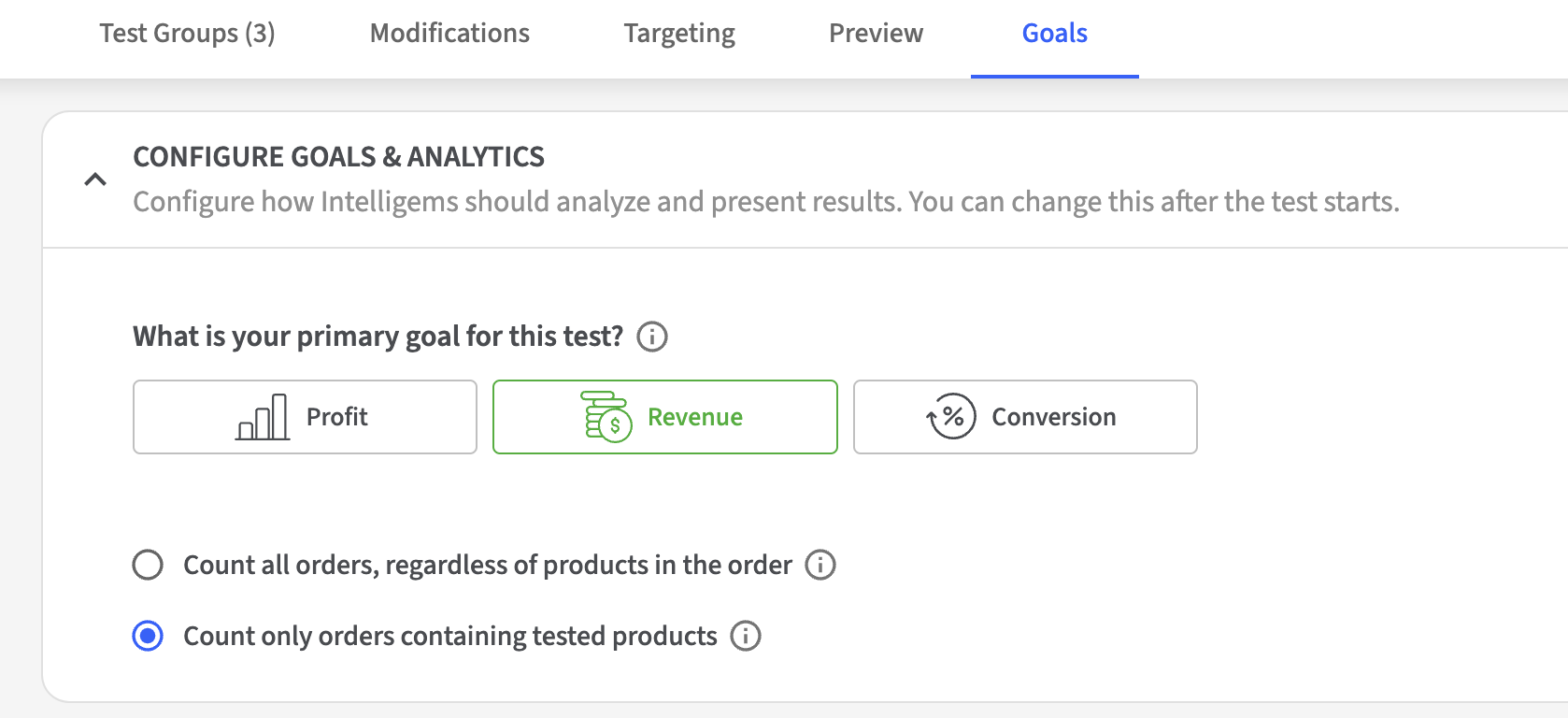
Quick Fill This is best suited for cases where you want to test uniform changes to all products in the test, such as a 10% or $10 dollar increase and decrease across all test products. Autofill is based on the control group product prices that are pulled in from Shopify. To use this option, click 'Quick Fill', then configure the percentage or dollar amount change for each group and whether the change should be an increase or decrease relative to the control, as well as whether the amount should be rounded. Note that increase / decrease, the amount and % / $ selector are three separate fields. Click 'Apply All' when you are done. ![](https://2052204893-files.gitbook.io/~/files/v0/b/gitbook-x-prod.appspot.com/o/spaces%2F2SvefuMLsJyJPAcVXeWc%2Fuploads%2Fgit-blob-6f04cfbdac942a52ebb1cee7c3cdf4f9c21acc67%2F07%20-%20Quick%20Fill.gif?alt=media)
Manually Set Prices This is best suited for cases where you'd like to configure the prices for each product separately, such as a $10 increase to Product A and a $5 increase to Product B. Input the prices and 'compare at' prices (if desired) for each product and test group in the table. You can drag prices from one cell to the next if the prices are the same. You can expand all rows or collapse all rows by pressing 'Expand All' or 'Collapse All' at the top left of the table. ![](https://2052204893-files.gitbook.io/~/files/v0/b/gitbook-x-prod.appspot.com/o/spaces%2F2SvefuMLsJyJPAcVXeWc%2Fuploads%2Fgit-blob-d5d164cacc99e01157c443f9774c564598059e5b%2F08%20-%20Set%20Prices%20manually.gif?alt=media)
{% hint style="info" %} There are two relevant fields for each entry: * Price: The price of the product; this is the price the user will actually be charged when they purchase the product in the given test group, before any discounts. * Compare Price: Also known as the 'compare at price', this price will be shown as a strikethrough. This field is optional and there is no need to populate the 'Compare Price Field' if you do not wish to show a strikethrough. Your theme must be configured to show strikethroughs in order for Intelligems to display one. {% endhint %} Click 'Next step' when you are done setting up your prices. ## Step 5: Set up targeting if needed Targeting is an optional step. By default, a visitor will be immediately assigned to one of the test groups using its random split-test mechanism. This assignment is determined at the first visit and is stored via a first‐party cookie, ensuring that the visitor remains in the same group on subsequent visits during the price test period. The targeting tool allows you to apply specific conditions to certain site visitors. There are a few different ways you can do this: * You can set up currency and country targeting that allows you to limit your test to a single currency and/or a list of specific countries. This feature is defaulted to your store currency for price test. * You can use UTM parameters to customize your user experience under the Audience option. * You can filter traffic based on JavaScript Expressions under the Audience option. * You can filter traffic based on device type (i.e. mobile or desktop) under the Audience option. * You can filter traffic based off of whether a visitor is new or returning under the Audience option. * You can prevent users from being targeted by related experiments to reduce undesired interactions under the [Mutually Exclusive Tests](https://docs.intelligems.io/general-features/targeting/mutually-exclusive-experiments) option. You can learn more about targeting [here](https://docs.intelligems.io/general-features/targeting)! Once you are done setting up targeting, or if you're skipping this step, click 'Next step'. ## Step 6: Save and Preview your Test Once you have completed all the steps, you'll be able to save your test with the green **Save** button in the top right. In the **Preview** tab, you'll find a few options to load the test's preview: * **Open Full Screen Preview:** this will open your website with the Intelligems widget loaded, so you can easily alternate between test groups to preview each group's experience, as well as do onsite edits if necessary (see [step 8](#step-8-edit-content-on-your-site-if-needed) for more details). You can also choose which theme you'd like to preview in if you need to be somewhere other than your live theme! * **Open Mobile Preview:** you'll see a QR code for each test group, so you can load the preview directly on your mobile device. * **Copy Preview URL:** this will copy the preview URL to your clipboard automatically. {% hint style="danger" %} Don’t worry, this won’t set the test live yet and you can come back and edit if you need to make changes! {% endhint %} ## Step 7 (optional): Set up your Goals In the 'Goals' tab, you'll find the option to select what your primary goal is, as well as whether analytics should by default consider only orders containing certain products, or orders containing any products in your shop.
Neither of these choices will affect what data is tracked or available to view, but will allow Intelligems to display analytics so that the most important information is surfaced first. You can change this later after the test has started by changing the option in your Analytics filters. ## Step 8 (optional): Edit content on your site if needed This step is also optional. This tool allows you to dynamically update content on your site based on a visitor's test group. Check out [this article](https://docs.intelligems.io/general-features/onsite-editor) for more details on configuring this option. Please note this is not how you should update price components on your site for a Price Test - that should be completed by [tagging your prices](https://docs.intelligems.io/getting-started/pricing-integration-guides/integration-guide-using-shopify-functions/step-2-tag-product-prices)! ## What happens next? Now that you've created your pricing test, you can QA your test using [this checklist](https://docs.intelligems.io/price-testing/price-test-qa-checklist)! If you have not completed the integration yet, please see our integration guides [here](https://docs.intelligems.io/price-testing/price-testing-integration-guides). --- # Source: https://docs.intelligems.io/checkout/checkout-experiences-library/how-to-set-up-a-product-upsell-checkout-test.md # How to Set Up a Product Upsell Test at Checkout ## No Upsell vs. 3 Products vs. 1 Product Adding upsells to your checkout page is easy with Intelligems. You have the power to not only show upsells to customers at checkout without needing another app, but you can test and measure the impact of product upsells. In this example, you can test no upsells vs. showing 3 products vs. showing 1 product at checkout. ### Who is this for This test is best for: * Brands with accessories or easy add-on products * Teams new to checkout upsells and wanting to validate impact * Growth teams wanting to understand if there's tradeoff between conversion and AOV ### What this Checkout Test does This setup creates a Product Upsell Checkout test that compares different upsell strategies at checkout. Specifically, this test allows you to compare: * **A control (no upsells)** * **Showing 3 product upsells** * **Showing 1 product upsell** The goal is to understand how the number of upsell products shown at checkout impacts performance. This can lead to more follow up tests like position of the checkout upsell, products included in the checkout upsell, and more. ### When to use it Use this setup when you want to : * Test whether showing product upsells at checkout drives incremental value * Compare the impact of one product vs. multiple products * Introduce checkout upsells in a controlled, test-first way * Understand how much choice is appropriate at checkout {% hint style="success" %} **Pro Tip:** Choose products that are one size, and are obvious add-ons. This should feel like a no-brainer add on, similar to gum in the checkout line at the supermarket. Minimal decision making for the customer. {% endhint %} ### Why it matters Checkout is the highest-intent moment in the purchase journey, but it’s also highly sensitive to friction. Testing one product versus multiple products helps you find the right balance between increasing average order value and maintaining conversion. ## How to Set Up This Checkout Test in Intelligems {% embed url="" %} 1. Go to Personalizations > **Checkout** 2. Select **Upsell** 3. Choose the **Product List** template 4. Add a **Block name** 5. Rename the **Location ID** to be descriptive 6. Select your **products** 7. Configure the Block settings including **headline copy, button copy, background, padding, border style, border thickness,** and **corner radius** 8. Click **Next** 9. Click **Complete checkout test setup** 10. Add the block to your Checkout page in Shopify by clicking **Complete Shopify setup** 1. In the Shopify Admin go to **Settings** > **Checkout** 2. Under **Configurations,** click **Customize** to open the Checkout editor 3. In the left panel, click **Apps** 4. Navigate to **Intelligems,** click (+) 5. Paste your block **Location ID** into the block settings 6. Toggle on **Include block in Shop Pay** (recommended) 7. Drag the block into the position at checkout 8. Click **Save** in the top right in the Checkout editor 9. Return to **Intelligems app** and click **Save** 11. At this point, you can make additional test modifications by clicking **+ Add modification** 12. You can update the content, launch a different Theme or Template, and update styles or javascript 13. Add **Targeting** to choose which shoppers you want to see this block. It will be set to all visitors by default. 14. **Save** your test 15. **Preview** your Checkout Test on desktop and mobile 16. When everything looks good, **Schedule Your Test** or **Start** to go live 1. You can select a Start time and Stop time when Scheduling {% hint style="info" %} If you're on the **Core, Plus,** or **Blue** plan, you can test checkout. [Read more here](https://docs.intelligems.io/checkout/testing-checkout-experiences). {% endhint %} --- # Source: https://docs.intelligems.io/checkout/checkout-experiences-library/how-to-set-up-a-shipping-cutoff-message-at-checkout-1.md # How to Set Up a Single Image Social Proof at Checkout ## Social Proof Image Adding an image block to your checkout is a simple yet powerful way to build trust and social proof at the most critical step of the purchase journey. This example highlights how to display a statement like **“100,000+ Happy Customers”** to instantly convey credibility and reinforce shopper confidence. ### Who is this for This experience is designed for **all visitors** — it should display for **100% of checkout traffic.**\ Every shopper benefits from seeing social proof, especially first-time buyers who may not be familiar with your brand yet. ### What this Personalization does This experience adds a single image to your Shopify checkout page.\ The block features a bold, single-line statement that communicates scale, trust, or social proof right where it matters most. This example includes: * **100,000+ Happy Customers, r**einforce credibility and trust at checkout You can customize the text, alignment, and styling to fit your brand’s voice and design system. ### When to use it Use the Single Image Social Proof when you want to: * Build trust and credibility at checkout * Showcase social proof and customer validation * Reassure first-time buyers with clear proof of brand reliability * Strengthen checkout messaging without adding offers or promotions {% hint style="success" %} **Pro Tip:** A Checkout Personalization can include multiple blocks. Combine a trust badge above your payment section with a social proof header or image block for maximum impact. {% endhint %} ### Why it matters Checkout is where hesitation peaks. A short, confident line of social proof can be the reassurance shoppers need to complete their purchase. It builds trust, confirms quality, and helps close the gap between “almost buying” and conversion. ## How to Set Up This Checkout Personalization in Intelligems {% embed url="" %} 1. Go to Personalizations > **Checkout** 2. Select **Static Images** 3. Add a **Block name** 4. Rename the **Location ID** to be descriptive 5. Update **Badge** **1** 1. Choose an **Image** from your Shopify Files 2. Add a **Title** or **Subtitle** 6. Configure the Block settings including **Background, padding, border style, border thickness,** and **corner radius** 7. Click **Next** 8. Click **Complete checkout experience setup** 9. Add the block to your Checkout page in Shopify by clicking **Complete Shopify setup** 1. In the Shopify Admin go to **Settings** > **Checkout** 2. Under **Configurations,** click **Customize** to open the Checkout editor 3. In the left panel, click **Apps** 4. Navigate to **Intelligems,** click (+) 5. Paste your block **Location ID** into the block settings 6. Toggle on **Include block in Shop Pay** (recommended) 7. Drag the block into the position at checkout 8. Click **Save** in the top right in the Checkout editor 9. Return to **Intelligems app** and click **Save**\\ 10. At this point, you can make additional Experience modifications by clicking **+ Add modification** 11. You can update the content, launch a different Theme or Template, and update styles or javascript 12. Add **Targeting** to choose which shoppers you want to see this block. It will be set to all visitors by default. 13. **Save** your Experience 14. **Preview** your Checkout Personalization on desktop and mobile 15. When everything looks good, **Schedule Your Personalization** or **Activate** to go live 1. You can select a Start time and Stop time when Scheduling {% hint style="info" %} If you're on the **Plus** or **Blue** plan, you can test checkout experiences. [Read more here](https://docs.intelligems.io/checkout/testing-checkout-experiences). {% endhint %} --- # Source: https://docs.intelligems.io/checkout/checkout-experiences-library/how-to-set-up-a-shipping-cutoff-message-at-checkout-2.md # How to Set Up a Single Image Influencer Endorsement at Checkout ## Social Proof Image Adding an **Influencer Endorsement Image Block** at checkout is a great way to build instant trust and credibility. It lets you showcase a celebrity, creator, or partner endorsement right at the moment a shopper is completing their purchase, turning familiarity and social proof into conversion. ### Who is this for This experience is designed for **all visitors** — it should display for **100% of checkout traffic.**\ Every shopper benefits from seeing recognizable social proof or influencer credibility, especially those unfamiliar with your brand. ### What this Personalization does This experience adds a single image to your Shopify checkout page.\ The block features a bold, single-line endorsement from the influencer to help build trust. This example includes: * **Influencer image** * **Influencer quote** You can position the image anywhere within the checkout, most often near the order total or payment section for maximum visibility. ### When to use it Use the Influencer Endorsement Image Block when you want to: * Build credibility and trust with a familiar face * Reinforce social proof from press, creators, or partnerships * Showcase your brand’s influence and recognition * Convert brand awareness into purchase confidence {% hint style="success" %} **Pro Tip:** A Checkout Personalization can include multiple blocks. Combine a trust badge above your payment section with a social proof header or image block for maximum impact. {% endhint %} ### Why it matters Social proof is one of the strongest drivers of purchase confidence. Featuring recognizable endorsements or public praise where customers finalize their orders helps remove last-minute doubts and builds deeper trust in your brand. ## How to Set Up This Checkout Personalization in Intelligems {% embed url="" %} 1. Go to Personalizations > **Checkout** 2. Select **Static Images** 3. Add a **Block name** 4. Rename the **Location ID** to be descriptive 5. Update **Badge** **1** 1. Choose an **Image** from your Shopify Files 2. Add a **Title** or **Subtitle** 6. Configure the Block settings including **Background, padding, border style, border thickness,** and **corner radius** 7. Click **Next** 8. Click **Complete checkout experience setup** 9. Add the block to your Checkout page in Shopify by clicking **Complete Shopify setup** 1. In the Shopify Admin go to **Settings** > **Checkout** 2. Under **Configurations,** click **Customize** to open the Checkout editor 3. In the left panel, click **Apps** 4. Navigate to **Intelligems,** click (+) 5. Paste your block **Location ID** into the block settings 6. Toggle on **Include block in Shop Pay** (recommended) 7. Drag the block into the position at checkout 8. Click **Save** in the top right in the Checkout editor 9. Return to **Intelligems app** and click **Save**\\ 10. At this point, you can make additional Experience modifications by clicking **+ Add modification** 11. You can update the content, launch a different Theme or Template, and update styles or javascript 12. Add **Targeting** to choose which shoppers you want to see this block. It will be set to all visitors by default. 13. **Save** your Experience 14. **Preview** your Checkout Personalization on desktop and mobile 15. When everything looks good, **Schedule Your Personalization** or **Activate** to go live 1. You can select a Start time and Stop time when Scheduling {% hint style="info" %} If you're on the **Plus** or **Blue** plan, you can test checkout experiences. [Read more here](https://docs.intelligems.io/checkout/testing-checkout-experiences). {% endhint %} --- # Source: https://docs.intelligems.io/checkout/checkout-experiences-library/how-to-set-up-a-shipping-cutoff-message-at-checkout.md # How to Set Up a Shipping Cutoff Message at Checkout ## Shipping Cutoff Message at Checkout Creating a Shipping Reminder Callout is one of the simplest and most effective ways to set clear expectations at checkout. It lets shoppers know how quickly their order will ship, helping reduce hesitation and increase purchase confidence right before payment. ### Who is this for This experience is designed for **all visitors** — it should display for 100% of checkout traffic.\ Every shopper benefits from knowing how fast your brand ships, especially first-time buyers who may be uncertain about delivery speed. ### What this Personalization does This experience adds a block to your Shopify checkout page. The block features a single, bold message that communicates urgency or clarity around shipping, fulfillment, or delivery timelines. This example includes: * **Orders placed before 2 PM EST ship same day!** ### When to use it Use the Shipping Cutoff Reminder Callout when you want to: * Reduce checkout hesitation by clarifying shipping timelines * Reinforce fulfillment speed and reliability * Set expectations for holiday or limited-time fulfillment windows * Add urgency without using discounts or incentives {% hint style="success" %} **Pro Tip:** A Checkout Personalization can include multiple blocks. Combine a trust badge above your payment section with a social proof header or image block for maximum impact. {% endhint %} ### Why it matters Checkout is the most important touchpoint in the customer journey.\ Clear, proactive messaging helps shoppers feel confident and informed, reducing cart abandonment caused by uncertainty about shipping speed or delivery expectations. ## How to Set Up This Checkout Personalization in Intelligems {% embed url="" %} 1. Go to Personalizations > **Checkout** 2. Select **Callout** 3. Add a **Block name** 4. Rename the **Location ID** to be descriptive 5. Update **Badge** 1 1. Choose an **Icon** 2. Add a **Title** or **Subtitle** 6. Configure the Block settings including **Background, padding, border style, border thickness,** and **corner radius** 7. Click **Next** 8. Click **Complete checkout experience setup** 9. Add the block to your Checkout page in Shopify by clicking **Complete Shopify setup** 1. In the Shopify Admin go to **Settings** > **Checkout** 2. Under **Configurations,** click **Customize** to open the Checkout editor 3. In the left panel, click **Apps** 4. Navigate to **Intelligems,** click (+) 5. Paste your block **Location ID** into the block settings 6. Toggle on **Include block in Shop Pay** (recommended) 7. Drag the block into the position at checkout 8. Click **Save** in the top right in the Checkout editor 9. Return to **Intelligems app** and click **Save**\\ 10. At this point, you can make additional Experience modifications by clicking **+ Add modification** 11. You can update the content, launch a different Theme or Template, and update styles or javascript 12. Add **Targeting** to choose which shoppers you want to see this block. It will be set to all visitors by default. 13. **Save** your Experience 14. **Preview** your Checkout Personalization on desktop and mobile 15. When everything looks good, **Schedule Your Experience** or **Activate** to go live 1. You can select a Start time and Stop time when Scheduling {% hint style="info" %} If you're on the **Plus** or **Blue** plan, you can test checkout experiences. [Read more here](https://docs.intelligems.io/checkout/testing-checkout-experiences). {% endhint %} --- # Source: https://docs.intelligems.io/shipping-testing/how-to-set-up-a-shipping-test.md # How to Set Up a Shipping Test ## Step 1: Create a new test Go to the **Tests** tab in the left menu in the Intelligems app. Click **Create New Test** above the experiments table. Enter a **Name** and **Description** for your test. This information is internal only - add enough detail so you'll remember your goals when reviewing results weeks later. Select **Shipping Test** and then **Create Test**.
## Step 2: Create your test groups Create 2-5 groups by clicking **+**. Name each group and use the slider to allocate traffic percentage. Click **Next step** when ready.
{% hint style="info" %} The more groups you have, the longer it will take to get statistically significant results. You’ll need about 300 orders for each group in the test to detect a 10% change in conversion with 90% confidence. {% endhint %} ## Step 3: Select shipping profiles and zones to test Using the expander for each shipping profile, select the zone(s) where the Intelligems rate will be added. The Intelligems rate will *only* apply to the profiles and zones selected here and will apply to *all* orders that meet the criteria for the selected profiles and zones, subject to other cart value and weight criteria which you'll configure in the next step.
{% hint style="danger" %} Consider carefully which profile(s) you add the Intelligems rate to. If your store's products are spread across multiple profiles, adding the Intelligems rate to a subset of profiles may lead to unexpected behavior at checkout. Learn more about how Shopify combines rates [here.](https://help.shopify.com/en/manual/shipping/setting-up-and-managing-your-shipping/shipping-profiles/combined-shipping-rates) {% endhint %} ## Step 4: Select the rates you want to replace for this test Once you have selected the profiles and zones you want Intelligems rates to apply to, you will select which rates from those zones you want to test. These rates will be hidden during the test and replaced by an Intelligems rate, which will vary by test group.
## Step 6: Configure the Intelligems rate(s) In this step, you will configure the rate(s) to be added to the previously selected profiles and zones for each test group.
For each group, choose the rate type that most closely aligns with what you're *testing* (i.e. what you want to change in each test group). See below for some tips on when to select each rate type and examples of combined rates: ## Different Rate Types ![Rates in blue are provided by Intelligems; rates in green are configured in Shopify](https://hs.intelligems.io/hs-fs/hubfs/8-png.png?width=600\&height=48\&name=8-png.png) #### **Flat Rate:** You are testing rate(s) that are not set up with conditions in Shopify ("flat rates")

Example 1: Testing a single flat rate
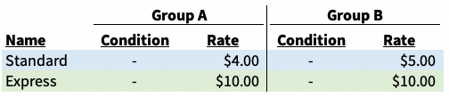
Example 2: Testing multiple flat rates
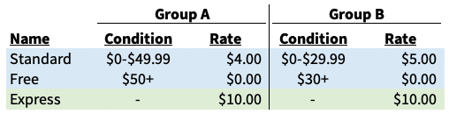
#### **Flat Rate with Threshold**: You are testing a flat rate and the threshold for free shipping

Example 3: Testing flat rate and a threshold
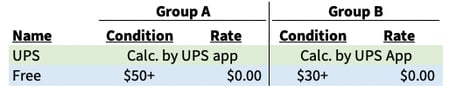
#### **Threshold Only**: You are testing a free shipping threshold but want to keep your existing rates for those that do not reach the threshold

Example 4: Testing a free threshold with rates under threshold provided by third party app
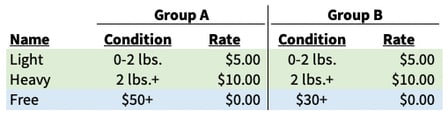
Example 5: Testing a free threshold with weight-based rates under threshold configured in Shopify
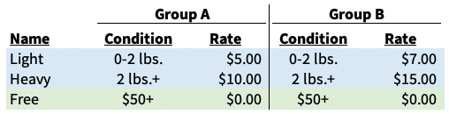
#### **Tiered by Price or Weight**:

Example 6: Testing rates for each weight-based tier
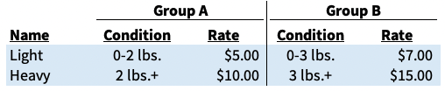
Example 7: Testing rates and conditions for each weight-based tier
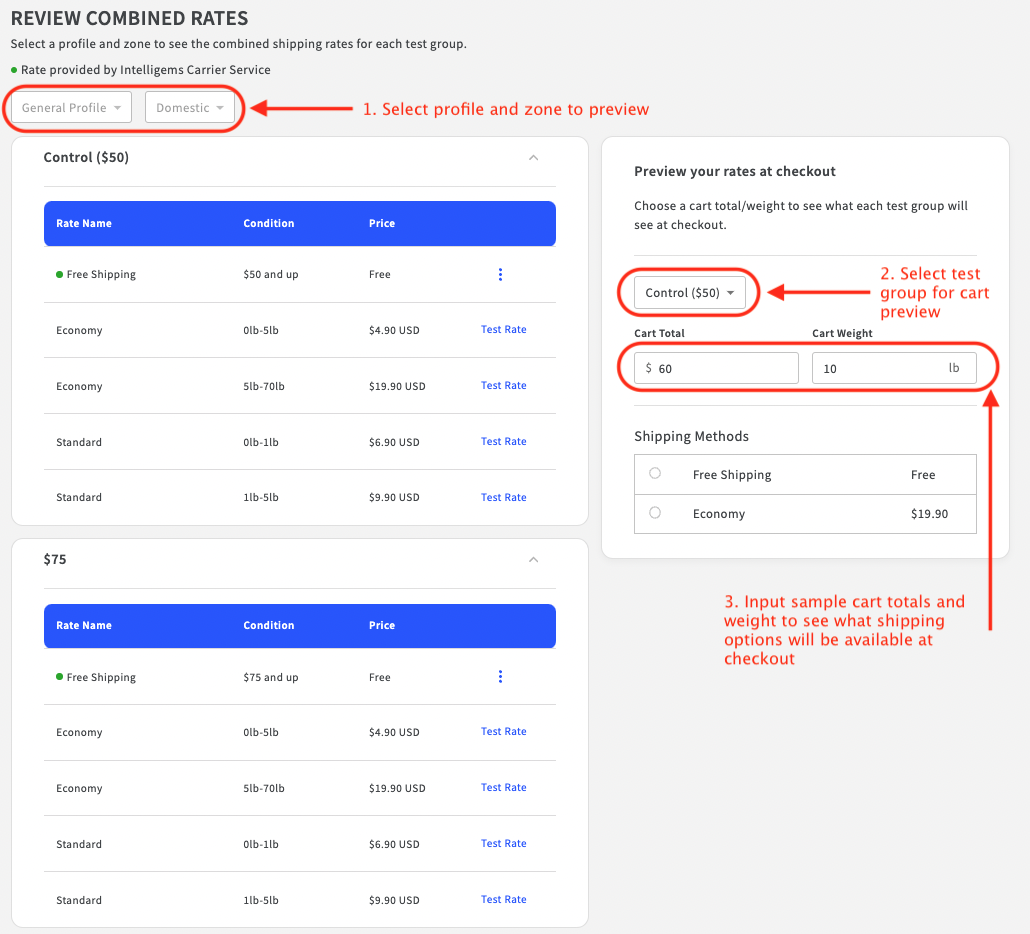
#### **Custom**: Have something else you want to test? [Let us know](https://portal.usepylon.com/intelligems/forms/intelligems-support-request) and we'll see what we can do! ## Step 7: Review your rates Use the drop-downs to review profiles, zones, and test groups. 1. Select profile and zone to preview 2. Select test group for cart preview 3. Input sample cart totals and weight to see what shipping options will be available at checkout {% hint style="warning" %} Rates displayed at checkout during the test may differ from preview if order products are included in multiple shipping profiles. {% endhint %}

Review combined rates

## Step 8: Enable & customize your progress bar if needed If you currently show a shipping progress bar on your site or if you would like to include one for your test and you are testing shipping thresholds, it is recommended to use the built-in option from Intelligems found in the [**Global Styles**](https://app.intelligems.io/global-styles/experiences) components so that the bar will update with the test group. Adding the Intelligems progress bar typically requires adding a component to your theme's liquid code and customizing the bar's style in the Intelligems app. Learn more about adding the Intelligems shipping progress bar and other components [here](https://docs.intelligems.io/shipping-testing/shipping-progress-bar-integration). See below for a few examples of a configured shipping progress bar during a live test.
Example 1: Under the Free Shipping ThresholdExample 2: Exceeded the Free Shipping ThresholdExample 3: Under the Cart Minimum Threshold
## Step 9: Edit content on your site if needed This step is also optional. This tool allows you to dynamically update content on your site based on a visitor's test group. Check out [this article](https://docs.intelligems.io/content-testing/find-and-replace) for more details on configuring this option. ## Step 10: Set up targeting if needed Targeting is an optional step. By default, a visitor will be immediately assigned to one of the test groups using its random split-test mechanism. This assignment is determined at the first visit and is stored via a first‐party cookie, ensuring that the visitor remains in the same group on subsequent visits during the shipping test period. The targeting tool allows you to apply specific conditions to certain site visitors. There are a few different ways you can do this: * You can set up currency and country targeting that allows you to limit your test to a single currency and/or a list of specific countries. This feature is defaulted to your store currency for price test. * You can use UTM parameters to customize your user experience under the Audience option. * You can filter traffic based on JavaScript Expressions under the Audience option. * You can filter traffic based on device type (i.e. mobile or desktop) under the Audience option. * You can filter traffic based off of whether a visitor is new or returning under the Audience option. * You can prevent users from being targeted by related experiments to reduce undesired interactions under the Mutually Exclusive Tests option. You can learn more about targeting [here](https://docs.intelligems.io/content-testing/targeting)! ## Step 11: Save and Preview your Test Once you have completed all the steps, you'll be able to save your test with the green **Save** button in the top right. In the **Preview** tab, you'll find a few options to load the test's preview: * **Open Full Screen Preview:** this will open your website with the Intelligems widget loaded, so you can easily alternate between test groups to preview each group's experience, as well as do onsite edits if necessary (see [Step 8](#step-8-edit-content-on-your-site-if-needed) for more details). You can also choose which theme you'd like to preview in if you need to be somewhere other than your live theme! * **Open Mobile Preview:** you'll see a QR code for each test group, so you can load the preview directly on your mobile device. * **Copy Preview URL:** this will copy the preview URL to your clipboard automatically. Once the test is saved, you should be able to see Intelligems as a rate carrier in your Shopify shipping settings for each profile and zone you selected in step 2. If you do not see it there automatically, you may need to click 'Add rate' and select it from the carrier options. {% hint style="info" %} Don’t worry, this won’t set the test live yet and you can come back and edit if you need to make changes! {% endhint %} ## Step 12: Enter the test goals Here you will choose the primary goal for the test. This will not affect what data is tracked or displayed, but will allow Intelligems to show the most important analytics first. ## What happens next? Now that you've created your shipping test, you can QA your test using [this checklist](https://docs.intelligems.io/shipping-testing/shipping-test-qa-checklist)! --- # Source: https://docs.intelligems.io/checkout/checkout-experiences-library/how-to-set-up-a-single-product-upsell-checkout-experience.md # How to Set Up a Single Product Upsell Personalization at Checkout ## Adding a Single Product Upsell at Checkout Adding upsells to your checkout page is easy with Intelligems. You have the power to not only show upsells to customers at checkout without needing another app, but you can measure the impact of product upsells with Personalizations. In this example, you'll learn how to set up a single product upsell at checkout via Personalizations. \ \ The goal is to offer a low-friction add-on that customers can add with one click before completing their purchase. ### Who is this for This setup is best for: * Brands with impulse add-on products that are complementary, one-size / color, and don't take any decision making to add * Brands that know exactly which product they want to show, or have already tested and want to rollout their learnings \ Checkout Personalizations require Shopify Plus. {% hint style="success" %} **Pro Tip:** Choose products that are one size, and are obvious add-ons. This should feel like a no-brainer add on, similar to gum in the checkout line at the supermarket. Minimal decision making for the customer. {% endhint %} ### When to use this Use this Personalization when you want to: * Launch a checkout upsell without running a test * Promote a single, obvious and complementary impulse item * Increase average order value with minimal risk to conversion * Keep checkout simple and free of choice overload This is a strong default for merchants new to checkout upsells. {% hint style="info" %} Want to run a Product Upsell Checkout Test? [Follow these steps.](https://docs.intelligems.io/checkout/checkout-experiences-library/how-to-set-up-a-product-upsell-checkout-test) {% endhint %} ### What this Checkout Personalization does This setup creates a Product Upsell Checkout Personalization that shows a single product upsell at checkout to 100% of your traffic, or the targeted audience you choose during setup. ### Why it matters Checkout is the highest-intent moment in the purchase journey, but too many choices can reduce conversion. A single-product upsell allows you to increase average order value while keeping checkout fast and focused. ## How to Set Up This Checkout Personalization in Intelligems {% embed url="" %} 1. Go to Personalizations > **Checkout** 2. Select **Upsell** 3. Choose the **Single Product** template 4. Add a **Block name** 5. Rename the **Location ID** to be descriptive 6. Select your **product** 7. Configure the Block settings including **headline copy, button copy, background, padding, border style, border thickness,** and **corner radius** 8. Click **Next** 9. Click **Complete checkout experience setup** 10. Add the block to your Checkout page in Shopify by clicking **Complete Shopify setup** 1. In the Shopify Admin go to **Settings** > **Checkout** 2. Under **Configurations,** click **Customize** to open the Checkout editor 3. In the left panel, click **Apps** 4. Navigate to **Intelligems,** click (+) 5. Paste your block **Location ID** into the block settings 6. Toggle on **Include block in Shop Pay** (recommended) 7. Drag the block into the position at checkout 8. Click **Save** in the top right in the Checkout editor 9. Return to **Intelligems app** and click **Save** 11. At this point, you can make additional test modifications by clicking **+ Add modification** 12. You can update the content, launch a different Theme or Template, and update styles or javascript 13. Add **Targeting** to choose which shoppers you want to see this block. It will be set to all visitors by default. 14. **Save** your Personalization 15. **Preview** your Checkout Test on desktop and mobile 16. When everything looks good, **Schedule Your Personalization** or **Activate** to go live 1. You can select a Start time and Stop time when Scheduling {% hint style="info" %} If you're on the **Core, Plus,** or **Blue** plan, you can test checkout experiences. [Read more here](https://docs.intelligems.io/checkout/testing-checkout-experiences). {% endhint %} --- # Source: https://docs.intelligems.io/content-testing/content-testing-getting-started/how-to-set-up-a-split-url-test.md # How to Set Up a Split URL Test {% embed url="" %} Video: How to create and set up a Split URL Test with Intelligems {% endembed %} ## **Step 1: Create a new test** Navigate to the "A/B Tests" tab in the menu on the left-hand side of the Intelligems app. Once you're there, click 'Create New Test' above the experiments table. Give it a name, and a helpful description. Then select "Content Test" , then "Split URL Test", then "Create Test".
## **Step 2: Create your test groups** Create a test group for each redirect variation you want to include in the test. Fill in the Test Name and Test Description for the experiment you are creating. This information is all internal - the more detail you include here the better! Tests can be live for several weeks, and your future self will thank you for including the details here. You can add new groups to include in the test by clicking on the ‘+’ button. Name the groups for the experiment and use the slider to allocate what percentage of traffic will go to each group. Click ‘Next Step’ when you are done.
## **Step 3:** Set up redirects There are two types of redirects: * **Simple Redirects** - this type of redirect is best used when targeting a small quantity of specific URLs * **Advanced Redirects** - this type of redirect is best used when targeting many URLs that have a similar pattern ### Simple Redirect Setup Enter the URL you want to *redirect from* in the Origin URL field. Then, for each test group enter the URL you want to *redirect to*. In the example below, we redirect from to . When visitors land on , those in the Control Group will remain at the original URL, while those in the test group "Redirect Test Group" will be redirected to . Create a Redirect for each origin URL you want to redirect from.
### Advanced Redirect Setup Advanced redirects allow for more flexibility when defining the criteria for a qualifying page URL. Start by choosing a matching option and entering a value to match against.
Here are some examples of different matching options with values: * **matches exactly** - `https://deepdish-pizza.myshopify.com/en-us/cool-collections/product-a` * **contains** - `sofa` * **ends with -** `/products/product-a` Note: this will evaluate the URL Path and ignore query parameters. So `https://example.com/products/product-a?utm_source=abc` DOES meet the conditions here * matches regex - `^.*\/[a-zA-Z]{2}-[a-zA-Z]{2}\/pages\/abc$` This regex expression checks for a URL in the pattern `example.com/en-US/pages/abc.` Make sure all matching conditions are case *insensitive.* {% hint style="warning" %} **Products Redirects** For most product redirects, it would be better to use ENDS WITH than CONTAINS. For example, if you use contains `/products/product-abc` but you also have a `/products/product-abc-plus`, then that would match both products. If you were looking to just target the non-plus version, you should use ENDS WITH. {% endhint %} {% hint style="info" %} Note: "/cool-collections" will be evaluated differently than "cool-collections". A redirect set to look for "cool-collections" (without a leading /) will evaluate to true for pages AND whereas a redirect set to look for "/cool-collections" will only evaluate to true for . {% endhint %} After selecting a matching option and entering a condition, select which type of Redirect Type to use: * Replace Full URL - this option updates the entire URL * Replace Matching Text - this option will allow you to find specific values in the current page URL and replace them with text of your choosing If you choose `Replace Full URL`, you'll need to enter a full valid URL for each test group redirect. If you choose `Replace Matching Text`, you'll need to enter valid find and replace values.
### Additional Features #### Redirect One Time vs. Redirect Every Time Selecting `Redirect One Time` ensures that this redirect only fires one time for each visitor. On subsequent visits to the origin URL, visitors will be left on that page and not redirected again. This is the default behavior when creating a redirect. An example of when you'd want to choose `Redirect One Time`: say you're sending some traffic from a Facebook ad to your homepage, and you want to test to see if using a landing page from the ad would be better. If you didn't select `Redirect One Time` for this, then visitors from the ad who are in the test group would be redirected to the landing page every time they tried to go to the homepage. An example of when you'd want to select `Redirect Every Time`: say you're testing two versions of a collection page. You would want your visitors in the test group to be redirected every time they went to that collection page so they always see the same version. You can test different URLs in the Redirect Checker to see where a user in each test group would get redirected.
#### Query Parameters You can add or modify query parameters for each redirect. Query parameters will *not* be evaluated when deciding if an origin URL qualifies for a redirect. Only the domain and pathname will be evaluated.
{% hint style="info" %} Note: Query parameters from the origin URL *will be persisted* to the redirect URL even if they are not added in Intelligems. Use Intelligems query parameters to add new values or modify existing values. {% endhint %} #### Subdomain Redirects Intelligems allows you to test redirects between subdomains. All subdomains used in a redirect test must be registered as a subdomain on your primary domain.
#### Multiple Domain Support If your brand operates multiple domains under one Shopify account (e.g., dogsuppy.com and dogsuppy.co.uk), you can register all of them in your Intelligems Settings. This allows you to set up Split URL tests for each domain without manually switching your primary domain. **Example setup for multi-domain brands:** | Origin URL | Redirect URL | Supported? | | ---------------------- | -------------------------- | ---------- | | dogsuppy.com/landing | try.dogsuppy.com/landing | ✅ Yes | | dogsuppy.co.uk/landing | try.dogsuppy.co.uk/landing | ✅ Yes | | dogsuppy.com/landing | dogsuppy.co.uk/landing | ❌ No | **Important:** Cross-domain redirects (redirecting visitors from one top-level domain to a different top-level domain) are not supported. Each domain's redirects must stay within that domain or its subdomains. To register additional domains, go to **Settings → Domain Settings** in the Intelligems app. ## **Step 4: Set up targeting if needed** Targeting is an optional step. By default, a visitor will only be included in a split URL test if they visit the origin URL. When a visitor lands on the origin URL, they are randomized into a test group. If they are not in the control group, they are redirected to the specified destination URL. The targeting tool allows you to apply specific conditions to certain site visitors. There are a few different ways you can do this: * You can set up currency and country targeting that allows you to limit your test to a single currency and/or a list of specific countries. This feature is defaulted to your store currency for price test. * You can use UTM parameters to customize your user experience under the Audience option. * You can filter traffic based on JavaScript Expressions under the Audience option. * You can filter traffic based on device type (i.e. mobile or desktop) under the Audience option. * You can filter traffic based off of whether a visitor is new or returning under the Audience option. * You can prevent users from being targeted by related experiments to reduce undesired interactions under the Mutually Exclusive Tests option. You can learn more about targeting [here](https://docs.intelligems.io/content-testing/targeting)! ### **Example: Creating a Split URL Test for a Meta Campaign** {% embed url="" %} ## **Step 5: Set Your Test Goals** Finally, select whether analytics should by default consider only orders containing certain products you want to test (for example something related to a particular PDP), or orders containing any products in your shop.\ \ You can always change this later after the test has started by changing the option in your Analytics filters.
--- # Source: https://docs.intelligems.io/content-testing/content-testing-getting-started/how-to-set-up-a-template-test.md # How to Set Up a Template Test Template testing allows you to split-test Shopify templates to determine which is the best for conversion, revenue, and profit. Take a look at Shopify's documentation on templates [here](https://help.shopify.com/en/manual/online-store/themes/theme-structure/templates)! {% embed url="" %} Video: Setting up a template test in Intelligems {% endembed %} {% hint style="warning" %} Make sure that the Intelligems template snippet is installed in your theme. If you are using the Intelligems Theme Block, it will automatically be added. If you are using the Intelligems javascript snippet, [more information can be found here](https://docs.intelligems.io/developer-resources/intelligems-theme-snippets). This snippet must be included in your theme for template tests to work properly. {% endhint %} {% hint style="warning" %} All templates for a Template Test must be in a live theme. {% endhint %} ## **Step 1: Create a new test** Navigate to the "A/B Tests" tab in the menu on the left-hand side of the Intelligems app. Once you're there, click 'Create New Test' above the experiments table. Select "Content Test" , then "Template Test", then "Create Test".
## **Step 2: Create your test groups** Create a test group for each template variation you want to include in the test. Fill in the Test Name and Test Description for the experiment you are creating. This information is all internal; the more detail you include here the better. Tests can be live for several weeks, and your future self will thank you for including the details here. You can add new groups to include in the test by clicking on the ‘+’ button. Name the groups for the experiment and use the slider to allocate what percentage of traffic will go to each group. Click ‘Continue’ when you are done.
## **Step 3:** Assign a template for each test group Select a template for each test group. You can choose an existing template or duplicate the template selected for the control group by selecting `Duplicate Control:`
{% hint style="info" %} Please note that only templates chosen for your test groups will be tested. For example, if you choose `product-template-a` (control group) vs. `product-template-b`, only products assigned to the template in the control group will be affected by the test. If you're testing templates, a visitor will only be included in the test if they visit a page that is by default assigned to the template selected for the control group. Therefore, the template that is currently in use on your site must be chosen as the control group. {% endhint %} You can hover over each test group screenshot to view the following options: * Edit in Shopify: links to the test group template in your Shopify admin (must be a live theme) * Quick View: opens a snapshot with a desktop and mobile preview of the test group template * View in Browser: links to a preview of the template in a new tab * Template Name: opens edit mode for the test group template If you have made changes to a selected template in Shopify, you can use the "refresh" button next to the test group name to refresh the screenshot shown.
## **Step 4: Set up targeting if needed** Targeting is an optional step. By default, a visitor will only be included in a template test if they visit a page that is by default assigned to the template selected for the control group. Therefore, the template that is currently in use on your site must be chosen as the control group. The targeting tool allows you to apply specific conditions to certain site visitors. There are a few different ways you can do this: * You can set up currency and country targeting that allows you to limit your test to a single currency and/or a list of specific countries. This feature is defaulted to your store currency for price test. * You can use UTM parameters to customize your user experience under the Audience option. * You can filter traffic based on JavaScript Expressions under the Audience option. * You can filter traffic based on device type (i.e. mobile or desktop) under the Audience option. * You can filter traffic based off of whether a visitor is new or returning under the Audience option. * You can prevent users from being targeted by related experiments to reduce undesired interactions under the Mutually Exclusive Tests option. You can learn more about targeting [here](https://docs.intelligems.io/content-testing/targeting)! ## Step 5: Set Your Test Goals Finally, select whether analytics should by default consider only orders containing certain products you want to test (for example something related to a particular PDP), or orders containing any products in your shop.\ \ You can always change this later after the test has started by changing the option in your Analytics filters.
--- # Source: https://docs.intelligems.io/content-testing/content-testing-getting-started/how-to-set-up-a-test-using-our-javascript-api.md # How to Set Up a Test using our JavaScript API ## **Step 1: Create a new test** Navigate to the "A/B Tests" tab in the menu on the left-hand side of the Intelligems app. Once you're there, click "Create New Test" above the experiments table. Fill in the Name and Description for the experiment you are creating. This information is all internal - the more detail you include here the better! Tests can be live for several weeks, and your future self will thank you for including the details here. Select 'Content Test", then "Onsite Edits", and then "Create Test".
## **Step 2: Create your test groups** Create between two and five groups to include in the test by clicking on the ‘+’ button. Name the groups for the experiment and use the slider to allocate what percentage of traffic will go to each group. When you are done adding groups, click "Next step" in the top right.
{% hint style="info" %} The more groups you have, the longer it will take to get statistically significant results. You’ll need about 300 orders for each group in the test to detect a 10% change in conversion with 90% confidence. {% endhint %} ## Step 3: Skip "Modifications" No need to set up any Content Edits, Styles or JavaScript in this step of the set up if you are planning to use our JavaScript API. Go ahead and move on to step 4. ## **Step 4: Set up targeting if needed** Targeting is an optional step. This tool allows you to apply specific conditions to certain site visitors. There are a few different ways you can do this: * You can set up currency and country targeting that allows you to limit your test to a single currency and/or a list of specific countries. This feature is defaulted to your store currency for price test. * You can use UTM parameters to customize your user experience under the Audience option. * You can filter traffic based on JavaScript Expressions under the Audience option. * You can filter traffic based on device type (i.e. mobile or desktop) under the Audience option. * You can filter traffic based off of whether a visitor is new or returning under the Audience option. * You can prevent users from being targeted by related experiments to reduce undesired interactions under the Mutually Exclusive Tests option. You can learn more about targeting [here](https://docs.intelligems.io/content-testing/targeting)! ## Step 5: Choose how you'd like to measure your results and save your test Finally, select whether analytics should by default consider only orders containing certain products you want to test (for example something related to a particular PDP), or orders containing any products in your shop. You can change this later after the test has started by changing the option in your Analytics filters. Go ahead and save the test, and move on to step 6.
## Step 6: Get relevant IDs Custom content tests require you to know the experiment ID and test group IDs so that you can branch your design or logic accordingly. You can get this information by clicking the "Show Info" button in the more menu:
## Step 7: Use the Intelligems window object API to set up your custom test Now that you have your test group IDs, you can use Intelligems' [window object Javascript API](https://docs.intelligems.io/developer-resources/javascript-api) to get the current user's test group for the given experiment. Once you know the user's test group, you can branch logic and styling with it. For example, you might set a class or show/hide an element to affect styling, or conditional logic in your own Javascript code to provide a different experience. --- # Source: https://docs.intelligems.io/content-testing/content-testing-getting-started/how-to-set-up-a-theme-test.md # How to Set Up a Theme Test {% embed url="" %} ## **Step 1: Create a new test** Navigate to the "A/B Tests" tab in the menu on the left-hand side of the Intelligems app. Once you're there, click 'Create New Test' above the experiments table. Select "Content Test" , then "Theme Test", then "Create Test".
## **Step 2: Create your test groups** Create a test group for each theme you want to include in the test. Fill in the Test Name and Test Description for the experiment you are creating. This information is all internal - the more detail you include here the better! Tests can be live for several weeks, and your future self will thank you for including the details here. You can add new groups to include in the test by clicking on the ‘+’ button. Name the groups for the experiment and use the slider to allocate what percentage of traffic will go to each group. Click ‘Continue’ when you are done.
## **Step 3:** Select the themes you want to test Select the theme you'd like to test for each test group.
{% hint style="warning" %} Make sure the [Intelligems script is installed](https://docs.intelligems.io/getting-started/adding-intelligems-script-to-your-theme) in all themes that you're testing! This is how we will hide the preview bar at the bottom of the theme. If you have checkout.liquid, ensure you have installed the Intelligems script on this page as well, so that the preview bar is hidden at checkout (if you do not have checkout.liquid, the bar will be hidden automatically). {% endhint %} {% hint style="info" %} Product page templates are set at the product level, and the template name must be available in the live theme. When testing two different themes, make sure the template names match, so that the templates you've chosen for each product exist in both themes. If the product pages look correct when previewing the test theme(s), then you're good to go! {% endhint %} ## **Step 4: Set up targeting if needed** Targeting is an optional step. By default, a visitor will be immediately assigned to one of the test groups using its random split-test mechanism. This assignment is determined at the first visit and is stored via a first‐party cookie, ensuring that the visitor remains in the same group on subsequent visits during the theme test period. Every theme that you include in your test configuration—both the live theme and the test themes—is part of the theme test. The targeting tool allows you to apply specific conditions to certain site visitors. There are a few different ways you can do this: * You can set up currency and country targeting that allows you to limit your test to a single currency and/or a list of specific countries. This feature is defaulted to your store currency for price test. * You can use UTM parameters to customize your user experience under the Audience option. * You can filter traffic based on JavaScript Expressions under the Audience option. * You can filter traffic based on device type (i.e. mobile or desktop) under the Audience option. * You can filter traffic based off of whether a visitor is new or returning under the Audience option. * You can prevent users from being targeted by related experiments to reduce undesired interactions under the Mutually Exclusive Tests option. You can learn more about targeting [here](https://docs.intelligems.io/content-testing/targeting)! ## Step 5: Set Your Test Goals Finally, select whether analytics should by default consider only orders containing certain products you want to test (for example something related to a particular PDP), or orders containing any products in your shop.\ \ You can always change this later after the test has started by changing the option in your Analytics filters.
## Previewing Themes through Shopify Admin When trying to preview a theme through Shopify Admin, you might get redirected to a different theme if that theme has been used in an Intelligems theme test. Let's look at an example when there is a live Intelligems theme test: Control Group: Default Theme (Theme ID: 1) Test Group: Secondary Theme (Theme ID: 2) If you preview Secondary Theme from Shopify Admin and have not been previously included in the live Intelligems theme test, you'll be randomly assigned a test group when you enter Secondary Theme. Depending on your test group assignment, you'll either remain in the Secondary Theme if you were assigned to the test group, or you'll be redirected to the Default Theme indicating you were assigned to the Control Group. Let's say you were assigned the test group and remain in Secondary Theme. If you were to preview the Default Theme from Shopify Admin, you'll be redirected to the Secondary Theme since that is the theme assigned to your test group. If you wish to preview the Default Theme, you can use the Intelligems preview widget to switch your group. ## Why am I still being redirected away from a theme when I don't have a theme test live? This is to ensure all users who were assigned a preview theme during your test do not remain in a preview theme once that test is ended. This redirection will only happen for themes that were included in an Intelligems theme test and will only occur once. After your initial redirection, you'll be able to preview that theme through Shopify Admin normally. --- # Source: https://docs.intelligems.io/offer-personalizations/offers-library/how-to-set-up-an-early-access-sale.md # How to Set Up an Early Access Sale ## Early Access Sale You can use Offers to power your Early Access Sales. If you'd like to create a rich experience for VIP customers that you offer Early Access to, use build an Offer that updates the content, powers the discount automatically, and makes the customer feel special. {% hint style="info" %} Offer Personalizations are available on Core, Plus, and Blue Plans. Testing your Offers against each other is only available on Plus and Blue. {% endhint %} **Goal:** Create VIP early access moment; replicate the public sale experience **Who:** VIP customers **What:** 25% off your order **When:** 2-5 days before the public sale launches **Offer Type:** Percentage off your order; most common use case **Amount:** 25% * This amount might be set based on the goal of the sale, competitive landscape, or MAP policy with retailers **Offer Experience:** * Timing: Time-limited, typically 2-5 days * Where: * Website * Homepage * PDP banners * Cart * Checkout * Email & SMS to VIP customers * VIP Facebook or WhatsApp group * Activation: Automatic, no code, with a scheduled start time and scheduled end time **Why it works:** Customers love feeling like VIPs and getting early access to sales, plus it's a natural urgency moment since it's time-bound. ### How to Set Up This Offer in Intelligems {% embed url="" %} 1. Go to Personalizations > **Offers** 2. Select **Amount off Order** 3. Add an Offer name (internal name) like Early Access 25% off 4. Add a Discount name that matches the sale. This will be shown to shoppers in their cart and at checkout. 1. e.g. Exclusive Early Access 25% off 5. Select discount value 1. Choose **percentage off order** to offer a discount amount on their order 2. Choose **dollar off per order** to offer a flat dollar amount discount on their order 6. Choose if you want minimum purchase requirements 1. Select quantity of items if you want a customer to purchase a minimum X units to qualify for the discount 2. Select subtotal of items if you want a customer to purchase a minimum $ amount to qualify for the discount 7. Leave the box unchecked if there are no minimum requirements for the discount to be applied 8. Select which products you want this discount to be applied to. It will apply to all products by default if no products are selected. 1. You can select products based on Product Type, Vendor, Status, Collections, and also search for individual products {% hint style="info" %} We recommend setting up a Sale collection in Shopify and then select that collection {% endhint %} 9. Choose if you want this discount to combine with other Shopify discounts 1. Examples: a Welcome Offer, loyalty, affiliate, influencer, or any other discount you have live in your Shopify backend that is set up to be combined with other discounts 10. Add components like **Progress Bar** or **Offer message** to support the discount messaging 11. Configure your components 1. Make sure you've previously installed these components in your theme via Global Styles tab 12. Click **Complete offer setup** 13. At this point, you can make additional modifications by clicking **+ Add modification** 1. You can update the content, launch a different Theme or Template, and update styles or javascript 2. We recommend launching your public Sale theme to this audience with some additional content edits using the words Early Access across the site to make it feel special 14. Add **Targeting** to choose which shoppers you want to see this 25% off discount Offer. In this case, select **Link** and choose homepage or drive to the sale collection page 15. Copy that link 16. **Save** your Offer 17. **Preview** your Offer on desktop and mobile 18. When everything looks good, **Schedule Your Personalization** or **Activate** to go live 1. You can select a Start time and Stop time when scheduling 19. Share the link with your VIP Early Access customers via SMS, email etc. {% hint style="info" %} Shoppers will only be able to access that Offer via that link. All other visitors will see your current site with no Offer. {% endhint %} 20. Double-check everything else on your list to make sure you're supporting this Early Access sale as intended. --- # Source: https://docs.intelligems.io/content-testing/content-testing-getting-started/how-to-set-up-an-onsite-edits-test.md # How to Set Up an Onsite Edits Test {% embed url="" %} How to use the onsite editor {% endembed %} ## **Step 1: Create a new test** Navigate to the "A/B Tests" tab in the menu on the left-hand side of the Intelligems app. Once you're there, click 'Create New Test' above the experiments table. Give it a name, and a specific description of what you're testing. Select "Content Test", then "Onsite Edits", then "Create Test".
## **Step 2: Create your test groups** Create a test group for each variation you want to include in the test. Fill in the Test Name and Test Description for the experiment you are creating. This information is all internal - the more detail you include here the better! Tests can be live for several weeks, and your future self will thank you for including the details here. You can add new groups to include in the test by clicking on the ‘+’ button. Name the groups for the experiment and use the slider to allocate what percentage of traffic will go to each group. Click ‘Continue’ when you are done.
## **Step 3: Set up targeting if needed** Targeting is an optional step. By default, a visitor will be immediately assigned to one of the test groups using its random split-test mechanism. This assignment is determined at the first visit and is stored via a first‐party cookie, ensuring that the visitor remains in the same group on subsequent visits during the edits test period. Onsite Edits are made at the selector level; these same selectors can and do appear on many pages throughout the site. The targeting tool allows you to apply specific conditions to certain site visitors. There are a few different ways you can do this: * You can set up currency and country targeting that allows you to limit your test to a single currency and/or a list of specific countries. This feature is defaulted to your store currency for price test. * You can use UTM parameters to customize your user experience under the Audience option. * You can filter traffic based on JavaScript Expressions under the Audience option. * You can filter traffic based on device type (i.e. mobile or desktop) under the Audience option. * You can filter traffic based off of whether a visitor is new or returning under the Audience option. * You can prevent users from being targeted by related experiments to reduce undesired interactions under the Mutually Exclusive Tests option. You can learn more about targeting [here](https://docs.intelligems.io/content-testing/targeting)! ## Step 4: Select "Add & Edit changes in Visual Editor" Selecting this will save your test and take you to your website with our widget open and edit mode enabled. From here, you can set up any Onsite Edits you would like. See each of the guides below for more information on setting up different types of onsite edits. * [Onsite Editor](https://docs.intelligems.io/general-features/onsite-editor) * [Image Onsite Editor](https://docs.intelligems.io/general-features/image-onsite-editor) * [CSS & JavaScript Injection](https://docs.intelligems.io/general-features/css-and-javascript-injection) ## Step 5: Set Your Test Goals Finally, select whether analytics should by default consider only orders containing certain products you want to test (for example something related to a particular PDP), or orders containing any products in your shop.\ \ You can always change this later after the test has started by changing the option in your Analytics filters.
--- # Source: https://docs.intelligems.io/checkout/checkout-experiences-library/how-to-set-up-brand-promise-badge-icons-at-checkout.md # How to Set Up Brand Promise Badge Icons at Checkout ## Brand Promises Badge Icons Block Launching a Brand Promises Badge Block is one of the most effective ways to build trust and confidence at checkout. It highlights your brand’s key value propositions like Free Shipping, Free Returns, and a Lifetime Warranty at the exact moment a shopper is deciding to buy. ### Who is this for This Personalization is designed for **all visitors** — it should display for 100% of checkout traffic.\ Every shopper benefits from seeing your core brand promises and trust signals, regardless of audience segment or channel. ### What this Personalization does This experience adds a block to your Shopify checkout page. Each badge features an icon, title, and subtitle, allowing you to communicate up to six key brand promises in a clean, visual layout. This example includes: * **Free Shipping** – Fast, reliable delivery * **Free Returns** – 30-day return policy * **Lifetime Warranty** – Quality guaranteed ### When to use it Create a Checkout Personalization with your unique brand promises when you want to: * Reinforce trust and brand credibility at checkout * Ease buyer hesitation and reduce abandonment * Communicate your policies clearly at the point of purchase * Replace or supplement third-party “trust badge” apps with a native Intelligems solution\\ {% hint style="success" %} **Pro Tip:** A Checkout Personalization can include multiple blocks. Combine a trust badge above your payment section with a social proof header or image block for maximum impact. {% endhint %} ### Why it matters Checkout is the highest-intent stage of the customer journey. Small messages of reassurance can drive measurable conversion improvements by helping shoppers feel confident about their purchase and your brand. ## How to Set Up This Checkout Personalization in Intelligems {% embed url="" %} 1. Go to Personalizations > **Checkout** 2. Select **Trust badge** 3. Add a **Block name** 4. Rename the **Location ID** to be descriptive 5. Add **Heading text** 6. Update each **Badge** (up to six badges per block) 1. Choose an **Icon** or **Image** 2. Add a **Title** and **Subtitle** 7. Configure the Block settings including **Background, padding, border style, border thickness,** and **corner radius** 8. Click **Next** 9. Click **Complete checkout experience setup** 10. Add the block to your Checkout page in Shopify by clicking **Complete Shopify setup** 1. In the Shopify Admin go to **Settings** > **Checkout** 2. Under **Configurations,** click **Customize** to open the Checkout editor 3. In the left panel, click **Apps** 4. Navigate to **Intelligems,** click (+) 5. Paste your block **Location ID** into the block settings 6. Toggle on **Include block in Shop Pay** (recommended) 7. Drag the block into the position at checkout 8. Click **Save** in the top right in the Checkout editor 9. Return to **Intelligems app** and click **Save**\\ 11. At this point, you can make additional Experience modifications by clicking **+ Add modification** 12. You can update the content, launch a different Theme or Template, and update styles or javascript 13. Add **Targeting** to choose which shoppers you want to see this block. It will be set to all visitors by default. 14. **Save** your Experience 15. **Preview** your Checkout Personalization on desktop and mobile 16. When everything looks good, **Schedule Your Personalization** or **Activate** to go live 1. You can select a Start time and Stop time when Scheduling {% hint style="info" %} If you're on the **Plus** or **Blue** plan, you can test checkout experiences. [Read more here](https://docs.intelligems.io/checkout/testing-checkout-experiences). {% endhint %} --- # Source: https://docs.intelligems.io/general-features/targeting/product-targeting/how-to-set-up-collection-card-product-targeting.md # How to Set Up Collection Card Product Targeting By default, product card targeting only works on collection pages. To enable product card targeting on **search results**, **home pages**, and **custom pages**, you need to add a small script to your product card templates. ### Step 1: Locate Your Product Card Template These are the cards that display each product in your collection.
Common locations for product card templates in Shopify themes: * `snippets/card-product.liquid` * `snippets/product-card.liquid` * `snippets/product-grid-item.liquid` * `sections/featured-product.liquid` (for featured product sections) #### How to find it 1. In your Shopify admin, go to **Online Store → Themes** 2. Click **Actions → Edit code** on your active theme 3. Look in the `snippets/` or `sections/` folder for files with "product" or "card" in the name ### Step 2: Add the Product Data Script and Update Variable Names Copy and paste this script at the beginning of your product card template, right after the opening `{%- if product -%}` or `{%- if card_product -%}` line: ```liquid ``` #### Update the variable names to match your template: {% hint style="warning" %} **Important:** The variable name must match what your template uses. {% endhint %} | Template Variable | What to Replace | | ---------------------------- | ------------------------------------------------- | | `{{ product }}` | Keep script as-is | | `{{ card_product }}` | Replace all `product` with `card_product` | | `{{ featured_product }}` | Replace all `product` with `featured_product` | | `{{ your_custom_variable }}` | Replace all `product` with `your_custom_variable` | Example for `card_product` variable: ```liquid ``` {% hint style="info" %} **How to check:** Look at the top of your template file for lines like: * `{%- if product -%}` → Use `product` * `{%- if card_product -%}` → Use `card_product` {% endhint %} ### Step 3: Verify Installation 1. Navigate to a search results page or home page with product cards 2. Open your browser's developer console (press `F12` or `Cmd+Option+I`) 3. Type: `console.log(window.igProductData)` 4. Press Enter **Expected result:** You should see an object with product IDs as keys: ```json { "1234567890": { "productId": 1234567890, "handle": "product-1", "tags": [...] }, "9876543210": { "productId": 9876543210, "handle": "product-2", "tags": [...] } } ``` --- # Source: https://docs.intelligems.io/offer-personalizations/offers-library/how-to-set-up-seasonal-clearance-discount.md # How to Set Up Seasonal Clearance Discount ## Seasonal Clearance Extra 20% off Sale Collection You can use **Offers** to power your end-of-season clearance sales. This is ideal when you need to move through remaining inventory quickly, whether that’s last sizes, discontinued SKUs, or seasonal products. With Intelligems, you can easily set up an **extra discount** on your Sale Collection, layer on tiered discounts, and pair it with urgency messaging to drive faster sell-through. {% hint style="info" %} Offer Personalizations are available on Core, Plus, and Blue Plans. Testing your Offers against each other is only available on Plus and Blue. {% endhint %} **Examples:** End-of-season extra 20% off, last-size markdowns **Goal:** Inventory management **Who:** Universal shoppers **What:** Extra % off or tiered discount, applied to clearance items **When:** Seasonal end dates, time-limited windows **Offer Type:** Percentage off order (most common), or tiered volume discounts **Amount:** 20–40% depending on stock urgency *** #### Offer Experience: * **Timing:** Time-limited, tied to seasonal end dates * **Where:** * Clearance pages * Homepage banners * Cart and checkout * Email and SMS * **Display:** Urgency-driven messaging (countdowns, low-stock alerts) * **Activation:** Automatic, SKU-specific **Why it works:** Customers expect deeper discounts during clearance sales. By making it time-bound and urgency-driven, you can quickly move through excess inventory and free up cash for new arrivals. ### How to Set Up This Offer in Intelligems {% embed url="" %} 1. Go to Personalizations **→ Offers** 2. Select **Amount Off Order** 3. Add an **Offer name** (internal), e.g., *Extra 20% Off Sale Collection* 4. Add a **Discount name** that customers will see in cart/checkout, e.g., *Extra 20% Off* 5. Select the **discount value,** example: *Percentage off order*, set to 20% 6. Leave **minimum purchase requirements** blank unless adding spend thresholds 7. Select the **products/collections** to apply the discount to 1. Choose your **Sale Collection** or **End-of-Season Collection** in Shopify 2. You can also tag specific clearance SKUs 8. Decide if this discount should **combine with other Shopify discounts** 9. Add components like **Offer Messages** or **countdown timers** to drive urgency 10. Review the setup in the **Modifications page** to confirm the collection and content changes 11. *(Optional)* Use **+ Add modification** to personalize the clearance campaign 1. Swap in seasonal clearance imagery 2. Update PDP or homepage copy 3. Launch a dedicated clearance template 12. Add **Targeting** to choose which shoppers you want to see this extra 20% off discount 13. **Save** your Offer 14. **Preview** on desktop and mobile 15. **Schedule** start and stop times to align with your seasonal calendar, or activate immediately 16. Promote the clearance across **emails, SMS, and paid campaigns** to maximize awareness --- # Source: https://docs.intelligems.io/general-features/image-onsite-editor.md # Image Onsite Editor ## What is the Image Onsite Editor? The Intelligems Image Onsite Editor allows you to adjust the images featured on your site based on a visitor's test group. You will select where you want to update images and what the image should be for each group. ## Why would I need to use the Image Onsite Editor? The Image Onsite Editor is a lightweight tool that makes it easy to show specific images per test group. Image replacements are set up directly through Intelligems, without the need to edit any HTML! ## Image Replacement Methods Intelligems offers two ways to replace images in your tests. ### URL-based replacement (recommended) Replace images site-wide using their source URL. When you use URL based image replacement, we'll replace every image on the page that has a matching source URL with your provided replacement. This enables you to seamlessly replace an image across collection pages, product thumbnails, mobile and desktop views, and more. {% hint style="info" %} This method works best when you use consistent image URLs across your site. {% endhint %} ### Query selector replacement Target a specific image on a specific page or position on a page using CSS selectors. This gives you precise control over which images change, but requires more technical setup. ### Making a choice Use URL-based replacements if: * you want to change an image across your entire site. * you want to change an image across a set of pages or on a single page. {% hint style="info" %} Use Page Targeting to choose which pages show your replacement image. {% endhint %} Use Query selector replacements if * your image shows up multiple times on a page and you want to replace only one of those. {% hint style="info" %} Query selectors were our original method for image replacement. URL-based replacements are now the default because they are simpler and work across multiple locations automatically. {% endhint %} ## How to Set Up an Image Onsite Edit 1. Click the `Edit` button and Select the Image icon in the bottom left of the widget.
2. Hover over images to indicate which image you want to replace and click on it. If there are multiple images that could be replaced, you will see a dialog prompting you to select the specific image you want to replace.
You can temporarily disable the highlighting if you need to interact with the page by using the spacebar. When you are ready to select your image, press the spacebar again to reactivate the selection mode.
3. Once you have selected an image, a modal will pop down from our widget. This modal allows you to configure which images should be presented for each of your test groups.
{% hint style="info" %} Note the checkboxes at the bottom of each image. Neither of these need to be checked for this feature to work. {% endhint %} 4. To use an image URL from the web, you can copy and paste that url directly into the text input box. If you want to upload a photo from your Shopify account, you can click the button labeled `Select Image from Library`. This will reveal a modal that contains all images you have uploaded to your Shopify account. Click any image that you would like to upload.
5. Make sure to hit the Save button on the widget to apply your changes to the page. --- # Source: https://docs.intelligems.io/incident-report-12-28-2025-cdn-outage.md # Incident Report (12/28/2025): CDN Outage **Date:** December 28–29, 2025\ **Duration:** \~16 hours\ **Status:** Resolved ### Summary On **Sunday, December 28, 2025**, Intelligems experienced a platform-wide outage caused by an unexpected failure in our CDN (Content Delivery Network) SSL certificate renewal process. As a result, Intelligems experiences failed to load for shoppers, and experiments and experiences were effectively paused. The issue was fully resolved by **Monday, December 29, 2025 at approximately 8:45 AM ET**, and traffic has since returned to normal. ### Customer Impact During the outage window: * Intelligems experiences and experiments did not load for shoppers * Experiments behaved as **paused** * **No page-view data was collected**, and this data cannot be retroactively recovered * Orders that occurred during the outage were **not attributed** to Intelligems There was **no impact to storefront availability**, checkout, or order processing outside of Intelligems functionality. ### Timeline * **September 19, 2025**\ AWS rotated SSL certificates on the S3 service backing our CDN. This change introduced a latent incompatibility with custom domain validation but did not cause immediate issues. * **September–December 2025**\ Our CDN continued functioning normally due to a still-valid Cloudflare Edge SSL certificate. * **Sunday, December 28, 2025 – 4:10 PM ET**\ The Cloudflare Edge SSL certificate expired and attempted to auto-renew. * **Certificate renewal failed**\ Renewal failed because stricter origin validation surfaced the earlier S3 certificate incompatibility. * **Sunday night / Monday morning**\ The CDN became inaccessible due to the missing valid SSL certificate. * **Monday, December 29, 2025 – \~8:45 AM ET**\ The certificate was successfully re-validated, DNS and CDN rules were updated, and traffic began recovering globally. ### Root Cause The outage was caused by a **failed automatic SSL certificate renewal** for our CDN domain. Contributing factors: * An AWS S3 SSL certificate change in September removed support for custom hostname validation * The issue remained hidden while the Cloudflare Edge certificate was still valid * When renewal occurred, stricter validation failed, causing the certificate to be removed * Without a valid edge certificate, the CDN could not serve content ### Resolution The incident was resolved by: * Updating DNS validation records * Adjusting CDN page rules to allow certificate validation * Successfully re-provisioning the SSL certificate * Allowing time for global DNS and CDN propagation Service was restored incrementally as propagation completed. ### Preventative Actions We are taking the following steps to prevent a recurrence: * Migrating to a **more robust CDN architecture** with explicit origin compatibility * Adding **certificate-expiration monitoring and alerting** * Implementing **renewal dry-runs** and validation checks * Establishing a clearer **on-call escalation process** for infrastructure incidents ### Data & Attribution Notes * Page-view data during the outage window is **not recoverable** * Orders placed during the outage may appear unattributed * Our support team can help review specific orders affected during this period ### Closing We sincerely apologize for the disruption and any impact this caused to your business. Reliability is critical to the trust you place in Intelligems, and we are treating this incident as a clear opportunity to strengthen our infrastructure and processes. If you have questions about specific orders or data during the outage window, please reach out to our support team. — **The Intelligems Team** --- # Source: https://docs.intelligems.io/integrations/google-analytics-4-integration/integrating-with-ga4-using-google-tag-manager.md # Integrating with GA4 using Google Tag Manager Depending on your GA4 setup, you may need to route the Intelligems `experience_impression` event from the Data Layer to GA4 using Google Tag Manager. This step-by-step guide will help you set up the Tag in Google Tag Manager to do this. 1. **Add an Intelligems setting so that the GA4 event is added to the Data Layer**. In your theme code, above the Intelligems script in the \ of the theme, add:\\ ```html ``` 2. In Google Tag Manager (GTM), first create the Variable. Select "Variables" then "New":
3. Click on "Variable Configuration":
4. Choose "Data Layer Variable":\\
5. Enter `exp_variant_string` for Data Layer Variable Name, title the variable `exp_variant_string`, and click Save:\\
6. Now create the tag. Click "Tags" then click "New":\\
7. Click Tag Configuration:
8. Choose Google Analytics:\\
9. Choose Google Analytics: GA4 Event
10. Enter your GA4 Measurement ID, enter `experience_impression` as the Event Name, enter `exp_variant_string` as the Event Parameter, and choose `exp_variant_string` as the Event Value by clicking on the variable picker icon (choosing the Variable we created in step 5):\\
11. Click Triggering:\\
12. Click Trigger Configuration:
13. Choose Custom Event:\\
14. Enter `experience_impression` for Event Name, title the trigger `experience_impression` , and click Save:\\
15. Click Submit:\\
16. Click Publish:\\
17. Give the version a name and click Continue:\\
--- # Source: https://docs.intelligems.io/integrations/heatmap-integrations/integrating-with-heatmap.com.md # Heatmap.com ## Introduction The Intelligems Heatmap.com integration tags visitor sessions with experiment data, allowing you to analyze behavior patterns across different test groups. ## **How It Works** Enable the Heatmap.com integration on the Integrations page in Intelligems. Once active, Heatmap.com sessions will include events tagged with test group information following this pattern: \ - \ allowing you to view/filter sessions in Heatmap.com by experiment name and test group name. ## **Benefits** Filter and compare sessions in Heatmap.com by experiment to understand how different variations affect user behavior. See which test groups have higher engagement, where visitors drop off, or how different audiences interact with your site. --- # Source: https://docs.intelligems.io/integrations/heatmap-integrations/integrating-with-hotjar.md # HotJar ## Introduction The Intelligems Hotjar integration tags visitor sessions with experiment data, allowing you to analyze behavior patterns across different test groups. ## **How It Works** Enable the Hotjar integration on the Integrations page in Intelligems. Once active, Hotjar sessions will include events tagged with test group information following this pattern: \ - \ allowing you to [view/filter sessions in HotJar](https://help.hotjar.com/hc/en-us/articles/7052075681815-How-Do-I-Filter-Session-Data#behavior) by experiment name and test group name. ## **Benefits** Filter and compare sessions in Hotjar by experiment to understand how different variations affect user behavior. See which test groups have higher engagement, where visitors drop off, or how different audiences interact with your site. --- # Source: https://docs.intelligems.io/integrations/heatmap-integrations/integrating-with-microsoft-clarity.md # Microsoft Clarity ## Introduction The Intelligems Microsoft Clarity integration tags visitor sessions with experiment data, allowing you to analyze behavior patterns across different test groups. ## **How It Works** Enable the Microsoft Clarity integration on the Integrations page in Intelligems. {% hint style="info" %} Note that when you set up the Microsoft Clarity integration, you will not need to enter any login information - we use Microsoft Clarity's window API to authenticate. {% endhint %} Once active, Microsoft Clarity sessions will include events tagged with test group information following this pattern: \ - \ allowing you to view/filter sessions in Clarity by experiment name and test group name. You can filter by `experiment_name` or `ig_test_group` under the custom tags as seen below:
## **Benefits** Filter and compare sessions in Clarity by experiment to understand how different variations affect user behavior. See which test groups have higher engagement, where visitors drop off, or how different audiences interact with your site. --- # Source: https://docs.intelligems.io/price-testing/price-testing-integration-guides/integration-guide-using-checkout-scripts.md # Integration Guide using Checkout Scripts Before you can run a Price Test on your Shopify store, there is a small integration that needs to be done. There are five components to the integration: 1. Add Intelligems JavaScript 2. Tag product prices 3. Add the Checkout Script 4. Update your cart 5. QA your integration, and publish your changes {% hint style="danger" %} If you have chosen to have Intelligems complete the integration, many of these steps will be done on your behalf. {% endhint %} --- # Source: https://docs.intelligems.io/price-testing/price-testing-integration-guides/integration-guide-using-duplicate-products.md # Integration Guide using Duplicate Products Before you can run a Price Test on your Shopify store, there is a small integration that needs to be done. There are five components to the integration: 1. Add Intelligems JavaScript 2. Tag product prices 3. Hide duplicate products from collections pages 4. Configure duplicate products 5. QA your integration, and publish your changes {% hint style="danger" %} If you have chosen to have Intelligems complete the integration, many of these steps will be done on your behalf. {% endhint %} --- # Source: https://docs.intelligems.io/price-testing/price-testing-integration-guides/integration-guide-using-shopify-functions.md # Integration Guide using Shopify Functions Historically, Intelligems has used either Checkout Scripts or duplicate products to run Price Tests. Shopify will be sunsetting Checkout Scripts in August 2026, and with that transition, Intelligems will be using Shopify Cart Transform Functions instead. This is the integration we mostly use currently, and it is enabled by default on new installs. {% hint style="warning" %} A few caveats when using Functions: * If your store is on Shopify Plus, and you are using any Line Item Checkout Scripts, there may be conflicts between those and the Function we run. * Please note that only one Shopify Cart Transform Function can run on a single line item. If you use Cart Transform Functions for other capabilities, or you are in doubt about conflicts with existing Checkout Scripts, please reach out to our support team [here](https://portal.usepylon.com/intelligems/forms/intelligems-support-request) to discuss options for your integration. {% endhint %} Before you can run a Price Test on your Shopify store, there is a small integration that needs to be done. There are four steps in the integration: 1. Add Intelligems JavaScript 2. Tag product prices 3. Update your cart 4. QA your integration, and publish your changes {% hint style="success" %} The Intelligems team is happy to complete the integration for you - please reach out [here](https://portal.usepylon.com/intelligems/forms/price-test-integration-request) to get this process started. {% endhint %} --- # Source: https://docs.intelligems.io/developer-resources/intelligems-theme-snippets.md # Intelligems Theme Snippets ### Template Testing Snippet If you would like to run template tests, add the following JavaScript snippet to your `theme.liquid` file **above** the standard Intelligems script: ```html ``` If you are using the Intelligems Theme Block extension, the snippet will be automatically included for you. --- # Source: https://docs.intelligems.io/developer-resources/javascript-api.md # Javascript API ## Overview The Intelligems JS API lives on the window object: `window.igData`. The 3 main attributes attached to the `igData` object are: 1. [User Object](https://docs.intelligems.io/developer-resources/javascript-api/user-object) (`igData.user`) - Used for retrieving user, test group, and experiment info. 2. [Price Object](https://docs.intelligems.io/developer-resources/javascript-api/price-object) (`igData.price`) - Used for complicated or custom price testing integrations. 3. [Campaigns Object](https://docs.intelligems.io/developer-resources/javascript-api/campaigns-object) (`igData.campaigns`) - Used for customizing your onsite campaign experience ## Load Timing As soon as Intelligems is fully loaded on the site, we will set the `igData` object on the window. As soon as this happens, we will fire a window event: `ig:ready` ### Event-based Ready Detection Here's an example of how you might perform an action when Intelligems is loaded using events: ```javascript window.addEventListener('ig:ready', () => { const experiments = window.igData?.user.getExperiments(); if (experiments.length) console.log("I have live experiments"); }) ``` ### Callback-based Ready Detection For a more convenient approach, you can use the `window.onIgReady` callback system. This property supports both single functions and arrays of functions: ```javascript // Single callback function window.onIgReady = () => { const experiments = window.igData?.user.getExperiments(); if (experiments.length) console.log("I have live experiments"); }; // Array of callback functions window.onIgReady = [ () => console.log("First callback executed"), () => console.log("Second callback executed"), () => { const experiments = window.igData?.user.getExperiments(); console.log(`Found ${experiments.length} experiments`); } ]; ``` **Key Features:** * **Immediate execution**: If you set `window.onIgReady` after Intelligems is already loaded, the callbacks will execute immediately * **Error handling**: Each callback is executed safely with error handling to prevent one failing callback from breaking others * **Flexible**: Supports both single functions and arrays of functions * **Compatible**: Works alongside the existing `ig:ready` event system --- # Source: https://docs.intelligems.io/integrations/just-checkout.md # JUST Checkout ## Overview [JUST Checkout](https://app.gitbook.com/o/HNmChKUZY1pAEPfel38z/s/2SvefuMLsJyJPAcVXeWc/~/edit/~/changes/1069/developer-resources/just-checkout) is a high-performance checkout solution designed to streamline the purchasing process by reducing friction and increasing conversion rates. It offers a "one-click" style experience that bypasses traditional multi-step forms. ## Compatibility JUST Checkout and Intelligems work seamlessly together. In most cases, **no integration work is required** to run Intelligems experiments alongside JUST Checkout. ### Supported Test Types The following Intelligems test types work out-of-the-box with JUST Checkout: * **Price Tests** – Test different pricing strategies without any additional configuration * **Shipping Tests** – Experiment with shipping thresholds and rates * **Offer Tests** – Run tiered discounts, cart discounts, and free shipping offers * **Content Tests** – A/B test product descriptions, images, and other on-page elements Intelligems will track conversions and revenue accurately regardless of whether customers complete their purchase through JUST Checkout or your standard checkout flow. ### Important Compatibility Note: Free Gift Offers There is **one specific scenario** where manual intervention is required: **Free Gift Offer Tests that utilize auto-add functionality**. #### The Issue When running a Free Gift Offer test with auto-add enabled, the integration behaves differently depending on where the customer clicks the JUST Checkout button: * **Product Page:** If a shopper clicks the JUST Checkout button directly on a Product Page, the system will **fail to automatically add the free gift** to the cart. * **Cart Page:** If the shopper selects the JUST Checkout button from the Cart Page, the integration **works correctly** because the gift has already been added to the cart. #### Recommended Solution If you are running an active Free Gift Offer test with auto-add enabled, we recommend **hiding the JUST Checkout buttons on product pages** to ensure: * A consistent customer experience across all test variations * Accurate test data and attribution * Proper free gift fulfillment for all eligible customers You can leave JUST Checkout buttons visible on the Cart Page, where the integration functions correctly. --- # Source: https://docs.intelligems.io/integrations/klaviyo-integration.md # Klaviyo Integration ## What you can do with Klaviyo Use a **Klaviyo segment** (like VIP customers) to control **who sees a specific Test or Personalization** in Intelligems. ### How it Works 1. When a visitor is cookied by Klaviyo we use that cookie (`_kx`) to “ask” Klaviyo: “Which segments is this visitor 2. If Klaviyo is able to identify the visitor (i.e. they completed a signup flow, clicked through an email/sms, returned to a site from a browser they previously made a purchase, etc.) then so is Intelligems. {% hint style="info" %} If we're unable to identify the visitor, they will be shown the control / not enter the experience. {% endhint %} ### Why This is Better Targeting Than Using UTMs 1. **Does not require clickthrough** - They do *not* have to click through a Klaviyo email in order for this targeting to work, it’s based on their cookies (which could have been previously set). 2. **Cross-browser identification** - If the visitor later opens up a Klaviyo email on a *different* device and/or visits the website and logs in, we will now have the ability to target new browser/device (cookie) and can serve up cross-device experiences. ### Prerequisites * Intelligems is installed on your store * Klaviyo is installed and set up. [Install here](https://app.intelligems.io/integrations). * You have at least one **Klaviyo segment** (e.g. “VIP”)
### Step 1: Connect Klaviyo to Intelligems 1. In Intelligems, on the left navigation, click on **Integrations** 2. Find **Klaviyo** under Analytics 3. Click **Sign in with Klaviyo** 4. Log in if prompted 5. Approve permissions (profiles + segments) 6. Confirm Klaviyo shows as **Active** in the Intelligems integrations page. ### Step 2: Confirm Your Segment in Klaviyo 1. Open Klaviyo 2. Go to **Lists & Segments** 3. Confirm the **Segment** you want to target (e.g. **VIP**) exists {% hint style="info" %} We can only identify visitors in **Segments.** \ We *cannot* identify visitors in Lists or using Profile Tags. {% endhint %} 4. *Optional* Send yourself an email so your profile is tagged with that Segment {% hint style="success" %} We recommend you star/favorite **Segments** inside of Klaviyo that are active in a Test or Personalization {% endhint %} ### Step 3: Apply the Segment to a Test or Personalization 1. Create a **Test** or **Personalization** in Intelligems 2. Go to the **Targeting** tab 3. Select **Custom** 4. In the **Targeting type** dropdown, select **Klaviyo Segment**
5. Add a condition **Klaviyo segment equals `VIP`** {% hint style="info" %} To add multiple Segments, use the +Or Condition and +AND Condition option {% endhint %} 6. Click **Save** {% hint style="warning" %} For Tests, use **Advanced**, not Custom Targeting, if you want to avoid default assignment.\ Otherwise, users may get a default variation first and never switch when the segment is detected. {% endhint %} ### Step 4: Verify It’s Working 1. Open the Klaviyo email you sent 2. Click the link to your store 3. Watch the URL — you should see a Klaviyo cookie parameter 4. The page may load the default first, then update 5. Confirm the correct experience appears (e.g. your personalized discount appears) ### Result Users in the targeted Klaviyo segment see the intended Intelligems variation automatically 🎯 ### FAQs
Does Intelligems receive customer profile data from Klaviyo? No. Only segment membership is resolved via exchange ID.
Is segment membership evaluated in real time? Segment membership is resolved on visit and cached for up to 24 hours.
Does this work across devices? Yes, if the visitor clicks a Klaviyo link on each device or logs into that store. If Klaviyo is able to identify the visitor, then so is Intelligems.
Does this work with Klaviyo lists? No, this is only for Segments.
Does this read Klaviyo profile tags? No, this is only for Segments.
### Additional questions about the Klaviyo Integration? [See Klaviyo API documentation](https://developers.klaviyo.com/en/reference/segments_api_overview) or [email us](https://portal.usepylon.com/intelligems/forms/intelligems-support-request). --- # Source: https://docs.intelligems.io/getting-started/common-use-cases/content-test-common-use-cases/landing-page-testing.md # Landing Page Testing ## Introduction Testing landing pages for an eCommerce site is crucial for maximizing conversion rates & ROAS, as well as enhancing user experience. A few examples may include: * Testing different layouts or calls to action for your landing pages from Google ads * Sending your Facebook traffic to a landing page versus directly to a collection page or your homepage * Experimenting with different offers for ad traffic, such as 10% vs 20% off their first order You can use Intelligems to test landing pages in a few different ways. Here, we'll explore testing landing pages using [Split URL](https://docs.intelligems.io/content-testing/content-testing-getting-started/how-to-set-up-a-split-url-test) tests and [Onsite Edit](https://docs.intelligems.io/content-testing/content-testing-getting-started/how-to-set-up-an-onsite-edits-test) tests. Before getting started, make sure you've [added the Intelligems script](https://docs.intelligems.io/getting-started/adding-intelligems-script-to-your-theme) to your Shopify theme. ## Setting the Test Up ### Option 1: Split URL Test

Two example landing pages that we'd like to test against each other
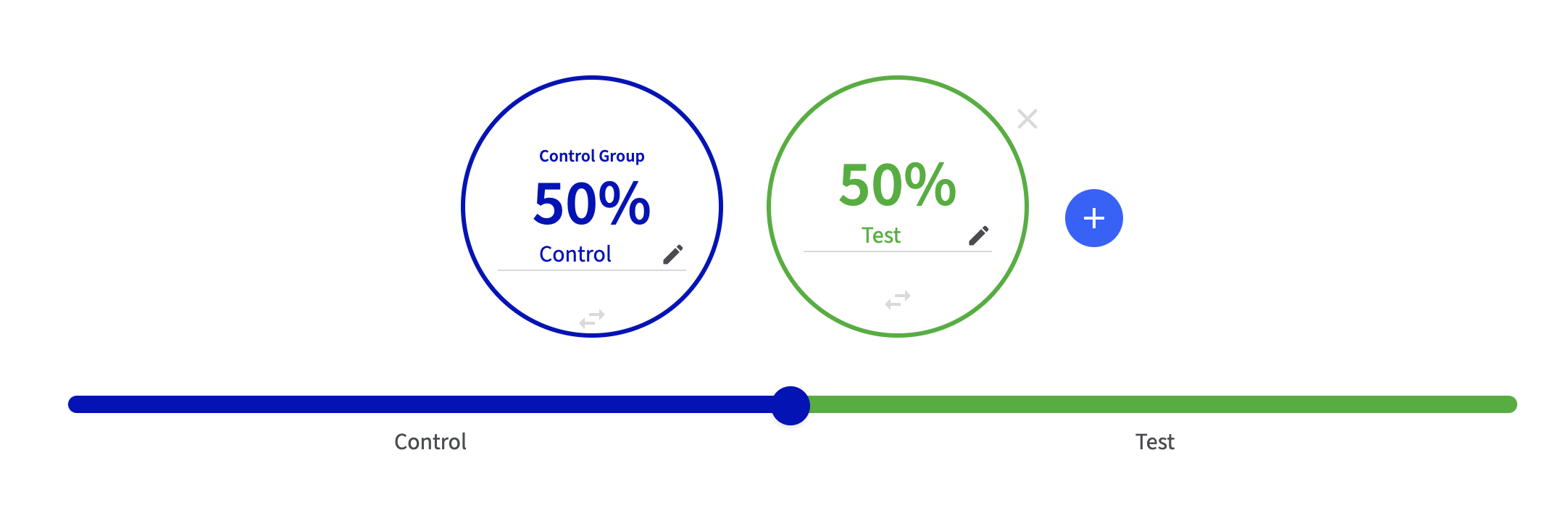
Split URL tests let you test pages against each other using redirects. When a visitor lands on the control page, they are randomized into a test group, and, if they're not in the control group, they'll be redirected to the corresponding page for their group. This test type is a great option if you want to get your test up and running quickly, especially if you're using a page builder or making large changes to the page you're testing. To set up a Split URL landing page test: 1. **Create the versions of the page you want to test.** Create the pages you want to test, for example, with a page builder or with the Shopify theme editor, and make sure they're accessible on your store through a URL. Note down the URLs of the pages you're testing. 2. **Create a new Intelligems Split URL test** by clicking "Create New Test" on the [Intelligems homepage](https://app.intelligems.io/), choosing "Content Test," and then "Split URL Test" 3. **Create a test group for each variation you'd like to test**. In my example, I'll be testing the existing control page against one variant, so I'll have two test groups total: Control and Test.\ \\
4. **Enter the URLs of the two landing pages** in the test setup. A "Simple" redirect should work for our purposes, since we just want to split between two known URLs. "Advanced" redirects are for when you'd like to match or replace wildcard text.\ \ Choose "Redirect Every Time" if a visitor who's assigned to test page should be redirected sent to it any time they reach the Control. Choose "Redirect One Time" if they should be redirected only the first time. In our case, since we're testing fully replacing the control page with the test page, we'll choose "Redirect Every Time."
**Multi-domain brands:** If you operate multiple domains (e.g., yourbrand.com and yourbrand.co.uk), make sure all domains are registered in **Settings → Domain Settings**. You can then set up separate Split URL tests for landing pages on each domain. 5. **Save and preview your experiment**. You can refer to our [QA guide](https://docs.intelligems.io/content-testing/content-test-qa-checklist#page-redirect-tests) for tips on what to look for when testing. 6. **Launch!** {% hint style="warning" %} If you use a page builder like PageFly, Replo or GemPages, be sure to add Intelligems JavaScript to their theme files as outlined [here](https://docs.intelligems.io/getting-started/adding-intelligems-script-to-your-theme)! If this step is missed, Intelligems will not be able to track the data for those pages. {% endhint %} ### Option 2: Onsite Edit Test Another option is an Onsite Edit test. In an Onsite Edit test, you can use Intelligems' visual editor, injected Javascript, or CSS to insert, hide, and re-arrange elements on a page. This test type is a good fit if you're making a smaller adjustment to a page (e.g., adding or removing a section, etc.), or if you'd like to avoid redirecting any users for performance or other reasons, and you're comfortable with basic HTML and CSS. To set up an Onsite Edit landing page test: 1. **Decide on a strategy for switching content**. For example, if you're testing a new section, it's often easiest to add this section to the page, hidden by default with CSS, and then use CSS injection to unhide it for the test group. Another option would be to use Intelligems' visual editor to *add* the section for the test group. We'll go through both techniques below. 2. **Create a new Intelligems Onsite Edit test** by clicking "Create a Test" on the [Intelligems homepage](https://app.intelligems.io/), choosing "Content Test," and then "Onsite Edit" 3. **Create a test group for each variation you'd like to test**. Here, we're testing the existing control page against one variant with an added section, so we'll have two test groups total: Control and Test 4. **Use Page Targeting to target the test on the landing page**. We want the onsite edits to execute only on the landing page, and we want to make sure only visitors to the landing page enter the test and factor into analytics. We can do this by targeting the test on the landing page by URL. For example:\\

Page Targeting in an Onsite Edits Test
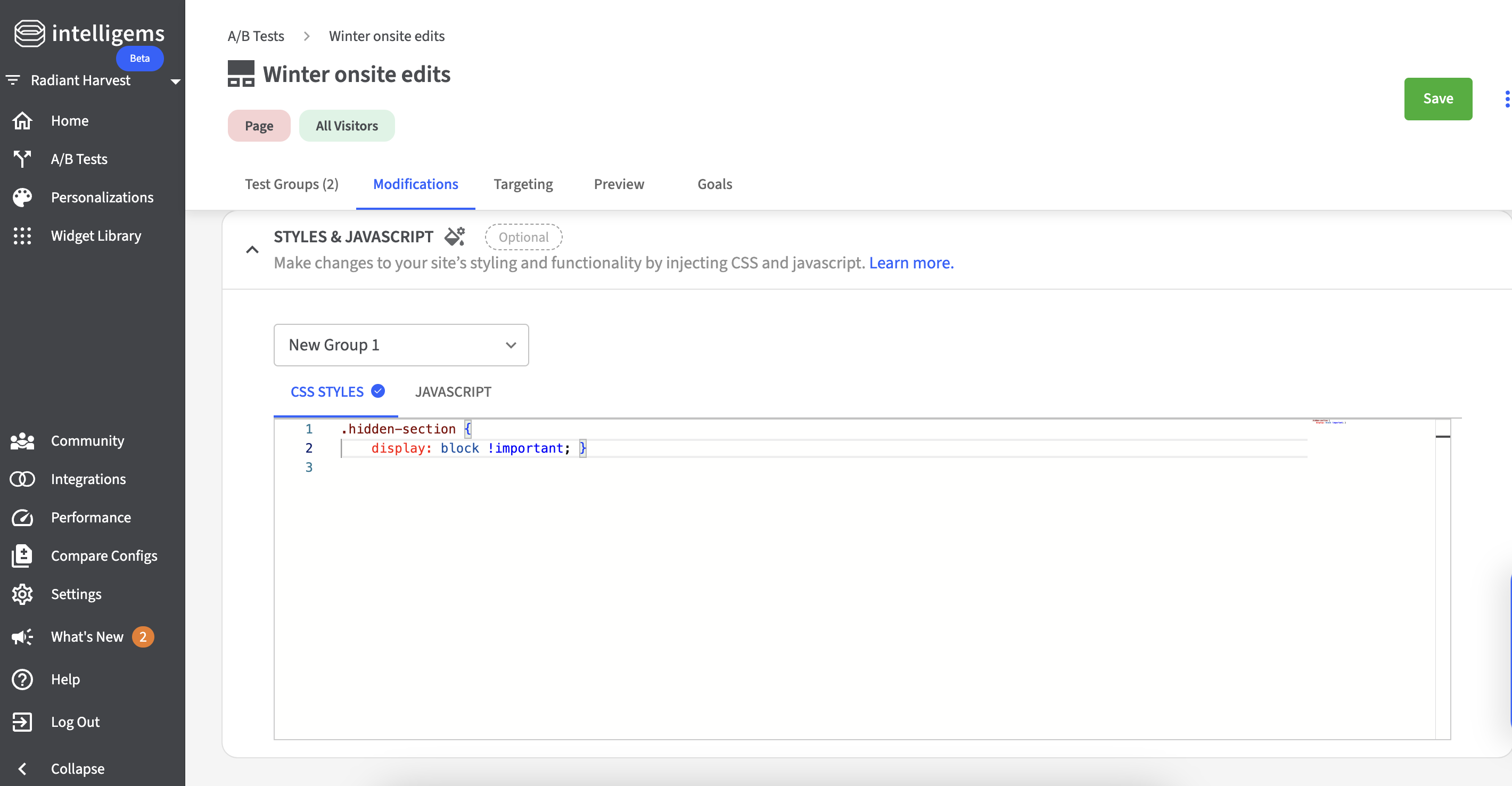
5. **Set up the onsite edit.** 1. Injected CSS: one way to test a new section of a page is to put the section in the page, but hidden by default, and then inject CSS to unhide it for the test group. For example, you could add a CSS class to your theme:\ \ `.hidden-section { display: none; }`\ \ And add this class to new page section in the theme editor or page builder (if you're unable to edit the section's classes you could also write a different selector rather than adding a new class, and add this CSS to your theme's code or with injection for the control group).\ \ Then, for the test group, inject some CSS to override this and unhide the section:\ \ `.hidden-section { display: block !important; }`\\

CSS injection in an Onsite Edits Test
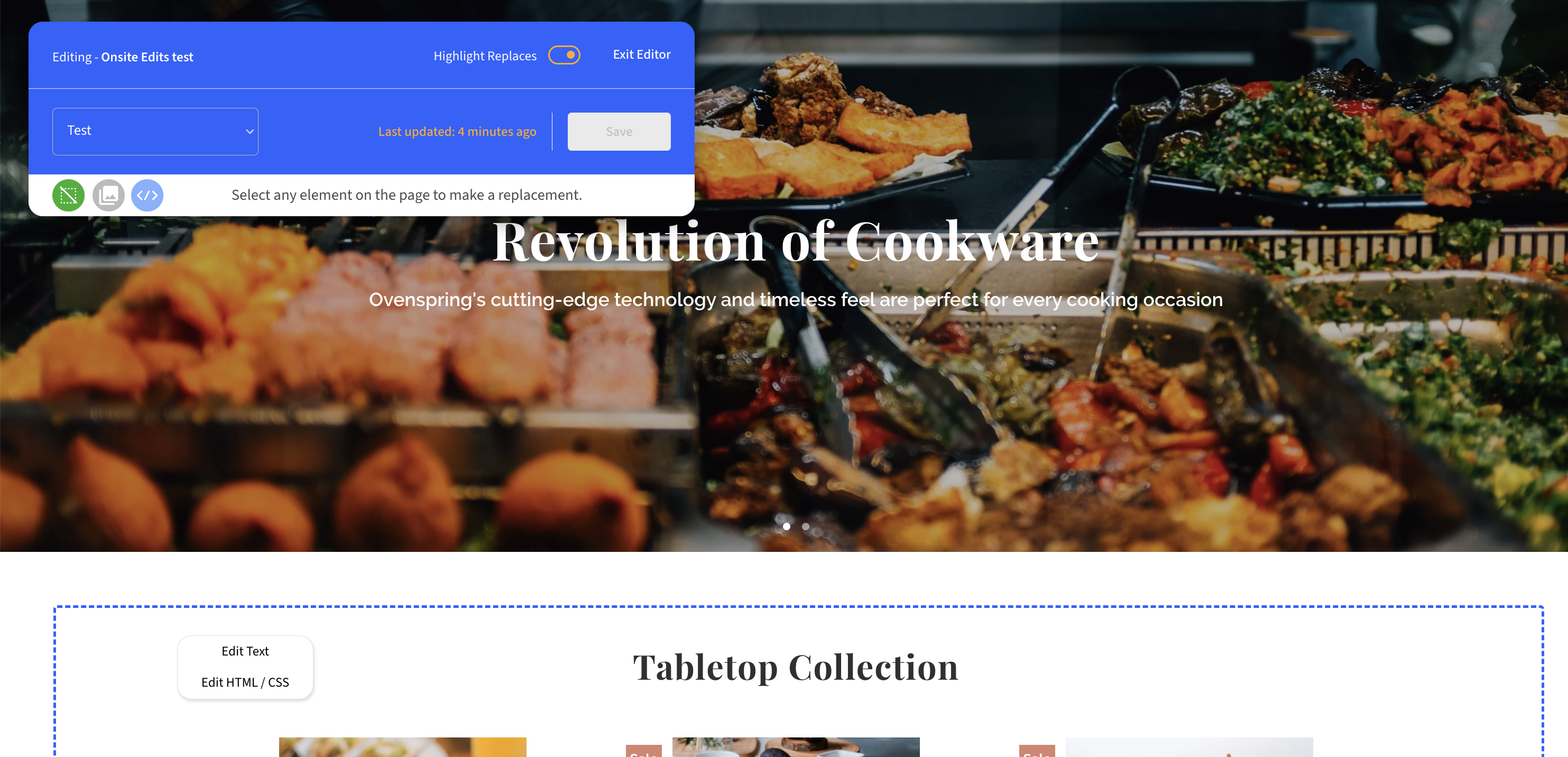
2. Insert the section: another way to test a new section is to insert it using Intelligems' onsite editor. For example, to insert a testimonials section above the featured collection on this page, first open the Intelligems onsite editor, then choose the featured collection section and choose "Edit HTML / CSS":\\
In the dialog, choose "Prepend Outside" in the dropdown in the bottom left. This tells Intelligems to inject the HTML you enter before the section you selected, instead of replacing it.\\
Next, enter the HTML for the new section in the text editor, and click "Apply." You'll now see the new section appear above the one we selected:\\
6. **Save and preview your experiment**. You can refer to our [QA guide](https://docs.intelligems.io/content-testing/content-test-qa-checklist#page-redirect-tests) for tips on what to look for when testing. 7. **Launch!** --- # Source: https://docs.intelligems.io/price-testing/testing-prices-with-subscriptions/managing-duplicate-products-when-redirecting-to-duplicate-pdps.md # Managing Duplicate Products when Redirecting to Duplicate PDPs ### Overview In specific, more complex cases, we may use duplicate products to run your price test. In most instances, we recommend using the original PDPs and only introducing the duplicate products upon add-to-cart. However, there are certain instances where using the PDP for the duplicate product may be necessary, including: 1. Testing subscription products with most subscription providers 2. Testing significant PDP changes 3. Testing prices when you offer a bundle discount on the PDP through Kaching or Shrine {% hint style="info" %} We have built-in PDP Quanity Buttons you can implement and use for price tests via our **Global Styles** components {% endhint %} In order to use the duplicate PDPs, you'll need to confirm that both **Should Duplicate Products** and **Should Redirect** are enabled in the Advanced Settings menu in the Intelligems app. If you do not see this option, you may need to request access to this menu by contacting our support team [here](https://portal.usepylon.com/intelligems/forms/intelligems-support-request). To make sure that products are hidden from third-party channels and collections, inventory is being properly tracked, shipping profiles are set up correctly, and discount codes still work, you'll need to follow these steps to make a few changes to how the duplicate products are set up in Shopify. {% hint style="info" %} You'll need to follow these steps for *every* Price Test you set up. {% endhint %}
Step 1: Finding duplicate products in Shopify The tag `price_test` will be added to all duplicates created by Intelligems, as well as a few additional tags specific to each test and test group. However, the easiest place to access and check the status of your duplicate products is from directly within the Intelligems app! Next to any price test in the app, click the three dots on the far right to see more options, then select "View Duplicates". This will bring you to the duplicates status page. ![](https://2052204893-files.gitbook.io/~/files/v0/b/gitbook-x-prod.appspot.com/o/spaces%2F2SvefuMLsJyJPAcVXeWc%2Fuploads%2Fgit-blob-d346bf7e1f492ed7a7ce1c744be6465e8cbc000b%2F13%20-%20View%20Duplicates.gif?alt=media) From here, you can: * See the status of duplicate products: you'll be warned about any issues in the top left, as well as in the `Shopify Status` and `Sync Status` columns. * View duplicate products in Shopify: you can view all duplicates for this test by clicking the `View Duplicates in Shopify` button at the top, or individual duplicates by clicking on the icon in the `View in Shopify` column. Navigating to your duplicate products through the Intelligems app will automatically filter your Shopify products by a tag that we have added for the experiment ID, meaning you will only see duplicate products for that specific test. There should be one product for each non-control group. So, if your test has three groups total, you should see two duplicate products. If you would like to see duplicate products that have been created for *any* test, you can navigate to the Products menu and filter for products with the `price_test` tag.
Step 2: Remove duplicate products from third-party channels Follow these steps to remove the duplicate products from all channels other than `Online Store` and any that you use for reporting. This prevents any channels from showing multiple versions of the product with different prices. **1.** Select all the products using the checkbox in the top left. **2.** Select the three dots in the menu that pops up, followed by `Exclude from sales channel`. **3.** De-select `Online Store` and any channels you use for reporting. **4.** Select `Make products unavailable`.
Step 3: Configure inventory tracking The following steps will allow you to keep an accurate count of duplicate products sold during the test and reconcile inventory after the test. However, stores manage inventory differently, some through Shopify, some through an app, and some though other methods. Please consider how selling duplicate products will affect your inventory tracking before following these steps and launching a test. If you have inventory that turns over or sells out quickly, it may make sense to use this [Duplicate SKU Sync App](https://apps.shopify.com/duplicate-sku-sync) so that the inventory syncs between your products. If your store uses a third-party application to manage inventory, please skip these steps. Please also note that third party apps that track inventory by SKU should not be affected by duplicating products as SKUs are copied to the duplicates. However, any app that uses product IDs or variant IDs to track inventory may need to be configured with the duplicate products. **1.** Set the inventory quantities for all duplicate products to zero, either through Shopify’s bulk editor or by clicking into the Shopify product page for each duplicate product. **2.** Turn on `Continue selling when out of stock` for all variants. If you use Shopify to track inventory, you'll need to reset this option to **Stop selling when out of stock** if an item in your store goes out of stock.
Step 4: Add duplicate products to custom shipping profiles, if necessary *This step is only necessary if you have custom shipping profiles configured through Shopify. If only the General Shipping profile is used, you can skip this step.* If any of the products you are testing are in a custom shipping profile, you'll need to add the duplicate products to the same profile following these steps: **1.** From the Shopify admin console, navigate to `Settings` → `Shipping and Delivery`. **2.** Click `Manage rates` for the relevant custom shipping profiles. **3.** Within the shipping profile, click `Manage Products`. **4.** Add the relevant duplicate products and variants to each custom shipping profile. You can search for `price_test` to show only the duplicate products. Click `Done` when you have selected all of the relevant products. **5.** Back on the shipping profile page, click **Save**.
Step 5: Add duplicate products to discount codes as needed *This step is only necessary if you have discount codes configured for specific products or collections. If you do not have discount codes or all your discount codes are configured to apply store-wide, then you can skip these steps.* **1.** Navigate to the `Discounts` tab on the left hand side of the Shopify admin page. **2.** Filter for the discount code(s) you would like to add the duplicate products to. To quickly filter to discounts that may need to be edited, add a filter for `Active` status, and `Amount off products` and `Buy X Get Y` for type. **3.** Select any codes that apply to `Specific products` where the products they apply to are part of the test. Use the search bar or browse feature to add all duplicate products that the discount should apply to. Keep in mind there should be one version of each product for each group in the test. If you have any discount codes that apply to `Specific collections`, you'll need to create a collection with the duplicate product(s) first, then add that collection to the discount.
Step 6: Configure search apps, if necessary If you use a search app, such as Searchanise, you may need to hide duplicate products in the search app. You can do this by adding `price_test` to "Hide products with these tags" in your search app settings.
Step 7: Configure duplicate products in third-party apps The following steps will help you configure duplicate products within third-party apps, if necessary. Note that if you **don't see your duplicate products** in a third-party app, you may need to set your duplicate products to 'Active' status in Shopify in order to access them. Don't worry - as long as you've completed the above steps, users won’t be able to navigate to these pages until the test is live, unless they are given the URL directly, as long as you completed all the steps above. **Configuring subscription management apps** There are many subscription management apps, but the documentation for configuring duplicate products on some of the apps we’ve come across can be found at the following links: * [Skio](https://help.intelligems.io/pricing-test-using-duplicate-products-and-skio) * Don't see yours here yet? [Contact us here.](https://portal.usepylon.com/intelligems/forms/intelligems-support-request) **Configuring ratings and reviews apps** Most applications for ratings and reviews offer a solution for grouping products so that multiple products display the same ratings and reviews. We recommend utilizing these features to ensure that duplicate products display the same content as the original products. There are many different ratings and reviews apps, but the documentation for creating groups on some of the apps we’ve come across can be found at the following links: * [Stamped](https://support.stamped.io/article/1097-groups-group-reviews-by-product) * [Loox](https://help.loox.io/article/79-how-do-i-group-product-reviews-together) * [Okendo](https://support.okendo.io/en/articles/3086164-creating-groups) * [Judge.me](https://support.judge.me/support/solutions/articles/44001260470-share-reviews-across-product-groups) * [Junip](https://help.junip.co/en/articles/4607273-product-groups-bundle-family) **Configuring bundle or volume discount apps** There are several bundle or volume discount apps available, such as Kaching or Shrine, where you may find it easier to redirect to a new PDP so that Kaching or Shrine can reflect the correct prices. Once your duplicate products have been created, head over to your volume discount app and set the same options up for your new product.
--- # Source: https://docs.intelligems.io/developer-resources/mcp-server.md # MCP Server The Intelligems MCP (Model Context Protocol) Server provides AI assistants like Claude, ChatGPT, and Gemini with secure, authenticated access to your Intelligems data and Shopify store information through a standardized protocol. ## What is MCP? The Model Context Protocol (MCP) is an open standard created by Anthropic that allows AI assistants to securely connect to external data sources and tools. The Intelligems MCP Server implements this protocol to give AI assistants controlled access to: * Your Intelligems experiments and experiences * Organization configuration * Shopify store catalog, collections, and pages * Analytics and audience data * Custom events and integrations ## Prerequisites * An active Intelligems account * A Shopify store connected to Intelligems * An MCP-compatible AI client (e.g., Claude Desktop, ChatGPT, Gemini, etc.) ## Installation The Intelligems MCP Server is hosted at: `https://ai.intelligems.io` No installation is required - the server is hosted by Intelligems and ready to use. ## Configuration Add the Intelligems MCP Server to your AI client's configuration following the applicable guide linked below: 1. [Claude (Desktop & Code)](https://docs.intelligems.io/developer-resources/mcp-server/claude) 2. [ChatGPT](https://docs.intelligems.io/developer-resources/mcp-server/chatgpt) 3. [Google Gemini](https://docs.intelligems.io/developer-resources/mcp-server/google-gemini) #### **Other MCP Clients:** Refer to your client's documentation for adding OAuth2-authenticated SSE-based or http MCP servers. * HTTP: `https://ai.intelligems.io/mcp` (recommended) * SSE: `https://ai.intelligems.io/mcp/sse` ## Multi-Organization Support If you have access to multiple Intelligems organizations, you can specify which one to use: * During initial authentication, choose any organization installed on Intelligems. This is only used for authentication. * Most tools accept an optional `organization` parameter to override the default * Use the `getOrganizationsList` tool to see all organizations you have access to * If you would like to always use a specific organization, add a System Prompt or Custom Instruction to your LLM with these details. --- # Source: https://docs.intelligems.io/analytics/experiment-analytics/metric-definitions.md # View / Metric Definitions This article outlines the key metric definitions used in Intelligems Analytics. Whether you're analyzing test results or tracking overall performance, understanding how each metric is calculated will help you make confident, data-driven decisions. --- # Source: https://docs.intelligems.io/price-testing/multi-currency-testing.md # Multi-Currency Testing ## Introduction Intelligems price tests run in your store's default currency by default. However, Intelligems supports price testing in any Shopify-supported currency. Each currency you want to test will require its own separate test configuration in the Intelligems app. ## **Prerequisites** * [ ] You are **either:** * [ ] Using Shopify Plus and have the [Script Editor App](https://help.shopify.com/en/manual/checkout-settings/script-editor) installed * [ ] Using any Shopify plan and are able to use [Shopify Cart Transform Functions](https://shopify.dev/docs/api/functions/reference/cart-transform). This typically requires being upgraded to Checkout Extensibility, and is not compatible with a few apps, such as subscription apps * [ ] You are on the [Intelligems Blue plan](https://www.intelligems.io/pricing?type=Annual\&priceRange=0-2500) * [ ] An Intelligems team member has enabled the Multi-Currency Testing feature for you. Reach out to support [here](https://portal.usepylon.com/intelligems/forms/intelligems-support-request) if you are not sure if this feature has been enabled for you yet * [ ] You must be familiar with and using [Shopify Markets](https://www.shopify.com/markets) or [Global-e](https://www.shopify.com/markets) for localization * [ ] You are ready to upload prices to your desired market when you [start](#starting-a-test), [pause](#ending-or-pausing-a-test) or [end](#ending-or-pausing-a-test) your price test * [ ] You have a fixed price set in the desired currency for each variant you plan to test ## **Step 1:** Set up test in the Intelligems app Creating a multi-currency test is generally similar to any other Price Test, with a few key changes to note. If you are not familiar with setting up a Price Test, please see our article [here](https://docs.intelligems.io/price-testing/how-to-set-up-a-price-test). The main differences in setting up a Price Test that is not in your default currency are: 1. Once you've added your test product(s) in the Modifications tab, you will need to update the currency to match your desired test currency as shown in the screenshot below:
{% hint style="warning" %} This option will not be available until an Intelligems team member has enabled the multi-currency setting for you. {% endhint %} 2. You will need to update control prices to match your test currency prices. Prices aren't automatically converted, so verify each cell displays the correct amount. {% hint style="warning" %} Quick filling test groups based on control prices is not available for multi-currency tests. While you'll see the Quick Fill option in the app, clicking on it will take you directly to the 'Fill by Upload' option. {% endhint %} 3. Currency targeting is set to your selected test currency by default, and will not be editable directly in the targeting section.
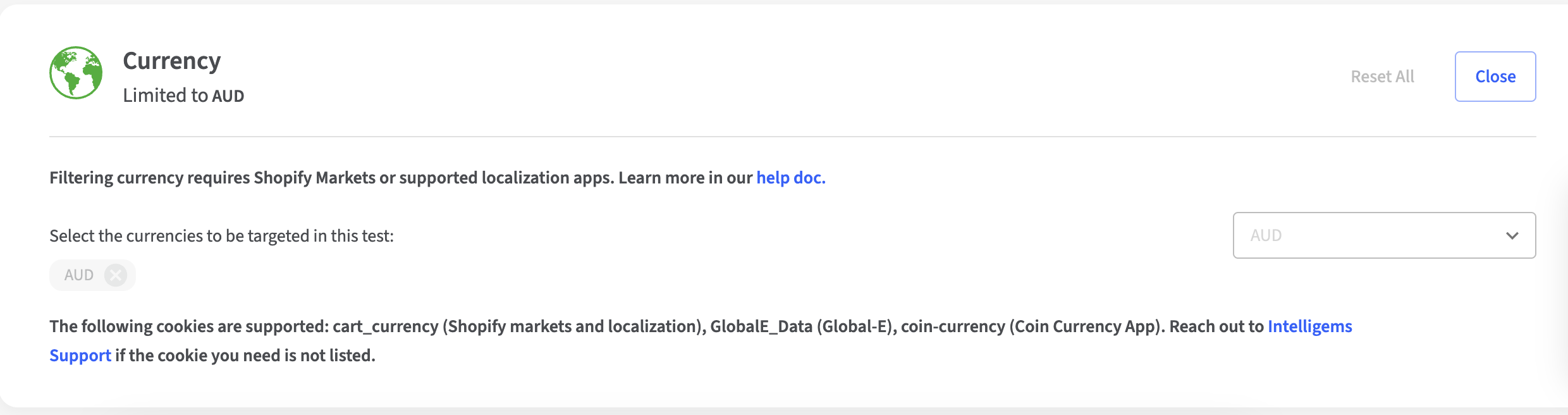
## **Step 2: QA your Test** This will be generally the same as QAing any other Price Test. You can see our checklist for QAing a Price Test [here](https://docs.intelligems.io/price-testing/price-test-qa-checklist). Please also keep in mind that your store's selected currency must match the test's currency. ## **Step 3: Starting a Test** Your prices need to be set to the highest-priced test group in order for the test to run properly. When you hit the play button for your test, Intelligems will prompt you to download a price CSV that you'll use to update the prices in [Global-e](https://www.shopify.com/markets) or [Shopify Markets](https://www.shopify.com/markets) to the highest prices in your test.
Once you have this CSV, you should: **If you are using Global-e:** Reach out to your account manager at Global-e with this CSV. They will help you upload this information. **If you are using Shopify Markets:** 1. Export Your Products: 1. From your Shopify admin, go to Products. 2. Export your products, making sure to include catalog pricing, international pricing, and variants. If you are able to set up any filters in Shopify to limit the export to products you will be price testing, this will make the next steps easier. 2. Edit Prices in a Spreadsheet: 1. Use the "Variant SKU" column in the Shopify export and the "sku" column in the Intelligems export to match your products. 2. Add the prices and compare prices in the Intelligems export to the appropriate Market columns in the Shopify export. There should be one column for the price and one column for the compare price for each Market you have set up in Shopify Markets - ensure you merge the prices from Intelligems in the correct columns. 3. Import Your Changes: 1. Save your updated spreadsheet file. From your Shopify admin, go to Products. 2. Import the file back into your Shopify admin, using the same app or the built-in import tool. The system will analyze your changes and update your products accordingly. {% hint style="info" %} You cannot have a product in more than one experiment *if* the experiments are set to the same currency. If so, the test will not start. {% endhint %} ## **Step 4: Pausing or Ending a Test** When pausing or ending a test, you'll be prompted to download a CSV with the prices that you want to roll out either while the test is paused, or permanently. You'll need to upload the file with the new prices either to [Shopify Markets](https://www.shopify.com/markets) or [Global-e](https://www.shopify.com/markets).
Once you have this CSV, you should: **If you are using Global-e:** Reach out to your account manager at Global-e with this CSV. They will help you upload this information. **If you are using Shopify Markets:** 1. Export Your Products: 1. From your Shopify admin, go to Products. 2. Export your products, making sure to include catalog pricing, international pricing, and variants. If you are able to set up any filters in Shopify to limit the export to products that were price tested, this will make the next steps easier. 2. Edit Prices in a Spreadsheet: 1. Use the "Variant SKU" column in the Shopify export and the "sku" column in the Intelligems export to match your products. 2. Add the prices and compare prices in the Intelligems export to the appropriate Market columns in the Shopify export. There should be one column for the price and one column for the compare price for each Market you have set up in Shopify Markets - ensure you merge the prices from Intelligems in the correct columns. 3. Import Your Changes: 1. Save your updated spreadsheet file. From your Shopify admin, go to Products. 2. Import the file back into your Shopify admin. The system will analyze your changes and update your products accordingly. --- # Source: https://docs.intelligems.io/general-features/targeting/mutually-exclusive-experiments.md # Mutually Exclusive Experiments {% hint style="info" %} Note that this feature is not enabled by default. If you would like to use this feature, please contact us [here](https://portal.usepylon.com/intelligems/forms/intelligems-support-request). {% endhint %} ## Why make tests mutually exclusive? * **Reduce interaction effects:** If someone is exposed to several experiments at the same time, it may become harder to ascertain which experience led to a change in their behavior. For example, if a visitor is exposed to one experiment that changes the copy on a button and another that repositions the button, you can’t be sure whether a change in conversion rate was caused by the first change, the second, or a combination of both. * **Minimize UX risks:** If you’re concerned about bugs or unexpected site behavior resulting from two experiments that affect the same elements or pages in your site, you may consider making them mutually exclusive. * **Prevent users from being exposed to a test after seeing another:** In case you’re running frequent tests, you may be concerned about a visitor seeing dramatic changes to colors, prices, and layouts in quick succession. ## How to Make Tests Mutually Exclusive **Intelligems uses Mutually Exclusive Test Groups, or “Exclusion Groups” to ensure that tests are mutually exclusive.** * An exclusion group holds one or more tests that will not be shown to the same visitor. * If a user has never been exposed to any of the active tests in the group, Intelligems will randomly place them in one of the active tests. You can also set a test to have higher probability than others of being served to a user. * If a user has been exposed to one of the active tests in the exclusion group, they will be kept in that test going forward - as long as it remains in the exclusion group. * Tests of any type and any status can be in an Exclusion Group - though the status of a test will affect the behavior of the group. See below for details. * A test can be in at most one exclusion group at the same time. This means there is no way for test A to be mutually exclusive with test B and C, but for B and C *not* to be mutually exclusive. **Follow these steps to place a test in an Exclusion Group:** * On the Targeting page of an experiment, go to the Mutually Exclusive Tests section. Click to add the test to an existing Exclusion Group or create a new group. * You may do this regardless of test status, though it’s safest to create a number of tests and activate them only once they’ve been added to the same Exclusion Group. * When you no longer want a test to be in the group, you can remove it from the group or place it in another.

Making a test mutually exclusive
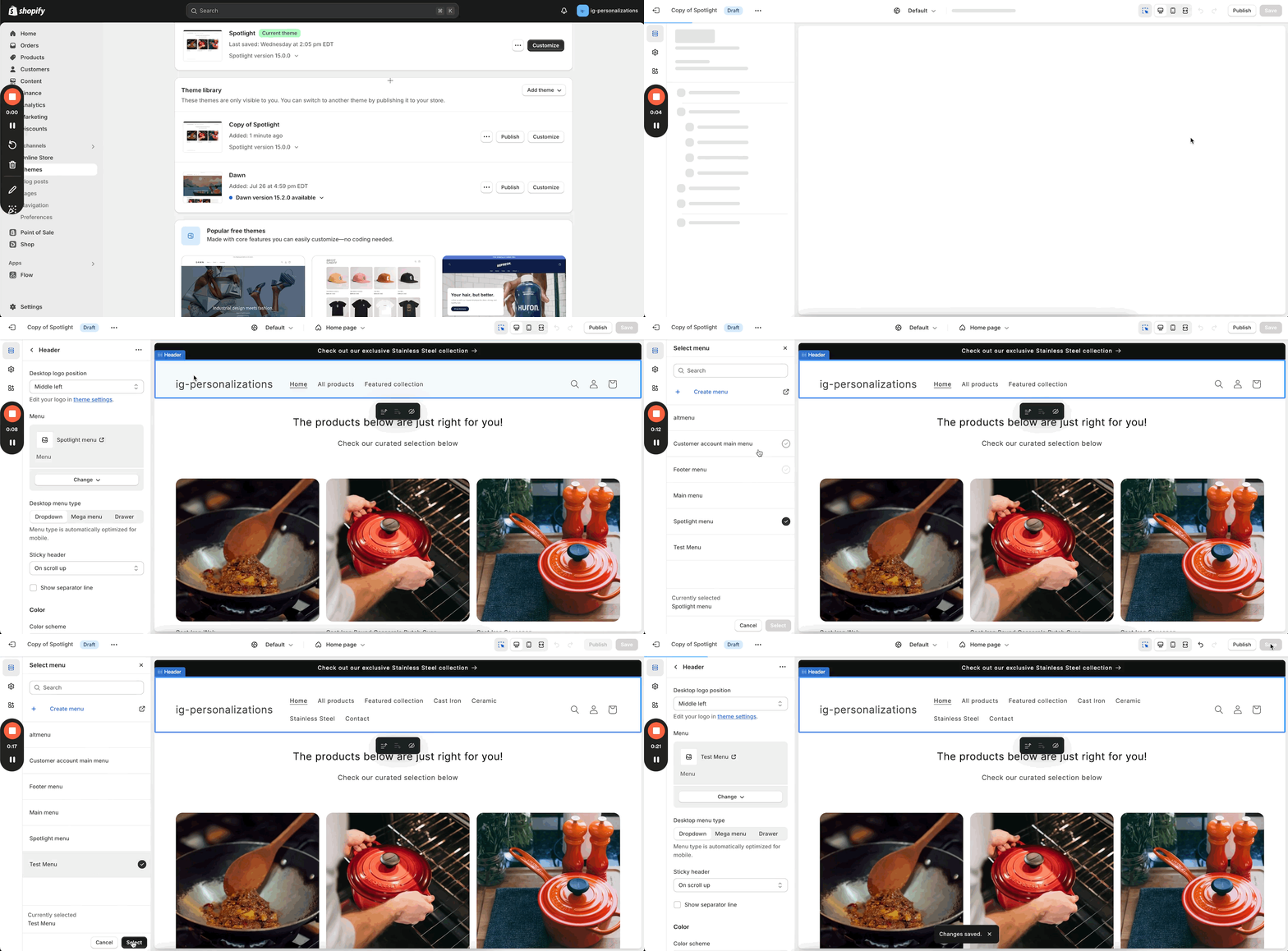
## How does Intelligems decide which visitors see which tests? A new visitor to your site will be exposed to at most one active test in an Exclusion Group. Intelligems uses one of two strategies to decide which test to show to a new visitor. You can set this option manually on each Exclusion Group at any time. * **Option 1 - Random:** a new visitor has an equal chance of being bucketed into any of the *active* tests. This is the default behavior that should serve well in most situations. * **Option 2 - Weighted:** a new visitor is more likely to be exposed to some tests than others. You can set the relative ‘weights’ of each test to indicate which tests are more important. This is useful in case you want specific tests to fill up with visitors first - in order to reach statistical significance faster - or if you are unsure about a test’s effects and want to ease users into it. {% hint style="info" %} Weighted non-active tests: Note that, since visitors cannot be shown a paused or pending experiment, the weights shown for experiments are approximate and relative. For example, consider a group that contains the following tests: A (active - 40% weight), B (active - 40%), C (pending - 10%), D (paused - 10%) C and D cannot be shown to a visitor until activated, so A and B will each have a 50% chance of being shown to a visitor, rather than a 40% chance. This ensures that tests receive as much traffic as possible. {% endhint %} ## What about pending, ended, or paused experiments? Aside from active tests, your Exclusion Groups may contain tests that are pending (not yet started), paused, or ended. Intelligems treats these as follows: ### **Ended Tests** **New Visitors:** If a group contains an Ended test, *new visitors* will be placed in one of the active tests in the group, as usual. **Returning Visitors:** If a group contains an Ended test, Intelligems uses one of two strategies to decide what should happen to any returning visitors that have previously been exposed to that test. You can set this option manually on each Exclusion Group at any time. * **Option 1 - Include :** the returning visitor will be placed into one of the active tests (if any). This is the default behavior and helps maximize traffic to your tests. * **Option 2 - Exclude:** the returning visitor will not be placed into any of the active tests in the group, as long as those tests remain in the group. You may choose this option in order to limit the number of changes visitors see in a short period of time, or to prevent visitors from seeing a certain experience once they’ve been exposed to another in the past. Note that, if a test ends and it’s in a group that uses relative weights, its weight is automatically set to zero. The weights of all other tests are scaled up proportionally to add up to 100%. ### **Paused & Pending Tests** * **New Visitors:** If a group contains an Paused or Pending test, *new visitors* will be placed in one of the active tests in the group, as usual. * **Returning Visitors in Paused tests:** If a group contains a Paused test, *returning visitors* that have been exposed to that test will be excluded from all tests in the group. When the experiment is unpaused, they will once again see it. ## Caveats about Price and Shipping Tests There are a few things to consider when adding a Price or a Shipping Test to an exclusion group: * **Price Tests**: when you start a price test, Intelligems will automatically update your product prices in Shopify to the highest price in the test for each product. Therefore, any visitors excluded from the test will see the highest price on those products for the duration of the test. * **Shipping Tests**: when you start a shipping test, Intelligems will automatically remove the rates that you select to test when you start your test, and replace those with the rates configured in the test. Any visitors excluded from the test will see the rates you've set for the Control Group. ## How Mutual Exclusion Interacts with Test Entry Requirements When you set up tests to be mutually exclusive, each visitor is assigned to one test within the exclusion group **as soon as they land on your site** — before any entry requirements are evaluated. This is important because some test types require visitors to take a specific action to actually enter the test: * **Split URL tests** require visiting the origin URL * **Template tests** require visiting a page using the control template If a visitor is assigned to one of these tests but never meets the entry requirement, they won't be included in the test — and because of mutual exclusion, they also can't enter any other test in the group. **Example:** Say you have 3 mutually exclusive Split URL tests. A visitor lands on your site and is randomly assigned to Split URL Test B. But they never visit the origin URL for that test — maybe they landed on a product page and checked out. Since they didn't meet the entry requirement, they're not counted in Test B. But because they were assigned to Test B exclusively, they also can't enter Test A or Test C, even if they would have met the entry requirements for those. This can lead to some of your traffic not being included in any test, which may slow down how quickly you gather data. **Best practice:** Mutually exclusive tests work best when the tests in your group have broad entry criteria — like shipping tests, or onsite edits tests — where visitors enter simply by landing on your site. --- # Source: https://docs.intelligems.io/integrations/navidium-testing.md # Navidium Testing ## Introduction Intelligems' [Navidium](https://navidiumapp.com/) integration allows merchants to test Navidium's shipping protection (including the upsell at checkout) via an Intelligems content test. You can test: * Widget on vs. off (both the cart widget and the upsell at checkout) * Auto add-to-cart * The minimum fee offered * The fee percent ## How It Works To set up a Navidium checkout test: 1. Create a new Intelligems Onsite Edit content test 2. For the groups for which you want to test different settings than the current defaults, inject the following Javascript: ```javascript // change the configurations below to what you want to test // you only need to specify configurations that you want // to behave differently than your current Navidium settings window._igNavidiumConfig = { isOn: true, autoAddToCart: true, pctFee: 5, // 5 here means 5% minFee: 3, } const res = fetch("/cart/update.js", { method: "POST", headers: { "Content-Type": "application/json", }, body: JSON.stringify({ attributes: { '_igNavidiumConfig': JSON.stringify(window._igNavidiumConfig) }, }), }) ``` 3. Enable "Use Intelligems App Config" in the Navidium settings Extensions page. If this setting is not available to you, reach out to Navidium to enable it --- # Source: https://docs.intelligems.io/getting-started/common-use-cases/content-test-common-use-cases/navigation-menu.md # Navigation Menu ## Introduction Testing your navigation menu is a great strategy that can significantly enhance the user experience and drive sales. As one of the primary ways customers interact with your site, the navigation menu plays a crucial role in how they discover products and navigate your offerings. Given its presence on every page, any adjustments can lead to substantial changes in customer behavior and satisfaction. Here are a few aspects you can explore through A/B testing your menu: * **Layout**: Experiment with different structures to see which is more intuitive for users. * **Organization**: Test how grouping products affects discoverability and ease of use. * **Presentation**: Vary the visual design to identify what draws attention and enhances usability. * **Styles**: Try different color schemes and fonts to see what resonates best with your audience. * **Wording**: Analyze the effects of different labels and calls to action on customer engagement. By fine-tuning these elements, you can optimize your navigation menu for better performance and improved customer experience. There are a few different ways you can test your navigation menu. The examples below show how to do this with a [Theme Test](#option-1-theme-test), or through our [Onsite Edits](#option-2-onsite-edits) capabilities. {% hint style="info" %} Once you have finished setting up your test, we recommend going through our suggested [Content Test QA Checklist](https://docs.intelligems.io/content-testing/content-test-qa-checklist) before you turn it on. {% endhint %} *** ## Setting the Test Up ### Option 1: Theme Test A Theme Test allows you to test a completely new design for your site, as you can make use of a new Shopify theme you're already working on, making it the easiest way to test bigger modifications. Your new theme may contain all sorts of changes, including a new navigation menu, and when a visitor comes to your site, Intelligems will automatically randomize them into one of the themes you've picked for your test. You can test any of the aspects listed above, as you'll be setting up a new theme with your alternative navigation menu, so the sky is the limit! To test a new navigation menu through a Theme Test: 1. **Create the new version of the menu you want to test**. Set it up as you normally would on Shopify, creating a new Shopify theme (it may be a copy of your existing theme) in which the new menu will be used. 2. **Follow the steps on** [**How to Set Up a Theme Test**](https://docs.intelligems.io/content-testing/content-testing-getting-started/how-to-set-up-a-theme-test) to create a new Theme Test. When selecting the themes that will be part of the test, choose your current theme for the control , and the theme containing your new navigation menu as the test. 3. You should be all set to launch your test! *** ### Option 2: Onsite Edits Intelligems' Onsite Editor is a dynamic and versatile tool that enables you to creatively interact with and test various elements of your Shopify theme. When experimenting with a new navigation menu, you have numerous options depending on the specific aspects you wish to explore. Here, we’ll delve into ideas for enhancing your menu through a fresh [Layout and Organization](#layout-and-organization), reimagining its [Presentation and Styles](#presentation-and-styles), or experimenting with innovative [Wording](#wording). #### Layout and Organization If you're looking to test two different menus — one that directs visitors to all your collections through a single link and another that lists each collection individually — a great approach is to set up all the options you want to test on Shopify. Then, you can use our Onsite Editor to hide or show each option based on the menu you are evaluating. Here's how you can achieve this: 1. On Shopify, go to **Online Store > Navigation**, and create a new menu through the **Add menu** option. 2. Create a menu containing all the sections that will be presented to both groups A and B:
3. Go to **Online Store > Themes**, and duplicate your current theme. We don't want to set up your live theme with the new menu quite yet, as all those options would be visible, so we will set everything up using a duplicate theme, which you can then publish when you turn on your test. 4. Next to the newly created theme, click on **Customize** to access the Theme Editor. Click on your theme's header, and change the current menu by the one you just created:
5. On Intelligems, create a new Content Test, selecting the type Onsite Edits (see [How to Set Up an Onsite Edits Test](https://docs.intelligems.io/content-testing/content-testing-getting-started/how-to-set-up-an-onsite-edits-test)). When you get to the final step, click on **Edit** next to **Content Edits**, then **Add & Edit Changes in Visual Editor**, and select the duplicate theme you created:
6. With Group A selected, enable the element selecting tool, then select each menu element that needs to be hidden for Group A, creating a replacement for each one. When selecting each menu element, make sure you're selecting the most outer portion of it, as this will ensure that we are targeting the correct portion of the menu that needs to be hidden. You'll hide each of these elements for Group A, while leaving them as originally set for Group B:
7. Repeat this for the elements that won't be visible to Group B, this time leaving them as originally set for Group A, and hiding them only for Group B. Make sure to **Save** your changes before closing the editor:
8. As you switch between groups A and B in preview mode, you'll notice that the right menu elements are displayed for each test group. 9. Once you are ready to start your test, simply publish the duplicate theme that has the test menu in it, or set your live theme with that menu, then start the test on Intelligems. You'll want to make sure to keep the interval between these two actions as minimal as possible, so your visitors don't see all the menu options once the test menu is set on your live theme. {% hint style="info" %} If you are using [Audience Targeting](https://docs.intelligems.io/general-features/targeting/audience-targeting) to run this test only for a subset of visitors, make sure you use **Advanced Targeting**, setting up a condition so, if the visitor doesn't meet the audience's criteria, they get assigned to your control group, and select the option to exclude them from Analytics. This will ensure that they see your default menu instead of all the menu items. For example, if you wanted to target Desktop visitors only, this is how you would set this up: {% endhint %} #### Presentation and Styles Perhaps you are happy with the options presented on your menu, but you want to test the ways your visitors perceive it. You can easily inject custom styles into your test, having an alternative presentation for your test group, without needing to make any theme modifications, as outlined below: 1. On Intelligems, create a new Content Test, selecting the type Onsite Edits (see [How to Set Up an Onsite Edits Test](https://docs.intelligems.io/content-testing/content-testing-getting-started/how-to-set-up-an-onsite-edits-test)). 2. Load your test's preview, access the Onsite Editor, and go into editing mode. 3. Click on the "\" icon to open the Global CSS / JS editor:
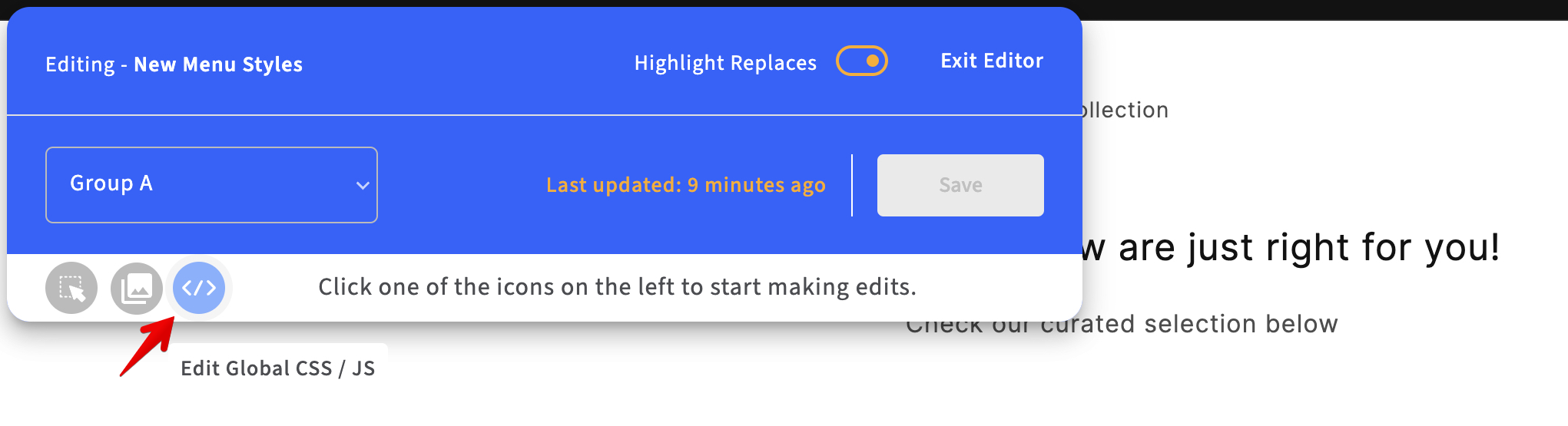
4. In the Group selector, switch to your test group, then add in your custom CSS that targets and modifies the elements on your navigation menu. This will be CSS that you've written yourself, with the help of a theme developer, or an AI generating tool, for example:
5. Make sure you click **Apply** on the editor, and then **Save** on our widget. #### Wording Changing labels can often enhance the understanding of the underlying content and boost client engagement with specific sections of your menu. Here's how you can test simple text adjustments to your existing menu items: 1. On Intelligems, create a new Content Test, selecting the type Onsite Edits (see [How to Set Up an Onsite Edits Test](https://docs.intelligems.io/content-testing/content-testing-getting-started/how-to-set-up-an-onsite-edits-test)). 2. Load your test's preview, access the Onsite Editor, and go into editing mode. 3. Click the button on the bottom-left to **enable element selecting**:
4. Click on the menu item you wish to test, then **Edit Text**:
5. Make no changes for Group A (Leave as is). For Group B, add in the text that should replace the original text:
6. Make sure you click **Done** on the editor, and then **Save** on our widget. *** ## Additional Suggestions The methods for testing a navigation menu aren't limited to those mentioned above. With the various resources available through Intelligems, there are several other ways you can set up your test, depending on the specific changes you want to evaluate: * If you want to redirect visitors to certain pages when they click on a given menu link, you can create a [Split URL Test](https://docs.intelligems.io/content-testing/content-testing-getting-started/how-to-set-up-a-split-url-test) rather than make changes directly to your menu. * If you want to modify your menu without creating new menu items on Shopify, and you have a developer to assist you with front-end coding, you can use our [JavaScript injection capabilities](https://docs.intelligems.io/general-features/css-and-javascript-injection), adding custom JavaScript to the test group to programmatically modify your menu. --- # Source: https://docs.intelligems.io/offer-personalizations/offer-combinations.md # Offer Combinations In some cases, you may want your Intelligems offers to combine with other discounts your customers use. For example, you may offer a "Buy more, save more" offer where you get 10% off if you buy 3+ items and that should combine with a $10 off welcome discount code in Shopify. In other cases, you may **not** want this offer to combine with other offers. For example, an exclusive VIP Save 25% offer you want to ensure that it doesn't combine with other codes and discounts. This document describes how to configure each and what the configurations are. ## Shopify Combinations You can read all about how [Shopify combines discounts](https://help.shopify.com/en/manual/discounts/combining-discounts/discount-combinations), but it's quite complicated and nuanced. The gist is that you largely control when you want discounts to combine or not and that's controlled in Shopify. When you create a discount in Shopify, you'll see these options. If you have a discount you don't want to combine with others, don't check these boxes!

Shopify combination options

{% hint style="info" %} When Intelligems creates discounts in Shopify they are created as "Product Discounts" {% endhint %} In order for 2 discounts to combine, they must both be set to combine with each other. So for your Intelligems discount to combine with a Shopify discount, both must be set to combine. If either are not, they won't stack and the most favorable for the customer will be chosen by Shopify. ## Intelligems Combinations ### Options When you create a discount in Intelligems, you can set these combination options as well and we will let Shopify know how to combine the discount. 1. **Combines with Shopify Discounts** – When this is selected, you're essentially setting the above Shopify Combinations to true. *Note: This must be enabled for it to combine with other Intelligems discounts, too*. 2. **Combines with Intelligems Discounts –** When this is selected, this discount may also combine with other Intelligems offers and discounts you've configured. ### Intelligems Combination Logic When you have the combination logic within Intelligems, we choose the most beneficial discount for the customer. Imagine an example: * Discount A: $5 off, combines * Discount B: 10% off, combines * Discount C: $25 off, does not combine Since Discounts A and B combine, we'll sum those together, and then compare that total discount versus all the other non-combining discounts. * Cart 1: $100 subtotal = $$Max(5 + 10, 25)=25$$ * Cart 2: $300 subtotal = $$Max(5+30, 25)=35$$ {% hint style="warning" %} Due to a Shopify limitation, product discounts targeting the same cart item will not combine even if they are configured to ([roadmapped](https://shopify.dev/docs/apps/build/checkout) for Q2 2025) {% endhint %} --- # Source: https://docs.intelligems.io/offer-personalizations/offer-modifications.md # Getting Started with Offer Personalizations ## What are Offers? Offers are Intelligems tool built to serve your visitors promotions, volume based discounts, and gifts with purchases. Just like any other [modification in a Personalization](https://docs.intelligems.io/personalizations/personalization-modifications), Offers can be targeted to the right channels and visitors to optimize discount spend and maximize your bottom line. They can also be configured to display useful site components such as popups, cart progress bars, and quantity buttons using our **Global Styles components**. Offers can also be tested against each other: creating a test with multiple Offer Personalizations (Personalizations containing an Offer) lets you take the guess work out of your discount strategy by discovering which offer works best before activating it. {% hint style="info" %} When setting up a Personalization containing an Offer, it can be useful to mix in a Content Edit modification as well. This allows you to fine-tune any text on the site that mentions your offer, such as in your announcement bar or on the homepage. {% endhint %} ## Types of Offers There are multiple types of Offer modifications. * Amount off products * Amount off orders * Volume discounts * Free shipping * Free gift {% hint style="info" %} You can place at only Offer one into each Personalization. {% endhint %} Each one can optionally be configured to display popups, progress bars, and other **Global Styles components** to help you communicate the offers to visitors. ## **Promotions** * **Eligible Products:** Select which products are eligible for your Promotion. If no products are selected, then all products will be eligible. * **Should Stack:** Select whether the offer should combine with other offers that are running at the same time in different Personalizations. If you leave this unchecked, customers will not be able to stack multiple Personalizations containing offers together. * **Offer Type and Amount:** This can be a percentage off, dollar amount off per order, or dollar amount off per item. * **Minimum Purchase Requirement:** The number of units or dollar amount needed to achieve the discount. "No Minimum Requirement" will be selected by default. * **Maximum Discount Amount:** The maximum dollar amount discount that a customer can receive in the case of a percentage off offer. * **Discount Title:** This is the discount name that'll be visible at checkout for customers who receive the discount. {% embed url="" %} {% embed url="" %} ## Gift with Purchase * **Select a Gift with Purchase:** Select which product will be provided as a gift with purchase. Note that you can only select one product, and one variant if there are multiple variants of that product. If you would like your customers to be able to choose a variant, please note that Intelligems does not currently provide the front end component for this. * **Should Stack:** Select whether the offer should combine with other offers that are running at the same time in different Experiences. If you leave this unchecked, customers will not be able to stack multiple Personalizations containing offers together. * **Minimum Purchase Requirement:** The number of units or dollar amount needed to achieve the discount. "No Minimum Requirement" will be selected by default. * **Eligible Products:** If the gift with purchase should only be applied when visitors buy select products, you can additionally specify which products count toward the gift here. If you specify eligible products, only these will count toward the minimum you set. For example, if visitors only get GWP if they buy 3 items (or $30 worth of items) and only products A and B are eligible, then they will have to buy 3 of A and/or B (or $30 worth of A and/or B) to get the gift. * **Automatically Add Gift to Cart:** Toggling this option on will automatically add the gift to cart when a customer has met the requirements. If this is left off, a customer will need to manually add the product to cart to receive the free gift. Please note that you'll need to choose one product variant to be able to turn this option on. * **Discount Label:** This is the discount name that'll be visible at checkout for customers who receive the discount. {% embed url="" %} ## Free Shipping Offer The free shipping offer activates free shipping under certain conditions, automatically removing shipping costs from a customer's checkout without any Shopify configuration work. It can be applied as its own offer, or as part of one or more tiers in a Volume Discount (see below). * **Minimum Purchase Requirement:** The number of units or dollar amount needed to activate free shipping. "No Minimum Requirement" will be selected by default. * **Limit Ship-to Countries:** If free shipping should not be offered to all countries, choose a white list here. Because customers choose ship-to country at checkout, this means they will see the free shipping progress bar and messaging in their cart until they enter checkout and choose their ship-to country, at which point their free shipping discount may be removed. * **Choose Eligible Rates:** Configure which of your store's saved shipping rates rates should be eligible, if not all. You can do this: * **By name:** for example, use "Rate name does not contain *International*" if you have multiple International rates that shouldn't be discounted. If you select multiple conditions here, any rates that meet at least one of your qualifications will be discounted. Any rates that do not meet any of your qualifications will not be discounted. * **By amount:** for example, use this if it would be too expensive for you to discount shipping on large expensive-to-ship items. * **Discount Label:** This is the discount name that'll be visible at checkout for customers who receive the discount.

Discount Label Placement

{% embed url="" %} ## Volume Discounts To configure a Volume Discount, fill out the following fields: * **Eligible Products:** Select which products are eligible for your Volume Discount. If no products are selected, then all products will be eligible. * **Should Stack:** Select whether the offer should combine with other offers that are running at the same time in different Personalizations. If you leave this unchecked, customers will not be able to stack multiple Personalizations containing offers together. * **Discount Tiers:** You are able to create up to four different discount tiers using the blue `+` sign. For each tier, you will select: * Whether eligibility for the discount should be based on the quantity of items or the cart subtotal. * Whether the discount should be a percentage off, dollar amount off per order, or dollar amount off per item. * The number of units or dollar amount needed to achieve the discount. * What the percentage or dollar amount of the discount should be. * The name of the discount that'll be visible at checkout for customers who receive the discount. * Whether the tier includes a gift with purchase, and what that gift is. * **Free Shipping in Volume Discounts:** Intelligems' Free Shipping offer can be used as a standalone offer, or as a perk on one or more discount tiers in a Volume Discount offer. For example, you can configure a Volume Discount to give 20% off purchase to visitors buying at least one item, and 30% off *plus* free shipping to visitors buying two items. * **One configuration:** While you can offer free shipping on multiple tiers, they must all share the same free shipping configuration. This means that Tier 1's free shipping cannot be limited to certain shipping rates while Tier 2's shipping is not. * **Powered by Intelligems vs Shopify:** By default if you choose Free Shipping, Intelligems will automatically apply the discount in cart and checkout. If you've already configured Shopify to apply Free Shipping and simply wish for Intelligems to power the messaging, progress bars, and popups, you can choose the "Powered by Shopify" option. This allows you to communicate your specialized tiers - especially those mixing free shipping with other discounts - in a clear and unified way. Legacy existing free shipping Volume Discounts in Intelligems will be set to this option but can be changed. ### How to Set up a Buy More, Save More Volume Discount {% embed url="" %} ### How to Set Up a Product Quantity Discount on a Single Product using Quantity Button Components {% embed url="" %} ## Setting up Offer Components You can optionally show various components that communicate your offer to users. The components vary depending on what type of Offer modification you are using, but the full options include: * **Pop Up / Slide Out:** This pop up location can be configured during setup. The language and colors are fully customizable so you can use this feature to highlight what you want. {% hint style="warning" %} **Pop Up / Slide Out Messages** are only shown on the homepage and cannot be configured to be shown on any other pages at this time. {% endhint %} * **Quantity Buttons:** These buttons will appear on your product pages for customers to quickly add multiple units to cart. They are automatically installed via the Intelligems script. If you have any trouble with these showing up inside an Offer Personalization, [please use this form to contact our support team](https://portal.usepylon.com/intelligems/forms/intelligems-support-request). Let us know which experience and specific URLs we can help you with. * **Shipping Progress Bar & Offer Progress Bar:** This bar will appear in the cart view to show your customers how much more they need to purchase to achieve specific discounts or free shipping, prompting them to buy more to get the best deal without ever leaving their cart. More info [here](https://docs.intelligems.io/offer-personalizations/offers-integrating-widgets). {% hint style="danger" %} **Headless Stores:** Components do not work out-of-the-box and customers must build their own front-end implementation. {% endhint %} ## Testing Offers You can test offers against each other to see which one is best. You can do this in two ways: create and Offer and then add it to a Test or Create an Offer Test. Both flows achieve the same results. You can follow either setup flow below. ### Setting Up an Offer Test from Offer Creation Flow {% embed url="" %} ### Setting up an Offer Test from Test Creation Flow {% embed url="" %} You can read our [full guide here](https://docs.intelligems.io/offer-personalizations/testing-offer-personalizations). ## How do Offers Work? Intelligems uses [Shopify Discount Functions ](https://shopify.dev/docs/api/functions/reference/product-discounts)to provide the offers you set up in the Intelligems app. The necessary Function will be created automatically when you create a new Offer Experience or Offer test in the Intelligems app, but will not be available to customers until you start your Offer test or activate your the Experience containing your offer. --- # Source: https://docs.intelligems.io/getting-started/common-use-cases/offer-test-common-use-cases.md # Offer Test Common Use Cases Offer testing is a powerful strategy because it allows businesses to identify which promotions, discounts, or incentives most effectively attract and convert customers. By experimenting with different types of Offers, companies can assess the impact on customer behavior, sales volume, and profitability. This helps fine-tune marketing efforts, ensuring that the right balance of value is presented to customers without sacrificing margins. Offer testing provides actionable insights, reduces the risk of ineffective promotions, and maximizes revenue by tailoring offers to what truly motivates consumers. Check out the below common test designs for inspiration on how to get started: {% content-ref url="offer-test-common-use-cases/the-volume-discount-duel" %} [the-volume-discount-duel](https://docs.intelligems.io/getting-started/common-use-cases/offer-test-common-use-cases/the-volume-discount-duel) {% endcontent-ref %} {% content-ref url="offer-test-common-use-cases/gifting-games" %} [gifting-games](https://docs.intelligems.io/getting-started/common-use-cases/offer-test-common-use-cases/gifting-games) {% endcontent-ref %} --- # Source: https://docs.intelligems.io/offer-personalizations/offer-test-qa-checklist.md # Offer Test QA Checklist ## How Offer Tests Work: When you create and save your Offer Test, Intelligems will automatically create the necessary Discount Function in your Shopify account. With the Discount Function created, once you start your test, Intelligems will provide the correct discounts to your shoppers based on their test group and other defined criteria. ## What to Check First: Before heading to your site to preview your test, there are a few things you should check to make sure your integration is functional: * [ ] Is Intelligems JavaScript in your live theme? Check out [this article](https://docs.intelligems.io/getting-started/adding-intelligems-script-to-your-theme) for more information on where to find this. * [ ] Have you added the necessary snippets for any relevent merchandising components? Check out [this article](https://docs.intelligems.io/personalizations/personalization-modifications/offers-integrating-widgets) for more information on how to do this. ## Previewing your Test: Once you have confirmed both of those items are true, you can preview the test on your live site. Enter Preview mode by clicking on the eyeball icon next to your test.
This will open your site up in a new window with the Intelligems preview widget enabled. In the preview widget, you'll see: 1. The name of the test you are previewing in the top left 2. A dropdown to switch between different test groups in the bottom left 3. A toggle to highlight any replacements in the top right 4. An edit button in the bottom right: this enables integration mode, where you can edit onsite content
### Step 1: Confirm that Onsite Edits are working correctly Did you set up any [Onsite Edits](https://docs.intelligems.io/general-features/onsite-editor) for your test? If so, view any locations you used the Onsite Editor to change language on your store to merchandise the offer, such as a banner or content on the PDP. Confirm copy or images are correctly updating when switching the test group in the Intelligems Preview Widget. Note that you may need to hard refresh when switching groups in the widget! ### Step 2: Confirm that any Components are visible and working correctly Did you add an [Offer Message](https://docs.intelligems.io/personalizations/personalization-modifications/offers-integrating-widgets#offer-message), [Quantity Buttons](https://docs.intelligems.io/personalizations/personalization-modifications/offers-integrating-widgets#quantity-buttons) or [Progress Bar](https://docs.intelligems.io/personalizations/personalization-modifications/offers-integrating-widgets#offer-progress-bar) to your Offer Test? If so, confirm that each Component is visible on your site, in the correct location and working correctly when you switch test groups. ### Step 3: Confirm that you are getting the correct discounts or gifts in cart and at checkout Choose one of the test groups, and empty your cart if it is not already. Add the appropriate product, or products, to your cart to trigger the offer defined for that test group. * [ ] If you are testing a **Discount Offer** (Amount Off Product, Amount Off Order or Volume Discount), you should see the discount show up in both the cart and at checkout for any products it is applicable to. * [ ] If you are testing a **Free Gift Offer**: * [ ] If the gift is set up to be automatically added to cart, you should see the defined product get auto-added and discounted to free once you have met the minimum requirement for it. * [ ] If the gift is not set up to auto-add, you will need to manually add the defined product to cart and will then see it discounted to free as long as you have met the minimum requirement for it. * [ ] You should see the gift get removed from cart if you drop below the minimum requirement. * [ ] If you are testing a **Shipping Offer**, you will need to enter address information on the checkout page (either your own, or a test address that is within the country you are testing) so that you can see shipping rates. Confirm that the correct rate(s) are discounted to free at the correct thresholds. Be sure to test multiple scenarios to ensure the Offers are always being provided correctly. This list is not exhaustive, and these may not all be applicable to your site, but a few scenarios we recommend testing include: * Below the defined minimum * Above the defined minimum * When using a discount code that should stack * When using a discount code that shouldn't stack * Adding to cart from different locations on the site * Adding products from different shipping profiles and zones for shipping offers * Test on multiple devices and browsers (such as desktop Chrome and mobile Safari) to confirm there are no discrepancies. Complete these steps in each test group, being sure to empty your cart when you switch to a new test group! If you notice any issues, or have any questions, please feel free to [reach out to Intelligems support!](https://portal.usepylon.com/intelligems/forms/intelligems-support-request) ### What happens next? Now that you've completed the QA checklist for your Offer Test, you can start the test! --- # Source: https://docs.intelligems.io/offer-personalizations/offers-integrating-widgets.md # Integrating Components with Offers ### Overview Intelligems offers quantity buttons for product pages so customers can quickly add multiple units to cart and achieve various discount tiers. Intelligems offers a progress bar for Shopify carts and slide-out carts that will show your customers how much more they need to purchase to achieve specific discounts, prompting them to buy more to get the best deal without ever leaving their cart. See below for an example of what this looks like! {% hint style="danger" %} You'll need the Intelligems JavaScript snippet installed in your theme to use Intelligems offer components. If you haven't already added it, see our integration guide[ here](https://docs.intelligems.io/getting-started/adding-intelligems-script-to-your-theme). Quantity buttons and progress bars require an additional short code snippet, which you can find below. {% endhint %} ## Offer Message No installation required. This component is automatically available to be added to an Offer once Intelligems is installed in your theme. ## Shipping Progress Bar ### Step 1: Add the shipping progress bar to your Shopify theme Paste the following code snippet into your Shopify theme code, in the theme file that renders your cart in order to add a Shipping Progress Bar to a Test or Personalization. This file may be called something like `cart.liquid`, `slideout-cart.liquid`, etc. We recommend adding this code snippet at the top of the section that relates to your cart: ```html ``` {% hint style="danger" %} If you already have a shipping progress bar, remember to comment out the existing shipping progress bar to avoid showing two! {% endhint %} ### Step 2: Customization / Styling You can customize the Intelligems Shipping Progress Bar in the [Global Styles](https://docs.intelligems.io/general-features/global-styles) tab. Some examples of stylizing options available include: * Bar Styles * Bar Colors * Text Options ### Integrating with Rebuy Carts 1. Create a Rebuy custom smart cart template. Follow [this](https://help.rebuyengine.com/en/articles/6120362-how-to-use-a-custom-template-with-smart-cart) article for instructions. 2. Edit the template to replace the Rebuy progress bar with the Intelligems progress bar snippet. See Step 1 above. ## Quantity Buttons No installation required. This component is automatically available to be added to an Offer once Intelligems is installed in your theme. You can customize the Intelligems Offer quantity buttons in the [**Global Styles**](https://docs.intelligems.io/general-features/global-styles) located in the left menu. Stylizing options include: * Button styles * Button primary, secondary and border colors * Customizable for both desktop and mobile
{% hint style="danger" %} Note that quantity buttons will only reflect your store's default currency, so if you are choosing to use quantity buttons for your Offer Experience or Offer Test, you should also set up targeting for your store's default currency. {% endhint %} **If you want to use components with multiple currencies, follow the steps below:** 1. Add the script below to the `` section of your **theme.liquid** file ``` ``` 2. Inside Intelligems, go to Settings and scroll down to **Currency Function**
3. Add `window.igCurrencyFn` into the **Currency Function** field and click **Save Configurations**\\ {% hint style="danger" %} The quantity buttons are a layer over top of your store's quantity buttons and only available when added to an Offer Personalization or Offer Test. To change the default quantity selected in an offer, you'll need to change the default quantity within Shopify. {% endhint %} ## Offer Progress Bar ### Step 1: Add the progress bar to your Shopify theme Paste the following code snippet into your Shopify theme code, in the theme file that renders your cart in order to add an Offer Progress Bar to an Offer Personalization or Offer Test. This file may be called something like `cart.liquid`, `slideout-cart.liquid`, `cart-template.liquid`, etc. We recommend adding this near to the top of the cart in most instances. ```markup ``` {% hint style="danger" %} If you already have an offer progress bar, remember to comment out the existing offer progress bar to avoid showing two! {% endhint %} ### Step 2: Customize the Offer Progress Bar to match your site's styling & language There are a few different customizations you can make to the progress bar. See more on each of the options below. #### **Style and Colors** You can customize the Intelligems Offer progress bar in the Global Styles components located in the left menu, or by selecting 'Edit Bar Style' while setting up a new offer modification and toggling the progress bar on. Stylizing options available include: * Bar styles * Bar color for active and inactive * Bar background color * Breakpoint color for active and inactive * Container background color * Tooltip background color * Customizable for both desktop and mobile #### **Variables** In addition to customizing the look and feel of your progress bar, you can also customize what messaging appears along with it. The first step in doing this is customizing the variables you will use. The variables are the words that can be put anywhere within your messages and will be filled in dynamically with the correct value when rendered within the template string. All variables have default values that we will fall back on if you leave that option blank. There are four variables: 1. **Unit Name (#unitName):** The name of your items. 1. The default value for this is 'items'. 2. Ex. 'Buy 2 more **packs** to get 10% off' or 'Buy 2 more **bars** to get 10% off'. 2. **More (#more):** The word in place of 'more'. 1. The default value for this is 'more'. 2. Ex. 'Buy 2 **extra** items to get 10% off' or 'Buy 2 **additional** items to get 10% off'. 3. **Quantity (#quantity):** This is the amount needed to qualify for the next discount tier. This is *not* customizable by users and is calculated by Intelligems according to whether the campaign is set up as an item or subtotal requirement. 1. Ex. 'Buy **2** more items to get 10% off' or 'Spend **$10** more to get 10% off'. 4. **Discount (#discount):** This is the discount amount for a customer when they get to the next discount tier. This is *not* customizable by users and is calculated by Intelligems according to whether the campaign is set up as a currency or percentage discount. 1. Ex. 'Buy 2 more items to get **$10** off' or 'Buy 2 more items to get **10%** off'. #### **Messages** Once your variables are set up, you can set up your messages, which are sentences that appear above your progress bar. You can construct a message by stringing together words and variables. Variables can be accessed by typing '#' and then selecting from the preexisting list of variables. Variables can be placed wherever you want and can be used however many times. All messages have default values that we will fall back on if you leave that option blank. There are three messages: 1. **Buy More:** The sentence that will be rendered when there are discount tiers to unlock. It will render the next tier that the customer is eligible for. 1. The default value for this is 'Buy #quantity #more #unitName to get #discount off'. 2. Ex. 'Buy 2 additional packs to get 10% off' or 'Spend $10 more to get $5 off'. 2. **All Tiers Unlocked:** The sentence that will render in place of the 'Buy More' message when a user has unlocked all tiers. This will also render below the progress bar along with the 'Buy More' message for each individual tier accomplishment. 1. The default value for this is: 1. If all tiers have been unlocked, the default value is 'Congratulations, you’ve unlocked #discount off'. This will render above the progress bar. 2. If at least one tier has been unlocked, but not all tiers have been unlocked, the default value is 'You now have #discount off'. This will render below the progress bar, while the 'Buy More' message renders above the progress bar. 2. Ex. 'Congrats! You've got 20% off!' or 'You have unlocked 5% off!'. 3. **Tooltip:** The sentences that will show on hover of each tier breakpoint in the progress bar. 1. The default value for this is: 1. If the minimum purchase requirement or tier type is 'Subtotal of items', the default value is 'Spend #quantity to get #discount off'. 2. If minimum purchase requirement or tier type is 'Quantity of items', the default value is 'Buy #quantity to get #discount off'. 2. Ex. 'Buy 3 to get $10 off' or 'Spend $50 to get 10% off'. #### Integrating with Rebuy Carts If you use Rebuy for your slide out cart, you'll need to follow these steps to add the Offer progress bar. 1. Create a Rebuy custom smart cart template. Follow [this](https://help.rebuyengine.com/en/articles/6120362-how-to-use-a-custom-template-with-smart-cart) article for instructions. 2. Edit the template to replace the Rebuy progress bar with the Intelligems Offer progress bar. See Step 1 above. 3. Add the subtotal class to the progress bar settings in the Intelligems app. See Step 2 above. --- # Source: https://docs.intelligems.io/offer-personalizations/offers-library.md # Offer Personalizations Library We built Offer Personalizations to be a robust tool to power any almost any offer you can imagine, right inside of Intelligems. ## How to Think About Offers Every great promotion/offer comes down to three simple questions: **When**, **Who**, and **What**. Together, these three pieces form the backbone of your offer strategy: * **When** is the offer available? (Timing Strategy) * Evergreen / always-on like free shipping threshold, bundles, quantity discounts etc. * Event-based like welcome offer, winback, post-purchase upsell * Calendar-based like holiday sales, early access, seasonal clearance, product release * **Who** gets to see or redeem it? (Audience) * Public / all visitors * Earned audience like VIP, email or SMS subscribers, loyalty members * Partner / affiliate * **What** is the actual benefit? (Mechanism) * Monetary discounts like $ or % off * Volume incentives like BXGY, quantity discounts, tiered offers * Value additions like GWP, free shipping, extended returns, lifetime warranty When you combine these, you’ve got the full picture of your offer. And the final piece to keep in mind is the **Why** — the goal you’re trying to achieve, whether that’s boosting conversion, increasing order value, rewarding loyalty, or driving urgency. Put simply: *a strong offer connects the right incentive, to the right people, at the right time — all in service of your bigger growth goals.* ## 8 Offers To Build Right Now with Intelligems 1. [Holiday Sale](https://docs.intelligems.io/offer-personalizations/offers-library/how-to-set-up-a-holiday-sale) 2. [Early Access Sale](https://docs.intelligems.io/offer-personalizations/offers-library/how-to-set-up-an-early-access-sale) 3. [Buy More, Save More Volume ($) Discount](https://docs.intelligems.io/offer-personalizations/offers-library/how-to-set-up-a-buy-more-save-more-volume-discount) 4. [Buy More, Save More Quantity (units) Discount](https://docs.intelligems.io/offer-personalizations/offers-library/how-to-set-up-a-buy-more-save-more-quantity-discount) 5. [Partner Exclusive Discount (Influencer, Ambassador, Affiliate)](https://docs.intelligems.io/offer-personalizations/offers-library/how-to-set-up-a-partner-offer-influencer-ambassador-affiliate-etc.) 6. [Free Gift with Purchase Threshold](https://docs.intelligems.io/offer-personalizations/offers-library/how-to-set-up-a-free-gift-with-purchase-threshold-offer) 7. [Seasonal Clearance Extra % Off Discount](https://docs.intelligems.io/offer-personalizations/offers-library/how-to-set-up-seasonal-clearance-discount) 8. [Free Shipping Threshold](https://docs.intelligems.io/offer-personalizations/offers-library/how-to-set-up-a-free-shipping-threshold-offer) --- # Source: https://docs.intelligems.io/offer-personalizations/offers-limits.md # Offers Limits ## Understanding the Offer Limit for Personalizations and Offer Tests To ensure smooth performance and prevent conflicts with other third-party discount apps (such as those integrated via Shopify), our platform enforces an **offer limit** on the number of *active* offers you can run at any given time. This includes Offers related to both **Personalizations** and **Offer Tests**. ### What is the Offer Limit? The **default offer limit** is **15 offers**. However, depending on your specific setup, the limit has the potential to be increased. This limit is configurable and can be adjusted based on the needs of your organization. ### What Counts Towards the Offer Limit? Offers that count towards this limit include those in the following states: * **Pending**: Created but not live. * **Started**: Currently live and running. * **Paused**: Temporarily stopped but still available for preview. ### Archiving Offers Once you reach the offer limit, you won’t be able to create or enable new offers until space is made. This is where archiving comes into play: 1. **Archiving a Personalization** allows you to free up space without having to delete an offer entirely. 2. **Archived Personalizations**: * Are labeled as archived in the Personalizations page. * Can be **un-archived** as long as you’re within your offer limit. **Note**: You **cannot archive** an active (live) offer without first confirming that you want to end it. #### How Do I Archive a Personalization? To archive a Personalization, navigate to the Personalizations page. Locate the card for the Personalization you'd like to archive, then click the three dots on the right-hand side of the card to access more options and select the archive option. Alternatively, you can also archive a Personalization from its detail page. Once inside an Personalization, the archive option can be found by clicking the three dots in the same spot on the top header. What Should I Do if I Hit the Limit? If you receive the “Offer Limit Reached” message, you have the following options: * **Archive or delete** one of your existing offers to free up space. * If your **Offer Test** contains multiple offers, you can end or delete offers within the test to reduce the total count. ### Need More Help? For more information or to request an increase to your offer limit, please [contact our support team.](https://portal.usepylon.com/intelligems/forms/intelligems-support-request?utm_source=intelligems_app) --- # Source: https://docs.intelligems.io/offer-personalizations/offers-running-a-large-number-of-offer-personalizations-with-shopify-functions.md # Running a Large Number of Offer Personalizations with Shopify Functions ## Multiple Functions A Shopify function only can contain so much information. Once you exceed \~20 Offer Personalizations(active or inactive) we may need to use multiple Shopify Functions to accurately store all of your Offer Personalization data. This means that you'll have several functions operating independently. Each function will return its own result, and will apply stacking logic *only* to the campaigns stored within that function. When configuring an Offer's stacking settings, you'll see the names of the other Offers it can stack with.
When the functions run on your store, Shopify will choose the single result with the maximum benefit, and apply that discount to the order. ### **For example:** 1. Function A holds Offer Personalization 1 (10% discount) and Offer Personalization 2 (15% discount). Both are set to stack 2. Function B holds Offer Personalization 3 (30% discount) also set to stack If a user is eligible for *all* the above Offer Personalizations, Function A will return a stacked discount (10% + 15%) and Function B will return a single discount (30%) Because the result from Function B has a greater benefit (30% > 10% + 15%) only the result from Function B will apply to the order. ## How many functions can I use? If you are using `checkout.liquid` you can only have 1 active discount function with an 'automatic' application method (this is the type of function our campaigns use). Otherwise, Shopify allows for a maximum of 5.
However, this number isn't scoped to just the Intelligems app - every automatic discount, whether it's created by another app or Shopify, counts against this total. If there are any campaign(s) that we couldn't find function space for, we'll highlight them in red. These Offer Personalizations will not run on your store. To make room so they will run, you can remove any non-Intelligems automatic discounts, or remove other Intelligems Offer Personalizations.
--- # Source: https://docs.intelligems.io/general-features/onsite-editor.md # Onsite Editor ## What is the Onsite Editor? Intelligems' Onsite Editor allows you to adjust site text, HTML or CSS for site visitors based on their test group. You will select where you want to update these items and what should be displayed for each test group. ## Why would I need to use the Onsite Editor? If you're running a price test, Intelligems will automatically update prices on collections pages, the primary price on PDPs, in the cart and at checkout if you have completed your [Price Testing integration](https://docs.intelligems.io/price-testing/price-testing-integration-guides). Similarly, if you're running a shipping test, Intelligems will automatically display a rate at checkout base off of a user's test group. The Onsite Editor is typically *not* required for these elements. The Onsite Editor is typically used to update copy that may be hard coded into your theme and does not pull from a Shopify product variant (in the case of a price test) or from your shipping settings (in the case of a shipping test). Some examples of where you might use the Onsite Editor include: * Announcement bar where a shipping offer is displayed while you are testing the shipping threshold * Hard-coded prices on landing pages or PDPs while running a price test * The shipping policy page while running a shipping test * Shipping announcement on a PDP * To run a content test on a smaller component on your site, such as: * Changing the CTA on a button * To change the color of a button * To change a product description ## How to Set Up an Onsite Edit From within the test setup flow for any type of test, navigate to the Modifications step and select "Add & Edit changes in Visual Editor" in the Content Edits section - this will bring you to your site with Edit mode enabled. You can also add a new Onsite Edit by previewing your test and clicking the "Edit" button in preview mode. {% hint style="warning" %} You'll need to have the [Intelligems script installed](https://docs.intelligems.io/getting-started/adding-intelligems-script-to-your-theme) in the theme you are working in for the Onsite Editor to be available! {% endhint %} Once you are in Edit mode, follow these steps: 1. **Activate the element selector** by clicking the pencil and ruler button (circled in red below), then selecting to either select an element, paste a selector, or describe an element to the AI.
1. **Select an element:** This option will enable a point-and-click flow. Hover your mouse over your page to identify the element you want to edit. The available elements will have a blue highlighting appear around them and you can simply click to select one. 2. **Paste a selector:** This option will provide you with a text box where you can paste or type the CSS selector you'd like to target. Once you hit submit, you will be notified if this CSS selector matches more than one element, and if so, given the option to target all elements in the list or choose a specific one before setting up the necessary edits. 3. **Describe element to AI:** This option will provide you with a text box where you can describe the element you'd like to target. Once you hit submit, the AI will work to find the correct element and then you can set up the necessary edits. 2. **Configure your variations** in the popup that appears once you've added your selector and chosen which type of edit you'd like to make. Here you'll define what each test group sees for the selected element. Options include: * Custom text for each group * Remove the element entirely * Leave unchanged for certain groups 3. **Save your edit** by clicking 'Done' and repeat this process for any additional elements you want to modify. 4. **Save your work** using the Save button in the top-right corner once you've finished adding all your Onsite Edits. A few tips and tricks to keep in mind: * If you are making a text edit and using the optional "Find" field, the text is case sensitive. You may need to use your browser's inspector tools to determine the case of the text you're replacing. Some fonts render as ALL CAPS but the source text could be lowercase or Mixed Case. * If you are having trouble targeting the correct element(s) on your site, please see our expanded guide [here](https://docs.intelligems.io/general-features/onsite-editor/selecting-the-right-element) on finding the correct element. * If you only want your Onsite Edits to occur on a select page or pages, set up [Page Targeting](https://docs.intelligems.io/general-features/targeting/page-targeting)! --- # Source: https://docs.intelligems.io/performance-optimization/optimizing-your-price-test-integration.md # Optimizing Your Price-Test Integration Intelligems uses a product and variant ID lookup algorithm to determine which product/variant each selected price element is associated with. This algorithm will first look for details closest to the selected element before searching outwards throughout the page; therefore, searching becomes less efficient as the search moves outward. Intelligems highly recommends adding `data-product-id` and `data-variant-id` data attribute tags to relevant elements within your `*.liquid` files to increase performance, as this is the first (and most efficiently gathered) information looked for within the algorithm. The following optimization mode may help determine the relative cost of each price lookup within your site's page. ### Optimization Mode (Beta) Optimization mode may be entered by: 1. Entering the price selection mode within our builder widget 2. Adding `ig-opt=true` as a query parameter and refreshing the page. The relative effectiveness of the product/variant ID lookup will now color all price elements. The best solution, in nearly every scenario, is to add the `data-product-id` and `data-variant-id` data attributes to the selected elements. Collection pages will likely not have a selected variant ID. In this case, one of the following may be used: 1. If the first variant within the product will always be the lowest-priced, the following liquid variable may be used: `product.selected_or_first_available_variant` 2. If the first variant is not always the lowest-priced, or you are unsure, the following liquid snippet may be used to search for and return it. ```liquid assign lowest_variant = product.first_available_variant for variant in product.variants if variant.available if variant.price < lowest_variant.price assign lowest_variant = variant endif endif endfor ``` --- # Source: https://docs.intelligems.io/analytics/order-and-revenue-accounting.md # Order and Revenue Accounting ## Refunds and Cancellations Refunded, canceled, and voided orders are excluded from Intelligems analytics by default. If you would like to include these orders in your test results, please go to the [Intelligems settings page](https://app.intelligems.io/settings) → Analytics Settings → toggle on "Use Original Order Revenue". ## Partial Refunds and Order Updates Intelligems analytics reflects the most recent data for each order, meaning that partial refunds and order updates (eg, post-purchase add-ons) are included by default. If you would prefer Intelligems to use the data about an order as it was when the order was placed, please go to the [Intelligems settings page](https://app.intelligems.io/settings) → Analytics Settings → toggle on "Use Original Order Revenue". ## Gift Cards Like Shopify analytics, Intelligems excludes revenue from the sale of gift cards, and orders that contain only gift cards and no other items are excluded. Revenue from the use of gift cards is included and treated just like normal revenue. ## Currency Intelligems displays all financial data in store default currency. If a sale is made in non- store default currency, the conversion is done by Shopify according to your settings (see [Shopify documentation here](https://help.shopify.com/en/manual/international/pricing/exchange-rates)) and will match Shopify’s reporting. ## Taxes & Duties Intelligems includes product revenue and shipping revenue in its reporting. Other payments by customers, including duties, fees, or tips, are generally excluded. Taxes are generally not included, however, if pricing on an order is tax-inclusive, then taxes are included (see more in [Shopify's documentation here](https://help.shopify.com/en/manual/international/pricing/dynamic-tax-inclusive-pricing)). \\ --- # Source: https://docs.intelligems.io/analytics/sitewide-analytics/order-distribution.md # Source: https://docs.intelligems.io/analytics/experiment-analytics/metric-definitions/order-distribution.md # Order Distribution Within the Order Distribution tab, you will find: #### Order Distribution Metrics * **Orders Over Time:** Number of orders placed on the site, by day. * **Order Revenue Distribution:** * **Order Value Distribution:** Distribution of orders by the order revenue. If "Net Product Revenue" is selected, the chart will show product order value (excludes shipping). If "Net Revenue" is selected, the chart will show order value including shipping. * **Cumulative % of Orders:** Cumulative percentage of orders by the order revenue. If "Net Product Revenue" is selected, the chart will show product order value (excludes shipping). If "Net Revenue" is selected, the chart will show order value including shipping. * **% Orders by Unit Quantity:** Breakdown of orders by the quantity of units contained in each order. * **% Net Revenue by Order Unit Quantity:** Breakdown of net revenue by the quantity of units contained in each order. * **Unit Quantity Histogram:** Distribution of orders by the quantity of units contained in each order. --- # Source: https://docs.intelligems.io/analytics/custom-events/overview.md # Source: https://docs.intelligems.io/analytics/overview.md # Overview Intelligems features a sophisticated analytics engine that can measure a wide variety of metrics on your Shopify store with zero setup. Data is available in near real-time — there will generally be a \~30-60s lag between activity on your site and metrics updating in the Intelligems dashboard. ## Types of Analytics Our analytics engine spans three different offerings: * **Experiment Analytics** - Measures the outcome of a specific test or experiment and see which variations drove the best results. * **Experience Analytics** - Monitors the performance of a given experience, whether its a content change or offer * **Sitewide Analytics -** Provides a profit-first view of your store's overall performance with deep dives to uncover underlying performance drivers and identify new opportunities ## Sources Intelligems uses data from a variety of sources to arrive at a clear picture of performance, including: * Shopify client-side web pixels * Shopify server-to-server webhooks * Intelligems’ own client-side tracking --- # Source: https://docs.intelligems.io/general-features/targeting/page-targeting.md # Page Targeting ## What is Intelligems Page Targeting? By default, all pages on your site are included in a test. Intelligems page targeting allows you to limit your test to specific pages of your website. ## How does Intelligems Page Targeting work? When you set up page targeting, site visitors will only be included in the test when they navigate to a page whose URL is included in the page targeting criteria. If a site visitor is on a page that is not included in the page targeting, they will be excluded from the test until they navigate to an included page. Once a site visitor visits a targeted page, they will be assigned to a test group and remain in that test group for the remainder of the test, even if they navigate to pages that are not included in page targeting. That said, modifications, such as Onsite Edits or Template Redirects, will only execute on the pages specified in your page targeting criteria. Visitors in your test will not see the modifications when they navigate to non-targeted pages. ## Page Targeting with Multiple Domains If your organization has registered multiple domains in Intelligems Settings, page targeting works consistently across all of them. Since page targeting matches based on the URL path (the content after your domain), the same targeting rules will apply regardless of which registered domain the visitor is on. For example, a page targeting rule set to match `/collections/sale` will apply to: * yourbrand.com/collections/sale * yourbrand.co.uk/collections/sale * shop.yourbrand.com/collections/sale This makes it easy to run consistent tests across your multi-domain setup without duplicating targeting configurations. ## What about Query Parameters? We match targeting based on the content **after your store URL** and **before any query parameters**. Because of this, you should not include the ? or any query parameters in your page targeting criteria. See below for an image further illustrating this:
### Examples: * `https://ovenspring-cookware.myshopify.com/collections` * `https://ovenspring-cookware.com/collections` * `https://ovenspring-cookware.com/collections?utm_source=facebook` will all correctly match the condition: URL Path equals `/collections` Because we match targeting based on the URL path (the content after your domain), page targeting rules apply consistently across all your registered domains. For example, a rule matching `/collections/sale` will apply to: * yourbrand.com/collections/sale * yourbrand.co.uk/collections/sale If you need to target a specific domain only, you can use Custom JavaScript targeting to check the hostname. ## What about URLs with Trailing Slashes? Similar to Shopify's routing rules, Intelligems will not evaluate a trailing slash at the end of a URL, for example: `https://example.com/collections/` will be evaluated the same as `https://example.com/collections` (no trailing slash). ## What types of tests can I use Intelligems Page Targeting for? Page targeting is available only for Content Tests that are created using Onsite Edits, as a Template Test or as an Advanced Test. Page Targeting is not available for Theme Tests, Split URL Tests, Shipping Tests or Price Tests. Split URL Test analytics already include only visitors who reached one of the redirect pages. ## How does Page Targeting impact experiment analytics? Experiment analytics for experiments that use page targeting show visitors who were exposed to the test (that is, they reached a targeted page while the experiment was live). Any order made by these visitors while the experiment was live (but after the visitor entered it) is attributed to the experiment, even if the visitor did not add to cart on a targeted page. ## Examples of Intelligems Page Targeting ### **Including traffic on a specific product page** You can select a single page to target in your test.
### **Including traffic on specific product pages** You can select multiple pages to target in your test using `OR` criteria. When multiple conditions are set, Intelligems will **include** a user if they meet **any** of the conditions set.
{% hint style="info" %} You can also use [Product Targeting](https://docs.intelligems.io/general-features/targeting/product-targeting) if you are targeting a large number or products. {% endhint %} ### **Including traffic for pages contained inside certain collections** You can set more general inclusion rules by setting a broader URL. In this example, all URLs that start with "collection-a" or "collection-b" **will be included,** but URLs that start with a different URL, e.g. "collection-c" **will not be included**.
{% hint style="info" %} You can also use [Product Targeting](https://docs.intelligems.io/general-features/targeting/product-targeting) if you are targeting a colleciton or number of collections. {% endhint %} ### Targeting the homepage To target the homepage, simply use `/`
## Page Targeting Tester Use our Page targeting tester to check whether an example URL matches your configured targeting criteria. Here is an example of testing whether URL visits to certain collections will or will not be included in your test. In this image, we are testing whether `https://ovenspring-cookware.myshopify.com/collection-c` matches the configured criteria.

Proposed URL failed to match configured criteria.
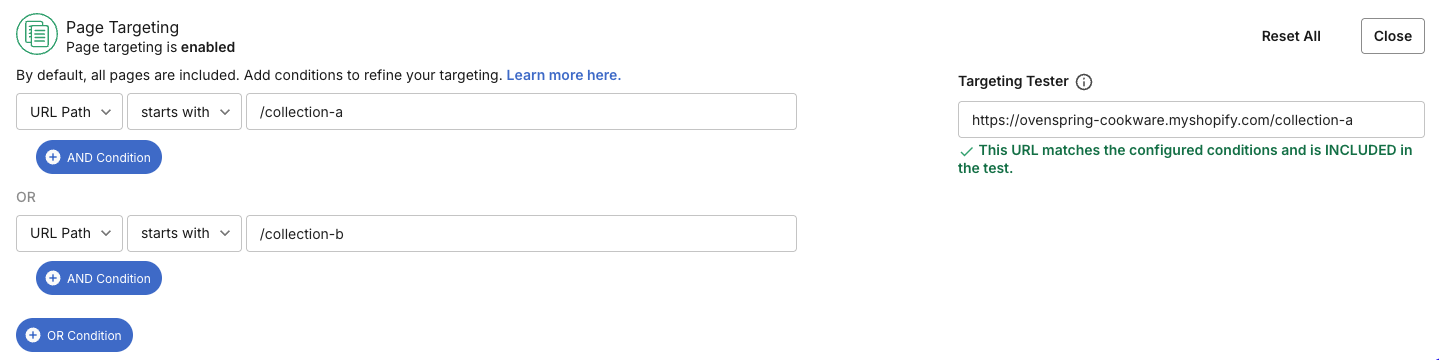
In this image, we are testing whether `https://ovenspring-cookware.myshopify.com/collection-a` matches the configured criteria.

Proposed URL matches configured criteria
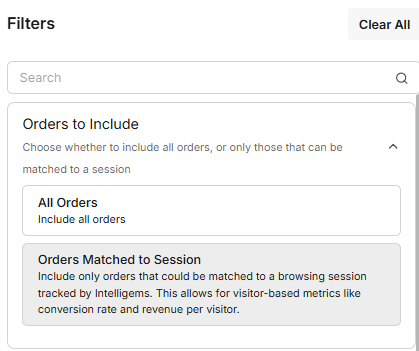
--- # Source: https://docs.intelligems.io/analytics/sitewide-analytics/performance-p-and-l.md # Performance P\&L ### **Overview** The **Performance P\&L** is a unified store-level performance dashboard with the following features: * Recent Performance Snapshot: View recent performance snapshots and all data observed since installation. * Compare PPV, RPV, CVR, AOV, and Gross Margin and more. * Historic Performance Over Time: Trend metrics over time with weekly or monthly grouping. * Profit and Loss Details: View full P\&L in table form with profit and revenue breakdowns. * Filter capabilities: Filter by device, visitor type, channel, z-score, country, and landing page. #### Filter Details * **Matched to Session:** Orders where checkout journey was directly observed via Intelligems script. * **All Orders:** Includes POS, subscriptions, and non-web orders. Orders that didn’t reach checkout in any way. By default, our views are filtered to Orders Matched to Session in order to enable visitor-based metrics as well as visitor-based filters The remaining filters are consistent in definition and operation with [filters in Experiment Analytics](https://docs.intelligems.io/analytics/experiment-analytics/filters)
#### Metric Definitions: Metric definitions are consistent between Experiment Analytics and Sitewide Analytics. Details around specific metrics can be found [here](https://docs.intelligems.io/analytics/experiment-analytics/metric-definitions). #### --- # Source: https://docs.intelligems.io/personalizations/personalization-modifications.md # Personalization Modifications When setting up a Personalization, you can add one or more modifications based on your goal - whether it’s as simple as a text change or as complicated as a rebrand with interactive javascript elements. There are 3 classes of modifications: * **Content changes -** these modify your text, layouts, and functionality. * **Price changes -** used to update the prices on one or more products directly * **Offers -** these deliver discounts and other promotions that appear on the PDP, in the cart, and at checkout without the need for coupon codes. You can combine several modifications in one Personalization, subject to limitations. You can also limit which site pages your changes apply to by using [Page Targeting](https://docs.intelligems.io/targeting-personalizations#page-targeting). ## **URL Redirects** URL Redirects allow you to set rules that re-route visitors from one page to another permanently or on a one time basis. This is useful in a variety of scenarios, and especially for showing a different version of a PDP to visitors coming from a specific channel or campaign. **When to use Redirects:** URL redirects should be limited to a particular audience. When a Personalization is aimed at all visitors rather than a specific segment, it’s best practice to just update all of your links directly in Shopify. This ensures better performance and keeps your baseline site set up the way you want it. You can read more about URL Redirects [here](https://docs.intelligems.io/content-testing/content-testing-getting-started/how-to-set-up-a-split-url-test). {% hint style="danger" %} **Mixing URL Redirects with other Modifications:** Any modifications mixed with URL Redirects in the same Personalization will not take effect until visitors hit the redirect origin page. For example, if your Personalization contains a redirect from page A to page B, and also contains CSS change and Content Edit modifications, the CSS and Content Edits will not be visible until a visitor has visited page A. Once they have, all modifications will take effect and continue taking effect on all pages where they are applicable. To get around this, you can create two Personalizations with identical audiences - one with the URL Redirect and the other with remaining modifications. {% endhint %} ## **Content Edits** Content edits allow you to modify text, images, and other page elements. Content Edits are made by clicking elements directly in your site using our visual builder. To make one or more content edits: * Add the Content Edits modification * Click to enter the visual editor in a new tab. Once you're there, click the icons on the top left to select text, images, and other page elements that you wish to change. * Read more about editing site images [here](https://docs.intelligems.io/general-features/image-onsite-editor) * Read more about editing other site elements [here](https://docs.intelligems.io/general-features/onsite-editor) * You can also change CSS and javascript here. Read more [here](https://docs.intelligems.io/general-features/css-and-javascript-injection) * Once you’ve finished making changes, click Save. You can close this tab. * Return to your original Personalization’s browser tab where you will see the list of edits you’ve made and can continue editing your Personalization. {% hint style="info" %} *You cannot use Content Edits if you have a headless storefront.* {% endhint %} ## **Styles & Javascript** If you're a technical user, you can use this Modification to inject custom CSS or Javascript into your site’s pages for visitors to this Personalization. CSS modifications can be used to hide buttons or text, change layouts and spacing, swap backgrounds, or change your color palette and fonts. Javascript changes can be used to pop up messages, modify button behavior, send information elsewhere, and much more. {% hint style="info" %} You can find additional tips and tricks for writing effective CSS and javascript [here](https://docs.intelligems.io/general-features/css-and-javascript-injection), including how to ensure the page has loaded before your code runs. {% endhint %} ## **Theme Changes** This modification allows you completely overhaul your site - from branding to navigation - by showing a different Shopify theme for visitors in this Personalization. To set up a theme change, choose the theme you’d like to be shown instead of your shop’s live theme, making sure the theme is integrated so that Intelligems can function correctly. Note that a Personalization can not contain both a Theme Change and Template Change modification, as a particular template may not be present in the target theme. {% hint style="danger" %} Theme changes can leave your site unstable so generally should be[ applied directly in Shopify](https://help.shopify.com/en/manual/online-store/themes/adding-themes) if you are targeting all visitors. If you are targeting a specific audience, you should follow a number of precautions, preview carefully, and test your live site frequently. [Learn more here](https://docs.intelligems.io/personalizations/theme-personalization-precautions). {% endhint %} {% hint style="danger" %} To ensure that your shop continues to function smoothly, do not delete your chosen theme for at least a month, even after stopping a Personalization. [Learn more here](https://docs.intelligems.io/personalizations/theme-personalization-precautions). {% endhint %} {% hint style="info" %} You cannot have more than one theme change active at the same time across your Personalizations and tests. Multiple theme changes can cause endless loops or failure in redirection. If you do have multiple theme changes live, make sure that your tests and Personalizations are targeting exclusive audiences. {% endhint %} ## **Template Changes** Template Changes allow you to overhaul the layout and appearance of a particular page or types of pages on your site by swapping out one page template in your site for another. You can read more about Shopify templates [here](https://help.shopify.com/en/manual/online-store/themes/theme-structure/templates). You can read more about the ins and outs of Template Changes [here](https://docs.intelligems.io/content-testing/content-testing-getting-started/how-to-set-up-a-template-test). {% hint style="info" %} Note that a Personalization can not contain both a Theme Change and Template Change modification. {% endhint %} {% hint style="info" %} We encourage using Template Changes targeted to specific audiences, but if you are targeting all visitors it's best to just change the template directly in Shopify to maximize performance, stability, and prevent unforeseen interactions between tests and Personalizations. {% endhint %} Note also that each Personalization is limited to swapping one single template for another. If you’d like to swap more than one template you can create multiple Personalizations and assign them the same audience. ## **Offers** There are multiple Offer modifications: * Amount off products * Amount off orders * Volume discounts * Free shipping * Free gift Offers can be configured to display customizable popups, progress bars, and quantity button components. Learn more about **Global Styles components**. Unlike Price Modifications, Offers do not update prices on your site pages and collections. Instead, like Shopify discount codes, they update the costs and totals shown in your cart and at checkout. If you want to update the prices shown on your site’s pages directly, use a Price modification instead. [Have a look at this guide](https://docs.intelligems.io/offer-personalizations/offer-modifications) for more details on offers and how to set them up. {% hint style="info" %} You cannot combine Offers and Price Modifications in a single Personalization {% endhint %} ## **Price Changes** Unlike offers, Price changes allow you to modify the actual price and compare-to (strikeout) price shown on individual PDPs and other pages across your site, rather than just showing a discount in your cart and at checkout. To set up the Price Modification * Tag Prices: before you display new prices, you must indicate to Intelligems where prices appear across the pages of your theme. This can be done in two ways: 1. (recommended) ask the Intelligems team do this for you as part of your site’s Integration process 2. Do it yourself in the onsite editor, [closely following these instructions](https://docs.intelligems.io/getting-started/price-testing-integration-guides). This only needs to be done one time. * Select one or more products whose prices you’d like to reduce * Enter new prices as well as compare-to prices. You can do this by * Manually typing them in * Using the quick-fill option to quickly reduce by a certain amount or percent * Downloading a spreadsheet of products selected, specifying new prices in the `Price-Control Group`, and `Compare Price - Control Group` columns, and uploading it again. Find out more about filling out the spreadsheet [here](https://docs.intelligems.io/price-testing/how-to-set-up-a-price-test#uploading-a-spreadsheet). * Note that you can only reduce prices on products in a Personalization for technical reasons. {% hint style="info" %} You cannot combine Price Modifications and Offers in a single Personalization. {% endhint %} {% hint style="info" %} Duplicate products and Subscriptions products are not supported for Personalizations. {% endhint %} {% hint style="info" %} Price Modifications do not work across currencies. Any Personalization using a Price Modification will have [currency targeting ](https://docs.intelligems.io/targeting-personalizations#currency-targeting)activated and set to the default store currency. This means only visitors using the store's default currency will see the Personalization. {% endhint %} Click [here](https://docs.intelligems.io/price-testing/price-testing-getting-started) to read more about price changes. ## Next Steps Once you’ve set up your Modifications, you can go on to: * Preview them to make sure everything functions correctly on your site before activating the Personalization. Click [here](https://docs.intelligems.io/personalizations/previewing-personalizations) to read our Preview guide. * Optionally Set Audience Targeting to limit who should see this Personalization and which pages, if not all, the modifications should appear on. Click [here](https://docs.intelligems.io/personalizations/targeting-personalizations) to read the full Targeting guide. --- # Source: https://docs.intelligems.io/personalizations/personalizations-faqs.md # Personalizations FAQs
Checklist: What to consider before activating a Personalization * **Unforeseen combinations:** Because a visitor can be subject to multiple Personalizations at the same time, you should be careful when designing and targeting your Personalizations to make sure that you don't create conflicts or unpredictable states for users. For example, you wouldn't want the same visitor to be redirected from page A to B but also from A to C. Likewise, you don't want a visitor experiencing a theme change as well as a template change where the new theme doesn't actually contain the new template. Try to avoid having too many broadly-targeted Personalizations active at the same time and take stock of your Personalizations regularly. Make sure you [follow the precautions ](https://docs.intelligems.io/personalizations/theme-personalization-precautions)when using theme changes. * **Interactions with tests:** You should also be careful to make sure your active Personalizations don't conflict with any active tests. * **Performance of non-native changes:** While Personalizations can help you enact quick site changes without the need to go into Shopify, some changes will likely perform better and more safely if they are implemented 'natively' in Shopify. For example, URL redirects, price changes, and theme changes targeting all visitors (rather than a specific audience) should ideally be done in Shopify. If you have the option, consider minimizing how many of these types of Personalizations you run.
When does a visitor start seeing my Personalization? And what happens if I stop it? A site visitor starts seeing a Personalization the moment they become eligible for it, according to its targeting criteria. Even if they are not eligible on their first site visit or the first few pages they browse on your site, they still remain eligible. The moment you stop a Personalization, visitors who saw the Personalization will cease to see it. This is critical for time-limited sales and events.
Do I need to be on a certain plan to use Personalizations? You can create and launch Personalizations on any of our plans. * The use of Content modifications (URL Redirect, Content Edit, Styles & JS, theme change, and template change) is available on all plans. * The ability to test Offers requires the Plus or Blue plan. When editing an active Personalization you will not be able to add these types of modifications without the corresponding plan unless you first stop the Personalization. The Intelligems free trial will allow you to activate Personalizations with all of the above modifications during your trial period. [See our Pricing Page for more information](https://www.intelligems.io/pricing).
Why am I not able to Preview or why is Preview unavailable? It may be that you are not in the target audience of the Personalization, so Intelligems is effectively showing you what a visitor sees when they are outside the target audience. To "force" yourself into the Personalization, click the "Include" button at the bottom right of the blue Preview widget in the Full Screen preview. It may also be that you have paused a Personalization that was once active but is now stopped. Intelligems currently does not support the preview of such Personalizations. To get around this, you can duplicate the Personalization and preview its duplicate, or stop the Personalization temporarily. It may also be that you have not yet saved your most recent changes in this Personalization. The Preview shows only saved changes. Save your changes and then click Preview again. Read more on the [Previews](https://docs.intelligems.io/previewing-personalizations#tip-in-full-screen-preview-make-sure-to-include-yourself) page.
Can the same visitor be exposed to multiple Personalizations at once? Yes, absolutely! For example, a new visitor on a mobile device may be exposed to a "New Visitors" Personalization with a "20% off" offer, and a "Mobile" Personalization that moves the Call to Action button higher up on the page. You should be careful when designing and targeting your Personalizations to make sure that you don't create conflicts or unpredictable states for users. For example, you wouldn't want the same visitor to be redirected from page A to B but also from A to C. Likewise you don't want a visitor experiencing a theme change as well as a template change where the new theme doesn't actually contain the new template. You should try to avoid having too many broadly-targeted Personalizations active at the same time. You should make sure your active Personalizations don't conflict with any active *tests*. Personalizations cannot be made mutually exclusive the way that tests can, but this feature is coming soon.
What happens if two Personalizations seen by a visitor are in 'conflict'? You should aim to avoid scenarios where the same visitor is exposed to two active Personalizations that both use a theme change, a Template change on the same origin template, or similar. Intelligems will break the tie at random, potentially leading to unpredictable experiences.
When using a popup component in an Offer Personalization, how can I prevent the pop-up from displaying on a specific page of my site? On any page you want to remove the pop-up, add the following snippet. For example, to remove on the home page, add this snippet to `templates/index.liquid` ``` ```
Can I make price changes to subscription products? At this time, price changes are only supported for non-subscription products.
Can I use Personalizations to serve different prices to different customer segments? Intelligems allows you price products differently based on the customer, but you cannot raise prices over the Shopify list price for technical reasons.
What does Discount Synchronization Error mean and how do I fix it? You may see a "Discount Synchronization Error" when you create, edit, start, or pause an offer. This means that Intelligems received an error from Shopify when updating your discounts in Shopify. ⚠️ **This may be affecting live Intelligems offers and your customers' ability to redeem them.** The limitation is that you can only have 5 Automatic Discounts active in Shopify at any given time (see [Shopify docs](https://community.shopify.com/c/shopify-functions/app-automatic-discount-limitation/m-p/1966961/highlight/true#M349)). Intelligems does its best to combine all of the offers you create in the platform into as few discounts in Shopify. You may have other apps or automatic discounts active that also count towards the limit. To check, navigate to Shopify Admin > Discounts and then add a filter for Status = Active and Method = Automatic. To resolve this error, you can either: * [Archive](https://docs.intelligems.io/offer-personalizations/offers-limits#archiving-offers) existing Intelligems offers that you're no longer using within Intelligems * Deactivate or delete non-Intelligems discounts that are currently active in Shopify If neither of these actions resolve the error, please [reach out to our support team](https://portal.usepylon.com/intelligems/forms/intelligems-support-request) and we'd be glad to help!
--- # Source: https://docs.intelligems.io/personalizations/personalizations-getting-started.md # Getting Started with Personalizations {% embed url="" %} ## What are Personalizations? A Personalization shows one or more site modifications to all visitors or a targeted audience, temporarily or permanently. With a broad range of Modifications including URL redirects, text changes, offers and price changes, layout changes, javascript injections, Global Style components like progress bar, quantity buttons, slideouts, and more, a Personalization can be used to completely overhaul your site or simply fine tune text and layouts. {% hint style="info" %} **How do Personalizations relate to Experiences?** Experiences have been renamed to Personalizations. Nothing else changed. {% endhint %} ## What can you achieve with Personalizations? While Intelligems’ testing tools allow you to pit experiences against each other to find which ones produce the best results, Personalizations allow you to act on those findings and show the right experience to the right shop visitors quickly, all without writing code. With Personalizations you can: * **Deploy, test, and target offers:** Offer codeless promotions, volume discounts, and free gifts, displaying popups, progress bars, quantity buttons, and other components. For example, you can offer a discount and modified copy to all returning visitors. To make informed decisions, you can also test offers against each other to determine which ones work best for a target audience before deploying them. * **Quickly ship codeless edits**: Immediately go live with changes without Shopify limitations or developer delays. For example, you could deploy a warning about delayed international shipping to everyone outside your country. * **Maintain consistency from ads to Landing Pages:** Send visitors to unique landing pages with personalized content and offers. For example, you can show a banner at the top of your PDP only to visitors arriving from an Instagram campaign by redirecting them to a different page, or swapping your Shopify page layout depending on the audience. You can do all of this without having to manage multiple links. * **Personalize product discovery:** Boost conversions by showing different collections for certain customers. For example, redirect athletes to a version of your home page that highlights sports-related products in your main collection. * **Overhaul your site’s look and feel:** Show a completely different Shopify theme with altered navigation for users in a different country. * **Lower your prices:** Show lower prices for one or more products during a special event or when overstocked. * **Take action on your test results:** Quickly roll out winning variants to all visitors or specific customer segments. ## How do you make and use a Personalization? Before using Personalizations and most other Intelligems features, you'll need to add the Intelligems script to your theme; [here is our help guide](https://docs.intelligems.io/getting-started/adding-intelligems-script-to-your-theme). Once you've done that: * **Step 1 - Initialize:** There are three ways to create a Personalization. * Option 1: Go to the Personalizations > Site Content > Select which type of Content change(s) you want to create * Option 2: Go to Personalizations > Offers > Select which type of Offer(s) you want to create * Option 3: Go to one of your tests and use the “Roll out” button to Roll a winning test group into a Personalization. This will carry out many of the steps below automatically, saving you time. * **Step 2 - Modifications:** Add one or more modifications based on your goal, whether it’s a simple text change, adding a component like progress bar, quantity button, or slideout, or as complicated as a rebrand with interactive javascript elements. Click [here](https://docs.intelligems.io/personalizations/personalization-modifications) to read more about Modifications. * **Step 3 - Targeting:** Decide who should see the Personalization, if not all visitors to your site. Intelligems allows you to limit visitors to those that match robust rules, those coming in via a special link, and those shopping in a certain currency. You can also limit which site pages the modifications should appear on, if not all. Click [here](https://docs.intelligems.io/personalizations/targeting-personalizations) to read more about Targeting. * **Step 4 - Preview:** Make sure everything looks and works as you’d expect before activating it. Click [here](https://docs.intelligems.io/personalizations/previewing-personalizations) to read more about Previewing. * **Step 5 - Activate it:** Once you’re ready, activate it. You can pause and resume as many times as you need, which is useful for recurring promotions. You can also: * **Track Stats:** Check how many visitors saw each Personalization and which ones delivered the most orders and revenue. * **Update:** Edit a Personalization at any time to change its modifications, targeting, and more. * **Combine:** Stack Personalizations, allowing a visitor to be presented with more than one Personalization at the same time. For example, a visitor can be exposed to a “New visitors discount” Personalization while also seeing the homepage layout tweaks of the “Mobile users Optimization” Personalization. * **Duplicate:** When creating multiple similar Personalizations, you can save time by duplicating an existing one and editing it rather than starting from scratch. This is also a handy way to preview changes you want to make to an active Personalization without needing to turn it off. * **Launch Offers:** One type of modification within a Personalization is an "Offer". An example of this may be a discount or free gift with purchase. Intelligems allows you to launch Offers as a Personalization, outside of a test. * **Launch Checkout Blocks:** With Checkout, you can launch content blocks on your Checkout page for Shopify Plus customers. Trust badges, social proof, shipping messages, product upsell, you name it. More blocks coming soon. {% hint style="info" %} **Pricing:** You can create and test Site Content and Offer Personalizations on Core, Plus, and Blue plans. To create and test Checkout Personalizations, you need to be on Core, Plus, or Blue plans *and* on a Shopify Plus plan. {% endhint %} ## Next Steps See the guides below to delve deeper into Personalizations: {% content-ref url="personalization-modifications" %} [personalization-modifications](https://docs.intelligems.io/personalizations/personalization-modifications) {% endcontent-ref %} {% content-ref url="targeting-personalizations" %} [targeting-personalizations](https://docs.intelligems.io/personalizations/targeting-personalizations) {% endcontent-ref %} {% content-ref url="previewing-personalizations" %} [previewing-personalizations](https://docs.intelligems.io/personalizations/previewing-personalizations) {% endcontent-ref %} {% content-ref url="../offer-personalizations/testing-offer-personalizations" %} [testing-offer-personalizations](https://docs.intelligems.io/offer-personalizations/testing-offer-personalizations) {% endcontent-ref %} {% content-ref url="personalizations-faqs" %} [personalizations-faqs](https://docs.intelligems.io/personalizations/personalizations-faqs) {% endcontent-ref %} --- # Source: https://docs.intelligems.io/personalizations/previewing-personalizations.md # Previewing Personalizations ## How does Preview help? * Before you’ve ever activated a Personalization, preview to make sure everything looks good * While a Personalization is active, preview to see what it looks like for its target audience {% hint style="info" %} At the moment you cannot preview a Personalization that has been previously active but is now stopped. To work around this, you can either re-activate the Personalization, or you can duplicate it and preview the duplicated version. {% endhint %} ## How to preview your Personalization In a Personalization, go to the Preview tab. #### **STEP 1: Save your changes** The Intelligems preview (screenshots and full screen) will only show what’s already saved in your Personalization. If you’ve made additional changes since your last save, you should save the Personalization to see them in the Preview. If you are editing an active Personalization, you may not feel comfortable saving your changes just to preview, since saving would automatically apply these changes to visitors. To work around this, you should *either re-activate the Personalization, or you can duplicate it and preview the duplicated version.* #### **STEP 2: Optionally adjust which page you want to see** To save you time, Intelligems automatically determines which site page our preview should ‘center’ on. This means which page is shown in screenshots and as the first page when you open full screen preview. The automated logic works as follows: * By default the home page of your site is shown. * If you have page targeting set up to a single page, that page will be used. This is useful, for instance, when personalizing a particular PDP for a given audience. * If you have a single redirect modification, the target URL of that redirect will be used. * If you have both of the above, the page targeting will be used. If you prefer to override this and always see previews beginning on a particular page, whether it’s the home page or another, simply choose Custom URL in the top left picker, type in a URL, and save. Intelligems will continue showing previews of this URL until you choose another URL or reset it to automatic mode. #### **STEP 3: View screenshots and Full Screen Preview** * **Screenshots:** Have a look at the screenshots for a rough at-a-glance view of your site. These should never be used as a substitute for a full screen preview. * **Full Screen Preview:** Click the “Full Screen Preview” button to view your site in the browser as visitors in the Personalization would see it. Or click the “Mobile Preview” button to get a link for your mobile device. #### **TIP: In full screen preview, make sure to “include” yourself:** If your Personalization is targeted to a Particular audience, it may be that your own circumstances (location, device, etc) make you ineligible for the Personalization. To account for this, full screen preview allows you to view the site in two ways: * **As yourself:** If you do not match the Personalization audience, you will receive a message like the one below. This helps you confirm that the targeting is excluding people correctly. Click the “Include” button to force yourself into the audience of the Personalization - this will allow you to see what it will look like for those visitors.
* **As a member of the audience**: once you click “Include” you will see the site as it appears for the Personalization's audience. This is the mode you should spend most of your time in. Other buttons in this blue banner that you may find useful are: * **The refresh icon:** This resets the preview so that your site appears the way it did when you first previewed it. This can be handy when using a URL Redirect modification that's set to only redirect from Page A to Page B *a single time*. Clicking refresh will allow you to test the redirect more than once. * **Highlight Replaces:** If you have used Content Edits in your Personalization, this toggle will show which elements on each page have been affected. ## Next Steps Once you’ve previewed your Personalization, you can go on to: * **Fine tune your modifications:** Click [here](https://docs.intelligems.io/personalizations/personalization-modifications) to read our Modifications guide. * **Activate the Experience**: If everything looks good, activate your Personalization or leave it pending until ready. You can pause and resume as many times as you need, which helps with recurring promotions. --- # Source: https://docs.intelligems.io/developer-resources/javascript-api/price-object.md # Price Object ## Overview If your Shopify theme has a lot of custom javascript, you will likely need to use this API to make price tests work. Common use cases for custom javascript are things like: * Custom bundle and pack builders * Custom upsells for an item * Custom in-cart upsells * PDPs with lots of customization that don't use a typical `
` ## Get Price by Variant ID To get the price for a product, you can use `window.igData?.price.getPriceByVariantId()`. This will return the price as a string in currency (i.e. `"29.95"`) If there is no price test running or this product is not in a price test, we will return null. #### **Example** ```javascript ... // Imagine item = product.variant; // You want the price for that item const itemPrice = window.igData?.price.getPriceByVariantId(item.id) || item.price; ... ``` ## Get Price by Product ID You may not have a specific variant ID, in which case you intend to look up the price for a product. Since different variants on the product may contain different prices, you must specify if you want the *minimum* or *maximum* price for a given product id. For example: ```javascript const itemMinPrice = window.igData?.price.getMinPriceByProductId(product.id); const itemMaxPrice = window.igData?.price.getMaxPriceByProductId(product.id); ``` ## Get Compare Price by Variant ID To get the compare price for a product, you can use `window.igData?.price.getComparePriceByVariantId()`. This will return the compare price as a string in currency (i.e. `"29.95"`) If there is no price test running or this product is not in a price test, we will return null. ## Get Subscription Discount To get the price for a product, you can use `window.igData?.price.getSubscriptionDiscountByVariantId()`. This will return the discount object: `{subscriptionDiscount: 10, subscriptionDiscountType: "percentage"}` The types for subscription discount are: `"percentage" | "dollar"` #### **Example** ```javascript ... // Imagine item = product.variant; // You want the subscription discount for that item const igSubDisc = window.igData?.price.getSubscriptionDiscountByVariantId(item.id); console.log("Discount:", igSubDisc?.subscriptionDiscount) // Discount: 10 ... ``` --- # Source: https://docs.intelligems.io/getting-started/common-use-cases/price-test-common-use-cases.md # Price Test Common Use Cases Price testing is a powerful tool because it allows businesses to determine the optimal price point for their products or services. By experimenting with different prices, companies can gather data on consumer behavior, demand elasticity, and profitability. This helps them understand what customers are willing to pay, which in turn maximizes revenue, enhances market positioning, and minimizes the risk of underpricing or overpricing. Effective price testing leads to better decision-making, ensuring businesses stay competitive while meeting customer expectations and financial goals. Check out the below common test designs for inspiration on how to get started: {% content-ref url="price-test-common-use-cases/the-straddle" %} [the-straddle](https://docs.intelligems.io/getting-started/common-use-cases/price-test-common-use-cases/the-straddle) {% endcontent-ref %} {% content-ref url="price-test-common-use-cases/the-double-down" %} [the-double-down](https://docs.intelligems.io/getting-started/common-use-cases/price-test-common-use-cases/the-double-down) {% endcontent-ref %} {% content-ref url="price-test-common-use-cases/the-strikethrough" %} [the-strikethrough](https://docs.intelligems.io/getting-started/common-use-cases/price-test-common-use-cases/the-strikethrough) {% endcontent-ref %} {% content-ref url="price-test-common-use-cases/the-great-discount-debate" %} [the-great-discount-debate](https://docs.intelligems.io/getting-started/common-use-cases/price-test-common-use-cases/the-great-discount-debate) {% endcontent-ref %} {% content-ref url="price-test-common-use-cases/savings-showdown-volume-discount-vs.-price-discount" %} [savings-showdown-volume-discount-vs.-price-discount](https://docs.intelligems.io/getting-started/common-use-cases/price-test-common-use-cases/savings-showdown-volume-discount-vs.-price-discount) {% endcontent-ref %} --- # Source: https://docs.intelligems.io/price-testing/price-test-qa-checklist.md # Price Test QA Checklist This QA list is specific to a price test. If you are QAing a shipping test, please check out [this article](https://docs.intelligems.io/shipping-testing/shipping-test-qa-checklist)! Before heading to your site, there are a few things you should check to make sure your integration is functional: * [ ] Is Intelligems JavaScript in your live theme? Check out [this article](https://docs.intelligems.io/getting-started/adding-intelligems-script-to-your-theme) for more information on where to find this. * [ ] If you are using the [Checkout Script integration](https://docs.intelligems.io/price-testing/price-testing-integration-guides/integration-guide-using-checkout-scripts), is the Intelligems Checkout Script live in the Script Editor app? Once you have confirmed both of those items are true, you can preview the test on your live site. Enter Preview mode by clicking the `...` next to your test and select `Preview`
This will open your site up in a new window with the Intelligems preview widget enabled. In the preview widget, you'll see: 1. The name of the test you are previewing in the top left 2. A dropdown to switch between different test groups in the bottom left 3. A toggle to highlight any replacements in the top right 4. An edit button in the bottom right. This enables integration mode where you can edit price selectors and text replacements
{% hint style="info" %} Please note that if you sell in multiple currencies, a price test which includes prices higher than the control group's prices may have implications for any non-default currencies if they are set to dynamically convert against your store's default currency.\ \ In Shopify Markets, or wherever your store's currency pricing is managed, be sure to set non-default currency prices as fixed/static for the duration of the test if you would like to avoid any unintended price increases in these markets. {% endhint %} To get started in preview mode, turn the `Highlight Replaces` toggle on in the top right corner of the widget to highlight the prices in your test. This will highlight all of the prices that have been tagged on your site in green or blue. * [ ] Confirm that any prices tagged in green *are* part of the test. Green highlighting means we recognize that element is a price, and *it is being changed* by the Intelligems app in accordance with the different groups for the test you are previewing. * [ ] Confirm that any prices tagged in blue *are not* part of the test. Blue highlighting means we recognize that element is a price, but *it is not* being changed by the Intelligems app because that product is not included in the test you are previewing. This is important as you may test this price in the future, so we want to make sure we know its a price. * [ ] Is the price of a product *that is included in the test* highlighted blue? This most likely means that we are not able to tell which product and/or variant ID this price is for. Follow [these steps](https://docs.intelligems.io/price-testing/price-testing-integration-guides/troubleshooting/how-to-add-the-data-product-id-and-or-data-variant-id-attribute-to-an-element) to add the `data-product-id` and/or `data-variant-id` attribute to that price element so that we are able to tell which product it is for. * [ ] Confirm that the price for each product and variant that are part of the test matches the test designed in the app for all test groups. You can switch groups with the drop down in the bottom left corner of the preview widget. A few pages we recommend checking: * [ ] Homepage * [ ] Collection Pages * [ ] Search Bar * [ ] Search Results * [ ] Product Page * [ ] Recommended Items on Product Page (e.g. `You May Also Like` or `Recently Viewed`) * [ ] Upsells in Cart * [ ] Product Quiz * [ ] Landing pages * [ ] Navigation * [ ] Confirm that the below is all true on the Product Page: * [ ] The correct price displays for each test group. Be sure to check out different variants if this is an option. * [ ] Bulk purchase and/or subscription options match the live site and/or test design. * [ ] Ratings and/or reviews match the live site. * [ ] Other media, such as images, video and text, match the live site. * [ ] Text is being updated if it references price. For example, text that says `20% off for subscriptions` or references value of individual items in a bundle should update accordingly. Now that you have confirmed prices look right everywhere on the site, go through the add to cart process and click checkout for a handful of products that are a part of the test. * [ ] Confirm that the status of duplicate products (if applicable) has been set to Unlisted. * [ ] Confirm price is being calculated correctly at each step (e.g. in the mini cart, on the cart page, and on the checkout page) based on which test group is selected in the widget. *Note that if you are using Duplicate Products for your test, the price should match the test group in the cart.* * [ ] Increase the quantity of a test item to two from within the cart; confirm that the prices are still correct. * [ ] If you offer options other than one-time purchase, such as subscription or bulk, confirm that these are correct at each step. * [ ] If there is custom code for creating bundles within the site (i.e. if you add all the products that are part of the bundle and the discount is applied), confirm that functionality is working properly. * [ ] If you have a quick buy button (e.g., Buy with ShopPay) in cart or at checkout, confirm that the price is correct when you use this functionality. Please note that these buttons likely won't work for price tests if they are found on the PDP or collections pages. * [ ] Confirm that `ig_discount` or other `ig_items` are not showing in the cart or at checkout. * [ ] Confirm that any payment plan options (e.g. AfterPay or ShopPay) are calculating monthly payments correctly if available. * [ ] Compare shipping rates to the live site. This is most relevant if there are custom shipping rates set up. * [ ] Add to cart from all landing pages from different test groups and confirm the price at checkout is correct. * [ ] **We highly recommend placing a test order. This is particularly important in the below scenarios:** * [ ] If you are testing subscription products - once you have placed your test order, check the refill prices in your subscription app. * [ ] If you use Line Item Properties for any information that is pertinent after the order has been submitted, such as customization information. **If you are not on Shopify Plus, these Line Item Properties are not compatible with Functions, and they will be wiped from the order.** {% hint style="info" %} Check all of the above items in mobile as well. Here is a [guide](https://www.browserstack.com/guide/view-mobile-version-of-website-on-chrome) on how you can view mobile mode on your desktop on Chrome. {% endhint %} Once you have confirmed all of the above items look correct, you can hit start on your test in the app! Please [reach out to Intelligems support](https://portal.usepylon.com/intelligems/forms/intelligems-support-request) if you have any questions. --- # Source: https://docs.intelligems.io/price-testing/price-testing-faqs.md # Price Testing FAQs ## General
How many products can I add to a price test? We limit price tests to 500 products by default, but you can [reach out to our support team](https://portal.usepylon.com/intelligems/forms/intelligems-support-request) to ask for a limit increase.
Can I price test just one variant of a product? Products get added to a price test at the product level, which means all variants are technically included in a test, but if you are only looking to test one (or a few) variants of the product, you can set the price to be the same as the control price in all test groups for the variants that you do not want to test. Here's an example of what that would look like if we only wanted to test the "Cream / Small" variant of our Ceramic Dinner Plate product:
Can I Price Test Shopify Bundle products? Shopify Bundle products cannot be price tested due to a limitation with Cart Transform Functions. Both bundle products and our price testing feature rely on Shopify's Cart Transform functionality, but **Shopify only allows one cart transform function to run per line item**. **What are cart transform functions?** Cart transform functions are Shopify's mechanism for modifying cart contents, pricing, and line items dynamically. They're essential for creating product bundles and implementing dynamic pricing features. **Why does this create a conflict?** * **Bundle products** use Cart Transform Functions to group items together and apply bundle pricing * **Our price testing** uses cart transform functions to display different prices to different customer segments * Since only one transform can run per line item, these two features cannot operate simultaneously **Are there any workarounds?** Currently, there are no reliable workarounds due to this Shopify platform limitation. You'll need to choose between: * Using bundle products with standard pricing * Price testing individual (non-bundle) products **Will this limitation be resolved?** This depends on Shopify updating their platform to allow multiple Cart Transform Functions per line item. We'll continue monitoring Shopify's roadmap for any changes to this functionality.
What additional steps do I need to take if I use another software to manage product prices? When you start a price test, Intelligems will automatically update your product prices in Shopify to the highest price in the test for each product. If you use another software (like NetSuite) to manage/push prices to Shopify, you'll need to also update the product prices in NetSuite to the highest price for each product. 1. You can download a CSV with your product IDs, SKUs, and test group prices in the "Set Prices" step of test setup. Please note that this file will contain prices for each test group, though you'll want to import only the highest price for each product. You can edit this CSV for import into your price management software (like NetSuite) according to the required format. 2. Start your price test in the Intelligems App. Please select **Yes, update my prices and start my test** in the pop-up. 3. Update prices to the highest test prices in your price management software right after starting the test (using the data from the downloaded CSV if preferred). As long as prices are updated before the software syncs to Shopify, then the test will work as expected.
What should I do with my Google Shopping Feed during a price test? This depends on whether you are running your price test using Checkout Scripts, Functions or Duplicate Products. If you are using Checkout Scripts or Functions, Intelligems updates the price in Shopify to the highest price in the test and sends that price to your shopping feed. We recommend triggering a feed update once the test is live, especially if you push your updates to the feed manually or if you use an app to manage your Google Feed. This means that for visitors coming into your site through Google ads, they may see a lower price when they get to the site, but never higher prices. If you are using Duplicate Products, Google will continue to display the control price in the Google Shopping feed, which means users may see a different price when they get to the site. We recommend sending the higher prices to Google so that if users do see a different price when they land onsite, it's a lower price and therefore better for the customer experience. To do this, the original, non-duplicate products must have the highest price points in the test. This corresponds to the column on the left when you are setting up a test in Intelligems. Additionally, you'll want to make sure you remove duplicate products from all third-party channels so that the products don't show up on Google multiple time with different prices. You can read more on how to do that [here](https://docs.intelligems.io/price-testing/price-testing-integration-guides/integration-guide-using-duplicate-products/step-4-configure-duplicate-products).
I'm in Preview Mode to QA my Price Test but when I add a test product to cart the price is not right. Why? Shopify Plus members using Checkout Scripts for their integration may notice a discrepancy in the cart prices during preview mode that will go away once a test is live if they are testing prices that are higher than their control price! The control price and any price groups lower than the control should show up correctly in the cart if your checkout script is live, while the higher price group will continue to add to cart at the control price. This is because there is one item left, which will occur when the test is started. At that time, the Intelligems app will update the Shopify price to be the highest price in the test, and then for users who are in a lower price group, we will calculate a discount behind the scenes. If you are only testing prices lower than the control, then you should not see any discrepancies when testing in Preview Mode since the control price is the highest price in the test.
Why is the discount showing on ShopPay checkout? There is currently no way to hide a checkout script discount from appearing on ShopPay checkout. That said, we can change the name of the discount to appear as you'd like - if you would like to change the name of your discount, please [reach out to Intelligems support](https://portal.usepylon.com/intelligems/forms/intelligems-support-request).
Does Intelligems work with subscription softwares like Recharge? Yes! Intelligems works with Recharge and other subscription management services to facilitate tests around subscription pricing. However, given these integration are often complex, we highly recommend having Intelligems perform this integration. Learn more [here](https://docs.intelligems.io/price-testing/testing-with-subscriptions) about integrating with subscription platforms.
Why does Intelligems update my Shopify prices when I start a test? Intelligems automatically updates your Shopify prices to the highest price in your test. This ensures accurate pricing across your store and connected channels. **Technical requirements** **Shopify Checkout Scripts** can only decrease prices dynamically. Setting the highest price in Shopify allows the script to apply lower test prices at checkout. **Shopify Functions** can increase prices, but we still set the highest price in Shopify as best practice, which we explain more below. If you would prefer not to increase your prices in Shopify and you are using our Functions integration, please [reach out to our support team](https://portal.usepylon.com/intelligems/forms/intelligems-support-request) as we can enable this advanced setting in your account. **Multi-channel accuracy** Your Shopify product data feeds into other channels like Google Shopping, Facebook, Instagram, and Shopify Markets. When these channels display your products, they sync with your Shopify prices. Setting the highest test price in Shopify prevents customers from seeing a lower price in Google Shopping (or other channels) and then encountering a higher price on your site. This creates a better customer experience and prevents potential conversion issues. **What this means for you** When you start a price test, any channel connected to Shopify will display the highest price from your test. This includes: * Google Shopping feeds * Facebook and Instagram shops * Shopify Markets * Third-party marketplaces * Email marketing platforms syncing product data If you're running tests across multiple channels, factor this into your test strategy to ensure consistent pricing where needed. Please note that if you are only testing lower prices, your Shopify prices will not be altered when you start a price test.
## Multi-Currency
If my store sells in multiple currencies, how does price testing impact each currency? By default, price tests will only run in your store's default currency. All customers shopping in currencies other than your store's default currency will be excluded from the test results. However, the price that those customers see varies depending on a few factors: 1. Whether you use Shopify Markets or Global-E for currency conversion. If you use Global-E, please see the FAQ below this for more information. If you use Shopify Markets, please continue reading this FAQ. 2. How you manage currency conversion in Shopify Markets. Shopify Markets has two options for how prices are set in non-default Markets: 1. By default, prices are automatically converted based off of the price in your default currency and the current conversion rate. If you use this method, and are testing higher prices than your control, all customers shopping in non-default currencies will see the highest prices in a live test in their currency. 2. If you would prefer to set prices at a set rate for non-default currencies, you can follow [these steps](https://help.shopify.com/en/manual/international/pricing/product-prices-by-country#set-product-price-for-a-country-or-region) to do so. 3. The above is typically only relevant to tests that are being run using Checkout Scripts or Functions. If you are using Duplicate Products to run your test, this typically isn't relevant unless you have altered the price of your control product. If you are interested in testing in multiple currencies, please see our article [here](https://docs.intelligems.io/price-testing/multi-currency-testing) for more information!
Does Intelligems integrate with Global-E? We do not directly integrate with Global-E, but do have steps to follow if you are running a price test with higher prices using Checkout Scripts or Functions. If neither of those apply, nothing needs to be done to work with Global-E.\ \ If those do apply, when you start your price test, we raise your prices in Shopify to the highest prices in the test. Because Global-E is converting prices in other markets based off of what is in Shopify, the price will be higher in all other markets while the test is running. To avoid this, you'll need Global-E to set a fixed price in the foreign currency for each product included in the test. You can do this by providing Global-E with a CSV file. They will also need to revert this at the end of the test so the prices can sync with the current exchange rate.
## Duplicate Products
Do I need to duplicate products to run a price test and does it happen automatically? In most cases, you do not need to duplicate products to run a price test with Intelligems. This is because Intelligems uses Shopify Functions to run price tests in most cases. Duplicating products may be necessary if: 1. Your store is unable to use Shopify Functions for any reason. 2. You offer subscriptions and do not have access to the Script Editor app, or you are using an app other than Stay.Ai or Recharge to power your subscriptions. 3. You are using another third party app on your PDP that is not compatible. If you need to use duplicate products for one of the above or another reason, please [reach out to Intelligems support](https://portal.usepylon.com/intelligems/forms/intelligems-support-request) for assistance enabling this feature in your account. Once enabled, one duplicate product will be created automatically for every product and every price point that you add to a price test.
What will duplicate products look like in Shopify and how can I find them? The duplicate products will be nearly identical to the original products with a few key differences: 1. They will have different product and variant IDs. Note that duplicates will have the same SKUs as their originals. 2. They will be tagged with a ‘price\_test’ tag, as well as a tag with the experiment ID, test group ID and a unique ID to that product. 3. They will be set to Unlisted status when created.
Can I delete duplicate products once a price test is over? We typically recommend waiting a few days after a test is over before doing this. Customers will not be able to see them unless the duplicate products are still in their cart. Keeping the duplicates live for a few days will allow these edge-case customers to be able to check out, creating a better customer experience. When ending a test, you'll be asked if you would like to archive the products now or within 48 hours. Intelligems will automatically archive duplicates after 48 hours. Additionally, if you have subscriptions, you should make sure any subscriptions that occurred on the duplicate products get mapped to non-duplicate products. Other than that, there are no issues with deleting them, but archiving may be a safer option in case you need to make any changes later. You'll be able to find all duplicate products created by Intelligems by searching for the products with the tag 'price\_test' in Shopify.
--- # Source: https://docs.intelligems.io/price-testing/price-testing-getting-started.md # Price Testing - Getting Started ## What is Price Testing? Intelligems takes the guesswork out of setting your product prices by allowing you to test prices in real time in order to find the “right” product prices to drive profit, revenue, and conversion boosts. You can easily build product price split tests with just a few clicks in the Intelligems app. Tests are easy to build and customize: add multiple test groups with configurable traffic distribution rules, select which products to include in the test, and set test group prices. ## How does it work? For all Shopify brands, Intelligems displays the correct price on the frontend by manipulating the DOM to show the correct price depending on a user's test group once your [prices have been tagged](https://docs.intelligems.io/price-testing/price-testing-integration-guides/integration-guide-using-shopify-functions/step-2-tag-product-prices). Intelligems displays the correct price in the cart and charges the correct amount at checkout using one of the three below methods: 1. **Using Shopify Cart Transform Functions.** Intelligems will automatically set your prices to the highest prices in the test in Shopify when you start your test, and we will use a Shopify Cart Transform Function to dynamically adjust the price for any users in a group lower than the highest price in the test so that they get the same price in the cart and at checkout that they saw everywhere else on the site. This method is available for brands on any Shopify plan, and will be Intelligems' primary method moving forward. 2. **Using a Checkout Script.** Intelligems will automatically set your prices to the highest prices in the test in Shopify when you start your test, and we will use a Checkout Script to run a behind the scenes adjustment for any users in a group lower than the highest price in the test so that they get the same price in the cart and at checkout that they saw everywhere else on the site. This method is only available for brands on Shopify Plus, and Intelligems is beginning to move away from this method as Shopify will be deprecating the Script Editor app in August 2025. 3. **Using Duplicate Products.** In certain cases, such as testing something more complex or if you offer subscriptions, Intelligems will swap in a duplicate product when a user adds to cart in any group other than the control group to ensure the price is correct in the cart and at checkout. ## How can I get started? There is a short integration required before you can begin a price test. Please see the appropriate guide [here](https://docs.intelligems.io/getting-started/pricing-integration-guides) depending on which version of our integration you are on. If you are not sure which integration guide you should be following, please reach out to our support team [here](https://portal.usepylon.com/intelligems/forms/intelligems-support-request). If you prefer, we'll be happy to complete the integration for you - in that case, please book a demo with our team [here](https://meetings.hubspot.com/igsam/igdemo?uuid=09e10934-25f6-4485-9f0e-4ceb6e80f099) so we can learn more about your store and get it integrated with Intelligems. Once the integration has been completed, see the guides below for more information on price testing: {% content-ref url="price-testing-integration-guides" %} [price-testing-integration-guides](https://docs.intelligems.io/price-testing/price-testing-integration-guides) {% endcontent-ref %} {% content-ref url="how-to-set-up-a-price-test" %} [how-to-set-up-a-price-test](https://docs.intelligems.io/price-testing/how-to-set-up-a-price-test) {% endcontent-ref %} {% content-ref url="price-test-qa-checklist" %} [price-test-qa-checklist](https://docs.intelligems.io/price-testing/price-test-qa-checklist) {% endcontent-ref %} {% content-ref url="starting-a-price-test" %} [starting-a-price-test](https://docs.intelligems.io/price-testing/starting-a-price-test) {% endcontent-ref %} {% content-ref url="ending-a-price-test" %} [ending-a-price-test](https://docs.intelligems.io/price-testing/ending-a-price-test) {% endcontent-ref %} {% content-ref url="testing-prices-with-subscriptions" %} [testing-prices-with-subscriptions](https://docs.intelligems.io/price-testing/testing-prices-with-subscriptions) {% endcontent-ref %} {% content-ref url="multi-currency-testing" %} [multi-currency-testing](https://docs.intelligems.io/price-testing/multi-currency-testing) {% endcontent-ref %} {% content-ref url="price-testing-faqs" %} [price-testing-faqs](https://docs.intelligems.io/price-testing/price-testing-faqs) {% endcontent-ref %} --- # Source: https://docs.intelligems.io/price-testing/price-testing-integration-guides.md # Price Testing Integration Guides Intelligems can integrate with your Shopify store for Price Testing using several different mechanisms. Those mechanisms are: 1. Shopify Cart Transform Functions 2. Checkout Scripts 3. Duplicate Products Which mechanism is best for your store depends on a few different factors. If you are not sure which integration type is best for you, or which integration type your store is currently using, please open a ticket with our support team [here](https://portal.usepylon.com/intelligems/forms/intelligems-support-request)! {% content-ref url="price-testing-integration-guides/integration-guide-using-shopify-functions" %} [integration-guide-using-shopify-functions](https://docs.intelligems.io/price-testing/price-testing-integration-guides/integration-guide-using-shopify-functions) {% endcontent-ref %} {% content-ref url="price-testing-integration-guides/integration-guide-using-checkout-scripts" %} [integration-guide-using-checkout-scripts](https://docs.intelligems.io/price-testing/price-testing-integration-guides/integration-guide-using-checkout-scripts) {% endcontent-ref %} {% content-ref url="price-testing-integration-guides/integration-guide-using-duplicate-products" %} [integration-guide-using-duplicate-products](https://docs.intelligems.io/price-testing/price-testing-integration-guides/integration-guide-using-duplicate-products) {% endcontent-ref %} {% content-ref url="price-testing-integration-guides/troubleshooting" %} [troubleshooting](https://docs.intelligems.io/price-testing/price-testing-integration-guides/troubleshooting) {% endcontent-ref %} {% content-ref url="price-testing-integration-guides/replo-page-builder" %} [replo-page-builder](https://docs.intelligems.io/price-testing/price-testing-integration-guides/replo-page-builder) {% endcontent-ref %} --- # Source: https://docs.intelligems.io/analytics/experiment-analytics/metric-definitions/product-groups.md # Product Groups By default, other tabs in the analytics dashboard will display for all products. For certain tests, it may be beneficial to look at the results for certain product groups, or even get as granular as looking at the results for individual products. To do this, you can use the Product Groups tab. First, you must follow [these steps](https://docs.intelligems.io/analytics/how-to-add-product-groups-to-intelligems-analytics) to set up Product Groups. Product groups can be added anytime before, during or after a test. Once you have uploaded product groups, within the Product Groups tab, you will find: #### Product Group Mix This chart shows your top product groups by revenue or units sold (depending on what you have selected in the top right of the chart). All remaining product groups are combined into the All Others group. #### Product Group Detail Key revenue and profit metrics for each Product Group. --- # Source: https://docs.intelligems.io/general-features/targeting/product-targeting.md # Product Targeting ## How to use Product Targeting Product Targeting allows you to control where onsite content edits and template tests appear based on **specific product attributes**, instead of relying on page URLs or fragile selectors. With Product Targeting, you can show banners, messaging, and UI changes **only on the products that meet your conditions**, whether those products appear on a product page or inside a product listing. This guide explains what Product Targeting is, where it works, and how to use it correctly. *** ### What is Product Targeting Product Targeting evaluates the **product being shown** on the page or within a product placement and applies your content only when that product meets the conditions you define. You can combine Product Targeting with: * Page targeting * Audience targeting This lets you build highly specific, context-aware onsite experiences without duplicating tests or maintaining long lists of URLs. *** ### Where Product Targeting works Product Targeting is currently supported on: * **Onsite Edits** * **Template Tests** * **Onsite Edit & Template Personalizations** It is not supported on: * Price Tests * Shipping Tests * Offers * Checkout Blocks If a test type does not support page targeting, Product Targeting will not be available. *** ### Product Page vs Product Card targeting When Product Targeting is enabled, the first step is choosing **where** the product appears. #### Product Page Product Page targeting applies only to product detail pages (`/products/`). Use Product Page targeting when: * Your messaging should appear only on the PDP * The content is tightly tied to product details like price or inventory Common examples: * Low inventory banners on PDPs * PDP-only promotional messaging *** #### Product Card Product Card targeting applies anywhere products appear in a list or grid, including: * Collection pages * Homepage featured products * Product carousels * Merch grids By default, Product Card targeting works on **collection pages**. {% hint style="info" %} To enable Product Card targeting on non-collection pages such as homepages or landing pages, additional theme setup is required. When Product Card is selected, you will see a banner in the app linking to the setup guide. [Steps here](https://docs.intelligems.io/general-features/targeting/product-targeting/how-to-set-up-collection-card-product-targeting). {% endhint %} *** ### Product conditions You can target products using one or more of the following conditions: 1. **Manual selection** 1. Target specific products by selecting individual product IDs. 2. **Collection** 1. Target products that belong to one or more collections. 3. **Tag** 1. Target products that include specific product tags. 4. **Price** 1. Target products based on price conditions. 1. Price is evaluated using the **lowest-priced variant** 2. Use greater than and less than to define price ranges 5. **Inventory** 1. Target products based on inventory levels. 1. Inventory is calculated using **total stock across all variants** *** ### Combining conditions with AND and OR You can combine multiple product conditions using **AND** and **OR** logic. Examples: * Products in Collection A **AND** inventory below 20 * Products tagged "sale" **OR** priced below $50 There are no guardrails on condition combinations. If conditions conflict, no products will be targeted. *** ### Using Product Targeting with other targeting rules Product Targeting can be layered with: * Page targeting * Audience targeting All targeting rules must evaluate as true for the content to appear. *** ### Common use cases #### Product-specific PDP messaging Apply a single content edit across many PDPs by targeting products by collection or tag. #### Low inventory messaging Automatically show urgency messaging when product inventory drops below a threshold. #### Collection and homepage merchandising Update badges, copy, or visuals for specific products inside product grids without relying on brittle selectors. #### Migrating from Because Replicate Because-style product rules directly inside Intelligems. *** ### Troubleshooting and tips **I do not see Product Targeting as an option**\ Make sure you are using a test type that supports page targeting, such as Onsite Edits or Template Tests. **My Product Card targeting is not working on the homepage**\ By default, Product Card targeting only works on collection pages. Follow the setup guide linked in the app to enable it on non-collection pages. **No products are matching my conditions**\ Review your AND and OR logic. Conflicting conditions can result in no products being targeted. **I installed Intelligems manually**\ If you use a manual script installation, make sure you have copied the latest script from Settings to ensure Product Targeting works correctly. *** ### Related guides * [How to Set Up Collection Card Product Targeting](https://docs.intelligems.io/general-features/targeting/product-targeting/how-to-set-up-collection-card-product-targeting) *** If you need help setting up Product Targeting or want to validate your configuration, contact the Intelligems Support team. --- # Source: https://docs.intelligems.io/analytics/experiment-analytics/metric-definitions/profit.md # Profit Intelligems can report down to gross profit. We recommend using gross profit per visitor to analyze most tests, especially those that may affect price, product mix, order volume, or shipping rates. There are three inputs Intelligems supports to estimate profit (see more [here](https://docs.intelligems.io/analytics/how-to-add-profit-to-intelligems-analytics) for instructions on how to input these assumptions): * **COGS** (Cost of Goods Sold by variant): This is the most important input, and is required in order to enable profit reporting. You can provide a CSV with COGS for each variant, or we can sync the information from Shopify if it’s available there * **Shipping cost per order**: An assumption for average shipping cost per order. You can also include other fulfillment costs, or costs that are incurred per-order, here * **Transaction fee percent**: an assumption for fees as a percentage of net revenue. For example, this would include Shopify’s credit card processing fees, but could also include any other fees that you are charged on a percentage of revenue. These assumptions can be set on the Intelligems settings page. See more [here](https://docs.intelligems.io/analytics/how-to-add-profit-to-intelligems-analytics). If you do not provide COGS for some products (for example, if you start selling new products since the last time you’ve updated Intelligems’ COGS assumptions), you may see a message in analytics warning that some products do not have COGS. This warning will show if Intelligems detects that less than 90% of net product revenue has associated COGS information. We recommend updating COGS information so that your profit reporting remains accurate. If you leave out COGS information for some products, their COGS will be treated as 0, which inflates profit numbers (these products are treated as having a 100% gross margin). Within the Profit tab, you will find: #### Profit & Loss This section provides a full profit and loss breakdown—including revenue, COGS, and profit for both products and shipping—along with total profit, profit per order, and profit per visitor. #### Metric Details This section provides statistical significance and time series for key profit metrics. #### By Audience This section shows key profit metrics by audience types. \\ --- # Source: https://docs.intelligems.io/offer-personalizations/progress-bars.md # Progress Bars ### Overview Progress bars visually show customers their progress toward rewards like discounts or free shipping in an Offer Personalization or Offer Test. They motivate customers by showing "how close am I to unlocking this discount?" and help drive larger cart values. {% hint style="warning" %} **Important:** To add these components to your site, please follow [these installation instructions](https://docs.intelligems.io/offer-personalizations/offers-integrating-widgets) {% endhint %}
### Key Features * **Visual Progress Tracking**: Real-time updates as cart contents change * **Multiple Tier Support**: Show progress across several reward levels * **Dynamic Updates**: Automatic updates without page refresh * **Enhanced Styling**: Customize colors, thickness, corner radius, and spacing ### Requirements Progress bars require a minimum purchase requirement (dollar amount or quantity) to function. This must be manually set for Amount off products, Amount off order, and Free gift offers. Without a defined threshold, there's no target to measure progress against. On Volume discount and Free shipping Offers, Progress bars are automatically available to use.
### Configuration #### Basic Setup * **Item Quantity**: Set quantity-based thresholds (e.g., "Buy 3 items for 15% off") * **Dollar Amount**: Set spending-based thresholds (e.g., "Spend $75 for free shipping") * **Multiple Tiers**: Configure escalating rewards at different levels
#### Styling Controls * **Bar Appearance**: Colors, thickness and corner radius * **Text**: Dynamic progress messaging, completion text, breakpoint labels * **Typography**: Font size & font style
### Dynamic Variables #### Progress Variables * `{Amount remaining}`: Show remaining amount needed * `{Discount amount}`: Display discount value **Example Usage:** "Spend {Amount remaining} more to unlock {Discount amount} off!" ### Example Use Cases **Free Shipping Threshold**\ "Spend $15 more to get free shipping!" → "You've unlocked free shipping!"
\ **Volume Discount**\ "Buy 2 more items to unlock 15% off!" with locks on milestones
\ **Gift with purchase**\ "Spend $20 more to get a free tote bag!" with gift icon breakpoint
### How It Works **Amount off products, Amount off order, and Free gift Offers:** 1. Configure discount value 2. Set minimum purchase requirement ($ amount or quantity) 3. Add which products this Offer should apply to (or leave empty to apply to all products) 4. Add Progress Bar component to your offer 5. Set progress and completion messaging 6. Configure styling to match your brand 7. Preview with different cart values
\ **Volume discount Offers:** 1. Configure discount trigger and discount value 2. Add which products this Offer should apply to (or leave empty to apply to all products) 3. Configure Offer tiers 4. Set progress and completion messaging 5. Configure styling to match your brand 6. Preview with different cart values
\ **Free shipping Offers:** 1. Choose to set minimum purchase requirement ($ amount or quantity) or not 2. Add which products this Offer should apply to (or leave empty to apply to all products) 3. Configure free shipping options 4. Add progress bar component to your Offer 5. Set progress and completion messaging 6. Configure styling to match your brand 7. Preview with different cart values
{% hint style="success" %} **Tips** * **Set Achievable Goals**: Start with 1.5-2x your average order value * **Use Brand Colors**: Integrate with your site's color scheme * **Be Specific**: Use exact amounts ("$15 more") not vague language * **Test Mobile**: Ensure proper display on all devices {% endhint %} ### Troubleshooting **Progress Bar Not Displaying**: Verify minimum purchase requirement is set (for Amount off products/order/Free gift offers) and offer is active **Styling Issues**: Use offer preview to see actual site styling; component preview shows general appearance only Last updated: 7/29/25 --- # Source: https://docs.intelligems.io/offer-personalizations/quantity-buttons.md # Quantity Buttons ### Overview Quantity Buttons replace standard quantity selectors within an Offer Personalization with promotional buttons that highlight savings and encourage larger purchases. They showcase volume discounts and tiered pricing to drive higher average order values. {% hint style="warning" %} **Important:** * Quantity Buttons are automatically installed via the Intelligems script. If you are not seeing them when you preview your Offer on an eligible product, please see [the below](#installing-the-quantity-buttons) for help. * You must select specific products for Quantity Buttons to be available as a component option when setting up an Offer * To set up a Price Test with Quantity Buttons [follow these steps](https://docs.intelligems.io/offer-experiences/how-to-set-up-a-price-test-with-quantity-buttons). {% endhint %} {% hint style="info" %} **Note**: Quantity Buttons are only available on Quantity Discounts. {% endhint %}
### Key Features * **Multiple Button Styles**: Choose from Classic List, Image Cards, or Compact layouts * **Dynamic Pricing Display**: Real-time pricing, savings calculations, price per item, and discount percentages * **Choose Default Variant:** Choose which variant is selected as default - instead of the lowest or single unit, you can select a higher tier to increase AOV * **Show Prices per Item:** Update the price shown on PDP as a price per item for multiple units * **Enhanced Text Customization**: Add badges, labels, subtitles, and custom messaging * **Free Shipping & Gift Integration**: Display badges and callouts directly on buttons ### Button Styles **Classic List**\ Clean, vertical layout with organized quantity tiers. Best for traditional presentations with detailed pricing.
**Image Cards**\ Includes product images for each option. Ideal for bundles, gift sets, and visual product storytelling.
**Compact**\ Space-saving horizontal layout for quick comparison. Perfect for limited space and mobile experiences.
### Configuration #### Basic Setup * **Section Title**: Header text (e.g., "Buy more save more") * **Base Button**: Toggle single-item option * **Button Labels**: Custom text for each tier * **Subtitles**: Additional descriptive text #### Additional Features * **Free Shipping Badges**: Auto-display on qualifying tiers * **Free Gift Display**: Include free gift information on qualifying tiers * **Promotional Badges**: "Most Popular," "Best Deal," "Limited Time" * **Compare at Price**: Original vs. discounted pricing * **Variant Mix:** Let customers mix & match variants per tier #### Layout Options * **Stacked (Default)**: Vertical list format, natural reading pattern * **Side-by-Side**: Horizontal grid, efficient space use ### Dynamic Variables #### Discount Variables * `{Saved percentage}`: Display discount percentage * `{Saved $ total}`: Total dollar savings * `{Saved $ per item}`: Per-unit savings amount #### Product Variables * `{Product title}`: Specific product names * `{New total price}`: Discounted total price * `{New price per item}`: Discounted per-unit price * `{Original total price}`: Original total pricing * `{Original price per item}`: Original per-unit cost **Example Usage:** "Save {Saved percentage} on {Product title}"
### Example Use Cases **Volume Discounts** * 1 item: Standard price * 2 items: 10% off, "Most Popular" * 5 items: 20% off, "Best Deal" * 10 items: 40% off + free gift **Bundle Offers** Single item → 3-Pack → 5-Pack → Family Pack with escalating value ### How It Works **Quantity Discount Offers:** 1. Configure discount trigger and discount value 2. Add specific products this Offer should apply to (cannot be left empty for all products) 3. Configure Offer tiers 4. Add Quantity Buttons component to your offer 5. Customize labels with variables 6. Choose button style and layout 7. Choose variant mix defaults and display type inclucing text, color swatch, or product image 8. Style to match brand preferences 9. Preview with product switching
{% hint style="success" %} **Tips** * **Compelling Tiers**: Clear value progression with meaningful savings increases * **Visual Hierarchy**: Use badges and colors to guide toward preferred options * **Mobile-First**: Ensure touch-friendly sizes and spacing * **A/B Testing**: Test layouts, messaging, and promotional strategies {% endhint %} ### Installing the Quantity Buttons Quantity Buttons are automatically installed on your product pages once the [Intelligems script](https://docs.intelligems.io/getting-started/adding-intelligems-script-to-your-theme) is added to your theme. Our script detects the standard quantity selector on your product detail pages and installs the buttons there. **When will I see the buttons?** The buttons will appear on your product pages once you've either: * Started previewing an Offer with Quantity Buttons enabled, or * Launched a live Offer with Quantity Buttons enabled **What if the buttons aren't showing up?** If you don't see the buttons, your theme may use a custom quantity selector that differs from the standard format. To resolve this, add the following snippet to your product page (PDP) liquid code: ```liquid ``` **What if the buttons are showing up, but not in the correct location?** If you see the buttons but they are not in the location you would like them to be on your PDP, your theme may use a custom quantity selector that differs from the standard format. To resolve this, add the following snippet to your product page (PDP) liquid code in the location you would like the buttons to be: ```liquid ``` This will ensure the buttons display correctly on your site. Please reach out to our support team [here](https://portal.usepylon.com/intelligems/forms/intelligems-support-request) if you would like help completing this! --- # Source: https://docs.intelligems.io/developer-resources/external-api/rate-limiting.md # Rate Limiting Intelligems uses a token bucket rate limiter for the external API. Default limits: burst of 10 requests, refilling 10 tokens every 60 seconds. Check individual endpoints for rate limit details for that specific API. --- # Source: https://docs.intelligems.io/readme.md # Welcome to Intelligems ## **What is Intelligems?** Intelligems is the ultimate profit optimization tool. We provide data-driven solutions and help maximize profits for Shopify merchants wanting to optimize their content, prices, discounts, and shipping rates. Our mission is simple: we want to help e-commerce entrepreneurs improve their businesses and make more money, by helping you use data to manage your websites and profitability more effectively. We aim to provide independent e-commerce stores access to the same revenue optimization tools that power the growth and profitability of companies like Amazon and Uber. ## **Why Intelligems?** Our founders and several team members met at Via Transportation, a ridesharing company based in NYC. Over the course of five years, we gradually built out the tools, data, algorithms, and systems to compete with the rapidly evolving rideshare market. The most powerful tool we built was a dynamic pricing engine underpinned by robust A/B testing. Any question or hypothesis we had, we could simply run a test to get the (statistically significant) answer. Now, as Intelligems, we are bringing our learning, mindset, and toolkit to e-commerce operators, especially Shopify store owners. {% hint style="info" %} Looking for developer docs? You're in the right place, you can [get started here](https://docs.intelligems.io/developer-resources/javascript-api)! {% endhint %} ## **What can we test with Intelligems?** Intelligems let’s you test just about anything on your Shopify store. See below for more details on the four different categories of tests Intelligems can help you run. If you don’t see what you’re looking for in one of those options, or aren’t sure of the best way to set up a specific test you have in mind, reach out to our support team [here](https://portal.usepylon.com/intelligems/forms/intelligems-support-request). ### Pricing Intelligems takes the guesswork out of setting your product prices by allowing you to A/B test prices in real time in order to find the “right” product prices to drive profit, revenue, and conversion boosts. {% content-ref url="price-testing/price-testing-getting-started" %} [price-testing-getting-started](https://docs.intelligems.io/price-testing/price-testing-getting-started) {% endcontent-ref %} ### Shipping Testing your shipping rates and thresholds with Intelligems allows you to find rates that work for you and your customers. The right shipping profile can allow you to boost profits, maximize conversion without sacrificing on margin, or boost AOV. {% content-ref url="shipping-testing/shipping-testing-getting-started" %} [shipping-testing-getting-started](https://docs.intelligems.io/shipping-testing/shipping-testing-getting-started) {% endcontent-ref %} ### Content Intelligems can run A/B tests for website imagery and copy, landing pages, Shopify themes or templates, UX, and more. With Google Optimize recently sunsetting, now is the right time to transition. {% content-ref url="content-testing/content-testing-getting-started" %} [content-testing-getting-started](https://docs.intelligems.io/content-testing/content-testing-getting-started) {% endcontent-ref %} ### Experiences & Offers [Experiences ](https://github.com/intelligems-io/docs/blob/main/public-docs/broken-reference/README.md)let you offer code-less content changes, promotions, volume discounts, and free gifts to particular audiences or all site visitors. You can test Offers via Experiences before deploying them to optimize your discount strategy. Integrate with Klaviyo flows, external advertisements, and landing pages to ensure consistent experiences for visitors. This includes things like testing your welcome offer, or gift-with-purchase thresholds to boost AOV. {% content-ref url="personalizations/personalizations-getting-started" %} [personalizations-getting-started](https://docs.intelligems.io/personalizations/personalizations-getting-started) {% endcontent-ref %} --- # Source: https://docs.intelligems.io/price-testing/price-testing-integration-guides/replo-page-builder.md # Replo Page Builder Integrating Intelligems with Replo is easy! ### For Price Testing For a price testing integration, we can add the following selectors to the theme integration: **Price:** `[data-replo-price]`\ **Compare Price:** `[data-replo-compare-price]`\ **Savings ($):** `[data-replo-compare-difference]`\ **Savings (%):** `[data-replo-compare-percentage]` Save these tags while [tagging your prices](https://docs.intelligems.io/price-testing/price-testing-integration-guides/integration-guide-using-shopify-functions/step-2-tag-product-prices). {% hint style="warning" %} When using the Find & Replace feature, take caution to not use any auto-generated classes when generating selectors. If you have questions, reach out to Intelligems support [here](https://portal.usepylon.com/intelligems/forms/intelligems-support-request). {% endhint %} --- # Source: https://docs.intelligems.io/analytics/experiment-analytics/metric-definitions/revenue.md # Revenue Within the Revenue tab, you will find: #### Revenue Metrics * **Revenue per Visitor:** Net revenue divided by number of unique visitors. Net revenue includes product and shipping revenue, net of discounts. * **AOV (Average Order Value or Net Revenue per Order)**: Net revenue divided by number of orders. * **Net Product Revenue per Order:** Product revenue, net of discounts. This generally does not include duties, fees, or taxes - see more [here](https://docs.intelligems.io/order-and-revenue-accounting#taxes-and-duties). * **Net Shipping Revenue per Order:** Shipping revenue, net of discounts. * **Average Units Per Order:** Total unit quantity divided by number of orders. * **Average Product Revenue per Unit:** Net product revenue divided by unit quantity (i.e., average net price paid per unit). Revenue data is up-to-date with the most recent updates to orders, including partial refunds, see more [here](https://docs.intelligems.io/order-and-revenue-accounting#partial-refunds-and-order-updates). Refunded and canceled orders are excluded, see more [here](https://docs.intelligems.io/order-and-revenue-accounting#refunds-and-cancellations). #### Metric Details This section provides statistical significance and time series for key revenue metrics. #### By Audience This section shows key revenue metrics by audience types. --- # Source: https://docs.intelligems.io/personalizations/rolling-out-tests.md # Rolling Out Tests ## Why Roll out tests? When viewing the results of your Intelligems experiment, you may find that one variant performed better than others across all audiences, or only for a limited audience. * **If one variant performed better across all audiences:** you’ll want to end the test and show the winning variant to all visitors. Replicating the changes in Shopify takes time, is error-prone, and may require developer support. With Intelligems Rollouts you can apply your changes in a few clicks - optimizing your site as quickly as possible. * **If a variant performed better across a specific audience only**: it may be impossible to deploy this change in Shopify. With Intelligems Rollouts you can apply these changes to one or more specific audiences in a few clicks. {% hint style="success" %} **One test, multiple rollouts:** You may find that you want several rollouts from a single test. For instance if your group 1 performs better for audience A while group 2 performs better for audience B, you can roll out group 1 only to audience A and separately roll out group 2 to audience B. {% endhint %} ## How do Rollouts work? Rolling out a winning test variant **ends the test and creates a Personalization** with the same site modifications as the variant. You can [learn more about Personalizations here](https://docs.intelligems.io/personalizations/personalizations-getting-started) but in general, you can * **Limit the audience:** configure the Personalization to target all site visitors or a particular audience, including only visitors holding a special link. * **Start whenever:** turn it on immediately or only once you’re ready. * **Stop or resume any time:** for example, you may roll out a test variant just for a few days while you work on implementing your changes natively in Shopify and once you’re ready, you can turn off the resulting Personalization. **What kinds of tests can you roll out?** A test can be rolled out if it is active, paused, or ended. * CONTENT TESTS: can be rolled out * OFFER TESTS: can be rolled out * PRICE TESTS: a particular variant in a price test can be rolled out to all Visitors on your site, but it can not be rolled out to a specific audience only. Additionally, price tests can only be rolled out *once*, the moment you end them. * SHIPPING TESTS: cannot be rolled out due to technical limitations **Native Rollouts:** There are two situations in which Intelligems, for technical and safety reasons, rolls out changes *“natively”* - meaning directly to Shopify rather than to a Personalization. This occurs when * You choose to roll out a **theme test** to All Visitors: It’s much safer and more performant for Intelligems to change the Shopify theme directly. * You roll out a Price test: for technical reasons Intelligems must update your Shopify prices directly. ## How to roll out a test **Step 1: Open the Rollout Wizard** The Rollout Wizard guides you through a few steps to roll out a test variant into a single Personalization. If you are rolling out more than once from the same test, you'll need to go through the wizard multiple times. When you complete the Rollout Wizard you'll still have a chance to review and modify the resulting Personalization before activating it. There are several ways to reach the Rollout Wizard. * FROM THE TESTS LIST: click the Stop Test button or the Roll Out button * FROM THE ANALYTICS PAGE: The same two buttons are available at the top of a test’s Analytics page

Rolling out a test group from the top of the test's Analytics page

* FROM THE ANALYTICS AUDIENCES TABLE: * In the All Visitors tab at the bottom of the Analytics Overview page, click the name of the variant you’d like to roll out * From one of the Audience tabs of this table, you can roll out a variant to a specific audience that it performed best for

Rolling out a test group to a particular audience from the Audiences Table in Analytics

**Step 2: Choose the group you want to roll out** This is usually the winner, based on your primary goal. If you’re reached the wizard from the Audiences table, a group will be pre-selected for you.

Selecting a test group to roll out

{% hint style="info" %} **Price Tests:** If you’re rolling out a Price test, this is as far as the wizard goes. You can now click Roll Out. Intelligems will apply your prices directly to Shopify, for all visitors. **Warning:** If your test contained any additional on-site edits such as text changes, those will ***not*** be rolled out. You can either apply those in Shopify yourself or create a Personalization from scratch with those changes. {% endhint %} **Step 3: Choose the audience you’d like to roll this variant out to** You can build an audience of your choosing using our robust audience targeting conditions and combination logic. You can also show the resulting Personalization only to visitors with a special link, which is handy for rolling out offers. Intelligems will automatically suggest an audience for you depending on your test settings and how you entered the Rollout Wizard. You can change or clear this if you wish. * If your test is targeted to a specific audience, we’ll copy that audience over * If you come in from Analytics and you had filters active, we’ll copy those filters * If you come from an audience in the Analytics table, we’ll copy that as well.

Selecting an audience for your roll out

If your test made use of Advanced Targeting, we will not be able to auto-suggest an audience for the Personalization but you should be able to build it yourself if needed. {% hint style="info" %} **Other types of targeting:** The test you’re rolling out may have used additional types of targeting: * **Currency or Page Targeting** will be copied into the resulting Personalization but you should check to make sure before activating the Personalization. This does not apply when rolling out price tests or rolling out theme tests to all visitors, since these kinds of changes are applied directly to Shopify. * **Mutually exclusive behavior** will not be rolled out. If your test was in a Mutual Exclusion Group (meaning visitors cannot see it and another test at the same time), the resulting Personalization will have no such limitations. {% endhint %} **Step 3.5: Additional step for theme rollouts** If you are rolling out a Theme test to all visitors, Intelligems will roll out natively - meaning it will apply the new theme directly to your Shopify store rather than creating a Personalization. However, if your test also contained additional changes such as onsite edits - for example text, colors, CSS, javascript - you'll be asked whether you want to discard those changes or roll them out separately as a Personalization. {% hint style="warning" %} If you do choose to roll them out as a Personalization, you should activate the resulting Personalization as soon as possible, since the Theme change will be applied to Shopify as soon as you finish the Rollout Wizard. {% endhint %} **Step 4: Confirm the changes and roll out** Look over the summary of your Rollout, fixing anything if needed. If everything looks good, click Roll Out and End Test (or “Roll Out” if your test has already ended). Your test will end if it’s not already ended and you will be taken to a draft of your resulting Personalization where you can * give it a more descriptive name * check to make sure everything looks okay and make any changes * click the “Activate” button whenever you’re ready to activate your Rollout Personalization {% hint style="info" %} **Cleaning up after Offer Rollouts:** Offer tests can be created by choosing one or more already-existing Offer Personalizations and testing them against each other. When you roll out a winning group in an Offer Test, Intelligems creates a new Personalization from the winning group. At this point you may want to do some tidying up in your Personalizations list to: * remove the Offer Personalization that gave rise to your winning group * remove the other Offer Personalizations that gave rise to your non-winning groups, if you’re not planning on using them or testing them again {% endhint %} --- # Source: https://docs.intelligems.io/getting-started/common-use-cases/price-test-common-use-cases/savings-showdown-volume-discount-vs.-price-discount.md # Savings Showdown: Volume Discount vs. Price Discount Test Volume Discounts in comparison to reduced product prices. Check out this [case study](https://blog.intelligems.io/intelli-blog/discounts_vs_price) on a brand that recently ran a test just like this, and found that reduced product prices perform better than discounts on their site. *What this test design might look like:*\\
Control PriceVolume DiscountLower PriceVolume Discount
Product A$49.99

10% off 2+ Units

15% off 3+ Units

20% off 4+ Units

$39.99None
--- # Source: https://docs.intelligems.io/developer-resources/external-api/automations-and-guides/scheduled-analysis-building-7-and-14-day-post-launch-test-reports.md # Scheduled Analysis: Building 7 & 14-Day Post-Launch Test Reports ## Overview This guide shows you how to build a fully automated reporting engine that keeps both your team and your clients informed without manual effort. Every day, the workflow checks for tests that are either 7 or 14 days old, pulls fresh Intelligems results, leverages AI to generate an in-depth Internal CRO Strategist Report, and crafts a concise, client-ready summary—all delivered directly into a threaded Slack message for easy discussion.
{% hint style="danger" %} AI can make mistakes. Always check it's work before sharing with a client. {% endhint %} ### Softwares Used To build this automated reporting pipeline, you will need the following tools: * [n8n](https://n8n.io/): The primary workflow automation platform used to connect APIs and schedule tasks. * [Groq](https://console.groq.com): A high-speed AI inference engine used to process test data and generate natural language reports. * *Note: You can swap this for OpenAI or Anthropic if preferred, but this guide uses Groq for its free API tier*. * [Slack](https://api.slack.com/apps): The final destination where the AI-generated health checks and reports will be posted. ## How to Create Your Scheduled Test Analysis ### Step 1: Get Your API Keys #### Groq API Key (Or your AI of Choice) * Go to * Sign up for free (no credit card needed) * Click "API Keys" on the top nav * Click "Create API Key" * Name the key & press submit * Copy and save the key (starts with `gsk_`) #### Intelligems API Key(s) To request access and receive your API key, [contact our support team](https://portal.usepylon.com/intelligems/forms/intelligems-support-request). ### Step 2: Create the Workflow in n8n #### Node 1: Schedule Trigger 1. Click the **"+"** button to add a node 2. Search for **"Schedule Trigger"** 3. Configure it: * **Trigger Interval**: "Days" * **Days Between Triggers**: 1 (runs daily) * **Trigger at Hour**: Pick a time (e.g., 9am) * **Trigger at Minute**: 0
#### Node 2: Create Organization List * Add **"Code"** node * Select **"Code in JavaScript"** * Select **"Run Once for All Items"** * Paste this code. Update it with a display name for your client & their API key: ``` // Define all your Intelligems organizations const organizations = [ { name: "Client 1", apiKey: "YOUR_API_KEY_1" }, { name: "Client 2", apiKey: "YOUR_API_KEY_2" }, { name: "Client 3", apiKey: "YOUR_API_KEY_3" } ]; // Return each org as a separate item for n8n to process return organizations.map(org => ({ json: org })); ```
#### Node 3: Get All Running Tests 1. Click **"+"** after the Schedule node 2. Search for **"HTTP Request"** 3. Configure: * **Method**: GET * **URL**: `https://api.intelligems.io/v25-10-beta/experiences-list` * **Authentication**: None * Enable **Send Headers** * **Name**: `intelligems-access-token` * **Value**: `{{ $json.apiKey }}` 4. Click "Execute step" to verify it works
#### Node 4: Filter Tests by Status = "started" AND Duration Now we need to filter for both `status = "started"` AND tests at 7 or 14 days: * Add **"Code"** node * Select **"Code in JavaScript"** * Select **"Run Once for All Items"** * Update the below code so that `InsertOrgId` maps to match the Intelligems organization IDs of your clients (you can find these in Intelligems under Settings > General > Organization Settings), the `name` value is display name for your clients, and the `apiKey` value is the Intelligems API Key for those clients. Then paste this code into the Code section in n8n. ```javascript // Filter for running tests that are at 7 or 14 days old const items = $input.all(); const today = new Date(); const filteredTests = []; // Static mapping of organization IDs to client names AND API keys const clientMapping = { "InsertOrgId": { name: "Client 1", apiKey: "ig_live_11111" }, "InsertOrgId": { name: "Client 2", apiKey: "ig_live_22222" } }; for (const item of items) { // Get organization ID from the API response const orgId = item.json.organizationId || item.json.organization?.id || (item.json.experiencesList && item.json.experiencesList[0]?.organizationId); const clientData = clientMapping[orgId] || { name: "Unknown Client", apiKey: "" }; // Access the experiencesList array const experiencesList = item.json.experiencesList; // Iterate through each test in the experiencesList if (experiencesList) { for (const test of experiencesList) { // First check if status is "started" if (test.status !== "started") { continue; } // Then check if it's been 7 or 14 days const startDate = new Date(test.startedAtTs); const daysRunning = Math.floor((today - startDate) / (1000 * 60 * 60 * 24)); // Check if test is at 7 or 14 days if (daysRunning === 7 || daysRunning === 14) { filteredTests.push({ json: { clientName: clientData.name, apiKey: clientData.apiKey, experienceId: test.id, testName: test.name, daysRunning: daysRunning, weekNumber: daysRunning === 7 ? 1 : 2, startDate: startDate.toISOString().split('T')[0], startDateReadable: startDate.toLocaleDateString('en-US', { month: 'short', day: 'numeric', year: 'numeric' }), endDate: today.toISOString().split('T')[0], endDateReadable: today.toLocaleDateString('en-US', { month: 'short', day: 'numeric', year: 'numeric' }) } }); } } } } return filteredTests; ```
#### Node 5: Get Test Analytics Data (Loop) 1. Add **"HTTP Request"** node 2. Configure: * **Method**: GET * **URL**: `https://api.intelligems.io/v25-10-beta/analytics/resource/{{ $json.experienceId }}` * **Authentication**: None * Enable **Send Headers** * **Name**: `intelligems-access-token` * **Value**: `{{ $json.apiKey }}` 3. Click "Execute step" to verify it works
#### Node 6: Send to AI Agent (Internal Report) 1. Click the **"+"** button after your analytics HTTP Request node 2. Search for **"AI Agent"** or look under "AI Nodes" 3. Click **"AI Agent"** **Configure the AI Agent:** 1. **Under "Chat Model"** section: * Click "Select model" * Choose **"Groq"** from the list (Or swap in your AI of choice) * Click "Create New Credential" * Paste your Groq API key (the one starting with `gsk_`) * Select Model: **"llama-3.3-70b-versatile"** (best free model) or **"mixtral-8x7b-32768"** 2. Back under the main AI Agent Screen: * **Under "Source for Prompt"** set it to Define below * **Under "Prompt"** section: * In the text area, paste the below prompt. You can customize this prompt to meet your specific needs. ``` Analyze the A/B test data below and create a Slack-formatted report that matches this EXACT structure: *A/B TEST RESULTS: [Test Name]* 📊 *Test Overview* • Run Period: {{ $('Code in JavaScript1').item.json.startDateReadable }} to {{ $('Code in JavaScript1').item.json.endDateReadable }} ({{ $('Code in JavaScript1').item.json.daysRunning }} days) • Traffic Split: [X] sessions per variant • Conversions: [Variant 1] ([X] orders) | [Variant 2] ([X] orders) 💰 *Performance Comparison* For each variant, display results in this order: *[Use actual variant name from data, e.g., $Off or %Off]:* Revenue Per Visitor: [+/- X.XX%] (confidence: [XX%]) Conversion Rate: [+/- X.XX%] (confidence: [XX%]) Average Order Value: [+/- X.XX%] (confidence: [XX%]) Profit Per Visitor: [+/- X.XX%] (confidence: [XX%]) // include only if COGS data exists Projected Monthly Impact: [+/- $X,XXX] Sample: [X] orders from [X] sessions 🔍 *Key Insights* *Signal Strength:* [Strong / Moderate / Weak / Insufficient] - Explain what the data pattern shows - Identify which metrics are aligned vs. conflicting - Note any segments or patterns worth investigating *DECISION FRAMEWORK* *Sample Adequacy:* [Met / Not Met] ✓ Minimum 7-day runtime including weekend ✓ Minimum 350 conversions per variant ✓ Minimum 8,000 sessions per variant ✅ *Decision:* [IMPLEMENT / ITERATE / ABANDON / EXTEND] IMPLEMENT if: - Sample adequacy met - Primary metric shows ≥4% improvement - Confidence level ≥85% - Downside risk is acceptable (lower bound of credible interval ≥-2%) ABANDON if: - Sample adequacy met - Primary metric shows ≤-4% decline - Confidence that variant is worse ≥85% - Upside potential is negligible (upper bound ≤+2%) ITERATE if: - Sample adequacy met - Mixed signals (one key metric up, another down) - OR improvement exists but confidence <85% and test passed planned end date - Recommendation: [specific iteration to test next] EXTEND if: - Sample adequacy not met - OR confidence between 70-85% with meaningful trend (≥3% change) - Estimated runway: [X] additional days needed *Rationale:* [1-2 sentences explaining the decision] 🔗 *View Full Results* https://app.intelligems.io/experiment/{{ $('Code in JavaScript1').item.json.experienceId }} Formatting Rules - Use one asterisks * for bold text (e.g., *Variant A*) - Round percentages to 2 decimal places (e.g., +3.47%, -2.03%) - Round confidence scores to whole numbers (e.g., 87%, 92%) - Format revenue with commas, no decimals (e.g., +$8,450, -$3,200) - Use proper em dashes (—) for breaks in text - Keep spacing consistent - For confidence, use the p2bc value: if p2bc = 0.87, display as "87%" - Include emojis exactly as shown: 📊 💰 🔍 📋 ✅ 🔗 - Use bullet points with - symbol - DO NOT include the word "text:" or any JSON formatting in your output - Output only the formatted message content, no JSON wrapper Decision Calculation Guidelines Determining Confidence: Use p2bc (probability to beat control) directly as the confidence percentage Estimating Extension Time: - Calculate average daily session volume: total sessions ÷ days run - Determine sessions needed for 8,000 minimum per variant - For confidence building: if confidence is 70-75%, assume need 80% more data; if 75-85%, assume need 40% more data - Convert to days and cap at 14 additional days maximum - If >14 days needed, classify as ITERATE instead Signal Strength Classification: - Strong: confidence ≥85% and absolute change ≥4% - Moderate: confidence 70-85% OR absolute change 3-4% - Weak: confidence 50-70% OR absolute change 1-3% - Insufficient: confidence <50% OR duration <7 days Handling Multiple Variants: - Report all variants separately - In decision section, identify best-performing variant - If multiple variants show promise, note this in rationale - IMPORTANT: Use the actual variant names from the data (like "$Off", "%Off", "Variant A", etc.), do NOT use placeholder text like "[Variant Name]" Test Name: {{ $('Code in JavaScript1').item.json.testName }} Days Running: {{ $('Code in JavaScript1').item.json.daysRunning }} Input Data {{ JSON.stringify($json, null, 2) }} ```
#### Node 7: Send to AI Agent (Client Overview) Set up another AI Agent node identical to the one you set up above in Node 6. But for this agent, have the prompt be: ``` Transform this in-depth test analysis into a concise client update following the format below. Use straightforward, conversational language—skip the industry lingo and statistical terminology. The goal is for clients to instantly grasp the results without having to figure out what anything means. # Required Structure Hi CLIENT NAME, quick update on the insert test name test: *Current Results*: The test has been running for [X days/weeks] with [X,XXX] visitors per variant. [Variant A/B/C/D] is currently leading with a [X%] lift in [primary metric]. We're at [XX%] statistical confidence, so [we're close to calling a winner / we need another week or two of data / we can confidently move forward]. *Key Metrics:* • Conversion Rate: [Variant A: X%] vs [Variant B: X%] • Revenue per Visitor: [Variant A: X%] vs [Variant B: X%] • Average Order Value: [Variant A: X%] vs [Variant B: X%] • Est. Monthly Rev Change for winning variant: *+/-$[number]* *Intelligems Link:* *What's next:* [e.g., "Planning to let this run until end of week to hit 95% confidence, then we'll implement the winner" / "Results are clear - I'll prepare a rollout plan for the winning variant" / "Considering a follow-up test based on what we're seeing"] Happy to discuss in more detail if you have questions! # Rules Keep it more concise and easier to digest than internal reporting. Focus on the most important numbers—skip the rest. Format percentages with one decimal place (+2.1%, -15.7%), except drop the decimal when it's zero (+2% not +2.0%). Format estimated monthly revenue changes as whole numbers with comma separators (+$12,395 or -$7,123). Write in a relaxed, assured tone that sounds natural. Stick to only the specified section headers. Bold text by wrapping it in single asterisks (*like this*). Begin each line in the Key Metrics section with a bullet point (•). DO NOT use dashes, use the bullet character. # Internal CRO test report: {{ $json.output }} ```
#### Node 8: Send to Slack (Notification) 1. Add **"Slack"** node where the action is **"Send a message"** 2. **Authentication**: * Click "Create New Credential" * Click "Connect my account" and follow the prompts 3. **Channel/Use**: * Under "Send Message To" configure where you want this slack message to appear 4. **Message**: * in "Message Text" input: ``` Client: {{ $('Code in JavaScript1').item.json.clientName }} Test: - reached {{ $('Code in JavaScript1').item.json.daysRunning === 7 ? '7 days' : '14 days' }} ``` 5. Click **"Execute node"** to test
#### Node 9: Send to Slack (Report) 1. Add **"Slack"** node where the action is **"Send a message"** 2. Set the same channel as your 8th Node. 3. In "Message Text" input: ``` {{ $('AI Agent').item.json.output }} *Slack Update for Client* {{ $('AI Agent1').item.json.output }} ``` 4. Under Options, add a "Reply to a message" option. 5. For "Message Timestamp to Reply To" input `{{ $json.message_timestamp }}`
### Step 3: Test Your Workflow 1. Click the **"Test workflow"** button at the bottom 2. Watch each node execute 3. Check your Slack channel for the message 4. If anything fails, click on the red node to see the error ### Step 4: Activate the Workflow 1. Once everything works, click **"publish"** at the top to make this workflow go live! 2. Your workflow will now run daily and check for tests at 7 or 14 days, analyze them, and give you a notification in slack with the analysis!
--- # Source: https://docs.intelligems.io/developer-resources/external-api/automations-and-guides/scheduled-analysis-building-post-test-reports.md # Scheduled Analysis: Building Post-Test Reports ## Overview This guide demonstrates how to build a webhook-triggered automation that eliminates manual data collation, providing instant post-test analysis the moment an experiment ends. The workflow triggers when an Intelligems test ends, fetches the results, generates an AI-powered CRO analysis with strategic insights, and posts everything to a threaded Slack message where your team can discuss next steps.
{% hint style="danger" %} AI can make mistakes. Always check it's work before sharing with a client.6 {% endhint %} ## Softwares Used To build this automated reporting pipeline, you will need the following tools: * [n8n](https://n8n.io/): The primary workflow automation platform used to connect APIs and schedule tasks. * [Groq](https://console.groq.com/): A high-speed AI inference engine used to process test data and generate natural language reports. * *Note: You can swap this for OpenAI or Anthropic if preferred, but this guide uses Groq for its free API tier*. * [Slack](https://api.slack.com/apps): The final destination where the AI-generated health checks and reports will be posted. ## How to Create Your Final Test Results & Learning Report: ### Step 1: Get Your API Keys #### **Groq API Key (Or your AI of Choice)** * Go to [https://console.groq.com](https://console.groq.com/) * Sign up for free (no credit card needed) * Click "API Keys" on the top nav * Click "Create API Key" * Name the key & press submit * Copy and save the key (starts with `gsk_`) #### **Intelligems API Key(s)** To request access and receive your API key, [contact our support team](https://portal.usepylon.com/intelligems/forms/intelligems-support-request). ### Step 2: Create the Workflow in n8n #### Node 1: Schedule Trigger 1. Click the **"+"** button to add a node 2. Search for **"On webhook Call"** 3. Set the "HTTP Method" to **"POST"** 4. Grab the Production URL 5. Back In **Intelligems > Settings > Webhooks**, create a webhook with the n8n production URL where the action type is **"end experience"**. If an agency, do this for all your client accounts.
#### Node 2: Return API Key to Use Based Upon Organization ID 1. Add **"Code"** node 2. Select **"Code in JavaScript"** 3. Select **"Run Once for All Items"** 4. Update the below code so that `org-id` maps to match the Intelligems organization IDs of your clients (you can find these in Intelligems under Settings > General > Organization Settings), the `name` value is display name for your clients, and the `api-key` value is the Intelligems API Key for those clients. Then paste this code into the Code section in n8n. ``` // API Key mapping - configure your organization IDs, API keys, and client display names const API_KEY_MAP = { 'org-id': { apiKey: 'api-key', name: 'Client Name Here' }, 'org-id': { apiKey: 'api-key', name: 'Client Name Here' }, // Add more organization mappings here }; // Extract experience ID const experienceId = $input.item.json.body?.experience?.id; // Extract organization ID const organizationId = $input.item.json.body?.experience?.organizationId; // Get the configuration for this organization const orgConfig = API_KEY_MAP[organizationId]; const apiKey = orgConfig?.apiKey; const clientName = orgConfig?.clientName; // Return as an array with a single object return [ { json: { experienceId, apiKey, organizationId, clientName } } ]; ```
#### Node 3: Get Test Analytics Data 1. Add **"HTTP Request"** node 2. Configure: * **Method**: GET * **URL**: `https://api.intelligems.io/v25-10-beta/analytics/resource/{{ $json.experienceId }}` * **Authentication**: None * Enable **Send Headers** * **Name**: `intelligems-access-token` * **Value**: `{{ $json.apiKey }}`
#### Node 4: Send to AI Agent 1. Click the **"+"** button after your analytics HTTP Request node 2. Search for **"AI Agent"** or look under "AI Nodes" 3. Click **"AI Agent"** **Configure the AI Agent:** 1. **Under "Chat Model"** section: * Click "Select model" * Choose **"Groq"** from the list (Or swap in your AI of choice) * Click "Create New Credential" * Paste your Groq API key (the one starting with `gsk_`) * Select Model: **"llama-3.3-70b-versatile"** (best free model) or **"mixtral-8x7b-32768"** 2. Back under the main AI Agent Screen: * **Under "Source for Prompt"** set it to Define below * **Under "Prompt"** section: * In the text area, paste the below prompt. You can customize this prompt to meet your specific needs. ``` Analyze the A/B test data below and create a Slack-formatted report that matches this EXACT structure: *A/B TEST RESULTS: [Test Name]* 📊 *Test Overview* • Traffic Split: [X] sessions per variant • Conversions: [Variant 1] ([X] orders) | [Variant 2] ([X] orders) 💰 *Performance Comparison* For each variant, display results in this order: *[Use actual variant name from data, e.g., $Off or %Off]:* Revenue Per Visitor: [+/- X.XX%] (confidence: [XX%]) Conversion Rate: [+/- X.XX%] (confidence: [XX%]) Average Order Value: [+/- X.XX%] (confidence: [XX%]) Profit Per Visitor: [+/- X.XX%] (confidence: [XX%]) // include only if COGS data exists Projected Monthly Impact: [+/- $X,XXX] Sample: [X] orders from [X] sessions 🔍 *Key Insights* *Signal Strength:* [Strong / Moderate / Weak / Insufficient] - Explain what the data pattern shows - Identify which metrics are aligned vs. conflicting - Note any segments or patterns worth investigating *DECISION FRAMEWORK* *Sample Adequacy:* [Met / Not Met] ✓ Minimum 7-day runtime including weekend ✓ Minimum 350 conversions per variant ✓ Minimum 8,000 sessions per variant ✅ *Decision:* [IMPLEMENT / ITERATE / ABANDON / EXTEND] IMPLEMENT if: - Sample adequacy met - Primary metric shows ≥4% improvement - Confidence level ≥85% - Downside risk is acceptable (lower bound of credible interval ≥-2%) ABANDON if: - Sample adequacy met - Primary metric shows ≤-4% decline - Confidence that variant is worse ≥85% - Upside potential is negligible (upper bound ≤+2%) ITERATE if: - Sample adequacy met - Mixed signals (one key metric up, another down) - OR improvement exists but confidence <85% and test passed planned end date - Recommendation: [specific iteration to test next] EXTEND if: - Sample adequacy not met - OR confidence between 70-85% with meaningful trend (≥3% change) - Estimated runway: [X] additional days needed *Rationale:* [1-2 sentences explaining the decision] 🔗 *View Full Results* https://app.intelligems.io/experiment/{{ $json.variations[0].experienceId }} Formatting Rules - Use one asterisks * for bold text (e.g., *Variant A*) - Round percentages to 2 decimal places (e.g., +3.47%, -2.03%) - Round confidence scores to whole numbers (e.g., 87%, 92%) - Format revenue with commas, no decimals (e.g., +$8,450, -$3,200) - Use proper em dashes (—) for breaks in text - Keep spacing consistent - For confidence, use the p2bc value: if p2bc = 0.87, display as "87%" - Include emojis exactly as shown: 📊 💰 🔍 📋 ✅ 🔗 - Use bullet points with - symbol - DO NOT include the word "text:" or any JSON formatting in your output - Output only the formatted message content, no JSON wrapper Decision Calculation Guidelines Determining Confidence: Use p2bc (probability to beat control) directly as the confidence percentage Estimating Extension Time: - Calculate average daily session volume: total sessions ÷ days run - Determine sessions needed for 8,000 minimum per variant - For confidence building: if confidence is 70-75%, assume need 80% more data; if 75-85%, assume need 40% more data - Convert to days and cap at 14 additional days maximum - If >14 days needed, classify as ITERATE instead Signal Strength Classification: - Strong: confidence ≥85% and absolute change ≥4% - Moderate: confidence 70-85% OR absolute change 3-4% - Weak: confidence 50-70% OR absolute change 1-3% - Insufficient: confidence <50% OR duration <7 days Handling Multiple Variants: - Report all variants separately - In decision section, identify best-performing variant - If multiple variants show promise, note this in rationale - IMPORTANT: Use the actual variant names from the data (like "$Off", "%Off", "Variant A", etc.), do NOT use placeholder text like "[Variant Name]" Test Name: {{ $json.experienceName }} Input Data {{ JSON.stringify($json, null, 2) }} ```
#### **Node 5: Send to Slack (Notification)** 1. Add **"Slack"** node where the action is **"Send a message"** 2. **Authentication**: * Click "Create New Credential" * Click "Connect my account" and follow the prompts 3. **Channel/Use**: * Under "Send Message To" configure where you want this slack message to appear 4. **Message**: * in "Message Text" input: ``` Client: {{ $('Code in JavaScript').item.json.clientName }} Test: - has ended ```
#### **Node 6: Send to Slack (Report)** 1. Add **"Slack"** node where the action is **"Send a message"** 2. Set the same channel as your 8th Node. 3. In "Message Text" input: ``` {{ $('AI Agent').item.json.output }} *Slack Update for Client* {{ $('AI Agent1').item.json.output }} ``` 1. Under Options, add a "Reply to a message" option. 2. For "Message Timestamp to Reply To" input `{{ $json.message_timestamp }}`
### Step 3: Activate the Workflow 1. Once everything works, click **"publish"** at the top to make this workflow go live! 2. Your workflow will listen for tests that end in Intelligems, analyze them, and give you a notification in slack with the analysis! --- # Source: https://docs.intelligems.io/personalizations/scheduling-personalizations.md # Scheduling Personalizations ## **Scheduling** Personalizations **Overview** The **Scheduling Personalizations** feature allows you to control *when* specific modifications will appear on your site by setting start and end times. This makes it easy to automate updates, ensuring that changes go live exactly when you want and stop at the right time. Whether it’s a promotional banner for a flash sale or a seasonal announcement, scheduling makes it easy to automate time-sensitive personalizations without having to manually turn them on and off. ## **Why Would I Need to Use Scheduling for** Personalizations**?** Scheduling is essential for making sure your Personalizations are displayed at the right moment without requiring constant oversight. This feature allows you to time your modifications to align with key business events and user behavior patterns. For example: * **Launching Timed Promotions:** Automatically show a discount banner during a flash sale. * **Managing Seasonal Campaigns:** Set up a special message for a holiday campaign, so it starts and stops exactly as needed. * **Future Planning:** Schedule Personalizations to launch new content or variations at a future date, so you can "set it and forget it." ## **How to Set Up a Schedule** You can choose to set a schedule **when creating a new Personalization** or add a schedule to **an existing Personalization.** 1. **Where to Find Scheduling:** * **Scheduling for New Personalization:** After you save your Personalization, go to the header and select the **down arrow** next to **Activate**. From the dropdown menu, select **Schedule**. This will open the schedule dialogue where you can define the start and end times for your Personalization.
* **Scheduling for Existing Personalization:** In your personalizations list, click the **three-dot menu** on the right of a personalization and select **Schedule Personalization**.
2. **Set Up Timing:** * **Start Date & Time**: Set the exact date and time when your Personalization should begin displaying (e.g., October 15th at 8:00 AM).
* **End Date & Time (Optional)**: If your Personalization should only run for a limited period, set an end date and time. Leaving this field blank means the Personalization will run indefinitely until you manually stop it.
3. **Review and Confirm:** * Use the **Preview** feature to check that the Personalization appears as expected.
## **Example Use Cases** * **Time-Limited Offers:** Show a banner for a single-day event (e.g., “24-Hour Flash Sale”). * **Seasonal Promotions:** Set a start date for a holiday campaign and let it run indefinitely until you want to turn it off manually. * **Ongoing Variations:** Use scheduling to launch new variants for long-term testing without setting an expiration date. For more information, refer to our Personalizations Guide​ ([Intelligems Docs](https://docs.intelligems.io/personalizations/personalizations-getting-started)). --- # Source: https://docs.intelligems.io/analytics/custom-events/scoping-to-specific-pages.md # Scoping to specific pages By default, custom events fire on every page of your site. If you want to track events only on specific pages, you can specify them in the event setup:
This URL matching operates on the page path name, which is the part of the URL after the initial slash and before any query parameters or anchor. For example, in the URL: The page path that Intelligems matches against is **pages/my-page**.\\ Because the initial slash is ignored, you should generally not have an initial slash in the pattern. URL matching for page visit events work the same way. --- # Source: https://docs.intelligems.io/integrations/segment-integration.md # Segment Integration Intelligems can send an event to Segment when a visitor first enters into an experiment. The event has the name `Experiment Viewed` , and parameters `variation` (which includes both the experiment and test group name), `variationId`, `experiment` (which has the experiment name) and `experimentId`. By default, Intelligems will send an event to Segment on every page view for each live experiment. ### Additional settings By default, Intelligems will send an event to Segment on every page view for each live experiment. You can change this by choosing a `trackMode` in a `window.igSettings` object. For example: ```html ``` Track mode options are: * `impression` (default, send event on every page view for each experiment) * `assignment` (send event only once per visitor per experiment, on assignment) * `timed` (send event once per visitor per experiment, re-sending after a specified amount of time has passed) * `timeSinceAssignment` additional setting, in seconds, that controls the time threshold, defaults to 1800 (30 minutes) For example, to send the event once per visitor per experiment, and re-send it after at least 60 minutes has passed: ```html ``` --- # Source: https://docs.intelligems.io/general-features/onsite-editor/selecting-the-right-element.md # Selecting the Right Element ## Introduction One of the most powerful abilities of Intelligems is the possibility to make simple, low-code edits to your site based on on-page elements that are already there through our Onsite Editor. These edits are built using a CSS selector, which is a pattern or rule used to identify and target specific HTML elements on a webpage for styling or manipulation. {% hint style="warning" %} **Ask Your Developer to Help:** Element selection can be tricky! A developer can help by adding IDs or attributes to make your Onsite Edit more reliable. {% endhint %} CSS selectors act like addresses that tell the browser exactly which elements to select from the HTML document. They can target elements based on: * **Element type** (e.g., `div`, `p`, `h1`) * **Class names** (e.g., `.header`, `.button`) * **IDs** (e.g., `#navigation`, `#main-content`) * **Attributes** (e.g., `[type="email"]`, `[data-id="123"]`) * **Relationships** (e.g., parent-child, siblings) * **States** (e.g., `:hover`, `:active`, `:first-child`) **Common Examples:** * `h1` - selects all heading 1 elements * `.product-card` - selects all elements with class "product-card" * `#hero-banner` - selects the element with ID "hero-banner" * `button:hover` - selects buttons when hovered over * `.container > .item` - selects direct child elements with class "item" inside elements with class "container" Intelligems automatically generates CSS selectors through our point-and-click flow to help you target page elements quickly. However, since every website has a unique structure and specific targeting requirements, you may need to fine-tune these selectors to ensure your Onsite Edits display exactly where intended. **Why selector adjustments might be needed:** * Your site has a custom layout or unique element structure * The automatically generated selector is too broad or too narrow for your goals * Dynamic content requires more specific selectors **Two ways to optimize your selectors:** 1. **Edit the selector directly** in the Intelligems interface by modifying the CSS selector string 2. **Update your site code** by having your developer add unique IDs or attributes to target elements This guide will show you both approaches so you can choose the method that works best for your setup and ensure your Tests and Experiences trigger reliably across your site. ## How to Select an Element in Intelligems When setting up a new Onsite Edit, you have several options for defining which CSS selector you'd like to target: 1. **Select an element:** This option will enable a point-and-click flow. Hover your mouse over your page to identify the element you want to edit. The available elements will have a blue highlighting appear around them and you can simply click to select one. Select which action you'd like to take from the dropdown that opens up to finish making your edit. You will see the CSS selector that was automatically created based on what you clicked on in the "Targeting selector" text box. If you find that your element isn't correctly identified, you can adjust it further to fit the exact one you want to target. Read more about selecting and adjusting your elements below under "How to Adjust Which CSS Selector is Used". 2. **Paste a selector:** This option will provide you with a text box where you can paste or type the CSS selector you'd like to target. Once you hit submit, you will be notified if this CSS selector matches more than one element, and if so, given the option to target all elements in the list or choose a specific one before setting up the necessary edits. 3. **Describe element to AI:** This option will provide you with a text box where you can describe the element you'd like to target. Once you hit submit, the AI will work to find the correct element and then you can set up the necessary edits.
## How to Adjust Which CSS Selector is Used In some cases, when you use the "Select an element" option, you may not see the correct element highlighted (with the blue or green outline). For example, you may be trying to edit the product title on one of your product pages, but see the product title on all pages highlighted, or vice versa. Our tool aims to pick the best possible CSS selector, but because we may not have all the necessary context, it might be necessary to manually adjust the CSS selector to accurately match the intended one. You can adjust the CSS selector by editing the text found in the Targeting selector text box found in red below:
As you adjust the CSS selectors, the matching will be updated once you click out of the Targeting selector text box and the matching element(s) will show the green outline. If you're having difficulty getting the correct CSS selector for your element through our point-and-click flow, you can use your browser's built-in developer tools to identify and copy it directly. Here are the steps to do that: 1. **Navigate to your target page** in a new browser tab where you want to add your Onsite Edit - you should not have the Intelligems Onsite Editor open in this tab. 2. **Open Developer Tools** using the keyboard shortcut: * Mac: `Command + Option + C` * PC: `Control + Shift + I` 3. **Activate the element picker** by clicking the "Select Element" icon (cursor arrow) in the top-left corner of the developer tools panel. 4. **Hover and select** your target element—you'll see elements highlight in blue as you move your cursor around the page. Click on the element you want to target. 5. **Fine-tune your selection** in the Inspector panel by hovering over nearby HTML elements until the correct element is highlighted on the page. 6. **Copy the selector** by right-clicking (or Ctrl+click) on the highlighted element in the Inspector and choosing "Copy > Copy selector". 7. **Paste into Intelligems** by returning to your tab with the Onsite Editor and pasting the selector into the targeting field, or use the "Paste a selector" option. **Common adjustments needed:** * **Too specific?** If no elements are found, or you are looking to target multiple similar elements, gradually remove parts from the beginning of the selector (delete up to the first space, repeat as needed) until it matches your target element(s). * **Too broad?** If multiple unwanted elements are selected, look for unique identifying attributes like alt text, data attributes, or more specific class names to narrow it down. This is also a great opportunity to have your developer help by adding IDs or attributes to create a unique selector for you to target. This method gives you a reliable starting point that you can then refine for your specific targeting needs. --- # Source: https://docs.intelligems.io/shipping-testing/shipping-progress-bar-integration.md # Shipping Progress Bar Integration ## Overview Intelligems offers a progress bar for Shopify carts / slide-out carts that shows visitors how much they have left to spend before reaching free shipping. The progress bar can be used as part of a shipping threshold test (visitors will be shown the correct bar based on their test group) or outside of a test. {% hint style="info" %} You'll need the Intelligems JavaScript snippet added to your theme to render the Intelligems shipping progress bar. If you haven't done so, see our integration guide [here](https://docs.intelligems.io/getting-started/adding-intelligems-script-to-your-theme). {% endhint %} ## Step 1: Add the shipping progress bar to your Shopify theme Paste the following code snippet into your Shopify theme code, in the theme file that renders your cart. This file may be called something like cart.liquid, slideout-cart.liquid, etc. We recommend adding this code snippet at the top of the section that relates to your cart: ```html ``` {% hint style="danger" %} If you already have a progress bar, remember to comment out the existing progress bar to avoid showing two! {% endhint %} ## Step 2: Customization / Styling You can customize the Intelligems Cart Progress Bar in the Global Styless tab. Some examples of stylizing options available include: * Bar Styles * Bar Colors * Text Options ## Integrating with Rebuy Carts 1. Create a Rebuy custom smart cart template. Follow [this](https://help.rebuyengine.com/en/articles/6120362-how-to-use-a-custom-template-with-smart-cart) article for instructions. 2. Edit the template to replace the Rebuy progress bar with the Intelligems progress bar snippet. See Step 1 above. ## Using the Progress Bar With Your Existing Shopify Rates You can use the Intelligems Shipping Progress Bar with your existing Shopify rates using an Intelligems Offer Experience. You'll simply add the code snippet above to your Shopify theme and configure the visual appearance of the progress bar in the Intelligems app. Then in the Intelligems app, create a new free shipping offer, ensure you opt for the offer to be "powered by Shopify", and save your offer.

Edit Shipping Progress Bar

--- # Source: https://docs.intelligems.io/getting-started/common-use-cases/shipping-test-common-use-cases.md # Shipping Test Common Use Cases Shipping testing is a powerful strategy because it helps businesses optimize delivery methods, costs, and times to meet customer expectations while improving operational efficiency. By experimenting with different shipping options, pricing, and speeds, companies can identify the most effective solutions to increase customer satisfaction and loyalty. It also helps reduce cart abandonment, balance logistics costs, and ensure smooth operations, leading to a better overall customer experience and higher profitability. In an e-commerce-driven world, shipping testing can make or break a company’s competitive edge. Check out the below common test designs for inspiration on how to get started: {% content-ref url="shipping-test-common-use-cases/the-flat-fee-face-off" %} [the-flat-fee-face-off](https://docs.intelligems.io/getting-started/common-use-cases/shipping-test-common-use-cases/the-flat-fee-face-off) {% endcontent-ref %} {% content-ref url="shipping-test-common-use-cases/the-threshold-trials" %} [the-threshold-trials](https://docs.intelligems.io/getting-started/common-use-cases/shipping-test-common-use-cases/the-threshold-trials) {% endcontent-ref %} --- # Source: https://docs.intelligems.io/shipping-testing/shipping-test-qa-checklist.md # Shipping Test QA Checklist {% hint style="info" %} This QA list is specific to a shipping test. If you are QAing a price test, please check out [this article](https://help.intelligems.io/qaing-your-new-test)! {% endhint %} ## Prerequisites: How Shipping Tests Work: When you create and save your shipping test, Intelligems will automatically be added as a [third party rate carrier](https://help.shopify.com/en/manual/shipping/setting-up-and-managing-your-shipping/enabling-shipping-carriers) in your Shopify admin. With the Intelligems rate carrier installed, once you start your test, Intelligems will provide rates to shoppers at checkout based on their test group, cart value and item weight, if relevant. ## What to Check First: Before heading to your site to preview your test, there are a few things you should check to make sure your integration is functional: * [ ] Is Intelligems JavaScript in your live theme? Check out [this article](https://docs.intelligems.io/getting-started/adding-intelligems-script-to-your-theme) for more information on where to find this. * [ ] Has Intelligems been added as a rate provider in Shopify? You can follow the steps below to check this: 1. From your Shopify admin console, navigate to 'Settings' in the lower left corner and select the 'Shipping and Delivery' tab. 2. Select the shipping profile you've chosen to run your shipping test in. 3. Scroll down to the zone you've chosen to run your shipping test in. 4. In the zone you'll be testing in, you should see "Intelligems Shipping (Rates priovided by app)" under "Carrier and app rates" like the screenshot below.
5. If you do not see 'Intelligems Shipping (Rates provided by app)' listed, please [reach out to Intelligems Support ](https://portal.usepylon.com/intelligems/forms/intelligems-support-request)for help troubleshooting. ## Previewing your Test: Once you have confirmed both of those items are true, you can preview the test on your live site. Enter Preview mode by clicking on the eyeball icon next to your test.
This will open your site up in a new window with the Intelligems preview widget enabled. In the preview widget, you'll see: 1. The name of the test you are previewing in the top left 2. A dropdown to switch between different test groups in the bottom left 3. A toggle to highlight any replacements in the top right 4. An edit button in the bottom right: this enables integration mode, where you can edit price selectors and text replacements
### Step 1: Confirm that Onsite Edits are working correctly Did you set up any [Onsite Edits](https://docs.intelligems.io/general-features/onsite-editor) for your test? If so, view any locations you used the Onsite Editor to change shipping prices or language on your store, such as a banner or FAQ page. Confirm copy or images are correctly updating when switching the test group in the Intelligems Preview Widget. Note that you may need to hard refresh when switching groups in the widget! ### Step 2: Confirm that the Intelligems Progress Bar is working correctly Did you add the Intelligems [Progress Bar](https://docs.intelligems.io/shipping-testing/shipping-progress-bar-integration)[ ](https://docs.intelligems.io/shipping-testing/shipping-progress-bar-integration)to your cart? If so, confirm that the threshold is updating when you switch test groups (if you are testing thresholds), and that the math is correct on the bar as you add and remove items to the cart. ### Step 3: Confirm that you are getting the correct shipping rates in cart Choose one of the test groups, and empty your cart if it is not already. Add a product, or a few products, to your cart and proceed to the checkout page. Enter address information (either your own, or a test address that is within the profile/zone you are testing) so that you can proceed to the shipping step. Confirm that your test rate(s) are showing up here. A few things to note: * Your test rate will include "Intelligems Preview:" at the beginning of the rate name. This is expected, and will only show up in Preview Mode so that you know where the rate is being provided from in case it has the same name as your normal rates. * You will still see the rate(s) that you've chosen to test. This is because Intelligems removes the rates you are testing from Shopify when you start your test. * Be sure to test multiple scenarios to ensure the rates are always being provided correctly. This list is not exhaustive, and these may not all be applicable to your site, but a few scenarios we recommend testing include: * Below your shipping threshold * Above your shipping threshold * Different shipping tiers * When using a discount * Adding to cart from different locations on the site * Adding products from different shipping profiles and zones * Test on multiple devices and browsers (such as desktop Chrome and mobile Safari) to confirm there are no discrepancies * Test using discounts to confirm shipping rates are still as expected Complete these steps in each test group, being sure to empty your cart when you switch to a new test group! If you notice any issues, or have any questions, please feel free to [reach out to Intelligems support!](https://portal.usepylon.com/intelligems/forms/intelligems-support-request) ### What happens next? Now that you've completed the QA checklist for your shipping test, you can start the test! --- # Source: https://docs.intelligems.io/shipping-testing/shipping-testing-faqs.md # Shipping Testing FAQs
Is a shipping threshold based on a pre or post discount subtotal? The shipping threshold is based on the post-discount subtotal. This matches how Shopify provides shipping rates when set up directly within Shopify.
I want to test my shipping threshold! What should I do about the progress bar in my cart? There are two options for how to correctly update your progress bar for a shipping threshold test! **Option 1:** Use Intelligems' progress bar! See our integration guide [here](https://docs.intelligems.io/shipping-testing/shipping-progress-bar-integration) on how to integrate this with your site. **Option 2 (more advanced):** Use our [JavaScript API](https://docs.intelligems.io/developer-resources/javascript-api/user-object) to look up which test group a visitor is in, then update your progress bar with custom code. This is only necessary if your progress bar has a unique design or specific tiers you want to preserve.
What happens when I end my shipping test? If the test was run using the Third Party Rate Carrier, the rate carrier will no longer provide shipping rates, and we will restore the rates that we removed when you started the test.
Can I run more than one shipping test at the same time? No, you cannot even have more than one pending and/or running shipping test at the same time! This is because Intelligems installs the rate carrier when you set up a shipping test, and it can cause issues if you create or start another shipping test at the same time. If you want to create a new shipping test, you'll need to end any live shipping tests, and/or delete any pending shipping tests.
Can I run a shipping test on specific products? At the moment, Intelligems doesn't support running shipping tests at the **product level. S**hipping tests can only be applied **sitewide** or based on broader cart conditions like cart value or destination. This limitation exists because Shopify doesn’t offer a straightforward way to assign different shipping rules to specific products within the same test environment. Since shipping is calculated at the cart level, it's tricky to ensure a consistent and accurate experience when trying to apply different shipping logic to only a subset of products without causing conflicts or confusion at checkout. That said, if you’re looking to test how shipping impacts conversion or AOV, we can help you structure a sitewide test that isolates the variable cleanly. Feel free to reach out to our support team [here](https://portal.usepylon.com/intelligems/forms/intelligems-support-request) with any additional questions.
Can I run a shipping test in a currency other than my store's default currency? **Yes, you can run shipping tests in currencies other than your store's default currency. You can update the currency for the shipping rates by using the Rate Currency dropdown at the top of the "Set Rates Per Group" test setup step.** However, there's an important technical limitation to be aware of: **How shipping thresholds are calculated:** * Shipping thresholds (like "free shipping over $50") will always be calculated using your store's **default currency** * This happens because Shopify's third-party rate carrier API (which Intelligems uses to run shipping tests) only receives cart totals in the store's default currency * The threshold amounts you set in your shipping test will be interpreted in your default currency, regardless of what currency the customer is viewing **Example:** * Store default currency: USD * Customer viewing in: EUR * Shipping test threshold: $50 free shipping * The system will check if the cart total is ≥ $50 USD (converted from the EUR cart value), not €50
I duplicated my shipping test. What are the steps I need to take to complete the setup? Once you've duplicated a shipping test, you will need to edit the test and select the profiles, zones and rates that you'd like to test. [Here is a video](https://www.loom.com/share/e7dd1ec7b5174eb6ac0fefdf7ea6df75) walking through these steps. Please reach out to support [here](https://portal.usepylon.com/intelligems/forms/intelligems-support-request) if you have any questions!
--- # Source: https://docs.intelligems.io/shipping-testing/shipping-testing-getting-started.md # Shipping Testing - Getting Started ## What is Shipping Testing? Intelligems gives you the tools to test your shipping rates, free shipping threshold, and beyond. Testing your shipping rates with Intelligems allows you to find rates that work for you and your customers. The right shipping profile can allow you to boost profits, maximize conversion without sacrificing on margin, or boost AOV. ## How does it work? Intelligems typically runs shipping tests using a Shopify feature called the [Third Party Rate Carrier API](https://help.shopify.com/en/manual/shipping/setting-up-and-managing-your-shipping/enabling-shipping-carriers). This feature allows Intelligems to calculate a user's shipping rate based on which test group they are in, what products they are purchasing, and where they will be shipping to. Because Intelligems will be providing shipping rates while you are running a test, we will automatically remove the rates that you select to test when you start your test. Intelligems also provides features to manage the onsite merchandising required for a shipping test. A few examples of this include: * A shipping progress bar. If you are testing your shipping threshold, you will likely want to use the Intelligems [shipping progress bar](https://docs.intelligems.io/shipping-testing/shipping-progress-bar-integration) (which can be found in your **Global Styles** components)while your test is live so that the correct threshold displays in your cart for each group. * An onsite editor to display different language for each group. If you have any text on the site that mentions your control shipping options, such as in your announcement bar or on a shipping FAQ page, you can use the Intelligems [Find & Replace](https://docs.intelligems.io/general-features/onsite-editor) feature to show the correct copy for each test group. {% hint style="danger" %} To activate the third-party carrier-calculated shipping, your store needs to be on the Advanced or Shopify Plus plan. This is a Shopify limitation.\ \ If you're on the Shopify plan, then you can add this feature for a monthly fee (paid to Shopify) or switch from monthly to yearly billing. For more information, contact [Shopify Support](https://help.shopify.com/questions). {% endhint %} ## How can I get started? Before you can run a shipping test using Intelligems, you'll need to add the Intelligems script to your theme; [here is our help guide](https://docs.intelligems.io/getting-started/adding-intelligems-script-to-your-theme) on adding that snippet. Once the snippet has been added to your theme, see the guides below for more information on shipping testing: {% content-ref url="how-to-set-up-a-shipping-test" %} [how-to-set-up-a-shipping-test](https://docs.intelligems.io/shipping-testing/how-to-set-up-a-shipping-test) {% endcontent-ref %} {% content-ref url="shipping-test-qa-checklist" %} [shipping-test-qa-checklist](https://docs.intelligems.io/shipping-testing/shipping-test-qa-checklist) {% endcontent-ref %} {% content-ref url="starting-a-shipping-test" %} [starting-a-shipping-test](https://docs.intelligems.io/shipping-testing/starting-a-shipping-test) {% endcontent-ref %} {% content-ref url="ending-a-shipping-test" %} [ending-a-shipping-test](https://docs.intelligems.io/shipping-testing/ending-a-shipping-test) {% endcontent-ref %} {% content-ref url="shipping-progress-bar-integration" %} [shipping-progress-bar-integration](https://docs.intelligems.io/shipping-testing/shipping-progress-bar-integration) {% endcontent-ref %} {% content-ref url="shipping-testing-faqs" %} [shipping-testing-faqs](https://docs.intelligems.io/shipping-testing/shipping-testing-faqs) {% endcontent-ref %} --- # Source: https://docs.intelligems.io/analytics/experiment-analytics/metric-definitions/shipping.md # Shipping Within the shipping tab, you will find: #### Shipping Metrics * **Shipping Revenue per Order:** Average net revenue per order generated by shipping charges - this is the shipping revenue portion of AOV. * **Percent of Orders with Free Shipping:** Percentage of orders with no associated net shipping revenue. #### View by Shipping Method Use the dropdown by the title to switch which shipping method you are viewing data for. Once you've done this, you can analyze: * Orders by Shipping Method: Number of orders that used that shipping method. * Average Shipping Revenue by Method: Average shipping revenue for orders that used that shipping method. #### Metric Details This section provides time series for key shipping metrics. #### By Audience This section shows key shipping metrics by audience types. \\ --- # Source: https://docs.intelligems.io/developer-resources/shopifys-universal-commerce-protocol-ucp-compatibility.md # Shopify's Universal Commerce Protocol (UCP) Compatibility ## Intelligems and Shopify's Universal Commerce Protocol (UCP) Shopify recently launched the Universal Commerce Protocol (UCP), an open standard for agentic commerce that enables AI assistants and platforms to interact with merchants through a unified checkout experience. This guide explains how Intelligems works with UCP and what it means for your store. ### What is UCP? The Universal Commerce Protocol is an open standard co-developed by Shopify and Google that establishes a common language for commerce interactions. UCP standardizes three core capabilities: * **Product Discovery**: How agents search and discover products across merchants * **Checkout**: How checkout sessions are created, updated, and completed * **Order Management**: How orders are tracked, fulfilled, and managed post-purchase UCP enables AI agents and platforms to initiate purchases on behalf of users while ensuring you remain the Merchant of Record with full control over pricing, discounts, and customer relationships. ### Intelligems Compatibility with UCP Intelligems operates at the Shopify backend level through Cart Transform Functions, Shopify Functions, and checkout modifications. When a UCP-compliant platform creates a checkout session with your store, Intelligems automatically applies the appropriate experience based on your segmentation rules. {% hint style="success" %} All Intelligems features work with UCP-enabled checkout flows when using Shopify Functions integration (the default for new installs). No configuration changes are required. {% endhint %} ### Feature Compatibility #### Price Testing When an AI agent creates a checkout session via UCP, Intelligems identifies which price test group the user belongs to and returns the appropriate price. **Technical details:** * Intelligems calculates the correct price using Cart Transform Functions * Prices are reflected in the checkout session `line_items` and `totals` arrays * Price testing applies when the checkout session is created (not during product browsing) **What to know:** * Agents typically show standard catalog prices during product discovery * Your price tests activate when purchase intent is clear and checkout begins #### Offers (Discounts) Intelligems offers modify cart totals based on user segments and integrate with UCP's discount extension. **Technical details:** * Offers appear in the checkout `totals` array with `type: "discount"` * Progress bars, popups, and messaging components render in your Shopify checkout UI * Server-side execution through Shopify Functions **What to know:** * All offer stacking rules and conditions are respected * Volume discounts and tiered offers work as configured #### Shipping Testing Shipping tests leverage UCP's Fulfillment Extension to present different options to users in different test groups. **Technical details:** * Shipping variants appear in the `fulfillment.methods` array * Each method includes `totals` showing shipping costs * Shipping progress bars render in your checkout UI **What to know:** * Your shipping test logic determines available options per segment * Free shipping thresholds work as configured #### Checkout Experiences Checkout blocks and custom experiences render when users are handed off to your Shopify checkout. **Technical details:** * UCP supports `status: requires_escalation` for complex flows * Checkout blocks appear in the Shopify-hosted checkout UI via `continue_url` * All Intelligems tracking continues normally ### How UCP Checkout Works with Intelligems Here's the typical flow: 1. **Discovery**: An AI agent searches products. Standard catalog prices are shown. 2. **Checkout Creation**: The agent creates a checkout session via UCP API. 3. **Segmentation**: Intelligems identifies the user's test group based on your rules. 4. **Dynamic Response**: Your store returns a checkout with appropriate prices, discounts, and shipping. 5. **Updates**: As the user provides information, Intelligems continues applying the correct experience. 6. **Handoff**: The agent hands off to your Shopify checkout via `continue_url` for payment. 7. **Completion**: Order is placed with all modifications tracked correctly. ### What You Need to Do **Nothing.** Your existing configurations work with UCP: * Price tests * Offer experiences * Shipping tests * Checkout blocks * Segmentation rules The same Shopify Functions that power your Intelligems experiences also power what your store returns to UCP platforms. ### Analytics and Monitoring All Intelligems analytics continue working normally: * Conversion rates tracked per test group * Revenue attribution functions correctly * Statistical significance includes UCP traffic * Experiment results reflect all traffic sources You can segment analytics by traffic source to compare UCP vs. traditional channels. ### Frequently Asked Questions **Do I need to enable UCP compatibility?**\ No. If you're using Shopify Functions (default for new installs), you're already UCP-compatible. **Will price tests show during product discovery?**\ During browsing, agents show standard catalog prices. Price tests apply when checkout begins. **Can agents see my checkout content blocks?**\ Checkout content blocks render in your Shopify checkout when users are handed off via `continue_url`. **Do stacking rules work with UCP?**\ Yes. All offer stacking rules and exclusions work as configured. **Will UCP traffic affect my results?**\ No. UCP traffic is randomized into test groups like traditional traffic. **What if I use Checkout Scripts?**\ Checkout Scripts are being sunset in August 2026. Migrate to Shopify Functions for full UCP compatibility. Contact support for migration help. ### Getting Help If you have questions about UCP and your Intelligems configuration: * Open a support ticket in the Intelligems app * Email * Reference this guide when contacting support ### Additional Resources * [Shopify UCP Documentation](https://shopify.dev/docs/agents) * [UCP Technical Specification](https://ucp.dev/) * [Price Testing Integration Guide](https://docs.intelligems.io/price-testing/price-testing-integration-guides/integration-guide-using-shopify-functions) * [Offer Experiences Guide](https://docs.intelligems.io/offer-experiences/offers-getting-started) *** *Intelligems remains committed to supporting our customers as the e-commerce landscape evolves. UCP represents an exciting opportunity to optimize customer experiences across new surfaces and modalities while maintaining the rigorous testing and experimentation that drives your business forward.* --- # Source: https://docs.intelligems.io/performance-optimization/site-performance.md # Site Performance Intelligems is designed to have as minimal an effect on site performance as possible. We use tools like [pagespeed.web.dev](https://pagespeed.web.dev/) (Lighthouse) and [webpagetest.org](https://www.webpagetest.org/) to ensure our script runs efficiently. Our goal is to create a seamless customer experience, preventing annoyances like flashing or flickering of elements on the page. Every website is designed differently, has different underlying tools, and different ways of loading. We have a wide range of configurations to help provide the fastest experience. This guide should help maximize them. ## Debugging Performance Issues ### Javascript Tag The default javascript tag looks like this: {% code fullWidth="true" %} ```javascript ``` {% endcode %} * `type="module"` – This leverages a newer Javascript paradigm called ESM and natively provides speed benefits. **This cannot be changed.** * `blocking="render"` – We include this to prevent flashing. However, for some very optimized sites, removing this parameter may improve LCP & FCP. **You may choose to experiment with removing this property.** * `fetchpriority="high"` – This indicates to the browser to load Intelligems quickly so that our experiences are available as soon as the page is rendered. * `src=""` – This is a reference to your customer-specific site. Make sure to copy from your [settings page](https://app.intelligems.io/settings); the unique customer ID in the code block above is just an example. * `async` – This tells the browser to continue to render the page while Intelligems loads and is a best practice for high-performing sites. If you notice this is missing, please add it! ### Types of tests Different tests leverage different browser capabilities to execute and have different impacts on site speed. * **Javascript & CSS Injection:** These tests are some of the most efficient. We leverage the browser capabilities and simply add `