# Infisical
> ## Documentation Index
---
# Source: https://infisical.com/docs/integrations/secret-syncs/1password.md
# Source: https://infisical.com/docs/integrations/app-connections/1password.md
> ## Documentation Index
> Fetch the complete documentation index at: https://infisical.com/docs/llms.txt
> Use this file to discover all available pages before exploring further.
# 1Password Connection
> Learn how to configure a 1Password Connection for Infisical.
Infisical supports the use of [Service Accounts](https://developer.1password.com/docs/service-accounts) to connect with 1Password.
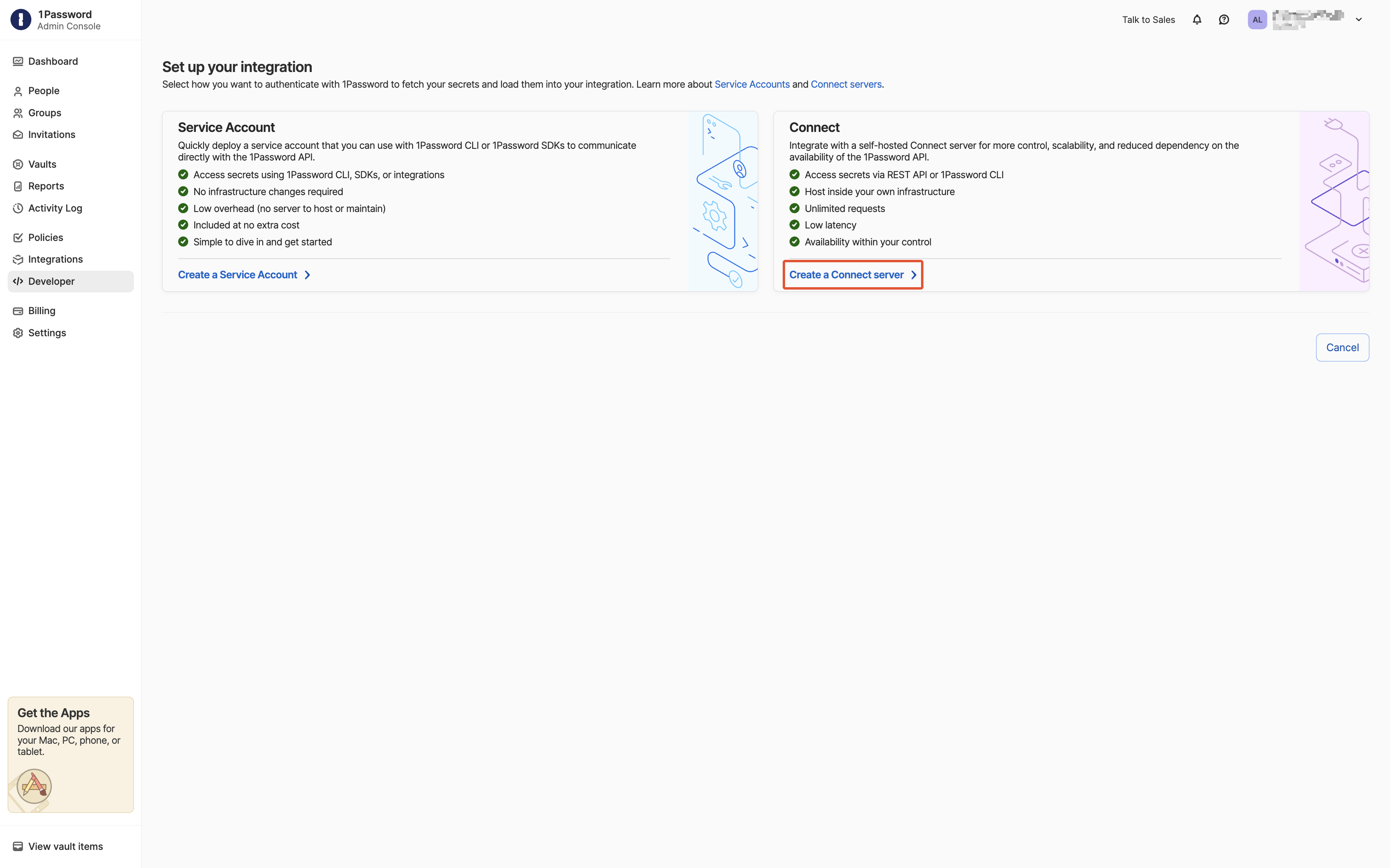
## Setup 1Password Connect Server
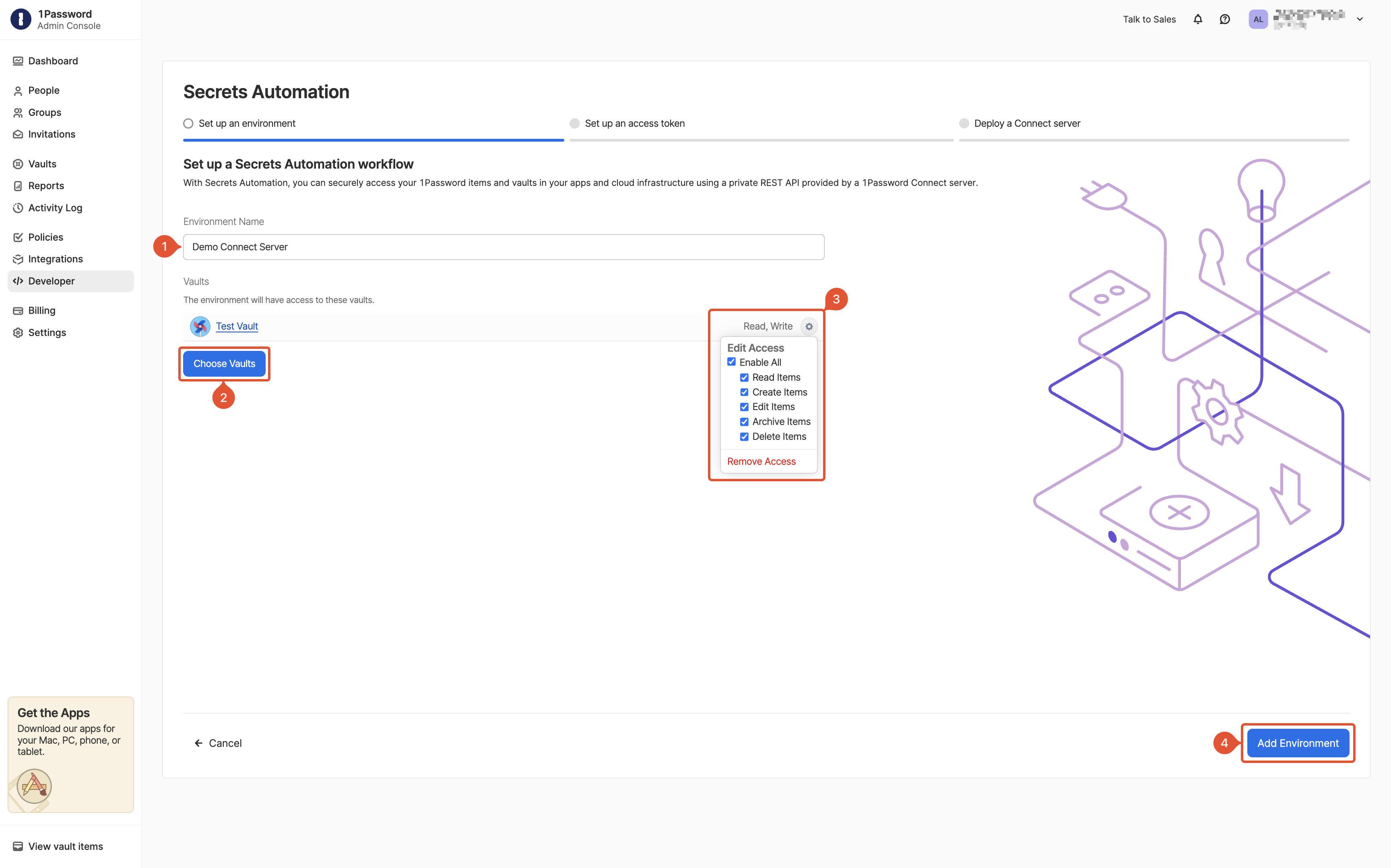
If you already have a Connect Server for your vault you may skip this step.
1. Input a name for your Connect Server
2. Click "Choose Vaults" and select the vaults you want to connect
3. For each selected vault, click **Edit Access** and **Enable All**
4. Click "Add Environment"
1. Input a name and expiration for the token
2. Click "Choose Vaults" and select the vaults you want to connect
3. For each selected vault, click **Edit Access** and **Enable All**
4. Click "Issue Token"
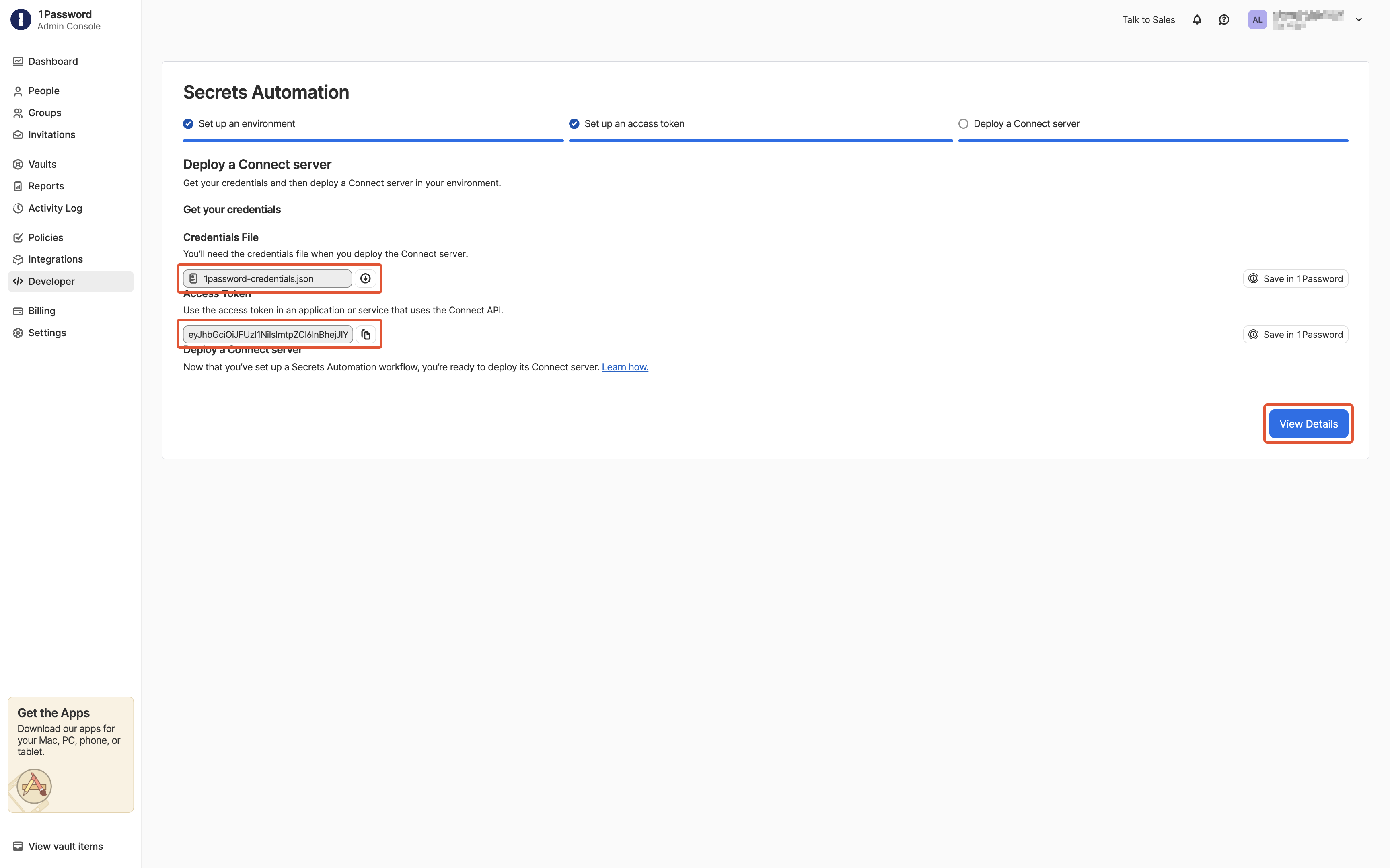
Download the Credentials File and set up your Connect Server.
Follow [this guide](https://developer.1password.com/docs/connect/get-started#step-2-deploy-1password-connect-server) to deploy a Connect Server.
Make sure to save the **Access Token** for later use.
## Create 1Password Connection in Infisical
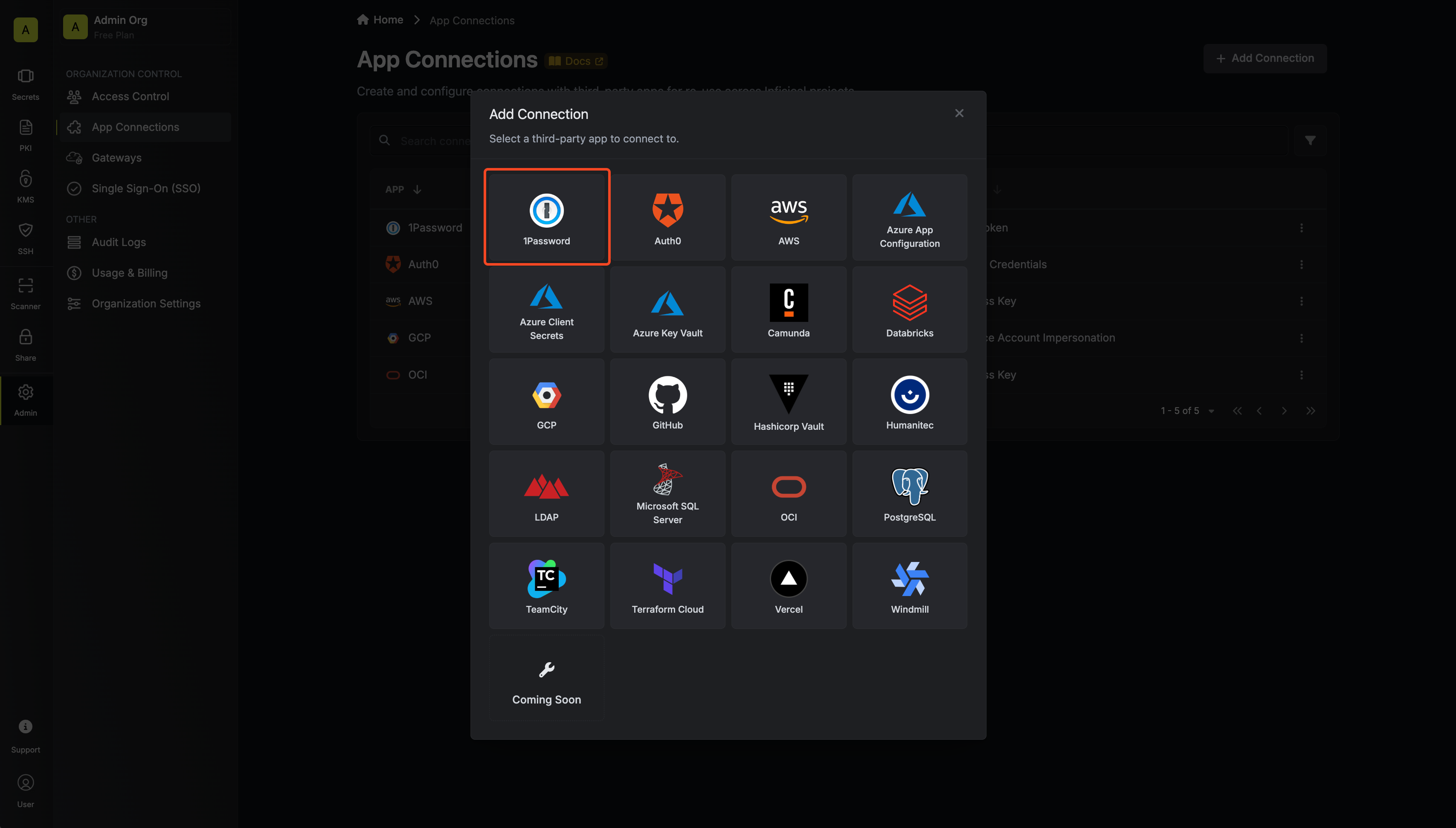
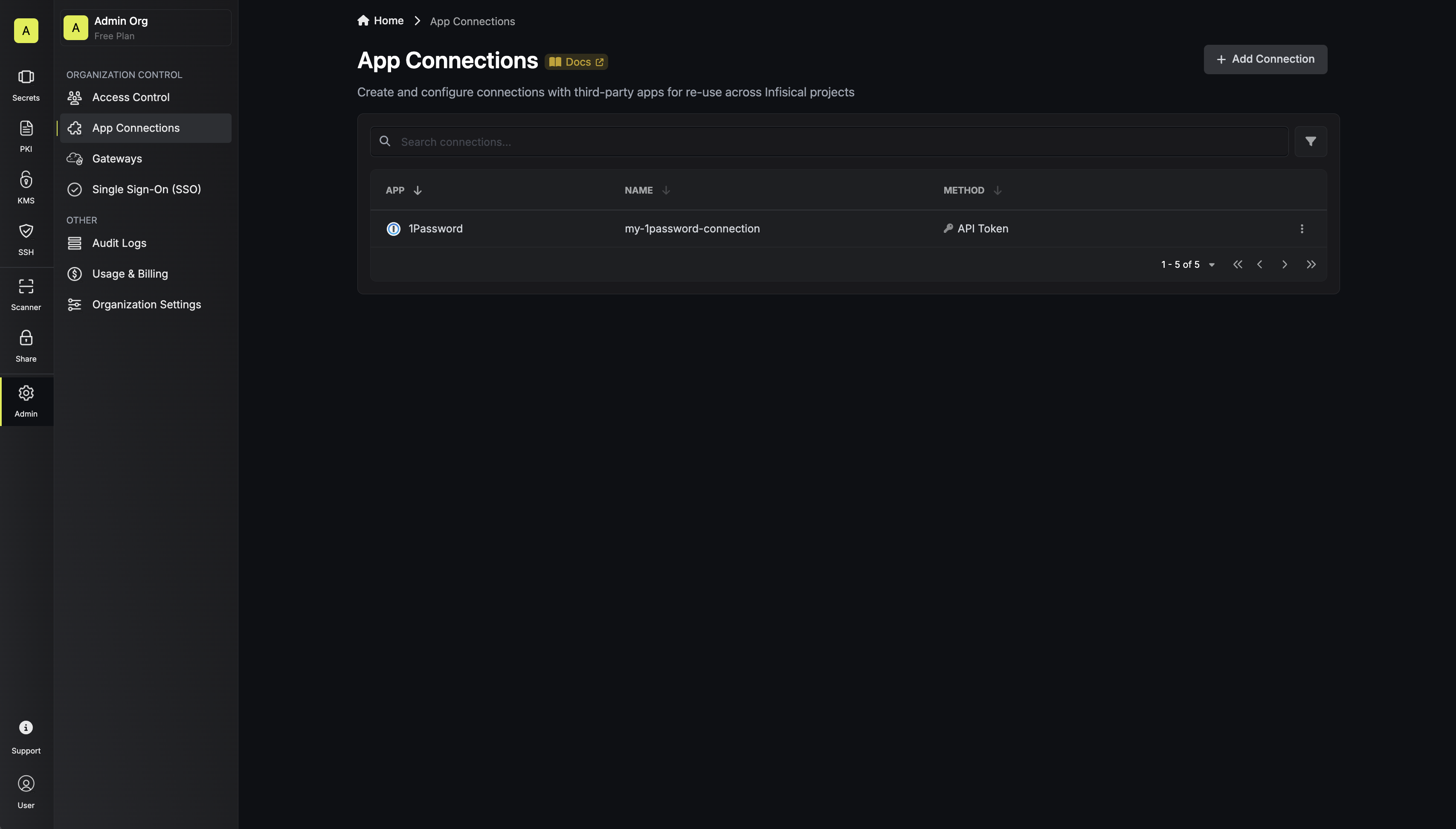
In your Infisical dashboard, navigate to the **Integrations** tab in the desired project, then select **App Connections**.
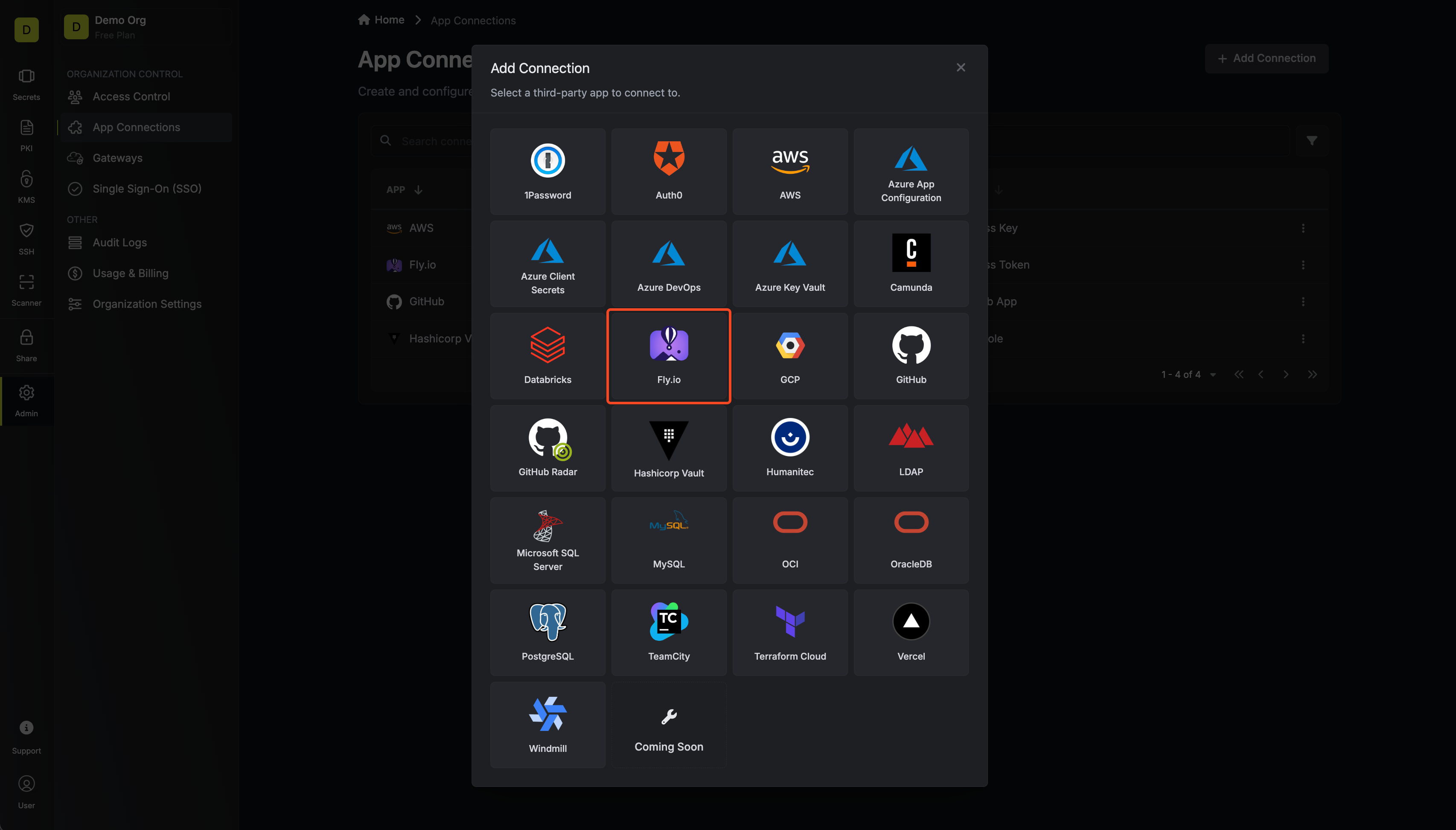
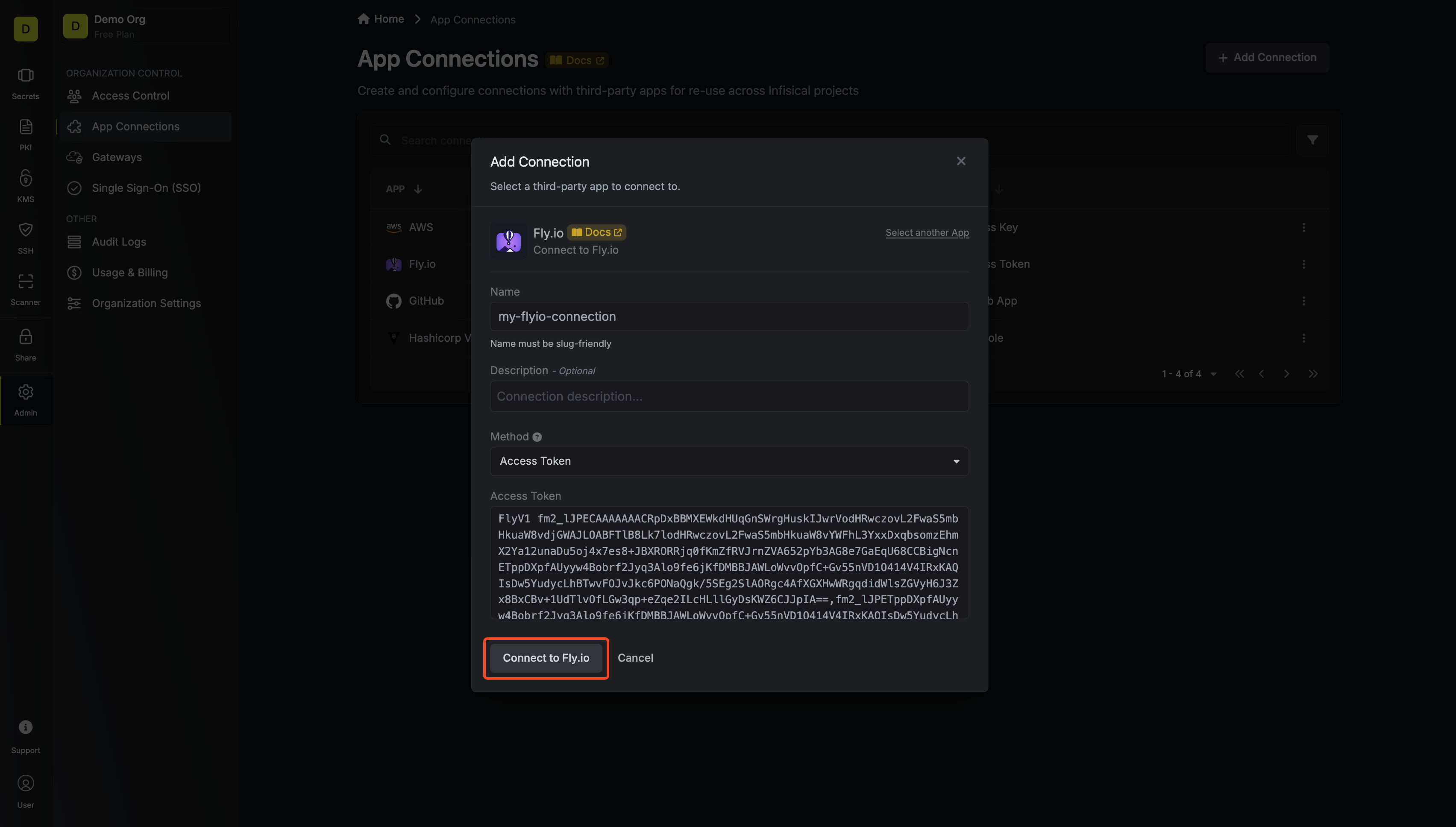
Click the **+ Add Connection** button and select the **1Password Connection** option from the available integrations.
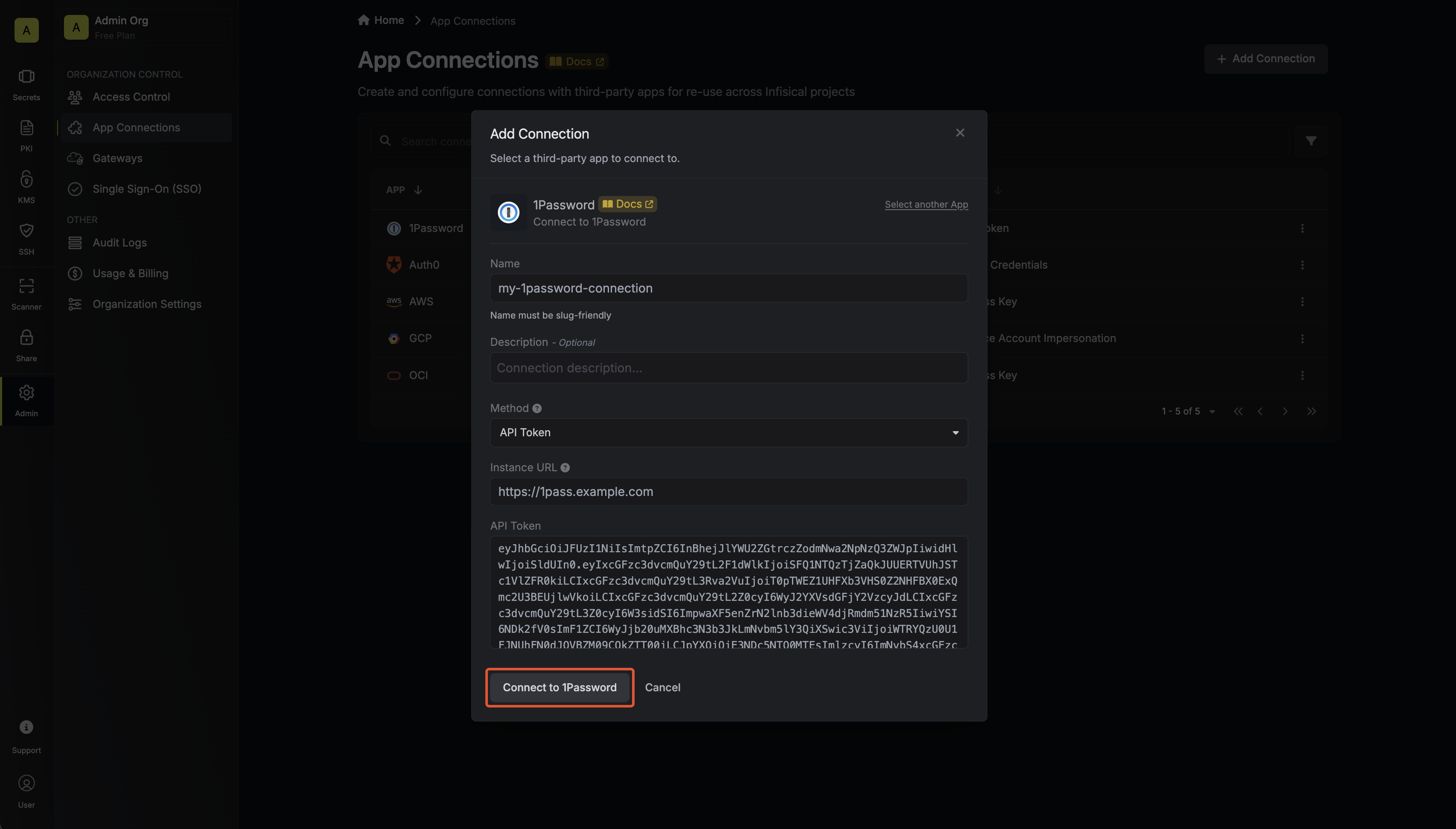
Complete the 1Password Connection form by entering:
* A descriptive name for the connection
* An optional description for future reference
* The URL at which your 1Password Connect Server instance is hosted
* The Access Token from earlier steps
After clicking Create, your **1Password Connection** is established and ready to use with your Infisical project.
To create an 1Password Connection, make an API request to the [Create 1Password Connection](/api-reference/endpoints/app-connections/1password/create) API endpoint.
### Sample request
```bash Request theme={"dark"}
curl --request POST \
--url https://app.infisical.com/api/v1/app-connections/1password \
--header 'Content-Type: application/json' \
--data '{
"name": "my-1password-connection",
"method": "api-token",
"projectId": "7ffbb072-2575-495a-b5b0-127f88caef78",
"credentials": {
"instanceUrl": "https://1pass.example.com",
"apiToken": ""
}
}'
```
### Sample response
```bash Response theme={"dark"}
{
"appConnection": {
"id": "e5d18aca-86f7-4026-a95e-efb8aeb0d8e6",
"name": "my-1password-connection",
"projectId": "7ffbb072-2575-495a-b5b0-127f88caef78",
"description": null,
"version": 1,
"orgId": "6f03caa1-a5de-43ce-b127-95a145d3464c",
"createdAt": "2025-04-23T19:46:34.831Z",
"updatedAt": "2025-04-23T19:46:34.831Z",
"isPlatformManagedCredentials": false,
"credentialsHash": "7c2d371dec195f82a6a0d5b41c970a229cfcaf88e894a5b6395e2dbd0280661f",
"app": "1password",
"method": "api-token",
"credentials": {
"instanceUrl": "https://1pass.example.com"
}
}
}
```
---
# Source: https://infisical.com/docs/integrations/frameworks/ab-initio.md
> ## Documentation Index
> Fetch the complete documentation index at: https://infisical.com/docs/llms.txt
> Use this file to discover all available pages before exploring further.
# AB Initio
> How to use Infisical secrets in AB Initio.
## Prerequisites
* Set up and add envars to [Infisical](https://app.infisical.com).
* Install the [Infisical CLI](https://infisical.com/docs/cli/overview) to your server.
## Setup
Create a [machine identity](https://infisical.com/docs/documentation/platform/identities/machine-identities#machine-identities) in Infisical and give it the appropriate read permissions for the desired project and secret paths.
Update your AB Initio workflows to use Infisical CLI to inject Infisical secrets as environment variables.
```bash theme={"dark"}
# Login using the machine identity. Modify this accordingly based on the authentication method used.
export INFISICAL_TOKEN=$(infisical login --method=universal-auth --client-id=$INFISICAL_CLIENT_ID --client-secret=$INFISICAL_CLIENT_SECRET --silent --plain)
# Fetch secrets from Infisical
infisical export --projectId="<>" --env="prod" > infisical.env
# Inject secrets as environment variables
source infisical.env
```
---
# Source: https://infisical.com/docs/documentation/platform/secrets-mgmt/concepts/access-control.md
> ## Documentation Index
> Fetch the complete documentation index at: https://infisical.com/docs/llms.txt
> Use this file to discover all available pages before exploring further.
# Scoping Secrets
> Learn how access to secrets is controlled in Infisical.
## Secret Hierarchy
Every secret in Infisical is scoped to an environment and a path.
* An environment separates where secrets are used, such as `development`, `staging`, or `production`.
* A path is an (optional) namespace within an environment that groups related secrets such as `/postgres`, `/redis`, or per-service paths like `/service-a`.
This structure makes it easy to organize secrets by team, service, or environment, and sets the foundation for controlling who can access what.
## Access Control
Access control determines who (or what) can access a secret and under what conditions. Without clear policies, even securely stored secrets can be misused or exposed.
To control access to secrets, you configure role-based permissions at the project level. These permissions determine which environments and paths a user or machine identity with that role can access. For example, an engineer might have a role that allows them to read secrets in the `development` environment but not those in the `production` environment.
This model follows the [principle of least privilege](https://en.wikipedia.org/wiki/Principle_of_least_privilege) such that each user or machine identity has access only to the secrets it needs — and nothing more.
## Advanced Capabilities
Beyond basic role assignments, Infisical includes additional access control mechanisms for more advanced use cases:
* Access approvals: Users can request access to specific environments or paths. Access can be temporary and reviewed before it is granted, reducing long-term exposure.
* Secret change approvals: Updates to sensitive secrets can require approval before taking effect. This adds control in environments where unreviewed changes pose risk.
* Attribute-based access control (ABAC): Permissions can be matched against metadata on a user or machine identity — such as team, service, or environment — enabling dynamic access rules without manual role changes.
All access and approval actions are logged, so it’s always possible to trace who accessed what, when, and under what conditions.
---
# Source: https://infisical.com/docs/documentation/platform/access-controls/access-requests.md
> ## Documentation Index
> Fetch the complete documentation index at: https://infisical.com/docs/llms.txt
> Use this file to discover all available pages before exploring further.
# Access Requests
> Learn how to request access to sensitive resources in Infisical.
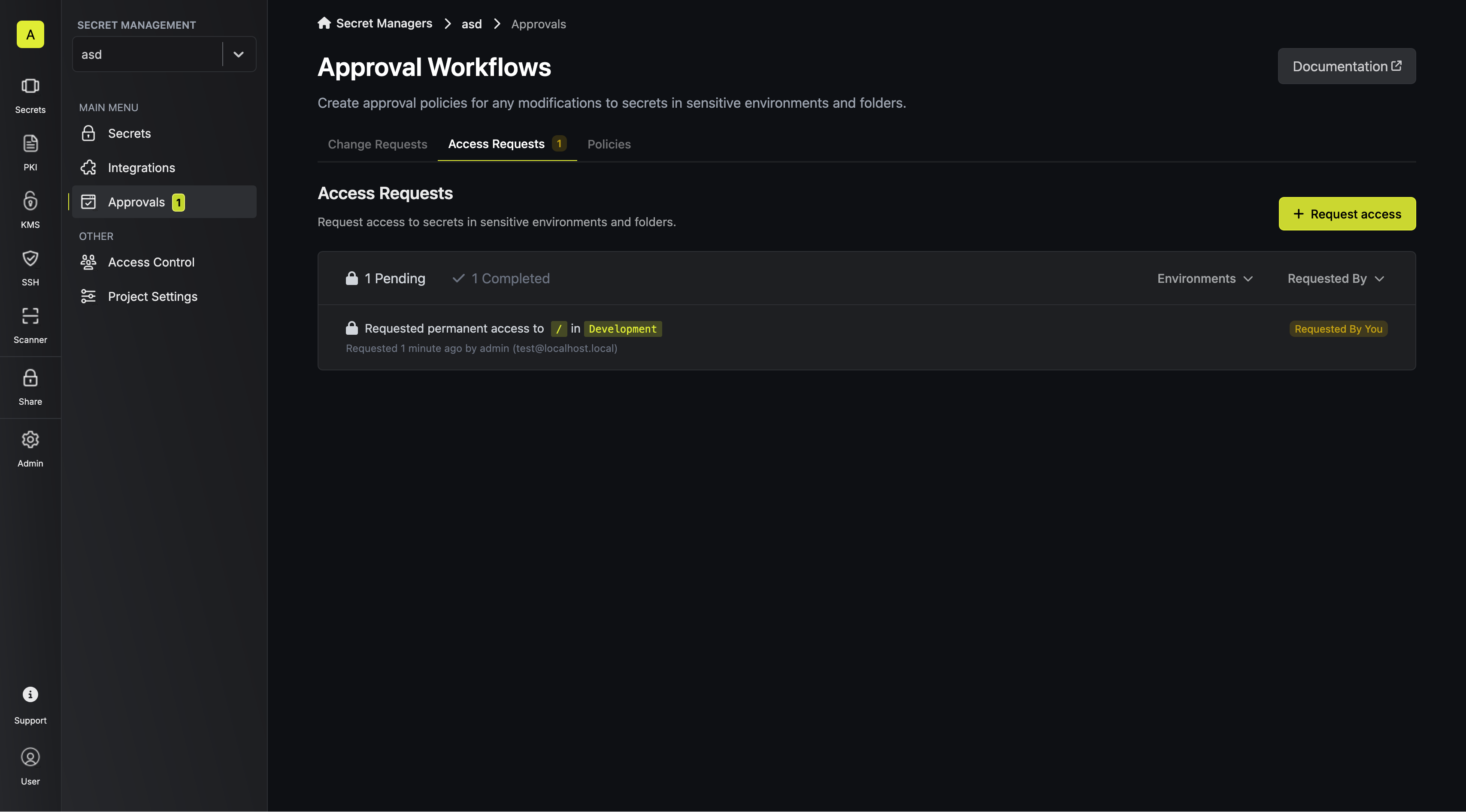
In certain situations, developers need to expand their access to a certain new project or a sensitive environment. For those use cases, it is helpful to utilize Infisical's **Access Requests** functionality.
This functionality works in the following way:
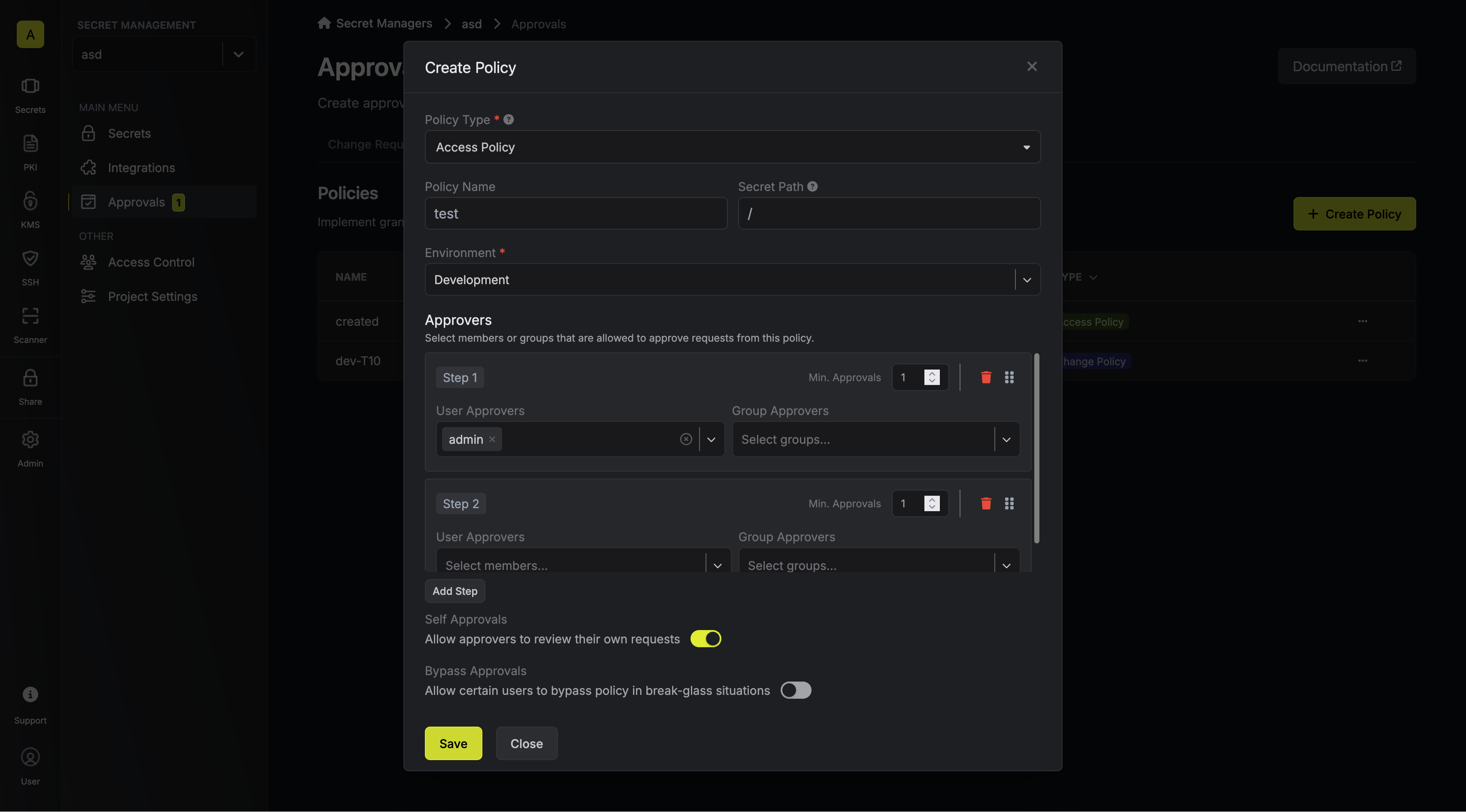
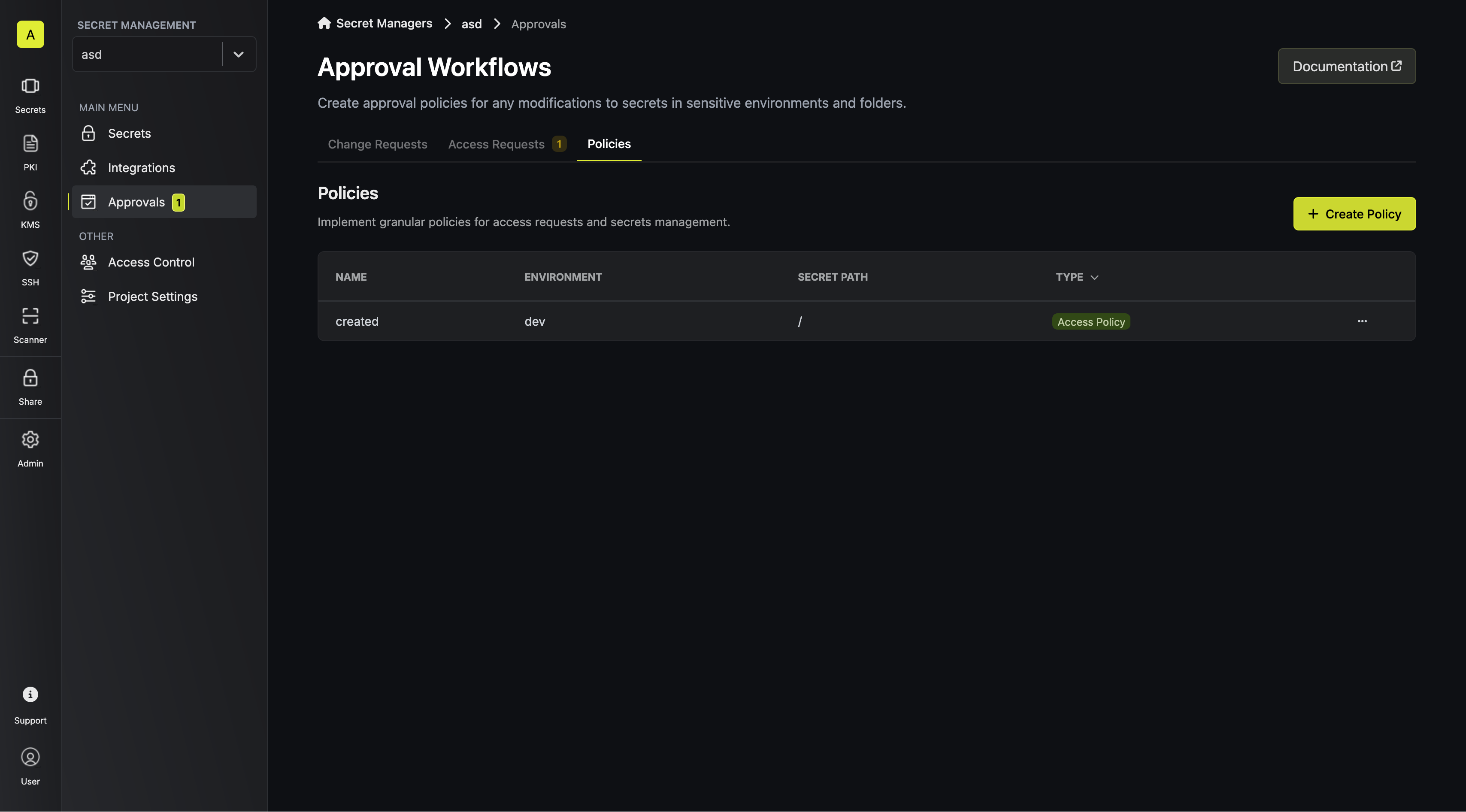
1. A project administrator sets up an access policy that assigns access managers (also known as eligible approvers) to a certain sensitive folder or environment.
A step policy enables a sequential approval workflow in which approvals
must follow the designated chain.
2. When a developer requests access to one of such sensitive resources, the request is visible in the dashboard, and the corresponding eligible approvers get an email notification about it.
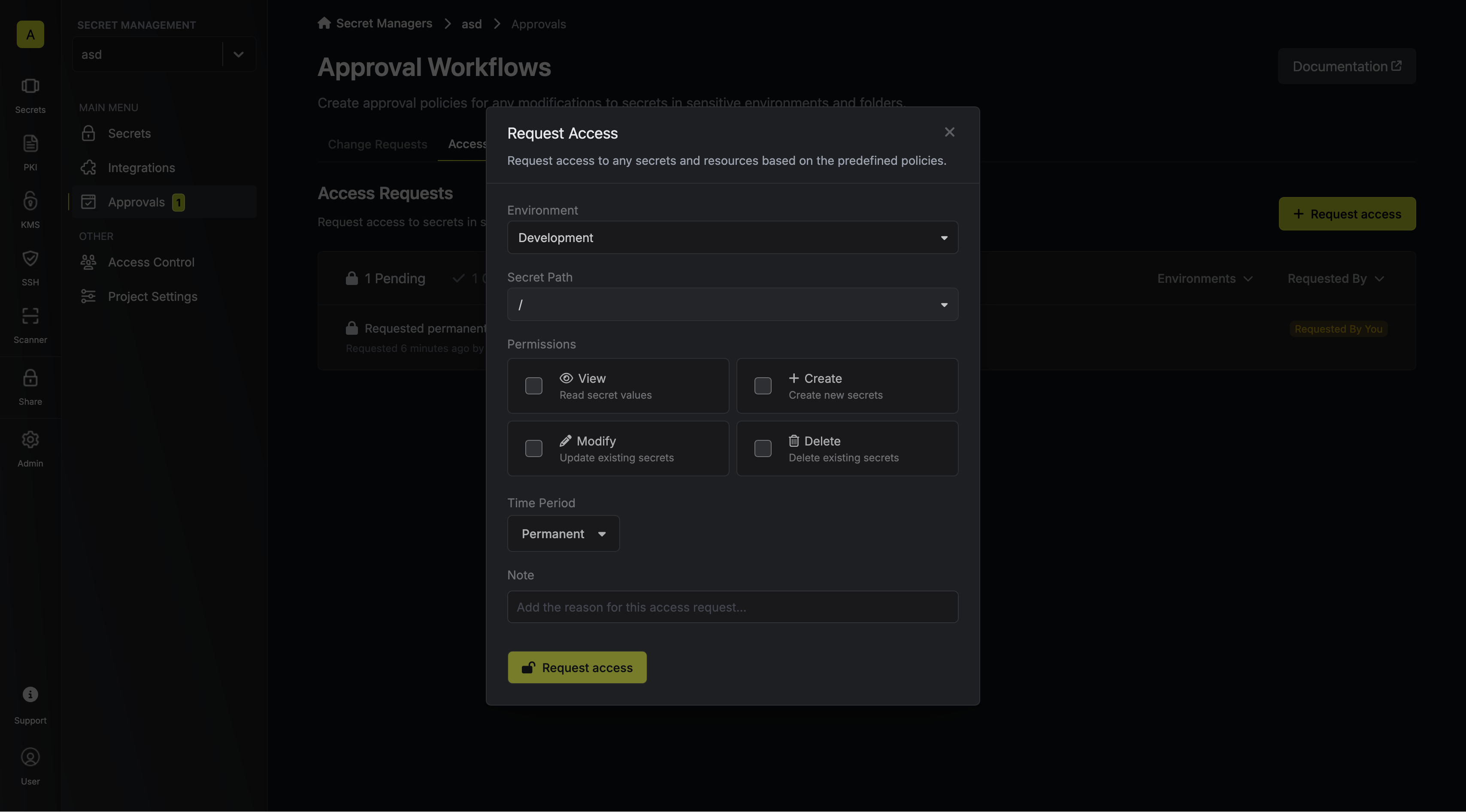
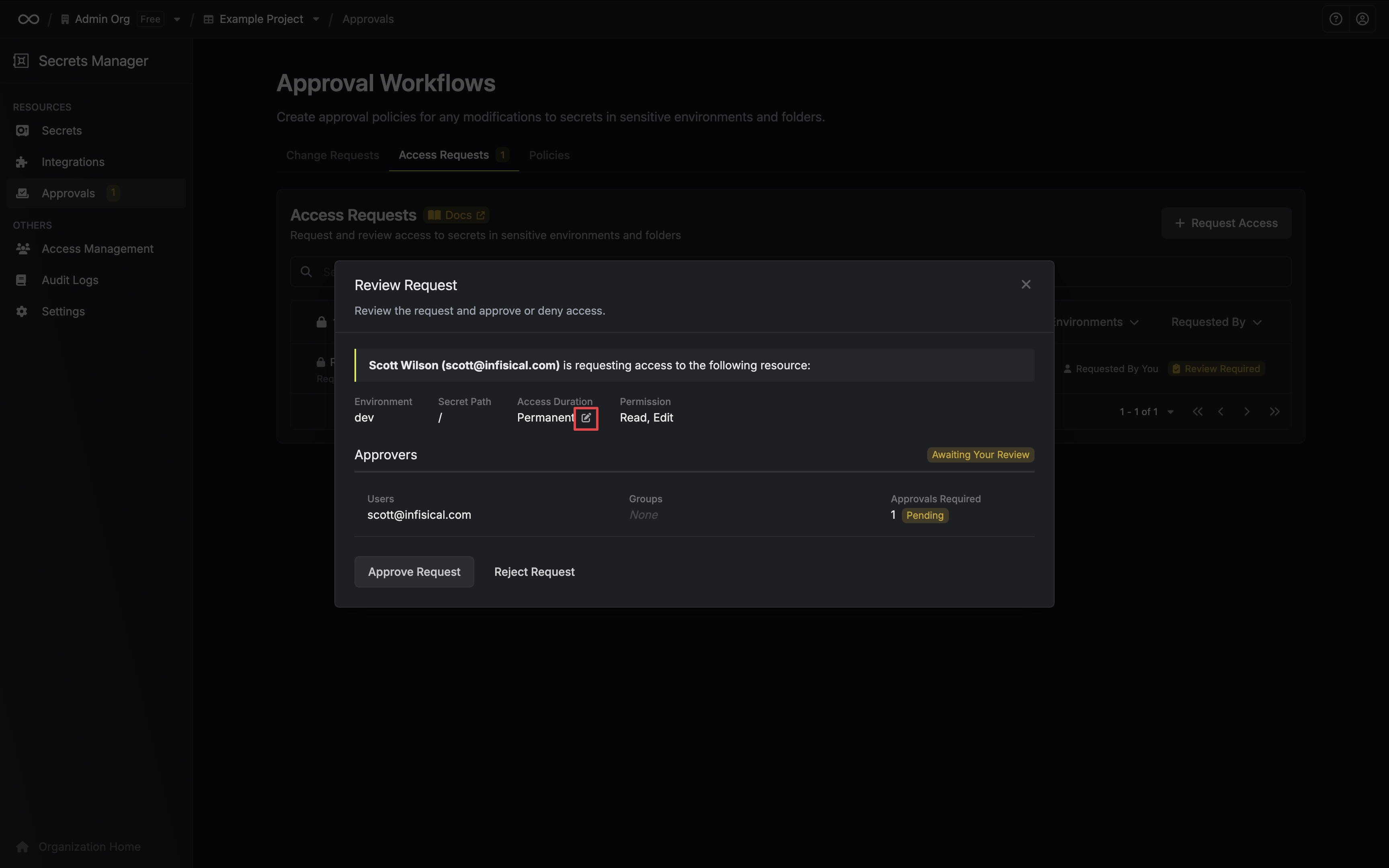
3. An eligible approver can approve or reject the access request.
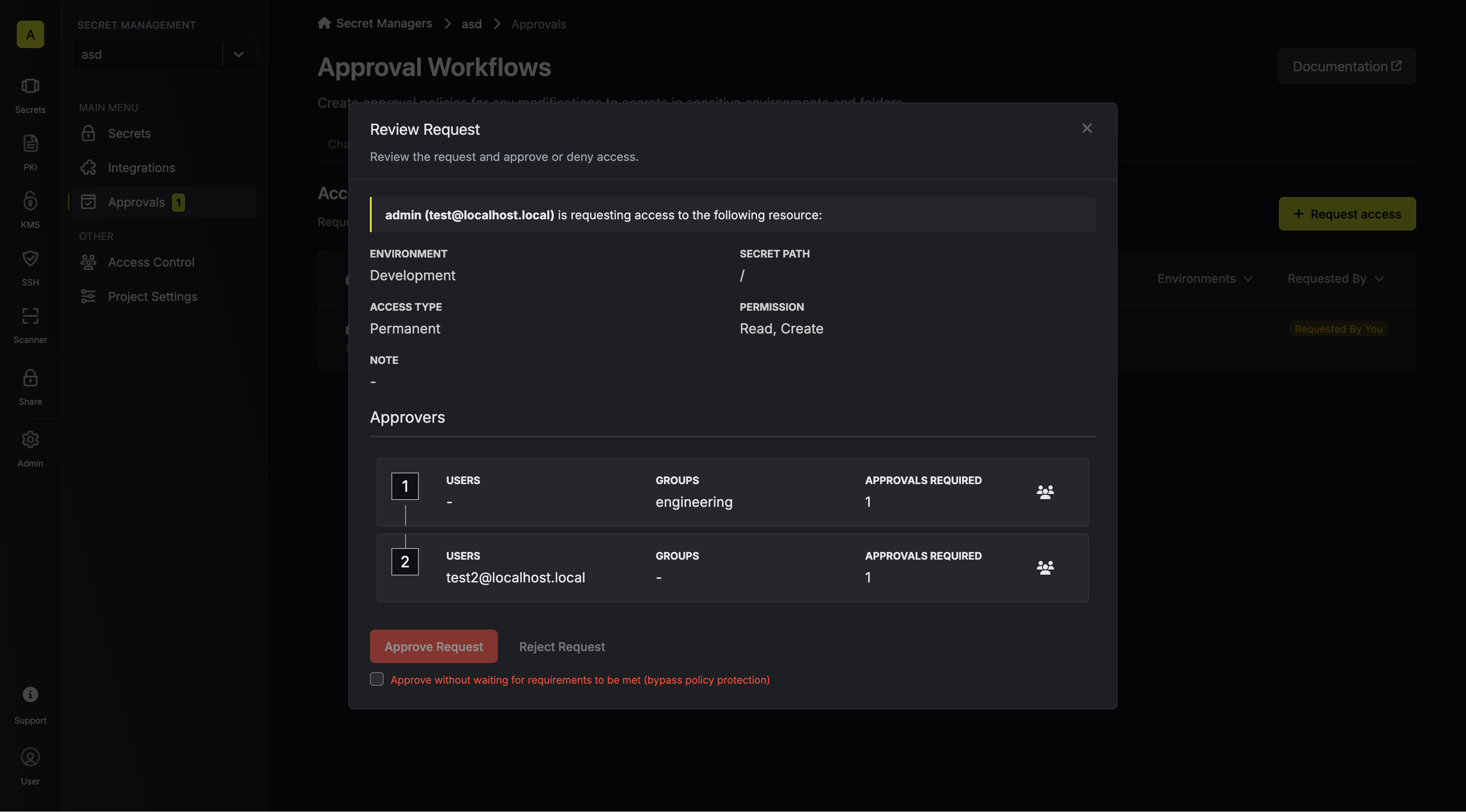
Optionally, approvers can edit the duration of an access request to reduce how long access will be granted by clicking the **Edit** icon next to the duration.
If the access request matches with a policy that allows break-glass approval
bypasses, the requester may bypass the policy and get access to the resource
without full approval.
5. As soon as the request is approved, developer is able to access the sought resources.
---
# Source: https://infisical.com/docs/documentation/platform/pam/getting-started/accounts.md
> ## Documentation Index
> Fetch the complete documentation index at: https://infisical.com/docs/llms.txt
> Use this file to discover all available pages before exploring further.
# PAM Account
> Learn how to create and manage accounts in PAM to control access to resources like databases and servers.
An **Account** contains the credentials (such as a username and password) used to connect to a [Resource](/documentation/platform/pam/getting-started/resources).
## Relationship to Resources
Accounts belong to Resources. A single Resource can have multiple Accounts associated with it, each with different permission levels.
For example, your database would normally have multiple accounts. You might have a superuser account for admins, a standard read/write account for applications, and a read-only account for reporting.
In PAM, these are represented as:
* **Resource**: `Production Database` (PostgreSQL)
* **Account 1**: `postgres` (Superuser)
* **Account 2**: `app_user` (Read/Write)
* **Account 3**: `analytics` (Read-only)
When a user requests access in PAM, they request access to a specific **Account** on a **Resource**.
## Creating an Account
**Prerequisite**: You must have at least one [Resource](/documentation/platform/pam/getting-started/resources) created before adding accounts.
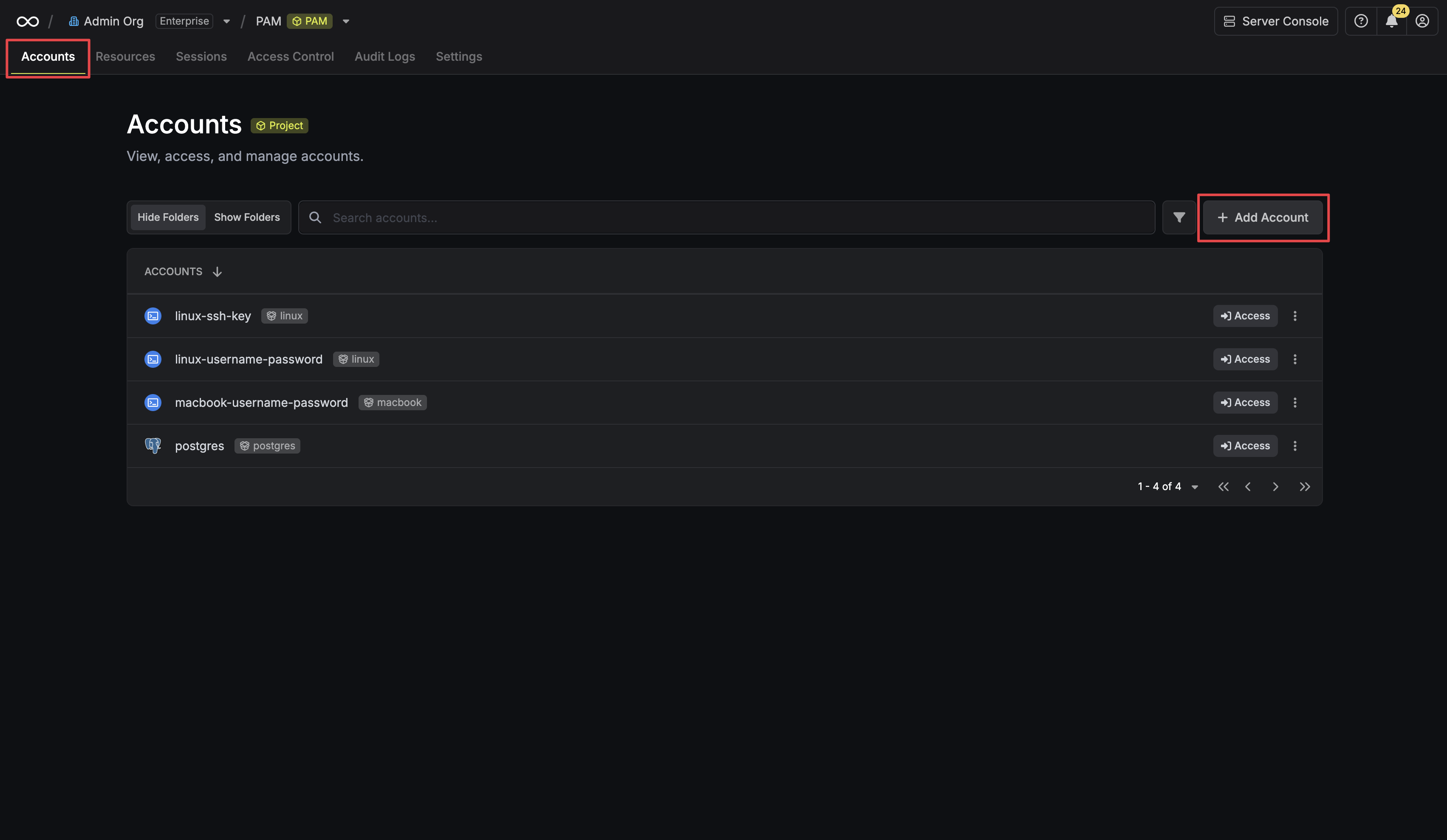
To add an account, navigate to the **Accounts** tab in your PAM project and click **Add Account**.
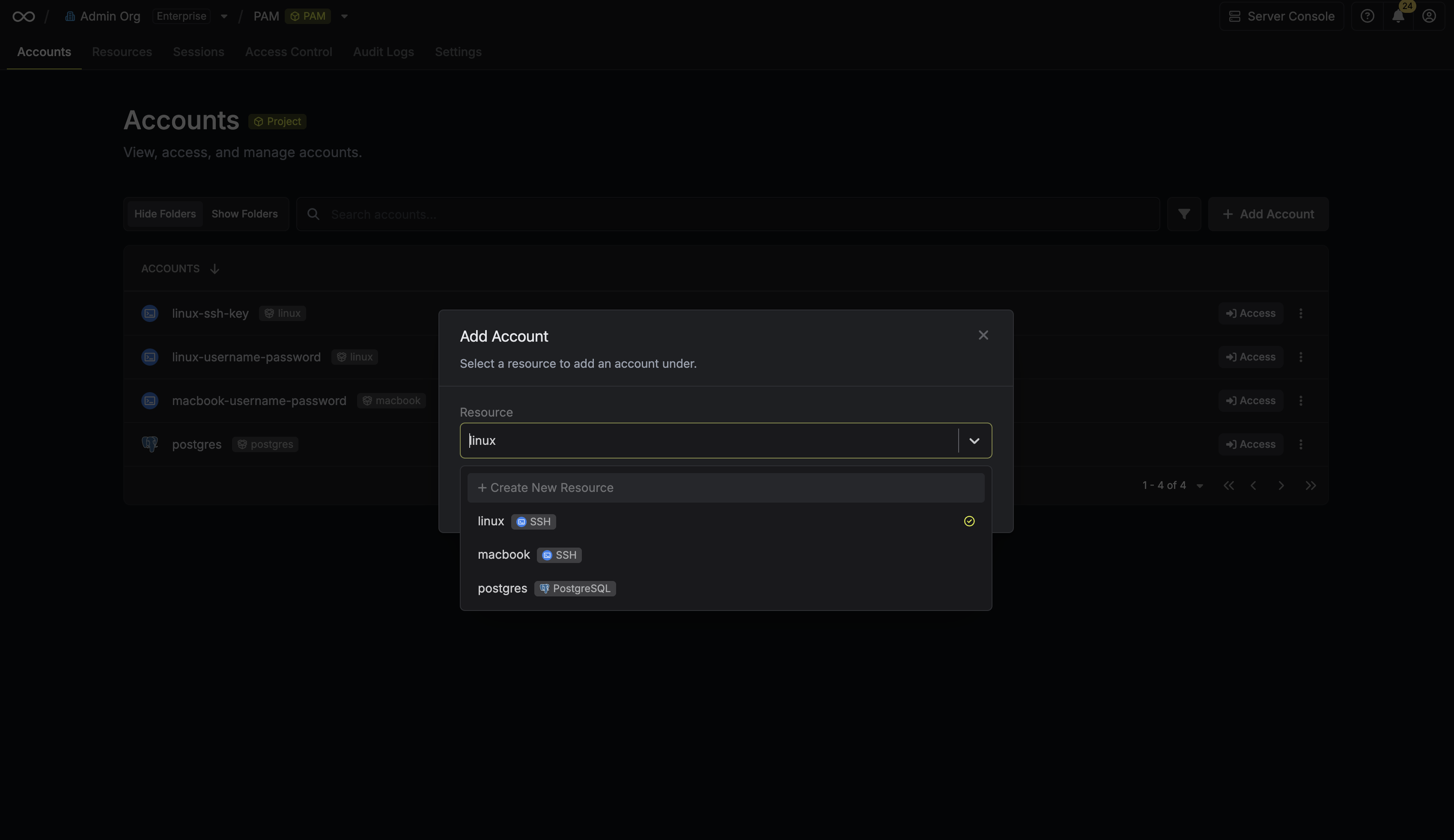
Next, select the **Resource** that this account belongs to.
After selecting a resource, provide the credentials (username, password, etc.) for this account. The required fields vary depending on the resource type. For example, for a Linux server, you would enter the username and the corresponding password or SSH key.
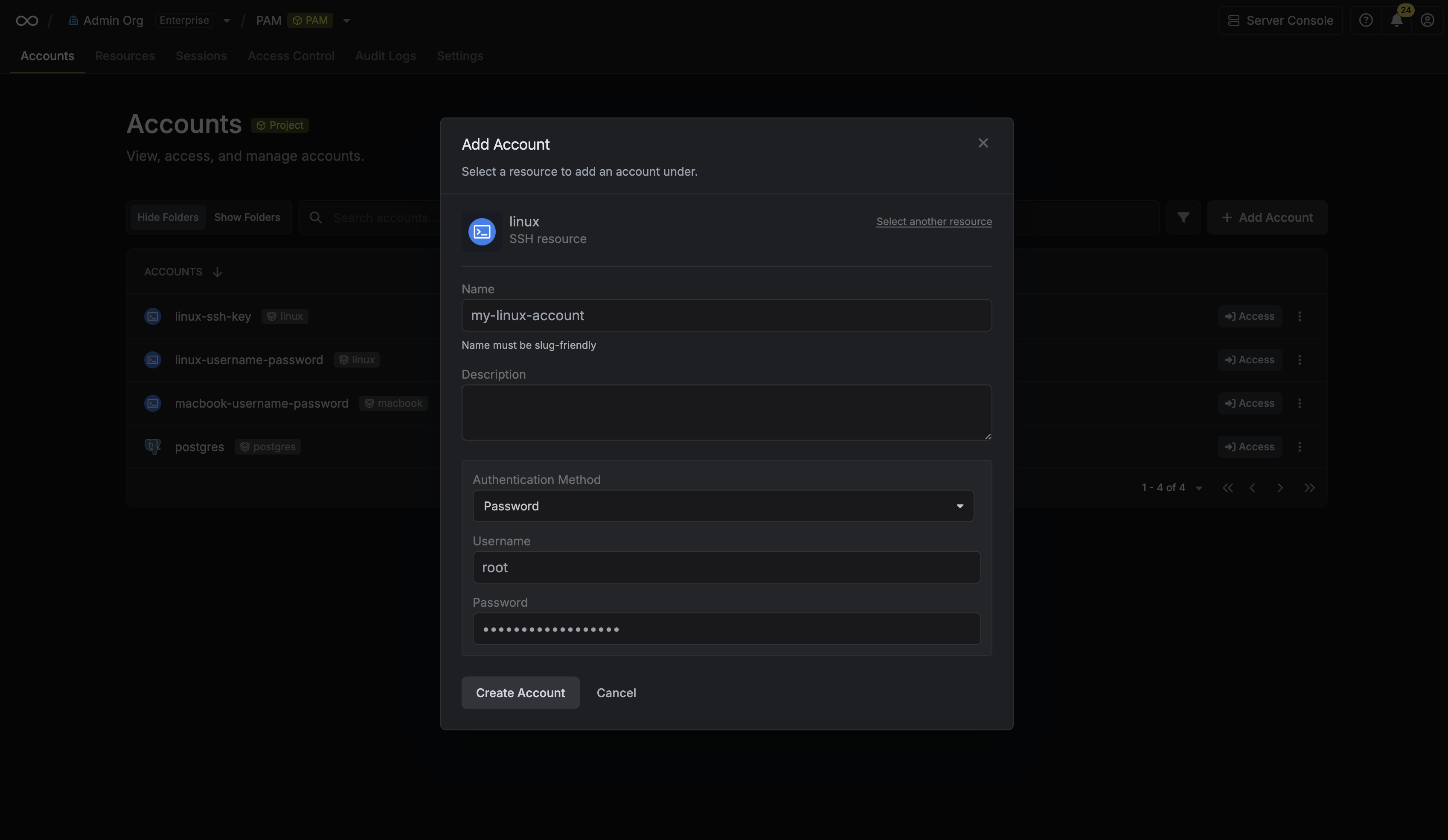
Clicking **Create Account** will trigger a validation check. Infisical will attempt to connect to the resource using the provided credentials to verify they are valid.
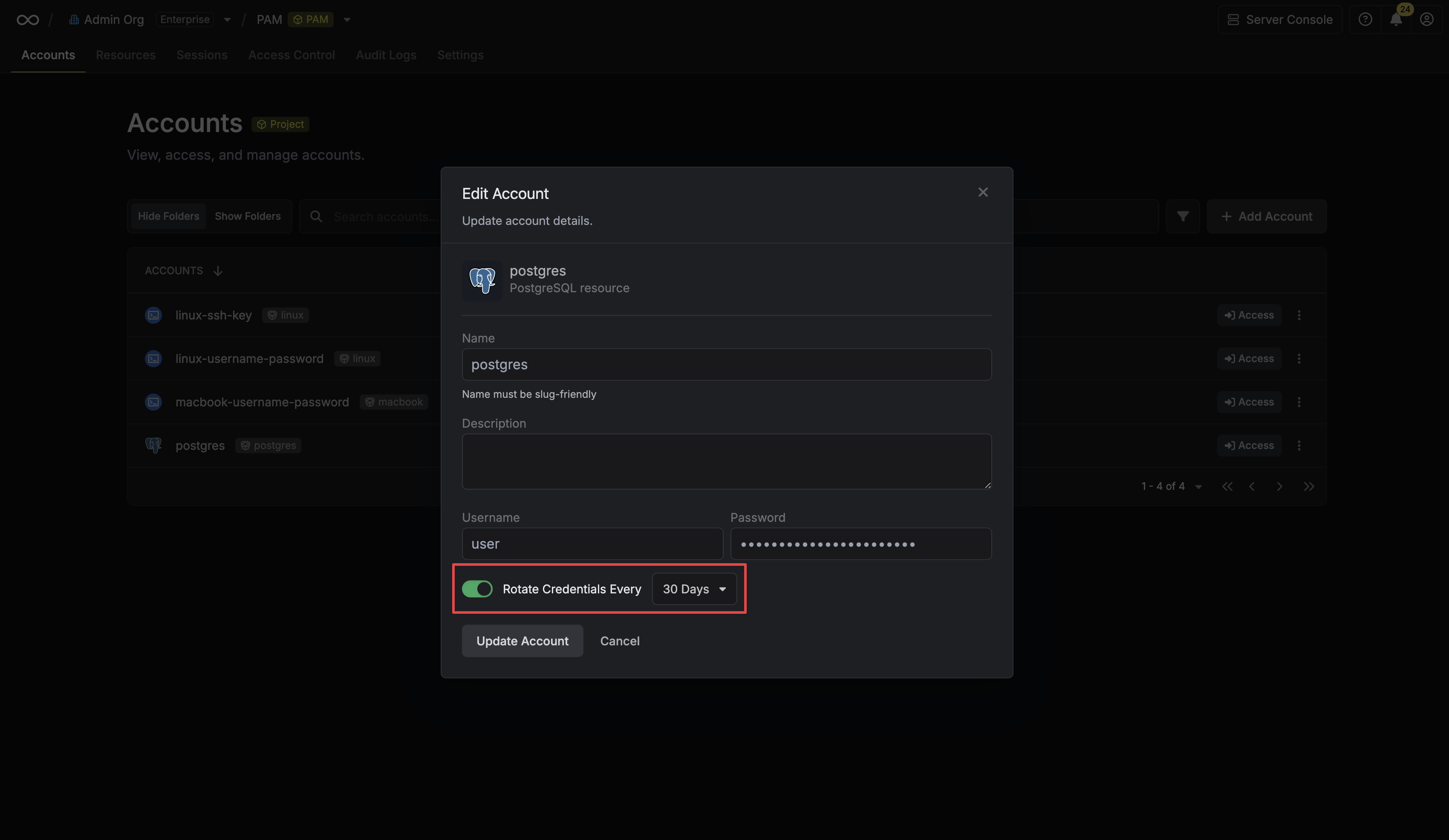
## Automated Credential Rotation
Infisical supports automated credential rotation for some accounts on select resources, allowing you to automatically change passwords at set intervals to enhance security.
To learn more about how to configure this, please refer to the [Credential Rotation guide](/documentation/platform/pam/product-reference/credential-rotation).
---
# Source: https://infisical.com/docs/documentation/platform/pki/ca/acme-ca.md
> ## Documentation Index
> Fetch the complete documentation index at: https://infisical.com/docs/llms.txt
> Use this file to discover all available pages before exploring further.
# ACME-compatible CA
> Learn how to connect Infisical to an ACME-compatible CA to issue certificates.
## Concept
Infisical can connect to any upstream ACME-compatible CA (e.g. Lets's Encrypt, DigiCert, etc.) supporting the [ACME protocol](https://en.wikipedia.org/wiki/Automatic_Certificate_Management_Environment) to issue certificates back to your end-entities. This integration uses the [DNS-01 challenge](https://letsencrypt.org/docs/challenge-types/#dns-01-challenge) method as part of the ACME domain validation challenge workflow for a requested certificate.
The upstream ACME-compatible CA integration lets you connect Infisical to providers by specifying
their **ACME Directory URL** such as:
* [Let's Encrypt](/documentation/platform/pki/ca/lets-encrypt): `https://acme-v02.api.letsencrypt.org/directory`.
* [DigiCert](/documentation/platform/pki/ca/digicert): `https://acme.digicert.com/v2/acme/directory`.
* Google GTS: `https://dv.acme-v02.api.pki.goog/directory`.
* Buypass: `https://api.buypass.com/acme/directory`.
* ZeroSSL: `https://acme.zerossl.com/v2/DV90`.
* SSL.com: `https://acme.ssl.com/sslcom-dv-rsa`.
When Infisical requests a certificate from an ACME-compatible CA, it creates a TXT record at `_acme-challenge.{your-domain}` in your configured DNS provider (e.g. Route53, Cloudflare, DNS Made Easy, etc.); this TXT record contains the challenge token issued by the ACME-compatible CA to validate domain control for the requested certificate.
The ACME provider checks for the existence of this TXT record to verify domain control before issuing the certificate back to Infisical.
After validation completes successfully, Infisical automatically removes the TXT record from your DNS provider.
```mermaid theme={"dark"}
graph TD
A[ACME-compatible CA] <-->|ACME v2 Protocol| B[Infisical]
B -->|Creates TXT Records via DNS Provider| C[DNS Validation]
B -->|Manages Certificates| D[End-Entities]
```
We recommend reading about [ACME protocol](https://tools.ietf.org/html/rfc8555) and [DNS-01 challenges](https://letsencrypt.org/docs/challenge-types/#dns-01-challenge) for a fuller understanding of the underlying workflow.
## Workflow
A typical workflow for using Infisical with an external ACME-compatible CA consists of the following steps:
1. Setting up your DNS provider (e.g. Route53, Cloudflare, etc.) with appropriate DNS permissions.
2. Creating an [App Connection](/integrations/app-connections/overview) in Infisical to store credentials for Infisical to connect to your DNS provider and create/remove DNS records as part of the DNS-01 challenge.
3. Registering an [External CA](/documentation/platform/pki/ca/external-ca) in Infisical with the ACME type and inputting required configuration including the **ACME Directory URL** of the upstream ACME-compatible CA and the **App Connection** for your DNS provider.
Once this is complete, you can create a [certificate profile](/documentation/platform/pki/certificates/profiles) linked to the External CA proceed to request a certificate against it.
## Guide to Connecting Infisical to an ACME-compatible CA
In the following steps, we explore how to connect Infisical to an ACME-compatible CA.
Before registering an ACME-compatible CA with Infisical, you need to set up an [App Connection](/integrations/app-connections/overview) with the appropriate permissions for Infisical to perform the DNS-01 challenge with your DNS provider.
If you don’t see a specific DNS provider listed below or need a dedicated one, please reach out to [sales@infisical.com](mailto:sales@infisical.com) and we’ll help get that enabled for you.
1. Navigate to your Certificate Management Project > App Connections and create a new AWS connection.
2. Ensure your AWS connection has the following minimum permissions for Route53 DNS validation:
```json theme={"dark"}
{
"Version": "2012-10-17",
"Statement": [
{
"Effect": "Allow",
"Action": "route53:GetChange",
"Resource": "arn:aws:route53:::change/*"
},
{
"Effect": "Allow",
"Action": "route53:ListHostedZonesByName",
"Resource": "*"
},
{
"Effect": "Allow",
"Action": [
"route53:ListResourceRecordSets"
],
"Resource": [
"arn:aws:route53:::hostedzone/YOUR_HOSTED_ZONE_ID"
]
},
{
"Effect": "Allow",
"Action": [
"route53:ChangeResourceRecordSets"
],
"Resource": [
"arn:aws:route53:::hostedzone/YOUR_HOSTED_ZONE_ID"
],
"Condition": {
"ForAllValues:StringEquals": {
"route53:ChangeResourceRecordSetsRecordTypes": [
"TXT"
]
}
}
}
]
}
```
Replace `YOUR_HOSTED_ZONE_ID` with your actual Route53 hosted zone ID.
For detailed instructions on setting up an AWS connection, see the [AWS Connection](/integrations/app-connections/aws) documentation.
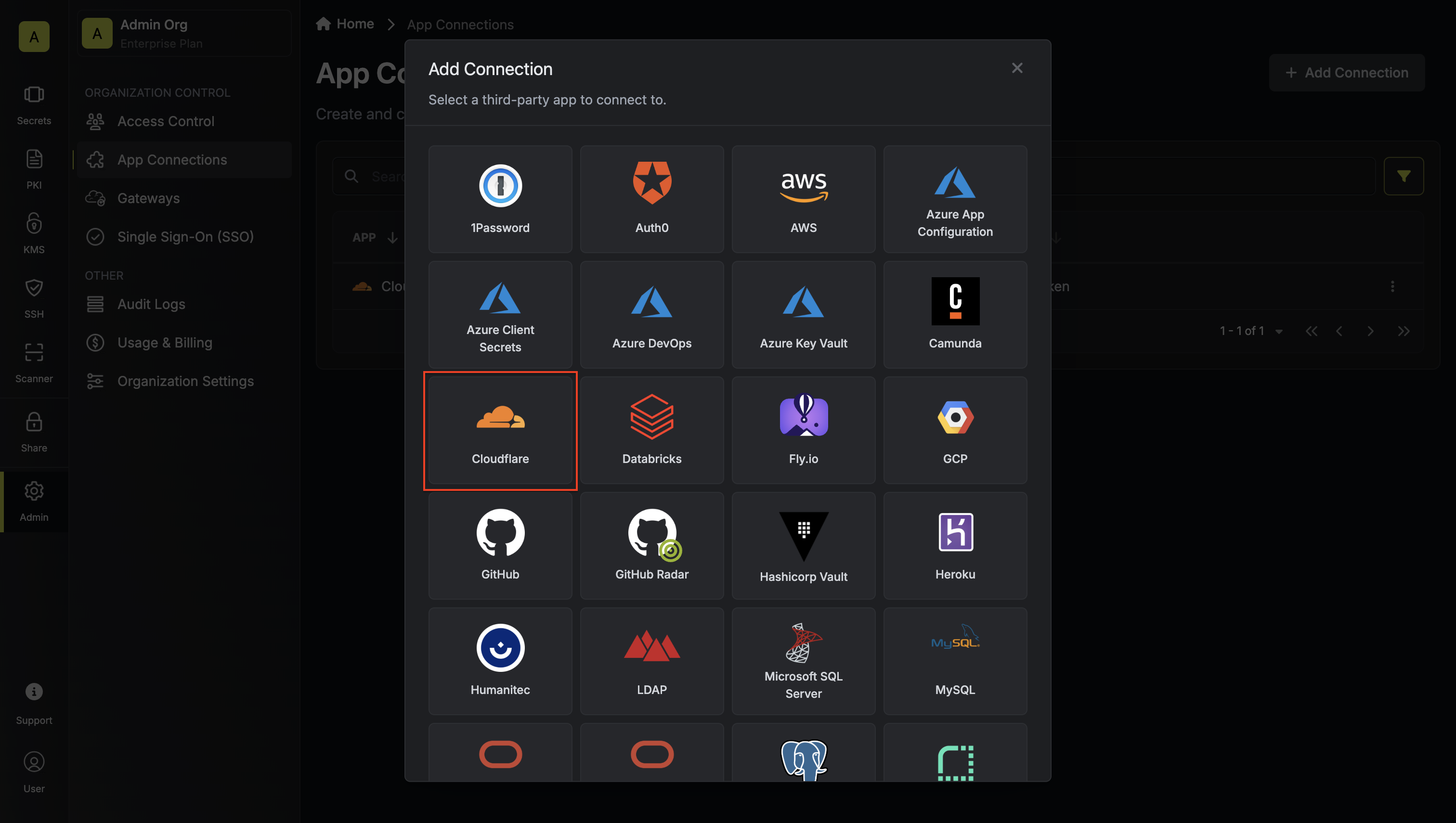
1. Navigate to your Certificate Management Project > App Connections and create a new Cloudflare connection.
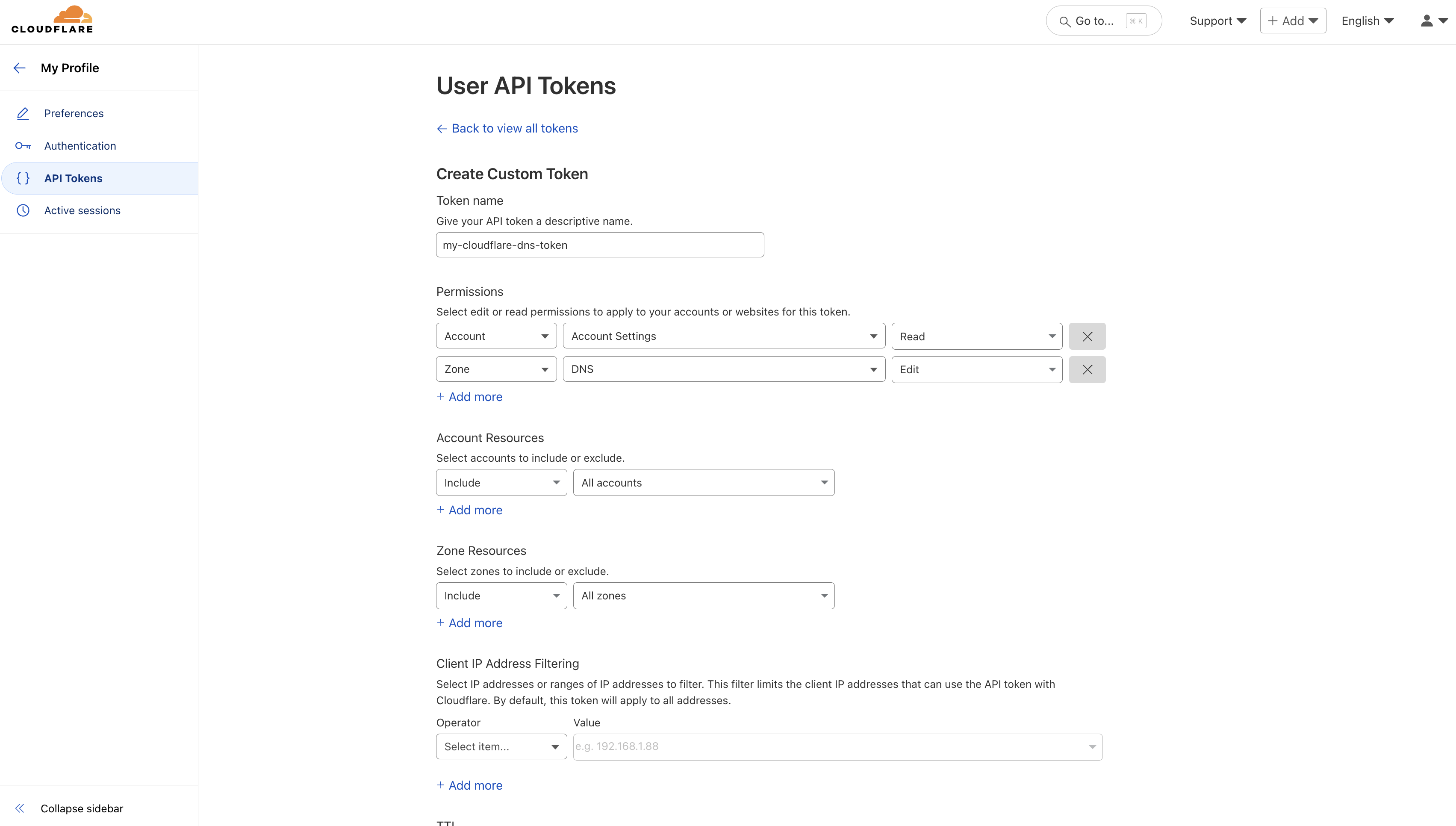
2. Ensure your Cloudflare token has the following minimum permissions for DNS validation:
```
Account:Account Settings:Read
Zone:DNS:Edit
```
For detailed instructions on setting up a Cloudflare connection, see the [Cloudflare Connection](/integrations/app-connections/cloudflare) documentation.
Navigate to your Certificate Management Project > App Connections and create a new DNS Made Easy connection.
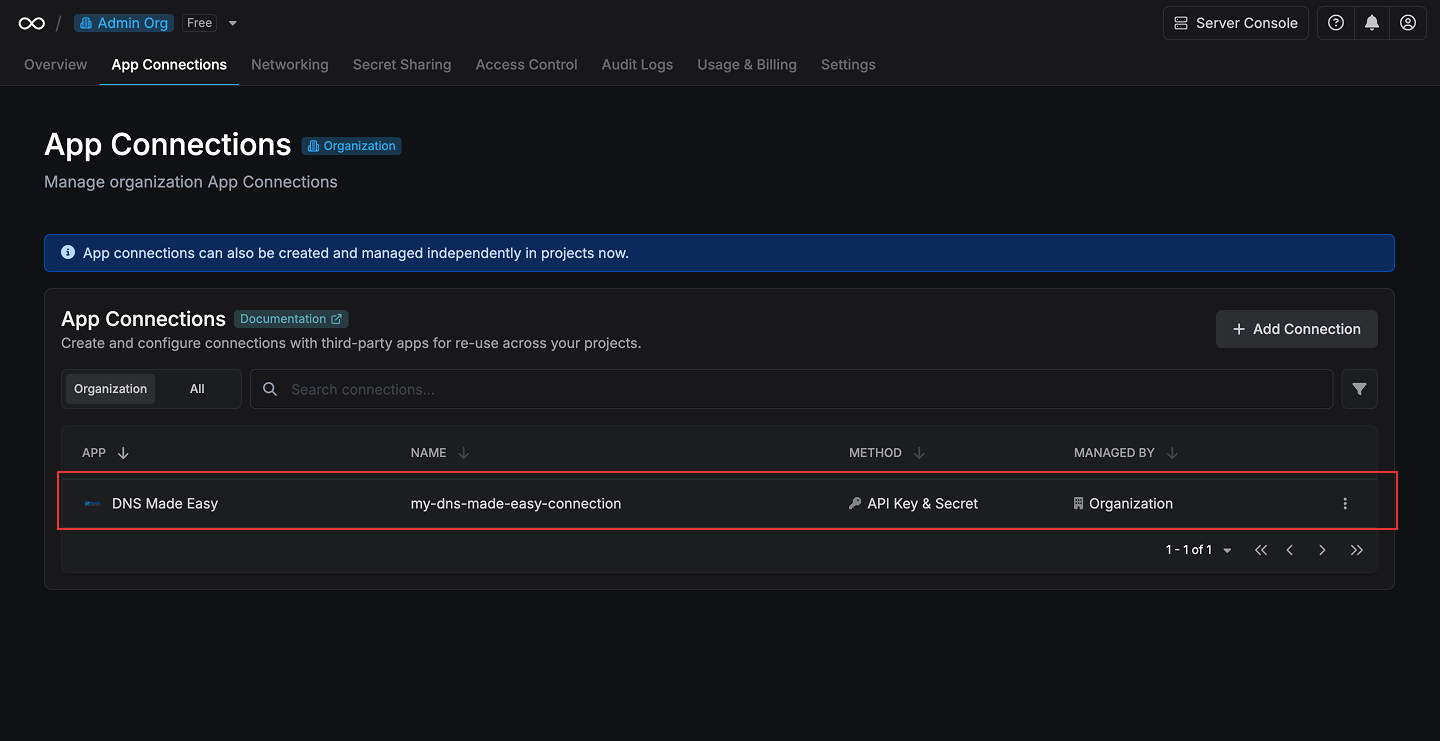
For detailed instructions on setting up a DNS Made Easy connection, see the [DNS Made Easy Connection](/integrations/app-connections/dns-made-easy) documentation.
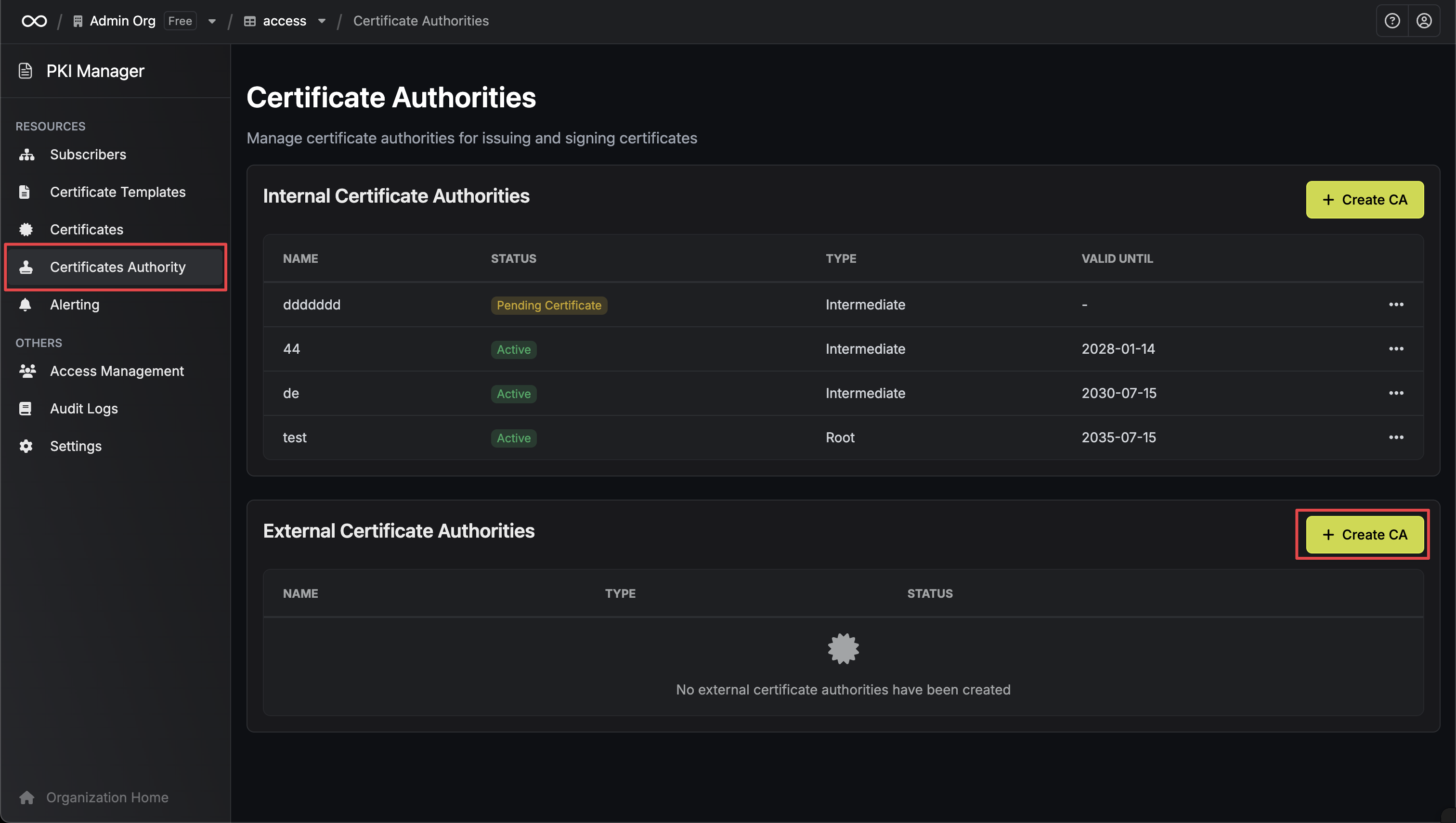
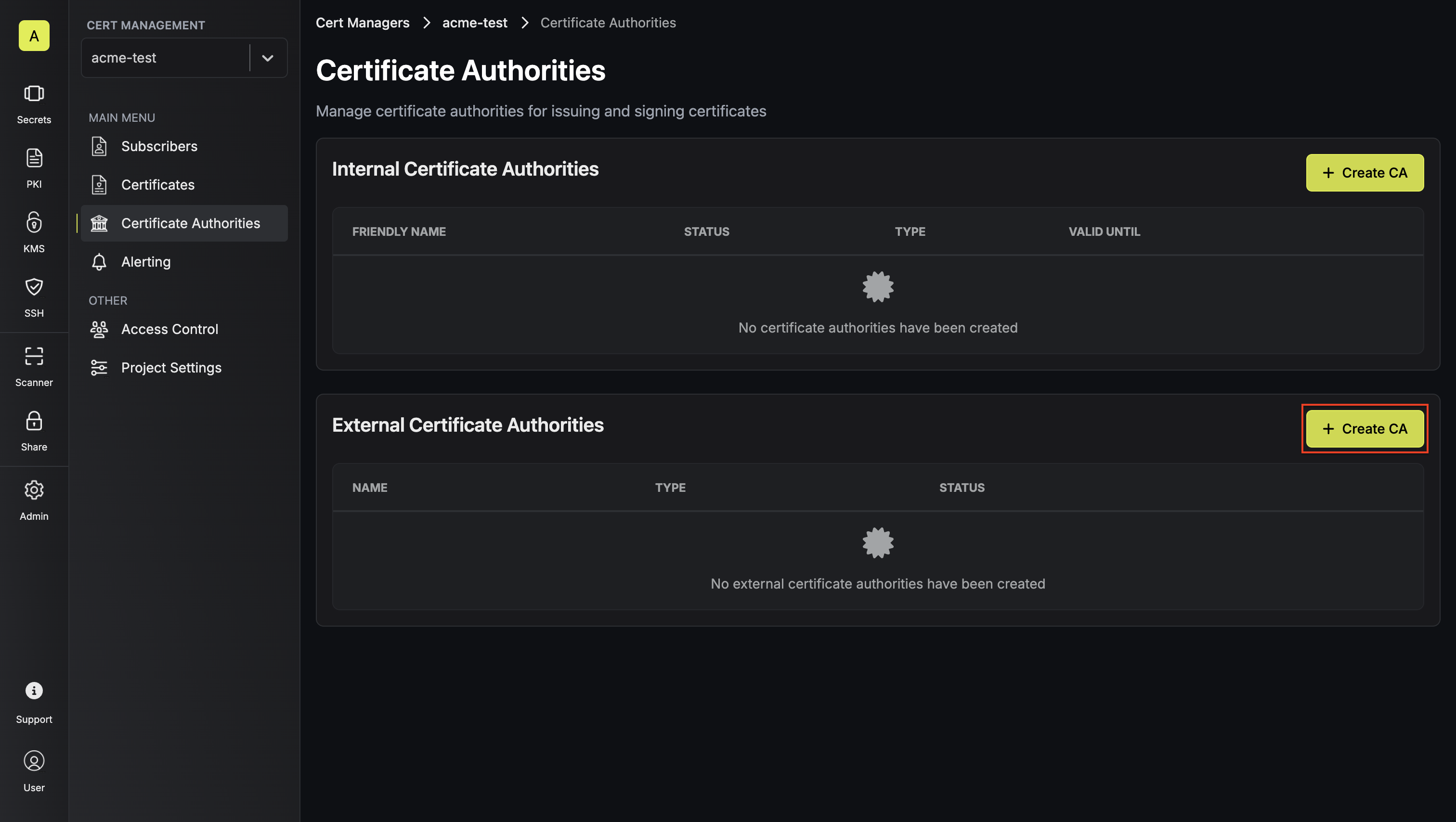
To register an ACME-compatible CA, head to your Certificate Management Project > Certificate Authorities > External Certificate Authorities and press **Create CA**.
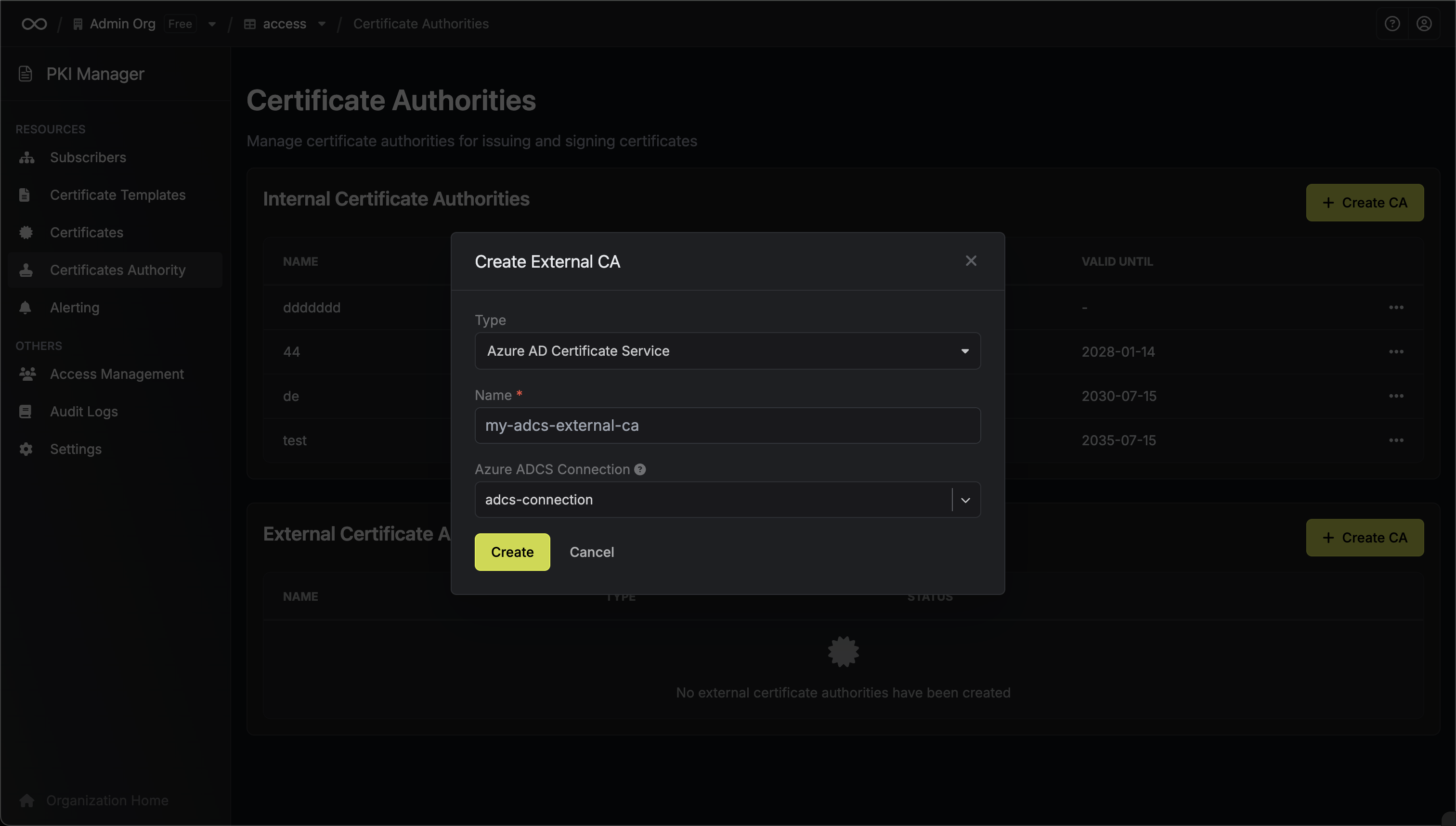
Here, set the **CA Type** to **ACME** and fill out details for it.
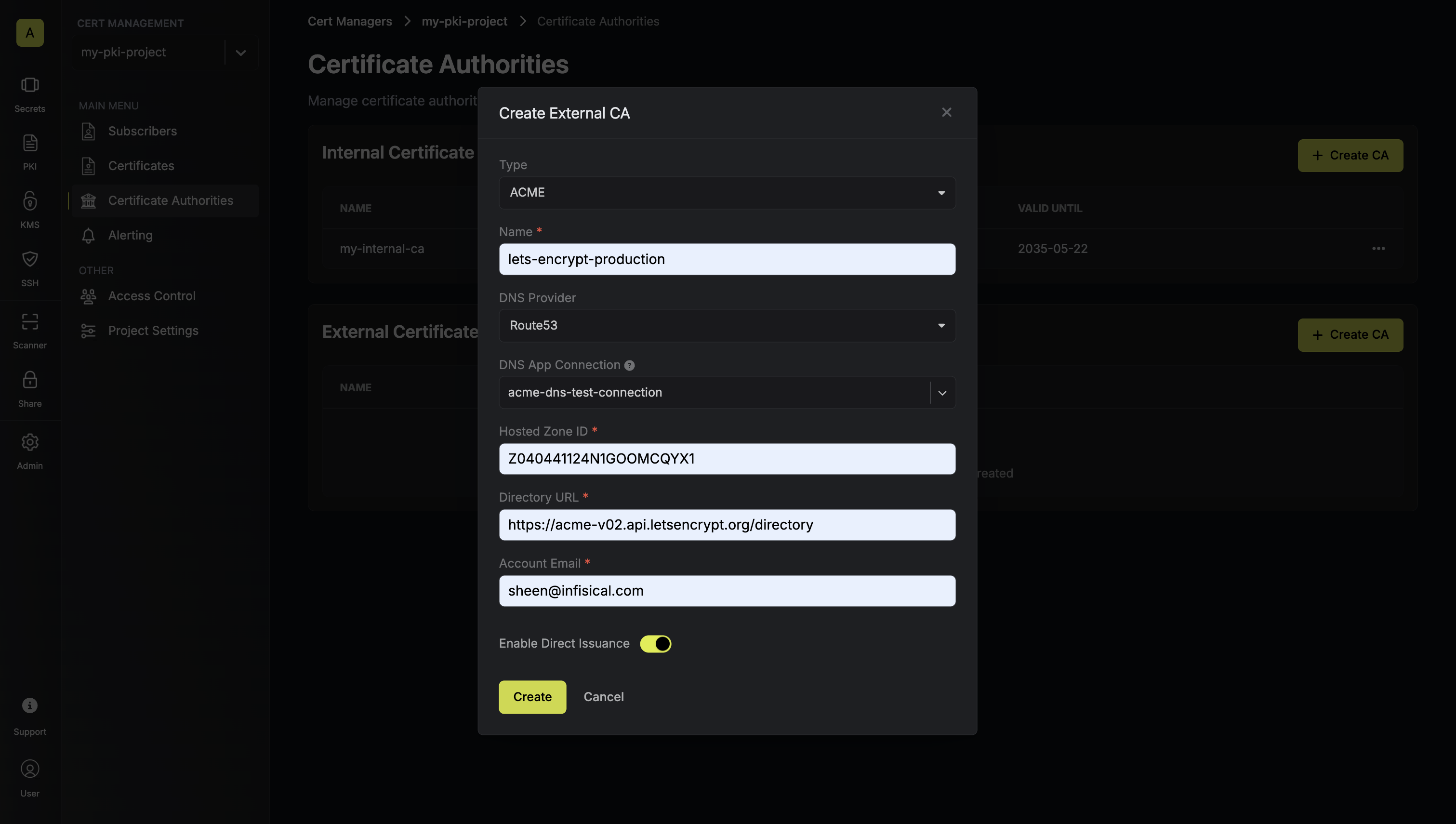
Here's some guidance for each field:
* Name: A slug-friendly name for the ACME-compatible CA such as `lets-encrypt-production`.
* DNS App Connection: The App Connection from Step 1 used for Infisical to connect to your DNS provider and create/remove DNS records as part of the DNS-01 challenge in ACME.
* Zone / Zone ID: Enter the Zone / Zone ID for the domain(s) you'll be requesting certificates for.
* Directory URL: Enter the **ACME Directory URL** for your desired upstream ACME-compatible CA such as `https://acme-v02.api.letsencrypt.org/directory` for Let's Encrypt.
* Account Email: The email address to associate with your ACME account. This email will receive important notifications about your certificates.
* EAB Key Identifier (KID): (Optional) The Key Identifier (KID) provided by your ACME CA for External Account Binding (EAB). This is required by some ACME providers (e.g., ZeroSSL, DigiCert) to link your ACME account to an external account you've pre-registered with them.
* EAB HMAC Key: (Optional) The HMAC Key provided by your ACME CA for External Account Binding (EAB). This key is used in conjunction with the KID to prove ownership of the external account during ACME account registration.
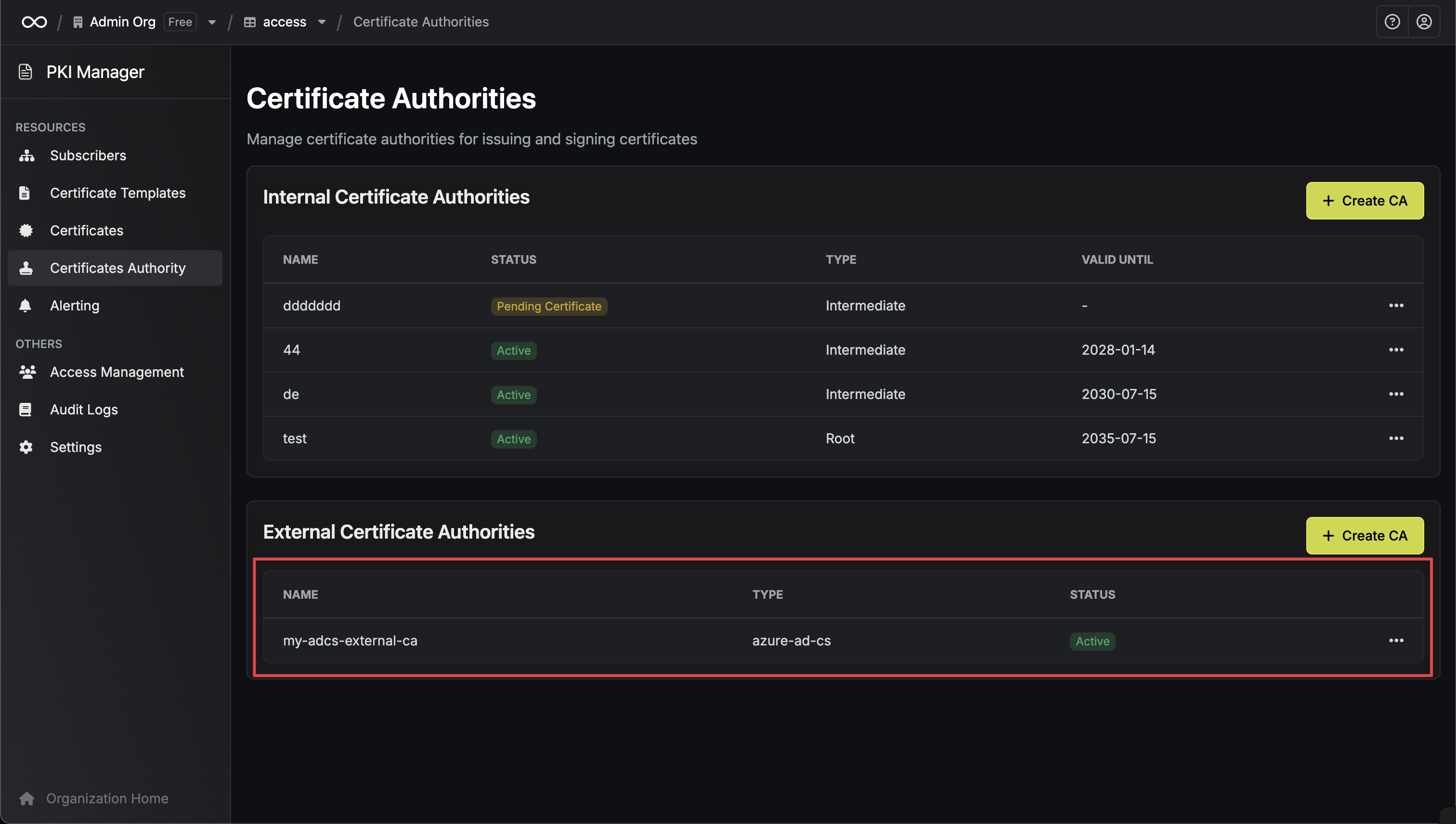
Finally, press **Create** to register the ACME-compatible CA with Infisical.
Great! You’ve successfully registered an external ACME-compatible CA with Infisical. Now check out the [Certificates](/documentation/platform/pki/certificates/overview) section to learn more about how to issue X.509 certificates using the ACME-compatible CA.
To register an ACME CA with Infisical using the API, make a request to the [Create External CA](https://infisical.com/docs/api-reference/endpoints/certificate-authorities/acme/create) endpoint:
### Sample request
```bash Request theme={"dark"}
curl 'https://app.infisical.com/api/v1/cert-manager/ca/acme' \
-H 'Authorization: Bearer ' \
-H 'Content-Type: application/json' \
--data-raw '{
"projectId": "0fccb6ee-1381-4ff1-8d5f-0cb93c6cc4d6",
"name": "lets-encrypt-production",
"type": "acme",
"status": "active",
"enableDirectIssuance": true,
"configuration": {
"dnsAppConnection": {
"id": "1e5f8c0d-09d2-492c-9b28-469acd8e841b",
"name": "acme-dns-test-connection"
},
"dnsProviderConfig": {
"provider": "route53",
"hostedZoneId": "Z040441124N1GOOMCQYX1"
},
"directoryUrl": "https://acme-v02.api.letsencrypt.org/directory",
"accountEmail": "admin@example.com",
"dnsAppConnectionId": "1e5f8c0d-09d2-492c-9b28-469acd8e841b"
}
}'
```
### Sample response
```bash Response theme={"dark"}
{
"id": "c48b701e-a20c-4a9a-8119-68f54e5fbb05",
"name": "lets-encrypt-production",
"type": "acme",
"status": "active",
"projectId": "0fccb6ee-1381-4ff1-8d5f-0cb93c6cc4d6",
"enableDirectIssuance": true,
"configuration": {
"accountEmail": "admin@example.com",
"directoryUrl": "https://acme-v02.api.letsencrypt.org/directory",
"dnsAppConnection": {
"id": "1e5f8c0d-09d2-492c-9b28-469acd8e841b",
"name": "acme-dns-test-connection"
},
"dnsAppConnectionId": "1e5f8c0d-09d2-492c-9b28-469acd8e841b",
"dnsProviderConfig": {
"provider": "route53",
"hostedZoneId": "Z040441124N1GOOMCQYX1"
}
}
}
```
## FAQ
Currently, Infisical supports DNS-01 validation through AWS Route53 or Cloudflare. The DNS-01 challenge method is preferred for ACME integrations because it:
* Works with wildcard certificates
* Doesn't require your servers to be publicly accessible
* Can be fully automated without manual intervention
Support for additional DNS providers is planned for future releases.
Yes! ACME CAs like Let's Encrypt support wildcard certificates (e.g., `*.example.com`) when using DNS-01 validation. Simply specify the wildcard domain in your subscriber configuration.
Note that wildcard certificates still require DNS-01 validation - HTTP-01 validation cannot be used for wildcard certificates.
Most ACME providers issue certificates with 90-day validity periods. This shorter validity period is designed to:
* Encourage automation of certificate management
* Reduce the impact of compromised certificates
* Ensure systems stay up-to-date with certificate management practices
Yes. You can register multiple ACME CAs in the same project.
---
# Source: https://infisical.com/docs/documentation/platform/pki/enrollment-methods/acme.md
> ## Documentation Index
> Fetch the complete documentation index at: https://infisical.com/docs/llms.txt
> Use this file to discover all available pages before exploring further.
# Certificate Enrollment via ACME
## Concept
The ACME enrollment method allows Infisical to act as an ACME server. It lets you request and manage certificates against a specific [certificate profile](/documentation/platform/pki/certificates/profiles) using the [ACME protocol](https://en.wikipedia.org/wiki/Automatic_Certificate_Management_Environment).
This method is suitable for web servers, load balancers, and other general-purpose servers that can run an [ACME client](https://letsencrypt.org/docs/client-options/) for automated certificate management;
it can also be used with [cert-manager](https://cert-manager.io/) to issue and renew certificates for Kubernetes workloads through the [ACME issuer type](https://cert-manager.io/docs/configuration/acme/).
Infisical's ACME enrollment method is based on [RFC 8555](https://datatracker.ietf.org/doc/html/rfc8555/).
## Prerequisites
Install an [ACME client](https://letsencrypt.org/docs/client-options/) onto your server. This client will handle [ACME challenges](https://letsencrypt.org/docs/challenge-types/) and request/renew certificates from Infisical.
## Guide to Certificate Enrollment via ACME
In the following steps, we explore how to issue a X.509 certificate using the ACME enrollment method.
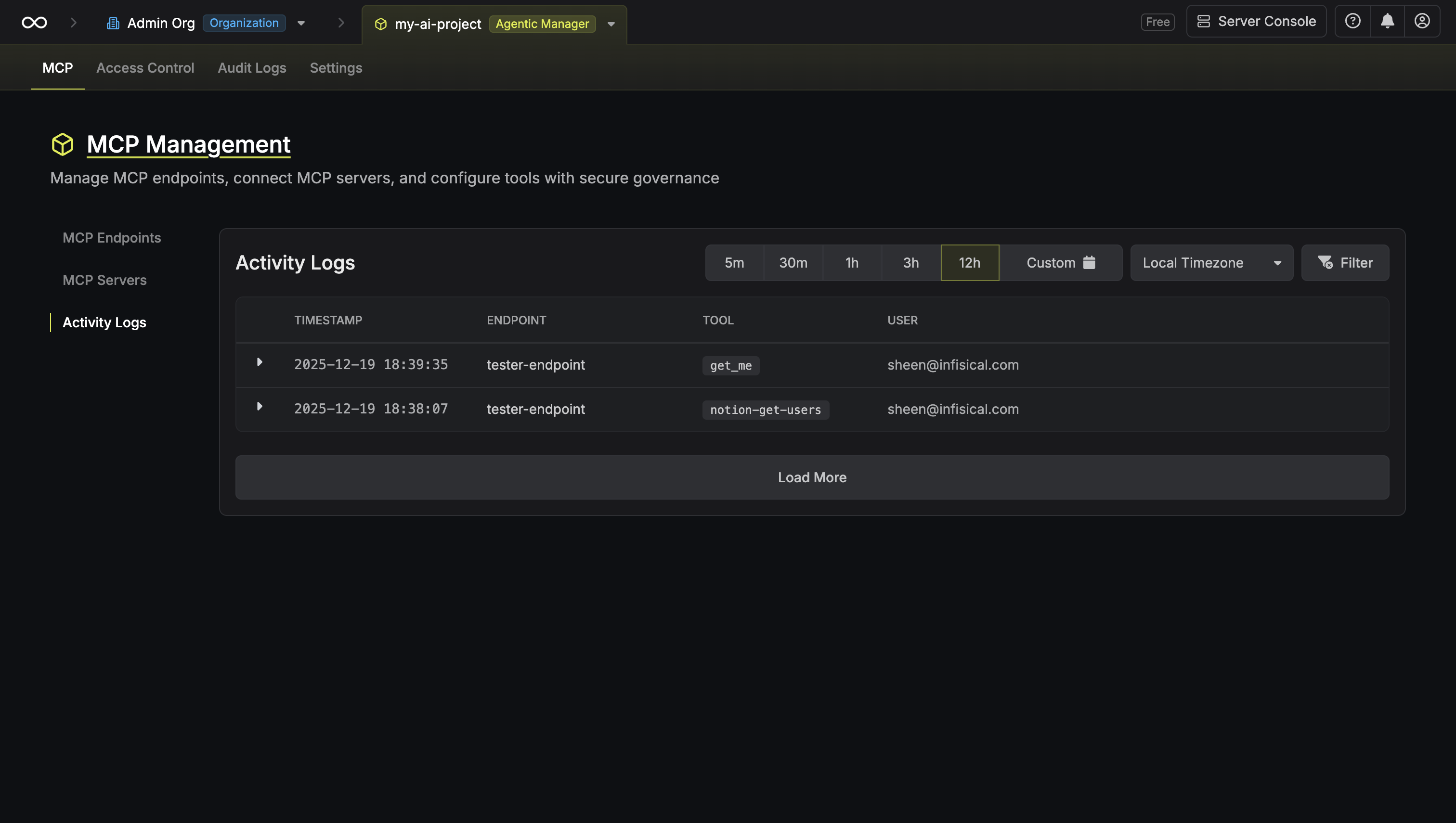
Create a [certificate
profile](/documentation/platform/pki/certificates/profiles) with **ACME**
selected as the enrollment method.
By default, when the ACME client requests a certificate against the certificate profile for a particular domain, Infisical will verify domain ownership using the [HTTP-01 challenge](https://letsencrypt.org/docs/challenge-types/#http-01-challenge) method prior to issuing a certificate back to the client.
If you want Infisical to skip domain ownership validation entirely, you can enable the **Skip DNS Ownership Validation** checkbox.
Note that skipping domain ownership validation for the ACME enrollment method is **not the same** as skipping validation for an [External ACME CA integration](/documentation/platform/pki/ca/acme-ca).
When using the ACME enrollment, the domain ownership check occurring between the ACME client and Infisical can be skipped. In contrast, External ACME CA integrations always require domain ownership validation, as Infisical must complete a DNS-01 challenge with the upstream ACME-compatible CA.
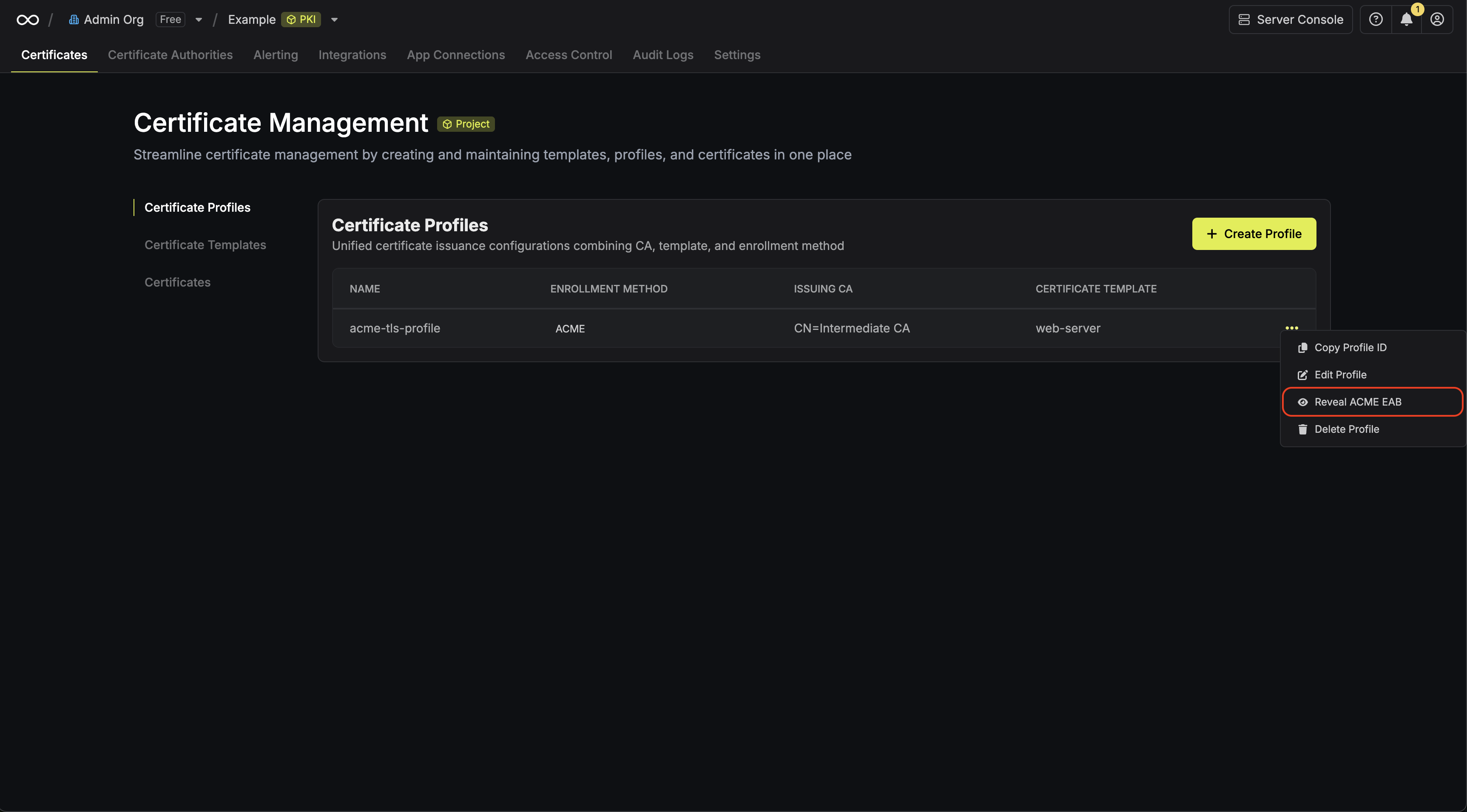
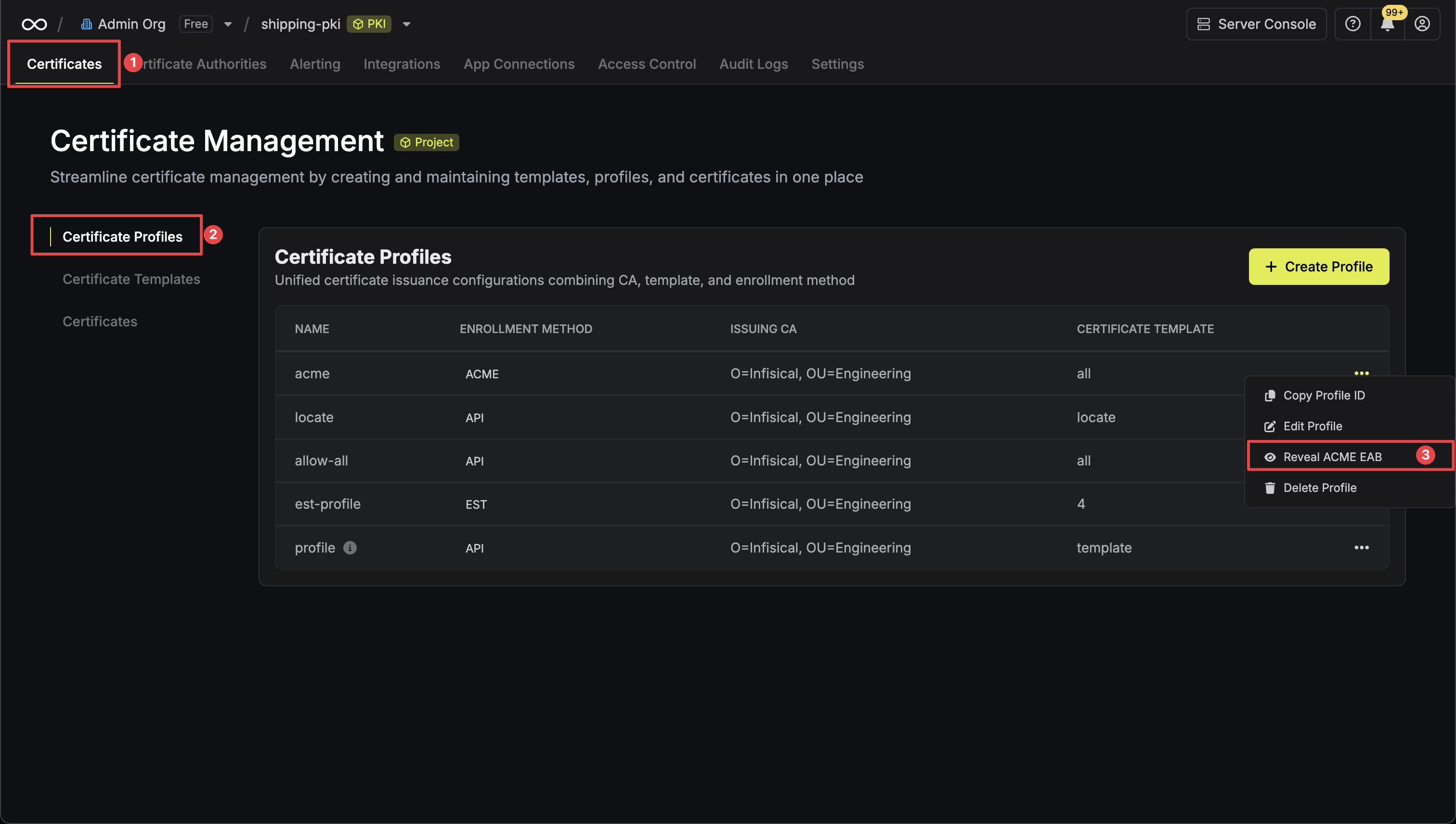
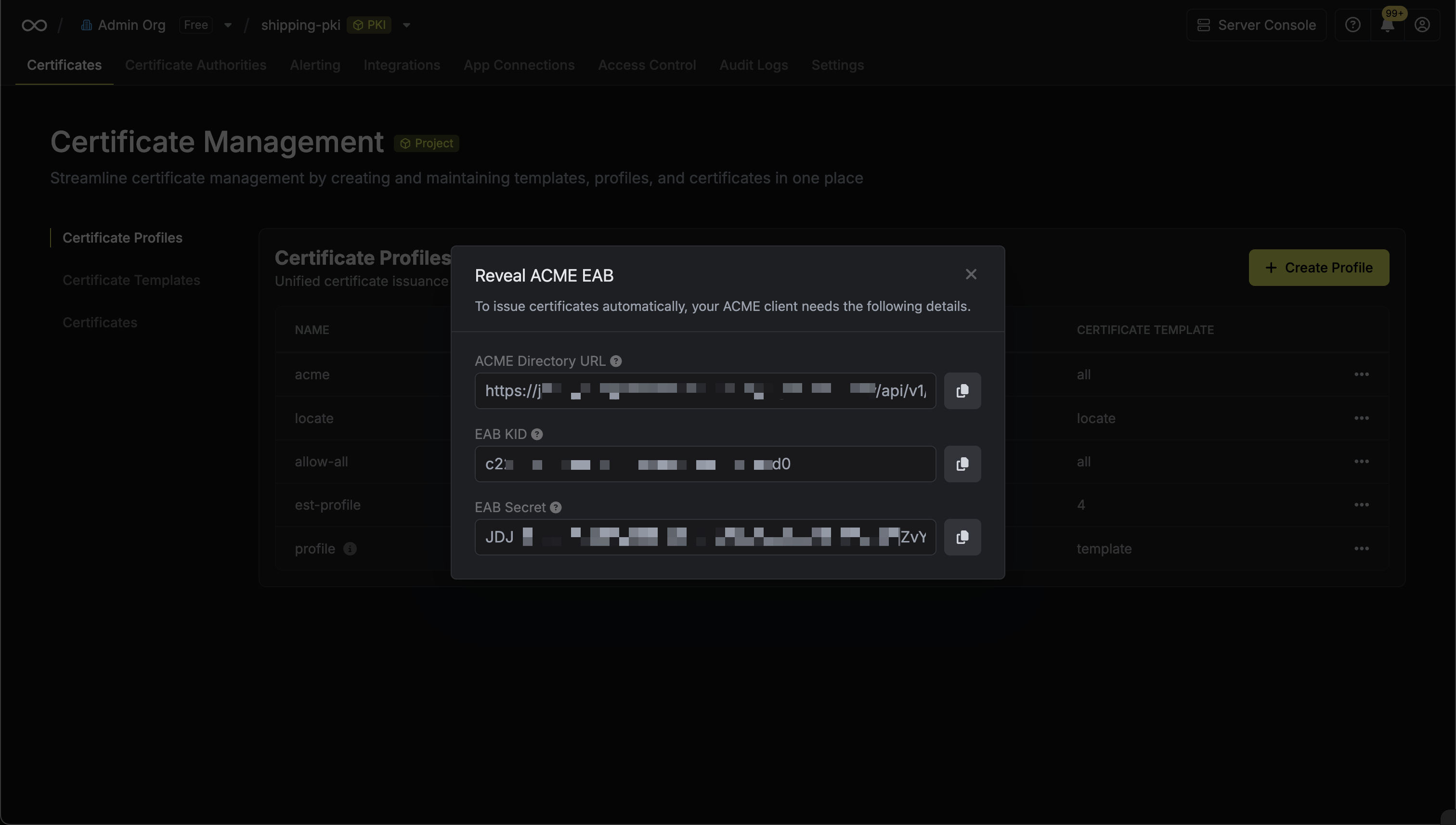
Once you've created the certificate profile, you can obtain its ACME configuration details by clicking the **Reveal ACME EAB** option on the profile.
From the ACME configuration, gather the following values:
* ACME Directory URL: The URL that the ACME client will use to communicate with Infisical's ACME server.
* EAB Key Identifier (KID): A unique identifier that tells Infisical which ACME account is making the request.
* EAB Secret: A secret key that authenticates your ACME client with Infisical.
Provide the **ACME Directory URL**, **EAB KID**, and **EAB Secret** from Step 2 to your ACME client to authenticate with Infisical and request a certificate.
For example, if using [Certbot](https://certbot.eff.org/) as an ACME client, you can configure and start requesting certificates with the following command:
```bash theme={"dark"}
sudo certbot certonly \
--standalone \
--server "https://your-infisical-instance.com/api/v1/cert-manager/certificate-profiles/{profile-id}/acme/directory" \
--eab-kid "your-eab-kid" \
--eab-hmac-key "your-eab-secret" \
-d example.infisical.com \
--email admin@example.com \
--agree-tos \
--non-interactive
```
Certbot stores the private key and resulting leaf certificate and full certificate chain in `/etc/letsencrypt/live/{domain-name}/`.
For client-specific setup and usage instructions, refer to the documentation for your ACME client.
---
# Source: https://infisical.com/docs/documentation/platform/agent-sentinel/activity-logs.md
> ## Documentation Index
> Fetch the complete documentation index at: https://infisical.com/docs/llms.txt
> Use this file to discover all available pages before exploring further.
# Activity Logs
> Monitor and audit AI tool usage with detailed activity logs.
## Concept
Activity Logs provide complete visibility into how AI agents are using tools through your MCP endpoints. Every tool invocation is logged with detailed information including timestamps, the endpoint used, which tool was called, who initiated the request, and the full request/response payloads.
Identify unusual patterns of tool usage, verify authorized access, and detect potential data exfiltration attempts.
Meet SOC 2 requirements, support internal security reviews, and enable incident investigation with complete audit trails.
Examine request payloads, review response errors, and trace the sequence of tool calls when issues arise.
Identify frequently used tools, track usage trends over time, and measure active users per endpoint.
## What Gets Logged
Every tool invocation through an MCP endpoint creates a log entry containing:
| Field | Description |
| ------------- | ----------------------------------------- |
| **Timestamp** | When the tool was invoked |
| **Endpoint** | The MCP endpoint used |
| **Tool** | The name of the tool that was called |
| **User** | The user who initiated the request |
| **Request** | The full request payload sent to the tool |
| **Response** | The full response returned by the tool |
## Viewing Activity Logs
Head to your Agent Sentinel project and select **Activity Logs** from the sidebar.
Use the time range selector to filter logs. You can also adjust the timezone using the timezone dropdown.
Click **Filter** to apply additional filters:
* **Endpoint**: Filter by specific MCP endpoint
* **Tool**: Filter by specific tool
* **User**: Filter by specific user
* **Server**: Filter by specific MCP server
Click on any log entry to expand it and view the full details:
* **Request**: The JSON payload sent to the tool
* **Response**: The JSON response returned by the tool
## FAQ
Yes, activity logs can be exported for external analysis or long-term storage. Enterprise plans include log streaming to external SIEM systems.
Infisical supports PII filtering to automatically detect and mask sensitive data in request and response payloads. When enabled on an MCP endpoint, the following PII types can be redacted:
* **Email addresses** → `[REDACTED_EMAIL]`
* **Phone numbers** → `[REDACTED_PHONE]`
* **Social Security Numbers** → `[REDACTED_SSN]`
* **Credit card numbers** → `[REDACTED_CREDIT_CARD]`
* **IP addresses (IPv4 and IPv6)** → `[REDACTED_IP]`
You can configure PII filtering separately for requests and responses, and select which PII types to detect. See [MCP Endpoints - PII Filtering](/documentation/platform/agent-sentinel/mcp-endpoints#pii-filtering) for configuration details.
Yes, all tool invocations are logged regardless of success or failure. Failed invocations include error details in the response payload.
---
# Source: https://infisical.com/docs/api-reference/endpoints/pki/syncs/add-certificates.md
> ## Documentation Index
> Fetch the complete documentation index at: https://infisical.com/docs/llms.txt
> Use this file to discover all available pages before exploring further.
# Add Certificates to Sync
> Add certificates to a PKI Sync.
## OpenAPI
````yaml POST /api/v1/cert-manager/syncs/{pkiSyncId}/certificates
openapi: 3.0.3
info:
title: Infisical API
description: List of all available APIs that can be consumed
version: 0.0.1
servers:
- url: https://us.infisical.com
description: Production server (US)
- url: https://eu.infisical.com
description: Production server (EU)
- url: http://localhost:8080
description: Local server
security: []
paths:
/api/v1/cert-manager/syncs/{pkiSyncId}/certificates:
post:
tags:
- PKI Syncs
description: Add certificates to a PKI Sync.
operationId: addCertificatesToPkiSync
parameters:
- schema:
type: string
format: uuid
in: path
name: pkiSyncId
required: true
requestBody:
content:
application/json:
schema:
type: object
properties:
certificateIds:
type: array
items:
type: string
format: uuid
minItems: 1
required:
- certificateIds
additionalProperties: false
required: true
responses:
'200':
description: Default Response
content:
application/json:
schema:
type: object
properties:
addedCertificates:
type: array
items:
type: object
properties:
id:
type: string
format: uuid
pkiSyncId:
type: string
format: uuid
certificateId:
type: string
format: uuid
syncStatus:
type: string
default: pending
nullable: true
lastSyncMessage:
type: string
nullable: true
lastSyncedAt:
type: string
format: date-time
nullable: true
createdAt:
type: string
format: date-time
updatedAt:
type: string
format: date-time
required:
- id
- pkiSyncId
- certificateId
- createdAt
- updatedAt
additionalProperties: false
required:
- addedCertificates
additionalProperties: false
'400':
description: Default Response
content:
application/json:
schema:
type: object
properties:
reqId:
type: string
statusCode:
type: number
enum:
- 400
message:
type: string
error:
type: string
details: {}
required:
- reqId
- statusCode
- message
- error
additionalProperties: false
'401':
description: Default Response
content:
application/json:
schema:
type: object
properties:
reqId:
type: string
statusCode:
type: number
enum:
- 401
message:
type: string
error:
type: string
required:
- reqId
- statusCode
- message
- error
additionalProperties: false
'403':
description: Default Response
content:
application/json:
schema:
type: object
properties:
reqId:
type: string
statusCode:
type: number
enum:
- 403
message:
type: string
details: {}
error:
type: string
required:
- reqId
- statusCode
- message
- error
additionalProperties: false
'404':
description: Default Response
content:
application/json:
schema:
type: object
properties:
reqId:
type: string
statusCode:
type: number
enum:
- 404
message:
type: string
error:
type: string
required:
- reqId
- statusCode
- message
- error
additionalProperties: false
'422':
description: Default Response
content:
application/json:
schema:
type: object
properties:
reqId:
type: string
statusCode:
type: number
enum:
- 422
message: {}
error:
type: string
required:
- reqId
- statusCode
- error
additionalProperties: false
'500':
description: Default Response
content:
application/json:
schema:
type: object
properties:
reqId:
type: string
statusCode:
type: number
enum:
- 500
message:
type: string
error:
type: string
required:
- reqId
- statusCode
- message
- error
additionalProperties: false
````
---
# Source: https://infisical.com/docs/api-reference/endpoints/groups/add-group-machine-identity.md
> ## Documentation Index
> Fetch the complete documentation index at: https://infisical.com/docs/llms.txt
> Use this file to discover all available pages before exploring further.
# Add Machine Identity to Group
## OpenAPI
````yaml POST /api/v1/groups/{id}/machine-identities/{machineIdentityId}
openapi: 3.0.3
info:
title: Infisical API
description: List of all available APIs that can be consumed
version: 0.0.1
servers:
- url: https://us.infisical.com
description: Production server (US)
- url: https://eu.infisical.com
description: Production server (EU)
- url: http://localhost:8080
description: Local server
security: []
paths:
/api/v1/groups/{id}/machine-identities/{machineIdentityId}:
post:
tags:
- Groups
operationId: addMachineIdentityToGroup
parameters:
- schema:
type: string
in: path
name: id
required: true
description: The ID of the group to add the machine identity to.
- schema:
type: string
in: path
name: machineIdentityId
required: true
description: The ID of the machine identity to add to the group.
responses:
'200':
description: Default Response
content:
application/json:
schema:
type: object
properties:
id:
type: string
required:
- id
additionalProperties: false
'400':
description: Default Response
content:
application/json:
schema:
type: object
properties:
reqId:
type: string
statusCode:
type: number
enum:
- 400
message:
type: string
error:
type: string
details: {}
required:
- reqId
- statusCode
- message
- error
additionalProperties: false
'401':
description: Default Response
content:
application/json:
schema:
type: object
properties:
reqId:
type: string
statusCode:
type: number
enum:
- 401
message:
type: string
error:
type: string
required:
- reqId
- statusCode
- message
- error
additionalProperties: false
'403':
description: Default Response
content:
application/json:
schema:
type: object
properties:
reqId:
type: string
statusCode:
type: number
enum:
- 403
message:
type: string
details: {}
error:
type: string
required:
- reqId
- statusCode
- message
- error
additionalProperties: false
'404':
description: Default Response
content:
application/json:
schema:
type: object
properties:
reqId:
type: string
statusCode:
type: number
enum:
- 404
message:
type: string
error:
type: string
required:
- reqId
- statusCode
- message
- error
additionalProperties: false
'422':
description: Default Response
content:
application/json:
schema:
type: object
properties:
reqId:
type: string
statusCode:
type: number
enum:
- 422
message: {}
error:
type: string
required:
- reqId
- statusCode
- error
additionalProperties: false
'500':
description: Default Response
content:
application/json:
schema:
type: object
properties:
reqId:
type: string
statusCode:
type: number
enum:
- 500
message:
type: string
error:
type: string
required:
- reqId
- statusCode
- message
- error
additionalProperties: false
````
---
# Source: https://infisical.com/docs/api-reference/endpoints/groups/add-group-user.md
> ## Documentation Index
> Fetch the complete documentation index at: https://infisical.com/docs/llms.txt
> Use this file to discover all available pages before exploring further.
# Add Group User
## OpenAPI
````yaml POST /api/v1/groups/{id}/users/{username}
openapi: 3.0.3
info:
title: Infisical API
description: List of all available APIs that can be consumed
version: 0.0.1
servers:
- url: https://us.infisical.com
description: Production server (US)
- url: https://eu.infisical.com
description: Production server (EU)
- url: http://localhost:8080
description: Local server
security: []
paths:
/api/v1/groups/{id}/users/{username}:
post:
tags:
- Groups
operationId: addUserToGroup
parameters:
- schema:
type: string
in: path
name: id
required: true
description: The ID of the group to add the user to.
- schema:
type: string
in: path
name: username
required: true
description: The username of the user to add to the group.
responses:
'200':
description: Default Response
content:
application/json:
schema:
type: object
properties:
email:
type: string
nullable: true
username:
type: string
firstName:
type: string
nullable: true
lastName:
type: string
nullable: true
id:
type: string
format: uuid
required:
- username
- id
additionalProperties: false
'400':
description: Default Response
content:
application/json:
schema:
type: object
properties:
reqId:
type: string
statusCode:
type: number
enum:
- 400
message:
type: string
error:
type: string
details: {}
required:
- reqId
- statusCode
- message
- error
additionalProperties: false
'401':
description: Default Response
content:
application/json:
schema:
type: object
properties:
reqId:
type: string
statusCode:
type: number
enum:
- 401
message:
type: string
error:
type: string
required:
- reqId
- statusCode
- message
- error
additionalProperties: false
'403':
description: Default Response
content:
application/json:
schema:
type: object
properties:
reqId:
type: string
statusCode:
type: number
enum:
- 403
message:
type: string
details: {}
error:
type: string
required:
- reqId
- statusCode
- message
- error
additionalProperties: false
'404':
description: Default Response
content:
application/json:
schema:
type: object
properties:
reqId:
type: string
statusCode:
type: number
enum:
- 404
message:
type: string
error:
type: string
required:
- reqId
- statusCode
- message
- error
additionalProperties: false
'422':
description: Default Response
content:
application/json:
schema:
type: object
properties:
reqId:
type: string
statusCode:
type: number
enum:
- 422
message: {}
error:
type: string
required:
- reqId
- statusCode
- error
additionalProperties: false
'500':
description: Default Response
content:
application/json:
schema:
type: object
properties:
reqId:
type: string
statusCode:
type: number
enum:
- 500
message:
type: string
error:
type: string
required:
- reqId
- statusCode
- message
- error
additionalProperties: false
````
---
# Source: https://infisical.com/docs/api-reference/endpoints/ssh/groups/add-host.md
# Add Host
> Add an SSH Host to a Host Group
## OpenAPI
````yaml POST /api/v1/ssh/host-groups/{sshHostGroupId}/hosts/{hostId}
paths:
path: /api/v1/ssh/host-groups/{sshHostGroupId}/hosts/{hostId}
method: post
servers:
- url: https://us.infisical.com
description: Production server (US)
- url: https://eu.infisical.com
description: Production server (EU)
- url: http://localhost:8080
description: Local server
request:
security: []
parameters:
path:
sshHostGroupId:
schema:
- type: string
required: true
description: The ID of the SSH host group to add the host to.
hostId:
schema:
- type: string
required: true
description: The ID of the SSH host to add to the SSH host group.
query: {}
header: {}
cookie: {}
body: {}
response:
'200':
application/json:
schemaArray:
- type: object
properties:
id:
allOf:
- type: string
format: uuid
projectId:
allOf:
- type: string
hostname:
allOf:
- type: string
alias:
allOf:
- type: string
nullable: true
userCertTtl:
allOf:
- type: string
hostCertTtl:
allOf:
- type: string
userSshCaId:
allOf:
- type: string
format: uuid
hostSshCaId:
allOf:
- type: string
format: uuid
loginMappings:
allOf:
- type: array
items:
type: object
properties:
loginUser:
type: string
allowedPrincipals:
type: object
properties:
usernames:
type: array
items:
type: string
groups:
type: array
items:
type: string
additionalProperties: false
required:
- loginUser
- allowedPrincipals
additionalProperties: false
requiredProperties:
- id
- projectId
- hostname
- userCertTtl
- hostCertTtl
- userSshCaId
- hostSshCaId
- loginMappings
additionalProperties: false
examples:
example:
value:
id: 3c90c3cc-0d44-4b50-8888-8dd25736052a
projectId:
hostname:
alias:
userCertTtl:
hostCertTtl:
userSshCaId: 3c90c3cc-0d44-4b50-8888-8dd25736052a
hostSshCaId: 3c90c3cc-0d44-4b50-8888-8dd25736052a
loginMappings:
- loginUser:
allowedPrincipals:
usernames:
-
groups:
-
description: Default Response
'400':
application/json:
schemaArray:
- type: object
properties:
reqId:
allOf:
- type: string
statusCode:
allOf:
- type: number
enum:
- 400
message:
allOf:
- type: string
error:
allOf:
- type: string
requiredProperties:
- reqId
- statusCode
- message
- error
additionalProperties: false
examples:
example:
value:
reqId:
statusCode: 400
message:
error:
description: Default Response
'401':
application/json:
schemaArray:
- type: object
properties:
reqId:
allOf:
- type: string
statusCode:
allOf:
- type: number
enum:
- 401
message:
allOf:
- type: string
error:
allOf:
- type: string
requiredProperties:
- reqId
- statusCode
- message
- error
additionalProperties: false
examples:
example:
value:
reqId:
statusCode: 401
message:
error:
description: Default Response
'403':
application/json:
schemaArray:
- type: object
properties:
reqId:
allOf:
- type: string
statusCode:
allOf:
- type: number
enum:
- 403
message:
allOf:
- type: string
details:
allOf:
- {}
error:
allOf:
- type: string
requiredProperties:
- reqId
- statusCode
- message
- error
additionalProperties: false
examples:
example:
value:
reqId:
statusCode: 403
message:
details:
error:
description: Default Response
'404':
application/json:
schemaArray:
- type: object
properties:
reqId:
allOf:
- type: string
statusCode:
allOf:
- type: number
enum:
- 404
message:
allOf:
- type: string
error:
allOf:
- type: string
requiredProperties:
- reqId
- statusCode
- message
- error
additionalProperties: false
examples:
example:
value:
reqId:
statusCode: 404
message:
error:
description: Default Response
'422':
application/json:
schemaArray:
- type: object
properties:
reqId:
allOf:
- type: string
statusCode:
allOf:
- type: number
enum:
- 422
message:
allOf:
- {}
error:
allOf:
- type: string
requiredProperties:
- reqId
- statusCode
- error
additionalProperties: false
examples:
example:
value:
reqId:
statusCode: 422
message:
error:
description: Default Response
'500':
application/json:
schemaArray:
- type: object
properties:
reqId:
allOf:
- type: string
statusCode:
allOf:
- type: number
enum:
- 500
message:
allOf:
- type: string
error:
allOf:
- type: string
requiredProperties:
- reqId
- statusCode
- message
- error
additionalProperties: false
examples:
example:
value:
reqId:
statusCode: 500
message:
error:
description: Default Response
deprecated: false
type: path
components:
schemas: {}
````
---
# Source: https://infisical.com/docs/api-reference/endpoints/project-identities-membership/add-identity-membership.md
# Source: https://infisical.com/docs/api-reference/endpoints/deprecated/project-identities-v2/add-identity-membership.md
> ## Documentation Index
> Fetch the complete documentation index at: https://infisical.com/docs/llms.txt
> Use this file to discover all available pages before exploring further.
# Create Identity Membership
> Create project identity membership
## OpenAPI
````yaml POST /api/v1/projects/{projectId}/identity-memberships/{identityId}
openapi: 3.0.3
info:
title: Infisical API
description: List of all available APIs that can be consumed
version: 0.0.1
servers:
- url: https://us.infisical.com
description: Production server (US)
- url: https://eu.infisical.com
description: Production server (EU)
- url: http://localhost:8080
description: Local server
security: []
paths:
/api/v1/projects/{projectId}/identity-memberships/{identityId}:
post:
tags:
- Project Identities
description: Create project identity membership
parameters:
- schema:
type: string
in: path
name: projectId
required: true
- schema:
type: string
in: path
name: identityId
required: true
requestBody:
content:
application/json:
schema:
type: object
properties:
role:
type: string
default: no-access
roles:
type: array
items:
anyOf:
- type: object
properties:
role:
type: string
description: >-
The role slug to assign to the newly created
identity project membership.
isTemporary:
type: boolean
enum:
- false
default: false
description: >-
The role slug to assign to the newly created
identity project membership.
required:
- role
additionalProperties: false
- type: object
properties:
role:
type: string
description: >-
The role slug to assign to the newly created
identity project membership.
isTemporary:
type: boolean
enum:
- true
description: >-
The role slug to assign to the newly created
identity project membership.
temporaryMode:
type: string
enum:
- relative
description: >-
The role slug to assign to the newly created
identity project membership.
temporaryRange:
type: string
description: >-
The role slug to assign to the newly created
identity project membership.
temporaryAccessStartTime:
type: string
format: date-time
description: >-
The role slug to assign to the newly created
identity project membership.
required:
- role
- isTemporary
- temporaryMode
- temporaryRange
- temporaryAccessStartTime
additionalProperties: false
description: >-
A list of role slugs to assign to the newly created identity
project membership.
additionalProperties: false
responses:
'200':
description: Default Response
content:
application/json:
schema:
type: object
properties:
identityMembership:
type: object
properties:
id:
type: string
format: uuid
projectId:
type: string
identityId:
type: string
format: uuid
createdAt:
type: string
format: date-time
updatedAt:
type: string
format: date-time
required:
- id
- projectId
- identityId
- createdAt
- updatedAt
additionalProperties: false
required:
- identityMembership
additionalProperties: false
'400':
description: Default Response
content:
application/json:
schema:
type: object
properties:
reqId:
type: string
statusCode:
type: number
enum:
- 400
message:
type: string
error:
type: string
details: {}
required:
- reqId
- statusCode
- message
- error
additionalProperties: false
'401':
description: Default Response
content:
application/json:
schema:
type: object
properties:
reqId:
type: string
statusCode:
type: number
enum:
- 401
message:
type: string
error:
type: string
required:
- reqId
- statusCode
- message
- error
additionalProperties: false
'403':
description: Default Response
content:
application/json:
schema:
type: object
properties:
reqId:
type: string
statusCode:
type: number
enum:
- 403
message:
type: string
details: {}
error:
type: string
required:
- reqId
- statusCode
- message
- error
additionalProperties: false
'404':
description: Default Response
content:
application/json:
schema:
type: object
properties:
reqId:
type: string
statusCode:
type: number
enum:
- 404
message:
type: string
error:
type: string
required:
- reqId
- statusCode
- message
- error
additionalProperties: false
'422':
description: Default Response
content:
application/json:
schema:
type: object
properties:
reqId:
type: string
statusCode:
type: number
enum:
- 422
message: {}
error:
type: string
required:
- reqId
- statusCode
- error
additionalProperties: false
'500':
description: Default Response
content:
application/json:
schema:
type: object
properties:
reqId:
type: string
statusCode:
type: number
enum:
- 500
message:
type: string
error:
type: string
required:
- reqId
- statusCode
- message
- error
additionalProperties: false
security:
- bearerAuth: []
components:
securitySchemes:
bearerAuth:
type: http
scheme: bearer
bearerFormat: JWT
description: An access token in Infisical
````
---
# Source: https://infisical.com/docs/api-reference/endpoints/project-identities/add-identity.md
> ## Documentation Index
> Fetch the complete documentation index at: https://infisical.com/docs/llms.txt
> Use this file to discover all available pages before exploring further.
# Create Identity
> Create an identity in a project
## OpenAPI
````yaml POST /api/v1/projects/{projectId}/identities
openapi: 3.0.3
info:
title: Infisical API
description: List of all available APIs that can be consumed
version: 0.0.1
servers:
- url: https://us.infisical.com
description: Production server (US)
- url: https://eu.infisical.com
description: Production server (EU)
- url: http://localhost:8080
description: Local server
security: []
paths:
/api/v1/projects/{projectId}/identities:
post:
tags:
- Identities
description: Create an identity in a project
operationId: createProjectMachineIdentity
parameters:
- schema:
type: string
in: path
name: projectId
required: true
description: The ID of the project to create the identity in
requestBody:
content:
application/json:
schema:
type: object
properties:
name:
type: string
minLength: 1
description: The name of the identity to create.
hasDeleteProtection:
type: boolean
default: false
description: Prevents deletion of the identity when enabled.
metadata:
type: array
items:
type: object
properties:
key:
type: string
minLength: 1
value:
type: string
minLength: 1
required:
- key
- value
additionalProperties: false
description: >-
An optional array of key-value pairs to attach to the
identity.
required:
- name
additionalProperties: false
required: true
responses:
'200':
description: Default Response
content:
application/json:
schema:
type: object
properties:
identity:
type: object
properties:
id:
type: string
format: uuid
name:
type: string
orgId:
type: string
format: uuid
projectId:
type: string
nullable: true
createdAt:
type: string
format: date-time
updatedAt:
type: string
format: date-time
hasDeleteProtection:
type: boolean
default: false
activeLockoutAuthMethods:
type: array
items:
type: string
authMethods:
type: array
items:
type: string
metadata:
type: array
items:
type: object
properties:
key:
type: string
value:
type: string
id:
type: string
required:
- key
- value
- id
additionalProperties: false
required:
- id
- name
- orgId
- createdAt
- updatedAt
additionalProperties: false
required:
- identity
additionalProperties: false
'400':
description: Default Response
content:
application/json:
schema:
type: object
properties:
reqId:
type: string
statusCode:
type: number
enum:
- 400
message:
type: string
error:
type: string
details: {}
required:
- reqId
- statusCode
- message
- error
additionalProperties: false
'401':
description: Default Response
content:
application/json:
schema:
type: object
properties:
reqId:
type: string
statusCode:
type: number
enum:
- 401
message:
type: string
error:
type: string
required:
- reqId
- statusCode
- message
- error
additionalProperties: false
'403':
description: Default Response
content:
application/json:
schema:
type: object
properties:
reqId:
type: string
statusCode:
type: number
enum:
- 403
message:
type: string
details: {}
error:
type: string
required:
- reqId
- statusCode
- message
- error
additionalProperties: false
'404':
description: Default Response
content:
application/json:
schema:
type: object
properties:
reqId:
type: string
statusCode:
type: number
enum:
- 404
message:
type: string
error:
type: string
required:
- reqId
- statusCode
- message
- error
additionalProperties: false
'422':
description: Default Response
content:
application/json:
schema:
type: object
properties:
reqId:
type: string
statusCode:
type: number
enum:
- 422
message: {}
error:
type: string
required:
- reqId
- statusCode
- error
additionalProperties: false
'500':
description: Default Response
content:
application/json:
schema:
type: object
properties:
reqId:
type: string
statusCode:
type: number
enum:
- 500
message:
type: string
error:
type: string
required:
- reqId
- statusCode
- message
- error
additionalProperties: false
security:
- bearerAuth: []
components:
securitySchemes:
bearerAuth:
type: http
scheme: bearer
bearerFormat: JWT
description: An access token in Infisical
````
---
# Source: https://infisical.com/docs/api-reference/endpoints/pki-collections/add-item.md
# Add Collection Item
> Add item to PKI collection
## OpenAPI
````yaml POST /api/v1/pki/collections/{collectionId}/items
paths:
path: /api/v1/pki/collections/{collectionId}/items
method: post
servers:
- url: https://us.infisical.com
description: Production server (US)
- url: https://eu.infisical.com
description: Production server (EU)
- url: http://localhost:8080
description: Local server
request:
security: []
parameters:
path:
collectionId:
schema:
- type: string
required: true
description: The ID of the PKI collection to add the item to.
query: {}
header: {}
cookie: {}
body:
application/json:
schemaArray:
- type: object
properties:
type:
allOf:
- type: string
enum:
- certificate
- ca
description: The type of the PKI collection item to add.
itemId:
allOf:
- type: string
description: The resource ID of the PKI collection item to add.
required: true
requiredProperties:
- type
- itemId
additionalProperties: false
examples:
example:
value:
type: certificate
itemId:
response:
'200':
application/json:
schemaArray:
- type: object
properties:
id:
allOf:
- type: string
format: uuid
createdAt:
allOf:
- type: string
format: date-time
updatedAt:
allOf:
- type: string
format: date-time
pkiCollectionId:
allOf:
- type: string
format: uuid
type:
allOf:
- type: string
enum:
- certificate
- ca
description: The type of the PKI collection item to add.
itemId:
allOf:
- type: string
description: The resource ID of the PKI collection item to add.
requiredProperties:
- id
- createdAt
- updatedAt
- pkiCollectionId
- type
- itemId
additionalProperties: false
examples:
example:
value:
id: 3c90c3cc-0d44-4b50-8888-8dd25736052a
createdAt: '2023-11-07T05:31:56Z'
updatedAt: '2023-11-07T05:31:56Z'
pkiCollectionId: 3c90c3cc-0d44-4b50-8888-8dd25736052a
type: certificate
itemId:
description: Default Response
'400':
application/json:
schemaArray:
- type: object
properties:
reqId:
allOf:
- type: string
statusCode:
allOf:
- type: number
enum:
- 400
message:
allOf:
- type: string
error:
allOf:
- type: string
requiredProperties:
- reqId
- statusCode
- message
- error
additionalProperties: false
examples:
example:
value:
reqId:
statusCode: 400
message:
error:
description: Default Response
'401':
application/json:
schemaArray:
- type: object
properties:
reqId:
allOf:
- type: string
statusCode:
allOf:
- type: number
enum:
- 401
message:
allOf:
- type: string
error:
allOf:
- type: string
requiredProperties:
- reqId
- statusCode
- message
- error
additionalProperties: false
examples:
example:
value:
reqId:
statusCode: 401
message:
error:
description: Default Response
'403':
application/json:
schemaArray:
- type: object
properties:
reqId:
allOf:
- type: string
statusCode:
allOf:
- type: number
enum:
- 403
message:
allOf:
- type: string
details:
allOf:
- {}
error:
allOf:
- type: string
requiredProperties:
- reqId
- statusCode
- message
- error
additionalProperties: false
examples:
example:
value:
reqId:
statusCode: 403
message:
details:
error:
description: Default Response
'404':
application/json:
schemaArray:
- type: object
properties:
reqId:
allOf:
- type: string
statusCode:
allOf:
- type: number
enum:
- 404
message:
allOf:
- type: string
error:
allOf:
- type: string
requiredProperties:
- reqId
- statusCode
- message
- error
additionalProperties: false
examples:
example:
value:
reqId:
statusCode: 404
message:
error:
description: Default Response
'422':
application/json:
schemaArray:
- type: object
properties:
reqId:
allOf:
- type: string
statusCode:
allOf:
- type: number
enum:
- 422
message:
allOf:
- {}
error:
allOf:
- type: string
requiredProperties:
- reqId
- statusCode
- error
additionalProperties: false
examples:
example:
value:
reqId:
statusCode: 422
message:
error:
description: Default Response
'500':
application/json:
schemaArray:
- type: object
properties:
reqId:
allOf:
- type: string
statusCode:
allOf:
- type: number
enum:
- 500
message:
allOf:
- type: string
error:
allOf:
- type: string
requiredProperties:
- reqId
- statusCode
- message
- error
additionalProperties: false
examples:
example:
value:
reqId:
statusCode: 500
message:
error:
description: Default Response
deprecated: false
type: path
components:
schemas: {}
````
---
# Source: https://infisical.com/docs/documentation/platform/access-controls/additional-privileges.md
> ## Documentation Index
> Fetch the complete documentation index at: https://infisical.com/docs/llms.txt
> Use this file to discover all available pages before exploring further.
# Additional Privileges
> Learn how to add specific privileges on top of predefined roles.
Even though Infisical supports full-fledged [role-base access controls](./role-based-access-controls) with ability to set predefined permissions for user and machine identities, it is sometimes desired to set additional privileges for specific user or machine identities on top of their roles.
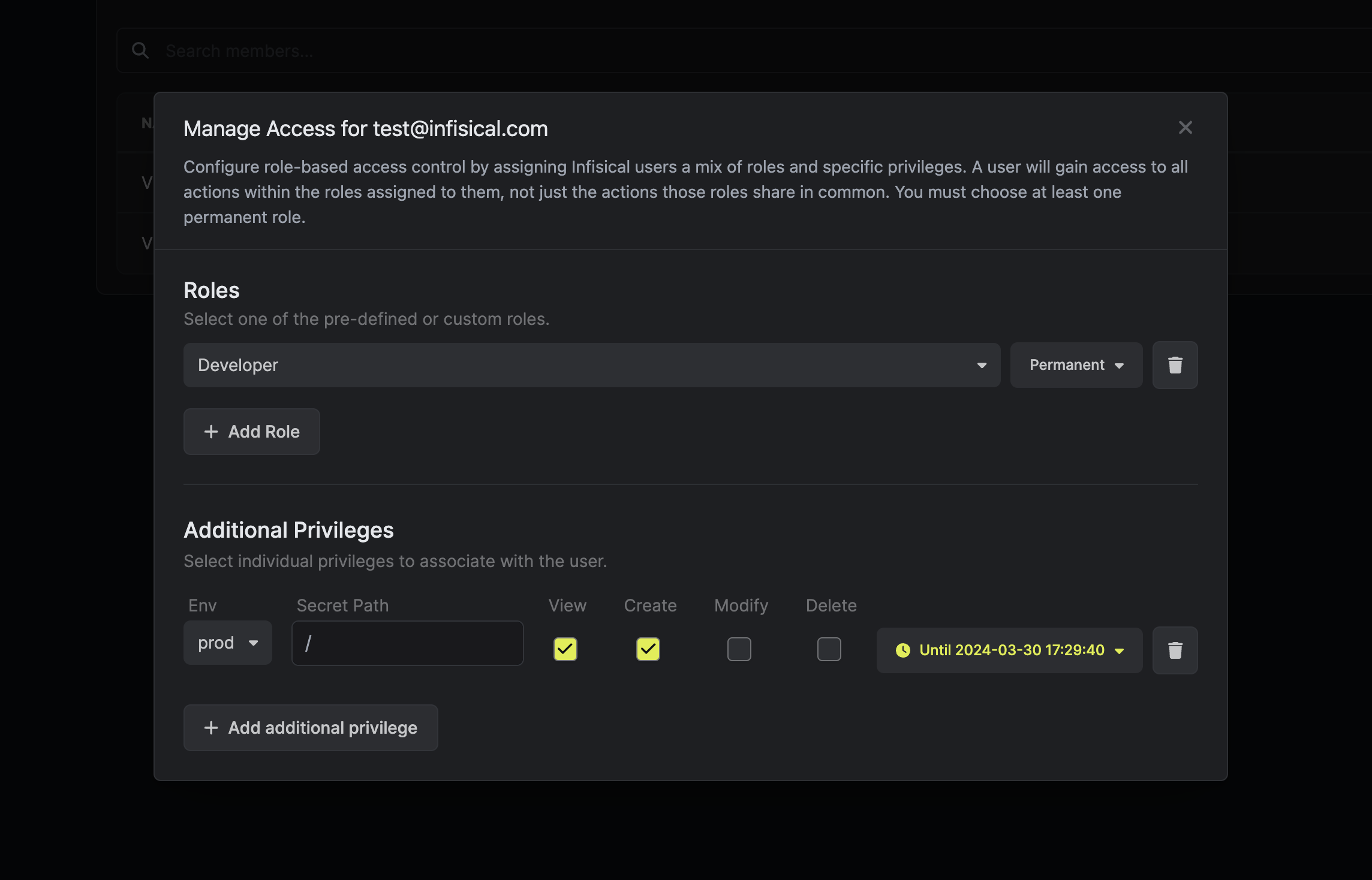
Infisical **Additional Privileges** functionality enables specific permissions with access to sensitive secrets/folders by identities within certain projects. It is possible to set up additional privileges through Web UI or API.
To provision specific privileges through Web UI:
1. Click on the `Edit` button next to the set of roles for user or identities.
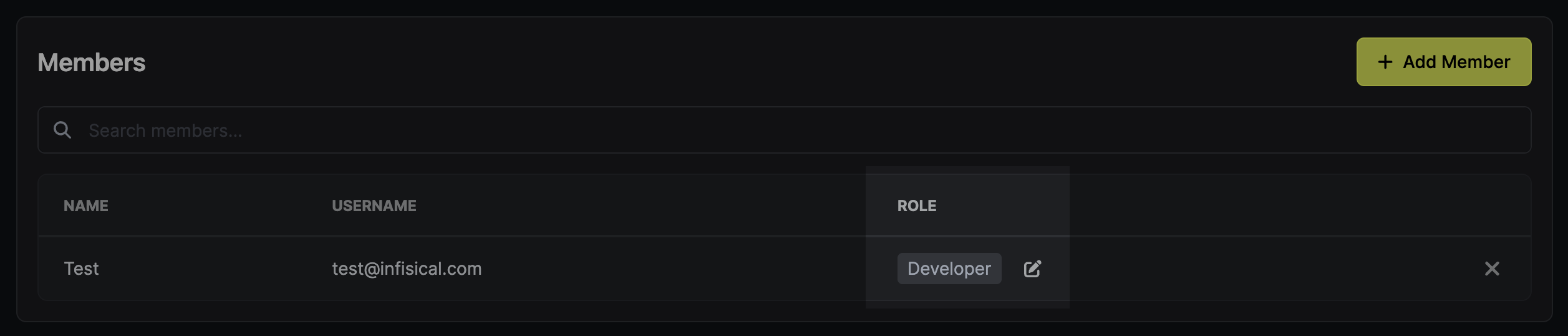
2. Click `Add Additional Privileges` in the corresponding section of the permission management modal.
3. Fill out the necessary parameters in the privilege entry that appears. It is possible to specify the `Environment` and `Secret Path` to which you want to enable access.
It is also possible to define the range of permissions (`View`, `Create`, `Modify`, `Delete`) as well as how long the access should last (e.g., permanent or timed).
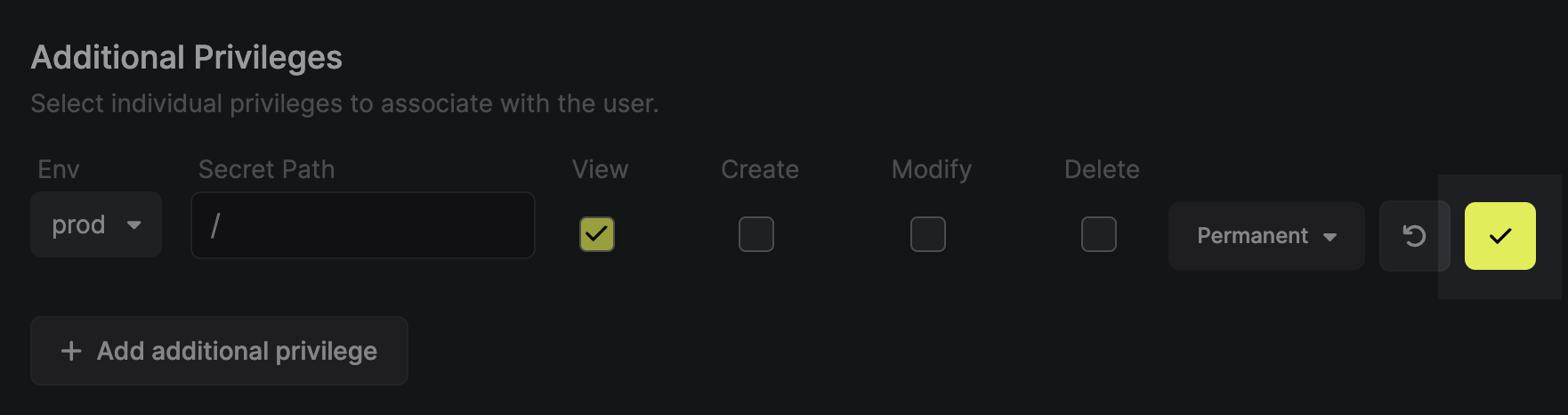
4. Click the `Save` button to enable the additional privilege.
---
# Source: https://infisical.com/docs/documentation/platform/pki/alerting.md
> ## Documentation Index
> Fetch the complete documentation index at: https://infisical.com/docs/llms.txt
> Use this file to discover all available pages before exploring further.
# Alerting
> Learn how to set up alerting for expiring certificates with Infisical
## Concept
In order to ensure that your certificates are always up-to-date and not expired, you can set up alerting in Infisical for expiring CA and leaf certificates based on customizable filters.
## Guide to Creating an Alert
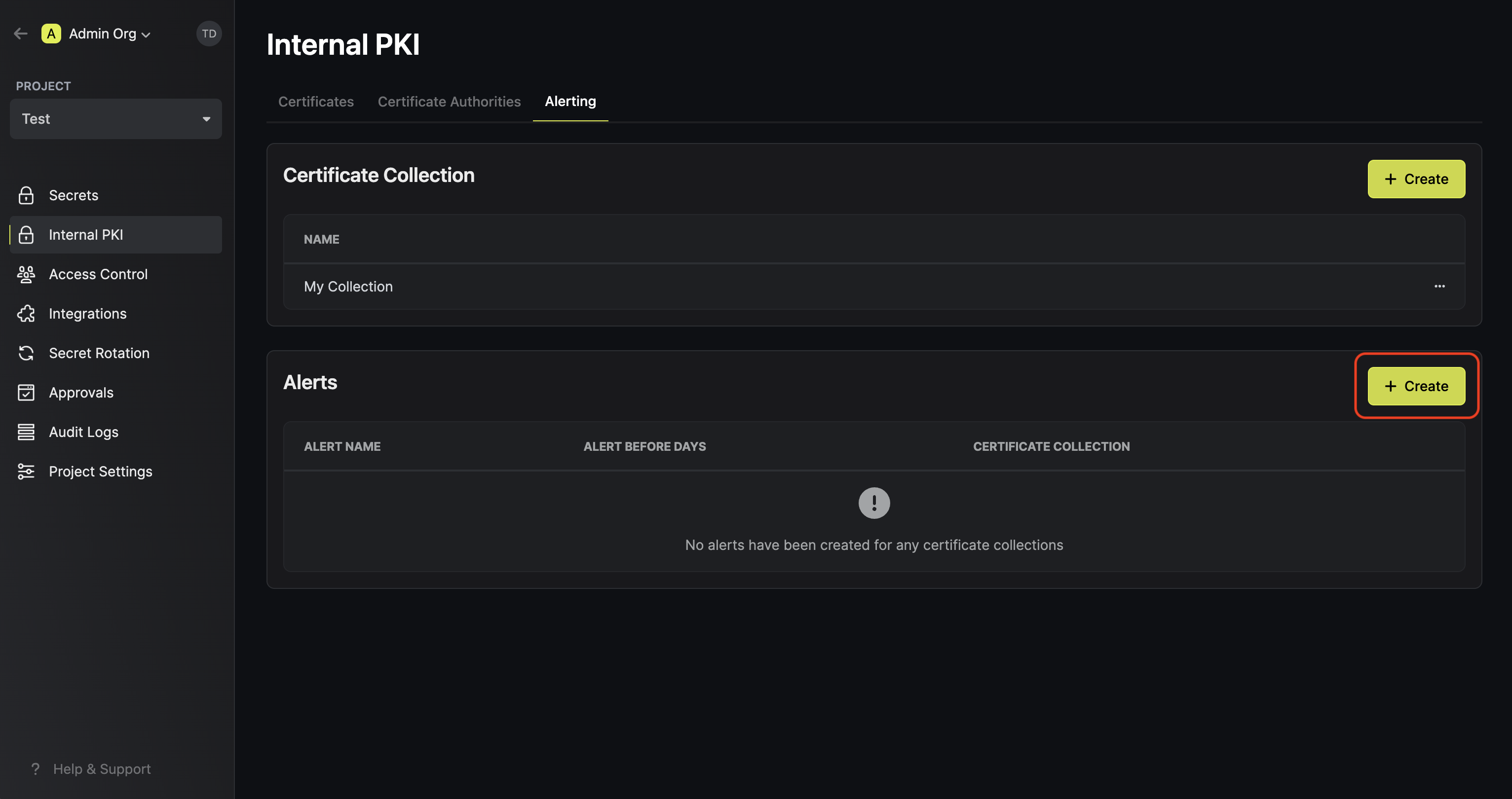
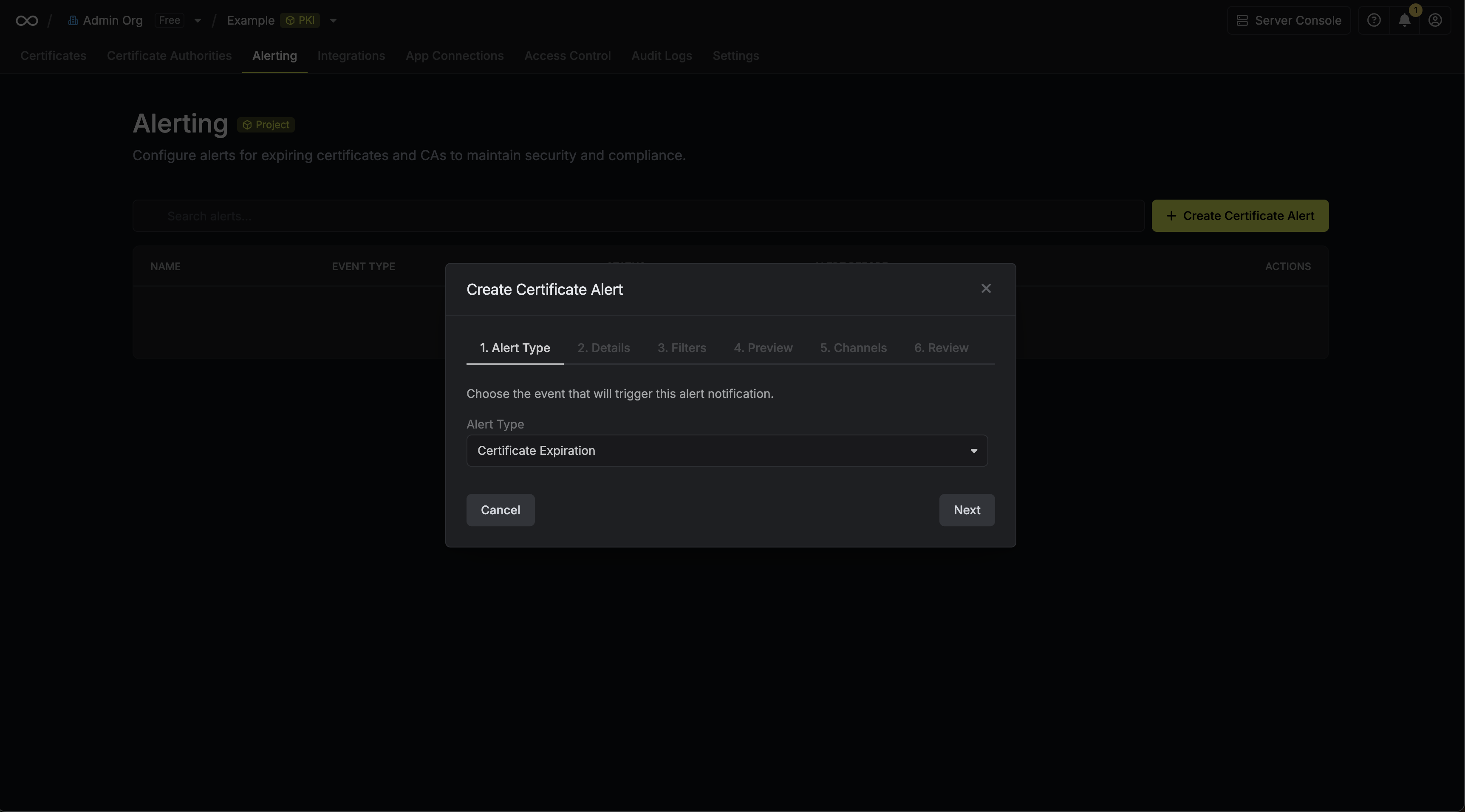
To create an alert, head to your Certificate Management Project > Alerting and press **Create Certificate Alert**.
Here's some guidance for each field in the alert configuration sequence:
* Alert Type: The type of alert to create such as **Certificate Expiration**.
* Alert Name: A slug-friendly name for the alert such as `tls-expiry-alert`.
* Description: An optional description for the alert.
* Alert Before: The time before certificate expiration to trigger the alert such as 30 days denoted by `30d`.
* Filters: A list of filters that determine which certificates the alert applies to. Each row includes a **Field**, **Operator**, and **Value** to match against. For example, you can filter for certificates with a common name containing `example.com` by setting the field to **Common Name**, the operator to **Contains**, and the value to `example.com`.
* Channels / Email Recipients: A list of email addresses to notify when the alert triggers.
---
# Source: https://infisical.com/docs/documentation/platform/identities/alicloud-auth.md
> ## Documentation Index
> Fetch the complete documentation index at: https://infisical.com/docs/llms.txt
> Use this file to discover all available pages before exploring further.
# Alibaba Cloud Auth
> Learn how to authenticate with Infisical using Alibaba Cloud user accounts.
**Alibaba Cloud Auth** is an authentication method that verifies Alibaba Cloud users through signature validation, allowing secure access to Infisical resources.
## Diagram
The following sequence diagram illustrates the Alibaba Cloud Auth workflow for authenticating Alibaba Cloud users with Infisical.
```mermaid theme={"dark"}
sequenceDiagram
participant Client
participant Infisical
participant Alibaba Cloud
Note over Client,Client: Step 1: Sign user identity request
Note over Client,Infisical: Step 2: Login Operation
Client->>Infisical: Send signed request details to /api/v1/auth/alicloud-auth/login
Note over Infisical,Alibaba Cloud: Step 3: Request verification
Infisical->>Alibaba Cloud: Forward signed request
Alibaba Cloud-->>Infisical: Return user details
Note over Infisical: Step 4: Identity property validation
Infisical->>Client: Return short-lived access token
Note over Client,Infisical: Step 5: Access Infisical API with token
Client->>Infisical: Make authenticated requests using the short-lived access token
```
## Concept
At a high level, Infisical authenticates an Alibaba Cloud user by verifying its identity and checking that it meets specific requirements (e.g., its ARN is whitelisted) at the `/api/v1/auth/alicloud-auth/login` endpoint. If successful,
then Infisical returns a short-lived access token that can be used to make authenticated requests to the Infisical API.
To be more specific:
1. The client signs a `GetCallerIdentity` request using an Alibaba Cloud user's access key secret; this is done using an HMAC sha1 algorithm.
2. The client sends the signed request information alongside the signature to Infisical at the `/api/v1/auth/alicloud-auth/login` endpoint.
3. Infisical reconstructs the request and sends it to Alibaba Cloud for verification and obtains the identity associated with the Alibaba Cloud user.
4. Infisical checks the user's properties against set criteria such as **Allowed ARNs**.
5. If all checks pass, Infisical returns a short-lived access token that the client can use to make authenticated requests to the Infisical API.
## Prerequisite
In order to sign requests, you must have an Alibaba Cloud user with credentials such as access key ID and secret. If you're unaware of how to create a user and obtain the needed credentials, expand the menu below.
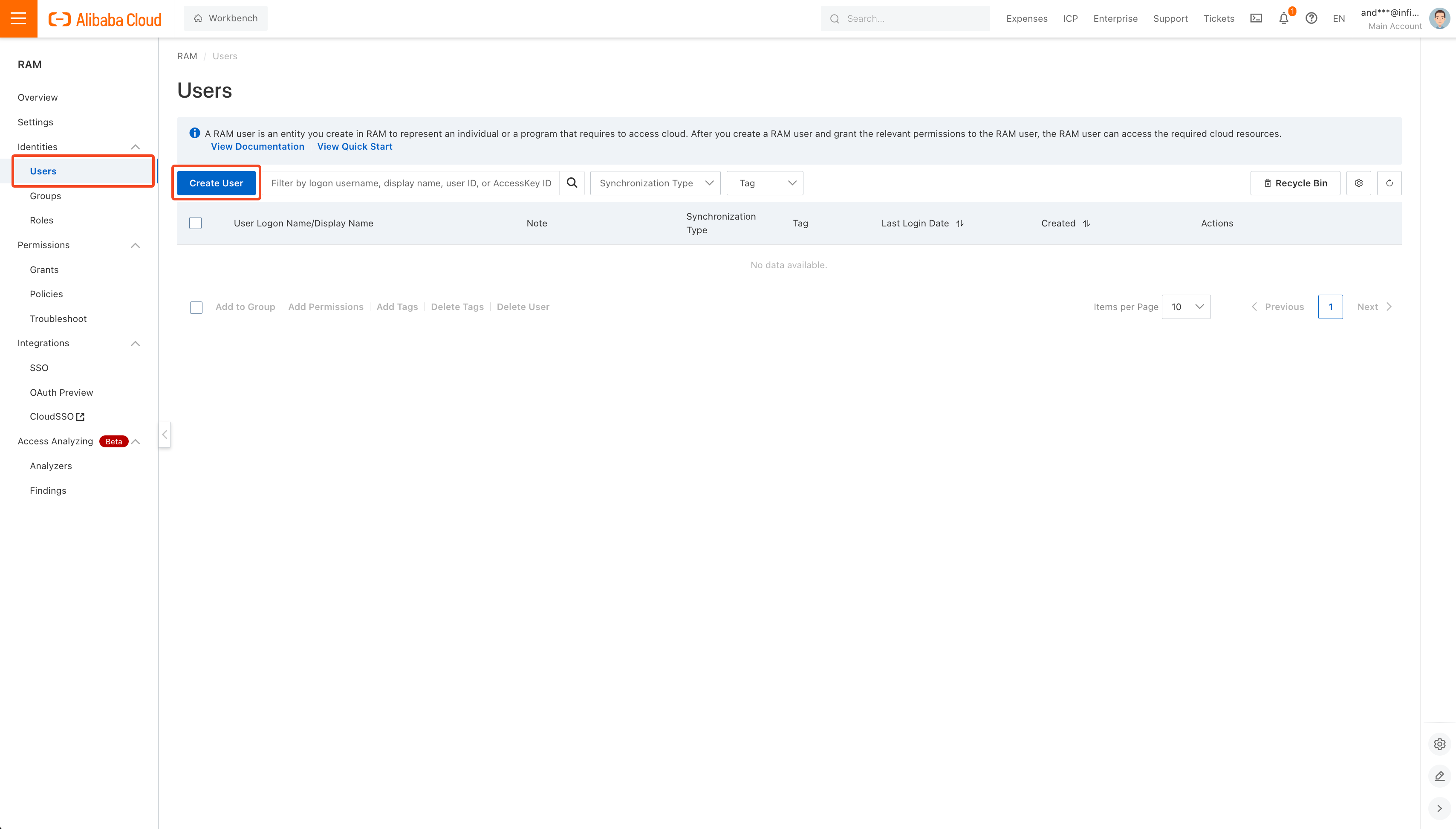
Visit [https://ram.console.aliyun.com/users](https://ram.console.aliyun.com/users) to get to the Users page and click **Create User**.
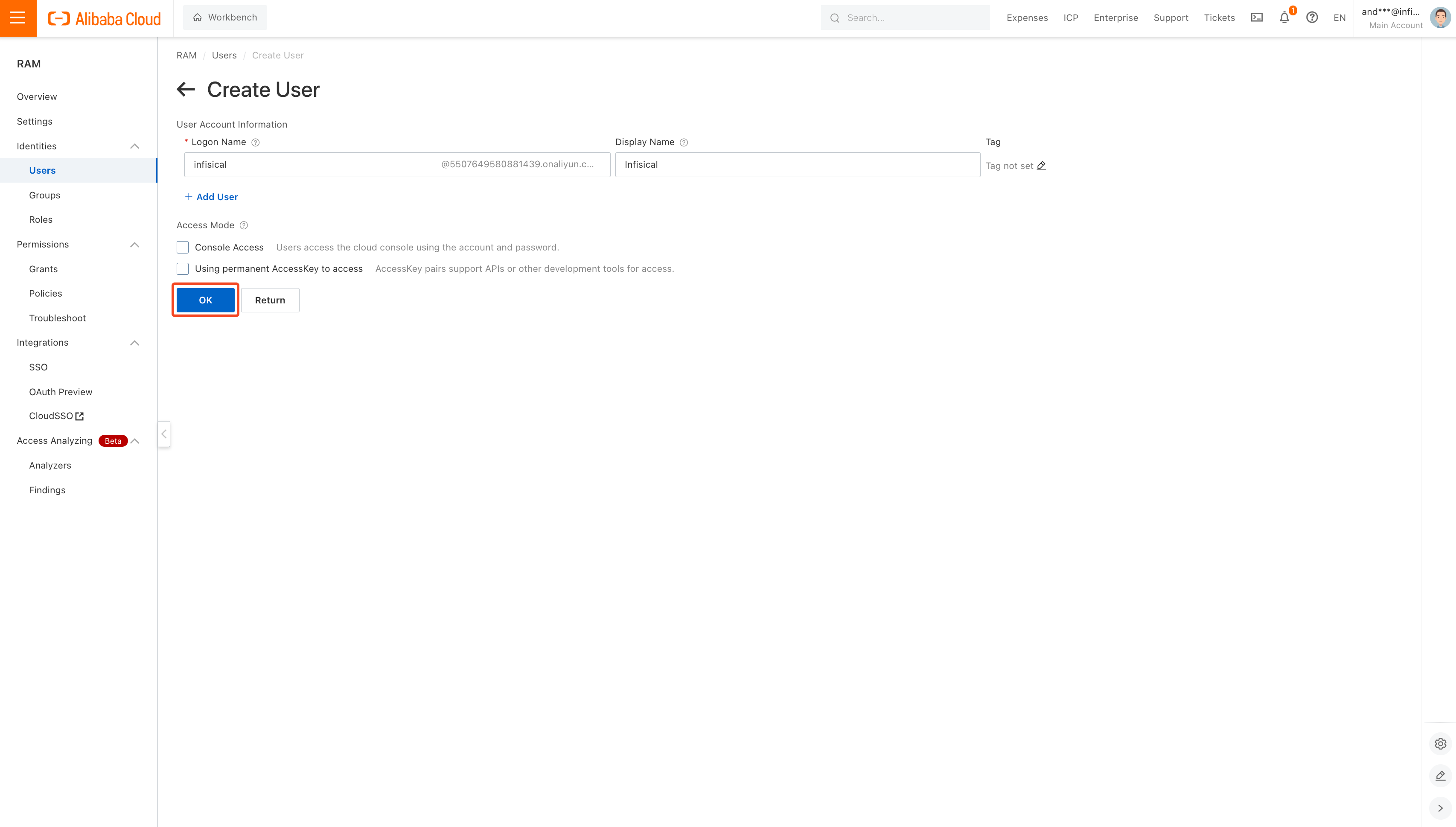
Fill out the username and display name with values of your choice and click **OK**.
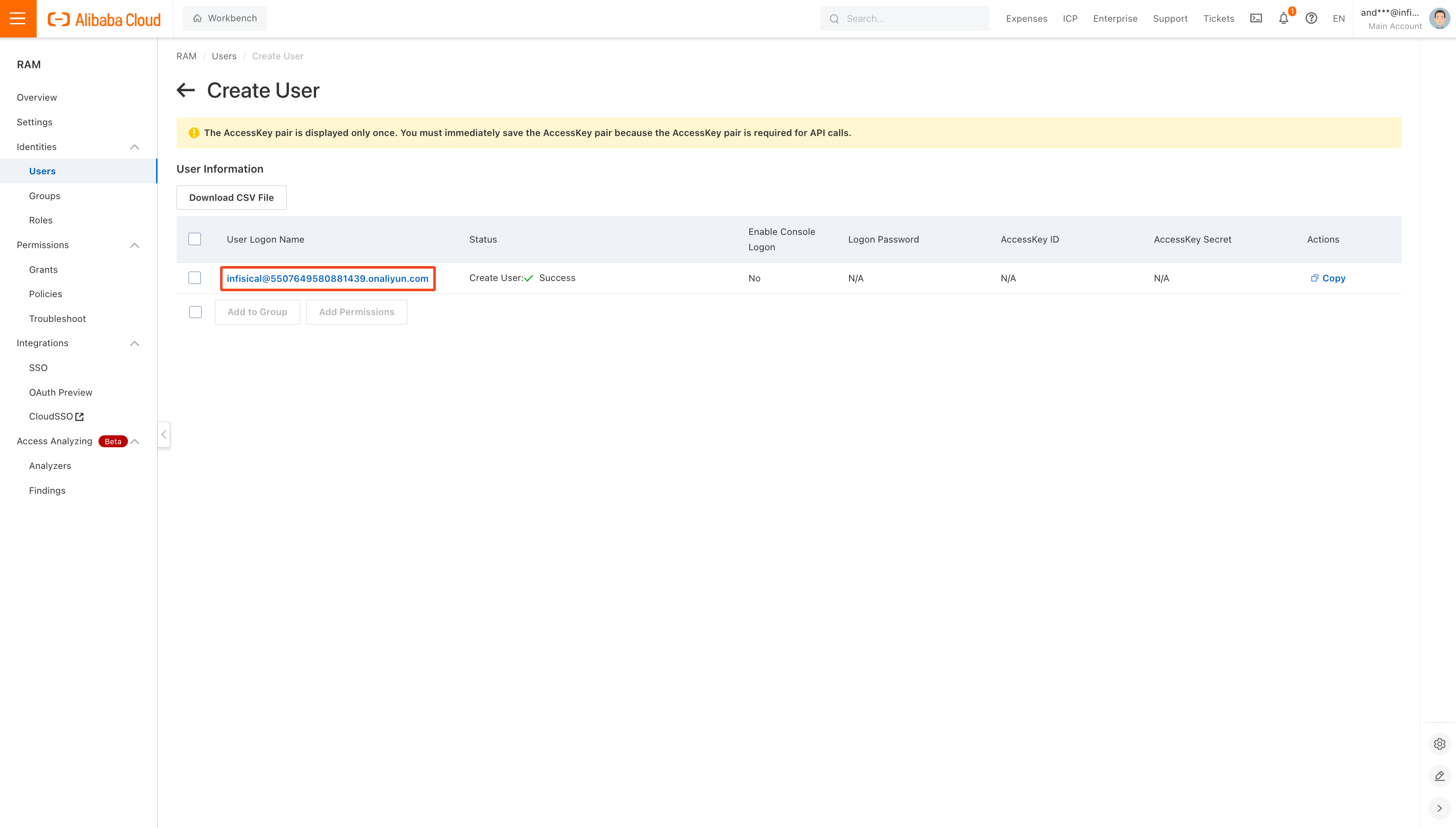
After a user has been created, click on its row to see user information.
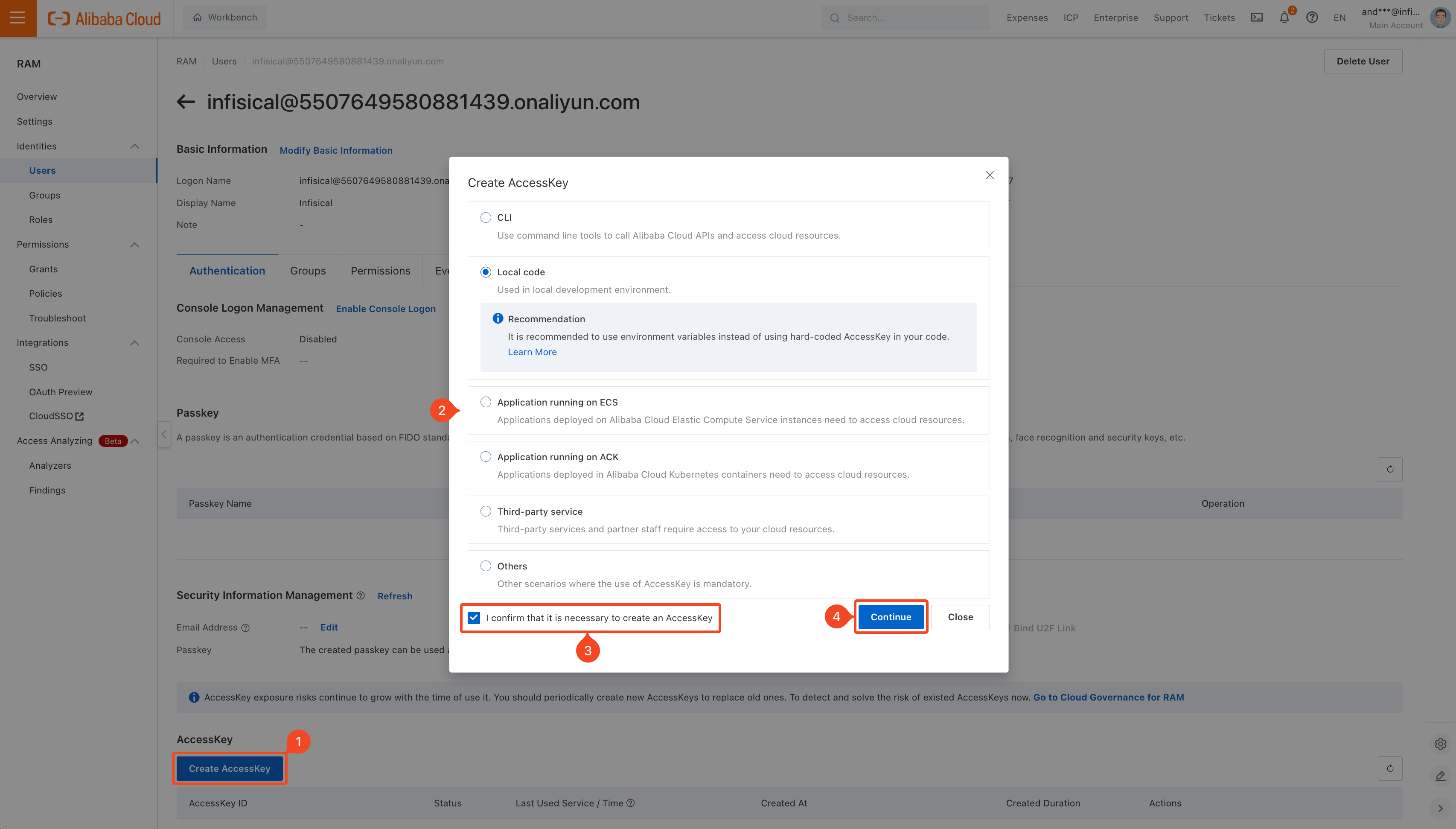
Click **Create AccessKey** and select the most relevant option for your use-case. Then click **Continue**.
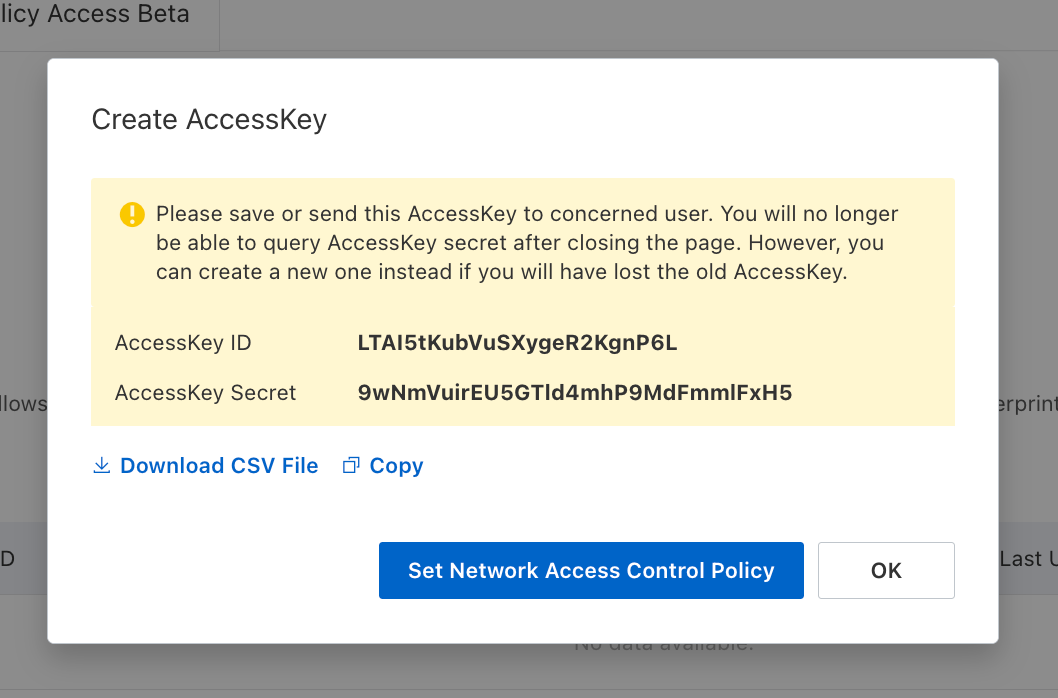
Save the displayed credentials for later steps.
## Guide
In the following steps, we explore how to create and use identities for your workloads and applications on Alibaba Cloud to
access the Infisical API using request signing.
### Creating an identity
To create an identity, head to your Organization Settings > Access Control > [Identities](https://app.infisical.com/organization/access-management?selectedTab=identities) and press **Create identity**.
When creating an identity, you specify an organization-level [role](/documentation/platform/access-controls/role-based-access-controls) for it to assume; you can configure roles in Organization Settings > Access Control > [Organization Roles](https://app.infisical.com/organization/access-management?selectedTab=roles).
Input some details for your new identity:
* **Name (required):** A friendly name for the identity.
* **Role (required):** A role from the [**Organization Roles**](https://app.infisical.com/organization/access-management?selectedTab=roles) tab for the identity to assume. The organization role assigned will determine what organization-level resources this identity can have access to.
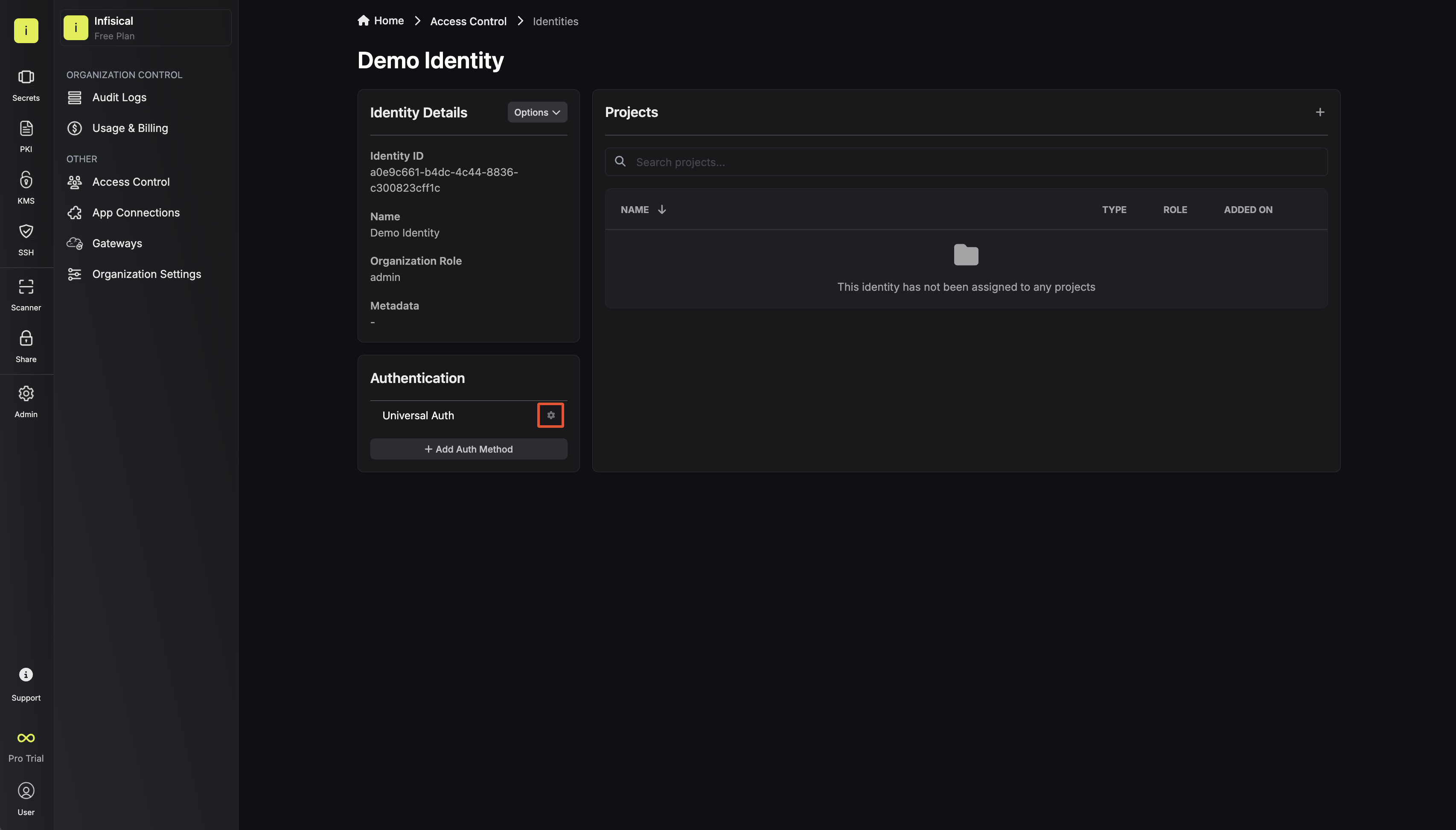
Once you've created an identity, you'll be redirected to a page where you can manage the identity.
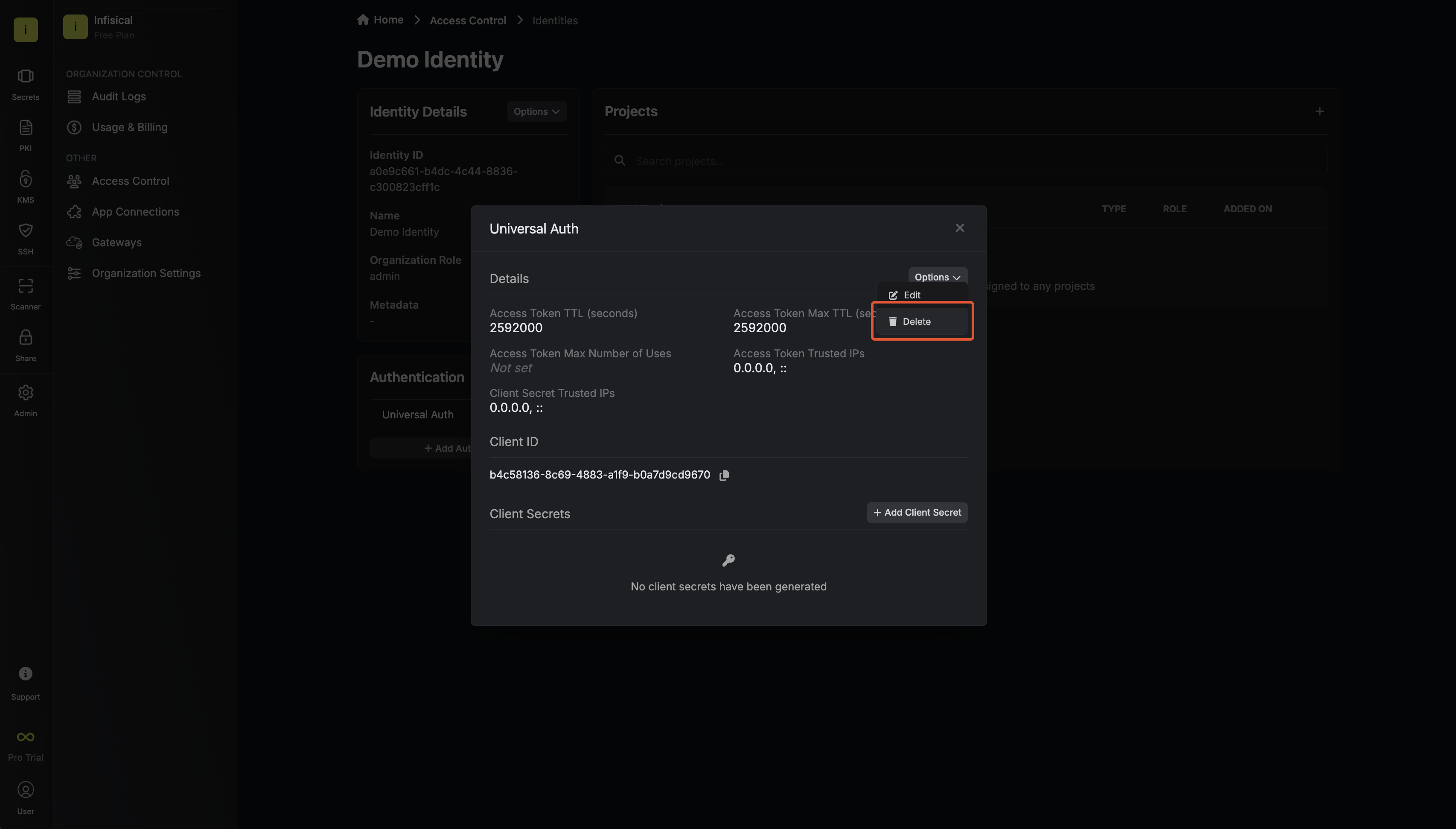
Since the identity has been configured with [Universal Auth](https://infisical.com/docs/documentation/platform/identities/universal-auth) by default, you should reconfigure it to use Alibaba Cloud Auth instead. To do this, click the cog next to **Universal Auth** and then select **Delete** in the options dropdown.
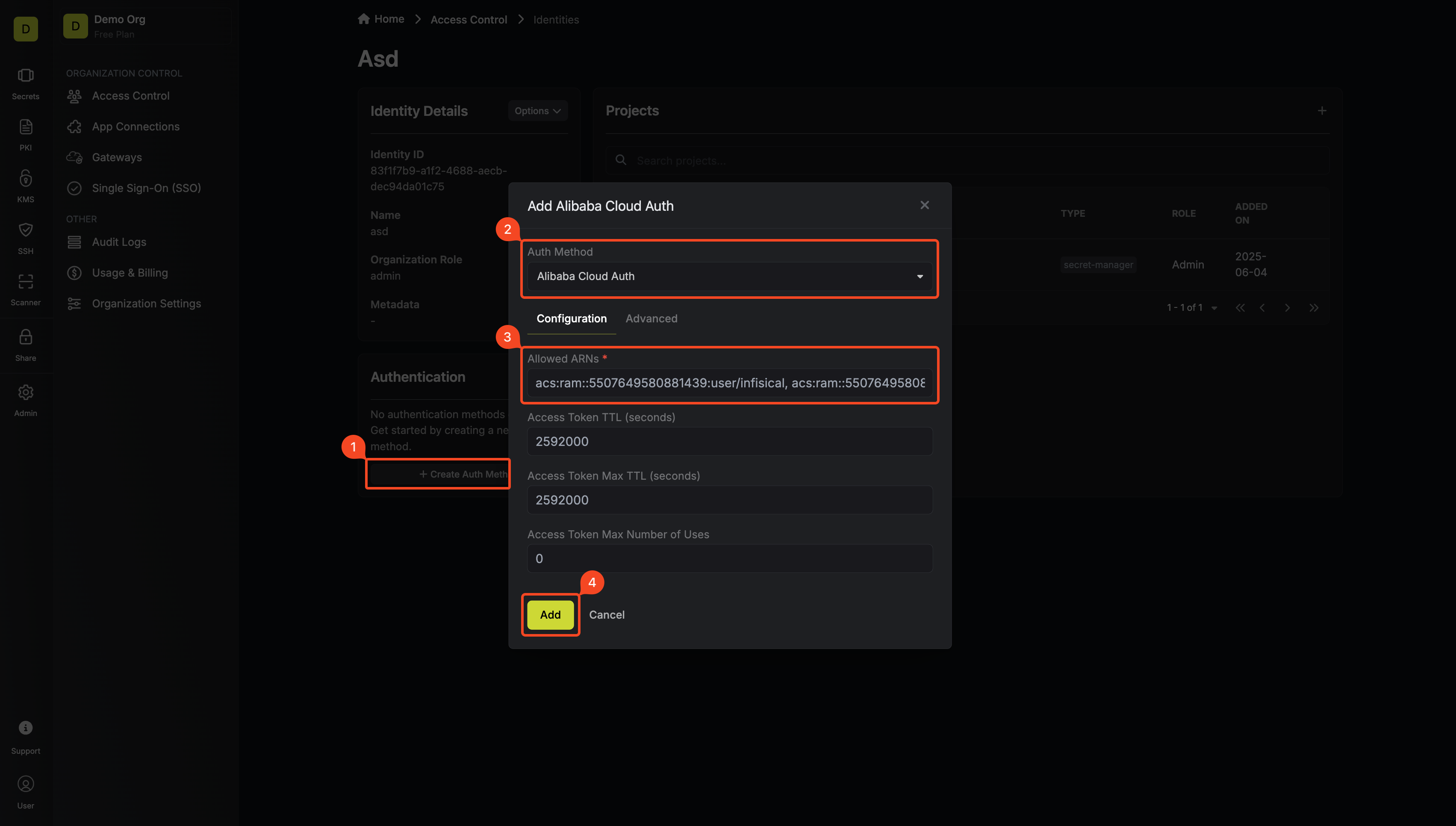
Now create a new Alibaba Cloud Auth Method.
Here's some information about each field:
* **Allowed ARNs:** A comma-separated list of trusted Alibaba Cloud ARNs that are allowed to authenticate with Infisical.
* **Access Token TTL (default is `2592000` equivalent to 30 days):** The lifetime for an access token in seconds. This value will be referenced at renewal time.
* **Access Token Max TTL (default is `2592000` equivalent to 30 days):** The maximum lifetime for an access token in seconds. This value will be referenced at renewal time.
* **Access Token Max Number of Uses (default is `0`):** The maximum number of times that an access token can be used; a value of `0` implies an infinite number of uses.
* **Access Token Trusted IPs:** The IPs or CIDR ranges that access tokens can be used from. By default, each token is given the `0.0.0.0/0`, allowing usage from any network address.
### Adding an identity to a project
In order to allow an identity to access project-level resources such as secrets, you must add it to the relevant projects.
To do this, head over to the project you want to add the identity to and navigate to Project Settings > Access Control > Machine Identities and press **Add Identity**.
Select the identity you want to add to the project and the project-level role you want it to assume. The project role given to the identity will determine what project-level resources this identity can access.
### Accessing the Infisical API with the identity
To access the Infisical API as the identity, you need to construct a signed `GetCallerIdentity` request and then make a request to the `/api/v1/auth/alicloud-auth/login` endpoint passing the signed data and signature.
Below is an example of how you can authenticate with Infisical using NodeJS.
```ts theme={"dark"}
import crypto from "crypto";
// We highly recommend using environment variables instead of hardcoding these values
const ALICLOUD_ACCESS_KEY_ID = "...";
const ALICLOUD_ACCESS_KEY_SECRET = "...";
const params: { [key: string]: string } = {
Action: "GetCallerIdentity",
Format: "JSON",
Version: "2015-04-01",
AccessKeyId: ALICLOUD_ACCESS_KEY_ID,
SignatureMethod: "HMAC-SHA1",
Timestamp: new Date().toISOString(),
SignatureVersion: "1.0",
SignatureNonce: crypto.randomBytes(16).toString("hex"),
};
const canonicalizedQueryString = Object.keys(params)
.sort()
.map((key) => `${encodeURIComponent(key)}=${encodeURIComponent(params[key])}`)
.join("&");
const stringToSign = `GET&%2F&${encodeURIComponent(canonicalizedQueryString)}`;
const signature = crypto
.createHmac("sha1", `${ALICLOUD_ACCESS_KEY_SECRET}&`)
.update(stringToSign)
.digest("base64");
const res = await fetch(
"https://app.infisical.com/api/v1/auth/alicloud-auth/login",
{
method: "POST",
headers: {
"Content-Type": "application/json",
},
body: JSON.stringify({
identityId: "...", // Replace with your identity ID
Signature: signature,
...params,
}),
},
);
const json = await res.json();
console.log("Infisical Response:", JSON.stringify(json));
```
Each identity access token has a time-to-live (TTL) which you can infer from the response of the login operation; the default TTL is `7200` seconds, which can be adjusted.
If an identity access token expires, it can no longer access the Infisical API. A new access token should be obtained by performing another login operation.
---
# Source: https://infisical.com/docs/integrations/platforms/ansible.md
> ## Documentation Index
> Fetch the complete documentation index at: https://infisical.com/docs/llms.txt
> Use this file to discover all available pages before exploring further.
# Ansible
> Learn how to use Infisical for secret management in Ansible.
You can find the Infisical Ansible collection on [Ansible Galaxy](https://galaxy.ansible.com/ui/repo/published/infisical/vault/).
This Ansible Infisical collection includes a variety of Ansible content to help automate the management of Infisical services. This collection is maintained by the Infisical team.
## Ansible version compatibility
Tested with the Ansible Core >= 2.12.0 versions, and the current development version of Ansible. Ansible Core versions prior to 2.12.0 have not been tested.
## Python version compatibility
This collection depends on the Infisical SDK for Python.
Requires Python 3.7 or greater.
## Installing this collection
You can install the Infisical collection with the Ansible Galaxy CLI:
```bash theme={"dark"}
ansible-galaxy collection install infisical.vault
```
The python module dependencies are not installed by ansible-galaxy. They can be manually installed using pip:
```bash theme={"dark"}
pip install infisicalsdk
```
## Using this collection
You can either call modules by their Fully Qualified Collection Name (FQCN), such as `infisical.vault.read_secrets`, or you can call modules by their short name if you list the `infisical.vault` collection in the playbook's collections keyword.
## Authentication
The Infisical Ansible Collection supports [Universal Auth](/documentation/platform/identities/universal-auth), [OIDC Auth](/documentation/platform/identities/oidc-auth/general), and [Token Auth](/documentation/platform/identities/token-auth) for authenticating against Infisical.
### Login Module (Recommended)
The recommended approach is to use the `login` module to authenticate once and reuse the credentials across multiple tasks. This reduces authentication overhead and makes playbooks cleaner. Alternatively, you can still pass credentials directly to each plugin/module if preferred.
```yaml theme={"dark"}
- name: Login to Infisical
infisical.vault.login:
url: "https://app.infisical.com"
auth_method: universal_auth
universal_auth_client_id: "{{ client_id }}"
universal_auth_client_secret: "{{ client_secret }}"
register: infisical_login
- name: Read secrets using cached login
infisical.vault.read_secrets:
login_data: "{{ infisical_login.login_data }}"
project_id: "{{ project_id }}"
env_slug: "dev"
path: "/"
as_dict: true
register: secrets
- name: Use the secrets
debug:
msg: "Database URL is {{ secrets.secrets.DATABASE_URL }}"
```
Using Universal Auth for authentication is the most straight-forward way to get started with using the Ansible collection.
To use Universal Auth, you need to provide the Client ID and Client Secret of your Infisical Machine Identity.
```yaml theme={"dark"}
- name: Login with Universal Auth
infisical.vault.login:
url: "https://app.infisical.com"
auth_method: universal_auth
universal_auth_client_id: ""
universal_auth_client_secret: ""
register: infisical_login
```
You can also provide the `auth_method`, `universal_auth_client_id`, and `universal_auth_client_secret` parameters through environment variables:
| Parameter Name | Environment Variable Name |
| ------------------------------ | ---------------------------------------- |
| `auth_method` | `INFISICAL_AUTH_METHOD` |
| `universal_auth_client_id` | `INFISICAL_UNIVERSAL_AUTH_CLIENT_ID` |
| `universal_auth_client_secret` | `INFISICAL_UNIVERSAL_AUTH_CLIENT_SECRET` |
To use OIDC Auth, you'll need to provide the ID of your machine identity, and the OIDC JWT to be used for authentication.
Please note that in order to use OIDC Auth, you must have `1.0.10` or newer of the `infisicalsdk` package installed.
```yaml theme={"dark"}
- name: Login with OIDC Auth
infisical.vault.login:
url: "https://app.infisical.com"
auth_method: oidc_auth
identity_id: ""
jwt: ""
register: infisical_login
```
You can also provide the `auth_method`, `identity_id`, and `jwt` parameters through environment variables:
| Parameter Name | Environment Variable Name |
| -------------- | ------------------------- |
| auth\_method | `INFISICAL_AUTH_METHOD` |
| identity\_id | `INFISICAL_IDENTITY_ID` |
| jwt | `INFISICAL_JWT` |
Token Auth is the simplest authentication method that allows you to authenticate directly with an access token. This can be either a [Machine Identity Token Auth](/documentation/platform/identities/token-auth) token or a User JWT token.
Please note that in order to use Token Auth, you must have `1.0.13` or newer of the `infisicalsdk` package installed.
```yaml theme={"dark"}
- name: Login with Token Auth
infisical.vault.login:
url: "https://app.infisical.com"
auth_method: token_auth
token: ""
register: infisical_login
```
You can also provide the `auth_method` and `token` parameters through environment variables:
| Parameter Name | Environment Variable Name |
| -------------- | ------------------------- |
| auth\_method | `INFISICAL_AUTH_METHOD` |
| token | `INFISICAL_TOKEN` |
## Available Plugins and Modules
### Lookup Plugins
* `infisical.vault.login` - Authenticate and return reusable login data
* `infisical.vault.read_secrets` - Read secrets from Infisical
### Modules
**Authentication:**
* `infisical.vault.login` - Authenticate and return reusable login data
**Static Secrets:**
* `infisical.vault.read_secrets` - Read secrets from Infisical
* `infisical.vault.create_secret` - Create a new secret
* `infisical.vault.update_secret` - Update an existing secret
* `infisical.vault.delete_secret` - Delete a secret
**Dynamic Secrets:**
* `infisical.vault.create_dynamic_secret` - Create a dynamic secret configuration
* `infisical.vault.get_dynamic_secret` - Get a dynamic secret by name
* `infisical.vault.update_dynamic_secret` - Update a dynamic secret
* `infisical.vault.delete_dynamic_secret` - Delete a dynamic secret
**Dynamic Secret Leases:**
* `infisical.vault.create_dynamic_secret_lease` - Create a lease (generates credentials)
* `infisical.vault.get_dynamic_secret_lease` - Get lease details
* `infisical.vault.renew_dynamic_secret_lease` - Renew an existing lease
* `infisical.vault.delete_dynamic_secret_lease` - Delete/revoke a lease
## Examples
### Reading Secrets
```yaml theme={"dark"}
---
- name: Read secrets from Infisical
hosts: localhost
gather_facts: false
tasks:
- name: Login to Infisical
infisical.vault.login:
url: "https://app.infisical.com"
auth_method: universal_auth
universal_auth_client_id: "{{ lookup('env', 'INFISICAL_CLIENT_ID') }}"
universal_auth_client_secret: "{{ lookup('env', 'INFISICAL_CLIENT_SECRET') }}"
register: infisical_login
- name: Read all secrets as dictionary
infisical.vault.read_secrets:
login_data: "{{ infisical_login.login_data }}"
project_id: "your-project-id"
env_slug: "dev"
path: "/"
as_dict: true
register: secrets
- name: Use the secrets
debug:
msg: "Database: {{ secrets.secrets.DATABASE_URL }}"
```
#### Reading secrets with full metadata
Use the `raw` option to retrieve complete secret metadata including version, creation time, tags, and more:
```yaml theme={"dark"}
- name: Read all secrets with full metadata
infisical.vault.read_secrets:
login_data: "{{ infisical_login.login_data }}"
project_id: "your-project-id"
env_slug: "dev"
path: "/"
raw: true
register: raw_secrets
# Returns: [{"id": "...", "secretKey": "HOST", "secretValue": "google.com", "version": 1, "type": "shared", ...}, ...]
- name: Read all secrets with full metadata as dict
infisical.vault.read_secrets:
login_data: "{{ infisical_login.login_data }}"
project_id: "your-project-id"
env_slug: "dev"
path: "/"
raw: true
as_dict: true
register: raw_secrets_dict
# Returns: {"HOST": {"id": "...", "secretKey": "HOST", "secretValue": "google.com", "version": 1, ...}, ...}
```
#### Using the Lookup Plugin
The `read_secrets` lookup plugin allows for inline secret retrieval. Unlike modules that run on target hosts, lookup plugins run on the Ansible controller during playbook parsing. This is useful for retrieving secrets to use in variable definitions:
```yaml theme={"dark"}
vars:
read_all_secrets_within_scope: "{{ lookup('infisical.vault.read_secrets', universal_auth_client_id='<>', universal_auth_client_secret='<>', project_id='<>', path='/', env_slug='dev', url='https://app.infisical.com') }}"
# [{ "key": "HOST", "value": "google.com" }, { "key": "SMTP", "value": "gmail.smtp.edu" }]
read_all_secrets_as_dict: "{{ lookup('infisical.vault.read_secrets', as_dict=True, universal_auth_client_id='<>', universal_auth_client_secret='<>', project_id='<>', path='/', env_slug='dev', url='https://app.infisical.com') }}"
# { "SECRET_KEY_1": "secret-value-1", "SECRET_KEY_2": "secret-value-2" } -> Can be accessed as secrets.SECRET_KEY_1
read_secret_by_name_within_scope: "{{ lookup('infisical.vault.read_secrets', universal_auth_client_id='<>', universal_auth_client_secret='<>', project_id='<>', path='/', env_slug='dev', secret_name='HOST', url='https://app.infisical.com') }}"
# { "key": "HOST", "value": "google.com" }
```
### Managing Secrets (CRUD)
Create, update, and delete secrets programmatically:
```yaml theme={"dark"}
- name: Create a secret
infisical.vault.create_secret:
login_data: "{{ infisical_login.login_data }}"
project_id: "{{ project_id }}"
env_slug: "dev"
path: "/"
secret_name: "API_KEY"
secret_value: "my-api-key"
secret_comment: "API key for external service"
register: created_secret
- name: Update a secret
infisical.vault.update_secret:
login_data: "{{ infisical_login.login_data }}"
project_id: "{{ project_id }}"
env_slug: "dev"
path: "/"
secret_name: "API_KEY"
secret_value: "new-api-key"
register: updated_secret
- name: Rename a secret
infisical.vault.update_secret:
login_data: "{{ infisical_login.login_data }}"
project_id: "{{ project_id }}"
env_slug: "dev"
path: "/"
secret_name: "OLD_SECRET_NAME"
new_secret_name: "NEW_SECRET_NAME"
register: renamed_secret
- name: Delete a secret
infisical.vault.delete_secret:
login_data: "{{ infisical_login.login_data }}"
project_id: "{{ project_id }}"
env_slug: "dev"
path: "/"
secret_name: "API_KEY"
register: deleted_secret
```
### Dynamic Secrets
Dynamic secrets generate credentials on-demand with automatic expiration. They support various providers like SQL databases, AWS, GCP, Azure, and more. For the full list of supported providers and their configuration options, see the [Dynamic Secrets documentation](/documentation/platform/dynamic-secrets/overview).
#### Creating a Dynamic Secret
```yaml theme={"dark"}
# Create a dynamic secret for PostgreSQL
- name: Create a PostgreSQL dynamic secret
infisical.vault.create_dynamic_secret:
login_data: "{{ infisical_login.login_data }}"
project_slug: "my-project"
env_slug: "dev"
path: "/"
name: "postgres-dev"
provider_type: "sql-database"
inputs:
client: "postgres"
host: "localhost"
port: 5432
database: "mydb"
username: "admin"
password: "admin-password"
creationStatement: "CREATE USER \"{{username}}\" WITH PASSWORD '{{password}}';"
revocationStatement: "DROP USER \"{{username}}\";"
default_ttl: "1h"
max_ttl: "24h"
register: dynamic_secret
```
For the full list of supported provider types and their input configurations, see the [Dynamic Secrets API Documentation](https://infisical.com/docs/api-reference/endpoints/dynamic-secrets/create#body-provider).
#### Getting and Using Dynamic Secret Credentials
To use a dynamic secret, you need to create a **lease** which generates the actual credentials:
```yaml theme={"dark"}
# Create a lease to get database credentials
- name: Get database credentials
infisical.vault.create_dynamic_secret_lease:
login_data: "{{ infisical_login.login_data }}"
project_slug: "my-project"
env_slug: "dev"
path: "/"
dynamic_secret_name: "postgres-dev"
ttl: "30m"
register: lease
# Use the generated credentials
- name: Connect to database
community.postgresql.postgresql_query:
login_host: localhost
login_user: "{{ lease.data.DB_USERNAME }}"
login_password: "{{ lease.data.DB_PASSWORD }}"
db: mydb
query: "SELECT version();"
```
#### Managing Leases
```yaml theme={"dark"}
# Get lease details
- name: Get lease information
infisical.vault.get_dynamic_secret_lease:
login_data: "{{ infisical_login.login_data }}"
project_slug: "my-project"
env_slug: "dev"
path: "/"
lease_id: "{{ lease.lease.id }}"
register: lease_details
# Renew a lease before it expires
- name: Renew a lease for 2 more hours
infisical.vault.renew_dynamic_secret_lease:
login_data: "{{ infisical_login.login_data }}"
project_slug: "my-project"
env_slug: "dev"
path: "/"
lease_id: "{{ lease.lease.id }}"
ttl: "2h"
register: renewed_lease
# Revoke the credentials when done
- name: Delete the lease
infisical.vault.delete_dynamic_secret_lease:
login_data: "{{ infisical_login.login_data }}"
project_slug: "my-project"
env_slug: "dev"
path: "/"
lease_id: "{{ lease.lease.id }}"
```
#### Updating and Deleting Dynamic Secrets
```yaml theme={"dark"}
# Update a dynamic secret's TTL
- name: Update dynamic secret TTL
infisical.vault.update_dynamic_secret:
login_data: "{{ infisical_login.login_data }}"
project_slug: "my-project"
env_slug: "dev"
path: "/"
name: "postgres-dev"
default_ttl: "2h"
max_ttl: "48h"
register: updated_secret
# Delete a dynamic secret (also revokes all active leases)
- name: Delete a dynamic secret
infisical.vault.delete_dynamic_secret:
login_data: "{{ infisical_login.login_data }}"
project_slug: "my-project"
env_slug: "dev"
path: "/"
name: "postgres-dev"
register: deleted_secret
```
## Troubleshoot
If you get this Python error when you running the lookup plugin:
```
objc[72832]: +[__NSCFConstantString initialize] may have been in progress in another thread when fork() was called. We cannot safely call it or ignore it in the fork() child process. Crashing instead. Set a breakpoint on objc_initializeAfterForkError to debug.
Fatal Python error: Aborted
```
You will need to add this to your shell environment or ansible wrapper script:
```
export OBJC_DISABLE_INITIALIZE_FORK_SAFETY=YES
```
---
# Source: https://infisical.com/docs/documentation/platform/pki/integration-guides/apache-certbot.md
> ## Documentation Index
> Fetch the complete documentation index at: https://infisical.com/docs/llms.txt
> Use this file to discover all available pages before exploring further.
# Apache Server
> Learn how to issue TLS certificates from Infisical using ACME enrollment on Apache Server with Certbot
This guide demonstrates how to use Infisical to issue TLS certificates for your [Apache HTTP Server](https://httpd.apache.org/).
It uses [Certbot](https://certbot.eff.org/), an installable [ACME](https://en.wikipedia.org/wiki/Automatic_Certificate_Management_Environment) client, to request and renew certificates from Infisical using the [ACME enrollment method](/documentation/platform/pki/enrollment-methods/acme) configured on a [certificate profile](/documentation/platform/pki/certificates/profiles). Apache benefits from excellent Certbot integration, allowing both certificate-only mode and automatic SSL configuration.
## Prerequisites
Before you begin, make sure you have:
* An [Apache HTTP Server](https://httpd.apache.org/) running on a Linux system with administrative access.
* A [certificate profile](/documentation/platform/pki/certificates/profiles) configured with the [ACME enrollment method](/documentation/platform/pki/enrollment-methods/acme) in Infisical.
* Network connectivity from your Apache server to Infisical.
* Port 80 open and reachable for ACME [HTTP-01](https://letsencrypt.org/docs/challenge-types/#http-01-challenge) validation.
## Guide
Navigate to your certificate management project in Infisical and locate your [certificate profile](/documentation/platform/pki/certificates/profiles) configured with the [ACME enrollment method](/documentation/platform/pki/enrollment-methods/acme).
Click the **Reveal ACME EAB** option to view the ACME configuration details.
From the ACME configuration, gather the following values:
* ACME Directory URL: The URL that Certbot will use to communicate with Infisical's ACME server. This takes the form `https://your-infisical-instance.com/api/v1/cert-manager/certificate-profiles/{profile-id}/acme/directory`.
* EAB Key Identifier (KID): A unique identifier that tells Infisical which ACME account is making the request.
* EAB Secret: A secret key that authenticates your ACME client with Infisical.
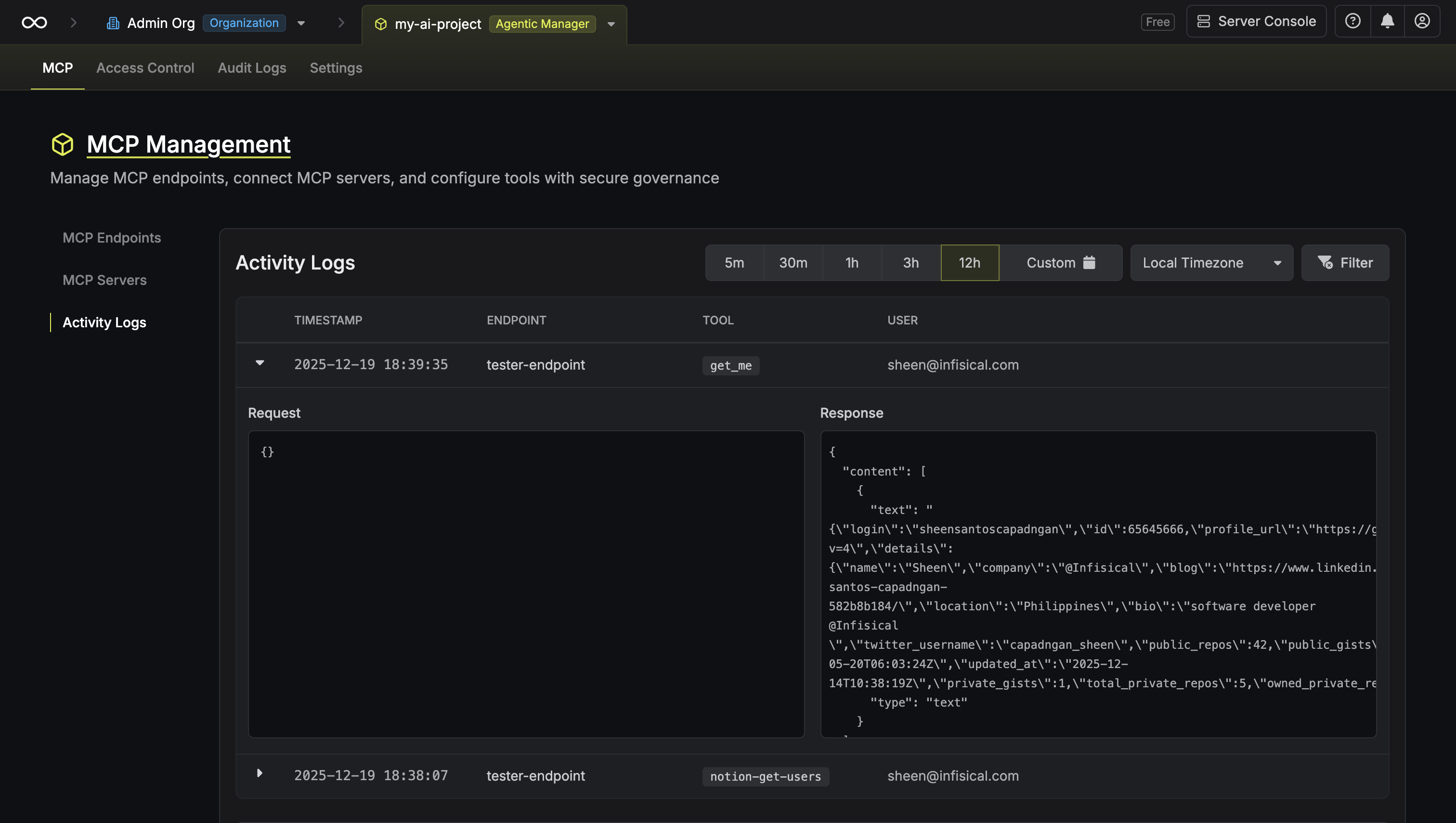
Keep your EAB credentials secure as they authenticate your ACME client with Infisical PKI. These credentials are unique to each [certificate profile](/documentation/platform/pki/certificates/profiles) and should not be shared.
Install Certbot with the Apache plugin on the server where Apache is running by following the official Certbot [installation guide](https://certbot.eff.org/instructions).
The installation guide provides up-to-date instructions for various Linux distributions and package managers, ensuring you get the most current version and proper Apache plugin integration.
After installation, you can verify that Certbot has been installed correctly by running:
```bash theme={"dark"}
certbot --version
```
Run the following command to request a certificate from Infisical:
```bash theme={"dark"}
sudo certbot certonly \
--apache \
--server "https://your-infisical-instance.com/api/v1/cert-manager/certificate-profiles/{profile-id}/acme/directory" \
--eab-kid "your-eab-key-identifier" \
--eab-hmac-key "your-eab-secret" \
-d example.infisical.com \
--email admin@example.com \
--agree-tos \
--non-interactive
```
For guidance on each parameter:
* `certonly`: Instructs Certbot to request a certificate without modifying your Apache configuration files; this mode is recommended if you prefer to manage your Apache SSL configuration manually or have a complex setup.
* `--apache`: Specifies the Apache plugin so Certbot can solve the [HTTP-01](https://letsencrypt.org/docs/challenge-types/#http-01-challenge) challenge by creating temporary files served by Apache.
* `--server`: The Infisical ACME directory URL from Step 1. This instructs Certbot to communicate with Infisical's ACME server instead of Let's Encrypt.
* `--eab-kid`: Your External Account Binding (EAB) Key Identifier from Step 1.
* `--eab-hmac-key`: The EAB secret associated with the KID from Step 1.
* `-d`: Specifies the domain name for which the certificate is being requested.
* `--email`: The contact email for expiration notices and account recovery.
* `--agree-tos`: Accepts the ACME server's Terms of Service.
* `--non-interactive`: Runs Certbot without prompting for user input (recommended for automation).
The Certbot command generates a private key on your server, creates a Certificate Signing Request (CSR) using that key, and sends the CSR to Infisical for certificate issuance. Certbot stores the private key and resulting leaf certificate and full certificate chain in `/etc/letsencrypt/live/{domain-name}/`.
If `--certonly` is used: Certbot does **not** modify your Apache configuration, so you must manually update your Apache virtual host to reference the new certificate files and reload the server to apply the changes.
Here's an example SSL virtual host configuration for Apache:
```apache theme={"dark"}
ServerName example.infisical.com
DocumentRoot /var/www/html
SSLEngine on
SSLCertificateFile /etc/letsencrypt/live/example.infisical.com/cert.pem
SSLCertificateKeyFile /etc/letsencrypt/live/example.infisical.com/privkey.pem
SSLCertificateChainFile /etc/letsencrypt/live/example.infisical.com/chain.pem
# Your existing configuration...
```
After updating the virtual host configuration, test and reload Apache to apply the changes:
```bash theme={"dark"}
sudo apache2ctl configtest
sudo systemctl reload apache2
```
If `--certonly` was **not** used: Certbot uses installer mode, which attempts to automatically configure HTTPS by updating your Apache virtual host configuration and reloading the server if needed.
At this point, your Apache server should be successfully serving HTTPS using the certificate issued by Infisical.
After configuring Apache SSL, verify that your certificate was issued correctly and Apache is serving it properly.
Check that the certificate files were created by Certbot:
```bash theme={"dark"}
sudo ls -la /etc/letsencrypt/live/example.infisical.com/
```
You should see files like:
* `cert.pem` (your certificate)
* `chain.pem` (certificate chain)
* `fullchain.pem` (certificate + chain)
* `privkey.pem` (private key)
Certbot automatically installs a `systemd` timer during installation. This timer runs twice per day and checks whether any certificates are due for renewal. Because Certbot stores the ACME server URL and EAB credentials from your initial request, renewal will automatically use the same Infisical ACME configuration—no additional settings are required.
Note that Certbot automatically renews certificates when they are within 30 days of expiration; renewal settings can be adjusted in `/etc/letsencrypt/renewal/{domain-name}.conf`.
```ini theme={"dark"}
# ... your existing configuration ...
renew_before_expiry = 30 days
```
To test the renewal process, run the following command:
```bash theme={"dark"}
sudo certbot renew --dry-run
```
This command simulates the full renewal process without modifying your active certificate. If the dry run succeeds, automatic renewal will work as expected.
To trigger an actual renewal immediately, run the following command:
```bash theme={"dark"}
sudo certbot renew --force-renewal
```
Note that after a certificate is renewed, Apache must be reloaded so it can begin using the new certificate. To do this, run the following command:
```bash theme={"dark"}
sudo systemctl reload apache2
```
To automate the process of renewing a certificate and reloading Apache, you can create a simple deploy hook that Certbot will run after every successful renewal.
Inside `/etc/letsencrypt/renewal-hooks/deploy/reload-apache.sh`, add the following:
```bash theme={"dark"}
#!/bin/sh
systemctl reload apache2
```
Then make the hook executable:
```bash theme={"dark"}
sudo chmod +x /etc/letsencrypt/renewal-hooks/deploy/reload-apache.sh
```
Alternatively, you can use the `--post-hook` option when manually renewing:
```bash theme={"dark"}
sudo certbot renew --post-hook "systemctl reload apache2"
```
Certbot automatically renews certificates when they are within 30 days of expiration using its built-in systemd timer. The deploy hook above will run after each successful renewal, handling the Apache reload automatically. Apache has native Certbot plugin integration, so no additional configuration is typically needed.
---
# Source: https://infisical.com/docs/documentation/platform/pki/enrollment-methods/api.md
> ## Documentation Index
> Fetch the complete documentation index at: https://infisical.com/docs/llms.txt
> Use this file to discover all available pages before exploring further.
# Certificate Enrollment via API
## Concept
The API enrollment method allows you to issue certificates against a specific [certificate profile](/documentation/platform/pki/certificates/profiles) over Web UI or by making an API request to Infisical.
## Guide to Certificate Enrollment via API
In the following steps, we explore how to issue a X.509 certificate using the API enrollment method.
Create a [certificate
profile](/documentation/platform/pki/certificates/profiles) with **API**
selected as the enrollment method.
Notice that the API enrollment method supports an option called **Enable Auto-Renewal By Default**.
If selected, *eligible* certificates are automatically considered for server-side auto-renewal based
on a specified renewal days before expiration threshold at the time of issuance; for more information
about server-side auto-renewal, refer to the documentation [here](/documentation/platform/pki/certificates/certificates#guide-to-renewing-certificates).
To create a certificate, head to your Project > Certificates > Certificate Requests and press **Request**.
Here, select the certificate profile from step 1 that will be used to issue the certificate and fill out the rest of the details for the certificate to be issued.
Once you have created the certificate from step 1, you'll be presented with the certificate details including the **Certificate Body**, **Certificate Chain**, and **Private Key**.
Make sure to download and store the **Private Key** in a secure location as it
will only be displayed once at the time of certificate issuance. The
**Certificate Body** and **Certificate Chain** will remain accessible and can
be copied at any time.
To create a certificate [profile](/documentation/platform/pki/certificates/profiles), make an API request to the [Create Certificate Profile](/api-reference/endpoints/certificate-profiles/create) API endpoint.
### Sample request
```bash Request theme={"dark"}
curl --location --request POST 'https://app.infisical.com/api/v1/cert-manager/certificate-profiles' \
--header 'Authorization: Bearer ' \
--header 'Content-Type: application/json' \
--data-raw '{
"projectId": "",
"caId": "",
"certificatePolicyId": "",
"slug": "my-api-profile",
"description": "Certificate profile for API enrollment",
"enrollmentType": "API",
"apiConfig": {
"autoRenew": true,
"renewBeforeDays": 7
}
}'
```
### Sample response
```bash Response theme={"dark"}
{
"certificateProfile": {
"id": "550e8400-e29b-41d4-a716-446655440000",
"projectId": "65f0a4b0-c123-4567-8901-23456789abcd",
"caId": "550e8400-e29b-41d4-a716-446655440000",
"certificatePolicyId": "660f1234-e29b-41d4-a716-446655440001",
"slug": "my-api-profile",
"description": "Certificate profile for API enrollment",
"enrollmentType": "API",
"apiConfigId": "770g2345-e29b-41d4-a716-446655440002",
"createdAt": "2023-01-19T09:44:36.267Z",
"updatedAt": "2023-01-19T09:44:36.267Z"
}
}
```
To issue a certificate against the certificate profile, make an API request to the [Issue Certificate](/api-reference/endpoints/certificates/create-certificate) API endpoint.
### Sample request
```bash Request theme={"dark"}
curl --location --request POST 'https://app.infisical.com/api/v1/cert-manager/certificates' \
--header 'Authorization: Bearer ' \
--header 'Content-Type: application/json' \
--data-raw '{
"profileId": "",
"attributes": {
"commonName": "service.acme.com",
"ttl": "1y",
"signatureAlgorithm": "RSA-SHA256",
"keyAlgorithm": "RSA_2048",
"keyUsages": ["digital_signature", "key_encipherment"],
"extendedKeyUsages": ["server_auth"],
"altNames": [
{
"type": "DNS",
"value": "service.acme.com"
},
{
"type": "DNS",
"value": "www.service.acme.com"
}
]
}
}'
```
### Sample response
```bash Response theme={"dark"}
{
"certificate": {
"certificate": "-----BEGIN CERTIFICATE-----\nMIIEpDCCAowCCQD...\n-----END CERTIFICATE-----",
"certificateChain": "-----BEGIN CERTIFICATE-----\nMIIEpDCCAowCCQD...\n-----END CERTIFICATE-----",
"issuingCaCertificate": "-----BEGIN CERTIFICATE-----\nMIIEpDCCAowCCQD...\n-----END CERTIFICATE-----",
"privateKey": "-----BEGIN PRIVATE KEY-----\nMIIEvQIBADANBgkqhkiG9w0BAQEFAASCBKcwggSjAgEAAoIBAQC...\n-----END PRIVATE KEY-----",
"serialNumber": "123456789012345678",
"certificateId": "880h3456-e29b-41d4-a716-446655440003"
},
"certificateRequestId": "..."
}
```
Note: If the certificate is available to be issued immediately, the `certificate` field in the response will contain the certificate data. If issuance is delayed (for example, due to pending approval or additional processing), the `certificate` field will be `null` and you can use the `certificateRequestId` to poll for status or retrieve the certificate when it is ready using the [Get Certificate Request](/api-reference/endpoints/certificates/certificate-request) API endpoint.
If you have an external private key, you can also issue a certificate by making an API request containing a pem-encoded CSR (Certificate Signing Request) to the same [Issue Certificate](/api-reference/endpoints/certificates/create-certificate) API endpoint.
### Sample request
```bash Request theme={"dark"}
curl --location --request POST 'https://app.infisical.com/api/v1/cert-manager/certificates' \
--header 'Authorization: Bearer ' \
--header 'Content-Type: application/json' \
--data-raw '{
"profileId": "",
"csr": "-----BEGIN CERTIFICATE REQUEST-----\nMIICvDCCAaQCAQAwdzELMAkGA1UEBhMCVVMxDTALBgNVBAgMBE9oaW8...\n-----END CERTIFICATE REQUEST-----",
"attributes": {
"ttl": "1y"
}
}'
```
### Sample response
```bash Response theme={"dark"}
{
"certificate": {
"certificate": "-----BEGIN CERTIFICATE-----\nMIIEpDCCAowCCQD...\n-----END CERTIFICATE-----",
"certificateChain": "-----BEGIN CERTIFICATE-----\nMIIEpDCCAowCCQD...\n-----END CERTIFICATE-----",
"issuingCaCertificate": "-----BEGIN CERTIFICATE-----\nMIIEpDCCAowCCQD...\n-----END CERTIFICATE-----",
"serialNumber": "123456789012345679",
"certificateId": "990i4567-e29b-41d4-a716-446655440004"
},
"certificateRequestId": "..."
}
```
---
# Source: https://infisical.com/docs/integrations/app-connections.md
> ## Documentation Index
> Fetch the complete documentation index at: https://infisical.com/docs/llms.txt
> Use this file to discover all available pages before exploring further.
> Browse and search through all available app connections for Infisical.
# null
export const AppConnectionsBrowser = () => {
const [searchTerm, setSearchTerm] = useState("");
const [selectedCategory, setSelectedCategory] = useState("All");
const categories = ["All", "AI & LLM", "Cloud Providers", "Databases", "CI/CD", "Monitoring", "Directory Services", "Identity & Auth", "Data Analytics", "Hosting", "DevOps Tools", "Security", "Networking & DNS"];
const connections = [{
name: "AWS",
slug: "aws",
path: "/integrations/app-connections/aws",
description: "Learn how to connect your AWS applications to pull secrets from Infisical.",
category: "Cloud Providers"
}, {
name: "Azure Key Vault",
slug: "azure-key-vault",
path: "/integrations/app-connections/azure-key-vault",
description: "Learn how to connect your Azure Key Vault to pull secrets from Infisical.",
category: "Cloud Providers"
}, {
name: "Azure App Configuration",
slug: "azure-app-configuration",
path: "/integrations/app-connections/azure-app-configuration",
description: "Learn how to connect your Azure App Configuration to pull secrets from Infisical.",
category: "Cloud Providers"
}, {
name: "Azure Client Secrets",
slug: "azure-client-secrets",
path: "/integrations/app-connections/azure-client-secrets",
description: "Learn how to connect your Azure Client Secrets to pull secrets from Infisical.",
category: "Cloud Providers"
}, {
name: "Azure DevOps",
slug: "azure-devops",
path: "/integrations/app-connections/azure-devops",
description: "Learn how to connect your Azure DevOps to pull secrets from Infisical.",
category: "CI/CD"
}, {
name: "Azure ADCS",
slug: "azure-adcs",
path: "/integrations/app-connections/azure-adcs",
description: "Learn how to connect your Azure ADCS to pull secrets from Infisical.",
category: "Cloud Providers"
}, {
name: "SSH",
slug: "ssh",
path: "/integrations/app-connections/ssh",
description: "Learn how to connect your machine using SSH.",
category: "Networking & DNS"
}, {
name: "GCP",
slug: "gcp",
path: "/integrations/app-connections/gcp",
description: "Learn how to connect your GCP applications to pull secrets from Infisical.",
category: "Cloud Providers"
}, {
name: "HashiCorp Vault",
slug: "hashicorp-vault",
path: "/integrations/app-connections/hashicorp-vault",
description: "Learn how to connect your HashiCorp Vault to pull secrets from Infisical.",
category: "Security"
}, {
name: "1Password",
slug: "1password",
path: "/integrations/app-connections/1password",
description: "Learn how to connect your 1Password to pull secrets from Infisical.",
category: "Security"
}, {
name: "Vercel",
slug: "vercel",
path: "/integrations/app-connections/vercel",
description: "Learn how to connect your Vercel application to pull secrets from Infisical.",
category: "Hosting"
}, {
name: "Netlify",
slug: "netlify",
path: "/integrations/app-connections/netlify",
description: "Learn how to connect your Netlify application to pull secrets from Infisical.",
category: "Hosting"
}, {
name: "Railway",
slug: "railway",
path: "/integrations/app-connections/railway",
description: "Learn how to connect your Railway application to pull secrets from Infisical.",
category: "Hosting"
}, {
name: "Fly.io",
slug: "flyio",
path: "/integrations/app-connections/flyio",
description: "Learn how to connect your Fly.io application to pull secrets from Infisical.",
category: "Hosting"
}, {
name: "Render",
slug: "render",
path: "/integrations/app-connections/render",
description: "Learn how to connect your Render application to pull secrets from Infisical.",
category: "Hosting"
}, {
name: "Heroku",
slug: "heroku",
path: "/integrations/app-connections/heroku",
description: "Learn how to connect your Heroku application to pull secrets from Infisical.",
category: "Hosting"
}, {
name: "DigitalOcean",
slug: "digital-ocean",
path: "/integrations/app-connections/digital-ocean",
description: "Learn how to connect your DigitalOcean application to pull secrets from Infisical.",
category: "Hosting"
}, {
name: "Supabase",
slug: "supabase",
path: "/integrations/app-connections/supabase",
description: "Learn how to connect your Supabase application to pull secrets from Infisical.",
category: "Databases"
}, {
name: "Checkly",
slug: "checkly",
path: "/integrations/app-connections/checkly",
description: "Learn how to connect your Checkly application to pull secrets from Infisical.",
category: "Monitoring"
}, {
name: "GitHub",
slug: "github",
path: "/integrations/app-connections/github",
description: "Learn how to connect your GitHub application to pull secrets from Infisical.",
category: "CI/CD"
}, {
name: "GitHub Radar",
slug: "github-radar",
path: "/integrations/app-connections/github-radar",
description: "Learn how to connect your GitHub Radar to pull secrets from Infisical.",
category: "CI/CD"
}, {
name: "GitLab",
slug: "gitlab",
path: "/integrations/app-connections/gitlab",
description: "Learn how to connect your GitLab application to pull secrets from Infisical.",
category: "CI/CD"
}, {
name: "TeamCity",
slug: "teamcity",
path: "/integrations/app-connections/teamcity",
description: "Learn how to connect your TeamCity to pull secrets from Infisical.",
category: "CI/CD"
}, {
name: "Bitbucket",
slug: "bitbucket",
path: "/integrations/app-connections/bitbucket",
description: "Learn how to connect your Bitbucket to pull secrets from Infisical.",
category: "CI/CD"
}, {
name: "Terraform Cloud",
slug: "terraform-cloud",
path: "/integrations/app-connections/terraform-cloud",
description: "Learn how to connect your Terraform Cloud to pull secrets from Infisical.",
category: "DevOps Tools"
}, {
name: "Cloudflare",
slug: "cloudflare",
path: "/integrations/app-connections/cloudflare",
description: "Learn how to connect your Cloudflare application to pull secrets from Infisical.",
category: "Cloud Providers"
}, {
name: "CircleCI",
slug: "circleci",
path: "/integrations/app-connections/circleci",
description: "Learn how to connect your CircleCI application to pull secrets from Infisical.",
category: "CI/CD"
}, {
name: "Databricks",
slug: "databricks",
path: "/integrations/app-connections/databricks",
description: "Learn how to connect your Databricks to pull secrets from Infisical.",
category: "Data Analytics"
}, {
name: "DNS Made Easy",
slug: "dns-made-easy",
path: "/integrations/app-connections/dns-made-easy",
description: "Learn how to connect Infisical to DNS Made Easy.",
category: "Networking & DNS"
}, {
name: "Windmill",
slug: "windmill",
path: "/integrations/app-connections/windmill",
description: "Learn how to connect your Windmill to pull secrets from Infisical.",
category: "DevOps Tools"
}, {
name: "Camunda",
slug: "camunda",
path: "/integrations/app-connections/camunda",
description: "Learn how to connect your Camunda to pull secrets from Infisical.",
category: "DevOps Tools"
}, {
name: "Humanitec",
slug: "humanitec",
path: "/integrations/app-connections/humanitec",
description: "Learn how to connect your Humanitec to pull secrets from Infisical.",
category: "DevOps Tools"
}, {
name: "OCI",
slug: "oci",
path: "/integrations/app-connections/oci",
description: "Learn how to connect your OCI applications to pull secrets from Infisical.",
category: "Cloud Providers"
}, {
name: "Zabbix",
slug: "zabbix",
path: "/integrations/app-connections/zabbix",
description: "Learn how to connect your Zabbix to pull secrets from Infisical.",
category: "Monitoring"
}, {
name: "MySQL",
slug: "mysql",
path: "/integrations/app-connections/mysql",
description: "Learn how to connect your MySQL database to pull secrets from Infisical.",
category: "Databases"
}, {
name: "PostgreSQL",
slug: "postgres",
path: "/integrations/app-connections/postgres",
description: "Learn how to connect your PostgreSQL database to pull secrets from Infisical.",
category: "Databases"
}, {
name: "Microsoft SQL Server",
slug: "mssql",
path: "/integrations/app-connections/mssql",
description: "Learn how to connect your SQL Server database to pull secrets from Infisical.",
category: "Databases"
}, {
name: "Oracle Database",
slug: "oracledb",
path: "/integrations/app-connections/oracledb",
description: "Learn how to connect your Oracle database to pull secrets from Infisical.",
category: "Databases"
}, {
name: "Redis",
slug: "redis",
path: "/integrations/app-connections/redis",
description: "Learn how to connect Redis to pull secrets from Infisical.",
category: "Databases"
}, {
name: "LDAP",
slug: "ldap",
path: "/integrations/app-connections/ldap",
description: "Learn how to connect your LDAP to pull secrets from Infisical.",
category: "Directory Services"
}, {
name: "Auth0",
slug: "auth0",
path: "/integrations/app-connections/auth0",
description: "Learn how to connect your Auth0 to pull secrets from Infisical.",
category: "Identity & Auth"
}, {
name: "Okta",
slug: "okta",
path: "/integrations/app-connections/okta",
description: "Learn how to connect your Okta to pull secrets from Infisical.",
category: "Identity & Auth"
}, {
name: "OpenRouter",
slug: "openrouter",
path: "/integrations/app-connections/openrouter",
description: "Learn how to connect OpenRouter (unified LLM router) to manage and rotate API keys with Infisical.",
category: "AI & LLM"
}, {
name: "Laravel Forge",
slug: "laravel-forge",
path: "/integrations/app-connections/laravel-forge",
description: "Learn how to connect your Laravel Forge to pull secrets from Infisical.",
category: "Hosting"
}, {
name: "Chef",
slug: "chef",
path: "/integrations/app-connections/chef",
description: "Learn how to connect your Chef to pull secrets from Infisical.",
category: "DevOps Tools"
}, {
name: "Northflank",
slug: "northflank",
path: "/integrations/app-connections/northflank",
description: "Learn how to connect your Northflank projects to pull secrets from Infisical.",
category: "Hosting"
}, {
name: "MongoDB",
slug: "mongodb",
path: "/integrations/app-connections/mongodb",
description: "Learn how to connect your MongoDB to pull secrets from Infisical.",
category: "Databases"
}, {
name: "Octopus Deploy",
slug: "octopus-deploy",
path: "/integrations/app-connections/octopus-deploy",
description: "Learn how to connect your Octopus Deploy to pull secrets from Infisical.",
category: "DevOps Tools"
}, {
name: "SMB",
slug: "smb",
path: "/integrations/app-connections/smb",
description: "Learn how to connect to Windows servers via SMB.",
category: "Networking & DNS"
}].sort(function (a, b) {
return a.name.toLowerCase().localeCompare(b.name.toLowerCase());
});
const filteredConnections = useMemo(() => {
let filtered = connections;
if (selectedCategory !== "All") {
filtered = filtered.filter(connection => connection.category === selectedCategory);
}
if (searchTerm) {
filtered = filtered.filter(connection => connection.name.toLowerCase().includes(searchTerm.toLowerCase()) || connection.description.toLowerCase().includes(searchTerm.toLowerCase()) || connection.category.toLowerCase().includes(searchTerm.toLowerCase()));
}
return filtered;
}, [searchTerm, selectedCategory]);
return
{}
setSearchTerm(e.target.value)} />
{}
{categories.map(category => )}
{}
{filteredConnections.length} app connection
{filteredConnections.length !== 1 ? "s" : ""} found
{selectedCategory !== "All" && ` in ${selectedCategory}`}
{searchTerm && ` for "${searchTerm}"`}
;
};
---
# Source: https://infisical.com/docs/documentation/platform/pki/approvals.md
> ## Documentation Index
> Fetch the complete documentation index at: https://infisical.com/docs/llms.txt
> Use this file to discover all available pages before exploring further.
# Approval Policies & Requests
> Learn how to configure approval workflows for certificate issuance.
Certificate approval workflows add a human review step before certificates are issued, helping organizations enforce security controls and compliance requirements.
## When to Use Approval Workflows
Approval workflows are recommended when:
* **Separation of duties is required**: Your organization requires different people to request and approve certificate issuance.
* **Sensitive certificate issuance needs oversight**: Certificates for production environments, customer-facing services, or internal PKI require additional review.
* **Compliance mandates review**: Regulatory frameworks or internal policies require documented approval before certificate issuance.
* **Preventing unauthorized issuance**: You want to ensure certificates are only issued after proper validation of the request.
If your use case involves fully automated certificate management for workloads (e.g., using [Infisical Agent](/documentation/platform/pki/guides/request-cert-agent)), you may want to enable the machine identity bypass option instead of requiring approval.
## Approval Policies
An approval policy defines the workflow that must be completed before certificates can be issued from specific [certificate profiles](/documentation/platform/pki/certificates/profiles). When a certificate request is made against a profile with an approval policy, the request is placed in a pending state until the required approvers review and approve it.
Key features of approval policies include:
* **Multi-step workflows**: Configure sequential approval steps where each step must be completed before the next begins.
* **Flexible approvers**: Assign individual users or groups as eligible approvers for each step.
* **Required approval count**: Specify how many approvals are needed per step (e.g., require 2 out of 5 eligible approvers).
* **Machine identity bypass**: Allow [machine identities](/documentation/platform/identities/machine-identities) to issue certificates without approval for automated workloads.
* **Request expiration**: Set a maximum time-to-live (TTL) for pending requests.
### Guide to Creating an Approval Policy
To create an approval policy, head to your Certificate Management Project > Certificate Manager > Approvals > Policies and press **Create Policy**.
Configure the basic policy settings:
* **Policy Name**: A descriptive name for the policy such as `production-cert-approval`.
* **Max. Request TTL**: The maximum time a request can remain pending before it expires (optional).
* **Certificate Profiles**: Select one or more certificate profiles that this policy applies to. Any certificate request made against these profiles will require approval.
* **Bypass approval for machine identities**: When enabled, machine identities can issue certificates from the selected profiles without requiring approval. This is useful for automated workloads that need certificates without human intervention.
Configure the approval steps. Each step defines who can approve and how many approvals are required:
* **Step Name**: An optional name for the step such as `Security Team Review`.
* **Approvers**: Select individual users or groups who are eligible to approve this step. Multiple approvers can be selected.
* **Required Approvals**: The number of approvals needed to complete this step. For example, if you select 5 approvers and require 2 approvals, any 2 of the 5 can approve to complete the step.
* **Notify Approvers**: When enabled, eligible approvers receive a notification when their approval is required.
You can add multiple steps to create a sequential approval workflow. For example:
1. **Team Lead Review**: Requires 1 approval from the team leads group
2. **Security Review**: Requires 2 approvals from the security team
Each step must be completed in order before the certificate is issued.
Review your policy configuration and click **Create** to save the policy.
## Approval Requests
When a certificate request is made against a profile with an approval policy, an approval request is created. Approvers can then review and approve or reject the request.
### Viewing Requests
Navigate to your Certificate Management Project > Certificate Manager > Approvals > Requests to view all approval requests. You can filter requests by status:
* **Open Requests**: Requests currently pending approval
* **Approved**: Requests that have been approved and certificates issued
* **Rejected**: Requests that were rejected by an approver
* **Cancelled**: Requests cancelled by the requester
* **Expired**: Requests that exceeded their maximum TTL
### Approving a Request
Click on a pending request to view its details.
Review the certificate request information including:
* Requester name and email
* Certificate profile
* Common name and subject alternative names (SANs)
* Key usages and extended key usages
* Validity period
* Basic Constraints
If you are an eligible approver for the current step, click **Approve** to approve the request.
Once all required approvals for all steps are obtained, the certificate is automatically issued.
### Rejecting a Request
Click on a pending request to view its details.
Review the certificate request information.
If you are an eligible approver for the current step, click **Reject** to reject the request. Optionally add a comment explaining the rejection.
When a request is rejected, the workflow ends and no certificate is issued.
## FAQ
If the approval policy has multiple steps, your approval may have completed only one step. The certificate is issued only after all approval steps are completed. Check the request details to see which step is currently pending and ensure all required approvers have approved.
The Approve button only appears if you are an eligible approver for the current step. Verify that:
* You are listed as an approver (either directly or through a group) for the current approval step
* The request is still in a pending state and hasn't expired
* A previous step hasn't already been rejected
Approval policies can be configured on profiles using any enrollment method, including [API](/documentation/platform/pki/enrollment-methods/api), [ACME](/documentation/platform/pki/enrollment-methods/acme), and [EST](/documentation/platform/pki/enrollment-methods/est). However, automated clients like Certbot typically cannot wait for human approval.
When a pending request exceeds the maximum TTL configured in the approval policy, it automatically moves to an **Expired** status. No certificate is issued for expired requests. The requester will need to submit a new certificate request.
By default, an approver can approve their own requests if they are listed as an eligible approver. If your organization requires separation of duties where requesters cannot approve their own requests, configure the approval policy with approver groups that exclude potential requesters.
---
# Source: https://infisical.com/docs/documentation/platform/pam/architecture.md
> ## Documentation Index
> Fetch the complete documentation index at: https://infisical.com/docs/llms.txt
> Use this file to discover all available pages before exploring further.
# Architecture
> Learn about the architecture, components, and security model of Infisical PAM.
Infisical PAM utilizes a secure, proxy-based architecture designed to provide access to private resources without exposing them directly to the internet. This system relies on a combination of the Infisical CLI, a Relay server, and a self-hosted Gateway. For more information on Gateways, refer to the [Gateway Overview](/documentation/platform/gateways/overview).
## Core Components
The architecture consists of three main components working in unison:
The client-side interface used to initiate access requests. It creates a local listener that forwards traffic securely to the Gateway.
A lightweight service deployed within your private network (e.g., VPC, on-prem). It acts as a proxy, intercepting traffic to enforce policies and record sessions before forwarding requests to the target resource.
The actual infrastructure being accessed, such as a PostgreSQL database, a Linux server, or a web application.
## Access Flow
```mermaid theme={"dark"}
graph LR
subgraph Client ["User Environment"]
CLI["Infisical CLI"]
end
Relay["Relay Server"]
subgraph Network ["Private Network (VPC)"]
Gateway["Infisical Gateway"]
DB[("Target Resource (Database/Server)")]
end
CLI <-->|Encrypted Tunnel| Relay
Relay <-->|Reverse Tunnel| Gateway
Gateway <-->|Native Protocol| DB
```
When a user accesses a resource (e.g., via `infisical access`), the following workflow occurs:
1. **Connection Initiation**: The Infisical CLI initiates a connection to the Relay server.
2. **Tunnel Establishment**: The Relay facilitates an end-to-end encrypted tunnel between the CLI and the Gateway.
3. **Proxy & Credential Injection**: The Gateway authenticates the request and connects to the target resource on the user's behalf. It automatically injects the necessary credentials (e.g., database passwords, SSH keys), ensuring the user never directly handles sensitive secrets.
4. **Traffic Forwarding**: Traffic flows securely from the user's machine, through the Relay, to the Gateway, and finally to the resource.
## Session Recording & Auditing
A key feature of the Gateway is its ability to act as a "middleman" for all session traffic.
* **Interception**: Because the Gateway sits between the secure tunnel and the target resource, it intercepts all data flowing through the connection.
* **Logging**: This traffic is logged as part of [Session Recording](/documentation/platform/pam/product-reference/session-recording). The Gateway temporarily stores encrypted session logs locally.
* **Upload**: Once the session concludes, the logs are securely uploaded to the Infisical platform for storage and review.
## Security Architecture
The PAM security model allows you to maintain a zero-trust environment while enabling convenient access.
### End-to-End Encryption
The connection between the Infisical CLI (client) and the Gateway is end-to-end encrypted. The Relay server acts solely as a router for encrypted packets and **cannot decrypt or inspect** the traffic passing through it.
### Network Security
The Gateway uses **SSH reverse tunnels** to connect to the Relay. This design offers significant security benefits:
* **No Inbound Ports**: You do not need to open any inbound firewall ports (like 22 or 5432) to the internet.
* **Outbound-Only**: The Gateway only requires outbound connectivity to the Relay server and Infisical API.
For a deep dive into the underlying cryptography, certificate management, and isolation guarantees, refer to the [Gateway Security Architecture](/documentation/platform/gateways/security).
### Deployment
For instructions on setting up the necessary infrastructure, see the [Gateway Deployment Guide](/documentation/platform/gateways/gateway-deployment).
---
# Source: https://infisical.com/docs/documentation/platform/access-controls/assume-privilege.md
> ## Documentation Index
> Fetch the complete documentation index at: https://infisical.com/docs/llms.txt
> Use this file to discover all available pages before exploring further.
# Assume Privileges
> Learn how to temporarily assume the privileges of a user or machine identity within a project.
This feature allows authorized users to temporarily take on the permissions of another user or identity. It helps administrators and access managers test and verify permissions before granting access, ensuring everything is set up correctly.
It also reduces back-and-forth with end users when troubleshooting permission-related issues.
## How It Works
When an authorized user activates assume privileges mode, they temporarily inherit the target user or identity’s permissions for up to one hour.\
During this time, they can perform actions within the system with the same level of access as the target user.
* **Permission-based**: Only permissions are inherited, not the full identity
* **Time-limited**: Access automatically expires after one hour
* **Audited**: All actions are logged under the original user's account. This means any action taken during the session will be recorded under the entity assuming the privileges, not the target entity.
* **Authorization required**: Only users with the specific **assume privilege** permission can use this feature
* **Scoped to a single project**: You can only assume privileges for one project at a time
## How to Assume Privileges
Click on the user or identity you want to assume.
Click **Assume Privilege**, then type `assume` to confirm and start your session.
You will see a yellow banner indicating that your assume privilege session is active. You can exit at any time by clicking **Exit**.
---
# Source: https://infisical.com/docs/api-reference/endpoints/deprecated/secrets/attach-tags.md
> ## Documentation Index
> Fetch the complete documentation index at: https://infisical.com/docs/llms.txt
> Use this file to discover all available pages before exploring further.
# Attach tags
> Attach tags to a secret
## OpenAPI
````yaml POST /api/v3/secrets/tags/{secretName}
openapi: 3.0.3
info:
title: Infisical API
description: List of all available APIs that can be consumed
version: 0.0.1
servers:
- url: https://us.infisical.com
description: Production server (US)
- url: https://eu.infisical.com
description: Production server (EU)
- url: http://localhost:8080
description: Local server
security: []
paths:
/api/v3/secrets/tags/{secretName}:
post:
tags:
- Secrets
description: Attach tags to a secret
parameters:
- schema:
type: string
minLength: 1
in: path
name: secretName
required: true
description: The name of the secret to attach tags to.
requestBody:
content:
application/json:
schema:
type: object
properties:
projectSlug:
type: string
description: The slug of the project where the secret is located.
environment:
type: string
description: The slug of the environment where the secret is located
secretPath:
type: string
default: /
description: The path of the secret to attach tags to.
type:
type: string
enum:
- shared
- personal
default: shared
description: The type of the secret to attach tags to. (shared/personal)
tagSlugs:
type: array
items:
type: string
minItems: 1
description: An array of existing tag slugs to attach to the secret.
required:
- projectSlug
- environment
- tagSlugs
additionalProperties: false
required: true
responses:
'200':
description: Default Response
content:
application/json:
schema:
type: object
properties:
secret:
type: object
properties:
id:
type: string
format: uuid
version:
type: number
default: 1
type:
type: string
default: shared
secretKeyCiphertext:
type: string
secretKeyIV:
type: string
secretKeyTag:
type: string
secretValueCiphertext:
type: string
secretValueIV:
type: string
secretValueTag:
type: string
secretCommentCiphertext:
type: string
nullable: true
secretCommentIV:
type: string
nullable: true
secretCommentTag:
type: string
nullable: true
secretReminderNote:
type: string
nullable: true
secretReminderRepeatDays:
type: number
nullable: true
skipMultilineEncoding:
type: boolean
default: false
nullable: true
algorithm:
type: string
default: aes-256-gcm
keyEncoding:
type: string
default: utf8
metadata:
nullable: true
userId:
type: string
format: uuid
nullable: true
folderId:
type: string
format: uuid
createdAt:
type: string
format: date-time
updatedAt:
type: string
format: date-time
tags:
type: array
items:
type: object
properties:
id:
type: string
format: uuid
slug:
type: string
color:
type: string
nullable: true
name:
type: string
required:
- id
- slug
- name
additionalProperties: false
required:
- id
- secretKeyCiphertext
- secretKeyIV
- secretKeyTag
- secretValueCiphertext
- secretValueIV
- secretValueTag
- folderId
- createdAt
- updatedAt
- tags
additionalProperties: false
required:
- secret
additionalProperties: false
'400':
description: Default Response
content:
application/json:
schema:
type: object
properties:
reqId:
type: string
statusCode:
type: number
enum:
- 400
message:
type: string
error:
type: string
details: {}
required:
- reqId
- statusCode
- message
- error
additionalProperties: false
'401':
description: Default Response
content:
application/json:
schema:
type: object
properties:
reqId:
type: string
statusCode:
type: number
enum:
- 401
message:
type: string
error:
type: string
required:
- reqId
- statusCode
- message
- error
additionalProperties: false
'403':
description: Default Response
content:
application/json:
schema:
type: object
properties:
reqId:
type: string
statusCode:
type: number
enum:
- 403
message:
type: string
details: {}
error:
type: string
required:
- reqId
- statusCode
- message
- error
additionalProperties: false
'404':
description: Default Response
content:
application/json:
schema:
type: object
properties:
reqId:
type: string
statusCode:
type: number
enum:
- 404
message:
type: string
error:
type: string
required:
- reqId
- statusCode
- message
- error
additionalProperties: false
'422':
description: Default Response
content:
application/json:
schema:
type: object
properties:
reqId:
type: string
statusCode:
type: number
enum:
- 422
message: {}
error:
type: string
required:
- reqId
- statusCode
- error
additionalProperties: false
'500':
description: Default Response
content:
application/json:
schema:
type: object
properties:
reqId:
type: string
statusCode:
type: number
enum:
- 500
message:
type: string
error:
type: string
required:
- reqId
- statusCode
- message
- error
additionalProperties: false
security:
- bearerAuth: []
components:
securitySchemes:
bearerAuth:
type: http
scheme: bearer
bearerFormat: JWT
description: An access token in Infisical
````
---
# Source: https://infisical.com/docs/api-reference/endpoints/universal-auth/attach.md
# Source: https://infisical.com/docs/api-reference/endpoints/token-auth/attach.md
# Source: https://infisical.com/docs/api-reference/endpoints/tls-cert-auth/attach.md
# Source: https://infisical.com/docs/api-reference/endpoints/oidc-auth/attach.md
# Source: https://infisical.com/docs/api-reference/endpoints/oci-auth/attach.md
# Source: https://infisical.com/docs/api-reference/endpoints/ldap-auth/attach.md
# Source: https://infisical.com/docs/api-reference/endpoints/kubernetes-auth/attach.md
# Source: https://infisical.com/docs/api-reference/endpoints/jwt-auth/attach.md
# Source: https://infisical.com/docs/api-reference/endpoints/gcp-auth/attach.md
# Source: https://infisical.com/docs/api-reference/endpoints/azure-auth/attach.md
# Source: https://infisical.com/docs/api-reference/endpoints/aws-auth/attach.md
# Source: https://infisical.com/docs/api-reference/endpoints/alicloud-auth/attach.md
> ## Documentation Index
> Fetch the complete documentation index at: https://infisical.com/docs/llms.txt
> Use this file to discover all available pages before exploring further.
# Attach
> Attach Alibaba Cloud Auth configuration onto machine identity
## OpenAPI
````yaml POST /api/v1/auth/alicloud-auth/identities/{identityId}
openapi: 3.0.3
info:
title: Infisical API
description: List of all available APIs that can be consumed
version: 0.0.1
servers:
- url: https://us.infisical.com
description: Production server (US)
- url: https://eu.infisical.com
description: Production server (EU)
- url: http://localhost:8080
description: Local server
security: []
paths:
/api/v1/auth/alicloud-auth/identities/{identityId}:
post:
tags:
- Alibaba Cloud Auth
description: Attach Alibaba Cloud Auth configuration onto machine identity
operationId: attachAlicloudAuth
parameters:
- schema:
type: string
in: path
name: identityId
required: true
description: The ID of the machine identity to attach the configuration onto.
requestBody:
content:
application/json:
schema:
type: object
properties:
allowedArns:
type: string
minLength: 1
maxLength: 500
description: >-
The comma-separated list of trusted ARNs that are allowed to
authenticate with Infisical.
accessTokenTrustedIps:
type: array
items:
type: object
properties:
ipAddress:
type: string
required:
- ipAddress
additionalProperties: false
minItems: 1
default:
- ipAddress: 0.0.0.0/0
- ipAddress: '::/0'
description: The IPs or CIDR ranges that access tokens can be used from.
accessTokenTTL:
type: integer
minimum: 0
maximum: 315360000
default: 2592000
description: The lifetime for an access token in seconds.
accessTokenMaxTTL:
type: integer
minimum: 1
maximum: 315360000
default: 2592000
description: The maximum lifetime for an access token in seconds.
accessTokenNumUsesLimit:
type: integer
minimum: 0
default: 0
description: >-
The maximum number of times that an access token can be
used.
required:
- allowedArns
additionalProperties: false
required: true
responses:
'200':
description: Default Response
content:
application/json:
schema:
type: object
properties:
identityAliCloudAuth:
type: object
properties:
id:
type: string
format: uuid
accessTokenTTL:
type: number
default: 7200
accessTokenMaxTTL:
type: number
default: 7200
accessTokenNumUsesLimit:
type: number
default: 0
accessTokenTrustedIps: {}
createdAt:
type: string
format: date-time
updatedAt:
type: string
format: date-time
identityId:
type: string
format: uuid
type:
type: string
allowedArns:
type: string
required:
- id
- createdAt
- updatedAt
- identityId
- type
- allowedArns
additionalProperties: false
required:
- identityAliCloudAuth
additionalProperties: false
'400':
description: Default Response
content:
application/json:
schema:
type: object
properties:
reqId:
type: string
statusCode:
type: number
enum:
- 400
message:
type: string
error:
type: string
details: {}
required:
- reqId
- statusCode
- message
- error
additionalProperties: false
'401':
description: Default Response
content:
application/json:
schema:
type: object
properties:
reqId:
type: string
statusCode:
type: number
enum:
- 401
message:
type: string
error:
type: string
required:
- reqId
- statusCode
- message
- error
additionalProperties: false
'403':
description: Default Response
content:
application/json:
schema:
type: object
properties:
reqId:
type: string
statusCode:
type: number
enum:
- 403
message:
type: string
details: {}
error:
type: string
required:
- reqId
- statusCode
- message
- error
additionalProperties: false
'404':
description: Default Response
content:
application/json:
schema:
type: object
properties:
reqId:
type: string
statusCode:
type: number
enum:
- 404
message:
type: string
error:
type: string
required:
- reqId
- statusCode
- message
- error
additionalProperties: false
'422':
description: Default Response
content:
application/json:
schema:
type: object
properties:
reqId:
type: string
statusCode:
type: number
enum:
- 422
message: {}
error:
type: string
required:
- reqId
- statusCode
- error
additionalProperties: false
'500':
description: Default Response
content:
application/json:
schema:
type: object
properties:
reqId:
type: string
statusCode:
type: number
enum:
- 500
message:
type: string
error:
type: string
required:
- reqId
- statusCode
- message
- error
additionalProperties: false
security:
- bearerAuth: []
components:
securitySchemes:
bearerAuth:
type: http
scheme: bearer
bearerFormat: JWT
description: An access token in Infisical
````
---
# Source: https://infisical.com/docs/documentation/platform/audit-log-streams/audit-log-streams-with-fluentbit.md
> ## Documentation Index
> Fetch the complete documentation index at: https://infisical.com/docs/llms.txt
> Use this file to discover all available pages before exploring further.
# Stream to Non-HTTP providers
> How to stream Infisical Audit Logs to Non-HTTP log providers
Audit log streams is a paid feature.
If you're using Infisical Cloud, then it is available under the **Enterprise Tier**. If you're self-hosting Infisical,
then you should contact [team@infisical.com](mailto:team@infisical.com) to purchase an enterprise license to use it.
This guide will demonstrate how you can send Infisical Audit log streams to storage solutions that do not support direct HTTP-based ingestion, such as AWS S3.
To achieve this, you will learn how you can use a log collector like Fluent Bit to capture and forward logs from Infisical to non-HTTP storage options.
In this pattern, Fluent Bit acts as an intermediary, accepting HTTP log streams from Infisical and transforming them into a format that can be sent to your desired storage provider.
## Overview
Log collectors are tools used to collect, analyze, transform, and send logs to storage.
For the purposes of this guide, we will use [Fluent Bit](https://fluentbit.io) as our log collector and send logs from Infisical to AWS S3.
However, this is just a example and you can use any log collector of your choice.
## Deploy Fluent Bit
You can deploy Fluent Bit in one of two ways:
1. As a sidecar to your self-hosted Infisical instance
2. As a standalone service in any deployment/compute service (e.g., AWS EC2, ECS, or GCP Compute Engine)
To view all deployment methods, visit the [Fluent Bit Getting Started guide](https://docs.fluentbit.io/manual/installation/getting-started-with-fluent-bit).
## Configure Fluent Bit
To set up Fluent Bit, you'll need to provide a configuration file that establishes an HTTP listener and configures an output to send JSON data to your chosen storage solution.
The following Fluent Bit configuration sets up an HTTP listener on port `8888` and sends logs to AWS S3:
```ini theme={"dark"}
[SERVICE]
Flush 1
Log_Level info
Daemon off
[INPUT]
Name http
Listen 0.0.0.0
Port 8888
[OUTPUT]
Name s3
Match *
bucket my-bucket
region us-west-2
total_file_size 50M
use_put_object Off
compression gzip
s3_key_format /$TAG/%Y/%m/%d/%H_%M_%S.gz
```
### Connecting Infisical Audit Log Stream
Once Fluent Bit is set up and configured, you can point the Infisical [audit log stream](/documentation/platform/audit-log-streams/audit-log-streams) to Fluent Bit's HTTP listener, which will then forward the logs to your chosen provider.
Using this pattern, you are able to send Infisical Audit logs to various providers that do not support HTTP based log ingestion by default.
---
# Source: https://infisical.com/docs/documentation/platform/audit-log-streams/audit-log-streams.md
> ## Documentation Index
> Fetch the complete documentation index at: https://infisical.com/docs/llms.txt
> Use this file to discover all available pages before exploring further.
# Audit Log Streams
> Learn how to stream Infisical Audit Logs to external logging providers.
Audit log streams is a paid feature.
If you're using Infisical Cloud, then it is available under the **Enterprise Tier**. If you're self-hosting Infisical, then you should contact [team@infisical.com](mailto:team@infisical.com) to purchase an enterprise license to use it.
Infisical Audit Log Streaming enables you to transmit your organization's audit logs to external logging providers for monitoring and analysis.
## Overview
1. Navigate to **Organization Settings**
2. Select the **Audit Log Streams** tab
3. Click **Add Log Stream**
If your log provider is included in this list, select it. Otherwise click on **Custom** to input your own Endpoint URL and headers.
Depending on your chosen provider, you'll be asked to input different credentials.
For **Custom**, you need to input an endpoint URL and headers.
Once you're finished, click **Create Log Stream**.
Your audit logs are now ready to be streamed.
## Example Providers
Infisical offers a dedicated **Azure** provider to stream your audit logs, enabling seamless integration with services like Microsoft Sentinel.
After setting up all Azure resources, it may take 10-20 minutes for logs to begin streaming.
Navigate to [Data Collection Endpoints](https://portal.azure.com/#view/HubsExtension/BrowseResource.ReactView/resourceType/microsoft.insights%2Fdatacollectionendpoints) and click **Create**.
Configure your Data Collection Endpoint by providing an **Endpoint Name**, **Subscription**, and a **Resource group**. Then click **Review + Create**.
After creation, it may take a few minutes for the Data Collection Endpoint to appear. Once visible, click on it and copy the **Logs Ingestion** URL. You will need this URL in later steps.
If you already have a Log Analytics Workspace, you may skip this step.
Navigate to [Log Analytics Workspaces](https://portal.azure.com/#browse/Microsoft.OperationalInsights%2Fworkspaces) and click **Create**.
Configure your Log Analytics Workspace by providing a **Subscription**, **Resource group**, and a **Name**. Then click **Review + Create**.
Once the workspace is deployed, click **Go to resource** to access it.
Within your Log Analytics Workspace, navigate to **Tables** and click **Create**. Select **New custom log (DCR-based)** from the dropdown.
Configure the Custom Log Table: Provide a **Table name** (e.g., `InfisicalLogs`), select the **Data collection endpoint** created in Step 1, and create a new **Data collection rule** as illustrated in the image below. Then, click **Next**.
On the **Schema and transformation** page, you'll be prompted to upload a **Log Sample**. Create a `.json` file with the following content and upload it:
```json theme={"dark"}
{
"id": "00000000-0000-0000-0000-000000000000",
"actor": "user",
"actorMetadata": {
"email": "user@example.com",
"userId": "00000000-0000-0000-0000-000000000000",
"username": "user@example.com"
},
"ipAddress": "0.0.0.0",
"userAgent": "Mozilla/5.0 (Macintosh; Intel Mac OS X 10_15_7) AppleWebKit/537.36 (KHTML, like Gecko) Chrome/139.0.0.0 Safari/537.36",
"userAgentType": "web",
"eventType": "get-secrets",
"eventMetadata": {},
"projectName": "MyProject",
"orgId": "00000000-0000-0000-0000-000000000000",
"projectId": "00000000-0000-0000-0000-000000000000",
"TimeGenerated": "2025-01-01T00:00:00.000Z"
}
```
Optionally, you can add **Transformations** to further destructure the data. For example, to extract actor email and userId:
```
source
| extend
ActorEmail = tostring(actorMetadata.email),
ActorUserId = tostring(actorMetadata.userId)
```
On the final step, click **Create**.
It may take a few minutes for your Custom Log Table to be created and appear under Tables.
After creating your Data Collection Rule, you'll need its **Immutable ID**.
Navigate to [Data collection rules](https://portal.azure.com/#view/HubsExtension/BrowseResource.ReactView/resourceType/microsoft.insights%2Fdatacollectionrules). Click on your newly created DCR and copy its **Immutable ID** for the next step.
In Infisical, create a new audit log stream and select the **Azure** provider. Input the following details:
* **Tenant ID**: Your Tenant ID
* **Client ID**: The Client ID of an App Registration
* **Client Secret**: The Client Secret of an App Registration
* **Data Collection Endpoint URL**: Obtained from Step 1
* **Data Collection Rule Immutable ID**: Obtained from Step 4
* **Custom Log Table Name**: Defined in Step 3
The App Registration used for authentication must have the **Monitoring Metrics Publisher** role assigned on the **Data Collection Rule** created in Step 3. [See Microsoft Guide](https://learn.microsoft.com/en-us/azure/azure-monitor/logs/tutorial-logs-ingestion-portal#assign-permissions-to-the-dcr).
You can stream to Better Stack using a **Custom** log stream.
On Better Stack, select **Connect Source** and click **Create source** after providing a name.
Once your source is created, take note of the **endpoint** and **Source token** for the next step.
On Infisical, create a new audit log stream and select the **Custom** option.
1. Fill in the endpoint URL with your Better Stack source endpoint
2. Create a new header with key `Authorization` and set the value as `Bearer `
Once you're finished, click **Create Log Stream**.
Stream Infisical audit logs to Cribl Stream for centralized processing and routing. Infisical supports Cribl as a provider for seamless integration.
In Cribl Stream, navigate to **Worker Groups** and select your Worker Group. Take note of the **Ingress Address** for later steps.
Within your Worker Group, navigate to **Data > Sources > HTTP** and click **Add Source**.
Configure the **Input ID**, **Port**, and **Cribl HTTP event API** path (e.g., `/infisical`). Then, generate an **Auth Token**.
You can optionally configure TLS in the **TLS Settings** tab and add a pipeline in the **Pre-Processing** tab.
Ensure that you're using a port that's open on your instance.
Once you've configured the Data Source, click **Save** and deploy your changes.
On Infisical, create a new audit log stream and select the **Cribl** provider option.
Input the following credentials:
* **Cribl Stream URL**: Your HTTP source endpoint composed of `http://://_bulk`
* **Cribl Stream Token**: The authentication token from Step 1
If you configured TLS for your Data Source, use the `https://` protocol.
Once you're finished, click **Create Log Stream**.
You can stream to Datadog using the **Datadog** provider log stream.
On Infisical, create a new audit log stream and select the **Datadog** provider option.
Input your **Datadog Region** and the **Token** obtained from step 2.
Once you're finished, click **Create Log Stream**.
You can stream to Splunk using the **Splunk** provider log stream.
Navigate to **Settings** > **Data Inputs**.
Click on **HTTP Event Collector**.
Click on **New Token** in the top left.
Provide a name and click **Next**.
On the next page, click **Review** and then **Submit** at the top. On the final page you'll see your token.
Copy the **Token Value** and your Splunk hostname from the URL to be used for later.
On Infisical, create a new audit log stream and select the **Splunk** provider option.
Input your **Splunk Hostname** and the **Token** obtained from step 1.
Once you're finished, click **Create Log Stream**.
### Example Log Entry
```created-secret.json theme={"dark"}
{
"id": "7dc1713b-d787-4147-9e21-770be01cc992",
"actor": "user",
"actorMetadata": {
"email": "example@infisical.com",
"userId": "7383b701-d83f-45c0-acb4-04e138b987ab",
"username": "example@infisical.com"
},
"ipAddress": "127.0.0.1",
"eventType": "create-secret",
"eventMetadata": {
"secretId": "3e5c796e-6599-4181-8dca-51133bb3acd0",
"secretKey": "TEST-SECRET",
"secretPath": "/",
"environment": "dev",
"secretVersion": 1
},
"userAgent": "Mozilla/5.0 (Macintosh; Intel Mac OS X 10_15_7) AppleWebKit/537.36 (KHTML, like Gecko) Chrome/131.0.0.0 Safari/537.36",
"userAgentType": "web",
"expiresAt": "2025-01-18T01:11:25.552Z",
"createdAt": "2025-01-15T01:11:25.552Z",
"updatedAt": "2025-01-15T01:11:25.552Z",
"orgId": "785649f1-ff4b-4ef9-a40a-9b9878e46e57",
"projectId": "09bfcc01-0917-4bea-9c7a-2d320584d5b1",
"projectName": "example-project"
}
```
### Audit Logs Structure
Streamed audit log structure **varies based on provider**, but they all share the audit log fields shown below.
The unique identifier for the log entry.
The entity responsible for performing or causing the event; this can be a user or service.
The metadata associated with the actor. This varies based on the actor type.
This metadata is present when the `actor` field is set to `user`.
The unique identifier for the actor.
The email address of the actor.
The username of the actor.
This metadata is present when the `actor` field is set to `identity`.
The unique identifier for the identity.
The name of the identity.
This metadata is present when the `actor` field is set to `service`.
The unique identifier for the service.
The name of the service.
If the `actor` field is set to `platform`, `scimClient`, or `unknownUser`, the `actorMetadata` field will be an empty object.
The IP address of the actor.
The type of event that occurred. Below you can see a list of possible event types. More event types will be added in the future as we expand our audit logs further.
`get-secrets`, `delete-secrets`, `get-secret`, `create-secret`, `update-secret`, `delete-secret`, `get-workspace-key`, `authorize-integration`, `update-integration-auth`, `unauthorize-integration`, `create-integration`, `delete-integration`, `add-trusted-ip`, `update-trusted-ip`, `delete-trusted-ip`, `create-service-token`, `delete-service-token`, `create-identity`, `update-identity`, `delete-identity`, `login-identity-universal-auth`, `add-identity-universal-auth`, `update-identity-universal-auth`, `get-identity-universal-auth`, `create-identity-universal-auth-client-secret`, `revoke-identity-universal-auth-client-secret`, `get-identity-universal-auth-client-secret`, `create-environment`, `update-environment`, `delete-environment`, `add-workspace-member`, `remove-workspace-member`, `create-folder`, `update-folder`, `delete-folder`, `create-webhook`, `update-webhook-status`, `delete-webhook`, `webhook-triggered`, `get-secret-imports`, `create-secret-import`, `update-secret-import`, `delete-secret-import`, `update-user-workspace-role`, `update-user-workspace-denied-permissions`, `create-certificate-authority`, `get-certificate-authority`, `update-certificate-authority`, `delete-certificate-authority`, `get-certificate-authority-csr`, `get-certificate-authority-cert`, `sign-intermediate`, `import-certificate-authority-cert`, `get-certificate-authority-crl`, `issue-cert`, `get-cert`, `delete-cert`, `revoke-cert`, `get-cert-body`, `create-pki-alert`, `get-pki-alert`, `update-pki-alert`, `delete-pki-alert`, `create-pki-collection`, `get-pki-collection`, `update-pki-collection`, `delete-pki-collection`, `get-pki-collection-items`, `add-pki-collection-item`, `delete-pki-collection-item`, `org-admin-accessed-project`, `create-certificate-template`, `update-certificate-template`, `delete-certificate-template`, `get-certificate-template`, `create-certificate-template-est-config`, `update-certificate-template-est-config`, `get-certificate-template-est-config`, `update-project-slack-config`, `get-project-slack-config`, `integration-synced`, `create-shared-secret`, `delete-shared-secret`, `read-shared-secret`.
The metadata associated with the event. This varies based on the event type.
The user agent of the actor, if applicable.
The type of user agent.
The expiration date of the log entry. When this date is reached, the log entry will be deleted from Infisical.
The creation date of the log entry.
The last update date of the log entry. This is unlikely to be out of sync with the `createdAt` field, as we do not update log entries after they've been created.
The unique identifier for the organization where the event occurred.
The unique identifier for the project where the event occurred.
The `projectId` field will only be present if the event occurred at the project level, not the organization level.
The name of the project where the event occurred.
The `projectName` field will only be present if the event occurred at the project level, not the organization level.
---
# Source: https://infisical.com/docs/documentation/platform/audit-logs.md
# Source: https://infisical.com/docs/documentation/getting-started/concepts/audit-logs.md
> ## Documentation Index
> Fetch the complete documentation index at: https://infisical.com/docs/llms.txt
> Use this file to discover all available pages before exploring further.
# Audit Logs
> Understand how Infisical logs activity and supports external audit streaming.
Infisical records a detailed audit trail of actions across the platform — providing deep visibility into access, changes, and usage for security and compliance purposes.
Every interaction with Infisical resources generates an audit event. These events are immutable and include metadata such as the actor, event type, affected resources, timestamp, IP address, and client source.
Audit logs enable teams to:
* Monitor access and changes to secrets, certificates, and infrastructure.
* Investigate incidents with full context around who did what, when, and how.
* Meet compliance and governance requirements with structured activity records.
To learn more, refer to the [audit logs documentation](/documentation/platform/audit-logs).
## Log Coverage
Infisical tracks dozens of event types across the platform — including secret access, permission changes, certificate issuance, SSH session activity, and identity management.
Each audit entry includes structured fields that make it easy to search, filter, and correlate across systems. For example:
* Event Type: Action that occurred (e.g., `create-secret`, `issue-ssh-cert`).
* Actor: Who performed the action (user or machine identity).
* Resource: What was affected (e.g., project, secret, certificate).
* Context: IP address, user agent, permissions, and more.
## External Log Streaming
For centralized monitoring and long-term retention, Infisical supports [audit log streaming](/documentation/platform/audit-log-streams/audit-log-streams) to external systems.
You can forward logs to SIEM platforms, storage buckets, or observability stacks using JSON-based collectors. Infisical integrates well with tools like [Fluent Bit](/documentation/platform/audit-log-streams/audit-log-streams-with-fluentbit#deploy-fluent-bit), enabling teams to route logs to destinations such as:
* AWS S3
* Elasticsearch
* Splunk
* Datadog
* Cloud-native log pipelines
---
# Source: https://infisical.com/docs/documentation/platform/pam/product-reference/auditing.md
> ## Documentation Index
> Fetch the complete documentation index at: https://infisical.com/docs/llms.txt
> Use this file to discover all available pages before exploring further.
# Auditing
> Learn how Infisical audits all actions across your PAM project.
## What's Audited
Infisical logs a wide range of actions to provide a complete audit trail for your PAM project. These actions include:
* Session Start and End
* Fetching session credentials
* Creating, updating, or deleting resources, accounts, folders, and sessions
Please note: Audit logs track metadata about sessions (e.g., start/end times), but not the specific commands executed *within* them. For detailed in-session activity, check out [Session Recording](/documentation/platform/pam/product-reference/session-recording).
## Viewing Audit Logs
You can view, search, and filter all events from the **Audit Logs** page within your PAM project.
---
# Source: https://infisical.com/docs/documentation/platform/identities/auth-templates.md
> ## Documentation Index
> Fetch the complete documentation index at: https://infisical.com/docs/llms.txt
> Use this file to discover all available pages before exploring further.
# Machine Identity Auth Templates
> Learn how to use auth templates to standardize authentication configurations for machine identities.
## Concept
Machine Identity Auth Templates allow you to create reusable authentication configurations that can be applied across multiple machine identities. This feature helps standardize authentication setups, reduces configuration drift, and simplifies identity management at scale.
Instead of manually configuring authentication settings for each identity, you can create templates with predefined authentication parameters and apply them to multiple identities. This ensures consistency and reduces the likelihood of configuration errors.
Key Benefits:
* **Standardization**: Ensure consistent authentication configurations across identities
* **Efficiency**: Reduce time spent configuring individual identities
* **Governance**: Centrally manage and update authentication parameters
* **Scalability**: Easily apply proven configurations to new identities
## Managing Auth Templates
Auth templates are managed in **Organization Settings > Access Control > Identities** under the **Identity Auth Templates** section.
### Creating a Template
In your organization settings, go to **Access Control > Identities** and scroll down to the **Identity Auth Templates** section.
Click **Create Template** to open the template creation modal.
Select the authentication method you want to create a template for (currently supports LDAP Auth).
Fill in the template configuration based on your chosen authentication method.
**For LDAP Auth templates**, configure the following fields:
* **Template Name**: A descriptive name for your template
* **URL**: The LDAP server to connect to such as `ldap://ldap.your-org.com`, `ldaps://ldap.myorg.com:636` *(for connection over SSL/TLS)*, etc.
* **Bind DN**: The DN to bind to the LDAP server with.
* **Bind Pass**: The password to bind to the LDAP server with.
* **Search Base / DN**: Base DN under which to perform user search such as `ou=Users,dc=acme,dc=com`.
* **CA Certificate**: The CA certificate to use when verifying the LDAP server certificate. This field is optional but recommended.
You can read more about LDAP Auth configuration in the [LDAP Auth documentation](/documentation/platform/identities/ldap-auth/general).
### Using Templates
Once created, templates can be applied when configuring authentication methods for machine identities. When adding an auth method to an identity, you'll have the option to select from available templates or configure manually.
### Managing Template Usage
You can view which identities are using a specific template by clicking **View Usages** in the template's dropdown menu.
## FAQ
Yes, you can edit existing templates. After editing a template, changes to templates will automatically update identities that are already using them.
If you delete a template that's currently being used by identities, those identities will continue to function with their existing configuration. However, the link to the template will be broken, and you won't be able to use the template for new identities.
Yes, click **View Usages** in the template's dropdown menu to see all identities currently using that template.
Currently, auth templates support LDAP Auth. Support for additional authentication methods will be added in future releases.
---
# Source: https://infisical.com/docs/documentation/platform/secret-rotation/auth0-client-secret.md
> ## Documentation Index
> Fetch the complete documentation index at: https://infisical.com/docs/llms.txt
> Use this file to discover all available pages before exploring further.
# Auth0 Client Secret Rotation
> Learn how to automatically rotate Auth0 Client Secrets.
Due to how Auth0 client secrets are rotated, retired credentials will not be able to
authenticate with Auth0 during their [inactive period](./overview#how-rotation-works).
This is a limitation of the Auth0 platform and cannot be
rectified by Infisical.
## Prerequisites
* Create an [Auth0 Connection](/integrations/app-connections/auth0) with the required **Secret Rotation** audience and permissions
## Create an Auth0 Client Secret Rotation in Infisical
1. Navigate to your Secret Manager Project's Dashboard and select **Add Secret Rotation** from the actions dropdown.
2. Select the **Auth0 Client Secret** option.
3. Select the **Auth0 Connection** to use and configure the rotation behavior. Then click **Next**.
* **Auth0 Connection** - the connection that will perform the rotation of the specified application's Client Secret.
* **Rotation Interval** - the interval, in days, that once elapsed will trigger a rotation.
* **Rotate At** - the local time of day when rotation should occur once the interval has elapsed.
* **Auto-Rotation Enabled** - whether secrets should automatically be rotated once the rotation interval has elapsed. Disable this option to manually rotate secrets or pause secret rotation.
Due to Auth0 Client Secret Rotations rotating a single credential set, auto-rotation may result in service interruptions. If you need to ensure service continuity, we recommend disabling this option.
4. Select the Auth0 application whose Client Secret you want to rotate. Then click **Next**.
5. Specify the secret names that the client credentials should be mapped to. Then click **Next**.
* **Client ID** - the name of the secret that the application Client ID will be mapped to.
* **Client Secret** - the name of the secret that the rotated Client Secret will be mapped to.
6. Give your rotation a name and description (optional). Then click **Next**.
* **Name** - the name of the secret rotation configuration. Must be slug-friendly.
* **Description** (optional) - a description of this rotation configuration.
7. Review your configuration, then click **Create Secret Rotation**.
8. Your **Auth0 Client Secret** credentials are now available for use via the mapped secrets.
To create an Auth0 Client Secret Rotation, make an API request to the [Create Auth0
Client Secret Rotation](/api-reference/endpoints/secret-rotations/auth0-client-secret/create) API endpoint.
You will first need the **Client ID** of the Auth0 application you want to rotate the secret for. This can be obtained from the Applications dashboard.
### Sample request
```bash Request theme={"dark"}
curl --request POST \
--url https://us.infisical.com/api/v2/secret-rotations/auth0-client-secret \
--header 'Content-Type: application/json' \
--data '{
"name": "my-auth0-rotation",
"projectId": "3c90c3cc-0d44-4b50-8888-8dd25736052a",
"description": "my client secret rotation",
"connectionId": "3c90c3cc-0d44-4b50-8888-8dd25736052a",
"environment": "dev",
"secretPath": "/",
"isAutoRotationEnabled": true,
"rotationInterval": 30,
"rotateAtUtc": {
"hours": 0,
"minutes": 0
},
"parameters": {
"clientId": "...",
},
"secretsMapping": {
"clientId": "AUTH0_CLIENT_ID",
"clientSecret": "AUTH0_CLIENT_SECRET"
}
}'
```
Due to Auth0 Client Secret Rotations rotating a single credential set, auto-rotation may result in service interruptions. If you need to ensure service continuity, we recommend disabling this option.
### Sample response
```bash Response theme={"dark"}
{
"secretRotation": {
"id": "3c90c3cc-0d44-4b50-8888-8dd25736052a",
"name": "my-auth0-rotation",
"description": "my client secret rotation",
"secretsMapping": {
"clientId": "AUTH0_CLIENT_ID",
"clientSecret": "AUTH0_CLIENT_SECRET"
},
"isAutoRotationEnabled": true,
"activeIndex": 0,
"folderId": "3c90c3cc-0d44-4b50-8888-8dd25736052a",
"connectionId": "3c90c3cc-0d44-4b50-8888-8dd25736052a",
"createdAt": "2023-11-07T05:31:56Z",
"updatedAt": "2023-11-07T05:31:56Z",
"rotationInterval": 30,
"rotationStatus": "success",
"lastRotationAttemptedAt": "2023-11-07T05:31:56Z",
"lastRotatedAt": "2023-11-07T05:31:56Z",
"lastRotationJobId": "3c90c3cc-0d44-4b50-8888-8dd25736052a",
"nextRotationAt": "2023-11-07T05:31:56Z",
"connection": {
"app": "auth0",
"name": "my-auth0-connection",
"id": "3c90c3cc-0d44-4b50-8888-8dd25736052a"
},
"environment": {
"slug": "dev",
"name": "Development",
"id": "3c90c3cc-0d44-4b50-8888-8dd25736052a"
},
"projectId": "3c90c3cc-0d44-4b50-8888-8dd25736052a",
"folder": {
"id": "3c90c3cc-0d44-4b50-8888-8dd25736052a",
"path": "/"
},
"rotateAtUtc": {
"hours": 0,
"minutes": 0
},
"lastRotationMessage": null,
"type": "auth0-client-secret",
"parameters": {
"clientId": "...",
}
}
}
```
---
# Source: https://infisical.com/docs/documentation/platform/sso/auth0-oidc.md
> ## Documentation Index
> Fetch the complete documentation index at: https://infisical.com/docs/llms.txt
> Use this file to discover all available pages before exploring further.
# Auth0 OIDC
> Learn how to configure Auth0 OIDC for Infisical SSO.
Auth0 OIDC SSO is a paid feature. If you're using Infisical Cloud, then it is
available under the **Pro Tier**. If you're self-hosting Infisical, then you
should contact [sales@infisical.com](mailto:sales@infisical.com) to purchase a self-hosted license to use
it.
1.1. From the Application's Page, navigate to the settings tab of the Auth0 application you want to integrate with Infisical.
1.2. In the Application URIs section, set the **Application Login URI** and **Allowed Web Origins** fields to `https://app.infisical.com` and the **Allowed Callback URL** field to `https://app.infisical.com/api/v1/sso/oidc/callback`.
If you’re self-hosting Infisical, then you will want to replace [https://app.infisical.com](https://app.infisical.com) with your own domain.
Once done, click **Save Changes**.
1.3. Proceed to the Connections Tab and enable desired connections.
2.1. From the application settings page, retrieve the **Client ID** and **Client Secret**
2.2. In the advanced settings (bottom-most section), retrieve the **OpenID Configuration URL** from the Endpoints tab.
Keep these values handy as we will need them in the next steps.
3.1. Back in Infisical, head to the **Single Sign-On (SSO)** page and select the **General** tab. Click **Connect** for **OIDC**.
3.2. For configuration type, select **Discovery URL**. Then, set **Discovery Document URL**, **JWT Signature Algorithm**, **Client ID**, and **Client Secret** from step 2.1 and 2.2.
Currently, the following JWT signature algorithms are supported: RS256, RS512, HS256, and EdDSA
Once you've done that, press **Update** to complete the required configuration.
Enabling OIDC allows members in your organization to log into Infisical via Auth0.
Enforcing OIDC SSO ensures that members in your organization can only access Infisical
by logging into the organization via Auth0.
To enforce OIDC SSO, you're required to test out the OpenID connection by successfully authenticating at least one Auth0 user with Infisical.
Once you've completed this requirement, you can toggle the **Enforce OIDC SSO** button to enforce OIDC SSO.
We recommend ensuring that your account is provisioned using the application in Auth0
prior to enforcing OIDC SSO to prevent any unintended issues.
In case of a lockout, an organization admin can use the [Admin Login Portal](https://infisical.com/docs/documentation/platform/sso/overview#admin-login-portal) in the `/login/admin` path e.g. [https://app.infisical.com/login/admin](https://app.infisical.com/login/admin).
If you are only using one organization on your Infisical instance, you can configure a default organization in the [Server Admin Console](../admin-panel/server-admin#default-organization) to expedite OIDC login.
If you're configuring OIDC SSO on a self-hosted instance of Infisical, make
sure to set the `AUTH_SECRET` and `SITE_URL` environment variable for it to
work:
* `AUTH_SECRET`: A secret key used for signing and verifying JWT. This
can be a random 32-byte base64 string generated with `openssl rand -base64
32`.
* `SITE_URL`: The absolute URL of your self-hosted instance of Infisical including the protocol (e.g. [https://app.infisical.com](https://app.infisical.com))
---
# Source: https://infisical.com/docs/documentation/platform/sso/auth0-saml.md
> ## Documentation Index
> Fetch the complete documentation index at: https://infisical.com/docs/llms.txt
> Use this file to discover all available pages before exploring further.
# Auth0 SAML
> Learn how to configure Auth0 SAML for Infisical SSO.
Auth0 SAML SSO feature is a paid feature. If you're using Infisical Cloud,
then it is available under the **Pro Tier**. If you're self-hosting Infisical,
then you should contact [sales@infisical.com](mailto:sales@infisical.com) to purchase an enterprise license
to use it.
In Infisical, head to the **Single Sign-On (SSO)** page and select the **General** tab. Click **Connect** for **SAML** under the Connect to an Identity Provider section. Select **Auth0**, then click **Connect** again.
Next, note the **Application Callback URL** and **Audience** to use when configuring the Auth0 SAML application.
2.1. In your Auth0 account, head to Applications and create an application.
Select **Regular Web Application** and press **Create**.
2.2. In the Application head to Settings > Application URIs and add the **Application Callback URL** from step 1 into the **Allowed Callback URLs** field.
2.3. In the Application head to Addons > SAML2 Web App and copy the **Issuer**, **Identity Provider Login URL**, and **Identity Provider Certificate** from the **Usage** tab.
2.4. Back in Infisical, set **Issuer**, **Identity Provider Login URL**, and **Certificate** to the corresponding items from step 2.3.
2.5. Back in Auth0, in the **Settings** tab, set the **Application Callback URL** to the **Application Callback URL** from step 1
and update the **Settings** field with the JSON under the picture below (replacing `` with the **Audience** from step 1).
```json theme={"dark"}
{
"audience": "",
"mappings": {
"email": "http://schemas.xmlsoap.org/ws/2005/05/identity/claims/email",
"given_name": "http://schemas.xmlsoap.org/ws/2005/05/identity/claims/firstName",
"family_name": "http://schemas.xmlsoap.org/ws/2005/05/identity/claims/lastName"
},
"signatureAlgorithm": "rsa-sha256",
"digestAlgorithm": "sha256",
"signResponse": true
}
```
Click **Save**.
Make sure the `firstName` claim is mapped to a valid field of your Auth0 users. If your users don't have a `"given_name"` field available, you can replace it with `"name"` or another field that exists in your user profile on the left side of the mapping.
Enabling SAML SSO allows members in your organization to log into Infisical via Auth0.
Enforcing SAML SSO ensures that members in your organization can only access Infisical
by logging into the organization via Auth0.
To enforce SAML SSO, you're required to test out the SAML connection by successfully authenticating at least one Auth0 user with Infisical;
Once you've completed this requirement, you can toggle the **Enforce SAML SSO** button to enforce SAML SSO.
In case of a lockout, an organization admin can use the [Admin Login Portal](https://infisical.com/docs/documentation/platform/sso/overview#admin-login-portal) in the `/login/admin` path e.g. [https://app.infisical.com/login/admin](https://app.infisical.com/login/admin).
If you are only using one organization on your Infisical instance, you can configure a default organization in the [Server Admin Console](../admin-panel/server-admin#default-organization) to expedite SAML login.
If you're configuring SAML SSO on a self-hosted instance of Infisical, make
sure to set the `AUTH_SECRET` and `SITE_URL` environment variable for it to
work:
* `AUTH_SECRET`: A secret key used for signing and verifying JWT. This
can be a random 32-byte base64 string generated with `openssl rand -base64
32`.
* `SITE_URL`: The absolute URL of your self-hosted instance of Infisical including the protocol (e.g. [https://app.infisical.com](https://app.infisical.com))
---
# Source: https://infisical.com/docs/integrations/app-connections/auth0.md
> ## Documentation Index
> Fetch the complete documentation index at: https://infisical.com/docs/llms.txt
> Use this file to discover all available pages before exploring further.
# Auth0 Connection
> Learn how to configure an Auth0 Connection for Infisical.
Infisical supports the use of [Client Credentials](https://auth0.com/docs/get-started/authentication-and-authorization-flow/client-credentials-flow) to connect with your Auth0 applications.
## Configure a Machine-to-Machine Application in Auth0
Navigate to the **Applications** page in Auth0 via the sidebar and click **Create Application**.
Give your application a name and select **Machine-to-Machine** for the application type.
Depending on your connection use case, authorize your application for the applicable API and grant the relevant permissions. Once done, click **Authorize**.
Select the **Auth0 Management API** option from the dropdown and grant the `update:client_keys` and `read:clients` permission.
On your application page, select the **Settings** tab and copy the **Domain**, **Client ID** and **Client Secret** for later.
Next, select the **APIs** tab and copy the **API Identifier**.
## Setup Auth0 Connection in Infisical
1. Navigate to the **Integrations** tab in the desired project, then select **App Connections**.
2. Select the **Auth0 Connection** option.
3. Select the **Client Credentials** method option and provide the details obtained from the previous section and press **Connect to Auth0**.
4. Your **Auth0 Connection** is now available for use.
To create a Auth0 Connection, make an API request to the [Create Auth0
Connection](/api-reference/endpoints/app-connections/auth0/create) API endpoint.
### Sample request
```bash Request theme={"dark"}
curl --request POST \
--url https://app.infisical.com/api/v1/app-connections/auth0 \
--header 'Content-Type: application/json' \
--data '{
"name": "my-auth0-connection",
"method": "client-credentials",
"projectId": "7ffbb072-2575-495a-b5b0-127f88caef78",
"credentials": {
"domain": "xxx-xxxxxxxxx.us.auth0.com",
"clientId": "...",
"clientSecret": "...",
"audience": "https://xxx-xxxxxxxxx.us.auth0.com/api/v2/"
}
}'
```
### Sample response
```bash Response theme={"dark"}
{
"appConnection": {
"id": "3c90c3cc-0d44-4b50-8888-8dd25736052a",
"name": "my-auth0-connection",
"projectId": "7ffbb072-2575-495a-b5b0-127f88caef78",
"version": 1,
"orgId": "3c90c3cc-0d44-4b50-8888-8dd25736052a",
"createdAt": "2023-11-07T05:31:56Z",
"updatedAt": "2023-11-07T05:31:56Z",
"app": "auth0",
"method": "client-credentials",
"credentials": {
"domain": "xxx-xxxxxxxxx.us.auth0.com",
"clientId": "...",
"audience": "https://xxx-xxxxxxxxx.us.auth0.com/api/v2/"
}
}
}
```
---
# Source: https://infisical.com/docs/api-reference/overview/authentication.md
> ## Documentation Index
> Fetch the complete documentation index at: https://infisical.com/docs/llms.txt
> Use this file to discover all available pages before exploring further.
# Authentication
> Learn how to authenticate with the Infisical Public API.
You can authenticate with the Infisical API using [Identities](/documentation/platform/identities/machine-identities) paired with authentication modes such as [Universal Auth](/documentation/platform/identities/universal-auth).
To interact with the Infisical API, you will need to obtain an access token. Follow the step by [step guide](/documentation/platform/identities/universal-auth) to get an access token via Universal Auth.
**FAQ**
There are a few reasons for why this might happen:
* You have insufficient organization permissions to create, read, update, delete identities.
* The identity you are trying to read, update, or delete is more privileged than yourself.
* The role you are trying to create an identity for or update an identity to is more privileged than yours.
There are a few reasons for why this might happen:
* The client secret or access token has expired.
* The identity is insufficiently permissioned to interact with the resources you wish to access.
* You are attempting to access a `/raw` secrets endpoint that requires your project to disable E2EE.
* The client secret/access token is being used from an untrusted IP.
---
# Source: https://infisical.com/docs/self-hosting/guides/automated-bootstrapping.md
> ## Documentation Index
> Fetch the complete documentation index at: https://infisical.com/docs/llms.txt
> Use this file to discover all available pages before exploring further.
# Programmatic Provisioning
> Learn how to provision and configure Infisical instances programmatically without UI interaction
Infisical's Automated Bootstrapping feature enables you to provision and configure an Infisical instance without using the UI, allowing for complete automation through static configuration files, API calls, or CLI commands. This is especially valuable for enterprise environments where automated deployment and infrastructure-as-code practices are essential.
The bootstrapping workflow automates creating an admin user account, initializing an organization for the entire instance, establishing an **instance admin machine identity** with full administrative permissions, and returning the machine identity credentials for further automation.
## Prerequisites
* An Infisical instance launched with all required configuration variables
* Access to the Infisical CLI or the ability to make API calls to the instance
* Network connectivity to the Infisical instance
## Key Concepts
* **Instance Initialization**: Infisical requires [configuration variables](/self-hosting/configuration/envars) to be set during launch, after which the bootstrap process can be triggered.
* **Instance Admin Machine Identity**: The bootstrapping process creates a machine identity with instance-level admin privileges, which can be used to programmatically manage all aspects of the Infisical instance.
* **Token Auth**: The instance admin machine identity uses [Token Auth](/documentation/platform/identities/token-auth), providing a JWT token that can be used directly to make authenticated requests to the Infisical API.
## Bootstrap Methods
You can bootstrap an Infisical instance using the API, CLI, or Helm chart.
Make a POST request to the bootstrap endpoint:
```
POST: http://your-infisical-instance.com/api/v1/admin/bootstrap
{
"email": "admin@example.com",
"password": "your-secure-password",
"organization": "your-org-name"
}
```
Example using curl:
```bash theme={"dark"}
curl -X POST \
-H "Content-Type: application/json" \
-d '{"email":"admin@example.com","password":"your-secure-password","organization":"your-org-name"}' \
http://your-infisical-instance.com/api/v1/admin/bootstrap
```
### API Response Structure
The bootstrap process returns a JSON response with details about the created user, organization, and machine identity:
```json theme={"dark"}
{
"identity": {
"credentials": {
"token": "eyJhbGciOiJIUzI1NiIsInR5cCI6IkpXVCJ9.eyJpZGVudGl0eUlkIjoiZGIyMjQ3OTItZWQxOC00Mjc3LTlkYWUtNTdlNzUyMzE1ODU0IiwiaWRlbnRpdHlBY2Nlc3NUb2tlbklkIjoiZmVkZmZmMGEtYmU3Yy00NjViLWEwZWEtZjM5OTNjMTg4OGRlIiwiYXV0aFRva2VuVHlwZSI6ImlkZW50aXR5QWNjZXNzVG9rZW4iLCJpYXQiOjE3NDIzMjI0ODl9.mqcZZqIFqER1e9ubrQXp8FbzGYi8nqqZwfMvz09g-8Y"
},
"id": "db224792-ed18-4277-9dae-57e752315854",
"name": "Instance Admin Identity"
},
"message": "Successfully bootstrapped instance",
"organization": {
"id": "b56bece0-42f5-4262-b25e-be7bf5f84957",
"name": "dog",
"slug": "dog-v-e5l"
},
"user": {
"email": "admin@example.com",
"firstName": "Admin",
"id": "a418f355-c8da-453c-bbc8-6c07208eeb3c",
"lastName": "User",
"superAdmin": true,
"username": "admin@example.com"
}
}
```
Use the [Infisical CLI](/cli/commands/bootstrap) to bootstrap the instance and extract the token for immediate use in automation:
```bash theme={"dark"}
infisical bootstrap --domain="http://localhost:8080" --email="admin@example.com" --password="your-secure-password" --organization="your-org-name" | jq ".identity.credentials.token"
```
This example command pipes the output through `jq` to extract only the machine identity token, making it easy to capture and use directly in automation scripts or export as an environment variable for tools like Terraform.
### API Response Structure
The bootstrap process returns a JSON response with details about the created user, organization, and machine identity:
```json theme={"dark"}
{
"identity": {
"credentials": {
"token": "eyJhbGciOiJIUzI1NiIsInR5cCI6IkpXVCJ9.eyJpZGVudGl0eUlkIjoiZGIyMjQ3OTItZWQxOC00Mjc3LTlkYWUtNTdlNzUyMzE1ODU0IiwiaWRlbnRpdHlBY2Nlc3NUb2tlbklkIjoiZmVkZmZmMGEtYmU3Yy00NjViLWEwZWEtZjM5OTNjMTg4OGRlIiwiYXV0aFRva2VuVHlwZSI6ImlkZW50aXR5QWNjZXNzVG9rZW4iLCJpYXQiOjE3NDIzMjI0ODl9.mqcZZqIFqER1e9ubrQXp8FbzGYi8nqqZwfMvz09g-8Y"
},
"id": "db224792-ed18-4277-9dae-57e752315854",
"name": "Instance Admin Identity"
},
"message": "Successfully bootstrapped instance",
"organization": {
"id": "b56bece0-42f5-4262-b25e-be7bf5f84957",
"name": "dog",
"slug": "dog-v-e5l"
},
"user": {
"email": "admin@example.com",
"firstName": "Admin",
"id": "a418f355-c8da-453c-bbc8-6c07208eeb3c",
"lastName": "User",
"superAdmin": true,
"username": "admin@example.com"
}
}
```
When deploying Infisical using the official [Helm chart](/self-hosting/deployment-options/kubernetes-helm#kubernetes-via-helm-chart), you can enable automatic bootstrapping that runs as part of the deployment process. This eliminates the need to manually bootstrap the instance after deployment.
The bootstrapping process automatically generates a Kubernetes secret containing the instance admin token, which can then be referenced by Crossplane providers, Terraform operators, or other automation systems for further infrastructure provisioning and configuration.
### Configuration
Enable auto bootstrapping in your Helm values by setting `autoBootstrap.enabled: true` and providing the necessary configuration:
```yaml theme={"dark"}
autoBootstrap:
enabled: true
organization: "My Organization"
secretTemplate: '{"data":{"token":"{{.Identity.Credentials.Token}}"}}'
secretDestination:
name: "infisical-bootstrap-secret"
namespace: "default" # defaults to release namespace if not specified
credentialSecret:
name: "infisical-bootstrap-credentials"
```
You'll also need to create a secret containing the bootstrap credentials before deployment. The secret must contain `INFISICAL_ADMIN_EMAIL` and `INFISICAL_ADMIN_PASSWORD` keys:
```bash theme={"dark"}
kubectl create secret generic infisical-bootstrap-credentials \
--from-literal=INFISICAL_ADMIN_EMAIL="admin@example.com" \
--from-literal=INFISICAL_ADMIN_PASSWORD="your-secure-password" \
--namespace=release-namespace
```
### How It Works
The Helm chart auto bootstrap feature:
1. **Post-Install Hook**: Runs automatically after the main Infisical deployment is complete
2. **Readiness Check**: Uses an init container with curl to wait for Infisical to be ready by polling the `/api/status` endpoint
3. **Bootstrap Execution**: Uses the Infisical CLI to bootstrap the instance
4. **Kubernetes Secret Creation**: Creates a Kubernetes secret directly via the Kubernetes API using the rendered template
5. **RBAC**: Automatically configures the necessary permissions (`get`, `create`, `update` on secrets) for the bootstrap job
### Template System
The `secretTemplate` field allows you to customize the data section of the created Kubernetes secret. The template has access to the full bootstrap response with the following available data fields:
* `{{ .Identity.Credentials.Token }}`: The admin machine identity token
* `{{ .Identity.ID }}`: The identity ID
* `{{ .Identity.Name }}`: The identity name
* `{{ .Organization.ID }}`: The organization ID
* `{{ .Organization.Name }}`: The organization name
* `{{ .Organization.Slug }}`: The organization slug
* `{{ .User.Email }}`: The admin user email
* `{{ .User.ID }}`: The admin user ID
* `{{ .User.FirstName }}`: The admin user first name
* `{{ .User.LastName }}`: The admin user last name
The template also supports the `encodeBase64` function for base64 encoding values.
Example template for storing multiple values:
```yaml theme={"dark"}
secretTemplate: |
{
"data": {
"infisical_token": "{{ .Identity.Credentials.Token }}",
"admin_email": "{{ .User.Email }}",
"organization": "{{ .Organization.Name }}"
}
}
```
### Benefits
* **Zero-Touch Deployment**: Complete Infisical setup without manual intervention
* **Infrastructure as Code**: Bootstrap configuration is versioned with your Helm values
* **Secure Token Storage**: Admin identity credentials are immediately stored in Kubernetes secrets
* **Integration Ready**: The created secret can be referenced by other applications or automation tools
### Security Considerations
* The bootstrap job requires permissions to create secrets in the specified namespace
* Bootstrap credentials should be stored securely and rotated regularly
* The generated admin token has full instance privileges and should be protected accordingly
* Consider using Kubernetes RBAC to restrict access to the generated secret
## Using the Instance Admin Machine Identity Token
The bootstrap process automatically creates a machine identity with Token Auth configured. The returned token has instance-level admin privileges (the highest level of access) and should be treated with the same security considerations as a root credential.
The token enables full programmatic control of your Infisical instance and can be used in the following ways:
### 1. Infrastructure Automation
Store the token securely for use with infrastructure automation tools. Due to the sensitive nature of this token, ensure it's protected using appropriate secret management practices:
#### Kubernetes Secret (with appropriate RBAC restrictions)
```yaml theme={"dark"}
apiVersion: v1
kind: Secret
metadata:
name: infisical-admin-credentials
type: Opaque
data:
token:
```
#### Environment Variable for Terraform
```bash theme={"dark"}
export INFISICAL_TOKEN=your-access-token
terraform apply
```
### 2. Programmatic Resource Management
Use the token to authenticate API calls for creating and managing Infisical resources. The token works exactly like any other Token Auth access token in the Infisical API:
```bash theme={"dark"}
curl -X POST \
-H "Authorization: Bearer ${INFISICAL_TOKEN}" \
-H "Content-Type: application/json" \
-d '{
"projectName": "New Project",
"projectDescription": "A project created via API",
"slug": "new-project-slug",
"template": "default",
"type": "secret-manager"
}' \
https://your-infisical-instance.com/api/v1/projects
```
## Important Notes
* **Security Warning**: The instance admin machine identity has the highest level of privileges in your Infisical deployment. The token should be treated with the utmost security and handled like a root credential. Unauthorized access to this token could compromise your entire Infisical instance.
* Security controls prevent privilege escalation: instance admin identities cannot be managed by non-instance admin users and identities
* The instance admin permission of the generated identity can be revoked later in the server admin panel if needed
* The generated admin user account can still be used for UI access if needed, or can be removed if you prefer to manage everything through the machine identity
* This process is designed to work with future Crossplane providers and the existing Terraform provider for full infrastructure-as-code capabilities
* All necessary configuration variables should be set during the initial launch of the Infisical instance
---
# Source: https://infisical.com/docs/api-reference/endpoints/app-connections/zabbix/available.md
# Source: https://infisical.com/docs/api-reference/endpoints/app-connections/windmill/available.md
# Source: https://infisical.com/docs/api-reference/endpoints/app-connections/vercel/available.md
# Source: https://infisical.com/docs/api-reference/endpoints/app-connections/terraform-cloud/available.md
# Source: https://infisical.com/docs/api-reference/endpoints/app-connections/teamcity/available.md
# Source: https://infisical.com/docs/api-reference/endpoints/app-connections/supabase/available.md
# Source: https://infisical.com/docs/api-reference/endpoints/app-connections/ssh/available.md
# Source: https://infisical.com/docs/api-reference/endpoints/app-connections/smb/available.md
# Source: https://infisical.com/docs/api-reference/endpoints/app-connections/render/available.md
# Source: https://infisical.com/docs/api-reference/endpoints/app-connections/redis/available.md
# Source: https://infisical.com/docs/api-reference/endpoints/app-connections/railway/available.md
# Source: https://infisical.com/docs/api-reference/endpoints/app-connections/postgres/available.md
# Source: https://infisical.com/docs/api-reference/endpoints/app-connections/oracledb/available.md
# Source: https://infisical.com/docs/api-reference/endpoints/app-connections/openrouter/available.md
# Source: https://infisical.com/docs/api-reference/endpoints/app-connections/okta/available.md
# Source: https://infisical.com/docs/api-reference/endpoints/app-connections/octopus-deploy/available.md
# Source: https://infisical.com/docs/api-reference/endpoints/app-connections/oci/available.md
# Source: https://infisical.com/docs/api-reference/endpoints/app-connections/northflank/available.md
# Source: https://infisical.com/docs/api-reference/endpoints/app-connections/netlify/available.md
# Source: https://infisical.com/docs/api-reference/endpoints/app-connections/mysql/available.md
# Source: https://infisical.com/docs/api-reference/endpoints/app-connections/mssql/available.md
# Source: https://infisical.com/docs/api-reference/endpoints/app-connections/mongodb/available.md
# Source: https://infisical.com/docs/api-reference/endpoints/app-connections/ldap/available.md
# Source: https://infisical.com/docs/api-reference/endpoints/app-connections/laravel-forge/available.md
# Source: https://infisical.com/docs/api-reference/endpoints/app-connections/humanitec/available.md
# Source: https://infisical.com/docs/api-reference/endpoints/app-connections/heroku/available.md
# Source: https://infisical.com/docs/api-reference/endpoints/app-connections/hashicorp-vault/available.md
# Source: https://infisical.com/docs/api-reference/endpoints/app-connections/gitlab/available.md
# Source: https://infisical.com/docs/api-reference/endpoints/app-connections/github/available.md
# Source: https://infisical.com/docs/api-reference/endpoints/app-connections/github-radar/available.md
# Source: https://infisical.com/docs/api-reference/endpoints/app-connections/gcp/available.md
# Source: https://infisical.com/docs/api-reference/endpoints/app-connections/flyio/available.md
# Source: https://infisical.com/docs/api-reference/endpoints/app-connections/digital-ocean/available.md
# Source: https://infisical.com/docs/api-reference/endpoints/app-connections/databricks/available.md
# Source: https://infisical.com/docs/api-reference/endpoints/app-connections/cloudflare/available.md
# Source: https://infisical.com/docs/api-reference/endpoints/app-connections/chef/available.md
# Source: https://infisical.com/docs/api-reference/endpoints/app-connections/camunda/available.md
# Source: https://infisical.com/docs/api-reference/endpoints/app-connections/bitbucket/available.md
# Source: https://infisical.com/docs/api-reference/endpoints/app-connections/azure-key-vault/available.md
# Source: https://infisical.com/docs/api-reference/endpoints/app-connections/azure-devops/available.md
# Source: https://infisical.com/docs/api-reference/endpoints/app-connections/azure-client-secret/available.md
# Source: https://infisical.com/docs/api-reference/endpoints/app-connections/azure-app-configuration/available.md
# Source: https://infisical.com/docs/api-reference/endpoints/app-connections/azure-adcs/available.md
# Source: https://infisical.com/docs/api-reference/endpoints/app-connections/aws/available.md
# Source: https://infisical.com/docs/api-reference/endpoints/app-connections/auth0/available.md
# Source: https://infisical.com/docs/api-reference/endpoints/app-connections/1password/available.md
> ## Documentation Index
> Fetch the complete documentation index at: https://infisical.com/docs/llms.txt
> Use this file to discover all available pages before exploring further.
# Available
> List the 1Password Connections the current user has permission to establish connections within this project.
## OpenAPI
````yaml GET /api/v1/app-connections/1password/available
openapi: 3.0.3
info:
title: Infisical API
description: List of all available APIs that can be consumed
version: 0.0.1
servers:
- url: https://us.infisical.com
description: Production server (US)
- url: https://eu.infisical.com
description: Production server (EU)
- url: http://localhost:8080
description: Local server
security: []
paths:
/api/v1/app-connections/1password/available:
get:
tags:
- App Connections
description: >-
List the 1Password Connections the current user has permission to
establish connections within this project.
operationId: listOnePasswordAvailableAppConnections
parameters:
- schema:
type: string
in: query
name: projectId
required: false
description: The ID of the project to list 1Password Connections from.
responses:
'200':
description: Default Response
content:
application/json:
schema:
type: object
properties:
appConnections:
type: array
items:
type: object
properties:
app:
type: string
enum:
- 1password
name:
type: string
id:
type: string
format: uuid
projectId:
type: string
nullable: true
orgId:
type: string
required:
- app
- name
- id
- orgId
additionalProperties: false
required:
- appConnections
additionalProperties: false
'400':
description: Default Response
content:
application/json:
schema:
type: object
properties:
reqId:
type: string
statusCode:
type: number
enum:
- 400
message:
type: string
error:
type: string
details: {}
required:
- reqId
- statusCode
- message
- error
additionalProperties: false
'401':
description: Default Response
content:
application/json:
schema:
type: object
properties:
reqId:
type: string
statusCode:
type: number
enum:
- 401
message:
type: string
error:
type: string
required:
- reqId
- statusCode
- message
- error
additionalProperties: false
'403':
description: Default Response
content:
application/json:
schema:
type: object
properties:
reqId:
type: string
statusCode:
type: number
enum:
- 403
message:
type: string
details: {}
error:
type: string
required:
- reqId
- statusCode
- message
- error
additionalProperties: false
'404':
description: Default Response
content:
application/json:
schema:
type: object
properties:
reqId:
type: string
statusCode:
type: number
enum:
- 404
message:
type: string
error:
type: string
required:
- reqId
- statusCode
- message
- error
additionalProperties: false
'422':
description: Default Response
content:
application/json:
schema:
type: object
properties:
reqId:
type: string
statusCode:
type: number
enum:
- 422
message: {}
error:
type: string
required:
- reqId
- statusCode
- error
additionalProperties: false
'500':
description: Default Response
content:
application/json:
schema:
type: object
properties:
reqId:
type: string
statusCode:
type: number
enum:
- 500
message:
type: string
error:
type: string
required:
- reqId
- statusCode
- message
- error
additionalProperties: false
````
---
# Source: https://infisical.com/docs/integrations/cicd/aws-amplify.md
> ## Documentation Index
> Fetch the complete documentation index at: https://infisical.com/docs/llms.txt
> Use this file to discover all available pages before exploring further.
# AWS Amplify
> Learn how to sync secrets from Infisical to AWS Amplify.
Prerequisites:
* Infisical Cloud account
* Add the secrets you wish to sync to Amplify to [Infisical Cloud](https://app.infisical.com)
There are many approaches to sync secrets stored within Infisical to AWS Amplify. This guide describes two such approaches below.
## Access Infisical secrets at Amplify build time
This approach enables you to fetch secrets from Infisical during Amplify build time.
Create a machine identity and connect it to your Infisical project. You can read more about how to use machine identities [here](/documentation/platform/identities/machine-identities). The machine identity will allow you to authenticate and fetch secrets from Infisical.
1. In the Amplify console, choose App Settings, and then select Environment variables.
2. In the Environment variables section, select Manage variables.
3. Under the first Variable enter `INFISICAL_MACHINE_IDENTITY_CLIENT_ID`, and for the value, enter the client ID of the machine identity you created in the previous step.
4. Under the second Variable enter `INFISICAL_MACHINE_IDENTITY_CLIENT_SECRET`, and for the value, enter the client secret of the machine identity you created in the previous step.
5. Click save.
In the prebuild phase, add the command in AWS Amplify to install the Infisical CLI.
```yaml theme={"dark"}
build:
phases:
preBuild:
commands:
- sudo curl -1sLf 'https://dl.cloudsmith.io/public/infisical/infisical-cli/setup.rpm.sh' | sudo -E bash
- sudo yum -y install infisical
```
You can now pull secrets from Infisical using the CLI and save them as a `.env` file. To do this, modify the build commands.
```yaml theme={"dark"}
build:
phases:
build:
commands:
- INFISICAL_TOKEN=$(infisical login --method=universal-auth --client-id=${INFISICAL_MACHINE_IDENTITY_CLIENT_ID} --client-secret=${INFISICAL_MACHINE_IDENTITY_CLIENT_SECRET} --silent --plain)
- infisical export --format=dotenv > .env
-
```
Go to your project settings in the Infisical dashboard to generate a [service token](/documentation/platform/token). This service token will allow you to authenticate and fetch secrets from Infisical. Once you have created a service token with the required permissions, you’ll need to provide the token to the CLI installed in your Docker container.
1. In the Amplify console, choose App Settings, and then select Environment variables.
2. In the Environment variables section, select Manage variables.
3. Under Variable, enter the key **INFISICAL\_TOKEN**. For the value, enter the generated service token from the previous step.
4. Click save.
In the prebuild phase, add the command in AWS Amplify to install the Infisical CLI.
```yaml theme={"dark"}
build:
phases:
preBuild:
commands:
- sudo curl -1sLf 'https://dl.cloudsmith.io/public/infisical/infisical-cli/setup.rpm.sh' | sudo -E bash
- sudo yum -y install infisical
```
You can now pull secrets from Infisical using the CLI and save them as a `.env` file. To do this, modify the build commands.
```yaml theme={"dark"}
build:
phases:
build:
commands:
- INFISICAL_TOKEN=${INFISICAL_TOKEN}
- infisical export --format=dotenv > .env
-
```
## Sync Secrets Using AWS SSM Parameter Store
Another approach to use secrets from Infisical in AWS Amplify is to utilize AWS Parameter Store.
At high level, you begin by using Infisical's AWS SSM Parameter Store integration to sync secrets from Infisical to AWS SSM Parameter Store. You then instruct AWS Amplify to consume those secrets from AWS SSM Parameter Store as [environment secrets](https://docs.aws.amazon.com/amplify/latest/userguide/environment-variables.html#environment-secrets).
Follow the [Infisical AWS SSM Parameter Store Secret Syncs Guide](../secret-syncs/aws-parameter-store) to set up the integration. Pause once you reach the step where it asks you to select the path you would like to sync.
1. Open your AWS Amplify App console.
2. Go to **Actions >> View App Settings**
3. The App ID will be the last part of the App ARN field after the slash.
You need to set the path in the format `/amplify/[amplify_app_id]/[your-amplify-environment-name]` as the path option in AWS SSM Parameter Infisical Integration.
Accessing an environment secret during a build is similar to accessing
environment variables, except that environment secrets are stored in
`process.env.secrets` as a JSON string.
---
# Source: https://infisical.com/docs/documentation/platform/identities/aws-auth.md
> ## Documentation Index
> Fetch the complete documentation index at: https://infisical.com/docs/llms.txt
> Use this file to discover all available pages before exploring further.
# AWS Auth
> Learn how to authenticate with Infisical for EC2 instances, Lambda functions, and other IAM principals.
**AWS Auth** is an AWS-native authentication method for IAM principals like EC2 instances or Lambda functions to access Infisical.
## Diagram
The following sequence diagram illustrates the AWS Auth workflow for authenticating AWS IAM principals with Infisical.
```mermaid theme={"dark"}
sequenceDiagram
participant Client as Client
participant Infis as Infisical
participant AWS as AWS STS
Note over Client,Client: Step 1: Sign GetCallerIdentityQuery
Note over Client,Infis: Step 2: Login Operation
Client->>Infis: Send signed query details /api/v1/auth/aws-auth/login
Note over Infis,AWS: Step 3: Query verification
Infis->>AWS: Forward signed GetCallerIdentity query
AWS-->>Infis: Return IAM user/role details
Note over Infis: Step 4: Identity Property Validation
Infis->>Client: Return short-lived access token
Note over Client,Infis: Step 5: Access Infisical API with Token
Client->>Infis: Make authenticated requests using the short-lived access token
```
## Concept
At a high-level, Infisical authenticates an IAM principal by verifying its identity and checking that it meets specific requirements (e.g. it is an allowed IAM principal ARN) at the `/api/v1/auth/aws-auth/login` endpoint. If successful,
then Infisical returns a short-lived access token that can be used to make authenticated requests to the Infisical API.
To be more specific:
1. The client IAM principal signs a `GetCallerIdentity` query using the [AWS Signature v4 algorithm](https://docs.aws.amazon.com/IAM/latest/UserGuide/create-signed-request.html); this is done using the credentials from the AWS environment where the IAM principal is running.
2. The client sends the signed query data to Infisical including the request method, request body, and request headers at the `/api/v1/auth/aws-auth/login` endpoint.
3. Infisical reconstructs the query and sends it to AWS STS API via the [sts:GetCallerIdentity](https://docs.aws.amazon.com/STS/latest/APIReference/API_GetCallerIdentity.html) method for verification and obtains the identity associated with the IAM principal.
4. Infisical checks the identity's properties against set criteria such **Allowed Principal ARNs**.
5. If all is well, Infisical returns a short-lived access token that the IAM principal can use to make authenticated requests to the Infisical API.
We recommend using one of Infisical's clients like SDKs or the Infisical Agent
to authenticate with Infisical using AWS Auth as they handle the
authentication process including the signed `GetCallerIdentity` query
construction for you.
Also, note that Infisical needs network-level access to send requests to the AWS STS API
as part of the AWS Auth workflow.
## Guide
In the following steps, we explore how to create and use identities for your workloads and applications on AWS to
access the Infisical API using the AWS Auth authentication method.
To create an identity, head to your Organization Settings > Access Control > Identities and press **Create identity**.
When creating an identity, you specify an organization level [role](/documentation/platform/access-controls/role-based-access-controls) for it to assume; you can configure roles in Organization Settings > Access Control > Organization Roles.
Now input a few details for your new identity. Here's some guidance for each field:
* Name (required): A friendly name for the identity.
* Role (required): A role from the **Organization Roles** tab for the identity to assume. The organization role assigned will determine what organization level resources this identity can have access to.
Once you've created an identity, you'll be redirected to a page where you can manage the identity.
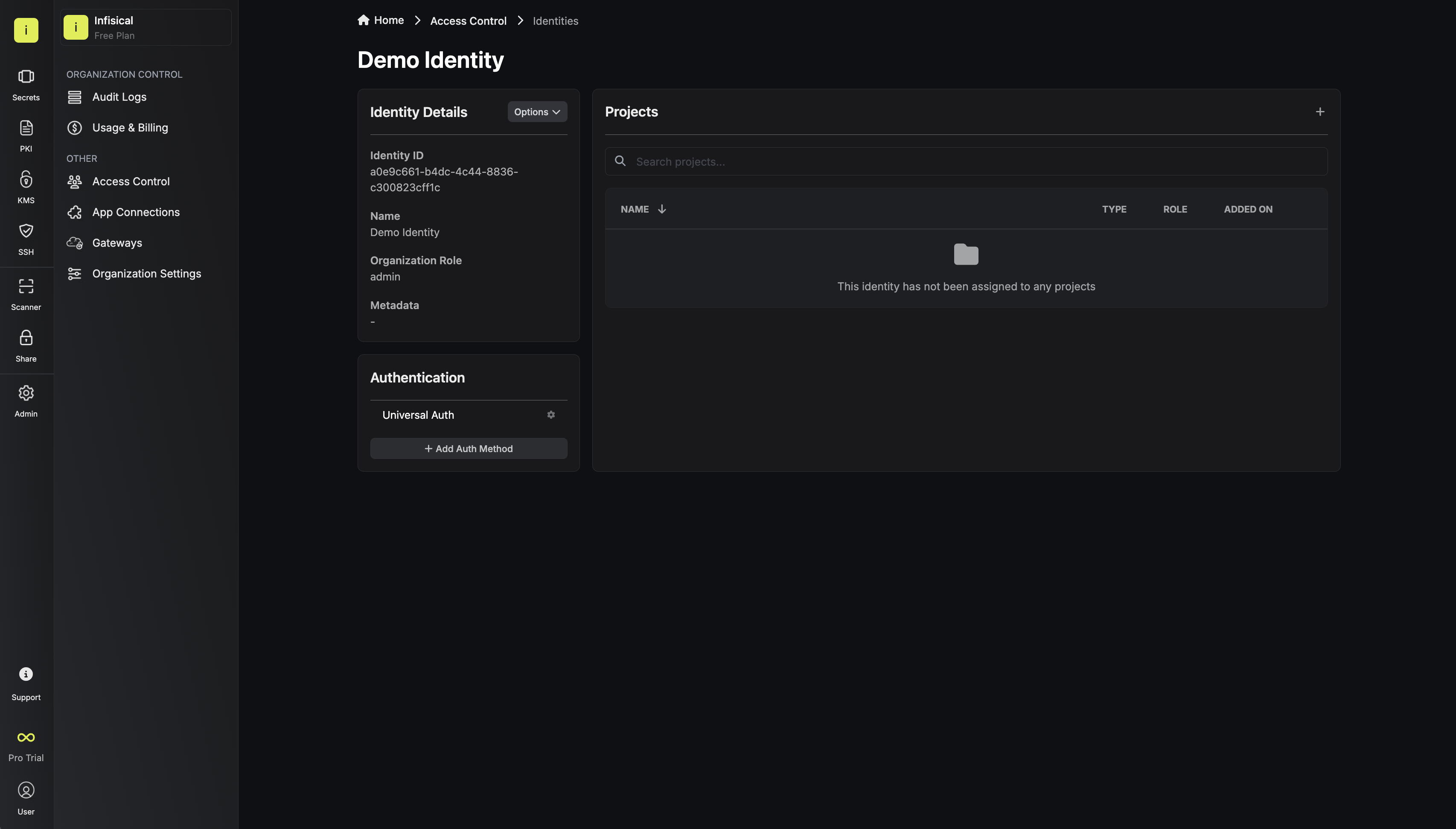
Since the identity has been configured with Universal Auth by default, you should re-configure it to use AWS Auth instead. To do this, press to edit the **Authentication** section,
remove the existing Universal Auth configuration, and add a new AWS Auth configuration onto the identity.
Here's some more guidance on each field:
* Allowed Principal ARNs: A comma-separated list of trusted IAM principal ARNs that are allowed to authenticate with Infisical. The values should take one of three forms: `arn:aws:iam::123456789012:user/MyUserName`, `arn:aws:iam::123456789012:role/MyRoleName`, or `arn:aws:iam::123456789012:*`. Using a wildcard in this case allows any IAM principal in the account `123456789012` to authenticate with Infisical under the identity.
* Allowed Account IDs: A comma-separated list of trusted AWS account IDs that are allowed to authenticate with Infisical.
* STS Endpoint (default is `https://sts.amazonaws.com/`): The endpoint URL for the AWS STS API. This value should be adjusted based on the AWS region you are operating in (e.g. `https://sts.us-east-1.amazonaws.com/`); refer to the list of regional STS endpoints [here](https://docs.aws.amazon.com/general/latest/gr/sts.html).
* Access Token TTL (default is `2592000` equivalent to 30 days): The lifetime for an acccess token in seconds. This value will be referenced at renewal time.
* Access Token Max TTL (default is `2592000` equivalent to 30 days): The maximum lifetime for an acccess token in seconds. This value will be referenced at renewal time.
* Access Token Max Number of Uses (default is `0`): The maximum number of times that an access token can be used; a value of `0` implies infinite number of uses.
* Access Token Trusted IPs: The IPs or CIDR ranges that access tokens can be used from. By default, each token is given the `0.0.0.0/0`, allowing usage from any network address.
To enable the identity to access project-level resources such as secrets within a specific project, you should add it to that project.
To do this, head over to the project you want to add the identity to and go to Project Settings > Access Control > Machine Identities and press **Add identity**.
Next, select the identity you want to add to the project and the project level role you want to allow it to assume. The project role assigned will determine what project level resources this identity can have access to.
To access the Infisical API as the identity, you need to construct a signed `GetCallerIdentity` query using the [AWS Signature v4 algorithm](https://docs.aws.amazon.com/IAM/latest/UserGuide/create-signed-request.html) and make a request to the `/api/v1/auth/aws-auth/login` endpoint containing the query data
in exchange for an access token.
We provide a few code examples below of how you can authenticate with Infisical from inside a Lambda function, EC2 instance, etc. and obtain an access token to access the [Infisical API](/api-reference/overview/introduction).
The following query construction is an example of how you can authenticate with Infisical from inside a Lambda function.
The shown example uses Node.js but you can use other languages supported by AWS Lambda.
```javascript theme={"dark"}
import AWS from "aws-sdk";
import axios from "axios";
export const handler = async (event, context) => {
try {
const region = process.env.AWS_REGION;
AWS.config.update({ region });
const iamRequestURL = `https://sts.${region}.amazonaws.com/`;
const iamRequestBody = "Action=GetCallerIdentity&Version=2011-06-15";
const iamRequestHeaders = {
"Content-Type": "application/x-www-form-urlencoded; charset=utf-8",
Host: `sts.${region}.amazonaws.com`,
};
// Create the request
const request = new AWS.HttpRequest(iamRequestURL, region);
request.method = "POST";
request.headers = iamRequestHeaders;
request.headers["X-Amz-Date"] = AWS.util.date
.iso8601(new Date())
.replace(/[:-]|\.\d{3}/g, "");
request.body = iamRequestBody;
request.headers["Content-Length"] =
Buffer.byteLength(iamRequestBody).toString();
// Sign the request
const signer = new AWS.Signers.V4(request, "sts");
signer.addAuthorization(AWS.config.credentials, new Date());
const infisicalUrl = "https://app.infisical.com"; // or your self-hosted Infisical URL
const identityId = "";
const { data } = await axios.post(
`${infisicalUrl}/api/v1/auth/aws-auth/login`,
{
identityId,
iamHttpRequestMethod: "POST",
iamRequestUrl: Buffer.from(iamRequestURL).toString("base64"),
iamRequestBody: Buffer.from(iamRequestBody).toString("base64"),
iamRequestHeaders: Buffer.from(
JSON.stringify(iamRequestHeaders)
).toString("base64"),
}
);
console.log("result data: ", data); // access token here
} catch (err) {
console.error(err);
}
};
```
The following query construction is an example of how you can authenticate with Infisical from inside a EC2 instance.
The shown example uses Node.js but you can use other language you wish.
```javascript theme={"dark"}
import AWS from "aws-sdk";
import axios from "axios";
const main = async () => {
try {
// obtain region from EC2 instance metadata
const tokenResponse = await axios.put("http://169.254.169.254/latest/api/token", null, {
headers: {
"X-aws-ec2-metadata-token-ttl-seconds": "21600"
}
});
const url = "http://169.254.169.254/latest/dynamic/instance-identity/document";
const response = await axios.get(url, {
headers: {
"X-aws-ec2-metadata-token": tokenResponse.data
}
});
const region = response.data.region;
AWS.config.update({
region
});
const iamRequestURL = `https://sts.${region}.amazonaws.com/`;
const iamRequestBody = "Action=GetCallerIdentity&Version=2011-06-15";
const iamRequestHeaders = {
"Content-Type": "application/x-www-form-urlencoded; charset=utf-8",
Host: `sts.${region}.amazonaws.com`
};
const request = new AWS.HttpRequest(new AWS.Endpoint(iamRequestURL), AWS.config.region);
request.method = "POST";
request.headers = iamRequestHeaders;
request.headers["X-Amz-Date"] = AWS.util.date.iso8601(new Date()).replace(/[:-]|\.\d{3}/g, "");
request.body = iamRequestBody;
request.headers["Content-Length"] = Buffer.byteLength(iamRequestBody);
const signer = new AWS.Signers.V4(request, "sts");
signer.addAuthorization(AWS.config.credentials, new Date());
const infisicalUrl = "https://app.infisical.com"; // or your self-hosted Infisical URL
const identityId = "";
const { data } = await axios.post(`${infisicalUrl}/api/v1/auth/aws-auth/login`, {
identityId,
iamHttpRequestMethod: "POST",
iamRequestUrl: Buffer.from(iamRequestURL).toString("base64"),
iamRequestBody: Buffer.from(iamRequestBody).toString("base64"),
iamRequestHeaders: Buffer.from(JSON.stringify(iamRequestHeaders)).toString("base64")
});
console.log("result data: ", data); // access token here
} catch (err) {
console.error(err);
}
}
main();
```
The following query construction provides a generic example of how you can construct a signed `GetCallerIdentity` query and obtain the required payload components.
The shown example uses Node.js but you can use any language you wish.
```javascript theme={"dark"}
const AWS = require("aws-sdk");
const region = "";
const infisicalUrl = "https://app.infisical.com"; // or your self-hosted Infisical URL
const iamRequestURL = `https://sts.${region}.amazonaws.com/`;
const iamRequestBody = "Action=GetCallerIdentity&Version=2011-06-15";
const iamRequestHeaders = {
"Content-Type": "application/x-www-form-urlencoded; charset=utf-8",
Host: `sts.${region}.amazonaws.com`
};
const request = new AWS.HttpRequest(new AWS.Endpoint(iamRequestURL), region);
request.method = "POST";
request.headers = iamRequestHeaders;
request.headers["X-Amz-Date"] = AWS.util.date.iso8601(new Date()).replace(/[:-]|\.\d{3}/g, "");
request.body = iamRequestBody;
request.headers["Content-Length"] = Buffer.byteLength(iamRequestBody);
const signer = new AWS.Signers.V4(request, "sts");
signer.addAuthorization(AWS.config.credentials, new Date());
```
#### Sample request
```bash Request theme={"dark"}
curl --location --request POST 'https://app.infisical.com/api/v1/auth/aws-auth/login' \
--header 'Content-Type: application/x-www-form-urlencoded' \
--data-urlencode 'identityId=...' \
--data-urlencode 'iamHttpRequestMethod=...' \
--data-urlencode 'iamRequestBody=...' \
--data-urlencode 'iamRequestHeaders=...'
```
Note that you should replace `` with the ID of the identity you created in step 1.
#### Sample response
```bash Response theme={"dark"}
{
"accessToken": "...",
"expiresIn": 7200,
"accessTokenMaxTTL": 43244
"tokenType": "Bearer"
}
```
Next, you can use the access token to access the [Infisical API](/api-reference/overview/introduction)
The following query construction is an example of how you can authenticate with Infisical from inside an EKS pod.
The shown example uses Node.js Typescript but you can use any language you wish.
```javascript theme={"dark"}
import axios from "axios";
import { Sha256 } from "@aws-crypto/sha256-js";
import { fromNodeProviderChain } from "@aws-sdk/credential-providers";
import { HttpRequest } from "@aws-sdk/protocol-http";
import { SignatureV4 } from "@aws-sdk/signature-v4";
const main = async () => {
try {
const tokenRes = await axios.put("http://169.254.169.254/latest/api/token", undefined, {
headers: {
"X-aws-ec2-metadata-token-ttl-seconds": "21600"
}
});
const {
data: { region }
} = await axios.get<{ region: string }>("http://169.254.169.254/latest/dynamic/instance-identity/document", {
headers: {
"X-aws-ec2-metadata-token": tokenRes.data,
Accept: "application/json"
}
});
const credentials = await fromNodeProviderChain()();
if (!credentials.accessKeyId || !credentials.secretAccessKey) {
throw new Error("Credentials not found");
}
const iamRequestURL = `https://sts.${region}.amazonaws.com/`;
const iamRequestBody = "Action=GetCallerIdentity&Version=2011-06-15";
const iamRequestHeaders = {
"Content-Type": "application/x-www-form-urlencoded; charset=utf-8",
Host: `sts.${region}.amazonaws.com`
};
const request = new HttpRequest({
protocol: "https:",
hostname: `sts.${region}.amazonaws.com`,
path: "/",
method: "POST",
headers: {
...iamRequestHeaders,
"Content-Length": String(Buffer.byteLength(iamRequestBody))
},
body: iamRequestBody
});
const signer = new SignatureV4({
credentials,
region,
service: "sts",
sha256: Sha256
});
const signedRequest = await signer.sign(request);
const headers: Record = {};
Object.entries(signedRequest.headers).forEach(([key, value]) => {
if (typeof value === "string") headers[key] = value;
});
const iamRequest = {
iamHttpRequestMethod: "POST",
iamRequestUrl: iamRequestURL,
iamRequestBody: iamRequestBody,
iamRequestHeaders: headers
};
const {
data: { accessToken }
} = await axios.post<{ accessToken: string }>("https://app.infisical.com/api/v1/auth/aws-auth/login", {
...iamRequest,
identityId: ""
});
console.log(`Infisical Access Token: ${accessToken}`);
} catch (e) {
console.error("Failed to do AWS auth", e);
}
};
```
We recommend using one of Infisical's clients like SDKs or the Infisical Agent to authenticate with Infisical using AWS Auth as they handle the authentication process including the signed `GetCallerIdentity` query construction for you.
Each identity access token has a time-to-live (TTL) which you can infer from the response of the login operation;
the default TTL is `7200` seconds which can be adjusted.
If an identity access token expires, it can no longer authenticate with the Infisical API. In this case,
a new access token should be obtained by performing another login operation.
---
# Source: https://infisical.com/docs/documentation/platform/pki/certificate-syncs/aws-certificate-manager.md
> ## Documentation Index
> Fetch the complete documentation index at: https://infisical.com/docs/llms.txt
> Use this file to discover all available pages before exploring further.
# AWS Certificate Manager
> Learn how to configure an AWS Certificate Manager Certificate Sync for Infisical PKI.
**Prerequisites:**
* Create an [AWS Connection](/integrations/app-connections/aws)
The AWS Certificate Manager Certificate Sync requires the following ACM permissions to be set on the IAM user/role
for Infisical to sync certificates to AWS Certificate Manager: `acm:ListCertificates`, `acm:DescribeCertificate`, `acm:ImportCertificate`, `acm:DeleteCertificate`, and `acm:ListTagsForCertificate`.
These permissions allow Infisical to list, import, tag, and manage certificates in your AWS Certificate Manager service.
Certificates synced to AWS Certificate Manager will be stored as imported
certificates, preserving both the certificate and private key components.
1. Navigate to **Project** > **Integrations** > **Certificate Syncs** and press **Add Sync**.
2. Select the **AWS Certificate Manager** option.
3. Configure the **Destination** to where certificates should be deployed, then click **Next**.
* **AWS Connection**: The AWS Connection to authenticate with.
* **AWS Region**: The AWS region where certificates should be stored.
4. Configure the **Sync Options** to specify how certificates should be synced, then click **Next**.
* **Enable Removal of Expired/Revoked Certificates**: If enabled, Infisical will remove certificates from the destination if they are no longer active in Infisical.
* **Preserve ARN on Renewal**: If enabled, Infisical will sync renewed certificates to the destination under the same ARN as the original synced certificate instead of creating a new certificate with a new ARN.
* **Include Root CA**: If enabled, the Root CA certificate will be included in the certificate chain when syncing to AWS Certificate Manager. If disabled, only intermediate certificates will be included.
* **Certificate Name Schema** (Optional): Customize how certificate tags are generated in AWS Certificate Manager. Must include `{{certificateId}}` as a placeholder for the certificate ID to ensure proper certificate identification and management. If not specified, defaults to `Infisical-{{certificateId}}`.
* **Auto-Sync Enabled**: If enabled, certificates will automatically be synced when changes occur. Disable to enforce manual syncing only.
5. Configure the **Details** of your AWS Certificate Manager Certificate Sync, then click **Next**.
* **Name**: The name of your sync. Must be slug-friendly.
* **Description**: An optional description for your sync.
6. Select which certificates should be synced to AWS Certificate Manager.
7. Review your AWS Certificate Manager Certificate Sync configuration, then click **Create Sync**.
8. If enabled, your AWS Certificate Manager Certificate Sync will begin syncing your certificates to the destination endpoint.
To create an **AWS Certificate Manager Certificate Sync**, make an API request to the [Create AWS Certificate Manager Certificate Sync](/api-reference/endpoints/pki/syncs/aws-certificate-manager/create) API endpoint.
### Sample request
You can optionally specify `certificateIds` during sync creation to immediately add certificates to the sync.
If not provided, you can add certificates later using the certificate management endpoints.
```bash Request theme={"dark"}
curl --request POST \
--url https://app.infisical.com/api/v1/cert-manager/syncs/aws-certificate-manager \
--header 'Authorization: Bearer ' \
--header 'Content-Type: application/json' \
--data '{
"name": "my-acm-cert-sync",
"projectId": "3c90c3cc-0d44-4b50-8888-8dd25736052a",
"description": "an example certificate sync",
"connectionId": "3c90c3cc-0d44-4b50-8888-8dd25736052a",
"destination": "aws-certificate-manager",
"isAutoSyncEnabled": true,
"certificateIds": [
"550e8400-e29b-41d4-a716-446655440000",
"660f1234-e29b-41d4-a716-446655440001"
],
"syncOptions": {
"canRemoveCertificates": true,
"preserveArnOnRenewal": true,
"includeRootCa": false,
"certificateNameSchema": "myapp-{{certificateId}}"
},
"destinationConfig": {
"region": "us-east-1"
}
}'
```
### Sample response
```json Response theme={"dark"}
{
"pkiSync": {
"id": "3c90c3cc-0d44-4b50-8888-8dd25736052a",
"name": "my-acm-cert-sync",
"description": "an example certificate sync",
"destination": "aws-certificate-manager",
"isAutoSyncEnabled": true,
"destinationConfig": {
"region": "us-east-1"
},
"syncOptions": {
"canRemoveCertificates": true,
"preserveArnOnRenewal": true,
"includeRootCa": false,
"certificateNameSchema": "myapp-{{certificateId}}"
},
"projectId": "3c90c3cc-0d44-4b50-8888-8dd25736052a",
"connectionId": "3c90c3cc-0d44-4b50-8888-8dd25736052a",
"createdAt": "2023-01-01T00:00:00.000Z",
"updatedAt": "2023-01-01T00:00:00.000Z"
}
}
```
## Certificate Management
Your AWS Certificate Manager Certificate Sync will:
* **Automatic Deployment**: Deploy certificates in Infisical to AWS Certificate Manager.
* **Certificate Updates**: Update certificates in AWS Certificate Manager when renewals occur.
* **Expiration Handling**: Optionally remove expired certificates from AWS Certificate Manager (if enabled).
* **Tagging**: Automatically tag certificates with an InfisicalCertificate tag for easy identification and management
AWS Certificate Manager Certificate Syncs support both automatic and manual
synchronization modes. When auto-sync is enabled, certificates are
automatically deployed as they are issued or renewed.
## Manual Certificate Sync
You can manually trigger certificate synchronization to AWS Certificate Manager using the sync certificates functionality. This is useful for:
* Initial setup when you have existing certificates to deploy
* One-time sync of specific certificates
* Testing certificate sync configurations
* Force sync after making changes
To manually sync certificates, use the [Sync Certificates](/api-reference/endpoints/pki/syncs/aws-certificate-manager/sync-certificates) API endpoint or the manual sync option in the Infisical UI.
AWS Certificate Manager does not support importing certificates back into
Infisical due to security limitations where private keys cannot be extracted
from AWS Certificate Manager. Only certificates imported into ACM (not
AWS-issued certificates) can be managed by the sync.
---
# Source: https://infisical.com/docs/self-hosting/reference-architectures/aws-ecs.md
> ## Documentation Index
> Fetch the complete documentation index at: https://infisical.com/docs/llms.txt
> Use this file to discover all available pages before exploring further.
# AWS ECS (HA)
> Reference architecture for self-hosting Infisical on AWS ECS
This guide will provide high-level architecture design for deploying the Infisical on AWS ECS and give insights into the core components, high availability strategies, and secure credential management for Infisical's root secrets.
## Overview
In this guide, we'll focus on running Infisical on AWS Elastic Container Service (ECS) across multiple Availability Zones (AZs), ensuring high availability and resilience.
The architecture utilizes Amazon Relational Database Service (RDS) for persistent storage, ElastiCache for Redis as an in-memory data store for caching, and Amazon Simple Email Service (SES) to handle email based communications from Infisical.
### Core Components
* **ECS Fargate:** In this architecture, Infisical is deployed on ECS using Fargate launch type. The ECS services are deployed across multiple Availability Zones to ensure high availability.
* **Amazon RDS:** Infisical uses Postgres as it's persistent layer. As such, RDS for PostgreSQL is used as the database engine. The setup includes a primary instance in one AZ and a read replica in another AZ.
This ensures that if there is a failure in one availability zone, the working replica will become the primary and continue processing workloads.
* **Amazon ElastiCache for Redis:** To enhance performance, Infisical requires Redis. In this architecture, Redis is set up with a primary and standby replication group across two AZs to increase availability.
* **Amazon Simple Email Service (SES):** Infisical requires email service to facilitate outbound communication. AWS SES is integrated into the architecture to handle such communication.
### Network Setup
* **Public Subnets:** Each Availability Zone contains a public subnet. There are two main reasons you might need internet access. First, if you intend to use Infisical to communicate with external secrets managers not located within your virtual private network, enabling internet access is necessary. Second, downloading the Docker image from Docker Hub requires internet access, though this can be avoided by utilizing AWS ECR with VPC Endpoints through AWS Private Link.
* **NAT Gateway:** This is used to route outbound requests from Infisical to the internet and is only used to communicate with external secrets manager and or downloading container images.
### Securing Infisical's root credential
* **Parameter Store:** To secure Infisical's root credentials (database connection string, encryption key, etc), we highly recommend that you use AWS Parameter Store and only allow the tasks running Infisical to access them.
* **AWS Secrets Manager:** We strongly advise securing the master credentials for RDS by utilizing the latest AWS RDS integration with AWS Secrets Manager. This integration automatically stores the master database user's credentials in AWS Secrets Manager, thereby reducing the risk of misplacing the root RDS credential.
### High Availability (HA) and Scalability
* **Multi-AZ Deployment:** By spreading resources across multiple Availability Zones, we ensure that if one AZ experiences issues, traffic can be redirected to the remaining healthy AZ without service interruption.
* **Auto Scaling:** AWS Auto Scaling is in place to adjust capacity to maintain steady and predictable performance at the lowest possible cost.
* **Cross-Region Deployment:** For even greater high availability, you may deploy Infisical across multiple regions. This extends the HA capabilities of the architecture and protects against regional service disruptions.
### Frequently asked questions
Yes, Infisical can function in an air-gapped environment. To do so, update your ECS task to use the publicly available AWS Elastic Container Registry (ECR) image instead of the default Docker Hub image. Additionally, it's necessary to configure VPC endpoints, which allows your system to access AWS ECR via a private network route instead of the internet, ensuring all connectivity remains within the secure, private network.
---
# Source: https://infisical.com/docs/documentation/platform/dynamic-secrets/aws-elasticache.md
> ## Documentation Index
> Fetch the complete documentation index at: https://infisical.com/docs/llms.txt
> Use this file to discover all available pages before exploring further.
# AWS ElastiCache
> Learn how to dynamically generate AWS ElastiCache user credentials.
The Infisical AWS ElastiCache dynamic secret allows you to generate AWS ElastiCache credentials on demand based on configured role.
## Prerequisites
2. Create an AWS IAM user with the following permissions:
```json theme={"dark"}
{
"Version": "2012-10-17",
"Statement": [
{
"Sid": "",
"Effect": "Allow",
"Action": [
"elasticache:DescribeUsers",
"elasticache:ModifyUser",
"elasticache:CreateUser",
"elasticache:CreateUserGroup",
"elasticache:DeleteUser",
"elasticache:DescribeReplicationGroups",
"elasticache:DescribeUserGroups",
"elasticache:ModifyReplicationGroup",
"elasticache:ModifyUserGroup"
],
"Resource": "arn:aws:elasticache:::user:*"
}
]
}
```
3. Create an access key ID and secret access key for the user you created in the previous step. You will need these to configure the Infisical dynamic secret.
New leases may take up-to a couple of minutes before ElastiCache has the chance to complete their configuration.
It is recommended to use a retry strategy when establishing new ElastiCache connections.
This may prevent errors when trying to use a password that isn't yet live on the targeted ElastiCache cluster.
While a leasing is being created, you will be unable to create new leases for the same dynamic secret.
Please ensure that your ElastiCache cluster has transit encryption enabled and set to required. This is required for the dynamic secret to work.
## Set up Dynamic Secrets with AWS ElastiCache
Open the Secret Overview dashboard and select the environment in which you would like to add a dynamic secret.
Name by which you want the secret to be referenced
Default time-to-live for a generated secret (it is possible to modify this value after a secret is generated)
Maximum time-to-live for a generated secret.
The region that the ElastiCache cluster is located in. *(e.g. us-east-1)*
This is the access key ID of the AWS IAM user you created in the prerequisites. This will be used to provision and manage the dynamic secret leases.
This is the secret access key of the AWS IAM user you created in the prerequisites. This will be used to provision and manage the dynamic secret leases.
A CA may be required if your DB requires it for incoming connections. This is often the case when connecting to a managed service.
Specifies a template for generating usernames. This field allows customization of how usernames are automatically created.
Allowed template variables are:
* `{{randomUsername}}`: Random username string.
* `{{unixTimestamp}}`: Current Unix timestamp at the time of lease creation.
* `{{identity.name}}`: Name of the identity that is generating the lease.
* `{{dynamicSecret.name}}`: Name of the associated dynamic secret.
* `{{dynamicSecret.type}}`: Type of the associated dynamic secret.
* `{{random N}}`: Random string of N characters.
Allowed template functions are:
* `truncate`: Truncates a string to a specified length.
* `replace`: Replaces a substring with another value.
* `uppercase`: Converts a string to uppercase.
* `lowercase`: Converts a string to lowercase.
Examples:
```yaml theme={"dark"}
{{ randomUsername }} // 3POnzeFyK9gW2nioK0q2gMjr6CZqsRiX
{{ unixTimestamp }} // 17490641580
{{ identity.name }} //
{{ random 5 }} // x9K2m
{{ truncate identity.name 4 }} // test
{{ replace identity.name '' 'new-value' }} // new-value
```
If you want to provide specific privileges for the generated dynamic credentials, you can modify the ElastiCache statement to your needs. This is useful if you want to only give access to a specific resource.
After submitting the form, you will see a dynamic secret created in the dashboard.
If this step fails, you may have to add the CA certificate.
Once you've successfully configured the dynamic secret, you're ready to generate on-demand credentials.
To do this, simply click on the 'Generate' button which appears when hovering over the dynamic secret item.
Alternatively, you can initiate the creation of a new lease by selecting 'New Lease' from the dynamic secret lease list section.
When generating these secrets, it's important to specify a Time-to-Live (TTL) duration. This will dictate how long the credentials are valid for.
Ensure that the TTL for the lease falls within the maximum TTL defined when configuring the dynamic secret.
Once you click the `Submit` button, a new secret lease will be generated and the credentials from it will be shown to you.
## Audit or Revoke Leases
Once you have created one or more leases, you will be able to access them by clicking on the respective dynamic secret item on the dashboard.
This will allow you to see the expiration time of the lease or delete a lease before it's set time to live.
## Renew Leases
To extend the life of the generated dynamic secret leases past its initial time to live, simply click on the **Renew** button as illustrated below.
Lease renewals cannot exceed the maximum TTL set when configuring the dynamic secret
---
# Source: https://infisical.com/docs/documentation/platform/kms-configuration/aws-hsm.md
> ## Documentation Index
> Fetch the complete documentation index at: https://infisical.com/docs/llms.txt
> Use this file to discover all available pages before exploring further.
# AWS CloudHSM
> Learn how to manage encryption using AWS CloudHSM
This guide provides instructions on securing Infisical project secrets using AWS CloudHSM.
Integration with AWS CloudHSM is achieved by configuring it as a custom key store for AWS KMS.
Follow the steps below to set up AWS KMS with AWS CloudHSM as the custom key store.
## Prepare AWS CloudHSM Cluster
Before you get started, you'll need to configure a AWS CloudHSM cluster which meets the following criteria:
* The cluster must be active.
* The cluster must not be associated with any other AWS KMS custom key store.
* The cluster must be configured with private subnets in at least two Availability Zones in the Region.
* The security group for the cluster must include inbound and outbound rules that allow TCP traffic on ports 2223-2225.
* The cluster must contain at least two active HSMs in different Availability Zones.
For more details on setting up your cluster, refer to the following [AWS documentation](https://docs.aws.amazon.com/kms/latest/developerguide/create-keystore.html#before-keystore).
## Set Up AWS KMS Custom Key Store
To set up an AWS KMS custom key store with AWS CloudHSM, you will need the following:
* The trust anchor certificate of your AWS CloudHSM cluster.
* A `kmsuser` user in the AWS CloudHSM cluster with the crypto-user role.
In the AWS console, head over to `AWS KMS` > `AWS CloudHSM key stores` and click **Create key store**.
Input the custom key store name.
Select the AWS CloudHSM cluster. You should be able to select the cluster if it meets the required criteria mentioned above.
Upload your CloudHSM's cluster trust anchor certificate file.
Input the password of the `kmsuser` crypto-user in your cluster.
Proceed with creating the AWS CloudHSM key store.
For more details, refer to the following [AWS documentation](https://docs.aws.amazon.com/kms/latest/developerguide/create-keystore.html#create-keystore-console).
## Create AWS KMS Key
Next, you'll need to create a AWS KMS key where you will set the key store you created previously.
In your AWS console, proceed to `AWS KMS` > `Customer managed keys` and click **Create**.
Set Key type to `Symmetric` and Key usage to `Encrypt and decrypt`.
In the advanced options, for the Key material origin field, select `AWS CloudHSM key store`. Then, click next.
Select the AWS CloudHSM key store you created earlier.
Proceed with creating the AWS KMS Key.
## Connect Infisical to AWS KMS Key
You should now have an AWS KMS that has a custom key store set to AWS CloudHSM.
To secure project resources, you will need to add this AWS KMS to your Infisical organization. To learn how, refer to the documentation [here](./aws-kms).
---
# Source: https://infisical.com/docs/documentation/platform/secret-rotation/aws-iam-user-secret.md
> ## Documentation Index
> Fetch the complete documentation index at: https://infisical.com/docs/llms.txt
> Use this file to discover all available pages before exploring further.
# AWS IAM User
> Learn how to automatically rotate Access Key Id and Secret Key of AWS IAM Users.
Infisical's AWS IAM User secret rotation capability lets you update the **Access key** and **Secret access key** credentials of a target IAM user from within Infisical
at a specified interval or on-demand.
## Prerequisites
* Create an [AWS Connection](/integrations/app-connections/aws) with the required **Secret Rotation** permissions
* Make sure to add the following permissions to your IAM Role/IAM User Permission policy set used by your AWS Connection:
```json theme={"dark"}
{
"Version": "2012-10-17",
"Statement": [
{
"Effect": "Allow",
"Action": [
"iam:ListAccessKeys",
"iam:CreateAccessKey",
"iam:UpdateAccessKey",
"iam:DeleteAccessKey",
"iam:ListUsers"
],
"Resource": "*"
}
]
}
```
## Workflow
The typical workflow for using the AWS IAM User rotation strategy consists of four steps:
1. Creating the target IAM user whose credentials you wish to rotate.
2. Configuring the rotation strategy in Infisical with the credentials of the managing IAM user.
3. Pressing the **Rotate** button in the Infisical dashboard to trigger the rotation of the target IAM user's credentials. The strategy can also be configured to rotate the credentials automatically at a specified interval.
In the following steps, we explore the end-to-end workflow for setting up this strategy in Infisical.
To begin, create an IAM user whose credentials you wish to rotate. If you already have an IAM user,
then you can skip this step.
1. Navigate to your Secret Manager Project's Dashboard and select **Add Secret Rotation** from the actions dropdown.
2. Select the **AWS IAM User Secret** option.
3. Select the **AWS Connection** to use and configure the rotation behavior. Then click **Next**.
* **AWS Connection** - the connection that will perform the rotation of the specified application's Client Secret.
* **Rotation Interval** - the interval, in days, that once elapsed will trigger a rotation.
* **Rotate At** - the local time of day when rotation should occur once the interval has elapsed.
* **Auto-Rotation Enabled** - whether secrets should automatically be rotated once the rotation interval has elapsed. Disable this option to manually rotate secrets or pause secret rotation.
4. Select the AWS IAM user and the region of the user whose credentials you want to rotate. Then click **Next**.
5. Specify the secret names that the AWS IAM access key credentials should be mapped to. Then click **Next**.
* **Access Key ID** - the name of the secret that the AWS access key ID will be mapped to.
* **Secret Access Key** - the name of the secret that the rotated secret access key will be mapped to.
6. Give your rotation a name and description (optional). Then click **Next**.
* **Name** - the name of the secret rotation configuration. Must be slug-friendly.
* **Description** (optional) - a description of this rotation configuration.
7. Review your configuration, then click **Create Secret Rotation**.
8. Your **AWS IAM User** credentials are now available for use via the mapped secrets.
To create an AWS IAM User Rotation, make an API request to the [Create AWS IAM User Rotation](/api-reference/endpoints/secret-rotations/aws-iam-user-secret/create) API endpoint.
You will first need the **User Name** of the AWS IAM user you want to rotate the secret for. This can be obtained from the IAM console, on Users tab.
### Sample request
```bash Request theme={"dark"}
curl --request POST \
--url https://us.infisical.com/api/v2/secret-rotations/aws-iam-user-secret \
--header 'Content-Type: application/json' \
--data '{
"name": "my-aws-rotation",
"projectId": "9602cfc5-20b9-4c35-a056-dd7372db0f25",
"description": "My rotation strategy description",
"connectionId": "3c90c3cc-0d44-4b50-8888-8dd25736052a",
"environment": "dev",
"secretPath": "/",
"isAutoRotationEnabled": true,
"rotationInterval": 2,
"rotateAtUtc": {
"hours": 11.5,
"minutes": 29.5
},
"parameters": {
"userName": "testUser",
"region": "us-east-1"
},
"secretsMapping": {
"accessKeyId": "AWS_ACCESS_KEY_ID",
"secretAccessKey": "AWS_SECRET_ACCESS_KEY"
}
}'
```
### Sample response
```bash Response theme={"dark"}
{
"secretRotation": {
"id": "3c90c3cc-0d44-4b50-8888-8dd25736052a",
"name": "my-aws-rotation",
"description": "My rotation strategy description",
"secretsMapping": {
"accessKeyId": "AWS_ACCESS_KEY_ID",
"secretAccessKey": "AWS_SECRET_ACCESS_KEY"
},
"isAutoRotationEnabled": true,
"activeIndex": 0,
"folderId": "3c90c3cc-0d44-4b50-8888-8dd25736052a",
"connectionId": "3c90c3cc-0d44-4b50-8888-8dd25736052a",
"createdAt": "2023-11-07T05:31:56Z",
"updatedAt": "2023-11-07T05:31:56Z",
"rotationInterval": 123,
"rotationStatus": "success",
"lastRotationAttemptedAt": "2023-11-07T05:31:56Z",
"lastRotatedAt": "2023-11-07T05:31:56Z",
"lastRotationJobId": null,
"nextRotationAt": "2023-11-07T05:31:56Z",
"isLastRotationManual": true,
"connection": {
"app": "aws",
"name": "my-aws-connection",
"id": "3c90c3cc-0d44-4b50-8888-8dd25736052a"
},
"environment": {
"slug": "dev",
"name": "Development",
"id": "3c90c3cc-0d44-4b50-8888-8dd25736052a"
},
"projectId": "9602cfc5-20b9-4c35-a056-dd7372db0f25",
"folder": {
"id": "3c90c3cc-0d44-4b50-8888-8dd25736052a",
"path": "/"
},
"rotateAtUtc": {
"hours": 11.5,
"minutes": 29.5
},
"lastRotationMessage": null,
"type": "aws-iam-user-secret",
"parameters": {
"userName": "testUser",
"region": "us-east-1"
}
}
}
```
**FAQ**
There are a few reasons for why this might happen:
* The strategy configuration is invalid (e.g. the managing IAM user's credentials are incorrect, the target AWS region is incorrect, etc.)
* The managing IAM user is insufficiently permissioned to rotate the credentials of the target IAM user. For instance, you may have setup
[paths](https://aws.amazon.com/blogs/security/optimize-aws-administration-with-iam-paths/) for the managing IAM user and the policy does not have the necessary
permissions to rotate the credentials.
---
# Source: https://infisical.com/docs/documentation/platform/pam/getting-started/resources/aws-iam.md
# Source: https://infisical.com/docs/documentation/platform/dynamic-secrets/aws-iam.md
> ## Documentation Index
> Fetch the complete documentation index at: https://infisical.com/docs/llms.txt
> Use this file to discover all available pages before exploring further.
# AWS IAM
> Learn how to dynamically generate AWS IAM Users.
The Infisical AWS IAM dynamic secret allows you to generate AWS IAM Users and temporary credentials on demand based on a configured AWS policy. Infisical supports several authentication methods to connect to your AWS account, including assuming an IAM Role, using IAM Roles for Service Accounts (IRSA) on EKS, or static Access Keys.
## AWS STS Duration Limits
When using **Temporary Credentials**, AWS STS has specific maximum duration limits:
* **AssumeRole operations**: Maximum 1 hour (3600 seconds) when using temporary credentials
* **GetSessionToken operations** (Access Key & IRSA): Maximum 12 hours (43200 seconds)
**Automatic Duration Adjustment**: If you specify a TTL that exceeds these AWS limits, Infisical will automatically use the maximum allowed duration instead of failing the operation. This ensures your dynamic secrets work reliably within AWS constraints.
## Prerequisite
Infisical needs an AWS IAM principal (a user or a role) with the required permissions to create and manage other IAM users and temporary credentials. This principal will be responsible for the lifecycle of the dynamically generated users and temporary credentials.
Required permissions for creating temporary IAM users:
```json theme={"dark"}
{
"Version": "2012-10-17",
"Statement": [
{
"Effect": "Allow",
"Action": [
"iam:AttachUserPolicy",
"iam:CreateAccessKey",
"iam:CreateUser",
"iam:DeleteAccessKey",
"iam:DeleteUser",
"iam:DeleteUserPolicy",
"iam:DetachUserPolicy",
"iam:GetUser",
"iam:ListAccessKeys",
"iam:ListAttachedUserPolicies",
"iam:ListGroupsForUser",
"iam:ListUserPolicies",
"iam:PutUserPolicy",
"iam:AddUserToGroup",
"iam:RemoveUserFromGroup",
"iam:TagUser"
],
"Resource": ["*"]
}
]
}
```
To minimize managing user access you can attach a resource in format
> arn:aws:iam::\:user/\
Replace **\** with your AWS account id and **\** with a path to minimize managing user access.
Required permissions for Access Key and Assume Role methods:
```json theme={"dark"}
{
"Version": "2012-10-17",
"Statement": [
{
"Effect": "Allow",
"Action": [
"sts:GetSessionToken",
"sts:AssumeRole"
],
"Resource": ["*"]
}
]
}
```
To minimize managing user access you can attach a resource in format
> arn:aws:iam::\:user/\
Replace **\** with your AWS account id and **\** with a path to minimize managing user access.
## Set up Dynamic Secrets with AWS IAM
Infisical will assume the provided role in your AWS account securely, without the need to share any credentials.
To connect your self-hosted Infisical instance with AWS, you need to set up an AWS IAM User account that can assume the configured AWS IAM Role.
If your instance is deployed on AWS, the aws-sdk will automatically retrieve the credentials. Ensure that you assign the provided permission policy to your deployed instance, such as ECS or EC2.
The following steps are for instances not deployed on AWS:
Navigate to [Create IAM User](https://console.aws.amazon.com/iamv2/home#/users/create) in your AWS Console.
Attach the following inline permission policy to the IAM User to allow it to assume any IAM Roles:
```json theme={"dark"}
{
"Version": "2012-10-17",
"Statement": [
{
"Sid": "AllowAssumeAnyRole",
"Effect": "Allow",
"Action": "sts:AssumeRole",
"Resource": "arn:aws:iam::*:role/*"
}
]
}
```
Obtain the AWS access key ID and secret access key for your IAM User by navigating to **IAM > Users > \[Your User] > Security credentials > Access keys**.
1. Set the access key as **DYNAMIC\_SECRET\_AWS\_ACCESS\_KEY\_ID**.
2. Set the secret key as **DYNAMIC\_SECRET\_AWS\_SECRET\_ACCESS\_KEY**.
1. Navigate to the [Create IAM Role](https://console.aws.amazon.com/iamv2/home#/roles/create?step=selectEntities) page in your AWS Console.
2. Select **AWS Account** as the **Trusted Entity Type**.
3. Select **Another AWS Account** and provide the appropriate Infisical AWS Account ID: use **381492033652** for the **US region**, and **345594589636** for the **EU region**. This restricts the role to be assumed only by Infisical. If self-hosting, provide your AWS account number instead.
**For Dedicated Instances**: Your AWS account ID differs from the one provided above. Please reach out to Infisical support to obtain your AWS account ID.
4. (Recommended) Enable "Require external ID" and input your **Project ID** to strengthen security and mitigate the [confused deputy problem](https://docs.aws.amazon.com/IAM/latest/UserGuide/confused-deputy.html).
5. Assign permission as shared in prerequisite.
When configuring an IAM Role that Infisical will assume, it’s highly recommended to enable the **"Require external ID"** option and specify your **Project ID**.
This precaution helps protect your AWS account against the [confused deputy problem](https://docs.aws.amazon.com/IAM/latest/UserGuide/confused-deputy.html), a potential security vulnerability where Infisical could be tricked into performing actions on your behalf by an unauthorized actor.
Always enable "Require external ID" and use your Project ID when setting up the IAM Role.
Navigate to the Secret Overview dashboard and select the environment in which you would like to add a dynamic secret to.
Name by which you want the secret to be referenced
Default time-to-live for a generated secret (it is possible to modify this value after a secret is generated)
Maximum time-to-live for a generated secret
Specifies a template for generating usernames. This field allows customization of how usernames are automatically created.
Allowed template variables are:
* `{{randomUsername}}`: Random username string.
* `{{unixTimestamp}}`: Current Unix timestamp at the time of lease creation.
* `{{identity.name}}`: Name of the identity that is generating the lease.
* `{{dynamicSecret.name}}`: Name of the associated dynamic secret.
* `{{dynamicSecret.type}}`: Type of the associated dynamic secret.
* `{{random N}}`: Random string of N characters.
Allowed template functions are:
* `truncate`: Truncates a string to a specified length.
* `replace`: Replaces a substring with another value.
* `uppercase`: Converts a string to uppercase.
* `lowercase`: Converts a string to lowercase.
Examples:
```yaml theme={"dark"}
{{ randomUsername }} // 3POnzeFyK9gW2nioK0q2gMjr6CZqsRiX
{{ unixTimestamp }} // 17490641580
{{ identity.name }} //
{{ random 5 }} // x9K2m
{{ truncate identity.name 4 }} // test
{{ replace identity.name '' 'new-value' }} // new-value
```
Tags to be added to the created IAM User resource.
Select *Assume Role* method.
Choose the credential generation approach:
* **IAM User (Default)**: Creates new temporary IAM users in your AWS account
* **Temporary Credentials**: Generates temporary credentials from your role connection
The ARN of the AWS Role to assume.
The AWS data center region.
[IAM AWS Path](https://aws.amazon.com/blogs/security/optimize-aws-administration-with-iam-paths/) to scope created IAM User resource access.
The IAM Policy ARN of the [AWS Permissions Boundary](https://docs.aws.amazon.com/IAM/latest/UserGuide/access_policies_boundaries.html) to attach to IAM users created in the role.
The AWS IAM groups that should be assigned to the created users. Multiple values can be provided by separating them with commas.
The AWS IAM managed policies that should be attached to the created users. Multiple values can be provided by separating them with commas.
The AWS IAM inline policy that should be attached to the created users. Multiple values can be provided by separating them with commas.
Specifies a template for generating usernames. This field allows customization of how usernames are automatically created.
Allowed template variables are:
* `{{randomUsername}}`: Random username string.
* `{{unixTimestamp}}`: Current Unix timestamp at the time of lease creation.
* `{{identity.name}}`: Name of the identity that is generating the lease.
* `{{dynamicSecret.name}}`: Name of the associated dynamic secret.
* `{{dynamicSecret.type}}`: Type of the associated dynamic secret.
* `{{random N}}`: Random string of N characters.
Allowed template functions are:
* `truncate`: Truncates a string to a specified length.
* `replace`: Replaces a substring with another value.
* `uppercase`: Converts a string to uppercase.
* `lowercase`: Converts a string to lowercase.
Examples:
```yaml theme={"dark"}
{{ randomUsername }} // 3POnzeFyK9gW2nioK0q2gMjr6CZqsRiX
{{ unixTimestamp }} // 17490641580
{{ identity.name }} //
{{ random 5 }} // x9K2m
{{ truncate identity.name 4 }} // test
{{ replace identity.name '' 'new-value' }} // new-value
```
Tags to be added to the created IAM User resource.
When **Credential Type** is set to **Temporary Credentials**:
No additional configuration parameters are required. The generated credentials will:
* Inherit the permissions of the assumed role
* Include an AWS Session Token
* Be valid for the duration specified in Default TTL
**Duration Limit**: AssumeRole temporary credentials are limited to 1 hour maximum by AWS. TTL values exceeding this limit will be automatically adjusted to 1 hour.
After submitting the form, you will see a dynamic secret created in the dashboard.
Once you've successfully configured the dynamic secret, you're ready to generate on-demand credentials.
To do this, simply click on the 'Generate' button which appears when hovering over the dynamic secret item.
Alternatively, you can initiate the creation of a new lease by selecting 'New Lease' from the dynamic secret lease list section.
When generating these secrets, it's important to specify a Time-to-Live (TTL) duration. This will dictate how long the credentials are valid for.
Ensure that the TTL for the lease falls within the maximum TTL defined when configuring the dynamic secret in step 4.
Once you click the `Submit` button, a new secret lease will be generated and the credentials for it will be shown to you.
**Credentials format depends on your chosen credential type:**
**IAM User credential type:**
* AWS Username
* AWS Access Key ID
* AWS Secret Access Key
**Temporary Credentials credential type:**
* AWS Access Key ID
* AWS Secret Access Key
* AWS Session Token
This method is recommended for self-hosted Infisical instances running on AWS EKS. It uses [IAM Roles for Service Accounts (IRSA)](https://docs.aws.amazon.com/eks/latest/userguide/iam-roles-for-service-accounts.html) to securely grant permissions to the Infisical pods without managing static credentials.
In order to use IRSA, the `KUBERNETES_AUTO_FETCH_SERVICE_ACCOUNT_TOKEN` environment variable must be set to `true` for your self-hosted Infisical instance.
If you don't already have one, you need to create an IAM OIDC provider for your EKS cluster. This allows IAM to trust authentication tokens from your Kubernetes cluster.
1. Find your cluster's OIDC provider URL from the EKS console or by using the AWS CLI:
`aws eks describe-cluster --name --query "cluster.identity.oidc.issuer" --output text`
2. Navigate to the [IAM Identity Providers](https://console.aws.amazon.com/iam/home#/providers) page in your AWS Console and create a new OpenID Connect provider with the URL and `sts.amazonaws.com` as the audience.
1. Navigate to the [Create IAM Role](https://console.aws.amazon.com/iamv2/home#/roles/create?step=selectEntities) page in your AWS Console.
2. Select **Web identity** as the **Trusted Entity Type**.
3. Choose the OIDC provider you created in the previous step.
4. For the **Audience**, select `sts.amazonaws.com`.
5. Attach the permission policy detailed in the **Prerequisite** section at the top of this page.
6. After creating the role, edit its **Trust relationship** to specify the service account Infisical is using in your cluster. This ensures only the Infisical pod can assume this role.
```json theme={"dark"}
{
"Version": "2012-10-17",
"Statement": [
{
"Effect": "Allow",
"Principal": {
"Federated": "arn:aws:iam:::oidc-provider/oidc.eks..amazonaws.com/id/"
},
"Action": "sts:AssumeRoleWithWebIdentity",
"Condition": {
"StringEquals": {
"oidc.eks..amazonaws.com/id/:sub": "system:serviceaccount::",
"oidc.eks..amazonaws.com/id/:aud": "sts.amazonaws.com"
}
}
}
]
}
```
Replace ``, ``, ``, ``, and `` with your specific values.
For the IRSA mechanism to work, the Infisical service account in your Kubernetes cluster must be annotated with the ARN of the IAM role you just created.
Run the following command, replacing the placeholders with your values:
```bash theme={"dark"}
kubectl annotate serviceaccount -n \
eks.amazonaws.com/role-arn=arn:aws:iam:::role/
```
This annotation tells the EKS Pod Identity Webhook to inject the necessary environment variables and tokens into the Infisical pod, allowing it to assume the specified IAM role.
Navigate to the Secret Overview dashboard and select the environment in which you would like to add a dynamic secret to.
Name by which you want the secret to be referenced
Default time-to-live for a generated secret (it is possible to modify this value after a secret is generated)
Maximum time-to-live for a generated secret
Specifies a template for generating usernames. This field allows customization of how usernames are automatically created.
Allowed template variables are:
* `{{randomUsername}}`: Random username string.
* `{{unixTimestamp}}`: Current Unix timestamp at the time of lease creation.
* `{{identity.name}}`: Name of the identity that is generating the lease.
* `{{dynamicSecret.name}}`: Name of the associated dynamic secret.
* `{{dynamicSecret.type}}`: Type of the associated dynamic secret.
* `{{random N}}`: Random string of N characters.
Allowed template functions are:
* `truncate`: Truncates a string to a specified length.
* `replace`: Replaces a substring with another value.
* `uppercase`: Converts a string to uppercase.
* `lowercase`: Converts a string to lowercase.
Examples:
```yaml theme={"dark"}
{{ randomUsername }} // 3POnzeFyK9gW2nioK0q2gMjr6CZqsRiX
{{ unixTimestamp }} // 17490641580
{{ identity.name }} //
{{ random 5 }} // x9K2m
{{ truncate identity.name 4 }} // test
{{ replace identity.name '' 'new-value' }} // new-value
```
Tags to be added to the created IAM User resource.
Select *IRSA* method.
Choose the credential generation approach:
* **IAM User**: Creates new temporary IAM users in your AWS account
* **Temporary Credentials**: Generates temporary credentials from your IRSA role connection
The ARN of the AWS IAM Role for the service account to assume.
The AWS data center region.
[IAM AWS Path](https://aws.amazon.com/blogs/security/optimize-aws-administration-with-iam-paths/) to scope created IAM User resource access.
The IAM Policy ARN of the [AWS Permissions Boundary](https://docs.aws.amazon.com/IAM/latest/UserGuide/access_policies_boundaries.html) to attach to IAM users created in the role.
The AWS IAM groups that should be assigned to the created users. Multiple values can be provided by separating them with commas.
The AWS IAM managed policies that should be attached to the created users. Multiple values can be provided by separating them with commas.
The AWS IAM inline policy that should be attached to the created users. Multiple values can be provided by separating them with commas.
Specifies a template for generating usernames. This field allows customization of how usernames are automatically created.
Allowed template variables are:
* `{{randomUsername}}`: Random username string.
* `{{unixTimestamp}}`: Current Unix timestamp at the time of lease creation.
* `{{identity.name}}`: Name of the identity that is generating the lease.
* `{{dynamicSecret.name}}`: Name of the associated dynamic secret.
* `{{dynamicSecret.type}}`: Type of the associated dynamic secret.
* `{{random N}}`: Random string of N characters.
Allowed template functions are:
* `truncate`: Truncates a string to a specified length.
* `replace`: Replaces a substring with another value.
* `uppercase`: Converts a string to uppercase.
* `lowercase`: Converts a string to lowercase.
Examples:
```yaml theme={"dark"}
{{ randomUsername }} // 3POnzeFyK9gW2nioK0q2gMjr6CZqsRiX
{{ unixTimestamp }} // 17490641580
{{ identity.name }} //
{{ random 5 }} // x9K2m
{{ truncate identity.name 4 }} // test
{{ replace identity.name '' 'new-value' }} // new-value
```
Tags to be added to the created IAM User resource.
When **Credential Type** is set to **Temporary Credentials**:
No additional configuration parameters are required. The generated credentials will:
* Inherit the permissions of the assumed IRSA role
* Include an AWS Session Token
* Be valid for the duration specified in Default TTL
**Duration Limit**: IRSA temporary credentials support up to 12 hours maximum via GetSessionToken. TTL values exceeding this limit will be automatically adjusted.
After submitting the form, you will see a dynamic secret created in the dashboard.
Once you've successfully configured the dynamic secret, you're ready to generate on-demand credentials.
To do this, simply click on the 'Generate' button which appears when hovering over the dynamic secret item.
Alternatively, you can initiate the creation of a new lease by selecting 'New Lease' from the dynamic secret lease list section.
When generating these secrets, it's important to specify a Time-to-Live (TTL) duration. This will dictate how long the credentials are valid for.
Ensure that the TTL for the lease falls within the maximum TTL defined when configuring the dynamic secret in step 4.
Once you click the `Submit` button, a new secret lease will be generated and the credentials for it will be shown to you.
Infisical will use the provided **Access Key ID** and **Secret Key** to connect to your AWS instance.
Navigate to the Secret Overview dashboard and select the environment in which you would like to add a dynamic secret to.
Name by which you want the secret to be referenced
Default time-to-live for a generated secret (it is possible to modify this value after a secret is generated)
Maximum time-to-live for a generated secret
Select *Access Key* method.
Choose the credential generation approach:
* **IAM User**: Creates new temporary IAM users in your AWS account
* **Temporary Credentials**: Generates temporary credentials from your access key connection
The managing AWS IAM User Access Key
The managing AWS IAM User Secret Key
The AWS data center region.
[IAM AWS Path](https://aws.amazon.com/blogs/security/optimize-aws-administration-with-iam-paths/) to scope created IAM User resource access.
The IAM Policy ARN of the [AWS Permissions Boundary](https://docs.aws.amazon.com/IAM/latest/UserGuide/access_policies_boundaries.html) to attach to IAM users created in the role.
The AWS IAM groups that should be assigned to the created users. Multiple values can be provided by separating them with commas.
The AWS IAM managed policies that should be attached to the created users. Multiple values can be provided by separating them with commas.
The AWS IAM inline policy that should be attached to the created users. Multiple values can be provided by separating them with commas.
Specifies a template for generating usernames. This field allows customization of how usernames are automatically created.
Allowed template variables are:
* `{{randomUsername}}`: Random username string.
* `{{unixTimestamp}}`: Current Unix timestamp at the time of lease creation.
* `{{identity.name}}`: Name of the identity that is generating the lease.
* `{{dynamicSecret.name}}`: Name of the associated dynamic secret.
* `{{dynamicSecret.type}}`: Type of the associated dynamic secret.
* `{{random N}}`: Random string of N characters.
Allowed template functions are:
* `truncate`: Truncates a string to a specified length.
* `replace`: Replaces a substring with another value.
* `uppercase`: Converts a string to uppercase.
* `lowercase`: Converts a string to lowercase.
Examples:
```yaml theme={"dark"}
{{ randomUsername }} // 3POnzeFyK9gW2nioK0q2gMjr6CZqsRiX
{{ unixTimestamp }} // 17490641580
{{ identity.name }} //
{{ random 5 }} // x9K2m
{{ truncate identity.name 4 }} // test
{{ replace identity.name '' 'new-value' }} // new-value
```
Tags to be added to the created IAM User resource.
When **Credential Type** is set to **Temporary Credentials**:
No additional configuration parameters are required. The generated credentials will:
* Inherit the permissions of your access key connection
* Include an AWS Session Token
* Be valid for the duration specified in Default TTL
**Duration Limit**: Access Key temporary credentials support up to 12 hours maximum via GetSessionToken. TTL values exceeding this limit will be automatically adjusted.
After submitting the form, you will see a dynamic secret created in the dashboard.
Once you've successfully configured the dynamic secret, you're ready to generate on-demand credentials.
To do this, simply click on the 'Generate' button which appears when hovering over the dynamic secret item.
Alternatively, you can initiate the creation of a new lease by selecting 'New Lease' from the dynamic secret lease list section.
When generating these secrets, it's important to specify a Time-to-Live (TTL) duration. This will dictate how long the credentials are valid for.
Ensure that the TTL for the lease falls within the maximum TTL defined when configuring the dynamic secret in step 4.
Once you click the `Submit` button, a new secret lease will be generated and the credentials for it will be shown to you.
**Credentials format depends on your chosen credential type:**
**IAM User credential type:**
* AWS Username
* AWS Access Key ID
* AWS Secret Access Key
**Temporary Credentials credential type:**
* AWS Access Key ID
* AWS Secret Access Key
* AWS Session Token
## Audit or Revoke Leases
Once you have created one or more leases, you will be able to access them by clicking on the respective dynamic secret item on the dashboard.
This will allow you to see the lease details and delete the lease ahead of its expiration time.
## Renew Leases
To extend the life of the generated dynamic secret lease past its initial time to live, simply click on the **Renew** button as illustrated below.
Lease renewals cannot exceed the maximum TTL set when configuring the dynamic
secret
---
# Source: https://infisical.com/docs/documentation/platform/kms-configuration/aws-kms.md
> ## Documentation Index
> Fetch the complete documentation index at: https://infisical.com/docs/llms.txt
> Use this file to discover all available pages before exploring further.
# AWS Key Management Service
> Learn how to manage encryption using AWS KMS
To enhance the security of your Infisical projects, you can now encrypt your secrets using an external Key Management Service (KMS).
When external KMS is configured for your project, all encryption and decryption operations will be handled by the chosen KMS.
This guide will walk you through the steps needed to configure external KMS support with AWS KMS.
## Prerequisites
* An AWS KMS Key configured as a `Symmetric` key and with `Encrypt and Decrypt` key usage.
Before you begin, you'll first need to choose a method of authentication with AWS from below.
1. Navigate to the [Create IAM Role](https://console.aws.amazon.com/iamv2/home#/roles/create?step=selectEntities) page in your AWS Console.
2. Select **AWS Account** as the **Trusted Entity Type**.
3. Select **Another AWS Account** and provide the appropriate Infisical AWS Account ID: use **381492033652** for the **US region**, and **345594589636** for the **EU region**. This restricts the role to be assumed only by Infisical. If you are self-hosting, provide the AWS account number where Infisical is hosted.
**For Dedicated Instances**: Your AWS account ID differs from the one provided above. Please reach out to Infisical support to obtain your AWS account ID.
4. Optionally, enable **Require external ID** and enter your Infisical **project ID** to further enhance security.
Use the following custom policy to grant the minimum permissions required by Infisical to integrate with AWS KMS
```json theme={"dark"}
{
"Version": "2012-10-17",
"Statement": [
{
"Sid": "AllowKMSAccess",
"Effect": "Allow",
"Action": [
"kms:Decrypt",
"kms:Encrypt",
"kms:DescribeKey"
],
"Resource": "*"
}
]
}
```
Navigate to your IAM user and add a policy to grant the following permissions:
```json theme={"dark"}
{
"Version": "2012-10-17",
"Statement": [
{
"Sid": "AllowKMSAccess",
"Effect": "Allow",
"Action": [
"kms:Decrypt",
"kms:Encrypt",
"kms:DescribeKey"
],
"Resource": "*"
}
]
}
```
## Setup AWS KMS in the Organization Settings
Next, you will need to follow the steps listed below to add AWS KMS for your organization.
Click the 'Add' button to begin adding a new external KMS.
Choose 'AWS KMS' from the list of encryption providers.
Selecting AWS as the provider will require you input the following fields.
Name for referencing the AWS KMS key within the organization.
Short description of the AWS KMS key.
Authentication mode for AWS, either "AWS Assume Role" or "Access Key".
ARN of the AWS role to assume for providing Infisical access to the AWS KMS Key (required if Authentication Mode is "AWS Assume Role")
Custom identifier for additional validation during role assumption.
AWS IAM Access Key ID for authentication (required if Authentication Mode is "Access Key").
AWS IAM Secret Access Key for authentication (required if Authentication Mode is "Access Key").
AWS region where the AWS KMS Key is located.
Key ID of the AWS KMS Key. If left blank, Infisical will generate and use a new AWS KMS Key in the specified region.
Save your configuration to apply the settings.
You now have an AWS KMS Key configured at the organization level. You can assign these AWS KMS keys to existing Infisical projects by visiting the 'Project Settings' page.
## Assign AWS KMS Key to an Existing Project
To assign the AWS KMS key you added to your organization, follow the steps below.
Choose the AWS KMS key you configured earlier.
Once you have selected the KMS of choice, click save.
---
# Source: https://infisical.com/docs/integrations/secret-syncs/aws-parameter-store.md
> ## Documentation Index
> Fetch the complete documentation index at: https://infisical.com/docs/llms.txt
> Use this file to discover all available pages before exploring further.
# AWS Parameter Store Sync
> Learn how to configure an AWS Parameter Store Sync for Infisical.
**Prerequisites:**
* Set up and add secrets to [Infisical Cloud](https://app.infisical.com)
* Create an [AWS Connection](/integrations/app-connections/aws) with the required **Secret Sync** permissions
* Ensure your network security policies allow incoming requests from Infisical to this secret sync provider, if network restrictions apply.
For workflows involving large amounts of secrets or frequent syncs, we recommend increasing your [AWS Parameter Store throughput quota](https://docs.aws.amazon.com/systems-manager/latest/userguide/parameter-store-throughput.html) to avoid rate limiting.
1. Navigate to **Project** > **Integrations** and select the **Secret Syncs** tab. Click on the **Add Sync** button.
2. Select the **AWS Parameter Store** option.
3. Configure the **Source** from where secrets should be retrieved, then click **Next**.
* **Environment**: The project environment to retrieve secrets from.
* **Secret Path**: The folder path to retrieve secrets from.
If you need to sync secrets from multiple folder locations, check out [secret imports](/documentation/platform/secret-reference#secret-imports).
4. Configure the **Destination** to where secrets should be deployed, then click **Next**.
* **AWS Connection**: The AWS Connection to authenticate with.
* **Region**: The AWS region to deploy secrets to.
* **Path**: The AWS Parameter Store path to deploy secrets to.
5. Configure the **Sync Options** to specify how secrets should be synced, then click **Next**.
* **Initial Sync Behavior**: Determines how Infisical should resolve the initial sync.
* **Overwrite Destination Secrets**: Removes any secrets at the destination endpoint not present in Infisical.
* **Import Secrets (Prioritize Infisical)**: Imports secrets from the destination endpoint before syncing, prioritizing values from Infisical over Parameter Store when keys conflict.
* **Import Secrets (Prioritize AWS Parameter Store)**: Imports secrets from the destination endpoint before syncing, prioritizing values from Parameter Store over Infisical when keys conflict.
* **Key Schema**: Template that determines how secret names are transformed when syncing, using `{{secretKey}}` as a placeholder for the original secret name and `{{environment}}` for the environment.
We highly recommend using a Key Schema to ensure that Infisical only manages the specific keys you intend, keeping everything else untouched.
* **KMS Key**: The AWS KMS key ID or alias to encrypt parameters with.
* **Tags**: Optional resource tags to add to parameters synced by Infisical.
* **Sync Secret Metadata as Resource Tags**: If enabled, metadata attached to secrets will be added as resource tags to parameters synced by Infisical.
Manually configured tags from the **Tags** field will take precedence over secret metadata when tag keys conflict.
* **Auto-Sync Enabled**: If enabled, secrets will automatically be synced from the source location when changes occur. Disable to enforce manual syncing only.
* **Disable Secret Deletion**: If enabled, Infisical will not remove secrets from the sync destination. Enable this option if you intend to manage some secrets manually outside of Infisical.
6. Configure the **Details** of your Parameter Store Sync, then click **Next**.
* **Name**: The name of your sync. Must be slug-friendly.
* **Description**: An optional description for your sync.
7. Review your Parameter Store Sync configuration, then click **Create Sync**.
8. If enabled, your Parameter Store Sync will begin syncing your secrets to the destination endpoint.
To create an **AWS Parameter Store Sync**, make an API request to the [Create AWS
Parameter Store Sync](/api-reference/endpoints/secret-syncs/aws-parameter-store/create) API endpoint.
### Sample request
```bash Request theme={"dark"}
curl --request POST \
--url https://app.infisical.com/api/v1/secret-syncs/aws-parameter-store \
--header 'Content-Type: application/json' \
--data '{
"name": "my-parameter-store-sync",
"projectId": "3c90c3cc-0d44-4b50-8888-8dd25736052a",
"description": "an example sync",
"connectionId": "3c90c3cc-0d44-4b50-8888-8dd25736052a",
"environment": "dev",
"secretPath": "/my-secrets",
"isEnabled": true,
"syncOptions": {
"initialSyncBehavior": "overwrite-destination"
},
"destinationConfig": {
"region": "us-east-1",
"path": "/my-aws/path/"
}
}'
```
### Sample response
```bash Response theme={"dark"}
{
"secretSync": {
"id": "3c90c3cc-0d44-4b50-8888-8dd25736052a",
"name": "my-parameter-store-sync",
"description": "an example sync",
"isEnabled": true,
"version": 1,
"folderId": "3c90c3cc-0d44-4b50-8888-8dd25736052a",
"connectionId": "3c90c3cc-0d44-4b50-8888-8dd25736052a",
"createdAt": "2023-11-07T05:31:56Z",
"updatedAt": "2023-11-07T05:31:56Z",
"syncStatus": "succeeded",
"lastSyncJobId": "123",
"lastSyncMessage": null,
"lastSyncedAt": "2023-11-07T05:31:56Z",
"importStatus": null,
"lastImportJobId": null,
"lastImportMessage": null,
"lastImportedAt": null,
"removeStatus": null,
"lastRemoveJobId": null,
"lastRemoveMessage": null,
"lastRemovedAt": null,
"syncOptions": {
"initialSyncBehavior": "overwrite-destination"
},
"projectId": "3c90c3cc-0d44-4b50-8888-8dd25736052a",
"connection": {
"app": "aws",
"name": "my-aws-connection",
"id": "3c90c3cc-0d44-4b50-8888-8dd25736052a"
},
"environment": {
"slug": "dev",
"name": "Development",
"id": "3c90c3cc-0d44-4b50-8888-8dd25736052a"
},
"folder": {
"id": "3c90c3cc-0d44-4b50-8888-8dd25736052a",
"path": "/my-secrets"
},
"destination": "aws-parameter-store",
"destinationConfig": {
"region": "us-east-1",
"path": "/my-aws/path/"
}
}
}
```
## FAQ
The path is required and will be prepended to the key schema. For example, if you have a path of `/demo/path/` and a key schema of `INFISICAL_{{secretKey}}`, then the result will be `/demo/path/INFISICAL_{{secretKey}}`.
---
# Source: https://infisical.com/docs/integrations/cloud/aws-secret-manager.md
# AWS Secrets Manager
> Learn how to sync secrets from Infisical to AWS Secrets Manager.
The AWS Secrets Manager Native Integration will be deprecated in 2026. Please migrate to our new [AWS Secrets Manager Sync](../secret-syncs/aws-secrets-manager).
---
# Source: https://infisical.com/docs/integrations/secret-syncs/aws-secrets-manager.md
# Source: https://infisical.com/docs/documentation/platform/pki/certificate-syncs/aws-secrets-manager.md
> ## Documentation Index
> Fetch the complete documentation index at: https://infisical.com/docs/llms.txt
> Use this file to discover all available pages before exploring further.
# AWS Secrets Manager
> Learn how to configure an AWS Secrets Manager Certificate Sync for Infisical PKI.
**Prerequisites:**
* Create an [AWS Connection](/integrations/app-connections/aws)
* Ensure your network security policies allow incoming requests from Infisical to this certificate sync provider, if network restrictions apply.
The AWS Secrets Manager Certificate Sync requires the following permissions to be set on the AWS IAM user
for Infisical to sync certificates to AWS Secrets Manager: `secretsmanager:CreateSecret`, `secretsmanager:UpdateSecret`,
`secretsmanager:GetSecretValue`, `secretsmanager:DeleteSecret`, `secretsmanager:ListSecrets`.
Any role with these permissions would work such as a custom policy with **SecretsManager** permissions.
Certificates synced to AWS Secrets Manager will be stored as JSON secrets,
preserving both the certificate and private key components as separate fields within the secret value.
1. Navigate to **Project** > **Integrations** > **Certificate Syncs** and press **Add Sync**.
2. Select the **AWS Secrets Manager** option.
3. Configure the **Destination** to where certificates should be deployed, then click **Next**.
* **AWS Connection**: The AWS Connection to authenticate with.
* **Region**: The AWS region where secrets will be stored.
4. Configure the **Sync Options** to specify how certificates should be synced, then click **Next**.
* **Enable Removal of Expired/Revoked Certificates**: If enabled, Infisical will remove certificates from the destination if they are no longer active in Infisical.
* **Preserve Secret on Renewal**: Only applies to certificate renewals. When a certificate is renewed in Infisical, this option controls how the renewed certificate is handled. If enabled, the renewed certificate will update the existing secret, preserving the same secret name. If disabled, the renewed certificate will be created as a new secret with a new name.
* **Include Root CA**: If enabled, the Root CA certificate will be included in the certificate chain when syncing to AWS Secrets Manager. If disabled, only intermediate certificates will be included.
* **Certificate Name Schema** (Optional): Customize how secret names are generated in AWS Secrets Manager. Use `{{certificateId}}` as a placeholder for the certificate ID.
* **Auto-Sync Enabled**: If enabled, certificates will automatically be synced when changes occur. Disable to enforce manual syncing only.
5. Configure the **Field Mappings** to customize how certificate data is stored in AWS Secrets Manager secrets, then click **Next**.
* **Certificate Field**: The field name where the certificate will be stored in the secret value (default: `certificate`)
* **Private Key Field**: The field name where the private key will be stored in the secret value (default: `private_key`)
* **Certificate Chain Field**: The field name where the full certificate chain excluding the root CA certificate will be stored (default: `certificate_chain`)
* **CA Certificate Field**: The field name where the root CA certificate will be stored (default: `ca_certificate`)
**AWS Secrets Manager Secret Structure**: Certificates are stored in AWS Secrets Manager as JSON secrets with the following structure (field names can be customized via field mappings):
```json theme={"dark"}
{
"certificate": "-----BEGIN CERTIFICATE-----\n...",
"private_key": "-----BEGIN PRIVATE KEY-----\n...",
"certificate_chain": "-----BEGIN CERTIFICATE-----\n...",
"ca_certificate": "-----BEGIN CERTIFICATE-----\n..."
}
```
**Example with Custom Field Mappings**:
```json theme={"dark"}
{
"ssl_cert": "-----BEGIN CERTIFICATE-----\n...",
"ssl_key": "-----BEGIN PRIVATE KEY-----\n...",
"ssl_chain": "-----BEGIN CERTIFICATE-----\n...",
"ssl_ca": "-----BEGIN CERTIFICATE-----\n..."
}
```
6. Configure the **Details** of your AWS Secrets Manager Certificate Sync, then click **Next**.
* **Name**: The name of your sync. Must be slug-friendly.
* **Description**: An optional description for your sync.
7. Select which certificates should be synced to AWS Secrets Manager.
8. Review your AWS Secrets Manager Certificate Sync configuration, then click **Create Sync**.
9. If enabled, your AWS Secrets Manager Certificate Sync will begin syncing your certificates to the destination endpoint.
To create an **AWS Secrets Manager Certificate Sync**, make an API request to the [Create AWS Secrets Manager Certificate Sync](/api-reference/endpoints/pki/syncs/aws-secrets-manager/create) API endpoint.
### Sample request
You can optionally specify `certificateIds` during sync creation to immediately add certificates to the sync.
If not provided, you can add certificates later using the certificate management endpoints.
```bash Request theme={"dark"}
curl --request POST \
--url https://app.infisical.com/api/v1/cert-manager/syncs/aws-secrets-manager \
--header 'Authorization: Bearer ' \
--header 'Content-Type: application/json' \
--data '{
"name": "my-aws-secrets-manager-cert-sync",
"projectId": "3c90c3cc-0d44-4b50-8888-8dd25736052a",
"description": "an example certificate sync",
"connectionId": "3c90c3cc-0d44-4b50-8888-8dd25736052a",
"destination": "aws-secrets-manager",
"isAutoSyncEnabled": true,
"certificateIds": [
"550e8400-e29b-41d4-a716-446655440000",
"660f1234-e29b-41d4-a716-446655440001"
],
"syncOptions": {
"canRemoveCertificates": true,
"preserveSecretOnRenewal": true,
"canImportCertificates": false,
"includeRootCa": false,
"certificateNameSchema": "myapp-{{certificateId}}",
"fieldMappings": {
"certificate": "ssl_cert",
"privateKey": "ssl_key",
"certificateChain": "ssl_chain",
"caCertificate": "ssl_ca"
}
},
"destinationConfig": {
"region": "us-east-1",
"keyId": "alias/my-kms-key"
}
}'
```
### Example with Default Field Mappings
```bash Request theme={"dark"}
curl --request POST \
--url https://app.infisical.com/api/v1/cert-manager/syncs/aws-secrets-manager \
--header 'Authorization: Bearer ' \
--header 'Content-Type: application/json' \
--data '{
"name": "my-aws-secrets-manager-cert-sync-default",
"projectId": "3c90c3cc-0d44-4b50-8888-8dd25736052a",
"description": "AWS Secrets Manager sync with default field mappings",
"connectionId": "3c90c3cc-0d44-4b50-8888-8dd25736052a",
"destination": "aws-secrets-manager",
"isAutoSyncEnabled": true,
"syncOptions": {
"canRemoveCertificates": true,
"preserveSecretOnRenewal": true,
"canImportCertificates": false,
"includeRootCa": false,
"certificateNameSchema": "infisical-{{certificateId}}",
"fieldMappings": {
"certificate": "certificate",
"privateKey": "private_key",
"certificateChain": "certificate_chain",
"caCertificate": "ca_certificate"
}
},
"destinationConfig": {
"region": "us-west-2"
}
}'
```
### Sample response
```json Response theme={"dark"}
{
"pkiSync": {
"id": "3c90c3cc-0d44-4b50-8888-8dd25736052a",
"name": "my-aws-secrets-manager-cert-sync",
"description": "an example certificate sync",
"destination": "aws-secrets-manager",
"isAutoSyncEnabled": true,
"destinationConfig": {
"region": "us-east-1",
"keyId": "alias/my-kms-key"
},
"syncOptions": {
"canRemoveCertificates": true,
"preserveSecretOnRenewal": true,
"canImportCertificates": false,
"includeRootCa": false,
"certificateNameSchema": "myapp-{{certificateId}}",
"fieldMappings": {
"certificate": "ssl_cert",
"privateKey": "ssl_key",
"certificateChain": "ssl_chain",
"caCertificate": "ssl_ca"
}
},
"projectId": "3c90c3cc-0d44-4b50-8888-8dd25736052a",
"connectionId": "3c90c3cc-0d44-4b50-8888-8dd25736052a",
"createdAt": "2023-01-01T00:00:00.000Z",
"updatedAt": "2023-01-01T00:00:00.000Z"
}
}
```
## Certificate Management
Your AWS Secrets Manager Certificate Sync will:
* **Automatic Deployment**: Deploy certificates in Infisical to AWS Secrets Manager as JSON secrets with customizable field names
* **Certificate Updates**: Update certificates in AWS Secrets Manager when renewals occur
* **Expiration Handling**: Optionally remove expired certificates from AWS Secrets Manager (if enabled)
* **Format Preservation**: Maintain certificate format during sync operations
* **Field Customization**: Map certificate data to custom field names that match your application requirements
* **CA Certificate Support**: Include CA certificates in secrets for complete certificate chain management
* **KMS Encryption**: Optionally use custom KMS keys for secret encryption
* **Regional Deployment**: Deploy secrets to specific AWS regions
AWS Secrets Manager Certificate Syncs support both automatic and manual
synchronization modes. When auto-sync is enabled, certificates are
automatically deployed as they are issued or renewed.
## Manual Certificate Sync
You can manually trigger certificate synchronization to AWS Secrets Manager using the sync certificates functionality. This is useful for:
* Initial setup when you have existing certificates to deploy
* One-time sync of specific certificates
* Testing certificate sync configurations
* Force sync after making changes
To manually sync certificates, use the [Sync Certificates](/api-reference/endpoints/pki/syncs/aws-secrets-manager/sync-certificates) API endpoint or the manual sync option in the Infisical UI.
AWS Secrets Manager does not support importing certificates back into Infisical
due to the nature of AWS Secrets Manager where certificates are stored as JSON secrets
rather than managed certificate objects.
## Secret Naming Constraints
AWS Secrets Manager has specific naming requirements for secrets:
* **Allowed Characters**: Letters, numbers, hyphens (-), and underscores (\_) only
* **Length**: 1-512 characters
---
# Source: https://infisical.com/docs/integrations/app-connections/aws.md
> ## Documentation Index
> Fetch the complete documentation index at: https://infisical.com/docs/llms.txt
> Use this file to discover all available pages before exploring further.
# AWS Connection
> Learn how to configure an AWS Connection for Infisical.
Infisical supports two methods for connecting to AWS.
Infisical will assume the provided role in your AWS account securely, without the need to share any credentials.
To connect your self-hosted Infisical instance with AWS, you need to set up an AWS IAM User account that can assume the configured AWS IAM Role.
If your instance is deployed on AWS, the aws-sdk will automatically retrieve the credentials. Ensure that you assign the provided permission policy to your deployed instance, such as ECS or EC2.
The following steps are for instances not deployed on AWS:
Navigate to [Create IAM User](https://console.aws.amazon.com/iamv2/home#/users/create) in your AWS Console.
Attach the following inline permission policy to the IAM User to allow it to assume any IAM Roles:
```json theme={"dark"}
{
"Version": "2012-10-17",
"Statement": [
{
"Sid": "AllowAssumeAnyRole",
"Effect": "Allow",
"Action": "sts:AssumeRole",
"Resource": "arn:aws:iam::*:role/*"
}
]
}
```
Obtain the AWS access key ID and secret access key for your IAM User by navigating to **IAM > Users > \[Your User] > Security credentials > Access keys**.
1. Set the access key as **INF\_APP\_CONNECTION\_AWS\_ACCESS\_KEY\_ID**.
2. Set the secret key as **INF\_APP\_CONNECTION\_AWS\_SECRET\_ACCESS\_KEY**.
1. Navigate to the [Create IAM Role](https://console.aws.amazon.com/iamv2/home#/roles/create?step=selectEntities) page in your AWS Console.
2. Select **AWS Account** as the **Trusted Entity Type**.
3. Select **Another AWS Account** and provide the appropriate Infisical AWS Account ID: use **381492033652** for the **US region**, and **345594589636** for the **EU region**. This restricts the role to be assumed only by Infisical. If self-hosting, provide your AWS account number instead.
**For Dedicated Instances**: Your AWS account ID differs from the one provided above. Please reach out to Infisical support to obtain your AWS account ID.
4. (Recommended) Enable "Require external ID" and input your **Organization ID** to strengthen security and mitigate the [confused deputy problem](https://docs.aws.amazon.com/IAM/latest/UserGuide/confused-deputy.html).
When configuring an IAM Role that Infisical will assume, it’s highly recommended to enable the **"Require external ID"** option and specify your **Organization ID**.
This precaution helps protect your AWS account against the [confused deputy problem](https://docs.aws.amazon.com/IAM/latest/UserGuide/confused-deputy.html), a potential security vulnerability where Infisical could be tricked into performing actions on your behalf by an unauthorized actor.
Always enable "Require external ID" and use your Organization ID when setting up the IAM Role.
Navigate to your IAM role permissions and click **Create Inline Policy**.
Depending on your use case, add one or more of the following policies to your IAM Role:
Use the following custom policy to grant the minimum permissions required by Infisical to sync secrets to AWS Secrets Manager:
```json theme={"dark"}
{
"Version": "2012-10-17",
"Statement": [
{
"Sid": "AllowSecretsManagerAccess",
"Effect": "Allow",
"Action": [
"secretsmanager:ListSecrets",
"secretsmanager:GetSecretValue",
"secretsmanager:BatchGetSecretValue",
"secretsmanager:CreateSecret",
"secretsmanager:UpdateSecret",
"secretsmanager:DeleteSecret",
"secretsmanager:DescribeSecret",
"secretsmanager:TagResource",
"secretsmanager:UntagResource",
"kms:ListAliases", // if you need to specify the KMS key
"kms:Encrypt", // if you need to specify the KMS key
"kms:Decrypt", // if you need to specify the KMS key
"kms:DescribeKey" // if you need to specify the KMS key
],
"Resource": "*"
}
]
}
```
If using a custom KMS key, be sure to add the IAM user or role as a key user.
Use the following custom policy to grant the minimum permissions required by Infisical to sync secrets to AWS Parameter Store:
```json theme={"dark"}
{
"Version": "2012-10-17",
"Statement": [
{
"Sid": "AllowSSMAccess",
"Effect": "Allow",
"Action": [
"ssm:PutParameter",
"ssm:GetParameters",
"ssm:GetParametersByPath",
"ssm:DescribeParameters",
"ssm:DeleteParameters",
"ssm:ListTagsForResource", // if you need to add tags to secrets
"ssm:AddTagsToResource", // if you need to add tags to secrets
"ssm:RemoveTagsFromResource", // if you need to add tags to secrets
"kms:ListAliases", // if you need to specify the KMS key
"kms:Encrypt", // if you need to specify the KMS key
"kms:Decrypt", // if you need to specify the KMS key
"kms:DescribeKey" // if you need to specify the KMS key
],
"Resource": "*"
}
]
}
```
If using a custom KMS key, be sure to add the IAM user or role as a key user.
Use the following custom policy to grant the minimum permissions required by Infisical to rotate secrets to AWS Access Keys:
```json theme={"dark"}
{
"Version": "2012-10-17",
"Statement": [
{
"Effect": "Allow",
"Action": [
"iam:ListAccessKeys",
"iam:CreateAccessKey",
"iam:UpdateAccessKey",
"iam:DeleteAccessKey",
"iam:ListUsers"
],
"Resource": "*"
}
]
}
```
Use the following custom policy to grant the minimum permissions required by Infisical to sync certificates to AWS Certificate Manager:
```json theme={"dark"}
{
"Version": "2012-10-17",
"Statement": [
{
"Sid": "AllowCertificateManagerAccess",
"Effect": "Allow",
"Action": [
"acm:ListCertificates",
"acm:DescribeCertificate",
"acm:GetCertificate",
"acm:ImportCertificate",
"acm:ExportCertificate",
"acm:DeleteCertificate",
"acm:AddTagsToCertificate",
"acm:RemoveTagsFromCertificate",
"acm:ListTagsForCertificate"
],
"Resource": "*"
}
]
}
```
* **ListCertificates**: Lists all certificates in the account
* **ImportCertificate**: Imports certificates from Infisical into AWS Certificate Manager
* **ExportCertificate**: Exports certificates for synchronization
* **DeleteCertificate**: Removes certificates that are no longer managed by Infisical
* **DescribeCertificate** and **GetCertificate**: Retrieves certificate details for comparison during sync
* Tag-related permissions: Manages certificate tags for identification and organization
1. Navigate to the **Integrations** tab in the desired project, then select **App Connections**.
2. Select the **AWS Connection** option.
3. Select the **Assume Role** method option and provide the **AWS IAM Role ARN** obtained from the previous step and press **Connect to AWS**.
4. Your **AWS Connection** is now available for use.
To create an AWS Connection, make an API request to the [Create AWS
Connection](/api-reference/endpoints/app-connections/aws/create) API endpoint.
### Sample request
```bash Request theme={"dark"}
curl --request POST \
--url https://app.infisical.com/api/v1/app-connections/aws \
--header 'Content-Type: application/json' \
--data '{
"name": "my-aws-connection",
"method": "assume-role",
"projectId": "7ffbb072-2575-495a-b5b0-127f88caef78",
"credentials": {
"roleArn": "...",
}
}'
```
### Sample response
```bash Response theme={"dark"}
{
"appConnection": {
"id": "3c90c3cc-0d44-4b50-8888-8dd25736052a",
"name": "my-aws-connection",
"projectId": "7ffbb072-2575-495a-b5b0-127f88caef78",
"version": 123,
"orgId": "3c90c3cc-0d44-4b50-8888-8dd25736052a",
"createdAt": "2023-11-07T05:31:56Z",
"updatedAt": "2023-11-07T05:31:56Z",
"app": "aws",
"method": "assume-role",
"credentials": {}
}
}
```
Infisical will use the provided **Access Key ID** and **Secret Key** to connect to your AWS instance.
Navigate to your IAM user permissions and click **Create Inline Policy**.
Depending on your use case, add one or more of the following policies to your user:
Use the following custom policy to grant the minimum permissions required by Infisical to sync secrets to AWS Secrets Manager:
```json theme={"dark"}
{
"Version": "2012-10-17",
"Statement": [
{
"Sid": "AllowSecretsManagerAccess",
"Effect": "Allow",
"Action": [
"secretsmanager:ListSecrets",
"secretsmanager:GetSecretValue",
"secretsmanager:BatchGetSecretValue",
"secretsmanager:CreateSecret",
"secretsmanager:UpdateSecret",
"secretsmanager:DeleteSecret",
"secretsmanager:DescribeSecret",
"secretsmanager:TagResource",
"secretsmanager:UntagResource",
"kms:ListAliases", // if you need to specify the KMS key
"kms:Encrypt", // if you need to specify the KMS key
"kms:Decrypt", // if you need to specify the KMS key
"kms:DescribeKey" // if you need to specify the KMS key
],
"Resource": "*"
}
]
}
```
If using a custom KMS key, be sure to add the IAM user or role as a key user.
Use the following custom policy to grant the minimum permissions required by Infisical to sync secrets to AWS Parameter Store:
```json theme={"dark"}
{
"Version": "2012-10-17",
"Statement": [
{
"Sid": "AllowSSMAccess",
"Effect": "Allow",
"Action": [
"ssm:PutParameter",
"ssm:GetParameters",
"ssm:GetParametersByPath",
"ssm:DescribeParameters",
"ssm:DeleteParameters",
"ssm:ListTagsForResource", // if you need to add tags to secrets
"ssm:AddTagsToResource", // if you need to add tags to secrets
"ssm:RemoveTagsFromResource", // if you need to add tags to secrets
"kms:ListAliases", // if you need to specify the KMS key
"kms:Encrypt", // if you need to specify the KMS key
"kms:Decrypt", // if you need to specify the KMS key
"kms:DescribeKey" // if you need to specify the KMS key
],
"Resource": "*"
}
]
}
```
If using a custom KMS key, be sure to add the IAM user or role as a key user.
Use the following custom policy to grant the minimum permissions required by Infisical to rotate secrets to AWS Access Keys:
```json theme={"dark"}
{
"Version": "2012-10-17",
"Statement": [
{
"Effect": "Allow",
"Action": [
"iam:ListAccessKeys",
"iam:CreateAccessKey",
"iam:UpdateAccessKey",
"iam:DeleteAccessKey",
"iam:ListUsers"
],
"Resource": "*"
}
]
}
```
Use the following custom policy to grant the minimum permissions required by Infisical to sync certificates to AWS Certificate Manager:
```json theme={"dark"}
{
"Version": "2012-10-17",
"Statement": [
{
"Sid": "AllowCertificateManagerAccess",
"Effect": "Allow",
"Action": [
"acm:ListCertificates",
"acm:DescribeCertificate",
"acm:GetCertificate",
"acm:ImportCertificate",
"acm:ExportCertificate",
"acm:DeleteCertificate",
"acm:AddTagsToCertificate",
"acm:RemoveTagsFromCertificate",
"acm:ListTagsForCertificate"
],
"Resource": "*"
}
]
}
```
* **ListCertificates**: Lists all certificates in the account
* **ImportCertificate**: Imports certificates from Infisical into AWS Certificate Manager
* **ExportCertificate**: Exports certificates for synchronization
* **DeleteCertificate**: Removes certificates that are no longer managed by Infisical
* **DescribeCertificate** and **GetCertificate**: Retrieves certificate details for comparison during sync
* Tag-related permissions: Manages certificate tags for identification and organization
Retrieve an AWS **Access Key ID** and a **Secret Key** for your IAM user in **IAM > Users > User > Security credentials > Access keys**.
1. Navigate to the **Integrations** tab in the desired project, then select **App Connections**.
2. Select the **AWS Connection** option.
3. Select the **Access Key** method option and provide the **Access Key ID** and **Secret Key** obtained from the previous step and press **Connect to AWS**.
4. Your **AWS Connection** is now available for use.
To create an AWS Connection, make an API request to the [Create AWS
Connection](/api-reference/endpoints/app-connections/aws/create) API endpoint.
### Sample request
```bash Request theme={"dark"}
curl --request POST \
--url https://app.infisical.com/api/v1/app-connections/aws \
--header 'Content-Type: application/json' \
--data '{
"name": "my-aws-connection",
"method": "access-key",
"projectId": "7ffbb072-2575-495a-b5b0-127f88caef78",
"credentials": {
"accessKeyId": "...",
"secretKey": "..."
}
}'
```
### Sample response
```bash Response theme={"dark"}
{
"appConnection": {
"id": "3c90c3cc-0d44-4b50-8888-8dd25736052a",
"name": "my-aws-connection",
"projectId": "7ffbb072-2575-495a-b5b0-127f88caef78",
"version": 123,
"orgId": "3c90c3cc-0d44-4b50-8888-8dd25736052a",
"createdAt": "2023-11-07T05:31:56Z",
"updatedAt": "2023-11-07T05:31:56Z",
"app": "aws",
"method": "access-key",
"credentials": {
"accessKeyId": "..."
}
}
}
```
---
# Source: https://infisical.com/docs/integrations/app-connections/azure-adcs.md
# Source: https://infisical.com/docs/documentation/platform/pki/ca/azure-adcs.md
> ## Documentation Index
> Fetch the complete documentation index at: https://infisical.com/docs/llms.txt
> Use this file to discover all available pages before exploring further.
# Microsoft AD CS
> Learn how to issue and manage certificates using Microsoft Active Directory Certificate Services (ADCS) with Infisical.
Issue and manage certificates using Microsoft Active Directory Certificate Services (ADCS) for enterprise-grade certificate management integrated with your existing Windows infrastructure.
## Prerequisites
Before setting up ADCS integration, ensure you have:
* Microsoft Active Directory Certificate Services (ADCS) server running and accessible
* Domain administrator account with certificate management permissions
* ADCS web enrollment enabled on your server
* Network connectivity from Infisical to the ADCS server
* **IP whitelisting**: Your ADCS server must allow connections from Infisical's IP addresses
* For Infisical Cloud instances, see [Networking Configuration](/documentation/setup/networking) for the list of IPs to whitelist
* For self-hosted instances, whitelist your Infisical server's IP address
* Azure ADCS app connection configured (see [Azure ADCS Connection](/integrations/app-connections/azure-adcs))
## Complete Workflow: From Setup to Certificate Issuance
This section walks you through the complete end-to-end process of setting up Azure ADCS integration and issuing your first certificate.
In your Infisical project, go to your **Certificate Project** →
**Certificate Authority** to access the external CAs page.
Click **Create CA** and configure: - **Type**: Choose **Active Directory
Certificate Services (AD CS)** - **Name**: Friendly name for this CA (e.g.,
"Production ADCS CA") - **App Connection**: Choose your ADCS connection from
the dropdown
Once created, your Azure ADCS Certificate Authority will appear in the list
and be ready for use.
Go to **Subscribers** to access the subscribers page.
Click **Add Subscriber** and configure: - **Name**: Unique subscriber name
(e.g., "web-server-certs") - **Certificate Authority**: Select your ADCS CA -
**Common Name**: Certificate CN (e.g., "api.example.com") - **Certificate
Template**: Select from dynamically loaded ADCS templates - **Subject
Alternative Names**: DNS names, IP addresses, or email addresses - **TTL**:
Certificate validity period (e.g., "1y" for 1 year) - **Additional Subject
Fields**: Organization, OU, locality, state, country, email (if required by
template)
Your subscriber is now created and ready to issue certificates.
Click into your subscriber and click **Order Certificate** to generate a new
certificate using your ADCS template.
Your certificate has been successfully issued by the ADCS server and is ready
for use.
Navigate to **Certificates** to view detailed information about all issued
certificates, including expiration dates, serial numbers, and certificate
chains.
## Certificate Templates
Infisical automatically retrieves available certificate templates from your ADCS server, ensuring you can only select templates that are properly configured and accessible. The system dynamically discovers templates during the certificate authority setup and certificate issuance process.
### Common Template Types
ADCS templates you might see include:
* **Web Server**: For SSL/TLS certificates with server authentication
* **Computer**: For machine authentication certificates
* **User**: For client authentication certificates
* **Basic EFS**: For Encrypting File System certificates
* **EFS Recovery Agent**: For EFS data recovery
* **Administrator**: For administrative certificates
* **Subordinate Certification Authority**: For issuing CA certificates
### Template Requirements
Ensure your ADCS templates are configured with:
* **Enroll permissions** for your connection account
* **Auto-enroll permissions** if using automated workflows
* **Subject name requirements** matching your certificate requests
* **Key usage extensions** appropriate for your use case
**Dynamic Template Discovery**: Infisical queries your ADCS server in
real-time to populate available templates. Only templates you have permission
to use will be displayed during certificate issuance.
## Certificate Issuance Limitations
### Immediate Issuance Only
**Manual Approval Not Supported**: Infisical currently supports only
**immediate certificate issuance**. Certificates that require manual approval
or are held by ADCS policies cannot be issued through Infisical yet.
For successful certificate issuance, ensure your ADCS templates and policies are configured to:
* **Auto-approve** certificate requests without manual intervention
* **Not require** administrator approval for the templates you plan to use
* **Allow** the connection account to request and receive certificates immediately
### What Happens with Manual Approval
If a certificate request requires manual approval:
1. The request will be submitted to ADCS successfully
2. Infisical will attempt to retrieve the certificate with exponential backoff (up to 5 retries over \~1 minute)
3. If the certificate is not approved within this timeframe, the request will **fail**
4. **No background polling**: Currently, Infisical does not check for certificates that might be approved hours or days later
**Future Enhancement**: Background polling for delayed certificate approvals
is planned for future releases.
### Certificate Revocation
Certificate revocation is **not supported** by the Azure ADCS connector due to
security and complexity considerations.
## Advanced Configuration
### Custom Validity Periods
Enable custom certificate validity periods on your ADCS server:
```cmd theme={"dark"}
# Run on ADCS server as Administrator
certutil -setreg policy\EditFlags +EDITF_ATTRIBUTEENDDATE
net stop certsvc
net start certsvc
```
This allows Infisical to control certificate expiration dates directly.
## Troubleshooting
### Common Issues
**Certificate Request Denied**
* Verify ADCS template permissions for your connection account
* Check template subject name requirements
* Ensure template allows the requested key algorithm and size
**Revocation Service Unavailable**
* Verify IIS is running and the revocation endpoint is accessible
* Check IIS application pool permissions
* Test endpoint connectivity from Infisical
**Template Not Found**
* Verify template exists on ADCS server and is published
* Check that your connection account has enrollment permissions for the template
* Ensure the template is properly configured and available in the ADCS web enrollment interface
* Templates are dynamically loaded - refresh the PKI Subscriber form if templates don't appear
**Certificate Request Pending/Timeout**
* Check if your ADCS template requires manual approval - Infisical only supports immediate issuance
* Verify the certificate template is configured for auto-approval
* Ensure your connection account has sufficient permissions to request certificates without approval
* Review ADCS server policies that might be holding the certificate request
**Network Connectivity Issues**
* Verify your ADCS server's firewall allows connections from Infisical
* For Infisical Cloud: Ensure Infisical's IP addresses are whitelisted (see [Networking Configuration](/documentation/setup/networking))
* For self-hosted: Whitelist your Infisical server's IP address on the ADCS server
* Test HTTPS connectivity to the ADCS web enrollment endpoint
* Check for any network security appliances blocking the connection
**Authentication Failures**
* Verify ADCS connection credentials
* Check domain account permissions
* Ensure network connectivity to ADCS server
**SSL/TLS Certificate Errors**
* For ADCS servers with self-signed or private certificates: disable "Reject Unauthorized" in the SSL tab of your Azure ADCS app connection, or provide the certificate in PEM format
* Common SSL errors: `UNABLE_TO_VERIFY_LEAF_SIGNATURE`, `SELF_SIGNED_CERT_IN_CHAIN`, `CERT_HAS_EXPIRED`
* The SSL configuration applies to all HTTPS communications between Infisical and your ADCS server
* Only HTTPS URLs are supported - HTTP connections are not allowed for security reasons
---
# Source: https://infisical.com/docs/integrations/secret-syncs/azure-app-configuration.md
# Source: https://infisical.com/docs/integrations/app-connections/azure-app-configuration.md
> ## Documentation Index
> Fetch the complete documentation index at: https://infisical.com/docs/llms.txt
> Use this file to discover all available pages before exploring further.
# Azure App Configuration Connection
> Learn how to configure a Azure App Configuration Connection for Infisical.
Infisical currently only supports two methods for connecting to Azure, which are OAuth and Client Secrets.
Using the Azure App Configuration connection on a self-hosted instance of Infisical requires configuring an application in Azure
and registering your instance with it.
**Prerequisites:**
* Set up Azure and have an existing App Configuration instance.
Navigate to Azure Active Directory > App registrations to create a new application.
Azure Active Directory is now Microsoft Entra ID.
Create the application. As part of the form, set the **Redirect URI** to `https://your-domain.com/organization/app-connections/azure/oauth/callback`.
The domain you defined in the Redirect URI should be equivalent to the `SITE_URL` configured in your Infisical instance.
For the Azure Connection to work with App Configuration, you need to assign multiple permissions to the application.
#### Azure App Configuration permissions
Set the API permissions of the Azure application to include the following Azure App Configuration permissions: `KeyValue.Delete`, `KeyValue.Read`, and `KeyValue.Write`.
Obtain the **Application (Client) ID** in Overview and generate a **Client Secret** in Certificate & secrets for your Azure application.
Back in your Infisical instance, add two new environment variables for the credentials of your Azure application.
* `INF_APP_CONNECTION_AZURE_APP_CONFIGURATION_CLIENT_ID`: The **Application (Client) ID** of your Azure application.
* `INF_APP_CONNECTION_AZURE_APP_CONFIGURATION_CLIENT_SECRET`: The **Client Secret** of your Azure application.
Once added, restart your Infisical instance and use the Azure App Configuration connection.
To use client secret authentication, ensure your Azure Service Principal has the required permissions and is connected to the Azure App Configuration resources you want to use.
**Prerequisites:**
* Set up Azure and have an existing App Configuration instance.
* The service principal must be connected to your target Azure App Configuration resource(s)
Configure the required API permissions for your App Registration to interact with Azure App Configuration:
#### Azure App Configuration permissions
Set the API permissions of your Azure service principal to include the following Azure App Configuration permissions: `KeyValue.Delete`, `KeyValue.Read`, and `KeyValue.Write`.
## Setup Azure Connection in Infisical
Navigate to the **Integrations** tab in the desired project, then select **App Connections**.
Select the **Azure Connection** option from the connection options modal.
You can optionally authenticate against a specific tenant by providing the Azure Tenant or Directory ID.
Now select the **OAuth** method and click **Connect to Azure**.
You will then be redirected to Azure to grant Infisical access to your Azure account. Once granted,
you will redirect you back to Infisical's App Connections page.
Fill in the **Tenant ID**, **Client ID** and **Client Secret** fields with the Directory (Tenant) ID, Application (Client) ID and Client Secret you obtained in the previous step.
Your **Azure App Configuration Connection** is now available for use.
---
# Source: https://infisical.com/docs/documentation/platform/identities/azure-auth.md
> ## Documentation Index
> Fetch the complete documentation index at: https://infisical.com/docs/llms.txt
> Use this file to discover all available pages before exploring further.
# Azure Auth
> Learn how to authenticate with Infisical for services on Azure
**Azure Auth** is an Azure-native authentication method for Azure resources like Azure VMs, Azure App Services, Azure Functions, Azure Kubernetes Service, etc. to access Infisical.
## Diagram
The following sequence diagram illustrates the Azure Auth workflow for authenticating Azure [service principals](https://learn.microsoft.com/en-us/entra/identity-platform/app-objects-and-service-principals?tabs=browser) with Infisical.
```mermaid theme={"dark"}
sequenceDiagram
participant Client as Client
participant Infis as Infisical
participant Azure as Azure AD OpenID
Note over Client,Azure: Step 1: Instance Identity Token Retrieval
Client->>Azure: Request managed identity access token
Azure-->>Client: Return managed identity access token
Note over Client,Infis: Step 2: Identity Token Login Operation
Client->>Infis: Send managed identity access token to /api/v1/auth/azure-auth/login
Infis->>Azure: Request public key
Azure-->>Infis: Return public key
Note over Infis: Step 3: Identity Token Verification
Note over Infis: Step 4: Identity Property Validation
Infis->>Client: Return short-lived access token
Note over Client,Infis: Step 4: Access Infisical API with Token
Client->>Infis: Make authenticated requests using the short-lived access token
```
## Concept
At a high-level, Infisical authenticates an Azure service by verifying its identity and checking that it meets specific requirements (e.g. it is bound to an allowed service principal) at the `/api/v1/auth/azure-auth/login` endpoint. If successful,
then Infisical returns a short-lived access token that can be used to make authenticated requests to the Infisical API.
To be more specific:
1. The client running on an Azure service obtains an [access token](https://learn.microsoft.com/en-us/entra/identity/managed-identities-azure-resources/how-to-use-vm-token#get-a-token-using-http) that is a JWT token representing the managed identity for the Azure resource such as a Virtual Machine; the managed identity is associated with a service principal in Azure AD.
2. The client sends the access token to Infisical.
3. Infisical verifies the token against the corresponding public key at the [public Azure AD OpenID configuration endpoint](https://learn.microsoft.com/en-us/answers/questions/793793/azure-ad-validate-access-token).
4. Infisical checks if the entity behind the access token is allowed to authenticate with Infisical based on set criteria such as **Allowed Service Principal IDs**.
5. If all is well, Infisical returns a short-lived access token that the client can use to make authenticated requests to the Infisical API.
We recommend using one of Infisical's clients like SDKs or the Infisical Agent
to authenticate with Infisical using Azure Auth as they handle the
authentication process including generating the client access token for you.
Also, note that Infisical needs network-level access to send requests to the Google Cloud API
as part of the Azure Auth workflow.
## Guide
In the following steps, we explore how to create and use identities for your applications in Azure to
access the Infisical API using the Azure Auth authentication method.
To create an identity, head to your Organization Settings > Access Control > Identities and press **Create identity**.
When creating an identity, you specify an organization level [role](/documentation/platform/access-controls/role-based-access-controls) for it to assume; you can configure roles in Organization Settings > Access Control > Organization Roles.
Now input a few details for your new identity. Here's some guidance for each field:
* Name (required): A friendly name for the identity.
* Role (required): A role from the **Organization Roles** tab for the identity to assume. The organization role assigned will determine what organization level resources this identity can have access to.
Once you've created an identity, you'll be redirected to a page where you can manage the identity.
Since the identity has been configured with Universal Auth by default, you should re-configure it to use Azure Auth instead. To do this, press to edit the **Authentication** section,
remove the existing Universal Auth configuration, and add a new Azure Auth configuration onto the identity.
Here's some more guidance on each field:
* Tenant ID: The [tenant ID](https://learn.microsoft.com/en-us/entra/fundamentals/how-to-find-tenant) for the Azure AD organization.
* Resource / Audience: The resource URL for the application registered in Azure AD. The value is expected to match the `aud` claim of the access token JWT later used in the login operation against Infisical. See the [resource](https://learn.microsoft.com/en-us/entra/identity/managed-identities-azure-resources/how-to-use-vm-token#get-a-token-using-http) parameter for how the audience is set when requesting a JWT access token from the Azure Instance Metadata Service (IMDS) endpoint. In most cases, this value should be `https://management.azure.com/` which is the default.
* Allowed Service Principal IDs: A comma-separated list of Azure AD service principal IDs that are allowed to authenticate with Infisical.
* Access Token TTL (default is `2592000` equivalent to 30 days): The lifetime for an acccess token in seconds. This value will be referenced at renewal time.
* Access Token Max TTL (default is `2592000` equivalent to 30 days): The maximum lifetime for an acccess token in seconds. This value will be referenced at renewal time.
* Access Token Max Number of Uses (default is `0`): The maximum number of times that an access token can be used; a value of `0` implies infinite number of uses.
* Access Token Trusted IPs: The IPs or CIDR ranges that access tokens can be used from. By default, each token is given the `0.0.0.0/0`, allowing usage from any network address.
To enable the identity to access project-level resources such as secrets within a specific project, you should add it to that project.
To do this, head over to the project you want to add the identity to and go to Project Settings > Access Control > Machine Identities and press **Add identity**.
Next, select the identity you want to add to the project and the project level role you want to allow it to assume. The project role assigned will determine what project level resources this identity can have access to.
To access the Infisical API as the identity, you need to generate a managed identity [access token](https://learn.microsoft.com/en-us/entra/identity/managed-identities-azure-resources/how-to-use-vm-token#get-a-token-using-http) that is a JWT token representing the managed identity for the Azure resource such as a Virtual Machine. The client token must be sent to the `/api/v1/auth/azure-auth/login` endpoint in exchange for a separate access token to access the Infisical API.
We provide a few code examples below of how you can authenticate with Infisical to access the [Infisical API](/api-reference/overview/introduction).
Start by making a request from your Azure client such as Virtual Machine to obtain a managed identity access token.
For more examples of how to obtain the managed identity access token, refer to the [official documentation](https://learn.microsoft.com/en-us/entra/identity/managed-identities-azure-resources/how-to-use-vm-token#get-a-token-using-http).
#### Sample request
```bash curl theme={"dark"}
curl 'http://169.254.169.254/metadata/identity/oauth2/token?api-version=2018-02-01&resource=https%3A%2F%2Fmanagement.azure.com%2F' -H Metadata:true -s
```
#### Sample response
```bash theme={"dark"}
{
"access_token": "eyJ0eXAi...",
"refresh_token": "",
"expires_in": "3599",
"expires_on": "1506484173",
"not_before": "1506480273",
"resource": "https://management.azure.com/",
"token_type": "Bearer"
}
```
Next use send the obtained managed identity access token (i.e. the token from the `access_token` field above) to authenticate with Infisical and obtain a separate access token.
#### Sample request
```bash Request theme={"dark"}
curl --location --request POST 'https://app.infisical.com/api/v1/auth/gcp-auth/login' \
--header 'Content-Type: application/x-www-form-urlencoded' \
--data-urlencode 'identityId=...' \
--data-urlencode 'jwt=...'
```
Note that you should replace `` with the ID of the identity you created in step 1.
#### Sample response
```bash Response theme={"dark"}
{
"accessToken": "...",
"expiresIn": 7200,
"accessTokenMaxTTL": 43244
"tokenType": "Bearer"
}
```
Next, you can use this access token to access the [Infisical API](/api-reference/overview/introduction)
We recommend using one of Infisical's clients like SDKs or the Infisical Agent to authenticate with Infisical using Azure Auth as they handle the authentication process including retrieving the client access token.
Each identity access token has a time-to-live (TTL) which you can infer from the response of the login operation;
the default TTL is `7200` seconds which can be adjusted.
If an identity access token expires, it can no longer authenticate with the Infisical API. In this case,
a new access token should be obtained by performing another login operation.
---
# Source: https://infisical.com/docs/documentation/platform/secret-rotation/azure-client-secret.md
> ## Documentation Index
> Fetch the complete documentation index at: https://infisical.com/docs/llms.txt
> Use this file to discover all available pages before exploring further.
# Azure Client Secret
> Learn how to automatically rotate Azure Client Secrets.
## Prerequisites
* Create an [Azure Client Secret Connection](/integrations/app-connections/azure-client-secrets).
* Ensure your network security policies allow incoming requests from Infisical to this rotation provider, if network restrictions apply.
## Create an Azure Client Secret Rotation in Infisical
1. Navigate to your Secret Manager Project's Dashboard and select **Add Secret Rotation** from the actions dropdown.
2. Select the **Azure Client Secret** option.
3. Select the **Azure Connection** to use and configure the rotation behavior. Then click **Next**.
* **Azure Connection** - the connection that will perform the rotation of the specified application's Client Secret.
* **Rotation Interval** - the interval, in days, that once elapsed will trigger a rotation.
* **Rotate At** - the local time of day when rotation should occur once the interval has elapsed.
* **Auto-Rotation Enabled** - whether secrets should automatically be rotated once the rotation interval has elapsed. Disable this option to manually rotate secrets or pause secret rotation.
4. Select the Azure application whose Client Secret you want to rotate. Then click **Next**.
5. Specify the secret names that the client credentials should be mapped to. Then click **Next**.
* **Client ID** - the name of the secret that the application Client ID will be mapped to.
* **Client Secret** - the name of the secret that the rotated Client Secret will be mapped to.
6. Give your rotation a name and description (optional). Then click **Next**.
* **Name** - the name of the secret rotation configuration. Must be slug-friendly.
* **Description** (optional) - a description of this rotation configuration.
7. Review your configuration, then click **Create Secret Rotation**.
8. Your **Azure Client Secret** credentials are now available for use via the mapped secrets.
To create an Azure Client Secret Rotation, make an API request to the [Create Azure
Client Secret Rotation](/api-reference/endpoints/secret-rotations/azure-client-secret/create) API endpoint.
You will first need the **Client ID** and **Object ID** of the Azure application you want to rotate the secret for. This can be obtained from the Applications dashboard.
### Sample request
```bash Request theme={"dark"}
curl --request POST \
--url https://us.infisical.com/api/v2/secret-rotations/azure-client-secret \
--header 'Content-Type: application/json' \
--data '{
"name": "my-azure-rotation",
"projectId": "3c90c3cc-0d44-4b50-8888-8dd25736052a",
"description": "my client secret rotation",
"connectionId": "3c90c3cc-0d44-4b50-8888-8dd25736052a",
"environment": "dev",
"secretPath": "/",
"isAutoRotationEnabled": true,
"rotationInterval": 30,
"rotateAtUtc": {
"hours": 0,
"minutes": 0
},
"parameters": {
"objectId": "...",
"clientId": "...",
"appName": "..."
},
"secretsMapping": {
"clientId": "AZURE_CLIENT_ID",
"clientSecret": "AZURE_CLIENT_SECRET"
}
}'
```
### Sample response
```bash Response theme={"dark"}
{
"secretRotation": {
"id": "3c90c3cc-0d44-4b50-8888-8dd25736052a",
"name": "my-azure-rotation",
"description": "my client secret rotation",
"secretsMapping": {
"clientId": "AZURE_CLIENT_ID",
"clientSecret": "AZURE_CLIENT_SECRET"
},
"isAutoRotationEnabled": true,
"activeIndex": 0,
"folderId": "3c90c3cc-0d44-4b50-8888-8dd25736052a",
"connectionId": "3c90c3cc-0d44-4b50-8888-8dd25736052a",
"createdAt": "2023-11-07T05:31:56Z",
"updatedAt": "2023-11-07T05:31:56Z",
"rotationInterval": 30,
"rotationStatus": "success",
"lastRotationAttemptedAt": "2023-11-07T05:31:56Z",
"lastRotatedAt": "2023-11-07T05:31:56Z",
"lastRotationJobId": "3c90c3cc-0d44-4b50-8888-8dd25736052a",
"nextRotationAt": "2023-11-07T05:31:56Z",
"connection": {
"app": "azure",
"name": "my-azure-connection",
"id": "3c90c3cc-0d44-4b50-8888-8dd25736052a"
},
"environment": {
"slug": "dev",
"name": "Development",
"id": "3c90c3cc-0d44-4b50-8888-8dd25736052a"
},
"projectId": "3c90c3cc-0d44-4b50-8888-8dd25736052a",
"folder": {
"id": "3c90c3cc-0d44-4b50-8888-8dd25736052a",
"path": "/"
},
"rotateAtUtc": {
"hours": 0,
"minutes": 0
},
"lastRotationMessage": null,
"type": "azure-client-secret",
"parameters": {
"objectId": "...",
"appName": "...",
"clientId": "..."
}
}
}
```
---
# Source: https://infisical.com/docs/integrations/app-connections/azure-client-secrets.md
> ## Documentation Index
> Fetch the complete documentation index at: https://infisical.com/docs/llms.txt
> Use this file to discover all available pages before exploring further.
# Azure Client Secrets Connection
> Learn how to configure an Azure Client Secrets Connection for Infisical.
Infisical currently only supports two methods for connecting to Azure, which are OAuth and Client Secrets.
Using the Azure Client Secrets connection on a self-hosted instance of Infisical requires configuring an application in Azure
and registering your instance with it.
**Prerequisites:**
* Set up Azure.
Navigate to Azure Active Directory > App registrations to create a new application.
Azure Active Directory is now Microsoft Entra ID.
Create the application. As part of the form, set the **Redirect URI** to `https://your-domain.com/organization/app-connections/azure/oauth/callback`.
The domain you defined in the Redirect URI should be equivalent to the `SITE_URL` configured in your Infisical instance.
For the Azure Connection to work with Client Secrets, you need to assign the following permission to the application.
#### Azure Client Secrets permissions
Set the API permissions of the Azure application to include the following permissions:
* Microsoft Graph
* `Application.ReadWrite.All`
* `Application.ReadWrite.OwnedBy`
* `Application.ReadWrite.All` (Delegated)
* `Directory.ReadWrite.All` (Delegated)
* `User.Read` (Delegated)
Obtain the **Application (Client) ID** and **Directory (Tenant) ID** (this will be used later in the Infisical connection) in Overview and generate a **Client Secret** in Certificate & secrets for your Azure application.
Back in your Infisical instance, add two new environment variables for the credentials of your Azure application.
* `INF_APP_CONNECTION_AZURE_CLIENT_SECRETS_CLIENT_ID`: The **Application (Client) ID** of your Azure application.
* `INF_APP_CONNECTION_AZURE_CLIENT_SECRETS_CLIENT_SECRET`: The **Client Secret** of your Azure application.
Once added, restart your Infisical instance and use the Azure Client Secrets connection.
Ensure your Azure application has the required permissions that Infisical needs for the Azure Client Secrets connection to work.
**Prerequisites:**
* An active Azure setup.
For the Azure Client Secrets connection to work, assign the following permissions to your Azure application:
#### Required API Permissions
**Microsoft Graph**
* `Application.ReadWrite.All`
* `Application.ReadWrite.OwnedBy`
* `Application.ReadWrite.All` (Delegated)
* `Directory.ReadWrite.All` (Delegated)
* `User.Read` (Delegated)
Ensure your Azure application has the required permissions that Infisical needs for the Azure Client Secrets connection to work.
**Prerequisites:**
* An active Azure setup.
For the Azure Client Secrets connection to work, assign the following permissions to your Azure application:
#### Required API Permissions
**Microsoft Graph**
* `Application.ReadWrite.All`
* `Application.ReadWrite.OwnedBy`
* `Application.ReadWrite.All` (Delegated)
* `Directory.ReadWrite.All` (Delegated)
* `User.Read` (Delegated)
Navigate to the **Certificates & secrets** section of your Azure App Registration, and press the **Upload certificate** button.
Select the **Upload** button and upload your certificate.
Keep in mind that both the certificate and its private key are required to configure the Azure Client Secrets connection in Infisical.
## Setup Azure Connection in Infisical
Navigate to the **Integrations** tab in the desired project, then select **App Connections**.
Select the **Azure Connection** option from the connection options modal.
Fill in the **Tenant ID** field with the Directory (Tenant) ID you obtained in the previous step.
Now select the **OAuth** method and click **Connect to Azure**.
You will then be redirected to Azure to grant Infisical access to your Azure account. Once granted,
you will be redirected back to Infisical's App Connections page.
Fill in the **Tenant ID**, **Client ID** and **Client Secret** fields with the Directory (Tenant) ID, Application (Client) ID and Client Secret you obtained in the previous step.
Fill in the **Tenant ID**, **Client ID**, **Certificate (PEM format)**, and **Private Key** fields with the Directory (Tenant) ID, Application (Client) ID, Certificate and Private Key you obtained in the [previous step](#certificate-authentication).
The private key is never transmitted to Azure, and it is only used to sign the client assertion used to authenticate with Azure.
Your **Azure Client Secrets Connection** is now available for use.
---
# Source: https://infisical.com/docs/integrations/secret-syncs/azure-devops.md
# Source: https://infisical.com/docs/integrations/app-connections/azure-devops.md
> ## Documentation Index
> Fetch the complete documentation index at: https://infisical.com/docs/llms.txt
> Use this file to discover all available pages before exploring further.
# Azure DevOps Connection
> Learn how to configure an Azure DevOps Connection for Infisical.
Infisical currently supports three methods for connecting to Azure DevOps, which are OAuth, Azure DevOps Personal Access Token and Client Secrets.
Using the Azure DevOps OAuth connection on a self-hosted instance of Infisical requires configuring an application in Azure
and registering your instance with it.
**Prerequisites:**
* Set up Azure.
Navigate to Azure Active Directory > App registrations to create a new application.
Azure Active Directory is now Microsoft Entra ID.
Create the application. As part of the form, set the **Redirect URI** to `https://your-domain.com/organization/app-connections/azure/oauth/callback`.
The domain you defined in the Redirect URI should be equivalent to the `SITE_URL` configured in your Infisical instance.
For the Azure Connection to work with DevOps Pipelines, you need to assign the following permission to the application.
#### Azure DevOps permissions
Set the API permissions of the Azure application to include the following permissions:
* Azure DevOps
* `user_impersonation`
* `vso.project_write`
* `vso.variablegroups_manage`
* `vso.variablegroups_write`
Obtain the **Application (Client) ID** and **Directory (Tenant) ID** (this will be used later in the Infisical connection) in Overview and generate a **Client Secret** in Certificate & secrets for your Azure application.
Back in your Infisical instance, add two new environment variables for the credentials of your Azure application.
* `INF_APP_CONNECTION_AZURE_DEVOPS_CLIENT_ID`: The **Application (Client) ID** of your Azure application.
* `INF_APP_CONNECTION_AZURE_DEVOPS_CLIENT_SECRET`: The **Client Secret** of your Azure application.
Once added, restart your Infisical instance and use the Azure Client Secrets connection.
#### Create a new Azure DevOps personal access token (PAT)
When using the Azure DevOps Access Token connection you'll need to create a new personal access token (PAT) in order to authenticate Infisical with Azure DevOps.
Make sure the newly created token has Read/Write access to the Release scope.
Please make sure that the token has access to the following scopes: Variable Groups *(read, create, & manage)*, Release *(read/write)*, Project and Team *(read)*, Service Connections *(read & query)*
Copy the newly created token as this will be used to authenticate Infisical with Azure DevOps.
To use client secret authentication, ensure your Azure Service Principal has the required permissions and is connected to the Azure DevOps organization and projects you want to use.
**Prerequisites:**
* Set up Azure and have an existing Azure DevOps organization.
* The service principal must be connected to your target Azure DevOps organization and project(s)
Configure the required API permissions for your App Registration to interact with Azure DevOps:
#### Azure DevOps permissions
Set the API permissions of your Azure service principal to include the following Azure DevOps permissions:
* Azure DevOps
* `user_impersonation`
* `vso.project_write`
* `vso.variablegroups_manage`
* `vso.variablegroups_write`
## Setup Azure Connection in Infisical
Navigate to the **Integrations** tab in the desired project, then select **App Connections**.
Select the **Azure Connection** option from the connection options modal.
Fill in the **Tenant ID** field with the Directory (Tenant) ID you obtained in the previous [step](#azure-oauth-on-a-self-hosted-instance). Also fill in the organization name of the Azure DevOps organization you want to connect to.
You can find the **Organization Name** on [https://dev.azure.com/](https://dev.azure.com/)
You will then be redirected to Azure to grant Infisical access to your Azure account. Once granted,
you will be redirected back to Infisical's App Connections page.
Fill in the **Access Token** field with the Access Token you obtained in the previous step. And the organization name of the Azure DevOps organization you want to connect to.
You can find the **Organization Name** on [https://dev.azure.com/](https://dev.azure.com/)
Fill in the **Tenant ID**, **Client ID**, **Client Secret** and **Organization Name** fields with the Directory (Tenant) ID, Application (Client) ID, Client Secret and the organization name you obtained in the previous step.
You can find the **Organization Name** on [https://dev.azure.com/](https://dev.azure.com/)
Your **Azure DevOps Connection** is now available for use.
---
# Source: https://infisical.com/docs/documentation/platform/dynamic-secrets/azure-entra-id.md
> ## Documentation Index
> Fetch the complete documentation index at: https://infisical.com/docs/llms.txt
> Use this file to discover all available pages before exploring further.
# Azure Entra Id
> Learn how to dynamically generate Azure Entra Id user credentials.
The Infisical Azure Entra Id dynamic secret allows you to generate Azure Entra Id credentials on demand based on configured role.
## Prerequisites
Login to [Microsoft Entra ID](https://entra.microsoft.com/)
Go to Overview, Copy and store `Tenant Id`
Go to Applications > App registrations. Click on New Registration.
Enter an application name. Click Register.
Copy and store `Application Id`.
Go to Clients and Secrets. Click on New Client Secret.
Enter a description, select expiry and click Add.
Copy and store `Client Secret` value.
Go to API Permissions. Click on Add a permission.
Click on Microsoft Graph.
Click on Application Permissions. Search and select `User.ReadWrite.All` and click Add permissions.
Click on Grant admin consent for app. Click yes to confirm.
Go to Dashboard. Click on show more.
Click on Roles & admins. Search for User Administrator and click on it.
Click on Add assignments. Search for the application name you created and select it. Click on Add.
## Set up Dynamic Secrets with Azure Entra ID
Open the Secret Overview dashboard and select the environment in which you would like to add a dynamic secret.
Prefix for the secrets to be created
Default time-to-live for a generated secret (it is possible to modify this value after a secret is generated)
Maximum time-to-live for a generated secret.
The Tenant ID of your Azure Entra ID account.
The Application ID of the application you created in Azure Entra ID.
The Client Secret of the application you created in Azure Entra ID.
Multi select list of users to generate secrets for.
After submitting the form, you will see a dynamic secret for each user created in the dashboard.
Once you've successfully configured the dynamic secret, you're ready to generate on-demand credentials.
To do this, simply click on the 'Generate' button which appears when hovering over the dynamic secret item.
Alternatively, you can initiate the creation of a new lease by selecting 'New Lease' from the dynamic secret lease list section.
When generating these secrets, it's important to specify a Time-to-Live (TTL) duration. This will dictate how long the credentials are valid for.
Ensure that the TTL for the lease falls within the maximum TTL defined when configuring the dynamic secret.
Once you click the `Submit` button, a new secret lease will be generated and the credentials from it will be shown to you.
## Audit or Revoke Leases
Once you have created one or more leases, you will be able to access them by clicking on the respective dynamic secret item on the dashboard.
This will allow you to see the expiration time of the lease or delete a lease before its set time to live.
## Renew Leases
To extend the life of the generated dynamic secret leases past its initial time to live, simply click on the **Renew** button as illustrated below.
Lease renewals cannot exceed the maximum TTL set when configuring the dynamic secret
---
# Source: https://infisical.com/docs/integrations/secret-syncs/azure-key-vault.md
# Source: https://infisical.com/docs/integrations/app-connections/azure-key-vault.md
# Source: https://infisical.com/docs/documentation/platform/pki/certificate-syncs/azure-key-vault.md
> ## Documentation Index
> Fetch the complete documentation index at: https://infisical.com/docs/llms.txt
> Use this file to discover all available pages before exploring further.
# Azure Key Vault
> Learn how to configure an Azure Key Vault Certificate Sync for Infisical PKI.
**Prerequisites:**
* Create an [Azure Key Vault Connection](/integrations/app-connections/azure-key-vault)
* Ensure your network security policies allow incoming requests from Infisical to this certificate sync provider, if network restrictions apply.
The Azure Key Vault Certificate Sync requires the following certificate permissions to be set on the user / service principal
for Infisical to sync certificates to Azure Key Vault: `certificates/list`, `certificates/get`, `certificates/import`, `certificates/delete`.
Any role with these permissions would work such as the **Key Vault Certificates Officer** role.
Certificates synced to Azure Key Vault will be stored as certificate objects,
preserving both the certificate and private key components.
1. Navigate to **Project** > **Integrations** > **Certificate Syncs** and press **Add Sync**.
2. Select the **Azure Key Vault** option.
3. Configure the **Destination** to where certificates should be deployed, then click **Next**.
* **Azure Connection**: The Azure Connection to authenticate with.
* **Vault Base URL**: The URL of your Azure Key Vault.
4. Configure the **Sync Options** to specify how certificates should be synced, then click **Next**.
* **Enable Removal of Expired/Revoked Certificates**: If enabled, Infisical will remove certificates from the destination if they are no longer active in Infisical.
* **Enable Versioning on Renewal**: If enabled, Infisical will sync renewed certificates to the destination under a new version of the original synced certificate instead of creating a new certificate.
* **Include Root CA**: If enabled, the Root CA certificate will be included in the certificate chain when syncing to Azure Key Vault. If disabled, only intermediate certificates will be included.
* **Certificate Name Schema** (Optional): Customize how certificate names are generated in Azure Key Vault. Use `{{certificateId}}` as a placeholder for the certificate ID. If not specified, defaults to `Infisical-{{certificateId}}`.
* **Auto-Sync Enabled**: If enabled, certificates will automatically be synced when changes occur. Disable to enforce manual syncing only.
**Azure Key Vault Soft Delete**: When certificates are removed from Azure Key Vault, they are placed in a soft-deleted state rather than being permanently deleted. This means:
* Subsequent syncs will not re-add these soft-deleted certificates automatically
* To resync removed certificates, you must either manually **purge** them from Azure Key Vault or **recover** them through the Azure portal/CLI
5. Configure the **Details** of your Azure Key Vault Certificate Sync, then click **Next**.
* **Name**: The name of your sync. Must be slug-friendly.
* **Description**: An optional description for your sync.
6. Select which certificates should be synced to Azure Key Vault.
7. Review your Azure Key Vault Certificate Sync configuration, then click **Create Sync**.
8. If enabled, your Azure Key Vault Certificate Sync will begin syncing your certificates to the destination endpoint.
To create an **Azure Key Vault Certificate Sync**, make an API request to the [Create Azure Key Vault Certificate Sync](/api-reference/endpoints/pki/syncs/azure-key-vault/create) API endpoint.
### Sample request
You can optionally specify `certificateIds` during sync creation to immediately add certificates to the sync.
If not provided, you can add certificates later using the certificate management endpoints.
```bash Request theme={"dark"}
curl --request POST \
--url https://app.infisical.com/api/v1/cert-manager/syncs/azure-key-vault \
--header 'Authorization: Bearer ' \
--header 'Content-Type: application/json' \
--data '{
"name": "my-key-vault-cert-sync",
"projectId": "3c90c3cc-0d44-4b50-8888-8dd25736052a",
"description": "an example certificate sync",
"connectionId": "3c90c3cc-0d44-4b50-8888-8dd25736052a",
"destination": "azure-key-vault",
"isAutoSyncEnabled": true,
"certificateIds": [
"550e8400-e29b-41d4-a716-446655440000",
"660f1234-e29b-41d4-a716-446655440001"
],
"syncOptions": {
"canRemoveCertificates": true,
"enableVersioningOnRenewal": true,
"includeRootCa": false,
"certificateNameSchema": "myapp-{{certificateId}}"
},
"destinationConfig": {
"vaultBaseUrl": "https://my-key-vault.vault.azure.net"
}
}'
```
### Sample response
```json Response theme={"dark"}
{
"pkiSync": {
"id": "3c90c3cc-0d44-4b50-8888-8dd25736052a",
"name": "my-key-vault-cert-sync",
"description": "an example certificate sync",
"destination": "azure-key-vault",
"isAutoSyncEnabled": true,
"destinationConfig": {
"vaultBaseUrl": "https://my-key-vault.vault.azure.net"
},
"syncOptions": {
"canRemoveCertificates": true,
"enableVersioningOnRenewal": true,
"includeRootCa": false,
"certificateNameSchema": "myapp-{{certificateId}}"
},
"projectId": "3c90c3cc-0d44-4b50-8888-8dd25736052a",
"connectionId": "3c90c3cc-0d44-4b50-8888-8dd25736052a",
"createdAt": "2023-01-01T00:00:00.000Z",
"updatedAt": "2023-01-01T00:00:00.000Z"
}
}
```
## Certificate Management
Your Azure Key Vault Certificate Sync will:
* **Automatic Deployment**: Deploy certificates in Infisical to Azure Key Vault.
* **Certificate Updates**: Update certificates in Azure Key Vault when renewals occur
* **Expiration Handling**: Optionally remove expired certificates from Azure Key Vault (if enabled)
* **Format Preservation**: Maintain certificate format and metadata during sync operations
Azure Key Vault Certificate Syncs support both automatic and manual
synchronization modes. When auto-sync is enabled, certificates are
automatically deployed as they are issued or renewed.
## Manual Certificate Sync
You can manually trigger certificate synchronization to Azure Key Vault using the sync certificates functionality. This is useful for:
* Initial setup when you have existing certificates to deploy
* One-time sync of specific certificates
* Testing certificate sync configurations
* Force sync after making changes
To manually sync certificates, use the [Sync Certificates](/api-reference/endpoints/pki/syncs/azure-key-vault/sync-certificates) API endpoint or the manual sync option in the Infisical UI.
Azure Key Vault does not support importing certificates back into Infisical
due to security limitations where private keys cannot be extracted from Azure
Key Vault.
---
# Source: https://infisical.com/docs/documentation/platform/dynamic-secrets/azure-sql-database.md
> ## Documentation Index
> Fetch the complete documentation index at: https://infisical.com/docs/llms.txt
> Use this file to discover all available pages before exploring further.
# Azure SQL Database
> Learn how to dynamically generate Azure SQL Database user credentials.
The Infisical Azure SQL Database dynamic secret allows you to generate Azure SQL Database user credentials on demand based on configured roles.
## How Azure SQL Database Authentication Works
Azure SQL Database uses a two-tier authentication system that differs from traditional SQL Server:
1. **Master Database**: Contains server-level logins that can authenticate to the Azure SQL Database server
2. **User Databases**: Individual databases that contain database users mapped to server logins
When creating dynamic credentials for Azure SQL Database, Infisical performs a two-step process:
1. **Create Login in Master Database**: Creates a server-level login with the specified password
2. **Create User in Target Database**: Creates a database user mapped to the login and grants the necessary permissions
This architecture ensures proper security isolation and follows Azure SQL Database best practices.
## Prerequisite
Create a user with the required permissions in your Azure SQL Database instance. This user will be used to create new accounts on-demand.
The user needs:
* `loginmanager` role in the master database (to create logins)
* `db_owner` role in the target database (to create users and grant permissions)
## Set up Dynamic Secrets with Azure SQL Database
Open the Secret Overview dashboard and select the environment in which you would like to add a dynamic secret.
Name by which you want the secret to be referenced
Default time-to-live for a generated secret (it is possible to modify this value after a secret is generated)
Maximum time-to-live for a generated secret
List of key/value metadata pairs
Azure SQL Database server hostname (e.g., myserver.database.windows.net)
Database port (typically 1433 for Azure SQL Database)
Username that will be used to create dynamic secrets (must have loginmanager role in master and db\_owner in target database)
Password that will be used to create dynamic secrets
Name of the target database where users will be created and granted permissions
Enable SSL encryption for the database connection (recommended for Azure SQL Database)
SSL certificate authority certificate. For Azure SQL Database, this is typically not required as Azure manages the certificates.
Azure SQL Database dynamic secrets use predefined SQL statements that follow Azure's security best practices:
SQL statement executed in the master database to create a server-level login. This login allows authentication to the Azure SQL Database server.
SQL statement executed in the target database to create a database user and grant permissions. The user is mapped to the login created in the master database.
SQL statements executed when a lease expires or is manually revoked. The system intelligently routes DROP USER commands to the target database and DROP LOGIN commands to the master database for proper cleanup.
Specifies a template for generating usernames. This field allows customization of how usernames are automatically created.
Allowed template variables are:
* `{{randomUsername}}`: Random username string.
* `{{unixTimestamp}}`: Current Unix timestamp at the time of lease creation.
* `{{identity.name}}`: Name of the identity that is generating the lease.
* `{{dynamicSecret.name}}`: Name of the associated dynamic secret.
* `{{dynamicSecret.type}}`: Type of the associated dynamic secret.
* `{{random N}}`: Random string of N characters.
Allowed template functions are:
* `truncate`: Truncates a string to a specified length.
* `replace`: Replaces a substring with another value.
* `uppercase`: Converts a string to uppercase.
* `lowercase`: Converts a string to lowercase.
Examples:
```yaml theme={"dark"}
{{ randomUsername }} // 3POnzeFyK9gW2nioK0q2gMjr6CZqsRiX
{{ unixTimestamp }} // 17490641580
{{ identity.name }} //
{{ random 5 }} // x9K2m
{{ truncate identity.name 4 }} // test
{{ replace identity.name '' 'new-value' }} // new-value
```
After submitting the form, you will see a dynamic secret created in the dashboard.
If this step fails, ensure your user has the proper permissions in both the master database (`loginmanager` role) and target database (`db_owner` role).
Once you've successfully configured the dynamic secret, you're ready to generate on-demand credentials.
To do this, simply click on the 'Generate' button which appears when hovering over the dynamic secret item.
Alternatively, you can initiate the creation of a new lease by selecting 'New Lease' from the dynamic secret lease list section.
When generating these secrets, it's important to specify a Time-to-Live (TTL) duration. This will dictate how long the credentials are valid for.
Ensure that the TTL for the lease falls within the maximum TTL defined when configuring the dynamic secret.
Once you click the `Submit` button, a new secret lease will be generated and the credentials for it will be shown to you.
## Audit or Revoke Leases
Once you have created one or more leases, you will be able to access them by clicking on the respective dynamic secret item on the dashboard.
This will allow you to see the expiration time of the lease or delete the lease before its set time to live.
When a lease is revoked or expires, Infisical automatically:
1. **Drops the user** from the target database
2. **Drops the login** from the master database
This ensures complete cleanup and prevents orphaned credentials.
## Renew Leases
To extend the life of the generated dynamic secret leases past its initial time to live, simply click on the **Renew** button as illustrated below.
Lease renewals cannot exceed the maximum TTL set when configuring the dynamic secret
---
# Source: https://infisical.com/docs/documentation/platform/sso/azure.md
# Source: https://infisical.com/docs/documentation/platform/scim/azure.md
# Source: https://infisical.com/docs/documentation/platform/identities/oidc-auth/azure.md
> ## Documentation Index
> Fetch the complete documentation index at: https://infisical.com/docs/llms.txt
> Use this file to discover all available pages before exploring further.
# Azure
> Learn how to authenticate Azure pipelines with Infisical using OpenID Connect (OIDC).
**OIDC Auth** is a platform-agnostic JWT-based authentication method that can be used to authenticate from any platform or environment using an identity provider with OpenID Connect.
## Diagram
The following sequence diagram illustrates the OIDC Auth workflow for authenticating Azure pipelines with Infisical.
```mermaid theme={"dark"}
sequenceDiagram
participant Client as Azure Pipeline
participant Idp as Identity Provider
participant Infis as Infisical
Client->>Idp: Step 1: Request identity token
Idp-->>Client: Return JWT with verifiable claims
Note over Client,Infis: Step 2: Login Operation
Client->>Infis: Send signed JWT to /api/v1/auth/oidc-auth/login
Note over Infis,Idp: Step 3: Query verification
Infis->>Idp: Request JWT public key using OIDC Discovery
Idp-->>Infis: Return public key
Note over Infis: Step 4: JWT validation
Infis->>Client: Return short-lived access token
Note over Client,Infis: Step 5: Access Infisical API with Token
Client->>Infis: Make authenticated requests using the short-lived access token
```
## Concept
At a high-level, Infisical authenticates a client by verifying the JWT and checking that it meets specific requirements (e.g. it is issued by a trusted identity provider) at the `/api/v1/auth/oidc-auth/login` endpoint. If successful,
then Infisical returns a short-lived access token that can be used to make authenticated requests to the Infisical API.
To be more specific:
1. The Azure pipeline requests an identity token from Azure's identity provider.
2. The fetched identity token is sent to Infisical at the `/api/v1/auth/oidc-auth/login` endpoint.
3. Infisical fetches the public key that was used to sign the identity token from Azure's identity provider using OIDC Discovery.
4. Infisical validates the JWT using the public key provided by the identity provider and checks that the subject, audience, and claims of the token matches with the set criteria.
5. If all is well, Infisical returns a short-lived access token that the Azure pipeline can use to make authenticated requests to the Infisical API.
Infisical needs network-level access to Azure's identity provider endpoints.
## Guide
In the following steps, we explore how to create and use identities to access the Infisical API using the OIDC Auth authentication method.
To create an identity, head to your Organization Settings > Access Control > Identities and press **Create identity**.
When creating an identity, you specify an organization level [role](/documentation/platform/access-controls/role-based-access-controls) for it to assume; you can configure roles in Organization Settings > Access Control > Organization Roles.
Now input a few details for your new identity. Here's some guidance for each field:
* Name (required): A friendly name for the identity.
* Role (required): A role from the **Organization Roles** tab for the identity to assume. The organization role assigned will determine what organization level resources this identity can have access to.
Once you've created an identity, you'll be redirected to a page where you can manage the identity.
Since the identity has been configured with Universal Auth by default, you should re-configure it to use OIDC Auth instead. To do this, press to edit the **Authentication** section,
remove the existing Universal Auth configuration, and add a new OIDC Auth configuration onto the identity.
Restrict access by configuring the Subject, Audiences, and Claims fields
Here's some more guidance on each field:
*
**OIDC Discovery URL**: The URL used to retrieve the OpenID Connect configuration from the identity provider. This is used to fetch the public keys needed to verify the JWT. For Azure, set this to `https://login.microsoftonline.com/{tenant-id}/v2.0` (replace `{tenant-id}` with your Azure AD tenant ID).
*
**Issuer**: The value of the `iss` claim that the token must match. For Azure, this should be `https://login.microsoftonline.com/{tenant-id}/v2.0`.
* **Subject**: This must match the `sub` claim in the JWT.
* **Audiences**: Values that must match the `aud` claim.
* **Claims**: Additional claims that must be present. Refer to [Azure DevOps docs](https://learn.microsoft.com/en-us/azure/devops/pipelines/library/connect-to-azure?view=azure-devops#workload-identity-federation) for available claims.
* **Access Token TTL**: Lifetime of the issued token (in seconds), e.g., `2592000` (30 days)
* **Access Token Max TTL**: Maximum allowed lifetime of the token
* **Access Token Max Number of Uses**: Max times the token can be used (`0` = unlimited)
* **Access Token Trusted IPs**: List of allowed IP ranges (defaults to `0.0.0.0/0`)
If you are unsure about what to configure for the subject, audience, and claims fields, you can inspect the JWT token from your Azure DevOps pipeline by adding a debug step that outputs the token claims.The `subject`, `audiences`, and `claims` fields support glob pattern matching; however, we highly recommend using hardcoded values whenever possible.
To enable the identity to access project-level resources such as secrets within a specific project, you should add it to that project.
To do this, head over to the project you want to add the identity to and go to Project Settings > Access Control > Machine Identities and press **Add identity**.
Next, select the identity you want to add to the project and the project level role you want to allow it to assume. The project role assigned will determine what project level resources this identity can have access to.
In Azure DevOps, to authenticate with Infisical using OIDC, you must configure a service connection that enables workload identity federation.
Once set up, the OIDC token can be fetched automatically within the pipeline job context. Here's an example:
```yaml theme={"dark"}
trigger:
- main
pool:
vmImage: ubuntu-latest
steps:
- task: AzureCLI@2
displayName: 'Retrieve secrets from Infisical using OIDC'
inputs:
azureSubscription: 'your-azure-service-connection-name'
scriptType: 'bash'
scriptLocation: 'inlineScript'
addSpnToEnvironment: true
inlineScript: |
# Get OIDC access token
OIDC_TOKEN=$(az account get-access-token --resource "api://AzureADTokenExchange" --query accessToken -o tsv)
[ -z "$OIDC_TOKEN" ] && { echo "Failed to get access token"; exit 1; }
# Exchange for Infisical access token
ACCESS_TOKEN=$(curl -s -X POST "/api/v1/auth/oidc-auth/login" \
-H "Content-Type: application/json" \
-d "{\"identityId\":\"{your-identity-id}\",\"jwt\":\"$OIDC_TOKEN\"}" \
| jq -r '.accessToken')
# Fetch secrets
curl -s -H "Authorization: Bearer $ACCESS_TOKEN" \
"/api/v3/secrets/raw?environment={your-environment-slug}&workspaceSlug={your-workspace-slug}"
```
Make sure the service connection is properly configured for workload identity federation and linked to your Azure AD app registration with appropriate claims.
Each identity access token has a time-to-live (TTL) which you can infer from the response of the login operation;
the default TTL is `7200` seconds which can be adjusted.
If an identity access token expires, it can no longer authenticate with the Infisical API. In this case,
a new access token should be obtained by performing another login operation.
---
# Source: https://infisical.com/docs/integrations/external/backstage.md
> ## Documentation Index
> Fetch the complete documentation index at: https://infisical.com/docs/llms.txt
> Use this file to discover all available pages before exploring further.
# Backstage Infisical Plugin
> A powerful plugin that integrates Infisical secrets management into your Backstage developer portal.
Integrate secrets management into your developer portal with the Backstage Infisical plugin suite. This plugin provides a seamless interface to manage your [Infisical](https://infisical.com) secrets directly within Backstage, including full support for environments and folder structure.
## Features
* **Secrets Management**: View, create, update, and delete secrets from Infisical
* **Folder Navigation**: Explore the full folder structure of your Infisical projects
* **Multi-Environment Support**: Easily switch between and manage different environments
* **Entity Linking**: Map Backstage entities to specific Infisical projects via annotations
***
## Installation
### Frontend Plugin
```bash theme={"dark"}
# From your Backstage root directory
yarn --cwd packages/app add @infisical/backstage-plugin-infisical
```
### Backend Plugin
```bash theme={"dark"}
# From your Backstage root directory
yarn --cwd packages/backend add @infisical/backstage-backend-plugin-infisical
```
## Configuration
### Backend
Update your `app-config.yaml`:
```yaml theme={"dark"}
infisical:
baseUrl: https://app.infisical.com
authentication:
# Option 1: API Token Authentication
auth_token:
token: ${INFISICAL_API_TOKEN}
# Option 2: Client Credentials Authentication
universalAuth:
clientId: ${INFISICAL_CLIENT_ID}
clientSecret: ${INFISICAL_CLIENT_SECRET}
```
If you have not created a machine identity yet, you can do so in [Identities](/documentation/platform/identities/machine-identities)
Register the plugin in `packages/backend/src/index.ts`:
```ts theme={"dark"}
import { createBackend } from '@backstage/backend-defaults';
const backend = createBackend();
backend.add(import('@infisical/backstage-backend-plugin-infisical'));
backend.start();
```
### Frontend
Update `packages/app/src/App.tsx` to include the plugin:
```tsx theme={"dark"}
import { infisicalPlugin } from '@infisical/backstage-plugin-infisical';
const app = createApp({
plugins: [
infisicalPlugin,
// ...other plugins
],
});
```
Modify `packages/app/src/components/catalog/EntityPage.tsx`:
```tsx theme={"dark"}
import { EntityInfisicalContent } from '@infisical/backstage-plugin-infisical';
const serviceEntityPage = (
{/* ...other tabs */}
);
```
### Entity Annotation
Add the Infisical project ID to your entity yaml settings:
```yaml theme={"dark"}
apiVersion: backstage.io/v1alpha1
kind: Component
metadata:
name: example-service
annotations:
infisical/projectId:
```
> Replace `` with the actual project ID from Infisical.
## Usage
Once installed and configured, you can:
1. **View and manage secrets** in Infisical from within Backstage
2. **Create, update, and delete** secrets using the Infisical tab in entity pages
3. **Navigate environments and folders**
4. **Search and filter** secrets by key, value, or comments
---
# Source: https://infisical.com/docs/integrations/secret-syncs/bitbucket.md
# Source: https://infisical.com/docs/integrations/cicd/bitbucket.md
# Source: https://infisical.com/docs/integrations/app-connections/bitbucket.md
# Source: https://infisical.com/docs/documentation/platform/secret-scanning/bitbucket.md
> ## Documentation Index
> Fetch the complete documentation index at: https://infisical.com/docs/llms.txt
> Use this file to discover all available pages before exploring further.
# Bitbucket Secret Scanning
> Learn how to configure secret scanning for Bitbucket.
## Prerequisites
* Create a [Bitbucket Connection](/integrations/app-connections/bitbucket) with Secret Scanning permissions
## Create a Bitbucket Data Source in Infisical
1. Navigate to your Secret Scanning Project's Dashboard and click the **Add Data Source** button.
2. Select the **Bitbucket** option.
3. Configure which workspace and repositories you would like to scan. Then click **Next**.
* **Bitbucket Connection** - the connection that has access to the repositories you want to scan.
* **Workspace** - the Bitbucket workspace to scan secrets in.
* **Scan Repositories** - select which repositories you would like to scan.
* **All Repositories** - Infisical will scan all repositories associated with your connection.
* **Select Repositories** - Infisical will scan the selected repositories.
* **Auto-Scan Enabled** - whether Infisical should automatically perform a scan when a push is made to configured repositories.
4. Give your data source a name and description (optional). Then click **Next**.
* **Name** - the name of the data source. Must be slug-friendly.
* **Description** (optional) - a description of this data source.
5. Review your data source, then click **Create Data Source**.
6. Your **Bitbucket Data Source** is now available and will begin a full scan if **Auto-Scan** is enabled.
7. You can view repositories and scan results by clicking on your data source.
8. In addition, you can review any findings from the **Findings Page**.
To create a Bitbucket Data Source, make an API request to the [Create Bitbucket Data Source](/api-reference/endpoints/secret-scanning/data-sources/bitbucket/create) API endpoint.
### Sample request
```bash Request theme={"dark"}
curl --request POST \
--url https://us.infisical.com/api/v2/secret-scanning/data-sources/bitbucket \
--header 'Content-Type: application/json' \
--data '{
"name": "my-bitbucket-source",
"projectId": "3c90c3cc-0d44-4b50-8888-8dd25736052a",
"description": "my bitbucket data source",
"connectionId": "3c90c3cc-0d44-4b50-8888-8dd25736052a",
"isAutoScanEnabled": true,
"config": {
"workspaceSlug": "my-workspace",
"includeRepos": ["*"]
}
}'
```
### Sample response
```bash Response theme={"dark"}
{
"dataSource": {
"id": "3c90c3cc-0d44-4b50-8888-8dd25736052a",
"externalId": "1234567890",
"name": "my-bitbucket-source",
"description": "my bitbucket data source",
"isAutoScanEnabled": true,
"projectId": "3c90c3cc-0d44-4b50-8888-8dd25736052a",
"createdAt": "2023-11-07T05:31:56Z",
"updatedAt": "2023-11-07T05:31:56Z",
"type": "bitbucket",
"connectionId": "3c90c3cc-0d44-4b50-8888-8dd25736052a",
"connection": {
"app": "bitbucket",
"name": "my-bitbucket-app",
"id": "3c90c3cc-0d44-4b50-8888-8dd25736052a"
},
"config": {
"workspaceSlug": "my-workspace",
"includeRepos": ["*"]
}
}
}
```
---
# Source: https://infisical.com/docs/api-reference/endpoints/admin/bootstrap-instance.md
> ## Documentation Index
> Fetch the complete documentation index at: https://infisical.com/docs/llms.txt
> Use this file to discover all available pages before exploring further.
# Bootstrap Instance
For guidance, check out the docs for [Programmatic
Provisioning](/self-hosting/guides/automated-bootstrapping).
## OpenAPI
````yaml POST /api/v1/admin/bootstrap
openapi: 3.0.3
info:
title: Infisical API
description: List of all available APIs that can be consumed
version: 0.0.1
servers:
- url: https://us.infisical.com
description: Production server (US)
- url: https://eu.infisical.com
description: Production server (EU)
- url: http://localhost:8080
description: Local server
security: []
paths:
/api/v1/admin/bootstrap:
post:
requestBody:
content:
application/json:
schema:
type: object
properties:
email:
type: string
format: email
minLength: 1
password:
type: string
minLength: 1
organization:
type: string
minLength: 1
required:
- email
- password
- organization
additionalProperties: false
required: true
responses:
'200':
description: Default Response
content:
application/json:
schema:
type: object
properties:
message:
type: string
user:
type: object
properties:
username:
type: string
firstName:
type: string
nullable: true
lastName:
type: string
nullable: true
email:
type: string
nullable: true
id:
type: string
format: uuid
superAdmin:
type: boolean
default: false
nullable: true
required:
- username
- id
additionalProperties: false
organization:
type: object
properties:
id:
type: string
format: uuid
name:
type: string
slug:
type: string
required:
- id
- name
- slug
additionalProperties: false
identity:
type: object
properties:
id:
type: string
format: uuid
name:
type: string
credentials:
type: object
properties:
token:
type: string
required:
- token
additionalProperties: false
required:
- id
- name
- credentials
additionalProperties: false
required:
- message
- user
- organization
- identity
additionalProperties: false
'400':
description: Default Response
content:
application/json:
schema:
type: object
properties:
reqId:
type: string
statusCode:
type: number
enum:
- 400
message:
type: string
error:
type: string
details: {}
required:
- reqId
- statusCode
- message
- error
additionalProperties: false
'401':
description: Default Response
content:
application/json:
schema:
type: object
properties:
reqId:
type: string
statusCode:
type: number
enum:
- 401
message:
type: string
error:
type: string
required:
- reqId
- statusCode
- message
- error
additionalProperties: false
'403':
description: Default Response
content:
application/json:
schema:
type: object
properties:
reqId:
type: string
statusCode:
type: number
enum:
- 403
message:
type: string
details: {}
error:
type: string
required:
- reqId
- statusCode
- message
- error
additionalProperties: false
'404':
description: Default Response
content:
application/json:
schema:
type: object
properties:
reqId:
type: string
statusCode:
type: number
enum:
- 404
message:
type: string
error:
type: string
required:
- reqId
- statusCode
- message
- error
additionalProperties: false
'422':
description: Default Response
content:
application/json:
schema:
type: object
properties:
reqId:
type: string
statusCode:
type: number
enum:
- 422
message: {}
error:
type: string
required:
- reqId
- statusCode
- error
additionalProperties: false
'500':
description: Default Response
content:
application/json:
schema:
type: object
properties:
reqId:
type: string
statusCode:
type: number
enum:
- 500
message:
type: string
error:
type: string
required:
- reqId
- statusCode
- message
- error
additionalProperties: false
````
---
# Source: https://infisical.com/docs/cli/commands/bootstrap.md
> ## Documentation Index
> Fetch the complete documentation index at: https://infisical.com/docs/llms.txt
> Use this file to discover all available pages before exploring further.
# infisical bootstrap
> Automate the initial setup of a new Infisical instance for headless deployment and infrastructure-as-code workflows
```bash theme={"dark"}
infisical bootstrap --domain= --email= --password= --organization=
```
## Description
The `infisical bootstrap` command is used when deploying Infisical in automated environments where manual UI setup is not feasible. It's ideal for:
* Containerized deployments in Kubernetes or Docker environments
* Infrastructure-as-code pipelines with Terraform or similar tools
* Continuous deployment workflows
* DevOps automation scenarios
The command initializes a fresh Infisical instance by creating an admin user, organization, and instance admin machine identity, enabling subsequent programmatic configuration without human intervention.
This command creates an instance admin machine identity with the highest level
of privileges. The returned token should be treated with the utmost security,
similar to a root credential. Unauthorized access to this token could
compromise your entire Infisical instance.
## Flags
The URL of your Infisical instance. This can be set using the `INFISICAL_API_URL` environment variable.
```bash theme={"dark"}
# Example
infisical bootstrap --domain=https://your-infisical-instance.com
```
This flag is required.
Email address for the admin user account that will be created. This can be set using the `INFISICAL_ADMIN_EMAIL` environment variable.
```bash theme={"dark"}
# Example
infisical bootstrap --email=admin@example.com
```
This flag is required.
Password for the admin user account. This can be set using the `INFISICAL_ADMIN_PASSWORD` environment variable.
```bash theme={"dark"}
# Example
infisical bootstrap --password=your-secure-password
```
This flag is required.
Name of the organization that will be created within the instance. This can be set using the `INFISICAL_ADMIN_ORGANIZATION` environment variable.
```bash theme={"dark"}
# Example
infisical bootstrap --organization=your-org-name
```
This flag is required.
Whether to continue without error if the instance has already been bootstrapped. Useful for idempotent automation scripts.
```bash theme={"dark"}
# Example
infisical bootstrap --ignore-if-bootstrapped
```
This flag is optional and defaults to `false`.
The type of output format for the bootstrap command. Supports `k8-secret` for Kubernetes secret integration. This flag is optional and defaults to "".
```bash theme={"dark"}
# Kubernetes secret output
infisical bootstrap --output=k8-secret --k8-secret-template='{"data":{"token":"{{.Identity.Credentials.Token}}"}}' --k8-secret-name=infisical-bootstrap --k8-secret-namespace=default
```
When using `k8-secret`, the command will create or update a Kubernetes secret directly in your cluster. Note that this option requires the command to be executed from within a Kubernetes pod with appropriate service account permissions.
The template to use for rendering the Kubernetes secret data/stringData section. Required when using `--output=k8-secret`. The template uses Go template syntax and has access to the bootstrap response data.
```bash theme={"dark"}
# Example template that stores the token
infisical bootstrap --k8-secret-template='{"data":{"token":"{{.Identity.Credentials.Token}}"}}'
# Example template with multiple fields
infisical bootstrap --k8-secret-template='{"stringData":{"token":"{{.Identity.Credentials.Token}}","org-id":"{{.Organization.ID}}","user-email":"{{.User.Email}}"}}'
```
Available template functions:
* `encodeBase64`: Base64 encode a string
Available data fields:
* `.Identity.Credentials.Token`: The machine identity token
* `.Identity.ID`: The identity ID
* `.Identity.Name`: The identity name
* `.Organization.ID`: The organization ID
* `.Organization.Name`: The organization name
* `.Organization.Slug`: The organization slug
* `.User.Email`: The admin user email
* `.User.ID`: The admin user ID
* `.User.FirstName`: The admin user first name
* `.User.LastName`: The admin user last name
This flag is required when using `k8-secret` output.
The name of the Kubernetes secret to create or update. Required when using `--output=k8-secret`.
```bash theme={"dark"}
# Example
infisical bootstrap --k8-secret-name=infisical-bootstrap-credentials
```
This flag is required when using `k8-secret` output.
The namespace where the Kubernetes secret should be created or updated. Required when using `--output=k8-secret`.
```bash theme={"dark"}
# Example
infisical bootstrap --k8-secret-namespace=infisical-system
```
This flag is required when using `k8-secret` output.
## Response
### JSON Output (Default)
The command returns a JSON response with details about the created user, organization, and machine identity:
```json theme={"dark"}
{
"identity": {
"credentials": {
"token": "eyJhbGciOiJIUzI1NiIsInR5cCI6IkpXVCJ9.eyJpZGVudGl0eUlkIjoiZGIyMjQ3OTItZWQxOC00Mjc3LTlkYWUtNTdlNzUyMzE1ODU0IiwiaWRlbnRpdHlBY2Nlc3NUb2tlbklkIjoiZmVkZmZmMGEtYmU3Yy00NjViLWEwZWEtZjM5OTNjMTg4OGRlIiwiYXV0aFRva2VuVHlwZSI6ImlkZW50aXR5QWNjZXNzVG9rZW4iLCJpYXQiOjE3NDIzMjI0ODl9.mqcZZqIFqER1e9ubrQXp8FbzGYi8nqqZwfMvz09g-8Y"
},
"id": "db224792-ed18-4277-9dae-57e752315854",
"name": "Instance Admin Identity"
},
"message": "Successfully bootstrapped instance",
"organization": {
"id": "b56bece0-42f5-4262-b25e-be7bf5f84957",
"name": "dog",
"slug": "dog-v-e5l"
},
"user": {
"email": "admin@example.com",
"firstName": "Admin",
"id": "a418f355-c8da-453c-bbc8-6c07208eeb3c",
"lastName": "User",
"superAdmin": true,
"username": "admin@example.com"
}
}
```
### Kubernetes Secret Output
When using `--output=k8-secret`, the command creates or updates a Kubernetes secret in your cluster and logs the operation result. This is particularly useful for automated bootstrapping scenarios such as Kubernetes Jobs, GitOps workflows, or when you need to immediately store the admin credentials for use by other applications in your cluster.
## Kubernetes Integration
### Prerequisites for k8-secret Output
When running with `--output=k8-secret`, the command must be executed from within a Kubernetes pod with proper service account permissions. The command automatically:
1. Reads the service account token from `/var/run/secrets/kubernetes.io/serviceaccount/token`
2. Reads the CA certificate from `/var/run/secrets/kubernetes.io/serviceaccount/ca.crt`
3. Gets the Kubernetes API server URL from environment variables (`KUBERNETES_SERVICE_HOST` and `KUBERNETES_SERVICE_PORT_HTTPS`)
### Required RBAC Permissions
Your service account needs the following permissions:
```yaml theme={"dark"}
apiVersion: rbac.authorization.k8s.io/v1
kind: Role
metadata:
name: infisical-bootstrap
rules:
- apiGroups: [""]
resources: ["secrets"]
verbs: ["get", "create", "update"]
---
apiVersion: rbac.authorization.k8s.io/v1
kind: RoleBinding
metadata:
name: infisical-bootstrap
subjects:
- kind: ServiceAccount
name: your-service-account
roleRef:
kind: Role
name: infisical-bootstrap
apiGroup: rbac.authorization.k8s.io
```
## Usage with Automation
For automation purposes, you can extract just the machine identity token from the response:
```bash theme={"dark"}
infisical bootstrap --domain=https://your-infisical-instance.com --email=admin@example.com --password=your-secure-password --organization=your-org-name | jq ".identity.credentials.token"
```
This extracts only the token, which can be captured in a variable or piped to other commands.
## Example: Capture Token in a Variable
```bash theme={"dark"}
TOKEN=$(infisical bootstrap --domain=https://your-infisical-instance.com --email=admin@example.com --password=your-secure-password --organization=your-org-name | jq -r ".identity.credentials.token")
# Now use the token for further automation
echo "Token has been captured and can be used for authentication"
```
## Notes
* The bootstrap process can only be performed once on a fresh Infisical instance
* All core flags (domain, email, password, organization) are required for the bootstrap process to complete successfully
* Security controls prevent privilege escalation: instance admin identities cannot be managed by non-instance admin users and identities
* The generated admin user account can be used to log in via the UI if needed
* When using `k8-secret` output, the command must run within a Kubernetes pod with proper service account permissions
* The `--ignore-if-bootstrapped` flag is useful for making bootstrap scripts idempotent
---
# Source: https://infisical.com/docs/api-reference/endpoints/organizations/bulk-delete-memberships.md
> ## Documentation Index
> Fetch the complete documentation index at: https://infisical.com/docs/llms.txt
> Use this file to discover all available pages before exploring further.
# Bulk Delete User Memberships
> Bulk delete organization user memberships
## OpenAPI
````yaml DELETE /api/v2/organizations/{organizationId}/memberships
openapi: 3.0.3
info:
title: Infisical API
description: List of all available APIs that can be consumed
version: 0.0.1
servers:
- url: https://us.infisical.com
description: Production server (US)
- url: https://eu.infisical.com
description: Production server (EU)
- url: http://localhost:8080
description: Local server
security: []
paths:
/api/v2/organizations/{organizationId}/memberships:
delete:
tags:
- Organizations
description: Bulk delete organization user memberships
operationId: bulkDeleteOrgMemberships
parameters:
- schema:
type: string
in: path
name: organizationId
required: true
description: The ID of the organization to delete the memberships from.
requestBody:
content:
application/json:
schema:
type: object
properties:
membershipIds:
type: array
items:
type: string
description: The IDs of the memberships to delete.
required:
- membershipIds
additionalProperties: false
required: true
responses:
'200':
description: Default Response
content:
application/json:
schema:
type: object
properties:
memberships:
type: array
items:
type: object
properties:
id:
type: string
format: uuid
role:
type: string
status:
type: string
default: invited
inviteEmail:
type: string
nullable: true
createdAt:
type: string
format: date-time
updatedAt:
type: string
format: date-time
userId:
type: string
format: uuid
nullable: true
orgId:
type: string
format: uuid
roleId:
type: string
format: uuid
nullable: true
projectFavorites:
type: array
items:
type: string
nullable: true
isActive:
type: boolean
default: true
lastInvitedAt:
type: string
format: date-time
nullable: true
lastLoginAuthMethod:
type: string
nullable: true
lastLoginTime:
type: string
format: date-time
nullable: true
required:
- id
- role
- createdAt
- updatedAt
- orgId
additionalProperties: false
required:
- memberships
additionalProperties: false
'400':
description: Default Response
content:
application/json:
schema:
type: object
properties:
reqId:
type: string
statusCode:
type: number
enum:
- 400
message:
type: string
error:
type: string
details: {}
required:
- reqId
- statusCode
- message
- error
additionalProperties: false
'401':
description: Default Response
content:
application/json:
schema:
type: object
properties:
reqId:
type: string
statusCode:
type: number
enum:
- 401
message:
type: string
error:
type: string
required:
- reqId
- statusCode
- message
- error
additionalProperties: false
'403':
description: Default Response
content:
application/json:
schema:
type: object
properties:
reqId:
type: string
statusCode:
type: number
enum:
- 403
message:
type: string
details: {}
error:
type: string
required:
- reqId
- statusCode
- message
- error
additionalProperties: false
'404':
description: Default Response
content:
application/json:
schema:
type: object
properties:
reqId:
type: string
statusCode:
type: number
enum:
- 404
message:
type: string
error:
type: string
required:
- reqId
- statusCode
- message
- error
additionalProperties: false
'422':
description: Default Response
content:
application/json:
schema:
type: object
properties:
reqId:
type: string
statusCode:
type: number
enum:
- 422
message: {}
error:
type: string
required:
- reqId
- statusCode
- error
additionalProperties: false
'500':
description: Default Response
content:
application/json:
schema:
type: object
properties:
reqId:
type: string
statusCode:
type: number
enum:
- 500
message:
type: string
error:
type: string
required:
- reqId
- statusCode
- message
- error
additionalProperties: false
security:
- bearerAuth: []
components:
securitySchemes:
bearerAuth:
type: http
scheme: bearer
bearerFormat: JWT
description: An access token in Infisical
````
---
# Source: https://infisical.com/docs/api-reference/endpoints/certificates/bundle.md
> ## Documentation Index
> Fetch the complete documentation index at: https://infisical.com/docs/llms.txt
> Use this file to discover all available pages before exploring further.
# Get Certificate Bundle
> Get certificate bundle including the certificate, chain, and private key.
You must have the certificate `read-private-key` permission in order to call this endpoint.
## OpenAPI
````yaml GET /api/v1/cert-manager/certificates/{id}/bundle
openapi: 3.0.3
info:
title: Infisical API
description: List of all available APIs that can be consumed
version: 0.0.1
servers:
- url: https://us.infisical.com
description: Production server (US)
- url: https://eu.infisical.com
description: Production server (EU)
- url: http://localhost:8080
description: Local server
security: []
paths:
/api/v1/cert-manager/certificates/{id}/bundle:
get:
tags:
- PKI Certificates
description: >-
Get certificate bundle including the certificate, chain, and private
key.
operationId: getCertificateBundle
parameters:
- schema:
type: string
in: path
name: id
required: true
description: >-
The ID of the certificate to get the certificate body and
certificate chain for.
responses:
'200':
description: Default Response
content:
application/json:
schema:
type: object
properties:
certificate:
type: string
description: The certificate body of the certificate.
certificateChain:
type: string
nullable: true
description: The certificate chain of the certificate.
privateKey:
type: string
nullable: true
description: The private key of the certificate.
serialNumber:
type: string
description: The serial number of the certificate.
required:
- certificate
- certificateChain
- privateKey
- serialNumber
additionalProperties: false
'400':
description: Default Response
content:
application/json:
schema:
type: object
properties:
reqId:
type: string
statusCode:
type: number
enum:
- 400
message:
type: string
error:
type: string
details: {}
required:
- reqId
- statusCode
- message
- error
additionalProperties: false
'401':
description: Default Response
content:
application/json:
schema:
type: object
properties:
reqId:
type: string
statusCode:
type: number
enum:
- 401
message:
type: string
error:
type: string
required:
- reqId
- statusCode
- message
- error
additionalProperties: false
'403':
description: Default Response
content:
application/json:
schema:
type: object
properties:
reqId:
type: string
statusCode:
type: number
enum:
- 403
message:
type: string
details: {}
error:
type: string
required:
- reqId
- statusCode
- message
- error
additionalProperties: false
'404':
description: Default Response
content:
application/json:
schema:
type: object
properties:
reqId:
type: string
statusCode:
type: number
enum:
- 404
message:
type: string
error:
type: string
required:
- reqId
- statusCode
- message
- error
additionalProperties: false
'422':
description: Default Response
content:
application/json:
schema:
type: object
properties:
reqId:
type: string
statusCode:
type: number
enum:
- 422
message: {}
error:
type: string
required:
- reqId
- statusCode
- error
additionalProperties: false
'500':
description: Default Response
content:
application/json:
schema:
type: object
properties:
reqId:
type: string
statusCode:
type: number
enum:
- 500
message:
type: string
error:
type: string
required:
- reqId
- statusCode
- message
- error
additionalProperties: false
````
---
# Source: https://infisical.com/docs/integrations/secret-syncs/camunda.md
# Source: https://infisical.com/docs/integrations/app-connections/camunda.md
> ## Documentation Index
> Fetch the complete documentation index at: https://infisical.com/docs/llms.txt
> Use this file to discover all available pages before exploring further.
# Camunda Connection
> Learn how to configure a Camunda Connection for Infisical.
Infisical supports connecting to Camunda APIs using [client credentials](https://docs.camunda.io/docs/apis-tools/administration-api/authentication/#client-credentials-and-scopes).
## Configure Client Credentials for Infisical
In your Camunda Cloud Console, navigate to the **Organization** tab in the top navigation menu.
From the Organization Management tabs, click on **Administration API** to manage your API credentials and click the **Create client credentials** button.
Enter a recognizable name for your client, such as "my-infisical-client". The name can contain letters, dashes, underscores, and digits.
In the "Create new client credentials" modal, select the following permissions required for secret syncs:
* **Cluster**: Enable read access (Get)
* **Connector secrets**: Enable all operations (Get, Create, Update, Delete)
These specific permissions are required for Infisical to properly sync and manage your Camunda secrets.
Click the **Create** button to generate your client credentials.
After creation, you'll be shown your client credentials. For the Infisical connection, you'll need:
* **Client ID** (`CAMUNDA_CONSOLE_CLIENT_ID`)
* **Client Secret** (`CAMUNDA_CONSOLE_CLIENT_SECRET`)
**IMPORTANT**: Make sure to securely save the Client Secret, as it will not be shown again after you close this dialog.
You can download these credentials or copy them to use in the next section.
## Setup Camunda Connection in Infisical
Navigate to the **Integrations** tab in the desired project, then select **App Connections**.
Select the **Camunda Connection** option from the connection options modal.
Select the **Client Credentials** method and enter the Camunda client
credentials you created:
* **Client ID**: Your `CAMUNDA_CONSOLE_CLIENT_ID` value
* **Client Secret**: Your `CAMUNDA_CONSOLE_CLIENT_SECRET` value
Infisical will automatically configure the connection using these credentials to access the Camunda API. Click **Connect to Camunda** to establish the connection.
Your **Camunda Connection** is now available for use in your Infisical
projects.
---
# Source: https://infisical.com/docs/documentation/platform/dynamic-secrets/cassandra.md
> ## Documentation Index
> Fetch the complete documentation index at: https://infisical.com/docs/llms.txt
> Use this file to discover all available pages before exploring further.
# Cassandra
> Learn how to dynamically generate Cassandra database user credentials
The Infisical Cassandra dynamic secret allows you to generate Cassandra database credentials on demand based on configured role.
## Prerequisite
Infisical requires a Cassandra user in your instance with the necessary permissions. This user will facilitate the creation of new accounts as needed.
Ensure the user possesses privileges for creating, dropping, and granting permissions to roles for it to be able to create dynamic secrets.
In your Cassandra configuration file `cassandra.yaml`, make sure you have the following settings:
```yaml theme={"dark"}
authenticator: PasswordAuthenticator
authorizer: CassandraAuthorizer
```
The above configuration allows user creation and granting permissions.
## Set up Dynamic Secrets with Cassandra
Open the Secret Overview dashboard and select the environment in which you would like to add a dynamic secret.
Name by which you want the secret to be referenced
Default time-to-live for a generated secret (it is possible to modify this value after a secret is generated)
Maximum time-to-live for a generated secret
Cassandra Host. You can specify multiple Cassandra hosts by separating them with commas.
Cassandra port
Username that will be used to create dynamic secrets
Password that will be used to create dynamic secrets
Specify the local data center in Cassandra that you want to use. This choice should align with your Cassandra cluster setup.
Keyspace name where you want to create dynamic secrets. This ensures that the user is limited to that keyspace.
A CA may be required if your cassandra requires it for incoming connections.
Specifies a template for generating usernames. This field allows customization of how usernames are automatically created.
Allowed template variables are:
* `{{randomUsername}}`: Random username string.
* `{{unixTimestamp}}`: Current Unix timestamp at the time of lease creation.
* `{{identity.name}}`: Name of the identity that is generating the lease.
* `{{dynamicSecret.name}}`: Name of the associated dynamic secret.
* `{{dynamicSecret.type}}`: Type of the associated dynamic secret.
* `{{random N}}`: Random string of N characters.
Allowed template functions are:
* `truncate`: Truncates a string to a specified length.
* `replace`: Replaces a substring with another value.
* `uppercase`: Converts a string to uppercase.
* `lowercase`: Converts a string to lowercase.
Examples:
```yaml theme={"dark"}
{{ randomUsername }} // 3POnzeFyK9gW2nioK0q2gMjr6CZqsRiX
{{ unixTimestamp }} // 17490641580
{{ identity.name }} //
{{ random 5 }} // x9K2m
{{ truncate identity.name 4 }} // test
{{ replace identity.name '' 'new-value' }} // new-value
```
If you want to provide specific privileges for the generated dynamic credentials, you can modify the CQL statement to your needs. This is useful if you want to only give access to a specific key-space(s).
After submitting the form, you will see a dynamic secret created in the dashboard.
If this step fails, you may have to add the CA certificate.
Once you've successfully configured the dynamic secret, you're ready to generate on-demand credentials.
To do this, simply click on the 'Generate' button which appears when hovering over the dynamic secret item.
Alternatively, you can initiate the creation of a new lease by selecting 'New Lease' from the dynamic secret lease list section.
When generating these secrets, it's important to specify a Time-to-Live (TTL) duration. This will dictate how long the credentials are valid for.
Ensure that the TTL for the lease falls within the maximum TTL defined when configuring the dynamic secret in step 4.
Once you click the `Submit` button, a new secret lease will be generated and the credentials for it will be shown to you.
## Audit or Revoke Leases
Once you have created one or more leases, you will be able to access them by clicking on the respective dynamic secret item on the dashboard.
This will allow you to see the lease details and delete the lease ahead of its expiration time.
## Renew Leases
To extend the life of the generated dynamic secret lease past its initial time to live, simply click on the **Renew** button as illustrated below.
Lease renewals cannot exceed the maximum TTL set when configuring the dynamic secret
---
# Source: https://infisical.com/docs/api-reference/endpoints/certificates/cert-body.md
> ## Documentation Index
> Fetch the complete documentation index at: https://infisical.com/docs/llms.txt
> Use this file to discover all available pages before exploring further.
# Get Certificate Body / Chain
> Get certificate body of certificate
## OpenAPI
````yaml GET /api/v1/cert-manager/certificates/{id}/certificate
openapi: 3.0.3
info:
title: Infisical API
description: List of all available APIs that can be consumed
version: 0.0.1
servers:
- url: https://us.infisical.com
description: Production server (US)
- url: https://eu.infisical.com
description: Production server (EU)
- url: http://localhost:8080
description: Local server
security: []
paths:
/api/v1/cert-manager/certificates/{id}/certificate:
get:
tags:
- PKI Certificates
description: Get certificate body of certificate
operationId: getCertificateBody
parameters:
- schema:
type: string
in: path
name: id
required: true
description: >-
The ID of the certificate to get the certificate body and
certificate chain for.
responses:
'200':
description: Default Response
content:
application/json:
schema:
type: object
properties:
certificate:
type: string
description: The certificate body of the certificate.
certificateChain:
type: string
nullable: true
description: The certificate chain of the certificate.
serialNumber:
type: string
description: The serial number of the certificate.
required:
- certificate
- certificateChain
- serialNumber
additionalProperties: false
'400':
description: Default Response
content:
application/json:
schema:
type: object
properties:
reqId:
type: string
statusCode:
type: number
enum:
- 400
message:
type: string
error:
type: string
details: {}
required:
- reqId
- statusCode
- message
- error
additionalProperties: false
'401':
description: Default Response
content:
application/json:
schema:
type: object
properties:
reqId:
type: string
statusCode:
type: number
enum:
- 401
message:
type: string
error:
type: string
required:
- reqId
- statusCode
- message
- error
additionalProperties: false
'403':
description: Default Response
content:
application/json:
schema:
type: object
properties:
reqId:
type: string
statusCode:
type: number
enum:
- 403
message:
type: string
details: {}
error:
type: string
required:
- reqId
- statusCode
- message
- error
additionalProperties: false
'404':
description: Default Response
content:
application/json:
schema:
type: object
properties:
reqId:
type: string
statusCode:
type: number
enum:
- 404
message:
type: string
error:
type: string
required:
- reqId
- statusCode
- message
- error
additionalProperties: false
'422':
description: Default Response
content:
application/json:
schema:
type: object
properties:
reqId:
type: string
statusCode:
type: number
enum:
- 422
message: {}
error:
type: string
required:
- reqId
- statusCode
- error
additionalProperties: false
'500':
description: Default Response
content:
application/json:
schema:
type: object
properties:
reqId:
type: string
statusCode:
type: number
enum:
- 500
message:
type: string
error:
type: string
required:
- reqId
- statusCode
- message
- error
additionalProperties: false
````
---
# Source: https://infisical.com/docs/api-reference/endpoints/certificate-authorities/internal/cert.md
> ## Documentation Index
> Fetch the complete documentation index at: https://infisical.com/docs/llms.txt
> Use this file to discover all available pages before exploring further.
# Retrieve certificate / chain
> Get current CA cert and cert chain of a CA
## OpenAPI
````yaml GET /api/v1/cert-manager/ca/internal/{caId}/certificate
openapi: 3.0.3
info:
title: Infisical API
description: List of all available APIs that can be consumed
version: 0.0.1
servers:
- url: https://us.infisical.com
description: Production server (US)
- url: https://eu.infisical.com
description: Production server (EU)
- url: http://localhost:8080
description: Local server
security: []
paths:
/api/v1/cert-manager/ca/internal/{caId}/certificate:
get:
tags:
- PKI Certificate Authorities
description: Get current CA cert and cert chain of a CA
operationId: getCaCertificate
parameters:
- schema:
type: string
in: path
name: caId
required: true
description: >-
The ID of the CA to get the certificate body and certificate chain
from.
responses:
'200':
description: Default Response
content:
application/json:
schema:
type: object
properties:
certificate:
type: string
description: The certificate body of the CA.
certificateChain:
type: string
description: The certificate chain of the CA.
serialNumber:
type: string
description: The serial number of the CA certificate.
certId:
type: string
description: Certificate ID
required:
- certificate
- certificateChain
- serialNumber
- certId
additionalProperties: false
'400':
description: Default Response
content:
application/json:
schema:
type: object
properties:
reqId:
type: string
statusCode:
type: number
enum:
- 400
message:
type: string
error:
type: string
details: {}
required:
- reqId
- statusCode
- message
- error
additionalProperties: false
'401':
description: Default Response
content:
application/json:
schema:
type: object
properties:
reqId:
type: string
statusCode:
type: number
enum:
- 401
message:
type: string
error:
type: string
required:
- reqId
- statusCode
- message
- error
additionalProperties: false
'403':
description: Default Response
content:
application/json:
schema:
type: object
properties:
reqId:
type: string
statusCode:
type: number
enum:
- 403
message:
type: string
details: {}
error:
type: string
required:
- reqId
- statusCode
- message
- error
additionalProperties: false
'404':
description: Default Response
content:
application/json:
schema:
type: object
properties:
reqId:
type: string
statusCode:
type: number
enum:
- 404
message:
type: string
error:
type: string
required:
- reqId
- statusCode
- message
- error
additionalProperties: false
'422':
description: Default Response
content:
application/json:
schema:
type: object
properties:
reqId:
type: string
statusCode:
type: number
enum:
- 422
message: {}
error:
type: string
required:
- reqId
- statusCode
- error
additionalProperties: false
'500':
description: Default Response
content:
application/json:
schema:
type: object
properties:
reqId:
type: string
statusCode:
type: number
enum:
- 500
message:
type: string
error:
type: string
required:
- reqId
- statusCode
- message
- error
additionalProperties: false
````
---
# Source: https://infisical.com/docs/integrations/platforms/certificate-agent.md
> ## Documentation Index
> Fetch the complete documentation index at: https://infisical.com/docs/llms.txt
> Use this file to discover all available pages before exploring further.
# Infisical Agent
> Learn how to use Infisical CLI Agent to manage certificates automatically.
## Concept
The Infisical Agent is a client daemon that is packaged into the [Infisical CLI](/cli/overview).
It can be used to request a certificate from Infisical using the [API enrollment method](/documentation/platform/pki/enrollment-methods/api) configured on a [certificate profile](/documentation/platform/pki/certificates/profiles), persist it to a specified path on the filesystem, and automatically monitor and renew it before expiration.
The Infisical Agent is notable:
* Automating certificate management: The agent can request, persist, monitor, and renew certificates from Infisical automatically without manual intervention. It also supports post-event hooks to execute custom commands after certificate issuance, renewal, or failure events.
* Leveraging workload identity: The agent can authenticate with Infisical as a [machine identity](/documentation/platform/identities/machine-identities) using an infrastructure-native authentication method such as [AWS Auth](/docs/documentation/platform/identities/aws-auth), [Azure Auth](/docs/documentation/platform/identities/azure-auth), [GCP Auth](/docs/documentation/platform/identities/gcp-auth), [Kubernetes Auth](/docs/documentation/platform/identities/kubernetes-auth), etc.
The typical workflow for using the agent involves installing the Infisical CLI on the target machine, creating a configuration file defining the certificate to request and how it should be managed, and then starting the agent with that configuration so it can request, persist, monitor, and renew the certificate before it expires.
This follows a [client-driven approach](/documentation/platform/pki/certificates/certificates#client-driven-certificate-renewal) to certificate renewal.
## Workflow
A typical workflow for using the Infisical Agent to request certificates from Infisical consists of the following steps:
1. Create a [certificate profile](/documentation/platform/pki/certificates/profiles) in Infisical with the [API enrollment method](/documentation/platform/pki/enrollment-methods/api) configured on it.
2. Install the [Infisical CLI](/cli/overview) on the target machine.
3. Create an agent [configuration file](/integrations/platforms/certificate-agent#agent-configuration) containing details about the certificate to request and how it should be managed such as renewal thresholds, post-event hooks, etc.
4. Start the agent with that configuration so it can request, persist, monitor, and going forward automatically renew the certificate before it expires on the target machine.
## Operating the Agent
This section describes how to use the Infisical Agent to request certificates from Infisical. It covers how the agent authenticates with Infisical,
and how to configure it to start requesting certificates from Infisical.
### Authentication
The Infisical Agent can authenticate with Infisical as a [machine identity](/documentation/platform/identities/machine-identities) using one of its supported authentication methods.
Upon successful authentication, the agent receives a short-lived access token that it uses to make subsequent authenticated requests to obtain and renew certificates from Infisical;
the agent automatically handles token renewal as documented [here](/integrations/platforms/infisical-agent#token-renewal).
The Universal Auth method uses a client ID and secret for authentication.
To create a universal auth machine identity, follow the step by step guide outlined [here](/documentation/platform/identities/universal-auth).
Update the agent configuration file with the auth method and credentials:
```yaml theme={"dark"}
auth:
type: "universal-auth"
config:
client-id: "./client-id" # Path to file containing client ID
client-secret: "./client-secret" # Path to file containing client secret
remove-client-secret-on-read: false # Optional: remove secret file after reading
```
You can also provide credentials directly:
```yaml theme={"dark"}
auth:
type: "universal-auth"
config:
client-id: "your-client-id"
client-secret: "your-client-secret"
```
The Kubernetes Auth method is used when running the agent in a Kubernetes environment.
To create a Kubernetes machine identity, follow the step by step guide outlined [here](/documentation/platform/identities/kubernetes-auth).
Configure the agent to use Kubernetes service account authentication:
```yaml theme={"dark"}
auth:
type: "kubernetes-auth"
config:
identity-id: "your-kubernetes-identity-id"
service-account-token-path: "/var/run/secrets/kubernetes.io/serviceaccount/token"
```
The Azure Auth method is used when running the agent in an Azure environment.
To create an Azure machine identity, follow the step by step guide outlined [here](/documentation/platform/identities/azure-auth).
Configure the agent to use Azure managed identity authentication:
```yaml theme={"dark"}
auth:
type: "azure-auth"
config:
identity-id: "your-azure-identity-id"
```
The Native GCP ID Token method is used to authenticate with Infisical when running in a GCP environment.
To create a GCP machine identity, follow the step by step guide outlined [here](/documentation/platform/identities/gcp-auth).
Update the agent configuration file with the specified auth method and identity ID:
```yaml theme={"dark"}
auth:
type: "gcp-id-token"
config:
identity-id: "your-gcp-identity-id"
```
The GCP IAM method is used to authenticate with Infisical with a GCP service account key.
To create a GCP machine identity, follow the step by step guide outlined [here](/documentation/platform/identities/gcp-auth).
Update the agent configuration file with the specified auth method, identity ID, and service account key:
```yaml theme={"dark"}
auth:
type: "gcp-iam"
config:
identity-id: "your-gcp-identity-id"
service-account-key: "/path/to/service-account-key.json"
```
The AWS IAM method is used to authenticate with Infisical with an AWS IAM role while running in an AWS environment.
To create an AWS machine identity, follow the step by step guide outlined [here](/documentation/platform/identities/aws-auth).
Update the agent configuration file with the specified auth method and identity ID:
```yaml theme={"dark"}
auth:
type: "aws-iam"
config:
identity-id: "your-aws-identity-id"
```
### Agent Configuration
The Infisical Agent relies on a YAML configuration file to define its behavior, including how it should authenticate with Infisical, the certificate it should request, and how that certificate should be managed including auto-renewal.
The code snippet below shows an example configuration file that instructs the agent to request and continuously renew a certificate from Infisical.
Note that not all configuration options in this file are required but this example includes all of the available options.
```yaml example-cert-agent-config.yaml theme={"dark"}
version: v1
# Infisical server configuration
infisical:
address: "https://app.infisical.com" # The URL of the Infisical instance (e.g. https://app.infisical.com, https://eu.infisical.com, https://your-self-hosted-instance.com)
retry-strategy:
max-retries: 3
max-delay: "5s"
base-delay: "200ms"
# Infisical authentication configuration
auth:
type: "universal-auth" # The authentication method to use (e.g. universal-auth, kubernetes-auth, azure-auth, gcp-id-token, gcp-iam, aws-iam)
config:
client-id: "your-client-id"
client-secret: "your-client-secret"
# Certificate configuration
certificates:
- profile-name: "prof-web-server-12345"
project-slug: "my-project-slug"
attributes:
common-name: "api.example.com"
alt-names: ["api.example.com", "api-v2.example.com"]
ttl: "90d"
key-algorithm: "RSA_2048"
signature-algorithm: "RSA-SHA256"
key-usages:
- "digital_signature"
- "key_encipherment"
extended-key-usages:
- "server_auth"
# Enable automatic certificate renewal
lifecycle:
renew-before-expiry: "30d"
status-check-interval: "6h"
# Configure where to store the issued certificate and its associated private key and certificate chain
file-output:
private-key:
path: "/etc/ssl/private/web.key"
permission: "0600" # Read/write for owner only
certificate:
path: "/etc/ssl/certs/web.crt"
permission: "0644" # Read for all, write for owner
chain:
path: "/etc/ssl/certs/web-chain.crt"
permission: "0644" # Read for all, write for owner
omit-root: true # Exclude the root CA certificate in chain
# Configure custom commands to execute after certificate issuance, renewal, or failure events
post-hooks:
on-issuance:
command: |
echo "Certificate issued for ${CERT_COMMON_NAME}"
systemctl reload nginx
timeout: 30
on-renewal:
command: |
echo "Certificate renewed for ${CERT_COMMON_NAME}"
systemctl reload nginx
timeout: 30
on-failure:
command: |
echo "Certificate operation failed: ${ERROR_MESSAGE}"
mail -s "Certificate Alert" admin@company.com < /dev/null
timeout: 30
```
To be more specific, the configuration file instructs the agent to:
* Authenticate with Infisical using the [Universal Auth](/integrations/platforms/certificate-agent#universal-auth) authentication method.
* Request a 90-day certificate against the [certificate profile](/documentation/platform/pki/certificates/profiles) named `prof-web-server-12345` with the common name `web.company.com` and the subject alternative names `web.company.com` and `www.company.com`.
* Automatically renew the certificate 30 days before expiration by checking the certificate status every 6 hours and retrying up to 3 times with a base delay of 200ms and a maximum delay of 5s if the certificate status check fails.
* Store the certificate and its associated private key and certificate chain (excluding the root CA certificate) in the filesystem at the specified paths with the specified permissions.
* Execute custom commands after certificate issuance, renewal, or failure events such as reloading an `nginx` service or sending an email notification.
### Agent Execution
After creating the configuration file, you can run the command below with the `--config` flag pointing to the path where the agent configuration file is located.
```bash theme={"dark"}
infisical cert-manager agent --config /path/to/your/agent-config.yaml
```
This will start the agent as a daemon process, continuously monitoring and managing certificates according to your configuration. You can also run it in the foreground for debugging:
```bash theme={"dark"}
infisical cert-manager agent --config /path/to/your/agent-config.yaml --verbose
```
For production deployments, you may consider running the agent as a system service to ensure it starts automatically and runs continuously.
### Agent Certificate Configuration Parameters
The table below provides a complete list of parameters that can be configured in the **certificate configuration** section of the agent configuration file:
| Parameter | Required | Description |
| ------------------------------------ | ------------------------------------------------------ | ---------------------------------------------------------------------------------------------------------------------------------------------------------------------------------------------------------------------------------- |
| `profile-name` | Yes | The name of the [certificate profile](/documentation/platform/pki/certificates/profiles) to request a certificate against (e.g., `web-server-12345`) |
| `project-slug` | Yes | The slug of the project to request a certificate against (e.g., `my-project-slug`) |
| `common-name` | Optional | The common name for the certificate (e.g. `www.example.com`) |
| `alt-names` | Optional | The list of subject alternative names for the certificate (e.g., `["www.example.com", "api.example.com"]`) |
| `ttl` | Optional (uses profile default if not specified) | The time-to-live duration for the certificate, specified as a duration string (e.g. `72h`, `90d`, `1y`, etc.) |
| `key-algorithm` | Optional | The algorithm for the certificate key pair. One of: `RSA_2048`, `RSA_3072`, `RSA_4096`, `EC_prime256v1`, `EC_secp384r1`, `EC_secp521r1`. |
| `signature-algorithm` | Optional | The algorithm used to sign the certificate. One of: `RSA-SHA256`, `RSA-SHA384`, `RSA-SHA512`, `ECDSA-SHA256`, `ECDSA-SHA384`, `ECDSA-SHA512`. |
| `key-usages` | Optional | The list of key usage values for the certificate. One or more of: `digital_signature`, `key_encipherment`, `non_repudiation`, `data_encipherment`, `key_agreement`, `key_cert_sign`, `crl_sign`, `encipher_only`, `decipher_only`. |
| `extended-key-usages` | Optional | The list of extended key usage values for the certificate. One or more of: `server_auth`, `client_auth`, `code_signing`, `email_protection`, `timestamping`, `ocsp_signing`. |
| `csr-path` | Conditional | The path to a certificate signing request (CSR) file (e.g., `./csr/webserver.csr`, `/etc/ssl/csr.pem`). This is required if using a pre-generated CSR. |
| `file-output.private-key.path` | Optional (required if the `csr-path` is not specified) | The path to store the private key (required if not using a CSR) |
| `file-output.private-key.permission` | Optional (defaults to `0600`) | The octal file permissions for the private key file (e.g. `0600`) |
| `file-output.certificate.path` | Yes | The path to store the issued certificate in the filesystem |
| `file-output.certificate.permission` | Optional (defaults to `0600`) | The octal file permissions for the certificate file (e.g. `0644`) |
| `file-output.chain.path` | Optional | The path to store the certificate chain in the filesystem. |
| `file-output.chain.permission` | Optional (defaults to `0600`) | The octal permissions for the chain file (e.g. `0644`) |
| `file-output.chain.omit-root` | Optional (defaults to `true`) | Whether to exclude the root CA certificate from the returned certificate chain |
| `lifecycle.renew-before-expiry` | Optional (auto-renewal is disabled if not set) | Duration before certificate expiration when renewal checks should begin, specified as a duration string (e.g. `72h`, `90d`, `1y`, etc.) |
| `lifecycle.status-check-interval` | Optional (defaults to `10s`) | How frequently the agent checks certificate status and renewal needs, specified as a duration string (e.g. `10s`, `30m`, `1d`, etc.) |
| `post-hooks.on-issuance.command` | Optional | The shell command to execute after a certificate is successfully issued for the first time (e.g., `systemctl reload nginx`, `/usr/local/bin/reload-service.sh`) |
| `post-hooks.on-issuance.timeout` | Optional (defaults to `30`) | Maximum execution time in seconds for the on-issuance post-hook command before it is terminated (e.g., `30`, `60`, `120`) |
| `post-hooks.on-renewal.command` | Optional | The shell command to execute after a certificate is successfully renewed (e.g., `systemctl reload nginx`, `docker restart web-server`) |
| `post-hooks.on-renewal.timeout` | Optional (defaults to `30`) | Maximum execution time in seconds for the on-renewal post-hook command before it is terminated (e.g., `30`, `60`, `120`) |
| `post-hooks.on-failure.command` | Optional | The shell command to execute when certificate issuance or renewal fails (e.g., `logger 'Certificate renewal failed'`, `/usr/local/bin/alert.sh`) |
| `post-hooks.on-failure.timeout` | Optional (defaults to `30`) | Maximum execution time in seconds for the on-failure post-hook command before it is terminated (e.g., `10`, `30`, `60`) |
### Post-Event Hooks
The Infisical Agent supports running custom commands in response to certificate lifecycle events such as issuance, renewal, and failure through the `post-hooks` configuration
in the agent configuration file.
Runs when a new certificate is successfully issued:
```yaml theme={"dark"}
post-hooks:
on-issuance:
command: |
echo "New certificate issued for ${CERT_COMMON_NAME}"
chown nginx:nginx ${CERT_FILE_PATH}
chmod 644 ${CERT_FILE_PATH}
systemctl reload nginx
timeout: 30
```
Runs when a certificate is successfully renewed:
```yaml theme={"dark"}
post-hooks:
on-renewal:
command: |
echo "Certificate renewed for ${CERT_COMMON_NAME}"
# Reload services that use the certificate
systemctl reload nginx
systemctl reload haproxy
# Send notification
curl -X POST https://hooks.slack.com/... \
-d "{'text': 'Certificate for ${CERT_COMMON_NAME} renewed successfully'}"
timeout: 60
```
Runs when certificate operations fail:
```yaml theme={"dark"}
post-hooks:
on-failure:
command: |
echo "Certificate operation failed for ${CERT_COMMON_NAME}: ${ERROR_MESSAGE}"
# Send alert
mail -s "Certificate Failure Alert" admin@company.com < /dev/null
# Log to syslog
logger -p daemon.error "Certificate agent failure: ${ERROR_MESSAGE}"
timeout: 30
```
### Retrying mechanism
The Infisical Agent will automatically attempt to retry any failed API requests including authentication, certificate issuance, and renewal operations.
By default, the agent will retry up to 3 times with a base delay of 200ms and a maximum delay of 5s.
You can configure the retrying mechanism through the agent configuration file:
```yaml theme={"dark"}
infisical:
address: "https://app.infisical.com"
retry-strategy:
max-retries: 3
max-delay: "5s"
base-delay: "200ms"
# ... rest of the agent configuration file
```
## Example Agent Configuration Files
Since there are several ways you might want to use the Infisical Agent to request certificates from Infisical,
we provide a few example configuration files for common use cases below to help you get started.
### One-Time Certificate Issuance
The code snippet below shows a configuration file that instructs the agent to request a certificate from Infisical
once without performing any subsequent auto-renewal.
```yaml theme={"dark"}
version: v1
# Infisical server configuration
infisical:
address: "https://app.infisical.com" # The URL of the Infisical instance (e.g. https://app.infisical.com, https://eu.infisical.com, https://your-self-hosted-instance.com)
retry-strategy:
max-retries: 3
max-delay: "5s"
base-delay: "200ms"
# Infisical authentication configuration
auth:
type: "universal-auth" # The authentication method to use (e.g. universal-auth, kubernetes-auth, azure-auth, gcp-id-token, gcp-iam, aws-iam)
config:
client-id: "your-client-id"
client-secret: "your-client-secret"
# Certificate configuration
certificates:
- profile-name: "prof-web-server-12345"
project-slug: "my-project-slug"
attributes:
common-name: "api.example.com"
alt-names:
- "api.example.com"
- "api-v2.example.com"
key-algorithm: "RSA_2048"
signature-algorithm: "RSA-SHA256"
key-usages:
- "digital_signature"
- "key_encipherment"
extended-key-usages:
- "server_auth"
ttl: "30d"
file-output:
private-key:
path: "/etc/ssl/private/api.example.com.key"
permission: "0600"
certificate:
path: "/etc/ssl/certs/api.example.com.crt"
permission: "0644"
chain:
path: "/etc/ssl/certs/api.example.com.chain.crt"
permission: "0644"
omit-root: true
```
### One-Time Certificate Issuance using a Pre-Generated CSR
The code snippet below shows a configuration file that instructs the agent to request a certificate from Infisical
once using a pre-generated CSR.
Note that when `csr-path` is specified:
* The `private-key` is omitted from the configuration file because we assume that it is pre-generated and managed externally, with only the CSR being submitted to Infisical for signing.
* The agent will not be able to perform any auto-renewal operations, as it is assumed to not have access to the private key required to generate a new CSR.
```yaml theme={"dark"}
version: v1
# Infisical server configuration
infisical:
address: "https://app.infisical.com" # The URL of the Infisical instance (e.g. https://app.infisical.com, https://eu.infisical.com, https://your-self-hosted-instance.com)
retry-strategy:
max-retries: 3
max-delay: "5s"
base-delay: "200ms"
# Infisical authentication configuration
auth:
type: "universal-auth" # The authentication method to use (e.g. universal-auth, kubernetes-auth, azure-auth, gcp-id-token, gcp-iam, aws-iam)
config:
client-id: "your-client-id"
client-secret: "your-client-secret"
# Certificate configuration
certificates:
- profile-name: "prof-web-server-12345"
project-slug: "my-project-slug"
csr-path: "/etc/ssl/requests/api.csr"
file-output:
certificate:
path: "/etc/ssl/certs/api.example.com.crt"
permission: "0644"
chain:
path: "/etc/ssl/certs/api.example.com.chain.crt"
permission: "0644"
omit-root: true
```
### Certificate Issuance with Automatic Renewal
The code snippet below shows a configuration file that instructs the agent to request a certificate from Infisical and continuously renew it 14 days before expiration, checking the certificate status every 6 hours.
```yaml theme={"dark"}
version: v1
# Infisical server configuration
infisical:
address: "https://app.infisical.com" # The URL of the Infisical instance (e.g. https://app.infisical.com, https://eu.infisical.com, https://your-self-hosted-instance.com)
retry-strategy:
max-retries: 3
max-delay: "5s"
base-delay: "200ms"
# Infisical authentication configuration
auth:
type: "universal-auth" # The authentication method to use (e.g. universal-auth, kubernetes-auth, azure-auth, gcp-id-token, gcp-iam, aws-iam)
config:
client-id: "your-client-id"
client-secret: "your-client-secret"
# Certificate configuration
certificates:
- profile-name: "prof-web-server-12345"
project-slug: "my-project-slug"
attributes:
common-name: "api.example.com"
alt-names:
- "api.example.com"
- "api-v2.example.com"
key-algorithm: "RSA_2048"
signature-algorithm: "RSA-SHA256"
key-usages:
- "digital_signature"
- "key_encipherment"
extended-key-usages:
- "server_auth"
ttl: "30d"
lifecycle:
renew-before-expiry: "14d" # Renew 14 days before expiration
status-check-interval: "6h" # Check certificate status every 6 hours
file-output:
private-key:
path: "/etc/ssl/private/api.example.com.key"
permission: "0600"
certificate:
path: "/etc/ssl/certs/api.example.com.crt"
permission: "0644"
chain:
path: "/etc/ssl/certs/api.example.com.chain.crt"
permission: "0644"
post-hooks:
on-issuance:
command: "systemctl reload nginx"
timeout: 30
on-renewal:
command: "systemctl reload nginx && logger 'Certificate renewed'"
timeout: 30
```
---
# Source: https://infisical.com/docs/documentation/platform/pki/guides/certificate-approvals.md
> ## Documentation Index
> Fetch the complete documentation index at: https://infisical.com/docs/llms.txt
> Use this file to discover all available pages before exploring further.
# Set Up Certificate Approvals
> Step-by-step guide to configuring certificate approval workflows.
This guide walks through setting up [approval workflows](/documentation/platform/pki/approvals) for certificate issuance. Approval workflows add a human review step before certificates are issued, helping enforce separation of duties and meet compliance requirements.
## Diagram
The following sequence diagram illustrates the certificate issuance workflow when an approval policy is configured.
```mermaid theme={"dark"}
sequenceDiagram
autonumber
participant Client as Client
participant Infis as Infisical
participant Approver as Approver(s)
participant CA as CA (Internal or External)
Client->>Infis: Request Certificate (Subject, SANs, Duration)
Infis->>Infis: Validate Profile & Policy
alt Approval Policy Found
Infis-->>Client: Return Request ID (Status: PENDING_APPROVAL)
Infis->>Approver: Notify Approvers
loop For Each Approval Step
Approver->>Infis: Review and Approve
Infis->>Infis: Check if step complete
end
Infis->>Infis: All steps approved
end
Note over Infis, CA: Issuance Phase
Infis->>CA: Submit Certificate Signing Request (CSR)
CA-->>Infis: Return Signed Certificate (+ Chain)
Infis-->>Client: Certificate Available (Poll ID or Webhook)
```
## Guide
In the following steps, we set up an approval workflow for certificate issuance.
First, follow the guide to create a [certificate authority](/documentation/platform/pki/ca/overview) to issue certificates from.
Next, create a [certificate policy](/documentation/platform/pki/certificates/policies) that defines permitted certificate attributes. See the [guide to creating a certificate policy](/documentation/platform/pki/certificates/policies#guide-to-creating-a-certificate-policy) for detailed instructions.
Create a [certificate profile](/documentation/platform/pki/certificates/profiles) that references your CA and certificate policy. See the [guide to creating a certificate profile](/documentation/platform/pki/certificates/profiles#guide-to-creating-a-certificate-profile) for detailed instructions.
Select an [enrollment method](/documentation/platform/pki/enrollment-methods/overview) (API, ACME, or EST) based on how certificates will be requested.
Navigate to your Certificate Management Project > Certificate Manager > Approvals > Policies and click **Create Policy**. See the [guide to creating an approval policy](/documentation/platform/pki/approvals#guide-to-creating-an-approval-policy) for detailed instructions.
Configure the policy:
1. **Configuration Step**:
* Enter a descriptive policy name (e.g., `production-cert-approval`)
* Optionally set a maximum request TTL (e.g., `7d` for requests to expire after 7 days)
* Select the certificate profile(s) that require approval
* Optionally enable bypass for [machine identities](/documentation/platform/identities/machine-identities) if automated workloads need to issue certificates without approval
2. **Approval Sequence Step**:
* Add one or more approval steps
* For each step, select the users or groups who can approve
* Set the required number of approvals per step
* Enable notifications to alert approvers when their review is needed
3. **Review Step**:
* Review your configuration and click **Create**
Request a certificate using your chosen enrollment method:
* **[API](/documentation/platform/pki/enrollment-methods/api)**: Make a request to the [Issue Certificate](/api-reference/endpoints/certificates/create-certificate) endpoint
* **[ACME](/documentation/platform/pki/enrollment-methods/acme)**: Use an ACME client to request a certificate
* **[EST](/documentation/platform/pki/enrollment-methods/est)**: Use an EST client to enroll for a certificate
Since an approval policy is configured, the request will be placed in a `PENDING_APPROVAL` status.
### Sample API Request
```bash theme={"dark"}
curl --location --request POST 'https://app.infisical.com/api/v1/cert-manager/certificates' \
--header 'Authorization: Bearer ' \
--header 'Content-Type: application/json' \
--data-raw '{
"profileId": "",
"attributes": {
"commonName": "example.com",
"altNames": [
{ "type": "DNS", "value": "www.example.com" }
],
"ttl": "365d"
}
}'
```
### Sample Response (Pending Approval)
```json theme={"dark"}
{
"status": "PENDING_APPROVAL",
"certificateRequestId": "",
"message": "Certificate request requires approval",
"projectId": ""
}
```
Navigate to your Certificate Management Project > Certificate Manager > Approvals > Requests.
1. Find the pending request in the list
2. Click on it to view the details
3. Review the certificate request information:
* Requester identity
* Common name and SANs
* Key usages and validity period
4. Click **Approve** to approve the request (or **Reject** to deny it)
If the policy has multiple approval steps, the request advances to the next step after each approval.
Once all approval steps are complete, the certificate is automatically issued.
After approval, retrieve the certificate using the certificate request ID or by fetching the latest certificate from the profile:
### Get Certificate by Request ID
```bash theme={"dark"}
curl --location --request GET 'https://app.infisical.com/api/v3/cert-manager/certificate-requests/' \
--header 'Authorization: Bearer '
```
---
# Source: https://infisical.com/docs/documentation/platform/pki/concepts/certificate-components.md
> ## Documentation Index
> Fetch the complete documentation index at: https://infisical.com/docs/llms.txt
> Use this file to discover all available pages before exploring further.
# Certificate Components
> Learn the main components for managing certificates with Infisical.
## Core Components
The following resources define how certificates are issued, shaped, and governed in Infisical:
* [Certificate Authority (CA)](/documentation/platform/pki/ca/overview): The trusted entity that issues X.509 certificates. This can be an [Internal CA](/documentation/platform/pki/ca/private-ca) or an [External CA](/documentation/platform/pki/ca/external-ca) in Infisical.
The former represents a fully managed CA hierarchy within Infisical, while the latter represents an external CA (e.g. [DigiCert](/documentation/platform/pki/ca/digicert), [Let's Encrypt](/documentation/platform/pki/ca/lets-encrypt), [Microsoft AD CS](/documentation/platform/pki/ca/azure-adcs), etc.) that can be integrated with Infisical.
* [Certificate Policy](/documentation/platform/pki/certificates/policies): A policy structure specifying permitted attributes for requested certificates. This includes constraints around subject naming conventions, SAN fields, key usages, and extended key usages.
* [Certificate Profile](/documentation/platform/pki/certificates/profiles): A configuration set specifying how leaf certificates should be issued for a group of end-entities including the issuing CA, a certificate policy, and the enrollment method (e.g. [ACME](/documentation/platform/pki/enrollment-methods/acme), [EST](/documentation/platform/pki/enrollment-methods/est), [API](/documentation/platform/pki/enrollment-methods/api), etc.) used to enroll certificates.
* [Certificate](/documentation/platform/pki/certificates/certificates): The actual X.509 certificate issued for a profile. Once created, it is tracked in Infisical’s certificate inventory for management, renewal, and lifecycle operations.
## Access Control
Access control defines who (or what) can manage certificate resources and who can issue certificates within a project. Without clear boundaries, [certificate authorities](/documentation/platform/pki/ca/overview) and issuance workflows can be misconfigured or misused.
To manage access to certificates, you assign role-based permissions at the project level. These permissions determine which certificate authorities, certificate policies, certificate profiles, and other related resources a user or machine identity can act on. For example,
you may want to:
* Have specific teams(s) manage your internal CA hierarchy or external CA integration configuration and have separate team(s) configure certificate profiles for requested certificates.
* Limit which teams can manage certificate policies.
* Have specific end-entities (e.g. servers, devices, users) request certificates from specific certificate profiles.
This model follows the [principle of least privilege](https://en.wikipedia.org/wiki/Principle_of_least_privilege) so that each user or machine identity can manage or issue only the certificate resources it is responsible for and nothing more.
---
# Source: https://infisical.com/docs/documentation/platform/pki/concepts/certificate-lifecycle.md
> ## Documentation Index
> Fetch the complete documentation index at: https://infisical.com/docs/llms.txt
> Use this file to discover all available pages before exploring further.
# Certificate Lifecycle
> Learn what is the certificate lifecycle and how it works.
## Certificate Lifecycle
Typically, a certificate goes through a series of stages during its lifetime from creation to retirement. This is called the certificate lifecycle. The exact names of these stages may vary from vendor to vendor, but they typically include [discovery](/documentation/platform/pki/concepts/certificate-lifecycle#discovery), [enrollment](/documentation/platform/pki/concepts/certificate-lifecycle#enrollment), [deployment](/documentation/platform/pki/concepts/certificate-lifecycle#deployment), [renewal](/documentation/platform/pki/concepts/certificate-lifecycle#renewal), [revocation](/documentation/platform/pki/concepts/certificate-lifecycle#revocation), and [retirement](/documentation/platform/pki/concepts/certificate-lifecycle#retirement).
Note that not every stage is needed. For instance:
* You are not required to discover certificates in order to start issuing and managing them.
* You may not need to revoke a certificate explicitly if it expires naturally and is replaced during routine renewal.
## Discovery
Certificate discovery is the process of identifying all active and inactive certificates across an environment, including those found on web servers, load balancers, services, and devices. A complete inventory prevents outages from forgotten certificates and creates the foundation for automation and monitoring.
## Enrollment (Request / Issuance)
Certificate enrollment is the process of requesting a certificate from a CA and can follow different approaches depending on the system or protocol in use.
Common approaches to certificate enrollment include:
* CSR-based enrollment: The client generates a key pair locally and submits a Certificate Signing Request (CSR) to a CA for certificate issuance.
* CSR-less enrollment: The client requests a certificate directly from a CA which may handle key generation internally and return the key pair in the response.
Enrollment can be manually completed via API or fully automated using protocols like EST or ACME. The choice of enrollment method depends on security requirements, operational constraints, and integration context.
## Approval
Certificate approval is an optional workflow that adds a human review step before certificates are issued. When an [approval policy](/documentation/platform/pki/approvals) is configured for a [certificate profile](/documentation/platform/pki/certificates/profiles), certificate requests are placed in a pending state until the required approvers review and approve them.
Approval workflows help organizations:
* Enforce separation of duties between certificate requesters and approvers
* Add oversight for certificates issued to sensitive domains or systems
* Meet compliance requirements that mandate review before certificate issuance
* Prevent unauthorized certificate issuance
Approval policies can be configured with multiple sequential steps, each requiring a specified number of approvals from designated users or groups. [Machine identities](/documentation/platform/identities/machine-identities) can optionally bypass approval when automated certificate issuance is required for workloads.
Once all approval steps are completed, the certificate is automatically issued and made available to the requester. If rejected, the request is closed and no certificate is issued.
## Deployment
Certificate deployment involves installing the issued certificate on the appropriate systems and services, such as web servers, load balancers, or internal endpoints. It can also include distributing or [synchronizing certificates](/documentation/platform/pki/certificate-syncs/overview) to external systems like cloud key stores (e.g., AWS Secrets Manager, Google Secret Manager, Azure Key Vault) so they can be securely consumed by workloads running in the cloud.
Deployment can happen manually or through automated mechanisms such as configuration pipelines, agents, or webhook integrations.
## Renewal
Certificate renewal is the process of requesting a new certificate from a CA before it expires to maintain trust and availability; this process can involve reusing the same key pair or rotating to a new one.
The renewal process can be server-driven or client-driven:
* Server-driven: Infisical automatically renews the certificate on your behalf. The renewed certificate is stored in the platform and can be synchronized to external systems such as cloud key stores.
* Client-driven: An external client, such as an agent or workload, initiates the renewal against Infisical. This is useful when key material needs to remain under client control or when rotation is tied to application-specific logic.
This flexibility allows certificates to be renewed in a way that aligns with different security, automation, and infrastructure models.
## Revocation
Certificate revocation is the process of invalidating a certificate to prevent it from being used. This is required when a certificate is compromised, misconfigured, or no longer needed. The CA signals this status to clients through CRLs or OCSP. A new certificate can be issued and deployed if needed.
## Retirement
Certificate retirement is the process of removing a certificate from the system. This is typically done when a certificate is no longer needed or has expired.
---
# Source: https://infisical.com/docs/documentation/platform/pki/concepts/certificate-mgmt.md
> ## Documentation Index
> Fetch the complete documentation index at: https://infisical.com/docs/llms.txt
> Use this file to discover all available pages before exploring further.
# Certificate Management
> Learn what is certificate management and why it matters for building secure systems.
## What is a Certificate?
A (digital) *certificate* is a file that is tied to a cryptographic key pair and is used to verify the identity of a website, user, device, or service. It helps establish trust and secure, encrypted communication between systems.
For example, when you visit a website over HTTPS, your browser checks the TLS certificate deployed on the web server or load balancer to make sure it’s really the site it claims to be. If the certificate is valid, your browser establishes an encrypted connection with the server.
Certificates contain information about the subject (who it identifies), the public key, and a digital signature from the Certificate Authority (CA) that issued the certificate. They also include additional fields such as key usages, validity periods, and extensions that define how and where the certificate can be used. When a certificate expires, the service presenting it is no longer trusted, and clients won't be able to establish a secure connection to the service.
## What is Certificate Management?
As infrastructure scales and systems become more distributed, certificates sprawl. Without proper visibility and automation in place, certificates scatter across IT infrastructure, creating blind spots that can lead to service outages when certificates aren't renewed in time.
To solve certificate sprawl and avoid outages, organizations rely on certificate management: the practice of centralizing and automating the certificate lifecycle from issuance through renewal and revocation.
A consistent approach makes it easier to keep certificates valid and trusted, reduce operational risk, and maintain secure communication across environments.
---
# Source: https://infisical.com/docs/api-reference/endpoints/certificates/certificate-request.md
> ## Documentation Index
> Fetch the complete documentation index at: https://infisical.com/docs/llms.txt
> Use this file to discover all available pages before exploring further.
# Get Certificate Request
## OpenAPI
````yaml GET /api/v1/cert-manager/certificates/certificate-requests/{requestId}
openapi: 3.0.3
info:
title: Infisical API
description: List of all available APIs that can be consumed
version: 0.0.1
servers:
- url: https://us.infisical.com
description: Production server (US)
- url: https://eu.infisical.com
description: Production server (EU)
- url: http://localhost:8080
description: Local server
security: []
paths:
/api/v1/cert-manager/certificates/certificate-requests/{requestId}:
get:
tags:
- PKI Certificates
operationId: getCertificateRequest
parameters:
- schema:
type: string
format: uuid
in: path
name: requestId
required: true
responses:
'200':
description: Default Response
content:
application/json:
schema:
type: object
properties:
status:
type: string
enum:
- pending_approval
- pending
- issued
- failed
- rejected
certificate:
type: string
nullable: true
certificateId:
type: string
nullable: true
privateKey:
type: string
nullable: true
serialNumber:
type: string
nullable: true
errorMessage:
type: string
nullable: true
commonName:
type: string
nullable: true
organization:
type: string
nullable: true
organizationalUnit:
type: string
nullable: true
country:
type: string
nullable: true
state:
type: string
nullable: true
locality:
type: string
nullable: true
basicConstraints:
type: object
properties:
isCA:
type: boolean
pathLength:
type: number
required:
- isCA
additionalProperties: false
nullable: true
createdAt:
type: string
format: date-time
updatedAt:
type: string
format: date-time
required:
- status
- certificate
- certificateId
- privateKey
- serialNumber
- errorMessage
- createdAt
- updatedAt
additionalProperties: false
'400':
description: Default Response
content:
application/json:
schema:
type: object
properties:
reqId:
type: string
statusCode:
type: number
enum:
- 400
message:
type: string
error:
type: string
details: {}
required:
- reqId
- statusCode
- message
- error
additionalProperties: false
'401':
description: Default Response
content:
application/json:
schema:
type: object
properties:
reqId:
type: string
statusCode:
type: number
enum:
- 401
message:
type: string
error:
type: string
required:
- reqId
- statusCode
- message
- error
additionalProperties: false
'403':
description: Default Response
content:
application/json:
schema:
type: object
properties:
reqId:
type: string
statusCode:
type: number
enum:
- 403
message:
type: string
details: {}
error:
type: string
required:
- reqId
- statusCode
- message
- error
additionalProperties: false
'404':
description: Default Response
content:
application/json:
schema:
type: object
properties:
reqId:
type: string
statusCode:
type: number
enum:
- 404
message:
type: string
error:
type: string
required:
- reqId
- statusCode
- message
- error
additionalProperties: false
'422':
description: Default Response
content:
application/json:
schema:
type: object
properties:
reqId:
type: string
statusCode:
type: number
enum:
- 422
message: {}
error:
type: string
required:
- reqId
- statusCode
- error
additionalProperties: false
'500':
description: Default Response
content:
application/json:
schema:
type: object
properties:
reqId:
type: string
statusCode:
type: number
enum:
- 500
message:
type: string
error:
type: string
required:
- reqId
- statusCode
- message
- error
additionalProperties: false
````
---
# Source: https://infisical.com/docs/documentation/platform/pki/certificates/certificates.md
> ## Documentation Index
> Fetch the complete documentation index at: https://infisical.com/docs/llms.txt
> Use this file to discover all available pages before exploring further.
# Certificates
PKI architecture is a complex topic and there are many ways to orchestrate
certificate management including renewal operations. For specific guidance and
access to enterprise features, we recommend reaching out to
[sales@infisical.com](mailto:sales@infisical.com) to schedule a demo.
## Concept
A certificate is the (X.509) leaf certificate issued for a certificate profile.
Once issued, a certificate is kept track of in the certificate inventory
where you can manage various aspects of its lifecycle including deployment to cloud key stores, server-side auto-renewal behavior, revocation, and more.
## Guide to Viewing Certificate Details
You can view comprehensive details for any certificate by clicking on it in the certificates table. This opens the certificate details page where you can see all certificate information and perform management actions.
### Certificate Information
The details page displays:
* **Overview**: Common name, friendly name, status badge, serial number, and validity period. Dates are shown in UTC with local time available on hover.
* **Issuance**: The issuing Certificate Authority (with link to CA details), certificate profile used, and renewal chain showing if the certificate was renewed from or has been renewed by another certificate.
* **Subject Attributes**: Full distinguished name components including Organization, Organizational Unit, Country, State, Locality, and Subject Alternative Names.
* **Extensions**: Basic constraints (CA flag and path length), Key Usage flags, and Extended Key Usage purposes.
* **Cryptographic Info**: Key algorithm, signature algorithm, and certificate fingerprints (SHA-256 and SHA-1).
### Managing Certificates
From the certificate details page, you can perform various actions using the **Options** dropdown menu:
* **Export Certificate**: Download the certificate in PEM or PKCS12 format
* **Enable/Manage Auto-Renewal**: Configure server-driven certificate renewal (available for API-enrolled certificates with server-generated keys)
* **Renew Now**: Manually trigger certificate renewal
* **Manage PKI Syncs**: Configure destinations to sync the certificate to cloud key stores
* **Revoke Certificate**: Revoke the certificate with a specified reason
* **Delete Certificate**: Permanently remove the certificate from the inventory
## Guide to Issuing Certificates
To [issue a certificate](/documentation/platform/pki/concepts/certificate-lifecycle#enrollment-request-%2F-issuance), you must first create a [certificate profile](/documentation/platform/pki/certificates/profiles) and a [certificate policy](/documentation/platform/pki/certificates/policies) to go along with it.
* Self-Signed Certificates: To issue a [self-signed certificate](https://en.wikipedia.org/wiki/Self-signed_certificate), you must configure the certificate profile to use the `Self-Signed` issuer type. You can then use the [API enrollment method](/documentation/platform/pki/enrollment-methods/api) to request a self-signed certificate against it.
* CA-Issued Certificates: To issue a certificate from a certificate authority, you must configure the certificate profile to use the `Certificate Authority` issuer type and select the [issuing CA](/documentation/platform/pki/ca/overview) to use. You can then use one of the [enrollment methods](/documentation/platform/pki/enrollment-methods/overview) to request a certificate against it.
To issue a certificate, navigate to your Project > Certificates > Certificate Requests and click **Request**.
Select the certificate profile and choose the **Request Method**:
* **Managed**: Infisical generates and manages the private key for you. Fill out the subject attributes, SANs, algorithms, and other certificate details.
* **CSR (Certificate Signing Request)**: Provide your own CSR when you need to manage your private key externally. The certificate will be issued using the subject information and public key contained in your CSR. See [Issue a Certificate with CSR](/documentation/platform/pki/guides/request-cert-csr) for more details.
When using the **CSR** method, paste your PEM-encoded Certificate Signing Request into the text area and specify the TTL:
When using a CSR, the subject attributes, subject alternative names, and key algorithm are extracted from your CSR. You only need to specify the TTL for the certificate. The CSR must be a valid PEM-encoded PKCS#10 request.
To issue certificates via API, refer to the [API enrollment method](/documentation/platform/pki/enrollment-methods/api) documentation.
## Guide to Renewing Certificates
To [renew a certificate](/documentation/platform/pki/concepts/certificate-lifecycle#renewal), you can either request a new certificate from a certificate profile or have the platform
automatically request a new one for you to be delivered downstream to a target destination. Whether you pursue a client-driven or server-driven approach is totally dependent on the enrollment method configured on your certificate
profile as well as your infrastructure use-case.
### Client-Driven Certificate Renewal
Client-driven certificate renewal is when renewal is initiated client-side by the end-entity consuming the certificate.
More specifically, the client (e.g. [Infisical Agent](/integrations/platforms/certificate-agent), [ACME client](https://letsencrypt.org/docs/client-options/), etc.) monitors the certificate and makes a request for Infisical to issue a new certificate back to it when the existing certificate is nearing expiration. This is the most common approach to certificate renewal and is suitable for most use-cases.
### Server-Driven Certificate Renewal
Server-driven certificate renewal is when renewal is initiated server-side by Infisical rather than by the end-entity consuming the certificate.
When a certificate considered for auto-renewal meets a specified *renewal days before expiration* threshold, Infisical reaches out to the issuing CA bound to the [certificate profile](/documentation/platform/pki/certificates/profiles) of the expiring certificate
to request for a new one.
The resulting renewed certificate is stored in the platform and made available to be fetched back or pushed downstream to end-entities or external systems such as cloud key stores.
Note that server-driven certificate renewal is only available for certificates issued via the [API enrollment method](/documentation/platform/pki/enrollment-methods/api) where key pairs are generated server-side.
A certificate can be considered for auto-renewal at time of issuance if the **Enable Auto-Renewal By Default** option is selected on its [certificate profile](/documentation/platform/pki/certificates/profiles) or after issuance by toggling this option manually.
For server-driven certificate renewal workflows, you can programmatically
fetch the latest active certificate bundle for a certificate profile using the
[Get Latest Active Certificate
Bundle](/api-reference/endpoints/certificate-profiles/get-latest-active-bundle)
API endpoint. This ensures you always retrieve the most current valid
certificate, including any that have been automatically renewed, making it
particularly useful for deployment pipelines and automation workflows where
you don't want to track individual serial numbers.
The following examples demonstrate different approaches to certificate renewal:
* Using the [ACME enrollment method](/documentation/platform/pki/enrollment-methods/acme), you may connect an ACME client like [certbot](https://certbot.eff.org/) to fetch back and renew certificates for [Apache](/documentation/platform/pki/integration-guides/apache-certbot), [Nginx](/documentation/platform/pki/integration-guides/nginx-certbot), or other server. The ACME client will pursue a client-driven approach and submit certificate requests upon certificate expiration for you, saving renewed certificates back to the server's configuration.
* Using the [ACME enrollment method](/documentation/platform/pki/enrollment-methods/acme), you may use [cert-manager](https://cert-manager.io/) with Infisical to issue and renew certificates for Kubernetes workloads; cert-manager will pursue a client-driven approach and submit certificate requests upon certificate expiration for you, saving renewed certificates back to Kubernetes secrets.
* Using the [API enrollment method](/documentation/platform/pki/enrollment-methods/api), you may push and auto-renew certificates to AWS and Azure using [certificate syncs](/documentation/platform/pki/certificate-syncs/overview). Certificates issued over the API enrollment method, where key pairs are generated server-side, are also eligible for server-side auto-renewal; once renewed, certificates are automatically pushed back to their sync destination.
## Guide to Downloading Certificates
In the following steps, we explore different options for exporting already-issued certificates from Infisical in different formats for use in your applications and infrastructure.
### Download Latest Profile Certificate
You can download the latest certificate issued against a [certificate profile](/documentation/platform/pki/certificates/profiles) using the [latest certificate bundle](/api-reference/endpoints/certificate-profiles/get-latest-active-bundle) endpoint.
### Download Specific Certificate
To export a specific certificate, first navigate to your project's certificate inventory and locate the certificate you want to export. Click on the **Export Certificate** option from the certificate's action menu.
In the export modal, choose **PEM** as the format and click **Export**.
The PEM export modal will display the certificate details including:
* **Serial Number**: The unique identifier for the certificate
* **Certificate Body**: The X.509 certificate in PEM format
* **Certificate Chain**: The intermediate and root CA certificates
* **Private Key**: The private key associated with the certificate (if available)
You can copy each component individually or use the **Copy All** button to copy the complete certificate bundle.
PEM format certificates can be used directly with most web servers and applications:
* **Apache HTTP Server**: Configure SSL certificates in your virtual host
* **Nginx**: Use the certificate and private key files in your server configuration
* **Docker containers**: Mount certificate files for TLS-enabled applications
* **Load balancers**: Upload PEM certificates to AWS ALB, Azure Application Gateway, etc.
Example Nginx configuration:
```nginx theme={"dark"}
server {
listen 443 ssl;
server_name example.com;
ssl_certificate /path/to/certificate.pem;
ssl_certificate_key /path/to/private-key.pem;
}
```
In the export modal, choose **PKCS12** as the format and provide the required configuration:
* **Password**: A secure password to protect the PKCS12 keystore
* **Alias**: A friendly name for the certificate within the keystore
Click **Export** to generate and download the `.p12` file containing the certificate, certificate chain, and private key.
PKCS12 files (`.p12` extension) are binary keystore files that contain the certificate, certificate chain, and private key in a single encrypted file:
* **Java applications**: Import directly into Java KeyStore (JKS) or use with SSL/TLS
* **Windows IIS**: Import the PKCS12 file for web server SSL configuration
* **Browser certificates**: Install client certificates for authentication
* **Mobile applications**: Deploy certificates to iOS and Android applications
To verify the contents of a PKCS12 file:
```bash theme={"dark"}
openssl pkcs12 -in certificate.p12 -nokeys -clcerts
```
To extract the private key:
```bash theme={"dark"}
openssl pkcs12 -in certificate.p12 -nocerts -out private-key.pem
```
If you need to convert the PKCS12 file to Java KeyStore (JKS) format for applications running on Java 8 or earlier, use the following keytool command:
```bash theme={"dark"}
keytool -importkeystore \
-srckeystore certificate.p12 \
-srcstoretype PKCS12 \
-srcstorepass \
-destkeystore certificate.jks \
-deststoretype JKS \
-deststorepass
```
Replace `` with the password you used when exporting the PKCS12 file, and `` with your desired JKS keystore password.
The resulting `.jks` file can then be used with Java applications that require JKS format keystores.
## Guide to Revoking Certificates
In the following steps, we explore how to revoke a X.509 certificate and obtain a Certificate Revocation List (CRL) for a CA.
Assuming that you've issued a certificate under a CA, you can revoke it by
selecting the **Revoke Certificate** option for it and specifying the reason
for revocation.
In order to check the revocation status of a certificate, you can check it
against the CRL of a CA by heading to its Issuing CA and downloading the CRL.
To verify a certificate against the
downloaded CRL with OpenSSL, you can use the following command:
```bash theme={"dark"}
openssl verify -crl_check -CAfile chain.pem -CRLfile crl.pem cert.pem
```
Note that you can also obtain the CRL from the certificate itself by
referencing the CRL distribution point extension on the certificate.
To check a certificate against the CRL distribution point specified within it with OpenSSL, you can use the following command:
```bash theme={"dark"}
openssl verify -verbose -crl_check -crl_download -CAfile chain.pem cert.pem
```
Assuming that you've issued a certificate under a CA, you can revoke it by making an API request to the [Revoke Certificate](/api-reference/endpoints/certificates/revoke) API endpoint,
specifying the serial number of the certificate and the reason for revocation.
### Sample request
```bash Request theme={"dark"}
curl --location --request POST 'https://app.infisical.com/api/v1/cert-manager/certificates//revoke' \
--header 'Authorization: Bearer ' \
--header 'Content-Type: application/json' \
--data-raw '{
"revocationReason": "UNSPECIFIED"
}'
```
### Sample response
```bash Response theme={"dark"}
{
message: "Successfully revoked certificate",
serialNumber: "...",
revokedAt: "..."
}
```
In order to check the revocation status of a certificate, you can check it against the CRL of the issuing CA.
To obtain the CRLs of the CA, make an API request to the [List CRLs](/api-reference/endpoints/certificate-authorities/crl) API endpoint.
### Sample request
```bash Request theme={"dark"}
curl --location --request GET 'https://app.infisical.com/api/v1/cert-manager/ca/internal//crls' \
--header 'Authorization: Bearer '
```
### Sample response
```bash Response theme={"dark"}
[
{
id: "...",
crl: "..."
},
...
]
```
To verify a certificate against the CRL with OpenSSL, you can use the following command:
```bash theme={"dark"}
openssl verify -crl_check -CAfile chain.pem -CRLfile crl.pem cert.pem
```
---
# Source: https://infisical.com/docs/integrations/secret-syncs/checkly.md
# Source: https://infisical.com/docs/integrations/app-connections/checkly.md
> ## Documentation Index
> Fetch the complete documentation index at: https://infisical.com/docs/llms.txt
> Use this file to discover all available pages before exploring further.
# Checkly Connection
> Learn how to configure a Checkly Connection for Infisical.
Infisical supports the use of [API Keys](https://app.checklyhq.com/settings/user/api-keys) to connect with Checkly.
Checkly requires the account user to have Read/Write or Admin permissions
## Create a Checkly API Token
Provide a descriptive name for the token.
## Create a Checkly Connection in Infisical
In your Infisical dashboard, navigate to the **Integrations** tab in the desired project, then select **App Connections**.
Click **+ Add Connection** and choose **Checkly Connection** from the list of integrations.
Complete the form by providing:
* A descriptive name for the connection
* An optional description
* The API Key value from the previous step
After submitting the form, your **Checkly Connection** will be successfully created and ready to use with your Infisical project.
To create a Checkly Connection via API, send a request to the [Create Checkly Connection](/api-reference/endpoints/app-connections/checkly/create) endpoint.
### Sample request
```bash Request theme={"dark"}
curl --request POST \
--url https://app.infisical.com/api/v1/app-connections/checkly \
--header 'Content-Type: application/json' \
--data '{
"name": "my-checkly-connection",
"method": "api-key",
"projectId": "7ffbb072-2575-495a-b5b0-127f88caef78",
"credentials": {
"apiKey": "[API KEY]"
}
}'
```
### Sample response
```bash Response theme={"dark"}
{
"appConnection": {
"id": "e5d18aca-86f7-4026-a95e-efb8aeb0d8e6",
"name": "my-checkly-connection",
"projectId": "7ffbb072-2575-495a-b5b0-127f88caef78",
"description": null,
"version": 1,
"orgId": "6f03caa1-a5de-43ce-b127-95a145d3464c",
"createdAt": "2025-04-23T19:46:34.831Z",
"updatedAt": "2025-04-23T19:46:34.831Z",
"isPlatformManagedCredentials": false,
"credentialsHash": "7c2d371dec195f82a6a0d5b41c970a229cfcaf88e894a5b6395e2dbd0280661f",
"app": "checkly",
"method": "api-key",
"credentials": {}
}
}
```
---
# Source: https://infisical.com/docs/integrations/secret-syncs/chef.md
# Source: https://infisical.com/docs/integrations/app-connections/chef.md
# Source: https://infisical.com/docs/documentation/platform/pki/certificate-syncs/chef.md
> ## Documentation Index
> Fetch the complete documentation index at: https://infisical.com/docs/llms.txt
> Use this file to discover all available pages before exploring further.
# Chef
> Learn how to configure a Chef Certificate Sync for Infisical PKI.
**Prerequisites:**
* Create a [Chef Connection](/integrations/app-connections/chef)
* Ensure your network security policies allow incoming requests from Infisical to this certificate sync provider, if network restrictions apply.
The Chef Certificate Sync requires the following permissions to be set on the Chef user
for Infisical to sync certificates to Chef: `data bag read`, `data bag create`, `data bag update`, `data bag delete`.
Any role with these permissions would work such as a custom role with **Data Bag** permissions.
Certificates synced to Chef will be stored as data bag items within the specified data bag,
preserving both the certificate and private key components as separate fields.
1. Navigate to **Project** > **Integrations** > **Certificate Syncs** and press **Add Sync**.
2. Select the **Chef** option.
3. Configure the **Destination** to where certificates should be deployed, then click **Next**.
* **Chef Connection**: The Chef Connection to authenticate with.
* **Data Bag Name**: The name of the Chef data bag where certificates will be stored.
4. Configure the **Sync Options** to specify how certificates should be synced, then click **Next**.
* **Enable Removal of Expired/Revoked Certificates**: If enabled, Infisical will remove certificates from the destination if they are no longer active in Infisical.
* **Preserve Data Bag Item on Renewal**: Only applies to certificate renewals. When a certificate is renewed in Infisical, this option controls how the renewed certificate is handled. If enabled, the renewed certificate will update the existing data bag item, preserving the same item name. If disabled, the renewed certificate will be created as a new data bag item with a new name.
* **Include Root CA**: If enabled, the Root CA certificate will be included in the certificate chain when syncing to Chef data bags. If disabled, only intermediate certificates will be included.
* **Certificate Name Schema** (Optional): Customize how certificate item names are generated in Chef data bags. Use `{{certificateId}}` as a placeholder for the certificate ID.
* **Auto-Sync Enabled**: If enabled, certificates will automatically be synced when changes occur. Disable to enforce manual syncing only.
5. Configure the **Field Mappings** to customize how certificate data is stored in Chef data bag items, then click **Next**.
* **Certificate Field**: The field name where the certificate will be stored in the data bag item (default: `certificate`)
* **Private Key Field**: The field name where the private key will be stored in the data bag item (default: `private_key`)
* **Certificate Chain Field**: The field name where the full certificate chain excluding the root CA certificate will be stored (default: `certificate_chain`)
* **CA Certificate Field**: The field name where the root CA certificate will be stored (default: `ca_certificate`)
**Chef Data Bag Item Structure**: Certificates are stored in Chef data bags as items with the following structure (field names can be customized via field mappings):
```json theme={"dark"}
{
"id": "certificate-item-name",
"certificate": "-----BEGIN CERTIFICATE-----\n...",
"private_key": "-----BEGIN PRIVATE KEY-----\n...",
"certificate_chain": "-----BEGIN CERTIFICATE-----\n...",
"ca_certificate": "-----BEGIN CERTIFICATE-----\n..."
}
```
**Example with Custom Field Mappings**:
```json theme={"dark"}
{
"id": "certificate-item-name",
"ssl_cert": "-----BEGIN CERTIFICATE-----\n...",
"ssl_key": "-----BEGIN PRIVATE KEY-----\n...",
"ssl_chain": "-----BEGIN CERTIFICATE-----\n...",
"ssl_ca": "-----BEGIN CERTIFICATE-----\n..."
}
```
6. Configure the **Details** of your Chef Certificate Sync, then click **Next**.
* **Name**: The name of your sync. Must be slug-friendly.
* **Description**: An optional description for your sync.
7. Select which certificates should be synced to Chef.
8. Review your Chef Certificate Sync configuration, then click **Create Sync**.
9. If enabled, your Chef Certificate Sync will begin syncing your certificates to the destination endpoint.
To create a **Chef Certificate Sync**, make an API request to the [Create Chef Certificate Sync](/api-reference/endpoints/pki/syncs/chef/create) API endpoint.
### Sample request
You can optionally specify `certificateIds` during sync creation to immediately add certificates to the sync.
If not provided, you can add certificates later using the certificate management endpoints.
```bash Request theme={"dark"}
curl --request POST \
--url https://app.infisical.com/api/v1/cert-manager/syncs/chef \
--header 'Authorization: Bearer ' \
--header 'Content-Type: application/json' \
--data '{
"name": "my-chef-cert-sync",
"projectId": "3c90c3cc-0d44-4b50-8888-8dd25736052a",
"description": "an example certificate sync",
"connectionId": "3c90c3cc-0d44-4b50-8888-8dd25736052a",
"destination": "chef",
"isAutoSyncEnabled": true,
"certificateIds": [
"550e8400-e29b-41d4-a716-446655440000",
"660f1234-e29b-41d4-a716-446655440001"
],
"syncOptions": {
"canRemoveCertificates": true,
"preserveSecretOnRenewal": true,
"canImportCertificates": false,
"includeRootCa": false,
"certificateNameSchema": "myapp-{{certificateId}}",
"fieldMappings": {
"certificate": "ssl_cert",
"privateKey": "ssl_key",
"certificateChain": "ssl_chain",
"caCertificate": "ssl_ca"
}
},
"destinationConfig": {
"dataBagName": "ssl_certificates"
}
}'
```
### Example with Default Field Mappings
```bash Request theme={"dark"}
curl --request POST \
--url https://app.infisical.com/api/v1/cert-manager/syncs/chef \
--header 'Authorization: Bearer ' \
--header 'Content-Type: application/json' \
--data '{
"name": "my-chef-cert-sync-default",
"projectId": "3c90c3cc-0d44-4b50-8888-8dd25736052a",
"description": "Chef sync with default field mappings",
"connectionId": "3c90c3cc-0d44-4b50-8888-8dd25736052a",
"destination": "chef",
"isAutoSyncEnabled": true,
"syncOptions": {
"canRemoveCertificates": true,
"preserveSecretOnRenewal": true,
"canImportCertificates": false,
"includeRootCa": false,
"certificateNameSchema": "{{commonName}}-{{certificateId}}",
"fieldMappings": {
"certificate": "certificate",
"privateKey": "private_key",
"certificateChain": "certificate_chain",
"caCertificate": "ca_certificate"
}
},
"destinationConfig": {
"dataBagName": "certificates"
}
}'
```
### Sample response
```json Response theme={"dark"}
{
"pkiSync": {
"id": "3c90c3cc-0d44-4b50-8888-8dd25736052a",
"name": "my-chef-cert-sync",
"description": "an example certificate sync",
"destination": "chef",
"isAutoSyncEnabled": true,
"destinationConfig": {
"dataBagName": "ssl_certificates"
},
"syncOptions": {
"canRemoveCertificates": true,
"preserveSecretOnRenewal": true,
"canImportCertificates": false,
"includeRootCa": false,
"certificateNameSchema": "myapp-{{certificateId}}",
"fieldMappings": {
"certificate": "ssl_cert",
"privateKey": "ssl_key",
"certificateChain": "ssl_chain",
"caCertificate": "ssl_ca"
}
},
"projectId": "3c90c3cc-0d44-4b50-8888-8dd25736052a",
"connectionId": "3c90c3cc-0d44-4b50-8888-8dd25736052a",
"createdAt": "2023-01-01T00:00:00.000Z",
"updatedAt": "2023-01-01T00:00:00.000Z"
}
}
```
## Certificate Management
Your Chef Certificate Sync will:
* **Automatic Deployment**: Deploy certificates in Infisical to Chef data bags with customizable field names
* **Certificate Updates**: Update certificates in Chef data bags when renewals occur
* **Expiration Handling**: Optionally remove expired certificates from Chef data bags (if enabled)
* **Format Preservation**: Maintain certificate format during sync operations
* **Field Customization**: Map certificate data to custom field names that match your Chef cookbook requirements
* **CA Certificate Support**: Include CA certificates in data bag items for complete certificate chain management
Chef Certificate Syncs support both automatic and manual
synchronization modes. When auto-sync is enabled, certificates are
automatically deployed as they are issued or renewed.
## Manual Certificate Sync
You can manually trigger certificate synchronization to Chef using the sync certificates functionality. This is useful for:
* Initial setup when you have existing certificates to deploy
* One-time sync of specific certificates
* Testing certificate sync configurations
* Force sync after making changes
To manually sync certificates, use the [Sync Certificates](/api-reference/endpoints/pki/syncs/chef/sync-certificates) API endpoint or the manual sync option in the Infisical UI.
Chef does not support importing certificates back into Infisical
due to the nature of Chef data bags where certificates are stored as data
rather than managed certificate objects.
---
# Source: https://infisical.com/docs/integrations/secret-syncs/circleci.md
# Source: https://infisical.com/docs/integrations/app-connections/circleci.md
# Source: https://infisical.com/docs/documentation/platform/identities/oidc-auth/circleci.md
> ## Documentation Index
> Fetch the complete documentation index at: https://infisical.com/docs/llms.txt
> Use this file to discover all available pages before exploring further.
# CircleCI
> Learn how to authenticate CircleCI jobs with Infisical using OpenID Connect (OIDC).
**OIDC Auth** is a platform-agnostic JWT-based authentication method that can be used to authenticate from any platform or environment using an identity provider with OpenID Connect.
## Diagram
The following sequence diagram illustrates the OIDC Auth workflow for authenticating CircleCI jobs with Infisical.
```mermaid theme={"dark"}
sequenceDiagram
participant Client as CircleCI Job
participant Idp as CircleCI Identity Provider
participant Infis as Infisical
Idp->>Client: Step 1: Inject JWT with verifiable claims
Note over Client,Infis: Step 2: Login Operation
Client->>Infis: Send signed JWT to /api/v1/auth/oidc-auth/login
Note over Infis,Idp: Step 3: Query verification
Infis->>Idp: Request JWT public key using OIDC Discovery
Idp-->>Infis: Return public key
Note over Infis: Step 4: JWT validation
Infis->>Client: Return short-lived access token
Note over Client,Infis: Step 5: Access Infisical API with Token
Client->>Infis: Make authenticated requests using the short-lived access token
```
## Concept
At a high-level, Infisical authenticates a client by verifying the JWT and checking that it meets specific requirements (e.g. it is issued by a trusted identity provider) at the `/api/v1/auth/oidc-auth/login` endpoint. If successful,
then Infisical returns a short-lived access token that can be used to make authenticated requests to the Infisical API.
To be more specific:
1. CircleCI provides the running job with a valid OIDC token specific to the execution.
2. The CircleCI OIDC token is sent to Infisical at the `/api/v1/auth/oidc-auth/login` endpoint.
3. Infisical fetches the public key that was used to sign the identity token provided by CircleCI.
4. Infisical validates the JWT using the public key provided by the identity provider and checks that the subject, audience, and claims of the token matches with the set criteria.
5. If all is well, Infisical returns a short-lived access token that CircleCI jobs can use to make authenticated requests to the Infisical API.
Infisical needs network-level access to the CircleCI servers.
## Guide
In the following steps, we explore how to create and use identities to access the Infisical API using the OIDC Auth authentication method.
To create an identity, head to your Organization Settings > Access Control > Identities and press **Create identity**.
When creating an identity, you specify an organization level [role](/documentation/platform/access-controls/role-based-access-controls) for it to assume; you can configure roles in Organization Settings > Access Control > Organization Roles.
Now input a few details for your new identity. Here's some guidance for each field:
* Name (required): A friendly name for the identity.
* Role (required): A role from the **Organization Roles** tab for the identity to assume. The organization role assigned will determine what organization level resources this identity can have access to.
Once you've created an identity, you'll be redirected to a page where you can manage the identity.
Since the identity has been configured with Universal Auth by default, you should re-configure it to use OIDC Auth instead. To do this, press to edit the **Authentication** section,
remove the existing Universal Auth configuration, and add a new OIDC Auth configuration onto the identity.
Restrict access by configuring the Subject, Audiences, and Claims fields
Here's some more guidance on each field:
* OIDC Discovery URL: The URL used to retrieve the OpenID Connect configuration from the identity provider. This will be used to fetch the public key needed for verifying the provided JWT. This should be set to `https://oidc.circleci.com/org/` where `organization_id` refers to the CircleCI organization where the job is being run.
* Issuer: The unique identifier of the identity provider issuing the JWT. This value is used to verify the iss (issuer) claim in the JWT to ensure the token is issued by a trusted provider. This should be set to `https://oidc.circleci.com/org/` as well.
* CA Certificate: The PEM-encoded CA cert for establishing secure communication with the Identity Provider endpoints. This can be left as blank.
* Subject: The expected principal that is the subject of the JWT. The format of the sub field for CircleCI OIDC tokens is `org//project//user/` where organization\_id, project\_id, and user\_id are UUIDs that identify the CircleCI organization, project, and user, respectively. The user is the CircleCI user that caused this job to run.
* Audiences: A list of intended recipients. This value is checked against the aud (audience) claim in the token. Set this to the CircleCI `organization_id` corresponding to where the job is running.
* Claims: Additional information or attributes that should be present in the JWT for it to be valid. Refer to CircleCI's [documentation](https://circleci.com/docs/openid-connect-tokens) for the complete list of supported claims.
* Access Token TTL (default is `2592000` equivalent to 30 days): The lifetime for an acccess token in seconds. This value will be referenced at renewal time.
* Access Token Max TTL (default is `2592000` equivalent to 30 days): The maximum lifetime for an acccess token in seconds. This value will be referenced at renewal time.
* Access Token Max Number of Uses (default is `0`): The maximum number of times that an access token can be used; a value of `0` implies infinite number of uses.
* Access Token Trusted IPs: The IPs or CIDR ranges that access tokens can be used from. By default, each token is given the `0.0.0.0/0`, allowing usage from any network address.
For more details on the appropriate values for the OIDC fields, refer to CircleCI's [documentation](https://circleci.com/docs/openid-connect-tokens). The `subject`, `audiences`, and `claims` fields support glob pattern matching; however, we highly recommend using hardcoded values whenever possible.
To enable the identity to access project-level resources such as secrets within a specific project, you should add it to that project.
To do this, head over to the project you want to add the identity to and go to Project Settings > Access Control > Machine Identities and press **Add identity**.
Next, select the identity you want to add to the project and the project level role you want to allow it to assume. The project role assigned will determine what project level resources this identity can have access to.
The following is an example of how to use the `$CIRCLE_OIDC_TOKEN` with the Infisical [terraform provider](https://registry.terraform.io/providers/Infisical/infisical/latest/docs) to manage resources in a CircleCI pipeline.
```yml config.yml theme={"dark"}
version: 2.1
jobs:
terraform-apply:
docker:
- image: hashicorp/terraform:latest
steps:
- checkout
- run:
command: |
export INFISICAL_AUTH_JWT="$CIRCLE_OIDC_TOKEN"
terraform init
terraform apply -auto-approve
workflows:
version: 2
build-and-test:
jobs:
- terraform-apply
```
The Infisical terraform provider expects the `INFISICAL_AUTH_JWT` environment variable to be set to the CircleCI OIDC token.
```hcl main.tf theme={"dark"}
terraform {
required_providers {
infisical = {
source = "infisical/infisical"
}
}
}
provider "infisical" {
host = "https://app.infisical.com"
auth = {
oidc = {
identity_id = "f2f5ee4c-6223-461a-87c3-406a6b481462"
}
}
}
resource "infisical_access_approval_policy" "prod-access-approval" {
project_id = "09eda1f8-85a3-47a9-8a6f-e27f133b2a36"
name = "my-approval-policy"
environment_slug = "prod"
secret_path = "/"
approvers = [
{
type = "user"
username = "sheen+200@infisical.com"
},
]
required_approvals = 1
enforcement_level = "soft"
}
```
Each identity access token has a time-to-live (TTL) which you can infer from the response of the login operation;
the default TTL is `7200` seconds which can be adjusted.
If an identity access token expires, it can no longer authenticate with the Infisical API. In this case,
a new access token should be obtained by performing another login operation.
---
# Source: https://infisical.com/docs/documentation/getting-started/concepts/client-integrations.md
> ## Documentation Index
> Fetch the complete documentation index at: https://infisical.com/docs/llms.txt
> Use this file to discover all available pages before exploring further.
# Client Ecosystem
> Get an overview of the CLI, SDKs, agents, APIs, and integrations that interact with Infisical.
Infisical provides a flexible interface for integrating into development workflows and infrastructure. Around it is a rich ecosystem of clients and integrations that allow users and systems to interact with Infisical across any environment.
These clients enable access to secrets, certificates, and other resources from wherever they’re needed—whether that’s a developer’s terminal, a CI/CD pipeline, or a running Kubernetes workload.
## Available Clients and Interfaces
Infisical offers a non-exhaustive set of clients and interfaces to support a wide range of use cases:
* [CLI](/cli/overview): A powerful command-line interface for developers and operators to interact with Infisical from local or automated environments. Commonly used for secret access, SSH credential issuance, and more.
* [SDKs](/sdks/overview): Official client libraries for languages like Go, Node.js, and Python make it easy to integrate Infisical directly into applications and internal tooling.
* [HTTP API](/api-reference/overview/introduction): A fully documented RESTful API powers all core functionality and enables advanced or custom integrations.
* [Agents](/integrations/platforms/infisical-agent): Lightweight background processes that can fetch and sync secrets or credentials into local environments, containers, or file systems.
* [Kubernetes Operator](/integrations/platforms/kubernetes/overview): A native controller that syncs Infisical secrets into Kubernetes as native Secrets, and supports secure workload integration.
* [External Secrets Operator (ESO)](https://external-secrets.io/latest/provider/infisical): Allows Infisical to act as a backend provider for syncing secrets into Kubernetes `Secret` objects using the widely adopted External Secrets Operator.
* [Kubernetes cert-manager](/documentation/platform/pki/k8s-cert-manager): A controller that issues X.509 certificates from Infisical using the [ACME enrollment method](/documentation/platform/pki/enrollment-methods/acme) configured on a [certificate profile](/documentation/platform/pki/certificates/profiles) using the cert-manager Issuer and Certificate CRDs.
* [Secret Syncs](/integrations/secret-syncs/overview): Native integrations to forward secrets to services like GitHub, GitLab, AWS Secrets Manager, Vercel, and more.
This modular ecosystem lets teams use Infisical alongside their existing stack—without requiring opinionated workflows or lock-in.
---
# Source: https://infisical.com/docs/integrations/cloud/cloud-66.md
# Cloud 66
> How to sync secrets from Infisical to Cloud 66
Prerequisites:
* Set up and add envars to [Infisical Cloud](https://app.infisical.com)
## Navigate to your project's integrations tab
## Enter your Cloud 66 Access Token
In Cloud 66 Dashboard, click on the top right icon > Account Settings > Access Token
Create new Personal Access Token.
Name it **infisical** and check **Public** and **Admin**. Then click "Create Token"
Copy and save your token.
### Go to Infisical Integration Page
Click on the Cloud 66 tile and enter your API token to grant Infisical access to your Cloud 66 account.
Enter your Cloud 66 Personal Access Token here. Then click "Connect to Cloud 66".
## Start integration
Select which Infisical environment secrets you want to sync to which Cloud 66 stacks and press create integration to start syncing secrets to Cloud 66.
Any existing environment variables in Cloud 66 will be deleted when you start syncing. Make sure to add all the secrets into the Infisical dashboard first before doing any integrations.
Done!
---
# Source: https://infisical.com/docs/internals/architecture/cloud.md
> ## Documentation Index
> Fetch the complete documentation index at: https://infisical.com/docs/llms.txt
> Use this file to discover all available pages before exploring further.
# Infisical Cloud
> Architecture overview of Infisical's US and EU cloud deployments
This document provides an overview of Infisical's cloud architecture for our US and EU deployments, detailing the core components and how they interact to provide security and infrastructure services.
## Overview
Infisical Cloud operates on AWS infrastructure using containerized services deployed via Amazon ECS (Elastic Container Service). Our US and EU deployments use identical architectural patterns to ensure consistency and reliability across regions.
## Components
A typical Infisical Cloud deployment consists of the following components:
### Application Services
* **Infisical Core**: Main application server running the Infisical backend API
* **License API**: Dedicated API service for license management with separate RDS instance (shared between US/EU)
* **Application Load Balancer**: Routes incoming traffic to application containers with SSL termination and host-based routing
### Data Layer
* **Amazon RDS (PostgreSQL)**:
* **Main RDS Instance**: Primary database for secrets, users, and metadata (Multi-AZ, encryption enabled)
* **License API RDS Instance**: Dedicated database for license management services
* **Amazon ElastiCache (Redis)**:
* **Main Redis Cluster**: Multi-AZ replication group for core application caching and queuing
* **License API Redis**: Dedicated cache for license services
* Redis 7 engine with CloudWatch logging and snapshot backups
### Infrastructure
* **ECS Fargate**: Serverless container platform running application services
* **AWS Global Accelerator**: Global traffic routing and performance optimization
* **Cloudflare**: DNS management and routing
* **AWS SSM Parameter Store**: Stores application configuration and secrets
* **CloudWatch**: Centralized logging and monitoring
## System Layout
### Service Architecture
The Infisical application runs as multiple containerized services on ECS:
* **Main Server**: Auto-scaling containerized application services
* **License API**: Dedicated service with separate infrastructure (shared globally)
* **Monitoring**: AWS OTel Collector and Datadog Agent sidecars
Container images are pulled from Docker Hub and managed via GitHub Actions for deployments.
### Network Configuration
Services are deployed in private subnets with the following connectivity:
* External traffic → Application Load Balancer → ECS Services
* Main server exposes port 8080
* License API exposes port 4000 (portal.infisical.com, license.infisical.com)
* Service-to-service communication via AWS Service Connect
### Data Flow
1. **DNS resolution** via Cloudflare routes traffic to AWS Global Accelerator
2. **Global Accelerator** optimizes routing to the nearest AWS region
3. **Client requests** are routed through the Application Load Balancer to ECS containers
4. **Application logic** processes requests in the Infisical Core service
5. **Data persistence** occurs via encrypted connections to RDS
6. **Caching** utilizes ElastiCache for performance optimization
7. **Configuration** is retrieved from AWS SSM Parameter Store
## Regional Deployments
Each region operates in a separate AWS account, providing strong isolation boundaries for security, compliance, and operational independence.
### US Cloud (us.infisical.com or app.infisical.com)
* **AWS Account**: Dedicated US AWS account
* **Infrastructure**: ECS-based containerized deployment
* **Monitoring**: Integrated with Datadog for observability and security monitoring
### EU Cloud (eu.infisical.com)
* **AWS Account**: Dedicated EU AWS account
* **Infrastructure**: ECS-based containerized deployment
* **Monitoring**: Integrated with Datadog for observability and security monitoring
## Configuration Management
Application configuration and secrets are managed through AWS SSM Parameter Store, with deployment automation handled via GitHub Actions.
## Monitoring and Observability
### Logging
* **CloudWatch**: 365-day retention for application logs
* **Health Checks**: HTTP endpoint monitoring for service health
### Metrics
* **AWS OTel Collector**: Prometheus metrics collection
* **Datadog Agent**: Application performance monitoring and infrastructure metrics
## Container Management
* **Images**: `infisical/staging_infisical` and `infisical/license-api` from Docker Hub
* **Deployment**: Automated via GitHub Actions updating SSM parameter for image tags
* **Registry Access**: Docker Hub credentials stored in AWS Secrets Manager
* **Platform**: ECS Fargate serverless container platform
## Security Overview
### Data Protection
* **Encryption**: All secrets encrypted at rest and in transit
* **Network Isolation**: Services deployed in private subnets with controlled access
* **Authentication**: API tokens and service accounts for secure access
* **Audit Logging**: Comprehensive audit trails for all secret operations
### Network Architecture
* **VPC Design**: Dedicated VPC with public and private subnets across multiple Availability Zones
* **NAT Gateway**: Controlled outbound connectivity from private subnets
* **Load Balancing**: Application Load Balancer with SSL termination and health checks
* **Security Groups**: Restrictive firewall rules and controlled network access
* **High Availability**: Multi-AZ deployment with automatic failover
* **Network Monitoring**: VPC Flow Logs with 365-day retention for traffic analysis
---
# Source: https://infisical.com/docs/integrations/secret-syncs/cloudflare-pages.md
> ## Documentation Index
> Fetch the complete documentation index at: https://infisical.com/docs/llms.txt
> Use this file to discover all available pages before exploring further.
# Cloudflare Pages Sync
> Learn how to configure a Cloudflare Pages Sync for Infisical.
**Prerequisites:**
* Set up and add secrets to [Infisical Cloud](https://app.infisical.com)
* Create a [Cloudflare Connection](/integrations/app-connections/cloudflare)
1. Navigate to **Project** > **Integrations** and select the **Secret Syncs** tab. Click on the **Add Sync** button.
2. Select the **Cloudflare Pages** option.
3. Configure the **Source** from where secrets should be retrieved, then click **Next**.
* **Environment**: The project environment to retrieve secrets from.
* **Secret Path**: The folder path to retrieve secrets from.
If you need to sync secrets from multiple folder locations, check out [secret imports](/documentation/platform/secret-reference#secret-imports).
4. Configure the **Destination** to where secrets should be deployed, then click **Next**.
* **Cloudflare Connection**: The Cloudflare Connection to authenticate with.
* **Cloudflare Pages Project**: Choose the Cloudflare Pages project you want to sync secrets to.
* **Environment**: Select the deployment environment (preview or production).
5. Configure the **Sync Options** to specify how secrets should be synced, then click **Next**.
* **Initial Sync Behavior**: Determines how Infisical should resolve the initial sync.
* **Overwrite Destination Secrets**: Removes any secrets at the destination endpoint not present in Infisical.
* **Key Schema**: Template that determines how secret names are transformed when syncing, using `{{secretKey}}` as a placeholder for the original secret name and `{{environment}}` for the environment.
* **Auto-Sync Enabled**: If enabled, secrets will automatically be synced from the source location when changes occur. Disable to enforce manual syncing only.
* **Disable Secret Deletion**: If enabled, Infisical will not remove secrets from the sync destination. Enable this option if you intend to manage some secrets manually outside of Infisical.
6. Configure the **Details** of your Cloudflare Pages Sync, then click **Next**.
* **Name**: The name of your sync. Must be slug-friendly.
* **Description**: An optional description for your sync.
7. Review your Cloudflare Pages Sync configuration, then click **Create Sync**.
8. If enabled, your Cloudflare Pages Sync will begin syncing your secrets to the destination endpoint.
To create a **Cloudflare Pages Sync**, make an API request to the [Create Cloudflare Pages Sync](/api-reference/endpoints/secret-syncs/cloudflare-pages/create) API endpoint.
### Sample request
```bash Request theme={"dark"}
curl --request POST \
--url https://app.infisical.com/api/v1/secret-syncs/cloudflare-pages \
--header 'Content-Type: application/json' \
--data '{
"name": "my-cloudflare-pages-sync",
"projectId": "your-project-id",
"description": "an example sync",
"connectionId": "your-cloudflare-connection-id",
"environment": "production",
"secretPath": "/my-secrets",
"isEnabled": true,
"syncOptions": {
"initialSyncBehavior": "overwrite-destination"
},
"destinationConfig": {
"projectId": "your-cloudflare-pages-project-id",
"projectName": "my-pages-project",
"environment": "production"
}
}'
```
### Sample response
```bash Response theme={"dark"}
{
"secretSync": {
"id": "your-sync-id",
"name": "my-cloudflare-pages-sync",
"description": "an example sync",
"isEnabled": true,
"version": 1,
"folderId": "your-folder-id",
"connectionId": "your-cloudflare-connection-id",
"createdAt": "2024-05-01T12:00:00Z",
"updatedAt": "2024-05-01T12:00:00Z",
"syncStatus": "succeeded",
"lastSyncJobId": "123",
"lastSyncMessage": null,
"lastSyncedAt": "2024-05-01T12:00:00Z",
"syncOptions": {
"initialSyncBehavior": "overwrite-destination"
},
"projectId": "your-project-id",
"connection": {
"app": "cloudflare",
"name": "my-cloudflare-connection",
"id": "your-cloudflare-connection-id"
},
"environment": {
"slug": "production",
"name": "Production",
"id": "your-env-id"
},
"folder": {
"id": "your-folder-id",
"path": "/my-secrets"
},
"destination": "cloudflare-pages",
"destinationConfig": {
"projectId": "your-cloudflare-pages-project-id",
"projectName": "my-pages-project",
"environment": "production"
}
}
}
```
---
# Source: https://infisical.com/docs/integrations/secret-syncs/cloudflare-workers.md
> ## Documentation Index
> Fetch the complete documentation index at: https://infisical.com/docs/llms.txt
> Use this file to discover all available pages before exploring further.
# Cloudflare Workers Sync
> Learn how to configure a Cloudflare Workers Sync for Infisical.
**Prerequisites:**
* Set up and add secrets to [Infisical Cloud](https://app.infisical.com)
* Create a [Cloudflare Connection](/integrations/app-connections/cloudflare)
1. Navigate to **Project** > **Integrations** and select the **Secret Syncs** tab. Click on the **Add Sync** button.
2. Select the **Cloudflare Workers** option.
3. Configure the **Source** from where secrets should be retrieved, then click **Next**.
* **Environment**: The project environment to retrieve secrets from.
* **Secret Path**: The folder path to retrieve secrets from.
If you need to sync secrets from multiple folder locations, check out [secret imports](/documentation/platform/secret-reference#secret-imports).
4. Configure the **Destination** to where secrets should be deployed, then click **Next**.
* **Cloudflare Connection**: The Cloudflare Connection to authenticate with.
* **Cloudflare Workers Script**: Choose the Cloudflare Workers script you want to sync secrets to.
5. Configure the **Sync Options** to specify how secrets should be synced, then click **Next**.
* **Initial Sync Behavior**: Determines how Infisical should resolve the initial sync.
* **Overwrite Destination Secrets**: Removes any secrets at the destination endpoint not present in Infisical.
* **Key Schema**: Template that determines how secret names are transformed when syncing, using `{{secretKey}}` as a placeholder for the original secret name and `{{environment}}` for the environment.
* **Auto-Sync Enabled**: If enabled, secrets will automatically be synced from the source location when changes occur. Disable to enforce manual syncing only.
* **Disable Secret Deletion**: If enabled, Infisical will not remove secrets from the sync destination. Enable this option if you intend to manage some secrets manually outside of Infisical.
6. Configure the **Details** of your Cloudflare Workers Sync, then click **Next**.
* **Name**: The name of your sync. Must be slug-friendly.
* **Description**: An optional description for your sync.
7. Review your Cloudflare Workers Sync configuration, then click **Create Sync**.
8. If enabled, your Cloudflare Workers Sync will begin syncing your secrets to the destination endpoint.
To create a **Cloudflare Workers Sync**, make an API request to the [Create Cloudflare Workers Sync](/api-reference/endpoints/secret-syncs/cloudflare-workers/create) API endpoint.
### Sample request
```bash Request theme={"dark"}
curl --request POST \
--url https://app.infisical.com/api/v1/secret-syncs/cloudflare-workers \
--header 'Content-Type: application/json' \
--data '{
"name": "my-cloudflare-workers-sync",
"projectId": "your-project-id",
"description": "an example sync",
"connectionId": "your-cloudflare-connection-id",
"environment": "production",
"secretPath": "/my-secrets",
"isEnabled": true,
"syncOptions": {
"initialSyncBehavior": "overwrite-destination"
},
"destinationConfig": {
"scriptId": "my-workers-script"
}
}'
```
### Sample response
```bash Response theme={"dark"}
{
"secretSync": {
"id": "your-sync-id",
"name": "my-cloudflare-workers-sync",
"description": "an example sync",
"isEnabled": true,
"version": 1,
"folderId": "your-folder-id",
"connectionId": "your-cloudflare-connection-id",
"createdAt": "2024-05-01T12:00:00Z",
"updatedAt": "2024-05-01T12:00:00Z",
"syncStatus": "succeeded",
"lastSyncJobId": "123",
"lastSyncMessage": null,
"lastSyncedAt": "2024-05-01T12:00:00Z",
"syncOptions": {
"initialSyncBehavior": "overwrite-destination"
},
"projectId": "your-project-id",
"connection": {
"app": "cloudflare",
"name": "my-cloudflare-connection",
"id": "your-cloudflare-connection-id"
},
"environment": {
"slug": "production",
"name": "Production",
"id": "your-env-id"
},
"folder": {
"id": "your-folder-id",
"path": "/my-secrets"
},
"destination": "cloudflare-workers",
"destinationConfig": {
"scriptId": "my-workers-script"
}
}
}
```
---
# Source: https://infisical.com/docs/integrations/app-connections/cloudflare.md
> ## Documentation Index
> Fetch the complete documentation index at: https://infisical.com/docs/llms.txt
> Use this file to discover all available pages before exploring further.
# Cloudflare Connection
> Learn how to configure a Cloudflare Connection for Infisical.
Infisical supports connecting to Cloudflare using API tokens and Account ID for secure access to your Cloudflare services.
## Configure API Token and Account ID for Infisical
Navigate to your Cloudflare dashboard and go to **Profile**.
Click **API Tokens > Create Token** to generate a new API token.
Configure your API token with the necessary permissions for your Cloudflare services.
Depending on your use case, add one or more of the following permission sets to your API token:
Use the following permissions to grant Infisical access to sync secrets to Cloudflare Pages:
**Required Permissions:**
* **Account** - **Cloudflare Pages** - **Edit**
* **Account** - **Account Settings** - **Read**
Add these permissions to your API token and click **Continue to summary**, then **Create Token** to generate your API token.
Use the following permissions to grant Infisical access to sync secrets to Cloudflare Workers:
**Required Permissions:**
* **Account** - **Workers Scripts** - **Edit**
* **Account** - **Account Settings** - **Read**
Add these permissions to your API token and click **Continue to summary**, then **Create Token** to generate your API token.
Use the following permissions to grant Infisical access to verify certificates using DNS TXT records with ACME:
**Required Permissions:**
* **Account** - **Account Settings** - **Read**
* **Zone** - **DNS** - **Edit**
Add these permissions to your API token and click **Continue to summary**, then **Create Token** to generate your API token.
After creation, copy and securely store your API token as it will not be shown again.
Keep your API token secure and do not share it. Anyone with access to this token can manage your Cloudflare resources based on the permissions granted.
From your Cloudflare Account Home page, click on the account information dropdown and select **Copy account ID**.
Save your Account ID for use in the next step.
## Setup Cloudflare Connection in Infisical
Navigate to the **Integrations** tab in the desired project, then select **App Connections**.
Select the **Cloudflare Connection** option from the connection options
modal.
Enter your Cloudflare API token and Account ID in the provided fields and
click **Connect to Cloudflare** to establish the connection.
Your **Cloudflare Connection** is now available for use in your Infisical
projects.
API token connections require manual token rotation when your Cloudflare API
token expires or is regenerated. Monitor your connection status and update the
token as needed.
---
# Source: https://infisical.com/docs/contributing/getting-started/code-of-conduct.md
> ## Documentation Index
> Fetch the complete documentation index at: https://infisical.com/docs/llms.txt
> Use this file to discover all available pages before exploring further.
# Code of Conduct
> What you should know before contributing to Infisical?
## Our Pledge
We as members, contributors, and leaders pledge to make participation in our
community a harassment-free experience for everyone, regardless of age, body
size, visible or invisible disability, ethnicity, sex characteristics, gender
identity and expression, level of experience, education, socio-economic status,
nationality, personal appearance, race, caste, color, religion, or sexual
identity and orientation.
We pledge to act and interact in ways that contribute to an open, welcoming,
diverse, inclusive, and healthy community.
## Our Standards
Examples of behavior that contributes to a positive environment for our
community include:
* Demonstrating empathy and kindness toward other people
* Being respectful of differing opinions, viewpoints, and experiences
* Giving and gracefully accepting constructive feedback
* Accepting responsibility and apologizing to those affected by our mistakes,
and learning from the experience
* Focusing on what is best not just for us as individuals, but for the overall
community
Examples of unacceptable behavior include:
* The use of sexualized language or imagery, and sexual attention or advances of
any kind
* Trolling, insulting or derogatory comments, and personal or political attacks
* Public or private harassment
* Publishing others' private information, such as a physical or email address,
without their explicit permission
* Other conduct which could reasonably be considered inappropriate in a
professional setting
## Enforcement Responsibilities
Community leaders are responsible for clarifying and enforcing our standards of
acceptable behavior and will take appropriate and fair corrective action in
response to any behavior that they deem inappropriate, threatening, offensive,
or harmful.
Community leaders have the right and responsibility to remove, edit, or reject
comments, commits, code, wiki edits, issues, and other contributions that are
not aligned to this Code of Conduct, and will communicate reasons for moderation
decisions when appropriate.
## Scope
This Code of Conduct applies within all community spaces, and also applies when
an individual is officially representing the community in public spaces.
Examples of representing our community include using an official e-mail address,
posting via an official social media account, or acting as an appointed
representative at an online or offline event.
## Enforcement
Instances of abusive, harassing, or otherwise unacceptable behavior may be
reported to the community leaders responsible for enforcement at
[team@infisical.com](mailto:team@infisical.com).
All complaints will be reviewed and investigated promptly and fairly.
All community leaders are obligated to respect the privacy and security of the
reporter of any incident.
## Enforcement Guidelines
Community leaders will follow these Community Impact Guidelines in determining
the consequences for any action they deem in violation of this Code of Conduct:
### 1. Correction
**Community Impact**: Use of inappropriate language or other behavior deemed
unprofessional or unwelcome in the community.
**Consequence**: A private, written warning from community leaders, providing
clarity around the nature of the violation and an explanation of why the
behavior was inappropriate. A public apology may be requested.
### 2. Warning
**Community Impact**: A violation through a single incident or series of
actions.
**Consequence**: A warning with consequences for continued behavior. No
interaction with the people involved, including unsolicited interaction with
those enforcing the Code of Conduct, for a specified period of time. This
includes avoiding interactions in community spaces as well as external channels
like social media. Violating these terms may lead to a temporary or permanent
ban.
### 3. Temporary Ban
**Community Impact**: A serious violation of community standards, including
sustained inappropriate behavior.
**Consequence**: A temporary ban from any sort of interaction or public
communication with the community for a specified period of time. No public or
private interaction with the people involved, including unsolicited interaction
with those enforcing the Code of Conduct, is allowed during this period.
Violating these terms may lead to a permanent ban.
### 4. Permanent Ban
**Community Impact**: Demonstrating a pattern of violation of community
standards, including sustained inappropriate behavior, harassment of an
individual, or aggression toward or disparagement of classes of individuals.
**Consequence**: A permanent ban from any sort of public interaction within the
community.
## Attribution
This Code of Conduct is adapted from the [Contributor Covenant][homepage],
version 2.1, available at
[https://www.contributor-covenant.org/version/2/1/code\_of\_conduct.html][v2.1].
Community Impact Guidelines were inspired by
[Mozilla's code of conduct enforcement ladder][mozilla coc].
For answers to common questions about this code of conduct, see the FAQ at
[https://www.contributor-covenant.org/faq][faq]. Translations are available at
[https://www.contributor-covenant.org/translations][translations].
[homepage]: https://www.contributor-covenant.org
[v2.1]: https://www.contributor-covenant.org/version/2/1/code_of_conduct.html
[mozilla coc]: https://github.com/mozilla/diversity
[faq]: https://www.contributor-covenant.org/faq
[translations]: https://www.contributor-covenant.org/translations
---
# Source: https://infisical.com/docs/integrations/cicd/codefresh.md
# Codefresh
> How to sync secrets from Infisical to Codefresh
Prerequisites:
* Set up and add envars to [Infisical Cloud](https://app.infisical.com)
Obtain an API key in User Settings > API Keys
Navigate to your project's integrations tab in Infisical.
Press on the Codefresh tile and input your Codefresh API key to grant Infisical access to your Codefresh account.
Select which Infisical environment secrets you want to sync to which Codefresh service and press create integration to start syncing secrets to Codefresh.
---
# Source: https://infisical.com/docs/self-hosting/deployment-options/native/linux-package/commands-configuration.md
> ## Documentation Index
> Fetch the complete documentation index at: https://infisical.com/docs/llms.txt
> Use this file to discover all available pages before exploring further.
# Configurations
> Learn how to configure and manage the Infisical Linux package
## Configuration Overview
All configuration for the Infisical Linux package is managed through a single file called `infisical.rb`, located in the `/etc/infisical` directory.
This file defines all necessary settings, including encryption keys, database connections, and environment-specific settings.
After making any changes to the `infisical.rb` file, always run `infisical-ctl reconfigure` to apply them.
### Example Configuration
```ruby infisical.rb theme={"dark"}
# Important: Replace these values with secure keys in production
infisical_core['ENCRYPTION_KEY'] = '6c1fe4e407b8911c104518103505b218'
infisical_core['AUTH_SECRET'] = '5lrMXKKWCVocS/uerPsl7V+TX/aaUaI7iDkgl3tSmLE='
# Database connection strings
infisical_core['DB_CONNECTION_URI'] = 'postgres://:@:5432/'
infisical_core['REDIS_URL'] = 'redis://:6379'
```
For a full list of supported configuration variables, refer to the [configuration variables documentation](/self-hosting/configuration/envars).
## All `infisical-ctl` Commands
The Infisical Linux package includes the `infisical-ctl` command-line tool, which allows you to manage your deployment.
The available commands are listed below.
| Command | Description |
| --------------------------- | ------------------------------------------------------------------------ |
| `infisical-ctl reconfigure` | Applies changes from `infisical.rb` and restarts the Infisical services. |
| `infisical-ctl start` | Starts the Infisical services. |
| `infisical-ctl stop` | Stops all running Infisical services. |
| `infisical-ctl status` | Displays the current status of the Infisical services. |
| `infisical-ctl tail` | Streams real-time logs from the Infisical application. |
---
# Source: https://infisical.com/docs/internals/architecture/components.md
> ## Documentation Index
> Fetch the complete documentation index at: https://infisical.com/docs/llms.txt
> Use this file to discover all available pages before exploring further.
# Components
> Understand Infisical's core architectural components and how they work together.
## Overview
Infisical is architected around several key components that work in concert to provide a secure and streamlined secret management experience. These components span the client, API, and storage layers, ensuring that secrets are protected at every stage of their lifecycle.
## 1. API (Backend)
Infisical exposes a well-documented [REST API](https://infisical.com/docs/api-reference/overview/introduction) that enables programmatic interaction with the platform, enabling a wide range of use cases.
## 2. Storage Backend
Infisical relies on a robust storage backend to durably store secrets, users, and other platform data. Infisical's storage backend is [PostgreSQL](https://www.postgresql.org/).
## 3. Caching Layer
Infisical uses [Redis](https://redis.com) to enable more complex workflows including a queuing system to manage long-running asynchronous tasks, cron jobs, as well as reliable cache for frequently used resources.
## 4. Clients
Clients are interfaces through which users and applications interact with the Infisical API:
* **Web UI**: A browser-based portal providing a user-friendly interface for managing secrets, configurations, and performing administrative tasks.
* [**CLI**](https://infisical.com/docs/cli): A terminal-based tool for interacting with the Infisical API, enabling automation, scripting, and integration into CI/CD pipelines.
* **SDKs (Software Development Kits)**: Platform-specific libraries with method abstractions for working with secrets. Supported languages include [Node.js](https://infisical.com/docs/sdks/languages/node), [Python](https://infisical.com/docs/sdks/languages/python), [Java](https://infisical.com/docs/sdks/languages/java), [Golang](https://infisical.com/docs/sdks/languages/go), [Ruby](https://infisical.com/docs/sdks/languages/ruby) and [.NET](https://infisical.com/docs/sdks/languages/csharp).
* [**Kubernetes Operator**](https://infisical.com/docs/integrations/platforms/kubernetes): A Kubernetes-native component that facilitates the secure retrieval and management of secrets within a Kubernetes cluster. The operator supports multiple custom resource definitions (CRDs) for syncing secrets.
* [**Infisical Agent**](https://infisical.com/docs/integrations/platforms/infisical-agent): Daemon that automatically fetches and manages access tokens and secrets to be used in various client resources.
---
# Source: https://infisical.com/docs/documentation/platform/dynamic-secrets/couchbase.md
> ## Documentation Index
> Fetch the complete documentation index at: https://infisical.com/docs/llms.txt
> Use this file to discover all available pages before exploring further.
# Couchbase
> Learn how to dynamically generate Couchbase Database user credentials.
The Infisical Couchbase dynamic secret allows you to generate Couchbase Cloud Database user credentials on demand based on configured roles and bucket access permissions.
## Prerequisite
Create an API Key in your Couchbase Cloud following the [official documentation](https://docs.couchbase.com/cloud/get-started/create-account.html#create-api-key).
The API Key must have permission to manage database users in your Couchbase Cloud organization and project.
## Set up Dynamic Secrets with Couchbase
Open the Secret Overview dashboard and select the environment in which you would like to add a dynamic secret.
Name by which you want the secret to be referenced
Default time-to-live for a generated secret (it is possible to modify this value after a secret is generated)
Maximum time-to-live for a generated secret
The Couchbase Cloud API URL
Your Couchbase Cloud organization ID
Your Couchbase Cloud project ID
Your Couchbase Cloud cluster ID where users will be created
Database credential roles to assign to the generated user. Available options:
* **read**: Read access to bucket data (alias for data\_reader)
* **write**: Read and write access to bucket data (alias for data\_writer)
Specify bucket access configuration:
* Use `*` for access to all buckets
* Use comma-separated bucket names (e.g., `bucket1,bucket2,bucket3`) for specific buckets
* Use Advanced Bucket Configuration for granular scope and collection access
Your Couchbase Cloud API Key for authentication
Enable advanced bucket configuration to specify granular access to buckets, scopes, and collections
When Advanced Bucket Configuration is enabled, you can configure:
List of buckets with optional scope and collection specifications:
* **Bucket Name**: Name of the bucket (e.g., travel-sample)
* **Scopes**: Optional array of scopes within the bucket
* **Scope Name**: Name of the scope (e.g., inventory, \_default)
* **Collections**: Optional array of collection names within the scope
Specifies a template for generating usernames. This field allows customization of how usernames are automatically created.
Allowed template variables are:
* `{{randomUsername}}`: Random username string.
* `{{unixTimestamp}}`: Current Unix timestamp at the time of lease creation.
* `{{identity.name}}`: Name of the identity that is generating the lease.
* `{{dynamicSecret.name}}`: Name of the associated dynamic secret.
* `{{dynamicSecret.type}}`: Type of the associated dynamic secret.
* `{{random N}}`: Random string of N characters.
Allowed template functions are:
* `truncate`: Truncates a string to a specified length.
* `replace`: Replaces a substring with another value.
* `uppercase`: Converts a string to uppercase.
* `lowercase`: Converts a string to lowercase.
Examples:
```yaml theme={"dark"}
{{ randomUsername }} // 3POnzeFyK9gW2nioK0q2gMjr6CZqsRiX
{{ unixTimestamp }} // 17490641580
{{ identity.name }} //
{{ random 5 }} // x9K2m
{{ truncate identity.name 4 }} // test
{{ replace identity.name '' 'new-value' }} // new-value
```
Optional password generation requirements for Couchbase users:
Length of the generated password
Minimum required character counts:
* **Lowercase Count**: Minimum lowercase letters (default: 1)
* **Uppercase Count**: Minimum uppercase letters (default: 1)
* **Digit Count**: Minimum digits (default: 1)
* **Symbol Count**: Minimum special characters (default: 1)
Special characters allowed in passwords. Cannot contain: `< > ; . * & | £`
Couchbase password requirements: minimum 8 characters, maximum 128 characters, at least 1 uppercase, 1 lowercase, 1 digit, and 1 special character. Cannot contain: `< > ; . * & | £`
After submitting the form, you will see a dynamic secret created in the dashboard.
If this step fails, you may need to verify your Couchbase Cloud API key permissions and organization/project/cluster IDs.
Once you've successfully configured the dynamic secret, you're ready to generate on-demand credentials.
To do this, simply click on the 'Generate' button which appears when hovering over the dynamic secret item.
Alternatively, you can initiate the creation of a new lease by selecting 'New Lease' from the dynamic secret lease list section.
When generating these secrets, it's important to specify a Time-to-Live (TTL) duration. This will dictate how long the credentials are valid for.
Ensure that the TTL for the lease falls within the maximum TTL defined when configuring the dynamic secret.
Once you click the `Submit` button, a new secret lease will be generated and the credentials for it will be shown to you.
## Advanced Bucket Configuration Examples
The advanced bucket configuration allows you to specify granular access control:
### Example 1: Specific Bucket Access
```json theme={"dark"}
[
{
"name": "travel-sample"
}
]
```
### Example 2: Bucket with Specific Scopes
```json theme={"dark"}
[
{
"name": "travel-sample",
"scopes": [
{
"name": "inventory"
},
{
"name": "_default"
}
]
}
]
```
### Example 3: Bucket with Scopes and Collections
```json theme={"dark"}
[
{
"name": "travel-sample",
"scopes": [
{
"name": "inventory",
"collections": ["airport", "airline"]
},
{
"name": "_default",
"collections": ["users"]
}
]
}
]
```
## Audit or Revoke Leases
Once you have created one or more leases, you will be able to access them by clicking on the respective dynamic secret item on the dashboard.
This will allow you to see the expiration time of the lease or delete a lease before its set time to live.
## Renew Leases
To extend the life of the generated dynamic secret leases past its initial time to live, simply click on the **Renew** button as illustrated below.
Lease renewals cannot exceed the maximum TTL set when configuring the dynamic secret
## Couchbase Roles and Permissions
The Couchbase dynamic secret integration supports the following database credential roles:
* **read**: Provides read-only access to bucket data
* **write**: Provides read and write access to bucket data
These roles are specifically for database credentials and are different from Couchbase's administrative roles. They provide data-level access to buckets, scopes, and collections based on your configuration.
## Troubleshooting
### Common Issues
1. **Invalid API Key**: Ensure your Couchbase Cloud API key has the necessary permissions to manage database users
2. **Invalid Organization/Project/Cluster IDs**: Verify that the provided IDs exist and are accessible with your API key
3. **Role Permission Errors**: Make sure you're using only the supported database credential roles (read, write)
4. **Bucket Access Issues**: Ensure the specified buckets exist in your cluster and are accessible
---
# Source: https://infisical.com/docs/sdks/languages/cpp.md
> ## Documentation Index
> Fetch the complete documentation index at: https://infisical.com/docs/llms.txt
> Use this file to discover all available pages before exploring further.
# Infisical C++ SDK
If you're working with C++, the official Infisical C++ SDK package is the easiest way to fetch and work with secrets for your application.
## Compatible with C++ 17 and later
The Infisical C++ SDK is compatible with C++ 17 capable compilers. This implies GCC 8 or newer, and clang 3.8 or newer. Earlier versions of C++ are unsupported.
## Dependencies
* `cURL`: Used internally for crafting HTTP requests.
## CMake Installation
```bash theme={"dark"}
cmake_minimum_required(VERSION 3.14)
project(InfisicalTest)
set(CMAKE_CXX_STANDARD 17)
set(CMAKE_CXX_STANDARD_REQUIRED ON)
set(CMAKE_PREFIX_PATH ${CMAKE_BINARY_DIR})
find_package(OpenSSL REQUIRED)
include(FetchContent)
FetchContent_Declare(
infisical
GIT_REPOSITORY https://github.com/Infisical/infisical-cpp-sdk.git
GIT_TAG 1.0.0 # Replace with the desired version
)
FetchContent_MakeAvailable(infisical)
FetchContent_GetProperties(infisical)
# Example usage. This will differ based on your project structure.
add_executable(my_app src/main.cpp)
target_link_libraries(my_app PRIVATE infisical OpenSSL::SSL OpenSSL::Crypto)
target_include_directories(my_app PRIVATE ${infisical_SOURCE_DIR}/include)
```
## Manual Installation
If you're unable to use the recommended CMake installation approach, you can choose to manually build the library and use it in your project.
```bash theme={"dark"}
mkdir build
cd build
cmake ..
make
```
## Quick-Start Example
Below you'll find an example that uses the Infisical SDK to fetch a secret with the key `API_KEY` using [Machine Identity Universal Auth](https://infisical.com/docs/documentation/platform/identities/universal-auth)
More examples can be found in the [/examples](https://github.com/Infisical/infisical-cpp-sdk/tree/main/examples) folder.
```cpp theme={"dark"}
#include
#include
int main() {
try {
Infisical::InfisicalClient client(
Infisical::ConfigBuilder()
.withHostUrl("https://app.infisical.com") // Optionally change this to your custom Infisical instance URL.
.withAuthentication(
Infisical::AuthenticationBuilder()
.withUniversalAuth("", "")
.build())
.build());
const auto getSecretOptions = Infisical::Input::GetSecretOptionsBuilder()
.withEnvironment("") // dev, staging, prod, etc
.withProjectId("")
.withSecretKey("API_KEY")
.build();
const auto apiKeySecret = client.secrets().getSecret(getSecretOptions);
printf("Secret retrieved, [key=%s] [value=%s]\n", apiKeySecret.getSecretKey().c_str(), apiKeySecret.getSecretValue().c_str());
} catch (const Infisical::InfisicalError &e) {
std::cerr << "Error: " << e.what() << std::endl;
return 1;
}
return 0;
}
```
## JSON Serialization
The SDK uses [nlohmann/json](https://github.com/nlohmann/json) internally to serialize/deserialize JSON data. This SDK makes no assumptions about which JSON library you use in your project, and you aren't constrained to `nlohmann/json` in any way. Data returned by the SDK is returned as a class, which exposes Getter methods for getting fields such as the secret value or secret key.
## Documentation
The Infisical C++ SDK follows a builder pattern for all types of input. Below is a detailed documentation of our currently support methods.
Everything related to the Infisical SDK lives inside the `Infisical` namespace.
### InfisicalClient Class
`InfisicalClient(Config &config)`
```cpp theme={"dark"}
Infisical::InfisicalClient client(
Infisical::ConfigBuilder()
.withHostUrl("https://app.infisical.com")
.withAuthentication(
Infisical::AuthenticationBuilder()
.withUniversalAuth(clientId, clientSecret)
.build())
.build());
```
Config is created through the `ConfigBuilder` class. See below for more details
### Config Class
`Config` defines the configuration of the Infisical Client itself, such as authentication.
```cpp theme={"dark"}
Infisical::Config config = Infisical::ConfigBuilder()
.withHostUrl("https://app.infisical.com")
.withAuthentication(
Infisical::AuthenticationBuilder()
.withUniversalAuth(clientId, clientSecret)
.build())
.build();
Infisical::InfisicalClient client(config);
```
* `withHostUrl(string)` *(optional)*: Specify a custom Infisical host URL, pointing to your Infisical instance. Defaults to `https://app.infisical.com`
* `withAuthentication(Infisical::Authentication)`: Configure the authentication that will be used by the SDK. See [Authentication Class](#authentication-class) for more details.
* `build()`: Returns the `Config` object with the options you configured.
### Authentication Class
```cpp theme={"dark"}
Infisical::Authentication auth = Infisical::AuthenticationBuilder()
.withUniversalAuth(clientId, clientSecret)
.build();
Infisical::Config config = Infisical::ConfigBuilder()
.withAuthentication(std::move(auth)) // Or use inline declaration
.build();
```
* `withUniversalAuth(string, string)`: Specify the Universal Auth Client ID and Client Secret that will be used for authentication.
* `build()`: Returns the `Authentication` object with the options you specified.
### TSecret Class
The `TSecret` class is the class that's returned by all secret methods (get/list/delete/update/create). It can come in the form of a `std::vector` or a single instance.
**Available getter methods:**
* `getId(): std::string`: Returns the ID of the secret.
* `getWorkspace(): std::string`: Returns the project ID of the secret.
* `getEnvironment(): std::string`: Returns the environment slug of the secret.
* `getVersion(): unsigned int`: Gets the version of the secret. By default this will always be the latest version unless specified otherwise with `withVersion()`
* `getType(): std::string`: Returns the type of the secret. Can only be `shared` or `personal`. Shared secrets are available to everyone with access to the secret. Personal secrets are personal overwrites of the secret, mainly intended for local development purposes.
* `getSecretKey(): std::string`: Returns the secret key.
* `getSecretValue(): std::string` Returns the secret value.
* `getRotationId(): std::string`: If the secret is a rotation secret, this will return the rotation ID of the secret. If it's a regular secret, this will return an empty string.
* `getSecretPath(): std::string`: Returns the secret path of the secret.
* `getSkipMultilineEncoding(): bool`: Returns whether or not skip multiline encoding is enabled for the secret or not.
`getIsRotatedSecret(): bool`: Returns wether or not the secret is a rotated secret. If `true`, then `getRotationId()` returns the ID of the rotation.
### Secrets
#### Create Secret
```cpp theme={"dark"}
const auto createSecretOptions = Infisical::Input::CreateSecretOptionsBuilder()
.withEnvironment("")
.withProjectId("")
.withSecretKey("SECRET_KEY_TO_CREATE")
.withSecretValue("VALUE_TO_CREATE")
.withSecretComment("Secret comment to attach") // Optional
.withSecretPath("/path/where/to/create/secret") // Optional, defaults to /
.withTagIds({"tag-id-1", "tag-id-2"}) // Optional
.build();
const auto secret = client.secrets().createSecret(createSecretOptions);
```
**Parameters**:
* `withEnvironment(string)`: Specify the slug of the environment to create the secret in.
* `withProjectId(string)`: Specify the ID of the project to create the secret in.
* `withSecretPath(string)`: Specify the secret path to create the secret in. Defaults to `/`
* `withSecretKey(string)`: The secret key to be created.
* `withSecretValue(string)`: The value of the secret to create.
* `withSecretComment(string)` *(optional)*: Optionally add a comment to the secret.
* `withTagIds(std::vector>)` *(optional)*: A list of ID's of tags to attach to the secret.
* `build()`: Returns the `CreateSecretOptions` class that can be passed into the `createSecret()` method.
**Returns**:
* Returns the created secret as a `TSecret` class. Read more in the [TSecret Class](#tsecret-class) documentation.
#### Update Secret
```cpp theme={"dark"}
const auto updateSecretOptions = Infisical::Input::UpdateSecretOptionsBuilder()
.withEnvironment("")
.withProjectId("")
.withSecretKey("")
.withNewSecretKey("") // Optional
.withSecretValue("") // Optional
.withSecretComment("Updated comment") // Optional
.withSecretReminderNote("Updated reminder note") // Optional
.withSecretReminderRepeatDays(1) // Optional
.withType("shared") // Optional
.withTagIds({"tag-id-3", "tag-id-4"}) // Optional
.build();
const auto updatedSecret = client.secrets().updateSecret(updateSecretOptions);
```
**Parameters**:
* `withEnvironment(string)`: Specify the slug of the environment where the secret lives in.
* `withProjectId(string)`: Specify the ID of the project where the secret to update lives in.
* `withSecretPath(string)`: Specify the secret path of the secret to update. Defaults to `/`.
* `withType("shared" | "personal")`: *(optional)*: The type of secret to update. Defaults to `shared`.
* `withSecretKey(string)`: The key of the secret you wish to update.
* `withNewSecretKey(string)` *(optional)*: The new key of the secret you wish to update.
* `withSecretValue(string)` *(optional)*: The new value of the secret.
* `withSecretReminderNote(string)` *(optional)*: Update the secret reminder note attached to the secret.
* `withSecretReminderRepeatDays(unsigned int)` *(optional)*: Update the secret reminder repeat days attached to the secret.
* `withTagIds(std::vector>)` *(optional)*: A list of ID's of tags to attach to the secret.
* `build()`: Returns the `UpdateSecretOptions` class that can be passed into the `updateSecret()` method.
**Returns**:
* Returns the updated secret as a `TSecret` class. Read more in the [TSecret Class](#tsecret-class) documentation.
#### Get Secret
```cpp theme={"dark"}
const auto getSecretOptions = Infisical::Input::GetSecretOptionsBuilder()
.withEnvironment("")
.withProjectId("")
.withSecretKey("")
.withType("shared")
.withVersion(2)
.withExpandSecretReferences(true)
.build();
const auto secret = client.secrets().getSecret(getSecretOptions);
```
**Parameters**:
* `withEnvironment(string)`: Specify the slug of the environment where the secret lives in.
* `withProjectId(string)`: Specify the ID of the project where the secret lives in.
* `withSecretPath(string)`: Specify the secret path of the secret to get. Defaults to `/`
* `withType("shared" | "personal")`: *(optional)*: The type of secret to get. Defaults to `shared`.
* `withSecretKey(string)`: The key of the secret to get.
* `withExpandSecretReferences(bool)` *(optional)*: Whether or not to expand secret references automatically. Defaults to `true`.
* `withVersion(unsigned int)` *(optional)*: Optionally fetch a specific version of the secret. If not defined, the latest version of the secret is returned.
* `build()`: Returns the `GetSecretOptions` class that can be passed into the `getSecret()` method.
**Returns**:
* Returns the secret as a `TSecret` class. Read more in the [TSecret Class](#tsecret-class) documentation.
#### Delete Secret
```cpp theme={"dark"}
const auto deleteSecretOptions = Infisical::Input::DeleteSecretOptionsBuilder()
.withEnvironment("")
.withProjectId("")
.withSecretKey("")
.withType("shared")
.withSecretPath("")
.build();
const auto deletedSecret = client.secrets().deleteSecret(deleteSecretOptions);
```
**Parameters**:
* `withEnvironment(string)`: Specify the slug of the environment where the secret to delete lives in.
* `withProjectId(string)`: Specify the ID of the project where the secret to delete lives in.
* `withSecretPath(string)`: Specify the secret path of the secret to delete. Defaults to `/`
* `withType("shared" | "personal")`: *(optional)*: The type of secret to delete. Defaults to `shared`.
* `withSecretKey(string)`: The key of the secret to delete.
* `build()` Returns the `DeleteSecretOptions` class that can be passed into the `deleteSecret()` method.
**Returns**:
* Returns the deleted secret as a `TSecret` class. Read more in the [TSecret Class](#tsecret-class) documentation.
#### List Secrets
```cpp theme={"dark"}
const auto listSecretsOptions = Infisical::Input::ListSecretOptionsBuilder()
.withProjectId(projectId)
.withEnvironment(environment)
.withSecretPath("/")
.withRecursive(false)
.withAddSecretsToEnvironmentVariables(false)
.build();
const auto secrets = client.secrets().listSecrets(listSecretsOptions);
```
**Parameters**:
* `withEnvironment(string)`: Specify the slug of the environment to list secrets from.
* `withProjectId(string)`: Specify the ID of the project to fetch secrets from.
* `withSecretPath(string)`: Specify the secret path to fetch secrets from. Defaults to `/`
* `withExpandSecretReferences(bool)` *(optional)*: Whether or not to expand secret references automatically. Defaults to `true`.
* `withRecursive(bool)` *(optional)*: Wether or not to recursively fetch secrets from sub-folders. If set to true, all secrets from the secret path specified with `withSecretPath()` and downwards will be fetched.
* `withAddSecretsToEnvironmentVariables(bool)` *(optional)*: If set to true, the fetched secrets will be automatically set as environment variables, making them accessible with `std::getenv` or equivalent by secret key.
* `build()`: Returns the `ListSecretsOptions` class that can be passed into the `listSecrets()` method.
**Returns**:
* Returns the listed secrets as `std::vector`. Read more in the [TSecret Class](#tsecret-class) documentation.
---
# Source: https://infisical.com/docs/api-reference/endpoints/integrations/create-auth.md
# Create Auth
> Create the integration authentication object required for syncing secrets.
## OpenAPI
````yaml POST /api/v1/integration-auth/access-token
paths:
path: /api/v1/integration-auth/access-token
method: post
servers:
- url: https://us.infisical.com
description: Production server (US)
- url: https://eu.infisical.com
description: Production server (EU)
- url: http://localhost:8080
description: Local server
request:
security:
- title: bearerAuth
parameters:
query: {}
header:
Authorization:
type: http
scheme: bearer
description: An access token in Infisical
cookie: {}
parameters:
path: {}
query: {}
header: {}
cookie: {}
body:
application/json:
schemaArray:
- type: object
properties:
workspaceId:
allOf:
- type: string
description: The ID of the project to create the integration auth for.
integration:
allOf:
- type: string
description: The slug of integration for the auth object.
accessId:
allOf:
- type: string
description: >-
The unique authorized access ID of the external
integration provider.
accessToken:
allOf:
- type: string
description: >-
The unique authorized access token of the external
integration provider.
awsAssumeIamRoleArn:
allOf:
- type: string
format: uri
description: The AWS IAM Role to be assumed by Infisical.
url:
allOf:
- type: string
format: uri
namespace:
allOf:
- type: string
refreshToken:
allOf:
- type: string
description: The refresh token for integration authorization.
required: true
requiredProperties:
- workspaceId
- integration
additionalProperties: false
examples:
example:
value:
workspaceId:
integration:
accessId:
accessToken:
awsAssumeIamRoleArn:
url:
namespace:
refreshToken:
response:
'200':
application/json:
schemaArray:
- type: object
properties:
integrationAuth:
allOf:
- type: object
properties:
id:
type: string
format: uuid
projectId:
type: string
integration:
type: string
teamId:
type: string
nullable: true
url:
type: string
nullable: true
namespace:
type: string
nullable: true
accountId:
type: string
nullable: true
metadata:
nullable: true
createdAt:
type: string
format: date-time
updatedAt:
type: string
format: date-time
required:
- id
- projectId
- integration
- createdAt
- updatedAt
additionalProperties: false
requiredProperties:
- integrationAuth
additionalProperties: false
examples:
example:
value:
integrationAuth:
id: 3c90c3cc-0d44-4b50-8888-8dd25736052a
projectId:
integration:
teamId:
url:
namespace:
accountId:
metadata:
createdAt: '2023-11-07T05:31:56Z'
updatedAt: '2023-11-07T05:31:56Z'
description: Default Response
'400':
application/json:
schemaArray:
- type: object
properties:
reqId:
allOf:
- type: string
statusCode:
allOf:
- type: number
enum:
- 400
message:
allOf:
- type: string
error:
allOf:
- type: string
requiredProperties:
- reqId
- statusCode
- message
- error
additionalProperties: false
examples:
example:
value:
reqId:
statusCode: 400
message:
error:
description: Default Response
'401':
application/json:
schemaArray:
- type: object
properties:
reqId:
allOf:
- type: string
statusCode:
allOf:
- type: number
enum:
- 401
message:
allOf:
- type: string
error:
allOf:
- type: string
requiredProperties:
- reqId
- statusCode
- message
- error
additionalProperties: false
examples:
example:
value:
reqId:
statusCode: 401
message:
error:
description: Default Response
'403':
application/json:
schemaArray:
- type: object
properties:
reqId:
allOf:
- type: string
statusCode:
allOf:
- type: number
enum:
- 403
message:
allOf:
- type: string
details:
allOf:
- {}
error:
allOf:
- type: string
requiredProperties:
- reqId
- statusCode
- message
- error
additionalProperties: false
examples:
example:
value:
reqId:
statusCode: 403
message:
details:
error:
description: Default Response
'404':
application/json:
schemaArray:
- type: object
properties:
reqId:
allOf:
- type: string
statusCode:
allOf:
- type: number
enum:
- 404
message:
allOf:
- type: string
error:
allOf:
- type: string
requiredProperties:
- reqId
- statusCode
- message
- error
additionalProperties: false
examples:
example:
value:
reqId:
statusCode: 404
message:
error:
description: Default Response
'422':
application/json:
schemaArray:
- type: object
properties:
reqId:
allOf:
- type: string
statusCode:
allOf:
- type: number
enum:
- 422
message:
allOf:
- {}
error:
allOf:
- type: string
requiredProperties:
- reqId
- statusCode
- error
additionalProperties: false
examples:
example:
value:
reqId:
statusCode: 422
message:
error:
description: Default Response
'500':
application/json:
schemaArray:
- type: object
properties:
reqId:
allOf:
- type: string
statusCode:
allOf:
- type: number
enum:
- 500
message:
allOf:
- type: string
error:
allOf:
- type: string
requiredProperties:
- reqId
- statusCode
- message
- error
additionalProperties: false
examples:
example:
value:
reqId:
statusCode: 500
message:
error:
description: Default Response
deprecated: false
type: path
components:
schemas: {}
````
---
# Source: https://infisical.com/docs/api-reference/endpoints/certificates/create-certificate.md
> ## Documentation Index
> Fetch the complete documentation index at: https://infisical.com/docs/llms.txt
> Use this file to discover all available pages before exploring further.
# Issue Certificate
## OpenAPI
````yaml POST /api/v1/cert-manager/certificates
openapi: 3.0.3
info:
title: Infisical API
description: List of all available APIs that can be consumed
version: 0.0.1
servers:
- url: https://us.infisical.com
description: Production server (US)
- url: https://eu.infisical.com
description: Production server (EU)
- url: http://localhost:8080
description: Local server
security: []
paths:
/api/v1/cert-manager/certificates:
post:
tags:
- PKI Certificates
operationId: createCertificate
requestBody:
content:
application/json:
schema:
type: object
properties:
profileId:
type: string
format: uuid
csr:
type: string
minLength: 1
maxLength: 4096
attributes:
type: object
properties:
commonName:
type: string
minLength: 1
maxLength: 100
organization:
type: string
minLength: 1
maxLength: 100
organizationalUnit:
type: string
minLength: 1
maxLength: 100
country:
type: string
minLength: 1
maxLength: 100
state:
type: string
minLength: 1
maxLength: 100
locality:
type: string
minLength: 1
maxLength: 100
keyUsages:
type: array
items:
type: string
enum:
- digital_signature
- key_encipherment
- non_repudiation
- data_encipherment
- key_agreement
- key_cert_sign
- crl_sign
- encipher_only
- decipher_only
extendedKeyUsages:
type: array
items:
type: string
enum:
- client_auth
- server_auth
- code_signing
- email_protection
- ocsp_signing
- time_stamping
altNames:
type: array
items:
type: object
properties:
type:
type: string
enum:
- dns_name
- ip_address
- email
- uri
value:
type: string
minLength: 1
required:
- type
- value
additionalProperties: false
signatureAlgorithm:
type: string
enum:
- RSA-SHA256
- RSA-SHA384
- RSA-SHA512
- ECDSA-SHA256
- ECDSA-SHA384
- ECDSA-SHA512
keyAlgorithm:
type: string
enum:
- RSA_2048
- RSA_3072
- RSA_4096
- EC_prime256v1
- EC_secp384r1
- EC_secp521r1
ttl:
type: string
notBefore:
type: string
notAfter:
type: string
basicConstraints:
type: object
properties:
isCA:
type: boolean
pathLength:
type: integer
minimum: 0
required:
- isCA
additionalProperties: false
removeRootsFromChain:
anyOf:
- type: boolean
- type: string
default: false
required:
- profileId
additionalProperties: false
required: true
responses:
'200':
description: Default Response
content:
application/json:
schema:
type: object
properties:
certificate:
type: object
properties:
certificate:
type: string
issuingCaCertificate:
type: string
certificateChain:
type: string
privateKey:
type: string
serialNumber:
type: string
certificateId:
type: string
required:
- certificate
- issuingCaCertificate
- certificateChain
- serialNumber
- certificateId
additionalProperties: false
nullable: true
certificateRequestId:
type: string
status:
type: string
enum:
- pending_approval
- pending
- issued
- failed
- rejected
message:
type: string
required:
- certificate
- certificateRequestId
additionalProperties: false
'400':
description: Default Response
content:
application/json:
schema:
type: object
properties:
reqId:
type: string
statusCode:
type: number
enum:
- 400
message:
type: string
error:
type: string
details: {}
required:
- reqId
- statusCode
- message
- error
additionalProperties: false
'401':
description: Default Response
content:
application/json:
schema:
type: object
properties:
reqId:
type: string
statusCode:
type: number
enum:
- 401
message:
type: string
error:
type: string
required:
- reqId
- statusCode
- message
- error
additionalProperties: false
'403':
description: Default Response
content:
application/json:
schema:
type: object
properties:
reqId:
type: string
statusCode:
type: number
enum:
- 403
message:
type: string
details: {}
error:
type: string
required:
- reqId
- statusCode
- message
- error
additionalProperties: false
'404':
description: Default Response
content:
application/json:
schema:
type: object
properties:
reqId:
type: string
statusCode:
type: number
enum:
- 404
message:
type: string
error:
type: string
required:
- reqId
- statusCode
- message
- error
additionalProperties: false
'422':
description: Default Response
content:
application/json:
schema:
type: object
properties:
reqId:
type: string
statusCode:
type: number
enum:
- 422
message: {}
error:
type: string
required:
- reqId
- statusCode
- error
additionalProperties: false
'500':
description: Default Response
content:
application/json:
schema:
type: object
properties:
reqId:
type: string
statusCode:
type: number
enum:
- 500
message:
type: string
error:
type: string
required:
- reqId
- statusCode
- message
- error
additionalProperties: false
````
---
# Source: https://infisical.com/docs/api-reference/endpoints/universal-auth/create-client-secret.md
> ## Documentation Index
> Fetch the complete documentation index at: https://infisical.com/docs/llms.txt
> Use this file to discover all available pages before exploring further.
# Create Client Secret
> Create Universal Auth Client Secret for machine identity
## OpenAPI
````yaml POST /api/v1/auth/universal-auth/identities/{identityId}/client-secrets
openapi: 3.0.3
info:
title: Infisical API
description: List of all available APIs that can be consumed
version: 0.0.1
servers:
- url: https://us.infisical.com
description: Production server (US)
- url: https://eu.infisical.com
description: Production server (EU)
- url: http://localhost:8080
description: Local server
security: []
paths:
/api/v1/auth/universal-auth/identities/{identityId}/client-secrets:
post:
tags:
- Universal Auth
description: Create Universal Auth Client Secret for machine identity
operationId: createUniversalAuthClientSecret
parameters:
- schema:
type: string
in: path
name: identityId
required: true
description: The ID of the machine identity to create a client secret for.
requestBody:
content:
application/json:
schema:
type: object
properties:
description:
type: string
default: ''
description: The description of the client secret.
numUsesLimit:
type: number
minimum: 0
default: 0
description: >-
The maximum number of times that the client secret can be
used; a value of 0 implies infinite number of uses.
ttl:
type: number
minimum: 0
maximum: 315360000
default: 0
description: The lifetime for the client secret in seconds.
additionalProperties: false
responses:
'200':
description: Default Response
content:
application/json:
schema:
type: object
properties:
clientSecret:
type: string
clientSecretData:
type: object
properties:
id:
type: string
createdAt:
type: string
format: date-time
updatedAt:
type: string
format: date-time
description:
type: string
clientSecretPrefix:
type: string
clientSecretNumUses:
type: number
default: 0
clientSecretNumUsesLimit:
type: number
default: 0
clientSecretTTL:
type: number
default: 0
identityUAId:
type: string
format: uuid
isClientSecretRevoked:
type: boolean
default: false
required:
- id
- createdAt
- updatedAt
- description
- clientSecretPrefix
- identityUAId
additionalProperties: false
required:
- clientSecret
- clientSecretData
additionalProperties: false
'400':
description: Default Response
content:
application/json:
schema:
type: object
properties:
reqId:
type: string
statusCode:
type: number
enum:
- 400
message:
type: string
error:
type: string
details: {}
required:
- reqId
- statusCode
- message
- error
additionalProperties: false
'401':
description: Default Response
content:
application/json:
schema:
type: object
properties:
reqId:
type: string
statusCode:
type: number
enum:
- 401
message:
type: string
error:
type: string
required:
- reqId
- statusCode
- message
- error
additionalProperties: false
'403':
description: Default Response
content:
application/json:
schema:
type: object
properties:
reqId:
type: string
statusCode:
type: number
enum:
- 403
message:
type: string
details: {}
error:
type: string
required:
- reqId
- statusCode
- message
- error
additionalProperties: false
'404':
description: Default Response
content:
application/json:
schema:
type: object
properties:
reqId:
type: string
statusCode:
type: number
enum:
- 404
message:
type: string
error:
type: string
required:
- reqId
- statusCode
- message
- error
additionalProperties: false
'422':
description: Default Response
content:
application/json:
schema:
type: object
properties:
reqId:
type: string
statusCode:
type: number
enum:
- 422
message: {}
error:
type: string
required:
- reqId
- statusCode
- error
additionalProperties: false
'500':
description: Default Response
content:
application/json:
schema:
type: object
properties:
reqId:
type: string
statusCode:
type: number
enum:
- 500
message:
type: string
error:
type: string
required:
- reqId
- statusCode
- message
- error
additionalProperties: false
security:
- bearerAuth: []
components:
securitySchemes:
bearerAuth:
type: http
scheme: bearer
bearerFormat: JWT
description: An access token in Infisical
````
---
# Source: https://infisical.com/docs/api-reference/endpoints/organizations/ldap-sso/create-ldap-config.md
> ## Documentation Index
> Fetch the complete documentation index at: https://infisical.com/docs/llms.txt
> Use this file to discover all available pages before exploring further.
# Create LDAP SSO Config
> Create LDAP config
## OpenAPI
````yaml POST /api/v1/ldap/config
openapi: 3.0.3
info:
title: Infisical API
description: List of all available APIs that can be consumed
version: 0.0.1
servers:
- url: https://us.infisical.com
description: Production server (US)
- url: https://eu.infisical.com
description: Production server (EU)
- url: http://localhost:8080
description: Local server
security: []
paths:
/api/v1/ldap/config:
post:
tags:
- LDAP SSO
description: Create LDAP config
requestBody:
content:
application/json:
schema:
type: object
properties:
organizationId:
type: string
description: The ID of the organization to create the LDAP config for.
isActive:
type: boolean
description: Whether to enable or disable this LDAP configuration.
url:
type: string
description: >-
The LDAP server to connect to such as
`ldap://ldap.your-org.com`, `ldaps://ldap.myorg.com:636`
(for connection over SSL/TLS), etc.
bindDN:
type: string
description: >-
The distinguished name of the object to bind when performing
the user search such as
`cn=infisical,ou=Users,dc=acme,dc=com`
bindPass:
type: string
description: >-
The password to use along with Bind DN when performing the
user search.
uniqueUserAttribute:
type: string
default: uidNumber
description: >-
The attribute to use as the unique identifier of LDAP users
such as `sAMAccountName`, `cn`, `uid`, `objectGUID`. If left
blank, defaults to uidNumber
searchBase:
type: string
description: >-
The base DN to use for the user search such as
`ou=Users,dc=acme,dc=com`
searchFilter:
type: string
default: (uid={{username}})
description: >-
The template used to construct the LDAP user search filter
such as `(uid={{username}})` uses literal `{{username}}` to
have the given username used in the search. The default is
`(uid={{username}})` which is compatible with several common
directory schemas.
groupSearchBase:
type: string
description: >-
LDAP search base to use for group membership search such as
`ou=Groups,dc=acme,dc=com`
groupSearchFilter:
type: string
default: >-
(|(memberUid={{.Username}})(member={{.UserDN}})(uniqueMember={{.UserDN}}))
description: >-
The template used when constructing the group membership
query such as
`(&(objectClass=posixGroup)(memberUid={{.Username}}))`. The
template can access the following context variables:
`[UserDN, UserName]`. The default is
`(|(memberUid={{.Username}})(member={{.UserDN}})(uniqueMember={{.UserDN}}))`
which is compatible with several common directory schemas.
caCert:
type: string
default: ''
description: >-
The CA certificate to use when verifying the LDAP server
certificate.
required:
- organizationId
- isActive
- url
- bindDN
- bindPass
- searchBase
- groupSearchBase
additionalProperties: false
required: true
responses:
'200':
description: Default Response
content:
application/json:
schema:
type: object
properties:
updatedAt:
type: string
format: date-time
createdAt:
type: string
format: date-time
isActive:
type: boolean
orgId:
type: string
format: uuid
id:
type: string
format: uuid
url:
type: string
searchBase:
type: string
searchFilter:
type: string
default: ''
groupSearchBase:
type: string
default: ''
uniqueUserAttribute:
type: string
default: ''
groupSearchFilter:
type: string
default: ''
required:
- updatedAt
- createdAt
- isActive
- orgId
- id
- url
- searchBase
additionalProperties: false
'400':
description: Default Response
content:
application/json:
schema:
type: object
properties:
reqId:
type: string
statusCode:
type: number
enum:
- 400
message:
type: string
error:
type: string
details: {}
required:
- reqId
- statusCode
- message
- error
additionalProperties: false
'401':
description: Default Response
content:
application/json:
schema:
type: object
properties:
reqId:
type: string
statusCode:
type: number
enum:
- 401
message:
type: string
error:
type: string
required:
- reqId
- statusCode
- message
- error
additionalProperties: false
'403':
description: Default Response
content:
application/json:
schema:
type: object
properties:
reqId:
type: string
statusCode:
type: number
enum:
- 403
message:
type: string
details: {}
error:
type: string
required:
- reqId
- statusCode
- message
- error
additionalProperties: false
'404':
description: Default Response
content:
application/json:
schema:
type: object
properties:
reqId:
type: string
statusCode:
type: number
enum:
- 404
message:
type: string
error:
type: string
required:
- reqId
- statusCode
- message
- error
additionalProperties: false
'422':
description: Default Response
content:
application/json:
schema:
type: object
properties:
reqId:
type: string
statusCode:
type: number
enum:
- 422
message: {}
error:
type: string
required:
- reqId
- statusCode
- error
additionalProperties: false
'500':
description: Default Response
content:
application/json:
schema:
type: object
properties:
reqId:
type: string
statusCode:
type: number
enum:
- 500
message:
type: string
error:
type: string
required:
- reqId
- statusCode
- message
- error
additionalProperties: false
security:
- bearerAuth: []
components:
securitySchemes:
bearerAuth:
type: http
scheme: bearer
bearerFormat: JWT
description: An access token in Infisical
````
---
# Source: https://infisical.com/docs/api-reference/endpoints/dynamic-secrets/kubernetes/create-lease.md
# Source: https://infisical.com/docs/api-reference/endpoints/dynamic-secrets/create-lease.md
> ## Documentation Index
> Fetch the complete documentation index at: https://infisical.com/docs/llms.txt
> Use this file to discover all available pages before exploring further.
# Create Lease
## OpenAPI
````yaml POST /api/v1/dynamic-secrets/leases
openapi: 3.0.3
info:
title: Infisical API
description: List of all available APIs that can be consumed
version: 0.0.1
servers:
- url: https://us.infisical.com
description: Production server (US)
- url: https://eu.infisical.com
description: Production server (EU)
- url: http://localhost:8080
description: Local server
security: []
paths:
/api/v1/dynamic-secrets/leases:
post:
tags:
- Dynamic Secrets
requestBody:
content:
application/json:
schema:
type: object
properties:
dynamicSecretName:
type: string
minLength: 1
description: The name of the dynamic secret.
projectSlug:
type: string
minLength: 1
description: The slug of the project of the dynamic secret in.
ttl:
type: string
description: >-
The lease lifetime TTL. If not provided the default TTL of
dynamic secret will be used.
path:
type: string
default: /
description: The path of the dynamic secret in.
environmentSlug:
type: string
minLength: 1
description: The slug of the environment of the dynamic secret in.
config: {}
required:
- dynamicSecretName
- projectSlug
- environmentSlug
additionalProperties: false
required: true
responses:
'200':
description: Default Response
content:
application/json:
schema:
type: object
properties:
lease:
type: object
properties:
id:
type: string
format: uuid
version:
type: number
externalEntityId:
type: string
expireAt:
type: string
format: date-time
status:
type: string
nullable: true
statusDetails:
type: string
nullable: true
dynamicSecretId:
type: string
format: uuid
createdAt:
type: string
format: date-time
updatedAt:
type: string
format: date-time
config:
nullable: true
required:
- id
- version
- externalEntityId
- expireAt
- dynamicSecretId
- createdAt
- updatedAt
additionalProperties: false
dynamicSecret:
type: object
properties:
id:
type: string
format: uuid
name:
type: string
version:
type: number
type:
type: string
defaultTTL:
type: string
maxTTL:
type: string
nullable: true
folderId:
type: string
format: uuid
status:
type: string
nullable: true
statusDetails:
type: string
nullable: true
createdAt:
type: string
format: date-time
updatedAt:
type: string
format: date-time
projectGatewayId:
type: string
format: uuid
nullable: true
gatewayId:
type: string
format: uuid
nullable: true
usernameTemplate:
type: string
nullable: true
gatewayV2Id:
type: string
format: uuid
nullable: true
metadata:
type: array
items:
type: object
properties:
key:
type: string
minLength: 1
value:
type: string
default: ''
required:
- key
additionalProperties: false
required:
- id
- name
- version
- type
- defaultTTL
- folderId
- createdAt
- updatedAt
additionalProperties: false
data: {}
required:
- lease
- dynamicSecret
additionalProperties: false
'400':
description: Default Response
content:
application/json:
schema:
type: object
properties:
reqId:
type: string
statusCode:
type: number
enum:
- 400
message:
type: string
error:
type: string
details: {}
required:
- reqId
- statusCode
- message
- error
additionalProperties: false
'401':
description: Default Response
content:
application/json:
schema:
type: object
properties:
reqId:
type: string
statusCode:
type: number
enum:
- 401
message:
type: string
error:
type: string
required:
- reqId
- statusCode
- message
- error
additionalProperties: false
'403':
description: Default Response
content:
application/json:
schema:
type: object
properties:
reqId:
type: string
statusCode:
type: number
enum:
- 403
message:
type: string
details: {}
error:
type: string
required:
- reqId
- statusCode
- message
- error
additionalProperties: false
'404':
description: Default Response
content:
application/json:
schema:
type: object
properties:
reqId:
type: string
statusCode:
type: number
enum:
- 404
message:
type: string
error:
type: string
required:
- reqId
- statusCode
- message
- error
additionalProperties: false
'422':
description: Default Response
content:
application/json:
schema:
type: object
properties:
reqId:
type: string
statusCode:
type: number
enum:
- 422
message: {}
error:
type: string
required:
- reqId
- statusCode
- error
additionalProperties: false
'500':
description: Default Response
content:
application/json:
schema:
type: object
properties:
reqId:
type: string
statusCode:
type: number
enum:
- 500
message:
type: string
error:
type: string
required:
- reqId
- statusCode
- message
- error
additionalProperties: false
````
---
# Source: https://infisical.com/docs/api-reference/endpoints/secrets/create-many.md
# Source: https://infisical.com/docs/api-reference/endpoints/deprecated/secrets/create-many.md
> ## Documentation Index
> Fetch the complete documentation index at: https://infisical.com/docs/llms.txt
> Use this file to discover all available pages before exploring further.
# Bulk Create
> Create many secrets
## OpenAPI
````yaml POST /api/v3/secrets/batch/raw
openapi: 3.0.3
info:
title: Infisical API
description: List of all available APIs that can be consumed
version: 0.0.1
servers:
- url: https://us.infisical.com
description: Production server (US)
- url: https://eu.infisical.com
description: Production server (EU)
- url: http://localhost:8080
description: Local server
security: []
paths:
/api/v3/secrets/batch/raw:
post:
tags:
- Secrets
description: Create many secrets
requestBody:
content:
application/json:
schema:
type: object
properties:
projectSlug:
type: string
description: The slug of the project to update the secret in.
workspaceId:
type: string
description: The ID of the project to update the secret in.
environment:
type: string
description: The slug of the environment to create the secret in.
secretPath:
type: string
default: /
description: The path to create the secret in.
secrets:
type: array
items:
type: object
properties:
secretKey:
type: string
minLength: 1
description: The name of the secret to create.
secretValue:
type: string
description: The value of the secret to create.
secretComment:
type: string
default: ''
description: Attach a comment to the secret.
skipMultilineEncoding:
type: boolean
description: Skip multiline encoding for the secret value.
metadata:
type: object
additionalProperties:
type: string
secretMetadata:
type: array
items:
type: object
properties:
key:
type: string
minLength: 1
value:
type: string
default: ''
isEncrypted:
type: boolean
default: false
required:
- key
additionalProperties: false
tagIds:
type: array
items:
type: string
description: >-
The ID of the tags to be attached to the created
secret.
required:
- secretKey
- secretValue
additionalProperties: false
minItems: 1
required:
- environment
- secrets
additionalProperties: false
required: true
responses:
'200':
description: Default Response
content:
application/json:
schema:
anyOf:
- type: object
properties:
secrets:
type: array
items:
type: object
properties:
id:
type: string
_id:
type: string
workspace:
type: string
environment:
type: string
version:
type: number
type:
type: string
secretKey:
type: string
secretValue:
type: string
secretComment:
type: string
secretReminderNote:
type: string
nullable: true
secretReminderRepeatDays:
type: number
nullable: true
skipMultilineEncoding:
type: boolean
default: false
nullable: true
createdAt:
type: string
format: date-time
updatedAt:
type: string
format: date-time
actor:
type: object
properties:
actorId:
type: string
nullable: true
actorType:
type: string
nullable: true
name:
type: string
nullable: true
membershipId:
type: string
nullable: true
groupId:
type: string
nullable: true
additionalProperties: false
nullable: true
isRotatedSecret:
type: boolean
rotationId:
type: string
format: uuid
nullable: true
required:
- id
- _id
- workspace
- environment
- version
- type
- secretKey
- secretValue
- secretComment
- createdAt
- updatedAt
additionalProperties: false
required:
- secrets
additionalProperties: false
- type: object
properties:
approval:
type: object
properties:
id:
type: string
format: uuid
policyId:
type: string
format: uuid
hasMerged:
type: boolean
default: false
status:
type: string
default: open
conflicts:
nullable: true
slug:
type: string
folderId:
type: string
format: uuid
createdAt:
type: string
format: date-time
updatedAt:
type: string
format: date-time
isReplicated:
type: boolean
nullable: true
committerUserId:
type: string
format: uuid
nullable: true
statusChangedByUserId:
type: string
format: uuid
nullable: true
bypassReason:
type: string
nullable: true
required:
- id
- policyId
- slug
- folderId
- createdAt
- updatedAt
additionalProperties: false
required:
- approval
additionalProperties: false
description: When secret protection policy is enabled
'400':
description: Default Response
content:
application/json:
schema:
type: object
properties:
reqId:
type: string
statusCode:
type: number
enum:
- 400
message:
type: string
error:
type: string
details: {}
required:
- reqId
- statusCode
- message
- error
additionalProperties: false
'401':
description: Default Response
content:
application/json:
schema:
type: object
properties:
reqId:
type: string
statusCode:
type: number
enum:
- 401
message:
type: string
error:
type: string
required:
- reqId
- statusCode
- message
- error
additionalProperties: false
'403':
description: Default Response
content:
application/json:
schema:
type: object
properties:
reqId:
type: string
statusCode:
type: number
enum:
- 403
message:
type: string
details: {}
error:
type: string
required:
- reqId
- statusCode
- message
- error
additionalProperties: false
'404':
description: Default Response
content:
application/json:
schema:
type: object
properties:
reqId:
type: string
statusCode:
type: number
enum:
- 404
message:
type: string
error:
type: string
required:
- reqId
- statusCode
- message
- error
additionalProperties: false
'422':
description: Default Response
content:
application/json:
schema:
type: object
properties:
reqId:
type: string
statusCode:
type: number
enum:
- 422
message: {}
error:
type: string
required:
- reqId
- statusCode
- error
additionalProperties: false
'500':
description: Default Response
content:
application/json:
schema:
type: object
properties:
reqId:
type: string
statusCode:
type: number
enum:
- 500
message:
type: string
error:
type: string
required:
- reqId
- statusCode
- message
- error
additionalProperties: false
security:
- bearerAuth: []
components:
securitySchemes:
bearerAuth:
type: http
scheme: bearer
bearerFormat: JWT
description: An access token in Infisical
````
---
# Source: https://infisical.com/docs/api-reference/endpoints/organizations/oidc-sso/create-oidc-config.md
> ## Documentation Index
> Fetch the complete documentation index at: https://infisical.com/docs/llms.txt
> Use this file to discover all available pages before exploring further.
# Create OIDC Config
> Create OIDC config
## OpenAPI
````yaml POST /api/v1/sso/oidc/config
openapi: 3.0.3
info:
title: Infisical API
description: List of all available APIs that can be consumed
version: 0.0.1
servers:
- url: https://us.infisical.com
description: Production server (US)
- url: https://eu.infisical.com
description: Production server (EU)
- url: http://localhost:8080
description: Local server
security: []
paths:
/api/v1/sso/oidc/config:
post:
tags:
- OIDC SSO
description: Create OIDC config
requestBody:
content:
application/json:
schema:
type: object
properties:
allowedEmailDomains:
type: string
default: ''
description: >-
A list of allowed email domains that users can use to
authenticate with. This field is comma separated.
configurationType:
type: string
enum:
- custom
- discoveryURL
description: The configuration type to use for the OIDC configuration.
issuer:
type: string
default: ''
description: >-
The issuer for the OIDC configuration. This is only
supported when the OIDC configuration type is set to
'custom'.
discoveryURL:
type: string
default: ''
description: The URL of the OIDC discovery endpoint.
authorizationEndpoint:
type: string
default: ''
description: >-
The authorization endpoint to use for OIDC authorization.
This is only supported when the OIDC configuration type is
set to 'custom'.
jwksUri:
type: string
default: ''
description: The URL of the OIDC JWKS endpoint.
tokenEndpoint:
type: string
default: ''
description: The token endpoint to use for OIDC token exchange.
userinfoEndpoint:
type: string
default: ''
description: >-
The userinfo endpoint to get user information from the OIDC
provider.
clientId:
type: string
description: The client ID to use for OIDC authentication.
clientSecret:
type: string
description: The client secret to use for OIDC authentication.
isActive:
type: boolean
description: Whether to enable or disable this OIDC configuration.
organizationId:
type: string
description: The ID of the organization to create the OIDC config for.
manageGroupMemberships:
type: boolean
default: false
description: >-
Whether to manage group memberships for the OIDC
configuration. If enabled, users will automatically be
assigned groups when they sign in, based on which groups
they are a member of in the OIDC provider.
jwtSignatureAlgorithm:
type: string
enum:
- RS256
- HS256
- RS512
- EdDSA
default: RS256
description: The algorithm to use for JWT signature verification.
required:
- configurationType
- clientId
- clientSecret
- isActive
- organizationId
additionalProperties: false
required: true
responses:
'200':
description: Default Response
content:
application/json:
schema:
type: object
properties:
id:
type: string
format: uuid
issuer:
type: string
nullable: true
authorizationEndpoint:
type: string
nullable: true
configurationType:
type: string
discoveryURL:
type: string
nullable: true
jwksUri:
type: string
nullable: true
tokenEndpoint:
type: string
nullable: true
userinfoEndpoint:
type: string
nullable: true
orgId:
type: string
format: uuid
isActive:
type: boolean
allowedEmailDomains:
type: string
nullable: true
manageGroupMemberships:
type: boolean
default: false
jwtSignatureAlgorithm:
type: string
default: RS256
required:
- id
- configurationType
- orgId
- isActive
additionalProperties: false
'400':
description: Default Response
content:
application/json:
schema:
type: object
properties:
reqId:
type: string
statusCode:
type: number
enum:
- 400
message:
type: string
error:
type: string
details: {}
required:
- reqId
- statusCode
- message
- error
additionalProperties: false
'401':
description: Default Response
content:
application/json:
schema:
type: object
properties:
reqId:
type: string
statusCode:
type: number
enum:
- 401
message:
type: string
error:
type: string
required:
- reqId
- statusCode
- message
- error
additionalProperties: false
'403':
description: Default Response
content:
application/json:
schema:
type: object
properties:
reqId:
type: string
statusCode:
type: number
enum:
- 403
message:
type: string
details: {}
error:
type: string
required:
- reqId
- statusCode
- message
- error
additionalProperties: false
'404':
description: Default Response
content:
application/json:
schema:
type: object
properties:
reqId:
type: string
statusCode:
type: number
enum:
- 404
message:
type: string
error:
type: string
required:
- reqId
- statusCode
- message
- error
additionalProperties: false
'422':
description: Default Response
content:
application/json:
schema:
type: object
properties:
reqId:
type: string
statusCode:
type: number
enum:
- 422
message: {}
error:
type: string
required:
- reqId
- statusCode
- error
additionalProperties: false
'500':
description: Default Response
content:
application/json:
schema:
type: object
properties:
reqId:
type: string
statusCode:
type: number
enum:
- 500
message:
type: string
error:
type: string
required:
- reqId
- statusCode
- message
- error
additionalProperties: false
security:
- bearerAuth: []
components:
securitySchemes:
bearerAuth:
type: http
scheme: bearer
bearerFormat: JWT
description: An access token in Infisical
````
---
# Source: https://infisical.com/docs/api-reference/endpoints/identity-specific-privilege/v1/create-permanent.md
> ## Documentation Index
> Fetch the complete documentation index at: https://infisical.com/docs/llms.txt
> Use this file to discover all available pages before exploring further.
# Create Permanent
> Create a permanent or a non expiry specific privilege for identity.
## OpenAPI
````yaml POST /api/v1/additional-privilege/identity/permanent
openapi: 3.0.3
info:
title: Infisical API
description: List of all available APIs that can be consumed
version: 0.0.1
servers:
- url: https://us.infisical.com
description: Production server (US)
- url: https://eu.infisical.com
description: Production server (EU)
- url: http://localhost:8080
description: Local server
security: []
paths:
/api/v1/additional-privilege/identity/permanent:
post:
tags:
- Identity Specific Privileges
description: Create a permanent or a non expiry specific privilege for identity.
requestBody:
content:
application/json:
schema:
type: object
properties:
identityId:
type: string
minLength: 1
description: The ID of the machine identity to create.
projectSlug:
type: string
minLength: 1
description: The slug of the project of the identity in.
slug:
type: string
minLength: 1
maxLength: 60
description: The slug of the privilege to create.
permissions:
type: array
items:
type: object
properties:
action:
type: string
enum:
- read
- create
- edit
- delete
description: >-
Describe what action an entity can take. Possible
actions: create, edit, delete, and read
subject:
type: string
enum:
- role
- member
- groups
- settings
- integrations
- webhooks
- service-tokens
- environments
- tags
- audit-logs
- ip-allowlist
- workspace
- secrets
- secret-folders
- secret-imports
- dynamic-secrets
- secret-rollback
- secret-approval
- secret-rotation
- commits
- identity
- certificate-authorities
- certificates
- certificate-templates
- ssh-certificate-authorities
- ssh-certificates
- ssh-certificate-templates
- ssh-hosts
- ssh-host-groups
- pki-subscribers
- pki-alerts
- pki-collections
- kms
- cmek
- secret-syncs
- pki-syncs
- kmip
- secret-scanning-data-sources
- secret-scanning-findings
- secret-scanning-configs
- secret-event-subscriptions
- app-connections
- pam-folders
- pam-resources
- pam-accounts
- pam-sessions
- certificate-profiles
- certificate-policies
- approval-requests
- approval-request-grants
- mcp-endpoints
- mcp-servers
- mcp-activity-logs
description: >-
The entity this permission pertains to. Possible
options: secrets, environments
conditions:
type: object
properties:
environment:
type: string
description: The environment slug this permission should allow.
secretPath:
type: object
properties:
$glob:
type: string
minLength: 1
description: >-
The secret path this permission should allow.
Can be a glob pattern such as
/folder-name/*/**
required:
- $glob
additionalProperties: false
description: >-
When specified, only matching conditions will be
allowed to access given resource.
required:
- action
- subject
additionalProperties: false
description: >
@deprecated - use privilegePermission
The permission object for the privilege.
- Read secrets
```
{ "permissions": [{"action": "read", "subject": "secrets"]}
```
- Read and Write secrets
```
{ "permissions": [{"action": "read", "subject": "secrets"],
{"action": "write", "subject": "secrets"]}
```
- Read secrets scoped to an environment and secret path
```
- { "permissions": [{"action": "read", "subject": "secrets",
"conditions": { "environment": "dev", "secretPath": {
"$glob": "/" } }}] }
```
privilegePermission:
type: object
properties:
actions:
type: array
items:
type: string
enum:
- read
- create
- edit
- delete
description: >-
Describe what action an entity can take. Possible
actions: create, edit, delete, and read
minItems: 1
subject:
type: string
enum:
- secrets
description: >-
The entity this permission pertains to. Possible
options: secrets, environments
conditions:
type: object
properties:
environment:
type: string
description: The environment slug this permission should allow.
secretPath:
type: object
properties:
$glob:
type: string
minLength: 1
description: >-
The secret path this permission should allow.
Can be a glob pattern such as /folder-name/*/**
required:
- $glob
additionalProperties: false
required:
- environment
additionalProperties: false
description: >-
When specified, only matching conditions will be allowed
to access given resource.
required:
- actions
- subject
- conditions
additionalProperties: false
description: The permission object for the privilege.
required:
- identityId
- projectSlug
additionalProperties: false
required: true
responses:
'200':
description: Default Response
content:
application/json:
schema:
type: object
properties:
privilege:
type: object
properties:
id:
type: string
format: uuid
slug:
type: string
projectMembershipId:
type: string
format: uuid
isTemporary:
type: boolean
default: false
temporaryMode:
type: string
nullable: true
temporaryRange:
type: string
nullable: true
temporaryAccessStartTime:
type: string
format: date-time
nullable: true
temporaryAccessEndTime:
type: string
format: date-time
nullable: true
permissions:
type: array
items:
type: object
properties:
subject:
anyOf:
- type: string
minLength: 1
- type: array
items:
type: string
action:
anyOf:
- type: string
minLength: 1
- type: array
items:
type: string
conditions: {}
inverted:
type: boolean
required:
- action
additionalProperties: false
createdAt:
type: string
format: date-time
updatedAt:
type: string
format: date-time
required:
- id
- slug
- projectMembershipId
- permissions
- createdAt
- updatedAt
additionalProperties: false
required:
- privilege
additionalProperties: false
'400':
description: Default Response
content:
application/json:
schema:
type: object
properties:
reqId:
type: string
statusCode:
type: number
enum:
- 400
message:
type: string
error:
type: string
details: {}
required:
- reqId
- statusCode
- message
- error
additionalProperties: false
'401':
description: Default Response
content:
application/json:
schema:
type: object
properties:
reqId:
type: string
statusCode:
type: number
enum:
- 401
message:
type: string
error:
type: string
required:
- reqId
- statusCode
- message
- error
additionalProperties: false
'403':
description: Default Response
content:
application/json:
schema:
type: object
properties:
reqId:
type: string
statusCode:
type: number
enum:
- 403
message:
type: string
details: {}
error:
type: string
required:
- reqId
- statusCode
- message
- error
additionalProperties: false
'404':
description: Default Response
content:
application/json:
schema:
type: object
properties:
reqId:
type: string
statusCode:
type: number
enum:
- 404
message:
type: string
error:
type: string
required:
- reqId
- statusCode
- message
- error
additionalProperties: false
'422':
description: Default Response
content:
application/json:
schema:
type: object
properties:
reqId:
type: string
statusCode:
type: number
enum:
- 422
message: {}
error:
type: string
required:
- reqId
- statusCode
- error
additionalProperties: false
'500':
description: Default Response
content:
application/json:
schema:
type: object
properties:
reqId:
type: string
statusCode:
type: number
enum:
- 500
message:
type: string
error:
type: string
required:
- reqId
- statusCode
- message
- error
additionalProperties: false
security:
- bearerAuth: []
components:
securitySchemes:
bearerAuth:
type: http
scheme: bearer
bearerFormat: JWT
description: An access token in Infisical
````
---
# Source: https://infisical.com/docs/api-reference/endpoints/projects/create-project.md
# Source: https://infisical.com/docs/api-reference/endpoints/deprecated/projects/create-project.md
> ## Documentation Index
> Fetch the complete documentation index at: https://infisical.com/docs/llms.txt
> Use this file to discover all available pages before exploring further.
# Create Project
> Create a new project
## OpenAPI
````yaml POST /api/v2/workspace
openapi: 3.0.3
info:
title: Infisical API
description: List of all available APIs that can be consumed
version: 0.0.1
servers:
- url: https://us.infisical.com
description: Production server (US)
- url: https://eu.infisical.com
description: Production server (EU)
- url: http://localhost:8080
description: Local server
security: []
paths:
/api/v2/workspace:
post:
tags:
- Projects
description: Create a new project
requestBody:
content:
application/json:
schema:
type: object
properties:
projectName:
type: string
description: The name of the project to create.
projectDescription:
type: string
description: An optional description label for the project.
slug:
type: string
minLength: 5
maxLength: 36
description: An optional slug for the project.
kmsKeyId:
type: string
template:
type: string
minLength: 1
maxLength: 64
default: default
description: >-
The name of the project template, if specified, to apply to
this project.
type:
type: string
enum:
- secret-manager
- cert-manager
- kms
- ssh
- secret-scanning
- pam
- ai
default: secret-manager
shouldCreateDefaultEnvs:
type: boolean
default: true
hasDeleteProtection:
type: boolean
default: false
required:
- projectName
additionalProperties: false
required: true
responses:
'200':
description: Default Response
content:
application/json:
schema:
type: object
properties:
project:
type: object
properties:
id:
type: string
name:
type: string
description:
type: string
nullable: true
type:
type: string
defaultProduct:
type: string
nullable: true
slug:
type: string
autoCapitalization:
type: boolean
default: false
nullable: true
orgId:
type: string
format: uuid
createdAt:
type: string
format: date-time
updatedAt:
type: string
format: date-time
version:
type: number
default: 1
upgradeStatus:
type: string
nullable: true
pitVersionLimit:
type: number
default: 10
kmsCertificateKeyId:
type: string
format: uuid
nullable: true
auditLogsRetentionDays:
type: number
nullable: true
hasDeleteProtection:
type: boolean
default: false
nullable: true
secretSharing:
type: boolean
default: true
showSnapshotsLegacy:
type: boolean
default: false
secretDetectionIgnoreValues:
type: array
items:
type: string
nullable: true
enforceEncryptedSecretManagerSecretMetadata:
type: boolean
nullable: true
_id:
type: string
environments:
type: array
items:
type: object
properties:
name:
type: string
slug:
type: string
id:
type: string
required:
- name
- slug
- id
additionalProperties: false
kmsSecretManagerKeyId:
type: string
nullable: true
required:
- id
- name
- type
- slug
- orgId
- createdAt
- updatedAt
- _id
- environments
additionalProperties: false
required:
- project
additionalProperties: false
'400':
description: Default Response
content:
application/json:
schema:
type: object
properties:
reqId:
type: string
statusCode:
type: number
enum:
- 400
message:
type: string
error:
type: string
details: {}
required:
- reqId
- statusCode
- message
- error
additionalProperties: false
'401':
description: Default Response
content:
application/json:
schema:
type: object
properties:
reqId:
type: string
statusCode:
type: number
enum:
- 401
message:
type: string
error:
type: string
required:
- reqId
- statusCode
- message
- error
additionalProperties: false
'403':
description: Default Response
content:
application/json:
schema:
type: object
properties:
reqId:
type: string
statusCode:
type: number
enum:
- 403
message:
type: string
details: {}
error:
type: string
required:
- reqId
- statusCode
- message
- error
additionalProperties: false
'404':
description: Default Response
content:
application/json:
schema:
type: object
properties:
reqId:
type: string
statusCode:
type: number
enum:
- 404
message:
type: string
error:
type: string
required:
- reqId
- statusCode
- message
- error
additionalProperties: false
'422':
description: Default Response
content:
application/json:
schema:
type: object
properties:
reqId:
type: string
statusCode:
type: number
enum:
- 422
message: {}
error:
type: string
required:
- reqId
- statusCode
- error
additionalProperties: false
'500':
description: Default Response
content:
application/json:
schema:
type: object
properties:
reqId:
type: string
statusCode:
type: number
enum:
- 500
message:
type: string
error:
type: string
required:
- reqId
- statusCode
- message
- error
additionalProperties: false
security:
- bearerAuth: []
components:
securitySchemes:
bearerAuth:
type: http
scheme: bearer
bearerFormat: JWT
description: An access token in Infisical
````
---
# Source: https://infisical.com/docs/api-reference/endpoints/organizations/saml-sso/create-saml-config.md
> ## Documentation Index
> Fetch the complete documentation index at: https://infisical.com/docs/llms.txt
> Use this file to discover all available pages before exploring further.
# Create SAML SSO Config
> Create SAML config
## OpenAPI
````yaml POST /api/v1/sso/config
openapi: 3.0.3
info:
title: Infisical API
description: List of all available APIs that can be consumed
version: 0.0.1
servers:
- url: https://us.infisical.com
description: Production server (US)
- url: https://eu.infisical.com
description: Production server (EU)
- url: http://localhost:8080
description: Local server
security: []
paths:
/api/v1/sso/config:
post:
tags:
- SAML SSO
description: Create SAML config
requestBody:
content:
application/json:
schema:
type: object
properties:
organizationId:
type: string
description: The ID of the organization to create the SAML config for.
authProvider:
type: string
enum:
- okta-saml
- azure-saml
- jumpcloud-saml
- google-saml
- keycloak-saml
- auth0-saml
description: Authentication provider to use for SAML authentication.
isActive:
type: boolean
description: Whether to enable or disable this SAML configuration.
entryPoint:
type: string
description: >-
The entry point for the SAML authentication. This is the URL
that the user will be redirected to after they have
authenticated with the SAML provider.
issuer:
type: string
description: The SAML provider issuer URL or entity ID.
cert:
type: string
description: The certificate to use for SAML authentication.
enableGroupSync:
type: boolean
description: >-
Whether to enable automatic synchronization of group
memberships from the SAML provider to Infisical groups.
required:
- organizationId
- authProvider
- isActive
- entryPoint
- issuer
- cert
additionalProperties: false
required: true
responses:
'200':
description: Default Response
content:
application/json:
schema:
type: object
properties:
id:
type: string
format: uuid
orgId:
type: string
format: uuid
isActive:
type: boolean
lastUsed:
type: string
format: date-time
nullable: true
createdAt:
type: string
format: date-time
updatedAt:
type: string
format: date-time
authProvider:
type: string
required:
- id
- orgId
- isActive
- createdAt
- updatedAt
- authProvider
additionalProperties: false
'400':
description: Default Response
content:
application/json:
schema:
type: object
properties:
reqId:
type: string
statusCode:
type: number
enum:
- 400
message:
type: string
error:
type: string
details: {}
required:
- reqId
- statusCode
- message
- error
additionalProperties: false
'401':
description: Default Response
content:
application/json:
schema:
type: object
properties:
reqId:
type: string
statusCode:
type: number
enum:
- 401
message:
type: string
error:
type: string
required:
- reqId
- statusCode
- message
- error
additionalProperties: false
'403':
description: Default Response
content:
application/json:
schema:
type: object
properties:
reqId:
type: string
statusCode:
type: number
enum:
- 403
message:
type: string
details: {}
error:
type: string
required:
- reqId
- statusCode
- message
- error
additionalProperties: false
'404':
description: Default Response
content:
application/json:
schema:
type: object
properties:
reqId:
type: string
statusCode:
type: number
enum:
- 404
message:
type: string
error:
type: string
required:
- reqId
- statusCode
- message
- error
additionalProperties: false
'422':
description: Default Response
content:
application/json:
schema:
type: object
properties:
reqId:
type: string
statusCode:
type: number
enum:
- 422
message: {}
error:
type: string
required:
- reqId
- statusCode
- error
additionalProperties: false
'500':
description: Default Response
content:
application/json:
schema:
type: object
properties:
reqId:
type: string
statusCode:
type: number
enum:
- 500
message:
type: string
error:
type: string
required:
- reqId
- statusCode
- message
- error
additionalProperties: false
security:
- bearerAuth: []
components:
securitySchemes:
bearerAuth:
type: http
scheme: bearer
bearerFormat: JWT
description: An access token in Infisical
````
---
# Source: https://infisical.com/docs/api-reference/endpoints/identity-specific-privilege/v1/create-temporary.md
> ## Documentation Index
> Fetch the complete documentation index at: https://infisical.com/docs/llms.txt
> Use this file to discover all available pages before exploring further.
# Create Temporary
> Create a temporary or a expiring specific privilege for identity.
## OpenAPI
````yaml POST /api/v1/additional-privilege/identity/temporary
openapi: 3.0.3
info:
title: Infisical API
description: List of all available APIs that can be consumed
version: 0.0.1
servers:
- url: https://us.infisical.com
description: Production server (US)
- url: https://eu.infisical.com
description: Production server (EU)
- url: http://localhost:8080
description: Local server
security: []
paths:
/api/v1/additional-privilege/identity/temporary:
post:
tags:
- Identity Specific Privileges
description: Create a temporary or a expiring specific privilege for identity.
requestBody:
content:
application/json:
schema:
type: object
properties:
identityId:
type: string
minLength: 1
description: The ID of the machine identity to create.
projectSlug:
type: string
minLength: 1
description: The slug of the project of the identity in.
slug:
type: string
minLength: 1
maxLength: 60
description: The slug of the privilege to create.
permissions:
type: array
items:
type: object
properties:
action:
type: string
enum:
- read
- create
- edit
- delete
description: >-
Describe what action an entity can take. Possible
actions: create, edit, delete, and read
subject:
type: string
enum:
- role
- member
- groups
- settings
- integrations
- webhooks
- service-tokens
- environments
- tags
- audit-logs
- ip-allowlist
- workspace
- secrets
- secret-folders
- secret-imports
- dynamic-secrets
- secret-rollback
- secret-approval
- secret-rotation
- commits
- identity
- certificate-authorities
- certificates
- certificate-templates
- ssh-certificate-authorities
- ssh-certificates
- ssh-certificate-templates
- ssh-hosts
- ssh-host-groups
- pki-subscribers
- pki-alerts
- pki-collections
- kms
- cmek
- secret-syncs
- pki-syncs
- kmip
- secret-scanning-data-sources
- secret-scanning-findings
- secret-scanning-configs
- secret-event-subscriptions
- app-connections
- pam-folders
- pam-resources
- pam-accounts
- pam-sessions
- certificate-profiles
- certificate-policies
- approval-requests
- approval-request-grants
- mcp-endpoints
- mcp-servers
- mcp-activity-logs
description: >-
The entity this permission pertains to. Possible
options: secrets, environments
conditions:
type: object
properties:
environment:
type: string
description: The environment slug this permission should allow.
secretPath:
type: object
properties:
$glob:
type: string
minLength: 1
description: >-
The secret path this permission should allow.
Can be a glob pattern such as
/folder-name/*/**
required:
- $glob
additionalProperties: false
description: >-
When specified, only matching conditions will be
allowed to access given resource.
required:
- action
- subject
additionalProperties: false
description: >
@deprecated - use privilegePermission
The permission object for the privilege.
- Read secrets
```
{ "permissions": [{"action": "read", "subject": "secrets"]}
```
- Read and Write secrets
```
{ "permissions": [{"action": "read", "subject": "secrets"],
{"action": "write", "subject": "secrets"]}
```
- Read secrets scoped to an environment and secret path
```
- { "permissions": [{"action": "read", "subject": "secrets",
"conditions": { "environment": "dev", "secretPath": {
"$glob": "/" } }}] }
```
privilegePermission:
type: object
properties:
actions:
type: array
items:
type: string
enum:
- read
- create
- edit
- delete
description: >-
Describe what action an entity can take. Possible
actions: create, edit, delete, and read
minItems: 1
subject:
type: string
enum:
- secrets
description: >-
The entity this permission pertains to. Possible
options: secrets, environments
conditions:
type: object
properties:
environment:
type: string
description: The environment slug this permission should allow.
secretPath:
type: object
properties:
$glob:
type: string
minLength: 1
description: >-
The secret path this permission should allow.
Can be a glob pattern such as /folder-name/*/**
required:
- $glob
additionalProperties: false
required:
- environment
additionalProperties: false
description: >-
When specified, only matching conditions will be allowed
to access given resource.
required:
- actions
- subject
- conditions
additionalProperties: false
description: The permission object for the privilege.
temporaryMode:
type: string
enum:
- relative
description: 'Type of temporary access given. Types: relative.'
temporaryRange:
type: string
description: 'TTL for the temporary time. Eg: 1m, 1h, 1d.'
temporaryAccessStartTime:
type: string
format: date-time
description: ISO time for which temporary access should begin.
required:
- identityId
- projectSlug
- temporaryMode
- temporaryRange
- temporaryAccessStartTime
additionalProperties: false
required: true
responses:
'200':
description: Default Response
content:
application/json:
schema:
type: object
properties:
privilege:
type: object
properties:
id:
type: string
format: uuid
slug:
type: string
projectMembershipId:
type: string
format: uuid
isTemporary:
type: boolean
default: false
temporaryMode:
type: string
nullable: true
temporaryRange:
type: string
nullable: true
temporaryAccessStartTime:
type: string
format: date-time
nullable: true
temporaryAccessEndTime:
type: string
format: date-time
nullable: true
permissions:
type: array
items:
type: object
properties:
subject:
anyOf:
- type: string
minLength: 1
- type: array
items:
type: string
action:
anyOf:
- type: string
minLength: 1
- type: array
items:
type: string
conditions: {}
inverted:
type: boolean
required:
- action
additionalProperties: false
createdAt:
type: string
format: date-time
updatedAt:
type: string
format: date-time
required:
- id
- slug
- projectMembershipId
- permissions
- createdAt
- updatedAt
additionalProperties: false
required:
- privilege
additionalProperties: false
'400':
description: Default Response
content:
application/json:
schema:
type: object
properties:
reqId:
type: string
statusCode:
type: number
enum:
- 400
message:
type: string
error:
type: string
details: {}
required:
- reqId
- statusCode
- message
- error
additionalProperties: false
'401':
description: Default Response
content:
application/json:
schema:
type: object
properties:
reqId:
type: string
statusCode:
type: number
enum:
- 401
message:
type: string
error:
type: string
required:
- reqId
- statusCode
- message
- error
additionalProperties: false
'403':
description: Default Response
content:
application/json:
schema:
type: object
properties:
reqId:
type: string
statusCode:
type: number
enum:
- 403
message:
type: string
details: {}
error:
type: string
required:
- reqId
- statusCode
- message
- error
additionalProperties: false
'404':
description: Default Response
content:
application/json:
schema:
type: object
properties:
reqId:
type: string
statusCode:
type: number
enum:
- 404
message:
type: string
error:
type: string
required:
- reqId
- statusCode
- message
- error
additionalProperties: false
'422':
description: Default Response
content:
application/json:
schema:
type: object
properties:
reqId:
type: string
statusCode:
type: number
enum:
- 422
message: {}
error:
type: string
required:
- reqId
- statusCode
- error
additionalProperties: false
'500':
description: Default Response
content:
application/json:
schema:
type: object
properties:
reqId:
type: string
statusCode:
type: number
enum:
- 500
message:
type: string
error:
type: string
required:
- reqId
- statusCode
- message
- error
additionalProperties: false
security:
- bearerAuth: []
components:
securitySchemes:
bearerAuth:
type: http
scheme: bearer
bearerFormat: JWT
description: An access token in Infisical
````
---
# Source: https://infisical.com/docs/api-reference/endpoints/token-auth/create-token.md
> ## Documentation Index
> Fetch the complete documentation index at: https://infisical.com/docs/llms.txt
> Use this file to discover all available pages before exploring further.
# Create Token
> Create token for machine identity with Token Auth
## OpenAPI
````yaml POST /api/v1/auth/token-auth/identities/{identityId}/tokens
openapi: 3.0.3
info:
title: Infisical API
description: List of all available APIs that can be consumed
version: 0.0.1
servers:
- url: https://us.infisical.com
description: Production server (US)
- url: https://eu.infisical.com
description: Production server (EU)
- url: http://localhost:8080
description: Local server
security: []
paths:
/api/v1/auth/token-auth/identities/{identityId}/tokens:
post:
tags:
- Token Auth
description: Create token for machine identity with Token Auth
operationId: createTokenAuthToken
parameters:
- schema:
type: string
in: path
name: identityId
required: true
description: The ID of the machine identity to create the token for.
requestBody:
content:
application/json:
schema:
type: object
properties:
name:
type: string
description: The name of the token to create.
organizationSlug:
type: string
minLength: 1
maxLength: 64
description: The sub organization name to scope the token to.
additionalProperties: false
responses:
'200':
description: Default Response
content:
application/json:
schema:
type: object
properties:
accessToken:
type: string
expiresIn:
type: number
accessTokenMaxTTL:
type: number
tokenType:
type: string
enum:
- Bearer
tokenData:
type: object
properties:
id:
type: string
accessTokenTTL:
type: number
default: 2592000
accessTokenMaxTTL:
type: number
default: 2592000
accessTokenNumUses:
type: number
default: 0
accessTokenNumUsesLimit:
type: number
default: 0
accessTokenLastUsedAt:
type: string
format: date-time
nullable: true
accessTokenLastRenewedAt:
type: string
format: date-time
nullable: true
isAccessTokenRevoked:
type: boolean
default: false
identityUAClientSecretId:
type: string
nullable: true
identityId:
type: string
format: uuid
createdAt:
type: string
format: date-time
updatedAt:
type: string
format: date-time
name:
type: string
nullable: true
authMethod:
type: string
accessTokenPeriod:
type: number
default: 0
subOrganizationId:
type: string
format: uuid
nullable: true
required:
- id
- identityId
- createdAt
- updatedAt
- authMethod
additionalProperties: false
required:
- accessToken
- expiresIn
- accessTokenMaxTTL
- tokenType
- tokenData
additionalProperties: false
'400':
description: Default Response
content:
application/json:
schema:
type: object
properties:
reqId:
type: string
statusCode:
type: number
enum:
- 400
message:
type: string
error:
type: string
details: {}
required:
- reqId
- statusCode
- message
- error
additionalProperties: false
'401':
description: Default Response
content:
application/json:
schema:
type: object
properties:
reqId:
type: string
statusCode:
type: number
enum:
- 401
message:
type: string
error:
type: string
required:
- reqId
- statusCode
- message
- error
additionalProperties: false
'403':
description: Default Response
content:
application/json:
schema:
type: object
properties:
reqId:
type: string
statusCode:
type: number
enum:
- 403
message:
type: string
details: {}
error:
type: string
required:
- reqId
- statusCode
- message
- error
additionalProperties: false
'404':
description: Default Response
content:
application/json:
schema:
type: object
properties:
reqId:
type: string
statusCode:
type: number
enum:
- 404
message:
type: string
error:
type: string
required:
- reqId
- statusCode
- message
- error
additionalProperties: false
'422':
description: Default Response
content:
application/json:
schema:
type: object
properties:
reqId:
type: string
statusCode:
type: number
enum:
- 422
message: {}
error:
type: string
required:
- reqId
- statusCode
- error
additionalProperties: false
'500':
description: Default Response
content:
application/json:
schema:
type: object
properties:
reqId:
type: string
statusCode:
type: number
enum:
- 500
message:
type: string
error:
type: string
required:
- reqId
- statusCode
- message
- error
additionalProperties: false
security:
- bearerAuth: []
components:
securitySchemes:
bearerAuth:
type: http
scheme: bearer
bearerFormat: JWT
description: An access token in Infisical
````
---
# Source: https://infisical.com/docs/api-reference/endpoints/secrets/create.md
# Source: https://infisical.com/docs/api-reference/endpoints/secret-tags/create.md
# Source: https://infisical.com/docs/api-reference/endpoints/secret-syncs/zabbix/create.md
# Source: https://infisical.com/docs/api-reference/endpoints/secret-syncs/windmill/create.md
# Source: https://infisical.com/docs/api-reference/endpoints/secret-syncs/vercel/create.md
# Source: https://infisical.com/docs/api-reference/endpoints/secret-syncs/terraform-cloud/create.md
# Source: https://infisical.com/docs/api-reference/endpoints/secret-syncs/teamcity/create.md
# Source: https://infisical.com/docs/api-reference/endpoints/secret-syncs/supabase/create.md
# Source: https://infisical.com/docs/api-reference/endpoints/secret-syncs/render/create.md
# Source: https://infisical.com/docs/api-reference/endpoints/secret-syncs/railway/create.md
# Source: https://infisical.com/docs/api-reference/endpoints/secret-syncs/octopus-deploy/create.md
# Source: https://infisical.com/docs/api-reference/endpoints/secret-syncs/oci-vault/create.md
# Source: https://infisical.com/docs/api-reference/endpoints/secret-syncs/northflank/create.md
# Source: https://infisical.com/docs/api-reference/endpoints/secret-syncs/netlify/create.md
# Source: https://infisical.com/docs/api-reference/endpoints/secret-syncs/laravel-forge/create.md
# Source: https://infisical.com/docs/api-reference/endpoints/secret-syncs/humanitec/create.md
# Source: https://infisical.com/docs/api-reference/endpoints/secret-syncs/heroku/create.md
# Source: https://infisical.com/docs/api-reference/endpoints/secret-syncs/hashicorp-vault/create.md
# Source: https://infisical.com/docs/api-reference/endpoints/secret-syncs/gitlab/create.md
# Source: https://infisical.com/docs/api-reference/endpoints/secret-syncs/github/create.md
# Source: https://infisical.com/docs/api-reference/endpoints/secret-syncs/gcp-secret-manager/create.md
# Source: https://infisical.com/docs/api-reference/endpoints/secret-syncs/flyio/create.md
# Source: https://infisical.com/docs/api-reference/endpoints/secret-syncs/digital-ocean-app-platform/create.md
# Source: https://infisical.com/docs/api-reference/endpoints/secret-syncs/databricks/create.md
# Source: https://infisical.com/docs/api-reference/endpoints/secret-syncs/cloudflare-workers/create.md
# Source: https://infisical.com/docs/api-reference/endpoints/secret-syncs/cloudflare-pages/create.md
# Source: https://infisical.com/docs/api-reference/endpoints/secret-syncs/circleci/create.md
# Source: https://infisical.com/docs/api-reference/endpoints/secret-syncs/chef/create.md
# Source: https://infisical.com/docs/api-reference/endpoints/secret-syncs/checkly/create.md
# Source: https://infisical.com/docs/api-reference/endpoints/secret-syncs/camunda/create.md
# Source: https://infisical.com/docs/api-reference/endpoints/secret-syncs/bitbucket/create.md
# Source: https://infisical.com/docs/api-reference/endpoints/secret-syncs/azure-key-vault/create.md
# Source: https://infisical.com/docs/api-reference/endpoints/secret-syncs/azure-devops/create.md
# Source: https://infisical.com/docs/api-reference/endpoints/secret-syncs/azure-app-configuration/create.md
# Source: https://infisical.com/docs/api-reference/endpoints/secret-syncs/aws-secrets-manager/create.md
# Source: https://infisical.com/docs/api-reference/endpoints/secret-syncs/aws-parameter-store/create.md
# Source: https://infisical.com/docs/api-reference/endpoints/secret-syncs/1password/create.md
# Source: https://infisical.com/docs/api-reference/endpoints/secret-scanning/data-sources/gitlab/create.md
# Source: https://infisical.com/docs/api-reference/endpoints/secret-scanning/data-sources/github/create.md
# Source: https://infisical.com/docs/api-reference/endpoints/secret-scanning/data-sources/bitbucket/create.md
# Source: https://infisical.com/docs/api-reference/endpoints/secret-rotations/windows-local-account/create.md
# Source: https://infisical.com/docs/api-reference/endpoints/secret-rotations/unix-linux-local-account/create.md
# Source: https://infisical.com/docs/api-reference/endpoints/secret-rotations/redis-credentials/create.md
# Source: https://infisical.com/docs/api-reference/endpoints/secret-rotations/postgres-credentials/create.md
# Source: https://infisical.com/docs/api-reference/endpoints/secret-rotations/oracledb-credentials/create.md
# Source: https://infisical.com/docs/api-reference/endpoints/secret-rotations/okta-client-secret/create.md
# Source: https://infisical.com/docs/api-reference/endpoints/secret-rotations/mysql-credentials/create.md
# Source: https://infisical.com/docs/api-reference/endpoints/secret-rotations/mssql-credentials/create.md
# Source: https://infisical.com/docs/api-reference/endpoints/secret-rotations/mongodb-credentials/create.md
# Source: https://infisical.com/docs/api-reference/endpoints/secret-rotations/ldap-password/create.md
# Source: https://infisical.com/docs/api-reference/endpoints/secret-rotations/databricks-service-principal-secret/create.md
# Source: https://infisical.com/docs/api-reference/endpoints/secret-rotations/azure-client-secret/create.md
# Source: https://infisical.com/docs/api-reference/endpoints/secret-rotations/aws-iam-user-secret/create.md
# Source: https://infisical.com/docs/api-reference/endpoints/secret-rotations/auth0-client-secret/create.md
# Source: https://infisical.com/docs/api-reference/endpoints/secret-imports/create.md
# Source: https://infisical.com/docs/api-reference/endpoints/project-templates/create.md
# Source: https://infisical.com/docs/api-reference/endpoints/project-roles/create.md
# Source: https://infisical.com/docs/api-reference/endpoints/project-groups/create.md
# Source: https://infisical.com/docs/api-reference/endpoints/pki/syncs/chef/create.md
# Source: https://infisical.com/docs/api-reference/endpoints/pki/syncs/azure-key-vault/create.md
# Source: https://infisical.com/docs/api-reference/endpoints/pki/syncs/aws-secrets-manager/create.md
# Source: https://infisical.com/docs/api-reference/endpoints/pki/syncs/aws-certificate-manager/create.md
# Source: https://infisical.com/docs/api-reference/endpoints/pki-alerts/create.md
# Source: https://infisical.com/docs/api-reference/endpoints/organization-roles/create.md
# Source: https://infisical.com/docs/api-reference/endpoints/kms/keys/create.md
# Source: https://infisical.com/docs/api-reference/endpoints/identity-specific-privilege/v2/create.md
# Source: https://infisical.com/docs/api-reference/endpoints/identities/create.md
# Source: https://infisical.com/docs/api-reference/endpoints/groups/create.md
# Source: https://infisical.com/docs/api-reference/endpoints/folders/create.md
# Source: https://infisical.com/docs/api-reference/endpoints/environments/create.md
# Source: https://infisical.com/docs/api-reference/endpoints/dynamic-secrets/create.md
# Source: https://infisical.com/docs/api-reference/endpoints/deprecated/secrets/create.md
# Source: https://infisical.com/docs/api-reference/endpoints/deprecated/secret-tags/create.md
# Source: https://infisical.com/docs/api-reference/endpoints/deprecated/secret-imports/create.md
# Source: https://infisical.com/docs/api-reference/endpoints/deprecated/project-roles/create.md
# Source: https://infisical.com/docs/api-reference/endpoints/deprecated/project-groups/create.md
# Source: https://infisical.com/docs/api-reference/endpoints/deprecated/folders/create.md
# Source: https://infisical.com/docs/api-reference/endpoints/deprecated/environments/create.md
# Source: https://infisical.com/docs/api-reference/endpoints/certificate-profiles/create.md
# Source: https://infisical.com/docs/api-reference/endpoints/certificate-policies/create.md
# Source: https://infisical.com/docs/api-reference/endpoints/certificate-authorities/internal/create.md
# Source: https://infisical.com/docs/api-reference/endpoints/certificate-authorities/acme/create.md
# Source: https://infisical.com/docs/api-reference/endpoints/app-connections/zabbix/create.md
# Source: https://infisical.com/docs/api-reference/endpoints/app-connections/windmill/create.md
# Source: https://infisical.com/docs/api-reference/endpoints/app-connections/vercel/create.md
# Source: https://infisical.com/docs/api-reference/endpoints/app-connections/terraform-cloud/create.md
# Source: https://infisical.com/docs/api-reference/endpoints/app-connections/teamcity/create.md
# Source: https://infisical.com/docs/api-reference/endpoints/app-connections/supabase/create.md
# Source: https://infisical.com/docs/api-reference/endpoints/app-connections/ssh/create.md
# Source: https://infisical.com/docs/api-reference/endpoints/app-connections/smb/create.md
# Source: https://infisical.com/docs/api-reference/endpoints/app-connections/render/create.md
# Source: https://infisical.com/docs/api-reference/endpoints/app-connections/redis/create.md
# Source: https://infisical.com/docs/api-reference/endpoints/app-connections/railway/create.md
# Source: https://infisical.com/docs/api-reference/endpoints/app-connections/postgres/create.md
# Source: https://infisical.com/docs/api-reference/endpoints/app-connections/oracledb/create.md
# Source: https://infisical.com/docs/api-reference/endpoints/app-connections/openrouter/create.md
# Source: https://infisical.com/docs/api-reference/endpoints/app-connections/okta/create.md
# Source: https://infisical.com/docs/api-reference/endpoints/app-connections/octopus-deploy/create.md
# Source: https://infisical.com/docs/api-reference/endpoints/app-connections/oci/create.md
# Source: https://infisical.com/docs/api-reference/endpoints/app-connections/northflank/create.md
# Source: https://infisical.com/docs/api-reference/endpoints/app-connections/netlify/create.md
# Source: https://infisical.com/docs/api-reference/endpoints/app-connections/mysql/create.md
# Source: https://infisical.com/docs/api-reference/endpoints/app-connections/mssql/create.md
# Source: https://infisical.com/docs/api-reference/endpoints/app-connections/mongodb/create.md
# Source: https://infisical.com/docs/api-reference/endpoints/app-connections/ldap/create.md
# Source: https://infisical.com/docs/api-reference/endpoints/app-connections/laravel-forge/create.md
# Source: https://infisical.com/docs/api-reference/endpoints/app-connections/humanitec/create.md
# Source: https://infisical.com/docs/api-reference/endpoints/app-connections/heroku/create.md
# Source: https://infisical.com/docs/api-reference/endpoints/app-connections/hashicorp-vault/create.md
# Source: https://infisical.com/docs/api-reference/endpoints/app-connections/gitlab/create.md
# Source: https://infisical.com/docs/api-reference/endpoints/app-connections/github/create.md
# Source: https://infisical.com/docs/api-reference/endpoints/app-connections/github-radar/create.md
# Source: https://infisical.com/docs/api-reference/endpoints/app-connections/gcp/create.md
# Source: https://infisical.com/docs/api-reference/endpoints/app-connections/flyio/create.md
# Source: https://infisical.com/docs/api-reference/endpoints/app-connections/digital-ocean/create.md
# Source: https://infisical.com/docs/api-reference/endpoints/app-connections/databricks/create.md
# Source: https://infisical.com/docs/api-reference/endpoints/app-connections/cloudflare/create.md
# Source: https://infisical.com/docs/api-reference/endpoints/app-connections/circleci/create.md
# Source: https://infisical.com/docs/api-reference/endpoints/app-connections/chef/create.md
# Source: https://infisical.com/docs/api-reference/endpoints/app-connections/checkly/create.md
# Source: https://infisical.com/docs/api-reference/endpoints/app-connections/camunda/create.md
# Source: https://infisical.com/docs/api-reference/endpoints/app-connections/bitbucket/create.md
# Source: https://infisical.com/docs/api-reference/endpoints/app-connections/azure-key-vault/create.md
# Source: https://infisical.com/docs/api-reference/endpoints/app-connections/azure-devops/create.md
# Source: https://infisical.com/docs/api-reference/endpoints/app-connections/azure-client-secret/create.md
# Source: https://infisical.com/docs/api-reference/endpoints/app-connections/azure-app-configuration/create.md
# Source: https://infisical.com/docs/api-reference/endpoints/app-connections/azure-adcs/create.md
# Source: https://infisical.com/docs/api-reference/endpoints/app-connections/aws/create.md
# Source: https://infisical.com/docs/api-reference/endpoints/app-connections/auth0/create.md
# Source: https://infisical.com/docs/api-reference/endpoints/app-connections/1password/create.md
> ## Documentation Index
> Fetch the complete documentation index at: https://infisical.com/docs/llms.txt
> Use this file to discover all available pages before exploring further.
# Create
> Create a 1Password Connection.
Check out the configuration docs for [1Password Connections](/integrations/app-connections/1password) to learn how to obtain the required credentials.
## OpenAPI
````yaml POST /api/v1/app-connections/1password
openapi: 3.0.3
info:
title: Infisical API
description: List of all available APIs that can be consumed
version: 0.0.1
servers:
- url: https://us.infisical.com
description: Production server (US)
- url: https://eu.infisical.com
description: Production server (EU)
- url: http://localhost:8080
description: Local server
security: []
paths:
/api/v1/app-connections/1password:
post:
tags:
- App Connections
description: Create a 1Password Connection.
operationId: createOnePasswordAppConnection
requestBody:
content:
application/json:
schema:
allOf:
- anyOf:
- type: object
properties:
method:
type: string
enum:
- api-token
description: The method used to authenticate with 1Password.
credentials:
type: object
properties:
apiToken:
type: string
minLength: 1
description: >-
The API token used to access the 1Password
Connect Server.
instanceUrl:
type: string
format: uri
minLength: 1
description: >-
The URL of the 1Password Connect Server instance
to authenticate with.
required:
- apiToken
- instanceUrl
additionalProperties: false
description: The credentials used to connect with 1Password.
required:
- method
- credentials
additionalProperties: false
- type: object
properties:
name:
type: string
minLength: 1
maxLength: 64
description: >-
The name of the 1Password Connection to create. Must be
slug-friendly.
description:
type: string
maxLength: 256
nullable: true
description: An optional description for the 1Password Connection.
projectId:
type: string
description: >-
The ID of the project to create the 1Password Connection
in.
isPlatformManagedCredentials:
type: boolean
enum:
- false
description: Not supported for 1Password Connections.
gatewayId:
anyOf:
- not: {}
- enum:
- 'null'
nullable: true
description: Not supported for 1Password Connections.
required:
- name
responses:
'200':
description: Default Response
content:
application/json:
schema:
type: object
properties:
appConnection:
anyOf:
- type: object
properties:
id:
type: string
format: uuid
name:
type: string
description:
type: string
nullable: true
version:
type: number
default: 1
orgId:
type: string
format: uuid
createdAt:
type: string
format: date-time
updatedAt:
type: string
format: date-time
isPlatformManagedCredentials:
type: boolean
default: false
nullable: true
gatewayId:
type: string
format: uuid
nullable: true
projectId:
type: string
nullable: true
credentialsHash:
type: string
project:
type: object
properties:
name:
type: string
id:
type: string
type:
type: string
slug:
type: string
required:
- name
- id
- type
- slug
additionalProperties: false
nullable: true
app:
type: string
enum:
- 1password
method:
type: string
enum:
- api-token
credentials:
type: object
properties:
instanceUrl:
type: string
format: uri
minLength: 1
description: >-
The URL of the 1Password Connect Server
instance to authenticate with.
required:
- instanceUrl
additionalProperties: false
required:
- id
- name
- orgId
- createdAt
- updatedAt
- app
- method
- credentials
additionalProperties: false
title: 1Password (API Token)
required:
- appConnection
additionalProperties: false
'400':
description: Default Response
content:
application/json:
schema:
type: object
properties:
reqId:
type: string
statusCode:
type: number
enum:
- 400
message:
type: string
error:
type: string
details: {}
required:
- reqId
- statusCode
- message
- error
additionalProperties: false
'401':
description: Default Response
content:
application/json:
schema:
type: object
properties:
reqId:
type: string
statusCode:
type: number
enum:
- 401
message:
type: string
error:
type: string
required:
- reqId
- statusCode
- message
- error
additionalProperties: false
'403':
description: Default Response
content:
application/json:
schema:
type: object
properties:
reqId:
type: string
statusCode:
type: number
enum:
- 403
message:
type: string
details: {}
error:
type: string
required:
- reqId
- statusCode
- message
- error
additionalProperties: false
'404':
description: Default Response
content:
application/json:
schema:
type: object
properties:
reqId:
type: string
statusCode:
type: number
enum:
- 404
message:
type: string
error:
type: string
required:
- reqId
- statusCode
- message
- error
additionalProperties: false
'422':
description: Default Response
content:
application/json:
schema:
type: object
properties:
reqId:
type: string
statusCode:
type: number
enum:
- 422
message: {}
error:
type: string
required:
- reqId
- statusCode
- error
additionalProperties: false
'500':
description: Default Response
content:
application/json:
schema:
type: object
properties:
reqId:
type: string
statusCode:
type: number
enum:
- 500
message:
type: string
error:
type: string
required:
- reqId
- statusCode
- message
- error
additionalProperties: false
````
---
# Source: https://infisical.com/docs/documentation/platform/pam/product-reference/credential-rotation.md
> ## Documentation Index
> Fetch the complete documentation index at: https://infisical.com/docs/llms.txt
> Use this file to discover all available pages before exploring further.
# Credential Rotation
> Learn how to automate credential rotation for your PAM resources.
Automated Credential Rotation enhances your security posture by automatically changing the passwords of your accounts at set intervals. This minimizes the risk of compromised credentials by ensuring that even if a password is leaked, it remains valid only for a short period.
## How it Works
When rotation is enabled, Infisical's Gateway connects to the target resource using a privileged "Rotation Account". It then executes the necessary commands to change the password for the target user account to a new, cryptographically secure random value.
## Configuration
Setting up automated rotation requires a two-step configuration: first at the Resource level, and then at the individual Account level.
A **Rotation Account** is a master or privileged account that has the necessary permissions to change the passwords of other users on the target system.
When creating or editing a [Resource](/documentation/platform/pam/getting-started/resources), you must provide the credentials for this privileged account.
*Example: For a PostgreSQL database, this would typically be the `postgres` superuser or another role with `ALTER ROLE` privileges.*
Once the resource has a rotation account configured, you can enable rotation for individual [Accounts](/documentation/platform/pam/getting-started/accounts) that belong to that resource.
In the account settings:
1. Toggle **Enable Rotation**.
2. Set the **Rotation Interval** (e.g., every 7 days, 30 days).
## Supported Resources
Automated rotation is currently supported for the following resource types:
* **PostgreSQL**: Requires a user with `ALTER ROLE` permissions.
We are constantly adding support for more resource types.
---
# Source: https://infisical.com/docs/api-reference/endpoints/certificate-authorities/internal/crl.md
> ## Documentation Index
> Fetch the complete documentation index at: https://infisical.com/docs/llms.txt
> Use this file to discover all available pages before exploring further.
# List CRLs
> Get list of CRLs of the CA
## OpenAPI
````yaml GET /api/v1/cert-manager/ca/internal/{caId}/crls
openapi: 3.0.3
info:
title: Infisical API
description: List of all available APIs that can be consumed
version: 0.0.1
servers:
- url: https://us.infisical.com
description: Production server (US)
- url: https://eu.infisical.com
description: Production server (EU)
- url: http://localhost:8080
description: Local server
security: []
paths:
/api/v1/cert-manager/ca/internal/{caId}/crls:
get:
tags:
- PKI Certificate Authorities
description: Get list of CRLs of the CA
operationId: getCaCrls
parameters:
- schema:
type: string
in: path
name: caId
required: true
description: The ID of the CA to get the certificate revocation lists (CRLs) for.
responses:
'200':
description: Default Response
content:
application/json:
schema:
type: array
items:
type: object
properties:
id:
type: string
description: The ID of certificate revocation list (CRL).
crl:
type: string
description: The certificate revocation list (CRL).
required:
- id
- crl
additionalProperties: false
'400':
description: Default Response
content:
application/json:
schema:
type: object
properties:
reqId:
type: string
statusCode:
type: number
enum:
- 400
message:
type: string
error:
type: string
details: {}
required:
- reqId
- statusCode
- message
- error
additionalProperties: false
'401':
description: Default Response
content:
application/json:
schema:
type: object
properties:
reqId:
type: string
statusCode:
type: number
enum:
- 401
message:
type: string
error:
type: string
required:
- reqId
- statusCode
- message
- error
additionalProperties: false
'403':
description: Default Response
content:
application/json:
schema:
type: object
properties:
reqId:
type: string
statusCode:
type: number
enum:
- 403
message:
type: string
details: {}
error:
type: string
required:
- reqId
- statusCode
- message
- error
additionalProperties: false
'404':
description: Default Response
content:
application/json:
schema:
type: object
properties:
reqId:
type: string
statusCode:
type: number
enum:
- 404
message:
type: string
error:
type: string
required:
- reqId
- statusCode
- message
- error
additionalProperties: false
'422':
description: Default Response
content:
application/json:
schema:
type: object
properties:
reqId:
type: string
statusCode:
type: number
enum:
- 422
message: {}
error:
type: string
required:
- reqId
- statusCode
- error
additionalProperties: false
'500':
description: Default Response
content:
application/json:
schema:
type: object
properties:
reqId:
type: string
statusCode:
type: number
enum:
- 500
message:
type: string
error:
type: string
required:
- reqId
- statusCode
- message
- error
additionalProperties: false
````
---
# Source: https://infisical.com/docs/api-reference/endpoints/certificate-authorities/internal/csr.md
> ## Documentation Index
> Fetch the complete documentation index at: https://infisical.com/docs/llms.txt
> Use this file to discover all available pages before exploring further.
# Get CSR
> Get CA CSR
## OpenAPI
````yaml GET /api/v1/cert-manager/ca/internal/{caId}/csr
openapi: 3.0.3
info:
title: Infisical API
description: List of all available APIs that can be consumed
version: 0.0.1
servers:
- url: https://us.infisical.com
description: Production server (US)
- url: https://eu.infisical.com
description: Production server (EU)
- url: http://localhost:8080
description: Local server
security: []
paths:
/api/v1/cert-manager/ca/internal/{caId}/csr:
get:
tags:
- PKI Certificate Authorities
description: Get CA CSR
operationId: getCaCsr
parameters:
- schema:
type: string
in: path
name: caId
required: true
description: The ID of the CA to generate CSR from.
responses:
'200':
description: Default Response
content:
application/json:
schema:
type: object
properties:
csr:
type: string
description: The generated CSR from the CA.
required:
- csr
additionalProperties: false
'400':
description: Default Response
content:
application/json:
schema:
type: object
properties:
reqId:
type: string
statusCode:
type: number
enum:
- 400
message:
type: string
error:
type: string
details: {}
required:
- reqId
- statusCode
- message
- error
additionalProperties: false
'401':
description: Default Response
content:
application/json:
schema:
type: object
properties:
reqId:
type: string
statusCode:
type: number
enum:
- 401
message:
type: string
error:
type: string
required:
- reqId
- statusCode
- message
- error
additionalProperties: false
'403':
description: Default Response
content:
application/json:
schema:
type: object
properties:
reqId:
type: string
statusCode:
type: number
enum:
- 403
message:
type: string
details: {}
error:
type: string
required:
- reqId
- statusCode
- message
- error
additionalProperties: false
'404':
description: Default Response
content:
application/json:
schema:
type: object
properties:
reqId:
type: string
statusCode:
type: number
enum:
- 404
message:
type: string
error:
type: string
required:
- reqId
- statusCode
- message
- error
additionalProperties: false
'422':
description: Default Response
content:
application/json:
schema:
type: object
properties:
reqId:
type: string
statusCode:
type: number
enum:
- 422
message: {}
error:
type: string
required:
- reqId
- statusCode
- error
additionalProperties: false
'500':
description: Default Response
content:
application/json:
schema:
type: object
properties:
reqId:
type: string
statusCode:
type: number
enum:
- 500
message:
type: string
error:
type: string
required:
- reqId
- statusCode
- message
- error
additionalProperties: false
````
---
# Source: https://infisical.com/docs/self-hosting/guides/custom-certificates.md
> ## Documentation Index
> Fetch the complete documentation index at: https://infisical.com/docs/llms.txt
> Use this file to discover all available pages before exploring further.
# Adding Custom Certificates
> Learn how to configure Infisical with custom certificates
By default, the Infisical Docker image includes certificates from well-known public certificate authorities.
However, some integrations with Infisical may need to communicate with your internal services that use private certificate authorities.
To configure trust for custom certificates, follow these steps. This is particularly useful for connecting Infisical with self-hosted services like GitLab.
## Prerequisites
* Docker
* Standalone [Infisical image](https://hub.docker.com/r/infisical/infisical)
* Certificate public key `.crt` files
## Setup
1. Place all your public key `.crt` files into a single directory.
2. Mount the directory containing the `.crt` files to the `/usr/local/share/ca-certificates/` path in the Infisical container.
3. Set the following environment variable on your Infisical container:
```
NODE_EXTRA_CA_CERTS=/etc/ssl/certs/ca-certificates.crt
```
4. Start the Infisical container.
By following these steps, your Infisical container will trust the specified certificates, allowing you to securely connect Infisical to your internal services.
---
# Source: https://infisical.com/docs/documentation/platform/secret-rotation/databricks-service-principal-secret.md
> ## Documentation Index
> Fetch the complete documentation index at: https://infisical.com/docs/llms.txt
> Use this file to discover all available pages before exploring further.
# Databricks Service Principal Secret
> Learn how to automatically rotate Databricks Service Principal OAuth Secrets.
## Prerequisites
* Ensure you've configured the service principal for rotation. See [Configure Permissions for Secret Rotation](/integrations/app-connections/databricks#configure-permissions-for-secret-rotation).
* Ensure your network security policies allow incoming requests from Infisical to this rotation provider, if network restrictions apply.
## Create a Databricks Service Principal Secret Rotation in Infisical
1. Navigate to your Secret Manager Project's Dashboard and select **Add Secret Rotation** from the actions dropdown.
2. Select the **Databricks Service Principal Secret** option.
3. Select the **Databricks Connection** to use and configure the rotation behavior. Then click **Next**.
* **Databricks Connection** - the connection that will perform the rotation of the specified service principal's OAuth secret.
* **Rotation Interval** - the interval, in days, that once elapsed will trigger a rotation.
* **Rotate At** - the local time of day when rotation should occur once the interval has elapsed.
* **Auto-Rotation Enabled** - whether secrets should automatically be rotated once the rotation interval has elapsed. Disable this option to manually rotate secrets or pause secret rotation.
4. Select the Databricks service principal whose OAuth secret you want to rotate. Then click **Next**.
5. Specify the secret names that the client credentials should be mapped to. Then click **Next**.
* **Client ID** - the name of the secret that the service principal Client ID will be mapped to.
* **Client Secret** - the name of the secret that the rotated OAuth Client Secret will be mapped to.
6. Give your rotation a name and description (optional). Then click **Next**.
* **Name** - the name of the secret rotation configuration. Must be slug-friendly.
* **Description** (optional) - a description of this rotation configuration.
7. Review your configuration, then click **Create Secret Rotation**.
8. Your **Databricks Service Principal Secret** credentials are now available for use via the mapped secrets.
To create a Databricks Service Principal Secret Rotation, make an API request to the [Create Databricks Service Principal Secret Rotation](/api-reference/endpoints/secret-rotations/databricks-service-principal-secret/create) API endpoint.
### Sample request
```bash Request theme={"dark"}
curl --request POST \
--url https://us.infisical.com/api/v2/secret-rotations/databricks-service-principal-secret \
--header 'Content-Type: application/json' \
--data '{
"name": "my-databricks-rotation",
"projectId": "3c90c3cc-0d44-4b50-8888-8dd25736052a",
"description": "my service principal secret rotation",
"connectionId": "3c90c3cc-0d44-4b50-8888-8dd25736052a",
"environment": "dev",
"secretPath": "/",
"isAutoRotationEnabled": true,
"rotationInterval": 30,
"rotateAtUtc": {
"hours": 0,
"minutes": 0
},
"parameters": {
"servicePrincipalId": "76997828332531",
"servicePrincipalName": "my-service-principal",
"clientId": "..."
},
"secretsMapping": {
"clientId": "DATABRICKS_CLIENT_ID",
"clientSecret": "DATABRICKS_CLIENT_SECRET"
}
}'
```
### Sample response
```bash Response theme={"dark"}
{
"secretRotation": {
"id": "3c90c3cc-0d44-4b50-8888-8dd25736052a",
"name": "my-databricks-rotation",
"description": "my service principal secret rotation",
"secretsMapping": {
"clientId": "DATABRICKS_CLIENT_ID",
"clientSecret": "DATABRICKS_CLIENT_SECRET"
},
"isAutoRotationEnabled": true,
"activeIndex": 0,
"folderId": "3c90c3cc-0d44-4b50-8888-8dd25736052a",
"connectionId": "3c90c3cc-0d44-4b50-8888-8dd25736052a",
"createdAt": "2023-11-07T05:31:56Z",
"updatedAt": "2023-11-07T05:31:56Z",
"rotationInterval": 30,
"rotationStatus": "success",
"lastRotationAttemptedAt": "2023-11-07T05:31:56Z",
"lastRotatedAt": "2023-11-07T05:31:56Z",
"lastRotationJobId": "3c90c3cc-0d44-4b50-8888-8dd25736052a",
"nextRotationAt": "2023-11-07T05:31:56Z",
"connection": {
"app": "databricks",
"name": "my-databricks-connection",
"id": "3c90c3cc-0d44-4b50-8888-8dd25736052a"
},
"environment": {
"slug": "dev",
"name": "Development",
"id": "3c90c3cc-0d44-4b50-8888-8dd25736052a"
},
"projectId": "3c90c3cc-0d44-4b50-8888-8dd25736052a",
"folder": {
"id": "3c90c3cc-0d44-4b50-8888-8dd25736052a",
"path": "/"
},
"rotateAtUtc": {
"hours": 0,
"minutes": 0
},
"lastRotationMessage": null,
"type": "databricks-service-principal-secret",
"parameters": {
"servicePrincipalId": "76997828332531",
"servicePrincipalName": "my-service-principal",
"clientId": "..."
}
}
}
```
---
# Source: https://infisical.com/docs/integrations/secret-syncs/databricks.md
# Source: https://infisical.com/docs/integrations/app-connections/databricks.md
> ## Documentation Index
> Fetch the complete documentation index at: https://infisical.com/docs/llms.txt
> Use this file to discover all available pages before exploring further.
# Databricks Connection
> Learn how to configure a Databricks Connection for Infisical.
Infisical supports the use of [service principals](https://docs.databricks.com/en/admin/users-groups/service-principals.html) to connect with your Databricks workspaces.
## Configure a Service Principal for Infisical
Navigate to your Databricks Workspace **Settings** via the dropdown in the top right.
Under the **Identity & Access** tab, click the **Manage** button in the **Service Principals** section.
Click the **Add Service Principal** button.
Select the **Add New** option and create a service principal for Infisical.
Click on your new service principal, select the **Secrets** tab and click the **Generate Secret** button.
Copy your service principal **Secret** and **Client ID** for use in the following steps.
Navigate to **Settings** > **Identity & Access** > **Groups** and select the admin group (typically named "admins" or "workspace-admins").
Click **Add** and select the service principal you created for Infisical to add it to the admin group.
For each service principal whose secrets you want to rotate, navigate to **Settings** > **Identity & Access** > **Service Principals** and select the target service principal.
Click on the **Permissions** tab for the selected service principal. And then click the **Grant access** button to open the permission modal
In the **User, Group or Service Principal** field, select the service principal you created for Infisical. In the **Permission** field, select **Manage** to allow the Infisical service principal to manage credentials and secrets for this service principal. Click **Save** to apply the permissions. Repeat these steps for each service principal whose secrets you want to rotate.
## Setup Databricks Connection in Infisical
Navigate to the **Integrations** tab in the desired project, then select **App Connections**.
Select the **Databricks Connection** option from the connection options modal.
Select the **Service Principal** method, add your **workspace URL** and **service principal credentials**, then click **Connect to
Databricks**.
Your **Databricks Connection** is now available for use.
---
# Source: https://infisical.com/docs/api-reference/endpoints/kms/encryption/decrypt.md
> ## Documentation Index
> Fetch the complete documentation index at: https://infisical.com/docs/llms.txt
> Use this file to discover all available pages before exploring further.
# Decrypt Data
> Decrypt data with KMS key
## OpenAPI
````yaml POST /api/v1/kms/keys/{keyId}/decrypt
openapi: 3.0.3
info:
title: Infisical API
description: List of all available APIs that can be consumed
version: 0.0.1
servers:
- url: https://us.infisical.com
description: Production server (US)
- url: https://eu.infisical.com
description: Production server (EU)
- url: http://localhost:8080
description: Local server
security: []
paths:
/api/v1/kms/keys/{keyId}/decrypt:
post:
tags:
- KMS Encryption
description: Decrypt data with KMS key
operationId: decryptWithKmsKey
parameters:
- schema:
type: string
format: uuid
in: path
name: keyId
required: true
description: The ID of the key to decrypt the data with.
requestBody:
content:
application/json:
schema:
type: object
properties:
ciphertext:
type: string
description: The ciphertext to be decrypted (base64 encoded).
required:
- ciphertext
additionalProperties: false
required: true
responses:
'200':
description: Default Response
content:
application/json:
schema:
type: object
properties:
plaintext:
type: string
required:
- plaintext
additionalProperties: false
'400':
description: Default Response
content:
application/json:
schema:
type: object
properties:
reqId:
type: string
statusCode:
type: number
enum:
- 400
message:
type: string
error:
type: string
details: {}
required:
- reqId
- statusCode
- message
- error
additionalProperties: false
'401':
description: Default Response
content:
application/json:
schema:
type: object
properties:
reqId:
type: string
statusCode:
type: number
enum:
- 401
message:
type: string
error:
type: string
required:
- reqId
- statusCode
- message
- error
additionalProperties: false
'403':
description: Default Response
content:
application/json:
schema:
type: object
properties:
reqId:
type: string
statusCode:
type: number
enum:
- 403
message:
type: string
details: {}
error:
type: string
required:
- reqId
- statusCode
- message
- error
additionalProperties: false
'404':
description: Default Response
content:
application/json:
schema:
type: object
properties:
reqId:
type: string
statusCode:
type: number
enum:
- 404
message:
type: string
error:
type: string
required:
- reqId
- statusCode
- message
- error
additionalProperties: false
'422':
description: Default Response
content:
application/json:
schema:
type: object
properties:
reqId:
type: string
statusCode:
type: number
enum:
- 422
message: {}
error:
type: string
required:
- reqId
- statusCode
- error
additionalProperties: false
'500':
description: Default Response
content:
application/json:
schema:
type: object
properties:
reqId:
type: string
statusCode:
type: number
enum:
- 500
message:
type: string
error:
type: string
required:
- reqId
- statusCode
- message
- error
additionalProperties: false
````
---
# Source: https://infisical.com/docs/api-reference/endpoints/integrations/delete-auth-by-id.md
# Delete Auth By ID
> Remove an integration auth object by object id.
## OpenAPI
````yaml DELETE /api/v1/integration-auth/{integrationAuthId}
paths:
path: /api/v1/integration-auth/{integrationAuthId}
method: delete
servers:
- url: https://us.infisical.com
description: Production server (US)
- url: https://eu.infisical.com
description: Production server (EU)
- url: http://localhost:8080
description: Local server
request:
security:
- title: bearerAuth
parameters:
query: {}
header:
Authorization:
type: http
scheme: bearer
description: An access token in Infisical
cookie: {}
parameters:
path:
integrationAuthId:
schema:
- type: string
required: true
description: The ID of integration authentication object to delete.
query: {}
header: {}
cookie: {}
body: {}
response:
'200':
application/json:
schemaArray:
- type: object
properties:
integrationAuth:
allOf:
- type: object
properties:
id:
type: string
format: uuid
projectId:
type: string
integration:
type: string
teamId:
type: string
nullable: true
url:
type: string
nullable: true
namespace:
type: string
nullable: true
accountId:
type: string
nullable: true
metadata:
nullable: true
createdAt:
type: string
format: date-time
updatedAt:
type: string
format: date-time
required:
- id
- projectId
- integration
- createdAt
- updatedAt
additionalProperties: false
requiredProperties:
- integrationAuth
additionalProperties: false
examples:
example:
value:
integrationAuth:
id: 3c90c3cc-0d44-4b50-8888-8dd25736052a
projectId:
integration:
teamId:
url:
namespace:
accountId:
metadata:
createdAt: '2023-11-07T05:31:56Z'
updatedAt: '2023-11-07T05:31:56Z'
description: Default Response
'400':
application/json:
schemaArray:
- type: object
properties:
reqId:
allOf:
- type: string
statusCode:
allOf:
- type: number
enum:
- 400
message:
allOf:
- type: string
error:
allOf:
- type: string
requiredProperties:
- reqId
- statusCode
- message
- error
additionalProperties: false
examples:
example:
value:
reqId:
statusCode: 400
message:
error:
description: Default Response
'401':
application/json:
schemaArray:
- type: object
properties:
reqId:
allOf:
- type: string
statusCode:
allOf:
- type: number
enum:
- 401
message:
allOf:
- type: string
error:
allOf:
- type: string
requiredProperties:
- reqId
- statusCode
- message
- error
additionalProperties: false
examples:
example:
value:
reqId:
statusCode: 401
message:
error:
description: Default Response
'403':
application/json:
schemaArray:
- type: object
properties:
reqId:
allOf:
- type: string
statusCode:
allOf:
- type: number
enum:
- 403
message:
allOf:
- type: string
details:
allOf:
- {}
error:
allOf:
- type: string
requiredProperties:
- reqId
- statusCode
- message
- error
additionalProperties: false
examples:
example:
value:
reqId:
statusCode: 403
message:
details:
error:
description: Default Response
'404':
application/json:
schemaArray:
- type: object
properties:
reqId:
allOf:
- type: string
statusCode:
allOf:
- type: number
enum:
- 404
message:
allOf:
- type: string
error:
allOf:
- type: string
requiredProperties:
- reqId
- statusCode
- message
- error
additionalProperties: false
examples:
example:
value:
reqId:
statusCode: 404
message:
error:
description: Default Response
'422':
application/json:
schemaArray:
- type: object
properties:
reqId:
allOf:
- type: string
statusCode:
allOf:
- type: number
enum:
- 422
message:
allOf:
- {}
error:
allOf:
- type: string
requiredProperties:
- reqId
- statusCode
- error
additionalProperties: false
examples:
example:
value:
reqId:
statusCode: 422
message:
error:
description: Default Response
'500':
application/json:
schemaArray:
- type: object
properties:
reqId:
allOf:
- type: string
statusCode:
allOf:
- type: number
enum:
- 500
message:
allOf:
- type: string
error:
allOf:
- type: string
requiredProperties:
- reqId
- statusCode
- message
- error
additionalProperties: false
examples:
example:
value:
reqId:
statusCode: 500
message:
error:
description: Default Response
deprecated: false
type: path
components:
schemas: {}
````
---
# Source: https://infisical.com/docs/api-reference/endpoints/integrations/delete-auth.md
# Delete Auth
> Remove all integration's auth object from the project.
## OpenAPI
````yaml DELETE /api/v1/integration-auth
paths:
path: /api/v1/integration-auth
method: delete
servers:
- url: https://us.infisical.com
description: Production server (US)
- url: https://eu.infisical.com
description: Production server (EU)
- url: http://localhost:8080
description: Local server
request:
security:
- title: bearerAuth
parameters:
query: {}
header:
Authorization:
type: http
scheme: bearer
description: An access token in Infisical
cookie: {}
parameters:
path: {}
query:
integration:
schema:
- type: string
required: true
description: The slug of the integration to be unauthorized.
projectId:
schema:
- type: string
required: true
description: The ID of the project to delete the integration auth from.
header: {}
cookie: {}
body: {}
response:
'200':
application/json:
schemaArray:
- type: object
properties:
integrationAuth:
allOf:
- type: array
items:
type: object
properties:
id:
type: string
format: uuid
projectId:
type: string
integration:
type: string
teamId:
type: string
nullable: true
url:
type: string
nullable: true
namespace:
type: string
nullable: true
accountId:
type: string
nullable: true
metadata:
nullable: true
createdAt:
type: string
format: date-time
updatedAt:
type: string
format: date-time
required:
- id
- projectId
- integration
- createdAt
- updatedAt
additionalProperties: false
requiredProperties:
- integrationAuth
additionalProperties: false
examples:
example:
value:
integrationAuth:
- id: 3c90c3cc-0d44-4b50-8888-8dd25736052a
projectId:
integration:
teamId:
url:
namespace:
accountId:
metadata:
createdAt: '2023-11-07T05:31:56Z'
updatedAt: '2023-11-07T05:31:56Z'
description: Default Response
'400':
application/json:
schemaArray:
- type: object
properties:
reqId:
allOf:
- type: string
statusCode:
allOf:
- type: number
enum:
- 400
message:
allOf:
- type: string
error:
allOf:
- type: string
requiredProperties:
- reqId
- statusCode
- message
- error
additionalProperties: false
examples:
example:
value:
reqId:
statusCode: 400
message:
error:
description: Default Response
'401':
application/json:
schemaArray:
- type: object
properties:
reqId:
allOf:
- type: string
statusCode:
allOf:
- type: number
enum:
- 401
message:
allOf:
- type: string
error:
allOf:
- type: string
requiredProperties:
- reqId
- statusCode
- message
- error
additionalProperties: false
examples:
example:
value:
reqId:
statusCode: 401
message:
error:
description: Default Response
'403':
application/json:
schemaArray:
- type: object
properties:
reqId:
allOf:
- type: string
statusCode:
allOf:
- type: number
enum:
- 403
message:
allOf:
- type: string
details:
allOf:
- {}
error:
allOf:
- type: string
requiredProperties:
- reqId
- statusCode
- message
- error
additionalProperties: false
examples:
example:
value:
reqId:
statusCode: 403
message:
details:
error:
description: Default Response
'404':
application/json:
schemaArray:
- type: object
properties:
reqId:
allOf:
- type: string
statusCode:
allOf:
- type: number
enum:
- 404
message:
allOf:
- type: string
error:
allOf:
- type: string
requiredProperties:
- reqId
- statusCode
- message
- error
additionalProperties: false
examples:
example:
value:
reqId:
statusCode: 404
message:
error:
description: Default Response
'422':
application/json:
schemaArray:
- type: object
properties:
reqId:
allOf:
- type: string
statusCode:
allOf:
- type: number
enum:
- 422
message:
allOf:
- {}
error:
allOf:
- type: string
requiredProperties:
- reqId
- statusCode
- error
additionalProperties: false
examples:
example:
value:
reqId:
statusCode: 422
message:
error:
description: Default Response
'500':
application/json:
schemaArray:
- type: object
properties:
reqId:
allOf:
- type: string
statusCode:
allOf:
- type: number
enum:
- 500
message:
allOf:
- type: string
error:
allOf:
- type: string
requiredProperties:
- reqId
- statusCode
- message
- error
additionalProperties: false
examples:
example:
value:
reqId:
statusCode: 500
message:
error:
description: Default Response
deprecated: false
type: path
components:
schemas: {}
````
---
# Source: https://infisical.com/docs/api-reference/endpoints/project-identities-membership/delete-identity-membership.md
# Source: https://infisical.com/docs/api-reference/endpoints/deprecated/project-identities-v2/delete-identity-membership.md
> ## Documentation Index
> Fetch the complete documentation index at: https://infisical.com/docs/llms.txt
> Use this file to discover all available pages before exploring further.
# Delete Identity Membership
> Delete project identity memberships
## OpenAPI
````yaml DELETE /api/v1/projects/{projectId}/identity-memberships/{identityId}
openapi: 3.0.3
info:
title: Infisical API
description: List of all available APIs that can be consumed
version: 0.0.1
servers:
- url: https://us.infisical.com
description: Production server (US)
- url: https://eu.infisical.com
description: Production server (EU)
- url: http://localhost:8080
description: Local server
security: []
paths:
/api/v1/projects/{projectId}/identity-memberships/{identityId}:
delete:
tags:
- Project Identities
description: Delete project identity memberships
parameters:
- schema:
type: string
in: path
name: projectId
required: true
description: The ID of the project to delete the identity membership from.
- schema:
type: string
in: path
name: identityId
required: true
description: The ID of the machine identity to delete the membership from.
responses:
'200':
description: Default Response
content:
application/json:
schema:
type: object
properties:
identityMembership:
type: object
properties:
id:
type: string
format: uuid
projectId:
type: string
identityId:
type: string
format: uuid
createdAt:
type: string
format: date-time
updatedAt:
type: string
format: date-time
required:
- id
- projectId
- identityId
- createdAt
- updatedAt
additionalProperties: false
required:
- identityMembership
additionalProperties: false
'400':
description: Default Response
content:
application/json:
schema:
type: object
properties:
reqId:
type: string
statusCode:
type: number
enum:
- 400
message:
type: string
error:
type: string
details: {}
required:
- reqId
- statusCode
- message
- error
additionalProperties: false
'401':
description: Default Response
content:
application/json:
schema:
type: object
properties:
reqId:
type: string
statusCode:
type: number
enum:
- 401
message:
type: string
error:
type: string
required:
- reqId
- statusCode
- message
- error
additionalProperties: false
'403':
description: Default Response
content:
application/json:
schema:
type: object
properties:
reqId:
type: string
statusCode:
type: number
enum:
- 403
message:
type: string
details: {}
error:
type: string
required:
- reqId
- statusCode
- message
- error
additionalProperties: false
'404':
description: Default Response
content:
application/json:
schema:
type: object
properties:
reqId:
type: string
statusCode:
type: number
enum:
- 404
message:
type: string
error:
type: string
required:
- reqId
- statusCode
- message
- error
additionalProperties: false
'422':
description: Default Response
content:
application/json:
schema:
type: object
properties:
reqId:
type: string
statusCode:
type: number
enum:
- 422
message: {}
error:
type: string
required:
- reqId
- statusCode
- error
additionalProperties: false
'500':
description: Default Response
content:
application/json:
schema:
type: object
properties:
reqId:
type: string
statusCode:
type: number
enum:
- 500
message:
type: string
error:
type: string
required:
- reqId
- statusCode
- message
- error
additionalProperties: false
security:
- bearerAuth: []
components:
securitySchemes:
bearerAuth:
type: http
scheme: bearer
bearerFormat: JWT
description: An access token in Infisical
````
---
# Source: https://infisical.com/docs/api-reference/endpoints/project-identities/delete-identity.md
> ## Documentation Index
> Fetch the complete documentation index at: https://infisical.com/docs/llms.txt
> Use this file to discover all available pages before exploring further.
# Delete Identity
> Delete an identity from a project
## OpenAPI
````yaml DELETE /api/v1/projects/{projectId}/identities/{identityId}
openapi: 3.0.3
info:
title: Infisical API
description: List of all available APIs that can be consumed
version: 0.0.1
servers:
- url: https://us.infisical.com
description: Production server (US)
- url: https://eu.infisical.com
description: Production server (EU)
- url: http://localhost:8080
description: Local server
security: []
paths:
/api/v1/projects/{projectId}/identities/{identityId}:
delete:
tags:
- Identities
description: Delete an identity from a project
operationId: deleteProjectMachineIdentity
parameters:
- schema:
type: string
in: path
name: projectId
required: true
description: The ID of the project
- schema:
type: string
in: path
name: identityId
required: true
description: The ID of the machine identity to delete.
responses:
'200':
description: Default Response
content:
application/json:
schema:
type: object
properties:
identity:
type: object
properties:
id:
type: string
format: uuid
name:
type: string
orgId:
type: string
format: uuid
projectId:
type: string
nullable: true
createdAt:
type: string
format: date-time
updatedAt:
type: string
format: date-time
hasDeleteProtection:
type: boolean
default: false
activeLockoutAuthMethods:
type: array
items:
type: string
authMethods:
type: array
items:
type: string
metadata:
type: array
items:
type: object
properties:
key:
type: string
value:
type: string
id:
type: string
required:
- key
- value
- id
additionalProperties: false
required:
- id
- name
- orgId
- createdAt
- updatedAt
additionalProperties: false
required:
- identity
additionalProperties: false
'400':
description: Default Response
content:
application/json:
schema:
type: object
properties:
reqId:
type: string
statusCode:
type: number
enum:
- 400
message:
type: string
error:
type: string
details: {}
required:
- reqId
- statusCode
- message
- error
additionalProperties: false
'401':
description: Default Response
content:
application/json:
schema:
type: object
properties:
reqId:
type: string
statusCode:
type: number
enum:
- 401
message:
type: string
error:
type: string
required:
- reqId
- statusCode
- message
- error
additionalProperties: false
'403':
description: Default Response
content:
application/json:
schema:
type: object
properties:
reqId:
type: string
statusCode:
type: number
enum:
- 403
message:
type: string
details: {}
error:
type: string
required:
- reqId
- statusCode
- message
- error
additionalProperties: false
'404':
description: Default Response
content:
application/json:
schema:
type: object
properties:
reqId:
type: string
statusCode:
type: number
enum:
- 404
message:
type: string
error:
type: string
required:
- reqId
- statusCode
- message
- error
additionalProperties: false
'422':
description: Default Response
content:
application/json:
schema:
type: object
properties:
reqId:
type: string
statusCode:
type: number
enum:
- 422
message: {}
error:
type: string
required:
- reqId
- statusCode
- error
additionalProperties: false
'500':
description: Default Response
content:
application/json:
schema:
type: object
properties:
reqId:
type: string
statusCode:
type: number
enum:
- 500
message:
type: string
error:
type: string
required:
- reqId
- statusCode
- message
- error
additionalProperties: false
security:
- bearerAuth: []
components:
securitySchemes:
bearerAuth:
type: http
scheme: bearer
bearerFormat: JWT
description: An access token in Infisical
````
---
# Source: https://infisical.com/docs/api-reference/endpoints/pki-collections/delete-item.md
# Delete Collection Item
> Remove item from PKI collection
## OpenAPI
````yaml DELETE /api/v1/pki/collections/{collectionId}/items/{collectionItemId}
paths:
path: /api/v1/pki/collections/{collectionId}/items/{collectionItemId}
method: delete
servers:
- url: https://us.infisical.com
description: Production server (US)
- url: https://eu.infisical.com
description: Production server (EU)
- url: http://localhost:8080
description: Local server
request:
security: []
parameters:
path:
collectionId:
schema:
- type: string
required: true
description: The ID of the PKI collection to delete the item from.
collectionItemId:
schema:
- type: string
required: true
description: The ID of the PKI collection item to delete.
query: {}
header: {}
cookie: {}
body: {}
response:
'200':
application/json:
schemaArray:
- type: object
properties:
id:
allOf:
- type: string
format: uuid
createdAt:
allOf:
- type: string
format: date-time
updatedAt:
allOf:
- type: string
format: date-time
pkiCollectionId:
allOf:
- type: string
format: uuid
type:
allOf:
- type: string
enum:
- certificate
- ca
description: The type of the deleted PKI collection item.
itemId:
allOf:
- type: string
description: The resource ID of the deleted PKI collection item.
requiredProperties:
- id
- createdAt
- updatedAt
- pkiCollectionId
- type
- itemId
additionalProperties: false
examples:
example:
value:
id: 3c90c3cc-0d44-4b50-8888-8dd25736052a
createdAt: '2023-11-07T05:31:56Z'
updatedAt: '2023-11-07T05:31:56Z'
pkiCollectionId: 3c90c3cc-0d44-4b50-8888-8dd25736052a
type: certificate
itemId:
description: Default Response
'400':
application/json:
schemaArray:
- type: object
properties:
reqId:
allOf:
- type: string
statusCode:
allOf:
- type: number
enum:
- 400
message:
allOf:
- type: string
error:
allOf:
- type: string
requiredProperties:
- reqId
- statusCode
- message
- error
additionalProperties: false
examples:
example:
value:
reqId:
statusCode: 400
message:
error:
description: Default Response
'401':
application/json:
schemaArray:
- type: object
properties:
reqId:
allOf:
- type: string
statusCode:
allOf:
- type: number
enum:
- 401
message:
allOf:
- type: string
error:
allOf:
- type: string
requiredProperties:
- reqId
- statusCode
- message
- error
additionalProperties: false
examples:
example:
value:
reqId:
statusCode: 401
message:
error:
description: Default Response
'403':
application/json:
schemaArray:
- type: object
properties:
reqId:
allOf:
- type: string
statusCode:
allOf:
- type: number
enum:
- 403
message:
allOf:
- type: string
details:
allOf:
- {}
error:
allOf:
- type: string
requiredProperties:
- reqId
- statusCode
- message
- error
additionalProperties: false
examples:
example:
value:
reqId:
statusCode: 403
message:
details:
error:
description: Default Response
'404':
application/json:
schemaArray:
- type: object
properties:
reqId:
allOf:
- type: string
statusCode:
allOf:
- type: number
enum:
- 404
message:
allOf:
- type: string
error:
allOf:
- type: string
requiredProperties:
- reqId
- statusCode
- message
- error
additionalProperties: false
examples:
example:
value:
reqId:
statusCode: 404
message:
error:
description: Default Response
'422':
application/json:
schemaArray:
- type: object
properties:
reqId:
allOf:
- type: string
statusCode:
allOf:
- type: number
enum:
- 422
message:
allOf:
- {}
error:
allOf:
- type: string
requiredProperties:
- reqId
- statusCode
- error
additionalProperties: false
examples:
example:
value:
reqId:
statusCode: 422
message:
error:
description: Default Response
'500':
application/json:
schemaArray:
- type: object
properties:
reqId:
allOf:
- type: string
statusCode:
allOf:
- type: number
enum:
- 500
message:
allOf:
- type: string
error:
allOf:
- type: string
requiredProperties:
- reqId
- statusCode
- message
- error
additionalProperties: false
examples:
example:
value:
reqId:
statusCode: 500
message:
error:
description: Default Response
deprecated: false
type: path
components:
schemas: {}
````
---
# Source: https://infisical.com/docs/api-reference/endpoints/dynamic-secrets/delete-lease.md
> ## Documentation Index
> Fetch the complete documentation index at: https://infisical.com/docs/llms.txt
> Use this file to discover all available pages before exploring further.
# Delete Lease
## OpenAPI
````yaml DELETE /api/v1/dynamic-secrets/leases/{leaseId}
openapi: 3.0.3
info:
title: Infisical API
description: List of all available APIs that can be consumed
version: 0.0.1
servers:
- url: https://us.infisical.com
description: Production server (US)
- url: https://eu.infisical.com
description: Production server (EU)
- url: http://localhost:8080
description: Local server
security: []
paths:
/api/v1/dynamic-secrets/leases/{leaseId}:
delete:
tags:
- Dynamic Secrets
parameters:
- schema:
type: string
minLength: 1
in: path
name: leaseId
required: true
description: The ID of the dynamic secret lease.
requestBody:
content:
application/json:
schema:
type: object
properties:
projectSlug:
type: string
minLength: 1
description: The slug of the project of the dynamic secret in.
path:
type: string
minLength: 1
default: /
description: The path of the dynamic secret in.
environmentSlug:
type: string
minLength: 1
description: The slug of the environment of the dynamic secret in.
isForced:
type: boolean
default: false
description: >-
A boolean flag to delete the the dynamic secret from
Infisical without trying to remove it from external
provider. Used when the dynamic secret got modified
externally.
required:
- projectSlug
- environmentSlug
additionalProperties: false
required: true
responses:
'200':
description: Default Response
content:
application/json:
schema:
type: object
properties:
lease:
type: object
properties:
id:
type: string
format: uuid
version:
type: number
externalEntityId:
type: string
expireAt:
type: string
format: date-time
status:
type: string
nullable: true
statusDetails:
type: string
nullable: true
dynamicSecretId:
type: string
format: uuid
createdAt:
type: string
format: date-time
updatedAt:
type: string
format: date-time
config:
nullable: true
required:
- id
- version
- externalEntityId
- expireAt
- dynamicSecretId
- createdAt
- updatedAt
additionalProperties: false
required:
- lease
additionalProperties: false
'400':
description: Default Response
content:
application/json:
schema:
type: object
properties:
reqId:
type: string
statusCode:
type: number
enum:
- 400
message:
type: string
error:
type: string
details: {}
required:
- reqId
- statusCode
- message
- error
additionalProperties: false
'401':
description: Default Response
content:
application/json:
schema:
type: object
properties:
reqId:
type: string
statusCode:
type: number
enum:
- 401
message:
type: string
error:
type: string
required:
- reqId
- statusCode
- message
- error
additionalProperties: false
'403':
description: Default Response
content:
application/json:
schema:
type: object
properties:
reqId:
type: string
statusCode:
type: number
enum:
- 403
message:
type: string
details: {}
error:
type: string
required:
- reqId
- statusCode
- message
- error
additionalProperties: false
'404':
description: Default Response
content:
application/json:
schema:
type: object
properties:
reqId:
type: string
statusCode:
type: number
enum:
- 404
message:
type: string
error:
type: string
required:
- reqId
- statusCode
- message
- error
additionalProperties: false
'422':
description: Default Response
content:
application/json:
schema:
type: object
properties:
reqId:
type: string
statusCode:
type: number
enum:
- 422
message: {}
error:
type: string
required:
- reqId
- statusCode
- error
additionalProperties: false
'500':
description: Default Response
content:
application/json:
schema:
type: object
properties:
reqId:
type: string
statusCode:
type: number
enum:
- 500
message:
type: string
error:
type: string
required:
- reqId
- statusCode
- message
- error
additionalProperties: false
````
---
# Source: https://infisical.com/docs/api-reference/endpoints/secrets/delete-many.md
# Source: https://infisical.com/docs/api-reference/endpoints/deprecated/secrets/delete-many.md
> ## Documentation Index
> Fetch the complete documentation index at: https://infisical.com/docs/llms.txt
> Use this file to discover all available pages before exploring further.
# Bulk Delete
> Delete many secrets
## OpenAPI
````yaml DELETE /api/v3/secrets/batch/raw
openapi: 3.0.3
info:
title: Infisical API
description: List of all available APIs that can be consumed
version: 0.0.1
servers:
- url: https://us.infisical.com
description: Production server (US)
- url: https://eu.infisical.com
description: Production server (EU)
- url: http://localhost:8080
description: Local server
security: []
paths:
/api/v3/secrets/batch/raw:
delete:
tags:
- Secrets
description: Delete many secrets
requestBody:
content:
application/json:
schema:
type: object
properties:
projectSlug:
type: string
description: The slug of the project to delete the secret in.
workspaceId:
type: string
description: The ID of the project where the secret is located.
environment:
type: string
description: The slug of the environment where the secret is located.
secretPath:
type: string
default: /
description: The path of the secret.
secrets:
type: array
items:
type: object
properties:
secretKey:
type: string
description: The name of the secret to delete.
type:
type: string
enum:
- shared
- personal
default: shared
required:
- secretKey
additionalProperties: false
minItems: 1
required:
- environment
- secrets
additionalProperties: false
required: true
responses:
'200':
description: Default Response
content:
application/json:
schema:
anyOf:
- type: object
properties:
secrets:
type: array
items:
type: object
properties:
id:
type: string
_id:
type: string
workspace:
type: string
environment:
type: string
version:
type: number
type:
type: string
secretKey:
type: string
secretValue:
type: string
secretComment:
type: string
secretReminderNote:
type: string
nullable: true
secretReminderRepeatDays:
type: number
nullable: true
skipMultilineEncoding:
type: boolean
default: false
nullable: true
createdAt:
type: string
format: date-time
updatedAt:
type: string
format: date-time
actor:
type: object
properties:
actorId:
type: string
nullable: true
actorType:
type: string
nullable: true
name:
type: string
nullable: true
membershipId:
type: string
nullable: true
groupId:
type: string
nullable: true
additionalProperties: false
nullable: true
isRotatedSecret:
type: boolean
rotationId:
type: string
format: uuid
nullable: true
secretValueHidden:
type: boolean
required:
- id
- _id
- workspace
- environment
- version
- type
- secretKey
- secretValue
- secretComment
- createdAt
- updatedAt
- secretValueHidden
additionalProperties: false
required:
- secrets
additionalProperties: false
- type: object
properties:
approval:
type: object
properties:
id:
type: string
format: uuid
policyId:
type: string
format: uuid
hasMerged:
type: boolean
default: false
status:
type: string
default: open
conflicts:
nullable: true
slug:
type: string
folderId:
type: string
format: uuid
createdAt:
type: string
format: date-time
updatedAt:
type: string
format: date-time
isReplicated:
type: boolean
nullable: true
committerUserId:
type: string
format: uuid
nullable: true
statusChangedByUserId:
type: string
format: uuid
nullable: true
bypassReason:
type: string
nullable: true
required:
- id
- policyId
- slug
- folderId
- createdAt
- updatedAt
additionalProperties: false
required:
- approval
additionalProperties: false
description: When secret protection policy is enabled
'400':
description: Default Response
content:
application/json:
schema:
type: object
properties:
reqId:
type: string
statusCode:
type: number
enum:
- 400
message:
type: string
error:
type: string
details: {}
required:
- reqId
- statusCode
- message
- error
additionalProperties: false
'401':
description: Default Response
content:
application/json:
schema:
type: object
properties:
reqId:
type: string
statusCode:
type: number
enum:
- 401
message:
type: string
error:
type: string
required:
- reqId
- statusCode
- message
- error
additionalProperties: false
'403':
description: Default Response
content:
application/json:
schema:
type: object
properties:
reqId:
type: string
statusCode:
type: number
enum:
- 403
message:
type: string
details: {}
error:
type: string
required:
- reqId
- statusCode
- message
- error
additionalProperties: false
'404':
description: Default Response
content:
application/json:
schema:
type: object
properties:
reqId:
type: string
statusCode:
type: number
enum:
- 404
message:
type: string
error:
type: string
required:
- reqId
- statusCode
- message
- error
additionalProperties: false
'422':
description: Default Response
content:
application/json:
schema:
type: object
properties:
reqId:
type: string
statusCode:
type: number
enum:
- 422
message: {}
error:
type: string
required:
- reqId
- statusCode
- error
additionalProperties: false
'500':
description: Default Response
content:
application/json:
schema:
type: object
properties:
reqId:
type: string
statusCode:
type: number
enum:
- 500
message:
type: string
error:
type: string
required:
- reqId
- statusCode
- message
- error
additionalProperties: false
security:
- bearerAuth: []
components:
securitySchemes:
bearerAuth:
type: http
scheme: bearer
bearerFormat: JWT
description: An access token in Infisical
````
---
# Source: https://infisical.com/docs/api-reference/endpoints/organizations/delete-membership.md
> ## Documentation Index
> Fetch the complete documentation index at: https://infisical.com/docs/llms.txt
> Use this file to discover all available pages before exploring further.
# Delete User Membership
> Delete organization user memberships
## OpenAPI
````yaml DELETE /api/v2/organizations/{organizationId}/memberships/{membershipId}
openapi: 3.0.3
info:
title: Infisical API
description: List of all available APIs that can be consumed
version: 0.0.1
servers:
- url: https://us.infisical.com
description: Production server (US)
- url: https://eu.infisical.com
description: Production server (EU)
- url: http://localhost:8080
description: Local server
security: []
paths:
/api/v2/organizations/{organizationId}/memberships/{membershipId}:
delete:
tags:
- Organizations
description: Delete organization user memberships
operationId: deleteOrgMembership
parameters:
- schema:
type: string
in: path
name: organizationId
required: true
description: The ID of the organization to delete the membership from.
- schema:
type: string
in: path
name: membershipId
required: true
description: The ID of the membership to delete.
responses:
'200':
description: Default Response
content:
application/json:
schema:
type: object
properties:
membership:
type: object
properties:
id:
type: string
format: uuid
role:
type: string
status:
type: string
default: invited
inviteEmail:
type: string
nullable: true
createdAt:
type: string
format: date-time
updatedAt:
type: string
format: date-time
userId:
type: string
format: uuid
nullable: true
orgId:
type: string
format: uuid
roleId:
type: string
format: uuid
nullable: true
projectFavorites:
type: array
items:
type: string
nullable: true
isActive:
type: boolean
default: true
lastInvitedAt:
type: string
format: date-time
nullable: true
lastLoginAuthMethod:
type: string
nullable: true
lastLoginTime:
type: string
format: date-time
nullable: true
required:
- id
- role
- createdAt
- updatedAt
- orgId
additionalProperties: false
required:
- membership
additionalProperties: false
'400':
description: Default Response
content:
application/json:
schema:
type: object
properties:
reqId:
type: string
statusCode:
type: number
enum:
- 400
message:
type: string
error:
type: string
details: {}
required:
- reqId
- statusCode
- message
- error
additionalProperties: false
'401':
description: Default Response
content:
application/json:
schema:
type: object
properties:
reqId:
type: string
statusCode:
type: number
enum:
- 401
message:
type: string
error:
type: string
required:
- reqId
- statusCode
- message
- error
additionalProperties: false
'403':
description: Default Response
content:
application/json:
schema:
type: object
properties:
reqId:
type: string
statusCode:
type: number
enum:
- 403
message:
type: string
details: {}
error:
type: string
required:
- reqId
- statusCode
- message
- error
additionalProperties: false
'404':
description: Default Response
content:
application/json:
schema:
type: object
properties:
reqId:
type: string
statusCode:
type: number
enum:
- 404
message:
type: string
error:
type: string
required:
- reqId
- statusCode
- message
- error
additionalProperties: false
'422':
description: Default Response
content:
application/json:
schema:
type: object
properties:
reqId:
type: string
statusCode:
type: number
enum:
- 422
message: {}
error:
type: string
required:
- reqId
- statusCode
- error
additionalProperties: false
'500':
description: Default Response
content:
application/json:
schema:
type: object
properties:
reqId:
type: string
statusCode:
type: number
enum:
- 500
message:
type: string
error:
type: string
required:
- reqId
- statusCode
- message
- error
additionalProperties: false
security:
- bearerAuth: []
components:
securitySchemes:
bearerAuth:
type: http
scheme: bearer
bearerFormat: JWT
description: An access token in Infisical
````
---
# Source: https://infisical.com/docs/api-reference/endpoints/projects/delete-project.md
# Source: https://infisical.com/docs/api-reference/endpoints/deprecated/projects/delete-project.md
> ## Documentation Index
> Fetch the complete documentation index at: https://infisical.com/docs/llms.txt
> Use this file to discover all available pages before exploring further.
# Delete Project
> Delete project
This operation is irreversible. All data associated with the project will be deleted. Please use with caution.
## OpenAPI
````yaml DELETE /api/v1/workspace/{workspaceId}
openapi: 3.0.3
info:
title: Infisical API
description: List of all available APIs that can be consumed
version: 0.0.1
servers:
- url: https://us.infisical.com
description: Production server (US)
- url: https://eu.infisical.com
description: Production server (EU)
- url: http://localhost:8080
description: Local server
security: []
paths:
/api/v1/workspace/{workspaceId}:
delete:
tags:
- Projects
description: Delete project
parameters:
- schema:
type: string
in: path
name: workspaceId
required: true
description: The ID of the project to delete.
responses:
'200':
description: Default Response
content:
application/json:
schema:
type: object
properties:
workspace:
type: object
properties:
id:
type: string
name:
type: string
description:
type: string
nullable: true
type:
type: string
defaultProduct:
type: string
nullable: true
slug:
type: string
autoCapitalization:
type: boolean
default: false
nullable: true
orgId:
type: string
format: uuid
createdAt:
type: string
format: date-time
updatedAt:
type: string
format: date-time
version:
type: number
default: 1
upgradeStatus:
type: string
nullable: true
pitVersionLimit:
type: number
default: 10
kmsCertificateKeyId:
type: string
format: uuid
nullable: true
auditLogsRetentionDays:
type: number
nullable: true
hasDeleteProtection:
type: boolean
default: false
nullable: true
secretSharing:
type: boolean
default: true
showSnapshotsLegacy:
type: boolean
default: false
secretDetectionIgnoreValues:
type: array
items:
type: string
nullable: true
enforceEncryptedSecretManagerSecretMetadata:
type: boolean
nullable: true
required:
- id
- name
- type
- slug
- orgId
- createdAt
- updatedAt
additionalProperties: false
'400':
description: Default Response
content:
application/json:
schema:
type: object
properties:
reqId:
type: string
statusCode:
type: number
enum:
- 400
message:
type: string
error:
type: string
details: {}
required:
- reqId
- statusCode
- message
- error
additionalProperties: false
'401':
description: Default Response
content:
application/json:
schema:
type: object
properties:
reqId:
type: string
statusCode:
type: number
enum:
- 401
message:
type: string
error:
type: string
required:
- reqId
- statusCode
- message
- error
additionalProperties: false
'403':
description: Default Response
content:
application/json:
schema:
type: object
properties:
reqId:
type: string
statusCode:
type: number
enum:
- 403
message:
type: string
details: {}
error:
type: string
required:
- reqId
- statusCode
- message
- error
additionalProperties: false
'404':
description: Default Response
content:
application/json:
schema:
type: object
properties:
reqId:
type: string
statusCode:
type: number
enum:
- 404
message:
type: string
error:
type: string
required:
- reqId
- statusCode
- message
- error
additionalProperties: false
'422':
description: Default Response
content:
application/json:
schema:
type: object
properties:
reqId:
type: string
statusCode:
type: number
enum:
- 422
message: {}
error:
type: string
required:
- reqId
- statusCode
- error
additionalProperties: false
'500':
description: Default Response
content:
application/json:
schema:
type: object
properties:
reqId:
type: string
statusCode:
type: number
enum:
- 500
message:
type: string
error:
type: string
required:
- reqId
- statusCode
- message
- error
additionalProperties: false
security:
- bearerAuth: []
components:
securitySchemes:
bearerAuth:
type: http
scheme: bearer
bearerFormat: JWT
description: An access token in Infisical
````
---
# Source: https://infisical.com/docs/api-reference/endpoints/secrets/delete.md
# Source: https://infisical.com/docs/api-reference/endpoints/secret-tags/delete.md
# Source: https://infisical.com/docs/api-reference/endpoints/secret-syncs/zabbix/delete.md
# Source: https://infisical.com/docs/api-reference/endpoints/secret-syncs/windmill/delete.md
# Source: https://infisical.com/docs/api-reference/endpoints/secret-syncs/vercel/delete.md
# Source: https://infisical.com/docs/api-reference/endpoints/secret-syncs/terraform-cloud/delete.md
# Source: https://infisical.com/docs/api-reference/endpoints/secret-syncs/teamcity/delete.md
# Source: https://infisical.com/docs/api-reference/endpoints/secret-syncs/supabase/delete.md
# Source: https://infisical.com/docs/api-reference/endpoints/secret-syncs/render/delete.md
# Source: https://infisical.com/docs/api-reference/endpoints/secret-syncs/railway/delete.md
# Source: https://infisical.com/docs/api-reference/endpoints/secret-syncs/octopus-deploy/delete.md
# Source: https://infisical.com/docs/api-reference/endpoints/secret-syncs/oci-vault/delete.md
# Source: https://infisical.com/docs/api-reference/endpoints/secret-syncs/northflank/delete.md
# Source: https://infisical.com/docs/api-reference/endpoints/secret-syncs/netlify/delete.md
# Source: https://infisical.com/docs/api-reference/endpoints/secret-syncs/laravel-forge/delete.md
# Source: https://infisical.com/docs/api-reference/endpoints/secret-syncs/humanitec/delete.md
# Source: https://infisical.com/docs/api-reference/endpoints/secret-syncs/heroku/delete.md
# Source: https://infisical.com/docs/api-reference/endpoints/secret-syncs/hashicorp-vault/delete.md
# Source: https://infisical.com/docs/api-reference/endpoints/secret-syncs/gitlab/delete.md
# Source: https://infisical.com/docs/api-reference/endpoints/secret-syncs/github/delete.md
# Source: https://infisical.com/docs/api-reference/endpoints/secret-syncs/gcp-secret-manager/delete.md
# Source: https://infisical.com/docs/api-reference/endpoints/secret-syncs/flyio/delete.md
# Source: https://infisical.com/docs/api-reference/endpoints/secret-syncs/digital-ocean-app-platform/delete.md
# Source: https://infisical.com/docs/api-reference/endpoints/secret-syncs/databricks/delete.md
# Source: https://infisical.com/docs/api-reference/endpoints/secret-syncs/cloudflare-workers/delete.md
# Source: https://infisical.com/docs/api-reference/endpoints/secret-syncs/cloudflare-pages/delete.md
# Source: https://infisical.com/docs/api-reference/endpoints/secret-syncs/circleci/delete.md
# Source: https://infisical.com/docs/api-reference/endpoints/secret-syncs/chef/delete.md
# Source: https://infisical.com/docs/api-reference/endpoints/secret-syncs/checkly/delete.md
# Source: https://infisical.com/docs/api-reference/endpoints/secret-syncs/camunda/delete.md
# Source: https://infisical.com/docs/api-reference/endpoints/secret-syncs/bitbucket/delete.md
# Source: https://infisical.com/docs/api-reference/endpoints/secret-syncs/azure-key-vault/delete.md
# Source: https://infisical.com/docs/api-reference/endpoints/secret-syncs/azure-devops/delete.md
# Source: https://infisical.com/docs/api-reference/endpoints/secret-syncs/azure-app-configuration/delete.md
# Source: https://infisical.com/docs/api-reference/endpoints/secret-syncs/aws-secrets-manager/delete.md
# Source: https://infisical.com/docs/api-reference/endpoints/secret-syncs/aws-parameter-store/delete.md
# Source: https://infisical.com/docs/api-reference/endpoints/secret-syncs/1password/delete.md
# Source: https://infisical.com/docs/api-reference/endpoints/secret-scanning/data-sources/gitlab/delete.md
# Source: https://infisical.com/docs/api-reference/endpoints/secret-scanning/data-sources/github/delete.md
# Source: https://infisical.com/docs/api-reference/endpoints/secret-scanning/data-sources/bitbucket/delete.md
# Source: https://infisical.com/docs/api-reference/endpoints/secret-rotations/windows-local-account/delete.md
# Source: https://infisical.com/docs/api-reference/endpoints/secret-rotations/unix-linux-local-account/delete.md
# Source: https://infisical.com/docs/api-reference/endpoints/secret-rotations/redis-credentials/delete.md
# Source: https://infisical.com/docs/api-reference/endpoints/secret-rotations/postgres-credentials/delete.md
# Source: https://infisical.com/docs/api-reference/endpoints/secret-rotations/oracledb-credentials/delete.md
# Source: https://infisical.com/docs/api-reference/endpoints/secret-rotations/okta-client-secret/delete.md
# Source: https://infisical.com/docs/api-reference/endpoints/secret-rotations/mysql-credentials/delete.md
# Source: https://infisical.com/docs/api-reference/endpoints/secret-rotations/mssql-credentials/delete.md
# Source: https://infisical.com/docs/api-reference/endpoints/secret-rotations/mongodb-credentials/delete.md
# Source: https://infisical.com/docs/api-reference/endpoints/secret-rotations/ldap-password/delete.md
# Source: https://infisical.com/docs/api-reference/endpoints/secret-rotations/databricks-service-principal-secret/delete.md
# Source: https://infisical.com/docs/api-reference/endpoints/secret-rotations/azure-client-secret/delete.md
# Source: https://infisical.com/docs/api-reference/endpoints/secret-rotations/aws-iam-user-secret/delete.md
# Source: https://infisical.com/docs/api-reference/endpoints/secret-rotations/auth0-client-secret/delete.md
# Source: https://infisical.com/docs/api-reference/endpoints/secret-imports/delete.md
# Source: https://infisical.com/docs/api-reference/endpoints/project-templates/delete.md
# Source: https://infisical.com/docs/api-reference/endpoints/project-roles/delete.md
# Source: https://infisical.com/docs/api-reference/endpoints/project-groups/delete.md
# Source: https://infisical.com/docs/api-reference/endpoints/pki/syncs/chef/delete.md
# Source: https://infisical.com/docs/api-reference/endpoints/pki/syncs/azure-key-vault/delete.md
# Source: https://infisical.com/docs/api-reference/endpoints/pki/syncs/aws-secrets-manager/delete.md
# Source: https://infisical.com/docs/api-reference/endpoints/pki/syncs/aws-certificate-manager/delete.md
# Source: https://infisical.com/docs/api-reference/endpoints/pki-alerts/delete.md
# Source: https://infisical.com/docs/api-reference/endpoints/organization-roles/delete.md
# Source: https://infisical.com/docs/api-reference/endpoints/kms/keys/delete.md
# Source: https://infisical.com/docs/api-reference/endpoints/identity-specific-privilege/v2/delete.md
# Source: https://infisical.com/docs/api-reference/endpoints/identity-specific-privilege/v1/delete.md
# Source: https://infisical.com/docs/api-reference/endpoints/identities/delete.md
# Source: https://infisical.com/docs/api-reference/endpoints/groups/delete.md
# Source: https://infisical.com/docs/api-reference/endpoints/folders/delete.md
# Source: https://infisical.com/docs/api-reference/endpoints/environments/delete.md
# Source: https://infisical.com/docs/api-reference/endpoints/dynamic-secrets/delete.md
# Source: https://infisical.com/docs/api-reference/endpoints/deprecated/secrets/delete.md
# Source: https://infisical.com/docs/api-reference/endpoints/deprecated/secret-tags/delete.md
# Source: https://infisical.com/docs/api-reference/endpoints/deprecated/secret-imports/delete.md
# Source: https://infisical.com/docs/api-reference/endpoints/deprecated/project-roles/delete.md
# Source: https://infisical.com/docs/api-reference/endpoints/deprecated/project-groups/delete.md
# Source: https://infisical.com/docs/api-reference/endpoints/deprecated/folders/delete.md
# Source: https://infisical.com/docs/api-reference/endpoints/deprecated/environments/delete.md
# Source: https://infisical.com/docs/api-reference/endpoints/certificates/delete.md
# Source: https://infisical.com/docs/api-reference/endpoints/certificate-profiles/delete.md
# Source: https://infisical.com/docs/api-reference/endpoints/certificate-policies/delete.md
# Source: https://infisical.com/docs/api-reference/endpoints/certificate-authorities/internal/delete.md
# Source: https://infisical.com/docs/api-reference/endpoints/certificate-authorities/acme/delete.md
# Source: https://infisical.com/docs/api-reference/endpoints/app-connections/zabbix/delete.md
# Source: https://infisical.com/docs/api-reference/endpoints/app-connections/windmill/delete.md
# Source: https://infisical.com/docs/api-reference/endpoints/app-connections/vercel/delete.md
# Source: https://infisical.com/docs/api-reference/endpoints/app-connections/terraform-cloud/delete.md
# Source: https://infisical.com/docs/api-reference/endpoints/app-connections/teamcity/delete.md
# Source: https://infisical.com/docs/api-reference/endpoints/app-connections/supabase/delete.md
# Source: https://infisical.com/docs/api-reference/endpoints/app-connections/ssh/delete.md
# Source: https://infisical.com/docs/api-reference/endpoints/app-connections/smb/delete.md
# Source: https://infisical.com/docs/api-reference/endpoints/app-connections/render/delete.md
# Source: https://infisical.com/docs/api-reference/endpoints/app-connections/redis/delete.md
# Source: https://infisical.com/docs/api-reference/endpoints/app-connections/railway/delete.md
# Source: https://infisical.com/docs/api-reference/endpoints/app-connections/postgres/delete.md
# Source: https://infisical.com/docs/api-reference/endpoints/app-connections/oracledb/delete.md
# Source: https://infisical.com/docs/api-reference/endpoints/app-connections/openrouter/delete.md
# Source: https://infisical.com/docs/api-reference/endpoints/app-connections/okta/delete.md
# Source: https://infisical.com/docs/api-reference/endpoints/app-connections/octopus-deploy/delete.md
# Source: https://infisical.com/docs/api-reference/endpoints/app-connections/oci/delete.md
# Source: https://infisical.com/docs/api-reference/endpoints/app-connections/northflank/delete.md
# Source: https://infisical.com/docs/api-reference/endpoints/app-connections/netlify/delete.md
# Source: https://infisical.com/docs/api-reference/endpoints/app-connections/mysql/delete.md
# Source: https://infisical.com/docs/api-reference/endpoints/app-connections/mssql/delete.md
# Source: https://infisical.com/docs/api-reference/endpoints/app-connections/mongodb/delete.md
# Source: https://infisical.com/docs/api-reference/endpoints/app-connections/ldap/delete.md
# Source: https://infisical.com/docs/api-reference/endpoints/app-connections/laravel-forge/delete.md
# Source: https://infisical.com/docs/api-reference/endpoints/app-connections/humanitec/delete.md
# Source: https://infisical.com/docs/api-reference/endpoints/app-connections/heroku/delete.md
# Source: https://infisical.com/docs/api-reference/endpoints/app-connections/hashicorp-vault/delete.md
# Source: https://infisical.com/docs/api-reference/endpoints/app-connections/gitlab/delete.md
# Source: https://infisical.com/docs/api-reference/endpoints/app-connections/github/delete.md
# Source: https://infisical.com/docs/api-reference/endpoints/app-connections/github-radar/delete.md
# Source: https://infisical.com/docs/api-reference/endpoints/app-connections/gcp/delete.md
# Source: https://infisical.com/docs/api-reference/endpoints/app-connections/flyio/delete.md
# Source: https://infisical.com/docs/api-reference/endpoints/app-connections/digital-ocean/delete.md
# Source: https://infisical.com/docs/api-reference/endpoints/app-connections/databricks/delete.md
# Source: https://infisical.com/docs/api-reference/endpoints/app-connections/cloudflare/delete.md
# Source: https://infisical.com/docs/api-reference/endpoints/app-connections/circleci/delete.md
# Source: https://infisical.com/docs/api-reference/endpoints/app-connections/chef/delete.md
# Source: https://infisical.com/docs/api-reference/endpoints/app-connections/checkly/delete.md
# Source: https://infisical.com/docs/api-reference/endpoints/app-connections/camunda/delete.md
# Source: https://infisical.com/docs/api-reference/endpoints/app-connections/bitbucket/delete.md
# Source: https://infisical.com/docs/api-reference/endpoints/app-connections/azure-key-vault/delete.md
# Source: https://infisical.com/docs/api-reference/endpoints/app-connections/azure-devops/delete.md
# Source: https://infisical.com/docs/api-reference/endpoints/app-connections/azure-client-secret/delete.md
# Source: https://infisical.com/docs/api-reference/endpoints/app-connections/azure-app-configuration/delete.md
# Source: https://infisical.com/docs/api-reference/endpoints/app-connections/azure-adcs/delete.md
# Source: https://infisical.com/docs/api-reference/endpoints/app-connections/aws/delete.md
# Source: https://infisical.com/docs/api-reference/endpoints/app-connections/auth0/delete.md
# Source: https://infisical.com/docs/api-reference/endpoints/app-connections/1password/delete.md
> ## Documentation Index
> Fetch the complete documentation index at: https://infisical.com/docs/llms.txt
> Use this file to discover all available pages before exploring further.
# Delete
> Delete the specified 1Password Connection.
## OpenAPI
````yaml DELETE /api/v1/app-connections/1password/{connectionId}
openapi: 3.0.3
info:
title: Infisical API
description: List of all available APIs that can be consumed
version: 0.0.1
servers:
- url: https://us.infisical.com
description: Production server (US)
- url: https://eu.infisical.com
description: Production server (EU)
- url: http://localhost:8080
description: Local server
security: []
paths:
/api/v1/app-connections/1password/{connectionId}:
delete:
tags:
- App Connections
description: Delete the specified 1Password Connection.
operationId: deleteOnePasswordAppConnection
parameters:
- schema:
type: string
format: uuid
in: path
name: connectionId
required: true
description: The ID of the 1Password Connection to be deleted.
responses:
'200':
description: Default Response
content:
application/json:
schema:
type: object
properties:
appConnection:
anyOf:
- type: object
properties:
id:
type: string
format: uuid
name:
type: string
description:
type: string
nullable: true
version:
type: number
default: 1
orgId:
type: string
format: uuid
createdAt:
type: string
format: date-time
updatedAt:
type: string
format: date-time
isPlatformManagedCredentials:
type: boolean
default: false
nullable: true
gatewayId:
type: string
format: uuid
nullable: true
projectId:
type: string
nullable: true
credentialsHash:
type: string
project:
type: object
properties:
name:
type: string
id:
type: string
type:
type: string
slug:
type: string
required:
- name
- id
- type
- slug
additionalProperties: false
nullable: true
app:
type: string
enum:
- 1password
method:
type: string
enum:
- api-token
credentials:
type: object
properties:
instanceUrl:
type: string
format: uri
minLength: 1
description: >-
The URL of the 1Password Connect Server
instance to authenticate with.
required:
- instanceUrl
additionalProperties: false
required:
- id
- name
- orgId
- createdAt
- updatedAt
- app
- method
- credentials
additionalProperties: false
title: 1Password (API Token)
required:
- appConnection
additionalProperties: false
'400':
description: Default Response
content:
application/json:
schema:
type: object
properties:
reqId:
type: string
statusCode:
type: number
enum:
- 400
message:
type: string
error:
type: string
details: {}
required:
- reqId
- statusCode
- message
- error
additionalProperties: false
'401':
description: Default Response
content:
application/json:
schema:
type: object
properties:
reqId:
type: string
statusCode:
type: number
enum:
- 401
message:
type: string
error:
type: string
required:
- reqId
- statusCode
- message
- error
additionalProperties: false
'403':
description: Default Response
content:
application/json:
schema:
type: object
properties:
reqId:
type: string
statusCode:
type: number
enum:
- 403
message:
type: string
details: {}
error:
type: string
required:
- reqId
- statusCode
- message
- error
additionalProperties: false
'404':
description: Default Response
content:
application/json:
schema:
type: object
properties:
reqId:
type: string
statusCode:
type: number
enum:
- 404
message:
type: string
error:
type: string
required:
- reqId
- statusCode
- message
- error
additionalProperties: false
'422':
description: Default Response
content:
application/json:
schema:
type: object
properties:
reqId:
type: string
statusCode:
type: number
enum:
- 422
message: {}
error:
type: string
required:
- reqId
- statusCode
- error
additionalProperties: false
'500':
description: Default Response
content:
application/json:
schema:
type: object
properties:
reqId:
type: string
statusCode:
type: number
enum:
- 500
message:
type: string
error:
type: string
required:
- reqId
- statusCode
- message
- error
additionalProperties: false
````
---
# Source: https://infisical.com/docs/documentation/getting-started/concepts/deployment-models.md
> ## Documentation Index
> Fetch the complete documentation index at: https://infisical.com/docs/llms.txt
> Use this file to discover all available pages before exploring further.
# Using Infisical: Cloud or Self-Hosted
> Choose between Infisical Cloud or a self-managed deployment
Infisical can be used in two ways: via [Infisical Cloud](https://app.infisical.com), a managed offering, or through a self-hosted deployment within your own infrastructure.
Both options provide the same core platform capabilities. The decision depends on your operational model, trust boundaries, and compliance requirements. While Infisical Cloud comes with built-in security and operational guarantees, a self-hosted deployment gives you full control—but also full responsibility for securing and maintaining the system.
## Infisical Cloud
Infisical Cloud is our managed service found at [app.infisical.com](https://app.infisical.com). It includes automated updates, availability guarantees, and secure infrastructure operations.
For most teams, Infisical Cloud is the recommended way to get started. It simplifies adoption by removing the need to manage deployment, scaling, or maintenance internally.
Use this if:
* You prefer not to operate infrastructure or handle upgrades
* You require a secure, production-grade hosted service
* You want to adopt Infisical with minimal operational overhead
By default, Infisical Cloud is a secure, multi-tenant service. For
enterprises with stricter isolation or regulatory needs, dedicated cloud
instances are available.
Contact [sales@infisical.com](mailto:sales@infisical.com) to learn more.
## Self-Hosted Infisical
Infisical can also be deployed and managed within your own infrastructure. This approach provides full control over platform configuration, data storage, and operational security. In this model, your team is responsible for maintaining uptime, monitoring, patching, and integrations.
Use this if:
* You require complete control over data, deployment, and security posture
* Your compliance model mandates self-managed or on-premise systems
* You need to tightly integrate with internal tooling and infrastructure
Infisical supports multiple deployment methods, including [Docker](/self-hosting/deployment-options/standalone-infisical), [Docker Compose](/self-hosting/deployment-options/docker-compose), [Kubernetes](/self-hosting/deployment-options/kubernetes-helm), and [Linux package](/self-hosting/deployment-options/native/linux-package/installation).
To learn more, refer to the [self-hosting documentation](/self-hosting/overview).
The open-source core is available under the MIT license. Additional
enterprise features and support are available with a commercial license.
Contact [sales@infisical.com](mailto:sales@infisical.com) to learn more.
---
# Source: https://infisical.com/docs/api-reference/endpoints/deprecated/secrets/detach-tags.md
> ## Documentation Index
> Fetch the complete documentation index at: https://infisical.com/docs/llms.txt
> Use this file to discover all available pages before exploring further.
# Detach tags
> Detach tags from a secret
## OpenAPI
````yaml DELETE /api/v3/secrets/tags/{secretName}
openapi: 3.0.3
info:
title: Infisical API
description: List of all available APIs that can be consumed
version: 0.0.1
servers:
- url: https://us.infisical.com
description: Production server (US)
- url: https://eu.infisical.com
description: Production server (EU)
- url: http://localhost:8080
description: Local server
security: []
paths:
/api/v3/secrets/tags/{secretName}:
delete:
tags:
- Secrets
description: Detach tags from a secret
parameters:
- schema:
type: string
in: path
name: secretName
required: true
description: The name of the secret to detach tags from.
requestBody:
content:
application/json:
schema:
type: object
properties:
projectSlug:
type: string
description: The slug of the project where the secret is located.
environment:
type: string
description: The slug of the environment where the secret is located.
secretPath:
type: string
default: /
description: The path of the secret to detach tags from.
type:
type: string
enum:
- shared
- personal
default: shared
description: The type of the secret to attach tags to. (shared/personal)
tagSlugs:
type: array
items:
type: string
minItems: 1
description: An array of existing tag slugs to detach from the secret.
required:
- projectSlug
- environment
- tagSlugs
additionalProperties: false
required: true
responses:
'200':
description: Default Response
content:
application/json:
schema:
type: object
properties:
secret:
type: object
properties:
id:
type: string
format: uuid
version:
type: number
default: 1
type:
type: string
default: shared
secretKeyCiphertext:
type: string
secretKeyIV:
type: string
secretKeyTag:
type: string
secretValueCiphertext:
type: string
secretValueIV:
type: string
secretValueTag:
type: string
secretCommentCiphertext:
type: string
nullable: true
secretCommentIV:
type: string
nullable: true
secretCommentTag:
type: string
nullable: true
secretReminderNote:
type: string
nullable: true
secretReminderRepeatDays:
type: number
nullable: true
skipMultilineEncoding:
type: boolean
default: false
nullable: true
algorithm:
type: string
default: aes-256-gcm
keyEncoding:
type: string
default: utf8
metadata:
nullable: true
userId:
type: string
format: uuid
nullable: true
folderId:
type: string
format: uuid
createdAt:
type: string
format: date-time
updatedAt:
type: string
format: date-time
tags:
type: array
items:
type: object
properties:
id:
type: string
format: uuid
slug:
type: string
color:
type: string
nullable: true
name:
type: string
required:
- id
- slug
- name
additionalProperties: false
required:
- id
- secretKeyCiphertext
- secretKeyIV
- secretKeyTag
- secretValueCiphertext
- secretValueIV
- secretValueTag
- folderId
- createdAt
- updatedAt
- tags
additionalProperties: false
required:
- secret
additionalProperties: false
'400':
description: Default Response
content:
application/json:
schema:
type: object
properties:
reqId:
type: string
statusCode:
type: number
enum:
- 400
message:
type: string
error:
type: string
details: {}
required:
- reqId
- statusCode
- message
- error
additionalProperties: false
'401':
description: Default Response
content:
application/json:
schema:
type: object
properties:
reqId:
type: string
statusCode:
type: number
enum:
- 401
message:
type: string
error:
type: string
required:
- reqId
- statusCode
- message
- error
additionalProperties: false
'403':
description: Default Response
content:
application/json:
schema:
type: object
properties:
reqId:
type: string
statusCode:
type: number
enum:
- 403
message:
type: string
details: {}
error:
type: string
required:
- reqId
- statusCode
- message
- error
additionalProperties: false
'404':
description: Default Response
content:
application/json:
schema:
type: object
properties:
reqId:
type: string
statusCode:
type: number
enum:
- 404
message:
type: string
error:
type: string
required:
- reqId
- statusCode
- message
- error
additionalProperties: false
'422':
description: Default Response
content:
application/json:
schema:
type: object
properties:
reqId:
type: string
statusCode:
type: number
enum:
- 422
message: {}
error:
type: string
required:
- reqId
- statusCode
- error
additionalProperties: false
'500':
description: Default Response
content:
application/json:
schema:
type: object
properties:
reqId:
type: string
statusCode:
type: number
enum:
- 500
message:
type: string
error:
type: string
required:
- reqId
- statusCode
- message
- error
additionalProperties: false
security:
- bearerAuth: []
components:
securitySchemes:
bearerAuth:
type: http
scheme: bearer
bearerFormat: JWT
description: An access token in Infisical
````
---
# Source: https://infisical.com/docs/contributing/platform/developing.md
> ## Documentation Index
> Fetch the complete documentation index at: https://infisical.com/docs/llms.txt
> Use this file to discover all available pages before exploring further.
# Local development
> This guide will help you set up and run the Infisical platform in local development.
## Fork and clone the repo
[Fork](https://docs.github.com/en/get-started/quickstart/fork-a-repo) the [repository](https://github.com/Infisical/infisical) to your own GitHub account and then [clone](https://docs.github.com/en/repositories/creating-and-managing-repositories/cloning-a-repository) it to your local device.
Once, you've done that, create a new branch:
```console theme={"dark"}
git checkout -b MY_BRANCH_NAME
```
## Set up environment variables
Start by creating a `.env` file at the root of the Infisical directory then copy the contents of the file linked [here](https://github.com/Infisical/infisical/blob/main/.env.dev.example). View all available [environment variables](https://infisical.com/docs/self-hosting/configuration/envars) and guidance for each.
## Starting Infisical for development
We use Docker to spin up all required services for Infisical in local development. If you are unfamiliar with Docker, don’t worry, all you have to do is install Docker for your
machine and run the command below to start up the development server.
#### Start local server
```bash theme={"dark"}
docker compose -f docker-compose.dev.yml up --build --force-recreate
```
#### Access local server
Once all the services have spun up, browse to [http://localhost:8080](http://localhost:8080).
#### Shutdown local server
```bash theme={"dark"}
# To stop environment use Control+C (on Mac) CTRL+C (on Win) or
docker compose -f docker-compose.dev.yml down
```
## Starting Infisical docs locally
We use [Mintlify](https://mintlify.com/) for our docs.
#### Install Mint CLI.
```bash theme={"dark"}
npm i -g mint
```
or
```bash theme={"dark"}
yarn global add mint
```
#### Running the docs
Go to `docs` directory and run `mint dev`. This will start up the docs on `localhost:3000`
```bash theme={"dark"}
# From the root directory
cd docs; mint dev;
```
---
# Source: https://infisical.com/docs/documentation/platform/pki/ca/digicert.md
> ## Documentation Index
> Fetch the complete documentation index at: https://infisical.com/docs/llms.txt
> Use this file to discover all available pages before exploring further.
# DigiCert
> Learn how to connect Infisical to DigiCert to issue certificates.
## Concept
Infisical can connect to [DigiCert](https://www.digicert.com/) using the [ACME-compatible CA integration](/documentation/platform/pki/ca/acme-ca) to issue certificates back to your end-entities.
## Guide to Connecting Infisical to DigiCert CA
To connect Infisical to DigiCert, follow the steps in the [ACME-compatible CA integration](/documentation/platform/pki/ca/acme-ca) guide but use the DigiCert **ACME Directory URL**: `https://acme.digicert.com/v2/acme/directory`.
DigiCert requires **External Account Binding (EAB)** for all ACME registrations. You will need to obtain both a Key Identifier (KID) and an HMAC Key from your DigiCert account before registering the ACME CA in Infisical.
DigiCert typically issues certificates with a 90-day validity period.
---
# Source: https://infisical.com/docs/integrations/secret-syncs/digital-ocean-app-platform.md
> ## Documentation Index
> Fetch the complete documentation index at: https://infisical.com/docs/llms.txt
> Use this file to discover all available pages before exploring further.
# DigitalOcean App Platform Sync
> Learn how to configure a DigitalOcean App Platform Sync for Infisical.
**Prerequisites:**
* Create a [DigitalOcean Connection](/integrations/app-connections/digital-ocean)
Navigate to **Project** > **Integrations** and select the **Secret Syncs** tab. Click on the **Add Sync** button.
Configure the **Source** from where secrets should be retrieved, then click **Next**.
* **Environment**: The project environment to retrieve secrets from.
* **Secret Path**: The folder path to retrieve secrets from.
If you need to sync secrets from multiple folder locations, check out [secret imports](/documentation/platform/secret-reference#secret-imports).
Configure the **Destination** to where secrets should be deployed, then click **Next**.
* **DigitalOcean Connection**: The DigitalOcean Connection to authenticate with.
* **App**: The App Platform app to sync secrets to.
Configure the **Sync Options** to specify how secrets should be synced, then click **Next**.
* **Initial Sync Behavior**: Determines how Infisical should resolve the initial sync.
* **Overwrite Destination Secrets**: Removes any secrets at the destination endpoint not present in Infisical.
Digital Ocean App Platform does not support importing secrets.
* **Key Schema**: Template that determines how secret names are transformed when syncing, using `{{secretKey}}` as a placeholder for the original secret name and `{{environment}}` for the environment.
We highly recommend using a Key Schema to ensure that Infisical only manages the specific keys you intend, keeping everything else untouched.
* **Auto-Sync Enabled**: If enabled, secrets will automatically be synced from the source location when changes occur. Disable to enforce manual syncing only.
* **Disable Secret Deletion**: If enabled, Infisical will not remove secrets from the sync destination. Enable this option if you intend to manage some secrets manually outside of Infisical.
Configure the **Details** of your DigitalOcean Sync, then click **Next**.
* **Name**: The name of your sync. Must be slug-friendly.
* **Description**: An optional description for your sync.
Review your DigitalOcean Sync configuration, then click **Create Sync**.
If enabled, your DigitalOcean Sync will begin syncing your secrets to the destination endpoint.
To create a **DigitalOcean App Platform Sync**, make an API request to the [Create DigitalOcean Sync](/api-reference/endpoints/secret-syncs/digital-ocean-app-platform/create) API endpoint.
### Sample request
```bash Request theme={"dark"}
curl --request POST \
--url https://app.infisical.com/api/v1/secret-syncs/digital-ocean-app-platform \
--header 'Content-Type: application/json' \
--data '{
"name": "my-digitalocean-sync",
"projectId": "3c90c3cc-0d44-4b50-8888-8dd25736052a",
"description": "sync to do app",
"connectionId": "3c90c3cc-0d44-4b50-8888-8dd25736052a",
"environment": "dev",
"secretPath": "/app-secrets",
"isEnabled": true,
"syncOptions": {
"initialSyncBehavior": "overwrite-destination",
"autoSyncEnabled": true,
"disableSecretDeletion": false
},
"destinationConfig": {
"appId": "3c90c3cc-0d44-4b50-8888-8dd25736052a",
"appName": "do-todo-app"
}
}'
```
### Sample response
```bash Response theme={"dark"}
{
"secretSync": {
"id": "3c90c3cc-0d44-4b50-8888-8dd25736052a",
"name": "my-digitalocean-sync",
"description": "sync to do app",
"isEnabled": true,
"version": 1,
"folderId": "3c90c3cc-0d44-4b50-8888-8dd25736052a",
"connectionId": "3c90c3cc-0d44-4b50-8888-8dd25736052a",
"createdAt": "2025-07-19T12:00:00Z",
"updatedAt": "2025-07-19T12:00:00Z",
"syncStatus": "succeeded",
"lastSyncJobId": "job-5678",
"lastSyncMessage": null,
"lastSyncedAt": "2025-07-19T12:00:00Z",
"syncOptions": {
"initialSyncBehavior": "overwrite-destination",
"autoSyncEnabled": true,
"disableSecretDeletion": false
},
"projectId": "3c90c3cc-0d44-4b50-8888-8dd25736052a",
"connection": {
"app": "digital-ocean",
"name": "my-digitalocean-connection",
"id": "3c90c3cc-0d44-4b50-8888-8dd25736052a"
},
"environment": {
"slug": "dev",
"name": "Development",
"id": "3c90c3cc-0d44-4b50-8888-8dd25736052a"
},
"folder": {
"id": "3c90c3cc-0d44-4b50-8888-8dd25736052a",
"path": "/app-secrets"
},
"destination": "digital-ocean",
"destinationConfig": {
"appId": "3c90c3cc-0d44-4b50-8888-8dd25736052a",
"appName": "do-todo-app"
}
}
}
```
---
# Source: https://infisical.com/docs/integrations/app-connections/digital-ocean.md
> ## Documentation Index
> Fetch the complete documentation index at: https://infisical.com/docs/llms.txt
> Use this file to discover all available pages before exploring further.
# DigitalOcean Connection
> Learn how to configure a DigitalOcean Connection for Infisical.
Infisical supports the use of [API Tokens](https://cloud.digitalocean.com/account/api/tokens) to connect with DigitalOcean.
## Create a DigitalOcean API Token
Give your token a descriptive name and ensure custom scopes is selected.
```
read:account
read:actions
read:regions
read:sizes
read:app/projects
update:app
```
Make sure to copy the token now—you won't be able to see it again.
## Create a DigitalOcean Connection in Infisical
In your Infisical dashboard, navigate to the **Integrations** tab in the desired project, then select **App Connections**.
Click **+ Add Connection** and choose **DigitalOcean Connection** from the list of integrations.
Complete the form by providing:
* A descriptive name for the connection
* An optional description
* The API Token from the previous step
After submitting the form, your **DigitalOcean Connection** will be successfully created and ready to use with your Infisical project.
To create a DigitalOcean Connection via API, send a request to the [Create DigitalOcean Connection](/api-reference/endpoints/app-connections/digital-ocean/create) endpoint.
### Sample request
```bash Request theme={"dark"}
curl --request POST \
--url https://app.infisical.com/api/v1/app-connections/digital-ocean \
--header 'Content-Type: application/json' \
--data '{
"name": "my-digitalocean-connection",
"method": "api-token",
"projectId": "7ffbb072-2575-495a-b5b0-127f88caef78",
"credentials": {
"apiToken": "[API TOKEN]"
}
}'
```
### Sample response
```bash Response theme={"dark"}
{
"appConnection": {
"id": "a1b2c3d4-5678-90ab-cdef-1234567890ab",
"name": "my-digitalocean-connection",
"projectId": "7ffbb072-2575-495a-b5b0-127f88caef78",
"description": null,
"version": 1,
"orgId": "abcdef12-3456-7890-abcd-ef1234567890",
"createdAt": "2025-07-19T10:15:00.000Z",
"updatedAt": "2025-07-19T10:15:00.000Z",
"isPlatformManagedCredentials": false,
"credentialsHash": "d41d8cd98f00b204e9800998ecf8427e",
"app": "digital-ocean",
"method": "api-token",
"credentials": {}
}
}
```
---
# Source: https://infisical.com/docs/integrations/frameworks/django.md
> ## Documentation Index
> Fetch the complete documentation index at: https://infisical.com/docs/llms.txt
> Use this file to discover all available pages before exploring further.
# Django
> How to use Infisical to inject environment variables and secrets into a Django app.
Prerequisites:
* Set up and add envars to [Infisical Cloud](https://app.infisical.com)
* [Install the CLI](/cli/overview)
## Initialize Infisical for your [Django](https://www.djangoproject.com) project
```bash theme={"dark"}
# navigate to the root of your of your project
cd /path/to/project
# then initialize Infisical
infisical init
```
## Start your application as usual but with Infisical
```bash theme={"dark"}
infisical run --
# Example
infisical run -- python manage.py runserver
```
---
# Source: https://infisical.com/docs/integrations/app-connections/dns-made-easy.md
> ## Documentation Index
> Fetch the complete documentation index at: https://infisical.com/docs/llms.txt
> Use this file to discover all available pages before exploring further.
# DNS Made Easy
> Learn how to configure a DNS Made Easy Connection for Infisical.
Infisical supports connecting to DNS Made Easy using API key and secret key for secure access to your DNS Made Easy service.
## Configure API key and secret Key for Infisical
Navigate to your DNS Made Easy dashboard and go to **Account Information** under the **Config** top menu.
If your **API Key** and **Secret Key** are already available, proceed to step 2.
Otherwise, check the **Generate New API Credentials** then click the **Save** button to generate the new API credentials.
After creation, copy your API key and secret key.
Keep your API key and secret key secure and do not share it.
Anyone with access to this token can manage your DNS Made Easy resources.
## Setup DNS Made Easy Connection in Infisical
Navigate to the **Integrations** tab in the desired project, then select **App Connections**.
Select the **DNS Made Easy Connection** option from the connection options
modal.
Enter your DNS Made Easy API key and secret key in the provided fields and
click **Connect to DNS Made Easy** to establish the connection.
Your **DNS Made Easy Connection** is now available for use in your Infisical
projects.
---
# Source: https://infisical.com/docs/self-hosting/deployment-options/docker-compose.md
# Source: https://infisical.com/docs/integrations/platforms/docker-compose.md
> ## Documentation Index
> Fetch the complete documentation index at: https://infisical.com/docs/llms.txt
> Use this file to discover all available pages before exploring further.
# Docker Compose
> Find out how to use Infisical to inject environment variables into services defined in your Docker Compose file.
Prerequisites:
* Set up and add envars to [Infisical Cloud](https://app.infisical.com)
## Configure the Infisical CLI for each service
Follow this [guide](./docker) to configure the Infisical CLI for each service that you wish to inject environment variables into; you'll have to update the Dockerfile of each service.
### Generate and configure machine identity
Generate a machine identity for each service you want to inject secrets into. You can do this by following the steps in the [Machine Identity](/documentation/platform/identities/machine-identities) guide.
### Set the machine identity client ID and client secret as environment variables
For each service you want to inject secrets into, generate the required `INFISICAL_TOKEN_SERVICE_A` and `INFISICAL_TOKEN_SERVICE_B`.
```yaml theme={"dark"}
# Example Docker Compose file
services:
web:
build: .
image: example-service-1
environment:
- INFISICAL_TOKEN=${INFISICAL_TOKEN_SERVICE_A}
api:
build: .
image: example-service-2
environment:
- INFISICAL_TOKEN=${INFISICAL_TOKEN_SERVICE_B}
```
### Export shell variables
Next, set the shell variables you defined in your compose file. This can be done manually or via your CI/CD environment. Once done, it will be used to populate the corresponding `INFISICAL_TOKEN_SERVICE_A` and `INFISICAL_TOKEN_SERVICE_B` in your Docker Compose file.
```bash theme={"dark"}
#Example
# Token refers to the token we generated in step 2 for this service
export INFISICAL_TOKEN_SERVICE_A=$(infisical login --method=universal-auth --client-id= --client-secret= --silent --plain)
export INFISICAL_TOKEN_SERVICE_B=$(infisical login --method=universal-auth --client-id= --client-secret= --silent --plain)
# Then run your compose file in the same terminal.
docker-compose ...
```
## Generate service token
Generate a unique [Service Token](/documentation/platform/token) for each service.
## Feed service token to your Docker Compose file
For each service you want to inject secrets into, set an environment variable called `INFISICAL_TOKEN` equal to a unique identifier variable.
In the example below, we set `INFISICAL_TOKEN_FOR_WEB` and `INFISICAL_TOKEN_FOR_API` as the `INFISICAL_TOKEN` for the services.
```yaml theme={"dark"}
# Example Docker Compose file
services:
web:
build: .
image: example-service-1
environment:
- INFISICAL_TOKEN=${INFISICAL_TOKEN_FOR_WEB}
api:
build: .
image: example-service-2
environment:
- INFISICAL_TOKEN=${INFISICAL_TOKEN_FOR_API}
```
## Export shell variables
Next, set the shell variables you defined in your compose file. This can be done manually or via your CI/CD environment. Once done, it will be used to populate the corresponding `INFISICAL_TOKEN`
in your Docker Compose file.
```bash theme={"dark"}
#Example
# Token refers to the token we generated in step 2 for this service
export INFISICAL_TOKEN_FOR_WEB=
# Token refers to the token we generated in step 2 for this service
export INFISICAL_TOKEN_FOR_API=
# Then run your compose file in the same terminal.
docker-compose ...
```
---
# Source: https://infisical.com/docs/integrations/platforms/docker-intro.md
> ## Documentation Index
> Fetch the complete documentation index at: https://infisical.com/docs/llms.txt
> Use this file to discover all available pages before exploring further.
# Docker
> Learn how to feed secrets from Infisical into your Docker application.
There are many methods to inject Infisical secrets into Docker-based applications.
Regardless of the method you choose, they all inject secrets from Infisical as environment variables into your Docker container.
Install and run your app start command with Infisical CLI
Feed secrets with the `--env-file` flag when using the
`docker run` command
Inject secrets into multiple services using Docker Compose
The main difference between the "Docker Entrypoint" and "Docker run" approach is where the Infisical CLI is installed.
In most production settings, it's typically less convenient to have the Infisical CLI installed and executed externally, so we suggest using the "Docker Entrypoint" method for production purposes.
However, if this limitation doesn't apply to you, select the method that best fits your needs.
---
# Source: https://infisical.com/docs/integrations/platforms/docker-pass-envs.md
> ## Documentation Index
> Fetch the complete documentation index at: https://infisical.com/docs/llms.txt
> Use this file to discover all available pages before exploring further.
# Docker Run
> Learn how to pass secrets to your docker container at run time.
This method allows you to feed secrets from Infisical into your container using the `--env-file` flag of `docker run` command.
Rather than giving the flag a file path to your env file, you'll use the Infisical CLI to create a virtual file path.
For this method to function as expected, you must have a bash shell (for processing substitution) and the [Infisical CLI](../../cli/overview) installed in the environment where you will be running the `docker run` command.
## 1. Authentication
If you are already logged in via the CLI you can skip this step. Otherwise, head to your organization settings in Infisical Cloud to create a [Machine Identity](../../documentation/platform/identities/machine-identities). The machine identity will allow you to authenticate and fetch secrets from Infisical.
Once you have created a machine identity with the required permissions, you'll need to feed the token to the CLI.
Please note that we highly recommend using `infisical login` for local development.
#### Pass as flag
You may use the --token flag to set the token
```bash theme={"dark"}
infisical export --token=<>
```
#### Pass via shell environment variable
The CLI is configured to look for an environment variable named `INFISICAL_TOKEN`. If set, it'll attempt to use it for authentication.
```bash theme={"dark"}
export INFISICAL_TOKEN=<>
```
You can use the `infisical login --method=universal-auth` command to directly obtain a universal auth access token and set it as an environment variable.
```bash theme={"dark"}
export INFISICAL_TOKEN=$(infisical login --method=universal-auth --client-id= --client-secret= --silent --plain)
```
In production scenarios, please to avoid using the `infisical login` command and instead use a [machine identity](../../documentation/platform/identities/machine-identities).
## 2. Run your docker command with Infisical
Next, use the --env-file flag of the `docker run` command with Infisical CLI to point to your secrets.
Under the hood, this command will fetch secrets from Infisical and serve them as a file to the `--env-file` flag.
```bash theme={"dark"}
# In this example, executing a docker run command will initiate an empty Alpine container and display the environment variables passed to it by Infisical.
docker run --rm --env-file <(infisical export --format=dotenv) alpine printenv
```
To view all options of the `export` command, click [here](../../cli/commands/export)
When using the --env-file option, Docker does not have the capability to support secrets that span multiple lines.
---
# Source: https://infisical.com/docs/integrations/platforms/docker-swarm-with-agent.md
> ## Documentation Index
> Fetch the complete documentation index at: https://infisical.com/docs/llms.txt
> Use this file to discover all available pages before exploring further.
# Docker Swarm
> Learn how to manage secrets in Docker Swarm services.
In this guide, we'll demonstrate how to use Infisical for managing secrets within Docker Swarm.
Specifically, we'll set up a sidecar container using the [Infisical Agent](/integrations/platforms/infisical-agent), which authenticates with Infisical to retrieve secrets and access tokens.
These secrets are then stored in a shared volume accessible by other services in your Docker Swarm.
## Prerequisites
* Infisical account
* Docker version 20.10.24 or newer
* Basic knowledge of Docker Swarm
* [Git](https://git-scm.com/book/en/v2/Getting-Started-Installing-Git) installed on your system
* Familiarity with the [Infisical Agent](/integrations/platforms/infisical-agent)
## Objective
Our goal is to deploy an Nginx instance in your Docker Swarm cluster, configured to display Infisical secrets on its landing page. This will provide hands-on experience in fetching and utilizing secrets from Infisical within Docker Swarm. The principles demonstrated here are also applicable to Docker Compose deployments.
Start by cloning the [Infisical guide assets repository](https://github.com/Infisical/infisical-guides.git) from Github. This repository includes necessary assets for this and other Infisical guides. Focus on the `docker-swarm-with-agent` sub-directory, which we'll use as our working directory.
To allow the agent to fetch your Infisical secrets, choose an authentication method for the agent. For this guide, we will use [Universal Auth](/documentation/platform/identities/universal-auth) for authentication. Follow the instructions [here](/documentation/platform/identities/universal-auth) to generate a client ID and client secret.
Copy the client ID and client secret obtained in the previous step into the `client-id` and `client-secret` text files, respectively.
The Infisical Agent will authenticate using Universal Auth and retrieve secrets for rendering as specified in the template(s).
Adjust the `polling-interval` to control the frequency of secret updates.
In the example template, the secrets are rendered as an HTML page, which will be set as Nginx's home page to demonstrate successful secret retrieval and utilization.
Remember to add your project id, environment slug and path of corresponding Infisical project to the secret template.
```yaml infisical-agent-config theme={"dark"}
infisical:
address: "https://app.infisical.com"
auth:
type: "universal-auth"
config:
client-id: "/run/secrets/infisical-universal-auth-client-id"
client-secret: "/run/secrets/infisical-universal-auth-client-secret"
remove_client_secret_on_read: false
sinks:
- type: "file"
config:
path: "/infisical-secrets/access-token"
templates:
- source-path: /run/secrets/nginx-home-page-template
destination-path: /infisical-secrets/index.html
config:
polling-interval: 60s
```
Some paths contain `/run/secrets/` because the contents of those files reside in a [Docker secret](https://docs.docker.com/engine/swarm/secrets/#how-docker-manages-secrets).
```html nginx-home-page-template theme={"dark"}
This file is rendered by Infisical agent template engine
Here are the secrets that have been fetched from Infisical and stored in your volume mount
{{- with secret "7df67a5f-d26a-4988-a375-7153c08149da" "dev" "/" }}
{{- range . }}
{{ .Key }}={{ .Value }}
{{- end }}
{{- end }}
```
Define the `infisical-agent` and `nginx` services in your Docker Compose file. `infisical-agent` will handle secret retrieval and storage. These secrets are stored in a volume, accessible by other services like Nginx.
```yaml docker-compose.yaml theme={"dark"}
version: "3.1"
services:
infisical-agent:
container_name: infisical-agnet
image: infisical/cli:0.18.0
command: agent --config=/run/secrets/infisical-agent-config
volumes:
- infisical-agent:/infisical-secrets
secrets:
- infisical-universal-auth-client-id
- infisical-universal-auth-client-secret
- infisical-agent-config
- nginx-home-page-template
networks:
- infisical_network
nginx:
image: nginx:latest
ports:
- "80:80"
volumes:
- infisical-agent:/usr/share/nginx/html
networks:
- infisical_network
volumes:
infisical-agent:
secrets:
infisical-universal-auth-client-id:
file: ./client-id
infisical-universal-auth-client-secret:
file: ./client-secret
infisical-agent-config:
file: ./infisical-agent-config
nginx-home-page-template:
file: ./nginx-home-page-template
networks:
infisical_network:
```
```
docker swarm init
```
```
docker stack deploy -c docker-compose.yaml agent-demo
```
To confirm that secrets are properly rendered and accessible, navigate to `http://localhost`. You should see the Infisical secrets displayed on the Nginx landing page.
```
docker stack rm agent-demo
```
## Considerations
* Secret Updates: Applications that access secrets directly from the volume mount will receive updates in real-time, in accordance with the `polling-interval` set in agent config.
* In-Memory Secrets: If your application loads secrets into memory, the new secrets will be available to the application on the next deployment.
---
# Source: https://infisical.com/docs/self-hosting/deployment-options/docker-swarm.md
> ## Documentation Index
> Fetch the complete documentation index at: https://infisical.com/docs/llms.txt
> Use this file to discover all available pages before exploring further.
# Docker Swarm
> How to self-host Infisical with Docker Swarm (HA).
# Self-Hosting Infisical with Docker Swarm
This guide will provide step-by-step instructions on how to self-host Infisical using Docker Swarm. This is particularly helpful for those wanting to self-host Infisical on premise while still maintaining high availability (HA) for the core Infisical components.
The guide will demonstrate a setup with three nodes, ensuring that the cluster can tolerate the failure of one node while remaining fully operational.
## Docker Swarm
[Docker Swarm](https://docs.docker.com/engine/swarm/) is a native clustering and orchestration solution for Docker containers.
It simplifies the deployment and management of containerized applications across multiple nodes, making it a great choice for self-hosting Infisical.
Unlike Kubernetes, which requires a deep understanding of the Kubernetes ecosystem, if you're accustomed to Docker and Docker Compose, you're already familiar with most of Docker Swarm.
For this reason, we suggest teams use Docker Swarm to deploy Infisical in a highly available and fault tolerant manner.
## Prerequisites
* Understanding of Docker Swarm
* Bare/Virtual Machines with Docker installed on each VM.
* Docker Swarm initialized on the VMs.
## Core Components for High Availability
The provided Docker stack includes the following core components to achieve high availability:
1. **Spilo**: [Spilo](https://github.com/zalando/spilo) is used to run PostgreSQL with [Patroni](https://github.com/zalando/patroni) for HA and automatic failover. It utilizes etcd for leader election of the PostgreSQL instances.
2. **Redis**: Redis is used for caching and is set up with Redis Sentinel for HA.
The stack includes three Redis replicas and three Redis Sentinel instances for monitoring and failover.
3. **Infisical**: Infisical is stateless, allowing for easy scaling and replication across multiple nodes.
4. **HAProxy**: HAProxy is used as a load balancer to distribute traffic to the PostgreSQL and Redis instances.
It is configured to perform health checks and route requests to the appropriate backend services.
## Node Failure Tolerance
To ensure Infisical is highly available and fault tolerant, it's important to choose the number of nodes in the cluster.
The following table shows the relationship between the number of nodes and the maximum number of nodes that can be down while the cluster continues to function:
| Total Nodes | Max Nodes Down | Min Nodes Required |
| ----------- | -------------- | ------------------ |
| 1 | 0 | 1 |
| 2 | 0 | 2 |
| 3 | 1 | 2 |
| 4 | 1 | 3 |
| 5 | 2 | 3 |
| 6 | 2 | 4 |
| 7 | 3 | 4 |
The formula for calculating the minimum number of nodes required is: `floor(n/2) + 1`, where `n` is the total number of nodes.
This guide will demonstrate a setup with three nodes, which allows for one node to be down while the cluster remains operational. This fault tolerance applies to the following components:
* Redis Sentinel: With three Sentinel instances, one instance can be down, and the remaining two can still form a quorum to make decisions.
* Redis: With three Redis instances (one master and two replicas), one instance can be down, and the remaining two can continue to provide caching services.
* PostgreSQL: With three PostgreSQL instances managed by Patroni and etcd, one instance can be down, and the remaining two can maintain data consistency and availability.
* Manager Nodes: In a Docker Swarm cluster with three manager nodes, one manager node can be down, and the remaining two can continue to manage the cluster.
For the sake of simplicity, the example in this guide only contains one manager node.
It's important to note that while the cluster can tolerate the failure of one node in a three-node setup, it's recommended to have a minimum of three nodes to ensure high availability.
With two nodes, the failure of a single node can result in a loss of quorum and potential downtime.
## Docker Deployment Stack Overview
The [Docker stack file](https://github.com/Infisical/infisical/tree/main/docker-swarm) used in this guide defines the services and their configurations for deploying Infisical in a highly available manner. The main components of this stack are as follows.
1. **HAProxy**: The HAProxy service is configured to expose ports for accessing PostgreSQL (5433 for the master, 5434 for replicas), Redis master (6379), and the Infisical backend (8080). It uses a config file (`haproxy.cfg`) to define the load balancing and health check rules.
2. **Infisical**: The Infisical backend service is deployed with the latest PostgreSQL-compatible image. It is connected to the `infisical` network and uses secrets for environment variables.
3. **etcd**: Three etcd instances (etcd1, etcd2, etcd3) are deployed, one on each node, to provide distributed key-value storage for leader election and configuration management.
4. **Spilo**: Three Spilo instances (spolo1, spolo2, spolo3) are deployed, one on each node, to run PostgreSQL with Patroni for high availability. They are connected to the `infisical` network and use persistent volumes for data storage.
5. **Redis**: Three Redis instances (redis\_replica0, redis\_replica1, redis\_replica2) are deployed, one on each node, with redis\_replica0 acting as the master. They are connected to the `infisical` network.
6. **Redis Sentinel**: Three Redis Sentinel instances (redis\_sentinel1, redis\_sentinel2, redis\_sentinel3) are deployed, one on each node, to monitor and manage the Redis instances. They are connected to the `infisical` network.
## Deployment instructions
Run the following on each node to install the Docker engine.
```
curl -fsSL https://get.docker.com -o get-docker.sh && sh get-docker.sh
```
```
docker swarm init
```
Replace `` with the IP address of the VM that will serve as the manager node. Remember to copy the join token returned by the this init command.
For the sake of simplicity, we only use one manager node in this example deployment. However, in production settings, we recommended you have at least 3 manager nodes.
```
docker swarm join --token :2377
```
Replace `` with the token provided by the manager node during initialization.
Labels on nodes will help us select where stateful components such as Postgres and Redis are deployed on. To label nodes, follow the steps below.
```
docker node update --label-add name=node1
docker node update --label-add name=node2
docker node update --label-add name=node3
```
Replace ``, ``, and `` with the respective node IDs.
To view the list of nodes and their ids, run the following on the manager node `docker node ls`.
Copy the Docker stack YAML file, HAProxy configuration file and example `.env` file to the manager node. Ensure that all 3 files are placed in the same file directory.
* [Docker stack file](https://github.com/Infisical/infisical/blob/main/docker-swarm/stack.yaml) (rename to infisical-stack.yaml)
* [HA configuration file](https://github.com/Infisical/infisical/blob/main/docker-swarm/haproxy.cfg) (rename to haproxy.cfg)
* [Example .env file](https://github.com/Infisical/infisical/blob/main/docker-swarm/.env-example) (rename to .env)
```
docker stack deploy -c infisical-stack.yaml infisical
```
```plain theme={"dark"}
$ docker service ls
ID NAME MODE REPLICAS IMAGE PORTS
4kzq3ub8qgn9 infisical_etcd1 replicated 1/1 ghcr.io/zalando/spilo-16:3.2-p2
tqx9t82bn8d9 infisical_etcd2 replicated 1/1 ghcr.io/zalando/spilo-16:3.2-p2
t8vbkrasy8fz infisical_etcd3 replicated 1/1 ghcr.io/zalando/spilo-16:3.2-p2
77iei42fcf6q infisical_haproxy global 4/4 haproxy:latest *:5002-5003->5433-5434/tcp, *:6379->6379/tcp, *:7001->7000/tcp, *:8080->8080/tcp
jaewzqy8md56 infisical_infisical replicated 5/5 infisical/infisical:v0.60.1-postgres
58w4zablfbtb infisical_redis_replica0 replicated 1/1 bitnami/redis:6.2.10
w4yag2whq0un infisical_redis_replica1 replicated 1/1 bitnami/redis:6.2.10
w03mriy0jave infisical_redis_replica2 replicated 1/1 bitnami/redis:6.2.10
ppo6rk47hc9t infisical_redis_sentinel1 replicated 1/1 bitnami/redis-sentinel:6.2.10
ub29vd0lnq7f infisical_redis_sentinel2 replicated 1/1 bitnami/redis-sentinel:6.2.10
szg3yky7yji2 infisical_redis_sentinel3 replicated 1/1 bitnami/redis-sentinel:6.2.10
eqtocpf5tiy0 infisical_spolo1 replicated 1/1 ghcr.io/zalando/spilo-16:3.2-p2
3lznscvk7k5t infisical_spolo2 replicated 1/1 ghcr.io/zalando/spilo-16:3.2-p2
v04ml7rz2j5q infisical_spolo3 replicated 1/1 ghcr.io/zalando/spilo-16:3.2-p2
```
To view the health of services in your Infisical cluster, visit port `:7001` of any node in your Docker swarm.
This port will expose the HA Proxy stats.
Run the following command to view the IPs of the nodes in your docker swarm.
```plain theme={"dark"}
$ docker node ls
ID HOSTNAME STATUS AVAILABILITY MANAGER STATUS ENGINE VERSION
0jnegl4gpo235l66nglcwc07t localhost Ready Active 26.0.2
no1a7zwj88057k73m196ulkq6 * localhost Ready Active Leader 26.0.2
wcb2x27w3tq7ht4v1h7ke49qk localhost Ready Active 26.0.2
zov5q7uop7wpxc2ndz712v9oa localhost Ready Active 26.0.2
```
The stats page may take 1-2 minutes to become accessible.
Once all expected services are up and running, visit `:8080` of any node in the swarm. This will take you to the Infisical configuration page.
## FAQ
To further scale and make the system more resilient, you can add more nodes to the Docker Swarm and update the stack configuration accordingly:
1. Add new VMs and join them to the Docker Swarm as worker nodes.
2. Update the Docker stack YAML file to include the new nodes in the `deploy` section of the relevant services, specifying the appropriate `node.labels.name` constraints.
3. Update the HAProxy configuration file (`haproxy.cfg`) to include the new nodes in the backend sections for PostgreSQL and Redis.
4. Redeploy the updated stack using the `docker stack deploy` command.
Note that the database containers (PostgreSQL) are stateful and cannot be simply replicated. Instead, one database instance is deployed per node to ensure data consistency and avoid conflicts.
Native tooling for scheduled backups of Postgres and Redis is currently in development.
In the meantime, we recommend using a variety of open-source tools available for this purpose.
For Postgres, [Spilo](https://github.com/zalando/spilo) provides built-in support for scheduled data dumps.
You can explore other third party tools for managing db backups, one such tool is [docker-db-backup](https://github.com/tiredofit/docker-db-backup).
---
# Source: https://infisical.com/docs/integrations/platforms/docker.md
> ## Documentation Index
> Fetch the complete documentation index at: https://infisical.com/docs/llms.txt
> Use this file to discover all available pages before exploring further.
# Docker Entrypoint
> Learn how to use Infisical to inject environment variables into a Docker container.
This approach allows you to inject secrets from Infisical directly into your application.
This is achieved by installing the Infisical CLI into your docker image and modifying your start command to execute with Infisical.
## Install the Infisical CLI to your Dockerfile
To install the CLI, follow the instructions for your chosen distribution [here](/cli/overview).
####
We recommend you to set the version of the CLI to a specific version. This will help keep your CLI version consistent across reinstalls. [View versions](https://cloudsmith.io/~infisical/repos/infisical-cli/packages/)
## Modify the start command in your Dockerfile
Starting your service with the Infisical CLI pulls your secrets from Infisical and injects them into your service.
```dockerfile theme={"dark"}
CMD ["infisical", "run", "--projectId", "", "--", "[your service start command]"]
# example with single single command
CMD ["infisical", "run", "--projectId", "", "--", "npm", "run", "start"]
# example with multiple commands
CMD ["infisical", "run", "--projectId", "", "--command", "npm run start && ..."]
```
Generate a machine identity for your project by following the steps in the [Machine Identity](/documentation/platform/identities/machine-identities) guide. The machine identity will allow you to authenticate and fetch secrets from Infisical.
Obtain an access token for the machine identity by running the following command:
```bash theme={"dark"}
export INFISICAL_TOKEN=$(infisical login --method=universal-auth --client-id= --client-secret= --plain --silent)
```
Please note that the access token has a limited lifespan. The `infisical token renew` command can be used to renew the token if needed.
The last step is to give the Infisical CLI installed in your Docker container access to the access token. This will allow the CLI to fetch and inject the secrets into your application.
To feed the access token to the container, use the INFISICAL\_TOKEN environment variable as shown below.
```bash theme={"dark"}
docker run --env INFISICAL_TOKEN=$INFISICAL_TOKEN [DOCKER-IMAGE]...
```
### Using a Starting Script
The drawback of the previous method is that you would have to generate the `INFISICAL_TOKEN` manually. To automate this process, you can use a shell script as your starting command.
Create a machine identity for your project by following the steps in the [Machine Identity](/documentation/platform/identities/machine-identities) guide. This identity will enable authentication and secret retrieval from Infisical.
Create a shell script to obtain an access token for the machine identity:
```bash script.sh theme={"dark"}
#!/bin/sh
export INFISICAL_TOKEN=$(infisical login --method=universal-auth --client-id=$INFISICAL_MACHINE_CLIENT_ID --client-secret=$INFISICAL_MACHINE_CLIENT_SECRET --plain --silent)
exec infisical run --token $INFISICAL_TOKEN --projectId $PROJECT_ID --env $INFISICAL_SECRET_ENV --domain $INFISICAL_API_URL --
```
> **Note:** The access token has a limited lifespan. Use the [infisical token renew](/cli/commands/token) CLI command to renew it when necessary.
Caution: Implementing this directly in your Dockerfile presents two key issues:
1. Lack of persistence: Variables set in one build step are not automatically carried over to subsequent steps, complicating the process.
2. Security risk: It exposes sensitive credentials inside your container, potentially allowing anyone with container access to retrieve them.
Grant the Infisical CLI access to the access token, inside your Docker container. This allows the CLI to fetch and inject secrets into your application.
Add the following line to your Dockerfile:
```dockerfile theme={"dark"}
CMD ["./script.sh"]
```
```dockerfile theme={"dark"}
CMD ["infisical", "run", "--", "[your service start command]"]
# example with single single command
CMD ["infisical", "run", "--", "npm", "run", "start"]
# example with multiple commands
CMD ["infisical", "run", "--command", "npm run start && ..."]
```
Head to your project settings in the Infisical dashboard to generate an [service token](/documentation/platform/token).
This service token will allow you to authenticate and fetch secrets from Infisical.
Once you have created a service token with the required permissions, you’ll need to feed the token to the CLI installed in your docker container.
The last step is to give the Infisical CLI installed in your Docker container access to the service token. This will allow the CLI to fetch and inject the secrets into your application.
To feed the service token to the container, use the INFISICAL\_TOKEN environment variable as shown below.
```bash theme={"dark"}
docker run --env INFISICAL_TOKEN=[token] [DOCKER-IMAGE]...
```
---
# Source: https://infisical.com/docs/sdks/languages/dotnet.md
# Source: https://infisical.com/docs/integrations/frameworks/dotnet.md
> ## Documentation Index
> Fetch the complete documentation index at: https://infisical.com/docs/llms.txt
> Use this file to discover all available pages before exploring further.
# .NET
> How to use Infisical to inject environment variables and secrets into a .NET app.
Prerequisites:
* Set up and add envars to [Infisical Cloud](https://app.infisical.com)
* [Install the CLI](/cli/overview)
## Initialize Infisical for your [.NET](https://dotnet.microsoft.com) app
```bash theme={"dark"}
# navigate to the root of your of your project
cd /path/to/project
# then initialize infisical
infisical init
```
## Start your application as usual but with Infisical
```bash theme={"dark"}
infisical run --
# Example
infisical run -- dotnet run
```
---
# Source: https://infisical.com/docs/integrations/dynamic-secrets.md
# Source: https://infisical.com/docs/documentation/platform/secrets-mgmt/concepts/dynamic-secrets.md
# Source: https://infisical.com/docs/cli/commands/dynamic-secrets.md
> ## Documentation Index
> Fetch the complete documentation index at: https://infisical.com/docs/llms.txt
> Use this file to discover all available pages before exploring further.
# infisical dynamic-secrets
> Perform dynamic secret operations directly with the CLI
```
infisical dynamic-secrets
```
## Description
Dynamic secrets are unique secrets generated on demand based on the provided configuration settings. For more details, refer to [dynamics secrets section](/documentation/platform/dynamic-secrets/overview).
This command enables you to perform list, lease, renew lease, and revoke lease operations on dynamic secrets within your Infisical project.
### Sub-commands
Use this command to print out all of the dynamic secrets in your project.
```bash theme={"dark"}
$ infisical dynamic-secrets
```
### Environment variables
Used to fetch dynamic secrets via a [machine identity](/documentation/platform/identities/machine-identities) instead of logged-in credentials. Simply, export this variable in the terminal before running this command.
```bash theme={"dark"}
# Example
export INFISICAL_TOKEN=$(infisical login --method=universal-auth --client-id= --client-secret= --silent --plain) # --plain flag will output only the token, so it can be fed to an environment variable. --silent will disable any update messages.
```
Used to disable the check for new CLI versions. This can improve the time it takes to run this command. Recommended for production environments.
To use, simply export this variable in the terminal before running this command.
```bash theme={"dark"}
# Example
export INFISICAL_DISABLE_UPDATE_CHECK=true
```
### Flags
The project ID to fetch dynamic secrets from.
```bash theme={"dark"}
# Example
infisical dynamic-secrets --projectId=
```
The project slug to fetch dynamic secrets from.
```bash theme={"dark"}
# Example
infisical dynamic-secrets --project-slug=
```
The authenticated token to fetch dynamic secrets from. This is required when using a machine identity to authenticate.
```bash theme={"dark"}
# Example
infisical dynamic-secrets --token=
```
Used to select the environment name on which actions should be taken. Default
value: `dev`
Use to select the project folder on which dynamic secrets will be accessed.
```bash theme={"dark"}
# Example
infisical dynamic-secrets --path="/" --env=dev
```
This command is used to create a new lease for a dynamic secret.
```bash theme={"dark"}
$ infisical dynamic-secrets lease create
```
### Flags
Used to select the environment name on which actions should be taken. Default
value: `dev`
The `--plain` flag will output dynamic secret lease credentials values without formatting, one per line.
Default value: `false`
```bash theme={"dark"}
# Example
infisical dynamic-secrets lease create dynamic-secret-postgres --plain
```
The `--path` flag indicates which project folder dynamic secrets will be injected from.
```bash theme={"dark"}
# Example
infisical dynamic-secrets lease create --path="/" --env=dev
```
The project ID of the dynamic secrets to lease from.
```bash theme={"dark"}
# Example
infisical dynamic-secrets lease create --projectId=
```
The project slug of the dynamic secrets to lease from.
```bash theme={"dark"}
# Example
infisical dynamic-secrets lease create --project-slug=
```
The authenticated token to create dynamic secret leases. This is required when using a machine identity to authenticate.
```bash theme={"dark"}
# Example
infisical dynamic-secrets lease create --token=
```
The lease lifetime. If not provided, the default TTL of the dynamic secret root credential will be used.
```bash theme={"dark"}
# Example
infisical dynamic-secrets lease create --ttl=
```
### Provider-specific flags
The following flags are specific to certain providers or integrations:
The namespace to create the lease in. Only used for Kubernetes dynamic secrets.
```bash theme={"dark"}
# Example
infisical dynamic-secrets lease create --kubernetes-namespace=
```
This command is used to list leases for a dynamic secret.
```bash theme={"dark"}
$ infisical dynamic-secrets lease list
```
### Flags
Used to select the environment name on which actions should be taken. Default
value: `dev`
The `--path` flag indicates which project folder dynamic secrets will be injected from.
```bash theme={"dark"}
# Example
infisical dynamic-secrets lease list --path="/" --env=dev
```
The project ID of the dynamic secrets to list leases from.
```bash theme={"dark"}
# Example
infisical dynamic-secrets lease list --projectId=
```
The project slug of the dynamic secrets to list leases from.
```bash theme={"dark"}
# Example
infisical dynamic-secrets lease list --project-slug=
```
The authenticated token to list dynamic secret leases. This is required when using a machine identity to authenticate.
```bash theme={"dark"}
# Example
infisical dynamic-secrets lease list --token=
```
This command is used to renew a lease before it expires.
```bash theme={"dark"}
$ infisical dynamic-secrets lease renew
```
### Flags
Used to select the environment name on which actions should be taken. Default
value: `dev`
The `--path` flag indicates which project folder dynamic secrets will be renewed from.
```bash theme={"dark"}
# Example
infisical dynamic-secrets lease renew --path="/" --env=dev
```
The project ID of the dynamic secret to lease from.
```bash theme={"dark"}
# Example
infisical dynamic-secrets lease renew --projectId=
```
The project slug of the dynamic secret to lease from.
```bash theme={"dark"}
# Example
infisical dynamic-secrets lease renew --project-slug=
```
The authenticated token to create dynamic secret leases. This is required when using a machine identity to authenticate.
```bash theme={"dark"}
# Example
infisical dynamic-secrets lease renew --token=
```
The lease lifetime. If not provided, the default TTL of the dynamic secret root credential will be used.
```bash theme={"dark"}
# Example
infisical dynamic-secrets lease renew --ttl=
```
This command is used to delete a lease.
```bash theme={"dark"}
$ infisical dynamic-secrets lease delete
```
### Flags
Used to select the environment name on which actions should be taken. Default
value: `dev`
The `--path` flag indicates which project folder dynamic secrets will be deleted from.
```bash theme={"dark"}
# Example
infisical dynamic-secrets lease delete --path="/" --env=dev
```
The project ID of the dynamic secret to delete lease from.
```bash theme={"dark"}
# Example
infisical dynamic-secrets lease delete --projectId=
```
The project slug of the dynamic secret to delete lease from.
```bash theme={"dark"}
# Example
infisical dynamic-secrets lease delete --project-slug=
```
The authenticated token to delete dynamic secret leases. This is required when using a machine identity to authenticate.
```bash theme={"dark"}
# Example
infisical dynamic-secrets lease delete --token=
```
---
# Source: https://infisical.com/docs/integrations/platforms/ecs-with-agent.md
> ## Documentation Index
> Fetch the complete documentation index at: https://infisical.com/docs/llms.txt
> Use this file to discover all available pages before exploring further.
# Amazon ECS
> Learn how to deliver secrets to Amazon Elastic Container Service.
This guide will go over the steps needed to access secrets stored in Infisical from Amazon Elastic Container Service (ECS).
At a high level, the steps involve setting up an ECS task with an [Infisical Agent](/integrations/platforms/infisical-agent) as a sidecar container. This sidecar container uses [AWS Auth](/documentation/platform/identities/aws-auth) to authenticate with Infisical to fetch secrets/access tokens.
Once the secrets/access tokens are retrieved, they are then stored in a shared [Amazon Elastic File System](https://aws.amazon.com/efs/) (EFS) volume. This volume is then made accessible to your application and all of its replicas.
This guide primarily focuses on integrating Infisical Cloud with Amazon ECS on AWS Fargate and Amazon EFS.
However, the principles and steps can be adapted for use with any instance of Infisical (on premise or cloud) and different ECS launch configurations.
## Prerequisites
This guide requires the following prerequisites:
* Infisical account
* Git installed
* Terraform v1.0 or later installed
* Access to AWS credentials
* Understanding of [Infisical Agent](/integrations/platforms/infisical-agent)
## What we will deploy
For this demonstration, we'll deploy the [File Browser](https://github.com/filebrowser/filebrowser) application on our ECS cluster.
Although this guide focuses on File Browser, the principles outlined here can be applied to any application of your choice.
File Browser plays a key role in this context because it enables us to view all files attached to a specific volume.
This feature is important for our demonstration, as it allows us to verify whether the Infisical agent is depositing the expected files into the designated file volume and if those files are accessible to the application.
Volumes that contain sensitive secrets should not be publicly accessible. The
use of File Browser here is solely for demonstration and verification
purposes.
## Configure Authentication with Infisical
In order for the Infisical agent to fetch credentials from Infisical, we'll first need to authenticate with Infisical. Follow the documentation to configure a machine identity with AWS Auth [here](/documentation/platform/identities/aws-auth).
Take note of the Machine Identity ID as you will be needing this in the preceding steps.
## Clone guide assets repository
To help you quickly deploy the example application, please clone the guide assets from this [Github repository](https://github.com/Infisical/infisical-guides.git).
This repository contains assets for all Infisical guides. The content for this guide can be found within a sub directory called `aws-ecs-with-agent`.
The guide will assume that `aws-ecs-with-agent` is your working directory going forward.
## Deploy example application
Before we can deploy our full application and its related infrastructure with Terraform, we'll need to first configure our Infisical agent.
### Agent configuration overview
The agent config file defines what authentication method will be used when connecting with Infisical along with where the fetched secrets/access tokens should be saved to.
Since the Infisical agent will be deployed as a sidecar, the agent configuration file will need to be encoded in base64.
This encoding step is necessary as it allows the agent configuration file to be added into our Terraform configuration without needing to upload it first.
#### Full agent configuration file
Inside the `aws-ecs-with-agent` directory, you will find a sample `agent-config.yaml` file. This agent config file will connect with Infisical Cloud using AWS Auth and deposit access tokens at path `/infisical-agent/access-token` and render secrets to file `/infisical-agent/secrets`.
```yaml agent-config.yaml theme={"dark"}
infisical:
address: https://app.infisical.com
exit-after-auth: true
auth:
type: aws-iam
sinks:
- type: file
config:
path: /infisical-agent/access-token
templates:
- template-content: |
{{- with secret "202f04d7-e4cb-43d4-a292-e893712d61fc" "dev" "/" }}
{{- range . }}
{{ .Key }}={{ .Value }}
{{- end }}
{{- end }}
destination-path: /infisical-agent/secrets
```
#### Secret template
The Infisical agent accepts one or more optional templates. If provided, the agent will fetch secrets using the set authentication method and format the fetched secrets according to the given template.
Typically, these templates are passed in to the agent configuration file via file reference using the `source-path` property but for simplicity we define them inline.
In the agent configuration above, the template defined will transform the secrets from Infisical project with the ID `202f04d7-e4cb-43d4-a292-e893712d61fc`, in the `dev` environment, and secrets located in the path `/`, into a `KEY=VALUE` format.
Remember to update the project id, environment slug and secret path to one
that exists within your Infisical project
## Configure app on terraform
Navigate to the `ecs.tf` file in your preferred code editor. In the container\_definitions section, assign the values to the `machine_identity_id` and `agent_config` properties.
The `agent_config` property expects the base64-encoded agent configuration file. In order to get this, we use the `base64encode` and `file` functions of HCL.
```hcl ecs.tf theme={"dark"}
...snip...
resource "aws_ecs_task_definition" "app" {
family = "cb-app-task"
execution_role_arn = aws_iam_role.ecs_task_execution_role.arn
task_role_arn = aws_iam_role.ecs_task_role.arn
network_mode = "awsvpc"
requires_compatibilities = ["FARGATE"]
cpu = 4096
memory = 8192
container_definitions = templatefile("./templates/ecs/cb_app.json.tpl", {
app_image = var.app_image
sidecar_image = var.sidecar_image
app_port = var.app_port
fargate_cpu = var.fargate_cpu
fargate_memory = var.fargate_memory
aws_region = var.aws_region
machine_identity_id = "5655f4f5-332b-45f9-af06-8f493edff36f"
agent_config = base64encode(file("../agent-config.yaml"))
})
volume {
name = "infisical-efs"
efs_volume_configuration {
file_system_id = aws_efs_file_system.infisical_efs.id
root_directory = "/"
}
}
}
...snip...
```
After these values have been set, they will be passed to the Infisical agent during startup through environment variables, as configured in the `infisical-sidecar` container below.
```terraform templates/ecs/cb_app.json.tpl theme={"dark"}
[
...snip...
{
"name": "infisical-sidecar",
"image": "${sidecar_image}",
"cpu": 1024,
"memory": 1024,
"networkMode": "bridge",
"command": ["agent"],
"essential": false,
"logConfiguration": {
"logDriver": "awslogs",
"options": {
"awslogs-group": "/ecs/agent",
"awslogs-region": "${aws_region}",
"awslogs-stream-prefix": "ecs"
}
},
"healthCheck": {
"command": ["CMD-SHELL", "agent", "--help"],
"interval": 30,
"timeout": 5,
"retries": 3,
"startPeriod": 0
},
"environment": [
{
"name": "INFISICAL_MACHINE_IDENTITY_ID",
"value": "${machine_identity_id}"
},
{
"name": "INFISICAL_AGENT_CONFIG_BASE64",
"value": "${agent_config}"
}
],
"mountPoints": [
{
"containerPath": "/infisical-agent",
"sourceVolume": "infisical-efs"
}
]
}
]
```
In the above container definition, you'll notice that that the Infisical agent has a `mountPoints` defined.
This mount point is referencing to the already configured EFS volume as shown below.
`containerPath` is set to `/infisical-agent` because that is that the folder we have instructed the agent to deposit the credentials to.
```hcl terraform/efs.tf theme={"dark"}
resource "aws_efs_file_system" "infisical_efs" {
tags = {
Name = "INFISICAL-ECS-EFS"
}
}
resource "aws_efs_mount_target" "mount" {
count = length(aws_subnet.private.*.id)
file_system_id = aws_efs_file_system.infisical_efs.id
subnet_id = aws_subnet.private[count.index].id
security_groups = [aws_security_group.efs_sg.id]
}
```
## Configure AWS credentials
Because we'll be deploying the example file browser application to AWS via Terraform, you will need to obtain a set of `AWS Access Key` and `Secret Key`.
Once you have generated these credentials, export them to your terminal.
1. Export the AWS Access Key ID:
```bash theme={"dark"}
export AWS_ACCESS_KEY_ID=
```
2. Export the AWS Secret Access Key:
```bash theme={"dark"}
export AWS_SECRET_ACCESS_KEY=
```
## Deploy terraform configuration
With the agent's sidecar configuration complete, we can now deploy our changes to AWS via Terraform.
1. Change your directory to `terraform`
```sh theme={"dark"}
cd terraform
```
2. Initialize Terraform
```
$ terraform init
```
3. Preview resources that will be created
```
$ terraform plan
```
4. Trigger resource creation
```bash theme={"dark"}
$ terraform apply
Do you want to perform these actions?
Terraform will perform the actions described above.
Only 'yes' will be accepted to approve.
Enter a value: yes
```
```bash theme={"dark"}
Apply complete! Resources: 1 added, 1 changed, 1 destroyed.
Outputs:
alb_hostname = "cb-load-balancer-1675475779.us-east-1.elb.amazonaws.com:8080"
```
Once the resources have been successfully deployed, Terraform will output the host address where the file browser application will be accessible.
It may take a few minutes for the application to become fully ready.
## Verify secrets/tokens in EFS volume
To verify that the agent is depositing access tokens and rendering secrets to the paths specified in the agent config, navigate to the web address from the previous step.
Once you visit the address, you'll be prompted to login. Enter the credentials shown below.
Since our EFS volume is mounted to the path of the file browser application, we should see the access token and rendered secret file we defined via the agent config file.
As expected, two files are present: `access-token` and `secrets`.
The `access-token` file should hold a valid `Bearer` token, which can be used to make HTTP requests to Infisical.
The `secrets` file should contain secrets, formatted according to the specifications in our secret template file (presented in key=value format).
---
# Source: https://infisical.com/docs/self-hosting/ee.md
> ## Documentation Index
> Fetch the complete documentation index at: https://infisical.com/docs/llms.txt
> Use this file to discover all available pages before exploring further.
# Infisical Enterprise
> Find out how to activate Infisical Enterprise edition (EE) features.
While most features in Infisical are free to use, others are paid and require purchasing an enterprise license to use them.
This guide walks through how you can use these paid features on a self-hosted instance of Infisical.
Start by either signing up for a free demo [here](https://infisical.com/schedule-demo) or contacting [sales@infisical.com](mailto:sales@infisical.com) to purchase a license.
Once purchased, you will be issued a license key.
Set your license key as the value of the **LICENSE\_KEY** environment variable within your Infisical instance.
* Assign the issued license key to the `LICENSE_KEY` environment variable in your Infisical instance.
* Your Infisical instance will need to communicate with the Infisical license server to validate the license key.
If you want to limit outgoing connections only to the Infisical license server, you can use the following IP addresses: `13.248.249.247` and `35.71.190.59`
Ensure that your firewall or network settings allow outbound connections to these IP addresses to avoid any issues with license validation.
* Assign the issued offline license key to the `LICENSE_KEY` environment variable in your Infisical instance.
* The system will automatically detect that it's an offline license based on the key format.
While the LICENSE\_KEY\_OFFLINE environment variable continues to be supported for compatibility with existing configurations, we recommend transitioning to LICENSE\_KEY for all license types going forward.
Once your instance starts up, the license key will be validated and you'll be able to use the paid features.
However, when the license expires, Infisical will continue to run, but EE features will be disabled until the license is renewed or a new one is purchased.
---
# Source: https://infisical.com/docs/documentation/platform/dynamic-secrets/elastic-search.md
> ## Documentation Index
> Fetch the complete documentation index at: https://infisical.com/docs/llms.txt
> Use this file to discover all available pages before exploring further.
# Elasticsearch
> Learn how to dynamically generate Elasticsearch user credentials.
The Infisical Elasticsearch dynamic secret allows you to generate Elasticsearch credentials on demand based on configured role.
## Prerequisites
1. Create a role with at least `manage_security` and `monitor` permissions.
2. Assign the newly created role to your API key or user that you'll use later in the dynamic secret configuration.
For testing purposes, you can also use a highly privileged role like
`superuser`, that will have full control over the cluster. This is not
recommended in production environments following the principle of least
privilege.
## Set up Dynamic Secrets with Elasticsearch
Open the Secret Overview dashboard and select the environment in which you would like to add a dynamic secret.
Name by which you want the secret to be referenced
Default time-to-live for a generated secret (it is possible to modify this value after a secret is generated)
Maximum time-to-live for a generated secret.
Your Elasticsearch host. This is the endpoint that your instance runs on. *(Example: [https://your-cluster-ip](https://your-cluster-ip))*
The port that your Elasticsearch instance is running on. *(Example: 9200)*
The roles that the new user that is created when a lease is provisioned will
be assigned to. This is a required field. This defaults to `superuser`, which
is highly privileged. It is recommended to create a new role with the least
privileges required for the lease.
Select the authentication method you want to use to connect to your Elasticsearch instance.
The username of the user that will be used to provision new dynamic secret
leases. Only required if you selected the `Username/Password` authentication
method.
The password of the user that will be used to provision new dynamic secret
leases. Only required if you selected the `Username/Password` authentication
method.
The ID of the API key that will be used to provision new dynamic secret
leases. Only required if you selected the `API Key` authentication method.
The API key that will be used to provision new dynamic secret leases. Only
required if you selected the `API Key` authentication method.
A CA may be required if your DB requires it for incoming connections. This is often the case when connecting to a managed service.
Specifies a template for generating usernames. This field allows customization of how usernames are automatically created.
Allowed template variables are:
* `{{randomUsername}}`: Random username string.
* `{{unixTimestamp}}`: Current Unix timestamp at the time of lease creation.
* `{{identity.name}}`: Name of the identity that is generating the lease.
* `{{dynamicSecret.name}}`: Name of the associated dynamic secret.
* `{{dynamicSecret.type}}`: Type of the associated dynamic secret.
* `{{random N}}`: Random string of N characters.
Allowed template functions are:
* `truncate`: Truncates a string to a specified length.
* `replace`: Replaces a substring with another value.
* `uppercase`: Converts a string to uppercase.
* `lowercase`: Converts a string to lowercase.
Examples:
```yaml theme={"dark"}
{{ randomUsername }} // 3POnzeFyK9gW2nioK0q2gMjr6CZqsRiX
{{ unixTimestamp }} // 17490641580
{{ identity.name }} //
{{ random 5 }} // x9K2m
{{ truncate identity.name 4 }} // test
{{ replace identity.name '' 'new-value' }} // new-value
```
After submitting the form, you will see a dynamic secret created in the dashboard.
If this step fails, you may have to add the CA certificate.
Once you've successfully configured the dynamic secret, you're ready to generate on-demand credentials.
To do this, simply click on the 'Generate' button which appears when hovering over the dynamic secret item.
Alternatively, you can initiate the creation of a new lease by selecting 'New Lease' from the dynamic secret lease list section.
When generating these secrets, it's important to specify a Time-to-Live (TTL) duration. This will dictate how long the credentials are valid for.
Ensure that the TTL for the lease falls within the maximum TTL defined when configuring the dynamic secret.
Once you click the `Submit` button, a new secret lease will be generated and the credentials from it will be shown to you.
## Audit or Revoke Leases
Once you have created one or more leases, you will be able to access them by clicking on the respective dynamic secret item on the dashboard.
This will allow you to see the expiration time of the lease or delete a lease before it's set time to live.
## Renew Leases
To extend the life of the generated dynamic secret leases past its initial time to live, simply click on the **Renew** button as illustrated below.
Lease renewals cannot exceed the maximum TTL set when configuring the dynamic
secret
---
# Source: https://infisical.com/docs/documentation/platform/auth-methods/email-password.md
> ## Documentation Index
> Fetch the complete documentation index at: https://infisical.com/docs/llms.txt
> Use this file to discover all available pages before exploring further.
# Email and Password
> Learn how to authenticate into Infisical with email and password.
**Email and Password** is the most common authentication method that can be used by user identities for authentication into Web Dashboard and Infisical CLI. It is recommended to utilize [Multi-factor Authentication](/documentation/platform/mfa) in addition to it.
It is currently possible to use the **Email and Password** auth method to authenticate into the Web Dashboard and Infisical CLI.
### Emergency Kit
Every **Email and Password** is accompanied by an emergency kit given to users during signup. If the password is lost or forgotten, emergency kit is only way to retrieve the access to your account. It is possible to generate a new emergency kit with the following steps:
1. Open the `Personal Settings` menu.
2. Scroll down to the `Emergency Kit` section.
3. Enter your current password and click `Save`.
### Change Password
You can update your account password at any time:
1. Open the `Personal Settings` menu.
2. Navigate to the `Authentication` tab.
3. In the `Change Password` section, enter your current password and new password.
4. Click `Save` to save your new password.
### Change Email
You can update your account email address:
1. Open the `Personal Settings` menu.
2. Navigate to the `Authentication` tab.
3. In the `Change Email` section, enter your new email address.
If you don't currently have Email authentication enabled, it will be automatically activated when you change your email. You may disable it in the authentication settings after logging in with your new email if needed.
4\. Click `Send Verification Code` to receive an 6-digit verification code at your new email address.
5\. Check your new email inbox and enter the verification code.
6\. Click `Confirm Email Change` to complete the process.
7\. You will be logged out and need to sign in again with your new email address.
Changing your email will remove all connected external authentication methods and terminate all active sessions for security.
Email changes are disabled if SCIM is enabled for any of your organizations. Contact your organization administrator if you need to change your email address in a SCIM-enabled environment.
---
# Source: https://infisical.com/docs/api-reference/endpoints/kms/encryption/encrypt.md
> ## Documentation Index
> Fetch the complete documentation index at: https://infisical.com/docs/llms.txt
> Use this file to discover all available pages before exploring further.
# Encrypt Data
> Encrypt data with KMS key
## OpenAPI
````yaml POST /api/v1/kms/keys/{keyId}/encrypt
openapi: 3.0.3
info:
title: Infisical API
description: List of all available APIs that can be consumed
version: 0.0.1
servers:
- url: https://us.infisical.com
description: Production server (US)
- url: https://eu.infisical.com
description: Production server (EU)
- url: http://localhost:8080
description: Local server
security: []
paths:
/api/v1/kms/keys/{keyId}/encrypt:
post:
tags:
- KMS Encryption
description: Encrypt data with KMS key
operationId: encryptWithKmsKey
parameters:
- schema:
type: string
format: uuid
in: path
name: keyId
required: true
description: The ID of the key to encrypt the data with.
requestBody:
content:
application/json:
schema:
type: object
properties:
plaintext:
type: string
description: The plaintext to be encrypted (base64 encoded).
required:
- plaintext
additionalProperties: false
required: true
responses:
'200':
description: Default Response
content:
application/json:
schema:
type: object
properties:
ciphertext:
type: string
required:
- ciphertext
additionalProperties: false
'400':
description: Default Response
content:
application/json:
schema:
type: object
properties:
reqId:
type: string
statusCode:
type: number
enum:
- 400
message:
type: string
error:
type: string
details: {}
required:
- reqId
- statusCode
- message
- error
additionalProperties: false
'401':
description: Default Response
content:
application/json:
schema:
type: object
properties:
reqId:
type: string
statusCode:
type: number
enum:
- 401
message:
type: string
error:
type: string
required:
- reqId
- statusCode
- message
- error
additionalProperties: false
'403':
description: Default Response
content:
application/json:
schema:
type: object
properties:
reqId:
type: string
statusCode:
type: number
enum:
- 403
message:
type: string
details: {}
error:
type: string
required:
- reqId
- statusCode
- message
- error
additionalProperties: false
'404':
description: Default Response
content:
application/json:
schema:
type: object
properties:
reqId:
type: string
statusCode:
type: number
enum:
- 404
message:
type: string
error:
type: string
required:
- reqId
- statusCode
- message
- error
additionalProperties: false
'422':
description: Default Response
content:
application/json:
schema:
type: object
properties:
reqId:
type: string
statusCode:
type: number
enum:
- 422
message: {}
error:
type: string
required:
- reqId
- statusCode
- error
additionalProperties: false
'500':
description: Default Response
content:
application/json:
schema:
type: object
properties:
reqId:
type: string
statusCode:
type: number
enum:
- 500
message:
type: string
error:
type: string
required:
- reqId
- statusCode
- message
- error
additionalProperties: false
````
---
# Source: https://infisical.com/docs/self-hosting/configuration/envars.md
> ## Documentation Index
> Fetch the complete documentation index at: https://infisical.com/docs/llms.txt
> Use this file to discover all available pages before exploring further.
# Environment Variables
> Read how to configure environment variables for self-hosted Infisical.
Infisical accepts all configurations via environment variables. For a minimal self-hosted instance, at least `ENCRYPTION_KEY`, `AUTH_SECRET`, `DB_CONNECTION_URI` and `REDIS_URL` must be defined.
However, you can configure additional settings to activate more features as needed.
## General platform
Used to configure platform-specific security and operational settings
Must be a random 16 byte hex string. Can be generated with `openssl rand -hex
16`
Must be a random 32 byte base64 string. Can be generated with `openssl rand
-base64 32`
Must be an absolute URL including the protocol (e.g.
[https://app.infisical.com](https://app.infisical.com)).
Specifies the internal port on which the application listens.
Specifies the network interface Infisical will bind to when accepting incoming connections.
By default, Infisical binds to `localhost`, which restricts access to connections from the same machine.
To make the application accessible externally (e.g., for self-hosted deployments), set this to `0.0.0.0`, which tells the server to listen on all network interfaces.
Example values:
* `localhost` (default, same as `127.0.0.1`)
* `0.0.0.0` (all interfaces, accessible externally)
* `192.168.1.100` (specific interface IP)
Telemetry helps us improve Infisical but if you want to disable it you may set
this to `false`.
Determines whether App Connections and Dynamic Secrets are permitted to
connect with internal/private IP addresses.
Determines whether your Infisical instance can automatically read the service
account token of the pod it's running on. Used for features such as the IRSA
auth method.
Disable storing audit logs in the database. This is useful if you're using
audit log streams and don't want to store them in the database.
## CORS
Cross-Origin Resource Sharing (CORS) is a security feature that allows web applications running on one domain to access resources from another domain.
The following environment variables can be used to configure the Infisical Rest API to allow or restrict access to resources from different origins.
Specify a list of origins that are allowed to access the Infisical API.
An example value would be `CORS_ALLOWED_ORIGINS=["https://example.com"]`.
Defaults to the same value as your `SITE_URL` environment variable.
Array of HTTP methods allowed for CORS requests.
Defaults to reflecting the headers specified in the request's Access-Control-Request-Headers header.
## Data Layer
The platform utilizes Postgres to persist all of its data and Redis for caching and backgroud tasks
### PostgreSQL
Please note that the database user you create must be granted all privileges
on the Infisical database. This includes the ability to create new schemas,
create, update, delete, modify tables and indexes, etc.
Postgres database connection string.
Configure the SSL certificate for securing a Postgres connection by first encoding it in base64.
Use the following command to encode your certificate: `echo "" | base64`
Many cloud providers provide a CA certificate for their data regions that you can use to secure your connection with SSL.
If you're hosting your database on AWS RDS, you can use their publicly available CA certificate as the database root certificate.
You can find all the available CA certificates for AWS RDS on the official [AWS RDS documentation](https://docs.aws.amazon.com/AmazonRDS/latest/UserGuide/UsingWithRDS.SSL.html).
As an example, if your RDS cluster is hosted in `us-east-1` *(US East, N. Virginia)*, you can use the following root certificate: [https://truststore.pki.rds.amazonaws.com/us-east-1/us-east-1-bundle.pem](https://truststore.pki.rds.amazonaws.com/us-east-1/us-east-1-bundle.pem).
All the available CA certificates can be found in the AWS RDS documentation linked above.
Remember to base64 encode the certificate before setting it as the `DB_ROOT_CERT` environment variable. `cat /path/to/certificate.pem | base64`.
```bash theme={"dark"}
DB_ROOT_CERT=LS0tLS1CRUdJTiBDRVJUSUZJQ0FURS0tLS0tCk1 # .... (base64 encoded certificate)
DB_CONNECTION_URI=?sslmode=verify-ca # or verify-full depending on your security policies
```
Postgres database read replica connection strings. It accepts a JSON string.
```
DB_READ_REPLICAS=[{"DB_CONNECTION_URI":""}]
```
Postgres read replica connection string.
Configure the SSL certificate for securing a Postgres replica connection by first encoding it in base64.
Use the following command to encode your certificate: `echo "" | base64`
If not provided it will use master SSL certificate.
### Redis
Redis is used for caching and background tasks. You can use either a standalone Redis instance, Redis Sentinel, or Redis Cluster setup.
Redis connection string. For SSL/TLS connections, use the `rediss://` protocol (note the double 's').
Examples:
* Without SSL: `redis://localhost:6379`
* With SSL: `rediss://localhost:6379`
* With authentication: `redis://:password@localhost:6379`
* With SSL and authentication: `rediss://:password@localhost:6379`
Comma-separated list of Sentinel host:port pairs. ` 192.168.65.254:26379,192.168.65.254:26380`
The name of the Redis master set monitored by Sentinel
Whether to use TLS/SSL for Redis Sentinel connection
Authentication username for Redis Sentinel
Authentication password for Redis Sentinel
Authentication username for Redis Node
Authentication password for Redis Node
Comma-separated list of Redis Cluster host:port pairs. ` 192.168.65.254:26379,192.168.65.254:26380`
Enable Redis TLS encryption on connection.
Enable this if you are using AWS encrypt on transit for Elasticache cluster. For more information refer .
Authentication username for Redis Node
Authentication password for Redis Node
Comma-separated list of Redis read replicas host:port pairs. ` 192.168.65.254:26379,192.168.65.254:26380`
The paramters like username, password, tls, redis type of the primary instance will be inherited.
### Redis with SSL/TLS
To connect to Redis with SSL/TLS, use the `rediss://` protocol (note the double 's') in your connection string.
If your Redis server uses a certificate signed by a private CA or a self-signed certificate, set the `NODE_EXTRA_CA_CERTS` environment variable to the path of your CA certificate file:
```bash theme={"dark"}
REDIS_URL=rediss://your-redis-host:6379
NODE_EXTRA_CA_CERTS=/path/to/ca.crt
```
For Redis Sentinel or Cluster mode, use the `REDIS_SENTINEL_ENABLE_TLS` or `REDIS_CLUSTER_ENABLE_TLS` environment variables respectively.
## Email Service
Without email configuration, Infisical's core functions like sign-up/login and secret operations work, but this disables multi-factor authentication, email invites for projects, alerts for suspicious logins, and all other email-dependent features.
Hostname to connect to for establishing SMTP connections
Port to connect to for establishing SMTP connections
Credential to connect to host (e.g. [team@infisical.com](mailto:team@infisical.com))
Credential to connect to host
Email address to be used for sending emails
Name label to be used in From field (e.g. Team)
If this is `true` and `SMTP_PORT` is not 465 then TLS is not used even if the
server supports STARTTLS extension.
If this is `true` and `SMTP_PORT` is not 465 then Infisical tries to use
STARTTLS even if the server does not advertise support for it. If the
connection can not be encrypted then message is not sent.
If this is `true`, Infisical will validate the server's SSL/TLS certificate
and reject the connection if the certificate is invalid or not trusted. If set
to `false`, the client will accept the server's certificate regardless of its
validity, which can be useful in development or testing environments but is
not recommended for production use.
If your SMTP server uses a certificate signed by a custom Certificate Authority, you should set this variable so that Infisical can trust the custom CA.
This variable **must be a base64 encoded PEM certificate**. Use the following command to encode your certificate: `echo "" | base64`
Infisical highly encourages the following variables be used alongside this one for maximum security:
* `SMTP_REQUIRE_TLS=true`
* `SMTP_TLS_REJECT_UNAUTHORIZED=true`
1. Create an account and configure [SendGrid](https://sendgrid.com) to send emails.
2. Create a SendGrid API Key under Settings > [API Keys](https://app.sendgrid.com/settings/api_keys)
3. Set a name for your API Key, we recommend using "Infisical," and select the "Restricted Key" option. You will need to enable the "Mail Send" permission as shown below:
4. With the API Key, you can now set your SMTP environment variables:
```
SMTP_HOST=smtp.sendgrid.net
SMTP_USERNAME=apikey
SMTP_PASSWORD=SG.rqFsfjxYPiqE1lqZTgD_lz7x8IVLx # your SendGrid API Key from step above
SMTP_PORT=587
SMTP_FROM_ADDRESS=hey@example.com # your email address being used to send out emails
SMTP_FROM_NAME=Infisical
```
Remember that you will need to restart Infisical for this to work properly.
1. Create an account and configure [Mailgun](https://www.mailgun.com) to send emails.
2. Obtain your Mailgun credentials in Sending > Overview > SMTP
3. With your Mailgun credentials, you can now set up your SMTP environment variables:
```
SMTP_HOST=smtp.mailgun.org # obtained from credentials page
SMTP_USERNAME=postmaster@example.mailgun.org # obtained from credentials page
SMTP_PASSWORD=password # obtained from credentials page
SMTP_PORT=587
SMTP_FROM_ADDRESS=hey@example.com # your email address being used to send out emails
SMTP_FROM_NAME=Infisical
```
This will be used to verify the email you are sending from.
If you AWS SES is under sandbox mode, you will only be able to send emails to verified identies.
Create an IAM user for SMTP authentication and obtain SMTP credentials in SMTP settings > Create SMTP credentials
With your AWS SES SMTP credentials, you can now set up your SMTP environment variables for your Infisical instance.
```
SMTP_HOST=email-smtp.ap-northeast-1.amazonaws.com # SMTP endpoint obtained from SMTP settings
SMTP_USERNAME=xxx # your SMTP username
SMTP_PASSWORD=xxx # your SMTP password
SMTP_PORT=465
SMTP_FROM_ADDRESS=hey@example.com # your email address being used to send out emails
SMTP_FROM_NAME=Infisical
```
Remember that you will need to restart Infisical for this to work properly.
1. Create an account and configure [SocketLabs](https://www.socketlabs.com/) to send emails.
2. From the dashboard, navigate to SMTP Credentials > SMTP & APIs > SMTP Credentials to obtain your SocketLabs SMTP credentials.
3. With your SocketLabs SMTP credentials, you can now set up your SMTP environment variables:
```
SMTP_HOST=smtp.socketlabs.com
SMTP_USERNAME=username # obtained from your credentials
SMTP_PASSWORD=password # obtained from your credentials
SMTP_PORT=587
SMTP_FROM_ADDRESS=hey@example.com # your email address being used to send out emails
SMTP_FROM_NAME=Infisical
```
{" "}
The `SMTP_FROM_ADDRESS` environment variable should be an email for an
authenticated domain under Configuration > Domain Management in SocketLabs.
For example, if you're using SocketLabs in sandbox mode, then you may use an
email like `team@sandbox.socketlabs.dev`.
Remember that you will need to restart Infisical for this to work properly.
1. Create an account on [Resend](https://resend.com).
2. Add a [Domain](https://resend.com/domains).
3. Create an [API Key](https://resend.com/api-keys).
4. Go to the [SMTP page](https://resend.com/settings/smtp) and copy the values.
5. With the API Key, you can now set your SMTP environment variables variables:
```
SMTP_HOST=smtp.resend.com
SMTP_USERNAME=resend
SMTP_PASSWORD=YOUR_API_KEY
SMTP_PORT=587
SMTP_FROM_ADDRESS=hey@example.com # your email address being used to send out emails
SMTP_FROM_NAME=Infisical
```
Remember that you will need to restart Infisical for this to work properly.
Create an account and enable "less secure app access" in Gmail Account Settings > Security. This will allow
applications like Infisical to authenticate with Gmail via your username and password.
With your Gmail username and password, you can set your SMTP environment variables:
```
SMTP_HOST=smtp.gmail.com
SMTP_USERNAME=hey@gmail.com # your email
SMTP_PASSWORD=password # your password
SMTP_PORT=587
SMTP_FROM_ADDRESS=hey@gmail.com
SMTP_FROM_NAME=Infisical
```
As per the [notice](https://support.google.com/accounts/answer/6010255?hl=en) by Google, you should note that using Gmail credentials for SMTP configuration
will only work for Google Workspace or Google Cloud Identity customers as of May 30, 2022.
Put differently, the SMTP configuration is only possible with business (not personal) Gmail credentials.
1. Create an account and configure [Office365](https://www.office.com/) to send emails.
2. With your login credentials, you can now set up your SMTP environment variables:
```
SMTP_HOST=smtp.office365.com
SMTP_USERNAME=username@yourdomain.com # your username
SMTP_PASSWORD=password # your password
SMTP_PORT=587
SMTP_FROM_ADDRESS=username@yourdomain.com
SMTP_FROM_NAME=Infisical
```
1. Create an account and configure [Zoho Mail](https://www.zoho.com/mail/) to send emails.
2. With your email credentials, you can now set up your SMTP environment variables:
```
SMTP_HOST=smtp.zoho.com
SMTP_USERNAME=username # your email
SMTP_PASSWORD=password # your password
SMTP_PORT=587
SMTP_FROM_ADDRESS=hey@example.com # your personal Zoho email or domain-based email linked to Zoho Mail
SMTP_FROM_NAME=Infisical
```
{" "}
You can use either your personal Zoho email address like `you@zohomail.com` or
a domain-based email address like `you@yourdomain.com`. If using a
domain-based email address, then please make sure that you've configured and
verified it with Zoho Mail.
Remember that you will need to restart Infisical for this to work properly.
1. Create an account and configure [SMTP2Go](https://www.smtp2go.com/) to send emails.
2. Turn on SMTP authentication
```
SMTP_HOST=mail.smtp2go.com
SMTP_PORT=You can use one of the following ports: 2525, 80, 25, 8025, or 587
SMTP_USERNAME=username #Your SMTP2GO account's SMTP username
SMTP_PASSWORD=password #Your SMTP2GO account's SMTP password
SMTP_FROM_ADDRESS=hey@example.com # your email address being used to send out emails
SMTP_FROM_NAME=Infisical
```
{" "}
Optional (for TLS/SSL):
TLS: Available on the same ports (2525, 80, 25, 8025, or 587)
SSL: Available on ports 465, 8465, and 443
## Authentication
By default, users can only login via email/password based login method.
To login into Infisical with OAuth providers such as Google, configure the associated variables.
When set, all visits to the Infisical login page will automatically redirect users of your Infisical instance to the SAML identity provider associated with the specified organization slug.
Follow detailed guide to configure [Google SSO](/documentation/platform/sso/google)
OAuth2 client ID for Google login
OAuth2 client secret for Google login
Follow detailed guide to configure [GitHub SSO](/documentation/platform/sso/github)
OAuth2 client ID for GitHub login
OAuth2 client secret for GitHub login
Follow detailed guide to configure [GitLab SSO](/documentation/platform/sso/gitlab)
OAuth2 client ID for GitLab login
OAuth2 client secret for GitLab login
URL of your self-hosted instance of GitLab where the OAuth application is registered
Requires enterprise license. Please contact [team@infisical.com](mailto:team@infisical.com) to get more
information.
Requires enterprise license. Please contact [team@infisical.com](mailto:team@infisical.com) to get more
information.
Requires enterprise license. Please contact [team@infisical.com](mailto:team@infisical.com) to get more
information.
## App Connections
You can configure third-party app connections for re-use across Infisical Projects.
The AWS IAM User access key ID for assuming roles
The AWS IAM User secret key for assuming roles
The ID of the GitHub App
The slug of the GitHub App
The client ID for the GitHub App
The client secret for the GitHub App
The private key for the GitHub App
The ID of the GitHub Radar App
The slug of the GitHub Radar App
The client ID for the GitHub Radar App
The client secret for the GitHub Radar App
The private key for the GitHub Radar App
The webhook secret configured for payload verification in the GitHub Radar App
The OAuth2 client ID for GitHub OAuth Connection
The OAuth2 client secret for GitHub OAuth Connection
The Application ID of your GitLab OAuth application.
The Secret of your GitLab OAuth application.
The Application ID of your Heroku OAuth application.
The Secret of your Heroku OAuth application.
## Secret Scanning
The App ID of your GitHub App.
{" "}
The slug of your GitHub App.
{" "}
A private key for your GitHub App.
The webhook secret of your GitHub App.
## Observability
You can configure Infisical to collect and expose telemetry data for analytics and monitoring.
Whether or not to collect and expose telemetry data.
Supported types are `prometheus` and `otlp`.
If export type is set to `prometheus`, metric data will be exposed in port 9464 in the `/metrics` path.
If export type is set to `otlp`, you will have to configure a value for `OTEL_EXPORT_OTLP_ENDPOINT`.
Where telemetry data would be pushed to for collection. This is only
applicable when `OTEL_EXPORT_TYPE` is set to `otlp`.
The username for authenticating with the telemetry collector.
The password for authenticating with the telemetry collector.
## Identity Auth Method
The TLS header used to propagate the client certificate from the load balancer
to the server.
## Environment Variable Overrides
If you can't directly access and modify environment variables, you can update them using the [Server Admin Console](/documentation/platform/admin-panel/server-admin).
---
# Source: https://infisical.com/docs/documentation/platform/external-migrations/envkey.md
> ## Documentation Index
> Fetch the complete documentation index at: https://infisical.com/docs/llms.txt
> Use this file to discover all available pages before exploring further.
# Migrating from EnvKey to Infisical
> Learn how to migrate secrets from EnvKey to Infisical.
## Migrating from EnvKey
Go to Import/Export on the top right corner, Click on Export Org and save the exported file.
Click on copy to copy the encryption key and save it.
Open the Infisical dashboard and go to Organization Settings > External Migrations.
Select the EnvKey platform and click on Next.
Upload the exported file from EnvKey, paste the encryption key and click Import data.
It may take several minutes to complete the migration. You will receive an email when the migration is complete, or if there were any errors during the migration process.
## Talk to our team
To make the migration process even more seamless, you can [schedule a meeting with our team](https://infisical.cal.com/vlad/migration-from-envkey-to-infisical) to learn more about how Infisical compares to EnvKey and discuss unique needs of your organization. You are also welcome to email us at [support@infisical.com](mailto:support@infisical.com) to ask any questions or get any technical help.
---
# Source: https://infisical.com/docs/documentation/platform/pki/enrollment-methods/est.md
> ## Documentation Index
> Fetch the complete documentation index at: https://infisical.com/docs/llms.txt
> Use this file to discover all available pages before exploring further.
# Certificate Enrollment via EST
## Concept
The EST enrollment method allows you to issue and manage certificates against a specific [certificate profile](/documentation/platform/pki/certificates/profiles) using the [EST protocol](https://en.wikipedia.org/wiki/Enrollment_over_Secure_Transport).
This method is suitable for environments requiring strong authentication and encrypted communication, such as in IoT, enterprise networks, and secure web services.
Infisical's EST service is based on [RFC 7030](https://datatracker.ietf.org/doc/html/rfc7030) and implements the following endpoints:
* **cacerts** - provides the necessary CA chain for the client to validate certificates issued by the CA.
* **simpleenroll** - allows an EST client to request a new certificate from Infisical's EST server
* **simplereenroll** - similar to the /simpleenroll endpoint but is used for renewing an existing certificate.
These EST endpoints are exposed on port 8443 under the .well-known/est path
and structured under `https://app.infisical.com:8443/.well-known/est/{profile_id}/...`
## Prerequisites
* Your client devices need to have a bootstrap/pre-installed certificate.
* Your client devices must trust the server certificates used by Infisical's EST server. If the devices are new or lack existing trust configurations, you need to manually establish trust for the appropriate certificates.
For Infisical Cloud users, the devices must be configured to trust the [Amazon
root CA certificates](https://www.amazontrust.com/repository).
## Guide to Certificate Enrollment via EST
In the following steps, we explore how to issue a X.509 certificate using the EST enrollment method.
Create a [certificate
profile](/documentation/platform/pki/certificates/profiles) with **EST**
selected as the enrollment method and fill in EST-specific configuration.
Here's some guidance on each EST-specific configuration field:
* Disable Bootstrap CA Validation: Enable this if your devices are not configured with a bootstrap certificate.
* EST Passphrase: This is also used to authenticate your devices with Infisical's EST server. When configuring the clients, use the value defined here as the EST password.
* CA Chain Certificate: This is the certificate chain used to validate your devices' manufacturing/pre-installed certificates. This will be used to authenticate your devices with Infisical's EST server.
Once the EST enrollment method configuration is complete, you can use the ID of the associated certificate profile
`profile_id` as the EST label when enrolling EST clients with Infisical.
The complete URL structure of the supported EST endpoints may look like the following:
* [https://app.infisical.com:8443/.well-known/est/\{profile\_id}/cacerts](https://app.infisical.com:8443/.well-known/est/\{profile_id}/cacerts)
* [https://app.infisical.com:8443/.well-known/est/\{profile\_id}/simpleenroll](https://app.infisical.com:8443/.well-known/est/\{profile_id}/simpleenroll)
* [https://app.infisical.com:8443/.well-known/est/\{profile\_id}/simplereenroll](https://app.infisical.com:8443/.well-known/est/\{profile_id}/simplereenroll)
To use the EST passphrase in your clients, configure it as the EST password. The EST username can be set to any arbitrary value.
Use the appropriate client certificates for invoking the EST endpoints.
* For `simpleenroll`, use the bootstrapped/manufacturer client certificate.
* For `simplereenroll`, use a valid EST-issued client certificate.
When configuring the PKCS#12 objects for the client certificates, only include the leaf certificate and the private key.
---
# Source: https://infisical.com/docs/documentation/platform/event-subscriptions.md
> ## Documentation Index
> Fetch the complete documentation index at: https://infisical.com/docs/llms.txt
> Use this file to discover all available pages before exploring further.
# Event Subscriptions
> Subscribe to events in Infisical for real-time updates
Event Subscriptions is a paid feature that is available under the Enterprise license.
Please contact [sales@infisical.com](mailto:sales@infisical.com).
Event Subscriptions allow you to receive real-time notifications when specific actions occur within your Infisical projects. You can subscribe to changes such as secret modifications, with support for additional resource types coming soon.
## How It Works
Event Subscriptions use [Server-Sent Events (SSE)](https://developer.mozilla.org/en-US/docs/Web/API/Server-sent_events) to deliver real-time updates to your applications:
1. Your application opens an SSE connection to the Infisical Events API.
2. When a subscribed event occurs (e.g., a secret is updated), Infisical pushes a notification through the connection.
3. Your application receives the event instantly and can take appropriate action.
Event Subscriptions are designed for real-time communication and do not include persistence or replay
capabilities—events are delivered once and are not stored for future retrieval. Ensure your application
maintains an active connection to receive events.
## Supported Events
You can subscribe to the following event types:
### Secrets
| Event | Description |
| ------------------------ | --------------------------------------------- |
| `secret:create` | Triggered when a new secret is created |
| `secret:update` | Triggered when an existing secret is modified |
| `secret:delete` | Triggered when a secret is removed |
| `secret:import-mutation` | Triggered when a secret changes via an import |
## Permissions Setup
To receive events, the machine identity must have the **Secret Events** permission with the appropriate actions enabled.
Go to **Access Management** and select **Project Roles**.
Create a new role for event subscriptions, or edit an existing one.
Select the resources the role should have access to.
Enable the actions corresponding to the events you want to receive (e.g., read, create, update, delete).
### Filtering Events with Conditions
You can scope events to specific secret paths, environments, or other conditions.
This allows you to receive only the events relevant to your use case, reducing noise and improving efficiency.
## Getting Started
Event Subscriptions are currently available via the [Events API](/api-reference/endpoints/events). Support for SDKs, Kubernetes Operator, and other integrations is coming soon.
### Prerequisites
You need an authentication token from a machine identity. Follow the [machine identities documentation](/documentation/platform/identities/machine-identities#authentication-methods) to set up authentication.
### Subscribing to Events
To subscribe to events, make a request to the events endpoint with your project ID and optional filters.
#### Request Parameters
| Parameter | Type | Description |
| --------------------------------------- | ------ | ------------------------------------------------------ |
| `projectId` | string | The ID of the project to subscribe to |
| `register` | array | List of event filters |
| `register[].conditions` | object | Optional conditions to filter events |
| `register[].conditions.environmentSlug` | string | Filter by environment (e.g., `dev`, `staging`, `prod`) |
| `register[].conditions.secretPath` | string | Filter by secret path (e.g., `/api/keys`) |
The endpoint responds with `Content-Type: text/event-stream` to initiate an SSE connection. In the cURL example below, we use the `-N` flag to keep the connection open to receive incoming events from Infisical.
```bash theme={"dark"}
curl -X POST -N --location \
'https://app.infisical.com/api/v1/events/subscribe/project-events' \
--header 'Content-Type: application/json' \
--header "Authorization: Bearer " \
--data '{
"projectId": "",
"register": [
{
"event": "secret:create",
"conditions": {
"environmentSlug": "dev",
"secretPath": "/micro_service1"
}
},
{
"event": "secret:update",
"conditions": {
"environmentSlug": "staging",
"secretPath": "/**"
}
},
{
"event": "secret:delete",
"conditions": {
"environmentSlug": "prod",
"secretPath": "/database"
}
},
{
"event": "secret:import-mutation",
"conditions": {
"environmentSlug": "prod",
"secretPath": "/database"
}
}
]
}'
```
### Response Format
* Event triggered on a secret change
```json theme={"dark"}
{
"projectType": "secret-manager",
"data": {
"eventType": "secret:create|update|delete",
"payload": [
{
"environment": "staging",
"secretPath": "/",
"secretKey": "SECRET_KEY1"
},
{
"environment": "staging",
"secretPath": "/",
"secretKey": "SECRET_KEY2"
}
],
}
}
```
* Event triggered on a secret change in an import
```json theme={"dark"}
{
"projectType": "secret-manager",
"data": {
"eventType": "secret:import-mutation",
"payload": {
"environment": "staging",
"secretPath": "/"
}
}
}
```
For complete API specifications and additional examples, see the [API Reference](/api-reference/endpoints/events).
---
# Source: https://infisical.com/docs/api-reference/endpoints/audit-logs/export-audit-log.md
> ## Documentation Index
> Fetch the complete documentation index at: https://infisical.com/docs/llms.txt
> Use this file to discover all available pages before exploring further.
# Export
> Get all audit logs for an organization
## OpenAPI
````yaml GET /api/v1/organization/audit-logs
openapi: 3.0.3
info:
title: Infisical API
description: List of all available APIs that can be consumed
version: 0.0.1
servers:
- url: https://us.infisical.com
description: Production server (US)
- url: https://eu.infisical.com
description: Production server (EU)
- url: http://localhost:8080
description: Local server
security: []
paths:
/api/v1/organization/audit-logs:
get:
tags:
- Audit Logs
description: Get all audit logs for an organization
operationId: listOrganizationAuditLogs
parameters:
- schema:
type: string
in: query
name: projectId
required: false
description: >-
Optionally filter logs by project ID. If not provided, logs from the
entire organization will be returned.
- schema:
type: string
in: query
name: environment
required: false
description: >-
The environment to filter logs by. If not provided, logs from all
environments will be returned. Note that the projectId parameter
must also be provided.
- schema:
type: string
enum:
- platform
- kmipClient
- user
- service
- identity
- scimClient
- acmeProfile
- acmeAccount
- estAccount
- unknownUser
in: query
name: actorType
required: false
- schema:
type: string
in: query
name: secretPath
required: false
description: >-
The path of the secret to query audit logs for. Note that the
projectId parameter must also be provided.
- schema:
type: string
in: query
name: secretKey
required: false
description: >-
The key of the secret to query audit logs for. Note that the
projectId parameter must also be provided.
- schema:
type: string
in: query
name: eventType
required: false
- schema:
type: string
enum:
- web
- cli
- k8-operator
- terraform
- other
- InfisicalPythonSDK
- InfisicalNodeSDK
in: query
name: userAgentType
required: false
description: Choose which consuming application to export audit logs for.
- schema:
type: string
in: query
name: eventMetadata
required: false
description: >-
Filter by event metadata key-value pairs. Formatted as
`key1=value1,key2=value2`, with comma-separation.
- schema:
type: string
format: date-time
in: query
name: startDate
required: false
description: The date to start the export from.
- schema:
type: string
format: date-time
in: query
name: endDate
required: false
description: The date to end the export at.
- schema:
type: number
default: 0
in: query
name: offset
required: false
description: >-
The offset to start from. If you enter 10, it will start from the
10th audit log.
- schema:
type: number
maximum: 1000
default: 20
in: query
name: limit
required: false
description: The number of audit logs to return.
- schema:
type: string
in: query
name: actor
required: false
description: The actor to filter the audit logs by.
responses:
'200':
description: Default Response
content:
application/json:
schema:
type: object
properties:
auditLogs:
type: array
items:
type: object
properties:
id:
type: string
format: uuid
ipAddress:
type: string
nullable: true
userAgent:
type: string
nullable: true
userAgentType:
type: string
nullable: true
expiresAt:
type: string
format: date-time
nullable: true
createdAt:
type: string
format: date-time
updatedAt:
type: string
format: date-time
orgId:
type: string
format: uuid
nullable: true
projectId:
type: string
nullable: true
projectName:
type: string
nullable: true
event:
type: object
properties:
type:
type: string
metadata: {}
required:
- type
additionalProperties: false
actor:
type: object
properties:
type:
type: string
metadata: {}
required:
- type
additionalProperties: false
required:
- id
- createdAt
- updatedAt
- event
- actor
additionalProperties: false
required:
- auditLogs
additionalProperties: false
'400':
description: Default Response
content:
application/json:
schema:
type: object
properties:
reqId:
type: string
statusCode:
type: number
enum:
- 400
message:
type: string
error:
type: string
details: {}
required:
- reqId
- statusCode
- message
- error
additionalProperties: false
'401':
description: Default Response
content:
application/json:
schema:
type: object
properties:
reqId:
type: string
statusCode:
type: number
enum:
- 401
message:
type: string
error:
type: string
required:
- reqId
- statusCode
- message
- error
additionalProperties: false
'403':
description: Default Response
content:
application/json:
schema:
type: object
properties:
reqId:
type: string
statusCode:
type: number
enum:
- 403
message:
type: string
details: {}
error:
type: string
required:
- reqId
- statusCode
- message
- error
additionalProperties: false
'404':
description: Default Response
content:
application/json:
schema:
type: object
properties:
reqId:
type: string
statusCode:
type: number
enum:
- 404
message:
type: string
error:
type: string
required:
- reqId
- statusCode
- message
- error
additionalProperties: false
'422':
description: Default Response
content:
application/json:
schema:
type: object
properties:
reqId:
type: string
statusCode:
type: number
enum:
- 422
message: {}
error:
type: string
required:
- reqId
- statusCode
- error
additionalProperties: false
'500':
description: Default Response
content:
application/json:
schema:
type: object
properties:
reqId:
type: string
statusCode:
type: number
enum:
- 500
message:
type: string
error:
type: string
required:
- reqId
- statusCode
- message
- error
additionalProperties: false
````
---
# Source: https://infisical.com/docs/cli/commands/export.md
> ## Documentation Index
> Fetch the complete documentation index at: https://infisical.com/docs/llms.txt
> Use this file to discover all available pages before exploring further.
# infisical export
> Export Infisical secrets from CLI into different file formats
```bash theme={"dark"}
infisical export [options]
```
## Description
Export environment variables from the platform into a file format. By default, output is sent to stdout (standard output), but you can use the `--output-file` flag to save directly to a file.
## Subcommands & flags
Use this command to export environment variables from the platform into a raw file formats
```bash theme={"dark"}
$ infisical export
# Export variables to a .env file
infisical export > .env
infisical export --output-file=./.env
# Export variables to a .env file (with export keyword)
infisical export --format=dotenv-export > .env
infisical export --format=dotenv-export --output-file=./.env
# Export variables to a JSON file
infisical export --format=json > secrets.json
infisical export --format=json --output-file=./secrets.json
# Export variables to a YAML file
infisical export --format=yaml > secrets.yaml
infisical export --format=yaml --output-file=./secrets.yaml
# Render secrets using a custom template file
infisical export --template=
```
### Environment variables
Used to fetch secrets via a [machine identities](/documentation/platform/identities/machine-identities) apposed to logged in credentials. Simply, export this variable in the terminal before running this command.
```bash theme={"dark"}
# Example
export INFISICAL_TOKEN=$(infisical login --method=universal-auth --client-id= --client-secret= --silent --plain) # --plain flag will output only the token, so it can be fed to an environment variable. --silent will disable any update messages.
```
Alternatively, you may use service tokens.
```bash theme={"dark"}
# Example
export INFISICAL_TOKEN=
```
Used to disable the check for new CLI versions. This can improve the time it takes to run this command. Recommended for production environments.
To use, simply export this variable in the terminal before running this command.
```bash theme={"dark"}
# Example
export INFISICAL_DISABLE_UPDATE_CHECK=true
```
### flags
The path to write the output file to. Can be a full file path, directory, or filename.
```bash theme={"dark"}
# Export to specific file
infisical export --format=json --output-file=./secrets.json
# Export to directory (uses default filename based on format)
infisical export --format=yaml --output-file=./
```
**When `--output-file` is specified:**
* Secrets are saved directly to the specified file
* A success message is displayed showing the file path
* For directories: adds default filename `secrets.{format}` (e.g., `secrets.json`, `secrets.yaml`)
* For dotenv formats in directories: uses `.env` as the filename
**When `--output-file` is NOT specified (default behavior):**
* Output is sent to stdout (standard output)
* You can use shell redirection like `infisical export > secrets.json`
* Maintains backwards compatibility with existing scripts
If you're using shell redirection and your token expires, re-authentication will fail because the prompt can't display properly due to the redirection.
The `--template` flag specifies the path to the template file used for rendering secrets. When using templates, you can omit the other format flags.
```text my-template-file theme={"dark"}
{{$secrets := secret "" "" ""}}
{{$length := len $secrets}}
{{- "{"}}
{{- with $secrets }}
{{- range $index, $secret := . }}
"{{ $secret.Key }}": "{{ $secret.Value }}"{{if lt $index (minus $length 1)}},{{end}}
{{- end }}
{{- end }}
{{ "}" -}}
```
```bash theme={"dark"}
# Example
infisical export --template="/path/to/template/file"
```
Used to set the environment that secrets are pulled from.
```bash theme={"dark"}
# Example
infisical export --env=prod
```
Note: this flag only accepts environment slug names not the fully qualified name. To view the slug name of an environment, visit the project settings page.
default value: `dev`
By default the project id is retrieved from the `.infisical.json` located at the root of your local project.
This flag allows you to override this behavior by explicitly defining the project to fetch your secrets from.
```bash theme={"dark"}
# Example
infisical export --projectId=XXXXXXXXXXXXXX
```
Parse shell parameter expansions in your secrets (e.g., `${DOMAIN}`)
Default value: `true`
By default imported secrets are available, you can disable it by setting this option to false.
Default value: `true`
Format of the output file. Accepted values: `dotenv`, `dotenv-export`, `csv`, `json` and `yaml`
Default value: `dotenv`
Prioritizes personal secrets with the same name over shared secrets
Default value: `true`
The `--path` flag indicates which project folder secrets will be injected from.
```bash theme={"dark"}
# Example
infisical export --path="/path/to/folder" --env=dev
```
When working with tags, you can use this flag to filter and retrieve only secrets that are associated with a specific tag(s).
```bash theme={"dark"}
# Example
infisical export --tags=tag1,tag2,tag3 --env=dev
```
Note: you must reference the tag by its slug name not its fully qualified name. Go to project settings to view all tag slugs.
By default, all secrets are fetched
---
# Source: https://infisical.com/docs/integrations/frameworks/express.md
> ## Documentation Index
> Fetch the complete documentation index at: https://infisical.com/docs/llms.txt
> Use this file to discover all available pages before exploring further.
# Express, Fastify, Koa
> How to use Infisical to inject environment variables and secrets into an Express app.
Prerequisites:
* Set up and add envars to [Infisical Cloud](https://app.infisical.com)
* [Install the CLI](/cli/overview)
The steps apply to the following non-exhaustive list of frameworks:
* [Express](https://expressjs.com)
* [Fastify](https://www.fastify.io)
* [Koa](https://koajs.com)
## Initialize Infisical for your app
```bash theme={"dark"}
# navigate to the root of your of your project
cd /path/to/project
# then initialize Infisical
infisical init
```
## Start your application as usual but with Infisical
```bash theme={"dark"}
infisical run --
# Example
infisical run -- npm run dev
```
---
# Source: https://infisical.com/docs/documentation/platform/pki/ca/external-ca.md
> ## Documentation Index
> Fetch the complete documentation index at: https://infisical.com/docs/llms.txt
> Use this file to discover all available pages before exploring further.
# External CA
> Learn how to connect External Certificate Authorities with Infisical.
## Concept
Infisical lets you integrate with External Certificate Authorities (CAs), allowing you to use existing PKI infrastructure or connect to public CAs to issue certificates for your end-entities.
```mermaid theme={"dark"}
graph TD
A1[External Public CA e.g. Let's Encrypt, ZeroSSL, ...] --> Infisical
A2[External Private CA e.g. AWS Private CA, HashiCorp Vault PKI, ...] --> Infisical
```
As shown above, these CAs commonly fall under two categories:
* External Private CAs: CAs like AWS Private CA, HashiCorp Vault PKI, Azure ADCS, etc. that are privately owned and are used to issue certificates for internal services; these are often either cloud-hosted private CAs or on-prem / enterprise CAs.
* External Public CAs: CAs like Let's Encrypt, DigiCert, GlobalSign, etc. that are publicly trusted and are used to issue certificates for public-facing services.
Note that Infisical can act as an *ACME client*, allowing you to integrate upstream with any [ACME-compatible CA](/documentation/platform/pki/ca/acme-ca) to automate certificate issuance and renewal.
## Workflow
A typical workflow for integrating an External CA with Infisical consists of choosing the desired External CA type
and specifying the configuration or connection details necessary to connect to the CA.
The specific steps and requirements vary depending on the External CA type you choose to integrate.
## Supported External CA Types
Infisical currently supports the following External CA types out of the box:
* [ACME CA](/documentation/platform/pki/ca/acme-ca): An ACME-compatible CA that supports the ACME protocol, such as Let's Encrypt, ZeroSSL, Buypass, Digicert, etc.
* [Azure ADCS](/documentation/platform/pki/ca/azure-adcs): A Microsoft Active Directory Certificate Services (ADCS) that supports the ADCS protocol, such as AWS Private CA, Azure ADCS, etc.
If you don’t see a specific external CA listed here or need a dedicated integration guide, please reach out to [sales@infisical.com](mailto:sales@infisical.com) and we’ll help you set up the integration for your external CA.
## FAQ
Yes. You can have both Private and External CAs in the same project.
---
# Source: https://infisical.com/docs/self-hosting/faq.md
# Source: https://infisical.com/docs/cli/faq.md
> ## Documentation Index
> Fetch the complete documentation index at: https://infisical.com/docs/llms.txt
> Use this file to discover all available pages before exploring further.
# FAQ
> Frequently Asked Questions about Infisical CLI
Frequently asked questions about the CLI can be found on this page.
If you can't find the answer you are looking for, please create an issue on our GitHub repository or join our Slack channel for additional support.
By default, the CLI will choose the most suitable store available on your system.
If you experience issues with the default store, you can switch to a different one.
If none of the available stores work for you, you can try using the `file` store type by running `infisical vault set file`, which should work in most cases.
If you are still experiencing trouble, please seek support.
[Learn more about vault command](./commands/vault)
Yes. If you have previously retrieved secrets for a specific project and environment (such as dev, staging, or prod), the `run`/`secret` command will utilize the saved secrets, even when offline, on subsequent fetch attempts.
Yes. This is simply a configuration file and contains no sensitive data.
Visit the Infisical website and navigate to a project of your choice. Once on the project page, access the **Project Settings** from the sidebar. Within the Project name section, click the "Copy Project ID" button for copying the current Project ID to clipboard, or simply obtain it from the URL of the current page.
```
https://app.infisical.com/project//settings
```
The Infisical CLI supports custom HTTP headers for requests to servers that require additional authentication. Set these headers using the `INFISICAL_CUSTOM_HEADERS` environment variable:
```bash theme={"dark"}
export INFISICAL_CUSTOM_HEADERS="Access-Client-Id=your-client-id Access-Client-Secret=your-client-secret"
```
After setting this environment variable, run your Infisical commands as usual.
Custom headers are necessary when your Infisical server is protected by services like Cloudflare Access or other reverse proxies that require specific authentication headers. Without this feature, you would need to implement security workarounds that might compromise your security posture.
Custom headers should be specified in the format `headername1=headervalue1 headername2=headervalue2`, with spaces separating each header-value pair. For example:
```bash theme={"dark"}
export INFISICAL_CUSTOM_HEADERS="Header1=value1 Header2=value2 Header3=value3"
```
---
# Source: https://infisical.com/docs/integrations/frameworks/fiber.md
> ## Documentation Index
> Fetch the complete documentation index at: https://infisical.com/docs/llms.txt
> Use this file to discover all available pages before exploring further.
# Fiber
> How to use Infisical to inject environment variables and secrets into a Fiber app.
Prerequisites:
* Set up and add envars to [Infisical Cloud](https://app.infisical.com)
* [Install the CLI](/cli/overview)
## Initialize Infisical for your [Fiber](https://gofiber.io/) app
```bash theme={"dark"}
# navigate to the root of your of your project
cd /path/to/project
# then initialize Infisical
infisical init
```
## Start your application as usual but with Infisical
```bash theme={"dark"}
infisical run --
# Example
infisical run -- go run server.go
```
---
# Source: https://infisical.com/docs/api-reference/endpoints/integrations/find-auth.md
# Get Auth By ID
> Get details of an integration authorization by auth object id.
## OpenAPI
````yaml GET /api/v1/integration-auth/{integrationAuthId}
paths:
path: /api/v1/integration-auth/{integrationAuthId}
method: get
servers:
- url: https://us.infisical.com
description: Production server (US)
- url: https://eu.infisical.com
description: Production server (EU)
- url: http://localhost:8080
description: Local server
request:
security:
- title: bearerAuth
parameters:
query: {}
header:
Authorization:
type: http
scheme: bearer
description: An access token in Infisical
cookie: {}
parameters:
path:
integrationAuthId:
schema:
- type: string
required: true
description: The ID of integration authentication object.
query: {}
header: {}
cookie: {}
body: {}
response:
'200':
application/json:
schemaArray:
- type: object
properties:
integrationAuth:
allOf:
- type: object
properties:
id:
type: string
format: uuid
projectId:
type: string
integration:
type: string
teamId:
type: string
nullable: true
url:
type: string
nullable: true
namespace:
type: string
nullable: true
accountId:
type: string
nullable: true
metadata:
nullable: true
createdAt:
type: string
format: date-time
updatedAt:
type: string
format: date-time
required:
- id
- projectId
- integration
- createdAt
- updatedAt
additionalProperties: false
requiredProperties:
- integrationAuth
additionalProperties: false
examples:
example:
value:
integrationAuth:
id: 3c90c3cc-0d44-4b50-8888-8dd25736052a
projectId:
integration:
teamId:
url:
namespace:
accountId:
metadata:
createdAt: '2023-11-07T05:31:56Z'
updatedAt: '2023-11-07T05:31:56Z'
description: Default Response
'400':
application/json:
schemaArray:
- type: object
properties:
reqId:
allOf:
- type: string
statusCode:
allOf:
- type: number
enum:
- 400
message:
allOf:
- type: string
error:
allOf:
- type: string
requiredProperties:
- reqId
- statusCode
- message
- error
additionalProperties: false
examples:
example:
value:
reqId:
statusCode: 400
message:
error:
description: Default Response
'401':
application/json:
schemaArray:
- type: object
properties:
reqId:
allOf:
- type: string
statusCode:
allOf:
- type: number
enum:
- 401
message:
allOf:
- type: string
error:
allOf:
- type: string
requiredProperties:
- reqId
- statusCode
- message
- error
additionalProperties: false
examples:
example:
value:
reqId:
statusCode: 401
message:
error:
description: Default Response
'403':
application/json:
schemaArray:
- type: object
properties:
reqId:
allOf:
- type: string
statusCode:
allOf:
- type: number
enum:
- 403
message:
allOf:
- type: string
details:
allOf:
- {}
error:
allOf:
- type: string
requiredProperties:
- reqId
- statusCode
- message
- error
additionalProperties: false
examples:
example:
value:
reqId:
statusCode: 403
message:
details:
error:
description: Default Response
'404':
application/json:
schemaArray:
- type: object
properties:
reqId:
allOf:
- type: string
statusCode:
allOf:
- type: number
enum:
- 404
message:
allOf:
- type: string
error:
allOf:
- type: string
requiredProperties:
- reqId
- statusCode
- message
- error
additionalProperties: false
examples:
example:
value:
reqId:
statusCode: 404
message:
error:
description: Default Response
'422':
application/json:
schemaArray:
- type: object
properties:
reqId:
allOf:
- type: string
statusCode:
allOf:
- type: number
enum:
- 422
message:
allOf:
- {}
error:
allOf:
- type: string
requiredProperties:
- reqId
- statusCode
- error
additionalProperties: false
examples:
example:
value:
reqId:
statusCode: 422
message:
error:
description: Default Response
'500':
application/json:
schemaArray:
- type: object
properties:
reqId:
allOf:
- type: string
statusCode:
allOf:
- type: number
enum:
- 500
message:
allOf:
- type: string
error:
allOf:
- type: string
requiredProperties:
- reqId
- statusCode
- message
- error
additionalProperties: false
examples:
example:
value:
reqId:
statusCode: 500
message:
error:
description: Default Response
deprecated: false
type: path
components:
schemas: {}
````
---
# Source: https://infisical.com/docs/api-reference/endpoints/identity-specific-privilege/v2/find-by-id.md
> ## Documentation Index
> Fetch the complete documentation index at: https://infisical.com/docs/llms.txt
> Use this file to discover all available pages before exploring further.
# Find By ID
> Retrieve details of a specific privilege by id.
## OpenAPI
````yaml GET /api/v2/identity-project-additional-privilege/{id}
openapi: 3.0.3
info:
title: Infisical API
description: List of all available APIs that can be consumed
version: 0.0.1
servers:
- url: https://us.infisical.com
description: Production server (US)
- url: https://eu.infisical.com
description: Production server (EU)
- url: http://localhost:8080
description: Local server
security: []
paths:
/api/v2/identity-project-additional-privilege/{id}:
get:
tags:
- Identity Specific Privileges V2
description: Retrieve details of a specific privilege by id.
operationId: getIdentityProjectAdditionalPrivilege
parameters:
- schema:
type: string
minLength: 1
in: path
name: id
required: true
description: The ID of the identity privilege.
responses:
'200':
description: Default Response
content:
application/json:
schema:
type: object
properties:
privilege:
type: object
properties:
id:
type: string
format: uuid
slug:
type: string
isTemporary:
type: boolean
default: false
temporaryMode:
type: string
nullable: true
temporaryRange:
type: string
nullable: true
temporaryAccessStartTime:
type: string
format: date-time
nullable: true
temporaryAccessEndTime:
type: string
format: date-time
nullable: true
permissions:
type: array
items:
type: object
properties:
subject:
anyOf:
- type: string
minLength: 1
- type: array
items:
type: string
action:
anyOf:
- type: string
minLength: 1
- type: array
items:
type: string
conditions: {}
inverted:
type: boolean
required:
- action
additionalProperties: false
createdAt:
type: string
format: date-time
updatedAt:
type: string
format: date-time
required:
- id
- slug
- permissions
- createdAt
- updatedAt
additionalProperties: false
required:
- privilege
additionalProperties: false
'400':
description: Default Response
content:
application/json:
schema:
type: object
properties:
reqId:
type: string
statusCode:
type: number
enum:
- 400
message:
type: string
error:
type: string
details: {}
required:
- reqId
- statusCode
- message
- error
additionalProperties: false
'401':
description: Default Response
content:
application/json:
schema:
type: object
properties:
reqId:
type: string
statusCode:
type: number
enum:
- 401
message:
type: string
error:
type: string
required:
- reqId
- statusCode
- message
- error
additionalProperties: false
'403':
description: Default Response
content:
application/json:
schema:
type: object
properties:
reqId:
type: string
statusCode:
type: number
enum:
- 403
message:
type: string
details: {}
error:
type: string
required:
- reqId
- statusCode
- message
- error
additionalProperties: false
'404':
description: Default Response
content:
application/json:
schema:
type: object
properties:
reqId:
type: string
statusCode:
type: number
enum:
- 404
message:
type: string
error:
type: string
required:
- reqId
- statusCode
- message
- error
additionalProperties: false
'422':
description: Default Response
content:
application/json:
schema:
type: object
properties:
reqId:
type: string
statusCode:
type: number
enum:
- 422
message: {}
error:
type: string
required:
- reqId
- statusCode
- error
additionalProperties: false
'500':
description: Default Response
content:
application/json:
schema:
type: object
properties:
reqId:
type: string
statusCode:
type: number
enum:
- 500
message:
type: string
error:
type: string
required:
- reqId
- statusCode
- message
- error
additionalProperties: false
security:
- bearerAuth: []
components:
securitySchemes:
bearerAuth:
type: http
scheme: bearer
bearerFormat: JWT
description: An access token in Infisical
````
---
# Source: https://infisical.com/docs/api-reference/endpoints/identity-specific-privilege/v2/find-by-slug.md
# Source: https://infisical.com/docs/api-reference/endpoints/identity-specific-privilege/v1/find-by-slug.md
> ## Documentation Index
> Fetch the complete documentation index at: https://infisical.com/docs/llms.txt
> Use this file to discover all available pages before exploring further.
# Find By Slug
> Retrieve details of a specific privilege by privilege slug.
## OpenAPI
````yaml GET /api/v1/additional-privilege/identity/{privilegeSlug}
openapi: 3.0.3
info:
title: Infisical API
description: List of all available APIs that can be consumed
version: 0.0.1
servers:
- url: https://us.infisical.com
description: Production server (US)
- url: https://eu.infisical.com
description: Production server (EU)
- url: http://localhost:8080
description: Local server
security: []
paths:
/api/v1/additional-privilege/identity/{privilegeSlug}:
get:
tags:
- Identity Specific Privileges
description: Retrieve details of a specific privilege by privilege slug.
parameters:
- schema:
type: string
minLength: 1
in: query
name: identityId
required: true
description: The ID of the machine identity to list.
- schema:
type: string
minLength: 1
in: query
name: projectSlug
required: true
description: The slug of the project of the identity in.
- schema:
type: string
minLength: 1
in: path
name: privilegeSlug
required: true
description: The slug of the privilege.
responses:
'200':
description: Default Response
content:
application/json:
schema:
type: object
properties:
privilege:
type: object
properties:
id:
type: string
format: uuid
slug:
type: string
projectMembershipId:
type: string
format: uuid
isTemporary:
type: boolean
default: false
temporaryMode:
type: string
nullable: true
temporaryRange:
type: string
nullable: true
temporaryAccessStartTime:
type: string
format: date-time
nullable: true
temporaryAccessEndTime:
type: string
format: date-time
nullable: true
permissions:
type: array
items:
type: object
properties:
subject:
anyOf:
- type: string
minLength: 1
- type: array
items:
type: string
action:
anyOf:
- type: string
minLength: 1
- type: array
items:
type: string
conditions: {}
inverted:
type: boolean
required:
- action
additionalProperties: false
createdAt:
type: string
format: date-time
updatedAt:
type: string
format: date-time
required:
- id
- slug
- projectMembershipId
- permissions
- createdAt
- updatedAt
additionalProperties: false
required:
- privilege
additionalProperties: false
'400':
description: Default Response
content:
application/json:
schema:
type: object
properties:
reqId:
type: string
statusCode:
type: number
enum:
- 400
message:
type: string
error:
type: string
details: {}
required:
- reqId
- statusCode
- message
- error
additionalProperties: false
'401':
description: Default Response
content:
application/json:
schema:
type: object
properties:
reqId:
type: string
statusCode:
type: number
enum:
- 401
message:
type: string
error:
type: string
required:
- reqId
- statusCode
- message
- error
additionalProperties: false
'403':
description: Default Response
content:
application/json:
schema:
type: object
properties:
reqId:
type: string
statusCode:
type: number
enum:
- 403
message:
type: string
details: {}
error:
type: string
required:
- reqId
- statusCode
- message
- error
additionalProperties: false
'404':
description: Default Response
content:
application/json:
schema:
type: object
properties:
reqId:
type: string
statusCode:
type: number
enum:
- 404
message:
type: string
error:
type: string
required:
- reqId
- statusCode
- message
- error
additionalProperties: false
'422':
description: Default Response
content:
application/json:
schema:
type: object
properties:
reqId:
type: string
statusCode:
type: number
enum:
- 422
message: {}
error:
type: string
required:
- reqId
- statusCode
- error
additionalProperties: false
'500':
description: Default Response
content:
application/json:
schema:
type: object
properties:
reqId:
type: string
statusCode:
type: number
enum:
- 500
message:
type: string
error:
type: string
required:
- reqId
- statusCode
- message
- error
additionalProperties: false
security:
- bearerAuth: []
components:
securitySchemes:
bearerAuth:
type: http
scheme: bearer
bearerFormat: JWT
description: An access token in Infisical
````
---
# Source: https://infisical.com/docs/integrations/frameworks/flask.md
> ## Documentation Index
> Fetch the complete documentation index at: https://infisical.com/docs/llms.txt
> Use this file to discover all available pages before exploring further.
# Flask
> How to use Infisical to inject environment variables and secrets into a Flask app.
Prerequisites:
* Set up and add envars to [Infisical Cloud](https://app.infisical.com)
* [Install the CLI](/cli/overview)
## Initialize Infisical for your [Flask](https://flask.palletsprojects.com/en/2.2.x) app
```bash theme={"dark"}
# navigate to the root of your of your project
cd /path/to/project
# then initialize Infisical
infisical init
```
## Start your application as usual but with Infisical
```bash theme={"dark"}
infisical run --
# Example
infisical run -- flask run
```
---
# Source: https://infisical.com/docs/integrations/secret-syncs/flyio.md
# Source: https://infisical.com/docs/integrations/app-connections/flyio.md
> ## Documentation Index
> Fetch the complete documentation index at: https://infisical.com/docs/llms.txt
> Use this file to discover all available pages before exploring further.
# Fly.io Connection
> Learn how to configure a Fly.io Connection for Infisical.
Infisical supports the use of [Access Tokens](https://fly.io/docs/security/tokens/) to connect with Fly.io.
## Create Fly.io Access Token
Ensure that you give this token access to the correct app, then click 'Create Token'.
After clicking 'Create Token', a modal containing your access token will appear. Save this token for later steps.
## Create Fly.io Connection in Infisical
In your Infisical dashboard, navigate to the **Integrations** tab in the desired project, then select **App Connections**.
Click the **+ Add Connection** button and select the **Fly.io Connection** option from the available integrations.
Complete the Fly.io Connection form by entering:
* A descriptive name for the connection
* An optional description for future reference
* The Access Token from earlier steps
After clicking Create, your **Fly.io Connection** is established and ready to use with your Infisical project.
To create a Fly.io Connection, make an API request to the [Create Fly.io Connection](/api-reference/endpoints/app-connections/flyio/create) API endpoint.
### Sample request
```bash Request theme={"dark"}
curl --request POST \
--url https://app.infisical.com/api/v1/app-connections/flyio \
--header 'Content-Type: application/json' \
--data '{
"name": "my-flyio-connection",
"method": "access-token",
"projectId": "7ffbb072-2575-495a-b5b0-127f88caef78",
"credentials": {
"accessToken": "[PRIVATE TOKEN]"
}
}'
```
### Sample response
```bash Response theme={"dark"}
{
"appConnection": {
"id": "e5d18aca-86f7-4026-a95e-efb8aeb0d8e6",
"name": "my-flyio-connection",
"projectId": "7ffbb072-2575-495a-b5b0-127f88caef78",
"description": null,
"version": 1,
"orgId": "6f03caa1-a5de-43ce-b127-95a145d3464c",
"createdAt": "2025-04-23T19:46:34.831Z",
"updatedAt": "2025-04-23T19:46:34.831Z",
"isPlatformManagedCredentials": false,
"credentialsHash": "7c2d371dec195f82a6a0d5b41c970a229cfcaf88e894a5b6395e2dbd0280661f",
"app": "flyio",
"method": "access-token",
"credentials": {}
}
}
```
---
# Source: https://infisical.com/docs/contributing/platform/backend/folder-structure.md
> ## Documentation Index
> Fetch the complete documentation index at: https://infisical.com/docs/llms.txt
> Use this file to discover all available pages before exploring further.
# Backend folder structure
```
├── scripts
├── e2e-test
├── bdd
└── src/
├── @types/
│ ├── knex.d.ts
│ ├── fastify.d.ts
│ ├── ...
├── db/
│ ├── migrations
│ ├── schemas
│ └── seeds
├── keystore/
├── lib/
│ ├── api-docs
│ ├── aws
│ ├── axios
│ ├── base64
│ ├── casl
│ ├── certificates
│ ├── config
│ ├── crypto
│ ├── dates
│ ├── delay
│ ├── error-codes
│ ├── errors
│ ├── files
│ ├── fn
│ ├── ...
├── queue
├── server/
│ ├── routes/
│ │ ├── v1
│ │ ├── v2
│ │ ├── v3
│ │ └── v4
│ ├── plugins
│ ├── config
│ └── lib
├── services/
│ ├── auth
│ ├── org
│ ├── ...
│ └── project/
│ ├── project-service.ts
│ ├── project-types.ts
│ └── project-dal.ts
└── ee/
├── routes
└── services
```
### `backend/scripts`
Contains reusable scripts for backend automation, like running migrations and generating SQL schemas.
### `backend/e2e-test`
Integration tests for the APIs.
### `backend/bdd`
Behavior-Driven Development (BDD) tests using Python and Gherkin feature files.
### `backend/src`
The source code of the backend.
* `@types`: Type definitions for libraries like Fastify, Knex, and other third-party dependencies.
* `db`: Knex.js configuration for the database, including migrations, seed files, and SQL type schemas.
* `keystore`: Key-value store abstraction layer supporting Redis and PostgreSQL for application caching, distributed locking, and coordination.
* `lib`: Stateless, reusable functions used across the codebase, organized by functionality (crypto, config, dates, etc.).
* `queue`: Infisical's queue system based on BullMQ.
### `src/server`
* Scope anything related to Fastify/service here.
* Includes routes, Fastify plugins, server configurations, and server-specific utilities.
* The routes folder contains various versions of routes separated into v1, v2, v3, v4, etc.
### `src/services`
* Handles the core business logic for all operations.
* Follows the co-location principle: related components should be kept together.
* Each service component typically contains:
1. **dal**: Database Access Layer functions for database operations
2. **service**: The service layer containing business logic.
3. **type**: Type definitions used within the service component.
4. **fns**: An optional component for sharing reusable functions related to the service.
5. **queue**: An optional component for queue-specific logic, like `secret-queue.ts`.
### `src/ee`
Follows the same pattern as above, with the exception of a license change from MIT to Infisical Proprietary License.
### Guidelines and Best Practices
* All services are interconnected at `/src/server/routes/index.ts`, following the principle of simple dependency injection.
* Files should be named in dash-case.
* Avoid using classes in the codebase; opt for simple functions instead.
* All committed code must be properly linted using `npm run lint:fix` and type-checked with `npm run type:check`.
* Minimize shared logic between services as much as possible.
* Controllers within a router component should ideally call only one service layer, with exceptions for services like `audit-log` that require access to request object data.
---
# Source: https://infisical.com/docs/documentation/platform/folder.md
> ## Documentation Index
> Fetch the complete documentation index at: https://infisical.com/docs/llms.txt
> Use this file to discover all available pages before exploring further.
# Folders
> Learn how to organize secrets with folders.
Infisical Folders enable users to organize secrets using custom structures dependent on the intended use case (also known as **path-based secret storage**).
It is great for organizing secrets around hierarchies with multiple services or types of secrets involved at large quantities.
Infisical Folders can be infinitely nested to mirror your application architecture – whether it's microservices, monorepos,
or any logical grouping that best suits your needs.
Consider the following structure for a microservice architecture:
```
| service1
|---- envars
|---- users
|-------- tokens1
|-------- tokens2
| service2
|---- envars
...
```
In this example, we store environment variables for each microservice under each respective `/envars` folder.
We also store user-specific secrets for micro-service 1 under `/service1/users`. With this folder structure in place, your applications only need to specify a path like `/microservice1/envars` to fetch secrets from there.
By extending this example, you can see how path-based secret storage provides a versatile approach to manage secrets for any architecture.
## Managing folders
To add a folder, press the downward chevron to the right of the **Add Secret** button; then press on the **Add Folder** button.
Folder names can only contain alphabets, numbers, and dashes
To delete a folder, hover over it and press the **X** button that appears on the right side.
### Comparing folders
It's possible to compare the contents of folders across environments in the **Secrets Overview** page.
When you click on a folder, the table will display the items within it across environments.
In the image below, you can see that the **Development** environment is the only one that contains items
in the `/users` folder, being other folders `/user-a`, `/user-b`, ... `/user-f`.
### Replicating Folder Contents
If you want to copy secrets or folders from one path to another, you can utilize the **Replicate Secrets** functionality located in the **Add Secret** dropdown.
First, select the **Source Environment** and the **Source Root Path** you want to copy secrets *from*. In the example provided, we select `/dev-folder` as the source root path from the Development environment. This means any secrets within `/dev-folder` from Development will be replicated. By default, these secrets are copied into the *currently active* folder/path in your target environment (e.g., the root folder of your Staging environment in this scenario).
As a final step, you can select the specific secrets you wish to copy and then click **Replicate Secrets**.
The result shows two secrets successfully copied from the `/dev-folder` in the Development environment into the root folder of the Staging environment.
If you do not select a **Source Root Path**, the replication will consider the contents of the *entire root* of the **Source Environment** (e.g., the Development environment). In this example that would mean copying the `/dev-folder` itself rather than just its contents.
---
# Source: https://infisical.com/docs/integrations/framework-integrations.md
> ## Documentation Index
> Fetch the complete documentation index at: https://infisical.com/docs/llms.txt
> Use this file to discover all available pages before exploring further.
# Framework Integrations
> Browse and search through all available framework integrations for Infisical.
export const FrameworkIntegrationsBrowser = () => {
const [searchTerm, setSearchTerm] = useState('');
const integrations = [{
"name": "React",
"slug": "react",
"path": "/integrations/frameworks/react",
"description": "Learn how to integrate Infisical with React applications for secure secret management.",
"category": "Web Frameworks"
}, {
"name": "Next.js",
"slug": "nextjs",
"path": "/integrations/frameworks/nextjs",
"description": "Learn how to integrate Infisical with Next.js applications.",
"category": "Web Frameworks"
}, {
"name": "Vue",
"slug": "vuejs",
"path": "/integrations/frameworks/vue",
"description": "Learn how to integrate Infisical with Vue.js applications.",
"category": "Web Frameworks"
}, {
"name": "Nuxt",
"slug": "nuxtjs",
"path": "/integrations/frameworks/nuxt",
"description": "Learn how to integrate Infisical with Nuxt.js applications.",
"category": "Web Frameworks"
}, {
"name": "SvelteKit",
"slug": "sveltekit",
"path": "/integrations/frameworks/sveltekit",
"description": "Learn how to integrate Infisical with SvelteKit applications.",
"category": "Web Frameworks"
}, {
"name": "Express, Fastify, Koa",
"slug": "express",
"path": "/integrations/frameworks/express",
"description": "Learn how to integrate Infisical with Express.js backend applications.",
"category": "Web Frameworks"
}, {
"name": "NestJS",
"slug": "nestjs",
"path": "/integrations/frameworks/nestjs",
"description": "Learn how to integrate Infisical with NestJS applications.",
"category": "Web Frameworks"
}, {
"name": "Django",
"slug": "django",
"path": "/integrations/frameworks/django",
"description": "Learn how to integrate Infisical with Django applications.",
"category": "Web Frameworks"
}, {
"name": "Flask",
"slug": "flask",
"path": "/integrations/frameworks/flask",
"description": "Learn how to integrate Infisical with Flask applications.",
"category": "Web Frameworks"
}, {
"name": "Ruby on Rails",
"slug": "rails",
"path": "/integrations/frameworks/rails",
"description": "Learn how to integrate Infisical with Ruby on Rails applications.",
"category": "Web Frameworks"
}, {
"name": "Spring Boot",
"slug": "spring-boot-maven",
"path": "/integrations/frameworks/spring-boot-maven",
"description": "Learn how to integrate Infisical with Spring Boot applications.",
"category": "Web Frameworks"
}, {
"name": "Laravel",
"slug": "laravel",
"path": "/integrations/frameworks/laravel",
"description": "Learn how to integrate Infisical with Laravel applications.",
"category": "Web Frameworks"
}, {
"name": ".NET",
"slug": "dotnet",
"path": "/integrations/frameworks/dotnet",
"description": "Learn how to integrate Infisical with .NET applications.",
"category": "Web Frameworks"
}, {
"name": "Fiber",
"slug": "fiber",
"path": "/integrations/frameworks/fiber",
"description": "Learn how to integrate Infisical with Fiber (Go) framework.",
"category": "Web Frameworks"
}, {
"name": "Gatsby",
"slug": "gatsby",
"path": "/integrations/frameworks/gatsby",
"description": "Learn how to integrate Infisical with Gatsby applications.",
"category": "Web Frameworks"
}, {
"name": "Remix",
"slug": "remix",
"path": "/integrations/frameworks/remix",
"description": "Learn how to integrate Infisical with Remix applications.",
"category": "Web Frameworks"
}, {
"name": "Vite",
"slug": "vite",
"path": "/integrations/frameworks/vite",
"description": "Learn how to integrate Infisical with Vite applications.",
"category": "Web Frameworks"
}, {
"name": "AB Initio",
"slug": "ab-initio",
"path": "/integrations/frameworks/ab-initio",
"description": "Learn how to integrate Infisical with AB Initio applications.",
"category": "Web Frameworks"
}].sort(function (a, b) {
return a.name.toLowerCase().localeCompare(b.name.toLowerCase());
});
const filteredIntegrations = useMemo(() => {
if (searchTerm) {
return integrations.filter(integration => integration.name.toLowerCase().includes(searchTerm.toLowerCase()) || integration.description.toLowerCase().includes(searchTerm.toLowerCase()));
}
return integrations;
}, [searchTerm]);
return
{}
setSearchTerm(e.target.value)} />
{}
{filteredIntegrations.length} framework integration{filteredIntegrations.length !== 1 ? 's' : ''} found
{searchTerm && ` for "${searchTerm}"`}
No framework integrations found matching your criteria
{searchTerm &&
Try adjusting your search terms or filters
}
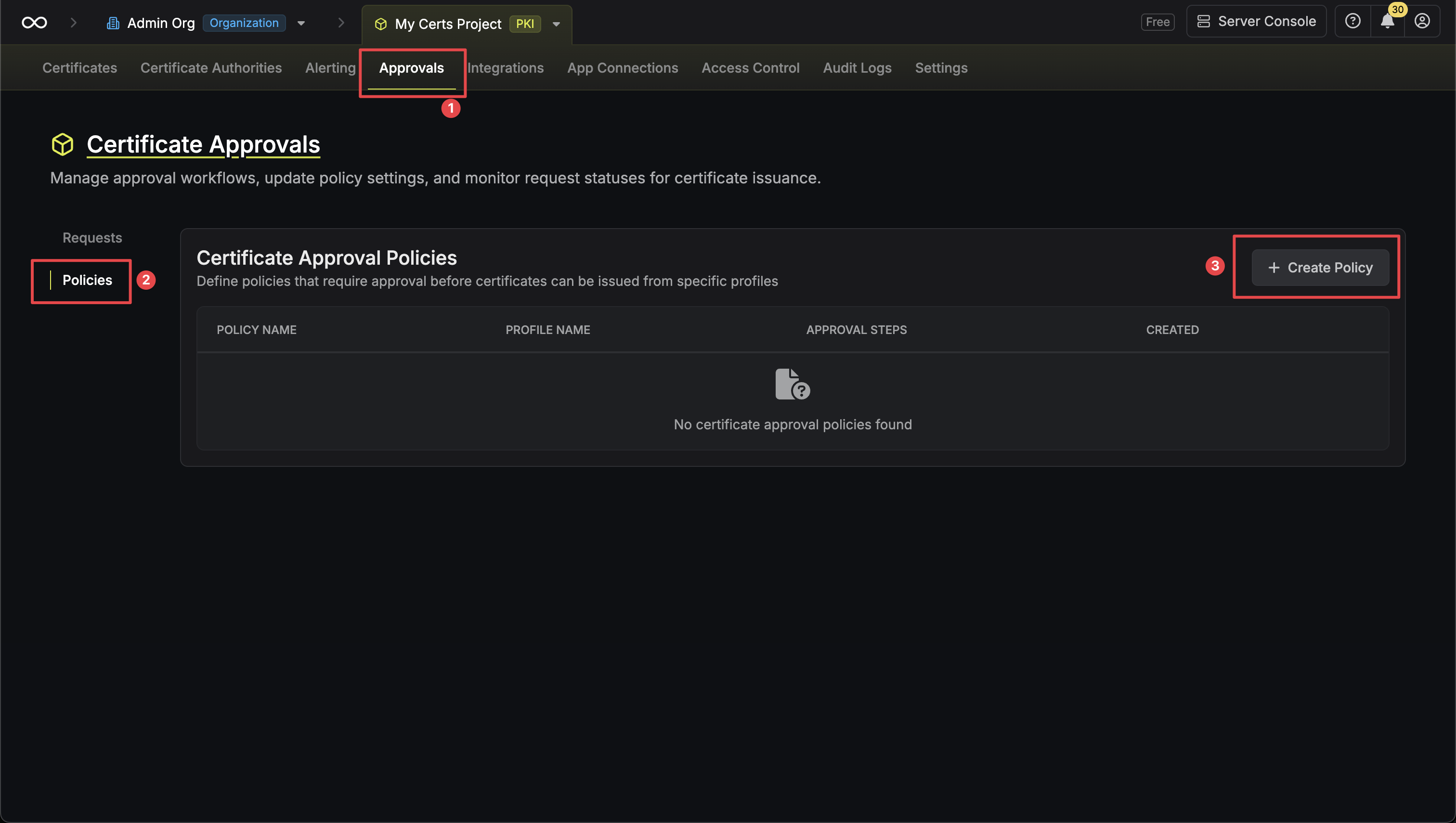
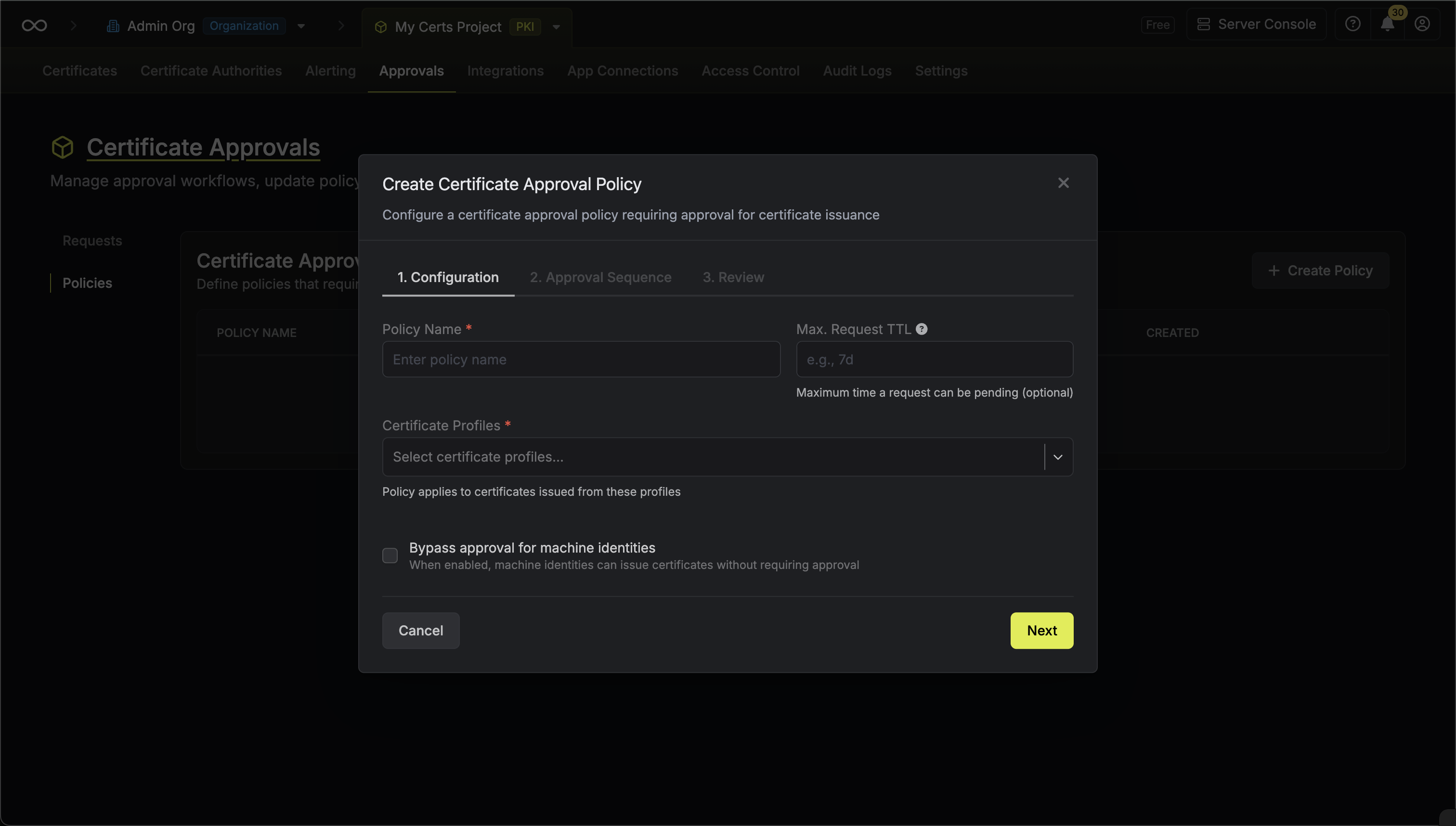
}
;
};
---
# Source: https://infisical.com/docs/documentation/platform/gateways/gateway-deployment.md
> ## Documentation Index
> Fetch the complete documentation index at: https://infisical.com/docs/llms.txt
> Use this file to discover all available pages before exploring further.
# Gateway Deployment
> Complete guide to deploying Infisical Gateways including network configuration and firewall requirements
Infisical Gateways enables secure communication between your private resources and the Infisical platform without exposing inbound ports in your network.
This guide covers everything you need to deploy and configure Infisical Gateways.
## Deployment Steps
To successfully deploy an Infisical Gateway for use, follow these steps in order.
Create a machine identity with the correct permissions to create and manage gateways. This identity is used by the gateway to authenticate with Infisical and should be provisioned in advance.
The gateway supports several [machine identity auth methods](/documentation/platform/identities/machine-identities), as listed below. Choose the one that best fits your environment and set the corresponding environment variables when deploying the gateway.
Simple and secure authentication using client ID and client secret.
**Environment Variables:**
* `INFISICAL_AUTH_METHOD=universal-auth`
* `INFISICAL_UNIVERSAL_AUTH_CLIENT_ID=`
* `INFISICAL_UNIVERSAL_AUTH_CLIENT_SECRET=`
Direct authentication using a machine identity access token.
**Environment Variables:**
* `INFISICAL_TOKEN=`
Authentication using Kubernetes service account tokens.
**Environment Variables:**
* `INFISICAL_AUTH_METHOD=kubernetes`
* `INFISICAL_MACHINE_IDENTITY_ID=`
Authentication using AWS IAM roles.
**Environment Variables:**
* `INFISICAL_AUTH_METHOD=aws-iam`
* `INFISICAL_MACHINE_IDENTITY_ID=`
Authentication using GCP identity tokens.
**Environment Variables:**
* `INFISICAL_AUTH_METHOD=gcp-id-token`
* `INFISICAL_MACHINE_IDENTITY_ID=`
Authentication using GCP service account keys.
**Environment Variables:**
* `INFISICAL_AUTH_METHOD=gcp-iam`
* `INFISICAL_MACHINE_IDENTITY_ID=`
* `INFISICAL_GCP_SERVICE_ACCOUNT_KEY_FILE_PATH=`
Authentication using Azure managed identity.
**Environment Variables:**
* `INFISICAL_AUTH_METHOD=azure`
* `INFISICAL_MACHINE_IDENTITY_ID=`
Authentication using OIDC identity tokens.
**Environment Variables:**
* `INFISICAL_AUTH_METHOD=oidc-auth`
* `INFISICAL_MACHINE_IDENTITY_ID=`
* `INFISICAL_JWT=`
Authentication using JWT tokens.
**Environment Variables:**
* `INFISICAL_AUTH_METHOD=jwt-auth`
* `INFISICAL_MACHINE_IDENTITY_ID=`
* `INFISICAL_JWT=`
Ensure a relay server is running and accessible before you deploy any gateways. You have two options:
* **Managed relay (Infisical Cloud, US/EU only):** Managed relays are only available for Infisical Cloud instances in the US and EU regions. If you are using Infisical Cloud in these regions, you can use the provided managed relay.
* **Self-hosted relay:** For all other cases, including all self-hosted and dedicated enterprise instances of Infisical, you must deploy your own relay server. You can also choose to deploy your own relay server when using Infisical Cloud if you require reduced geographic proximity to your target resources for lower latency or to reduce network congestion. For setup instructions, see the [Relay Deployment Guide](/documentation/platform/gateways/relay-deployment).
Make sure the Infisical CLI is installed on the machine or environment where you plan to deploy the gateway. The CLI is required for gateway installation and management.
See the [CLI Installation Guide](/cli/overview) for instructions.
Ensure your network and firewall settings allow the gateway to connect to all required services. All connections are outbound only; no inbound ports need to be opened.
| Protocol | Destination | Port | Purpose |
| -------- | -------------------------------------- | ---- | ------------------------------------------ |
| TCP | Relay Server IP/Hostname | 2222 | SSH reverse tunnel establishment |
| TCP | Infisical instance host (US/EU, other) | 443 | API communication and certificate requests |
For managed relays, allow outbound traffic to the provided relay server IP/hostname. For self-hosted relays, allow outbound traffic to your own relay server address.
If you are in a corporate environment with strict egress filtering, ensure outbound TCP 2222 to relay servers and outbound HTTPS 443 to Infisical API endpoints are allowed.
The Infisical CLI is used to install and start the gateway in your chosen environment. The CLI provides commands for both production and development scenarios, and supports a variety of options/flags to configure your deployment.
To view all available flags and equivalent environment variables for gateway deployment, see the [Gateway CLI Command Reference](/cli/commands/gateway).
For production deployments on Linux servers, install the Gateway as a systemd service so that it runs securely in the background and automatically restarts on failure or system reboot:
```bash theme={"dark"}
sudo infisical gateway systemd install --token --domain --name
sudo systemctl start infisical-gateway
```
By default, the gateway connects to the most optimal relay. Use the `--target-relay-name` flag to manually specify a different relay server.
The systemd install command requires a Linux operating system with root/sudo
privileges.
For production deployments on Kubernetes clusters, install the Gateway using the Infisical Helm chart:
#### Install the latest Helm Chart repository
```bash theme={"dark"}
helm repo add infisical-helm-charts 'https://dl.cloudsmith.io/public/infisical/helm-charts/helm/charts/'
helm repo update
```
#### Create a Kubernetes Secret
The gateway supports all identity authentication methods through environment variables:
```bash theme={"dark"}
kubectl create secret generic infisical-gateway-environment \
--from-literal=INFISICAL_AUTH_METHOD=universal-auth \
--from-literal=INFISICAL_UNIVERSAL_AUTH_CLIENT_ID= \
--from-literal=INFISICAL_UNIVERSAL_AUTH_CLIENT_SECRET= \
--from-literal=INFISICAL_GATEWAY_NAME=
```
By default, the gateway connects to the most optimal relay. Use the `--from-literal=INFISICAL_RELAY_NAME=` flag to manually specify a different relay server.
#### Install the Gateway
```bash theme={"dark"}
helm install infisical-gateway infisical-helm-charts/infisical-gateway
```
For development or testing environments:
```bash theme={"dark"}
sudo infisical gateway start --token --name=
```
By default, the gateway connects to the most optimal relay. Use the `--target-relay-name` flag to manually specify a different relay server.
After deployment, verify your gateway is working:
1. **Check logs** for "Gateway started successfully" message indicating the gateway is running and connected to the relay
2. **Verify registration** in the Infisical by visiting the Gateways section of your organization. The new gateway should appear with a recent heartbeat timestamp.
3. **Test connectivity** by creating a resource in Infisical that uses the gateway to access a private service. Verify the resource can successfully connect through the gateway.
## Frequently Asked Questions
No inbound ports need to be opened for gateways. The gateway only makes outbound connections:
* **Outbound SSH** to relay servers on port 2222
* **Outbound HTTPS** to Infisical API endpoints on port 443
* **SSH reverse tunnels** handle all communication - no return traffic configuration needed
This design maintains security by avoiding the need for inbound firewall rules that could expose your network to external threats.
Test relay connectivity and outbound API access from the gateway:
1. Test SSH port to relay:
```bash theme={"dark"}
nc -zv 2222
```
2. Test outbound API access (replace with your Infisical domain if different):
```bash theme={"dark"}
curl -I https://app.infisical.com
```
If the gateway cannot connect to the relay:
1. Verify the relay server is running and accessible
2. Check firewall rules allow outbound connections on port 2222
3. Confirm the relay name matches exactly
4. Test SSH port to relay:
```bash theme={"dark"}
nc -zv 2222
```
If you encounter authentication failures:
1. Verify machine identity credentials are correct
2. Check token expiration and renewal
3. Ensure authentication method is properly configured
Check gateway logs for detailed error information:
* **systemd service:**
```bash theme={"dark"}
sudo journalctl -u infisical-gateway -f
```
* **Kubernetes:**
```bash theme={"dark"}
kubectl logs deployment/infisical-gateway
```
* **Local installation:** Logs appear in the terminal where you started the gateway
For systemd-based installations, the gateway's configuration file is stored at `/etc/infisical/gateway.conf`. You may reference or inspect this file for troubleshooting advanced configuration issues.
The gateway is designed to handle network interruptions gracefully:
* **Automatic reconnection**: The gateway will automatically attempt to reconnect to relay servers if the SSH connection is lost
* **Connection retry logic**: Built-in retry mechanisms handle temporary network outages without manual intervention
* **Persistent SSH tunnels**: SSH connections are automatically re-established when connectivity is restored
* **Certificate rotation**: The gateway handles certificate renewal automatically during reconnection
* **Graceful degradation**: The gateway logs connection issues and continues attempting to restore connectivity
No manual intervention is typically required during network interruptions.
---
# Source: https://infisical.com/docs/cli/commands/gateway.md
> ## Documentation Index
> Fetch the complete documentation index at: https://infisical.com/docs/llms.txt
> Use this file to discover all available pages before exploring further.
# infisical gateway
> Run the Infisical gateway or manage its systemd service
```bash theme={"dark"}
sudo infisical gateway start --name= --auth-method=
```
```bash theme={"dark"}
sudo infisical gateway systemd install --token= --domain= --name=
```
## Description
The Infisical gateway provides secure access to private resources using modern TCP-based SSH tunnel architecture with enhanced security and flexible deployment options.
The gateway system uses SSH reverse tunnels over TCP, eliminating firewall complexity and providing excellent performance for enterprise environments.
**Deprecation and Migration Notice:** The legacy `infisical gateway` command (v1) will be removed in a future release. Please migrate to `infisical gateway start` (Gateway v2).
If you are moving from Gateway v1 to Gateway v2, this is NOT a drop-in switch. Gateway v2 creates new gateway instances with new gateway IDs. You must update any existing resources that reference gateway IDs (for example: dynamic secret configs, app connections, or other gateway-bound resources) to point to the new Gateway v2 gateway resource. Until you update those references, traffic will continue to target the old v1 gateway.
## Subcommands & flags
Run the Infisical gateway component within your the network where your target resources are located. The gateway establishes an SSH reverse tunnel to a relay server and provides secure access to private resources within your network.
```bash theme={"dark"}
sudo infisical gateway start --name= --auth-method=
```
By default, the gateway automatically connects to the relay with the lowest latency. To target a specific relay, use the `--target-relay-name=` flag.
Once started, the gateway component will:
* Automatically connect to a healthy relay with the lowest latency (unless the `--target-relay-name` flag is specified)
* Establish outbound SSH reverse tunnel to relay server (no inbound firewall rules needed)
* Authenticate using SSH certificates issued by Infisical
* Automatically reconnect if the connection is lost
* Provide access to private resources within your network
### Authentication
The Gateway supports multiple authentication methods. Below are the available authentication methods, with their respective flags.
The Universal Auth method is a simple and secure way to authenticate with Infisical. It requires a client ID and a client secret to authenticate with Infisical.
Your machine identity client ID.
Your machine identity client secret.
The authentication method to use. Must be `universal-auth` when using Universal Auth.
```bash theme={"dark"}
sudo infisical gateway start --auth-method=universal-auth --client-id= --client-secret= --name=
```
The Native Kubernetes method is used to authenticate with Infisical when running in a Kubernetes environment. It requires a service account token to authenticate with Infisical.
Your machine identity ID.
Path to the Kubernetes service account token to use. Default: `/var/run/secrets/kubernetes.io/serviceaccount/token`.
The authentication method to use. Must be `kubernetes` when using Native Kubernetes.
```bash theme={"dark"}
sudo infisical gateway start --auth-method=kubernetes --machine-identity-id= --name=
```
The Native Azure method is used to authenticate with Infisical when running in an Azure environment.
Your machine identity ID.
The authentication method to use. Must be `azure` when using Native Azure.
```bash theme={"dark"}
sudo infisical gateway start --auth-method=azure --machine-identity-id= --name=
```
The Native GCP ID Token method is used to authenticate with Infisical when running in a GCP environment.
Your machine identity ID.
The authentication method to use. Must be `gcp-id-token` when using Native GCP ID Token.
```bash theme={"dark"}
sudo infisical gateway start --auth-method=gcp-id-token --machine-identity-id= --name=
```
The GCP IAM method is used to authenticate with Infisical with a GCP service account key.
Your machine identity ID.
Path to your GCP service account key file *(Must be in JSON format!)*
The authentication method to use. Must be `gcp-iam` when using GCP IAM.
```bash theme={"dark"}
sudo infisical gateway start --auth-method=gcp-iam --machine-identity-id= --service-account-key-file-path= --name=
```
The AWS IAM method is used to authenticate with Infisical with an AWS IAM role while running in an AWS environment like EC2, Lambda, etc.
Your machine identity ID.
The authentication method to use. Must be `aws-iam` when using Native AWS IAM.
```bash theme={"dark"}
sudo infisical gateway start --auth-method=aws-iam --machine-identity-id= --name=
```
The OIDC Auth method is used to authenticate with Infisical via identity tokens with OIDC.
Your machine identity ID.
The OIDC JWT from the identity provider.
The authentication method to use. Must be `oidc-auth` when using OIDC Auth.
```bash theme={"dark"}
sudo infisical gateway start --auth-method=oidc-auth --machine-identity-id= --jwt= --name=
```
The JWT Auth method is used to authenticate with Infisical via a JWT token.
The JWT token to use for authentication.
Your machine identity ID.
The authentication method to use. Must be `jwt-auth` when using JWT Auth.
```bash theme={"dark"}
sudo infisical gateway start --auth-method=jwt-auth --jwt= --machine-identity-id= --name=
```
You can use the `INFISICAL_TOKEN` environment variable to authenticate with Infisical with a raw machine identity access token.
The machine identity access token to use for authentication.
```bash theme={"dark"}
sudo infisical gateway start --token= --name=
```
### Other Flags
The name of the relay that this gateway should connect to. The relay must be running and registered before starting the gateway.
If this flag is omitted, the gateway will automatically connect to a healthy relay with the lowest latency.
```bash theme={"dark"}
# Example
sudo infisical gateway start --target-relay-name=my-relay --name=my-gateway --token=
```
**Note:** For Infisical Cloud users using instance relays, the relay infrastructure is already running and managed by Infisical. If using organization relays or self-hosted instance relays, you must first start a relay server. For more information on deploying relays, refer to the [Relay Deployment Guide](/documentation/platform/gateways/relay-deployment).
The name of the gateway instance.
```bash theme={"dark"}
# Example
sudo infisical gateway start --name=my-gateway --token=
```
Domain of your self-hosted Infisical instance.
```bash theme={"dark"}
# Example
sudo infisical gateway start --domain=https://app.your-domain.com --name=
```
Install and enable the gateway as a systemd service. This command must be run with sudo on Linux.
```bash theme={"dark"}
sudo infisical gateway systemd install --token= --domain= --name=
```
### Requirements
* Must be run on Linux
* Must be run with root/sudo privileges
* Requires systemd
### Flags
The machine identity access token to authenticate with Infisical.
```bash theme={"dark"}
# Example
sudo infisical gateway systemd install --token= --name=
```
You may also expose the token to the CLI by setting the environment variable `INFISICAL_TOKEN` before executing the install command.
Domain of your self-hosted Infisical instance.
```bash theme={"dark"}
# Example
sudo infisical gateway systemd install --domain=https://app.your-domain.com --name=
```
The name of the gateway instance.
```bash theme={"dark"}
# Example
sudo infisical gateway systemd install --name=my-gateway --token=
```
The name of the relay that this gateway should connect to. The relay must be running and registered before starting the gateway.
If this flag is omitted, the gateway will automatically connect to a healthy relay with the lowest latency.
```bash theme={"dark"}
# Example
sudo infisical gateway systemd install --target-relay-name=my-relay --token= --name=
```
**Note:** For Infisical Cloud users using instance relays, the relay infrastructure is already running and managed by Infisical. If using organization relays or self-hosted instance relays, you must first start a relay server. For more information on deploying relays, refer to the [Relay Deployment Guide](/documentation/platform/gateways/relay-deployment).
### Service Details
The systemd service is installed with secure defaults:
* Service file: `/etc/systemd/system/infisical-gateway.service`
* Config file: `/etc/infisical/gateway.conf`
* Runs with restricted privileges:
* InaccessibleDirectories=/home
* PrivateTmp=yes
* Resource limits configured for stability
* Automatically restarts on failure
* Enabled to start on boot
* Maintains persistent SSH reverse tunnel connections to the specified relay
* Handles certificate rotation and connection recovery automatically
After installation, manage the service with standard systemd commands:
```bash theme={"dark"}
sudo systemctl start infisical-gateway # Start the service
sudo systemctl stop infisical-gateway # Stop the service
sudo systemctl status infisical-gateway # Check service status
sudo systemctl disable infisical-gateway # Disable auto-start on boot
```
## Legacy Gateway Commands
**This command is deprecated and will be removed in a future release.**
Please migrate to `infisical gateway start` for the new TCP-based SSH tunnel architecture.
**Migration required:** If you are currently using Gateway v1 (via `infisical gateway`), moving to Gateway v2 is not in-place. Gateway v2 provisions new gateway instances with new gateway IDs. Update any resources that reference a gateway ID (for example: dynamic secret configs, app connections, or other gateway-bound resources) to use the new Gateway v2 gateway ID. Until you update those references, traffic will continue to target the old v1 gateway.
Run the legacy Infisical gateway in the foreground. The gateway will connect to the relay service and maintain a persistent connection.
```bash theme={"dark"}
infisical gateway --domain= --auth-method=
```
### Authentication
The Infisical CLI supports multiple authentication methods. Below are the available authentication methods, with their respective flags.
The Universal Auth method is a simple and secure way to authenticate with Infisical. It requires a client ID and a client secret to authenticate with Infisical.
Your machine identity client ID.
Your machine identity client secret.
The authentication method to use. Must be `universal-auth` when using Universal Auth.
```bash theme={"dark"}
infisical gateway --auth-method=universal-auth --client-id= --client-secret=
```
The Native Kubernetes method is used to authenticate with Infisical when running in a Kubernetes environment. It requires a service account token to authenticate with Infisical.
Your machine identity ID.
Path to the Kubernetes service account token to use. Default: `/var/run/secrets/kubernetes.io/serviceaccount/token`.
The authentication method to use. Must be `kubernetes` when using Native Kubernetes.
```bash theme={"dark"}
infisical gateway --auth-method=kubernetes --machine-identity-id=
```
The Native Azure method is used to authenticate with Infisical when running in an Azure environment.
Your machine identity ID.
The authentication method to use. Must be `azure` when using Native Azure.
```bash theme={"dark"}
infisical gateway --auth-method=azure --machine-identity-id=
```
The Native GCP ID Token method is used to authenticate with Infisical when running in a GCP environment.
Your machine identity ID.
The authentication method to use. Must be `gcp-id-token` when using Native GCP ID Token.
```bash theme={"dark"}
infisical gateway --auth-method=gcp-id-token --machine-identity-id=
```
The GCP IAM method is used to authenticate with Infisical with a GCP service account key.
Your machine identity ID.
Path to your GCP service account key file *(Must be in JSON format!)*
The authentication method to use. Must be `gcp-iam` when using GCP IAM.
```bash theme={"dark"}
infisical gateway --auth-method=gcp-iam --machine-identity-id= --service-account-key-file-path=
```
The AWS IAM method is used to authenticate with Infisical with an AWS IAM role while running in an AWS environment like EC2, Lambda, etc.
Your machine identity ID.
The authentication method to use. Must be `aws-iam` when using Native AWS IAM.
```bash theme={"dark"}
infisical gateway --auth-method=aws-iam --machine-identity-id=
```
The OIDC Auth method is used to authenticate with Infisical via identity tokens with OIDC.
Your machine identity ID.
The OIDC JWT from the identity provider.
The authentication method to use. Must be `oidc-auth` when using OIDC Auth.
```bash theme={"dark"}
infisical gateway --auth-method=oidc-auth --machine-identity-id= --jwt=
```
The JWT Auth method is used to authenticate with Infisical via a JWT token.
The JWT token to use for authentication.
Your machine identity ID.
The authentication method to use. Must be `jwt-auth` when using JWT Auth.
```bash theme={"dark"}
infisical gateway --auth-method=jwt-auth --jwt= --machine-identity-id=
```
You can use the `INFISICAL_TOKEN` environment variable to authenticate with Infisical with a raw machine identity access token.
The machine identity access token to use for authentication.
```bash theme={"dark"}
infisical gateway --token=
```
### Other Flags
Domain of your self-hosted Infisical instance.
```bash theme={"dark"}
# Example
infisical gateway --domain=https://app.your-domain.com
```
**This command is deprecated and will be removed in a future release.**
Please migrate to `infisical gateway systemd install` for the new TCP-based SSH tunnel architecture with enhanced security and better performance.
**Migration required:** If you previously installed Gateway v1 via `infisical gateway install`, moving to Gateway v2 is not in-place. Gateway v2 provisions new gateway instances with new gateway IDs. Update any resources that reference a gateway ID (for example: dynamic secret configs, app connections, or other gateway-bound resources) to use the new Gateway v2 gateway ID. Until you update those references, traffic will continue to target the old v1 gateway.
Install and enable the legacy gateway as a systemd service. This command must be run with sudo on Linux.
```bash theme={"dark"}
sudo infisical gateway install --token= --domain=
```
### Requirements
* Must be run on Linux
* Must be run with root/sudo privileges
* Requires systemd
### Flags
The machine identity access token to authenticate with Infisical.
```bash theme={"dark"}
# Example
sudo infisical gateway install --token=
```
You may also expose the token to the CLI by setting the environment variable `INFISICAL_TOKEN` before executing the install command.
Domain of your self-hosted Infisical instance.
```bash theme={"dark"}
# Example
sudo infisical gateway install --domain=https://app.your-domain.com
```
### Service Details
The systemd service is installed with secure defaults:
* Service file: `/etc/systemd/system/infisical-gateway.service`
* Config file: `/etc/infisical/gateway.conf`
* Runs with restricted privileges:
* InaccessibleDirectories=/home
* PrivateTmp=yes
* Resource limits configured for stability
* Automatically restarts on failure
* Enabled to start on boot
After installation, manage the service with standard systemd commands:
```bash theme={"dark"}
sudo systemctl start infisical-gateway # Start the service
sudo systemctl stop infisical-gateway # Stop the service
sudo systemctl status infisical-gateway # Check service status
sudo systemctl disable infisical-gateway # Disable auto-start on boot
```
## Frequently Asked Questions
If the `--target-relay-name` flag is omitted, the gateway automatically selects the optimal relay. It first checks for healthy organization relays and connects to the one with the lowest latency. If no organization relays are available, it then performs the same latency-based selection among the available managed relays.
No. The first time the gateway starts, it selects the optimal relay (based on latency) and caches that selection. On subsequent restarts, it will prioritize connecting to the cached relay. If it's unable to connect, it will then re-evaluate and connect to the next most optimal relay available.
---
# Source: https://infisical.com/docs/integrations/frameworks/gatsby.md
> ## Documentation Index
> Fetch the complete documentation index at: https://infisical.com/docs/llms.txt
> Use this file to discover all available pages before exploring further.
# Gatsby
> How to use Infisical to inject environment variables and secrets into a Gatsby app.
Prerequisites:
* Set up and add envars to [Infisical Cloud](https://app.infisical.com)
* [Install the CLI](/cli/overview)
## Initialize Infisical for your [Gatsby](https://www.gatsbyjs.com) app
```bash theme={"dark"}
# navigate to the root of your of your project
cd /path/to/project
# then initialize Infisical
infisical init
```
## Start your application as usual but with Infisical
```bash theme={"dark"}
infisical run --
# Example
infisical run -- npm run develop
```
Note that for environment variables to be exposed to the client, you'll have
to prefix them with `GATSBY_`. Read more about that
[here](https://www.gatsbyjs.com/docs/how-to/local-development/environment-variables/#accessing-environment-variables-in-the-browser).
---
# Source: https://infisical.com/docs/documentation/platform/identities/gcp-auth.md
> ## Documentation Index
> Fetch the complete documentation index at: https://infisical.com/docs/llms.txt
> Use this file to discover all available pages before exploring further.
# GCP Auth
> Learn how to authenticate with Infisical for services on Google Cloud Platform
**GCP Auth** is a GCP-native authentication method for GCP resources to access Infisical. It consists of two sub-methods/approaches:
* GCP ID Token Auth: For GCP services including [Compute Engine](https://cloud.google.com/compute/docs/instances/verifying-instance-identity#request_signature), [App Engine standard environment](https://cloud.google.com/appengine/docs/standard/python3/runtime#metadata_server), [App Engine flexible environment](https://cloud.google.com/appengine/docs/flexible/python/runtime#metadata_server), [Cloud Functions](https://cloud.google.com/functions/docs/securing/function-identity#using_the_metadata_server_to_acquire_tokens), [Cloud Run](https://cloud.google.com/run/docs/container-contract#metadata-server), [Google Kubernetes Engine](https://cloud.google.com/kubernetes-engine/docs/concepts/workload-identity#instance_metadata), and [Cloud Build](https://cloud.google.com/kubernetes-engine/docs/concepts/workload-identity#instance_metadata) to authenticate with Infisical.
* GCP IAM Auth: For Google Cloud Platform (GCP) service accounts to authenticate with Infisical.
## Diagram
The following sequence diagram illustrates the GCP ID Token Auth workflow for authenticating GCP resources with Infisical.
```mermaid theme={"dark"}
sequenceDiagram
participant GCE as GCP Service
participant Infis as Infisical
participant Google as OAuth2 API
Note over GCE,Google: Step 1: Instance Identity Token Retrieval
GCE->>Google: Request instance identity metadata token
Google-->>GCE: Return JWT token with RS256 signature
Note over GCE,Infis: Step 2: Identity Token Login Operation
GCE->>Infis: Send JWT token to /api/v1/auth/gcp-auth/login
Infis->>Google: Request OAuth2 certificates
Google-->>Infis: Return certificates
Note over Infis: Step 3: Identity Token Verification
Note over Infis: Step 4: Identity Property Validation
Infis->>GCE: Return short-lived access token
Note over GCE,Infis: Step 4: Access Infisical API with Token
GCE->>Infis: Make authenticated requests using the short-lived access token
```
## Concept
At a high-level, Infisical authenticates a GCP resource by verifying its identity and checking that it meets specific requirements (e.g. it is an allowed GCE instance) at the `/api/v1/auth/gcp-auth/login` endpoint. If successful,
then Infisical returns a short-lived access token that can be used to make authenticated requests to the Infisical API.
To be more specific:
1. The client running on a GCP service obtains an [ID token](https://cloud.google.com/docs/authentication/get-id-token) constituting the identity for a GCP resource such as a GCE instance or Cloud Function; this is a unique JWT token that includes details about the instance as well as Google's [RS256 signature](https://datatracker.ietf.org/doc/html/rfc7518#section-3.3).
2. The client sends the ID token to Infisical at the `/api/v1/auth/gcp-auth/login` endpoint.
3. Infisical verifies the token against Google's [public OAuth2 certificates](https://www.googleapis.com/oauth2/v3/certs).
4. Infisical checks if the entity behind the ID token is allowed to authenticate with Infisical based on set criteria such as **Allowed Service Account Emails**.
5. If all is well, Infisical returns a short-lived access token that the client can use to make authenticated requests to the Infisical API.
We recommend using one of Infisical's clients like SDKs or the Infisical Agent
to authenticate with Infisical using GCP ID Token Auth as they handle the
authentication process including generating the instance ID token for you.
Also, note that Infisical needs network-level access to send requests to the Google Cloud API
as part of the GCP Auth workflow.
## Guide
In the following steps, we explore how to create and use identities for your workloads and applications on GCP to
access the Infisical API using the GCP ID Token authentication method.
To create an identity, head to your Organization Settings > Access Control > Identities and press **Create identity**.
When creating an identity, you specify an organization level [role](/documentation/platform/access-controls/role-based-access-controls) for it to assume; you can configure roles in Organization Settings > Access Control > Organization Roles.
Now input a few details for your new identity. Here's some guidance for each field:
* Name (required): A friendly name for the identity.
* Role (required): A role from the **Organization Roles** tab for the identity to assume. The organization role assigned will determine what organization level resources this identity can have access to.
Once you've created an identity, you'll be redirected to a page where you can manage the identity.
Since the identity has been configured with Universal Auth by default, you should re-configure it to use GCP Auth instead. To do this, press to edit the **Authentication** section,
remove the existing Universal Auth configuration, and add a new GCP Auth configuration onto the identity; set the **Type** field to **GCP ID Token Auth**.
Here's some more guidance on each field:
* Allowed Service Account Emails: A comma-separated list of trusted service account emails corresponding to the GCE resource(s) allowed to authenticate with Infisical; this could be something like `test@project.iam.gserviceaccount.com`, `12345-compute@developer.gserviceaccount.com`, etc.
* Allowed Projects: A comma-separated list of trusted GCP projects that the GCE instance must belong to authenticate with Infisical. Note that this validation property will only work for GCE instances.
* Allowed Zones: A comma-separated list of trusted zones that the GCE instances must belong to authenticate with Infisical; this should be the fully-qualified zone name in the format `-`like `us-central1-a`, `us-west1-b`, etc. Note that this validation property will only work for GCE instances.
* Access Token TTL (default is `2592000` equivalent to 30 days): The lifetime for an acccess token in seconds. This value will be referenced at renewal time.
* Access Token Max TTL (default is `2592000` equivalent to 30 days): The maximum lifetime for an acccess token in seconds. This value will be referenced at renewal time.
* Access Token Max Number of Uses (default is `0`): The maximum number of times that an access token can be used; a value of `0` implies infinite number of uses.
* Access Token Trusted IPs: The IPs or CIDR ranges that access tokens can be used from. By default, each token is given the `0.0.0.0/0`, allowing usage from any network address.
To enable the identity to access project-level resources such as secrets within a specific project, you should add it to that project.
To do this, head over to the project you want to add the identity to and go to Project Settings > Access Control > Machine Identities and press **Add identity**.
Next, select the identity you want to add to the project and the project level role you want to allow it to assume. The project role assigned will determine what project level resources this identity can have access to.
To access the Infisical API as the identity, you need to generate an [ID token](https://cloud.google.com/docs/authentication/get-id-token) constituting the identity of the present GCE instance and make a request to the `/api/v1/auth/gcp-auth/login` endpoint containing the token in exchange for an access token.
We provide a few code examples below of how you can authenticate with Infisical to access the [Infisical API](/api-reference/overview/introduction).
Start by making a request from the GCE instance to obtain the ID token.
For more examples of how to obtain the token in Java, Go, Node.js, etc. refer to the [official documentation](https://cloud.google.com/docs/authentication/get-id-token#curl).
#### Sample request
```bash curl theme={"dark"}
curl -H "Metadata-Flavor: Google" \
'http://metadata/computeMetadata/v1/instance/service-accounts/default/identity?audience=&format=full'
```
Note that you should replace `` with the ID of the identity you created in step 1.
Next use send the obtained JWT token along to authenticate with Infisical and obtain an access token.
#### Sample request
```bash Request theme={"dark"}
curl --location --request POST 'https://app.infisical.com/api/v1/auth/gcp-auth/login' \
--header 'Content-Type: application/x-www-form-urlencoded' \
--data-urlencode 'identityId=...' \
--data-urlencode 'jwt=...'
```
#### Sample response
```bash Response theme={"dark"}
{
"accessToken": "...",
"expiresIn": 7200,
"accessTokenMaxTTL": 43244
"tokenType": "Bearer"
}
```
Next, you can use the access token to access the [Infisical API](/api-reference/overview/introduction)
We recommend using one of Infisical's clients like SDKs or the Infisical Agent to authenticate with Infisical using GCP IAM Auth as they handle the authentication process including generating the signed JWT token.
Each identity access token has a time-to-live (TTL) which you can infer from the response of the login operation;
the default TTL is `7200` seconds which can be adjusted.
If an identity access token expires, it can no longer authenticate with the Infisical API. In this case,
a new access token should be obtained by performing another login operation.
## Diagram
The following sequence diagram illustrates the GCP IAM Auth workflow for authenticating GCP IAM service accounts with Infisical.
```mermaid theme={"dark"}
sequenceDiagram
participant GCE as Client
participant Infis as Infisical
participant Google as Cloud IAM
Note over GCE,Google: Step 1: Signed JWT Token Generation
GCE->>Google: Request to generate signed JWT token
Google-->>GCE: Return signed JWT token
Note over GCE,Infis: Step 2: JWT Token Login Operation
GCE->>Infis: Send signed JWT token to /api/v1/auth/gcp-auth/login
Infis->>Google: Request public key
Google-->>Infis: Return public key
Note over Infis: Step 3: JWT Token Verification
Note over Infis: Step 4: JWT Property Validation
Infis->>GCE: Return short-lived access token
Note over GCE,Infis: Step 5: Access Infisical API with Token
GCE->>Infis: Make authenticated requests using the short-lived access token
```
## Concept
At a high-level, Infisical authenticates an IAM service account by verifying its identity and checking that it meets specific requirements (e.g. it is an allowed service account) at the `/api/v1/auth/gcp-auth/login` endpoint. If successful,
then Infisical returns a short-lived access token that can be used to make authenticated requests to the Infisical API.
To be more specific:
1. The client generates a signed JWT token using the `projects.serviceAccounts.signJwt` [API method](https://cloud.google.com/iam/docs/reference/credentials/rest/v1/projects.serviceAccounts/signJwt); this is done using the service account credentials associated with the client.
2. The client sends the signed JWT token to Infisical at the `/api/v1/auth/gcp-auth/login` endpoint.
3. Infisical verifies the signed JWT token.
4. Infisical checks if the service account behind the JWT token is allowed to authenticate with Infisical based **Allowed Service Account Emails**.
5. If all is well, Infisical returns a short-lived access token that the client can use to make authenticated requests to the Infisical API.
We recommend using one of Infisical's clients like SDKs or the Infisical Agent
to authenticate with Infisical using GCP IAM Auth as they handle the
authentication process including generating the signed JWT token.
Also, note that Infisical needs network-level access to send requests to the Google Cloud API
as part of the GCP Auth workflow.
## Guide
In the following steps, we explore how to create and use identities for your workloads and applications on GCP to
access the Infisical API using the GCP IAM authentication method.
To create an identity, head to your Organization Settings > Access Control > Identities and press **Create identity**.
When creating an identity, you specify an organization level [role](/documentation/platform/access-controls/role-based-access-controls) for it to assume; you can configure roles in Organization Settings > Access Control > Organization Roles.
Now input a few details for your new identity. Here's some guidance for each field:
* Name (required): A friendly name for the identity.
* Role (required): A role from the **Organization Roles** tab for the identity to assume. The organization role assigned will determine what organization level resources this identity can have access to.
Once you've created an identity, you'll be redirected to a page where you can manage the identity.
Since the identity has been configured with Universal Auth by default, you should re-configure it to use GCP Auth instead. To do this, press to edit the **Authentication** section,
remove the existing Universal Auth configuration, and add a new GCP Auth configuration onto the identity; set the **Type** field to **GCP IAM Auth**.
Here's some more guidance on each field:
* Allowed Service Account Emails: A comma-separated list of trusted IAM service account emails that are allowed to authenticate with Infisical; this could be something like `test@project.iam.gserviceaccount.com`, `12345-compute@developer.gserviceaccount.com`, etc.
* Access Token TTL (default is `2592000` equivalent to 30 days): The lifetime for an acccess token in seconds. This value will be referenced at renewal time.
* Access Token Max TTL (default is `2592000` equivalent to 30 days): The maximum lifetime for an acccess token in seconds. This value will be referenced at renewal time.
* Access Token Max Number of Uses (default is `0`): The maximum number of times that an access token can be used; a value of `0` implies infinite number of uses.
* Access Token Trusted IPs: The IPs or CIDR ranges that access tokens can be used from. By default, each token is given the `0.0.0.0/0`, allowing usage from any network address.
To enable the identity to access project-level resources such as secrets within a specific project, you should add it to that project.
To do this, head over to the project you want to add the identity to and go to Project Settings > Access Control > Machine Identities and press **Add identity**.
Next, select the identity you want to add to the project and the project level role you want to allow it to assume. The project role assigned will determine what project level resources this identity can have access to.
To access the Infisical API as the identity, you need to generate a signed JWT token using the `projects.serviceAccounts.signJwt` [API method](https://cloud.google.com/iam/docs/reference/credentials/rest/v1/projects.serviceAccounts/signJwt) and make a request to the `/api/v1/auth/gcp-auth/login` endpoint containing the signed JWT token in exchange for an access token.
Make sure that the service account has the `iam.serviceAccounts.signJwt` permission or the `roles/iam.serviceAccountTokenCreator` role.
We provide a few code examples below of how you can authenticate with Infisical to access the [Infisical API](/api-reference/overview/introduction).
The following code provides a generic example of how you can generate a signed JWT token against the `projects.serviceAccounts.signJwt` API method.
The shown example uses Node.js and the official [google-auth-library](https://github.com/googleapis/google-auth-library-nodejs#readme) package but you can use any language you wish.
```javascript theme={"dark"}
const { GoogleAuth } = require("google-auth-library");
const auth = new GoogleAuth({
scopes: "https://www.googleapis.com/auth/cloud-platform",
});
const credentials = await auth.getCredentials();
const identityId = "";
const jwtPayload = {
sub: credentials.client_email,
aud: identityId,
};
const { data } = await client.request({
url: `https://iamcredentials.googleapis.com/v1/projects/-/serviceAccounts/${credentials.client_email}:signJwt`,
method: "POST",
data: { payload: JSON.stringify(jwtPayload) },
});
const jwt = data.signedJwt // send this jwt to Infisical in the next step
```
#### Sample request
```bash Request theme={"dark"}
curl --location --request POST 'https://app.infisical.com/api/v1/auth/gcp-auth/login' \
--header 'Content-Type: application/x-www-form-urlencoded' \
--data-urlencode 'identityId=...' \
--data-urlencode 'jwt=...'
```
#### Sample response
```bash Response theme={"dark"}
{
"accessToken": "...",
"expiresIn": 7200,
"accessTokenMaxTTL": 43244
"tokenType": "Bearer"
}
```
Next, you can use the access token to access the [Infisical API](/api-reference/overview/introduction)
We recommend using one of Infisical's clients like SDKs or the Infisical Agent to authenticate with Infisical using GCP IAM Auth as they handle the authentication process including generating the signed JWT token.
Each identity access token has a time-to-live (TTL) which you can infer from the response of the login operation;
the default TTL is `7200` seconds which can be adjusted.
If an identity access token expires, it can no longer authenticate with the Infisical API. In this case,
a new access token should be obtained by performing another login operation.
---
# Source: https://infisical.com/docs/documentation/platform/dynamic-secrets/gcp-iam.md
> ## Documentation Index
> Fetch the complete documentation index at: https://infisical.com/docs/llms.txt
> Use this file to discover all available pages before exploring further.
# GCP IAM
> Learn how to dynamically generate GCP service account tokens.
The Infisical GCP IAM dynamic secret allows you to generate GCP service account tokens on demand based on service account permissions.
GCP service account access tokens cannot be revoked. As such, revoking or regenerating a token does not invalidate the old one; it remains active until it expires.
You must enable the [IAM API](https://console.cloud.google.com/apis/library/iam.googleapis.com) and [IAM Credentials API](https://console.cloud.google.com/apis/library/iamcredentials.googleapis.com) in your GCP console as a prerequisite
Using the GCP integration on a self-hosted instance of Infisical requires configuring a service account on GCP and
configuring your instance to use it.
Create a new service account that will be used to impersonate other GCP service accounts for your app connections.
Press "DONE" after creating the service account.
Download the JSON key file for your service account. This will be used to authenticate your instance with GCP.
1. Copy the entire contents of the downloaded JSON key file.
2. Set it as a string value for the `INF_APP_CONNECTION_GCP_SERVICE_ACCOUNT_CREDENTIAL` environment variable.
3. Restart your Infisical instance to apply the changes.
4. You can now use GCP integration with service account impersonation.
## Create GCP Service Account
When you assign specific roles and permissions to this service account, any tokens generated through Infisical's dynamic secrets functionality will inherit these exact permissions. This means that applications using these dynamically generated tokens will have the same access capabilities as defined by the service account's role assignments, ensuring proper access control while maintaining the principle of least privilege.
After configuring the appropriate roles, press "DONE".
To enable service account impersonation, you'll need to grant the **Service Account Token Creator** role to the Infisical instance's service account. This configuration allows Infisical to securely impersonate the new service account.
* Navigate to the IAM & Admin > Service Accounts section in your Google Cloud Console
* Select the newly created service account
* Click on the "PERMISSIONS" tab
* Click "Grant Access" to add a new principal
If you're using Infisical Cloud US, use the following service account: `infisical-us@infisical-us.iam.gserviceaccount.com`
If you're using Infisical Cloud EU, use the following service account: `infisical-eu@infisical-eu.iam.gserviceaccount.com`
If you're self-hosting, follow the "Self-Hosted Instance" guide at the top of the page and then use service account you created
## Set up Dynamic Secrets with GCP IAM
Open the Secret Overview dashboard and select the environment in which you would like to add a dynamic secret.
Name by which you want the secret to be referenced
Default time-to-live for a generated secret (it is possible to modify this value after a secret is generated)
Maximum time-to-live for a generated secret
The email tied to the service account created in earlier steps.
After submitting the form, you will see a dynamic secret created in the dashboard.
Once you've successfully configured the dynamic secret, you're ready to generate on-demand credentials.
To do this, simply click on the 'Generate' button which appears when hovering over the dynamic secret item.
Alternatively, you can initiate the creation of a new lease by selecting 'New Lease' from the dynamic secret lease list section.
When generating these secrets, it's important to specify a Time-to-Live (TTL) duration. This will dictate how long the credentials are valid for.
Ensure that the TTL for the lease falls within the maximum TTL defined when configuring the dynamic secret.
Once you click the `Submit` button, a new secret lease will be generated and the credentials from it will be shown to you.
## Audit or Revoke Leases
Once you have created one or more leases, you will be able to access them by clicking on the respective dynamic secret item on the dashboard.
This will allow you to see the expiration time of the lease or delete a lease before its set time to live.
## Renew Leases
To extend the life of the generated dynamic secret leases past its initial time to live, simply click on the **Renew** button as illustrated below.
Lease renewals cannot exceed the maximum TTL set when configuring the dynamic secret
---
# Source: https://infisical.com/docs/documentation/platform/kms-configuration/gcp-kms.md
> ## Documentation Index
> Fetch the complete documentation index at: https://infisical.com/docs/llms.txt
> Use this file to discover all available pages before exploring further.
# GCP Key Management Service
> Learn how to manage encryption using GCP KMS
To enhance the security of your Infisical projects, you can now encrypt your secrets using an external Key Management Service (KMS).
When external KMS is configured for your project, all encryption and decryption operations will be handled by the chosen KMS.
This guide will walk you through the steps needed to configure external KMS support with Google Cloud KMS.
## Prerequisites
Before you begin, you'll first need to set up a GCP Service Account, add a KMS key and set the required permissions.
1. Navigate to the [Create Service Account](https://console.cloud.google.com/iam-admin/serviceaccounts/create) page in your GCP Console.
2. Give the service account a suitable **name** and **description**. Then click **Create and Continue**.
3. Under **Grant this service account access to project**, click **Select a role** and select the
**Cloud KMS Viewer** and **Cloud KMS CryptoKey Encrypter/Decrypter**\* roles, then click **Continue**.
4. You can skip the **Grant users access to this service account** options.
5. Click Done.
6. You should see the service account in the list of service accounts. Click it to view the service account details.
7. Select the **Keys** tab, click **Add Key**, select **Create new key**, select **JSON** as the key type, then click **Create**.
8. You will be prompted to download a JSON file that we will need later on.
Remember to keep the JSON file in a secure location. It will be used to authenticate your GCP service account.
Once you have successfully set up GCP KMS with Infisical, you should permanently delete the JSON file.
1. Navigate to the [KMS](https://console.cloud.google.com/security/kms) page in your GCP Console.
If you have not used GCP KMS before, you will be redirected to the **Cloud Key Management Service (KMS) API** page.
Click **Enable** to enable the KMS API, then continue the steps below.
It may take a few minutes for the API to be enabled and KMS section of the Cloud Console to become viewable.
2. In the KMS section, click **Create Key Ring**.
3. Give the key ring a **Name** and select a **Region**, then click **Create**.
We don't currently support multi-region key rings.
4. On the "Create Key" page, give the key a **Name** and set the **Protection Level** based on your requirements (or use default *Software*), then click **Continue**.
5. Under **Key Material**, select **Generated Key**, then click **Continue**.
6. Under **Purpose**, select **Symmetric encrypt/decrypt**, then click **Continue**.
7. For **Key Rotation Period**, select **Never (manual rotation)**, then click **Continue** followed by **Create**.
8. You should see the key in the list of keys. We're now ready to set it up in Infisical.
## Setup GCP KMS in the Organization Settings
Next, you will need to follow the steps listed below to add GCP KMS for your organization.
Click the 'Add' button to begin adding a new external KMS.
Choose 'GCP KMS' from the list of encryption providers.
Selecting GCP as the provider will require you input the following fields.
Name for referencing the GCP KMS key within the organization.
Short description of the GCP KMS key.
The GCP region where the GCP KMS key ring is located.
Upload the JSON file you downloaded earlier when creating the GCP service account.
This field will be populated with the list of GCP KMS keys in the selected region. Select the key you created earlier.
Save your configuration to apply the settings.
You now have a GCP KMS Key configured at the organization level. You can assign these GCP KMS keys to existing Infisical projects by visiting the 'Project Settings' page.
## Assign GCP KMS Key to an Existing Project
To assign the GCP KMS key you added to your organization, follow the steps below.
Choose the GCP KMS key you configured earlier.
Once you have selected the KMS of choice, click save.
---
# Source: https://infisical.com/docs/integrations/secret-syncs/gcp-secret-manager.md
> ## Documentation Index
> Fetch the complete documentation index at: https://infisical.com/docs/llms.txt
> Use this file to discover all available pages before exploring further.
# GCP Secret Manager Sync
> Learn how to configure a GCP Secret Manager Sync for Infisical.
**Prerequisites:**
* Set up and add secrets to [Infisical Cloud](https://app.infisical.com)
* Create a [GCP Connection](/integrations/app-connections/gcp) with the required **Secret Sync** permissions
* Enable **Cloud Resource Manager API**, **Secret Manager API**, and **Service Usage API** on your GCP project
* Ensure your network security policies allow incoming requests from Infisical to this secret sync provider, if network restrictions apply.
1. Navigate to **Project** > **Integrations** and select the **Secret Syncs** tab. Click on the **Add Sync** button.
2. Select the **GCP Secret Manager** option.
3. Configure the **Source** from where secrets should be retrieved, then click **Next**.
* **Environment**: The project environment to retrieve secrets from.
* **Secret Path**: The folder path to retrieve secrets from.
If you need to sync secrets from multiple folder locations, check out [secret imports](/documentation/platform/secret-reference#secret-imports).
4. Configure the **Destination** to where secrets should be deployed, then click **Next**.
* **GCP Connection**: The GCP Connection to authenticate with.
* **Project**: The GCP project to sync with.
* **Scope**: The GCP project scope that secrets should be synced to:
* **Global**: Secrets will be synced globally; available to all project regions.
* **Region**: Secrets will be synced to the specified region.
5. Configure the **Sync Options** to specify how secrets should be synced, then click **Next**.
* **Initial Sync Behavior**: Determines how Infisical should resolve the initial sync.
* **Overwrite Destination Secrets**: Removes any secrets at the destination endpoint not present in Infisical.
* **Import Secrets (Prioritize Infisical)**: Imports secrets from the destination endpoint before syncing, prioritizing values from Infisical over GCP Secret Manager when keys conflict.
* **Import Secrets (Prioritize GCP Secret Manager)**: Imports secrets from the destination endpoint before syncing, prioritizing values from GCP Secret Manager over Infisical when keys conflict.
* **Key Schema**: Template that determines how secret names are transformed when syncing, using `{{secretKey}}` as a placeholder for the original secret name and `{{environment}}` for the environment.
We highly recommend using a Key Schema to ensure that Infisical only manages the specific keys you intend, keeping everything else untouched.
* **Auto-Sync Enabled**: If enabled, secrets will automatically be synced from the source location when changes occur. Disable to enforce manual syncing only.
* **Disable Secret Deletion**: If enabled, Infisical will not remove secrets from the sync destination. Enable this option if you intend to manage some secrets manually outside of Infisical.
6. Configure the **Details** of your GCP Secret Manager Sync, then click **Next**.
* **Name**: The name of your sync. Must be slug-friendly.
* **Description**: An optional description for your sync.
7. Review your Secret Manager Sync configuration, then click **Create Sync**.
8. If enabled, your GCP Secret Manager Sync will begin syncing your secrets to the destination endpoint.
To create a **GCP Secret Manager Sync**, make an API request to the [Create GCP
Secret Manager Sync](/api-reference/endpoints/secret-syncs/gcp-secret-manager/create) API endpoint.
### Sample request
```bash Request theme={"dark"}
curl --request POST \
--url https://app.infisical.com/api/v1/secret-syncs/gcp-secret-manager \
--header 'Content-Type: application/json' \
--data '{
"destinationConfig": {
"scope": "global",
"projectId": "infisical-test-playground"
},
"name": "my-gcp-sync",
"description": "this is an example secret sync",
"secretPath": "/",
"syncOptions": {
"initialSyncBehavior": "overwrite-destination"
},
"isAutoSyncEnabled": true,
"connectionId": "eec83609-5eb4-4d8d-9f6e-ded016984f0d",
"environment": "dev",
"projectId": "09eda1f8-85a3-47a9-8a6f-e27f133b2a36"
}'
```
### Sample response
```bash Response theme={"dark"}
{
"secretSync": {
"id": "aee02c4a-4a5f-488c-82dd-0b3164772871",
"name": "my-gcp-sync",
"description": "this is an example secret sync",
"isAutoSyncEnabled": true,
"version": 1,
"projectId": "09eda1f8-85a3-47a9-8a6f-e27f133b2a36",
"folderId": "1447389e-16fb-49ba-96fd-361b5a2522af",
"connectionId": "eec83609-5eb4-4d8d-9f6e-ded016984f0d",
"createdAt": "2025-01-27T12:28:59.408Z",
"updatedAt": "2025-01-27T12:28:59.408Z",
"syncStatus": "pending",
"lastSyncJobId": null,
"lastSyncMessage": null,
"lastSyncedAt": null,
"importStatus": null,
"lastImportJobId": null,
"lastImportMessage": null,
"lastImportedAt": null,
"removeStatus": null,
"lastRemoveJobId": null,
"lastRemoveMessage": null,
"lastRemovedAt": null,
"syncOptions": {
"initialSyncBehavior": "overwrite-destination"
},
"connection": {
"app": "gcp",
"name": "my-gcp-connection",
"id": "eec83609-5eb4-4d8d-9f6e-ded016984f0d"
},
"environment": {
"slug": "dev",
"name": "Development",
"id": "124e0392-4070-4b1c-900e-ced30cd55bf3"
},
"folder": {
"id": "1447389e-16fb-49ba-96fd-361b5a2522af",
"path": "/"
},
"destination": "gcp-secret-manager",
"destinationConfig": {
"projectId": "infisical-test-playground"
}
}
}
```
---
# Source: https://infisical.com/docs/integrations/app-connections/gcp.md
> ## Documentation Index
> Fetch the complete documentation index at: https://infisical.com/docs/llms.txt
> Use this file to discover all available pages before exploring further.
# GCP Connection
> Learn how to configure a GCP Connection for Infisical.
Infisical supports [service account impersonation](https://cloud.google.com/iam/docs/service-account-impersonation) to connect with your GCP projects.
Using the GCP integration on a self-hosted instance of Infisical requires configuring a service account on GCP and
configuring your instance to use it.
Enable the IAM Service Account Credentials API for the project containing the service account that will be impersonated. You can do this from the Google Cloud Console or via the command line.
To enable via command line, run the following command, replacing `projectId` with your GCP project ID:
```bash theme={"dark"}
gcloud services enable iamcredentials.googleapis.com --project=projectId
```
Verify the API is enabled by running:
```bash theme={"dark"}
gcloud services list --enabled --project=projectId | grep iamcredentials
```
Create a new service account that will be used to impersonate other GCP service accounts for your app connections.
Press "DONE" after creating the service account.
Download the JSON key file for your service account. This will be used to authenticate your instance with GCP.
1. Copy the entire contents of the downloaded JSON key file.
2. Set it as a string value for the `INF_APP_CONNECTION_GCP_SERVICE_ACCOUNT_CREDENTIAL` environment variable.
3. Restart your Infisical instance to apply the changes.
4. You can now use GCP integration with service account impersonation.
## Configure Service Account for Infisical
Create a new service account with an ID that follows this requirement:
Your service account ID must end with the first two sections of your Infisical organization ID.
Example:
* Infisical organization ID: `df92581a-0fe9-42b5-b526-0a1e88ec8085`
* Required service account ID suffix: `df92581a-0fe9`
Add the required permissions for secret syncs:
After configuring the appropriate roles, press "DONE".
To enable service account impersonation, you'll need to grant the **Service Account Token Creator** role to the Infisical instance's service account. This configuration allows Infisical to securely impersonate the new service account.
* Navigate to the IAM & Admin > Service Accounts section in your Google Cloud Console
* Select the newly created service account
* Click on the "PERMISSIONS" tab
* Click "Grant Access" to add a new principal
If you're using Infisical Cloud US, use the following service account: [infisical-us@infisical-us.iam.gserviceaccount.com](mailto:infisical-us@infisical-us.iam.gserviceaccount.com)
If you're using Infisical Cloud EU, use the following service account: [infisical-eu@infisical-eu.iam.gserviceaccount.com](mailto:infisical-eu@infisical-eu.iam.gserviceaccount.com)
## Setup GCP Connection in Infisical
Navigate to the **Integrations** tab in the desired project, then select **App Connections**.
Select the **GCP Connection** option from the connection options modal.
Select the **Service Account Impersonation** method and click **Connect to
GCP**.
Your **GCP Connection** is now available for use.
---
# Source: https://infisical.com/docs/documentation/platform/ldap/general.md
# Source: https://infisical.com/docs/documentation/platform/identities/oidc-auth/general.md
# Source: https://infisical.com/docs/documentation/platform/identities/ldap-auth/general.md
> ## Documentation Index
> Fetch the complete documentation index at: https://infisical.com/docs/llms.txt
> Use this file to discover all available pages before exploring further.
# General
> Learn how to authenticate with Infisical using LDAP.
**LDAP Auth** is an LDAP based authentication method that allows you to authenticate with Infisical using a machine identity configured with an [LDAP](https://en.wikipedia.org/wiki/Lightweight_Directory_Access_Protocol) directory.
## Templates
You can create reusable LDAP authentication templates to standardize configurations across multiple machine identities. Templates help ensure consistency, reduce configuration errors, and simplify identity management at scale.
To create and manage LDAP auth templates, see our [Machine Identity Auth Templates documentation](/documentation/platform/identities/auth-templates). Once you've created a template, you can apply it when configuring LDAP auth for your identities in the guide below.
## Guide
To create an identity, head to your Organization Settings > Access Control > Identities and press **Create identity**.
When creating an identity, you specify an organization level role for it to assume; you can configure roles in Organization Settings > Access Control > Organization Roles.
Now input a few details for your new identity. Here's some guidance for each field:
* Name (required): A friendly name for the identity.
* Role (required): A role from the Organization Roles tab for the identity to assume. The organization role assigned will determine what organization level resources this identity can have access to.
Once you've created an identity, you'll be redirected to a page where you can manage the identity.
To configure LDAP auth for your identity, press the **Add Auth Method** button on the identity's page.
Now select **LDAP Auth** from the list of available auth methods for the identity.
After selecting **LDAP Auth**, you'll see the form you need to fill out to configure LDAP auth for your identity. The following fields are available:
**Configuration Tab**
* `URL`: The LDAP server to connect to such as `ldap://ldap.your-org.com`, `ldaps://ldap.myorg.com:636` *(for connection over SSL/TLS)*, etc.
* `Bind DN`: The DN to bind to the LDAP server with.
* `Bind Pass`: The password to bind to the LDAP server with.
* `Search Base / DN`: Base DN under which to perform user search such as `ou=Users,dc=acme,dc=com`.
* `User Search Filter`: Template used to construct the LDAP user search filter such as `(uid={{username}})`; use literal `{{username}}` to have the given username used in the search. The default is `(uid={{username}})` which is compatible with several common directory schemas.
* `Required Attributes`: A key/value pair of attributes that must be present in the LDAP user entry for them to be authenticated. As an example, if you set key `uid` to value `user1,user2,user3`, then only users with `uid` of `user1`, `user2`, or `user3` will be able to login with this identity. Each value is a comma separated list of attributes.
* `Access Token TTL` *(default is 2592000 equivalent to 30 days)*: The lifetime for an access token in seconds. This value will be referenced at renewal time.
* `Access Token Max TTL` *(default is 2592000 equivalent to 30 days)*: The maximum lifetime for an access token in seconds. This value will be referenced at renewal time.
* `Access Token Max Number of Uses` *(default is 0)*: The maximum number of times that an access token can be used; a value of 0 implies infinite number of uses.
**Lockout Tab**
* `Lockout` *(enabled by default)*: The lockout feature will temporarily block login attempts after X consecutive login failures.
* `Lockout Threshold` *(default is 3)*: The amount of times login must fail before locking the identity auth method.
* `Lockout Duration` *(default is 5 minutes)*: How long an identity auth method lockout lasts.
* `Lockout Counter Reset` *(default is 30 seconds)*: How long to wait from the most recent failed login until resetting the lockout counter.
**Advanced Tab**
* `CA Certificate`: The CA certificate to use when verifying the LDAP server certificate. This field is optional but recommended.
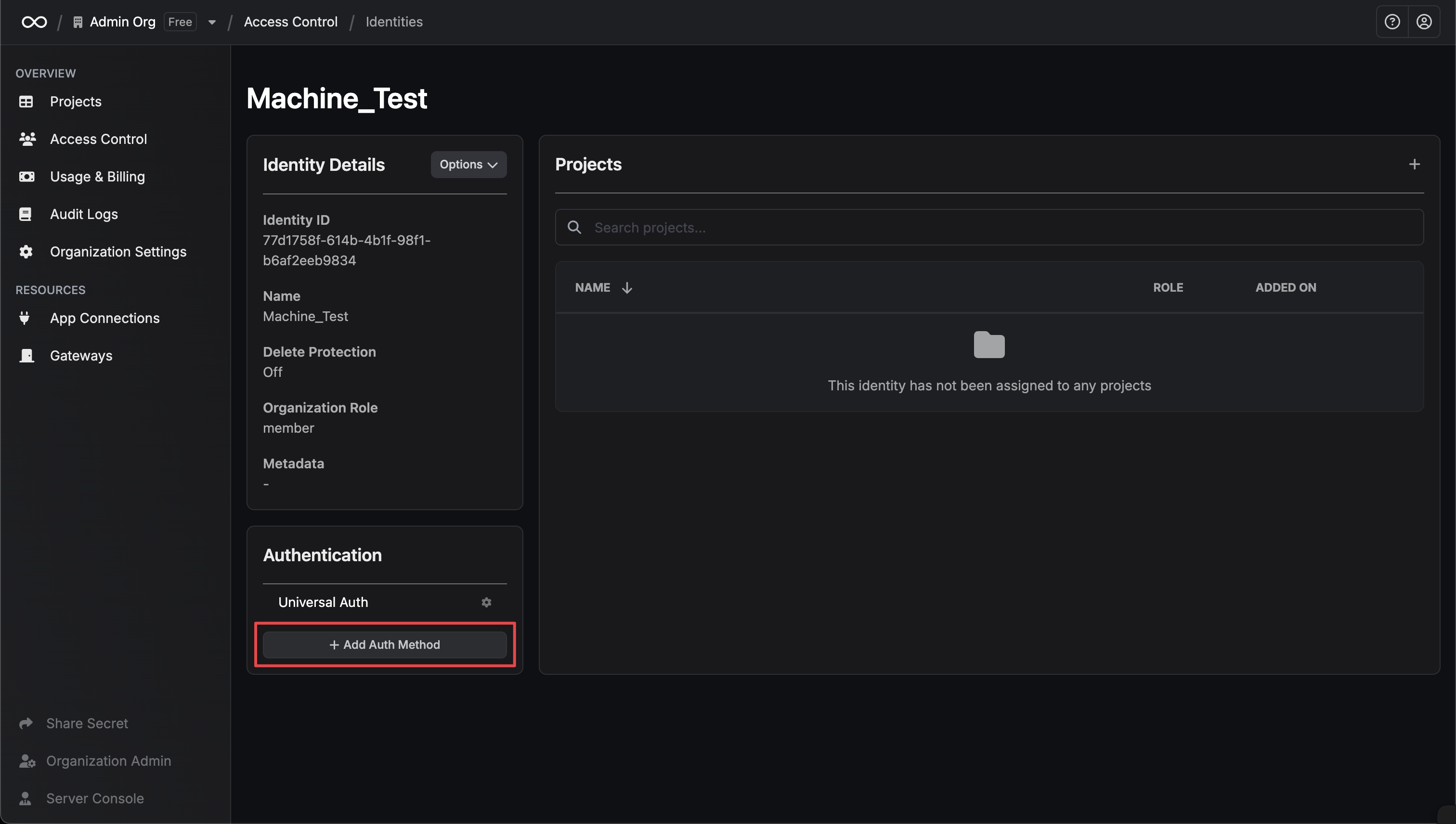
* `Access Token Trusted IPs`: The IPs or CIDR ranges that access tokens can be used from. By default, each token is given the 0.0.0.0/0, allowing usage from any network address.
Once you've filled out the form, press **Add** to save your changes.
After configuring LDAP auth for your identity, you can authenticate with the identity and obtain an access token using your LDAP credentials.
```bash theme={"dark"}
curl --request POST \
--url https://app.infisical.com/api/v1/auth/ldap-auth/login \
--header 'Content-Type: application/json' \
--data '{
"identityId": "",
"username": "",
"password": ""
}'
```
For EU Cloud and Self-Hosted users, make sure to replace `https://app.infisical.com` with `https://eu.infisical.com` or your self-hosted instance's URL in the request URL.
If successful, you'll receive an access token in the response body.
```json theme={"dark"}
{
"accessToken": "your-access-token",
"expiresIn": 2592000,
"accessTokenMaxTTL": 2592000,
"tokenType": "Bearer"
}
```
You can read more about the login API endpoint [here](/api-reference/endpoints/ldap-auth/login).
**FAQ**
You can reset (remove) all lockouts for an identity auth method by clicking into the auth method and pressing **Reset All Lockouts**.
---
# Source: https://infisical.com/docs/api-reference/endpoints/secret-tags/get-by-id.md
# Source: https://infisical.com/docs/api-reference/endpoints/secret-syncs/zabbix/get-by-id.md
# Source: https://infisical.com/docs/api-reference/endpoints/secret-syncs/windmill/get-by-id.md
# Source: https://infisical.com/docs/api-reference/endpoints/secret-syncs/vercel/get-by-id.md
# Source: https://infisical.com/docs/api-reference/endpoints/secret-syncs/terraform-cloud/get-by-id.md
# Source: https://infisical.com/docs/api-reference/endpoints/secret-syncs/teamcity/get-by-id.md
# Source: https://infisical.com/docs/api-reference/endpoints/secret-syncs/supabase/get-by-id.md
# Source: https://infisical.com/docs/api-reference/endpoints/secret-syncs/render/get-by-id.md
# Source: https://infisical.com/docs/api-reference/endpoints/secret-syncs/railway/get-by-id.md
# Source: https://infisical.com/docs/api-reference/endpoints/secret-syncs/octopus-deploy/get-by-id.md
# Source: https://infisical.com/docs/api-reference/endpoints/secret-syncs/oci-vault/get-by-id.md
# Source: https://infisical.com/docs/api-reference/endpoints/secret-syncs/northflank/get-by-id.md
# Source: https://infisical.com/docs/api-reference/endpoints/secret-syncs/netlify/get-by-id.md
# Source: https://infisical.com/docs/api-reference/endpoints/secret-syncs/laravel-forge/get-by-id.md
# Source: https://infisical.com/docs/api-reference/endpoints/secret-syncs/humanitec/get-by-id.md
# Source: https://infisical.com/docs/api-reference/endpoints/secret-syncs/heroku/get-by-id.md
# Source: https://infisical.com/docs/api-reference/endpoints/secret-syncs/hashicorp-vault/get-by-id.md
# Source: https://infisical.com/docs/api-reference/endpoints/secret-syncs/gitlab/get-by-id.md
# Source: https://infisical.com/docs/api-reference/endpoints/secret-syncs/github/get-by-id.md
# Source: https://infisical.com/docs/api-reference/endpoints/secret-syncs/gcp-secret-manager/get-by-id.md
# Source: https://infisical.com/docs/api-reference/endpoints/secret-syncs/flyio/get-by-id.md
# Source: https://infisical.com/docs/api-reference/endpoints/secret-syncs/digital-ocean-app-platform/get-by-id.md
# Source: https://infisical.com/docs/api-reference/endpoints/secret-syncs/databricks/get-by-id.md
# Source: https://infisical.com/docs/api-reference/endpoints/secret-syncs/cloudflare-workers/get-by-id.md
# Source: https://infisical.com/docs/api-reference/endpoints/secret-syncs/cloudflare-pages/get-by-id.md
# Source: https://infisical.com/docs/api-reference/endpoints/secret-syncs/circleci/get-by-id.md
# Source: https://infisical.com/docs/api-reference/endpoints/secret-syncs/chef/get-by-id.md
# Source: https://infisical.com/docs/api-reference/endpoints/secret-syncs/checkly/get-by-id.md
# Source: https://infisical.com/docs/api-reference/endpoints/secret-syncs/camunda/get-by-id.md
# Source: https://infisical.com/docs/api-reference/endpoints/secret-syncs/bitbucket/get-by-id.md
# Source: https://infisical.com/docs/api-reference/endpoints/secret-syncs/azure-key-vault/get-by-id.md
# Source: https://infisical.com/docs/api-reference/endpoints/secret-syncs/azure-devops/get-by-id.md
# Source: https://infisical.com/docs/api-reference/endpoints/secret-syncs/azure-app-configuration/get-by-id.md
# Source: https://infisical.com/docs/api-reference/endpoints/secret-syncs/aws-secrets-manager/get-by-id.md
# Source: https://infisical.com/docs/api-reference/endpoints/secret-syncs/aws-parameter-store/get-by-id.md
# Source: https://infisical.com/docs/api-reference/endpoints/secret-syncs/1password/get-by-id.md
# Source: https://infisical.com/docs/api-reference/endpoints/secret-scanning/data-sources/gitlab/get-by-id.md
# Source: https://infisical.com/docs/api-reference/endpoints/secret-scanning/data-sources/github/get-by-id.md
# Source: https://infisical.com/docs/api-reference/endpoints/secret-scanning/data-sources/bitbucket/get-by-id.md
# Source: https://infisical.com/docs/api-reference/endpoints/secret-rotations/windows-local-account/get-by-id.md
# Source: https://infisical.com/docs/api-reference/endpoints/secret-rotations/unix-linux-local-account/get-by-id.md
# Source: https://infisical.com/docs/api-reference/endpoints/secret-rotations/redis-credentials/get-by-id.md
# Source: https://infisical.com/docs/api-reference/endpoints/secret-rotations/postgres-credentials/get-by-id.md
# Source: https://infisical.com/docs/api-reference/endpoints/secret-rotations/oracledb-credentials/get-by-id.md
# Source: https://infisical.com/docs/api-reference/endpoints/secret-rotations/okta-client-secret/get-by-id.md
# Source: https://infisical.com/docs/api-reference/endpoints/secret-rotations/mysql-credentials/get-by-id.md
# Source: https://infisical.com/docs/api-reference/endpoints/secret-rotations/mssql-credentials/get-by-id.md
# Source: https://infisical.com/docs/api-reference/endpoints/secret-rotations/mongodb-credentials/get-by-id.md
# Source: https://infisical.com/docs/api-reference/endpoints/secret-rotations/ldap-password/get-by-id.md
# Source: https://infisical.com/docs/api-reference/endpoints/secret-rotations/databricks-service-principal-secret/get-by-id.md
# Source: https://infisical.com/docs/api-reference/endpoints/secret-rotations/azure-client-secret/get-by-id.md
# Source: https://infisical.com/docs/api-reference/endpoints/secret-rotations/aws-iam-user-secret/get-by-id.md
# Source: https://infisical.com/docs/api-reference/endpoints/secret-rotations/auth0-client-secret/get-by-id.md
# Source: https://infisical.com/docs/api-reference/endpoints/project-templates/get-by-id.md
# Source: https://infisical.com/docs/api-reference/endpoints/project-identities/get-by-id.md
# Source: https://infisical.com/docs/api-reference/endpoints/project-identities-membership/get-by-id.md
# Source: https://infisical.com/docs/api-reference/endpoints/project-groups/get-by-id.md
# Source: https://infisical.com/docs/api-reference/endpoints/pki/syncs/get-by-id.md
# Source: https://infisical.com/docs/api-reference/endpoints/pki/syncs/chef/get-by-id.md
# Source: https://infisical.com/docs/api-reference/endpoints/pki/syncs/azure-key-vault/get-by-id.md
# Source: https://infisical.com/docs/api-reference/endpoints/pki/syncs/aws-secrets-manager/get-by-id.md
# Source: https://infisical.com/docs/api-reference/endpoints/pki/syncs/aws-certificate-manager/get-by-id.md
# Source: https://infisical.com/docs/api-reference/endpoints/kms/keys/get-by-id.md
# Source: https://infisical.com/docs/api-reference/endpoints/identities/get-by-id.md
# Source: https://infisical.com/docs/api-reference/endpoints/groups/get-by-id.md
# Source: https://infisical.com/docs/api-reference/endpoints/folders/get-by-id.md
# Source: https://infisical.com/docs/api-reference/endpoints/deprecated/secret-tags/get-by-id.md
# Source: https://infisical.com/docs/api-reference/endpoints/deprecated/project-identities-v2/get-by-id.md
# Source: https://infisical.com/docs/api-reference/endpoints/deprecated/project-groups/get-by-id.md
# Source: https://infisical.com/docs/api-reference/endpoints/deprecated/folders/get-by-id.md
# Source: https://infisical.com/docs/api-reference/endpoints/certificate-profiles/get-by-id.md
# Source: https://infisical.com/docs/api-reference/endpoints/certificate-policies/get-by-id.md
# Source: https://infisical.com/docs/api-reference/endpoints/app-connections/zabbix/get-by-id.md
# Source: https://infisical.com/docs/api-reference/endpoints/app-connections/windmill/get-by-id.md
# Source: https://infisical.com/docs/api-reference/endpoints/app-connections/vercel/get-by-id.md
# Source: https://infisical.com/docs/api-reference/endpoints/app-connections/terraform-cloud/get-by-id.md
# Source: https://infisical.com/docs/api-reference/endpoints/app-connections/teamcity/get-by-id.md
# Source: https://infisical.com/docs/api-reference/endpoints/app-connections/supabase/get-by-id.md
# Source: https://infisical.com/docs/api-reference/endpoints/app-connections/ssh/get-by-id.md
# Source: https://infisical.com/docs/api-reference/endpoints/app-connections/smb/get-by-id.md
# Source: https://infisical.com/docs/api-reference/endpoints/app-connections/render/get-by-id.md
# Source: https://infisical.com/docs/api-reference/endpoints/app-connections/redis/get-by-id.md
# Source: https://infisical.com/docs/api-reference/endpoints/app-connections/railway/get-by-id.md
# Source: https://infisical.com/docs/api-reference/endpoints/app-connections/postgres/get-by-id.md
# Source: https://infisical.com/docs/api-reference/endpoints/app-connections/oracledb/get-by-id.md
# Source: https://infisical.com/docs/api-reference/endpoints/app-connections/openrouter/get-by-id.md
# Source: https://infisical.com/docs/api-reference/endpoints/app-connections/okta/get-by-id.md
# Source: https://infisical.com/docs/api-reference/endpoints/app-connections/octopus-deploy/get-by-id.md
# Source: https://infisical.com/docs/api-reference/endpoints/app-connections/oci/get-by-id.md
# Source: https://infisical.com/docs/api-reference/endpoints/app-connections/northflank/get-by-id.md
# Source: https://infisical.com/docs/api-reference/endpoints/app-connections/netlify/get-by-id.md
# Source: https://infisical.com/docs/api-reference/endpoints/app-connections/mysql/get-by-id.md
# Source: https://infisical.com/docs/api-reference/endpoints/app-connections/mssql/get-by-id.md
# Source: https://infisical.com/docs/api-reference/endpoints/app-connections/mongodb/get-by-id.md
# Source: https://infisical.com/docs/api-reference/endpoints/app-connections/ldap/get-by-id.md
# Source: https://infisical.com/docs/api-reference/endpoints/app-connections/laravel-forge/get-by-id.md
# Source: https://infisical.com/docs/api-reference/endpoints/app-connections/humanitec/get-by-id.md
# Source: https://infisical.com/docs/api-reference/endpoints/app-connections/heroku/get-by-id.md
# Source: https://infisical.com/docs/api-reference/endpoints/app-connections/hashicorp-vault/get-by-id.md
# Source: https://infisical.com/docs/api-reference/endpoints/app-connections/gitlab/get-by-id.md
# Source: https://infisical.com/docs/api-reference/endpoints/app-connections/github/get-by-id.md
# Source: https://infisical.com/docs/api-reference/endpoints/app-connections/github-radar/get-by-id.md
# Source: https://infisical.com/docs/api-reference/endpoints/app-connections/gcp/get-by-id.md
# Source: https://infisical.com/docs/api-reference/endpoints/app-connections/flyio/get-by-id.md
# Source: https://infisical.com/docs/api-reference/endpoints/app-connections/digital-ocean/get-by-id.md
# Source: https://infisical.com/docs/api-reference/endpoints/app-connections/databricks/get-by-id.md
# Source: https://infisical.com/docs/api-reference/endpoints/app-connections/cloudflare/get-by-id.md
# Source: https://infisical.com/docs/api-reference/endpoints/app-connections/circleci/get-by-id.md
# Source: https://infisical.com/docs/api-reference/endpoints/app-connections/chef/get-by-id.md
# Source: https://infisical.com/docs/api-reference/endpoints/app-connections/checkly/get-by-id.md
# Source: https://infisical.com/docs/api-reference/endpoints/app-connections/camunda/get-by-id.md
# Source: https://infisical.com/docs/api-reference/endpoints/app-connections/bitbucket/get-by-id.md
# Source: https://infisical.com/docs/api-reference/endpoints/app-connections/azure-key-vault/get-by-id.md
# Source: https://infisical.com/docs/api-reference/endpoints/app-connections/azure-devops/get-by-id.md
# Source: https://infisical.com/docs/api-reference/endpoints/app-connections/azure-client-secret/get-by-id.md
# Source: https://infisical.com/docs/api-reference/endpoints/app-connections/azure-app-configuration/get-by-id.md
# Source: https://infisical.com/docs/api-reference/endpoints/app-connections/azure-adcs/get-by-id.md
# Source: https://infisical.com/docs/api-reference/endpoints/app-connections/aws/get-by-id.md
# Source: https://infisical.com/docs/api-reference/endpoints/app-connections/auth0/get-by-id.md
# Source: https://infisical.com/docs/api-reference/endpoints/app-connections/1password/get-by-id.md
> ## Documentation Index
> Fetch the complete documentation index at: https://infisical.com/docs/llms.txt
> Use this file to discover all available pages before exploring further.
# Get by ID
> Get the specified 1Password Connection by ID.
## OpenAPI
````yaml GET /api/v1/app-connections/1password/{connectionId}
openapi: 3.0.3
info:
title: Infisical API
description: List of all available APIs that can be consumed
version: 0.0.1
servers:
- url: https://us.infisical.com
description: Production server (US)
- url: https://eu.infisical.com
description: Production server (EU)
- url: http://localhost:8080
description: Local server
security: []
paths:
/api/v1/app-connections/1password/{connectionId}:
get:
tags:
- App Connections
description: Get the specified 1Password Connection by ID.
operationId: getOnePasswordAppConnection
parameters:
- schema:
type: string
format: uuid
in: path
name: connectionId
required: true
description: The ID of the 1Password Connection to retrieve.
responses:
'200':
description: Default Response
content:
application/json:
schema:
type: object
properties:
appConnection:
anyOf:
- type: object
properties:
id:
type: string
format: uuid
name:
type: string
description:
type: string
nullable: true
version:
type: number
default: 1
orgId:
type: string
format: uuid
createdAt:
type: string
format: date-time
updatedAt:
type: string
format: date-time
isPlatformManagedCredentials:
type: boolean
default: false
nullable: true
gatewayId:
type: string
format: uuid
nullable: true
projectId:
type: string
nullable: true
credentialsHash:
type: string
project:
type: object
properties:
name:
type: string
id:
type: string
type:
type: string
slug:
type: string
required:
- name
- id
- type
- slug
additionalProperties: false
nullable: true
app:
type: string
enum:
- 1password
method:
type: string
enum:
- api-token
credentials:
type: object
properties:
instanceUrl:
type: string
format: uri
minLength: 1
description: >-
The URL of the 1Password Connect Server
instance to authenticate with.
required:
- instanceUrl
additionalProperties: false
required:
- id
- name
- orgId
- createdAt
- updatedAt
- app
- method
- credentials
additionalProperties: false
title: 1Password (API Token)
required:
- appConnection
additionalProperties: false
'400':
description: Default Response
content:
application/json:
schema:
type: object
properties:
reqId:
type: string
statusCode:
type: number
enum:
- 400
message:
type: string
error:
type: string
details: {}
required:
- reqId
- statusCode
- message
- error
additionalProperties: false
'401':
description: Default Response
content:
application/json:
schema:
type: object
properties:
reqId:
type: string
statusCode:
type: number
enum:
- 401
message:
type: string
error:
type: string
required:
- reqId
- statusCode
- message
- error
additionalProperties: false
'403':
description: Default Response
content:
application/json:
schema:
type: object
properties:
reqId:
type: string
statusCode:
type: number
enum:
- 403
message:
type: string
details: {}
error:
type: string
required:
- reqId
- statusCode
- message
- error
additionalProperties: false
'404':
description: Default Response
content:
application/json:
schema:
type: object
properties:
reqId:
type: string
statusCode:
type: number
enum:
- 404
message:
type: string
error:
type: string
required:
- reqId
- statusCode
- message
- error
additionalProperties: false
'422':
description: Default Response
content:
application/json:
schema:
type: object
properties:
reqId:
type: string
statusCode:
type: number
enum:
- 422
message: {}
error:
type: string
required:
- reqId
- statusCode
- error
additionalProperties: false
'500':
description: Default Response
content:
application/json:
schema:
type: object
properties:
reqId:
type: string
statusCode:
type: number
enum:
- 500
message:
type: string
error:
type: string
required:
- reqId
- statusCode
- message
- error
additionalProperties: false
````
---
# Source: https://infisical.com/docs/api-reference/endpoints/secret-syncs/zabbix/get-by-name.md
# Source: https://infisical.com/docs/api-reference/endpoints/secret-syncs/windmill/get-by-name.md
# Source: https://infisical.com/docs/api-reference/endpoints/secret-syncs/vercel/get-by-name.md
# Source: https://infisical.com/docs/api-reference/endpoints/secret-syncs/terraform-cloud/get-by-name.md
# Source: https://infisical.com/docs/api-reference/endpoints/secret-syncs/teamcity/get-by-name.md
# Source: https://infisical.com/docs/api-reference/endpoints/secret-syncs/supabase/get-by-name.md
# Source: https://infisical.com/docs/api-reference/endpoints/secret-syncs/render/get-by-name.md
# Source: https://infisical.com/docs/api-reference/endpoints/secret-syncs/railway/get-by-name.md
# Source: https://infisical.com/docs/api-reference/endpoints/secret-syncs/octopus-deploy/get-by-name.md
# Source: https://infisical.com/docs/api-reference/endpoints/secret-syncs/oci-vault/get-by-name.md
# Source: https://infisical.com/docs/api-reference/endpoints/secret-syncs/northflank/get-by-name.md
# Source: https://infisical.com/docs/api-reference/endpoints/secret-syncs/netlify/get-by-name.md
# Source: https://infisical.com/docs/api-reference/endpoints/secret-syncs/laravel-forge/get-by-name.md
# Source: https://infisical.com/docs/api-reference/endpoints/secret-syncs/humanitec/get-by-name.md
# Source: https://infisical.com/docs/api-reference/endpoints/secret-syncs/heroku/get-by-name.md
# Source: https://infisical.com/docs/api-reference/endpoints/secret-syncs/hashicorp-vault/get-by-name.md
# Source: https://infisical.com/docs/api-reference/endpoints/secret-syncs/gitlab/get-by-name.md
# Source: https://infisical.com/docs/api-reference/endpoints/secret-syncs/github/get-by-name.md
# Source: https://infisical.com/docs/api-reference/endpoints/secret-syncs/gcp-secret-manager/get-by-name.md
# Source: https://infisical.com/docs/api-reference/endpoints/secret-syncs/flyio/get-by-name.md
# Source: https://infisical.com/docs/api-reference/endpoints/secret-syncs/digital-ocean-app-platform/get-by-name.md
# Source: https://infisical.com/docs/api-reference/endpoints/secret-syncs/databricks/get-by-name.md
# Source: https://infisical.com/docs/api-reference/endpoints/secret-syncs/cloudflare-workers/get-by-name.md
# Source: https://infisical.com/docs/api-reference/endpoints/secret-syncs/cloudflare-pages/get-by-name.md
# Source: https://infisical.com/docs/api-reference/endpoints/secret-syncs/circleci/get-by-name.md
# Source: https://infisical.com/docs/api-reference/endpoints/secret-syncs/chef/get-by-name.md
# Source: https://infisical.com/docs/api-reference/endpoints/secret-syncs/checkly/get-by-name.md
# Source: https://infisical.com/docs/api-reference/endpoints/secret-syncs/camunda/get-by-name.md
# Source: https://infisical.com/docs/api-reference/endpoints/secret-syncs/bitbucket/get-by-name.md
# Source: https://infisical.com/docs/api-reference/endpoints/secret-syncs/azure-key-vault/get-by-name.md
# Source: https://infisical.com/docs/api-reference/endpoints/secret-syncs/azure-devops/get-by-name.md
# Source: https://infisical.com/docs/api-reference/endpoints/secret-syncs/azure-app-configuration/get-by-name.md
# Source: https://infisical.com/docs/api-reference/endpoints/secret-syncs/aws-secrets-manager/get-by-name.md
# Source: https://infisical.com/docs/api-reference/endpoints/secret-syncs/aws-parameter-store/get-by-name.md
# Source: https://infisical.com/docs/api-reference/endpoints/secret-syncs/1password/get-by-name.md
# Source: https://infisical.com/docs/api-reference/endpoints/secret-scanning/data-sources/gitlab/get-by-name.md
# Source: https://infisical.com/docs/api-reference/endpoints/secret-scanning/data-sources/github/get-by-name.md
# Source: https://infisical.com/docs/api-reference/endpoints/secret-scanning/data-sources/bitbucket/get-by-name.md
# Source: https://infisical.com/docs/api-reference/endpoints/secret-rotations/windows-local-account/get-by-name.md
# Source: https://infisical.com/docs/api-reference/endpoints/secret-rotations/unix-linux-local-account/get-by-name.md
# Source: https://infisical.com/docs/api-reference/endpoints/secret-rotations/redis-credentials/get-by-name.md
# Source: https://infisical.com/docs/api-reference/endpoints/secret-rotations/postgres-credentials/get-by-name.md
# Source: https://infisical.com/docs/api-reference/endpoints/secret-rotations/oracledb-credentials/get-by-name.md
# Source: https://infisical.com/docs/api-reference/endpoints/secret-rotations/okta-client-secret/get-by-name.md
# Source: https://infisical.com/docs/api-reference/endpoints/secret-rotations/mysql-credentials/get-by-name.md
# Source: https://infisical.com/docs/api-reference/endpoints/secret-rotations/mssql-credentials/get-by-name.md
# Source: https://infisical.com/docs/api-reference/endpoints/secret-rotations/mongodb-credentials/get-by-name.md
# Source: https://infisical.com/docs/api-reference/endpoints/secret-rotations/ldap-password/get-by-name.md
# Source: https://infisical.com/docs/api-reference/endpoints/secret-rotations/databricks-service-principal-secret/get-by-name.md
# Source: https://infisical.com/docs/api-reference/endpoints/secret-rotations/azure-client-secret/get-by-name.md
# Source: https://infisical.com/docs/api-reference/endpoints/secret-rotations/aws-iam-user-secret/get-by-name.md
# Source: https://infisical.com/docs/api-reference/endpoints/secret-rotations/auth0-client-secret/get-by-name.md
# Source: https://infisical.com/docs/api-reference/endpoints/kms/keys/get-by-name.md
# Source: https://infisical.com/docs/api-reference/endpoints/app-connections/zabbix/get-by-name.md
# Source: https://infisical.com/docs/api-reference/endpoints/app-connections/windmill/get-by-name.md
# Source: https://infisical.com/docs/api-reference/endpoints/app-connections/vercel/get-by-name.md
# Source: https://infisical.com/docs/api-reference/endpoints/app-connections/terraform-cloud/get-by-name.md
# Source: https://infisical.com/docs/api-reference/endpoints/app-connections/teamcity/get-by-name.md
# Source: https://infisical.com/docs/api-reference/endpoints/app-connections/supabase/get-by-name.md
# Source: https://infisical.com/docs/api-reference/endpoints/app-connections/ssh/get-by-name.md
# Source: https://infisical.com/docs/api-reference/endpoints/app-connections/smb/get-by-name.md
# Source: https://infisical.com/docs/api-reference/endpoints/app-connections/render/get-by-name.md
# Source: https://infisical.com/docs/api-reference/endpoints/app-connections/redis/get-by-name.md
# Source: https://infisical.com/docs/api-reference/endpoints/app-connections/railway/get-by-name.md
# Source: https://infisical.com/docs/api-reference/endpoints/app-connections/postgres/get-by-name.md
# Source: https://infisical.com/docs/api-reference/endpoints/app-connections/oracledb/get-by-name.md
# Source: https://infisical.com/docs/api-reference/endpoints/app-connections/openrouter/get-by-name.md
# Source: https://infisical.com/docs/api-reference/endpoints/app-connections/okta/get-by-name.md
# Source: https://infisical.com/docs/api-reference/endpoints/app-connections/octopus-deploy/get-by-name.md
# Source: https://infisical.com/docs/api-reference/endpoints/app-connections/oci/get-by-name.md
# Source: https://infisical.com/docs/api-reference/endpoints/app-connections/northflank/get-by-name.md
# Source: https://infisical.com/docs/api-reference/endpoints/app-connections/netlify/get-by-name.md
# Source: https://infisical.com/docs/api-reference/endpoints/app-connections/mysql/get-by-name.md
# Source: https://infisical.com/docs/api-reference/endpoints/app-connections/mssql/get-by-name.md
# Source: https://infisical.com/docs/api-reference/endpoints/app-connections/mongodb/get-by-name.md
# Source: https://infisical.com/docs/api-reference/endpoints/app-connections/ldap/get-by-name.md
# Source: https://infisical.com/docs/api-reference/endpoints/app-connections/laravel-forge/get-by-name.md
# Source: https://infisical.com/docs/api-reference/endpoints/app-connections/humanitec/get-by-name.md
# Source: https://infisical.com/docs/api-reference/endpoints/app-connections/heroku/get-by-name.md
# Source: https://infisical.com/docs/api-reference/endpoints/app-connections/hashicorp-vault/get-by-name.md
# Source: https://infisical.com/docs/api-reference/endpoints/app-connections/gitlab/get-by-name.md
# Source: https://infisical.com/docs/api-reference/endpoints/app-connections/github/get-by-name.md
# Source: https://infisical.com/docs/api-reference/endpoints/app-connections/github-radar/get-by-name.md
# Source: https://infisical.com/docs/api-reference/endpoints/app-connections/gcp/get-by-name.md
# Source: https://infisical.com/docs/api-reference/endpoints/app-connections/flyio/get-by-name.md
# Source: https://infisical.com/docs/api-reference/endpoints/app-connections/digital-ocean/get-by-name.md
# Source: https://infisical.com/docs/api-reference/endpoints/app-connections/databricks/get-by-name.md
# Source: https://infisical.com/docs/api-reference/endpoints/app-connections/cloudflare/get-by-name.md
# Source: https://infisical.com/docs/api-reference/endpoints/app-connections/circleci/get-by-name.md
# Source: https://infisical.com/docs/api-reference/endpoints/app-connections/chef/get-by-name.md
# Source: https://infisical.com/docs/api-reference/endpoints/app-connections/checkly/get-by-name.md
# Source: https://infisical.com/docs/api-reference/endpoints/app-connections/camunda/get-by-name.md
# Source: https://infisical.com/docs/api-reference/endpoints/app-connections/bitbucket/get-by-name.md
# Source: https://infisical.com/docs/api-reference/endpoints/app-connections/azure-key-vault/get-by-name.md
# Source: https://infisical.com/docs/api-reference/endpoints/app-connections/azure-devops/get-by-name.md
# Source: https://infisical.com/docs/api-reference/endpoints/app-connections/azure-client-secret/get-by-name.md
# Source: https://infisical.com/docs/api-reference/endpoints/app-connections/azure-app-configuration/get-by-name.md
# Source: https://infisical.com/docs/api-reference/endpoints/app-connections/azure-adcs/get-by-name.md
# Source: https://infisical.com/docs/api-reference/endpoints/app-connections/aws/get-by-name.md
# Source: https://infisical.com/docs/api-reference/endpoints/app-connections/auth0/get-by-name.md
# Source: https://infisical.com/docs/api-reference/endpoints/app-connections/1password/get-by-name.md
> ## Documentation Index
> Fetch the complete documentation index at: https://infisical.com/docs/llms.txt
> Use this file to discover all available pages before exploring further.
# Get by Name
> Get the specified 1Password Connection by name.
## OpenAPI
````yaml GET /api/v1/app-connections/1password/connection-name/{connectionName}
openapi: 3.0.3
info:
title: Infisical API
description: List of all available APIs that can be consumed
version: 0.0.1
servers:
- url: https://us.infisical.com
description: Production server (US)
- url: https://eu.infisical.com
description: Production server (EU)
- url: http://localhost:8080
description: Local server
security: []
paths:
/api/v1/app-connections/1password/connection-name/{connectionName}:
get:
tags:
- App Connections
description: Get the specified 1Password Connection by name.
operationId: getOnePasswordAppConnectionByName
parameters:
- schema:
type: string
in: query
name: projectId
required: false
description: >-
The project ID of the 1Password Connection is associated with. Leave
unspecified to get organization-level connections.
- schema:
type: string
minLength: 1
in: path
name: connectionName
required: true
description: The name of the 1Password Connection to retrieve.
responses:
'200':
description: Default Response
content:
application/json:
schema:
type: object
properties:
appConnection:
anyOf:
- type: object
properties:
id:
type: string
format: uuid
name:
type: string
description:
type: string
nullable: true
version:
type: number
default: 1
orgId:
type: string
format: uuid
createdAt:
type: string
format: date-time
updatedAt:
type: string
format: date-time
isPlatformManagedCredentials:
type: boolean
default: false
nullable: true
gatewayId:
type: string
format: uuid
nullable: true
projectId:
type: string
nullable: true
credentialsHash:
type: string
project:
type: object
properties:
name:
type: string
id:
type: string
type:
type: string
slug:
type: string
required:
- name
- id
- type
- slug
additionalProperties: false
nullable: true
app:
type: string
enum:
- 1password
method:
type: string
enum:
- api-token
credentials:
type: object
properties:
instanceUrl:
type: string
format: uri
minLength: 1
description: >-
The URL of the 1Password Connect Server
instance to authenticate with.
required:
- instanceUrl
additionalProperties: false
required:
- id
- name
- orgId
- createdAt
- updatedAt
- app
- method
- credentials
additionalProperties: false
title: 1Password (API Token)
required:
- appConnection
additionalProperties: false
'400':
description: Default Response
content:
application/json:
schema:
type: object
properties:
reqId:
type: string
statusCode:
type: number
enum:
- 400
message:
type: string
error:
type: string
details: {}
required:
- reqId
- statusCode
- message
- error
additionalProperties: false
'401':
description: Default Response
content:
application/json:
schema:
type: object
properties:
reqId:
type: string
statusCode:
type: number
enum:
- 401
message:
type: string
error:
type: string
required:
- reqId
- statusCode
- message
- error
additionalProperties: false
'403':
description: Default Response
content:
application/json:
schema:
type: object
properties:
reqId:
type: string
statusCode:
type: number
enum:
- 403
message:
type: string
details: {}
error:
type: string
required:
- reqId
- statusCode
- message
- error
additionalProperties: false
'404':
description: Default Response
content:
application/json:
schema:
type: object
properties:
reqId:
type: string
statusCode:
type: number
enum:
- 404
message:
type: string
error:
type: string
required:
- reqId
- statusCode
- message
- error
additionalProperties: false
'422':
description: Default Response
content:
application/json:
schema:
type: object
properties:
reqId:
type: string
statusCode:
type: number
enum:
- 422
message: {}
error:
type: string
required:
- reqId
- statusCode
- error
additionalProperties: false
'500':
description: Default Response
content:
application/json:
schema:
type: object
properties:
reqId:
type: string
statusCode:
type: number
enum:
- 500
message:
type: string
error:
type: string
required:
- reqId
- statusCode
- message
- error
additionalProperties: false
````
---
# Source: https://infisical.com/docs/api-reference/endpoints/secret-scanning/config/get-by-project-id.md
> ## Documentation Index
> Fetch the complete documentation index at: https://infisical.com/docs/llms.txt
> Use this file to discover all available pages before exploring further.
# Get by Project ID
> Get the Secret Scanning Config for the specified project.
## OpenAPI
````yaml GET /api/v2/secret-scanning/configs
openapi: 3.0.3
info:
title: Infisical API
description: List of all available APIs that can be consumed
version: 0.0.1
servers:
- url: https://us.infisical.com
description: Production server (US)
- url: https://eu.infisical.com
description: Production server (EU)
- url: http://localhost:8080
description: Local server
security: []
paths:
/api/v2/secret-scanning/configs:
get:
tags:
- Secret Scanning
description: Get the Secret Scanning Config for the specified project.
operationId: getSecretScanningConfig
parameters:
- schema:
type: string
minLength: 1
in: query
name: projectId
required: true
description: >-
The ID of the project to retrieve the Secret Scanning Configuration
for.
responses:
'200':
description: Default Response
content:
application/json:
schema:
type: object
properties:
config:
type: object
properties:
content:
type: string
nullable: true
projectId:
type: string
updatedAt:
type: string
format: date-time
nullable: true
required:
- projectId
additionalProperties: false
required:
- config
additionalProperties: false
'400':
description: Default Response
content:
application/json:
schema:
type: object
properties:
reqId:
type: string
statusCode:
type: number
enum:
- 400
message:
type: string
error:
type: string
details: {}
required:
- reqId
- statusCode
- message
- error
additionalProperties: false
'401':
description: Default Response
content:
application/json:
schema:
type: object
properties:
reqId:
type: string
statusCode:
type: number
enum:
- 401
message:
type: string
error:
type: string
required:
- reqId
- statusCode
- message
- error
additionalProperties: false
'403':
description: Default Response
content:
application/json:
schema:
type: object
properties:
reqId:
type: string
statusCode:
type: number
enum:
- 403
message:
type: string
details: {}
error:
type: string
required:
- reqId
- statusCode
- message
- error
additionalProperties: false
'404':
description: Default Response
content:
application/json:
schema:
type: object
properties:
reqId:
type: string
statusCode:
type: number
enum:
- 404
message:
type: string
error:
type: string
required:
- reqId
- statusCode
- message
- error
additionalProperties: false
'422':
description: Default Response
content:
application/json:
schema:
type: object
properties:
reqId:
type: string
statusCode:
type: number
enum:
- 422
message: {}
error:
type: string
required:
- reqId
- statusCode
- error
additionalProperties: false
'500':
description: Default Response
content:
application/json:
schema:
type: object
properties:
reqId:
type: string
statusCode:
type: number
enum:
- 500
message:
type: string
error:
type: string
required:
- reqId
- statusCode
- message
- error
additionalProperties: false
````
---
# Source: https://infisical.com/docs/api-reference/endpoints/secret-tags/get-by-slug.md
# Source: https://infisical.com/docs/api-reference/endpoints/project-roles/get-by-slug.md
# Source: https://infisical.com/docs/api-reference/endpoints/organization-roles/get-by-slug.md
# Source: https://infisical.com/docs/api-reference/endpoints/deprecated/secret-tags/get-by-slug.md
# Source: https://infisical.com/docs/api-reference/endpoints/deprecated/project-roles/get-by-slug.md
# Source: https://infisical.com/docs/api-reference/endpoints/certificate-profiles/get-by-slug.md
> ## Documentation Index
> Fetch the complete documentation index at: https://infisical.com/docs/llms.txt
> Use this file to discover all available pages before exploring further.
# Get by Slug
## OpenAPI
````yaml GET /api/v1/cert-manager/certificate-profiles/slug/{slug}
openapi: 3.0.3
info:
title: Infisical API
description: List of all available APIs that can be consumed
version: 0.0.1
servers:
- url: https://us.infisical.com
description: Production server (US)
- url: https://eu.infisical.com
description: Production server (EU)
- url: http://localhost:8080
description: Local server
security: []
paths:
/api/v1/cert-manager/certificate-profiles/slug/{slug}:
get:
tags:
- PKI Certificate Profiles
operationId: getCertificateProfileBySlug
parameters:
- schema:
type: string
minLength: 1
in: query
name: projectId
required: true
- schema:
type: string
minLength: 1
in: path
name: slug
required: true
responses:
'200':
description: Default Response
content:
application/json:
schema:
type: object
properties:
certificateProfile:
type: object
properties:
id:
type: string
format: uuid
projectId:
type: string
caId:
type: string
format: uuid
nullable: true
certificatePolicyId:
type: string
format: uuid
slug:
type: string
description:
type: string
nullable: true
enrollmentType:
type: string
estConfigId:
type: string
format: uuid
nullable: true
apiConfigId:
type: string
format: uuid
nullable: true
createdAt:
type: string
format: date-time
updatedAt:
type: string
format: date-time
acmeConfigId:
type: string
format: uuid
nullable: true
issuerType:
type: string
default: ca
externalConfigs:
anyOf:
- type: object
properties:
template:
type: string
minLength: 1
description: Certificate template name for Azure AD CS
required:
- template
additionalProperties: false
- type: object
properties: {}
additionalProperties: false
- type: object
properties: {}
additionalProperties: false
nullable: true
defaultTtlDays:
type: number
nullable: true
required:
- id
- projectId
- certificatePolicyId
- slug
- enrollmentType
- createdAt
- updatedAt
additionalProperties: false
required:
- certificateProfile
additionalProperties: false
'400':
description: Default Response
content:
application/json:
schema:
type: object
properties:
reqId:
type: string
statusCode:
type: number
enum:
- 400
message:
type: string
error:
type: string
details: {}
required:
- reqId
- statusCode
- message
- error
additionalProperties: false
'401':
description: Default Response
content:
application/json:
schema:
type: object
properties:
reqId:
type: string
statusCode:
type: number
enum:
- 401
message:
type: string
error:
type: string
required:
- reqId
- statusCode
- message
- error
additionalProperties: false
'403':
description: Default Response
content:
application/json:
schema:
type: object
properties:
reqId:
type: string
statusCode:
type: number
enum:
- 403
message:
type: string
details: {}
error:
type: string
required:
- reqId
- statusCode
- message
- error
additionalProperties: false
'404':
description: Default Response
content:
application/json:
schema:
type: object
properties:
reqId:
type: string
statusCode:
type: number
enum:
- 404
message:
type: string
error:
type: string
required:
- reqId
- statusCode
- message
- error
additionalProperties: false
'422':
description: Default Response
content:
application/json:
schema:
type: object
properties:
reqId:
type: string
statusCode:
type: number
enum:
- 422
message: {}
error:
type: string
required:
- reqId
- statusCode
- error
additionalProperties: false
'500':
description: Default Response
content:
application/json:
schema:
type: object
properties:
reqId:
type: string
statusCode:
type: number
enum:
- 500
message:
type: string
error:
type: string
required:
- reqId
- statusCode
- message
- error
additionalProperties: false
````
---
# Source: https://infisical.com/docs/api-reference/endpoints/project-users/get-by-username.md
# Source: https://infisical.com/docs/api-reference/endpoints/deprecated/project-users/get-by-username.md
> ## Documentation Index
> Fetch the complete documentation index at: https://infisical.com/docs/llms.txt
> Use this file to discover all available pages before exploring further.
# Get By Username
> Return project user memberships
## OpenAPI
````yaml POST /api/v1/workspace/{workspaceId}/memberships/details
openapi: 3.0.3
info:
title: Infisical API
description: List of all available APIs that can be consumed
version: 0.0.1
servers:
- url: https://us.infisical.com
description: Production server (US)
- url: https://eu.infisical.com
description: Production server (EU)
- url: http://localhost:8080
description: Local server
security: []
paths:
/api/v1/workspace/{workspaceId}/memberships/details:
post:
tags:
- Project Users
description: Return project user memberships
parameters:
- schema:
type: string
minLength: 1
in: path
name: workspaceId
required: true
description: The ID of the project to get memberships from.
requestBody:
content:
application/json:
schema:
type: object
properties:
username:
type: string
minLength: 1
description: >-
The username to get project membership of. Email is the
default username.
required:
- username
additionalProperties: false
required: true
responses:
'200':
description: Default Response
content:
application/json:
schema:
type: object
properties:
membership:
type: object
properties:
id:
type: string
format: uuid
userId:
type: string
format: uuid
projectId:
type: string
user:
type: object
properties:
email:
type: string
nullable: true
firstName:
type: string
nullable: true
lastName:
type: string
nullable: true
id:
type: string
format: uuid
publicKey:
type: string
nullable: true
required:
- id
additionalProperties: false
roles:
type: array
items:
type: object
properties:
id:
type: string
role:
type: string
customRoleId:
type: string
nullable: true
customRoleName:
type: string
nullable: true
customRoleSlug:
type: string
nullable: true
isTemporary:
type: boolean
temporaryMode:
type: string
nullable: true
temporaryRange:
type: string
nullable: true
temporaryAccessStartTime:
type: string
format: date-time
nullable: true
temporaryAccessEndTime:
type: string
format: date-time
nullable: true
required:
- id
- role
- isTemporary
additionalProperties: false
required:
- id
- userId
- projectId
- user
- roles
additionalProperties: false
required:
- membership
additionalProperties: false
'400':
description: Default Response
content:
application/json:
schema:
type: object
properties:
reqId:
type: string
statusCode:
type: number
enum:
- 400
message:
type: string
error:
type: string
details: {}
required:
- reqId
- statusCode
- message
- error
additionalProperties: false
'401':
description: Default Response
content:
application/json:
schema:
type: object
properties:
reqId:
type: string
statusCode:
type: number
enum:
- 401
message:
type: string
error:
type: string
required:
- reqId
- statusCode
- message
- error
additionalProperties: false
'403':
description: Default Response
content:
application/json:
schema:
type: object
properties:
reqId:
type: string
statusCode:
type: number
enum:
- 403
message:
type: string
details: {}
error:
type: string
required:
- reqId
- statusCode
- message
- error
additionalProperties: false
'404':
description: Default Response
content:
application/json:
schema:
type: object
properties:
reqId:
type: string
statusCode:
type: number
enum:
- 404
message:
type: string
error:
type: string
required:
- reqId
- statusCode
- message
- error
additionalProperties: false
'422':
description: Default Response
content:
application/json:
schema:
type: object
properties:
reqId:
type: string
statusCode:
type: number
enum:
- 422
message: {}
error:
type: string
required:
- reqId
- statusCode
- error
additionalProperties: false
'500':
description: Default Response
content:
application/json:
schema:
type: object
properties:
reqId:
type: string
statusCode:
type: number
enum:
- 500
message:
type: string
error:
type: string
required:
- reqId
- statusCode
- message
- error
additionalProperties: false
security:
- bearerAuth: []
components:
securitySchemes:
bearerAuth:
type: http
scheme: bearer
bearerFormat: JWT
description: An access token in Infisical
````
---
# Source: https://infisical.com/docs/api-reference/endpoints/universal-auth/get-client-secret-by-id.md
> ## Documentation Index
> Fetch the complete documentation index at: https://infisical.com/docs/llms.txt
> Use this file to discover all available pages before exploring further.
# Get Client Secret By ID
> Get Universal Auth Client Secret for machine identity
## OpenAPI
````yaml GET /api/v1/auth/universal-auth/identities/{identityId}/client-secrets/{clientSecretId}
openapi: 3.0.3
info:
title: Infisical API
description: List of all available APIs that can be consumed
version: 0.0.1
servers:
- url: https://us.infisical.com
description: Production server (US)
- url: https://eu.infisical.com
description: Production server (EU)
- url: http://localhost:8080
description: Local server
security: []
paths:
/api/v1/auth/universal-auth/identities/{identityId}/client-secrets/{clientSecretId}:
get:
tags:
- Universal Auth
description: Get Universal Auth Client Secret for machine identity
operationId: getUniversalAuthClientSecret
parameters:
- schema:
type: string
in: path
name: identityId
required: true
description: The ID of the machine identity to get the client secret from.
- schema:
type: string
in: path
name: clientSecretId
required: true
description: The ID of the client secret to get details.
responses:
'200':
description: Default Response
content:
application/json:
schema:
type: object
properties:
clientSecretData:
type: object
properties:
id:
type: string
createdAt:
type: string
format: date-time
updatedAt:
type: string
format: date-time
description:
type: string
clientSecretPrefix:
type: string
clientSecretNumUses:
type: number
default: 0
clientSecretNumUsesLimit:
type: number
default: 0
clientSecretTTL:
type: number
default: 0
identityUAId:
type: string
format: uuid
isClientSecretRevoked:
type: boolean
default: false
required:
- id
- createdAt
- updatedAt
- description
- clientSecretPrefix
- identityUAId
additionalProperties: false
required:
- clientSecretData
additionalProperties: false
'400':
description: Default Response
content:
application/json:
schema:
type: object
properties:
reqId:
type: string
statusCode:
type: number
enum:
- 400
message:
type: string
error:
type: string
details: {}
required:
- reqId
- statusCode
- message
- error
additionalProperties: false
'401':
description: Default Response
content:
application/json:
schema:
type: object
properties:
reqId:
type: string
statusCode:
type: number
enum:
- 401
message:
type: string
error:
type: string
required:
- reqId
- statusCode
- message
- error
additionalProperties: false
'403':
description: Default Response
content:
application/json:
schema:
type: object
properties:
reqId:
type: string
statusCode:
type: number
enum:
- 403
message:
type: string
details: {}
error:
type: string
required:
- reqId
- statusCode
- message
- error
additionalProperties: false
'404':
description: Default Response
content:
application/json:
schema:
type: object
properties:
reqId:
type: string
statusCode:
type: number
enum:
- 404
message:
type: string
error:
type: string
required:
- reqId
- statusCode
- message
- error
additionalProperties: false
'422':
description: Default Response
content:
application/json:
schema:
type: object
properties:
reqId:
type: string
statusCode:
type: number
enum:
- 422
message: {}
error:
type: string
required:
- reqId
- statusCode
- error
additionalProperties: false
'500':
description: Default Response
content:
application/json:
schema:
type: object
properties:
reqId:
type: string
statusCode:
type: number
enum:
- 500
message:
type: string
error:
type: string
required:
- reqId
- statusCode
- message
- error
additionalProperties: false
security:
- bearerAuth: []
components:
securitySchemes:
bearerAuth:
type: http
scheme: bearer
bearerFormat: JWT
description: An access token in Infisical
````
---
# Source: https://infisical.com/docs/api-reference/endpoints/secret-rotations/windows-local-account/get-generated-credentials-by-id.md
# Source: https://infisical.com/docs/api-reference/endpoints/secret-rotations/unix-linux-local-account/get-generated-credentials-by-id.md
# Source: https://infisical.com/docs/api-reference/endpoints/secret-rotations/redis-credentials/get-generated-credentials-by-id.md
# Source: https://infisical.com/docs/api-reference/endpoints/secret-rotations/postgres-credentials/get-generated-credentials-by-id.md
# Source: https://infisical.com/docs/api-reference/endpoints/secret-rotations/oracledb-credentials/get-generated-credentials-by-id.md
# Source: https://infisical.com/docs/api-reference/endpoints/secret-rotations/okta-client-secret/get-generated-credentials-by-id.md
# Source: https://infisical.com/docs/api-reference/endpoints/secret-rotations/mysql-credentials/get-generated-credentials-by-id.md
# Source: https://infisical.com/docs/api-reference/endpoints/secret-rotations/mssql-credentials/get-generated-credentials-by-id.md
# Source: https://infisical.com/docs/api-reference/endpoints/secret-rotations/mongodb-credentials/get-generated-credentials-by-id.md
# Source: https://infisical.com/docs/api-reference/endpoints/secret-rotations/ldap-password/get-generated-credentials-by-id.md
# Source: https://infisical.com/docs/api-reference/endpoints/secret-rotations/databricks-service-principal-secret/get-generated-credentials-by-id.md
# Source: https://infisical.com/docs/api-reference/endpoints/secret-rotations/azure-client-secret/get-generated-credentials-by-id.md
# Source: https://infisical.com/docs/api-reference/endpoints/secret-rotations/aws-iam-user-secret/get-generated-credentials-by-id.md
# Source: https://infisical.com/docs/api-reference/endpoints/secret-rotations/auth0-client-secret/get-generated-credentials-by-id.md
> ## Documentation Index
> Fetch the complete documentation index at: https://infisical.com/docs/llms.txt
> Use this file to discover all available pages before exploring further.
# Get Credentials by ID
> Get the generated credentials for the specified Auth0 Client Secret Rotation.
## OpenAPI
````yaml GET /api/v2/secret-rotations/auth0-client-secret/{rotationId}/generated-credentials
openapi: 3.0.3
info:
title: Infisical API
description: List of all available APIs that can be consumed
version: 0.0.1
servers:
- url: https://us.infisical.com
description: Production server (US)
- url: https://eu.infisical.com
description: Production server (EU)
- url: http://localhost:8080
description: Local server
security: []
paths:
/api/v2/secret-rotations/auth0-client-secret/{rotationId}/generated-credentials:
get:
tags:
- Secret Rotations
description: >-
Get the generated credentials for the specified Auth0 Client Secret
Rotation.
operationId: getAuth0ClientSecretRotationGeneratedCredentials
parameters:
- schema:
type: string
format: uuid
in: path
name: rotationId
required: true
description: >-
The ID of the Auth0 Client Secret Rotation to retrieve the generated
credentials for.
responses:
'200':
description: Default Response
content:
application/json:
schema:
type: object
properties:
generatedCredentials:
type: array
items:
type: object
properties:
clientId:
type: string
clientSecret:
type: string
required:
- clientId
- clientSecret
additionalProperties: false
minItems: 1
maxItems: 2
activeIndex:
type: number
rotationId:
type: string
format: uuid
type:
type: string
enum:
- auth0-client-secret
required:
- generatedCredentials
- activeIndex
- rotationId
- type
additionalProperties: false
'400':
description: Default Response
content:
application/json:
schema:
type: object
properties:
reqId:
type: string
statusCode:
type: number
enum:
- 400
message:
type: string
error:
type: string
details: {}
required:
- reqId
- statusCode
- message
- error
additionalProperties: false
'401':
description: Default Response
content:
application/json:
schema:
type: object
properties:
reqId:
type: string
statusCode:
type: number
enum:
- 401
message:
type: string
error:
type: string
required:
- reqId
- statusCode
- message
- error
additionalProperties: false
'403':
description: Default Response
content:
application/json:
schema:
type: object
properties:
reqId:
type: string
statusCode:
type: number
enum:
- 403
message:
type: string
details: {}
error:
type: string
required:
- reqId
- statusCode
- message
- error
additionalProperties: false
'404':
description: Default Response
content:
application/json:
schema:
type: object
properties:
reqId:
type: string
statusCode:
type: number
enum:
- 404
message:
type: string
error:
type: string
required:
- reqId
- statusCode
- message
- error
additionalProperties: false
'422':
description: Default Response
content:
application/json:
schema:
type: object
properties:
reqId:
type: string
statusCode:
type: number
enum:
- 422
message: {}
error:
type: string
required:
- reqId
- statusCode
- error
additionalProperties: false
'500':
description: Default Response
content:
application/json:
schema:
type: object
properties:
reqId:
type: string
statusCode:
type: number
enum:
- 500
message:
type: string
error:
type: string
required:
- reqId
- statusCode
- message
- error
additionalProperties: false
````
---
# Source: https://infisical.com/docs/api-reference/endpoints/certificate-profiles/get-latest-active-bundle.md
> ## Documentation Index
> Fetch the complete documentation index at: https://infisical.com/docs/llms.txt
> Use this file to discover all available pages before exploring further.
# Get Latest Active Certificate Bundle
> Get latest active certificate bundle for a profile
## OpenAPI
````yaml GET /api/v1/cert-manager/certificate-profiles/{id}/certificates/latest-active-bundle
openapi: 3.0.3
info:
title: Infisical API
description: List of all available APIs that can be consumed
version: 0.0.1
servers:
- url: https://us.infisical.com
description: Production server (US)
- url: https://eu.infisical.com
description: Production server (EU)
- url: http://localhost:8080
description: Local server
security: []
paths:
/api/v1/cert-manager/certificate-profiles/{id}/certificates/latest-active-bundle:
get:
tags:
- PKI Certificate Profiles
description: Get latest active certificate bundle for a profile
operationId: getCertificateProfileLatestActiveBundle
parameters:
- schema:
type: string
format: uuid
in: path
name: id
required: true
responses:
'200':
description: Default Response
content:
application/json:
schema:
type: object
properties:
certificate:
type: string
nullable: true
certificateChain:
type: string
nullable: true
privateKey:
type: string
nullable: true
serialNumber:
type: string
nullable: true
required:
- certificate
- certificateChain
- privateKey
- serialNumber
additionalProperties: false
'400':
description: Default Response
content:
application/json:
schema:
type: object
properties:
reqId:
type: string
statusCode:
type: number
enum:
- 400
message:
type: string
error:
type: string
details: {}
required:
- reqId
- statusCode
- message
- error
additionalProperties: false
'401':
description: Default Response
content:
application/json:
schema:
type: object
properties:
reqId:
type: string
statusCode:
type: number
enum:
- 401
message:
type: string
error:
type: string
required:
- reqId
- statusCode
- message
- error
additionalProperties: false
'403':
description: Default Response
content:
application/json:
schema:
type: object
properties:
reqId:
type: string
statusCode:
type: number
enum:
- 403
message:
type: string
details: {}
error:
type: string
required:
- reqId
- statusCode
- message
- error
additionalProperties: false
'404':
description: Default Response
content:
application/json:
schema:
type: object
properties:
reqId:
type: string
statusCode:
type: number
enum:
- 404
message:
type: string
error:
type: string
required:
- reqId
- statusCode
- message
- error
additionalProperties: false
'422':
description: Default Response
content:
application/json:
schema:
type: object
properties:
reqId:
type: string
statusCode:
type: number
enum:
- 422
message: {}
error:
type: string
required:
- reqId
- statusCode
- error
additionalProperties: false
'500':
description: Default Response
content:
application/json:
schema:
type: object
properties:
reqId:
type: string
statusCode:
type: number
enum:
- 500
message:
type: string
error:
type: string
required:
- reqId
- statusCode
- message
- error
additionalProperties: false
````
---
# Source: https://infisical.com/docs/api-reference/endpoints/organizations/ldap-sso/get-ldap-config.md
> ## Documentation Index
> Fetch the complete documentation index at: https://infisical.com/docs/llms.txt
> Use this file to discover all available pages before exploring further.
# Get LDAP SSO Config
> Get LDAP config
## OpenAPI
````yaml GET /api/v1/ldap/config
openapi: 3.0.3
info:
title: Infisical API
description: List of all available APIs that can be consumed
version: 0.0.1
servers:
- url: https://us.infisical.com
description: Production server (US)
- url: https://eu.infisical.com
description: Production server (EU)
- url: http://localhost:8080
description: Local server
security: []
paths:
/api/v1/ldap/config:
get:
tags:
- LDAP SSO
description: Get LDAP config
parameters:
- schema:
type: string
in: query
name: organizationId
required: true
description: The ID of the organization to get the LDAP config for.
responses:
'200':
description: Default Response
content:
application/json:
schema:
type: object
properties:
id:
type: string
organization:
type: string
isActive:
type: boolean
url:
type: string
bindDN:
type: string
bindPass:
type: string
uniqueUserAttribute:
type: string
searchBase:
type: string
searchFilter:
type: string
groupSearchBase:
type: string
groupSearchFilter:
type: string
caCert:
type: string
required:
- id
- organization
- isActive
- url
- bindDN
- bindPass
- uniqueUserAttribute
- searchBase
- searchFilter
- groupSearchBase
- groupSearchFilter
- caCert
additionalProperties: false
'400':
description: Default Response
content:
application/json:
schema:
type: object
properties:
reqId:
type: string
statusCode:
type: number
enum:
- 400
message:
type: string
error:
type: string
details: {}
required:
- reqId
- statusCode
- message
- error
additionalProperties: false
'401':
description: Default Response
content:
application/json:
schema:
type: object
properties:
reqId:
type: string
statusCode:
type: number
enum:
- 401
message:
type: string
error:
type: string
required:
- reqId
- statusCode
- message
- error
additionalProperties: false
'403':
description: Default Response
content:
application/json:
schema:
type: object
properties:
reqId:
type: string
statusCode:
type: number
enum:
- 403
message:
type: string
details: {}
error:
type: string
required:
- reqId
- statusCode
- message
- error
additionalProperties: false
'404':
description: Default Response
content:
application/json:
schema:
type: object
properties:
reqId:
type: string
statusCode:
type: number
enum:
- 404
message:
type: string
error:
type: string
required:
- reqId
- statusCode
- message
- error
additionalProperties: false
'422':
description: Default Response
content:
application/json:
schema:
type: object
properties:
reqId:
type: string
statusCode:
type: number
enum:
- 422
message: {}
error:
type: string
required:
- reqId
- statusCode
- error
additionalProperties: false
'500':
description: Default Response
content:
application/json:
schema:
type: object
properties:
reqId:
type: string
statusCode:
type: number
enum:
- 500
message:
type: string
error:
type: string
required:
- reqId
- statusCode
- message
- error
additionalProperties: false
security:
- bearerAuth: []
components:
securitySchemes:
bearerAuth:
type: http
scheme: bearer
bearerFormat: JWT
description: An access token in Infisical
````
---
# Source: https://infisical.com/docs/api-reference/endpoints/dynamic-secrets/get-lease.md
> ## Documentation Index
> Fetch the complete documentation index at: https://infisical.com/docs/llms.txt
> Use this file to discover all available pages before exploring further.
# Get Lease
## OpenAPI
````yaml GET /api/v1/dynamic-secrets/leases/{leaseId}
openapi: 3.0.3
info:
title: Infisical API
description: List of all available APIs that can be consumed
version: 0.0.1
servers:
- url: https://us.infisical.com
description: Production server (US)
- url: https://eu.infisical.com
description: Production server (EU)
- url: http://localhost:8080
description: Local server
security: []
paths:
/api/v1/dynamic-secrets/leases/{leaseId}:
get:
tags:
- Dynamic Secrets
parameters:
- schema:
type: string
minLength: 1
in: query
name: projectSlug
required: true
description: The slug of the project to create dynamic secret in.
- schema:
type: string
default: /
in: query
name: path
required: false
description: The path to list folders from.
- schema:
type: string
minLength: 1
in: query
name: environmentSlug
required: true
description: The slug of the environment to list folders from.
- schema:
type: string
minLength: 1
in: path
name: leaseId
required: true
description: The ID of the dynamic secret lease.
responses:
'200':
description: Default Response
content:
application/json:
schema:
type: object
properties:
lease:
type: object
properties:
id:
type: string
format: uuid
version:
type: number
externalEntityId:
type: string
expireAt:
type: string
format: date-time
status:
type: string
nullable: true
statusDetails:
type: string
nullable: true
dynamicSecretId:
type: string
format: uuid
createdAt:
type: string
format: date-time
updatedAt:
type: string
format: date-time
config:
nullable: true
dynamicSecret:
type: object
properties:
id:
type: string
format: uuid
name:
type: string
version:
type: number
type:
type: string
defaultTTL:
type: string
maxTTL:
type: string
nullable: true
folderId:
type: string
format: uuid
status:
type: string
nullable: true
statusDetails:
type: string
nullable: true
createdAt:
type: string
format: date-time
updatedAt:
type: string
format: date-time
projectGatewayId:
type: string
format: uuid
nullable: true
gatewayId:
type: string
format: uuid
nullable: true
usernameTemplate:
type: string
nullable: true
gatewayV2Id:
type: string
format: uuid
nullable: true
metadata:
type: array
items:
type: object
properties:
key:
type: string
minLength: 1
value:
type: string
default: ''
required:
- key
additionalProperties: false
required:
- id
- name
- version
- type
- defaultTTL
- folderId
- createdAt
- updatedAt
additionalProperties: false
required:
- id
- version
- externalEntityId
- expireAt
- dynamicSecretId
- createdAt
- updatedAt
- dynamicSecret
additionalProperties: false
required:
- lease
additionalProperties: false
'400':
description: Default Response
content:
application/json:
schema:
type: object
properties:
reqId:
type: string
statusCode:
type: number
enum:
- 400
message:
type: string
error:
type: string
details: {}
required:
- reqId
- statusCode
- message
- error
additionalProperties: false
'401':
description: Default Response
content:
application/json:
schema:
type: object
properties:
reqId:
type: string
statusCode:
type: number
enum:
- 401
message:
type: string
error:
type: string
required:
- reqId
- statusCode
- message
- error
additionalProperties: false
'403':
description: Default Response
content:
application/json:
schema:
type: object
properties:
reqId:
type: string
statusCode:
type: number
enum:
- 403
message:
type: string
details: {}
error:
type: string
required:
- reqId
- statusCode
- message
- error
additionalProperties: false
'404':
description: Default Response
content:
application/json:
schema:
type: object
properties:
reqId:
type: string
statusCode:
type: number
enum:
- 404
message:
type: string
error:
type: string
required:
- reqId
- statusCode
- message
- error
additionalProperties: false
'422':
description: Default Response
content:
application/json:
schema:
type: object
properties:
reqId:
type: string
statusCode:
type: number
enum:
- 422
message: {}
error:
type: string
required:
- reqId
- statusCode
- error
additionalProperties: false
'500':
description: Default Response
content:
application/json:
schema:
type: object
properties:
reqId:
type: string
statusCode:
type: number
enum:
- 500
message:
type: string
error:
type: string
required:
- reqId
- statusCode
- message
- error
additionalProperties: false
````
---
# Source: https://infisical.com/docs/api-reference/endpoints/organizations/oidc-sso/get-oidc-config.md
> ## Documentation Index
> Fetch the complete documentation index at: https://infisical.com/docs/llms.txt
> Use this file to discover all available pages before exploring further.
# Get OIDC Config
> Get OIDC config
## OpenAPI
````yaml GET /api/v1/sso/oidc/config
openapi: 3.0.3
info:
title: Infisical API
description: List of all available APIs that can be consumed
version: 0.0.1
servers:
- url: https://us.infisical.com
description: Production server (US)
- url: https://eu.infisical.com
description: Production server (EU)
- url: http://localhost:8080
description: Local server
security: []
paths:
/api/v1/sso/oidc/config:
get:
tags:
- OIDC SSO
description: Get OIDC config
parameters:
- schema:
type: string
in: query
name: organizationId
required: true
description: The ID of the organization to get the OIDC config for.
responses:
'200':
description: Default Response
content:
application/json:
schema:
type: object
properties:
id:
type: string
format: uuid
issuer:
type: string
nullable: true
authorizationEndpoint:
type: string
nullable: true
jwksUri:
type: string
nullable: true
tokenEndpoint:
type: string
nullable: true
userinfoEndpoint:
type: string
nullable: true
configurationType:
type: string
discoveryURL:
type: string
nullable: true
isActive:
type: boolean
orgId:
type: string
format: uuid
allowedEmailDomains:
type: string
nullable: true
manageGroupMemberships:
type: boolean
default: false
jwtSignatureAlgorithm:
type: string
default: RS256
clientId:
type: string
clientSecret:
type: string
required:
- id
- configurationType
- isActive
- orgId
- clientId
- clientSecret
additionalProperties: false
'400':
description: Default Response
content:
application/json:
schema:
type: object
properties:
reqId:
type: string
statusCode:
type: number
enum:
- 400
message:
type: string
error:
type: string
details: {}
required:
- reqId
- statusCode
- message
- error
additionalProperties: false
'401':
description: Default Response
content:
application/json:
schema:
type: object
properties:
reqId:
type: string
statusCode:
type: number
enum:
- 401
message:
type: string
error:
type: string
required:
- reqId
- statusCode
- message
- error
additionalProperties: false
'403':
description: Default Response
content:
application/json:
schema:
type: object
properties:
reqId:
type: string
statusCode:
type: number
enum:
- 403
message:
type: string
details: {}
error:
type: string
required:
- reqId
- statusCode
- message
- error
additionalProperties: false
'404':
description: Default Response
content:
application/json:
schema:
type: object
properties:
reqId:
type: string
statusCode:
type: number
enum:
- 404
message:
type: string
error:
type: string
required:
- reqId
- statusCode
- message
- error
additionalProperties: false
'422':
description: Default Response
content:
application/json:
schema:
type: object
properties:
reqId:
type: string
statusCode:
type: number
enum:
- 422
message: {}
error:
type: string
required:
- reqId
- statusCode
- error
additionalProperties: false
'500':
description: Default Response
content:
application/json:
schema:
type: object
properties:
reqId:
type: string
statusCode:
type: number
enum:
- 500
message:
type: string
error:
type: string
required:
- reqId
- statusCode
- message
- error
additionalProperties: false
security:
- bearerAuth: []
components:
securitySchemes:
bearerAuth:
type: http
scheme: bearer
bearerFormat: JWT
description: An access token in Infisical
````
---
# Source: https://infisical.com/docs/api-reference/endpoints/projects/get-project-by-slug.md
# Source: https://infisical.com/docs/api-reference/endpoints/deprecated/projects/get-project-by-slug.md
> ## Documentation Index
> Fetch the complete documentation index at: https://infisical.com/docs/llms.txt
> Use this file to discover all available pages before exploring further.
# Get Project By Slug
> Get project details by slug
## OpenAPI
````yaml GET /api/v2/workspace/{slug}
openapi: 3.0.3
info:
title: Infisical API
description: List of all available APIs that can be consumed
version: 0.0.1
servers:
- url: https://us.infisical.com
description: Production server (US)
- url: https://eu.infisical.com
description: Production server (EU)
- url: http://localhost:8080
description: Local server
security: []
paths:
/api/v2/workspace/{slug}:
get:
tags:
- Projects
description: Get project details by slug
parameters:
- schema:
type: string
minLength: 1
maxLength: 64
in: path
name: slug
required: true
description: The slug of the project to get.
responses:
'200':
description: Default Response
content:
application/json:
schema:
type: object
properties:
id:
type: string
name:
type: string
description:
type: string
nullable: true
type:
type: string
defaultProduct:
type: string
nullable: true
slug:
type: string
autoCapitalization:
type: boolean
default: false
nullable: true
orgId:
type: string
format: uuid
createdAt:
type: string
format: date-time
updatedAt:
type: string
format: date-time
version:
type: number
default: 1
upgradeStatus:
type: string
nullable: true
pitVersionLimit:
type: number
default: 10
kmsCertificateKeyId:
type: string
format: uuid
nullable: true
auditLogsRetentionDays:
type: number
nullable: true
hasDeleteProtection:
type: boolean
default: false
nullable: true
secretSharing:
type: boolean
default: true
showSnapshotsLegacy:
type: boolean
default: false
secretDetectionIgnoreValues:
type: array
items:
type: string
nullable: true
enforceEncryptedSecretManagerSecretMetadata:
type: boolean
nullable: true
_id:
type: string
environments:
type: array
items:
type: object
properties:
name:
type: string
slug:
type: string
id:
type: string
required:
- name
- slug
- id
additionalProperties: false
kmsSecretManagerKeyId:
type: string
nullable: true
required:
- id
- name
- type
- slug
- orgId
- createdAt
- updatedAt
- _id
- environments
additionalProperties: false
'400':
description: Default Response
content:
application/json:
schema:
type: object
properties:
reqId:
type: string
statusCode:
type: number
enum:
- 400
message:
type: string
error:
type: string
details: {}
required:
- reqId
- statusCode
- message
- error
additionalProperties: false
'401':
description: Default Response
content:
application/json:
schema:
type: object
properties:
reqId:
type: string
statusCode:
type: number
enum:
- 401
message:
type: string
error:
type: string
required:
- reqId
- statusCode
- message
- error
additionalProperties: false
'403':
description: Default Response
content:
application/json:
schema:
type: object
properties:
reqId:
type: string
statusCode:
type: number
enum:
- 403
message:
type: string
details: {}
error:
type: string
required:
- reqId
- statusCode
- message
- error
additionalProperties: false
'404':
description: Default Response
content:
application/json:
schema:
type: object
properties:
reqId:
type: string
statusCode:
type: number
enum:
- 404
message:
type: string
error:
type: string
required:
- reqId
- statusCode
- message
- error
additionalProperties: false
'422':
description: Default Response
content:
application/json:
schema:
type: object
properties:
reqId:
type: string
statusCode:
type: number
enum:
- 422
message: {}
error:
type: string
required:
- reqId
- statusCode
- error
additionalProperties: false
'500':
description: Default Response
content:
application/json:
schema:
type: object
properties:
reqId:
type: string
statusCode:
type: number
enum:
- 500
message:
type: string
error:
type: string
required:
- reqId
- statusCode
- message
- error
additionalProperties: false
security:
- bearerAuth: []
components:
securitySchemes:
bearerAuth:
type: http
scheme: bearer
bearerFormat: JWT
description: An access token in Infisical
````
---
# Source: https://infisical.com/docs/api-reference/endpoints/projects/get-project.md
# Source: https://infisical.com/docs/api-reference/endpoints/deprecated/projects/get-project.md
> ## Documentation Index
> Fetch the complete documentation index at: https://infisical.com/docs/llms.txt
> Use this file to discover all available pages before exploring further.
# Get Project
> Get project
## OpenAPI
````yaml GET /api/v1/workspace/{workspaceId}
openapi: 3.0.3
info:
title: Infisical API
description: List of all available APIs that can be consumed
version: 0.0.1
servers:
- url: https://us.infisical.com
description: Production server (US)
- url: https://eu.infisical.com
description: Production server (EU)
- url: http://localhost:8080
description: Local server
security: []
paths:
/api/v1/workspace/{workspaceId}:
get:
tags:
- Projects
description: Get project
parameters:
- schema:
type: string
in: path
name: workspaceId
required: true
description: The ID of the project.
responses:
'200':
description: Default Response
content:
application/json:
schema:
type: object
properties:
workspace:
type: object
properties:
id:
type: string
name:
type: string
description:
type: string
nullable: true
type:
type: string
defaultProduct:
type: string
nullable: true
slug:
type: string
autoCapitalization:
type: boolean
default: false
nullable: true
orgId:
type: string
format: uuid
createdAt:
type: string
format: date-time
updatedAt:
type: string
format: date-time
version:
type: number
default: 1
upgradeStatus:
type: string
nullable: true
pitVersionLimit:
type: number
default: 10
kmsCertificateKeyId:
type: string
format: uuid
nullable: true
auditLogsRetentionDays:
type: number
nullable: true
hasDeleteProtection:
type: boolean
default: false
nullable: true
secretSharing:
type: boolean
default: true
showSnapshotsLegacy:
type: boolean
default: false
secretDetectionIgnoreValues:
type: array
items:
type: string
nullable: true
enforceEncryptedSecretManagerSecretMetadata:
type: boolean
nullable: true
_id:
type: string
environments:
type: array
items:
type: object
properties:
name:
type: string
slug:
type: string
id:
type: string
required:
- name
- slug
- id
additionalProperties: false
required:
- id
- name
- type
- slug
- orgId
- createdAt
- updatedAt
- _id
- environments
additionalProperties: false
'400':
description: Default Response
content:
application/json:
schema:
type: object
properties:
reqId:
type: string
statusCode:
type: number
enum:
- 400
message:
type: string
error:
type: string
details: {}
required:
- reqId
- statusCode
- message
- error
additionalProperties: false
'401':
description: Default Response
content:
application/json:
schema:
type: object
properties:
reqId:
type: string
statusCode:
type: number
enum:
- 401
message:
type: string
error:
type: string
required:
- reqId
- statusCode
- message
- error
additionalProperties: false
'403':
description: Default Response
content:
application/json:
schema:
type: object
properties:
reqId:
type: string
statusCode:
type: number
enum:
- 403
message:
type: string
details: {}
error:
type: string
required:
- reqId
- statusCode
- message
- error
additionalProperties: false
'404':
description: Default Response
content:
application/json:
schema:
type: object
properties:
reqId:
type: string
statusCode:
type: number
enum:
- 404
message:
type: string
error:
type: string
required:
- reqId
- statusCode
- message
- error
additionalProperties: false
'422':
description: Default Response
content:
application/json:
schema:
type: object
properties:
reqId:
type: string
statusCode:
type: number
enum:
- 422
message: {}
error:
type: string
required:
- reqId
- statusCode
- error
additionalProperties: false
'500':
description: Default Response
content:
application/json:
schema:
type: object
properties:
reqId:
type: string
statusCode:
type: number
enum:
- 500
message:
type: string
error:
type: string
required:
- reqId
- statusCode
- message
- error
additionalProperties: false
security:
- bearerAuth: []
components:
securitySchemes:
bearerAuth:
type: http
scheme: bearer
bearerFormat: JWT
description: An access token in Infisical
````
---
# Source: https://infisical.com/docs/api-reference/endpoints/organizations/saml-sso/get-saml-config.md
> ## Documentation Index
> Fetch the complete documentation index at: https://infisical.com/docs/llms.txt
> Use this file to discover all available pages before exploring further.
# Get SAML SSO Config
> Get SAML config
## OpenAPI
````yaml GET /api/v1/sso/config
openapi: 3.0.3
info:
title: Infisical API
description: List of all available APIs that can be consumed
version: 0.0.1
servers:
- url: https://us.infisical.com
description: Production server (US)
- url: https://eu.infisical.com
description: Production server (EU)
- url: http://localhost:8080
description: Local server
security: []
paths:
/api/v1/sso/config:
get:
tags:
- SAML SSO
description: Get SAML config
parameters:
- schema:
type: string
in: query
name: organizationId
required: true
description: The ID of the organization to get the SAML config for.
responses:
'200':
description: Default Response
content:
application/json:
schema:
type: object
properties:
id:
type: string
organization:
type: string
orgId:
type: string
authProvider:
type: string
isActive:
type: boolean
entryPoint:
type: string
issuer:
type: string
cert:
type: string
lastUsed:
type: string
format: date-time
nullable: true
enableGroupSync:
type: boolean
required:
- id
- organization
- orgId
- authProvider
- isActive
- entryPoint
- issuer
- cert
additionalProperties: false
'400':
description: Default Response
content:
application/json:
schema:
type: object
properties:
reqId:
type: string
statusCode:
type: number
enum:
- 400
message:
type: string
error:
type: string
details: {}
required:
- reqId
- statusCode
- message
- error
additionalProperties: false
'401':
description: Default Response
content:
application/json:
schema:
type: object
properties:
reqId:
type: string
statusCode:
type: number
enum:
- 401
message:
type: string
error:
type: string
required:
- reqId
- statusCode
- message
- error
additionalProperties: false
'403':
description: Default Response
content:
application/json:
schema:
type: object
properties:
reqId:
type: string
statusCode:
type: number
enum:
- 403
message:
type: string
details: {}
error:
type: string
required:
- reqId
- statusCode
- message
- error
additionalProperties: false
'404':
description: Default Response
content:
application/json:
schema:
type: object
properties:
reqId:
type: string
statusCode:
type: number
enum:
- 404
message:
type: string
error:
type: string
required:
- reqId
- statusCode
- message
- error
additionalProperties: false
'422':
description: Default Response
content:
application/json:
schema:
type: object
properties:
reqId:
type: string
statusCode:
type: number
enum:
- 422
message: {}
error:
type: string
required:
- reqId
- statusCode
- error
additionalProperties: false
'500':
description: Default Response
content:
application/json:
schema:
type: object
properties:
reqId:
type: string
statusCode:
type: number
enum:
- 500
message:
type: string
error:
type: string
required:
- reqId
- statusCode
- message
- error
additionalProperties: false
security:
- bearerAuth: []
components:
securitySchemes:
bearerAuth:
type: http
scheme: bearer
bearerFormat: JWT
description: An access token in Infisical
````
---
# Source: https://infisical.com/docs/api-reference/endpoints/token-auth/get-tokens.md
> ## Documentation Index
> Fetch the complete documentation index at: https://infisical.com/docs/llms.txt
> Use this file to discover all available pages before exploring further.
# Get Tokens
> Get tokens for machine identity with Token Auth
## OpenAPI
````yaml GET /api/v1/auth/token-auth/identities/{identityId}/tokens
openapi: 3.0.3
info:
title: Infisical API
description: List of all available APIs that can be consumed
version: 0.0.1
servers:
- url: https://us.infisical.com
description: Production server (US)
- url: https://eu.infisical.com
description: Production server (EU)
- url: http://localhost:8080
description: Local server
security: []
paths:
/api/v1/auth/token-auth/identities/{identityId}/tokens:
get:
tags:
- Token Auth
description: Get tokens for machine identity with Token Auth
operationId: getTokenAuthTokens
parameters:
- schema:
type: number
minimum: 0
maximum: 100
default: 0
in: query
name: offset
required: false
description: >-
The offset to start from. If you enter 10, it will start from the
10th token.
- schema:
type: number
minimum: 1
maximum: 100
default: 20
in: query
name: limit
required: false
description: The number of tokens to return.
- schema:
type: string
in: path
name: identityId
required: true
description: The ID of the machine identity to list token metadata for.
responses:
'200':
description: Default Response
content:
application/json:
schema:
type: object
properties:
tokens:
type: array
items:
type: object
properties:
id:
type: string
accessTokenTTL:
type: number
default: 2592000
accessTokenMaxTTL:
type: number
default: 2592000
accessTokenNumUses:
type: number
default: 0
accessTokenNumUsesLimit:
type: number
default: 0
accessTokenLastUsedAt:
type: string
format: date-time
nullable: true
accessTokenLastRenewedAt:
type: string
format: date-time
nullable: true
isAccessTokenRevoked:
type: boolean
default: false
identityUAClientSecretId:
type: string
nullable: true
identityId:
type: string
format: uuid
createdAt:
type: string
format: date-time
updatedAt:
type: string
format: date-time
name:
type: string
nullable: true
authMethod:
type: string
accessTokenPeriod:
type: number
default: 0
subOrganizationId:
type: string
format: uuid
nullable: true
required:
- id
- identityId
- createdAt
- updatedAt
- authMethod
additionalProperties: false
required:
- tokens
additionalProperties: false
'400':
description: Default Response
content:
application/json:
schema:
type: object
properties:
reqId:
type: string
statusCode:
type: number
enum:
- 400
message:
type: string
error:
type: string
details: {}
required:
- reqId
- statusCode
- message
- error
additionalProperties: false
'401':
description: Default Response
content:
application/json:
schema:
type: object
properties:
reqId:
type: string
statusCode:
type: number
enum:
- 401
message:
type: string
error:
type: string
required:
- reqId
- statusCode
- message
- error
additionalProperties: false
'403':
description: Default Response
content:
application/json:
schema:
type: object
properties:
reqId:
type: string
statusCode:
type: number
enum:
- 403
message:
type: string
details: {}
error:
type: string
required:
- reqId
- statusCode
- message
- error
additionalProperties: false
'404':
description: Default Response
content:
application/json:
schema:
type: object
properties:
reqId:
type: string
statusCode:
type: number
enum:
- 404
message:
type: string
error:
type: string
required:
- reqId
- statusCode
- message
- error
additionalProperties: false
'422':
description: Default Response
content:
application/json:
schema:
type: object
properties:
reqId:
type: string
statusCode:
type: number
enum:
- 422
message: {}
error:
type: string
required:
- reqId
- statusCode
- error
additionalProperties: false
'500':
description: Default Response
content:
application/json:
schema:
type: object
properties:
reqId:
type: string
statusCode:
type: number
enum:
- 500
message:
type: string
error:
type: string
required:
- reqId
- statusCode
- message
- error
additionalProperties: false
security:
- bearerAuth: []
components:
securitySchemes:
bearerAuth:
type: http
scheme: bearer
bearerFormat: JWT
description: An access token in Infisical
````
---
# Source: https://infisical.com/docs/api-reference/endpoints/service-tokens/get.md
# Source: https://infisical.com/docs/api-reference/endpoints/organization-roles/get.md
# Source: https://infisical.com/docs/api-reference/endpoints/groups/get.md
# Source: https://infisical.com/docs/api-reference/endpoints/dynamic-secrets/get.md
> ## Documentation Index
> Fetch the complete documentation index at: https://infisical.com/docs/llms.txt
> Use this file to discover all available pages before exploring further.
# Get
## OpenAPI
````yaml GET /api/v1/dynamic-secrets/{name}
openapi: 3.0.3
info:
title: Infisical API
description: List of all available APIs that can be consumed
version: 0.0.1
servers:
- url: https://us.infisical.com
description: Production server (US)
- url: https://eu.infisical.com
description: Production server (EU)
- url: http://localhost:8080
description: Local server
security: []
paths:
/api/v1/dynamic-secrets/{name}:
get:
tags:
- Dynamic Secrets
parameters:
- schema:
type: string
minLength: 1
in: query
name: projectSlug
required: true
description: The slug of the project to create dynamic secret in.
- schema:
type: string
default: /
in: query
name: path
required: false
description: The path to list folders from.
- schema:
type: string
minLength: 1
in: query
name: environmentSlug
required: true
description: The slug of the environment to list folders from.
- schema:
type: string
minLength: 1
in: path
name: name
required: true
description: The name of the dynamic secret.
responses:
'200':
description: Default Response
content:
application/json:
schema:
type: object
properties:
dynamicSecret:
type: object
properties:
id:
type: string
format: uuid
name:
type: string
version:
type: number
type:
type: string
defaultTTL:
type: string
maxTTL:
type: string
nullable: true
folderId:
type: string
format: uuid
status:
type: string
nullable: true
statusDetails:
type: string
nullable: true
createdAt:
type: string
format: date-time
updatedAt:
type: string
format: date-time
projectGatewayId:
type: string
format: uuid
nullable: true
gatewayId:
type: string
format: uuid
nullable: true
usernameTemplate:
type: string
nullable: true
gatewayV2Id:
type: string
format: uuid
nullable: true
metadata:
type: array
items:
type: object
properties:
key:
type: string
minLength: 1
value:
type: string
default: ''
required:
- key
additionalProperties: false
inputs: {}
required:
- id
- name
- version
- type
- defaultTTL
- folderId
- createdAt
- updatedAt
additionalProperties: false
required:
- dynamicSecret
additionalProperties: false
'400':
description: Default Response
content:
application/json:
schema:
type: object
properties:
reqId:
type: string
statusCode:
type: number
enum:
- 400
message:
type: string
error:
type: string
details: {}
required:
- reqId
- statusCode
- message
- error
additionalProperties: false
'401':
description: Default Response
content:
application/json:
schema:
type: object
properties:
reqId:
type: string
statusCode:
type: number
enum:
- 401
message:
type: string
error:
type: string
required:
- reqId
- statusCode
- message
- error
additionalProperties: false
'403':
description: Default Response
content:
application/json:
schema:
type: object
properties:
reqId:
type: string
statusCode:
type: number
enum:
- 403
message:
type: string
details: {}
error:
type: string
required:
- reqId
- statusCode
- message
- error
additionalProperties: false
'404':
description: Default Response
content:
application/json:
schema:
type: object
properties:
reqId:
type: string
statusCode:
type: number
enum:
- 404
message:
type: string
error:
type: string
required:
- reqId
- statusCode
- message
- error
additionalProperties: false
'422':
description: Default Response
content:
application/json:
schema:
type: object
properties:
reqId:
type: string
statusCode:
type: number
enum:
- 422
message: {}
error:
type: string
required:
- reqId
- statusCode
- error
additionalProperties: false
'500':
description: Default Response
content:
application/json:
schema:
type: object
properties:
reqId:
type: string
statusCode:
type: number
enum:
- 500
message:
type: string
error:
type: string
required:
- reqId
- statusCode
- message
- error
additionalProperties: false
````
---
# Source: https://infisical.com/docs/documentation/platform/github-org-sync.md
> ## Documentation Index
> Fetch the complete documentation index at: https://infisical.com/docs/llms.txt
> Use this file to discover all available pages before exploring further.
# GitHub Team Sync
> Learn how to automatically synchronize your GitHub teams with Infisical Groups.
## Overview
The GitHub Organization Synchronization feature streamlines user and group management by automatically syncing users belonging to your specified GitHub organization with corresponding groups within Infisical. This integration ensures that users logging in via GitHub are automatically added to or removed from Infisical groups based on their team memberships within your GitHub organization.
## Configuration
To enable and configure GitHub Organization Synchronization, follow these steps:
1. Navigate to the **Single Sign-On (SSO)** page and select the **Provisioning** tab.
2. Click the **Configure** button and provide the name of your GitHub Organization.
Toggle ON GitHub Organization sync to activate sync.
Connecting the Infisical OAuth application grants it permission to **read:org** details. This approval is done by selecting your organization during the GitHub OAuth login process.
1. Initiate the login process via the GitHub OAuth flow.
2. Select the organization you have connected.
3. Grant access to Infisical oauth application to your configured organization. Infisical shown here is an organization, just for walkthrough.
This action only needs to be done once and authorizes the Infisical OAuth app to read organization details, including team information.
The following users don't need to select organization in GitHub on login anymore.
## Working
Once configured, the GitHub Organization Synchronization feature functions as follows:
When a user logs in via the GitHub OAuth flow and selects the configured organization, the system will then automatically synchronize the teams they are a part of in GitHub with corresponding groups in Infisical.
## Manual Team Sync
You can manually synchronize GitHub teams for all organization members who have previously logged in with GitHub. This bulk sync operation updates team memberships without requiring users to log in again.
To perform manual syncs, you'll need to create a GitHub Personal Access Token with the appropriate permissions. GitHub offers two types of tokens:
1. Go to [GitHub Settings → Personal Access Tokens → Tokens (classic)](https://github.com/settings/tokens)
2. Click **Generate new token** → **Generate new token (classic)**
3. Give your token a descriptive name (e.g., "Infisical GitHub Sync")
4. Set an appropriate expiration date
5. Select the **read:org** scope - Required to read organization team information
6. Click **Generate token**
7. Copy the token immediately (you won't be able to see it again)
1. Go to [GitHub Settings → Personal Access Tokens → Fine-grained tokens](https://github.com/settings/personal-access-tokens/new)
2. Click **Generate new token**
3. Give your token a descriptive name (e.g., "Infisical GitHub Sync")
4. Set an appropriate expiration date
5. Select your organization under **Resource owner**
6. Under **Organization permissions**, set **Members** to **Read**
7. Click **Generate token**
8. Copy the token immediately (you won't be able to see it again)
1. Navigate to the **Single Sign-On (SSO)** page and select the **Provisioning** tab.
2. Click the **Configure** button next to your GitHub Organization configuration.
3. In the configuration modal, you'll find an optional **GitHub Access Token** field.
4. Paste the token you generated in the previous step.
5. Click **Update** to save the configuration.
Once you have configured the GitHub access token:
1. Navigate to the **Single Sign-On (SSO)** page and select the **Provisioning** tab.
2. You'll see a **Sync Now** section with a button to trigger the manual sync.
3. Click **Sync Now** to synchronize GitHub teams for all organization members.
The sync operation will process all organization members who have previously logged in with GitHub and update their team memberships accordingly.
## Troubleshooting
If you encounter an error related to this, it indicates that you need to approve the Infisical OAuth application within your GitHub organization.
You can verify the application's approval status by navigating to **[https://github.com/organizations/\_\_your-organization\_\_/settings/oauth\_application\_policy](https://github.com/organizations/__your-organization__/settings/oauth_application_policy)**. Replace `__your-organization__` with the actual name of your GitHub organization.
---
# Source: https://infisical.com/docs/integrations/app-connections/github-radar.md
> ## Documentation Index
> Fetch the complete documentation index at: https://infisical.com/docs/llms.txt
> Use this file to discover all available pages before exploring further.
# GitHub Radar Connection
> Learn how to configure a GitHub Radar Connection for Infisical.
Infisical supports GitHub App installation for creating a GitHub Radar Connection.
GitHub Radar Connections are specifically configured for [Secret Scanning](/documentation/platform/secret-scanning/overview) and require specific permissions and webhook configuration.
Check out our [GitHub Connection](/integrations/app-connections/github) for secret management features such as [Secret Syncs](/integrations/secret-syncs/overview).
Using a GitHub Radar Connection with app authentication on a self-hosted instance of Infisical requires configuring an application on GitHub
and registering your instance with it.
Navigate to the GitHub App Settings [here](https://github.com/settings/apps). Click **New GitHub App**.
If you have a GitHub organization, you can create an application under it
in your organization Settings > Developer settings > GitHub Apps > New GitHub App.
Configure the following fields:
1. **Name** - give your app a name
2. **Homepage URL** - your self-hosted domain (i.e. `https://your-domain.com`)
3. **Callback URL** - the callback URL for your domain (i.e. `https://your-domain.com/organization/app-connections/github-radar/oauth/callback`)
4. **User Authorization** - enable request user authorization on app installation
Enable and configure the Webhook fields:
* **Webhook URL** - the webhook URL for your domain (i.e. `https://your-domain.com/secret-scanning/webhooks/github`)
* **Webhook Secret** - a strong, generated secret to verify webhook payloads
* **SSL Verification** - enable SSL verification
Set the following repository permissions:
* **Contents**: `Read-only`
* **Metadata**: `Read-only`
Subscribe to the following events:
* **Push**
Create the Github application.
Generate a new **Client Secret** for your GitHub application.
Generate a new **Private Key** for your Github application.
You will need to copy the contents of the .pem file downloaded
Obtain the following credentials:
1. **Slug** - the slug of your application found in the URL
2. **App ID** - the ID of your application
3. **Client ID** - the client ID of your application
4. **Client Secret** - the client secret generated above
5. **Private Key** - the contents of the private key .pem file generated above
6. **Webhook Secret** - the secret generated in the previous step when configuring the webhook
Back in your Infisical instance, add the six new environment variables for the credentials of your GitHub Radar application:
* `INF_APP_CONNECTION_GITHUB_RADAR_APP_CLIENT_ID`: The **Client ID** of your GitHub application.
* `INF_APP_CONNECTION_GITHUB_RADAR_APP_CLIENT_SECRET`: The **Client Secret** of your GitHub application.
* `INF_APP_CONNECTION_GITHUB_RADAR_APP_SLUG`: The **Slug** of your GitHub application. This is the one found in the URL.
* `INF_APP_CONNECTION_GITHUB_RADAR_APP_ID`: The **App ID** of your GitHub application.
* `INF_APP_CONNECTION_GITHUB_RADAR_APP_PRIVATE_KEY`: The **Private Key** of your GitHub application.
* `INF_APP_CONNECTION_GITHUB_RADAR_APP_WEBHOOK_SECRET`: The **Webhook Secret** of your GitHub application.
Once added, restart your Infisical instance and use the GitHub integration via app authentication.
## Setup GitHub Radar Connection in Infisical
Navigate to the **Integrations** tab in the desired project, then select **App Connections**.
Select the **GitHub Radar Connection** option from the connection options modal.
Select the **GitHub App** method and click **Connect to GitHub**.
You will then be redirected to the GitHub App installation page.
Install and authorize the GitHub application. This will redirect you back to Infisical's App Connections page.
Your **GitHub Radar Connection** is now available for use.
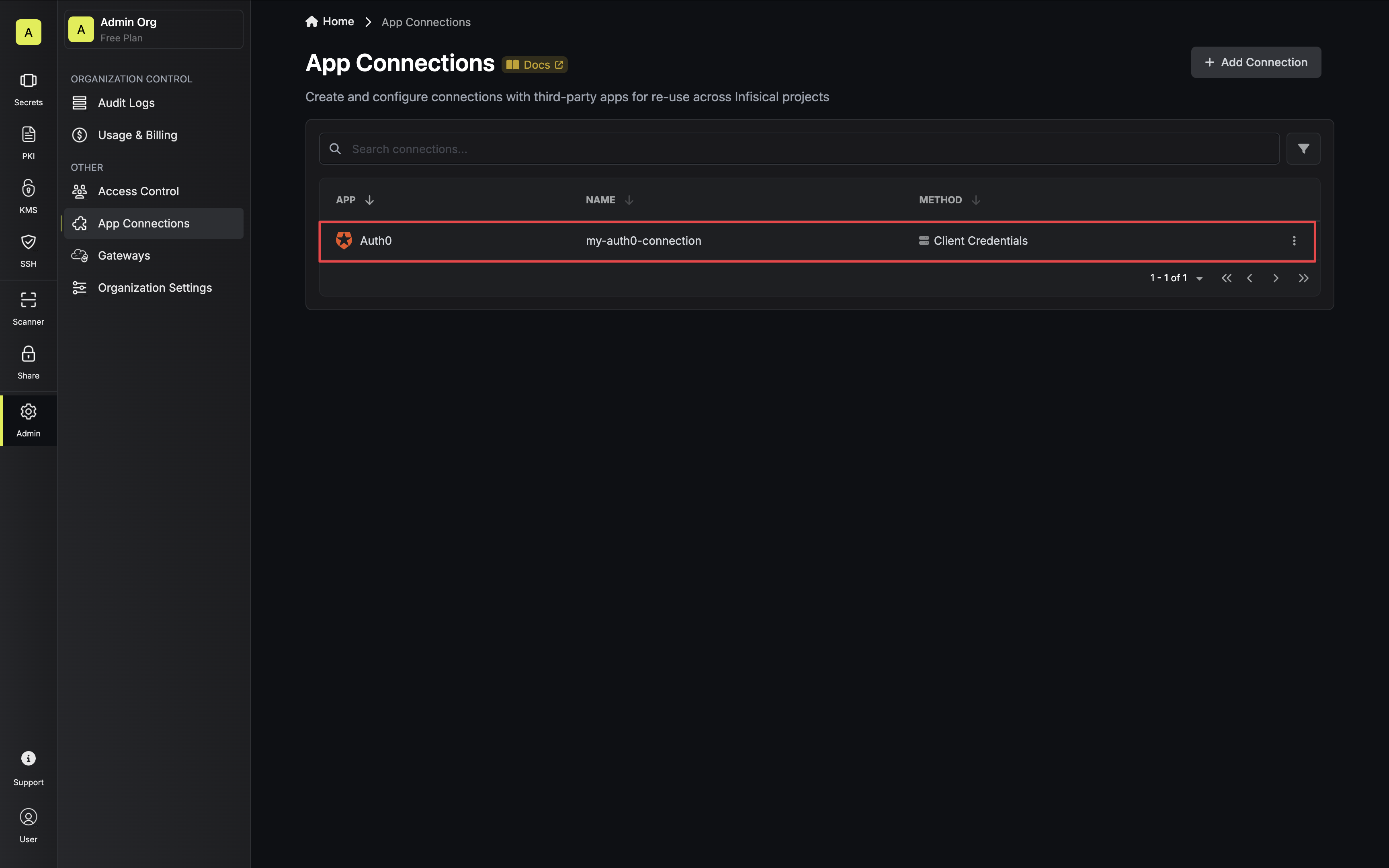
---
# Source: https://infisical.com/docs/integrations/secret-syncs/github.md
# Source: https://infisical.com/docs/integrations/app-connections/github.md
# Source: https://infisical.com/docs/documentation/platform/sso/github.md
# Source: https://infisical.com/docs/documentation/platform/secret-scanning/github.md
# Source: https://infisical.com/docs/documentation/platform/identities/oidc-auth/github.md
# Source: https://infisical.com/docs/documentation/platform/dynamic-secrets/github.md
> ## Documentation Index
> Fetch the complete documentation index at: https://infisical.com/docs/llms.txt
> Use this file to discover all available pages before exploring further.
# GitHub
> Learn how to dynamically generate GitHub App tokens.
The Infisical GitHub dynamic secret allows you to generate short-lived tokens for a GitHub App on demand based on service account permissions.
## Setup GitHub App
Navigate to [GitHub App settings](https://github.com/settings/apps) and click **New GitHub App**.
Give the application a name and a homepage URL. These values do not need to be anything specific.
Disable webhook by unchecking the Active checkbox.
Configure the app's permissions to grant the necessary access for the dynamic secret's short-lived tokens based on your use case.
Create the GitHub Application.
If you have a GitHub organization, you can create an application under it
in your organization Settings > Developer settings > GitHub Apps > New GitHub App.
Copy the **App ID** and generate a new **Private Key** for your GitHub Application.
Save these for later steps.
Install your application to whichever repositories and organizations that you want the dynamic secret to access.
Once you've installed the app, **copy the installation ID** from the URL and save it for later steps.
## Set up Dynamic Secrets with GitHub
Open the Secret Overview dashboard and select the environment in which you would like to add a dynamic secret.
Name by which you want the secret to be referenced
The ID of the app created in earlier steps.
The Private Key of the app created in earlier steps.
The ID of the installation from earlier steps.
After submitting the form, you will see a dynamic secret created in the dashboard.
Once you've successfully configured the dynamic secret, you're ready to generate on-demand credentials.
To do this, simply click on the 'Generate' button which appears when hovering over the dynamic secret item.
Alternatively, you can initiate the creation of a new lease by selecting 'New Lease' from the dynamic secret lease list section.
When generating these secrets, the TTL will be fixed to 1 hour.
Once you click the `Submit` button, a new secret lease will be generated and the credentials from it will be shown to you.
## Audit or Revoke Leases
Once you have created one or more leases, you will be able to access them by clicking on the respective dynamic secret item on the dashboard.
This will allow you to see the expiration time of the lease or delete a lease before its set time to live.
GitHub App tokens cannot be revoked. As such, revoking a token on Infisical does not invalidate the GitHub token; it remains active until it expires.
## Renew Leases
GitHub App tokens cannot be renewed because they are fixed to a lifetime of 1 hour.
---
# Source: https://infisical.com/docs/integrations/cicd/githubactions.md
> ## Documentation Index
> Fetch the complete documentation index at: https://infisical.com/docs/llms.txt
> Use this file to discover all available pages before exploring further.
# GitHub Actions
> How to sync secrets from Infisical to GitHub Actions
Use our [GitHub Secret Syncs](../secret-syncs/github) to sync secrets to GitHub at the organization-level, repository-level, and repository environment-level.
Alternatively, you can use Infisical's official GitHub Action [here](https://github.com/Infisical/secrets-action).
---
# Source: https://infisical.com/docs/integrations/secret-syncs/gitlab.md
# Source: https://infisical.com/docs/integrations/cicd/gitlab.md
# Source: https://infisical.com/docs/integrations/app-connections/gitlab.md
# Source: https://infisical.com/docs/documentation/platform/sso/gitlab.md
# Source: https://infisical.com/docs/documentation/platform/secret-scanning/gitlab.md
# Source: https://infisical.com/docs/documentation/platform/identities/oidc-auth/gitlab.md
> ## Documentation Index
> Fetch the complete documentation index at: https://infisical.com/docs/llms.txt
> Use this file to discover all available pages before exploring further.
# GitLab
> Learn how to authenticate GitLab pipelines with Infisical using OpenID Connect (OIDC).
**OIDC Auth** is a platform-agnostic JWT-based authentication method that can be used to authenticate from any platform or environment using an identity provider with OpenID Connect.
## Diagram
The following sequence diagram illustrates the OIDC Auth workflow for authenticating GitLab pipelines with Infisical.
```mermaid theme={"dark"}
sequenceDiagram
participant Client as GitLab Pipeline
participant Idp as GitLab Identity Provider
participant Infis as Infisical
Client->>Idp: Step 1: Request identity token
Idp-->>Client: Return JWT with verifiable claims
Note over Client,Infis: Step 2: Login Operation
Client->>Infis: Send signed JWT to /api/v1/auth/oidc-auth/login
Note over Infis,Idp: Step 3: Query verification
Infis->>Idp: Request JWT public key using OIDC Discovery
Idp-->>Infis: Return public key
Note over Infis: Step 4: JWT validation
Infis->>Client: Return short-lived access token
Note over Client,Infis: Step 5: Access Infisical API with Token
Client->>Infis: Make authenticated requests using the short-lived access token
```
## Concept
At a high-level, Infisical authenticates a client by verifying the JWT and checking that it meets specific requirements (e.g. it is issued by a trusted identity provider) at the `/api/v1/auth/oidc-auth/login` endpoint. If successful,
then Infisical returns a short-lived access token that can be used to make authenticated requests to the Infisical API.
To be more specific:
1. The GitLab pipeline requests an identity token from GitLab's identity provider.
2. The fetched identity token is sent to Infisical at the `/api/v1/auth/oidc-auth/login` endpoint.
3. Infisical fetches the public key that was used to sign the identity token from GitLab's identity provider using OIDC Discovery.
4. Infisical validates the JWT using the public key provided by the identity provider and checks that the subject, audience, and claims of the token matches with the set criteria.
5. If all is well, Infisical returns a short-lived access token that the GitLab pipeline can use to make authenticated requests to the Infisical API.
Infisical needs network-level access to GitLab's identity provider endpoints.
## Guide
In the following steps, we explore how to create and use identities to access the Infisical API using the OIDC Auth authentication method.
To create an identity, head to your Organization Settings > Access Control > Identities and press **Create identity**.
When creating an identity, you specify an organization level [role](/documentation/platform/access-controls/role-based-access-controls) for it to assume; you can configure roles in Organization Settings > Access Control > Organization Roles.
Now input a few details for your new identity. Here's some guidance for each field:
* Name (required): A friendly name for the identity.
* Role (required): A role from the **Organization Roles** tab for the identity to assume. The organization role assigned will determine what organization level resources this identity can have access to.
Once you've created an identity, you'll be redirected to a page where you can manage the identity.
Since the identity has been configured with Universal Auth by default, you should re-configure it to use OIDC Auth instead. To do this, press to edit the **Authentication** section,
remove the existing Universal Auth configuration, and add a new OIDC Auth configuration onto the identity.
Restrict access by configuring the Subject, Audiences, and Claims fields
Here's some more guidance on each field:
* OIDC Discovery URL: The URL used to retrieve the OpenID Connect configuration from the identity provider. This will be used to fetch the public key needed for verifying the provided JWT. For GitLab SaaS (GitLab.com), this should be set to `https://gitlab.com`. For self-hosted GitLab instances, use the domain of your GitLab instance.
* Issuer: The unique identifier of the identity provider issuing the JWT. This value is used to verify the iss (issuer) claim in the JWT to ensure the token is issued by a trusted provider. This should also be set to the domain of the Gitlab instance.
* CA Certificate: The PEM-encoded CA cert for establishing secure communication with the Identity Provider endpoints. For GitLab.com, this can be left blank.
* Subject: The expected principal that is the subject of the JWT. For GitLab pipelines, this should be set to a string that uniquely identifies the pipeline and its context, in the format `project_path:{group}/{project}:ref_type:{type}:ref:{branch_name}` (e.g., `project_path:example-group/example-project:ref_type:branch:ref:main`).
* Claims: Additional information or attributes that should be present in the JWT for it to be valid. You can refer to GitLab's [documentation](https://docs.gitlab.com/ee/ci/secrets/id_token_authentication.html#token-payload) for the list of supported claims.
* Access Token TTL (default is `2592000` equivalent to 30 days): The lifetime for an acccess token in seconds. This value will be referenced at renewal time.
* Access Token Max TTL (default is `2592000` equivalent to 30 days): The maximum lifetime for an acccess token in seconds. This value will be referenced at renewal time.
* Access Token Max Number of Uses (default is `0`): The maximum number of times that an access token can be used; a value of `0` implies infinite number of uses.
* Access Token Trusted IPs: The IPs or CIDR ranges that access tokens can be used from. By default, each token is given the `0.0.0.0/0`, allowing usage from any network address.
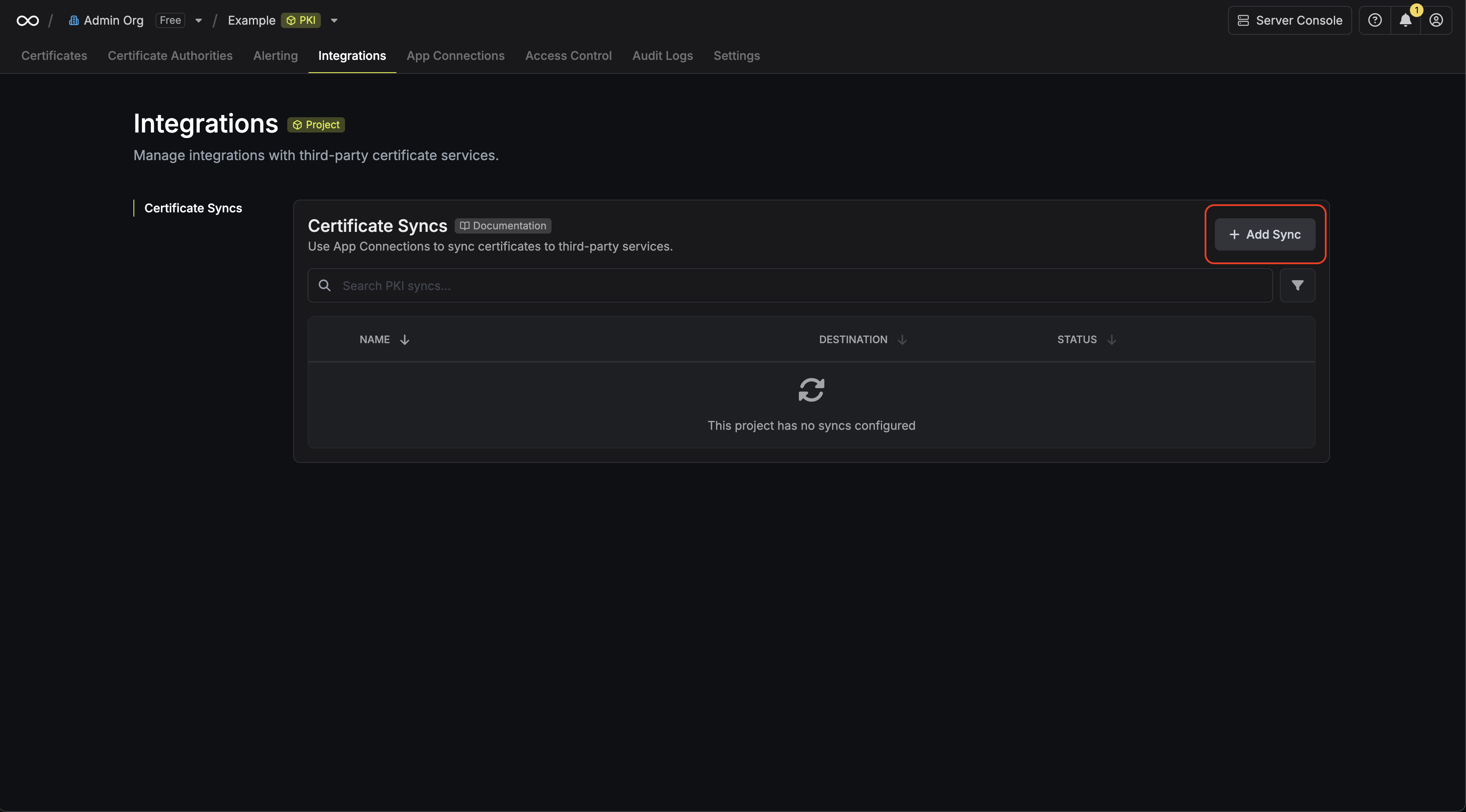
For more details on the appropriate values for the OIDC fields, refer to GitLab's [documentation](https://docs.gitlab.com/ee/ci/secrets/id_token_authentication.html#token-payload). The `subject`, `audiences`, and `claims` fields support glob pattern matching; however, we highly recommend using hardcoded values whenever possible.
To enable the identity to access project-level resources such as secrets within a specific project, you should add it to that project.
To do this, head over to the project you want to add the identity to and go to Project Settings > Access Control > Machine Identities and press **Add identity**.
Next, select the identity you want to add to the project and the project level role you want to allow it to assume. The project role assigned will determine what project level resources this identity can have access to.
As demonstration, we will be using the Infisical CLI to fetch Infisical secrets and utilize them within a GitLab pipeline.
To access Infisical secrets as the identity, you need to use an identity token from GitLab which matches the OIDC configuration defined for the machine identity.
This can be done by defining the `id_tokens` property. The resulting token would then be used to login with OIDC like the following: `infisical login --method=oidc-auth --oidc-jwt=$GITLAB_TOKEN`
Below is a complete example of how a GitLab pipeline can be configured to work with secrets from Infisical using the Infisical CLI with OIDC Auth:
```yaml theme={"dark"}
image: ubuntu
stages:
- build
build-job:
stage: build
id_tokens:
INFISICAL_ID_TOKEN:
aud: infisical-aud-test
script:
- apt update && apt install -y curl
- curl -1sLf 'https://dl.cloudsmith.io/public/infisical/infisical-cli/setup.deb.sh' | bash
- apt-get update && apt-get install -y infisical
- export INFISICAL_TOKEN=$(infisical login --method=oidc-auth --machine-identity-id=4e807a78-1b1c-4bd6-9609-ef2b0cf4fd54 --oidc-jwt=$INFISICAL_ID_TOKEN --silent --plain)
- infisical run --projectId=1d0443c1-cd43-4b3a-91a3-9d5f81254a89 --env=dev -- npm run build
```
The `id_tokens` keyword is used to request an ID token for the job. In this example, an ID token named `INFISICAL_ID_TOKEN` is requested with the audience (`aud`) claim set to "infisical-aud-test". This ID token will be used to authenticate with Infisical.
Each identity access token has a time-to-live (TTL) which you can infer from the response of the login operation; the default TTL is `7200` seconds, which can be adjusted.
If an identity access token expires, it can no longer authenticate with the Infisical API. In this case, a new access token should be obtained by performing another login operation.
---
# Source: https://infisical.com/docs/documentation/platform/pki/integration-guides/gloo-mesh.md
> ## Documentation Index
> Fetch the complete documentation index at: https://infisical.com/docs/llms.txt
> Use this file to discover all available pages before exploring further.
# Gloo Mesh
> Learn how to automatically provision and manage Istio intermediate CA certificates for Gloo Mesh using Infisical
This guide will provide a high level overview on how you can use Infisical and [cert-manager](https://cert-manager.io/) to issue Istio intermediate CA certificates for your Gloo Mesh workload clusters. For more background about Istio certificates, see the [Istio CA overview](https://istio.io/latest/docs/concepts/security/#pki).
## Overview
In this setup, we will use Infisical to generate and store your root CA and subordinate CAs that are used to generate Istio intermediate CAs for your Gloo Mesh workload clusters.
To manage the lifecycle of Istio intermediate CA certificates, you'll also install [cert-manager](https://cert-manager.io/).
Cert-manager is a Kubernetes controller that helps you automate the process of obtaining and renewing certificates from various PKI providers.
With this approach, you get the following benefits:
* Securely store your root CA certificates and private keys.
* Leverage Infisical subordinate CAs for an extra layer of protection beneath your root CA.
* Use cert-manager to automatically issue and renew Istio intermediate CA certificates from the same root, ensuring cross-cluster workload communication.
* Increased auditability of private key infrastructure.
## General Setup
The certificate provisioning workflow begins with setting up your PKI hierarchy in Infisical, where you create root and subordinate certificate authorities.
When you deploy a `Certificate` CRD in your workload cluster, `cert-manager` uses the [ACME enrollment method](/documentation/platform/pki/enrollment-methods/acme) configured on a [certificate profile](/documentation/platform/pki/certificates/profiles) to authenticate using EAB credentials and request an intermediate CA certificate.
Infisical verifies the request against your certificate policies and returns the signed certificate.
From there, Istio's control plane will automatically use this intermediate CA to sign leaf certificates for workloads in the service mesh, enabling secure mTLS communication across your entire Gloo Mesh infrastructure.
Follow the [Kubernetes cert-manager guide](/documentation/platform/pki/k8s-cert-manager) for detailed instructions on how to set up the Infisical and cert-manager for your Istio intermediate CA certificates in Gloo Mesh clusters.
For Gloo Mesh-specific configuration, ensure that:
* The Certificate resource targets the `istio-system` namespace with `secretName: cacerts`
* Certificate profiles in Infisical are configured for intermediate CA usage with appropriate key usage and constraints
* Multiple workload clusters use the same Infisical root to enable cross-cluster mTLS communication
## Using the certificates
Once the `cacerts` Kubernetes secret is created in the `istio-system` namespace, Istio automatically uses the custom CA certificate instead of the default self-signed certificate.
When you deploy applications to your Gloo Mesh service mesh, the workloads will receive leaf certificates signed by your Infisical intermediate CA, enabling secure mTLS communication across your entire mesh infrastructure.
---
# Source: https://infisical.com/docs/sdks/languages/go.md
> ## Documentation Index
> Fetch the complete documentation index at: https://infisical.com/docs/llms.txt
> Use this file to discover all available pages before exploring further.
# Infisical Go SDK
If you're working with Go, the official Infisical Go SDK package is the easiest way to fetch and work with secrets for your application.
* [Package](https://pkg.go.dev/github.com/infisical/go-sdk)
* [Github Repository](https://github.com/infisical/go-sdk)
# Basic Usage
```go theme={"dark"}
package main
import (
"fmt"
"os"
"context"
infisical "github.com/infisical/go-sdk"
)
func main() {
client := infisical.NewInfisicalClient(context.Background(), infisical.Config{
SiteUrl: "https://app.infisical.com", // Optional, default is https://app.infisical.com
AutoTokenRefresh: true, // Wether or not to let the SDK handle the access token lifecycle. Defaults to true if not specified.
})
_, err := client.Auth().UniversalAuthLogin("YOUR_CLIENT_ID", "YOUR_CLIENT_SECRET")
if err != nil {
fmt.Printf("Authentication failed: %v", err)
os.Exit(1)
}
apiKeySecret, err := client.Secrets().Retrieve(infisical.RetrieveSecretOptions{
SecretKey: "API_KEY",
Environment: "dev",
ProjectID: "YOUR_PROJECT_ID",
SecretPath: "/",
})
if err != nil {
fmt.Printf("Error: %v", err)
os.Exit(1)
}
fmt.Printf("API Key Secret: %v", apiKeySecret)
}
```
This example demonstrates how to use the Infisical Go SDK in a simple Go application. The application retrieves a secret named `API_KEY` from the `dev` environment of the `YOUR_PROJECT_ID` project.
We do not recommend hardcoding your [Machine Identity
Tokens](/documentation/platform/identities/machine-identities). Setting it as
an environment variable would be best.
# Installation
```console theme={"dark"}
$ go get github.com/infisical/go-sdk
```
# Configuration
Import the SDK and create a client instance.
```go theme={"dark"}
client := infisical.NewInfisicalClient(context.Background(), infisical.Config{
SiteUrl: "https://app.infisical.com", // Optional, default is https://api.infisical.com
})
```
### Configuration Options
The URL of the Infisical API..
Optionally set the user agent that will be used for HTTP requests. *(Not recommended)*
Whether or not to let the SDK handle the access token lifecycle. Defaults to true if not specified.
Whether or not to suppress logs such as warnings from the token refreshing process. Defaults to false if not specified.
Defines how long certain responses should be cached in memory, in seconds. When set to a positive value, responses from specific methods (like secret fetching) will be cached for this duration. Set to 0 to disable caching.
Allows you to pass custom headers to the HTTP requests made by the SDK. Expected format is a map of `Header1: Value1, Header2: Value 2`.
# Automatic token refreshing
The Infisical Go SDK supports automatic token refreshing. After using one of the auth methods such as Universal Auth, the SDK will automatically renew and re-authenticate when needed.
This behavior is enabled by default, but you can opt-out by setting `AutoTokenRefresh` to `false` in the client settings.
```go theme={"dark"}
client := infisical.NewInfisicalClient(context.Background(), infisical.Config{
AutoTokenRefresh: false, // <- Disable automatic token refreshing
})
```
When using automatic token refreshing it's important to understand how your application uses the Infiiscal client. If you are instantiating new instances of the client often, it's important to cancel the context when the client is no longer needed to avoid the token refreshing process from running indefinitely.
```go theme={"dark"}
ctx, cancel := context.WithCancel(context.Background())
defer cancel() // Cancel the context when the client is no longer needed
client := infisical.NewInfisicalClient(ctx, infisical.Config{
AutoTokenRefresh: true,
})
// Use the client
```
This is only necessary if you are creating multiple instances of the client, and those instances are deleted or otherwise removed throughout the application lifecycle.
If you are only creating one instance of the client, and it will be used throughout the lifetime of your application, you don't need to worry about this.
# Authentication
The SDK supports a variety of authentication methods. The most common authentication method is Universal Auth, which uses a client ID and client secret to authenticate.
#### Universal Auth
**Using environment variables**
Call `.Auth().UniversalAuthLogin()` with empty arguments to use the following environment variables:
* `INFISICAL_UNIVERSAL_AUTH_CLIENT_ID` - Your machine identity client ID.
* `INFISICAL_UNIVERSAL_AUTH_CLIENT_SECRET` - Your machine identity client secret.
**Using the SDK directly**
```go theme={"dark"}
_, err := client.Auth().UniversalAuthLogin("CLIENT_ID", "CLIENT_SECRET")
if err != nil {
fmt.Println(err)
os.Exit(1)
}
```
#### GCP ID Token Auth
Please note that this authentication method will only work if you're running
your application on Google Cloud Platform. Please [read
more](/documentation/platform/identities/gcp-auth) about this authentication
method.
**Using environment variables**
Call `.Auth().GcpIdTokenAuthLogin()` with empty arguments to use the following environment variables:
* `INFISICAL_GCP_AUTH_IDENTITY_ID` - Your Infisical Machine Identity ID.
**Using the SDK directly**
```go theme={"dark"}
_, err := client.Auth().GcpIdTokenAuthLogin("YOUR_MACHINE_IDENTITY_ID")
if err != nil {
fmt.Println(err)
os.Exit(1)
}
```
#### GCP IAM Auth
**Using environment variables**
Call `.Auth().GcpIamAuthLogin()` with empty arguments to use the following environment variables:
* `INFISICAL_GCP_IAM_AUTH_IDENTITY_ID` - Your Infisical Machine Identity ID.
* `INFISICAL_GCP_IAM_SERVICE_ACCOUNT_KEY_FILE_PATH` - The path to your GCP service account key file.
**Using the SDK directly**
```go theme={"dark"}
_, err = client.Auth().GcpIamAuthLogin("MACHINE_IDENTITY_ID", "SERVICE_ACCOUNT_KEY_FILE_PATH")
if err != nil {
fmt.Println(err)
os.Exit(1)
}
```
#### AWS IAM Auth
Please note that this authentication method will only work if you're running
your application on AWS. Please [read
more](/documentation/platform/identities/aws-auth) about this authentication
method.
**Using environment variables**
Call `.Auth().AwsIamAuthLogin()` with empty arguments to use the following environment variables:
* `INFISICAL_AWS_IAM_AUTH_IDENTITY_ID` - Your Infisical Machine Identity ID.
**Using the SDK directly**
```go theme={"dark"}
_, err = client.Auth().AwsIamAuthLogin("MACHINE_IDENTITY_ID")
if err != nil {
fmt.Println(err)
os.Exit(1)
}
```
#### Azure Auth
Please note that this authentication method will only work if you're running
your application on Azure. Please [read
more](/documentation/platform/identities/azure-auth) about this authentication
method.
**Using environment variables**
Call `.Auth().AzureAuthLogin()` with empty arguments to use the following environment variables:
* `INFISICAL_AZURE_AUTH_IDENTITY_ID` - Your Infisical Machine Identity ID.
**Using the SDK directly**
```go theme={"dark"}
_, err = client.Auth().AzureAuthLogin("MACHINE_IDENTITY_ID")
if err != nil {
fmt.Println(err)
os.Exit(1)
}
```
#### Kubernetes Auth
Please note that this authentication method will only work if you're running
your application on Kubernetes. Please [read
more](/documentation/platform/identities/kubernetes-auth) about this
authentication method.
**Using environment variables**
Call `.Auth().KubernetesAuthLogin()` with empty arguments to use the following environment variables:
* `INFISICAL_KUBERNETES_IDENTITY_ID` - Your Infisical Machine Identity ID.
* `INFISICAL_KUBERNETES_SERVICE_ACCOUNT_TOKEN_PATH_ENV_NAME` - The environment variable name that contains the path to the service account token. This is optional and will default to `/var/run/secrets/kubernetes.io/serviceaccount/token`.
**Using the SDK directly**
```go theme={"dark"}
// Service account token path will default to /var/run/secrets/kubernetes.io/serviceaccount/token if empty value is passed
_, err = client.Auth().KubernetesAuthLogin("MACHINE_IDENTITY_ID", "SERVICE_ACCOUNT_TOKEN_PATH")
if err != nil {
fmt.Println(err)
os.Exit(1)
}
```
#### JWT Auth
Please note that this authentication method requires a valid JWT token from
your JWT issuer. Please [read
more](/documentation/platform/identities/jwt-auth) about this authentication
method.
**Using the SDK**
```go theme={"dark"}
credential, err := client.Auth().JwtAuthLogin("MACHINE_IDENTITY_ID", "JWT_TOKEN")
if err != nil {
fmt.Println(err)
os.Exit(1)
}
```
#### LDAP Auth
Please note that this authentication method requires LDAP credentials. Please
[read more](/documentation/platform/identities/ldap-auth/general) about this
authentication method.
**Using environment variables**
You can set the `INFISICAL_LDAP_AUTH_IDENTITY_ID` environment variable and pass empty string for the identity ID:
```go theme={"dark"}
credential, err := client.Auth().LdapAuthLogin("", "LDAP_USERNAME", "LDAP_PASSWORD")
if err != nil {
fmt.Println(err)
os.Exit(1)
}
```
**Using the SDK directly**
```go theme={"dark"}
credential, err := client.Auth().LdapAuthLogin("MACHINE_IDENTITY_ID", "LDAP_USERNAME", "LDAP_PASSWORD")
if err != nil {
fmt.Println(err)
os.Exit(1)
}
```
#### OCI Auth
Please note that this authentication method will only work if you're running
your application on Oracle Cloud Infrastructure. Please [read
more](/documentation/platform/identities/oci-auth) about this authentication
method.
**Using environment variables**
You can set the `INFISICAL_OCI_AUTH_IDENTITY_ID` environment variable and omit the `IdentityID` field:
```go theme={"dark"}
credential, err := client.Auth().OciAuthLogin(infisical.OciAuthLoginOptions{
UserID: "USER_OCID",
TenancyID: "TENANCY_OCID",
Fingerprint: "FINGERPRINT",
PrivateKey: "PRIVATE_KEY",
Region: "REGION",
})
if err != nil {
fmt.Println(err)
os.Exit(1)
}
```
**Using the SDK directly**
```go theme={"dark"}
credential, err := client.Auth().OciAuthLogin(infisical.OciAuthLoginOptions{
IdentityID: "MACHINE_IDENTITY_ID",
UserID: "USER_OCID",
TenancyID: "TENANCY_OCID",
Fingerprint: "FINGERPRINT",
PrivateKey: "PRIVATE_KEY",
Region: "REGION",
Passphrase: nil, // Optional: pointer to string if your private key has a passphrase
})
if err != nil {
fmt.Println(err)
os.Exit(1)
}
```
**OciAuthLoginOptions fields:**
* `IdentityID` (string) - Your Infisical Machine Identity ID. Can be set via `INFISICAL_OCI_AUTH_IDENTITY_ID` environment variable.
* `UserID` (string) - Your OCI user OCID.
* `TenancyID` (string) - Your OCI tenancy OCID.
* `Fingerprint` (string) - Your OCI API key fingerprint.
* `PrivateKey` (string) - Your OCI private key (PEM format).
* `Region` (string) - Your OCI region (e.g., `us-ashburn-1`).
* `Passphrase` (\*string) - Optional: pointer to passphrase string if your private key is encrypted.
## Organization Authentication
All SDK authentication methods support logging into a sub-organization that your machine identity has access to. This is optional and only necessary when attempting to authenticate into a sub-organization using an identity created at the root organization.
Use the `.Auth().WithOrganizationSlug("")` method to specify which organization to authenticate against:
```go theme={"dark"}
_, err := client.Auth().WithOrganizationSlug("ORGANIZATION_SLUG").UniversalAuthLogin("CLIENT_ID", "CLIENT_SECRET")
if err != nil {
fmt.Println(err)
os.Exit(1)
}
```
If no organization slug is provided, the authentication session defaults to
the organization where the machine identity was originally created.
## Secrets
### List Secrets
`client.Secrets().List(options)`
Retrieve all secrets within the Infisical project and environment that client is connected to.
```go theme={"dark"}
secrets, err := client.Secrets().List(infisical.ListSecretsOptions{
ProjectID: "PROJECT_ID",
Environment: "dev",
SecretPath: "/foo/bar",
AttachToProcessEnv: false,
})
```
#### Parameters
The slug name (dev, prod, etc) of the environment from where secrets should be fetched from.
The project ID where the secret lives in.
The path from where secrets should be fetched from.
Whether or not to set the fetched secrets to the process environment. If true, you can access the secrets like so `System.getenv("SECRET_NAME")`.
Whether or not to include imported secrets from the current path. Read about [secret import](/documentation/platform/secret-reference)
Whether or not to fetch secrets recursively from the specified path. Please note that there's a 20-depth limit for recursive fetching.
Whether or not to expand secret references in the fetched secrets. Read about [secret reference](/documentation/platform/secret-reference)
###
### Retrieve Secret
`client.Secrets().Retrieve(options)`
Retrieve a secret from Infisical. By default `Secrets().Retrieve()` fetches and returns a shared secret.
```go theme={"dark"}
secret, err := client.Secrets().Retrieve(infisical.RetrieveSecretOptions{
SecretKey: "API_KEY",
ProjectID: "PROJECT_ID",
Environment: "dev",
})
```
#### Parameters
The key of the secret to retrieve.
The project ID where the secret lives in.
The slug name (dev, prod, etc) of the environment from where secrets
should be fetched from.
The path from where secret should be fetched from.
The type of the secret. Valid options are "shared" or "personal". If not
specified, the default value is "shared".
The version of the secret to retrieve.
###
### Create Secret
`client.Secrets().Create(options)`
Create a new secret in Infisical.
```go theme={"dark"}
secret, err := client.Secrets().Create(infisical.CreateSecretOptions{
ProjectID: "PROJECT_ID",
Environment: "dev",
SecretKey: "NEW_SECRET_KEY",
SecretValue: "NEW_SECRET_VALUE",
SecretComment: "This is a new secret",
})
```
#### Parameters
The key of the secret to create.
The value of the secret.
A comment for the secret.
The project ID where the secret lives in.
The slug name (dev, prod, etc) of the environment from where secrets
should be fetched from.
The path from where secret should be created.
The type of the secret. Valid options are "shared" or "personal". If not
specified, the default value is "shared".
###
### Update Secret
`client.Secrets().Update(options)`
Update an existing secret in Infisical.
```go theme={"dark"}
secret, err := client.Secrets().Update(infisical.UpdateSecretOptions{
ProjectID: "PROJECT_ID",
Environment: "dev",
SecretKey: "NEW_SECRET_KEY",
NewSecretValue: "NEW_SECRET_VALUE",
NewSkipMultilineEncoding: false,
})
```
#### Parameters
The key of the secret to update.
The new value of the secret.
Whether or not to skip multiline encoding for the new secret value.
The project ID where the secret lives in.
The slug name (dev, prod, etc) of the environment from where secrets
should be fetched from.
The path from where secret should be updated.
The type of the secret. Valid options are "shared" or "personal". If not
specified, the default value is "shared".
###
### Delete Secret
`client.Secrets().Delete(options)`
Delete a secret in Infisical.
```go theme={"dark"}
secret, err := client.Secrets().Delete(infisical.DeleteSecretOptions{
ProjectID: "PROJECT_ID",
Environment: "dev",
SecretKey: "SECRET_KEY",
})
```
#### Parameters
The key of the secret to update.
The project ID where the secret lives in.
The slug name (dev, prod, etc) of the environment from where secrets
should be fetched from.
The path from where secret should be deleted.
The type of the secret. Valid options are "shared" or "personal". If not
specified, the default value is "shared".
### Batch Create Secrets
`client.Secrets().Batch().Create(options)`
Create multiple secrets in Infisical.
```go theme={"dark"}
createdSecrets, err := client.Secrets().Batch().Create(infisical.BatchCreateSecretsOptions{
Environment: "",
SecretPath: "",
ProjectID: "",
Secrets: []infisical.BatchCreateSecret{
{
SecretKey: "SECRET-1",
SecretValue: "test-value-1",
},
{
SecretKey: "SECRET-2",
SecretValue: "test-value-2",
},
},
})
```
#### Parameters
The slug name (dev, prod, etc) of the environment from where secrets should be fetched from.
The project ID where the secret lives in.
The path from where secret should be created.
The key of the secret to create.
The value of the secret.
The comment to add to the secret.
Whether or not to skip multiline encoding for the secret value.
The tag IDs to associate with the secret.
The key of the metadata.
The value of the metadata.
## Folders
###
### List Folders
`client.Folders().List(options)`
Retrieve all within the Infisical project and environment that client is connected to.
```go theme={"dark"}
folders, err := client.Folders().List(infisical.ListFoldersOptions{
ProjectID: "PROJECT_ID",
Environment: "dev",
Path: "/",
})
```
#### Parameters
The slug name (dev, prod, etc) of the environment from where folders should be fetched from.
The project ID where the folder lives in.
The path from where folders should be fetched from.
###
### Create Folder
`client.Folders().Create(options)`
Create a new folder in Infisical.
```go theme={"dark"}
folder, err := client.Folders().Create(infisical.CreateFolderOptions{
ProjectID: "PROJECT_ID",
Name: "new=folder-name",
Environment: "dev",
Path: "/",
})
```
#### Parameters
The ID of the project where the folder will be created.
The slug name (dev, prod, etc) of the environment where the folder will be
created.
The path to create the folder in. The root path is `/`.
The name of the folder to create.
###
### Update Folder
`client.Folders().Update(options)`
Update an existing folder in Infisical.
```go theme={"dark"}
folder, err := client.Folders().Update(infisical.UpdateFolderOptions{
ProjectID: "PROJECT_ID",
Environment: "dev",
Path: "/",
FolderID: "FOLDER_ID_TO_UPDATE",
NewName: "new-folder-name",
})
```
#### Parameters
The ID of the project where the folder will be updated.
The slug name (dev, prod, etc) of the environment from where the folder
lives in.
The path from where the folder should be updated.
The ID of the folder to update.
The new name of the folder.
###
### Delete Folder
`client.Folders().Delete(options)`
Delete a folder in Infisical.
```go theme={"dark"}
deletedFolder, err := client.Folders().Delete(infisical.DeleteFolderOptions{
// Either folder ID or folder name is required.
FolderName: "name-of-folder-to-delete",
FolderID: "folder-id-to-delete",
ProjectID: "PROJECT_ID",
Environment: "dev",
Path: "/",
})
```
#### Parameters
The name of the folder to delete. Note that either `FolderName` or `FolderID` is required.
The ID of the folder to delete. Note that either `FolderName` or `FolderID` is required.
The ID of the project where the folder lives in.
The slug name (dev, prod, etc) of the environment from where the folder lives in.
The path from where the folder should be deleted.
## KMS
### Create Key
`client.Kms().Keys().Create(options)`
Create a new key in Infisical.
```go theme={"dark"}
newKey, err := client.Kms().Keys().Create(infisical.KmsCreateKeyOptions{
KeyUsage: "|",
Description: "",
Name: "",
EncryptionAlgorithm: "|||",
ProjectId: "",
})
```
#### Parameters
The usage of the key. Valid options are `sign-verify` or `encrypt-decrypt`.
The usage dictates what the key can be used for.
The description of the key.
The name of the key.
The encryption algorithm of the key.
Valid options for Signing/Verifying keys are:
* `rsa-4096`
* `ecc-nist-p256`
Valid options for Encryption/Decryption keys are:
* `aes-256-gcm`
* `aes-128-gcm`
The ID of the project where the key will be created.
#### Return (object)
The ID of the key that was created.
The name of the key that was created.
The description of the key that was created.
Whether or not the key is disabled.
The ID of the organization that the key belongs to.
The ID of the project that the key belongs to.
The intended usage of the key that was created.
The encryption algorithm of the key that was created.
The version of the key that was created.
### Delete Key
`client.Kms().Keys().Delete(options)`
Delete a key in Infisical.
```go theme={"dark"}
deletedKey, err = client.Kms().Keys().Delete(infisical.KmsDeleteKeyOptions{
KeyId: "",
})
```
#### Parameters
The ID of the key to delete.
#### Return (object)
The ID of the key that was deleted
The name of the key that was deleted.
The description of the key that was deleted.
Whether or not the key is disabled.
The ID of the organization that the key belonged to.
The ID of the project that the key belonged to.
The intended usage of the key that was deleted.
The encryption algorithm of the key that was deleted.
The version of the key that was deleted.
### Signing Data
`client.Kms().Signing().Sign(options)`
Sign data in Infisical.
```go theme={"dark"}
res, err := client.Kms().Signing().SignData(infisical.KmsSignDataOptions{
KeyId: "",
Data: "", // Must be a base64 encoded string.
SigningAlgorithm: "", // The signing algorithm that will be used to sign the data.
})
```
#### Parameters
The ID of the key to sign the data with.
The data to sign. Must be a base64 encoded string.
Whether the data is already digested or not.
The signing algorithm to use. You must use a signing algorithm that matches the key usage.
If you are unsure about which signing algorithms are available for your key, you can use the `client.Kms().Signing().ListSigningAlgorithms()` method. It will return an array of signing algorithms that are available for your key.
Valid options for `RSA 4096` keys are:
* `RSASSA_PSS_SHA_512`
* `RSASSA_PSS_SHA_384`
* `RSASSA_PSS_SHA_256`
* `RSASSA_PKCS1_V1_5_SHA_512`
* `RSASSA_PKCS1_V1_5_SHA_384`
* `RSASSA_PKCS1_V1_5_SHA_256`
Valid options for `ECC NIST P256` keys are:
* `ECDSA_SHA_512`
* `ECDSA_SHA_384`
* `ECDSA_SHA_256`
#### Return (\[]byte)
The signature of the data that was signed.
### Verifying Data
`client.Kms().Signing().Verify(options)`
Verify data in Infisical.
```go theme={"dark"}
res, err := client.Kms().Signing().Verify(infisical.KmsVerifyDataOptions{
KeyId: "",
Data: "", // Must be a base64 encoded string.
SigningAlgorithm: "", // The signing algorithm that was used to sign the data.
})
```
#### Parameters
The ID of the key to verify the data with.
The data to verify. Must be a base64 encoded string.
Whether the data is already digested or not.
The signing algorithm that was used to sign the data.
#### Return (object)
Whether or not the data is valid.
The ID of the key that was used to verify the data.
The signing algorithm that was used to verify the data.
### List Signing Algorithms
`client.Kms().Signing().ListSigningAlgorithms(options)`
List signing algorithms in Infisical.
```go theme={"dark"}
res, err := client.Kms().Signing().ListSigningAlgorithms(infisical.KmsListSigningAlgorithmsOptions{
KeyId: "",
})
```
#### Parameters
The ID of the key to list signing algorithms for.
#### Return (\[]string)
The signing algorithms that are available for the key.
### Get Public Key
This method is only available for keys with key usage `sign-verify`. If you
attempt to use this method on a key that is intended for
encryption/decryption, it will return an error.
`client.Kms().Signing().GetPublicKey(options)`
Get the public key in Infisical.
```go theme={"dark"}
publicKey, err := client.Kms().Signing().GetPublicKey(infisical.KmsGetPublicKeyOptions{
KeyId: "",
})
```
#### Parameters
The ID of the key to get the public key for.
#### Return (string)
The public key for the key.
### Encrypt Data
`client.Kms().Encryption().Encrypt(options)`
Encrypt data with a key in Infisical KMS.
```go theme={"dark"}
res, err := client.Kms().EncryptData(infisical.KmsEncryptDataOptions{
KeyId: "",
Plaintext: "",
})
```
#### Parameters