# Ideogram > Prompting is the process of providing a description or instruction to an AI model to generate a specific output. In the context of Ideogram, you write a textual description of the image you want to cr --- # Source: https://docs.ideogram.ai/using-ideogram/prompting-guide/1-what-is-prompting.md # 1- What is Prompting ## Prompting? What's That Exactly? Prompting is the process of providing a description or instruction to an AI model to generate a specific output. In the context of Ideogram, you write a textual description of the image you want to create, and the AI generates an image based on that description. For example: > *“A serene landscape with rolling hills under a starry night sky.”* This prompt guides the AI to produce an image matching the described scene. A good prompt can be short or detailed, precise or poetic, depending on your goals. You'll learn how to choose the best approach based on the type of image you want. *** ## Why Prompting Matters Prompting is how you describe to a text-to-image AI exactly what you want to see. The words you choose directly influence the result—whether you're aiming for something precise or exploring a creative idea. A clear, well-structured prompt helps the AI produce accurate and visually appealing images. This guide teaches you effective prompting techniques, balancing clarity and creativity to get the best results possible. *** ## Why Structure and Wording Matter Text-to-image AI models like Ideogram don’t interpret meaning intuitively like people do. They follow your instructions literally and try to visually represent every word in your prompt. Because of this, your prompt’s wording and structure significantly affect image quality. A clear prompt structure helps Ideogram: * Understand the main subject clearly. * Focus on important visual attributes. * Separate foreground from background elements. * Accurately apply artistic style, lighting, and atmosphere. *** Prompting with Ideogram is both a skill and a creative process. Whether you’re aiming for a specific visual or simply exploring artistic ideas, writing clear, thoughtful prompts gives you more control over the results. As you’ve seen throughout this guide, even small changes in structure, wording, or strategy can make a big difference. With practice, experimentation, and the right tools, you’ll learn how to shape the AI’s output to better match your intent—or discover something unexpectedly brilliant along the way. **Happy prompting!** Try Ideogram --- # Source: https://docs.ideogram.ai/using-ideogram/prompting-guide/2-prompting-fundamentals.md # 2- Prompting Fundamentals This section covers the key concepts that will help you write effective prompts for Ideogram. Whether you're aiming to generate the exact image you have in mind or to explore more creative, open-ended interpretations, these fundamentals apply to both prompting styles. ## Prompting Uses Natural Language Ideogram uses **plain natural language** to interpret prompts. There are **no hidden parameters, weights, or coded instructions** you can embed in the prompt—everything must be described the way you would say it to another person. This means: * You **can’t assign weights** to parts of a prompt (e.g., `::1` or `(important)` * You **can’t use hex codes or RGB values** for colors (e.g., `#E4BC73` ). Describe them instead with ordinary words (e.g., *“deep red,” “pale blue,” “golden-yellow”*). You can still influence the color in the image to be generated with the **Color** function. * You **can’t use technical flags or shortcuts** like `--ar` or `--v` or `--style` **Positioning still matters**: things written earlier in the prompt tend to be given more importance. So place the most important subject or idea near the beginning whenever possible. If you’re coming from other text-to-image tools, this may feel simpler—but that simplicity is also what makes Ideogram especially good at interpreting well-structured, natural descriptions. **You can write your prompt in your preferred language**: Ideogram generally understands prompts in any language, but for the most reliable results—especially when including text—write in English. Non-Latin scripts (e.g. Arabic, Chinese, Cyrillic) often render incorrectly. Using Magic Prompt will automatically translate your prompt into English. While short, tag-like prompts (such as *“a man in the forest, fire, dramatic, painting”*) may work in some cases, **Ideogram—especially version 2.0 and higher—responds better to natural, sentence-style prompting.** Full sentences or clearly structured phrases help the AI understand context, relationships, and composition more reliably. Writing your prompt the way you'd describe the image to another person generally produces better results. Ordinary grammar, punctuation, and descriptive flow help the model understand context, relationships, and visual intent more accurately. *** ## How Ideogram Interprets Prompts When you write a prompt, Ideogram doesn’t guess what you mean like a person might—it tries to visually represent every word. It reads your words literally, and each one affects what appears in the image. > *A tall man in a red coat walking through a snowy forest.* Ideogram will try to include all of those elements: the height, the red coat, walking action, snow, and the forest. The clearer and more specific your wording, the better chance the AI has of generating an image that matches what you imagined. *** ## The Importance of Visual Grounding Visual grounding refers to including concrete, observable details in your prompts—such as colors, shapes, objects, and settings—that the AI can accurately render. For example, instead of saying: > *A beautiful scene.* Provide specific details: > *A sunset over the ocean with orange and pink hues reflecting on the water.* This specificity helps the AI generate more accurate and visually coherent images. Even when you’re being creative or poetic, including some visually grounded elements gives Ideogram a stronger base to work from. *** ## Prompt Length and Clarity The length of your prompt affects how Ideogram interprets your request. Longer prompts can give you more control and precision, but only if they’re well structured. Short prompts, on the other hand, leave more room for artistic or unexpected outcomes. Prompt adherence is influenced by the clarity and specificity of your prompt. Longer, well-structured prompts with detailed descriptions can guide Ideogram to produce images that closely match your vision. However, overly complex or ambiguous prompts may lead to unexpected results. ### When to Use a Short Prompt Short prompts are useful when you want to explore creative or poetic ideas without strict control over the result. They often work best when paired with tools like Magic Prompt or Random Style. * **Short and creative:** > *A woman drifting through a quiet dream, shapes and colors shifting gently around her.* This kind of prompt leaves much up to the AI’s interpretation. You might get surreal, abstract, or symbolic results—great for inspiration or exploration. ### When to Use a Longer Prompt Longer prompts help when you want to control multiple parts of the image: the subject, background, lighting, mood, or style. They’re ideal when you already have a specific result in mind. * **Visually grounded and detailed:** > *A red fox standing beneath bright autumn trees, surrounded by golden leaves falling onto a quiet forest floor.* This kind of prompt tells the AI exactly what to render, and how to stage the visual. ### Tips for Using Longer Prompts Effectively: * Break the prompt into logical pieces: subject, details, background, atmosphere. * Put the most important ideas near the beginning. * Avoid packing in too many unrelated concepts—this can confuse the AI. ### About the number of words: Ideogram supports prompts up to **approximately 150 – 160 words (around 200 tokens)**. Prompts longer than this may be ignored or generate less accurate results. Make every word count, and always lead with what matters most. {% hint style="info" %} **Tip:** Prompt length isn’t tied to prompting style. You can write short or long prompts whether you're using visually grounded, abstract, or hybrid language. * Use **short prompts** when you want looser interpretation, to spark creative exploration or want to use Magic Prompt. * Use **longer prompts** when you want to guide specific elements like subject, background, style, or lighting. Start simple, lead with what's most important, and build up detail only as needed. {% endhint %} *** ## **Visually Grounded vs. Abstract Prompts** Ideogram responds well to both visually grounded and abstract prompts—but not in the same way. The way you phrase your prompt has a major impact on the kind of image you get, and how closely it matches your intent. ### **Visually Grounded Prompts** These prompts focus on what can literally be seen in the image: the subject, setting, lighting, style, colors, and composition. They’re best when you have a specific image in mind and want the AI to render it as clearly and accurately as possible. > * *A stone lighthouse standing on a rocky cliff in heavy fog, its beam shining across calm gray waves at dusk.* > * *A woman sitting in a dark room beside a table, reading a book under the warm glow of a single candle.* Visually grounded prompts tend to produce **more consistent and accurate results**, **stronger prompt adherence**, and **better layout control**, especially when generating images that include text. ### **Abstract or Poetic Prompts** These prompts use figurative language, emotion, or symbolism to guide the image in a more open-ended way. They’re ideal for **creative exploration**, **unexpected results**, or **evoking a feeling rather than a scene**. > * *A lighthouse fading into the mist, its light barely reaching the waves as the sea swallows the horizon.* > * *A woman reading by candlelight, her face half-shadowed, as time seems to pause around her.* Ideogram handles abstract prompts surprisingly well—especially when they include **some visual or emotional anchors**. The results may be unpredictable, but often striking. ### **Hybrid Prompts** You can also blend both approaches: use a clear visual structure with a poetic tone, or add symbolic elements to an otherwise grounded prompt. This lets you guide the AI while leaving room for interpretation. > * *A watercolor of a ballerina mid-spin on a quiet stage—like a moment of silence captured in motion.* > * *A detailed ink sketch of an old lighthouse on a cliff. The sea below vanishes into mist like a forgotten memory.* > * *A portrait of a young woman in a red cloak, standing still. The forest behind her blurs into colors like wet paint on glass.* This style is especially useful when: * You want a **specific subject** but an open-ended or expressive background. * You want **artistic interpretation** while keeping a core idea intact. * You want to inspire **variation in mood or atmosphere** while locking down style or composition. Use hybrid prompts when you want the best of both worlds: direction *and* discovery. **Tip:** * Use **visually grounded prompts** for accuracy and control * Use **abstract prompts** for creativity and exploration * Use **hybrid prompts** when you want something expressive but anchored *** ## Generating Text in Images Ideogram excels at rendering text within images—especially for posters, logos, titles, labels, headers, and other designs that incorporate typograpy—making it a powerful tool for any project that combines visuals and words. The way you phrase your prompt can influence how well Ideogram renders the text within an image. Below are a few natural-language examples that show how to include quoted text early in your prompt, while keeping the description visually grounded and realistic. > * *On the wall behind the artist, the phrase “Inspire Daily” is painted in large brush strokes across a mural, at the back of a vibrant and creative studio.* > * *A vintage poster design with the words “Ride Free” curving along the bottom in retro lettering, featuring a smiling woman on a bicycle on a countryside road.* > * *A chalkboard sign outside the bakery reads “Fresh Bread Daily” in handwritten white letters, surrounded by loaves and pastries arranged on rustic wooden shelves.* **To achieve the best results:** * **Use Visually Grounded Prompts**: Clearly describe the text's appearance, placement, and style within the image. * **Position Text Early in the Prompt**: Mention the desired text near the beginning of your prompt to get better results. * **Enclose Text in Quotation Marks**: Use quotation marks to specify the exact text you want to appear in the image. * **Break longer text into chunks.**\ If you're trying to generate more than one line of text, it's often better to split the content into sections with specific visual placement: > *A restaurant sign with the title “La Pasta” at the top, and the phrase “Fresh handmade Italian dishes” written below.* This gives Ideogram clearer structure and lowers the risk of spelling errors. * **Reduce visual complexity if possible.**\ The more intricate the rest of the scene is—busy backgrounds, multiple subjects, fine textures—the harder it is for the AI to cleanly render text. Simple backgrounds and good contrast between text and its surroundings improve results. That said, there are a few limitations to keep in mind: * **Text length matters.**\ The longer the text you want to include, the higher the chance of spelling errors, distortions, or incomplete words. Think of it like taking a group photo: the more people in the shot, the greater the chance someone will blink. Short, punchy phrases work best. * **Not suitable for layouts with full textual content**\ Ideogram is not designed to generate complete, text-heavy documents—such as full restaurant menus, website mock-ups with all copy in place, or multi-paragraph flyers. It can create the overall design and insert titles or short blocks of text, but long passages should be added later in a graphic editor or page layout application. * **Foreign language support is limited.**\ While you can write prompts in your own language, Ideogram’s text rendering is most accurate in **English**. Other languages, especially those that don’t use the Latin alphabet (like Chinese, Arabic, or Cyrillic scripts), often produce unpredictable or unreadable results. If precise, readable text is important to your design, consider using Ideogram to generate the visual concept and then add the text manually using graphic editing tools afterward. *** --- # Source: https://docs.ideogram.ai/using-ideogram/prompting-guide/3-prompt-structure.md # 3- Prompt Structure ## Why a Prompt Structure? A prompt structure is simply the way you organize your words when asking the AI to create an image. It helps the AI understand exactly what you want to see, like what kind of image it should be, what’s in it, and how it should look or feel. When your prompt is clearly structured, the AI has a much better chance of generating something that matches your idea. It’s like giving good directions—you don’t need to be an expert, but the more clearly you guide the AI, the better the results will reflect what you have in mind. *** ## The Different Parts of a Prompt Each part of a prompt adds structure and clarity. A clear structure also helps with prompt adherence, making it more likely that Ideogram will follow your description accurately and generate results that reflect your intent. Each part below includes three numbered examples. Each number represents a part of a different image prompt, which will later be assembled into full, complete prompts in section 3.2. ### **1- Image Summary** **Purpose**: This is where the entire image is described in a single sentence. Think of it as how someone might describe the image after glancing at it for just two seconds. **If you could only write one sentence for the prompt, this is the part you’d want to get right.** It also works well with tools like **Magic Prompt** to expand on. It establishes the visual form (e.g., photo, logo, painting), identifies the main subject, and gives a hint of the visual tone or context of the image. **Examples**: 1. *A product photo of a men’s perfume bottle named “Nightlife for men” in a sleek studio setup.* 2. *A whimsical watercolor painting of a little girl playing with her bunny in a flower-filled field.* 3. *A logo design for a local football team called “Rhinos” in green, blue, and white.* ### **2- Main Subject Details** **Purpose**: This part gives more information about the main subject in the image. What does it look like? What color is it? What shape, material or texture? Whether it’s a person, animal, or object, this section ensures that the subject is described clearly and specifically so the AI can generate it precisely. This is also the best place to include any text you want rendered in the image, such as titles, signs, or labels. For best results, enclose the exact wording in quotation marks `“ ”` and place it early in the prompt when possible. Describe where the text appears and how it looks to increase accuracy. 1. *The bottle is tall and rectangular with dark glass, a matte black cap, and silver lettering. The text “Nightlife for men” appears on the label in bold, modern font.* 2. *The girl has short brown hair, a yellow dress, and rosy cheeks. She holds a fluffy white bunny in her arms, and both are smiling.* 3. *The main graphic shows a strong, stylized rhino head viewed from a three-quarter angle, with sharp lines and a bold expression. The word “Rhinos” appears in large, blocky letters beneath the icon.* ### **3- Pose or Action** **Purpose**: This section describes what the main subject is doing — or how it’s placed. If it’s a person, maybe they’re smiling or sitting. If it’s an object, is it standing upright or tilted? This adds life and personality to the image, even when it’s still. 1. *The bottle stands upright with a slight reflection on the surface below.* 2. *The bunny is leaning into her, with its ears flopping gently.* 3. *The rhino’s horn points slightly forward and up, adding a sense of motion.* ### **4- Secondary Elements** **Purpose**: These are the smaller things around or near the main subject. They help tell the story, establish relationships or complete the scene, but they don’t steal the spotlight. Think of things like props, background objects, accessories, ambient visual details, or smaller characters that make the image feel fuller. 1. *A wristwatch and a pair of sunglasses sit nearby, adding a masculine vibe.* 2. *Wildflowers, butterflies, and a toy picnic basket surround them.* 3. *Stars and shield shapes accent the logo without crowding it.* ### **5- Setting & Background** **Purpose**: This part explains where the image takes place. Is it outside or indoors? In a forest, a city, a room, or an empty space? You can also say if it’s daytime, sunset, or a certain time in history. Whether highly detailed or minimalistic, the background contributes to anchor the image in a coherent visual context. 1. *The scene is set on a smooth black surface with blurred city lights in the background.* 2. *They are outdoors in a grassy meadow, under a wide blue sky.* 3. *The background is flat white, with no scene or setting.* ### **6- Lighting & Atmosphere** **Purpose**: This is about how the light looks and how the image feels. Is the light soft or bright? Is it warm and cozy, or dramatic and dark? Atmosphere includes mood-related descriptors like ethereal, cozy, ominous, cinematic, etc. This helps set the mood of the image and makes it feel more real or more emotional. 1. *Lighting is moody and cool, with soft blue highlights and deep shadows.* 2. *The light is soft and sunny, with warm pastel tones and a dreamy atmosphere.* 3. *The color palette is vivid, with deep blue outlines, white highlights, and green fills.* ### **7- Framing & Composition** **Purpose**: This describes how the subject and elements are visually arranged within the frame. It can describe the camera or viewer angle (top-down, low angle), shot type (close-up, wide), and subject placement (centered, rule of thirds). For non-photographic works, it still applies—e.g., how a figure is balanced in a painting or how elements are spaced in a logo. It enhances clarity, focus, and aesthetics. 1. *The bottle is centered in the frame, captured at eye level.* 2. *The girl and bunny are slightly off-center, framed from a gentle downward angle.* 3. *The logo is center-aligned with a tight, symmetrical layout.* ### **8- Technical Enhancers** **Purpose**: These are the extra details that make the image look more polished or professional. They don’t change the content, but they improve how it looks — like lens type, lighting effects, bokeh, brush textures, or rendering style. These are useful when you want a certain artistic finish. 1. *A shallow depth of field gives the image a polished, professional look.* 2. *The brush strokes are loose and textured, with light color bleeds that add charm and softness.* 3. *The lines are clean, the edges sharp, and the style is vector-based with a modern, sporty look.* **It is not necessary to use all the parts described above**. For example, when prompting for a logo design, you might not need to add anything about any secondary elements. Your prompt can be short or detailed, depending on your goal. The more parts you include, the more control you’ll have — but sometimes, a short or abstract prompt is the best way to explore creative results. Now that you’ve seen each part in isolation, let’s bring them together. *** ## Assembling the Parts Here’s a basic prompt template that is making use of all the parts described above: > *\[Image summary]. \[Main subject details], \[Pose or action], \[Secondary elements], \[Setting & Background], \[Lighting & Atmosphere], \[Framing & Composition], \[Technical enhancers]* By combining all the example parts from the example in section 3.1 above, we can build the following three complete prompts: 1. > *A product photo of a men’s perfume bottle named “Nightlife for men” in a sleek studio setup. The bottle is tall and rectangular with dark glass, a matte black cap, and silver lettering. The text “Nightlife for men” appears on the label in bold, modern font. The bottle stands upright with a slight reflection on the surface below. A wristwatch and a pair of sunglasses sit nearby, adding a masculine vibe. The scene is set on a smooth black surface with blurred city lights in the background. Lighting is moody and cool, with soft blue highlights and deep shadows. The bottle is centered in the frame, captured at eye level. A shallow depth of field gives the image a polished, professional look.* 2. > *A whimsical watercolor painting of a little girl playing with her bunny in a flower-filled field. The girl has short brown hair, a yellow dress, and rosy cheeks. She holds a fluffy white bunny in her arms, and both are smiling. The bunny is leaning into her, with its ears flopping gently. Wildflowers, butterflies, and a toy picnic basket surround them. They are outdoors in a grassy meadow, under a wide blue sky. The light is soft and sunny, with warm pastel tones and a dreamy atmosphere. The girl and bunny are slightly off-center, framed from a gentle downward angle. The brush strokes are loose and textured, with light color bleeds that add charm and softness.* 3. > *A logo design for a local football team called “Rhinos” in green, blue, and white. The main graphic shows a strong, stylized rhino head viewed from a three-quarter angle, with sharp lines and a bold expression. The word “Rhinos” appears in large, blocky letters beneath the icon. The rhino’s horn points slightly forward and up, adding a sense of motion. Stars and shield shapes accent the logo without crowding it. The background is flat white, with no scene or setting. The color palette is vivid, with deep blue outlines, white highlights, and green fills. The logo is center-aligned with a tight, symmetrical layout. The lines are clean, the edges sharp, and the style is vector-based with a modern, sporty look.* {% hint style="warning" %} > **Note:** Ideogram supports prompts **up to roughly 150-160 words or about 200 tokens** depending on the vocabulary. Anything beyond that limit may be **less effective or ignored entirely** by the AI when generating the image. To avoid losing key details, make sure the most important parts of your prompt come near the beginning. The assembled examples above approach that upper limit and are designed to give the AI strong visual and stylistic guidance while staying concise and well-structured. > {% endhint %} *** --- # Source: https://docs.ideogram.ai/using-ideogram/prompting-guide/4-handling-negatives.md # 4- Handling Negatives ## Why Negative Phrasing Often Fails Ideogram, like many text-to-image AIs, struggles with understanding negation. When you describe something in terms of what it shouldn't include, the AI often misinterprets or ignores the negation. Instead, it focuses on the keywords themselves. For example, prompting *“a man without a beard”* may result in an image of a man with a beard, as the AI emphasizes the word *“beard”* without processing the *“without”* modifier. This issue arises because these models are trained to associate words with visual elements, but they don't inherently grasp the concept of absence or exclusion. Therefore, using negative terms like *“no,”* *“without,”* or *“not”* can lead to unintended results. *** ## Turn Negatives Into Positives When people want to exclude something from the image, they usually write the prompt using negative concept and phrasing of what they don't want—*“no people,” “without clouds,” “not dark.”* That’s completely natural in everyday language, but it doesn’t work well with text-to-image AI like Ideogram. Instead, try to shift your thinking: describe the *positive visual opposite* of the thing you want to exclude. Ask yourself: *“If this thing wasn’t there, what would I see instead?”* For example: * Don't write *“no people in the room”* but write *“an empty room with chairs neatly arranged”* * Avoid *“without hair”* and replace it by “a bald figure with smooth skin” * Instead of *“a beach without people”* use *“an empty beach at sunrise”* * Rather than *“a robot with no eyes”* try *“a robot with a smooth, featureless face”* * Don't write *“no cars on the street”* but opt for *“a quiet pedestrian-only street”* This might feel less intuitive at first, but it gets easier with practice and is far more effective. If you're unsure how to flip your idea into a positive phrase, turn on Magic Prompt—it will often converts the sentence to a positive phrase—or use a Large Language Models AI (LLM) like ChatGPT to suggest an affirmative rewrite. *** --- # Source: https://docs.ideogram.ai/using-ideogram/prompting-guide/5-common-pitfalls-and-fixes.md # 5- Common Pitfalls and Fixes Even with a good understanding of prompting, it’s easy to make small mistakes that lead to strange or disappointing results—especially when you're trying to get a very specific image from the AI. This section highlights some of the most common issues users run into when they want precise results and shows how to fix them with simple changes. These tips are especially useful when you have a clear image in mind and want Ideogram to follow your descriptions closely. If you're prompting more for creative discovery or artistic exploration, some of these “mistakes” may actually lead to interesting results—so feel free to experiment. ## Vague Adjectives **Issue:** Using non-specific descriptors like *“beautiful,” “interesting,” “nice”* or *“cool”* can lead to unpredictable outcomes, as the AI lacks a clear visual reference for these terms. **Fix:** Replace vague adjectives with specific visual details. > **Instead of:** *“A beautiful forest”*\ > \&#xNAN;***Try:** “A dense forest with tall pine trees and soft rays of sunlight filtering through the branches”* > > **Instead of:** *“A beautiful dress.”*\ > \&#xNAN;***Try:** “A red satin evening gown with intricate lace details.”* *** ## Generic Style Terms **Issue:** Using broad style descriptors like “artistic” or “modern”—often seen at the beginning of the prompt to define the medium and style of the image—may not provide the AI with enough guidance to what kind of art you expect. **Fix:** Specify the desired style using well-known art movements, techniques, or mediums. > **Instead of:** *“a modern painting of a landscape”*\ > \&#xNAN;***Try:** “An impressionist painting of a rolling countryside with thick brushstrokes and pastel tones”* > > **Instead of:** *“an artistic photo of a dancer”*\ > \&#xNAN;***Try:** “A soft-focus photo of a ballet dancer mid-leap on a dimly lit stage”* *** ## Contradictory Descriptions **Issue:** Writing conflicting information in a prompt can confuse the AI, leading to inconsistent or nonsensical images. **Fix:** Ensure all elements of the prompt are coherent and compatible. > **Instead of:** *“A minimalist sculpture with fine and intricate details”*\ > **Try:** *“A minimalist sculpture with smooth, simple geometric shapes in white marble”*\ > \&#xNAN;***Or:** “A detailed sculpture carved with delicate patterns and ornamental features, displayed on a minimal white pedestal”* > > **Instead of:** *“A clean, empty room cluttered with artifacts”*\ > **Try:** *“A clean, empty room with plain white walls and a single wooden chair”*\ > \&#xNAN;***Or:** “A room filled with ancient artifacts, displayed on simple white pedestals in a clean, open space”* *** ## Abstract Concepts Tied to a Subject **Issue:** Prompts centered on abstract ideas without concrete visual elements can lead to a wide variety of results. **Fix:** Anchor abstract concepts with tangible visuals. > **Instead of:** *“A symbol of hope”*\ > **Try*****:** “A single flower blooming through a crack in the concrete”* > > **Instead of:** *“*A child caught in a moment of wonder*”*\ > **Try*****:** “A child staring up at a night sky filled with stars, mouth slightly open in awe”* > > **Instead of:** *“An old man lost in regret”*\ > **Try*****:** “An old man sitting alone on a park bench, staring down at a faded photo in his hands”* *** ## Aspect Ratio Influence on Framing Even with the exact same prompt, Ideogram may generate very different results depending on the aspect ratio you choose. This is because the AI tries to fill the entire canvas based on the image it was trained with, and different aspect ratios naturally suggest different types of framing. For example: A prompt like *“A woman walking on a busy city street sidewalk”* * In **portrait (1:2)**, the result may show her full body from head to toe. * In **landscape (2:1)**, the framing may shift closer—showing her from the waist up or knees up to fit the wider format. If you're aiming for a specific composition—like a wide scenic view, a full-body portrait, or a tight close-up—it helps to: * **Choose an aspect ratio** that matches your intent * **Include clear framing cues** in your prompt, such as *“full-body,” “head and shoulders,” “wide establishing shot,”* and so on However, even with a matching prompt and aspect ratio, the AI may still frame your subject differently than expected. For example: * You might ask for a **full-body view** in landscape format, but the result shows only the upper body * Or you might want a **close-up** in portrait format, but the AI includes the full body anyway To guide the framing more precisely, here are two simple strategies that work in both cases: 1. **Include visual elements that hint at how much of the subject should be shown** * For **full-body results**, describe things near the feet—like shoes, sidewalk texture, shadows, or puddles * For **close-ups**, focus only on upper-body features—like eyes, lips, hands, or shoulders 2. **Adjust the focus of the prompt** * For wider framing, make the **environment** the main subject (e.g., *“a crowded city sidewalk”*) and describe the person as a key detail within it * For tighter framing, keep the **person** as the main subject and avoid describing large-scale surroundings that suggest a wide shot These small changes help steer the AI toward the type of framing that fits your goal—whether it’s a full scene or a focused portrait. Combining descriptive language with the right aspect ratio gives you much better control over what appears in the final image. *** In conclusion, learning to spot these small issues—and knowing how to fix them—can make a big difference in how well your prompt is understood. With just a few adjustments, you'll start getting images that feel a lot closer to what you had in mind. In the next section, you’ll see how to iterate and refine your prompt step by step. *** --- # Source: https://docs.ideogram.ai/using-ideogram/prompting-guide/6-prompt-iteration-and-refinement.md # 6- Prompt Iteration and Refinement Even with a well-structured prompt, the first image you generate might not be exactly what you envisioned. That's perfectly normal. Refining your prompt through small, thoughtful changes can help you get closer to your desired result. This section covers practical strategies for adjusting and improving your prompts to achieve better outcomes. *** ## Why Iterate? Each prompt you write is a starting point. If the result isn't quite right—maybe the composition feels off, or the subject isn't clear—making small adjustments can lead to significant improvements. Iteration helps you fine-tune your prompt to guide the AI more effectively. *** ## The One-Change Rule When refining your prompt, it's helpful to change only one thing at a time. This approach allows you to see how each specific change affects the outcome, making it easier to understand what works and what doesn't. > **Original:**\ > \&#xNAN;*“A black cat sitting on a windowsill during a storm”*\ > **Possible changes:**\ > 1\. *“A black cat sitting on a windowsill during a **light drizzle**”*\ > 2\. *“A black **dog** sitting on a windowsill during a light drizzle”*\ > \&#xNAN;*3. “A black dog sitting on a **porch** during a light drizzle”* By altering just the nature of the storm, you can observe how this single change impacts the image. *** ## Prompt Chaining (Progressive Detailing) Start with a simple prompt and gradually add more details in subsequent iterations. This method helps you build complexity step by step, ensuring each addition enhances the image without overwhelming it. > **Step 1:** *“A medieval castle”*\ > **Step 2:** *“A medieval castle on a hilltop”*\*\ > **Step 3:** *“A medieval castle on a hilltop at sunset”*\ > \&#xNAN;***Step 4:** “A medieval castle on a hilltop at sunset with a dragon flying overhead”* Each step adds a new element, allowing you to monitor how the image evolves. *** ## Try Alternate Wording Sometimes a specific word or phrase just doesn't produce the result you're looking for. When that happens, try swapping it with a synonym, rephrasing the idea in a different way, or using a slightly different expression. Even a small change in wording can lead to very different outcomes—especially if the new term is more visually recognizable to the AI. > **Instead of** “*lush jungle*”, **try** “*dense rainforest*” **or** “*tropical forest*”\ > **Instead of** “*futuristic city*”, **try** “*sci-fi metropolis*” **or** “*neon cyberpunk skyline*”\ > **Instead of** “*sad expression*”, **try** “*a face with downturned eyes and a slight frown*” If something isn’t working right, it doesn’t mean your idea is wrong—just that the phrasing might need a small nudge. A quick thesaurus search—or even asking a language model—can help you find wording that triggers the look you really want. Keep experimenting, one small change at a time, and you’ll quickly discover what works best. *** ## Emphasize Important Parts of the Image Sometimes the AI might generate your image correctly in general, but miss something that feels too small, unbalanced, or visually incorrect. In these cases, two small techniques can make a big difference: **repetition** and **description for emphasis**. ### **Repeat Key Elements** You can repeat the same element in different parts of the prompt to reinforce its importance. This doesn’t mean saying the exact same thing twice, but rather **referencing the same subject in multiple ways**. > *A product photo of a men’s perfume bottle named “Nightlife for men” in a sleek studio setup. The bottle is tall and rectangular with dark glass… The bottle stands upright… The bottle is centered in the frame…* By mentioning the bottle multiple times — in the summary, the details, and the framing — the AI is more likely to understand it’s the focal point and treat it with more visual weight. ### **Add Extra Description to Reinforce Details** If the AI keeps omitting or downplaying something important, try **describing it more fully**: * Add more visual detail about size, color, texture, or placement * Mention it in different parts of the prompt (e.g., summary and composition) * Reinforce its relationship to the rest of the image For example, if the shoes of a person are missing or awkward, adding *“wearing black leather boots that cast a shadow on the sidewalk”* gives the AI both a visual anchor and spatial context. These two techniques are especially helpful when: * The AI misplaces or forgets a key detail * You’re generating a busy or layered scene * You want to draw focus to a specific object or subject Use them as subtle tools to guide the AI’s attention — without needing to rewrite the entire prompt. --- # Source: https://docs.ideogram.ai/using-ideogram/prompting-guide/7-creative-tools-in-ideogram.md # 7- Creative Tools in Ideogram Ideogram comes with several built‑in helpers that can *shift* or *amplify* whatever your prompt says. Think of them as “prompt modifiers.” They don’t replace good wording, but they can change the direction, polish, or diversity of the result. Below is what each tool *does* to your prompt or image—and when to reach for it. (Full button locations and step‑by‑step instructions live in the official docs.) *** ## Describe – “Image to Prompt” * **What it does**: Reads an existing image (uploaded or generated) and writes a fresh prompt that would recreate something similar. * **Why use it**: * Kick‑start a new idea when you don’t know how to word it. * Borrow phrasing tricks from images whose style you like. * **Best practice**: Treat the generated text as a *draft*. Edit details, reorder parts, or shorten it before re‑using. Describe documentation link to come. *** ## Magic Prompt * **What it does**: Expands or beautifies your text with an on‑device LLM. Short prompts grow; long prompts change only slightly. * **Why use it**: * Add richer adjectives, lighting cues, or stylistic hints automatically. * Translate your ideas from any language into well‑formed English if desired. * **Best practice**: * Short, exploratory prompt? Let Magic Prompt run wild. * Highly detailed prompt? Expect tiny tweaks—review to be sure it hasn’t added unwanted elements. * **Examples**: > **Short prompt**:\ > \&#xNAN;*Photo of a cat sitting, gazing outside at the falling snow.* > > **Magic Prompt**:\ > \&#xNAN;*A cozy, warm photograph of a fluffy Persian cat sitting on a window sill, gazing intently at the falling snow. The cat has long, luxurious white fur, bright emerald-green eyes, and a slightly flattened face, creating a charming and endearing expression. Outside the window, large snowflakes gently drift down, partially obscuring a blurred landscape of snow-covered trees and rooftops. Soft, diffused light illuminates the cat’s fur from within, casting a gentle glow on its face and creating a peaceful, tranquil atmosphere.* > **Long prompt**:\ > \&#xNAN;*A cozy indoor photo of a black-and-white cat sitting peacefully on a wooden windowsill. The cat has thick, fluffy fur and green eyes, looking outside with a calm expression. Snow is falling gently outside the window, creating a soft wintery backdrop. A leafy houseplant in a terracotta pot sits nearby, and light condensation covers the lower edge of the glass. The scene is lit by natural morning light, with soft shadows and a warm, quiet atmosphere. The cat is centered in the frame, captured at eye level, and the background is slightly blurred to focus attention on the subject.* > > **Magic Prompt**:\ > \&#xNAN;*A serene, soft-focus photograph of a black-and-white cat perched gracefully on a weathered wooden windowsill, its thick, fluffy fur contrasting with the aged wood. The cat's bright green eyes gaze thoughtfully outwards, reflecting the gentle snowfall beyond the windowpane with a calm, almost contemplative expression. Outside, delicate snowflakes drift past a frosted window, while inside, a vibrant fiddle-leaf fig in a terracotta pot provides a splash of life near a softly blurred stack of antique books. Natural morning light illuminates the scene, creating a cozy and quiet atmosphere with subtle shadows and a delicate layer of condensation on the lower edge of the glass.* Magic Prompt documentation link to come. *** ## Random Style & Reference Style * **Reference Style**: Lets you supply an image (uploaded or existing Ideogram output) whose *look* guides the next image. * **Random Style**: Injects an unpredictable and random image as a reference style before generation—ideal for visual experimentation. **Why use them:** * **Random Style** pushes a familiar prompt into new artistic territory—great for concept discovery. * **Reference Style** anchors colours, textures, or composition to a source image—useful when you want variation without losing a core aesthetic.\\ {% hint style="info" %} **Pro tip**: Combine a **short prompt** + **Magic Prompt** + **Random Style** and get ready to explore a variety of wild images and possibilities. {% endhint %} Random/Reference style documentation links to come. *** ## Remix * **What it does**: Use an existing image (uploaded or generated) as a parent image for the AI to regenerate while re‑using the prompt and other settings to make small or big changes. * **Why use it**: * Fix small flaws without re‑writing the entire prompt. * Try minor lighting, color, or pose changes but keep overall composition. * **Best practice**: 1. Identify what you like in the current image. 2. Change one phrase in the prompt (see Section 6). 3. Hit Remix to preview the tweak side‑by‑side. Remix documentation link to come. *** ## Combining Tools for Different Goals Use these tools as *levers*: push them when you want more variation, pull back when you need precision. Mastering when—and when not—to use them will make every iteration (Section 6) faster and more intentional. For example:
GoalSuggested Combo
Rapid visual explorationShort prompt → Magic Prompt → Random Style
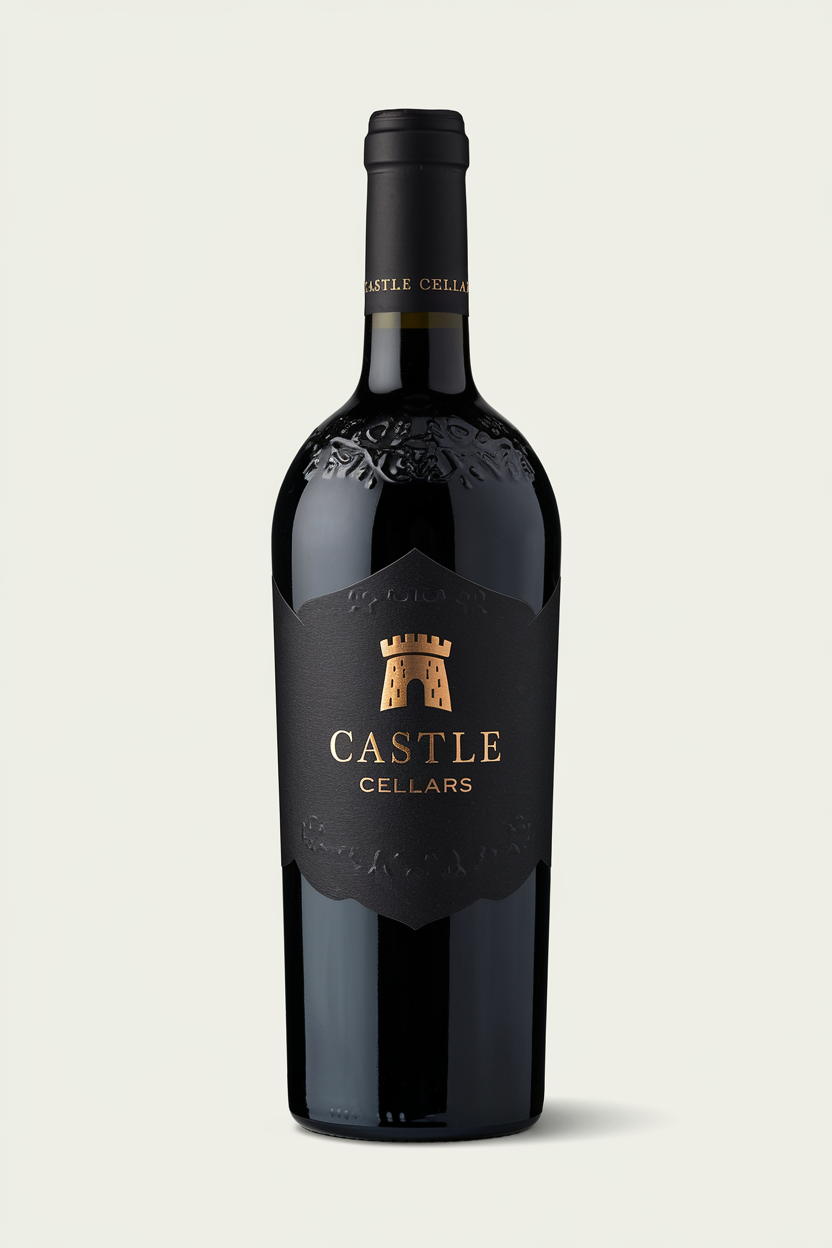
Style transferClear prompt → Reference Style (upload reference)
Polish an almost‑perfect imageExisting image → Remix (tweak one word)
Learn how to phraseInspiring image → Describe → edit → generate
*** --- # Source: https://docs.ideogram.ai/using-ideogram/prompting-guide/8-troubleshooting.md # 8- Troubleshooting ## Even with a well-structured prompt, the AI may not always interpret your intent exactly as expected. This section highlights common issues that can occur while prompting, along with practical fixes and links to relevant sections of the guide where you can learn more.
The AI adds something I specifically said I didn’t want. **Possible Causes:** * Prompt uses negative phrasing (e.g., “*no hair*,” “*no people*”). * AI fails to process negation and focuses on the mentioned object instead. * The unwanted object or concept is inadvertently suggested elsewhere in the prompt. * Use of Magic Prompt. **Fixes:** * Rewrite using **affirmative descriptions** (e.g., “*bald*” or “*empty city*”). * Use **visual substitution** to describe what *is* present instead of what isn’t. * Double check you prompt for possible contradiction, even subtle. * Turn Magic Prompt off. → **See:** [Handling Negatives](https://docs.ideogram.ai/using-ideogram/prompting-guide/4-handling-negatives), [Magic Prompt](https://docs.ideogram.ai/using-ideogram/7-creative-tools-in-ideogram#magic-prompt)
Text appears broken, misspelled, or missing. **Possible Causes:** * Text isn’t properly indicated in prompt. * Text placed too late in the prompt. * Too much or too complex text. * Text in foreign language or non-Latin characters. * Conflicts with visual complexity. **Fixes:** * Put the text in **quotes** (e.g., *a sign that says “Open 24 Hours”*). * Place the text early in the prompt. * Limit the amount of generated text. * Break long text into chunks with placement cues. * Use **Magic Fill** to correct errors after generation. * For long copy, add it later in a third party editor. → **See:** [Generating Text in Images](https://docs.ideogram.ai/using-ideogram/2-prompting-fundamentals#generating-text-in-images)
Facial features, hands, or limbs look distorted (especially from a distance). **Possible Causes:** * Subject appears too small or far away in the frame for the AI to render detail properly. * Low emphasis on face or limbs in the prompt. **Fixes:** * Move the subject closer by adjusting framing (“*close-up*,” “*portrait*”). * Emphasize details explicitly (e.g., hands, eyes, facial features). * Fix imperfections afterward using **Magic Fill**, recommended if you like the image. *\*This isn't really a problem of wording or style, but rather the fact that most AIs struggle to handle fine detail at a distance, partly because of the lack of available pixels the AI has to work with.* [*Magic Fill*](https://docs.ideogram.ai/canvas-and-editing/canvas/magic-fill) *can help fixing this as it can work with greater pixel density over small areas.*
The subject is cropped when it should be shown fully (or vice versa). **Possible Causes:** * Aspect ratio doesn't match intended framing. * The aspect ratio isn't commonly used for that type of image. * Insufficient framing cues in prompt. **Fixes:** * Explicitly include framing cues like “full body,” “head and shoulders,” or “wide view.” * Describe elements near the cropped area (feet, shoes, ground) to encourage full framing. * Adjust the **aspect ratio** to better fit your subject and match intended composition. → **See:** [Aspect Ratio Influence on Framing](https://docs.ideogram.ai/using-ideogram/5-common-pitfalls-and-fixes#aspect-ratio-influence-on-framing)
Important words or concepts are not visually present in the image. **Possible Causes:** * Important ideas are too abstract, ambiguous, or visually unclear. * Terms used are not visually grounded enough. **Fixes:** * Use alternate, more visually concrete wording or synonyms. * Add more explicit visual cues or repetition of terms. → **See:** [Try Alternate Wording](https://docs.ideogram.ai/using-ideogram/6-prompt-iteration-and-refinement#try-alternate-wording), [Emphasize Important Parts of the Image](https://docs.ideogram.ai/using-ideogram/6-prompt-iteration-and-refinement#emphasize-important-parts-of-the-image)
Unwanted object, person or text appears in the image. **Possible Causes:** * Vague or overloaded prompt. * Ambiguous language indirectly suggesting extra items. * Uses of Magic Prompt. **Fixes:** * Simplify or clarify your prompt to remove ambiguity. * Emphasize the desired subject and exclude unnecessary ideas. * Use visual substitution (e.g., “empty field” instead of “no one around”). * Turn off Magic Prompt. → **See:** [Prompt Length and Clarity](https://docs.ideogram.ai/using-ideogram/2-prompting-fundamentals#prompt-length-and-clarity), [Handling Negatives](https://docs.ideogram.ai/using-ideogram/prompting-guide/4-handling-negatives), [Magic Prompt](https://docs.ideogram.ai/using-ideogram/7-creative-tools-in-ideogram#magic-prompt)
Non-English or non-Latin text is incorrect or unreadable. **Possible Causes:** * AI has limitations rendering non-Latin alphabets (Cyrillic, Arabic, Chinese). **Fixes:** * Use English for best text rendering. * Add add non-Latin text manually afterward (if necessary). * Keep non-Latin text very short (logo-length). → **See:** [Prompting Uses Natural Language](https://docs.ideogram.ai/using-ideogram/2-prompting-fundamentals#prompting-uses-natural-language), [Generating Text in Images](https://docs.ideogram.ai/using-ideogram/2-prompting-fundamentals#generating-text-in-images)
A phrase isn’t giving the result I expected. **Possible Causes:** * Wording is too vague or abstract. * Phrase not visually grounded. * Uses of Magic Prompt. **Fixes:** * Use more **visually grounded** synonyms or phrasing. * Try alternate wording or rephrasing of the concept. * Turn Magic Prompt off. → **See:** [Try Alternate Wording](https://docs.ideogram.ai/using-ideogram/6-prompt-iteration-and-refinement#try-alternate-wording), [Visually Grounded vs Abstract Prompts](https://docs.ideogram.ai/using-ideogram/2-prompting-fundamentals#visually-grounded-vs.-abstract-prompts), [Magic Prompt](https://docs.ideogram.ai/using-ideogram/7-creative-tools-in-ideogram#magic-prompt)
The AI ignores important parts of my prompt. **Possible Causes:** * Important details placed too late in the prompt. * Lack of emphasis for key features. * Prompt length exceeds \~150 words. **Fixes:** * Place important elements early in the prompt. * Repeat or describe the key elements with more detail. * Use **descriptive emphasis** to draw attention. → **See:** 6.5 [Emphasize Important Parts of the Image](https://docs.ideogram.ai/using-ideogram/6-prompt-iteration-and-refinement#emphasize-important-parts-of-the-image).
Changing one word doesn’t seem to help. **Possible Causes:** * The new word is not visually strong or grounded. * Other words in the prompt might conflict with it. **Fixes:** * Change **multiple related terms** for better alignment. * Try synonyms that are more visual. * Use a **thesaurus or LLM** to brainstorm variations. → **See:** [Try Alternate Wording](https://docs.ideogram.ai/using-ideogram/6-prompt-iteration-and-refinement#try-alternate-wording)
The style or visual mood isn’t right. **Possible Causes:** * Style or mood not specified or vague (*“artistic,” “modern”*). * Contradictions between subject and style. **Fixes:** * Mention specific style and moods: *“watercolor,” “digital painting,” “dreamy,*” etc. * Use a visually grounded detailed description for the style and mood you want. * Try **Magic Prompt** to explore or **Style Reference** to better control styles and moods. → **See:** [Visually Grounded vs. Abstract Prompts](https://docs.ideogram.ai/using-ideogram/2-prompting-fundamentals#visually-grounded-vs.-abstract-prompts), [Creative Tools in Ideogram](https://docs.ideogram.ai/using-ideogram/prompting-guide/7-creative-tools-in-ideogram)
The image doesn’t match the emotion or concept I had in mind. **Possible Causes:** * Emotion or concept described too abstractly for AI recognition. * Missing concrete visual cues. **Fixes:** * Translate emotional or conceptual language into visual or facial/body language cues. * Blend abstract phrasing with visually grounded language. → **See:** [Visually Grounded vs. Abstract Prompts](https://docs.ideogram.ai/using-ideogram/2-prompting-fundamentals#visually-grounded-vs.-abstract-prompts), [Abstract Concepts Tied to a Subject](https://docs.ideogram.ai/using-ideogram/5-common-pitfalls-and-fixes#abstract-concepts-tied-to-a-subject)
This section doesn’t cover every possible scenario, but these are the most frequent issues users run into and most image issues can be fixed with one of these strategies. With time and a little experimentation, you’ll find the right combination of clarity and creativity to make each prompt work better. If something still isn’t working, try breaking your idea into smaller parts and building it up again, one step at a time. *** --- # Source: https://docs.ideogram.ai/using-ideogram/prompting-guide/9-prompting-references.md # 9- Prompting References - [Describing Skin Tones](/using-ideogram/prompting-guide/9-prompting-references/describing-skin-tones.md) - [Describing Body Type](/using-ideogram/prompting-guide/9-prompting-references/describing-body-type.md) - [Memory Colors for Naming Color Nuances](/using-ideogram/prompting-guide/9-prompting-references/memory-colors-for-naming-color-nuances.md) - [Angle of View and Perspective](/using-ideogram/prompting-guide/9-prompting-references/angle-of-view-and-perspective.md) - [Describing Age and Life Stage](/using-ideogram/prompting-guide/9-prompting-references/describing-age-and-life-stage.md) --- # Source: https://docs.ideogram.ai/using-ideogram/account-settings.md # Account Settings This section covers all the actions and pages related to your user account — profile access, subscription management, account deletion, and more. You access most of these features through the [User Menu](https://docs.ideogram.ai/using-ideogram/ui-overview/ui-components/user-menu), which appears when you click the **Profile** icon located at the bottom of the [Navigation Sidebar](https://docs.ideogram.ai/using-ideogram/ui-overview/ui-components/navigation-bar) on a desktop computer, or at the bottom-right corner on mobile or the iOS app. *** ## User Menu Below is a view of the [User Menu](https://docs.ideogram.ai/using-ideogram/ui-overview/ui-components/user-menu) — *click the link to see a detailed description.*
This menu consists of multiple sections and actions, which map to the functional features described below. Key elements include: * **Profile / User info area** * **Subscription Info** * **List of actionable menu items** * **View profile** — Opens your public Ideogram [Profile page](https://docs.ideogram.ai/using-ideogram/ui-overview/pages-ui/profile-page). * **Manage subscription** — Redirects to your billing and subscription settings. * **Help & documentation** — Opens Ideogram documentation. * **Manage muted users** — Lists and manages users you’ve muted. * **Delete account** — Permanently deletes your account (with confirmation). * **API** — Opens the API management page. * **Log out** — Signs you out of your current session. * **Theme selector** (Light / Dark / Auto) * **Footer links** (Terms of Service, Privacy Policy, Social Media) *** ## Subscription Management The subscription section allows you to view, modify, or cancel your Ideogram plan and manage billing or credit top-ups. ### Accessing Subscription Page * From the *User Menu*, select **Manage Subscription** to open the subscription dashboard. * You’ll be redirected to Ideogram’s **Pricing** page.
1. **Account Type** — Toggle between *Personal* and *Business* account modes. 2. **Top up credits** — Purchase additional *Priority Credits* when your monthly allocation is low or depleted. 3. **Manage billing** — Opens your billing page where you can view payment information, update your payment method, and download invoices. 4. **Billing cycle toggle** — Switch between *Yearly* and *Monthly* billing options. 5. **Credit top-up box** — Option to buy additional *Priority Credits* (same as #2). 6. **Plan options** — Displays the available subscription tiers with their respective prices, features, and discounts. 7. **Additional Information** — Scrolling further down reveals information about different features, credit costs per model, and a Frequently Asked Questions section. ## Manage Billing This is the page where all the information about your billing can be found.
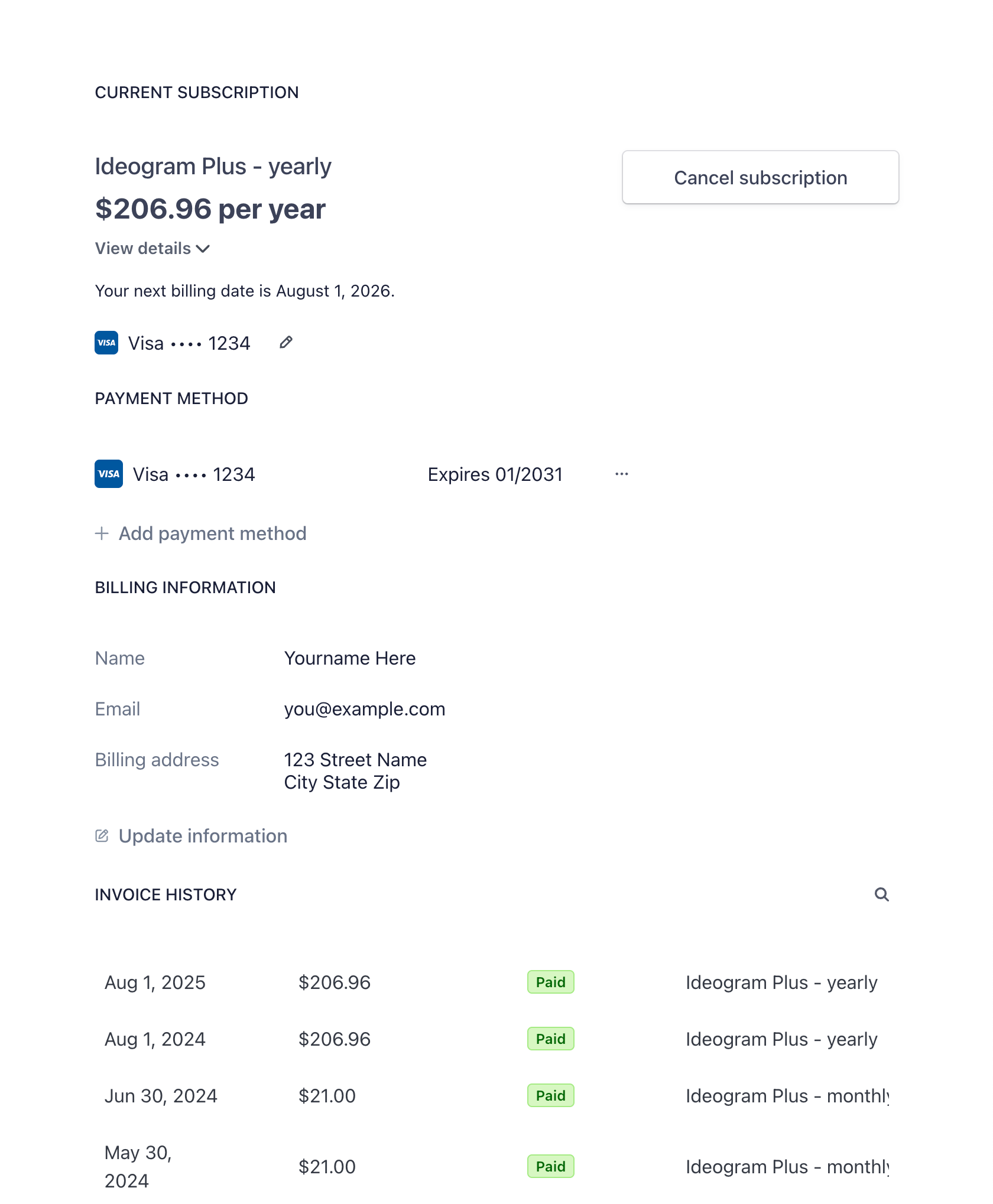
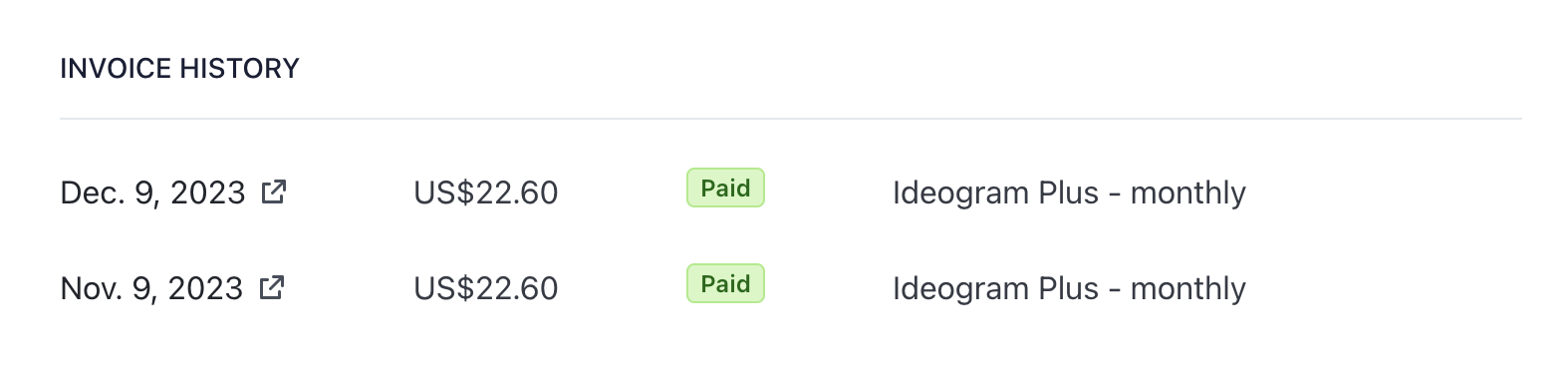
Here are the actions you can take: * **Cancel subscription** — Select **Cancel subscription** at least five (5) days before renewal to prevent the next charge. * **Update payment method** and **billing information.** * **View billing history** and **print invoices.** *** ## Cancel Your Subscription {% hint style="danger" %} ### **Important** You must cancel your subscription **at least five (5) days** before the subscription period renewal date to allow the cancellation process to fully take place and to avoid future subscription charges. {% endhint %} Click **Cancel subscription** at the top of the page to proceed with cancellation. You will be asked to confirm before you cancel. When you cancel your Ideogram subscription, you will still retain access to the features and benefits of your plan until the end of your current billing period. **There are no refunds for any unused periods remaining on your subscription**. If you change your mind about cancelling, you can always renew your subscription later. *** ## Deleting Your Account This section explains how deletion works and what to expect. 1. **Initiating deletion** * In the [User Menu](https://docs.ideogram.ai/using-ideogram/ui-overview/ui-components/user-menu), select **Delete account**. * A confirmation prompt appears, asking you to type a specific word (e.g. “delete”) to confirm. 2. **Deletion process** * Once confirmed, the process may take a few minutes to start. * **The deletion is permanent and irreversible** — all your images (generated or uploaded), prompts, and history will be removed. * The full deletion process usually takes up to 48 hours, during which you cannot re-register with the same Google or Apple account. 3. **Effect on subscriptions** * Any active subscription linked to your Ideogram account will be canceled automatically. You will not be charged for any renewal payments in the future. * Any prepayments made for future periods, such as the remaining time on a monthly or annual subscription plan, are forfeit and non-refundable. * After account deletion, your subscription data cannot be restored. We are not able to transfer the subscription plan to another Ideogram account. {% hint style="info" %} When you delete your Ideogram account, all your generations, prompts, and user data will be deleted from Ideogram servers. Your previous generations will no longer be visible to other users. {% endhint %} *** --- # Source: https://docs.ideogram.ai/using-ideogram/prompting-guide/9-prompting-references/angle-of-view-and-perspective.md # Angle of View and Perspective In image generation, the angle from which a scene or subject is viewed can dramatically affect the composition, storytelling, and overall feel of the result. This appendix outlines a variety of useful terms for describing point of view — both for the scene as a whole, and for individual people, animals, or objects within it. #### 📸 Scene-Level Perspective (Camera-to-Environment Angle) These terms describe how the viewer is positioned relative to the entire scene or environment. * **Bird’s-eye view** — looking down from high above (also: aerial view, top-down perspective) * **Worm’s-eye view** — looking up from ground level (also: low-ground view) * **Overhead view** — directly above the subject (similar to: bird’s-eye, top-down) * **Aerial view** — wide view from a high altitude (drone-style) * **Isometric view** — angled top-down with parallel lines and no distortion (also: game map view, simulated 3D) * **Wide-angle view** — expansive field of vision (also: cinematic wide shot, landscape framing) * **Establishing shot** — broad scene-setting view (also: intro frame, scene overview) * **Panoramic view** — ultra-wide horizontal framing (also: 360° view, landscape sweep) * **Side view** — looking across from the left or right (also: lateral view, profile of the scene) * **Tilted angle (Dutch angle)** — slanted horizon (also: skewed angle, off-kilter frame) * **Point of view (POV)** — from a character’s visual perspective (also: first-person view) * **Over-the-shoulder** — behind a subject, viewing what they see (also: behind POV) * **Distant view** — subject seen from afar (also: far-shot, wide establishing) #### 👁️ Subject-Level Perspective (Viewing a Person, Animal, or Object) These terms describe how the subject itself is being viewed or framed in the composition. * **Front view** — directly facing the subject (also: straight-on view) * **Side profile** — side of the face or body (also: profile view, lateral angle) * **Back view** — viewing the subject from behind (also: rear angle) * **Three-quarter view** — angled between front and side (also: partial side view) * **Close-up** — tightly framed (also: portrait crop, detail view) * **Extreme close-up** — single facial feature or small detail (e.g., just eyes, lips, hand) * **Full-body shot** — head to toe (also: wide crop of the subject) * **Headshot** — upper torso and face (also: bust shot, portrait frame) * **Low angle** — looking up (also: heroic angle, upward shot) * **High angle** — looking down (also: downward shot, overhead crop) * **Eye-level** — neutral, straight-on framing (also: natural perspective) * **Overhead angle** — directly above the subject (like from a drone or ceiling) * **Underside view** — from beneath the subject (also: under-angle, worm’s/ant's perspective) * **Behind-the-subject** — subject turned away (also: back-facing composition) * **Obscured or cropped view** — subject partially hidden or off-frame (also: partial view) You can combine these terms with emotional cues, lens types, or action words for even more control.\ For example: > * *Aerial view of a foggy village* > * *Over-the-shoulder shot of a warrior facing the horizon* > * *Three-quarter close-up of a woman smiling* > * *Low-angle view of a tree glowing in moonlight* > * *Full-body front view of a seated child* #### Be Careful With Conflicting Perspective Elements When using angle or point-of-view terms in your prompts, make sure the other details you describe make sense from that same viewpoint. Since the AI tries to include everything you mention, asking for something that wouldn’t normally be visible from a specific angle can confuse it — and may cause the model to ignore the perspective altogether. **Examples of possible contradictions:** > * *A top-down bird’s-eye view of a city \[…] the sky is filled with fluffy white clouds.* > * *A rear view of a man walking away \[…] he is smiling at the camera.* > * *An extreme close-up of a woman’s face \[…] she is wearing a knee-length red dress.* --- # Source: https://docs.ideogram.ai/using-ideogram/generation-settings/aspect-ratio-and-dimensions.md # Aspect Ratio and Dimensions Aspect Ratio controls the proportions of your generated images. Depending on the Ideogram model version, you can choose from different preset and custom ratio options. See [Available Models](https://docs.ideogram.ai/using-ideogram/generation-settings/available-models) for version-specific capabilities. To select a specific aspect ratio: 1. Select the [Prompt Box](https://docs.ideogram.ai/using-ideogram/ui-overview/ui-components/prompt-box) to expand it (if not already expanded) and display the generation settings. 2. Select **Aspect Ratio** (displayed as the actual aspect ratio, such as **1:1**) to view the available formats.
Aspect Ratio dropdown showing available preset formats.

Aspect ratio dropdown showing the available format options.

## Default Aspect Ratios and Sizes The table below shows the available default aspect ratios for each model and the size of the generated images they produce. | Aspect Ratio | Dimensions (v1.0) | Dimensions (v2.0, v2a, v3.0) | | :------------------: | :---------------: | :--------------------------: | | **1:3** | 512 x 1536 | 512 x 1536 | | **1:2** | — N/A — | 704 x 1408 | | **9:16** | 720 x 1280 | 736 x 1312 | | **10:16** | 768 x 1232 | 800 x 1280 | | **2:3** | 768 x 1152 | 832 x 1248 | | **3:4** | 768 x 1024 | 864 x 1152 | | **4:5** | — N/A — | 896 x 1120 | | **1:1** | 1024 x 1024 | 1024 x 1024 | | **5:4** | — N/A — | 1120 x 896 | | **4:3** | 1024 x 768 | 1152 x 864 | | **3:2** | 1152 x 768 | 1248 x 832 | | **16:10** | 1232 x 768 | 1280 x 800 | | **16:9** | 1280 x 720 | 1312 x 736 | | **2:1** | — N/A — | 1408 x 704 | | **3:1** | 1536 x 512 | 1536 x 512 | ## Common Presets ### Vertical * **1:3** – Very tall banner. * **1:2** – Tall vertical format. Sometimes used in artworks or creative compositions. *Version 2.0 and higher.* * **9:16** *–* Ideal for vertical display on smartphones and some social networking sites. * **10:16** *–* Portrait format originally used in early Ideogram versions 0.1 and 0.2. * **2:3** *–* Portrait format mainly used in digital photography and poster printing. * **3:4** *–* Portrait aspect ratio mainly used in film photography. * **4:5** *–* Common portrait ratio used in film photography. ### Square * **1:1** *–* A square format, often used in social media and image sites. ### Horizontal * **5:4** *–* Landscape aspect ratio mainly used in film photography. * **4:3** *–* Landscape format, used by old traditional standard definition television. Also used in film photography. * **3:2** *–* Popular landscape format used in digital photography and printing. * **16:10** *–* Landscape format originally used in now retired Ideogram versions 0.1 and 0.2. * **16:9** *–* Landscape format commonly used in modern horizontal screens, including TV. * **2:1** *–* Large banner. Commonly used for 360° equirectangular panoramas. * **3:1** *–* Very large banner. ## Custom Aspect Ratios You can create a custom aspect ratio when the default options don’t meet your needs. In versions 2.0 and later, users on the **Basic Plan** or higher can use custom aspect ratios in two ways: 1. Use the **Slider** under the *aspect ratio preview* to access continuous ratio values beyond the presets. 2. Select **Custom** to manually enter the desired aspect ratio or pixel dimensions. The interface automatically adjusts to the nearest supported ratio between **1:3** and **3:1**.
Screenshot of the Aspect Ratio slider with numeric entry fields.

Aspect Ratio preview with the slider control and custom entry fields.

The table below lists all supported custom aspect ratios and their corresponding pixel dimensions, arranged from the widest to the tallest. | Aspect Ratio | Pixel dimensions | | :------------------: | :--------------: | | **3:1** | 1536 x 512 | | **8:3** | 1536 x 576 | | **23:9** | 1472 x 576 | | **22:9** | 1408 x 576 | | **12:5** | 1536 x 640 | | **23:10** | 1472 x 640 | | **11:5** | 1408 x 640 | | **21:10** | 1344 x 640 | | **23:11** | 1472 x 704 | | **2:1** | 1408 x 704 | | **21:11** | 1344 x 704 | | **20:11** | 1280 x 704 | | **16:9** | 1312 x 736 | | **7:4** | 1344 x 768 | | **19:11** | 1216 x 704 | | **5:3** | 1280 x 768 | | **18:11** | 1152 x 704 | | **16:10** | 1280 x 800 | | **19:12** | 1216 x 768 | | **3:2** | 1248 x 832 | | **19:13** | 1216 x 832 | | **17:12** | 1088 x 768 | | **18:13** | 1152 x 832 | | **4:3** | 1152 x 864 | | **17:13** | 1088 x 832 | | **9:7** | 1152 x 896 | | **5:4** | 1120 x 896 | | **16:13** | 1024 x 832 | | **17:14** | 1088 x 896 | | **15:13** | 960 x 832 | | **8:7** | 1024 x 896 | | **17:15** | 1088 x 960 | | **15:14** | 960 x 896 | | **16:15** | 1024 x 960 | | **1:1** | 1024 x 1024 | | **15:16** | 960 x 1024 | | **14:15** | 896 x 960 | | **15:17** | 960 x 1088 | | **7:8** | 896 x 1024 | | **13:15** | 832 x 960 | | **14:17** | 896 x 1088 | | **13:16** | 832 x 1024 | | **4:5** | 896 x 1120 | | **7:9** | 896 x 1152 | | **13:17** | 832 x 1088 | | **3:4** | 864 x 1152 | | **13:18** | 832 x 1152 | | **12:17** | 768 x 1088 | | **13:19** | 832 x 1216 | | **2:3** | 832 x 1248 | | **12:19** | 768 x 1216 | | **10:16** | 800 x 1280 | | **11:18** | 704 x 1152 | | **3:5** | 768 x 1280 | | **11:19** | 704 x 1216 | | **4:7** | 768 x 1344 | | **9:16** | 736 x 1312 | | **11:20** | 704 x 1280 | | **11:21** | 704 x 1344 | | **1:2** | 704 x 1408 | | **11:23** | 704 x 1472 | | **10:21** | 640 x 1344 | | **5:11** | 640 x 1408 | | **10:23** | 640 x 1472 | | **5:12** | 640 x 1536 | | **9:22** | 576 x 1408 | | **9:23** | 576 x 1472 | | **3:8** | 576 x 1536 | | **1:3** | 512 x 1536 | --- # Source: https://docs.ideogram.ai/using-ideogram/generation-settings/available-models.md # Available Models When generating images with Ideogram, you can choose between different *model versions*. Each version offers distinct characteristics that determine image quality, style fidelity, and performance. Your selected model affects how Ideogram interprets your prompt, the level of detail in the output, and the consistency across generations. To select a model: 1. Select the [Prompt Box](https://docs.ideogram.ai/using-ideogram/ui-overview/ui-components/prompt-box) to expand it (if not already expanded) and display the generation settings. 2. Select **Model + variations** (displayed as the actual model and number of images, for example, **3.0 Default x 4**) to open the dropdown menu. 3. Choose the **Model**, **Number of images** (1–4), and [Render speed](https://docs.ideogram.ai/using-ideogram/generation-settings/render-speed).
Model and image count selection menu.

Number of images, Model, and Render speed menu.

## Model Versions * **Version 3.0 (latest)** — The most recent iteration of Model 3.0, released on May 1, 2025. * **Version 3.0 (March 26)** — Released on March 26, 2025. * **Version 2a** — Released on February 27, 2025. * **Version 2.0** — Released on August 21, 2024. * **Version 1.0** — Released on February 28, 2024. * **Version 0.2 (retired)** — Released on November 2, 2023, and retired in January 2025 and is no longer available. * **Version 0.1 (retired)** — The first Ideogram model, launched on August 29, 2023, has been retired and is no longer available. --- # Source: https://docs.ideogram.ai/plans-and-pricing/available-plans.md # Available Plans ## Pricing {% hint style="warning" %} ### The Basic plan is now a legacy plan Please note that the Basic plan is no longer available for purchase. * If you already have a Basic plan (legacy), you can continue to keep it until a future deadline (which will be communicated at a later date) or until you cancel — whichever comes first. * If you cancel, you keep all Basic benefits and privileges until the end of your current billing cycle. * After cancellation (or once the deadline is reached), the Basic plan can’t be purchased again. * Existing Basic subscribers will still see the Basic plan on the website’s pricing page, but the plan won’t be visible to anyone else. {% endhint %}
Plans and pricingFree PlanBasic Plan - ⚠️ LegacyPlus PlanPro PlanTeam Plan
Monthly PriceFree$8 USD per month$20 USD per month$60 USD per month$30 USD per month per member (Minimum 2)
Annual Price
(save up to 20%)
Free

$84 USD

($7 USD/month)

$180 USD

($15 USD/month)

$504 USD ($42 USD/month)$240 USD ($20 USD/month per member, min. 2)
Priority credits *

400 credits/month

(up to 3,200 images/month **)

1,000 credits/month

(up to 8,000 images/month **)

3,500 credits/month

(up to 28,000 images/month **)

1,500 credits/month per member (up to 12,000 images/month per member **)
Slow credits *

10 credits/week ‡

(Up to 40 images/week)

100 credits/day

(Up to 800 images/day **)

UnlimitedUnlimitedUnlimited
Priority credits * top-up$4 USD / 100 credits$4 USD / 150 credits$4 USD / 250 credits$4 USD / 250 credits per member
Concurrent generations in queues †1
(up to 4 images)
2
(up to 8 images)
8
(up to 32 images)
32
(up to 128 images)
32
(up to 128 images)
Usage rightsWe do not restrict your rights in your output.We do not restrict your rights in your output.We do not restrict your rights in your output.We do not restrict your rights in your output.We do not restrict your rights in your output.
All Ideogram subscriptions are subject to the Ideogram Terms of Service available at [https://ideogram.ai/tos](https://ideogram.ai/tos). Please reference these Terms for additional conditions. {% hint style="danger" %} Any unused Priority credits awarded through the monthly plan will expire at the end of each monthly billing cycle. However, **Priority credits** purchased as a top-up will roll over to the next month and will only be used after your monthly **Priority credits** are depleted. If you cancel your subscription, any unused credits will expire at the end of the current billing period. The same applies to Slow credits for existing subscribers on the legacy Basic plan. {% endhint %} {% hint style="info" %} \* *Learn more about the credit system and the differences between **Priority credits** and **Slow credits** in* [*this section*](#the-credit-system) *below.* *\*\* Using model version 2a with Turbo rendering.* ‡ ***Slow credits** associated for **Free Plan users** reset every Saturday at 00:00 UTC (overnight from Friday to Saturday).* † *Number of concurrent generations that can be sent at the same time with Priority credits. Slow queue only supports 1 active generation.* {% endhint %} ## Features & Tools
Features & toolsFree PlanBasic Plan - ⚠️ LegacyPlus PlanPro PlanTeam Plan
Private generation
Search images✓ Own images only✓ Own + site wide✓ Own + site wide✓ Own + site wide✓ Own + site wide
Delete images
Image upload
Image downloadJPG onlyPNG and JPGPNG and JPGPNG and JPGPNG and JPG
Remix
Magic Prompt
RenderingDefaultTurbo, Default, QualityTurbo, Default, QualityTurbo, Default, QualityTurbo, Default, Quality
Style
Style Reference
Character ReferenceTrial – 10 usesTrial – 10 uses
Tile (v1.0)
Negative Prompt
Seed Number
Aspect Ratios✓ Presets only✓ Presets + Custom✓ Presets + Custom✓ Presets + Custom✓ Presets + Custom
Color Palettes✓ Presets only✓ Presets only✓ Presets + Custom✓ Presets + Custom✓ Presets + Custom
Describe✓ (1 priority credit)
Editor
Canvas2 canvasesUnlimitedUnlimitedUnlimitedUnlimited
Magic Fill
Extend
Upscale
Background removal
Batch Generation with CSV upload
Priority access to new features and improvements
{% hint style="info" %} ‡ *JPG images are compressed at 70% quality. PNG are original images at 100% quality.* {% endhint %} ## The Credit System Ideogram uses a credit system for all generations in all available templates and will depend on certain parameters used, such as [Rendering](https://docs.ideogram.ai/using-ideogram/generation-settings/render-speed), when generating images. Ideogram uses a credit system for all image generations. The credit cost depends on various parameters, such as the Rendering setting, which determines the level of detail when generating images. Below are the details: ### Credit Costs | Feature | Rendering | Credits | | ----------------------------------------------------------------------------------------------------------- | ---------------------------------- | ----------------------------------------------------------------------------- | |

Ideogram 3.0 / 3.0m
Generate - Remix
Canvas: Generate - Remix

|

Turbo
Default
Quality

|

2 credits / 4 images
4 credits / 4 images
6 credits / 4 images

| |

Ideogram 2a
Generate - Remix

|

Turbo
Default
Quality

|

0.5 credit / 4 images
1 credit / 4 images
1.5 credits / 4 images

| |

Ideogram 2.0
Generate - Remix
Canvas: Magic Fill - Extend - Generate - Remix

|

Turbo
Default
Quality

|

1 credit / 4 images
2 credits / 4 images
3 credits / 4 images

| |

Ideogram 1.0
Generate - Remix

|

Turbo
Default
Quality

| 1 credit / 4 images | | Upscale (1.0) | Default | 1 credit / 1 image | *The* [***Describe***](https://docs.ideogram.ai/using-ideogram/features-and-tools/describe) *feature cost 1 credit for users on the free tier* but is free for all paid subscriptions. *The* [***Batch Generation***](https://docs.ideogram.ai/using-ideogram/features-and-tools/batch-generation) *tool will only use Priority credits to generate images, based on the selected model and Rendering option above.* {% hint style="info" %} The [**Rendering**](https://docs.ideogram.ai/using-ideogram/generation-settings/render-speed) setting allows you to specify how much time the AI should dedicate to working on an image, which affects the level of detail in the final result. {% endhint %} ### **Priority Credits** Generations made with **Priority credits** are processed ahead of those made with Slow credits, ensuring minimal to no wait times. Certain tools, such as Batch Generation, exclusively use Priority credits. ### **Slow Credits** Generations that are made with **Slow credits** may have wait times of up to several minutes, depending on 1- available server capacity and 2- your recent usage of the slow queue since the last billing date. This is to ensure a fair experience for all users in the slow queue. {% hint style="danger" %} Any unused Priority credits awarded through the monthly plan will expire at the end of each monthly billing cycle. However, **Priority credits** purchased as a top-up will roll over to the next month and will only be used after your monthly **Priority credits** are depleted. If you cancel your subscription, any unused credits will expire at the end of the current billing period. The same applies to Slow credits for existing subscribers on the legacy Basic plan. {% endhint %} ## Priority Credits Top-Up When you exhaust your monthly allocation of Priority credits, you automatically switch to using Slow credits. If you wish, you can get more Priority credits by purchasing a Priority credits top-up. #### Benefits: * Top-up credit packs cost $4 USD each. One pack adds 100 credits to users of the legacy Basic plan, 150 credits to Plus, or 250 credits to Pro/Team, making the cost per credit lowest for Pro/Team users. You may purchase up to 10 packs per transaction. * Any unused **Priority credits** purchased via a top-up will roll over to the following month and will only be used if you exhaust your monthly Priority credits. These rolled-over credits will continue to carry over month-to-month until they are fully used. #### Usage order: Credits will be used in the following order: Monthly Priority credits > Top-up Priority credits > Slow credits #### How to Purchase Top-Up Priority Credits 1. Open the **Profile panel** by clicking your **Profile icon** located at the bottom of the left-side panel of the page. 2. Click on **Top up credits.**

The Top up option in the Profile panel.

A window will appear where you can select how many stacks (up to 10) of 100 credits you want to purchase. You will also be able to adjust the number of stacks in the payment window if needed. Click the button on the right side to proceed to the payment window.
## Purchasing a Plan When you want to purchase a plan for the first time, simply click on the "Upgrade" button in the top right-hand corner.
Alternatively, click on your **Profile icon** located at the bottom of the left-side panel and then click the "Upgrade Plan" button.

The Profile panel.

You will then access the Ideogram pricing page, where you can compare and choose the plan (Plus, Pro or Team) and billing frequency (Annual or Monthly) that best suits your needs. Click on the “Upgrade to...” button according to your choice, and you will be taken to the checkout page to enter your billing information and complete your purchase. {% hint style="danger" %} Ensure that you choose the plan that best suits your needs and select the appropriate billing frequency. {% endhint %}

The pricing page as seen from a Free Plan user.

--- # Source: https://docs.ideogram.ai/using-ideogram/features-and-tools/batch-generation.md # Batch Generation Create multiple images at once with Batch Generation. Upload a spreadsheet that contains your prompts and settings, then return later to find all your generated images ready. {% hint style="info" %} **Note:** Batch Generation is available only with the **Pro Plan** and **Team Plan**. {% endhint %} ## Using Batch Generation Follow these steps to generate images in bulk: 1. Select the **Batch** icon in the [Navigation Bar](https://docs.ideogram.ai/using-ideogram/ui-overview/ui-components/navigation-bar). 2. Select **Download template** to get a sample spreadsheet. * To access the complete version, open the dropdown and choose **Full template**.
Batch Generation interface showing upload and status areas

Batch Generation interface showing upload and status areas.

3. Fill out the spreadsheet using the expected values for each column. * Remove the example rows before editing. {% hint style="warning" %} **Warning:** Each uploaded file has a limit of **500 rows**, including the header row. {% endhint %} 4. Save the file as `CSV UTF-8 (comma-delimited)` to prevent encoding issues. 5. Select **Upload spreadsheet** on the Batch Generation page. * Accepted formats: `.csv`, `.xls`, `.xlsx`. 6. If any errors appear, fix them in your file and upload it again.

Example of an error message during file upload.

7. When your file uploads successfully, review the Batch Generation details section. You’ll see: * A preview of the first row * The total number of rows and images * The **Priority Credits** required and available\ If needed, select **Replace** (top-right) to upload a different file.

Batch Generation interface showing uploaded file details and Replace option.

8. Select **Start batch generation** to begin. A progress list shows the batch status. You can continue using Ideogram while the generation runs. 9. When processing completes, you’ll receive a notification confirming that the batch is complete.

Notification shown when Batch Generation completes successfully.

{% hint style="info" %} To stop a running batch, select the **Stop** icon at the end of the status row.\ Later, select **Resume** to continue or **Download** to save all images as a compressed **ZIP** file. {% endhint %}
11. When the process completes, select the **Download** icon at the right end of the status row to get all images as a **ZIP** file. Alternatively, you can view all generated images in the **Creations** page.

The Download icon is located at the right end of the status row.

## Expected Values The table below lists all recognized column names, valid inputs, and default settings for Batch Generation.
ColumnValid valuesDefault
promptAny text *Required
visibilitypublic, private *Required
aspect_ratioPredefined aspect ratio, (e.g., 16:9). See Aspect Ratios1:1
magic_prompton, offon
model3.0, 2.0, 2a, 1.02.0
num_imagesAny whole number from 1 to 44
seed_numberAny whole number from 0 to 2147483647
renderingdefault, turbo, qualitydefault
negative_promptAny keywords separated by commas
style

3.0: auto, general, realistic, design

2.0: auto, general, realistic, design, 3d, anime


1.0: Same as 2.0. Use v1.0 keywords in the prompt.

auto
color_palette

Up to five (5) hexadecimal RGB values separated with spaces. Ex.: #CBA324 #F86C14 #C71E71

or any preset Color palette name:
ember, fresh, jungle, magic, melon, mosaic, pastel, ultramarine

Only available in Model 2.0 or later.

If a column includes a defined default, that value is applied automatically when no entry is provided. {% hint style="info" %} ## Formatting Tips * Re-save your file as `CSV UTF-8 (comma-delimited)` if a **“Sorry, something went wrong”** error appears. * Ensure all column headers match the template exactly (case-sensitive). * The order of columns is flexible. * In Excel, format cells **as Text** to avoid unwanted conversions (e.g., `2:3` → date). {% endhint %} ## Combining *Batch Generation* with Other AI Tools You can pair Batch Generation with external tools like ChatGPT to automatically fill your CSV with creative prompts. **Example workflow:** 1. Download the CSV template from the Batch Generation page. 2. Provide that template to ChatGPT and ask it to fill a CSV file following the same structure. 3. Include instructions such as: * Design goal * Example prompts that worked well for you * Desired settings (*aspect ratio*, *visibility*, *model*, *style*, *rendering*) 4. Upload the ChatGPT-generated CSV file to Ideogram to create all images automatically. For instance, here’s a simplified ChatGPT instruction: {% code overflow="wrap" fullWidth="false" %} ``` Task: Generate a CSV file with 20 prompts following the template of the provided CSV file. Context: The prompts will be used to create sticker designs for the Christmas Holidays. Ensure the prompts are diverse, creative, and engaging. Settings: Use 1:1 aspect ratio, set visibility to private, model to 2.0, rendering to "default", magic prompt to "on" and use "design" as style. Please follow the language style of the following examples: 1- A sticker design of a cartoon-like figure with a cheerful expression holding a brain upright. The figure is standing on a cloud. There is a speech bubble above its head that reads, "HEY, YOU DROPPED THIS!". 2- A sticker design of a stylized, cartoon-like depiction of a fox. The fox appears to be curled up, with its tail wrapped around its body. Its eyes are closed, giving it a peaceful or sleepy expression. The fox is predominantly orange with white accents, especially around its muzzle and eyes. The fox is set against a white background. 3- A sticker design of a cute cat with a curious expression peeking out of a cardboard box where it barely fits. The cat is sitting on the edge of the box. The text "If I Fits, I Sits" is written in a quirky font below the cat. The background is white. 4- A sticker illustration of a whimsical and adorable cartoon sloth relaxing in a hammock, hanging between two palm trees on a beach. The sloth is wearing stylish sunglasses and has a relaxed grin. The background contains a serene blue sky, fluffy white clouds, and a few other palm trees. 5- A charming and whimsical sticker design featuring a sleepy owl perched on a book, its eyes half-closed. The background neutral grey and the sticker has a thick white outline. 6- A vibrant, retro-inspired sticker with bold white outlines. The motivational phrase "NEVER GIVE UP!" is written in a dynamic, flowing cursive font reminiscent of 1950s Americana signage. The text has a subtle neon glow. The phrase is surrounded by playful, abstract shapes and vintage-inspired patterns. The overall design is bright, cheerful, and evokes energy and optimism. ``` {% endcode %} Here are some results showing Christmas sticker designs generated via Batch + ChatGPT workflow.
For other advanced use cases, see the [Batch Generaion](https://about.ideogram.ai/batch) blog post. --- # Source: https://docs.ideogram.ai/about-ideogram/blog-posts.md # Blog Posts ## [March 26, 2025: Ideogram 3.0](https://about.ideogram.ai/3.0) ## [December 17, 2024: Batch Generation](https://about.ideogram.ai/batch) ## [October 22, 2024: Ideogram Canvas, Magic Fill, and Extend](https://about.ideogram.ai/canvas) ## [August 21, 2024: Ideogram 2.0](https://about.ideogram.ai/2.0) ## [June 28, 2024: Introducing Ideogram Upscale](https://about.ideogram.ai/upscale) ## [April 11, 2024: Major Upgrade to Ideogram 1.0](https://about.ideogram.ai/1.0-upgrade) ## [February 28, 2024: Ideogram 1.0](https://about.ideogram.ai/1.0) ## [August 29, 2023: Ideogram v0.1 is open to everyone for free](https://ideogram.ai/publicly-available) ## [August 22, 2023: Announcing Ideogram AI](https://ideogram.ai/launch) --- # Source: https://docs.ideogram.ai/canvas-and-editing.md # Canvas and Editing - [Canvas](/canvas-and-editing/canvas.md) - [Canvas Overview](/canvas-and-editing/canvas/canvas-overview.md) - [Extend](/canvas-and-editing/canvas/extend.md) - [Generate & Remix](/canvas-and-editing/canvas/generate-and-remix.md) - [Magic Fill](/canvas-and-editing/canvas/magic-fill.md) - [Text Tool](/canvas-and-editing/canvas/text-tool.md) - [Editor](/canvas-and-editing/editor.md) - [Image Upload](/canvas-and-editing/image-upload.md) --- # Source: https://docs.ideogram.ai/canvas-and-editing/canvas/canvas-overview.md # Canvas Overview ## What is Canvas? Ideogram **Canvas** is an infinite creative board designed for generating, editing, and organizing images. It’s the ideal workspace for projects involving multiple images, whether they’re generated directly within Ideogram or uploaded from your computer. With Canvas, you can: * **Upload your own images** by clicking Upload, using copy-paste or simply dragging in an image. * **Edit images** using two new powerful tools: * **Magic Fill** (inpainting) to add or modify elements within an image. * **Extend** (outpainting) to expand your image beyond its original edges. * **Generate** images using text prompts. * **Remix** images and compositions. * Add **Text** to your images. * **Download** your final composition/work as an image. *** ## Accessing Canvas You can access Canvas in different ways: 1. Click the Canvas icon on the left-side panel to create a new canvas.
2. When viewing an image in detail, click the **More** icon and select **Open in Canvas**.
3. When browsing or viewing images, click the **More** icon and select **Open in Canvas** in the popup menu.
*** ## Quick Start Guide {% stepper %} {% step %} ### Select a tool from the left-side panel * Click on **Generate**, **Remix**, **Magic Fill**, **Extend**, or **Text**, depending on the action you want to perform. {% endstep %} {% step %} ### Define the area to work on * For **Generate**: Select the aspect ratio you want for your images. * For **Remix**: Position and resize the generation window over the area you wish to remix. * For **Magic Fill**: Use the masking tools to select areas you want to change, then click Next to adjust the position and size of the generation window. Ensure enough of the underlying image is included so the AI has sufficient context. * For **Extend**: Position the generation window over the area you wish to expand, including a significant part of the underlying image to maintain visual continuity. Use the masking tools to select areas you want to alter. * For **Text**: Simply click on the canvas where you want the text to appear. Then adjust the text using the available text options. *(The next steps are irrelevant to the Text function.)* {% endstep %} {% step %} ### Enter Your Text Prompt * In the prompt box, describe the content you want to generate or the content currently visible in the generation window, and the changes you wish to apply depending on the tool used. {% endstep %} {% step %} ### Adjust options as desired * Modify settings like **Style**, **Magic Prompt**, **Aspect Ratio**, **Image Weight**, etc., to your liking. {% endstep %} {% step %} ### Initiate the generation process * Click the action button (**Generate**, **Remix**, **Magic Fill** or **Extend**) to generate your images. {% endstep %} {% step %} ### Review and select generated images * Generated images will appear on the canvas. * For **Generate** and **Remix**: Four images will be placed directly on the canvas. * For **Magic Fill** and **Extend**: One image will be generated where you placed the generation window. Click on the image and use the arrows in the menu below it to toggle between the four generated options. {% endstep %} {% step %} ### Edit and arrange your images * Use the **Select** tool to move, resize, or arrange images on the canvas as needed. You can repeat the previous steps to perfect your image. {% endstep %} {% step %} ### Download your final composition * Click the **Download** button on the left-side panel. * Adjust the download generation window to encompass the area you wish to export. * Set the desired dimensions manually if necessary, and choose the image format. * Click **Download** to save your image. {% endstep %} {% endstepper %} *** ## Canvas Interface Overview ### Left-Side Panel

The left-side panel.

Located on the left side of **Canvas**, this panel includes: * **Home icon**: Returns to the Ideogram home page. * **Generative tools**: * **Generate**: Create images using text prompts. * **Magic Fill**: Inpainting to add or modify elements within an image. * More details and examples here [magic-fill](https://docs.ideogram.ai/canvas-and-editing/canvas/magic-fill "mention") * **Extend**: Outpainting to expand your image beyond its original edges. * More details and examples here [extend](https://docs.ideogram.ai/canvas-and-editing/canvas/extend "mention") * **Remix**: Generate images based on a parent image and prompt. * **Utility tools**: * **Select**: Select, move, resize, and arrange images. * **Hand**: Pan and navigate around the canvas. * **Text**: Write text directly on the canvas * More details and examples here [text-tool](https://docs.ideogram.ai/canvas-and-editing/canvas/text-tool "mention") * **Upload**: Import images from your computer. * **Download**: Crop and export your final composition. ### The Bottom-Right Panel

The bottom-right panel.

This panel allows you to: * **Undo** and **Redo** actions. * **Check** if the Canvas has been saved successfully. * **Zoom in** and **Zoom out** of the canvas. You can zoom using the + and − buttons or select a predefined zoom percentage from the dropdown menu.

Zooming options.

### Image Panel Selecting any image on the canvas will display an image panel below it. The available options will vary depending on the type of image selected.

Panel for generated image set (4 images).

Panel for a single image.

#### For generated image sets (4 images) 1. **Switch** between the four generated images of the set. 2. Access **More** options: #### For single images 1. **Duplicate** the image. 2. **Remove** the image from the canvas. 3. Access **More** options When you click **More**, the following menu appears:

More menu.

From these menus, you can: 1. **Open/Close image details** 2. **Copy** the image. 3. **Duplicate** the image. 4. **Upscale** the image up to 2x. 5. **Remix** the image. 6. Use **Magic Fill** on selected image. 7. Use **Extend** on selected image. 8. **Remove background** on the image 9. **Arrange** the layer order: 1. **Bring to front** 2. **Bring forward** 3. **Send backward** 4. **Send to back** 10. **Download** – O*nly for generated images.* 1. **PNG** – *Plus subscription and higher.* 2. **JPG** 11. **Remove from canvas** ### Image Details Panel This panel, located on the right side of the canvas, displays details about the selected image, such as the prompt, size, style used, and more. It also offers various actions that can be performed on the image. This panel has the same functionality as the image details panel available when viewing an image page on the website. #### How to Open the Image Details Panel If the right-side panel isn’t visible when an image is selected, you can activate it in the following ways: visible, you can activate it in different ways: * Click the **Open image details** icon located at the top-right corner of the canvas. * Alternatively, click the **More** icon in the panel below the image and select **Open image details** from the menu.

The right-side image details panel.

*** ## Rendering and Masking Options Each generative function—**Generate**, **Remix**, **Magic** **Fill**, and **Extend**—offers different options. These options are either **Rendering options** or **Masking** **options**, depending on the selected tool and the progression of its usage. ### Rendering Options When using a generative function, rendering options appear below the prompt box at the top of the canvas. If they are not visible, click the **Options** icon on the right side of the prompt box to reveal them.

The Options icon, usually located at the right of the Prompt Box.

Rendering options available.

The options are: 1. **Private Generation**: Choose whether to generate images privately or publicly. 2. **Aspect Ratio**: Define the format and dimensions of the image. 3. **Style**: Select the artistic style for the image. 4. **Magic Prompt**: Enhance and optimize your prompt with AI. 5. **Color**: Choose a color palette for your image. {% hint style="warning" %} Some rendering options (**Model**, **Rendering**, **Seed number**, and **Negative prompt**) are not yet available when generating an image in Canvas. Ideogram’s version 2.0 model is used for all image generations, except when using the **Upscale** tool, which utilizes a specialized variant of version 1.0. {% endhint %} ### Masking Options When using **Magic Fill** and **Extend**, masking options become available at specific steps in the process.

The masking option for Magic Fill and Extend.

The options are: 1. **Select**: Select, move, resize, and arrange images. 2. **Rectangular mask**: Create a mask from a rectangular shape 3. **Freeform mask**: Create a mask from a freeform shape. 4. **Brush mask**: Create a mask using a brush. 1. Click the down arrow on the right to reveal a slider for adjusting brush size. 5. **Eraser mode**: The selected tool will erase masked areas. 6. **Invert mask**: Reverses the mask; masked areas become unmasked and vice versa. 7. **Load previous mask**: Restores the last mask used. {% hint style="warning" %} If you’re a new user or simply new to Canvas, consider experimenting with the [**Generate**](https://docs.ideogram.ai/using-ideogram/getting-started/generating-images) and [**Remix**](https://docs.ideogram.ai/using-ideogram/features-and-tools/remix) functions outside of Canvas to familiarize yourself with their features. Additionally, explore key features such as [**Private Generations**](https://docs.ideogram.ai/using-ideogram/generation-settings/private-generations), [**Aspect Ratios**](https://docs.ideogram.ai/using-ideogram/generation-settings/aspect-ratio-and-dimensions), [**Style**](https://docs.ideogram.ai/using-ideogram/features-and-tools/reference-features/style-reference/styles-in-older-models), [**Magic Prompt**](https://docs.ideogram.ai/using-ideogram/generation-settings/magic-prompt) and [**Color Palettes**](https://docs.ideogram.ai/using-ideogram/generation-settings/color-palette), as they play an integral role in the generative tools within Canvas. {% endhint %} *** ## Working with Canvas ### Renaming the Canvas By default, each new canvas is named “Untitled canvas.” or a name based on the beginning of the prompt from the image opened in **Canvas**. To rename it, click the canvas name at the top-left corner, next to the **Menu** icon , and enter your desired name.
### Managing Canvases Click the **Menu** icon , to display a list of your recent canvases. Click the icon again to hide the list. From this list, click any canvas name to open it.
### Uploading External Images To import an image from your computer, use one of the following methods: * **Copy and paste** * Copy the image to your clipboard (**right-click** and **select Copy**, or press **Ctrl/Cmd+C**). * Paste it onto the canvas using **Ctrl/Cmd+V**. * **Drag and drop** * Drag and drop an image from your computer on the **Canvas** window. * **Upload** * Click the **Upload** icon on the left-side panel and select an image from your computer. *** ## Understanding the Generation Window and Image Frames ### Generation Windows **Generation windows** are bounding boxes used by the **Magic Fill**, **Extend**, **Remix** and **Download** functions to define the size, aspect ratio, and placement of the image to be generated or downloaded. **Resizing generation windows**: * **By corners**: Preserves the actual aspect ratio. * **By sides**: Snaps to the nearest supported [aspect ratio](https://docs.ideogram.ai/using-ideogram/generation-settings/aspect-ratio-and-dimensions#defaults-aspect-ratios-and-sizes).

A generation window

### Image Frames **Image frames** are the containers that hold already generated images. Each generative function produces four images per prompt. * **Generate** and **Remix**: All four images are placed separately on the canvas, each in its own image frame. * **Magic Fill** and **Extend**: These tools place one selected image on the canvas, maintaining the size and position of the generation window used. ### Switching Between Generated Images 1\. Make sure the Select tool is active in the left-side panel. 2\. Click on the desired image frame to display a the image panel below it. 3\. Use the arrows in the menu to scroll through the four generated images.
Image frames can be freely resized and repositioned on the canvas. *** ## How to Download Images To download your final composite image, use the **Download** function, which works like an adjustable screen capture. * Click on the **Download** button on the left-side panel. * Alternatively, if you have activated the **Always show download outline** option, click the download icon at the top left of the inactive download generation window on your canvas.
* Resize and position the download generation window to capture the final image you wish to download.

The download context frame placed and resized.

* On the left side, near the Download icon, a small panel will appear with the final dimensions of the image. You can adjust the size by manually editing the width and height, then click the arrow next to the Download button to choose the image format (for highest quality PNG downloads, you'll need [Ideogram Basic or above](https://docs.ideogram.ai/plans-and-pricing/available-plans). Finally, click Download to save the image.

Options available when downloading an image.

* Click Download to save the image. Here's the final image.
*** ## Canvas and Image Sizes Consider the following aspects regarding image sizes on the canvas: * **Canvas grid**: The canvas has an underlying pixel grid, visible when zoomed in at 2000% or more. * **Image placement**: When uploading or generating images, they will at first align with the canvas grid, with one pixel on the image equaling one pixel on the grid. * **Generation window sizes**: When you use the Remix, Magic Fill, or Extend tool, the generation window will adopt one of the default predefined aspect ratios, each with a fixed pixel size. **The generated image will have this specific size, regardless of how you resize the context frame on the canvas.** * **Image scaling**: Images retain their original width and height in pixels, even if resized on the canvas. * **Download dimensions**: The Download tool uses the canvas grid to define the size of the image to be downloaded. {% hint style="info" %} The most common aspect ratios and their corresponding sizes can be found in the[Aspect Ratios & Resolutions](https://docs.ideogram.ai/using-ideogram/generation-settings/aspect-ratio-and-dimensions#defaults-aspect-ratios-and-sizes) section of the documentation. {% endhint %} ### Example Let's start with an image generated in Ideogram at a 1:1 aspect ratio (1024 x 1024 pixels):

The original image to be modified.

Sometimes, faces and hands can be distorted when they are small in size, as seen in the generated image above. In such cases, you can use **Magic Fill** to correct these imperfections. Here's how to do it: * Mask the head and hands using **Magic Fill**. * Resize the generation window to be smaller than the original image but large enough to include a significant portion of the image. This ensures the AI has enough context to analyze the image and accurately interpret the prompt. {% hint style="info" %} **Why make the generation window smaller?** Using a smaller generation window gives the AI more pixels relative to the original image, resulting in a higher pixel density for the selected area. This leads to more detailed faces and hands. However, keep in mind that some of these details or the apparent sharpness may be lost during processing. This happens because everything is interpolated or extrapolated to fit the pixel grid on the canvas when downloading the resulting composite image. More details in this [section below](#a-note-on-final-image-quality). {% endhint %}

Masked areas and the small generation window.

* Adjust the prompt based on the content of the generation window:\ `A photo of an elderly woman with white hair wearing a floral dress and a necklace. She is seated in a wooden chair in a dimly lit room. The background reveals lush green plants. The overall ambiance is warm and nostalgic.` * Click **Magic Fill**. Here is the final result after downloading the image:

The resulting image from the Magic Fill.

More examples can be found in the [Magic Fill](https://docs.ideogram.ai/canvas-and-editing/canvas/magic-fill) page. *** ## A Note on Final Image Quality When downloading your composite image, it’s important to understand how scaling and pixel density affect the final output because the final image is based on the canvas’s pixel grid. This means that any images you’ve scaled up or down will not retain their original resolutions in the downloaded image. Enlarged images won’t have extra detail, and reduced images won’t keep their apparent increased sharpness. ### Simple Examples to Illustrate This #### Example 1: Enlarging a small image or generating in a bigger generation window than the canvas grid Suppose you place a small photo (say, 200 x 200 pixels) on the canvas and enlarge it to double its size (400 x 400 pixels): * **On the canvas**: It looks bigger, filling more space. * **When downloaded**: That part of the image may appear blurry or pixelated because enlarging doesn’t add new details; it just makes the existing ones bigger and less clear. The small photo doesn’t have enough detail to look good at a larger size. Essentially, it **will not** act like the [Upscale](https://docs.ideogram.ai/using-ideogram/features-and-tools/upscale) function does. #### Example 2: Shrinking a large image or generating in a smaller generation window than the canvas grid Now, you place a large photo (800 x 800 pixels) and shrink it down to half its size (400 x 400 pixels): * **On the canvas**: It looks smaller but very clear and possibly sharper than the ones around that were not resized. * **When downloaded**: This area will loose its sharpness and some details because the grid will have to transform an image from 800 x 800 pixels to 400 x 400 pixels, loosing details in the process. **In simple terms**: The final image you download captures everything within the download area roughly as it appears when the canvas is viewed at 100% zoom, but the overall resolution is determined by the canvas grid. **For best results** * **Avoid excessive resizing**: Don’t enlarge small images too much or shrink large images significantly. * **Use appropriate generation window sizes**: When generating images, try to use generation windows that are not overly big or small relative to the canvas' pixel grid. Try to reach a good balance when, for example, you are fixing defect part of an image by using a smaller generation window than the original image. --- # Source: https://docs.ideogram.ai/canvas-and-editing/canvas.md # Canvas - [Canvas Overview](/canvas-and-editing/canvas/canvas-overview.md) - [Extend](/canvas-and-editing/canvas/extend.md) - [Generate & Remix](/canvas-and-editing/canvas/generate-and-remix.md) - [Magic Fill](/canvas-and-editing/canvas/magic-fill.md) - [Text Tool](/canvas-and-editing/canvas/text-tool.md) --- # Source: https://docs.ideogram.ai/using-ideogram/features-and-tools/reference-features/character-reference.md # Character Reference Creating visually consistent characters across multiple images has long been a challenge in AI image generation—until now. With Character Reference, you can define and reuse distinctive characters so that facial features, hairstyles, and other key traits remain consistent from one image to the next. This feature gives you greater creative control and continuity, whether you’re illustrating a story or exploring different settings with the same character. Once defined, your characters can be customized and reused with new prompts, helping you build cohesive image series quickly. In the sections below, you’ll learn how to create, manage, and use Character References effectively, along with tips for combining them with other features such as [Remix](https://docs.ideogram.ai/using-ideogram/features-and-tools/remix) and [Magic Fill](https://docs.ideogram.ai/canvas-and-editing/canvas/magic-fill). ## Accessing Character Reference ### From the Prompt Box Click or tap inside the [Prompt Box](https://docs.ideogram.ai/using-ideogram/ui-overview/ui-components/prompt-box) to reveal the option bar (if it isn’t already visible). Then select the **Character** button to open a popup where you can access your existing Character References or create a new one.
Popup showing your Character References.

Popup showing your Character References.

If you select an existing character, its thumbnail appears in one of two locations depending on context. In standard views, it appears below your prompt in the Prompt Box. On the Character Page, the thumbnail appears larger at the top left of the Prompt Box.
Character thumbnail in the Prompt Box.

Character thumbnail in the Prompt Box.

Selecting **New Character** opens the dedicated **Character** page, where you can define and manage your custom Character References. ### From Other Locations You can also access the Character feature from several other locations: 1. Select the **Character** icon Character icon on the [Navigation Bar](https://docs.ideogram.ai/using-ideogram/ui-overview/ui-components/navigation-bar) to open the Character page. 2. Click or tap the **Character** button in the [Details Panel](https://docs.ideogram.ai/using-ideogram/ui-overview/ui-components/details-panel) when viewing a single image to use that image as a Character Reference. 3. Click the **More** icon More icon while hovering over an image in the [Image Gallery](https://docs.ideogram.ai/using-ideogram/ui-overview/ui-components/image-gallery), then choose **Character** from the [More menu](https://docs.ideogram.ai/using-ideogram/ui-overview/ui-components/more-menu-...). ## How to Use a Character Reference ### Create or Choose a Character On the Character page, click or tap the **New Character** button in the upper-right corner to create a new Character Reference. You can add an image as a Character Reference in one of three ways: 1. **Camera** — This enables you to take a picture with your device/computer and use it as a character reference. You may need to authorize your browser or app to access your camera. 2. **Upload** — Browse images from your device or computer and upload one. 3. **Creations** — Browse your creations on Ideogram and select one as a reference.
Options to add a Character Reference using Camera, Upload, or Creations.

Options to add a Character Reference using Camera, Upload, or Creations.

Alternatively, you can select an existing *Character Reference*. Your selected image appears in the top-left corner of the *Prompt Box*.

*Prompt Box on the Character Page showing a selected Character Reference.*

{% hint style="success" %} **Tip:** A portrait-style image with a clear, well-lit face (preferably at a slight angle) yields the best results. {% endhint %} #### When on the Home Page If a Character Reference is active in the [Prompt Box](https://docs.ideogram.ai/using-ideogram/ui-overview/ui-components/prompt-box), selecting on it will display two buttons: * **Describe** — Activates the Describe function, which adds a description of the image to the Prompt Box. * **Edit Mask** — Opens the mask editor, allowing you to modify how the AI interprets the selected Character Reference. (See [How Masking Works](#how-masking-works) below for details.) Selecting the **X** icon removes the Character Reference from the Prompt Box. #### When on the Character Page Hovering over the Character thumbnail at the top of the prompt box will reveal the **More** Icon More icon and clicking on it will give you two options: * **Edit character mask** — Opens the mask editor so you can adjust which areas of the image are used by the AI. * **Remove image** — Deletes the image from the Character Reference. Once removed, the reference will no longer have an associated image. You can select or upload a new one to replace it. Alternatively, selecting the image itself opens the Edit Character Mask function directly. ### Personalizing Your Character Now that you’ve selected a Character Reference image, follow these steps to generate an image with it: 1. Choose how you want to describe the image to be generated: * **Write a prompt** that details your character and background, or * **Choose a template** from the available predefined options for a quick start.\ (Templates appear below the Prompt Box on the Character Page. You can reopen them by selecting the **Templates** button next to **Generate**.) 2. Select a **Style**: * **Auto** — Automatically selects the optimal style based on your prompt. * **Realistic** — Creates lifelike photography with natural colors, textures, and lighting. * **Fiction** — Creates imaginative characters with artistic variation.
Style selection interface showing Auto, Realistic, and Fiction options.

Style selection interface showing Auto, Realistic, and Fiction options.

3. Apply the other generation options such as **Public/Private**, **Aspect Ratio**, and others, except: 1. **Unavailable options**: *Color Palette, Negative Prompt, Seed Number.* 2. Any previously selected Style Reference is disabled when using a Character Reference. 4. Once ready, click **Generate** to create your image. Here are a few examples:

Original image.

Generated with the Fiction style.

Generated with the Realistic style.

## How Masking Works When you select an image as a Character Reference, the AI automatically identifies and masks the face and hair from that image. You can adjust the mask to refine results—for example, to modify a character’s hairstyle or preserve accessories. For instance, consider the following prompt: > *A woman with vibrant blue pixie-cut hair.* With the default mask, the generated image doesn’t fully reflect the requested hairstyle, only a small color overlay appears on the original hair.
Default mask highlighting the face and hair.

Default mask highlighting the face and hair.

Generated image using the default mask.

Generated image using the default mask.

By erasing the hair area from the default mask, the AI can replace the hairstyle and apply a consistent color more effectively.
Modified mask excluding hair.

Modified mask excluding hair.

Result showing new hairstyle with uniform color.

Result showing new hairstyle with uniform color.

Conversely, you can preserve more of the original image to maintain specific details, such as a hat, jewelry, or other distinctive elements. Consider the following prompt: > *A woman wearing a red ruby pendant and a red evening gown.* With the default AI mask, the generated image doesn’t preserve the look of the pendant and generates one with a different appearance.
Default mask excluding pendant area.

Default mask excluding pendant area.

Generated image showing altered pendant design.

Generated image showing altered pendant design.

By editing the default mask to include the pendant, the generated image successfully preserved the pendant’s original appearance.
Modified mask including pendant.

Modified mask including pendant.

Generated image with original pendant preserved.

Generated image with original pendant preserved.

{% hint style="info" %} **Tip:** Use the mask editor to fine-tune which details the AI preserves or replaces. Small adjustments often lead to noticeably improved results. {% endhint %} ## Using a Character Reference with Other Features While Character Reference is a powerful feature on its own, combining it with tools like [Magic Fill](https://docs.ideogram.ai/canvas-and-editing/canvas/magic-fill) and [Remix](https://docs.ideogram.ai/using-ideogram/features-and-tools/remix) allows you to create exactly the image you have in mind. For example, you might already have generated an image that meets most of your requirements. However, the image may not fully match your vision. Below are two methods you can use, depending on your needs. ### Using Remix To preserve the overall composition and environment of the original image, Remix is an excellent solution. Here’s how: 1. Select the image you want to remix, then click **Remix** in the right-side panel. 2. In the Prompt Box, click the **Character** tab to access existing Character References or create a new one. 3. Provide a detailed prompt describing the character’s physical appearance and the environment. 4. Adjust the image weight for the remixed image (usually between 60–80; some experimentation may be needed to find the optimal value). 5. Set the other options to your liking. It’s recommended to turn Magic Prompt **Off** to preserve the intended character and environment. 6. Click **Remix** to generate the images.

Image to Remix.

Character reference.

Result using Remix.

Result with prompt only.

### Using Magic Fill If you need to preserve as much of the background and environment as possible, Magic Fill can be an excellent solution. There are many ways to proceed, here’s one of them: 1. Select the original image where you want to change the character. 2. Click **Open** in Canvas in the [Details Panel](https://docs.ideogram.ai/using-ideogram/ui-overview/ui-components/details-panel). 3. Select the **Magic Fill** icon in the Left Sidebar. 4. Mask the area of the character you want to replace. 5. Click or tap **Next**. 6. Click **Character** at the bottom of the Prompt Box. 7. Select or create a Character Reference. 8. Write a detailed prompt describing the new character’s physical features and the environment. 9. Click **Magic Fill** to generate the images.

Original image.

Magic Fill mask, Character and prompt.

Result of Character and Magic Fill.

{% hint style="info" %} See [Remix](https://docs.ideogram.ai/using-ideogram/features-and-tools/remix) and [Magic Fill](https://docs.ideogram.ai/canvas-and-editing/canvas/magic-fill) to learn more about how to use each feature. {% endhint %} --- # Source: https://docs.ideogram.ai/using-ideogram/generation-settings/color-palette.md # Color Palette Available to all users, the Color Palette setting lets you guide the overall color tone of your image generations. It’s best used as a creative direction tool rather than for precise color matching. When combined with descriptive color terms in your prompt, Color Palette produces more consistent and visually cohesive results. To access the Color Palette menu: 1. Select the [Prompt Box](https://docs.ideogram.ai/using-ideogram/ui-overview/ui-components/prompt-box) to expand it (if not already expanded) and display the generation settings. 2. Select **Color** (or the already used color palette thumbnail), to open the **Color palette** menu.
Color button in the Prompt Box showing palette icon

Color Palette menu showing preset options and the Custom section.

{% hint style="warning" %} The Color Palette option is hidden when a **Character Reference** is active. If you previously selected a palette, it’s temporarily disabled and automatically restored once the Character Reference is removed. {% endhint %} Once selected, the chosen palette replaces the text label of the **Color** button, showing the active palette. ## Examples The following examples show how different color palettes can influence the tone and color expression of generated images. > **Prompt**:\ > \&#xNAN;*A photo of the moon rising above the tree line near a lake at night. The moon is partially obscured by clouds. A wooden cabin is located near the lakeshore. The lake is calm, reflecting the sky and the trees. The ground is covered with pine needles. The background contains mountains.*
No color palette
Using the Ultramarine color palette
> **Prompt**:\ > \&#xNAN;*A dynamic abstract expressionist painting of a mother and child embracing. The mother and child's forms are overlapping brushstrokes, inspired by expressive painting techniques. The background is a radiant glow with vibrant warm hues. The painting exudes profound nurturing love.*
Using the Ember color palette
Using the Jungle color palette
## Custom Color Palette Users with a **Plus Plan** or higher can create their own custom color palette. To create one: 1. Scroll to the bottom of the **Color palette** menu and select **Custom**. 2. Enter up to five colors in your palette. 3. Choose colors using the color picker or type hexadecimal RGB values (starting with “#”). Separate multiple values with a space.
Defining custom colors using hexadecimal values.

Defining custom colors using hexadecimal values.

Defining custom colors using the color picker.

Defining custom colors using the color picker.

## Creativity and Experimentation Using Color Palette not only refines the overall color tone but also influences the composition and atmosphere of the generated image. It encourages experimentation and creative exploration. > **Prompt**:\ > \&#xNAN;*A minimalist single-line cat design in gold on a black background*
Normal prompt using v2.0 Design style.
Using v2.0 Design style with a two-color custom color palette: #000000 #f1c859
--- # Source: https://docs.ideogram.ai/community-and-social.md # Community and Social - [Creator Titles](/community-and-social/creator-titles.md) - [Muting Other Users](/community-and-social/muting-other-users.md) --- # Source: https://docs.ideogram.ai/about-ideogram/company.md # Company
Ideogram (pronounced "eye-diogram") is a new AI company on a mission to help people become more creative. The company is developing state-of-the-art AI tools that will make creative expression more accessible, fun, and efficient. It's pushing the limits of what’s possible with AI, with a focus on creativity and a high standard for trust and safety. We believe everyone has an innate desire to create and share their creations with each other. To this end, we invite dreamers from all backgrounds to join and collectively shape a more creative future. --- # Source: https://docs.ideogram.ai/community-and-social/creator-titles.md # Creator Titles Top users on Ideogram are awarded titles to recognize their work. Current titles include: 1. Elite Creator 2. Top Creator 3. Leading Creator Titles are awarded to users based on [a number of metrics](#metrics-used). In order to be eligible for a title, you must have logged in recently, and produced images that align with our [Terms of Service](https://ideogram.ai/tos). When a user has a title, their profile image will be outlined with the colour (gold, silver or bronze) and the title will be displayed in their profile.
### Metrics Used The metrics used to determine how titles are awarded include, but are not limited to: * Total number of generations created * Total number of distinct users that liked your generations * Total number of followers * Total number of times your generations have been remixed by other users These metrics are computed on a weekly basis, and titles are assigned to the top users in each category for one week. ### Perks By default, users on the free plan have 10 [Slow credits](https://docs.ideogram.ai/plans-and-pricing/available-plans#slow-credits) per week. When you have a title, this number increases:
TitleNumber of Slow credits / WeekNumber of Generations
Elite Creator500
Top Creator200
Leading Creator100
{% hint style="warning" %} The [Slow credits](https://docs.ideogram.ai/plans-and-pricing/available-plans#slow-credits) associated with users who have earned a Creator title reset every Saturday at 00:00 UTC (overnight from Friday to Saturday). {% endhint %} {% hint style="info" %} If you have a Plus plan and up, these titles won't matter much, as you already have an unlimited number of standard generations. {% endhint %} --- # Source: https://docs.ideogram.ai/using-ideogram/features-and-tools/describe.md # Describe The Describe feature analyzes any image — uploaded[^1] or generated — and produces a detailed text description. Use it to understand how Ideogram interprets visual elements and to identify the type of prompt wording that would recreate a similar result. ## How to Access the Feature You can access Describe in several ways: 1. From image feeds *(Home and Creations pages)* –\ Hover over any image in the [Image Gallery](https://docs.ideogram.ai/using-ideogram/ui-overview/ui-components/image-gallery), select the **More** icon at the top of the image, and choose **Describe** from the [More menu](https://docs.ideogram.ai/using-ideogram/ui-overview/ui-components/more-menu-...). 2. From image details –\ In the [Details Panel](https://docs.ideogram.ai/using-ideogram/ui-overview/ui-components/details-panel), select the **Describe** button.\ Alternatively, select the **More** icon in the upper-right corner and choose **Describe** from the More menu. 3. When [importing an image](https://docs.ideogram.ai/ui-overview/ui-components/prompt-box#importing-an-image) into the [Prompt Box](https://docs.ideogram.ai/using-ideogram/ui-overview/ui-components/prompt-box) –\ In the popup window, select **Describe** to generate an automatic description. 4. When using [Remix](https://docs.ideogram.ai/using-ideogram/features-and-tools/remix) or [Character Reference](https://docs.ideogram.ai/using-ideogram/features-and-tools/reference-features/character-reference) –\ Click the Remix or Character Reference thumbnail at the bottom of the Prompt Box, then select **Describe** from the dropdown.
Remix dropdown

Remix dropdown.

Character Reference dropdown

Character Reference dropdown.

*** ## Examples of Descriptions When you activate **Describe**, Ideogram analyzes your image and generates a prompt that describes its visual content. {% hint style="info" %} ## Tips The description output depends on the **Model version** you selected. * **Model version 3.0** produces more detailed and slightly longer prompts. * **Model versions 2.0**, **2a**, and **1.0** return shorter, simpler descriptions. If the result isn’t what you expected, crop or zoom in on your image using the [Editor](https://docs.ideogram.ai/canvas-and-editing/editor). Adjusting the framing can generate a different prompt and improve the results. {% endhint %} The following examples show how Describe converts real photos into text prompts. Each prompt was then used to generate new images, **without** [Remix](https://docs.ideogram.ai/using-ideogram/features-and-tools/remix) or [Magic Prompt](https://docs.ideogram.ai/using-ideogram/generation-settings/magic-prompt) enabled.

Original photo.

> **Prompt from Describe v3.0:** > > *A close-up photograph of an American Goldfinch perched on a dark brown tree branch. The bird has vibrant yellow plumage on its head, back, and wings, with distinctive black and white wing bars. The goldfinch's beak is bright orange-yellow, and its eye is dark and alert. The bird is positioned facing right, gripping the rough-textured branch with its feet. In the background, there are green leaves visible, slightly out of focus, creating a natural bokeh effect. The lighting is bright and natural, highlighting the bird's bright yellow feathers. The composition is sharp and detailed, with the goldfinch positioned in the left two-thirds of the frame. The background has a blue-green tint, suggesting a summer or late spring setting.* > **Prompt from Describe v2.0:** > > *A vibrant yellow bird perched on a slender brown branch. The bird has black and white markings on its wings and tail. The backdrop consists of green leaves, suggesting that the bird is in a tree. The blue sky forms the upper portion of the image, providing a serene backdrop to the bird's bright plumage.*

Generated with v3.0, Realistic style, using Describe 3.0.

Generated with v2.0, Realistic style, using Describe 3.0.

Generated with v3.0, Realistic style, using Describe 2.0.

Generated with v2.0, Realistic style, using Describe 2.0.

***

Original drone photo.

> **Prompt from Describe v3.0:** > > *An aerial photograph of a small town during autumn, captured from a high drone perspective. The main road runs through the center of the image, a two-lane asphalt road with yellow center lines. The town is nestled between dense forested hills covered in vibrant fall foliage featuring orange, yellow, and red leaves. The buildings are predominantly white and gray residential homes with pitched roofs, scattered along both sides of the main road. A large body of water, a lake, is visible on the right side of the image, with dark blue water and a rocky shoreline. The sky is bright blue with wispy white cirrus clouds stretching across it. The landscape shows a mix of deciduous and evergreen trees, with the foliage displaying various shades of autumn colors. The terrain rises from the town toward the hills in the background. The image has natural lighting from a clear day, creating strong contrast between the bright foliage and the deep blue sky. The photograph captures the entire town layout, from the dense residential area to the waterfront, showing the natural integration between the town and its surrounding natural landscape.* > **Prompt from Describe v2.0:** > > *A picturesque town nestled between a dense forest and a serene lake. The town is characterized by a main road that runs through it, flanked by houses on both sides. The houses vary in size and color, with some having red roofs. The forest is ablaze with autumn colors, ranging from golden yellows to fiery reds and deep oranges. In the background, majestic mountains rise, partially obscured by the mist. The sky above is clear with a few wispy clouds, suggesting a bright and sunny day.*

Image generated with v3.0, General style, using Describe 3.0.

Image generated with v2.0, General style, using Describe 3.0.

Image generated with v3.0, General style, using Describe 2.0.

Image generated with v2.0, General style, using Describe 2.0.

{% hint style="warning" %} **Note:** The Describe feature is available to all users and supports images generated or uploaded through Ideogram. A **Plus Plan** or higher is required to upload an image. {% endhint %} [^1]: You need a **Plus Plan** or higher to upload images. --- # Source: https://docs.ideogram.ai/using-ideogram/prompting-guide/9-prompting-references/describing-age-and-life-stage.md # Describing Age and Life Stage When prompting for people, describing age clearly can shape the outcome just as much as physical features or clothing. However, many AIs don’t reliably interpret numeric ages (e.g., “a 7-year-old girl”) with visual accuracy. Instead of specifying numbers, it’s more effective to use descriptive, life stage–based terms. This appendix breaks those terms into two parts per group: age terms and modifiers to help communicate the age and physical traits more accurately. You can mix and match across each category for more controlled image generation. #### **Infant (0–1)** * **Age Terms**\ Newborn, baby, infant * **Modifiers**\ Chubby, swaddled, soft-cheeked, sleeping, wide-eyed, tiny limbs, smooth skin, round cheeks #### **Toddler (1–3)** * **Age Terms**\ Toddler, young toddler, early walker * **Modifiers**\ Baby-faced, wobbling, curly-haired, pudgy, chubby cheeks, short limbs, clumsy #### **Young Child (4–7)** * **Age Terms**\ Young child, small child, preschooler, kindergartener * **Modifiers**\ Playful, curious, big-eyed, tousled hair, toothy smile, energetic, innocent expression, round face #### **Older Child (8–12)** * **Age Terms**\ Older child, grade-schooler, school-aged kid, preteen * **Modifiers**\ Freckled, active, gap-toothed, lean-limbed, lively, transitional build, early maturity #### **Teenager (13–17)** * **Age Terms**\ Teenager, adolescent, high school–aged, teenage girl/boy * **Modifiers**\ Moody, gangly, early puberty, developing features, serious gaze, youthful but mature, growing taller, soft jawline #### **Young Adult (18–25)** * **Age Terms**\ Young adult, college-aged adult, late teen, youthful adult, stylish young man/woman * **Modifiers**\ Fresh-faced, smooth-skinned, subtly mature, vibrant, minimal wrinkles, soft features #### **Adult (26–39)** * **Age Terms**\ Adult, early 30s adult, adult in their prime, mature young man/woman * **Modifiers**\ Refined features, confident, glowing skin, strong jawline, well-groomed, composed, healthy appearance, mature presence #### **Middle-Aged (40–59)** * **Age Terms**\ Middle-aged adult, mature adult, adult in their 40s or 50s * **Modifiers**\ Distinguished, subtle wrinkles, salt-and-pepper hair, thoughtful expression, experienced face, graceful aging, defined lines, mature elegance, visible signs of life experience #### **Senior (60–79)** * **Age Terms**\ Senior, older adult, elderly man/woman, grandparent * **Modifiers**\ Silver-haired, deep smile lines, wrinkled skin, wise eyes, cane or reading glasses #### **Elder / Advanced Age (80+)** * **Age Terms**\ Elder, aged elder, very old person * **Modifiers**\ Frail, thin white hair, deeply wrinkled, slow-moving, hunched posture, fragile yet dignified, timeless expression #### Age Modifiers by Life Stage These descriptive modifiers can enhance the emotional tone, physical appearance, or personality of a character based on their age group. While some are flexible, most are naturally suited to a specific stage of life. * **Youth-Oriented Modifiers:**\ Youthful, baby-faced, radiant with youth, fresh-faced, full of life, soft-featured, innocent-looking * **Neutral or Crossover Modifiers:**\ Mature presence, confident, refined, composed, healthy-looking, well-groomed, graceful * **Age-Related or Elder-Oriented Modifiers:**\ Aging gracefully, time-worn, dignified aging, weathered by time, wise-looking, timeless beauty, deeply lined, gentle presence --- # Source: https://docs.ideogram.ai/using-ideogram/prompting-guide/9-prompting-references/describing-body-type.md # Describing Body Type When prompting for people, body shape can be just as important as age, clothing, or lighting. This appendix provides clearly categorized and visually descriptive language to help you communicate body types more effectively. Each group includes both base terms (like “slim” or “athletic”) and optional visual cues to shape the tone and form of the generated subject. **Slim / Thin / Petite**\ Slim woman / man, thin figure, petite body, slender waist and limbs, model-like proportions, delicate frame, subtle curves, lean and narrow body, low body fat, elongated limbs, minimal muscle tone, flat stomach, narrow shoulders **Average / Balanced / Natural**\ Average build, proportional figure, natural-looking body, everyday person body type, medium frame, moderate weight, healthy body proportions, softly toned but not muscular **Athletic / Toned / Fit**\ Athletic female / male, toned arms and legs, strong core, defined abs, fit body with muscle definition, lean and powerful physique, swimmer’s build, active and agile frame, sporty look with low body fat **Muscular / Bodybuilder**\ Muscular man / woman, bodybuilder physique, bulging biceps, defined chest, ripped six-pack abs, thick thighs, broad shoulders, hyper-defined muscles, gym-hardened body, extreme muscularity, heavy vascularity **Chubby / Curvy / Plus-Size**\ Curvy woman / man, plus-size model body, full hips, thick thighs, soft belly, round arms, voluptuous figure, wide hips and small waist, thick and padded body, comfortably plump, generous curves **Obese / Massive / Extremely Overweight**\ Obese woman / man, extremely overweight body, very large frame, pronounced belly, thick neck, round face, heavy limbs, wide body, massive curves, exaggerated proportions, fat rolls, full figure **Lanky / Wiry / Gangled**\ Lanky young man / woman, tall and thin, wiry frame, long limbs, awkward posture, slight build, spindly arms and legs, slouchy, stretched look **Stocky / Thickset / Compact**\ Stocky man / woman, short and broad build, thick torso, short legs, dense muscular frame, low center of gravity, solid, wide chest **Curvy / Hourglass / Voluptuous *****(feminine idealized shapes)***\ Hourglass figure, voluptuous body, full bust and hips, tiny waist, rounded thighs and soft belly, shapely and seductive silhouette, pin-up style curves, glamorous body proportions **Androgynous / Gender-Neutral**\ Androgynous figure, gender-neutral body, flat chest, minimal curves, straight waist, soft features, unisex appearance, balanced proportions. --- # Source: https://docs.ideogram.ai/using-ideogram/prompting-guide/9-prompting-references/describing-skin-tones.md # Describing Skin Tones When prompting for people, the way you describe skin tone can have a big impact on how your image turns out. The list below offers a range of terms that go beyond basic color names, helping you get closer to the exact tone you’re aiming for. #### Ethnicities, Regions and Skin Tone Terms * **African / Afro-Caribbean / Afro-Latin / Aboriginal**\ Chestnut, walnut, cacao, chocolate, roasted coffee, espresso, brown sugar, obsidian, coal, velvet mahogany, dark molasses, sable, burnt umber, nightwood, onyx * **Central / Western / Southern European**\ Sand, beige, oat, cream, butter, wheat, linen, light gold, limestone, champagne * **East Asian / Southeast Asian**\ Rice beige, bamboo, light peach, soy, pale gold, warm tan, ginger, milk tea, sesame * **Latino / Latin American / Mixed Ethnicity**\ Dulce de leche, mocha, sugar cane, café au lait, burnt sugar, golden cinnamon, pan dulce * **Mediterranean / Levantine / North African / West Asian**\ Olive, honey, golden, caramel, sunlit bronze, amber, toffee, toasted almond, turmeric * **Middle Eastern / Persian / Central Asian**\ Date, pistachio brown, rose gold, saffron beige, honey-bronze, cardamom, khaki gold * **Native American / Indigenous American / Andean**\ Russet, clay, terra cotta, saddle brown, adobe, copper, cedarwood, cinnamon earth * **Northern European / Nordic / Celtic**\ Alabaster, porcelain, pearl, ivory, milk, snow, eggshell, frosted glass * **Oceanic / Polynesian / Melanesian**\ Island bronze, coconut husk, dark honey, sun-baked clay, palm bark, molasses, smoked amber * **South Asian / Indian Subcontinent**\ Almond, cashew, warm bronze, cinnamon, nutmeg, chai, clove, maple syrup, wheat brown #### **Modifiers & Tone Enhancers** To help Ideogram better understand depth, richness, and undertones, here are some modifiers that can be used: * Dark / Deep / Rich * Medium / Toasted / Radiant / Golden * Fair / Pale / Light / Soft * Cool / Neutral / Warm * Sun-kissed / Earthy / Luminous / Smooth / Matte / Glowing #### Examples You can pair regional or ethnic references with expressive skin tone descriptors to get the best results: > * *A Middle Eastern woman with a warm olive glow* > * *A Northern European fireman with fair ivory tone* > * *Several Central African children with deep ebony skin* > * *An Afro-Caribbean teenager with a warm cocoa complexion* > * *Two old Mediterranean sailors with golden-tan olive skin* > * *A Latin American girl with soft caramel skin* > * *A Southeast Asian movie star with honey-golden skin* > * *A Pacific Islander with bronze-tinted skin* --- # Source: https://docs.ideogram.ai/using-ideogram/ui-overview/ui-components/details-panel.md # Details Panel The Details panel appears on the right (desktops computers and large tablets) or bottom (devices such as smartphones) when viewing a single image. It provides all generation information, including prompts, model settings, and available actions.
1. **Download** – Download the image to your device or computer. 2. **Like** – Click to add a like. Also shows the number of people who liked the image. 3. **Share** – Share the image on a website or social network of your choice. 4. **More** – Displays the [More menu](https://docs.ideogram.ai/using-ideogram/ui-overview/ui-components/more-menu-...) containing several additional options. 5. **Username & Creation** – Creator’s username and profile picture, a link to their profile, and the time when the image was generated. 6. **Generation** – (This section is visible only for your images) 1. **Retry** – Generate the image again with the same or adjusted settings. 2. **Pin / Unpin** – Keep or remove the image from the top of your profile. 3. **Private / Public** – Make the image visible only to you or to everyone. 7. **Rate Generation** (visible only for your images) – Provide feedback on the quality of the result. 8. **Edit Image** – Fast access to the most popular editing features: 1. **Remix** – Create a new image variation starting from this one. 2. **Magic Fill** – Replace or fill areas of the image using AI. 3. **Upscale** – Increase the image resolution up to 2×. 4. **Remove Background** – Remove the background around the main subject. Click the dropdown menu to replace the background instead. 5. **Open in Canvas** – Launch the image in the advanced editing workspace. 9. **Reference** – Use the image as reference for your next generation: 1. **Character** – Use the image as a character reference. 2. **Style** – Use the image as a style reference. 3. **Describe** – Generate a text description of the image. 10. **Prompt** – The original prompt as it was written in the prompt box before clicking Generate. 11. **Copy /** **Use** – Copy or use the prompt or setting in your next generation. Also available for other settings described below. 12. **Magic Prompt** – The Magic Prompt text if the image was generated with that feature. 13. **Description** – The text prompt that was generated if you used Describe on the image. 14. **Negative Prompt** – The text used as the negative prompt. 15. **Color Palette** – The color palette used when generating the image. 16. **Parent Image** – The parent image used when the generation was a Remix or an Upscale. 17. **Style** – The style used to generate the image. It can be a generic or a custom one. 18. **Other Information** – In this section, you will see various details such as the **Model** and Character **Reference** used to generate the image, the **dimensions** and **aspect ratio**, the **Rendering speed**, the **Seed number**, and the **date and time** the image was created. --- # Source: https://docs.ideogram.ai/using-ideogram/getting-started/downloading-images.md # Downloading Images Once you have created one or more images, you might want to download them to your computer. There are different ways to download images generated on Ideogram. {% hint style="warning" %} You shouldn't download images using a right-click in browser or by any other means as this may result in downloading smaller or more compressed images than those provided by the official methods below. {% endhint %} ## Single-Image Download When browsing images in the [**Image Gallery**](https://docs.ideogram.ai/using-ideogram/ui-overview/ui-components/image-gallery) of any page, you can quickly download an image by hovering your cursor over it. A **Download icon** will appear — click it to save the image directly to your device. Alternatively, click the image to open it in **Image View**, then click the **Download** button in the **Details Panel**. The button is a **split button**: clicking the main area downloads the image immediately, while clicking the **arrow icon** on the right opens a **dropdown menu** with additional download options: * **JPEG (70% quality)** – Available to all users. A compressed format offering smaller file sizes. The 70% quality setting may introduce minor compression artifacts, typically visible only at the pixel level and not noticeable during normal viewing. * **PNG (100%)** – Available to **Basic Plan** users and higher. An uncompressed format that preserves the exact generated image, ensuring maximum visual quality with no compression artifacts. ***

Let's zoom in on the butterfly's wing to compare both image details.

In this animation, notice the presence of compression artifacts on the JPEG image compared to the PNG one.

## Multiple-Image Download When viewing images in your Creations or in your Pinned, Public, or Private profile tabs, you can download multiple images in different ways: 1. Use the select tool in the upper right area: 2. Simply drag from an area outside the images to select the images you want to download.

Select individual images or entire sets of four images (like shown above) by dragging.

Once you have selected some images, you can add or remove them as you wish. Selected images will have a red checkmark in the upper-left corner. A small box with options will appear at the bottom of the screen, allowing you to download all the selected images. When you click the "Download" button, the selected images will start downloading as a single ZIP file. After decompression, all the images will be in PNG format if you have a Basic Plan or higher, or in JPEG format for Free Plan users. You can also download all the images generated, not just the cover image, by clicking the grid/single view toggle button located to the left of the "Select" button. This will display all the images generated with a particular prompt, allowing you to download all of them at once, instead of just the cover image.

When viewing images in grid view, selecting an image will download all the images generated with the prompt, not just the cover image.

{% hint style="warning" %} Once again, you shouldn’t download images by right-clicking in your browser or using other methods, as this could result in downloading smaller or more compressed images than those provided by the official methods above. {% endhint %} --- # Source: https://docs.ideogram.ai/canvas-and-editing/editor.md # Editor With Ideogram’s Editor feature, you can modify an image as you see fit, including cropping, resizing, tweaking, and making adjustments that will be considered along with your prompt the next time you remix it. You can even use it to design, from scratch, the visual composition of the image you want to achieve. ## How to Access the Feature While browsing images or viewing image in details, click the **More** icon and select **Edit in Editor**.
Alternatively, when using **Remix** or **Upscale**, click the tab the bottom of the prompt box, hover your mouse on the image. then click the **Editor** icon in the popup menu.

Location of the Editor icon.

## The Different Tools Available In the Editor, you have various tools available to you. ### Top Toolbar

The top toolbar of the Editor

1. **Crop Tool**: Used to resize, enlarge, or reduce an image, or to change its aspect ratio. 2. **Zoom Tool**: Used to zoom in and position the image so you’re more comfortable making modifications. This tool does not alter the image in any way. 3. **Drawing Tool**: Use this tool to draw within the image. 4. **Pen Thickness**: Set the thickness of the drawing tool using the slider or by entering a number between 1 and 100. 5. **Predefined Thickness**: Provides 4 predefined drawing tool thicknesses for easy access. 6. **Eyedropper**: This tool lets you select the drawing tool color directly from the existing image. You can also activate this tool by control-clicking (CTRL-click on PC) or by two-finger tapping on the image. 7. **Color Selector**: Use this tool to manually select the desired color. ### Bottom Toolbar

The bottom toolbar of the Editor

1. **Undo/Redo**: Reverse the last action or reapply the last undone action. 2. **Cancel**: Exit the Editor without saving. You will return to the prompt area. 3. **Private/Public**: Choose whether your drawing should be private or public. Private edits are available only to Ideogram Plus subscribers and above. 4. **Save**: Save your changes and return to the prompt area. ### The Crop Tool When you select the Crop Tool, a different toolbar will appear at the bottom.

The bottom toolbar when using the Crop Tool

1. **Aspect Ratios**: Choose the aspect ratio for your image. You can click on the down arrow on the right to see all the available aspect ratios. 2. **Zoom**: Visualize the percentage of magnification for the image. You can use the + and - buttons to magnify or reduce the image (or pinch to adjust on mobile) to your liking. 3. **Cancel**: Use this option if you want to leave the Crop Tool without saving. 4. **Crop**: When you are ready to crop your image, save it and return to the Editor. ## Examples ### Draw an Image from Scratch You can use the editor to create any image from scratch and let Ideogram generate an enhanced version based on your drawing and prompt.

Basic drawing representing the subject, colour and composition of the elements of the prompt.

Once the drawing is complete and saved, simply run a remix on it using a suitable prompt to describe what you want in the final image. **Prompt:** *Illustration of a frog on a country road at sunset.* \ **Model**: Ideogram version 2.0 \ **Remixed image weight** of 45/100\ **Magic Prompt**: Off\ **Style**: General\ **Rendering**: Default Result:
### Remove Unwanted Elements You can remove unwanted elements from the image by using the pen tool and selecting the background color. In this example, the placeholder text on the menu design was removed, leaving space for a blank copywriting area.
In this case, the little spots around the pets were removed and a little patch of gold/brown removed from the dog's fur.
--- # Source: https://docs.ideogram.ai/canvas-and-editing/canvas/extend.md # Extend Extend, also known as outpainting, lets you expand your image beyond its original edges. It can also modify existing parts of the image, similar to Magic Fill. ## How to Use Extend {% hint style="info" %} It is best to review the [Canvas](https://docs.ideogram.ai/canvas-and-editing/canvas/canvas-overview) page beforehand to gain a better understanding of its interface and various elements. This will help you more easily follow the steps in the examples shown below. {% endhint %} ### Extending an Image In the example below, the Extend function is used to generate a visual extension and add context that seamlessly blends around the main image.

Original image.

Here's how to do it: 1. Open or import the image in Canvas. 2. Click the Extend button on the left-side panel. 3. Reposition and resize the Extend generation window around the original image, leaving empty space around it where you want to add to the original image.

Placement of the original image within the frame and the empty space left around it.

4. Write a detailed prompt containing all visual aspect of the final image you want. Here's the prompt used: `A photo of a young boy holding a chocolate chip cookie beside a rustic kitchen table with a cookie jar full of cookies, a plate with two cookies and a glass of milk. He is wearing a white t-shirt and green overalls. The background is blurred, but it appears to be an indoor setting with a neutral color palette.` 5. Adjust any additional options, like Style and Magic Prompt, as desired. 6. Click Extend to generate the images. 7. Once the process is complete, you can cycle through the four generated images by selecting the generated image and clicking the left or right arrow in the menu at the bottom of the image.

Image selection in the bottom menu.

Here's one of the four images that was generated:

Final image.

Here's another example. This time, an image was extended in a panorama style format:

Original image.

The generation window is resized horizontally into a banner-like format, with the image strategically placed for a well-balanced composition.

The final image.

*** ### Refining While Extending an Image In this example, two modifications will be done at the same time: * A man cutting vegetables will be added to the left side of the image. * The glass of water will be changed into a cup of coffee.

The original image to be modified.

Here's how to do it: 1. Click the Extend button on the left-side panel. 2. Reposition and resize the Extend generation window to your liking, trying to keep the generation window as small as possible while keeping visual context for the AI to work with. 3. Mask the glass of water with the [Masking Tools](https://docs.ideogram.ai/canvas-and-editing/canvas-overview#masking-options) to indicate it should be replaced in the generated image.
4. Enter a prompt that describes: 1. The part overlapping the original image. 2. What should be generated where the image will be extended. 3. The changes to be made to the masked areas. Prompt used: `A photo of a middle-aged woman with short hair holding a cup of hot coffee in a modern, white kitchen with wooden countertops. She is wearing a blue shirt and a necklace. A man is chopping vegetables on the counter beside her.`
5. Adjust any additional options as desired. 6. Click Extend to generate the images. 7. Select the image and use the arrows at the bottom to view all four generated options and choose the one you like.

The resulting image after extending it on the left and changing a part of the original image.

*** ## Advanced and Creative Examples The Extend tool can be used creatively to achieve impressive results. The examples below demonstrate how using the tool in creative ways can lead to surprising outcomes. For example, you can take an image of an object and create a whole environment around it. {% hint style="warning" %} The advanced techniques presented below sometimes push the tool to its limits. They are more about creative exploration and achieving good results can be challenging at times. Indeed, many factors influence the final rendering of the image like the prompt, the original image, the options used, etc. Experimenting with prompts and different options is often essential, but even then, results may vary. If you encounter difficulties, you can ask for help in the [#prompt-w-friend](https://discord.com/channels/1106248220687994911/1145120589955223602) channel on our Discord server. Simply share your prompt, the generated image, and a brief description of the issue. Other users may be able to help you achieve better results. {% endhint %} ### Generate Context Around an Object In this example, a whole environment will be created around the image of a wine bottle. Here's how to do it: 1. Upload or copy/paste your image in Canvas. 2. If possible, use the remove background tool to get a transparent background. 1. Alternatively, you can mask out the areas around the object manually using the mask tools that will be available in the Extend tool after the next step. 3. Click the Extend tool on the left-side panel. 4. Reposition and resize the Extend generation window to your liking with the object inside the generation window.

The original wine bottle image.

Background removed and bottle placed in the generation window.

5. Write a detailed prompt that describe the image to be generated in details. Prompt used: `A bottle of red wine labeled 'CASTLE CELLARS' is in a dimly lit room, featuring a wooden table and a candle. A glass of wine is near the bottle, and a cork is on the wooden surface. In the background, there are red and blue grapes. The label is embossed with intricate designs and the castle logo is prominently displayed in the center.` 6. Select the image and use the arrows at the bottom to view all four generated images and choose the one you like.

The final image of the bottle integrated into the decor.

### Same Subject in Another Image Style In the example below, a woman in a photo will be transformed into a caricature. Here's how: 1. Open, upload or copy/paste your image in Canvas. 1. It might be a good idea to have a good description of that image. If a prompt or description isn't already available, use the Describe feature to get one provided by the AI. It will be used later.

Original image.

2. Click Extend then resize an position the generation window in a way where the original image will be on one side and the other side will be about the same size as the original image.

The generation window adjusted to overlap the original image and extend on the right side.

3. Write a detailed prompt that describe both the original image and the image you want to generate. Prompt used: `On the left, a woman with long, wavy, light brown hair and glasses. On the right, a hand drawn funny caricature portraying the same woman.` Style used: General 4. Select the image and use the arrows at the bottom to view all four generated images and choose the one you like.

Final image as caricature.

Here are other examples that were generated with the same technique, simply by changing the last part of the prompt and using appropriate style options.

... a cartoon character showing the same woman as if she was a schoolgirl. Style used: General

... a 3D character depicting the same woman as a chibi character. Style used: 3D

... a kid's coloring book page showing the same woman as if she was a mermaid. Style used: Realistic

... a pop art poster depicting the same woman as a pop art comic character. Style used: Design

*** ## Tips and Tricks for Best Results Achieving great results with **Magic Fill** and **Extend**, especially with advanced techniques, takes a mix of creativity, experimentation, and a bit of patience. Here are some key factors that can impact the final outcome: * **Craft precise and detailed prompts** – Clarity in wording helps the AI understand what to generate. * **Experiment with synonyms and rephrase** - Changing a few words or testing different ways of expressing the same idea in a prompt can make big difference. * **Start with a high-quality image** – The better the input, the better the output. * **Consider the complexity of the image** – Simpler modifications often yield more accurate results. * **Optimize the generation window size** – Keeping it as small as possible while including enough context leads to sharper and more realistic outcomes. * **Manage your expectations** – AI-generated results can vary, so refining your approach and testing different options is key to success. By experimenting with different approaches, adjusting prompts, and fine-tuning generation settings, you can push the boundaries of what's possible and create stunning images. --- # Source: https://docs.ideogram.ai/about-ideogram/external-links.md # External Links --- # Source: https://docs.ideogram.ai/using-ideogram/features-and-tools.md # Features and Tools - [Batch Generation](/using-ideogram/features-and-tools/batch-generation.md) - [Describe](/using-ideogram/features-and-tools/describe.md) - [Reference Features](/using-ideogram/features-and-tools/reference-features.md) - [Character Reference](/using-ideogram/features-and-tools/reference-features/character-reference.md) - [Style Reference](/using-ideogram/features-and-tools/reference-features/style-reference.md) - [Styles in Older Models](/using-ideogram/features-and-tools/reference-features/style-reference/styles-in-older-models.md) - [Remix](/using-ideogram/features-and-tools/remix.md) - [Replace or Remove Background](/using-ideogram/features-and-tools/replace-or-remove-background.md) - [Search](/using-ideogram/features-and-tools/search.md) - [Upscale](/using-ideogram/features-and-tools/upscale.md) --- # Source: https://docs.ideogram.ai/frequently-asked-questions.md # Frequently Asked Questions ### General Usage
How can I start using Ideogram to generate AI images? Sign up for a free account at [ideogram.ai](https://ideogram.ai/) and start generating images. Ideogram works directly in your browser, with no need to download any additional applications or software. For more information, go to: [signup-and-registration](https://docs.ideogram.ai/using-ideogram/getting-started/signup-and-registration "mention") and [generating-images](https://docs.ideogram.ai/using-ideogram/getting-started/generating-images "mention")
How much does Ideogram cost to use? With a free account, you get 10 weekly credits - that's up to 40 images per week. You can also subscribe to a paid plan to access premium features like shorter wait-times, private generation, image upload, and way more generation credits. For more information, go to: [plans-and-pricing](https://docs.ideogram.ai/plans-and-pricing "mention")
Can I use Ideogram to generate images for commercial use? We do not claim any ownership rights over the images generated, nor do we restrict your ability to use them. You are free to use the images as you wish. However, you are responsible for ensuring that your content does not violate any laws or third-party rights or our Terms of Service. Please review our full [Terms of Service](https://ideogram.ai/legal/tos), especially Section 2.1.
When do the Slow credits for Free Plan users reset? **Slow credits** for **Free Plan users** reset every Saturday at 00:00 UTC (overnight from Friday to Saturday).
How do I get access to the Ideogram API? Please read our setup guide: [ideogram-api](https://docs.ideogram.ai/plans-and-pricing/ideogram-api "mention") Here are some handy links: * Set up your API account\ * API Pricing:\ * API Docs:\ * API Agreement and Policy (TOS):\ * API Status:\
What is the priority queue? The priority queue is Ideogram’s fastest processing path and ensures your image gets processed immediately. Priority generation requires priority credits. The number of priority credits you have depends on the subscription plan you are subscribed to. You can also purchase top-up credits. For more information, go to: [plans-and-pricing](https://docs.ideogram.ai/plans-and-pricing "mention")
What happens when I run out of priority credits? Paid subscribers who have no priority credits remaining will generate on the slow queue. The slow queue has wait times that vary based on available server capacity and how much you've used it. At this point, you can either: upgrade to a higher-tier plan that offers more priority prompts, purchase top-ups to get more priority prompts without changing your plan, or wait for your priority prompts to replenish on your next monthly billing period.
Can I choose between generating in slow queue or using my priority queue credits? There is currently no way to toggle between the two queues. You will use your priority queue credits until they are exhausted, then switch to the slow queue. If you don't want to wait until your next monthly credit refresh, you can purchase top-up credits for more priority prompts.
Can other people see the images I generate? All images generated on Ideogram are public by default to support the sharing of creative images generated by the community. If you want to hide your creations from others, [private generations](https://docs.ideogram.ai/using-ideogram/generation-settings/private-generations) are available as a feature on the Ideogram Plus and Ideogram Pro plans. For more information, go to: [private-generations](https://docs.ideogram.ai/using-ideogram/generation-settings/private-generations "mention")
How do I change the cover image? To change the automatically assigned cover image, simply click the heart icon to like the image you prefer. This will set it as the cover image. If you like multiple images in the same generation, the first one in the list will be chosen as the cover image.
How do I correct text in my image? Although Ideogram excels at generating text in images, errors like spelling mistakes or missing words can occur. Depending on the error, there are various ways to correct it. Please read our full guide here: [text-and-typography](https://docs.ideogram.ai/using-ideogram/prompting-guide/2-prompting-fundamentals/text-and-typography "mention")
How can I download images in PNG format? Paid subscribers can download images in PNG format as part of their plan benefits. Navigate to the image you want to download, click the Menu button, and then select Download -> PNG. If you directly Right Click -> Save As on the image, you will download a WEBP format image. Please use the method outlined above to download images in PNG format. For more information, go to: [downloading-images](https://docs.ideogram.ai/using-ideogram/getting-started/downloading-images "mention")
How can I download images in SVG format? At the moment, we do not support SVG or any other vector image formats. However, you can use third-party software or websites to convert bitmap images to vector formats, such as SVG.
Can I remove the background on my generated images? You can use the [Background Removal](https://docs.ideogram.ai/using-ideogram/features-and-tools/replace-or-remove-background) feature to remove the background from an image.
How can I integrate my logo or photo without modifications into an image? Currently, it’s not possible to use images and logos without the AI slightly reinterpreting them. This feature may be available in a future version.
*** ### Account Management
I'm having trouble logging into my account. Please try the following: 1. Ensure you are using the correct authentication method. For example, if you registered with a Google account, click **Continue with Google** and use that same account to sign in. 2. Refresh your browser’s cache and cookies, or try an incognito browser window. 3. Try using a different browser, as your preferred browser may be using plug-ins that are causing issues. 4. Try signing in on a different device.
How can I change my profile picture on Ideogram? Go to the image page of any of your generations. Click the menu button and select "Set as profile picture" to change your profile picture to that image. If you register with a Google account, your Google account's profile picture will be used as your profile picture by default. Please note that you won't be able to get back to your Google account's profile picture once you change it.
How can I change my username? Currently, we do not support changing the username or handle associated with your account. However, you can set or change the personal name that appears in your profile.
How can I change the email associated with my account? Currently, we do not support changing the email address associated with your account, or changing the authentication method (ie. change from Google sign-in to Apple sign-in). If you wish to use another email address to login, please register a new account.
How do I reset my account's password? Ideogram accounts are registered using Google or Apple accounts, so there's no password to reset. If you cannot login to Ideogram because you lost access to your Google or Apple account, Ideogram support is unable to help you. You will need to reset your password or contact support on the respective Google or Apple website.
I deleted my account but changed my mind. How do I recover my account? Account deletion occurs immediately after it is requested by you. Deleted accounts and their associated data are not recoverable. Note that any active subscriptions on the deleted account will be canceled. These payments are non-refundable.
*** ### Subscription/Billing
How do I upgrade my free account to a paid subscription plan? Log into your account and visit [ideogram.ai/pricing](https://ideogram.ai/pricing). Select from one of the plans, noting whether you want annual or monthly billing frequency. Click the **Upgrade** button and you will be taken to a checkout screen to enter your payment details.
How do I cancel my subscription plan? You can cancel your monthly or yearly subscription at any time. You'll be able to use all the benefits and features of your plan until the end of your billing period and won't be charged again after that. To cancel your subscription plan, please follow these steps: 1. Log into your account and visit [ideogram.ai/pricing ](https://ideogram.ai/pricing) 2. Click on **Manage billing** at the top right corner of the screen 3. Click **Cancel Plan** [Broken link](https://docs.ideogram.ai/broken-reference "mention")
What happens to my private images if I cancel my subscription plan? You will still have access to your private images after canceling your plan, and they will not be visible to other users. However, you will no longer be able to create additional private images.
Do my unused Priority credits roll over to the next month if I don’t use them? Unused priority credits from the monthly subscription plans will not roll over to the next month of your subscription. Also, if you cancel your subscription, any unused credits will expire at the end of the current billing period. The same applies to Slow credits for Basic plan subscribers. Priority credits from Top-up purchases will rollover to the next month, but only if your account continues to have a valid subscription plan. Else, they will become inaccessible because Free users cannot use priority credits. These credits will become accessible again as soon as you re-subscribe to a paid plan.
I changed my mind. Can I get a refund on my subscription payment? Payments for all of our subscription services are non-refundable and there are no credits given for any unused periods remaining on your subscription. Please review our full [Terms of Service](https://ideogram.ai/legal/tos), specifically Section 2.6.
Where can I update my billing details and view my invoices? To view and update billing information, please follow these steps: 1. Log into your account and visit [ideogram.ai/pricing ](https://ideogram.ai/pricing) 2. Click on **Manage billing** at the top right corner of the screen 3. View and update your billing information as needed. [Broken link](https://docs.ideogram.ai/broken-reference "mention")
How do I avoid being double charged when upgrading my plan plan, or changing my plan to annual billing? We automatically prorate the subscription price for you when you are upgrading to a higher tier plan or changing from monthly to annual billing. You will only pay the difference between the new price and the unused portion of your current subscription. Please review the final amount on the confirmation screen. [Broken link](https://docs.ideogram.ai/broken-reference "mention")
Why was I charged another month's subscription fee when I only wanted to subscribe for one month? Our monthly subscription plans auto-renew at the end of each period to ensure uninterrupted access to premium features and benefits. If you no longer want to subscribe, please cancel your plan before the renewal date to avoid being charged for another month. [Broken link](https://docs.ideogram.ai/broken-reference "mention")
I have a specific question about my subscription. How do I get in touch with support? If you are experiencing billing issues such as an unexpected charge, difficulty upgrading to a paid plan, or have questions about your invoice, please send us an email at . Please include all relevant information in your initial message and we will get back to you quickly. ### Using Ideogram [support](https://docs.ideogram.ai/legal-and-support/support "mention")
*** --- # Source: https://docs.ideogram.ai/canvas-and-editing/canvas/generate-and-remix.md # Generate & Remix ## Generate The **Generate** function in **Canvas** works just like it does in the standard website UI. You provide a detailed description of what you want to see, adjust some options, and the AI generates four images based on your input.

The available options when using Generate in Canvas.

The four generated images will appear directly on the canvas.

## Remix The **Remix** function in **Canvas** is similar to the standard Remix but offers more flexibility. You can select a specific portion of an image or composition using the generation window and remix just that area. #### Example Suppose you want to create a close-up of a particular image, such as the face of a thinking man. * Click the **Select** tool on the left-side panel. * Use the generation window to adjust the bounding box around the part of the image you want to remix. You can change the size and aspect ratio.

You can make a selection using the generation window.

* Enter a prompt that describes the desired result and adjust the options to your liking. Modify the Image Weight slider as needed.

The available options when using Generate in Canvas.

* Click **Remix**. Four images will be generated on the canvas, placed below the existing images.

The four generated images will appear directly on the canvas.

--- # Source: https://docs.ideogram.ai/using-ideogram/getting-started/generating-images.md # Generating Images Ideogram is a web application that allows you to browse and generate images from text. Within the user interface, you can generate images, browse and filter previously generated images, curate your user profile, manage your subscription, and more. ### Generation To create an image in the simplest way, type the description of what you want to see in the [Prompt Box](https://docs.ideogram.ai/using-ideogram/ui-overview/ui-components/prompt-box), then hit **Generate**. On a mobile device, click on the {% tabs %} {% tab title="Desktop" %}

The Ideogram user interface on desktop platforms.

At the top of the screen, click the input text box to type a description of what you want Ideogram to generate, then hit **Generate** to start the process. {% endtab %} {% tab title="iOS app / Mobile" %}

The Ideogram user interface on mobile platforms.

At the bottom of the screen, you can click on the "+" button to pull up the generation panel and start typing in a description of what you want Ideogram to generate. Hit the **Generate** button to start the generation. {% endtab %} {% endtabs %} {% hint style="info" %} Prompts and generations are visible to everyone on Ideogram unless you choose to generate in [Private Mode](https://docs.ideogram.ai/features-and-tools#private-generations). {% endhint %} Ideogram generates four images at a time using graphical processing units (GPUs) on remote servers. While the generation is happening, you will see previews of the final images with a progress indicator above them.

You can see the previews while the images are being generated.

After waiting a few seconds, your generation is complete!

A preview of your images are available in high-quality when generation is complete.

### Generation Actions When you click on one of the generated images, an information panel will appear—on the right side if you’re on a desktop computer, or below if you’re on a mobile device—offering several additional actions.

Options available for generated images

From this panel, you can: * **Pin** the image to your profile. * **Like** the image. * **Share** your image. * **Download** your image. * Make the image **public** or **private** ([Subscription](https://docs.ideogram.ai/plans-and-pricing/available-plans)). * **Retry** generating images with the same prompt and options. * Use the same **Prompt** or **Magic Prompt** again for your next generation. * **Remix** your image. * **Upscale** your image up to 2x. * **Describe** the image. * Use image as a **Style reference**. * **Open** the current image **in Canvas**. * You can also specify if you want to activate the **Magic Fill** or **Extend** tool as well. * **Replace the background** of the current image. * Click the drop down arrow to select **Remove background**. * **Use** the associated **Prompt**, **Magic Prompt**, **Color Palette**, **Negative prompt** or **Seed** for your next generation. * **Copy** the the associated **Prompt**, **Magic Prompt**, **Color Palette** or **Negative prompt** on your clipboard. * Access **More** functionalities. *See below.* Clicking on the **More** icon you will give you access to these options:

Options available in the More menu.

You can: * Use the same **Prompt** or **Magic Prompt** again for next generation. * **Retry** another generation with the same prompt and options. * **Remix** your image. * Use the image as a **Style reference** * **Describe** your image. * **Upscale** your image up to 2x ([Subscription](https://docs.ideogram.ai/plans-and-pricing/available-plans)). * **Replace** the **background** in the image ([Subscription](https://docs.ideogram.ai/plans-and-pricing/available-plans)). * **Remove** the **background** of the image ([Subscription](https://docs.ideogram.ai/plans-and-pricing/available-plans)). * **Open** the image **in Canvas.** * **Edit** your image with the **Editor** ([Subscription](https://docs.ideogram.ai/plans-and-pricing/available-plans)). * **Make** a generation **private** or **public** ([Subscription](https://docs.ideogram.ai/plans-and-pricing/available-plans)) * **Set** the image as your **profile photo.** * Note that you can only do this with your own generations. * **Download** the image. * If you have Ideogram Basic/Plus/Pro/Team, this will download an uncompressed PNG file * With the free plan, this will download a slightly compressed JPG file. * **Share** a link to your image. * **Report** the image. * **Delete** the image (all images from the generation set) ([Subscription](https://docs.ideogram.ai/plans-and-pricing/available-plans)). --- # Source: https://docs.ideogram.ai/using-ideogram/generation-settings.md # Generation Settings - [Aspect Ratio and Dimensions](/using-ideogram/generation-settings/aspect-ratio-and-dimensions.md) - [Available Models](/using-ideogram/generation-settings/available-models.md) - [Color Palette](/using-ideogram/generation-settings/color-palette.md) - [Magic Prompt](/using-ideogram/generation-settings/magic-prompt.md) - [Negative Prompt](/using-ideogram/generation-settings/negative-prompt.md) - [Private Generations](/using-ideogram/generation-settings/private-generations.md) - [Render Speed](/using-ideogram/generation-settings/render-speed.md) - [Seed Number](/using-ideogram/generation-settings/seed-number.md) - [Tile](/using-ideogram/generation-settings/tile.md) --- # Source: https://docs.ideogram.ai/using-ideogram/getting-started.md # Getting Started - [Signup and Registration](/using-ideogram/getting-started/signup-and-registration.md): Experience the magic of turning a text description into visual form in a matter of seconds, using Ideogram! - [Generating Images](/using-ideogram/getting-started/generating-images.md) - [The Basics, Step-by-Step](/using-ideogram/getting-started/the-basics-step-by-step.md) - [Downloading Images](/using-ideogram/getting-started/downloading-images.md) - [Sharing Images](/using-ideogram/getting-started/sharing-images.md) --- # Source: https://docs.ideogram.ai/using-ideogram/ui-overview/pages-ui/home-page.md # Home Page The Home page is where you explore the creative world of Ideogram. It features a feed of recent and popular images from the community, along with tools to search, browse by subject, or discover top creations. From here, you can easily start generating your own images or explore what others have created.
1. [Prompt Box](https://docs.ideogram.ai/using-ideogram/ui-overview/ui-components/prompt-box) – The main area to enter your text prompt for image generation. It also includes various configuration options (Style, Aspect Ratio, Character, Color Palette, etc.) and the controls to start generating. 2. [Navigation Tabs](https://docs.ideogram.ai/using-ideogram/ui-overview/ui-components/navigation-tabs) – Tabs that let you browse different content categories (Explore, Top, People, Product, Nature, etc.). They act as filters to explore existing creations. It also has a search tool. 3. [Image Gallery](https://docs.ideogram.ai/using-ideogram/ui-overview/ui-components/image-gallery) – The central section of the page where generated images are displayed, either from the community or your own images, depending on the page. You can browse, like, or take inspiration from these creations. 4. [Navigation Bar](https://docs.ideogram.ai/using-ideogram/ui-overview/ui-components/navigation-bar) – This left-hand sidebar provides quick access to the main sections and pages of the platform (Home, Creations, Canvas, Batch, Character, etc.) as well as the user's Profile page and notifications. --- # Source: https://docs.ideogram.ai/plans-and-pricing/ideogram-api.md # Ideogram API The Ideogram API offers powerful image generation and editing capabilities for developers and businesses looking to integrate Ideogram into their applications. Read our API Docs to learn more: Review API pricing here: ## Signup To set up or access the Ideogram API, you first need to log in to your [Ideogram user account](https://ideogram.ai/). If you don’t have an account, you can easily create one by following [these steps](https://docs.ideogram.ai/using-ideogram/getting-started/signup-and-registration). {% hint style="warning" %} **Note:** Ideogram user subscriptions and API accounts are separate, each with its own payment system. Please note that you must log in to your Ideogram user account (which can be a free account) to set up or access your API account. {% endhint %} Once logged in, click your **Profile icon**, located at the bottom of the left-side panel, to access the **Profile panel** and then select **API Beta**.
You will need then need to accept the [Developer API Agreement and Policy](https://about.ideogram.ai/api-tos) to proceed.

You need to accept the Developer API Agreement and Policy before continuing with the signup process.

After accepting the agreement, you will be directed to the API dashboard. Select the "Manage Payment" button in the lower left corner to add your payment information, which will be linked and used to fund your API credit balance.
Next, choose whether you are using the API for personal or business purposes.
You will then be forwarded to the payment page, where you will need to provide all necessary payment information. You will only be charged when you create your first API key.

Provide all payment information here. You will only be charged when you create your first API key.

## Generating an API Key {% hint style="danger" %} **IMPORTANT**:\ • The full API key **will only be shown to you once**, at the time of its creation. You need to store it in a safe place immediately, as it will not be displayed again afterward. • Generating the API key may take some time. Please **do not refresh or close the window** until the process is complete. {% endhint %} At this point, you will be ready to create your first API key, which will trigger an initial funding that will be added to your balance. As you use the API, funds will be deducted from your credit balance based on our [API pricing](https://about.ideogram.ai/api-pricing). Your balance will automatically top-up to a predetermined value when it drops below a certain threshold. In the example image below, the Top-up Balance is $20.00 and the Minimum Balance Threshold is $10.00.
You can now click the "Create API key" button to generate your first API key, which will allow you to integrate Ideogram into your applications. You may create multiple API keys, and all keys you generate will be billed under the same plan. Once created, the keys will appear as partial keys, displaying only the first few characters as a security measure. They will appear as shown in the image below.

This is how generated API keys appear in the Manage API

You can click "Manage payment", located near the bottom of the API management window, at any time to update your linked payment information or billing details. ## Adjusting the Top-Up Balance and Threshold You can adjust the minimum balance that triggers an automatic top-up. Additionally, you can set the account balance level that you want your automatic top-up to bring you to. By default, the minimum balance threshold is $10 and the top-up balance is $20. To adjust these values, click the Edit button and enter your desired amounts in the respective fields. Then, click Save to confirm your changes.

Click on the Edit button to change the values.

Click on the Save button to save your changes.

After that modification, every time the balance dips to $5.00 or below, it will automatically top-up to the predetermined amount of $80.00. {% hint style="info" %} Note: The minimum balance threshold must be above $2.00 and the top up balance must be above $10.00. {% endhint %} ## Useful Links * API Docs: * API Agreement and Policy (TOS): * API Status: * API Pricing: --- # Source: https://docs.ideogram.ai/using-ideogram/ui-overview/ui-components/image-gallery.md # Image Gallery The Image Gallery is the central section of the page where generated images are displayed, either from the community or from the user. When moving the cursor over an image in the gallery, different informations and options appear and become available:

Image in the gallery when the cursor is over it.

1. **More button** – Display the [More menu](https://docs.ideogram.ai/using-ideogram/ui-overview/ui-components/more-menu-...) containing several additional options. 2. **Download** – Download the image to your device or computer. 3. **Share** – Share the image on a site or a social network of your choice. 4. **User/image info** – The creator's name, a link to their profile and when the image was generated. 5. **Likes** – Number of people who liked the image. Click to add a like. ### Image Gallery in the Creations Page When browsing images in the Creations page — unlike the Home page or your Profile page — you can select multiple images to perform batch actions. Once multiple images are selected, a panel will appear at the bottom of the gallery where you can download them, or, if you click the **More** button , you can make them Public or Private, or delete them.

The panel at the bottom of the gallery.

--- # Source: https://docs.ideogram.ai/canvas-and-editing/image-upload.md # Image Upload Available to users on the Ideogram Plus plan and higher, the Image Upload feature allows you to upload your own images to Ideogram and use them in various ways. ## Uploading an Image You can upload an image by simply pasting it into the prompt area or by clicking on the **Image upload** icon located on the right side of the prompt box. You can also upload images in **Canvas** as described [here](https://docs.ideogram.ai/canvas/canvas-overview#uploading-external-images).

Prompt box and location of the upload icon.

Choose the image you'd like to upload.

Use your file browser to select an image.

{% hint style="info" %} Uploaded images are private and can be found in the "Creations" section of the website or in the "Private" section of your profile page. {% endhint %} You will then be presented with three options: 1. [**Describe**](https://docs.ideogram.ai/using-ideogram/features-and-tools/describe): This option will use AI to generate a description of your image and use it as a prompt without retaining the original image. 2. [**Remix**](https://docs.ideogram.ai/using-ideogram/features-and-tools/remix): This option will also describe the uploaded image but will retain the image as a base for generating the new one. 3. [**Upscale**](https://docs.ideogram.ai/using-ideogram/features-and-tools/upscale): This option is used to enhance your image to a higher resolution. 4. **Style reference**: Use the image as a style reference when generating images. 5. Open in [**Canvas**](https://docs.ideogram.ai/canvas-and-editing/canvas/canvas-overview): Open image in Canvas. You can alternatively click on the down arrow to: 1. Select [**Magic Fill**](https://docs.ideogram.ai/canvas-and-editing/canvas/magic-fill) to set-up Magic Fill with the image in Canvas. 2. Select [**Extend**](https://docs.ideogram.ai/canvas-and-editing/canvas/extend) to use Extend with the image in Canvas. 6. [**Remove bg**](https://docs.ideogram.ai/using-ideogram/features-and-tools/replace-or-remove-background): This option will remove the background from the main subject of the image.
In this example, we will choose the **Remix** option. Selecting the [**Remix**](https://docs.ideogram.ai/using-ideogram/features-and-tools/remix) option keeps the image in the prompt area, allowing it to be used as a base for the next remixed image. Additionally, the AI automatically provides a description of your image by using the [**Describe**](https://docs.ideogram.ai/using-ideogram/features-and-tools/describe) function, which can serve as the starting point for your prompt.

The prompt box once you have chosen and ajusted the Remix option.

{% hint style="info" %} Please note a notification at the top of the prompt might appear when your image doesn't have a dimension similar to a default aspect ratio. It will indicate that your image will be automatically cropped to the nearest supported aspect ratio in Ideogram. If you wish to adjust the image manually before remixing, consider using the [Editor](https://docs.ideogram.ai/canvas-and-editing/editor). {% endhint %} Once you have adjusted all the parameters and the prompt to your liking, simply press the "Remix" button to generate the image. In this example, the prompt was modified to reflect the desired image and used in conjunction with the [Magic Prompt](https://docs.ideogram.ai/using-ideogram/generation-settings/magic-prompt) feature to produce the result shown in the image below.

This is the result of the uploaded image and the prompt mixed together.

The following examples demonstrate how image prompting can influence the position and style of text in the final generation.
Original imageThis is the original image that was uploaded as the basis for the remixes presented in the next three images. Note that these images maintain visual consistency with the original, while adhering to their respective prompts.
Output A[Traffic Havoc] A dystopian cityscape, gridlocked streets with a foreboding road sign declaring "Road Rage - Next 5 hours." Agitated drivers amidst polluted air, inspired by the cyberpunk style. Stark neon lights, dark atmosphere, and a gritty, ultra-realistic portrayal., typography, photo, cinematic
Output B[Rush Hour Havoc] Overcrowded urban road, perpetual traffic, ominous "Road Rage - Next 5 hours" sign. Infused with cyberpunk aesthetics, neon-lit surroundings, rain-soaked streets, a Blade Runner vibe, intense lighting, gritty realism, sharp details., typography, photo, cinematic
Output C[Timeless Journey] Expansive countryside, a winding road leading into the unknown. The road sign, "Road is yours - Next 5 hours," under a vast sky. An homage to the simplicity of Grant Wood's style, subtle realism, muted color palette, capturing the essence of a timeless and leisurely journey., typography, photo, cinematic
--- # Source: https://docs.ideogram.ai/using-ideogram/ui-overview/pages-ui/image-view.md # Image View
1. [Prompt Box](https://docs.ideogram.ai/using-ideogram/ui-overview/ui-components/prompt-box) – The main area to enter your text prompt for image generation. It also includes various configuration options (Style, Aspect Ratio, Character, Color Palette, etc.) and the controls to start generating. 2. **Main Image Display –** Shows the selected image in large format at the center of the screen. The image automatically fits within the available space in the Image View, maintaining its original aspect ratio. It cannot be zoomed or panned, but always adjusts to fill the central area for an optimal view. 3. [Details Panel](https://docs.ideogram.ai/using-ideogram/ui-overview/ui-components/details-panel) – The central section of the page where generated images are displayed, either from the community or your own images, depending on the page. You can browse, like, or take inspiration from these creations. 4. [Navigation Bar](https://docs.ideogram.ai/using-ideogram/ui-overview/ui-components/navigation-bar) – The left-hand sidebar provides quick access to the main sections of the platform (Home, Creations, Canvas, Batch, Character, etc.) as well as the user's profile page and notifications. 5. **Thumbnail Strip** – Lets you quickly navigate between images using your mouse, keyboard arrows, or touch gestures. Images separated by a small gap belong to the same generation set (up to four images. --- # Source: https://docs.ideogram.ai/using-ideogram/prompting-guide/5-common-pitfalls-and-fixes/importance-of-precision.md # Importance of Precision Ideogram, particularly sensitive to how your prompt is constructed, the words you use, the semantics and punctuation. Here, we will cover some few tips to get the most out of your prompts and generate the best possible results. ## Precision to avoid confusion In your prompt, if you write: “*A painting of a cat.*” you will probably get something painterly. But being precise might get you better results.

Prompt:

A painting figuring a cat sleeping next to the fireplace.

Prompt:

An abstract painting figuring a cat sleeping next to the fireplace.

Prompt:

An abstract impasto painting figuring a cat sleeping next to the fireplace.

Prompt:

A soft minimalist watercolor painting figuring a cat sleeping next to the fireplace.

Prompt:

A fancy and colorful rococo painting figuring a cat sleeping next to the fireplace.

Prompt:

A pop art painting figuring a cat sleeping next to the fireplace.

As you can see, precision determines the kind of painting you want. The same applies to just about everything you want to put in your prompt. The more precise you are, the more likely you are to generate the image you want. {% hint style="info" %} If you're short of words or inspiration, the [Magic Prompt](https://docs.ideogram.ai/using-ideogram/prompting-guide/7-creative-tools-in-ideogram/using-magic-prompt) function can come in handy. {% endhint %} ## In that order, please Ideogram AI, version 1.0 and up, will be very observant of the instructions you put in your prompt. Here are a few examples:

Prompt:

Photograph of a tortoise, a squirrel, a cat and a dog are placed in a line in front of a sofa in the living room where a woman, a little girl, a little boy and a man are sitting.

Prompt:

A vibrant photography featuring three women side by side. The woman on the left has deep blue hair, a red dress and holds a green sign that says "RGB". The one in the middle has magenta/pink hair, a cyan dress and a black belt and holds a yellow sign that says "CMYK". The last one is in grayscale, has a grey dress and holds a sign that says "Grayscale". They are standing in a living room where there's a sofa behind them a big plant on the left and a floor lamp on the right.

Prompt:

A stunning photograph of three beautifully labelled jam jars displayed on a pristine kitchen counter. The first jar on the left, in the foreground, is a blueberry jam jar, with a blueberry adorning its lid. The second jar, in the middle and slightly recessed, is a jar of strawberry jam, featuring a large, juicy strawberry as its lid decoration. The third jar, on the right and farthest back, is a jar of orange marmalade, with an orange elegantly placed on its lid. The overall atmosphere of the image is warm and inviting, with the jars' colors and labels evoking a sense of nostalgia and comfort.

See how Ideogram can adhere to what you describe in your prompt, often with great precision. Of course, there are times when Ideogram can't seem to generate exactly what you describe in your message. The following section may be able to provide you with some help. ## Avoid contradictions In this example we will see how a simple notion or a simple word may affect the image being generated. Here we want a photographic portrait of a young boy, from the waist up. We also want to describe as many elements and other aspects as possible.

Prompt:

Portrait photo of a young boy blond boy, with blue eyes, wearing headphones, a deep red hoodie and jeans, and red sneakers, in front of a music store.

Prompt:

Portrait photo of a young boy blond boy, with blue eyes, wearing headphones, a deep red hoodie and jeans, and red sneakers, in front of a music store.

Prompt:

Portrait photo of a young boy blond boy, with blue eyes, wearing headphones, a deep red hoodie and jeans, and red sneakers, in front of a music store.

Can you see the difference? If you describe something, the AI will **always** try to show it to you, even if you've specifically asked for a certain style that usually prevent you from seeing it. By simply removing some unnecessary descriptions, we were able to get exactly what we wanted. ## Gradation and relative sizes Huge, big, normal, small, minuscule… Using the right qualifier to describe the importance of an element in an image is a simple way of defining an order of proportion. Let's look at an example: **Prompt:**\ \&#xNAN;*A striking and vivid magazine cover, featuring an anthropomorphic cat exuding wealth and success sitting on an armchair, a paws on each arm. The cat is dressed in a tailored suit and dark sunglasses, striking a confident pose in an opulent living room. The huge magazine modern title in sans-serif font of "Cat Life" dominates the cover, a smaller mention "magazine" just under it on the right side, while the big headline "How I Make Them Clean the Litter Box Every Day" piques the reader's curiosity. The second smaller headline read: "The full story". The dynamic lighting enhances Mr. Whiskers' regal presence, making this a truly unique and memorable cover.*
The simple way of describing the relative sizes for each text element was sufficient to produce an expected result. {% hint style="info" %} Due to the complexity of the text and visual composition, this image needed more than one attempt to get it done like this. {% endhint %} --- # Source: https://docs.ideogram.ai/using-ideogram/prompting-guide/in-a-nutshell.md # In a Nutshell ## Ideogram Prompting in a Nutshell Want to quickly start prompting with Ideogram? Here are the basics you need to know. *** ## Use Natural Language Only Ideogram understands plain, everyday language. No need to use weights, parameters, or technical syntax—just describe what you want as clearly as possible, the way you’d describe something to a person. *** ## Be Clear and Visually Grounded The more your prompt describes things that can actually be seen—like shapes, colors, materials, lighting, and background—the better the AI can understand and render them. Focus on: * The main subject (who or what is it?) * What it’s doing (pose or action) * Where it is (setting or background) * How it looks (style, color, emotion, lighting) Example: *“A watercolor painting of a fox curled up in snow under a pine tree, with soft blue shadows and falling snowflakes.”* *** ## Use a Structure You don’t need perfect grammar, but to get the best results, structure your prompt using a clear format. Section 3 walks you through each part, but here's the general idea: * **Image summary**: A concise phrase describing the type of image * **Main subject**: Who or what the image is about * **Pose or action**: What the subject is doing * **Secondary elements**: Anything else around the main subject * **Setting & background**: Where it’s taking place * **Lighting & atmosphere**: How the scene feels * **Framing & composition**: Camera angle or layout (optional) Here’s a complete structure that works well: > *\[Image summary]. \[Main subject details], \[Pose or action], \[Secondary elements], \[Setting & Background], \[Lighting & Atmosphere], \[Framing & Composition]* For example: > *A watercolor painting of a girl flying a kite on a hill at sunset, wearing a red dress, wind blowing through her hair, with trees in the background and soft golden lighting.* No need to use every part—keep it short when exploring, and add more parts/details when you need control. *** ## Main Ideas First Ideogram tends to give slightly more importance to parts placed earlier in the prompt. This is where to write the subject. *** ## Generating Text in Images If you want text in your image, describing it near the beginning of the prompt usually leads to better results with fewer errors than if it is near the end. Using quotes `“ ”` around the desired text also helps. Keep in mind that the longer and more complex the text, the more likely it is to produce errors. *** ## Visually Grounded vs. Abstract Prompts * **Visually Grounded**: Clear, detailed prompts get you precise images (e.g., *“A smiling woman wearing sunglasses at the beach”*). * **Abstract/Poetic**: Vague or symbolic prompts lead to creative, surprising images (e.g., *“The feeling of summer captured in a moment”*). *** ## Handle Negatives * Don’t say *“no people,” “man without a beard,” “no background”* or *“without trees.”* * Instead, say exactly what you want (*“empty street,” “clean-shaven man,” “a plain white background,” or “desert landscape”*). *** ## Be Specific, Detailed, But Not Overloaded Ideogram generally performs best with prompts under approximately 150 words (around 200 tokens). If the prompt is longer, the AI may begin to misinterpret or ignore the content beyond that point. *** ## Try, Iterate, Tweak If something looks off, tweak one thing at a time: * Reword key phrases, try synonyms or analog concepts * Emphasize or remove a detail * Use a different style * Change the aspect ratio to change framing Prompting is a creative process—experiment, learn, and have fun. *** ## Use Creative Tools * **Magic Prompt**: Enhances and expands your original prompt. * **Reference Style**: Applies the visual style from an image (generated or uploaded) to the image you are generating. * **Random Style**: Same as Reference Style but with a random image. Perfect for wild visual explorations. * **Remix**: Adjust and tweaks existing images using similar or different prompts. Combine all of these for surprising, creative outcomes. *** {% hint style="success" %} That’s it! Once you’re comfortable, the full guide below can help you go deeper and get even better results. But for now, just start prompting and see what happens. **Have fun!** {% endhint %} Try Ideogram --- # Source: https://docs.ideogram.ai/canvas-and-editing/canvas/magic-fill.md # Magic Fill Magic Fill, also known as inpainting, allows you to modify a part of an image while keeping the rest intact. Using Magic Fill is a simple two-step process: 1. Create a mask using the [**Masking Tools**](https://docs.ideogram.ai/canvas-and-editing/canvas-overview#masking-options) over the areas you want to modify. 2. Adjust the generation window and available options in the **Prompt box**, then click **Magic Fill**. ## How to Use Magic Fill ### Replacing and Adding an Element In the example below, the glass of water will be replaced by a glass of milk while a watch will be added to her left wrist.

The original image to be modified.
Here’s how: 1. Click the Magic Fill button on the left-side panel. 2. Using the [**Masking Tools**](https://docs.ideogram.ai/canvas-and-editing/canvas-overview#masking-options)**,** Mask the hand holding the glass of water and the area where the watch should be placed.

The masked areas of the image.

3. Click Next to access the Magic Fill options at the top of the canvas. 4. Adjust the generation window to include both masked areas and some surrounding image content for context. In this case, the whole image area was used. 5. Enter a prompt describing the scene and the desired modifications. In this example:\ `A photo of a middle-aged woman with short hair holding a glass of milk in a modern, white kitchen with wooden countertops. She is wearing a blue shirt, a necklace and a watch...`
* Adjust additional options as desired. * Click Magic Fill to generate the images. * Select the image and use the arrows at the bottom to view all generated images.

The four generated images.

*** ### Adding Elements In the example below, an image of a rabbit was generated first in Ideogram as a starting image. Using Magic Fill, a basket of carrots is added in the background, and a carrot is placed in front of the rabbit.

Starting image.

Masked areas.

Resulting Magic Fill image.

Original prompt: `Photo of a rabbit in a beautiful garden.` Magic Fill prompt: `Photo of a rabbit in a beautiful garden. There is a basket with carrots in the background and a big carrot in front of the rabbit.` *** ### Making Variations on an Element Magic Fill can also be used to create variations of specific details while keeping other elements unchanged For example, a woman’s hair color can be altered without modifying her face or the rest of the image. The prompt used to generate the original image was modified each time in Magic Fill to request a different hair color. Original prompt: `A close-up three-quarter shot of a young woman with a sharp,`` `**`platinum blonde`**` ``pixie cut. She has icy blue eyes and a hit of a playful smirk. She has metallic earrings on her ears. The background is blurred and hints at a sleek, futuristic setting. She gazes directly at the camera with confidence.`

Starting image.

The masked area drawn over her hair.
Results using different colors in the prompt.

*** ### Fixing Parts of an Image Magic Fill is great for refining AI-generated images where small details like faces and hands may appear distorted due to the limited number of pixels. Here’s how to easily fix those issues using Magic Fill. Below is an image generated with Ideogram v2.0 using a 1:1 aspect ratio (1024 × 1024 pixels). The original prompt was: `A dynamic photo of a family standing on the lawn in front of a well-maintained house. The sky is clear with scattered clouds. Overlaying the top of the image, there's a text that reads 'Welcome' in a curvy font. The family consists of four members in that order: a young boy, a father, a mother and a teenager girl. The house in the background has a classic design with a gabled roof.`

Original image generated with a 1:1 aspect ratio (1024 × 1024 pixels).

Notice how the faces and hands appear very small in relation to the whole image. Because of this, the AI had difficulty rendering them correctly.

400% zoomed-in detailed view.

400% zoomed-in detailed view.

400% zoomed-in detailed view.

To fix this: * Mask the areas that need correction. * Adjust the generation window to be as small as possible, covering all masked areas while keeping some unmasked visual references to help the AI understand the context. {% hint style="info" %} Because the aspect ratio dictates the dimensions (in pixels) of the generated image, it can be leveraged to improve pixel density in specific areas. This technique is particularly useful for fixing small details that were not properly rendered in the original image. {% endhint %} In the example below, the generation window boundaries has a custom aspect ratio of 17:14, thus a dimension of 1088 × 986 pixels. The AI will have more pixels to work with for generating the faces and hands in masked areas. The prompt was also simplified to reflect only the content within the generation window: `A dynamic photo of a family standing on the lawn in front of a well-maintained house. The family consists of four members in that order: a young boy, a father, a mother and a teenager girl.`

Masked areas to be generated. The generation window is kept as small as possible to achieve greater pixel density.
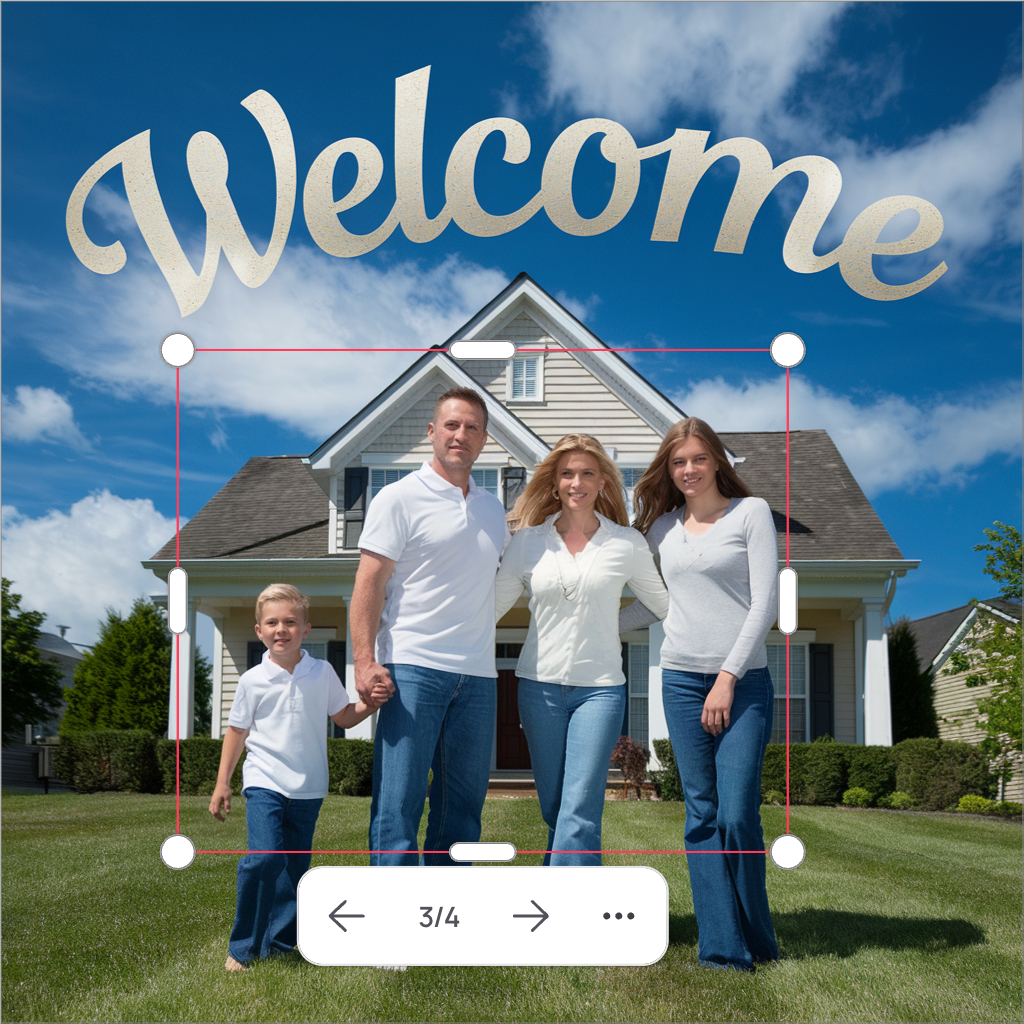
The AI generated the updated image directly over the original, modifying only the masked parts while leaving the rest intact.
While the faces now look significantly better, there is still room for improvement—particularly for the father holding his son’s hand. To refine this further: * Mask that specific part of the image again. * Resize the generation window to be even smaller. * Ensure the young boy is included in the generation window to provide the AI with proper proportions and context. This time, the generation window was set to a 1:1 aspect ratio, meaning the newly generated section had a resolution of 1024 × 1024 pixels.

The hands still require some adjustment.
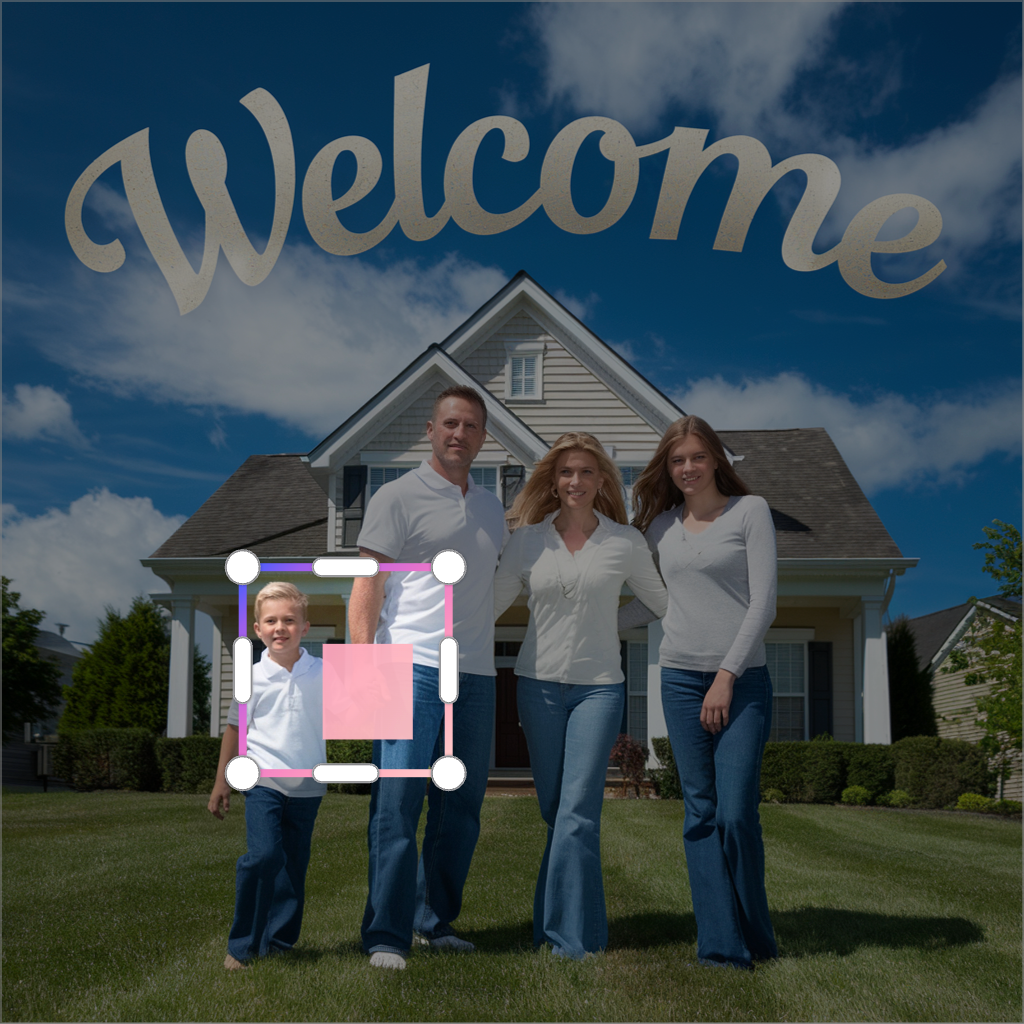
The masked area and the small generation window.

The final image below was downloaded using the Download feature. While the downloaded image retained a 1024 × 1024 resolution, areas with a higher pixel density were downscaled but still preserved the improvements made. For more details on resolution and pixel density in Canvas, refer to the last two sections of the [Canvas documentation](https://docs.ideogram.ai/canvas-and-editing/canvas-overview#canvas-and-image-sizes).

The final image.

{% hint style="info" %} **Getting even better results** To further enhance image quality, consider using the Upscale feature before attempting any fixes. This will provide the AI with up to twice as many pixels to work with for the same selected area. Keep in mind: • The generation window has a fixed number of pixels based on its aspect ratio. • If you upscale a 1:1 image (e.g., from 1024 × 1024 to 2048 × 2048), then use Magic Fill at a 1:1 aspect ratio (which generates a 1024 × 1024 image), it’s best to keep the generation window under half the size—both horizontally and vertically—of the upscaled image for optimal results. {% endhint %} *** ## Advanced and Creative Examples Magic Fill can be used creatively to achieve impressive results. The examples below demonstrate how pushing the limits of the tool can lead to surprising outcomes. For example, you can take an image of a product and seamlessly integrate it into another existing image. {% hint style="warning" %} The advanced techniques presented below sometimes push the tool to its limits. They are more about creative exploration and achieving good results can be challenging at times. Indeed, many factors influence the final rendering of the image like the prompt, the original image, the options used, etc. Experimenting with prompts and different options is often essential, but even then, results may vary. If you encounter difficulties, you can ask for help in the [#prompt-w-friend](https://discord.com/channels/1106248220687994911/1145120589955223602) channel on our Discord server. Simply share your prompt, the generated image, and a brief description of the issue. Other users may be able to help you achieve better results. {% endhint %} ### Inserting an Item from One Image into Another In the example below, there is a photo of a decorative pillow with a geometric pattern and an image of a loveseat with some pillows in a living room. The goal is to modify the loveseat pillows so they match the design of the patterned pillow.
1. Obtain a good description of both images. 1. These descriptions will later be merged and optimized into a single prompt. 2. If the image was generated directly in Ideogram, you can reuse the original prompt. 3. If not, it is strongly recommended to use the Describe feature to generate an accurate description. 2. Place the two images side by side and resize one if necessary. 3. Click Magic Fill and mask the pillows in the loveseat image. 4. Click Next and adjust the generation window to cover: 1. The entire pillow with the geometric pattern image. 2. The masked area and a sufficient portion of the loveseat image to provide proper context.

The masked pillow on the right and the generation window.

5. Merge and optimize the descriptions of both images: 1. Description of the patterned pillow: `A decorative pillow with a geometric pattern. The primary color of the pillow is a soft and dark olive green, and the pattern consists of intertwined white lines forming intricate designs. The design appears symmetrical, with two mirrored patterns on either side of the pillow. The pillow is on a white background.` 2. Prompt used to generate the loveseat image: `A close-up view of a cozy loveseat, without any pillow, in a modern living room. There are a few soft and dark olive green accents.` 3. Merged and optimized prompt: **`On the left`**`, a decorative pillow with a geometric pattern. The primary color of the pillow is a soft and dark olive green, and the pattern consists of intertwined white lines forming intricate designs. The design appears symmetrical, with two mirrored patterns on either side of the pillow.`` `**`On the right`**`, a close-up view of a cozy loveseat with two pillows like the one on the left.` {% hint style="info" %} **Why optimize the prompt?** * The revised prompt removes unnecessary details and focuses on the most relevant elements for the AI. * The pillow description is detailed since it is the main element being generated. * The background context remains slightly less detailed, as long as it provides enough visual reference. {% endhint %} 6. Adjust other options such as Style and Magic Prompt (it is recommended not to use Magic Prompt, as it might alter your optimized prompt) 7. Click Magic Fill and wait for the generation to complete. 8. Once the image is generated, click on it to cycle through the four generated variations using the arrows at the bottom.

The generated image includes the pillow and the area selected by the generation window.
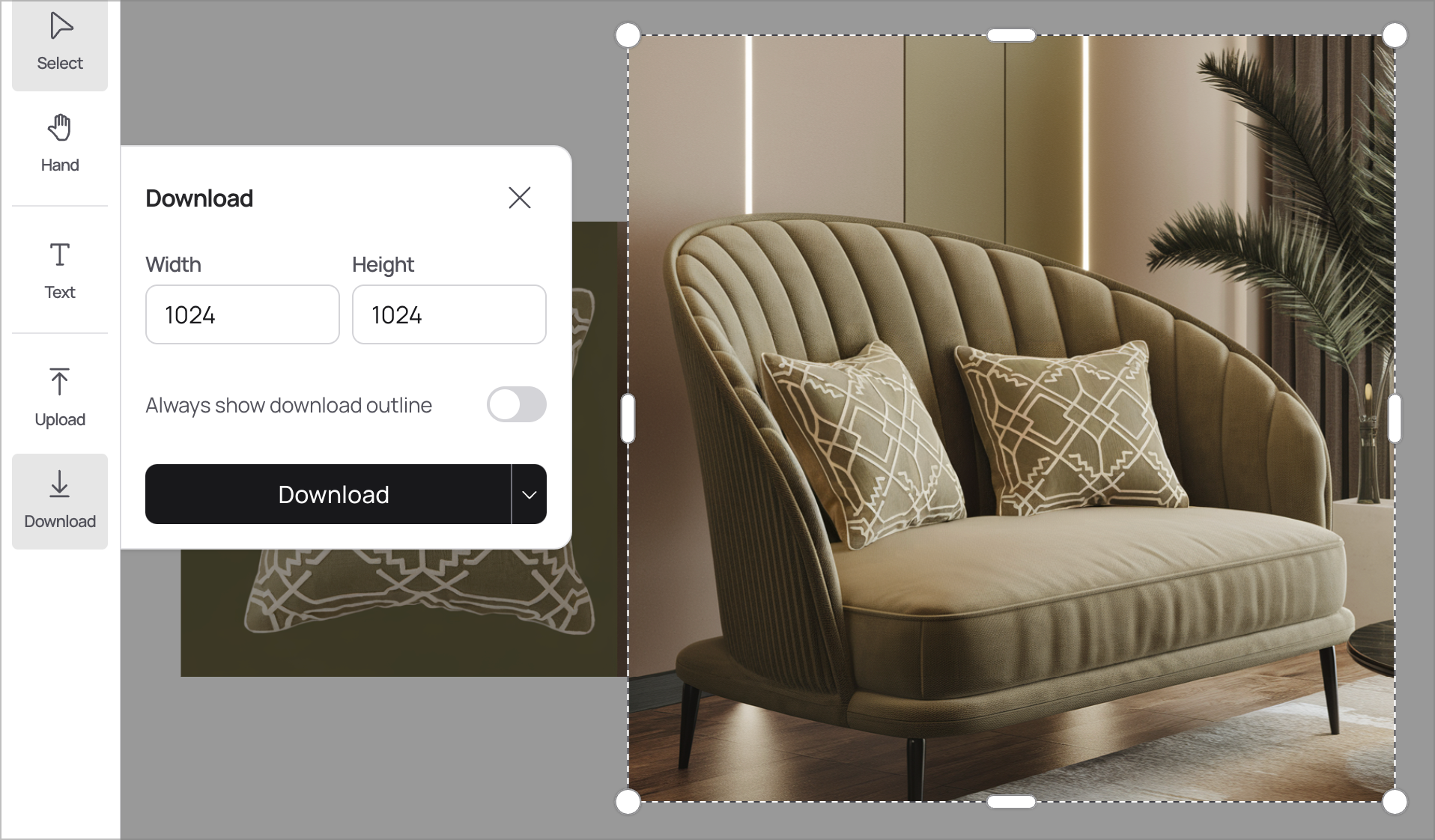
9. Download the final image: 1. Click the Download tool on the left-side panel. 2. Select the desired area to be included in the final image. 3. Click Download.

The bounding box indicates the area that will be downloaded.

Below is a comparison of the image before and after the transformation.

Before

After

*** ### Integrate Text and Logos in Images It’s easy to overlay text on an image using the Text tool in Canvas, but seamlessly integrating text into the natural elements of an image can be more challenging. In the example below, the goal is to make it look as if a message is handwritten in the sand on a beach. Once a beach image is selected, the Text tool is used to choose a suitable font and position the text where it should appear in the final image.

The original image.

Positioning the text on the image.
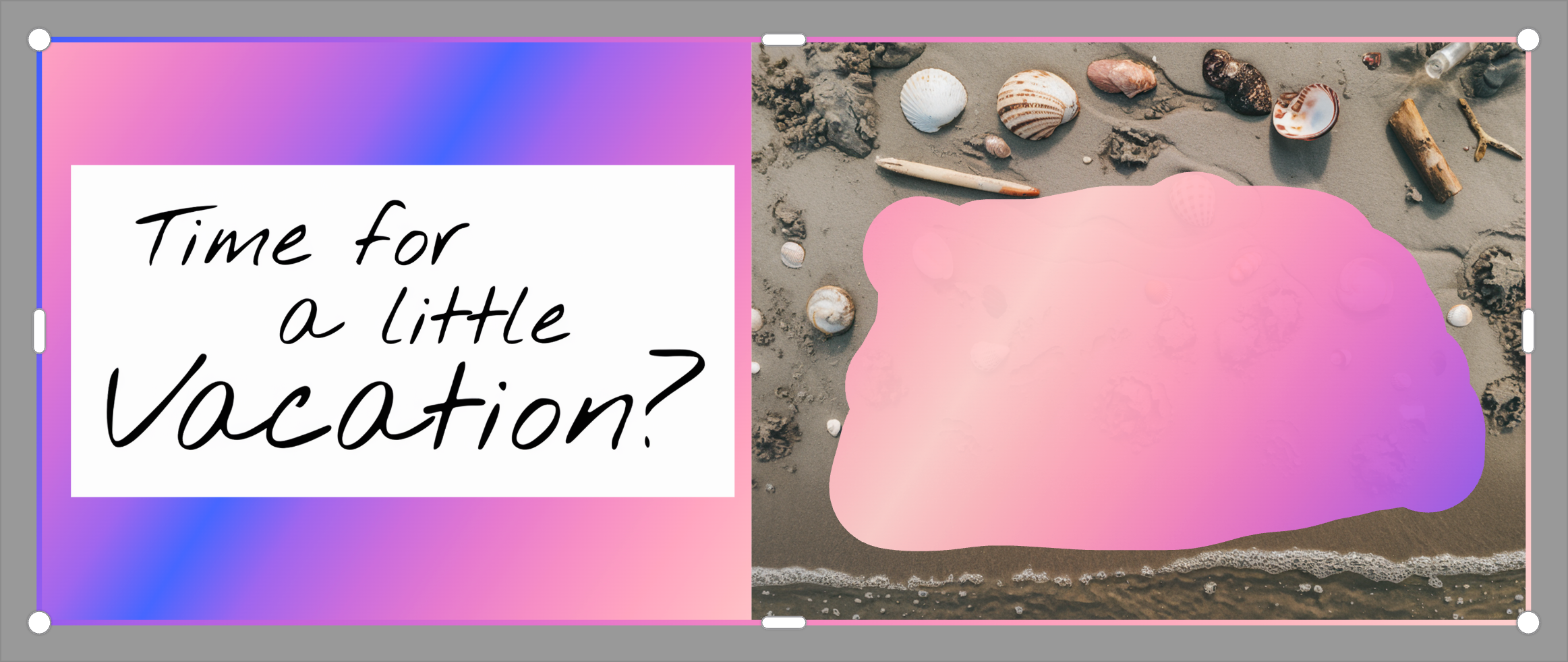
At this point, the text itself cannot be used directly to create the writing effect in the sand. Instead, follow these steps before proceeding to Magic Fill: 1. Move the text aside and make it completely black. 2. Use Remix on the text, setting the image weight to 100.\ \&#xNAN;*This is necessary because a text box cannot be used directly in this technique—it must first be converted into an image.* 3. Place the newly created image near the beach image. Now, apply the same technique used in the first example: * Mask the area where the text should appear in the beach image. * Adjust the Magic Fill generation window to include both the masked area and the black text image, ensuring the AI understands the reference. Here's the prompt that was used: **`On the left`**`, a text saying "Time for a little vacation?".`` `**`On the right`**`, the same text in the same style, roughly written by hand in the sand of an undisturbed sandy beach with seashells and other objects.`

The rendered text on the left and the masked area on the right, both encompassed within the generation window.

Final image with the text written in the sand.

{% hint style="warning" %} **Important notes** The final image may appear more blurry or pixelated compared to the original. This happens because the Magic Fill-generated section is often about twice the size of the original image. **Why does this happen?** The total number of pixels remains constant for any aspect ratio, regardless of the generation window size on the canvas. This is a current limitation of this technique. However, to achieve the best possible results, consider the following: * Minimize the generation window * Keep it as small as possible while maintaining enough visual context for the AI. * Reduce the size of the reference text or object * The AI can work with a smaller image as long as the prompt description is detailed enough. * Reducing the reference image by half often works just as well while helping shrink the generation window. * Use the Upscale feature on the final image * Upscale makes the image larger and sharper. * Don’t forget to provide a detailed prompt when using Upscale for the best results. {% endhint %} Here’s another example where text was integrated as embroidery on a baseball cap using the same technique.

The word ‘Baseball’ in Lobster font and rendered using Remix.
Original baseball cap image.
Result after Magic Fill.
Here's the prompt that was used: **`On the right`**`, the word "Baseball" written in a bold script font.`` `**`On the left`**`, the same word and font style than the one on the right but embroidered in red on the front of a baseball cap.` Finally, using the same technique, it’s easy to integrate a logo onto an object.

The original logo.

The logo must be integrated into the glass.
The final result. Notice the reflections on the logo.

Here's the prompt used for the example above: **`On the left`**`, logo for a brand of beer named "Iron Helm". At the center of the logo is a detailed illustration of a knight's helmet, which appears to be made of metal with rivets and a nose guard. The helmet is depicted in a frontal view. The logo is enclosed within a shield-like emblem, which is predominantly dark red and white.`` `**`On the right`**`, the exact same logo on a glass of beer.` *** ### Product Placement In this example, a perfume bottle from a photo will be integrated into two different scenes: 1. A studio photography setup. 2. An image where a woman holds the bottle. The original image of the perfume bottle was generated in Ideogram, but any image could be used. There is no need to remove the background, as long as the image isn’t cluttered with other objects.

Original image to be integrated, generated with Ideogram.
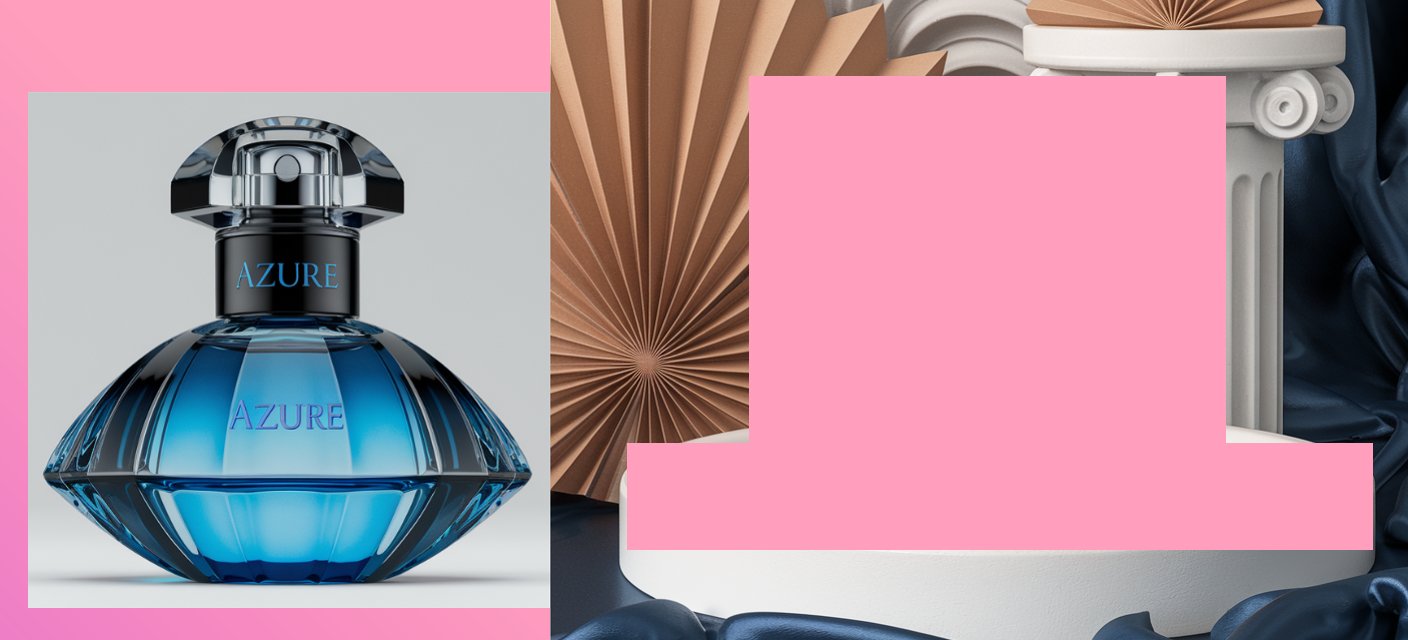
#### Integrating the perfume bottle into a studio setup Using the same technique as described in the previous examples: * An area was masked where the bottle should be integrated. * A part of a plate was also masked, allowing the AI to transform it into a more suitable pedestal, which it successfully did. The perfume bottle image was placed on the left side of the studio setup image, and the generation window was made as small as possible while keeping some context. Prompt used: **`To the left`**`, a perfume bottle for women named 'Azure' stands out prominently. The bottle has a gem-like, faceted design, predominantly blue with a silver cap and a black neck. The word 'AZURE' is prominently displayed on both the bottle and the neck.`` `**`On the right`**`, a close-up view of the same bottle is captured, placed atop a short white pedestal in a studio photography setup.`

Masked areas and generation window size

Original image where the perfume bottle will be integrated

Final image. Note the subtle shadow and reflection.
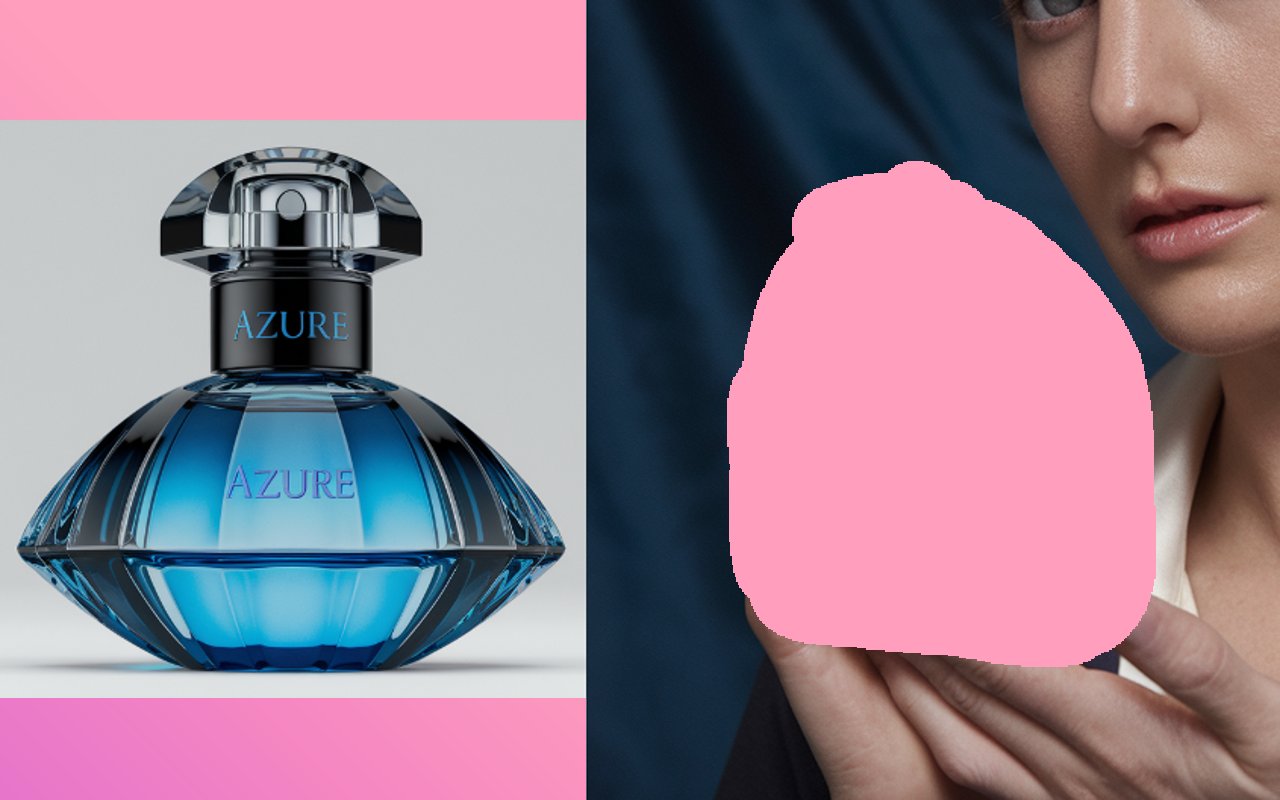
#### Integrating the perfume bottle into a lifestyle scene For the next integration, an image of a woman holding a perfume bottle was generated in Ideogram. The goal was to create a suitable scene for integration. As before: * The perfume bottle image was placed to the left of the woman’s image. * The affected areas (her hands and the existing bottle) were masked. * The generation window was made as small as possible while keeping enough context for the AI, including part of the face and the base of the hands. Prompt used: **`On the left`**`, a woman’s perfume bottle named 'Azure' features a unique, faceted design. The bottle is predominantly blue, with a silver cap and a black neck. The word 'AZURE' is prominently displayed on both the bottle and the neck.`` `**`On the right`**`, a chic woman holds the very same bottle of perfume.`

Masked areas and generation window size.

Original image where the perfume bottle will be integrated

Final image with the integrated bottle. Note how the AI adjusted the bottle to match the lighting conditions.

*** ## Tips and Tricks for Best Results Achieving great results with **Magic Fill** and **Extend**, especially with advanced techniques, takes a mix of creativity, experimentation, and a bit of patience. Here are some key factors that can impact the final outcome: * **Craft precise and detailed prompts** – Clarity in wording helps the AI understand what to generate. * **Experiment with synonyms and rephrase** - Changing a few words or testing different ways of expressing the same idea in a prompt can make big difference. * **Start with a high-quality image** – The better the input, the better the output. * **Consider the complexity of the image** – Simpler modifications often yield more accurate results. * **Optimize the generation window size** – Keeping it as small as possible while including enough context leads to sharper and more realistic outcomes. * **Manage your expectations** – AI-generated results can vary, so refining your approach and testing different options is key to success. By experimenting with different approaches, adjusting prompts, and fine-tuning generation settings, you can push the boundaries of what's possible and create stunning images. --- # Source: https://docs.ideogram.ai/using-ideogram/generation-settings/magic-prompt.md # Magic Prompt Magic Prompt helps you craft better prompts effortlessly. It uses Ideogram’s built-in language model to interpret, refine, or expand your text to increase variety and visual quality in the generated images. You can also write in your native language — Magic Prompt translates and enhances it for you. ## Magic Prompt Options To access the Magic Prompt options: 1. Select the [Prompt Box](https://docs.ideogram.ai/using-ideogram/ui-overview/ui-components/prompt-box) to reveal the generation settings (if not already visible). 2. Select **Magic Prompt** (displayed as the selected option such as **Auto**) to open the dropdown menu.
Magic Prompt dropdown menu showing Auto, On, and Off options.

Magic Prompt menu.

### Magic Prompt Modes * **Auto** — Lets Ideogram decide how many images use enhanced prompts based on the length of your original prompt. * **On** — Applies the enhanced prompt to all four generated images. * **Off** — Uses your original prompt without any modification. *** ## Examples Here are a few examples of Magic Prompt in action, showing the enhanced prompts and resulting images. ### Example 1 — Cat and Beach Ball > **Original Prompt:** > > *A cat on the right side of a beach ball on a sunny beach.* #### With Magic Prompt Off: With Magic Prompt set to **Off**, Ideogram generated four images that follow the instructions from your original prompt.
Images generated with Magic Prompt set to Off, using the original prompt.

With Magic Prompt set to Off, your original prompt is used without modification.

#### With Magic Prompt On In this example, Magic Prompt generated an enhanced version of the prompt, adding common beach elements and introducing artistic and playful details
Images generated with Magic Prompt set to On, showing enhanced prompts with artistic variations.

With Magic Prompt set to On, the feature enhances your prompt to produce more interesting images.

In the example above, the first image was generated by the AI according to the enhanced *Magic Prompt* prompt below: > **Magic Prompt:** > > *A playful cat is sitting on the right side of a vibrant beach ball, situated on a sunny, sandy beach. The beach is dotted with sunbathers and colorful umbrellas. Waves gently lap at the shore, and a pristine blue sky is adorned with a few fluffy white clouds. Seagulls soar overhead, adding to the lively and carefree atmosphere.* {% hint style="info" %} **Tip:** When you select an image, the [Details Panel](https://docs.ideogram.ai/using-ideogram/ui-overview/ui-components/details-panel) shows both the original and enhanced prompts if *Magic Prompt* was active when generating that image. {% endhint %} Below are a few other examples of images generated with and without Magic Prompt. ### Example 2 — Cupcake and Strawberries > **Original Prompt:** > > *Photo of cupcake and strawberries.*
Photo of a cupcake and strawberries generated with Magic Prompt Off.

Photo of a cupcake and strawberries as asked in the prompt.

> **Magic Prompt:** > > *A delectable photo of a scrumptious cupcake adorned with fresh, vibrant strawberries. The cupcake features a soft, fluffy frosting covered in colorful sprinkles, while the strawberries add a touch of natural sweetness and elegance. The background evokes a sense of warmth and comfort, with a rustic, vintage feel, and a hint of a sunlit afternoon.*
Enhanced cupcake and strawberries image generated with Magic Prompt On.

Image generated from the enhanced prompt.

### Example 3 — Summer Camp Logo > **Original Prompt:** > > *Make a logo for a summer camp named "Pinecrest Pioneers Camp."*
Logo created from the original prompt for Pinecrest Pioneers Camp.

Logo made from the original prompt.

> **Magic Prompt:** > > *A vibrant and colorful logo for the "Pinecrest Pioneers Camp" summer camp. It features a pioneer-style wooden cabin nestled among tall pine trees, with a bright yellow sun shining overhead and a blue sky. In the background, there's a lake surrounded by lush green grass. The camp's name is written in bold, playful letters in a mix of red, orange, and yellow, evoking the warmth and excitement of summer. The logo exudes an atmosphere of adventure and friendship.*
Logo created with Magic Prompt enabled, showing a colorful camp scene.

Logo generated from the enhanced prompt.

--- # Source: https://docs.ideogram.ai/using-ideogram/prompting-guide/9-prompting-references/memory-colors-for-naming-color-nuances.md # Memory Colors for Naming Color Nuances When describing colors in a prompt, using specific, visually grounded references is much more effective than generic terms like “red” or “green.” Since Ideogram doesn’t understand numerical color codes (like RGB or hex) in prompts yet, using familiar, real-world references — often called *memory colors* — helps convey a more accurate color nuance. These references evoke a mental image based on shared visual experience, such as “cherry red” or “sky blue.” The list below groups memory-based color terms by base color. Each one can help you fine-tune your prompt and get closer to the exact hue you’re aiming for. **🔴 Red**\ Apple, cherry, cranberry, blood, scarlet, ruby, wine, burgundy, brick, rose, garnet, fire engine, tomato, coral, blush, pomegranate, strawberry, chili, paprika, beet, firelight, jam, sangria, red velvet, ember **🟠 Orange**\ Pumpkin, tangerine, apricot, rust, amber, carrot, marmalade, clay, copper, burnt orange, squash, paprika, cantaloupe, butternut, saffron, cheddar, flame, tiger, persimmon, ginger, ochre **🟡 Yellow**\ Lemon, canary, gold, butter, mustard, sunflower, honey, daffodil, marigold, corn, banana, champagne, straw, yolk, dandelion, custard, pineapple, flax, amber glow, maize, goldenrod **🟢 Green**\ Emerald, olive, sage, forest, moss, mint, jade, chartreuse, pistachio, lime, seafoam, fern, avocado, shamrock, basil, eucalyptus, pear, pickle, ivy, clover, pine, cactus, wasabi, celery **🔵 Blue**\ Sky, baby blue, robin’s egg, navy, royal, sapphire, denim, indigo, ice blue, slate, teal, powder blue, steel blue, periwinkle, cobalt, storm, glacier, cornflower, ink, horizon, arctic, bluebell, lake, dusk **🟣 Purple**\ Lavender, plum, violet, eggplant, orchid, grape, amethyst, wine, mauve, lilac, iris, mulberry, blackberry, heather, wisteria, fig, thistle, aubergine, twilight, royal purple, raisin, elderberry **⚪ White / Off-White**\ Pearl, cream, ivory, alabaster, porcelain, eggshell, chalk, snow, linen, milk, moonlight, lace, frosting, meringue, cloud, rice paper, marble, parchment, vanilla, whipped cream, winter white **⚫ Black / Gray**\ Charcoal, graphite, slate, ash, onyx, coal, soot, obsidian, lead, pewter, smoke, shadow, ink, iron, flint, steel, raven, gunmetal, stormcloud, tar, night, cinder **🟤 Brown / Tan**\ Chocolate, coffee, cinnamon, chestnut, caramel, toffee, walnut, sand, taupe, ochre, clay, hazelnut, sepia, sienna, almond, pecan, mocha, maple, cocoa, bronze, dirt, suede, umber **🩷 Pink**\ Rose, blush, salmon, bubblegum, flamingo, cotton candy, coral, peach, watermelon, raspberry, fuchsia, magenta, strawberry milk, hibiscus, tulip, rose quartz, guava, flamingo, cherry blossom, lipstick, flamingo feather **🩵 Cyan / Aqua**\ Aqua, turquoise, glacier, lagoon, ocean, seafoam, pool, iceberg, teal, cyan, electric blue, mint, carribean, celeste, marine, arctic water, jellyfish glow, frostbite, cerulean, surf, wave **🌈 Multicolored / Iridescent**\ Oil slick, holographic, rainbow, opal, abalone, prism, pearlized, shimmer, aurora, peacock feather, soap bubble, CD surface, crystal sheen, beetle shell, starlight, dragonfly wing #### Descriptive Modifiers for Color To further refine the color you're describing, you can combine memory-based color terms with descriptive modifiers. These help define the **intensity**, **temperature**, **finish**, or **lighting** of the color — allowing for more control and expressiveness in your prompts. Here are common categories and examples of useful modifiers: * **Intensity or Brightness**\ Pale, light, soft, faint, pastel, bright, deep, vivid, bold, dark, muted, rich, intense * **Warmth and Temperature**\ Warm, cool, neutral, icy, frosted, fiery, dusky, earthy * **Finish or Surface Quality**\ Glossy, matte, metallic, shimmering, iridescent, pearlescent, velvet-like, translucent, silky, powdery * **Light and Shadow Modifiers**\ Sunlit, shadowed, backlit, faded, dimmed, glowing, reflective, foggy, moonlit **Examples**\ You can combine these with memory-based color terms for added clarity and control: > * *Powdery sky blue* > * *Rich cherry red* > * *Frosted mint green* > * *Dusky rose pink* > * *Shimmering sapphire blue* > * *Matte ivory white* --- # Source: https://docs.ideogram.ai/using-ideogram/ui-overview/ui-components/more-menu-....md # More Menu (...) When associated with a single image, the More menu presents different options, depending on where you are in the interface. For example: * While browsing other users’ images. * While viewing a user’s image in detail. * While browsing your Creations. * While viewing a single image in details. Below are two sample snapshots of these menus:
Here are the items you might encounter in the More menu, in alphabetical order: **Character** – Use the image as a character. **Delete** – Permanently remove the selected image. **Describe** – Generate a text description of the image. **Edit in Editor** – Open the image in the Editor. **Extend** – Expand the image beyond its current borders. **Magic Fill** – Replace or fill areas of the image using AI. **Make Private** / **Make Public** – Make the image visible only to you or to everyone. **Mute creator** – Hide posts from a specific creator. **Open in Canvas** – Launch the image in the advanced editing workspace. **Pin** / **Unpin** – Keep or remove the image at the top of your profile. **Rate Generation** – Provide feedback on the quality of the result. **Remix** – Create a new image variation starting from this image. **Remove background** – Delete the background around the main subject of the image. **Replace background** – Swap the background with a new generated one. ![](https://1799634369-files.gitbook.io/~/files/v0/b/gitbook-x-prod.appspot.com/o/spaces%2FzjhNby3LLsIikYuvxAJP%2Fuploads%2FZE4IjFJso6S1cQMBaLIX%2FReport%20-%20Red%2020px.svg?alt=media\&token=b4567713-cd9f-46dd-aaf8-b127b5b9b03f) **Report** – Report a poor image quality or an inappropriate image/prompt. **Retry** – Generate the image again with the same settings or with adjusted settings. **Set as profile photo** – Use the image as your account profile picture. **Style** – Use the image as a style reference. **Upscale** – Increase the image resolution up to 2x. **Use prompt** – Reuse the exact prompt that generated the image. {% hint style="info" %} Some other kind of More menus are available in other locations and features. These menus are described directly in the feature in question. {% endhint %} --- # Source: https://docs.ideogram.ai/community-and-social/muting-other-users.md # Muting Other Users We're committed to making Ideogram a safe and relaxing experience for everyone. If you don't want to see someone's images and notifications in your feed, you can mute them. They will not be notified that they have been muted by you. ## Muting a Creator There are three methods to access this feature: 1. **When viewing a user profile page.** When you're on a user's profile page, click the menu icon , then then click "Mute creator" within the menu.

User profile page

2. **When browsing or viewing a specific image.** Click the More icon then select **Mute creator**.
## Unmuting a Creator To unmute a creator or to manage mute users, simply click on the Settings menu located at the bottom of the left-side panel on desktop computers or the bottom right side on mobile then select "Manage muted users".
In the modal window, simply users by clicking the "Unmute" button.
--- # Source: https://docs.ideogram.ai/using-ideogram/ui-overview/ui-components/navigation-bar.md # Navigation Bar The Navigation Bar provides quick access to the main sections of Ideogram. Its icons change depending on the page you are on, giving you direct navigation to features such as Creations, the Canvas, Batch generation, Notifications, and more. ### On Home, Creations, Batch and Character Pages **Home** – Return to the homepage. **Creations** – Access all the images you have generated and those you liked. **Canvas** – Open the Canvas workspace for advanced image manipulation. **Batch** – Generate multiple images at once using a CSV file. **Character** – Apply or customize character consistency in your generations. **Notifications** – View updates such as likes, remixes, and follows. **Profile** – Go to your profile, view your credits left, manage your subscription. *** ### On the Canvas Page **Home page (Ideogram logo)** – Return to the Home page from Canvas. **Generate** – Create new prompt based images as usual, but on the canvas. **Magic Fill** – Fill selected areas of the image using AI. **Extend** – Expand the selected image by generating new areas around the image. **Remix** – Generate a new variation of the selected image using it as a basis for the next generation. **Select** – Select and move elements on the canvas. **Hand** – Pan and navigate across the canvas. **Text** – Add or edit text directly in the canvas. **Add Image** – Insert another image into the canvas. **Download** – Save the selection as an image to your device. --- # Source: https://docs.ideogram.ai/using-ideogram/ui-overview/ui-components/navigation-tabs.md # Navigation Tabs Ideogram's homepage features a navigation section that allows you to explore, search, and filter the community’s creations. Here’s a breakdown of each element:
1. **Search Icon** - Use this to [search](https://docs.ideogram.ai/using-ideogram/features-and-tools/search) for public images using keywords used in prompts. Great for quickly locating content created by others on a particular subject or style. When clicking the icon, the entire navigation tab transforms into a text field where you can enter your search terms.
2. **Explore Tab** – This is the default view when accessing the homepage. Displays the most recent public image generations from the Ideogram community. 3. **Top Tab** – Displays the most popular images based on community engagement — including likes, remixes, and usage — over selectable time periods. When clicking the Top tab, a scroll down menu appear on the right where you can choose from the following views:
1. **Hour**: Top trending images in the past 60 minutes. 2. **Day**: Top images today. 3. **Week**: Most popular from the past 7 days. 4. **Month**: High-performing images over the past 30 days. 5. **All-Time**: Most popular images ever created on Ideogram. 4. **Subjects Filter** – A list of image categories such as: People, Product, Nature, Poster, Logo, T-shirt, and more. Quickly filter the image feed by subject matter to match your interests or your intended use. --- # Source: https://docs.ideogram.ai/using-ideogram/generation-settings/negative-prompt.md # Negative Prompt The Negative Prompt feature guides the AI away from generating specific types of images or content. It instructs the AI on what to avoid or exclude in the generated images. For example, if you’re using an AI to create landscape images but want to avoid beaches, you could use a negative prompt like "beach" or "beach, sand, water, ocean." This helps the AI understand your preferences and constraints so it can generate images that more closely match your intended outcome. To access the Negative Prompt feature: 1. Select the [Prompt Box](https://docs.ideogram.ai/using-ideogram/ui-overview/ui-components/prompt-box) to reveal the generation settings (if not already visible). 2. Select the **More** button More button in the Prompt Box. to open a dropdown menu where you can enter the terms or concepts you want the AI to avoid. 3. In the **Negative prompt** field, enter the terms or concepts you want the AI to avoid. Separate multiple items with commas (for example: green, green candies, cheese, cheddar.)
Negative Prompt input field inside the Prompt Box.

The Negative prompt field in the More menu of the Prompt Box
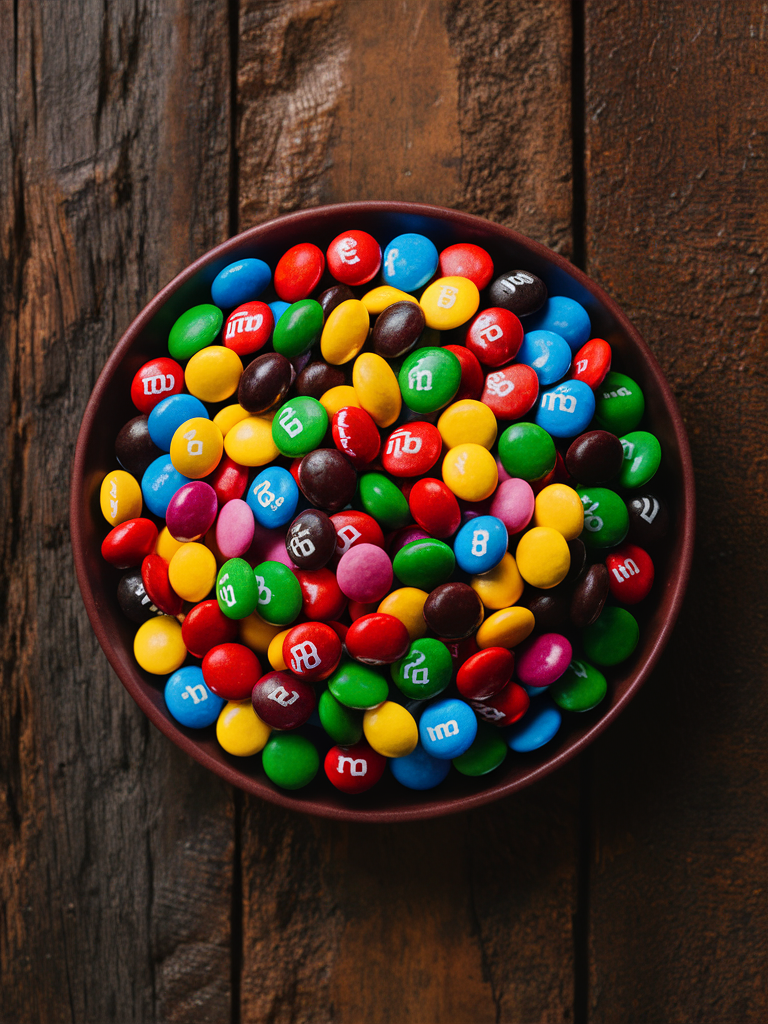
Here are examples showing how *Negative Prompt* changes image results:
Colorful candies including all colors, generated without a negative prompt.Prompt:
An assortment of colorful candies like Smarties or M&Ms, neatly arranged on a rustic wooden table.
Negative prompt:
Colorful candies with green candies removed using a negative prompt.Prompt:
An assortment of colorful candies like Smarties or M&Ms, neatly arranged on a rustic wooden table.
Negative prompt:
green, green color, green candies
Gourmet burger with cheese and fries, generated without a negative prompt.Prompt:
Food photography picture of a delicious gourmet burger with a side of french fries and a beverage in the background.
Negative prompt:
Gourmet burger without cheese, generated using a negative prompt for cheese.Prompt:
Food photography picture of a delicious gourmet burger with a side of french fries and a beverage in the background.
Negative prompt:
cheese, cheeseburger, cheddar cheese
{% hint style="info" %} #### Tips: Here are some tips to get the most out of the feature: * Use multiple keywords to describe what you don't want. * Be as precise as possible without providing excessive detail. * It is often simpler and more effective to write prompts that naturally exclude unwanted elements instead of relying heavily on negative prompts. See the [Handling Negatives](https://docs.ideogram.ai/using-ideogram/prompting-guide/4-handling-negatives) section of the *Prompting Guide* for more details. {% endhint %} {% hint style="warning" %} **Important tip:** If your negative prompt does not seem to work, check whether something in your main prompt interferes with or contradicts it. The content of the regular prompt will always be favored over the negative prompt. For example, a prompt asking for a classical guitar will almost always imply a guitar with strings. Trying to generate a guitar without strings may be difficult because the model usually interprets “guitar” as an object with strings. {% endhint %} --- # Source: https://docs.ideogram.ai/using-ideogram/ui-overview/pages-ui.md # Pages UI - [Home Page](/using-ideogram/ui-overview/pages-ui/home-page.md) - [Image View](/using-ideogram/ui-overview/pages-ui/image-view.md) - [Profile Page](/using-ideogram/ui-overview/pages-ui/profile-page.md) --- # Source: https://docs.ideogram.ai/using-ideogram/generation-settings/private-generations.md # Private Generations With an Ideogram **Plus Plan** or higher, you can generate private images that only you can view.\ Private images remain private even after your subscription ends — you can still access and download them in JPG format. To unlock all download options again, resubscribe to a *Plus Plan* or higher. For more details about purchasing, upgrading, or managing your subscription, visit the [Plans and Pricing](https://docs.ideogram.ai/plans-and-pricing) page. ## Generating Private Images You can set your generation visibility using the **Visibility** button. 1. Select the [Prompt Box](https://docs.ideogram.ai/using-ideogram/ui-overview/ui-components/prompt-box) to show the generation settings (if not already visible). 2. Select **Visibility** (displayed as the current visibility such as **Private** or **Public**) to open the dropdown and select your preferred visibility for the next generated image.
The Visibility menu showing Public and Private options.

The Visibility menu showing Public and Private options.

## Viewing Your Private Generations To view your private generations, select the **Creations** icon Creations icon on the Left Sidebar. located on the [Navigation Bar](https://docs.ideogram.ai/using-ideogram/ui-overview/ui-components/navigation-bar) to go to the **Creations** page, and then select the **Private** tab.
Part of the Creations page showing the Private tab selected.

Private tab selected on the Creations page.

## Changing Image Visibility To make a private image public or a public image private, you can: 1. When viewing an image in detail, select the **Public/Private** button located in the [Details Panel](https://docs.ideogram.ai/using-ideogram/ui-overview/ui-components/details-panel) on the right and select the desired option from the dropdown menu. 2. To update multiple images at once, go to the **Creations** page, select the images, select the **More** icon More icon in the Image Gallery action bar. in the panel below the [Image Gallery](https://docs.ideogram.ai/using-ideogram/ui-overview/ui-components/image-gallery), and select **Make private** or **Make public** from the menu. --- # Source: https://docs.ideogram.ai/using-ideogram/ui-overview/pages-ui/profile-page.md # Profile Page The Profile page displays all information related to a user account, including the username, bio, social media links, and gallery of pinned and public images. From here, you can edit your profile, view your followers or users you follow.
1. [Prompt Box](https://docs.ideogram.ai/using-ideogram/ui-overview/ui-components/prompt-box) **–** The main area where you enter your text prompt for image generation. It includes various configuration options (Style, Aspect Ratio, Character, Color Palette, etc.) and the controls to start generating. 2. **Profile Picture** – This is the image other users will see as your profile photo. You can set it from any of your images by clicking the **More** icon () and selecting **Set as profile photo**. 3. **Username** – The first line displays your Ideogram username, visible to everyone. You can add your real name or another identifier below it if you wish. 4. **Statistics** – Displays your number of followers, the users you follow, and your total likes received. You can view detailed lists by clicking on the **followers** or **following** labels. 5. **Bio** – A short personal description about yourself. Optional. 6. **Date Joined** – Shows when your account was created. 7. **Location** – Indicates where you are located. Optional. 8. **More menu** – Available only when viewing another user’s profile. Provides options to: * **Mute creator** – Hides all creations from this user. * **Report creator** – Report the user for inappropriate content. 9. **Edit Profile / Follow / Following** – When viewing your own profile, this button is labeled **Edit Profile**, allowing you to modify your profile information. On another user’s page, it shows either **Follow** or **Following**, letting you follow or unfollow them. 10. **Social Media** – Add links to your social media accounts to share with the community. Optional. 11. **Navigation Tabs** – Control how your image gallery is displayed: 1. **Default** – Shows pinned images first, followed by public images, both from newest to oldest. This is the default view other users see. 2. **Latest** – Displays all public images, pinned or not, from newest to oldest. 3. **Oldest** – Displays all public images, pinned or not, from oldest to newest. 12. **Image Gallery** – Displays public and pinned images, visible to all users. 13. [Navigation Bar](https://docs.ideogram.ai/using-ideogram/ui-overview/ui-components/navigation-bar) – Provides quick access to the main sections of Ideogram, including Home, Creations, Canvas, Notifications, and your Profile. --- # Source: https://docs.ideogram.ai/using-ideogram/ui-overview/ui-components/prompt-box.md # Prompt Box ## Prompt Box Overview The Prompt Bo**x** is the main area where you describe what you want to see in your generated image. It also gives you access to various settings that let you control the visual style, subject consistency, aspect ratio, colors, and more.

Prompt Box in its default state.

## Elements of the Prompt Box 1. **Prompt Field** – Where you type your text prompt — a description of what you want the AI to generate. 2. **Image Upload** – Lets you upload an image to use in these different situations: 1. As a [Character](https://docs.ideogram.ai/using-ideogram/features-and-tools/reference-features/character-reference) or [Style](https://docs.ideogram.ai/using-ideogram/features-and-tools/reference-features/style-reference) reference, or to [Describe](https://docs.ideogram.ai/using-ideogram/features-and-tools/describe) the content of the uploaded image. 2. To edit the image in various ways such as [Magic Fill](https://docs.ideogram.ai/canvas-and-editing/canvas/magic-fill), [Remix](https://docs.ideogram.ai/using-ideogram/features-and-tools/remix), [Upscale](https://docs.ideogram.ai/using-ideogram/features-and-tools/upscale), [Remove or Replace](https://docs.ideogram.ai/using-ideogram/features-and-tools/replace-or-remove-background) the background, or edit it in [Canvas](https://docs.ideogram.ai/canvas-and-editing/canvas/canvas-overview). 3. [**Model**](https://docs.ideogram.ai/using-ideogram/generation-settings/available-models) **/** [**Render Speed**](https://docs.ideogram.ai/using-ideogram/generation-settings/render-speed) **/ Number of Images** – Lets you select which AI model/version to use (e.g., Ideogram 3.0 vs earlier versions), the quality/rendering speed, and how many output images are generated per prompt.
The Model + variations menu.

The Model + variations menu.

4. [**Aspect Ratio**](https://docs.ideogram.ai/using-ideogram/generation-settings/aspect-ratio-and-dimensions) – Select the format of your image (e.g. square, portrait or landscape.)
The Aspect ratio menu.

The Aspect ratio menu.

5. [**Style**](https://docs.ideogram.ai/using-ideogram/features-and-tools/reference-features/style-reference) – Choose a visual style or a Style Reference to guide the overall look. You can pick from global mode (like Realistic, Design, General), from a list of specific built-in presets or use/create a custom one.

The Style popup window.

6. [**Character Reference**](https://docs.ideogram.ai/using-ideogram/features-and-tools/reference-features/character-reference) – Use a reference image to guide how a person or character looks across multiple generations. 7. [**Color Palette**](https://docs.ideogram.ai/using-ideogram/generation-settings/color-palette) – Choose a color palette for the generated image. Guides overall color tones.
The Color palette menu.

The Color palette menu.

8. **More Options** – Click the More icon to access more settings: 1. [Tile](https://docs.ideogram.ai/using-ideogram/generation-settings/tile) – Generate seamless tiles *(Model 1.0 only)* 2. [Seed Number](https://docs.ideogram.ai/using-ideogram/generation-settings/seed-number) – Reproduce the same image output that was done before. 3. [Negative Prompt](https://docs.ideogram.ai/using-ideogram/generation-settings/negative-prompt) – Tell the AI what to avoid.
The More menu.

The More menu.

9. [**Magic Prompt**](https://docs.ideogram.ai/using-ideogram/generation-settings/magic-prompt) – A tool/setting that optimizes and embellishes the original prompt (when needed), to maximize the variety and add more details to the images generated.
The Magic Prompt menu.

The Magic Prompt menu.

10. [**Private Generation**](https://docs.ideogram.ai/using-ideogram/generation-settings/private-generations) – A visibility toggle that makes your image visible only to you or to the public. Requires a Plus plan or higher to generate images privately.
The Visibility menu.

The Visibility menu.

11. **Generate** – Button that starts the generation process based on your prompt and selected settings. *** ## Prompt Box in Different Modes When you select a Style or a Character Reference, or Remix an image, a small thumbnail appears inside the Prompt Box. These thumbnails visually represent the current selections applied to your prompt.

Prompt Box with option thumbnails such as Remix, Style, or Character references.

Collapsed Prompt Box showing option thumbnails grouped on the right side.

12. [**Style Reference**](https://docs.ideogram.ai/using-ideogram/features-and-tools/reference-features/style-reference) thumbnail – Shows that a custom style reference image is selected and active. 13. [**Character Reference**](https://docs.ideogram.ai/using-ideogram/features-and-tools/reference-features/character-reference) thumbnail – Indicates that a character image reference is selected. 14. [**Remix**](https://docs.ideogram.ai/using-ideogram/features-and-tools/remix) thumbnail – Shows the image being remixed and an image weight (e.g., 50). 15. **Grouped thumbnails** – In some views, the *Prompt Box* collapses and shows only the prompt and thumbnails of your selected style, character, or remix image. #### Other Possible Thumbnails * [**Upscale**](https://docs.ideogram.ai/using-ideogram/features-and-tools/upscale) thumbnail – Shows that a custom style reference image is selected and active. You can click on the **Character** or **Remix** thumbnail to bring options in a dropdown menu, or on the **Style** thumbnail to bring up the Style popup window. *** ## **Importing an Image** When you import an image—either by clicking the **Image Upload** icon , pasting an image directly into the prompt field, or dragging it onto the page—a popup window appears with several options for how to use or edit the image.
The available options when importing an image.

The available options when importing an image.

#### **Available actions** * **Character** – Use the uploaded image to create a [Character Reference](https://docs.ideogram.ai/using-ideogram/features-and-tools/reference-features/character-reference), preserving the subject’s identity and facial features across multiple generations. * **Style** – Use the image as a [Style Reference](https://docs.ideogram.ai/using-ideogram/features-and-tools/reference-features/style-reference), capturing its aesthetic, color scheme, and visual tone to influence future generations. * [**Describe**](https://docs.ideogram.ai/using-ideogram/features-and-tools/describe) – Automatically generate a detailed text prompt that describes the uploaded image. Useful for re-creating similar content. * [**Magic Fil**l](https://docs.ideogram.ai/canvas-and-editing/canvas/magic-fill) – Edit the image by removing or replacing areas intelligently. The AI fills the masked region based on your text prompt. * [**Remix**](https://docs.ideogram.ai/using-ideogram/features-and-tools/remix) – Reimagine the uploaded image while preserving its composition. Adjust the **Remix weight** to balance between originality and stylistic influence. * [**Upscale**](https://docs.ideogram.ai/using-ideogram/features-and-tools/upscale) – Enhance the resolution and details of the image for sharper, higher-quality results. * **Open in Canvas** – Launch the image in [Canvas](https://docs.ideogram.ai/canvas-and-editing/canvas/canvas-overview) for manual editing, masking, and combining multiple assets. * [**Replace BG**](https://docs.ideogram.ai/using-ideogram/features-and-tools/replace-or-remove-background) – Automatically detect and remove the background, replacing it with a new scene or color based on your prompt. You can click on the right end **dropdown arrow** to select **Remove BG** which removes the background and make it transparent (PNG). {% hint style="info" %} **Tip:** Choosing any of these options will transfer you to the corresponding feature page or editor view automatically, depending on the selected action. {% endhint %} *** --- # Source: https://docs.ideogram.ai/using-ideogram/prompting-guide.md # Prompting Guide - [In a Nutshell](/using-ideogram/prompting-guide/in-a-nutshell.md) - [1- What is Prompting](/using-ideogram/prompting-guide/1-what-is-prompting.md) - [2- Prompting Fundamentals](/using-ideogram/prompting-guide/2-prompting-fundamentals.md) - [Text and Typography](/using-ideogram/prompting-guide/2-prompting-fundamentals/text-and-typography.md) - [3- Prompt Structure](/using-ideogram/prompting-guide/3-prompt-structure.md) - [4- Handling Negatives](/using-ideogram/prompting-guide/4-handling-negatives.md) - [5- Common Pitfalls and Fixes](/using-ideogram/prompting-guide/5-common-pitfalls-and-fixes.md) - [Importance of Precision](/using-ideogram/prompting-guide/5-common-pitfalls-and-fixes/importance-of-precision.md) - [6- Prompt Iteration and Refinement](/using-ideogram/prompting-guide/6-prompt-iteration-and-refinement.md) - [7- Creative Tools in Ideogram](/using-ideogram/prompting-guide/7-creative-tools-in-ideogram.md) - [Using Magic Prompt](/using-ideogram/prompting-guide/7-creative-tools-in-ideogram/using-magic-prompt.md) - [8- Troubleshooting](/using-ideogram/prompting-guide/8-troubleshooting.md) - [9- Prompting References](/using-ideogram/prompting-guide/9-prompting-references.md) - [Describing Skin Tones](/using-ideogram/prompting-guide/9-prompting-references/describing-skin-tones.md) - [Describing Body Type](/using-ideogram/prompting-guide/9-prompting-references/describing-body-type.md) - [Memory Colors for Naming Color Nuances](/using-ideogram/prompting-guide/9-prompting-references/memory-colors-for-naming-color-nuances.md) - [Angle of View and Perspective](/using-ideogram/prompting-guide/9-prompting-references/angle-of-view-and-perspective.md) - [Describing Age and Life Stage](/using-ideogram/prompting-guide/9-prompting-references/describing-age-and-life-stage.md) --- # Source: https://docs.ideogram.ai/quick-start-guide.md # Quick Start Guide This Quick Start Guide will walk you through the essentials of using Ideogram — from signing up to generating and downloading your first image. {% stepper %} {% step %} ### Sign Up Visit [ideogram.ai](https://ideogram.ai/) and click on **"Continue with Google"** or **"Continue with Apple"** to create your free account. {% hint style="danger" %} **Important:** Your chosen authentication method and associated email address are permanent and cannot be changed later. {% endhint %} *** {% endstep %} {% step %} ### Choose a Username You’ll be then prompted to choose a unique username. This will be your public handle on Ideogram. People will be able to see your public or pinned images at ideogram.ai/@username, where “username” will be replaced by your chosen name. {% hint style="danger" %} **Important:** Usernames are permanent and cannot be changed later. {% endhint %} *** {% endstep %} {% step %} ### Write Your Prompt On the main page, locate the prompt box at the top. Enter a description of the image you want to generate. For example: > *A serene landscape with mountains during sunset.* You can enhance your prompt by specifying styles, colors, or other details by yourself or turn on [**Magic Prompt**](https://docs.ideogram.ai/using-ideogram/generation-settings/magic-prompt) and the AI will do it automatically for you. {% hint style="success" %} **Tip:** For inspiration, click on any image you like from other users to see the prompt they used. {% endhint %} *** {% endstep %} {% step %} ### Customize Generation Settings Adjust a few settings located at the bottom of the prompt box: * **Model**: Choose the model you want (*each has a different price in credits*) * **Style**: Choose from options like \*Realistic\*, \*General\*, \*Design\*, etc. * **Aspect Ratio**: Select the desired image dimensions. * **Magic Prompt**: Enhance your prompt automatically for more detailed results. * **Color Palette**: Define a specific color scheme. These settings are optional; you can proceed with the defaults if preferred. {% hint style="success" %} Tip: Try different models and styles. {% endhint %} *** {% endstep %} {% step %} ### Generate the Image Click the **"Generate"** button. Ideogram will process your prompt and display your generated images within seconds. {% hint style="success" %} **Tip:** Experiment with different prompts and settings to explore various creative possibilities. {% endhint %} *** {% endstep %} {% step %} ### Review Your Results Click any thumbnail to view it larger and to open the **detail panel** (right side on desktop, bottom on mobile). From here you can like, remix, upscale, pin and access more features and information about the image. *** {% endstep %} {% step %} ### Download or Share Your Image Hover over your preferred image or look at the top of the **detail panel** and click the **Download** icon/button. Choose between: * **JPEG (70% quality):** Available to all users. * **PNG (100% quality):** Available to Basic Plan users and above. To share your image, click the **Share** icon/button to explore your options. {% hint style="warning" %} **Note:** Avoid using right-click to save images, as this may result in lower-quality downloads. {% endhint %} *** {% endstep %} {% step %} ### Explore You're all set — now it's time to explore! Here are a few things you can try next, even with a free account: * **Browse featured images**\ Check out the top creations of the hour, day, week, or month on the homepage. * **Follow creators you like**\ Click on usernames to follow your favorite artists and see their latest works. * **Try community remixes**\ Remix public images you like and experiment with new styles and prompts. * **Read more in the documentation**\ Want better typography, cleaner styles, or write better prompts? This documentation contains plenty of useful information, tips, and tricks. Take your time, try new things, and enjoy discovering what you can create with Ideogram! *** {% endstep %} {% endstepper %} Try Ideogram Now --- # Source: https://docs.ideogram.ai/using-ideogram/features-and-tools/reference-features.md # Reference Features - [Character Reference](/using-ideogram/features-and-tools/reference-features/character-reference.md) - [Style Reference](/using-ideogram/features-and-tools/reference-features/style-reference.md) - [Styles in Older Models](/using-ideogram/features-and-tools/reference-features/style-reference/styles-in-older-models.md) --- # Source: https://docs.ideogram.ai/using-ideogram/features-and-tools/remix.md # Remix The Remix tool lets you modify an existing image, whether it was generated in Ideogram or uploaded. The AI uses the original image as a base for the new one, letting you control how much it influences the final result. ## How to Use Remix You can access Remix in several ways: 1. **From image feeds** (Home and Creations pages) –\ Hover over any image in the [Image Gallery](https://docs.ideogram.ai/using-ideogram/ui-overview/ui-components/image-gallery), select the **More** icon at the top of the image, and choose **Remix** from the [More menu](https://docs.ideogram.ai/using-ideogram/ui-overview/ui-components/more-menu-...). 2. **From image details** –\ In the [Details Panel](https://docs.ideogram.ai/using-ideogram/ui-overview/ui-components/details-panel), select the **Remix** button.\ Alternatively, select the **More** icon in the upper-right corner and choose **Remix** from the More menu. 3. **When importing an image into the** [Prompt Box](https://docs.ideogram.ai/using-ideogram/ui-overview/ui-components/prompt-box) –\ In the popup window, select **Remix** to use the feature on that image. When using Remix, the original prompt — or the auto-generated description from an uploaded image — automatically fills the Prompt Box. The parent image’s [Aspect Ratio](https://docs.ideogram.ai/using-ideogram/generation-settings/aspect-ratio-and-dimensions) (or the closest available ratio) is applied automatically. You can edit the prompt and settings, except for the aspect ratio*.*\ To change it, use the [Editor](https://docs.ideogram.ai/canvas-and-editing/editor) to crop, resize, or adjust the image before launching Remix. ## Adjusting the Strength Remix lets you control how much influence (called **Strength**) the parent image has on the new one.\ Click the **Remix** thumbnail in the [Prompt Box](https://docs.ideogram.ai/using-ideogram/ui-overview/ui-components/prompt-box) to open its options. * Use the **Strength** slider or enter a value between 1 and 100. * Higher values make the new image closer to the original. * Set the **Strength** to 0 to remove the parent image entirely and generate a new one based only on the prompt and style tags.
Remix tab in the Prompt Box

Remix tab in the Prompt Box.

To remove the parent image from the Prompt Box, hover over the Remix thumbnail and select the "X" icon in its top-right corner. --- # Source: https://docs.ideogram.ai/using-ideogram/generation-settings/render-speed.md # Render Speed The Render Speed setting, available to all paid plan users, lets you control how long the AI spends generating an image, which also affects image detail and overall quality. To select a specific Render Speed: 1. Select the [Prompt Box](https://docs.ideogram.ai/using-ideogram/ui-overview/ui-components/prompt-box) to expand it (if not already expanded) and show the available options. 2. Select **Model + variations** (displayed as the actual model and number of images, for example, **3.0 Default x 4**) to open the dropdown menu. 3. Use the **Render speed** selector at the bottom of the menu to choose your desired speed.
Render speed portion of the Model + variations menu.

Render speed portion of the Model + variations menu.

The *Render Speed* setting adjusts how long the AI spends refining the requested image. There are three available render speeds: * **Turbo** — Generates images quickly, ideal for brainstorming or testing ideas. Results may appear rougher or more sketch-like. * **Default** — Balanced speed and quality; the standard mode for most generations. * **Quality** — Produces more detailed and refined results. It can correct small imperfections that may appear in faster modes. {% hint style="info" %} **Note:** Render speed varies between models. For example, **Model 2a** is faster than **Model 2.0** when using the same rendering settings. {% endhint %} Here are examples generated with **Model 2.0**:
TurboImage generated with Turbo render speed — lower detail, faster outputImage generated with Turbo render speed — lower detail, faster outputImage generated with Turbo render speed — lower detail, faster outputImage generated with Turbo render speed — lower detail, faster output
DefaultImage generated with Default render speed — balanced detail and speedImage generated with Default render speed — balanced detail and speedImage generated with Default render speed — balanced detail and speedImage generated with Default render speed — balanced detail and speed
QualityImage generated with Quality render speed — higher detail, slower generationImage generated with Quality render speed — higher detail, slower generationImage generated with Quality render speed — higher detail, slower generationImage generated with Quality render speed — higher detail, slower generation
The animations below highlight the differences between the **Turbo**, **Default**, and **Quality** render speeds:
Animation comparing Turbo, Default, and Quality render speeds
--- # Source: https://docs.ideogram.ai/using-ideogram/features-and-tools/replace-or-remove-background.md # Replace or Remove Background The Replace Background or Remove Background features let you isolate the main subject of an image by either removing the existing background or replacing it with a new one. This feature is available to all paid plans: * **Remove Background** makes the background transparent, leaving only the main subject. This is free (no credits used). * **Replace Background** generates a new background based on your prompt. This uses credits, depending on: * The **Model** you selected. * The **Number of images** generated. * The **Render Speed.** ## How to Access the Feature You can access Replace or Remove Background in several ways: 1. **From image details** –\ When viewing an image in the [Details panel](https://docs.ideogram.ai/using-ideogram/ui-overview/ui-components/details-panel), select the **Remove BG** button or the dropdown arrow to access **Replace BG**.\ Alternatively, select the **More** icon in the upper-right corner and choose **Remove Background** or **Replace Background** from the [More menu](https://docs.ideogram.ai/using-ideogram/ui-overview/ui-components/more-menu-...). 2. **When importing or pasting an image** –\ In the popup window, select **Replace BG** or use the dropdown arrow to access **Remove BG**. ## Remove Background You can remove the background of an image either directly from the Details panel while viewing a single image or while working in the Canvas. Each method behaves slightly differently. ### When Viewing an Image * In the [Details panel](https://docs.ideogram.ai/using-ideogram/ui-overview/ui-components/details-panel), select the **Remove BG** button. * The image updates automatically with a transparent background and is saved to your Creations. * You can preview the before-and-after comparison by selecting the **Split View** button at the top right.
Resulting image with transparent background after using Remove Background.

Resulting image with transparent background after using Remove Background.

Split View when clicking the button at top-right of the image.

The Details panel updates to show new options. To refine the result, select **Edit Background** to open the image in [Edit Background mode](#edit-background-mode) within the Canvas. ### When in Canvas If you opened the image in Canvas or were already editing there: * Select the image for which you want the background to be removed. * Click on **Remove BG** on the right-side panel. * You will enter [Edit Background mode](#edit-background-mode). ### Edit Background Mode In Edit Background mode, you can refine the transparent or masked areas of your image using several tools:
Toolbar in Edit Background mode showing masking tools and icons.

Toolbar in Edit Background mode showing masking tools and icons.

1. **Rectangle Mask** – Create a rectangular mask. 2. **Lasso Mask** – Draw a freeform mask shape. 3. **Brush Mask** – Paint a mask using a round brush. Adjust size with the bracket keys \[ ] or the size slider accessible from the dropdown arrow. 4. **Erase** – Toggle erase mode to restore areas of the background using mask tools. 5. **Invert** – Invert the selection to swap visible and hidden areas. When done editing the background, you can: 1. **Cancel** – Revert all background edits and restore the previous image. 2. **Save** – Save the current image with the background removed.\ Alternatively, clic or tap the dropdown arrow next to **Save** and select **Save Copy** to keep both the original and the edited version in the current Canvas.
Save and Cancel options available in Edit Background mode.

Save and Cancel options available in Edit Background mode.

After removing the background, you can download the image using the **Download** option in the left panel or continue editing it in the Canvas. In both cases, the image is also saved in your Creations. {% hint style="info" %} **Tip**: For sharper and more precise results, use *Upscale* before removing the background. Higher-resolution images produce cleaner edges and better transparency. {% endhint %} *** ## Replace Background The Replace Background feature lets you replace the background behind the main subject with a new one generated from your text prompt. For example, you can replace the background of a studio photo featuring a perfume bottle with a more dynamic scene, such as cascading water.
Original studio image before background replacement.

Original studio image before background replacement.

1. After selecting **Replace BG**, describe the new background you want to generate in the [Prompt Box](https://docs.ideogram.ai/using-ideogram/ui-overview/ui-components/prompt-box). 2. Select **Replace** to generate the new images. Results appear in your Creations or directly in the Canvas, depending on where the action was performed.
Final image after Replace Background applied.

Final image after Replace Background applied.

{% hint style="warning" %} **Important:** When integrating the subject into the new background, the AI may slightly adjust the image’s edges for a smoother blend. {% endhint %} --- # Source: https://docs.ideogram.ai/using-ideogram/features-and-tools/search.md # Search With Ideogram, you can search for your own images or publicly available creations generated by other users. Use keywords that would typically appear in the image prompts. Users with a paid subscription can search across all publicly available images on the platform, while Free Plan users can search only within their own creations. ## Search in the Home Page To perform a search, select the **Search** icon located at the top-left of the [Image Gallery](https://docs.ideogram.ai/using-ideogram/ui-overview/ui-components/image-gallery). 1. Select the **Search** icon to open the search box. 2. Type your keywords, then press **Enter** or **Return** to start the search.
Search box on the Home page.

Search box on the Home page.

Search box on the Creations page.

Search box on the Creations page.

Matching images appear directly in the Image Gallery below the Search box. --- # Source: https://docs.ideogram.ai/using-ideogram/generation-settings/seed-number.md # Seed Number The Seed Number feature serves as a unique numerical identifier or starting point for image generation. Think of it as a special code that sets the initial conditions the AI uses to create an image. It’s primarily used to reproduce the same result and ensure consistency across generations. To access Seed Number: 1. Select the [Prompt Box](https://docs.ideogram.ai/using-ideogram/ui-overview/ui-components/prompt-box) to expand it (if not already expanded) and show the available options. 2. Select the **More** button to open the dropdown menu. 3. In the **Seed number** field, enter the number you want to use for the next generation.
Seed number field in the More menu.

Seed number field in the More menu.

If no Seed Number is entered, the AI will automatically assign a random value. You can enter any number to act as a seed for generation. When viewing an image, its Seed Number appears in the [Details Panel](https://docs.ideogram.ai/using-ideogram/ui-overview/ui-components/details-panel) on the right (desktop) or below the image (mobile). {% hint style="warning" %} **Warning:** In Ideogram **Model v3.0**, using the same Seed Number with different [Render Speeds](https://docs.ideogram.ai/using-ideogram/generation-settings/render-speed) won’t generate identical images as in earlier versions. However, the results will remain visually similar if the same prompt is used. {% endhint %} ## Seed Number Use Cases One example is to keep the same Seed Number and generate the same prompt using different Render speeds, as shown below:
Seed: 406220
Rendering: Turbo
Image generated with Turbo render speed using Seed 406220
Seed: 406220
Rendering: Default
Image generated with Default render speed using Seed 406220
Seed: 406220
Rendering: Quality
Image generated with Quality render speed using Seed 406220
You can also use the Seed Number to make small prompt adjustments while preserving most of the original composition.
Prompt: ... The background is a dark blue gradient, ...
Seed: 406220
Rendering: Default
Prompt: ... The background is a dark purple gradient, ...
Seed: 406220
Rendering: Default
Prompt: ... The background is a dark red gradient, ...
Seed: 406220
Rendering: Default
The images aren’t identical, but they maintain the same composition and overall appearance. Only the background changes as specified. {% hint style="warning" %} **Warning:** Even when using the same *Seed Number*, changing a key concept in the prompt — for example, replacing “photography” with “painting,” or switching to another **model** — will generate different images. {% endhint %} --- # Source: https://docs.ideogram.ai/using-ideogram/getting-started/sharing-images.md # Sharing Images ## How to share an image While browsing images anywhere on the website, hover your cursor over an image and click **Share**. If you’re viewing an image in detail, click the **Share** button located in the upper-right corner of the right-side panel.

While browsing an image.

While viewing an image in details.

A popup window will appear where you can choose which social media platform you want to share your image to. If the image is currently private, you’ll be notified and prompted to make it public before sharing. Simply click **Set to public** to proceed.
--- # Source: https://docs.ideogram.ai/using-ideogram/getting-started/signup-and-registration.md # Signup and Registration ## 1. Signup To generate images on Ideogram, you will need to first create an account. Visit [Ideogram.ai](https://ideogram.ai) and sign up using a Google or Apple account. At the moment, Ideogram only supports signup through Google or Apple. When you click “Continue with Google” or “Continue with Apple,” you will be redirected to the respective login page and then back to Ideogram. **Be sure to select the correct Google or Apple account when signing up, as it cannot be changed later.**

The registration page where you sign up for ideogram.ai

## 2. Pick a Username (Display Handle) Once you log in, you will be prompted to choose a username that will be associated with your account and will be visible to other Ideogram users. The username must be unique, only contain alphanumeric characters and underscore, and be between 3 and 16 characters. Please note that your Google or Apple account's profile picture will be used as your Ideogram profile picture by default, but you can change your picture to any of your own generations later. **Be sure to choose a username you like, as you won't be able to change it later**. Once you've chosen a username, you're ready to experience the magic of text-to-image! ## 3. Subscribe to an Ideogram Plan To get access to priority generation, private generation, image upload, and other premium features, you'll need to subscribe to one of our plans. Please visit [ideogram.ai/pricing](https://ideogram.ai/pricing) for more information and to purchase a plan.

Free plan

Free

  • 10 Slow credits** per week (up to 10 prompts / 40 images per week)
  • 2 canvases
  • Be inspired by Ideogram community
  • No access to priority queue or premium features
  • All generated images are public

Plus plan

$20/month

  • 1000 Priority credits* per month (up to 1000 prompts / 4,000 images per month)
  • Unlimited Slow credits**
  • Private generation
  • Image upload for Remix and Describe
  • Unlimited canvases
  • Ideogram Editor
  • Download original quality in PNG
  • Early access to new features

Pro plan

$60/month

  • 3500 Priority credits* per month (up to 3500 prompts / 14,000 images per month)
  • Unlimited Slow credits**
  • Batch Generation with CSV upload
  • Private generation
  • Image upload for Remix and Describe
  • Unlimited canvases
  • Ideogram Editor
  • Download original quality in PNG
  • Early access to new features
{% hint style="danger" %} Any unused Priority credits awarded through the monthly plan will expire at the end of each monthly billing cycle. However, **Priority credits** purchased as a top-up will roll over to the next month and will only be used after your monthly **Priority credits** are depleted.\ \ \* Learn more about the credit system and the differences between **Priority credits** and **Slow credits** in [this section](https://docs.ideogram.ai/plans-and-pricing/available-plans#the-credit-system). {% endhint %} ## 4. Join Ideogram's Discord Server Our Discord server is dedicated to our growing community, product announcements, feature requests and regular community discussions. We have a channel called `question-answer` where creators and users of the Ideogram community answer people's questions and help each other, and another called `creativity-hub` where creators share their creations and participate in different activities. Visit [discord.gg/ideogram](https://discord.gg/ideogram) and connect with a Discord account to join our growing community. {% hint style="info" %} Ideogram accounts are separate from Discord accounts. {% endhint %} --- # Source: https://docs.ideogram.ai/using-ideogram/features-and-tools/reference-features/style-reference.md # Style Reference The Style Reference feature helps you create visually consistent and appealing images from a prompt. Choose from a curated library of ready‑made styles, or upload up to three reference images to design your own custom style. Reuse your styles anytime to keep your creations cohesive and polished. ## Using Style Reference To generate an image with a selected Style: 1. Click or tap inside the [Prompt Box](https://docs.ideogram.ai/using-ideogram/ui-overview/ui-components/prompt-box) to reveal the option bar (if not already visible). 2. Select **Style** to open the Styles popup.\ (v3.0 models only. See [Styles in Older Models](https://docs.ideogram.ai/using-ideogram/features-and-tools/reference-features/style-reference/styles-in-older-models) for older models.) 3. Select one of the available options (see details below). 4. Enter your prompt and adjust any generation settings as needed. 5. Click or tap **Generate**.
Styles popup showing Explore, Recents, My styles, and available modes

The Styles popup showing the available options.

### Available Modes * **Auto** – Automatically selects the most suitable style based on your prompt. * **General** – A flexible mode suitable for most uses, including artistic and abstract work. * **Realistic** – Produces lifelike photography with authentic colors, textures, and lighting. * **Design** – Ideal for clean, vector-style images such as logos, posters, and other design assets. {% hint style="warning" %} **Warning:** The **Random** mode is **deprecated** and no longer available. {% endhint %} #### While Using a Character Reference If a [Character Reference](https://docs.ideogram.ai/using-ideogram/features-and-tools/reference-features/character-reference) is present in the [Prompt Box](https://docs.ideogram.ai/using-ideogram/ui-overview/ui-components/prompt-box), the available modes adapt automatically. The selected Mode applies to the next generated image and incorporates the active Character Reference:
Modes available when a Character Reference is active.

Modes available when a Character Reference is active.

* **Auto** – Automatically determines the most suitable rendering style based on your prompt and the referenced character. * **Realistic** – Generates lifelike results, preserving the character’s facial features, colors, and textures as faithfully as possible. * **Fiction** – Interprets the character creatively, blending stylized elements while keeping key traits recognizable. ### Style Presets The following preset options are always available, regardless of whether you are generating normally or using a Character Reference. * **Explore** – Select a style from a curated library of popular aesthetics. * **Recents** – Reuse a style from your most recently used styles. * **My styles** – Choose one of your custom styles. * **Quick reference** – Upload or select up to three images to define a **temporary custom style** that will not be saved. ### Examples These examples show how different style presets reimagine Grant Wood’s *American Gothic* using the same prompt. > **Prompt:** > > *A stern couple in front of a white church with a Gothic-style window. The woman wears a brown polka-dotted dress with a white lace collar and a large brown brooch, while the man holds a pitchfork and wears a black suit with a light blue shirt, white collar, and round wire-rimmed glasses. The church's white exterior features vertical siding, and the background includes green trees and a red barn.* The following images show the output produced by a few preset styles.

Abstract Organic.

Analog Nostalgia.

Children's Book.

Golden Hour.

{% hint style="success" %} ### Tips & Tricks #### To generate the best images using Styles: * **Turn** Magic Prompt **off** to avoid unintended stylistic additions to your original prompt. * **Avoid** adding **style-related keywords** in your prompt, especially those that may conflict with the selected style. * Short, focused prompts usually yield the best results. {% endhint %} ### Creating Your Own Style In addition to using preset styles, you can also create your own custom styles to achieve a personalized aesthetic. How to create a style: 1. Select **Style** in the *Prompt Box*. 2. Open the **My styles** tab. 3. Select **Create new style**. 4. Upload or choose **up to three images** as visual references for your style. 5. Name your style. 6. Click or tap **Create**.
Your custom style appears under **My styles** and can be reused in any prompt. {% hint style="success" %} ### Tips & Tricks #### **Selecting the best images for custom styles:** * **For a strong, unified style:** Choose images that share a similar look, mood, aesthetic, and composition. * **For creative, unexpected results:** Mix diverse references to let the AI blend aesthetics and produce surprising outcomes. * **Using gradients to control color:** Upload a gradient-based image as one of your three references to influence the overall tone. {% endhint %} {% hint style="warning" %} The reference images for your custom styles **cannot be changed after creation**. This ensures that anyone who uses your style in the future will see consistent results based on the images you originally uploaded. {% endhint %} ## Combine Style Reference With Other Features Style Reference integrates seamlessly with other Ideogram features to expand creative possibilities: * [Describe](https://docs.ideogram.ai/using-ideogram/features-and-tools/describe) – Generate prompts from existing images and apply a style. * [Remix](#remix) – Reimagine existing images with a chosen style. * [Character Reference](https://docs.ideogram.ai/using-ideogram/features-and-tools/reference-features/character-reference) – Maintain a consistent subject across different aesthetics. * [Color Palette](https://docs.ideogram.ai/using-ideogram/generation-settings/color-palette) – Match your prompt to a specific mood or tone. ### Describe + Style Reference Use Describe to generate detailed text prompts from existing images, then apply a style to create a new version. {% hint style="success" %} Remove any stylistic keywords from Describe results for cleaner, more controlled outputs. {% endhint %} Example using the image below:

Original image.

> **Original Describe prompt:** > > A dynamic ~~indoor photograph~~ of a young man playing an electric guitar with intense emotion. The musician wears a burgundy red hoodie and light blue jeans, displaying an enthusiastic expression with eyes closed and mouth open in a passionate singing pose. He holds a cream-colored Fender electric guitar with a black pickguard. The setting features a dark green wall with two black and white framed photographs visible in the background. A brown leather couch is partially visible in the lower portion of the frame. ~~The lighting creates a warm, indoor atmosphere, highlighting the musician's features and the guitar's cream finish. The composition captures a moment of musical expression, with the subject positioned slightly left of center in the frame.~~ Stylistic words and sentences shown with ~~strikethrough~~ were removed or replaced to optimize how the AI interprets and applies styles. Additionally, any words highlighted in green — which indicated the colors of elements in the image — have also been removed. > **Adjusted Describe prompt:** > > A dynamic image of a young man playing an electric guitar with intense emotion. The musician wears a hoodie and jeans, displaying an enthusiastic expression with eyes closed and mouth open in a passionate singing pose. He holds a Fender electric guitar with a pickguard. The setting features a wall with two black and white framed photographs visible in the background. A leather couch is partially visible in the lower portion of the frame. The images below show how different styles reinterpret the adjusted prompt.

Style: C4D Cartoon.

Style: Coloring Book I.

Style: Nightlife.

### Remix + Style Reference Add a Style Reference to [Remix](https://docs.ideogram.ai/using-ideogram/features-and-tools/remix) to refresh existing images while preserving their structure. This method usually matches the composition better than using Describe alone. * **Higher Remix weight** → Keeps composition closer to the original image. * **Lower Remix weight** → Produces results more influenced by the selected style. The example below uses Remix at 60% with the same original image and adjusted Describe prompt:

Original image.

Style: 80s Illustration - Remix at 60%.

Style: Avant Garde - Remix at 60%.

### Character Reference + Style Reference Combine a Character Reference with Style Reference to maintain a consistent subject across multiple images while exploring different aesthetics. Perfect for creating variations while maintaining consistency. The following example shows how combining a character reference with different styles affects the final output.

Character Reference.

Style: Mixed Media.

Style: Monochrome.

### Color Palette + Style Reference Use them together to influence the overall tone and mood of your image. When a [Color Palette](https://docs.ideogram.ai/using-ideogram/generation-settings/color-palette) is applied, the selected colors are incorporated while maintaining the style’s visual identity. The images below show how different color palettes influence a single style. The selected palette appears in the lower-left corner of each image.

Style: Analog Nostalgia

Analog Nostalgia — Pastel.

Analog Nostalgia — Aquamarine.

{% hint style="info" %} **Tip:** For the best results, choose palettes that enhance, rather than compete with, the style’s dominant tones. {% endhint %} --- # Source: https://docs.ideogram.ai/using-ideogram/features-and-tools/reference-features/style-reference/styles-in-older-models.md # Styles in Older Models Older Ideogram models (versions 1.0, 2.0, and 2a) use styles differently from Model 3.0. This page explains how Style work in these earlier models and how they affect your prompts. ## Styles in Version 2.0 and 2a To access the Style options: * Click or tap inside the [Prompt Box](https://docs.ideogram.ai/using-ideogram/ui-overview/ui-components/prompt-box) to reveal the option bar (if not already visible). * Select **Style** to open the dropdown. The examples below compare the Style options available in versions 2.0/2a and 1.0 as they vary depending on the model you select

Styles available in version 2.0 and 2a.

Styles available in version 1.0.

The styles available in version 2.0 and 2a are specialized AI models and do not add any extra text to your prompt, unlike styles in version 1.0. Here are the available styles: * **Auto**, **General**, **Realistic** and **Design** are just like their counterparts in [Version 3.0](https://docs.ideogram.ai/using-ideogram/features-and-tools/reference-features/style-reference/..#available-modes). * **3D** – Generates characters, objects, and other creations with a 3D visual look. * **Anime** – Creates images and characters inspired by anime-style artwork. ### Example Styles in 2.0 Here are some examples of the 2.0 styles. > **Prompt:** > > Portrait of a fireman.
Style: General
Style: Realistic
Style: Design
Style: 3D
Style: Anime
{% hint style="info" %} **Pro tip**: Experiment with the same prompt in different Styles. Each one can produce distinct and sometimes unexpected results, even when it was not originally designed for your use case. {% endhint %} *** ## Styles in Version 1.0 In version 1.0, using a style adds the corresponding keywords to the end of your prompt just before the image is generated. This helps the AI understand the type of image you want. Select a Style to apply it. You can select and apply multiple Styles at once. ### Example Styles in 1.0
3d renderPrompt:
A fireman
AnimePrompt:
A fireman
ArchitecturePrompt:
A fire station
CinematicPrompt:
A fireman
Conceptual ArtPrompt:
A fireman
Dark FantasyPrompt:
A fireman
FashionPrompt:
A fireman
GraffitiPrompt:
A fireman
IllustrationPrompt:
A fireman
PaintingPrompt:
A fire truck
PhotoPrompt:
A fireman
Portrait photographyPrompt:
A fireman
PosterPrompt:
A fireman
ProductPrompt:
A fire truck
TypographyPrompt:
A fire truck
Ukiyo-ePrompt:
A fireman
VibrantPrompt:
A fireman
Wildlife PhotographyPrompt:
A fire truck
--- # Source: https://docs.ideogram.ai/legal-and-support/support.md # Support ## For Product-Related Questions: The fastest way for you to get help is joining our Discord community and posting your question in the #support channel, which is monitored by our community moderators and staff members. We also have a #prompt-w-friends channel where you can get tips from other Ideogram creators on generating the perfect image. ## For Billing and Subscription Inquiries: If you have a problem with your account or need assistance with payment-related issues, please send us an email at . We will get back to you as soon as possible. --- # Source: https://docs.ideogram.ai/table-of-content.md # Table of Content * [Welcome to Ideogram](https://docs.ideogram.ai/welcome-to-ideogram) * [Quick Start Guide](https://docs.ideogram.ai/quick-start-guide) * [Frequently Asked Questions](https://docs.ideogram.ai/frequently-asked-questions) * Table of Content *(you are here)* *** ### Using Ideogram * Getting Started * [Signup & Registration](https://docs.ideogram.ai/using-ideogram/getting-started/signup-and-registration) * [Generating Images](https://docs.ideogram.ai/using-ideogram/getting-started/generating-images) * [The Basics, Step‑by‑Step](https://docs.ideogram.ai/using-ideogram/getting-started/the-basics-step-by-step) * [Downloading Images](https://docs.ideogram.ai/using-ideogram/getting-started/downloading-images) * [Sharing Images](https://docs.ideogram.ai/using-ideogram/getting-started/sharing-images) * Account Settings * [User Management](https://docs.ideogram.ai/broken-reference) * [Managing Your Subscription](https://docs.ideogram.ai/broken-reference) * Prompting Guide * [In a Nutshell](https://docs.ideogram.ai/using-ideogram/prompting-guide/in-a-nutshell) * [What is Prompting](https://docs.ideogram.ai/using-ideogram/prompting-guide/1-what-is-prompting) * [Prompting Fundamentals](https://docs.ideogram.ai/using-ideogram/prompting-guide/2-prompting-fundamentals) * [Text and Typography](https://docs.ideogram.ai/using-ideogram/prompting-guide/2-prompting-fundamentals/text-and-typography) * [Prompt Structure](https://docs.ideogram.ai/using-ideogram/prompting-guide/3-prompt-structure) * [Handling Negatives](https://docs.ideogram.ai/using-ideogram/prompting-guide/4-handling-negatives) * [Common Pitfalls & Fixes](https://docs.ideogram.ai/using-ideogram/prompting-guide/5-common-pitfalls-and-fixes) * [Importance of Precision](https://docs.ideogram.ai/using-ideogram/prompting-guide/5-common-pitfalls-and-fixes/importance-of-precision) * [Prompt Iteration & Refinement](https://docs.ideogram.ai/using-ideogram/prompting-guide/6-prompt-iteration-and-refinement) * [Creative Tools in Ideogram](https://docs.ideogram.ai/using-ideogram/prompting-guide/7-creative-tools-in-ideogram) * [Using Magic Prompt](https://docs.ideogram.ai/using-ideogram/prompting-guide/7-creative-tools-in-ideogram/using-magic-prompt) * [Troubleshooting](https://docs.ideogram.ai/using-ideogram/prompting-guide/8-troubleshooting) * Prompting References * [Describing Skin Tones](https://docs.ideogram.ai/using-ideogram/prompting-guide/9-prompting-references/describing-skin-tones) * [Describing Body Type](https://docs.ideogram.ai/using-ideogram/prompting-guide/9-prompting-references/describing-body-type) * [Memory Colors for Naming Color Nuances](https://docs.ideogram.ai/using-ideogram/prompting-guide/9-prompting-references/memory-colors-for-naming-color-nuances) * [Angle of View and Perspective](https://docs.ideogram.ai/using-ideogram/prompting-guide/9-prompting-references/angle-of-view-and-perspective) * [Describing Age and Life Stage](https://docs.ideogram.ai/using-ideogram/prompting-guide/9-prompting-references/describing-age-and-life-stage) * Generation Settings * [Aspect Ratios & Resolutions](https://docs.ideogram.ai/using-ideogram/generation-settings/aspect-ratio-and-dimensions) * [Available Models](https://docs.ideogram.ai/using-ideogram/generation-settings/available-models) * [Color Palette](https://docs.ideogram.ai/using-ideogram/generation-settings/color-palette) * [Magic Prompt](https://docs.ideogram.ai/using-ideogram/generation-settings/magic-prompt) * [Negative Prompt](https://docs.ideogram.ai/using-ideogram/generation-settings/negative-prompt) * [Private Generations](https://docs.ideogram.ai/using-ideogram/generation-settings/private-generations) * [Render Speed](https://docs.ideogram.ai/using-ideogram/generation-settings/render-speed) * [Seed Number](https://docs.ideogram.ai/using-ideogram/generation-settings/seed-number) * [Style](https://docs.ideogram.ai/using-ideogram/features-and-tools/reference-features/style-reference/styles-in-older-models) * [Tile](https://docs.ideogram.ai/using-ideogram/generation-settings/tile) * Features & Tools * [Batch Generation](https://docs.ideogram.ai/using-ideogram/features-and-tools/batch-generation) * [Describe](https://docs.ideogram.ai/using-ideogram/features-and-tools/describe) * [Remix](https://docs.ideogram.ai/using-ideogram/features-and-tools/remix) * [Replace/Remove Background](https://docs.ideogram.ai/using-ideogram/features-and-tools/replace-or-remove-background) * [Search](https://docs.ideogram.ai/using-ideogram/features-and-tools/search) * [Upscale](https://docs.ideogram.ai/using-ideogram/features-and-tools/upscale) * Canvas & Editing * Canvas * [Canvas Overview](https://docs.ideogram.ai/canvas-and-editing/canvas/canvas-overview) * [Extend](https://docs.ideogram.ai/canvas-and-editing/canvas/extend) * [Generate & Remix](https://docs.ideogram.ai/canvas-and-editing/canvas/generate-and-remix) * [Magic Fill](https://docs.ideogram.ai/canvas-and-editing/canvas/magic-fill) * [Text Tool](https://docs.ideogram.ai/canvas-and-editing/canvas/text-tool) * [Editor](https://docs.ideogram.ai/canvas-and-editing/editor) * [Image Upload](https://docs.ideogram.ai/canvas-and-editing/image-upload) * Community & Social * [Creator Titles](https://docs.ideogram.ai/community-and-social/creator-titles) * [Muting Other Users](https://docs.ideogram.ai/community-and-social/muting-other-users) *** ### Plans and Pricing * [Available Plans](https://docs.ideogram.ai/plans-and-pricing/available-plans) * [Team Plan](https://docs.ideogram.ai/plans-and-pricing/team-plan) * [Ideogram API](https://docs.ideogram.ai/plans-and-pricing/ideogram-api) (beta) *** ### Legal & Support * [Support](https://docs.ideogram.ai/legal-and-support/support) * [Privacy Policy](https://ideogram.ai/privacy) * [Terms of Service](https://ideogram.ai/tos) *** ### About Ideogram * [Company](https://docs.ideogram.ai/about-ideogram/company) * [Blog Posts](https://docs.ideogram.ai/about-ideogram/blog-posts) * [Website](https://ideogram.ai/) * [iOS App](https://apps.apple.com/app/id6476790495) * External Links * [Discord](https://discord.gg/ideogram) * [X - (Twitter](https://x.com/ideogram_ai)) * [Instagram](https://www.instagram.com/ideogram.ai/) * [Ideogram Creators Club](https://about.ideogram.ai/ideogram-creators-club) * [Careers](https://jobs.ashbyhq.com/ideogram) *** --- # Source: https://docs.ideogram.ai/plans-and-pricing/team-plan.md # Team Plan The **Team** subscription is extremely useful for sharing access to Ideogram with others. Whether it’s for family members, a few partners, or an entire production team, a Team plan enables one paid account to provide access to multiple users. ## Overview Here are some features of the Team subscription: * **Centralized billing and administration** for multiple members under a single team account. * **1,500 Priority credits per month** per member. * Add Priority credits to members with **Top up credits**. * **Unlimited slow credits** for every member. * **Full access to all premium features** for you and your team. * Full access to the **Batch Generation** feature. * **Add or remove** **team members** as needed. * And more... ## Team Owner The **Team owner** is the user who created the team and manages its subscription. They have full control over team settings, including inviting and removing members, allocating more Priority credits to members through the **Top-up credits** feature, and overseeing team activity. The **Team owner** operates under a single account tied to the team subscription and does not have the option to switch to a personal account like the other members of the team. ### Managing the Team Selecting **Manage team subscription** from the Profile menu, will lead to the team's page similar to the one below. This is where you will be able to do all the management of the team.

The Manage team subscription page.

On the team's page, you will be able to: 1. **Set or change** your team's name and icon. 2. **View** and **manage** your subscription and billing. 3. **Manage** your team members. 1. Invite members to join the team. 2. Top up members' credits if necessary. 3. Remove members from the team. ### Managing Billing To manage the billing of the Team subscription, navigate to the Team’s page by clicking your **Profile icon** located at the bottom of the left-side panel and selecting **Manage team subscription.** From there, click on the **Manage Billing** button to access the billing information for the account. ### Inviting New Members 1. Click on **Invite members** on the team's page. An invite modal window will appear like the example below.

The modal window to invite new members to your team.

2. You can invite a member in two ways: 1. **By username** 1. The username is the unique identifier for a person on Ideogram. It appears at the top when you click on your profile icon. As you enter the username, a list of user accounts may appear—ensure you select the correct one before sending the invitation. The person will receive an email and a notification in Ideogram, inviting them to join your team as a member. 2. **By email** 1. If the person is already on Ideogram and the email you specified to invite them is already associated with their account (via Google or Apple), they will receive **both an email and a notification** inviting them to join your team. 2. If the person **is not** yet on Ideogram, they will receive **an email** inviting them to create an account (using Google or Apple) before joining your team. 3. Once the invitation is sent, a new row will appear in the member list with the status “Pending”, indicating that the person has not yet joined. 4. At the moment a member joins the team, they will immediately have all the privileges of team membership, **and the Team account will be charged for an additional member**. ### Managing Team Members To top up credits for a particular member or remove a member from your team, click on the **More** icon located at the right end of the member's row.
1. Select **Top up credits** to buy **Priority credits** for that member. 2. Choose **Remove from team** to remove a member from your team. {% hint style="danger" %} When **removing a member** from the team, **you will not receive any reimbursement** for unused credits or time remaining on the subscription. **Re-inviting** the same user again **will incur a new charge** on the subscription. {% endhint %} ### Viewing Your Team Members Images Click on a team member’s name to access their profile page. To view images generated by that team member, they must set the image to public, allowing it to appear in the "All tab. They can also pin the image to make them appear in the "Pin" tab, as a mean of image management. {% hint style="info" %} We recognize the importance of sharing within the team while not making the image public. The Ideogram the team is working towards solutions to allow that. {% endhint %} *** ## Team Members Team members are users who have been invited to a team by the team owner. They receive a set amount of credits and full access to all premium features to generate images. Team members can make their images available for the team to view by setting them to public. They can also pin images for better organization and management within their profile. ### Being Invited To join the team, they simply need to click the “Join Team” button in the email or select “Accept” in the notification.

Part of the invite email

Invite notification

### Personal Space vs Team Space Members of a team can switch between their personal space and the team’s space when generating images. Once selected, the credits used to generate images will be deducted from the chosen account. {% hint style="warning" %} The **Team owner** operates under a single account tied to the team subscription and does not have the option to switch to a personal space like the other members of the team. {% endhint %} To switch between spaces, simply click on your profile icon, then select either your team’s name or “Personal” to choose the account you want to use. In the example below, the member also has a personal Plus subscription. Note how the number of Priority credits differs between the team space and the personal space.

Using the Team account

Using the Personal account

A quick way to check which space you are currently using is to look at your profile icon. If it contains a square with the first letter of your team’s name, then you are using the team space. Otherwise, you are in your personal space.

Team

Personal

To access the team's page, click your Profile icon while in the team account and select "View team".

The Team page for members.

From here, you can: 1. View a list of the team's members. 2. Click on another member's name to go to his profile. 3. Click to More icon to have more choices. ### Leaving Your Team Members can leave a team at any moment by simply clicking the More icon and selecting "Leave team". A modal window will appear where you will have to confirm your decision.

The modal window where you will confirm your decision.
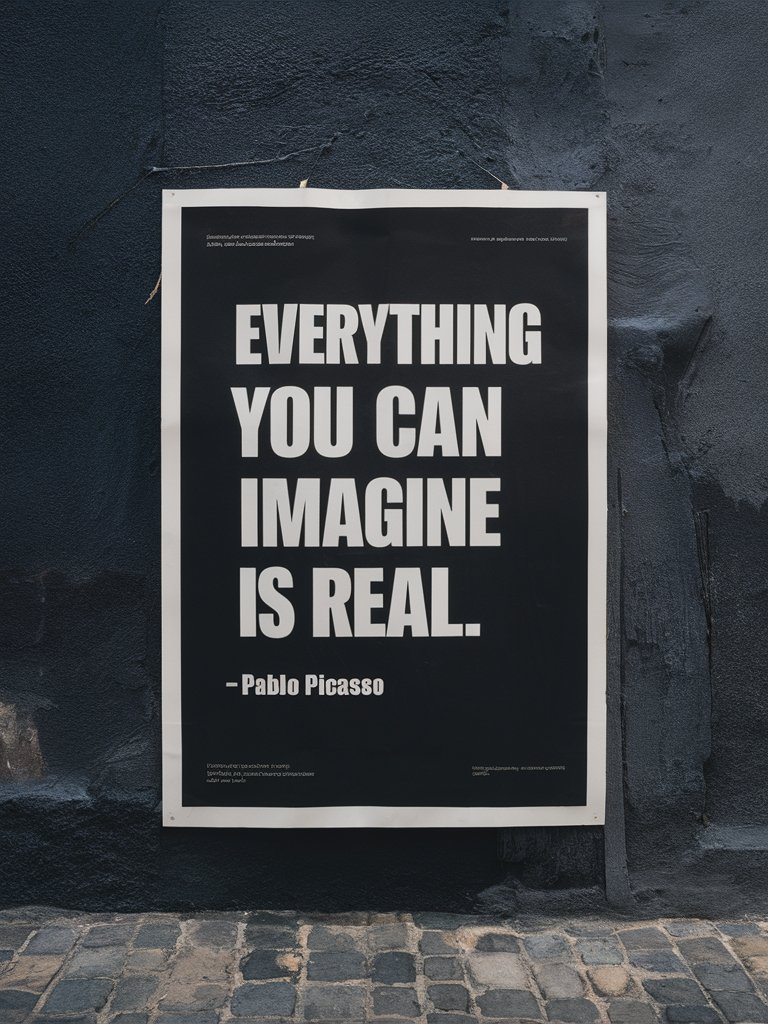
*** ## Generating Images Generating images with a team account is the very same as generating images with a personal account. The only differences are: * You are using your Team's account credits instead of your own. * You'll have to make the images public so the other members can see them. --- # Source: https://docs.ideogram.ai/using-ideogram/prompting-guide/2-prompting-fundamentals/text-and-typography.md # Text and Typography One of the areas in which Ideogram excels is in the generation and integration of text into an image. Whether as an overlay (e.g. a meme), as a typographic design (e.g. a t-shirt design) or as an integral part of various image elements (e.g. the name of a bottle of perfume), it's easy to get good results, often on the very first try. To do this, all you need to do is write your prompt using complete sentences and punctuation, and indicate the text to be written by putting it in quotation marks and describing the context. Here's an example: **Prompt**:\ \&#xNAN;*A poster on a wall with text that reads: "Everything you can imagine is real. – Pablo Picasso"*

The AI generated the requested text on a poster, on a wall.

{% hint style="info" %} In the image above, the AI has decided on the style and type of wall and poster that will be generated, as well as other visual aspects. Of course, you can describe these or any other elements you'd like to appear in the image yourself in the prompt, and the AI will generate them accordingly. {% endhint %} {% hint style="warning" %} For the time being, text that you would like to be written using a non-Latin alphabet or accented Latin characters may have some difficulty being generated correctly, if at all. {% endhint %} ## Various types of text renderings As you will see in the examples below, Ideogram can easily integrate text in just about any situation.
Simple textPrompt:
A striking image split in three, where on the left part, a minimalist set of three black geometric forms are arranged vertically on a light grey background. The center and right parts are united as a black background, a block of geometric text emphasizes the essence of minimalism: "Keep it simple, experience minimalism."
Text as logoPrompt:
A striking photograph in which a jug of orange juice is placed on a patio table with a glass of orange juice next to it and a few oranges placed neatly on the table some cut in half. At the bottom of the image, the side of a wooden crate full of oranges shows the brand logo, which consists of a big orange in the background of the word 'Biorange' in stylish juicy/liquid lettering, which forms the logo for the orange juice brand. The background is blurred and a little dark, but it looks as though the photo was taken outside, in the garden of a house, on a sunny day.
Text formed by objectsPrompt:
A striking photograph in which a glass of milk is placed on a wooden table. A splash of milk comes out of the glass, forming the word "Milk" in a swirly manner just above the glass. The background is blurred but looks like a homely kitchen.
Text as part of an objectPrompt:
A close-up detailed product photo of a vibrant and energetic baseball cap, featuring a stylish red panda embroidered emblem that exudes vitality. The cap is embroidered with the team's name, "Red Panda," displayed boldly in white bold script font below the sleek red panda design. The dynamic perspective and intense focus on the cap create a sense of high-spirited enthusiasm and team spirit.
Text as design

Prompt:
A vibrant and playful illustration of "Summer Lifestyle" set against a dark backdrop. The words are rendered in a whimsical, multi-colored font with splashes of pink, yellow, and green, perfectly capturing the essence of the season. Surrounding the text, a tropical paradise unfolds with palm trees swaying gently, a surfboard catching a wave, and a beach umbrella providing shade. A cocktail glass filled with a refreshing drink and a slice of lemon sits on the sand, while a beach ball and sunny skies complete the scene. The overall design exudes a laid-back, beach-themed vibe, with the bright colors and tropical motifs emphasizing the fun and carefree spirit of summer.


Text as logo or designA captivating vintage-style calligraphy artwork featuring a woman's silhouette with intricately crafted hair, made up of elegant script that reads "Take care of your hair naturally." The brand name "Herbal Shampoo" is gracefully written in a fine sans-serif font below the main text, with the word shampoo being smaller, adding a touch of elegance to the design. The soft off-white background enhances the rich, vintage feel of the piece, while the seamless flow of the text emphasizes the message and the silhouette's feminine grace.
{% hint style="info" %} Note how, in the examples above, there was no need to use [Style Tags](https://docs.ideogram.ai/using-ideogram/features-and-tools/reference-features/style-reference/styles-in-older-models), not even the Typography one. Everything was indicated in the prompt. {% endhint %} ## Fonts and styles There are times when you would like to use a particular font or typographic style. Although it is not currently possible to specify a typeface by name, it is possible to describe certain stylistic properties in order to obtain a satisfactory result.
Prompt:
The word "Welcome" written in bold sans-serif typeface, in black on white background.
Prompt:
The word "Welcome" written in ultra thin sans-serif typeface, in black on white background.
Prompt:
The word "Welcome" written in serif typeface, in black on white background.
Prompt:
The word "Welcome" written in thin rounded bauhaus style typeface, in black on a white background.
Prompt:
The word "Welcome" written in thin and refined formal script typeface with flourishes, in black on a white background.
Prompt:
The word "Welcome" written in an elongated and artistic 1960's hippie-style typeface, in black on white background.
Bear in mind that the AI will also do its best to find an appropriate font style or typography for the image it needs to render. The result will be even better if you activate the [Magic Prompt](https://docs.ideogram.ai/using-ideogram/generation-settings/magic-prompt) function. Here are two examples:
Prompt:
A fun whimsical birthday card design featuring a rabbit offering a cake and the text: "Happy Birthday"
Magic Prompt:
A delightful and whimsical birthday card illustration featuring an adorable rabbit, wearing a cute chef's hat and apron, proudly offering a sumptuous cake with lit candles on it. The rabbit's eyes sparkle with joy and the background is a pastel-colored dreamy garden with fluffy clouds and blooming flowers. The text 'Happy Birthday' is written in a playful, cursive font, adding a touch of cheerfulness to the overall design.
Prompt:
A cyberpunk cityscape with the word: "New Horizons"
Magic Prompt:
An expansive and futuristic cyberpunk cityscape, with towering skyscrapers and neon lights that stretch into the night. The word "New Horizons" is prominently displayed in large, futuristic letters, signifying the beginning of a new era. The background features a holographic sky filled with multicolored clouds and a crescent moon. A few flying vehicles can be seen in the distance, adding to the bustling city atmosphere.
## Fonts and copyrights It is important to know that the Ideogram's AI doesn't use real fonts to generate images the same way you use font in your computer. To put it simply, the AI learns by looking at lots of different text images and how it looks and what are the actual styles. As it learns, it figures out how to make text that matches those different styles. So, when you ask it to make text, it uses what it's learned to make text that looks like it's from a specific style or font, even if it's not using that exact font. ## Errors and misspelled words or phrases. Although Ideogram excels at generating text in images, an image can sometimes contain a spelling error, a missing or extra word or letter. Depending on the nature of the error, it is possible to correct the situation in various ways. * Simply generate your prompt again a few times and see if you get the text you want. * Change some of the longer, more complex words for shorter synonyms. * Use the [Editor](https://docs.ideogram.ai/canvas-and-editing/editor) to modify the text, adding or deleting parts and then remix the image. * Use the Typographic [Style Tag](https://docs.ideogram.ai/using-ideogram/features-and-tools/reference-features/style-reference/styles-in-older-models) with version 1.0 as it helps to achieve better results. * Upload an image containing the desired text, which will serve as a starting point and composition source for the image to be created by remixing it. {% hint style="info" %} It's a well-known fact that long, complex words and long sentences are harder to generate correctly than short, everyday words. But don't despair, it can be done with patience, and it will get easier as the AI is updated and gets better. It is often easier to remix an image to fix the image content itself while keeping the text right rather than trying to remix to fix the text while keeping the rest of the image. {% endhint %} Here's an example on how to fix text with the editor:
Here's an example of an image where a word contains an error. The letter "i" in Martini has been doubled by mistake.
In the editor, choose the background colour to paint over the unwanted letter. In addition, the question mark has also been removed to be redrawn closer to the last word.
Now, the question mark as been redrawn. No need to be that precise but it is easier if the redrawn letters looks like what it should when remixing the modified image.
Here's the result. The modified image has been remixed with a high level of image strength (90/100) and the roughly drawn question mark has been integrated and smoothed to fit perfectly with the text.
--- # Source: https://docs.ideogram.ai/canvas-and-editing/canvas/text-tool.md # Text Tool Part of the [Canvas](https://docs.ideogram.ai/canvas-and-editing/canvas/canvas-overview) feature, feature, the text tool adds text to an image or a composition on the canvas. Depending on how you use the feature—by writing, remixing, etc.—it might be really useful to: 1. Write formatted text the way you want, without any errors. 2. Get a specific typography style. 3. Replace/add text when it is not possible to do so via a prompt. 4. Add text in Ideogram rather than having to switch to another third-party app. 5. And more... ## Writing Text 1. While in Canvas, click the **Text tool** icon in the left-side panel.
2. Click on the canvas to place the text at that position. A text box will then be placed on the canvas with a placeholder text already selected.
3. Type in the text you want to write. ## Text Options When the text box is selected you get access to different options in the right-side panel.
These options will enable you to: * Select the font you want from a pop-up menu. * Adjust the size of the text. * Choose the font weight if different weights are available. * Apply bold and italic text formatting. * Align the text. * Choose or change the color of the text. * Arrange the text box relative to other elements: Bring to front/forward, Send to back/backward. Most of these options can be applied to the whole text box at once or to specific words or letters.

Example of different colors and font weight applied on text.

## Example Of course, it would be easy to add text to an image using the Text tool. However, let’s explore a way to use it more creatively. 1. Generate or upload an image in [Canvas](https://docs.ideogram.ai/canvas-and-editing/canvas/canvas-overview). It’s important to have either the prompt used to generate the image or to run the Describe function on an uploaded image to get a suitable starting prompt.
2. With the Type tool, write the text you want to appear. Choose your preferred font and adjust the size and color to your liking.
3. Use the Remix tool and adjust the generation window exactly over the originale image and text. Here are the settings used to create the two images below: **Prompt**: *A photo of a plain, dull dark blue baseball cap. The text: "Baseball" is embroidered in tan color on the front. The cap is placed on a wooden surface. The background is clean and neutral.*\ **Image weight**: 60-70/100 (your value may vary)\ **Style**: General\ **Magic Prompt**: Off\ **Color**: Auto
Because this technique uses Remix, the generated image is expected to be slightly different from the original. However, it has the advantage of maintaining a font style very similar to the original without requiring a detailed description. Additionally, it realistically makes the design appear embroidered on the baseball cap. --- # Source: https://docs.ideogram.ai/using-ideogram/getting-started/the-basics-step-by-step.md # The Basics, Step-by-Step Here is a brief guide to help you understand how to prompt on Ideogram, step by step. The prompts provided will always be written in the following format: **Prompt:**\ \&#xNAN;*A rough pencil sketch featuring a boy with sandy hair and blue eyes, wearing a *~~*hoodie*~~ *checked shirt and jeans, playing with a friendly Golden Retriever, in a park on a sunny day.* The text in green means this text is new or was added to a prompt previously used.\ ~~Strikethrough purple text~~ means this text has been removed or replaced from a prompt previously used. {% hint style="warning" %} For all examples below, we'll use the following settings:\ • [Magic Prompt](https://docs.ideogram.ai/using-ideogram/generation-settings/magic-prompt) set to OFF\ • [Aspect ratio](https://docs.ideogram.ai/using-ideogram/generation-settings/aspect-ratio-and-dimensions) of 1:1\ • [Model](https://docs.ideogram.ai/using-ideogram/generation-settings/available-models) v2.0 (unless otherwise stated)\ • [Style](https://docs.ideogram.ai/using-ideogram/features-and-tools/reference-features/style-reference/styles-in-older-models) Realistic (unless otherwise stated) {% endhint %} ## 1- A Very Basic Prompt Let's start with a very basic prompt: **Prompt:**\ \&#xNAN;*A boy with blond hair on a grey background.*
Nothing complicated here. The image of a boy and a grey background as requested. Now let's add more details... ## 2- Adding Details Let's add some specific details like eye colour, and maybe he's wearing a wearing a denim jacket over a light blue shirt, and how about a more interesting background. **Prompt:**\ \&#xNAN;*A boy with blond hair and blue eyes, *~~*on a grey background.*~~* wearing a denim jacket and a checked shirt, against a backdrop of wooden planks.*
Nice! Now let's try to make it a bit more dynamic... ## 3- A Point of View Perhaps changing the angle and/or the point of view would produce a more interesting image? **Prompt:**\ \&#xNAN;*A boy with blond hair and blue eyes, wearing a denim jacket and a checked shirt, seen partially in profile, against a backdrop of wooden planks.*
Almost a studio photo but still very natural, isn’t it? {% hint style="info" %} Note: there are also other terms used to achieve this pose, such as three-quarter pose, or slightly turned to the left, etc. {% endhint %} ## 4- Adding Elements Let's add a few elements to make the overall image more attractive? **Prompt:**\ \&#xNAN;*A boy with blond hair and blue eyes, wearing a denim jacket, a checked shirt and jeans, sitting cross-legged on the floor, beside a friendly dog. Between them both there is a house plant in a pot. The entire scene is set against a backdrop of wooden planks.*
Observe how effectively the AI has rendered the requested elements and their precise positioning within the image composition. Now, let’s shift the mood… ## 5- Make a Lively Scene Prompt:\ \&#xNAN;*A boy with blond hair and blue eyes, wearing* ~~*a denim jacket,*~~* a checked shirt and jeans, playing with a friendly Golden Retriever, in a park on a sunny day.*
The addition of an environment contributes greatly to the atmosphere of a picture. And everyone knows that the Golden Retriever is a child's best friend. 😉 ## 6- Using Available Pptions As you may have noticed, Ideogram provides several options for generating images. From [Aspect ratio](https://docs.ideogram.ai/using-ideogram/generation-settings/aspect-ratio-and-dimensions) and [Style](https://docs.ideogram.ai/using-ideogram/features-and-tools/reference-features/style-reference/styles-in-older-models) to [Color palette](https://docs.ideogram.ai/using-ideogram/generation-settings/color-palette) and other features, these options are invaluable for creating unique and diverse visuals. Let’s explore some of these possibilities to create various outputs.

Prompt:

Washed-out soft watercolour painting featuring a boy with blond hair and blue eyes, wearing a checked shirt and jeans, playing with a friendly Golden Retriever, in a park on a sunny day.
Model: v2.0
Style: General
Aspect ratio: 4:5
Color Palette: Pastel

Prompt:

An anime illustration featuring a boy with blond hair and blue eyes, wearing a checked shirt and jeans, playing with a friendly Golden Retriever, in a park on a sunny day.
Model: v2.0
Style: Anime
Aspect ratio: 4:5
Color Palette: None

Prompt:

A cartoon-like 3D boy with sandy hair and blue eyes, wearing a checked shirt and jeans, playing with a friendly Golden Retriever, in a paper-art park on a sunny day.
Model: v2.0
Style: 3D
Aspect ratio: 4:5
Color Palette: None

{% hint style="info" %} **Difference between v1.0 styles and v2.0 styles.** **In v1.0, the styles are really just words added at the end of the prompt** to specify the style you want, nothing more. So if you select 'illustration', it is the very same as if you've added the word 'illustration' at the end of your prompt. This works even better if you describe the style you want in the context of the prompt rather than a simple word at the end of it. **In v2.0, the different styles utilize slightly different models to generate the images.** It is as though you are using a model better suited to the style you want, rather than relying on a generic AI model. For more information, refer to the [Style](https://docs.ideogram.ai/using-ideogram/features-and-tools/reference-features/style-reference/styles-in-older-models) section of this documentation. {% endhint %} ## 7- Add Some Text Let's say you want to make a cover for a children book, give it a title and also add the author's name. **Prompt:**\ \&#xNAN;*Washed-out soft watercolour painting featuring a boy with blond hair and blue eyes, wearing a checked shirt and jeans, playing with a friendly Golden Retriever, in a park on a sunny day. At the top of the image, the book title is: "Michael and his dog" in a fun painted typography. At the bottom, the author's name: "John Johnson".*\ **Model**: v2.0\ **Style**: General\ **Aspect ratio**: 3:4\ **Color Palette**: None
## 8- Other Examples Here are some other subjects:

Prompt:

A sleek and modern illustration of a logo for "PetPalace" featuring a minimalist stylized image of a regal cat wearing a crown, sitting next to a luxurious palace.

Model: v2.0
Style: Design
Aspect ratio: 1:1
Color Palette: None

Prompt:

Close up photo of a beer can with a big modern sailor's anchor inspired logo named "Mariner's Brew" in big letters, a full glass of beer in the background, on the counter of an Irish pub, dynamic view, studio photography, food photography.

Model: v2.0
Style: General
Aspect ratio: 1:1
Color Palette: None

Prompt:

A cool cat with wearing a hat and sunglasses playing the saxophone with his paws on the stage of a jazz club, a neon sign in the background saying: "Cool Cat Jazz". Intense atmosphere, dark ambience, dark tones, jazz club genre, 40's and 50's look.

Model: v2.0
Style: Realistic
Aspect ratio: 1:1
Color Palette: Ultramarine
{% hint style="info" %} Text enclosed in quotes “ ” helps the AI understand that it needs to render the text in the image. {% endhint %} --- # Source: https://docs.ideogram.ai/using-ideogram/generation-settings/tile.md # Tile ## Using the Tile Feature The Tile feature lets you generate images that repeat seamlessly without visible borders or interruptions. It’s available to **all paid users** and is ideal for creating backgrounds, textures, and repeating patterns directly from a prompt. To access Tile: 1. Select the [Prompt Box](https://docs.ideogram.ai/using-ideogram/ui-overview/ui-components/prompt-box) to expand it (if not already open) and display the generation settings. 2. Ensure **Model version 1.0** is selected under [Models + variations](https://docs.ideogram.ai/using-ideogram/generation-settings/available-models) — the Tile option is greyed out and unavailable when using any other model version. 3. Select the **More** button to open a dropdown menu.

The More dropdown menu.

{% hint style="warning" %} **Important note:** The Tile feature is available only in **Ideogram model version 1.0**. {% endhint %} 4. Select the **dropdown arrow** at the right end of the **Tile** option to display a list of available tiling styles.

Available grid options.

#### Grid Styles These options define how your image repeats: * **Off** — Disables the tiling feature. * **Grid** — Arranges images in a regular checkered grid. * **Vertical brick** — Offsets each column by half its height relative to the one beside it. * **Horizontal brick** — Offsets each row by half its width relative to the one above or below. * **Column** — Tiles images in a single vertical column. * **Row** — Tiles images in a single horizontal row, ideal for banners. Here are some visual examples of each grid style:
No tile (generated without tiling)Original image to be remixed.This is the image that will be remixed to generate the tile examples.
Grid (4x4)Example of the Grid tiling style (4×4)This is the most common type of tile, arranged in a checkered grid.
Vertical brick (4x4)In this example, you can see that the columns are aligned but the rows alternate.
Horizontal brick (4x4)Here, in contrast, you can see that the rows are aligned but the columns alternate.
Column (1x1)It's often a good idea to create your image in the same direction of the column (or row) to minimize the effect of repetition.
Column (2x1)
Row (1x1)

Here, the image was generated horizontally to get the maximum number of bottle and minimize visible repetition.

Row (2x1)
### Viewing and Adjusting Tiles When viewing the generated images, you can toggle the tile’s animation by selecting the **Play** or **Pause** buttons in the upper corner, depending on the current animation state. You can adjust the on-screen tile pattern’s size using the **Tile scale slider** located at the top right...
## Downloading Tiles You can export your seamless Tile images in two ways: 1. From the [Details Panel](https://docs.ideogram.ai/using-ideogram/ui-overview/ui-components/details-panel) — While viewing a tile image, select the **dropdown arrow** at the right end of the **Download** button, then choose a format. Available formats vary depending on the tile type generated.

Menu showing the available download Tile formats.
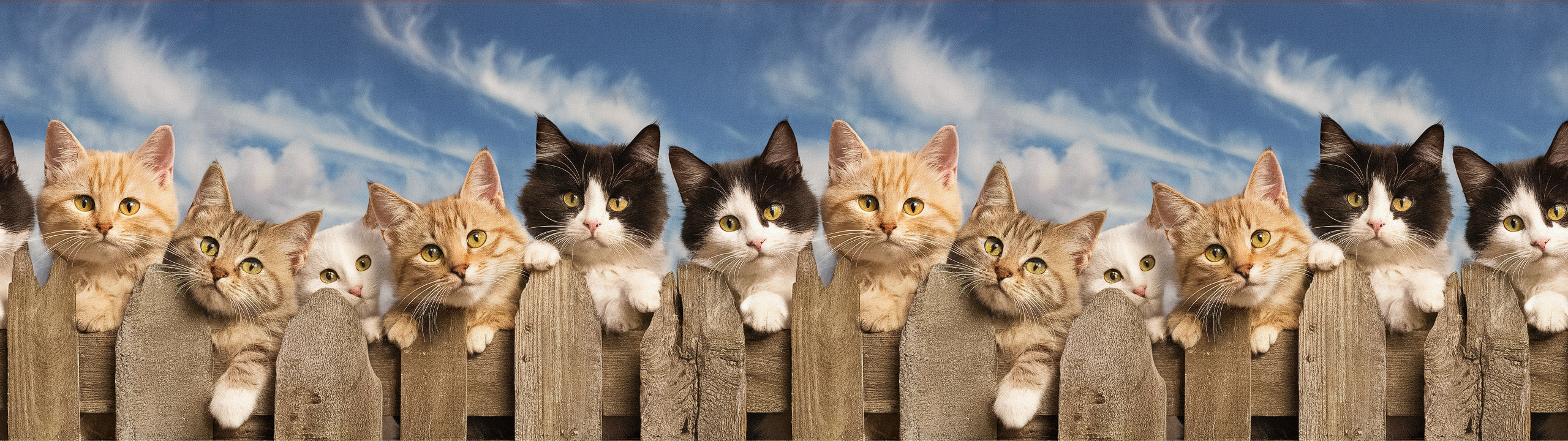
2. From the **Creations** page — When one or more tiles are selected, click **Download** below the image gallery. The **2×2** (or **2×1 / 1×2**, depending on the tile type) versions are automatically packaged in a **ZIP** file and downloaded to your computer. ## Combining Remix and Tile You can combine [Remix](https://docs.ideogram.ai/using-ideogram/features-and-tools/remix) and Tile to refine or extend an image for use as a banner, pattern, or background. This combination helps you generate exactly the composition and repetition you want. Here are some examples: ### Example 1 Image generated from a normal prompt:\ ![](https://1799634369-files.gitbook.io/~/files/v0/b/gitbook-x-prod.appspot.com/o/spaces%2FzjhNby3LLsIikYuvxAJP%2Fuploads%2FTL9Lo2d4XnZRRk3ue8dt%2Fimage.png?alt=media\&token=731a74e6-6660-4f0a-8af7-245a3f92e12e) 2x2 Tile generated from a Remix of the image above:\ ![](https://1799634369-files.gitbook.io/~/files/v0/b/gitbook-x-prod.appspot.com/o/spaces%2FzjhNby3LLsIikYuvxAJP%2Fuploads%2FwJxEJC0Pc14jevsmX1r7%2F2x2-tiled.png?alt=media\&token=499cafe9-5df7-42c8-b651-8435b03f9d15) ### Example 2 Image generated from a normal prompt:\ ![](https://1799634369-files.gitbook.io/~/files/v0/b/gitbook-x-prod.appspot.com/o/spaces%2FzjhNby3LLsIikYuvxAJP%2Fuploads%2Ft7KrYNZBrUgpXGeokTWy%2Fimage.png?alt=media\&token=84c1363b-6a28-4385-98ae-0ed9445c07b2) 2x1 Tile generated from a Remix of the image above:\ --- # Source: https://docs.ideogram.ai/using-ideogram/ui-overview/ui-components.md # UI Components - [Details Panel](/using-ideogram/ui-overview/ui-components/details-panel.md) - [Image Gallery](/using-ideogram/ui-overview/ui-components/image-gallery.md) - [Navigation Bar](/using-ideogram/ui-overview/ui-components/navigation-bar.md) - [More Menu (...)](/using-ideogram/ui-overview/ui-components/more-menu-....md) - [Navigation Tabs](/using-ideogram/ui-overview/ui-components/navigation-tabs.md) - [Prompt Box](/using-ideogram/ui-overview/ui-components/prompt-box.md) - [User Menu](/using-ideogram/ui-overview/ui-components/user-menu.md) --- # Source: https://docs.ideogram.ai/using-ideogram/ui-overview.md # UI Overview To come --- # Source: https://docs.ideogram.ai/using-ideogram/features-and-tools/upscale.md # Upscale The Upscale feature, available to users on the **Basic Plan** or higher, increases the resolution of your Ideogram-generated images, and of any images you’ve uploaded using the [Image Upload](https://docs.ideogram.ai/canvas-and-editing/image-upload) function (available on the **Plus Plan** or higher), by up to **2×**. {% hint style="warning" %} **Important:** Upscale **crops** images to the nearest supported aspect ratio listed in the table below. This behavior applies to all images, including both default and custom aspect ratios used in Ideogram v2.0 and later. {% endhint %} Aspect ratios and their final pixel dimensions after upscaling: | Aspect ratio | Final dimensions (pixels) | | :----------: | :-----------------------: | | **`1:3`** | 1024 x 3072 | | **`9:16`** | 1440 x 2560 | | **`10:16`** | 1536 x 2464 | | **`2:3`** | 1536 x 2304 | | **`3:4`** | 1536 x 2048 | | **`1:1`** | 2048 x 2048 | | **`4:3`** | 2048 x 1536 | | **`3:2`** | 2304 x 1536 | | **`16:10`** | 2464 x 1536 | | **`16:9`** | 2560 x 1440 | | **`3:1`** | 3072 x 1024 | **Example 1** — If you upload an image that is 1500 pixels by 1500 pixels, which has an aspect ratio of 1:1, the upscale will result in a 2048 pixels by 2048 pixels image. **Example 2** — If you generate an image with a custom aspect ratio of 17:12 (1088 × 768 pixels) and then use *Upscale*, the image will be cropped it to the nearest available aspect ratio, which is 3:2, and the final image will be 2304 pixels by 1536 pixels. ## Upscaling an Image You can access Upscale in several ways: 1. **From image feeds** (Home and Creations pages) –\ Hover over any image in the [Image Gallery](https://docs.ideogram.ai/using-ideogram/ui-overview/ui-components/image-gallery), select the **More** icon at the top of the image, and select **Upscale** from the [More menu](https://docs.ideogram.ai/using-ideogram/ui-overview/ui-components/more-menu-...). 2. **From image details** –\ In the [Details Panel](https://docs.ideogram.ai/using-ideogram/ui-overview/ui-components/details-panel), select the **Upscale** button.\ Alternatively, select the **More** icon in the upper-right corner and choose **Upscale** from the More menu. 3. **When** [importing an image](https://docs.ideogram.ai/ui-overview/ui-components/prompt-box#importing-an-image) **into the** [Prompt Box](https://docs.ideogram.ai/using-ideogram/ui-overview/ui-components/prompt-box) –\ In the popup window, select **Upscale** to generate an automatic description. ## Parameters To adjust settings, select the Upscale thumbnail in the [Prompt Box](https://docs.ideogram.ai/using-ideogram/ui-overview/ui-components/prompt-box). A pop-up window appears, allowing you to fine-tune the **Resemblance** and **Detail** parameters. You also have the option to [Describe](https://docs.ideogram.ai/using-ideogram/features-and-tools/describe) the image or to edit it in the [Editor](https://docs.ideogram.ai/canvas-and-editing/editor) before applying the upscale. Upscale lets you control how much **Resemblance** the new image retains from the original, and how much **Detail** the AI adds during generation. Select the **Upscale** thumbnail in the Prompt Box to open its options.
Adjustable Upscale parameters: Resemblance and Detail.

Adjustable Upscale parameters: Resemblance and Detail.

### Resemblance This parameter determines how closely you want the enlarged image to resemble the original. A value of 1 allows the AI more freedom to be creative with the image, which can be useful for correcting certain defects or enhancing specific details. On the other hand, a value of 100 will produce a result that is as close as possible to the original image while still enlarging it and maintaining optimal sharpness.

Original compared to an upscaled image with a Resemblance value of 1

Animation of the original image compared to an upscaled image generated with a Resemblance value of 100

### Detail Slider This slider allows you to adjust the level of detail in the enlarged image. A higher value will increase the visibility of details, while a lower value will reduce them. **Detail value: 1 vs 100**

Animation of two upscaled images generated with a Detail value of 1 compared to the same generated with a value of 100.

After adjusting both sliders to your desired values, click or tap the **Upscale** button to begin the process. Once the upscaling is complete, you can click on the image preview to get a more detailed view of the upscaled image. Select the **Split View** icon in the upper-right corner to open an interactive comparison slider between the original and upscaled images.

Using the split view function.

You can view the final image dimensions and the parameters used during upscaling in the [Details panel](https://docs.ideogram.ai/using-ideogram/ui-overview/ui-components/details-panel).

Information availableIn the Details panel when viewing an upscaled image.

{% hint style="info" %} **Note:** Images can currently be upscaled up to **2×**. Additional scaling options may be introduced in future updates. {% endhint %} --- # Source: https://docs.ideogram.ai/using-ideogram/ui-overview/ui-components/user-menu.md # User Menu ## Overview The User Menu opens when you click your **Profile** icon at the bottom of the [Navigation Bar](https://docs.ideogram.ai/using-ideogram/ui-overview/ui-components/navigation-bar).\ It provides quick access to your account information, subscription settings, theme preferences, and other options.
## Elements 1. **User Info** — Displays your username and registered email address. Click to access your [Profile Page](https://docs.ideogram.ai/using-ideogram/ui-overview/pages-ui/profile-page). 2. **Plan & Credits** — Shows your current plan (for example, Plus Plan, Free Plan, etc) and remaining priority credits. Click on it to show more details. 3. **Top Up Credits** — Shortcut to add more Priority credits. 4. **View Profile** — Opens your public Ideogram Profile page. 5. **Manage Subscription** — Redirects to your billing and subscription settings. 6. **Help & Documentation** — Opens Ideogram documentation. 7. **Manage Muted Users** — Lists and manages users you’ve muted. 8. **Delete Account** — Permanently deletes your account (with confirmation). 9. **API** — Opens the API management page. 10. **Log Out** — Signs you out of your current session. 11. **Theme Selector** — Switch between Light, Dark, or Auto[^1] appearance modes. 12. **Footer Links** — Quick links to Terms of Service, Privacy Policy, and Ideogram’s community channels. [^1]: Based on your system settings. --- # Source: https://docs.ideogram.ai/using-ideogram/prompting-guide/7-creative-tools-in-ideogram/using-magic-prompt.md # Using Magic Prompt The [Magic Prompt](https://docs.ideogram.ai/using-ideogram/generation-settings/magic-prompt) feature in Ideogram can be very helpful to provide additional content, details, ambiance and stylistic information in a prompt. The more basic is the prompt, the more Magic Prompt will add to it. {% hint style="info" %} To find out more about the Magic Prompt function and familiarize yourself with it, you can also visit the section linked below. [magic-prompt](https://docs.ideogram.ai/using-ideogram/generation-settings/magic-prompt "mention") {% endhint %} ## From basic to magic Let's use a simple prompt and used it to explore what the Magic Prompt would come up with. **Original prompt:**\ \&#xNAN;*A boy with a dog in a park.*
When used, the Magic Prompt function generates a new, improved and embellished prompt based on your original prompt, then sends it to the AI to generate an image based on this new prompt. Here are two examples:
Magic Prompt:
A heartwarming scene of a young boy playing with his happy, wagging dog in a lush, green park. The boy has a playful smile on his face while he tosses a bright yellow ball for his furry friend to fetch. The park is filled with beautiful flowers and trees, creating a serene atmosphere for this bonding moment between boy and dog.
Magic Prompt:
A charming image of a young boy playing with a cute, wagging-tail dog in a lush green park. The boy's joyful smile and the dog's playful eyes convey a sense of happiness and connection. The park is full of colorful flowers and trees, with a sunny sky overhead. The overall atmosphere of the image is serene and uplifting.
{% hint style="info" %} Even if there is no mention of any style in the original prompt or in the Magic Prompts, the AI decided to generate the images in styles that seemed appropriate for the text. {% endhint %} ## Styles with Magic Prompt The Magic Prompt also allows you to illustrate and explain in greater detail a basic style that you can request in your prompt. Here an example: **Original prompt:**\ \&#xNAN;*A boy with a dog in a park, abstract art.*
Magic Prompt:
A captivating abstract art piece featuring a boy playing with a dog in a park. The park is filled with vibrant colors, and the boy and the dog are depicted in bold, swirling lines. The background is a blend of various shapes and textures, conveying a sense of movement and energy.
Magic Prompt:
An abstract painting of a boy and a dog playing in a park. The boy is holding a ball, and the dog is running with a playful expression. The park is full of vibrant colors, with trees, flowers, and a winding path. The overall atmosphere of the painting is lively and joyful.
Magic Prompt:
A vibrant abstract painting of a boy playing with a dog in a lush park. The background is a swirl of vivid colors, representing the park's foliage and sky. The boy and the dog are in a dynamic pose, with the dog's ears flapping and the boy's arm extended. The overall art piece exudes a joyful and playful atmosphere.
As you can see, the Magic Prompt has expanded on the original prompt while expanding and refining certain aspects of the requested style. Each proposal gave a relatively different image, while remaining within the parameters of the original prompt. ## Magic Prompt for inspiration We all suffer from a lack of inspiration, the so-called blank page syndrome. To help you get started and stimulate your creativity, there's nothing like using the Magic Prompt. Let's look at a few examples. **Original prompt:**\ \&#xNAN;*Create a logo for a coffee shop named "Mocha Comfort"*

Magic Prompt:

A warm and inviting coffee shop logo for "Mocha Comfort" featuring a steaming mug of coffee with a swirl of rich mocha. The coffee is surrounded by a comfortable, cozy chair, and a warm, glowing fireplace. The overall design exudes a sense of relaxation and contentment, with a touch of elegance and sophistication.

Magic Prompt:

A modern and stylish logo for "Mocha Comfort" features a steaming coffee cup with a swirl of creamy mocha on top. The cup is paired with a cozy-looking armchair, evoking a sense of relaxation and comfort. The text of the name, "Mocha Comfort," is written in an elegant, cursive font, with the "C" in "Comfort" shaped like a comfy cushion. The overall design is warm and inviting, perfect for a coffee shop that offers a cozy and relaxing atmosphere.

Magic Prompt:

A cozy and inviting logo for "Mocha Comfort" coffee shop, featuring a steaming hot mocha with a whipped cream topping and a cherry on top. The coffee cup is adorned with a comfortable, plush heart, symbolizing love and warmth. The overall design is in a modern, minimalistic style, with a subtle, earthy color palette.

--- # Source: https://docs.ideogram.ai/welcome-to-ideogram.md # Welcome to Ideogram Ideogram (*pronounced "eye-dee-oh-gram"*) is a free-to-use AI tool that turns your ideas into stunning images, in a matter of seconds. Ideogram excels at creating captivating designs, realistic images, innovative logos and posters. With unique capabilities like text rendering in images, we aim to inspire creativity and help every user bring their imagination to life. **Have a question? Check if it's been covered in our** [**Frequently Asked Questions**](https://docs.ideogram.ai/frequently-asked-questions)**.** *** ## Why Ideogram?

Ideogram 3.0

Our latest model boasts the best-in-class photorealism, prompt fidelity, and crystal-clear typography.

Doc landing - Model.pnghttps://about.ideogram.ai/3.0

Character Reference

Our character consistency model that works with just one reference image. Works perfectly with Magic Fill and Remix.

Doc landing - Character.pngcharacter-reference

Typography

Ideogram excels at integrating text into images for logos, branding, POD or design layouts.

Doc landing - Typography.pngtext-and-typography

Canvas

Organise, iterate, in-paint with Magic Fill or out-paint with Extend directly on an infinite Canvas

Doc landing - Canvas.pngcanvas-overview
## A Few Other Features * [**Magic Prompt**](https://docs.ideogram.ai/using-ideogram/generation-settings/magic-prompt)**:** Transforms a brief idea into a rich, detailed prompt, ensuring striking visuals. * [**Batch Generation**](https://docs.ideogram.ai/using-ideogram/features-and-tools/batch-generation): Save time with this CSV-driven feature and generate up to 500 prompts at once (Pro & Team plans). * [**Background Control**](https://docs.ideogram.ai/using-ideogram/features-and-tools/replace-or-remove-background): Remove or replace backgrounds to isolate subjects or craft new scenes. * [**Aspect Ratios**](https://docs.ideogram.ai/using-ideogram/generation-settings/aspect-ratio-and-dimensions): Choose from many presets (vertical, square, horizontal) between 1:3 and 3:1. * [**API Access**](https://developer.ideogram.ai): Integrate Ideogram into your workflow or app with our powerful API. And much more to discover! ## Dive Deeper Into Ideogram * [Quick Start Guide](https://docs.ideogram.ai/quick-start-guide) * [Prompting Guide](https://docs.ideogram.ai/using-ideogram/prompting-guide) * [Explore Settings](https://docs.ideogram.ai/using-ideogram/generation-settings) * [Discover All Features](https://docs.ideogram.ai/using-ideogram/features-and-tools) ## Ready to create? Try Ideogram Or download the official Ideogram iOS app on your iPhone or iPad. ​[​![Download on the App Store](https://files.gitbook.com/v0/b/gitbook-x-prod.appspot.com/o/spaces%2FzjhNby3LLsIikYuvxAJP%2Fuploads%2FddR66f8L3y7Sb8AkeVaQ%2FDownload_on_the_App_Store_Badge_US-UK_RGB_blk_092917.svg?alt=media\&token=7ec43861-4aa0-4067-89ab-6986d68081dc)​](https://apps.apple.com/us/app/ideogram-ai-image-generator/id6476790495)​ *** ## **We're Hiring!** We're on a mission to develop generative media models to help people become more creative. If our mission resonates with you, then we’d love to hear from you. We're hiring for roles in AI research, engineering, and data operations. Join us to build the future of AI for creativity. Please apply at [Ideogram Jobs](https://ideogram.ai/careers?utm_source=v2).