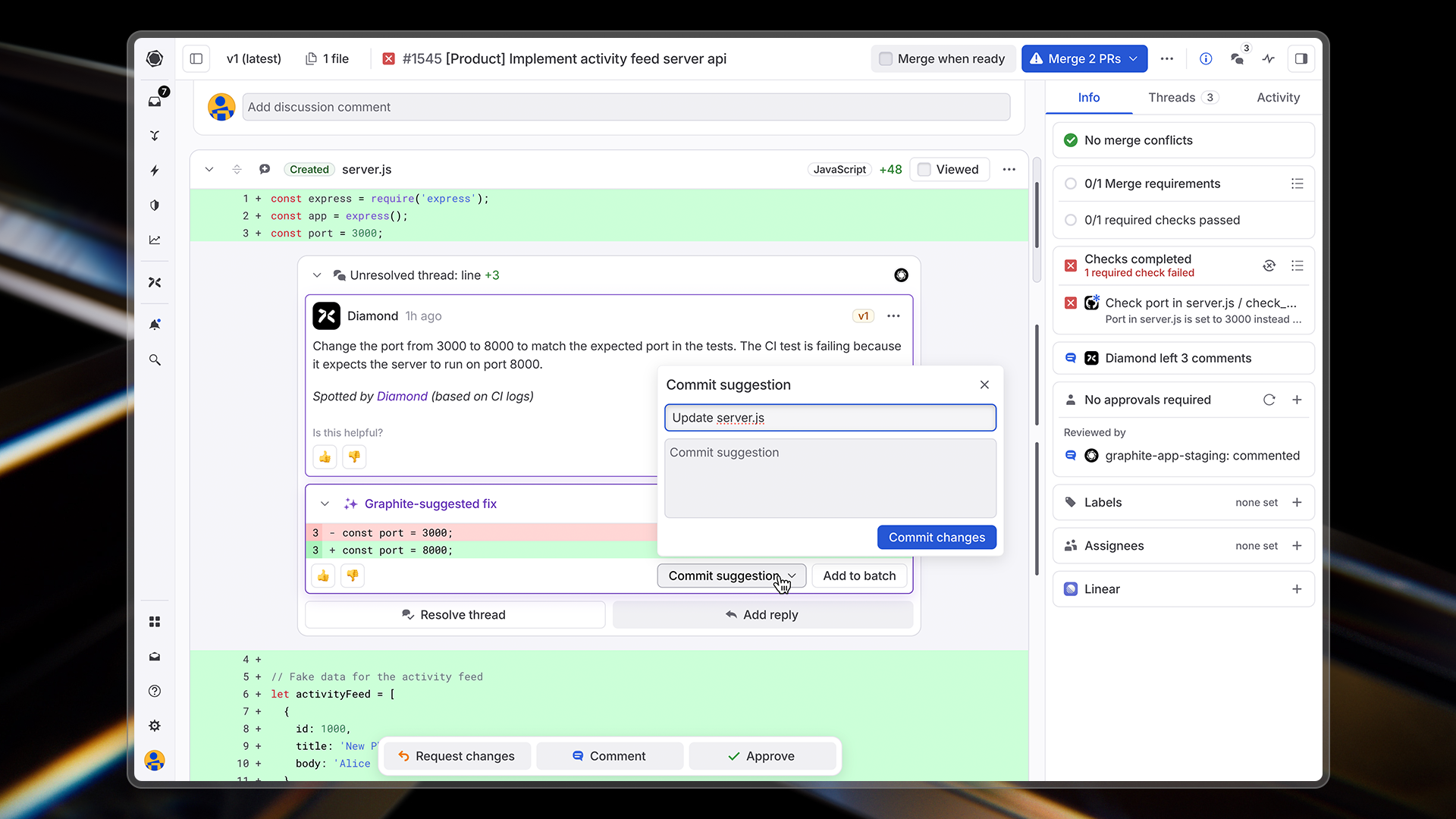
 You can see Graphite Agent's comments, suggestions, and choose to commit suggestions — just like your teammates'.
## Types of issues Graphite Agent identifies
Graphite Agent catches a wide range of issues that often slip through manual code review and testing:
### Logic bugs
Graphite Agent identifies when your implementation doesn't match the intended behavior, detecting issues like:
* Functions that don't accomplish what they're named to do
* Inconsistencies between code behavior and documentation
* Mismatches between API usage and implementation
* Off-by-one errors and incorrect loop boundaries
### Edge cases
Graphite Agent finds potential failure modes that aren't handled in your code:
* Missing null checks or error handling
* Race conditions in asynchronous code
* Memory leaks and resource management issues
* Unexpected side effects
### Security vulnerabilities
Graphite Agent spots security issues before they reach production:
* SQL injection vulnerabilities
* Cross-site scripting (XSS) opportunities
* Authorization bypass possibilities
* Insecure cryptographic practices
### Performance issues
Graphite Agent detects code that might cause performance problems:
* Inefficient algorithms or data structures
* Unnecessary API calls or database queries
* Memory-intensive operations that could be optimized
* N+1 query patterns
### Accidentally committed code
Graphite Agent catches code that was likely not meant to be committed:
* Debug statements and console logs
* Test data and development configurations
* Commented-out code blocks
* Temporary workarounds
## Tracking AI review impact
You can monitor AI review activity and impact from the [AI code review dashboard](https://app.graphite.com/ai-reviews). The dashboard is organized into tabs for easy navigation:
### Overview tab
The **Overview** tab provides time-series metrics to help you understand your AI reviewer's performance:
You can see Graphite Agent's comments, suggestions, and choose to commit suggestions — just like your teammates'.
## Types of issues Graphite Agent identifies
Graphite Agent catches a wide range of issues that often slip through manual code review and testing:
### Logic bugs
Graphite Agent identifies when your implementation doesn't match the intended behavior, detecting issues like:
* Functions that don't accomplish what they're named to do
* Inconsistencies between code behavior and documentation
* Mismatches between API usage and implementation
* Off-by-one errors and incorrect loop boundaries
### Edge cases
Graphite Agent finds potential failure modes that aren't handled in your code:
* Missing null checks or error handling
* Race conditions in asynchronous code
* Memory leaks and resource management issues
* Unexpected side effects
### Security vulnerabilities
Graphite Agent spots security issues before they reach production:
* SQL injection vulnerabilities
* Cross-site scripting (XSS) opportunities
* Authorization bypass possibilities
* Insecure cryptographic practices
### Performance issues
Graphite Agent detects code that might cause performance problems:
* Inefficient algorithms or data structures
* Unnecessary API calls or database queries
* Memory-intensive operations that could be optimized
* N+1 query patterns
### Accidentally committed code
Graphite Agent catches code that was likely not meant to be committed:
* Debug statements and console logs
* Test data and development configurations
* Commented-out code blocks
* Temporary workarounds
## Tracking AI review impact
You can monitor AI review activity and impact from the [AI code review dashboard](https://app.graphite.com/ai-reviews). The dashboard is organized into tabs for easy navigation:
### Overview tab
The **Overview** tab provides time-series metrics to help you understand your AI reviewer's performance:
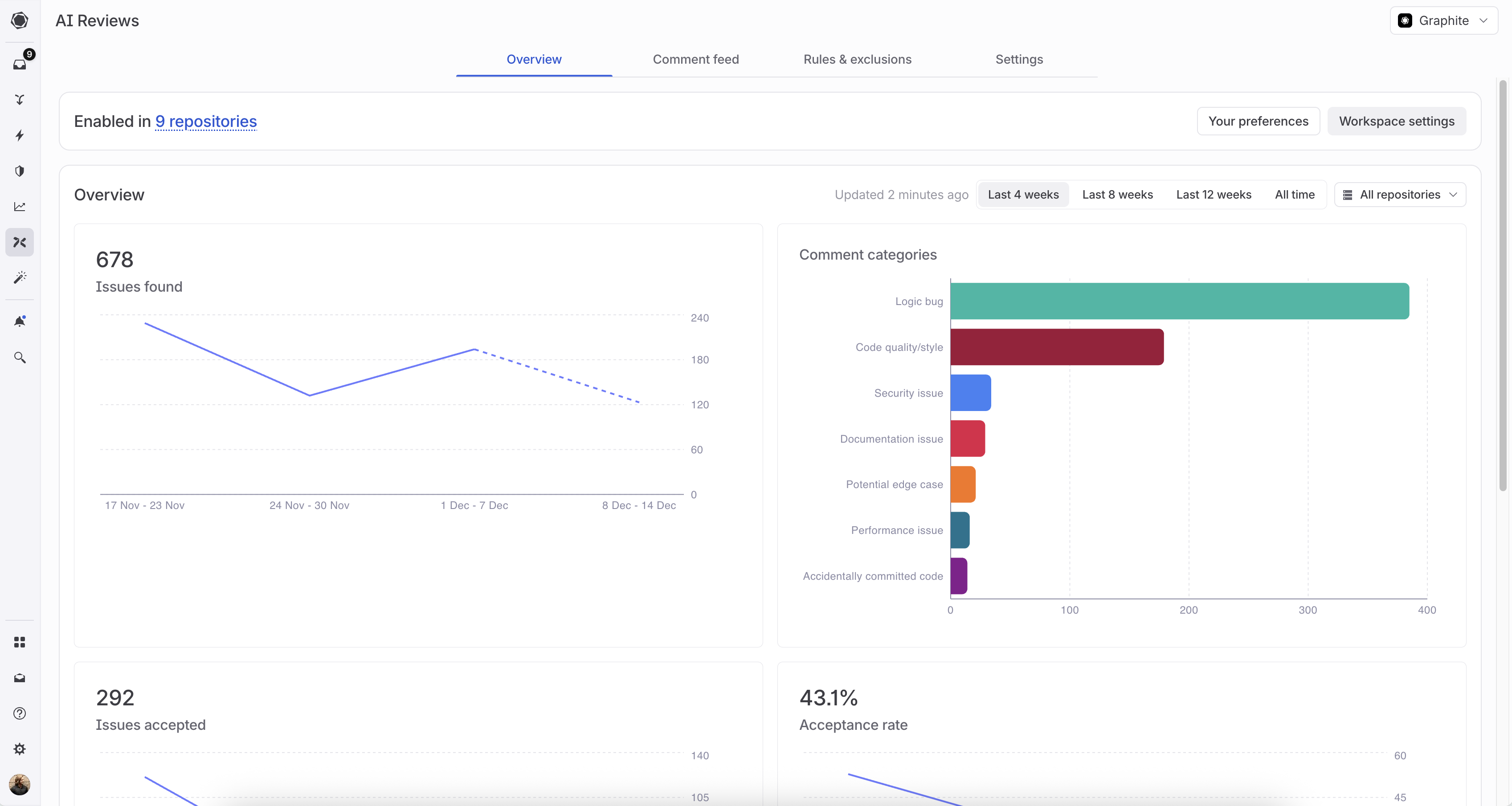 * **Issues found**: Total issues identified, with a breakdown by category
* **Issues accepted**: Number of issues that led to code changes
* **Acceptance rate**: Percentage of suggestions that were accepted over time
* **PRs reviewed**: Volume of pull requests analyzed
* **Downvote rate**: Feedback tracking to identify areas for improvement
You can filter these metrics by:
* **Time period**: Last 4 weeks, 8 weeks, 12 weeks, or all time
* **Repository**: View metrics for specific repositories or across all repos
The category breakdown shows counts and acceptance rates for each issue type (logic bugs, security issues, edge cases, etc.), helping you understand where your reviewer adds the most value.
### Comment feed tab
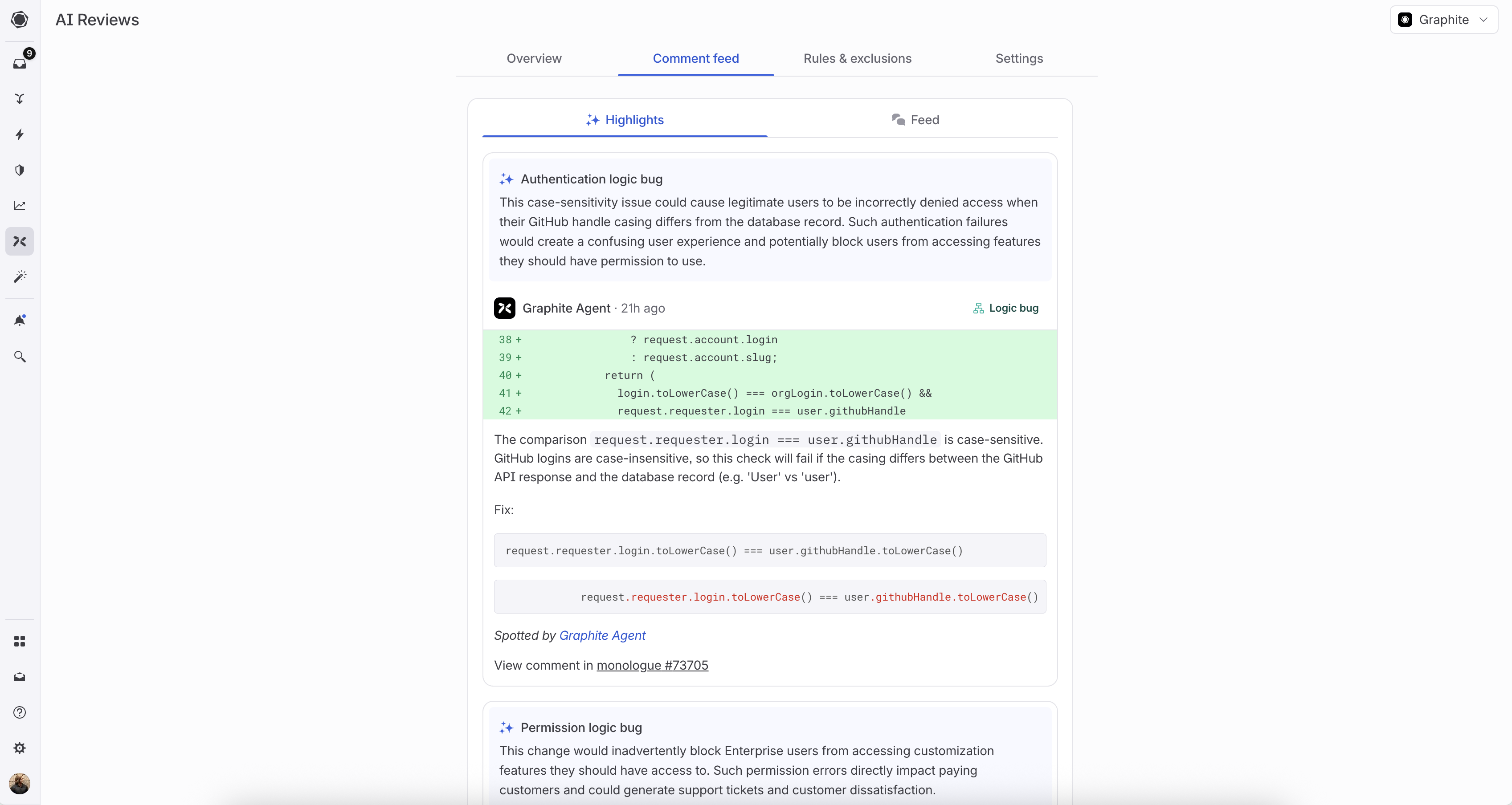
The **Comment feed** tab lets you:
* View all comments Graphite Agent has left across your repositories
* Filter by category to focus on specific types of issues
* See prevented bugs and their potential impact
* Review code snippets with inline explanations
* **Issues found**: Total issues identified, with a breakdown by category
* **Issues accepted**: Number of issues that led to code changes
* **Acceptance rate**: Percentage of suggestions that were accepted over time
* **PRs reviewed**: Volume of pull requests analyzed
* **Downvote rate**: Feedback tracking to identify areas for improvement
You can filter these metrics by:
* **Time period**: Last 4 weeks, 8 weeks, 12 weeks, or all time
* **Repository**: View metrics for specific repositories or across all repos
The category breakdown shows counts and acceptance rates for each issue type (logic bugs, security issues, edge cases, etc.), helping you understand where your reviewer adds the most value.
### Comment feed tab
The **Comment feed** tab lets you:
* View all comments Graphite Agent has left across your repositories
* Filter by category to focus on specific types of issues
* See prevented bugs and their potential impact
* Review code snippets with inline explanations
 ### Rules & exclusions tab
The **Rules & exclusions** tab shows detailed analytics for your custom rules and exclusions. See [Measuring rule and exclusion effectiveness](/ai-review-customization#measuring-rule-and-exclusion-effectiveness) for more details.
## How to check AI review status
For any pull request, you can see the AI review status in the right-hand panel of the PR page:
### Rules & exclusions tab
The **Rules & exclusions** tab shows detailed analytics for your custom rules and exclusions. See [Measuring rule and exclusion effectiveness](/ai-review-customization#measuring-rule-and-exclusion-effectiveness) for more details.
## How to check AI review status
For any pull request, you can see the AI review status in the right-hand panel of the PR page:
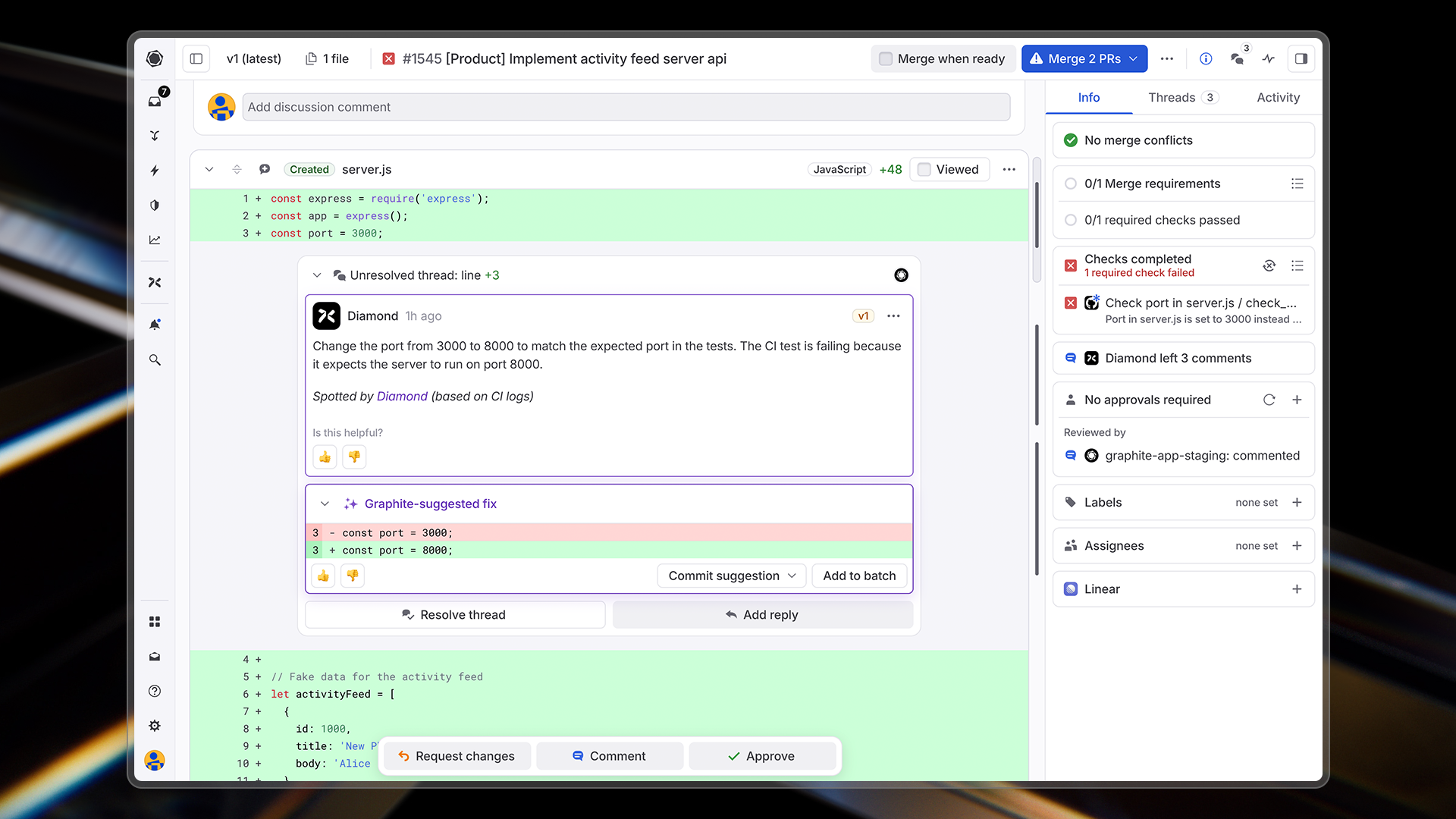 The status will show as:
* **Running**: Graphite Agent is currently analyzing the PR
* **Completed**: Graphite Agent has finished reviewing and left any relevant comments
* **Not running**: The PR won't be analyzed (e.g., if the PR exceeds 200,000 characters)
---
# Source: https://graphite-58cc94ce.mintlify.dev/docs/ai-review-customization.md
> ## Documentation Index
> Fetch the complete documentation index at: https://graphite-58cc94ce.mintlify.dev/docs/llms.txt
> Use this file to discover all available pages before exploring further.
# Customization
> Tailor AI reviews to your team's specific needs and coding standards
## Making AI reviews work for your team
While Graphite Agent will catch bugs out of the box, you can customize its behavior to better match your team's specific needs and coding standards. AI reviews offer two primary customization options: **Exclusions** and **Custom rules**.
The status will show as:
* **Running**: Graphite Agent is currently analyzing the PR
* **Completed**: Graphite Agent has finished reviewing and left any relevant comments
* **Not running**: The PR won't be analyzed (e.g., if the PR exceeds 200,000 characters)
---
# Source: https://graphite-58cc94ce.mintlify.dev/docs/ai-review-customization.md
> ## Documentation Index
> Fetch the complete documentation index at: https://graphite-58cc94ce.mintlify.dev/docs/llms.txt
> Use this file to discover all available pages before exploring further.
# Customization
> Tailor AI reviews to your team's specific needs and coding standards
## Making AI reviews work for your team
While Graphite Agent will catch bugs out of the box, you can customize its behavior to better match your team's specific needs and coding standards. AI reviews offer two primary customization options: **Exclusions** and **Custom rules**.
 ## Exclusions: Specifying what to ignore
Comment exclusions allow you to specify situations where Graphite Agent should **not** leave comments. This reduces noise and focuses AI reviews on what matters most to your team.
Common exclusion use cases:
* **Ignore generated code**: Prevent extraneous comments on generated code from build artifacts, schemas, and other generated files.
* **Skip specific types of comments**: Turn off categories of feedback that aren't relevant to your team
* **Ignore certain repositories or directories**: Focus AI reviews where they matter most
* **Exclude specific patterns**: Define patterns that shouldn't be flagged (e.g., team-specific style conventions)
### Best practices for writing exclusions
Make the language as targeted as possible by specifying the exact scope where the exclusion should apply. If an exclusion is written too broadly, then Graphite Agent may not leave valid comments.
Bad example:
```text
### Bad example: Overly broad exclusion
Don't suggest performance improvements.
```
Why is this bad?
* This is too broad and would miss legitimate performance issues. The rule could be rewritten instead as:
```text
Do not suggest performance optimizations for code in the /scripts directory - these are one-time utility scripts.
```
Good example:
```
### Good example: Language-specific syntax exclusion
Do not comment on missing "return" keywords in Kotlin single-expression functions. This is valid Kotlin syntax.
```
To set up exclusions:
1. Go to the [AI reviews dashboard](https://app.graphite.com/ai-reviews)
2. Navigate to the **Rules & exclusions** tab
3. Click "Add" next to Comment exclusions and save your exclusion
## Custom rules: Teaching Graphite Agent your standards
Custom rules allow you to define explicit guidelines for Graphite Agent to follow when reviewing your code. This is especially powerful for enforcing team-specific best practices.
With custom rules, you can:
* Define coding standards specific to your codebase
* Implement architectural guidelines for your team
* Enforce security or performance best practices
* Ensure consistent patterns across your repositories
## Exclusions: Specifying what to ignore
Comment exclusions allow you to specify situations where Graphite Agent should **not** leave comments. This reduces noise and focuses AI reviews on what matters most to your team.
Common exclusion use cases:
* **Ignore generated code**: Prevent extraneous comments on generated code from build artifacts, schemas, and other generated files.
* **Skip specific types of comments**: Turn off categories of feedback that aren't relevant to your team
* **Ignore certain repositories or directories**: Focus AI reviews where they matter most
* **Exclude specific patterns**: Define patterns that shouldn't be flagged (e.g., team-specific style conventions)
### Best practices for writing exclusions
Make the language as targeted as possible by specifying the exact scope where the exclusion should apply. If an exclusion is written too broadly, then Graphite Agent may not leave valid comments.
Bad example:
```text
### Bad example: Overly broad exclusion
Don't suggest performance improvements.
```
Why is this bad?
* This is too broad and would miss legitimate performance issues. The rule could be rewritten instead as:
```text
Do not suggest performance optimizations for code in the /scripts directory - these are one-time utility scripts.
```
Good example:
```
### Good example: Language-specific syntax exclusion
Do not comment on missing "return" keywords in Kotlin single-expression functions. This is valid Kotlin syntax.
```
To set up exclusions:
1. Go to the [AI reviews dashboard](https://app.graphite.com/ai-reviews)
2. Navigate to the **Rules & exclusions** tab
3. Click "Add" next to Comment exclusions and save your exclusion
## Custom rules: Teaching Graphite Agent your standards
Custom rules allow you to define explicit guidelines for Graphite Agent to follow when reviewing your code. This is especially powerful for enforcing team-specific best practices.
With custom rules, you can:
* Define coding standards specific to your codebase
* Implement architectural guidelines for your team
* Enforce security or performance best practices
* Ensure consistent patterns across your repositories
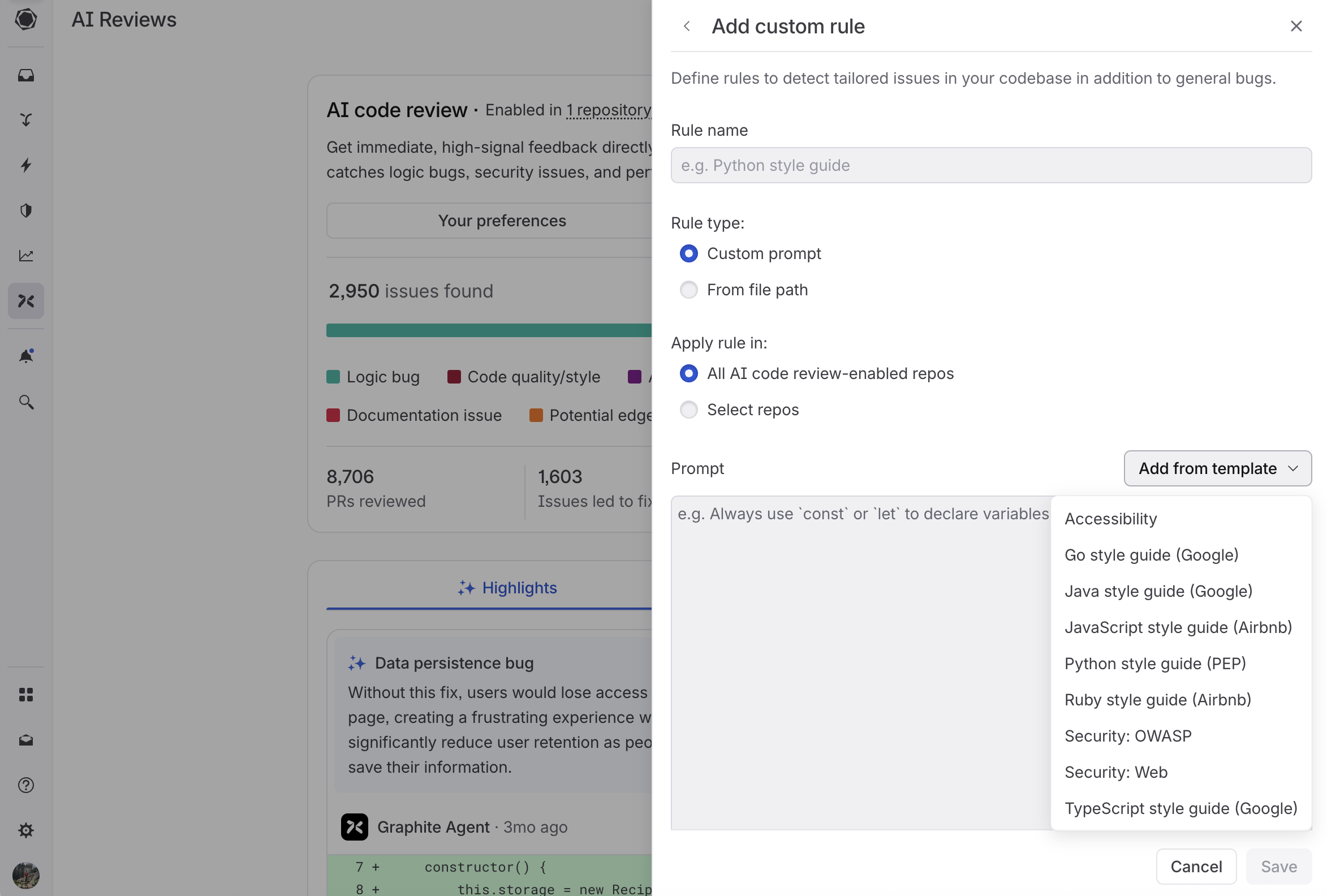 There are two ways to configure custom rules: custom prompts and file-based rules. Below is our recommendation for when each option is most appropriate.
### Custom prompts (Recommended)
Custom prompts are rules written directly in the Graphite UI. They're the recommended approach for most teams.
**Why custom prompts work best:**
* **Focused**: Each rule addresses one specific concern
* **Fast to iterate**: Test and refine rules based on their effectiveness
* **Better performance**: No file processing overhead
* **Easy to manage**: All rules across all repos visible in a single interface
**Getting started:**
1. Use built-in templates for common scenarios:
* Language-specific style guides (JavaScript, Python, Go, etc.)
* Security best practices
* Accessibility standards
2. **Start small**: Create focused rules that address specific concerns
* Example: "JavaScript error handling patterns"
* Example: "API response formatting standards"
3. **Quick start**: Copy relevant sections from your existing coding guidelines and refine them into focused rules
### File-based rules
File-based rules reference existing documentation in your repository using glob patterns. Use these sparingly when you have living documentation that changes frequently.
There are two ways to configure custom rules: custom prompts and file-based rules. Below is our recommendation for when each option is most appropriate.
### Custom prompts (Recommended)
Custom prompts are rules written directly in the Graphite UI. They're the recommended approach for most teams.
**Why custom prompts work best:**
* **Focused**: Each rule addresses one specific concern
* **Fast to iterate**: Test and refine rules based on their effectiveness
* **Better performance**: No file processing overhead
* **Easy to manage**: All rules across all repos visible in a single interface
**Getting started:**
1. Use built-in templates for common scenarios:
* Language-specific style guides (JavaScript, Python, Go, etc.)
* Security best practices
* Accessibility standards
2. **Start small**: Create focused rules that address specific concerns
* Example: "JavaScript error handling patterns"
* Example: "API response formatting standards"
3. **Quick start**: Copy relevant sections from your existing coding guidelines and refine them into focused rules
### File-based rules
File-based rules reference existing documentation in your repository using glob patterns. Use these sparingly when you have living documentation that changes frequently.
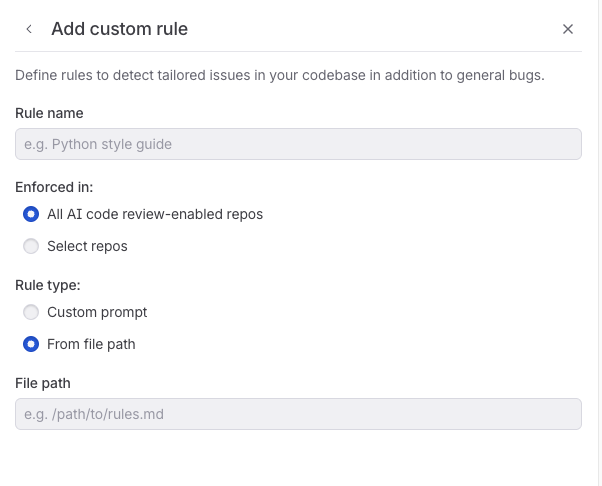 **When to use file-based rules:**
* Documentation maintained by other teams that changes regularly
* Shared architectural decision records across repositories
* Style guides that are actively updated
**How they work:**
1. Specify a glob pattern (e.g., `docs/coding-style.md`)
2. Graphite Agent reads the file content from your repository
3. Uses that content as context during code review
**Recommended file paths:**
Store your rules alongside your other code generation markdown files, or use one dedicated folder per repository. Common patterns include:
```
docs/coding-standards.md # Specific documentation file
CONTRIBUTING.md # Contributing guidelines
docs/architecture/*.md # Architecture documentation
.github/rules/*.md # Rules folder in your repo
```
**Limitations:**
* Large files are truncated for performance
* Too many files can reduce review quality
* Glob patterns are case-sensitive
### Best practices for writing custom rules
**Structure your rules clearly:**
* **Format**: Rule → Bad example → Good example → Reasoning
* **Focus**: One specific concern per rule
* **Examples**: Provide 2-3 clear, contrasting examples
* **Test**: Try your rule on recent PRs to verify it adds value
**What works best:**
* Language-specific conventions (naming, imports, error handling)
* Security guidelines (authentication, data validation)
* Framework-specific patterns (React hooks, API design)
**What to avoid:**
* Unnecessary context ("you are a staff-level engineer")
* Overly broad rules ("write good code")
* Praise
* Non-prescriptive verbs ("comment on" or "flag")
* Comments that should actually be exclusions ("don't comment on")
Bad examples:
```
### Bad example 1: Vague database rule
Rule: Don't make breaking changes to database fields. When dropping or adding fields could cause issues, flag them in review.
```
Why is this bad?
* Too vague. What counts as a breaking change to database fields?
* "Flag" is a non-prescriptive verb. Leaving a comment inherently means flagging an issue. What should Graphite Agent tell engineers to do instead? A better alternative would be: "Never drop a required field directly. Always make it nullable first and stop writing to it so that it is no longer used by the entity."
* No examples provided.
```
### Bad example 2: Unclear CSS class naming rule
Always comment on color values like #FF0000 being used in stylesheets. Don't comment on utility classes like bg-red-500 or text-primary.
```
Why is this bad?
* "Comment" is a non-prescriptive verb. Instead, the rule should specify what Graphite Agent's comment should contain.
* This isn't phrased as a rule. The rule should be stated clearly as "Never use hex color values directly, always use design system tokens instead."
* More context is needed. The rule should specify which files or frameworks this applies to (CSS files, styled-components, etc.).
* This prompt mixes custom rules and exclusions. The latter sentence is not necessary.
Good examples:
````
### Good example 1: Security rule with clear structure
## Security Rules
### Rule: Never expose detailed error messages
**Rule:**
Never expose detailed error messages that reveal stack traces or internal system details. In production environments, always return generic error messages to protect the system while logging full details internally for debugging.
**Bad example:**
```js
app.use((err, req, res, next) => {
res.status(500).json({ error: err.stack });
});
```
**Good example:**
```js
app.use((err, req, res, next) => {
res.status(500).json({ error: "Internal Server Error" });
});
```
**Reasoning:**
Revealing stack traces or internal error details can leak sensitive implementation information, making it easier for attackers to exploit vulnerabilities.
````
````
### Good example 2: Database rule with specific context
## Database Rules
### Rule: Use `text` instead of `varchar(n)` for new PostgreSQL columns
**Rule:**
When adding new string columns to TypeORM entities, always use `text` type instead of `varchar(n)` unless there's a specific business requirement for length constraints.
**Good example:**
```ts
@Column({ type: 'text' })
description: string;
```
**Bad example:**
```ts
@Column({ type: 'varchar', length: 255 })
description: string;
```
**Reasoning:**
PostgreSQL handles `text` and `varchar` identically in terms of performance, but `text` avoids arbitrary length limits that can cause issues as data grows.
````
For additional recommendations, see [Anthropic's suggestions for prompt engineering best practices](https://docs.anthropic.com/en/docs/build-with-claude/prompt-engineering/claude-4-best-practices#be-explicit-with-your-instructions).
To set up custom rules:
1. Go to the [AI reviews dashboard](https://app.graphite.com/ai-reviews)
2. Navigate to the **Rules & exclusions** tab
3. Click "Add" next to Custom rules
4. Choose a template or add a custom prompt for your new rule
5. Save your configuration
## Excluding files from AI review
For large repositories, you may want to exclude certain files from AI review analysis. This is useful for:
* Data files that don't need to be reviewed
* Generated code that is automatically created by tools
* Any files that would make a PR too big for Graphite Agent to analyze
You can exclude files by marking them as generated files in your repository's `.gitattributes` file:
```
# Exclude specific files
docs/data.txt linguist-generated=true
# Exclude file types
*.csv linguist-generated=true
*.pb.go linguist-generated=true
# Exclude entire directories
data/** linguist-generated=true
generated/** linguist-generated=true
```
Files marked as `linguist-generated` will be:
* Automatically collapsed in both Graphite and GitHub pull request views
* Excluded from AI review when determining if a PR is too large
* Skipped during the AI review process
For more information, see GitHub's documentation on [customizing how changed files appear on GitHub](https://docs.github.com/en/repositories/working-with-files/managing-files/customizing-how-changed-files-appear-on-github).
## PR-level filtering
Advanced PR-level filtering provides granular control over where AI reviews run. You can configure AI reviews to run on specific pull requests based on defined criteria.
With PR-level filtering, you can control AI reviews based on:
* **PR author**: Run reviews only for specific team members or external contributors
* **File paths**: Analyze PRs only when certain files or directories are modified
* **PR labels**: Trigger reviews based on GitHub labels applied to pull requests
* **PR title and description**: Filter based on text content in PR titles or descriptions
* **Parent branch**: Run analysis based on target branch naming conventions
PR-level filtering provides flexibility to:
* **Control usage and costs**: Optimize AI review usage by focusing on the most important PRs
* **Focus analysis on critical PRs**: Ensure reviews target high-impact changes while skipping routine updates
* **Implement organization-specific review policies**: Align AI review behavior with your team's development workflows and governance requirements
Once saved, AI reviews will only run on new and updated pull requests that match the configured settings in enabled repositories. You can configure these settings through the **Settings** tab on the AI reviews dashboard, and organization admin permissions are required to modify them.
## Measuring rule and exclusion effectiveness
The **Rules & exclusions** tab on the [AI reviews dashboard](https://app.graphite.com/ai-reviews) provides detailed analytics for each custom rule and exclusion you've created.
### Custom rules metrics
For each custom rule, you can track:
* **Issues found**: Total issues flagged by this rule
* **PRs reviewed**: Number of pull requests where this rule was applied
* **Accepted issues**: Issues that led to code changes
* **Acceptance rate**: Percentage of issues that were accepted
* **Upvote/Downvote rates**: Direct feedback from your team
### Comment exclusions metrics
For each exclusion, you can track:
* **Issues checked**: Total issues evaluated against this exclusion
* **PRs reviewed**: Number of pull requests where this exclusion was applied
* **Issues caught**: Issues that were filtered out by this exclusion
* **Percentage caught**: Proportion of checked issues that were excluded
### Using metrics to optimize
Use these metrics to:
* Identify high-performing rules to use as templates for new rules
* Refine or remove rules with low acceptance rates
* Understand which rules resonate with your team
* Fine-tune exclusions that are filtering too many or too few issues
---
# Source: https://graphite-58cc94ce.mintlify.dev/docs/ai-review-experimental-comments.md
> ## Documentation Index
> Fetch the complete documentation index at: https://graphite-58cc94ce.mintlify.dev/docs/llms.txt
> Use this file to discover all available pages before exploring further.
# Experimental comments
> Learn about experimental AI review comments and how to provide feedback
## About experimental comments
### Why am I seeing this?
As a part of improving Graphite Agent, some comments that users receive are created by **experimental pipelines** that the team is testing.
By testing these experimental pipelines, we can learn what works well and what doesn't, which helps us build features that truly improve your development experience.
### We'd appreciate your feedback
Your input is incredibly valuable and helps us make Graphite Agent better for everyone. We want to know:
* What did you find helpful about this comment?
* What could be improved?
* Would you want to see more comments like this in the future?
Our team reviews each comment that receives feedback to improve Graphite Agent and deliver a better experience.
### How to leave feedback
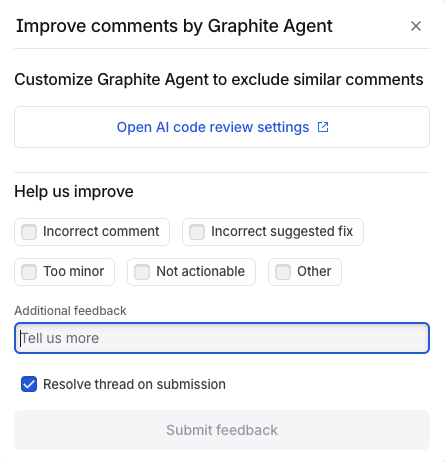
Use the 👍 or 👎 reaction on the comment itself in your PR, in Graphite or in GitHub.
**If you downvote on Graphite**, a popup will appear asking for more details. Your specific feedback helps us understand what went wrong and how to improve future reviews.
Our team may reach out to you to ask for more information.
**When to use file-based rules:**
* Documentation maintained by other teams that changes regularly
* Shared architectural decision records across repositories
* Style guides that are actively updated
**How they work:**
1. Specify a glob pattern (e.g., `docs/coding-style.md`)
2. Graphite Agent reads the file content from your repository
3. Uses that content as context during code review
**Recommended file paths:**
Store your rules alongside your other code generation markdown files, or use one dedicated folder per repository. Common patterns include:
```
docs/coding-standards.md # Specific documentation file
CONTRIBUTING.md # Contributing guidelines
docs/architecture/*.md # Architecture documentation
.github/rules/*.md # Rules folder in your repo
```
**Limitations:**
* Large files are truncated for performance
* Too many files can reduce review quality
* Glob patterns are case-sensitive
### Best practices for writing custom rules
**Structure your rules clearly:**
* **Format**: Rule → Bad example → Good example → Reasoning
* **Focus**: One specific concern per rule
* **Examples**: Provide 2-3 clear, contrasting examples
* **Test**: Try your rule on recent PRs to verify it adds value
**What works best:**
* Language-specific conventions (naming, imports, error handling)
* Security guidelines (authentication, data validation)
* Framework-specific patterns (React hooks, API design)
**What to avoid:**
* Unnecessary context ("you are a staff-level engineer")
* Overly broad rules ("write good code")
* Praise
* Non-prescriptive verbs ("comment on" or "flag")
* Comments that should actually be exclusions ("don't comment on")
Bad examples:
```
### Bad example 1: Vague database rule
Rule: Don't make breaking changes to database fields. When dropping or adding fields could cause issues, flag them in review.
```
Why is this bad?
* Too vague. What counts as a breaking change to database fields?
* "Flag" is a non-prescriptive verb. Leaving a comment inherently means flagging an issue. What should Graphite Agent tell engineers to do instead? A better alternative would be: "Never drop a required field directly. Always make it nullable first and stop writing to it so that it is no longer used by the entity."
* No examples provided.
```
### Bad example 2: Unclear CSS class naming rule
Always comment on color values like #FF0000 being used in stylesheets. Don't comment on utility classes like bg-red-500 or text-primary.
```
Why is this bad?
* "Comment" is a non-prescriptive verb. Instead, the rule should specify what Graphite Agent's comment should contain.
* This isn't phrased as a rule. The rule should be stated clearly as "Never use hex color values directly, always use design system tokens instead."
* More context is needed. The rule should specify which files or frameworks this applies to (CSS files, styled-components, etc.).
* This prompt mixes custom rules and exclusions. The latter sentence is not necessary.
Good examples:
````
### Good example 1: Security rule with clear structure
## Security Rules
### Rule: Never expose detailed error messages
**Rule:**
Never expose detailed error messages that reveal stack traces or internal system details. In production environments, always return generic error messages to protect the system while logging full details internally for debugging.
**Bad example:**
```js
app.use((err, req, res, next) => {
res.status(500).json({ error: err.stack });
});
```
**Good example:**
```js
app.use((err, req, res, next) => {
res.status(500).json({ error: "Internal Server Error" });
});
```
**Reasoning:**
Revealing stack traces or internal error details can leak sensitive implementation information, making it easier for attackers to exploit vulnerabilities.
````
````
### Good example 2: Database rule with specific context
## Database Rules
### Rule: Use `text` instead of `varchar(n)` for new PostgreSQL columns
**Rule:**
When adding new string columns to TypeORM entities, always use `text` type instead of `varchar(n)` unless there's a specific business requirement for length constraints.
**Good example:**
```ts
@Column({ type: 'text' })
description: string;
```
**Bad example:**
```ts
@Column({ type: 'varchar', length: 255 })
description: string;
```
**Reasoning:**
PostgreSQL handles `text` and `varchar` identically in terms of performance, but `text` avoids arbitrary length limits that can cause issues as data grows.
````
For additional recommendations, see [Anthropic's suggestions for prompt engineering best practices](https://docs.anthropic.com/en/docs/build-with-claude/prompt-engineering/claude-4-best-practices#be-explicit-with-your-instructions).
To set up custom rules:
1. Go to the [AI reviews dashboard](https://app.graphite.com/ai-reviews)
2. Navigate to the **Rules & exclusions** tab
3. Click "Add" next to Custom rules
4. Choose a template or add a custom prompt for your new rule
5. Save your configuration
## Excluding files from AI review
For large repositories, you may want to exclude certain files from AI review analysis. This is useful for:
* Data files that don't need to be reviewed
* Generated code that is automatically created by tools
* Any files that would make a PR too big for Graphite Agent to analyze
You can exclude files by marking them as generated files in your repository's `.gitattributes` file:
```
# Exclude specific files
docs/data.txt linguist-generated=true
# Exclude file types
*.csv linguist-generated=true
*.pb.go linguist-generated=true
# Exclude entire directories
data/** linguist-generated=true
generated/** linguist-generated=true
```
Files marked as `linguist-generated` will be:
* Automatically collapsed in both Graphite and GitHub pull request views
* Excluded from AI review when determining if a PR is too large
* Skipped during the AI review process
For more information, see GitHub's documentation on [customizing how changed files appear on GitHub](https://docs.github.com/en/repositories/working-with-files/managing-files/customizing-how-changed-files-appear-on-github).
## PR-level filtering
Advanced PR-level filtering provides granular control over where AI reviews run. You can configure AI reviews to run on specific pull requests based on defined criteria.
With PR-level filtering, you can control AI reviews based on:
* **PR author**: Run reviews only for specific team members or external contributors
* **File paths**: Analyze PRs only when certain files or directories are modified
* **PR labels**: Trigger reviews based on GitHub labels applied to pull requests
* **PR title and description**: Filter based on text content in PR titles or descriptions
* **Parent branch**: Run analysis based on target branch naming conventions
PR-level filtering provides flexibility to:
* **Control usage and costs**: Optimize AI review usage by focusing on the most important PRs
* **Focus analysis on critical PRs**: Ensure reviews target high-impact changes while skipping routine updates
* **Implement organization-specific review policies**: Align AI review behavior with your team's development workflows and governance requirements
Once saved, AI reviews will only run on new and updated pull requests that match the configured settings in enabled repositories. You can configure these settings through the **Settings** tab on the AI reviews dashboard, and organization admin permissions are required to modify them.
## Measuring rule and exclusion effectiveness
The **Rules & exclusions** tab on the [AI reviews dashboard](https://app.graphite.com/ai-reviews) provides detailed analytics for each custom rule and exclusion you've created.
### Custom rules metrics
For each custom rule, you can track:
* **Issues found**: Total issues flagged by this rule
* **PRs reviewed**: Number of pull requests where this rule was applied
* **Accepted issues**: Issues that led to code changes
* **Acceptance rate**: Percentage of issues that were accepted
* **Upvote/Downvote rates**: Direct feedback from your team
### Comment exclusions metrics
For each exclusion, you can track:
* **Issues checked**: Total issues evaluated against this exclusion
* **PRs reviewed**: Number of pull requests where this exclusion was applied
* **Issues caught**: Issues that were filtered out by this exclusion
* **Percentage caught**: Proportion of checked issues that were excluded
### Using metrics to optimize
Use these metrics to:
* Identify high-performing rules to use as templates for new rules
* Refine or remove rules with low acceptance rates
* Understand which rules resonate with your team
* Fine-tune exclusions that are filtering too many or too few issues
---
# Source: https://graphite-58cc94ce.mintlify.dev/docs/ai-review-experimental-comments.md
> ## Documentation Index
> Fetch the complete documentation index at: https://graphite-58cc94ce.mintlify.dev/docs/llms.txt
> Use this file to discover all available pages before exploring further.
# Experimental comments
> Learn about experimental AI review comments and how to provide feedback
## About experimental comments
### Why am I seeing this?
As a part of improving Graphite Agent, some comments that users receive are created by **experimental pipelines** that the team is testing.
By testing these experimental pipelines, we can learn what works well and what doesn't, which helps us build features that truly improve your development experience.
### We'd appreciate your feedback
Your input is incredibly valuable and helps us make Graphite Agent better for everyone. We want to know:
* What did you find helpful about this comment?
* What could be improved?
* Would you want to see more comments like this in the future?
Our team reviews each comment that receives feedback to improve Graphite Agent and deliver a better experience.
### How to leave feedback
Use the 👍 or 👎 reaction on the comment itself in your PR, in Graphite or in GitHub.
**If you downvote on Graphite**, a popup will appear asking for more details. Your specific feedback helps us understand what went wrong and how to improve future reviews.
Our team may reach out to you to ask for more information.
 ---
# Source: https://graphite-58cc94ce.mintlify.dev/docs/ai-reviews-setup.md
> ## Documentation Index
> Fetch the complete documentation index at: https://graphite-58cc94ce.mintlify.dev/docs/llms.txt
> Use this file to discover all available pages before exploring further.
# Setup & configuration
> Get started with AI reviews in under 5 minutes
## Getting started with AI reviews
AI reviews can be enabled in just a few clicks, with no configuration required to start catching bugs in your pull requests.
### Enabling AI reviews
1. Navigate to the [AI code review settings page](https://app.graphite.com/ai-reviews?reviewerTab=settings)
---
# Source: https://graphite-58cc94ce.mintlify.dev/docs/ai-reviews-setup.md
> ## Documentation Index
> Fetch the complete documentation index at: https://graphite-58cc94ce.mintlify.dev/docs/llms.txt
> Use this file to discover all available pages before exploring further.
# Setup & configuration
> Get started with AI reviews in under 5 minutes
## Getting started with AI reviews
AI reviews can be enabled in just a few clicks, with no configuration required to start catching bugs in your pull requests.
### Enabling AI reviews
1. Navigate to the [AI code review settings page](https://app.graphite.com/ai-reviews?reviewerTab=settings)
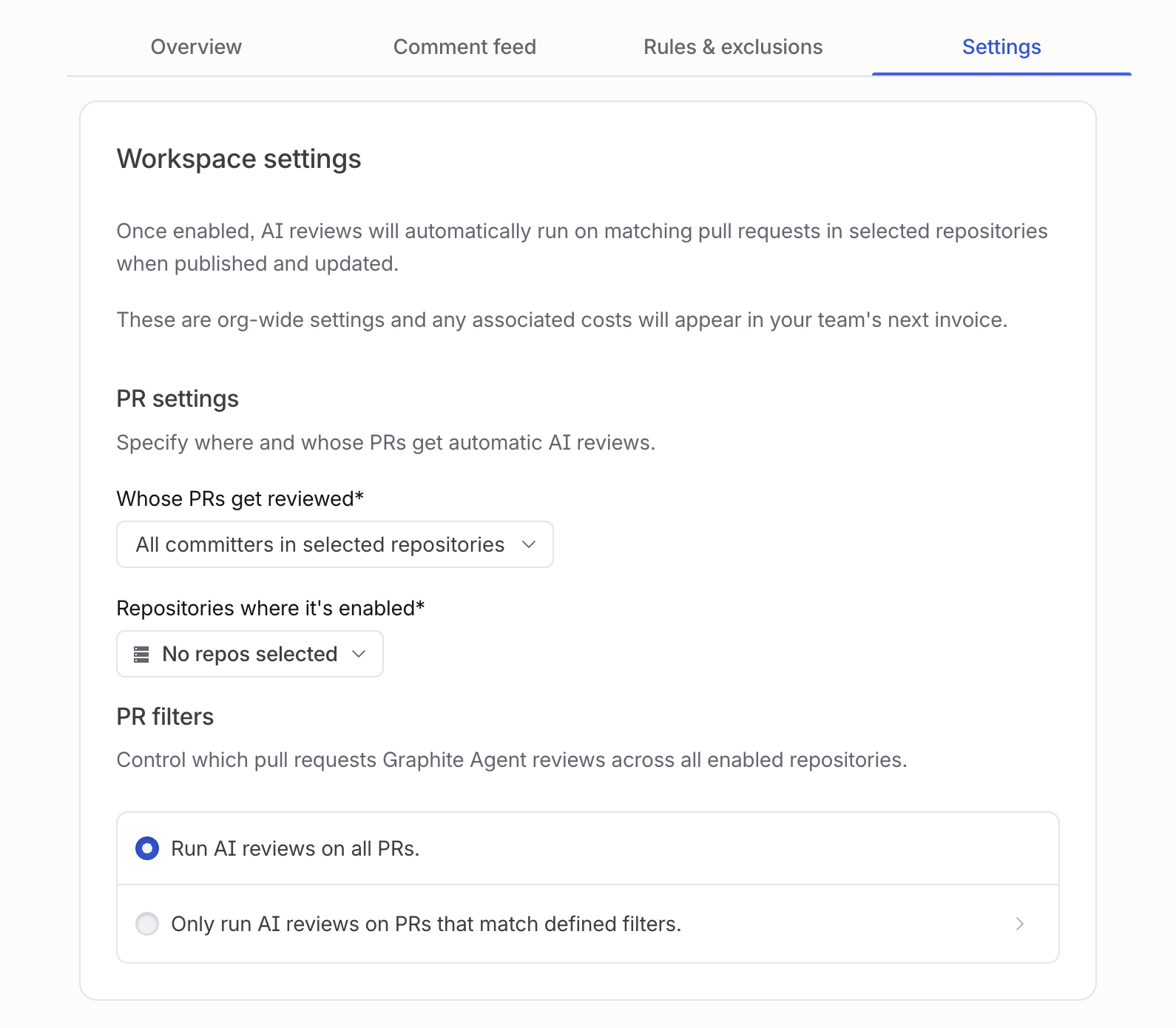 2. Select the repositories where you want AI reviews enabled
* You can choose specific repositories or enable AI reviews across your entire organization
* If you don't see the repositories you're looking for, make sure they're [synced with Graphite](https://app.graphite.com/settings/synced-repos)
3. Click "Save" to save your settings. Graphite Agent will now automatically review all new pull requests in the selected repositories
### What happens next
Once enabled, Graphite Agent:
* Automatically analyzes new pull requests in the selected repositories
* Comments directly on pull requests when it finds potential issues
* Suggests fixes for the problems it identifies
Graphite Agent works behind the scenes, with no changes required to your existing PR workflow. Your team can continue using GitHub just as they do today, with Graphite Agent providing additional feedback alongside human reviewers.
For teams using continuous integration, Graphite Agent works alongside your test suite to catch issues that tests often miss, like logic bugs, edge cases, and security vulnerabilities.
You can monitor AI review performance from the **Overview** tab on the [AI code review dashboard](https://app.graphite.com/ai-reviews), which shows metrics like issues found, acceptance rates, and PRs reviewed over time.
## Enabling AI reviews on personal repositories
In order to enable AI reviews on your personal repositories, you must first install the Graphite GitHub App on your personal account.
1. Navigate to your [GitHub authentication settings page](https://app.graphite.com/settings)
2. Select the repositories where you want AI reviews enabled
* You can choose specific repositories or enable AI reviews across your entire organization
* If you don't see the repositories you're looking for, make sure they're [synced with Graphite](https://app.graphite.com/settings/synced-repos)
3. Click "Save" to save your settings. Graphite Agent will now automatically review all new pull requests in the selected repositories
### What happens next
Once enabled, Graphite Agent:
* Automatically analyzes new pull requests in the selected repositories
* Comments directly on pull requests when it finds potential issues
* Suggests fixes for the problems it identifies
Graphite Agent works behind the scenes, with no changes required to your existing PR workflow. Your team can continue using GitHub just as they do today, with Graphite Agent providing additional feedback alongside human reviewers.
For teams using continuous integration, Graphite Agent works alongside your test suite to catch issues that tests often miss, like logic bugs, edge cases, and security vulnerabilities.
You can monitor AI review performance from the **Overview** tab on the [AI code review dashboard](https://app.graphite.com/ai-reviews), which shows metrics like issues found, acceptance rates, and PRs reviewed over time.
## Enabling AI reviews on personal repositories
In order to enable AI reviews on your personal repositories, you must first install the Graphite GitHub App on your personal account.
1. Navigate to your [GitHub authentication settings page](https://app.graphite.com/settings)
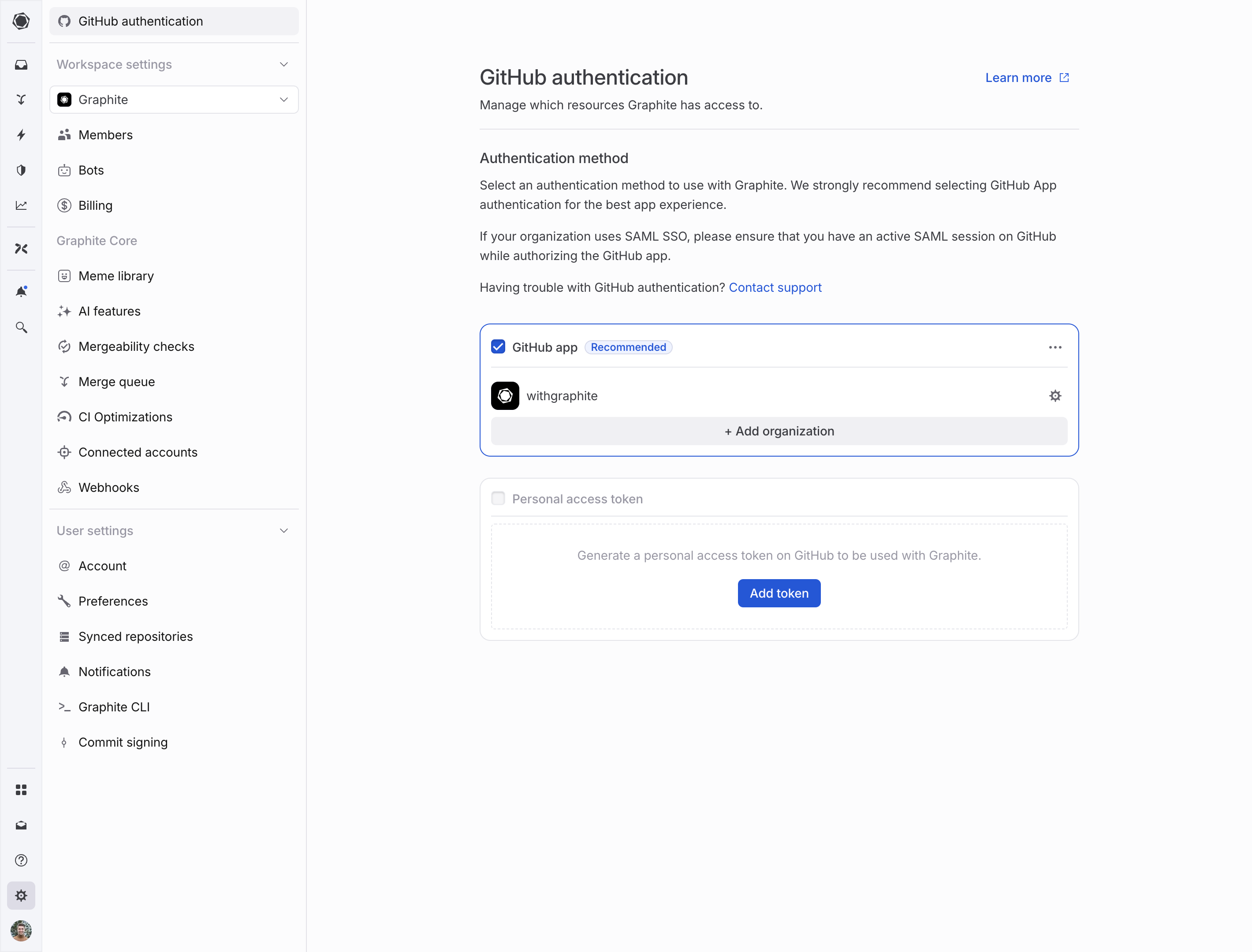 2. If this is your first time authenticating Graphite using the GitHub App, select the "Install GitHub App" button; otherwise, select the "Add organization" button.
3. Install the Graphite GitHub App using the pop-up window that appears, selecting your personal account's login.
2. If this is your first time authenticating Graphite using the GitHub App, select the "Install GitHub App" button; otherwise, select the "Add organization" button.
3. Install the Graphite GitHub App using the pop-up window that appears, selecting your personal account's login.
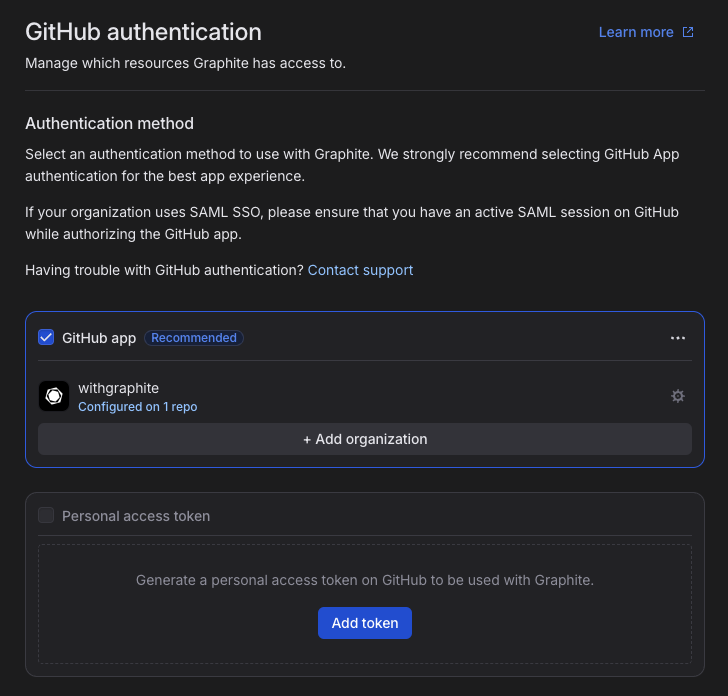
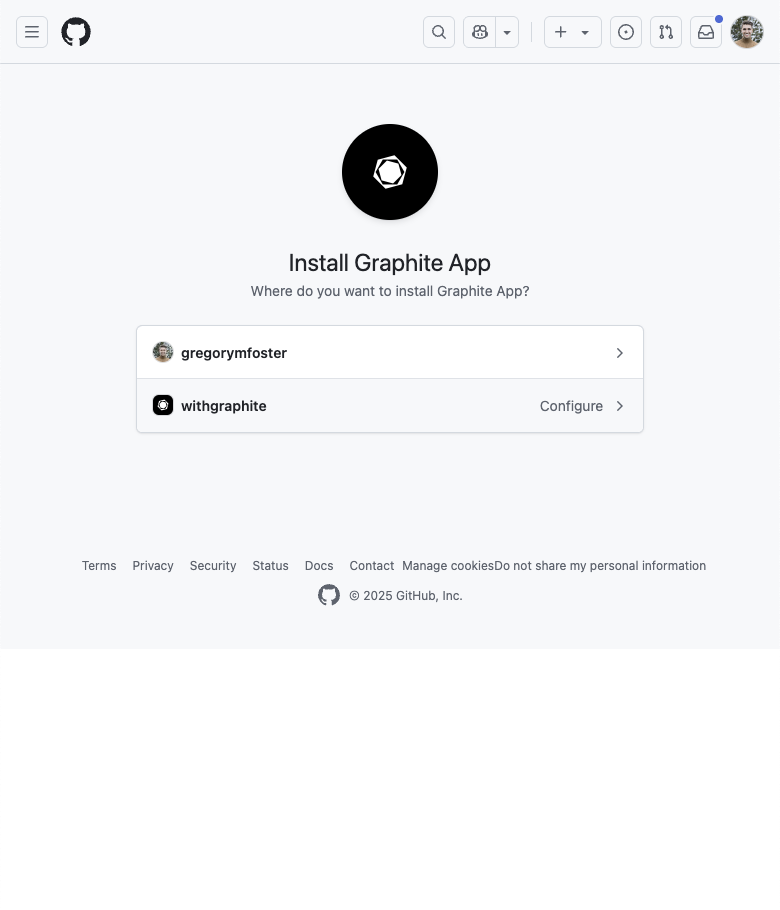 4. After returning to the GitHub authentication settings page, click the "Join team" button next to your personal account's login.
After completing these steps, you can enable AI reviews on your personal account following the instructions for [Getting started with AI reviews](/ai-reviews-setup#getting-started-with-ai-reviews).
4. After returning to the GitHub authentication settings page, click the "Join team" button next to your personal account's login.
After completing these steps, you can enable AI reviews on your personal account following the instructions for [Getting started with AI reviews](/ai-reviews-setup#getting-started-with-ai-reviews).
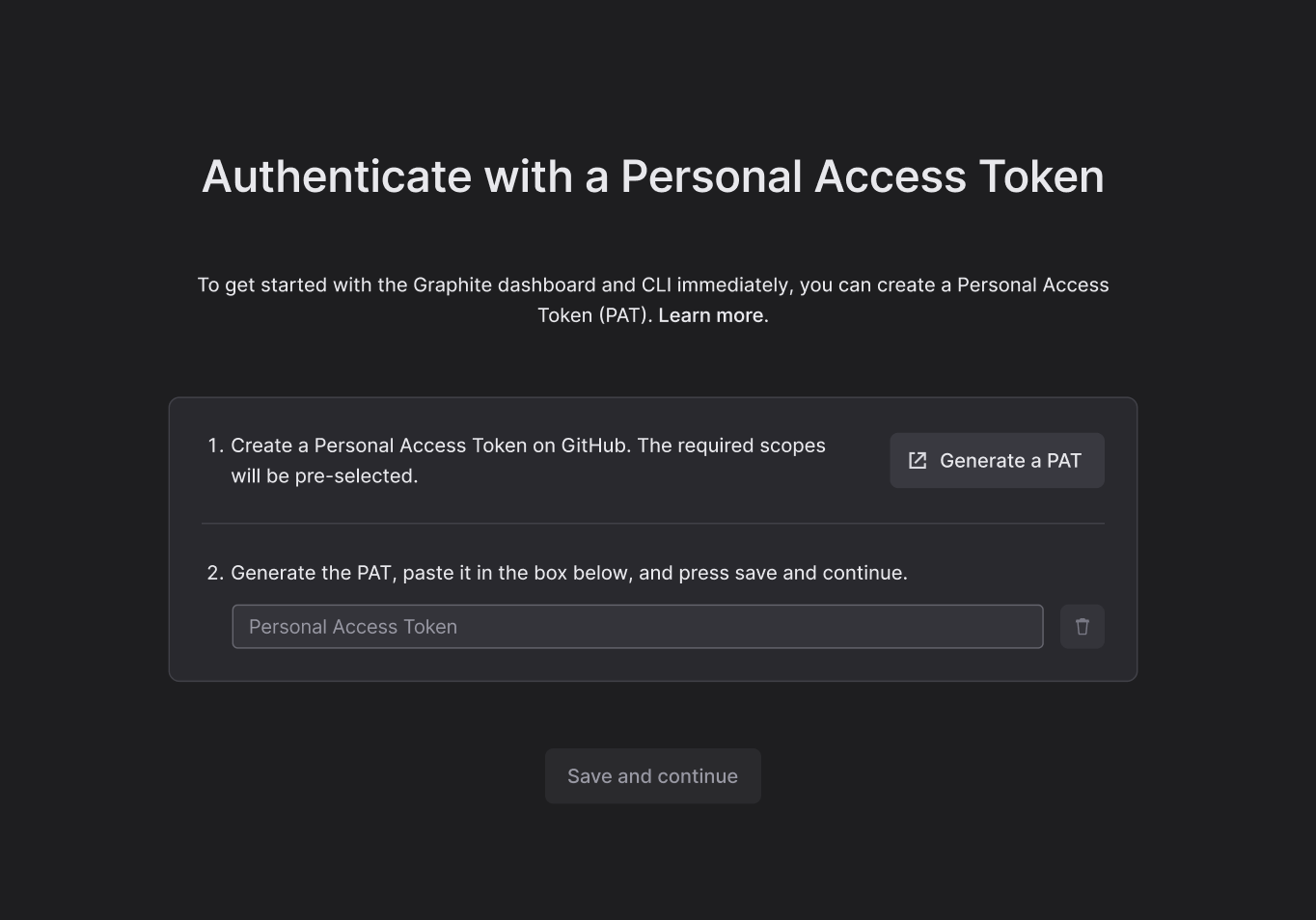 From here, generate a token on GitHub with the requires scopes pre-selected and paste it into the field to continue account creation. Learn more about the scopes Graphite requires in our [privacy and security docs](/privacy-and-security).
 ---
# Source: https://graphite-58cc94ce.mintlify.dev/docs/automations.md
> ## Documentation Index
> Fetch the complete documentation index at: https://graphite-58cc94ce.mintlify.dev/docs/llms.txt
> Use this file to discover all available pages before exploring further.
# Automations
> Learn how to automate tedious code review tasks like assigning reviewers, adding labels, and more with automations.
Graphite supports automating common actions when PR attributes meet your specified criteria by creating automation rules.
With these rules, automatically take actions such as adding reviewers, labels, or comments when a PR is opened by a specific author, containing files in specific directories, or a variety of other powerful filters.
## Automation rules
Automation rules have two aspects: a filter trigger and an action.
### Filter trigger
To specify the filtering trigger for PRs:
* You can use any of the filters powering Graphite's PR inbox today
* Additionally, you can specify a glob pattern for filenames. With this, you can create rules for PRs containing common suffixes (e.g. `**/*.ts` files), or that are contained in specified sub-directories (e.g. `**/myteam/**`), among other patterns.
### Actions
When a PR matches your condition, you can configure one or more of the following actions:
* Add reviewers to the PR. This supports both individuals and GitHub teams.
* Add assignees to the PR. This supports making the PR author the assignee.
* Add labels to the PR.
* Leave a comment on the PR. For example, you can leave a reminder for PRs opened containing changes to a particularly sensitive area of the code.
* Notify someone through Slack. For example, set a notification for all frontend changes for instances when you want to know about a change, but don’t necessarily want to be added as the reviewer.
* Post a GIF on the PR. For example, post a random "approved!" GIF from GIPHY each time a PR is fully approved.
## Manage rules
Navigate to *Automations* from the sidebar in the Graphite web app.
### **Create rules**
* Click **Create rule**.
* Specify the repository for the rule. Note that this must be one of your synced repositories (see [configuring default repositories](/use-pr-inbox#default-repositories)).
* Configure the conditions you want to match PRs on, and the actions to automatically take on those matched PRs.
To confirm your conditions are configured correctly, you can preview past PRs that match your rules before activating the rule.
When you're done, click **Activate rule**. This automatically applies the rule to open PRs that match your triggers, as well as all matching PRs going forward, until the rule is deactivated.
---
# Source: https://graphite-58cc94ce.mintlify.dev/docs/automations.md
> ## Documentation Index
> Fetch the complete documentation index at: https://graphite-58cc94ce.mintlify.dev/docs/llms.txt
> Use this file to discover all available pages before exploring further.
# Automations
> Learn how to automate tedious code review tasks like assigning reviewers, adding labels, and more with automations.
Graphite supports automating common actions when PR attributes meet your specified criteria by creating automation rules.
With these rules, automatically take actions such as adding reviewers, labels, or comments when a PR is opened by a specific author, containing files in specific directories, or a variety of other powerful filters.
## Automation rules
Automation rules have two aspects: a filter trigger and an action.
### Filter trigger
To specify the filtering trigger for PRs:
* You can use any of the filters powering Graphite's PR inbox today
* Additionally, you can specify a glob pattern for filenames. With this, you can create rules for PRs containing common suffixes (e.g. `**/*.ts` files), or that are contained in specified sub-directories (e.g. `**/myteam/**`), among other patterns.
### Actions
When a PR matches your condition, you can configure one or more of the following actions:
* Add reviewers to the PR. This supports both individuals and GitHub teams.
* Add assignees to the PR. This supports making the PR author the assignee.
* Add labels to the PR.
* Leave a comment on the PR. For example, you can leave a reminder for PRs opened containing changes to a particularly sensitive area of the code.
* Notify someone through Slack. For example, set a notification for all frontend changes for instances when you want to know about a change, but don’t necessarily want to be added as the reviewer.
* Post a GIF on the PR. For example, post a random "approved!" GIF from GIPHY each time a PR is fully approved.
## Manage rules
Navigate to *Automations* from the sidebar in the Graphite web app.
### **Create rules**
* Click **Create rule**.
* Specify the repository for the rule. Note that this must be one of your synced repositories (see [configuring default repositories](/use-pr-inbox#default-repositories)).
* Configure the conditions you want to match PRs on, and the actions to automatically take on those matched PRs.
To confirm your conditions are configured correctly, you can preview past PRs that match your rules before activating the rule.
When you're done, click **Activate rule**. This automatically applies the rule to open PRs that match your triggers, as well as all matching PRs going forward, until the rule is deactivated.
 ### Make your stacked PRs easy to review
Reviewing is only part of the stacking workflow - you should also make sure to follow best practices when creating stacks to make them as easy as possible to understand and review:
1. **Separate stacked PRs logically:** Each PR should be easy to understand and review independently - see [best practices frameworks for splitting up large changes into stacks](https://graphite.com/blog/five-methods-for-stacking) for ideas on how to do this.
2. **Submit PRs as soon as they’re ready to review:** Even if you plan to stack additional changes on top, you should submit your changes for review to ensure you get feedback as quickly as possible.
3. **If you’re actively working on a PR, mark it as a draft:** Open PRs in a stack should be considered ready to review, so if you’re still working on the PR or need to go back and make changes to address review feedback you should mark the PR as a draft until it’s ready to be reviewed again.
4. **Choose the best reviewers for each PR in the stack:** Choose who is most relevant for each individual change (or set up automations to do this for you) - you most likely don’t want the same set of reviewers to every PR.
5. **Use “merge when ready” to put stack merges on autopilot:** Unless a change needs manual assistance to land, default to turning on “merge when ready” to ensure your stacked PRs merge quickly once approved.
### Set up your org for successful stacking
Lastly, make sure your engineering organization is set up to start stacking successfully with the following best practices:
1. **Update your branch protection rules in GitHub:** Turn off “dismiss stale approvals” & “require approval of the most recent reviewable push” [settings in GitHub](/github-configuration-guidelines#required-settings) to ensure stacks merge smoothly.
2. **Assign reviewers automatically with automations:** [Set up automations](https://app.graphite.com/automations) in Graphite to automatically assign the most relevant reviewers for each PR based on file types & paths. Automations is a more powerful and granular system than `CODEOWNERS` for assigning reviewers, built for teams building in large monorepos.
3. **Warn authors about large PRs:** [Set up an automation](https://app.graphite.com/automations) to comment on PRs larger than 250 lines of code or 25 files changed to encourage authors to break up larger changes into stacks.
By following these simple best practices for reviewers, authors, and your organization, you’ll be set up for success when introducing stacking to your workflow, and ensure that you’re maximizing the time savings stacked PRs can provide in the review cycle.
---
# Source: https://graphite-58cc94ce.mintlify.dev/docs/beta-cli.md
> ## Documentation Index
> Fetch the complete documentation index at: https://graphite-58cc94ce.mintlify.dev/docs/llms.txt
> Use this file to discover all available pages before exploring further.
# Use Beta CLI Releases
> Join the Graphite CLI beta test group for early access to the newest features.
Get early access to the newest CLI features!
## homebrew
(As with the stable CLI, we recommend `brew`).
```bash Terminal theme={null}
brew install withgraphite/tap/graphite-beta
```
## npm
```bash Terminal theme={null}
npm install -g @withgraphite/graphite-cli@beta
```
## Slack Channel
New versions will be announced in the #cli-beta channel in our [community Slack.](https://graphite.com/join-slack)
### Make your stacked PRs easy to review
Reviewing is only part of the stacking workflow - you should also make sure to follow best practices when creating stacks to make them as easy as possible to understand and review:
1. **Separate stacked PRs logically:** Each PR should be easy to understand and review independently - see [best practices frameworks for splitting up large changes into stacks](https://graphite.com/blog/five-methods-for-stacking) for ideas on how to do this.
2. **Submit PRs as soon as they’re ready to review:** Even if you plan to stack additional changes on top, you should submit your changes for review to ensure you get feedback as quickly as possible.
3. **If you’re actively working on a PR, mark it as a draft:** Open PRs in a stack should be considered ready to review, so if you’re still working on the PR or need to go back and make changes to address review feedback you should mark the PR as a draft until it’s ready to be reviewed again.
4. **Choose the best reviewers for each PR in the stack:** Choose who is most relevant for each individual change (or set up automations to do this for you) - you most likely don’t want the same set of reviewers to every PR.
5. **Use “merge when ready” to put stack merges on autopilot:** Unless a change needs manual assistance to land, default to turning on “merge when ready” to ensure your stacked PRs merge quickly once approved.
### Set up your org for successful stacking
Lastly, make sure your engineering organization is set up to start stacking successfully with the following best practices:
1. **Update your branch protection rules in GitHub:** Turn off “dismiss stale approvals” & “require approval of the most recent reviewable push” [settings in GitHub](/github-configuration-guidelines#required-settings) to ensure stacks merge smoothly.
2. **Assign reviewers automatically with automations:** [Set up automations](https://app.graphite.com/automations) in Graphite to automatically assign the most relevant reviewers for each PR based on file types & paths. Automations is a more powerful and granular system than `CODEOWNERS` for assigning reviewers, built for teams building in large monorepos.
3. **Warn authors about large PRs:** [Set up an automation](https://app.graphite.com/automations) to comment on PRs larger than 250 lines of code or 25 files changed to encourage authors to break up larger changes into stacks.
By following these simple best practices for reviewers, authors, and your organization, you’ll be set up for success when introducing stacking to your workflow, and ensure that you’re maximizing the time savings stacked PRs can provide in the review cycle.
---
# Source: https://graphite-58cc94ce.mintlify.dev/docs/beta-cli.md
> ## Documentation Index
> Fetch the complete documentation index at: https://graphite-58cc94ce.mintlify.dev/docs/llms.txt
> Use this file to discover all available pages before exploring further.
# Use Beta CLI Releases
> Join the Graphite CLI beta test group for early access to the newest features.
Get early access to the newest CLI features!
## homebrew
(As with the stable CLI, we recommend `brew`).
```bash Terminal theme={null}
brew install withgraphite/tap/graphite-beta
```
## npm
```bash Terminal theme={null}
npm install -g @withgraphite/graphite-cli@beta
```
## Slack Channel
New versions will be announced in the #cli-beta channel in our [community Slack.](https://graphite.com/join-slack)
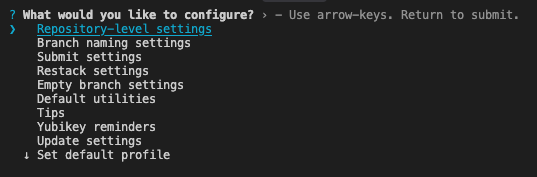 ### User-level configuration
#### Branch naming settings
If you don't specify a name for your branch when using [`gt create`](/command-reference#create-name), then Graphite will generate one for you based on the commit message.
There are several options to configure:
1. A custom prefix (for example, initials).
2. Whether or not the date is prepended to the branch.
3. Whether to allow certain characters like slashes and uppercase letters
4. The character to replace unsupported symbols (for example, whitespace and anything other than alphanumeric characters, periods, dashes, underscores, and slashes.)
#### Submit settings
##### Set PR metadata in CLI
Graphite lets you prepare your PR for review in the web UI by default. This allows you to preview markdown, pull options like reviewers and labels from downstack PR's, and update all PR's in a stack at once.
Enable this setting to instead default to writing PR description in the CLI.
##### PR description
Graphite includes your GitHub PR template in the commit message by default.
Graphite can include the commit messages of your branch in the body of your PR automatically on submit. If you enable this, you can choose whether or not to also include your PR template.
If you only have a single commit on your branch, the first line of the message (its title) will not be included as this is already the default for the name of the PR.
#### Rebase behavior
The `git rebase` flag `--committer-date-is-author-date` is useful if you don't want your Graphite restack operations to update the committer date of the commits in your branches. In order to have Graphite's internal rebases use this flag, you can enable this configuration.
#### Empty branch settings
Specify how Graphite should handle empty branches after an operation (keep or delete).
##### Default utilities
By default, Graphite uses the `git` editor for drafting PR descriptions and other flows that require editing text. You can configure a different editor.
By default, Graphite opens PR descriptions and other flows that require editing text in the `git` pager. You can configure a different pager, or disable paging entirely.
Note that just like git, Graphite sets the environment variables `LESS=FRX` and `LV=-c` if they are not already set. If something else is setting your `LESS` env var, you can use `gt user pager --set "less -FRX"` to get the recommended pager settings.
### User-level configuration
#### Branch naming settings
If you don't specify a name for your branch when using [`gt create`](/command-reference#create-name), then Graphite will generate one for you based on the commit message.
There are several options to configure:
1. A custom prefix (for example, initials).
2. Whether or not the date is prepended to the branch.
3. Whether to allow certain characters like slashes and uppercase letters
4. The character to replace unsupported symbols (for example, whitespace and anything other than alphanumeric characters, periods, dashes, underscores, and slashes.)
#### Submit settings
##### Set PR metadata in CLI
Graphite lets you prepare your PR for review in the web UI by default. This allows you to preview markdown, pull options like reviewers and labels from downstack PR's, and update all PR's in a stack at once.
Enable this setting to instead default to writing PR description in the CLI.
##### PR description
Graphite includes your GitHub PR template in the commit message by default.
Graphite can include the commit messages of your branch in the body of your PR automatically on submit. If you enable this, you can choose whether or not to also include your PR template.
If you only have a single commit on your branch, the first line of the message (its title) will not be included as this is already the default for the name of the PR.
#### Rebase behavior
The `git rebase` flag `--committer-date-is-author-date` is useful if you don't want your Graphite restack operations to update the committer date of the commits in your branches. In order to have Graphite's internal rebases use this flag, you can enable this configuration.
#### Empty branch settings
Specify how Graphite should handle empty branches after an operation (keep or delete).
##### Default utilities
By default, Graphite uses the `git` editor for drafting PR descriptions and other flows that require editing text. You can configure a different editor.
By default, Graphite opens PR descriptions and other flows that require editing text in the `git` pager. You can configure a different pager, or disable paging entirely.
Note that just like git, Graphite sets the environment variables `LESS=FRX` and `LV=-c` if they are not already set. If something else is setting your `LESS` env var, you can use `gt user pager --set "less -FRX"` to get the recommended pager settings.
 Press return on your desired profile to set your new default profile:
 You can also name one of the profiles as "default" for it to always be used when not specifying in `gt config` or `GRAPHITE_PROFILE` environment variable:
```shell theme={null}
{
"alternativeProfiles": [
{
"name": "default",
"authToken": "xxxx"
},
{
"name": "personal_github_account",
"authToken": "xxxx"
}
]
}
```
## Set up shell completion
Graphite supports `zsh`, `bash`, and `fish` tab completion. You can run one of the following commands:
### For zsh
```bash Terminal theme={null}
gt completion >> ~/.zshrc
```
### For bash
```bash Terminal theme={null}
gt completion >> ~/.bashrc
```
or
```bash Terminal theme={null}
gt completion >> ~/.bash_profile
```
### For fish
```bash Terminal theme={null}
gt fish >> ~/.config/fish/completions/gt.fish
```
## Set up aliases for Graphite CLI commands
You can set aliases for [`gt` commands](/command-reference) and customize the flags that commands will be run with.
Aliases get stored in the `aliases` file in the `~/.config/graphite/` directory. They will apply globally when executing gt commands.
Run [`gt aliases`](/command-reference#gt-aliases) as a shortcut to open the `aliases` file in your terminal's default editor.
Aliases for `ss`, `ls`, and `ll` are defined by default. If you delete this file, it will be recreated with the default aliases.
The first word of each line in the file is the alias, the second is the command and the following words are the flags. Lines starting with # are ignored:
```text aliases theme={null}
# this line is ignored
ls log short
ll log long
ss submit --stack
```
---
# Source: https://graphite-58cc94ce.mintlify.dev/docs/configure-signed-commits.md
> ## Documentation Index
>
> Fetch the complete documentation index at: https://graphite-58cc94ce.mintlify.dev/docs/llms.txt
> Use this file to discover all available pages before exploring further.
## Enable Signed Commits
> Learn how to enable commit signing in Graphite.
Setting up a GPG key enables Graphite to sign commits when performing remote operations on your behalf to simplify your workflow, like rebasing, and allows GitHub to mark commits as verified.
If your repo is configured in GitHub to require [commit signing](https://docs.github.com/en/authentication/managing-commit-signature-verification), you need to configure GitHub to recognize Graphite’s signed commits as well. In these cases, Graphite needs to sign the commit or GitHub will not allow the commits to be merged.
## Set up signed commits
To set up a key for signing commits, visit [https://app.graphite.com/settings/preferences](https://app.graphite.com/settings/preferences). The “Commit signing” section walks you through:
* Generating a personal private/public key pair in Graphite for signing
* Adding the public key to GitHub
---
# Source: https://graphite-58cc94ce.mintlify.dev/docs/create-a-pull-request.md
> ## Documentation Index
>
> Fetch the complete documentation index at: https://graphite-58cc94ce.mintlify.dev/docs/llms.txt
> Use this file to discover all available pages before exploring further.
## Create A Pull Request
> Learn to use the Graphite CLI to create a single pull request.
This tutorial will teach you how to create a single pull request with the `gt` CLI. Your goal is to learn how your existing Git/GitHub workflow for creating pull requests maps to `gt` commands.
This tutorial intentionally avoids discussing stacked pull requests, so you can stay focused on building confidence with the basic single PR workflow.
You can also name one of the profiles as "default" for it to always be used when not specifying in `gt config` or `GRAPHITE_PROFILE` environment variable:
```shell theme={null}
{
"alternativeProfiles": [
{
"name": "default",
"authToken": "xxxx"
},
{
"name": "personal_github_account",
"authToken": "xxxx"
}
]
}
```
## Set up shell completion
Graphite supports `zsh`, `bash`, and `fish` tab completion. You can run one of the following commands:
### For zsh
```bash Terminal theme={null}
gt completion >> ~/.zshrc
```
### For bash
```bash Terminal theme={null}
gt completion >> ~/.bashrc
```
or
```bash Terminal theme={null}
gt completion >> ~/.bash_profile
```
### For fish
```bash Terminal theme={null}
gt fish >> ~/.config/fish/completions/gt.fish
```
## Set up aliases for Graphite CLI commands
You can set aliases for [`gt` commands](/command-reference) and customize the flags that commands will be run with.
Aliases get stored in the `aliases` file in the `~/.config/graphite/` directory. They will apply globally when executing gt commands.
Run [`gt aliases`](/command-reference#gt-aliases) as a shortcut to open the `aliases` file in your terminal's default editor.
Aliases for `ss`, `ls`, and `ll` are defined by default. If you delete this file, it will be recreated with the default aliases.
The first word of each line in the file is the alias, the second is the command and the following words are the flags. Lines starting with # are ignored:
```text aliases theme={null}
# this line is ignored
ls log short
ll log long
ss submit --stack
```
---
# Source: https://graphite-58cc94ce.mintlify.dev/docs/configure-signed-commits.md
> ## Documentation Index
>
> Fetch the complete documentation index at: https://graphite-58cc94ce.mintlify.dev/docs/llms.txt
> Use this file to discover all available pages before exploring further.
## Enable Signed Commits
> Learn how to enable commit signing in Graphite.
Setting up a GPG key enables Graphite to sign commits when performing remote operations on your behalf to simplify your workflow, like rebasing, and allows GitHub to mark commits as verified.
If your repo is configured in GitHub to require [commit signing](https://docs.github.com/en/authentication/managing-commit-signature-verification), you need to configure GitHub to recognize Graphite’s signed commits as well. In these cases, Graphite needs to sign the commit or GitHub will not allow the commits to be merged.
## Set up signed commits
To set up a key for signing commits, visit [https://app.graphite.com/settings/preferences](https://app.graphite.com/settings/preferences). The “Commit signing” section walks you through:
* Generating a personal private/public key pair in Graphite for signing
* Adding the public key to GitHub
---
# Source: https://graphite-58cc94ce.mintlify.dev/docs/create-a-pull-request.md
> ## Documentation Index
>
> Fetch the complete documentation index at: https://graphite-58cc94ce.mintlify.dev/docs/llms.txt
> Use this file to discover all available pages before exploring further.
## Create A Pull Request
> Learn to use the Graphite CLI to create a single pull request.
This tutorial will teach you how to create a single pull request with the `gt` CLI. Your goal is to learn how your existing Git/GitHub workflow for creating pull requests maps to `gt` commands.
This tutorial intentionally avoids discussing stacked pull requests, so you can stay focused on building confidence with the basic single PR workflow.
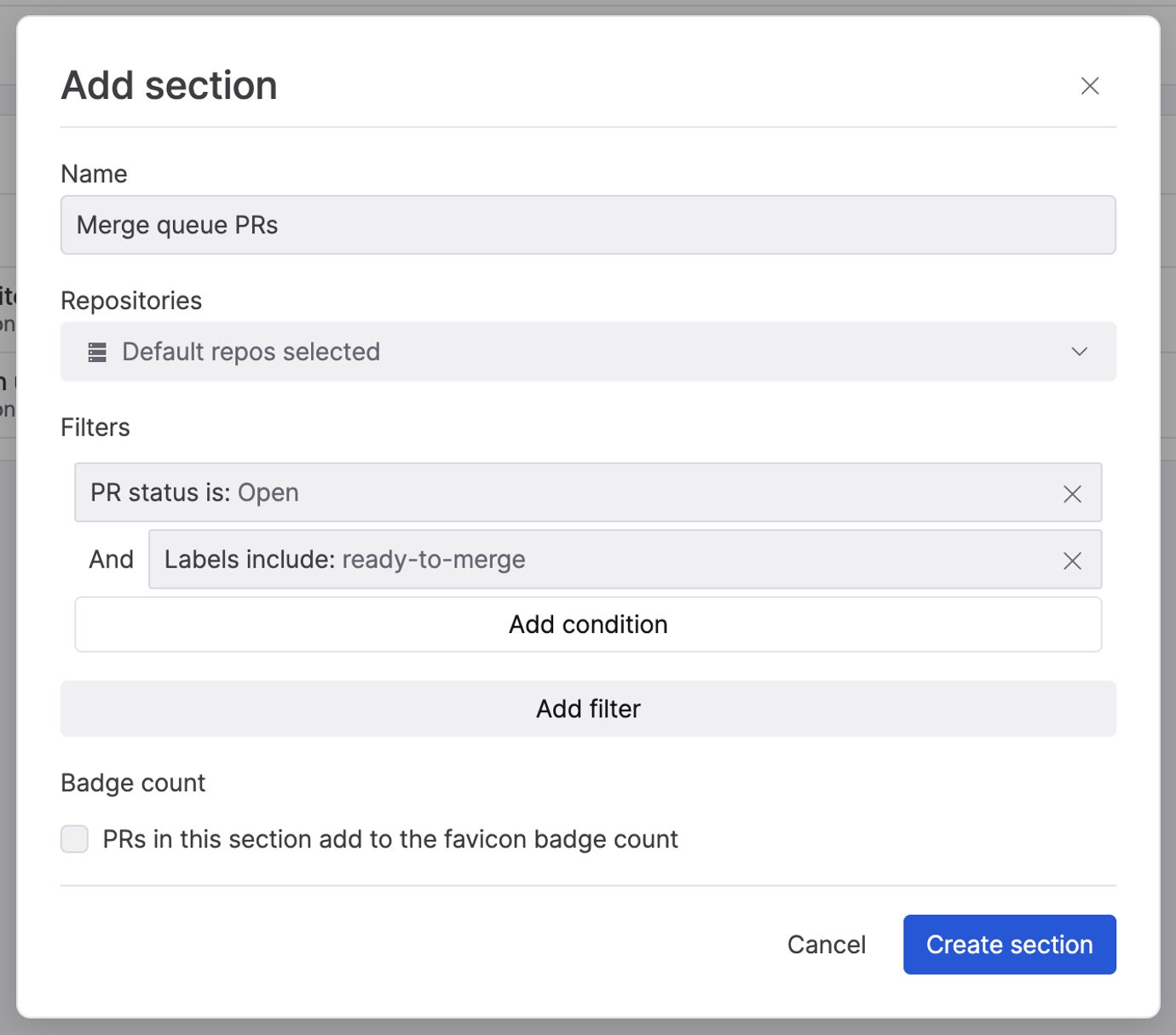 #### Blocked PRs
Many merge queues represent merge failures by adding a label denoting that the PR is blocked. You can create a section to track these with the following settings:
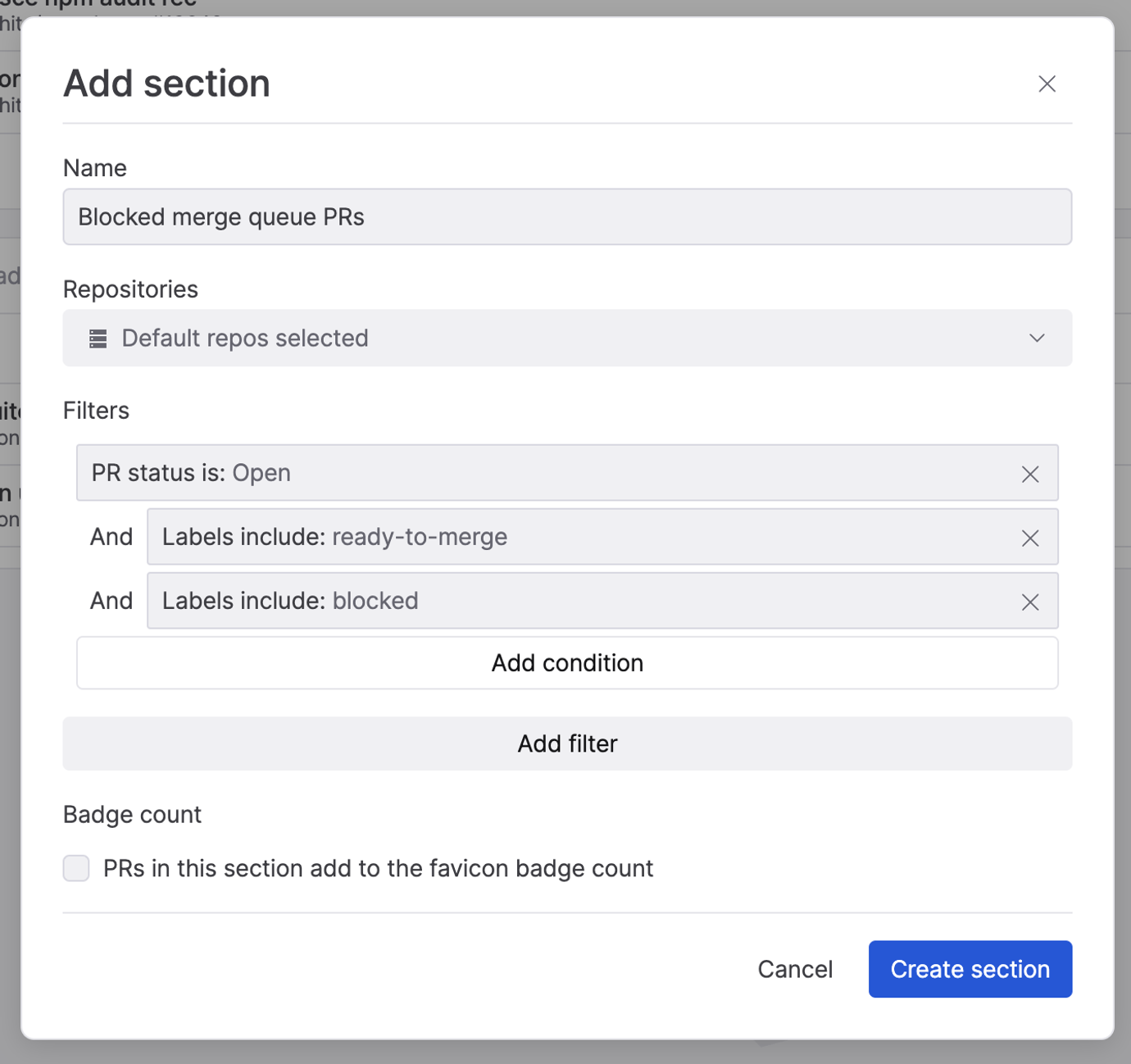
#### Blocked PRs
Many merge queues represent merge failures by adding a label denoting that the PR is blocked. You can create a section to track these with the following settings:
 ### Troubleshooting
* **PRs getting evicted while enqueued:** once you mark a stack as ready to merge, re-stacking those PRs when they're already in your merge queue may result in your merge queue evicting them due to making changes. You may want to avoid re-stacking a PR while your merge queue is processing it.
* **Handling failed merges:** your merge queue may take actions like adding a "blocked" label on PRs that failed to merge. To re-enqueue after fixing the issues, manually remove the custom label.
---
# Source: https://graphite-58cc94ce.mintlify.dev/docs/faqs.md
## Documentation Index
> Fetch the complete documentation index at: https://graphite-58cc94ce.mintlify.dev/docs/llms.txt
> Use this file to discover all available pages before exploring further.
# FAQs
> Questions? We've got answers.
Unblock yourself with our troubleshooting references. If you're ever stuck, you can reach out to us over [community Slack](https://community.graphite.com) or email [support@graphite.com](mailto:support@graphite.com).
### Troubleshooting
* **PRs getting evicted while enqueued:** once you mark a stack as ready to merge, re-stacking those PRs when they're already in your merge queue may result in your merge queue evicting them due to making changes. You may want to avoid re-stacking a PR while your merge queue is processing it.
* **Handling failed merges:** your merge queue may take actions like adding a "blocked" label on PRs that failed to merge. To re-enqueue after fixing the issues, manually remove the custom label.
---
# Source: https://graphite-58cc94ce.mintlify.dev/docs/faqs.md
## Documentation Index
> Fetch the complete documentation index at: https://graphite-58cc94ce.mintlify.dev/docs/llms.txt
> Use this file to discover all available pages before exploring further.
# FAQs
> Questions? We've got answers.
Unblock yourself with our troubleshooting references. If you're ever stuck, you can reach out to us over [community Slack](https://community.graphite.com) or email [support@graphite.com](mailto:support@graphite.com).
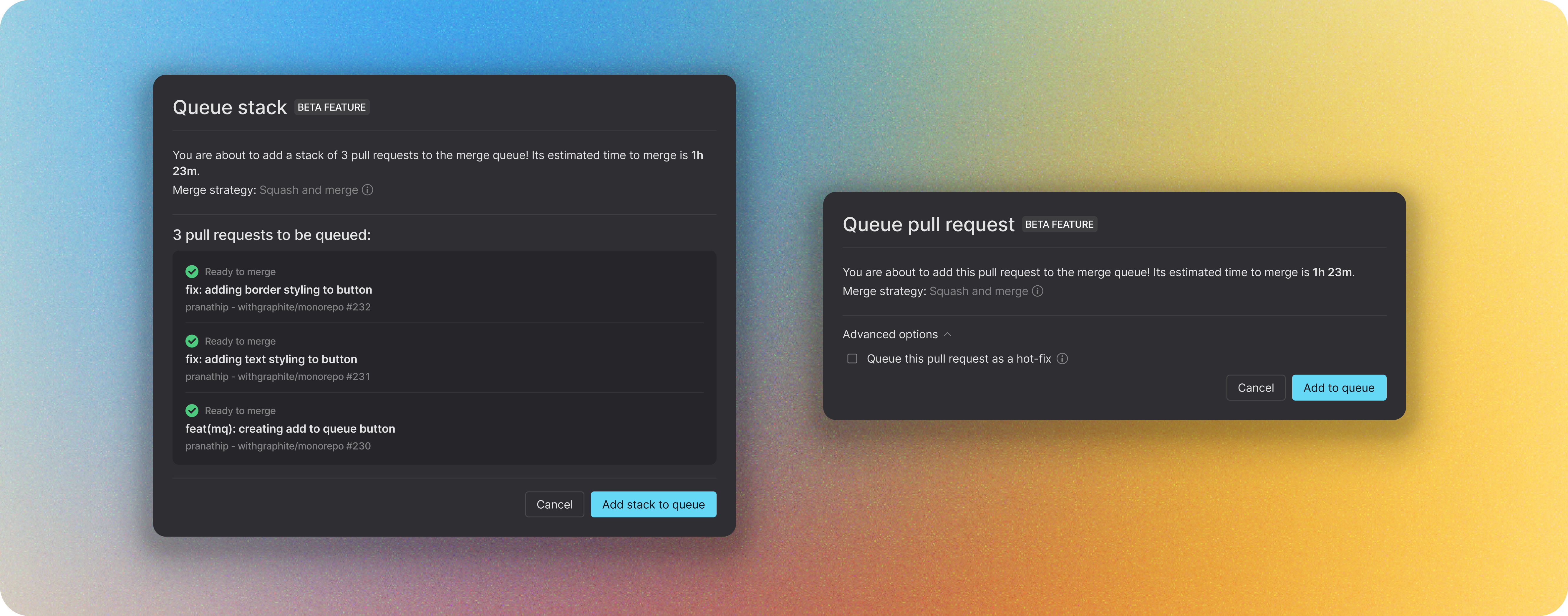 Once the Graphite merge queue is enabled on a repository, you'll still see the option to merge a pull request, but the confirmation modal will show an option to queue the PR rather than to merge it immediately. There are a few minor differences between the merge modal and the queue modal:
* You **cannot** override the merge strategy from the queue modal as you can from the merge modal. Merge strategy for the queue is set at the repository-level through your [repository settings](https://app.graphite.com/settings/repo)
* We don't support commit message/title edits from the queue modal as we do in the merge modal. For PRs merged using the squash and merge strategy, the PR title and PR description will be used for the commit message/title.
* When queuing individual PRs (not a stack), you have the option to queue the PR as a **hot-fix**. When you queue a PR as a hot-fix, your PR will automatically jump to the front of the queue. Note that it will still wait to rebase and rerun CI, but will merge next in line. Hot-fixes will be marked in the merge activity page with a small flame icon.
### Enqueue via label
Make sure you've [configured your repository](/set-up-merge-queue#enable-adding-to-the-queue-via-a-label) to enqueue PRs with a GitHub label.\
After you've created/configured a label which you want to use to indicate that a PR should be added to the queue, simply adding the label to any PR will enqueue the PR. There are a few things to note:
* If the label is added to a PR that isn't mergeable, it will toggle the PR's **merge when ready** property on and will be enqueued once mergeable
* If the label is removed from a PR, it will be removed from the queue (or merge when ready will be toggled off)
* If a PR is removed from the queue for any reason (failing checks, merge conflicts), the label will be removed
* If the label is added to a PR that is part of a stack, the label will be automatically added to all downstack PRs as well.
* If the label is removed from a PR that is part of a stack, the label will be automatically removed from all upstack PRs as well.
Once the Graphite merge queue is enabled on a repository, you'll still see the option to merge a pull request, but the confirmation modal will show an option to queue the PR rather than to merge it immediately. There are a few minor differences between the merge modal and the queue modal:
* You **cannot** override the merge strategy from the queue modal as you can from the merge modal. Merge strategy for the queue is set at the repository-level through your [repository settings](https://app.graphite.com/settings/repo)
* We don't support commit message/title edits from the queue modal as we do in the merge modal. For PRs merged using the squash and merge strategy, the PR title and PR description will be used for the commit message/title.
* When queuing individual PRs (not a stack), you have the option to queue the PR as a **hot-fix**. When you queue a PR as a hot-fix, your PR will automatically jump to the front of the queue. Note that it will still wait to rebase and rerun CI, but will merge next in line. Hot-fixes will be marked in the merge activity page with a small flame icon.
### Enqueue via label
Make sure you've [configured your repository](/set-up-merge-queue#enable-adding-to-the-queue-via-a-label) to enqueue PRs with a GitHub label.\
After you've created/configured a label which you want to use to indicate that a PR should be added to the queue, simply adding the label to any PR will enqueue the PR. There are a few things to note:
* If the label is added to a PR that isn't mergeable, it will toggle the PR's **merge when ready** property on and will be enqueued once mergeable
* If the label is removed from a PR, it will be removed from the queue (or merge when ready will be toggled off)
* If a PR is removed from the queue for any reason (failing checks, merge conflicts), the label will be removed
* If the label is added to a PR that is part of a stack, the label will be automatically added to all downstack PRs as well.
* If the label is removed from a PR that is part of a stack, the label will be automatically removed from all upstack PRs as well.
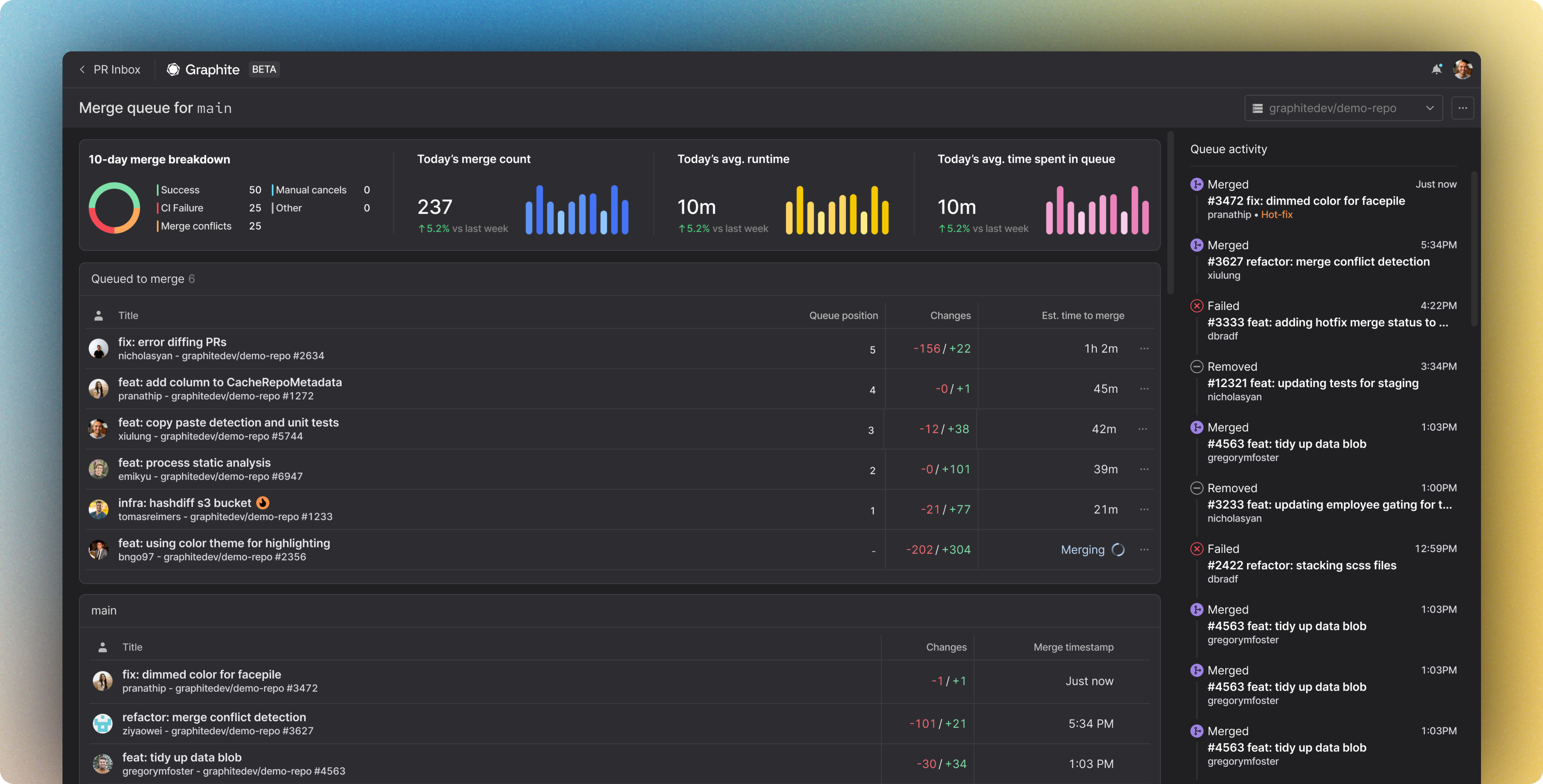 The merge activity page shows merge history for a given repository. You can select which repository you're viewing with the repository selector in the top right of the page.
#### PR details
Queued PRs display directly above the `trunk`'s merge history where you can see the PR's position in the queue, size, and estimated time to merge. Under the `...` menu, you also have the option to remove PRs (including the currently merging PR) from the queue.
#### Timeline
The timeline on the right side of the page shows the queue activity, which includes merges, hot-fixes, removals, and failures.
#### Pause the queue
In case you need to do so, you can pause the queue by clicking the `...` on the PR header and selecting `pause queue`. When the queue is paused, PRs can still be added to the queue but they **will not** be merged.
---
# Source: https://graphite-58cc94ce.mintlify.dev/docs/get-started.md
## Documentation Index
> Fetch the complete documentation index at: https://graphite-58cc94ce.mintlify.dev/docs/llms.txt
> Use this file to discover all available pages before exploring further.
# Overview
> Learn how to create, review, and merge stacked pull requests with Graphite.
The merge activity page shows merge history for a given repository. You can select which repository you're viewing with the repository selector in the top right of the page.
#### PR details
Queued PRs display directly above the `trunk`'s merge history where you can see the PR's position in the queue, size, and estimated time to merge. Under the `...` menu, you also have the option to remove PRs (including the currently merging PR) from the queue.
#### Timeline
The timeline on the right side of the page shows the queue activity, which includes merges, hot-fixes, removals, and failures.
#### Pause the queue
In case you need to do so, you can pause the queue by clicking the `...` on the PR header and selecting `pause queue`. When the queue is paused, PRs can still be added to the queue but they **will not** be merged.
---
# Source: https://graphite-58cc94ce.mintlify.dev/docs/get-started.md
## Documentation Index
> Fetch the complete documentation index at: https://graphite-58cc94ce.mintlify.dev/docs/llms.txt
> Use this file to discover all available pages before exploring further.
# Overview
> Learn how to create, review, and merge stacked pull requests with Graphite.

 ## External merge queue integration
If you already use a separate external merge queue offering, Graphite's external merge queue integration simplifies the merging experience. While it doesn't experience the same stack-aware optimizations as Graphite's merge queue, it can be a quick way to ramp-up your team. See [external merge queue integration](/external-merge-queue-integration) for more info.
---
# Source: https://graphite-58cc94ce.mintlify.dev/docs/gt-mcp.md
## Documentation Index
> Fetch the complete documentation index at: https://graphite-58cc94ce.mintlify.dev/docs/llms.txt
> Use this file to discover all available pages before exploring further.
## GT MCP
> Use the Graphite CLI with AI agents through Model Context Protocol
## External merge queue integration
If you already use a separate external merge queue offering, Graphite's external merge queue integration simplifies the merging experience. While it doesn't experience the same stack-aware optimizations as Graphite's merge queue, it can be a quick way to ramp-up your team. See [external merge queue integration](/external-merge-queue-integration) for more info.
---
# Source: https://graphite-58cc94ce.mintlify.dev/docs/gt-mcp.md
## Documentation Index
> Fetch the complete documentation index at: https://graphite-58cc94ce.mintlify.dev/docs/llms.txt
> Use this file to discover all available pages before exploring further.
## GT MCP
> Use the Graphite CLI with AI agents through Model Context Protocol
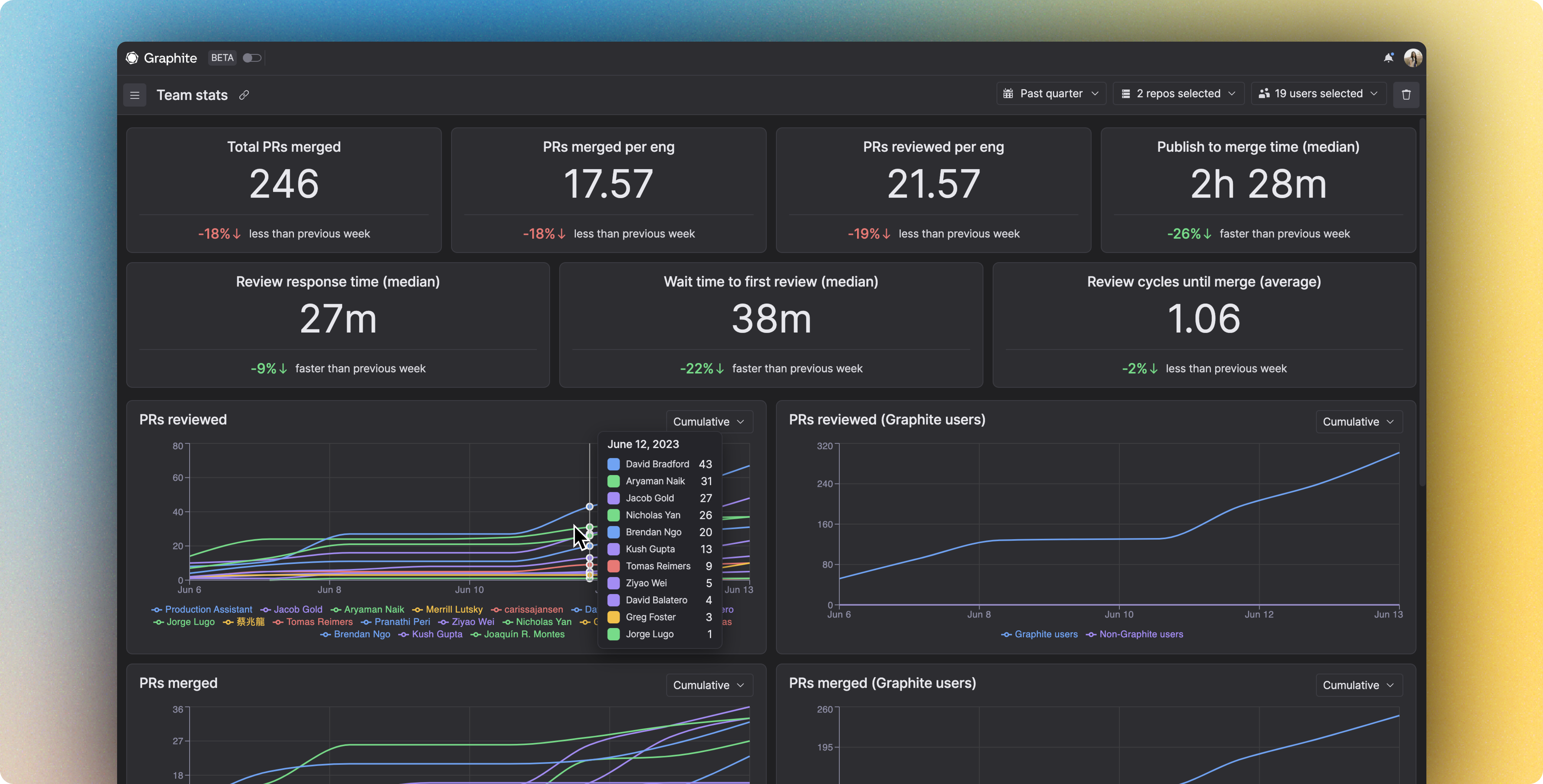 ### What kind of data will I see?
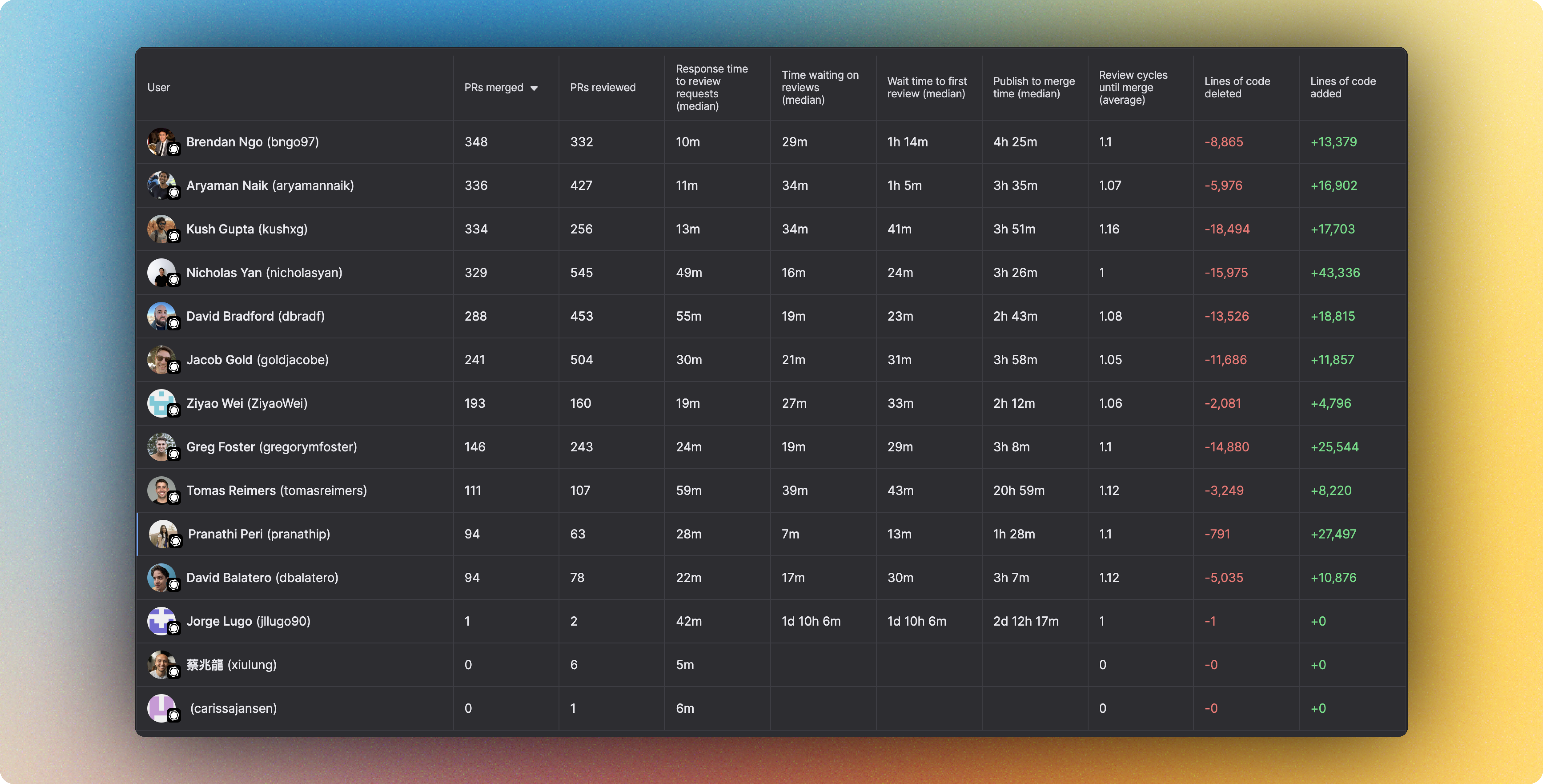 ### Adjust the Insights time period
The statistics that are shown on the Insights page are aggregated over a specific time period. Graphite provides four fixed time periods for your convenience: the past week, month, quarter, or year. You also have the option to input a custom time period.
Each Graphite plan includes a defined sync period for historical GitHub data. The Starter plan includes insights going back up to 2 months. The Standard and Enterprise plans include up to 2 years.
### Select users
You also have the ability to filter and view insights for specific people or groups of people, as well as the aggregate across your entire organization.
---
# Source: https://graphite-58cc94ce.mintlify.dev/docs/install-the-cli.md
## Documentation Index
> Fetch the complete documentation index at: https://graphite-58cc94ce.mintlify.dev/docs/llms.txt
> Use this file to discover all available pages before exploring further.
## Install & Authenticate The CLI
> Learn how to install & authenticate Graphite's CLI to start creating stacked pull requests.
The Graphite CLI is a tool to help you break up large engineering tasks into a series of small, incremental code changes directly from the command line. The Graphite CLI makes it easy to stay unblocked as an author, develop faster, and provide more helpful comments as a reviewer.
The Graphite CLI is fully compatible with `git`—just install it on an existing repository and begin using our suite of `gt` commands.
## Install the CLI
Install the Graphite CLI using either [Homebrew](https://brew.sh/) or [npm](https://www.npmjs.com/):
### brew installation
We recommend installing via Homebrew for smoothest sailing, [even on Linux!](https://docs.brew.sh/Homebrew-on-Linux)
```bash Terminal theme={null}
brew install withgraphite/tap/graphite
gt --version
```
### npm installation
```bash Terminal theme={null}
npm install -g @withgraphite/graphite-cli@stable
gt --version
```
### node.js versioning (for npm installation only)
We develop Graphite with Node.js v22, but Graphite should run with no major issues on any current version of Node. If you run into any issues that seem Node-related, try using v22 as a first workaround! If that doesn't work, we recommend the `brew` installation, which ships standalone binaries for both MacOS and Linux.
### git versioning
As of v1.0.0, Graphite requires a minimum `git --version` of 2.38.0.
#### Ubuntu
Ubuntu LTS currently provides a relatively old version of Git by default. You can source the latest version from the \`git-core\` PPA repository.
```bash Terminal theme={null}
sudo add-apt-repository ppa:git-core/ppa
sudo apt update
sudo apt install git
```
[Read more on the Git website](https://git-scm.com/download/linux)
#### MacOS
Upgrading to the latest version of XCode tooling, provides a recent version of git that's suitable for Graphite. You can also use Homebrew to install the latest version of Git.
#### Unsafe: overriding
If you believe this is an error, and your git version is higher than 2.38.0 but something about it's packaging is making Graphite incorrectly infer it's not the right version, you can unsafely suppress this message via `GRAPHITE_IGNORE_GIT_VERSION=1`. This is discouraged, so be careful; most Graphite commands will not work on older versions.
### Windows
Currently, the best way to install Graphite on Windows is via `npm`. If you do not use Node in your day-to-day work, there are a variety of ways to get it set up on your system, listed in the NPM documentation.
[Click here for instructions.](https://docs.npmjs.com/downloading-and-installing-node-js-and-npm#os-x-or-windows-node-installers)
Alternatively, you can use either `brew` or `npm` on WSL (Windows Subsystem for Linux).
We are always working towards better native Windows support, although occasionally it falls behind \*nix systems in priority. If you run into any issues, especially if they are blocking your workflow, please reach out in our [community Slack](https://community.graphite.com).
## Authenticate the CLI
### Adjust the Insights time period
The statistics that are shown on the Insights page are aggregated over a specific time period. Graphite provides four fixed time periods for your convenience: the past week, month, quarter, or year. You also have the option to input a custom time period.
Each Graphite plan includes a defined sync period for historical GitHub data. The Starter plan includes insights going back up to 2 months. The Standard and Enterprise plans include up to 2 years.
### Select users
You also have the ability to filter and view insights for specific people or groups of people, as well as the aggregate across your entire organization.
---
# Source: https://graphite-58cc94ce.mintlify.dev/docs/install-the-cli.md
## Documentation Index
> Fetch the complete documentation index at: https://graphite-58cc94ce.mintlify.dev/docs/llms.txt
> Use this file to discover all available pages before exploring further.
## Install & Authenticate The CLI
> Learn how to install & authenticate Graphite's CLI to start creating stacked pull requests.
The Graphite CLI is a tool to help you break up large engineering tasks into a series of small, incremental code changes directly from the command line. The Graphite CLI makes it easy to stay unblocked as an author, develop faster, and provide more helpful comments as a reviewer.
The Graphite CLI is fully compatible with `git`—just install it on an existing repository and begin using our suite of `gt` commands.
## Install the CLI
Install the Graphite CLI using either [Homebrew](https://brew.sh/) or [npm](https://www.npmjs.com/):
### brew installation
We recommend installing via Homebrew for smoothest sailing, [even on Linux!](https://docs.brew.sh/Homebrew-on-Linux)
```bash Terminal theme={null}
brew install withgraphite/tap/graphite
gt --version
```
### npm installation
```bash Terminal theme={null}
npm install -g @withgraphite/graphite-cli@stable
gt --version
```
### node.js versioning (for npm installation only)
We develop Graphite with Node.js v22, but Graphite should run with no major issues on any current version of Node. If you run into any issues that seem Node-related, try using v22 as a first workaround! If that doesn't work, we recommend the `brew` installation, which ships standalone binaries for both MacOS and Linux.
### git versioning
As of v1.0.0, Graphite requires a minimum `git --version` of 2.38.0.
#### Ubuntu
Ubuntu LTS currently provides a relatively old version of Git by default. You can source the latest version from the \`git-core\` PPA repository.
```bash Terminal theme={null}
sudo add-apt-repository ppa:git-core/ppa
sudo apt update
sudo apt install git
```
[Read more on the Git website](https://git-scm.com/download/linux)
#### MacOS
Upgrading to the latest version of XCode tooling, provides a recent version of git that's suitable for Graphite. You can also use Homebrew to install the latest version of Git.
#### Unsafe: overriding
If you believe this is an error, and your git version is higher than 2.38.0 but something about it's packaging is making Graphite incorrectly infer it's not the right version, you can unsafely suppress this message via `GRAPHITE_IGNORE_GIT_VERSION=1`. This is discouraged, so be careful; most Graphite commands will not work on older versions.
### Windows
Currently, the best way to install Graphite on Windows is via `npm`. If you do not use Node in your day-to-day work, there are a variety of ways to get it set up on your system, listed in the NPM documentation.
[Click here for instructions.](https://docs.npmjs.com/downloading-and-installing-node-js-and-npm#os-x-or-windows-node-installers)
Alternatively, you can use either `brew` or `npm` on WSL (Windows Subsystem for Linux).
We are always working towards better native Windows support, although occasionally it falls behind \*nix systems in priority. If you run into any issues, especially if they are blocking your workflow, please reach out in our [community Slack](https://community.graphite.com).
## Authenticate the CLI
 With Graphite's Jira integration you can view, link, and create issues associated with pull requests right from the Graphite web app.
### Prerequisites
* A Jira account
## Connect Jira
Connect your Jira account directly from the [*Connected accounts* settings page](https://app.graphite.com/settings/connected-accounts) on the Graphite app.
With Graphite's Jira integration you can view, link, and create issues associated with pull requests right from the Graphite web app.
### Prerequisites
* A Jira account
## Connect Jira
Connect your Jira account directly from the [*Connected accounts* settings page](https://app.graphite.com/settings/connected-accounts) on the Graphite app.
 After clicking the `Connect` button you will be directed to Jira to finish the integration setup process.
 Once the integration is successfully configured, you should see confirmation on the **Connected accounts** settings page.
## Using the Jira integration on the PR page
After you've installed the integration, you can will then be able to view any associated Jira issues in the sidebar of the **Pull Request** page.
Once the integration is successfully configured, you should see confirmation on the **Connected accounts** settings page.
## Using the Jira integration on the PR page
After you've installed the integration, you can will then be able to view any associated Jira issues in the sidebar of the **Pull Request** page.
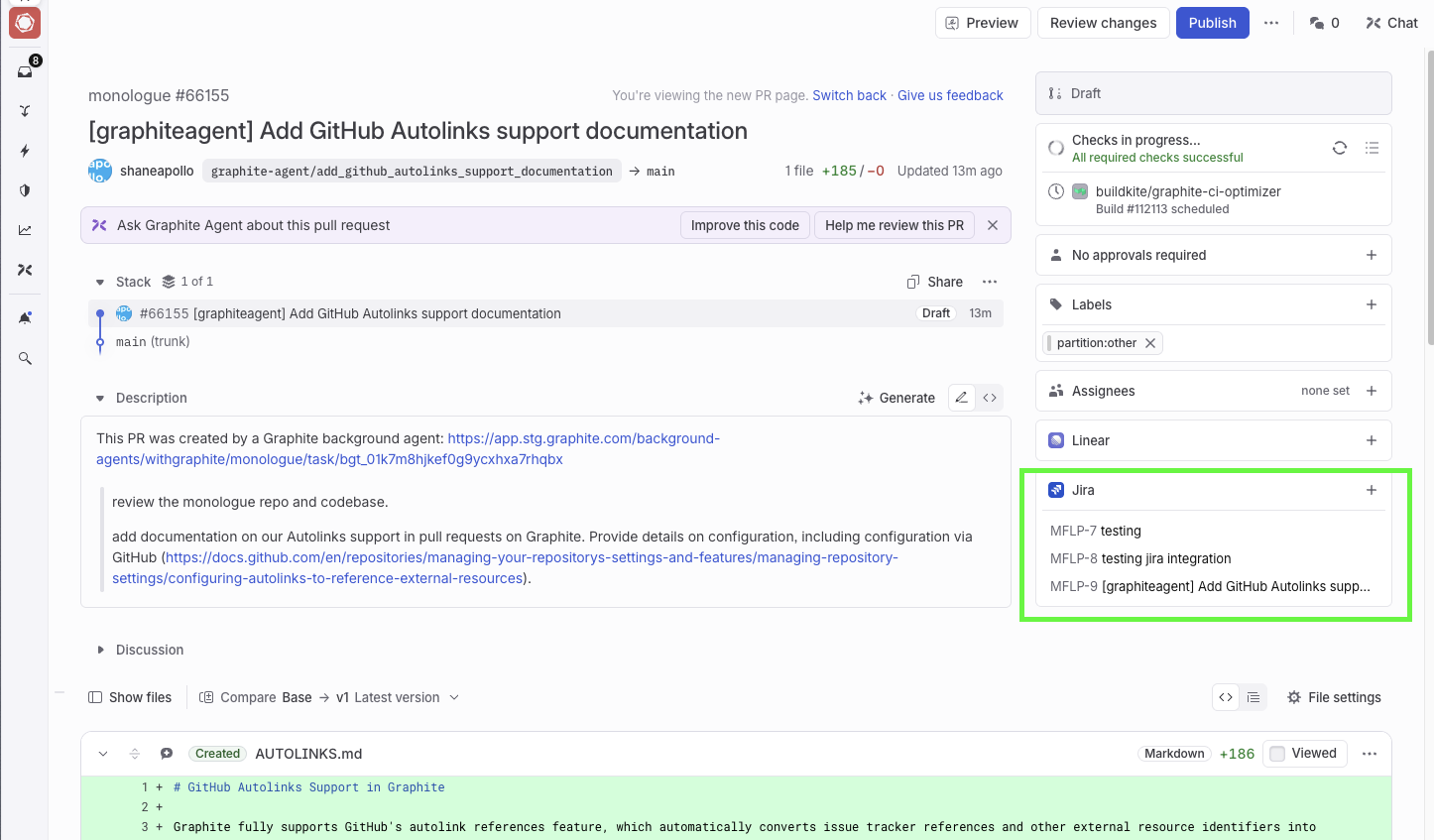 ### Linking an existing issue
To link a Jira issue to a pull request, click the **+** symbol located in the issue tracker sidebar component.
### Linking an existing issue
To link a Jira issue to a pull request, click the **+** symbol located in the issue tracker sidebar component.
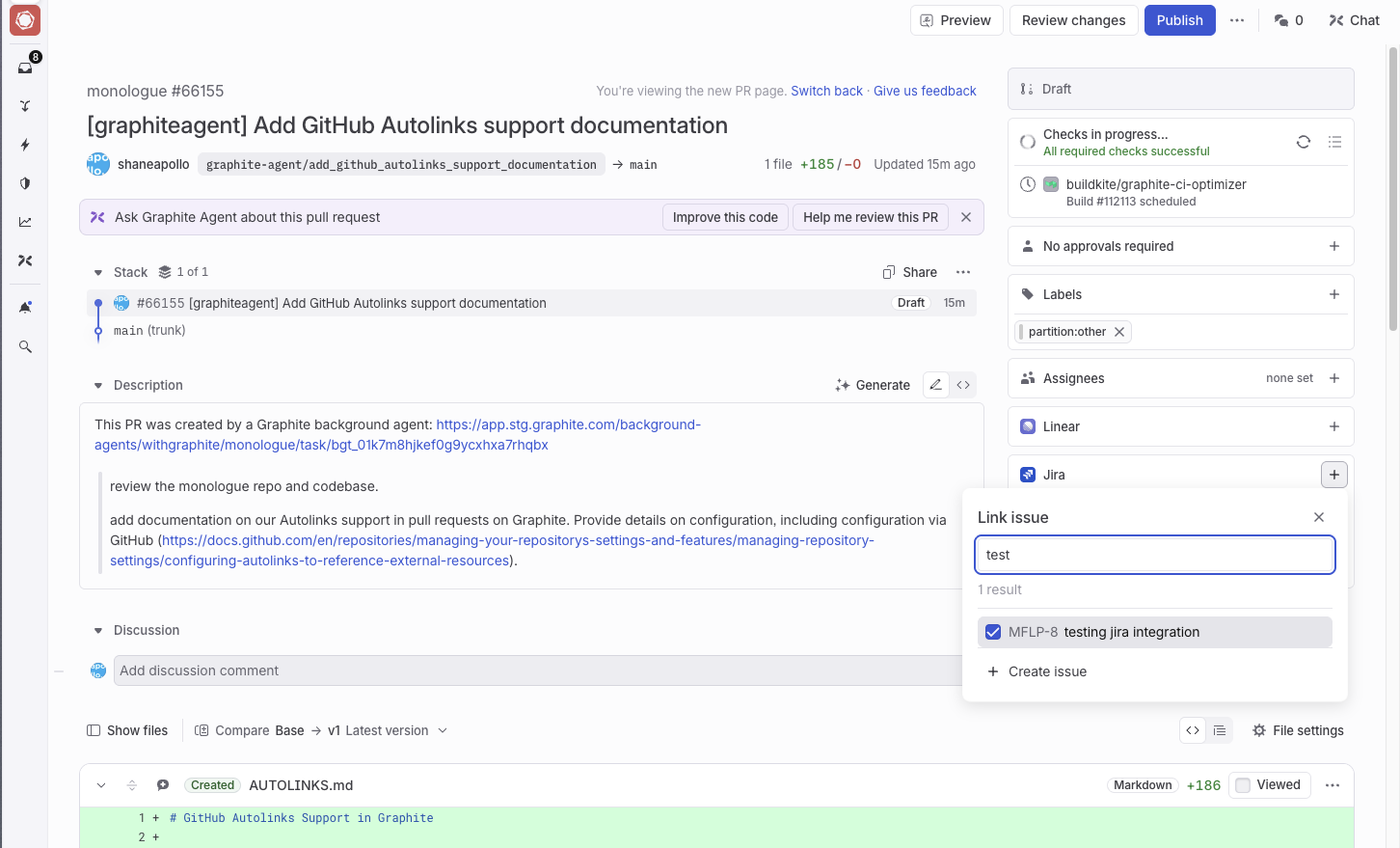 From here you can:
* Search for a Jira Issue by name
* \[OR] Paste a Jira Issue URL
### Creating a new Jira Issue from PR page
To create and link a new Jira Issue from the Pull Request page, you can click `Create new issue` in the issue tracker sidebar component.
From here you can:
* Search for a Jira Issue by name
* \[OR] Paste a Jira Issue URL
### Creating a new Jira Issue from PR page
To create and link a new Jira Issue from the Pull Request page, you can click `Create new issue` in the issue tracker sidebar component.
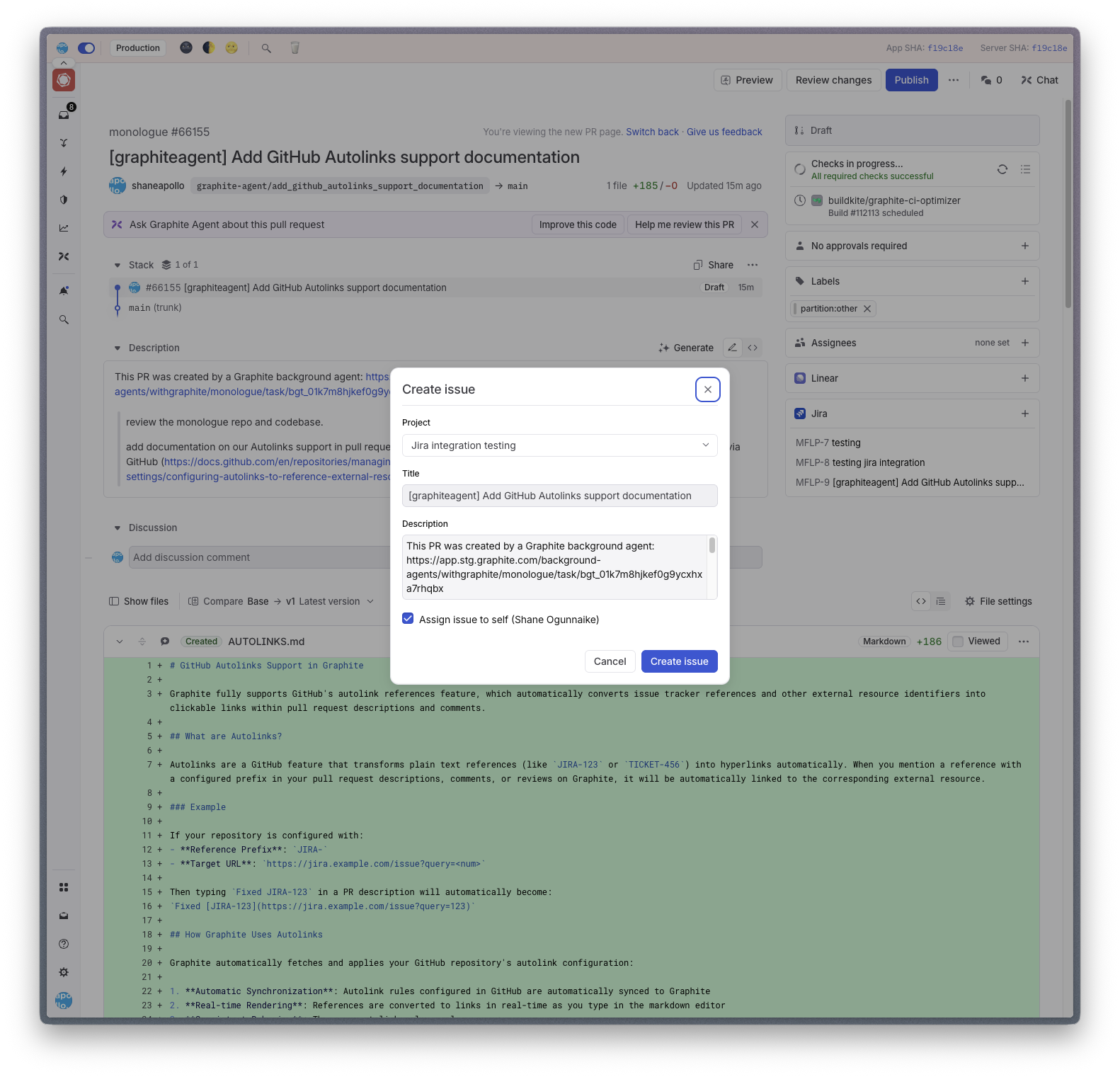 From here you can assign a *Project, Issue Type, Summary, Description, Status, and Priority*. Once you click `Create issue`. The issue will be created in Jira, and will be linked to the current pull request.
---
# Source: https://graphite-58cc94ce.mintlify.dev/docs/learn-to-stack.md
## Documentation Index
> Fetch the complete documentation index at: https://graphite-58cc94ce.mintlify.dev/docs/llms.txt
> Use this file to discover all available pages before exploring further.
## Learn to Stack
> A practical starter guide for trunk-based development and stacking.
From here you can assign a *Project, Issue Type, Summary, Description, Status, and Priority*. Once you click `Create issue`. The issue will be created in Jira, and will be linked to the current pull request.
---
# Source: https://graphite-58cc94ce.mintlify.dev/docs/learn-to-stack.md
## Documentation Index
> Fetch the complete documentation index at: https://graphite-58cc94ce.mintlify.dev/docs/llms.txt
> Use this file to discover all available pages before exploring further.
## Learn to Stack
> A practical starter guide for trunk-based development and stacking.
 With Graphite's Linear integration you can view, link, and create issues associated with pull requests right from the Graphite web app.
### Prerequisites
* A Linear account
## Connect Linear
Connect your Linear account directly from the [*Connected accounts* settings page](https://app.graphite.com/settings/connected-accounts) on the Graphite app.
With Graphite's Linear integration you can view, link, and create issues associated with pull requests right from the Graphite web app.
### Prerequisites
* A Linear account
## Connect Linear
Connect your Linear account directly from the [*Connected accounts* settings page](https://app.graphite.com/settings/connected-accounts) on the Graphite app.
 After clicking the `Connect` button you will be directed to Linear to finish the integration setup process.
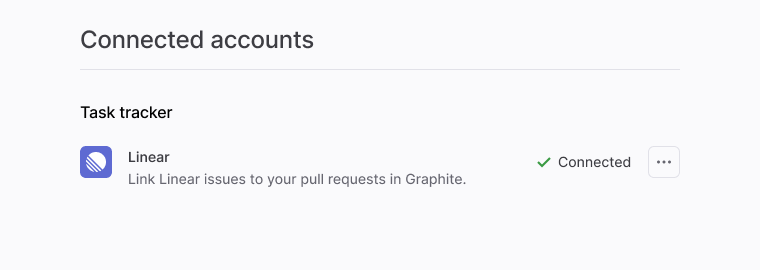 Once the integration is successfully configured, you should see confirmation on the **Connected accounts** settings page.
## Using the Linear integration on the PR page
After you've installed the integration, you can will then be able to view any associated Linear issues in the sidebar of the **Pull Request** page.
Once the integration is successfully configured, you should see confirmation on the **Connected accounts** settings page.
## Using the Linear integration on the PR page
After you've installed the integration, you can will then be able to view any associated Linear issues in the sidebar of the **Pull Request** page.
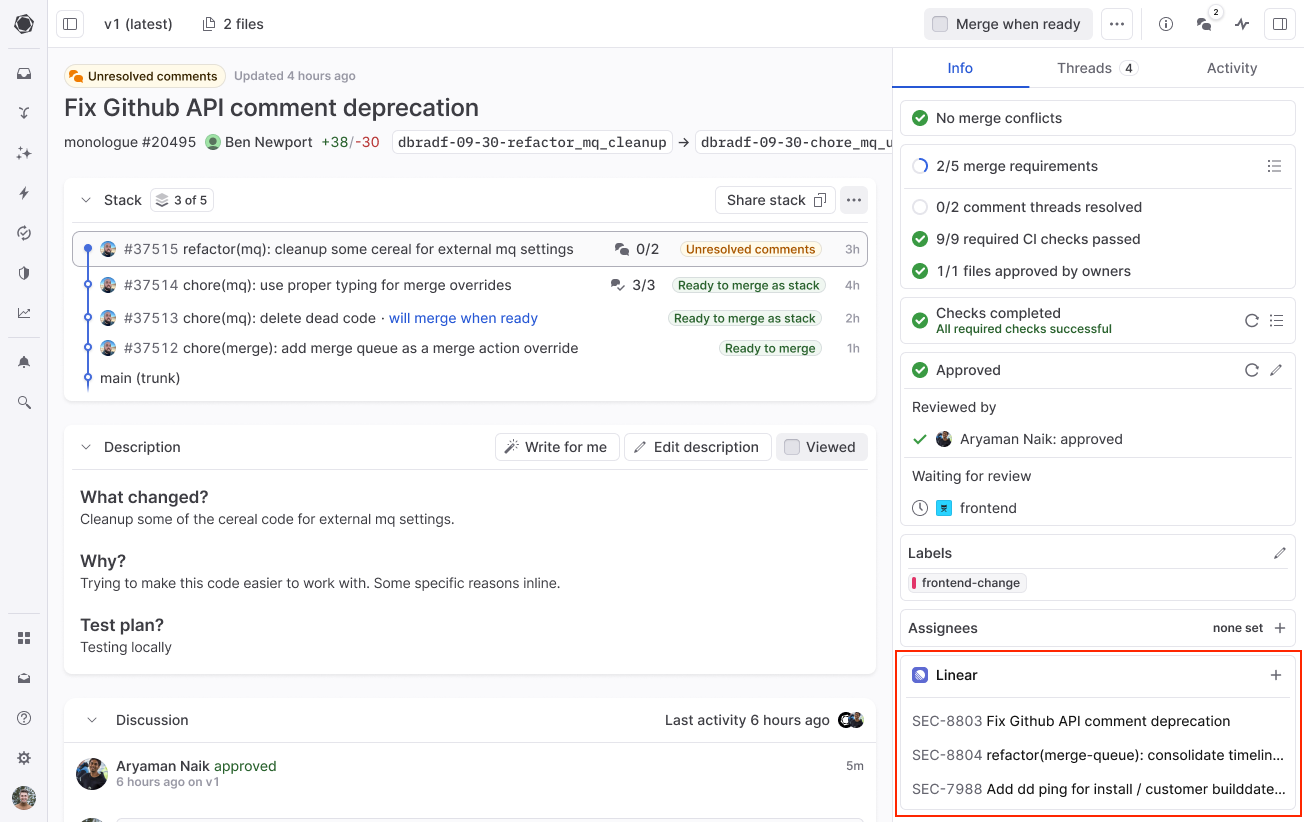 ### Linking an existing issue
To link a Linear issue to a pull request, click the **+** symbol located in the issue tracker sidebar component.
### Linking an existing issue
To link a Linear issue to a pull request, click the **+** symbol located in the issue tracker sidebar component.
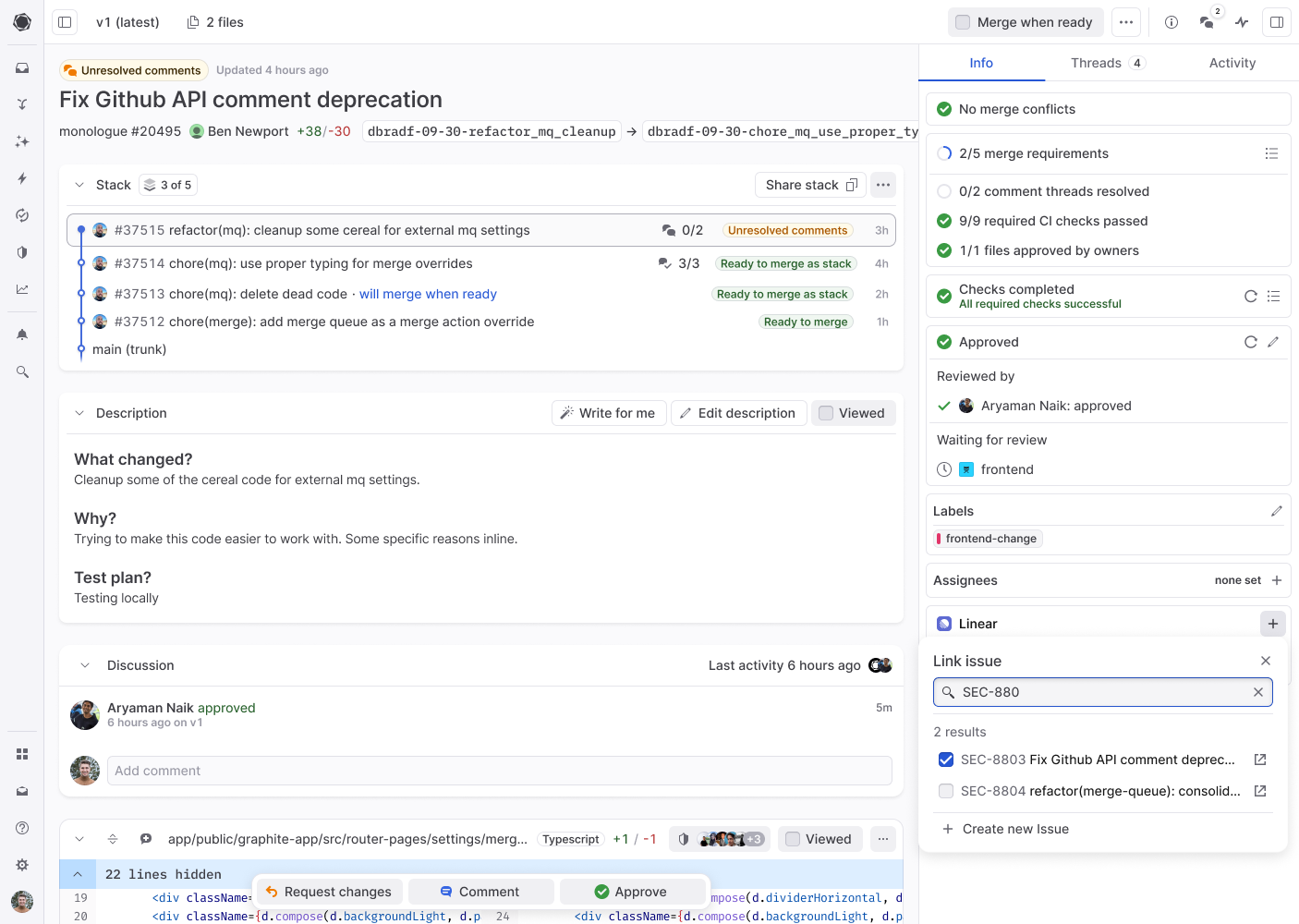 From here you can:
* Search for a Linear Issue by name
* \[OR] Paste a Linear Issue URL
### Creating a new Linear Issue from PR page
To create and link a new Linear Issue from the Pull Request page, you can click `Create new issue` in the issue tracker sidebar component.
From here you can:
* Search for a Linear Issue by name
* \[OR] Paste a Linear Issue URL
### Creating a new Linear Issue from PR page
To create and link a new Linear Issue from the Pull Request page, you can click `Create new issue` in the issue tracker sidebar component.
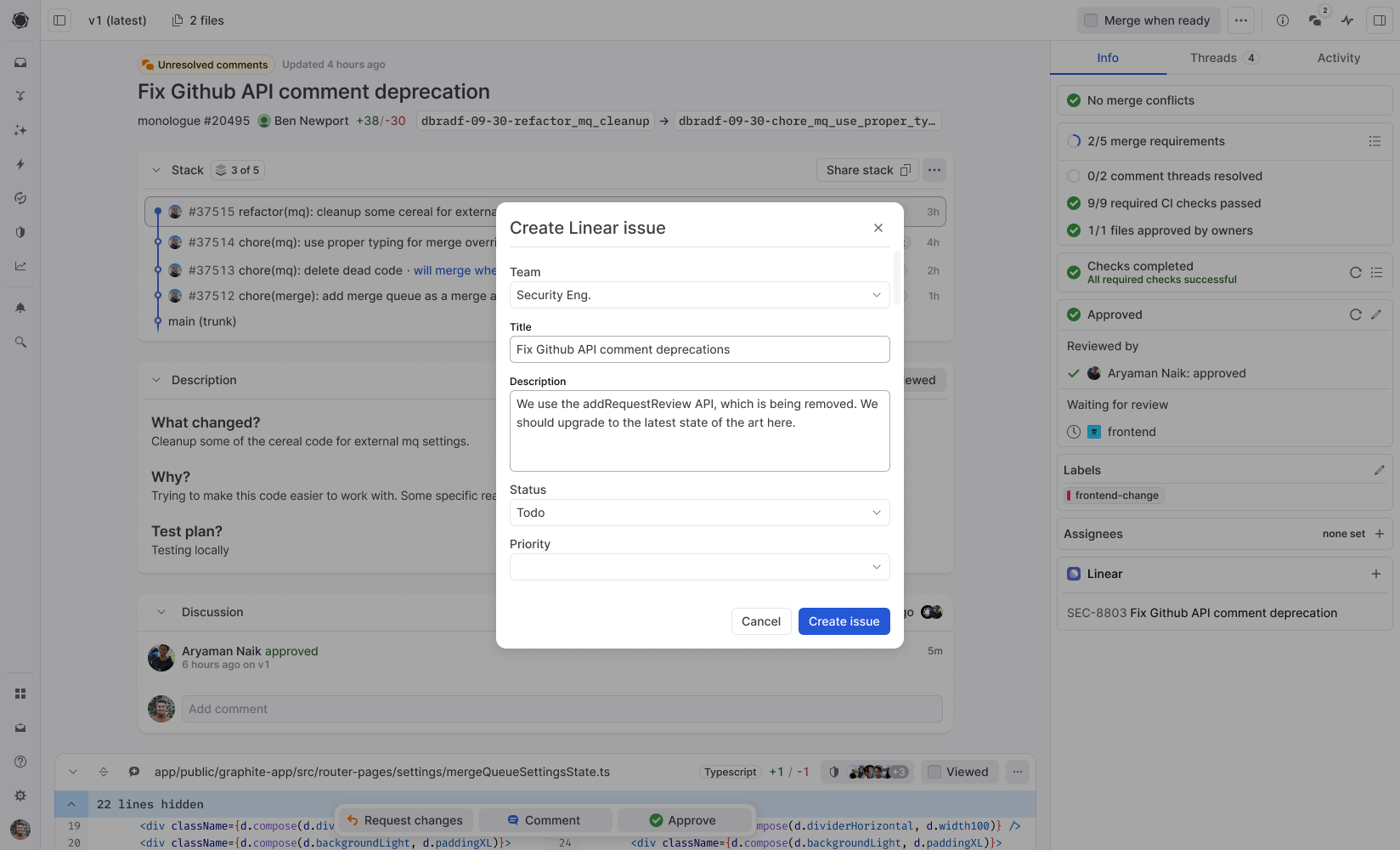 From here you can assign a *Team, Title, Description, Status, and Priority*. Once you click `Create issue`. The issue will be created in Linear, and will be linked to the current pull request.
---
# Source: https://graphite-58cc94ce.mintlify.dev/docs/memes-and-macros.md
## Documentation Index
> Fetch the complete documentation index at: https://graphite-58cc94ce.mintlify.dev/docs/llms.txt
> Use this file to discover all available pages before exploring further.
## Memes And Macros
> Add some fun to your code reviews.
## Memes and macros
One of the best parts about reviewing PRs in the Graphite app is the ability to use custom memes and macros in your comments, descriptions, and reviews.
### Upload new memes
Each organization on Graphite has their own custom meme library, which you can access on the `Meme Library` tab of the PR inbox, or by using the `G` + `/` keyboard shortcut. To upload a gif or image, click the `upload` button and set a name for the meme:
From here you can assign a *Team, Title, Description, Status, and Priority*. Once you click `Create issue`. The issue will be created in Linear, and will be linked to the current pull request.
---
# Source: https://graphite-58cc94ce.mintlify.dev/docs/memes-and-macros.md
## Documentation Index
> Fetch the complete documentation index at: https://graphite-58cc94ce.mintlify.dev/docs/llms.txt
> Use this file to discover all available pages before exploring further.
## Memes And Macros
> Add some fun to your code reviews.
## Memes and macros
One of the best parts about reviewing PRs in the Graphite app is the ability to use custom memes and macros in your comments, descriptions, and reviews.
### Upload new memes
Each organization on Graphite has their own custom meme library, which you can access on the `Meme Library` tab of the PR inbox, or by using the `G` + `/` keyboard shortcut. To upload a gif or image, click the `upload` button and set a name for the meme:
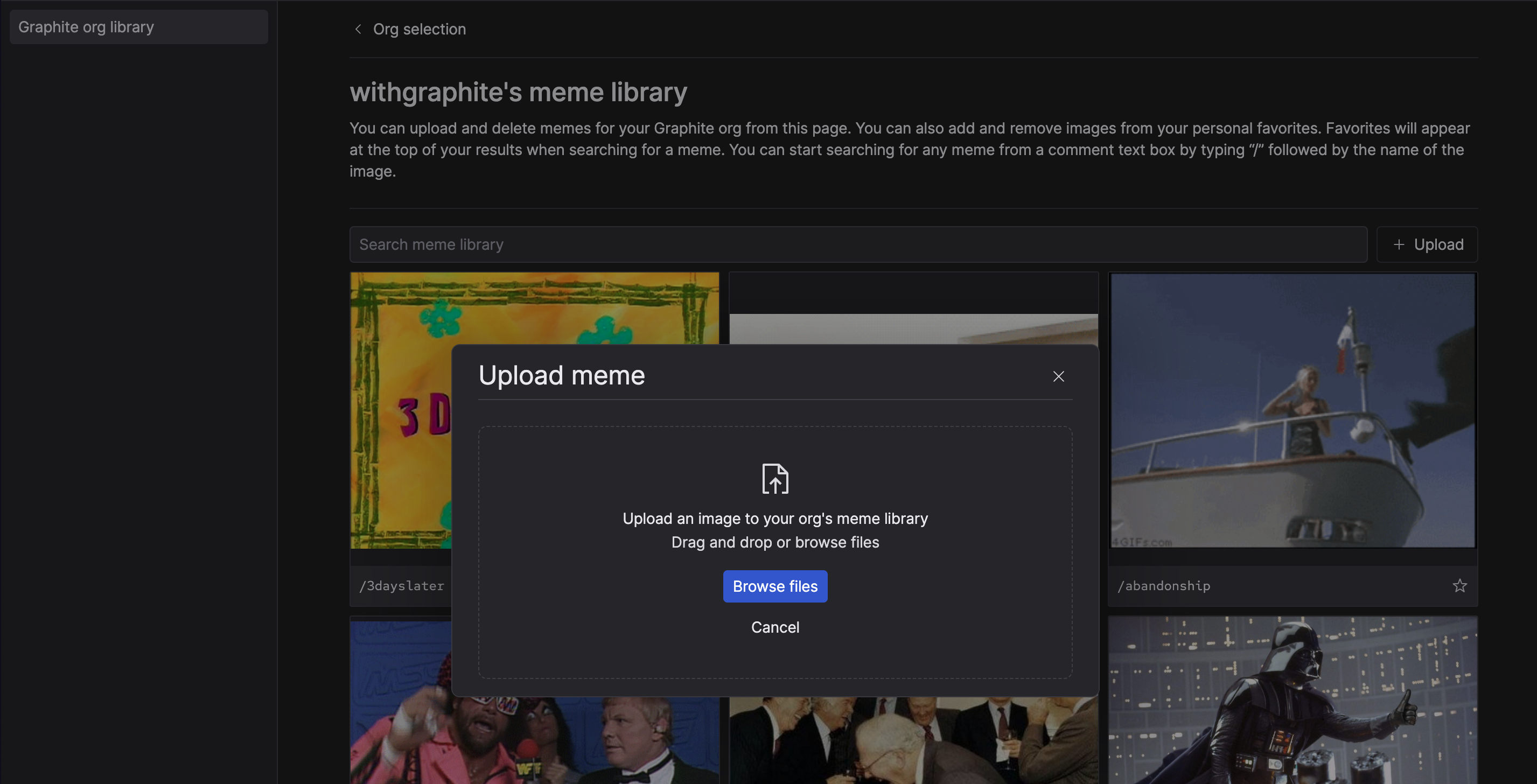 ### Use custom memes in comments and reviews
To add a meme to your comment or review, you can click the "meme" icon in the footer of the comment box markdown editor to browse your meme library, or use the `/` character to search for a meme by name.
---
# Source: https://graphite-58cc94ce.mintlify.dev/docs/menu-bar-app.md
## Documentation Index
> Fetch the complete documentation index at: https://graphite-58cc94ce.mintlify.dev/docs/llms.txt
> Use this file to discover all available pages before exploring further.
## Menu Bar App (Mac)
> Keep track of all of your PRs from your Mac menu bar.
### Use custom memes in comments and reviews
To add a meme to your comment or review, you can click the "meme" icon in the footer of the comment box markdown editor to browse your meme library, or use the `/` character to search for a meme by name.
---
# Source: https://graphite-58cc94ce.mintlify.dev/docs/menu-bar-app.md
## Documentation Index
> Fetch the complete documentation index at: https://graphite-58cc94ce.mintlify.dev/docs/llms.txt
> Use this file to discover all available pages before exploring further.
## Menu Bar App (Mac)
> Keep track of all of your PRs from your Mac menu bar.
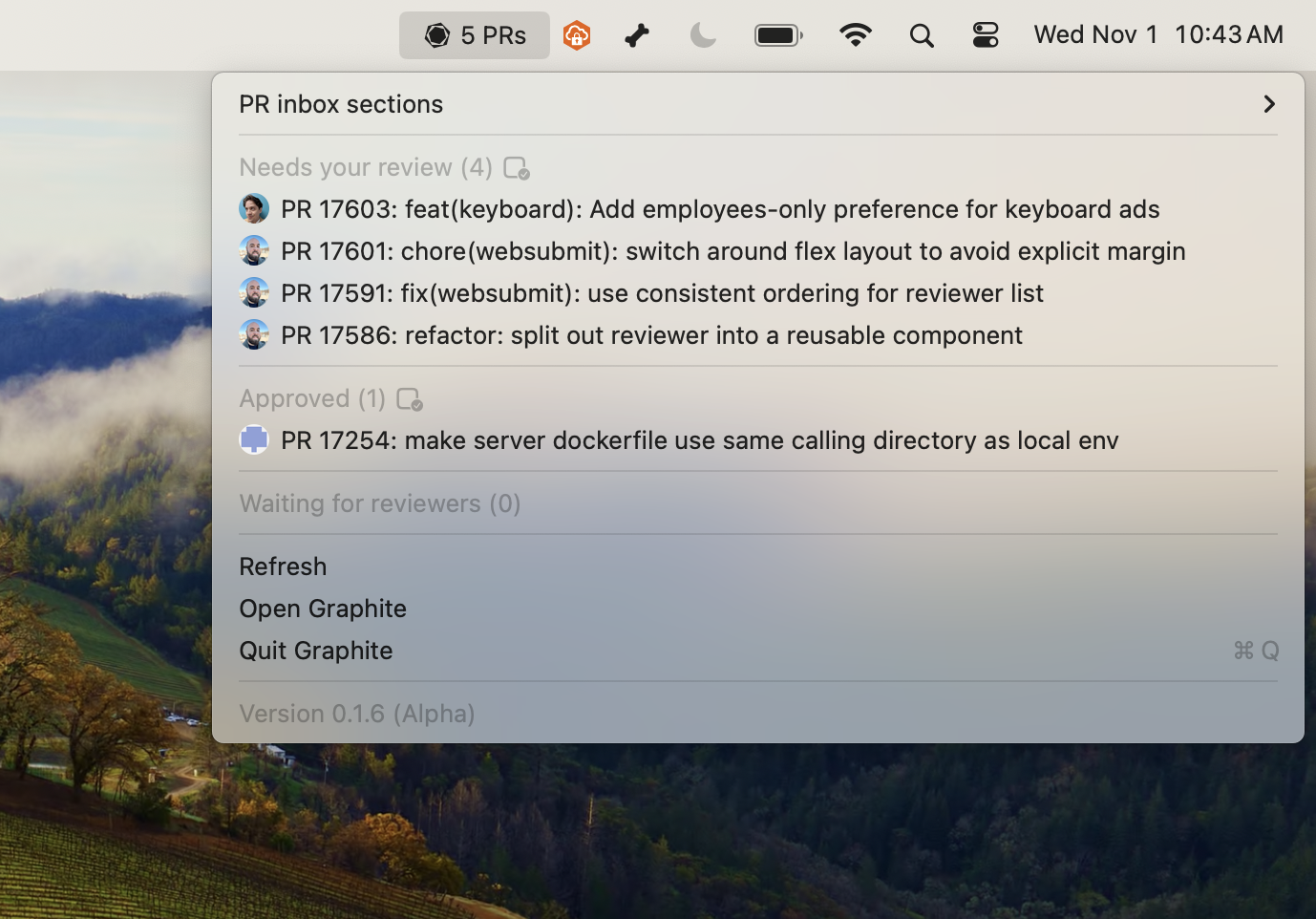 ## Setup instructions
1. The Graphite CLI is a prerequisite for the menu bar app. Follow [these instructions](/install-the-cli) to set it up on your machine.
2. Download the [menu bar app](https://system-tray-app-releases-prod.s3.us-west-2.amazonaws.com/latest/Graphite-menu-bar.dmg).
---
# Source: https://graphite-58cc94ce.mintlify.dev/docs/merge-pull-requests.md
## Documentation Index
> Fetch the complete documentation index at: https://graphite-58cc94ce.mintlify.dev/docs/llms.txt
> Use this file to discover all available pages before exploring further.
## Merge Pull Requests
> Learn how to seamlessly merge a single PR or stack of PRs with Graphite and handle merge conflicts efficiently.
Merging a stack of PRs manually through GitHub can be time-consuming and involve a lot of context switching. You merge, rebase, wait for CI to pass, and merge again all the way up the stack—or you're forced to ditch the clean PRs you've carefully created, squashing your changes back into a single mega-PR for the sake of merge speed.
Graphite offers an automated solution that gives you the best of both worlds.
Once your PR is approved and passes CI (and any other checks or merge protections you've enabled in GitHub), you can merge it from Graphite. Just click the purple "Merge" button on the right side of the PR title bar.
## Merge a stack of PRs
Depending on which PR you are viewing in the stack, this button will behave differently:
* If you're on the first PR in the stack or are merging a stack of one, the `Merge` button will just merge that single PR.
* If you're in the middle of a stack, `Merge N` where `N` is your position in the stack and will merge all PRs up until the `N`th.
* If you're at the top of the stack, all PRs in the stack will be merged.
`Merge (N) PRs` lets you fire-and-forget merging your stack. When you click the button, Graphite automatically merges each of your PRs one-by-one.
This feature rebases PRs on an as-needed basis (to avoid merge conflicts generated by GitHub's lack of stack support). And it waits for GitHub checks to pass at each step of the way before merging.
## Setup instructions
1. The Graphite CLI is a prerequisite for the menu bar app. Follow [these instructions](/install-the-cli) to set it up on your machine.
2. Download the [menu bar app](https://system-tray-app-releases-prod.s3.us-west-2.amazonaws.com/latest/Graphite-menu-bar.dmg).
---
# Source: https://graphite-58cc94ce.mintlify.dev/docs/merge-pull-requests.md
## Documentation Index
> Fetch the complete documentation index at: https://graphite-58cc94ce.mintlify.dev/docs/llms.txt
> Use this file to discover all available pages before exploring further.
## Merge Pull Requests
> Learn how to seamlessly merge a single PR or stack of PRs with Graphite and handle merge conflicts efficiently.
Merging a stack of PRs manually through GitHub can be time-consuming and involve a lot of context switching. You merge, rebase, wait for CI to pass, and merge again all the way up the stack—or you're forced to ditch the clean PRs you've carefully created, squashing your changes back into a single mega-PR for the sake of merge speed.
Graphite offers an automated solution that gives you the best of both worlds.
Once your PR is approved and passes CI (and any other checks or merge protections you've enabled in GitHub), you can merge it from Graphite. Just click the purple "Merge" button on the right side of the PR title bar.
## Merge a stack of PRs
Depending on which PR you are viewing in the stack, this button will behave differently:
* If you're on the first PR in the stack or are merging a stack of one, the `Merge` button will just merge that single PR.
* If you're in the middle of a stack, `Merge N` where `N` is your position in the stack and will merge all PRs up until the `N`th.
* If you're at the top of the stack, all PRs in the stack will be merged.
`Merge (N) PRs` lets you fire-and-forget merging your stack. When you click the button, Graphite automatically merges each of your PRs one-by-one.
This feature rebases PRs on an as-needed basis (to avoid merge conflicts generated by GitHub's lack of stack support). And it waits for GitHub checks to pass at each step of the way before merging.
 ### Compatibility with GitHub branch protection rules
If you have the *dismiss stale pull request approvals when new commits are pushed* branch protection rule enabled for your repository on GitHub, you will **not** be able to successfully merge a stack with the Graphite UI. [See our documentation for configuring GitHub repository settings](https://graphite.com/docs/github-configuration-guidelines#required-settings) for more information and a workaround.
### Compatibility with GitHub branch protection rules
If you have the *dismiss stale pull request approvals when new commits are pushed* branch protection rule enabled for your repository on GitHub, you will **not** be able to successfully merge a stack with the Graphite UI. [See our documentation for configuring GitHub repository settings](https://graphite.com/docs/github-configuration-guidelines#required-settings) for more information and a workaround.
 ## Resolve merge conflicts
If `Merge (N)` fails due to a rebase conflict, go to your terminal and run `gt sync` && `gt restack` && `gt submit --stack` (resolving any conflicts along the way and running `gt continue`). Once you've done this, go back to the affected PR in Graphite (or to the same place in the stack where you initially kicked off the `Merge (N)` job), and click `Merge (N)` one more time to re-queue the PR for merging.
### Types of merge conflicts stack merge can resolve
When PRs are merged on GitHub using a squash and merge or a rebase and merge, GitHub [creates a commit/set of commits](https://docs.github.com/en/pull-requests/collaborating-with-pull-requests/incorporating-changes-from-a-pull-request/about-pull-request-merges#squashing-and-merging-a-long-running-branch) for those merged changes.
This means that if you have a stack with `PR A` at the base, followed by `PR B` and `PR C`, when `PR A` is merged into trunk:
* GitHub creates a commit or set of commits on trunk for the changes in `PR A`.
* Critically, because this is a new commit, the common ancestor of `PR B` and trunk does not change.
* As a result, GitHub thinks `PR B` now includes the commits of both `PR B` and the already-merged commits of `PR A`.
This behavior becomes problematic when you have a `PR A` and `PR B` that modify the same lines and you merge both PRs using one of the aforementioned merge strategies. For any `PR C` that is stacked atop `PR A` and `B`, the following transpires:
* The latest version of the change lines on trunk are those in `PR B`.
* GitHub believes that `PR C` contains the commits in `PR A` and `PR B`.
* When GitHub tests mergeability of `PR C`, it first tries to apply `PR A`—and now gets a merge conflict—even though in reality you're simply replaying history and there's no new change.
If you use the Graphite CLI, you'll notice that the CLI handles this scenario for you intelligently. When GitHub reports these sorts of merge conflicts, a `gt sync` will pull down the latest changes and rebase PR C for you, cutting out the problematic commits—and a subsequent re-submit will then eliminate the detected merge conflict for PR C.
`Merge (N)` is designed to similarly automatically resolve this type of merge conflict without the need for manual intervention or monitoring. When a merge conflict is found, the merge cron performs a shallow clone of the repository, containing just the stack commits and the trunk commit and utilizes Graphite's knowledge of the stack to perform the same set of operations.
## Resolve merge conflicts
If `Merge (N)` fails due to a rebase conflict, go to your terminal and run `gt sync` && `gt restack` && `gt submit --stack` (resolving any conflicts along the way and running `gt continue`). Once you've done this, go back to the affected PR in Graphite (or to the same place in the stack where you initially kicked off the `Merge (N)` job), and click `Merge (N)` one more time to re-queue the PR for merging.
### Types of merge conflicts stack merge can resolve
When PRs are merged on GitHub using a squash and merge or a rebase and merge, GitHub [creates a commit/set of commits](https://docs.github.com/en/pull-requests/collaborating-with-pull-requests/incorporating-changes-from-a-pull-request/about-pull-request-merges#squashing-and-merging-a-long-running-branch) for those merged changes.
This means that if you have a stack with `PR A` at the base, followed by `PR B` and `PR C`, when `PR A` is merged into trunk:
* GitHub creates a commit or set of commits on trunk for the changes in `PR A`.
* Critically, because this is a new commit, the common ancestor of `PR B` and trunk does not change.
* As a result, GitHub thinks `PR B` now includes the commits of both `PR B` and the already-merged commits of `PR A`.
This behavior becomes problematic when you have a `PR A` and `PR B` that modify the same lines and you merge both PRs using one of the aforementioned merge strategies. For any `PR C` that is stacked atop `PR A` and `B`, the following transpires:
* The latest version of the change lines on trunk are those in `PR B`.
* GitHub believes that `PR C` contains the commits in `PR A` and `PR B`.
* When GitHub tests mergeability of `PR C`, it first tries to apply `PR A`—and now gets a merge conflict—even though in reality you're simply replaying history and there's no new change.
If you use the Graphite CLI, you'll notice that the CLI handles this scenario for you intelligently. When GitHub reports these sorts of merge conflicts, a `gt sync` will pull down the latest changes and rebase PR C for you, cutting out the problematic commits—and a subsequent re-submit will then eliminate the detected merge conflict for PR C.
`Merge (N)` is designed to similarly automatically resolve this type of merge conflict without the need for manual intervention or monitoring. When a merge conflict is found, the merge cron performs a shallow clone of the repository, containing just the stack commits and the trunk commit and utilizes Graphite's knowledge of the stack to perform the same set of operations.
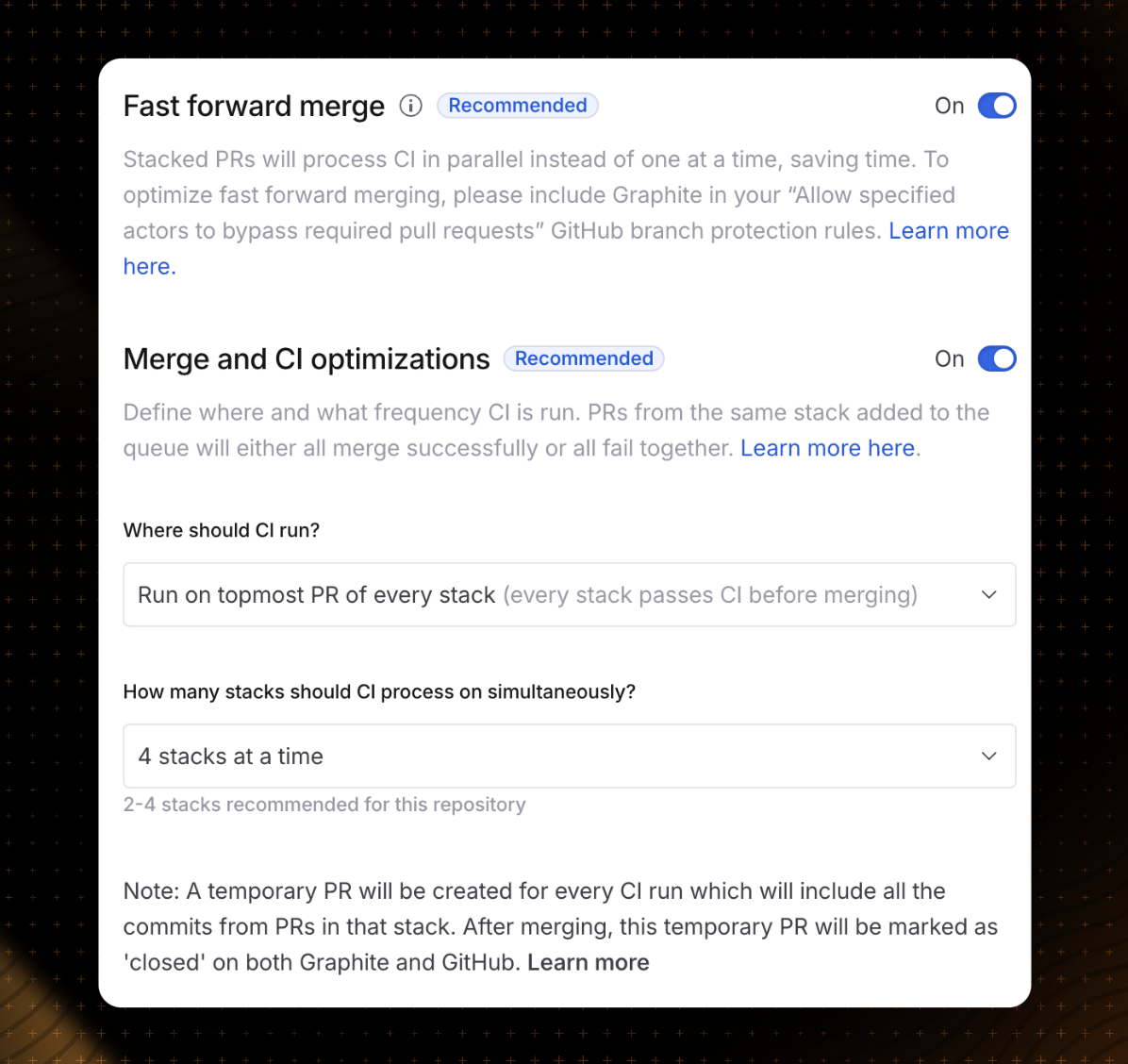 ## Running CI on multiple *PRs* in a stack in parallel (fast-forward merge)
Process CI on all PRs in a stack in parallel. We highly recommend keeping this setting enabled.
## Running CI on multiple *stacks* in parallel
For even faster merges, you can run CI on multiple stacks at the same time. Paired with fast-forward merging, this means you're processing PRs in each stack in parallel *and* processing the larger unit of stacks
Parallel CI speeds up your merge queue by running your CI checks in parallel for multiple stacks (including individual PRs not part of a stack) at once, without compromising on correctness. This is especially helpful if your repo sees a high volume of PRs, long CI times, or both.
## Running CI on multiple *PRs* in a stack in parallel (fast-forward merge)
Process CI on all PRs in a stack in parallel. We highly recommend keeping this setting enabled.
## Running CI on multiple *stacks* in parallel
For even faster merges, you can run CI on multiple stacks at the same time. Paired with fast-forward merging, this means you're processing PRs in each stack in parallel *and* processing the larger unit of stacks
Parallel CI speeds up your merge queue by running your CI checks in parallel for multiple stacks (including individual PRs not part of a stack) at once, without compromising on correctness. This is especially helpful if your repo sees a high volume of PRs, long CI times, or both.
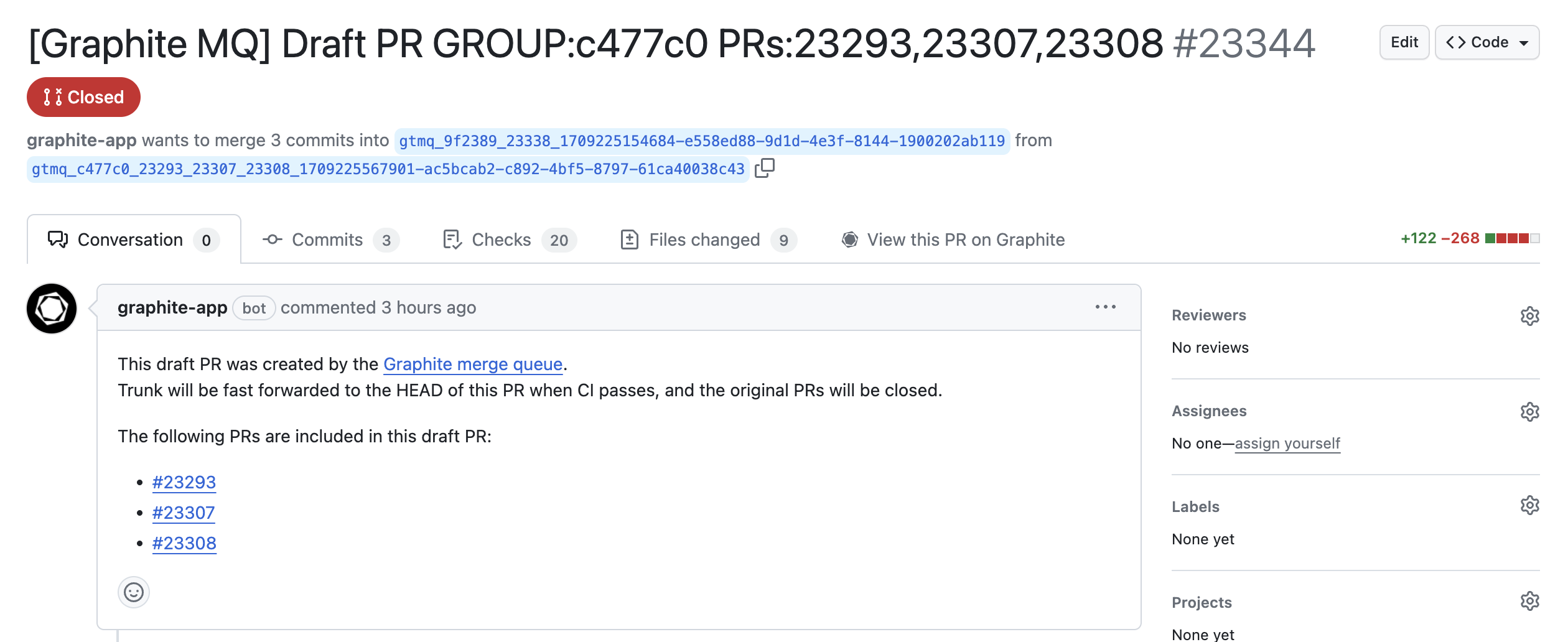 ### Further reading about parallel CI
* Read more about [speculative execution](https://www.uber.com/blog/bypassing-large-diffs-in-submitqueue/) in Uber's paper
* If you use tools that monitor whether the PR is merged, your integration may stop working. Many tools have options to monitor merged commits rather than PR status: for example, see [Linear's guide on linking commits](https://linear.app/docs/github#link-using-commits).
## Running CI on multiple *groups* of stacks in parallel (batching)
### Further reading about parallel CI
* Read more about [speculative execution](https://www.uber.com/blog/bypassing-large-diffs-in-submitqueue/) in Uber's paper
* If you use tools that monitor whether the PR is merged, your integration may stop working. Many tools have options to monitor merged commits rather than PR status: for example, see [Linear's guide on linking commits](https://linear.app/docs/github#link-using-commits).
## Running CI on multiple *groups* of stacks in parallel (batching)
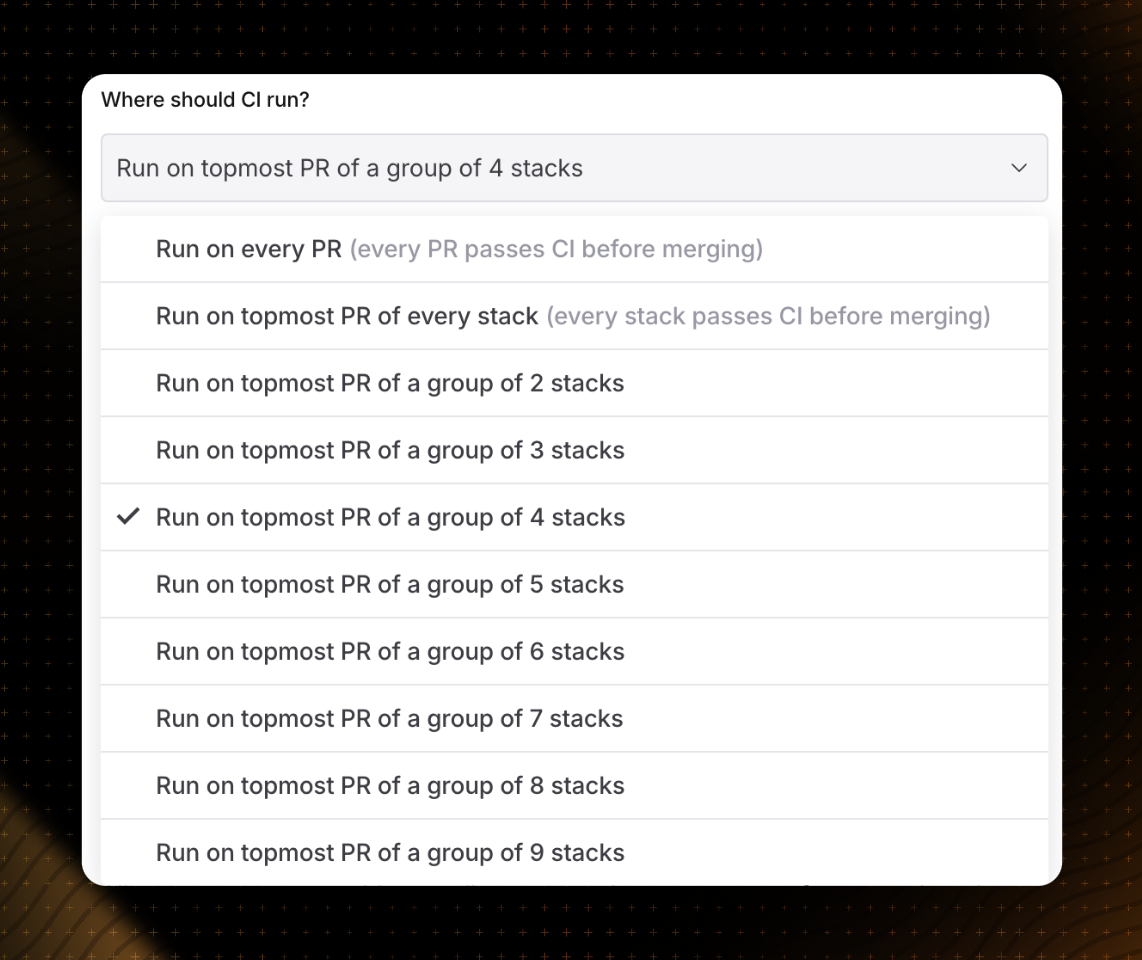 To increase merge queue throughput and speed up merges, the Graphite merge queue also supports processing groups of stacks simultaneously.
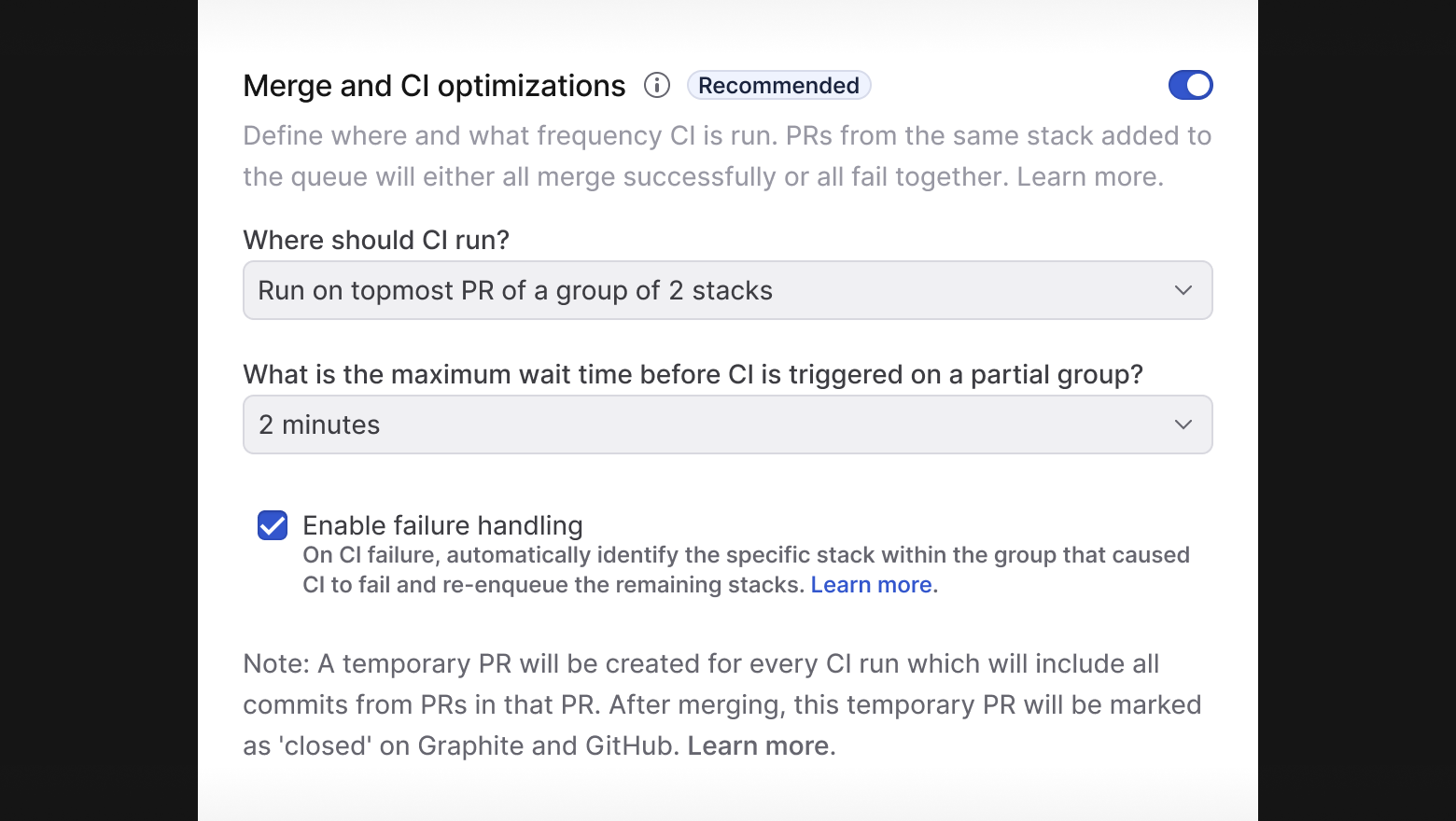 When a batch merge fails, Graphite can automatically handle the failure by identifying the offending change:

 Since it's an optional check, you can still merge mid-stack if needed.
To configure this status check for your GitHub org:
* Open the Graphite web app's settings page
* Select the "Mergeability checks" page
* Edit the `Mergeability check on GitHub` setting
---
# Source: https://graphite-58cc94ce.mintlify.dev/docs/multiple-trunks.md
## Documentation Index
Fetch the complete documentation index at: https://graphite-58cc94ce.mintlify.dev/docs/llms.txt
Use this file to discover all available pages before exploring further.
# Develop On Multiple Trunk Branches
> Learn how to develop against multiple trunk branches with the Graphite CLI.
Some codebases don't have a single trunk branch (e.g. all commits go to `main`), but rather multiple longer-lived trunk branches. Some reasons for this workflow may be release/deploy branches, long-lived feature branches, or staging branches. In these setups, creating branches and PRs off the correct trunk branch is critical for many reasons:
* **Developing:** The output of `gt ls` will be clearer, e.g. running `gt ls` on `main` will show stacks based on `main`.
* **Reviewing:** Requirements like CI status will be evaluated against the trunk branch's branch protection rules on Graphite's PR page. This is especially useful for upstack PR's, where Graphite evaluates requirements like CI against trunk.
* **Merging:** Graphite's [Merge feature for stacks](/merge-pull-requests) will merge down to the correct trunk branch.
Since it's an optional check, you can still merge mid-stack if needed.
To configure this status check for your GitHub org:
* Open the Graphite web app's settings page
* Select the "Mergeability checks" page
* Edit the `Mergeability check on GitHub` setting
---
# Source: https://graphite-58cc94ce.mintlify.dev/docs/multiple-trunks.md
## Documentation Index
Fetch the complete documentation index at: https://graphite-58cc94ce.mintlify.dev/docs/llms.txt
Use this file to discover all available pages before exploring further.
# Develop On Multiple Trunk Branches
> Learn how to develop against multiple trunk branches with the Graphite CLI.
Some codebases don't have a single trunk branch (e.g. all commits go to `main`), but rather multiple longer-lived trunk branches. Some reasons for this workflow may be release/deploy branches, long-lived feature branches, or staging branches. In these setups, creating branches and PRs off the correct trunk branch is critical for many reasons:
* **Developing:** The output of `gt ls` will be clearer, e.g. running `gt ls` on `main` will show stacks based on `main`.
* **Reviewing:** Requirements like CI status will be evaluated against the trunk branch's branch protection rules on Graphite's PR page. This is especially useful for upstack PR's, where Graphite evaluates requirements like CI against trunk.
* **Merging:** Graphite's [Merge feature for stacks](/merge-pull-requests) will merge down to the correct trunk branch.
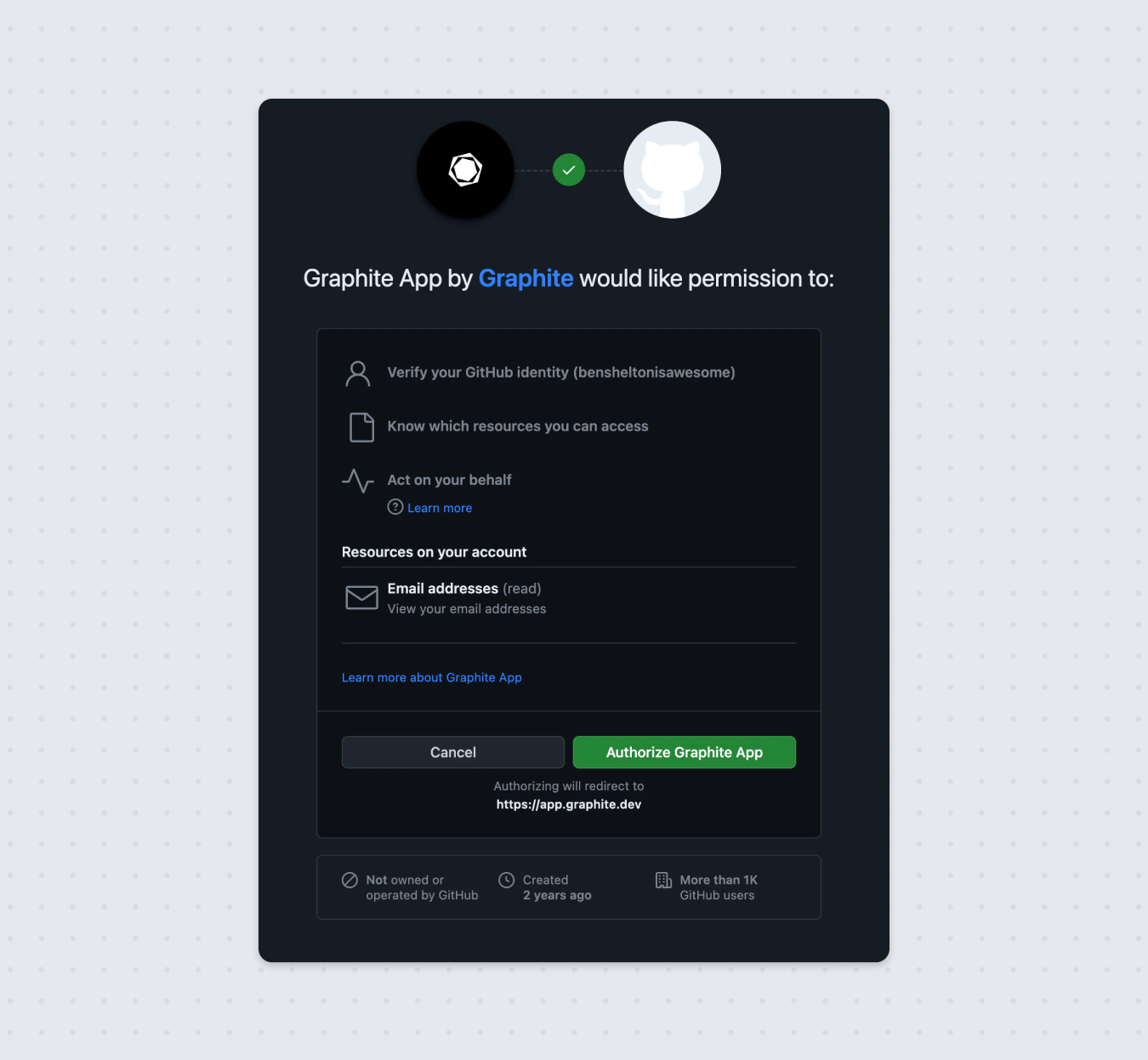 This button only appears if you haven’t already authenticated the Graphite App. Once you do so, you will return to the organization selection screen and see your desired organization.
## Why are all my GitHub organization's repositories saying `Missing permissions` in Graphite UI, or `gt` CLI saying I need to join a team?
You may have been removed from the GitHub organization. Check this with the organization's GitHub administrators.
If you have not been removed and the organization uses [SAML SSO authentication](https://docs.github.com/en/enterprise-cloud@latest/authentication/authenticating-with-single-sign-on/about-authentication-with-single-sign-on), ensure that your GitHub user account also has an active SAML session with your organization.
---
# Source: https://graphite-58cc94ce.mintlify.dev/docs/onboarding-your-team.md
## Documentation Index
Fetch the complete documentation index at: https://graphite-58cc94ce.mintlify.dev/docs/llms.txt
Use this file to discover all available pages before exploring further.
# Setting Up A Proof Of Concept
> Best practices for teams new to stacking with Graphite.
Stacking is a team sport - here are some proven ways to help your team start stacking with Graphite successfully.
### Try Graphite as a team
It can be difficult to get all of your engineers to adopt a new workflow at once. A good way to ease your company into Graphite is to start with a group of 5–10 engineers who commit to using it together, preferably on the same team. This way there are enough engineers to experience the collaborative benefits of Graphite, and you can take the lessons learned from that group and apply them to the rest of the engineering organization.
### Evaluate for at least 4 weeks
Commit to using Graphite for at least one month as a team - this gives everyone enough time to acclimate to the tool and adapt their workflows.
### Define success criteria
Pick some heuristics to help identify how your team is trending. [Graphite Insights](/insights) provides plenty of data to gauge and improve developer productivity. When starting out, it’s useful to monitor:
* *Median PR size*: When your team starts stacking, their PRs should get smaller.
* *Median wait time to first review*. PRs should be reviewed quickly, which is typically indicative of right-sized PRs and good team patterns. You want this number to stay stable or decrease over time.
* *Average number of review cycles until merge*: PRs that are merged quickly are indicative of quick PR review cycles, which is representative of good collaboration practices. PRs that are self-contained are easier to review and limit the duration of iteration cycles and issues with merging. The longer it takes a PR to merge, the likelier it is to create more merge conflicts. You want this number to stay stable or decrease over time.
* *Total PRs merged*: Small PRs get merged faster. You should see this number increasing as your team gets more familiar with stacking and using Graphite.
### Emphasize high-leverage features
Graphite is designed to make engineers more efficient at every turn. Here are a handful of Graphite features that tend to show the most immediate impact:
* [Stacking in the CLI](/create-stack): Quickly create stacks with the CLI.
* [Merge a stack](/merge-pull-requests): Use Graphite’s automated solution to merge a stack of PRs.
* [PR review capabilities](/pr-page-overview): Comment on unchanged lines of code, unresolved threads, and suggested edits.
* [PR versions](/pull-request-versions): See and compare versions of a pull request to keep track of the history of a PR.
* [VS Code extension](/vs-code-extension): This is especially useful for engineers who are less comfortable using a CLI.
* [PR inbox](/use-pr-inbox): Even dedicated CLI users can find value in using the PR inbox to quickly see the state of their PRs, which ones need their attention, and have the ability to customize their inbox filters and layout.
* [Notifications](/slack-notifications): Get PRs reviewed quickly by integrating with Slack. Receive real-time notifications and approve, comment, or request changes on a PR directly from Slack.
---
# Source: https://graphite-58cc94ce.mintlify.dev/docs/pr-page-overview.md
## Documentation Index
Fetch the complete documentation index at: https://graphite-58cc94ce.mintlify.dev/docs/llms.txt
Use this file to discover all available pages before exploring further.
# PR Page overview
> Learn how to review pull requests on Graphite.
This page walks you through the different sections of the Graphite PR page, and their purposes.
You can be notified that a PR needs your review in Graphite in one of two ways:
* Pull requests appear in the *Needs Review* section of your pull request inbox
* Through the Graphite integration for Slack
## Stack
The Stack section shows you all the PRs that are stacked alongside the PR you're currently viewing.
This button only appears if you haven’t already authenticated the Graphite App. Once you do so, you will return to the organization selection screen and see your desired organization.
## Why are all my GitHub organization's repositories saying `Missing permissions` in Graphite UI, or `gt` CLI saying I need to join a team?
You may have been removed from the GitHub organization. Check this with the organization's GitHub administrators.
If you have not been removed and the organization uses [SAML SSO authentication](https://docs.github.com/en/enterprise-cloud@latest/authentication/authenticating-with-single-sign-on/about-authentication-with-single-sign-on), ensure that your GitHub user account also has an active SAML session with your organization.
---
# Source: https://graphite-58cc94ce.mintlify.dev/docs/onboarding-your-team.md
## Documentation Index
Fetch the complete documentation index at: https://graphite-58cc94ce.mintlify.dev/docs/llms.txt
Use this file to discover all available pages before exploring further.
# Setting Up A Proof Of Concept
> Best practices for teams new to stacking with Graphite.
Stacking is a team sport - here are some proven ways to help your team start stacking with Graphite successfully.
### Try Graphite as a team
It can be difficult to get all of your engineers to adopt a new workflow at once. A good way to ease your company into Graphite is to start with a group of 5–10 engineers who commit to using it together, preferably on the same team. This way there are enough engineers to experience the collaborative benefits of Graphite, and you can take the lessons learned from that group and apply them to the rest of the engineering organization.
### Evaluate for at least 4 weeks
Commit to using Graphite for at least one month as a team - this gives everyone enough time to acclimate to the tool and adapt their workflows.
### Define success criteria
Pick some heuristics to help identify how your team is trending. [Graphite Insights](/insights) provides plenty of data to gauge and improve developer productivity. When starting out, it’s useful to monitor:
* *Median PR size*: When your team starts stacking, their PRs should get smaller.
* *Median wait time to first review*. PRs should be reviewed quickly, which is typically indicative of right-sized PRs and good team patterns. You want this number to stay stable or decrease over time.
* *Average number of review cycles until merge*: PRs that are merged quickly are indicative of quick PR review cycles, which is representative of good collaboration practices. PRs that are self-contained are easier to review and limit the duration of iteration cycles and issues with merging. The longer it takes a PR to merge, the likelier it is to create more merge conflicts. You want this number to stay stable or decrease over time.
* *Total PRs merged*: Small PRs get merged faster. You should see this number increasing as your team gets more familiar with stacking and using Graphite.
### Emphasize high-leverage features
Graphite is designed to make engineers more efficient at every turn. Here are a handful of Graphite features that tend to show the most immediate impact:
* [Stacking in the CLI](/create-stack): Quickly create stacks with the CLI.
* [Merge a stack](/merge-pull-requests): Use Graphite’s automated solution to merge a stack of PRs.
* [PR review capabilities](/pr-page-overview): Comment on unchanged lines of code, unresolved threads, and suggested edits.
* [PR versions](/pull-request-versions): See and compare versions of a pull request to keep track of the history of a PR.
* [VS Code extension](/vs-code-extension): This is especially useful for engineers who are less comfortable using a CLI.
* [PR inbox](/use-pr-inbox): Even dedicated CLI users can find value in using the PR inbox to quickly see the state of their PRs, which ones need their attention, and have the ability to customize their inbox filters and layout.
* [Notifications](/slack-notifications): Get PRs reviewed quickly by integrating with Slack. Receive real-time notifications and approve, comment, or request changes on a PR directly from Slack.
---
# Source: https://graphite-58cc94ce.mintlify.dev/docs/pr-page-overview.md
## Documentation Index
Fetch the complete documentation index at: https://graphite-58cc94ce.mintlify.dev/docs/llms.txt
Use this file to discover all available pages before exploring further.
# PR Page overview
> Learn how to review pull requests on Graphite.
This page walks you through the different sections of the Graphite PR page, and their purposes.
You can be notified that a PR needs your review in Graphite in one of two ways:
* Pull requests appear in the *Needs Review* section of your pull request inbox
* Through the Graphite integration for Slack
## Stack
The Stack section shows you all the PRs that are stacked alongside the PR you're currently viewing.
.png?fit=max&auto=format&n=tUKGL2Qo64KDkx4t&q=85&s=de010a1381ad4dd33929b4cc9570a5ac) ## Description
The description editor supports rich-text editing and Markdown. You can quickly access robust rich-text formatting options by typing a **/** in the description to do things like adding images, formatting as code, inserting tables, collapsible sections, and alerts.
You can use the toggle in the top left of the section to switch between editing in rich-text or as Markdown.
You can click the **"Generate"** button to have Graphite Agent automatically generate a PR description. Click **Save** in the upper right corner to save your changes.
## Description
The description editor supports rich-text editing and Markdown. You can quickly access robust rich-text formatting options by typing a **/** in the description to do things like adding images, formatting as code, inserting tables, collapsible sections, and alerts.
You can use the toggle in the top left of the section to switch between editing in rich-text or as Markdown.
You can click the **"Generate"** button to have Graphite Agent automatically generate a PR description. Click **Save** in the upper right corner to save your changes.
.gif) ## Discussion
Discussion is below the PR description, and contains PR-level comments that aren't related to a specific line of code.
## PR info & status
PR info and statuses appear in the top right of the page.
* **Status** of the PR appears at the top right of the page.
* **Review status** shows whether the PR is waiting on reviewers or if it's ready to merge. It will also show if Graphite Agent found any issues.
* **Checks** is an expandable toggle that contains your CI checks and their information. You can click on the checks to open them in GitHub.
* **Reviewers** contains the currently assigned reviewers. You can hover over the reviewers to remove them or re-request a review.
* **Labels** are the labels assigned to the PR, where you can add or remove them.
* **Assignees** are the owner(s) of the PR.
* **Related tasks** are related tasks from your project management platform (such as Linear).
## Discussion
Discussion is below the PR description, and contains PR-level comments that aren't related to a specific line of code.
## PR info & status
PR info and statuses appear in the top right of the page.
* **Status** of the PR appears at the top right of the page.
* **Review status** shows whether the PR is waiting on reviewers or if it's ready to merge. It will also show if Graphite Agent found any issues.
* **Checks** is an expandable toggle that contains your CI checks and their information. You can click on the checks to open them in GitHub.
* **Reviewers** contains the currently assigned reviewers. You can hover over the reviewers to remove them or re-request a review.
* **Labels** are the labels assigned to the PR, where you can add or remove them.
* **Assignees** are the owner(s) of the PR.
* **Related tasks** are related tasks from your project management platform (such as Linear).
.png?fit=max&auto=format&n=tUKGL2Qo64KDkx4t&q=85&s=d075f1f8094b045deb46161047f068fe) ## Navigating files
The file tree is expanded by default next to the diff, below the PR Description and Discussion sections. Clicking on a file name in the file tree will scroll you to that file in the diff.
You can press **F** to expand or collapse the file tree. When the file tree is collapsed, the list of files is still accessible from a table of contents visualizer on the left side of the page.
## Navigating files
The file tree is expanded by default next to the diff, below the PR Description and Discussion sections. Clicking on a file name in the file tree will scroll you to that file in the diff.
You can press **F** to expand or collapse the file tree. When the file tree is collapsed, the list of files is still accessible from a table of contents visualizer on the left side of the page.
+(2).gif)
.gif) Clicking the comment icon that appears next to the line number will open a comment editor to the right of the diff. Comments support rich-text editing, and you can attach files or add a comment as part of a review.
Hit **Cmd+Enter** to submit your comment once you're done typing it, or click the blue up arrow. This posts the comment immediately — useful for one-off, non-opinionated comments.
Checking the box next to **"Add to review"** will add the comment to a "batch." Once you batch the comment, it will be pending and only visible to you until you've submitted your final review, at which point all of your batched comments will also be submitted.
Adding a comment to review will cause it to appear in the **"Finish review"** button at the top of the page:
Clicking the comment icon that appears next to the line number will open a comment editor to the right of the diff. Comments support rich-text editing, and you can attach files or add a comment as part of a review.
Hit **Cmd+Enter** to submit your comment once you're done typing it, or click the blue up arrow. This posts the comment immediately — useful for one-off, non-opinionated comments.
Checking the box next to **"Add to review"** will add the comment to a "batch." Once you batch the comment, it will be pending and only visible to you until you've submitted your final review, at which point all of your batched comments will also be submitted.
Adding a comment to review will cause it to appear in the **"Finish review"** button at the top of the page:
.png?fit=max&auto=format&n=SXTOqGO9HawJ42Ja&q=85&s=9db9764fb8466628b6a12f3af29928cf) ## Suggested edits
While reviewing, you can directly leave a suggested code edit to streamline the review process.
## Suggested edits
While reviewing, you can directly leave a suggested code edit to streamline the review process.
.png?fit=max&auto=format&n=tUKGL2Qo64KDkx4t&q=85&s=3fb84fadd5f0a206cb6cb45e05b7eacd) ## Line-level actions & Graphite Agent
If you hover over any lines in the diff, you can use the overflow menu to perform actions on the associated lines of code.
* **Add comment** allows you to add a comment on that line.
* **Suggest change** allows you to add a suggested edit.
* **Add to chat** will open the Chat sidebar and add the selected lines to the Chat context, where you can prompt Graphite Agent to fix the code, explain it, or improve it.
* **Copy code** allows you to copy the code from that line.
* **Copy link** creates a shareable link to the line of code you selected.
## Line-level actions & Graphite Agent
If you hover over any lines in the diff, you can use the overflow menu to perform actions on the associated lines of code.
* **Add comment** allows you to add a comment on that line.
* **Suggest change** allows you to add a suggested edit.
* **Add to chat** will open the Chat sidebar and add the selected lines to the Chat context, where you can prompt Graphite Agent to fix the code, explain it, or improve it.
* **Copy code** allows you to copy the code from that line.
* **Copy link** creates a shareable link to the line of code you selected.
.gif) ## Submitting your review
To finish your review, you can click the **"Finish review"** button at the top of the page, or you can scroll down to the bottom of the diff and click **"Comment"** (**R** then **C**), **"Request changes"** (**R** then **N**), or **"Approve"** (**R** then **A**).
Using any of these options will open a panel where you can comment, request changes, approve, or submit your review with a review summary comment.
If you'd like to approve a PR without a comment, use the shortcut **R** then **Y** to quick-approve.
---
# Source: https://graphite-58cc94ce.mintlify.dev/docs/pricing-faq.md
## Documentation Index
Fetch the complete documentation index at: https://graphite-58cc94ce.mintlify.dev/docs/llms.txt
Use this file to discover all available pages before exploring further.
# Pricing FAQ
> Your pricing questions, answered.
### **I need help convincing my team to pay. What should I do?**
We have plenty of resources for Graphite champions. Here are a few:
* Documentation on **[why your team should use Graphite](https://graphite.com/docs/why-you-should-use-graphite)**
* Case studies that show [**how Graphite improved developer productivity**](https://graphite.com/customers) at Asana, Ramp, and Shopify.
* [**Schedule a Graphite demo**](https://graphite.com/contact-us) for your team!
### **Do you have an individual tier?**
We have a Hobby tier on personal repositories with these features:
* GitHub sync with personal repos
* Inbox/Notifications
* CLI/VSCode/MCP
* AI PR titles and descriptions
* Limited AI Chat
* Limited AI reviews
### **When does my trial end?**
Your trial ends either 30 days after it began or when you upgrade, whichever comes first.
### **What happens if my trial ends, and I haven’t upgraded?**
If one of your trials ends and you haven’t upgraded to the **Starter** or **Team** plans, your workspace will lose access to Graphite features. If you're using Graphite with your personal repositories, your workspace will be placed into the free **Hobby** tier which gives you limited access to Graphite.
### **What Graphite features are available for each tier?**
You can find a breakdown of features in the **Starter**, **Team**, or **Enterprise** plans in the pricing and plans doc or our pricing page.
### Does Graphite offer plans for startups?
Early stage startups can apply to our Startup plan. If you’re eligible, you’ll receive a \$1500 credit (6 months of Team for ≤ 5 seats). After your credit expires (or is used), you’ll be automatically upgraded to the **Team** plan.
You can read more about the Startup plan [here](https://graphite.com/docs/graphite-for-startups).
### **My project is open source and doesn’t have significant funding. Can I use Graphite for free?**
Reach out to our team at [billing@graphite.com](mailto:billing@graphite.com) to check your eligibility. Please include the link to the GitHub org, link to the website, and a brief description of the project.
### **What payment methods do you accept?**
We accept payment for the Starter and Team plans via credit card. Billing is managed via Stripe.
### Can someone who doesn’t use Graphite pay for my subscription?
Yes. Click `Select a plan` in organization billing settings for the product you wish to purchase. Then, copy the URL of the Stripe portal (starts with `https://billing.graphite.com`), and send it to whoever is making the purchase.
### **How do I purchase a specific number of seats?**
As you add members to your team, Graphite will automatically calculate the number of seats to bill. We do not currently support adding “empty” seats to a team or setting a seat cap. Admins can manage seats by manually adding and removing users.
### **Who is on my Graphite team?**
Anyone who joins your workspace on Graphite, or whose PR is [reviewed by Graphite Agent](/ai-reviews), is considered a member of your team.
### **What is “advanced” Merge Queue?**
If you have sophisticated merge queue needs that aren’t met by the Team plan, [reach out to our sales team](https://graphite.com/contact-us) to learn more.
---
# Source: https://graphite-58cc94ce.mintlify.dev/docs/privacy-and-security.md
## Documentation Index
Fetch the complete documentation index at: https://graphite-58cc94ce.mintlify.dev/docs/llms.txt
Use this file to discover all available pages before exploring further.
# Privacy & Security
> Learn how Graphite prioritizes security to safeguard your source code.
To achieve our mission to build state-of-the-art developer tools, Graphite values security above all else. We are SOC 2 Type II compliant, passing a rigorous auditing procedure established by the American Institute of Certified Public Accountants (AICPA). SOC 2 Type II assesses non-financial reporting controls across five areas: security, availability, processing integrity, confidentiality, and privacy. We also continuously pen test. [Learn more](https://graphite.com/privacy) about our security practices.
## Submitting your review
To finish your review, you can click the **"Finish review"** button at the top of the page, or you can scroll down to the bottom of the diff and click **"Comment"** (**R** then **C**), **"Request changes"** (**R** then **N**), or **"Approve"** (**R** then **A**).
Using any of these options will open a panel where you can comment, request changes, approve, or submit your review with a review summary comment.
If you'd like to approve a PR without a comment, use the shortcut **R** then **Y** to quick-approve.
---
# Source: https://graphite-58cc94ce.mintlify.dev/docs/pricing-faq.md
## Documentation Index
Fetch the complete documentation index at: https://graphite-58cc94ce.mintlify.dev/docs/llms.txt
Use this file to discover all available pages before exploring further.
# Pricing FAQ
> Your pricing questions, answered.
### **I need help convincing my team to pay. What should I do?**
We have plenty of resources for Graphite champions. Here are a few:
* Documentation on **[why your team should use Graphite](https://graphite.com/docs/why-you-should-use-graphite)**
* Case studies that show [**how Graphite improved developer productivity**](https://graphite.com/customers) at Asana, Ramp, and Shopify.
* [**Schedule a Graphite demo**](https://graphite.com/contact-us) for your team!
### **Do you have an individual tier?**
We have a Hobby tier on personal repositories with these features:
* GitHub sync with personal repos
* Inbox/Notifications
* CLI/VSCode/MCP
* AI PR titles and descriptions
* Limited AI Chat
* Limited AI reviews
### **When does my trial end?**
Your trial ends either 30 days after it began or when you upgrade, whichever comes first.
### **What happens if my trial ends, and I haven’t upgraded?**
If one of your trials ends and you haven’t upgraded to the **Starter** or **Team** plans, your workspace will lose access to Graphite features. If you're using Graphite with your personal repositories, your workspace will be placed into the free **Hobby** tier which gives you limited access to Graphite.
### **What Graphite features are available for each tier?**
You can find a breakdown of features in the **Starter**, **Team**, or **Enterprise** plans in the pricing and plans doc or our pricing page.
### Does Graphite offer plans for startups?
Early stage startups can apply to our Startup plan. If you’re eligible, you’ll receive a \$1500 credit (6 months of Team for ≤ 5 seats). After your credit expires (or is used), you’ll be automatically upgraded to the **Team** plan.
You can read more about the Startup plan [here](https://graphite.com/docs/graphite-for-startups).
### **My project is open source and doesn’t have significant funding. Can I use Graphite for free?**
Reach out to our team at [billing@graphite.com](mailto:billing@graphite.com) to check your eligibility. Please include the link to the GitHub org, link to the website, and a brief description of the project.
### **What payment methods do you accept?**
We accept payment for the Starter and Team plans via credit card. Billing is managed via Stripe.
### Can someone who doesn’t use Graphite pay for my subscription?
Yes. Click `Select a plan` in organization billing settings for the product you wish to purchase. Then, copy the URL of the Stripe portal (starts with `https://billing.graphite.com`), and send it to whoever is making the purchase.
### **How do I purchase a specific number of seats?**
As you add members to your team, Graphite will automatically calculate the number of seats to bill. We do not currently support adding “empty” seats to a team or setting a seat cap. Admins can manage seats by manually adding and removing users.
### **Who is on my Graphite team?**
Anyone who joins your workspace on Graphite, or whose PR is [reviewed by Graphite Agent](/ai-reviews), is considered a member of your team.
### **What is “advanced” Merge Queue?**
If you have sophisticated merge queue needs that aren’t met by the Team plan, [reach out to our sales team](https://graphite.com/contact-us) to learn more.
---
# Source: https://graphite-58cc94ce.mintlify.dev/docs/privacy-and-security.md
## Documentation Index
Fetch the complete documentation index at: https://graphite-58cc94ce.mintlify.dev/docs/llms.txt
Use this file to discover all available pages before exploring further.
# Privacy & Security
> Learn how Graphite prioritizes security to safeguard your source code.
To achieve our mission to build state-of-the-art developer tools, Graphite values security above all else. We are SOC 2 Type II compliant, passing a rigorous auditing procedure established by the American Institute of Certified Public Accountants (AICPA). SOC 2 Type II assesses non-financial reporting controls across five areas: security, availability, processing integrity, confidentiality, and privacy. We also continuously pen test. [Learn more](https://graphite.com/privacy) about our security practices.
.png?fit=max&auto=format&n=2jkT2_o2plivZefr&q=85&s=a68457979d0abf4b1888bb183ac85b8c) ## Switch between PR versions
By default, the pull request page shows you a “diff” between v1 (the initial submitted state of the PR) and vN, where N is the latest version of the PR. You can toggle between the version you’re currently viewing by pressing **V**, or by the clicking the **"Compare"** dropdown and choosing a version for the “right” and “left” sides of the diff.
## Switch between PR versions
By default, the pull request page shows you a “diff” between v1 (the initial submitted state of the PR) and vN, where N is the latest version of the PR. You can toggle between the version you’re currently viewing by pressing **V**, or by the clicking the **"Compare"** dropdown and choosing a version for the “right” and “left” sides of the diff.
.png?fit=max&auto=format&n=2jkT2_o2plivZefr&q=85&s=d5bde012be317bee541fffd2ffddda75) ### "Hide reviewed changes"
In the event that a pull request is updated *after* you've already reviewed it, you'll see a banner prompting you to `hide reviewed changes`.
### "Hide reviewed changes"
In the event that a pull request is updated *after* you've already reviewed it, you'll see a banner prompting you to `hide reviewed changes`.
 Clicking `hide reviewed changes` automatically changes your view so you see a comparison between the last reviewed version and the latest version of the pull request.
---
# Source: https://graphite-58cc94ce.mintlify.dev/docs/restack-branches.md
## Documentation Index
Fetch the complete documentation index at: https://graphite-58cc94ce.mintlify.dev/docs/llms.txt
Use this file to discover all available pages before exploring further.
# Restack Branches
> Learn to restack Git branches efficiently with Graphite's CLI.
## Prerequisites
You should be familiar with how to:
* [Create branches in a stack](/create-stack)
* [Visualize a stack](/visualize-stack)
* [Create and submit pull requests](/create-submit-prs)
* [Update mid-stack branches](/update-mid-stack-branches)
* [Sync changes from a remote repository](/sync-with-a-remote-repo)
A key benefit of using Graphite as opposed to vanilla `git` when working with stacks is dependency management for your branches—keeping track of the "parent" of a given branch. When a parent branch changes in some way or is deleted, vanilla `git`, because it does not have this concept of branch dependencies, leaves the parent as-is.
`gt modify` [automatically restacks any dependent branches](/update-mid-stack-branches#automatic-restacking-of-branches) and prompts you to resolve merge conflicts when needed. Another instance that requires branch restacking is after you've [synced changes from a remote repository](/sync-with-a-remote-repo).
Here's the output of `gt log long` to get an idea of what's happening on the `git` level when `gt sync` is unable to automatically restack:
```bash Terminal theme={null}
> gt log long
* ff393d3 - (40 minutes ago) part 1 (#100) - Pranathi Peri (origin/main, origin/HEAD, main)
| * 7ebfd3f - (14 hours ago) part 3 - Pranathi Peri (origin/pp--06-14-part_3, pp--06-14-part_3)
| * 6fe5a7c - (14 hours ago) part 2 - Pranathi Peri (HEAD -> pp--06-14-part_2, origin/pp--06-14-part_2)
| * 4f3f756 - (14 hours ago) part 1 - Pranathi Peri
|/
```
`main` has advanced to the squash-and-merge commit for `part_1`, but `part_2`—even though it is supposed to be based on `main` now—is actually still sitting on the old version of `part_1`.
`gt restack` fixes that. This command, for the current stack, ensures that all branches are based on the current version of their parents.
```bash Terminal theme={null}
Hit conflict restacking pp--06-14-part_2 on main.
You are here (resolving pp--06-14-part_2):
◯ pp--06-14-part_3
◉ pp--06-14-part_2
◯ main
To fix and continue your previous Graphite command:
(1) resolve the listed merge conflicts
(2) mark them as resolved with gt add .
(3) run gt continue to continue executing your previous Graphite command
It's safe to cancel the ongoing rebase with `gt abort`
```
Resolving merge conflicts during a restack is performed the same way as amending or creating a new commit on a branch in the middle of a stack:
```bash Terminal theme={null}
> gt continue -a
Resolved rebase conflict for pp--06-14-part_2.
Restacked pp--06-14-part_3 on pp--06-14-part_2.
> gt log short
◯ pp--06-14-part_3
◉ pp--06-14-part_2
◯ main
> gt log long
* 543c8b3 - (14 hours ago) part 3 - Pranathi Peri (pp--06-14-part_3)
* 778006d - (14 hours ago) part 2 - Pranathi Peri (HEAD -> pp--06-14-part_2)
* ff393d3 - (44 minutes ago) part 1 (#100) - Pranathi Peri (origin/main, origin/HEAD, main)
```
After running the `restack` command, you can see that `git` and `gt` are in agreement about the history. Next, you may want to resubmit the restacked versions of these branches (`gt submit`), or make some changes to a branch mid-stack to address any review comments.
---
# Source: https://graphite-58cc94ce.mintlify.dev/docs/review-proposed-changes.md
# Review Pull Requests
> Learn how to review pull requests on the Graphite dashboard.
You can be notified that a PR needs your review in Graphite in one of two ways:
* Pull requests appear in the *Needs Review* section of your pull request inbox
* Through the Graphite integration for Slack
## Start a review
You can start a review by hovering over a line number to leave a comment. Clicking the line number will allow you to leave a comment on a single line, and clicking and dragging across multiple lines will allow you to leave a comment that spans multiple lines of code. Graphite allows you to comment on both changed and unchanged lines of code.
Clicking `hide reviewed changes` automatically changes your view so you see a comparison between the last reviewed version and the latest version of the pull request.
---
# Source: https://graphite-58cc94ce.mintlify.dev/docs/restack-branches.md
## Documentation Index
Fetch the complete documentation index at: https://graphite-58cc94ce.mintlify.dev/docs/llms.txt
Use this file to discover all available pages before exploring further.
# Restack Branches
> Learn to restack Git branches efficiently with Graphite's CLI.
## Prerequisites
You should be familiar with how to:
* [Create branches in a stack](/create-stack)
* [Visualize a stack](/visualize-stack)
* [Create and submit pull requests](/create-submit-prs)
* [Update mid-stack branches](/update-mid-stack-branches)
* [Sync changes from a remote repository](/sync-with-a-remote-repo)
A key benefit of using Graphite as opposed to vanilla `git` when working with stacks is dependency management for your branches—keeping track of the "parent" of a given branch. When a parent branch changes in some way or is deleted, vanilla `git`, because it does not have this concept of branch dependencies, leaves the parent as-is.
`gt modify` [automatically restacks any dependent branches](/update-mid-stack-branches#automatic-restacking-of-branches) and prompts you to resolve merge conflicts when needed. Another instance that requires branch restacking is after you've [synced changes from a remote repository](/sync-with-a-remote-repo).
Here's the output of `gt log long` to get an idea of what's happening on the `git` level when `gt sync` is unable to automatically restack:
```bash Terminal theme={null}
> gt log long
* ff393d3 - (40 minutes ago) part 1 (#100) - Pranathi Peri (origin/main, origin/HEAD, main)
| * 7ebfd3f - (14 hours ago) part 3 - Pranathi Peri (origin/pp--06-14-part_3, pp--06-14-part_3)
| * 6fe5a7c - (14 hours ago) part 2 - Pranathi Peri (HEAD -> pp--06-14-part_2, origin/pp--06-14-part_2)
| * 4f3f756 - (14 hours ago) part 1 - Pranathi Peri
|/
```
`main` has advanced to the squash-and-merge commit for `part_1`, but `part_2`—even though it is supposed to be based on `main` now—is actually still sitting on the old version of `part_1`.
`gt restack` fixes that. This command, for the current stack, ensures that all branches are based on the current version of their parents.
```bash Terminal theme={null}
Hit conflict restacking pp--06-14-part_2 on main.
You are here (resolving pp--06-14-part_2):
◯ pp--06-14-part_3
◉ pp--06-14-part_2
◯ main
To fix and continue your previous Graphite command:
(1) resolve the listed merge conflicts
(2) mark them as resolved with gt add .
(3) run gt continue to continue executing your previous Graphite command
It's safe to cancel the ongoing rebase with `gt abort`
```
Resolving merge conflicts during a restack is performed the same way as amending or creating a new commit on a branch in the middle of a stack:
```bash Terminal theme={null}
> gt continue -a
Resolved rebase conflict for pp--06-14-part_2.
Restacked pp--06-14-part_3 on pp--06-14-part_2.
> gt log short
◯ pp--06-14-part_3
◉ pp--06-14-part_2
◯ main
> gt log long
* 543c8b3 - (14 hours ago) part 3 - Pranathi Peri (pp--06-14-part_3)
* 778006d - (14 hours ago) part 2 - Pranathi Peri (HEAD -> pp--06-14-part_2)
* ff393d3 - (44 minutes ago) part 1 (#100) - Pranathi Peri (origin/main, origin/HEAD, main)
```
After running the `restack` command, you can see that `git` and `gt` are in agreement about the history. Next, you may want to resubmit the restacked versions of these branches (`gt submit`), or make some changes to a branch mid-stack to address any review comments.
---
# Source: https://graphite-58cc94ce.mintlify.dev/docs/review-proposed-changes.md
# Review Pull Requests
> Learn how to review pull requests on the Graphite dashboard.
You can be notified that a PR needs your review in Graphite in one of two ways:
* Pull requests appear in the *Needs Review* section of your pull request inbox
* Through the Graphite integration for Slack
## Start a review
You can start a review by hovering over a line number to leave a comment. Clicking the line number will allow you to leave a comment on a single line, and clicking and dragging across multiple lines will allow you to leave a comment that spans multiple lines of code. Graphite allows you to comment on both changed and unchanged lines of code.
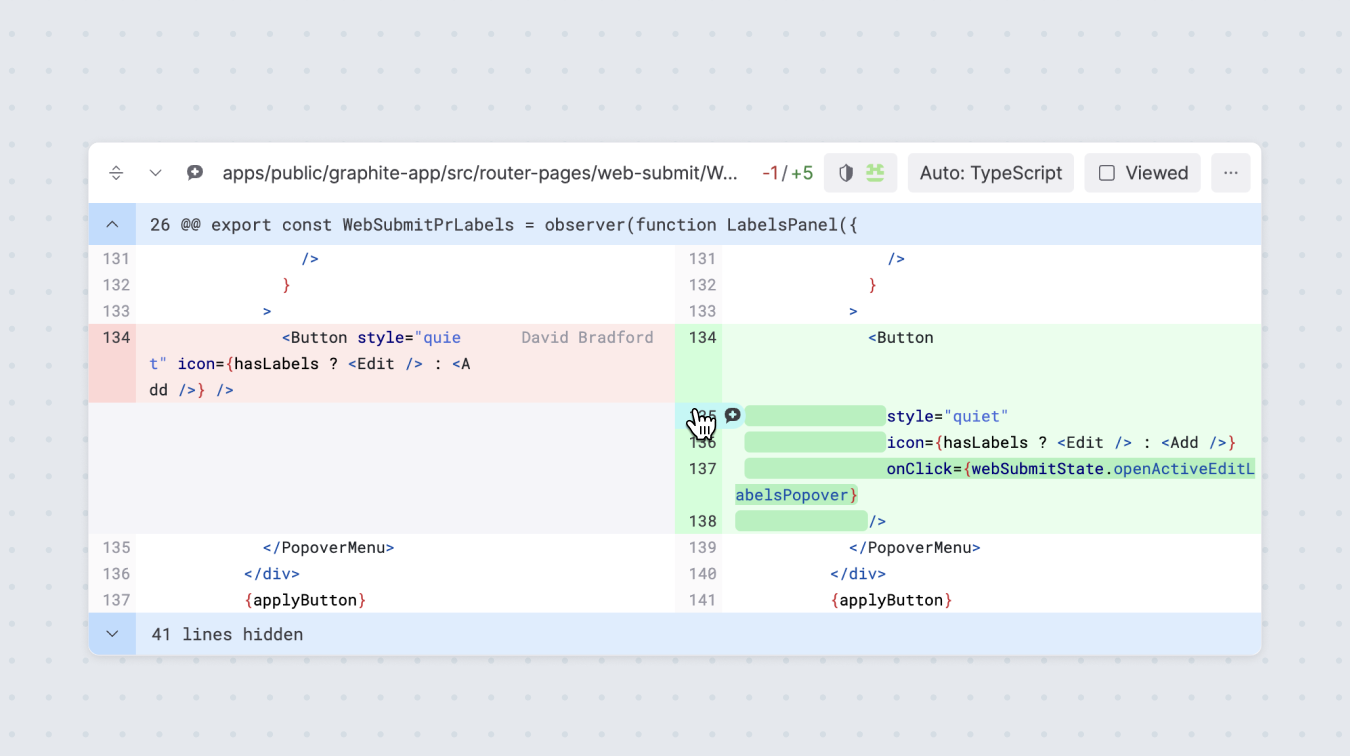 In the comment field, leave your comment. The commenting box provides a number of markdown formatting options to select from in the footer. You can switch between markdown and preview format for each comment by clicking the "eye" icon near the right corner of each comment box.
### One-off or batched comments
In the comment field, leave your comment. The commenting box provides a number of markdown formatting options to select from in the footer. You can switch between markdown and preview format for each comment by clicking the "eye" icon near the right corner of each comment box.
### One-off or batched comments
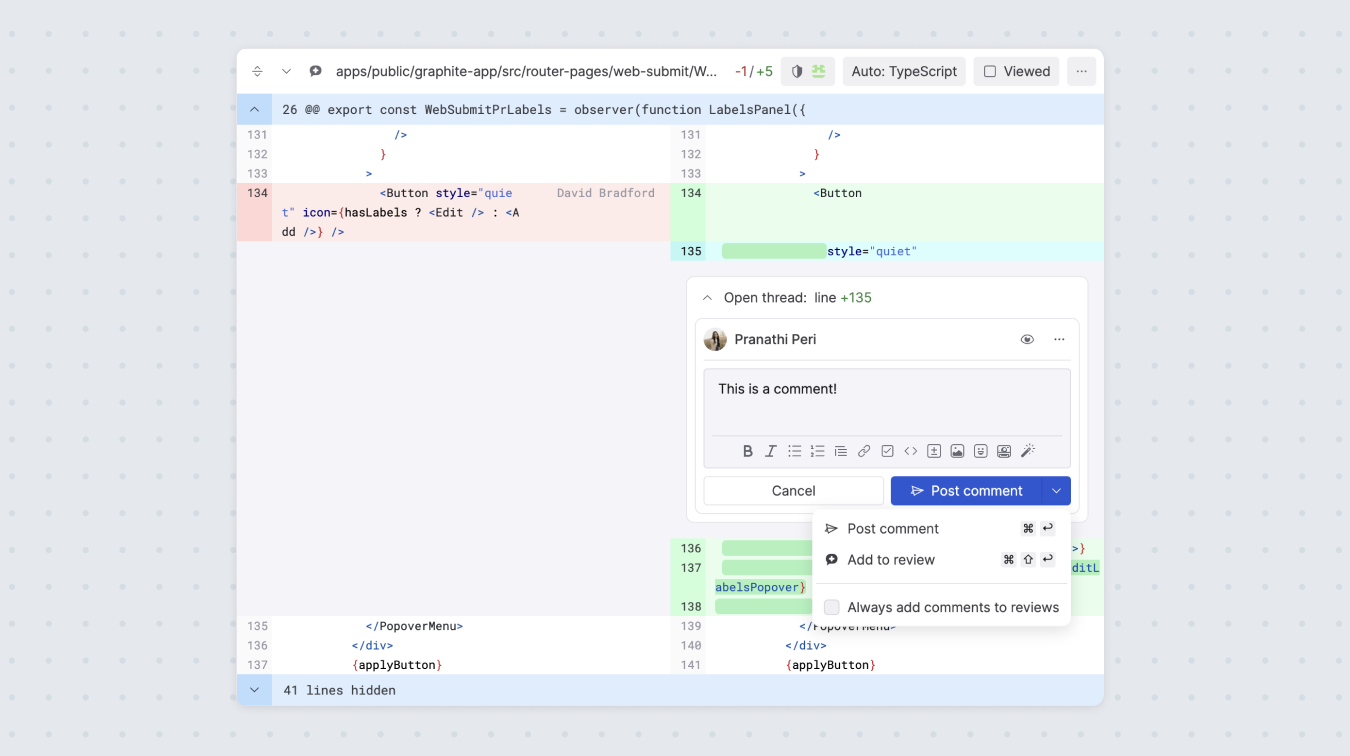 When you finish entering your comment, you can click the dropdown on the `post thread` button to either:
* Post thread: this posts the comment immediately. Great for one-off, non-opinionated comments.
* Add to review: this will add the comment to a "batch." Once you batch the comment, it will be pending and only visible to you until you've submitted your final review, at which point all of your batched comments will also be submitted.
If you chose to add your comment to your review, the review bar that's pinned to the bottom of the PR will light up to show how many comments you have pending.
When you finish entering your comment, you can click the dropdown on the `post thread` button to either:
* Post thread: this posts the comment immediately. Great for one-off, non-opinionated comments.
* Add to review: this will add the comment to a "batch." Once you batch the comment, it will be pending and only visible to you until you've submitted your final review, at which point all of your batched comments will also be submitted.
If you chose to add your comment to your review, the review bar that's pinned to the bottom of the PR will light up to show how many comments you have pending.
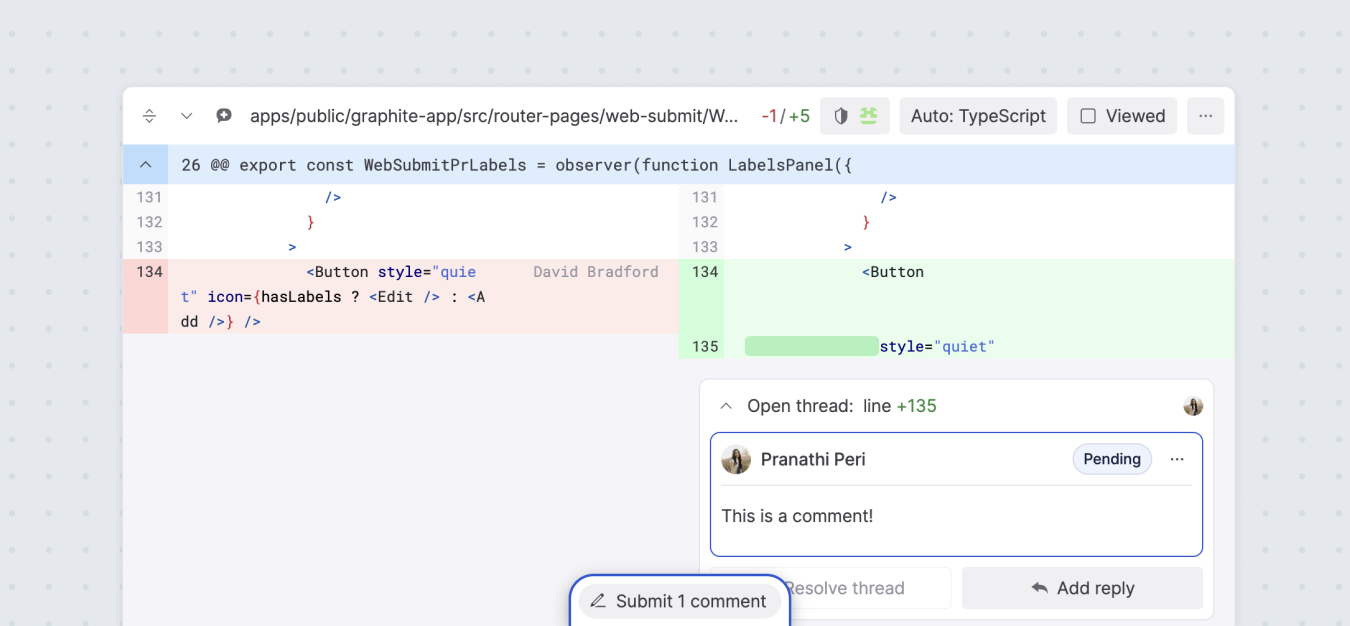 ### Suggested edits
While reviewing, you can directly leave a suggested code edit to streamline the review process. You can either add these manually yourself, or leverage Graphite AI to turn your plain English suggestion into a code edit - saving both reviewer and author time.
### Suggested edits
While reviewing, you can directly leave a suggested code edit to streamline the review process. You can either add these manually yourself, or leverage Graphite AI to turn your plain English suggestion into a code edit - saving both reviewer and author time.
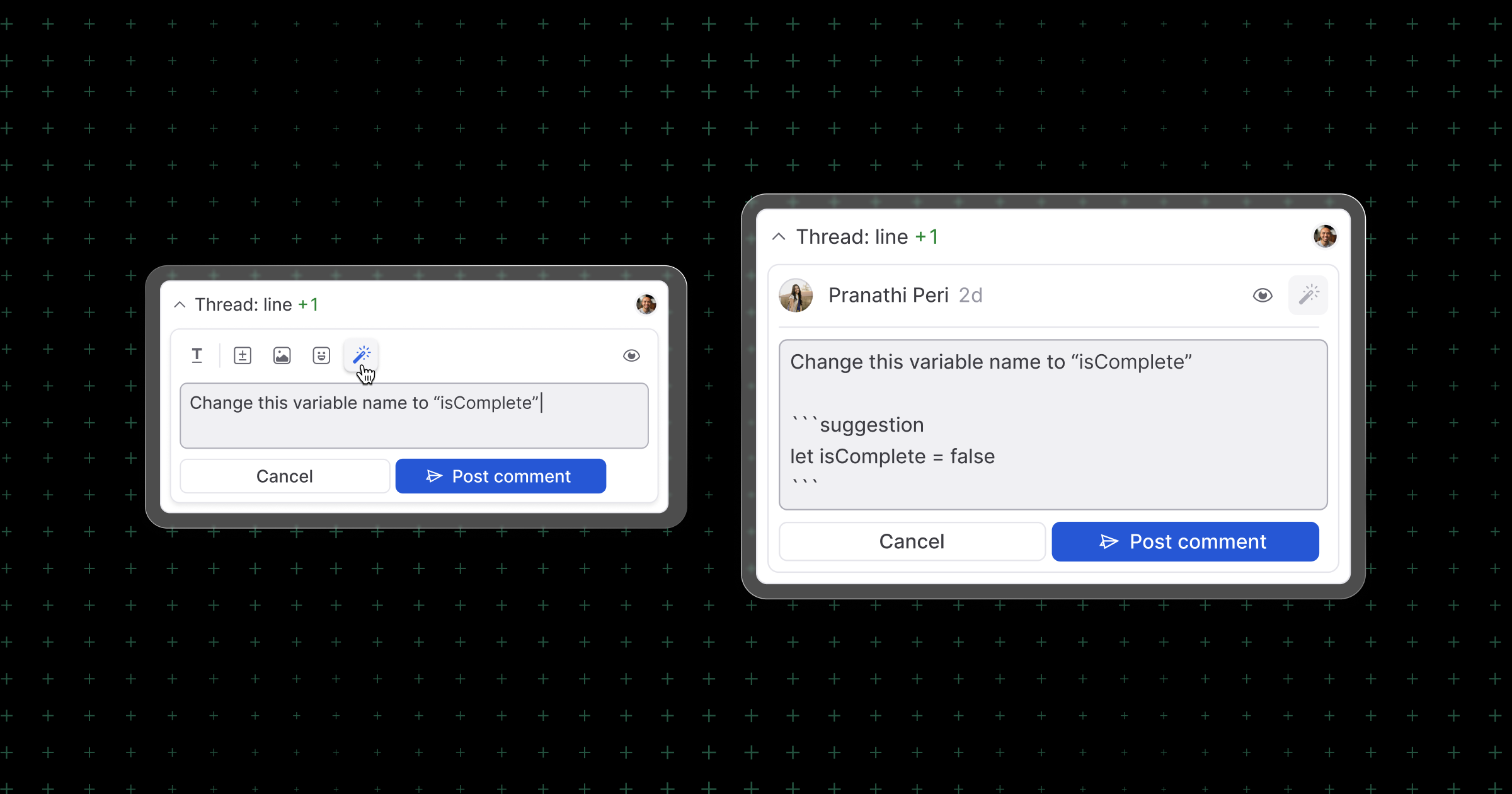 ## Leave a final review
Once you finish reading through and commenting on the contents of the pull request, you can leave a final review by hovering over the review bar that's pinned to the bottom of the PR page.
## Leave a final review
Once you finish reading through and commenting on the contents of the pull request, you can leave a final review by hovering over the review bar that's pinned to the bottom of the PR page.
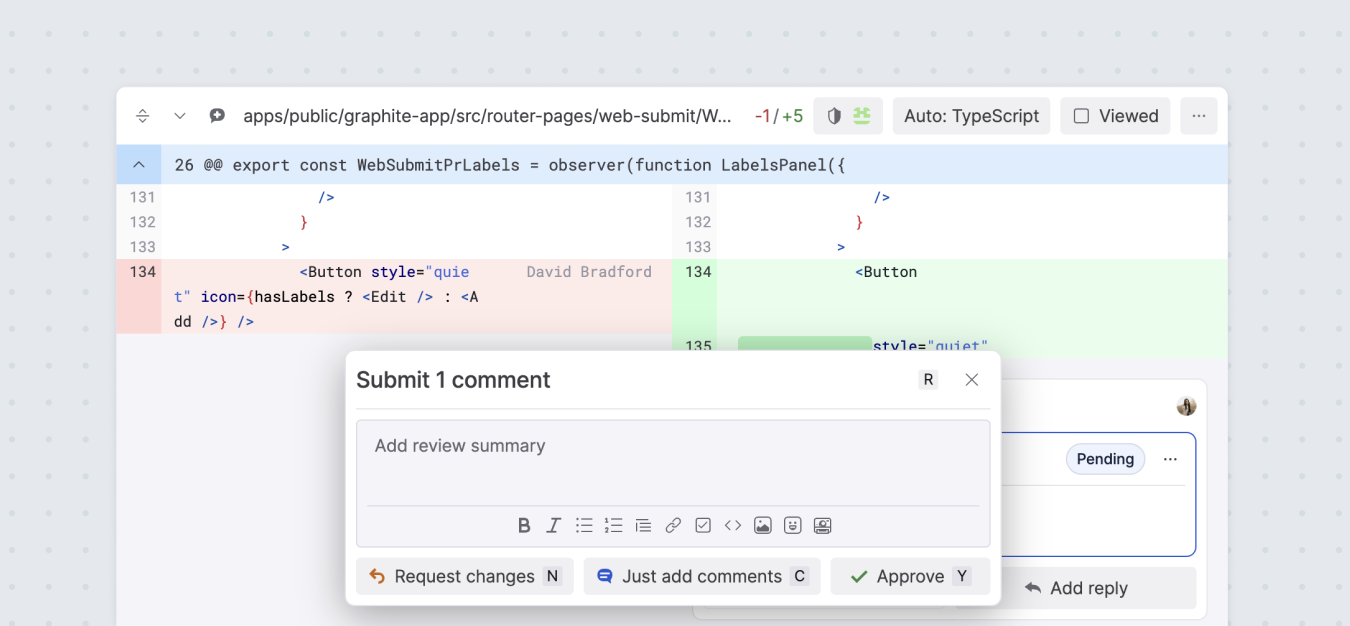 After you've added a summary of your review, you have three options:
* Request changes
* Just add comments
* Approve
After you've added a summary of your review, you have three options:
* Request changes
* Just add comments
* Approve
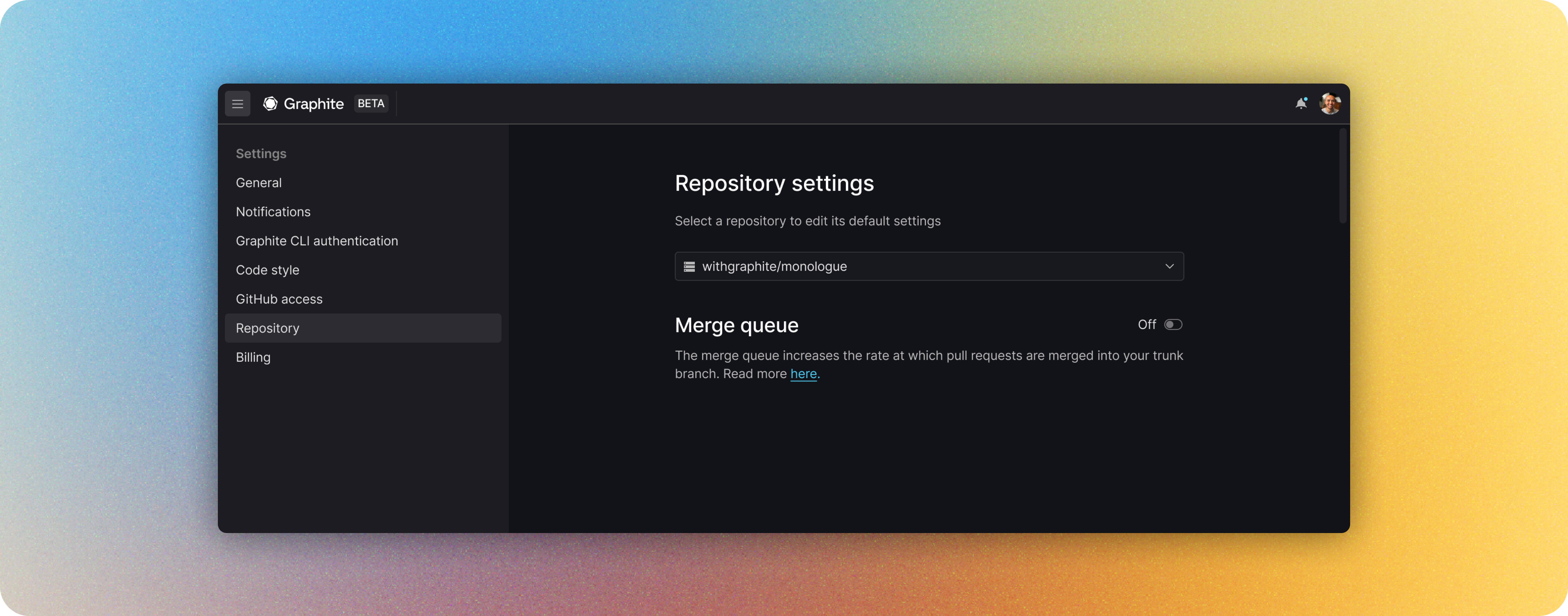 Enable the Graphite merge queue for a given repository:
Go to *Merge queue* in the Graphite app settings page ([https://app.graphite.com/settings/merge-queue)](https://app.graphite.com/settings/merge-queue)
1. Click **Add merge queue**
2. Select the repository you want to enable it for by using the dropdown selector
3. Click **Next** to adjust and save your merge queue settings
## Configure the merge queue for your repository
In GitHub, most repos use either **branch protection rules** or **rulesets** to restrict certain actions. Follow the corresponding instructions for what your repo uses.
Some orgs may use both if transitioning from branch protection rules to rulesets: in that case, follow both instructions.
### Branch protection rules
#### Push permissions
Some repositories restrict which accounts can merge to the trunk branch with the **Restrict who can push to matching branches** branch protection rule.
* **Required:** if this setting is already enabled for your repo's trunk branch, add `graphite-app` to the list of actors with push access. Otherwise, this rule will prevent the merge queue from merging PRs.
* **Strongly recommended:** enable this setting, and make `graphite-app` the *only* actor with push access. This helps your teammates remember to use the merge queue for merging.
Enable the Graphite merge queue for a given repository:
Go to *Merge queue* in the Graphite app settings page ([https://app.graphite.com/settings/merge-queue)](https://app.graphite.com/settings/merge-queue)
1. Click **Add merge queue**
2. Select the repository you want to enable it for by using the dropdown selector
3. Click **Next** to adjust and save your merge queue settings
## Configure the merge queue for your repository
In GitHub, most repos use either **branch protection rules** or **rulesets** to restrict certain actions. Follow the corresponding instructions for what your repo uses.
Some orgs may use both if transitioning from branch protection rules to rulesets: in that case, follow both instructions.
### Branch protection rules
#### Push permissions
Some repositories restrict which accounts can merge to the trunk branch with the **Restrict who can push to matching branches** branch protection rule.
* **Required:** if this setting is already enabled for your repo's trunk branch, add `graphite-app` to the list of actors with push access. Otherwise, this rule will prevent the merge queue from merging PRs.
* **Strongly recommended:** enable this setting, and make `graphite-app` the *only* actor with push access. This helps your teammates remember to use the merge queue for merging.
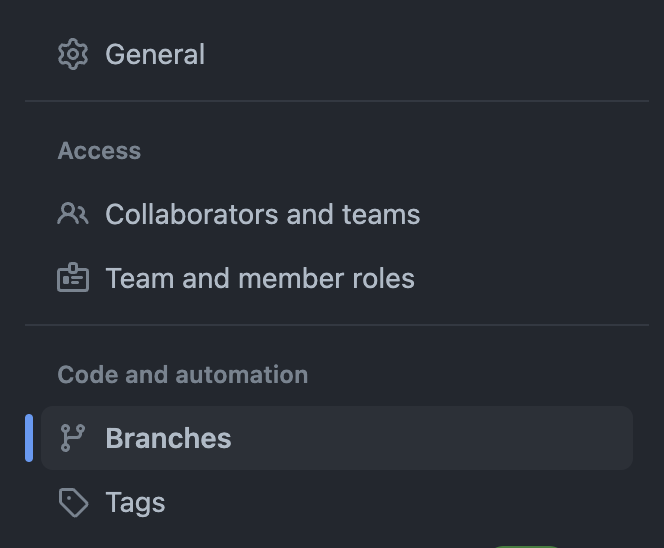 Click the **edit** button on the branch the Graphite merge queue targets (the branch which all PRs are merged into).
 Here you'll find the **Restrict who can push to matching branches** setting.
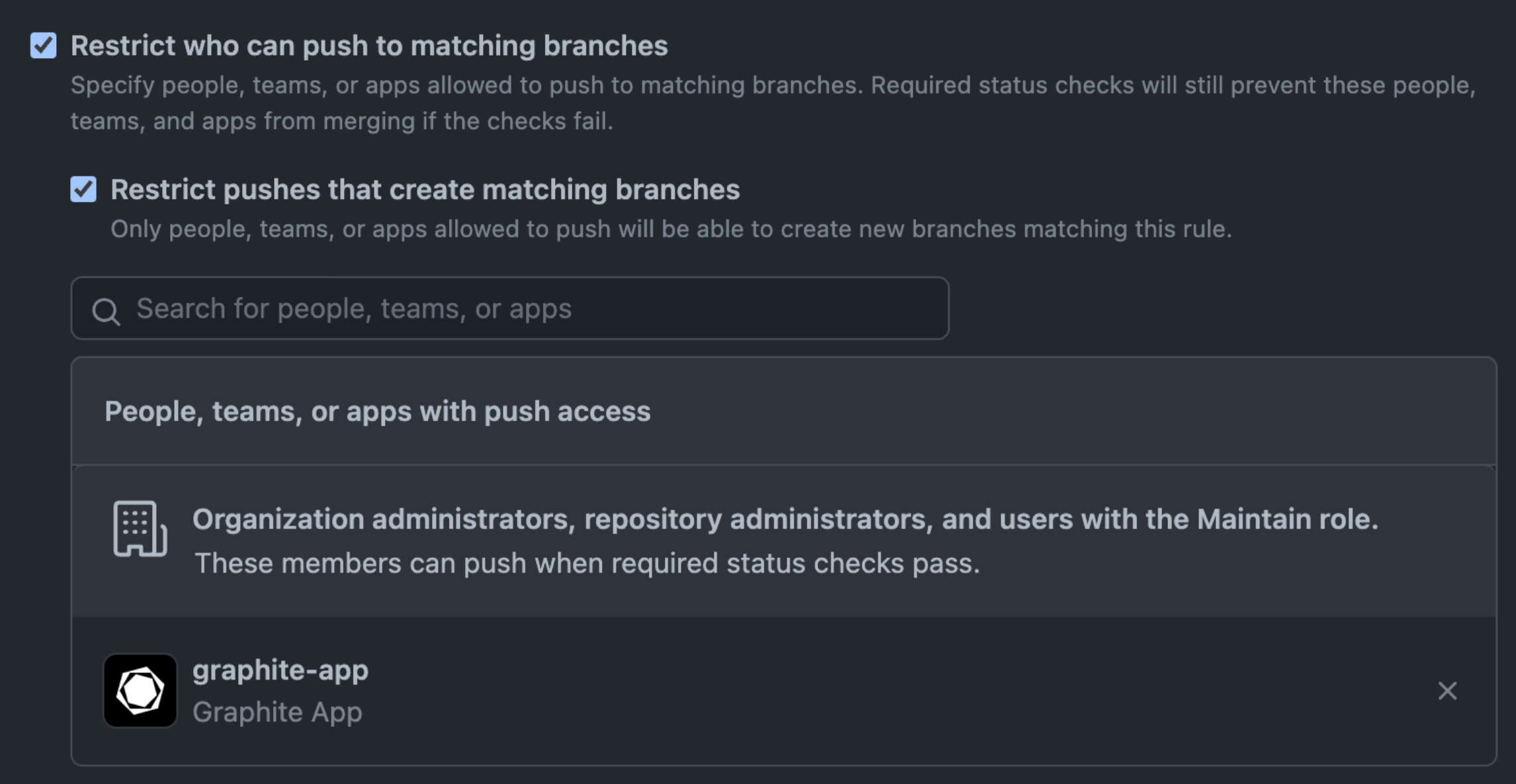
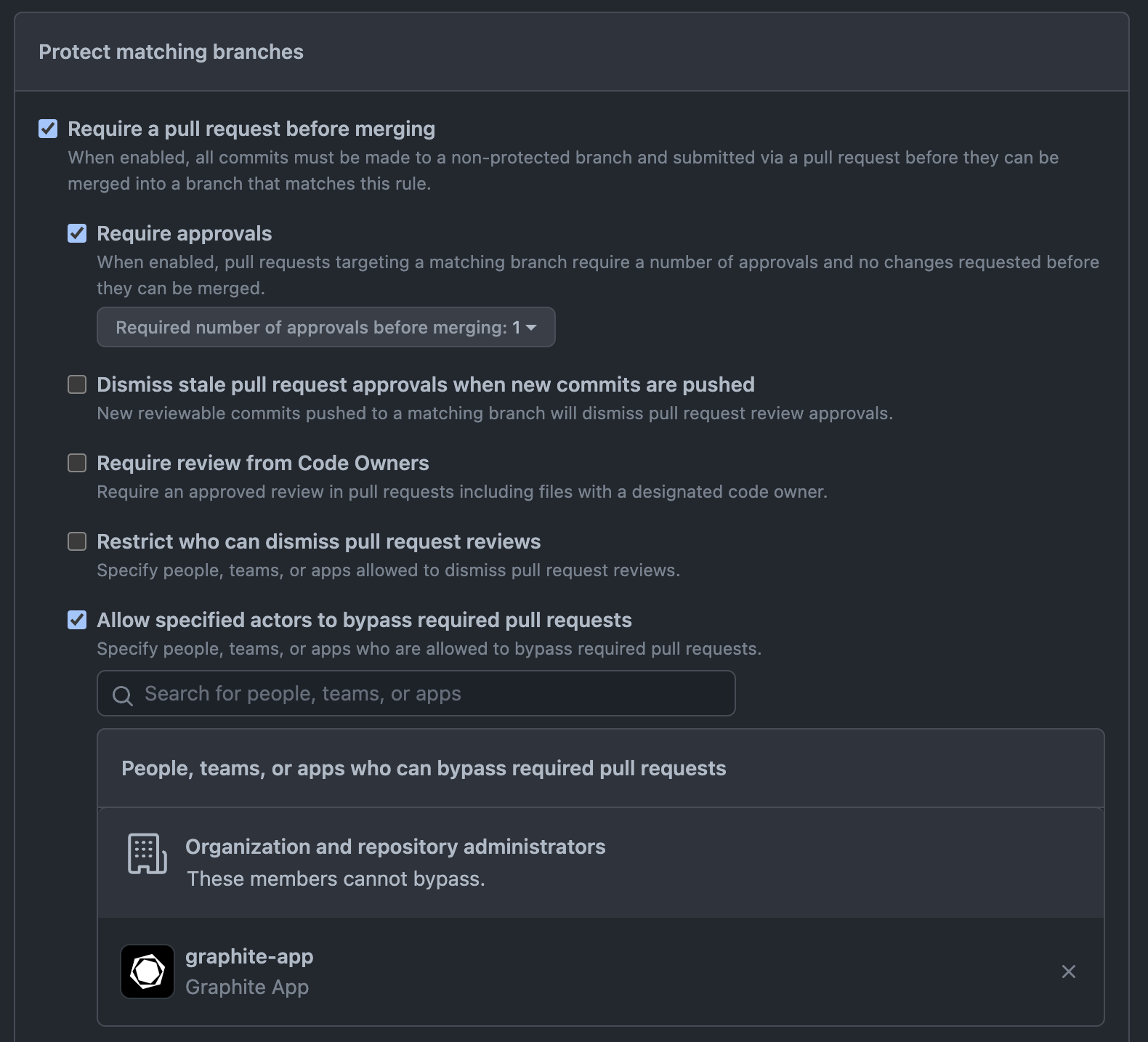 ### Rulesets
Simply add the `Graphite App` to the **Bypass list** with **Always allow**.
### Rulesets
Simply add the `Graphite App` to the **Bypass list** with **Always allow**.
 Note that multiple rulesets can apply to a single repo or branch. Make sure to update this for all rulesets impacting your merge queue enabled repo and branch.
## Optional: Adjust merge queue settings
Note that multiple rulesets can apply to a single repo or branch. Make sure to update this for all rulesets impacting your merge queue enabled repo and branch.
## Optional: Adjust merge queue settings
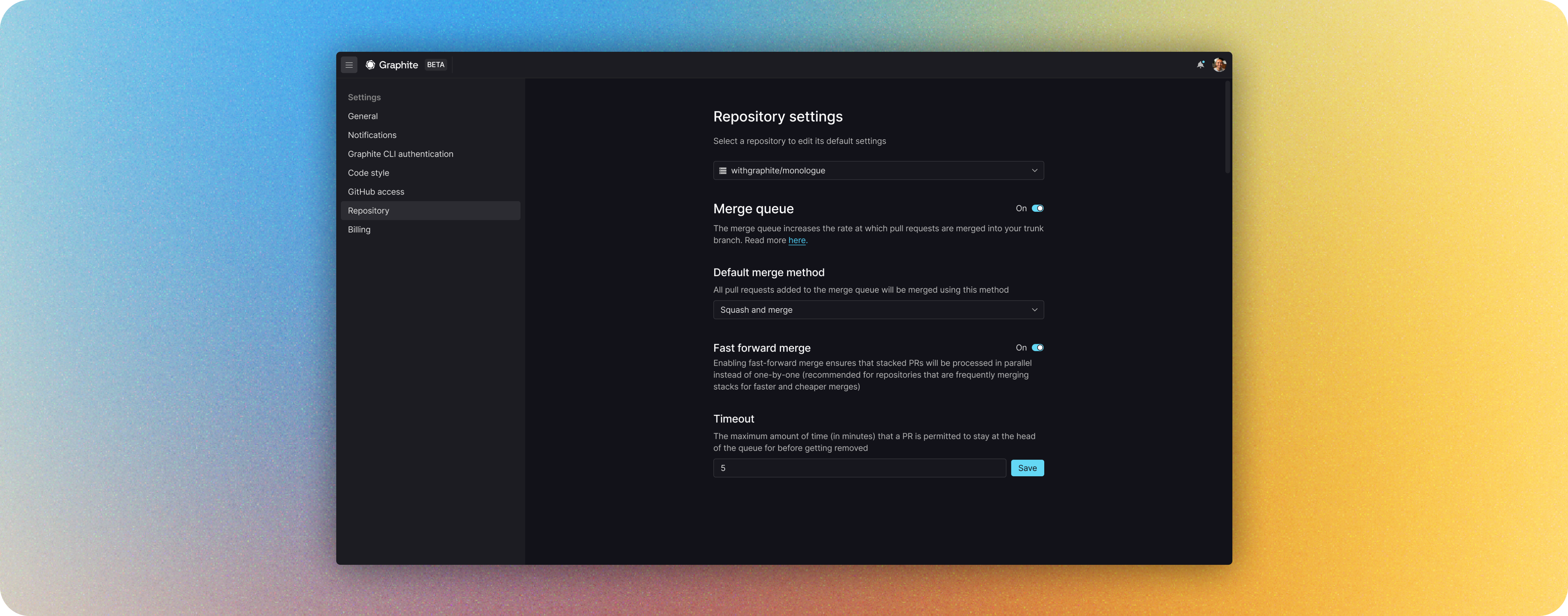 When you enable the Graphite merge queue for your repository, there are a few settings and configurations that are available to customize. Before you enable these settings, make sure you have [GitHub App authentication enabled](/authenticate-with-github-app), and have configured your repository's branch protection rules accordingly as explained above.
### Default merge strategy
* **Rebase**: rebase your changes on top of your trunk with commits unchanged (equivalent to GitHub's rebase and merge)
* **Squash**: rebase your changes on top of your trunk with each PR squashed to a single commit (equivalent to GitHub's squash and merge)
If you haven't enabled the queue, you can change the merge strategy for your PR directly from the merge modal. When the queue is enabled, you can set the merge strategy at the queue level so that all the PRs that are queued to that merge queue abide by the same rule.
### Timeout
Configuring the merge queue timeout allows you to place an upper-limit on the amount of time a PR can stay at the head of the queue, ensuring that the queue never hangs in the event that a regression is introduced.
### Merge queue label
Allows your team to add pull requests to the merge queue from anywhere by applying this label. The PR will be queued when it’s ready to merge.
Make sure your team uses this label exclusively for the merge queue.
For more information on using the label to enqueue PRs see [here](/get-started-merge-queue#enqueue-via-label).
When you enable the Graphite merge queue for your repository, there are a few settings and configurations that are available to customize. Before you enable these settings, make sure you have [GitHub App authentication enabled](/authenticate-with-github-app), and have configured your repository's branch protection rules accordingly as explained above.
### Default merge strategy
* **Rebase**: rebase your changes on top of your trunk with commits unchanged (equivalent to GitHub's rebase and merge)
* **Squash**: rebase your changes on top of your trunk with each PR squashed to a single commit (equivalent to GitHub's squash and merge)
If you haven't enabled the queue, you can change the merge strategy for your PR directly from the merge modal. When the queue is enabled, you can set the merge strategy at the queue level so that all the PRs that are queued to that merge queue abide by the same rule.
### Timeout
Configuring the merge queue timeout allows you to place an upper-limit on the amount of time a PR can stay at the head of the queue, ensuring that the queue never hangs in the event that a regression is introduced.
### Merge queue label
Allows your team to add pull requests to the merge queue from anywhere by applying this label. The PR will be queued when it’s ready to merge.
Make sure your team uses this label exclusively for the merge queue.
For more information on using the label to enqueue PRs see [here](/get-started-merge-queue#enqueue-via-label).
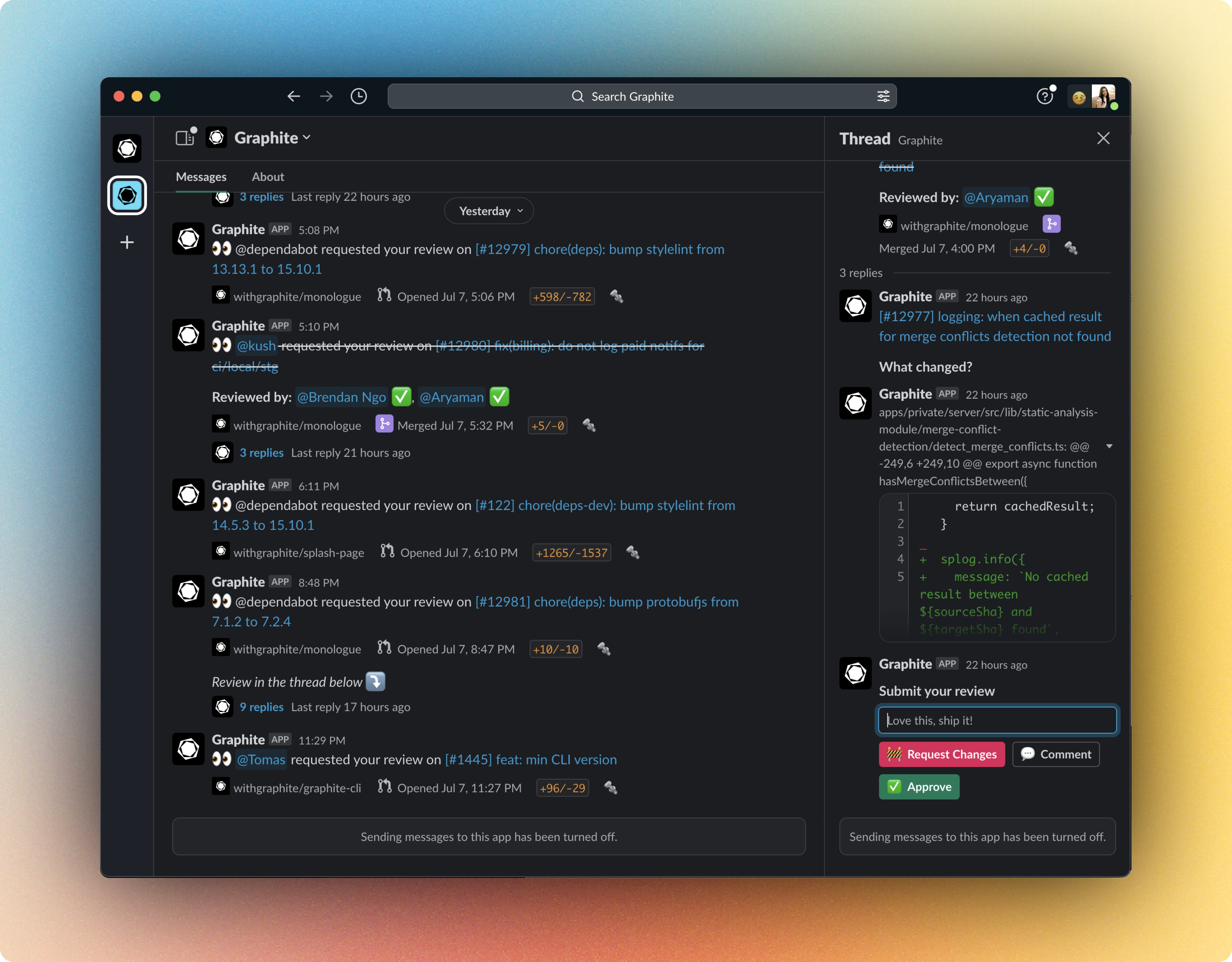 You have the ability to configure Slack notifications for PR activities like review requests, comments, mentions, and status changes. For some PRs, you can also approve, comment, request changes, or merge directly from Slack.
## Prerequisites
* A Slack workspace (free or paid)
## Install Graphite for Slack
Install the Graphite integration for Slack directly from the [notifications settings page](https://app.graphite.com/settings/notifications) on the Graphite app.
You have the ability to configure Slack notifications for PR activities like review requests, comments, mentions, and status changes. For some PRs, you can also approve, comment, request changes, or merge directly from Slack.
## Prerequisites
* A Slack workspace (free or paid)
## Install Graphite for Slack
Install the Graphite integration for Slack directly from the [notifications settings page](https://app.graphite.com/settings/notifications) on the Graphite app.
 After adding your Slack workspace, you will be prompted to give the Graphite app permissions to proceed.
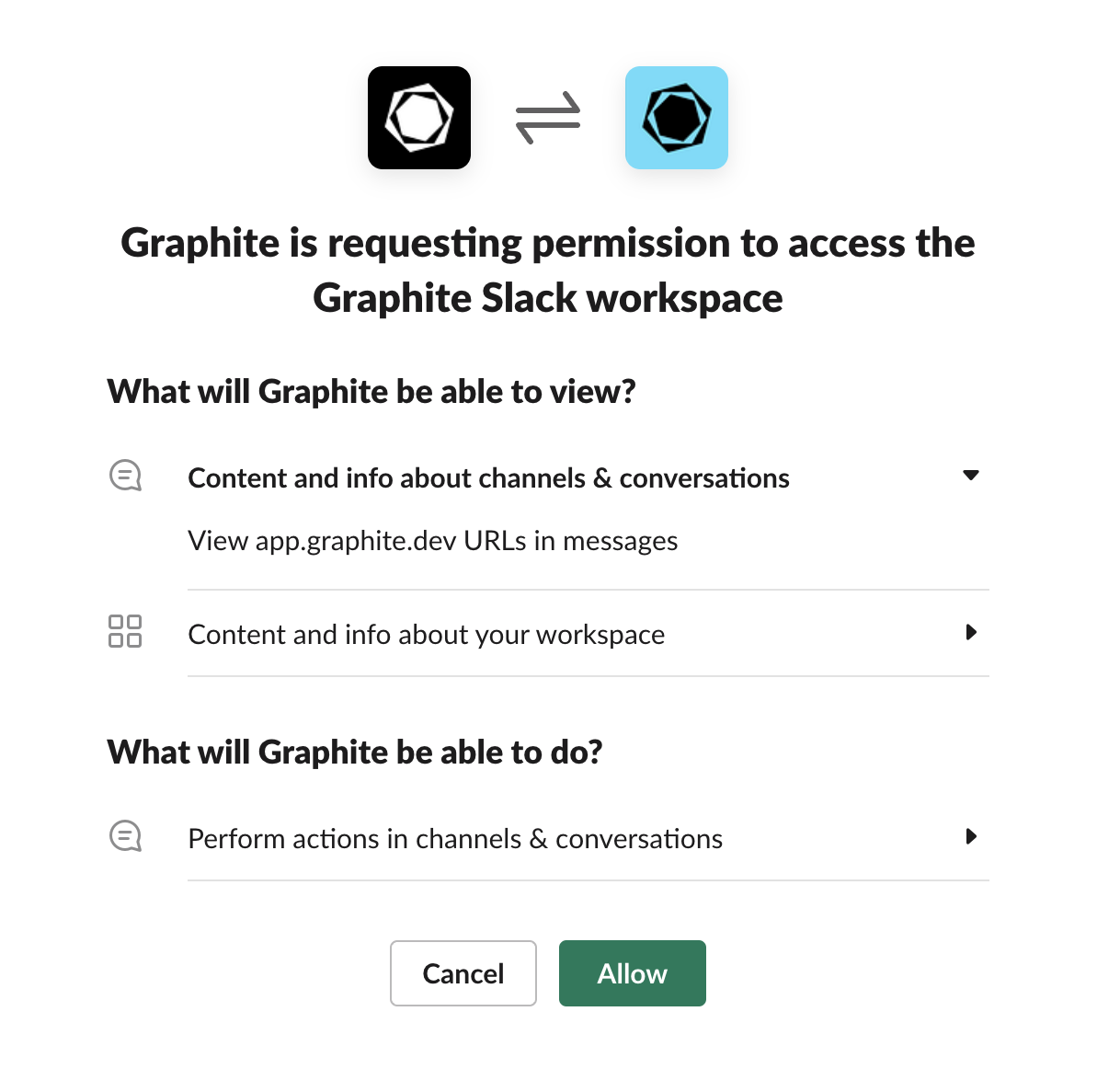 In the future, you can modify the Graphite App's access to select workspaces and channels through this settings page.
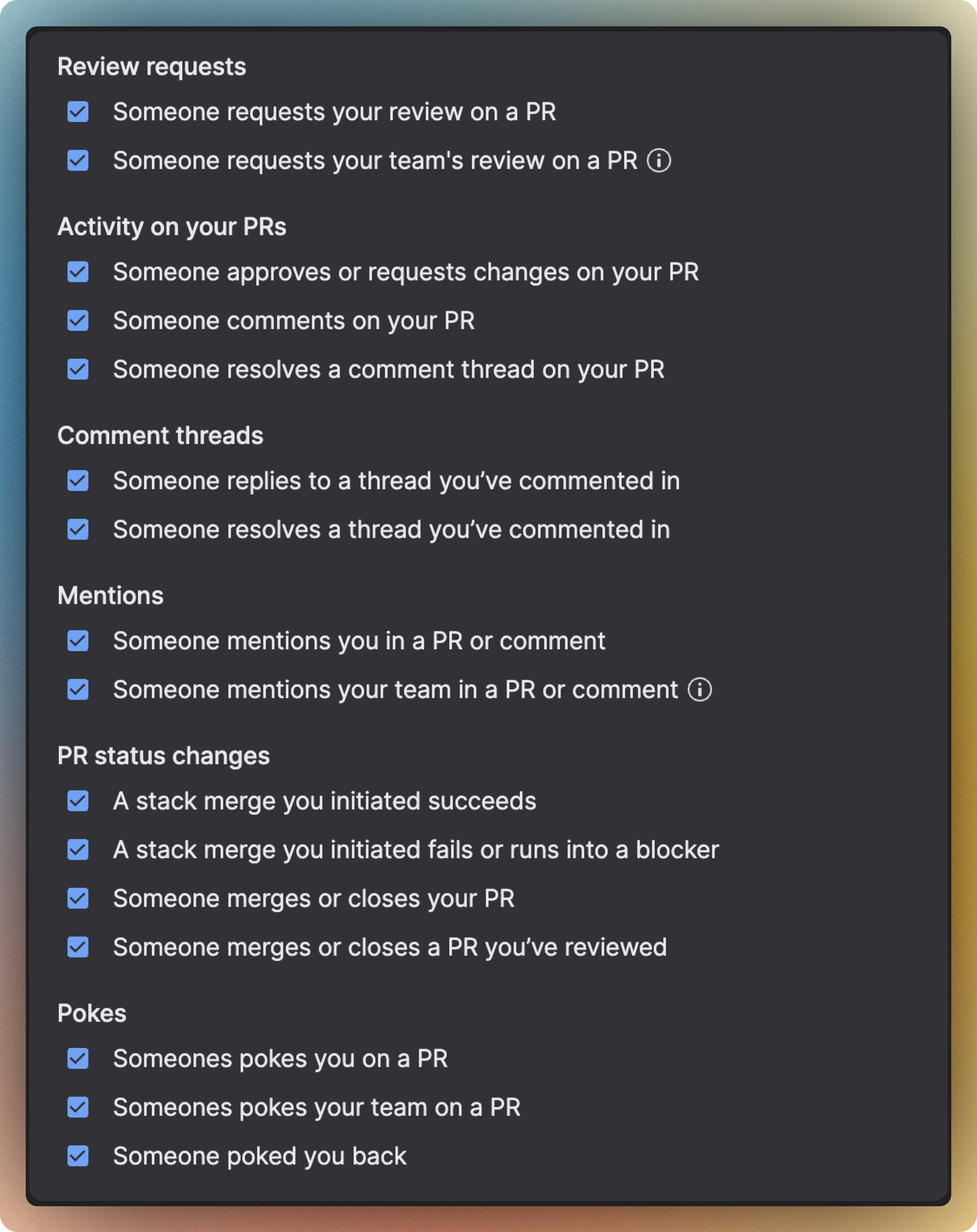 ### Reviewing and merging PRs from Slack
The Slack integration gives you the option to directly review and merge PRs from Slack. No extra setup is needed: simply enable Slack notifications for **Review requests** and **Activity on your PRs**. Reviewing from Slack is available for PRs of up to 25 lines.
### Privacy and authorization
For the purpose of providing personalized and configurable updates and information about code contributions, the Graphite app can:
* Send messages as **@graphite** in selected channels
* Start direct messages with people
* Upload, edit, and delete files as **Graphite**
* View files shared in channels and conversations that Graphite has been added to
* Add, edit, and delete remote files on a user’s behalf
* View remote files added by the app in a workspace
* Show previews of app.graphite.com URLs in messages
* View people in a workspace
* View URLs from app.graphite.com
---
# Source: https://graphite-58cc94ce.mintlify.dev/docs/squash-fold-split.md
> **Documentation Index**
> Fetch the complete documentation index at: https://graphite-58cc94ce.mintlify.dev/docs/llms.txt
> Use this file to discover all available pages before exploring further.
# Squash, Fold, And Split Changes
> Learn how to squash, fold, and split changes with the Graphite CLI.
## Prerequisites
You should be familiar with how to:
* [Create branches in a stack](/create-stack)
* [Visualize a stack](/visualize-stack)
* [Update mid-stack branches](/update-mid-stack-branches)
## Squash commits in a branch
`gt squash` allows you to squash multi-commit branches into a single commit branch, restacking upstack branches if necessary. This command is useful if you meant to run `gt modify` instead of `gt modify -c`, or to maintain single-commit branches after invoking `gt fold`. For example:
```bash
> gt log
◉ 06-28-second_branch (current)
│ 10 minutes ago
│
| 6s7a8d7 - last committed change
│ d7d41b6 - committing another change
│ 8c6d8de - committing some changes
│
◯ 06-28-first_branch
│ 5 minutes ago
│
│ 232e8cf - initial commit
│
◯ main
│ 10 minutes ago
│
│ 1e0b290 - Merging a pull request
# we want to squash the three commits on 06-28-second_branch into one
> gt squash
# /* opens an interactive editor to rename the single commit */
> gt log
◉ 06-28-second_branch (current)
│ just now
|
│ 9e13a52 - a single commit
│
◯ 06-28-first_branch
│ 5 minutes ago
│
│ 232e8cf - initial commit
│
◯ main
│ 10 minutes ago
│
│ 1e0b290 - Merging a pull request
```
## Fold branches together
`gt fold` folds (combines) the current branch into its parent, and makes all children of the current branch children of the parent branch accordingly. It preserves the commit history of both the branches and their descendants. By default, it will use the name of the parent for the resulting combined branch, but you can use the name of the branch being folded (current branch) instead with the `--keep` flag. For example:
```bash
> gt log
◉ 06-28-second_branch (current)
│ 10 minutes ago
│
│ d7d41b6 - committing another change
│ 8c6d8de - committing some changes
│
◯ 06-28-first_branch
│ 5 minutes ago
│
│ 232e8cf - initial commit
│
◯ main
│ 10 minutes ago
│
│ 1e0b290 - Merging a pull request
# we want to fold 06-28-second_branch into 06-28-first_branch
> gt fold
# or
> gt f
Folded 06-28-second_branch into 06-28-first_branch.
> gt log
◉ 06-28-first_branch (current)
│ just now
│
│ d7d41b6 - committing another change
│ 8c6d8de - committing some changes
│ 232e8cf - initial commit
│
◯ main
│ 10 minutes ago
│
│ 1e0b290 - Merging a pull request
```
## Split a branch into multiple branches
`gt split` splits the current branch into two or more branches. You can use one of three methods to split a branch:
* `--by-commit/--commit/-c`
* `--by-hunk/--hunk/-h`
* `--by-file/--file/-f`
If there is only one commit on the branch, you will enter `hunk` mode automatically. If there's more than one commit on the branch and you don't pass in an option, you'll be prompted to choose one.
### By commit using the `--by-commit` flag
In this mode, you split your branch along already-defined commit boundaries. For example, if you have a branch with five commits on it, you could put the first three into one branch and the others into another. This preserves commit history of the original branch and its descendants.
### By hunk using the `--by-hunk` flag
This mode allows you to split your branch by selecting hunks that you'd like to apply to each new branch. The interface is made up of iterative calls to `git add --patch`, which prompts you to stage your changes. You can split your branch by first staging only those you'd like to include in the first branch, then giving it a name, then moving on to the second, giving that one a name, and so on.
### By file using the `--by-file` flag
This mode allows you to split files matching the specified pathspec into a new parent branch of the branch you're splitting.
Examples:
* `gt split --by-file "*.json"` : all json files
* `gt split -f "folder/**"` : all files in the specified folder
* `gt split -f "*.json" -f "*.yaml"` : match multiple patterns
### Reviewing and merging PRs from Slack
The Slack integration gives you the option to directly review and merge PRs from Slack. No extra setup is needed: simply enable Slack notifications for **Review requests** and **Activity on your PRs**. Reviewing from Slack is available for PRs of up to 25 lines.
### Privacy and authorization
For the purpose of providing personalized and configurable updates and information about code contributions, the Graphite app can:
* Send messages as **@graphite** in selected channels
* Start direct messages with people
* Upload, edit, and delete files as **Graphite**
* View files shared in channels and conversations that Graphite has been added to
* Add, edit, and delete remote files on a user’s behalf
* View remote files added by the app in a workspace
* Show previews of app.graphite.com URLs in messages
* View people in a workspace
* View URLs from app.graphite.com
---
# Source: https://graphite-58cc94ce.mintlify.dev/docs/squash-fold-split.md
> **Documentation Index**
> Fetch the complete documentation index at: https://graphite-58cc94ce.mintlify.dev/docs/llms.txt
> Use this file to discover all available pages before exploring further.
# Squash, Fold, And Split Changes
> Learn how to squash, fold, and split changes with the Graphite CLI.
## Prerequisites
You should be familiar with how to:
* [Create branches in a stack](/create-stack)
* [Visualize a stack](/visualize-stack)
* [Update mid-stack branches](/update-mid-stack-branches)
## Squash commits in a branch
`gt squash` allows you to squash multi-commit branches into a single commit branch, restacking upstack branches if necessary. This command is useful if you meant to run `gt modify` instead of `gt modify -c`, or to maintain single-commit branches after invoking `gt fold`. For example:
```bash
> gt log
◉ 06-28-second_branch (current)
│ 10 minutes ago
│
| 6s7a8d7 - last committed change
│ d7d41b6 - committing another change
│ 8c6d8de - committing some changes
│
◯ 06-28-first_branch
│ 5 minutes ago
│
│ 232e8cf - initial commit
│
◯ main
│ 10 minutes ago
│
│ 1e0b290 - Merging a pull request
# we want to squash the three commits on 06-28-second_branch into one
> gt squash
# /* opens an interactive editor to rename the single commit */
> gt log
◉ 06-28-second_branch (current)
│ just now
|
│ 9e13a52 - a single commit
│
◯ 06-28-first_branch
│ 5 minutes ago
│
│ 232e8cf - initial commit
│
◯ main
│ 10 minutes ago
│
│ 1e0b290 - Merging a pull request
```
## Fold branches together
`gt fold` folds (combines) the current branch into its parent, and makes all children of the current branch children of the parent branch accordingly. It preserves the commit history of both the branches and their descendants. By default, it will use the name of the parent for the resulting combined branch, but you can use the name of the branch being folded (current branch) instead with the `--keep` flag. For example:
```bash
> gt log
◉ 06-28-second_branch (current)
│ 10 minutes ago
│
│ d7d41b6 - committing another change
│ 8c6d8de - committing some changes
│
◯ 06-28-first_branch
│ 5 minutes ago
│
│ 232e8cf - initial commit
│
◯ main
│ 10 minutes ago
│
│ 1e0b290 - Merging a pull request
# we want to fold 06-28-second_branch into 06-28-first_branch
> gt fold
# or
> gt f
Folded 06-28-second_branch into 06-28-first_branch.
> gt log
◉ 06-28-first_branch (current)
│ just now
│
│ d7d41b6 - committing another change
│ 8c6d8de - committing some changes
│ 232e8cf - initial commit
│
◯ main
│ 10 minutes ago
│
│ 1e0b290 - Merging a pull request
```
## Split a branch into multiple branches
`gt split` splits the current branch into two or more branches. You can use one of three methods to split a branch:
* `--by-commit/--commit/-c`
* `--by-hunk/--hunk/-h`
* `--by-file/--file/-f`
If there is only one commit on the branch, you will enter `hunk` mode automatically. If there's more than one commit on the branch and you don't pass in an option, you'll be prompted to choose one.
### By commit using the `--by-commit` flag
In this mode, you split your branch along already-defined commit boundaries. For example, if you have a branch with five commits on it, you could put the first three into one branch and the others into another. This preserves commit history of the original branch and its descendants.
### By hunk using the `--by-hunk` flag
This mode allows you to split your branch by selecting hunks that you'd like to apply to each new branch. The interface is made up of iterative calls to `git add --patch`, which prompts you to stage your changes. You can split your branch by first staging only those you'd like to include in the first branch, then giving it a name, then moving on to the second, giving that one a name, and so on.
### By file using the `--by-file` flag
This mode allows you to split files matching the specified pathspec into a new parent branch of the branch you're splitting.
Examples:
* `gt split --by-file "*.json"` : all json files
* `gt split -f "folder/**"` : all files in the specified folder
* `gt split -f "*.json" -f "*.yaml"` : match multiple patterns
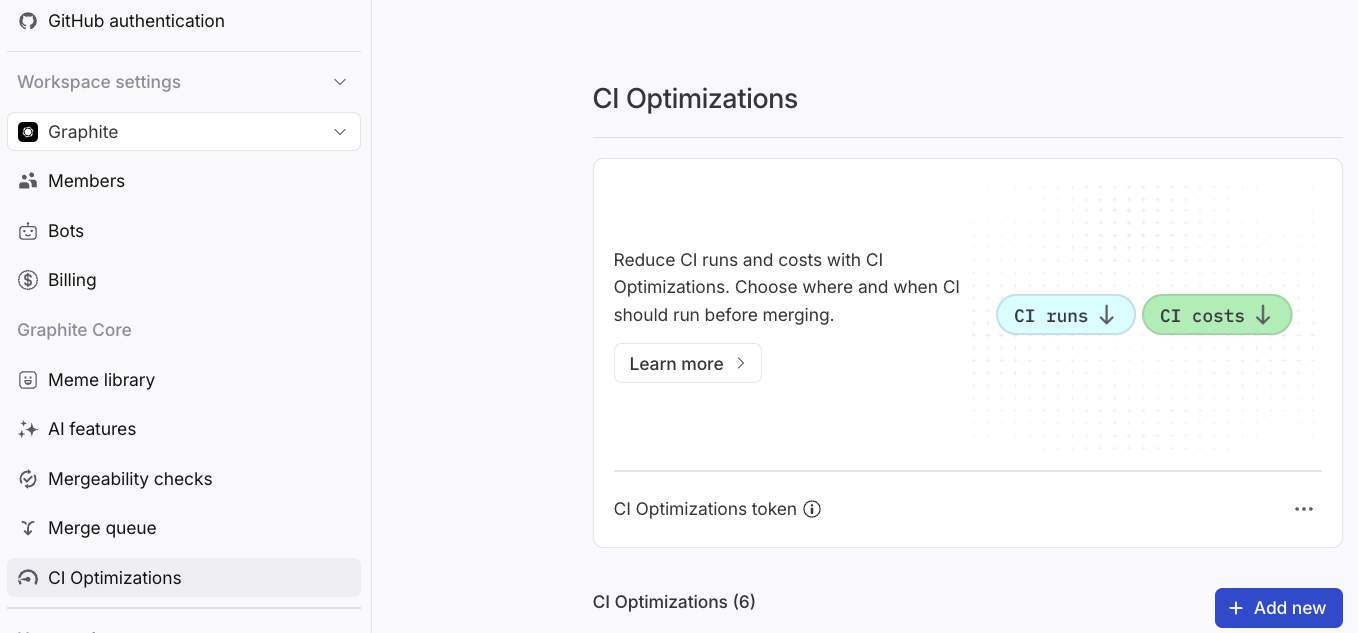 You'll see a panel as in the below screenshot, which will guide you through adding the step for your CI provider, and configuring when CI should run.
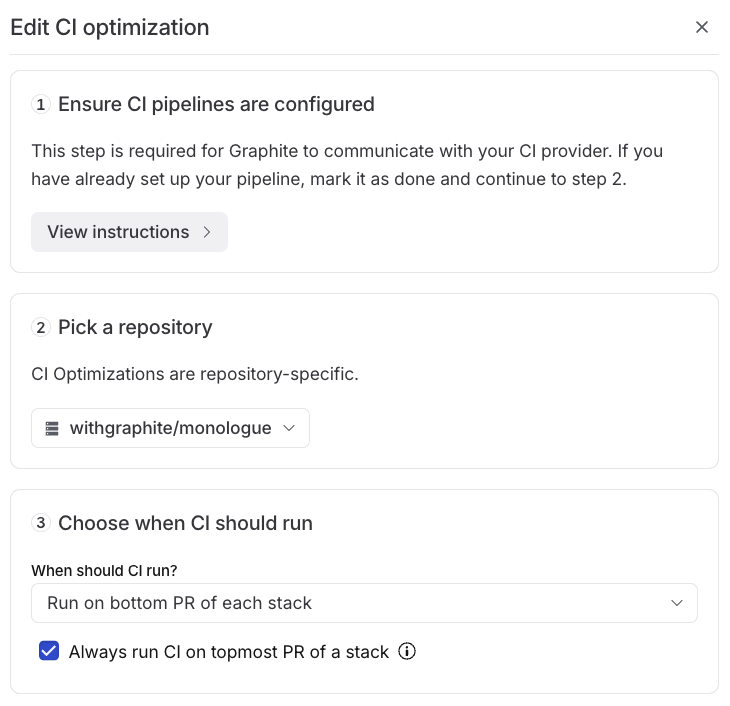 Once you're done, a card for your repository will appear on the settings page. You can edit the settings at any time.
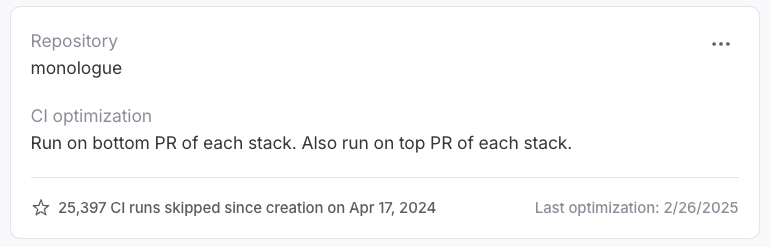 ## Setting up the Buildkite step
There are two ways to configure Graphite to optimize your Buildkite pipelines:
### Option 1: Graphite *pipeline* runs first (recommended)
## Setting up the Buildkite step
There are two ways to configure Graphite to optimize your Buildkite pipelines:
### Option 1: Graphite *pipeline* runs first (recommended)
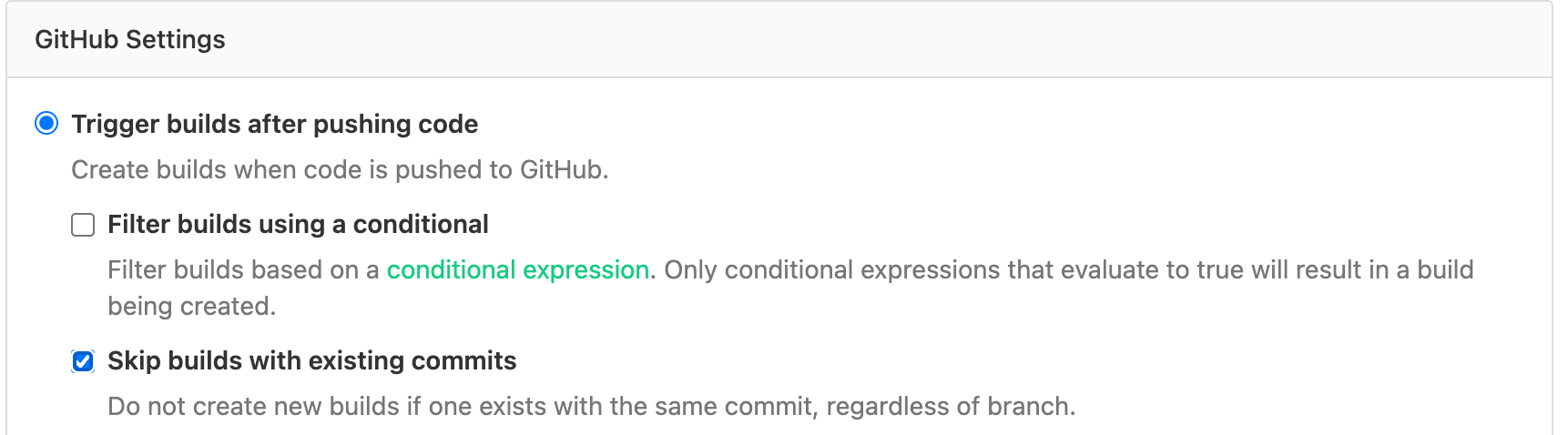 ### Option 2: Graphite *job* runs first
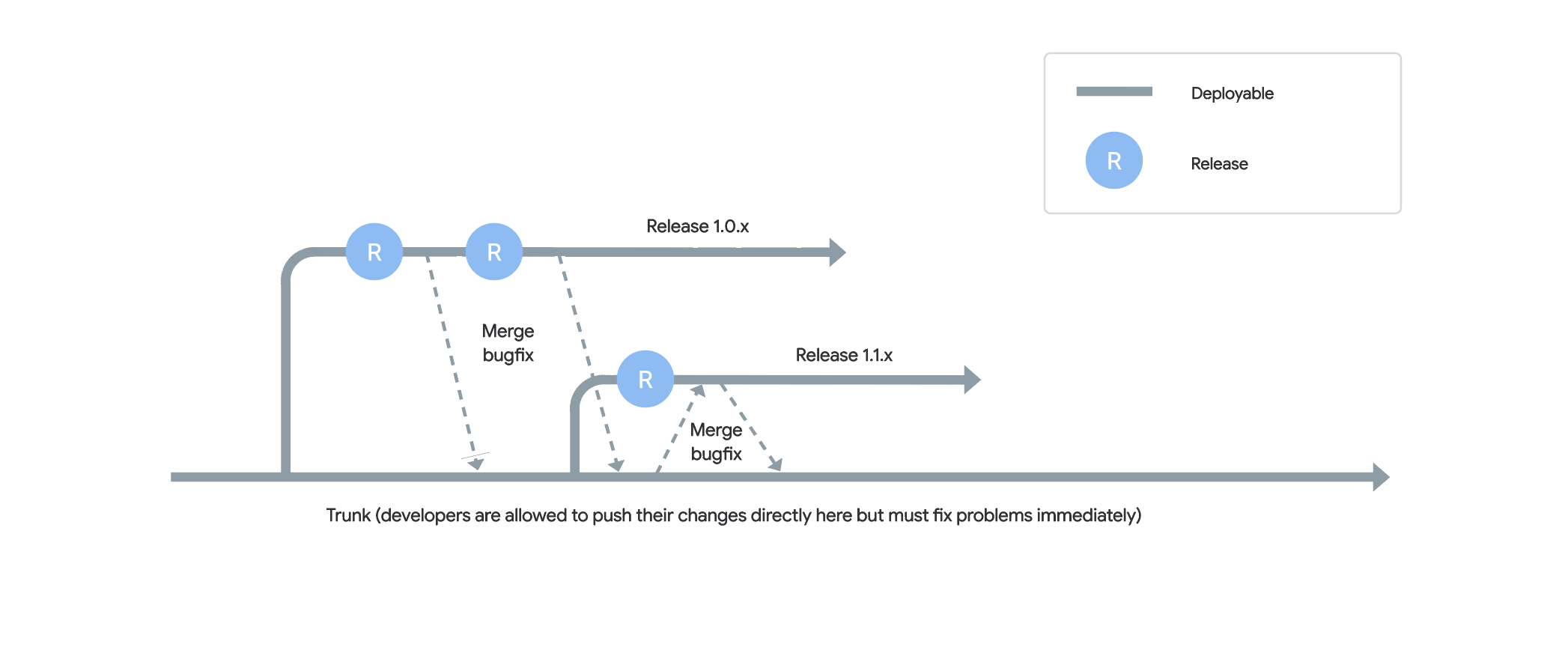 *Image from [Google Cloud](https://cloud.google.com/architecture/devops/devops-tech-trunk-based-development)*
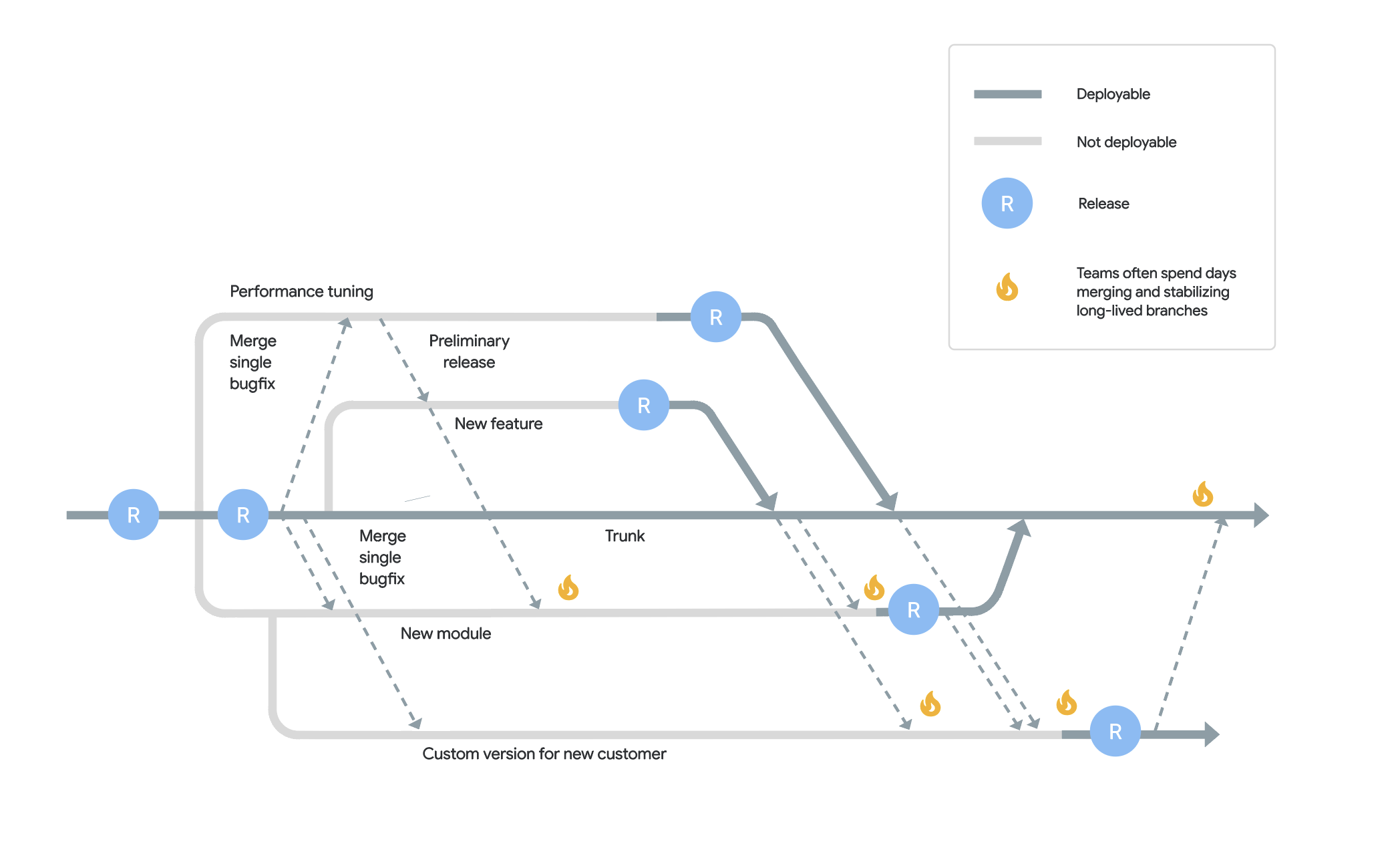 *Image from [Google Cloud](https://cloud.google.com/architecture/devops/devops-tech-trunk-based-development)*
## Benefits of trunk-based development
There are many benefits of trunk-based development, but these are the most notable ones:
* **Fast feature delivery**: In trunk-based development, changes are continuously integrated and tested (the `trunk` must always be green), so new features can be delivered faster than in a feature-branching model where features are developed in isolation and then integrated later.
* **"Green" collaboration:** Team members frequently update and sync their work with the `main` branch in trunk-based development. With this approach, peers integrate each other's changes on an hourly or minute-by-minute basis, ensuring the base they're working off of is never stale.
* **Granular code reviews:** Trunk-based development encourages smaller, "stacked" changes off of `trunk`, making code reviews more manageable and easier to complete. Additionally, since changes are continuously merged and tested, review feedback cycles tend to be much shorter.
## Getting started with trunk-based development
### Small, batched, or stacked changes
First and foremost, developers must understand how to break their changes up into small, dependent branches—those coming from a feature-branch oriented workflow may find this difficult at first.
### Speedy, frequent code review
The goal of trunk-based development is to merge changes as quickly as possible, while still keeping `trunk` error-free. For this to happen, batched/stacked changes should be reviewed as quickly as possible, so branches exist for less than a day. The longer a branch exists, the higher the chance of introducing bugs and merge conflicts when merging the changes into `trunk`. Breaking up changes into smaller, dependent branches allows developers to have their code reviewed and merged while simultaneously working on new changes.
### Limit the number of active branches and feature flags
Many teams have three or more active branches on a given repository—such as a develop branch, a release branch, several feature branches, and a `main` branch. In trunk-based development, it's **strongly recommended** to keep the number of active branches to a minimum.
Since a team's agility depends on the working status of the `trunk` branch, having multiple open branches makes repairing or reverting bad changes to `trunk` unnecessarily complicated. In situations where developers are inclined to create a feature or release branch as a gate or to develop risky features separately from the `main` branch, using **feature flags** is suggested. Feature flags wrap specific changes in an "inactive" code path and can be conditionally enabled/disabled—eliminating the need for creating another branch and instead introducing the changes directly into `trunk` in a non-destructive way.
### Fast automated test suite and build process
To achieve CI, each commit to a repository must undergo testing before, during, and after it merges into `trunk`, and subsequently trigger an automated build process. As a result, this automated test suite should consist of only short-running integration or unit or acceptance tests, and the automated build process should be quick and repeatable. Automated tests should be reliable (not flaky), and should assess the high-level functionality of the code system—and more comprehensive end-to-end tests can be run later on in development.
## See also
* [Trunk-based development overview](https://trunkbaseddevelopment.com/#)
* [Short-lived feature branches](https://trunkbaseddevelopment.com/short-lived-feature-branches/)
* [Trunk-based development: deciding factors](https://trunkbaseddevelopment.com/deciding-factors/)
* [Google Cloud Architecture DevOps tech: Trunk-based development](https://cloud.google.com/architecture/devops/devops-tech-trunk-based-development)
* [Google Cloud Architecture DevOps tech: Continuous integration](https://cloud.google.com/architecture/devops/devops-tech-continuous-integration)
* [Atlassian: Trunk Based Development](https://www.atlassian.com/continuous-delivery/continuous-integration/trunk-based-development)
---
# Source: https://graphite-58cc94ce.mintlify.dev/docs/update-cli.md
> **Documentation Index**
> Fetch the complete documentation index at: https://graphite-58cc94ce.mintlify.dev/docs/llms.txt
> Use this file to discover all available pages before exploring further.
## Update The CLI
> Learn how to update the Graphite CLI.
## Versions 1.7.4 and greater
```bash
gt upgrade
```
## homebrew
```bash
brew update && brew upgrade withgraphite/tap/graphite
```
## npm
```bash
npm install -g @withgraphite/graphite-cli@stable
```
*Image from [Google Cloud](https://cloud.google.com/architecture/devops/devops-tech-trunk-based-development)*
## Benefits of trunk-based development
There are many benefits of trunk-based development, but these are the most notable ones:
* **Fast feature delivery**: In trunk-based development, changes are continuously integrated and tested (the `trunk` must always be green), so new features can be delivered faster than in a feature-branching model where features are developed in isolation and then integrated later.
* **"Green" collaboration:** Team members frequently update and sync their work with the `main` branch in trunk-based development. With this approach, peers integrate each other's changes on an hourly or minute-by-minute basis, ensuring the base they're working off of is never stale.
* **Granular code reviews:** Trunk-based development encourages smaller, "stacked" changes off of `trunk`, making code reviews more manageable and easier to complete. Additionally, since changes are continuously merged and tested, review feedback cycles tend to be much shorter.
## Getting started with trunk-based development
### Small, batched, or stacked changes
First and foremost, developers must understand how to break their changes up into small, dependent branches—those coming from a feature-branch oriented workflow may find this difficult at first.
### Speedy, frequent code review
The goal of trunk-based development is to merge changes as quickly as possible, while still keeping `trunk` error-free. For this to happen, batched/stacked changes should be reviewed as quickly as possible, so branches exist for less than a day. The longer a branch exists, the higher the chance of introducing bugs and merge conflicts when merging the changes into `trunk`. Breaking up changes into smaller, dependent branches allows developers to have their code reviewed and merged while simultaneously working on new changes.
### Limit the number of active branches and feature flags
Many teams have three or more active branches on a given repository—such as a develop branch, a release branch, several feature branches, and a `main` branch. In trunk-based development, it's **strongly recommended** to keep the number of active branches to a minimum.
Since a team's agility depends on the working status of the `trunk` branch, having multiple open branches makes repairing or reverting bad changes to `trunk` unnecessarily complicated. In situations where developers are inclined to create a feature or release branch as a gate or to develop risky features separately from the `main` branch, using **feature flags** is suggested. Feature flags wrap specific changes in an "inactive" code path and can be conditionally enabled/disabled—eliminating the need for creating another branch and instead introducing the changes directly into `trunk` in a non-destructive way.
### Fast automated test suite and build process
To achieve CI, each commit to a repository must undergo testing before, during, and after it merges into `trunk`, and subsequently trigger an automated build process. As a result, this automated test suite should consist of only short-running integration or unit or acceptance tests, and the automated build process should be quick and repeatable. Automated tests should be reliable (not flaky), and should assess the high-level functionality of the code system—and more comprehensive end-to-end tests can be run later on in development.
## See also
* [Trunk-based development overview](https://trunkbaseddevelopment.com/#)
* [Short-lived feature branches](https://trunkbaseddevelopment.com/short-lived-feature-branches/)
* [Trunk-based development: deciding factors](https://trunkbaseddevelopment.com/deciding-factors/)
* [Google Cloud Architecture DevOps tech: Trunk-based development](https://cloud.google.com/architecture/devops/devops-tech-trunk-based-development)
* [Google Cloud Architecture DevOps tech: Continuous integration](https://cloud.google.com/architecture/devops/devops-tech-continuous-integration)
* [Atlassian: Trunk Based Development](https://www.atlassian.com/continuous-delivery/continuous-integration/trunk-based-development)
---
# Source: https://graphite-58cc94ce.mintlify.dev/docs/update-cli.md
> **Documentation Index**
> Fetch the complete documentation index at: https://graphite-58cc94ce.mintlify.dev/docs/llms.txt
> Use this file to discover all available pages before exploring further.
## Update The CLI
> Learn how to update the Graphite CLI.
## Versions 1.7.4 and greater
```bash
gt upgrade
```
## homebrew
```bash
brew update && brew upgrade withgraphite/tap/graphite
```
## npm
```bash
npm install -g @withgraphite/graphite-cli@stable
```
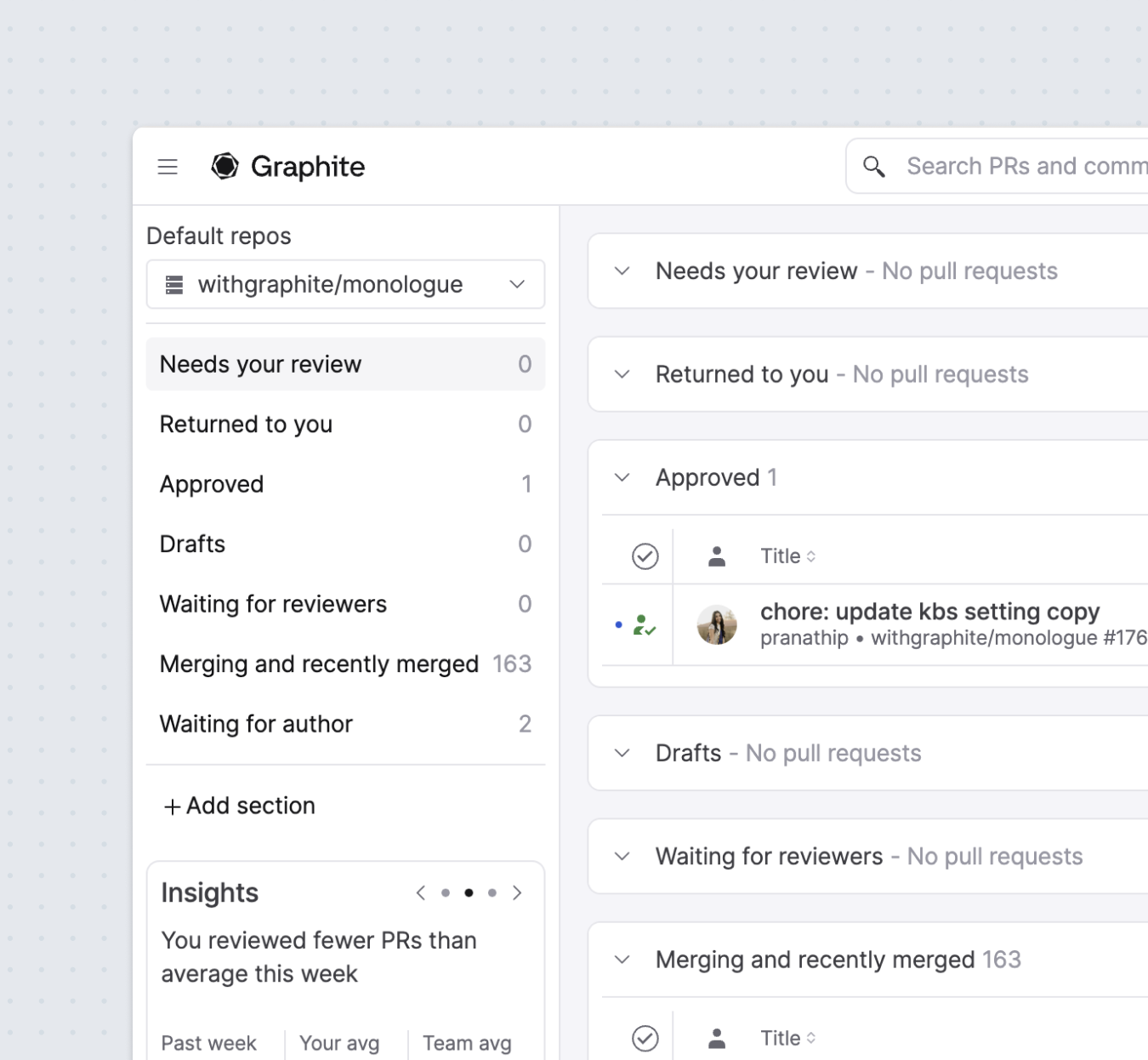 Graphite creates six default sections for you:
* Needs your review
* Approved
* Returned to you
* Merging and recently merged
* Drafts
* Waiting for review
### Add a new section
You can create an entirely new section with custom filters and preferences by clicking the `add new section` button under your existing sections.
### Edit an existing section
You can edit an existing section by clicking the ⚙️ icon on the right side of the section header.
### Rearrange sections
The order of your inbox sections is customizable. Drag the section to rearrange it from the left menu, or the section itself.
### Share sections
You can share your section configs with your teammates by clicking the ⚙️ icon, and scrolling to the bottom to find `Share filters`. This generates a shareable link that your teammates can navigate to in their browser to create a new section with your filters pre-configured.
You can choose to share the filter as-is, or have Graphite dynamically replace your GitHub username with your teammate's usernames as they add in your section config.
Note that this is a one-way export: if you update your section's filter configs, and want your teammates to see the new configurations, generate a new link and share it with them again.
## Search PRs
Search for PRs within the app across your synced repositories. Fuzzy search is supported across PR title, description, author, and more.
Access the search bar in the sidebar menu, or with the `cmd + k` shortcut.
---
# Source: https://graphite-58cc94ce.mintlify.dev/docs/vs-code-extension-configuration.md
> **Documentation Index**
> Fetch the complete documentation index at: https://graphite-58cc94ce.mintlify.dev/docs/llms.txt
> Use this file to discover all available pages before exploring further.
## Configuration
> Customize the Graphite VS Code extension.
Everyone's IDE is personalized to their own workflow, so we've introduced some customizations to make using the VS Code extension as personalized as possible.
## Branch name vs. PR title
In the "settings" on the top right corner of the extension, you can select whether you'd like to show the branch name or the PR title in the stack visualization by default. When PR title is selected as the default and a branch doesn't have a PR title or a PR yet, we'll show you the branch name.
## Amend vs. commit
In the "settings" on the top right corner of the extension, you can select whether you'd like the default modification of a branch to amend the most recent commit on that branch, or to create an entirely new one on the branch. This corresponds to `gt modify` or `gt modify -c`.
## Draft vs. publish
Choose whether you want to default to creating draft or published PRs upon submitting from the extension. Draft will be selected by default.
## Open stack edit on submit (beta)
Upon submitting from the extension, open Graphite's "stack edit" feature to add reviewers, edit description, tags, etc.
## Filetree display
Graphite creates six default sections for you:
* Needs your review
* Approved
* Returned to you
* Merging and recently merged
* Drafts
* Waiting for review
### Add a new section
You can create an entirely new section with custom filters and preferences by clicking the `add new section` button under your existing sections.
### Edit an existing section
You can edit an existing section by clicking the ⚙️ icon on the right side of the section header.
### Rearrange sections
The order of your inbox sections is customizable. Drag the section to rearrange it from the left menu, or the section itself.
### Share sections
You can share your section configs with your teammates by clicking the ⚙️ icon, and scrolling to the bottom to find `Share filters`. This generates a shareable link that your teammates can navigate to in their browser to create a new section with your filters pre-configured.
You can choose to share the filter as-is, or have Graphite dynamically replace your GitHub username with your teammate's usernames as they add in your section config.
Note that this is a one-way export: if you update your section's filter configs, and want your teammates to see the new configurations, generate a new link and share it with them again.
## Search PRs
Search for PRs within the app across your synced repositories. Fuzzy search is supported across PR title, description, author, and more.
Access the search bar in the sidebar menu, or with the `cmd + k` shortcut.
---
# Source: https://graphite-58cc94ce.mintlify.dev/docs/vs-code-extension-configuration.md
> **Documentation Index**
> Fetch the complete documentation index at: https://graphite-58cc94ce.mintlify.dev/docs/llms.txt
> Use this file to discover all available pages before exploring further.
## Configuration
> Customize the Graphite VS Code extension.
Everyone's IDE is personalized to their own workflow, so we've introduced some customizations to make using the VS Code extension as personalized as possible.
## Branch name vs. PR title
In the "settings" on the top right corner of the extension, you can select whether you'd like to show the branch name or the PR title in the stack visualization by default. When PR title is selected as the default and a branch doesn't have a PR title or a PR yet, we'll show you the branch name.
## Amend vs. commit
In the "settings" on the top right corner of the extension, you can select whether you'd like the default modification of a branch to amend the most recent commit on that branch, or to create an entirely new one on the branch. This corresponds to `gt modify` or `gt modify -c`.
## Draft vs. publish
Choose whether you want to default to creating draft or published PRs upon submitting from the extension. Draft will be selected by default.
## Open stack edit on submit (beta)
Upon submitting from the extension, open Graphite's "stack edit" feature to add reviewers, edit description, tags, etc.
## Filetree display
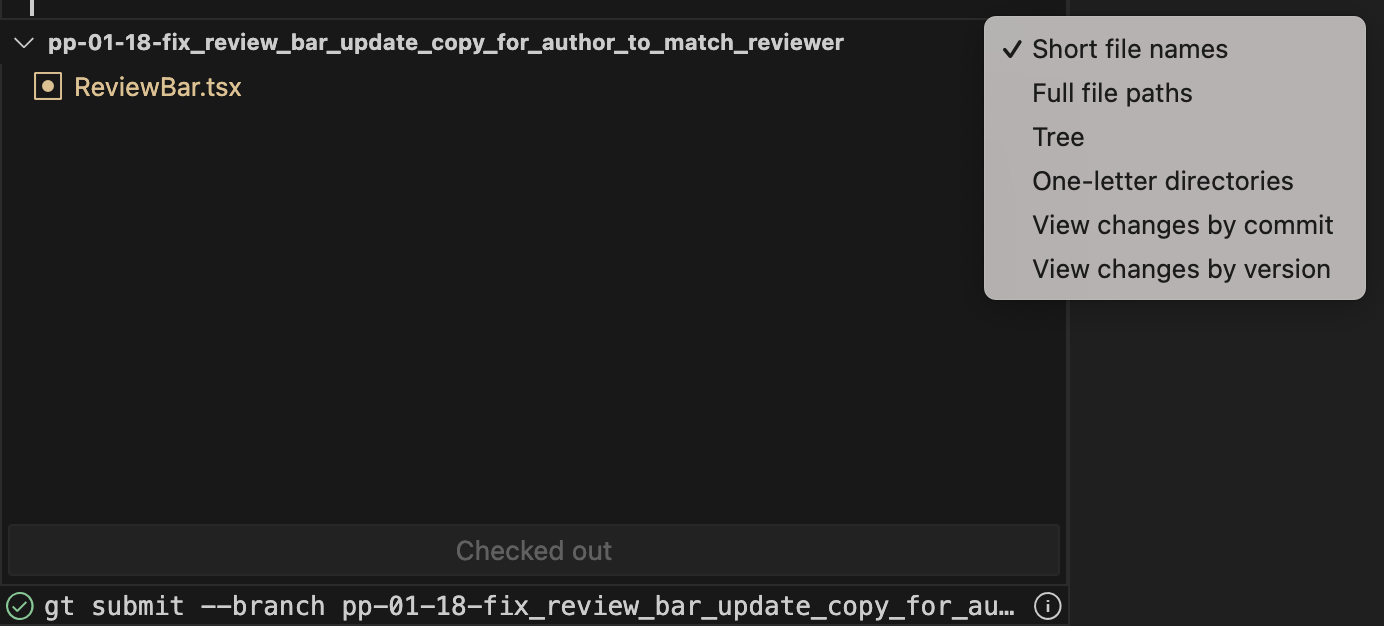 When focusing the contents of a branch of viewing uncommitted changes, you can click the "..." in the branch pane to adjust the filetree view to:
* Short file names
* Full file paths
* Tree
* One-letter directories
In the same menu, you can opt to show changes by:
* Commit
* [Version](/pull-request-versions)
---
# Source: https://graphite-58cc94ce.mintlify.dev/docs/vs-code-extension-first-pr.md
> **Documentation Index**
> Fetch the complete documentation index at: https://graphite-58cc94ce.mintlify.dev/docs/llms.txt
> Use this file to discover all available pages before exploring further.
## Create A Pull Request
> Learn to use the Graphite VS Code extension to create a single pull request.
## Prerequisites
Open VS Code in a repository where you're comfortable making changes. Once you've [installed the Graphite VS Code extension](https://marketplace.visualstudio.com/items?itemName=Graphite.gti-vscode), there will be a Graphite icon on the far left of VS Code.
When focusing the contents of a branch of viewing uncommitted changes, you can click the "..." in the branch pane to adjust the filetree view to:
* Short file names
* Full file paths
* Tree
* One-letter directories
In the same menu, you can opt to show changes by:
* Commit
* [Version](/pull-request-versions)
---
# Source: https://graphite-58cc94ce.mintlify.dev/docs/vs-code-extension-first-pr.md
> **Documentation Index**
> Fetch the complete documentation index at: https://graphite-58cc94ce.mintlify.dev/docs/llms.txt
> Use this file to discover all available pages before exploring further.
## Create A Pull Request
> Learn to use the Graphite VS Code extension to create a single pull request.
## Prerequisites
Open VS Code in a repository where you're comfortable making changes. Once you've [installed the Graphite VS Code extension](https://marketplace.visualstudio.com/items?itemName=Graphite.gti-vscode), there will be a Graphite icon on the far left of VS Code.
 When you click the Graphite icon in the left rail, you'll be asked to configure Graphite if you never have before. Follow the prompts in the extension to set it up.
Once you configure Graphite, you'll see all of the branches in your repository as a tree: for example, in the below example, main has two directly descendent child branches ("Feature A" and "Feature B").
When you click the Graphite icon in the left rail, you'll be asked to configure Graphite if you never have before. Follow the prompts in the extension to set it up.
Once you configure Graphite, you'll see all of the branches in your repository as a tree: for example, in the below example, main has two directly descendent child branches ("Feature A" and "Feature B").
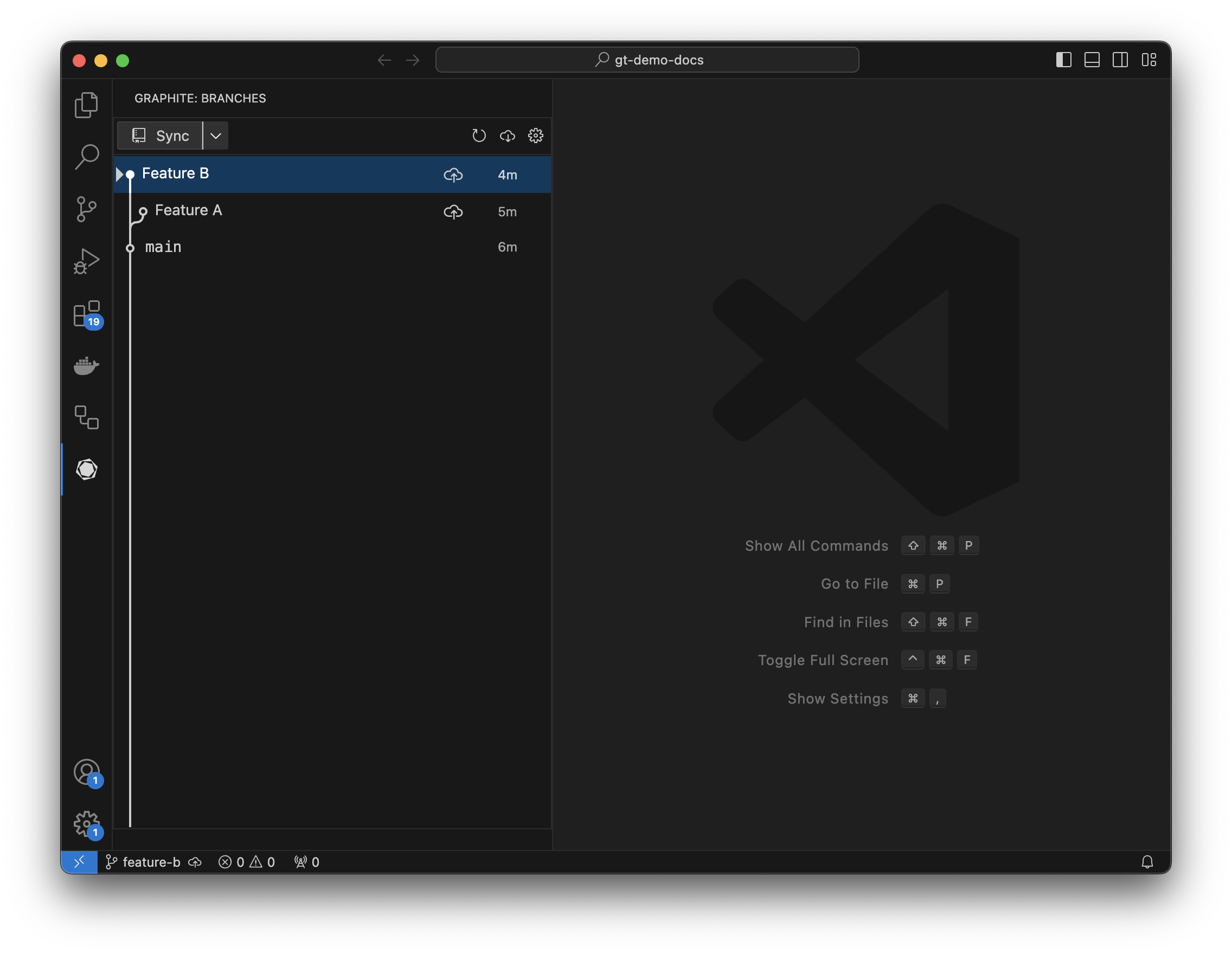 Make sure you do not have uncommitted changes in your repository (these will show up as a yellow "uncommitted changes" branch in the Graphite extension). If you do have uncommitted changes, either commit them to a branch or delete them using whatever tools you usually use to work with Git repos before continuing.
## Checkout main
The VS Code extension will show the branch you currently have checked out with a triangle next to the branch name. If you have a branch other than your trunk branch (usually named `main` or `master`) checked out, click on trunk and press checkout to change the branch you have.
Make sure you do not have uncommitted changes in your repository (these will show up as a yellow "uncommitted changes" branch in the Graphite extension). If you do have uncommitted changes, either commit them to a branch or delete them using whatever tools you usually use to work with Git repos before continuing.
## Checkout main
The VS Code extension will show the branch you currently have checked out with a triangle next to the branch name. If you have a branch other than your trunk branch (usually named `main` or `master`) checked out, click on trunk and press checkout to change the branch you have.
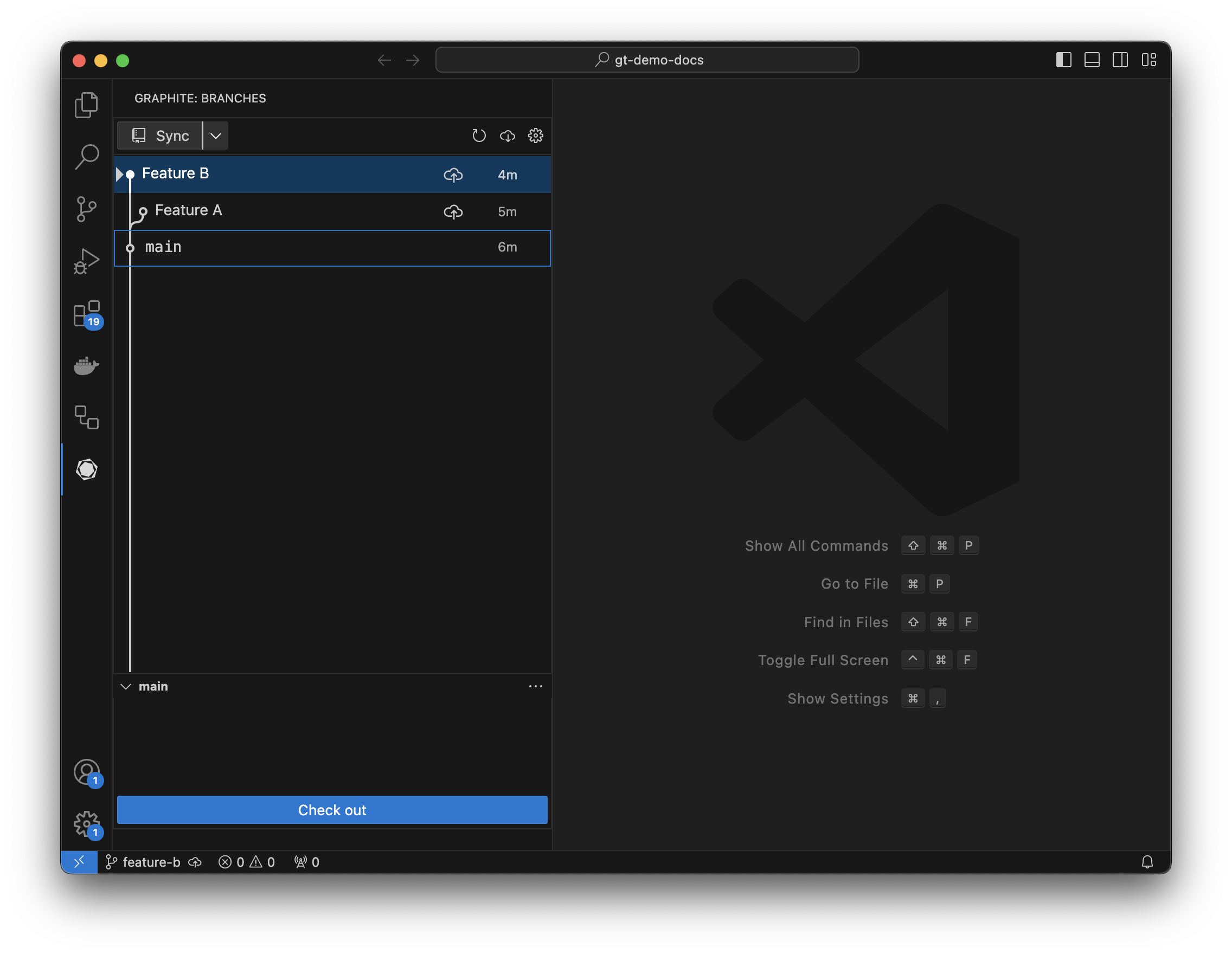 ## Make changes
Make changes to your repository, either by adding a file or editing an existing file. That file should now show up under "uncommitted changes" in the extension.
## Make changes
Make changes to your repository, either by adding a file or editing an existing file. That file should now show up under "uncommitted changes" in the extension.
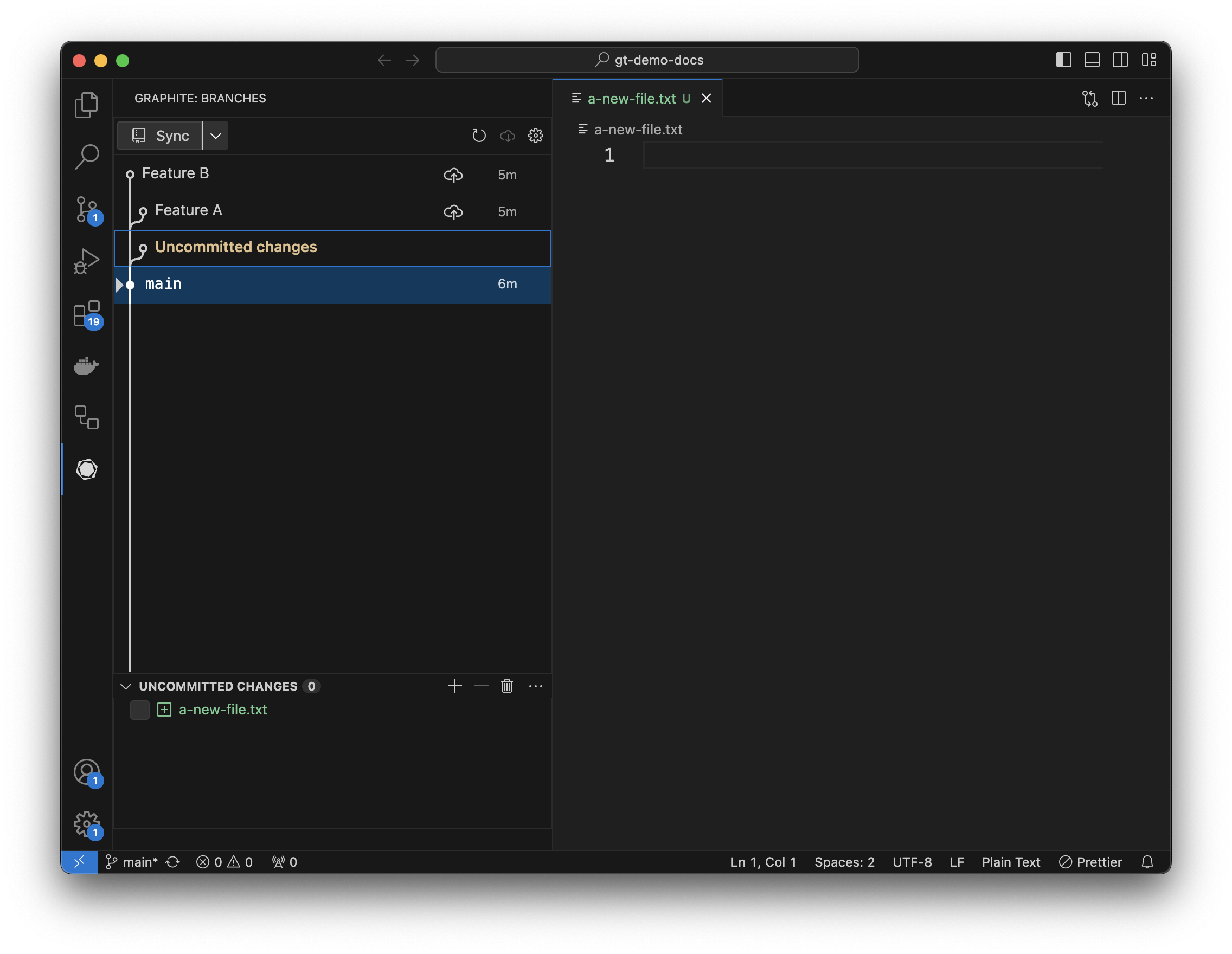 ## Stage your changes
Select uncommitted changes, and you'll see all the changed files in your repository (files added, files modified, and files deleted). Clicking the checkbox next to a file allows you to stage it in git (the equivalent of running `git add`).
## Stage your changes
Select uncommitted changes, and you'll see all the changed files in your repository (files added, files modified, and files deleted). Clicking the checkbox next to a file allows you to stage it in git (the equivalent of running `git add`).
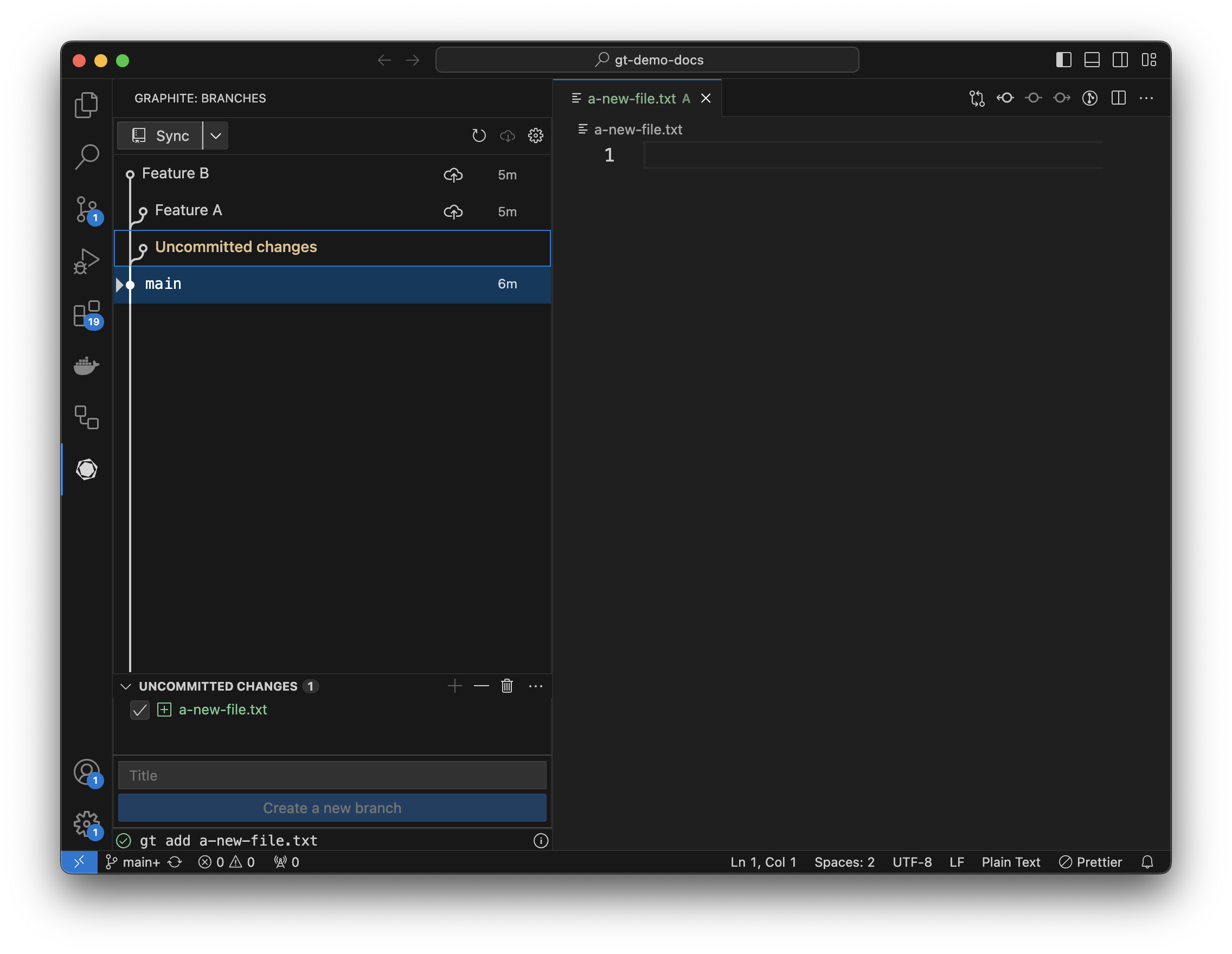 ## Create a branch
Once you've staged changes, you can create a new branch by entering a commit title and pressing create branch.
## Create a branch
Once you've staged changes, you can create a new branch by entering a commit title and pressing create branch.
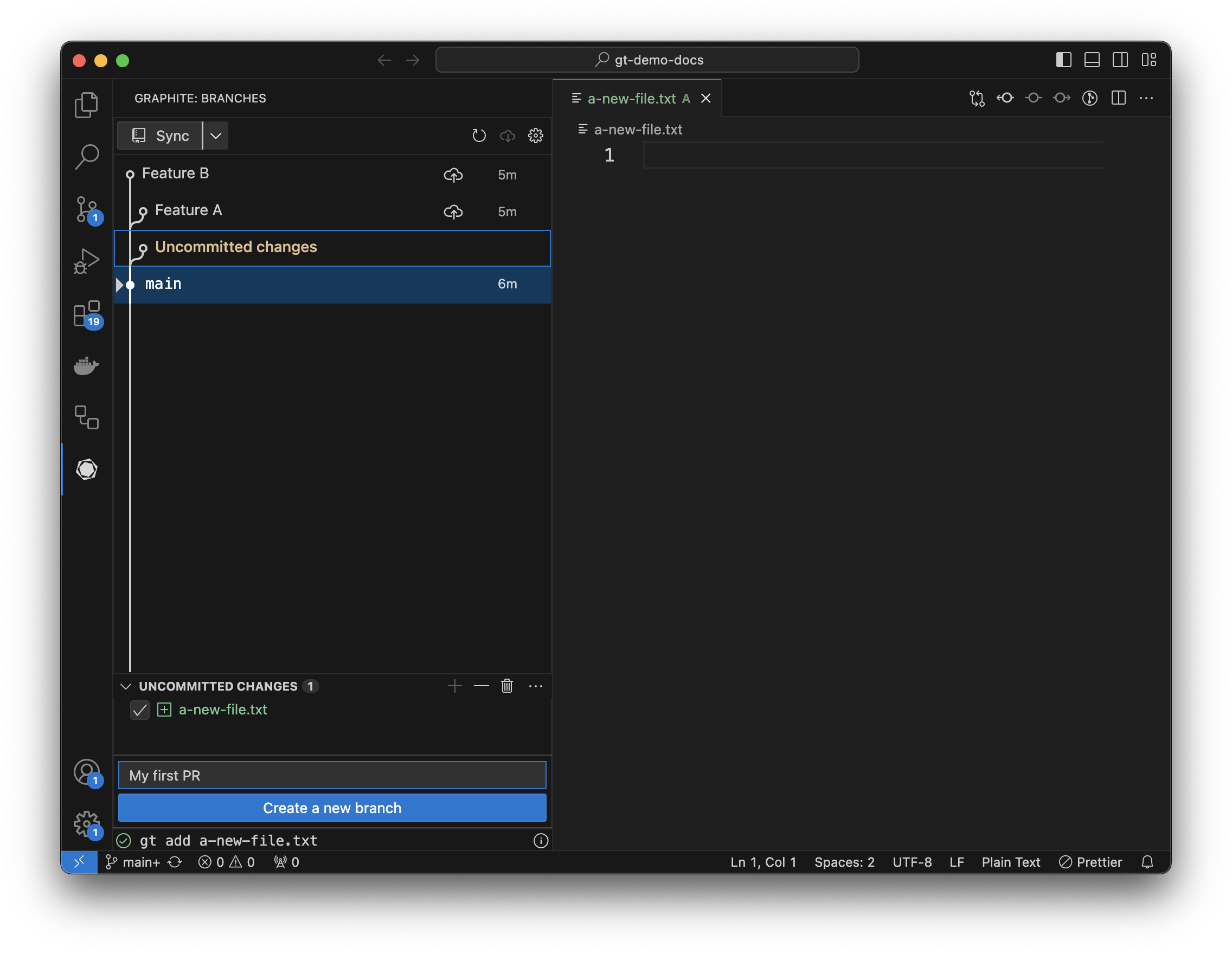 Your new branch should now show up in the tree as checked out:
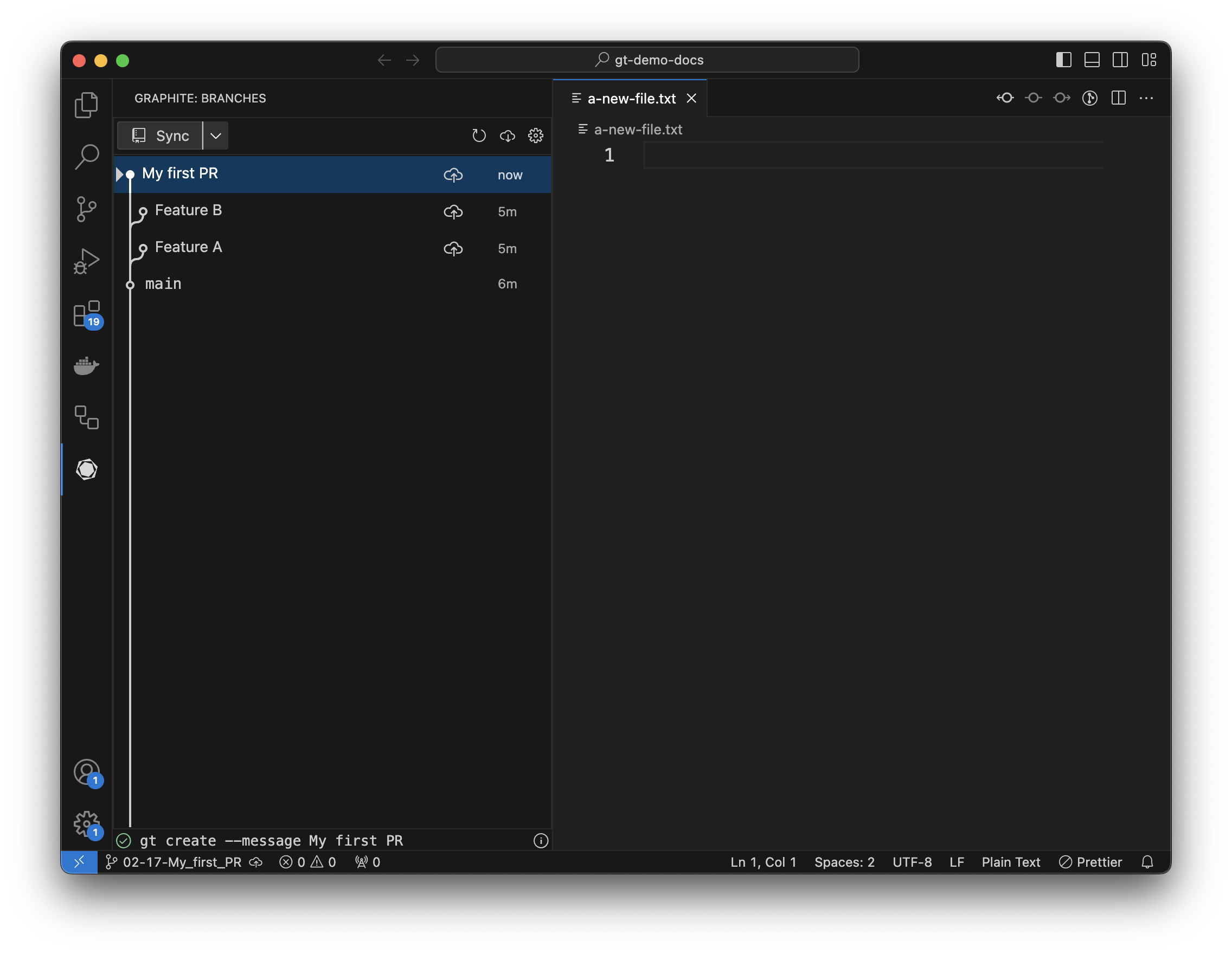 ## Submit your branch
Assuming your repository is connected to a remote, you should see a "Sync" button in the top left of the extension pane and an upload button next to any branches that don't yet have a PR opened for them.
Click the upload button next to your first PR to open a draft PR. After opening the PR, there will be a circle next to the branch showing the PR's status (in this case it's open).
## Submit your branch
Assuming your repository is connected to a remote, you should see a "Sync" button in the top left of the extension pane and an upload button next to any branches that don't yet have a PR opened for them.
Click the upload button next to your first PR to open a draft PR. After opening the PR, there will be a circle next to the branch showing the PR's status (in this case it's open).
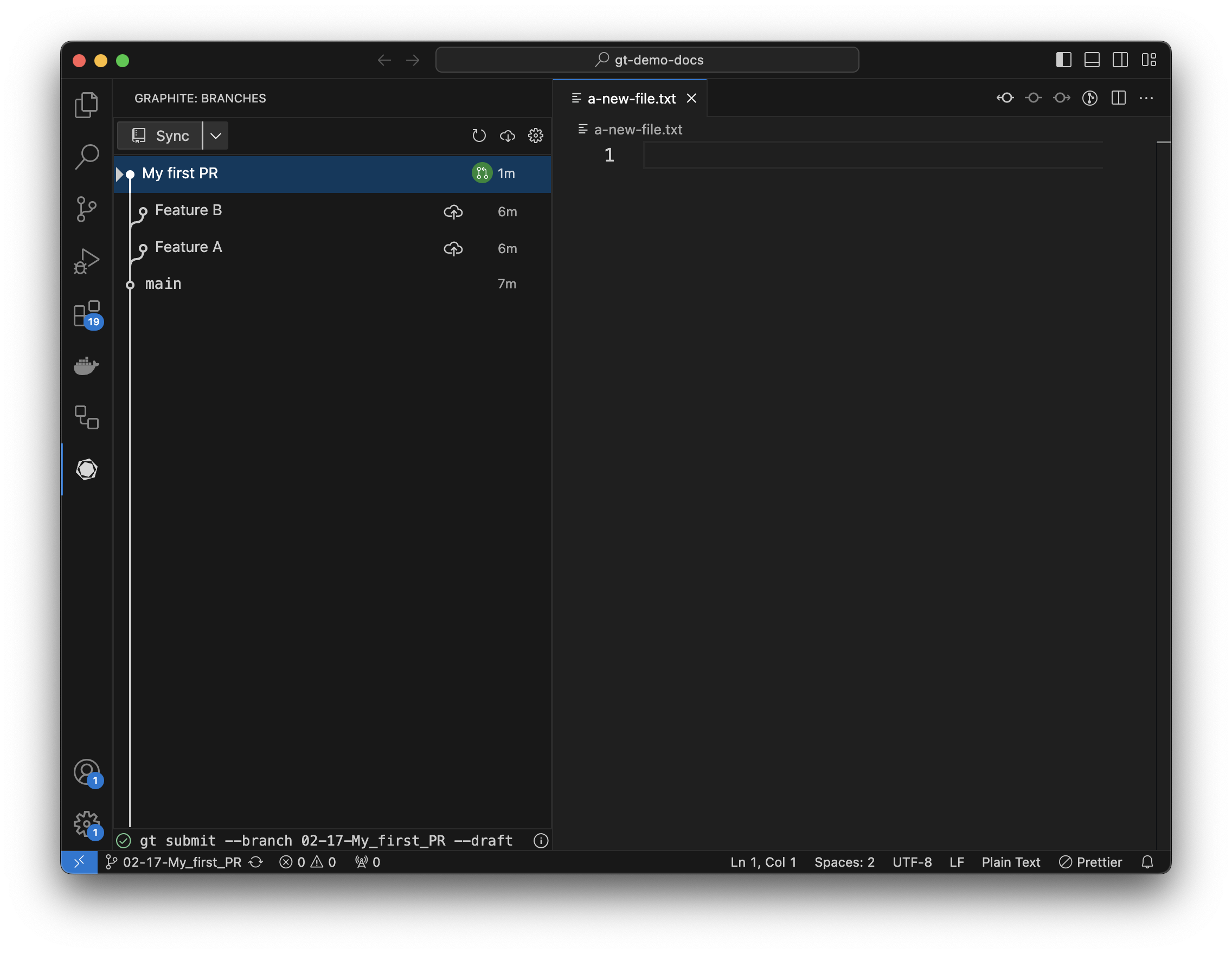 That's it - you just created your first pull request using the Graphite VS Code extension!
---
# Source: https://graphite-58cc94ce.mintlify.dev/docs/vs-code-extension-first-stack.md
> **Documentation Index**
> Fetch the complete documentation index at: https://graphite-58cc94ce.mintlify.dev/docs/llms.txt
> Use this file to discover all available pages before exploring further.
## Create PRs For A Stack
> Learn to use the Graphite VS Code extension to create pull requests for a stack.
## Prerequisites
Complete the [Create a pull request](/vs-code-extension-first-pr) guide, and make sure you've:
* Checked out your first PR
* Don't have any uncommitted changes
## Stacking
The goal of this guide is to teach you how to [stack](https://stacking.dev/) with the Graphite VS Code extension.
Stacking is a technique to continue developing while you wait for review on PRs. A stacked branch is a branch that is created on top of another branch that is still waiting for review. As that previous branch is updated and ultimately merged into main, Graphite will incorporate those changes into any dependent branches.
If this is confusing now, don't worry - it becomes clearer as you do it.
## Make and stage changes
Like in the earlier guide, make changes to your repository, either by adding a file or editing an existing file. That file should now show up under "uncommitted changes" in the extension.
Select uncommitted changes, and you'll see all the changed files in your repository (files added, files modified, and files deleted). Clicking the checkbox next to a file allows you to stage it in git (the equivalent of running `git add`).
That's it - you just created your first pull request using the Graphite VS Code extension!
---
# Source: https://graphite-58cc94ce.mintlify.dev/docs/vs-code-extension-first-stack.md
> **Documentation Index**
> Fetch the complete documentation index at: https://graphite-58cc94ce.mintlify.dev/docs/llms.txt
> Use this file to discover all available pages before exploring further.
## Create PRs For A Stack
> Learn to use the Graphite VS Code extension to create pull requests for a stack.
## Prerequisites
Complete the [Create a pull request](/vs-code-extension-first-pr) guide, and make sure you've:
* Checked out your first PR
* Don't have any uncommitted changes
## Stacking
The goal of this guide is to teach you how to [stack](https://stacking.dev/) with the Graphite VS Code extension.
Stacking is a technique to continue developing while you wait for review on PRs. A stacked branch is a branch that is created on top of another branch that is still waiting for review. As that previous branch is updated and ultimately merged into main, Graphite will incorporate those changes into any dependent branches.
If this is confusing now, don't worry - it becomes clearer as you do it.
## Make and stage changes
Like in the earlier guide, make changes to your repository, either by adding a file or editing an existing file. That file should now show up under "uncommitted changes" in the extension.
Select uncommitted changes, and you'll see all the changed files in your repository (files added, files modified, and files deleted). Clicking the checkbox next to a file allows you to stage it in git (the equivalent of running `git add`).
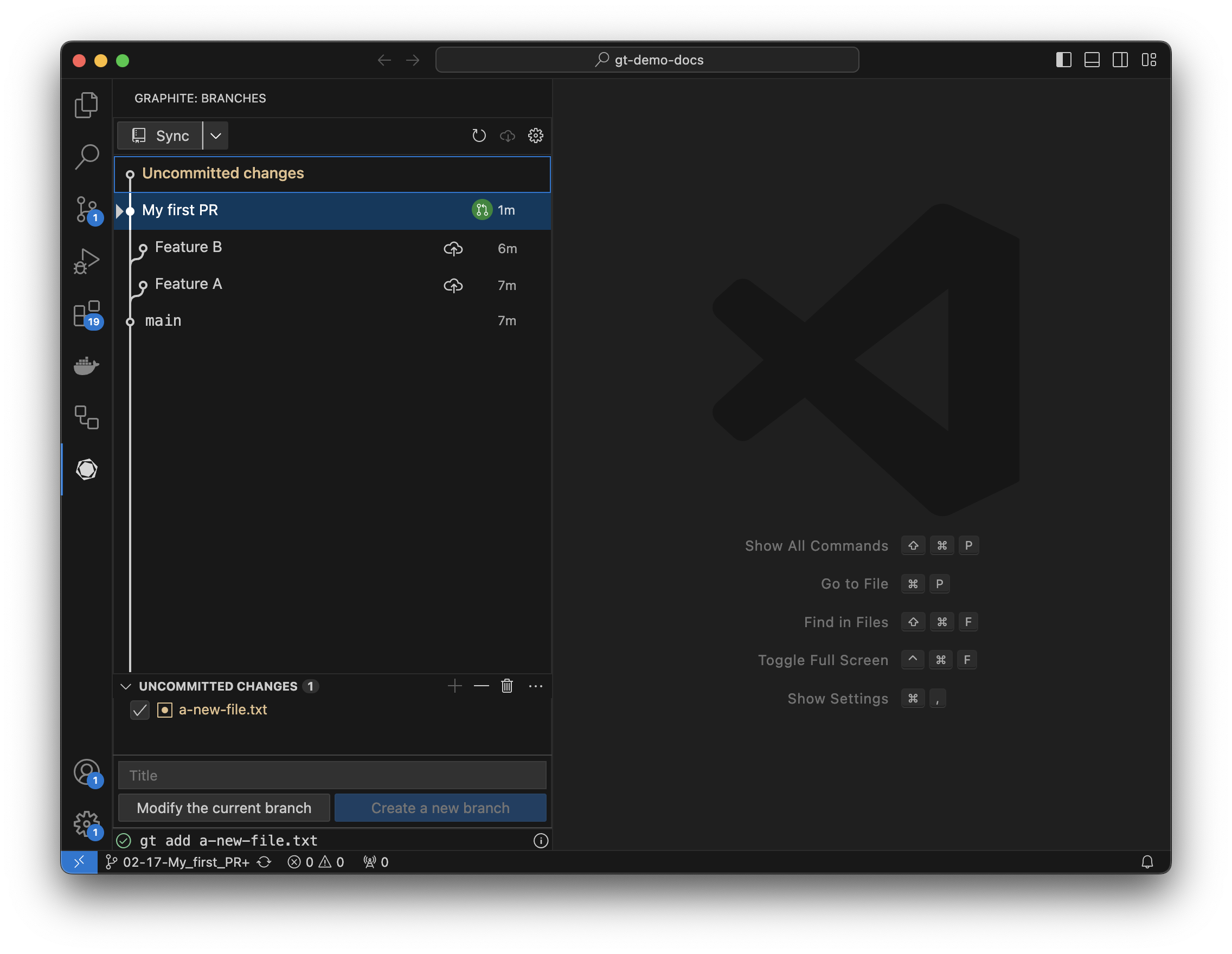 ## Create a branch
Once you've staged changes, you can either modify the existing branch or create a new stacked branch. Enter a commit title and pressing create branch.
## Create a branch
Once you've staged changes, you can either modify the existing branch or create a new stacked branch. Enter a commit title and pressing create branch.
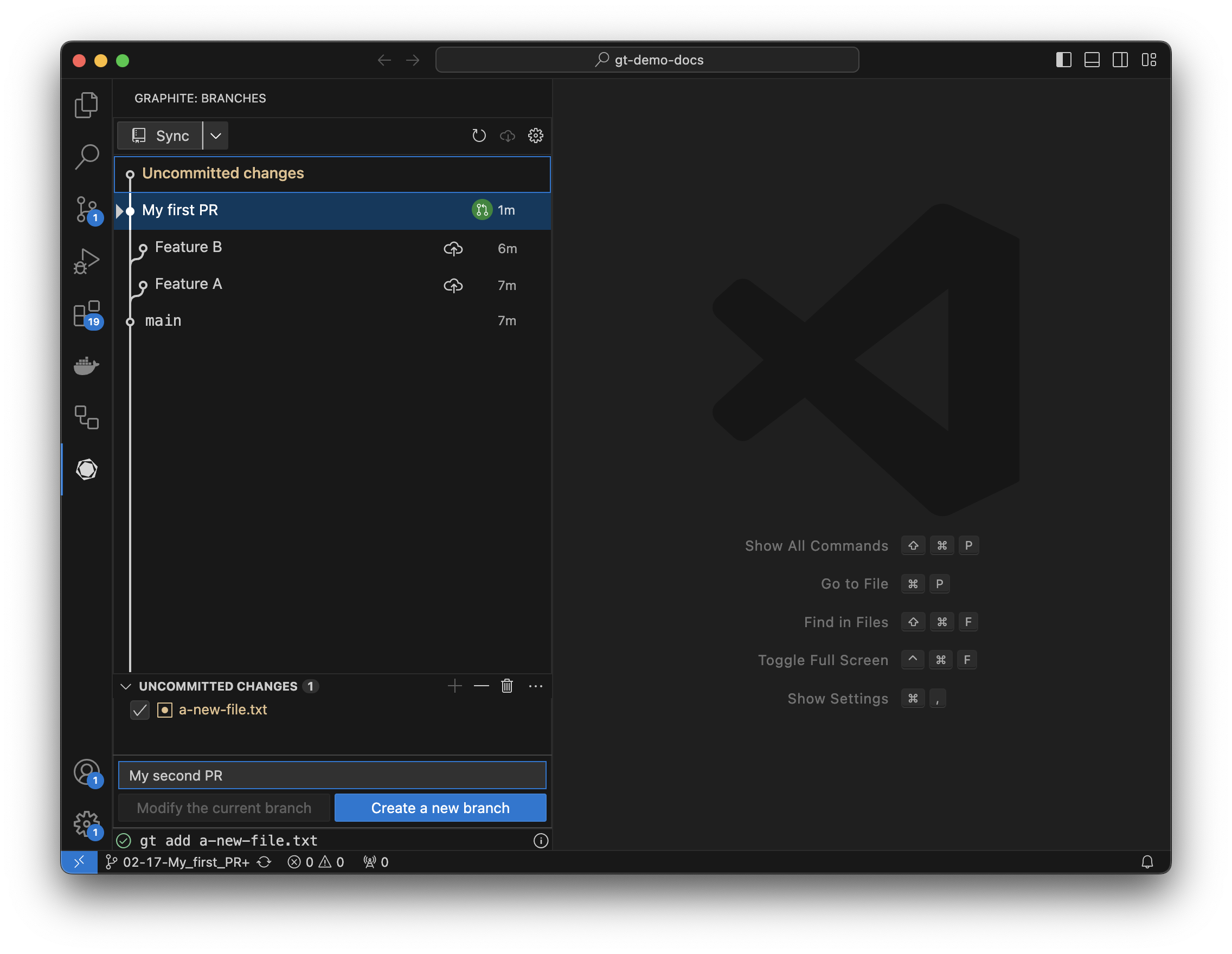 Your new branch should now show up in the tree as checked out and *stacked* on top of the first:
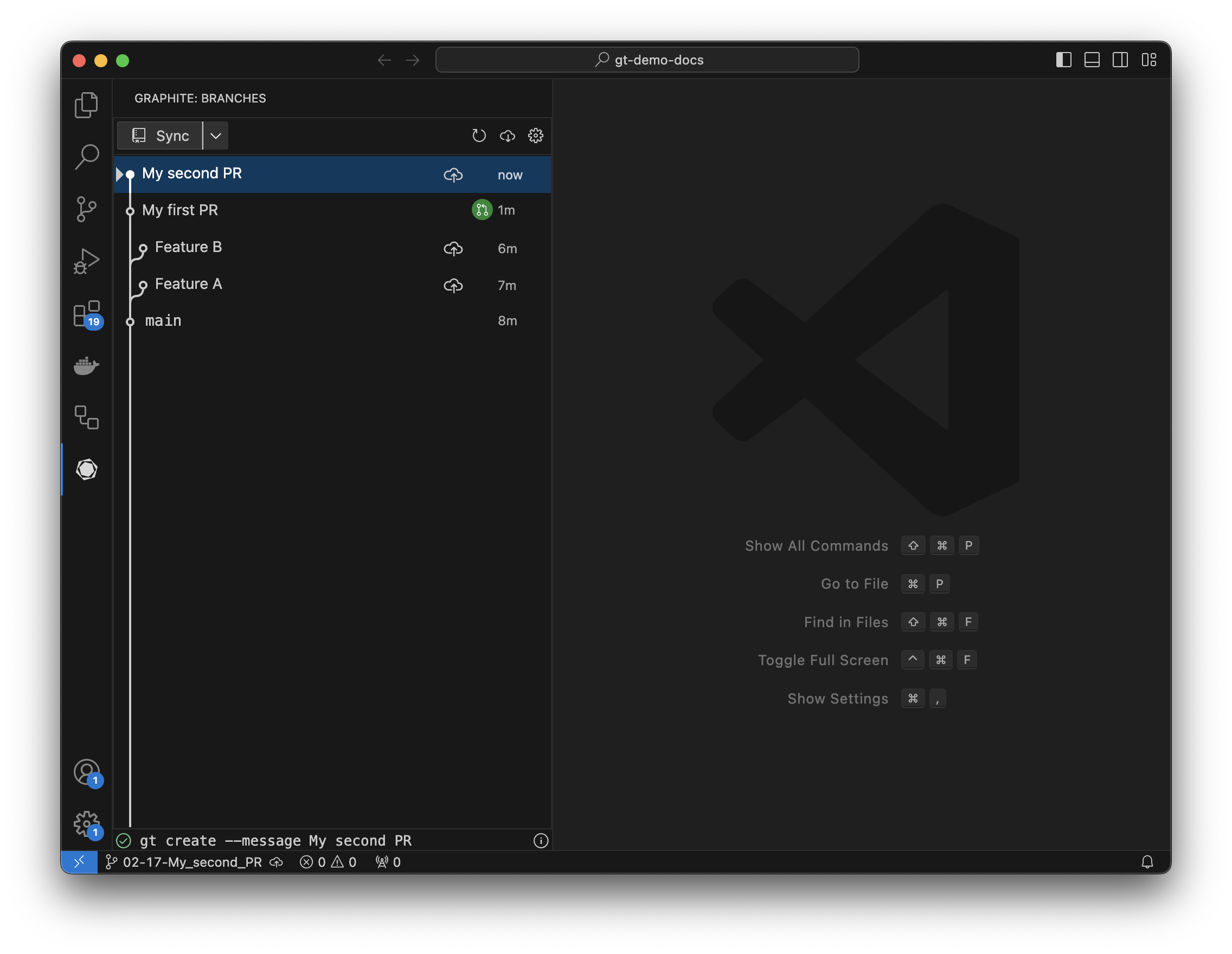 ## Submit your branch
Like the first guide, click the upload button next to your first PR to open a draft PR. After opening the PR, there will be a circle next to the branch showing the PR's status (in this case it's open).
## Submit your branch
Like the first guide, click the upload button next to your first PR to open a draft PR. After opening the PR, there will be a circle next to the branch showing the PR's status (in this case it's open).
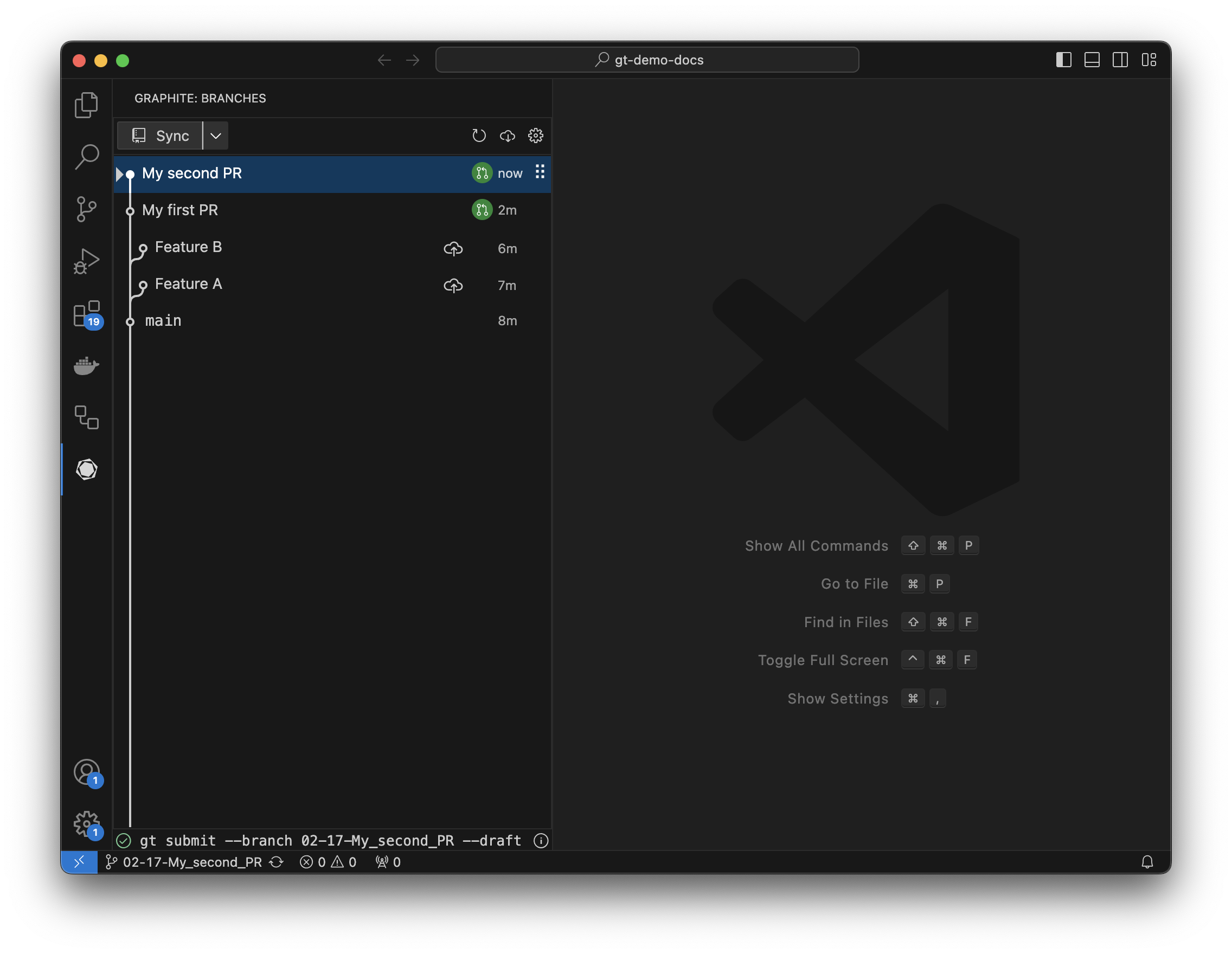 That's it - you just created your first stack using the Graphite VS Code extension!
---
# Source: https://graphite-58cc94ce.mintlify.dev/docs/vs-code-extension-quick-start.md
> **Documentation Index**
> Fetch the complete documentation index at: https://graphite-58cc94ce.mintlify.dev/docs/llms.txt
> Use this file to discover all available pages before exploring further.
## Quick Start
> Get started using the Graphite VS Code extension to stack pull requests.
## Understand elements of the VS Code extension
That's it - you just created your first stack using the Graphite VS Code extension!
---
# Source: https://graphite-58cc94ce.mintlify.dev/docs/vs-code-extension-quick-start.md
> **Documentation Index**
> Fetch the complete documentation index at: https://graphite-58cc94ce.mintlify.dev/docs/llms.txt
> Use this file to discover all available pages before exploring further.
## Quick Start
> Get started using the Graphite VS Code extension to stack pull requests.
## Understand elements of the VS Code extension
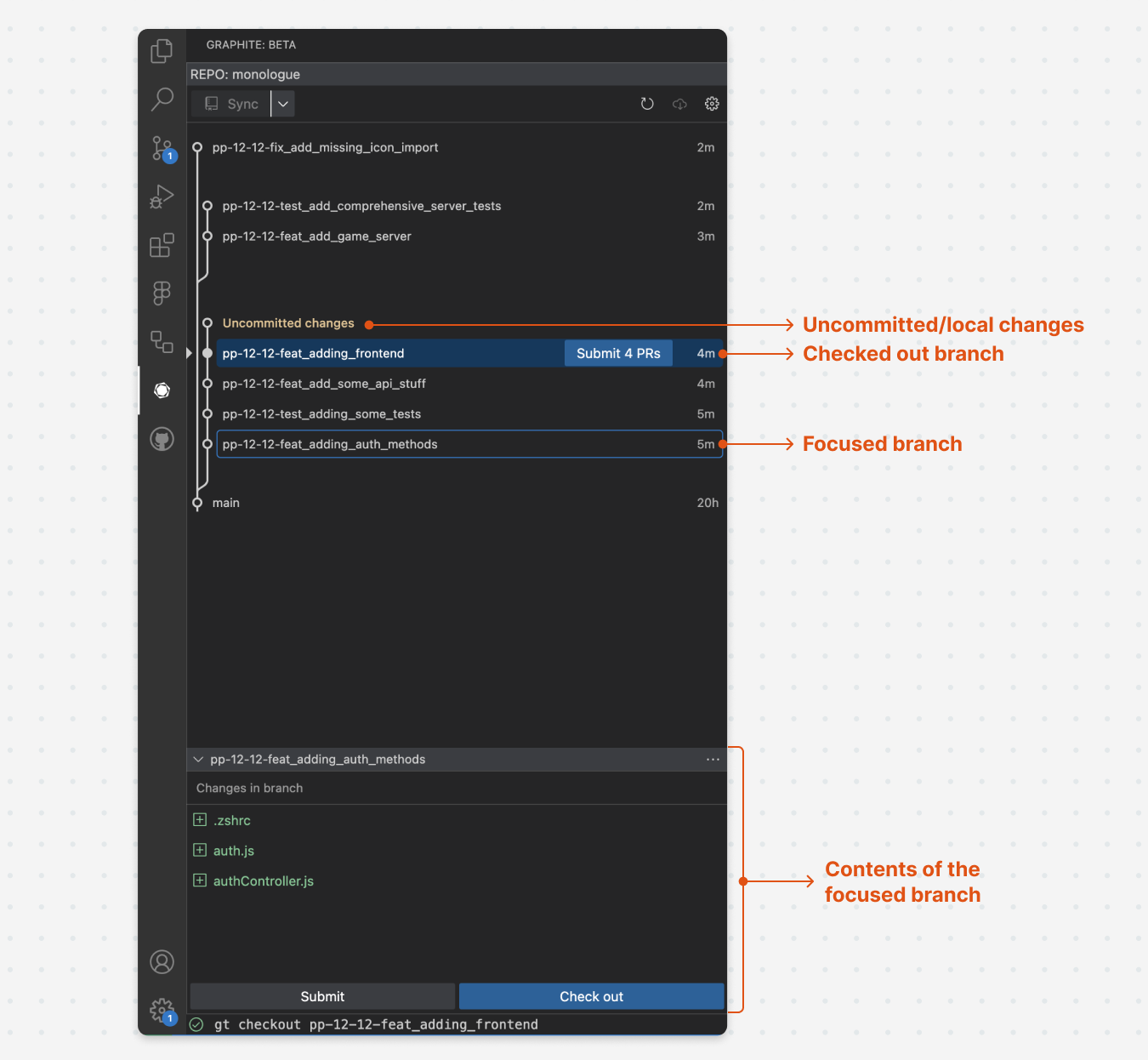 ## Walkthrough video
## Check out a branch
There are two ways to check out branch in the VS Code extension:
1. Double-click the branch on the stack view
2. Focus a branch (single-click a branch such that it has a blue outline) and click "check out" in the branch info panel
A checked out branch will be indicated by a blue background/a pointer on the left side of the stack view.
## Focus a branch
Focusing a branch allows you to see what's been changed in the branch without checking it out. To focus a branch, single-click the branch in the visualization such that it has a blue outline. Focusing a branch adjusts the branch info panel so that it shows the files touched by that branch.
## Walkthrough video
## Check out a branch
There are two ways to check out branch in the VS Code extension:
1. Double-click the branch on the stack view
2. Focus a branch (single-click a branch such that it has a blue outline) and click "check out" in the branch info panel
A checked out branch will be indicated by a blue background/a pointer on the left side of the stack view.
## Focus a branch
Focusing a branch allows you to see what's been changed in the branch without checking it out. To focus a branch, single-click the branch in the visualization such that it has a blue outline. Focusing a branch adjusts the branch info panel so that it shows the files touched by that branch.
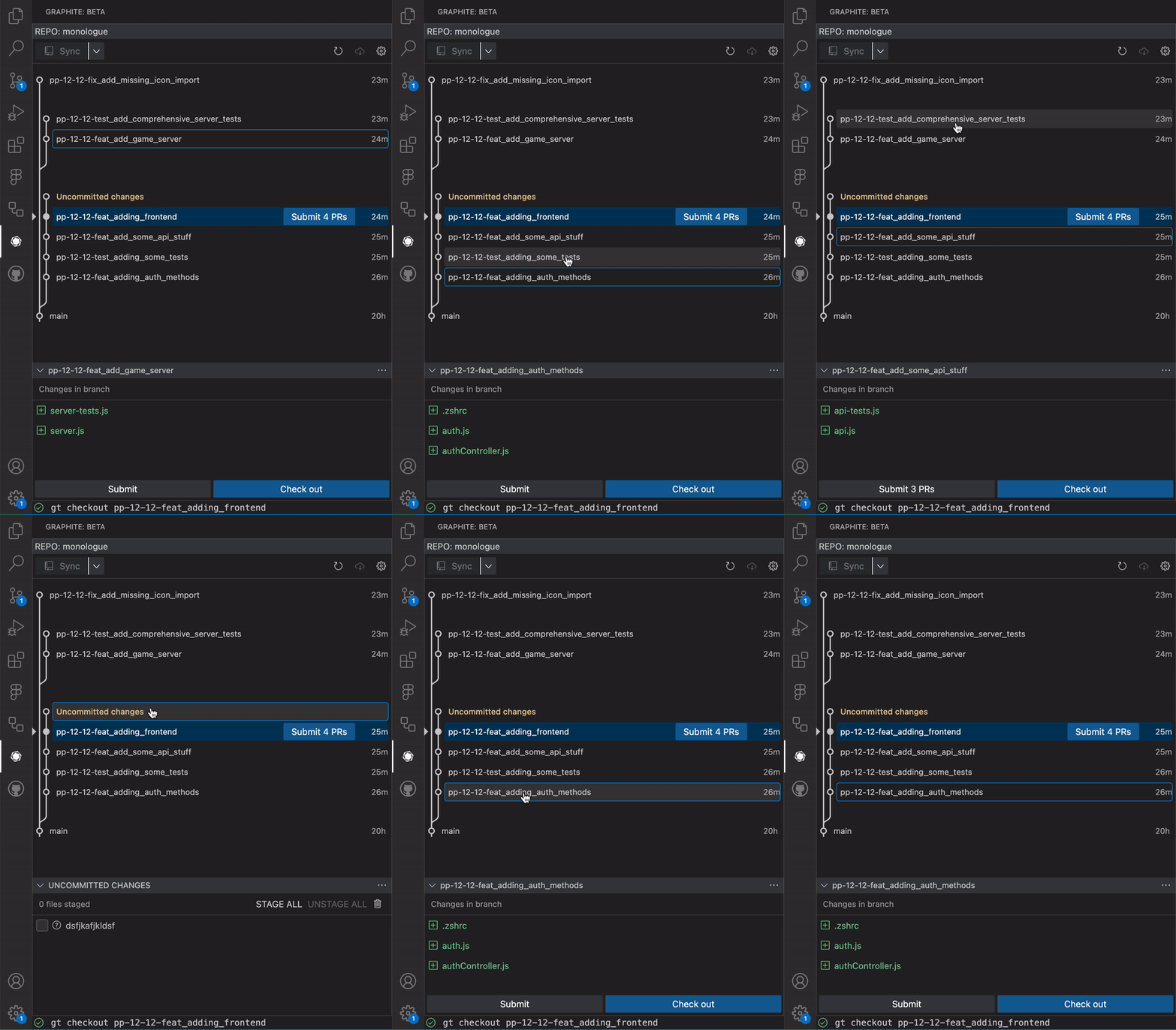 ## View uncommitted changes
Uncommitted changes are represented by a node labeled "uncommitted changes" on the stack view. To see your uncommitted changes in the extension, focus the "uncommitted changes" node as you would any other branch. The branch info panel will adjust to a staging environment with your local changes.
## View uncommitted changes
Uncommitted changes are represented by a node labeled "uncommitted changes" on the stack view. To see your uncommitted changes in the extension, focus the "uncommitted changes" node as you would any other branch. The branch info panel will adjust to a staging environment with your local changes.
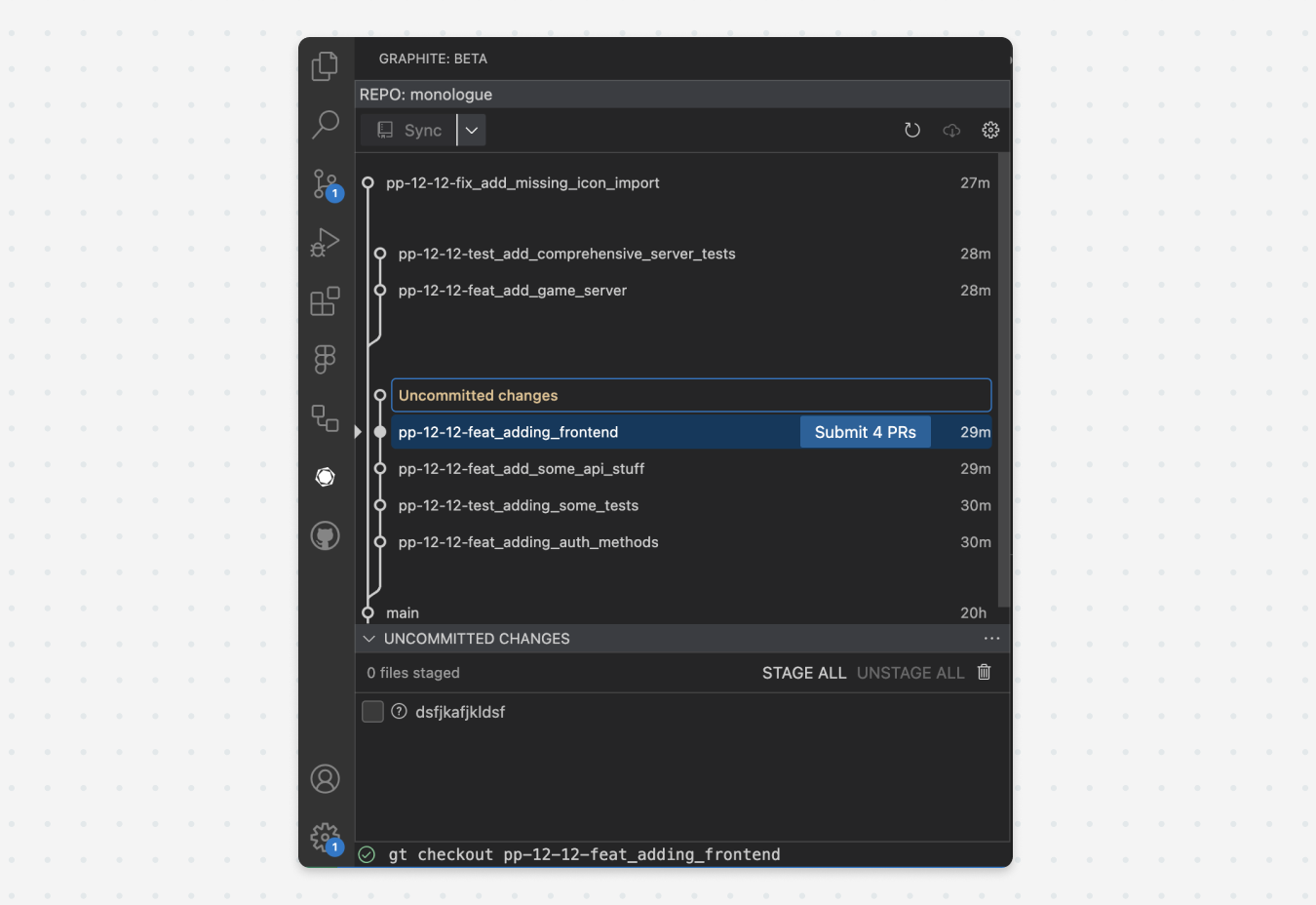 ## Staging and unstaging files
Toggling the checkbox near each file in the uncommitted changes panel will stage or unstage that file independently. Hovering over the file will give you the option to view the diff, or delete those changes.
There are additional options to "stage all," "unstage all," and "delete all changes."
## Creating a new branch/modifying a branch
After staging relevant changes, you can **create a new branch** by entering a commit message and clicking "create new branch."
To modify an existing branch, ensure you have the desired branch checked out, stage relevant changes, check the "modify \
## Staging and unstaging files
Toggling the checkbox near each file in the uncommitted changes panel will stage or unstage that file independently. Hovering over the file will give you the option to view the diff, or delete those changes.
There are additional options to "stage all," "unstage all," and "delete all changes."
## Creating a new branch/modifying a branch
After staging relevant changes, you can **create a new branch** by entering a commit message and clicking "create new branch."
To modify an existing branch, ensure you have the desired branch checked out, stage relevant changes, check the "modify \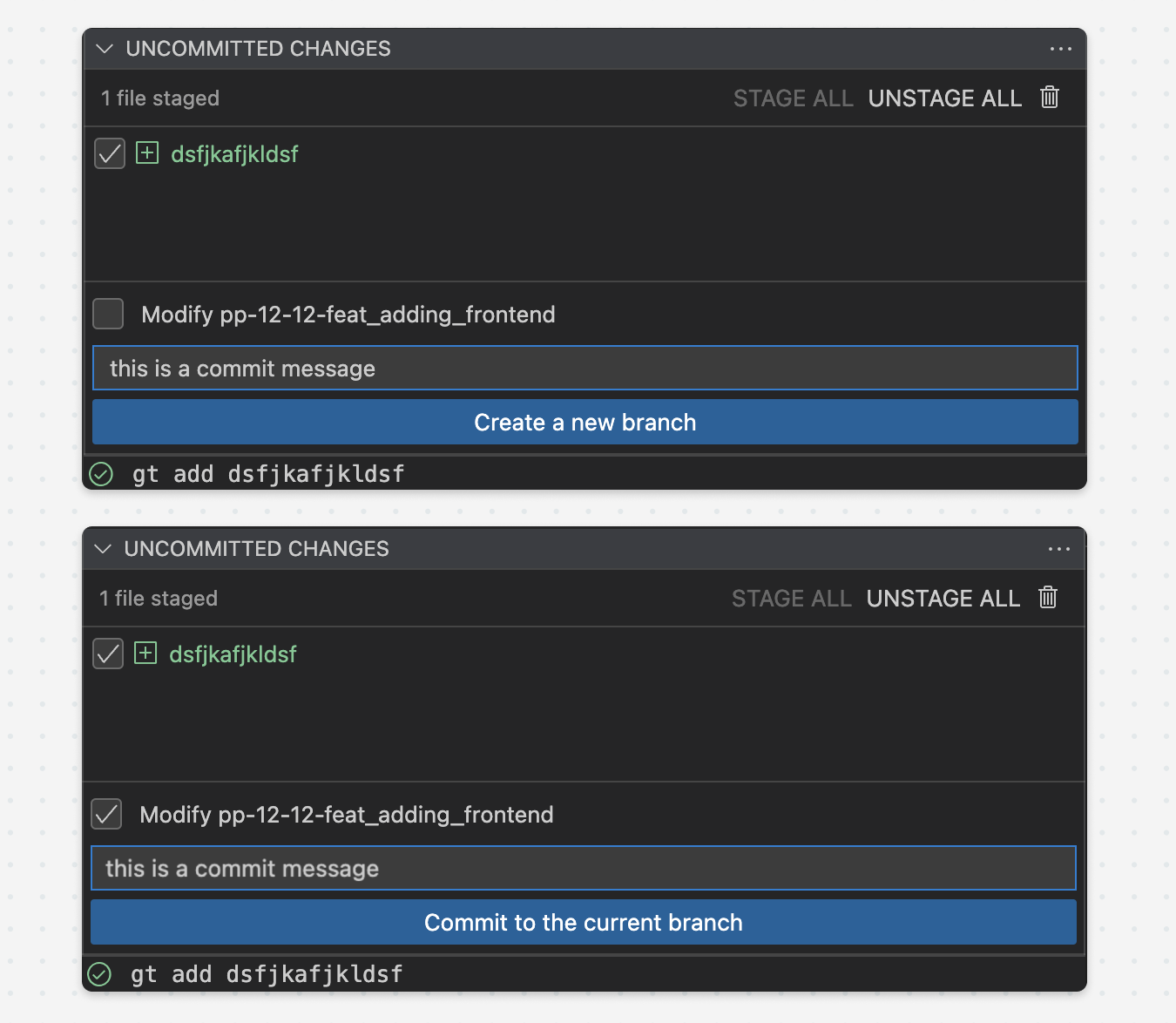 ### Setting default modify behavior
When modifying a branch, you can either create a new commit on that branch, or modify the previous commit on that branch. You can set your preferred behavior in the extension's settings:
### Setting default modify behavior
When modifying a branch, you can either create a new commit on that branch, or modify the previous commit on that branch. You can set your preferred behavior in the extension's settings:
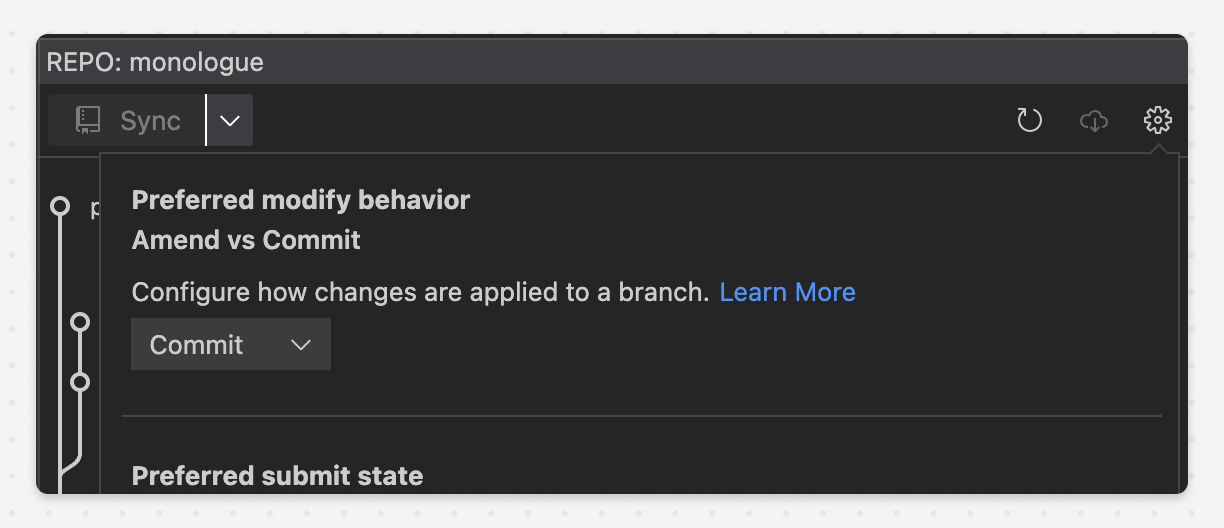 Note that if your preferred modify behavior is commit, you'll be prompted to enter a commit message before creating the commit. If the default behavior is amend, you won't be prompted to do so.
## Drag to move/rebase branches
You can re-arrange branches by dragging them onto a new parent.
Note that if your preferred modify behavior is commit, you'll be prompted to enter a commit message before creating the commit. If the default behavior is amend, you won't be prompted to do so.
## Drag to move/rebase branches
You can re-arrange branches by dragging them onto a new parent.
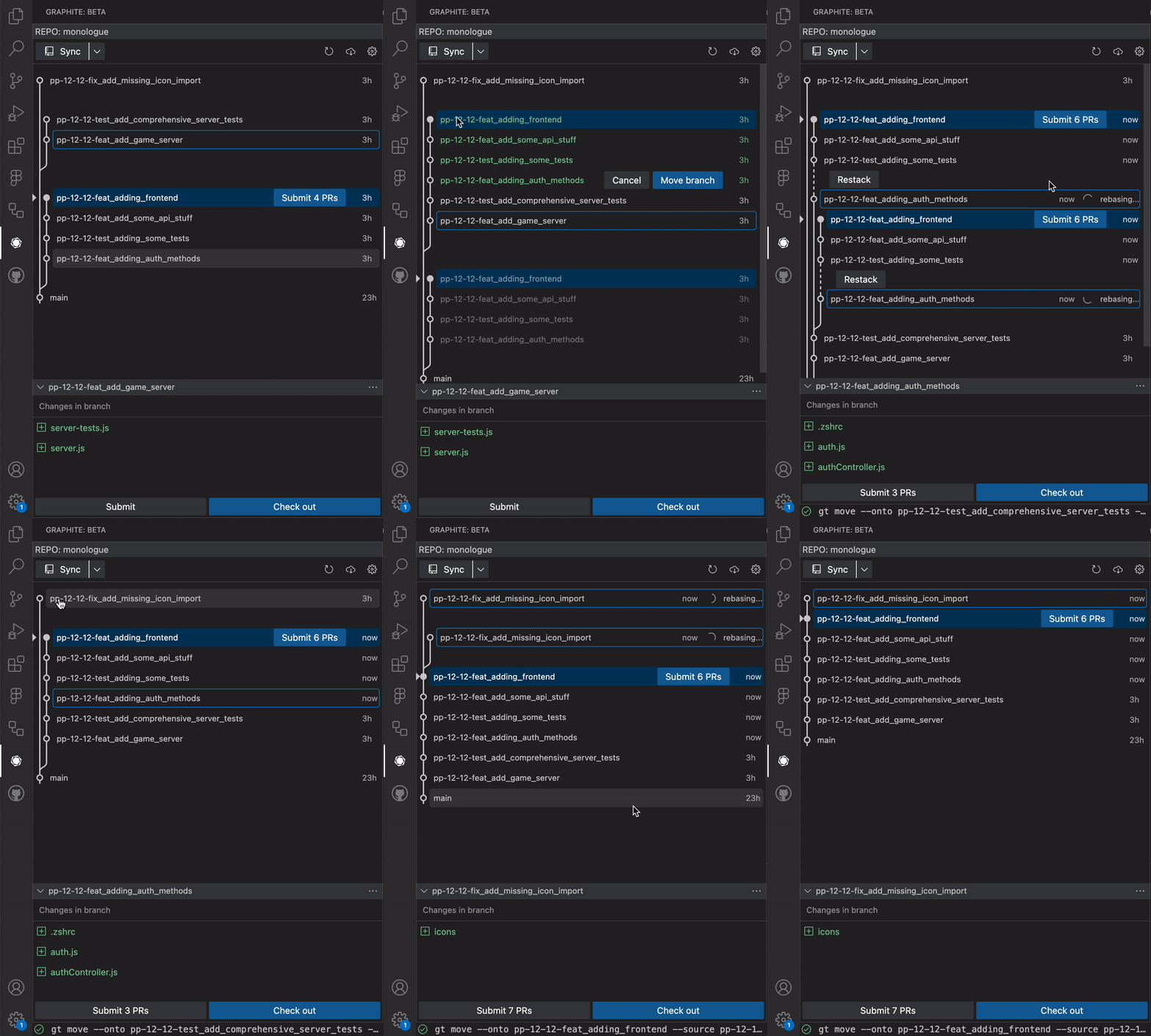 ## Tracking and getting branches
You can track branches onto a parent by clicking the "cloud" icon in the upper right hand corner of the extension. This is equivalent to the CLI's `gt track` and `gt get` commands.
## Tracking and getting branches
You can track branches onto a parent by clicking the "cloud" icon in the upper right hand corner of the extension. This is equivalent to the CLI's `gt track` and `gt get` commands.
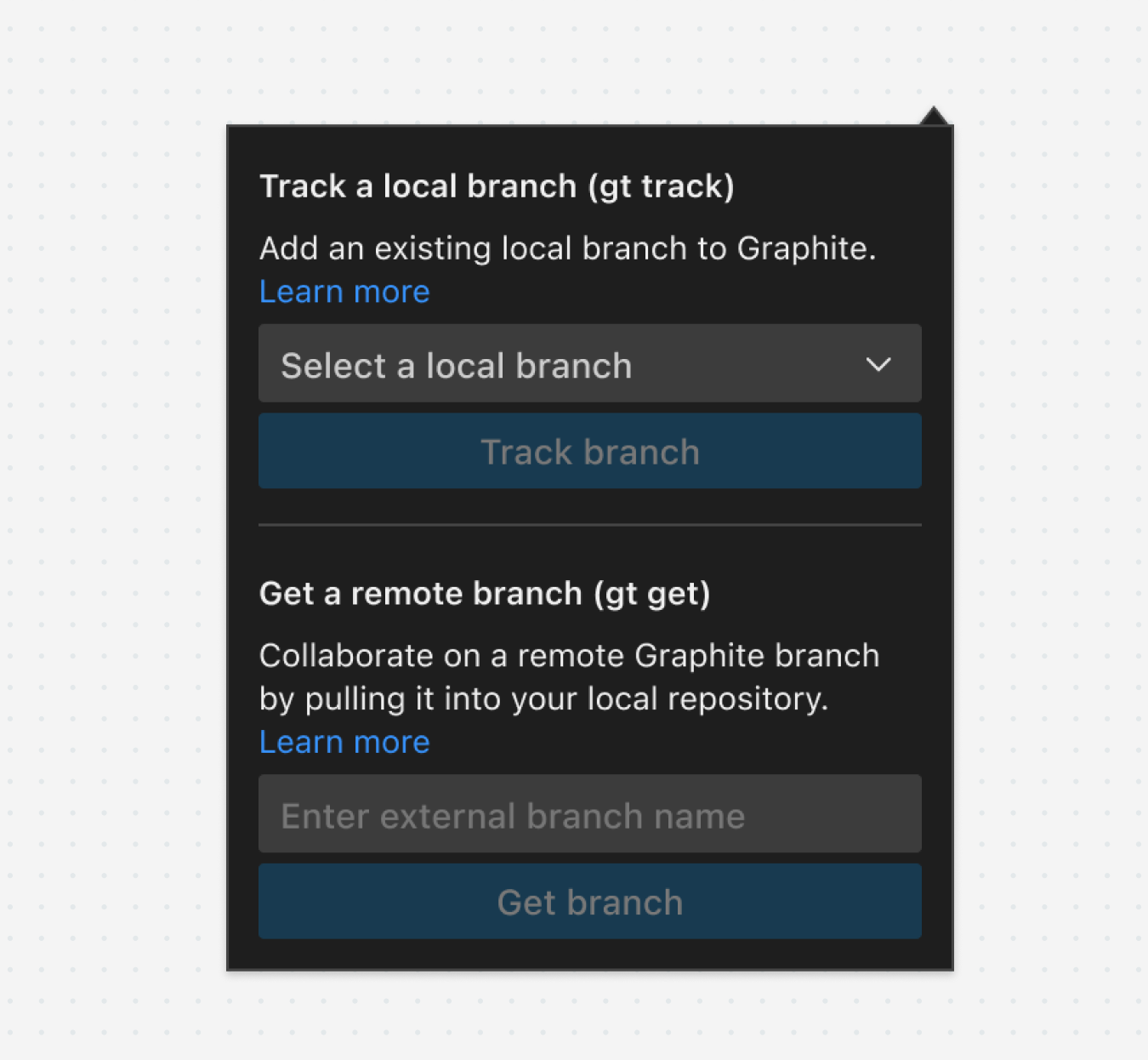 ---
# Source: https://graphite-58cc94ce.mintlify.dev/docs/vs-code-extension.md
> **Documentation Index**
> Fetch the complete documentation index at: https://graphite-58cc94ce.mintlify.dev/docs/llms.txt
> Use this file to discover all available pages before exploring further.
## VS Code Extension
> Not a CLI person? Graphite's VS Code extension lets you create and manage stacked pull requests visually, right from your IDE.
The Graphite VS Code extension builds directly off of the Graphite CLI - it allows you to break up large engineering tasks into a series of small, incremental code changes directly from your IDE.
## Installation
In order to install the Graphite VS Code extension, make sure that you have the [Graphite CLI installed](/install-the-cli).
After that, you can install the extension from the [Visual Studio marketplace](https://marketplace.visualstudio.com/items?itemName=Graphite.gti-vscode) and the [Open VSX Registry](https://open-vsx.org/extension/Graphite/gti-vscode), or by searching for "Graphite" in the extensions tab of your IDE.
## Launch the extension
You have a few options to start the VS Code extension:
* Click the Graphite icon in your VS Code sidebar (try dragging it to your sidebar!)
* Run the **Graphite: Open Graphite interactive** command from the [command palette](https://code.visualstudio.com/getstarted/userinterface#_command-palette)
* [Define your own keyboard shortcut](https://code.visualstudio.com/getstarted/keybindings) to run the `graphite.open-gti` command
---
# Source: https://graphite-58cc94ce.mintlify.dev/docs/vs-code-extension.md
> **Documentation Index**
> Fetch the complete documentation index at: https://graphite-58cc94ce.mintlify.dev/docs/llms.txt
> Use this file to discover all available pages before exploring further.
## VS Code Extension
> Not a CLI person? Graphite's VS Code extension lets you create and manage stacked pull requests visually, right from your IDE.
The Graphite VS Code extension builds directly off of the Graphite CLI - it allows you to break up large engineering tasks into a series of small, incremental code changes directly from your IDE.
## Installation
In order to install the Graphite VS Code extension, make sure that you have the [Graphite CLI installed](/install-the-cli).
After that, you can install the extension from the [Visual Studio marketplace](https://marketplace.visualstudio.com/items?itemName=Graphite.gti-vscode) and the [Open VSX Registry](https://open-vsx.org/extension/Graphite/gti-vscode), or by searching for "Graphite" in the extensions tab of your IDE.
## Launch the extension
You have a few options to start the VS Code extension:
* Click the Graphite icon in your VS Code sidebar (try dragging it to your sidebar!)
* Run the **Graphite: Open Graphite interactive** command from the [command palette](https://code.visualstudio.com/getstarted/userinterface#_command-palette)
* [Define your own keyboard shortcut](https://code.visualstudio.com/getstarted/keybindings) to run the `graphite.open-gti` command
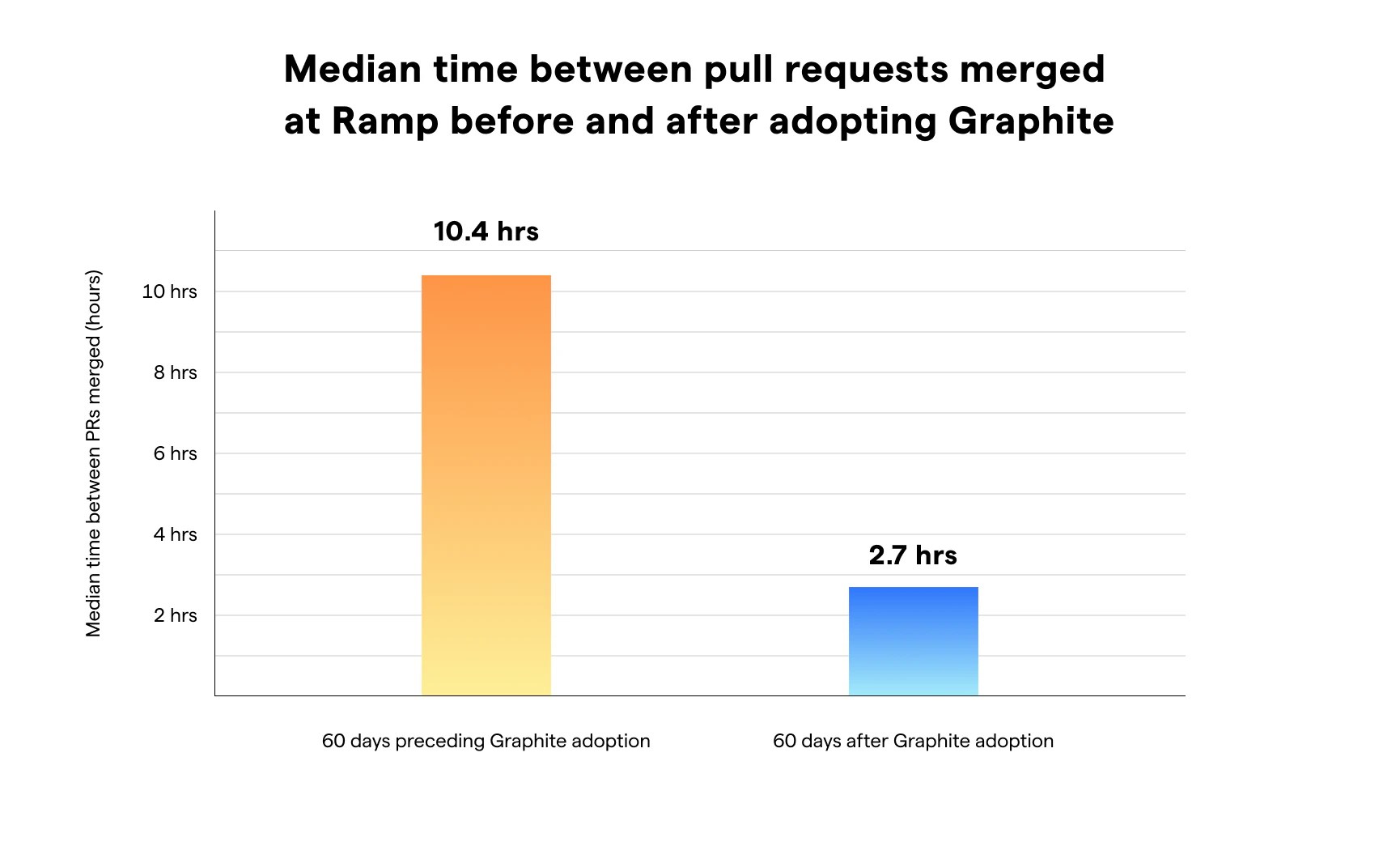 ### Write better code with Graphite
* **High-quality code review**: stacking encourages smaller pull requests, meaning less context is needed for reviewers to provide meaningful feedback.
* **Faster code review**: you can see the PRs awaiting your review either through the [PR inbox](/use-pr-inbox) or customizable and actionable Slack notifications.
* **A “greener” trunk branch**: Graphite's stack-aware [Merge Queue](/graphite-merge-queue) helps teams ship faster while keeping their trunk branch green.
* **Useful metrics:** with everyone using Graphite, your team can see how your [Insights](/insights) (like number of review cycles until merge, or time until review) improve over time.
* **Memes!** add color to code review with your own [memes and GIFs](/memes-and-macros#upload-new-memes).
### How to help your team get started
It’s easy to share Graphite with your teammates. Use the *Invite others* option in the bottom left of the Graphite App to send a link or email invitation.
You can also set up a demo! [Reach out to our Sales team here](https://graphite.com/contact-us) to schedule.
### Write better code with Graphite
* **High-quality code review**: stacking encourages smaller pull requests, meaning less context is needed for reviewers to provide meaningful feedback.
* **Faster code review**: you can see the PRs awaiting your review either through the [PR inbox](/use-pr-inbox) or customizable and actionable Slack notifications.
* **A “greener” trunk branch**: Graphite's stack-aware [Merge Queue](/graphite-merge-queue) helps teams ship faster while keeping their trunk branch green.
* **Useful metrics:** with everyone using Graphite, your team can see how your [Insights](/insights) (like number of review cycles until merge, or time until review) improve over time.
* **Memes!** add color to code review with your own [memes and GIFs](/memes-and-macros#upload-new-memes).
### How to help your team get started
It’s easy to share Graphite with your teammates. Use the *Invite others* option in the bottom left of the Graphite App to send a link or email invitation.
You can also set up a demo! [Reach out to our Sales team here](https://graphite.com/contact-us) to schedule.