# Gitbook > We've worked on GitBook's overall editor experience, improving reliability, copy/paste from multiple sources and speedy shortcuts. --- # Source: https://gitbook.com/docs/changelog/2022-and-earlier-product-updates.md # 2022 and earlier {% updates format="full" %} {% update date="2022-12-15" %} ## Editor improvements, and more We've worked on GitBook's overall editor experience, improving reliability, copy/paste from multiple sources and speedy shortcuts. ### Copy/Paste from Google Docs Copying and pasting content from Google Docs into GitBook is now faster and more reliable, maintaining the formatting and structure of content created in Google Docs. Headings, lists, and more save their formatting as you paste them in GitBook.

Copy and paste headers, lists, and more between Google Docs and GitBook

* Copy/pasting from Google Docs will maintain the formatting. ### Copy/Paste from VS Code Copying and pasting content from VS Code will now automatically paste as a code block, auto-formatting and styling your code in it's detected language.

Copy and paste code from VS Code into GitBook

* Code pasting from VSCode should now be more reliable. * Pasted code in GitBook will automatically paste as a code block. ### Copy/Paste from Google Sheets and Excel Copy and pasting content from Google Sheets and Excel now automatically creates a table for you and maintains the position of each cell, row, and column. It's also easier to work with tables.

Copy and paste entire spreadsheets into GitBook

* Copy/paste from Excel will automatically paste as a table * Make it possible to select an entire table from its border. ### Inline palette in the editor Adding inline images, links, emojis and others is now easier with our **inline palette**. It can be triggered by hitting `/` in the editor.

Easily add images, emojis and page links to your text

* Add inline controls shortcut `/` * Add page linking to the inline palette We've also made improvements to the following: * Dropping a file on the Editor should now be more reliable. * Improved performance and image loading. ### Fixed Below is a list of bug fixes also included in this release: * Fix an issue where we were not correctly calculating diffs and conflicts for text with marks. * Fix Edit button not responding after first click. * Fix an issue where cyclic OpenAPI schemas wouldn't generate any examples. * Fixed an issue where unsaved content would not be shown in diff view. * Fix re-ordering and hiding of table columns. * Fix diff and merge of documents with images or links. * Fix an issue where the embed would fail if the returned icon did not contain a protocol. {% endupdate %} {% update date="2022-11-30" %} ## Annotations, footnotes, and more We’ve added more ways to provide contextual information for your visitors, as well as improvements to expandable blocks and several bug fixes. ### New * You can now add inline text annotations! Easily provide useful secondary information with content blocks that expand upon clicking. It’s a handy way to provide additional context without breaking a reader’s train of thought.

Here’s how you add annotations to your content

And here’s what it looks like to your visitors

* We’ve also added support for footnotes in Markdown, which are imported into GitBook as inline annotations. * Expandable blocks now have an anchor link you can copy and paste. Additionally, we now expand a block automatically when the page is accessed. This allows you to quickly direct visitors to a specific part of your documentation.
### Improvements * Better handling of errors in calls to our API, specifically when listing spaces. ### Fixed * Fix an issue where heading anchors were `undefined` when target immediately after they were created. * You can now use drag and drop to move a space to a collection that is nested inside another collection. * When using the inline palette, it should now have the focus return to the editor after closing it. * Fix pasting tables for certain websites. * Fix an issue where duplicated characters are sometimes inserted when typing in code blocks. * Fix page outlines that were too big, now they should be scrollable for viewing the entire list. * Fix an issue where focus would be trapped in a popover when selecting math equations. * Fix an issue where diff view would incorrectly show that text had changed if the number of words in the paragraph had changed. {% endupdate %} {% update date="2022-11-22" %} ## Linking pages from another space, and more ### New * GitBook allowed you to create a link to a different space in any document you created. Now, you can go even further and link to a specific page inside that different space:

Linking to pages from a different space is now possible!

### Improvements * We've fixed an issue where the text in a numbered list wouldn't be aligned correctly. * We've also made some performance improvements in the editor. {% endupdate %} {% update date="2022-11-03" %} ## Public docs, integrations, and more This release was an exciting one, bringing plenty of new features. ### Public docs revamp with new customization options The **layout and styling** has been modernized! * The search box is now located in the top-right corner on both desktop and mobile. * Heading sizes have been improved. In general they are smaller than before, with the exception of a larger page title when viewing on a mobile device. * Header links are right-aligned on desktop, and visible by clicking on a links menu on mobile. * Horizontal lines associated with the page title and with other headings have been removed. And, we've brought in a number of **new customization options** to help you better match your public docs to your own branding: * Additional font options. Folks subscribed to our Pro and Enterprise plans now have the option to choose from Overpass, Noto Sans, IBM Plex Serif, Poppins and Fira Sans. * Straight or rounded corners. The option defaults to rounded, but you can decide which works best for your documentation. * Header sub-links, which are displayed as a dropdown menu. ### Integrations We've released a *lot* of new integrations! Find out more about the integrations we offer and how to integrate them with your GitBook documentation [on our website](https://www.gitbook.com/integrations). ### Card view for tables Card view will help you to build beautiful landing pages in GitBook. Card view is a new way to display table data, so it's possible to convert existing tables to make use of card view. [Find out more about card view in our documentation](https://gitbook.com/docs/creating-content/blocks/cards). ### Accessibility These improvements aren't visible to all, but are very important for folks who use screen readers. * Images now have an empty alt tag by default, which signals that they are purely decorative, and will therefore be ignored by screen readers. (Alt text can be added to images if you'd like!) * We've added labels to the search box, the button that closes the table of contents on mobile, and to the link on the custom logo for a space. * We've improved semantics for tables. ### SEO * The page title for each page now uses the H1 tag. * Heading 1, 2, and 3 blocks now use the H2, H3, and H4 tags, respectively. ### PDF export Improvements have been made to the rendering of titles and page covers, and to page breaks to avoid content blocks being split across multiple pages. ### Tables In addition to card view, we've made editing tables and their content even easier. You can now open a row to edit its content in a pop-up. ### The GitBook interface You'll now see sub-menus for some settings within the GitBook app, for example when setting links, working with tables, setting the syntax for code blocks, moving a space, and more. This should make it even easier for you to select the options you want. We've also made some changes to the customize screen, in line with the new customization features we've shipped. ### Bug fixes * Previously, if a custom logo was set at the collection level, that logo was not being correctly inherited by spaces within the collection. That's resolved! * If you invited a user to your organization via SSO, you might not have seen the SSO badge to indicate this. We've taken care of that! * Tab blocks used to switch back to the first tab when some types of content were added to another tab. That doesn't happen any more! * We've improved support for Grammarly in the GitBook editor. ### Final notes We have also: * Made some more improvements to GitBook's performance. * Released more under-the-hood tweaks and minor bug fixes. {% endupdate %} {% update date="2022-09-06" %} ## Introducing organization management endpoints for the GitBook API A new API collection is now available for managing members, invites, and teams at scale. ### API for users management We are introducing a collection of API endpoints to automate the management of members and teams in an organization: * `/v1/orgs/:id/members` * `/v1/orgs/:id/invites` * `/v1/orgs/:id/teams` {% endupdate %} {% update date="2022-08-12" %} ## Auto-sizing columns, and more
### Auto-sizing table columns You can now set table columns to be a fixed size, or auto-size based on available width. As well as some major improvements to how we handle column sizing (yes, you can now make tiny columns!) this size-to-fit option lets you have some nifty auto-layout style tables in your docs.
🐛 And don't forget the bug fixes * Fixed an issue where guest members would not see nested content in their sidebar. * Fixed an issue where table columns would jump when being resized.
{% endupdate %} {% update date="2022-08-04" %} ## Code blocks, invites, and more ![Highlighting, wrapping, and line number options for code blocks.](https://2672413337-files.gitbook.io/~/files/v0/b/gitbook-x-prod.appspot.com/o/spaces%2FPGZZo1PCN4rYgFLPD8Cl%2Fuploads%2FIGX47gXb0RWgTrjHNWtR%2FKapture%202022-08-15%20at%2011.49.31.gif?alt=media\&token=560b80dc-9a96-4799-bde0-dc3aeec4d56a) ### Code block line highlighting You can now highlight lines in code blocks to even-better show your readers the important stuff. ### Code wrapping on/off It's now possible to toggle line wrapping on and off within code blocks. ### Show/hide line numbers in code blocks You can now toggle line numbers on/off for each of your code blocks. Line numbers are **off** by default now, to match how most other tools (hi GitHub :wave:) show snippets. You can always turn line numbers on for full-file code blocks and/or where it makes sense – like tutorials! ### Better inviting for spaces and collections It's now *way* more clear whether you'll be inviting new members as guests or 'full-fat' org members. ### Configurable default role for email domain SSO You can now set which role you want members to have when they sign in via email domain SSO. Previously this was fixed to the **editor** role and had to be changed manually.
🐛 And don't forget the bug fixes * Fixed an issue where syntax highlight was bugging out with multi-line comments in code blocks. * Fixed 'heap out of memory' issues to improve Git sync.
{% endupdate %} {% update date="2022-07-26" %} ## New Git Sync, and more ### New, more-stable git sync After lots of tweaks, improvements and testing, we are rolling out the new Git sync v2 to all of our users. {% endupdate %} {% update date="2022-07-18" %} ## Slack and Segment integration, notifications, and more ![Installing and configuring a space-level Slack integration](https://2672413337-files.gitbook.io/~/files/v0/b/gitbook-x-prod.appspot.com/o/spaces%2FPGZZo1PCN4rYgFLPD8Cl%2Fuploads%2FCaW8CErGio9Ist8f6HeD%2FKapture%202022-08-17%20at%2019.35.38.gif?alt=media\&token=cea87419-053d-4694-8394-aabbe7b5a635) ### Slack & Segment Integrations You can now integrate both Slack and Segment with GitBook, using our new integrations. We've worked hard on building out a solid integration platform, and we're super happy to release this first couple of integrations. The Slack integration allows you to post updates to a Slack channel, and the Segment integration allows you to track various events to your own Segment install. ### Email notifications You can now enable email notifications so you're alerted to important events like space visibility changes and change requests being submitted or merged. ![Options for managing notifications](https://2672413337-files.gitbook.io/~/files/v0/b/gitbook-x-prod.appspot.com/o/spaces%2FPGZZo1PCN4rYgFLPD8Cl%2Fuploads%2F4jUTnVXBTxnZ5jQIHLti%2Fimage.png?alt=media\&token=168332bd-e8d0-440e-a71b-076bf8fb310d) {% endupdate %} {% update date="2022-06-30" %} ## Multiple breaking changes to ownership, paths & change-requests in the GitBook API We’ve removed the /v1/owners/:id/spaces endpoint in favor of more explicit replacements. ### Breaking: removing `/v1/owners/:id` endpoints Endpoint `/v1/owners/:id/spaces` has been removed and replaced by: * `/v1/orgs/:id/spaces` for an organization * `/v1/users/:id/spaces` for a user ### Breaking: `path` and `slug` properties in pages Page previously had only one `path` property representing the page slug in its direct page parent. Pages will now include 2 properties: * `slug`: representing the page's slug in its direct parent * `path`: representing the complete page's path in the revision ### Breaking: `url` path parameter for page lookup by path Requests on page using a URL will now require a URL encoded page's path. For example the previous request: ``` GET /v1/spaces/u23h2u4hi24/content/url/a/b/c ``` should now be: ``` GET /v1/spaces/u23h2u4hi24/content/path/a%2Fb%2Fc ``` ### `createChangeRequest` returns entire change-request Previously `POST /v1/spaces/:space/change-requests` was only returning the ID of the newly created change-request. The response will now contain the entire change-request object. A property `changeRequest` is appended for compatibility, but marked as deprecated and will be removed in the near future. {% endupdate %} {% endupdates %} --- # Source: https://gitbook.com/docs/changelog/2023-product-updates.md # 2023 {% updates format="full" %} {% update date="2023-11-30" %} ## A huge update for GitBook New integrations, a more modern design, better performance, and new features to help you audit and improve your content. ### ✨ New There’s a lot to talk about this month! To read more about our epic release, head over to [our announcement blog post](https://www.gitbook.com/blog/meet-the-all-new-gitbook). Or read on below to get a quick summary, plus more details on smaller changes. * **An improved** [**Slack integration (beta)**](https://www.gitbook.com/integrations/slack) – Got useful knowledge in a thread? You can now summon our Slack bot in a message thread and it’ll extract the essential information and summarize it in your knowledge base, so you and your team can find and use it later. You can also ask our Slack bot a question and it’ll use GitBook AI to answer it using information in your knowledge base. * **A new VS Code integration (alpha)** – With this new integration, you can capture knowledge while you code. Just narrate a process while you work, and GitBook will combine your actions and voiceover into documentation. And just like in Slack, you can also access useful docs right in VS Code, just by asking a question. * **See your knowledge snippets (beta)** – All the knowledge you capture using the new Slack and VS Code integrations will appear in the new Snippets page, where you can edit them, copy them to a specific section of your knowledge base, and more. GitBook AI indexes all these snippets automatically, and will use them in answers when you ask a question. * **Improved content insights (closed beta)** – Insights now live on their own page, accessible from the sidebar. The new **Content audit** tab uses AI to show pages that feature contradictory information, or duplicated content. So you can find outdated pages that need your attention, and quickly add updated knowledge. Apply to get access directly from the GitBook app. * **A new design** – We’ve overhauled the design of our entire app, added new icons and streamlined the sidebar to make everything cleaner and more modern ### ➕ Improved * We’ve added a **Show/Hide** button for the table of contents, so you can temporarily collapse it and focus on your content if you wish. * You can now create new collections and spaces, or import your content, using the + button next to the **Documentation** section title — giving you more space to view content in the sidebar. * We’ve moved the **Trash** to the bottom of the sidebar, and opening it now opens a new page so it’s easier to find a deleted space or collection. * We’ve made the sidebar slightly wider so you can see more of those long space and collection titles. * You’ll now see a quick animation when you open and close side panels for a smoother feel. * We’ve changed the Activity side panel to focus on the changes made in your version history. * You’ll find a new font — Favorit — in the customization options for published spaces. * We’ve changed the text in the search bar to say **Ask or search**, to make it more obvious that you can ask GitBook AI a question about your content and get an answer in seconds. * You can now comment on a whole page using the new **Comment on page** button above the header. ### 🔧 Fixed * Fixed an oversized alert on the notifications icon. * Fixed some visual issues with side panels and tabbed blocks in dark mode. * Fixed some minor spacing issues in the new sidebar. * Fixed an issue that scrolled to the top of a page when you selected a specific comment from the side panel. * Fixed a bug that sometimes cause the page to reload when you opened the comments side panel. * Fixed a bug that showed the user avatar in the wrong place when writing a new comment. {% endupdate %} {% update date="2023-11-16" %} ## Feedback scoring overhaul in the API We’ve revised how feedback scores are calculated in the Insights API. ### Breaking: changing feedback score computation logic We’ve changed the way we compute the feedback score based on user ratings which is affecting the following endpoint: `/v1/spaces/:id/insights/content` * **\[Updated]** `score` is now calculated this way$$score = positives - 0.5 \* intermediates - 2\*negatives$$.\ This is done to reinforce negative ratings and help surfacing content that may require updates. * **\[Updated]** `rating` is now computed this way * `'good'` whenever the score is > 0 * `'ok'` whenever the score is 0 * `'bad'` whenever the score is < 0 * **\[Added]** `ponderedScore` is computed by multiplying the `score` by the total amount of ratings given by visitors. **Note: The GitBook app is displaying `ponderedScore` inside of the Insights section.** {% endupdate %} {% update date="2023-11-13" %} ## Side panel and sidebar improvements We’ve made getting information about your space more consistent, and improved the sidebar to make it easier to browse and copy your content. ### ✨ New We’ve made some big improvements to the side panels that give you information about your space: * We’ve replaced the sidesheets on the right of the interface with new side panels for better consistency across the app. You’ll see them when you open files, history, comments, page options or change request info. * The **Comments** side panel now includes filtering for individual pages, as well as for open and resolved comments. * The **Change Requests** panel also include filtering for all change requests, or only change requests that you personally have started. But that’s not all! We’ve also made some smaller improvements to the sidebar to make it easier for you to navigate your content: * Collections will now appear with an icon in the sidebar, so they sit more neatly alongside spaces and are easier to differentiate. * We’ve also improved the **Copy** feature in the options menus for collections and spaces. If you click the options icon next to a collection or space name in the sidebar, you can easily copy its link, ID or title. ### ➕ Improved * You’ll see improved performance when loading spaces after their initial load. * We’ve added the option to get and update space customization settings to the API. * You can now create collections and publish content using the API. * We’ve changed emoji behavior for new spaces. Now the chosen emoji will be random, rather than based on your space title. * We’ve added a button to make it easier to trigger GitBook AI from a standard search query. * We’ve also improved the appearance of search results to make them easier to parse, including adding new icons. ### 🔧 Fixed * Fixed an issue when batch importing multiple files. * Fixed an issue with copy and pasting content in an OpenAPI block. * Fixed a bug that could prevent you from toggling the **Inherit customizations** option in a collection. * Fixed a bug that stopped you from scrolling if you were writing a long comment. * Fixed a bug that could stop people pasting content into the editor. * Fixed a crash that could occur when deleting pages with cross-links one after the other. * Fixed a spacing error at the bottom of the sidebar. * Fixed overlapping icons in the notifications panel on mobile. * Fixed an oversized alert on the notifications icon. * Fixed a bug that could prevent a user getting an @ mention in a change request {% endupdate %} {% update date="2023-10-05" %} ## Theme-aware images, team owners and more We’ve added an option to tailor images for light and dark modes, added team owners, and have some great security news to share. You can now click the **options** button on an inline or block image to choose a specific image for dark mode. This is great if you have diagrams or illustrations with no backgrounds — now you can create a version to work specifically with dark mode in your docs. If you’re using GitHub or GitLab Sync, you can also do set these in Markdown using the HTML syntax `` and ``. [Head to our docs](https://gitbook.com/docs/creating-content/blocks/insert-images#light-and-dark-mode) to find out more.

Once you’ve set an image for dark mode, you’ll see options to replace both versions of the image in this menu.

### ➕ Improved * We’ve added the option to set team owners for your teams. If you’re on our Enterprise plans, you can now set a team owner for a specific team. They can manage team members and access organization settings, no matter their other permissions. * We’ve got our SOC 2 and ISO 27001 security certifications! [Read our blog post](https://www.gitbook.com/blog/gitbook-security-soc2-iso27001) to find out more about what this means and why it’s such great news :tada: ### 🔧 Fixed * Fixed a bug that caused unexpected scrolling when you selected text in an expandable block or a table. {% endupdate %} {% update date="2023-09-27" %} ## Real-time collaboration and reviews We’ve made collaboration better than ever with real-time editing and reviews for change requests. ## ✨ New With this release, we’ve got a couple of updates that aim to help you improve collaboration among your team. First, you may have noticed other people’s avatars popping up in the top corner of the your spaces. That’s because we now have real-time collaboration in GitBook! If someone else is view the same page as you, you’ll see their avatar in the corner, and a colored cursor will appear on the page where they’re working. You’ll be able to see any changes they make in real-time, making collaboration easier than ever. {% hint style="info" %} Real-time collaboration is only available in unpublished spaces. It doesn’t work in spaces that are set to public, or in spaces where Git Sync is enabled. {% endhint %}

If other people are working in the same space as you, you’ll see their avatars in the header bar. And if they’re on the same page, you’ll see their cursors showing precisely where they’re working

We’ve also added a new way to get reviews before you merge change requests. Just like code reviews, content reviews are a really useful part of the content development cycle. So the new flow lets you choose **Request a review** from the button in the header bar, then tag specific people in your request to notify them.

You can now request a review in your change requests. When you’re done reviewing someone’s work you can approve it or request changes.

## ➕ Improved * We’ve added a progress dialogue for Git Sync progress, to make it clearer that the sync is progressing. * Improved the look and feel of the formatting menu with a dark mode theme, as well as new icons and interactions. * If you’re using Git Sync with GitLab, authentication errors will now give you more information. * We’ve added a **Configure** button in each space’s header bar to make it easier to set up Git Sync. ## 🔧 Fixed * Fixed an issue that was causing occasional timeouts during Git Sync. * Fixed a bug in the **Import content** modal when you tried to import content in a new space. * Fixed a bug that made the emoji picker flash after typing a comma, and unified it’s UX with the @ mention picker. * Fixed a crash that could occur when you opened page options and merged a change request. * Fixed a crash when opening the search box when the URL contains an organization ID for an org that the current user isn’t a member of. * Fixed a bug that could slow things down when you tried to duplicate a space. * Fixed an issue that was causing anchor links in the TOC being exported as absolute links. * Fixed a bug that allowed people to change their email when they’re part of an SSO-enforced organization. * Fixed an issue where GitBook sometimes didn’t create a user profile when signing up with GitHub or Google. * Fixed an issue that caused Brave’s default adblocker to block the emoji, @ mention and # tag palette menus. {% endupdate %} {% update date="2023-08-22" %} ## Member management and more We’ve made it easier to manage members in your organization, plus made some other useful improvements. ## ✨ New We know that maintaining a knowledge is about everyone having the right access to add and access information when they need it. So with this release, we’re making it easier for you to view and manage your team members. The new **Member Settings** page gives you more information at a glance. In the member list you can see each member’s role, last seen date and SSO status. You can also see an overview of the spaces each person has access to — you can click the number to find out more.
If you’re on our Pro or Enterprise plans, we also show how many teams the member is part of, and you can find out more with a click. And it’s easier to enforce mandatory SSO across your organization thanks to a new setting. We’ve also redesigned the **Teams** page in **Organization settings** to make it easier to create and manage teams. It shows all the teams in your org, and you can click on one to see all the members. From here, you can add or remove members in bulk for fast team management. Read [our blog post](https://www.gitbook.com/blog/new-in-gitbook-member-management) to find out more about this update ## ➕ Improved * You can no access information about your organization’s teams and team member’s subscriptions through the API. And you can use the API to update team lists, add or remove member, or create new sets of members. * You can now trigger the **Insert block** menu by just hitting / on your keyboard. Before you had to hit Cmd+/. * You can now change the page cover from the page cover menu. * Integration authors can now build customer configuration screens for space-level installations. * When you open a space or change request that has a Git Sync error, you’ll now see a modal explaining the error. * Embedded blocks will no re-render as integration blocks if you’ve installed a matching integration on the space. * We’ve simplified the **Integrations** menu by splitting tabs based on the context. ## 🔧 Fixed * Fixed a but that prevented diff view showing diff content. * Fixed an issue with images and files breaking temporarily when updating files. * Fixed an issue that caused some change requests to show broken links for content references. * Fixed a bug that could duplicate entries in the **Change history** menu. * Fixed a crash that sometimes happened when reopening an inactive GitBook tab. {% endupdate %} {% update date="2023-07-24" %} ## Iterating, improving, fixing We’ve made some small (but mighty) quality-of-life improvements with our latest releases. ## :heavy\_plus\_sign:Improved * Added an API endpoint to list all the change requests in a space. * Added support for favicons on iOS, so you can now see the favicon if you add a GitBook page in your home screen. * Top-level blocks now have a plus button on the left to quickly create new blocks above or below it. * We disabled the option to merge a change request when Git sync is already running both on the API and in the editor. This prevents conflicts during merges. * Google Translate will no longer translate code blocks when you use it on a page. * The formatting toolbar got a fresh coat of paint. It now features new icons, plus we made it a little larger and added a hover animation to make it easier to select the tool you need. * Toolbar links such as **Export as PDF** and **Copy link** used to be displayed above the Outline. They are now under **Page actions** ![The Page actions icon — three vertical dots](https://2672413337-files.gitbook.io/~/files/v0/b/gitbook-x-prod.appspot.com/o/spaces%2FPGZZo1PCN4rYgFLPD8Cl%2Fuploads%2FirGOy3PdubxtgIJ7RmtZ%2FCleanShot%202023-07-24%20at%204.34.12.png?alt=media\&token=ca84547a-703d-4742-9ab4-b827e7857048) alongside the page title. ## 🔧 Fixed * Fixed whitespace added at the bottom of the document when an expandable block is collapsed. * Fixed a bug where duplicating a Space would carry over previous git metadata in its revision files. * Fixed some small issues with the sidebar styling for comments and page options. * Fixed PDF rendering in quote and hint blocks. * Fixed an issue where GitHub authentication was failing and preventing users from signing in. * Fixed an issue where inline images wouldn’t always render in published spaces. * Fixed an issue where larger code blocks would have incorrect styling for line numbers. * Fixed the broken link at the bottom of the in-app integrations modal. It now directs to our developer documentation. {% endupdate %} {% update date="2023-06-29" %} ## More customization options and our new integrations platform Powerful page options give you more control, plus we have a new platform so you can build your own integrations for GitBook. ### Our new Integrations platform We’ve opened up our integration platform to the public, which means you (and anyone else) can now build custom integrations that suit you and your team’s workflows. Now, you can build on top of the ways that you’re already using our app, uniting your tech stack and streamlining the way you work, collaborate and share knowledge. Find out more in [our blog post](https://blog.gitbook.com/product-updates/build-your-own-gitbook-integrations-and-unite-your-tech-stack). ### Improved Page Options The new Page Options menu gives you granular control over every individual page, so you can tweak things like page layout presets and cover image sizing. Plus, you can now drag cards to reorder them — and naturally they look great in the full-width mode we added recently, too. Find out more about all these improvements (including those we announced last month) in [our blog post](https://blog.gitbook.com/product-updates/new-in-gitbook-upgrade-your-public-docs-with-powerful-new-customization-tools).

Page Options lets you customize different settings for individual pages within a space.

### ➕ Improved * Cards now have some top spacing to avoid the control buttons interfering with the text. * You can now drag and drop cards directly on the page, as well as dragging and dropping sections within the card modal. * Added a ‘reviewing’ feature to change requests, so you can now review change requests, and request a review from others. * Enhanced the controls for image blocks with a collapsible panel, and set the color of the controls to match light or dark mode. * Added Git Sync support for Page Options. * Improved the transition when toggling between light and dark modes in public content. * Added a search parameter, organization members and member subscriptions to the API. * Added filtering by `visibility` property when listing spaces in the `/orgs/:organizationId/spaces` API endpoint. * You can now filter by the status of the last Git Sync operation for the `listSpacesInOrganizationById` endpoint. You can also expose Git Sync information via the API. * Added APIs to fetch integrations on a published space, and install and uninstall integrations. * Added feedback score to the CSV export in Insights. * Increased the clickable area of the comment input box to make it easier to select. * Updated the copy on the Create Organization screen to make it easier to understand. * If you install an integration from outside the app, it will now default to installing the integration to an organization you’re a part of rather than your personal organization. * Swapped the order of theme mode and preset panel in Customize panel. ### 🔧 Fixed * Fixed an unexpected error that could occur when creating a change request. * Fixed a bug in the hint block that stopped you from changing the icon and theme by clicking it. * Fixed a bug where GitSync would not mark as failed in cases where it fails to boot. * Fixed a visual bug where the hint text to exit a block was overlapping other content. * Fixed an issue where blocks were re-rendering more than necessary, which was impacting performance. * Fixed a bug that occasionally hid the merge button when working on a change request. * Fixed a visual bug that meant an organization’s logo would sometimes show white lines on the corners when viewed in dark mode. * Fixed a regression on search analytics missing context. * Fixed a bug that prevented the PDF modal opening when editing a change request. * Fixed a bug that made the light/dark mode toggle appear very small on mobile. * Fixed an issue where dropping a file on FileManager would get stuck in a dragging state. * Fixed an issue so the page now scrolls to the right section when clicking on a search result in public docs. {% endupdate %} {% update date="2023-05-30" %} ## A light/dark mode toggle and new customization options We’ve added a light and dark mode toggle for your public documentation, and new color settings to help you customize your content. ### ✨ New You can now enable a light and dark mode toggle for your public documentation — giving your readers the choice of how to view your content. Simply enable the toggle in the **Customization** menu and readers can select their preferred view from the top navigation bar of your public pages.

You can enable this public-facing toggle in the Customize menu.

We’ve also added new color customization options. You can set primary, header and link colors for both light and dark mode, and even upload a different logo for the two modes, so your brand always looks its best.

You can choose to just set the primary color for light and dark mode, or choose Custom, which lets you select a header background and link colors, too.

You also now have the option to set blocks to span the full width of your content, helping you create a clear visual hierarchy. This is perfect for giving images and tables more space to breathe, but it looks great with a whole range of block types — as you can see from our demo videos above. Finally, we’ve added a fast new way to insert commonly-used blocks on an empty line. Simply start a new line on any page and you’ll see three new icons on the right that let you quickly create an image, code or unordered list block. You can highlight these quick block buttons using `Tab`, then cycle through them with the arrow keys on your keyboard, selecting the one you want by hitting `Enter`.

You can use your cursor to select from the options, or hit Tab and use the arrow keys to cycle through them.

### ➕ Improved * Added API endpoints for Change Request reviews. * Added a parameter in our API method to create a space. * Added the API properties “organization” and “parent” on space objects. * Added API for installing & uninstall integrations. * Added API to create a space * Added API to duplicate a space * Allowed integrations to be verified and listed in the marketplace. * Improved the usability of drag and drop by making drop zones clearer. * Added an information panel that gives change requests extra context. ### 🔧 Fixed * Fixed the lettered favicon in published content. * Fixed theme toggle icons in mobile, which had a small width/height. * Fixed an issue where dropping a file on FileManager would get stuck in the dragging state. * Fixed page cover positioning when there is ToC on published content. * Fixed an issue where notification toasts would show twice. * Fixed a potential crash when reading content that was recently imported. * Fixed support for custom table column sizes with Git Sync. * Fixed an issue that still sent notifications, even when the setting was turned off. * Fixed parsing of OpenAPI spec that includes the path’s common parameters. * Fixed an issue where public content would scroll past an anchored header element. {% endupdate %} {% update date="2023-04-27" %} ## Image resizing and othe improvements We’ve improved the editor to give you more options when it comes to image sizes. ### Image resizing You now have more control over the sizing of your images. You always had the option to show the image inline or its original size. Now you can control the sizing of an image block as well. You have a few options: * **Full** - the image takes as much space as possible * **Large** - 75% of the image size * **Medium** - 50% of the image size * **Small** - 25% of the image size This is also available through [GitHub & GitLab Sync](https://app.gitbook.com/s/NkEGS7hzeqa35sMXQZ4X/getting-started/git-sync "mention") where you can specify a percentage or pixel value for the resize.

Hover over an image block to see the new resizing option.

### Private spaces {% hint style="info" %} We have edited this changelog update to remove information about private spaces, as this feature is no longer available in GitBook. {% endhint %} ### ➕ Improved We've also made improvements to the following: * Added SSO property to org members API. * New badge to Organizations' member list showing whether members are disabled or not. * Increased to 10 the maximum number of header links in Customization options. * Added the OpenAPI block's expanded option support in Git Sync. * Added drag and drop capability for multiple selected blocks. ### 🔧 Fixed Below is a list of bug fixes also included in this release: * Fixed a bug preventing the installation of integrations in Organizations. * Fixed a bug where Organization members couldn't access spaces using Firefox. * Fixed the share modal button being unresponsive when the comments side dialog is open. {% endupdate %} {% update date="2023-04-07" %} ## Block selection and upcoming improvements to the GitBook editor We're opening a series of improvements to our editor by enabling block selection and interactions on selected blocks.. ### ✨ New As a first of many upcoming improvements to the editor, we're introducing **block selection**! Block selection enables you to select a set of blocks using the `Esc` key, and swiftly copy, cut, or delete them. This makes manipulating documents more efficient: try it out!

Select a chosen block with an ESC key and simply copy, cut or delete it as required

### :rocket: More to come We are working on improving your editing experience and have the following updates planned: * Full-width blocks for better readability of large blocks such as tables, or images... * Improvements to our most used block types: tables, images, lists, hints and expandable * Performance improvements, getting the interface snappier even on large documents * ...and many more Stay tuned, and happy editing :writing\_hand: {% endupdate %} {% update date="2023-04-05" %} ## GitBook AI search, preview your change requests and more In February we opened up GitBook AI search for testing for selected users. This month we are ready to roll it out to all users at no additional cost while in open alpha. A big change in change requests comes in the form of **previews**, where you can see how your content will look when it's published. As usual, this update comes with a number of bug fixes and improvements to the overall stability of GitBook. ### :mag\_right: GitBook AI search GitBook AI search is available now for everyone to use! GitBook AI will scan your documentation and give you a simple semantic answer with clickable references. You can find out more about the new tool and learn how to enable it in your public or private documentation by [reading our docs.](https://gitbook.com/docs/creating-content/searching-your-content/gitbook-ai)
GitBook AI search will be available for **all users** while in Alpha testing. In the future, this feature will be limited to our **Pro and Enterprise plans.** ### :eyes: Preview your change request before merging When you are creating content, it's hard to get a sense of how it'll fit and appear to other users when it gets published. Now GitBook allows you to create a preview of your changes **before they are merged.** This allows you to have a quick glance at your content in published format, and make that last-minute adjustment to look just right. This is available inside change requests as you are editing them.
* Add a preview link for a change request * Add a success modal when publishing content. ### ➕ Improved We've also made improvements to the following: * Improve the GitSync commit message for change requests with no subject. * If the description is empty we show the title in OpenAPI response schema. * Show delete modal when the page is being deleted. * Redesign in-app search. * Add API endpoint to list space permissions of a user in an organization. ### 🔧 Fixed Below is a list of bug fixes also included in this release: * Fix an issue where deleted pages were still appearing in the ToC. * Fix an issue where the option to publish a space is disabled when previously the space was published under a collection. * Fix Git Sync export issue where non-updated page content can be reverted to the previous version. * Fix highlighted blocks not being interactive during a merge conflict. * Fix an issue when setting up a custom domain that shows an SSL error outcome. * Fix redirects not happening for spaces in a collection for published content. * Fix an issue where using the mouse to scroll in the Editor could cause bouncing. * Add delete command for block selection. {% endupdate %} {% update date="2023-02-24" %} ## AI-powered search, share & permissions, and more A new search feature powered by AI and a number of quality-of-life improvements on GitBook. ### \[Alpha] AI-powered search AI has been the talk of the town for the past few months, and we want to leverage that power in your documentation. So we’re introducing a new, smarter search option that’s powered by GitBook AI, to help users get answers to their questions based on your documentation content. You can see it in action right now in the [GitBook docs](https://gitbook.com/docs). Read more on this release and [how to join the alpha test in our community](https://github.com/GitbookIO/community/discussions/98). {% embed url="" %} You can now try this out in the GitBook docs {% endembed %} * Introduced advanced search using AI to answer questions asked in the published content search. ### New share & permissions modal Collaborating in a space with others and publishing it to the world is a key part of many workflows in GitBook. And now, we’ve added a modal that gives you all the sharing controls you need in one place. This also give you a quick glance at who in your team has access to a space and what their role is inside that space. It’s a great way to audit your spaces and check current permissions.
* Added a new modal for sharing and permissions in a space. * Added publishing options in the new sharing modal. * Added an overview of the publishing state in the **Who can access** tab of the share dialog. ### ➕ Improved We've also made improvements to the following: * Added API to list all users who can access a space. * Added API to list all users who can access a collection. * We now display users’ email address in the autocomplete drop-down when inviting to a space. * We also display users’ email address in the popover to select team members. * Added a new **Share and Permissions…** menu entry in a space’s menu. * Added a **Copy link** menu entry in a space’s menu. * Added **Submit** dialogs when you try to create or rename team by pressing `Enter`. * The mention shortcut @ will no longer show content results (only users). To access content, you can type #. * The mention menu now shows eight results instead of four, and includes the user’s email. ### 🔧 Fixed Below is a list of bug fixes we’ve also included in this release: * Fixed “Main revision not found” error when using a template on a space. * Fixed an issue where imports were unsuccessful. * Fixed TOC to show correct modification state when moving a page in a change request. * Fixed styling for OpenGraph custom logos. * Fixed an issue where the block comment button would flash as the mouse moved over it. * Fixed and issue where the expandable block title overflowed its limits. {% endupdate %} {% update date="2023-02-07" %} ## Monorepos, customized commit messages, and more More flexibility with Git Sync and some new designs for search and change requests. ### Added support for Monorepos Synchronize more than one directory from the same repository with multiple spaces. This allows you to have a single repository for multiple projects and sync them with GitBook (e.g. an iOS client and a web-application).

You can set up monorepos in the Git Sync configuration panel

* Add configuration option for GitSync to specify a project directory to sync multiple spaces in the same monorepo. You can read more on [how to set this up in our documentation](https://gitbook.com/docs/getting-started/git-sync/monorepos). ### Customize your commit messages with Git Sync Easily identify what change request was merged and when a commit is coming from GitBook. You can also use an Autolink feature to add the change request URL to the commit message. That way, you can click on that link, get straight to GitBook and see the changes within our editor.

Create your own template for Git Sync's commit messages

* Add option in GitSync to use a custom template for commit messages. * Improve URL format for change request to use a more user-friendly version (recognizable), based on the number indicator. You can read more on [how to set this up in our documentation](https://gitbook.com/docs/getting-started/git-sync/commits). ### ➕ Improved We've also made improvements to the following: * Redesigned the search on published content. * Redesigned change requests sidepanel.

Redesigned search box

Redesigned change request sidepanel

* Add a comment via submit change request modal. * When submitting a CR for review, notify reviewers, or creator, or admins in this order. Never notify the author. * Change requests are no longer automatically converted to draft when editing happens. * Add syntax highlighting for `prisma` . * Update the drawing editor (excalidraw), with a refreshed design and better features. ### 🔧 Fixed Below is a list of bug fixes also included in this release: * Fix scroll to top when changing page on published content. * Fix an issue where the comment emoji button had disappeared. * Clear the cache immediately for content using a share link when the share link is revoked. * Fix app crash from opening Integrations tab where user doesn't have proper permissions. * Fix bug after opening drawing modal where elements are hard to select and drawing doesn't draw at the right location on the screen. * Fix error when posting comments on the main content. * Fix sitemaps links for collections using a custom domain. {% endupdate %} {% update date="2023-01-31" %} ## Change request subject, ordered lists, and more We've added more context around change requests, improved performance and squashed some bugs. ### Change requests default subject A default subject is added when you create a change request instead of leaving it untitled. This allows you to see what are the most recent changes at a glance, even if you forget to add a subject to a change request.

The subject defaults to your name and the date you started the change request

* Add default subject to change requests without one. * Update change request's `updatedAt` field on all comment activity. ### Ordered lists starting at another number You can start at steps 2, 3, or beyond in an ordered list now. If you already have an ordered list somewhere else on your page, you can pick the numbering up where you left off after that. No need to start at 1 every time.

You can start your list at any number

* Allow insertion of ordered lists starting at another number than 1 by typing * Add support in Markdown/HTML parsing for ordered lists starting at another number than 1 We've also made improvements to the following: * Notify also collection and organization reviewers when a change request is submitted for review * Change requests are no longer automatically converted to draft when editing happens * Usability and accessibility improvements for CheckBox * Add an API endpoint to allow adding/removing users from a team based on their email * No longer list expandable blocks in the page outline ### 🔧 Fixed Below is a list of bug fixes also included in this release: * Fix an issue where user couldn't access change request * Fix page conflicts indicators not showing anymore when page has conflicts * Fix position of deleted diff indicator when the first block is deleted. * Fix issue where diff tooltip does not show for deleted pages * Fixed an issue where the comments side panel would not scroll to the right place. * Fix syntax highlighting in code blocks wrapped in an expandable * Fix body of expandable blocks not being indexed in search engine * Fix an issue where new pages would not show block-level diffs {% endupdate %} {% update date="2023-01-24" %} ## New comments UI, improved diff view, and more We've spent a lot of time fixing critical bugs, improving performance, and adding key features. ### **Improved Comments UI**
We've looked into the way comments are being used across GitBook, and have made some major improvements not only to the way they function, but also to the way they allow you to work with the rest of your team. Here's a quick summary of some of the major changes: * Comments moved to sidebar instead of overlay * Context added to block level comments * Comments available in diff mode ### **Updated diff view & indicators**
We've also made some major UX improvements to the way diff view looks and feels, allowing you to have greater context to the the things that have changed inside a document you might be working on. * Deleted blocks now show a diff indicator in the editor * Apply new diff view UI elements in diff mode * Added modified/added diff indicators when viewing a change request ### **OpenAPI request body examples added** If you're using the OpenAPI block in any of your GitBook pages, you'll now see any request body examples included in the definition file used to generate the block. ### Notifications are now sent for all space reviewers for change requests Lastly, we've improved the way notifications are shared when change requests are finished and submitted for review. ### ➕ Improved We've also made improvements to the following: * Add missing icons to table options menus. * Add support for (un)indenting multiple selected list items. * Add an option to show/hide the pagination at the bottom of the page. * Directly download a file in a table when clicking it on public content. * Add a back button to the change request header breadcrumb. * Improve table UX when editing column options and header titles. They now auto-save on change. * Improve keyboard navigation in table cards, using Backspace and Enter to move between having the entire card selected or a specific column. * Change the default state of new created checklist items to unchecked. * Change the default extension for drawing files to `.excalidraw.svg` to ease the insertion of drawing created in excalidraw\.com. ### 🔧 Fixed Below is a list of bug fixes also included in this release: * Limit collection description input to prevent silent "Missing or insufficient permission error". * Fix outline active section compute on public content. * Fix popovers placement on public content. * Fix hovering annotations leading to text wavering. * Fix tab navigation within table cells and non-text cells selection. * Fix caching Firestore queries in browser cache to improve initial load time. * Fix page shift when switching between editable and diff views. * Fix an issue where the collection dropdown wouldn't show if the page is scrolled. * Fix an issue where selecting heading text was not possible. * Fix keyboard selection of Inline math nodes. * Fix the expandable block collapsing when editing the title. * Fix images being rendered very small on mobile. * Fix issue where scrolling position is lost when switching to diff or creating a Change Request. * Fix vertical content shift in diff mode. * Fix an issue where only selected image, from multiple, would open in gallery * Fix issue where Space or Collection invite links are not deleted when content is moved to new owner. * Fix issue where last image in a carousel is slightly bigger. {% endupdate %} {% endupdates %} --- # Source: https://gitbook.com/docs/changelog/2024-product-updates.md # 2024 {% updates format="full" %} {% update date="2024-12-17" %} ## Visual upgrades, table improvements and more We’ve made some visual upgrades to published docs sites, added content breadcrumbs, made tables more consistent, and added new ways to style text in comments. ### Visual upgrades for docs sites This week, we’ve released a few visual improvements for docs sites. First, the [**Tint color**](https://app.gitbook.com/s/NkEGS7hzeqa35sMXQZ4X/publishing-documentation/customization#styling) customization option now has more choices. Set it to **Primary** and the background of your docs site will subtly tint to match your primary theme color. Alternatively, choose Custom to select a different color to use as the background, and across your site — such as in tables (more about tables below).

You can find and enable the Tint color option in your site’s Customization menu, in the General > Themes section.

Your site header also now has a more modern look. It now features translucency, a new search bar, an a more flexible layout across screen sizes — especially on small and tiny screens. Finally, we’ve updated the link styles of the footer to match those of pages and groups, to give a more consistent look and feel.

A before and after comparison of footer links in published docs. Links now match your chosen link style for pages and groups.

### Site-level breadcrumbs You may have noticed that we now show breadcrumbs at the top of your pages in GitBook. By default it will show the page group title, but for nested pages it will also show the parent pages, including their page icon or emoji. You can click any of the breadcrumbs to jump to that page or the top of the group.

Subpages and pages in page groups will now show breadcrumbs at the top, making it easier to navigate between levels.

### More consistent tables This week we’ve released a bunch of improvements to tables to make them more consistent. * First, tables that are smaller than the page will now appear at the same width when published — rather than increasing it to the width of the block as it did before. * Likewise, if you set custom column widths by dragging the separator, this will now be respected in the published site. * We also know that text-wrapping in cells was too aggressive, so we’ve fixed that to make better use of available space. * On top of that, we’ve updated table styles for published content. The table header will now adopt your [tint color](https://app.gitbook.com/s/NkEGS7hzeqa35sMXQZ4X/publishing-documentation/customization#styling) — if you’ve enabled it in your site’s **Customization** screen — and it’ll also respect your selected corner style. {% hint style="warning" %} **Note:** As this changes the way tables are sized, we recommend checking your published docs to see if your tables look the way you expect them to look {% endhint %} ### Bold, italic, code and lists in comments You can now use [Markdown](https://app.gitbook.com/s/NkEGS7hzeqa35sMXQZ4X/creating-content/formatting/markdown) to apply styling to text in comments. As well as bold, italic and code styling, you can also create bulleted and numbered lists in comments. Plus, we made pasted URLs clickable in comments so you can open them more easily.

Use Markdown to style text in comments.

### Our own docs just got better We’ve spent the last few weeks improving our own docs with new information, improved images, and more details to help you find the information you need faster. You might also have noticed a couple of new site sections at the top of this page — Guides and Help Center. Guides includes a range of tutorials and advice to help you make your docs the best they can be in GitBook, and Help Center is there to answer your questions and solve issues as you run into them. Take a look around — we hope you like the changes we’ve made. We’ll be adding to these sections regularly going forward, so stay tuned for more!
Improved * You can now add image blocks within a stepper block. Before, the images could only be inline, which meant they were small on the page. Now you can add an image block, so it’ll span the full width of the stepper block. * Your GitBook Home page will now also show sites, as well as spaces — so you can jump to them faster. * We’ve updated our **Pricing** page within the app to make it easier to browse and to update information to include all our latest features.
Fixed * Fixed the **Join organization** button after you created an account from a join link. Before it would add you to the organization in backend but not refresh the page — now it works as expected. * Fixed a bug that hid the names of teams in the teams **Settings** table when you viewed all teams without searching. * Fixed a bug that could prevent you from updating your account’s email address in some situations. * Fixed a bug with site customizations that would prevent some settings from applying to all spaces if a single space had overridden that setting. * Fixed a bug that meant, when hovering over a reaction on a comment, there was no tooltip showing who reacted. Now the user(s) who reacted will appear again. * Fixed a bug that kept live edits locked in a space even after you unpublished every site it’s linked to. * Fixed a bug that could prevent you from commenting when viewing changes in a change request.
{% endupdate %} {% update date="2024-12-10" %} ## Ask AI improvements, a better inline code experience and more With this release your users can now get AI-powered answers from across all the sections of your docs site, plus we’ve improved inline code blocks, upgraded the page outline, and more. ### Ask AI for all your public docs When we released site sections in October, we announced that it also unlocked site-wide search for all your content. Now, we’ve also unlocked Ask AI for public docs, so when you or one of your users asks a question in your published docs, it will pull from sources across all your site sections. ### Upgraded page outline The page outline of the right-hand side of the screen has had an upgrade. It’s now faster than ever to jump between sections on the page with a click, and the highlighted bar on the left of the outline shows all visible sections, so it’s easy to see all the sections that are currently in view. {% embed url="" %} ### A better inline code experience You can now use backticks to create and close a code block when writing code inline in the editor. Plus, when you are writing in a code block, you can now press the right arrow key to exit it and return to writing standard paragraph text. ### Add a header drop-down without a link Want to add a drop-down menu to your docs site without linking the menu button itself? Now you can. Simply leave the link section blank in any header link with sub-links and it will act purely as a hover-activated menu.
### Improved cards You’ll now see a cover image placeholder in empty cards, making it easier to add header images to all your cards. Plus, we’ve made it easier to add new fields to a card with a button at the bottom of each one.
### Icons for site sections You can now add icons to the site section tabs along the top of your docs, making it easier for your site visitors to navigate around your content and find what they need faster. To enable them for your site, head to **Site settings**, select the **Structure** tab, and you can add icons to your sections using the table.
Improved * Previously, it was possible to make edits to a change request while it was in the process of merging. This is no longer possible, to avoid conflicts and missing data. * We’ve improved the emails you get when you’re tagged to review a change request. It’ll now show the name and number of the change request so you have more context before you open it.
Fixed * Fixed a bug in site insights that meant long page titles would overrun the edge of the highlights box. Now they’re truncated, and you can view the whole title in a tooltip by hovering over the title. * Fixed a bug that meant inline links would run over two lines. Now they’ll use line breaks in the same way as normal text. * Fixed a bug that broke drag-and-drop reordering when you’re editing the card. Now you can reorder the card fields by dragging and dropping using the Options button on the left of a field. * Fixed a bug where hidden table or card fields would still say **Hide field** after they were hidden. They now say **Show field** as expected. * Fixed a bug in organization settings that could disable the AI features toggle if it was deactivated, preventing you from reactivating it. * Fixed a bug that meant the sidebar didn’t update when you moved or renamed a space or collection.
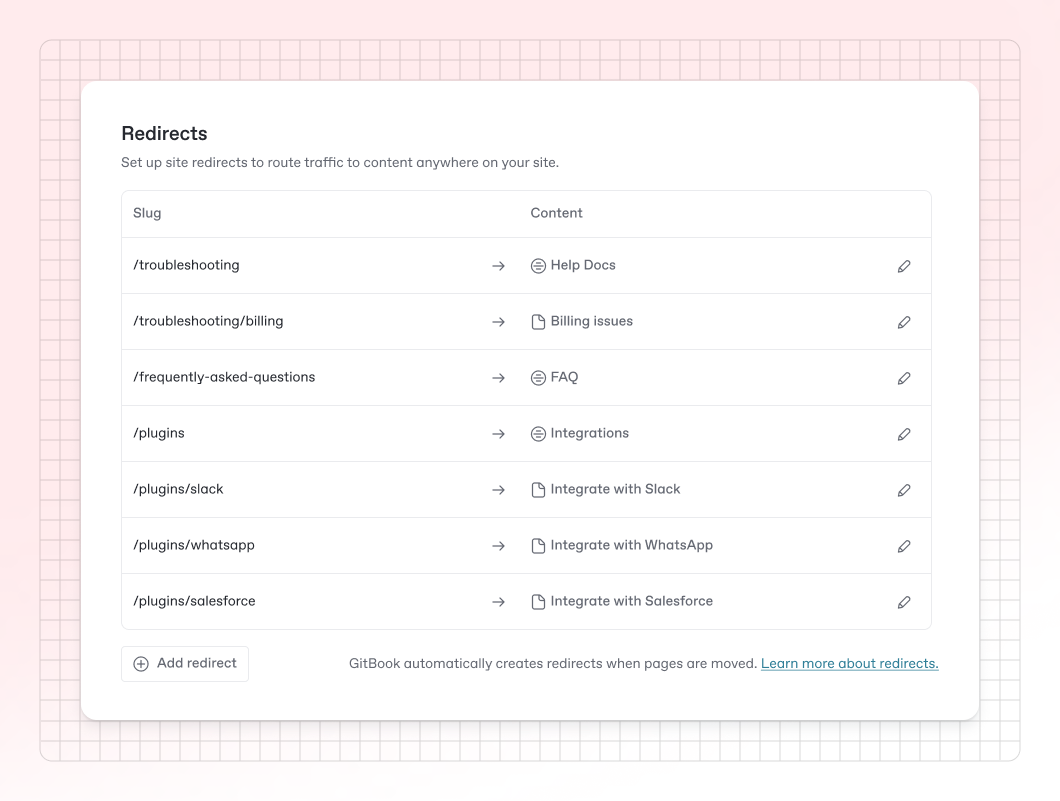
{% endupdate %} {% update date="2024-11-27" %} ## Site redirects, better site structure controls and more Get more control over URLs, manage your site’s structure more easily, install integrations more easily, and auto-play and loop embedded videos in your docs effortlessly. ### More control over site redirects Want to migrate content into GitBook, or just have a big reorganization? With the new [site redirect](https://gitbook.com/docs/publishing-documentation/site-redirects) options, you now have more control over where your old URLs point to. Open your site’s dashboard and open **Settings** to find the new controls.

You can set up as many redirects as you like for your site — find it in your site’s settings.

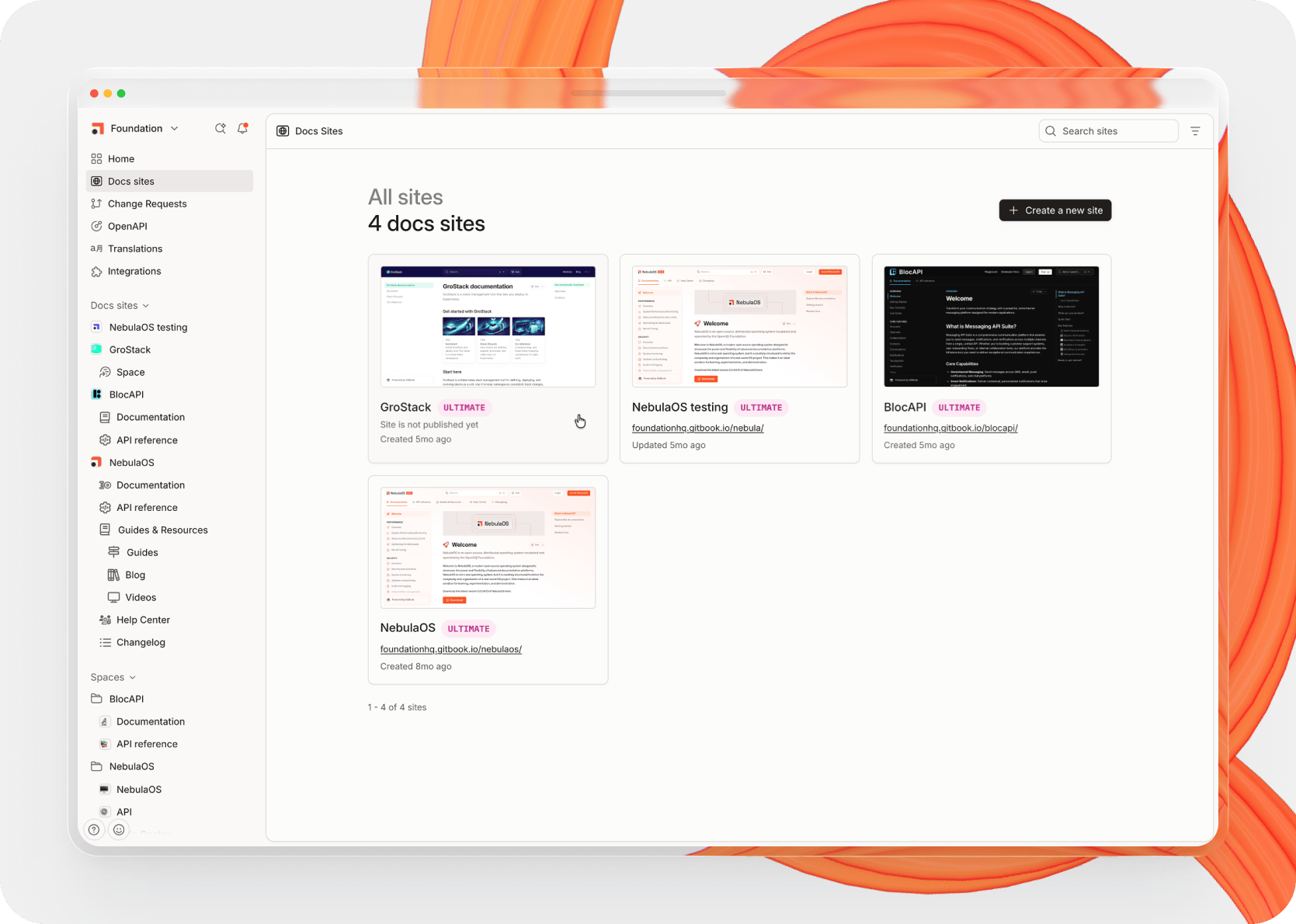
GitBook [already sets up HTTP 301 redirects](https://gitbook.com/docs/publishing-documentation/site-redirects#about-automatic-redirects) if you move or rename a page, so that the old URL points to the new URL automatically. But you can now create a redirect from any path in your site's domain — which is important to avoid broken links in your docs which could impact SEO. Head to [our docs](https://gitbook.com/docs/publishing-documentation/site-redirects) to find out more about site redirects. ### Integration improvements We’ve given our integrations flow a big overhaul to make it easier to browse, install and configure integrations across all your content. Just click Integrations in the sidebar to head into the new page, where you’ll be able to see all available integrations and install them with one click.

Check out our new Integrations page form the sidebar

There’s also a new **Integrations** button for spaces and sites, which opens a modal showing just the integrations enabled on that space or site. You can click to configure the ones you need or see more details about them, or install any others that you need. ### Improved site structure controls Last month [we launched site sections](https://gitbook.com/docs/changelog/broken-reference), giving you all the tools to build your docs out into a content hub for your users. This month, we’ve improved the site structure controls to make it easier to manage your site sections and any [variants](https://app.gitbook.com/s/NkEGS7hzeqa35sMXQZ4X/publishing-documentation/site-structure/variants) within them. We’ve also tweaked the way you rename variants — now, you can only do it from the site structure table, and the option is no longer available in the Customization menu. Head to your site’s dashboard and open **Settings** to see the new table and test it out. ### **A new option to auto-play and loop videos** Want your [embedded YouTube and Vimeo videos](https://app.gitbook.com/s/NkEGS7hzeqa35sMXQZ4X/creating-content/blocks/embed-a-url#videos) to auto-play and loop in your docs? Just add `?autoplay=1&_loop=1` to the end of your video’s URL when you embed it and your users will never have to hit a play button again — at least in your docs. ### Type symbols faster We’ve added automatic transformations for more symbols in the editor. You can now add an em-dash by typing `--` , fractions by typing, for example, `1/2` and math symbols such as ⇒ ≥ and ≠ by typing `=>`, `>=` and `!=` respectively.
Improved * We’ve updated the styling of hint blocks so that they match in both the editor and in published content. * We’ve made a number of small improvements the site customization area. You should notice an improved overall experience when customizing your site, and a larger preview to show your changes in real-time. * One particular area of improvement is the color picker — we’ve increased the size of swatches, added a dropper in Chrome, and made some other small changes to make it easier to use and nicer to look at. * We’ve made some improvements to search in published content. Now, you won't see results from duplicated spaces from different variants on your site, so your users will just get the most relevant results. * As always, we’ve been making a number of small improvements to Git Sync, to fix bugs and improve performance across the board.
Fixed * Fixed a bug that meant the ‘last modified’ date of a file didn't update when you renamed or updated it. * Fixed a bug that prevented you from removing an annotation within the editor — the button works as it should again now. * Fixed an issue where the GitBook app would crash after creating an organization. * Fixed a bug in the social preview modal that made the preview itself too small or to large within the window. * Remove a broken alert in the Customization panel when overwriting customizations for a space. * Fixed a bug with site sections where deleting the default section didn’t automatically select a new default. * Fixed an issue where the title of a site variant could be overwritten via customization. * Fixed a bug that hid spaces or collections in the sidebar if a user had no access to the parent collection. * Fixed a crash that could happen when using a Mermaid block in the editor. * Fixed a bug that could cause you to lose content when merging a change request that included content generated by GitBook AI.
{% endupdate %} {% update date="2024-10-25" %} ## Site sections with global search, sponsored docs for open source and more Make your docs a content hub with site sections, create and reuse content across a space, add buttons to your site header, use stepper blocks in your content, and even more. ### **Site sections**
You can now add multiple topics, such as separate products or product areas, to a single docs site, and separates them into tabbed sections at the top of the screen, to turn your docs into a content hub. \[Site sections]) are available as part of [our new Ultimate plan](https://www.gitbook.com/pricing). ### **Global site search** When you add multiple spaces to a site using site sections, it also unlocks global search across all those spaces. So your users can use the [search bar](https://gitbook.com/docs/creating-content/searching-your-content) in your site header and find pages and information from any space with a single search. ### **Add buttons to your site header** Now, you can add primary and secondary buttons to [your docs site’s header](https://gitbook.com/docs/resources/gitbook-ui#site-header), along with the links you could add before. Head into the Customization menu for your site, choose the Layout tab, then add the buttons you need. This is great for things like ‘sign up’ and ‘sign in’ links, for example. ### **Stepper blocks** We’ve added a new kind of block that’s designed for detailing step-by-step guides — [the stepper block](https://gitbook.com/docs/creating-content/blocks/stepper). You can add steppers to any page, and add almost any other block within a step. ### **Improved insights**
We’ve given our [built-in docs site insights](https://gitbook.com/docs/publishing-documentation/insights) a small facelift. You’ll now see some data trends on each card to show how your content performance has changed over the last week, four weeks, or year — right on your docs site’s overview page. We have more insights improvements to come soon, so stay tuned! ### **Reusable content**
We’re continuing to roll out [reusable content](https://gitbook.com/docs/creating-content/reusable-content) — our new name for synced blocks. You can now create and reuse blocks of content across a space. When you edit the original content, those changes sync across all of its instances — making it easy to update published docs faster than ever. ### **Sponsored sites for open source**
Today, we’re [announcing a new free docs site plan](https://www.gitbook.com/blog/free-open-source-documentation) that’s designed specifically for open source projects. The Sponsored site has all the features you need to publish incredible documentation, including customization, data insights and integrations. It puts a small, relevant ad in the corner of your project’s docs — every view earns you money and you keep the ad revenue. The ads will never track or retarget users — and GitBook doesn’t take a penny from you. Find out all about it in [our announcement post](https://www.gitbook.com/blog/free-open-source-documentation). ### **Copy and paste files between spaces** Now, when you copy any block that includes a file — such as an image or an API block — and paste in a new space, [the file will come along with you](https://www.gitbook.com/blog/reusable-content#copying-files-and-images-across-spaces). We know this is something you’ve been asking about for a while, and we’re glad we could make it happen without compromizing on GitBook’s file management experience. ### **New pricing for new users** We’re [updating our pricing](https://www.gitbook.com/pricing) for new users to cover different needs and use cases. Our new pricing structure introduces site plans, which apply to each site you publish. Right now these changes only apply to new customers or new organizations. Head over to our [pricing page](https://www.gitbook.com/pricing) to see our new plans and how they stack up. Want to hear more about everything we announced this week? [Head to our blog](https://www.gitbook.com/blog) to see all the announcements, teases and reflections on the future of documentation in GitBook.
Improved * We’ve removed the word ‘you’ from next to your name and email in GitBook, because we figure you probably know who you are. * Along with adding primary and secondary buttons to your docs site’s header, we’ve also overhauled the UI for adding and managing all the links in your header. Head into the **Layout** tab of the **Customization** menu to check it out. * While refreshing our pricing, we also updated the in-app pricing table in the **Plans** section of Settings to remove outdated information and add more relevant descriptions to existing features. * We’ve made a number of small improvements to loading times to help spaces and change requests load faster.
Fixed * Fixed some inconsistent styling of buttons and text input areas across the UI. * Fixed a bug that prevented the **Organization settings** option appearing in the Settings menu in some situations. * Fixed a crash that could happen when the **Page Options** menu was opened on a page with locked live edits. * Fixed a bug that broke the layout of an integration’s page in the app and made the content hard to read. * Fixed some bugs that were preventing the GitSync flow from finishing correctly and causing error messages to appear for some users. * Fixed a bug that hid the **Options** button on a card, so it was impossible to add links or cover images. * Fixed a bug that was preventing labels in the **Page Options** menu from appearing. * Fixed a number of other small visual inconsistencies and bugs across the UI.
{% endupdate %} {% update date="2024-10-01" %} ## Improved diff view, synced blocks and more We’re adding reusable content to GitBook, along with a better way to view edits in a change request, improved change request previews, and more. ### Synced blocks
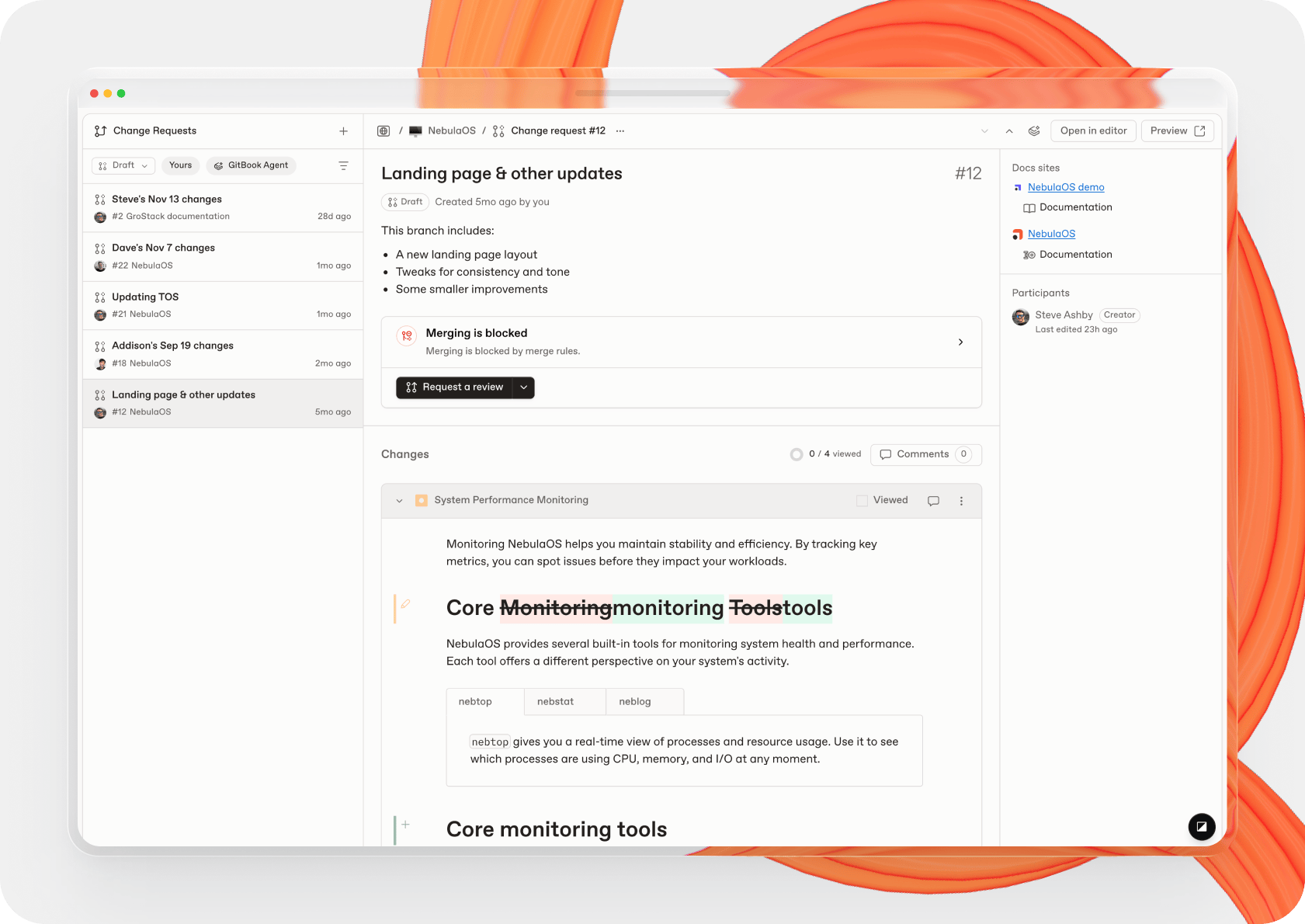
We’re slowly rolling out a new way for you to create and reuse blocks across all your content in GitBook — [synced blocks](https://gitbook.com/docs/creating-content/reusable-content). Create a synced block by selecting and copying it, then add it to other pages from the insert menu. When you update it one place, those changes sync across all instances, making it easy to update published and internal docs faster than ever. You can view, edit and manage all your synced blocks from a new section at the top of the sidebar. Synced blocks will be available to everyone on a Pro and Enterprise plan soon. ### Better diff view This update brings an improved diff view, with a new option to only show edited pages in the table of contents. So if you prefer, you can easily browse changes without scrolling past other pages with no edits.
We’ve also changed the design of diff view to be more in line with other tools that use diffs. Modified blocks are now highlighted with a colored line, and text is highlighted using a background color rather than a text color to make edits clearer. Finally, you can now add comments to individual blocks when viewing content with diff view enabled. This should make it easier to review content and add feedback without switching between view modes. ### Insert integrations faster We’ve updated the insert pallet to include installed integrations for the space you’re editing. Now, when you hit `/` on an empty line, you can scroll or search through the palette and see block integrations that are already installed on the space, making it easier than ever to add them to your content.
Improved * We’ve improved content previews when you edit published content in a change request. Firstly, it’s more consistent — so after a change, if you reopen the same preview URL it should show the latest content. Plus, we’ve improved the preview toolbar, with more controls and extra detail about the change request you’re viewing. * You’ll notice a more prominent **Help** button in the sidebar, so it’s easier to view our docs, get support, or find other resources. We’ve also hidden the **Trash** button when the trash is empty, to save space in the sidebar. * We’ve made it easier to customize your docs sites by adding a **Customize** button right on top of the site preview when you view the site’s overview page. * We’ve also removed **Snippets** from the sidebar for orgs that weren’t using them, to make more space for the new **Synced blocks** section as we roll the feature out to more users.
Fixed * Fixed an issue where some organizations on legacy business plans were losing access to site features. * Fixed a crash that could occur when using diff view when viewing the version history of a space with deleted pages. * Fixed some major performance issues for spaces with large amounts of content. * Fixed a bug that stopped team owners from being able to add or remove team members, or change their team’s roles. * Fixed a crash that could happen when members with creator permissions opened the **Share** modal from a space. * Fixed a bug that meant moving a task list item to anywhere else in the doc turned the list into an unordered list.
{% endupdate %} {% update date="2024-09-24" %} ## URLs for multi-variant docs sites are changing We’re changing the structure of URLs for sites with multiple variants — and we’ve set up automatic redirects to ensure all links still work as expected. ### What’s changing? {% hint style="info" %} **Quick summary:** URLs for docs site variants, such as `docs.mycompany.com/v/fr/` will be accessible at `docs.mycompany.com/fr/`starting 26 September. We are removing the `/v/` to simplify the structure of URLs. {% endhint %} This Thursday, 26 September, we’re releasing a change that will change the URL structure for [multi-variant docs sites](https://app.gitbook.com/s/NkEGS7hzeqa35sMXQZ4X/publishing-documentation/site-structure/variants) — i.e. published sites with more than one linked space. If you’ve published multiple spaces in the same site, you might’ve noticed that variant URLs have a `/v/` between the domain and the slug. This update will remove that to simplify the URL for your readers, and make it easier for people moving their existing published into GitBook. The result will be that a URL such as `docs.mycompany.com/v/fr/` will now be accessible at `docs.mycompany.com/fr/` . All depreciated URLs (e.g. `docs.mycompany.com/v/fr/` ) will automatically redirect to the new canonical URLs. ### What does this mean for your content? In most cases, this should not be a breaking change — you may not even notice it’s happened. The old URLs will still work by redirecting to the new URL. However, if you’ve set up some custom logic with there URLs, this change may require you to update your setup. We’re proactively reaching out to customers who we know may be affected by this. But if you have any questions about your custom setup and how this change may affect it, please reach out to our support team — they’d be happy to help. {% endupdate %} {% update date="2024-09-17" %} ## Page index controls, better OpenAPI blocks and more You can now exclude specific pages from searching indexing — for both in-app search and external search engines. ### ✨ New * **Prevent page indexing** – We’ve added a new control in **Page options** that lets you disable indexing for a specific page. This will opt that page out of in-app content searches, as well as indexing by search engines like Google, Bing, etc. When combined with the **Hide page** option we introduced last month, it’s great for depreciated pages that should still be accessible via URL or the table of contents, or for special pages such as changelog entries, that you don’t want to be indexed by Google but should be accessible to users. * **A new share modal** – We’ve improved the layout and structure of the share model within GitBook. It’s now split into two clear tabs — one for inviting organization members to the internal version of the page, and another for publishing the page to the web using a docs site. * **A better trial process** – We’re slowly rolling out an improved trial process that makes it clearer when a trial has started and what you can test while it’s running. And, at the end of your trial, you’ll be able to easily choose whether to keep the features of the Pro plan, or downgrade back to the Free plan. ### ➕ Improved * We’ve updated our OpenAPI blocks to use the latest version of Scalar. It means faster performance and a better experience when using OpenAPI docs in published documentation. We now also handle some extra aspects of the OpenAPI schema, including mandatory headers and examples with multiple status codes. * We’ve added Dutch localization support, so you can now set the language of your public documentation UI to Nederlands. Head to your site’s customization settings to update the locale for your docs. A big thank you to Rens Reinders for the hard work on this translation. Check out [our open source repository](https://github.com/GitbookIO/gitbook/blob/main/.github/CONTRIBUTING.md) if you want to add your own localization! * Our code blocks now support Python, plus we’ve improved syntax highlighting within them and fixed some issues with diffs. ### 🔧 Fixed * Fixed the SAML configuration modal, which was taking up the full width of the browser window. * Fixed a bug that would redirect a site’s share links to an internal URL if the site had a custom domain enabled. * Fixed a bug that prompted you to save changes whenever you switched between tabs in the Customization menu. * Fixed an issue that meant when deleting a collection, the Cancel button in the confirmation modal wasn’t clickable. * Fixed a bug that made it impossible to edit the title of a change request if the field was cleared. * Fixed an issue that removed the **Diff view** option from a merged change request. * Fixed an issue where searching for members in Members table would reload the entire page, instead of just the table. {% endupdate %} {% update date="2024-08-27" %} ## A new space header, bug fixes, and a bunch of smaller improvements We’ve just released a new space header to make it easier to manage your content, plus a whole host of other smaller changes to improve your experience in GitBook. ### ✨ New * This release includes a new space header, which makes it easier to navigate through your content, manage your content and edit in a change request. As well as moving a few things into easier-to-reach places and decluttering the header, we’ve added breadcrumbs for your current content at the top of the screen, so you can navigate back to other parent pages and collections with a single click. Plus, the space header now aligned nicely with side panels to make a seamless experience — which our design team are particularly happy about. ### ➕ Improved * You’ll see some nice improvements to the **Settings** section of the app — particularly the team settings, which now has a better structure that’s more consistent with other settings sections. The lists in the **Members** and **Teams** sections also got an upgrade, making it easier to select individual users, and sort by ‘last seen’. * We’ve added an **Actions menu** button to each change request in the **Change Requests** side panel — so it’s easy to archive old ones quickly without having to open each one individually. * We’ve made a bunch of small improvements to the broken links side panel to make it easier to find and view broken links in your pages. Also, users on the Free and Plus plans can now see one broken link preview in the broken links side panel, so it’s clearer how the feature works and what the icon alert means. * When you expand or collapse the docs site and spaces sections in the sidebar, GitBook will now remember the setting the next time you open the app — so you can always see exactly what you want, when you want. Plus, jumping to a specific space or docs site will automatically expand the relevant section in the sidebar so you can see it in context. * You can now filter docs sites by ‘Published’ and ‘Unpublished’ in the sites list, to see only the sites you want. We’ve also added pagination to the list, so you can jump through them more easily if you have a large number of sites. * We’ve also improved the SSO settings section. Now, you can configure a default team for each SSO provider. So if, for example, you want everyone who signs in with OneLogin to automatically be added to the Engineering team in GitBook, you can do that with a click — along with setting their default role. There’s also a link to our SSO documentation in the UI, so if you need help getting set up you can quickly get some answers. ### 🔧 Fixed * Fixed a bug that stopped images being directly inserted into a page when you dragged them into GitBook to upload and add them. * Fixed the spacing at the bottom of the site settings screen. * Fixed an issue with organization invite links that could show an error to people trying to join your organization using a legitimate invite link. * Fixed a bug that prevented some blocks from being switched back to normal width from full width. * Fixed a crash that could sometimes happen when trying to delete a page. {% endupdate %} {% update date="2024-08-08" %} ## Page icons, docs site improvements, hidden pages and more We’ve added new icon options for your pages, made a bunch of improvements to docs sites, made hidden pages and MFA available for everyone, and much more. ### ✨ New * You can now [choose from a set of 3,600 icons](https://gitbook.com/docs/creating-content/content-structure/page#page-icons-and-emojis) to add to your GitBook pages, to help you add more context to your table of contents. It’s added to the picker when you click next to your page title, alongside emojis. Plus, the picker now remembered your more recently used options so you can quickly add them again. For icons on published pages, you can also change the icon style from the **Customization** menu from five options. * We’ve improved your docs site’s home screen, with a new header that shows all the useful information you need about your site and some handy links to edit your content or change your settings. * We’ve added a new flow for creating a docs site — you’ll now be guided through naming your site and choosing between an empty site or some sample content, before you choose whether to publish. It’s designed to get your site set up quickly and is great for new users. And just try clicking the icon on the preview to the right for a little easter egg :wink: * As part of our ongoing UI improvements, this release makes it easier to navigate around GitBook. The sidebar has new buttons and a neater layout to make it easier to select and expand different sections. You’ll also see improvements in the **Settings** page, and a few other smaller improvements and fixes around the whole app. * Last month, we told you we were slowly rolling out multi-factor authentication. Now, we’re pleased to confirm that MFA is available for everyone who wants to use it. * Likewise, the [option to hide pages](https://gitbook.com/docs/creating-content/content-structure/page#visibility) from a space is also available to everyone now. Take a look at our previous changelog update to find out more. ### ➕ Improved * GitBook will now remember how you logged in last time, and suggest it next time you need to log in — just in case you forget whether you signed up with GitHub, Google or an email. * When you sign up to GitBook, we’ll now ask you what you want to use it for and offer you relevant options based on that choice. * We’ve made a number of UX improvements and bug fixes to improve the performance of the files manager. As well as better sorting options and better page switching, you'll also notice that you can click the file preview to open a zoomed version of the file, and click the file to open the actions menu. ### 🔧 Fixed * Fixed an issue that caused the app to crash when a referenced snippet no longer exists. * Fixed an issue that meant links to other published content inside a docs site variant had the wrong URL. * Fixed a bug that prevented you from deleting a block in some situations. * Fixed an issue that meant you could create multiple change requests by clicking quickly on the **Edit** or **New change request** buttons. * Fixed an issue with share links in docs sites — viewing the share links for a site would crash the app if there were more than 10 links. * Fixed a number of visual layouts on mobile, including breadcrumbs, docs site list, insights, and more. * Fixed an issue that meant when you opened the revision history for a page, it could break navigation on other side panels, such as comments. * Fixed a layout issue in the notifications menu that would push the text too close to a user’s avatar. * Fixed an issue that meant resolving conflicts could revert back to their conflicting state. {% endupdate %} {% update date="2024-08-05" %} ## Docs sites rollout introduces new publishing flow in the GitBook API With the introduction of docs sites, several older API endpoints for publishing, share-links, and authenticated access have been deprecated. ### :boom: Breaking changes With the release of docs sites, certain API endpoints for publishing, share-links, and authenticated access have been deprecated and may no longer function as expected. If you’re affected by this, we recommend the following approach to make the necessary updates: To modify or retrieve publishing states, share links, or authenticated access settings for a space, locate the associated site and copy its ID. Click the globe icon at the top of the space’s screen to open the site, then copy the Site ID from the URL. **Publishing** `PATCH /spaces/{spaceId}` to change the `visibility` or published state of the space now requires the following changes: * `PATCH /orgs/{organizationId}/sites/{siteId}` to change the visibility of the site. * `POST /orgs/{organizationId}/sites/{siteId}/publish` in order to publish the site and `POST /orgs/{organizationId}/sites/{siteId}/unpublish` to unpublish the site. **Share links** `/spaces/{spaceId}/share-links` and `/spaces/{spaceId}/share-links/{shareLinkId}` now requires you to use `/orgs/{organizationId}/sites/{siteId}/share-links` and `/orgs/{organizationId}/sites/{siteId}/share-links/{shareLinkId}`respectively. **Authenticated access (publishing auth)** `/spaces/{spaceId}/publishing/auth` methods should now be used through `/orgs/{organizationId}/sites/{siteId}/publishing/auth` {% endupdate %} {% update date="2024-07-18" %} ## Rolling out MFA and the hidden pages beta This release lets you make your account more secure, adds a beta option to hide pages from published sites, and includes a bunch of other, smaller improvements. ### ✨ New * We’ve added a new option to hide pages from the table of contents in your published sites — available right now in closed beta. Your users can still access hidden pages via direct link, find them through an on-site search or by asking GitBook AI — and they’re indexed by search engines. This is ideal for content such as FAQs that you don’t want taking up space in your TOC, but you still want people to access if needed. Members of our closed beta can enable hidden pages in the **Experimental features** section of their organization settings. * We’re improving the security of your GitBook account by adding the option to use multi-factor authentication (MFA) to sign in. We’ve started slowly rolling it to GitBook users, and we’re testing it carefully as we go. Right now, MFA in GitBook supports authenticator apps such as Google Authenticator and 1Password. ### ➕ Improved * We’ve moved the social preview and page rating options out of the Customization menu and into the site settings, so they’re easier to find and change. * You can now give your docs sites longer names, as we’ve incresed the site title length to 128 characters. * Importing content from GitSync now infers the table of contents from files more effectively by removing common prefixes. * We’ve tweaked the size, position and margins of some of our modals to make them fit better on smaller screens, tweaked the position of the search menu, and made a bunch of other small improvements to the look and feel of the app. * You can now set Guest as the default role in your organization settings, to make adding guest users easier than ever. ### 🔧 Fixed * Fixed a bug that prevented you from resetting the privacy policy URL in the customization settings of a published space or site. * Fixed an issue where changing your trademark on a site wouldn’t show in the customization preview. * Fixed a bug that was causing the custom domain modal to close unexpectedly after the second step. * Fixed an issue that could prevent members with Editor permissions couldn’t merge a change request in a space. * Fixed an issue where page ratings sometimes showed negatively-scoring pages in the ‘Good’ table. * Fixed a bug that prevented you from typing anything in the text area when you added a link to a card block * Fixed a bug that caused the organization switcher button to sometimes require more than one click to open. {% endupdate %} {% update date="2024-07-01" %} ## New localizations, docs site improvements and more Support for Brazilian Portuguese and German, a new way to manage and install integrations, and a whole bunch of docs site improvements. ### ✨ New * We’ve added Brazilian Portuguese and German localization support to GitBook, so you can now use the GitBook app in more languages. Head to your site's customization settings to update the locale for your docs. Huge thanks to Rodrigo Castro and David Burghoff for their hard work on these translations — and their contributions to [our open source repository](https://github.com/GitbookIO/gitbook/blob/main/.github/CONTRIBUTING.md). * Integrations now live in their own page, accessible through the sidebar. You can view them by category, see which integrations are enabled for specific spaces, and install new integrations — all from the same screen. * We made a bunch of smaller improvements to the docs sites dashboard, site settings, and the publishing flow in general. And we’re not done! You’ll see more in the coming weeks as we make it the best it can be. ### ➕ Improved * We’ve made some big improvements to the way you set up custom domains for published content. You won’t see an error if you have a custom domain set up and try to edit it, and the button to edit it now takes you right to the DNS settings — and it’s contextual, based on the state of your domain. We’ve also improved the alerts and the general setup flow to be clearer about what you need to do. * We’ve changed a lot of the wording in the publishing flow for docs sites to make it clearer when your content will or will not be indexed by search engines, and when share links are active or inactive. * You’ll also notice improved wording when GitBook AI cannot find an answer to your query, and it’ll suggest some related spaces based on your question. * When you open the **Share** modal from a space, you can now click **Publishing** to access your publishing options using docs sites. * You can now quickly visit your published docs site from the **Actions menu** in the sidebar. Just open the menu and choose **Visit site**. * We’ve improved our toasts — you can now close them, and they’ll stack behind each other to prevent them taking up too much of your screen if you have multiple triggering at the same time. ### 🔧 Fixed * Fixed an issue that stopped the **Rollback** button working properly when browsing a space’s history. * Fixed an issue that prevented SAML providers being added or updated. * Fixed a bug that meant clicking the **Options button** in cards and other elements would select the element itself rather than opening the palette or menu. * Fixed an issue where collections in the sidebar could appear highlighted after being opened or closed. * Fixed some incorrectly-implemented prefers-reduced-motion checks, and added more checks so those users wont see animations in the UI. * Fixed a bug that meant pressing **Esc** when a modal was open wouldn’t close it. * Fixed an issue that stopped a custom domain from displaying immediately after you set it up. It’ll now update in the GitBook UI right away. {% endupdate %} {% update date="2024-05-31" %} ## Introducing docs sites, the new way to publish content in GitBook We’ve revamped the way you publish content in GitBook by bringing all your published content together, along with all the settings and features related to publishing. ### ✨ New * **Docs sites in the sidebar** – You’ll now see a new Docs sites section of the sidebar. Here, you can view all your published content in one place, quickly move between different sites, and manage each site individually. * **Insights have a new home** – Insights now live in the **Docs site** area, right alongside each site. This makes it much easier to find insights for the content you want. Simply select a site, then click the **Insights** tab to view page ratings and search analytics for that site’s content. * **Publish the same space on multiple sites** – If you need to publish different combinations of spaces for different user groups, you can now do it effortlessly. Link a single space to as many sites as you want — you can even customize them all differently to match branding or styling requirements. * You can read about all these updates and learn more about docs sites in [our documentation preview](https://gitbook.com/docs/publishing-documentation/publish-a-docs-site). ### ➕ Improved * We now automatically enable GitBook AI features (including search and editing) when you create or upgrade an organization on the Pro plan, so you can immediately start making the most of your plan’s features. * We’re drawing a clearer line between integrations that are dedicated to publishing and those that are focused on editing or adding content to a space. So now, integrations like Google Analytics and Mailchimp will live alongside sites, while integrations like Linear, Mermaid and Supademo will stay with spaces. {% endupdate %} {% update date="2024-05-22" %} ## GitBook AI gets a GPT-4o upgrade and new diagramming skills We’ve migrated our AI to use the latest model, so asking questions and generating content will have even better results — plus we’ve added AI diagrams to our drawing tool. ### ✨ New * We’ve added GPT-4o to our list of AI models, which means AI search, writing and editing in the GitBook app is now powered by the new and improved GPT model. You should notice faster responses, better understanding of your questions and requests, and an improved output. * Talking of AI, we’ve just rolled out an update to our drawing tool that can create diagrams from a prompt. Simply describe the diagram you want and hit **Generate** to get an output in seconds. They’re fully editable, too — so you can dive in and tweak the layout as much as you like. As with our other AI features, this is available to everyone on a Pro or Enterprise plan. ### 🔧 Fixed * Fixed an issue where sometimes matching an invalid URL could return a 500 error and crash the app. * Fixed some accessibility issues to make the app easier to navigate with a keyboard. * Fixed an issue where the editor would stay in read-only mode even after you disabled diff view in a change request or when viewing an old version of a space. {% endupdate %} {% update date="2024-04-30" %} ## Broken link detection and GitBook AI comes out of beta Broken link detection for internal links, AI features are officially graduating, plus some other small but useful updates and bug fixes throughout the app. ### ✨ New * **Broken link detection** – We’ve added a new way to find and fix broken links in your spaces for users on our Pro plan. When you open a change request or edit a space you’ll see a notification that shows broken links. Right now, this shows links to other GitBook pages, but we plan to add more link types in future! [Head to our docs](https://gitbook.com/docs/creating-content/broken-links) to find out more. * **GitBook AI is coming out of beta!** – After a long period of testing and improvement, today we’re bringing AI search and AI writing and editing out of beta. They’ll now be available as part of the Pro and Enterprise plans. Head to our docs to learn more about how [GitBook AI search](https://gitbook.com/docs/creating-content/searching-your-content/gitbook-ai) and [GitBook AI writing](https://gitbook.com/docs/creating-content/write-and-edit-with-ai) can supercharge your content. ### ➕ Improved * We’ve improved the rendering speed of drawings in the editor. Your drawing should now appear immediately after you finish editing it, rather than displaying a fallback image while it loads. ### 🔧 Fixed Below is a list of bug fixes also included in this release: * Fixed a bug that stopped some embedded content displaying properly in a published space. * Fixed an issue that meant content was still editable during operations like merging or updating a change request. * Fixed an issue that meant some search results had an invalid path, which could lead to broken links. * Fixed a bug that could cause empty inline Math formulas to prevent Git Sync from working properly. * Fixed a bug that could delete some content if you had two bullet lists and tried to merge them by hitting enter on the top list. {% endupdate %} {% update date="2024-04-19" %} ## Small improvements and bug fixes We’ve made some small but useful improvements to the app, and squashed some pesky bugs as we prep for a bigger release coming soon. ### ➕ Improved * You’ll now see a placeholder title and a cursor when you create a new H1, H2 and H3 block to make it easier to visualize how you content will look on the page. * When you open the **Options menu** on an ordered, unordered or task list block and choose **Delete** it will now delete the entire block, not just the content within it. * You’ll now see a warning if you try to reload your page when your changes haven’t yet automatically saved. * We’ve improved the way that file columns render in tables within published content, so your files should look great however you display them. * We now support GitHub-flavored Markdown in OpenAPI specifications, so you can edit your content more easily through Git Sync. ### 🔧 Fixed * Fixed a bug that meant the horizontal scrollbar in tables wasn’t usable in some browsers. * Fixed an issue that could cause the editor to crash when the integrations side panel loaded. * Fixed various types of OpenAPI schema setups that didn’t parse or displayed incorrectly in published content. * Fixed a bug that could make diff view persist outside of a change request. * Fixed a bug that meant anchor links were just linking to the top of the page, rather than the anchor. * Fixed an issue that caused some images to overflow inside cards in published spaces. * Fixed a bug which caused the customization preview to be outdated after you hit **Save**. * Fixed a bug that prevented page feedback not being captured in some cases. * Fixed a bug that put the cover image in published content in the wrong position. * Fixed an issue with integration installation permissions that caused an **Install** button to appear on already-installed integrations. * Fixed an issue that caused published pages with a lot of code blocks to crash. * Fixed an issue that could cause some embedded content to be cut off on the page. * Fixed a bug that meant searching in a space that was part of a published collection wouldn’t lead to the right URL. * Fixed an issue that showed the cookie prompt too often for some cookies. {% endupdate %} {% update date="2024-03-27" %} ## Open-sourcing our published documentation You can now contribute and suggest improvements to GitBook to make published documentation even better. ### ✨ New * We’ve opened our repository for the published documentation side of GitBook, so you can now contribute. Suggest improvements, submit bug fixes, translate the UI into other languages and more — it’s all possible! Head over to [our contribution guide](https://github.com/GitbookIO/gitbook-open/blob/add/readme/.github/CONTRIBUTING.md) to find out more. And if you want to discover more details about this huge development in the way we make GitBook, head to our blog post! * We’ve partnered with Scalar to add a **Test It** button to [OpenAPI blocks](https://gitbook.com/docs/api-references/openapi) in your published documentation. Clicking **Test It** will open up an integrated API client, where you can add headers, cookies, variables and more — before sending the request to test your API live. ### ➕ Improved * You can now press `Tab` when using block selection on multiple blocks — such as lists — and they’ll indent one step. * We’ve added the Export PDF feature to the **Actions menu** for your internal content, rather than opening the **Share** modal. This should make exporting a single page or all the pages in a space quicker and easier. * We’ve improved the loading time for published spaces that include a lot of files — things should now be much speedier. ### 🔧 Fixed * Fixed a styling issue for grouped icons in search results. * Fixed some issues with emoji placement and color bleeding. * Fixed a bug that removed the hint block when adding an unorganized list and then hitting `Enter` to start a new block. * Fixed an issue with text wrapping in tab titles and table cells. * Fixed an issue with visitor authentication that could occur when setting a token without an expiration time. * Fixed an issue that prevented the insert palette opening when typing a `/` in the editor using Firefox. * Fixed some caching issues with published docs that could cause a long delay before updated content appeared. * Fixed some issues that were causing unnecessary rate limiting errors and CAPTCHAs for published content. * Fixed an issue that prevented you from exporting the content of a change request or a previous revision as a PDF. * Fixed an issue that was causing links between published spaces in published collections to break. * Fixed some issues that caused some anchor links with upper-case characters to point to the main page URL rather than the section. * Fixed an issue that could cause the editor to re-render when editing. {% endupdate %} {% update date="2024-03-04" %} ## Huge improvements to your published documentation Your published sites are getting a big update, with a new look, better performance, extra customization, improved OpenAPI blocks, a redesigned PDF experience and more. ### ✨ New * **A new, modern look and feel** – Your published now have a more streamlined layout that makes information easier to read. You’ll also notice some neat visual improvements across your docs, such as animated hint icons. * **New customization options** – You can now change the background color of your published page. Choose between a plain background, or subtly change the color to match your theme. * **Auto-detect light or dark mode** – Your published docs will now automatically detect whether the user’s device is set to light or dark mode, and adjust the theme to match it. * **Multi-space search** – You can now also search across multiple published spaces — which is great when you have a published collection and want to let users find information across it all. * Head to [our documentation](https://gitbook.com/docs) to see these new features in action! ### ➕ Improved * **Improved performance** – You’ll notice improved loading performance across all your published content. Pages should load faster, feel snappier, and generally give your readers a better experience. * **Better OpenAPI blocks** – The new OpenAPI block displays information like sample code to use an endpoint, the shape of a response, and a detailed list of attributes — all based on your API definition. So you can see all the information you need to use the API at a glance, and it’s easy to navigate between response types and languages for sample calls. * **A redesigned PDF export experience** – If you allow users to export your published content as a PDF, it’s now faster and easier than ever — and it produces even better results. * **Improved code block syntax highlighting** – We’ve improved the way syntax is highlighted in a code block, to make code easier to parse on the page. * **Removed the API method block** – As we mentioned in [our recent announcement](https://gitbook.com/docs/changelog/broken-reference), we’ve deprecated the API method block. Instead, you can now use the insert palette to add the **API Reference** option, which adds a preset selection of blocks to add API information manually. ### 🔧 Fixed * Fixed a bug that caused flickering in the search window when you used AI search. * Pressing `Enter` in the title of an expanded block now opens the block. And expandable * Fixed an issue where some complex emojis were represented by multiple emojis, rather than the single correct emoji. * Fixed an issue that could make tab headers uneditable. * Fixed a bug that caused some headers and some avatars to appear too large. * Fixed a visual bug that occurred when multiple users were on the same page and had the same block selected. * Fixed a bug in the modal that appeared near the end of the trial that caused text to misalign. {% endupdate %} {% update date="2024-02-21" %} ## Edit text with AI, a published docs preview and more We’ve added the option to edit text with AI, a preview of our new published documentation experience, and a bunch of other nice improvements. ### ✨ New * You can now edit existing text on your page using GitBook AI. Simply select some text in a block — or multiple blocks — and click **Edit with AI** then choose the option you want from the menu. It can do things like make your text shorter or longer, simplify language, or even change the tone of your text.
* We have a new published documentation experience coming very soon :eyes: and we’d love your feedback. In the next few days, you should see a pop-up that lets you preview your published space with the new experience. And you can always access it later from the **New!** button in the space’s sub-nav. Give it a try and let us know what you think! * You can no longer add API method blocks to your documentation. [Read our announcement](https://gitbook.com/docs/changelog/broken-reference) to find out more. ### ➕ Improved * We’ve improved the look of the automatic emails that GitBook sends, such as when you log in with a magic link. They now match our new brand styling. * We’ve made some small improvements to the UI of the Home page to make everything easier to read and understand. * You can now cancel AI writing while it’s generating if you decide what it’s creating isn’t right for you. * You can choose to enable or disable all GitBook AI features across your whole organization from the **Settings** page. * When you ask GitBook AI a question in the **Ask or search** bar, the answer will stream for you so you can start reading as soon as it begins to generate. * When you type ‘Code’ in the insert palette, the code block option will now appear above Codepen in the list so you can easily hit Enter to add a code block. Plus, we’ve moved inline content to the bottom of the insert palette * When you have multiple people viewing or editing the same space, their avatars will now stack in the top bar and footer to reduce the chance of them pushing other UI elements out of the way. ### 🔧 Fixed * Fixed an issue that could lose the most recent edits if you quickly merged a change request. * Fixed an issue where a tooltip wouldn’t disappear, even after navigating away from the button. * Fixed an issue where changes to the title and description of a page weren’t saved when hitting Merge. * Fixed an issue that could cause a crash when deleting a single image in an image block. * Fixed a bug in the inline link editor that caused the link to overflow the text box. * Fixed the header for change requests to adapt to any title length and screen width. * Fixed a crash that could happen when you add a new tab to a tab block. {% endupdate %} {% update date="2024-02-08" %} ## Deprecating the API method block in favor of OpenAPI improvements We’re making big improvements to our OpenAPI support and API documentation rendering — so we’re replacing the editable API method block with a standard text alternative. {% hint style="info" %} We’ve heard your feedback, and we’re working on some major improvements to how teams can document APIs in GitBook. It’ll give developers a great reading experience, and provide the right information at a glance. We can’t wait to share this with you in the coming weeks! However, this also means we had to reconsider how people document API using GitBook today. **As a result, we’ve decided to deprecate the API method block and make some big improvements to our OpenAPI block.** {% endhint %} ### :frame\_photo: Context and reasoning Up until now, you could document APIs in GitBook in three different ways: 1. **Generating API documentation using an OpenAPI definition** This is by far the most advanced and flexible method. Teams can rely on their API definition and easily maintain up-to-date API documentation. We support the OpenAPI 3.0 standard to date. Here are a couple of examples: * [Our own developer docs](https://developer.gitbook.com/gitbook-api/reference/users#get-current-user) * [Bird’s API documentation](https://docs.bird.com/api/channels-api/api-reference/channel-groups#list-available-channel-groups) 2. **Craft API documentation using traditional blocks**\ This method gives you full freedom over what to display, and how. While this offers flexibility, you also have to update your documentation manually every time the API changes. Still, some people love documenting their APIs this way! * [The Mews Connector API docs](https://mews-systems.gitbook.io/connector-api/operations/accountingcategories) 3. **Manually inserting API method blocks**\ This method gave people control over what they displayed in their docs, but came with some drawbacks: * When the source API changed, someone had to update the block manually * The way the API method block rendered was inflexible, which didn’t meet our users’ needs * The block simply didn’t offer as much information and space as an OpenAPI block From our perspective, the API method block was very restrictive in what it could support. It also technically limited our ability to improve the OpenAPI documentation experience to the quality we know you expect from GitBook. ### :date: Timeline * **Monday 12 February 2024:** You’ll no longer be able to insert API method blocks in the GitBook editor. * **Monday 4 March 2024:** We’ll automatically transition all pre-existing API method blocks to regular text blocks — read on for more details. ### :robot: What happens to your API method blocks? On Monday 4 March 2024, we’ll automatically change your API method blocks into other, standard blocks. Here’s how an API block will look after the transformation:

An example of the depreciated API method block.

How the content will look after the transition, using standard blocks.

We’re confident that the editing and reading experience of translated blocks is going to be improved as a result. That said, we think API documentation is even better using OpenAPI definitions instead of manually written text. ### :woman\_technologist: What’s changing with OpenAPI blocks? [OpenAPI](https://www.openapis.org/) is a standard that helps gather a lot of information about an API and present readers with that information consistently — and automatically. If you use definitions like Swagger, you can easily update the definition file when you update your API, and those changes will instantly sync to your docs, too. The OpenAPI block improvements that we’re working on right now will show information like sample code to use an endpoint and a detailed list of attributes — all based on your API definition, rather than manual input. It’ll also make it easier to navigate between response types and languages for sample calls and show all the important information at a glance. We’re testing the updated Open API block [in our own developer documentation](https://developer.gitbook.com/gitbook-api/reference/users) right now, so head over there to get a sneak peek. We plan to release it on the same day as we depreciate API method blocks, but we’ll share news on that soon. {% endupdate %} {% update date="2024-02-02" %} ## AI writing assistant, a new home for important updates, and more We’ve added new ways to create and edit text with AI, plus a new Home section, snippet improvements, and a bunch of bug fixes. ### ✨ New * GitBook AI can now help you write content, summarize information, and more — right on your page. Simply start a new line and press `Space` to bring up the palette. Try using it to expand on existing content, summarize disorganized notes, translate your text, and much more. * We’ve added a new **Home** section that highlights important things that might need your attention — such as open change requests, replies to your comments, recent page edits, and other big changes you might want to check out. You can access it from the sidebar. * You can now use new block types when editing a snippet, including images, files, drawings and API blocks. And we’ve removed the need to save changes you make manually — now, any updates you make will save automatically, just like a normal page. ### ➕ Improved * Git Sync can now parse table columns that use the **Select** column type, and show that data in GitHub or GitLab. * We’ve made some small improvements to the **Add new…** menu at the bottom of the table of contents and the resulting modals — including clearer UI copy and some nice new icons. * You should see a big improvement in the speed and reliability of Git Sync, as we’ve made some backend changes that help things run more smoothly. ### 🔧 Fixed * Fixed an issue that stopped a space’s footer inheriting customization settings from its collection. * Fixed the icon in the tooltip for an inline link, which was displaying too small. * Fixed a bug that could cause a RangeError when adding math formulae to a space with Git Sync enabled. * Fixed some bugs that prevented you from dragging and dropping items in a collection in list view or grid view {% endupdate %} {% update date="2024-01-22" %} ## Small improvements and bug fixes We’ve shipped some small but useful improvements to the app, and squashed some pesky bugs. ### ✨ New * We’ve added a discovery date to the Content audit panel, so you can see when a conflict or duplicate was found. * Admins can now remove themselves (and other admins) from an organization, as long as they’re not the only remaining admin. * There’s a new Markdown shortcut to add a divider to your page. Type `---` and on an empty line and hit `Enter` to add a divider. ### ➕ Improved * Added a notification to show if there’s an error when duplicating a space. * You can now update or remove a space’s emoji using the API. * When you’re viewing your space’s user ratings in the Insights panel, you can now jump to a listed page by clicking it. * You’ll now see a maximum of three user avatars in the footer, so if multiple people have edited a space recently it won’t fill the width of your content. ### 🔧 Fixed * Fixed some graphical issues with diff icons and GitBook AI search answers. * Fixed an issue where merging a change request just after editing the content could occasionally cause the merged revision to be out of date. * Fixed an issue that sometimes caused an invisible comments button to published content, and resulted in duplicated URLs. * Fixed a crash that could sometimes occur when viewing the spaces or teams a user was a part of in an organization. * Fixed an issue where published content using links in headers could cause visual flashing. * Fixed an issue where snippets and comments didn’t save. {% endupdate %} {% update date="2024-01-10" %} ## Turn snippets into docs, change your public docs font and more We’re making it even easier to turn knowledge into documentation in your knowledge base, adding a free customization option for everyone, and much more. ### ✨ New * You can now easily turn snippets into documentation pages in your knowledge base! So when you’ve saved a technical guide from a really helpful thread in your #engineering Slack channel, you can now add it to exactly the right space in GitBook, for everyone to find and use. {% embed url="" %} You can now turn a snippet into a page in your docs — it’ll instantly create the page, or automatically open a new change request if your space has locked live edits. {% endembed %} * You can now reference snippets in your documentation, using either the **new snippets block**, or using a # style mention. So even if you don’t want to turn your snippet into it’s own page, you can still point people toward it when you need to. * We’re making it easier to set up visitor authentication for your published documentation without needing a custom backend. Instead, you can install integrations that serve as the backend for authenticating users and generating JWT tokens. We’re testing this with selected customers right now, and will open it up to all Pro and Enterprise organizations soon. * We’ve restored Inter as the default font choice for public content, as Inter has better support for more languages than Favorit. You can switch your font back to Favorit in the Customize menu if you prefer — and we’ve made it available to everyone, no matter what plan you’re on. ### ➕ Improved * You can now quickly create a snippet using the **+** button next to Snippets title in the sidebar. * We improved support for lists in search results when using GitBook AI search. * We’ve also improved the quality of suggested questions in GitBook AI search so that it uses actual content within the organization. * We’ve updated the template screen to reflect the new brand colors. * The Git Sync side panel will now hide while its progress model is showing. * Comments on deleted pages now appear at the bottom of the list of comments. * Readers in your organization can now access and read snippets too. * We’ve updated our primary colors in the app to improve color contrast and accessibility. * You can now edit a collection’s title and description, or delete a collection using the API. ### 🔧 Fixed * Fixed an issue that caused the search modal to change widths as you typed. * Fixed an SPI error that occurred when you submitted a change request with no reviewers. * Fixed an issue where changing the title would cause focus to move away from the page. * Tidied up some text inconsistencies in the app following our recent font change. * Fixed a bug that caused a slug not to be generated properly when a Git Sync import didn’t include a SUMMARY.md. * Fixed an issue that caused the content Change Request side panel to overflow into the header when it overflowed. * Fixed a bug that could cause some admin rights to be overwritten when an admin visited an invite link. * Fixed direct links to relations in the Content audit section of Insights. * Fixed an issue that could show an error when modifying header links in published content using the Customize menu. * Fix an issue where badly parsed math blocks could cause a Git Sync failure or an app crash. * Fixed a bug that meant the error screen didn’t respond to light or dark mode. * Fixed a bug that caused the footer not to show in published collections. {% endupdate %} {% endupdates %} --- # Source: https://gitbook.com/docs/changelog/2025-product-updates.md # 2025 {% updates format="full" %} {% update date="2025-12-18" %} ## Add inline button actions to any page — including search and Ask AI
You now have powerful new options for [inline buttons](https://app.gitbook.com/s/NkEGS7hzeqa35sMXQZ4X/creating-content/formatting/inline#buttons) that include search and GitBook Assistant inputs — allowing your users to type a question and activate a search or Assistant chat right from the page. Plus, you can also create disabled buttons or buttons that trigger a specific preset search or query of your choice. Here are a few examples of things you can do with the new button actions… Add a search button with a pre-set search parameter: Create an empty search bar that users can type directly into to find a topic: Embed a place for users to ask GitBook Assistant something about your docs: Add a disabled button to show something is inactive: Disabled button You can configure all of these options by hitting / and choosing **Button** to add a button to your page, then clicking the button to open the Label menu. {% endupdate %} {% update date="2025-12-16" %} ## Set canonical and alternative page metadata
You can now set the [page metadata](https://app.gitbook.com/s/NkEGS7hzeqa35sMXQZ4X/creating-content/content-structure/page#metadata-seo) for canonical and alternate URLs to help search engines understand the relationship between similar pages — which is helpful for SEO. For example, if you use variants to document multiple versions of your product, but want the current version to be the canonical version for SEO reasons, you can now control this in the **Page options** menu for your page. You can select another GitBook page in both the canonical and alternate fields, as well as external URLs. ## An improved notification panel
You’ll notice that your notification panel has a new design to make it easier to parse active and inactive notifications. It also brings in the new colors from our recent rebrand, and adds new icons to make it clear when a notification has been checked. ### Other improvements * You can now stop GitBook Agent’s thinking process when you’re interacting with the Agent through the side panel. Simply hit the **Stop** button in the chat window. * We’ve made some visual tweaks to hint blocks to increase their contrast and make the content inside them easier to read. You’ll notice this in dark mode in particular — hint blocks are now much clearer in the GitBook app. * Following on from our recent rebranding, we've now updated the font within the app to be Inter. This new font should look clean and modern within the app, helping you do your best work. ### Fixes * Fixed a bug that removed the border around site icons in the sidebar. * Fixed an issue that meant joining a new organization in GitBook when you were already logged in with your account would cause a crash. * Fixed a small hint block bug that meant page links and other mentions didn’t show a colored background as expected. * Fixed a bug in the editor where text colored blue would show as red. * Fixed a bug that meant submitting a change request review would reload the entire page unnecessarily. {% endupdate %} {% update date="2025-12-11" %} ## A refreshed app look and feel
If you’ve visited our website or logged into the app today, you’ve probably noticed that it’s got a new look. We’re rolling out product changes with care, as we know it’s an essential interface for your docs. You can read more about what’s new in our announcement blog post, but here’s a quick breakdown of the small changes we’ve made to the app to bring it closer to our new branding: * **New colors** – we’ve updated the colors across the app, reducing the amount of teal and focusing on blacks and oranges to match our new brand. * **New images and backgrounds** – We’ve also refreshed the imagery within the app to bring it up to date with our latest design language on our website and docs. * **A refreshed home page** – The home page has a new layout that helps you quickly jump to the change requests screen and other useful places. We’ll have more improvements coming to the home screen soon. * **A new default page cover image** – when you add a cover image to your page, it’s now a nice pale orange to match our overall branding. {% endupdate %} {% update date="2025-12-10" %} ## Introducing GitBook Agent
Today we introduced [GitBook Agent](https://app.gitbook.com/s/NkEGS7hzeqa35sMXQZ4X/gitbook-agent) — a collaborator who works alongside your team to ensure your docs are accurate, updated, and fueling growth. GitBook Agent can: * Write docs based on a prompt * Ideate and implement bigger changes * Understand your style guide * Follow custom, organization-level instructions * Summon from a comment * Review your changes [Head to our announcement blog post](https://www.gitbook.com/blog/introducing-docs-agent) to read more about these features — and what powerful upgrades will be available soon. Read the blog post {% hint style="info" %} GitBook Agent is currently in open beta for teams on [Pro and Enterprise plans](https://www.gitbook.com/pricing). Give it a try in the app today! {% endhint %} {% endupdate %} {% update date="2025-12-10" %} ## Huge change requests improvements
We’ve introduced [a new change requests screen](https://app.gitbook.com/s/NkEGS7hzeqa35sMXQZ4X/collaboration/change-requests/change-requests-screen) that brings every update across your organization into one clear, centralized place. It’s built for speed and focus — making it easier to navigate, filter, review, and ship docs updates efficiently. You can see a list of change requests with powerful filtering to help you find precisely the ones you need. And when you open a change request, you’ll see all the information related to it in one place — including the title and description, participants, reviewers, and even all the changes rendered in diff view. There’s also a new **Overview** screen for individual change requests within a space that uses the same format to make reviewing changes easier than ever. {% endupdate %} {% update date="2025-12-09" %} ## Embedded Assistant improvements
We’ve improved the styling and customization options for the [embedded](https://app.gitbook.com/s/NkEGS7hzeqa35sMXQZ4X/publishing-documentation/embedding) version of [GitBook Assistant](https://app.gitbook.com/s/NkEGS7hzeqa35sMXQZ4X/publishing-documentation/gitbook-ai-assistant): * You can now override the default **Ask** button label and Assistant icon now, if you wish. * The Assistant now supports light and dark mode, and automatically adjusts to match your product or site’s settings. It’ll remember a user’s settings if they’ve browsed your site before. * The Assistant window is now very subtly translucent so it blends more seamlessly with your app or website. You’ll also notice a new sidebar in the embedded Assistant, which lets you switch between two modes — Assistant and documentation. More on that below. ## Embed your docs in your product
You can now [embed your documentation within your product or website](https://app.gitbook.com/s/NkEGS7hzeqa35sMXQZ4X/publishing-documentation/embedding) alongside — or instead of — GitBook Assistant. Users can open the panel and browse your docs as normal in the small window. And if you’re using the Assistant in your docs, that’s available in the other sidebar tab. Embeddable docs are available on [Premium and Ultimate site plans](https://gitbook.com/pricing) — opening up this powerful embed feature to more users. ## GitBook Assistant: Customize suggested questions You can now customize the questions that appear when users first open GitBook Assistant and the AI search panel (on Premium sites or sites not using the Assistant). You can define up to five custom questions in your site’s settings screen and these will be shown to visitors when they open Assistant or AI search. If you don’t add custom questions, users will see AI-generated suggestions instead. ### Improved * We’ve tweaked the reasoning for GitBook Assistant to help it deliver responses faster. * [{if} blocks](https://app.gitbook.com/s/NkEGS7hzeqa35sMXQZ4X/creating-content/blocks/conditional-content) now support all other block types, meaning you can create more detailed conditional blocks using [adaptive content](https://app.gitbook.com/s/NkEGS7hzeqa35sMXQZ4X/publishing-documentation/adaptive-content) — including other {if} blocks for nested conditional content. ### Fixed * Fixed an issue that could occur when importing tables via Git Sync that reset column widths to default rather than maintaining their custom widths. * Fixed a couple of bugs with lists within hint blocks that meant bullets and numbers were larger than, and misaligned with, the text next to them. {% endupdate %} {% update date="2025-12-05" %} ## Page link titles, improvements and fixes You can now set a shorter [page link title](https://app.gitbook.com/s/NkEGS7hzeqa35sMXQZ4X/creating-content/content-structure/page#page-link-title) that will appear in the table of contents — great for tidying up if you have a lot of pages with lengthy titles. For example, if you have a page with a long title for SEO or accuracy reasons, open the page’s **Actions menu** and choose **Edit title & slug**, enable **Link title**, and then specify a shorter name. This title will be used for all relative links to the page — including the table of contents, page # mentions, and the page footer navigation. If you use Git Sync, your page will appear in the `SUMMARY.md` file like this: {% code overflow="wrap" %} ``` # Table of contents * [Page main title](page.md "Page link title") ``` {% endcode %} ### Improved * You can now hide some site spaces from the navigation at the top of your site * This PR adds the ability to hide single site spaces within non-default sections, extending the existing site space visibility feature. The implementation includes backend validation to ensure only specific site spaces can be hidden (single spaces in non-default sections), along with frontend UI updates to support toggling visibility for both variants and sections. * We’ve added a new message for when a Git Sync operation times out, to give you more information about the error and offer some solutions. ### Fixed * Fixed a Markdown bug that meant hitting # then Space at the start of an empty line would open the page link menu and select the first link instead of creating a new H1 header. * Fixed a crash that could occur when unsuccessfully sending a non-critical notification within the GitBook app. * Fixed an issue that meant reusable content in another space was missing the external link back to the original content for editing. * Fixed a bug that affected variants on a default site section for sites that use share links. The variant would cause an infinite redirect when trying to preview the site. * Fixed a bug in comments that meant @ mentions and page references weren’t working properly. * Fixed a link menu bug that meant if you started typing in the search bar before the menu options had loaded, it would replace your highlighted text on the page. {% endupdate %} {% update date="2025-11-25" %} ## A restyle for GitBook Assistant, improved menus and more We’ve updated the look and feel of GitBook Assistant to give your content more space, added new menus across the app with a number of improvements, and released a ton of fixes. ### A more polished Assistant experience
We’ve improved the style and layout of [GitBook Assistant](https://app.gitbook.com/s/NkEGS7hzeqa35sMXQZ4X/publishing-documentation/gitbook-ai-assistant) to make it more minimal and to give your content more space. The Assistant now appears as a full-length sidebar, nudging your content over while keeping a great layout no matter the size of your screen. You might also notice that the styling subtly matches your site’s [primary color](https://app.gitbook.com/s/NkEGS7hzeqa35sMXQZ4X/publishing-documentation/customization/icons-colors-and-themes#primary-color) — so the Assistant blends perfectly into your site and feels more branded to your docs. You’ll also notice improved scroll effects on the chat stream and updated animations that are smoother and, frankly, prettier when answers appear :sparkles: Plus, there are now up and down buttons for easy navigation through your chat log. Hit **Ask** at the top of this page [or click here](https://gitbook.com/docs/changelog?ask=#a-more-polished-assistant-experience) to try the latest Assistant improvements for yourself! ### Improved menus across the app Every menu in the GitBook app has been updated with new features, improved UI and better accessibility. First, menus now have better focus management — so you can navigate using your keyboard, and if you use your mouse, focus will remain more consistent even when selecting from submenus. We’ve also added search to every menu. So when you open a menu, you can just start typing to narrow down the options you see. This search also includes submenu entries. So if you open a space’s **Actions menu** and type ‘Share’ it will show not only the Share menu item, but also the two submenu items within it — so you can quickly find and select what you need without much manual navigation. These changes are live now across all menus in the app, so give them a try today.
Improved * We’ve tweaked the prompt used for GitBook Assistant to improve the page context and reduce the number of repeated searches. We’re constantly improving this, so there’ll be more fine tuning in the coming weeks and months. * Part improvement, part fix: We’ve added another filter to all the charts in the **Traffic** page in your site’s **Insights** panel. Before, the page only filtered the first chart to show page events — other charts didn’t have this filter, which resulted in some inconsistencies.
Fixed * Fixed a bug that would occur when some blocks (e.g. stepper, quote) only had a single block inside and you tried to open the **Block options** palette for that single block. Rather than the child block being selected, it would select the parent block. Now it will select the child block as expected. * Fixed the padding that appeared around the image options toolbar with a recent update. * Added aliases to the code block syntax selection menu, and fixed an issue that meant the text was too light. * Fixed the **Share** modal not showing members who have read access to a space due to the space being published to a site. * Fixed an issue that meant repos with multiple project directories could sometimes have their assets deduplicated in a strange way after our recent deduplication update. Now imports can happen from outside the project directory, and on export any files imported from outside the project directory will be copied into the project directory to correct its path. * Fixed a bug in the editor that meant you couldn’t edit a page slug on long, nested paths. Now the slug text entry box will be split equally and you can view the full nested slug in a tooltip when hovering over that section of the box. * Fixed an issue that meant it could be difficult to see menu items in Firefox due to the browser’s CSS scroll fade appearing incorrectly. * Fixed the position of the sidebar’s **Drag to resize** trigger area. It’s now aligned with the edge of the sidebar, making it easier to grab. * Fixed a bug that meant the inline formatting palette could overflow off the side of the screen. It now stays neatly in bounds, and flips to below your selected text if there isn’t room above it.
{% endupdate %} {% update date="2025-11-19" %} ## Better code syntax highlighting, custom links for your site logo and more With this release, we’ve made your site logo link customizable, plus added Shiki syntax highlighting for code blocks, a new block switching menu, and more. ### Set a custom link for your site logo You can now set a custom link for [your docs site’s logo](https://app.gitbook.com/s/NkEGS7hzeqa35sMXQZ4X/publishing-documentation/customization/icons-colors-and-themes#title-icon-and-logo) in the top-left corner of your published docs. By default, clicking the logo or site title will lead users back to the first page of your docs site. But you can now set a custom URL outside your site — or a page, section or variant on your site — to be opened instead. If your docs are part of a larger website, this can help visitors navigate back to your own landing page
To set a custom link, open [your site’s **Customization** settings](https://app.gitbook.com/s/NkEGS7hzeqa35sMXQZ4X/publishing-documentation/customization) and switch to the **Configure** tab. In the **Primary link** section, add the URL you want your logo to link to. ### Shiki syntax highlighting in code blocks [Code blocks](https://app.gitbook.com/s/NkEGS7hzeqa35sMXQZ4X/creating-content/blocks/code-block) in the editor now use Shiki for syntax highlighting, so they’ll render much more consistently with code blocks in your published docs.
That means that your code blocks won’t just have great performance. They’ll also match the same highlight colors as in your published docs — including your site’s custom [primary and semantic colors](https://app.gitbook.com/s/NkEGS7hzeqa35sMXQZ4X/publishing-documentation/customization/icons-colors-and-themes#primary-color). ### Switch block types faster We’ve added a new option to our inline palette that lets you quickly switch block types with a couple of clicks. Simply highlight some text in a block and, in the palette that appears, use the dropdown menu to select a block to turn it into. It’s as simple as that!
Improved * It’s now easier to see which block you’re going to move or edit. When you hover over the **Block options** button, the block it’s related to will appear highlighted in the editor. This is particularly useful for nested blocks — such as when you add text, images and code within a stepper block — as you can see precisely which block you’re going to affect before you open the menu. * We now prioritize search results in the end-user’s current site section when searching in published docs sites. So if you search in your help center section, you’ll see relevant results from the help center, followed by results from other sections on your site.
Fixed * Fixed a bug that would cause the cards dialog to crash when viewing hidden fields on a card with a cover image set to fit. * Fixed a bug that prevented you from being able to copy text from a comment and paste it into the editor with Cmd + V. You can now paste text as expected. * Fixed a bug that prevented Git Sync from installing on a space with more than 10 integrations installed. * Fixed a crash and invalid API output that would happen when a space revision contains recursive computations. * Fixed an issue that let you recursively create translations of the current space. * Fixed some small issues in the backend that clean up non-existent pages and patch existing pages during indexation. * Fixed a bug that meant page covers and page links sometimes weren’t properly resolved during the translation process. * Fixed an issue that meant hint blocks nested within lists were not being imported or exported correctly when using Git Sync.
{% endupdate %} {% update date="2025-11-19" %} ## Embed GitBook Assistant in your product or website
Earlier this year, [we released GitBook Assistant](https://gitbook.com/docs/changelog/broken-reference) — a powerful AI tool that helps your users when they’re browsing your documentation. It was our first step towards what we see as the future of documentation, where product and docs are more intelligently connected. Now, we’re adding ability to [embed the same GitBook Assistant from your docs directly into your product or website](https://gitbook.com/docs/changelog/broken-reference). So your users can access knowledge from your docs — and other tools you choose to connect via MCP — without needing to switch tools. And you can improve customer success by offering them seamless, context-aware answers and suggestions. Paired with [adaptive content](https://app.gitbook.com/s/NkEGS7hzeqa35sMXQZ4X/publishing-documentation/adaptive-content), it’s like giving every user a personalized product expert, available 24/7. Head to our [Embedded GitBook Assistant docs](https://gitbook.com/docs/changelog/broken-reference) to learn more about how to get started. This is a huge step towards our goal of bringing documentation and product closer together. We’d love to hear your initial feedback as it rolls out in beta. {% endupdate %} {% update date="2025-11-11" %} ## Adjustable page covers, performance improvements and more ### Adjustable page cover heights If you’ve added [a cover image](https://app.gitbook.com/s/NkEGS7hzeqa35sMXQZ4X/creating-content/content-structure/page#page-covers) to your page, it’s now easier than ever to adjust the size to your liking. You can use the drag handle or keyboard controls to make it taller or shorter, and you can see the percentage size of the image so you know it’s going to fit properly. We’ve also added a crosshair to the UI, so that when you drag to reposition the cover you know when it’s perfectly centered. {% embed url="" %} ### Big improvements to editor performance Working on your content is now faster and more performant than the editing experience in Notion. We’ve been working on backend improvements over the last few weeks, and we’ve now achieved a 2x performance improvement in the editor. Our work on performance and stability improvements continues, but we wanted to share the results of our work with you as we hit this milestone! ### Improved inline palette When you’re editing your work and select something on the page, the inline palette appears to offer you important controls like formatting, links and annotations. With this release, we’ve rebuilt the behavior of the palette from scratch. It’ll now be more stable if you scroll when it’s open — and it won’t blink when the selection changes. Plus, we’ve just made some overall improvements to performance and moved the link palette so it now appears below your selected text, not above it.
Improved * You can now drop images in the space *between* two blocks to add a new [image block](https://app.gitbook.com/s/NkEGS7hzeqa35sMXQZ4X/creating-content/blocks/insert-images) to the editor. Before, you had to create a new line first. Now you can simply drag your image right where you want it and boom — you’ll get a new image block. * We’ve added a small pop-up message to tell you when there’s a new version of the app available, so you can quickly refresh to get the latest features and best performance (i.e. all the stuff we talk about in this changelog) * You’ll notice a number of small tweaks to the sidebar and table of contents in the GitBook app that make their design more consistent. The icons and tooltips for the **Actions menu** are now the same, and the line height and icon size are also identical.
Fixed * Fixed an issue that meant you couldn’t select an anchor link on the same page when updating a link in your text. * Fixed a bug that meant selecting a link with the sidebar collapsed and then expanding the sidebar would prevent you from closing the sidebar or reactivating the editor. * Fixed a bug that prevented you from commenting on a deleted block or page within a change request’s diff view. * Fixed a bug that was causing an overflow problem when hovering over a link in the editor. * Fixed an issue that meant content tokens for our published docs platform could access private API endpoints. * Fixed a bug that meant diff view wasn’t working properly in code blocks, and checking changes could cause a crash. * Fixed an issue that meant published content was not updating when translations were generated. * Fixed a bug that meant a **Publish** button would appear on the site dashboard for published sites if they had search indexing disabled. Now the button will show the **Visit** button as expected. * Fixed an issue with the preview panel in read only mode that meant clicking a link in the preview would close the preview. Now links will work as expected.
{% endupdate %} {% update date="2025-11-04" %} ## Search result breadcrumbs, better variant + language support and more Breadcrumbs in search results, better support for languages and versions on the same docs site, a new comments popover panel and plenty of other improvements and bug fixes. ### Breadcrumbs in search results If your site is complex — with a lot of [sections](https://app.gitbook.com/s/NkEGS7hzeqa35sMXQZ4X/publishing-documentation/site-structure/site-sections) or [variants](https://app.gitbook.com/s/NkEGS7hzeqa35sMXQZ4X/publishing-documentation/site-structure/variants) — sometimes it’s hard to know if search is taking your users to precisely the page they need. To make it easier for your users to be confident about choosing a result, we’ve added breadcrumbs to search results. Now they won’t just see the page title and relevant text from the page — they’ll also see the site section, variant, and page group that it lives inside.
Search will show a maximum of three breadcrumbs — if there are more, it’ll just show the first, second and last breadcrumb, with a … truncating the space between. {% hint style="info" %} If a site has [translation variants](https://app.gitbook.com/s/NkEGS7hzeqa35sMXQZ4X/gitbook-agent/translations), those will not be listed in the breadcrumbs — as the user is already browsing in their preferred language, they don’t need to see the language in the breadcrumbs. {% endhint %} ### Better variant support for versions and languages If you document multiple versions of your product and also want to offer localized versions of those docs with [variants](https://app.gitbook.com/s/NkEGS7hzeqa35sMXQZ4X/publishing-documentation/site-structure/variants), you can now do that in GitBook — as docs sites now support both [translation variants](https://app.gitbook.com/s/NkEGS7hzeqa35sMXQZ4X/gitbook-agent/translations) and version variants at the same time. GitBook will automatically recognize these different variant types and show a version dropdown at the top of the sidebar, a translation dropdown in the header — or both.

This docs site includes both a language selector (top right) and a version variant drop-down (left) allowing you to host both languages and versions simultaneously.

When there are multiple variants in the same language, GitBook shows each of those languages in the translation dropdown in the header. Then, the variant picker in the left sidebar will show all the variants available in that language — with the first variant opening by default when you choose a language. ### Read and add comments without opening a side panel Adding a comment or reading [comment](https://app.gitbook.com/s/NkEGS7hzeqa35sMXQZ4X/collaboration/comments) threads will no longer open the entire comments side panel by default. You can now add and review comments using a new popover menu. That means you can more easily add comments right alongside the content you’re editing, and check threads right in context. And if you want to review all the comments on a page or just prefer using the side panel for feedback? You can still access it from the **Comments** menu in the header bar.
Improved * We’ve updated the palette you use to [add inline links in your docs](https://app.gitbook.com/s/NkEGS7hzeqa35sMXQZ4X/creating-content/formatting/inline#links). You can still copy, edit and remove links using the palette, but when you edit the link you can now also edit the text that is linked from the palette. * Talking of palette improvements, we’ve made similar improvements to the [annotations palette](https://app.gitbook.com/s/NkEGS7hzeqa35sMXQZ4X/creating-content/formatting/inline#annotations). When you add an annotation you can now edit the text the annotation applies to while writing the annotation — and you can easily remove annotations you no longer want with the **Remove** option. * We’ve made some improvements to [Git Sync](https://app.gitbook.com/s/NkEGS7hzeqa35sMXQZ4X/getting-started/git-sync) that should improve syncs globally for all users. * First, we now remove duplicate files that GitBook manages when content is identical during an import. * GitBook now cleans up the Git tree of all files that it manages, if they’re not used in the revision on export. * If a space admin tries to install a Git integration for an organization, and they don’t have the permission to do that, we now show a clearer message that tells them to contact their organization admin. * We now support [OpenAPI specification](https://app.gitbook.com/s/NkEGS7hzeqa35sMXQZ4X/api-references/openapi) slugs with periods in public URLs (e.g. `api.v2`). This ensures that published URLs are correctly generated when using the OpenAPI feature to create reference docs.
Fixed * Fixed some issues that could arise when you delete a collection containing content that’s linked to a published site. We now re-parent these spaces to make sure sites aren’t affected — and tell you about it with a message in the confirmation dialog. * Fixed a small bug that should improve typing performance in the editor. * Fixed a bug that meant palettes would sometimes show a loading state inconsistently when you switched between them. * Fixed a bug that meant long URLs weren’t being truncated on hover within the editor. * Fixed a bug that was causing the page content to shift position when the page outline appeared in the editor (e.g. when you added an H1 or H2 title to the page) * Fixed an issue that prevented you from adding a page link block within a stepper block. Now you can add page link blocks as expected.
{% endupdate %} {% update date="2025-10-28" %} ## Improvements to change requests, site search, version history and more Improved sidebars for change requests and version history, plus search improvements, expandable code blocks and more. ### A better change requests panel This release makes it easier for you to view and filter change requests in the sidebar within a space. First, there are new filters that let you discover change requests you’re involved in more efficiently. For example, you can find change requests based on their creator or participants — or just see those that are awaiting review. Which means in a couple of clicks you can see all the change requests awaiting your review.
The top of the sidebar also shows a few shortcuts to some of these filters, allowing you to instantly narrow down long lists of change requests in busy spaces to just the ones you need. ### Site search improvements Search has had a few upgrades with this release, making it easier for your end-users to find what they need: * Sites now support type-ahead search queries — which means users will see relevant results even if they don’t finish the word they’re typing. For example, if you search for ‘reusab’ in our docs, you’ll see results for ‘Reusable content’. * We’ve also improved the search filters to make the UI less obtrusive. Filters are now accessible at the bottom of the search modal — with the option to filter by site sections and then variants, if enabled for a section.
* Finally, two small things. First, you can now hit Esc to close the search window. Plus, AI search now has a nice little animation to make it clear it’s working on an answer — plus a back button to get back to the standard search. ### Easier version history browsing You’ll now see a specific time and date next to each entry in the version history panel, making it easier to find the version you want when browsing back in time.
Talking of going back in time, we’ve also improved the rollback confirmation message, to make it clearer what will happen. Finally, we’ve fixed a bug that would reload the entire page when navigating between entries in the version history — now only the content of your page will refresh. ### Expandable code blocks You can now choose to make code blocks collapsed and expandable in your docs — perfect for when you have long code blocks that take up a lot of vertical space. In the editor, simply open the block’s **Options menu** and enable **Expandable**. The block will show the first 10 lines of code, with a button to expand to show the rest. Here’s how it looks in practice! {% code overflow="wrap" lineNumbers="true" expandable="true" %} ```javascript // Simple text summarizer demo using OpenAI API import OpenAI from "openai"; const client = new OpenAI({ apiKey: process.env.OPENAI_API_KEY, }); async function summarizeText(text) { try { const response = await client.chat.completions.create({ model: "gpt-4o-mini", messages: [ { role: "system", content: "Summarize text concisely." }, { role: "user", content: text }, ], }); const summary = response.choices[0].message.content; console.log("Original text:", text); console.log("\nSummary:", summary); } catch (error) { console.error("Error generating summary:", error); } } // Example usage summarizeText("GitBook helps teams create, scale, and adapt documentation intelligently with AI."); ``` {% endcode %}
Improved * With this release, we’ve made some nice improvements to our published docs. * In a tab block, if a user selects a specific tab and navigates away from the page, when they come back that same tab will still remain selected so they can pick up where they left off * We’ve also made tab block headings more responsive, so they’ll look and work better on smaller screens. * Finally, we’ve fixed a bug that meant opening an anchor link and then switching to another page would jump down the page to the same position as the anchor on the previous page. That no longer happens. * If you’ve added a file to a page, you can now quickly view or download the file from within the editor with a click using context-aware buttons on the file block itself. * We’ve improved the way OpenAPI pages display in the editor. Titles, pagination buttons and the OpenAPI banner are now aligned with the rest of the content, and the page outline uses space more efficiently. * You can now search through the reusable content in your space using a new search box at the top of the reusable content section of the table of contents. * You can now create a page group in any position within your space’s table of contents using the + button that appears when you hover over the gap between two pages. * We’ve added the option to add alt text to cover images within cards — so you can make your docs even more accessible. * Using inline elements — like icons, emojis, page links and mentions — is now easier thanks to an improved UI. You can now more consistently browse the menu with your keyboard and type to search for what you want.
Fixed * Fixed an issue that meant on some site slug inputs, the URL was unnecessarily truncated. Now you’ll see more of the URL in the box while updating the slug. * Fixed a bug that meant emojis would be slightly cut off when added to the editor — particularly in comments. * Fixed an issue that meant creating a multi-level domain (such as `staging.docs.example.com` wouldn’t display the correct CNAME during the configuration process. * We’ve improved the wording of our import panel to make it clearer that you can import content from another docs site using a URL. * Fixed a bug that meant some MCP requests weren’t working properly. * Fixed an issue with merge rules that meant outdated reviews weren’t considered a rule-passing criteria. * Fixed a bug that meant duplicating a space group didn’t duplicate the custom slug for that page group. Now it will duplicate the custom slug, as expected. * Fixed a bug that meant opening **Settings** from the organization menu in the top-left of the app would open your personal settings, rather than the organization settings.
{% endupdate %} {% update date="2025-10-16" %} ## New keyboard shortcuts, block duplication, colored inline icons and more Quickly switch between paragraphs and headings, duplicate blocks with a tap, add colored icons to your page and more. ### Faster heading and paragraph block switching We’ve added a few new keyboard shortcuts that let you quickly switch a text block between paragraph, H1, H2 and H3. Simply click anywhere in the block you want to switch and hit one of these shortcuts:
ActionMacWindows
Turn into a paragraph + + 0Ctrl + Alt + 0
Turn into a heading 1 + + 1Ctrl + Alt + 1
Turn into a heading 2 + + 2Ctrl + Alt + 2
Turn into a heading 3 + + 3Ctrl + Alt + 3
We’ve been using it while writing this changelog and it’s great — especially when you forget to hit # at the start of an empty line and you want a header block. ### Duplicate any block instantly One more neat shortcut to speed up your editing workflow: you can now duplicate any block by either hitting + D (on Mac) or Ctrl + D (on Windows), or by holding the Alt key and dragging. {% embed url="" %} If you use the shortcut, a duplicate of your active block will appear below. If you drag, you can place your block anywhere you like on the page. And of course, it works for more than one block as a time, too — so you can select multiple blocks and duplicate them all with a quick tap. ### Add color to inline icons You can now select a color for inline icons when you add them to your content :thumbs-up: :sparkles: This is great if you want to attract attention to certain parts of your page content — or if you just want an inline icon to match the color of your text :icons: . There are six :square-6: colors to choose from — and if your space is published on a site, you can also choose [the primary](https://app.gitbook.com/s/NkEGS7hzeqa35sMXQZ4X/publishing-documentation/customization/icons-colors-and-themes#primary-color) and [semantic colors](https://app.gitbook.com/s/NkEGS7hzeqa35sMXQZ4X/publishing-documentation/customization/icons-colors-and-themes#semantic-colors) for the site to align your icon perfectly with the surrounding text. To change the color of the icon (or choose a different icon from the picker), simply right-click it in the editor. ### Quote search for internal content We now support exact phrase matching for internal search within GitBook. If you want to find an exact phrase within your docs without bringing up similar matches in your search results, you can now add quotation marks around your text. Remove the quotation marks and the search will work the same way as before, highlighting close — but not exact — matches.
Improved * We now let you extend your trial by an extra seven days if you’ve already had a trial and return to GitBook to try it again. * When you create a new collection, you’ll now see a dialog prompting you to name it immediately. * If you’re adding a variant to your site — such as if you’re adding localized docs or docs for a previous product version — we’ve made the process more straightforward through your docs site’s settings page. * We’ve improved search results a little more: * First, your site search now sorts results within each section better before displaying them. * For in-app search, we now avoid showing default site space content from the same space you’re in, and we’ve fixed a bug that prevented OpenAPI pages from showing in search results.
Fixed * Fixed an issue with block selection that could make click-and-drag selection activate when your selection caused scrolling. * Fixed a bug that could sometimes cause AI search to return a “Something went wrong” error after loading the initial response. * Fixed a bug that meant that contributors who had updated the primary branch would sometimes appear as contributors in change requests in a space, even if they hadn’t directly contributed to the change request. * Fixed a bug that prevented a new comment from being displayed after reaching 100 comments in one change request or space. * Fixed a bug that would sometimes cause a crash if you were reviewing a change request that contained tab blocks.
{% endupdate %} {% update date="2025-10-07" %} ## Better migration support, improved search and more Migration and import improvements, searchable reusable content & API specs, and a bunch of other improvements and bug fixes. ### Migration just got easier This month we’ve improved our import and migration tools. First, we’ve tweaked the UI copy on the import page to make it clearer that you can easily import your content directly from other docs platforms by simply pasting the URL of your current docs into GitBook.
We now also support .docx imports, making it easier to migrate your knowledge from Microsoft Word docs directly into GitBook. And we’ve added new imagery to the import screen to make it easier for you to find the option you need (and just make the UI look nicer). We’re still working on making import and migration to GitBook even simpler, so stay tuned for more. ### Search reusable content & API specs We’re currently rolling out a new search backend that also indexes reusable content and API specs, making them easier to find when searching your content. We’re currently running through the reindexing process for every GitBook organization. Once that’s complete, we’ll start enabling it for all organizations. ### Get started in empty spaces faster We all know how blank page syndrome can mentally block you when working on something new. To help you get started in an empty space, we’ve added some quick actions that let you instantly add a heading, image, hint, expandable or code block to an empty page with a single click.
We hope that this will kickstart your creativity while you’re working on new content — and we have more ideas to help with this that we’ll talk about soon. ### Frame your images for visual clarity Image blocks are great for showing off your product, but sometimes the image can blend with the background of your site, potentially confusing users. To combat this, you can now add a frame to image blocks to give your images a consistent look and visually separate them from their surrounding content. To add a frame, hover over the image, open the **Options menu** and enable the **With frame** toggle. Here’s how framed images look in published docs:

You can also add captions to framed images and they’ll appear within the frame.
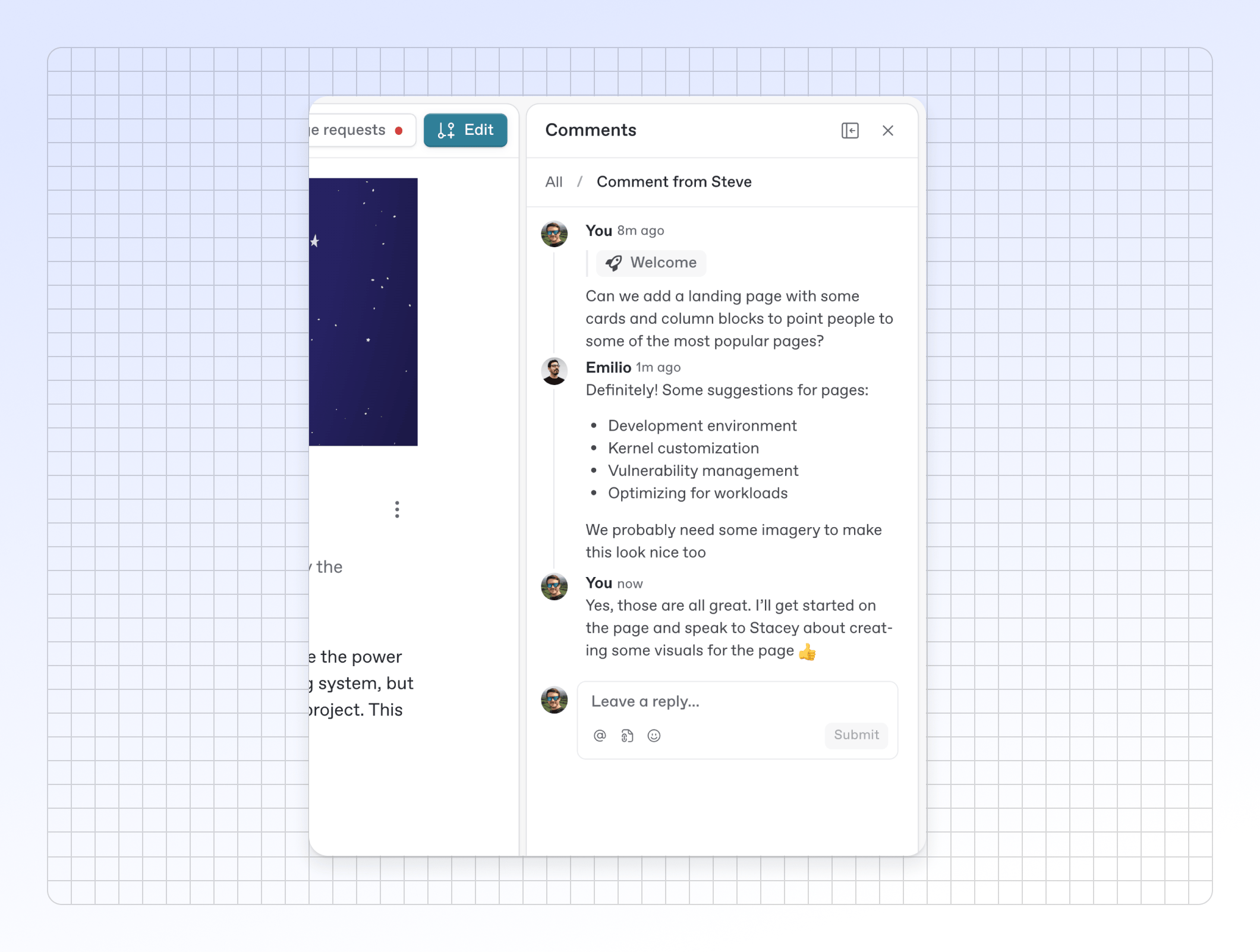
### Comment threads get a better home When leaving feedback on a change request or page, we noticed that the comments panel could sometimes get a little long, with full threads displaying by default. To combat this, we’ve removed threads from the full comments panel. Now, a button below the comment will show if it has any replies, and clicking the comment or the button will open the thread full in the side panel.
You can also click the new **Expand side panel** button to make the panel larger — perfect for longer or more detailed discussions.
Improved * When adding sections to a site in the **Structure** menu, you’ll now see the collection each space is a part of in the picker — making it easier for you to choose the right space. * We’ve improved the icon, title, and logo customization settings in the site customization interface. We’ve added support for light and dark mode icons, made the copy clearer, and updated the preview to be more consistent.
Fixed * Fixed the empty space between two blocks not being clickable. Now when you click a space between two blocks, it will select one block or the other. * Fixed a bug that made it difficult to delete headings from table cells. * Fixed an issue where navigating to a URL with a side panel open would cause the side panel to needlessly animate in view. * Fixed an issue with editor selection in Firefox. * Fixed an issue where a site that was published using share links was showing as unpublished. * Fixed a bug with comments that meant comments that started with an emoji would get a visible scrollbar. * We also fixed a bunch of other smaller import errors and bugs that occurred when importing big files, empty folders, and more. * Fixed an issue where a side panel would persist after merging a change request.
{% endupdate %} {% update date="2025-09-24" %} ## Nested section groups, new change request review options and more We’ve added nested group support for site sections, allowing you to create hierarchical navigation — plus a few other improvements and fixes. ### Nested section groups Support for nested section groups is here! You can now add multiple section groups within a section group and give them all a title and icon. You can even mix sections and nested section groups together — the sections will display in a separate area within the group menu.
A screenshot of a published GitBook space, zoomed into the top-left corner. The user has opened a section group from the top nav and inside are five sections, divided into two distinct columns.

This group contains two sections displayed on the left and a nested ‘Guides’ group displayed on the right.

We’ve also made some small quality-of-life improvements to the section header. They include a new scrolling system that adds faded edges and scroll buttons when your sections are wider than the container, and some fixes that make sections and groups more responsive and better positioned. ### A new toolbar when viewing your docs You may have noticed a new toolbar that appears when you’re viewing your live docs site, or when viewing a change request preview in its own tab. This new toolbar gives you quick access to useful options with a click — and you can minimize it if you don’t need it. In a change request preview, the toolbar lets you quickly leave feedback on the change request, view the live site, view the change request in the GitBook app or jump to the editor. **This toolbar is only visible to people viewing the change request preview.**
A similar toolbar now also appears on you live docs site, **only for members of your organization who are logged into GitBook**. So if you or a teammate visits your live site, you’ll see the toolbar and can quickly jump to the docs in GitBook to change settings, customize the site, check the insights or edit the content. {% hint style="info" %} **Note:** The new site toolbar is not visible to anyone outside of your GitBook organization. It will not appear for your end-users when they visit your docs site. {% endhint %} ### Review process improvements We’ve been working on improvements to the review flow to take advantage of the new side panel [we recently launched](https://gitbook.com/docs/changelog/broken-reference). We’ve tweaked the icon for adding reviewers from a cog (which took inspiration from GitHub) to a plus **+** icon — which makes it clear that it lets you add more reviewers. We’ve also added a new system that marks previous reviews as outdated when you request a new one — or when you add a new review to a change request you’ve already reviewed. Plus, we’ve added a button that lets you re-request a review.
Improved * We’ve added support for pasting, parsing, and formatting one-row or header-only tables. You can now create a single-row table either in the editor or in Markdown via Git Sync, and it will display correctly in the editor. * When you highlight a URL in the app and choose to add a link to it, GitBook will now recognize the URL and auto-populate the link palette so you can quickly turn it into a link to that URL.
Fixed * Fixed a couple of bugs with text selection in popovers — such as the change request review dialog — and the Shift + click behavior across the app. * Fixed a bug that meant palettes didn’t automatically expand their width to show all of the copy within a list of options. Now all palettes should expand so you can read the copy for each option. * Fixed an error that could occur when opening a preview of your primary content. * Removed a tooltip that incorrectly said the Share button in a space could be used to publish that space as a site. * Fixed a limitation that meant conditional {if} blocks couldn’t contain full-width content. Now they can. * Fixed an issue that meant the bottom of the app would sometimes crop part of the way up the browser window when accessing the side panel for things like comments or version history. * Fixed an issue with site templates that meant new sites created from a template would have broken links.
{% endupdate %} {% update date="2025-09-16" %} ## MCP docs server generator, new search controls & more You can now MCP servers so AI tools can interact with your docs, plus we’ve added new controls for users searching your docs, improved the page outline, and more. ### Generate an MCP server from your docs GitBook can now automatically create an MCP server for your documentation. When enabled in your [site’s customization options](https://app.gitbook.com/s/NkEGS7hzeqa35sMXQZ4X/publishing-documentation/customization), you give your users the option to quickly copy a link to your MCP server and connect it to other tools. By doing this, your users can access knowledge from your docs in whichever platform they choose to connect to. For example, if your user adds your docs MCP server to VS Code, they could quickly answer questions or add information from your docs into their coding environment via calls to the MCP server. You can enable or disable this this in your site’s **Customization** > **Configure** menu, under **Page actions**. Once enabled, users can quickly copy a link to your docs MCP server from [the **Page actions** menu](https://gitbook.com/docs/changelog/broken-reference) and paste it into configuration sections on other platforms. We’re adding this to our extensive list of [other AI documentation optimizations](https://app.gitbook.com/s/NkEGS7hzeqa35sMXQZ4X/publishing-documentation/llm-ready-docs) — including llms.txt and llms-full.txt, easy Markdown page exports, and quick options to open pages in ChatGPT or Claude. ### Search scope controls We’re adding a new way to control search scope on your docs site. Before, users could only choose the search scope if your site used variants for things like localizations or versioned docs. Now, your users can also choose which **site sections** to search within. By default search will always show the best match — which is the user’s current variant and the default variant of every other section. They can choose to only search in your current section, or broaden the search to include all variants across alls sections. No matter what, GitBook will automatically show the right set of buttons to make it as easy as possible for your site’s visitors to find what they need. For example, in our own docs we only show two buttons — because we have no variants. It’s also worth noting that we no longer include language variants in the search scope. We assume most users won’t want to search multiple languages, and results in other languages can be confusing and take up space in the results section. ### Page outline improvements We’ve made some small but useful improvements to [the page outline](https://app.gitbook.com/s/NkEGS7hzeqa35sMXQZ4X/resources/gitbook-ui#page-outline) in our editor. First, we’ve separated the **On this page** title from the outline itself and added an icon to make it easier to find. Plus, the title now stays sticky, even on long pages with lots of sections. We’ve also improved the scroll behavior for longer pages. If the page outline is scrollable, it stays in sync with the page’s scroll position, keeping the active item at the top as you scroll. We think this will make scrolling through your content — especially on longer pages — much easier.
Improved * We’ve updated the information shown when a change request is blocked from merging by [merge rules](https://gitbook.com/docs/changelog/broken-reference). If you open the change request’s **Overview** panel, it’ll now show whether merging is blocked or allowed, with a list of rules explaining why. * You’ll now see a new option to share your newly published docs on social platforms, so you can immediately promote your docs once they’re live! * We’ve add the option to filter [site redirects](https://app.gitbook.com/s/NkEGS7hzeqa35sMXQZ4X/publishing-documentation/site-redirects) to make it easier to manage a large number of redirects in the app. * We’ve made some subtle (but nice) improvements to the inline palette in the editor. So when you highlight some text the new palette has improved shadows and a slightly smaller size so it blocks less of your content.
Fixed * Fixed the way the emoji picker displays in the change request review popover. * Updated the icon for merge rules. * Fixed a bug that meant the **Merge** button sometimes didn’t display on an open change request if there were blocking merge rules. Now it will show, but be disabled. * Fixed an issue that meant adding a heading to a hint block would also incorrectly create an anchor link for the header. This no longer happens. * Fixed a bug that meant selecting something in a menu palette would sometimes cause the palette to jump to a different position. Now the position remains stable when you select items. * Fixed a bug that meant the **Copy** option wasn’t working for AI responses in the in-app Ask or search palette. * Fixed a bug that meant sometimes, when you created a new section group in your site’s settings, it would add the group to the top of the site structure, rather than the end. Now it will always be added at the end.
{% endupdate %} {% update date="2025-09-09" %} ## Merge rules, improved language selection and more New ways to control when change requests are merged and by whom, plus improvements to localization support, change requests and more. ### Merge rules With this release, we’ve introduced **merge rules** for change requests. Merge rules let you define specific requirements that must be met before a change request can be merged. You can set rules within each individual space, or set rules that apply across your entire organization, which you can then override within a single space if needed. We’ve made it easy to configure with a bunch of presets to match your team’s requirements — from requiring the change request to have a subject, to requiring review from specific members. You can combine rules in any way you like to build more complex workflows, as well as write dynamic expressions using the same language as for adaptive content.
When a change request hasn’t met all the merge requirements, the Merge button is disabled and a tooltip explains why it can’t be merged. We’re rolling this out starting with early access users today. It will be available for everyone on the Pro plan soon. This feature has been requested a lot recently, so we’re super happy to ship it! ### Improved language selection If you’ve used translations to localize your site into different languages, we’ve improved your users’ experience when browsing your docs. A new language picker now appears in the top-right of the screen, allowing site visitors to select their preferred language — and that language will be maintained when navigating between site spaces and within search results.
We’ve also added language options to the **Structure** section of your docs site settings, allowing you to quickly and easily select the UI language for your docs site as well. ### Change request descriptions Change requests just got more powerful, with a new sidebar that lets you add a description and easily view and add reviewers. Open the **Overview** sidebar in a change request and you can see its status, quickly copy a link to it, add a description and manage reviewers. The UX should be familiar to anyone who uses GitHub.
This will become especially useful with the upcoming launch of Docs Agents, but it also allows you and your team to add more context to change requests and more easily manage your review flow — especially when paired with [merge rules](https://gitbook.com/docs/changelog/readme#merge-rules). ### Vertical alignment in column blocks You can now vertically align content in a column block. It’s ideal for creating centered or bottom-aligned content — such as when building landing pages or adding context to an image. ### Fit and fill options for card images You can now choose more display options when it comes to card images. Previously, images would automatically be cropped to either 16:9 or 1:1 depending on your readers’ screen size. But that meant your images could sometimes be cropped incorrectly, and portrait images would never display in full.
Now, you can choose between three options: 1. The image crops to 16:9 or 1:1 as before. 2. The image stretches to fill the entire box. 3. The image displays in full within the constraints of the box, with your primary color filling any background space.
Improved * We’ve made it easier to invite new members to your organization in bulk. Simply add the email addresses of the users you want to invite to the box, separated by commas, to add up to 100 users at a time. * We’ve tweaked the search results for localized versions of published docs. Now, if a user is viewing your docs in another language and they use the search bar, instead of seeing results in both their selected language and the site’s default language, they’ll see results only in their selected language when available. * If you link a new organization to your email domain, GitBook will now automatically use the email domain’s favicon as the organization’s logo. And when you create your first site in that organization, GitBook will automatically use the same favicon as the site’s icon. * The **Export as PDF** and **Edit on Git** options now appear in the Page actions menu on your published site. And the settings to toggle them on and off are now in **Customization** > **Configure** along with the other Page actions options. * We’ve made a few small improvements to the page outline. * First, titles within Stepper blocks will now appear in the page outline, allowing users to jump quickly to the step they need. * Second, we’ve fixed a bug that meant links in H1, H2 and H3 headers wouldn’t appear in the page outline. Now the full heading will appear in the page outline, including words that are links. * Finally, we’ve added column headings to the page outline, so that all headers will appear in the page outline. * We’ve added an **Editor** tab to your site’s dashboard, which instantly navigates you to the default site space ready to start editing. * If you use OpenAPI blocks, GitBook now renders OpenAPI schemas properly as JSON in the Markdown version of a page. * We’ve improved the billing page in the app to make it easier to see what’s included in your subscription and to make changes. * Headers now support bold and italic, allowing for more formatting options.
Fixed * Fixed a bug that meant links in H1, H2, and H3 headers wouldn’t appear in the page outline. Now the full heading will appear in the page outline, including words that are links. * Fixed a bug that prevented you from adding images to a table cell. * Fixed a bug that meant holding Shift and clicking in a code block would select the entire block, instead of selecting the text within the block. Now it works as expected. * Fixed a sizing issue that meant inline mentions that included non-square icons (such as :keyboard:) were aligned too close to the adjacent text. * Fixed an issue where Git Sync progress percentages were exceeding 100, because no matter how hard it tries, Git Sync cannot realistically give 110%. * Fixed a bug that meant files you renamed in your Git repo didn’t sync into the GitBook editor.
{% endupdate %} {% update date="2025-08-19" %} ## Auto-updating translations, AI Assistant improvements and more Introducing an all-new, super simple way to localize your docs and maintain the translations — plus smaller improvements to Assistant, better LLM-ready docs and more. ### AI-powered, auto-updating translations are live
You can now automatically localize your entire docs site into 36 languages at the click of a button using [our new **Translations** feature](https://app.gitbook.com/s/NkEGS7hzeqa35sMXQZ4X/gitbook-agent/translations). Translation uses AI to automatically translate your docs content into whichever language you choose — and will automatically update those translated versions of your docs whenever you make a change to the primary language version. Simply choose the space you want to translate, select the source and target languages, and let AI do the rest. You can add specific instructions, such as a tone of voice or writing style, right from the modal. And you can also add a Glossary for individual languages if there are certain words or phrases that you want to be translated in a specific way across all your translations.
Once created, these translated spaces can be easily added to your docs as a variant, and any time you make a change to the original source space, the translated version of the space will auto-update following the same instructions and glossary. That’s localization, simplified. [Find out more in our docs](https://app.gitbook.com/s/NkEGS7hzeqa35sMXQZ4X/gitbook-agent/translations)! ### GitBook Assistant improvements
After [GitBook Assistant’s launch](https://gitbook.com/docs/changelog/broken-reference) a few weeks ago, we’ve been making a bunch of small refinements to the way that it answers questions and helps your users. First, we’ve upgraded the model, allowing for faster answers and more optimized outputs. We’ve also refined the prompt even further, which means users will get better, more accurate answers with better references. Plus, we’ve added new auxiliary prompts to improve the quality of the recommended questions and the follow-up questions that appear in the chat after each response. You should notice that the recommended questions are shorter and more interesting, while follow-up questions will be more on-topic than before. We’ll have some other, larger improvements for Assistant soon — including new ways to integrate it into your product. Stay tuned! ### Russian language support We’ve added an interface localization option for the Russian language in the published docs interface. When enabled in your site’s Customization menu, the interface of published docs will be translated into Russian. Thanks to [Rex Gratidian](https://github.com/mydarlingrex) for contributing this localization. If you want to contribute to improving GitBook’s published docs, please head to [our GitHub repo](https://github.com/GitbookIO/gitbook) to find out more! ### Better Markdown support for your LLM-ready docs We’ve made a big improvement to the way our API returns Markdown for a page, so that it now outputs the content of [reusable blocks](https://app.gitbook.com/s/NkEGS7hzeqa35sMXQZ4X/creating-content/reusable-content) and [OpenAPI blocks](https://app.gitbook.com/s/NkEGS7hzeqa35sMXQZ4X/api-references) just like other content. This is super important, as the `.md` version of a URL is [useful for LLM ingestion](https://github.com/GitbookIO/changelog/blob/main/broken/pages/OtJ8mrsNdVgsEFRVPSsn/README.md#llms-full.txt-and-.md-support-for-llms) — so making sure all of your docs are LLM-friendly is vital. Now your GitBook docs are super LLM-ready, right out of the box. ### Light and dark card images You can now apply a light and dark mode image to any [card](https://app.gitbook.com/s/NkEGS7hzeqa35sMXQZ4X/creating-content/blocks/cards) — just like other images in GitBook. To do this, open the **Card options** menu and choose **Cover** > **Edit cover** > **Add cover for dark mode**. The correct cover image will show automatically depending on the user’s settings. We’ve also added the option to create cards that only feature a cover image. So you can remove all other fields within a card and simply show a grid of images, if you like. ### A bunch of editor improvements We’ve been working on a ton of smaller improvements across the editor, including: * More consistently centered content within the editor across all screen sizes, to stop content moving around when you open or close different sidebars in the app. * An improved page outline which stays sticky next to the content editor. We’ve increased the visibility conditions so you’ll see it more often, simplified its logic, and added stepper blocks to the outline so you’ll see each step listed alongside other section headers. * We’ve fixed diff view, which wasn’t showing the diffs on some smaller screens. Now you’ll see diff markers by each block that’s changed. * We’ve also fixed a bug that meant the comments button could be cut off on smaller screens. Now it will appear as expected, ready for you to give feedback.
Improved * We’ve added URL query parameters for search (`?q=`) and the AI search/GitBook Assistant (`?ask=`). So you can add search topics or questions to a docs URL (e.g. [gitbook.com/docs/?ask=What+is+GitBook?](https://gitbook.com/docs/?ask=What+is+gitbook?)) and have the search or GitBook Assistant open automatically with a query pre-filled. * If you’re viewing a space’s Preview and then click **Edit**, it now opens a new change request and automatically redirects you to the Editor view so you can immediately start editing. Before, it would maintain your Preview view. * We’ve improved the UX of the **Annotate** option in the inline palette when editing. There’s a new icon and tooltip to make the difference between annotations and comments clearer. * We’ve improved the way that moving list items around works. Now, when you drag a list item into a new block, it will keep the same list type. But if you drag a list item into another list of a different type, it will automatically switch to that new list type. * The site settings and insights screens now make better use of space. * We’ve changed the way that you copy anchor links in the editor. Now, when editing a page you can edit or copy an anchor link by opening the **Block options** menu and choosing the **Link** option. If the page is in read-only mode, you can copy the anchor link by clicking the # to the left of the title — just like you do in the published version of your docs.
Fixed * Fixed an issue that prevented you from making inline code bold or italic — that’s now possible again. * Fixed a bug that hid the ‘show/hide table of contents’ button behind the header image if it was enabled for a page. * Fixed a bug with non-default variants that would resolve incorrectly if there was a conflicting deprecated path. * Disabled the option to turn a single line in a list into reusable content, as doing so would delete the line. * Fixed a crash in the Insights table when navigating through pages aggregated datasets with custom sorting. * Fixed an issue in the editor that meant cards with different lengths of content would appear at different heights in the same block. This didn’t align with the published version. Now cards will all use the same height as the card with the longest content, just like in published content. * Fixed an issue with block selection that would happen when you selected a code block with a title. * Fixed a bug that was causing the editor to refresh whenever you changed a page title. * Emojis added to titles via our inline emoji picker are now listed in the ‘On this page’ section on the left. * Fixed an issue that meant updating site customization could result in an error message. * Fixed a bug that meant setting a cover image for a card could do nothing, or in some cases could remove cover images from other cards. * Fixed an issue that meant users couldn’t install integrations in the site or space screens due to missing permissions check in the backend. * Fixed a bug that meant when deleting the last card or row in a table, the table block disappeared but the wrapper remained, which made it difficult to add new blocks to the page.
{% endupdate %} {% update date="2025-08-01" %} ## GitBook Assistant, improved insights, new AI actions and more This release introduces a supercharged new AI assistant, improved insights options, a new wider page width option that’s perfect for building landing pages, and much more. ### GitBook Assistant — knowledge from your docs and beyond
As part of yesterday’s [adaptive content launch](https://www.gitbook.com/blog/new-adaptive-content-gitbook-assistant) we also introduced [GitBook Assistant](https://app.gitbook.com/s/NkEGS7hzeqa35sMXQZ4X/publishing-documentation/ai-search) — a powerful new AI experience for your docs. Assistant is a big step up over our previous AI search functionality. While our old solution was fast and gave end-users accurate answers based on your docs, GitBook Assistant offers a new chat-based UI, seamless integration with adaptive content, and the option to connect with MCP servers to provide better answers with more context. As well as using agentic retrieval — which gives it a deeper understanding of user intent, and more accurate responses — it’s also integrated with adaptive content. So it can use knowledge about an individual user to give better, more tailored answers. It can also [connect to other sources via MCP servers](https://app.gitbook.com/s/NkEGS7hzeqa35sMXQZ4X/publishing-documentation/ai-search#extend-gitbook-assistant-with-mcp-servers), meaning GitBook Assistant can pull information from different sources and use that information to answer questions with even more context. Read more in [our announcement post](https://www.gitbook.com/blog/new-adaptive-content-gitbook-assistant), or [head to our demo site](https://gitbook.com/adaptive-content-demo) to experience its adaptive content integration. ### Time ranges and AI response rating in insights We’ve made two big improvements to our built-in [insights](https://app.gitbook.com/s/NkEGS7hzeqa35sMXQZ4X/publishing-documentation/insights). First, you can now choose time ranges when analyzing site data. So you can set custom time periods to review, or compare site data between two identical periods in any degree of separation.
Plus, you’ll now also see the ratings that users are giving your AI responses within the **Insights** panel — along with the question they asked and how many people asked similar things. This is ideal for identifying common questions that are getting poorly-rated answers, so you can fill the gaps in your docs and provide better answers to your users. ### Page actions Your docs now feature a handy **Page actions** menu on each page, allowing your users to quickly ask GitBook Assistant a question, view or copy the page content in Markdown, or open the page in ChatGPT or Claude to pre-load a prompt.
### Semantic colors in the editor You can now use the semantic colors you define for your docs site — which are used to change the color of hint blocks and announcement banners in your docs — within the content itself.
If you’ve set semantic colors for a docs site and are editing the content of that site in a change request, you can now use the inline palette to change the text color and background to use the Primary, Info, Success, Warning or Danger colors you’ve defined for that site. These colors will sync with the semantic colors in your docs to bring everything in line. ### New “Wide” page width option We’ve added a new **Wide** page width option, which is perfect for creating eye-catching landing pages.
To enable the option, open the page you want to widen and open the **Page options** menu that appears when you hover over the page title. There, you can set the page width to **Wide**, which will automatically expand all blocks that can be expanded, and align the rest of the blocks within the bigger container. Head over to [our demo site](https://gitbook.com/adaptive-content-demo) to see how it looks. ### Page metadata GitBook automatically creates page metadata — including when the page was updated and who updated it. These are both shown by default in the editor, and ‘Last updated’ also appears on published pages. Now, you have the option to disable that metadata on a per-page basis. Open the **Page options** menu and in the **Footer** section disable the **Page metadata** option to hide the data from readers. ### OpenAPI spec validation improvements We’ve made some improvements to our OpenAPI specification validation process. These updates should identify issues with the spec file earlier, so your docs stay consistent and reliable for your readers. If you’ve experienced any issues with your OpenAPI spec in GitBook, try pasting it into to check for formatting or structural problems. And if you’re still having trouble validating your spec, feel free to reach out to our support team at .
Improved * You can now add comments on individual table cells, allowing for better feedback when collaborating on complex pages. * We’ve added some new shortcuts to table blocks. You can now hit + / (Or Ctrl + / on PC) to open the **Row options** menu, and hit + - (or Ctrl + - on PC) to delete the row containing the currently-selected block. * We’ve made [locked live edits](https://app.gitbook.com/s/NkEGS7hzeqa35sMXQZ4X/collaboration/live-edits) the default editing mode in new spaces, which means the default workflow in GitBook will now be using change requests. This is already the case for all published content, and brings us closer to the Git workflow. For now, you can toggle live edits on a space to re-enable live editing if needed. * We’ve reduced the padding in inline code to make it feel a little more compact and in line with the rest of your content. * We now show icons in the table of contents that denote when a page is hidden and/or not indexed in search. If a page is both hidden and not indexed, we show both icons together to avoid taking up too much space in the TOC. * The spacing in the table of contents now makes it clearer when spaces are part of groups or separate from them. Before, spaces directly below page groups would be so close to the group that they appeared to be part of the group.
Fixed * Fixed a bug that meant holding or Cmd and clicking in the sidebar was causing the app to freeze. * We’ve removed TypoScript from the code syntax dropdown menu as it was confusingly similar to TypeScript and far less popular. * Fixed a bug that meant drawings weren’t updating immediately in the editor when you made changes to the drawing itself. * Disabled the shortcut to activate search within the GitBook app, as it was causing conflicts with other system shortcuts for some users. * Fixed a bug that meant hitting Esc while in the emoji selector didn’t just close the menu, but also selected the current block. * Fixed an issue that meant your AI writing prompt would be lost if AI was used at the bottom of a page — and another that meant very long AI writing prompts could grow past the total height of the page. * Fixed a bug that meant empty pages would sometimes display at full-width even if you didn’t select it.
{% endupdate %} {% update date="2025-07-15" %} ## Variables, redesigned search, better diff view and more Create and add reusable variables to your docs, plus a redesigned search experience for your published docs, and other editor improvements. ### Introducing variables in GitBook With this release we’re introducing **variables**. If you repeat the same name, phrase or version number multiple times within your content, you can create a [variable](https://app.gitbook.com/s/NkEGS7hzeqa35sMXQZ4X/creating-content/variables-and-expressions) to help keep all those instances in sync and accurate — which is useful if you ever need to update them, or they’re complex and often mistyped. You can create variables scoped to a specific page or a specific space, and then use them as many times as you like within a space by adding [inline expressions](https://app.gitbook.com/s/NkEGS7hzeqa35sMXQZ4X/creating-content/formatting/inline#expressions). For example, you might want to add variables such as: * `product_name` * `version_number` * `email_support` * `account_type` By using variables like these, you could easily update a product name or version number across your entire docs, simply by updating the variable itself. To view, add and edit your variables, click the **Variables** icon in the header bar within a change request.
You can then use a variable to your content by adding an expression. Hit / and choose **Expression** from the list, then double-click the expression to open up the expression editor where you can choose the variable you want to add.
Variables are super useful on their own, but become even more powerful when paired with [adaptive content](https://app.gitbook.com/s/NkEGS7hzeqa35sMXQZ4X/publishing-documentation/adaptive-content). We’ll talk about this combination more in the coming weeks. ### Search gets a new design on docs sites We’ve improved the search experience for published sites, with the **Ask or search…** bar now holding the search experience in one place, without overlapping all of your content.
Before, the search panel would sit centrally over all of your page content, blocking users from seeing it while they searched. Now, users type directly into the search bar — which holds both the standard keyword search and the GitBook AI search experiences. ### Diff view for title and description Diff view helps you and other reviewers see what’s been edited within a change request. And now it also shows when a page’s title or description has changed!
### Better breadcrumbs when editing a space We’ve improved the breadcrumbs in the editor to make it easier for you to quickly access site settings directly from a space. When you’re editing a published space, you can click the icon of your site in the top-left of the editor to open a new site menu.
Here, you can instantly access your main site overview, insights, customization and settings. You can also visit the site or copy the site’s URL, saving you time clicking into different parts of the GitBook app. Not only does this make it easier to jump to important areas right from your content — it also saves space in the header — and we think it looks great, too.
Improved * We’ve improved the flow around adding new sections to a site. Adding a new section will now open a menu that lets you choose different kinds of content — whether you want to use an existing space, important content or start from a blank page. * We’ve added an animation to the site dashboard to show the your site preview is loading. Before it showed a grey square that looked like an error — now it’ll show a simple loading animation to show that something is happening. * If your site is published using share links, it’s now easier to view your site from the dashboard. We’ve added the share links themselves to the dashboard so you can quickly click one to jump to the published content. * We’ve improved the way that GitBook handles OpenAPI specifications when you first upload. It will now detect content types and the proxy worker to serve specs with the correct types. * If you choose to disable web-crawler indexing on a page (for platforms like Google and ChatGPT), you’ll now see a small icon next to the page title in the table of contents with a tooltip to indicate it’s not being indexed. * When you’re viewing a merged change request, there’s now an clear and easy way to get back to your primary content. A new button in the top-right of the window takes you right back so you can see the current version of your space. * We’ve restored the option to add relative links to the table of contents. That means you can link to other pages or spaces from the TOC, and they’ll resolve into proper links in your site. But if you update the location or slug of the linked page or space, the link in the TOC will update automatically so you won’t need to edit it manually. * The Share dialog has improved within a space. Along with a new button and tooltip, along with a new option in the **Space actions** menu.
Fixed * Fixed a bug that meant LaTex characters would be lost when parsing Markdown or HTML. They should now render correctly in the editor. * Fixed a couple of issues with Git Sync that meant the progress bar wasn’t updating properly, and the installation screen wouldn’t show the correct state. * Fixed an issue with tables nested inside expandable blocks that meant table blocks couldn’t be selected or edited using the keyboard. * Fixed a bug that was causing the ‘conflict view’ — aka the view that appears when an updated change request has conflicts with the main branch — to crash. * Fixed a bug that meant @ mentions in comments weren’t working. Now they’ll function as expected! * Fixed an issue that meant relative links to other spaces or pages within reusable content would not resolve when the reusable content was added to other spaces. Links should now work as expected. * Fixed an issue that deselected blocks and scrolled up to the top of the page too easily when clicking outside the block palette. * Fixed an issue that meant page descriptions would be overwritten by page titles. * Fixed a bug that sometimes caused the page to scroll to the top when exiting the images menu or an image caption
{% endupdate %} {% update date="2025-07-08" %} ## Custom code fonts, make your API spec public and more You can now upload your own custom font for code blocks, create new sites more easily, make your API spec public and more. ### Set a custom monospace font for code blocks You’ve been able to [upload a custom font](https://gitbook.com/docs/changelog/broken-reference) for your docs for a while — but now you can do the same for a monospace font for [code blocks](https://app.gitbook.com/s/NkEGS7hzeqa35sMXQZ4X/creating-content/blocks/code-block) and inline code. To change your code font, head into [your site’s **Customization** panel](https://app.gitbook.com/s/NkEGS7hzeqa35sMXQZ4X/publishing-documentation/customization) and select from the **Monospace font** dropdown menu.
### Share your OpenAPI spec from your docs You can now choose to generate a publicly-accessible URL for your [OpenAPI specification](https://app.gitbook.com/s/NkEGS7hzeqa35sMXQZ4X/api-references/openapi) once you’ve added it to GitBook — as long as your specification is marked as public. The URL will always point to the latest version of your specification. With GitBook hosting your spec, it’s easy to use it both to [instantly generate docs](https://app.gitbook.com/s/NkEGS7hzeqa35sMXQZ4X/api-references/openapi/insert-api-reference-in-your-docs#automatically-create-openapi-pages-from-your-spec), and in external OpenAPI-based tools like Stainless, Postman or others. Head into the **OpenAPI** section in the GitBook sidebar and find the API you want to make public — then simply hit the toggle. ### Improved notification emails Last month we [improved a few of our emails](https://gitbook.com/docs/changelog/broken-reference) with a better design and more context about the subject — and we mentioned we’d be doing the same to more emails soon. Well, now we have! Our emails now all use this new improved style :sparkles: ### Simplified site creation flow When you create a new site, you’ll now see a dashboard that’s more tailored to what you want to do. First, you’ll see four large options at the top to offer you different ways to add content to your site — including [Git Sync](https://app.gitbook.com/s/NkEGS7hzeqa35sMXQZ4X/getting-started/git-sync), OpenAPI spec upload, and import options. Below that, you’ll also see four site templates to help you get started with an all-new site faster by adding content to an established structure.
Finally, you’ll see a list of all your existing content within GitBook, along with a search bar, allowing you to quickly add existing content to your site and publish with a click. These changes should make it easier to create an publish your site fast :race\_car::dash:
Improved * Table blocks and expandable blocks now support diff view more effectively. Before, editing any part of a table would show the entire table as being deleted and a new one created in diff view. The same went for changes in an expandable block. Now, the table or expandable shows as edited and the individual changes are highlighted within the block. * We’ve added icons to diff view to make diffs accessible for color-blind users Make diff accessible to colour-blind users. * You’ll now see a new option to visit the a published page’s live version in the **Actions menu** for individual page. This is especially useful for hidden pages that are otherwise difficult to access via URL. * We no longer show captions on image and code blocks in the editor by default. Captions added a lot of white space in the editor, meaning big gaps between content if you didn’t want to add a caption. Now they won’t appear by default, but you can add one by hovering the image and clicking **Caption** in the menu that appears. * You can now use keyboard shortcuts to insert new rows in tables. Hit Enter ⏎ to move down or Shift ⇧ + Enter ⏎ to move up between rows. Then hit Option ⌥ + Enter ⏎ to add a row below, or hit Shift ⇧ + Option ⌥ + Enter ⏎ to add a row above. * You can now convert H1, H2 and H3 heading blocks to other heading styles by adding # at the beginning of a row. * We’ve added a confirmation button to the annotation and Math popover when adding them inline. Your changes are saved automatically, but it helps reassure users that their changes are saved. * We now check that uploading files are compatible with inserting into GitBook before you upload them to avoid wasted uploads. * We’ve updated the **Docs sites** screen to make it easier to find and open your site.
Fixed * Fixed an issue that meant the comments button in a change request would show the wrong count. * Fixed an issue that meant removing the dark mode logo for a site would also remove the light mode version of the logo. Now it will only remove the dark mode logo as expected. * Fixed a bug in the Layout section of the **Customization** menu that meant it was sometimes impossible to select certain spaces or pages to link to. * Fixed an issue that was causing the Markdown formatting soft line breaks to be incorrectly parsed in Git Sync. * Fixed a bug that made the code block toolbar editable. * Restored the ability to reinstall integrations on every space after uninstalling on one or two spaces. * Fixed a bug that caused emojis to be removed from table of contents when syncing from GitHub * Fixed a bug that meant hidden pages were hidden from everyone in the GitBook app and could only be seen by those with editor permissions or above within change requests. Now, members with editor permissions and above will see hidden pages in the table of contents. * Fixed an issue that meant hitting Shift + Enter would not insert a new line in a table cell. * Fixed an issue that meant the number of commenters you could filter by in the Comments side panel was limited to 10. The new limit is 50. * Fixed an issue that meant some images were being presented at a larger size than their original dimensions when clicked in GitBook. The images will now only appear at their original size at a maximum. * Fixed a bug that caused images that you chose to ‘Quick look’ in the Images modal to appear behind the modal rather than in front of it.
{% endupdate %} {% update date="2025-06-24" %} ## Performance upgrades, llms-full.txt and .md support, text alignment and more Your docs sites load faster and support llms-full.txt and .md for LLM ingestion — plus you can now add icons to buttons, center- or right-align text on the page, and much more. ### Your docs site just got faster
Three icons representing speed, llms-full.txt and Markdown file support coming to GitBook, all showing on a pale background
Over the past few weeks we’ve been slowly rolling out a new platform for our public docs. It’s faster, more performant, and it prepares us for [our future plans regarding adaptive content](https://www.gitbook.com/blog/coming-soon-adaptive-content). The great news is that **this new, improved platform is now live for everyone**. We rolled this out slowly because we handle 150 million requests on docs hosted by GitBook every day, and each one makes multiple requests to our API. The slower rollout meant we avoided downtime caused by overloading the API with requests, and means we can now optimize how we generate pages to improve loading times. That means your users will get improved performance in your docs, and there are a few other benefits as well… ### llms-full.txt and .md support for LLMs Our new docs platform means your docs now automatically create an llms-full.txt file, which includes all of the content on your entire docs site. [llms-full.txt](https://www.gitbook.com/blog/coming-soon-adaptive-content) is a new proposed standard for making web content available in text-base formats that are easier for LLMs to process. You can access the `llms-full.txt` page by appending `/llms-full.txt` to the root URL of your docs site. The `llms-full.txt` file provides a comprehensive collection of all your site’s content in Markdown formatting. With this file, you make it easier for LLMs to efficiently discover and process your documentation content. *** You can also now add `.md` to any page’s URL in the browser to [see the content of that page rendered in Markdown](https://app.gitbook.com/s/NkEGS7hzeqa35sMXQZ4X/publishing-documentation/llm-ready-docs#md-pages). This is great for LLMs as well, which find it much easier and more efficient to process Markdown than a full HTML file with all the styling your docs site page includes. ### Add icons to your inline buttons [Last month](https://gitbook.com/docs/changelog/broken-reference) we added [inline buttons](https://app.gitbook.com/s/NkEGS7hzeqa35sMXQZ4X/creating-content/formatting/inline#buttons) to docs, and [last week](https://gitbook.com/docs/changelog/broken-reference) we added [inline icons](https://app.gitbook.com/s/NkEGS7hzeqa35sMXQZ4X/creating-content/formatting/inline#icons). Now, we’re combining the two! You can now add an icon to any button you add to your docs, allowing for more customization, and helping you attract more attention to your CTAs. Read the docs Go to top ### Center align headings, paragraphs and inline items Want to build a polished landing page, add some more structure, or even make your docs the homepage for your entire product? That’s just got easier with alignments in GitBook. You can now align header and paragraph blocks to the left, center or right of your page, allowing for more flexibility when you’re designing your content. Add centered titles to build a clean landing page. Right-align an image or some buttons as a CTA to read more. You can even combine alignments with our new column blocks and button icons to create variations on specific layouts you like. ### Select all just got better When you hit + A (Mac) or Ctrl + A (Windows) to **Select all** within certain blocks, GitBook will now first select the contents of that block. You can hit the same keyboard shortcut again to select all the content on the page. The blocks that use this logic are tab, stepper, code, column and hint blocks.
Improved * We’ve improved page position and selection when switching between pages. You’ll now jump back to the place on the page you were last and any selected content will remain selected, allowing you to jump quickly between pages to check details without needing to scroll. * We’ve added heading options (H1/H2/H3) to the top level of the **Block options** menu for paragraph and heading blocks to make it easier to switch between different headings when creating or editing docs. * When you hit + A (Mac) or Ctrl + A (Windows) to **Select all** within some blocks, GitBook will now first select the contents of that block. You can hit the same keyboard shortcut again to select all the content on the page. The blocks that use this logic are tab, stepper, code, column and hint blocks. * We’ve made it easier to apply for the Community plan through your site’s settings. You can now apply for the plan directly in the settings screen, and it offers a dedicated space for Community plan users to submit their site for ads approval. * When you create a new page, the focus will immediately be on the title. It’s a small change, but it should improve your editing experience when you add new pages to your docs! * Fields within cards now have an **Actions button** at the end of each field, allowing you to complete actions like adding or removing entries or deleting the field. * In published content, you can now collapse page groups when browsing pages within those groups, and when your click between the parents the page you previously had opened will automatically open without the parent expanding. This should help save vertical space in the sidebar
Fixed * Fixed a crash that could happen to the comments side panel if the user tried to open it without having commenting permissions. * Fixed a bug that meant GitBook AI would sometimes process text in the wrong order when rewriting a group of blocks. * Fixed an issue that was causing broken links to API specs in GitBook when you set up Git Sync. Now you can properly link to API specs when your content is synced to GitHub or GitLab. * Fixed an issue that meant the wrong users could sometimes be shown as merging a change request. Now, the person who merges a change request will always be shown in the version history. * Fixed a bug that prevented users who had been given edit access at a collection level to create spaces within that collection. * Fixed a crash that could happen when a number field in a table was null or undefined. * Fixed a bug that caused some jumps in the editor. * Fixed a bug that meant a toast saying “Uploading file…” would sometimes never dismiss and remain on the screen. * Fixed a bug with drawing blocks that meant they wouldn’t update after an edit. Also fixed a separate bug that meant copying and pasting a drawing block would sync them so updates to one would sync to the other. Now they are treated as separate blocks.
{% endupdate %} {% update date="2025-06-17" %} ## Column blocks, inline icons and a bunch of smaller improvements We’ve added a new block type — columns — plus inline icons, a better site structure management experience and more. ### Columns: a new way to display your content on a page Introducing [column blocks](https://gitbook.com/docs/creating-content/blocks/columns)! You can use column blocks to add two blocks on your page, side-by-side. It means you can combine two of almost any block you like alongside each other to create some powerful combinations For example, you can combine an image, some text and a few buttons to build a nice block for a landing page. Or you could add some extra context to your code blocks, diagrams or other content within a guide or docs page. When you add a column block, you can add content to either side of the content by hitting / and choosing the block you want to add from the palette. You can also adjust the width of the two columns using the grabber in the centre of the block. Drag it left or right to adjust the interval of the column divider — the column widths will adjust automatically. ### :icons: Add inline icons to your docs content We’ve added a new inline element that you can use in your docs — icons! :party-horn: You can now add icons anywhere on your page, giving you more options when create titles, lists and much more. Head to the [docs](https://gitbook.com/docs/creating-content/formatting/inline#icons) to learn more. ### A simpler way to manage your site’s structure This week we’ve improved the **Structure** section of your site settings, making it easier to change settings for individual site sections. You can now see all of your site sections and groups on the left of the menu, and click on any option to view its options. On the right-hand side, you can edit options like the section’s title, icon, description and slug. ### More context when Git Sync encounters issues Before, when Git Sync encountered an error, the message that appeared in GitBook didn’t give much context about the issue. We’ve improved the messages — they now include more information about the error so you can solve it before you retry your sync.
Improved * We’re renamed visitor authentication throughout the app and our docs — the feature is now called ‘authenticated access’. This new name better reflects our approach to authentication as we prepare for [adaptive content](https://www.gitbook.com/blog/coming-soon-adaptive-content). * We’ve revamped the dialog screen when creating new spaces — making it easier than ever to add new content or import existing docs into GitBook. * You can now remove reviewers after you request a review for a change request. Simply open the **Overview** side panel in your change request to see the list of reviewers, then open the **Actions menu** and choose **Remove reviewer**. * We’ve improved the way that you edit and handle inline buttons in the editor. You can now double-click or right-click to edit the button’s settings, and doing so will open a new modal that makes it easy to change the settings in one place. * We’ve also simplified the dialog that pops up when you publish your site, to give you a nice big view of your published site and a link to visit it.
Fixed * Fixed an issue where space-level integrations were shown on the site screen (and vice versa), which could lead to errors if you selected them in a place they shouldn’t be. * Fixed a visual bug with the redirects modal that caused a drop-down menu button to appear wider than the modal when choosing a destination space with a very long title.
{% endupdate %} {% update date="2025-06-10" %} ## New customization styles, email improvements, dark mode cover images and more You can now add circular buttons, choose flatter design elements, and select cover images specifically for light and dark mode in GitBook. ### New depth and circular corner styles in site customization We’ve added two new style options to customization settings for your docs site. Firstly, we’ve added a new **Depth style** setting in the **Site styles** panel, which lets you choose from two depth options. ‘Subtle’ is the default style, and adds some shadows and elevation to UI elements like buttons. The new ‘Flat’ style removes all shadows and elevation for a clean, simple look. We’ve also added a third corner style in the same panel. Along with our existing ‘Straight’ and ‘Rounded’ options, you can now also choose ‘Circular’. This will affect UI elements such as buttons, TOC highlights, site sections and more.

This site is using a combination of circular corners and a flat style

### Cover images get dark mode support Your page cover images no longer have to work for both light and dark mode simultaneously. Now, when you add a cover image to a page, you can also upload a dedicated version of the image to display when your docs are viewed in dark mode. To do this, simply hover over the cover image in the editor and open the **Options menu** . Here you can choose **Replace image** and select a new image for light or dark mode.
### New notification email design We’ve improved the design and information included in the notification emails you receive when someone comments on a space or a change request your own. The new design includes the name of the change request or space, and the page, instantly giving you more context without needing to click through and read more.
We plan to roll out similar improvements to our other notification emails soon — stay tuned for more news on that!
Improved * We now make sure we bust the cache whenever published content changes — which means you should see updated content right away when you merge a change request. * It’s now easier to deselect a selected block. When a block is selected you can now click anywhere else in the document to unselect it — before you had to select another block. * When you want to resize an image, the currently-selected size is now highlighted in the UI so you can easily see the current size setting.
Fixed * Fixed a bug that meant the **Publish** button would still show for some sites that were already published using share links. * Fixed captions for code blocks. The caption box now adjusts to fit longer captions — including captions that run across multiple lines — and hitting Esc in a caption now selects the entire block as expected. * Fixed a bug with tab blocks that meant hitting backspace in an empty tab would delete it and move to the previous tab. This no longer happens, so you can continue editing the empty tab. * Fixed an issue that could caused dropdown menus and palettes to be incorrectly positioned, especially on smaller screens. * Fix a bug where content could disappear when you scrolled horizontally in large tables with lots of rows and columns. * Fixed an issue with DNS validation for custom domains. * Fixed an issue that prevented you from selecting multiple blocks and turning them into reusable content. * Fixed a bug with block selection that meant you couldn’t convert a single list block item into a different kind of list block type. * Fixed an issue where that meant members with Creator permissions could not change site plans.
{% endupdate %} {% update date="2025-05-20" %} ## Commenting improvements, link UI improvements, a new dashboard and more We’ve made comments easier to read and use, tweaked the UX for adding and editing links, fixed some bugs and made other smaller improvements. ### Comment upgrades With this release we’ve improved the design and layout of the [comments](https://app.gitbook.com/s/NkEGS7hzeqa35sMXQZ4X/collaboration/comments) side panel. Comments take up less space, and show limited options — Resolve, Edit and Delete — by default. Clicking a comment makes it active and shows more options, including Reply and an emoji reaction. We’ve also made the on-page highlight more visible for active comments. When you select a comment the block will be highlight in orange, making it easier to see the comment in context.
You can now also filter comments in spaces and change requests by author, so you can check on a specific person’s feedback, one at a time. Open the sidebar and use the drop-down menu at the top to select or search for a user. Finally, we’ve made the **Leave a comment** section at the bottom of the side panel much smaller — giving you more room to read the existing comments. Clicking the box will expand it and show more options. ### Link insert palette improvements This week we shipped a bunch more editor improvements — including a number of upgrades and fixes focused on links. First, the link insert palette now has better search input width, so you can see more of your search or URL when adding or editing a link. The palette also now has an empty state, so it’s easier to understand what you can do with it — and it’ll accept URL strings without needing to add `www.` or `https://` in front of them. If you want to edit an existing external link, clicking the **Edit link** button now shows the existing URL in the search palette — so you can manually amend links without needing to copy and paste it in again. ### New site dashboard We’ve been working on improving the site dashboard — particularly aimed at those creating a site for the first time. The new dashboard puts all the information about your site, including the preview, URL, status audience and structure on the left-hand side.
On the right you’ll find a number of suggested actions to help you get the most from your docs site — great for those creating a new site, or just trying to make their site the best it can be. Below that is the insights overview, which gives you a quick glance at how your site performed over the last seven days.
Improved * We’ve improved the look of @ mentions in the app to include the user’s avatar alongside their name. * We’ve updated the icon in the Ask or search menu — you can see it at the top of the left sidebar :sparkles: * Last week, we added the option to turn paragraph blocks into all kinds of other blocks, such as expandable and list blocks. But with all those new options, the **Block options** menu was very long. So we’ve moved those options into a sub-palette to reduce the size of the menu. Reusable content lives there now, too. * We’ve unified the design of all internal, external and @ mention links in the app to make the experience more consistent. They’ll now all appear blue, with highlights for page and section links, and @ mentions.
Fixed * Fixed a bug that prevented you from removing the fallback URL for a docs site using Visitor Authentication in the audience settings panel. * Fixed an issue that meant invalid URLs would be accepted as header links, but wouldn’t work when the site was published * Fixed an issue that meant some customization options, such as announcement banners, were not handled as overrides. Now you can add an announcement banner to an single, specific site section or variant, if you wish. * Fixed an issue that meant you couldn’t reorder spaces within a collection — now that’s possible again. * Fixed an issue that meant a **Publish site** button would still appear in the site preview for already-published sites with ‘share links’ visibility. * Fixed a bug in the version history side panel that meant the currently-selected version wasn’t highlighted. Now the version you’re currently viewing will be marked in the side panel. * Fixed an issue that meant sometimes users permissions would not be created during the signup flow, leading to permission issues later,
{% endupdate %} {% update date="2025-05-13" %} ## Global reusable content and an all-new sidebar design You can now create reusable content and add it anywhere in your organization — plus some major sidebar improvements, bug fixes and more. ### Reuse content across your entire organization
We’ve made reusable content organization-wide, so you can now add any reusable content to any page, in any space in your org. Previously, reusable content was locked to a specific space, so you could only use it there. Global reusable content means you can keep information consistent between multiple docs sites or site sections without duplicating it and risking instances getting out of sync. You can add reusable content from other spaces by hitting / on an empty block and scrolling to (or searching for) the **Reusable content** section. Here you’ll see all the reusable content from the current space, along with a new menu option that shows content from other spaces. From there you can search through all the content in your organization to find the block you need. ### Major sidebar improvements We’ve reworked the GitBook sidebar with a new design and some big upgrades. You’ll instantly notice that there’s more space and less clutter. The content in the sidebar is now 30% more compact, so you can see more of your content at once. We’ve also made it resizable — so you can adjust the width to fit your workflow. Plus, we’ve added a new collapsed more to help you focus on your docs content. Drag the sidebar off the left of the screen or hit the **Hide sidebar** button and it will slide off the screen. It’ll pop up again when your hover your cursor to the edge of the window, then hide when you move your cursor away — so you can access everything you need without expanding and collapsing it manually. {% embed url="" %} The nav has seen improvements, too. The organization button at the top now houses your settings, theme controls, and invite options — freeing up a ton of space down at the bottom of the sidebar. And the theme controls now also offer a ‘System’ setting to match the rest of your apps. Finally, we’ve improved the **Docs sites** section of the sidebar. Expand a site to see all of the sections and variants within it — complete with their icons — without any unnecessary extra nesting. So you can quickly find the sites you need, navigate to the spaces within them, and collapse the sidebar to focus on your work. ### Transform paragaphs into more block types Until now, you could only turn paragraph blocks into other kinds of basic text blocks -- H1, H2 or H3 headers. Now, you can turn a paragraph block into all kinds of other blocks. Including: * Headings (H1, H2, H3) * Hint * Unordered, ordered or task lists * Code block * Quote * Tabs * Stepper * Expandable This should make it easier to switch your content quickly to give it more structure or add some hierarchy.
Improved * More editor improvements! Expandable blocks now properly support double-clicks to select whole words, and also properly honor browser settings such as smart quotes, if you have them enabled. This writer in particular is very happy, thank you team! :heart: * We’ve improved the site customization space selector. Previously the picker was limited to 10 spaces — if your site had more, you couldn’t override the customization settings for them. Now the picker does away with the limit, uses your site’s structure, and will display site sections as well as variants. * You can now filter comments in spaces and change requests by author, so you can check on a specific person’s feedback, one at a time. Open the sidebar and use the drop-down menu at the top to select or search for a user.
Fixed * Fixed a bug that prevented you from adding or manually editing the color HEX codes in the customization menu. * Fixed an issue that caused image errors if backend GitBook’s resizing system didn’t work properly. Now we’ll show the original image as a backup if the resize causes an error. * Fixed an issue that meant copy and past would sometimes fail due to an incorrect attach node. * Fixed an issue where some API endpoints would respond with a 500 error if a space was not found. * Fixed a number of visual bugs with the image block, which were particularly noticeable when a block had multiple images in a gallery.
{% endupdate %} {% update date="2025-05-06" %} ## Add inline buttons to your docs, easy block selection and more Want to add a button to your published docs? Now you can — plus we’ve made block selection easier, and made some smaller improvements and fixes. ### Add primary and secondary buttons to your docs pages You can now add [buttons](https://app.gitbook.com/s/NkEGS7hzeqa35sMXQZ4X/creating-content/formatting/inline#buttons) to your GitBook content, meaning you can now create calls-to-action right on the page. Here’s how buttons look when published: Sign up Read the docs Buttons are an inline option — like emoji, links and inline images. You can add one to any text block, and they can link to any other content within your docs, or any external URL. Simply hit / to open the inline palette and choose **Button**. Buttons come in two styles — primary and secondary. In the editor they’ll appear as black or white, but in published content they’ll use your site’s primary and color to style the primary button and a derivative (typically black or white) for the secondary color. ### Click and drag to select blocks We’ve added a new way to select blocks on your page — click and drag. Before, you could select one or more blocks by highlighting the content within them and hitting Esc. Now, we’re adding a second option that makes it simple to grab large groups of blocks in one go. Simple click and drag your cursor across the blocks you want to select to see the selection box. Releasing the mouse button will select all the highlighted blocks, ready to be copied, deleted or turned into reusable content. {% embed url="" %}
Improved * We’ve fixed a bug that snuck into comments that meant you would instantly jump to the block when clicking a comment, rather than smoothly scrolling there. The smooth scrolling has now been restored, so jumping between comments on a page will offer more context of where the comment is.
Fixed * Fixed the color of highlighted selections when using the new palettes in dark mode. The highlighted option is now much more legible. * Fixed an issue with the link palette that meant you couldn’t navigate into submenus using the right/left arrows on the keyboard — it would instead remove focus and close the palette. Now you can navigate the entire menu with the keyboard.
{% endupdate %} {% update date="2025-04-30" %} ## Auto-updating API reference docs, design improvements, editor updates and more There’s a new home for your OpenAPI specification that makes generating and updating API reference docs effortless, plus a bunch of other improvements. ### Create auto-updating API docs in seconds We’ve added a new way to generate beautiful API documentation from an OpenAPI specification in seconds. The new OpenAPI section in the sidebar lets you add your spec from a URL, upload it as a file, or using the GitBook CLI.
Once added to your organization, it’s super easy to use the spec to generate OpenAPI blocks — or a complete API reference — in any space. You can update your OpenAPI specification at any time using the GitBook UI or the CLI, regardless of how it was initially added. But if you add it using a URL, GitBook will automatically check for updates every six hours. Any changes will be pushed to your API docs right away. You can add multiple specifications to your org if needed, so you can document all the APIs you want effortlessly. And best of all, your API docs can pull all kinds of extra content from your spec file — including page icons, page descriptions, object description, and all the endpoints. Everything is generated from the specification, and formatted beautifully by GitBook (more on that below), with on-page testing for your users.
This is how we created our [own API reference docs](https://app.gitbook.com/s/2SyQSbIa1iYS7z6Dx5di/gitbook-api/api-reference), so head over there to check it out. Everything in those API Reference pages is pulled from the spec. [Head to our docs](https://app.gitbook.com/s/NkEGS7hzeqa35sMXQZ4X/api-references) to read more about this — we’ve also written [a handy guide](https://app.gitbook.com/s/LBGJKQic7BQYBXmVSjy0/api-documentation/document-your-api-in-gitbook-in-5-simple-steps) if you want to get this set up for your own organization. ### Improved OpenAPI and code block designs While working on this new API process, we’ve also been working on some visual improvements to API blocks (and code blocks) to make your docs looks better than ever. #### A cleaner layout for OpenAPI blocks We’ve tweaked the OpenAPI block’s layout to remove some unnecessary separators, and make property names bolder for clearer reading. We’ve also made property titles more consistent. #### Improved OpenAPI object accordions We’ve also reworked object accordions to make them easier to work with. The entire property is now clickable, so clicking anywhere within it will reveal its child schemas. And when you hover over a property, a button will appear to show it can be expanded.
On mobile, and other devices that don’t support hover actions, this button will always appear to make it clear that the property is expandable. #### New schema alternatives separators For schemes with alternatives, we now display a new separator. The new options include `anyOf`, `allOf`, and `oneOf`. The separators use string translations for different languages.
#### New color palette for code blocks (including high-contrast version when requested by the browser) API blocks and code blocks have also had a color update. In published docs, API and code blocks will now use your site’s primary, tint and semantic colors to style the code blocks. So if you’ve set all your colors to carefully follow your brand guidelines, code blocks will now reflect those colors (and the effort you’ve put into adding them).
They will also show a high-contrast version automatically when requested by a user’s browser. These changes apply to both code blocks and OpenAPI panels that contain code, so everything will be consistent across your site. ### Even more editor improvements Following on from our last few updates, the team has continued their work across the editor to improve the performance and the user experience in the GitBook app. Here’s a quick roundup of what’s new! #### All-new palette styles We’ve refreshed the palettes in the GitBook app. They are now more in line with the other UI elements and generally look a little nicer. The change has been rolled out to all the menus in the app, and we’re working on improving the UX of some of these palettes too. We’ve started with the link palette. It previously showed all the linkable content in your organization in one long list, which could make results tricky to find. Now, different content is separated by titles, so it’s easier to see other section on the current page, other pages in the same space, other spaces and users.
We’ve also made the inline palette searchable. So if you want to add an inline image, emoji, link or Math & TeX, you can now search the menu with your keyboard rather than needing to use your cursor or the up/down arrow keys. #### Icons for relative links Relative links — aka links to other pages within your docs — will now display that content’s icon or emoji next to the space/page title in the editor. Before they’d show a space, page or anchor link icon. Now they’ll use the icon you’ve selected for the link target.
#### A bunch of smaller improvements * We’ve improved the way that the GitBook editor handles images in image blocks. Now we’ll automatically resized the version that displays within the editor, making the loading times faster and editing smoother. Plus, if you have more than one image in a single image block, you can now drag and drop them horizontally to reorder them. * We’ve made a few small tweaks to the UI for table and card blocks. Specifically, GitBook now hides the Options menu for blocks within a table or card, so they only appear when you hover near the block. We’ve also changed the padding for the buttons, as they were previously getting cut off within cards. * We’ve improved tab blocks — specifically linking to specific tabs within a tab block. Before, clicking an anchor link to a tab on the same page would open it in a new browser tab/window. You can also make tab blocks full width, giving you more room if you want to create tabs with lots of tab items or long headings. * You can now use subscript and superscript formatting options — just highlight your text and choose the new options from the inline palette! So now you can write things like H2O and 16th, if you want.
Improved * We’ve made site redirects better by making it a distinct section within your site’s Settings menu, and showing more redirects on the screen at once. * Hitting the right/left arrow keys in a table will now switch between cells when you reach the start or end of an input. * Using the insert menu to add a block to an empty block in the editor now replaces the empty block with the new block, instead of adding it above the empty block.
Fixed * Fixed an issue where text pasted into code block as Markdown would show the syntax data (e.g. ` ```typescript `) as lines of code. Now it should paste as expected, without that data. * Fixed an issue that meant it was possible to embed reusable content inside more reusable content if it was imported from GitHub or GitLab using Git Sync. * Fixed an issue that prevented negative numbers from being included in number cells within tables. * Fixed an infinitely-loading pop-up message when cancelling a file import. * Fixed an issue that was making it hard to select text within a table cell. * Fixed an issue that meant reusable content could not be selected, and fixed a separate issue that meant reusable content instances could not be detached, and another that meant full-width blocks within reusable content did not display correctly. * Fixed an issue that could cause an image to be lost when converting it from an inline image to an image block.
{% endupdate %} {% update date="2025-04-08" %} ## Link tooltips, even more editor improvements, and some bug fixes Work continues on giving you the best editor experience possible, and we’ve added new tooltips to links in published docs to give readers extra context before they click. ### Link tooltips We’ve added an upgrade to [links](https://app.gitbook.com/s/NkEGS7hzeqa35sMXQZ4X/creating-content/formatting/inline#links) in published content. You can now hover over any link on your page and after a moment you’ll see a preview of the page, URL or site section it takes you to — making it easier to see the context of the link without clicking it.
Of course, you can open the link as normal by simply clicking. But the new tooltip adds some context if a user isn’t sure whether they want to visit the page. The tooltip also contains breadcrumbs to show the location of the page in your docs — and these are clickable so you can easily navigate through your content if needed. Plus, there’s a new button in the tooltip that lets users open the link in a new tab. You’ll also notice a small arrow ↗︎ on external links, to give users an indication that they’ll be taken to an external location on click. ### More editor improvements As part of our ongoing effort to improve and fix some things in the editor, here are some more updates that have shipped this week: #### Making images easier to work with We’ve made a bunch of improvements to the image viewer in the editor. When you click an image, you’ll now see it above the editor — rather than on a black background — helping maintain some context in your browser. Plus, the **Next** and **Previous** buttons that appeared in image galleries properly display as inactive when you reach the end of the gallery. And when you’re viewing an image, click anywhere will now close the viewer. Finally, if an image shows a **Could not load image** error, you’ll now see a **Select new image** button in the image block, to make it easier to replace with an image from the FIles menu. #### New card controls Following on from our recent table improvements, we’ve also brought some of the same improvements to card blocks. Firstly, for ‘Select’ entries, you can now create new selectable items right from the selection menu — by simply typing your option and choosing **Add…**.
You can also now rename a field’s name from the edit modal, and we’ve improved the spacing in the modal to make it nicer to use. We’ve also fixed the block’s selection border, which was misaligned in a way that we suspect was driving detail-oriented people crazy. #### Expandable block improvements The work to improve expandable blocks continues! You can now add image blocks within expandable blocks, giving you the option add wider images and move images around more easily. This week we’ve also fixed the formatting keyboard shortcuts, which worked inconsistently while editing text or adding links. They should now work every time. You should also notice that selecting a link will always open the link palette — something that was a little unpredictable before.
Improved * If you’re on one of our latest pricing plans, you can now switch from monthly to annual billing (or vice versa) when upgrading or downgrading your plan.
Fixed * Fixed a couple of issues that could happen in the backend when you updated a custom font. * Fixed a bug that meant table of contents items with long page names wouldn’t display correctly in the editor * Fixed another TOC bug in the editor that could add a line break in the middle of a word if a title overran a single line.
{% endupdate %} {% update date="2025-04-01" %} ## New and improved tables, announcement banners, custom fonts and more Huge table improvements and custom fonts for published sites lead the way this week — which also marks GitBook’s 11th birthday! 🎉 ### New and improved tables We’ve completely overhauled [table blocks](https://app.gitbook.com/s/NkEGS7hzeqa35sMXQZ4X/creating-content/blocks/table) in GitBook to make them more functional and predictable. While they may look similar in the editor, they’ve been totally reworked in the backend to improve performance and make them more practical as a block. Tables now feature placeholders to make it easier to insert new rows and columns. We’ve also made reordering columns easier when your have wide tables that scroll to show more content. And, following on from our recent work on card blocks, we’ve also improved the empty states for some cells to make it easier to complete actions, such as adding a file to a files cell. {% embed url="" %} Plus, if you have a table column using the **Select** option, you can now add new selection options from the table without opening a modal. Simply type your option and click **Add…** in the modal. We’ve also got a new UX for column resizing, and an improved UI for reordering rows and columns by dragging-and-dropping. You can also reorder columns by hitting Enter or Space and then use the arrow keys to reorder them. Plus we’ve made a bunch of other smaller improvements that improve the usability of tables across the board. Overall this represents a huge upgrade for tables, making them much easier to use and interact with in the editor. As with any major rework, if you spot anything that’s not working as you expect, [reach out to support](mailto:support@gitbook.com) or [report it directly in our GitHub community](https://github.com/GitbookIO/community). ### Add announcement banners to published docs Need to tell users about a product update, time-sensitive announcement or new marketing push? You can now add [an announcement banner](https://app.gitbook.com/s/NkEGS7hzeqa35sMXQZ4X/publishing-documentation/customization#announcement-premium-and-ultimate) to the top of your docs site with an icon, text and a link CTA — just like we have right now on this page. Side note: you should fill out [the State of Docs survey](https://docs.google.com/forms/d/e/1FAIpQLSe2GhKO1ZzTyyepbu1C7ZHvQBEhfNNKX9Z8_J2P-toC0mzKsw/viewform) :grin: [Head to our docs](https://app.gitbook.com/s/NkEGS7hzeqa35sMXQZ4X/publishing-documentation/customization#announcement-premium-and-ultimate) to find out how to add a custom announcement banner to your docs — including how to customize their color and icon. ### Use custom fonts on your docs site You can now [upload your own custom font](https://app.gitbook.com/s/NkEGS7hzeqa35sMXQZ4X/publishing-documentation/customization#site-styles) for your docs site, so your site accurately matches your brand’s style guide.
Right now GitBook supports `.woff` and `.woff2` file formats. [Take a look at to our docs](https://app.gitbook.com/s/NkEGS7hzeqa35sMXQZ4X/publishing-documentation/customization#site-styles) to read more about how to add a custom font to your site. Custom fonts are available for Ultimate sites — head to [our pricing page](https://www.gitbook.com/pricing) to find out more. ### Breadcrumbs in search results When you use [search](https://app.gitbook.com/s/NkEGS7hzeqa35sMXQZ4X/creating-content/searching-your-content) on a published docs site, you’ll now see breadcrumbs for section groups, sections and variants in the search results. Previously the results would only show one, which could be confusing if the result was in a site variant within a site section.
Improved * We’ve rolled out the new version of our published docs platform to a few more select organizations as we expand our testing. It should result in improved performance and faster loading times on docs site. We’ll continue testing and will roll it out to more docs sites soon. * We’ve made some small improvements to the way that the GitBook editor renders content, which should make things load and animate more smoothly. * You can now view your site insights over the past 3 months, making it easier to view progress and improvement over time.
Fixed * Fixed an issue with files that had long names. Previously the name would overlap in the **Files** modal — now they will hyphenate to span multiple lines. * Fixed a visual issue where the comment and feedback buttons alongside each other would be different sizes in the editor. * Fixed another issue with the comment and feedback buttons that meant they weren’t all neatly aligned — and would sometimes be cut off. Now they should all align perfectly on the right-hand side of the editor. * Fixed an issue that could occur when moving a site section into a group in your site settings. * Fixed a bug that was making card size inconsistent between read-only and edit modes in the editor. * Fixed a bug that meant there was no data value for buttons in the header when you opened your site’s insights panel. * Fixed a bug that made adding a new block above a divider block cumbersome. Now you can select the current block above a divider and simply hit Enter. * Fixed a bug that meant that some docs sites that had previously used custom header colors were seeing odd results when using our latest customization options. These sites will now see results that match the selections in the **Customization** menu.
{% endupdate %} {% update date="2025-03-25" %} ## A ton of editor improvements, bug fixes and more A dedicated team has been working hard on making some editor improvements and fixes to improve the overall editing experience in GitBook. ### A ton of editor upgrades We’ve had a squad dedicated to improving and fixing some things in the editor for the past week or two. Here’s a quick breakdown of everything they’ve shipped: #### Link hover menu improvements Last week the team redesigned the link hover menu to make it easier to open, edit, copy and remove links from text in the editor. This week they’ve also tweaked the timing for the menu opening and closing. It was previously appearing to quickly and closing too slowly, which could lead to overlaps if several links were hovered in quick succession. The timing has been tweaked to make everything feel slightly better.
#### Improved menu heights When you opened the the Insert menu and Options menu near the bottom of a window, the height of the menus was previously quite small. Now, it’ll open at full height, making it easier to scroll and select the option you need.
#### Toggle the TOC more easily The **Toggle table of contents** button is now easier to access. It’ll appear when you hover your cursor over the TOC, and remains visible when the TOC is collapsed making it easier to find again if needed. #### Options and dragging for empty blocks We’ve added the **Options** button to empty blocks. So now you can easily drag and drop empty blocks around on the page — or open the options menu with a click. #### Keyboard navigation out of menus When you use / or @ in the editor, it opens up a context menu for inline content or an @ mention for another user. Now, you can press the right and left arrow keys on your keyboard to move the cursor around on the page, or hit Esc to close the menu. #### Spacing improvements We made some small tweaks to spacing in the editor, particularly to bring list blocks closer to the paragraph above them — which should make lists following text feel more natural.
Improved * We’ve moved our own docs onto a new version of our published docs platform for testing. You should see improved performance and faster loading times in our docs site. We’re just running some final tests on this new platform and will roll it out to more docs sites soon.
Fixed * Fixed a bug that was causing the table of content to shift its layout when switching between views. * Fixed an issue with change requests opening the Changes tab soon after making your first edit would result in a delay in the page loading. * Fixed an issue that could cause the editor to crashing when viewing a change that involved an image that had been moved and modified. * Fixed an issue where viewing changes on a page that had no edits on the main branch would show an empty page.
{% endupdate %} {% update date="2025-03-18" %} ## A new search bar style, better link editing, plus small improvements and fixes We’ve added a new way to display your search bar, made it easier to edit or copy links in the editor, and made a big bunch of other improvements and fixes. ### Search bar styles for published docs There are now two search styles available for your published docs — **Subtle** and **Prominent**. Subtle matches our existing style, with a small search bar in the top-right corner of the screen. Prominent moves the search bar to a central location in your site header, and makes the bar itself slightly wider.
You can change your search style in your site’s **Customization** screen. Head to the **Layout** tab and you can switch between the two styles using the dropdown in the **Header** section. ### An easier way to edit and manage links This release brings a better hover menu for links in the editor. The new menu makes it easier to open a link by clicking the URL below the text, and adds buttons to edit, copy and remove the link.
Improved * The **Toggle table of contents** button is now easier to access. It’ll appear when you hover your cursor over the TOC, and remains visible when the TOC is collapsed making it easier to find again if needed. * Following our recent expandable block updates, you can now also use GitBook AI within expandable blocks by hitting Space on an empty line and typing out a prompt. * We’ve made some changes to our backend that improves performance when creating new change requests. You should notice that the time between clicking **Edit** and the editor appearing is reduced. * You can now type \[ then ] at the start of a line to create a task list — with or without a space between the two brackets. Before you had to add a space. * We’ve added the **Options** button to empty blocks, allowing you to drag and drop empty blocks around on the page, or open the options menu. * When you use / or @ in the editor, it opens up a context menu for inline content or an @ mention for another user. Now, you can press the right and left arrow keys on your keyboard to move the cursor on the page, or hit Esc to close the menu. * We made some small tweaks to spacing in the editor, particularly to bring list blocks closer to the paragraph above them — which should make lists following text feel more natural.
Fixed * Fixed an issue that meant not all spaces or sites would appear when installing an integration. * Fixed triple-click selection in the editor. Now, when you triple-click, it will select the entire paragraph as expected. * Fixed a bug that meant, when you removed a page icon in the editor, that change was not synced via Git Sync and the icon remained in the Git repository. * Fixed an issue where the page icon would not show on small screens if the page had a long title. * Fixed an issue that meant the space title was not visible in the header bar on smaller screens * Fixed an issue where embedded content in the editor wouldn’t always display. * Fixed an issue where integrations that used modals for configuration would not save after the modal closed. * Fixed a bug that meant pasting copy with soft line breaks into the editor would remove the line breaks. * Fixed the alignment of emoji with text in the editor. Now your emoji will align neatly with the rest of your text when added inline. * Fixed an issue that meant that hitting Space in a the tab header of a tab block would activate GitBook AI.
{% endupdate %} {% update date="2025-03-04" %} ## New link styles, broken URL insights, a new integration and more We’ve added a new customization option, a new way to view external links pointing to nonexistent pages in your docs so you can fix them, and a bunch of smaller improvements and fixes. ### Change your link style You can now switch between two link design styles for your published content — **Default** or **Accent**. Default uses the existing design, with your links highlighted in your primary or tint color. Accent will simply add a colored underline to the link, with the text itself remaining the same color as the rest of your content.
This is the latest design update, following on from the [new hint blocks](https://gitbook.com/docs/changelog/broken-reference) and [revamped customization options](https://gitbook.com/docs/changelog/broken-reference) we’ve released in the last few weeks. ### Track URLs generating ‘Page not found’ errors We’ve added a new **Broken URLs** section to your site’s **Insights** page. It shows any incoming links from external sources that are resulting in a ‘Page not found’ error. These may be incorrectly-inputted URLs, outdated links with no redirects, or spam links. You can combine this with [site redirects](https://app.gitbook.com/s/NkEGS7hzeqa35sMXQZ4X/publishing-documentation/site-redirects) to point people looking for information in the right direction. And if you want to check the source of the broken URLs, you can head to the main **Traffic** insight section, filter by ‘Page: not found’ and scroll down to the **Referrers** section to see the source of the links. ### New Gurubase integration We’ve just added [Gurubase](https://www.gitbook.com/integrations/gurubase) to our list of [GitBook integrations](https://www.gitbook.com/integrations) — so you can now add an AI-powered Gurubase chat widget to your documentation. The integration enables real-time AI assistance for your readers directly within your documentation pages.
Improved * Last week, we talked about adding tables, quotes and hints to expandable blocks. Now you can also add reusable content to expandable blocks. We’ve also fixed the insert palette within expandable blocks, so hitting / on an empty line in an expandable block will now open it again as expected. * We’ve raised the limit on footer groups and links per footer group from 4 to 16 to give you more flexibility when building a complex site. * We improved the cards that appear during the site creation flow, to make them easier to browse and understand. * Anchor links got some attention this week too. First, clicking an anchor hash will now scroll smoothly to that block rather than jumping. Plus, clicking the selected anchor hash again will remove it from the URL in your browser’s address bar, to give you a clean link to the top of the page.
Fixed * Adjusted the hint spacing and text size for the new hint block designs. * Fixed the table of contents collapse toggle so it's now sticky even when you scroll — which means you can show or hide the TOC even if you’re at the bottom of a long page. * Fixed incorrect insight calculations in the overview cards for recently-created sites. * Fixed a bug that allowed options in a palette to be activated multiple times in a row. Now the option is disabled once you’ve selected it for the first time. * Fixed a bug in blocks with an anchor hash that meant you couldn’t select the content of a block by tapping on a trackpad. * Fixed an issue where hidden pages would not show in diff view.
{% endupdate %} {% update date="2025-02-25" %} ## New and improved hint blocks You can now add titles to hint blocks and customize their colors for published content, plus we’ve released a number of other smaller improvements. ### New hint block design and colors We’re redesigned our [hint blocks](https://app.gitbook.com/s/NkEGS7hzeqa35sMXQZ4X/creating-content/blocks/hint) to give you more options when creating your docs. The new blocks now use a smaller font size, and you have the option to add headings to them, which will appear in a colored bar at the top of the hint. To do this, simply add a heading block as the first block inside the hint block.

By default, this is how hint blocks will look in published content. The top hint in this demo does not have a title, while all the others do.

If you’re publishing your content on a docs site, you can also customize the colors of your hint blocks however you like. To do this, head to [your site’s **Customization** menu](https://app.gitbook.com/s/NkEGS7hzeqa35sMXQZ4X/publishing-documentation/customization#themes-for-light-and-dark-modes) and scroll down in the **General** tab until you see **Semantic colors**.

You can change the color of your hint blocks in published content by opening the Customization screen for your site and selecting new semantic colors. The preview on the right will update in real-time.

Here, you can set the colors for Info, Success, Warning and Danger. Once you hit **Save**, the hint blocks in your published content will update with those chosen colors.
Improved * We’ve made some improvements to the menu for inserting OpenAPI blocks on a page. It’s now easier to find and select the operations you want to add, and the colors match the operation colors on the page. * You can now add tables, quotes and hint blocks within an expandable block. So you can do things like this: {% hint style="success" %} This is a hint block within an expandable block. {% endhint %} > And this is a quote block in an expandable block.
Block types within this expandable blockWas this possible before?Is it possible now?
Unordered listtruetrue
Hintfalsetrue
Quotefalsetrue
Tablefalsetrue
Fixed * Fixed the OpenAPI block syntax highlighting in the GitBook app to make sure code is properly highlighted. * Fixed a bug that prevented you from being able to remove a site after you removed all the spaces linked to it.
{% endupdate %} {% update date="2025-02-19" %} ## Powerful new themes, site section groups and more We’ve added some incredible new customization options for your docs site, including new theming options and site section groups that let you create a nav with drop-down menus. ### New themes to modernize your docs site We’ve just released a new set of [themes](https://app.gitbook.com/s/NkEGS7hzeqa35sMXQZ4X/publishing-documentation/customization#themes-for-light-and-dark-modes) that make it easier to design an incredible-looking, branded docs site :sparkles: These are different from the old themes as they apply to the whole site — from the background and header, down to individual elements and icons.
There are four new themes * **Clean** – A modern theme featuring translucency and minimally-styled elements. Clean is available for all sites, and is the new default theme. * **Muted** – A sophisticated theme with decreased contrast between elements. Muted is available for all sites. If your site previously used the **Default** header theme with background tinting enabled, it will now use this theme. * **Bold** – A high-impact theme with prominent colors and strong contrasts. Bold is available on Premium sites. If your site used the **Bold**, **Contrast** or **Custom** header themes, it will now use this theme. * **Gradient** – A trendsetting theme featuring a gradient background and splashes of color. Gradient is available on Premium sites, and is completely new! These four themes can be combined with any of our other customization options — such as tints, sidebar and list styles, corner styles, and more. The updated Customization menu also makes it easy to add a tint that compliments your theme perfectly. You’ll see some suggested colors based on your primary color selection, and you can select one with a click to preview it in the menu. You can also simply select your primary color as your tint, or a completely custom color — the choice is yours. Head into your docs site’s **Customization** menu to explore your options, and [head to our docs](https://app.gitbook.com/s/NkEGS7hzeqa35sMXQZ4X/publishing-documentation/customization#themes-for-light-and-dark-modes) to find out more. ### Create more structure with site section groups A few months ago we announced [site sections](https://app.gitbook.com/s/NkEGS7hzeqa35sMXQZ4X/publishing-documentation/site-structure/site-sections) — a new way to add content from multiple spaces to a single site, with tabs along the top to switch between each section. Today, we’re building on top of that with section groups. As the name suggestions, section groups let you group up a number of sections in a drop-down menu that appears next to other sections in that top bar.
That means you can create a top navigation bar with clickable groups and drop-down menus containing links to other pages, right in your docs site. You can give your section group a name and icon, and even add descriptions to the sections within them — which will appear below them in the menu — if you want. You can manage all of this from your site’s Settings tab, in the Structure section.
Improved * We shipped some changes that make cards more predictable and consistent across desktop and mobile. Depending on the aspect ratio of your uploaded image, cards will display one of two ways on mobile, and will always be cropped to 16:9 on desktop. Head to [our updated docs](https://gitbook.com/docs/creating-content/blocks/cards#adding-images) to find out more.
Fixed * Fixed an issue where imports could fail due to an annotation being referenced multiple times in a Markdown. * Fixed a bug that meant your site icon could overflow as you scrolled in the Customization menu. * Fixed a bug in site publishing that caused some active customers to be asked to check out in Stripe unnecessarily. * Fixed a visual bug with the space skeleton that appears as your space loads in the app. * Fixed a bug that was showing too many avatars in the space header when collaborating in real-time. You will now only see three again, as expected. * Fixed a bug that caused a 500 error when you tried to export a PDF of a page or the entire space from within a change request.
{% endupdate %} {% update date="2025-02-11" %} ## An all-new preview, better OpenAPI blocks and more We’ve given your site preview a big upgrade with extra options, improved our OpenAPI blocks, added some new integrations, and more. ### A new way to preview your site You can now use the Preview tab in a change request or your site’s dashboard to see how your site looks with the changes you’ve applied. It also lets you easily switch between the light and dark mode of your site, and also view it on desktop and mobile sized viewports — all in one place.
### Improved OpenAPI blocks We’ve updated the design of OpenAPI blocks in GitBook. They’re now cleaner and easier to navigate, with a refreshed design. We’ve also improved the appearance of the **Test it** section, to make it clearer and more obvious in the interface. This is just the first improvement in a bunch of upcoming improvements to API documentation in GitBook. Stay tuned — we’ll have more to share soon. ### New Hexus and letmeexplain integrations We’ve just released new Hexus and letmeexplain integrations in GitBook. The Hexus integration lets you embed interactive Hexus product demos, walkthroughs, and how-to guides directly into your Gitbook pages for easy access and visualization. Meanwhile, the letmeexplain integration allows you to display the letmeexplain chat widget on your public documentation to connect and interact with your readers.
Improved * In your published docs, the page outline now stays sticky at the top of your page, even when moving all the way down to the footer. It now also contains the light/dark mode selector, which you’ll always find down in the bottom right. And if that’s all your footer contained, we’ll hide it to keep the bottom of your page cleaner. * We removed the **Snippets** section for any organizations that still had snippets saved there, and converted them all to pages within a new space.
Fixed * Fixed an issue when setting the default variant in a site section would override the site default. * Fixed the badge color for page ratings in site insights, so now Good is green, OK is grey and Bad is red, as expected. * Fixed a bug that kept switching the focus when you tried to click and type into a comment box. * Fixed a bug that was causing page icons to overspill their container when you were browsing icons.
{% endupdate %} {% update date="2025-02-04" %} ## Completely revamped insights, a better header bar and more We just shipped a huge improvement to your site insights, along with a new header bar to make space and site management easier. ### A huge upgrade for site insights We’ve just shipped an enormous update for site insights. It now offers a lot more data points, new visualizations, and a whole new section to make it easier than ever to track your docs site’s effectiveness. First, insights now live in their own dedicated tab in your site’s dashboard. You can see a top-level overview of your insights on your main dashboard page, with a globe that shows recent views in the last hour by location.

Your site dashboard will now display a top-level overview of your insights, with a spinning globe highlighting recent traffic.

Click into the **Insights** tab and you’ll get tons more information about your site analytics. You can see traffic, popular pages, user feedback, search and Ask AI data, and data about how users are using any OpenAPI endpoints you’ve added to your docs.

In the Insights tab you can select different data sets on the left, and scroll to see more information about each one.

You’ll see a graph on each page to visualize the data, and can add filters or group your data to view specific ways. For example, you could look at search data for a specific site section, or filter your traffic data by country, device, browser and more.

Add filters or group data using chosen parameters to view information in different ways. You can hover your cursor over the graph to see data for a specific time.

By combining these filters and groups, you can drill down in to precise analytics data to track the events that you are important to you. And because our insights data is on-site, straight from the source, they’re incredibly accurate. The new insights are available now — although the **Links** and **OpenAPI** sections are only available on Premium and Ultimate sites. ### An all new space and site header You probably noticed that the header bar in the GitBook app has changed this week, with new features and a more compact design. The new header combines the old header and sub-nav bars into one, and makes it easier to switch between different functions whether you’re in a space or managing your docs sites. The bar’s layout stays consistent across spaces, change requests and sites — while individual controls will change to show what’s relevant.

The new space header is more consistent between different parts of the GitBook app, but will adapt depending on your needs.

Tabs make it easy to switch between different views, which is particularly useful in change requests — where you can quickly view changes or preview your edited content. It’s also great in your docs site dashboard, as it makes it easier than ever to switch between customizations, insights, settings and more. ### Improved site colors and tints We’ve just released a substantial change to the way we generate color palettes in docs sites: * **A better color palette based on your chosen colors** We now define color in terms of perceived LCH instead of RGB values. And we assign a function to each of the shades in the palette, so colors are used more consistently and always work well with each other. * **Better color accessibility** – Thanks to guaranteed accessible color contrasts, your colors will be more accessible no matter which values you use. * **An upgrade for tint color** – When enabled, the tint color of your site now tints every single element on the page, rather than just the background.

An example of how tints will now work, with changes affecting all of the content on your site — courtesy of Keycloakify.

You may notice some small visual changes across your site, but they will be minimal. If you have enabled the new **Tint** setting in your site’s **Customization** section and selected a strong primary color, you’ll see a more pronounced change. You can see the changes on your site right now. * If you enjoy the bold look, then set (or keep) your tint color to your primary color or another strong color. We’ll mix in that color everywhere and it’ll stay vibrant in places where it can be. * If you’d rather tone it down a little, then try setting your tint color to a desaturated shade. It’ll contrast with your primary color in a more subtle way.
Improved * We’ve updated the highlight colors in the app and published content. Which means highlighted text like this, or like this, should look a little nicer and more muted in both light and dark mode. * We’ve made it easier to visit a linked site (or the site dashboard) directly from a space. You can now open the space’s **Actions menu** and choose **Site settings** or **Visit site** to quickly open those options in a new tab, without leaving your current content. * It’s now easier to remove a site section or variant from a site within the **Settings** > **Structure** section of your site dashboard. Rather than having to open a modal, you can now just open the **Actions menu** and choose **Remove**. * Sponsored sites are now open to all open source projects! If you have open source docs and want to build your docs with GitBook, the Sponsored site plan lets you access all of GitBook’s best docs site features at no cost. It displays a small, relevant ad in the corner of your documentation site, and each view generates revenue for you — turning your documentation into a source of income. You can now choose it from the site wizard when you create a new site in GitBook. Find out more on [our open source page](https://www.gitbook.com/solutions/open-source), or [in our docs](https://app.gitbook.com/s/NkEGS7hzeqa35sMXQZ4X/account-management/plans/community/sponsored-site-plan).
Fixed * Fixed a bug that could sometimes make it impossible to edit the title of a change request. * Fixed a bug that caused an incorrect broken link count for some change requests. Also fixed another issue that prevented you from filtering the broken link lists properly. * Fixed some bugs with Ask AI, including duplicated sources, duplicated recommended questions and responses sometimes being incorrectly formatted. * Fixed an issue that meant saving site customizations wasn’t possible when the site title section was empty.
{% endupdate %} {% update date="2025-01-28" %} ## /llms.txt support, improved sitemapping and more All GitBook sites now automatically generate an /llms.txt file to make it easier for large language models to process your site data. ### llms.txt support for published content We’ve just added support for /llms.txt for your published docs. That means that GitBook will now automatically generate and host a plain text version of your docs, to make it easier for large language models to process. You can find this file by simply adding `/llms.txt` at the end of your docs site’s URL. For example, you can check out the version generated for our docs at . This follows [a proposition from Jeremy Howard](https://llmstxt.org/), Co-founder of Answer.AI, to use the llms.txt file format as a standard to help LLMs gather information from a website at inference time, without needing to parse HTML, JavaScript or ads. ### Improved sitemap support We’ve improved our sitemap support for your published site. Now, all indexable pages in your site are listed in the sourcemap, with one sitemap for each published space. That means all your site sections and variants include all the pages within them in the sitemap.
Improved * Ask AI now takes context from the site, site space and site section title, which should result in better answers for people asking questions. * When you visit GitBook, it should take you back to the last space you were viewing in the app. We’ve now added support for sites and the home screen, so you should always jump back to what you were doing last. * If you see a feature with an ‘Upgrade’ badge next to it, you can now click that badge to see your options and start the upgrade process if you want.
Fixed * Fixed a bug that let you upload an SVG for your site’s social image, because SVGs are not supported for social images in GitBook. * Fixed a bug that prevented logos added for dark mode from working properly in the site footer. * Fixed a small visual bug that caused the placeholder text in cards to truncate. * Fixed an issue that could crash the app if you navigated from the sites page to organization settings. * Fixed an issue where triple-clicking a block would not select the entire block. * Fixed a bug that could stop you from adding or editing text in cards. We’ve also fixed a bug that showed the editing UI on cards even when you were in read-only mode within the GitBook app. * Fixed an issue with Ask AI which meant it wouldn’t return an answer at all. Also fixed a bug that prevented suggested questions from appearing.
{% endupdate %} {% update date="2025-01-21" %} ## A better site footer, clearer cards, keyboard formatting and more This week we’ve made visual improvements to your site’s footer, added placeholders to empty card fields, add keyboard formatting options, and more. ### Footer improvements We’ve shipped a number of improvements to the footer, which all add up to a cleaner and more adaptive look for the bottom of your page. * The footer now allows for more than four groups of links, so you’ll soon be able to add many more groups and GitBook will automatically organize them in a neat grid. * We’ve increase the footer logo size to allow for wider logos. If your site already used a wider logo, you’ll notice that it now displays larger and fits better on the page. * We’ve also improved the layout of the footer, so that your links and the copyright notice align perfectly with your page content. These changes are all live now, and your site footer should have updated automatically.

As well as increasing the size of the footer icon, the new footer also aligns your links to the content of your page.

### More card improvements We’ve been making a number of improvements to cards over the last few weeks, and that continues this week. Here are the latest updates: * You’ll now see placeholders on any card with empty text and number fields to show that data is needed in those slots. Other empty card elements also now show buttons that prompt you to add links, files, users or a multi-selection with a click. * We’ve also improved the alert tooltip that appears when you insert a non-numeric value into a number field. It’ll simply notify you that the content of the field needs to be a number. * We’ve update the default content of a card block. Previously new card blocks featured three cards, each with three empty fields. We’ve updated this, so the default for a card block to be one card with one line of text, and a placeholder next to it to add more.

It should now be clearer when cards have empty fields, and what kind of content you need to add to each one.

### Keyboard formatting in the GitBook app You can now add keyboard formatting to any text in GitBook — perfect for writing keyboard shortcuts in your docs. For example, you could tell people that they can hit +/ or Ctrl+/ to open a block’s **Options menu** in GitBook, if you really wanted to. To add keyboard formatting, highlight the text you want to format and choose the **Keyboard** option from the inline palette. ### Easily revert site customization overrides When you’re customizing a docs site with multiple site sections or variants, you can easily set site-wide customizations. But you can also override customization settings for specific sections or variants, if you want. Previously, once you changed something at a section or variant level that override couldn’t be reset. Now, we’ve added a button that let’s you reset any overrides back to the site-wide settings, so you can quickly align all your site spaces once again.

This button will reset any site section or variant customization overrides back to the site-wide settings.

Improved * We’ve reworked our notification emails to fix formatting and add a logo, so it’s easier to see what your notification is about and who it’s coming from. * Ask AI now also takes context from the page title and description, which should result in better answers for people asking questions. * We’ve also improved the follow-up questions you’ll see after you ask GitBook AI a question. The questions should still be relevant, and will focus on topics that your docs can provide an answer to. * You can now rename spaces in your organization right from the sidebar. Just find your space, open the **Actions menu** and choose **Rename**. * When you are viewing changes using diff view, deleted paragraphs now show with red highlighting and a strikethrough across the whole paragraph. Before, deleted paragraphs were only marked in red, making them harder to spot in some instances.
Fixed * Fixed an issue that sometimes caused lost content when a change request merge took longer than 10 seconds, and in a few other circumstances. * Fixed a regression that prevented horizontal alignment from working in tables after we [introduced vertical alignment last week](https://gitbook.com/docs/changelog/broken-reference).
{% endupdate %} {% update date="2025-01-14" %} ## A big upgrade for docs site TOCs, plus better tables and emojis We’ve added more customization options for the table of contents, plus a new alignment setting for tables and an emoji update in the GitBook app. ### Big upgrades for your docs site’s table of contents Today we’ve released a number of new customization options and improvements to TOCs in published documentation. Here’s what’s new: * **Background styles** – You can now select the new **Filled** table of contents style to visually separate your navigation from your content. It will automatically adapt to your site’s background color for both light and dark mode. The default style remains the same for all sites. * **List styles** – Change the style of list items in both the TOC and the **On this page** section on the right. Use **Pill** for a cleaner look, or **Line** to appear more technical. The default style remains the same for all sites, but as the **On this page** section now uses the same style, it might look slightly different from what you’re used to. * **Vertical site sections** – If you have disabled the header on your site but you’ve created multiple site sections, those sections will now be displayed as a vertical list at the top of the table of contents. When there are more than five sections, the list will scroll. The horizontal tabs remain the default for all sites with a header, although vertical sections will be an option for all sites in the future. * **Moved variant dropdown** – With all the changes above, the variant dropdown felt more at home at the top of the table of contents. We made sure that its behaviour is as close to the current behaviour — it remains sticky at the top of the TOC, so is always available. If you have variants on your site, you should see the variant selector in its new position already.

A quick look at how our new TOC styles display, using our own documentation site as a demo.

### Vertical alignment in tables You could already set the horizontal alignment of cells in table blocks — and now you can also set vertical alignment per column. Hover over the column header and open the **Options menu** , then choose **Vertical alignment** and the alignment you want.

In this table, different columns have bottom, middle and top alignments to demonstrate the options available.

### In-app emoji update We’ve now updated our emoji within the GitBook app to display as Apple Emoji on Apple devices, and Google’s Noto Color Emoji for non-Apple devices. This follows [last week’s update](https://gitbook.com/docs/changelog/broken-reference) to change the same emoji for published content to make them more accessible across all browsers.
Improved * Social preview images now support the font you selected in the **Customization** menu. So your preview images will now appear in the correct font when you post your docs on social platforms or share in places like Slack. * We're actively working to improve performance and have fixed some things that were slowing page loads and causing load errors for published documentation. This work is ongoing, but we've already seen some big improvements.
Fixed * Fixed an issue the prevented users from changing the favicon and logo of existing docs site variants. * Fixed an issue that caused some site redirects to result in a ‘Page not found’ error. * Fixed an error that could occur when changing or removing the title of your site via the **Customization** menu, and removed the entire function from that space — it’s now in the **Settings** > **Structure** menu.
{% endupdate %} {% update date="2025-01-07" %} ## Ask AI insights, TOC improvements, an emoji update and more You can now see insights into what your users are asking in your docs, we’ve made some small improvements to the table of contents, and fixed a few bugs. ### Ask AI insights You can now see insights for the way that your site visitors are using Ask AI in your docs. It’ll show the most popular questions that users are asking, so you can analyze popular topics and write more content to address them if needed.

Head to your site dashboard and scroll down to see what people have been asking in your docs.

You’ll find the tool in your site’s dashboard with your other site insights. Scroll down to the bottom of your dashboard to see them on the left-hand side. ### In-app table of contents improvements We’ve made a number of small improvements to the table of contents in the editor to make it easier to work with pages in your space: * Reduced the opacity of pages as you drag them to make it easier to see the content behind them. * Increased the size of the drop zone when you drag and drop pages to make it easier to move them to the right place. * Reduced the size of and moved the **Add page** `+` button that appears when you hover between pages button to the left of the line, so they don’t obstruct any page titles

These are just two of the small improvements we’ve made to the table of contents.

### More familiar emojis We’ve updated the emojis in published content. They’ll now display as Apple Emoji on Apple devices, and Google’s Noto Color Emoji if the user is not on an Apple device. Our previous emoji library wasn’t accessible across all browsers, so we’ve switched them to give your users a more consistent experience. We’ll soon update the emojis within the app to use these same sets so you can see an accurate representation of your published content.
Improved * We’ve refactored the table of contents, so you can now click to open it as a menu on smaller screens, such as on mobile. * Organization members with Edit permissions or higher will now see hidden pages in the sidebar, even outside of change requests. * Members with permission lower than Reviewer will no longer appear when requesting a review in a change request, so you will only be able to ask for reviews from people who can complete them for you. * We’ve improved the way that different kinds of lists work together, so you can now create different types of lists on the line below another list. * If a user types a question that is unrelated to any content in your documentation, GitBook AI will no longer suggest follow-up questions on the same topic — so they’ll no longer see more unanswerable questions. * GitBook now supports **Cmd + Y** and **Cmd + Shift + Z** on Mac and Windows (**Ctrl** instead of **Cmd**) to complete the Redo command.
Fixed * Fixed grouping in the site settings menu when using a narrow viewport, such as on mobile, to make it easier to find the settings you need. * Fixed a bug that sometimes showed multiple tables of content on the screen at the same time. * Fixed a bug that sometimes caused updated content not to appear when you merged a change request. * Fixed a bug with stepper and tab blocks that meant you couldn’t insert [reusable content](https://app.gitbook.com/s/NkEGS7hzeqa35sMXQZ4X/creating-content/reusable-content) using the `<` key, and could instead only add it using drag and drop.
{% endupdate %} {% endupdates %} --- # Source: https://gitbook.com/docs/guides/docs-workflow-optimization/7-ways-to-make-your-public-documentation-more-useful-for-users.md # 7 ways to make your public documentation more useful for users Documentation is only useful if it’s up to date and people can find it. And when it comes specifically to public user documentation, this is even more essential. Missing or hidden information will frustrate your users, pushing them to contact your support channels or — even worse — complain on social media. Worst of all, public docs aren’t easy. Getting them right is tough — but GitBook can help. When you create your documentation with GitBook, readers can tell you how useful they’ve found a page using the page rating system. And with [our built-in Insights panel](https://app.gitbook.com/s/NkEGS7hzeqa35sMXQZ4X/publishing-documentation/insights), you can quickly see the most and least popular pages in any published docs site. But once you’ve identified your problematic pages, how can you improve that user score? Read on to get our top tips on upgrading your content and increasing user satisfaction. ### How to measure success in your docs While the advice below should help improve your content in general, it’s a good idea to pinpoint the pages that need attention before you get started. So first, let’s [switch on page ratings](https://app.gitbook.com/s/NkEGS7hzeqa35sMXQZ4X/publishing-documentation/site-settings#page-ratings-pro-and-enterprise-plans) for your docs site. To do this, head to your docs site and open **Site settings**. Then open the **Features** tab and enable the **Page ratings** option.

You can enable page ratings for your docs site by opening Site settings, selecting the Features tab, and toggling the setting on.

Once it’s enabled, users will be able to rate the published page good, neutral or bad by scrolling to the bottom. You can see the results of these votes by opening your docs site’s dashboard and scrolling down to [the **Insights** section](https://app.gitbook.com/s/NkEGS7hzeqa35sMXQZ4X/publishing-documentation/insights) to view the **Feedback** section. [Head to our documentation](https://app.gitbook.com/s/NkEGS7hzeqa35sMXQZ4X/publishing-documentation/insights) to read more about insights and page ratings. ### 7 tips for improving your product documentation #### 1. Consider your content structure Well-organized content is easier to find, read and understand. So here are some quick tips to help improve your page organization: * **Break up long pages** – Pages with a ton of information are harder to scan, and make it tough for people to find the information they need. Instead, consider splitting information up into multiple pages, each with a dedicated focus. You can use [relative links](https://app.gitbook.com/s/NkEGS7hzeqa35sMXQZ4X/creating-content/formatting/inline#relative-links) to refer between them, if needed. * **Use subpages for related content** – Subpages are great when you want to nest information inside another overarching page. * **Put pages into groups** – Once you’ve broken longer pages up into smaller pages and subpages, you can use page groups to collect them together and give them a title. * **Use H1 and H2 headings** – Break up content on your page by adding a H1 or H2 headings. These will appear in [the page outline](https://app.gitbook.com/s/NkEGS7hzeqa35sMXQZ4X/resources/gitbook-ui#page-outline) on the right of the screen, so users can click a title to jump straight to the information they want. You can also use H1, H2 and H3 titles as [anchor links](https://app.gitbook.com/s/NkEGS7hzeqa35sMXQZ4X/creating-content/blocks/heading#anchor-links) to direct people to a specific section on your page. #### 2. Edit and re-edit your text [Studies have shown](https://www.ncbi.nlm.nih.gov/pmc/articles/PMC9955962/) that short sentences are easier to read and understand. And removing unnecessary details helps keep your writing focused. So revisit your content with a strong focus on your goals — and cut unnecessary information. Be ruthless, and do whatever you can to make your pages simple and pertinent. Once you’ve done that, read it all back through and add important information that was missing in the first place. You could insert code blocks, diagrams, or any other elements that might aid understanding. But do it all with that same level of focus in mind — so even the new content you add is applicable and useful. #### 3. Add interactive content Making your content more engaging can also help users — and improve their perception of your documentation. GitBook supports all kinds of dynamic elements in its block-based editor. So you can embed [interactive OpenAPI blocks](https://app.gitbook.com/s/NkEGS7hzeqa35sMXQZ4X/api-references/openapi) that let your users run tests right in your docs, as well as videos, drawings and more. You can even embed [integration](https://www.gitbook.com/integrations#explore-integrations) blocks right into the page, such as [an interactive Node.js notebook](https://www.gitbook.com/integrations/runkit), or [a clickable walkthrough demo](https://www.gitbook.com/integrations/supademo) to show off a specific flow. {% embed url="" %} OpenAPI blocks in GitBook show users all the information they need — plus, they can test out endpoints without leaving your docs. {% endembed %} GitBook comes with a bunch of integrations built-in. And you can easily [add more](https://www.gitbook.com/integrations) — or even [build your own](https://gitbook.com/docs/guides/docs-workflow-optimization/broken-reference), if you have something specific in mind. #### 4. Use successful pages as inspiration The **Insights** panel does more than showing pages that need attention. They can also show you the pages your readers ranked highest. Take a look at those pages, analyze their layout and content, and try to work out what makes them work so well for your users. This may give you a valuable insight into what’s missing in your less-popular pages. #### 5. Analyze search queries You can also see popular search queries in the **Insights** section of your site’s dashboard. Select the space you want from the drop-down in the top-right, then check the **Search** card to see popular searches — and how many results they had. You can also download the data as a CSV to get more detail.

In the Insights area you can view the most popular searches in your space, and how many results each one returned.

You can use these search terms to understand what your users are looking for the most, or check a specific keyword using the bar at the top of the card. If a popular keyword doesn’t have much relevant content in your docs, add references to it in relevant places. And make sure you answer the kinds of questions people may ask about it. #### 6. Talk to the support team to get more details Your support team know better than anyone what your users are struggling with — they hear about it every day! Speak to them about the most common questions they get. Then use that information to update your documentation and address those pain points. This might highlight pages that need extra work. Maybe you just need to add or update an FAQs section that can address common queries. Either way, the insight is super valuable. And if you’re both the documentation writer and the support team? Use the information you get from users to constantly tweak and improve your docs — then let them know you’ve done it. Maybe they’ll give the page a positive rating! #### 7. Set up deeper analytics This one is by no means essential, but can offer you a lot more information about your pages and how they perform, from traffic to bounce rate and more. You can use [a GitBook integration](https://www.gitbook.com/integrations#explore-integrations) such as Google Analytics or Heap to connect an analytics platform to your docs in seconds. *** [**→ Read the insights documentation**](https://app.gitbook.com/s/NkEGS7hzeqa35sMXQZ4X/publishing-documentation/insights) [**→ Get more technical writing tips**](https://gitbook.com/docs/guides/docs-workflow-optimization/quick-tips-to-improve-your-technical-writing-workflow-in-gitbook) [**→ Sign up to GitBook**](https://app.gitbook.com/join) --- # Source: https://gitbook.com/docs/documentation/ja-gitbook-documentation/akaunto/account-settings.md # Source: https://gitbook.com/docs/documentation/zh/zhang-hu-guan-li/account-settings.md # Source: https://gitbook.com/docs/documentation/fr/gestion-du-compte/account-settings.md # Source: https://gitbook.com/docs/account-management/account-settings.md # Personal settings You can manage your login details, third-party login options, GitBook subdomain, interface theme, notification, integrations and API access tokens.
A GitBook screenshot showing the personal settings page

Your personal settings page.

### How to access your personal account settings Click on the **settings** icon, then click on **personal settings**. This will take you to the account tab of your personal settings, and you’ll see additional tabs containing further settings on the left-hand side.
Account **Your profile** You can update your profile picture and your full name. **Login details** You can update the email address and password used to log into your GitBook account. **Note:** if you created your account on or after October 9th 2021, your account does not have a password and you’ll instead use a magic link to sign in. **Third-party login** You can also use your Google and/or GitHub credentials to log into GitBook. **Publishing** Each published GitBook space that lives within your personal library will have a domain in two parts: 1. `[something].gitbook.io` (this is the GitBook subdomain) 2. `/[spaceURL]` (this is set within the settings for the space itself) You can update the GitBook subdomain here, as well as the default content, which is the space that visitors will see if they navigate to your GitBook subdomain directly. **Preferences** You can choose your preferred interface theme — dark, light, or matching your system preference. **Note:** this setting only affects your experience when logged into the GitBook app, and will not affect your published content in any way **Troubleshooting** Optionally, you can enable the recording of advanced logs. These advanced logs help our team to more effectively troubleshoot issues. **Account actions** From this section you can sign out, or delete your account. **Note: there is no turning back if you delete your account!** All associated data will be deleted as well.
Notifications GitBook can provide you with two types of [notifications](https://gitbook.com/docs/collaboration/notifications) — email notifications, and in-app notifications. From this settings screen you can decide which kinds of notifications you would like to receive when different events happen.
Organization Your personal account could be a member of any number of organizations, and this tab can be considered a shortcut to the [organization settings page](https://gitbook.com/docs/account-management/organization-settings) for each organization. You can also create a new organization from this page.
Developer On this page you can manage and create access tokens for the [GitBook API](https://developer.gitbook.com/).
### **How can I reset my password?** Please note, that if your account was created after October 10th 2021, it doesn’t have a password. You should be able to log in by requesting a magic link: 1. Visit 2. Enter the email address associated with the personal account you signed up for 3. Click **continue** 4. Click **send a link** (make sure you check your spam folder) If you *do* want to reset your password: 1. Visit 2. Follow the **forgot your password?** link at the bottom of the page 3. Enter the email address associated with the personal account you signed up for 4. Click **send a link** (make sure you check your spam folder) --- # Source: https://gitbook.com/docs/documentation/ja-gitbook-documentation/publishing-documentation/adaptive-content/adapting-your-content.md # Source: https://gitbook.com/docs/documentation/zh/publishing-documentation/adaptive-content/adapting-your-content.md # Source: https://gitbook.com/docs/documentation/fr/publishing-documentation/adaptive-content/adapting-your-content.md # Source: https://gitbook.com/docs/publishing-documentation/adaptive-content/adapting-your-content.md # Adapting your content After setting up your authentication method, you’ll be able to use the data to adapt the content in your site for different users. You can adapt and personalize many parts of your docs, including: * Hiding or showing [pages](https://gitbook.com/docs/creating-content/content-structure/page) * Hiding or showing site [variants](https://gitbook.com/docs/publishing-documentation/site-structure/variants) * Hiding or showing site [sections](https://gitbook.com/docs/publishing-documentation/site-structure/site-sections) * Hiding or showing [header links](https://gitbook.com/docs/customization/layout-and-structure#header) * Adding personalized content to [inline expressions](https://gitbook.com/docs/creating-content/variables-and-expressions) ### Working with the condition editor The condition editor is where you’ll set the conditions for showing or hiding a page, variant, or section. After opening the condition editor, you’ll be able to write your condition as an [expression](https://gitbook.com/docs/creating-content/variables-and-expressions) that will run against data coming from visitors to your site.
#### Example The data you pass through your users to GitBook is attached to an object called `visitor.claims`. Let’s take a look at an example if we want to write a conditional statement to **only show a page for users who are part of a beta program** you might define. ```javascript visitor.claims.isBetaUser == true ``` The expression above means that any user who matches this claim (i.e. `isBetaUser` is `true` in the user’s claim), will be able to see and access the page. Any user who does not match this claim (including visitors without any claims set), will not be able to see or access the page. The condition editor also comes built in with autocomplete, which suggests claims or attributes that have been found on previous visitors to your site, helping you craft the conditional statement for your pages, variants, or sections. As you use the autocomplete, you'll notice that [variables](https://gitbook.com/docs/creating-content/variables-and-expressions#use-variables-in-your-content) are also available to use. You can combine variables that you have defined together with claims that come from user data to write conditional expressions. For example, you could: 1. Set a variable for the latest version of your product 2. Then, configure a claim that shows which version of your product is being used by a visitor to your docs 3. Finally, write an expression to only show certain pages when a user is on the latest version of your docs You can write many different kinds of expressions , as long as they are written in valid Javascript. For instance, you can combine multiple claims into the condition editor to match specific users by using the `&&` or `||` operator. You can read more about operators [here](https://developer.mozilla.org/en-US/docs/Web/JavaScript/Reference/Operators#binary_logical_operators). ### Testing with segments Segments represent mock user data that you can configure to test your conditions. For example, you could set up a segment that represents a developer on your enterprise plan, or a sign-in user on a free plan, and then see which pages would be visible to them. [You can read more about setting up and using segments here.](https://gitbook.com/docs/publishing-documentation/adaptive-content/testing-with-segments) ### Conditional pages To launch the condition editor for a page, head to the actions menu The Actions menu icon in GitBook next to a page, and click **Add condition.** You can also launch the condition editor from a [page’s options](https://gitbook.com/docs/resources/gitbook-ui#page-options). You can see which pages in your space have conditions set if the page has a page condition icon The Page condition icon in GitBook next to it. {% if visitor.claims.unsigned.bucket.IF\_BLOCK === true %} #### Conditional blocks To add a conditional block, begin a new line in the editor, type /, then select The Page condition icon in GitBook **Conditional content**. In the top right of the block, click on the The Page condition icon in GitBook **Condition** button to edit the condition and control the visibility of the block. Not all block types are supported within conditional blocks. {% endif %} ### Conditional variants To launch the condition editor for a variant, head to the actions menu The Actions menu icon in GitBook next to a variant, and click **Add condition**. You can see which variants in your docs have conditions set if the variant has a page condition icon The Page condition icon in GitBook next to it. ### Conditional sections To launch the condition editor for a section, head to the actions menu The Actions menu icon in GitBook next to a section, and click **Add condition**. You can see which sections in your docs have conditions set if the section has a page condition icon The Page condition icon in GitBook next to it. ### Conditional page header links To launch the condition editor for a page header link, head to the actions menu The Actions menu icon in GitBook next to a header link, and click **Add condition**. You can see which links in your docs have conditions set if the section has a page condition icon The Page condition icon in GitBook next to it. ### Inline expressions In addition to controlling the visibility of content, you can also use claims inline using [expressions](https://gitbook.com/docs/creating-content/variables-and-expressions), just like page and space variables. To reference a claim inline using an expression, type / in the editor, then select **Expression**. Claims will be accessible in the expression editor as properties on `visitor` . ### Working with Git Sync Conditions set in GitBook are synced through Git Sync and appear in the synced Markdown pages. This means blocks and pages with conditions set on their visibility are still visible in your synced repo. Data passed through claims is never visible in Markdown, and is securely passed to GitBook. --- # Source: https://gitbook.com/docs/help-center/published-documentation/adaptive-content.md # Source: https://gitbook.com/docs/documentation/ja-gitbook-documentation/publishing-documentation/adaptive-content.md # Source: https://gitbook.com/docs/documentation/zh/publishing-documentation/adaptive-content.md # Source: https://gitbook.com/docs/documentation/fr/publishing-documentation/adaptive-content.md # Source: https://gitbook.com/docs/publishing-documentation/adaptive-content.md # Adaptive content {% hint style="info" %} This feature is available on the [Ultimate site plan](https://www.gitbook.com/pricing). {% endhint %} When a user visits your site, you may already know things about them — such as who they are, which plan they’re subscribed to, and which features they have access to. Adaptive content helps to build a tailored documentation experience based on who is reading.
A GitBook screenshot showing adaptive content controls

Personalize your user’s documentation experience through adaptive content

Launch the demo site

{% hint style="info" %} Adaptive content is slightly different from [authenticated access](https://gitbook.com/docs/publishing-documentation/authenticated-access), although they can work together. While authenticated access allows you to protect your docs through a login, adaptive content customizes published material based on various authentication methods — including authenticated access or those from your own app. {% endhint %} ### How it works Adaptive content works in one of two ways: 1. Passing data from your app to GitBook 2. Passing data from authenticated access When a user visits your sites, we call the data they bring with them their “claims” — basically data that helps to identify a user. These claims are controllable by you — the site author — and can be used through the GitBook editor to show or hide different pages, variants, and sections in your docs. Head to our page about [enabling adaptive content](https://gitbook.com/docs/publishing-documentation/adaptive-content/enabling-adaptive-content) to start setting up adaptive content for your site. --- # Source: https://gitbook.com/docs/documentation/ja-gitbook-documentation/api-references/openapi/add-an-openapi-specification.md # Source: https://gitbook.com/docs/documentation/zh/api-references/openapi/add-an-openapi-specification.md # Source: https://gitbook.com/docs/documentation/fr/api-references/openapi/add-an-openapi-specification.md # Source: https://gitbook.com/docs/api-references/openapi/add-an-openapi-specification.md # Add an OpenAPI specification If you have an OpenAPI spec, you can add it to your organization by uploading the file directly, linking to a hosted URL, or using the [GitBook CLI](https://gitbook.com/docs/developers/integrations/reference).
A GitBook screenshot showing the modal for generating API docs automatically
### How to add a specification 1. Open the **OpenAPI** section in the sidebar 2. Click on **Add specification** 3. Give your specification a name. This helps identify it, especially if you manage multiple specs 4. Choose one of the following: * Upload a file (e.g. *openapi.yaml*) * Enter a URL to a hosted spec * Use the CLI to publish the spec
A GitBook screenshot showing the Add an OpenAPI specification modal

Add an OpenAPI specification modal.

### Update your specification You can update your OpenAPI specification at any time using the GitBook UI or the CLI, regardless of how it was initially added. #### In GitBook Application In the OpenAPI panel: * If your spec is linked to a URL: * GitBook checks for updates automatically **every 6 hours**. * To fetch updates immediately, click **Check for updates**. * If your spec was uploaded as a file: * Click **Update** to upload a new version. * You can switch from a File to a URL source by clicking on **Edit** in the breadcrumb actions menu. #### Using the CLI Use the same command to update your specification: ```bash gitbook openapi publish --spec api-spec-name --organization organization_id ``` You can also use the CLI to **Check for updates** by running the publish command on the same URL. Read our [support-for-ci-cd-with-api-blocks](https://gitbook.com/docs/api-references/guides/support-for-ci-cd-with-api-blocks "mention") guide to learn how to automate the update of your specification. --- # Source: https://gitbook.com/docs/documentation/ja-gitbook-documentation/api-references/guides/adding-custom-code-samples.md # Source: https://gitbook.com/docs/documentation/zh/api-references/guides/adding-custom-code-samples.md # Source: https://gitbook.com/docs/documentation/fr/api-references/guides/adding-custom-code-samples.md # Source: https://gitbook.com/docs/api-references/guides/adding-custom-code-samples.md # Adding custom code samples GitBook can automatically generate generic code examples for each API operation. If you’d prefer to showcase custom or more detailed snippets, add `x-codeSamples` to your OpenAPI definition. This way, you control how your endpoints are demonstrated and can offer language or SDK-specific examples. {% code title="openapi.yaml" %} ```yaml paths: /users: get: summary: Retrieve users x-codeSamples: - lang: JavaScript label: Node SDK source: | import { createAPIClient } from 'my-api-sdk'; const client = createAPIClient({ apiKey: 'my-api-key' }); client.users.list().then(users => { console.log(users); }); - lang: Java label: Java SDK source: | MyApiClient client = new MyApiClient("my-api-key"); List users = client.getUsers(); System.out.println(users); ``` {% endcode %} **Key Points** * `x-codeSamples` is an array of code sample objects. * Each object defines: * `lang`: The language of the code (e.g., JavaScript, Java). * `label`: A short label for the code block. * `source`: The actual code snippet. --- # Source: https://gitbook.com/docs/documentation/zh/creating-content/ai-bian-ma-zhu-shou-he-skill.md.md # AI 编码助手和 skill.md GitBook 提供了一个 [skill.md](https://gitbook.com/docs/skill.md) 文件,教会 AI 编码助手如何正确编辑 GitBook 文档。在本地编辑 GitBook 文档时,将其作为“项目规则”使用。此做法非常适合 [Git 同步 ](https://gitbook.com/docs/documentation/zh/getting-started/git-sync)工作流,你可以在本地编辑文档并提交更改以更新文档站点。该参考文件涵盖了 GitBook 的 Markdown 扩展、自定义区块、配置文件和最佳实践。 {% hint style="info" %} GitBook 还提供了 [GitBook Agent](https://gitbook.com/docs/documentation/zh/gitbook-dai-li-agent) 可在编辑器中直接进行 AI 辅助文档编写。本指南适用于更喜欢使用外部编码助手(如 Claude Code 或 Cursor)的团队。 {% endhint %} ### skill.md 文件包含的内容 * 所有自定义区块的完整语法参考 * 配置文件格式(`.gitbook.yaml`, `SUMMARY.md`, `.gitbook/vars.yaml`) * Frontmatter 选项和布局控制 * 变量与表达式语法 * 用于选择正确区块类型的决策表 * 常见陷阱与最佳实践 将此文件添加到你的 AI 编码助手中可提供有关为 GitBook 文档创建、编辑和格式化内容所需的信息。这意味着助手会遵循已建立的框架和 GitBook 功能的最佳实践。 ### 通过 URL 使用 skill.md 大多数 AI 编码助手支持特定于项目的说明。你可以在项目配置中引用 skill 文件的 URL,以便助手知道如何处理 GitBook 语法。 ### 在本地使用 skill.md 你也可以下载 skill 文件并将其包含在你的仓库中。首先,将 skill.md 下载到仓库根目录,然后在你的编码助手的规则文件中引用它: `"在仓库根目录读取 skill.md 以获取 GitBook 语法和最佳实践"` . 此方法可离线工作,并允许进行团队特定的修改。 {% hint style="warning" %} 请记得在 GitBook 添加新功能时,用最新的 skill.md 更新你的本地仓库。 {% endhint %} ### 测试 AI 生成的内容 始终审查并测试 AI 助手生成的内容非常重要——既要检查技术准确性,也要检查格式是否正确。 在使用以 skill 文件为训练依据的 AI 助手时,你应当: * 验证任何自定义区块在 GitBook 中是否正确渲染 * 检查所有内部链接是否可用 * 确认 frontmatter 是有效的 YAML * 测试变量是否引用了正确的作用域 {% hint style="warning" %} **注意:** AI 助手有时可能生成不正确的语法或忘记关闭自定义区块。提交前务必审查更改。 {% endhint %} ### GitBook Agent 更倾向于直接在 GitBook 中工作? [GitBook Agent](https://gitbook.com/docs/documentation/zh/gitbook-dai-li-agent/what-is-gitbook-agent) 在 GitBook 编辑器中为你提供了 AI 辅助的工作流——无论你是否使用 Git 同步。 Agent 拥有文档的完整上下文,并且已经接受了如何以最佳方式使用 GitBook 的区块和功能的训练。Agent 帮助你起草内容、进行更新,并在 GitBook 应用内为不同用例优化文档。 了解 GitBook Agent --- # Source: https://gitbook.com/docs/creating-content/ai-coding-assistants-and-skill.md.md # AI coding assistants and skill.md GitBook provides a [skill.md](https://gitbook.com/docs/skill.md) file that teaches AI coding assistants how to properly edit GitBook documentation. Use it as “project rules” when editing GitBook docs locally. This fits well with [Git Sync ](https://gitbook.com/docs/getting-started/git-sync)workflows where you edit your docs locally and then commit your changes to update your docs site. The reference file covers GitBook's markdown extensions, custom blocks, configuration files, and best practices. {% hint style="info" %} GitBook also offers [GitBook Agent](https://gitbook.com/docs/gitbook-agent) for AI-assisted documentation right from your editor. This guide is for teams who prefer to use external coding assistants like Claude Code or Cursor. {% endhint %} ### What the skill.md file contains * Complete syntax reference for all custom blocks * Configuration file formats (`.gitbook.yaml`, `SUMMARY.md`, `.gitbook/vars.yaml`) * Frontmatter options and layout controls * Variables and expressions syntax * Decision tables for choosing the right block type * Common pitfalls and best practices Adding this file to your AI coding assistant provides the information it needs about creating, editing and formatting content for your GitBook docs. This means that the assistant will follow established frameworks and best practices for GitBook's features. ### Using the skill.md by URL Most AI coding assistants support project-specific instructions. You can reference the skill file in your project configuration by providing the URL for the skill file so the assistant knows how to work with GitBook syntax. ### Using the skill.md locally You can also download the skill file and include it in your repository. First, download the skill.md to your repository root, and then reference it in the rules file for your coding assistant: `"Read skill.md in the repo root for GitBook syntax and best practices"` . This approach works offline and allows team-specific modifications. {% hint style="warning" %} Remember to update your local repository with the latest skill.md file as GitBook adds new features. {% endhint %} ### Testing AI-generated content It’s important that you always review and test content generated by AI assistants — both for technical accuracy and proper formatting. When working with AI assistants trained on the skill file, you should: * Verify that any custom blocks render correctly in GitBook * Check that all the internal links work * Confirm that the frontmatter is valid YAML * Test that variables reference the correct scope {% hint style="warning" %} **Note:** AI assistants may occasionally generate incorrect syntax or forget to close custom blocks. Always review changes before committing. {% endhint %} ### GitBook Agent Prefer working directly in GitBook? [GitBook Agent](https://gitbook.com/docs/gitbook-agent/what-is-gitbook-agent) gives you an AI-assisted workflow in the GitBook editor — regardless of whether you use Git Sync. The Agent has the full context of your docs, and is already trained on how to use GitBook’s blocks and features in the best possible ways. The Agent helps you draft content, make updates, and optimize your docs for different use-cases all from within the GitBook app. Discover GitBook Agent --- # Source: https://gitbook.com/docs/documentation/ja-gitbook-documentation/getting-started/ai-documentation.md # Source: https://gitbook.com/docs/documentation/zh/getting-started/ai-documentation.md # Source: https://gitbook.com/docs/documentation/fr/getting-started/ai-documentation.md # Source: https://gitbook.com/docs/getting-started/ai-documentation.md # AI-native documentation Documentation hosted on GitBook benefits from built-in AI features and optimizations out of the box. These AI-native features help your users find the information they need faster — whether they’re asking the built-in AI Assistant trained on your docs, or using other AI tools like ChatGPT. At the same time, they help your team maintain your docs more efficiently, so they’re always accurate and up to date. ## How AI in GitBook improves your documentation ### Help users find information As well as just reading your docs, your users can chat with the [AI Assistant](https://gitbook.com/docs/publishing-documentation/gitbook-ai-assistant) in your docs to get answers to questions. It's trained on your documentation and can provide detailed information to help guide users to the solution they need. But you can also [connect it to other tools via MCP](https://gitbook.com/docs/publishing-documentation/gitbook-ai-assistant#extend-gitbook-assistant-with-mcp-servers), allowing the Assistant to give answers from more sources, or even carry out actions like opening support tickets or filing bug reports from users. You can also [embed your GitBook docs into your product or website](https://gitbook.com/docs/publishing-documentation/embedding) using Docs Embed, which includes both the Assistant and a docs browser, giving users access to documentation without having to switch tools. And you can take this even further by allowing the Assistant to understand what your users are currently working on using [adaptive content](https://gitbook.com/docs/publishing-documentation/adaptive-content). By passing data securely between your product and GitBook, Assistant can provide personalized, context-aware answers and even proactively suggest relevant questions. ### Maintain docs more efficiently [GitBook Agent](https://gitbook.com/docs/gitbook-agent) helps you write and maintain your documentation — and you can use to create and auto-update localized versions of your docs with a click. GitBook Agent will create content based on your prompts, allowing you to jumpstart your docs process with a first draft to review. Or you can ask the Agent to review your own work before you merge. You can add a style guide and custom instructions that apply across your organization, reference other pages to add context, and ask for help on individual blocks — or your entire page. And soon, the Agent will suggest and generate docs improvements based on support tickets, GitHub issues and other connected services. You’ll be able to browse through it’s suggestions, review the change requests it opens and edit or merge them if they’re useful. If you prefer to edit your GitBook docs locally using [Git Sync](https://gitbook.com/docs/getting-started/git-sync) and AI coding assistants like Claude Code and Cursor, you can also use GitBook's [skill.md](https://gitbook.com/docs/skill.md) file to provide all of the needed context to create, edit, and manage your documentation in your own environment using all of GitBook’s features and blocks. And if you want to translate your docs site into other languages, all you have to do is choose the language you want. [GitBook’s built-in AI Translation tool](https://gitbook.com/docs/gitbook-agent/translations) will handle the translation, duplicating all your primary content and localizing it ready for you to add to your site. When you update your primary content, the translated versions automatically update to reflect your changes — no effort or review needed. ### Improve docs discovery in ChatGPT and other tools Your published docs site is [automatically optimized for AI tools](https://gitbook.com/docs/publishing-documentation/llm-ready-docs) and search engines to help users discover your documentation when using tools like ChatGPT, Claude and Google AI Overview. Your docs site sends pages to AI agents as Markdown rather than HTML, which are easier for AI tools to process and use fewer tokens. And you can view every page as Markdown by adding `.md` to the URL. GitBook also automatically creates `llms.txt` and `llms-full.txt` files for your docs site. These files are becoming industry-standard, and help LLMs index your documentation so they can respond to user questions quickly with relevant answers. Plus, GitBook [automatically hosts an MCP server](https://gitbook.com/docs/publishing-documentation/llm-ready-docs#mcp-server) for every docs site. This lets users connect their AI tools directly to the information in your docs so they can get the latest, most accurate product information rigt when they need it without needing to switch tools. ## Use GitBook’s AI documentation features Choose a feature below to find out more:

:sparkles:

AI AssistantEmbed the Assistant in your product and give users relevant answers trained on your docs — and other tools you choose to connect.gitbook-ai-assistant

:robot:

GitBook AgentGet proactive suggestions for docs updates based on support tickets, release notes and more — or ask the Agent to review your work.gitbook-agent

:language:

TranslationsTranslate your docs into any language with a click, and watch them automatically update every time you edit your primary content.translations

:server:

MCP server integrationYour site’s hosted MCP server lets users connect your docs to other tools so they can pull knowledge whenever they need it.mcp-servers-for-published-docs
--- # Source: https://gitbook.com/docs/documentation/ja-gitbook-documentation/creating-content/ai-kdinguashisutantoto-skillmd.md # AI コーディングアシスタントと skill.md GitBook は [skill.md](https://gitbook.com/docs/skill.md) ファイルを提供しており、AI コーディングアシスタントに GitBook ドキュメントを適切に編集する方法を教えます。ローカルで GitBook ドキュメントを編集する際の「プロジェクトルール」として使用してください。これは、 [Git Sync ](https://gitbook.com/docs/documentation/ja-gitbook-documentation/getting-started/git-sync)ワークフロー(ドキュメントをローカルで編集し、変更をコミットしてドキュメントサイトを更新する)に適しています。参照ファイルには GitBook のマークダウン拡張、カスタムブロック、設定ファイル、およびベストプラクティスが含まれます。 {% hint style="info" %} GitBook はまた [GitBook Agent](https://gitbook.com/docs/documentation/ja-gitbook-documentation/gitbook-agent) を提供しており、エディタから直接 AI 支援のドキュメント作成が可能です。本ガイドは、Claude Code や Cursor のような外部のコーディングアシスタントを利用することを好むチーム向けです。 {% endhint %} ### skill.md ファイルの内容 * すべてのカスタムブロックの完全な構文リファレンス * 設定ファイルの形式(`.gitbook.yaml`, `SUMMARY.md`, `.gitbook/vars.yaml`) * フロントマターのオプションとレイアウト制御 * 変数と式の構文 * 適切なブロックタイプを選択するための意思決定表 * よくある落とし穴とベストプラクティス このファイルを AI コーディングアシスタントに追加すると、GitBook ドキュメントの作成、編集、フォーマットに関する必要な情報が提供されます。つまり、アシスタントは GitBook の機能に対する確立されたフレームワークとベストプラクティスに従って動作します。 ### URL で skill.md を使用する ほとんどの AI コーディングアシスタントはプロジェクト固有の指示をサポートしています。スキルファイルの URL をプロジェクト設定で参照することで、アシスタントが GitBook の構文にどのように対応するかを認識できます。 ### skill.md をローカルで使用する スキルファイルをダウンロードしてリポジトリに含めることもできます。まず、skill.md をリポジトリのルートにダウンロードし、その後コーディングアシスタントのルールファイルで参照してください。 `"GitBook の構文とベストプラクティスについてはリポジトリルートの skill.md を参照してください"` . この方法はオフラインでも機能し、チーム固有の修正を可能にします。 {% hint style="warning" %} GitBook が新機能を追加する際には、最新版の skill.md ファイルでローカルリポジトリを更新することを忘れないでください。 {% endhint %} ### AI 生成コンテンツのテスト AI アシスタントによって生成されたコンテンツは、技術的な正確性と適切なフォーマットの両面で常にレビューおよびテストすることが重要です。 skill ファイルで学習した AI アシスタントと作業する際には、次の点を行うべきです: * カスタムブロックが GitBook で正しくレンダリングされることを確認する * すべての内部リンクが機能することを確認する * フロントマターが有効な YAML であることを確認する * 変数が正しいスコープを参照していることをテストする {% hint style="warning" %} **注:** AI アシスタントは時折誤った構文を生成したり、カスタムブロックの閉じ忘れをすることがあります。コミットする前に常に変更内容を確認してください。 {% endhint %} ### GitBook Agent 直接 GitBook で作業する方が良いですか? [GitBook Agent](https://gitbook.com/docs/documentation/ja-gitbook-documentation/gitbook-agent/what-is-gitbook-agent) は Git Sync を使用しているかどうかに関係なく、GitBook エディタ内で AI 支援のワークフローを提供します。 Agent はドキュメントの完全なコンテキストを把握しており、GitBook のブロックや機能を最良の方法で使用する方法について既に学習しています。Agent はコンテンツの草案作成、更新の実施、さまざまなユースケース向けのドキュメント最適化を GitBook アプリ内から支援します。 GitBook Agent を発見する --- # Source: https://gitbook.com/docs/policies/privacy-and-security/security/ai-policy.md # AI Policy At GitBook, we leverage artificial intelligence to enhance our product with features powered by OpenAI. We are committed to maintaining the highest standards of data security and privacy. Customer data is **never shared with OpenAI or used to train any AI models.** Our approach ensures that your data remains secure while benefiting from cutting-edge AI capabilities. As we continue to expand our AI feature set, we will uphold these principles to prioritize your trust and security. --- # Source: https://gitbook.com/docs/documentation/ja-gitbook-documentation/publishing-documentation/ai-search.md # Source: https://gitbook.com/docs/documentation/zh/publishing-documentation/ai-search.md # Source: https://gitbook.com/docs/documentation/fr/publishing-documentation/ai-search.md # Source: https://gitbook.com/docs/publishing-documentation/ai-search.md # AI Search Help your users find the information they need faster with powerful knowledge discovery tools for your published content ### Choose your site’s search experience GitBook sites offer different search experiences depending on what you want for your users: * **Keyword search** – A standard search experience based on keywords. Automatically enabled on all sites. * **GitBook AI search** – Users get short answers to questions directly from the search box. * **GitBook Assistant** – Users get an advanced, interactive chat experience with GitBook's AI agent. Head to [GitBook Assistant](https://gitbook.com/docs/publishing-documentation/gitbook-ai-assistant) to learn more. To choose your site’s search experience, open your site’s dashboard, navigate to the **Settings** page and choose **AI & MCP** from the menu on the left. Here you can choose your preferred experience.

Choose the search experience you want in your published docs

{% hint style="warning" %} When GitBook Assistant is enabled, AI search is disabled. Standard keyword searches will always provide the results in the search bar no matter which experience you choose. {% endhint %} ## Searching published documentation **​**Users can open the **Ask or search…** bar by pressing + K on Mac or Ctrl + K on PC. Your users can search for keywords within your docs site and jump quickly to specific pages or page sections across your entire site. If your docs site has multiple [sections](https://gitbook.com/docs/publishing-documentation/site-structure/site-sections), the search results will contain pages from all of these sections so that you users can jump straight to the page they need. ## GitBook AI search {% hint style="info" %} This feature is available on [Premium and Ultimate site plans](https://www.gitbook.com/pricing). {% endhint %} GitBook AI search offers basic AI-powered answers in the **Search and find…** bar of your site. It’s trained on the content of your docs site, but cannot pull in information from external sources. ### Using GitBook AI search If you have enabled GitBook AI search from your site’s settings page, your users can access it by asking a question directly in the **Ask or search…** bar at the top of the page. They can open this by clicking it directly, or by pressing + K on a Mac or Ctrl + K on a PC. As well as a summarized answer, below your users will also see an expandable section that shows the sources that GitBook AI used to create its answer, plus related questions you can click as a follow-up. {% hint style="warning" %} GitBook AI does not work across individual published spaces on different [docs sites](https://gitbook.com/docs/publishing-documentation/publish-a-docs-site). Multi-space search is only available when viewing published spaces that live as [site sections](https://gitbook.com/docs/publishing-documentation/site-structure/site-sections) within the same site. {% endhint %} * Press + I on Mac or Ctrl + I on PC * Click the **GitBook Assistant** button next to the **Ask or search…** bar * Type a question into the **Ask or search…** bar and choose the ‘Ask…’ option at the top of the menu. --- # Source: https://gitbook.com/docs/guides/docs-analytics/analyze-change-request-contributors-with-gitbooks-api.md # Analyze change request contributors with GitBook’s API GitBook’s API makes it possible to track change request creators, reviewers, and contributors across all your spaces. Understanding who contributes to your documentation helps you recognize documentation champions, balance review workloads, and identify opportunities to grow your documentation culture. This guide walks through using GitBook’s API to build a complete picture of how your team collaborates on documentation. You’ll learn to fetch change requests, and analyze who’s creating, reviewing, and contributing to your documentation changes. ### Before you begin To follow along with this guide, you’ll need [a GitBook account](https://app.gitbook.com/join) with API access and a personal access token. You can [create a token](https://gitbook.com/docs/developers/getting-started/setup-guide#create-a-personal-access-token) from your GitBook account settings. You’ll also need your organization ID, which you can find in your GitBook dashboard URL — it’s the part that looks like `https://app.gitbook.com/o/{organizationId}/...` On the technical side, this guide uses Python with the `requests` and `pandas` libraries. If you’re using a different language, the concepts translate directly — you’ll just need to adapt the HTTP requests and data processing to your preferred tools. ### Setting up your environment First, set up your configuration with the necessary credentials: {% code title="contribution\_analytics.py" %} ```python import requests import pandas as pd from datetime import datetime, timedelta, timezone # Configuration API_TOKEN = "your_api_token_here" ORG_ID = "your_org_id" SPACE_ID = "your_space_id" DAYS_BACK = 30 # Number of days to analyze ``` {% endcode %} ### Fetch change requests for a space Once you have your spaces, you can retrieve change requests for any of them. Change requests are proposed documentation changes that go through your team’s review process before being merged into the published documentation. The API lets you filter by status, so you can focus on merged changes if you want to analyze what actually made it into your docs, or look at open changes to understand what’s currently in progress. {% code title="contribution\_analytics.py" %} ```python def get_change_requests(space_id, api_token, status="merged", limit=100): """Get all change requests for a space with given status.""" response = requests.get( f"https://api.gitbook.com/v1/spaces/{space_id}/change-requests", headers={ "Authorization": f"Bearer {api_token}", "Accept": "*/*" }, params={"status": status, "limit": limit} ) response.raise_for_status() return response.json() # Use a specific space or the first one in your list change_requests_data = get_change_requests(SPACE_ID, API_TOKEN) print(f"Found {len(change_requests_data['items'])} change requests") ``` {% endcode %} The `status` parameter gives you flexibility in what you analyze. Set it to `merged` to focus on changes that made it into production, `open` to see what’s currently being worked on, or `closed` to examine changes that were abandoned. You can see [all of the possible parameters here](#fetch-change-requests-for-a-space). ### Process and filter change requests by date The raw API response contains a lot of information. Converting it to a pandas DataFrame makes it easier to work with. This function extracts the key fields you’ll need for analysis and filters the results to focus on recent activity. {% code title="contribution\_analytics.py" %} ```python def process_change_requests(cr_data, days_back=30): """Convert change request data to DataFrame and filter by date.""" records = [] for item in cr_data['items']: record = { 'id': item['id'], 'number': item['number'], 'status': item['status'], 'subject': item['subject'], 'createdAt': item['createdAt'], 'updatedAt': item['updatedAt'], 'creator_name': item['createdBy']['displayName'], 'creator_email': item['createdBy']['email'], 'comments': item['comments'], 'outdated': item['outdated'] } records.append(record) df = pd.DataFrame(records) df['createdAt'] = pd.to_datetime(df['createdAt']) df['updatedAt'] = pd.to_datetime(df['updatedAt']) # Filter to recent change requests cutoff_date = datetime.now(timezone.utc) - timedelta(days=days_back) recent_df = df[df['createdAt'] >= cutoff_date] return recent_df recent_crs = process_change_requests(change_requests_data, DAYS_BACK) print(f"Found {len(recent_crs)} change requests in the last {DAYS_BACK} days") ``` {% endcode %} ### Analyze change request creators Now that you have your change requests in a DataFrame, you can get some stats on who creates them. {% code title="contribution\_analytics.py" %} ```python # Count change requests by creator creator_counts = recent_crs['creator_name'].value_counts() print("Top change request creators:") print(creator_counts.head(10)) ``` {% endcode %} This tells you which team members are most active in proposing documentation updates and helps you identify your documentation champions. ### Get change request contributors Contributors are slightly different from creators — they include anyone who has made edits within a change request, even if they weren’t the person who originally opened it. {% code title="contribution\_analytics.py" %} ```python def get_cr_contributors(space_id, change_request_id, api_token): """Get all contributors to a change request.""" response = requests.get( f"https://api.gitbook.com/v1/spaces/{space_id}/change-requests/{change_request_id}/contributors", headers={ "Authorization": f"Bearer {api_token}", "Accept": "*/*" }, ) response.raise_for_status() return response.json() # Get contributors for all recent change requests all_contributors = [] for cr_id in recent_crs['id']: try: contributors_data = get_cr_contributors(SPACE_ID, cr_id, API_TOKEN) for contributor in contributors_data.get('items', []): contributor_name = contributor.get('user').get('displayName') contributor_email = contributor.get('user').get('email') all_contributors.append({ 'cr_id': cr_id, 'contributor_name': contributor_name, 'contributor_email': contributor_email }) except Exception as e: print(f"Warning: Could not get contributors for CR {cr_id}") # Analyze contributor activity if all_contributors: contributors_df = pd.DataFrame(all_contributors) print(f"\nFound {len(all_contributors)} contributor records") print("\nTop contributors:") print(contributors_df['contributor_name'].value_counts().head(10)) ``` {% endcode %} This data reveals collaborative patterns and shows you when multiple people work together on documentation changes. ### Get change request commenters Comments on change requests provide valuable context about the review process and reveal where discussion happens most. The comments endpoint shows you all the feedback, questions, and suggestions that reviewers and contributors leave on each change request. {% code title="contribution\_analytics.py" %} ```python def get_cr_comments(space_id, change_request_id, api_token): """Get all comments for a change request.""" response = requests.get( f"https://api.gitbook.com/v1/spaces/{space_id}/change-requests/{change_request_id}/comments", headers={ "Authorization": f"Bearer {api_token}", "Accept": "*/*" }, ) response.raise_for_status() return response.json() # Get comments for all recent change requests all_comments = [] for cr_id in recent_crs['id']: try: comments_data = get_cr_comments(SPACE_ID, cr_id, API_TOKEN) print(comments_data) for comment in comments_data.get('items', []): comment_id = comment.get('id') or '' commenter_name = comment.get('postedBy').get('displayName') or '' commenter_email = comment.get('postedBy').get('email') or '', posted_at = comment.get('postedAt') or '' body = comment.get('body') or '' all_comments.append({ 'cr_id': cr_id, 'comment_id': comment_id, 'commenter_name': commenter_name, 'posted_at': posted_at, 'commenter_email': commenter_email, 'body': body }) except Exception as e: print(f"Warning: Could not get comments for CR {cr_id}") # Analyze comment activity if all_comments: comments_df = pd.DataFrame(all_comments) print(f"\nFound {len(all_comments)} comments") print("\nMost active commenters:") print(comments_df['commenter_name'].value_counts().head(10)) # Find change requests with most discussion cr_comment_counts = comments_df.groupby('cr_id').size().sort_values(ascending=False) print(f"\nAverage comments per change request: {len(comments_df) / len(recent_crs):.1f}") ``` {% endcode %} ### Building a complete contributor analysis Combine all the data to create comprehensive insights about contributors to your documentation: {% code title="contribution\_analytics.py" %} ```python # Summary statistics print("=" * 60) print("CONTRIBUTOR ANALYSIS SUMMARY") print("=" * 60) print(f"Time period: Last {DAYS_BACK} days") print(f"Total change requests: {len(recent_crs)}") print(f"Unique creators: {recent_crs['creator_name'].nunique()}") if not contributors_df.empty: print(f"Total contributor records: {len(contributors_df)}") print(f"Unique contributors: {contributors_df['contributor_name'].nunique()}") if not comments_df.empty: print(f"Total comments: {len(comments_df)}") print(f"Unique commenters: {comments_df['commenter_name'].nunique()}") # Calculate engagement metrics avg_contributors_per_cr = len(contributors_df) / len(recent_crs) if not contributors_df.empty else 0 avg_comments_per_cr = len(comments_df) / len(recent_crs) if not comments_df.empty else 0 print(f"\nAverage contributors per change request: {avg_contributors_per_cr:.1f}") print(f"Average comments per change request: {avg_comments_per_cr:.1f}") # Find most discussed change requests if not comments_df.empty: most_discussed = comments_df.groupby('cr_id').size().sort_values(ascending=False).head(5) print("\nMost discussed change requests:") for cr_id, comment_count in most_discussed.items(): cr_info = recent_crs[recent_crs['id'] == cr_id].iloc[0] print(f" CR #{cr_info['number']}: {cr_info['subject']}") print(f" Comments: {comment_count}") print(f" Creator: {cr_info['creator_name']}") print() ``` {% endcode %} ### Use cases for contributor analytics Once you have contributor data flowing, you can use it to make meaningful improvements to your documentation culture. The most common use case is recognizing documentation champions — those team members who consistently contribute to documentation deserve recognition, and having the data makes it easy to identify them objectively. Tracking unique contributors over time can also you a concrete measure of whether your documentation culture is growing or staying stagnant. The data also helps surface knowledge silos. When you see areas where only one person contributes, that’s a signal that you may want to bring in other people to share knowledge. ### Best practices Contributor analytics work best when you run them regularly. Monthly analysis helps you spot trends in contribution patterns and team engagement before they become problems. Rather than analyzing just one space at a time, consider looping through multiple spaces to understand contribution patterns across your entire documentation ecosystem. Finally, watch for signals that might indicate training needs. If you’re seeing low contributor counts despite having a sizable team, that might suggest people need better onboarding on your documentation workflow or more clarity about how to contribute. ### Getting help For technical details about the API endpoints used in this guide, see the [GitBook API documentation](https://gitbook.com/docs/developers/gitbook-api/api-reference). Have questions or want to share your own analytics approaches? [Join the community discussion](https://github.com/orgs/GitbookIO/discussions). Need help with your specific use case? [Contact GitBook’s support team](https://www.gitbook.com/contact) — they’ll be happy to help. --- # Source: https://gitbook.com/docs/guides/api-documentation/api-documentation-principles.md # API docs: The seven principles of great API docs and how to apply them How important is API documentation? Sure, web dashboards, Postman collections, and OpenAPI specs each play a role in helping developers use and learn your API. But without API documentation, it’s like unveiling an exciting new gadget, handing over a complex wiring diagram, and saying, “here, have fun!” So, as the main product experience you offer to developers, your API reference docs must play a role at every stage of the developer journey. They’re your product’s marketing, onboarding, and user interface. Oh, and not to forget, they also need to give your developers the information they need to learn and use your API. With such a central role to your API’s success, there’s a lot riding on the quality and readability of your docs. And creating API reference documentation that developers want to read is as much a user research, information architecture, and usability challenge as it is a writing task. That’s why, in this guide, we’ll introduce the seven principles of great API reference documentation and then show you how to apply them practically. #### TL;DR Just give me the seven principles Just want the advice in its shortest form? Here are the seven principles you need to apply when creating API reference documentation that developers want to read: 1. **Clear:** Simple language is always better. 2. **Concise:** Get to the point quickly. Make it skimmable. 3. **Contextual:** Even skimmable docs need context to make them useful. 4. **Complete:** Every endpoint, every response, every variation. 5. **Consistent:** Format, terminology, and approach should be the same across every part of your reference docs. 6. **Concrete:** Use examples. Make it interactive if possible. Explain what it looks like in the context of a real scenario. 7. **Convenient:** Meet developers where they are. If you can, find ways to help them without needing to come to the docs at all. Now, let’s look at what that means for how you create API reference documentation. ### Get to know your developers Knowing your developers, and what they want to do, is the difference between good docs and great docs. Good docs contain all the information your developers need but they’re built around what makes sense to you and your colleagues. Great docs anticipate what your developers are looking for. And the only way to do that is to understand the needs, preferences, and goals of the people working with the product you’re documenting. If you’re already confident of who your developer audience is, you can skip to the next section. Otherwise, here are three steps to better align your docs with developer needs: 1. Create documentation personas: Define who your audience is and the jobs they want to get done. 2. Interview developers: Identify the specific challenges they face and the context in which they use your API. 3. Collaborate with internal teams: Consult with support, DevRel, and product teams to understand the recurring questions developers ask and the common roadblocks they encounter. How does this tie back to the seven Cs? Research of this type directly supports being clear, contextual, and convenient, helping you provide the right details, in the right context, exactly when developers need them. ### Build for their developer journey Calling it “documentation” downplays just how important your API docs really are. Developers use your docs to evaluate if your API meets their needs, to build with, and to troubleshoot when things go wrong. Knowing that, and with your research data to hand, you can build your reference docs to serve developers based on what they need at different stages of their relationship with your API. And in the spirit of not detracting from the core job of API documentation, that might mean providing unobtrusive but easy-to-find links out to other materials. By mapping each stage of the developer journey, you ensure your reference docs are clear, complete, and contextual. ### Generate docs from your OpenAPI spec Generating documentation directly from your OpenAPI spec saves time, reduces errors, and ensures consistency. Auto-generated docs pull from the latest spec, keeping your documentation in sync with the API itself. * Reduce manual effort: Auto-generated docs lighten the workload, allowing your team to focus on enhancements rather than routine updates. * Minimize errors: Direct generation reduces inconsistencies, ensuring that every endpoint, parameter, and response is accurately documented. * Achieve complete and consistent docs: So long as your OpenAPI spec is thorough, your docs will reflect the API fully and consistently. But, of course, that’s just the foundation layer. There’s work to be done to create truly great docs from an auto-generated starting point. ### Meet developers where they are Sometimes the best reference documentation is the kind that developers don’t even have to visit. Instead, it’s built into the API itself. Take error messages for example. Although your reference docs should provide comprehensive error information and troubleshooting, you’ll provide a better overall developer experience if you can work with your colleagues in engineering to make error messages specific and actionable. Here are a few examples of good error messages: * 400 Bad Request: Missing required 'user\_id' parameter in the request body * 403 Forbidden: API key is inactive or lacks necessary permissions for this endpoint * 422 Unprocessable Entity: The 'start\_date' must be in 'YYYY-MM-DD' format Each error response gives developers the context they need, right where they need it, saving them time and minimizing friction. By meeting developers in their workflow, you make your documentation convenient and contextual. ### Create a great UX Developers come to your docs to get a job done. Even if your API is exactly what they need, a frustrating user experience can make them look for alternatives. Great UX means making your docs easy to navigate, so developers can focus on building — not on finding information. * Organize your content thoughtfully: Structure your reference docs to make information easy to find. Think about how they connect with tutorials, how-tos, and explanations, and consider frameworks like [Diátaxis](https://diataxis.fr/) to address different needs at each stage. * Keep style and layout consistent: Use clear headings, a simple layout, and uniform terminology. The goal is to make your docs skimmable, reducing the time developers spend searching for answers. * Stay out of the way: Signpost important sections and maintain a natural flow that doesn’t distract from the task at hand. Developers should feel like they’re solving problems, not navigating an obstacle course. With the right user experience, your documentation can be clear, concise, and consistent, helping developers quickly find the answers they need with minimal effort. ### Make your docs searchable and chattable One specific aspect of the user experience is allowing developers to get answers fast. They’re goal-oriented, especially when debugging or implementing for the first time. Making your docs searchable and interactive reduces friction. * Precision matters: Ensure your search function returns relevant, precise results. This means indexing key terms, structuring headings clearly, and using semantic HTML for effective searching. * Boost findability: Accurate metadata and well-organized content improve both SEO and usability, helping developers find what they need quickly. * Consider LLM chat: An LLM-powered chat tool can allow developers to ask questions conversationally, receiving specific answers without needing to navigate through multiple pages. Searchable, interactive docs enhance clarity and convenience by helping developers find complete information quickly. This supports a contextual experience, delivering just what they need, right when they need it. ### Use examples, make it interactive Examples matter. They turn a dry list of endpoints into something concrete. Whether it’s a cURL command or a sample of Ruby, C#, or Kotlin, examples show developers the shape of your API and make it easier to imagine how they’d put it to use. Good reference docs have examples in the languages developers are most likely to use with that API. Great reference docs provide interactive, [try-it-out blocks](https://app.gitbook.com/s/NkEGS7hzeqa35sMXQZ4X/api-references/openapi) where they can edit code and see realistic responses. ### Cover error handling and troubleshooting When something goes wrong, the last thing developers need is a frustrating search for answers. Comprehensive error documentation saves time and makes troubleshooting easier, but only if it’s well-organized, thorough, and actionable. * Document error codes thoroughly: List each error code with clear, specific explanations. Avoid vague messages; tell developers exactly what went wrong and what steps to take. * Provide troubleshooting tips: Go beyond error codes by offering practical advice on handling common issues. Include step-by-step guidance to help developers resolve problems quickly. * Link out to additional resources: Reference documentation might not be the place for detailed architectural insights or best practices, but linking to these resources can help developers avoid or better understand errors. Clear, detailed error handling makes documentation more complete and improves clarity, helping developers resolve issues without unnecessary guesswork. ### Version your docs and your API APIs evolve and with each new version you need updated docs. That’s because upgrading from one API version to another can be a significant engineering and testing task for the developers working with your API. So, you’ll continue to have people using older versions of your API for as long as you make them available. And because your docs are your product experience, you can best serve your developers by providing documentation for each live version of your API. That way, developers can find accurate, relevant information, no matter which version they’re working with. Otherwise, you risk confusion and unnecessary errors, especially if you have people still working with an older version while your docs cover only the latest release. * Maintain versioned documentation: For every active API version, provide a corresponding set of docs. This allows developers to toggle between versions easily, finding exactly the right information for their needs. * Highlight breaking changes and offer migration guides: If an update introduces breaking changes, make them clear. Providing migration guides helps developers adapt their implementations with as little frustration as possible. * Use tools to help: Tools like GitBook’s [site variants](https://app.gitbook.com/s/NkEGS7hzeqa35sMXQZ4X/publishing-documentation/site-structure/variants) make it easier to manage documentation updates, allowing teams to align docs with API changes in real time. Versioned documentation supports consistency and completeness by ensuring all active API versions are well-documented. Clear communication around changes also improves clarity, helping developers confidently work with any version of your API. ### Build docs into the SDLC So, if your documentation is as much a part of your product as the API endpoints themselves, then it should also be a core part of your product’s software development lifecycle (SDLC). In other words, an API feature isn’t done-done until the documentation is published. * Docs as code: Treat documentation like any other part of your development work. Use [branch-based workflows](https://app.gitbook.com/s/NkEGS7hzeqa35sMXQZ4X/collaboration/change-requests) to review, test, and approve doc updates just like code changes, keeping everything aligned. * Assign a documentation owner: Give someone (or a team) responsibility for API docs to maintain quality and consistency. This ensures that documentation gets the attention it needs and keeps updates on track. * Collaborate across teams: Involve developers, product managers, and others in the documentation process. Each can contribute another dimension of insights that help align the docs with developer needs. Building docs into the SDLC ensures completeness, consistency, and clarity by keeping them accurate and reflective of the latest API changes. ### Encourage and integrate user feedback Real-world feedback from developers is essential for keeping your documentation relevant and effective. It highlights gaps, inconsistencies, and areas for improvement that might otherwise go unnoticed. * Add direct feedback options: Documentation can almost always be improved. Adding features like [page rating](https://app.gitbook.com/s/NkEGS7hzeqa35sMXQZ4X/publishing-documentation/insights#feedback) buttons makes it easy for readers to share feedback. Some teams take it further by enabling blog-style comments directly on documentation pages. * Review support tickets for common issues: Regularly analyze support tickets to identify frequently asked questions or recurring issues. These patterns often reveal documentation gaps that need attention. * Conduct usability tests: Test your docs with actual developers to understand how they navigate and use the content. Usability testing can uncover hidden pain points and guide improvements. Feedback loops help ensure that your documentation stays complete, clear, and responsive to developer needs, keeping it valuable over time. ### Build documentation developers want to read with GitBook Creating great API reference documentation is more than listing endpoints — it’s about building a resource that’s clear, concise, complete, consistent, and concrete for every developer’s needs. But how can you achieve all this while staying on schedule and ensuring accuracy in your documentation workflow? With GitBook, you can put these principles into practice efficiently: * Generate and update docs straight from your OpenAPI spec to keep them accurate and consistent. * Add interactive API blocks that let developers experiment and see real-time responses. * Collaborate with subject matter experts, reviewers, and other members of your team using branch-based workflows. * Publish documentation for each version of your API and make it easy for developers to navigate between them. * Publish your API docs alongside your primary user docs, changelog, guides and more with site sections. * Collect feedback directly within the docs, keeping your documentation in sync with real developer needs. By using GitBook, you’ll create developer-friendly API documentation that’s easy to use, maintain, and improve. Get started with GitBook today to deliver docs that developers will rely on and return to. *** [**→ Make your documentation process more collaborative with change requests**](https://gitbook.com/docs/guides/docs-best-practices/make-your-documentation-process-more-collaborative-with-change-requests) [**→ API documentation in GitBook**](https://www.gitbook.com/solutions/api) [**→ Get started with GitBook for free**](https://app.gitbook.com/join)
--- # Source: https://gitbook.com/docs/developers/gitbook-api/api-reference.md # API reference The GitBook API provides developers with a powerful and flexible way to interact with GitBook's platform programmatically. It offers endpoints to manage content and integrate GitBook functionalities into external applications. This API is RESTful and supports standard HTTP methods like `GET`, `POST`, `PATCH`, and `DELETE`. ### Key Features * **Content Management**: Create, update, and retrieve documents and pages within GitBook. * **Collaboration**: Manage users, organization, and permissions. * **Integration**: Integrate GitBook with external tools and services. ### OpenAPI spec You can view GitBook’s hosted OpenAPI spec used to generate our API docs [here](https://api.gitbook.com/openapi.json). Learn more about creating your own API references in our [product docs](https://app.gitbook.com/s/NkEGS7hzeqa35sMXQZ4X/api-references/openapi). --- # Source: https://gitbook.com/docs/help-center/editing-content/assets-and-files.md # Assets and files ## Is there a storage limit for asset uploads? We don’t have a set limit for the total number of assets in a space, but we reserve the right to block your account if we see any abuse. There is an upload limit of 50MB for each asset. {% hint style="warning" %} ### Unexpected Error when uploading images `Unexpected Error` \ \ Please note that there is a file size limitation for image uploads. Ensure your image is below the 50MB threshold. {% endhint %} ### How can I upload assets that are bigger than 50 MB to GitBook? If you need to upload files larger than the 50MB limit, the best solution is to store them somewhere like Dropbox or Google Drive and add a link to them in GitBook. ### Can I upload and embed gifs in GitBook? Yes, you can add gifs to your page in GitBook. There are two limitations to keep in mind: * There is a 50MB upload limit on individual files in GitBook. If your gif is larger than 50MB you will need to reduce its size before you upload. * There is a 200 frame limit per gif file. If your gif has more than 200 frames, you will need to reduce the number of frames before you upload. {% hint style="info" %} Any large file — gifs included — will slow the performance and loading time of your page. We recommend you avoid uploading and embedding large files directly to maximize performance. {% endhint %} *** ## Can I embed an iframe in GitBook? GitBook doesn't support direct embedding of external content using an HTML `