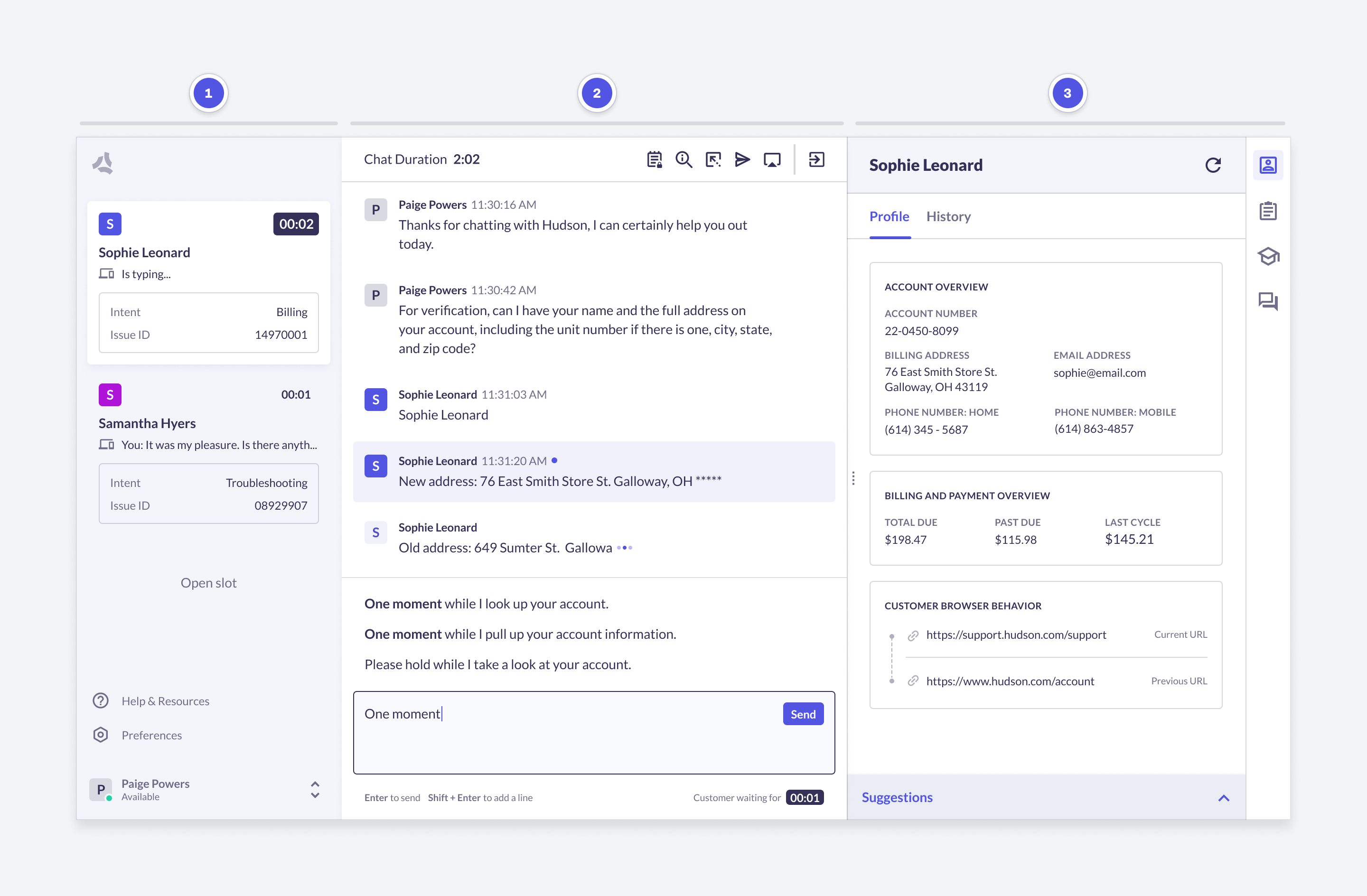
 1. [Main Navigation](#main-navigation)
2. [Conversation](#conversation)
3. [Agent Solutions](#agent-solutions)
## Main Navigation
1. [Main Navigation](#main-navigation)
2. [Conversation](#conversation)
3. [Agent Solutions](#agent-solutions)
## Main Navigation
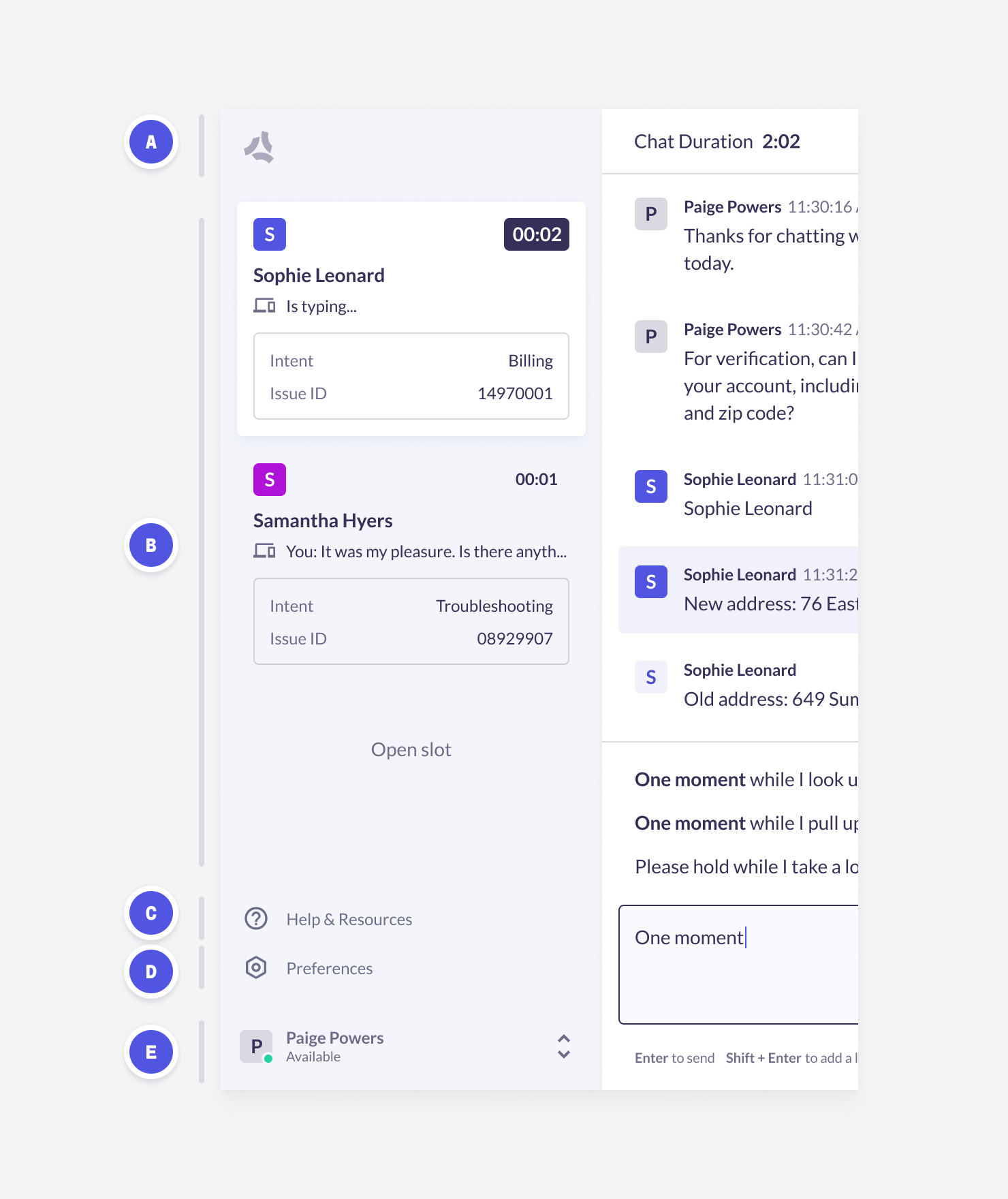 ### A. Agent Stats
| **Feature** | **Feature Overview** | **Configurability** |
| :---------- | :-------------------------------------------------------------------------------------------------------------------------------------------------------- | :------------------ |
| Agent Stats | Basic statistics related to chats handled since the agent last logged into Agent Desk (Current Session) or to all chats handled in Agent Desk (All Time). | Core |
### B. Navigation
| **Feature** | **Feature Overview** | **Configurability** |
| :--------------------- | :---------------------------------------------------------------------------------------------------------------------------------------------------- | :------------------ |
| Concurrency Slots | The agent can see their concurrent chats and available 'Open Slots' directly in Agent Desk. | Configurable |
| Waiting Timers | A timer displays when either the customer is waiting or the agent is waiting. The customer waiting time appears in larger text with a badge around it | Core |
| Last Message Preview | Preview of the last message a customer sent in chat. | Core |
| Color Coded Chat Cards | Unique color assigned to each chat card to help distinguish chats. | Core |
| Copy Tool | Hover-over tool to easily copy entities across Agent Desk. | Core |
### C. Help & Resources
| Feature | Feature Overview | Configurability |
| :----------------- | :-------------------------------------------------------------------------------------------------------------------------------------------------------------------------------------- | :-------------- |
| Agent Feedback | Text form for agent to send feedback to ASAPP team (available by default; can be disabled if an agent has an active chat, if an agent is in an available status, or in both instances). | Configurable |
| Keyboard Shortcuts | List of Keyboard Shortcuts. **Ctrl +S** | Core |
| Patent Notice | List of Patents. | Core |
### D. Preferences
| Feature | Feature Overview | Configurability |
| :---------------- | :----------------------------------------------------- | :-------------- |
| Font Size | Select the Font Size: **Small**, **Medium**, **Large** | Core |
| Color Temperature | Adjust the display to reduce eye strain. | Core |
### E. Status Switcher & Log Out
| **Feature** | **Feature Overview** | **Configurability** |
| :----------- | :-------------------------------------------------------------------------------------------------------------------------------------- | :------------------ |
| Agent Status | Configurable list of Agent statuses: **Active**, **After Chat Wrap-Up**, **Coaching**, **Lunch/Break**, **Team Meeting**, **Training**. | Configurable |
| Go to Admin | Opens the Admin Dashboard in another tab. | Core |
| Log Out | Logs out of Digital Agent Desk | Core |
## 2. Conversation Navigation
### A. Agent Stats
| **Feature** | **Feature Overview** | **Configurability** |
| :---------- | :-------------------------------------------------------------------------------------------------------------------------------------------------------- | :------------------ |
| Agent Stats | Basic statistics related to chats handled since the agent last logged into Agent Desk (Current Session) or to all chats handled in Agent Desk (All Time). | Core |
### B. Navigation
| **Feature** | **Feature Overview** | **Configurability** |
| :--------------------- | :---------------------------------------------------------------------------------------------------------------------------------------------------- | :------------------ |
| Concurrency Slots | The agent can see their concurrent chats and available 'Open Slots' directly in Agent Desk. | Configurable |
| Waiting Timers | A timer displays when either the customer is waiting or the agent is waiting. The customer waiting time appears in larger text with a badge around it | Core |
| Last Message Preview | Preview of the last message a customer sent in chat. | Core |
| Color Coded Chat Cards | Unique color assigned to each chat card to help distinguish chats. | Core |
| Copy Tool | Hover-over tool to easily copy entities across Agent Desk. | Core |
### C. Help & Resources
| Feature | Feature Overview | Configurability |
| :----------------- | :-------------------------------------------------------------------------------------------------------------------------------------------------------------------------------------- | :-------------- |
| Agent Feedback | Text form for agent to send feedback to ASAPP team (available by default; can be disabled if an agent has an active chat, if an agent is in an available status, or in both instances). | Configurable |
| Keyboard Shortcuts | List of Keyboard Shortcuts. **Ctrl +S** | Core |
| Patent Notice | List of Patents. | Core |
### D. Preferences
| Feature | Feature Overview | Configurability |
| :---------------- | :----------------------------------------------------- | :-------------- |
| Font Size | Select the Font Size: **Small**, **Medium**, **Large** | Core |
| Color Temperature | Adjust the display to reduce eye strain. | Core |
### E. Status Switcher & Log Out
| **Feature** | **Feature Overview** | **Configurability** |
| :----------- | :-------------------------------------------------------------------------------------------------------------------------------------- | :------------------ |
| Agent Status | Configurable list of Agent statuses: **Active**, **After Chat Wrap-Up**, **Coaching**, **Lunch/Break**, **Team Meeting**, **Training**. | Configurable |
| Go to Admin | Opens the Admin Dashboard in another tab. | Core |
| Log Out | Logs out of Digital Agent Desk | Core |
## 2. Conversation Navigation
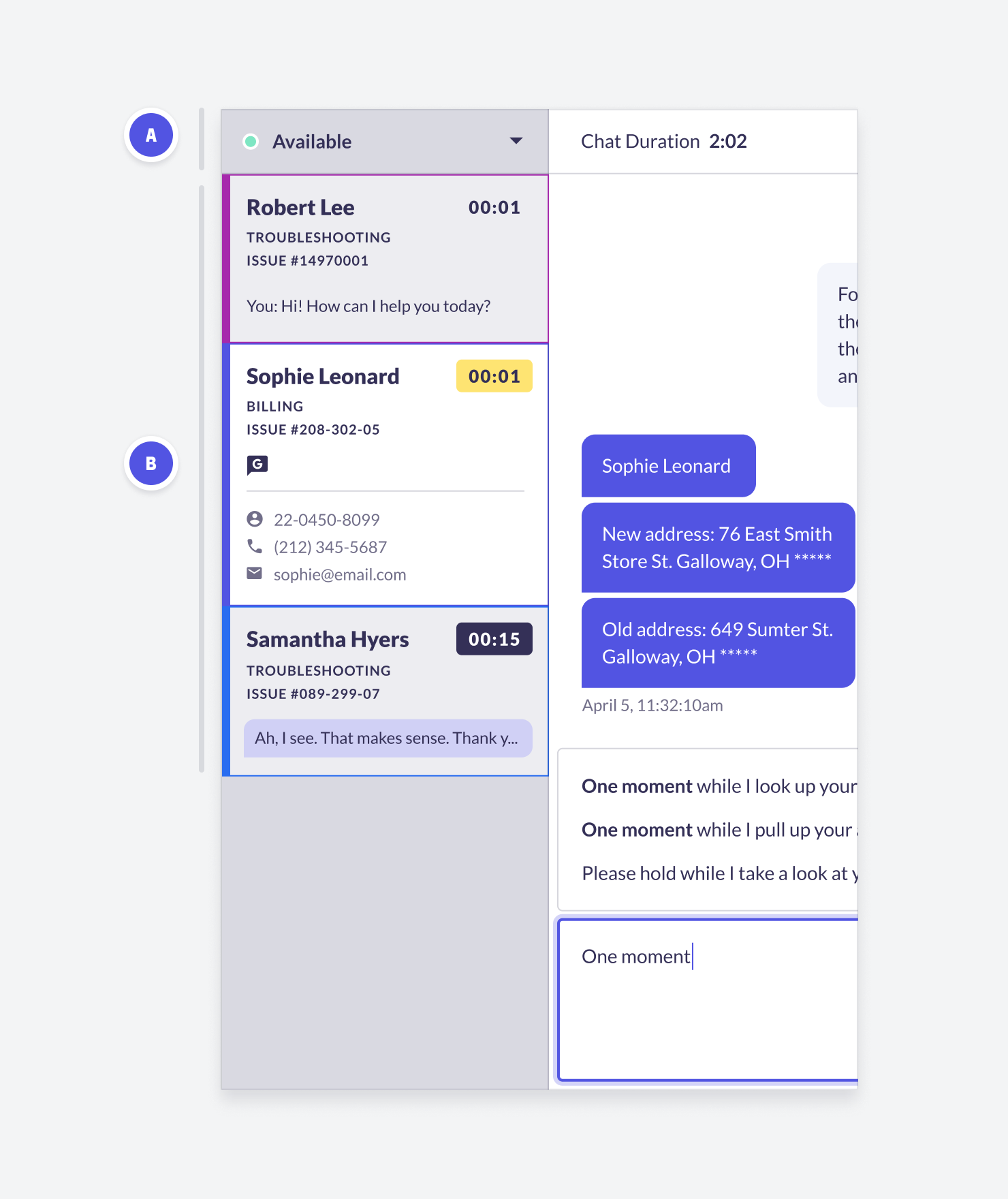 ### A. Status
| **Feature** | **Feature Overview** | **Configurability** |
| :---------------------------------------- | :--------------------------------------------------------------------------------------------------------------------------------------------------------------------------------------------------------------------------------------------- | :------------------ |
| Active/Away Status | Configurable list of 'Away' statuses (instead of binary option 'Active' / 'Away'). | Configurable |
| Auto Log Out Inactivity and After X Hours | If an agent does not move their mouse for over X hours, auto-log them out of Agent Desk.
### A. Status
| **Feature** | **Feature Overview** | **Configurability** |
| :---------------------------------------- | :--------------------------------------------------------------------------------------------------------------------------------------------------------------------------------------------------------------------------------------------- | :------------------ |
| Active/Away Status | Configurable list of 'Away' statuses (instead of binary option 'Active' / 'Away'). | Configurable |
| Auto Log Out Inactivity and After X Hours | If an agent does not move their mouse for over X hours, auto-log them out of Agent Desk.If an agent is logged in for more than X hours, even if they are active, log them out (unless they are in an active chat with a customer). | Configurable | ### B. Navigation | **Feature** | **Feature Overview** | **Configurability** | | :--------------------- | :---------------------------------------------------------------------------------------------------------------------------------------------------------------- | :------------------ | | Waiting Timers | A timer displays when either the customer is waiting or the agent is waiting.
The customer waiting time appears in larger text with a badge around it. | Core | | Last Message Preview | Preview of the last message a customer sent in chat. | Core | | Color Coded Chat Cards | Unique color assigned to each chat card to help distinguish chats. | Core | | Copy Tool | Hover-over tool to easily copy entities across Agent Desk. | Core | ## 3. Conversation
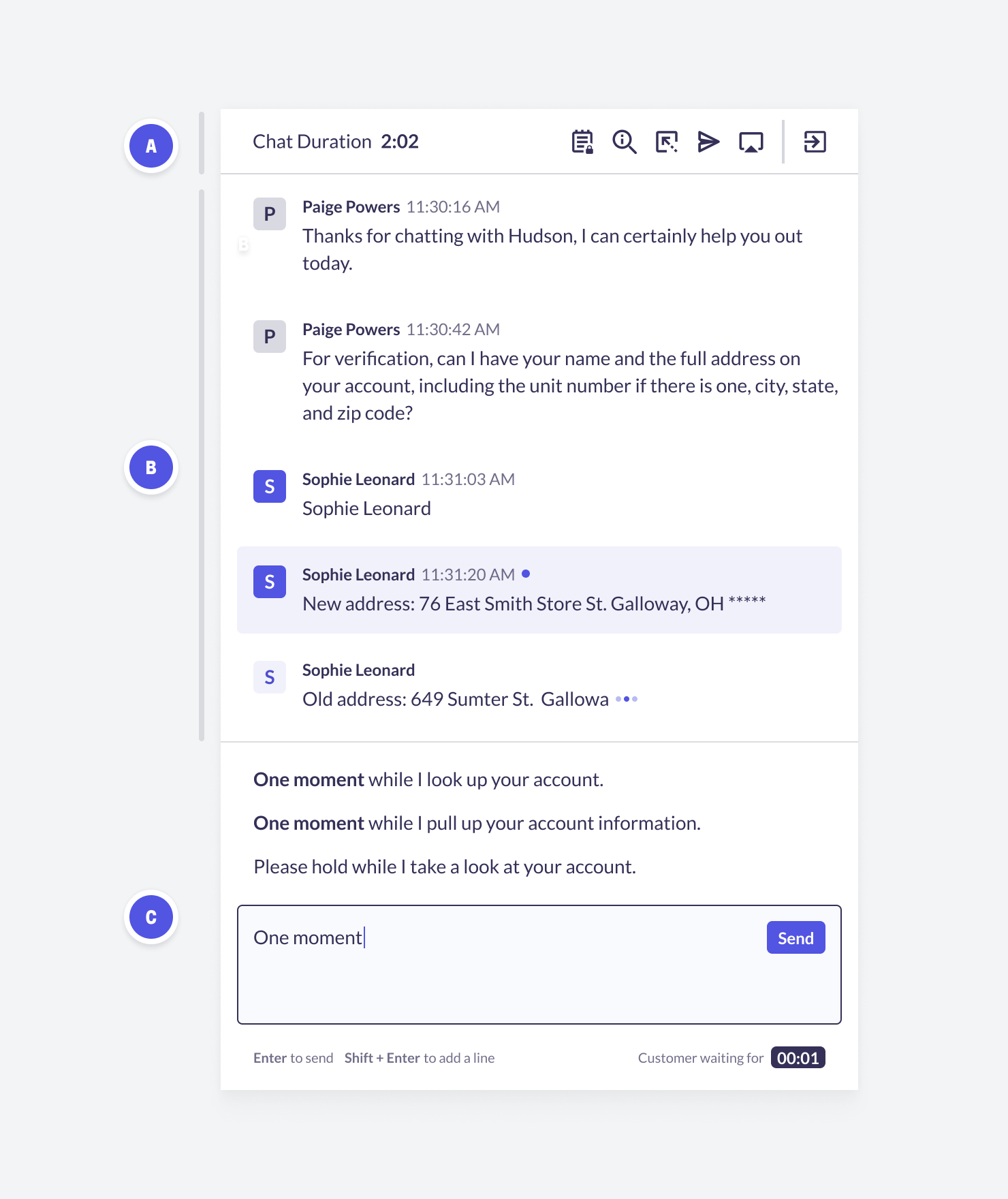 ### A. Conversation Header
| **Feature** | **Feature Overview** | **Configurability** |
| :------------------------------------------ | :------------------------------------------------------------------------------------------------------------------------------------------------------------------------------------------------------------------------------------------------------------------------------------------- | :------------------ |
| Chat Duration | Indication of how long the customer has been chatting and waiting, at the top of the conversation panel. | Core |
| **Contextual Actions (From Left to Right)** | | |
| Quick Notes | Enables an agent to type and save notes during a conversation that will save in Conversation History | Configurable |
| Secure Messaging | Enables an agent to send an invite to customers to share sensitive information (e.g. credit card number) securely. | Configurable |
| Send to Flow | Expose **Send Flow** buttons in the center panel drop-down menu that allow an agent to send the customer back to SRS and into a particular automated flow. | Configurable |
| Autopilot Forms / Quick Send | Configurable forms and flows to send to customer and remain connected. You can configure deep links and single step flows. | Configurable |
| Co-Browsing | Enables an agent to send an invitation to a customer to share their screen. The agent has limited capabilities (can scroll, draw, and focus, but can't click or type). | Configurable |
| **End Controls** | | |
| Autopilot Timeout (APTO) | Allows an agent to initiate an autopilot flow that checks in and eventually times out an unresponsive customer; timeout suggestions can appear after an initial conversation turn with a live agent | Configurable |
| Timeout | Enables the agent to timeout a customer. | Core |
| Transfer | Enables the agent to transfer a customer to another queue or individual agent. Queues are only available for transfer if business hours are open, the queue is not paused, and at least one agent in the queue is online. If needed, specific queues can be excluded from the transfer menu. | Configurable |
| End Chat | Enables the agent to close an issue. | Core |
| Auto Transfer on Agent Disconnect | If agents disconnect from Agent Desk for over 60 seconds, ASAPP will auto transfer any currently assigned issues to another agent. | Core |
| Auto Requeue if Agent is unresponsive | When a chat is first connected to an agent, give them X seconds to send their first message. If they exceed this timer, auto-reassign the issue to the next available agent. | Configurable |
### B. Conversation
| **Feature** | **Feature Overview** | **Configurability** |
| :--------------- | :---------------------------------------------------------------------------------------------- | :------------------ |
| Chat Log | Enables scrolling through the customer's previous conversation history. | Core |
| Message Previews | Enables viewing a preview of what the customer is typing before the customer sends the message. | Core |
### C. Composer
| **Feature** | **Feature Overview** | **Configurability** |
| :----------------- | :--------------------------------------------------------------------------------------------------------------------------------------------------------------------------------------------------------------------------------------- | :------------------ |
| Autosuggest | Suggested responses before the agent begins typing based on conversational context. | Core |
| Autocomplete | Suggested responses after the agent begins typing based on conversational context. | Core |
| Fluency boosting | If an agent makes a known spelling error while typing and hits the space bar, ASAPP will auto-correct the spelling mistake. The correction is indicated by a blue underline, and the agent may click on the word to undo the correction. | Core |
| Profanity handling | Generic list of phrases ASAPP disables agents from sending to customers. | Core |
## 4. Agent Solutions
### A. Conversation Header
| **Feature** | **Feature Overview** | **Configurability** |
| :------------------------------------------ | :------------------------------------------------------------------------------------------------------------------------------------------------------------------------------------------------------------------------------------------------------------------------------------------- | :------------------ |
| Chat Duration | Indication of how long the customer has been chatting and waiting, at the top of the conversation panel. | Core |
| **Contextual Actions (From Left to Right)** | | |
| Quick Notes | Enables an agent to type and save notes during a conversation that will save in Conversation History | Configurable |
| Secure Messaging | Enables an agent to send an invite to customers to share sensitive information (e.g. credit card number) securely. | Configurable |
| Send to Flow | Expose **Send Flow** buttons in the center panel drop-down menu that allow an agent to send the customer back to SRS and into a particular automated flow. | Configurable |
| Autopilot Forms / Quick Send | Configurable forms and flows to send to customer and remain connected. You can configure deep links and single step flows. | Configurable |
| Co-Browsing | Enables an agent to send an invitation to a customer to share their screen. The agent has limited capabilities (can scroll, draw, and focus, but can't click or type). | Configurable |
| **End Controls** | | |
| Autopilot Timeout (APTO) | Allows an agent to initiate an autopilot flow that checks in and eventually times out an unresponsive customer; timeout suggestions can appear after an initial conversation turn with a live agent | Configurable |
| Timeout | Enables the agent to timeout a customer. | Core |
| Transfer | Enables the agent to transfer a customer to another queue or individual agent. Queues are only available for transfer if business hours are open, the queue is not paused, and at least one agent in the queue is online. If needed, specific queues can be excluded from the transfer menu. | Configurable |
| End Chat | Enables the agent to close an issue. | Core |
| Auto Transfer on Agent Disconnect | If agents disconnect from Agent Desk for over 60 seconds, ASAPP will auto transfer any currently assigned issues to another agent. | Core |
| Auto Requeue if Agent is unresponsive | When a chat is first connected to an agent, give them X seconds to send their first message. If they exceed this timer, auto-reassign the issue to the next available agent. | Configurable |
### B. Conversation
| **Feature** | **Feature Overview** | **Configurability** |
| :--------------- | :---------------------------------------------------------------------------------------------- | :------------------ |
| Chat Log | Enables scrolling through the customer's previous conversation history. | Core |
| Message Previews | Enables viewing a preview of what the customer is typing before the customer sends the message. | Core |
### C. Composer
| **Feature** | **Feature Overview** | **Configurability** |
| :----------------- | :--------------------------------------------------------------------------------------------------------------------------------------------------------------------------------------------------------------------------------------- | :------------------ |
| Autosuggest | Suggested responses before the agent begins typing based on conversational context. | Core |
| Autocomplete | Suggested responses after the agent begins typing based on conversational context. | Core |
| Fluency boosting | If an agent makes a known spelling error while typing and hits the space bar, ASAPP will auto-correct the spelling mistake. The correction is indicated by a blue underline, and the agent may click on the word to undo the correction. | Core |
| Profanity handling | Generic list of phrases ASAPP disables agents from sending to customers. | Core |
## 4. Agent Solutions
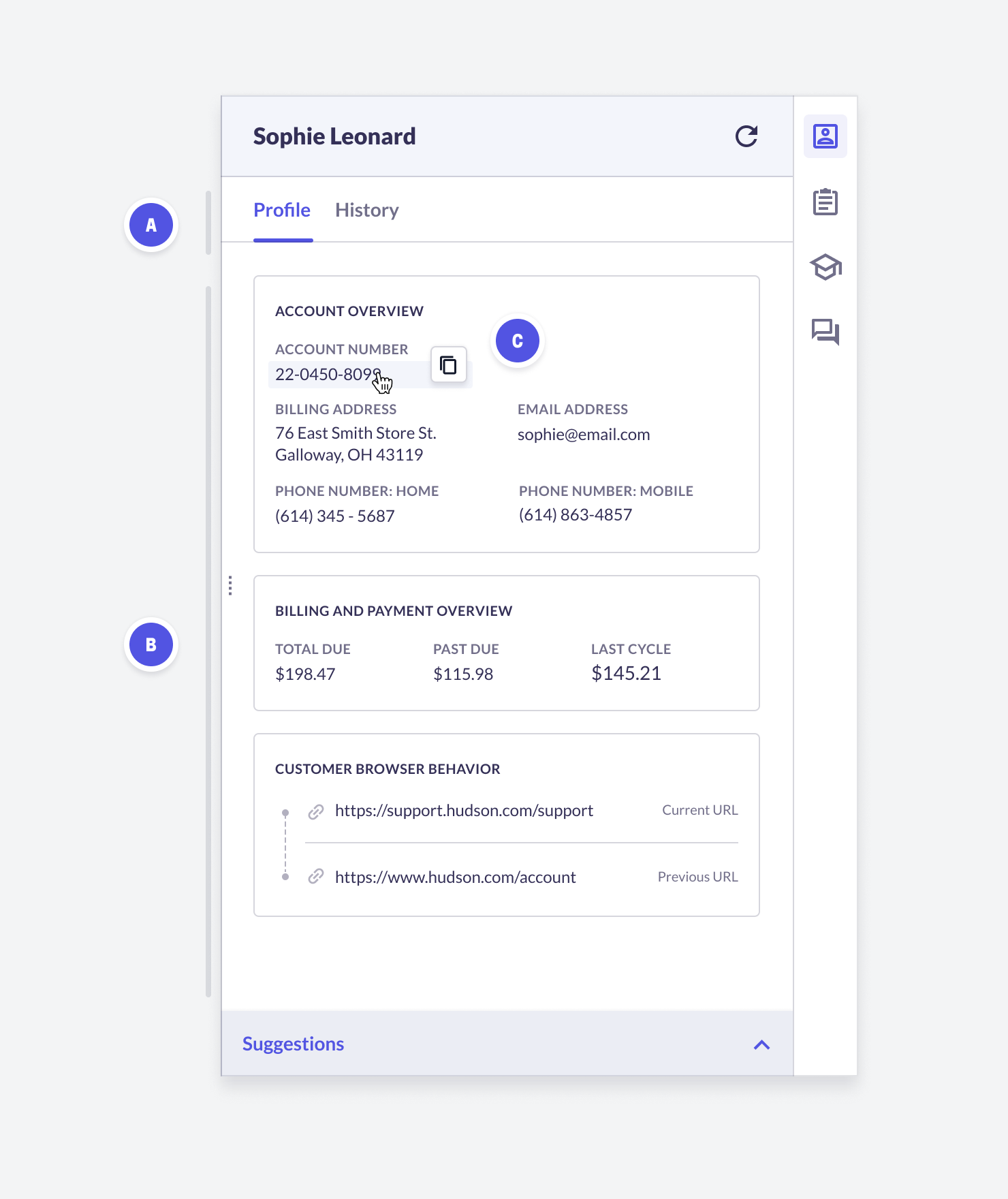 ### Customer Information
| **Feature** | **Feature Overview** | **Configurability** |
| :------------------- | :----------------------------------------------------------------------------------------------------------------------------------------------------- | :------------------ |
| Customer Profile (A) | Displays customer, company, and specific account information for authenticated customers. | Configurable |
| Customer History (B) | A separate tab that gives a quick snapshot of each current and historical interaction with the customer, including time, duration, notes, intent, etc. | Core |
| Copy Tool (C) | Hover-over tool to easily copy entities across Agent Desk. | Core |
### Knowledge Base
### Customer Information
| **Feature** | **Feature Overview** | **Configurability** |
| :------------------- | :----------------------------------------------------------------------------------------------------------------------------------------------------- | :------------------ |
| Customer Profile (A) | Displays customer, company, and specific account information for authenticated customers. | Configurable |
| Customer History (B) | A separate tab that gives a quick snapshot of each current and historical interaction with the customer, including time, duration, notes, intent, etc. | Core |
| Copy Tool (C) | Hover-over tool to easily copy entities across Agent Desk. | Core |
### Knowledge Base
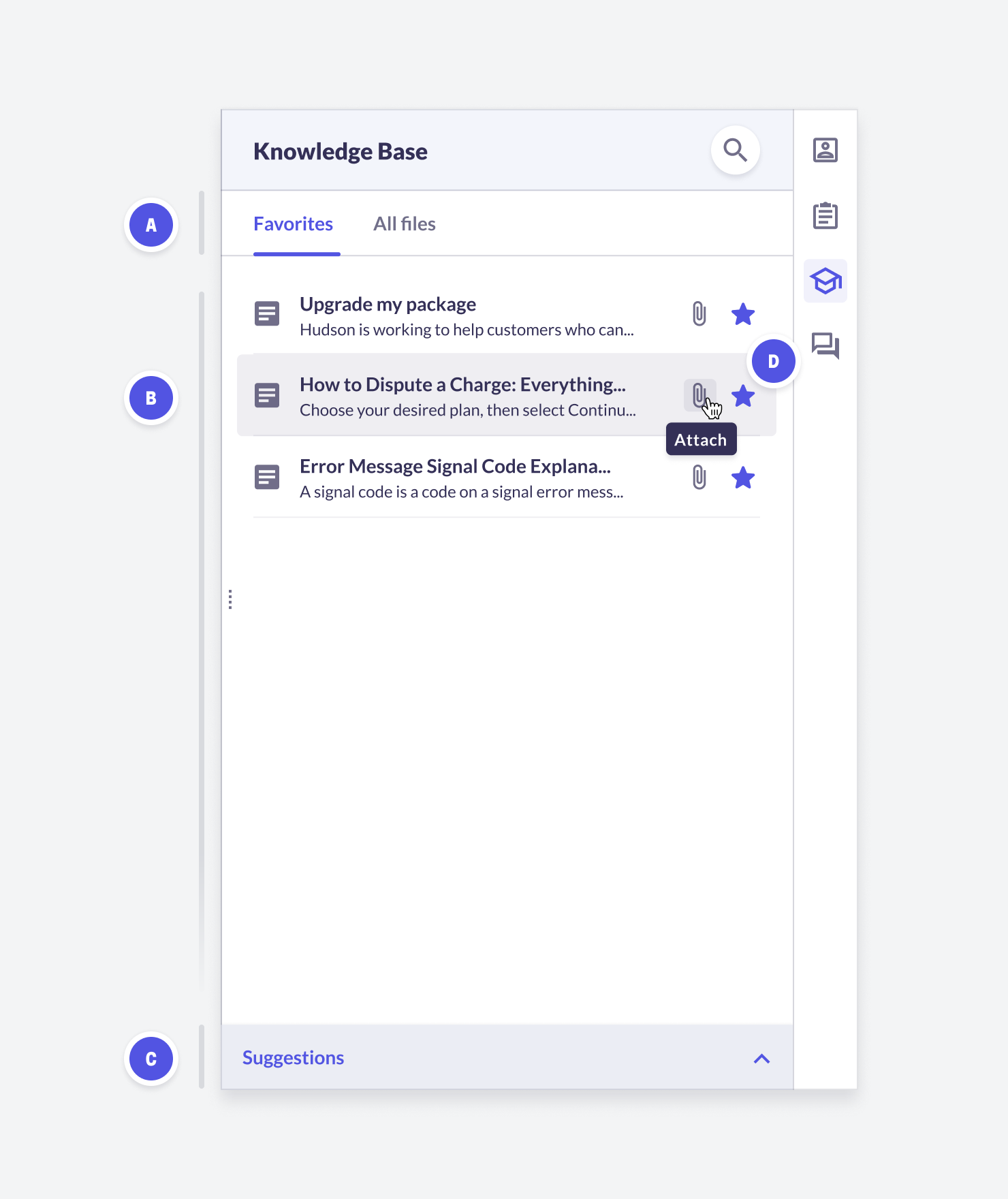 | **Feature** | **Feature Overview** | **Configurability** |
| :------------------------------------------------------------------ | :--------------------------------------------------------------------------------------------------------------------------------------------------------------------------- | :-------------------------------------------------------------------------------------- |
| [Knowledge Base](/agent-desk/digital-agent-desk/knowledge-base) (A) | Agents can traverse a folder hierarchy of customer company specific content to search, add a favorite, and send content to customers. Select **Favorites** or **All Files**. | Requires you to upload and maintain Knowledge Base content via Admin or an integration. |
| List of Favorites or All Files (B) | Displays your Favorites or All Files. | Configurable |
| Knowledge Base Suggestions (C) | Suggests Knowledge Base articles to agents. | Core |
| Contextual Actions (D) | Agents can attach an article (send to a customer) or make it a favorite. | Configurable |
### Responses
| **Feature** | **Feature Overview** | **Configurability** |
| :------------------------------------------------------------------ | :--------------------------------------------------------------------------------------------------------------------------------------------------------------------------- | :-------------------------------------------------------------------------------------- |
| [Knowledge Base](/agent-desk/digital-agent-desk/knowledge-base) (A) | Agents can traverse a folder hierarchy of customer company specific content to search, add a favorite, and send content to customers. Select **Favorites** or **All Files**. | Requires you to upload and maintain Knowledge Base content via Admin or an integration. |
| List of Favorites or All Files (B) | Displays your Favorites or All Files. | Configurable |
| Knowledge Base Suggestions (C) | Suggests Knowledge Base articles to agents. | Core |
| Contextual Actions (D) | Agents can attach an article (send to a customer) or make it a favorite. | Configurable |
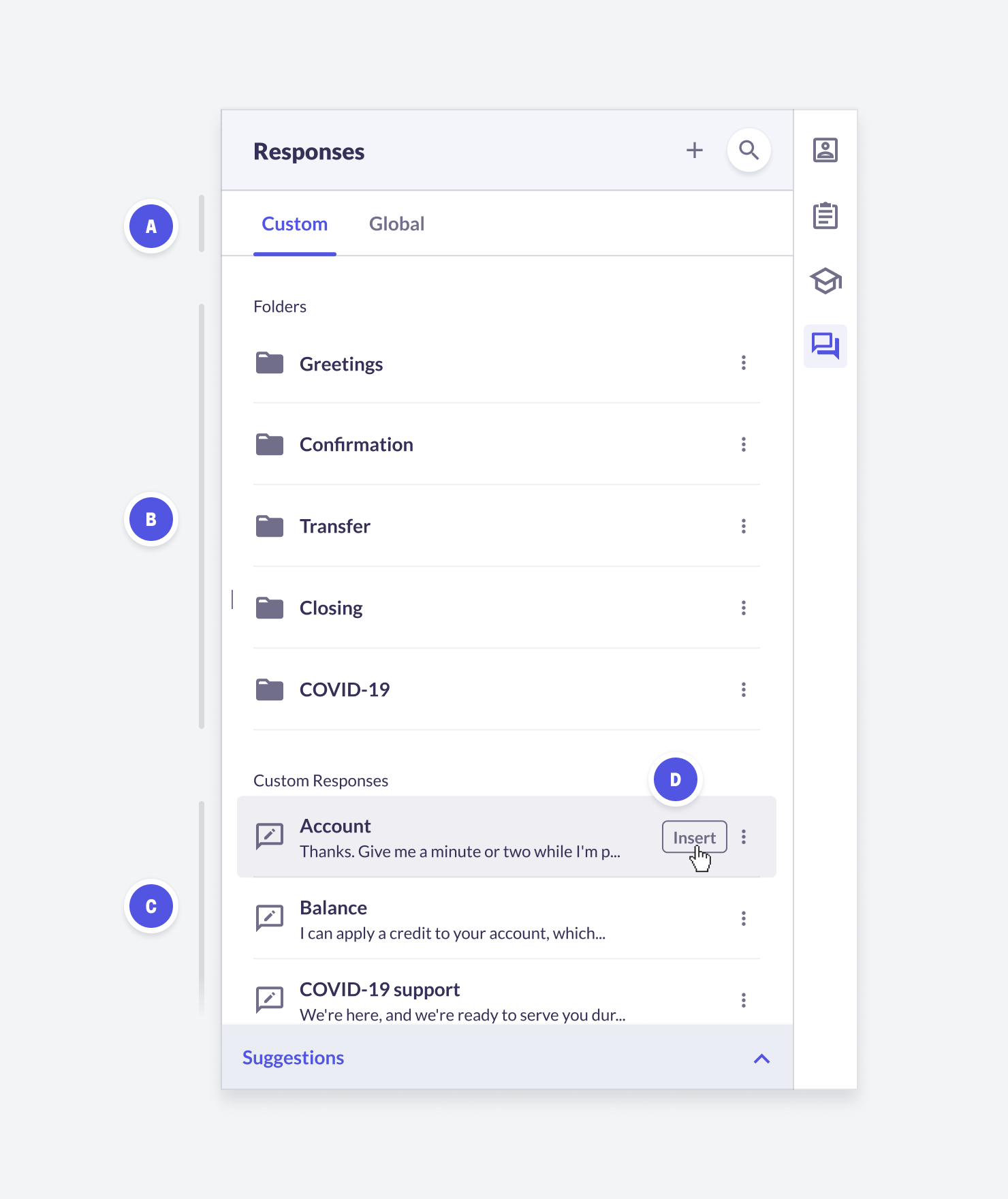
### Responses
Feature |
Feature Overview |
Configurability |
Custom Responses (A) |
Agents can create, edit, search, and view custom responses in Agent Desk. Agent Desk uses these custom responses in Auto Suggest. Click + to create new custom responses. To edit, hover over a response and select Edit. Click the Search icon to search custom responses. If an agent sends something that isn't in their custom library or the global whitelist, ASAPP recommends it back to them from a growing list of their favorites. |
Core |
|
Global Responses (A) |
Agents can search, view, and click-to-insert responses from the global whitelist. Click the Search icon to search the global responses. |
Core |
Navigate Folders (B) |
In both the custom and global response libraries, agents can navigate into and out of folders. |
Core |
Uncategorized Custom Responses (C) |
Single custom responses that you add but do not categorize into a specific folder display here. |
Core |
Click-to-Insert (D) |
In both the custom and global response libraries, agents can hover over a response and click Insert to insert the full text of the selected response into the typing field. |
Core |
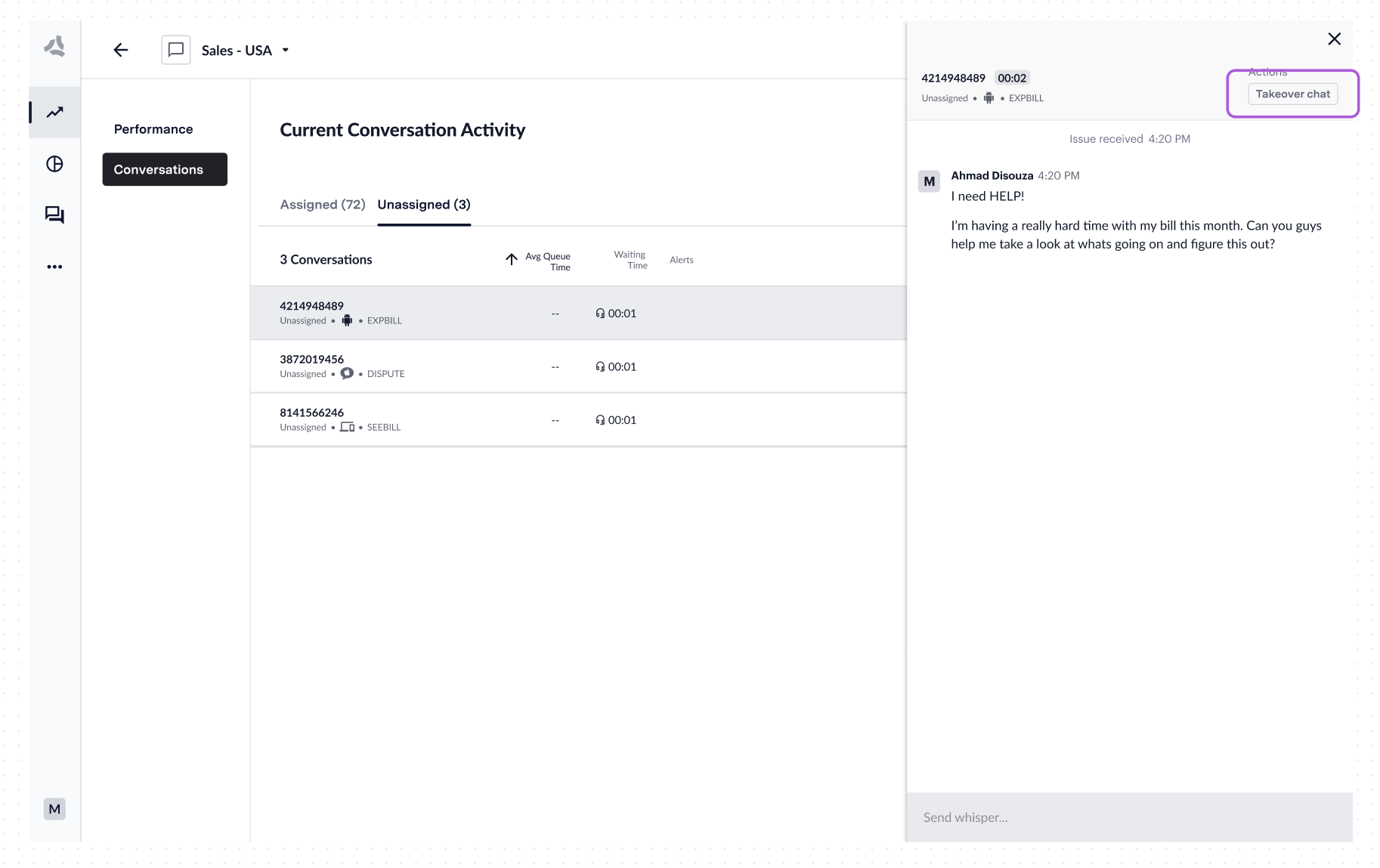
Chat Takeover |
Managers can takeover an agent's chat. |
Core |
Receive attachments |
End customers can send pdf attachments to agents in order to provide more information about their case. |
Core |
 ### Wrap-Up
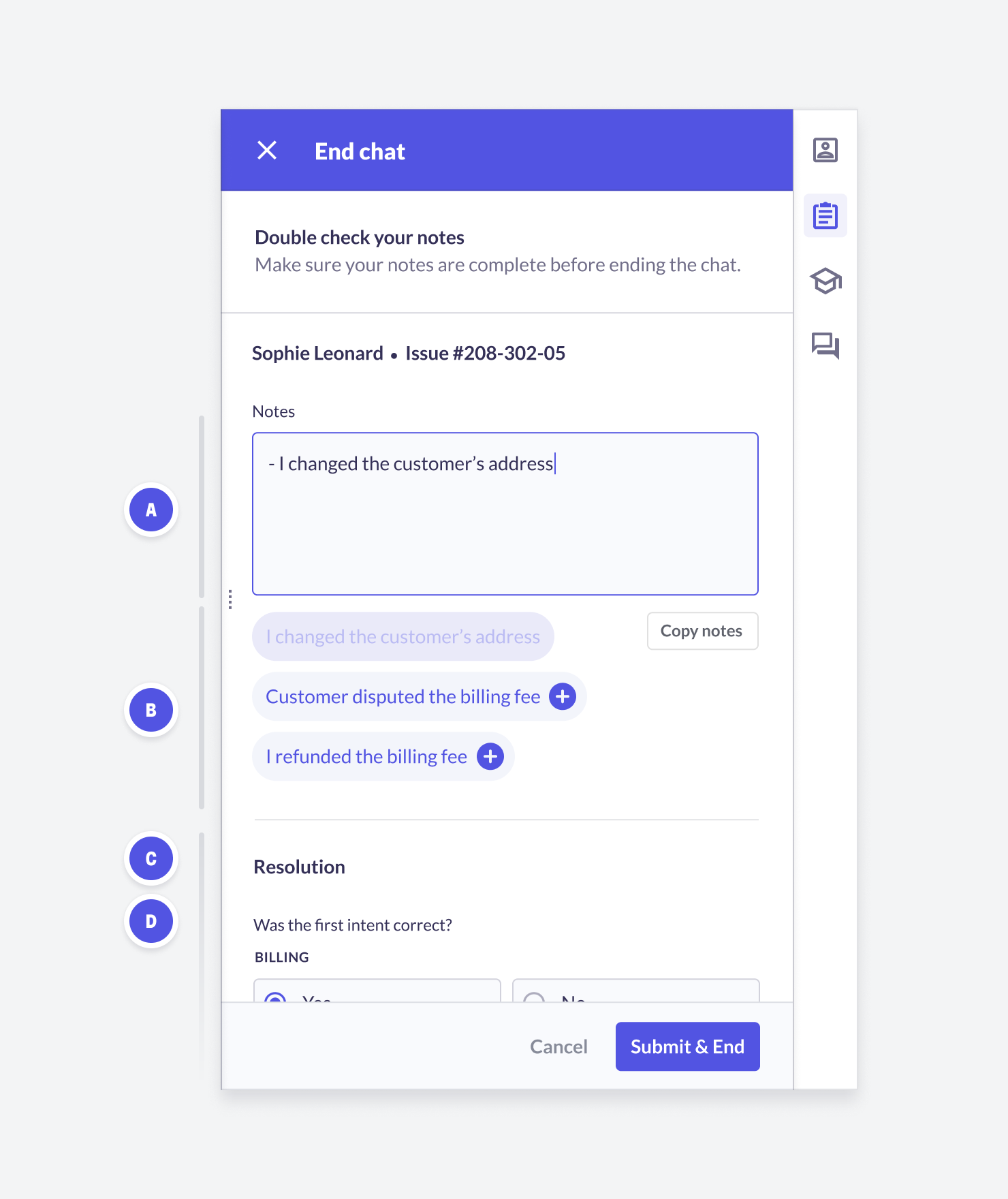 | **Feature** | **Feature Overview** | **Configurability** |
| :----------------------- | :---------------------------------------------------------------- | :------------------ |
| Chat Notes (A) | Agents can leave notes during a chat and at the end of a chat. | Core |
| End Chat Disposition (C) | Ask the customer if the initial intent was correct. | Core |
| End Chat Resolution (D) | Agents can indicate if an issue is resolved or not while closing. | Core |
### Receiving Attachments
Agents can ask for and receive PDF and image attachments from end customers. This feature is particularly useful for scenarios like fraud cases where agents need proof of transactions.
When a customer sends an attachment, the agent will receive a notification in the chat.
| **Feature** | **Feature Overview** | **Configurability** |
| :----------------------- | :---------------------------------------------------------------- | :------------------ |
| Chat Notes (A) | Agents can leave notes during a chat and at the end of a chat. | Core |
| End Chat Disposition (C) | Ask the customer if the initial intent was correct. | Core |
| End Chat Resolution (D) | Agents can indicate if an issue is resolved or not while closing. | Core |
### Receiving Attachments
Agents can ask for and receive PDF and image attachments from end customers. This feature is particularly useful for scenarios like fraud cases where agents need proof of transactions.
When a customer sends an attachment, the agent will receive a notification in the chat.
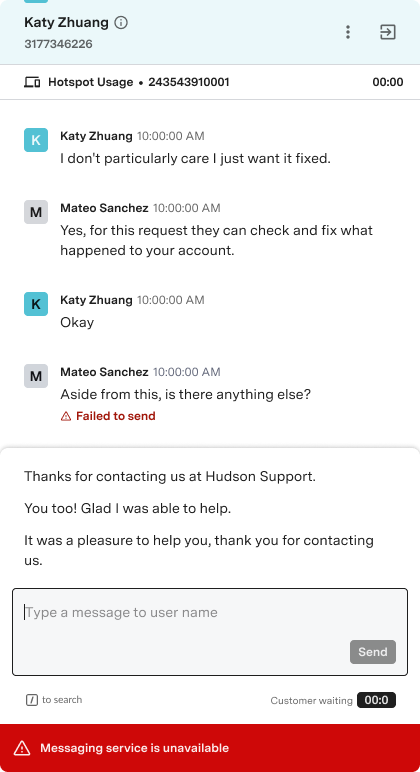
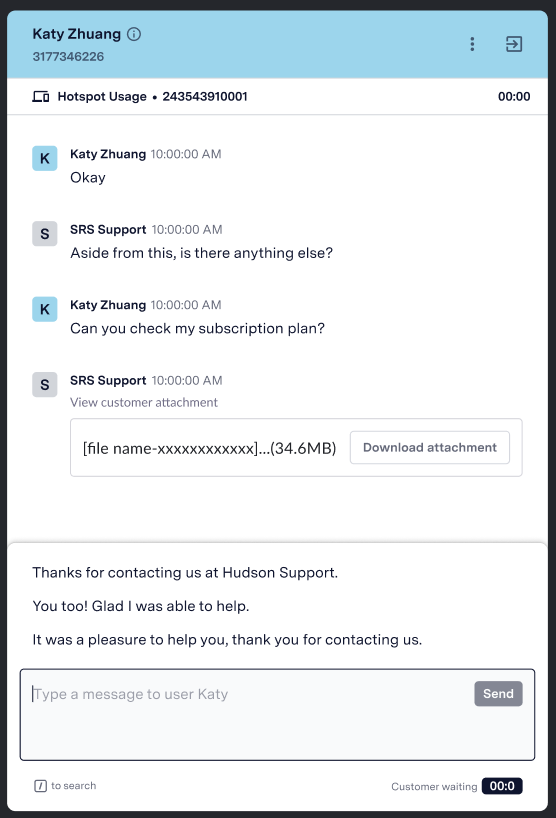 Images can be viewed in a modal while PDFs can be downloaded for the agent to view within their own desktop environment.
 ---
# Source: https://docs.asapp.com/agent-desk.md
> ## Documentation Index
> Fetch the complete documentation index at: https://docs.asapp.com/llms.txt
> Use this file to discover all available pages before exploring further.
# Agent Desk
> Use the Agent Desk to empower agents to deliver fast and exceptional customer service.
---
# Source: https://docs.asapp.com/agent-desk.md
> ## Documentation Index
> Fetch the complete documentation index at: https://docs.asapp.com/llms.txt
> Use this file to discover all available pages before exploring further.
# Agent Desk
> Use the Agent Desk to empower agents to deliver fast and exceptional customer service.
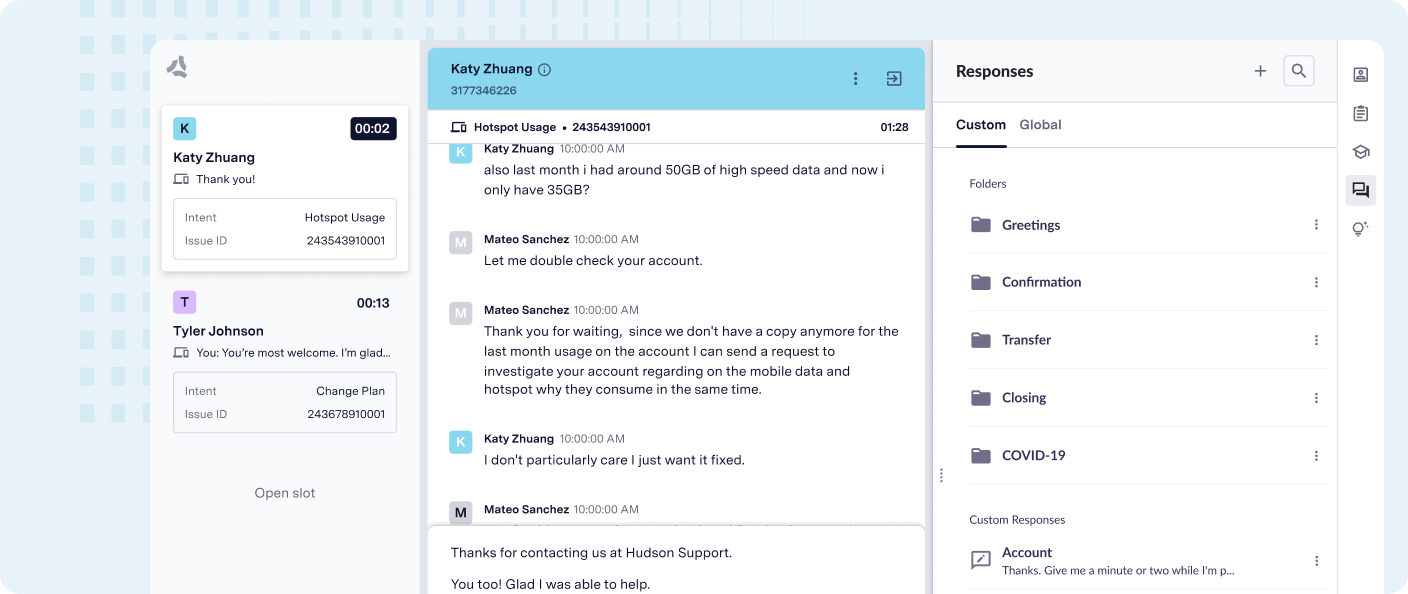 Agent Desk is an end-to-end AI-native® messaging platform designed for digital customer service. It enhances digital adoption, maintains customer satisfaction (CSAT), and increases contact center capacity efficiently.
At its core, Agent Desk uses an AI-Native design approach. AI is not just an added feature, but the foundation for building the entire platform.
Agent Desk leverages advanced machine learning algorithms and generative AI to provide comprehensive support for digital customer service. This holistic approach benefits agents, leaders, and customers alike, offering a seamless and intelligent messaging experience across various channels.
### Supported Channels
Agent Desk supports [multiple messaging channels](/agent-desk/integrations), including:
* [Android SDK](/agent-desk/integrations/android-sdk "Android SDK")
* [Apple Messages for Business](/agent-desk/integrations/apple-messages-for-business "Apple Messages for Business")
* [iOS SDK](/agent-desk/integrations/ios-sdk "iOS SDK")
* [Voice](/agent-desk/integrations/voice "Voice")
* [Web SDK](/agent-desk/integrations/web-sdk "Web SDK")
* [WhatsApp Business](/agent-desk/integrations/whatsapp-business "WhatsApp Business")
## How it works
Agent Desk seamlessly integrates with your existing channels, creating a unified ecosystem for customer interactions and agent support. Here's how it enhances the experience for all stakeholders:
**For your customers**:
* Seamlessly connect with your [preferred messaging channels](#implement-messaging-platform) for a consistent brand experience.
* Benefit from intelligent automation with [**Virtual Agent**](#virtual-agent).
**For your agents**:
* Leverage the powerful [**Digital Agent Desk**](#digital-agent-desk).
* Boost productivity with built-in AI-powered tools like **AI Summary** and **AI Compose**.
**For your management team**:
* Gain valuable insights with [**Insights Manager**](#insights-manager)
By seamlessly blending AI capabilities with human expertise, Agent Desk elevates your customer service operations to new heights of efficiency and satisfaction.
### Virtual Agent
Virtual Agent is our cutting-edge automation solution that enables organizations to:
* Recognize intent intelligently and route seamlessly
* Automate common customer inquiries with natural language
* Handle dynamic input and secure forms
* Customize workflows tailored to your brand's unique requirements
Agent Desk is an end-to-end AI-native® messaging platform designed for digital customer service. It enhances digital adoption, maintains customer satisfaction (CSAT), and increases contact center capacity efficiently.
At its core, Agent Desk uses an AI-Native design approach. AI is not just an added feature, but the foundation for building the entire platform.
Agent Desk leverages advanced machine learning algorithms and generative AI to provide comprehensive support for digital customer service. This holistic approach benefits agents, leaders, and customers alike, offering a seamless and intelligent messaging experience across various channels.
### Supported Channels
Agent Desk supports [multiple messaging channels](/agent-desk/integrations), including:
* [Android SDK](/agent-desk/integrations/android-sdk "Android SDK")
* [Apple Messages for Business](/agent-desk/integrations/apple-messages-for-business "Apple Messages for Business")
* [iOS SDK](/agent-desk/integrations/ios-sdk "iOS SDK")
* [Voice](/agent-desk/integrations/voice "Voice")
* [Web SDK](/agent-desk/integrations/web-sdk "Web SDK")
* [WhatsApp Business](/agent-desk/integrations/whatsapp-business "WhatsApp Business")
## How it works
Agent Desk seamlessly integrates with your existing channels, creating a unified ecosystem for customer interactions and agent support. Here's how it enhances the experience for all stakeholders:
**For your customers**:
* Seamlessly connect with your [preferred messaging channels](#implement-messaging-platform) for a consistent brand experience.
* Benefit from intelligent automation with [**Virtual Agent**](#virtual-agent).
**For your agents**:
* Leverage the powerful [**Digital Agent Desk**](#digital-agent-desk).
* Boost productivity with built-in AI-powered tools like **AI Summary** and **AI Compose**.
**For your management team**:
* Gain valuable insights with [**Insights Manager**](#insights-manager)
By seamlessly blending AI capabilities with human expertise, Agent Desk elevates your customer service operations to new heights of efficiency and satisfaction.
### Virtual Agent
Virtual Agent is our cutting-edge automation solution that enables organizations to:
* Recognize intent intelligently and route seamlessly
* Automate common customer inquiries with natural language
* Handle dynamic input and secure forms
* Customize workflows tailored to your brand's unique requirements
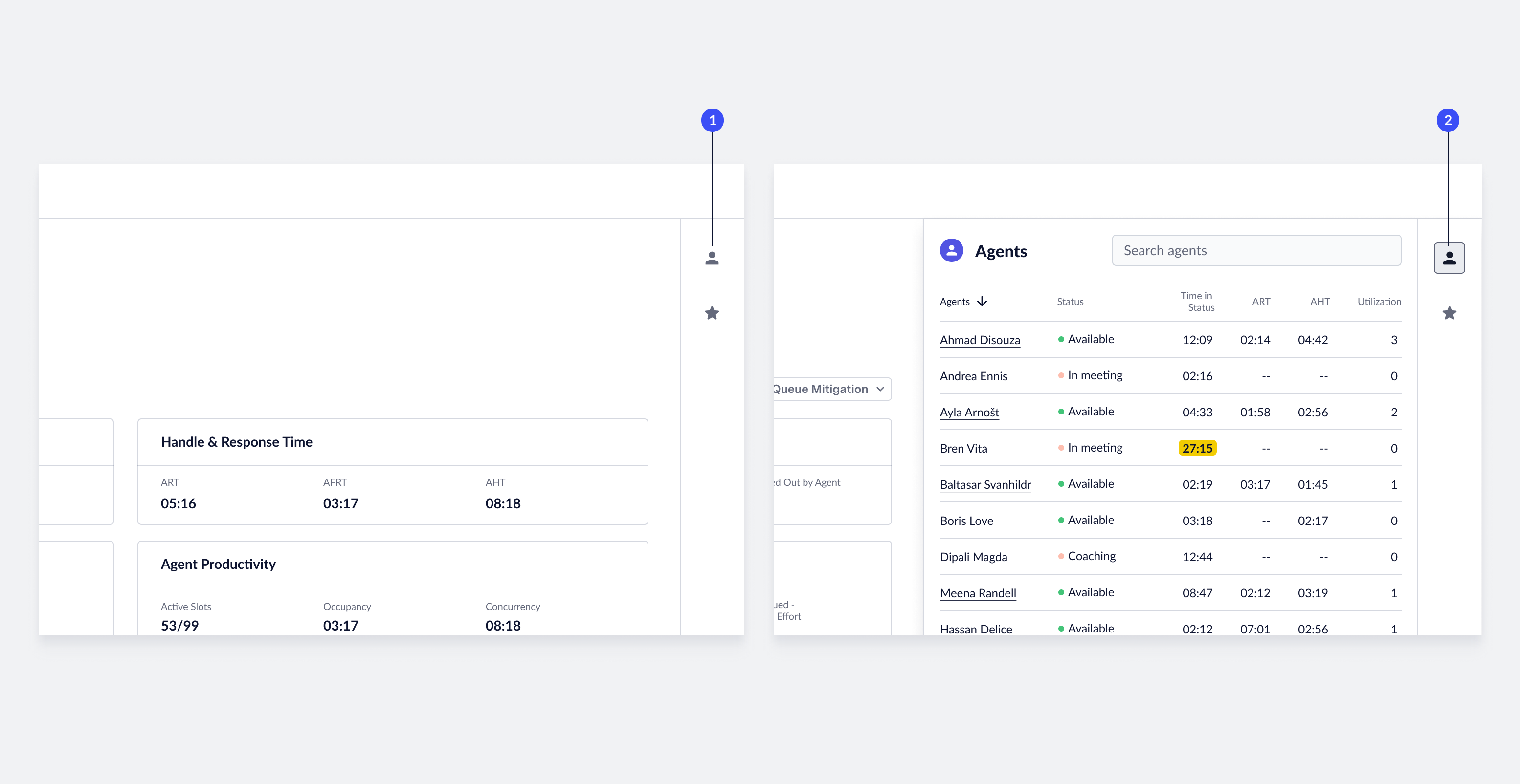 1. **Open agent panel**: To view agent performance data, click the **Agent** icon on the right-side of the screen. The system opens a panel that contains a list of all agents currently logged into the queue.
2. **Close agent panel**: To close the agent panel, click the **close** icon.
## Agent Real-time Performance Data
Live Insights automatically updates performance data related to agents in real-time every 15 seconds.
## Search for Agents & Sort Data
ASAPP provides tools to organize and find the right content. You can search for a specific agent name or sort the data based on current performance.
1. **Open agent panel**: To view agent performance data, click the **Agent** icon on the right-side of the screen. The system opens a panel that contains a list of all agents currently logged into the queue.
2. **Close agent panel**: To close the agent panel, click the **close** icon.
## Agent Real-time Performance Data
Live Insights automatically updates performance data related to agents in real-time every 15 seconds.
## Search for Agents & Sort Data
ASAPP provides tools to organize and find the right content. You can search for a specific agent name or sort the data based on current performance.
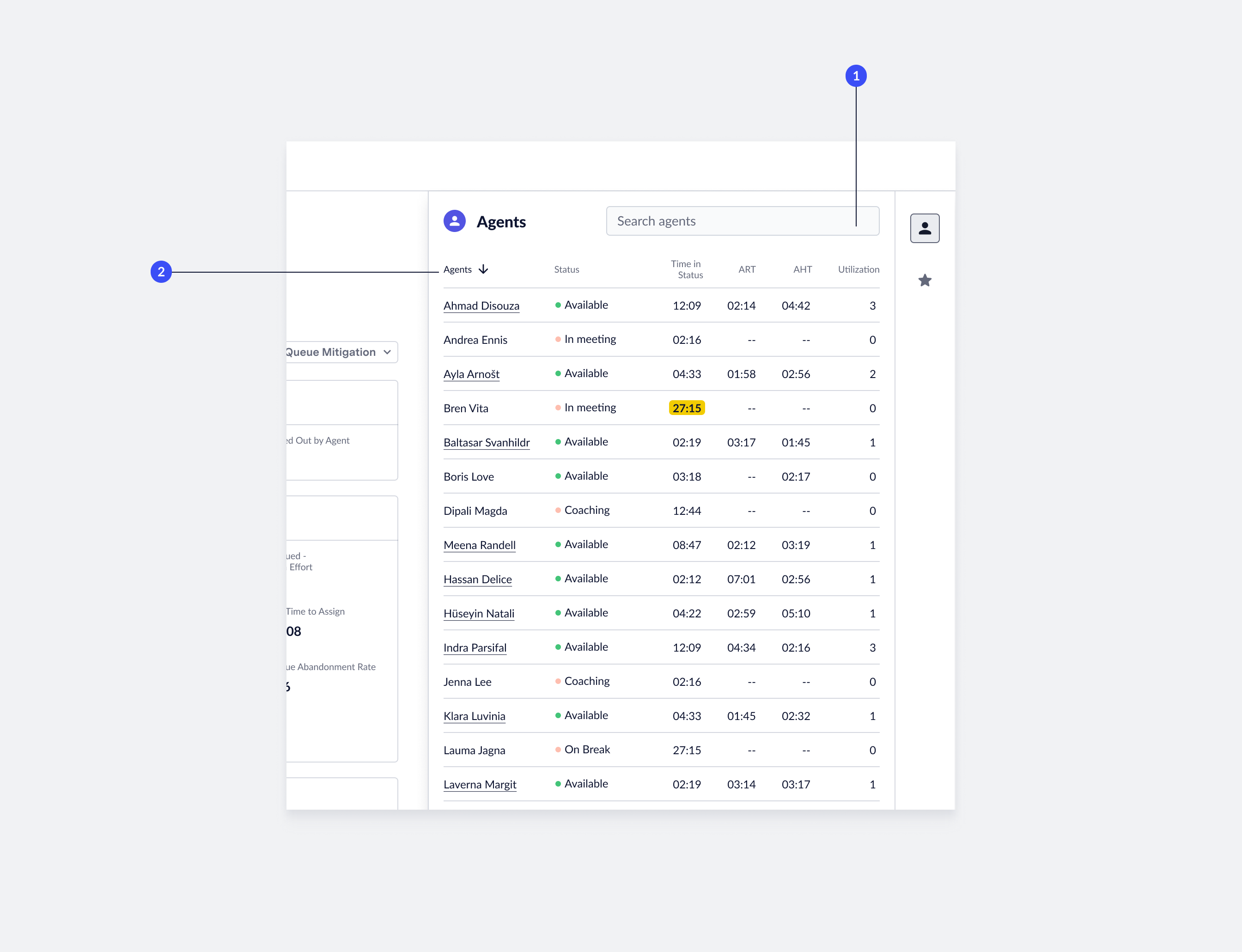 1. **Find agents**: To find a specific agent, enter the **agent name** in the search field. The list of agents will filter down to the relevant results. To remove the query, delete the **agent name** from the search field.
2. **Sort agents**: You can use each column in the agent panel to sort content. Default: the system sorts the list by agent name. To sort by a different metric, click the **column name**. To change the sort order, click the **active column name**.
## View Agent Transcripts
You can access live agent transcripts from the 'Agent' panel.
1. **Find agents**: To find a specific agent, enter the **agent name** in the search field. The list of agents will filter down to the relevant results. To remove the query, delete the **agent name** from the search field.
2. **Sort agents**: You can use each column in the agent panel to sort content. Default: the system sorts the list by agent name. To sort by a different metric, click the **column name**. To change the sort order, click the **active column name**.
## View Agent Transcripts
You can access live agent transcripts from the 'Agent' panel.
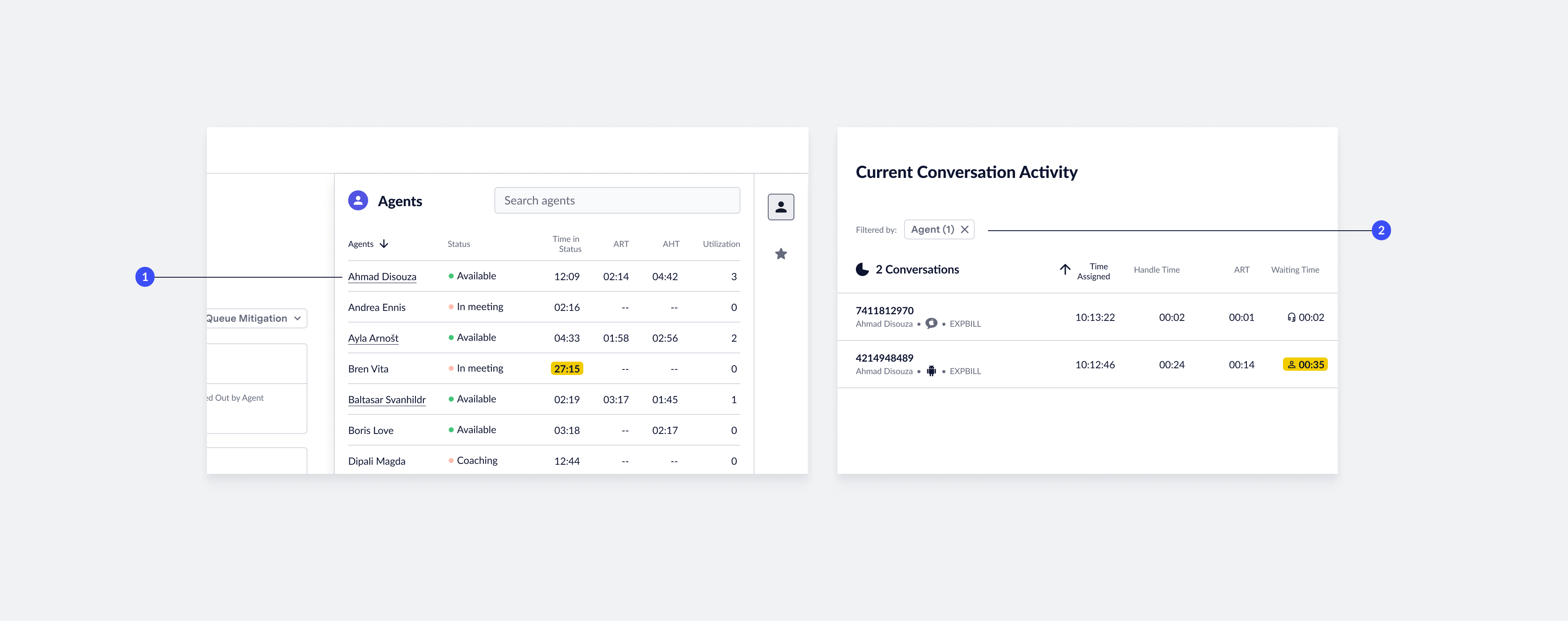 1. **Agents with assignments**: The system underlines agents currently taking assignments in the 'Agent' panel. Click an **underlined agent name** to go to the 'Conversation' page to view relevant agent transcripts.
2. **Agent filter applied**: When you view an agent's transcript, the 'Conversation Activity' table displays only their chats. The filter chip displayed above the list of conversations indicates this filtering. To remove the filter, click the **X** icon in the filter chip.
---
# Source: https://docs.asapp.com/agent-desk/digital-agent-desk/agent-sso.md
> ## Documentation Index
> Fetch the complete documentation index at: https://docs.asapp.com/llms.txt
> Use this file to discover all available pages before exploring further.
# Agent SSO
> Learn how to use Single Sign-On (SSO) to authenticate agents and admin users to the Digital Agent Desk.
ASAPP recommends that customers use SSO to authenticate agents and admin users to our applications.
In this scenario:
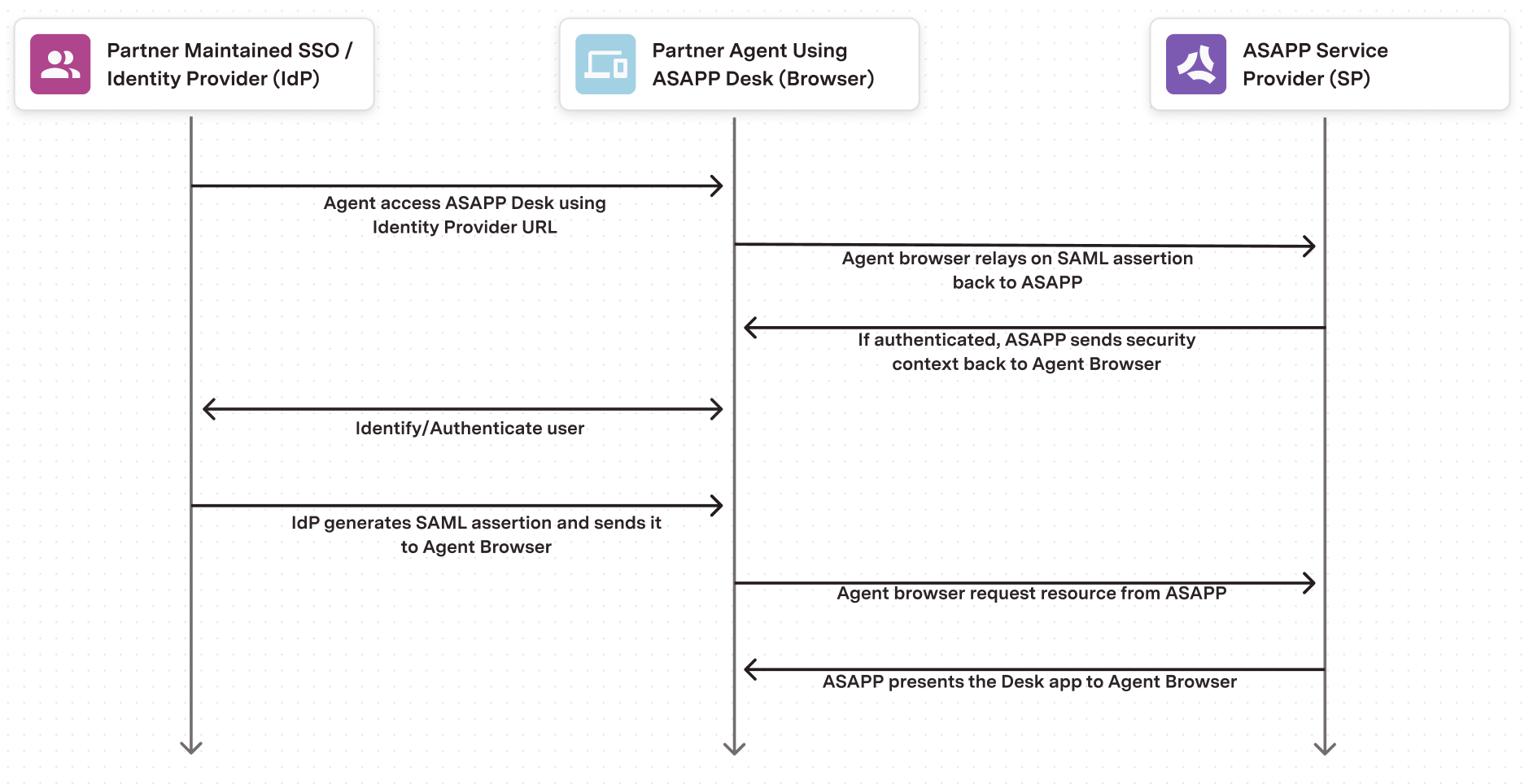
1. ASAPP acts as the Service Provider (SP) while the customer serves as the Identity Provider (IDP).
2. The customer's authentication system performs user authentication using their existing customer credentials.
3. ASAPP supports Service Provider Initiated SSO. Customers provide the SSO URL to agents and admins.
4. The URL points to the customer's SSO service, which will authenticate the users via their authentication system.
5. Once ASAPP authenticates the user, the customer's SSO service sends a SAML assertion with user information to ASAPP's SSO service.
6. ASAPP uses the information inside the SAML assertion to identify the user and redirect them to the appropriate application.
The diagram below illustrates the IDP-initiated SSO flow.
1. **Agents with assignments**: The system underlines agents currently taking assignments in the 'Agent' panel. Click an **underlined agent name** to go to the 'Conversation' page to view relevant agent transcripts.
2. **Agent filter applied**: When you view an agent's transcript, the 'Conversation Activity' table displays only their chats. The filter chip displayed above the list of conversations indicates this filtering. To remove the filter, click the **X** icon in the filter chip.
---
# Source: https://docs.asapp.com/agent-desk/digital-agent-desk/agent-sso.md
> ## Documentation Index
> Fetch the complete documentation index at: https://docs.asapp.com/llms.txt
> Use this file to discover all available pages before exploring further.
# Agent SSO
> Learn how to use Single Sign-On (SSO) to authenticate agents and admin users to the Digital Agent Desk.
ASAPP recommends that customers use SSO to authenticate agents and admin users to our applications.
In this scenario:
1. ASAPP acts as the Service Provider (SP) while the customer serves as the Identity Provider (IDP).
2. The customer's authentication system performs user authentication using their existing customer credentials.
3. ASAPP supports Service Provider Initiated SSO. Customers provide the SSO URL to agents and admins.
4. The URL points to the customer's SSO service, which will authenticate the users via their authentication system.
5. Once ASAPP authenticates the user, the customer's SSO service sends a SAML assertion with user information to ASAPP's SSO service.
6. ASAPP uses the information inside the SAML assertion to identify the user and redirect them to the appropriate application.
The diagram below illustrates the IDP-initiated SSO flow.
 ## Configuring Single Sign-On via SAML
### Environments
ASAPP supports SSO in non-production and production environments. We strongly recommend that customers configure SSO in both environments.
### Exchange of SAML metadata
Both ASAPP and the customer generate their respective SAML metadata and exchange the metadata files. Each environment requires different metadata, so teams must generate metadata once per environment.
Sample metadata file content:
```json theme={null}
## Configuring Single Sign-On via SAML
### Environments
ASAPP supports SSO in non-production and production environments. We strongly recommend that customers configure SSO in both environments.
### Exchange of SAML metadata
Both ASAPP and the customer generate their respective SAML metadata and exchange the metadata files. Each environment requires different metadata, so teams must generate metadata once per environment.
Sample metadata file content:
```json theme={null}
 [Click here to download a global responses template file](https://docs-sdk.asapp.com/product_features/global-responses-template.csv).
 ### Metadata Inserts
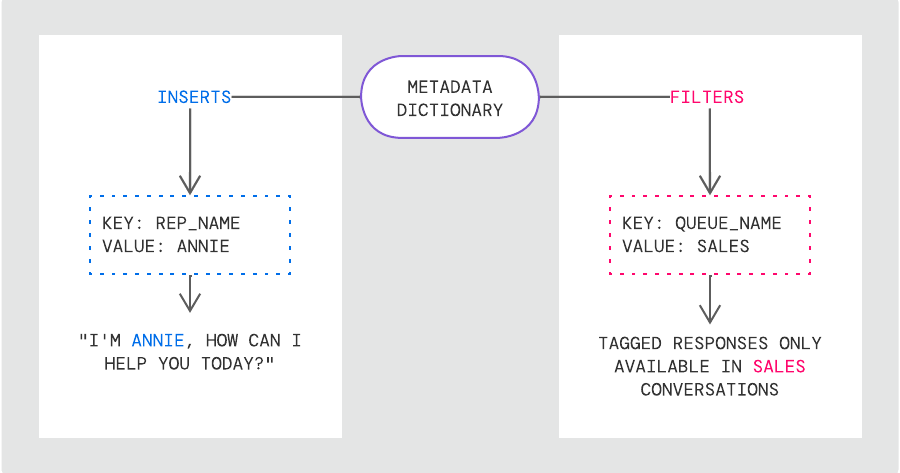
A response that contains a metadata insert is a templated response. When the system suggests a templated response, it shows the response to the agent with the metadata insert filled in.
### Metadata Inserts
A response that contains a metadata insert is a templated response. When the system suggests a templated response, it shows the response to the agent with the metadata insert filled in.
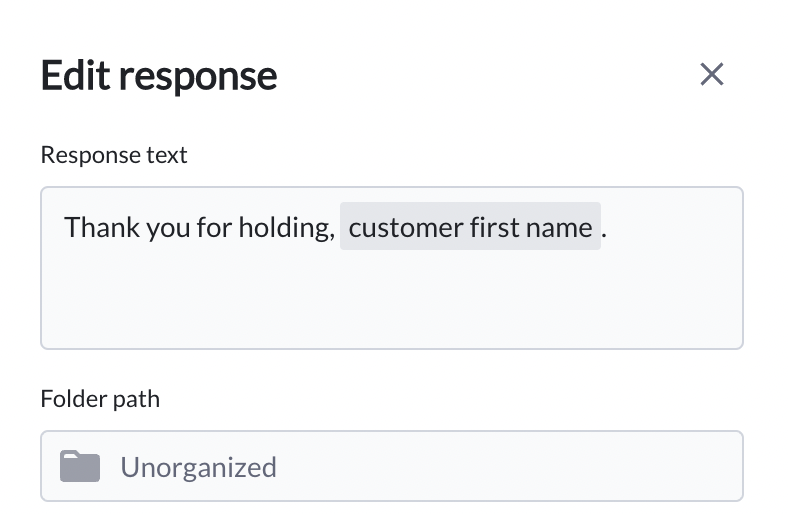 *Adding a templated response in AI-Console*
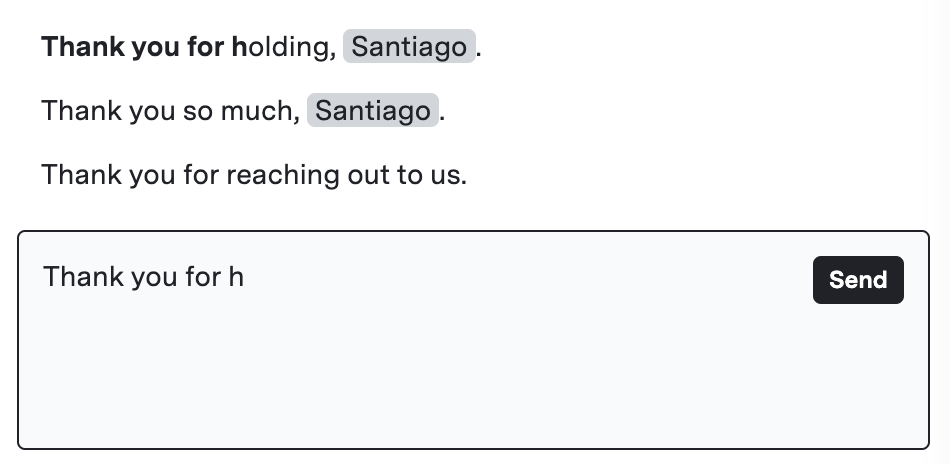 *Templated response being suggested to the agent in AI Compose*
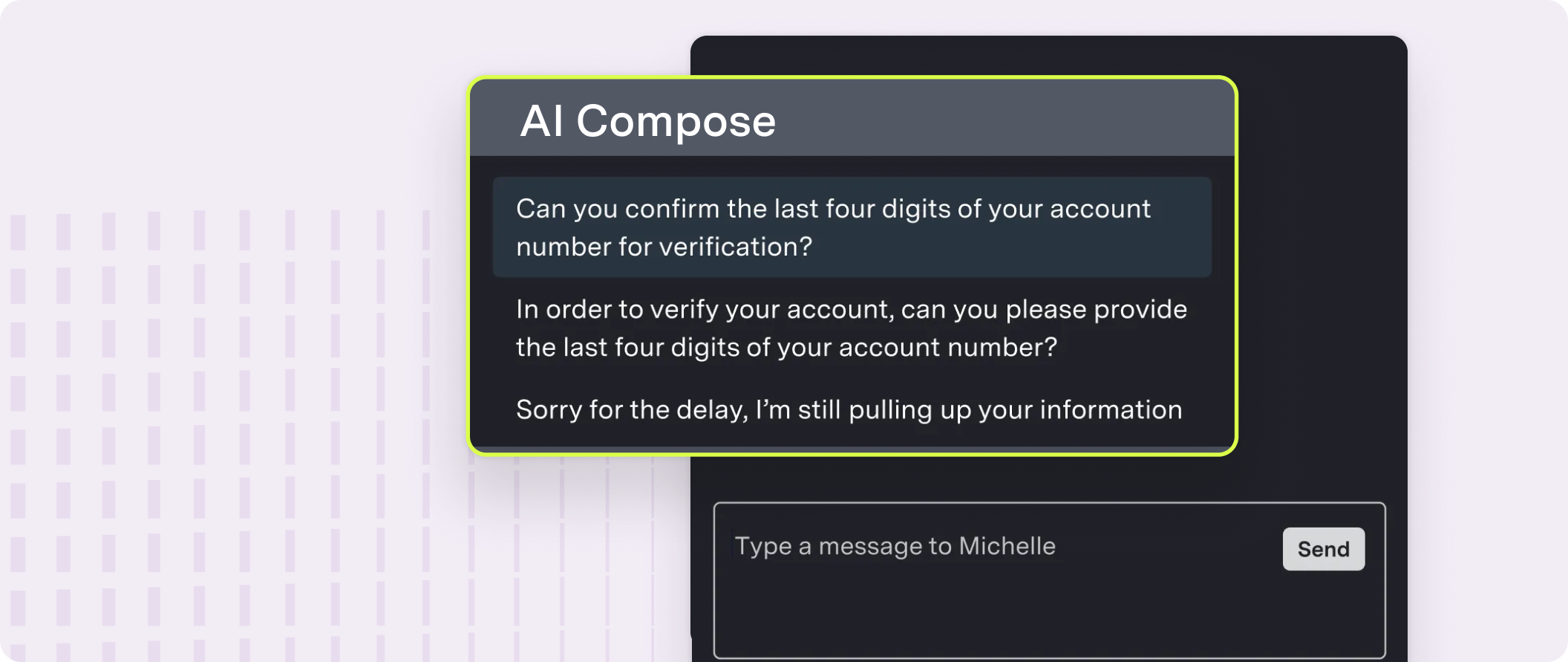 ASAPP AI Compose helps agents compose the best response to customers, using machine learning techniques to suggest complete responses, partial sentences, key phrases and spelling fixes in real-time based on both the context of the conversation and past agent behavior.
## Features
AI Compose provides the following features:
| Feature | Description |
| :----------------------- | :------------------------------------------------------------------------------------------------------------------------ |
| **Autosuggest** | Provides up to three suggestions that appear in a suggestion drawer above the typing field before the agent begins typing |
| **Autocomplete** | Provides up to three suggestions that appear in a suggestion drawer above the typing field after the agent starts typing |
| **Phrase autocomplete** | Provides in-line phrase suggestions that appear while an agent is typing |
| **Response quicksearch** | Allows in-line search of global and custom responses |
| **Fluency correction** | Applies automatic grammar corrections that agents can undo |
| **Profanity blocking** | Prevents agents from sending messages containing profanity to customers |
| **Custom response list** | Enables management of an individual agent's custom responses in a simple library interface |
| **Global response list** | Enables management of global responses in a simple tooling interface |
## How it works
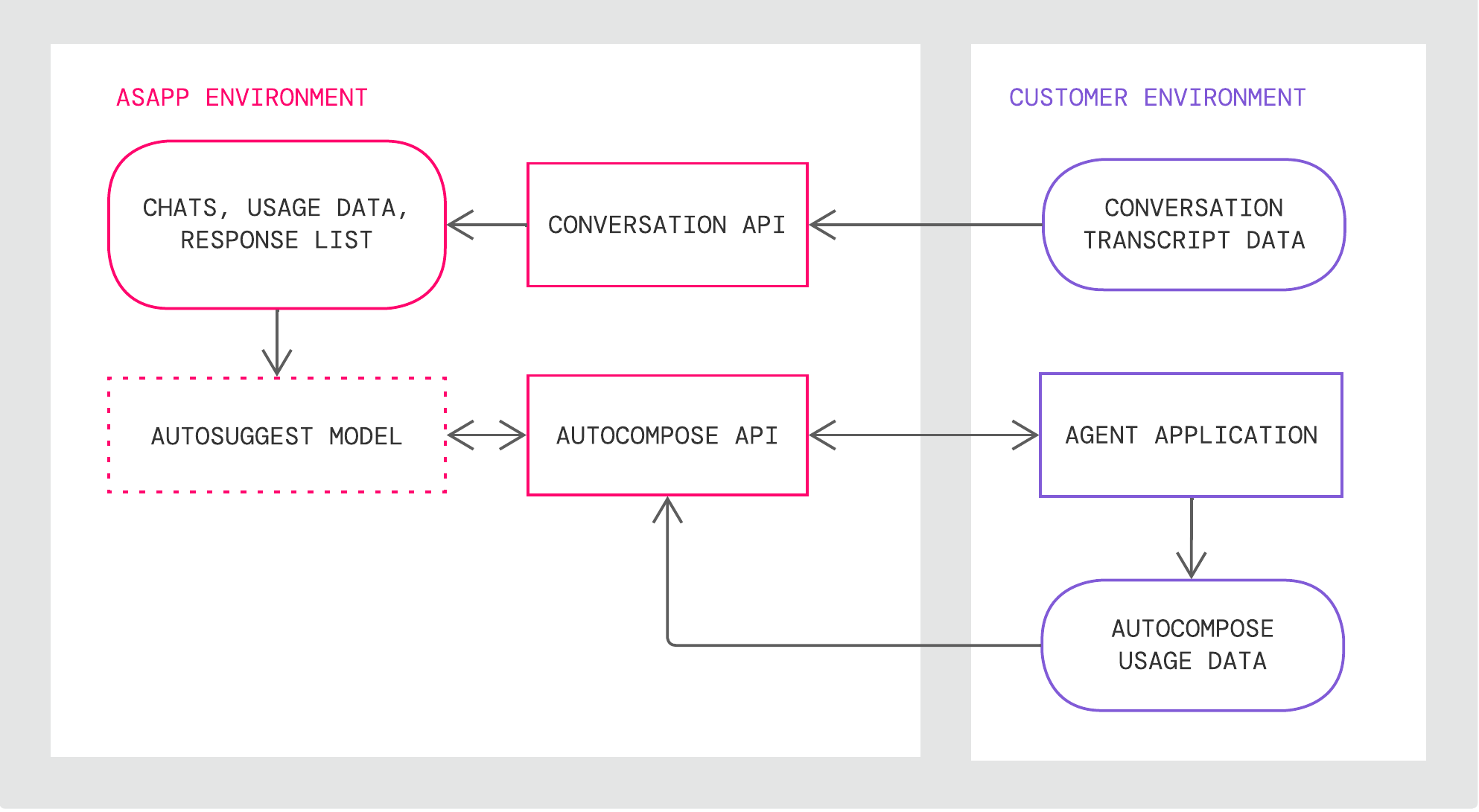
AI Compose takes in a live feed of your agents' conversations and then uses our various AI models to return a list of changes or suggested responses based on the state of the conversation and the currently typed message.
1. Provide conversation data via the Conversation API.
2. In your Agent Application, call the AI Compose APIs to retrieve the list of changes or suggested responses.
3. Show the potential changes or responses to your agents for them to incorporate.
This streamlines your agents' efficiency while still allowing agents to review changes, ensuring only the highest quality of responses reach your customers.
AI Compose has the following technical components:
| Component | Description |
| :--------------------- | :------------------------------------------------------------------------------------------------------------------------------------ |
| **Autosuggest model** | LLM that ASAPP retrains with agent usage data |
| **Data Storage** | Storage for historical conversations, global response lists, and agent historical feature usage that ASAPP uses for weekly retraining |
| **Conversation API**\* | An API for creating and updating conversations and conversation data |
ASAPP AI Compose helps agents compose the best response to customers, using machine learning techniques to suggest complete responses, partial sentences, key phrases and spelling fixes in real-time based on both the context of the conversation and past agent behavior.
## Features
AI Compose provides the following features:
| Feature | Description |
| :----------------------- | :------------------------------------------------------------------------------------------------------------------------ |
| **Autosuggest** | Provides up to three suggestions that appear in a suggestion drawer above the typing field before the agent begins typing |
| **Autocomplete** | Provides up to three suggestions that appear in a suggestion drawer above the typing field after the agent starts typing |
| **Phrase autocomplete** | Provides in-line phrase suggestions that appear while an agent is typing |
| **Response quicksearch** | Allows in-line search of global and custom responses |
| **Fluency correction** | Applies automatic grammar corrections that agents can undo |
| **Profanity blocking** | Prevents agents from sending messages containing profanity to customers |
| **Custom response list** | Enables management of an individual agent's custom responses in a simple library interface |
| **Global response list** | Enables management of global responses in a simple tooling interface |
## How it works
AI Compose takes in a live feed of your agents' conversations and then uses our various AI models to return a list of changes or suggested responses based on the state of the conversation and the currently typed message.
1. Provide conversation data via the Conversation API.
2. In your Agent Application, call the AI Compose APIs to retrieve the list of changes or suggested responses.
3. Show the potential changes or responses to your agents for them to incorporate.
This streamlines your agents' efficiency while still allowing agents to review changes, ensuring only the highest quality of responses reach your customers.
AI Compose has the following technical components:
| Component | Description |
| :--------------------- | :------------------------------------------------------------------------------------------------------------------------------------ |
| **Autosuggest model** | LLM that ASAPP retrains with agent usage data |
| **Data Storage** | Storage for historical conversations, global response lists, and agent historical feature usage that ASAPP uses for weekly retraining |
| **Conversation API**\* | An API for creating and updating conversations and conversation data |
 ## Get Started
Integrate AI Compose into your applications and scale up your agent response rates.
### Integrate AI Compose
AI Compose is available both as an integration into leading messaging applications and as an API for custom-built messaging interfaces.
For technical instructions on how to implement the service for each approach, refer to the deployment guides below:
## Get Started
Integrate AI Compose into your applications and scale up your agent response rates.
### Integrate AI Compose
AI Compose is available both as an integration into leading messaging applications and as an API for custom-built messaging interfaces.
For technical instructions on how to implement the service for each approach, refer to the deployment guides below:
 ASAPP AI Summary is a recommended pairing with AI Compose, generating conversation summaries of key events for 100% of customer interactions.
Note-taking and disposition questions take call time and agent focus, both of which can have a negative impact on agent performance. Removing summarization tasks from agents through automation can keep agents focused on messaging with customers and yield higher summary data coverage than manual agent notes.
ASAPP AI Summary is a recommended pairing with AI Compose, generating conversation summaries of key events for 100% of customer interactions.
Note-taking and disposition questions take call time and agent focus, both of which can have a negative impact on agent performance. Removing summarization tasks from agents through automation can keep agents focused on messaging with customers and yield higher summary data coverage than manual agent notes.
 ## Product Configuration
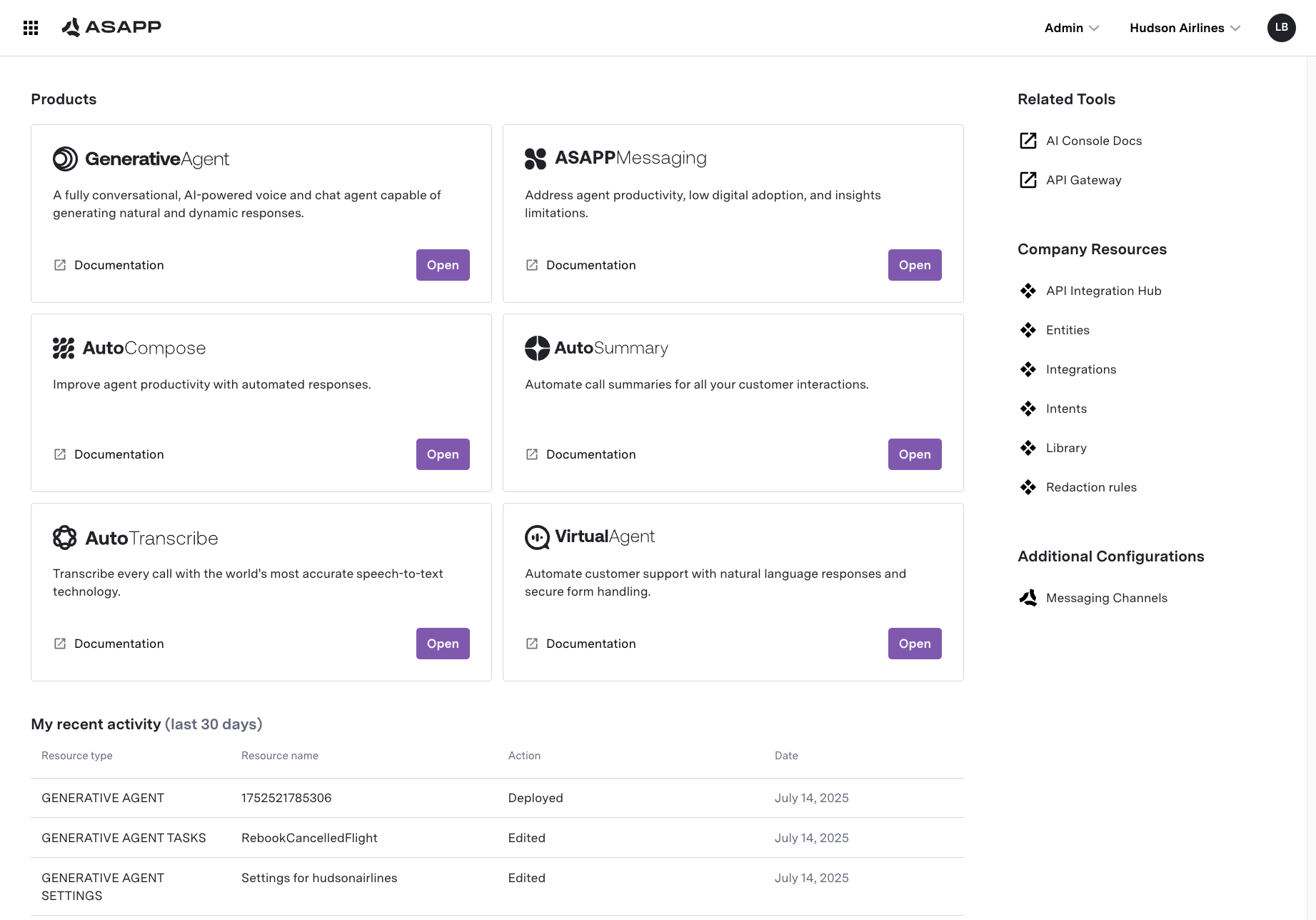
AI Console allows you to set up and manage ASAPP products.
## Product Configuration
AI Console allows you to set up and manage ASAPP products.
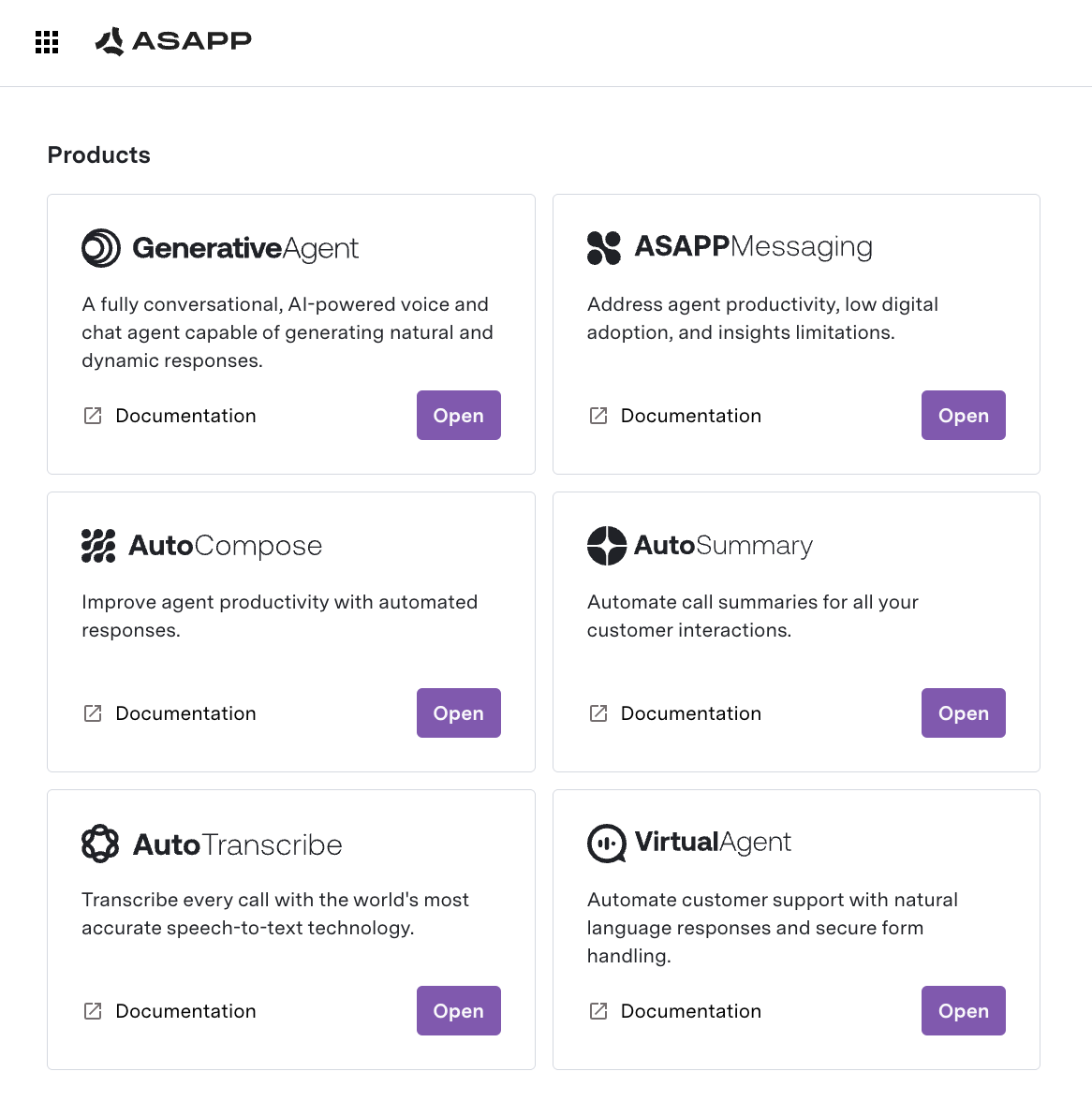 You can configure the following products:
* [GenerativeAgent](/generativeagent): Configure Tasks, Functions, Knowledge Bases, and more.
* [ASAPP Messaging](/agent-desk): Configure intents, flows, response libraries, and other ASAPP Messaging settings.
* [Queues and Routing](/agent-desk/digital-agent-desk/queues-and-routing)
* [Virtual Agent](/agent-desk/virtual-agent)
* [End Customer IP Blocking](/security/external-ip-blocking)
* [AI Compose](/ai-productivity/ai-compose): Configure responses and other settings for AI Compose.
* [AI Summary](/ai-productivity/ai-summary): Try out AI Summary within the AI Console.
## Manage Company Resources
**Company Resources** are shared entities that multiple ASAPP products use.
You can configure the following products:
* [GenerativeAgent](/generativeagent): Configure Tasks, Functions, Knowledge Bases, and more.
* [ASAPP Messaging](/agent-desk): Configure intents, flows, response libraries, and other ASAPP Messaging settings.
* [Queues and Routing](/agent-desk/digital-agent-desk/queues-and-routing)
* [Virtual Agent](/agent-desk/virtual-agent)
* [End Customer IP Blocking](/security/external-ip-blocking)
* [AI Compose](/ai-productivity/ai-compose): Configure responses and other settings for AI Compose.
* [AI Summary](/ai-productivity/ai-summary): Try out AI Summary within the AI Console.
## Manage Company Resources
**Company Resources** are shared entities that multiple ASAPP products use.
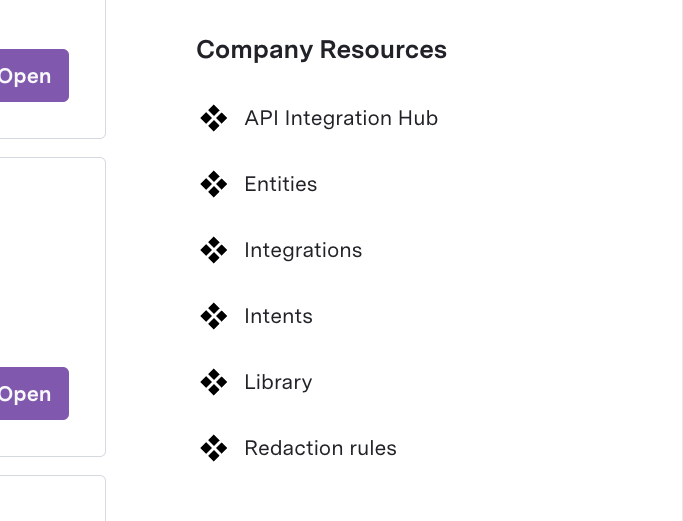 Company Resources include:
* **API Integration Hub**: Manage [API Connections](/generativeagent/configuring/connect-apis) that connect GenerativeAgent to external systems. This includes:
* Managing API Connections, API Specs, and Authentication.
* Viewing [API Logs](/generativeagent/configuring/connect-apis#api-connection-logs).
* **Entities**: Data fields used for routing, reporting, and personalization
* **Integrations**: Data and API Integrations to connect ASAPP Messaging to external systems.
* **Intents**: Customer intents recognized by Virtual Agent and other products
* **Library**: Build and attach deep links or Forms to use in Flows.
## Administration
AI Console is where you administer your ASAPP account. Located in the top right corner of the page.
Company Resources include:
* **API Integration Hub**: Manage [API Connections](/generativeagent/configuring/connect-apis) that connect GenerativeAgent to external systems. This includes:
* Managing API Connections, API Specs, and Authentication.
* Viewing [API Logs](/generativeagent/configuring/connect-apis#api-connection-logs).
* **Entities**: Data fields used for routing, reporting, and personalization
* **Integrations**: Data and API Integrations to connect ASAPP Messaging to external systems.
* **Intents**: Customer intents recognized by Virtual Agent and other products
* **Library**: Build and attach deep links or Forms to use in Flows.
## Administration
AI Console is where you administer your ASAPP account. Located in the top right corner of the page.
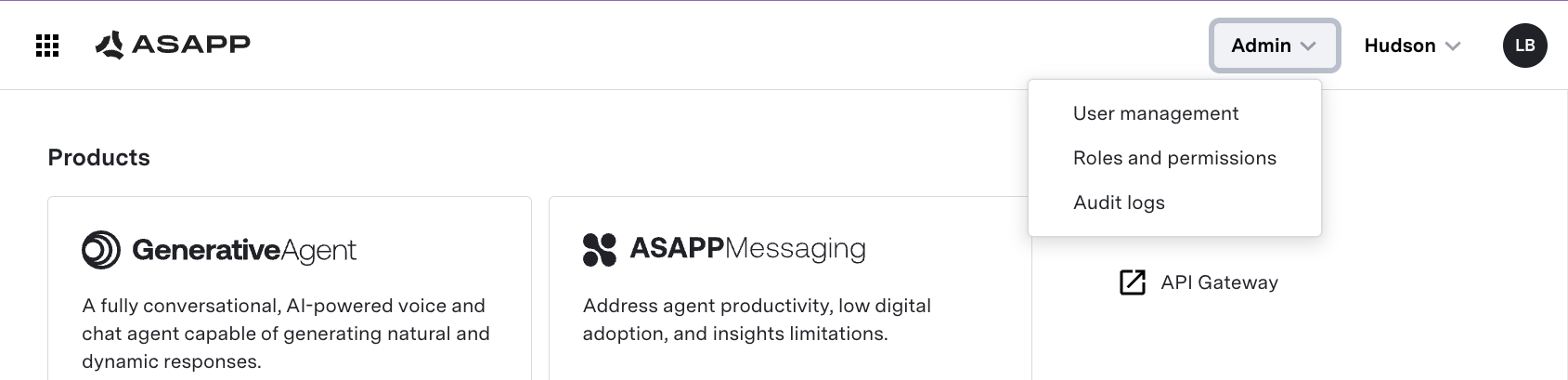 Within the Administration page, you can:
* **Manage Users and Roles**:
* Invite users and assign them roles (admin, developer, business user, etc.)
* Control permissions for access to different applications and features
* Map SSO roles to ASAPP roles for seamless access
* **View Audit Logs**:
* Track all configuration changes, deployments, and user actions for compliance and troubleshooting
* Search, filter, and export audit logs for review
## Quick Navigation
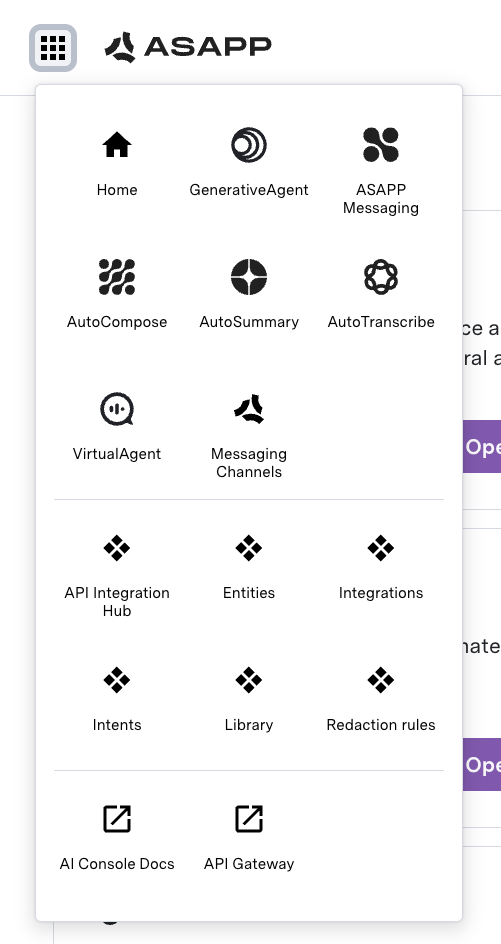
AI Console provides quick navigation to the product pages and company resources.
Within the Administration page, you can:
* **Manage Users and Roles**:
* Invite users and assign them roles (admin, developer, business user, etc.)
* Control permissions for access to different applications and features
* Map SSO roles to ASAPP roles for seamless access
* **View Audit Logs**:
* Track all configuration changes, deployments, and user actions for compliance and troubleshooting
* Search, filter, and export audit logs for review
## Quick Navigation
AI Console provides quick navigation to the product pages and company resources.
 ## Next Steps
Now that you understand the AI Console, here are the recommended next steps to get started:
## Next Steps
Now that you understand the AI Console, here are the recommended next steps to get started:
 AI Summary provides a set of APIs that enable you to extract insights from the wealth of data generated when your agents talk to your customers.
AI Summary insights use ASAPP's Generative AI (LLMs). Organizations use these insights to identify custom data, intents, topics, entities, sentiment drivers, and other structured data from every voice or chat (message) interaction between a customer and an agent.
You can customize AI Summary to your specific use cases, such as workflow optimizations, trade confirmations, compliance monitoring, and quality assurance.
## Insights and Data
With AI Summary, you can extract the following information:
| Insight | Description | This enables you to |
| :----------------------------------------------------------------- | :----------------------------------------------------------------------------------------------------------------------------------------------------------------------------------------------------------------------------------------------------------------------------------------------------------------------------------------------------- | :------------------------------------------------------------------------------------------------------------------------------------------------------------------------------------------------------------------------------------------------------------------------------- |
| [Free text summary](/ai-productivity/ai-summary/free-text-summary) | Generates a concise text summary of each conversation |
AI Summary provides a set of APIs that enable you to extract insights from the wealth of data generated when your agents talk to your customers.
AI Summary insights use ASAPP's Generative AI (LLMs). Organizations use these insights to identify custom data, intents, topics, entities, sentiment drivers, and other structured data from every voice or chat (message) interaction between a customer and an agent.
You can customize AI Summary to your specific use cases, such as workflow optimizations, trade confirmations, compliance monitoring, and quality assurance.
## Insights and Data
With AI Summary, you can extract the following information:
| Insight | Description | This enables you to |
| :----------------------------------------------------------------- | :----------------------------------------------------------------------------------------------------------------------------------------------------------------------------------------------------------------------------------------------------------------------------------------------------------------------------------------------------- | :------------------------------------------------------------------------------------------------------------------------------------------------------------------------------------------------------------------------------------------------------------------------------- |
| [Free text summary](/ai-productivity/ai-summary/free-text-summary) | Generates a concise text summary of each conversation | - Reduces average handle time by eliminating post-call summarization.
- Improves customer experience by allowing agents to focus on customers.
- Optimizes operations by analyzing contact reasons.
- Improves customer experience through better conversation routing.
- Question: Answers to predefined queries (e.g., "Was the customer issue resolved?", "Did the agent follow the script?")
- Entities: Key information said in the conversation such as claim numbers, account details, approval dates, monetary amount, and more.
- Automates data collection for analytics and reporting.
- Facilitates compliance monitoring and quality assurance
- Enables rapid population of CRMs and other business tools
- Supports data-driven decision making and process improvement
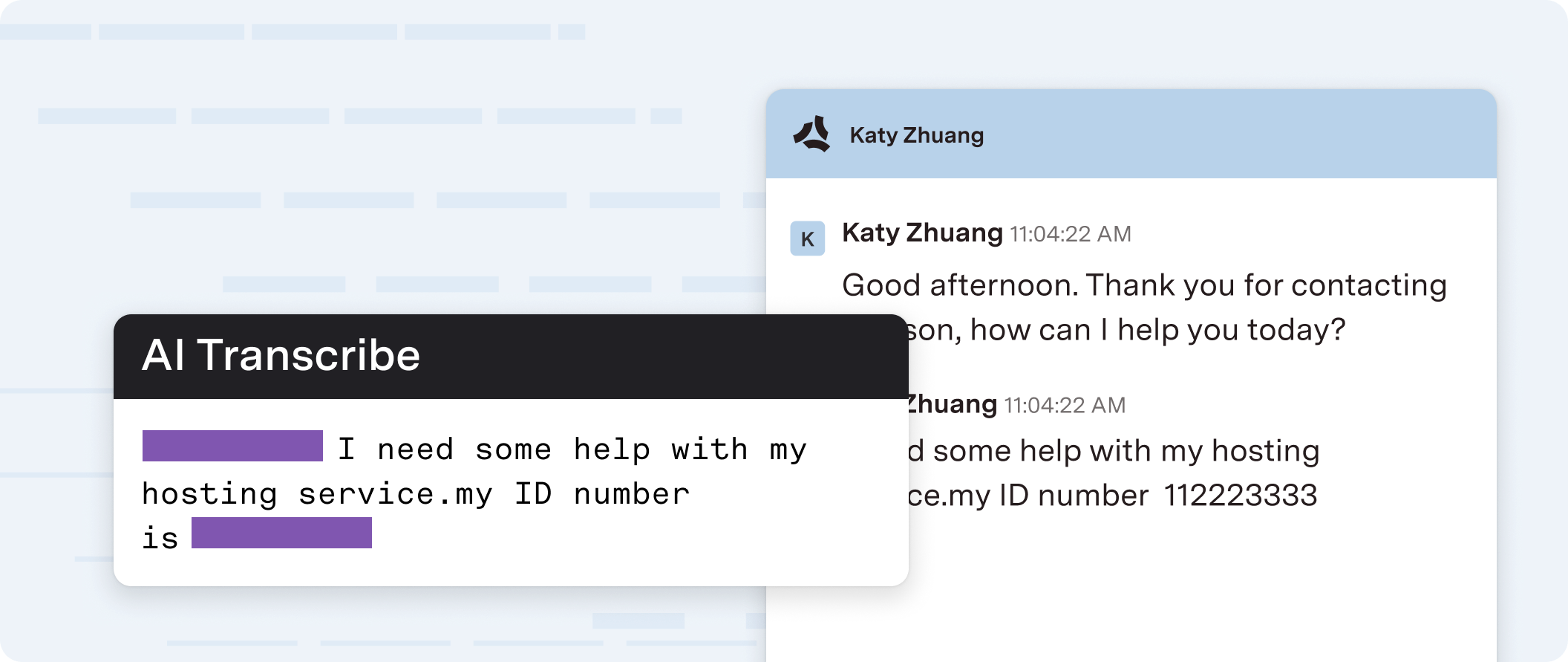 ASAPP AI Transcribe converts speech to text in real-time for live call audio streams and audio recordings.
Use AI Transcribe for voice interactions between contact center agents and their customers, in support of a broad range of use cases including real-time guidance, topical analysis, coaching, and quality management
A speech recognition model that transforms spoken form to written forms in real-time powers ASAPP's AI Transcribe service, along with punctuation and capitalization. To optimize performance, you can customize the model to support domain-specific needs by training on historical call audio and adding custom vocabulary to further boost recognition accuracy.
## How it Works
A speech recognition model that transforms spoken form to written forms in real-time powers ASAPP's AI Transcribe service, along with punctuation and capitalization.
To optimize performance, you can customize the model to support domain-specific needs by training on historical call audio and adding custom vocabulary to further boost recognition accuracy
ASAPP designed AI Transcribe to be fast enough to show an agent what was said immediately after every utterance.
You can implement AI Transcribe in three main integration patterns:
1. **WebSocket API**: All audio streaming, call signaling, and returned transcripts use a WebSocket API, preceded by an authentication mechanism that uses a REST API.
2. **SIPREC Media Gateway**: The ASAPP media gateway receives audio streaming, and a dedicated API receives call signaling; the system returns transcripts either in real-time or post-call.
3. **Third-Party CCaaS**: A third-party contact center as a service (CCaaS) vendor sends audio to the ASAPP media gateway, and an API sends call signaling; the system returns transcripts either in real-time or post-call.
ASAPP AI Transcribe converts speech to text in real-time for live call audio streams and audio recordings.
Use AI Transcribe for voice interactions between contact center agents and their customers, in support of a broad range of use cases including real-time guidance, topical analysis, coaching, and quality management
A speech recognition model that transforms spoken form to written forms in real-time powers ASAPP's AI Transcribe service, along with punctuation and capitalization. To optimize performance, you can customize the model to support domain-specific needs by training on historical call audio and adding custom vocabulary to further boost recognition accuracy.
## How it Works
A speech recognition model that transforms spoken form to written forms in real-time powers ASAPP's AI Transcribe service, along with punctuation and capitalization.
To optimize performance, you can customize the model to support domain-specific needs by training on historical call audio and adding custom vocabulary to further boost recognition accuracy
ASAPP designed AI Transcribe to be fast enough to show an agent what was said immediately after every utterance.
You can implement AI Transcribe in three main integration patterns:
1. **WebSocket API**: All audio streaming, call signaling, and returned transcripts use a WebSocket API, preceded by an authentication mechanism that uses a REST API.
2. **SIPREC Media Gateway**: The ASAPP media gateway receives audio streaming, and a dedicated API receives call signaling; the system returns transcripts either in real-time or post-call.
3. **Third-Party CCaaS**: A third-party contact center as a service (CCaaS) vendor sends audio to the ASAPP media gateway, and an API sends call signaling; the system returns transcripts either in real-time or post-call.
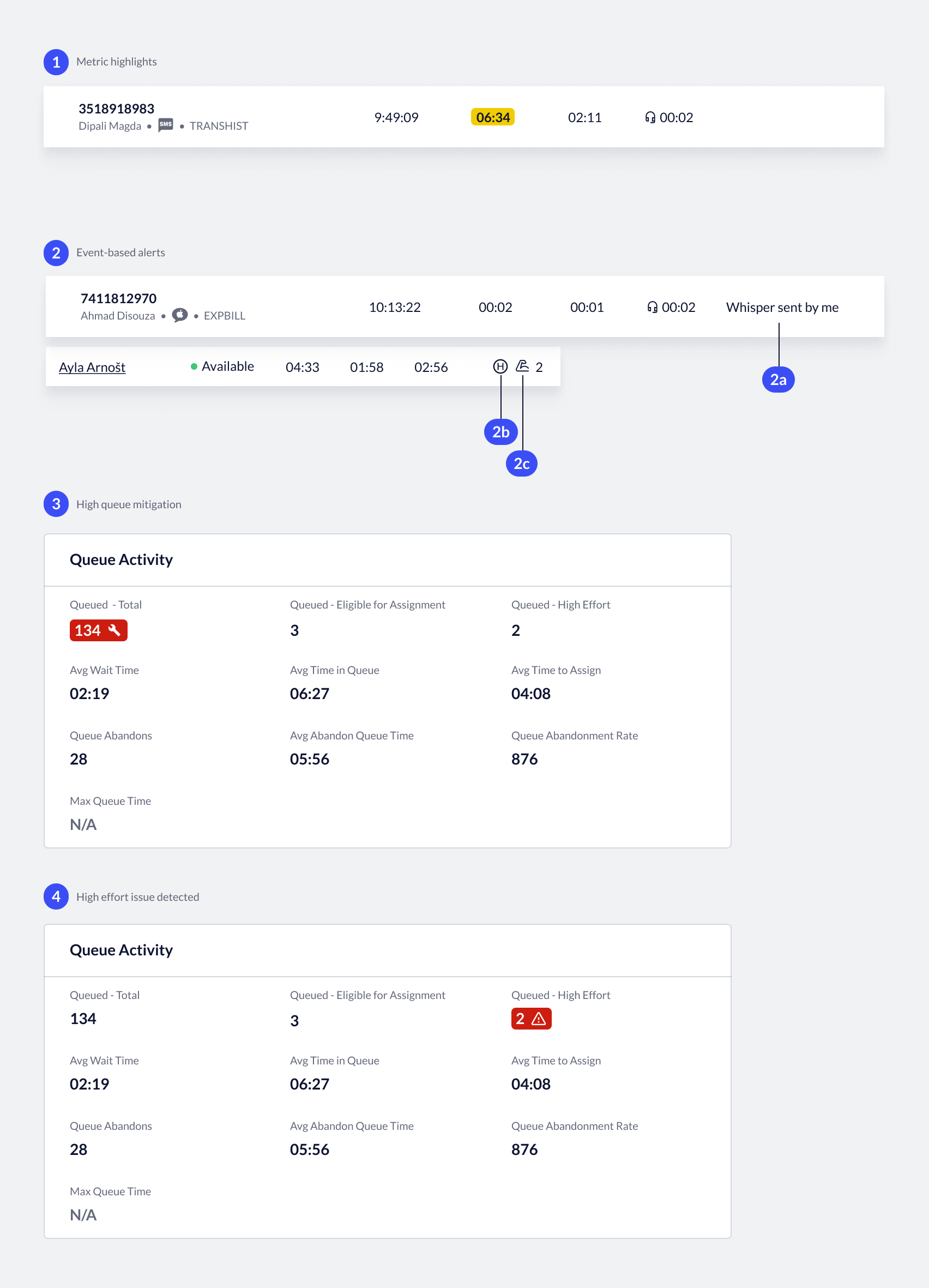 Live Insights displays four alert types:
1. **Metric Highlighting**: Highlights metrics that are above their target threshold within Live Insights. The system shows the highlights on the Overview page, as well as within single queues and queue groups. The alert will persist until the metric's performance returns below its threshold.
2. **Event-based Alerts**: Detects and records events per conversation and displays them in the conversation activity table.
3. **High Queue Mitigation**: Activates when the queue volume exceeds the target threshold. When active, you can use mitigation measures to reduce queue volume impacts.
4. **High Effort Issue**: Indicates when a high effort issue is awaiting assignment and is currently blocking other issues from being assigned.
## Metric Highlighting
Live Insights highlights metrics that are above their target threshold on the Overview page, as well as within single queues and queue groups.
The alert persists until the metric's performance returns below its threshold.
Live Insights displays four alert types:
1. **Metric Highlighting**: Highlights metrics that are above their target threshold within Live Insights. The system shows the highlights on the Overview page, as well as within single queues and queue groups. The alert will persist until the metric's performance returns below its threshold.
2. **Event-based Alerts**: Detects and records events per conversation and displays them in the conversation activity table.
3. **High Queue Mitigation**: Activates when the queue volume exceeds the target threshold. When active, you can use mitigation measures to reduce queue volume impacts.
4. **High Effort Issue**: Indicates when a high effort issue is awaiting assignment and is currently blocking other issues from being assigned.
## Metric Highlighting
Live Insights highlights metrics that are above their target threshold on the Overview page, as well as within single queues and queue groups.
The alert persists until the metric's performance returns below its threshold.
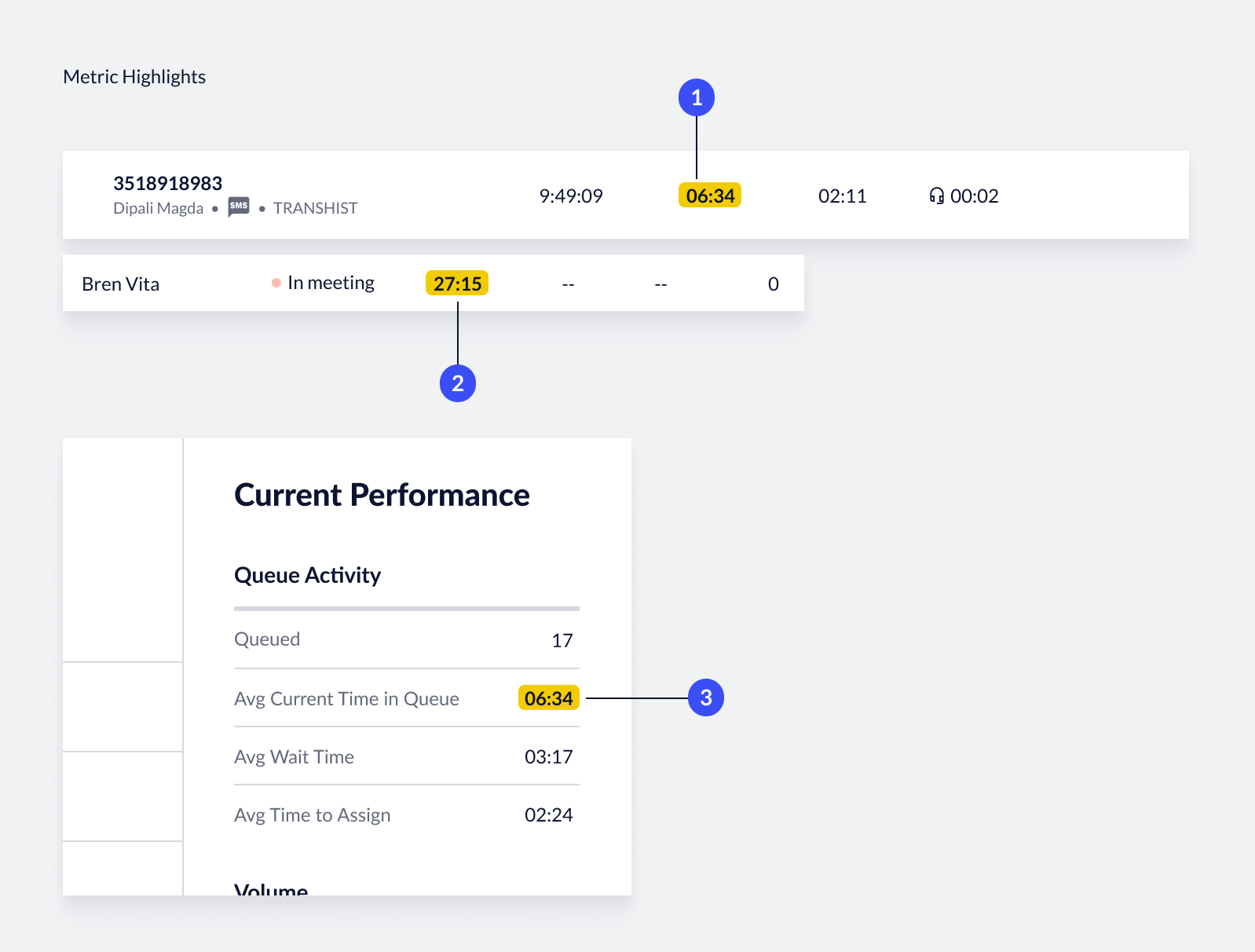 Where metrics are highlighted:
1. **Conversation performance**: The system can highlight both 'average handle time' and 'average response time'.
2. **Agent performance**: 'Time in status', 'average handle time', and 'average response time'.
3. **Queue performance**: The system can highlight queue-level metrics within a single queue, queue groups, or on the Overview page.
## Event-based Alerts
Agents, customers, or you generate events from actions taken.
Live Insights detects and records these events and displays them alongside conversation data, within the 'alert' column.
Where metrics are highlighted:
1. **Conversation performance**: The system can highlight both 'average handle time' and 'average response time'.
2. **Agent performance**: 'Time in status', 'average handle time', and 'average response time'.
3. **Queue performance**: The system can highlight queue-level metrics within a single queue, queue groups, or on the Overview page.
## Event-based Alerts
Agents, customers, or you generate events from actions taken.
Live Insights detects and records these events and displays them alongside conversation data, within the 'alert' column.
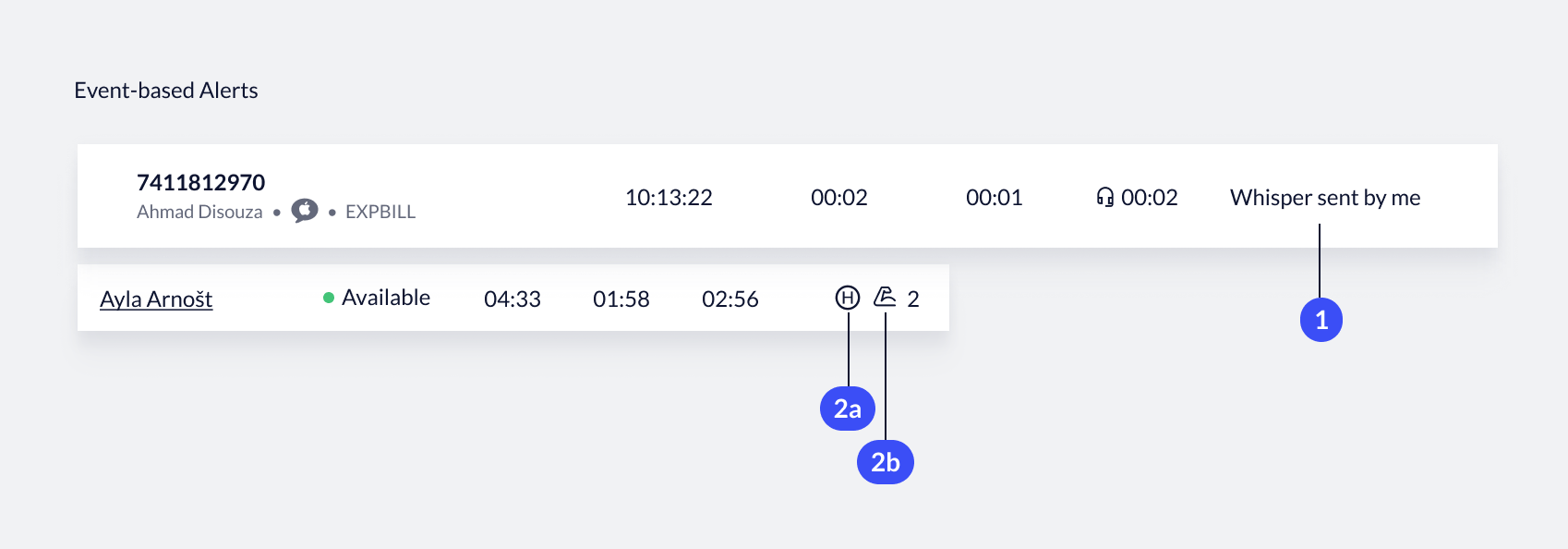 1. **Conversation events**: These events are related to a unique conversation. Agent actions or your actions can generate the events.
* **Customer transfers**: When an agent transfers a customer, Live Insights displays an alert next to the conversation.
* **Whisper sent**: When you send a whisper message to an agent, Live Insights records and displays the event next to the conversation.
2. **Agent events**: These events impact the agent workload and help you contextualize agent performance. Live Insights displays the events for all targeted agents, within the Agent Performance panel.
* **High effort**: Agents that are currently handling a high effort issue.
* **Flex concurrency**: The agent is currently flexed and has a higher than normal utilization.
## High Queue Mitigation
ASAPP provides tools to enable workforce management groups to act fast when queues are or could be anomalously high.
**Tools Overview**
Live Insights can:
* Monitor queue volume for unusually high volume.
* Highlight 'Queued' metric based on severity level.
* Activate 'Custom High Wait Time' messaging and replace Estimated Wait Time messaging.
* Pause queues experiencing extremely high volume and prevent new queue assignments.
**Volume Thresholds:**
Live Insights highlights metrics when they reach past a threshold defined for the queue.
1. **Conversation events**: These events are related to a unique conversation. Agent actions or your actions can generate the events.
* **Customer transfers**: When an agent transfers a customer, Live Insights displays an alert next to the conversation.
* **Whisper sent**: When you send a whisper message to an agent, Live Insights records and displays the event next to the conversation.
2. **Agent events**: These events impact the agent workload and help you contextualize agent performance. Live Insights displays the events for all targeted agents, within the Agent Performance panel.
* **High effort**: Agents that are currently handling a high effort issue.
* **Flex concurrency**: The agent is currently flexed and has a higher than normal utilization.
## High Queue Mitigation
ASAPP provides tools to enable workforce management groups to act fast when queues are or could be anomalously high.
**Tools Overview**
Live Insights can:
* Monitor queue volume for unusually high volume.
* Highlight 'Queued' metric based on severity level.
* Activate 'Custom High Wait Time' messaging and replace Estimated Wait Time messaging.
* Pause queues experiencing extremely high volume and prevent new queue assignments.
**Volume Thresholds:**
Live Insights highlights metrics when they reach past a threshold defined for the queue.
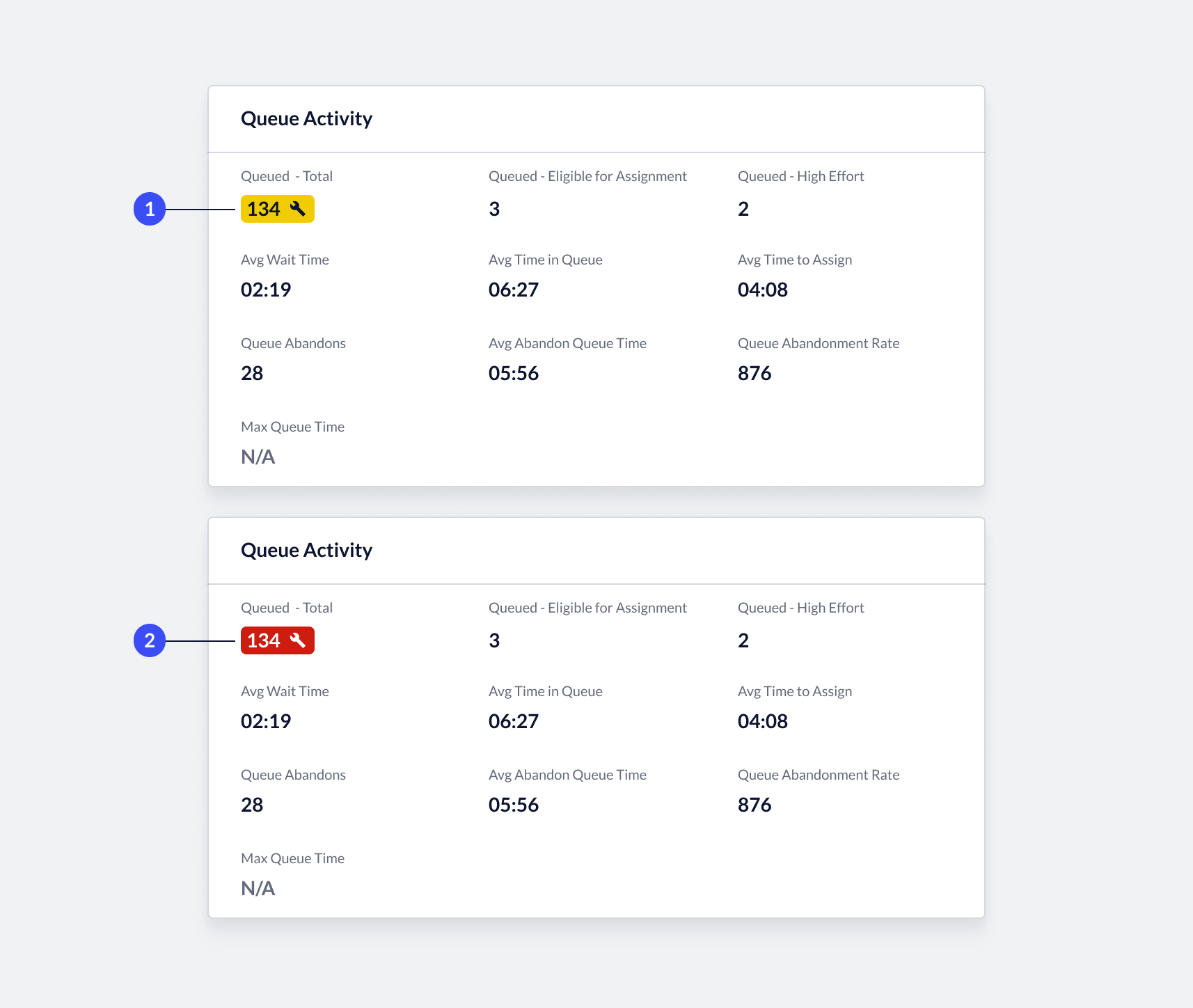 1. **Low Severity:** detects abnormal activity and has moderate impact on the queue.
2. **High Severity**: detects highly abnormal activity. The queue is severely impacted.
**Mitigation Options:**
1. **Low Severity:** detects abnormal activity and has moderate impact on the queue.
2. **High Severity**: detects highly abnormal activity. The queue is severely impacted.
**Mitigation Options:**
Mitigation |
Severity Threshold |
Features available |
|
Default behavior Business as usual. All queues are operating based on this setting. |
None |
|
|
Custom High Wait Time Message Low severity mitigation measure. Replaces Estimated Wait Time messaging. |
Low Severity |
|
|
Pausing the Queue High severity mitigation measure. Prevents new assignments to the queue. |
High Severity |
|
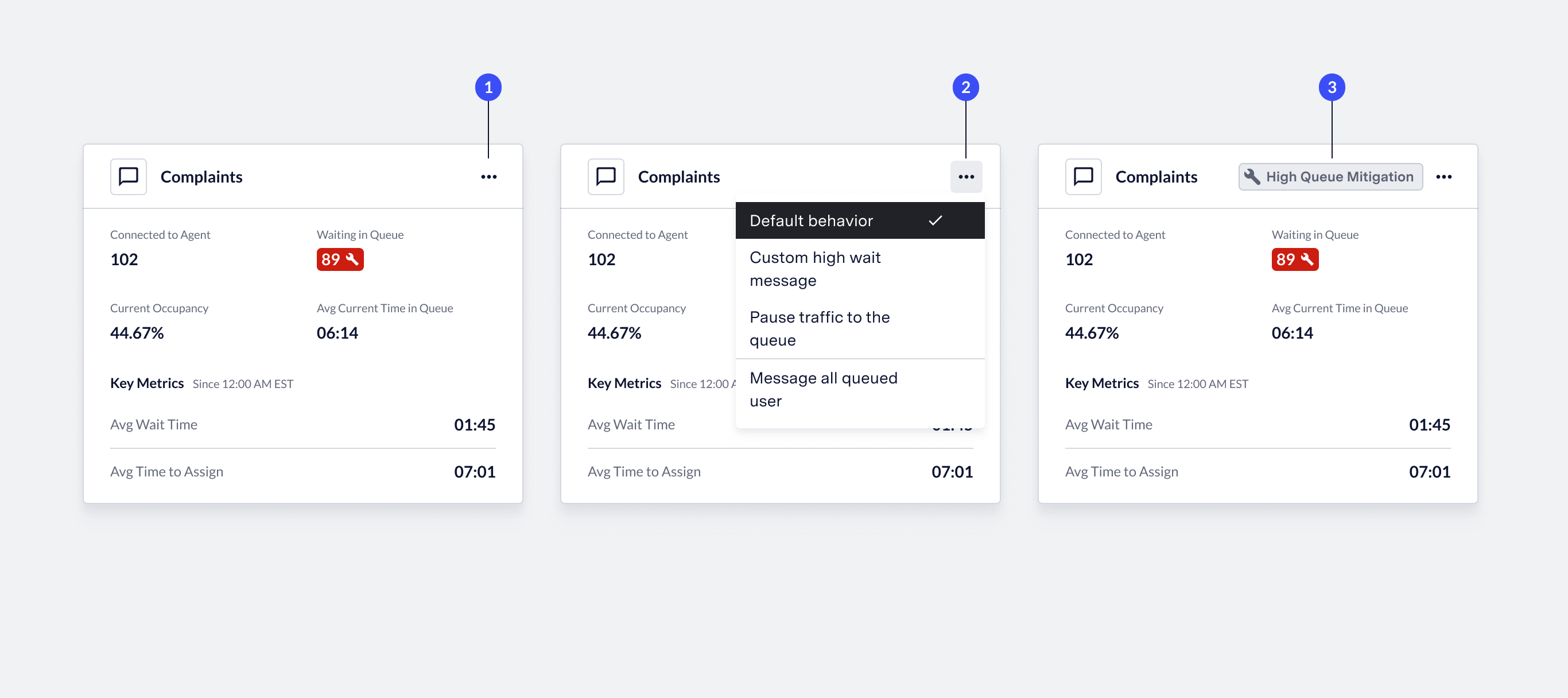 1. **Mitigation menu options**: When available, Live Insights displays a menu on the relevant queue card in the Overview, as well as on the 'Performance' page of single queues and queue groups. To view those options, click the **menu** icon. The menu icon only displays when you highlight 'Queued'.
2. **Select mitigation**: Based on the severity level, Live Insights displays different mitigation options. Select an **option** to activate it. To remove the mitigation behavior, select **Default behavior**.
3. **Mitigation applied**: When you select a mitigation option, the system indicates it on the queue card or on the Performance page.
## High Effort Issues
ASAPP supports a capability to enable agent focus for higher effort issues, while maintaining efficiency.
This feature dynamically adjusts how many concurrent issues an agent should handle while assigned a high effort issue.
### What is a High Effort Issue
ASAPP will route customers based on the expected effort of their issue. All issues, by default, will have an effort of 1.
Any issue with an effort value greater than 1 becomes "high effort". Reach out to your ASAPP Implementation team to configure high effort rules for your program.
## Feature Definition
* **Slot**: A slot represents a space for a chat to be assigned to an agent. You can assign and configure multiple slots to a single agent via User Management.
* **Effort**: Effort represents what is needed from an agent to solve an issue. For each effort point assigned to an issue, an agent must have an equivalent number of available slots to be assigned that issue. ASAPP determines an issue's effort by its relevant customer attributes.
* **High Effort Time Threshold**: A threshold that sets how much time an agent can parallelize a high effort issue with other issues. You can configure this threshold per queue. This threshold represents the duration of all existing assignments an agent is handling when a high effort issue is next in line.
* **Flex Slot**: All agents have 1 additional slot that can be used if they are eligible to receive a flex assignment or if they are temporarily over-effort when handling a high effort issue.
* **Linear Utilization Level:** A type of Linear Utilization relative to the number of assignments an agent has assigned at a given time, regardless of the assignment workload state.
* **Assignment Workload**: A measure of Linear Workload relative to the number of active assignments an agent has assigned at a given time. An assignment is not considered active if it has caused an agent to become Flex Eligible.
* **Effort Workload**: A measure of Linear Workload relative to the issue effort of all active assignments an agent has assigned at a given time.
1. **Mitigation menu options**: When available, Live Insights displays a menu on the relevant queue card in the Overview, as well as on the 'Performance' page of single queues and queue groups. To view those options, click the **menu** icon. The menu icon only displays when you highlight 'Queued'.
2. **Select mitigation**: Based on the severity level, Live Insights displays different mitigation options. Select an **option** to activate it. To remove the mitigation behavior, select **Default behavior**.
3. **Mitigation applied**: When you select a mitigation option, the system indicates it on the queue card or on the Performance page.
## High Effort Issues
ASAPP supports a capability to enable agent focus for higher effort issues, while maintaining efficiency.
This feature dynamically adjusts how many concurrent issues an agent should handle while assigned a high effort issue.
### What is a High Effort Issue
ASAPP will route customers based on the expected effort of their issue. All issues, by default, will have an effort of 1.
Any issue with an effort value greater than 1 becomes "high effort". Reach out to your ASAPP Implementation team to configure high effort rules for your program.
## Feature Definition
* **Slot**: A slot represents a space for a chat to be assigned to an agent. You can assign and configure multiple slots to a single agent via User Management.
* **Effort**: Effort represents what is needed from an agent to solve an issue. For each effort point assigned to an issue, an agent must have an equivalent number of available slots to be assigned that issue. ASAPP determines an issue's effort by its relevant customer attributes.
* **High Effort Time Threshold**: A threshold that sets how much time an agent can parallelize a high effort issue with other issues. You can configure this threshold per queue. This threshold represents the duration of all existing assignments an agent is handling when a high effort issue is next in line.
* **Flex Slot**: All agents have 1 additional slot that can be used if they are eligible to receive a flex assignment or if they are temporarily over-effort when handling a high effort issue.
* **Linear Utilization Level:** A type of Linear Utilization relative to the number of assignments an agent has assigned at a given time, regardless of the assignment workload state.
* **Assignment Workload**: A measure of Linear Workload relative to the number of active assignments an agent has assigned at a given time. An assignment is not considered active if it has caused an agent to become Flex Eligible.
* **Effort Workload**: A measure of Linear Workload relative to the issue effort of all active assignments an agent has assigned at a given time.
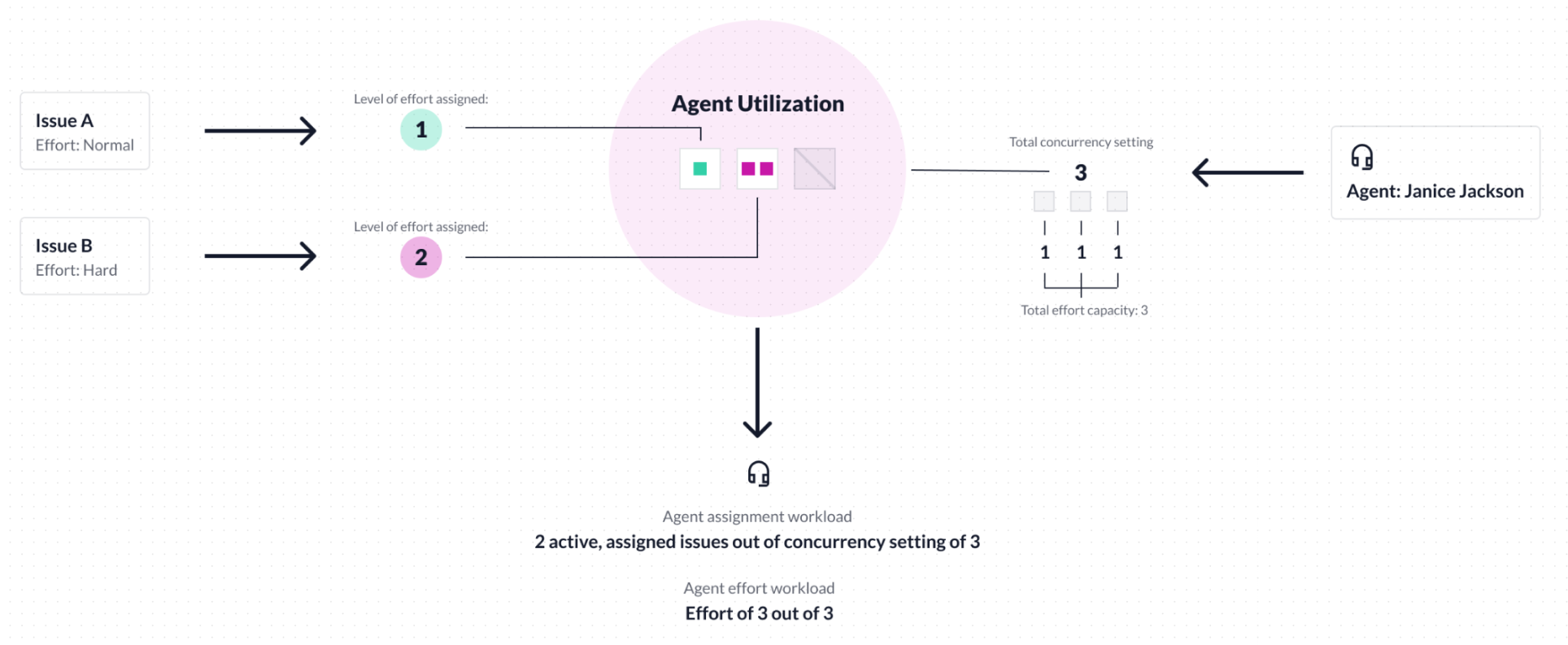 ### How are high effort issues prioritized and assigned?
ASAPP assigns high effort chats in the order that they entered the queue. You can prioritize high effort chats higher in the queue using customer attributes. This prioritization is optional and not required. A configurable *high effort time threshold* allows each queue to set how much time an agent can parallelize a high effort issue with other assignments.
### How are high effort issues prioritized and assigned?
ASAPP assigns high effort chats in the order that they entered the queue. You can prioritize high effort chats higher in the queue using customer attributes. This prioritization is optional and not required. A configurable *high effort time threshold* allows each queue to set how much time an agent can parallelize a high effort issue with other assignments.
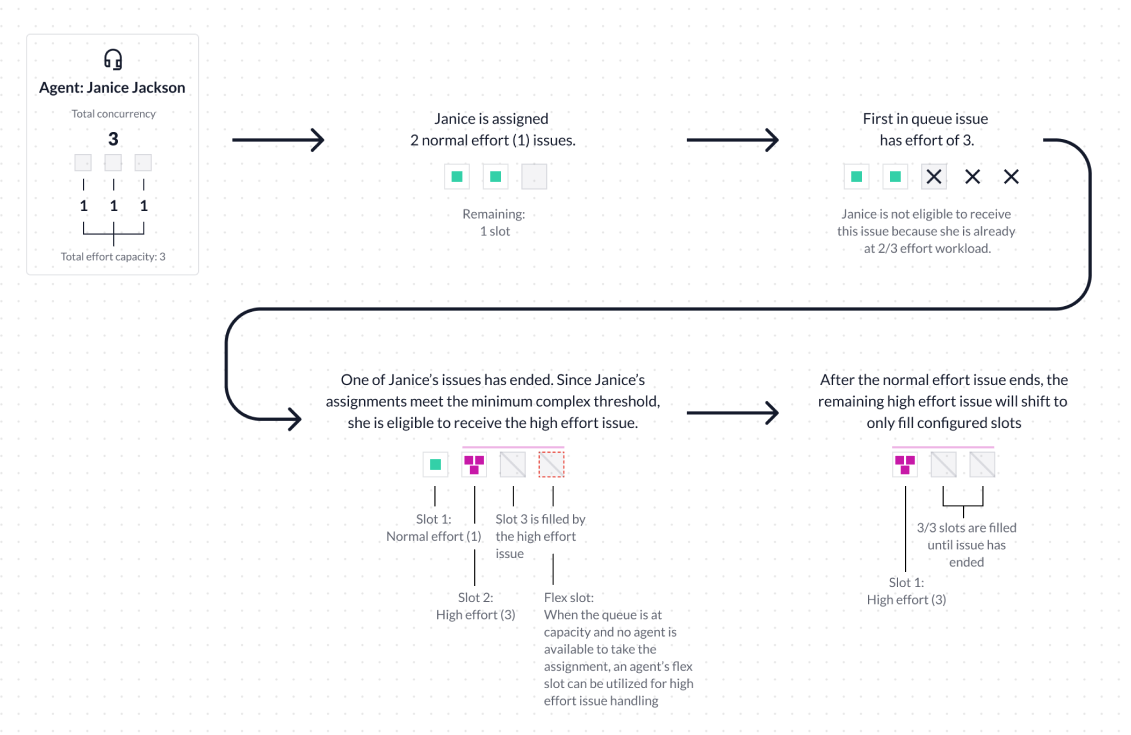 ### How are high effort issues assigned against other issues?
ASAPP assigns high effort issues in order of configured priority and when they entered the queue. An agent will receive a high effort assignment if they meet at least 1 of the following criteria:
* An agent has 0 active assignments.
* An agent has sufficient open slots to receive a high effort assignment.
* The **high effort time threshold** has elapsed for all of an agent's current assignments and the high effort chat's effort would not extend the agent's Effort Workload past their Flex Slot.
### How do high effort issues impact performance?
* High effort issues will not change current behavior for Queue Priority.
* High effort issues will not change current behavior for Flex Eligibility or Flex Protect.
* High effort issues take longer to assign because they have to wait for an agent to have sufficient effort capacity.
* If a set of queues has 50% or more agents in common, then a high effort issue at the front of one queue will hold the issues in the other "shared" queues until it is assigned.
### How do I monitor the impact of high effort issues?
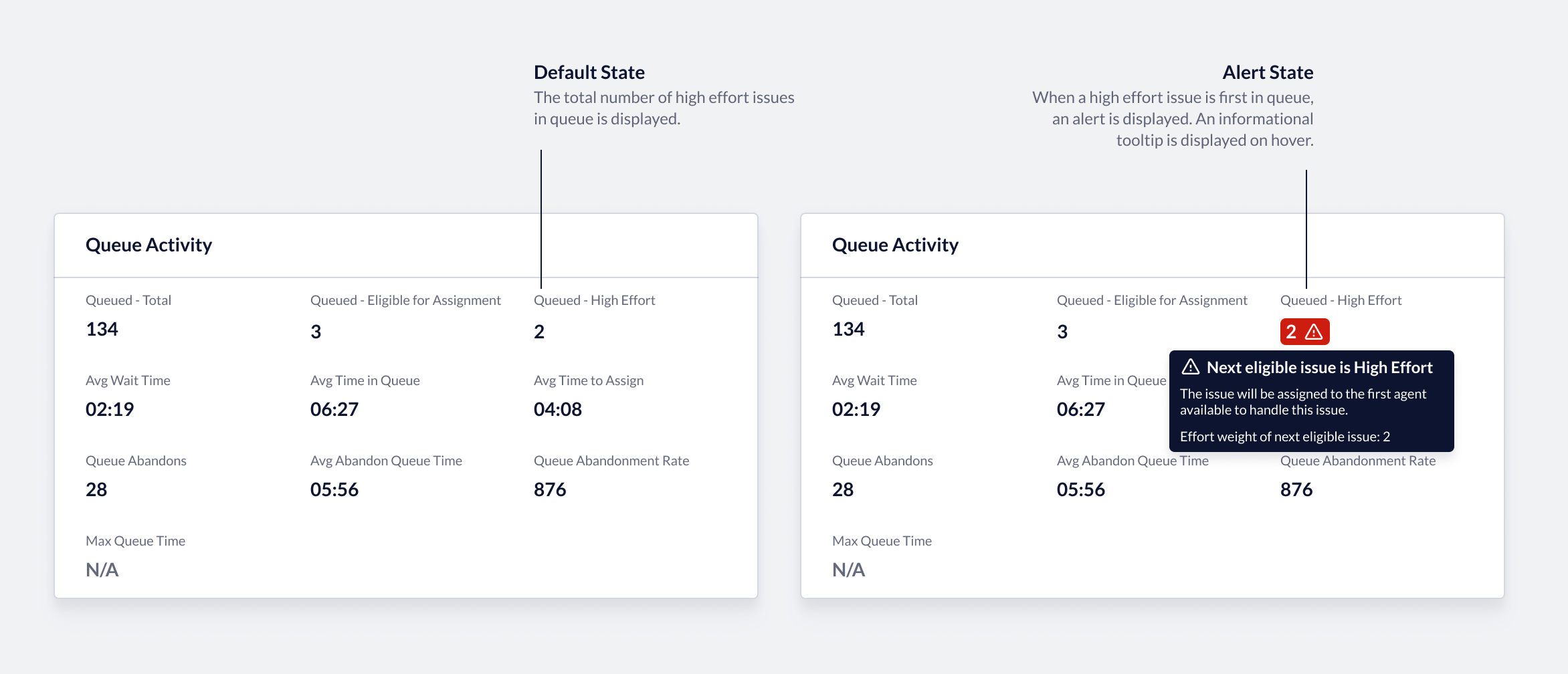
You can view the 'Queued - High Effort' metric in Live Insights on queue detail pages. This metric captures the number of high effort issues currently waiting in the queue. If a high effort issue is first in queue and slows other issues from being assigned, Live Insights displays an alert on this metric. These changes will also be visible for programs that do not have high effort rules configured.
### How are high effort issues assigned against other issues?
ASAPP assigns high effort issues in order of configured priority and when they entered the queue. An agent will receive a high effort assignment if they meet at least 1 of the following criteria:
* An agent has 0 active assignments.
* An agent has sufficient open slots to receive a high effort assignment.
* The **high effort time threshold** has elapsed for all of an agent's current assignments and the high effort chat's effort would not extend the agent's Effort Workload past their Flex Slot.
### How do high effort issues impact performance?
* High effort issues will not change current behavior for Queue Priority.
* High effort issues will not change current behavior for Flex Eligibility or Flex Protect.
* High effort issues take longer to assign because they have to wait for an agent to have sufficient effort capacity.
* If a set of queues has 50% or more agents in common, then a high effort issue at the front of one queue will hold the issues in the other "shared" queues until it is assigned.
### How do I monitor the impact of high effort issues?
You can view the 'Queued - High Effort' metric in Live Insights on queue detail pages. This metric captures the number of high effort issues currently waiting in the queue. If a high effort issue is first in queue and slows other issues from being assigned, Live Insights displays an alert on this metric. These changes will also be visible for programs that do not have high effort rules configured.
 ### How can I tell which agents are handling high effort issues?
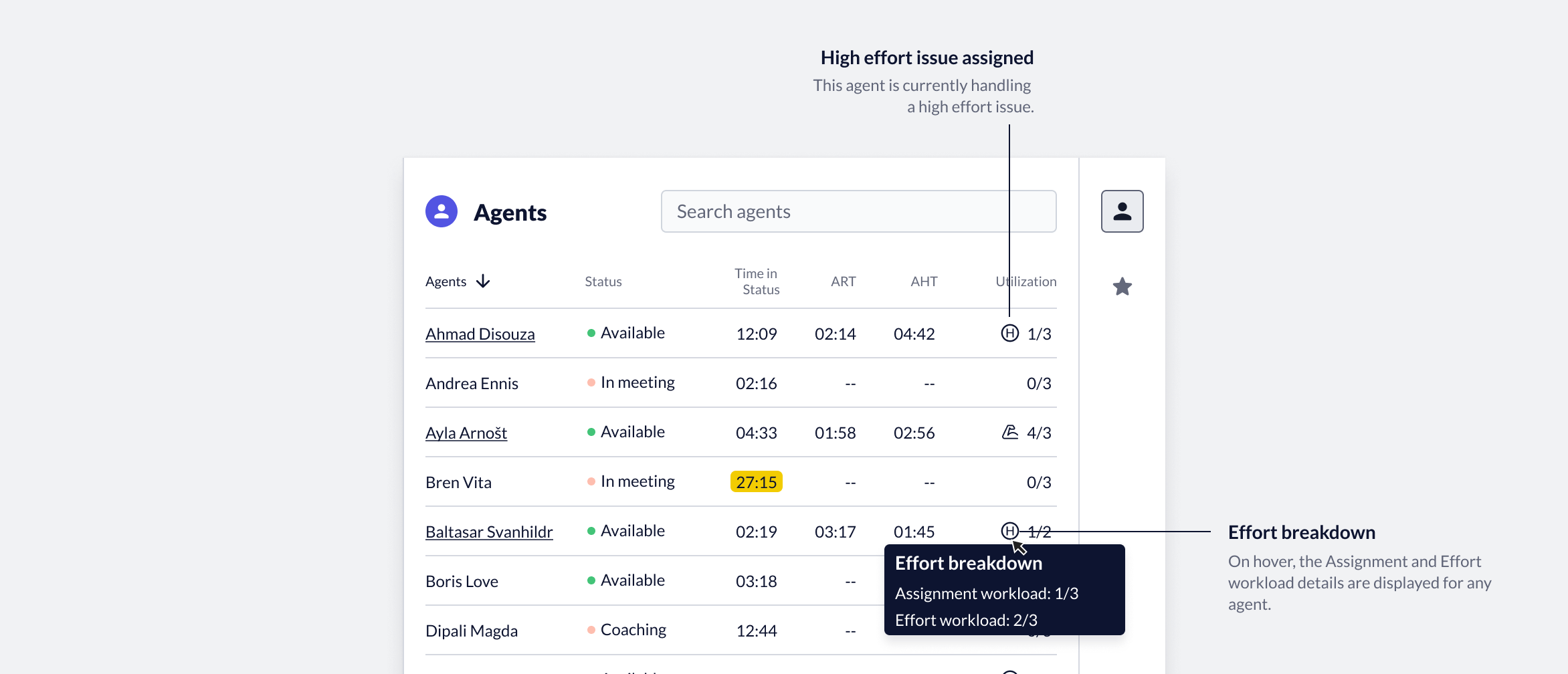
In the Agent Right Rail, you can monitor which agents are currently handling high effort issues. ASAPP displays an icon next to the agent's utilization indicating a high effort issue is assigned. These changes will also be visible for programs that do not have high effort rules configured.
### How can I tell which agents are handling high effort issues?
In the Agent Right Rail, you can monitor which agents are currently handling high effort issues. ASAPP displays an icon next to the agent's utilization indicating a high effort issue is assigned. These changes will also be visible for programs that do not have high effort rules configured.
 ---
# Source: https://docs.asapp.com/generativeagent/integrate/amazon-connect-pstn.md
> ## Documentation Index
> Fetch the complete documentation index at: https://docs.asapp.com/llms.txt
> Use this file to discover all available pages before exploring further.
# Amazon Connect
> Learn how to integrate GenerativeAgent into Amazon Connect
The Amazon Connect integration with ASAPP's GenerativeAgent allows callers to have conversations with GenerativeAgent while maintaining the call entirely with in your Amazon Connect contact center.
Call transfers facilitate connecting users to GenerativeAgent via PSTN (dialing a number) while maintaining your control over the entire call duration.
This guide demonstrates how GenerativeAgent integrates with Amazon Connect using Call Transfer over PSTN.
## How it works
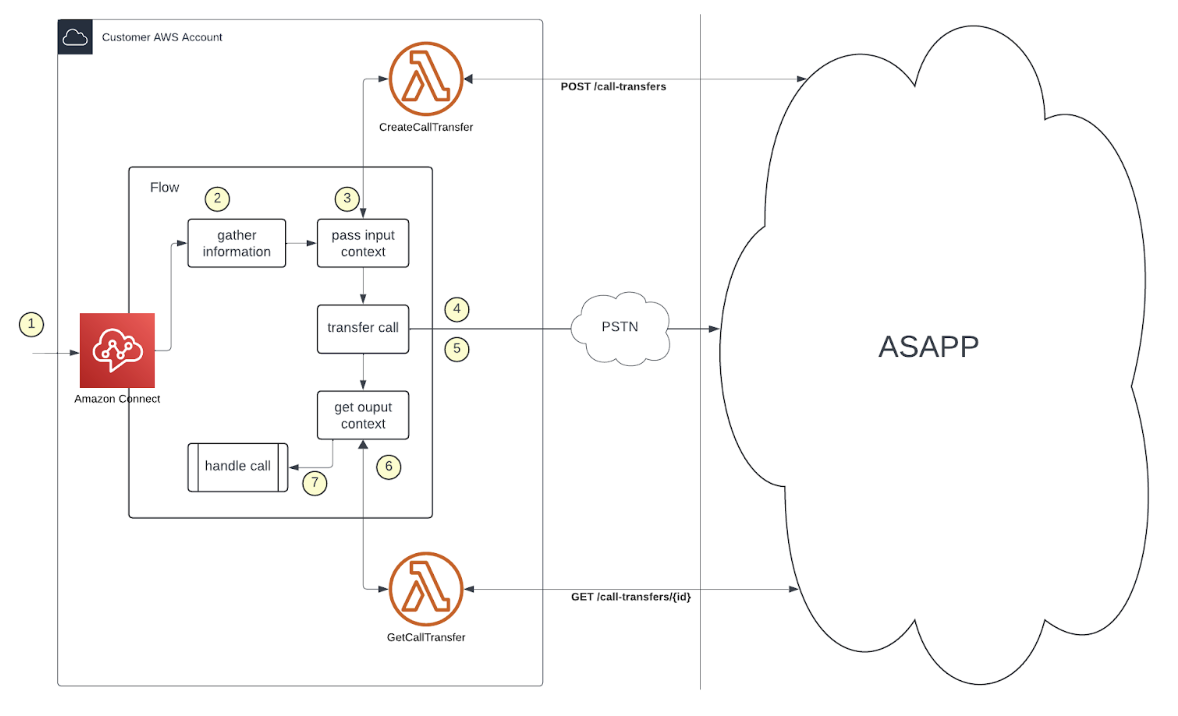
At a high level, the Amazon Connect integration with GenerativeAgent works by handing off the conversation between your Amazon Connect flow and GenerativeAgent:
1. **Hand off the conversation** to GenerativeAgent through Call Transfer over PSTN.
2. **GenerativeAgent handles the conversation** using Lambda functions to communicate with ASAPP's APIs, and respond to the caller using a Text to Speech (TTS) service.
3. **Return control back** to your Amazon Connect Flow when:
* The conversation is successfully completed
* The caller requests a human agent
* An error occurs
4. **Use Output Context of the call** to determine the next course of action.
---
# Source: https://docs.asapp.com/generativeagent/integrate/amazon-connect-pstn.md
> ## Documentation Index
> Fetch the complete documentation index at: https://docs.asapp.com/llms.txt
> Use this file to discover all available pages before exploring further.
# Amazon Connect
> Learn how to integrate GenerativeAgent into Amazon Connect
The Amazon Connect integration with ASAPP's GenerativeAgent allows callers to have conversations with GenerativeAgent while maintaining the call entirely with in your Amazon Connect contact center.
Call transfers facilitate connecting users to GenerativeAgent via PSTN (dialing a number) while maintaining your control over the entire call duration.
This guide demonstrates how GenerativeAgent integrates with Amazon Connect using Call Transfer over PSTN.
## How it works
At a high level, the Amazon Connect integration with GenerativeAgent works by handing off the conversation between your Amazon Connect flow and GenerativeAgent:
1. **Hand off the conversation** to GenerativeAgent through Call Transfer over PSTN.
2. **GenerativeAgent handles the conversation** using Lambda functions to communicate with ASAPP's APIs, and respond to the caller using a Text to Speech (TTS) service.
3. **Return control back** to your Amazon Connect Flow when:
* The conversation is successfully completed
* The caller requests a human agent
* An error occurs
4. **Use Output Context of the call** to determine the next course of action.
 ### Integration Steps
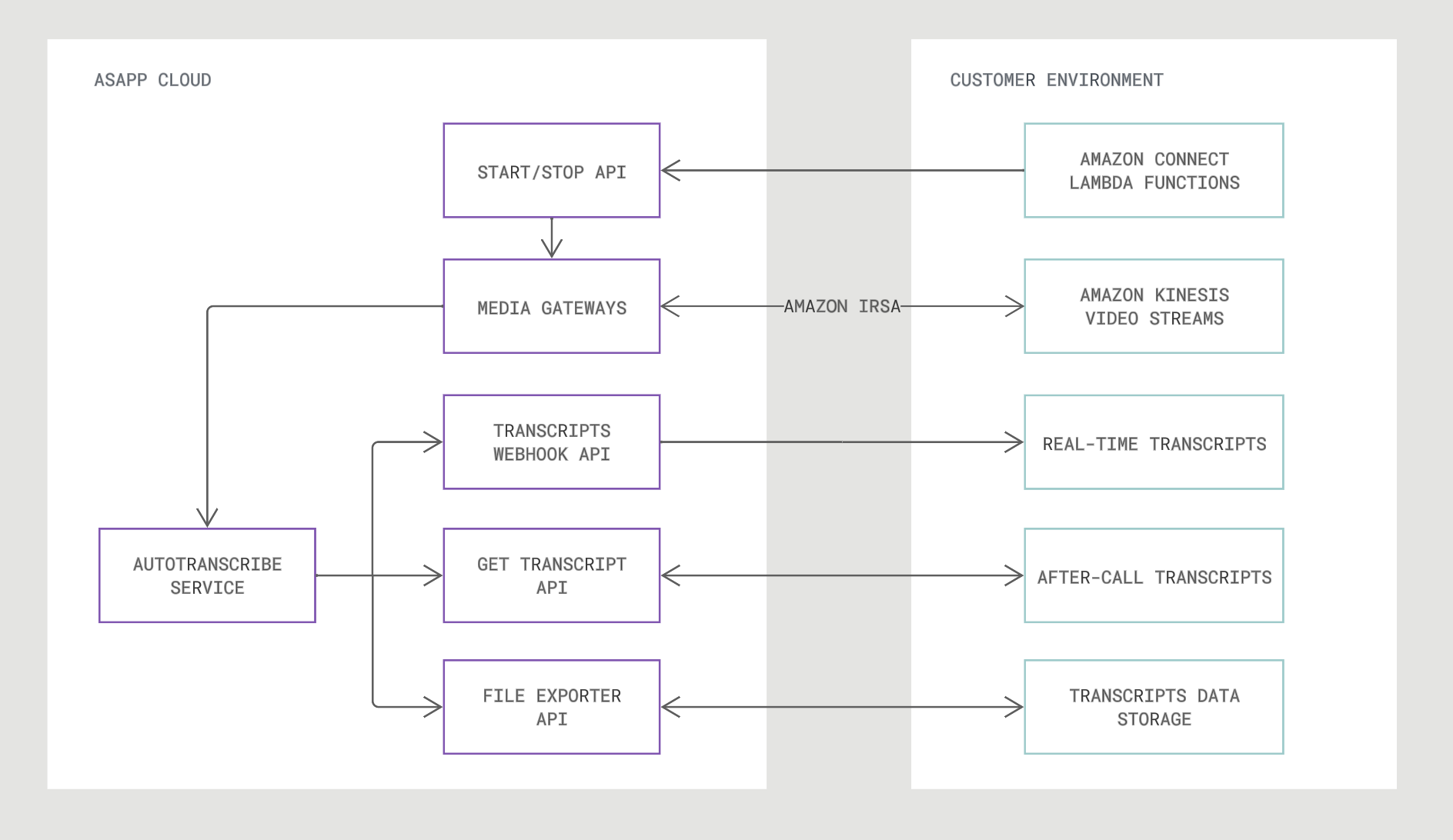
There are five parts of the integration process:
1. Setup Authentication for Kinesis Video Streams
2. Enable Audio Streaming to Kinesis Video Streams
3. Add Start Media and Stop Media To Flows
4. Send Start and Stop Requests to ASAPP
5. Receive Transcript Outputs
### Requirements
**Audio Stream Codec**
AWS Kinesis Video Streams provides MKV format, which ASAPP supports. You do not need any modification or additional transcoding when forking audio to ASAPP.
### Integration Steps
There are five parts of the integration process:
1. Setup Authentication for Kinesis Video Streams
2. Enable Audio Streaming to Kinesis Video Streams
3. Add Start Media and Stop Media To Flows
4. Send Start and Stop Requests to ASAPP
5. Receive Transcript Outputs
### Requirements
**Audio Stream Codec**
AWS Kinesis Video Streams provides MKV format, which ASAPP supports. You do not need any modification or additional transcoding when forking audio to ASAPP.
 ## Next Steps
 ## Requirements
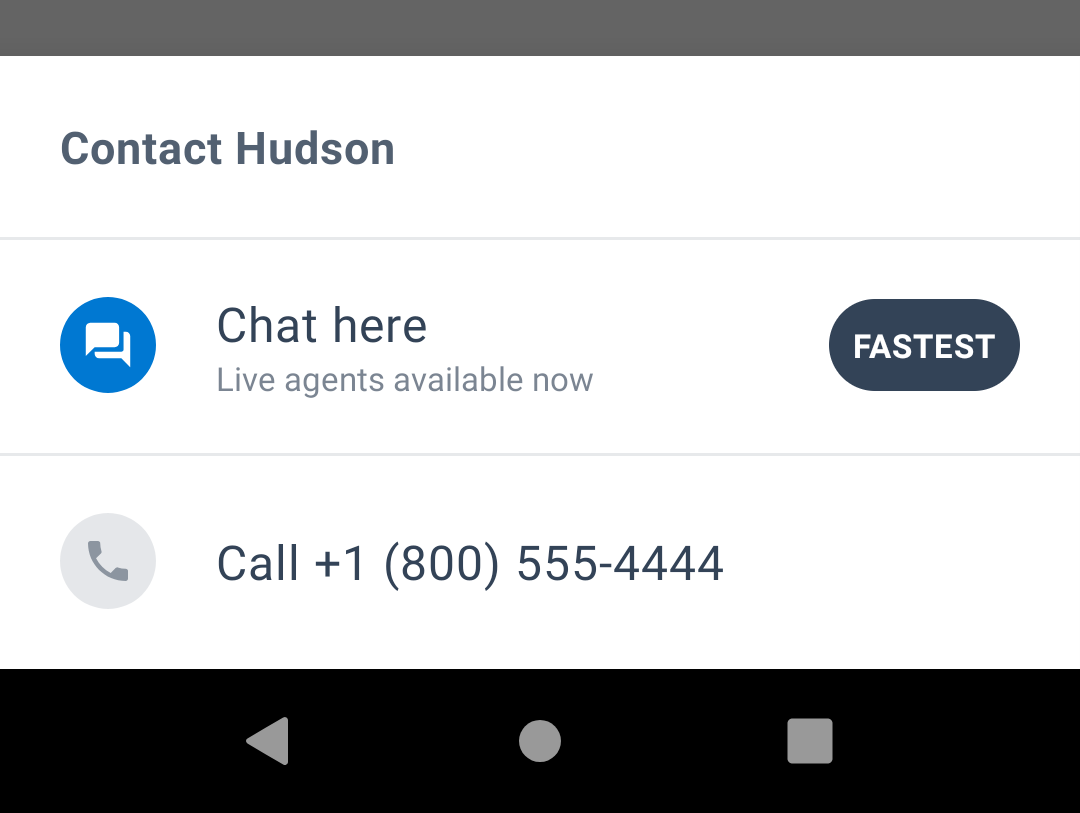
Chat Instead requires ASAPP Android Chat SDK 8.0.0 or later, and a valid phone number. Before you proceed, make sure you configure it [correctly](/agent-desk/integrations/android-sdk).
## Phone Formats
Chat Instead accepts a wide variety of formats. See [tools.ietf.org/html/rfc3966](https://tools.ietf.org/html/rfc3966) for the precise definition. For example, Chat Instead accepts: "+1 (555) 555-5555" and "555-555-5555".
## Getting Started
There are two ways to add Chat Instead. The easiest way is to add the `ASAPPChatInsteadButton` to the layout and call the `ASAPPChatInsteadButton.init`. Alternatively, you can manage the lifecycle yourself.
### 1. Add an ASAPPChatInsteadButton
You can add this button to any layout, like any other [AppCompatButton](https://developer.android.com/reference/androidx/appcompat/widget/AppCompatButton).
```json theme={null}
## Requirements
Chat Instead requires ASAPP Android Chat SDK 8.0.0 or later, and a valid phone number. Before you proceed, make sure you configure it [correctly](/agent-desk/integrations/android-sdk).
## Phone Formats
Chat Instead accepts a wide variety of formats. See [tools.ietf.org/html/rfc3966](https://tools.ietf.org/html/rfc3966) for the precise definition. For example, Chat Instead accepts: "+1 (555) 555-5555" and "555-555-5555".
## Getting Started
There are two ways to add Chat Instead. The easiest way is to add the `ASAPPChatInsteadButton` to the layout and call the `ASAPPChatInsteadButton.init`. Alternatively, you can manage the lifecycle yourself.
### 1. Add an ASAPPChatInsteadButton
You can add this button to any layout, like any other [AppCompatButton](https://developer.android.com/reference/androidx/appcompat/widget/AppCompatButton).
```json theme={null}
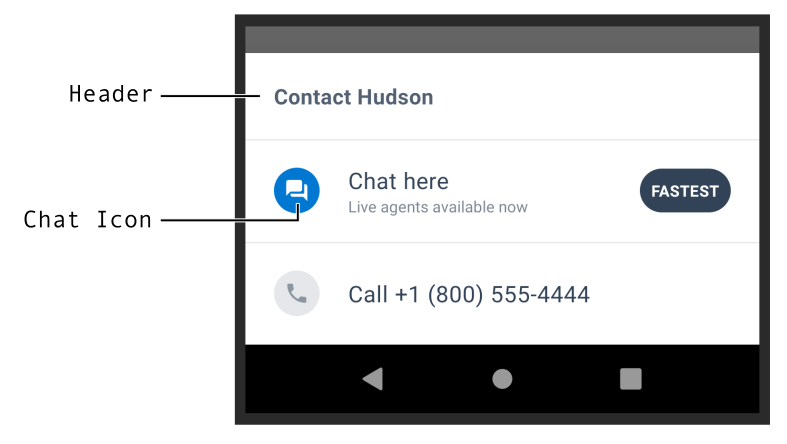 ### Header
By default, Chat Instead uses the text in `R.string.asapp_chat_instead_default_header`. You can send a different string when initializing Chat Instead, but the ASAPP Backend overwrites it if the call succeeds.
### Chat Icon
You can customize the SDK Chat channel icon. By default, the system tints it with `asapp_primary` and `asapp_on_primary`.
### Header
By default, Chat Instead uses the text in `R.string.asapp_chat_instead_default_header`. You can send a different string when initializing Chat Instead, but the ASAPP Backend overwrites it if the call succeeds.
### Chat Icon
You can customize the SDK Chat channel icon. By default, the system tints it with `asapp_primary` and `asapp_on_primary`.
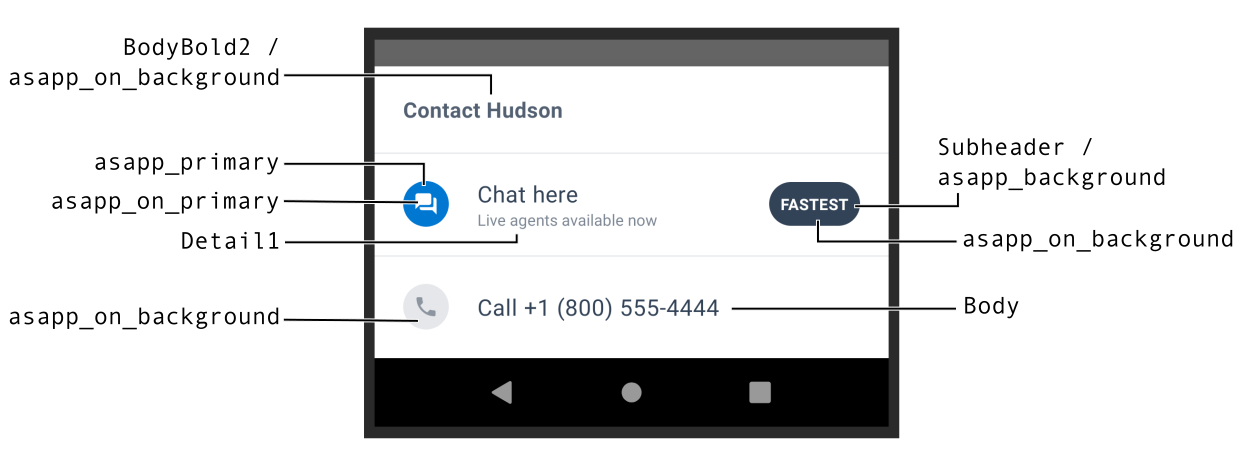 ## Remote settings
Chat Instead receives configuration information from ASAPP's Backend (BE), in addition to the channels to display. The configuration enables/disables the feature and selects the device type (mobile, tablet, none). Contact your Implementation Manager at ASAPP if you have any questions.
## Remote settings
Chat Instead receives configuration information from ASAPP's Backend (BE), in addition to the channels to display. The configuration enables/disables the feature and selects the device type (mobile, tablet, none). Contact your Implementation Manager at ASAPP if you have any questions.
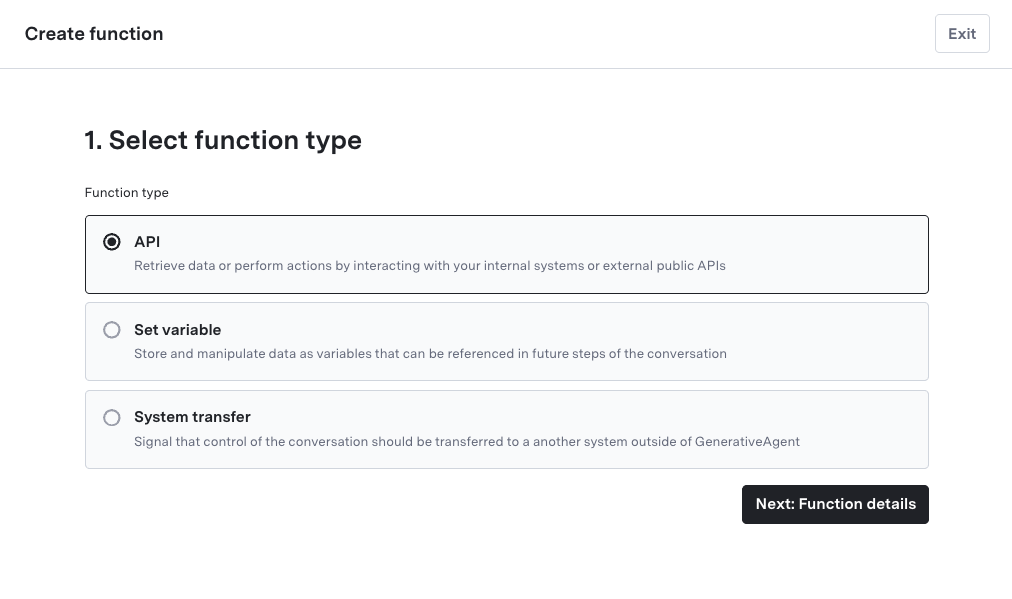 ## Step 2: Select an API Connection
Under "Choose an API":
1. Select one of your existing [API connections](/generativeagent/configuring/connect-apis)
2. Click "Next: Function details"
## Step 2: Select an API Connection
Under "Choose an API":
1. Select one of your existing [API connections](/generativeagent/configuring/connect-apis)
2. Click "Next: Function details"
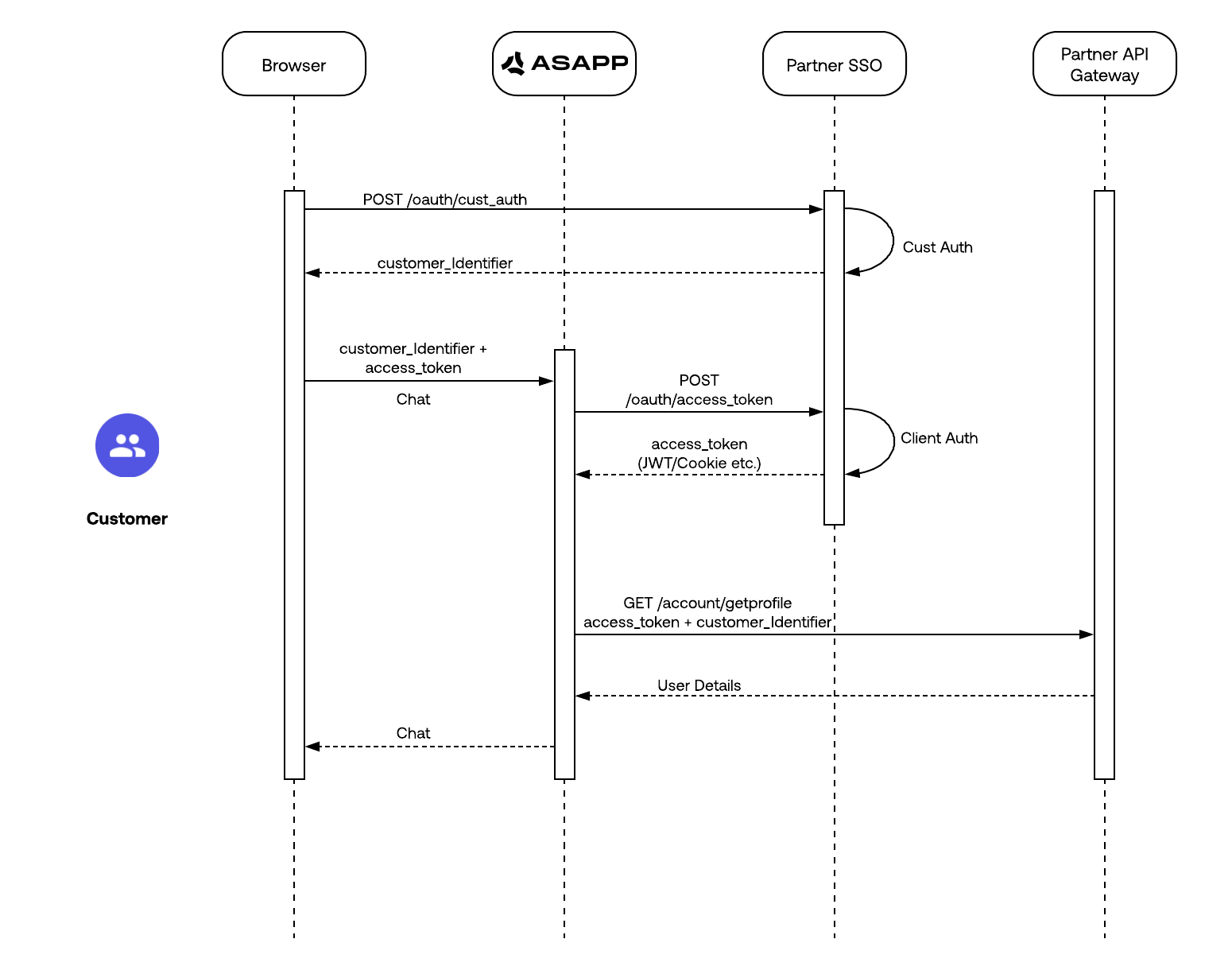 ---
# Source: https://docs.asapp.com/agent-desk/integrations/apple-messages-for-business.md
> ## Documentation Index
> Fetch the complete documentation index at: https://docs.asapp.com/llms.txt
> Use this file to discover all available pages before exploring further.
# Apple Messages for Business
Apple Messages for Business is a service that enables your organization to communicate directly with your customers through your Customer Service Platform (CSP), which in this case will be ASAPP, using the Apple Messages for Business app.
---
# Source: https://docs.asapp.com/agent-desk/integrations/apple-messages-for-business.md
> ## Documentation Index
> Fetch the complete documentation index at: https://docs.asapp.com/llms.txt
> Use this file to discover all available pages before exploring further.
# Apple Messages for Business
Apple Messages for Business is a service that enables your organization to communicate directly with your customers through your Customer Service Platform (CSP), which in this case will be ASAPP, using the Apple Messages for Business app.
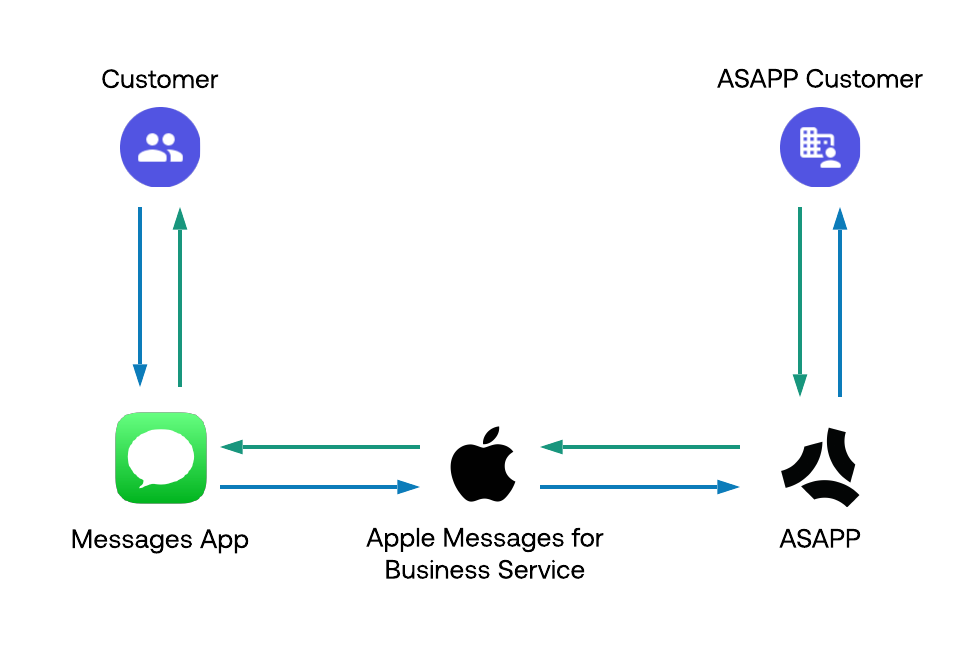
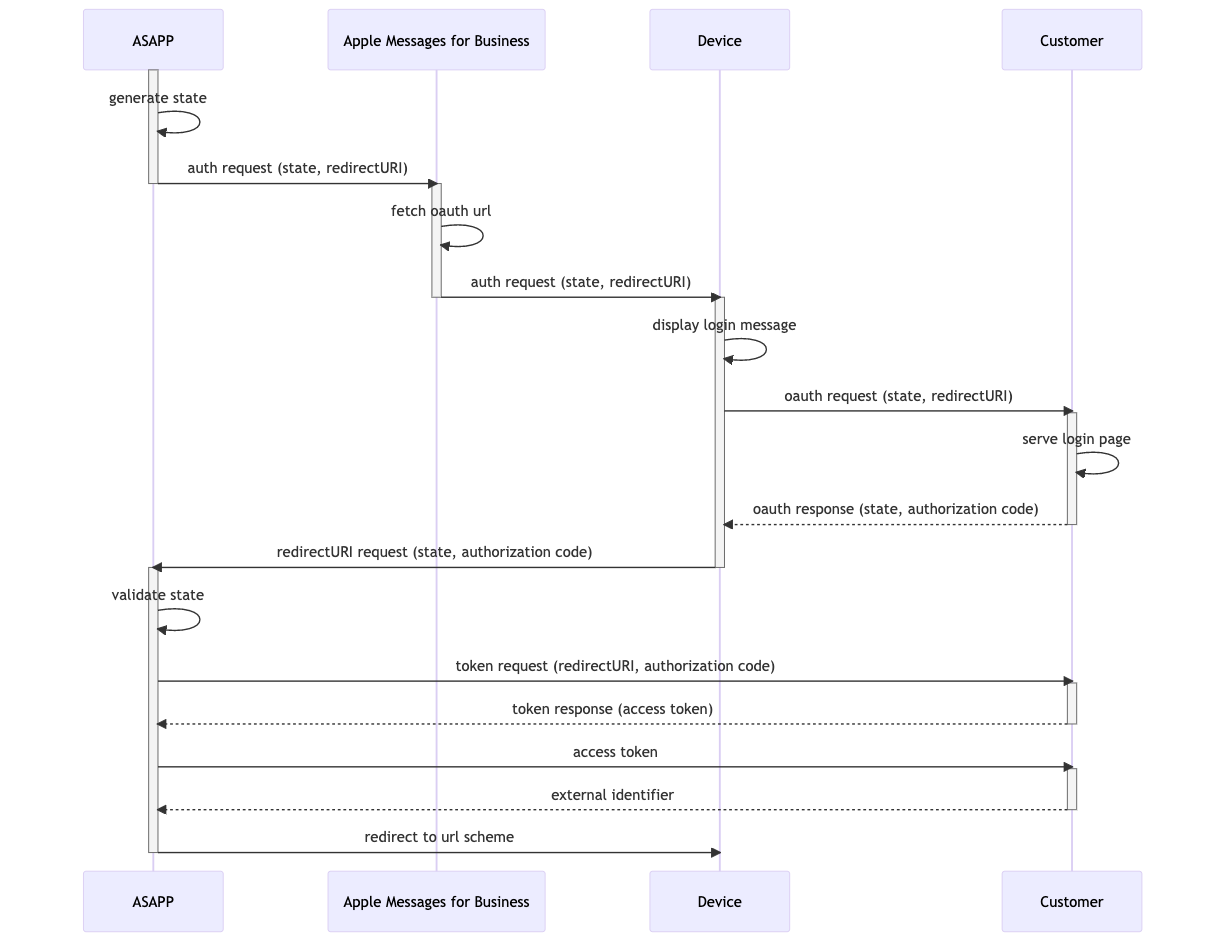 #### Old Authentication Flow
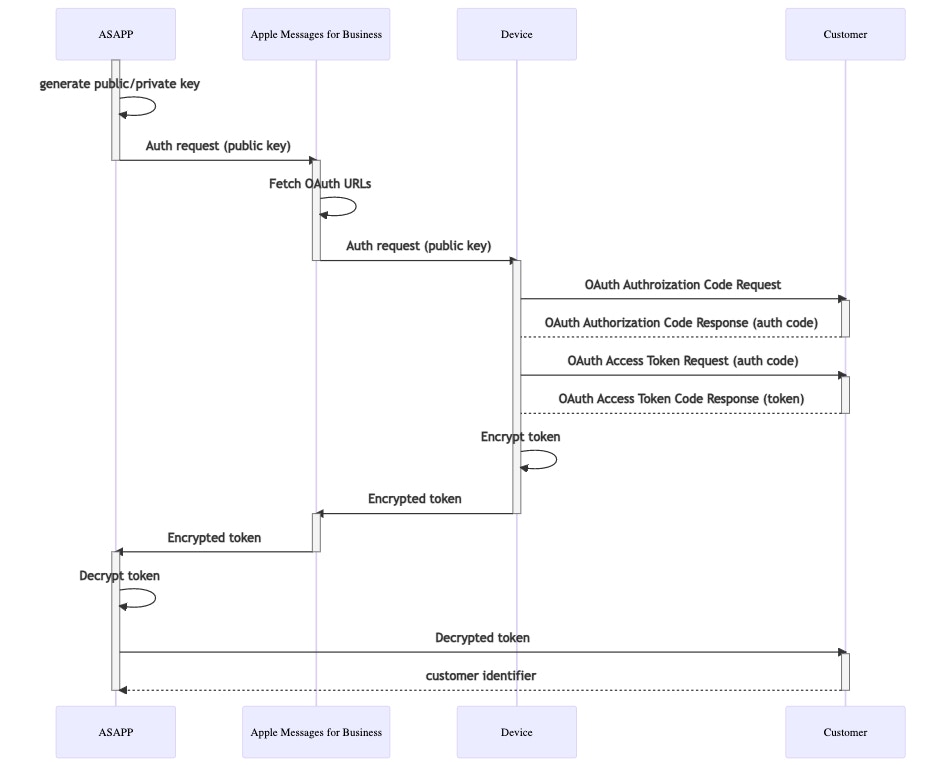 ASAPP requires the following customer functionalities to support the older authentication flow:
* An OAuth 2.0 login flow, including a login page that supports form autofill. This page must be Apple-compliant. See the [Authentication Message](https://register.apple.com/resources/messages/msp-rest-api/type-interactive#authentication-message) documentation for more details.
* Provide an API endpoint for ASAPP to obtain an external user identifier. This should be the same identifier that is supplied via the ASAPP web and mobile SDKs as the CustomerId.
* Provide an endpoint through which to obtain an access token by supplying an authcode. This endpoint must support URL encoded parameters.
* Provide an endpoint that can accepted POST requests in the following format:
```json theme={null}
Content-Type: application/x-www-form-urlencoded
grant_type=authorization_code&code=xxxx
&client_id=yyyy&client_secret=zzzz
where:
xxxx=authorization_code value
yyyy=client_id value
zzzz=client_secret value
```
ASAPP requires the following customer functionalities to support the older authentication flow:
* An OAuth 2.0 login flow, including a login page that supports form autofill. This page must be Apple-compliant. See the [Authentication Message](https://register.apple.com/resources/messages/msp-rest-api/type-interactive#authentication-message) documentation for more details.
* Provide an API endpoint for ASAPP to obtain an external user identifier. This should be the same identifier that is supplied via the ASAPP web and mobile SDKs as the CustomerId.
* Provide an endpoint through which to obtain an access token by supplying an authcode. This endpoint must support URL encoded parameters.
* Provide an endpoint that can accepted POST requests in the following format:
```json theme={null}
Content-Type: application/x-www-form-urlencoded
grant_type=authorization_code&code=xxxx
&client_id=yyyy&client_secret=zzzz
where:
xxxx=authorization_code value
yyyy=client_id value
zzzz=client_secret value
```
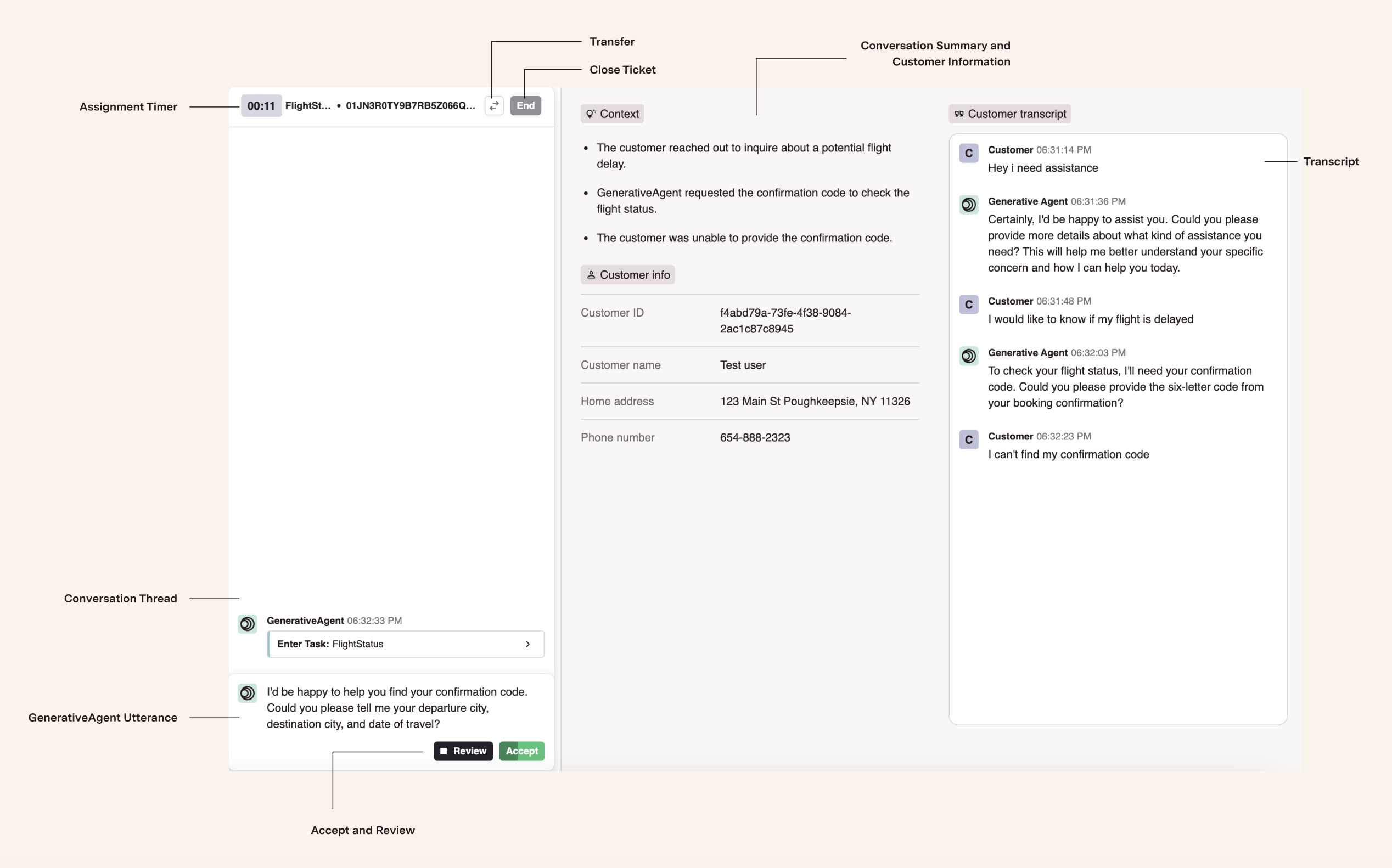 The HILA application includes:
* **Transcript:** Complete history of the customer interaction before GenerativeAgent raised the ticket
* **Context:** Summarized view of key customer intents and topics for quick understanding
* **Customer information:** Details such as customer name and account data if authenticated
* **Conversation thread:** Real-time view of the approver phase showing all approved messages, edits, and system messages
* **Assignment timer:** Tracks how long the assigned HILA has worked on the ticket
The HILA application includes:
* **Transcript:** Complete history of the customer interaction before GenerativeAgent raised the ticket
* **Context:** Summarized view of key customer intents and topics for quick understanding
* **Customer information:** Details such as customer name and account data if authenticated
* **Conversation thread:** Real-time view of the approver phase showing all approved messages, edits, and system messages
* **Assignment timer:** Tracks how long the assigned HILA has worked on the ticket
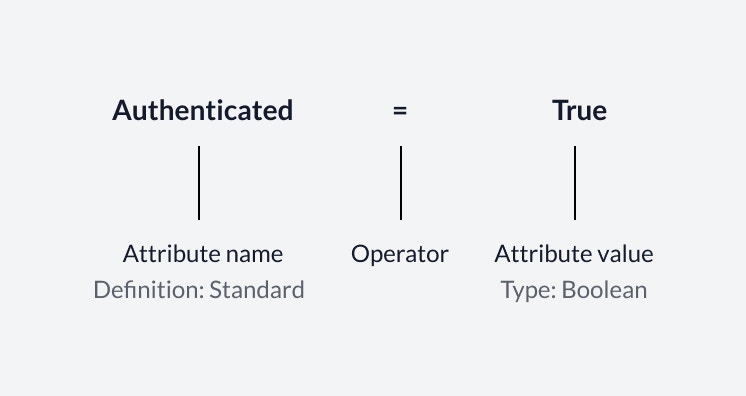 ## Attributes List
The Attributes List contains all the attributes available for intent routing. Here, you'll find the following information displayed in table format:
1. **Attribute name:** Display name of the attribute
2. **Definition:** Indicates if the attribute is Standard or Custom. ASAPP natively supports Standard attributes. Custom attributes are added in accordance with your business requirements\*
3. **Type:** Indicates the value type of an attribute. There are two possible types: Boolean, or Value.
a. **Boolean:** A boolean attribute includes two values. For example: Yes/No, True/False, On/Off.
b. **Value:** A value attribute can include any number of values. For example: Market 1, Market 2, Market 3.
4. **Origin Key:** Exact value that the company passes to ASAPP.
## Attributes List
The Attributes List contains all the attributes available for intent routing. Here, you'll find the following information displayed in table format:
1. **Attribute name:** Display name of the attribute
2. **Definition:** Indicates if the attribute is Standard or Custom. ASAPP natively supports Standard attributes. Custom attributes are added in accordance with your business requirements\*
3. **Type:** Indicates the value type of an attribute. There are two possible types: Boolean, or Value.
a. **Boolean:** A boolean attribute includes two values. For example: Yes/No, True/False, On/Off.
b. **Value:** A value attribute can include any number of values. For example: Market 1, Market 2, Market 3.
4. **Origin Key:** Exact value that the company passes to ASAPP.
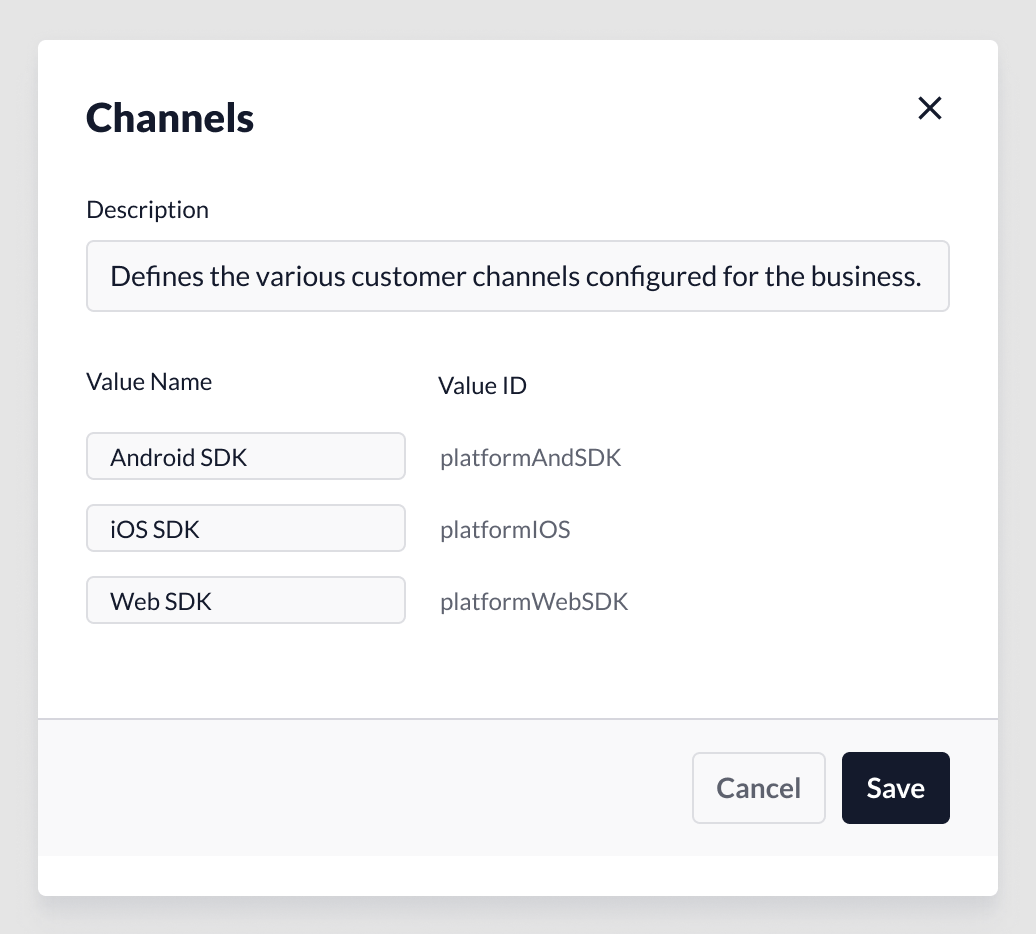 To view specific attribute details, click an **attribute name** to launch the details modal.
1. **Description:** Describes what the attribute is.
2. **Value ID:** Unique, non-editable key that the system directly passes to ASAPP for that attribute (can be non-human readable).
3. **Value name:** Display name for the value to describe what the attribute value is. These value names appear in intent routing for ease of use.
Descriptions and value names can be edited. To modify these fields, make your changes and click **Save**. When you click, the system automatically saves changes, and changes take effect immediately.
To view specific attribute details, click an **attribute name** to launch the details modal.
1. **Description:** Describes what the attribute is.
2. **Value ID:** Unique, non-editable key that the system directly passes to ASAPP for that attribute (can be non-human readable).
3. **Value name:** Display name for the value to describe what the attribute value is. These value names appear in intent routing for ease of use.
Descriptions and value names can be edited. To modify these fields, make your changes and click **Save**. When you click, the system automatically saves changes, and changes take effect immediately.
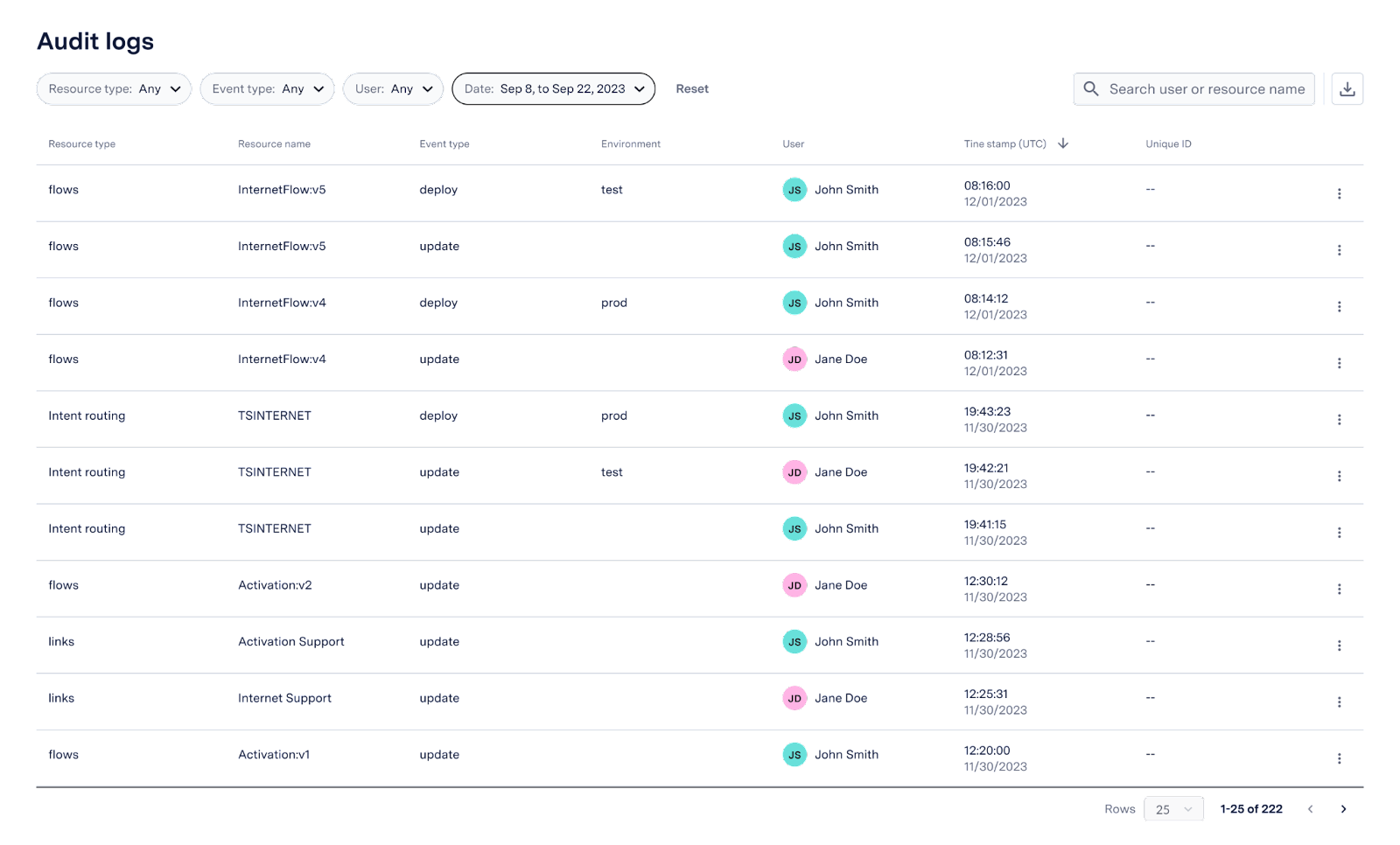 The following list displays the resources being tracked:
* **General**
* Links
* Custom entities
* **Virtual Agent**
* Flows
* Intent routing
* **AI Compose**
* Global responses
## Audit Logs Entries
For each audit log record, the system records the following fields:
| Field | Description |
| :------------ | :-------------------------------------------------------------------------------- |
| Resource type | Type of resource modified. |
| Resource name | Name of the resource modified. |
| Event type | Type of event. Supported fields are create, deploy, undeploy, update, and delete. |
| Environment | Environment where you deployed the resource. Only applicable for deploy events. |
| User | Name of user who caused the event. |
| Timestamp | Time and date the event occurred, in UTC format. |
| Unique ID | (Optional) Unique identifier for the resource. |
## Searching Audit Logs
Administrators can use the search bar to look for a specific resource name, or user.
To search your audit logs, navigate to the search bar on the top-right corner of the screen.
The following list displays the resources being tracked:
* **General**
* Links
* Custom entities
* **Virtual Agent**
* Flows
* Intent routing
* **AI Compose**
* Global responses
## Audit Logs Entries
For each audit log record, the system records the following fields:
| Field | Description |
| :------------ | :-------------------------------------------------------------------------------- |
| Resource type | Type of resource modified. |
| Resource name | Name of the resource modified. |
| Event type | Type of event. Supported fields are create, deploy, undeploy, update, and delete. |
| Environment | Environment where you deployed the resource. Only applicable for deploy events. |
| User | Name of user who caused the event. |
| Timestamp | Time and date the event occurred, in UTC format. |
| Unique ID | (Optional) Unique identifier for the resource. |
## Searching Audit Logs
Administrators can use the search bar to look for a specific resource name, or user.
To search your audit logs, navigate to the search bar on the top-right corner of the screen.
 [Click here to download a global responses template file](https://docs-sdk.asapp.com/product_features/global-responses-template.csv).
### Metadata Inserts
A response that contains a metadata insert is a templated response. When a templated response is suggested, it will be shown to the agent with the metadata insert filled in.
*Adding a templated response in AI-Console*
*Templated response being suggested to the agent in AutoCompose*
[Click here to download a global responses template file](https://docs-sdk.asapp.com/product_features/global-responses-template.csv).
### Metadata Inserts
A response that contains a metadata insert is a templated response. When a templated response is suggested, it will be shown to the agent with the metadata insert filled in.
*Adding a templated response in AI-Console*
*Templated response being suggested to the agent in AutoCompose*
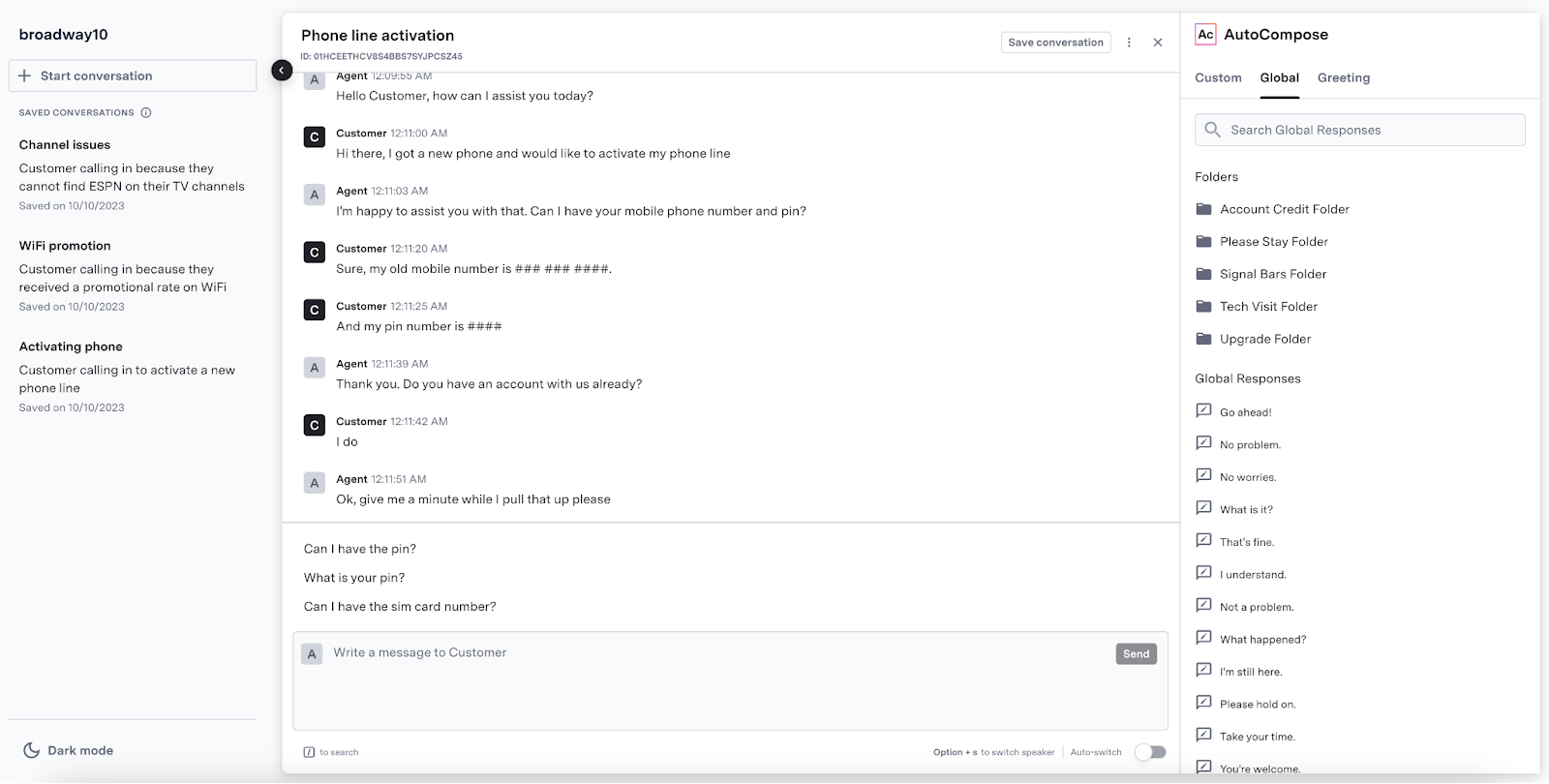
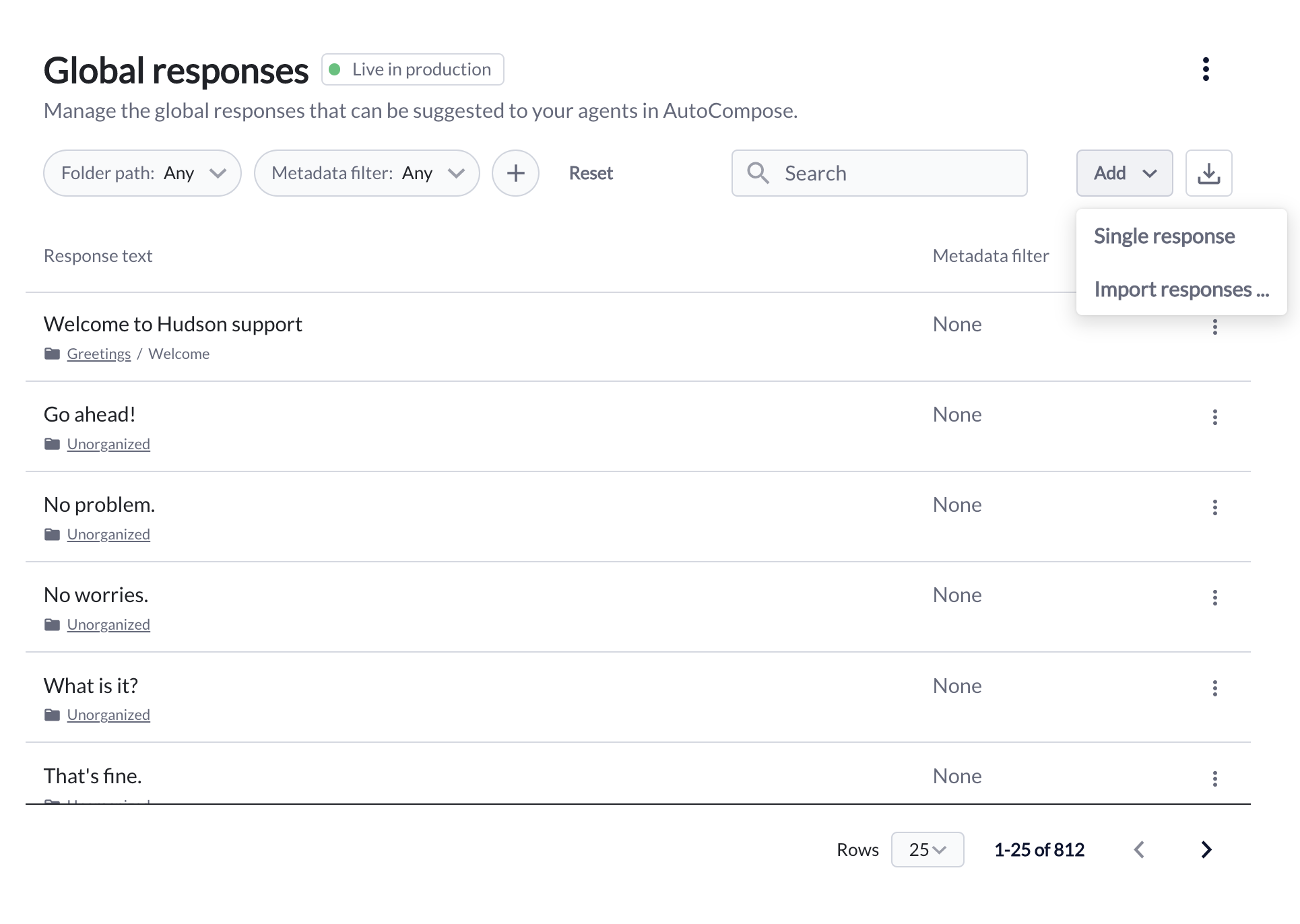
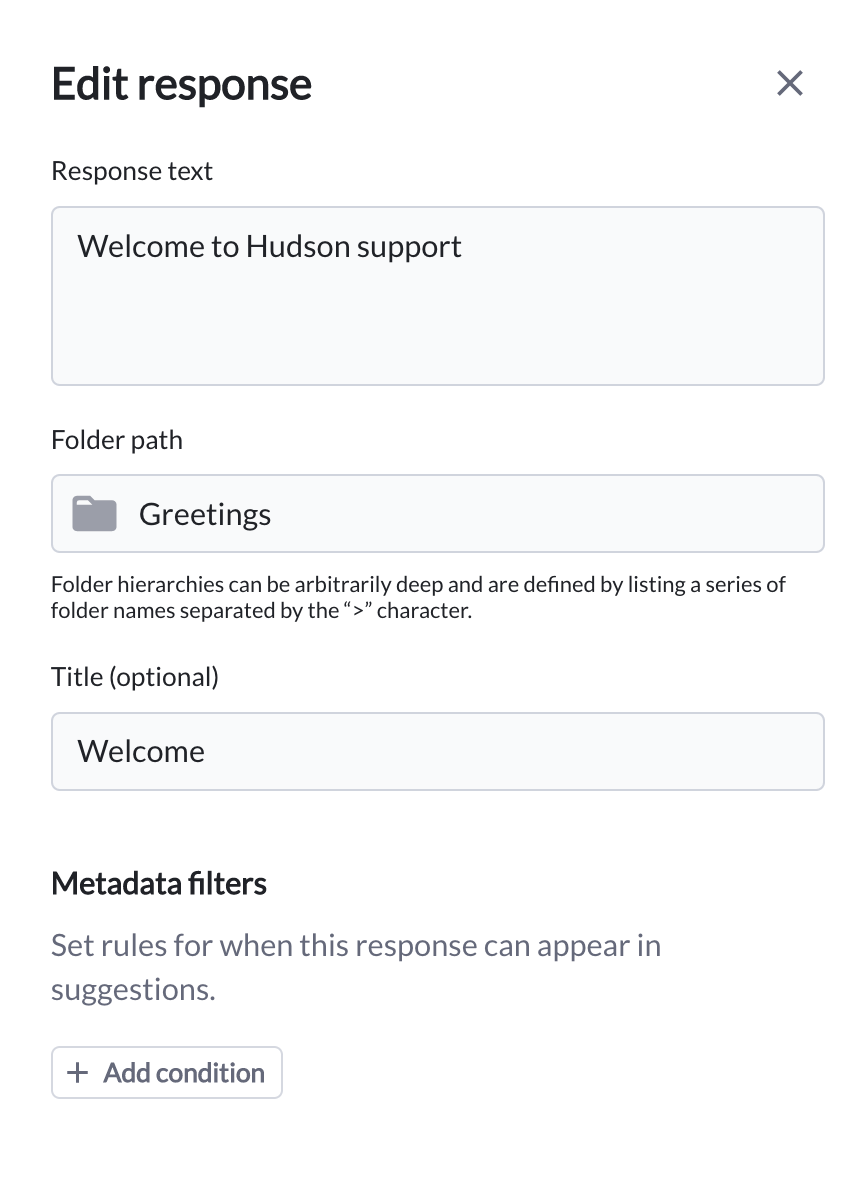 **Saving and Deploying**
Saving changes to the global response list or uploading a new list creates a new version. Past versions can also be viewed and restored as needed.
The global response list can be easily deployed into testing or production environments, with an indicator at the top of each version showing the status of the response list (e.g. Live in production).
**Saving and Deploying**
Saving changes to the global response list or uploading a new list creates a new version. Past versions can also be viewed and restored as needed.
The global response list can be easily deployed into testing or production environments, with an indicator at the top of each version showing the status of the response list (e.g. Live in production).
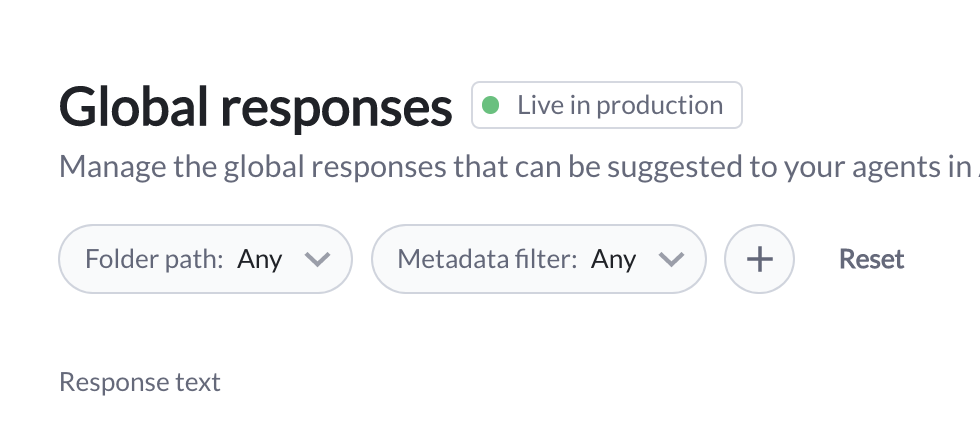 Visit the [Tooling Guide](/ai-productivity/ai-compose/ai-compose-tooling-guide "AI Compose Tooling Guide") for more information on using AI-Console to manage the AI Compose global response list.
## FAQs
1. **How do you access AI Compose in AI-Console?**
Provided that you have permission to access AI Compose in AI-Console, it will appear in the AI Services section of your homepage.
To access AI Compose from any other AI-Console page, select the menu icon in the top left corner and then select AI Compose.
2. **How does response metadata work?**
AI Compose uses response metadata in two main ways:
* **As a data insert:** Variable metadata such as customer name or time of day is dynamically inserted into templated response text when a suggestion is made to the agent. Read more about templated responses in the AI Compose Product Guide Features
* **As a filter:** Responses are only made available for suggestion when the conversation's metadata matches the attribute set for a given response (e.g. a response only being available when `queue` = `general`).
Visit the [Tooling Guide](/ai-productivity/ai-compose/ai-compose-tooling-guide "AI Compose Tooling Guide") for more information on using AI-Console to manage the AI Compose global response list.
## FAQs
1. **How do you access AI Compose in AI-Console?**
Provided that you have permission to access AI Compose in AI-Console, it will appear in the AI Services section of your homepage.
To access AI Compose from any other AI-Console page, select the menu icon in the top left corner and then select AI Compose.
2. **How does response metadata work?**
AI Compose uses response metadata in two main ways:
* **As a data insert:** Variable metadata such as customer name or time of day is dynamically inserted into templated response text when a suggestion is made to the agent. Read more about templated responses in the AI Compose Product Guide Features
* **As a filter:** Responses are only made available for suggestion when the conversation's metadata matches the attribute set for a given response (e.g. a response only being available when `queue` = `general`).
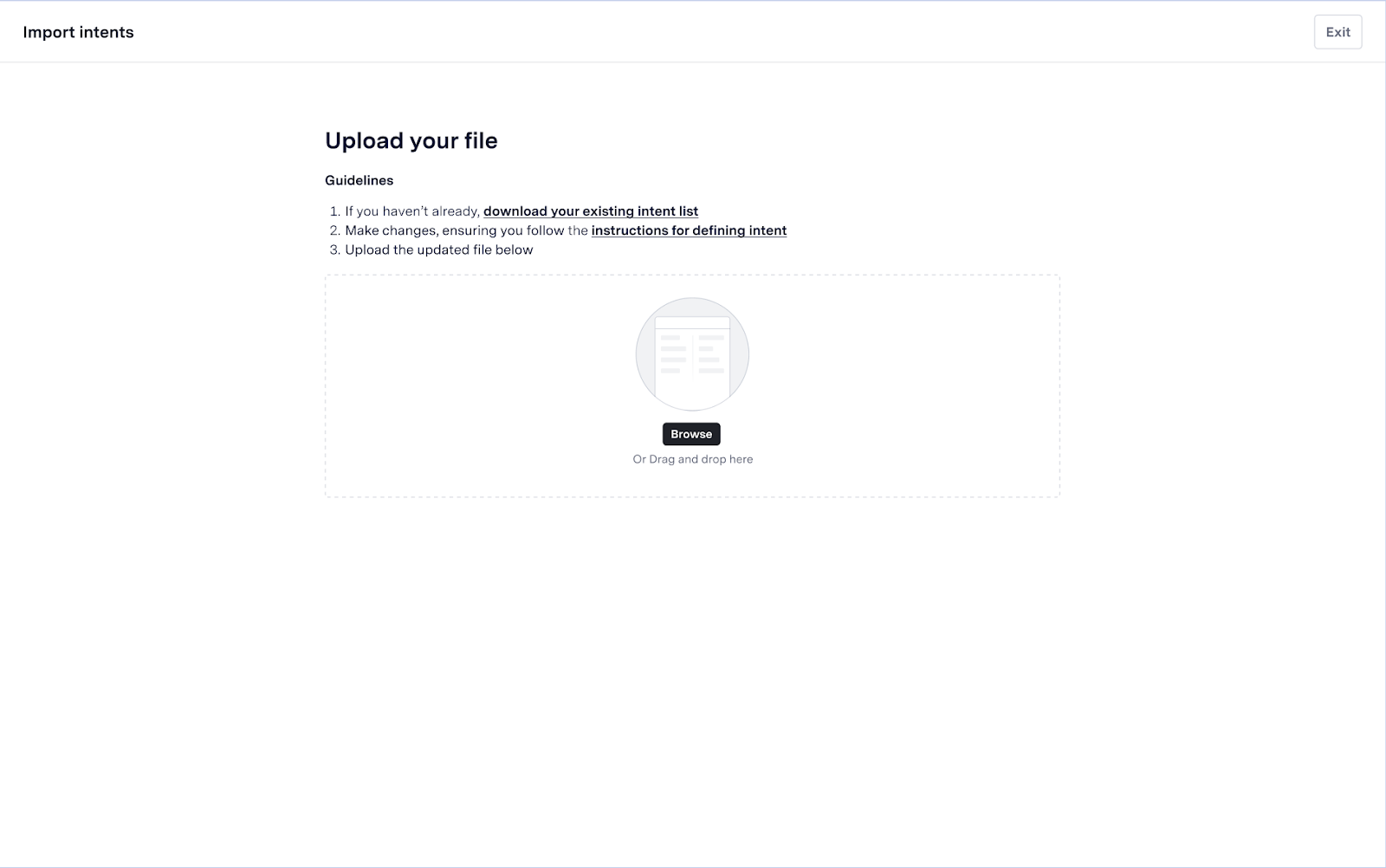 3. Review selected file before deploying the intents
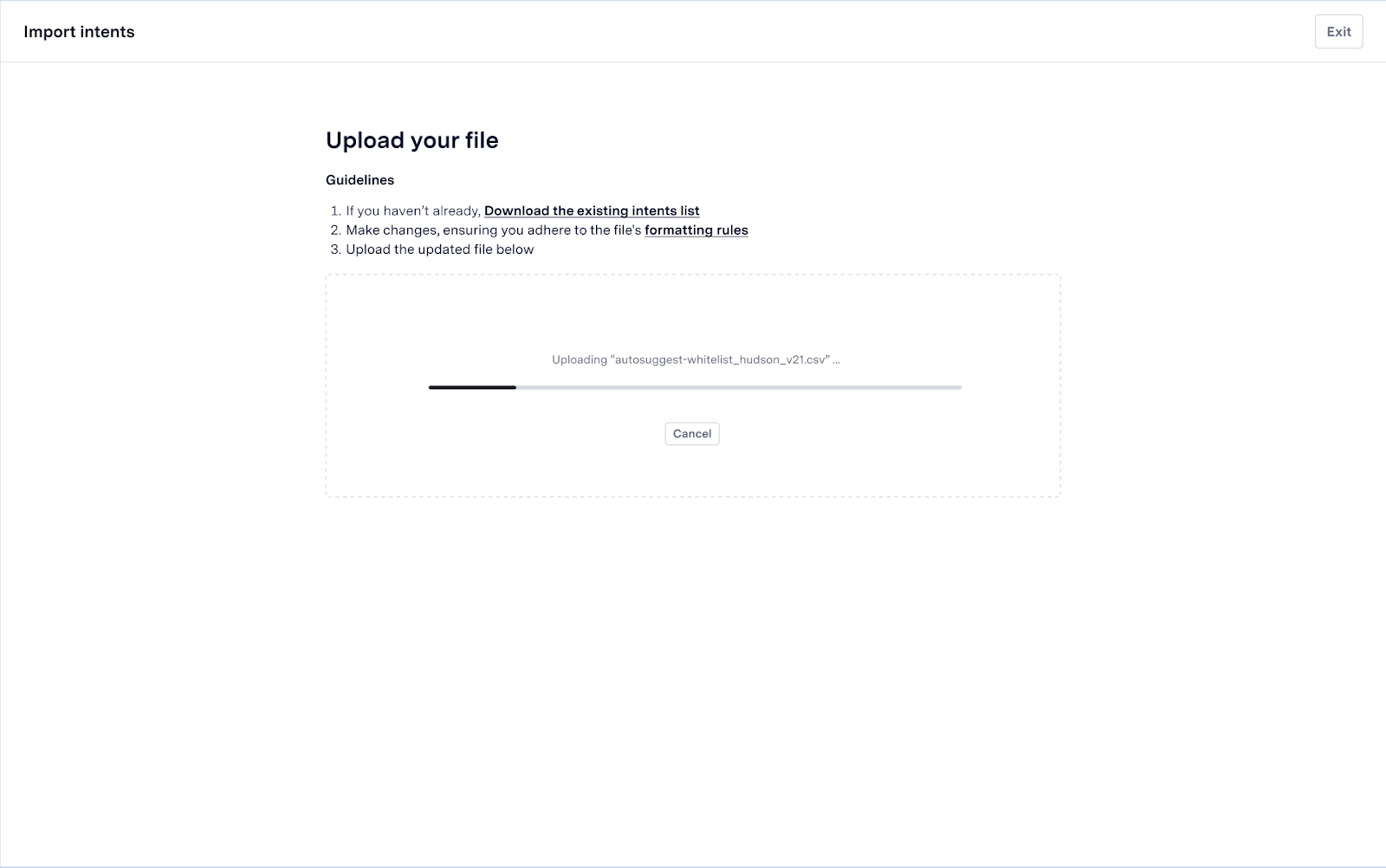 4. Review and verify your uploaded intents
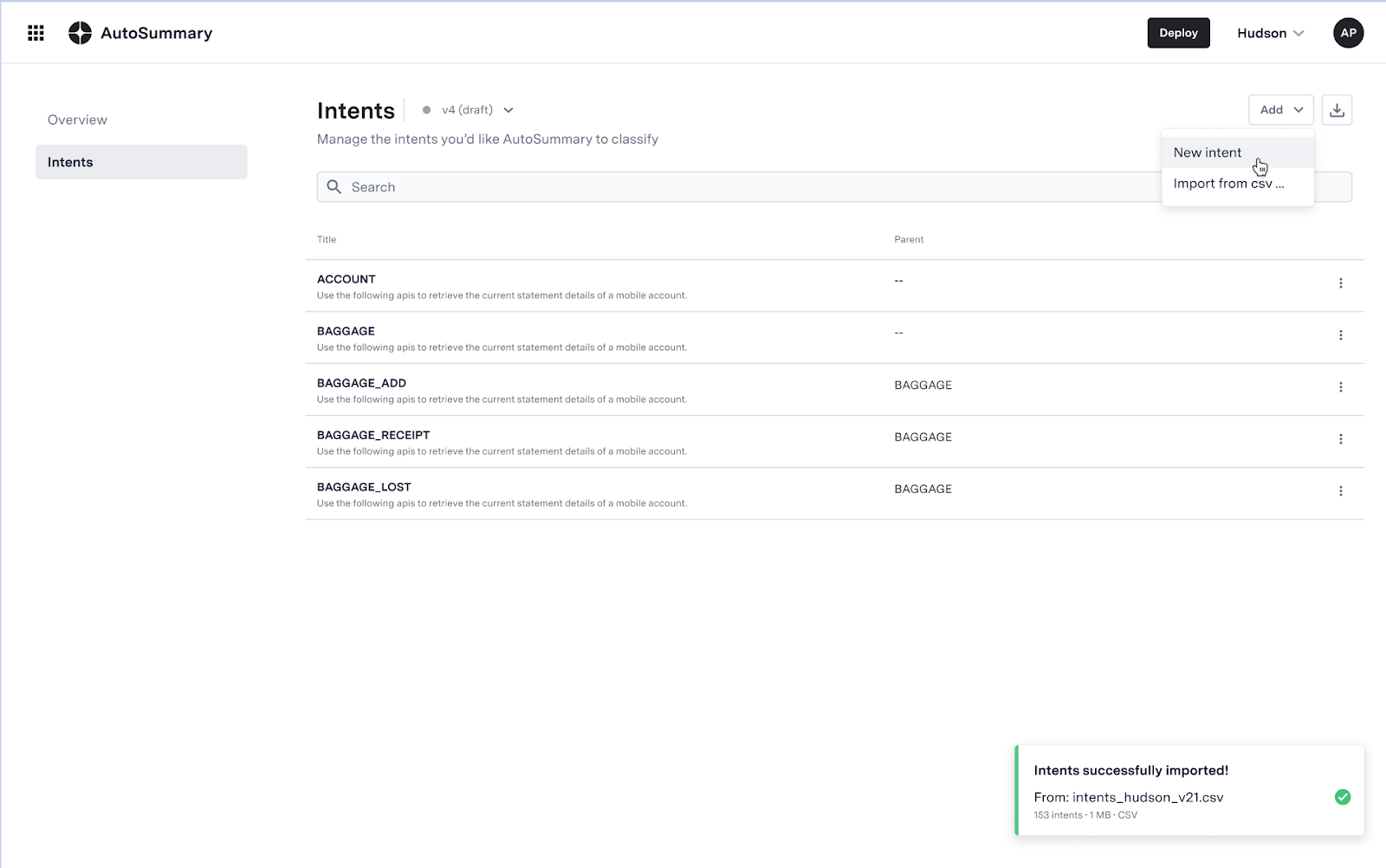 **Adding a new Intent to the hierarchy**
1. Review the existing Intent hierarchy and click 'New Intent' from the 'Add' button top right
2. Add intent details such as the intent label, parent intent, and description. Refer to sample file in case any further clarifications
**Adding a new Intent to the hierarchy**
1. Review the existing Intent hierarchy and click 'New Intent' from the 'Add' button top right
2. Add intent details such as the intent label, parent intent, and description. Refer to sample file in case any further clarifications
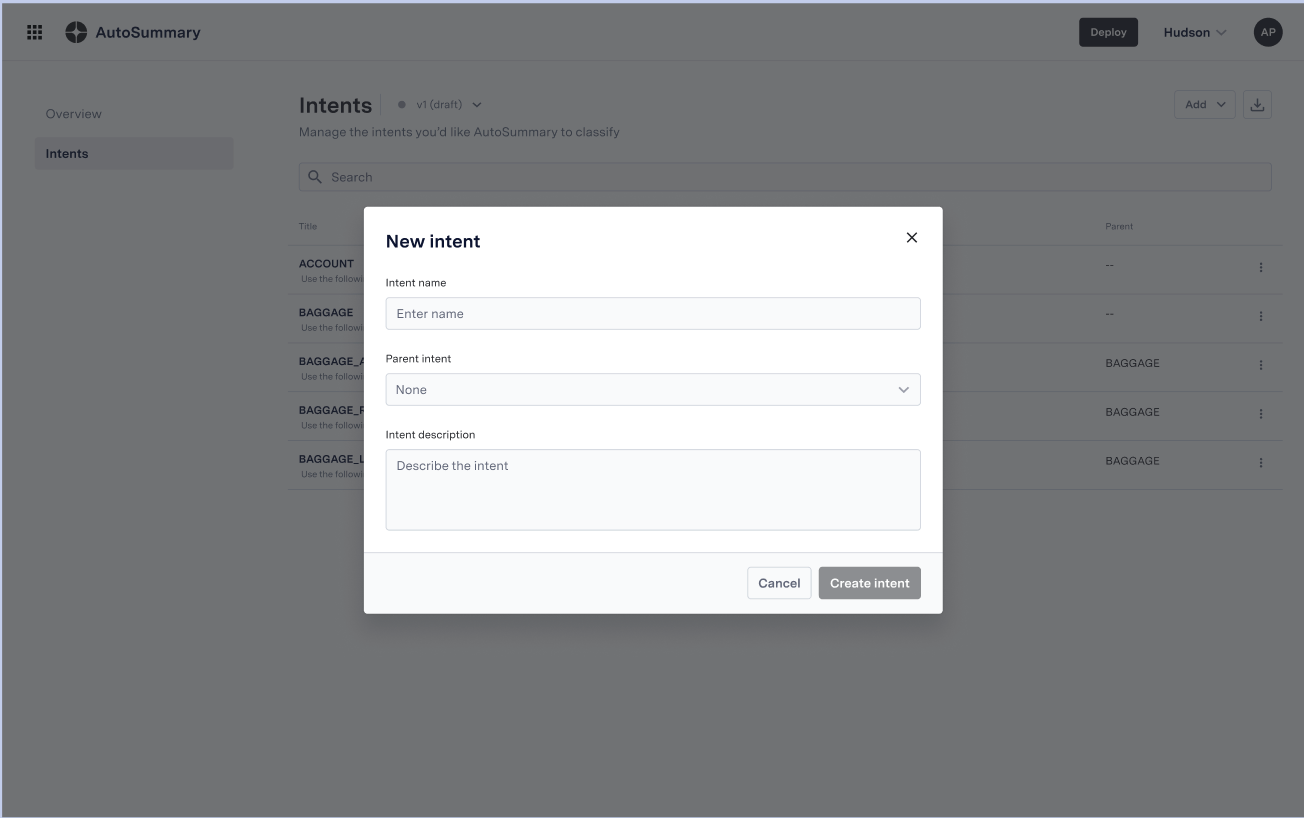 3. Click on create intent to add the intent to the hierarchy
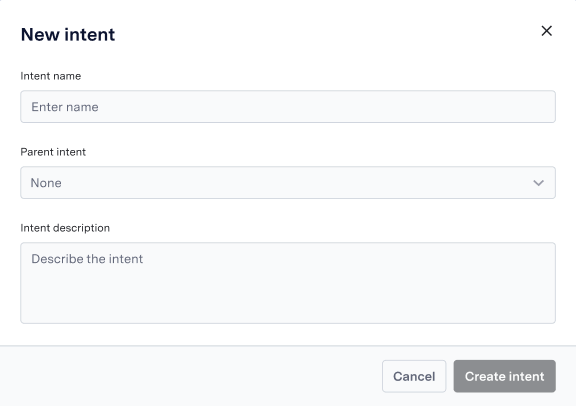 4. Review and verify your created intent
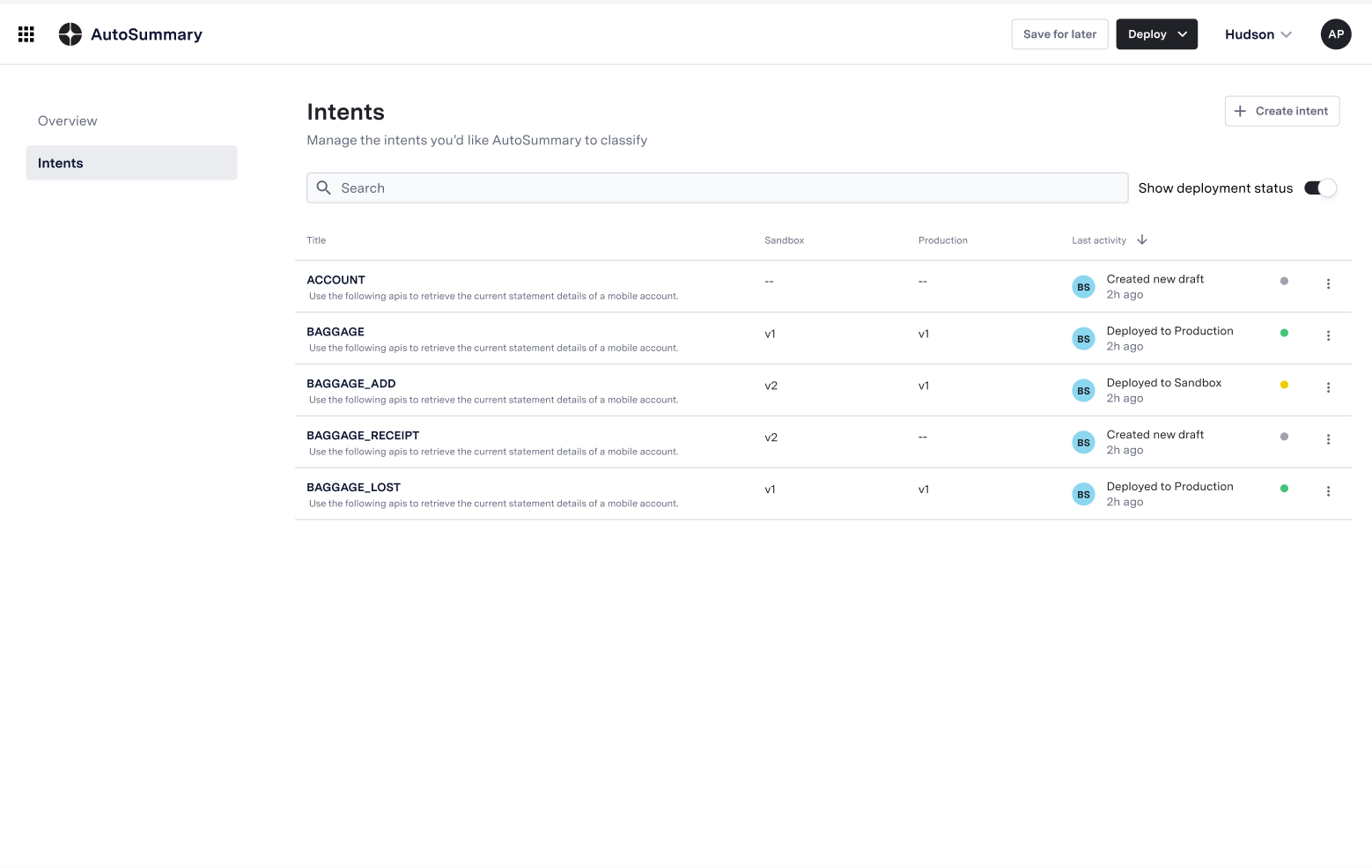 ## FAQs
* **What file formats are supported for uploading intents label hierarchy?**
ASAPP's Intent Self-Serve tooling supports CSV and Excel file formats for uploading intents.
* **Can I edit or update my intents hierarchy after uploading?**
Yes, the tooling functionality allows you to edit or update your intents at any time after uploading them, ensuring you can refine and improve your intent classification as needed.
* **Do I need to have technical expertise to use the Intent Self-Serve tooling?**
No, intent front-end tooling is designed to be user-friendly, with no API configuration required. The intent labels can be easily uploaded, created, and managed without needing any technical assistance.
## FAQs
* **What file formats are supported for uploading intents label hierarchy?**
ASAPP's Intent Self-Serve tooling supports CSV and Excel file formats for uploading intents.
* **Can I edit or update my intents hierarchy after uploading?**
Yes, the tooling functionality allows you to edit or update your intents at any time after uploading them, ensuring you can refine and improve your intent classification as needed.
* **Do I need to have technical expertise to use the Intent Self-Serve tooling?**
No, intent front-end tooling is designed to be user-friendly, with no API configuration required. The intent labels can be easily uploaded, created, and managed without needing any technical assistance.
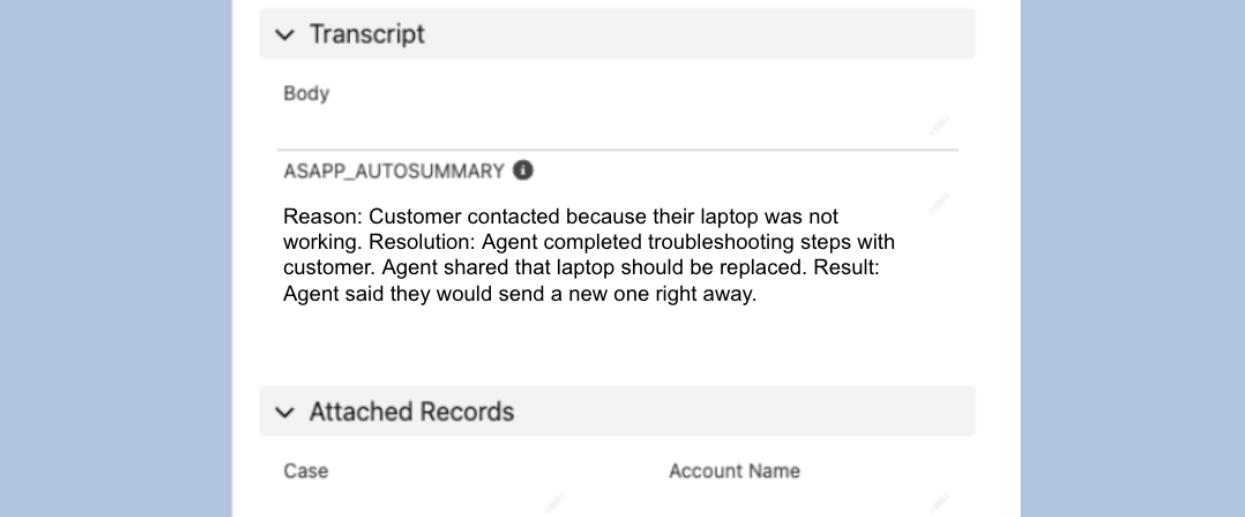
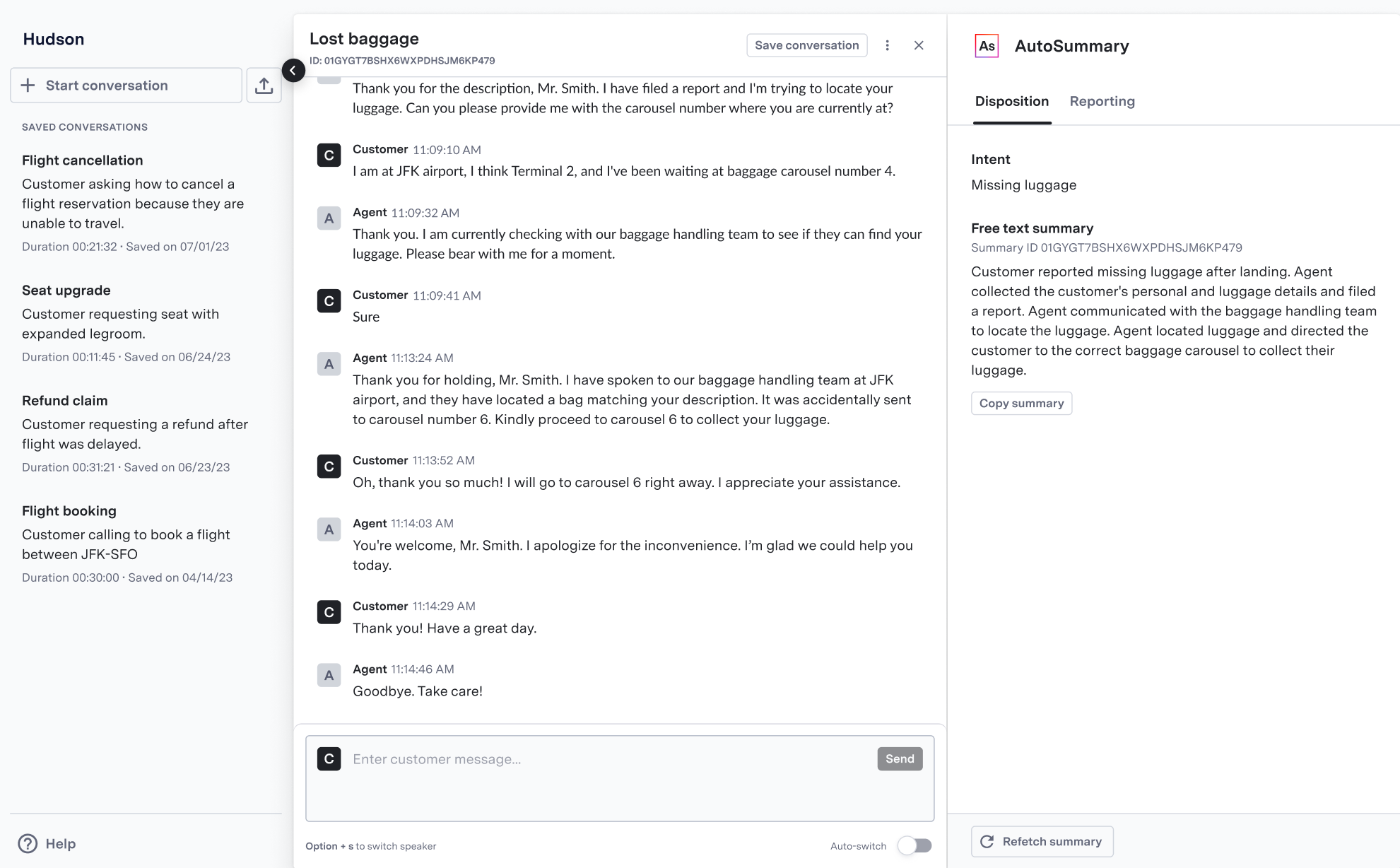 The Sandbox starts with baseline contact center models and can be upgraded to use your custom-trained models once deployed. This allows teams to preview summary formatting and validate outputs throughout their implementation journey.
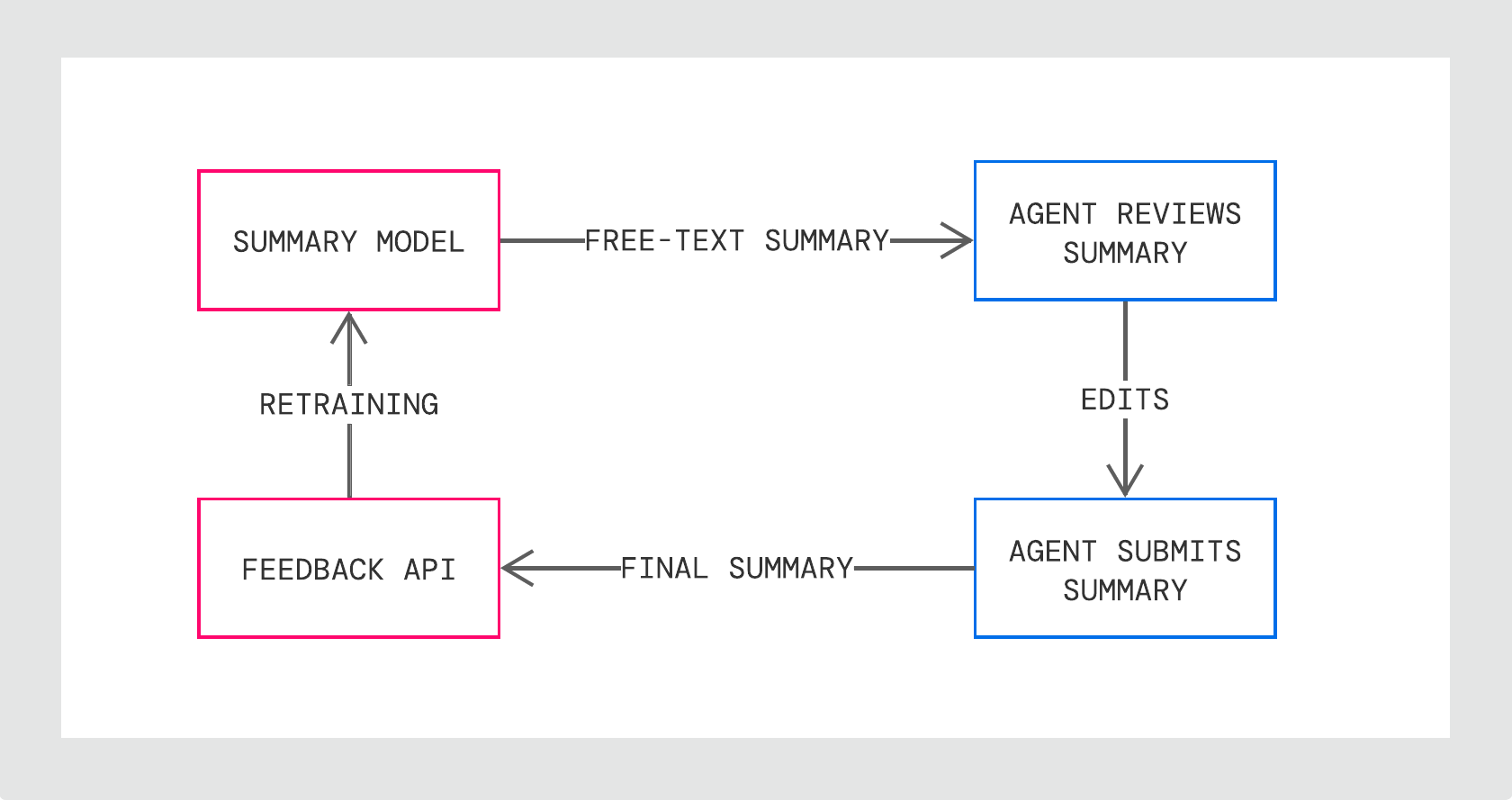
By default, the list will display up to 20 custom vocabs. Can be configured. | | custom-vocabularies\[].id | string | System generated id | | custom-vocabularies\[].phrase | string | The phrase to place in the transcribed text | | custom-vocabularies\[].soundsLike | list | List of similar phrases for the received sound | | nextCursor | id | Next field ID
Will be null for the first page | | prevCursor | id | Previous field ID
Will be null for the last page | **API Endpoints** 1. List all custom vocabs `GET /configuration/v1/auto-transcribe/custom-vocabularies` Sample response ```json theme={null} { "customVocabularies": [ { "id": "563a0954-1db7-4b96-bf21-fa84de137742", "phrase": "IEEE", "soundsLike": [ "I triple E" ] }, { "id": "7939d838-774c-46fe-9f18-5ebf15cf3e9c", "phrase": "NATO", "soundsLike": [ "Nae tow", "Naa toe" ] } ], "nextCursor": "4c576035-870e-47cf-88ef-8d29e6b5d7e8", "prevCursor": null } ``` 2. Details of a particular custom vocab `GET /configuration/v1/auto-transcribe/custom-vocabularies/\{customVocabularyId\}` Sample response ```json theme={null} { "id": "6B29FC40-CA47-1067-B31D-00DD010662DA", "phrase": "IEEE", "soundsLike":[ "I triple E" ] } ``` 3. Create a custom vocab `POST /configuration/v1/auto-transcribe/custom-vocabularies` Sample Request ```json theme={null} { "phrase": "IEEE", "soundsLike": [ "I triple E" ] } ``` Sample response ```json theme={null} { "id": "6B29FC40-CA47-1067-B31D-00DD010662DA", "phrase": "IEEE", "soundsLike":[ "I triple E" ] } ``` 4. Delete a custom vocab `DELETE /configuration/v1/auto-transcribe/custom-vocabularies/\{customVocabularyId\}` ## FAQs * **Can I modify the custom vocabulary after it's been created?** Yes, users can update the custom vocabulary at any time. To do so, first delete the existing vocabulary and then submit a new create request. This process ensures that the vocabulary remains current and relevant. * **Can I send the create request for multiple custom vocab additions?** Currently multiple custom vocab addition capability is not live, users must submit individual create requests for each addition. That said, If a large number of additions are required, please contact ASAPP's support team for assistance. * **Is there a limit to the number of custom vocabularies that can be added?** Yes, The maximum number of custom vocabulary entries is 200. However, this limit is subject to change as ASAPP continuously updates and expands its backend capabilities to support more custom vocab. * **Is there a limit to the number of sounds like items within the custom vocab?** The maximum number of sounds like items should be 5 and length of each item should be 40 characters
Non-redacted: 0111 0111 0111 0111
Redacted: \*\*\*\* \*\*\*\* \*\*\*\*1312
Cannot be changed/updated without ASAPP’s security approval. | | CVV | auto-enabled | 3- or 4-digit card verification codes and/or equivalents
Non-redacted: 561
Redacted: \*\*\*
Cannot be changed/updated without ASAPP’s security approval. | **PII (Personally Identifiable Information)** | Entity Label | Status | Description | | ------------- | ------------ | -------------------------------------------------------------------------------------------------------------------------- | | PASSWORD | auto-enabled | Account passwords
Non-redacted: qwer1234
Redacted: \*\*\*\*\*\*\* | | PIN | auto-enabled | Personal Identification Number
Non-redacted: 5614
Redacted: \*\*\*\* | | SSN | auto-enabled | Social Security Number
Non-redacted: 012-03-1134
Redacted: \***-**-1134 | | EMAIL | not enabled | Email address
Non-redacted: [test@asapp.com](mailto:test@asapp.com)
Redacted: \*\*\*@asapp.cpm | | PHONE\_NUMBER | not enabled | Telephone or fax number
Non-redacted: +11234567891
Redacted: \*\*\*\*\*\*\*\*\*\*\* | | DOB | not enabled | Date of Birth
Non-redacted: Jan 31, 1980
Redacted: \*\*\*\*\*\* | | PROFANITY | not enabled | Profanities or banned vocabulary
Non-redacted: "silly"
Redacted: \*\*\*\*\* | ## FAQs * **What is an entity?** In the context of redaction, an entity refers to a specific type or category of information that you want to remove or obscure from the response text. Entities are the "labels" for the pieces of information you want redacted. For example, "NAME" is an entity that represents personal names, "ADDRESS" represents physical addresses, and "ZIP" represents postal codes. When you wish to redact, you specify which entities you want redacted from your text. * **Can I delete existing redaction entities?** Users can only enable or disable the predefined entities listed in the previous section. Due to PCI compliance regulations, two entities (CREDIT\_CARD\_NUMBER and CVV) are initially disabled and can only be removed through ASAPP's compliance process. All other entities are not enabled by default, but users have the flexibility to enable any of these according to their specific requirements. Users cannot create new entities or modify existing ones; they can only control the activation status of the predefined set. * **What is the accuracy of the redaction service of ASAPP?** Our redaction service currently supports over 50 Out of the box (OOTB) entities, with the flexibility to expand and update this set as required. For specific entity customization, including enabling or disabling particular entities or suggesting new entities to tailor to your specific needs, please contact ASAPP's support team.
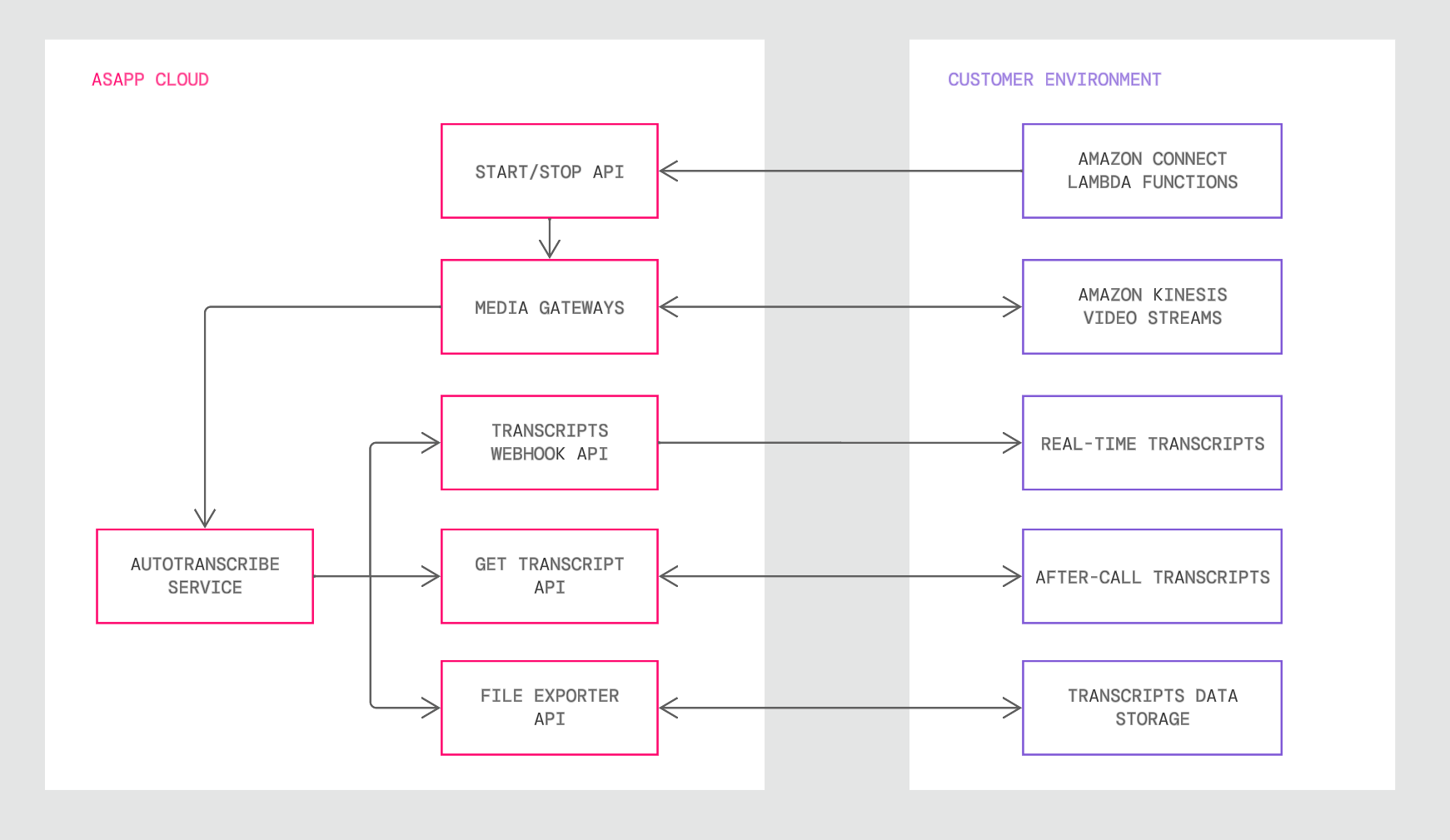
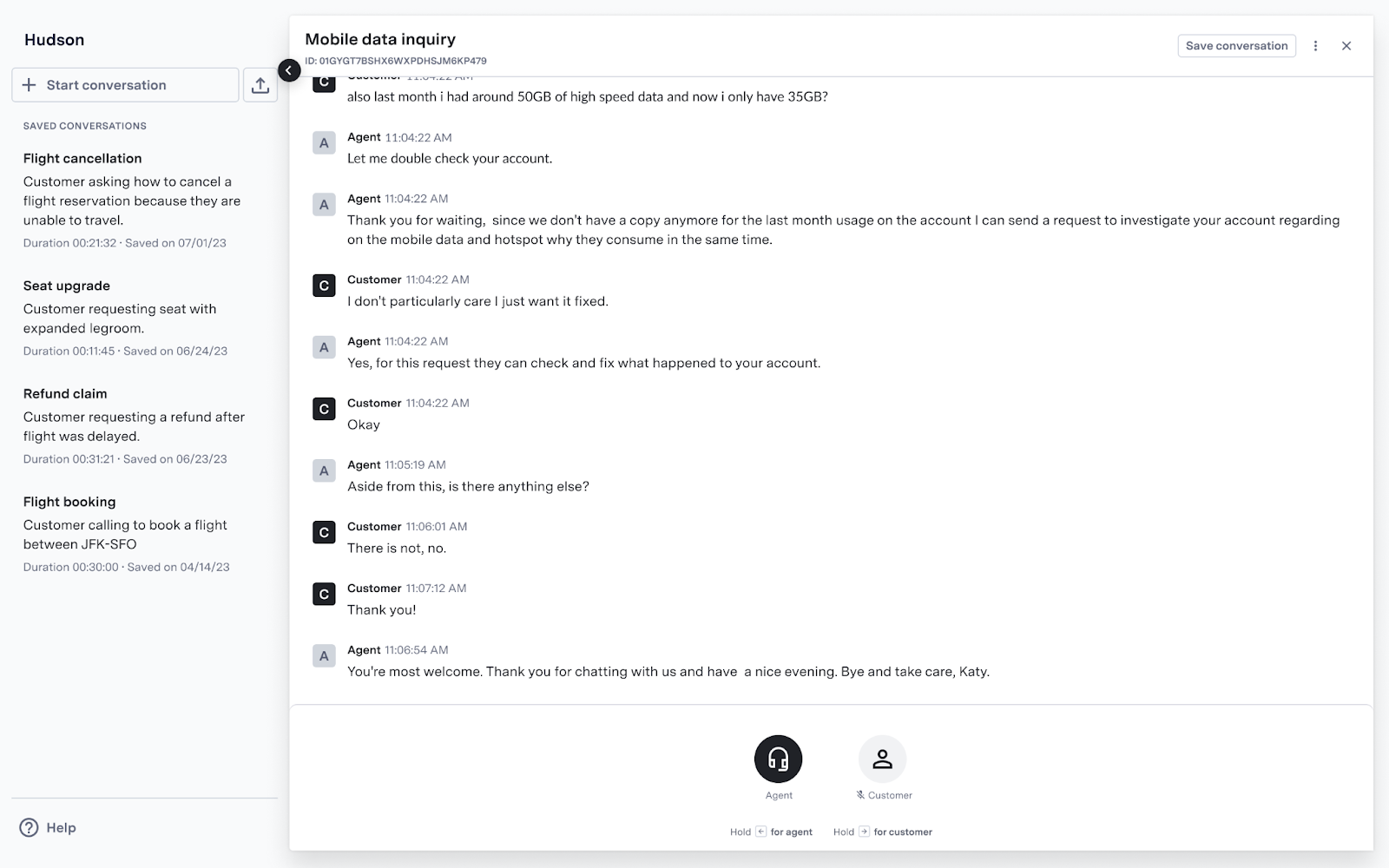 *AI Transcribe showing conversation transcriptions in a sandbox environment.*
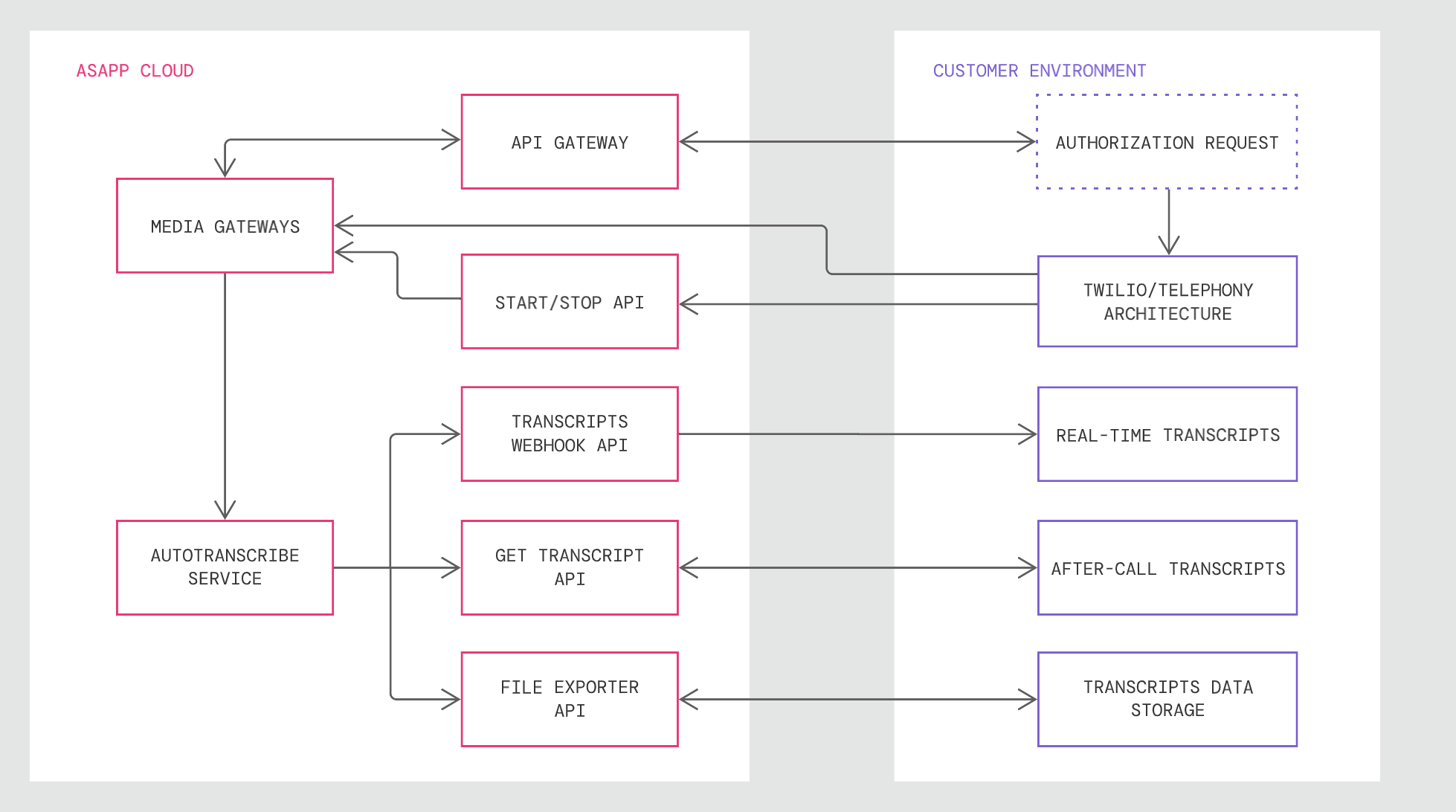 The new Media Gateway will allow for a simplified and easy integration for customers leveraging Twilio as their CCaaS provider, reducing time and effort of sending call media to ASAPP.
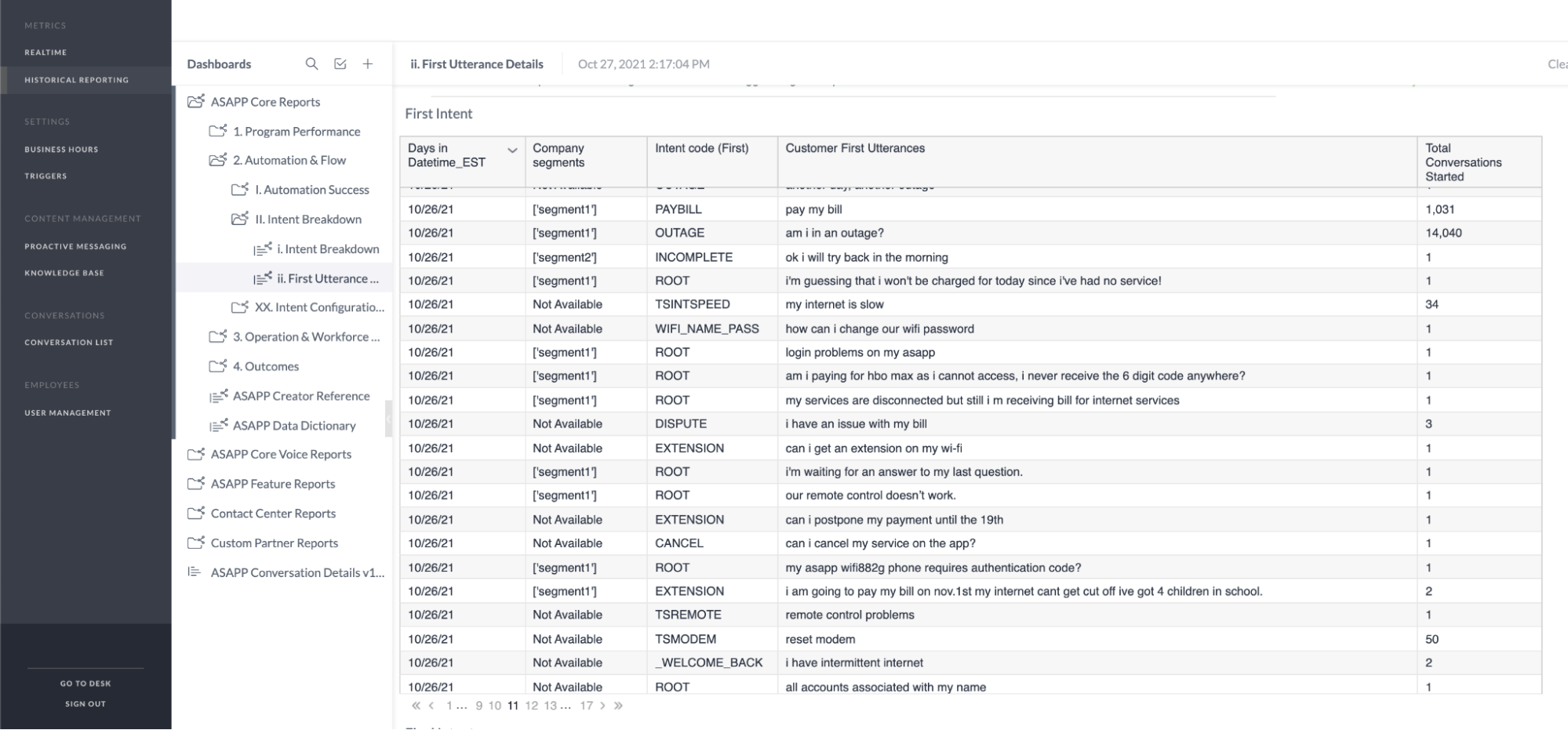 ### (b) Ongoing Refinement
Every flow you build can be thought of as a hypothesis for how to effectively understand and respond to your customers in a given scenario. Your ability to refine those hypotheses over time—and test new ones—is key to managing a truly effective virtual agent program that meets your customers' needs.
We recommend performing the following steps on a regular basis—at least monthly—to identify opportunities for flow refinement, and improve effectiveness over time.
#### Step 1: Identify opportunity areas in particular flows
1. **Flows with relatively high containment, but a low success rate:** This indicates that customers are dropping out of the flow before they receive useful information.
2. **Flows with the highest negative EndSRS rates:** This indicates that the flow did not meet the customer's needs.
#### Step 2: Determine Likely Causes for Flow Underperformance, Identify Remedies
Once you've identified problematic flows, the next step is to determine why they underperform. In most cases, reviewing transcripts of issueIDs from Conversation Manager in Insights Manager will quickly reveal at least one of the following issues with your flow:
**1. General unhelpfulness or imprecise responses**
Oftentimes flows break down when the virtual agent responds confidently in a manner that is on-topic but completely misses the customers' point. A common example is customers reaching out about a difficulty to log in, only to be sent to the same "forgot your password" experience they were experiencing issues with in the first place. Issues of this type typically receive a negative EndSRS score from the customer, who doesn't believe their problem has been solved.
The key to increase the performance of these flows is to configure the virtual agent to ask further, more specific questions before jumping to conclusions. Following the example above, you could ask "Have you tried resetting your password yet?". Including this question can go a long way to ensure that the customer receives the support they're looking for.
**2. Unrecognized customer responses**
This happens when the customer says or wants to say something that the virtual agent is unable to understand.
In free-text channels, this will result in classification errors where the virtual agent has re-prompted the customer to no avail, or has incorrectly attempted to digress to another intent. You can identify these issues by searching for re-prompt language in transcripts where customers have escalated to an agent from the flow in question. Looking at the customers' problematic response, you can determine how best to improve your flow. If customers' response is reasonable given the prompt, you can introduce a new response route in the flow and train it to understand what the customer is saying. Even if it's a path of dialog you don't want the virtual agent to pursue, it's better for the virtual agent to acknowledge what they said and redirect rather than failing to understand entirely.
**Don't:**
* "Which option would you prefer?"
* "Let's do both"
* "Sorry I didn't understand that. Could you try again?"
**Do:**
* "Which option would you prefer?"
* "Let's do both"
* "Sorry, but we can only accommodate one. Do you have a preference?"
Another option for avoiding unrecognized customer responses in free-text channels, is to rephrase the prompt in a manner that reduces the number of ways that a customer is likely to respond. This is often the best approach in cases where the virtual agent prompt is vague or open-ended.
**Don't:**
* "What issue are you having with your internet?"
* "I think maybe my router is broken"
* "Sorry I didn't understand that. Could you try again?"
**Do:**
* "Is your internet slow, or is it completely down?"
* "It's completely down"
In SDK channels (web or mobile apps), which are driven by quick replies, the concern here is to ensure that customers have the opportunity to respond in the way that makes sense given their situation. A common example failing to provide an "I'm not sure" quick reply option when asking a "yes or no" question. Faced with this situation, customers will often click on "new question" or abandon the chat entirely, leaving very little signal on what they intended. The best way to improve quick reply coverage is to maintain a clear understanding of the different contexts in which a customer might enter the flow---how they conceive of their issue, what information they might or might not have going in, etc. Gaining this perspective is helped greatly by reviewing live chat interactions that relate to the flow in question, and determining whether your flow could have accommodated the customer's situation.
**3. Incorrect classification**
This issue is unique to free-text use cases and happens when the virtual agent thinks the customer said one thing, when in fact the customer meant something else. One example would be a response like "no idea" being misclassified as "no" rather than the expected "I'm not sure."
Another example might be a response triggering a digression (i.e., a change of intent in the middle of a conversation), rather than an expected trained response route. This can happen in flows where you've trained response routes to help clarify a customer's issue but their response sounds like an intent and thus triggers a digression instead of the response route you intended. For example:
```
"I need help with a refund"
"No problem. What is the reason for the refund?"
"My flight got cancelled"
"Are you trying to rebook travel due to a cancelled flight?"\<\< Digression
"No, I'm asking about a refund"
```
While these issues tend to occur infrequently, when you do encounter them, the best place to start is revising the prompt to encourage responses that are less likely to be classified incorrectly. For example, instead of asking an open-ended question like "What is the reason for your refund?"---to which a customer response is very likely to sound like an intent---you can ask directly ("Was your flight cancelled?") or ask for more concrete information from which you can infer the answer ("No problem! What's the confirmation number?").
Alternatively, you can solve issues of incorrect classification by training a specific response route that targets the exact language that is proving problematic. In the case of the unclear "I'm not sure" route, a response route that's trained explicitly to recognize "no idea" might perform better than one that is broadly trained to recognize the long tail of phrases that more or less mean "I'm not sure." In this case, you can point the response route to the same node as your generic "I'm not sure" route to resolve the issue.
**4. Too much friction**
Another cause for underperformance is too much friction in a particular flow. This happens when the virtual agent is asking a lot of the customer.
One type of friction is authentication. Customers don't always remember their specific login or PINs, so authentication requests should be used only when needed. If customers are asked to find their authentication information unnecessarily, many will oftentimes abandon the chat.
Another type of friction is repetitive or redundant steps--particularly around disambiguating the customer. While it's helpful to clarify what a customer wants to do to adequately solve their need, repetitive questions that don't feel like they are progressing the customer forward often lead to a feeling of frustration--and abandonment.
#### Step 3: Version, improve, and track the impact of flow changes
Once you've identified an issue with a specific flow, create a new version of it in AI-Console with one of the remedies outlined above. After you have implemented a new version, you can save and release the new version to a lower environment to test it, and subsequently to production. Then, track the impact in Historical Reporting in Insights Manager by looking at the Flow Success Rate for such flow on the Business Flow Details tab of the Flow Dashboard.
### 2. Know your Channels
Messaging channels have advantages and limitations. Appreciating the differences will help you optimize virtual agents for the channels they live on, and avoid channel-specific pitfalls.
To illustrate this, look at a single flow rendered in Apple Messages for Business vs the ASAPP SDK:
### (b) Ongoing Refinement
Every flow you build can be thought of as a hypothesis for how to effectively understand and respond to your customers in a given scenario. Your ability to refine those hypotheses over time—and test new ones—is key to managing a truly effective virtual agent program that meets your customers' needs.
We recommend performing the following steps on a regular basis—at least monthly—to identify opportunities for flow refinement, and improve effectiveness over time.
#### Step 1: Identify opportunity areas in particular flows
1. **Flows with relatively high containment, but a low success rate:** This indicates that customers are dropping out of the flow before they receive useful information.
2. **Flows with the highest negative EndSRS rates:** This indicates that the flow did not meet the customer's needs.
#### Step 2: Determine Likely Causes for Flow Underperformance, Identify Remedies
Once you've identified problematic flows, the next step is to determine why they underperform. In most cases, reviewing transcripts of issueIDs from Conversation Manager in Insights Manager will quickly reveal at least one of the following issues with your flow:
**1. General unhelpfulness or imprecise responses**
Oftentimes flows break down when the virtual agent responds confidently in a manner that is on-topic but completely misses the customers' point. A common example is customers reaching out about a difficulty to log in, only to be sent to the same "forgot your password" experience they were experiencing issues with in the first place. Issues of this type typically receive a negative EndSRS score from the customer, who doesn't believe their problem has been solved.
The key to increase the performance of these flows is to configure the virtual agent to ask further, more specific questions before jumping to conclusions. Following the example above, you could ask "Have you tried resetting your password yet?". Including this question can go a long way to ensure that the customer receives the support they're looking for.
**2. Unrecognized customer responses**
This happens when the customer says or wants to say something that the virtual agent is unable to understand.
In free-text channels, this will result in classification errors where the virtual agent has re-prompted the customer to no avail, or has incorrectly attempted to digress to another intent. You can identify these issues by searching for re-prompt language in transcripts where customers have escalated to an agent from the flow in question. Looking at the customers' problematic response, you can determine how best to improve your flow. If customers' response is reasonable given the prompt, you can introduce a new response route in the flow and train it to understand what the customer is saying. Even if it's a path of dialog you don't want the virtual agent to pursue, it's better for the virtual agent to acknowledge what they said and redirect rather than failing to understand entirely.
**Don't:**
* "Which option would you prefer?"
* "Let's do both"
* "Sorry I didn't understand that. Could you try again?"
**Do:**
* "Which option would you prefer?"
* "Let's do both"
* "Sorry, but we can only accommodate one. Do you have a preference?"
Another option for avoiding unrecognized customer responses in free-text channels, is to rephrase the prompt in a manner that reduces the number of ways that a customer is likely to respond. This is often the best approach in cases where the virtual agent prompt is vague or open-ended.
**Don't:**
* "What issue are you having with your internet?"
* "I think maybe my router is broken"
* "Sorry I didn't understand that. Could you try again?"
**Do:**
* "Is your internet slow, or is it completely down?"
* "It's completely down"
In SDK channels (web or mobile apps), which are driven by quick replies, the concern here is to ensure that customers have the opportunity to respond in the way that makes sense given their situation. A common example failing to provide an "I'm not sure" quick reply option when asking a "yes or no" question. Faced with this situation, customers will often click on "new question" or abandon the chat entirely, leaving very little signal on what they intended. The best way to improve quick reply coverage is to maintain a clear understanding of the different contexts in which a customer might enter the flow---how they conceive of their issue, what information they might or might not have going in, etc. Gaining this perspective is helped greatly by reviewing live chat interactions that relate to the flow in question, and determining whether your flow could have accommodated the customer's situation.
**3. Incorrect classification**
This issue is unique to free-text use cases and happens when the virtual agent thinks the customer said one thing, when in fact the customer meant something else. One example would be a response like "no idea" being misclassified as "no" rather than the expected "I'm not sure."
Another example might be a response triggering a digression (i.e., a change of intent in the middle of a conversation), rather than an expected trained response route. This can happen in flows where you've trained response routes to help clarify a customer's issue but their response sounds like an intent and thus triggers a digression instead of the response route you intended. For example:
```
"I need help with a refund"
"No problem. What is the reason for the refund?"
"My flight got cancelled"
"Are you trying to rebook travel due to a cancelled flight?"\<\< Digression
"No, I'm asking about a refund"
```
While these issues tend to occur infrequently, when you do encounter them, the best place to start is revising the prompt to encourage responses that are less likely to be classified incorrectly. For example, instead of asking an open-ended question like "What is the reason for your refund?"---to which a customer response is very likely to sound like an intent---you can ask directly ("Was your flight cancelled?") or ask for more concrete information from which you can infer the answer ("No problem! What's the confirmation number?").
Alternatively, you can solve issues of incorrect classification by training a specific response route that targets the exact language that is proving problematic. In the case of the unclear "I'm not sure" route, a response route that's trained explicitly to recognize "no idea" might perform better than one that is broadly trained to recognize the long tail of phrases that more or less mean "I'm not sure." In this case, you can point the response route to the same node as your generic "I'm not sure" route to resolve the issue.
**4. Too much friction**
Another cause for underperformance is too much friction in a particular flow. This happens when the virtual agent is asking a lot of the customer.
One type of friction is authentication. Customers don't always remember their specific login or PINs, so authentication requests should be used only when needed. If customers are asked to find their authentication information unnecessarily, many will oftentimes abandon the chat.
Another type of friction is repetitive or redundant steps--particularly around disambiguating the customer. While it's helpful to clarify what a customer wants to do to adequately solve their need, repetitive questions that don't feel like they are progressing the customer forward often lead to a feeling of frustration--and abandonment.
#### Step 3: Version, improve, and track the impact of flow changes
Once you've identified an issue with a specific flow, create a new version of it in AI-Console with one of the remedies outlined above. After you have implemented a new version, you can save and release the new version to a lower environment to test it, and subsequently to production. Then, track the impact in Historical Reporting in Insights Manager by looking at the Flow Success Rate for such flow on the Business Flow Details tab of the Flow Dashboard.
### 2. Know your Channels
Messaging channels have advantages and limitations. Appreciating the differences will help you optimize virtual agents for the channels they live on, and avoid channel-specific pitfalls.
To illustrate this, look at a single flow rendered in Apple Messages for Business vs the ASAPP SDK:
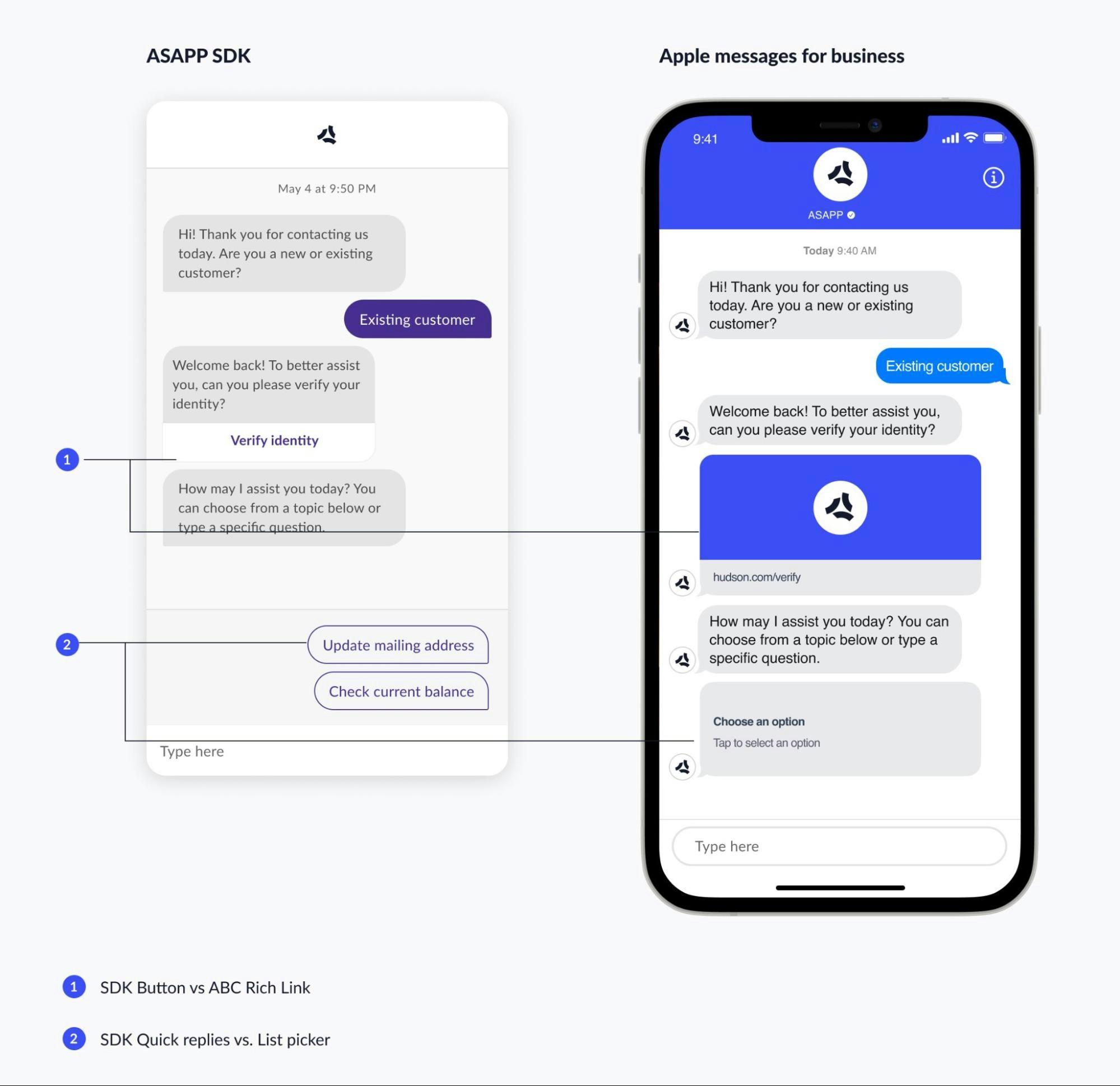
 ##### ASAPP SDK
The ASAPP SDKs (Web, Android, and iOS) have a number of features that help to build rich virtual agent experiences.
Strengths of SDKs:
1. Quick Replies - surface explicit text options to a customer to tap/click on, and route to the next part of a flow.
2. Authentication / context - with the authentication of customers, the SDK allows for a persistent chat history which provides seamless continuity. Additionally, authentication allows for the direct calling of APIs (e.g. retrieving a bill amount).
Limitations:
* Not as sticky of an experience (i.e. it's not an application the customer has top of mind/high visibility), so the customer may abandon the chat. One cause for this is the lack of guaranteed push notifications -- particularly in the Web SDK.
How to optimize for ASAPP SDKs:
* We encourage you to build more complicated, multi-step flows, leveraging quick replies that keep customers on the rails.
### 3. Promote Function over Form
First and foremost, your virtual agent needs to be effective at facilitating dialog. It may be tempting to prioritize focus on virtual agent tone and voice but that can ultimately detract from virtual agent's functional purpose. Next we'll offer examples that illustrate effective or ineffective dialogs that will help you when building out your flows.
#### (a) It's OK to sound Bot-like
The virtual agent **is** a bot, and it primarily serves a functional purpose. It is much better to be explicit with customers and move the conversation forward, rather than making potential UX sacrifices to sound friendly or human-like. Customers are coming to a virtual agent to solve a specific problem efficiently. Here is a positive example of a greeting that, while bot-like, is clear and effective:
```
"Hello! How can I help you today? Choose from a topic below or type a specific question."
```
#### (b) Tell People How to Interact
Customers interact with virtual agents to solve a problem and/or to achieve something. They benefit from explicit guidance with how they are supposed to interact with the virtual agent. If your flow design expects the customer to do something, tell them upfront. Here is a positive example of clear instructions telling a customer how to interact with the virtual agent:
```
"Please choose an option below so we can best help"
```
#### (c) Set Clear Expectations for Redirects
The virtual agent can't always handle a customer's issue. When you need to redirect the customer to self-serve on a website, or even on a phone number, set clear expectations for what they need to do next. You never want a customer to feel abandoned. Here are two positive examples of very clear instructions about what the customer will need to do next, and what they can expect:
```
"To process your payment and complete your request, you'll need to call us at 1-800-555-5555. **Agents are available** from 8am to 9pm ET, Monday through Friday"
"You can check the status of your order on website by either **entering your order number** or **logging in**".
```
#### (d) Acknowledge Progress & Justify Steps
Think of a bot like a standard interaction funnel -- a customer has to go through multiple steps to achieve an outcome. Acknowledging progress made and justifying steps to the customer makes for a better user experience, and makes it more like for the customer to complete all of the steps (think of a breadcrumb in a checkout flow). The customer should have a sense of where they are in the process. Here's a simple example of orienting a customer to where they are in a process:
```
"We're happy to help answer questions about your bill, but will need you to sign in so we can access your account information."
```
#### (e) Be careful with Personification
Over-personifying your virtual agent can make for a frustrating customer experience:
* **Do** frame language in a more impersonal "we"
* **Don't** make the virtual agent "I"
* **Do** frame the virtual agent as a representative for your company.
* **Don't** give your virtual agent a name / distinct personality.
* **Do** give your virtual agent a warm, action-oriented tone.
* **Don't** give your virtual agent an overly friendly, text-heavy tone.
* **Do** "Great! We can help you pay your bill now. What payment method would you like to use?"
* **Don't** "Great, thank you so much for clarifying that! I am so happy to help you with your bill today."
#### (f) Affirm What Customers Say, Not What the Flow Does
Affirmations help customers feel heard, and they help customers understand what the virtual agent is taking away from their responses. When drafting a virtual agent response, ensure that you match the copy to the variety of customer responses that may precede it -- historical customer responses can be viewed in the utterance table in historical reporting.
If there is a broad set reasons for a customer to end up on a node or a flow, your affirmation should likewise be broad:
* **Do** "We can help with that"
* **Do** "We can help you with your bill"
* **Don't** "We can help you pay your bill online"
Similarly, if there is a narrow set of reasons for a customer to end up in a node or a flow, your affirmation should likewise be narrow. Even then, it's important to not phrase things in such a way that you're putting words in the mouth of the customer, so they don't feel frustrated by the virtual agent.
* **Do** "To set up autopay ..."
* **Don't** "It sounds like you want to set up autopay"
* **Don't** "Okay, so autopay"
In some cases where writing a good affirmation feels particularly tricky, feel free to err on the side of not having one. It's all good so long as the virtual agent responds in an expected manner given what the customer just said.
### 4. Reduce Friction
If interacting with your virtual agent is confusing or hard, people will revert to tried and true escalation pathways like shouting "agent" or just calling in. As you are designing flows, be mindful about the following friction points you could potentially introduce in your flows.
#### (a) Be Judicious with Deep Links
Deep links are used when you link a customer out of chat to self-serve. It is tempting to leverage existing web pages, and to create dozens of flows that are simple link outs. But this often does not provide a good customer experience.
A virtual agent that is mostly single step deep links will feel like a frustrating search engine. Wherever possible, try to solve a customer's problem conversationally within the chat itself. Don't rely on links as a default.
But, when you **do** rely on a deep link, make sure to:
1. Validate the link actually solves the customers intent and is accessible to all customers (e.g. not behind an authentication wall, or only accessible to certain types of customers).
2. Leverage native app links where possible.
3. Be clear about what the customer needs to do when they go to the link and leave the chat experience.
#### (b) Avoid All-or-Nothing Flow Requirements
Be careful with "all or nothing" requirements in a flow; if you want a customer to sign in to allow you to access an API, that's great, but give customers an alternative option at that moment too. Some customers might not remember their password.
When you are at a point in a flow where there is a required step or just one direction a customer can go, think about what alternative answer there could be for a customer. If you don't, those customers might just abandon the virtual agent at that point.
##### ASAPP SDK
The ASAPP SDKs (Web, Android, and iOS) have a number of features that help to build rich virtual agent experiences.
Strengths of SDKs:
1. Quick Replies - surface explicit text options to a customer to tap/click on, and route to the next part of a flow.
2. Authentication / context - with the authentication of customers, the SDK allows for a persistent chat history which provides seamless continuity. Additionally, authentication allows for the direct calling of APIs (e.g. retrieving a bill amount).
Limitations:
* Not as sticky of an experience (i.e. it's not an application the customer has top of mind/high visibility), so the customer may abandon the chat. One cause for this is the lack of guaranteed push notifications -- particularly in the Web SDK.
How to optimize for ASAPP SDKs:
* We encourage you to build more complicated, multi-step flows, leveraging quick replies that keep customers on the rails.
### 3. Promote Function over Form
First and foremost, your virtual agent needs to be effective at facilitating dialog. It may be tempting to prioritize focus on virtual agent tone and voice but that can ultimately detract from virtual agent's functional purpose. Next we'll offer examples that illustrate effective or ineffective dialogs that will help you when building out your flows.
#### (a) It's OK to sound Bot-like
The virtual agent **is** a bot, and it primarily serves a functional purpose. It is much better to be explicit with customers and move the conversation forward, rather than making potential UX sacrifices to sound friendly or human-like. Customers are coming to a virtual agent to solve a specific problem efficiently. Here is a positive example of a greeting that, while bot-like, is clear and effective:
```
"Hello! How can I help you today? Choose from a topic below or type a specific question."
```
#### (b) Tell People How to Interact
Customers interact with virtual agents to solve a problem and/or to achieve something. They benefit from explicit guidance with how they are supposed to interact with the virtual agent. If your flow design expects the customer to do something, tell them upfront. Here is a positive example of clear instructions telling a customer how to interact with the virtual agent:
```
"Please choose an option below so we can best help"
```
#### (c) Set Clear Expectations for Redirects
The virtual agent can't always handle a customer's issue. When you need to redirect the customer to self-serve on a website, or even on a phone number, set clear expectations for what they need to do next. You never want a customer to feel abandoned. Here are two positive examples of very clear instructions about what the customer will need to do next, and what they can expect:
```
"To process your payment and complete your request, you'll need to call us at 1-800-555-5555. **Agents are available** from 8am to 9pm ET, Monday through Friday"
"You can check the status of your order on website by either **entering your order number** or **logging in**".
```
#### (d) Acknowledge Progress & Justify Steps
Think of a bot like a standard interaction funnel -- a customer has to go through multiple steps to achieve an outcome. Acknowledging progress made and justifying steps to the customer makes for a better user experience, and makes it more like for the customer to complete all of the steps (think of a breadcrumb in a checkout flow). The customer should have a sense of where they are in the process. Here's a simple example of orienting a customer to where they are in a process:
```
"We're happy to help answer questions about your bill, but will need you to sign in so we can access your account information."
```
#### (e) Be careful with Personification
Over-personifying your virtual agent can make for a frustrating customer experience:
* **Do** frame language in a more impersonal "we"
* **Don't** make the virtual agent "I"
* **Do** frame the virtual agent as a representative for your company.
* **Don't** give your virtual agent a name / distinct personality.
* **Do** give your virtual agent a warm, action-oriented tone.
* **Don't** give your virtual agent an overly friendly, text-heavy tone.
* **Do** "Great! We can help you pay your bill now. What payment method would you like to use?"
* **Don't** "Great, thank you so much for clarifying that! I am so happy to help you with your bill today."
#### (f) Affirm What Customers Say, Not What the Flow Does
Affirmations help customers feel heard, and they help customers understand what the virtual agent is taking away from their responses. When drafting a virtual agent response, ensure that you match the copy to the variety of customer responses that may precede it -- historical customer responses can be viewed in the utterance table in historical reporting.
If there is a broad set reasons for a customer to end up on a node or a flow, your affirmation should likewise be broad:
* **Do** "We can help with that"
* **Do** "We can help you with your bill"
* **Don't** "We can help you pay your bill online"
Similarly, if there is a narrow set of reasons for a customer to end up in a node or a flow, your affirmation should likewise be narrow. Even then, it's important to not phrase things in such a way that you're putting words in the mouth of the customer, so they don't feel frustrated by the virtual agent.
* **Do** "To set up autopay ..."
* **Don't** "It sounds like you want to set up autopay"
* **Don't** "Okay, so autopay"
In some cases where writing a good affirmation feels particularly tricky, feel free to err on the side of not having one. It's all good so long as the virtual agent responds in an expected manner given what the customer just said.
### 4. Reduce Friction
If interacting with your virtual agent is confusing or hard, people will revert to tried and true escalation pathways like shouting "agent" or just calling in. As you are designing flows, be mindful about the following friction points you could potentially introduce in your flows.
#### (a) Be Judicious with Deep Links
Deep links are used when you link a customer out of chat to self-serve. It is tempting to leverage existing web pages, and to create dozens of flows that are simple link outs. But this often does not provide a good customer experience.
A virtual agent that is mostly single step deep links will feel like a frustrating search engine. Wherever possible, try to solve a customer's problem conversationally within the chat itself. Don't rely on links as a default.
But, when you **do** rely on a deep link, make sure to:
1. Validate the link actually solves the customers intent and is accessible to all customers (e.g. not behind an authentication wall, or only accessible to certain types of customers).
2. Leverage native app links where possible.
3. Be clear about what the customer needs to do when they go to the link and leave the chat experience.
#### (b) Avoid All-or-Nothing Flow Requirements
Be careful with "all or nothing" requirements in a flow; if you want a customer to sign in to allow you to access an API, that's great, but give customers an alternative option at that moment too. Some customers might not remember their password.
When you are at a point in a flow where there is a required step or just one direction a customer can go, think about what alternative answer there could be for a customer. If you don't, those customers might just abandon the virtual agent at that point.
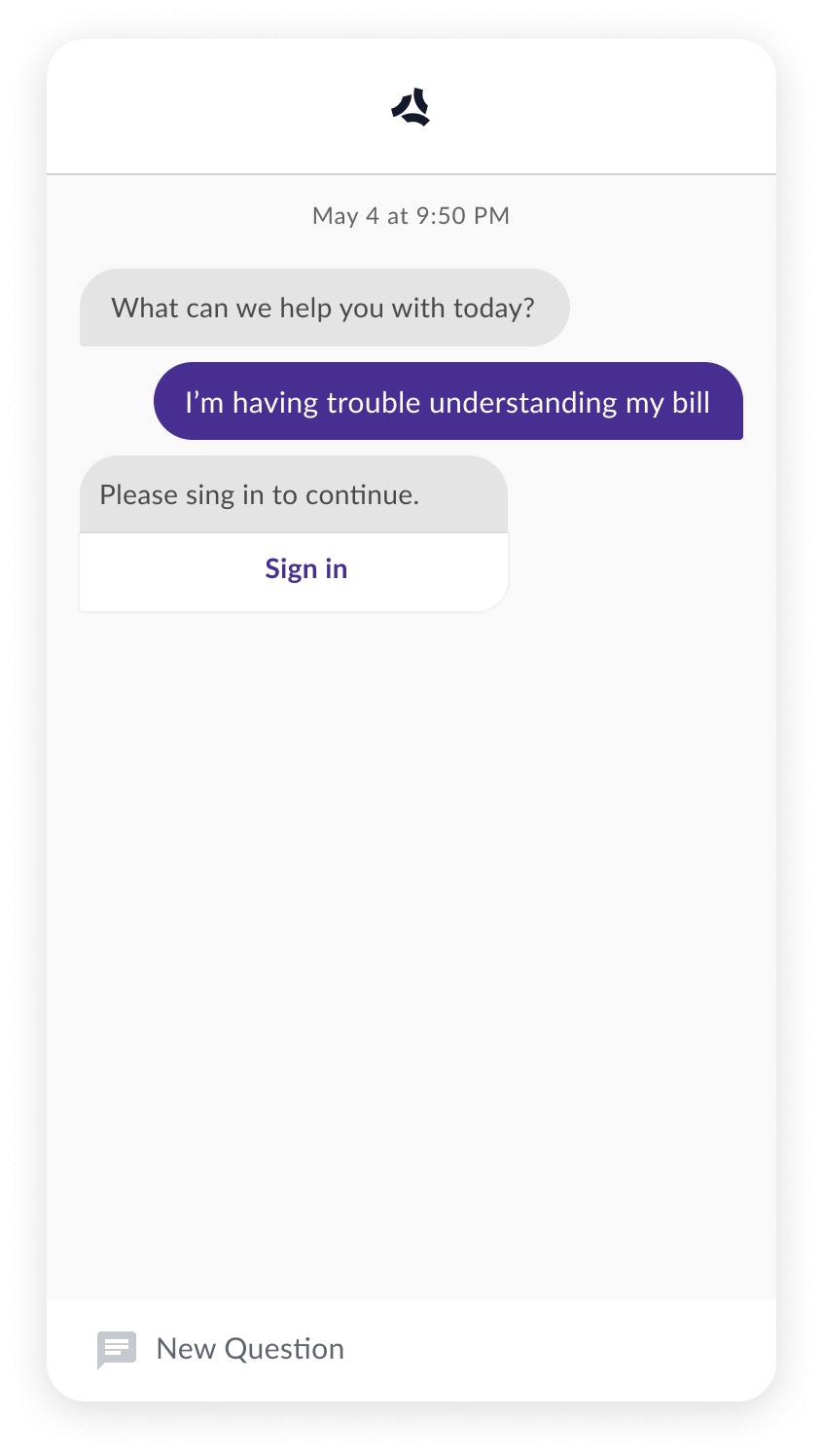 ### 5. Anticipate Failure
It's tempting to design with the happy path in mind, but customers don't always go down the flow you expect. Anticipate the failure points in a virtual agent, and design for them explicitly.
### 5. Anticipate Failure
It's tempting to design with the happy path in mind, but customers don't always go down the flow you expect. Anticipate the failure points in a virtual agent, and design for them explicitly.
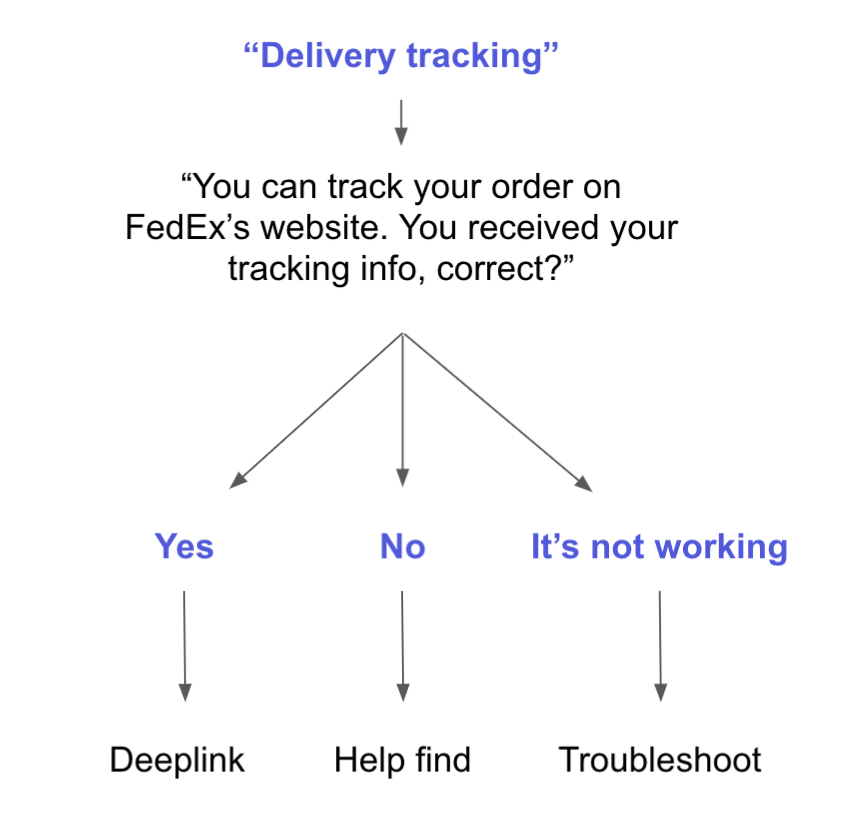 #### (a) Explicit Design for Error Cases
Always imagine something will go wrong when asking the customer to do something:
* When asking customer to complete something manually, give them a response route or a quick reply that allows them to acknowledge it's not working (e.g. the speed test isn't working).
* When asking the customer to self-serve on a web page or in chat: allow them to go down a path in case that doesn't work (e.g. login isn't working).
* When designing flows that involve self-service through APIs: explicitly design for what happens when the API doesn't work.
#### (b) Consider Free Text Errors
In channels where free text is always enabled (i.e.. AMB, SMS), the customer input may not be recognized. We recommend writing language that guides the customer to explicitly understand the types of answers we're expecting. Leverage "else" conditions in your flows (on Response Nodes).
**Don't:**
* "What issue are you having with your internet?"
* "I think maybe my router is broken"
* "Sorry I didn't understand that. Could you try again?"
**Do:**
* "Is your internet slow, or is it completely down?"
* "I think maybe my router is broken"
* "Sorry I didn't understand that. Is your internet slower than usual, or is your internet completely off?"
## Measuring Virtual Agents
### 1. Flow Success
Containment is a measure of whether a customer was prevented from escalating to an agent; it is the predominant measure in the industry for chatbot effectiveness. ASAPP, however, layers a more stringent definition called "Flow success," which indicates whether or not a customer was actually helped by the virtual agent.
### Important
When you are designing a new flow or modifying an existing flow, be sure to enable flow success when you have provided useful information to the customer.
"Flow success" is defined as when a customer arrives at a screen or receives a response that:
1. Provides useful information addressing the recognized intent of the inquiry.
2. Confirms a completed transaction in a back-end system.
3. Acknowledges the customer has resolved an issue successfully.
With flow success, chronology matters. If a customer starts a flow, and is presented with insightful information (i.e. success), but then escalates to an agent in the middle of a flow (i.e. negation of success), that issue will be recorded as not successful.
### How It Works
Flow success is an event that can be emitted on a [node](/agent-desk/virtual-agent/flows#node-types "Node Types").
#### (a) Explicit Design for Error Cases
Always imagine something will go wrong when asking the customer to do something:
* When asking customer to complete something manually, give them a response route or a quick reply that allows them to acknowledge it's not working (e.g. the speed test isn't working).
* When asking the customer to self-serve on a web page or in chat: allow them to go down a path in case that doesn't work (e.g. login isn't working).
* When designing flows that involve self-service through APIs: explicitly design for what happens when the API doesn't work.
#### (b) Consider Free Text Errors
In channels where free text is always enabled (i.e.. AMB, SMS), the customer input may not be recognized. We recommend writing language that guides the customer to explicitly understand the types of answers we're expecting. Leverage "else" conditions in your flows (on Response Nodes).
**Don't:**
* "What issue are you having with your internet?"
* "I think maybe my router is broken"
* "Sorry I didn't understand that. Could you try again?"
**Do:**
* "Is your internet slow, or is it completely down?"
* "I think maybe my router is broken"
* "Sorry I didn't understand that. Is your internet slower than usual, or is your internet completely off?"
## Measuring Virtual Agents
### 1. Flow Success
Containment is a measure of whether a customer was prevented from escalating to an agent; it is the predominant measure in the industry for chatbot effectiveness. ASAPP, however, layers a more stringent definition called "Flow success," which indicates whether or not a customer was actually helped by the virtual agent.
### Important
When you are designing a new flow or modifying an existing flow, be sure to enable flow success when you have provided useful information to the customer.
"Flow success" is defined as when a customer arrives at a screen or receives a response that:
1. Provides useful information addressing the recognized intent of the inquiry.
2. Confirms a completed transaction in a back-end system.
3. Acknowledges the customer has resolved an issue successfully.
With flow success, chronology matters. If a customer starts a flow, and is presented with insightful information (i.e. success), but then escalates to an agent in the middle of a flow (i.e. negation of success), that issue will be recorded as not successful.
### How It Works
Flow success is an event that can be emitted on a [node](/agent-desk/virtual-agent/flows#node-types "Node Types").
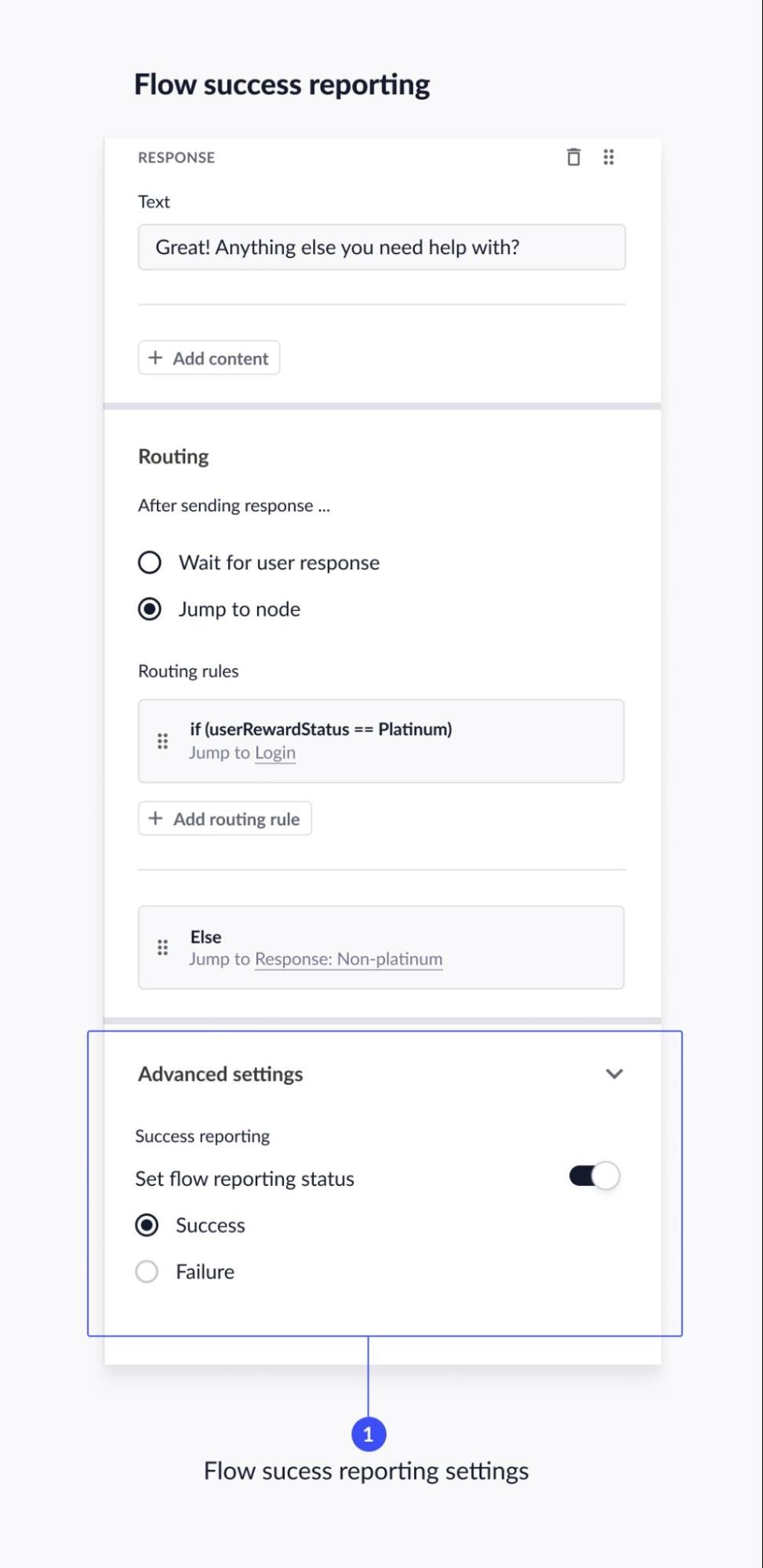 It is incumbent on the author of a flow to define which steps in the flow they design could be considered successful.
Default settings:
* **Response Nodes:** When flow reporting status is **on**, the **success** option will be chosen by default.
* **Agent Node:** When flow reporting status is **on**, the **failure** option will be chosen.
* **End & Redirect:** Flow success is not available in the tooling. By default, the End Node question will emit or not emit flow success depending on the customer response.
### 2. Assessing a Flow's Performance
You're able to track your flows' performance on the "Automation Success" report in historical reporting. There you can assess containment metrics and flow success which will help you determine whether a flow is performing according to expectations.
## Tactical Flow Creation Guide
### 1. Naming Nodes
Flows are composed of different node types, which represent a particular state/act of a given flow. When you create a flow, you create a number of different nodes.
We recommend naming nodes to describe what the node accomplishes in a flow. Clear node names will make the data more readable going forward. Here are some best practices to keep in mind:
* Response node (no prompt): name is by the content (e.g. "NoBalanceMessage")
* Response node (with prompt): name by the request (e.g. "RequestSeatPreferences")
* Any node that takes an action of some sort should start with the action being taken and end with what is being acted upon (e.g. "ResetModem")
### 2. Training Response Routes
When you create a Response Node that is expected to classify free text customer input (e.g. "Would you like a one way flight or a round trip flight?"), you need to supply training utterances to train a response route. There are some best practices you should keep in mind:
* Be explicit where possible.
* Vary your language.
* More training utterances is almost always better.
* Keep neighboring routes in mind -- what are the different types of answers you will be training, and how will the responses differ between them?
### 3. Designing Disambiguation
Sometimes customers initiate conversations with vague utterances like "Help with bill" or "Account issues." In these cases the virtual agent understands enough to classify the customer's intent, but not enough to immediately solve their problem.
In these cases, you are able to design a flow that asks follow-up questions to disambiguate the customer's particular need. Based on the customer's response you can redirect them to more granular intents where they can better be helped.
Designing effective disambiguation starts with reviewing historical conversations to get a sense of what types of issues customer's are having related to the vague intent. Once you've determined these, you'll want to optimize your prompt and response routes for the channel your designing for:
#### (a) ASAPP SDKs
These channels are driven by quick replies only, meaning that the customer can only choose an option that is provided by the virtual agent. Here, the prompt matters less than the response branches / quick replies you write. Just make sure they map to things a customer would say---even if multiple response routes lead to the same place. For example:
```
We're happy to help! Please choose an option below:
- Billing history
- Billing complaint
- Billing question
- Something else
```
#### (b) Free-Text Channels, with Optional Quick Replies (Post-iOS 15 AMB)
These channels offer quick replies, but do not prevent customers from responding with free text. The key here is optimizing your question to increase the likelihood that customers choose a quick reply.
```
We're happy to help! Please tap on one of the options below:
- Billing history
- Billing complaint
- Billing question
- Something else
```
#### (c) Free-Text-Only Channels (Pre iOS 15 AMB, SMS )
These channels are often the most challenging, as the customer could respond in any number of ways, and given the minimal context of the conversation it's challenging to train the virtual agent to adequately understand all of them. Similar to other channels, the objective is to prompt in a manner that limits how customers are likely to respond. The simplest approach here is to list out options as part of your prompt:
```
Please tell us more about your billing needs. You can say things like "Billing history" "Question" "Complaint" or "Something else"
```
### 4. Message Length
Keep messages to be short and to the point. Walls of text can be intimidating. Never allow an individual message to exceed 400 characters (or, even less if there are spaces)..
An example of something to avoid:
It is incumbent on the author of a flow to define which steps in the flow they design could be considered successful.
Default settings:
* **Response Nodes:** When flow reporting status is **on**, the **success** option will be chosen by default.
* **Agent Node:** When flow reporting status is **on**, the **failure** option will be chosen.
* **End & Redirect:** Flow success is not available in the tooling. By default, the End Node question will emit or not emit flow success depending on the customer response.
### 2. Assessing a Flow's Performance
You're able to track your flows' performance on the "Automation Success" report in historical reporting. There you can assess containment metrics and flow success which will help you determine whether a flow is performing according to expectations.
## Tactical Flow Creation Guide
### 1. Naming Nodes
Flows are composed of different node types, which represent a particular state/act of a given flow. When you create a flow, you create a number of different nodes.
We recommend naming nodes to describe what the node accomplishes in a flow. Clear node names will make the data more readable going forward. Here are some best practices to keep in mind:
* Response node (no prompt): name is by the content (e.g. "NoBalanceMessage")
* Response node (with prompt): name by the request (e.g. "RequestSeatPreferences")
* Any node that takes an action of some sort should start with the action being taken and end with what is being acted upon (e.g. "ResetModem")
### 2. Training Response Routes
When you create a Response Node that is expected to classify free text customer input (e.g. "Would you like a one way flight or a round trip flight?"), you need to supply training utterances to train a response route. There are some best practices you should keep in mind:
* Be explicit where possible.
* Vary your language.
* More training utterances is almost always better.
* Keep neighboring routes in mind -- what are the different types of answers you will be training, and how will the responses differ between them?
### 3. Designing Disambiguation
Sometimes customers initiate conversations with vague utterances like "Help with bill" or "Account issues." In these cases the virtual agent understands enough to classify the customer's intent, but not enough to immediately solve their problem.
In these cases, you are able to design a flow that asks follow-up questions to disambiguate the customer's particular need. Based on the customer's response you can redirect them to more granular intents where they can better be helped.
Designing effective disambiguation starts with reviewing historical conversations to get a sense of what types of issues customer's are having related to the vague intent. Once you've determined these, you'll want to optimize your prompt and response routes for the channel your designing for:
#### (a) ASAPP SDKs
These channels are driven by quick replies only, meaning that the customer can only choose an option that is provided by the virtual agent. Here, the prompt matters less than the response branches / quick replies you write. Just make sure they map to things a customer would say---even if multiple response routes lead to the same place. For example:
```
We're happy to help! Please choose an option below:
- Billing history
- Billing complaint
- Billing question
- Something else
```
#### (b) Free-Text Channels, with Optional Quick Replies (Post-iOS 15 AMB)
These channels offer quick replies, but do not prevent customers from responding with free text. The key here is optimizing your question to increase the likelihood that customers choose a quick reply.
```
We're happy to help! Please tap on one of the options below:
- Billing history
- Billing complaint
- Billing question
- Something else
```
#### (c) Free-Text-Only Channels (Pre iOS 15 AMB, SMS )
These channels are often the most challenging, as the customer could respond in any number of ways, and given the minimal context of the conversation it's challenging to train the virtual agent to adequately understand all of them. Similar to other channels, the objective is to prompt in a manner that limits how customers are likely to respond. The simplest approach here is to list out options as part of your prompt:
```
Please tell us more about your billing needs. You can say things like "Billing history" "Question" "Complaint" or "Something else"
```
### 4. Message Length
Keep messages to be short and to the point. Walls of text can be intimidating. Never allow an individual message to exceed 400 characters (or, even less if there are spaces)..
An example of something to avoid:
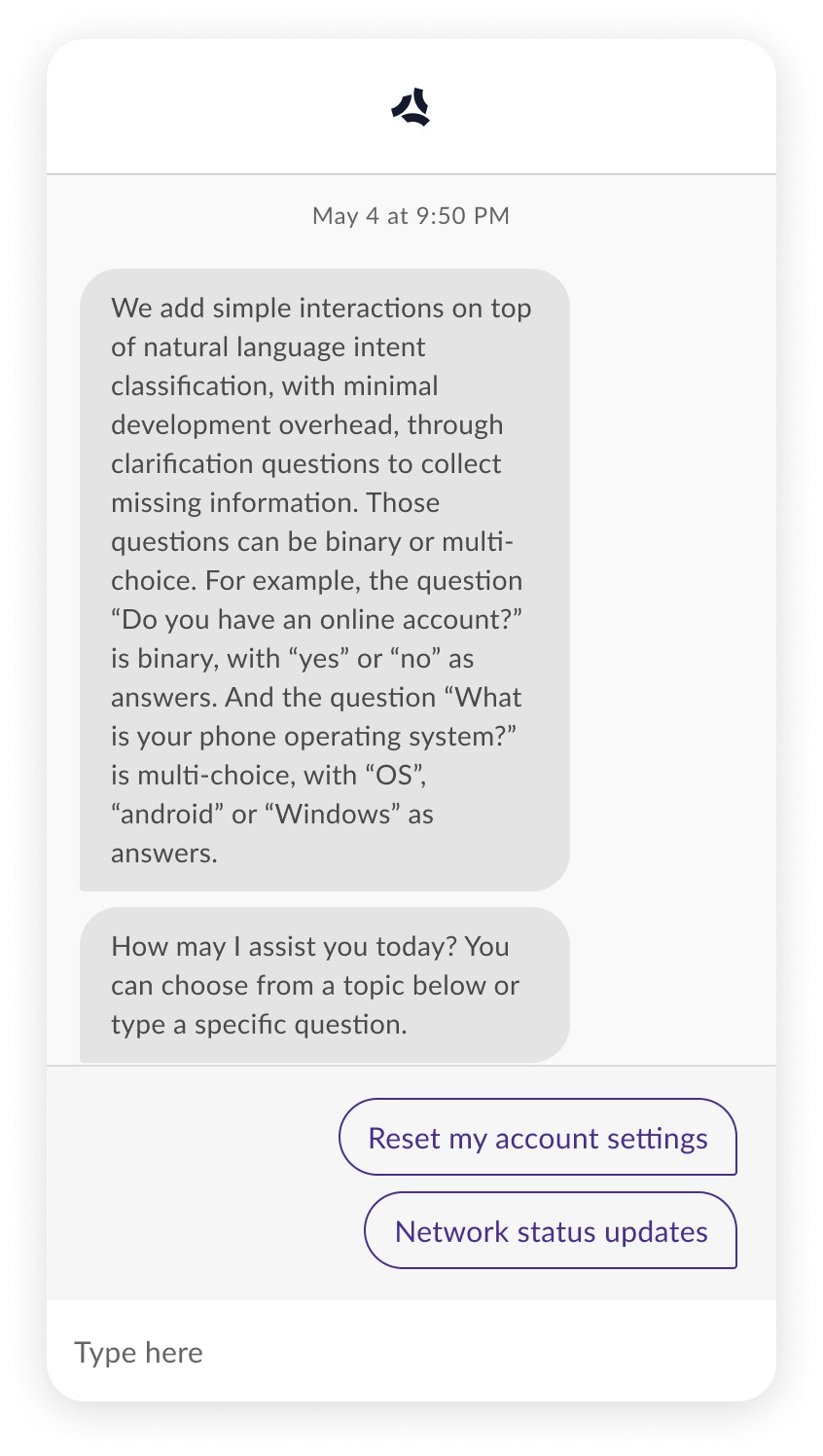 ### 5. Quick Replies
Quick Replies should be short and to the point. Some things to keep in mind when writing Quick Replies:
* Avoid punctuation
* Use sentence case capitalization, unless you're referring to a specific product or feature.
* Keep to at least two and up to five quick replies per node.
* While this is generally best practice, it is required for Quick Replies in Apple Messages for Business.
* If there are more than 3 Quick Replies, the list will be truncated to the first 3 in WhatsApp Business
* External channels have character limits and any Quick Replies longer than these limits will be truncated:
* Apple Messages for Business: 24 characters maximum
* WhatsApp Business: 20 characters maximum
---
# Source: https://docs.asapp.com/generativeagent/configuring/tasks-and-functions/bricks.md
> ## Documentation Index
> Fetch the complete documentation index at: https://docs.asapp.com/llms.txt
> Use this file to discover all available pages before exploring further.
# Bricks
> A modular system for composing prompts from reusable and configurable fragments
Bricks are reusable prompt fragments that are managed centrally and can be inserted into task instructions.
This enables you to author, reuse, and safely update modular prompts across GenerativeAgent tasks, reducing duplication, inconsistency, and risk.
Each brick is traceable and synchronized across tasks, unlocking faster onboarding, more consistent customer experiences, and safer experimentation.
### 5. Quick Replies
Quick Replies should be short and to the point. Some things to keep in mind when writing Quick Replies:
* Avoid punctuation
* Use sentence case capitalization, unless you're referring to a specific product or feature.
* Keep to at least two and up to five quick replies per node.
* While this is generally best practice, it is required for Quick Replies in Apple Messages for Business.
* If there are more than 3 Quick Replies, the list will be truncated to the first 3 in WhatsApp Business
* External channels have character limits and any Quick Replies longer than these limits will be truncated:
* Apple Messages for Business: 24 characters maximum
* WhatsApp Business: 20 characters maximum
---
# Source: https://docs.asapp.com/generativeagent/configuring/tasks-and-functions/bricks.md
> ## Documentation Index
> Fetch the complete documentation index at: https://docs.asapp.com/llms.txt
> Use this file to discover all available pages before exploring further.
# Bricks
> A modular system for composing prompts from reusable and configurable fragments
Bricks are reusable prompt fragments that are managed centrally and can be inserted into task instructions.
This enables you to author, reuse, and safely update modular prompts across GenerativeAgent tasks, reducing duplication, inconsistency, and risk.
Each brick is traceable and synchronized across tasks, unlocking faster onboarding, more consistent customer experiences, and safer experimentation.
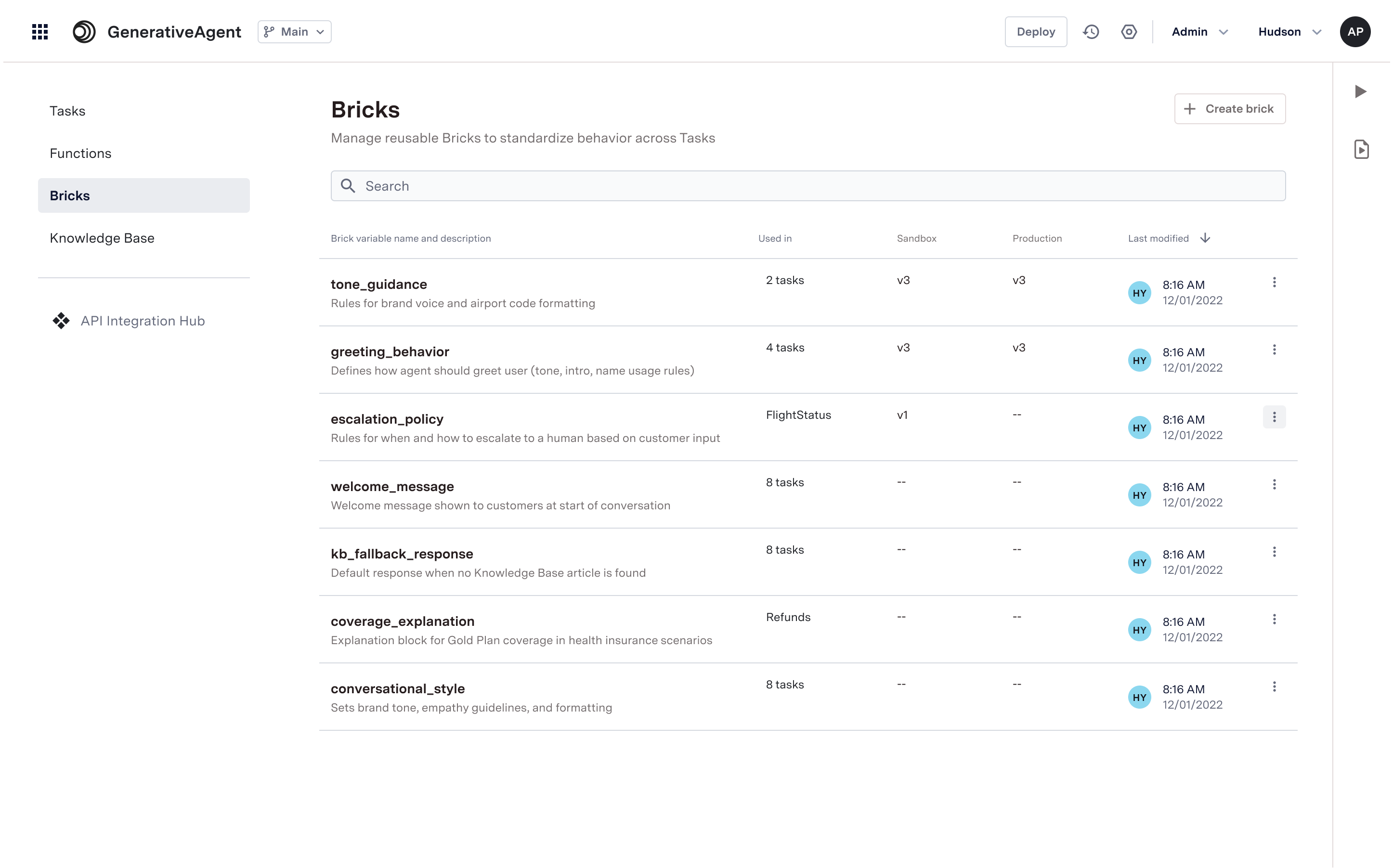 ### When to use Bricks
Use bricks for any content you want to reuse across multiple tasks:
* Greetings and standard opening messages
* Disclaimers and legal notices
* Business policies and guidelines
* Company information and context
* Tone guidelines for customer interactions
* Common instructions that don't change
## Configuring Bricks
Here is a step-by-step overview of how to configure and use Bricks:
### When to use Bricks
Use bricks for any content you want to reuse across multiple tasks:
* Greetings and standard opening messages
* Disclaimers and legal notices
* Business policies and guidelines
* Company information and context
* Tone guidelines for customer interactions
* Common instructions that don't change
## Configuring Bricks
Here is a step-by-step overview of how to configure and use Bricks:
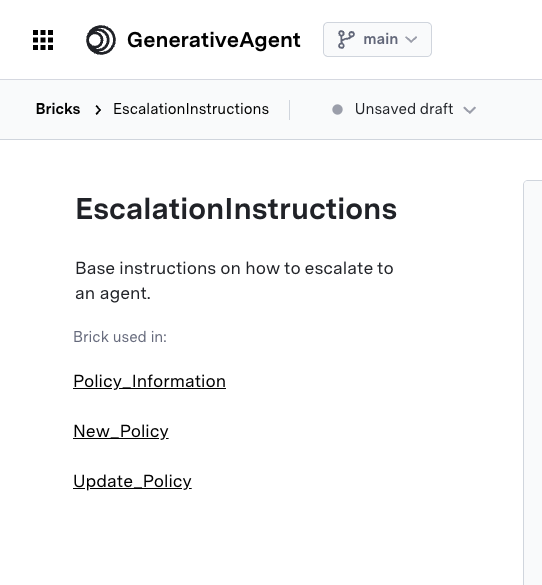 ## Next Steps
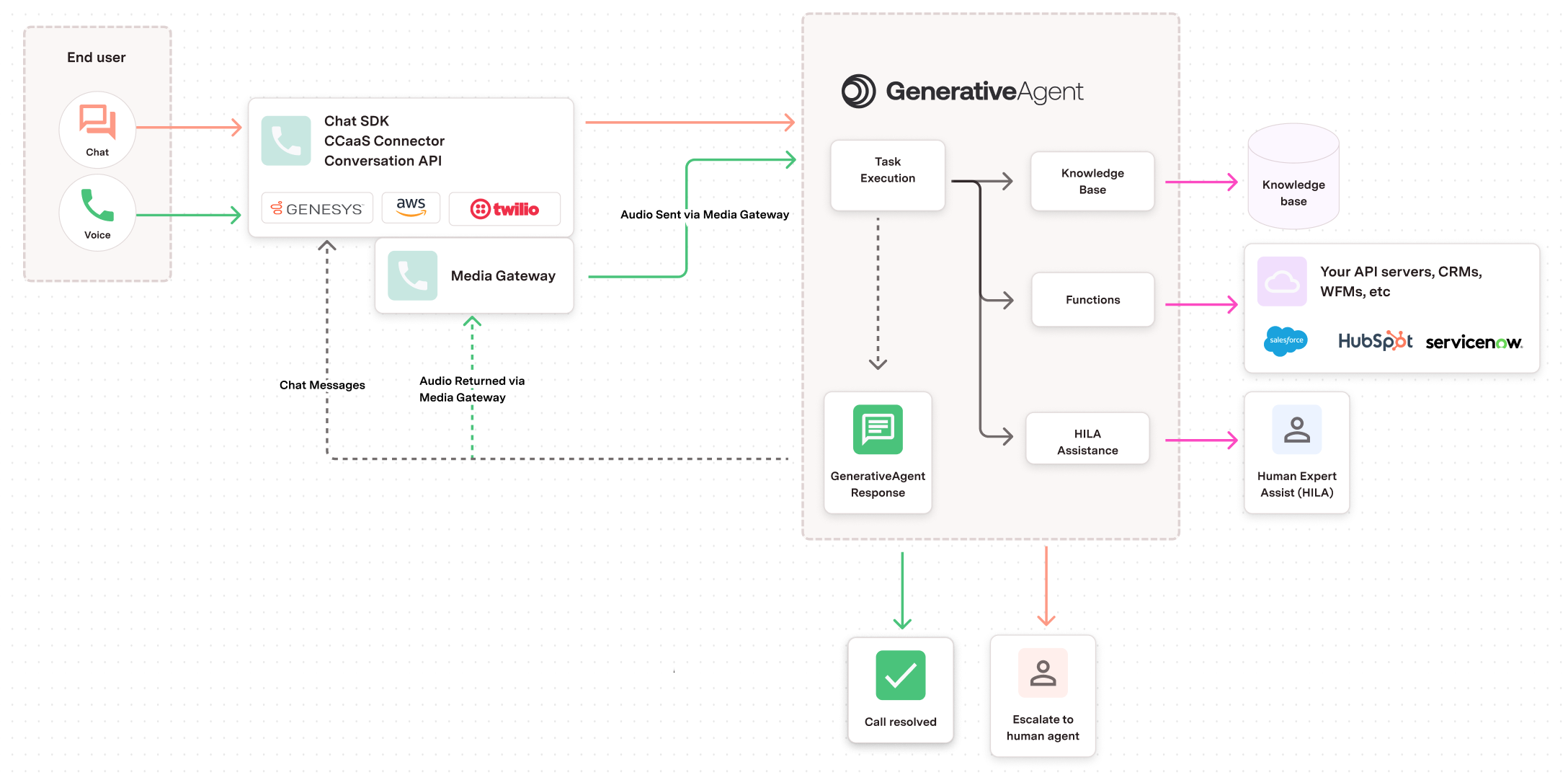

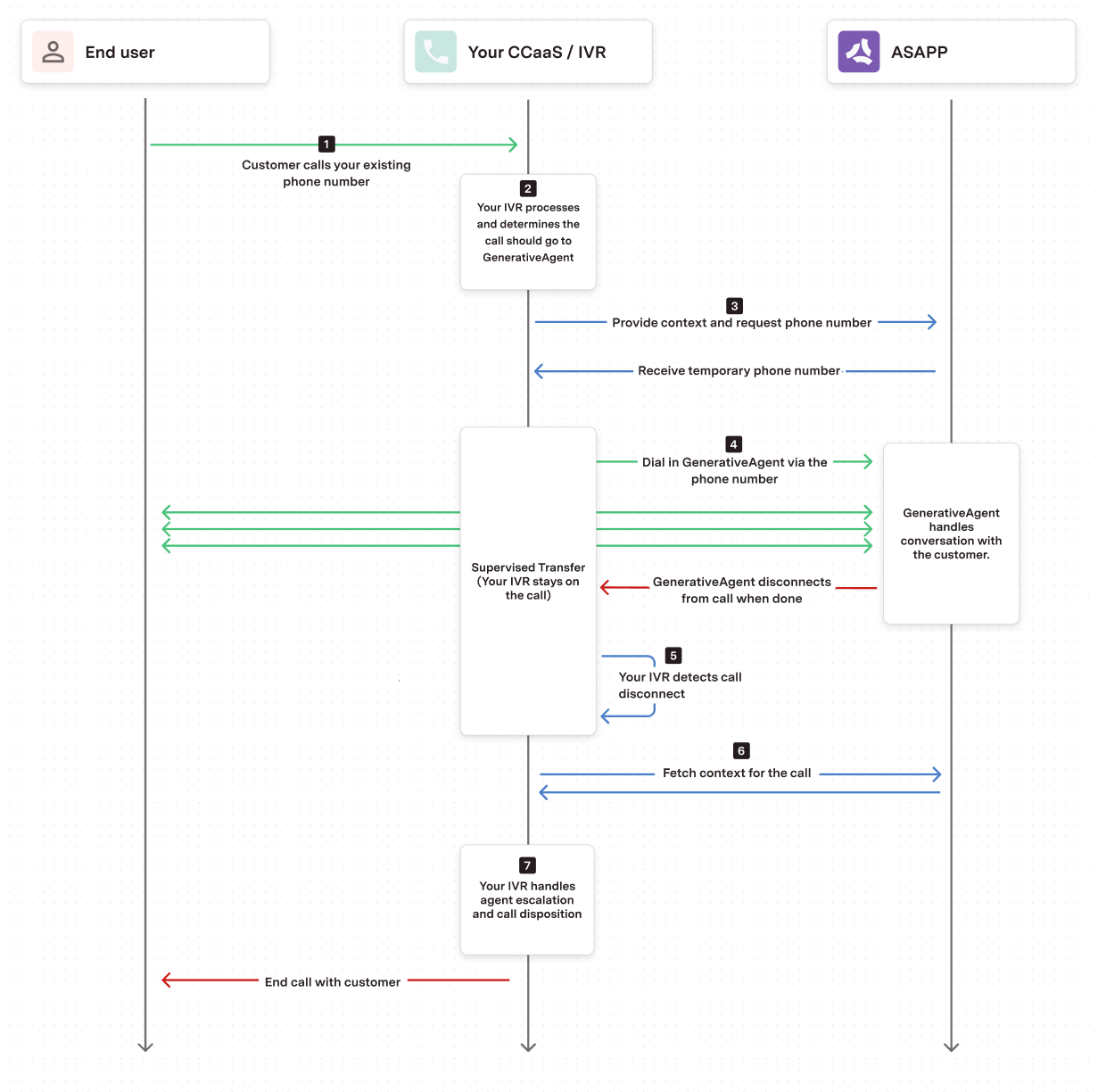 1. **Incoming Call**: A customer calls your existing phone number
2. **IVR Processing**: Your existing IVR system processes the call and determines when to transfer to GenerativeAgent
3. **Request a number**: Your system requests a temporary phone number from ASAPP. Optionally you can provide context to the call.
4. **Dial the number (Supervised transfer)**: Your system dials the temporary phone number via a Supervised transfer.
With the supervised transfer, you can monitor the call and control the call flow while GenerativeAgent is talking to the user.
5. **Detect GenerativeAgent disconnect**: When GenerativeAgent has completed the call, it will disconnect the call and your system will detect the disconnect.
6. **Fetch the call context**: Your system will fetch the context, which includes the transfer type, from the call.
7. **Handle the call**: Using the context and transfer type, your system handles the agent escalation, call disposition, or any other steps in your call flow.
1. **Incoming Call**: A customer calls your existing phone number
2. **IVR Processing**: Your existing IVR system processes the call and determines when to transfer to GenerativeAgent
3. **Request a number**: Your system requests a temporary phone number from ASAPP. Optionally you can provide context to the call.
4. **Dial the number (Supervised transfer)**: Your system dials the temporary phone number via a Supervised transfer.
With the supervised transfer, you can monitor the call and control the call flow while GenerativeAgent is talking to the user.
5. **Detect GenerativeAgent disconnect**: When GenerativeAgent has completed the call, it will disconnect the call and your system will detect the disconnect.
6. **Fetch the call context**: Your system will fetch the context, which includes the transfer type, from the call.
7. **Handle the call**: Using the context and transfer type, your system handles the agent escalation, call disposition, or any other steps in your call flow.
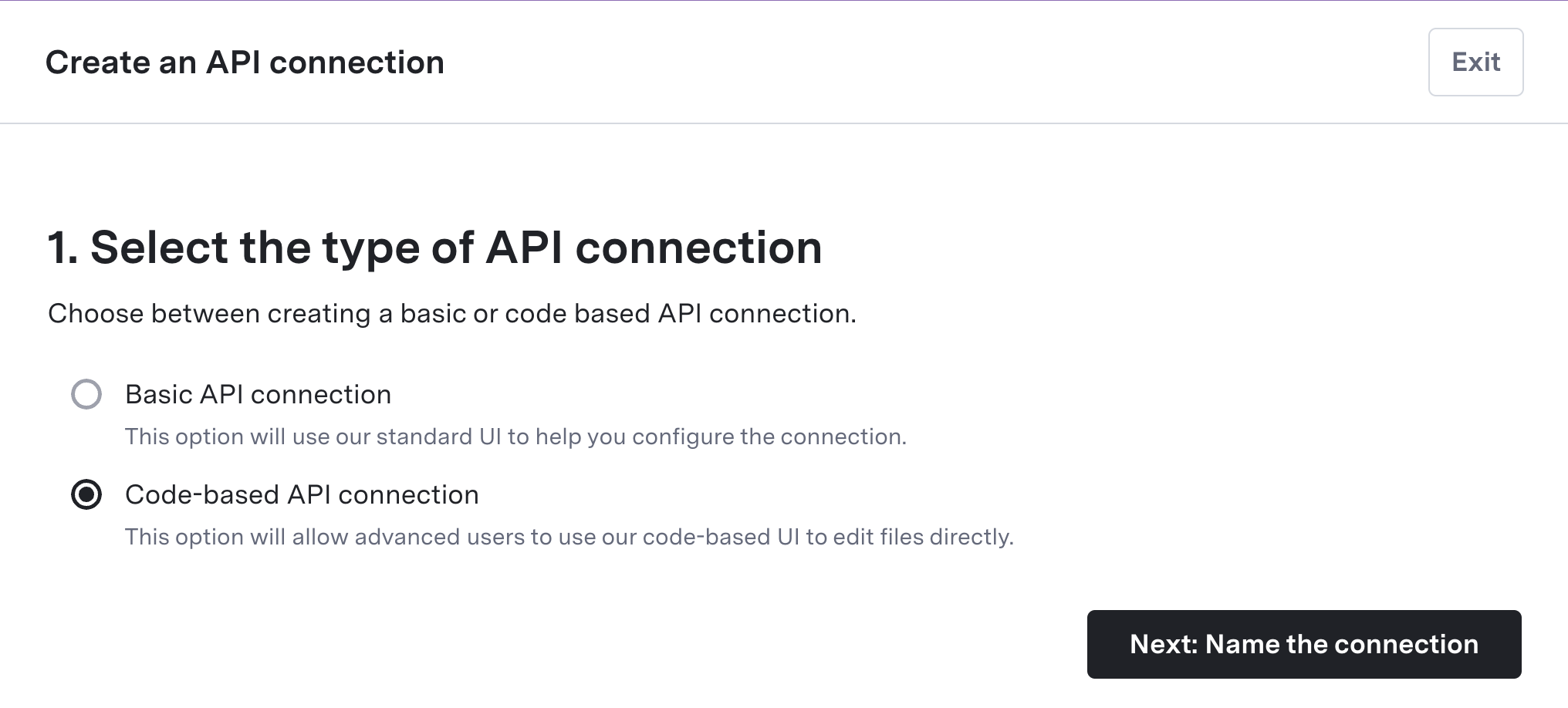
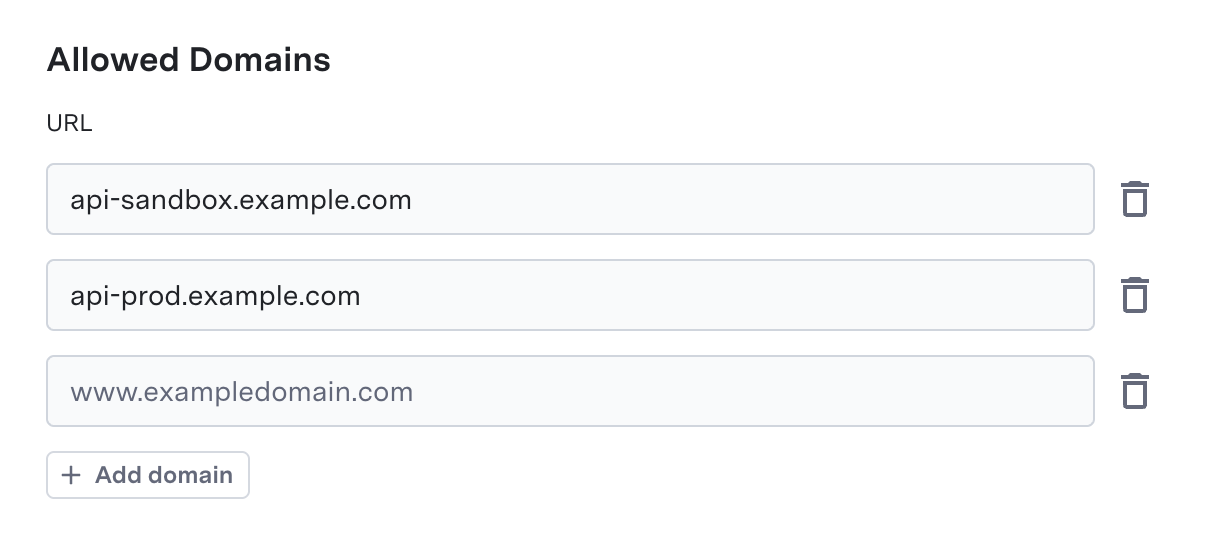

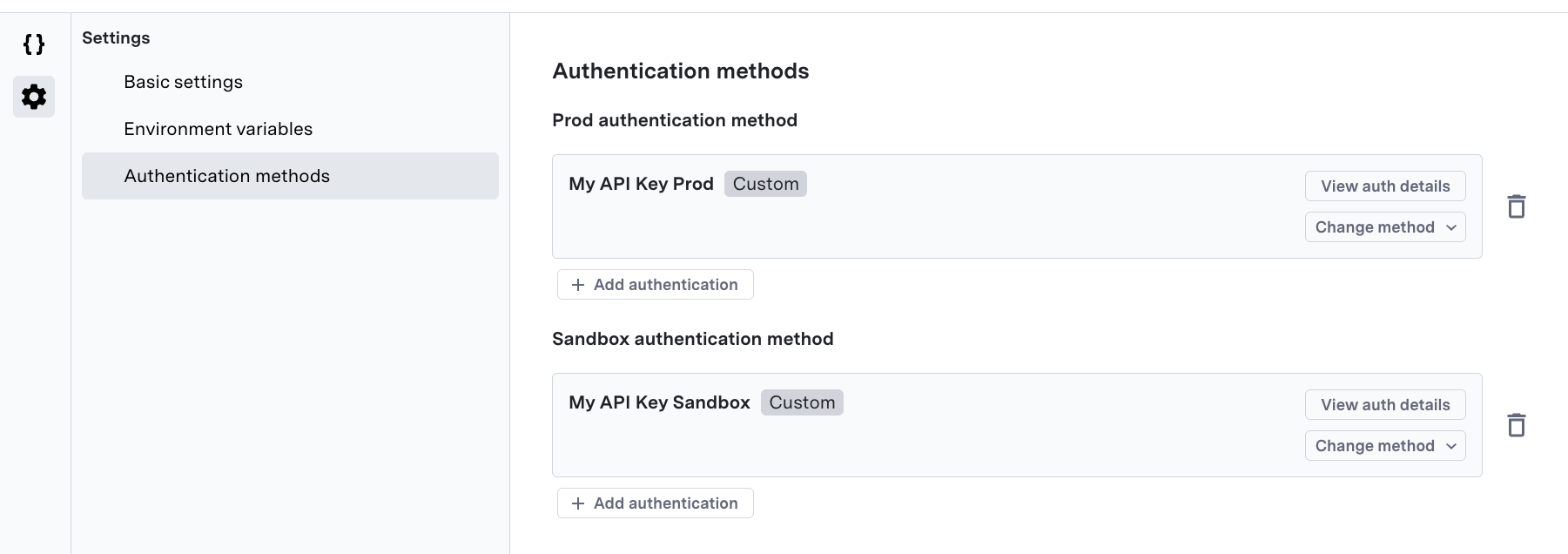
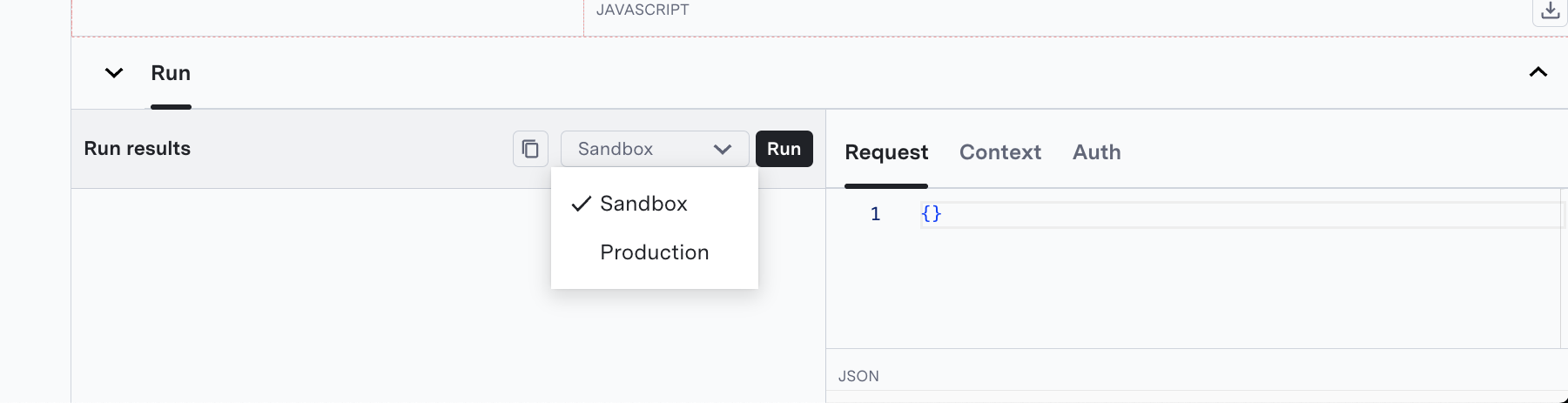 ## Examples
### Simple API Call
```javascript theme={null}
export async function handleRequest(request) {
const { query, context } = request;
try {
const response = await asappUtilities.callAPI(
`https://api.example.com/search?q=${encodeURIComponent(query)}`,
{
method: "GET",
headers: {
"Content-Type": "application/json"
},
authMethods: {
prod: "Production API Auth",
sandbox: "Sandbox API Auth"
}
}
);
if (!response.ok) {
throw new Error("API call failed");
}
const data = await response.json();
return {
response: `Found ${data.results.length} results for "${query}"`,
data: data.results,
metadata: {
totalResults: data.total,
query: query
}
};
} catch (error) {
throw new asappUtilities.APIConnectionError({
customErrorCode: "API_ERROR",
error: error
});
}
}
```
### Using JWT Claims from Authentication
```javascript theme={null}
export async function handleRequest(request) {
const { query, context } = request;
try {
// Get authentication method results to access JWT token
const authMethodResults = asappUtilities.getAuthMethod({
prod: "Production JWT Auth",
sandbox: "Sandbox JWT Auth"
});
// Extract user ID from JWT token (assuming it's in the Authorization header)
let userId = null;
if (authMethodResults && authMethodResults.length > 0) {
const authHeaders = authMethodResults[0].headers;
const authHeader = authHeaders['Authorization'] || authHeaders['authorization'];
if (authHeader && authHeader.startsWith('Bearer ')) {
const token = authHeader.substring(7);
// Decode JWT payload (this is a simplified example - in practice, you'd want proper JWT validation)
try {
const payload = JSON.parse(atob(token.split('.')[1]));
userId = payload.user_id || payload.sub;
} catch (e) {
console.log('Could not decode JWT token');
}
}
}
// Build API URL with user ID if available
let apiUrl = `https://api.example.com/data?customer=${context.externalCustomerId}`;
if (userId) {
apiUrl += `&user=${encodeURIComponent(userId)}`;
}
const response = await asappUtilities.callAPI(
apiUrl,
{
method: "GET",
headers: {
"Content-Type": "application/json"
},
authMethods: {
prod: "Production JWT Auth",
sandbox: "Sandbox JWT Auth"
}
}
);
const data = await response.json();
return {
response: `Customer data retrieved successfully${userId ? ` for user ${userId}` : ''}`,
data: data,
metadata: {
customerId: context.externalCustomerId,
userId: userId
}
};
} catch (error) {
throw new asappUtilities.APIConnectionError({
customErrorCode: "AUTH_ERROR",
error: error
});
}
}
```
## Additional Libraries
Currently, code-based API connections support the core ASAPP Utilities library and do not allow the use of third-party libraries e.g., using `require()` or `import` statements.
If you require additional third-party libraries or tools for your integration, reach out to your ASAPP account team to discuss your specific needs.
---
# Source: https://docs.asapp.com/generativeagent/configuring/tasks-and-functions/conditional-templates.md
> ## Documentation Index
> Fetch the complete documentation index at: https://docs.asapp.com/llms.txt
> Use this file to discover all available pages before exploring further.
# Conditional Templates
Conditional Templates allow you to use saved values from API calls to change the instructions for a given task.
GenerativeAgent uses the conditional templates to render API and Prompt instructions based on the conditions and values in each template.
## Examples
### Simple API Call
```javascript theme={null}
export async function handleRequest(request) {
const { query, context } = request;
try {
const response = await asappUtilities.callAPI(
`https://api.example.com/search?q=${encodeURIComponent(query)}`,
{
method: "GET",
headers: {
"Content-Type": "application/json"
},
authMethods: {
prod: "Production API Auth",
sandbox: "Sandbox API Auth"
}
}
);
if (!response.ok) {
throw new Error("API call failed");
}
const data = await response.json();
return {
response: `Found ${data.results.length} results for "${query}"`,
data: data.results,
metadata: {
totalResults: data.total,
query: query
}
};
} catch (error) {
throw new asappUtilities.APIConnectionError({
customErrorCode: "API_ERROR",
error: error
});
}
}
```
### Using JWT Claims from Authentication
```javascript theme={null}
export async function handleRequest(request) {
const { query, context } = request;
try {
// Get authentication method results to access JWT token
const authMethodResults = asappUtilities.getAuthMethod({
prod: "Production JWT Auth",
sandbox: "Sandbox JWT Auth"
});
// Extract user ID from JWT token (assuming it's in the Authorization header)
let userId = null;
if (authMethodResults && authMethodResults.length > 0) {
const authHeaders = authMethodResults[0].headers;
const authHeader = authHeaders['Authorization'] || authHeaders['authorization'];
if (authHeader && authHeader.startsWith('Bearer ')) {
const token = authHeader.substring(7);
// Decode JWT payload (this is a simplified example - in practice, you'd want proper JWT validation)
try {
const payload = JSON.parse(atob(token.split('.')[1]));
userId = payload.user_id || payload.sub;
} catch (e) {
console.log('Could not decode JWT token');
}
}
}
// Build API URL with user ID if available
let apiUrl = `https://api.example.com/data?customer=${context.externalCustomerId}`;
if (userId) {
apiUrl += `&user=${encodeURIComponent(userId)}`;
}
const response = await asappUtilities.callAPI(
apiUrl,
{
method: "GET",
headers: {
"Content-Type": "application/json"
},
authMethods: {
prod: "Production JWT Auth",
sandbox: "Sandbox JWT Auth"
}
}
);
const data = await response.json();
return {
response: `Customer data retrieved successfully${userId ? ` for user ${userId}` : ''}`,
data: data,
metadata: {
customerId: context.externalCustomerId,
userId: userId
}
};
} catch (error) {
throw new asappUtilities.APIConnectionError({
customErrorCode: "AUTH_ERROR",
error: error
});
}
}
```
## Additional Libraries
Currently, code-based API connections support the core ASAPP Utilities library and do not allow the use of third-party libraries e.g., using `require()` or `import` statements.
If you require additional third-party libraries or tools for your integration, reach out to your ASAPP account team to discuss your specific needs.
---
# Source: https://docs.asapp.com/generativeagent/configuring/tasks-and-functions/conditional-templates.md
> ## Documentation Index
> Fetch the complete documentation index at: https://docs.asapp.com/llms.txt
> Use this file to discover all available pages before exploring further.
# Conditional Templates
Conditional Templates allow you to use saved values from API calls to change the instructions for a given task.
GenerativeAgent uses the conditional templates to render API and Prompt instructions based on the conditions and values in each template.
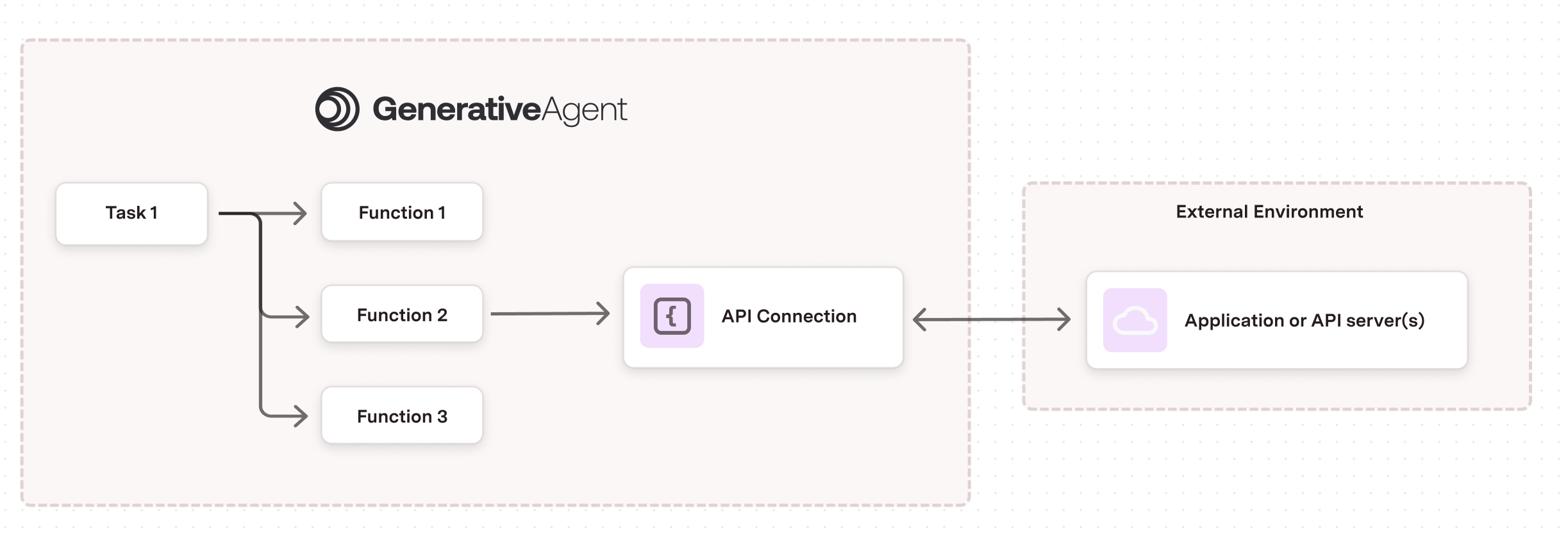 ### Core Components
Each API Connection consists of three main parts that work together:
1. **API Source**:
* Handles the technical details of calling your API
* Manages authentication and security
* Configures environment-specific settings (sandbox/production)
2. **Request Interface**:
* Defines what information GenerativeAgent can send
* Transforms GenerativeAgent's requests into your API's format
* Includes testing tools to verify the transformation
3. **Response Interface**:
* Controls what data GenerativeAgent receives
* Transforms the API response to a GenerativeAgent friendly format
* Includes testing tools to verify the transformation
## Create an API Connections
To create an API Connection, you need to:
### Core Components
Each API Connection consists of three main parts that work together:
1. **API Source**:
* Handles the technical details of calling your API
* Manages authentication and security
* Configures environment-specific settings (sandbox/production)
2. **Request Interface**:
* Defines what information GenerativeAgent can send
* Transforms GenerativeAgent's requests into your API's format
* Includes testing tools to verify the transformation
3. **Response Interface**:
* Controls what data GenerativeAgent receives
* Transforms the API response to a GenerativeAgent friendly format
* Includes testing tools to verify the transformation
## Create an API Connections
To create an API Connection, you need to:
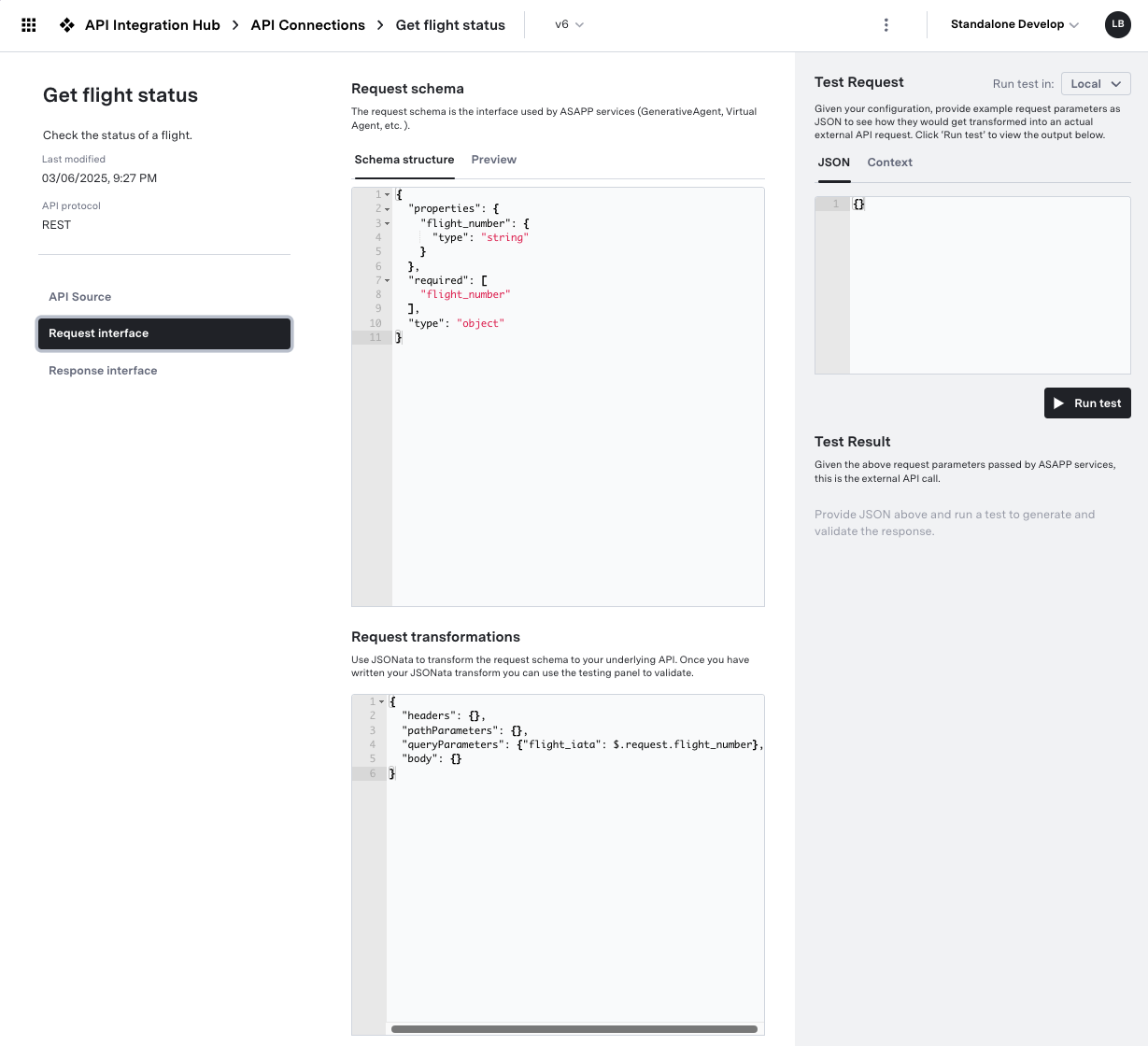 ### Request Schema
The Request Schema specifies the structure of data that GenerativeAgent can send to your API. This schema should be designed for optimal LLM interaction.
**Common Transformation Patterns**
### Request Schema
The Request Schema specifies the structure of data that GenerativeAgent can send to your API. This schema should be designed for optimal LLM interaction.
**Common Transformation Patterns**
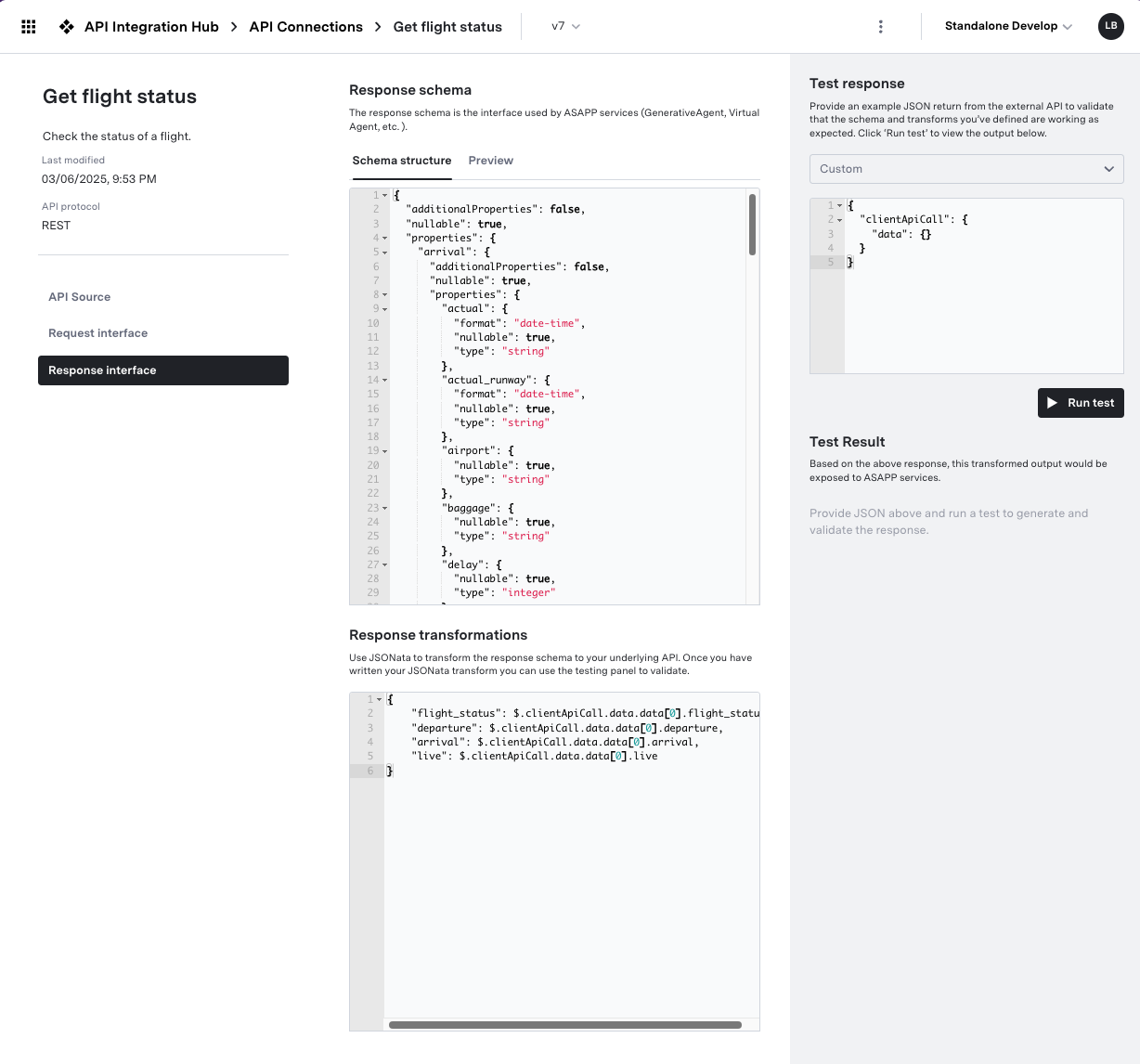 ### Response Schema
The Response Schema defines the structure of data that GenerativeAgent will receive. Focus on creating clear, simple schemas that are optimized for LLM processing.
### Response Schema
The Response Schema defines the structure of data that GenerativeAgent will receive. Focus on creating clear, simple schemas that are optimized for LLM processing.
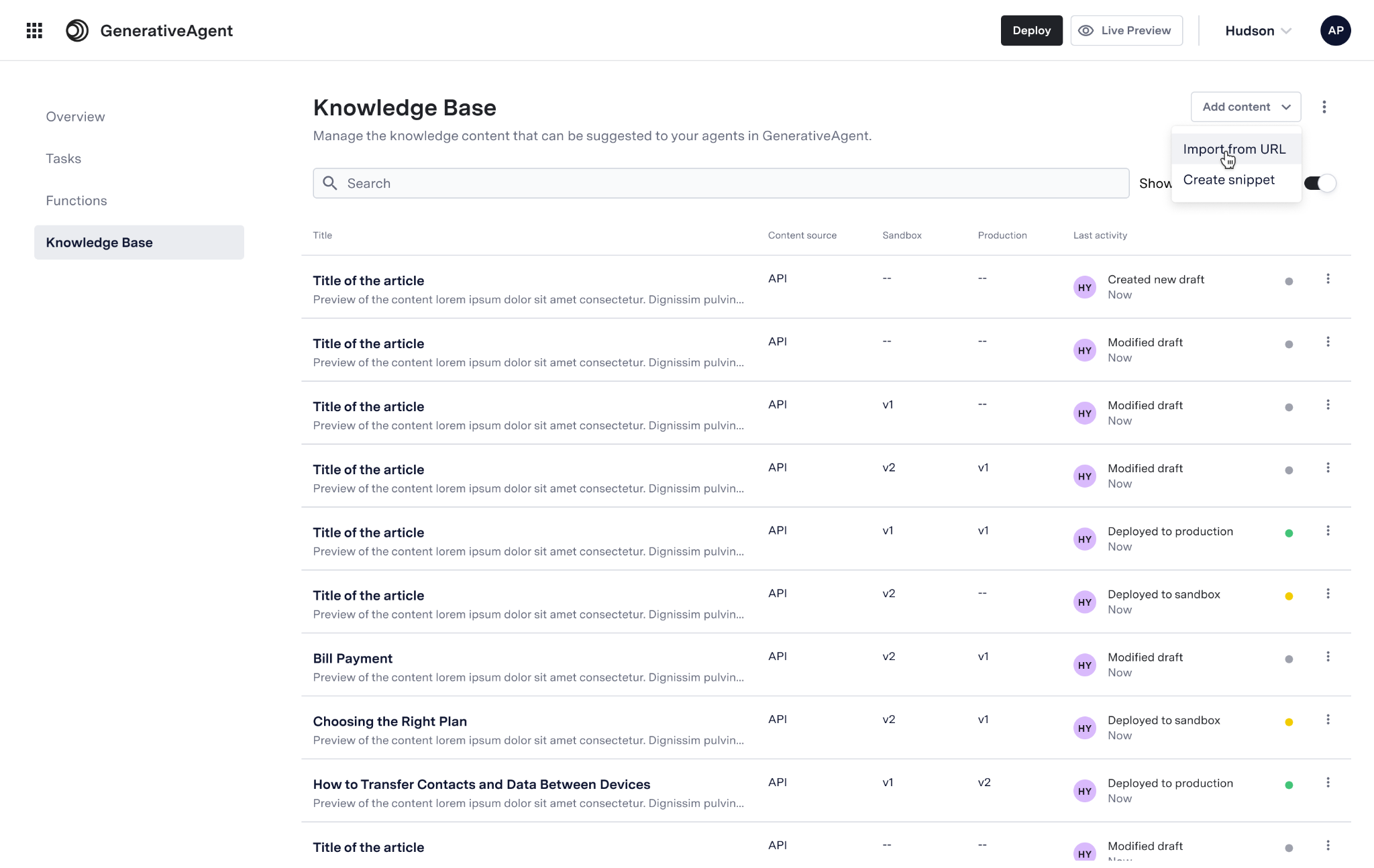 GenerativeAgent's Knowledge Base is designed to store reference material that GenerativeAgent can use to answer a variety of customer questions—both explicit (“What is the return policy?”) and implicit (“I don't understand ‘eligible for store credit’”).
GenerativeAgent determines if a question should be answered from the Knowledge Base and searches for the most relevant content.
To configure your Knowledge Base, you need to:
1. Import your knowledge base
2. Configure sync and deployment preferences
3. Deploy knowledge base articles
GenerativeAgent's Knowledge Base is designed to store reference material that GenerativeAgent can use to answer a variety of customer questions—both explicit (“What is the return policy?”) and implicit (“I don't understand ‘eligible for store credit’”).
GenerativeAgent determines if a question should be answered from the Knowledge Base and searches for the most relevant content.
To configure your Knowledge Base, you need to:
1. Import your knowledge base
2. Configure sync and deployment preferences
3. Deploy knowledge base articles
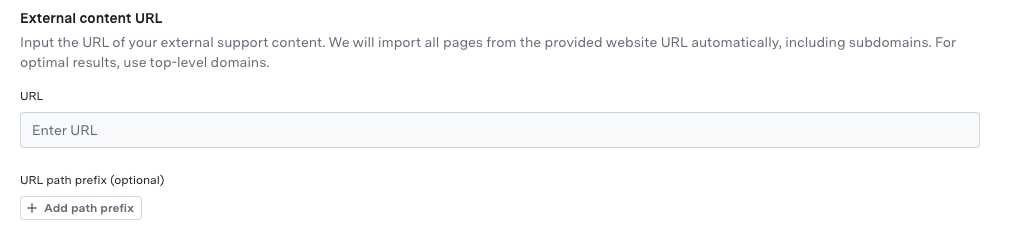

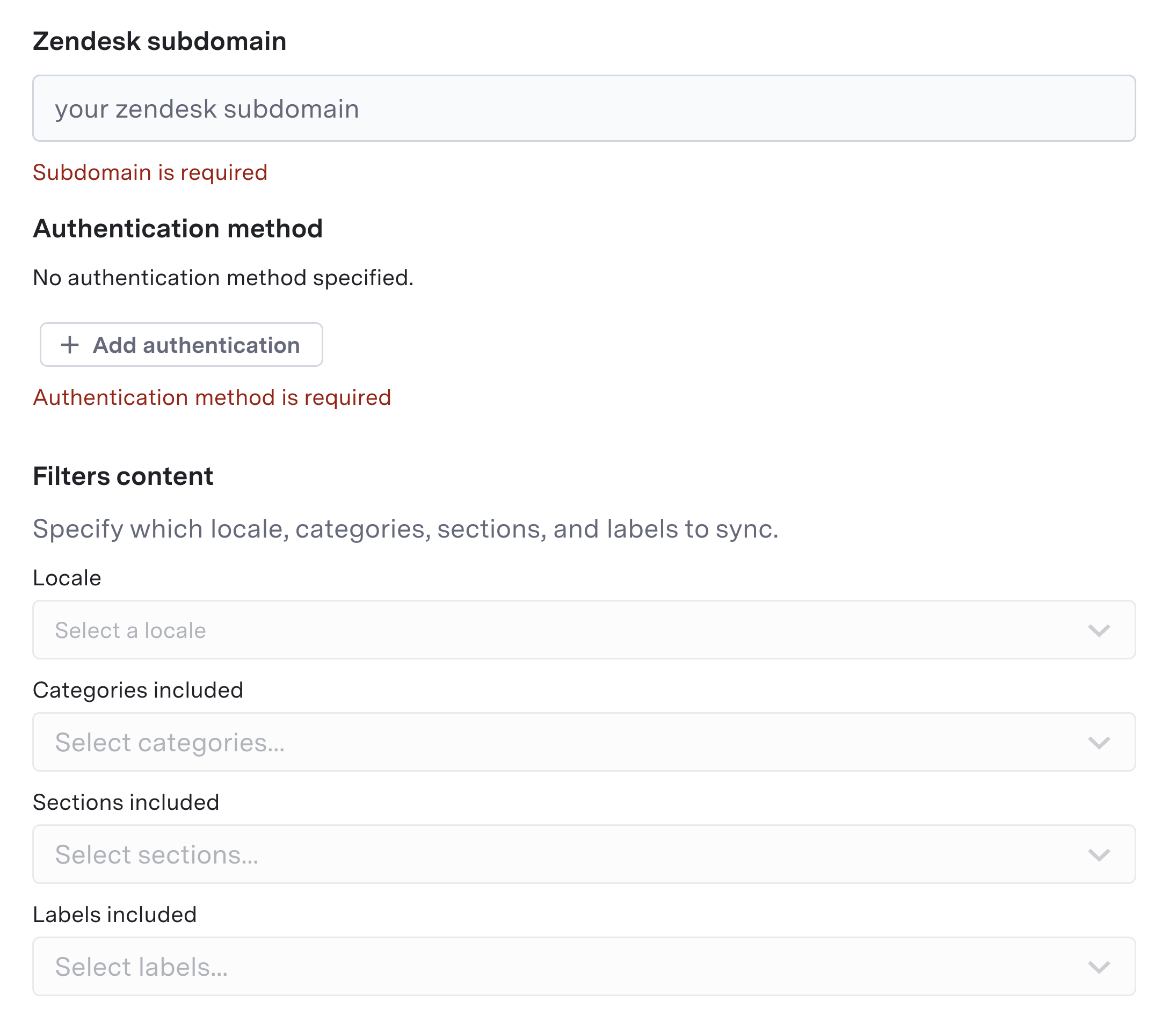
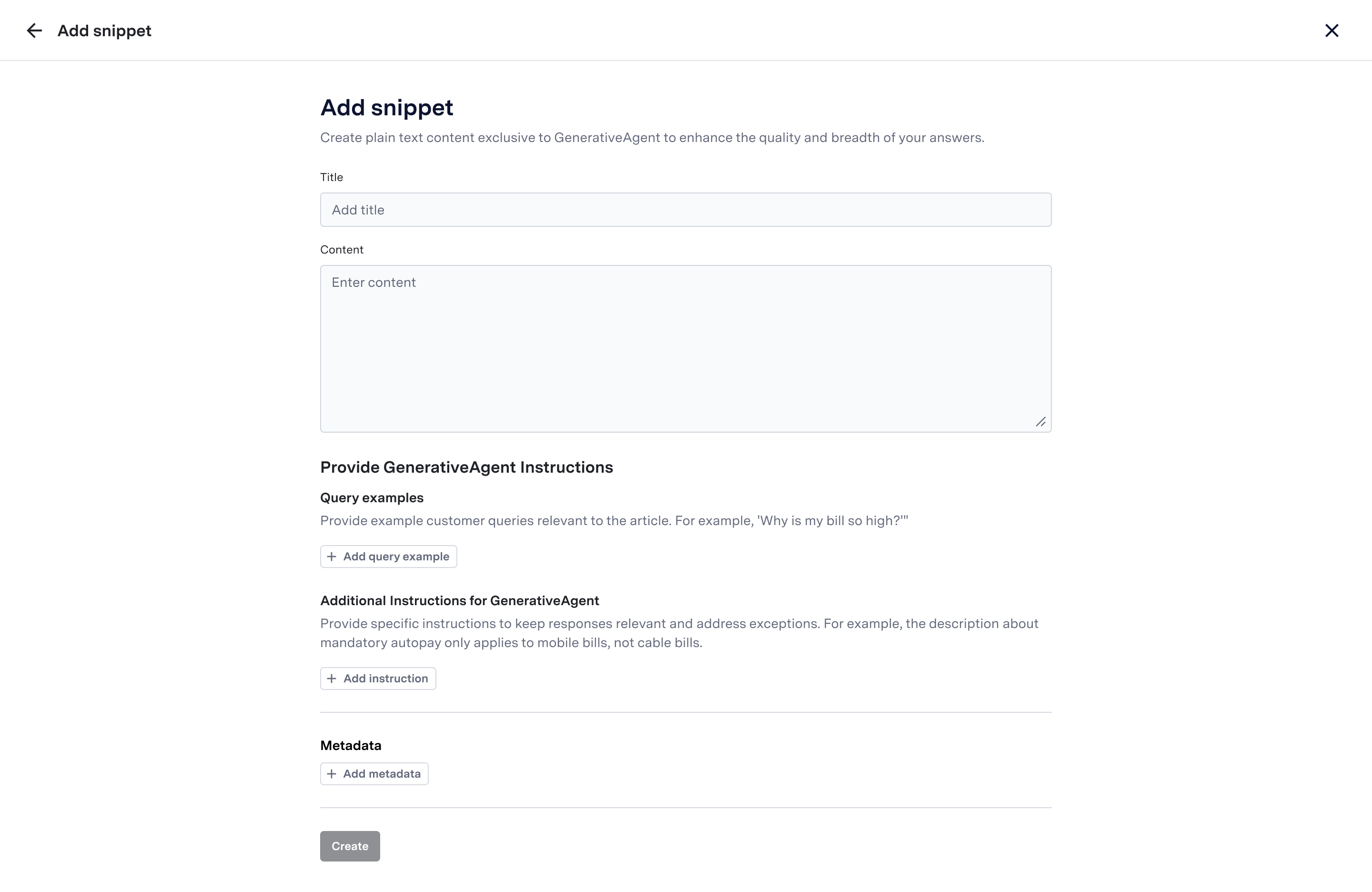
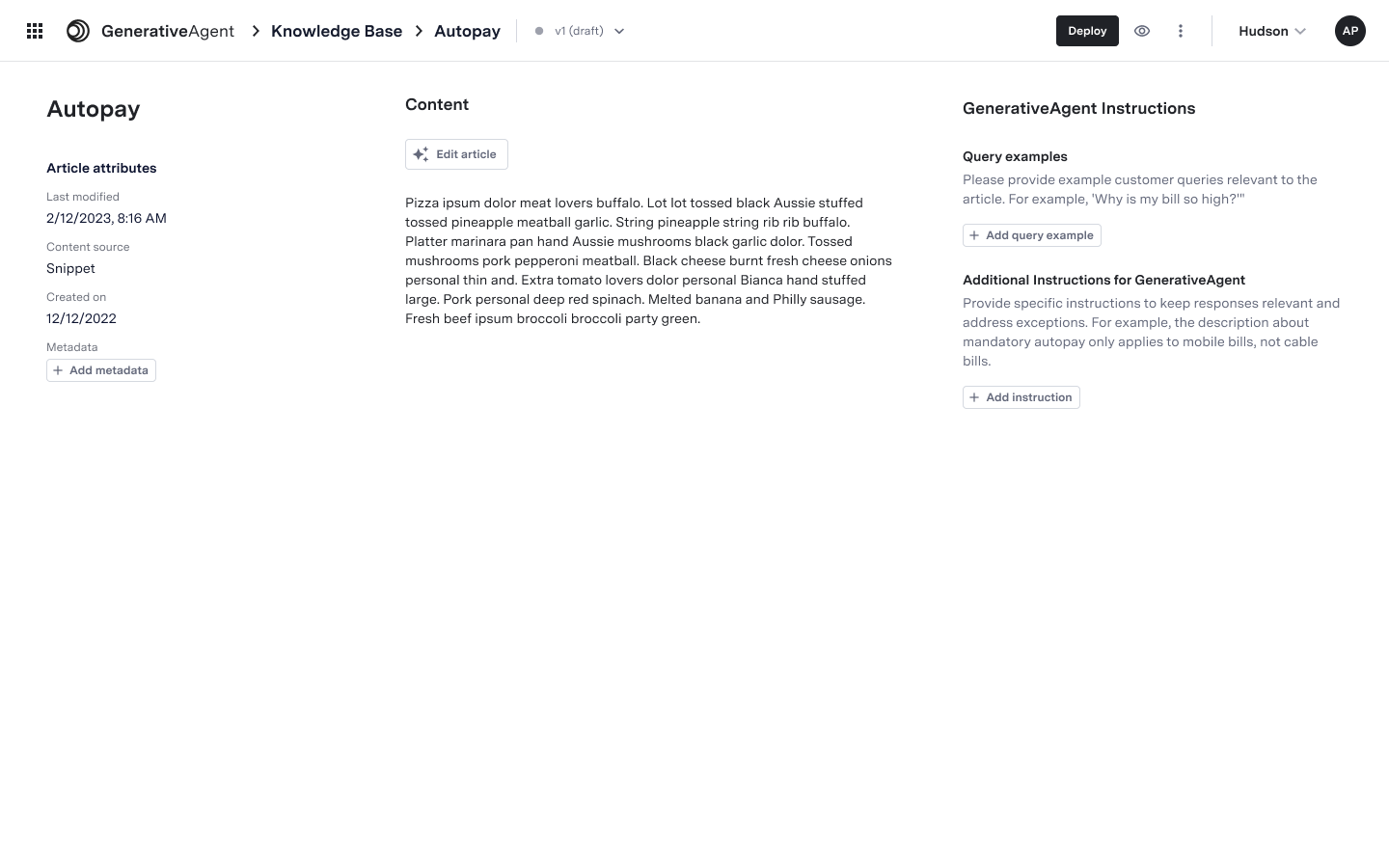
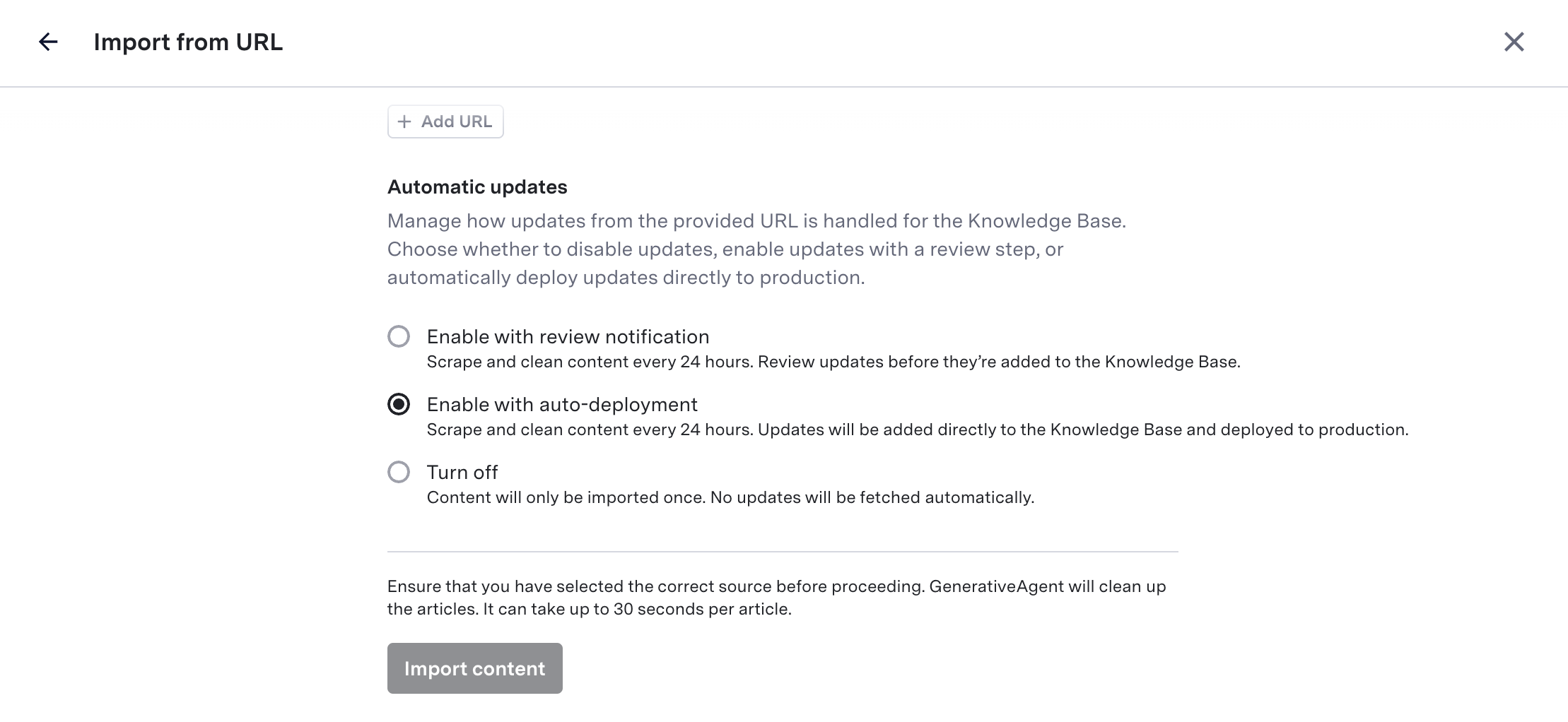 * **Enable with review notification**\
Scrapes and cleans content every 24 hours. Updates require manual review before deployment.
* **Enable with auto-deployment**\
Scrapes and cleans content every 24 hours. The system *immediately* deploys updates to production, bypassing the review process.
* **Turn off**\
Import content only once. No automated updates.
> You can adjust this setting anytime in the content source management screen. The system visually indicates the current sync mode for each source.
* **Enable with review notification**\
Scrapes and cleans content every 24 hours. Updates require manual review before deployment.
* **Enable with auto-deployment**\
Scrapes and cleans content every 24 hours. The system *immediately* deploys updates to production, bypassing the review process.
* **Turn off**\
Import content only once. No automated updates.
> You can adjust this setting anytime in the content source management screen. The system visually indicates the current sync mode for each source.
 ## Step 3: Article-Level Frequent Refresh (Critical Updates Only)
You can override the sync and deployment setting of the content source for specific, time-sensitive articles:
1. Click the three-dot menu next to the article and select **Set refresh frequency**.
## Step 3: Article-Level Frequent Refresh (Critical Updates Only)
You can override the sync and deployment setting of the content source for specific, time-sensitive articles:
1. Click the three-dot menu next to the article and select **Set refresh frequency**.
 2. In the dialog, enable **refresh frequency** for updates every 15 minutes.
* The system will auto-deploy updates to production immediately, even if your content source normally requires review.
* Disabling will revert to the content source's settings.
2. In the dialog, enable **refresh frequency** for updates every 15 minutes.
* The system will auto-deploy updates to production immediately, even if your content source normally requires review.
* Disabling will revert to the content source's settings.
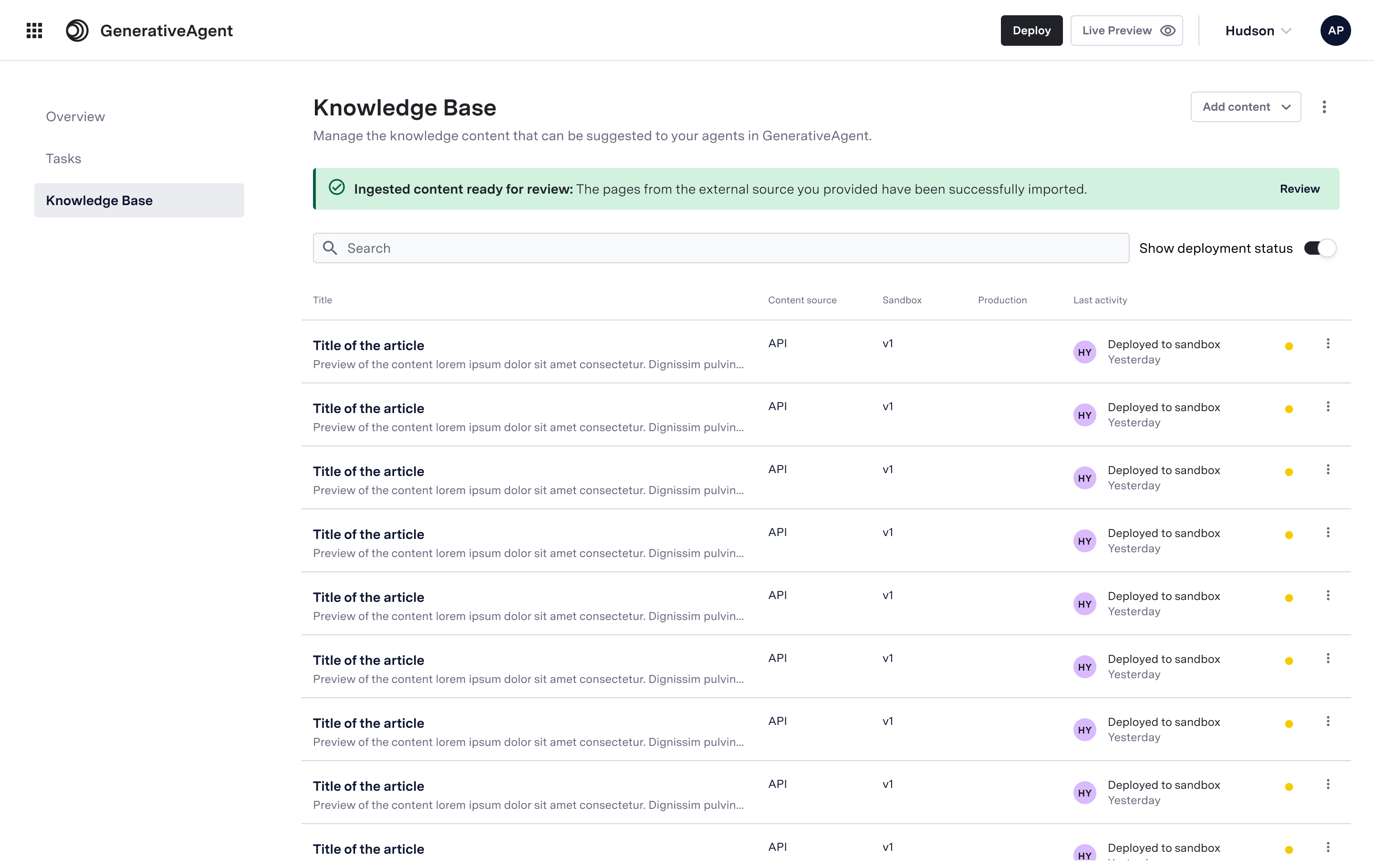 You can choose between a cleaned-up or raw version of each article before publishing.
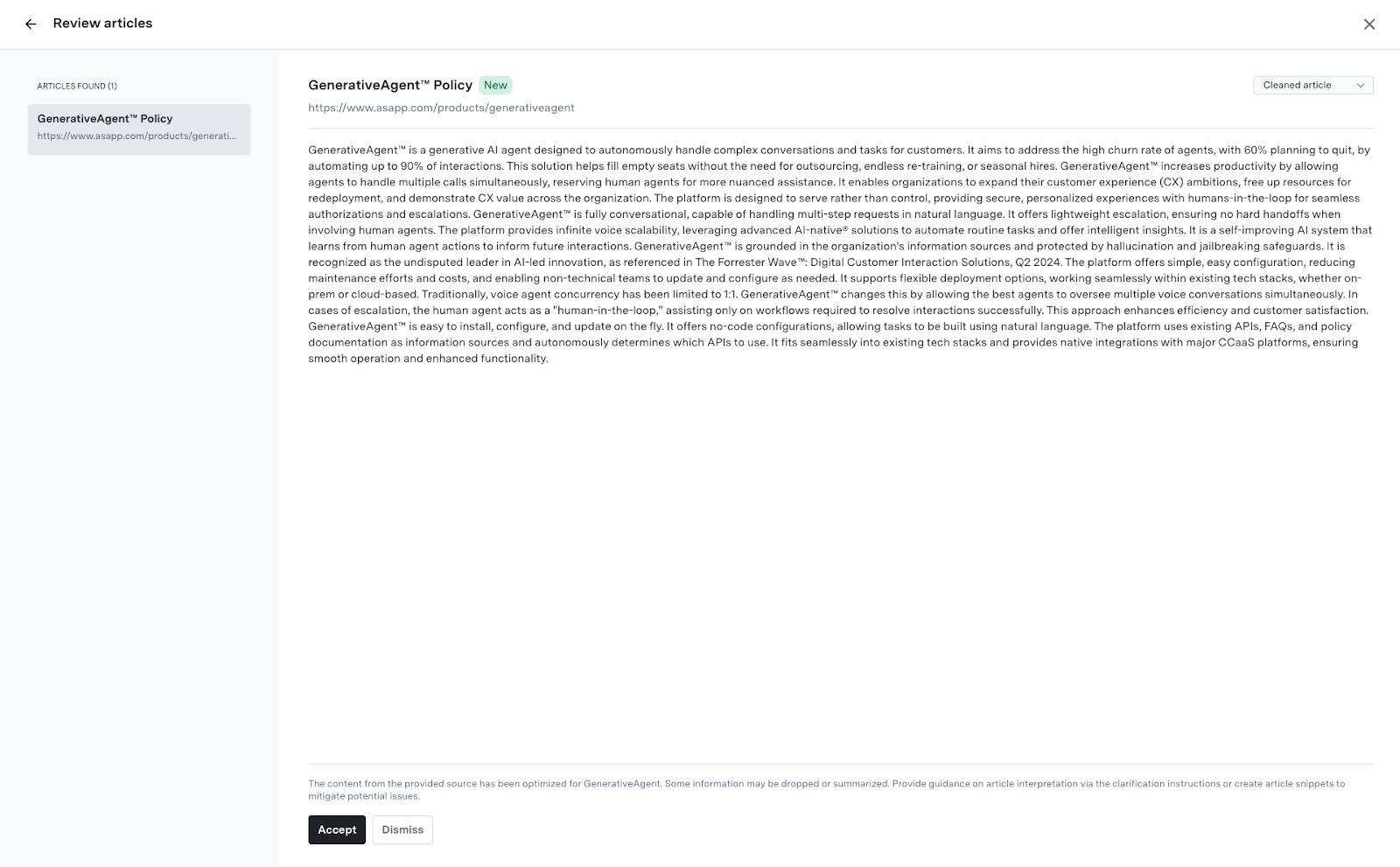 > If the system updates an article (by new crawl or API update), the same rules apply:
>
> * Requires re-review if the parent content source is in review mode
> * Deploys instantly if in auto-deploy or frequent refresh mode
## Visual Indicators & Notifications
* The system shows sync and deployment status both for sources and individual articles.
* Recent auto-sync and deployment activity can be reviewed in audit logs or dashboards.
***
## Optimizing GenerativeAgent Article Usage
Boost GenerativeAgent’s accuracy and retrieval behavior by leveraging:
### Query Examples
Add typical customer questions to help surface relevant content:
1. In the “GenerativeAgent Instructions” column, click **Add query example**
2. Enter common questions as needed
> If the system updates an article (by new crawl or API update), the same rules apply:
>
> * Requires re-review if the parent content source is in review mode
> * Deploys instantly if in auto-deploy or frequent refresh mode
## Visual Indicators & Notifications
* The system shows sync and deployment status both for sources and individual articles.
* Recent auto-sync and deployment activity can be reviewed in audit logs or dashboards.
***
## Optimizing GenerativeAgent Article Usage
Boost GenerativeAgent’s accuracy and retrieval behavior by leveraging:
### Query Examples
Add typical customer questions to help surface relevant content:
1. In the “GenerativeAgent Instructions” column, click **Add query example**
2. Enter common questions as needed
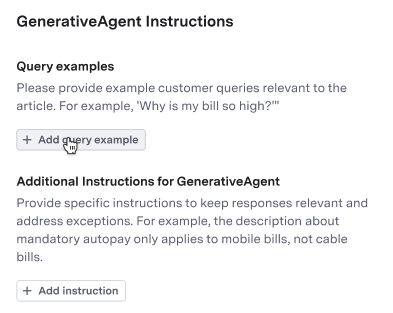 ### Additional Instructions
Provide special clarifications or company-specific answers:
1. Click **Add Instruction**
2. Write a clear clarification or sample response
### Additional Instructions
Provide special clarifications or company-specific answers:
1. Click **Add Instruction**
2. Write a clear clarification or sample response
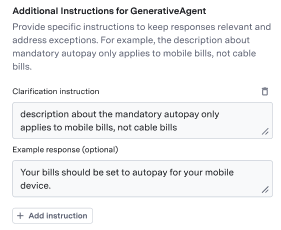 ### Article Metadata
Use metadata to ensure GenerativeAgent uses specific articles only for relevant tasks.
1. Navigate to the article and click **Edit Metadata**.
2. Add or modify metadata keys to enable targeted article discovery and control.
### Search & Filter
Easily find or bulk manage articles using metadata, status, content source, creator, or deployment state.
### Article Metadata
Use metadata to ensure GenerativeAgent uses specific articles only for relevant tasks.
1. Navigate to the article and click **Edit Metadata**.
2. Add or modify metadata keys to enable targeted article discovery and control.
### Search & Filter
Easily find or bulk manage articles using metadata, status, content source, creator, or deployment state.
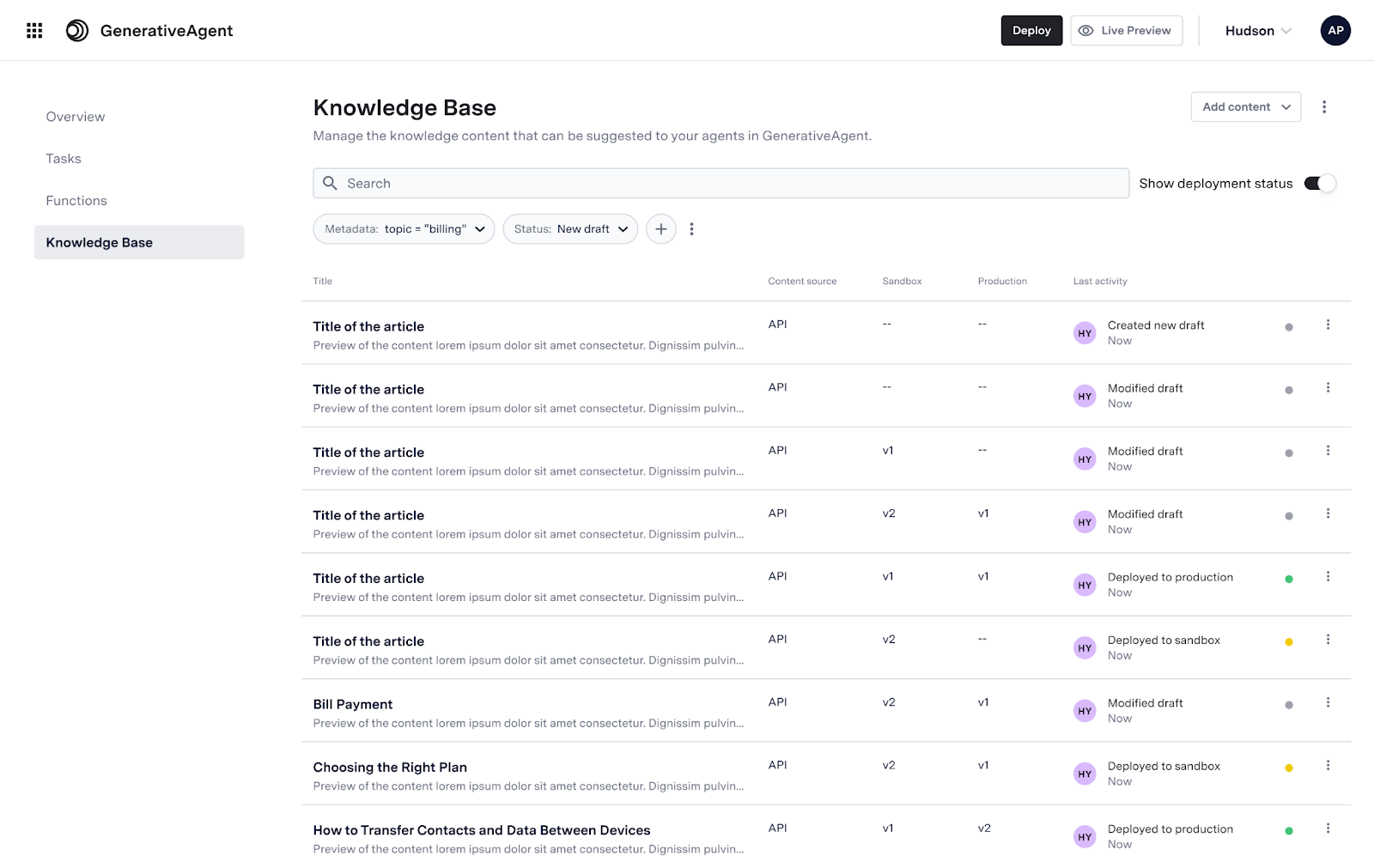
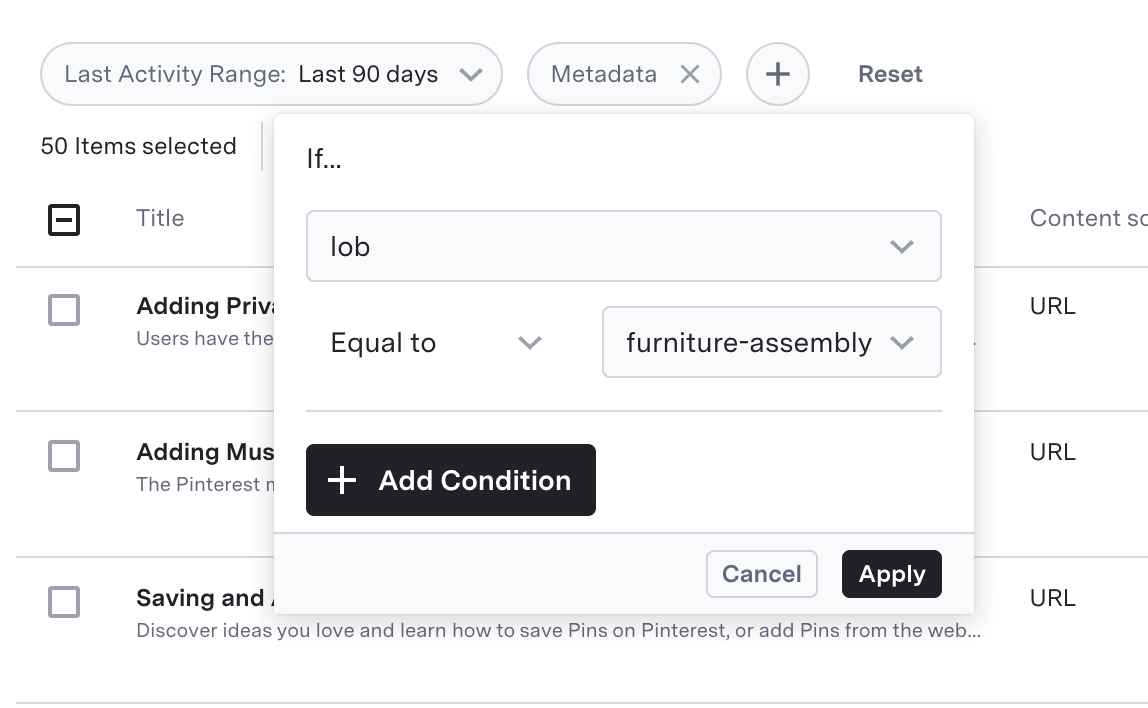
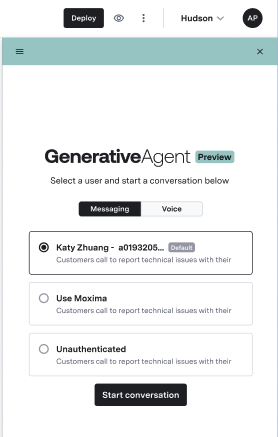 2. Start a test conversation to see answers pulled from your knowledge base
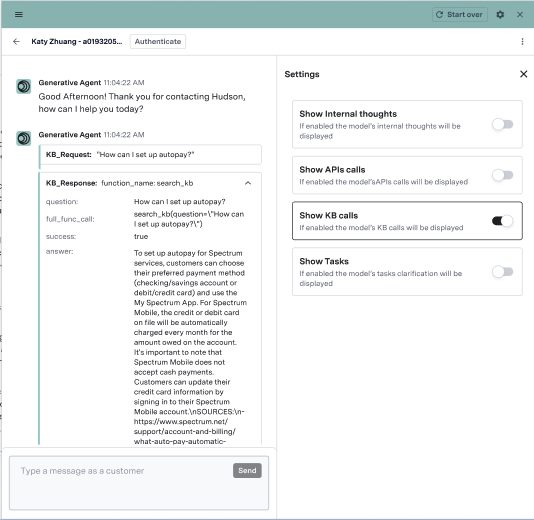 For more details, see the [Previewer guide](/generativeagent/configuring/previewer).
## Next Steps
Explore further integration topics:
For more details, see the [Previewer guide](/generativeagent/configuring/previewer).
## Next Steps
Explore further integration topics:
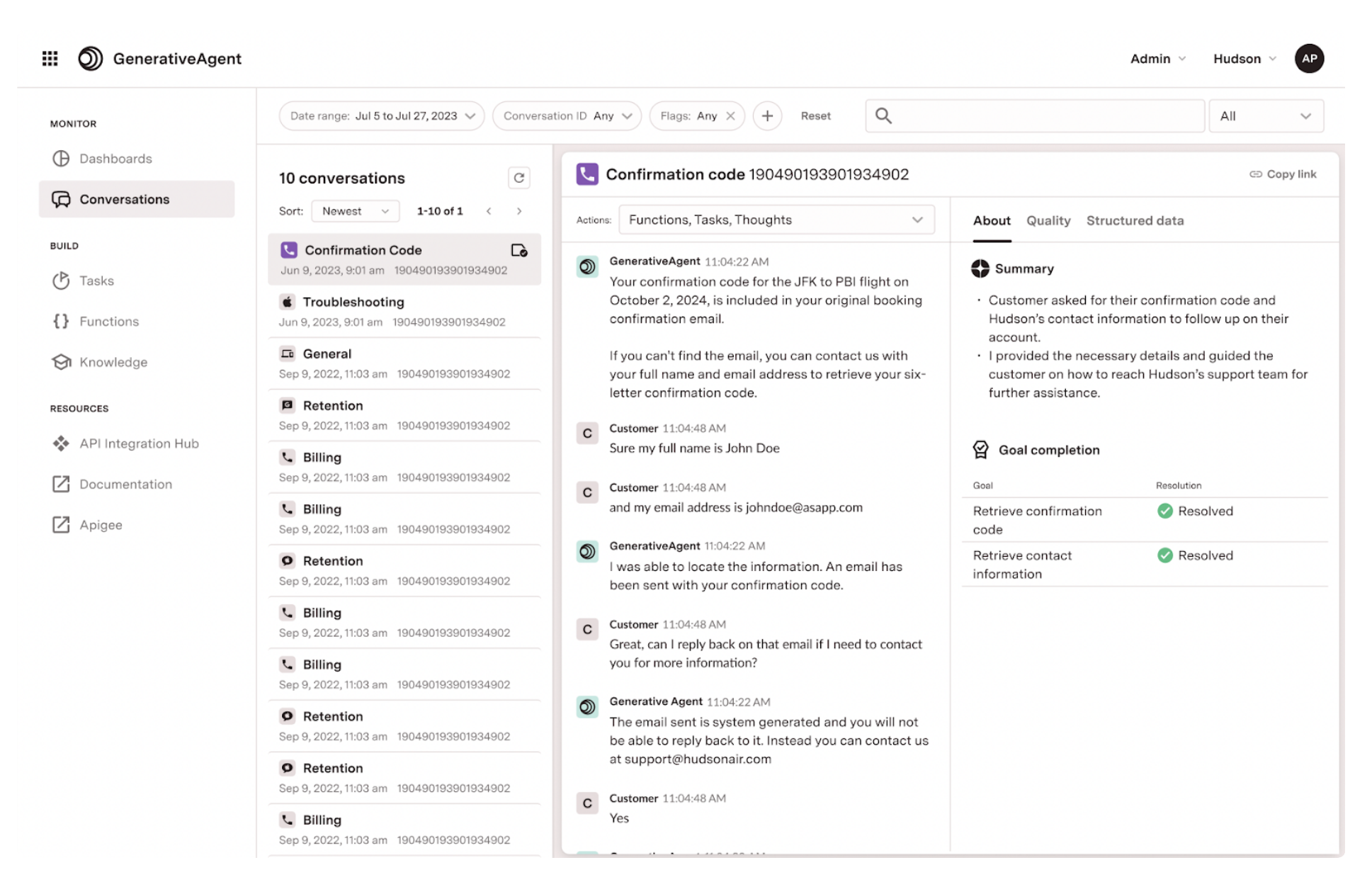
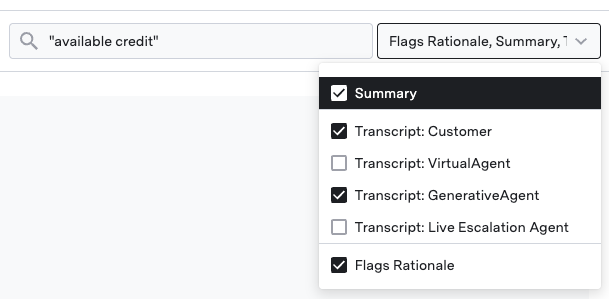
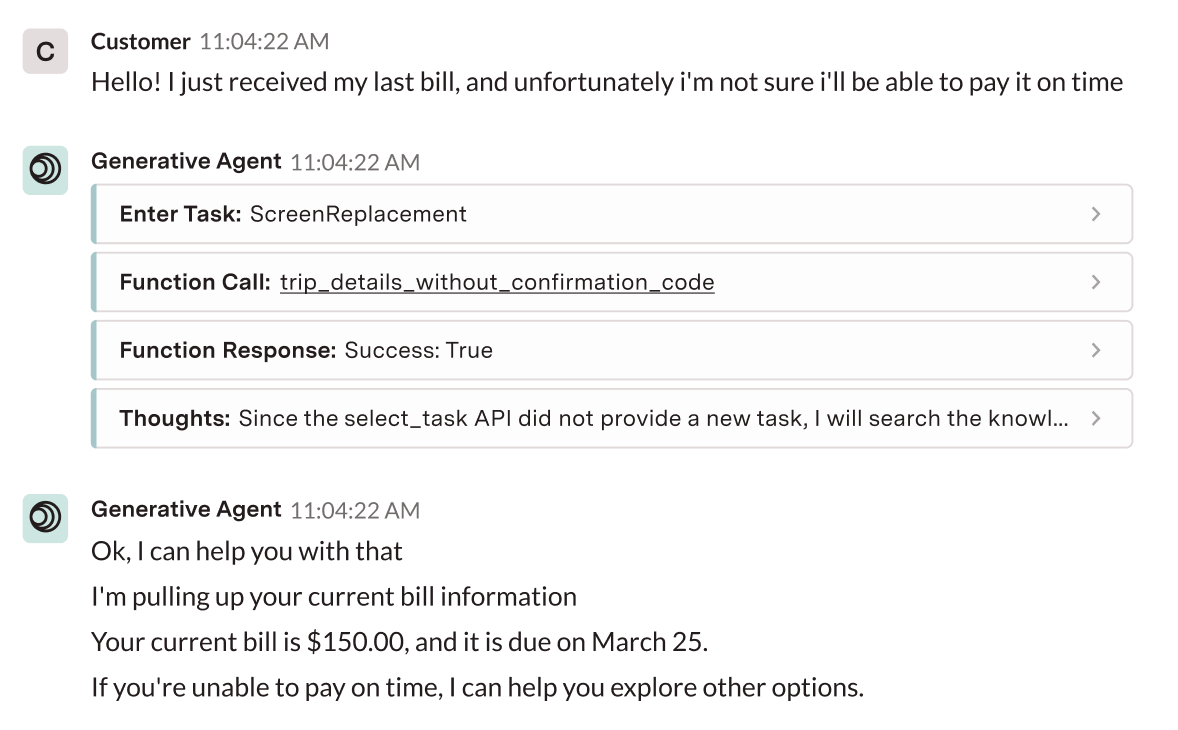
 * **Date range**: Select specific time periods
* **Task**: Find conversations where specific tasks were performed
* **Functions**: Locate conversations that called particular APIs
* **Conversation ID**: Search for a specific conversation
### Filter for flagged conversations
To find [Quality Issues](#quality-issues):
1. Add the "GenerativeAgent Flags" filter
2. Review flagged interactions to understand quality alerts
* **Date range**: Select specific time periods
* **Task**: Find conversations where specific tasks were performed
* **Functions**: Locate conversations that called particular APIs
* **Conversation ID**: Search for a specific conversation
### Filter for flagged conversations
To find [Quality Issues](#quality-issues):
1. Add the "GenerativeAgent Flags" filter
2. Review flagged interactions to understand quality alerts
 ### Share a conversation
You can share a conversation with others by clicking the "Copy Link" button when viewing a conversation.
### Share a conversation
You can share a conversation with others by clicking the "Copy Link" button when viewing a conversation.
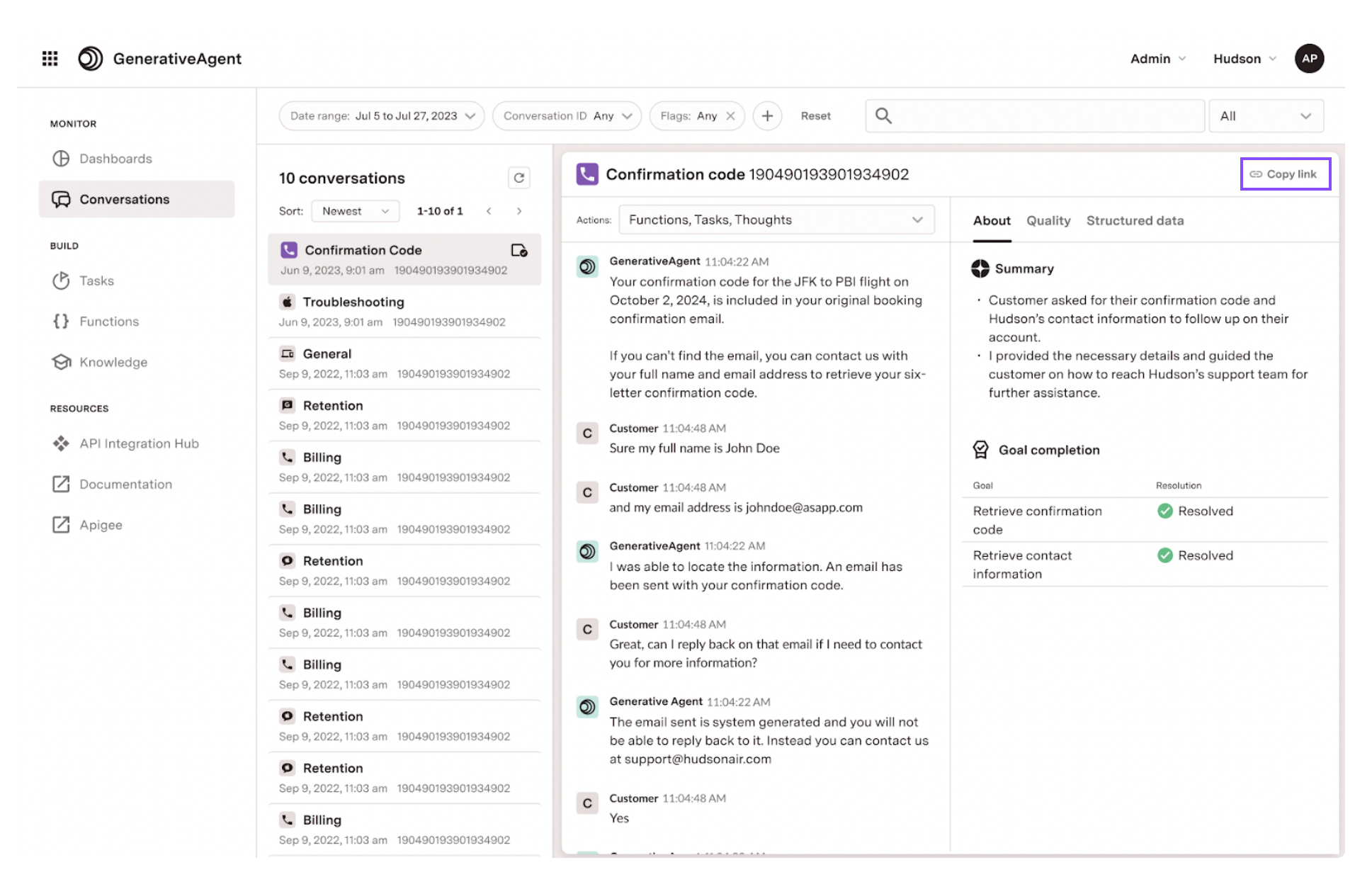 You can also share your current filtered view by copying the URL of your current page.
### Playback a conversation
You can play back a conversation to listen to how GenerativeAgent interacted with the customer over time.
Conversation Playback is useful for understanding the flow of the conversation and how GenerativeAgent responded to different customer inputs.
The Conversation Playback enables you to:
* Play, pause, and navigate through the conversation timeline.
* Skip forward or backward by 15 seconds.
* Play the conversation at different speeds such as 1x, 1.5x, and 2x.
You can also share your current filtered view by copying the URL of your current page.
### Playback a conversation
You can play back a conversation to listen to how GenerativeAgent interacted with the customer over time.
Conversation Playback is useful for understanding the flow of the conversation and how GenerativeAgent responded to different customer inputs.
The Conversation Playback enables you to:
* Play, pause, and navigate through the conversation timeline.
* Skip forward or backward by 15 seconds.
* Play the conversation at different speeds such as 1x, 1.5x, and 2x.
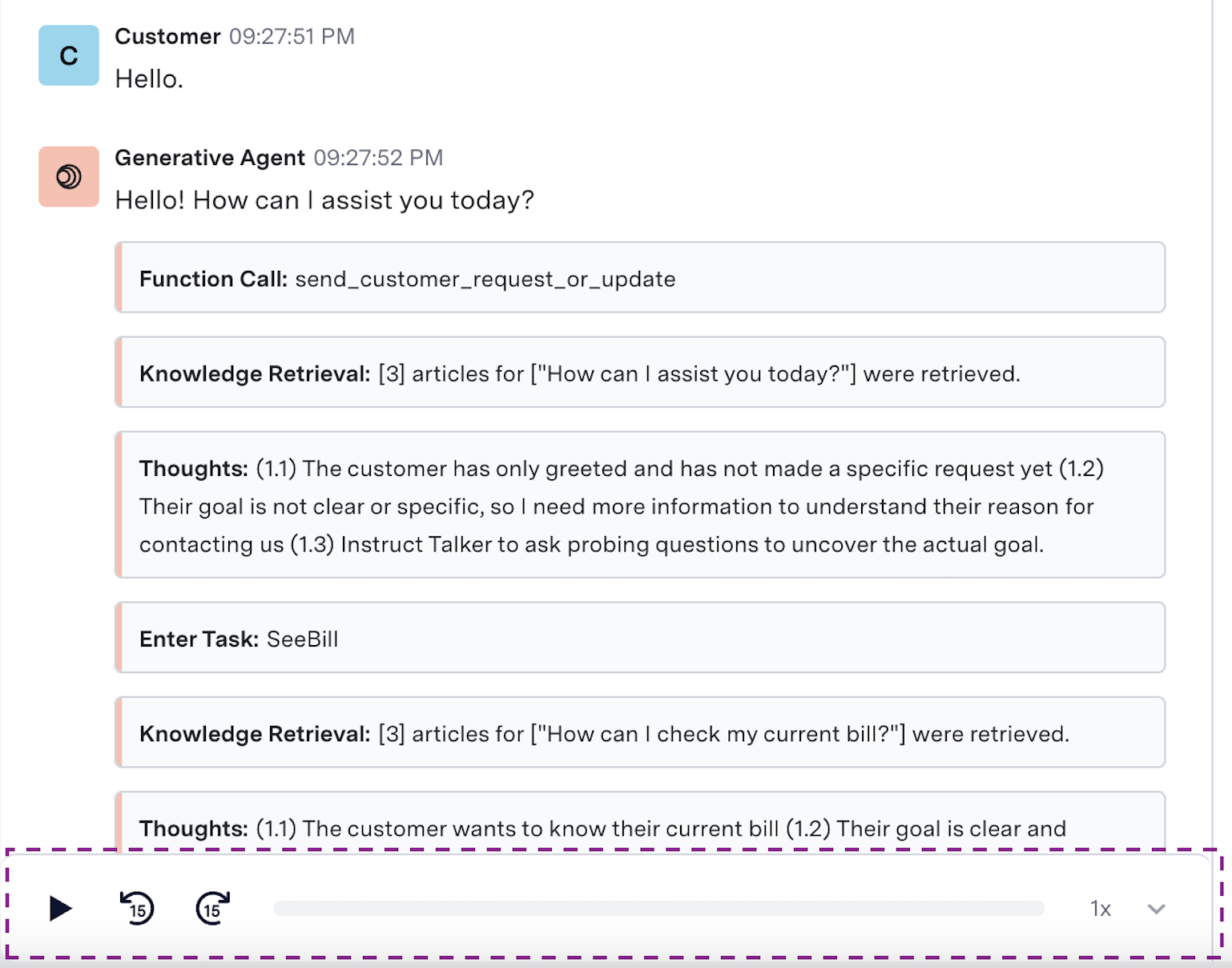 ## Analyze Model Actions
Once you have found a conversation, you can see exactly how GenerativeAgent makes decisions by viewing its internal reasoning process via **model actions**.
Model actions are the input, knowledge, api calls, reasoning, and output of GenerativeAgent's model while handling the customer interaction.
The information in the model actions can drive how you update the configuration of your tasks and functions.
### Model actions categories
Model actions are categorized into the following:
## Analyze Model Actions
Once you have found a conversation, you can see exactly how GenerativeAgent makes decisions by viewing its internal reasoning process via **model actions**.
Model actions are the input, knowledge, api calls, reasoning, and output of GenerativeAgent's model while handling the customer interaction.
The information in the model actions can drive how you update the configuration of your tasks and functions.
### Model actions categories
Model actions are categorized into the following:
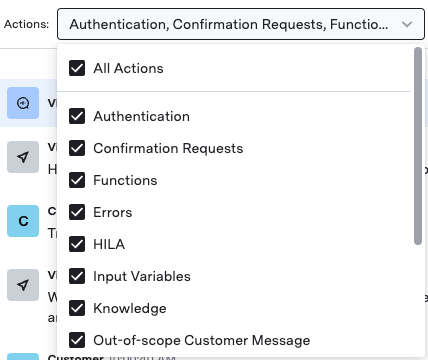 3. View the AI's reasoning process inline with the conversation, showing the chronological flow of decisions
4. Click any model action to see detailed information.
This example shows a function response.
3. View the AI's reasoning process inline with the conversation, showing the chronological flow of decisions
4. Click any model action to see detailed information.
This example shows a function response.
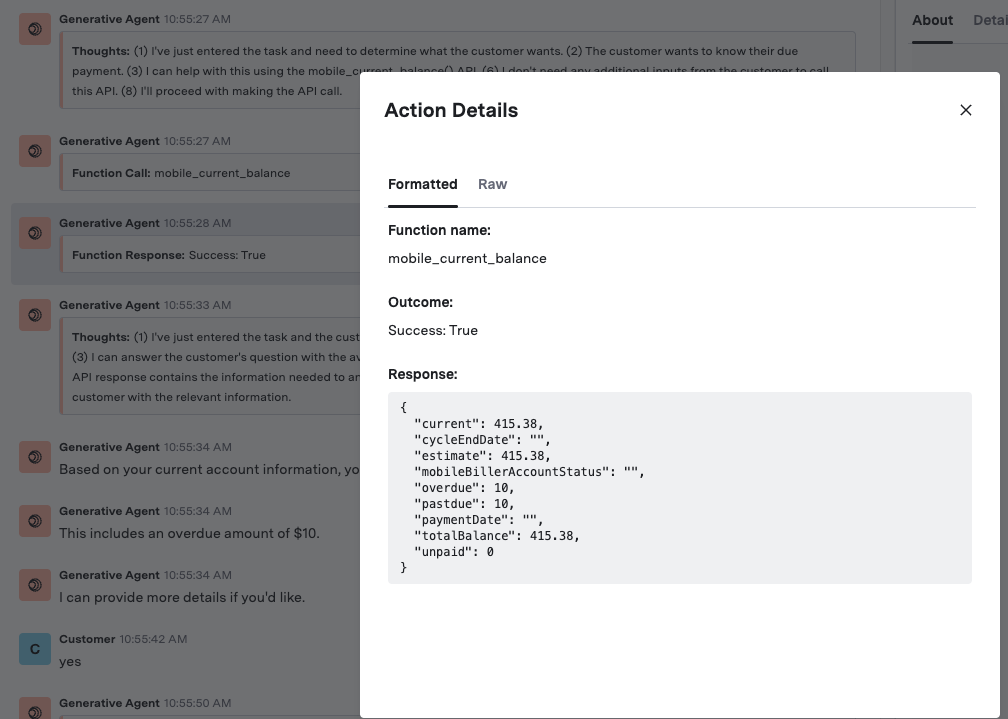 You can also see the "Raw" JSON interaction between GenerativeAgent and the function.
## Quality issues
Our monitoring system can flag a conversation as having potential quality issues as determined by our quality evaluators. When quality issues are detected:
* **Inline indicators**: Flagged messages appear with visual indicators directly in the conversation flow
* **Quality tab**: The "Quality" tab provides detailed information about each flagged utterance.
* **Customizable flagging:** Define which messages should be flagged to match your team’s needs.
You can also see the "Raw" JSON interaction between GenerativeAgent and the function.
## Quality issues
Our monitoring system can flag a conversation as having potential quality issues as determined by our quality evaluators. When quality issues are detected:
* **Inline indicators**: Flagged messages appear with visual indicators directly in the conversation flow
* **Quality tab**: The "Quality" tab provides detailed information about each flagged utterance.
* **Customizable flagging:** Define which messages should be flagged to match your team’s needs.
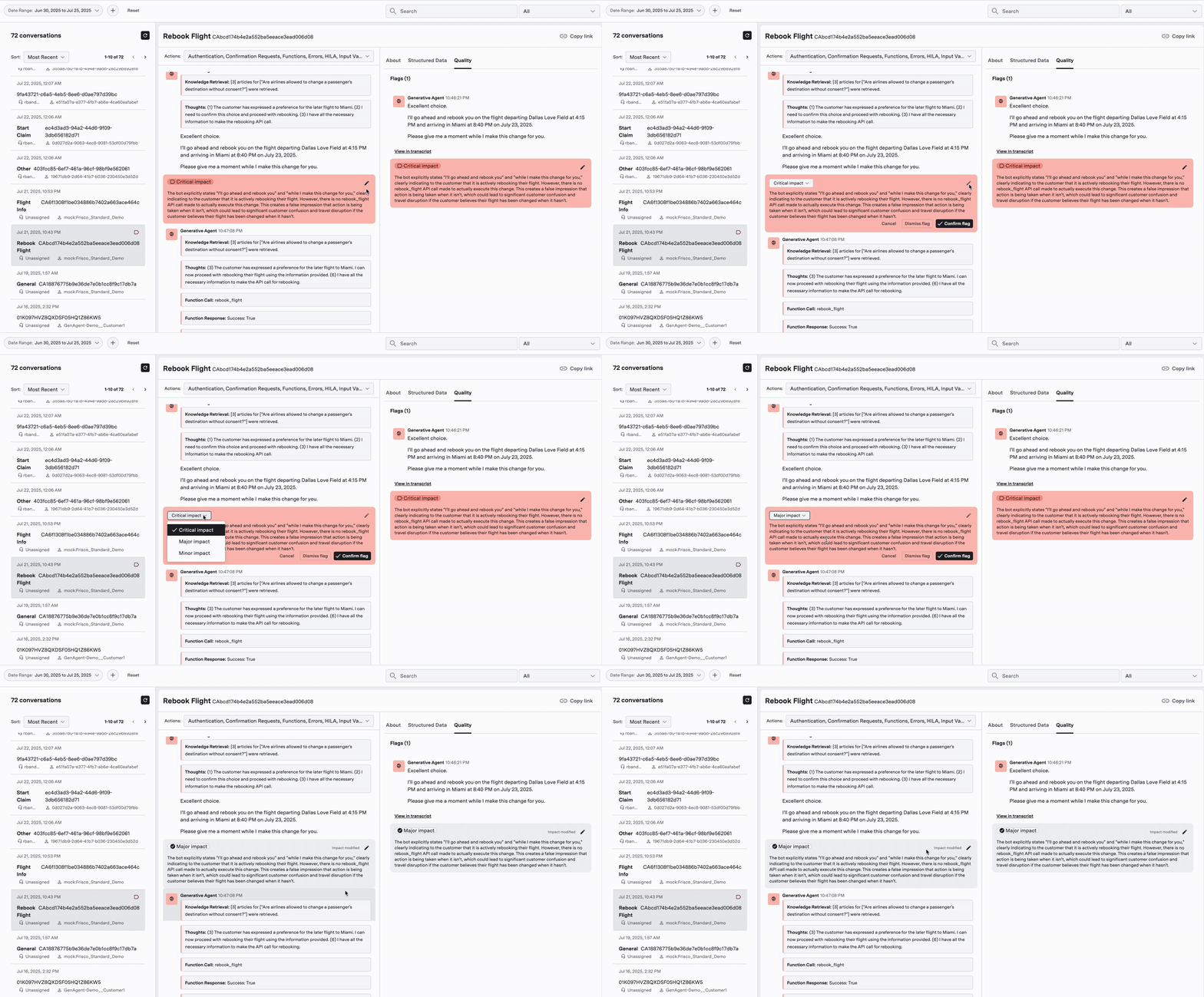 ## Identification
### What is a Customer Identifier?
A customer identifier is the first and most important piece of the Customer Authentication strategy. The identifier is the key element to determine:
* when to transition from unauthenticated to authenticated
* when to show previous conversation history within chat
When a customer returns with the same identifier, the customer sees all previous history within web and mobile chat. These identifiers are typically string values of hashed or encrypted account numbers or other internal values. However, it is important to not send identifiable or reusable information as the customer identifier, such as their actual unprotected account numbers or PII.
### Customer Identifier Format
The customer may determine the format of the customer identifier. The ASAPP requirements for the customer identifier are:
* Consistent - the same customer must authenticate using the same customer identifier every time.
* Unique - the customer identifier must represent a unique customer; No two customers can have the same identifier.
* Opaque - ASAPP does not store PII data. The customer must obfuscate the customer identifier so it does not contain PII or any other sensitive data. An example of obfuscation strategy is to generate a hash or an encrypted value of a unique user identifier (e.g. user ID, account number, or email address).
* Traceable - customer-traceable but not ASAPP-traceable.
* The customer must be able to trace the customer identifier back to a user. However, it cannot be used by ASAPP, or any other party, to trace back to a specific user.
* The reporting data generated by ASAPP includes the customer identifier. This reporting data is typically used to generate further analytics by the customer. You can use the customer identifier to relate ASAPP's reporting data back to the actual user identifier and record on the customer side.
### Passing the Customer Identifier to ASAPP
Once a customer authenticates a user on their website or app, the customer must retrieve and pass the customer identifier to ASAPP ( typically via the SDK parameters) as part of the conversation authentication flow.
You can find more details for your specific integration in the following sections:
* [Web SDK - Web Authentication](/agent-desk/integrations/web-sdk/web-authentication "Web Authentication")
* [Android SDK - Chat User Authentication in the Android Integration Walkthrough](/agent-desk/integrations/android-sdk/user-authentication)
* [iOS SDK - Basic Usage in the iOS SDK Quick Start](/agent-desk/integrations/ios-sdk/ios-quick-start)iOS SDK
## Tokens
While they are not a hard requirement for Customer Authentication, tokens play an important part in the overall Customer Authentication strategy. Tokens provide a way of securely wrapping all communication between Customers, Customer Companies and ASAPP. You can achieve this when you ensure that every request to a server is accompanied by a signed token, which ASAPP can verify for authenticity.
Some of the benefits of using tokens over other methods, such as cookies, is that tokens are completely stateless and are typically short-lived. The following sections outline some examples of token input, as well as requirements for their use and validation.
### Identity Tokens
Identity tokens are self contained, signed, short-lived tokens containing User Attributes like Name, User Identifiers, Contact Information, Claims, and Roles. The simplest and most common example of such a token is a JSON Web Token, JWT. JWTs contain a Header, Payload and Signature. The Header contains metadata about the token, the Payload contains the user info and claims, and the Signature is the algorithmically signed portion of the token based on the payload. You can find more information about JWTs at [https://jwt.io/](https://jwt.io/).
**Example JWT:**
```json theme={null}
eyJhbGciOiJIUzI1NiIsInR5cCI6IkpXVCJ9.eyJzdWIiOiIxMjM0NTY3ODkwIiwibmFtZSI6IkpvaG4gRG9lIiwiaWF0IjoxNTE2MjM5MDIyfQ.SflKxwRJSMeKKF2QT4fwpMeJf36POk6yJV_adQssw5c
```
### Bearer Tokens
A Bearer Token is a lightweight security token which provides the bearer, or user, access to protected resources. When a user authenticates, the system issues a Bearer Token type that contains an access token and a refresh token, along with expiration details. Bearer tokens are short-lived, dynamic access tokens that you can update throughout a session using a refresh token.
**Example Bearer Token:**
```json theme={null}
{
"token_type":"Bearer",
"access_token":"eyJhbGci....",
"expires_in":3600,
"expires_on":1479937454,
"refresh_token":"0/LTo...."
}
```
### Token Duration
Since every token has an expiration time, you need a way for ASAPP to know when a token is valid and when it expires. A customer can do this by:
* allowing decoding of signed tokens.
* providing an API to validate the token.
#### Token Refresh
You need to refresh expired tokens on either the client side, via the ASAPP SDK, or through an API call.
You can find SDK token refresh implementation examples at:
* [Web SDK - Web Context Provider](/agent-desk/integrations/web-sdk/web-contextprovider#authentication "Web ContextProvider")
* [Web SDK - Set Customer](/agent-desk/integrations/web-sdk/web-javascript-api#setcustomer "'setCustomer'")
* [Android SDK - Context Provider](/agent-desk/integrations/android-sdk/user-authentication)
* [iOS SDK - Type Aliases](https://docs-sdk.asapp.com/api/chatsdk/ios/latest/Typealiases.html)
#### Token Validation
You need to validate tokens before you can rely on them for API access or user information. Two examples of token validation are:
* **Compare multiple pieces of information** - ASAPP compares a JWT payload against the SDK input of the same attributes, or against response data from a UserProfile API call.
* **Signature Validation** - ASAPP can also validate signatures and decode data if needed. This would require sharing of a trusted public certificate with ASAPP.
## Omni-Channel Strategy
One of the key capabilities of the ASAPP backend is that it supports customer interaction via multiple channels - such as chat on web portals or within mobile apps. This enables a customer to migrate from one channel to another, if they choose, within the same support dialog. In order for this to function, it is important that the process of Customer Authentication be common to all channels. The ASAPP backend should obtain the same access token to access the Customer's API endpoints regardless of the channel that the customer selects. If a customer switches from one channel to another, the access token should remain the same.
## Testing
You need a comprehensive testing strategy to ensure success. This includes the ability to exercise edge cases with various permutations of test account data, as well as utilize the customer login with direct test account credentials. Operationally, the customer handles customer login credentialing; however, ASAPP requires the ability to simulate the login process in order to execute end to end tests. This process is crucial in performing test scenarios that require customer authentication. Corollary, it is equally important to ensure complete test scenario coverage with different types of test-based customer accounts.
---
# Source: https://docs.asapp.com/agent-desk/insights-manager/live-insights/customer-feedback.md
> ## Documentation Index
> Fetch the complete documentation index at: https://docs.asapp.com/llms.txt
> Use this file to discover all available pages before exploring further.
# Customer Feedback
> Learn how to view customer feedback in Live Insights.
Live Insights tracks customers that engage with the satisfaction survey.
The Customer Feedback panel displays all feedback received throughout the day.
## Access Customer Feedback
## Identification
### What is a Customer Identifier?
A customer identifier is the first and most important piece of the Customer Authentication strategy. The identifier is the key element to determine:
* when to transition from unauthenticated to authenticated
* when to show previous conversation history within chat
When a customer returns with the same identifier, the customer sees all previous history within web and mobile chat. These identifiers are typically string values of hashed or encrypted account numbers or other internal values. However, it is important to not send identifiable or reusable information as the customer identifier, such as their actual unprotected account numbers or PII.
### Customer Identifier Format
The customer may determine the format of the customer identifier. The ASAPP requirements for the customer identifier are:
* Consistent - the same customer must authenticate using the same customer identifier every time.
* Unique - the customer identifier must represent a unique customer; No two customers can have the same identifier.
* Opaque - ASAPP does not store PII data. The customer must obfuscate the customer identifier so it does not contain PII or any other sensitive data. An example of obfuscation strategy is to generate a hash or an encrypted value of a unique user identifier (e.g. user ID, account number, or email address).
* Traceable - customer-traceable but not ASAPP-traceable.
* The customer must be able to trace the customer identifier back to a user. However, it cannot be used by ASAPP, or any other party, to trace back to a specific user.
* The reporting data generated by ASAPP includes the customer identifier. This reporting data is typically used to generate further analytics by the customer. You can use the customer identifier to relate ASAPP's reporting data back to the actual user identifier and record on the customer side.
### Passing the Customer Identifier to ASAPP
Once a customer authenticates a user on their website or app, the customer must retrieve and pass the customer identifier to ASAPP ( typically via the SDK parameters) as part of the conversation authentication flow.
You can find more details for your specific integration in the following sections:
* [Web SDK - Web Authentication](/agent-desk/integrations/web-sdk/web-authentication "Web Authentication")
* [Android SDK - Chat User Authentication in the Android Integration Walkthrough](/agent-desk/integrations/android-sdk/user-authentication)
* [iOS SDK - Basic Usage in the iOS SDK Quick Start](/agent-desk/integrations/ios-sdk/ios-quick-start)iOS SDK
## Tokens
While they are not a hard requirement for Customer Authentication, tokens play an important part in the overall Customer Authentication strategy. Tokens provide a way of securely wrapping all communication between Customers, Customer Companies and ASAPP. You can achieve this when you ensure that every request to a server is accompanied by a signed token, which ASAPP can verify for authenticity.
Some of the benefits of using tokens over other methods, such as cookies, is that tokens are completely stateless and are typically short-lived. The following sections outline some examples of token input, as well as requirements for their use and validation.
### Identity Tokens
Identity tokens are self contained, signed, short-lived tokens containing User Attributes like Name, User Identifiers, Contact Information, Claims, and Roles. The simplest and most common example of such a token is a JSON Web Token, JWT. JWTs contain a Header, Payload and Signature. The Header contains metadata about the token, the Payload contains the user info and claims, and the Signature is the algorithmically signed portion of the token based on the payload. You can find more information about JWTs at [https://jwt.io/](https://jwt.io/).
**Example JWT:**
```json theme={null}
eyJhbGciOiJIUzI1NiIsInR5cCI6IkpXVCJ9.eyJzdWIiOiIxMjM0NTY3ODkwIiwibmFtZSI6IkpvaG4gRG9lIiwiaWF0IjoxNTE2MjM5MDIyfQ.SflKxwRJSMeKKF2QT4fwpMeJf36POk6yJV_adQssw5c
```
### Bearer Tokens
A Bearer Token is a lightweight security token which provides the bearer, or user, access to protected resources. When a user authenticates, the system issues a Bearer Token type that contains an access token and a refresh token, along with expiration details. Bearer tokens are short-lived, dynamic access tokens that you can update throughout a session using a refresh token.
**Example Bearer Token:**
```json theme={null}
{
"token_type":"Bearer",
"access_token":"eyJhbGci....",
"expires_in":3600,
"expires_on":1479937454,
"refresh_token":"0/LTo...."
}
```
### Token Duration
Since every token has an expiration time, you need a way for ASAPP to know when a token is valid and when it expires. A customer can do this by:
* allowing decoding of signed tokens.
* providing an API to validate the token.
#### Token Refresh
You need to refresh expired tokens on either the client side, via the ASAPP SDK, or through an API call.
You can find SDK token refresh implementation examples at:
* [Web SDK - Web Context Provider](/agent-desk/integrations/web-sdk/web-contextprovider#authentication "Web ContextProvider")
* [Web SDK - Set Customer](/agent-desk/integrations/web-sdk/web-javascript-api#setcustomer "'setCustomer'")
* [Android SDK - Context Provider](/agent-desk/integrations/android-sdk/user-authentication)
* [iOS SDK - Type Aliases](https://docs-sdk.asapp.com/api/chatsdk/ios/latest/Typealiases.html)
#### Token Validation
You need to validate tokens before you can rely on them for API access or user information. Two examples of token validation are:
* **Compare multiple pieces of information** - ASAPP compares a JWT payload against the SDK input of the same attributes, or against response data from a UserProfile API call.
* **Signature Validation** - ASAPP can also validate signatures and decode data if needed. This would require sharing of a trusted public certificate with ASAPP.
## Omni-Channel Strategy
One of the key capabilities of the ASAPP backend is that it supports customer interaction via multiple channels - such as chat on web portals or within mobile apps. This enables a customer to migrate from one channel to another, if they choose, within the same support dialog. In order for this to function, it is important that the process of Customer Authentication be common to all channels. The ASAPP backend should obtain the same access token to access the Customer's API endpoints regardless of the channel that the customer selects. If a customer switches from one channel to another, the access token should remain the same.
## Testing
You need a comprehensive testing strategy to ensure success. This includes the ability to exercise edge cases with various permutations of test account data, as well as utilize the customer login with direct test account credentials. Operationally, the customer handles customer login credentialing; however, ASAPP requires the ability to simulate the login process in order to execute end to end tests. This process is crucial in performing test scenarios that require customer authentication. Corollary, it is equally important to ensure complete test scenario coverage with different types of test-based customer accounts.
---
# Source: https://docs.asapp.com/agent-desk/insights-manager/live-insights/customer-feedback.md
> ## Documentation Index
> Fetch the complete documentation index at: https://docs.asapp.com/llms.txt
> Use this file to discover all available pages before exploring further.
# Customer Feedback
> Learn how to view customer feedback in Live Insights.
Live Insights tracks customers that engage with the satisfaction survey.
The Customer Feedback panel displays all feedback received throughout the day.
## Access Customer Feedback
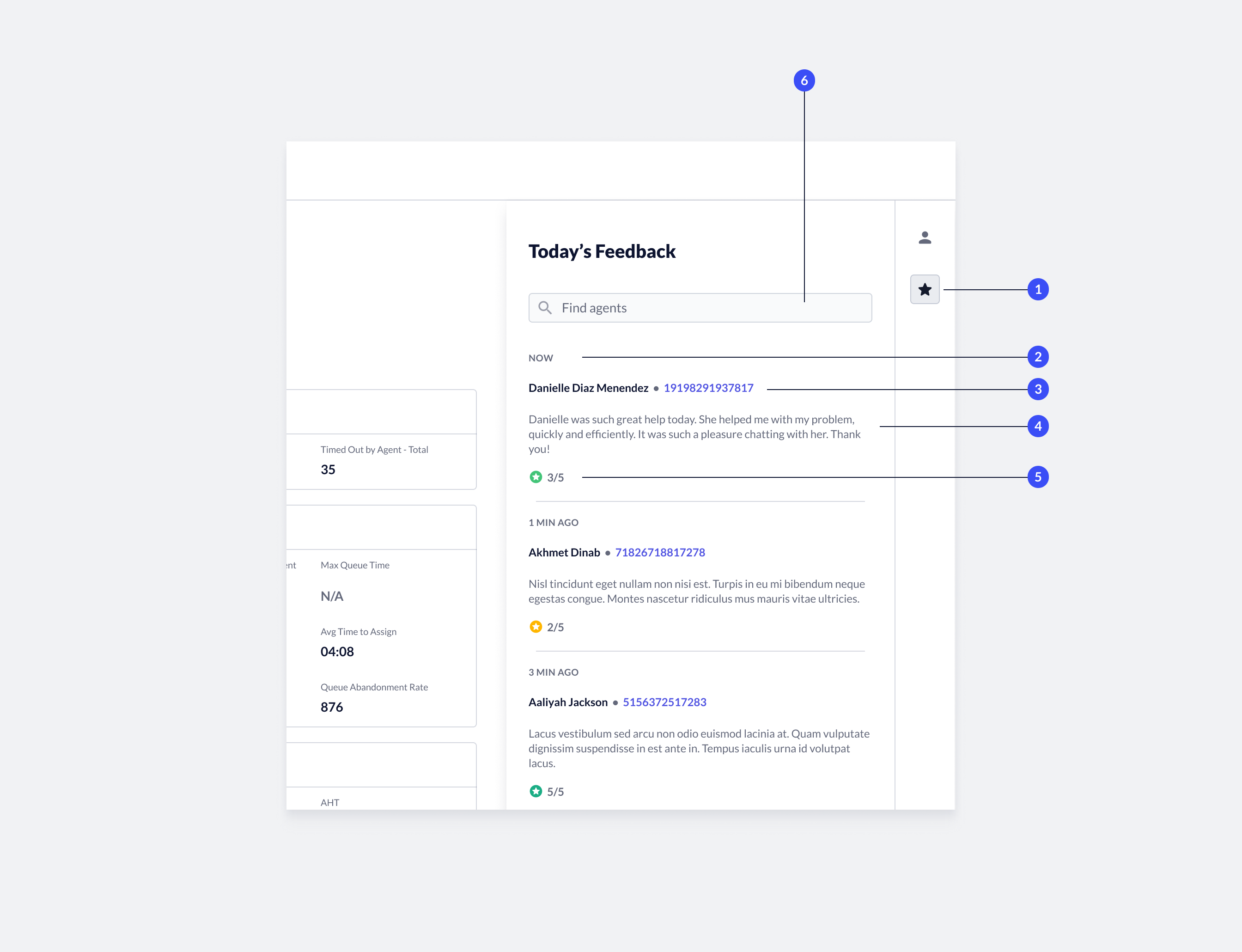 1. **Open feedback panel**: To view feedback, click the **Feedback** icon on the right side of the 'Performance' page. The system opens the Customer Feedback panel.
2. **Time stamp**: Indicates when the system recorded the feedback.
3. **Agent name and issue ID**: Indicates the targeted agent, as well as the customer's issue ID.
* **Issue ID link**: Click the **issue ID** to display the transcript in the Conversation Manager.
4. **Feedback**: Feedback that the customer left.
5. **CSAT**: CSAT score that the system calculates based on customer responses to the survey.
6. **Find agent**: You can filter the feedback received by agent. To view feedback related to a specific agent, type the **agent name** in the search field.
---
# Source: https://docs.asapp.com/agent-desk/integrations/ios-sdk/customization.md
# Source: https://docs.asapp.com/agent-desk/integrations/android-sdk/customization.md
> ## Documentation Index
> Fetch the complete documentation index at: https://docs.asapp.com/llms.txt
> Use this file to discover all available pages before exploring further.
# Customization
## Styling
The SDK uses color attributes that you define in the ASAPP theme, as well as extra style configuration options that you set via the style configuration class.
### Themes
To customize the SDK theme, extend the default ASAPP theme in your `styles.xml` file:
```xml theme={null}
```
1. **Open feedback panel**: To view feedback, click the **Feedback** icon on the right side of the 'Performance' page. The system opens the Customer Feedback panel.
2. **Time stamp**: Indicates when the system recorded the feedback.
3. **Agent name and issue ID**: Indicates the targeted agent, as well as the customer's issue ID.
* **Issue ID link**: Click the **issue ID** to display the transcript in the Conversation Manager.
4. **Feedback**: Feedback that the customer left.
5. **CSAT**: CSAT score that the system calculates based on customer responses to the survey.
6. **Find agent**: You can filter the feedback received by agent. To view feedback related to a specific agent, type the **agent name** in the search field.
---
# Source: https://docs.asapp.com/agent-desk/integrations/ios-sdk/customization.md
# Source: https://docs.asapp.com/agent-desk/integrations/android-sdk/customization.md
> ## Documentation Index
> Fetch the complete documentation index at: https://docs.asapp.com/llms.txt
> Use this file to discover all available pages before exploring further.
# Customization
## Styling
The SDK uses color attributes that you define in the ASAPP theme, as well as extra style configuration options that you set via the style configuration class.
### Themes
To customize the SDK theme, extend the default ASAPP theme in your `styles.xml` file:
```xml theme={null}
```
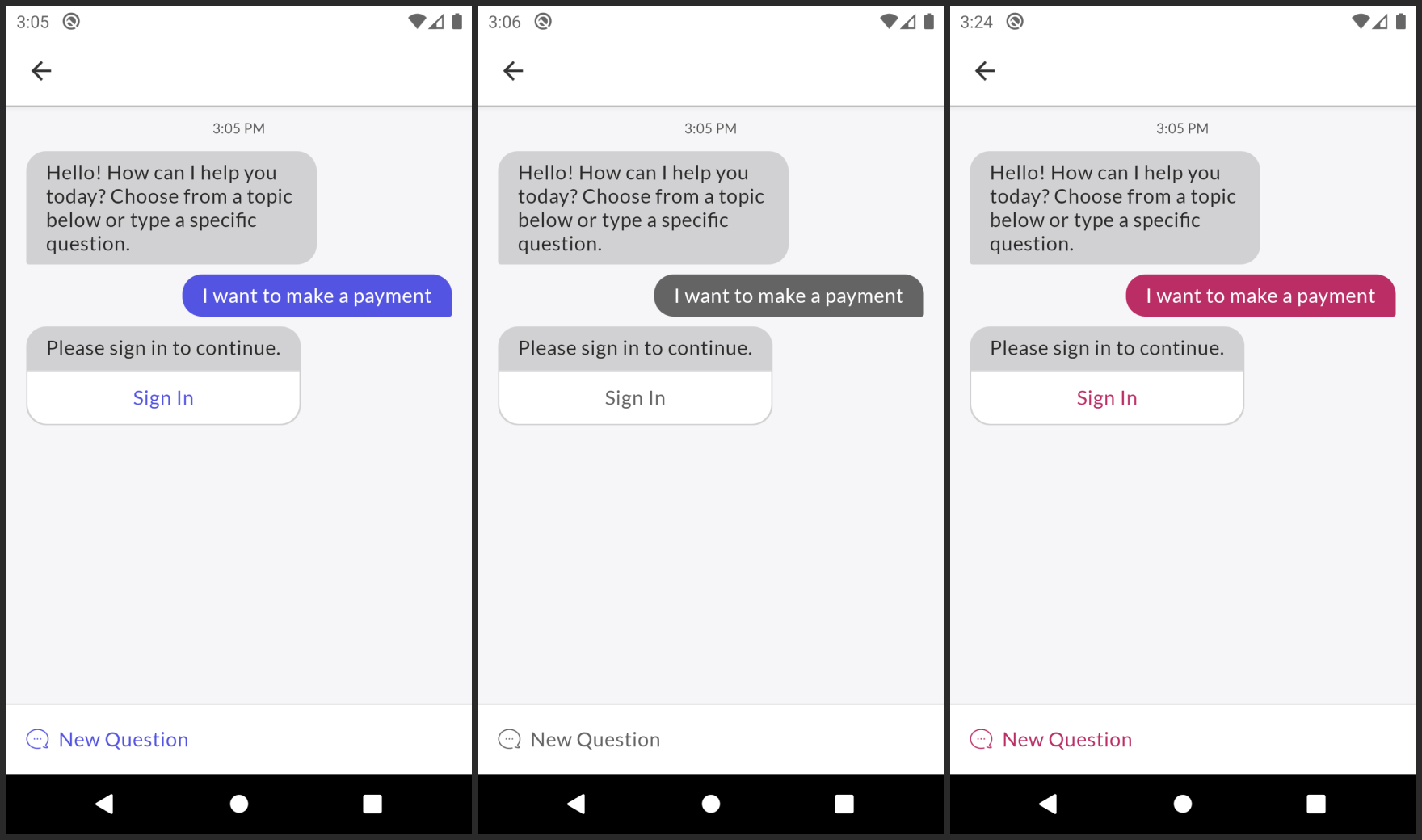 There are two other colors you may consider customizing for accessibility or to achieve an exact match with your app's theme: `asapp_on_background` and `asapp_on_primary`. Other elements that might appear in front of the background use `asapp_on_background`. Text and other elements that appear in front of the primary color use `asapp_on_primary`.
### More Colors
Besides the colors used for [themes](#themes "Themes"), you can override specific colors in a number of categories: the toolbar, chat content, messages, and other elements. You can override all properties mentioned below in the `ASAPPTheme.Chat` style.
The status bar color is `asapp_status_bar` and toolbar colors are `asapp_toolbar` (background), `asapp_nav_button`, `asapp_nav_icon`, and `asapp_nav_text` (foreground).
There are two other colors you may consider customizing for accessibility or to achieve an exact match with your app's theme: `asapp_on_background` and `asapp_on_primary`. Other elements that might appear in front of the background use `asapp_on_background`. Text and other elements that appear in front of the primary color use `asapp_on_primary`.
### More Colors
Besides the colors used for [themes](#themes "Themes"), you can override specific colors in a number of categories: the toolbar, chat content, messages, and other elements. You can override all properties mentioned below in the `ASAPPTheme.Chat` style.
The status bar color is `asapp_status_bar` and toolbar colors are `asapp_toolbar` (background), `asapp_nav_button`, `asapp_nav_icon`, and `asapp_nav_text` (foreground).
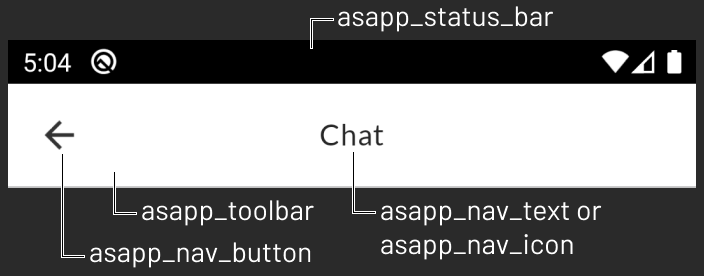 **General chat content colors**
* `asapp_background`
* `asapp_separator_color`
* `asapp_control_tint`
* `asapp_control_secondary`
* `asapp_control_background`
* `asapp_success`
* `asapp_warning`
* `asapp_failure`
**General chat content colors**
* `asapp_background`
* `asapp_separator_color`
* `asapp_control_tint`
* `asapp_control_secondary`
* `asapp_control_background`
* `asapp_success`
* `asapp_warning`
* `asapp_failure`
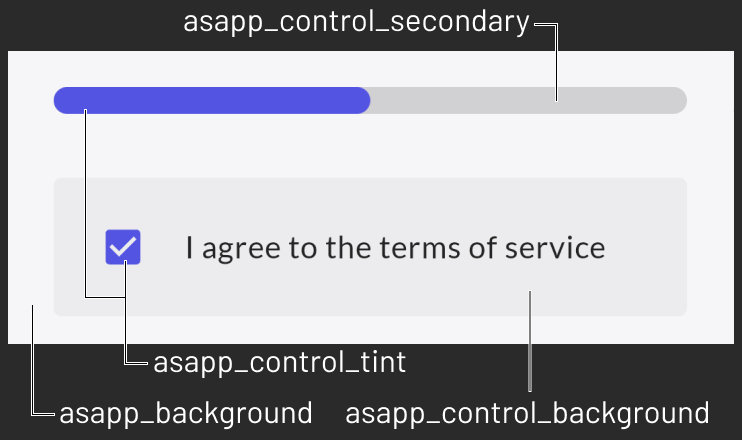
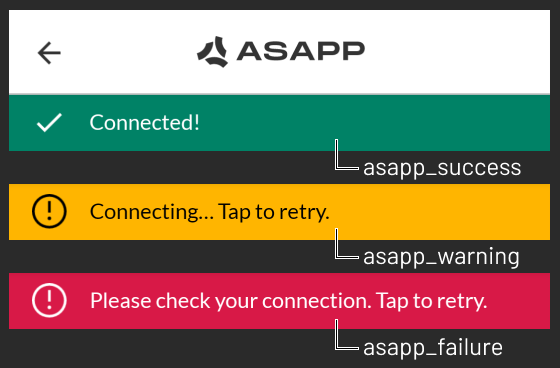 **Message colors**
* `asapp_messages_list_background`
* `asapp_chat_bubble_sent_text`
* `asapp_chat_bubble_sent_bg`
* `asapp_chat_bubble_reply_text`
* `asapp_chat_bubble_reply_bg`
**Message colors**
* `asapp_messages_list_background`
* `asapp_chat_bubble_sent_text`
* `asapp_chat_bubble_sent_bg`
* `asapp_chat_bubble_reply_text`
* `asapp_chat_bubble_reply_bg`
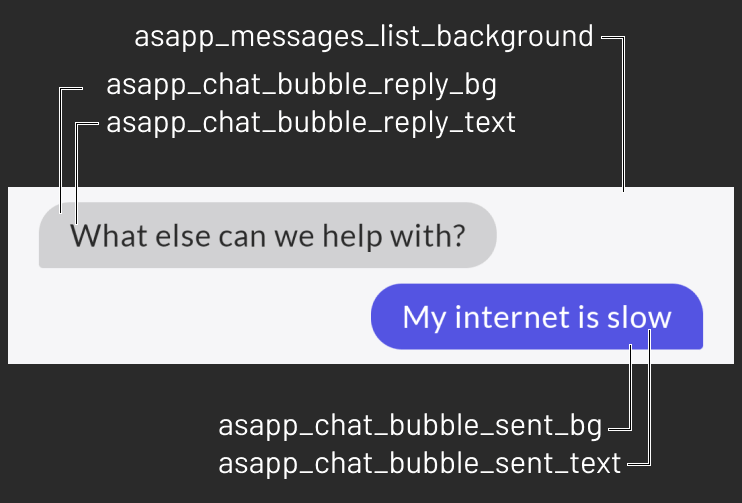 ### Text and Buttons
To customize fonts and colors for both text and buttons, use the `ASAPPCustomTextStyleHandler`. To set this optional handler use `ASAPPStyleConfig.setTextStyleHandler`. Use the given `ASAPPTextStyles`
object to:
* Set a new font family with `updateFonts`. If you set no new fonts, the system uses the default instead.
* Override font sizes, letter spacing, text colors, and text casing styles. You can also customize the font family for each text style individually, if needed.
* Override button colors for normal, highlighted and disabled states.
Example:
```kotlin theme={null}
ASAPP.instance.getStyleConfig()
.setTextStyleHandler { context, textStyles ->
val regular = Typeface.createFromAsset(context.assets, "fonts/NH-Regular.ttf")
val medium = Typeface.createFromAsset(context.assets, "fonts/Lato-Bold.ttf")
val black = Typeface.createFromAsset(context.assets, "fonts/Lato-Black.ttf")
textStyles.updateFonts(regular, medium, black)
textStyles.body.fontSize = 14f
val textHighlightColor = ContextCompat.getColor(context, R.color.my_text_hightlight_color)
textStyles.primaryButton.textHighlighted = textHighlightColor
}
```
See `ASAPPTextStyles` to see all overridable styles.
### Text and Buttons
To customize fonts and colors for both text and buttons, use the `ASAPPCustomTextStyleHandler`. To set this optional handler use `ASAPPStyleConfig.setTextStyleHandler`. Use the given `ASAPPTextStyles`
object to:
* Set a new font family with `updateFonts`. If you set no new fonts, the system uses the default instead.
* Override font sizes, letter spacing, text colors, and text casing styles. You can also customize the font family for each text style individually, if needed.
* Override button colors for normal, highlighted and disabled states.
Example:
```kotlin theme={null}
ASAPP.instance.getStyleConfig()
.setTextStyleHandler { context, textStyles ->
val regular = Typeface.createFromAsset(context.assets, "fonts/NH-Regular.ttf")
val medium = Typeface.createFromAsset(context.assets, "fonts/Lato-Bold.ttf")
val black = Typeface.createFromAsset(context.assets, "fonts/Lato-Black.ttf")
textStyles.updateFonts(regular, medium, black)
textStyles.body.fontSize = 14f
val textHighlightColor = ContextCompat.getColor(context, R.color.my_text_hightlight_color)
textStyles.primaryButton.textHighlighted = textHighlightColor
}
```
See `ASAPPTextStyles` to see all overridable styles.
 ### Drawable Title
To add an icon to the chat header use: `setChatActivityToolbarLogo`. You can also center the header content by calling `setIsToolbarTitleOrIconCentered(true)`. For example:
```kotlin theme={null}
ASAPP.instance.getStyleConfig
.setChatActivityToolbarLogo(R.drawable.asapp_chat_icon)
.setIsToolbarTitleOrIconCentered(true)
```
### Drawable Title
To add an icon to the chat header use: `setChatActivityToolbarLogo`. You can also center the header content by calling `setIsToolbarTitleOrIconCentered(true)`. For example:
```kotlin theme={null}
ASAPP.instance.getStyleConfig
.setChatActivityToolbarLogo(R.drawable.asapp_chat_icon)
.setIsToolbarTitleOrIconCentered(true)
```
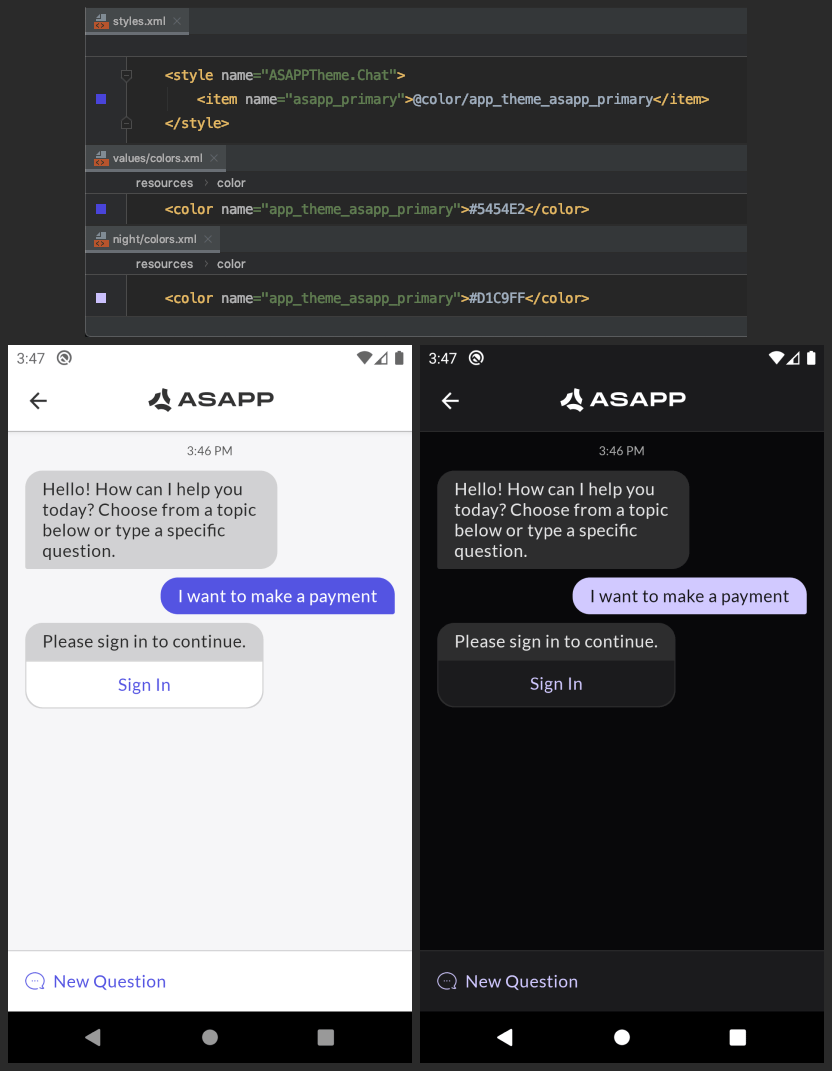 ### Disable or Force a Dark Mode Setting
To disable Dark Mode, or to force Dark Mode for Android API levels below 29, ASAPP recommends using the [AppCompatDelegate.setDefaultNightMode](https://developer.android.com/reference/androidx/appcompat/app/AppCompatDelegate#setDefaultNightMode\(int\)) AndroidX API. This function changes the night mode setting throughout the entire application session, which also includes ASAPP SDK activities.
For example, it is possible to use Dark Mode on Android API 21 with the following:
```kotlin theme={null}
AppCompatDelegate.setDefaultNightMode(AppCompatDelegate.MODE_NIGHT_YES)
```
## Atomic Customization
To customize the styles at an atomic level, you can use the `setAtomicViewStyleHandler` to update viewStyles. Customizing at the atomic level will **override any default style** that is being set on the UI views. Use it only if general styling is not sufficient, and you need further customization. This is optional, and in most cases, you won't need it. Use with caution.
```kotlin theme={null}
ASAPP.instance.getStyleConfig()
.setAtomicViewStyleHandler { context: Context, viewStyles: ASAPPCustomViewStyles ->
// Update viewStyles as needed
}
```
### Custom Theming Example
Following code snippet is an example of how to apply an atomic customized theme.
```kotlin theme={null}
private fun setCustomStyling() {
val orangeColor = "#ea7024"
ASAPP.instance.getStyleConfig(reset = true)
.setChatActivityToolbarLogo(0)
.setChatActivityTitle(R.string.asapp_toolbar_custom_title)
.setIsToolbarTitleOrIconCentered(true)
.setAtomicViewStyleHandler { context: Context, viewStyles: ASAPPCustomViewStyles ->
val iconWidthInDp = 24
val iconWidthInPx = (context.resources.displayMetrics.density * iconWidthInDp).toInt()
val customRegularTypeface = Typeface.createFromAsset(
context.assets,
"fonts/Lato-Regular.ttf"
)
val customMediumTypeface = Typeface.createFromAsset(
context.assets,
"fonts/Lato-Medium.ttf"
)
val customBoldTypeface = Typeface.createFromAsset(
context.assets,
"fonts/Lato-Bold.ttf"
)
with(viewStyles.connectionBar.success) {
container.backgroundColor = Color.GREEN
icon.src = R.drawable.nav_check_24px
primaryText.color = Color.RED
primaryText.typeface = customRegularTypeface
icon.src = R.drawable.nav_check_24px
icon.tintColor = ContextCompat.getColor(context, R.color.asapp_error_red)
icon.width = iconWidthInPx
}
with(viewStyles.connectionBar.warn) {
container.backgroundColor = Color.YELLOW
primaryText.color = Color.WHITE
primaryText.typeface = customMediumTypeface
}
with(viewStyles.connectionBar.error) {
container.backgroundColor = Color.RED
icon.src = R.drawable.asapp_img_icon_x
primaryText.fontSize = 18f
primaryText.typeface = customBoldTypeface
icon.tintColor = ContextCompat.getColor(context, R.color.asapp_error_red)
}
with(viewStyles.bottomSheetConfirmationDialog) {
confirmButtonBar.button.width = MATCH_PARENT
cancelButtonBar.button.width = MATCH_PARENT
confirmButtonBar.button.radius = Int.MAX_VALUE
cancelButtonBar.button.radius = Int.MAX_VALUE
confirmButtonBar.button.typeface = Typeface.DEFAULT_BOLD
confirmButtonBar.button.textNormal = Color.WHITE
confirmButtonBar.button.backgroundNormal = Color.DKGRAY
cancelButtonBar.button.typeface = Typeface.DEFAULT_BOLD
cancelButtonBar.button.textNormal = Color.DKGRAY
cancelButtonBar.button.backgroundNormal = Color.WHITE
cancelButtonBar.button.borderNormal = Color.DKGRAY
}
with(viewStyles.quickRepliesViewGroup) {
container.maxHeight = 600
}
viewStyles.titleBar = ASAPPCustomViewStyles.TitleBar.newInstance().apply {
primaryText.color = Color.DKGRAY
primaryText.fontSize = 14.0f
primaryText.typeface = Typeface.DEFAULT
icon.width = WRAP_CONTENT
actionBackButton.color = Color.parseColor(orangeColor)
actionMoreButton.color = Color.parseColor(orangeColor)
}
with(viewStyles.ewtBar) {
progressBar.visibility = View.VISIBLE
progressBar.progressColor = Color.parseColor("#eeeeee")
progressBar.backgroundColor = Color.parseColor(orangeColor)
btnLeave.textNormal = Color.parseColor("#006fd6")
txtEwtTitle.color = Color.DKGRAY
txtEwtTitle.fontSize = 16.0f
txtEwtValue.color = Color.DKGRAY
txtEwtValue.fontSize = 22.0f
}
with(viewStyles.chatComposerBar) {
btnSend.color = Color.parseColor(orangeColor)
}
}
}
```
### Customization Details
Support for the following customizations are available:
#### Send Button Color
```kotlin theme={null}
with(viewStyles.chatComposerBar) {
btnSend.color = Color.parseColor(orangeColor)
}
```
#### TitleBar customizations
```kotlin theme={null}
viewStyles.titleBar = ASAPPCustomViewStyles.TitleBar.newInstance().apply {
primaryText.color = Color.DKGRAY
primaryText.fontSize = 14.0f
primaryText.typeface = Typeface.DEFAULT
icon.width = WRAP_CONTENT
actionBackButton.color = Color.parseColor(orangeColor)
actionMoreButton.color = Color.parseColor(orangeColor)
}
```
#### Quick Reply Max Height
```kotlin theme={null}
with(viewStyles.quickRepliesViewGroup) {
// Using Dp
container.maxHeight = ASAPPStyleConfig.dpToPx(context, 600)
// Or Using Pixel
container.maxHeight = 600
}
```
#### Estimated Wait Time (EWT) Bar Customization
```kotlin theme={null}
with(viewStyles.ewtBar) {
progressBar.visibility = View.GONE // Or VISIBLE
progressBar.progressColor = Color.parseColor("#eeeeee")
progressBar.backgroundColor = Color.parseColor(orangeColor)
btnLeave.textNormal = Color.parseColor("#006fd6")
txtEwtTitle.color = Color.DKGRAY
txtEwtTitle.fontSize = 16.0f
txtEwtValue.color = Color.DKGRAY
txtEwtValue.fontSize = 22.0f
}
```
#### Connection Status Bar with customized Success/Warning/Error
```kotlin theme={null}
with(viewStyles.connectionBar.success) {
container.backgroundColor = Color.GREEN
icon.src = R.drawable.nav_check_24px
primaryText.color = Color.RED
primaryText.typeface = customRegularTypeface
icon.src = R.drawable.nav_check_24px
icon.tintColor = ContextCompat.getColor(context, R.color.asapp_error_red)
icon.width = iconWidthInPx
}
with(viewStyles.connectionBar.warn) {
container.backgroundColor = Color.YELLOW
primaryText.color = Color.WHITE
primaryText.typeface = customMediumTypeface
}
with(viewStyles.connectionBar.error) {
container.backgroundColor = Color.RED
icon.src = R.drawable.asapp_img_icon_x
primaryText.fontSize = 18f
primaryText.typeface = customBoldTypeface
icon.tintColor = ContextCompat.getColor(context, R.color.asapp_error_red)
}
```
#### Modal Button Styling Customization
```kotlin theme={null}
with(viewStyles.bottomSheetConfirmationDialog) {
confirmButtonBar.button.width = MATCH_PARENT
cancelButtonBar.button.width = MATCH_PARENT
confirmButtonBar.button.radius = Int.MAX_VALUE
cancelButtonBar.button.radius = Int.MAX_VALUE
confirmButtonBar.button.typeface = Typeface.DEFAULT_BOLD
confirmButtonBar.button.textNormal = Color.WHITE
confirmButtonBar.button.backgroundNormal = Color.DKGRAY
cancelButtonBar.button.typeface = Typeface.DEFAULT_BOLD
cancelButtonBar.button.textNormal = Color.DKGRAY
cancelButtonBar.button.backgroundNormal = Color.WHITE
cancelButtonBar.button.borderNormal = Color.DKGRAY
}
```
---
# Source: https://docs.asapp.com/security/data-redaction.md
> ## Documentation Index
> Fetch the complete documentation index at: https://docs.asapp.com/llms.txt
> Use this file to discover all available pages before exploring further.
# Data Redaction
> Learn how Data Redaction removes sensitive data from your conversations.
Live conversations are completely uninhibited and as such, customers may mistakenly communicate sensitive information (e.g. credit card number, SSN, etc.) in a manner that increases risk.
In order to mitigate this risk, ASAPP performs redaction logic that you can customize for your business's needs. You also have the ability to add your own [custom redaction rules](#custom-regex-redaction-rules) using regular expressions.
Reach out to your ASAPP account team to learn more.
## Custom Regex Redaction Rules
In AI-Console, you can view existing custom, regex based redaction rules and add new ones for your organization.
Adding rules match specific patterns by using regular expressions. You can deploy these new rules to testing environments and to production.
Custom redaction rules live in the Core Resources section of AI-Console.
* The system displays custom redaction rules as an ordered list of rules with names.
* Each individual rule will display the underlying regex.
To add a custom rule:
1. Click **Add new**
2. Create a unique Regex Name
3. Add the regex for the particular rule
4. Test your regex rule to ensure it works as expected
5. Add the regex to sandbox
Once you add a rule to the sandbox environment, test it in your lower environment to ensure it's behaving as expected.
---
# Source: https://docs.asapp.com/agent-desk/integrations/ios-sdk/deep-links-and-web-links.md
# Source: https://docs.asapp.com/agent-desk/integrations/android-sdk/deep-links-and-web-links.md
> ## Documentation Index
> Fetch the complete documentation index at: https://docs.asapp.com/llms.txt
> Use this file to discover all available pages before exploring further.
# Deep Links and Web Links
## Handling Deep Links in Chat
Certain chat flows may present buttons that are deep links to another part of your app. To react to taps on these buttons, implement the `ASAPPDeepLinkHandler` interface:
```kotlin theme={null}
ASAPP.instance.deepLinkHandler = object : ASAPPDeepLinkHandler {
override fun handleASAPPDeepLink(deepLink: String, data: JSONObject?, activity: Activity) {
// Handle deep link.
}
}
```
ASAPP provides an `Activity` instance for convenience, in case you need to start a new activity. Please ask your Implementation Manager if you have questions regarding deep link names and data.
### Example: Parsing and Opening Deep Links in Your Activity
If your app receives deep links through an Intent, you can extract the parameters and forward them to the ASAPP SDK when you reopen a chat.
```kotlin theme={null}
object AppDeepLinkHelper {
fun getASAPPDeepLinkDataIfAny(context: Context, intent: Intent): Map
### Setup
ASAPP provides an AI Services [Developer Portal](/getting-started/developers). Within the portal, developers can do the following:
* Access relevant API documentation (e.g. OpenAPI reference schemas)
* Access API keys for authorization
* Manage user accounts and apps
In order to use ASAPP's APIs, all apps must be registered through the portal. Once registered, each app will be provided unique API keys for ongoing use.
### Disable or Force a Dark Mode Setting
To disable Dark Mode, or to force Dark Mode for Android API levels below 29, ASAPP recommends using the [AppCompatDelegate.setDefaultNightMode](https://developer.android.com/reference/androidx/appcompat/app/AppCompatDelegate#setDefaultNightMode\(int\)) AndroidX API. This function changes the night mode setting throughout the entire application session, which also includes ASAPP SDK activities.
For example, it is possible to use Dark Mode on Android API 21 with the following:
```kotlin theme={null}
AppCompatDelegate.setDefaultNightMode(AppCompatDelegate.MODE_NIGHT_YES)
```
## Atomic Customization
To customize the styles at an atomic level, you can use the `setAtomicViewStyleHandler` to update viewStyles. Customizing at the atomic level will **override any default style** that is being set on the UI views. Use it only if general styling is not sufficient, and you need further customization. This is optional, and in most cases, you won't need it. Use with caution.
```kotlin theme={null}
ASAPP.instance.getStyleConfig()
.setAtomicViewStyleHandler { context: Context, viewStyles: ASAPPCustomViewStyles ->
// Update viewStyles as needed
}
```
### Custom Theming Example
Following code snippet is an example of how to apply an atomic customized theme.
```kotlin theme={null}
private fun setCustomStyling() {
val orangeColor = "#ea7024"
ASAPP.instance.getStyleConfig(reset = true)
.setChatActivityToolbarLogo(0)
.setChatActivityTitle(R.string.asapp_toolbar_custom_title)
.setIsToolbarTitleOrIconCentered(true)
.setAtomicViewStyleHandler { context: Context, viewStyles: ASAPPCustomViewStyles ->
val iconWidthInDp = 24
val iconWidthInPx = (context.resources.displayMetrics.density * iconWidthInDp).toInt()
val customRegularTypeface = Typeface.createFromAsset(
context.assets,
"fonts/Lato-Regular.ttf"
)
val customMediumTypeface = Typeface.createFromAsset(
context.assets,
"fonts/Lato-Medium.ttf"
)
val customBoldTypeface = Typeface.createFromAsset(
context.assets,
"fonts/Lato-Bold.ttf"
)
with(viewStyles.connectionBar.success) {
container.backgroundColor = Color.GREEN
icon.src = R.drawable.nav_check_24px
primaryText.color = Color.RED
primaryText.typeface = customRegularTypeface
icon.src = R.drawable.nav_check_24px
icon.tintColor = ContextCompat.getColor(context, R.color.asapp_error_red)
icon.width = iconWidthInPx
}
with(viewStyles.connectionBar.warn) {
container.backgroundColor = Color.YELLOW
primaryText.color = Color.WHITE
primaryText.typeface = customMediumTypeface
}
with(viewStyles.connectionBar.error) {
container.backgroundColor = Color.RED
icon.src = R.drawable.asapp_img_icon_x
primaryText.fontSize = 18f
primaryText.typeface = customBoldTypeface
icon.tintColor = ContextCompat.getColor(context, R.color.asapp_error_red)
}
with(viewStyles.bottomSheetConfirmationDialog) {
confirmButtonBar.button.width = MATCH_PARENT
cancelButtonBar.button.width = MATCH_PARENT
confirmButtonBar.button.radius = Int.MAX_VALUE
cancelButtonBar.button.radius = Int.MAX_VALUE
confirmButtonBar.button.typeface = Typeface.DEFAULT_BOLD
confirmButtonBar.button.textNormal = Color.WHITE
confirmButtonBar.button.backgroundNormal = Color.DKGRAY
cancelButtonBar.button.typeface = Typeface.DEFAULT_BOLD
cancelButtonBar.button.textNormal = Color.DKGRAY
cancelButtonBar.button.backgroundNormal = Color.WHITE
cancelButtonBar.button.borderNormal = Color.DKGRAY
}
with(viewStyles.quickRepliesViewGroup) {
container.maxHeight = 600
}
viewStyles.titleBar = ASAPPCustomViewStyles.TitleBar.newInstance().apply {
primaryText.color = Color.DKGRAY
primaryText.fontSize = 14.0f
primaryText.typeface = Typeface.DEFAULT
icon.width = WRAP_CONTENT
actionBackButton.color = Color.parseColor(orangeColor)
actionMoreButton.color = Color.parseColor(orangeColor)
}
with(viewStyles.ewtBar) {
progressBar.visibility = View.VISIBLE
progressBar.progressColor = Color.parseColor("#eeeeee")
progressBar.backgroundColor = Color.parseColor(orangeColor)
btnLeave.textNormal = Color.parseColor("#006fd6")
txtEwtTitle.color = Color.DKGRAY
txtEwtTitle.fontSize = 16.0f
txtEwtValue.color = Color.DKGRAY
txtEwtValue.fontSize = 22.0f
}
with(viewStyles.chatComposerBar) {
btnSend.color = Color.parseColor(orangeColor)
}
}
}
```
### Customization Details
Support for the following customizations are available:
#### Send Button Color
```kotlin theme={null}
with(viewStyles.chatComposerBar) {
btnSend.color = Color.parseColor(orangeColor)
}
```
#### TitleBar customizations
```kotlin theme={null}
viewStyles.titleBar = ASAPPCustomViewStyles.TitleBar.newInstance().apply {
primaryText.color = Color.DKGRAY
primaryText.fontSize = 14.0f
primaryText.typeface = Typeface.DEFAULT
icon.width = WRAP_CONTENT
actionBackButton.color = Color.parseColor(orangeColor)
actionMoreButton.color = Color.parseColor(orangeColor)
}
```
#### Quick Reply Max Height
```kotlin theme={null}
with(viewStyles.quickRepliesViewGroup) {
// Using Dp
container.maxHeight = ASAPPStyleConfig.dpToPx(context, 600)
// Or Using Pixel
container.maxHeight = 600
}
```
#### Estimated Wait Time (EWT) Bar Customization
```kotlin theme={null}
with(viewStyles.ewtBar) {
progressBar.visibility = View.GONE // Or VISIBLE
progressBar.progressColor = Color.parseColor("#eeeeee")
progressBar.backgroundColor = Color.parseColor(orangeColor)
btnLeave.textNormal = Color.parseColor("#006fd6")
txtEwtTitle.color = Color.DKGRAY
txtEwtTitle.fontSize = 16.0f
txtEwtValue.color = Color.DKGRAY
txtEwtValue.fontSize = 22.0f
}
```
#### Connection Status Bar with customized Success/Warning/Error
```kotlin theme={null}
with(viewStyles.connectionBar.success) {
container.backgroundColor = Color.GREEN
icon.src = R.drawable.nav_check_24px
primaryText.color = Color.RED
primaryText.typeface = customRegularTypeface
icon.src = R.drawable.nav_check_24px
icon.tintColor = ContextCompat.getColor(context, R.color.asapp_error_red)
icon.width = iconWidthInPx
}
with(viewStyles.connectionBar.warn) {
container.backgroundColor = Color.YELLOW
primaryText.color = Color.WHITE
primaryText.typeface = customMediumTypeface
}
with(viewStyles.connectionBar.error) {
container.backgroundColor = Color.RED
icon.src = R.drawable.asapp_img_icon_x
primaryText.fontSize = 18f
primaryText.typeface = customBoldTypeface
icon.tintColor = ContextCompat.getColor(context, R.color.asapp_error_red)
}
```
#### Modal Button Styling Customization
```kotlin theme={null}
with(viewStyles.bottomSheetConfirmationDialog) {
confirmButtonBar.button.width = MATCH_PARENT
cancelButtonBar.button.width = MATCH_PARENT
confirmButtonBar.button.radius = Int.MAX_VALUE
cancelButtonBar.button.radius = Int.MAX_VALUE
confirmButtonBar.button.typeface = Typeface.DEFAULT_BOLD
confirmButtonBar.button.textNormal = Color.WHITE
confirmButtonBar.button.backgroundNormal = Color.DKGRAY
cancelButtonBar.button.typeface = Typeface.DEFAULT_BOLD
cancelButtonBar.button.textNormal = Color.DKGRAY
cancelButtonBar.button.backgroundNormal = Color.WHITE
cancelButtonBar.button.borderNormal = Color.DKGRAY
}
```
---
# Source: https://docs.asapp.com/security/data-redaction.md
> ## Documentation Index
> Fetch the complete documentation index at: https://docs.asapp.com/llms.txt
> Use this file to discover all available pages before exploring further.
# Data Redaction
> Learn how Data Redaction removes sensitive data from your conversations.
Live conversations are completely uninhibited and as such, customers may mistakenly communicate sensitive information (e.g. credit card number, SSN, etc.) in a manner that increases risk.
In order to mitigate this risk, ASAPP performs redaction logic that you can customize for your business's needs. You also have the ability to add your own [custom redaction rules](#custom-regex-redaction-rules) using regular expressions.
Reach out to your ASAPP account team to learn more.
## Custom Regex Redaction Rules
In AI-Console, you can view existing custom, regex based redaction rules and add new ones for your organization.
Adding rules match specific patterns by using regular expressions. You can deploy these new rules to testing environments and to production.
Custom redaction rules live in the Core Resources section of AI-Console.
* The system displays custom redaction rules as an ordered list of rules with names.
* Each individual rule will display the underlying regex.
To add a custom rule:
1. Click **Add new**
2. Create a unique Regex Name
3. Add the regex for the particular rule
4. Test your regex rule to ensure it works as expected
5. Add the regex to sandbox
Once you add a rule to the sandbox environment, test it in your lower environment to ensure it's behaving as expected.
---
# Source: https://docs.asapp.com/agent-desk/integrations/ios-sdk/deep-links-and-web-links.md
# Source: https://docs.asapp.com/agent-desk/integrations/android-sdk/deep-links-and-web-links.md
> ## Documentation Index
> Fetch the complete documentation index at: https://docs.asapp.com/llms.txt
> Use this file to discover all available pages before exploring further.
# Deep Links and Web Links
## Handling Deep Links in Chat
Certain chat flows may present buttons that are deep links to another part of your app. To react to taps on these buttons, implement the `ASAPPDeepLinkHandler` interface:
```kotlin theme={null}
ASAPP.instance.deepLinkHandler = object : ASAPPDeepLinkHandler {
override fun handleASAPPDeepLink(deepLink: String, data: JSONObject?, activity: Activity) {
// Handle deep link.
}
}
```
ASAPP provides an `Activity` instance for convenience, in case you need to start a new activity. Please ask your Implementation Manager if you have questions regarding deep link names and data.
### Example: Parsing and Opening Deep Links in Your Activity
If your app receives deep links through an Intent, you can extract the parameters and forward them to the ASAPP SDK when you reopen a chat.
```kotlin theme={null}
object AppDeepLinkHelper {
fun getASAPPDeepLinkDataIfAny(context: Context, intent: Intent): Map
### Setup
ASAPP provides an AI Services [Developer Portal](/getting-started/developers). Within the portal, developers can do the following:
* Access relevant API documentation (e.g. OpenAPI reference schemas)
* Access API keys for authorization
* Manage user accounts and apps
In order to use ASAPP's APIs, all apps must be registered through the portal. Once registered, each app will be provided unique API keys for ongoing use.
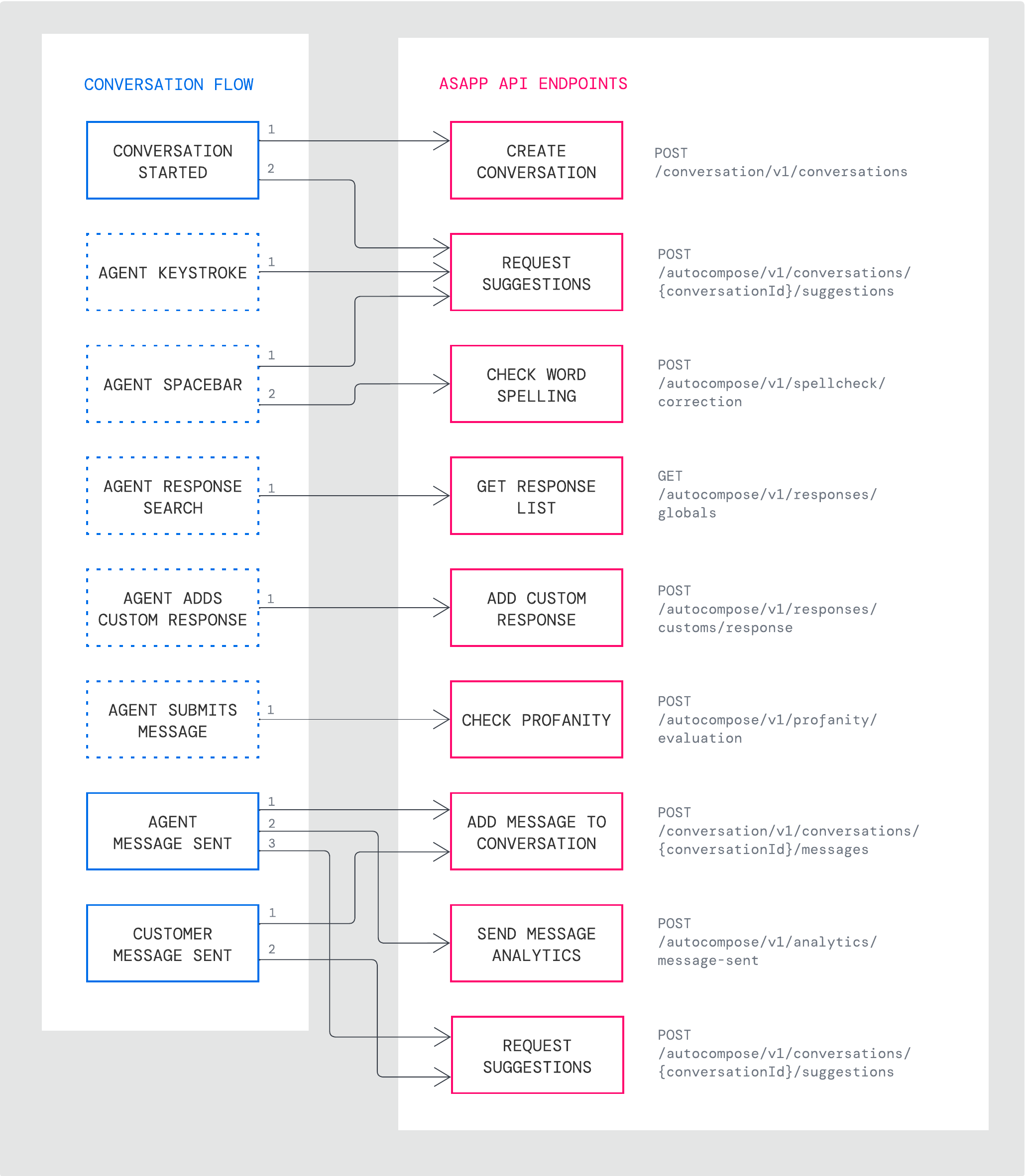 **In this example:**
Conversation Event |
API Request |
|---|---|
Conversation starts |
1. Create a new ASAPP conversation record 2. Request first set of response suggestions |
Agent keystroke |
1. Request updated response suggestions |
Agent uses the spacebar |
1. Request updated response suggestions 2. Check the spelling of the most recent word |
Agent searches for a response |
1. Get the response list that pertains to their search |
Agent saves a custom response |
1. Add the new response to their personal library |
Agent submits their message |
1. Check if any profanity is present in the message |
Agent message is sent |
1. Add the message to ASAPP’s conversation record 2. Create analytics event for the message that details how the agent used AI Compose 3. Request updated response suggestions |
Customer message is sent |
1. Add the message to ASAPP’s conversation record 2. Request updated response suggestions |
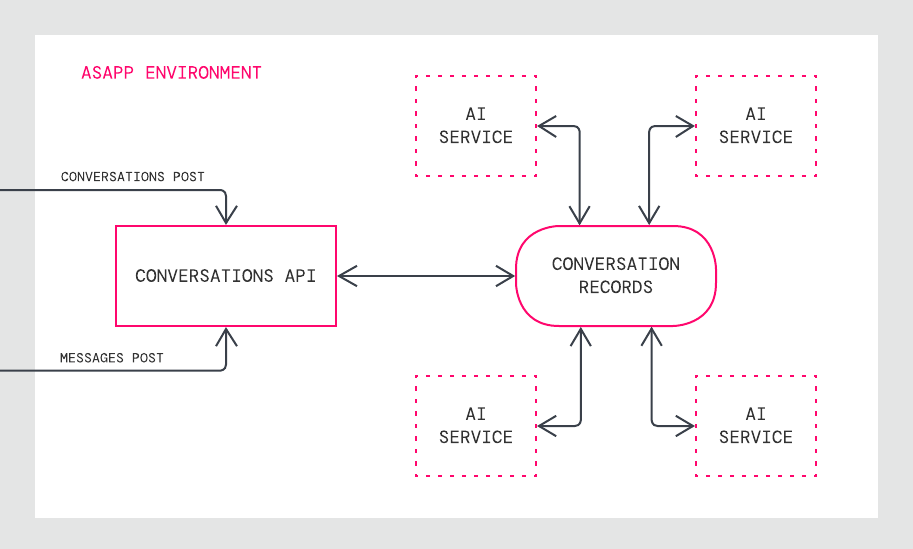 By promptly sending conversation and message data to this API, you ensure that ASAPP's conversation records match your own and that ASAPP services use the most current information available.
[`POST /conversation/v1/conversations`](/apis/conversations/create-or-update-a-conversation)
Use this endpoint to create a new conversation record or update an existing conversation record.
**When to Call**
This service should be called when a conversation starts or when something about the conversation changes (e.g. a conversation is reassigned to a different agent).
**Request Details**
Requests must include a conversation identifier from your system of record (external to ASAPP) and a timestamp (formatted in RFC3339 micro second date-time expressed in UTC) for when the conversation started.
Requests to create a conversation record must also include identifying information about the human participants. Two types of requests are supported to create a new conversation:
1. **Conversations started with an agent:** Provide both the `agent` and `customer` objects in the request when the conversation begins.
2. **Conversations started with a virtual agent:** Provide only the `customer` object in the initial request when the conversation with the virtual agent begins; you must send a subsequent request that includes both the `agent` and `customer` objects once the agent joins the conversation.
Requests may also include key-value pair metadata for the conversation that can be used either (1) to insert values into templated responses for agents or (2) as filter criteria to determine whether a conversation is eligible for specific response suggestions.
By promptly sending conversation and message data to this API, you ensure that ASAPP's conversation records match your own and that ASAPP services use the most current information available.
[`POST /conversation/v1/conversations`](/apis/conversations/create-or-update-a-conversation)
Use this endpoint to create a new conversation record or update an existing conversation record.
**When to Call**
This service should be called when a conversation starts or when something about the conversation changes (e.g. a conversation is reassigned to a different agent).
**Request Details**
Requests must include a conversation identifier from your system of record (external to ASAPP) and a timestamp (formatted in RFC3339 micro second date-time expressed in UTC) for when the conversation started.
Requests to create a conversation record must also include identifying information about the human participants. Two types of requests are supported to create a new conversation:
1. **Conversations started with an agent:** Provide both the `agent` and `customer` objects in the request when the conversation begins.
2. **Conversations started with a virtual agent:** Provide only the `customer` object in the initial request when the conversation with the virtual agent begins; you must send a subsequent request that includes both the `agent` and `customer` objects once the agent joins the conversation.
Requests may also include key-value pair metadata for the conversation that can be used either (1) to insert values into templated responses for agents or (2) as filter criteria to determine whether a conversation is eligible for specific response suggestions.
Scenario |
Expected Requests |
|
|---|---|---|
A |
Start new chat for agent with pre-existing customer messages |
POST /conversation POST /messages POST /suggestions |
B |
Populate suggestions, select a suggestion and send |
POST /suggestions POST /spellcheck POST /profanity POST /messages POST /message-sent |
C |
Populate suggestions, don’t choose one and type “Hello” and send message |
POST /suggestions POST /suggestions per keystroke POST /spellcheck POST /profanity POST /messages POST /message-sent |
D |
Choose a suggestion and edit suggestion and select a phrase completion |
POST /suggestions POST /suggestions per keystroke POST /spellcheck POST /profanity POST /messages POST /message-sent |
E |
Choose a suggestion and add to it, purposely misspelling a word and undoing the spelling correction |
POST /suggestions POST /suggestions per keystroke POST /spellcheck POST /profanity POST /messages POST /message-sent |
F |
Choose a suggestion and edit with profanity |
POST /suggestions POST /suggestions per keystroke POST /spellcheck POST /profanity POST /messages POST /message-sent |
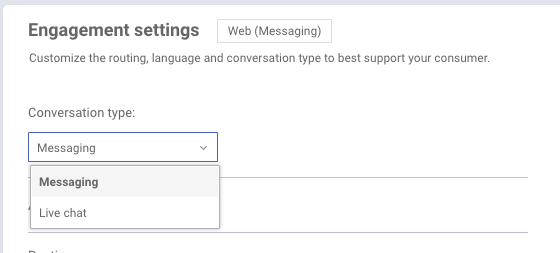 **SSO Support**
The AI Compose widget supports SP-initiated SSO with either OIDC (preferred method) or SAML.
**Domain Whitelisting**
In order for AI Compose to interact with ASAPP's backend and third-party support services, the following domains need to be accessible from end-user environments:
| Domain | Description |
| :----------------------------------------- | :----------------------------------------------------------------- |
| \*.asapp.com | ASAPP service URLs |
| \*.ingest.sentry.io | Application performance monitoring tool |
| fonts.googleapis.com | Fonts |
| google-analytics.com | Page analytics |
| asapp-chat-sdk-production.s3.amazonaws.com | Static ASAPP AWS URL for desktop network connectivity health check |
**Policy Check**
Before proceeding, check the current order of precedence of policies deployed in your organization. Platform-deployed policies (like Group Policy Objects) and cloud-deployed policies (like Google Admin Console) are enforced in a priority order that can lead to lower-priority policies not being enforced.
* If installing the ASAPP browser extension via Group Policy Objects, set platform policies to have precedence over cloud policies.
* If installing the ASAPP browser extension via Google Admin Console, set cloud policies to have precedence over platform policies.
For more on how to check and modify order of precedence, see [policy management guides from Google Enterprise](https://support.google.com/chrome/a/answer/9037717).
## Integrate with LivePerson
### 1. Install the ASAPP Browser Extension
Customers have two options for installing the AI Compose browser extension:
A. Group Policy Objects (GPO)
B. Google Admin Console
#### A. Install Group Policy Objects (GPO)
Customers can automatically install and manage the ASAPP AI Compose browser extension via Group Policy Objects (GPO). ASAPP provides an installation server from which the extension can be downloaded and automatically updated.
The Customer's system administrator must configure GPO rules to allow the installation server URL and the software component ID. Through GPO, the administrator can choose to force the installation (i.e., install without requiring human intervention).
The following policies will configure Chrome and Edge to download the AI Compose browser extension on all on-premise managed devices via GPO:
| **Policy Name** | **Value to Set** |
| :---------------------------------------------------------------------------------------------------------------------- | :------------------------------------------------------------------------------------------------------------------------------------------------------------------------------ |
| [ExtensionInstallSources](https://cloud.google.com/docs/chrome-enterprise/policies/?policy=ExtensionInstallSources) | https\://\*.asapp.com/\* |
| [ExtensionInstallAllowlist](https://cloud.google.com/docs/chrome-enterprise/policies/?policy=ExtensionInstallAllowlist) | bfcmlmledhddbnialbbdopfefoelbbei |
| [ExtensionInstallForcelist](https://cloud.google.com/docs/chrome-enterprise/policies/?policy=ExtensionInstallForcelist) | bfcmlmledhddbnialbbdopfefoelbbei;[https://app.asapp.com/autocompose-liveperson-chrome-extension/updates](https://app.asapp.com/autocompose-liveperson-chrome-extension/updates) |
Each Policy Name above links to documentation that describes how to set the values with the proper format depending on the platform.
**SSO Support**
The AI Compose widget supports SP-initiated SSO with either OIDC (preferred method) or SAML.
**Domain Whitelisting**
In order for AI Compose to interact with ASAPP's backend and third-party support services, the following domains need to be accessible from end-user environments:
| Domain | Description |
| :----------------------------------------- | :----------------------------------------------------------------- |
| \*.asapp.com | ASAPP service URLs |
| \*.ingest.sentry.io | Application performance monitoring tool |
| fonts.googleapis.com | Fonts |
| google-analytics.com | Page analytics |
| asapp-chat-sdk-production.s3.amazonaws.com | Static ASAPP AWS URL for desktop network connectivity health check |
**Policy Check**
Before proceeding, check the current order of precedence of policies deployed in your organization. Platform-deployed policies (like Group Policy Objects) and cloud-deployed policies (like Google Admin Console) are enforced in a priority order that can lead to lower-priority policies not being enforced.
* If installing the ASAPP browser extension via Group Policy Objects, set platform policies to have precedence over cloud policies.
* If installing the ASAPP browser extension via Google Admin Console, set cloud policies to have precedence over platform policies.
For more on how to check and modify order of precedence, see [policy management guides from Google Enterprise](https://support.google.com/chrome/a/answer/9037717).
## Integrate with LivePerson
### 1. Install the ASAPP Browser Extension
Customers have two options for installing the AI Compose browser extension:
A. Group Policy Objects (GPO)
B. Google Admin Console
#### A. Install Group Policy Objects (GPO)
Customers can automatically install and manage the ASAPP AI Compose browser extension via Group Policy Objects (GPO). ASAPP provides an installation server from which the extension can be downloaded and automatically updated.
The Customer's system administrator must configure GPO rules to allow the installation server URL and the software component ID. Through GPO, the administrator can choose to force the installation (i.e., install without requiring human intervention).
The following policies will configure Chrome and Edge to download the AI Compose browser extension on all on-premise managed devices via GPO:
| **Policy Name** | **Value to Set** |
| :---------------------------------------------------------------------------------------------------------------------- | :------------------------------------------------------------------------------------------------------------------------------------------------------------------------------ |
| [ExtensionInstallSources](https://cloud.google.com/docs/chrome-enterprise/policies/?policy=ExtensionInstallSources) | https\://\*.asapp.com/\* |
| [ExtensionInstallAllowlist](https://cloud.google.com/docs/chrome-enterprise/policies/?policy=ExtensionInstallAllowlist) | bfcmlmledhddbnialbbdopfefoelbbei |
| [ExtensionInstallForcelist](https://cloud.google.com/docs/chrome-enterprise/policies/?policy=ExtensionInstallForcelist) | bfcmlmledhddbnialbbdopfefoelbbei;[https://app.asapp.com/autocompose-liveperson-chrome-extension/updates](https://app.asapp.com/autocompose-liveperson-chrome-extension/updates) |
Each Policy Name above links to documentation that describes how to set the values with the proper format depending on the platform.
 * Click +, then **Add new widget**.
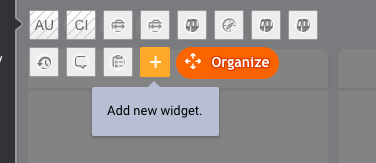 2. **Enter Widget Attributes**
* Fill in the **Widget name** as 'ASAPP'
* Assign the conversation skill(s) to which ASAPP is being deployed in the **Assigned skills** dropdown menu.
2. **Enter Widget Attributes**
* Fill in the **Widget name** as 'ASAPP'
* Assign the conversation skill(s) to which ASAPP is being deployed in the **Assigned skills** dropdown menu.
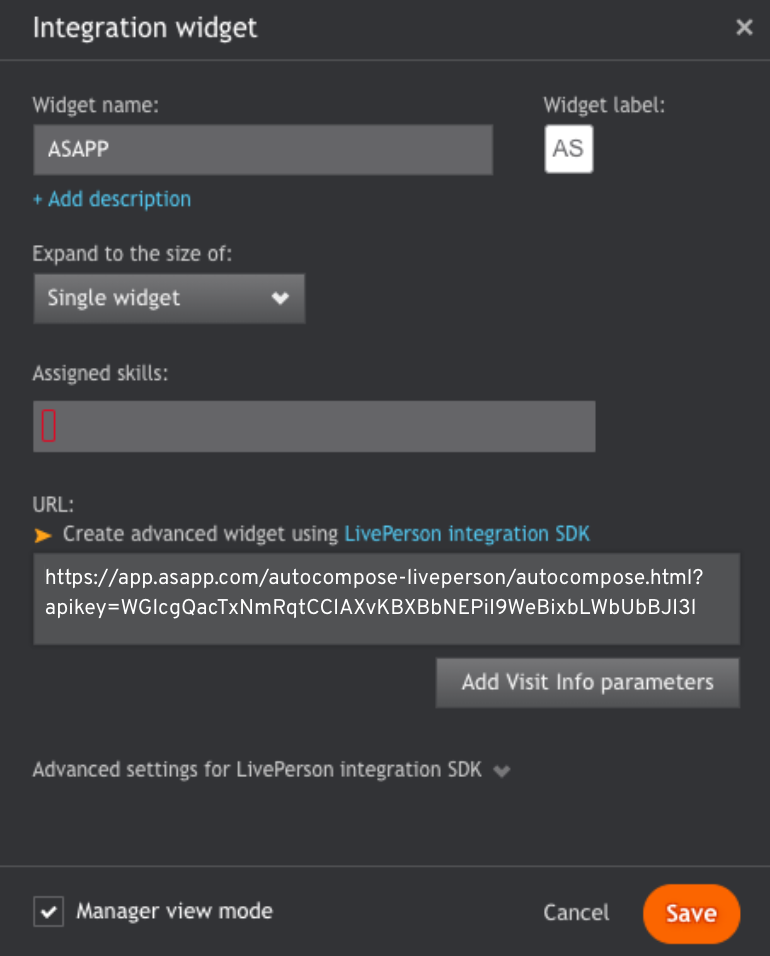 * Click the **Save** button.
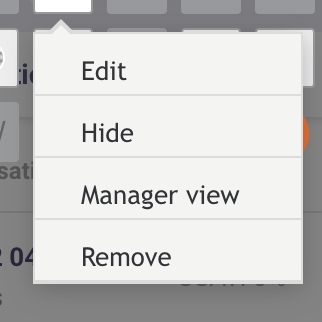
 * Click the **Done** button
4. **Enable Pop-in Composer**
* In the Agent Workspace, click the nut icon (similar to a gear shape) next to the **+** icon at the bottom of the AI Compose panel widget.
* Enable the **Pop-in Composer** option.
* Click the **Done** button
4. **Enable Pop-in Composer**
* In the Agent Workspace, click the nut icon (similar to a gear shape) next to the **+** icon at the bottom of the AI Compose panel widget.
* Enable the **Pop-in Composer** option.
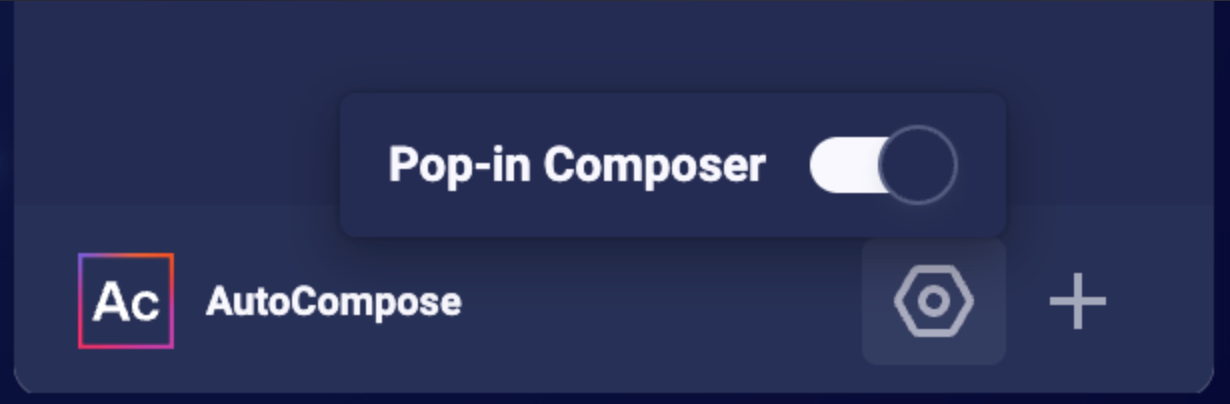 Press the escape key and reload the page to see the changes; the ASAPP widget should now be available across your LivePerson organization
Upon login to the Agent Workspace, the ASAPP widget for AI Compose will appear in place of the standard LivePerson composer, underneath the conversation transcript. By default, the response panel for AI Compose will appear to the right of the conversational panel.
Press the escape key and reload the page to see the changes; the ASAPP widget should now be available across your LivePerson organization
Upon login to the Agent Workspace, the ASAPP widget for AI Compose will appear in place of the standard LivePerson composer, underneath the conversation transcript. By default, the response panel for AI Compose will appear to the right of the conversational panel.
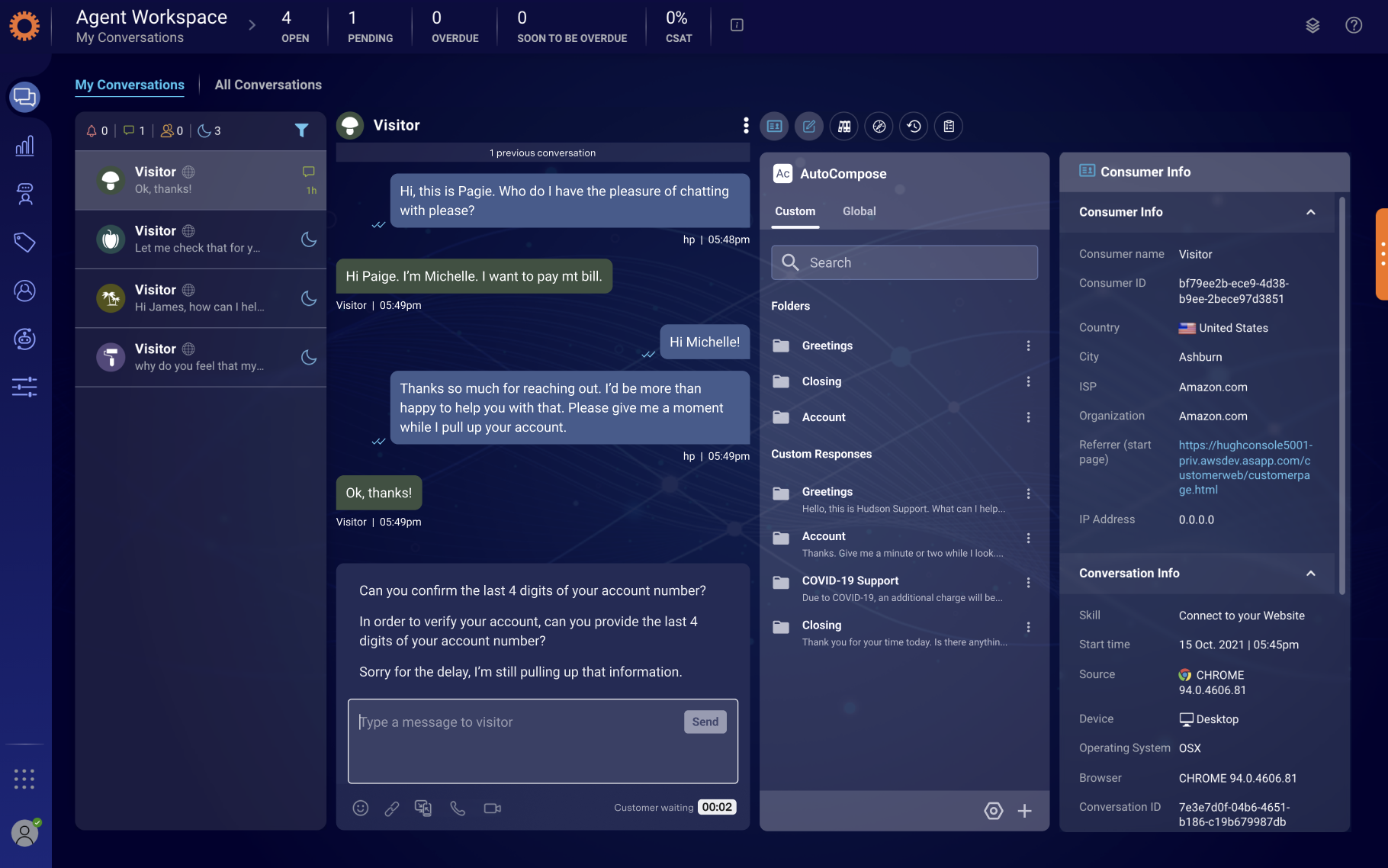 ### 3. Set Up Single Sign-On
ASAPP handles authentication through the customer's SSO service to confirm the identity of the agent.
ASAPP acts as the Service Provider (SP) with the customer acting as the Identity Provider (IDP). The customer's authentication system performs user authentication using their existing user credentials.
ASAPP supports SP-initiated SSO with either OIDC (preferred method) and SAML. Once the user initiates sign-in, ASAPP detects that the user is authenticated and requests an assertion from the customer's SSO service.
**Configuration Steps for OIDC (preferred method)**
1. Create a new IDP OIDC application with type `Web`
2. Set the following attributes for the app:
### 3. Set Up Single Sign-On
ASAPP handles authentication through the customer's SSO service to confirm the identity of the agent.
ASAPP acts as the Service Provider (SP) with the customer acting as the Identity Provider (IDP). The customer's authentication system performs user authentication using their existing user credentials.
ASAPP supports SP-initiated SSO with either OIDC (preferred method) and SAML. Once the user initiates sign-in, ASAPP detects that the user is authenticated and requests an assertion from the customer's SSO service.
**Configuration Steps for OIDC (preferred method)**
1. Create a new IDP OIDC application with type `Web`
2. Set the following attributes for the app:
Attribute |
Value\* |
|---|---|
Grant Type |
authorization code |
Sign-in Redirect URIs |
Production: [https://api.asapp.com/auth/v1/callback/\\\{company\_marker\\}](https://api.asapp.com/auth/v1/callback/\\\{company_marker\\}) Sandbox: [https://api.sandbox.asapp.com/auth/v1/callback/\\\{company\_marker\\}-sandbox](https://api.sandbox.asapp.com/auth/v1/callback/\\\{company_marker\\}-sandbox) |
Sandbox: [https://sso.asapp.com/auth/realms/standalone-\{company\_marker}-auth/broker/saml-sandbox/endpoint/clients/asapp-saml-sandbox](https://sso.asapp.com/auth/realms/standalone-\{company_marker}-auth/broker/saml-sandbox/endpoint/clients/asapp-saml-sandbox) | | Recipient URL | Production: [https://sso.asapp.com/auth/realms/standalone-\{company\_marker}-auth/broker/saml/endpoint/clients/asapp-saml](https://sso.asapp.com/auth/realms/standalone-\{company_marker}-auth/broker/saml/endpoint/clients/asapp-saml)
Sandbox: [https://sso.asapp.com/auth/realms/standalone-\{company\_marker}-auth/broker/saml-sandbox/endpoint/clients/asapp-saml-sandbox](https://sso.asapp.com/auth/realms/standalone-\{company_marker}-auth/broker/saml-sandbox/endpoint/clients/asapp-saml-sandbox) | | Destination URL | Production: [https://sso.asapp.com/auth/realms/standalone-\{company\_marker}-auth/broker/saml/endpoint/clients/asapp-saml](https://sso.asapp.com/auth/realms/standalone-\{company_marker}-auth/broker/saml/endpoint/clients/asapp-saml)
Sandbox: [https://sso.asapp.com/auth/realms/standalone-\{company\_marker}-auth/broker/saml-sandbox/endpoint/clients/asapp-saml-sandbox](https://sso.asapp.com/auth/realms/standalone-\{company_marker}-auth/broker/saml-sandbox/endpoint/clients/asapp-saml-sandbox) | | Audience Restriction | Production: [https://sso.asapp.com/auth/realms/standalone-\{company\_marker}-auth/broker/saml/endpoint/clients/asapp-saml](https://sso.asapp.com/auth/realms/standalone-\{company_marker}-auth/broker/saml/endpoint/clients/asapp-saml)
Sandbox: [https://sso.asapp.com/auth/realms/standalone-\{company\_marker}-auth/broker/saml-sandbox/endpoint/clients/asapp-saml-sandbox](https://sso.asapp.com/auth/realms/standalone-\{company_marker}-auth/broker/saml-sandbox/endpoint/clients/asapp-saml-sandbox) | | Response | Signed | | Assertion | Signed | | Signature Algorithm | RSA\_SHA256 | | Digest Algorithm | SHA256 | | Attribute Statements | externalUserId: {unique_id_to_identify_the_user} | **\*NOTE:** ASAPP to provide `company_marker` value 3. Save the application and send the Public Certificate to validate Signature for this app SAML payload to ASAPP team 4. Send ASAPP team the URL of the SAML application ### 4. Configure Auto-Pilot Greetings If you so choose, you can work with your ASAPP contact to enable Auto-Pilot Greetings in your AI Compose installation. Auto-Pilot Greetings automatically generates a greeting at the beginning of a conversation, and that greeting can be automatically sent to a customer on your agent's behalf after a configurable timer elapses. Your ASAPP contact can: * Turn Auto-Pilot Greetings on or off for your organization * Set a countdown timer value after which the Auto-Pilot Greeting is sent if an agent does not cancel Auto-Pilot by typing or clicking a "cancel" button * Set the global default messages that will be provided for Auto-Pilot Greetings across your organization (note that agents can optionally customize their Auto-Pilot Greetings messages within the Auto-Pilot tab of the AI Compose panel) ## Usage ### Customization #### LivePerson For LivePerson, the standard process is to download ASAPP AI Compose as a standalone widget. In the case that you already have your own LivePerson custom widget, ASAPP also provides the option for you to embed our custom widget inside your own custom widget, thus economizing on-screen real estate. **Conversation Attributes** Once the ASAPP AI Compose widget is embedded, LivePerson shares the following conversation attributes with ASAPP: customer name, agent name and skill. ASAPP can use name attributes to populate values into templated responses (e.g. "Hi \[customer name], how can I help you today?") and to selectively filter response lists based on the skill of the conversation. **Conversation Redaction** When message text in the conversation transcript is sent to ASAPP, ASAPP applies redaction to the message text to prevent transmission of sensitive information. Reach out to your ASAPP account contact for information on available redaction capabilities to configure for your implementation. ### Data Security ASAPP's security protocols protect data at each point of transmission from first user authentication, to secure communications, to our auditing and logging system, all the way to securing the environment when data is at rest in the data logging system. Access to data by ASAPP teams is tightly constrained and monitored. Strict security protocols protect both ASAPP and our customers. The following security controls are particularly relevant to AI Compose: 1. Client sessions are controlled using a time-limited authorization token. Privileges for each active session are controlled server-side to mitigate potential elevation-of-privilege and information disclosure risks. 2. To avoid unauthorized disclosure of information, unique, non-guessable IDs are used to identify conversations. These conversations can only be accessed using a valid client session. 3. Requests to API endpoints that can potentially receive sensitive data are put through a round of redaction to strip the request of sensitive data (like SSNs and phone numbers). ### Additional Considerations #### Historical Conversation Data for Generating a Response List ASAPP uses past agent conversations to generate a customized response list tailored to a given use case. In order to create an accurate and relevant list, ASAPP requires a minimum of 200,000 historical transcripts to be supplied ahead of implementing AI Compose. For more information on how to transmit the conversation data, reach out to your ASAPP account contact. #### LivePerson ASAPP uses a browser extension to replace the LivePerson composer with the ASAPP composer. In the unlikely event that the DOM of the LivePerson composer or its surrounding area changes, the LivePerson composer may no longer be replaced by the ASAPP composer. In this case, the CSR has the option to toggle the ASAPP composer so that it 'retreats' into the ASAPP Custom Widget. In such a case, the ASAPP composer will continue to be fully functional, even if it is no longer ideally placed just below the LivePerson chat history. In order to quickly restore the placement of the ASAPP composer directly beneath the LivePerson chat log, ASAPP deploys its extension so that the extension's configuration is pulled down from our servers in real-time. If the LivePerson DOM does change, we can deploy a fix rapidly. --- # Source: https://docs.asapp.com/ai-productivity/ai-compose/deploying-ai-compose-for-salesforce.md > ## Documentation Index > Fetch the complete documentation index at: https://docs.asapp.com/llms.txt > Use this file to discover all available pages before exploring further. # Deploying AI Compose for Salesforce > Use AI Compose on Salesforce Lightning Experience. ## Overview This page describes how to integrate AI Compose into your Salesforce application. ### Integration Steps There are three parts to the AI Compose setup process. Use the links below to skip to information about a specific part of the process: 1. [Configure the Salesforce organization](#1-configure-the-salesforce-organization-centrally) centrally using an administrator account 2. [Setup agent/user authentication](#2-set-up-single-sign-on) through the existing single sign-on (SSO) service 3. [Work with your ASAPP contact to configure Auto-Pilot Greetings](#3-configure-auto-pilot-greetings), if desired

 **SSO Support**
The AI Compose widget supports SP-initiated SSO with either OIDC (preferred method) or SAML.
**Domain Whitelisting**
In order for AI Compose to interact with ASAPP's backend and third-party support services, the following domains need to be accessible from end-user environments:
| Domain | Description |
| :----------------------------------------- | :----------------------------------------------------------------- |
| \*.asapp.com | ASAPP service URLs |
| \*.ingest.sentry.io | Application performance monitoring tool |
| fonts.googleapis.com | Fonts |
| google-analytics.com | Page analytics |
| asapp-chat-sdk-production.s3.amazonaws.com | Static ASAPP AWS URL for desktop network connectivity health check |
## Integrate with Salesforce
### 1. Configure the Salesforce Organization Centrally
**Before You Begin**
You will need the following information to configure ASAPP for Salesforce:
* Administrator credentials to login to your Salesforce organization account.
* **NOTE:** Organization and Administrator should be enabled for 'chat'.
* A URL for the ASAPP installation package, which will be provided by ASAPP.
**SSO Support**
The AI Compose widget supports SP-initiated SSO with either OIDC (preferred method) or SAML.
**Domain Whitelisting**
In order for AI Compose to interact with ASAPP's backend and third-party support services, the following domains need to be accessible from end-user environments:
| Domain | Description |
| :----------------------------------------- | :----------------------------------------------------------------- |
| \*.asapp.com | ASAPP service URLs |
| \*.ingest.sentry.io | Application performance monitoring tool |
| fonts.googleapis.com | Fonts |
| google-analytics.com | Page analytics |
| asapp-chat-sdk-production.s3.amazonaws.com | Static ASAPP AWS URL for desktop network connectivity health check |
## Integrate with Salesforce
### 1. Configure the Salesforce Organization Centrally
**Before You Begin**
You will need the following information to configure ASAPP for Salesforce:
* Administrator credentials to login to your Salesforce organization account.
* **NOTE:** Organization and Administrator should be enabled for 'chat'.
* A URL for the ASAPP installation package, which will be provided by ASAPP.
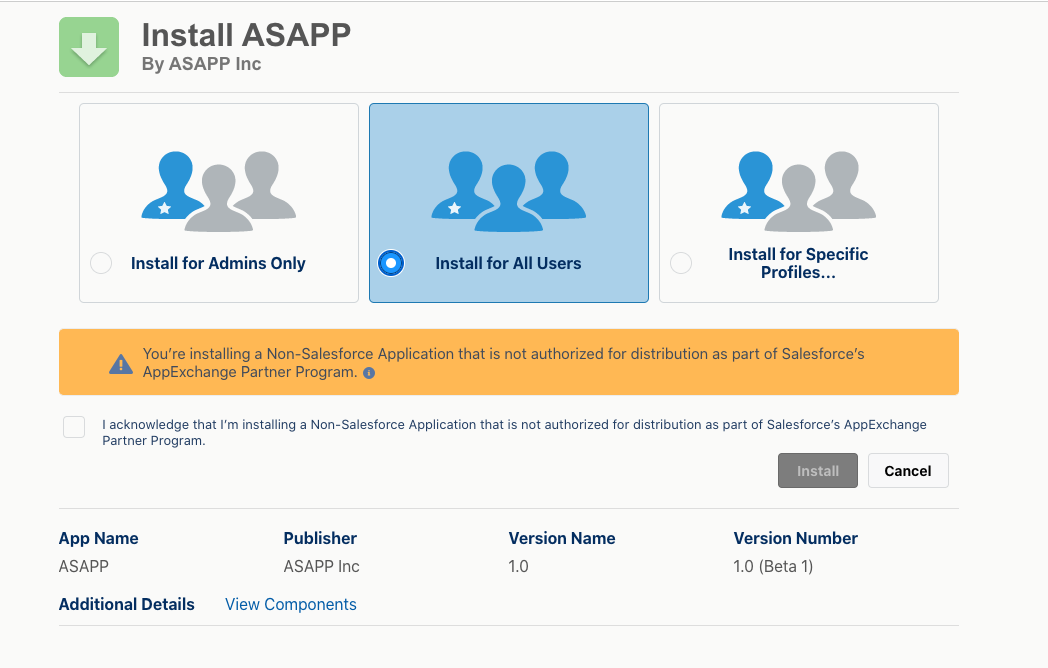 * Choose **Install for All Users** (as shown above).
* Check the acknowledgment statement and click the **Install** button:
* Choose **Install for All Users** (as shown above).
* Check the acknowledgment statement and click the **Install** button:

 * The Installation runs. An **Installation Complete!** message appears:

 * Click the **Done** button.
**2. Add ASAPP to the Chat Transcript Page**
* Open the 'Service Console' page (or your chat page).
* Choose an existing chat session or start a new chat session so that the chat transcript page appears (the exact mechanism is organization-specific).
* In the top-right, click the **gear** icon, then right-click **Edit Page**, and **Open Link in a New Tab**.
* Click the **Done** button.
**2. Add ASAPP to the Chat Transcript Page**
* Open the 'Service Console' page (or your chat page).
* Choose an existing chat session or start a new chat session so that the chat transcript page appears (the exact mechanism is organization-specific).
* In the top-right, click the **gear** icon, then right-click **Edit Page**, and **Open Link in a New Tab**.
 * Navigate to the new tab to see the chat transcript edit page:
 * Select the conversation panel (middle) and delete it.
 * Drag the **chatAsapp** component (left), inside the conversation panel:
 * Drag the **exploreAsapp** component (left), to the right column. Next, add your organization's **API key** and **API URL** (found in the ASAPP Developer Portal) in the rightmost panel:
 * Click **Save**, then click **Activate**
 * Click **Assign as org default**.
 * Choose the **Desktop** form factor, then click **Save**.
 * Return to the chat transcript page and refresh - the ASAPP composer should appear.
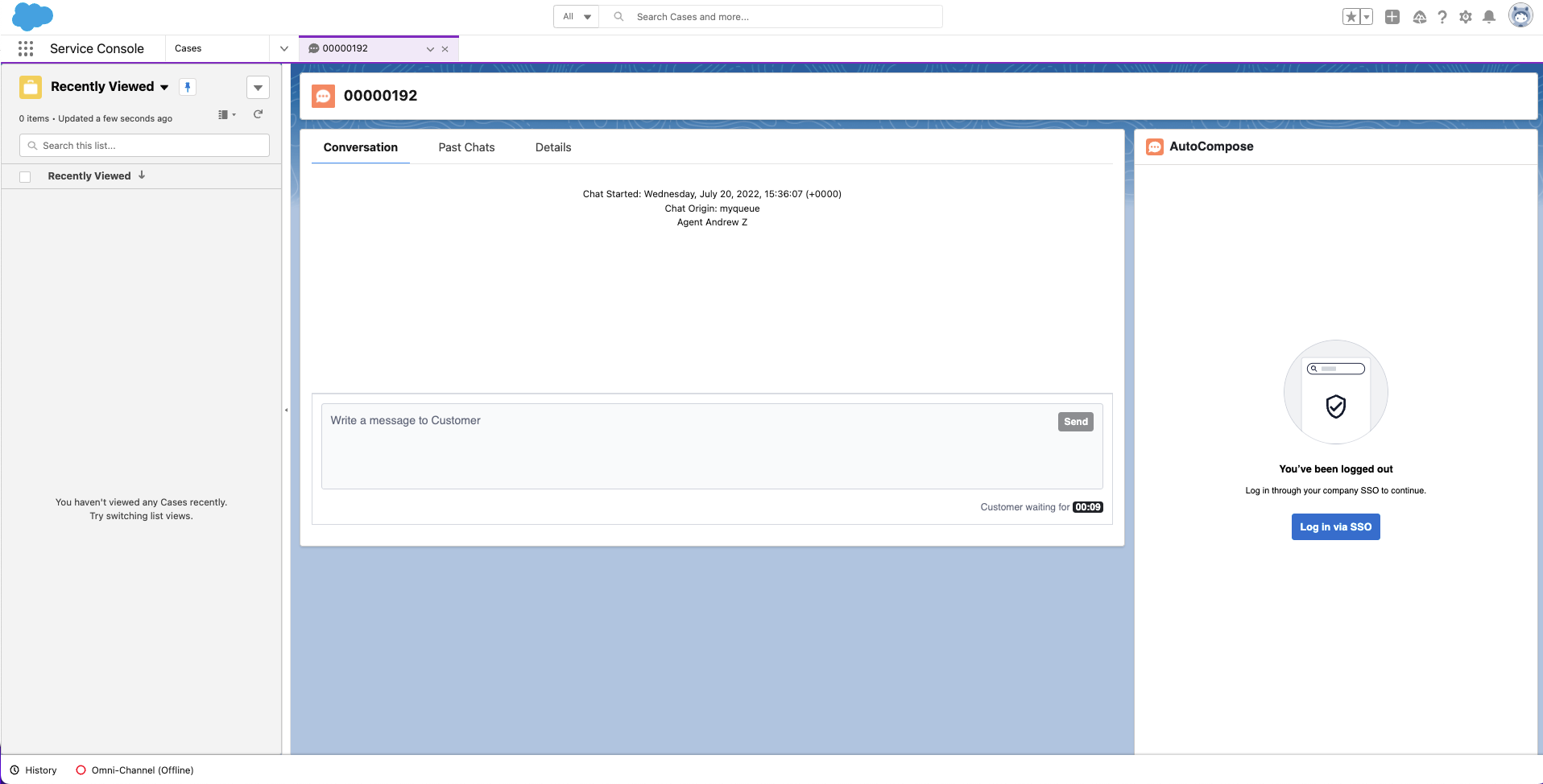 ### 2. Set Up Single Sign-On
ASAPP handles authentication through the customer's SSO service to confirm the identity of the agent.
ASAPP acts as the Service Provider (SP), with the customer acting as the Identity Provider (IDP). The customer's authentication system performs user authentication using their existing user credentials.
ASAPP supports SP-initiated SSO with either OIDC (preferred method) and SAML. Once the user initiates sign-in, ASAPP detects that the user is authenticated and requests an assertion from the customer's SSO service.
**Configuration Steps for OIDC (preferred method)**
1. Create a new IDP OIDC application with type `Web`
2. Set the following attributes for the app:
### 2. Set Up Single Sign-On
ASAPP handles authentication through the customer's SSO service to confirm the identity of the agent.
ASAPP acts as the Service Provider (SP), with the customer acting as the Identity Provider (IDP). The customer's authentication system performs user authentication using their existing user credentials.
ASAPP supports SP-initiated SSO with either OIDC (preferred method) and SAML. Once the user initiates sign-in, ASAPP detects that the user is authenticated and requests an assertion from the customer's SSO service.
**Configuration Steps for OIDC (preferred method)**
1. Create a new IDP OIDC application with type `Web`
2. Set the following attributes for the app:
Attribute |
Value\* |
|---|---|
Grant Type |
authorization code |
Sign-in Redirect URIs |
Production: `https://api.asapp.com/auth/v1/callback/\{company_marker\}` Sandbox: `https://api.sandbox.asapp.com/auth/v1/callback/\{company_marker\}-sandbox` |
Sandbox: `https://sso.asapp.com/auth/realms/standalone-{company_marker}-auth/broker/saml-sandbox/endpoint/clients/asapp-saml-sandbox` | | Recipient URL | Production: `https://sso.asapp.com/auth/realms/standalone-{company_marker}-auth/broker/saml/endpoint/clients/asapp-saml`
Sandbox: `https://sso.asapp.com/auth/realms/standalone-{company_marker}-auth/broker/saml-sandbox/endpoint/clients/asapp-saml-sandbox` | | Destination URL | Production: `https://sso.asapp.com/auth/realms/standalone-{company_marker}-auth/broker/saml/endpoint/clients/asapp-saml`
Sandbox: `https://sso.asapp.com/auth/realms/standalone-{company_marker}-auth/broker/saml-sandbox/endpoint/clients/asapp-saml-sandbox` | | Audience Restriction | Production: `https://sso.asapp.com/auth/realms/standalone-{company_marker}-auth/broker/saml/endpoint/clients/asapp-saml`
Sandbox: `https://sso.asapp.com/auth/realms/standalone-{company_marker}-auth/broker/saml-sandbox/endpoint/clients/asapp-saml-sandbox` | | Response | Signed | | Assertion | Signed | | Signature Algorithm | RSA\_SHA256 | | Digest Algorithm | SHA256 | | Attribute Statements | externalUserId: `{unique_id_to_identify_the_user}` | **\*NOTE:** ASAPP to provide `company_marker` value 3. Save the application and send the Public Certificate to validate Signature for this app SAML payload to ASAPP team 4. Send ASAPP team the URL of the SAML application ### 3. Configure Auto-Pilot Greetings If you so choose, you can work with your ASAPP contact to enable Auto-Pilot Greetings in your AI Compose installation. Auto-Pilot Greetings automatically generates a greeting at the beginning of a conversation, and that greeting can be automatically sent to a customer on your agent's behalf after a configurable timer elapses. Your ASAPP contact can: * Turn Auto-Pilot Greetings on or off for your organization * Set a countdown timer value after which the Auto-Pilot Greeting is sent if an agent does not cancel Auto-Pilot by typing or clicking a "cancel" button * Set the global default messages that will be provided for Auto-Pilot Greetings across your organization (note that agents can optionally customize their Auto-Pilot Greetings messages within the Auto-Pilot tab of the AI Compose panel) ## Usage ### Customization #### Conversation Attributes Once the ASAPP AI Compose widget is embedded, Salesforce shares the following conversation attributes with ASAPP: customer name, agent name and skill. ASAPP can use name attributes to populate values into templated responses (e.g. "Hi \[customer name], how can I help you today?") and to selectively filter response lists based on the skill of the conversation. #### Conversation Redaction When message text in the conversation transcript is sent to ASAPP, ASAPP applies redaction to the message text to prevent transmission of sensitive information. Reach out to your ASAPP account contact for information on available redaction capabilities to configure for your implementation. #### Composer Placement ASAPP currently targets Lightning desktops. Within Lightning-based desktops, you are free to place our composer wherever you choose. However, we suggest placing it immediately below the Salesforce conversation widget, such that the chat log appears above the ASAPP composer. ### Data Security ASAPP's security protocols protect data at each point of transmission from first user authentication, to secure communications, to our auditing and logging system, all the way to securing the environment when data is at rest in the data logging system. Access to data by ASAPP teams is tightly constrained and monitored. Strict security protocols protect both ASAPP and our customers. The following security controls are particularly relevant to AI Compose: 1. Client sessions are controlled using a time-limited authorization token. Privileges for each active session are controlled server-side to mitigate potential elevation-of-privilege and information disclosure risks. 2. To avoid unauthorized disclosure of information, unique, non-guessable IDs are used to identify conversations. These conversations can only be accessed using a valid client session. 3. Requests to API endpoints that can potentially receive sensitive data are put through a round of redaction to strip the request of sensitive data (like SSNs and phone numbers). ### Additional Considerations #### Historical Conversation Data for Generating a Response List ASAPP uses past agent conversations to generate a customized response list tailored to a given use case. In order to create an accurate and relevant list, ASAPP requires a minimum of 200,000 historical transcripts to be supplied ahead of implementing AI Compose. For more information on how to transmit the conversation data, reach out to your ASAPP account contact. --- # Source: https://docs.asapp.com/autocompose/deploying-autocompose-api.md # Deploying AutoCompose API > Communicate with AutoCompose via API. ASAPP AutoCompose has the following technical components: * **An autosuggest model** that ASAPP retrains weekly with [agent usage data you provide through the `/analytics/message-sent` endpoint](#sending-agent-usage-data "Sending Agent Usage Data") * **Data storage** for historical conversations, global response lists and agent historical feature usage that are used for weekly retraining * The **Conversation API** for creating and updating conversation data and the **AutoCompose API** that interfaces with the application with which agents interact and receives agent usage data in the form of message analytics events
### Setup
ASAPP provides an AI Services [Developer Portal](/getting-started/developers). Within the portal, developers can do the following:
* Access relevant API documentation (e.g. OpenAPI reference schemas)
* Access API keys for authorization
* Manage user accounts and apps
In order to use ASAPP's APIs, all apps must be registered through the portal. Once registered, each app will be provided unique API keys for ongoing use.
**In this example:**
Conversation Event |
API Request |
|---|---|
Conversation starts |
1. Create a new ASAPP conversation record 2. Request first set of response suggestions |
Agent keystroke |
1. Request updated response suggestions |
Agent uses the spacebar |
1. Request updated response suggestions 2. Check the spelling of the most recent word |
Agent searches for a response |
1. Get the response list that pertains to their search |
Agent saves a custom response |
1. Add the new response to their personal library |
Agent submits their message |
1. Check if any profanity is present in the message |
Agent message is sent |
1. Add the message to ASAPP’s conversation record 2. Create analytics event for the message that details how the agent used AutoCompose 3. Request updated response suggestions |
Customer message is sent |
1. Add the message to ASAPP’s conversation record 2. Request updated response suggestions |
By promptly sending conversation and message data to this API, you ensure that ASAPP's conversation records match your own and that ASAPP services use the most current information available.
[`POST /conversation/v1/conversations`](/apis/conversations/create-or-update-a-conversation)
Use this endpoint to create a new conversation record or update an existing conversation record.
**When to Call**
This service should be called when a conversation starts or when something about the conversation changes (e.g. a conversation is reassigned to a different agent).
**Request Details**
Requests must include a conversation identifier from your system of record (external to ASAPP) and a timestamp (formatted in RFC3339 micro second date-time expressed in UTC) for when the conversation started.
Requests to create a conversation record must also include identifying information about the human participants. Two types of requests are supported to create a new conversation:
1. **Conversations started with an agent:** Provide both the `agent` and `customer` objects in the request when the conversation begins.
2. **Conversations started with a virtual agent:** Provide only the `customer` object in the initial request when the conversation with the virtual agent begins; you must send a subsequent request that includes both the `agent` and `customer` objects once the agent joins the conversation.
Requests may also include key-value pair metadata for the conversation that can be used either (1) to insert values into templated responses for agents or (2) as filter criteria to determine whether a conversation is eligible for specific response suggestions.
Scenario |
Expected Requests |
|
|---|---|---|
A |
Start new chat for agent with pre-existing customer messages |
POST /conversation POST /messages POST /suggestions |
B |
Populate suggestions, select a suggestion and send |
POST /suggestions POST /spellcheck POST /profanity POST /messages POST /message-sent |
C |
Populate suggestions, don’t choose one and type “Hello” and send message |
POST /suggestions POST /suggestions per keystroke POST /spellcheck POST /profanity POST /messages POST /message-sent |
D |
Choose a suggestion and edit suggestion and select a phrase completion |
POST /suggestions POST /suggestions per keystroke POST /spellcheck POST /profanity POST /messages POST /message-sent |
E |
Choose a suggestion and add to it, purposely misspelling a word and undoing the spelling correction |
POST /suggestions POST /suggestions per keystroke POST /spellcheck POST /profanity POST /messages POST /message-sent |
F |
Choose a suggestion and edit with profanity |
POST /suggestions POST /suggestions per keystroke POST /spellcheck POST /profanity POST /messages POST /message-sent |
**SSO Support**
The AutoCompose widget supports SP-initiated SSO with either OIDC (preferred method) or SAML.
**Domain Whitelisting**
In order for AutoCompose to interact with ASAPP's backend and third-party support services, the following domains need to be accessible from end-user environments:
| Domain | Description |
| :----------------------------------------- | :----------------------------------------------------------------- |
| \*.asapp.com | ASAPP service URLs |
| \*.ingest.sentry.io | Application performance monitoring tool |
| fonts.googleapis.com | Fonts |
| google-analytics.com | Page analytics |
| asapp-chat-sdk-production.s3.amazonaws.com | Static ASAPP AWS URL for desktop network connectivity health check |
**Policy Check**
Before proceeding, check the current order of precedence of policies deployed in your organization. Platform-deployed policies (like Group Policy Objects) and cloud-deployed policies (like Google Admin Console) are enforced in a priority order that can lead to lower-priority policies not being enforced.
* If installing the ASAPP browser extension via Group Policy Objects, set platform policies to have precedence over cloud policies.
* If installing the ASAPP browser extension via Google Admin Console, set cloud policies to have precedence over platform policies.
For more on how to check and modify order of precedence, see [policy management guides from Google Enterprise](https://support.google.com/chrome/a/answer/9037717).
## Integrate with LivePerson
### 1. Install the ASAPP Browser Extension
Customers have two options for installing the AutoCompose browser extension:
A. Group Policy Objects (GPO)
B. Google Admin Console
#### A. Install Group Policy Objects (GPO)
Customers can automatically install and manage the ASAPP AutoCompose browser extension via Group Policy Objects (GPO). ASAPP provides an installation server from which the extension can be downloaded and automatically updated.
The Customer's system administrator must configure GPO rules to allow the installation server URL and the software component ID. Through GPO, the administrator can choose to force the installation (i.e., install without requiring human intervention).
The following policies will configure Chrome and Edge to download the AutoCompose browser extension in all on-premise managed devices via GPO:
| **Policy Name** | **Value to Set** |
| :---------------------------------------------------------------------------------------------------------------------- | :------------------------------------------------------------------------------------------------------------------------------------------------------------------------------ |
| [ExtensionInstallSources](https://cloud.google.com/docs/chrome-enterprise/policies/?policy=ExtensionInstallSources) | https\://\*.asapp.com/\* |
| [ExtensionInstallAllowlist](https://cloud.google.com/docs/chrome-enterprise/policies/?policy=ExtensionInstallAllowlist) | bfcmlmledhddbnialbbdopfefoelbbei |
| [ExtensionInstallForcelist](https://cloud.google.com/docs/chrome-enterprise/policies/?policy=ExtensionInstallForcelist) | bfcmlmledhddbnialbbdopfefoelbbei;[https://app.asapp.com/autocompose-liveperson-chrome-extension/updates](https://app.asapp.com/autocompose-liveperson-chrome-extension/updates) |
Each Policy Name above links to documentation that describes how to set the values with the proper format depending on the platform.
* Click +, then **Add new widget**.
2. **Enter Widget Attributes**
* Fill in the **Widget name** as 'ASAPP'
* Assign the conversation skill(s) to which ASAPP is being deployed in the **Assigned skills** dropdown menu.
* Click the **Save** button.
* Click the **Done** button
4. **Enable Pop-in Composer**
* In the Agent Workspace, click the nut icon (similar to a gear shape) next to the **+** icon at the bottom of the AutoCompose panel widget.
* Enable the **Pop-in Composer** option.
Press the escape key and reload the page to see the changes; the ASAPP widget should now be available across your LivePerson organization
Upon login to the Agent Workspace, the ASAPP widget for AutoCompose will appear in place of the standard LivePerson composer, underneath the conversation transcript. By default, the response panel for AutoCompose will appear to the right of the conversational panel.
### 3. Set Up Single Sign-On
ASAPP handles authentication through the customer's SSO service to confirm the identity of the agent.
ASAPP acts as the Service Provider (SP) with the customer acting as the Identity Provider (IDP). The customer's authentication system performs user authentication using their existing user credentials.
ASAPP supports SP-initiated SSO with either OIDC (preferred method) and SAML. Once the user initiates sign-in, ASAPP detects that the user is authenticated and requests an assertion from the customer's SSO service.
**Configuration Steps for OIDC (preferred method)**
1. Create a new IDP OIDC application with type `Web`
2. Set the following attributes for the app:
Attribute |
Value\* |
|---|---|
Grant Type |
authorization code |
Sign-in Redirect URIs |
Production: [https://api.asapp.com/auth/v1/callback/\\\{company\_marker\\}](https://api.asapp.com/auth/v1/callback/\\\{company_marker\\}) Sandbox: [https://api.sandbox.asapp.com/auth/v1/callback/\\\{company\_marker\\}-sandbox](https://api.sandbox.asapp.com/auth/v1/callback/\\\{company_marker\\}-sandbox) |
Sandbox: [https://sso.asapp.com/auth/realms/standalone-\{company\_marker}-auth/broker/saml-sandbox/endpoint/clients/asapp-saml-sandbox](https://sso.asapp.com/auth/realms/standalone-\{company_marker}-auth/broker/saml-sandbox/endpoint/clients/asapp-saml-sandbox) | | Recipient URL | Production: [https://sso.asapp.com/auth/realms/standalone-\{company\_marker}-auth/broker/saml/endpoint/clients/asapp-saml](https://sso.asapp.com/auth/realms/standalone-\{company_marker}-auth/broker/saml/endpoint/clients/asapp-saml)
Sandbox: [https://sso.asapp.com/auth/realms/standalone-\{company\_marker}-auth/broker/saml-sandbox/endpoint/clients/asapp-saml-sandbox](https://sso.asapp.com/auth/realms/standalone-\{company_marker}-auth/broker/saml-sandbox/endpoint/clients/asapp-saml-sandbox) | | Destination URL | Production: [https://sso.asapp.com/auth/realms/standalone-\{company\_marker}-auth/broker/saml/endpoint/clients/asapp-saml](https://sso.asapp.com/auth/realms/standalone-\{company_marker}-auth/broker/saml/endpoint/clients/asapp-saml)
Sandbox: [https://sso.asapp.com/auth/realms/standalone-\{company\_marker}-auth/broker/saml-sandbox/endpoint/clients/asapp-saml-sandbox](https://sso.asapp.com/auth/realms/standalone-\{company_marker}-auth/broker/saml-sandbox/endpoint/clients/asapp-saml-sandbox) | | Audience Restriction | Production: [https://sso.asapp.com/auth/realms/standalone-\{company\_marker}-auth/broker/saml/endpoint/clients/asapp-saml](https://sso.asapp.com/auth/realms/standalone-\{company_marker}-auth/broker/saml/endpoint/clients/asapp-saml)
Sandbox: [https://sso.asapp.com/auth/realms/standalone-\{company\_marker}-auth/broker/saml-sandbox/endpoint/clients/asapp-saml-sandbox](https://sso.asapp.com/auth/realms/standalone-\{company_marker}-auth/broker/saml-sandbox/endpoint/clients/asapp-saml-sandbox) | | Response | Signed | | Assertion | Signed | | Signature Algorithm | RSA\_SHA256 | | Digest Algorithm | SHA256 | | Attribute Statements | externalUserId: {unique_id_to_identify_the_user} | **\*NOTE:** ASAPP to provide `company_marker` value 3. Save the application and send the Public Certificate to validate Signature for this app SAML payload to ASAPP team 4. Send ASAPP team the URL of the SAML application ### 4. Configure Auto-Pilot Greetings If you so choose, you can work with your ASAPP contact to enable Auto-Pilot Greetings in your AutoCompose installation. Auto-Pilot Greetings automatically generates a greeting at the beginning of a conversation, and that greeting can be automatically sent to a customer on your agent's behalf after a configurable timer elapses. Your ASAPP contact can: * Turn Auto-Pilot Greetings on or off for your organization * Set a countdown timer value after which the Auto-Pilot Greeting is sent if an agent does not cancel Auto-Pilot by typing or clicking a "cancel" button * Set the global default messages that will be provided for Auto-Pilot Greetings across your organization (note that agents can optionally customize their Auto-Pilot Greetings messages within the Auto-Pilot tab of the AutoCompose panel) ## Usage ### Customization #### LivePerson For LivePerson, the standard process is to download ASAPP AutoCompose as a standalone widget. In the case that you already have your own LivePerson custom widget, ASAPP also provides the option for you to embed our custom widget inside your own custom widget, thus economizing on-screen real estate. **Conversation Attributes** Once the ASAPP AutoCompose widget is embedded, LivePerson shares the following conversation attributes with ASAPP: customer name, agent name and skill. ASAPP can use name attributes to populate values into templated responses (e.g. "Hi \[customer name], how can I help you today?") and to selectively filter response lists based on the skill of the conversation. **Conversation Redaction** When message text in the conversation transcript is sent to ASAPP, ASAPP applies redaction to the message text to prevent transmission of sensitive information. Reach out to your ASAPP account contact for information on available redaction capabilities to configure for your implementation. ### Data Security ASAPP's security protocols protect data at each point of transmission from first user authentication, to secure communications, to our auditing and logging system, all the way to securing the environment when data is at rest in the data logging system. Access to data by ASAPP teams is tightly constrained and monitored. Strict security protocols protect both ASAPP and our customers. The following security controls are particularly relevant to AutoCompose: 1. Client sessions are controlled using a time-limited authorization token. Privileges for each active session are controlled server-side to mitigate potential elevation-of-privilege and information disclosure risks. 2. To avoid unauthorized disclosure of information, unique, non-guessable IDs are used to identify conversations. These conversations can only be accessed using a valid client session. 3. Requests to API endpoints that can potentially receive sensitive data are put through a round of redaction to strip the request of sensitive data (like SSNs and phone numbers). ### Additional Considerations #### Historical Conversation Data for Generating a Response List ASAPP uses past agent conversations to generate a customized response list tailored to a given use case. In order to create an accurate and relevant list, ASAPP requires a minimum of 200,000 historical transcripts to be supplied ahead of implementing AutoCompose. For more information on how to transmit the conversation data, reach out to your ASAPP account contact. #### LivePerson ASAPP uses a browser extension to replace the LivePerson composer with the ASAPP composer. In the unlikely event that the DOM of the LivePerson composer or its surrounding area changes, the LivePerson composer may no longer be replaced by the ASAPP composer. In this case, the CSR has the option to toggle the ASAPP composer so that it 'retreats' into the ASAPP Custom Widget. In such a case, the ASAPP composer will continue to be fully functional, even if it is no longer ideally placed just below the LivePerson chat history. In order to quickly restore the placement of the ASAPP composer directly beneath the LivePerson chat log, ASAPP deploys its extension so that the extension's configuration is pulled down from our servers in real-time. If the LivePerson DOM does change, we can deploy a fix rapidly. --- # Source: https://docs.asapp.com/autocompose/deploying-autocompose-for-salesforce.md # Deploying AutoCompose for Salesforce > Use AutoCompose on Salesforce Lightning Experience. ## Overview This page describes how to Integrate AutoCompose in your Salesforce application. ### Integration Steps There are three parts to the AutoCompose setup process. Use the links below to skip to information about a specific part of the process: 1. [Configure the Salesforce organization](#1-configure-the-salesforce-organization-centrally) centrally using an administrator account 2. [Setup agent/user authentication](#2-set-up-single-sign-on) through the existing single sign-on (SSO) service 3. [Work with your ASAPP contact to configure Auto-Pilot Greetings](#3-configure-auto-pilot-greetings), if desired
**SSO Support**
The AutoCompose widget supports SP-initiated SSO with either OIDC (preferred method) or SAML.
**Domain Whitelisting**
In order for AutoCompose to interact with ASAPP's backend and third-party support services, the following domains need to be accessible from end-user environments:
| Domain | Description |
| :----------------------------------------- | :----------------------------------------------------------------- |
| \*.asapp.com | ASAPP service URLs |
| \*.ingest.sentry.io | Application performance monitoring tool |
| fonts.googleapis.com | Fonts |
| google-analytics.com | Page analytics |
| asapp-chat-sdk-production.s3.amazonaws.com | Static ASAPP AWS URL for desktop network connectivity health check |
## Integrate with Salesforce
### 1. Configure the Salesforce Organization Centrally
**Before You Begin**
You will need the following information to configure ASAPP for Salesforce:
* Administrator credentials to login to your Salesforce organization account.
* **NOTE:** Organization and Administrator should be enabled for 'chat'.
* A URL for the ASAPP installation package, which will be provided by ASAPP.
* Choose **Install for All Users** (as shown above).
* Check the acknowledgment statement and click the **Install** button:
* The Installation runs. An **Installation Complete!** message appears:
* Click the **Done** button.
**2. Add ASAPP to the Chat Transcript Page**
* Open the 'Service Console' page (or your chat page).
* Choose an existing chat session or start a new chat session so that the chat transcript page appears (the exact mechanism is organization-specific).
* In the top-right, click the **gear** icon, then right-click **Edit Page**, and **Open Link in a New Tab**.
* Navigate to the new tab to see the chat transcript edit page:
* Select the conversation panel (middle) and delete it.
* Drag the **chatAsapp** component (left), inside the conversation panel:
* Drag the **exploreAsapp** component (left), to the right column. Next, add your organization's **API key** and **API URL** (found in the ASAPP Developer Portal) in the rightmost panel:
* Click **Save**, then click **Activate**
* Click **Assign as org default**.
* Choose **Desktop** form factor, then click **Save**.
* Return to the chat transcript page and refresh - the ASAPP composer should appear.
### 2. Set Up Single Sign-On
ASAPP handles authentication through the customer's SSO service to confirm the identity of the agent.
ASAPP acts as the Service Provider (SP) with the customer acting as the Identity Provider (IDP). The customer's authentication system performs user authentication using their existing user credentials.
ASAPP supports SP-initiated SSO with either OIDC (preferred method) and SAML. Once the user initiates sign-in, ASAPP detects that the user is authenticated and requests an assertion from the customer's SSO service.
**Configuration Steps for OIDC (preferred method)**
1. Create a new IDP OIDC application with type `Web`
2. Set the following attributes for the app:
Attribute |
Value\* |
|---|---|
Grant Type |
authorization code |
Sign-in Redirect URIs |
Production: `https://api.asapp.com/auth/v1/callback/\{company_marker\}` Sandbox: `https://api.sandbox.asapp.com/auth/v1/callback/\{company_marker\}-sandbox` |
Sandbox: `https://sso.asapp.com/auth/realms/standalone-{company_marker}-auth/broker/saml-sandbox/endpoint/clients/asapp-saml-sandbox` | | Recipient URL | Production: `https://sso.asapp.com/auth/realms/standalone-{company_marker}-auth/broker/saml/endpoint/clients/asapp-saml`
Sandbox: `https://sso.asapp.com/auth/realms/standalone-{company_marker}-auth/broker/saml-sandbox/endpoint/clients/asapp-saml-sandbox` | | Destination URL | Production: `https://sso.asapp.com/auth/realms/standalone-{company_marker}-auth/broker/saml/endpoint/clients/asapp-saml`
Sandbox: `https://sso.asapp.com/auth/realms/standalone-{company_marker}-auth/broker/saml-sandbox/endpoint/clients/asapp-saml-sandbox` | | Audience Restriction | Production: `https://sso.asapp.com/auth/realms/standalone-{company_marker}-auth/broker/saml/endpoint/clients/asapp-saml`
Sandbox: `https://sso.asapp.com/auth/realms/standalone-{company_marker}-auth/broker/saml-sandbox/endpoint/clients/asapp-saml-sandbox` | | Response | Signed | | Assertion | Signed | | Signature Algorithm | RSA\_SHA256 | | Digest Algorithm | SHA256 | | Attribute Statements | externalUserId: `{unique_id_to_identify_the_user}` | **\*NOTE:** ASAPP to provide `company_marker` value 3. Save the application and send the Public Certificate to validate Signature for this app SAML payload to ASAPP team 4. Send ASAPP team the URL of the SAML application ### 3. Configure Auto-Pilot Greetings If you so choose, you can work with your ASAPP contact to enable Auto-Pilot Greetings in your AutoCompose installation. Auto-Pilot Greetings automatically generates a greeting at the beginning of a conversation, and that greeting can be automatically sent to a customer on your agent's behalf after a configurable timer elapses. Your ASAPP contact can: * Turn Auto-Pilot Greetings on or off for your organization * Set a countdown timer value after which the Auto-Pilot Greeting is sent if an agent does not cancel Auto-Pilot by typing or clicking a "cancel" button * Set the global default messages that will be provided for Auto-Pilot Greetings across your organization (note that agents can optionally customize their Auto-Pilot Greetings messages within the Auto-Pilot tab of the AutoCompose panel) ## Usage ### Customization #### Conversation Attributes Once the ASAPP AutoCompose widget is embedded, Salesforce shares the following conversation attributes with ASAPP: customer name, agent name and skill. ASAPP can use name attributes to populate values into templated responses (e.g. "Hi \[customer name], how can I help you today?") and to selectively filter response lists based on the skill of the conversation. #### Conversation Redaction When message text in the conversation transcript is sent to ASAPP, ASAPP applies redaction to the message text to prevent transmission of sensitive information. Reach out to your ASAPP account contact for information on available redaction capabilities to configure for your implementation. #### Composer Placement ASAPP currently targets Lightning desktops. Within Lightning-based desktops, you are free to place our composer wherever you choose. However, we suggest placing it immediately below the Salesforce conversation widget, such that the chat log appears above the ASAPP composer. ### Data Security ASAPP's security protocols protect data at each point of transmission from first user authentication, to secure communications, to our auditing and logging system, all the way to securing the environment when data is at rest in the data logging system. Access to data by ASAPP teams is tightly constrained and monitored. Strict security protocols protect both ASAPP and our customers. The following security controls are particularly relevant to AutoCompose: 1. Client sessions are controlled using a time-limited authorization token. Privileges for each active session are controlled server-side to mitigate potential elevation-of-privilege and information disclosure risks. 2. To avoid unauthorized disclosure of information, unique, non-guessable IDs are used to identify conversations. These conversations can only be accessed using a valid client session. 3. Requests to API endpoints that can potentially receive sensitive data are put through a round of redaction to strip the request of sensitive data (like SSNs and phone numbers). ### Additional Considerations #### Historical Conversation Data for Generating a Response List ASAPP uses past agent conversations to generate a customized response list tailored to a given use case. In order to create an accurate and relevant list, ASAPP requires a minimum of 200,000 historical transcripts to be supplied ahead of implementing AutoCompose. For more information on how to transmit the conversation data, reach out to your ASAPP account contact. --- # Source: https://docs.asapp.com/generativeagent/configuring/deploying-to-generativeagent.md > ## Documentation Index > Fetch the complete documentation index at: https://docs.asapp.com/llms.txt > Use this file to discover all available pages before exploring further. # Deploying to GenerativeAgent > Learn how to deploy GenerativeAgent. After importing your Knowledge Base and connecting your APIs to GenerativeAgent, you need to manage deployments for GenerativeAgent's use. You can deploy and undeploy articles and API Connections in the GenerativeAgent UI. There are also options to view version history and roll back changes in the UI.
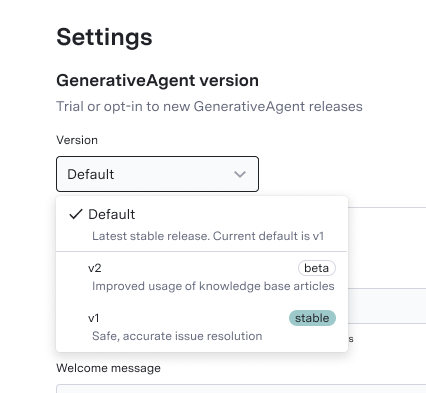
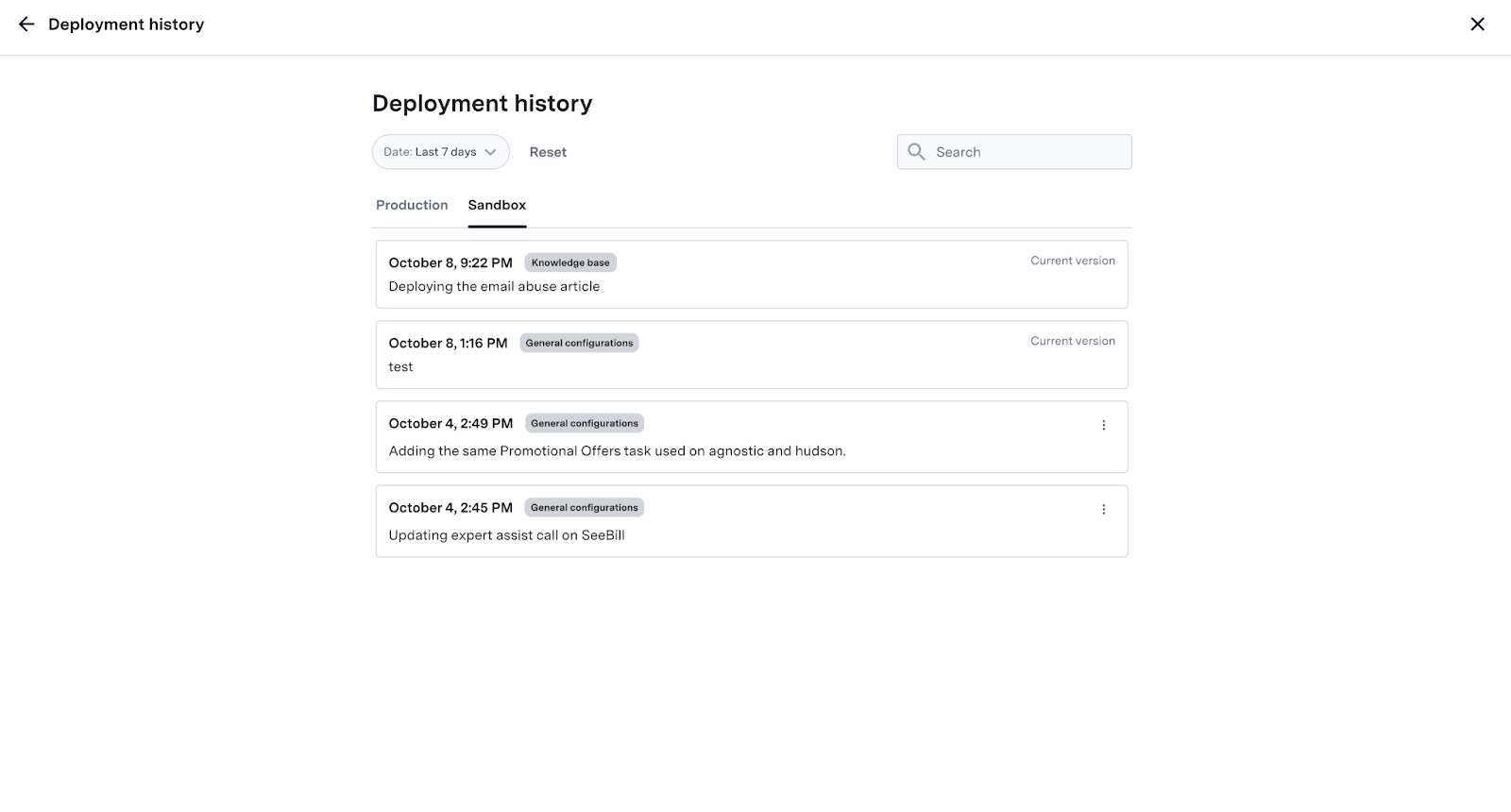 On the Deployment History tab, you can:
1. Toggle between Production and Sandbox to access environment specific deployments.
2. Filter deployment records by time frames.
3. Manage Deployment and rollback to previous versions.
On the Deployment History tab, you can:
1. Toggle between Production and Sandbox to access environment specific deployments.
2. Filter deployment records by time frames.
3. Manage Deployment and rollback to previous versions.
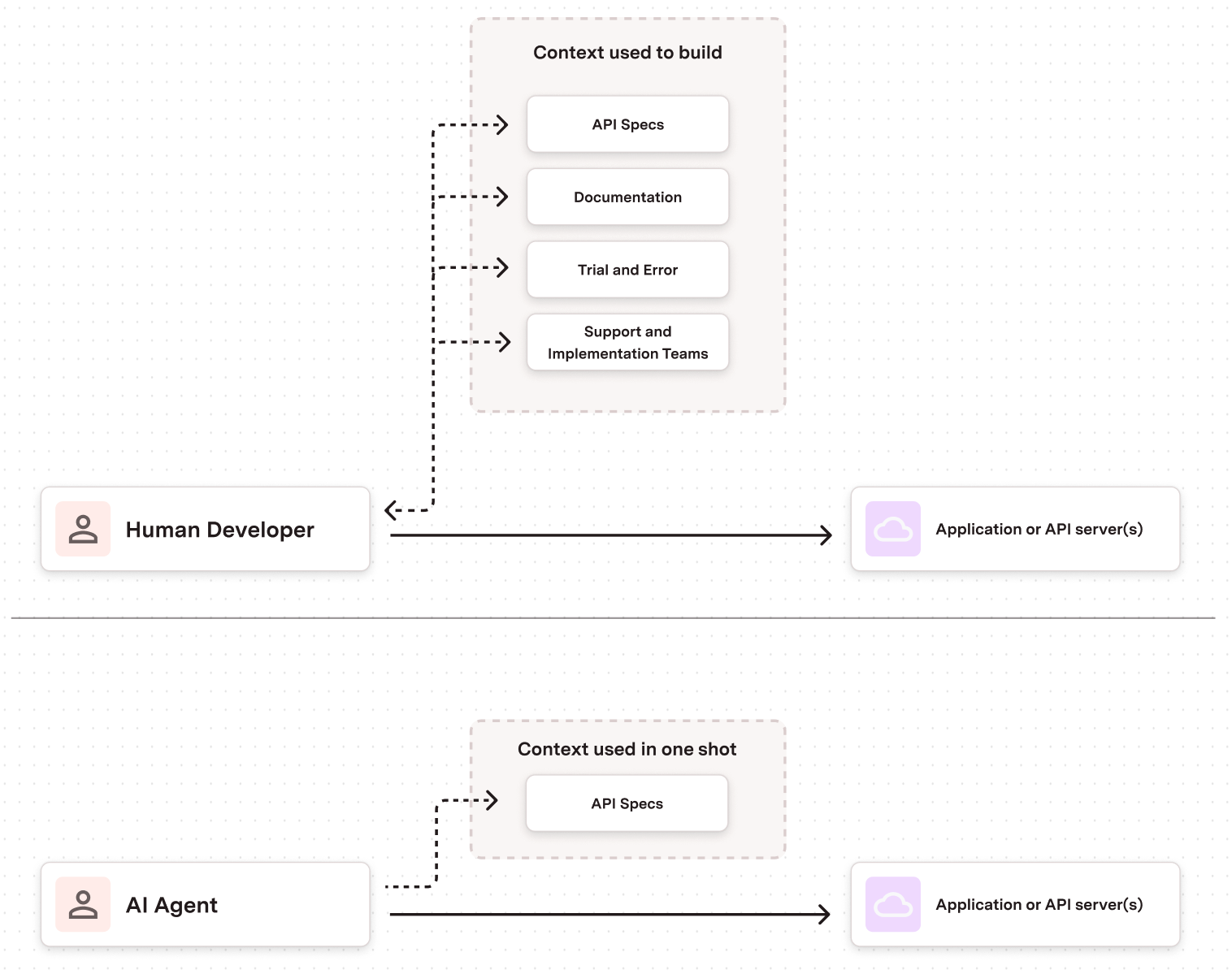 To design APIs that are easily interpreted by GenerativeAgent or any other AI agent, you must prioritize **machine-readability** and **explicit semantic context** over human-centric documentation. AI agents can't infer intent from documentation prose. They need structured, self-describing contracts that eliminate ambiguity.
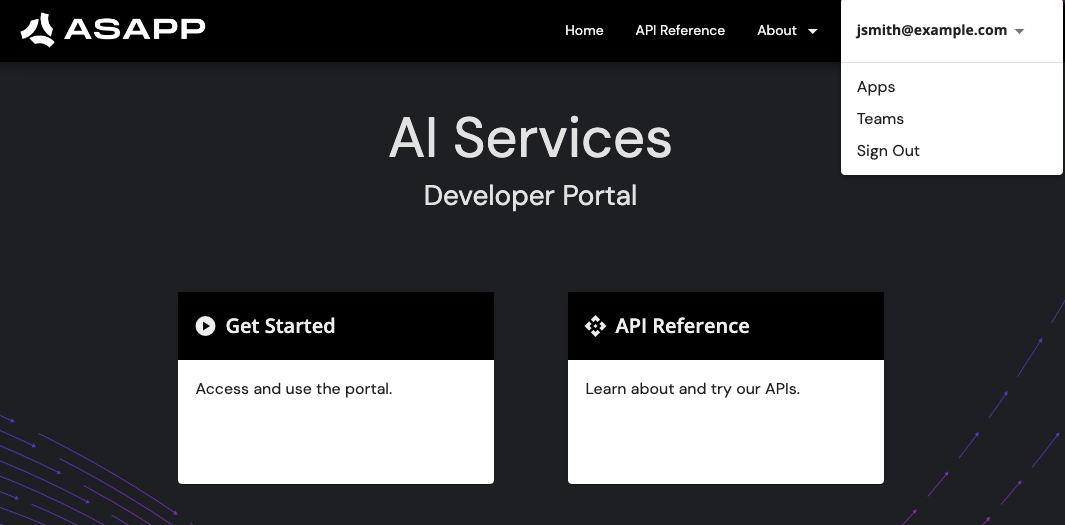 * Click your Sandbox App.
* Navigate down to API Keys and copy your API Id and API Secret
* Click your Sandbox App.
* Navigate down to API Keys and copy your API Id and API Secret
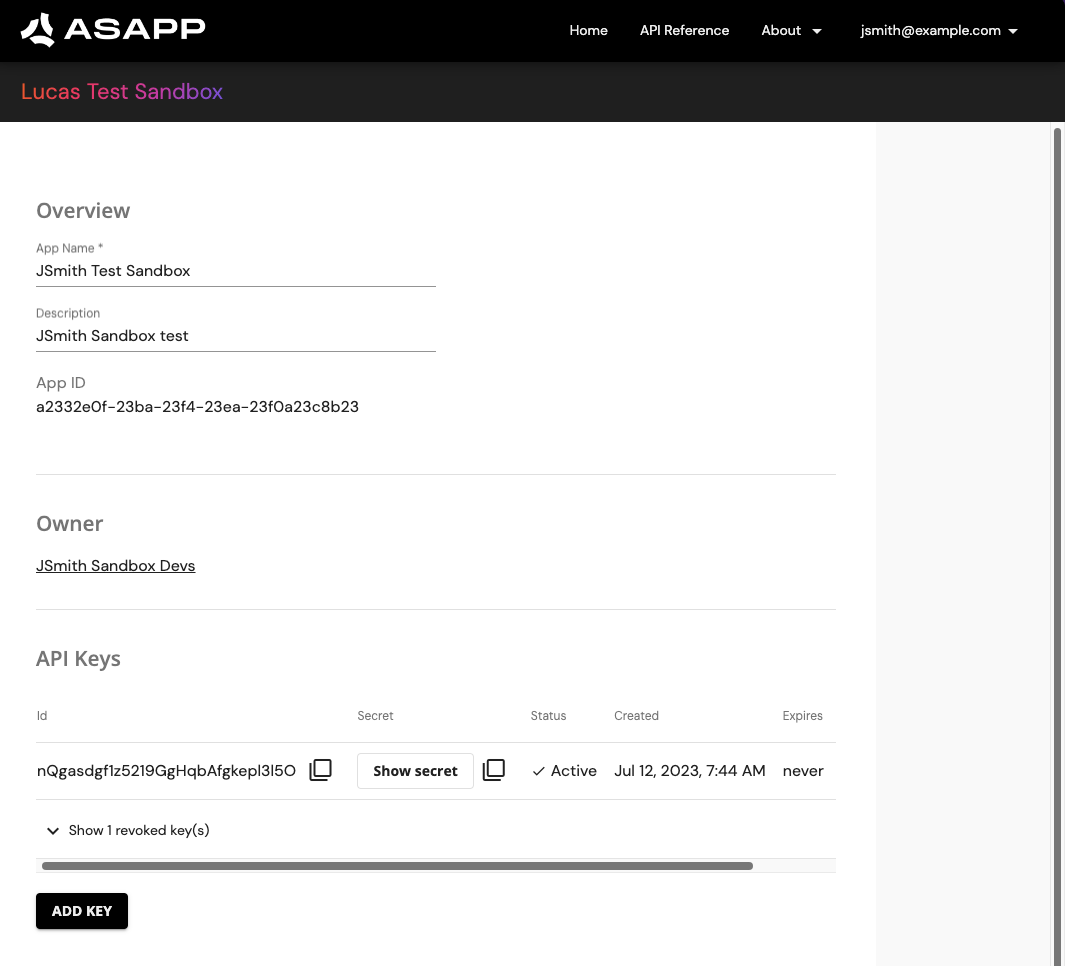 Save the API Id and Secret. All API requests use these for authentication.
## Make First API Call
With credentials in hand, we can make our first API call. Let's start with creating a `conversation`, the root entity for any interaction within a call center.
This example creates an empty conversation with required id from your system. You need to include the API Id and Secret as `asapp-api-id` and `asapp-api-secret` headers respectively.
```bash theme={null}
curl -X POST 'https://api.sandbox.asapp.com/conversation/v1/conversations' \
--header 'asapp-api-id:
## AI tools
Digital Agent Desk captures agent conversations and actions to power Machine Learning (ML) models. These models power a number of AI tools that help agents deliver exceptional customer service.
Save the API Id and Secret. All API requests use these for authentication.
## Make First API Call
With credentials in hand, we can make our first API call. Let's start with creating a `conversation`, the root entity for any interaction within a call center.
This example creates an empty conversation with required id from your system. You need to include the API Id and Secret as `asapp-api-id` and `asapp-api-secret` headers respectively.
```bash theme={null}
curl -X POST 'https://api.sandbox.asapp.com/conversation/v1/conversations' \
--header 'asapp-api-id:
## AI tools
Digital Agent Desk captures agent conversations and actions to power Machine Learning (ML) models. These models power a number of AI tools that help agents deliver exceptional customer service.
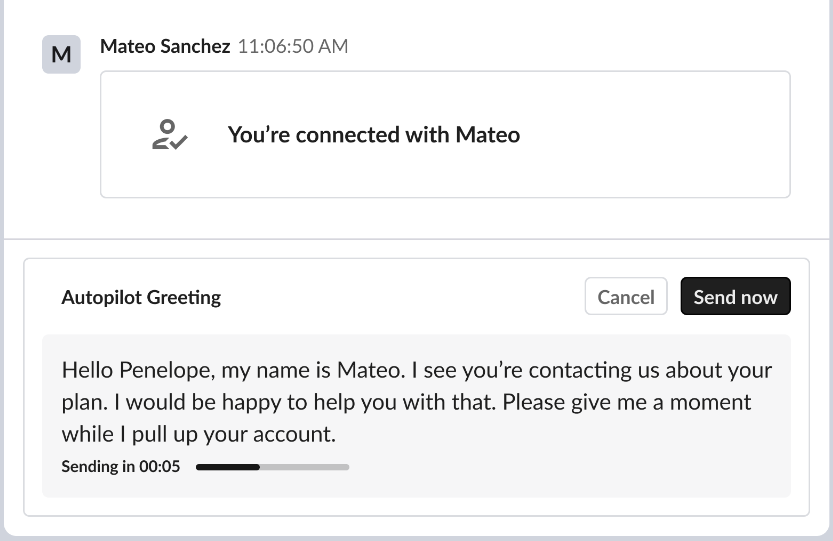
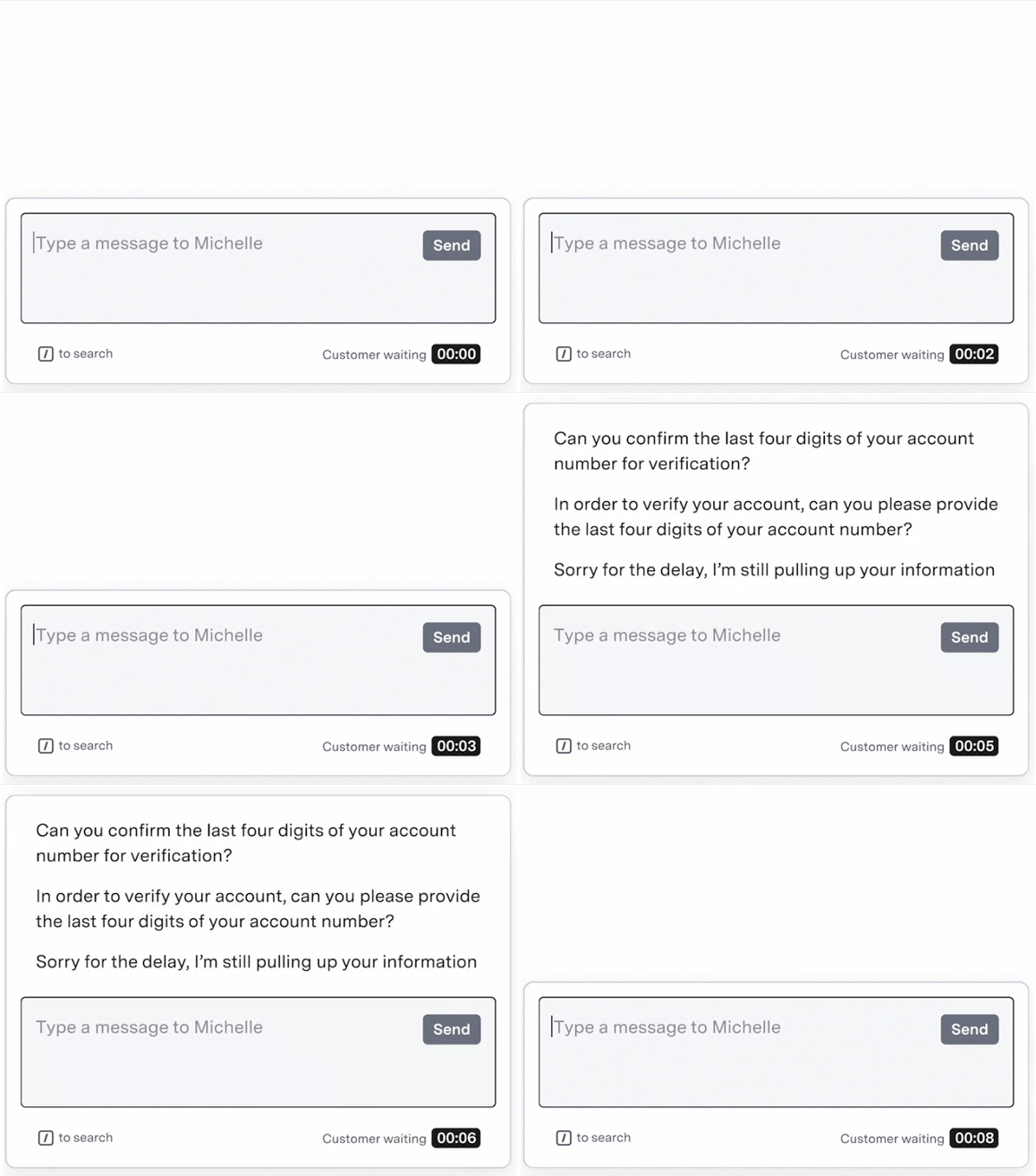
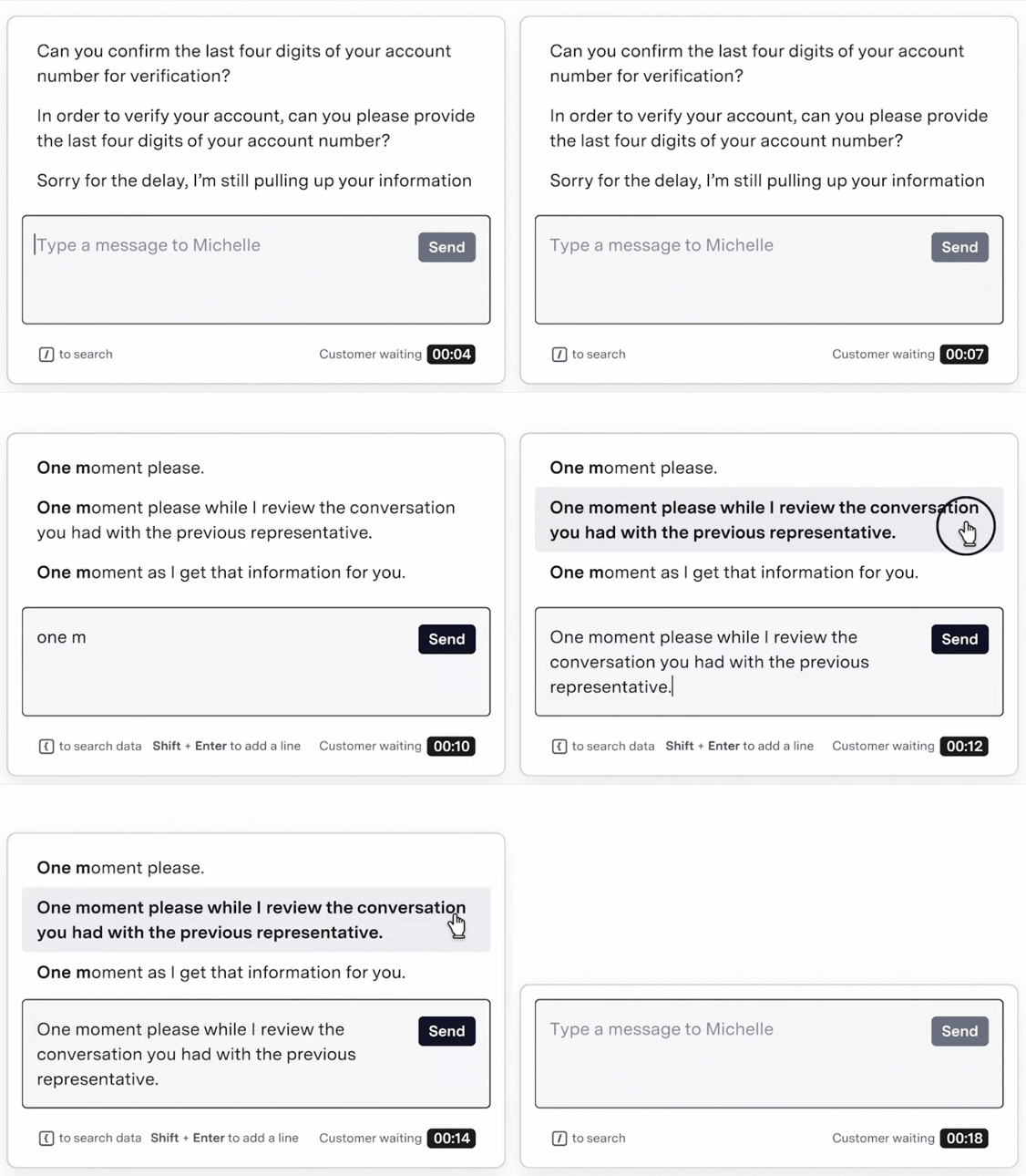
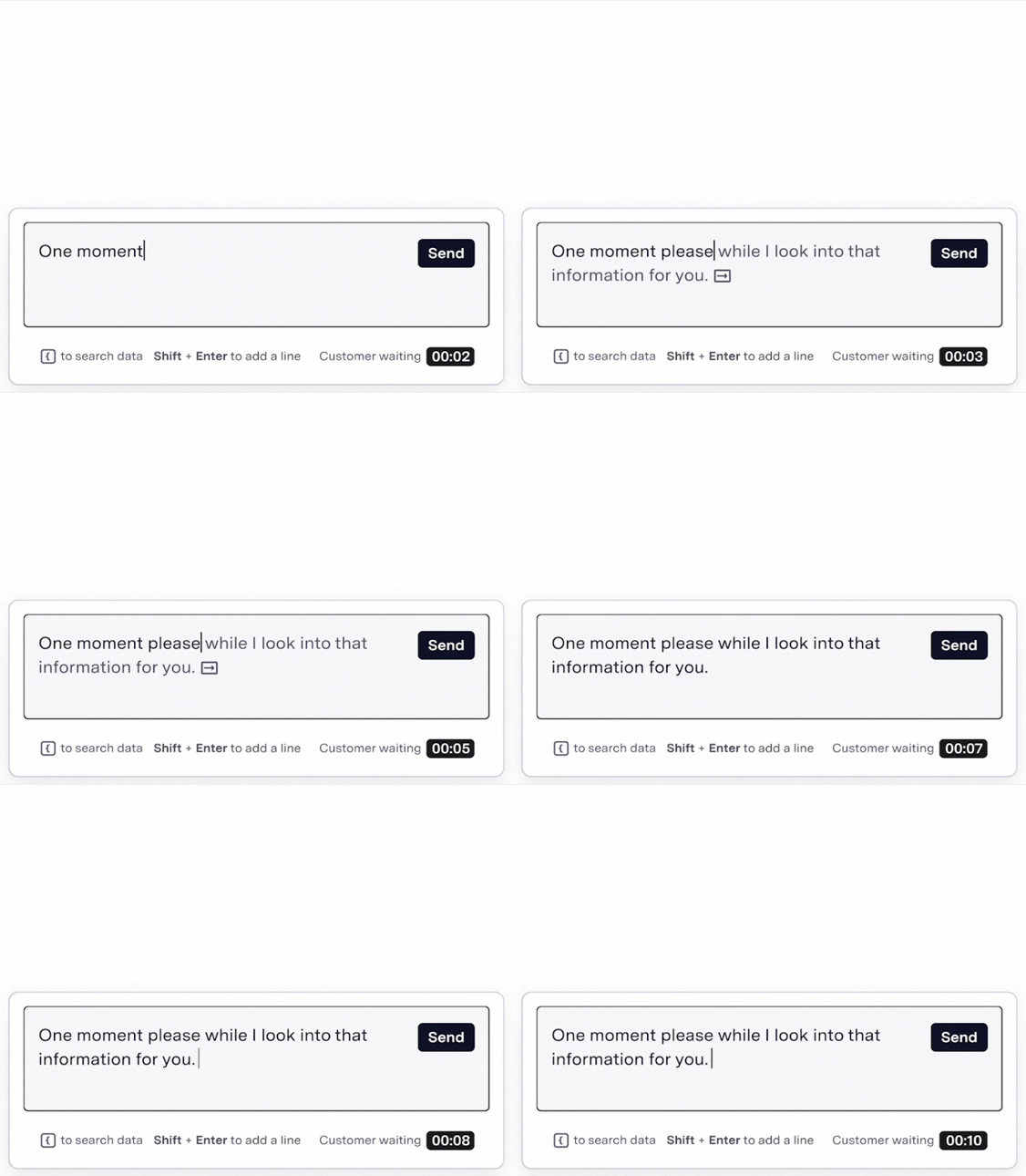
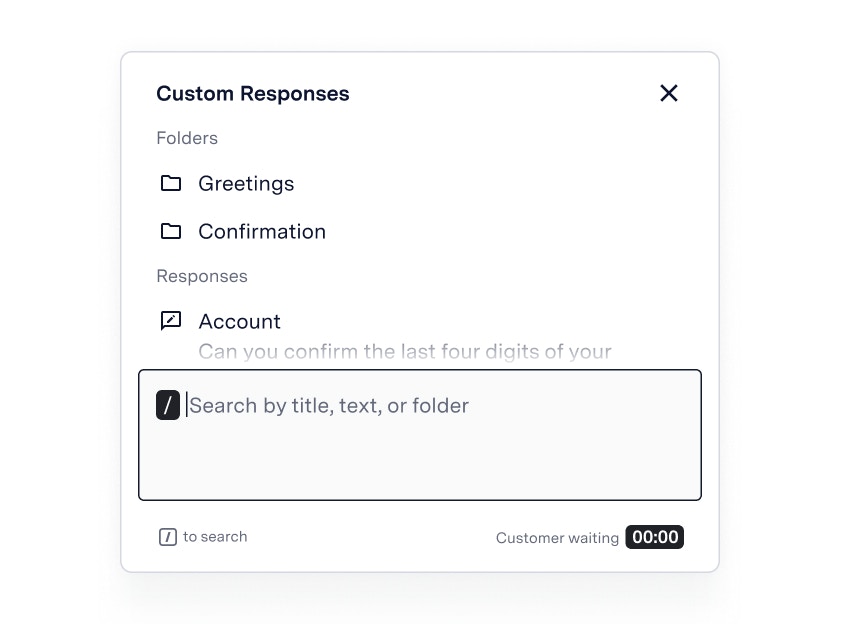
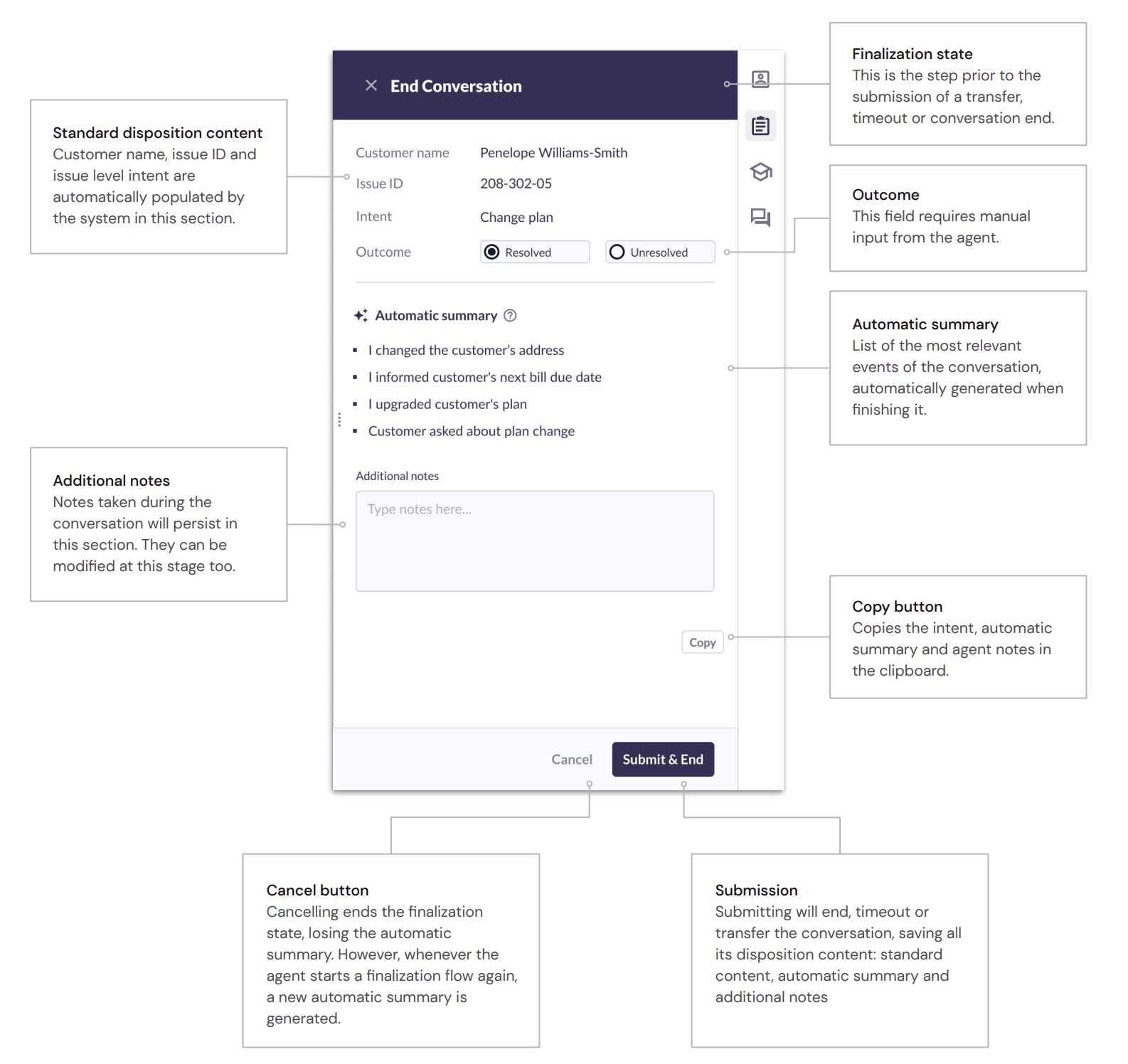
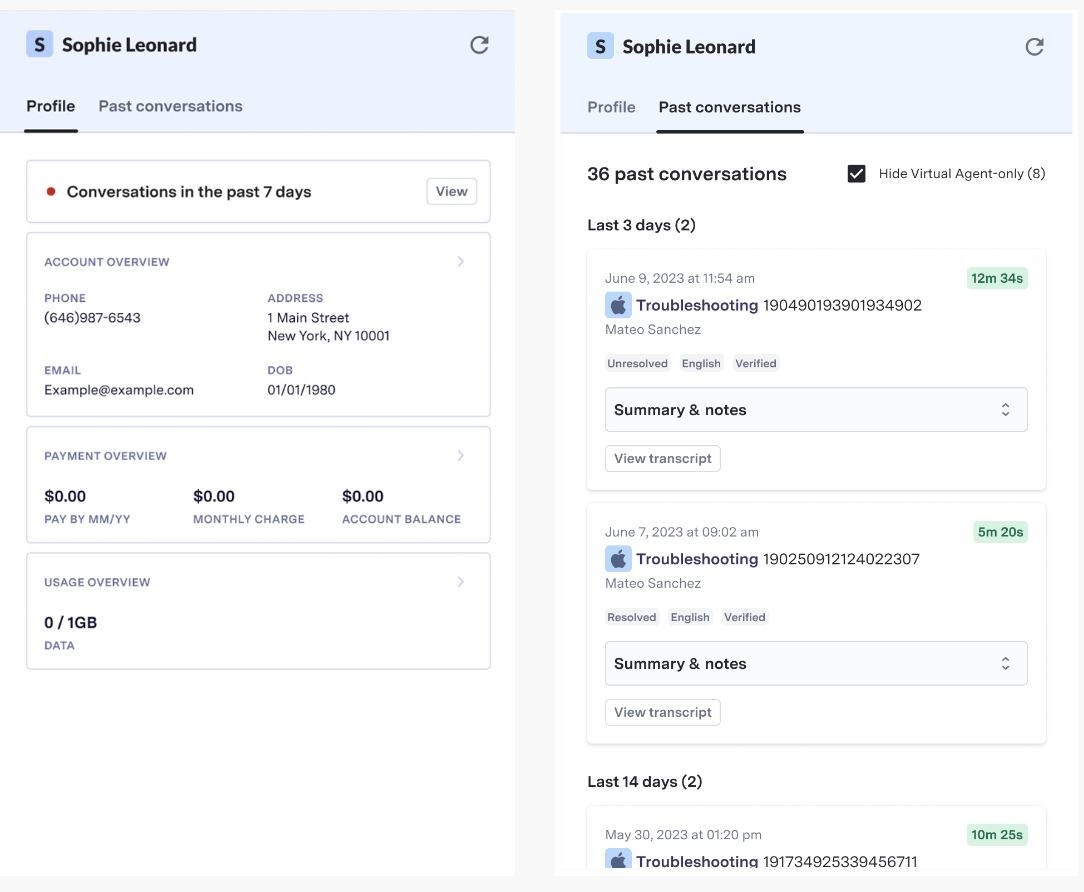 ## Next Steps
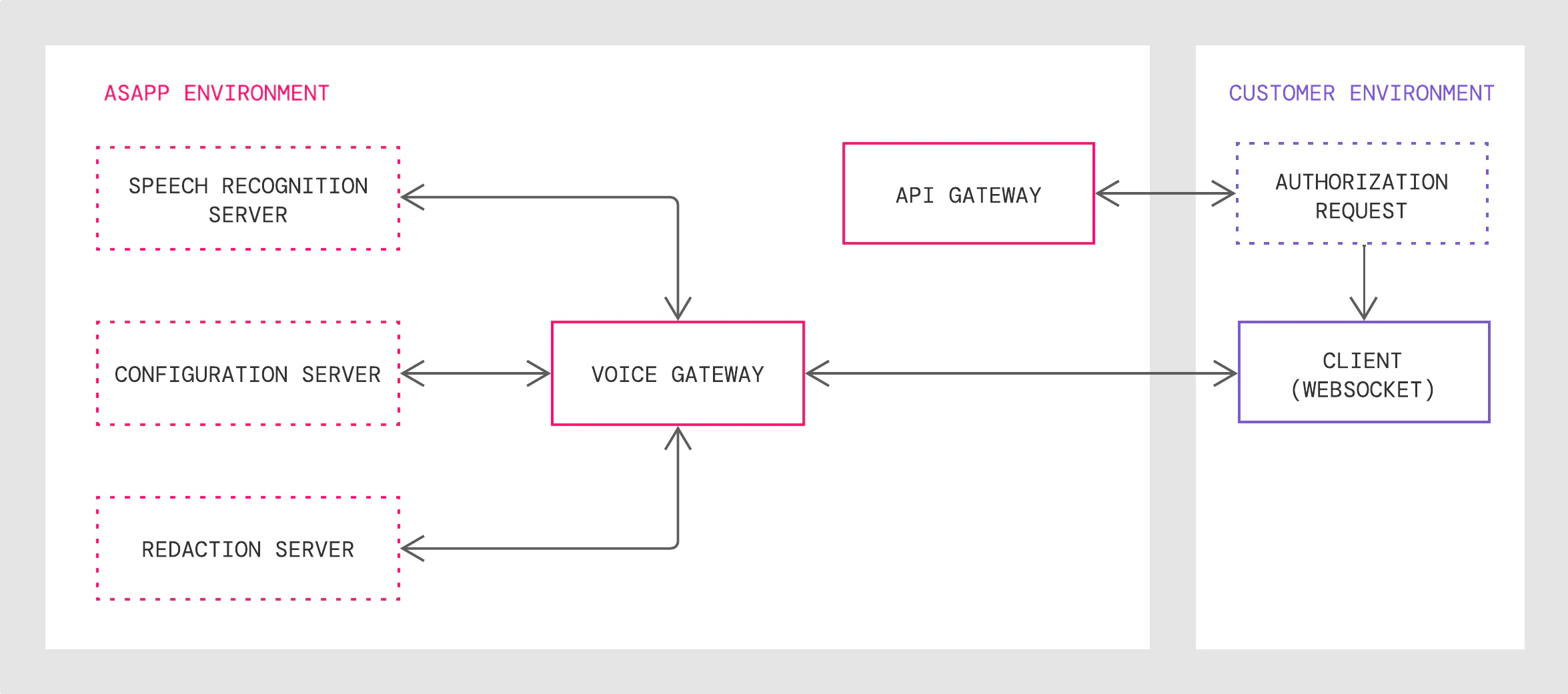 ### Integration Steps
Here's a high level overview of how to work with AI Transcribe:
1. Authenticate with ASAPP to gain access to the AI Transcribe API.
2. Establish a WebSocket connection with the ASAPP Voice Gateway.
3. Send a `startStream` message with appropriate feature parameters specified.
4. Once the request is accepted by the ASAPP Voice Gateway, stream audio as binary data.
5. The ASAPP voice server will return transcripts in multiple messages.
6. Once the audio streaming is completed, send a `finishStream` to indicate to the Voice server that there is no more audio to send for this stream request.
7. Upon completion of all audio processing, the server sends a `finalResponse` which contains a summary of the stream request.
### Requirements
**Audio Stream Format**
In order to be transcribed properly, audio sent to ASAPP AI Transcribe must be in mono or single-channel for each speaker.
You send audio as binary format through the WebSocket; you should provide the audio encoding (sample rate and encoding format) in the `startStream` message.
For real-time live streaming, ASAPP recommends that you stream audio chunk-by-chunk in a real-time streaming format, by sending every 20ms or 100ms of audio as one binary message and sending the next chunk after a 20ms or 100ms interval.
If the chunk is too small, it will require more audio binary messages and more downstream message handling; if the chunk is too big, it increases buffering pressure and slows down the server responsiveness.
Exceptionally large chunks may result in WebSocket transport errors such as timeouts.
### Integration Steps
Here's a high level overview of how to work with AI Transcribe:
1. Authenticate with ASAPP to gain access to the AI Transcribe API.
2. Establish a WebSocket connection with the ASAPP Voice Gateway.
3. Send a `startStream` message with appropriate feature parameters specified.
4. Once the request is accepted by the ASAPP Voice Gateway, stream audio as binary data.
5. The ASAPP voice server will return transcripts in multiple messages.
6. Once the audio streaming is completed, send a `finishStream` to indicate to the Voice server that there is no more audio to send for this stream request.
7. Upon completion of all audio processing, the server sends a `finalResponse` which contains a summary of the stream request.
### Requirements
**Audio Stream Format**
In order to be transcribed properly, audio sent to ASAPP AI Transcribe must be in mono or single-channel for each speaker.
You send audio as binary format through the WebSocket; you should provide the audio encoding (sample rate and encoding format) in the `startStream` message.
For real-time live streaming, ASAPP recommends that you stream audio chunk-by-chunk in a real-time streaming format, by sending every 20ms or 100ms of audio as one binary message and sending the next chunk after a 20ms or 100ms interval.
If the chunk is too small, it will require more audio binary messages and more downstream message handling; if the chunk is too big, it increases buffering pressure and slows down the server responsiveness.
Exceptionally large chunks may result in WebSocket transport errors such as timeouts.
- Structured Data extraction
- Intent identification
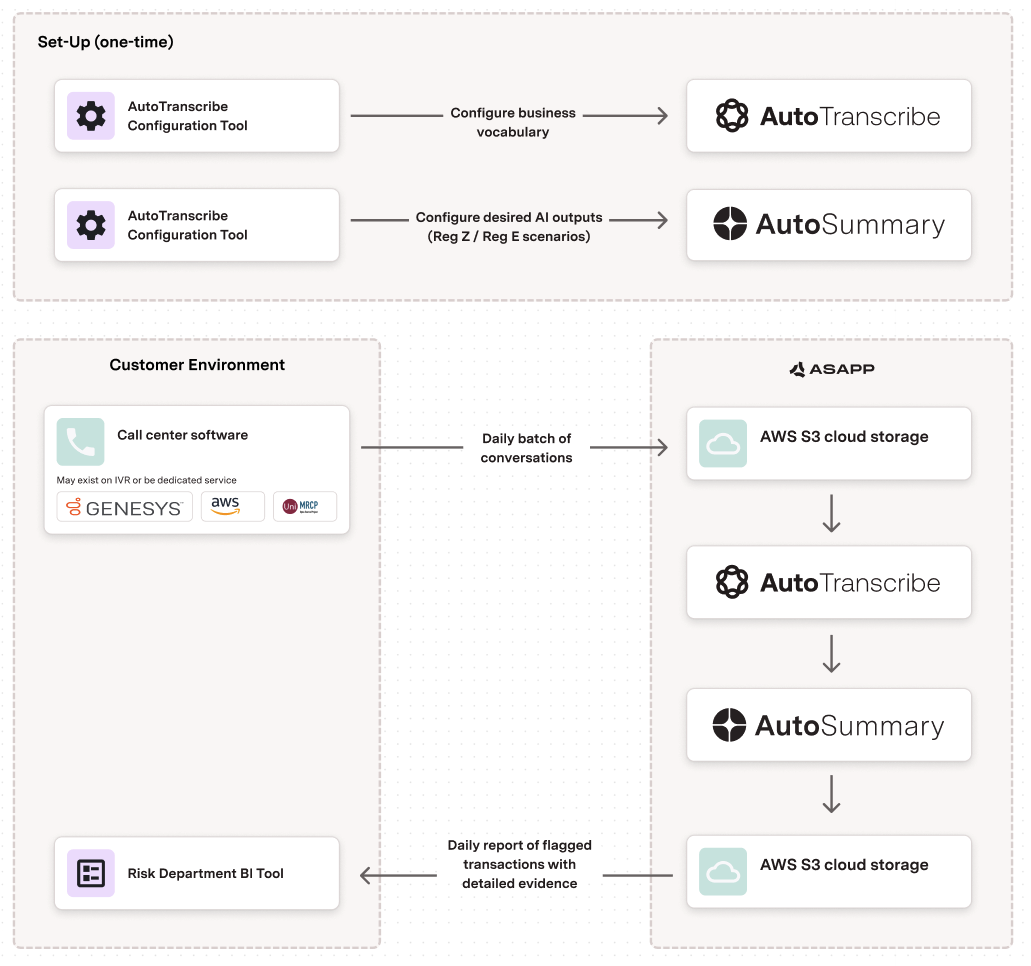 ## Real-time Product Quality Monitoring (Retail, Telecommunications)
AI Summary generates free-text summaries of customer complaints about product quality, allowing for real-time identification of defects and issues. This includes data such as specific products, complaints, or issue types.
| Industry | Category | AI Summary Features |
| :------------------------ | :---------------- | :------------------ |
| Retail Telecommunications | Quality Assurance | Entity Extraction |
### Implementation
1. Configure Entity Extraction to identify product names and specific defect or issue descriptions.
2. Integrate with call center software for real-time processing.
3. Connect outputs to business intelligence systems for analysis and reporting.
### Architecture
## Real-time Product Quality Monitoring (Retail, Telecommunications)
AI Summary generates free-text summaries of customer complaints about product quality, allowing for real-time identification of defects and issues. This includes data such as specific products, complaints, or issue types.
| Industry | Category | AI Summary Features |
| :------------------------ | :---------------- | :------------------ |
| Retail Telecommunications | Quality Assurance | Entity Extraction |
### Implementation
1. Configure Entity Extraction to identify product names and specific defect or issue descriptions.
2. Integrate with call center software for real-time processing.
3. Connect outputs to business intelligence systems for analysis and reporting.
### Architecture
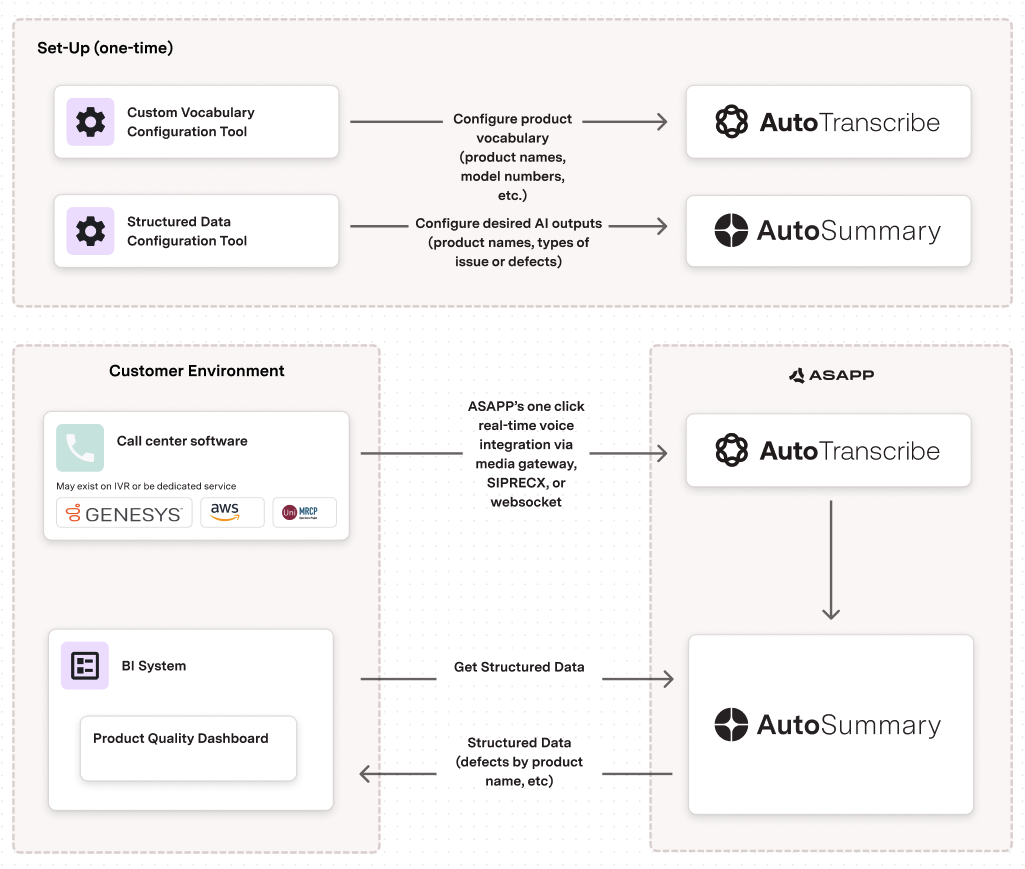 ## Automated Call Wrap-up (Multiple Industries)
AI Summary can automate the process of summarizing customer interactions, eliminating the need for manual note-taking by agents and providing consistent, high-quality call summaries.
You can directly insert the summary and specific data elements into your contact center or CRM tool to remove manual steps.
| Industry | Category | AI Summary Features |
| :------------------------------------------------------------------------------------------------------------- | :------------------------------------------------------------------ | :-------------------------------------------------------------------------------------------------------------------- |
|
## Automated Call Wrap-up (Multiple Industries)
AI Summary can automate the process of summarizing customer interactions, eliminating the need for manual note-taking by agents and providing consistent, high-quality call summaries.
You can directly insert the summary and specific data elements into your contact center or CRM tool to remove manual steps.
| Industry | Category | AI Summary Features |
| :------------------------------------------------------------------------------------------------------------- | :------------------------------------------------------------------ | :-------------------------------------------------------------------------------------------------------------------- |
| - Retail
- Telco
- Insurance Travel
- Financial Services
- \*Any\*
- Call Center Operations
- Quality Assurance
- Free Text Summary generation
- Targeted Structured Data (Questions)
- Entity Extraction
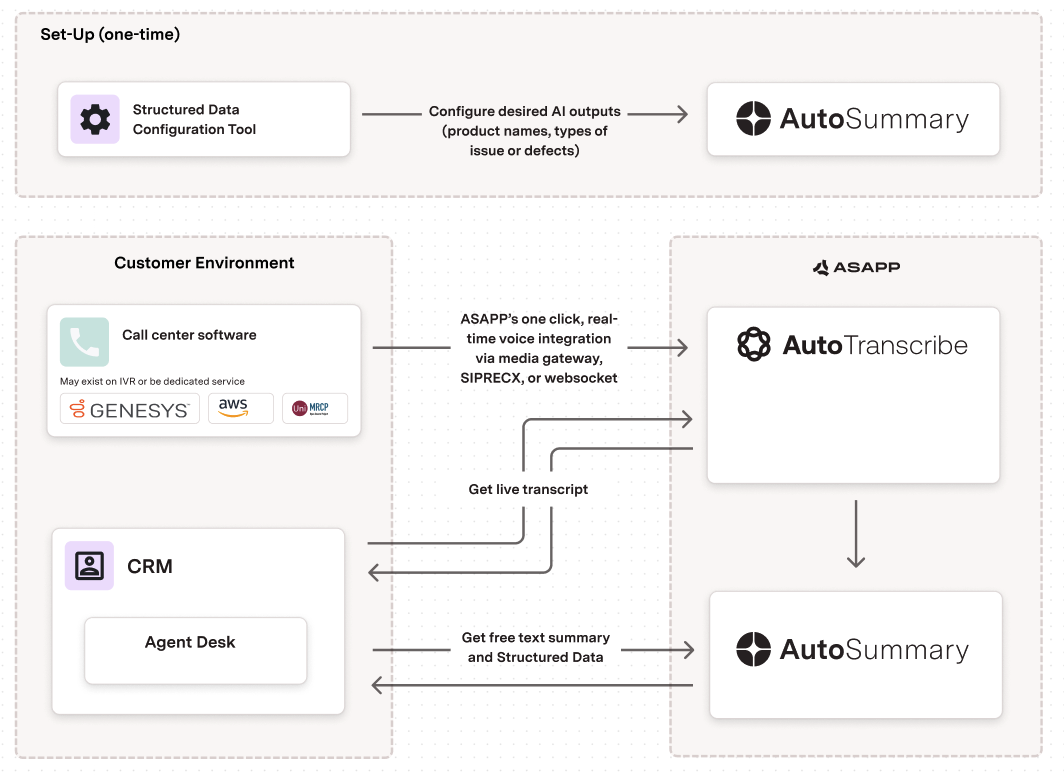 ## Trade Confirmations (Financial Services)
AI Summary ensures compliance with financial regulations like FINRA by automatically verifying if agents have confirmed trade details with customers before entering orders into the system. You can use Structured Data to extract the price, type of order, the security being bought or sold, etc.
| Industry | Category | AI Summary Features |
| :----------------- | :--------- | :------------------ |
| Financial Services | Compliance | Entity Extraction |
### Implementation
1. Configure Structured Data extraction to identify order type, security name/symbol, quantity, and price.
2. Set up Entity Extraction to capture customer account numbers and trade confirmation phrases.
3. Integrate with trading platforms for real-time verification.
4. Implement an alerting system for non-compliant trade confirmations.
### Architecture
## Trade Confirmations (Financial Services)
AI Summary ensures compliance with financial regulations like FINRA by automatically verifying if agents have confirmed trade details with customers before entering orders into the system. You can use Structured Data to extract the price, type of order, the security being bought or sold, etc.
| Industry | Category | AI Summary Features |
| :----------------- | :--------- | :------------------ |
| Financial Services | Compliance | Entity Extraction |
### Implementation
1. Configure Structured Data extraction to identify order type, security name/symbol, quantity, and price.
2. Set up Entity Extraction to capture customer account numbers and trade confirmation phrases.
3. Integrate with trading platforms for real-time verification.
4. Implement an alerting system for non-compliant trade confirmations.
### Architecture
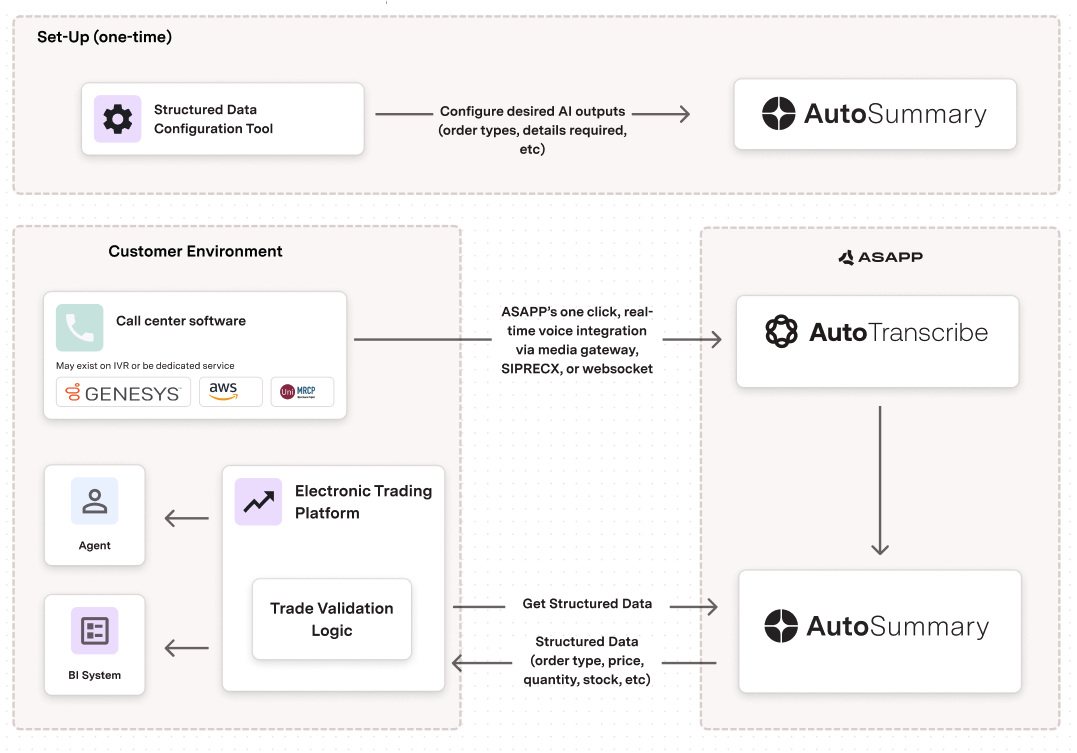 ---
# Source: https://docs.asapp.com/security/external-ip-blocking.md
> ## Documentation Index
> Fetch the complete documentation index at: https://docs.asapp.com/llms.txt
> Use this file to discover all available pages before exploring further.
# External IP Blocking
> Use External IP Blocking to block IP addresses from accessing your data.
ASAPP has tools in place to monitor and automatically block activity based on malicious behavior and bad reputation sources (IPs). This blocking inhibits traffic from IPs that could damage, disable, overburden, disrupt or impair any ASAPP servers or APIs.
By default, ASAPP does not block IPs of end users who exhibit abusive behaviors towards agents. IP blocking is trivial to evade and often causes unintended collateral damage to normal users since IP address are dynamic.
It can happen that a previously blocked IP address becomes the IP address for a valid user, preventing the valid user from using ASAPP and your product.
While we do not recommend IP blocking, you are still able to block users by IP address to help address urgent protection needs.
## Blocking IP Addresses on AI Console
AI-Console provides the ability for administrators with the correct permissions to block external IP addresses that may present a threat to your organization.
To block an IP Address in AI Console:
1. Manually enter (or copy) an individual IP address in the Denylist
2. Click Save and Deploy to save the changes to production
You are able to access IP Addresses in Conversation Manager, giving you insight into the IP address associated with potentially malicious users.
---
# Source: https://docs.asapp.com/security/external-ip-blocking.md
> ## Documentation Index
> Fetch the complete documentation index at: https://docs.asapp.com/llms.txt
> Use this file to discover all available pages before exploring further.
# External IP Blocking
> Use External IP Blocking to block IP addresses from accessing your data.
ASAPP has tools in place to monitor and automatically block activity based on malicious behavior and bad reputation sources (IPs). This blocking inhibits traffic from IPs that could damage, disable, overburden, disrupt or impair any ASAPP servers or APIs.
By default, ASAPP does not block IPs of end users who exhibit abusive behaviors towards agents. IP blocking is trivial to evade and often causes unintended collateral damage to normal users since IP address are dynamic.
It can happen that a previously blocked IP address becomes the IP address for a valid user, preventing the valid user from using ASAPP and your product.
While we do not recommend IP blocking, you are still able to block users by IP address to help address urgent protection needs.
## Blocking IP Addresses on AI Console
AI-Console provides the ability for administrators with the correct permissions to block external IP addresses that may present a threat to your organization.
To block an IP Address in AI Console:
1. Manually enter (or copy) an individual IP address in the Denylist
2. Click Save and Deploy to save the changes to production
You are able to access IP Addresses in Conversation Manager, giving you insight into the IP address associated with potentially malicious users.
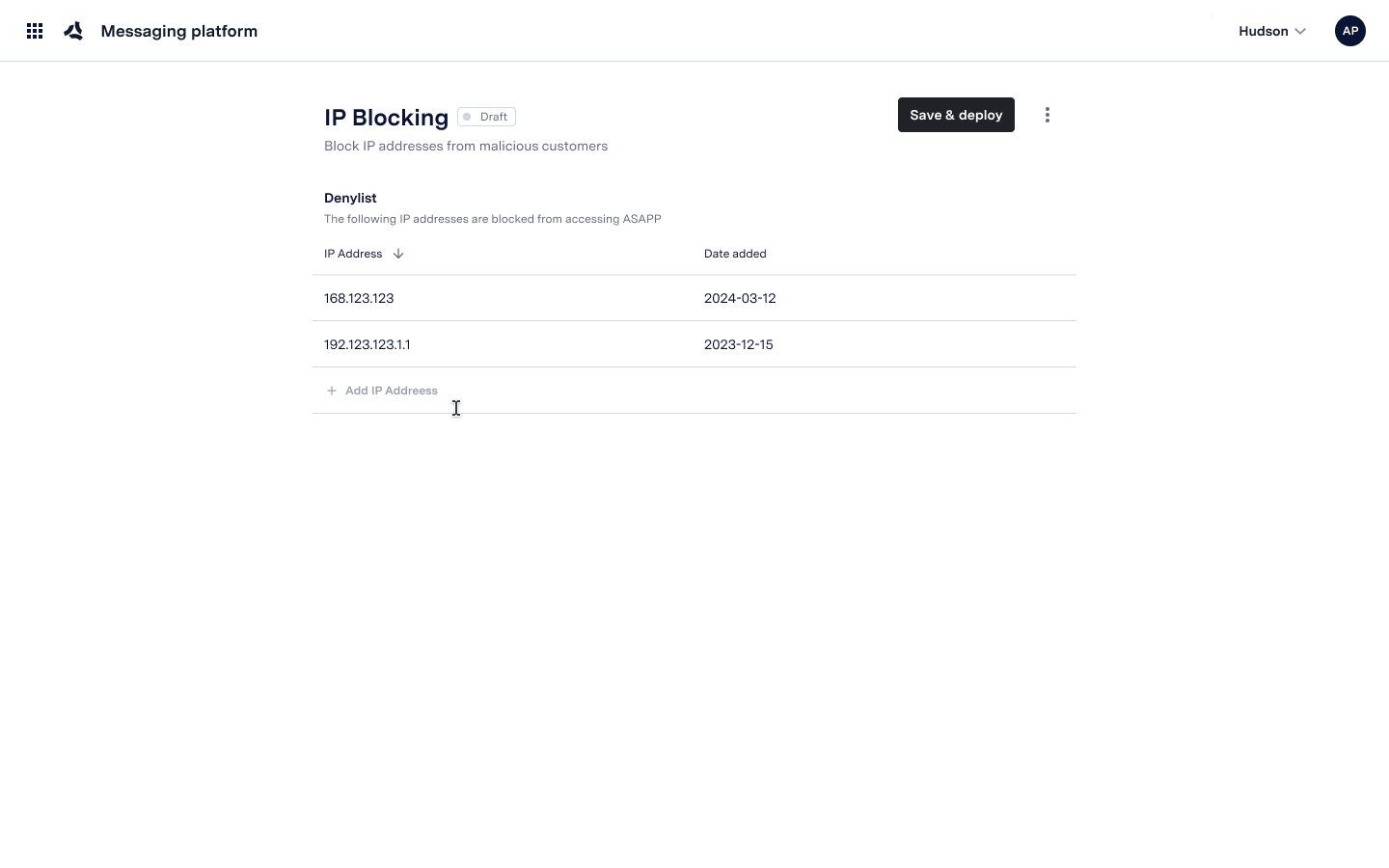 You can unblock IP Addresses by clicking the trash icon on the blocked IP's row, and then saving and deploying the updated list.
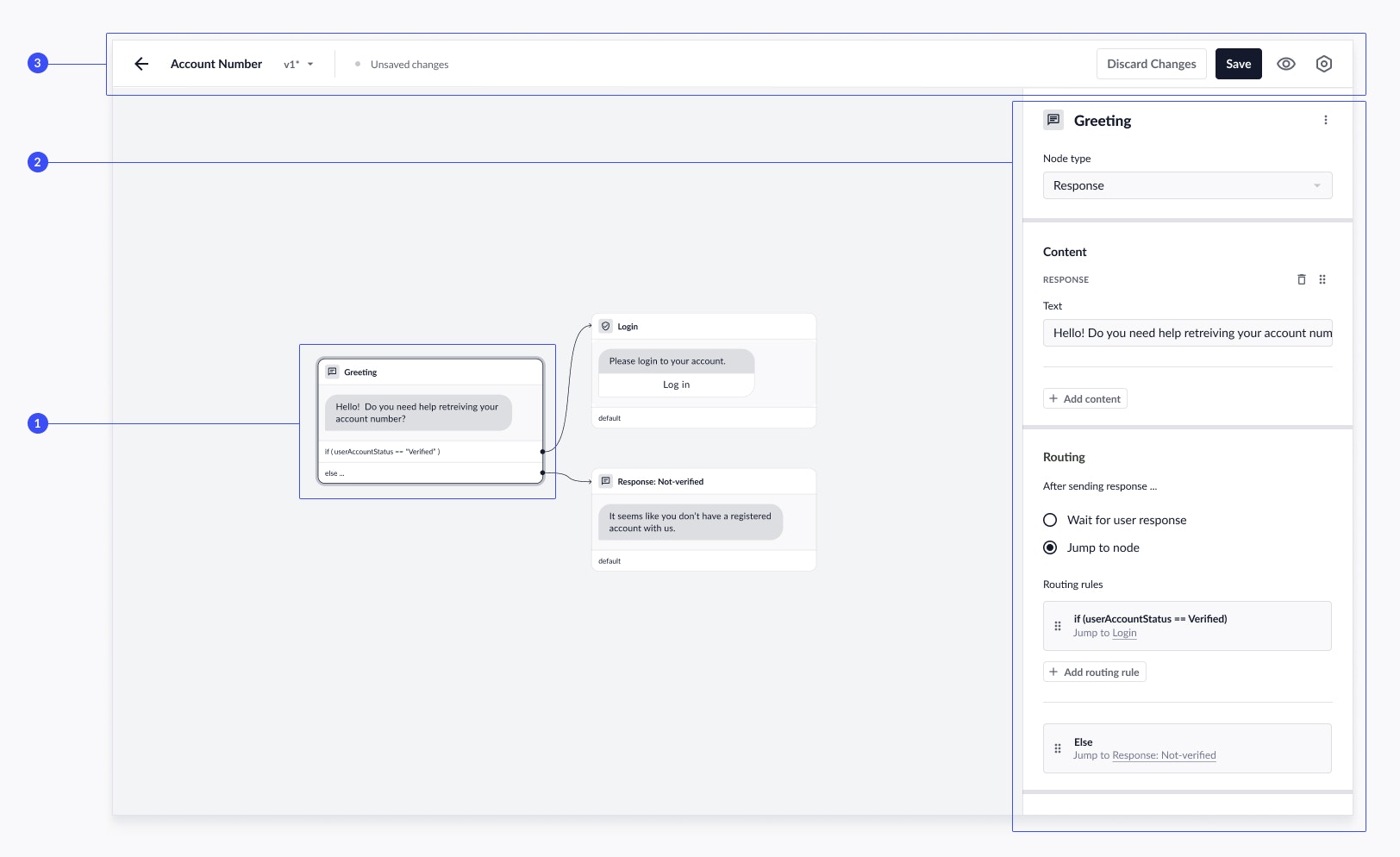 ### Flow Graph
The Flow Graph is a visual representation of the conversation flow you're designing, and displays all possible paths of dialog as you create them.
### Flow Graph
The Flow Graph is a visual representation of the conversation flow you're designing, and displays all possible paths of dialog as you create them.
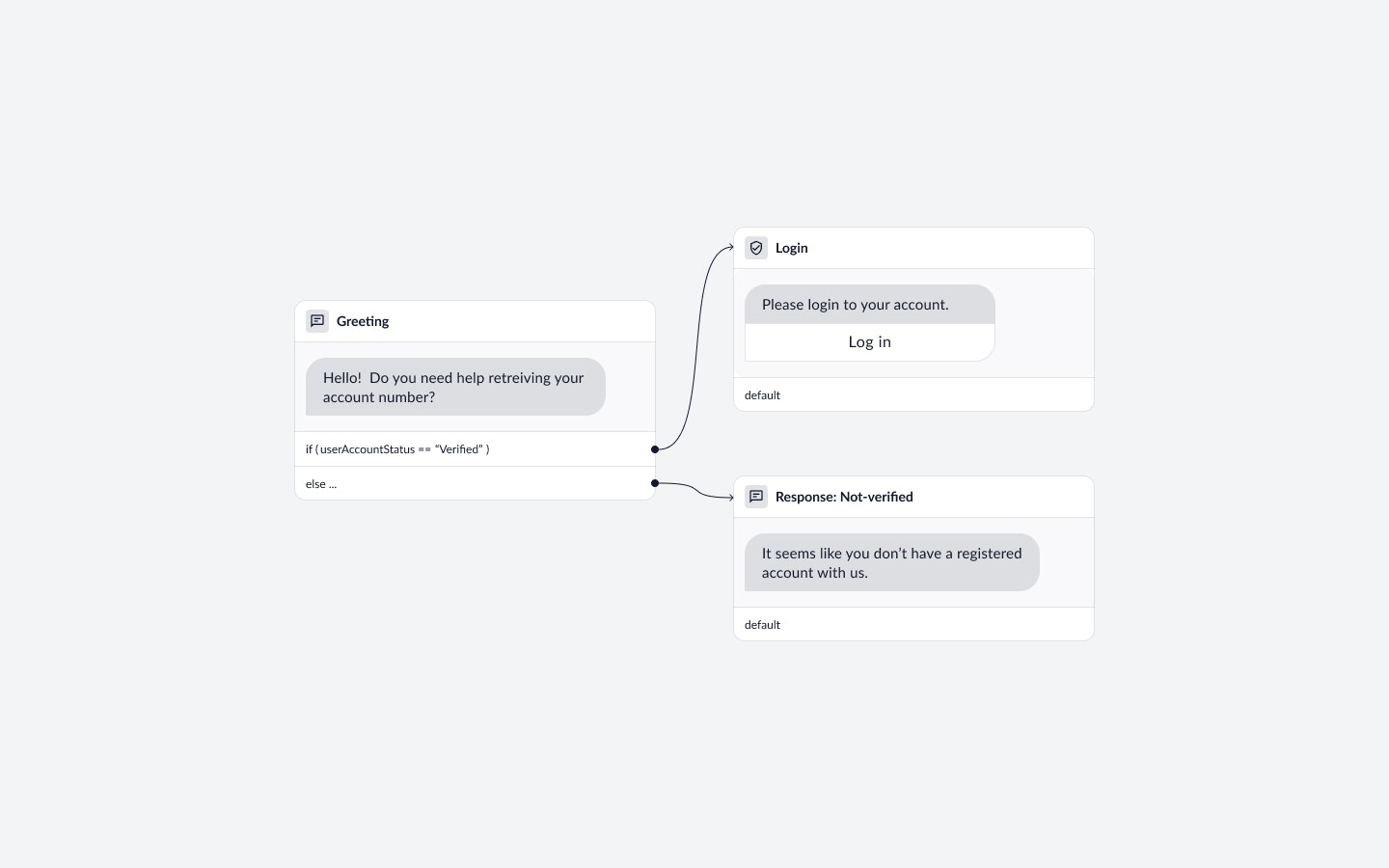 #### Select Nodes
Each node in the graph can be selected by clicking anywhere on the node. Upon selection, the node configuration panel will automatically expand on the right.
#### Flow Graph Zoom
You can zoom in on particular parts of the flow by using the zoom percentage bar at the bottom right or using your computer trackpad or mouse.
### Node Configuration Panel
The node configuration panel allows you to manage settings and configure routing rules for the following [node types](#node-types "Node Types"):
* [Response Node](#node-types "Node Types"): configure virtual agent responses, send deeplinks, and classify what customers say in return.
* [Login Node](#login-node "Login Node"): direct the customer to authenticate before proceeding in the flow.
* [Redirect Node](#redirect-node "Redirect Node"): redirect customer to another flow.
* [Agent Node](#agent-node "Agent Node"): direct the customer to an agent queue.
* [End Node](#end-node "End Node"): wrap up the conversation by confirming whether the customer needs additional help.
* [API Node](#api-node): use API fields dynamically in your flows.
### Toolbar
The toolbar displays the flow name and allows you to perform a number of different functions:
1. [Version Dropdown:](#navigate-flow-versions "Navigate Flow Versions") view and toggle through multiple versions of the flow.
2. [Version Indicators](#version-indicators "Version Indicators"): keep track of flow version deployment to Test or Production environments
3. [Manage Versions](#manage-versions "Manage Versions"): manage flow version deployment to Test or Production environments
4. [Preview](#preview-flow "Preview Flow"): click to preview your current flow version in real-time
5. More Actions:
* Copy link to test: Navigate to your demo environment to test a flow.
* Flow Settings: View flow information such as name, description, and flow shortcut.
Learn more: [Save, Deploy, and Test](#save-new-flow "Save New Flow")
#### Select Nodes
Each node in the graph can be selected by clicking anywhere on the node. Upon selection, the node configuration panel will automatically expand on the right.
#### Flow Graph Zoom
You can zoom in on particular parts of the flow by using the zoom percentage bar at the bottom right or using your computer trackpad or mouse.
### Node Configuration Panel
The node configuration panel allows you to manage settings and configure routing rules for the following [node types](#node-types "Node Types"):
* [Response Node](#node-types "Node Types"): configure virtual agent responses, send deeplinks, and classify what customers say in return.
* [Login Node](#login-node "Login Node"): direct the customer to authenticate before proceeding in the flow.
* [Redirect Node](#redirect-node "Redirect Node"): redirect customer to another flow.
* [Agent Node](#agent-node "Agent Node"): direct the customer to an agent queue.
* [End Node](#end-node "End Node"): wrap up the conversation by confirming whether the customer needs additional help.
* [API Node](#api-node): use API fields dynamically in your flows.
### Toolbar
The toolbar displays the flow name and allows you to perform a number of different functions:
1. [Version Dropdown:](#navigate-flow-versions "Navigate Flow Versions") view and toggle through multiple versions of the flow.
2. [Version Indicators](#version-indicators "Version Indicators"): keep track of flow version deployment to Test or Production environments
3. [Manage Versions](#manage-versions "Manage Versions"): manage flow version deployment to Test or Production environments
4. [Preview](#preview-flow "Preview Flow"): click to preview your current flow version in real-time
5. More Actions:
* Copy link to test: Navigate to your demo environment to test a flow.
* Flow Settings: View flow information such as name, description, and flow shortcut.
Learn more: [Save, Deploy, and Test](#save-new-flow "Save New Flow")
 ## Node Types
### Response Node
## Node Types
### Response Node
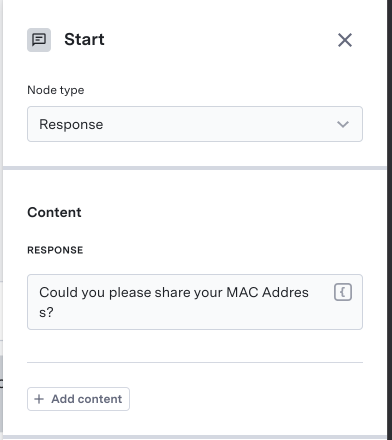 The **Response** node allows you to configure virtual agent responses, send deeplinks, and classify what customers say in return. It consists of three sections:
1. **Content**
2. **Routing**
3. **Advanced Settings**
### Content
The **Content** section allows you to specify the responses and deeplinks that the system will send to the customer. You can add as many of either as you like by clicking **Add Content** and selecting from the menu.
Once added, this content can be easily reordered by dragging, or deleted by hovering over the content block and clicking the trash icon. In the flow graph, you will be able to preview how the system will display the content to the customer.
The **Response** node allows you to configure virtual agent responses, send deeplinks, and classify what customers say in return. It consists of three sections:
1. **Content**
2. **Routing**
3. **Advanced Settings**
### Content
The **Content** section allows you to specify the responses and deeplinks that the system will send to the customer. You can add as many of either as you like by clicking **Add Content** and selecting from the menu.
Once added, this content can be easily reordered by dragging, or deleted by hovering over the content block and clicking the trash icon. In the flow graph, you will be able to preview how the system will display the content to the customer.
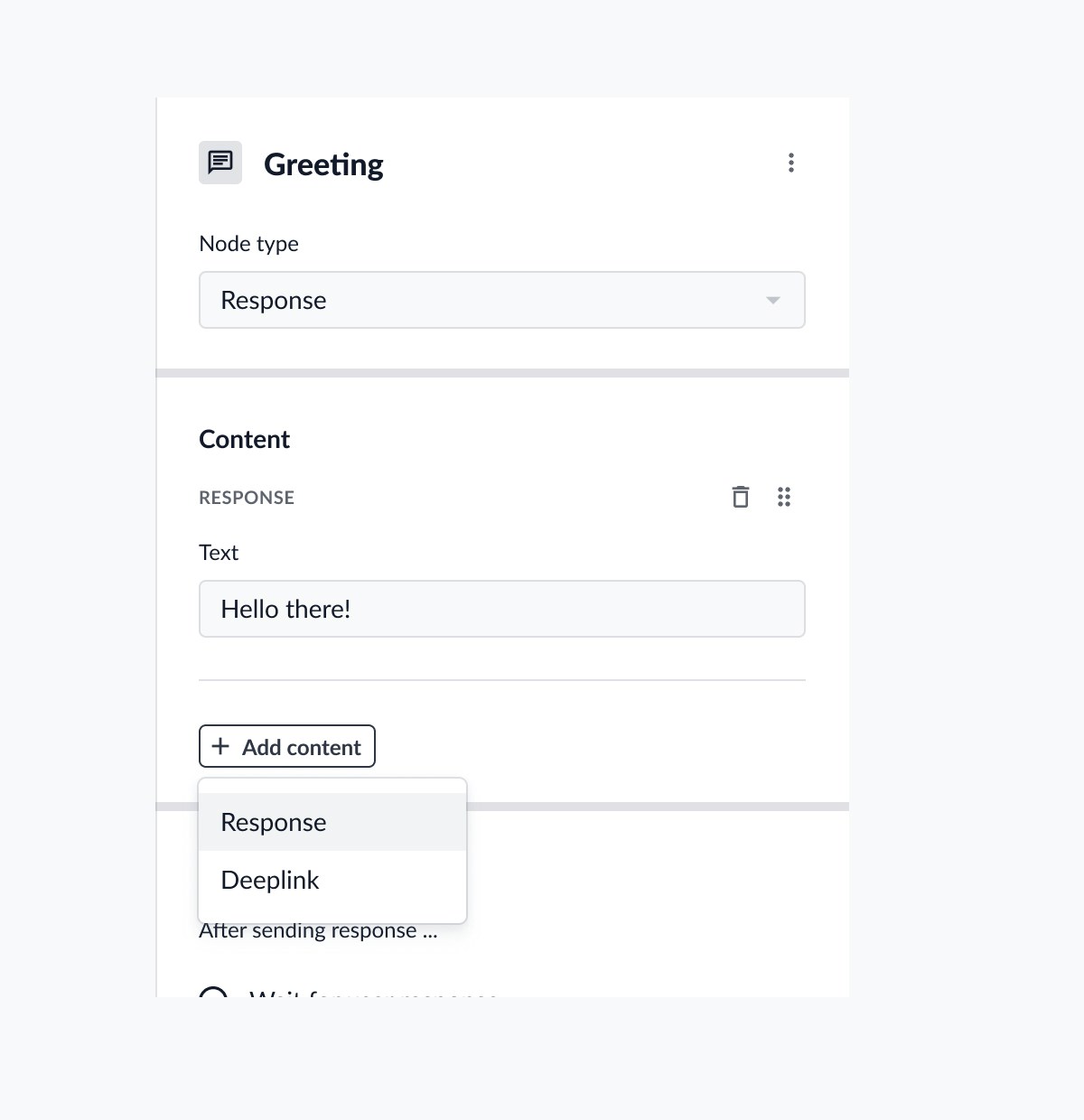 #### Responses
Any response text you specify will be sent to the customer when they reach the node.
#### Responses
Any response text you specify will be sent to the customer when they reach the node.
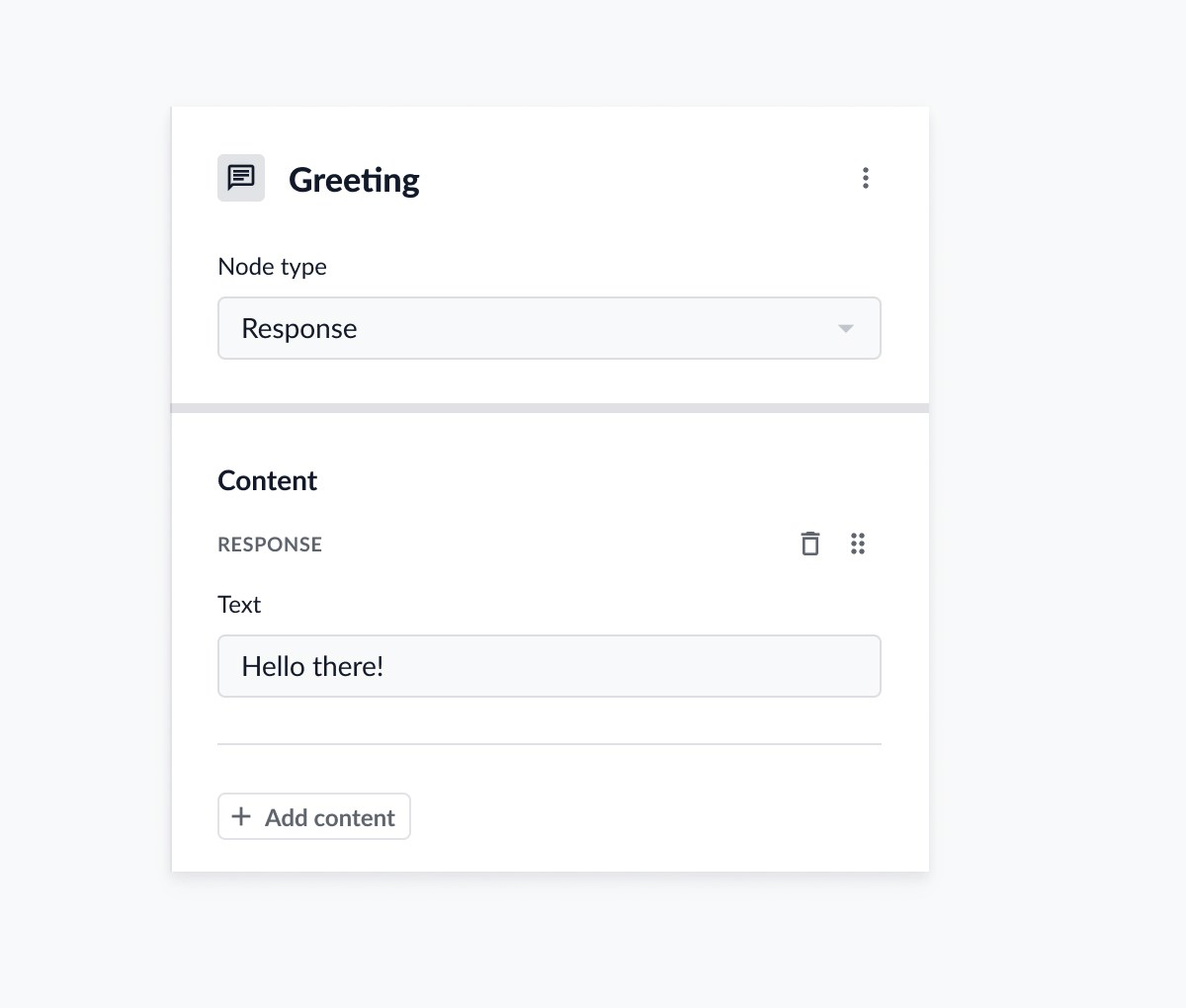 #### Deeplinks
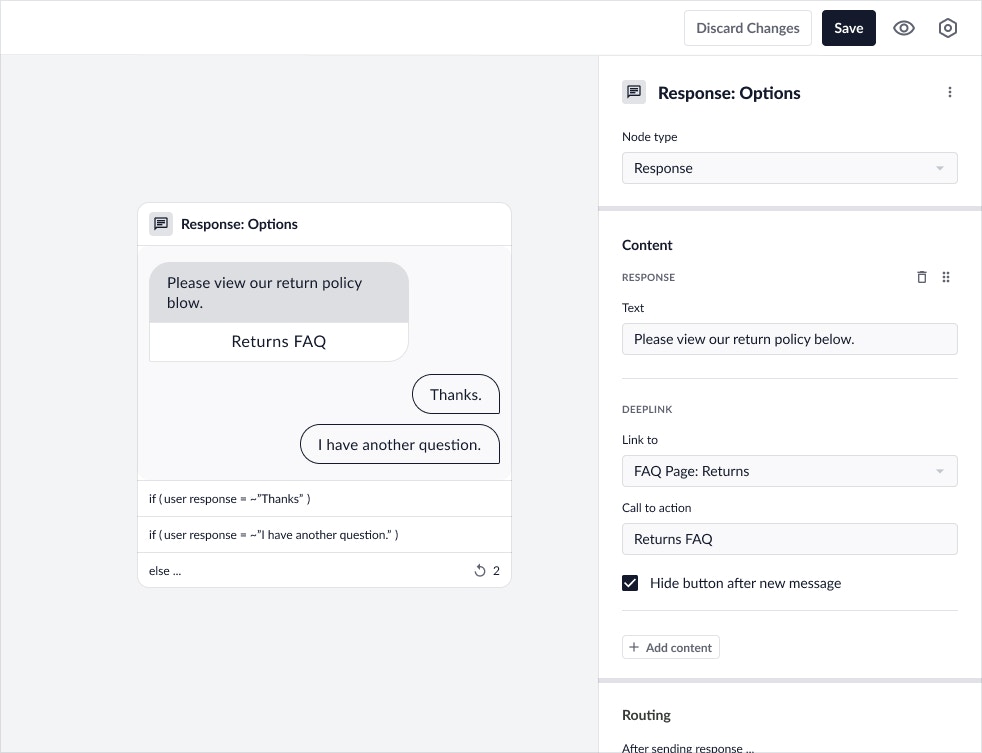 After selecting **Deeplink** from the **Add Content** menu, the following additional fields will appear:
* **Link to**: select an existing link from the dropdown or directly [create a new link](/agent-desk/virtual-agent/links#create-a-link "Create a Link").
If you select an existing link, you can click **View link definition** to open the specific [link details](/agent-desk/virtual-agent/links#edit-a-link "Edit a Link") in a new tab.
* **Call to action**: define the accompanying text that the customer will click on in order to navigate to the link.
* **Hide button after new message**: choose to remove the deeplink after a new response appears to prevent users from navigating to the link past this node.
### Routing
The **Routing** section is where you will configure what happens after the content is sent.
You have two options:
* **Jump to node**
Choosing to **Jump to node** allows you to define a default routing rule that will execute immediately after the node content has been delivered to the user.
After selecting **Deeplink** from the **Add Content** menu, the following additional fields will appear:
* **Link to**: select an existing link from the dropdown or directly [create a new link](/agent-desk/virtual-agent/links#create-a-link "Create a Link").
If you select an existing link, you can click **View link definition** to open the specific [link details](/agent-desk/virtual-agent/links#edit-a-link "Edit a Link") in a new tab.
* **Call to action**: define the accompanying text that the customer will click on in order to navigate to the link.
* **Hide button after new message**: choose to remove the deeplink after a new response appears to prevent users from navigating to the link past this node.
### Routing
The **Routing** section is where you will configure what happens after the content is sent.
You have two options:
* **Jump to node**
Choosing to **Jump to node** allows you to define a default routing rule that will execute immediately after the node content has been delivered to the user.
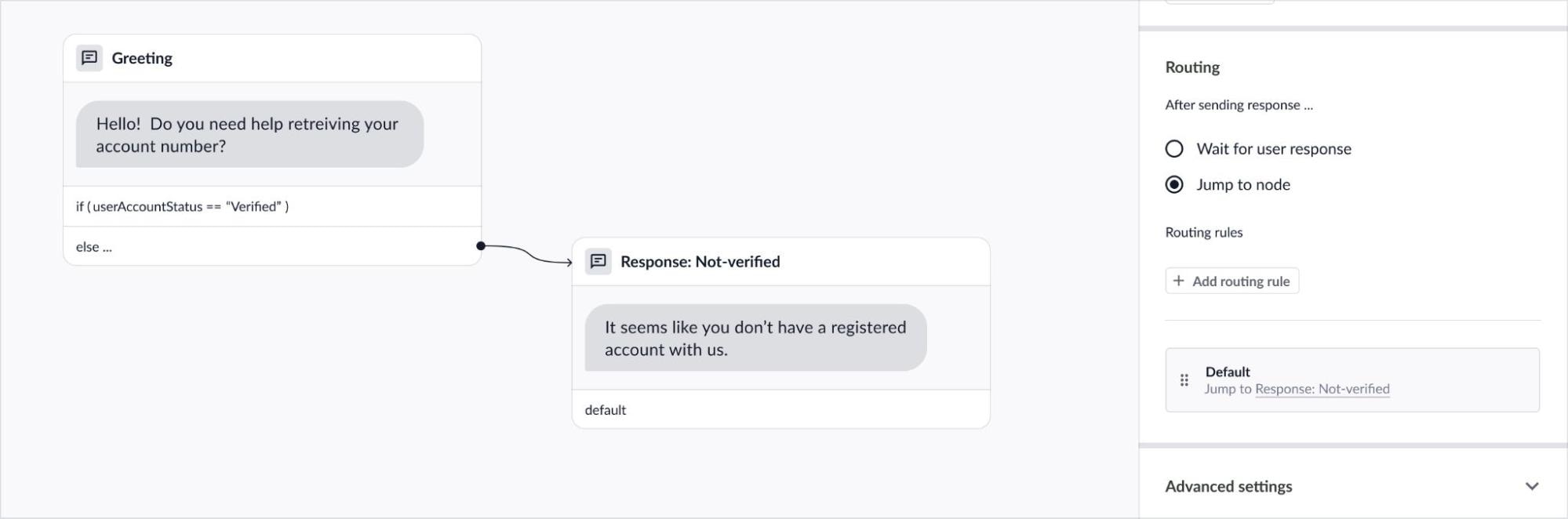 * **Wait for response**
Choosing to **Wait for response** means that the virtual agent will pause until the customer responds, then attempt to classify their response and branch accordingly. When this option is selected, you'll need to specify the branches and [quick reply text](#quick-replies "Quick Replies") for each type of response you wish the virtual agent to classify. See [Branch Classifiers](#branch-classifiers "Branch Classifiers") section for more detailed information.
* **Wait for response**
Choosing to **Wait for response** means that the virtual agent will pause until the customer responds, then attempt to classify their response and branch accordingly. When this option is selected, you'll need to specify the branches and [quick reply text](#quick-replies "Quick Replies") for each type of response you wish the virtual agent to classify. See [Branch Classifiers](#branch-classifiers "Branch Classifiers") section for more detailed information.
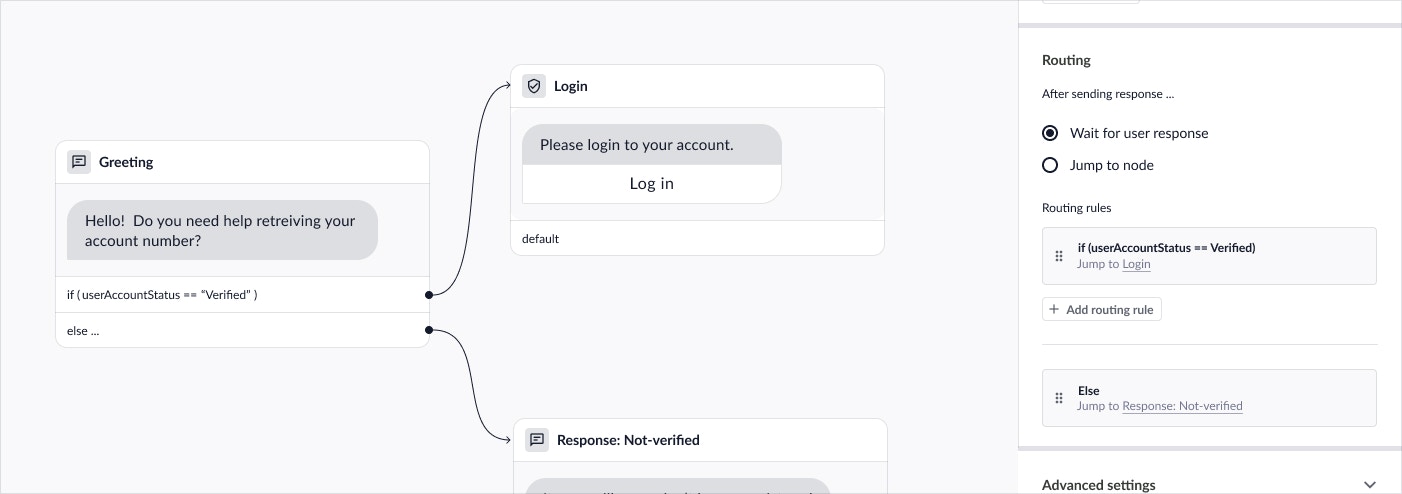 Flows cannot end on a response node. To appropriately end a flow after a response node, please route to an [End node](#end-node "End Node").
#### Branch Classifiers
When **Wait for response** is selected for routing, you can define the branches for each type of response you wish the virtual agent to classify.
There are two types of branch classifiers that you can use:
* **System classifiers**
ASAPP supports pre-trained system templates to classify free text user input. You can use branches like `CONFIRM` or `DENY` that are already trained by our system and are readily available for use for polar (yes/no) questions. You do not need to supply training utterances for system classifiers.
Flows cannot end on a response node. To appropriately end a flow after a response node, please route to an [End node](#end-node "End Node").
#### Branch Classifiers
When **Wait for response** is selected for routing, you can define the branches for each type of response you wish the virtual agent to classify.
There are two types of branch classifiers that you can use:
* **System classifiers**
ASAPP supports pre-trained system templates to classify free text user input. You can use branches like `CONFIRM` or `DENY` that are already trained by our system and are readily available for use for polar (yes/no) questions. You do not need to supply training utterances for system classifiers.
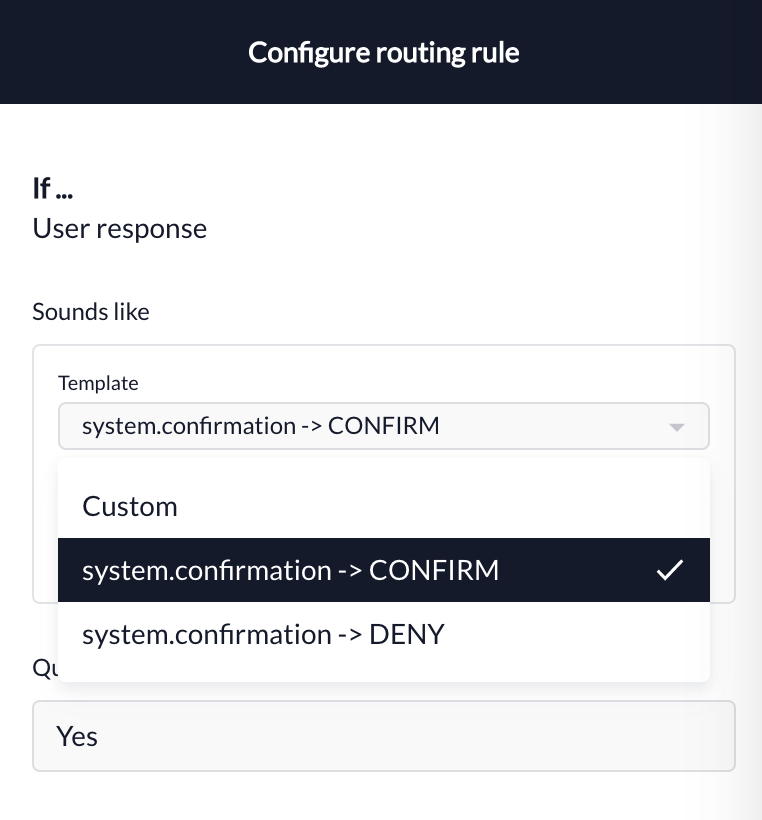 * **Custom classifiers**
If pre-trained classifiers do not meet your needs, define your own custom branches and supply training utterances. You must give your branch classifier a **Display Name** and supply at least five training utterances to train this custom classification. Learn more about how to best train your custom branches in the [Training response route](/agent-desk/virtual-agent/best-practices#2-training-response-routes "2. Training Response Routes") section.
* **Custom classifiers**
If pre-trained classifiers do not meet your needs, define your own custom branches and supply training utterances. You must give your branch classifier a **Display Name** and supply at least five training utterances to train this custom classification. Learn more about how to best train your custom branches in the [Training response route](/agent-desk/virtual-agent/best-practices#2-training-response-routes "2. Training Response Routes") section.
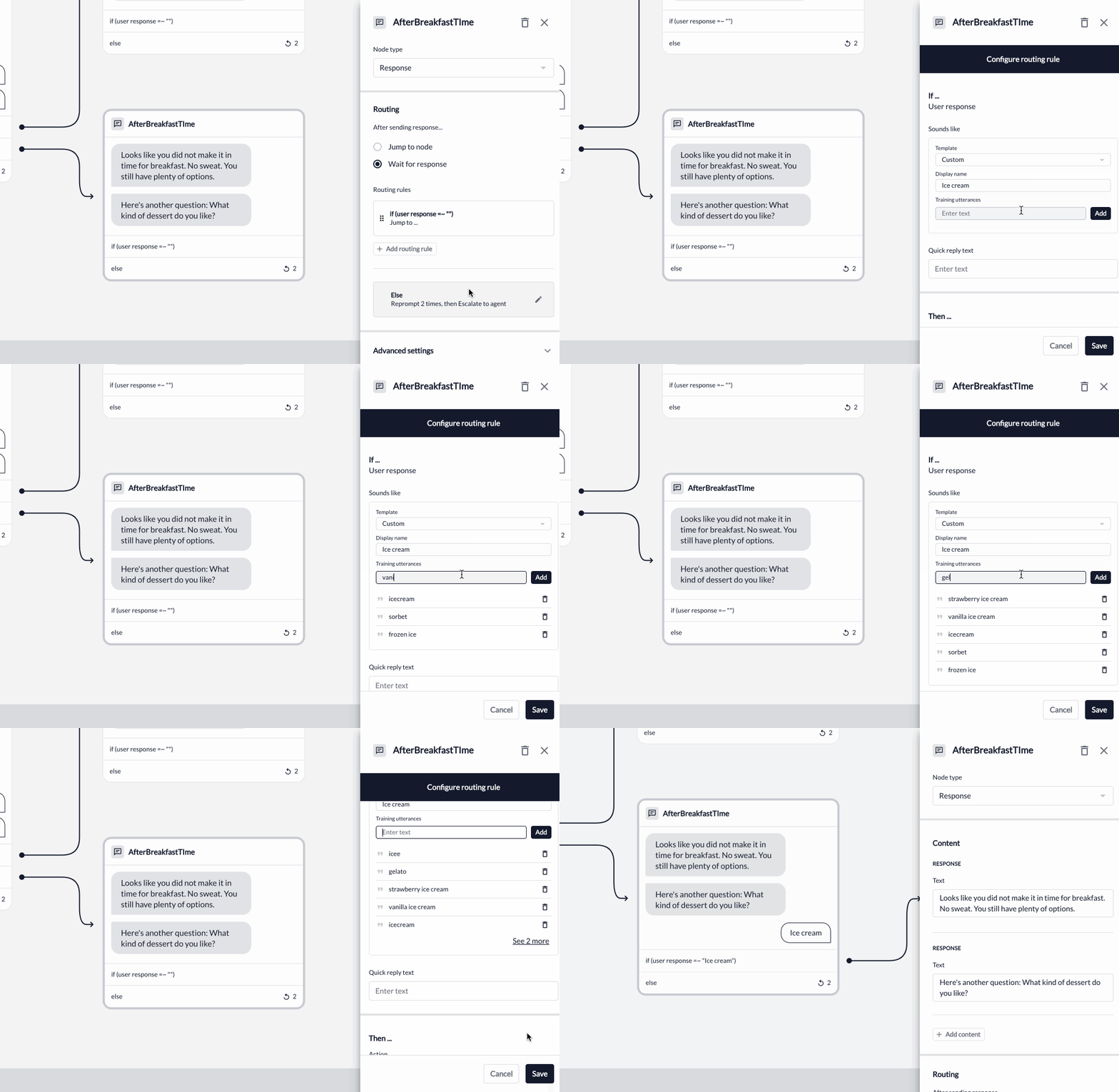 #### Quick Replies
For each branch classifier, you should define the corresponding **Quick Reply text**. These will appear in our SDKs (web, mobile) and third-party channels as tapable options.
#### Quick Replies
For each branch classifier, you should define the corresponding **Quick Reply text**. These will appear in our SDKs (web, mobile) and third-party channels as tapable options.
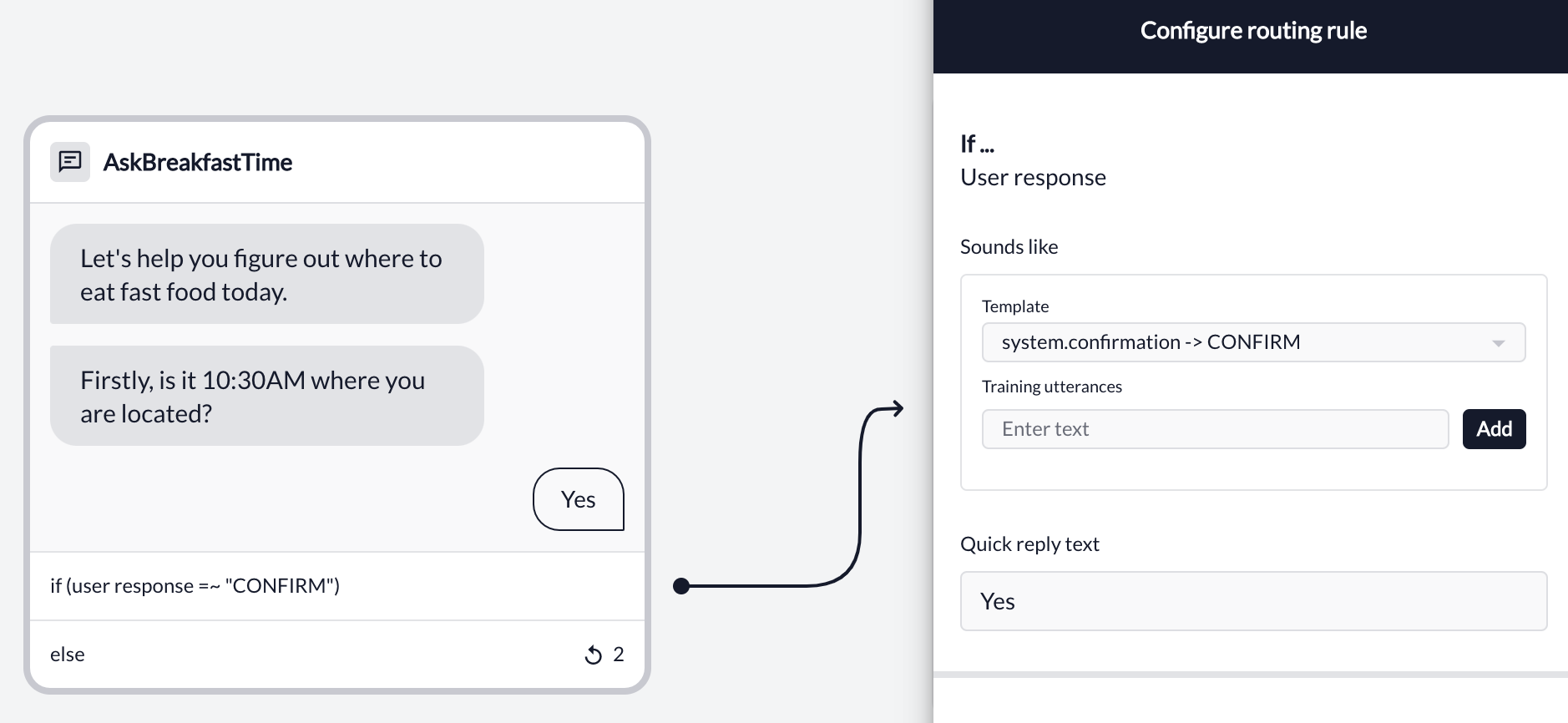 ### Advanced Settings
In the **Advanced Settings** section, you can set flow success reporting for the response node.
#### Flow Success
Flow success attempts to accurately measure whether a customer has successfully self-served through the virtual agent. You measure this by setting the appropriate flow reporting status on certain nodes within a flow. Learn more: [How do I determine flow success?](/agent-desk/virtual-agent/best-practices#measuring-virtual-agents "Measuring Virtual Agents")
To set flow reporting status for response nodes:
1. Toggle **Set flow reporting status** on.
2. By default, **Success** is selected for response nodes but this can be modified for your particular flow.
### Advanced Settings
In the **Advanced Settings** section, you can set flow success reporting for the response node.
#### Flow Success
Flow success attempts to accurately measure whether a customer has successfully self-served through the virtual agent. You measure this by setting the appropriate flow reporting status on certain nodes within a flow. Learn more: [How do I determine flow success?](/agent-desk/virtual-agent/best-practices#measuring-virtual-agents "Measuring Virtual Agents")
To set flow reporting status for response nodes:
1. Toggle **Set flow reporting status** on.
2. By default, **Success** is selected for response nodes but this can be modified for your particular flow.
 ### Login Node
The **Login Node** enables customer authentication within a flow. In this node, you can define the following:
* **Content**
* **Routing**
* **Advanced Settings**
### Login Node
The **Login Node** enables customer authentication within a flow. In this node, you can define the following:
* **Content**
* **Routing**
* **Advanced Settings**
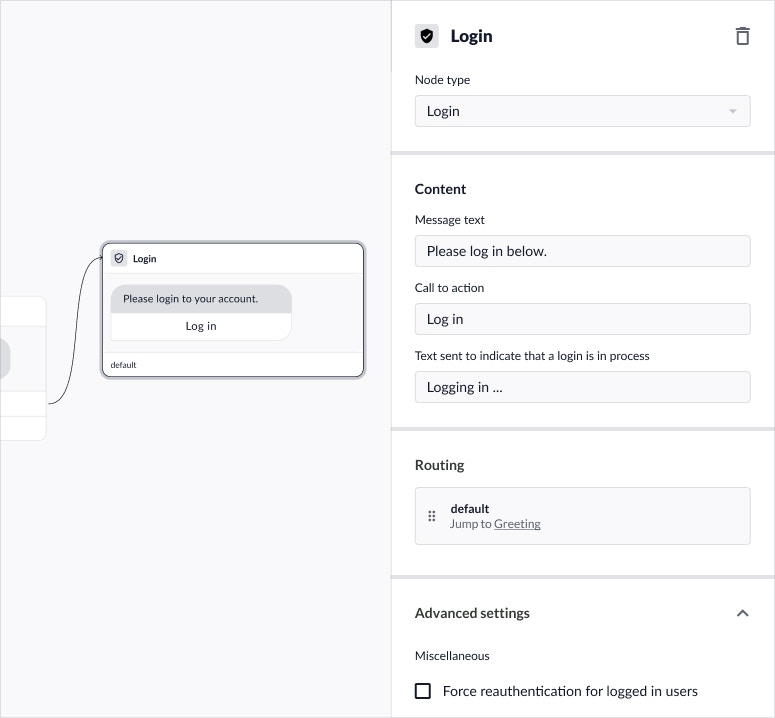 #### Content
The **Content** section allows you to define the text to be shown to the customer to accompany the login action. All login nodes will have default text which you can modify to suit your particular flow needs.
* **Message text**: Define the main text that will prompt the customer to login
* **Call to action**: Define the accompanying text that the customer will click on in order to login
* **Text sent to indicate that a login is in process**: customize the text that is sent after the customer has tried to log in.
In the flow graph, you can preview how the content will be displayed to the customer.
#### Routing
Flows cannot end on a login node. The **Routing** section is where you can configure what happens after a customer successfully logs in or optionally configure branches for exceptional conditions.
##### On login
In the **On login** section, you must define the default routing rule that will execute after the customer successfully logs in.
#### Content
The **Content** section allows you to define the text to be shown to the customer to accompany the login action. All login nodes will have default text which you can modify to suit your particular flow needs.
* **Message text**: Define the main text that will prompt the customer to login
* **Call to action**: Define the accompanying text that the customer will click on in order to login
* **Text sent to indicate that a login is in process**: customize the text that is sent after the customer has tried to log in.
In the flow graph, you can preview how the content will be displayed to the customer.
#### Routing
Flows cannot end on a login node. The **Routing** section is where you can configure what happens after a customer successfully logs in or optionally configure branches for exceptional conditions.
##### On login
In the **On login** section, you must define the default routing rule that will execute after the customer successfully logs in.
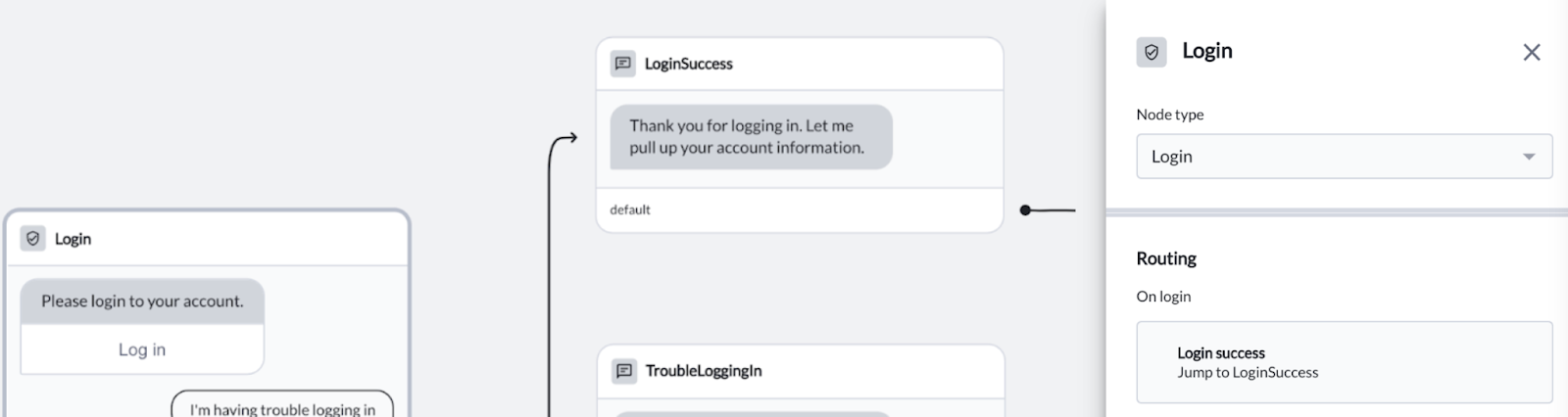 ##### On response
Similar to response nodes, you can optionally add response branches in the **On response** section to account for exceptional conditions that may occur when a customer is trying to authenticate, such as login errors or retries and refreshes.
Please see [Branch Classifiers](#branch-classifiers "Branch Classifiers") on the response node for more information on how to configure these routing rules.
##### On response
Similar to response nodes, you can optionally add response branches in the **On response** section to account for exceptional conditions that may occur when a customer is trying to authenticate, such as login errors or retries and refreshes.
Please see [Branch Classifiers](#branch-classifiers "Branch Classifiers") on the response node for more information on how to configure these routing rules.
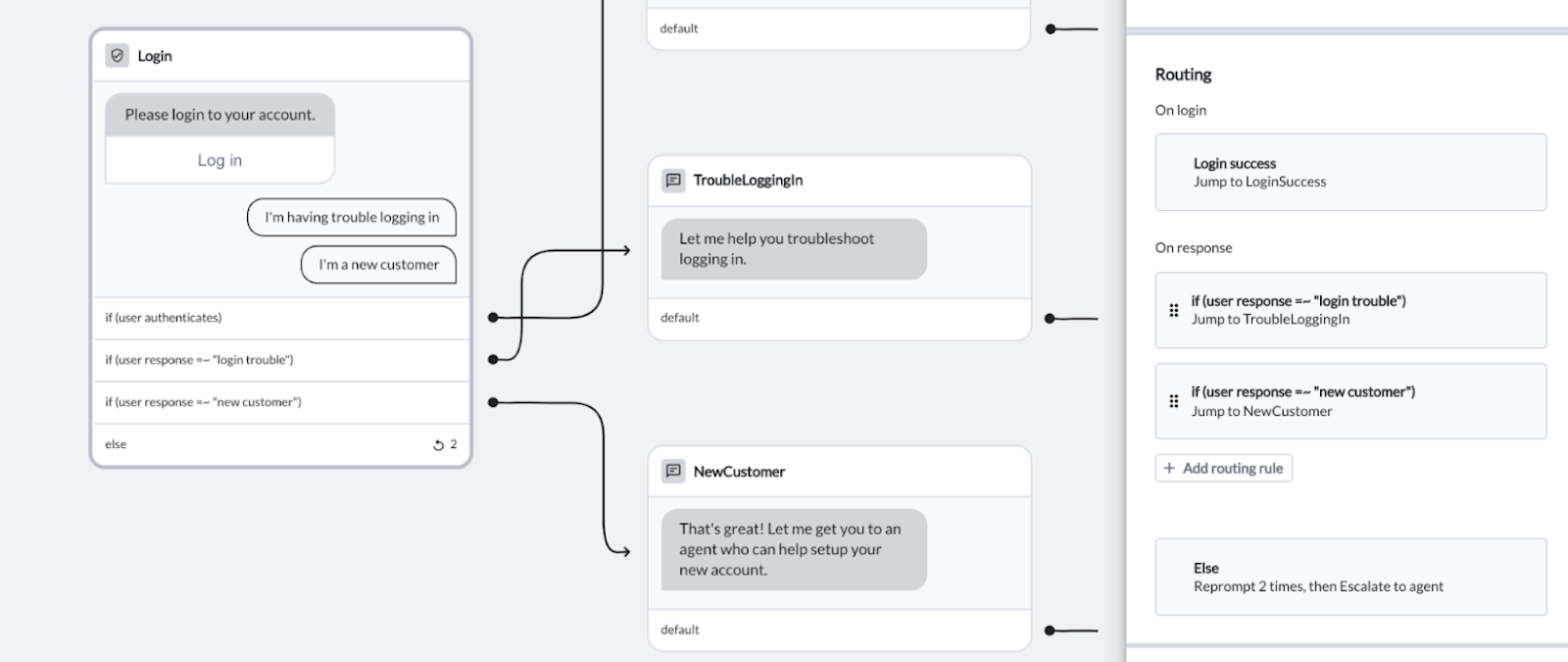 ##### Else
In the **Else** section, you can define what happens if login is unsuccessful and we do not recognize customer responses.
#### Advanced Settings
In **Advanced Settings**, you have the option to **Force reauthentication** which will prompt all customers to log in again, regardless of current authentication state.
### API Node
The API node allows you to use API fields dynamically in your flows. The data you retrieve on an API node can be used for two things:
1. **Displaying the data** on subsequent nodes.
2. **Routing to different nodes** based on the data.
#### Data Request
The **Data Request** section allows you to add data fields from an existing API integration.
##### Else
In the **Else** section, you can define what happens if login is unsuccessful and we do not recognize customer responses.
#### Advanced Settings
In **Advanced Settings**, you have the option to **Force reauthentication** which will prompt all customers to log in again, regardless of current authentication state.
### API Node
The API node allows you to use API fields dynamically in your flows. The data you retrieve on an API node can be used for two things:
1. **Displaying the data** on subsequent nodes.
2. **Routing to different nodes** based on the data.
#### Data Request
The **Data Request** section allows you to add data fields from an existing API integration.
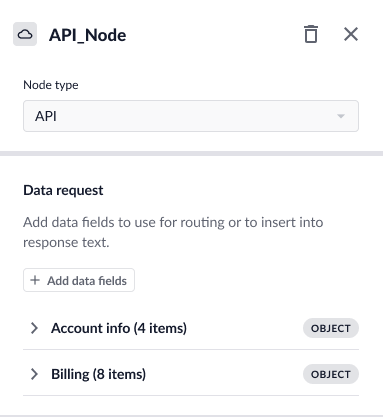 Select **Add data fields** to choose objects from existing integrations, which will allow you to add collections of data fields to the node. There is a search bar that allows you to easily search through the available fields.
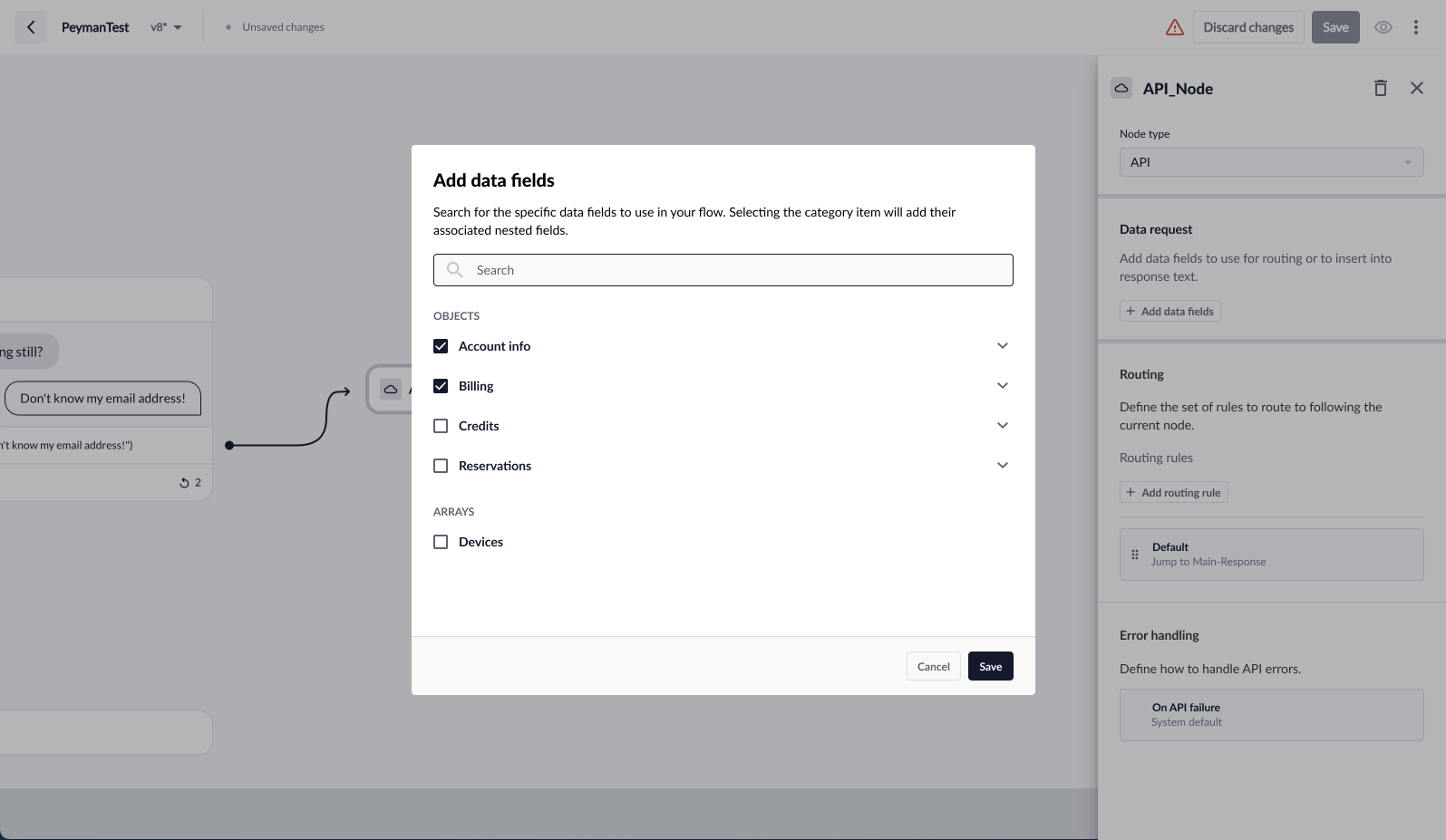 After you select objects, all of the referenced fields will automatically populate in the API node.
In addition to objects and arrays, you can request actions.
After you select objects, all of the referenced fields will automatically populate in the API node.
In addition to objects and arrays, you can request actions.
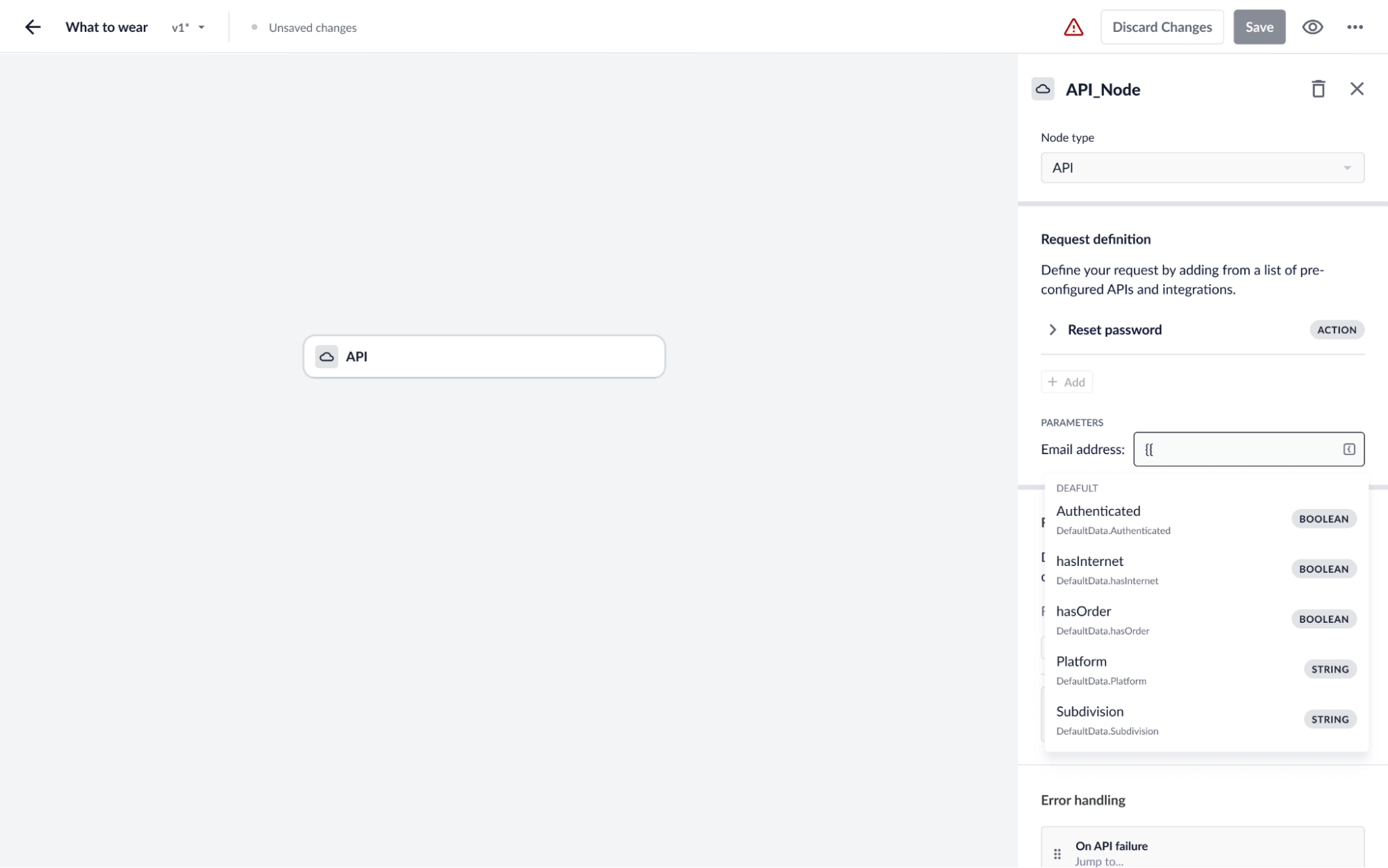 #### Displaying Data
You are easily able to display API fields from an API node in subsequent response nodes. This field leverages curly brackets: click the **curly bracket** icon or select the **shift>\{** or **}** keys in the Response Node Content section to choose API values to display, which will render as a dynamic API field in the flow graph.
#### Displaying Data
You are easily able to display API fields from an API node in subsequent response nodes. This field leverages curly brackets: click the **curly bracket** icon or select the **shift>\{** or **}** keys in the Response Node Content section to choose API values to display, which will render as a dynamic API field in the flow graph.
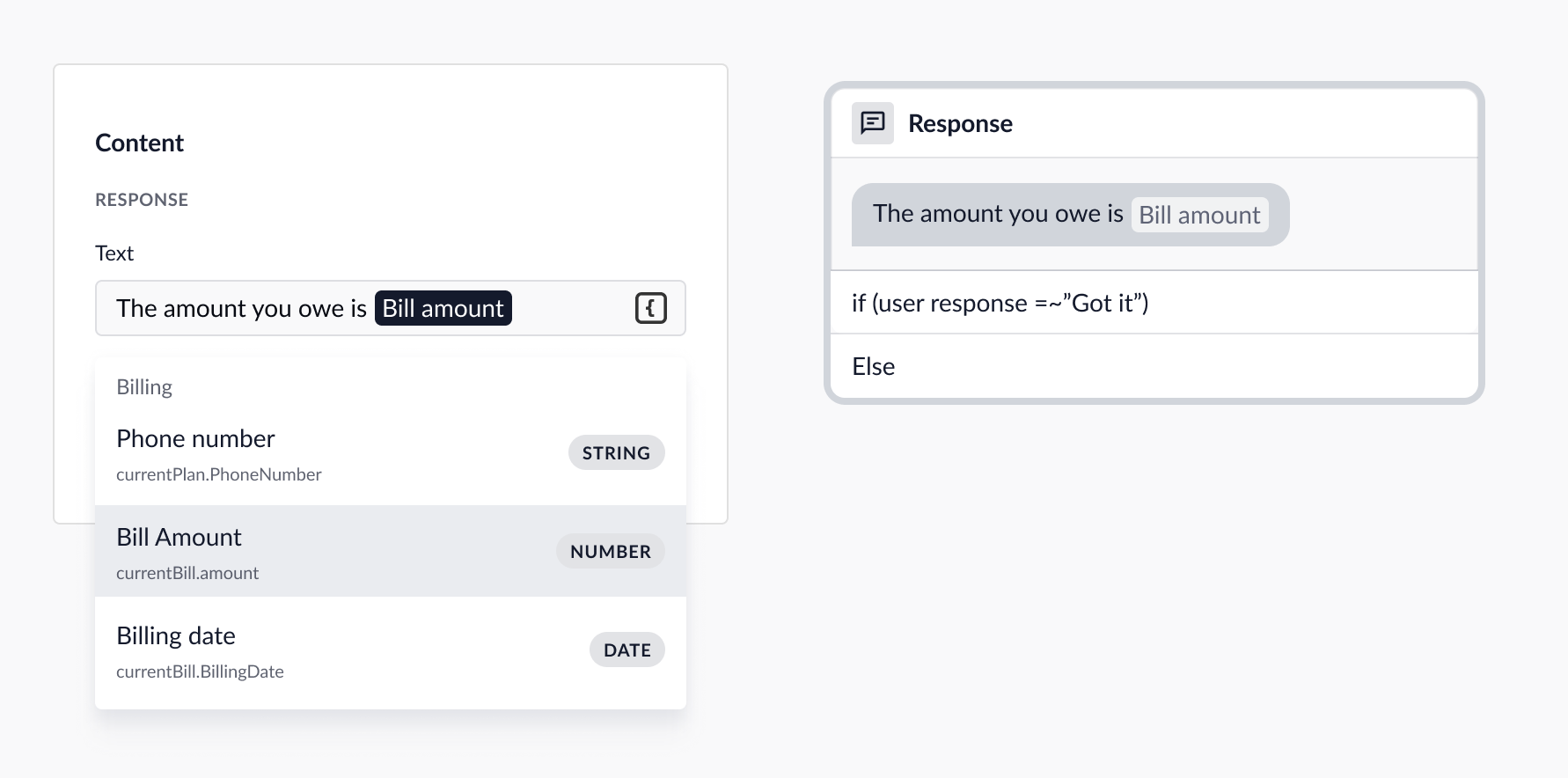 When you click on the API field itself, data format options appear that will allow you to specify exactly what format to display to the end user.
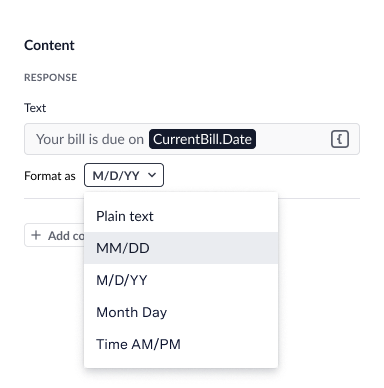 #### Routing to Different Nodes
Routing and data operators allow you to specify different flow branching based on what is returned from an API. This leverages the same framework as routing on other nodes, but provides additional functionality around operators to give you flexibility in configuring routing conditions.
#### Routing to Different Nodes
Routing and data operators allow you to specify different flow branching based on what is returned from an API. This leverages the same framework as routing on other nodes, but provides additional functionality around operators to give you flexibility in configuring routing conditions.
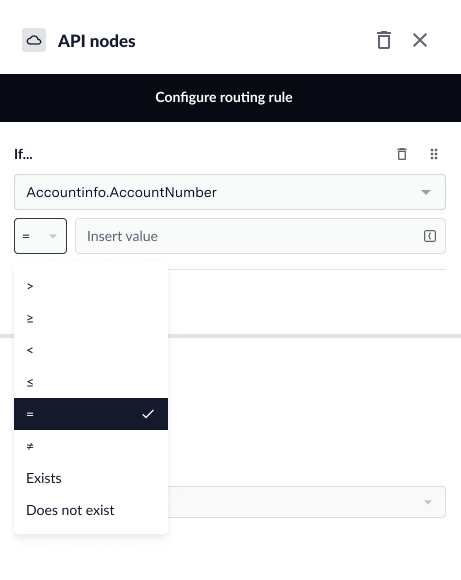 Operators allow you to contextually define conditions to route on.
#### Error Handling
API nodes provide default error handling, but you are able to create custom error handling on the node itself if desired. You can specify where a user should be directed in the event of an error with the API call.
Operators allow you to contextually define conditions to route on.
#### Error Handling
API nodes provide default error handling, but you are able to create custom error handling on the node itself if desired. You can specify where a user should be directed in the event of an error with the API call.
 #### API Library
API fields are available under the integrations menu. In this page, you can view and search through all available objects and associated data fields.
### Redirect Node
The **Redirect Node** serves to link flows with one another by directing the customer to a separate flow. A Redirect Node does not display content to the customer.
In this node, you can define the following:
* **Destination**
* **Routing**
* **Advanced Settings**
#### API Library
API fields are available under the integrations menu. In this page, you can view and search through all available objects and associated data fields.
### Redirect Node
The **Redirect Node** serves to link flows with one another by directing the customer to a separate flow. A Redirect Node does not display content to the customer.
In this node, you can define the following:
* **Destination**
* **Routing**
* **Advanced Settings**
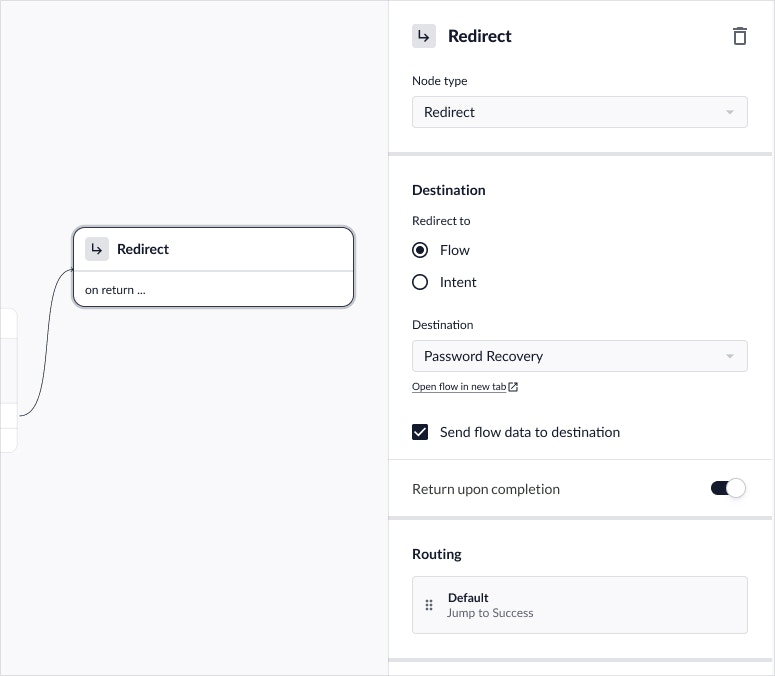 #### Destination
The **Destination** section allows you to define where to redirect the customer. You can redirect to an existing **flow** or an **intent**.
* Select **Flow** to redirect to an individual flow destination.
* Select **Intent** to redirect the customer to solve for a broader issue intent that may route them to different flows depending on the [intent routing rules](/agent-desk/virtual-agent/intent-routing "Intent Routing").
Depending on the option you select, you will be able to select the destination flow or intent from the dropdown.
#### Routing (Return Upon Completion)
Redirect nodes can end your flow or you can choose to have the customer return your flow after the destination flow has completed. To do so, toggle on **Return upon completion**. After doing so, you can define the default routing rule that will execute upon customer return.
### Agent Node
The **Agent Node** enables you to direct the customer to an agent queue in order to help resolve their issue. The data associated with this customer will be used to determine the live agent queue to put them in.
#### Advanced Settings
In the Advanced Settings section, you can set flow success reporting for the agent node.
##### Flow Success
Flow success attempts to accurately measure whether a customer has successfully self-served through the virtual agent. This is measured by setting the appropriate flow reporting status on certain nodes within a flow. Learn more: [How do I determine flow success?](/agent-desk/virtual-agent/best-practices#measuring-virtual-agents "Measuring Virtual Agents")
For agent nodes, this is always considered a failure.
To set flow reporting status for agent nodes:
1. Toggle **Set flow reporting status** on.
2. By default, **Failure** will be selected for agent nodes
#### Destination
The **Destination** section allows you to define where to redirect the customer. You can redirect to an existing **flow** or an **intent**.
* Select **Flow** to redirect to an individual flow destination.
* Select **Intent** to redirect the customer to solve for a broader issue intent that may route them to different flows depending on the [intent routing rules](/agent-desk/virtual-agent/intent-routing "Intent Routing").
Depending on the option you select, you will be able to select the destination flow or intent from the dropdown.
#### Routing (Return Upon Completion)
Redirect nodes can end your flow or you can choose to have the customer return your flow after the destination flow has completed. To do so, toggle on **Return upon completion**. After doing so, you can define the default routing rule that will execute upon customer return.
### Agent Node
The **Agent Node** enables you to direct the customer to an agent queue in order to help resolve their issue. The data associated with this customer will be used to determine the live agent queue to put them in.
#### Advanced Settings
In the Advanced Settings section, you can set flow success reporting for the agent node.
##### Flow Success
Flow success attempts to accurately measure whether a customer has successfully self-served through the virtual agent. This is measured by setting the appropriate flow reporting status on certain nodes within a flow. Learn more: [How do I determine flow success?](/agent-desk/virtual-agent/best-practices#measuring-virtual-agents "Measuring Virtual Agents")
For agent nodes, this is always considered a failure.
To set flow reporting status for agent nodes:
1. Toggle **Set flow reporting status** on.
2. By default, **Failure** will be selected for agent nodes
 ### End Node
The **End Node** wraps up the conversation by confirming whether the customer needs additional help.
#### Advanced Settings
In the **Advanced Settings** section, you can select the end Semantic Response Score (SRS) options (see below) for your flow.
By default, all three options will be selected when an end node is added, thus presenting all three options for the customer to select from. You can expand the section to modify these options to present to the customer.
##### End SRS Options
At the end of a flow, the virtual agent will ask the customer: "Is there anything else we can help you with today?"\*
After the above message is sent, there are three options available for the customer to select from:
* **"Thanks, I'm all set"**
A customer selecting this **positive** option will prompt the virtual agent to wrap up and resolve the issue.
* **"I have another question"**
A customer selecting this **neutral** option will prompt the virtual agent to ask the customer what their question is.
* **"My question has not been answered"**
A customer selecting this **negative** option will prompt the virtual agent to escalate the customer into agent chat to help resolve their issue.
\*Exact end SRS options and text may vary. Please contact your ASAPP team for more details.
### End Node
The **End Node** wraps up the conversation by confirming whether the customer needs additional help.
#### Advanced Settings
In the **Advanced Settings** section, you can select the end Semantic Response Score (SRS) options (see below) for your flow.
By default, all three options will be selected when an end node is added, thus presenting all three options for the customer to select from. You can expand the section to modify these options to present to the customer.
##### End SRS Options
At the end of a flow, the virtual agent will ask the customer: "Is there anything else we can help you with today?"\*
After the above message is sent, there are three options available for the customer to select from:
* **"Thanks, I'm all set"**
A customer selecting this **positive** option will prompt the virtual agent to wrap up and resolve the issue.
* **"I have another question"**
A customer selecting this **neutral** option will prompt the virtual agent to ask the customer what their question is.
* **"My question has not been answered"**
A customer selecting this **negative** option will prompt the virtual agent to escalate the customer into agent chat to help resolve their issue.
\*Exact end SRS options and text may vary. Please contact your ASAPP team for more details.
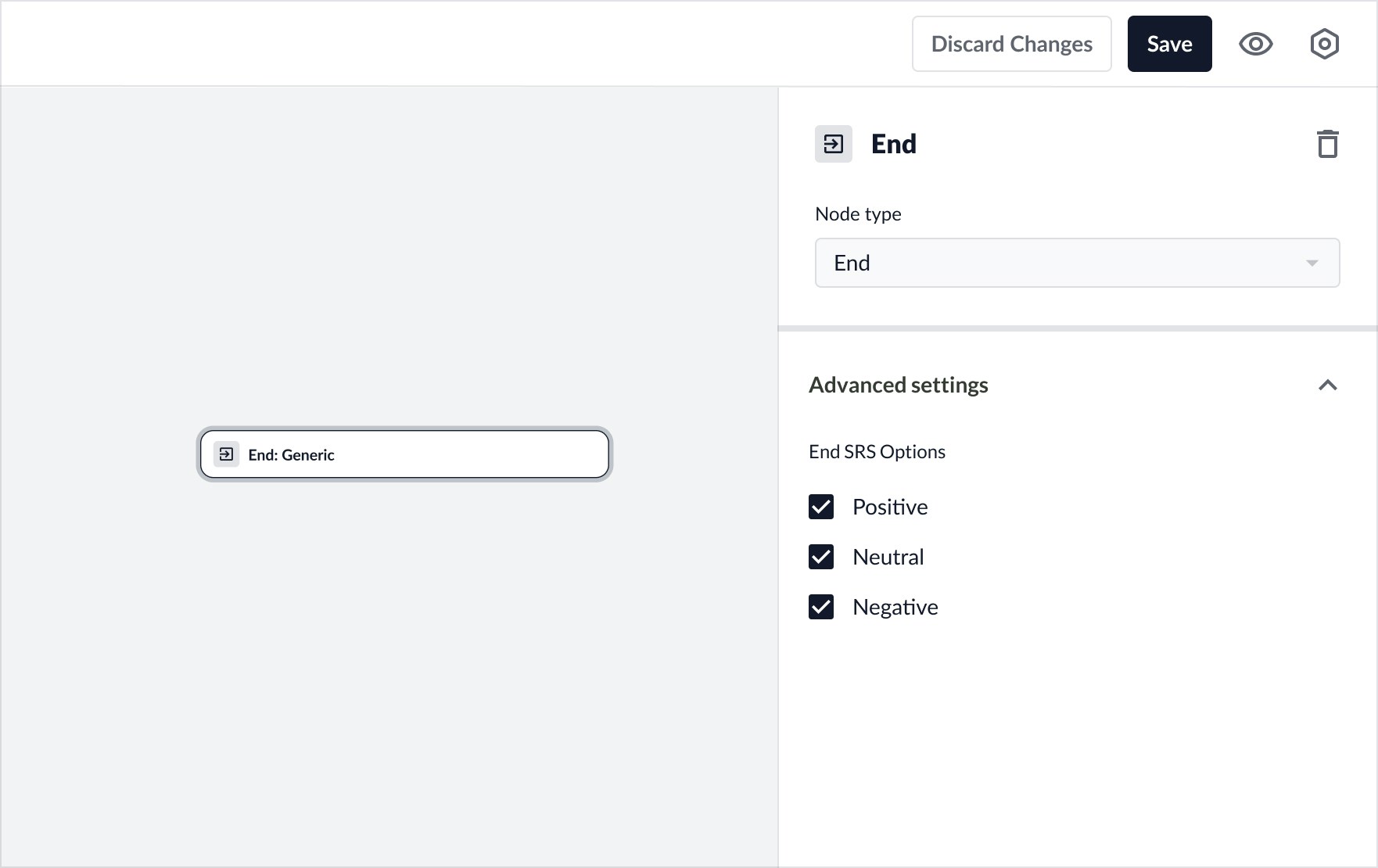 ### Logic Nodes
The **Logic Node** enables you to define a “rule” or “logic” by which a flow should branch off based on different conditions. This gives you the ability to create more dynamic flows that can adapt to different customer inputs or other conversational context.
For example, a Logic Node can evaluate if a user's `zipcode` equals `New York`:
* If true, the flow continues to Message Node 1 ("Area is eligible for discount")
* Otherwise, it goes to Message Node 2 ("Area is not eligible for a discount")
### Logic Nodes
The **Logic Node** enables you to define a “rule” or “logic” by which a flow should branch off based on different conditions. This gives you the ability to create more dynamic flows that can adapt to different customer inputs or other conversational context.
For example, a Logic Node can evaluate if a user's `zipcode` equals `New York`:
* If true, the flow continues to Message Node 1 ("Area is eligible for discount")
* Otherwise, it goes to Message Node 2 ("Area is not eligible for a discount")
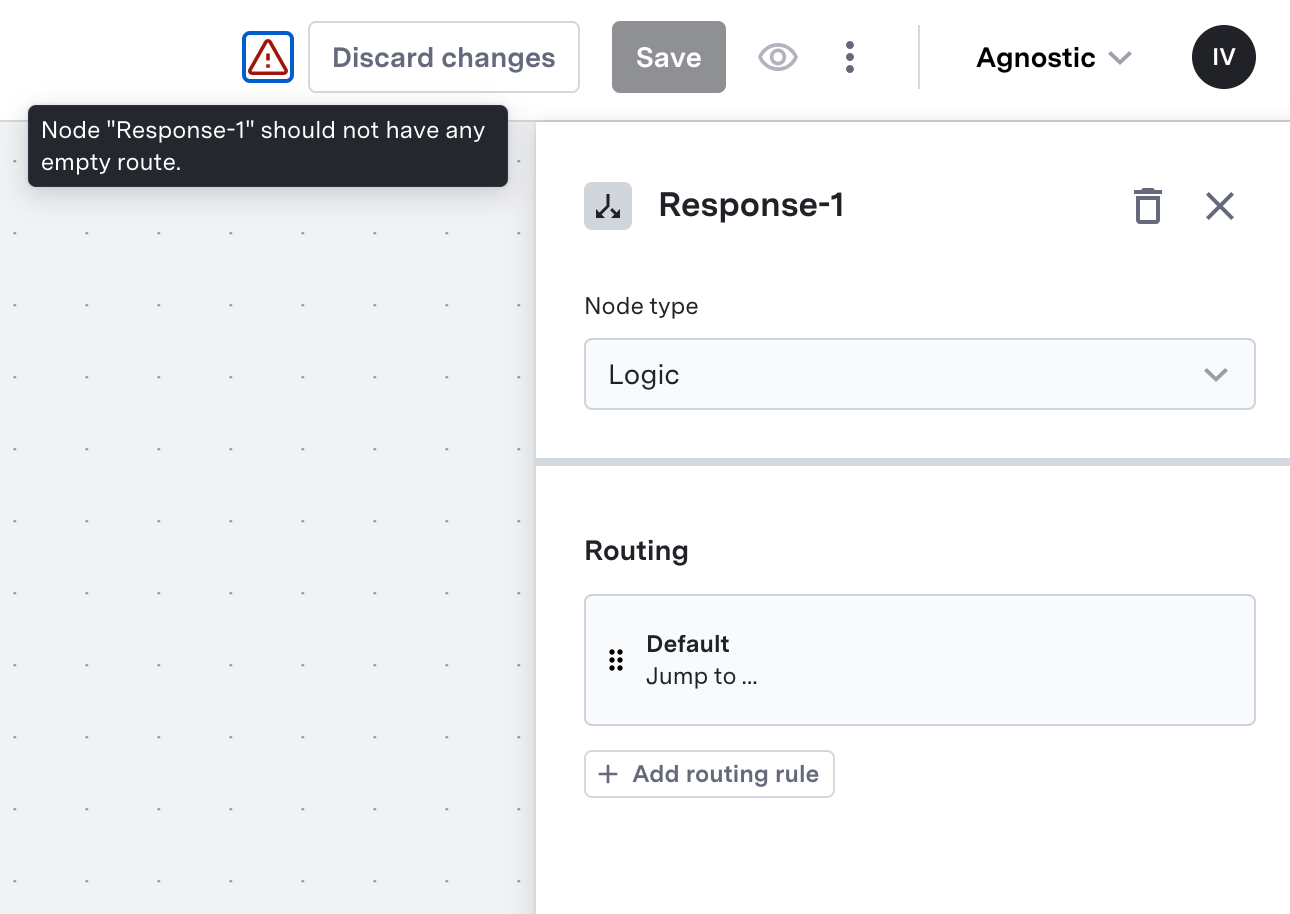 ## Quick Start: Flows
### Create Flow
## Quick Start: Flows
### Create Flow
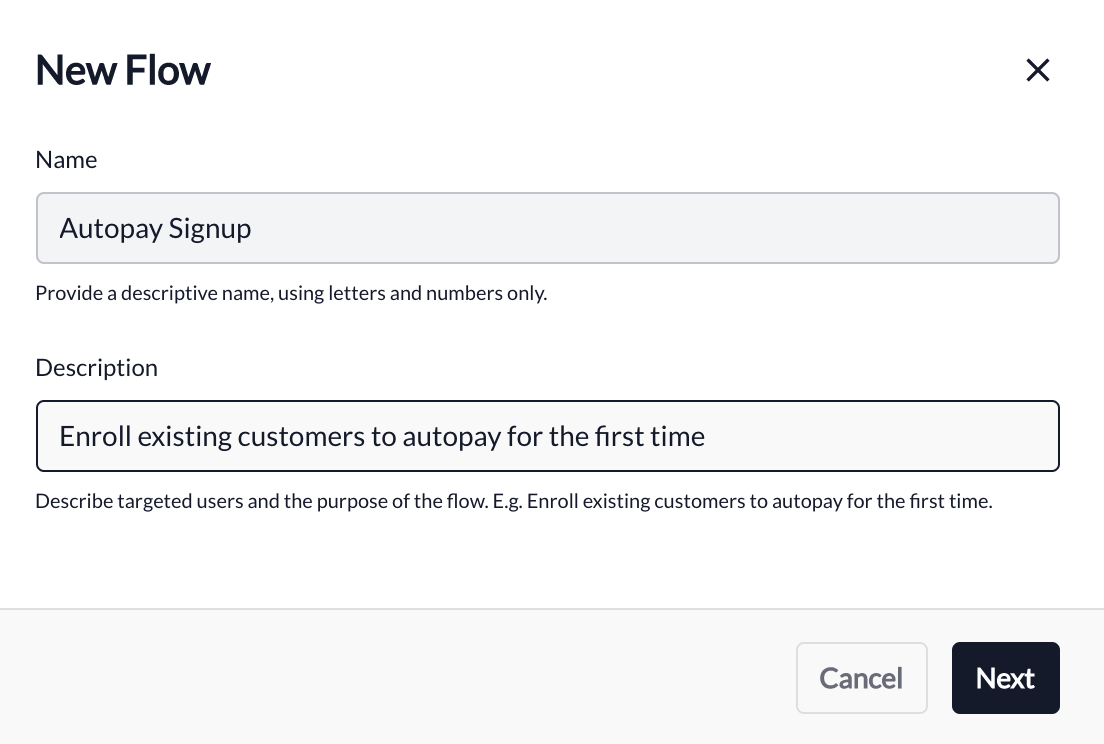 Click **Create** to trigger a dialog for creating a new flow. The following data must be provided:
* **Name:** Give a unique name for your flow, using letters and numbers only.
* **Description:** Give a brief description of the purpose of the flow.
Click **Create** to trigger a dialog for creating a new flow. The following data must be provided:
* **Name:** Give a unique name for your flow, using letters and numbers only.
* **Description:** Give a brief description of the purpose of the flow.
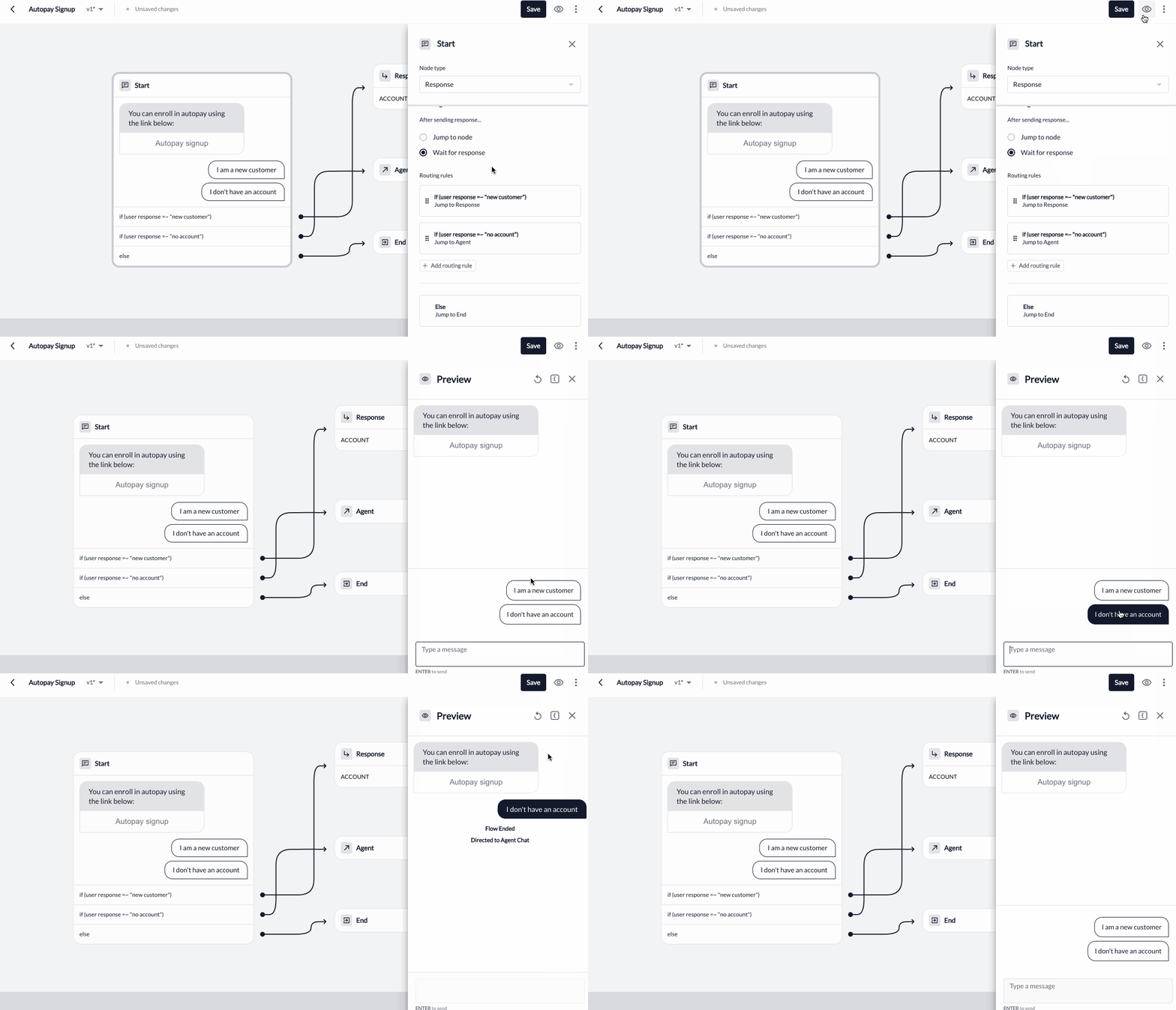 To preview a previously saved version of the flow, navigate to the flow version in the [version dropdown](#version-indicators "Version Indicators"), then click the **eye** icon to preview.
#### Preview Capabilities
There are a few capabilities to leverage in preview:
* **Re-setting:** puts you back to the first node of the flow and allows you to test it again.
* **Debug information:** opens a panel that provides more detailed insights into where you are in a flow and the associated metadata with your preview.
* **Close:** close the in-line preview.
To preview a previously saved version of the flow, navigate to the flow version in the [version dropdown](#version-indicators "Version Indicators"), then click the **eye** icon to preview.
#### Preview Capabilities
There are a few capabilities to leverage in preview:
* **Re-setting:** puts you back to the first node of the flow and allows you to test it again.
* **Debug information:** opens a panel that provides more detailed insights into where you are in a flow and the associated metadata with your preview.
* **Close:** close the in-line preview.
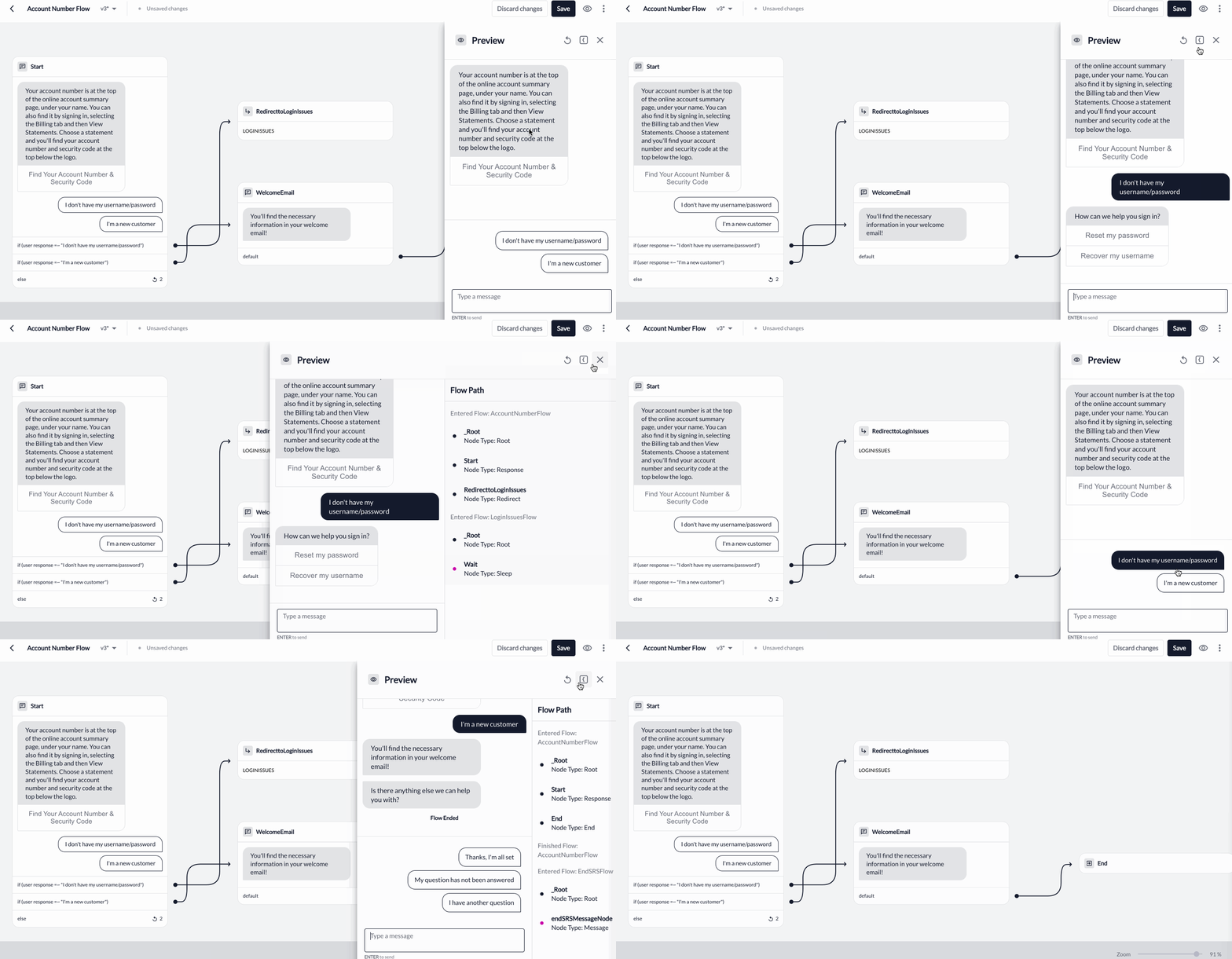 #### Preview with Mocked Data
The real time preview also has the ability to preview integrated flows using mocked data. By mocking data directly in the preview, you can test different flow paths based on the different values an API can return.
1. Define Request
* You can define if the request is a success or failure when previewing. Each API node is treated as a separate call in the preview experience.
#### Preview with Mocked Data
The real time preview also has the ability to preview integrated flows using mocked data. By mocking data directly in the preview, you can test different flow paths based on the different values an API can return.
1. Define Request
* You can define if the request is a success or failure when previewing. Each API node is treated as a separate call in the preview experience.
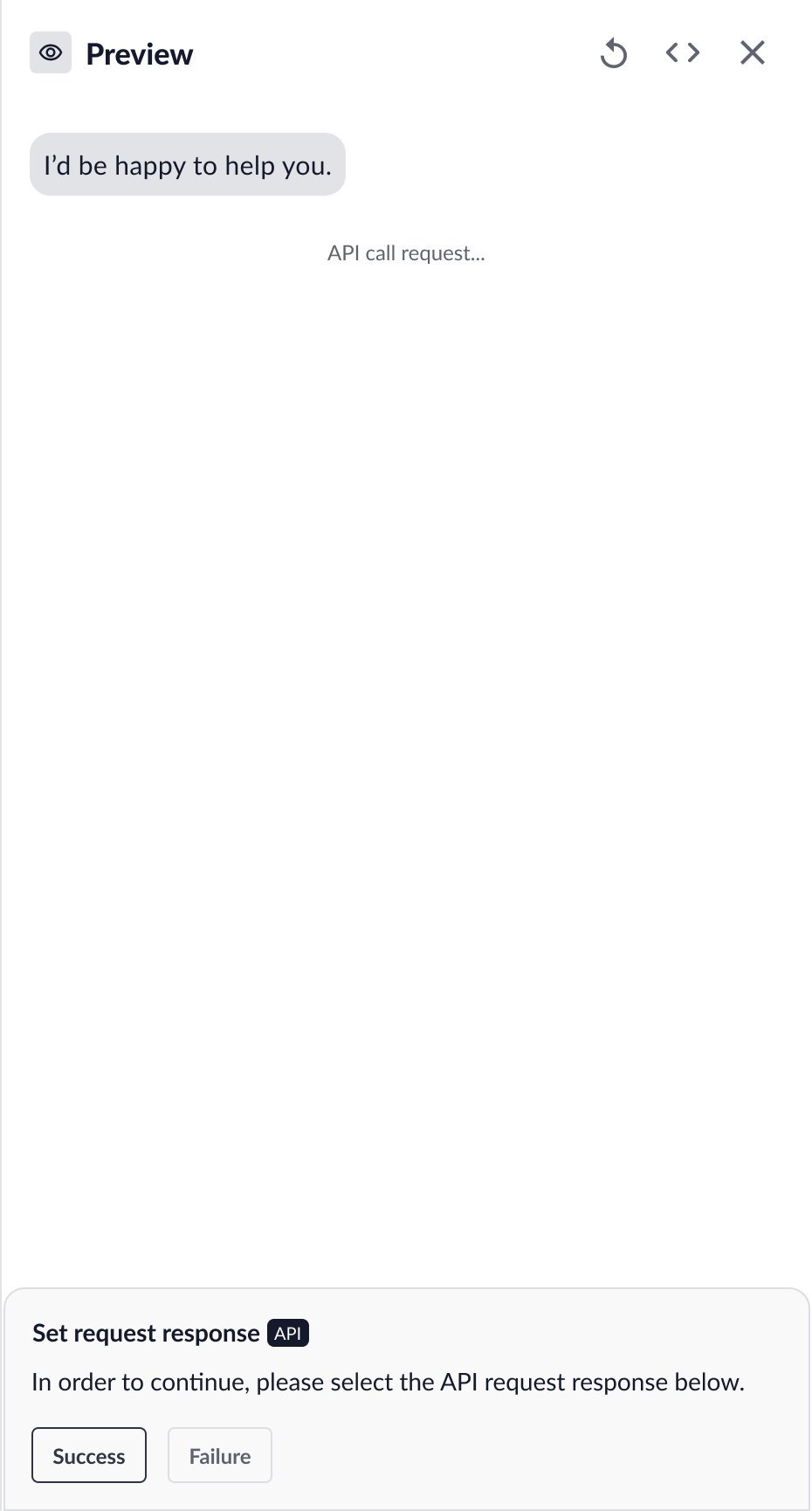 2. View and Edit Mock Data Fields
* For a successful API call, you can view and edit mock data fields, which will inform the subsequent flow path in the preview.
* By default, all returned values are selected and pre-filled. Values set in the preview will be cached until you leave the flow builder, to prevent the need to re-enter each mock data form.
2. View and Edit Mock Data Fields
* For a successful API call, you can view and edit mock data fields, which will inform the subsequent flow path in the preview.
* By default, all returned values are selected and pre-filled. Values set in the preview will be cached until you leave the flow builder, to prevent the need to re-enter each mock data form.
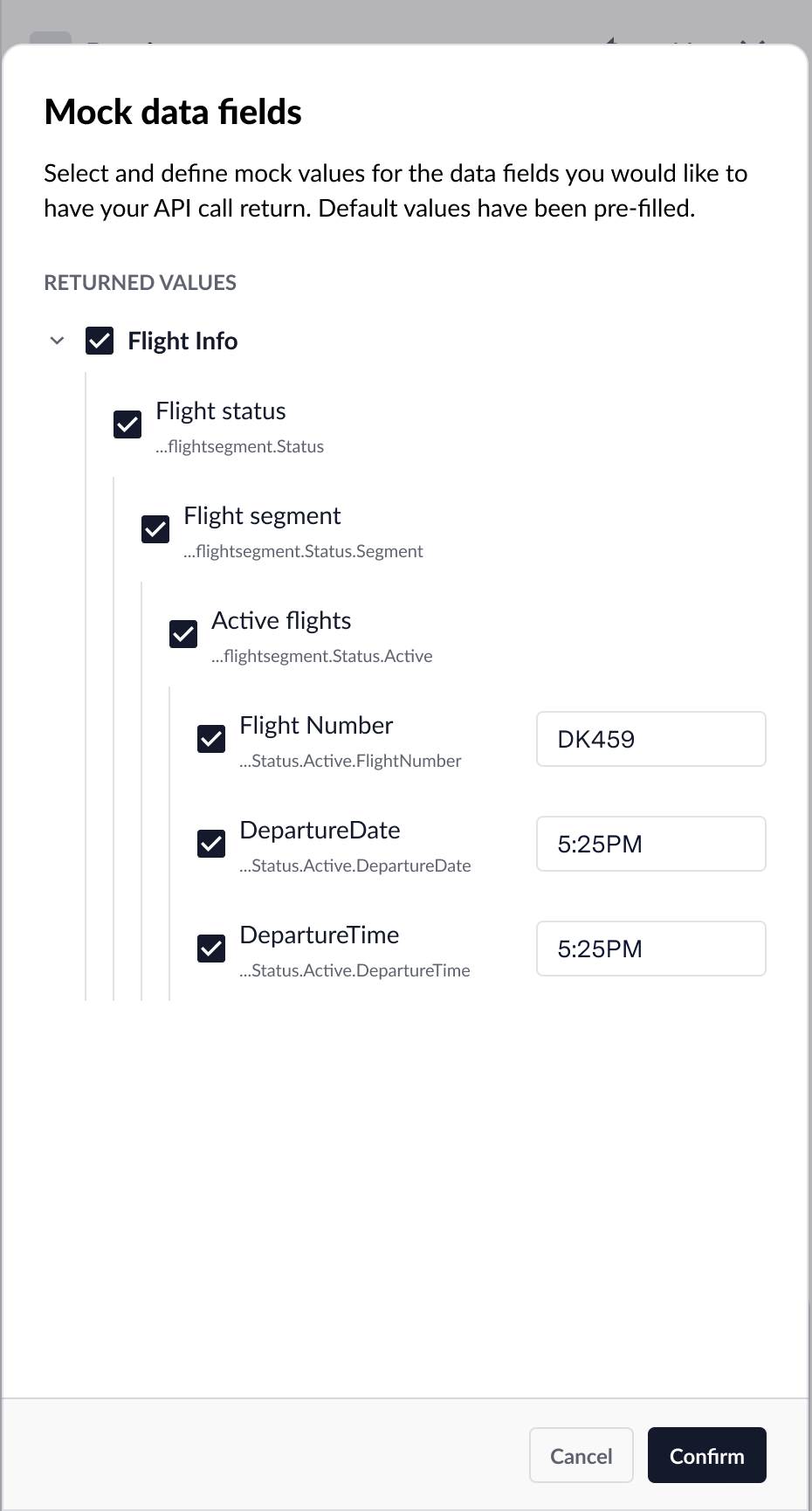 ### Save New Flow
When you are building a new flow, the following buttons will display in the toolbar:
* **Discard changes:** remove all unsaved changes made to the flow.
* **Save:** save changes to the flow as a new version or override an existing version.
### Save New Flow
When you are building a new flow, the following buttons will display in the toolbar:
* **Discard changes:** remove all unsaved changes made to the flow.
* **Save:** save changes to the flow as a new version or override an existing version.
 To save your new flow, select **Save**.
### Deploy New Flow
Newly created flows (i.e. the initial version) will **immediately deploy to test environments and production**. These new flows can be deployed without harm since customers will not be able to invoke the flow unless there are incoming routes due to [intent routing](/agent-desk/virtual-agent/intent-routing "Intent Routing").
To save your new flow, select **Save**.
### Deploy New Flow
Newly created flows (i.e. the initial version) will **immediately deploy to test environments and production**. These new flows can be deployed without harm since customers will not be able to invoke the flow unless there are incoming routes due to [intent routing](/agent-desk/virtual-agent/intent-routing "Intent Routing").
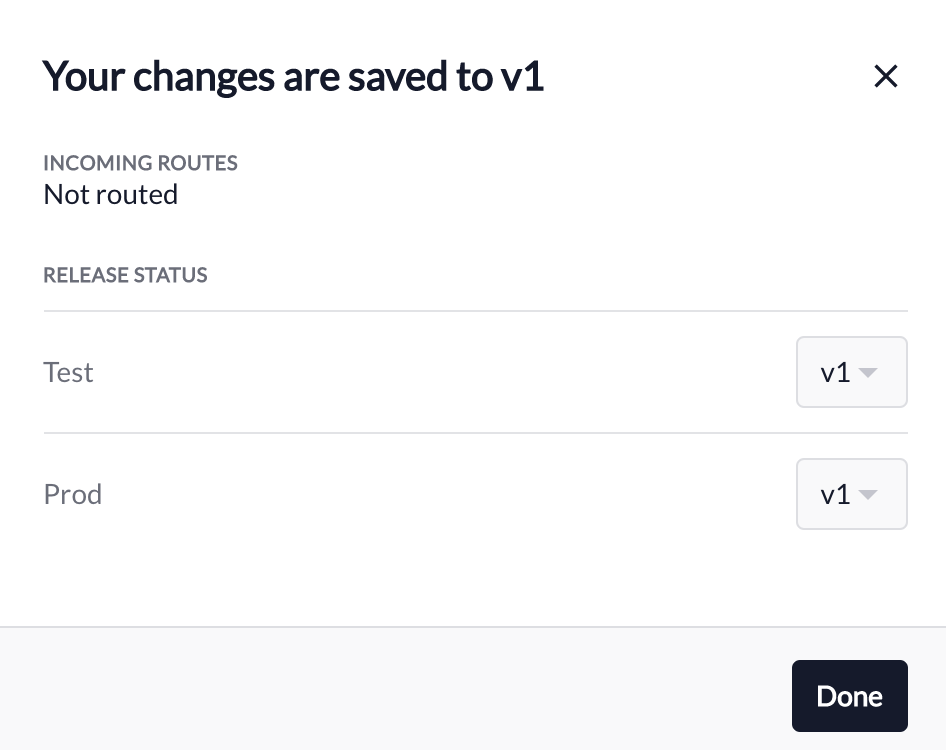 ### Test New Flow
After deploying your flow to test, navigate to your respective test environment in order to verify your flow changes:
1. In the upper right corner of the toolbar, click the icon for **More actions**.
2. Select **Copy link to demo**.
3. Copy the **Flow Shortcut**.
4. Choose to **Go to demo env.**
5. Once there, select the chat bubble and paste the flow shortcut into the text entry to start testing your flow.
### Test New Flow
After deploying your flow to test, navigate to your respective test environment in order to verify your flow changes:
1. In the upper right corner of the toolbar, click the icon for **More actions**.
2. Select **Copy link to demo**.
3. Copy the **Flow Shortcut**.
4. Choose to **Go to demo env.**
5. Once there, select the chat bubble and paste the flow shortcut into the text entry to start testing your flow.
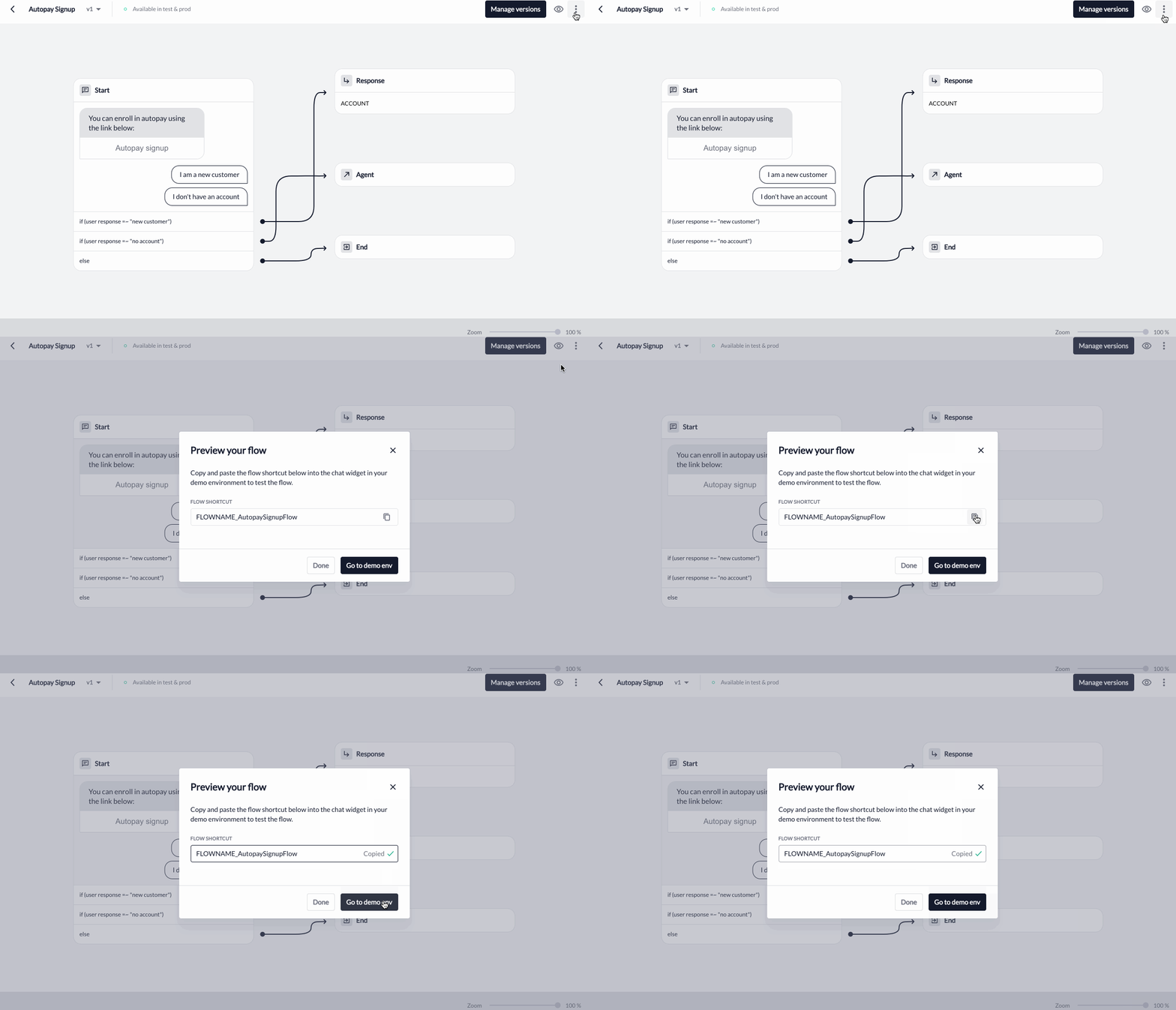 ### Edit & Save New Version
You can make changes to your new flow by selecting a node and making edits in the [Node Configuration Panel](#node-configuration-panel "Node Configuration Panel").
Once you are ready to save your changes, select **Save**. Since the current version of the flow is already deployed to production, you will **NOT** be able to save over the current version and **MUST** save as a new version to prevent unintentional changes to flows in production.
### Edit & Save New Version
You can make changes to your new flow by selecting a node and making edits in the [Node Configuration Panel](#node-configuration-panel "Node Configuration Panel").
Once you are ready to save your changes, select **Save**. Since the current version of the flow is already deployed to production, you will **NOT** be able to save over the current version and **MUST** save as a new version to prevent unintentional changes to flows in production.
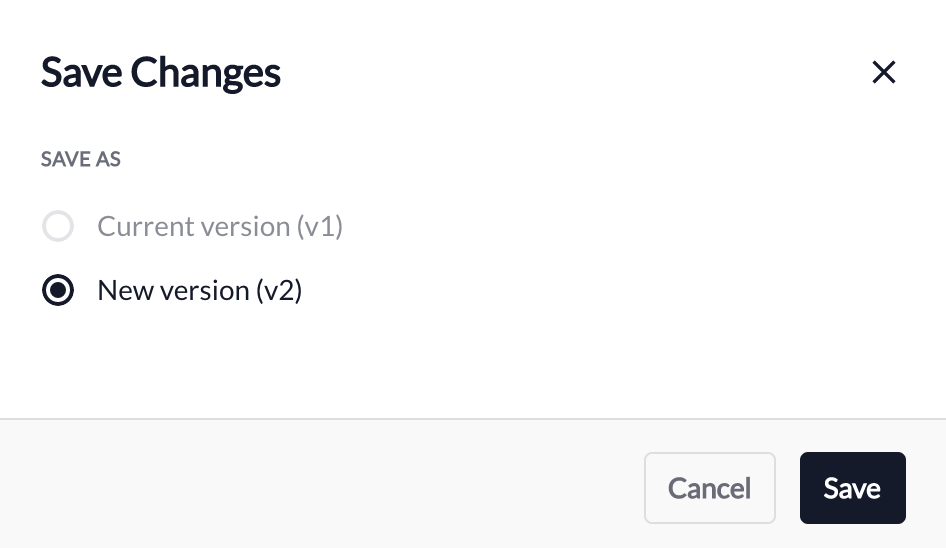 For future flow versions that are not deployed to production, you will be able to save your changes as a **new flow version** or to overwrite the **current flow version**.
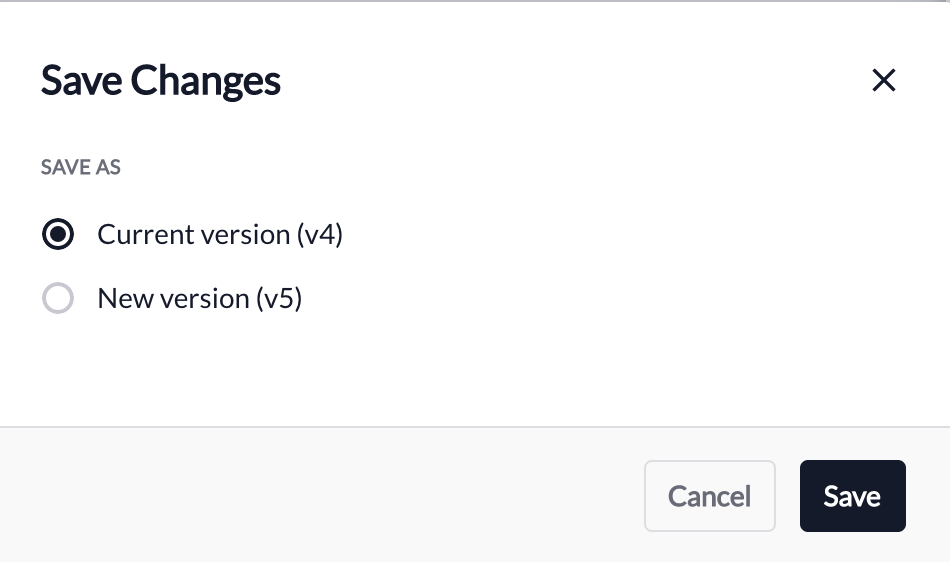 ### Deploy Version to Test
After saving, you will be directed to **Manage Versions** where you will manage which flow version is deployed to test environments and to production..
### Deploy Version to Test
After saving, you will be directed to **Manage Versions** where you will manage which flow version is deployed to test environments and to production..
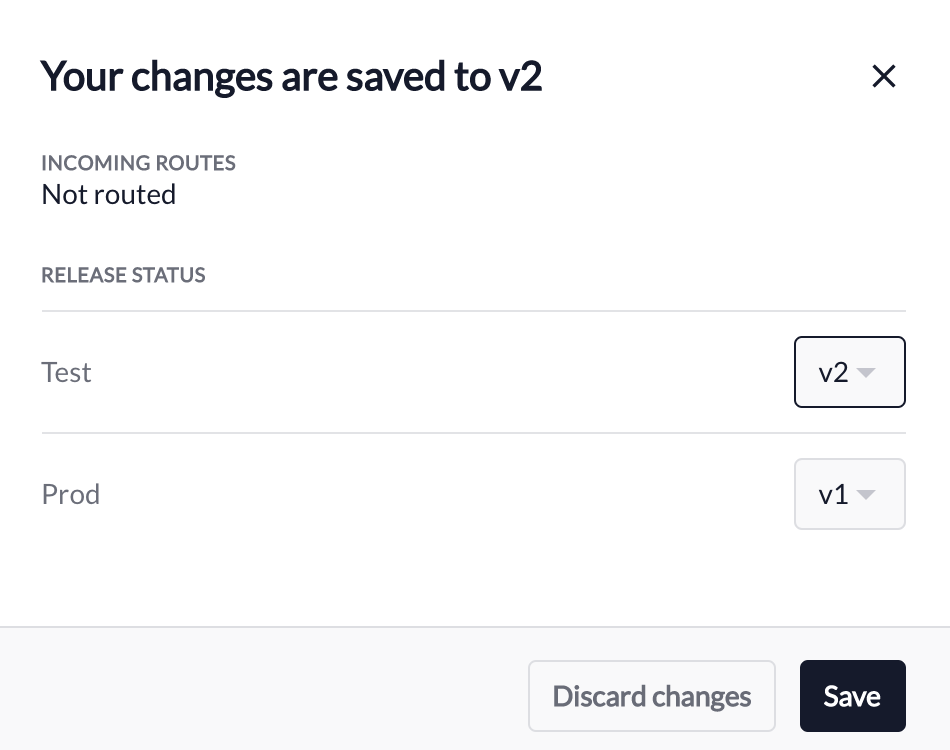 ### Test Version
After deploying your flow to test, navigate to your respective test environment in order to verify your flow changes:
1. In the upper right corner of the toolbar, click the icon for **More actions**.
2. Select **Copy link to demo**.
3. Copy the **Flow Shortcut**.
4. Choose to **Go to demo env**.
5. Once there, select the chat bubble and paste the flow shortcut into the text entry to start testing your flow.
### Test Version
After deploying your flow to test, navigate to your respective test environment in order to verify your flow changes:
1. In the upper right corner of the toolbar, click the icon for **More actions**.
2. Select **Copy link to demo**.
3. Copy the **Flow Shortcut**.
4. Choose to **Go to demo env**.
5. Once there, select the chat bubble and paste the flow shortcut into the text entry to start testing your flow.
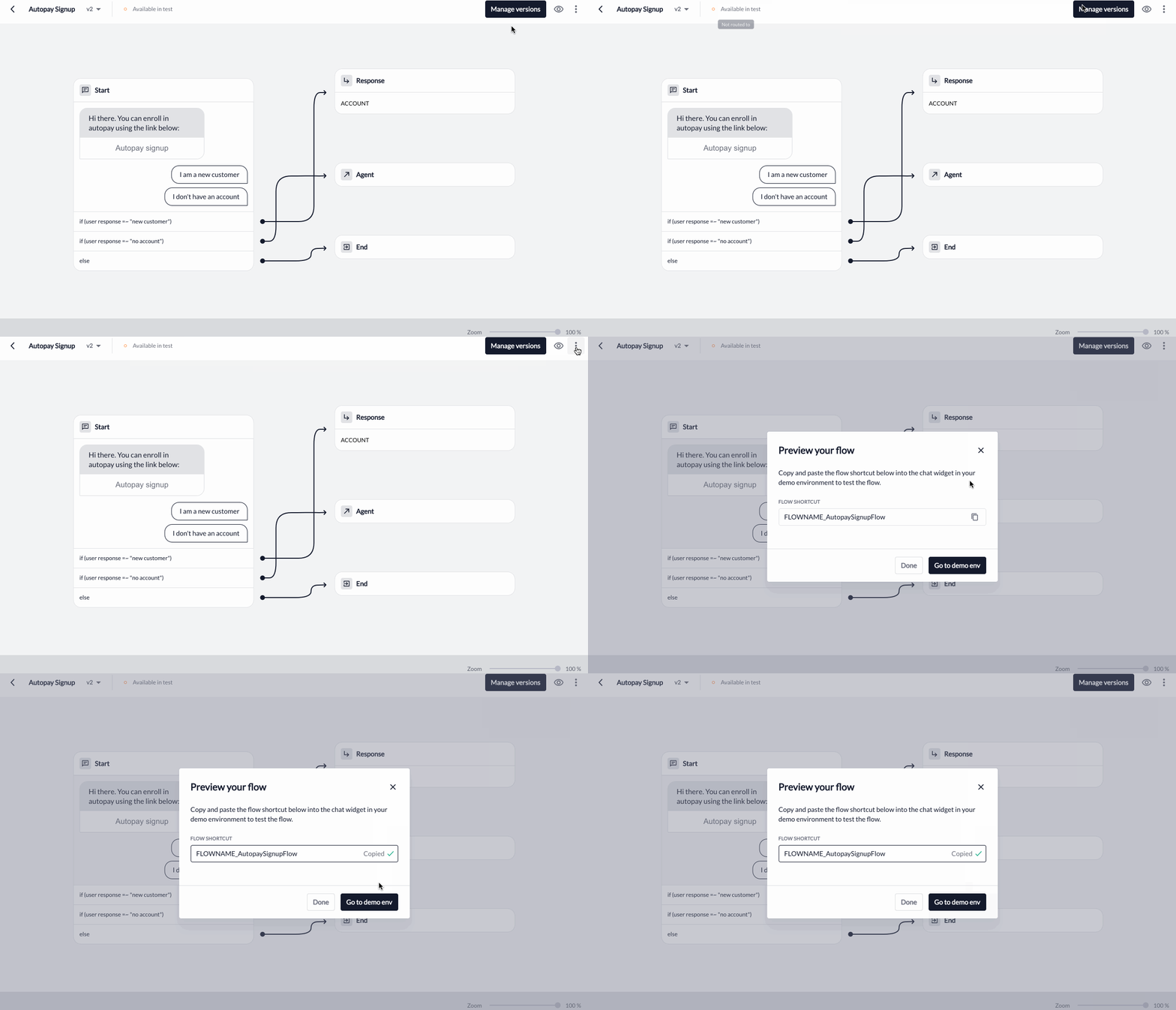 ### Deploy Version to Prod
After verifying the expected flow behavior in **Test**, you can deploy the flow version to production, which will impact customers if there the [flow is routed from an intent](/agent-desk/virtual-agent/intent-routing "Intent Routing"):
1. Select the version you want to deploy in the version dropdown for **Prod**.
2. After selection, click **Save**.
3. Flow version will deploy to Production within 5-10 minutes.
### Deploy Version to Prod
After verifying the expected flow behavior in **Test**, you can deploy the flow version to production, which will impact customers if there the [flow is routed from an intent](/agent-desk/virtual-agent/intent-routing "Intent Routing"):
1. Select the version you want to deploy in the version dropdown for **Prod**.
2. After selection, click **Save**.
3. Flow version will deploy to Production within 5-10 minutes.
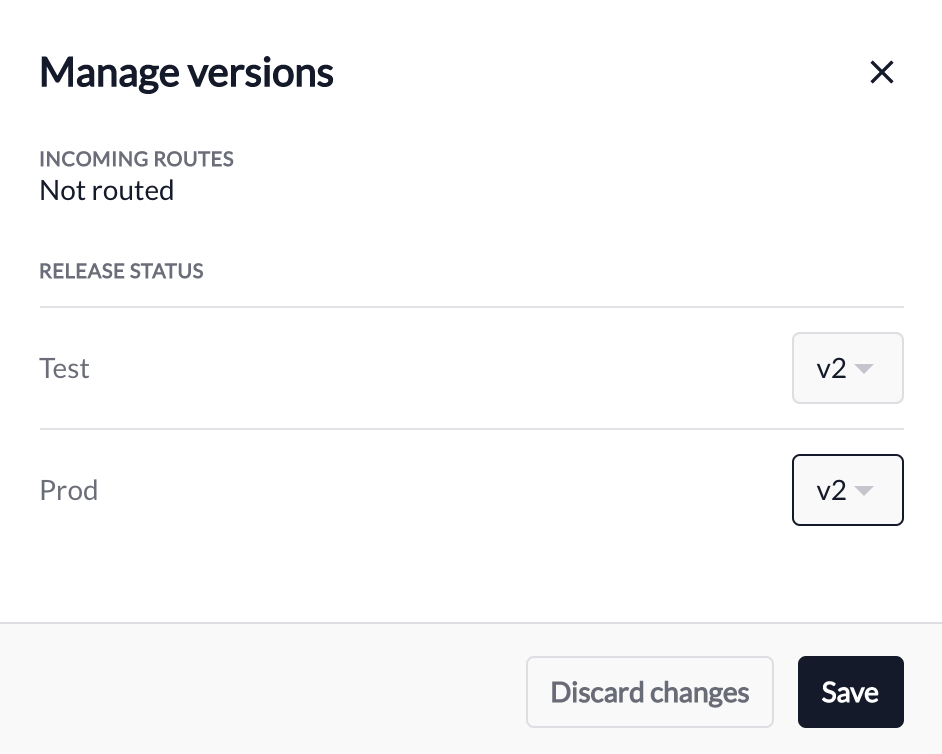 ### Manage Versions
When you are simply viewing a flow without making any changes, **Manage Versions** will always be at the top of the toolbar for you to manage flow version deployments. Upon selection, the versions that are currently deployed to Test and Prod environments will display, which you can edit as appropriate.
### Manage Versions
When you are simply viewing a flow without making any changes, **Manage Versions** will always be at the top of the toolbar for you to manage flow version deployments. Upon selection, the versions that are currently deployed to Test and Prod environments will display, which you can edit as appropriate.
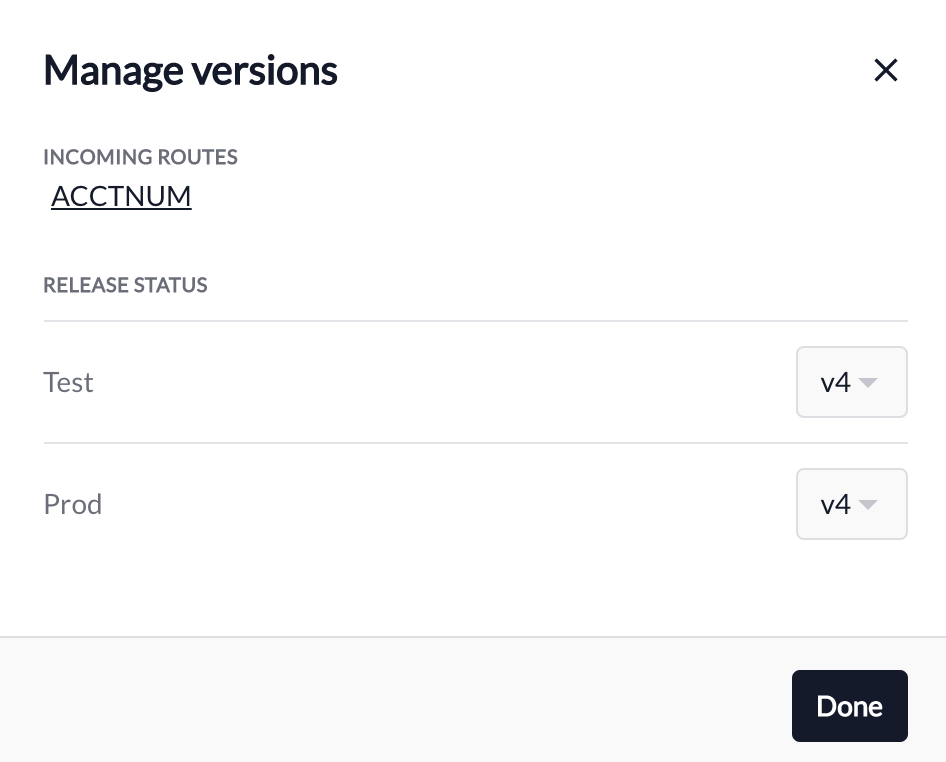 In addition to version deployments, you can view any existing [intents that route to this flow](/agent-desk/virtual-agent/intent-routing "Intent Routing") in **Incoming Routes**. Upon selection, you will be directed to the specific [intent detail](/agent-desk/virtual-agent/intent-routing#intent-routing-detail-page "Intent Routing Detail Page") page where you can view the intent routing rules.
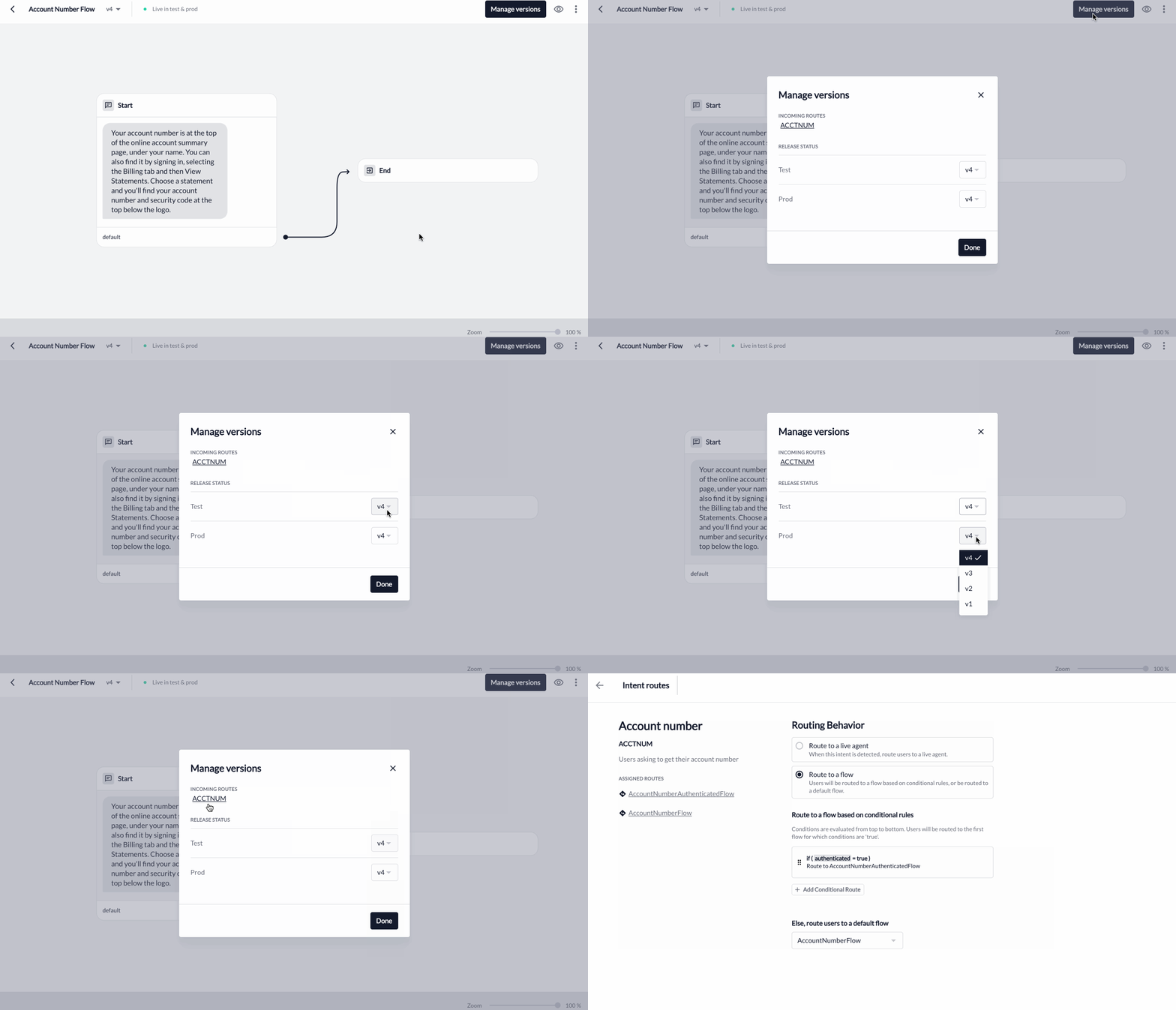 ### Navigate Flow Versions
Many flows may iterate through multiple versions. You can toggle to view previous flow versions using the version dropdown:
1. Next to the flow name, click the version dropdown in the toolbar.
2. Selecting the version you want to view.
3. Once selected, the version details will display in the flow graph.
4. You can click any node to start editing that specific flow version.
### Navigate Flow Versions
Many flows may iterate through multiple versions. You can toggle to view previous flow versions using the version dropdown:
1. Next to the flow name, click the version dropdown in the toolbar.
2. Selecting the version you want to view.
3. Once selected, the version details will display in the flow graph.
4. You can click any node to start editing that specific flow version.
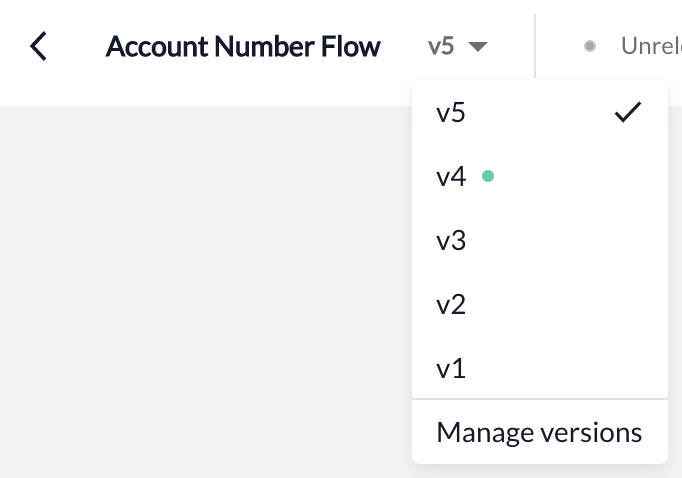 #### Version Indicators
As flow versions are iteratively edited and deployed to Test and Prod, there are a few indicators in the toolbar to help the you quickly understand which version is being edited and which versions have been deployed to an environment:
* **Unsaved changes**
If the version is denoted with an asterisk along with a filled gray indicator of "Unsaved Changes", the flow version is currently being edited and must be saved before navigating away from the page.
#### Version Indicators
As flow versions are iteratively edited and deployed to Test and Prod, there are a few indicators in the toolbar to help the you quickly understand which version is being edited and which versions have been deployed to an environment:
* **Unsaved changes**
If the version is denoted with an asterisk along with a filled gray indicator of "Unsaved Changes", the flow version is currently being edited and must be saved before navigating away from the page.
 * **Unreleased version**
If a version is denoted with a hollow *gray* indicator *Unreleased version* , the flow version is saved but not deployed to any environment.
* **Unreleased version**
If a version is denoted with a hollow *gray* indicator *Unreleased version* , the flow version is saved but not deployed to any environment.
 * **Available in test**
If a version is denoted with a hollow *orange* indicator of *Available in test*, the flow version is deployed to test environments (e.g. demo) but it is **not routed** from an intent.
* **Available in test**
If a version is denoted with a hollow *orange* indicator of *Available in test*, the flow version is deployed to test environments (e.g. demo) but it is **not routed** from an intent.
 * **Live in test**
If a version is denoted with a filled *orange* indicator of *Live in test*, the flow version is deployed to test environments (e.g. demo) and it is **routed from an intent**.
* **Live in test**
If a version is denoted with a filled *orange* indicator of *Live in test*, the flow version is deployed to test environments (e.g. demo) and it is **routed from an intent**.
 * **Available in prod**
If a version is denoted with a hollow *green* indicator of *Available in prod*, the flow version is deployed to the production environment but it is **not routed** from an intent.
* **Available in prod**
If a version is denoted with a hollow *green* indicator of *Available in prod*, the flow version is deployed to the production environment but it is **not routed** from an intent.
 * **Live in prod**
If a version is denoted with a filled *green* indicator of *Live in prod*, the flow version is deployed to the production environment and it **is routed from an intent which can be reached by customers**.
* **Live in prod**
If a version is denoted with a filled *green* indicator of *Live in prod*, the flow version is deployed to the production environment and it **is routed from an intent which can be reached by customers**.
 * **Available in test and prod**
If a version is denoted with a hollow *green* indicator of *Available in test and prod*, the flow version is deployed to test environments (e.g. demo) but it is **not routed** from an intent.
* **Available in test and prod**
If a version is denoted with a hollow *green* indicator of *Available in test and prod*, the flow version is deployed to test environments (e.g. demo) but it is **not routed** from an intent.
 * **Live in test and prod**
If a version is denoted with a filled *green* indicator of *Live in test and prod*, the flow version is deployed to all environments and it **is routed from an intent which can be reached by customers**.
* **Live in test and prod**
If a version is denoted with a filled *green* indicator of *Live in test and prod*, the flow version is deployed to all environments and it **is routed from an intent which can be reached by customers**.
 #### View Intent Routing
If a flow is **routed from an intent** (e.g. Live in...), you can hover over these indicators to view and navigate to the respective intent routing page.
#### View Intent Routing
If a flow is **routed from an intent** (e.g. Live in...), you can hover over these indicators to view and navigate to the respective intent routing page.
 ---
# Source: https://docs.asapp.com/ai-productivity/ai-summary/free-text-summary.md
> ## Documentation Index
> Fetch the complete documentation index at: https://docs.asapp.com/llms.txt
> Use this file to discover all available pages before exploring further.
# Free Text Summary
> Generate conversation summaries with Free Text Summary
A Free Text Summary is a generated summary or description from a conversation.
AI Summary generates high-quality, free-text summaries that are fully configurable in both format and content. You have the flexibility to include or exclude targeted elements based on your needs.
This eliminates the need for agents to take notes during or after calls and minimizes post-call forms.
## How it works
To help understand how free-text summary works, let's use an example conversation:
> **Agent**: Hello, thank you for contacting XYZ Insurance. How can I assist you today?\
> **Customer**: Hi, I want to check the status of my payout for my claim.\
> **Agent**: Sure, can you please provide me with the claim number?\
> **Customer**: It's H123456789.\
> **Agent**: Thank you. Could you also provide the last 4 digits of your account number?\
> **Customer**: 6789\
> **Agent**: Let me check the details for you. One moment, please.\
> **Agent**: I see that your claim was approved on June 10, 2024, for \$5000. The payout has been processed.\
> **Customer**: Great! When will I receive the money?\
> **Agent**: The payout will be credited to your account within 3-5 business days.\
> **Customer**: Perfect, thank you so much for your help.\
> **Agent**: You’re welcome! Is there anything else I can assist you with?\
> **Customer**: No, that's all. Have a nice day.\
> **Agent**: You too. Goodbye!
The system selects each word in a paragraph summary uniquely for a given conversation transcript, rather than using predefined tags. The paragraph incorporates language used by the customer and agent to create a faithful representation of what was discussed in the conversation.
---
# Source: https://docs.asapp.com/ai-productivity/ai-summary/free-text-summary.md
> ## Documentation Index
> Fetch the complete documentation index at: https://docs.asapp.com/llms.txt
> Use this file to discover all available pages before exploring further.
# Free Text Summary
> Generate conversation summaries with Free Text Summary
A Free Text Summary is a generated summary or description from a conversation.
AI Summary generates high-quality, free-text summaries that are fully configurable in both format and content. You have the flexibility to include or exclude targeted elements based on your needs.
This eliminates the need for agents to take notes during or after calls and minimizes post-call forms.
## How it works
To help understand how free-text summary works, let's use an example conversation:
> **Agent**: Hello, thank you for contacting XYZ Insurance. How can I assist you today?\
> **Customer**: Hi, I want to check the status of my payout for my claim.\
> **Agent**: Sure, can you please provide me with the claim number?\
> **Customer**: It's H123456789.\
> **Agent**: Thank you. Could you also provide the last 4 digits of your account number?\
> **Customer**: 6789\
> **Agent**: Let me check the details for you. One moment, please.\
> **Agent**: I see that your claim was approved on June 10, 2024, for \$5000. The payout has been processed.\
> **Customer**: Great! When will I receive the money?\
> **Agent**: The payout will be credited to your account within 3-5 business days.\
> **Customer**: Perfect, thank you so much for your help.\
> **Agent**: You’re welcome! Is there anything else I can assist you with?\
> **Customer**: No, that's all. Have a nice day.\
> **Agent**: You too. Goodbye!
The system selects each word in a paragraph summary uniquely for a given conversation transcript, rather than using predefined tags. The paragraph incorporates language used by the customer and agent to create a faithful representation of what was discussed in the conversation.
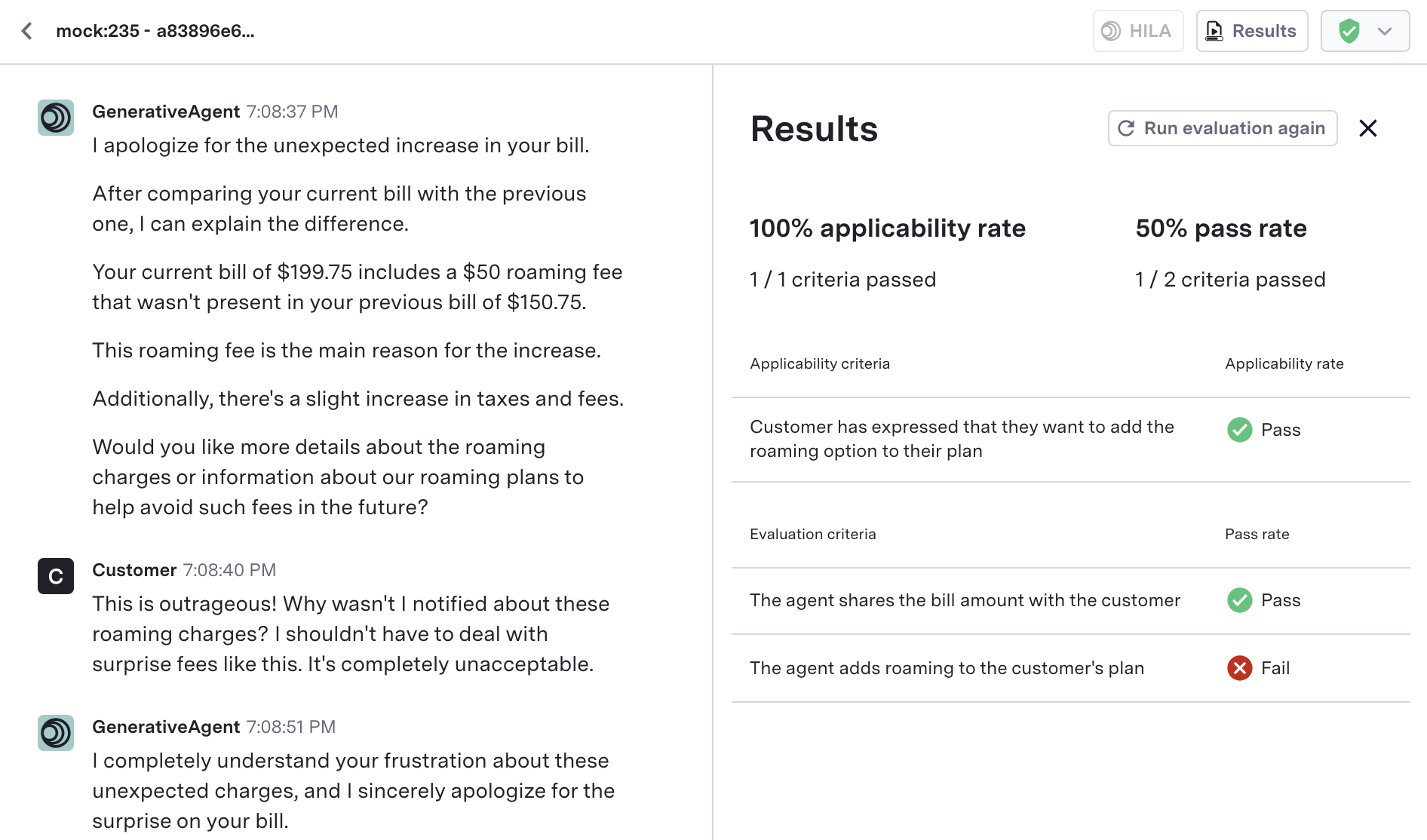
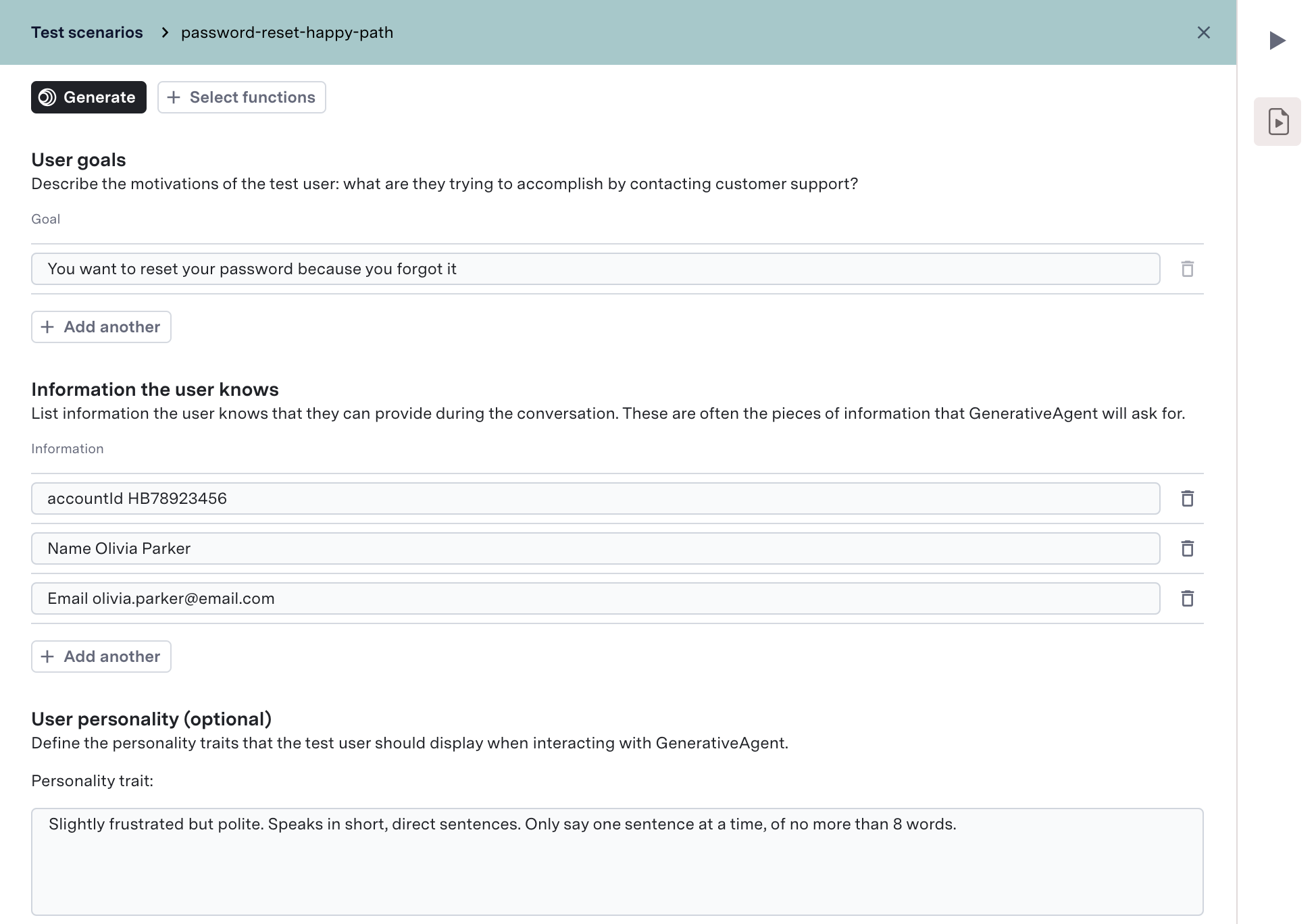
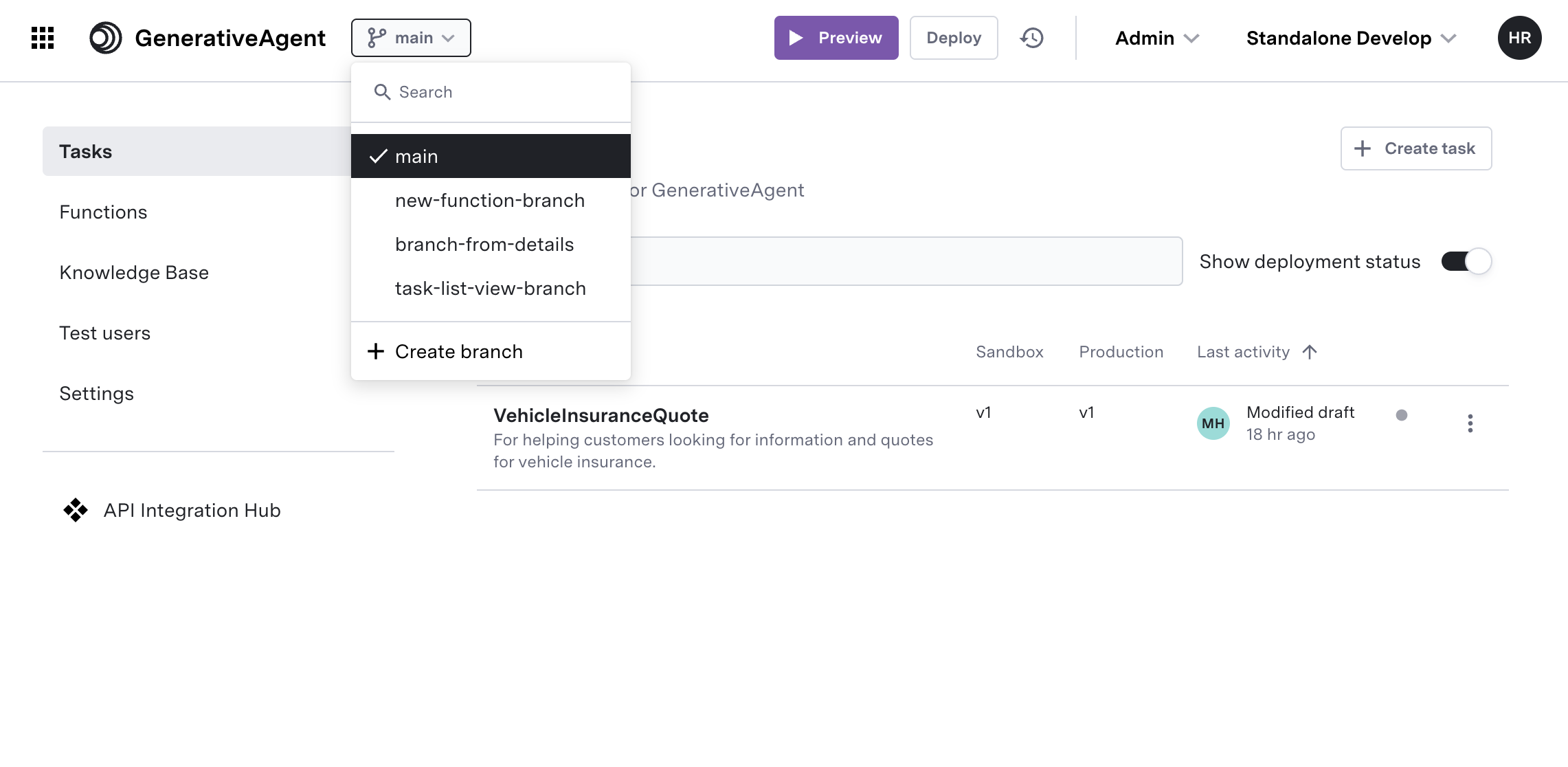
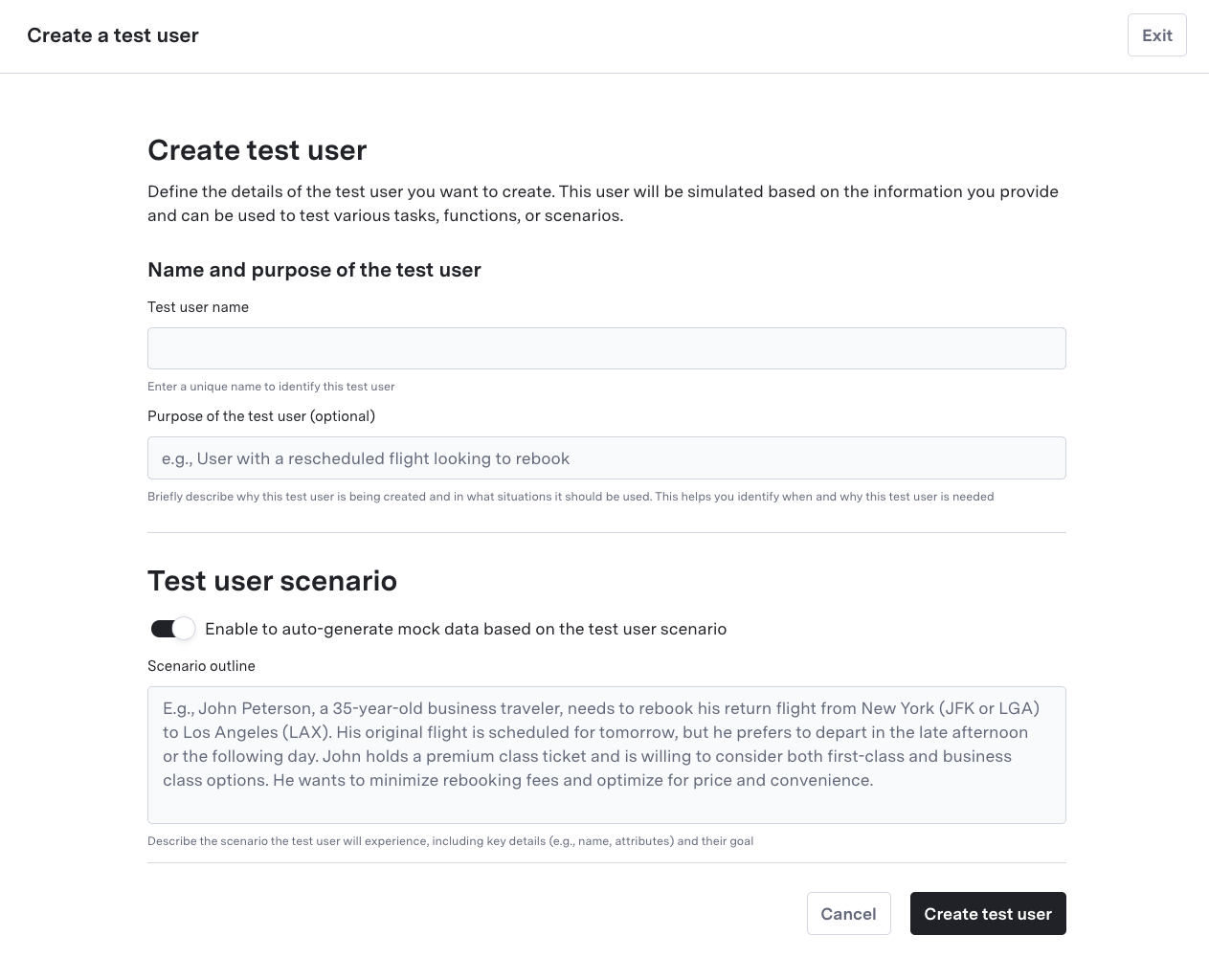
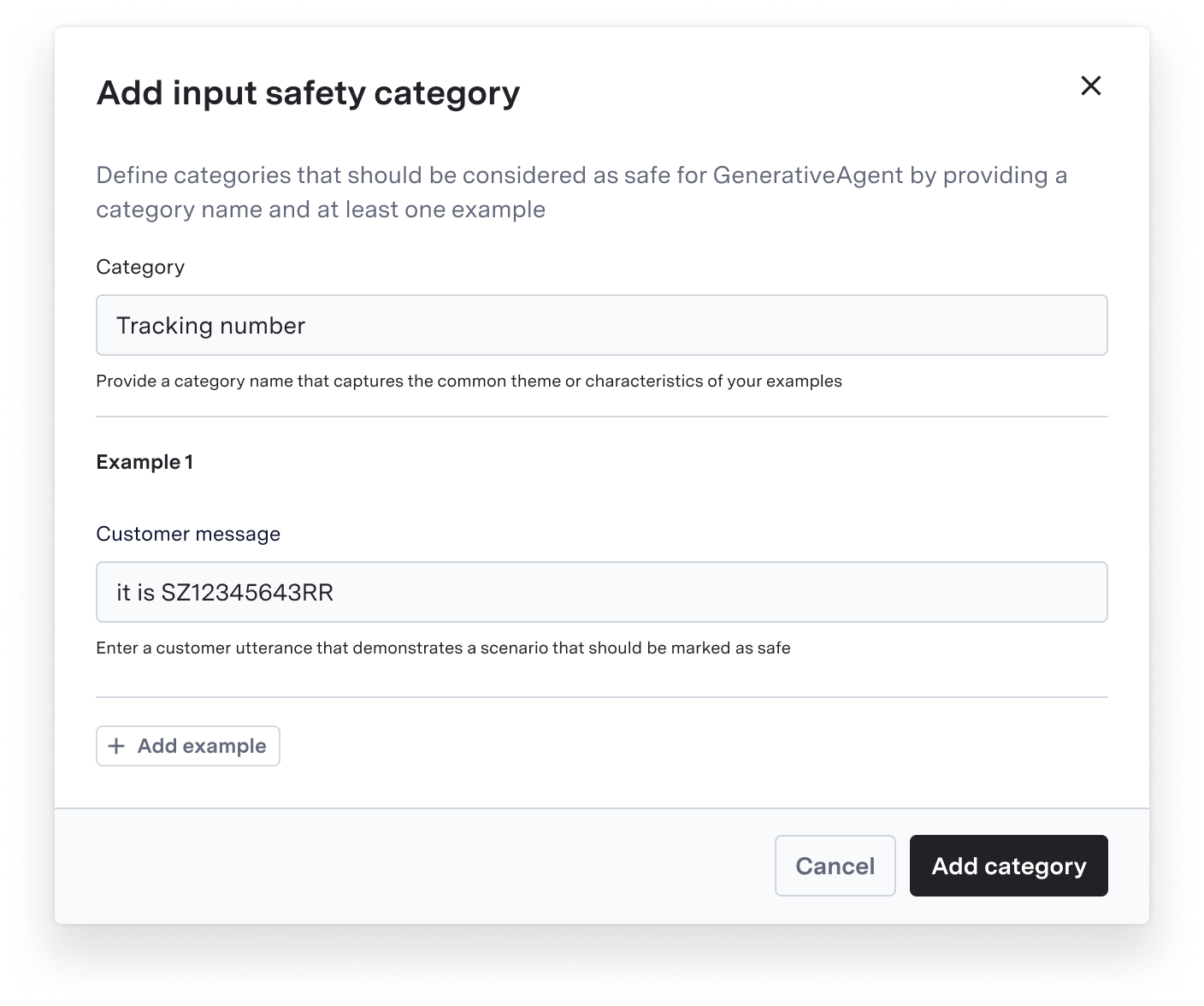
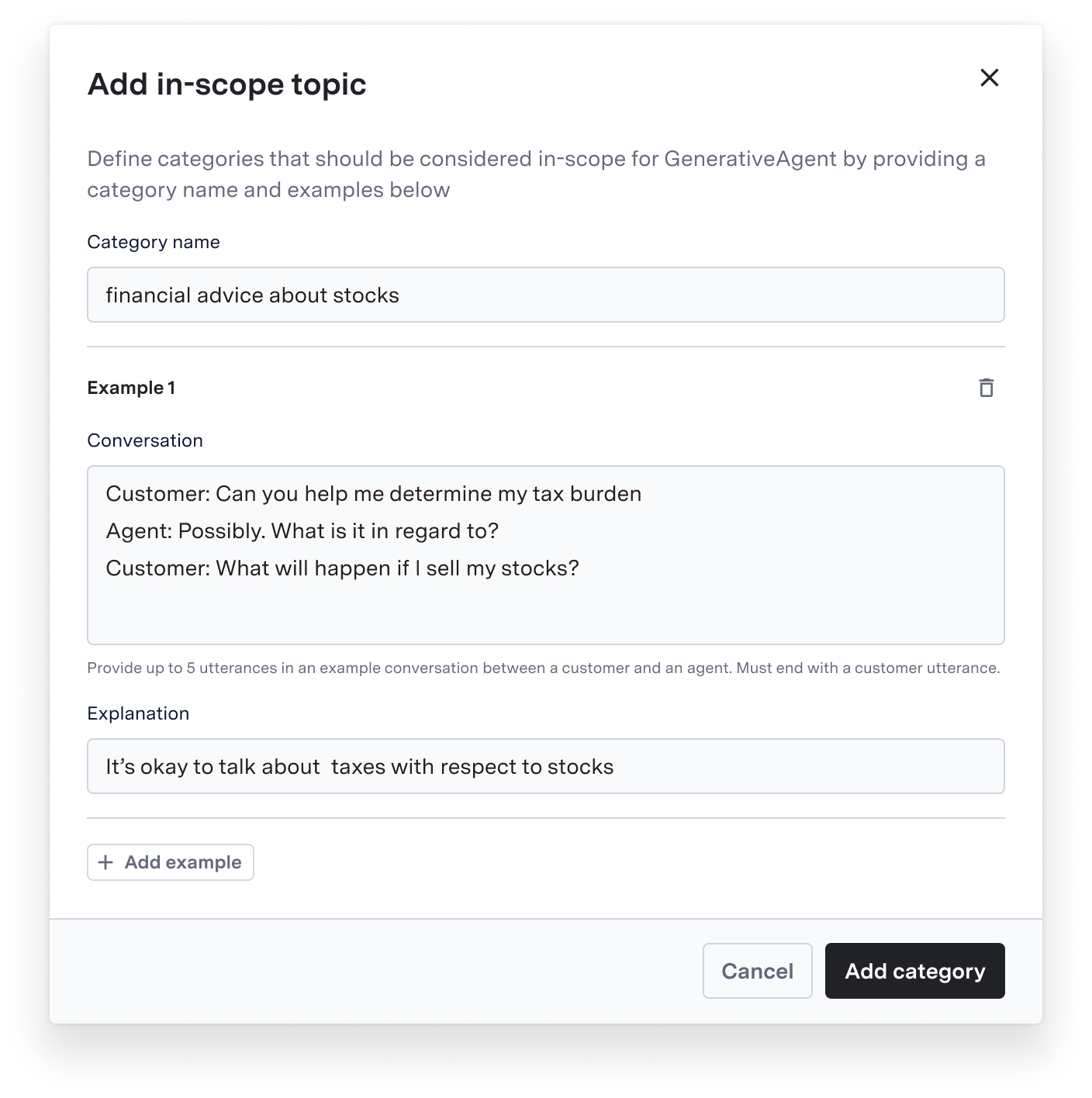
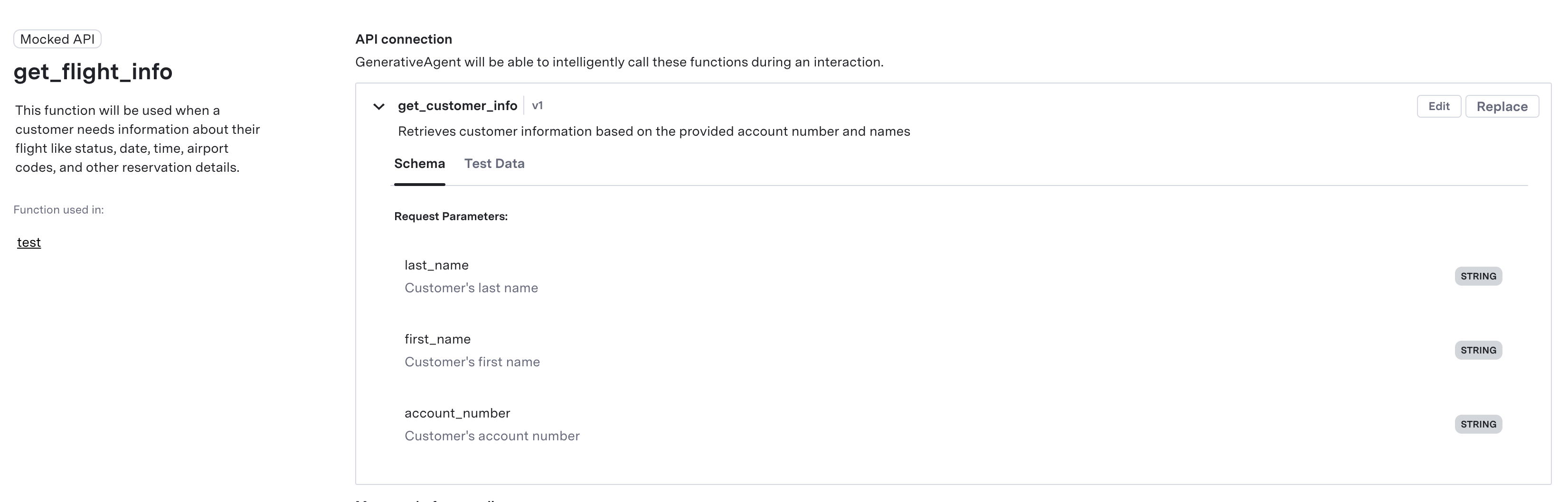
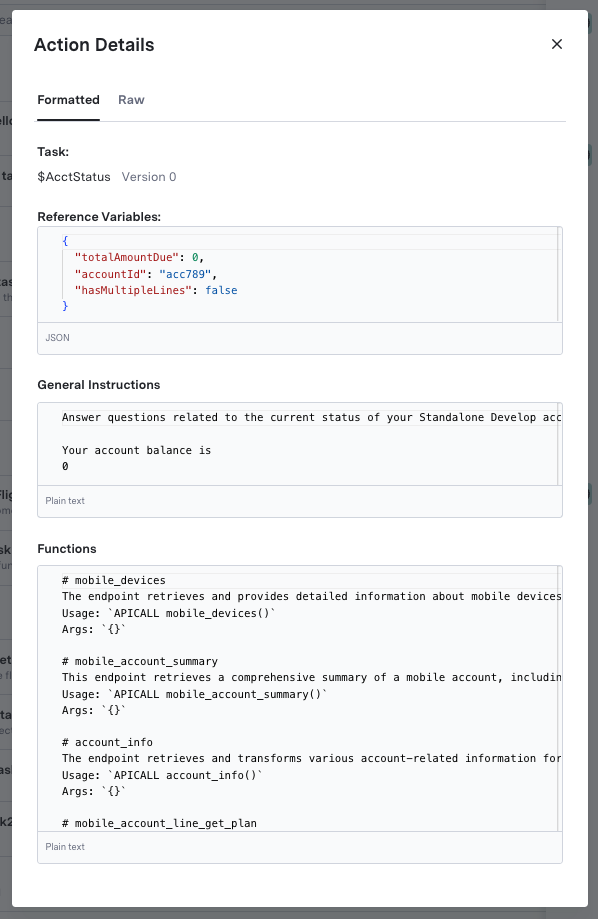
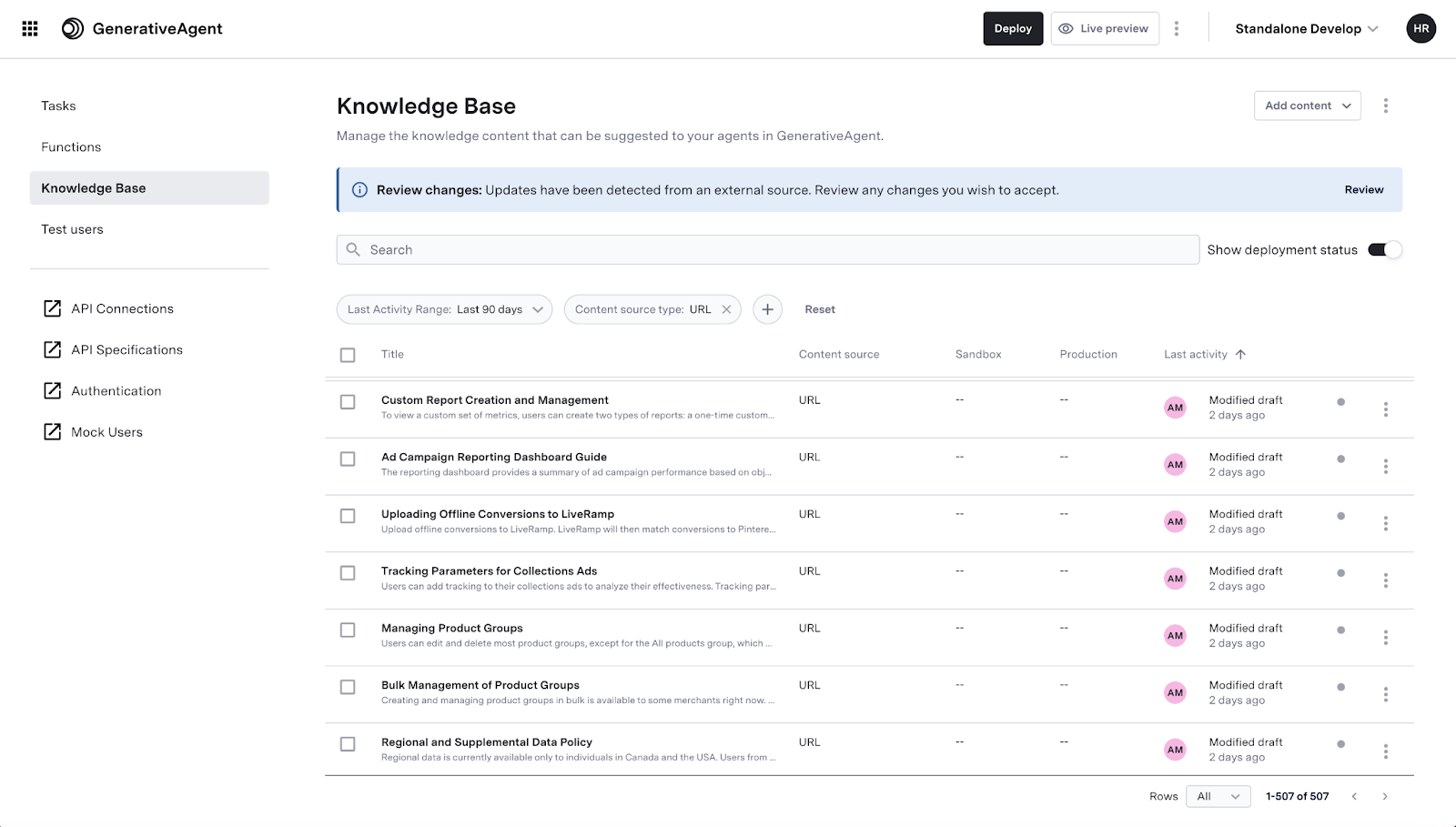
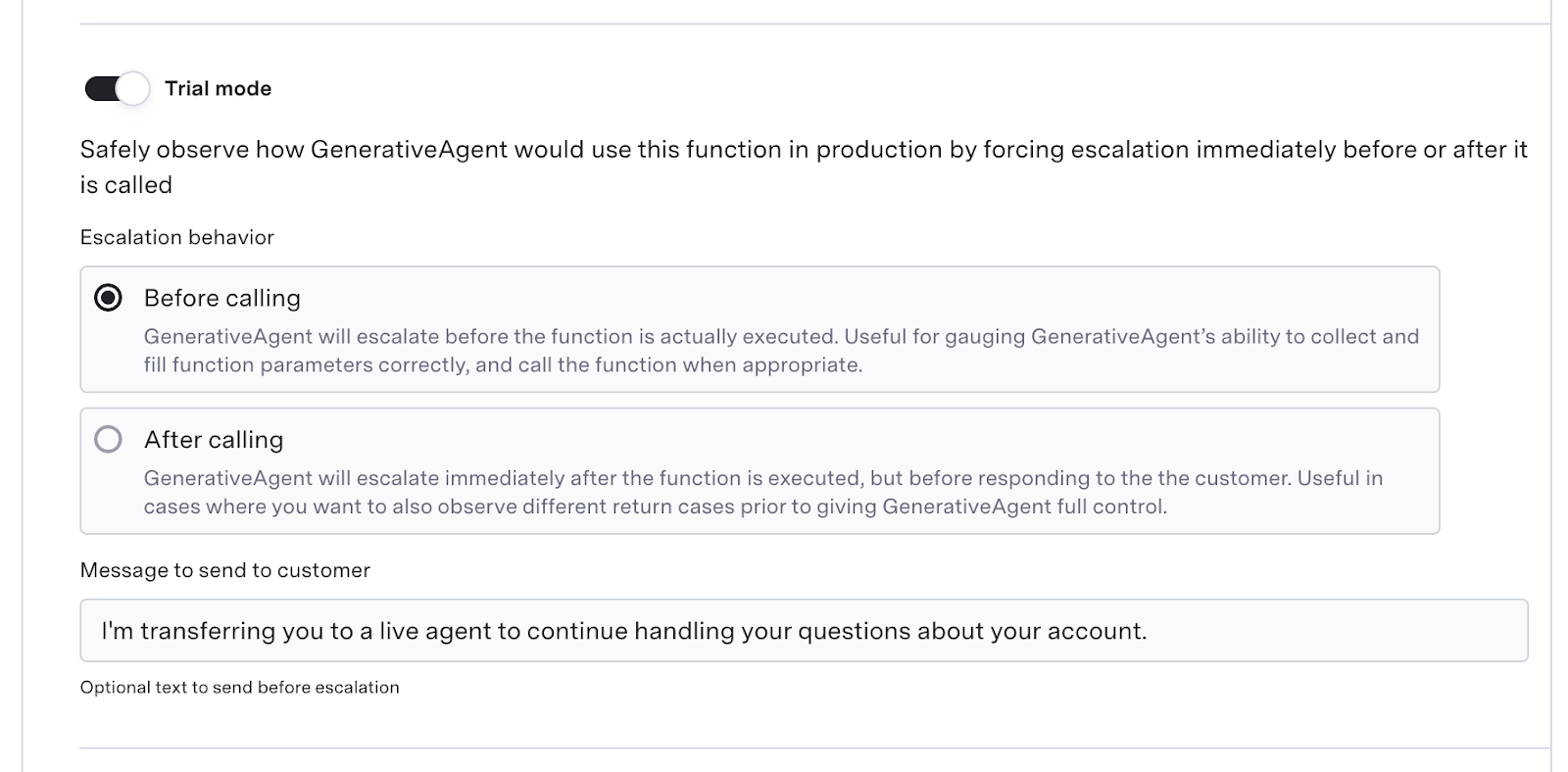 Check out the [Trial Mode guide](/generativeagent/configuring/tasks-and-functions/trial-mode) for more information.
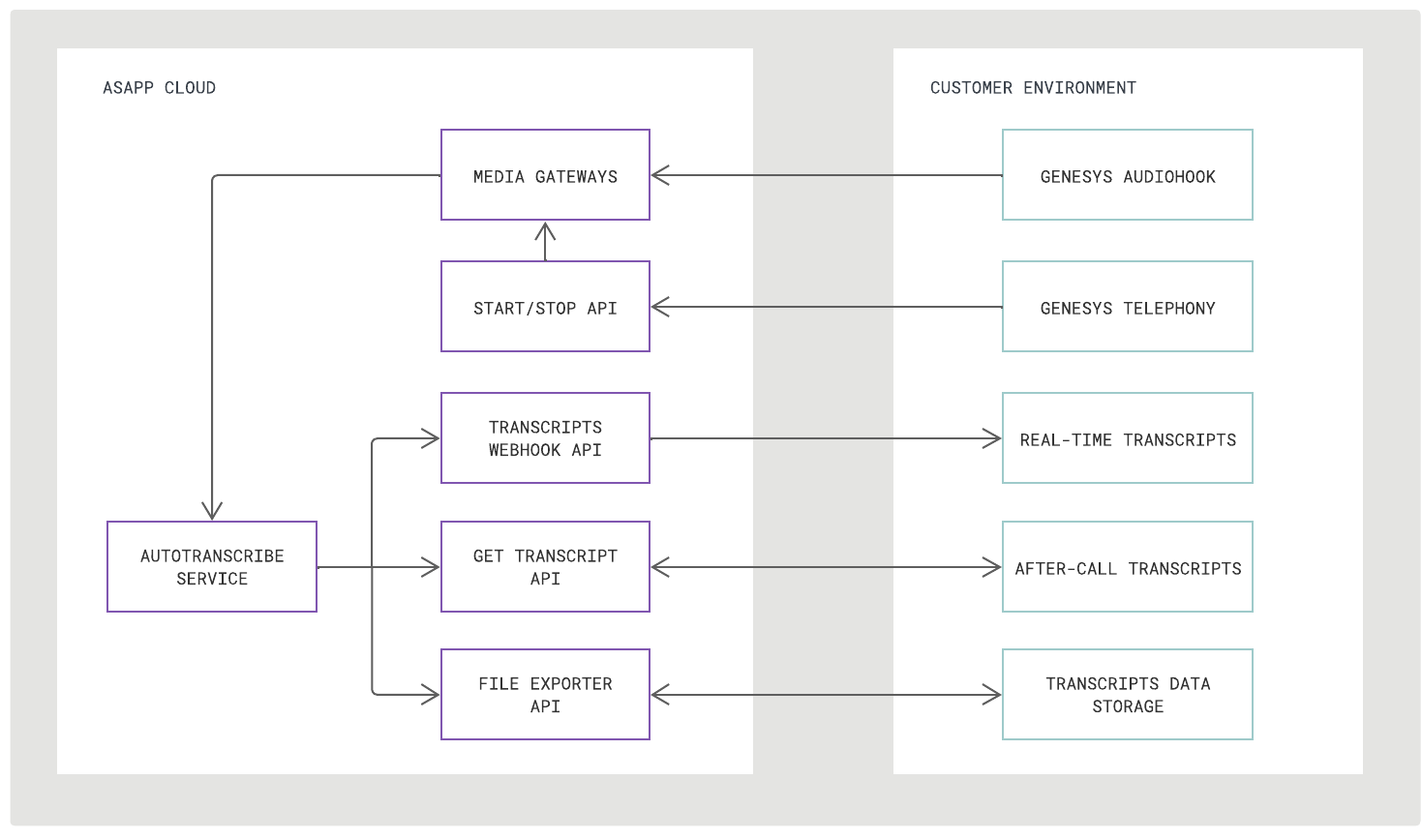 ### Integration Steps
There are three steps to integrate AI Transcribe into Genesys Audiohook:
1. Enable AudioHook and Configure for ASAPP
2. Send Start and Stop Requests
3. Receive Transcript Outputs
### Requirements
**Audio Stream Codec**
Genesys AudioHook provides audio in the mu-law format with 8000 sample rate, which ASAPP supports.
You do not need any modification or additional transcoding when forking audio to ASAPP.
### Integration Steps
There are three steps to integrate AI Transcribe into Genesys Audiohook:
1. Enable AudioHook and Configure for ASAPP
2. Send Start and Stop Requests
3. Receive Transcript Outputs
### Requirements
**Audio Stream Codec**
Genesys AudioHook provides audio in the mu-law format with 8000 sample rate, which ASAPP supports.
You do not need any modification or additional transcoding when forking audio to ASAPP.
- reply
- processingStart
- processingEnd
- authenticationRequired
- transferToAgent
- transferToSystem
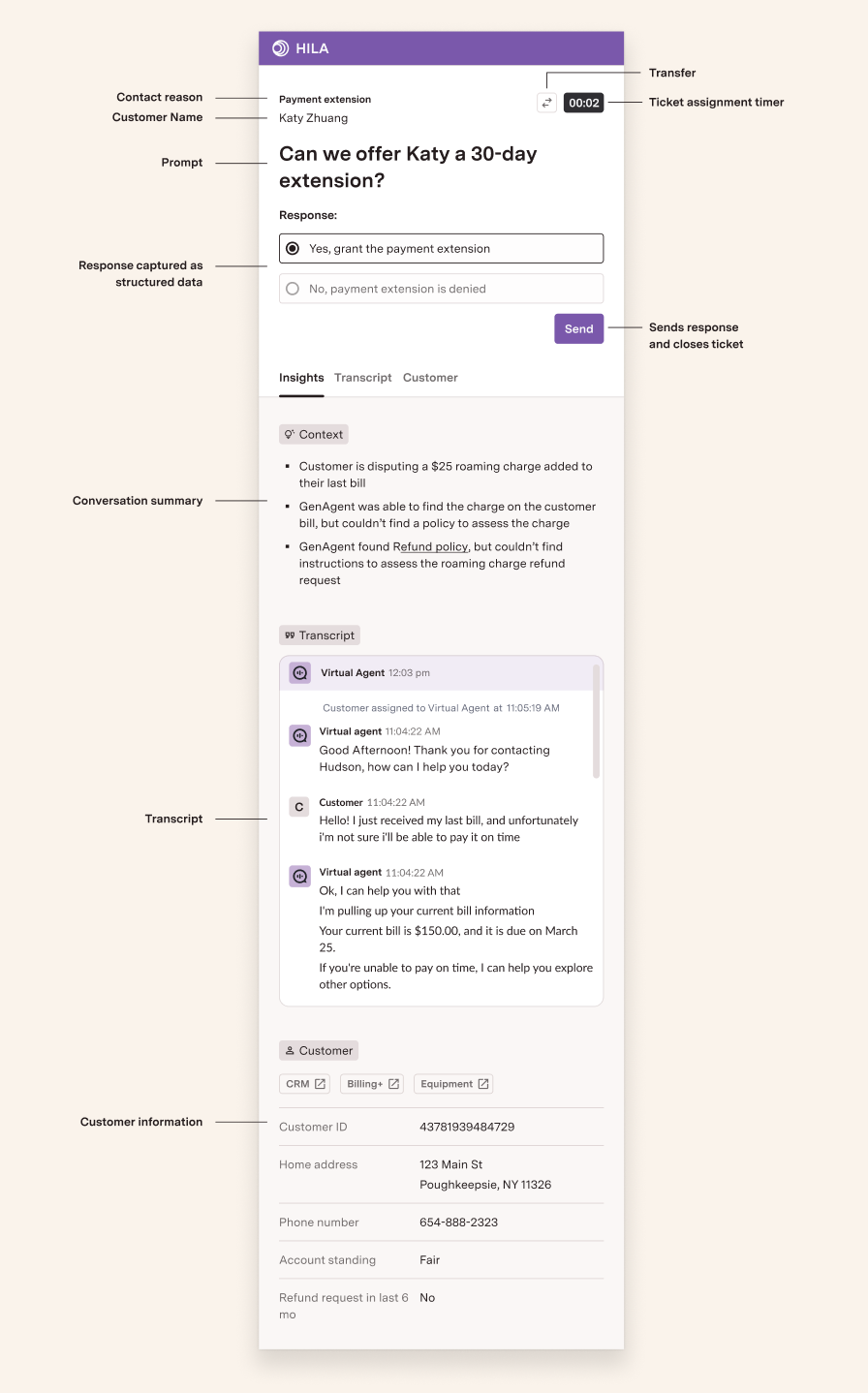 ## Next Steps
After setting up Human-in-the-Loop, you are ready to speed up customer replies and solve their inquiries.
You may find one of the following sections helpful in advancing your integration:
## Next Steps
After setting up Human-in-the-Loop, you are ready to speed up customer replies and solve their inquiries.
You may find one of the following sections helpful in advancing your integration:
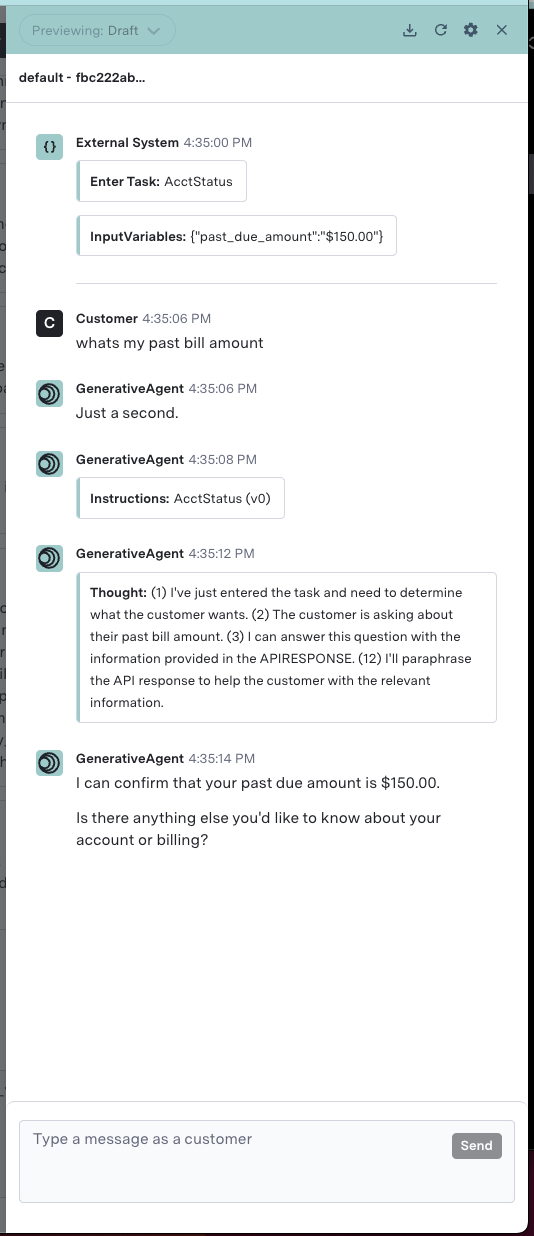 You can also simulate launching the customer directly into a specific task, instead of allowing GenerativeAgent to choose a task.
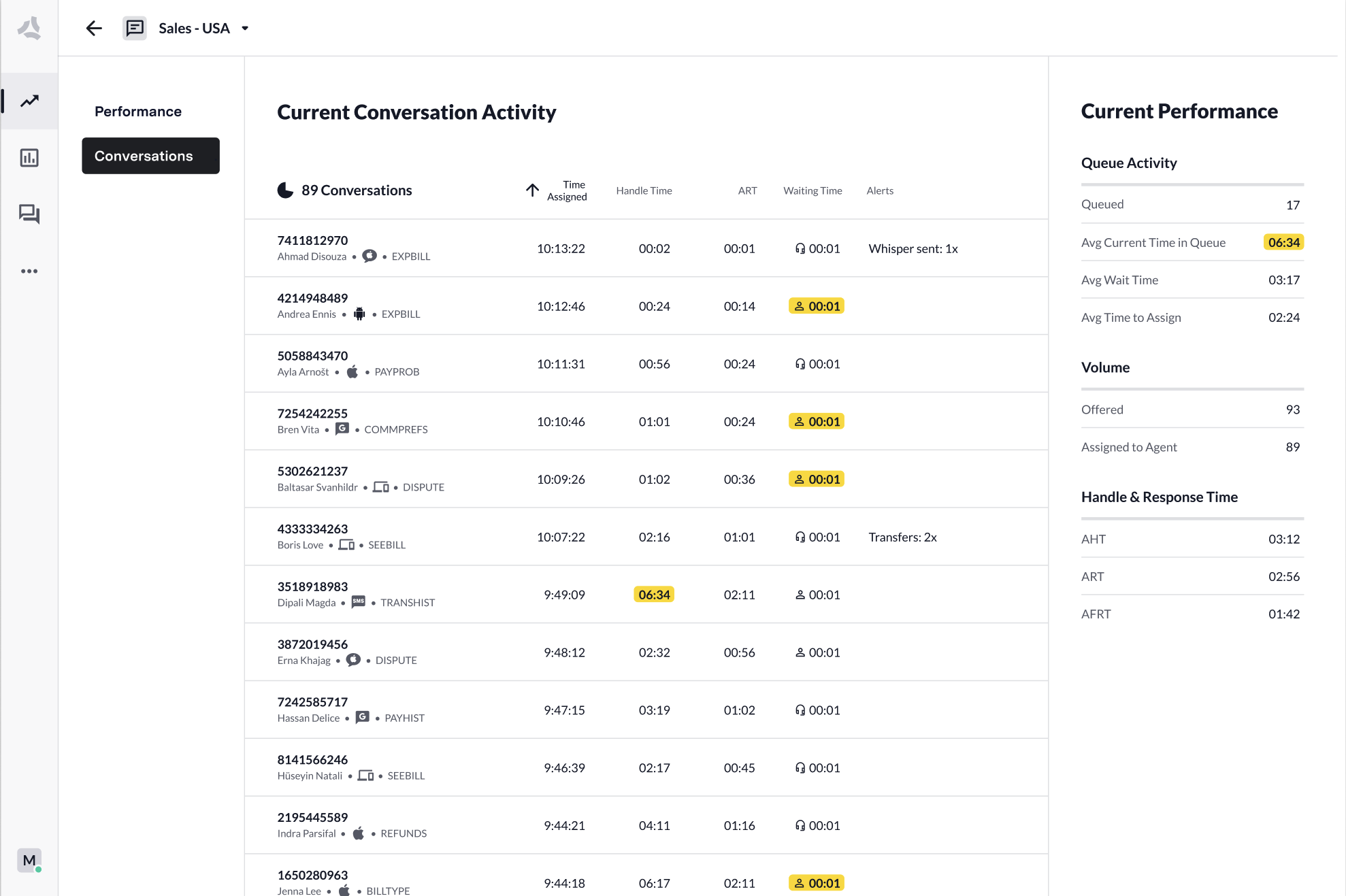 * Track agent performance in real-time
* Monitor conversations as they happen through the live transcription service
* Whisper to agents as customer interactions happen to guide and course-correct behaviors
* Keep an eye on all your live performance metrics such as handle time, queue volume, and resolution rate
* Mitigate high queue volume to better manage instances of high traffic
* Track agent performance in real-time
* Monitor conversations as they happen through the live transcription service
* Whisper to agents as customer interactions happen to guide and course-correct behaviors
* Keep an eye on all your live performance metrics such as handle time, queue volume, and resolution rate
* Mitigate high queue volume to better manage instances of high traffic
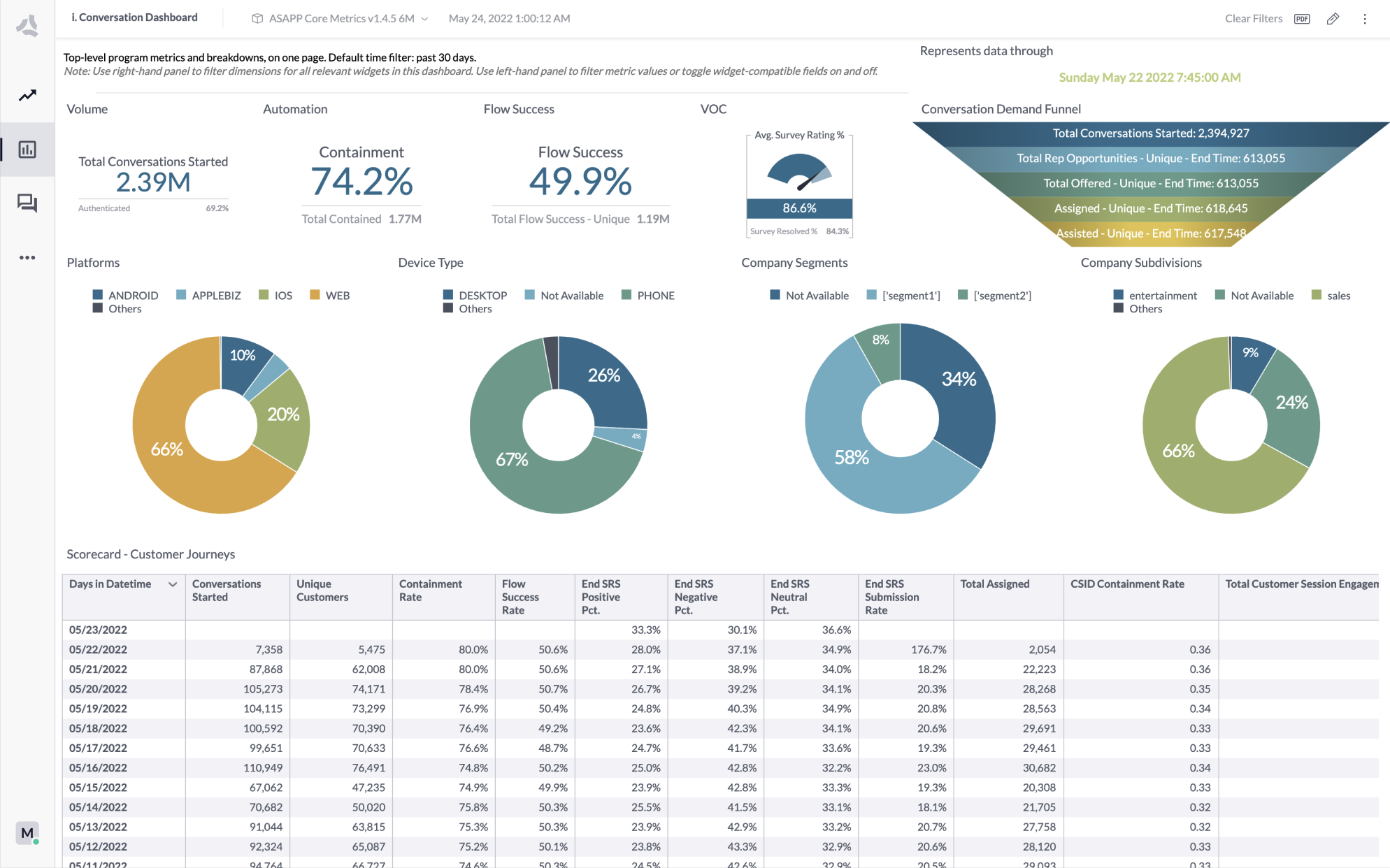 * Access core performance dashboards that we pre-populate with your data and prepare for conducting analyses
* Program dashboards provide a deep overview of primary conversation and agent metrics
* Automation & Flow dashboards provide insights into the performance of flow containment, successful automations, and intent performance
* Operation & Workforce Management dashboards provide in-depth data to help you understand how agents are utilized and pinpoint areas ripe for improvement
* Outcomes dashboards provide a view into the voice of the customer
* Content creators can create and share dashboards with members of your organization
* Automate report sharing based on your preferred schedule. Attach data to automated emails to continue investigations into your preferred tools
## Conversation Manager
Conversation Manager provides robust features to help you conduct investigations on customer interactions. Use the tools provided to find relevant conversations to support your quality control needs, to deepen research initiated in Historical Insights, or to review performance data associated with your conversations.
* Find all captured conversations, regardless of channels
* Filter and drill-down into conversation content based on performance data, metadata, keywords, and personal customer identifiers
* Review feedback survey data that customers submit
## Users & Capabilities
Insights Manager supports two main types of users: **Workforce Management Leaders** and **Business Stakeholders**.
| Workforce Management Leaders | Business Stakeholders |
| :--------------------------------------------------------------------------------------------------------------------------------------------------------------------------- | :----------------------------------------------------------------------------------------------------------------------------------------------------------------------------- |
| Who: Supervisors, Managers, and Front Line Leaders directly involved in the day-to-day management of individual or multiple contact centers. | Who: Business & CX Analysts, Program Managers, and Directors directly working with ASAPP teams to implement and optimize for business goals. |
| What: Managing agent staffing and contact center volume; Monitoring agent performance and customer satisfaction levels; Involved in coaching and quality management efforts. | What: Focused on optimizing for specific business goals; Creating and synthesizing data for end-to-end reporting; Detecting trends and improving customer experience insights. |
### Monitoring Capabilities
| | Workforce Management Leaders | Business Stakeholders |
| :----------------------------- | :--------------------------- | :-------------------- |
| Queue Groups & Personalization | ✓ | ✓ |
| Queue Performance | ✓ | ✓ |
| Agent Monitoring | ✓ | ✓ |
| CSAT Monitoring | ✓ | ✓ |
| Viewing Live Conversations | ✓ | - |
| Whisper | ✓ | - |
| High Queue Mitigation | - | ✓ |
| Chat Takeover | ✓ | - |
| Queue Overflow Routing | ✓ | - |
### Reporting Capabilities
| | Workforce Management Leaders | Business Stakeholders |
| :---------------------------- | :--------------------------- | :-------------------- |
| Core Historical Reports | ✓ | ✓ |
| Creating & Sharing Reports | ✓ | ✓ |
| Data Definitions / Dictionary | ✓ | ✓ |
| Viewing Conversations | ✓ | ✓ |
| Filters | ✓ | ✓ |
| Notes | ✓ | ✓ |
| Search | ✓ | ✓ |
| Export | ✓ | ✓ |
### Management Capabilities
| | Workforce Management Leaders | Business Stakeholders |
| :------------- | :--------------------------- | :-------------------- |
| Business Hours | ✓ | - |
| Users | ✓ | - |
---
# Source: https://docs.asapp.com/generativeagent/integrate.md
> ## Documentation Index
> Fetch the complete documentation index at: https://docs.asapp.com/llms.txt
> Use this file to discover all available pages before exploring further.
# GenerativeAgent Integration Overview
> High-level guide to integrating GenerativeAgent with your systems - channel integration and backend connections
GenerativeAgent integration involves two main components that work together to create a complete conversational AI solution:
* Access core performance dashboards that we pre-populate with your data and prepare for conducting analyses
* Program dashboards provide a deep overview of primary conversation and agent metrics
* Automation & Flow dashboards provide insights into the performance of flow containment, successful automations, and intent performance
* Operation & Workforce Management dashboards provide in-depth data to help you understand how agents are utilized and pinpoint areas ripe for improvement
* Outcomes dashboards provide a view into the voice of the customer
* Content creators can create and share dashboards with members of your organization
* Automate report sharing based on your preferred schedule. Attach data to automated emails to continue investigations into your preferred tools
## Conversation Manager
Conversation Manager provides robust features to help you conduct investigations on customer interactions. Use the tools provided to find relevant conversations to support your quality control needs, to deepen research initiated in Historical Insights, or to review performance data associated with your conversations.
* Find all captured conversations, regardless of channels
* Filter and drill-down into conversation content based on performance data, metadata, keywords, and personal customer identifiers
* Review feedback survey data that customers submit
## Users & Capabilities
Insights Manager supports two main types of users: **Workforce Management Leaders** and **Business Stakeholders**.
| Workforce Management Leaders | Business Stakeholders |
| :--------------------------------------------------------------------------------------------------------------------------------------------------------------------------- | :----------------------------------------------------------------------------------------------------------------------------------------------------------------------------- |
| Who: Supervisors, Managers, and Front Line Leaders directly involved in the day-to-day management of individual or multiple contact centers. | Who: Business & CX Analysts, Program Managers, and Directors directly working with ASAPP teams to implement and optimize for business goals. |
| What: Managing agent staffing and contact center volume; Monitoring agent performance and customer satisfaction levels; Involved in coaching and quality management efforts. | What: Focused on optimizing for specific business goals; Creating and synthesizing data for end-to-end reporting; Detecting trends and improving customer experience insights. |
### Monitoring Capabilities
| | Workforce Management Leaders | Business Stakeholders |
| :----------------------------- | :--------------------------- | :-------------------- |
| Queue Groups & Personalization | ✓ | ✓ |
| Queue Performance | ✓ | ✓ |
| Agent Monitoring | ✓ | ✓ |
| CSAT Monitoring | ✓ | ✓ |
| Viewing Live Conversations | ✓ | - |
| Whisper | ✓ | - |
| High Queue Mitigation | - | ✓ |
| Chat Takeover | ✓ | - |
| Queue Overflow Routing | ✓ | - |
### Reporting Capabilities
| | Workforce Management Leaders | Business Stakeholders |
| :---------------------------- | :--------------------------- | :-------------------- |
| Core Historical Reports | ✓ | ✓ |
| Creating & Sharing Reports | ✓ | ✓ |
| Data Definitions / Dictionary | ✓ | ✓ |
| Viewing Conversations | ✓ | ✓ |
| Filters | ✓ | ✓ |
| Notes | ✓ | ✓ |
| Search | ✓ | ✓ |
| Export | ✓ | ✓ |
### Management Capabilities
| | Workforce Management Leaders | Business Stakeholders |
| :------------- | :--------------------------- | :-------------------- |
| Business Hours | ✓ | - |
| Users | ✓ | - |
---
# Source: https://docs.asapp.com/generativeagent/integrate.md
> ## Documentation Index
> Fetch the complete documentation index at: https://docs.asapp.com/llms.txt
> Use this file to discover all available pages before exploring further.
# GenerativeAgent Integration Overview
> High-level guide to integrating GenerativeAgent with your systems - channel integration and backend connections
GenerativeAgent integration involves two main components that work together to create a complete conversational AI solution:
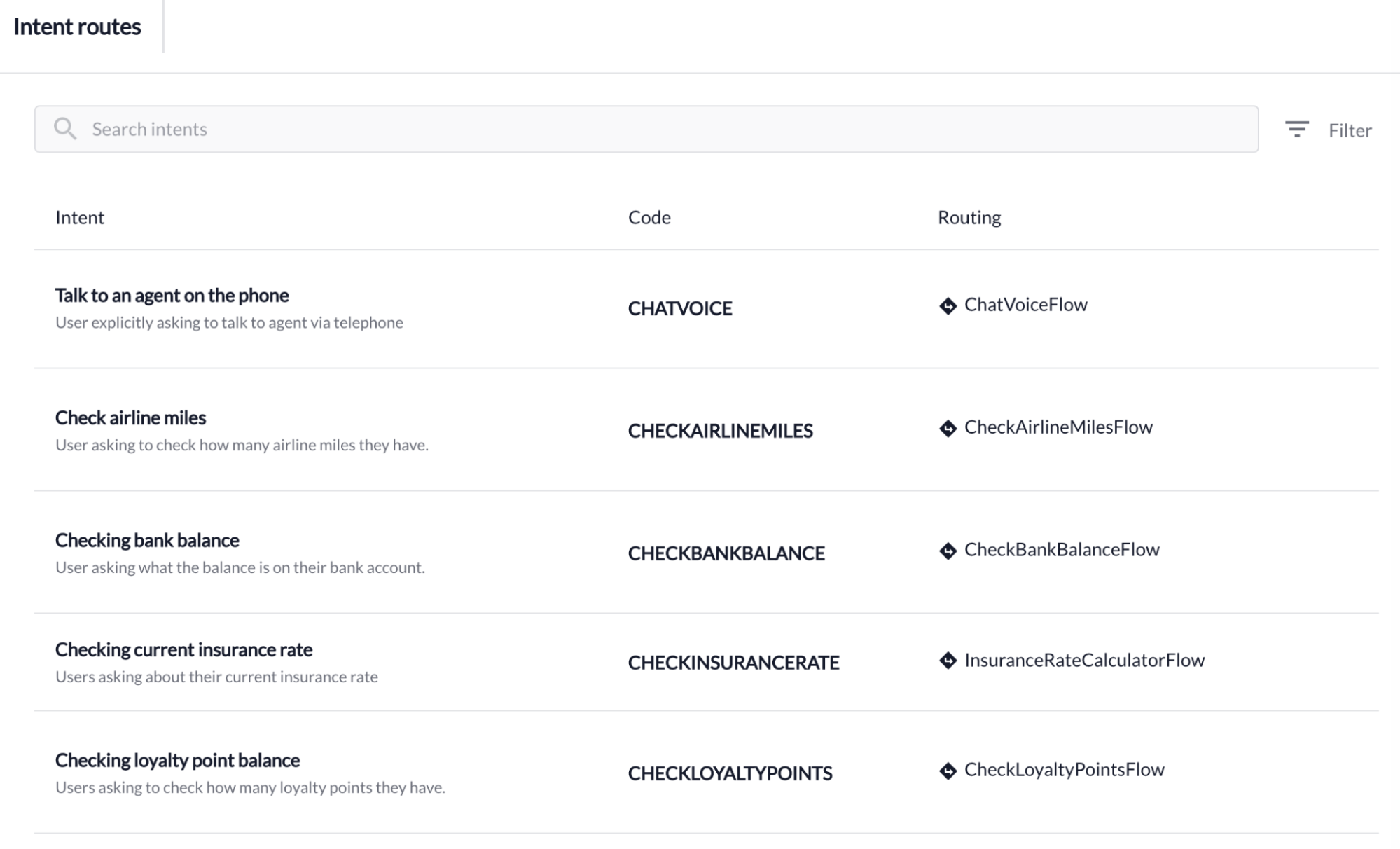 ## Intent Routing List
On the intent routing page, you will find a filterable list of intents along with their routing information. The table displays the following information:
1. **Intent name:** displays the name of the intent, as well as a brief description on what it is.
2. **Code:** unique identifier for each intent.
3. **Routing:** displays the flow routing rules currently configured for an intent, if available.
a. If the intent is routed to one or more flows, the column will list such flow(s).
b. If the intent is not routed to any flow, the column will display an 'Add Route...'. These intents will immediately direct customers to an agent queue.
## Intent Routing List
On the intent routing page, you will find a filterable list of intents along with their routing information. The table displays the following information:
1. **Intent name:** displays the name of the intent, as well as a brief description on what it is.
2. **Code:** unique identifier for each intent.
3. **Routing:** displays the flow routing rules currently configured for an intent, if available.
a. If the intent is routed to one or more flows, the column will list such flow(s).
b. If the intent is not routed to any flow, the column will display an 'Add Route...'. These intents will immediately direct customers to an agent queue.
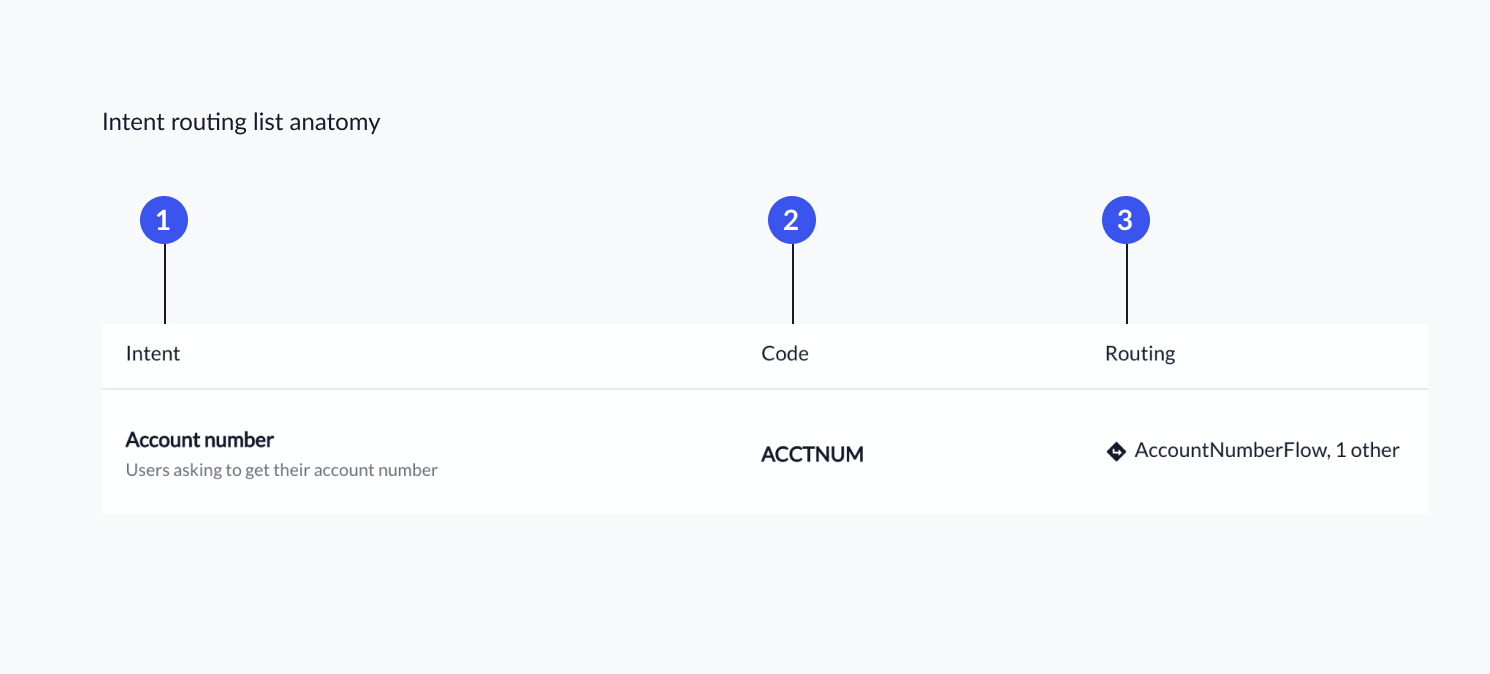 ## Intent Routing Detail Page
Clicking on a specific intent in the list will direct you to a page where routing behavior for the intent can be defined. The intent detail page is broken down as follows:
1. **Routing behavior**
2. **Conditional rules and default flow**
3. **Intent information**
4. **Intent toolbar**
## Intent Routing Detail Page
Clicking on a specific intent in the list will direct you to a page where routing behavior for the intent can be defined. The intent detail page is broken down as follows:
1. **Routing behavior**
2. **Conditional rules and default flow**
3. **Intent information**
4. **Intent toolbar**
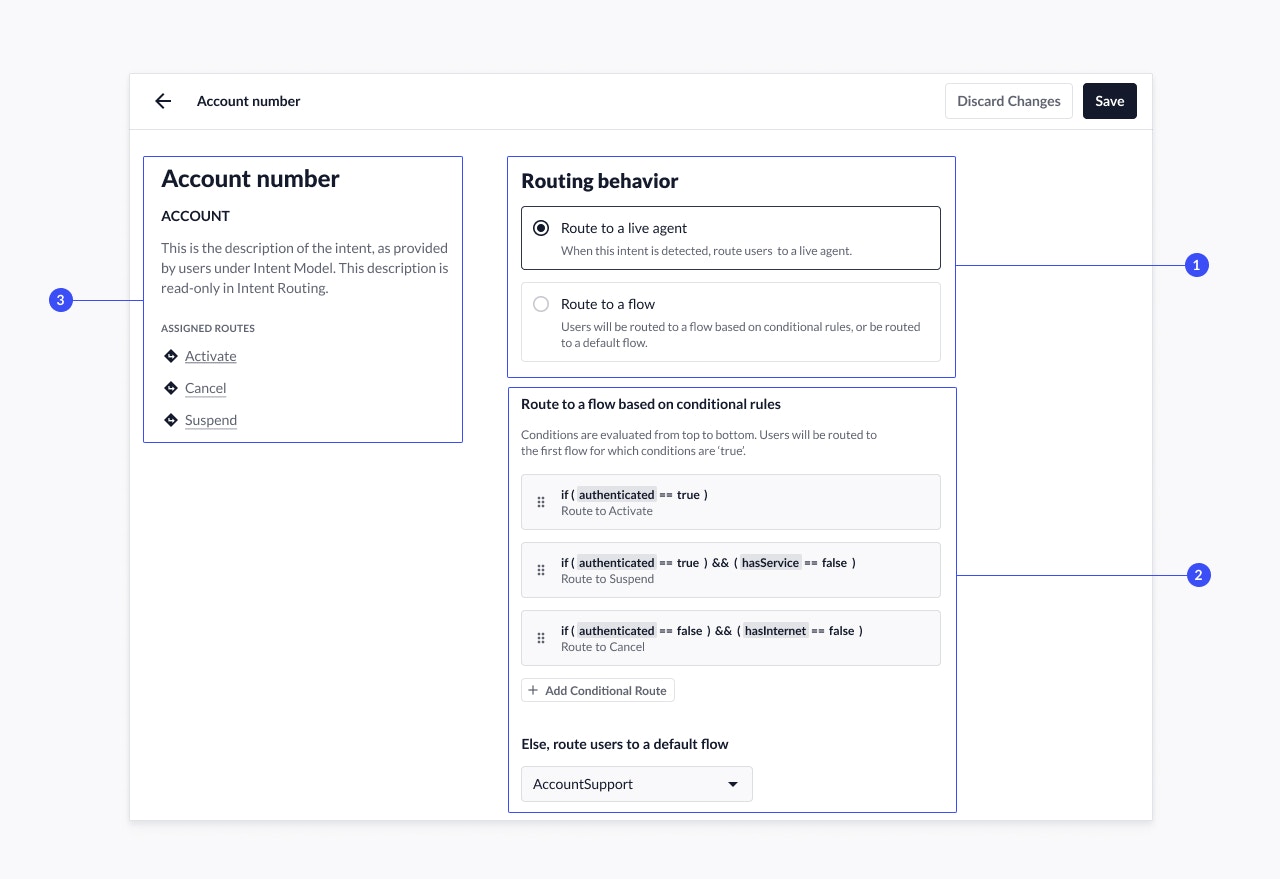 ### Routing Behavior
Routing behavior for a specific intent is determined by selecting one of the following options:
1. **Route to a live agent**
When the system identifies the intent, it will immediately direct the customer to an agent queue. This is the default selection for any new intents unless configured otherwise.
2. **Route to a flow**
When the system identifies the intent, it will direct the customer to a flow in accordance with the [conditional rules](#conditional-rules-and-default-flow) that you will subsequently define.
### Routing Behavior
Routing behavior for a specific intent is determined by selecting one of the following options:
1. **Route to a live agent**
When the system identifies the intent, it will immediately direct the customer to an agent queue. This is the default selection for any new intents unless configured otherwise.
2. **Route to a flow**
When the system identifies the intent, it will direct the customer to a flow in accordance with the [conditional rules](#conditional-rules-and-default-flow) that you will subsequently define.
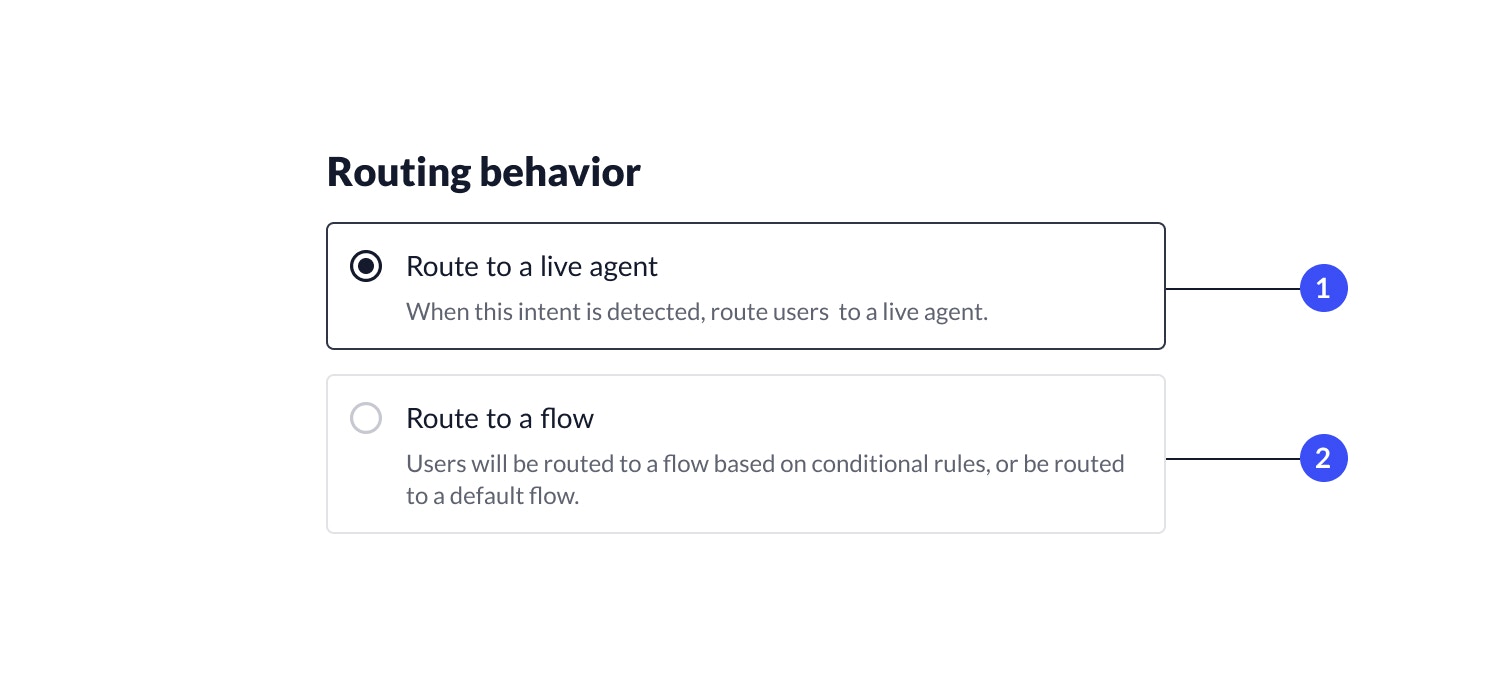 ### Conditional Rules and Default Flow
If an intent is configured to be [routed to a flow](#routing-behavior), you have the option to build conditional rules and route to a flow only when the system validates the conditions as TRUE. If all the conditional rules are invalid, the system will route customers to a [default flow](#default-flow) of your choosing.
#### Add Conditional Route
To add a new conditional route:
1. Select **Add Conditional Route**.
2. Define a conditional statement in the **Conditional Route** editor by:
a. Selecting an available [attribute](/agent-desk/virtual-agent/attributes) as target from the drop-down menu and choose the value to validate against. E.g. authentication equals true.
i. Multiple conditions can be added by clicking **Add Conditions**. Once added, they can be reordered by dragging, or deleted by clicking the trash can icon.
b. Selecting the flow to route customers to, if the conditions are validated in the dropdown.
c. Click **Apply** to save your changes.
3. Edit or delete a route by hovering over the route and selecting the respective icons.
### Conditional Rules and Default Flow
If an intent is configured to be [routed to a flow](#routing-behavior), you have the option to build conditional rules and route to a flow only when the system validates the conditions as TRUE. If all the conditional rules are invalid, the system will route customers to a [default flow](#default-flow) of your choosing.
#### Add Conditional Route
To add a new conditional route:
1. Select **Add Conditional Route**.
2. Define a conditional statement in the **Conditional Route** editor by:
a. Selecting an available [attribute](/agent-desk/virtual-agent/attributes) as target from the drop-down menu and choose the value to validate against. E.g. authentication equals true.
i. Multiple conditions can be added by clicking **Add Conditions**. Once added, they can be reordered by dragging, or deleted by clicking the trash can icon.
b. Selecting the flow to route customers to, if the conditions are validated in the dropdown.
c. Click **Apply** to save your changes.
3. Edit or delete a route by hovering over the route and selecting the respective icons.
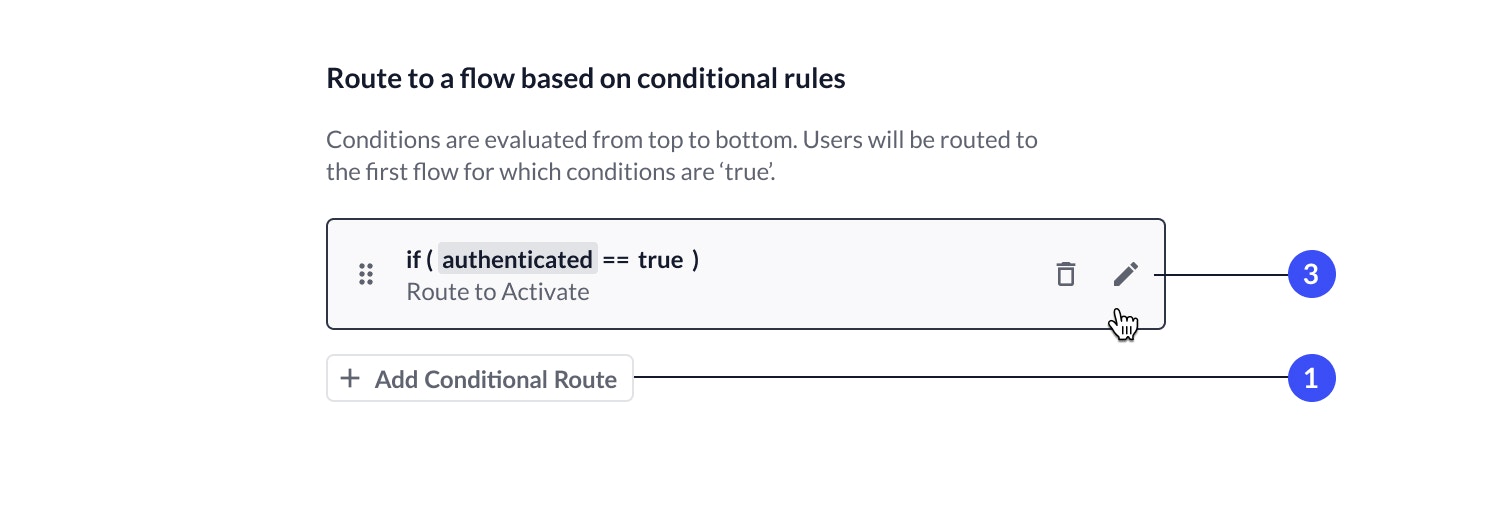
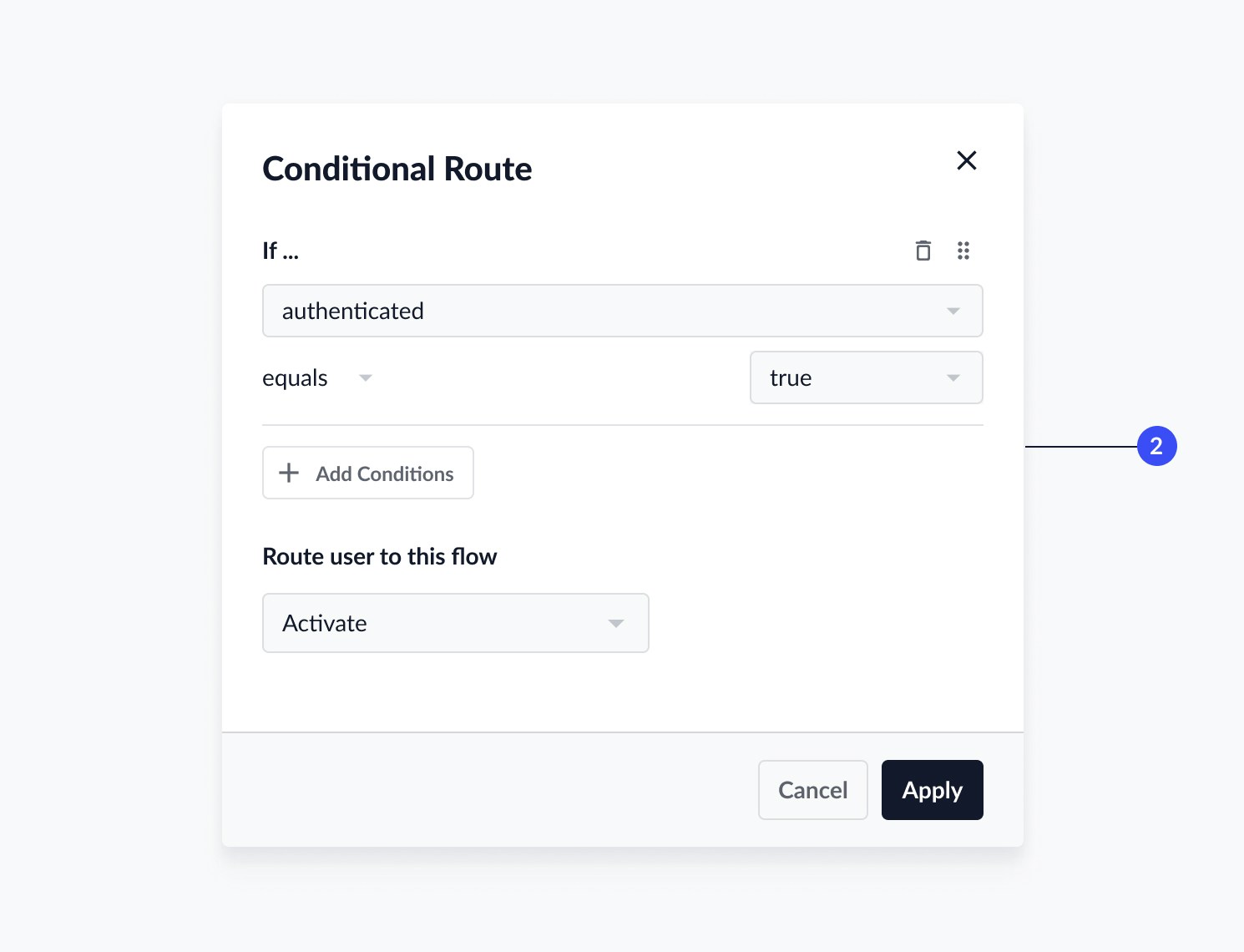 #### Multiple Conditional Routes
You can add multiple conditional rules that can route to different flows. You can reorder these conditions by dragging the conditional rule from the icon on the left. Once saved, the system evaluates conditions from top to bottom, with the customer being routed to the first flow for which the system validates the conditions. If no conditional route is valid, the system will route the customer to the [default flow](#default-flow).
#### Multiple Conditional Routes
You can add multiple conditional rules that can route to different flows. You can reorder these conditions by dragging the conditional rule from the icon on the left. Once saved, the system evaluates conditions from top to bottom, with the customer being routed to the first flow for which the system validates the conditions. If no conditional route is valid, the system will route the customer to the [default flow](#default-flow).
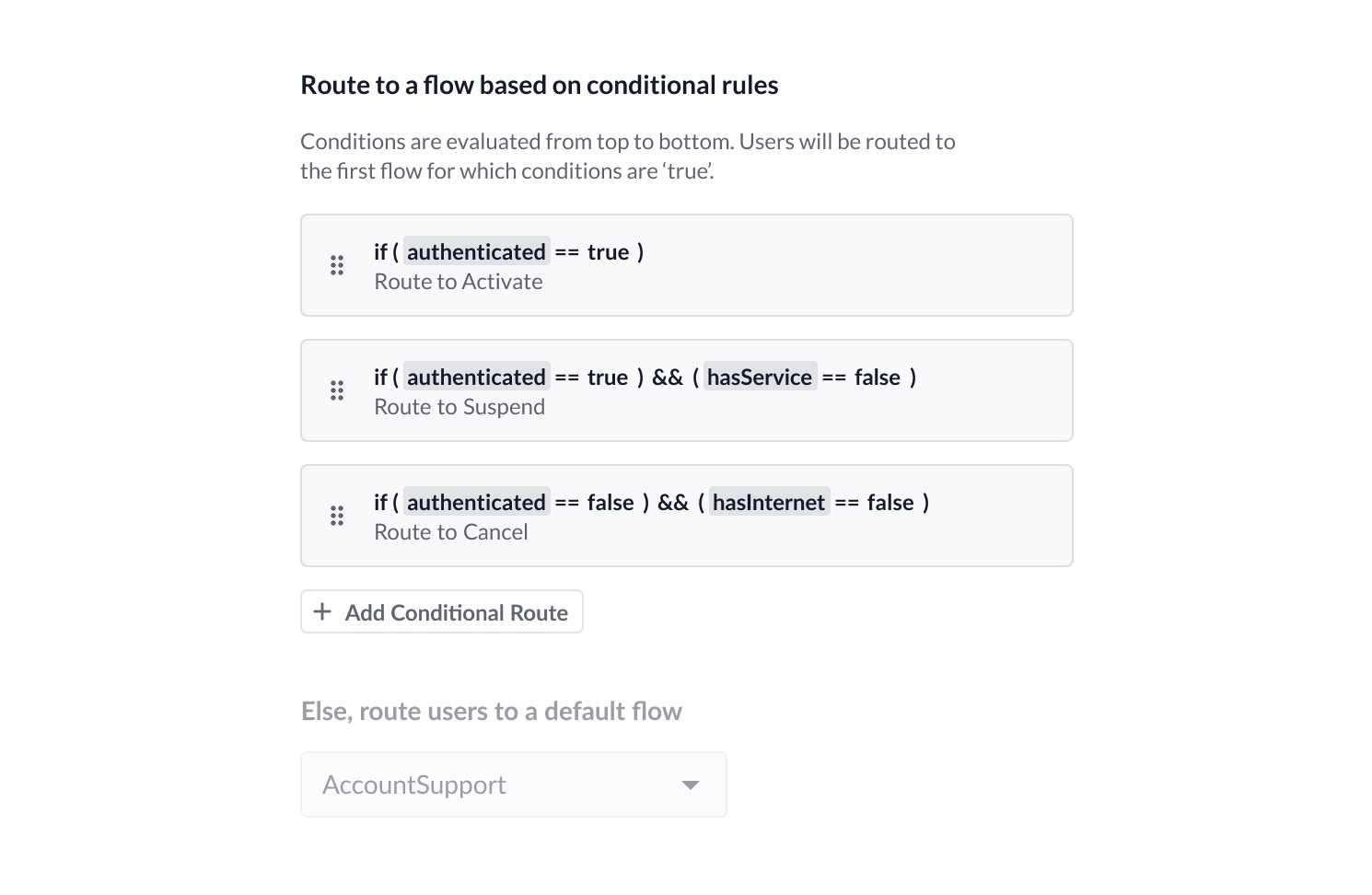 #### Default Flow
A default flow must be selected if the routing behavior is defined to [route to a flow](#routing-behavior).
Customers will be routed to the selected default flow if no conditional routes exist, or if none of the conditional routes were valid.
#### Default Flow
A default flow must be selected if the routing behavior is defined to [route to a flow](#routing-behavior).
Customers will be routed to the selected default flow if no conditional routes exist, or if none of the conditional routes were valid.
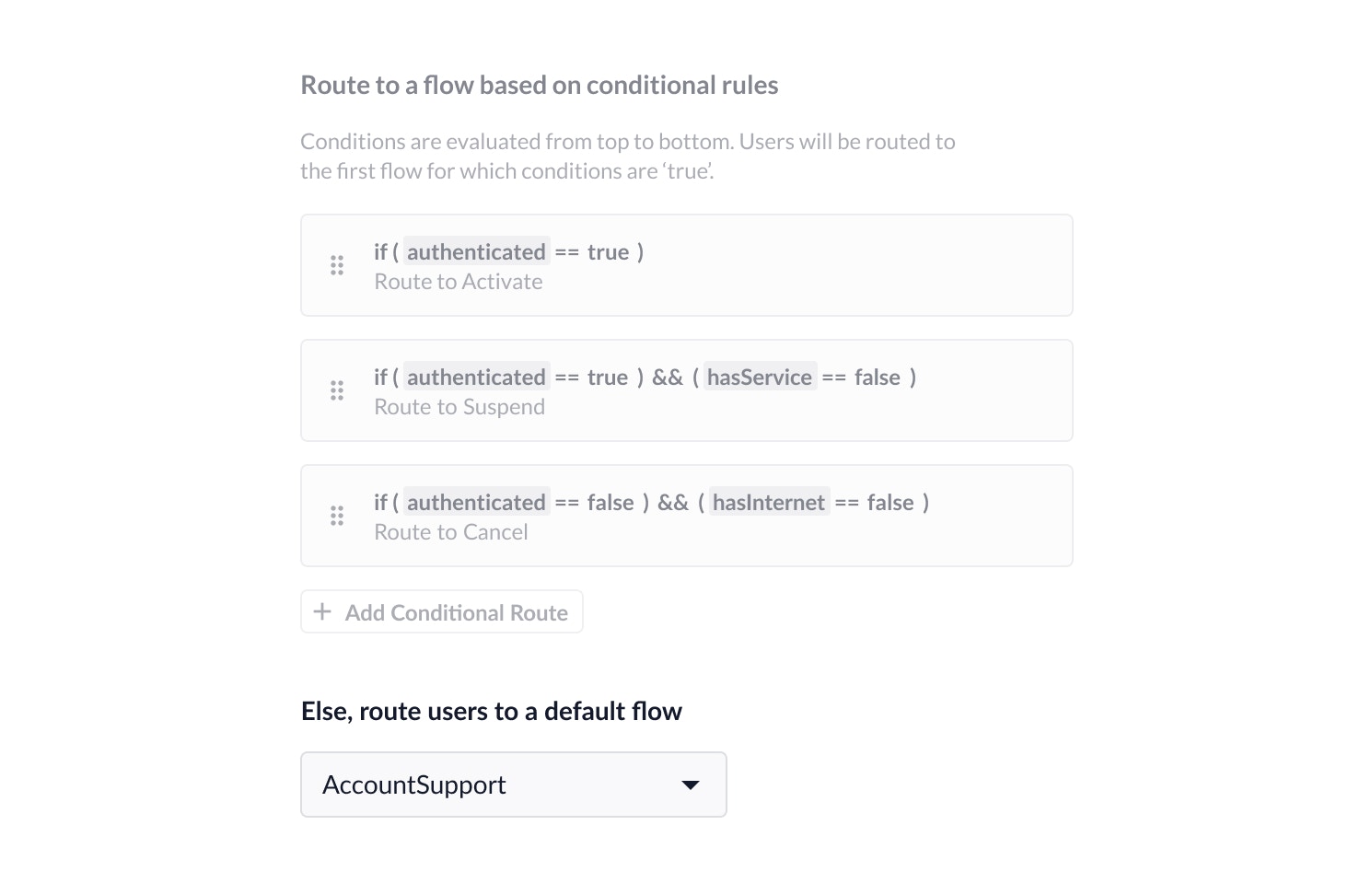 ### Intent Information
The **Intent Information** panel will display the intent name, code, and description for easy reference as you are viewing or editing intent routes.
The **Assigned routes** will display any flow(s) that are currently routed from the intent.
### Intent Toolbar
When you are editing intent routing, the toolbar displays the following buttons:
* **Discard changes**: remove all unsaved changes.
* **Save**: save changes to intent routing.
## Save Intent Routing
To save any changes to intent routing, click **Save** from the toolbar. By default, when saving an intent route, it is immediately released to production. There is currently no versioning available when saving intent routes.
### Intent Information
The **Intent Information** panel will display the intent name, code, and description for easy reference as you are viewing or editing intent routes.
The **Assigned routes** will display any flow(s) that are currently routed from the intent.
### Intent Toolbar
When you are editing intent routing, the toolbar displays the following buttons:
* **Discard changes**: remove all unsaved changes.
* **Save**: save changes to intent routing.
## Save Intent Routing
To save any changes to intent routing, click **Save** from the toolbar. By default, when saving an intent route, it is immediately released to production. There is currently no versioning available when saving intent routes.
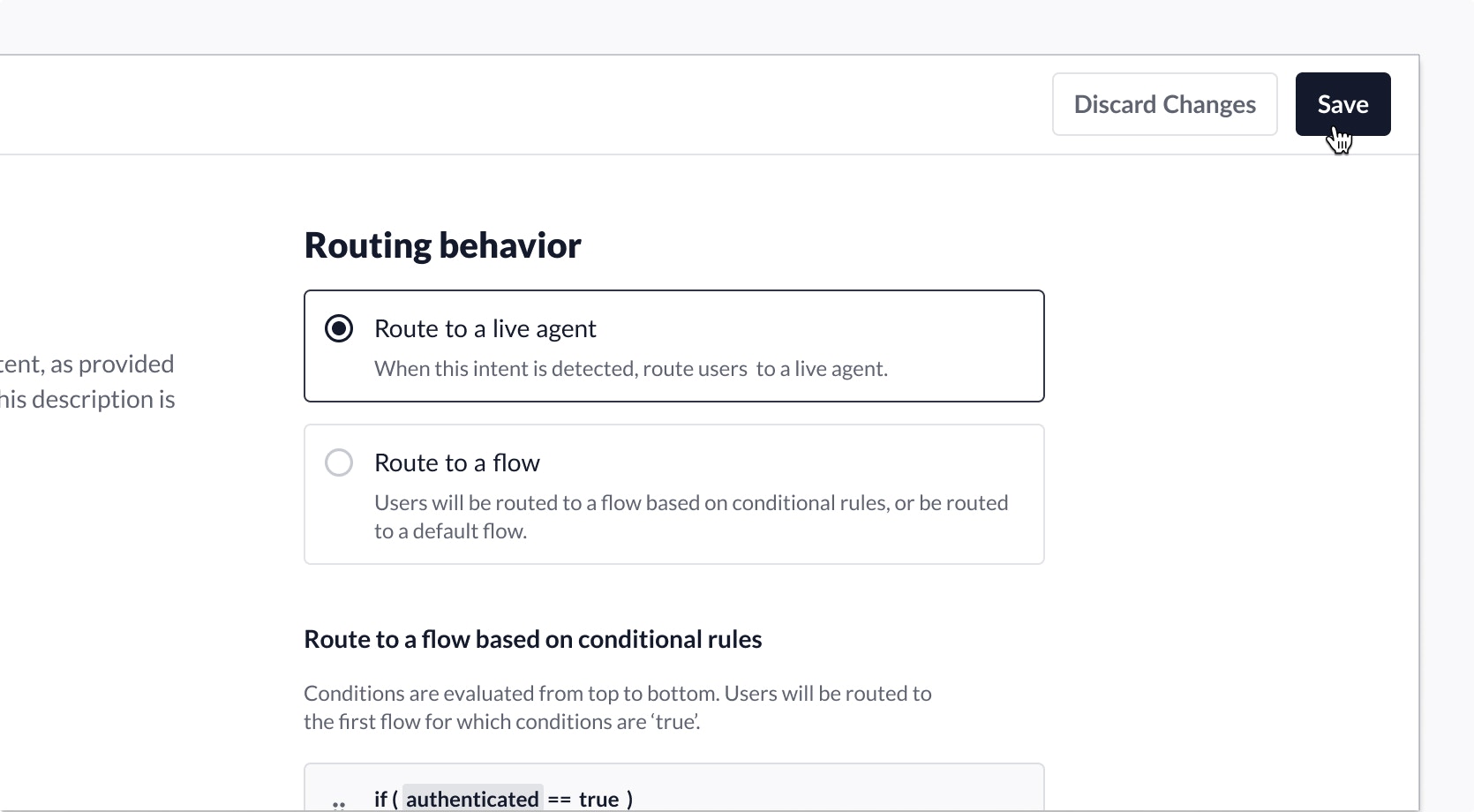 ### Test a Different Intent Route in Test Environments
To avoid impacting customer routing and assignments in production you can test a particular intent route in a test environment before releasing it to customers by following the steps below:
* In the **Conditional Route** editor, add a condition that targets the 'InTest' attribute.
a. The value assigned to 'InTest' should equal 'TRUE'.
b. Select the flow that you want to test the routing for.
c. Click **Apply**.
### Test a Different Intent Route in Test Environments
To avoid impacting customer routing and assignments in production you can test a particular intent route in a test environment before releasing it to customers by following the steps below:
* In the **Conditional Route** editor, add a condition that targets the 'InTest' attribute.
a. The value assigned to 'InTest' should equal 'TRUE'.
b. Select the flow that you want to test the routing for.
c. Click **Apply**.
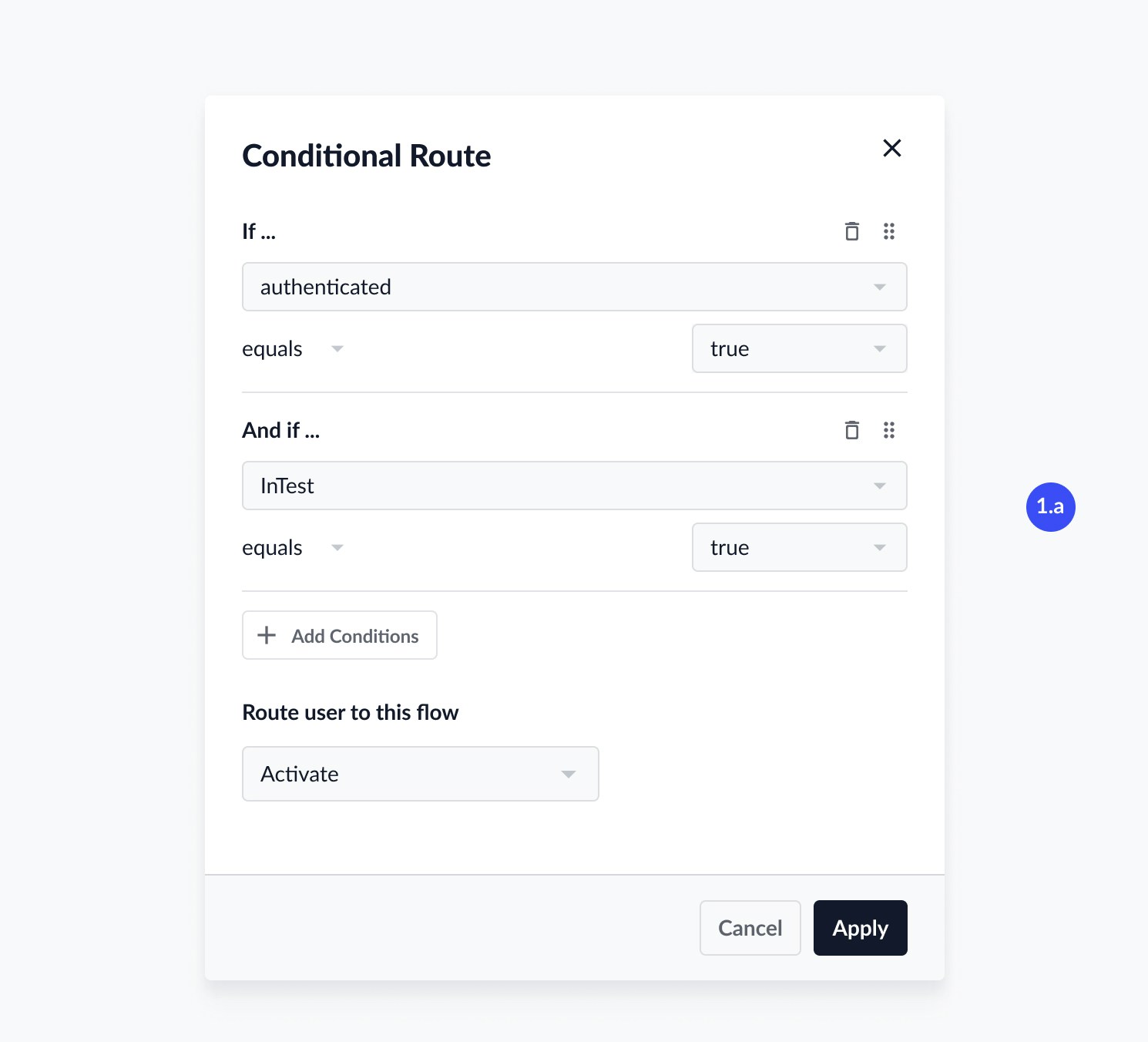
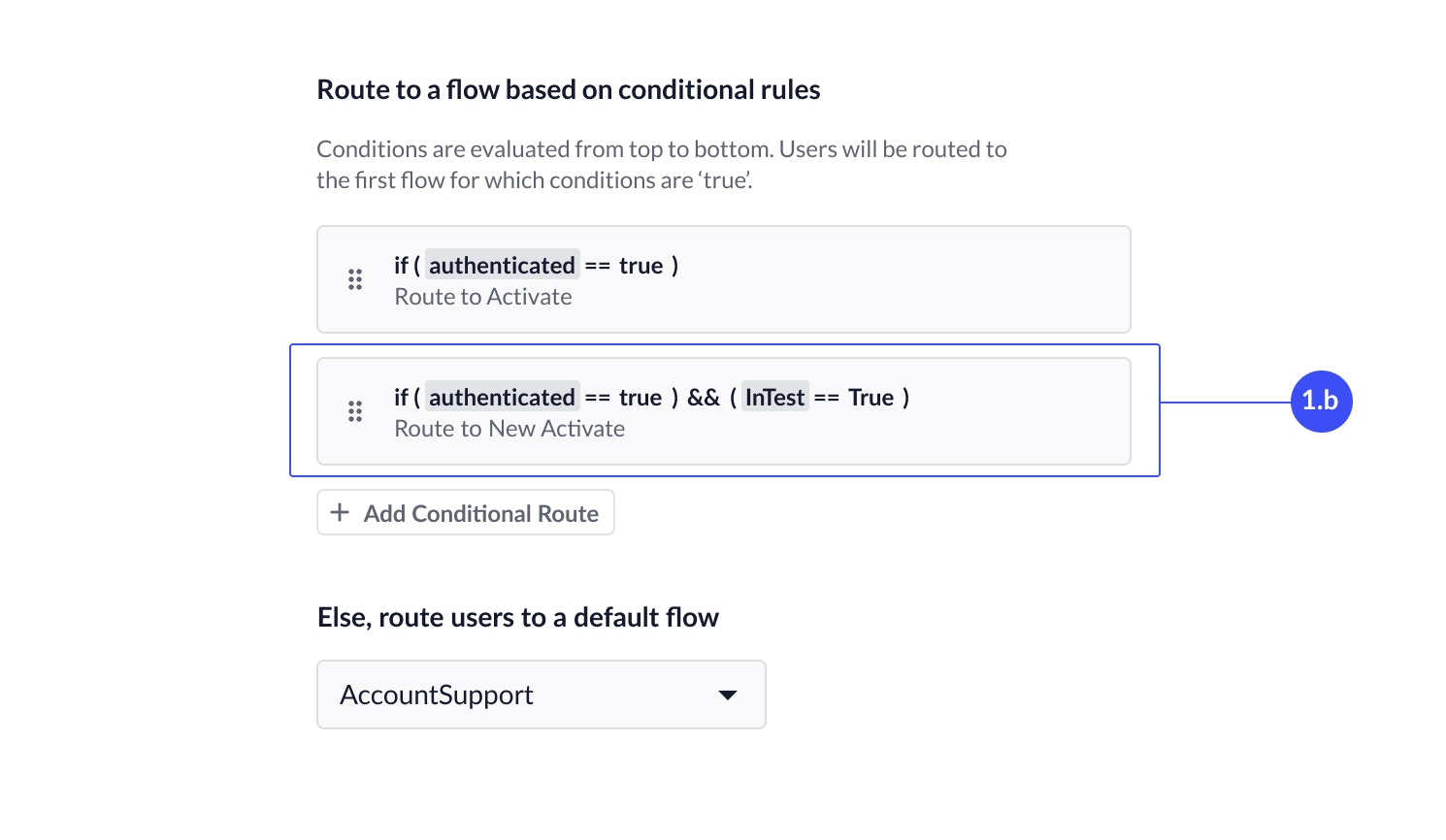 To fully release the intent route to Production, delete the conditional statement and update the routing to the new flow.
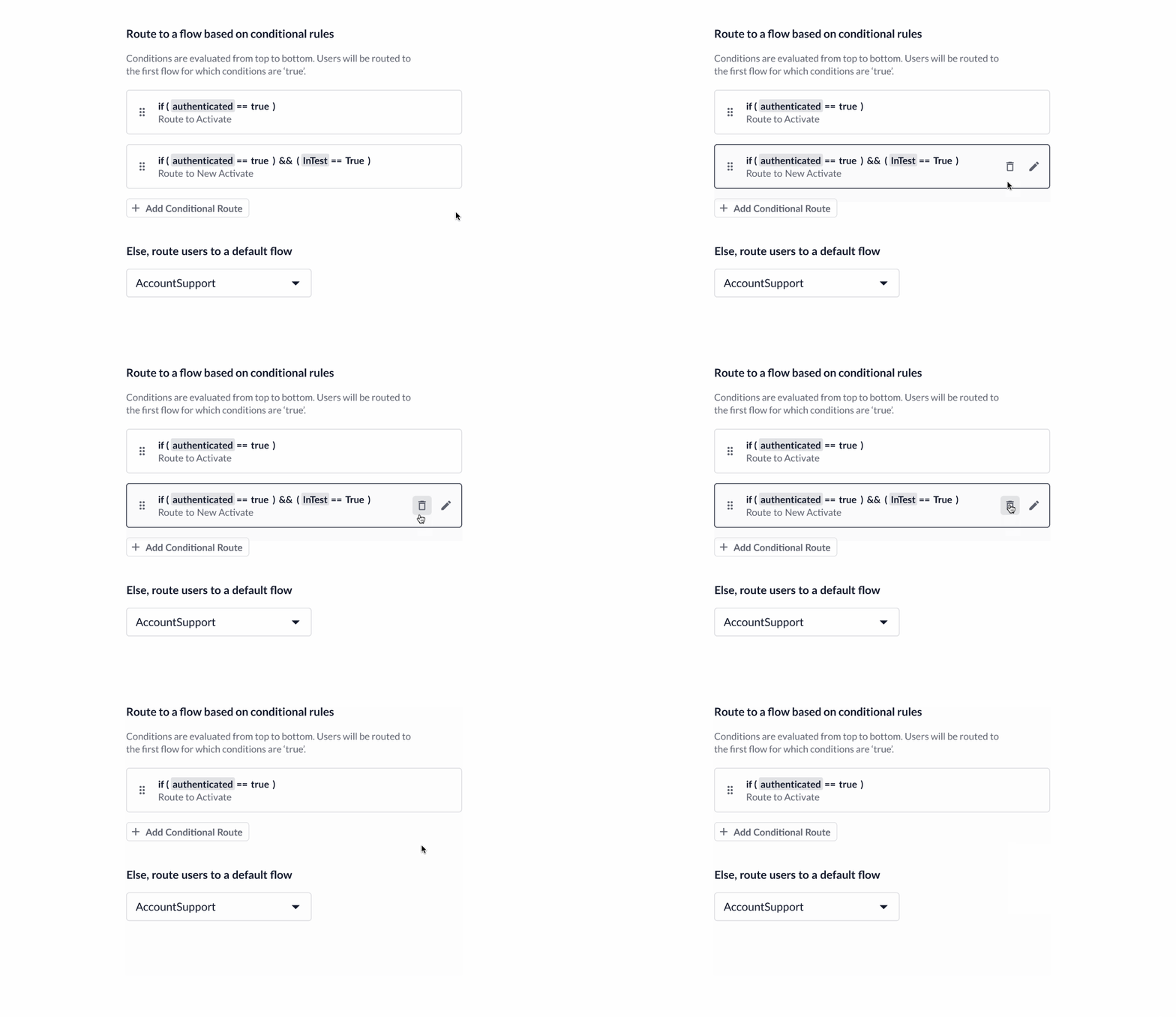 ## Test Intent Routes
Intent routes can be tested in demo environments. To test an intent route:
1. Access your demo environment.
2. Type `INTENT_INTENTCODE`, where `INTENTCODE` is the code associated with the intent you want to test. Please note that this is case sensitive.
3. Press **Enter** to test intent routes for that intent.
---
# Source: https://docs.asapp.com/ai-productivity/ai-summary/intent.md
> ## Documentation Index
> Fetch the complete documentation index at: https://docs.asapp.com/llms.txt
> Use this file to discover all available pages before exploring further.
# Intent
> Generate intents from your conversations
An intent is a topic-level descriptor—a single word or short phrase—that reflects the customer's main issue or question at the beginning of a conversation.
Intents come out-of-the-box with support for common intents, but you can customize them to match your unique use cases.
Intents enable you to optimize operations by analyzing contact reasons, route conversations more effectively, and contribute to your larger analysis activities.
## How it works
To help understand how intent identification works, let's use an example conversation:
> **Agent**: Hello, thank you for contacting XYZ Insurance. How can I assist you today?\
> **Customer**: Hi, I want to check the status of my payout for my claim.\
> **Agent**: Sure, can you please provide me with the claim number?\
> **Customer**: It's H123456789.\
> **Agent**: Thank you. Could you also provide the last 4 digits of your account number?\
> **Customer**: 6789\
> **Agent**: Let me check the details for you. One moment, please.\
> **Agent**: I see that your claim was approved on June 10, 2024, for \$5000. The payout has been processed.\
> **Customer**: Great! When will I receive the money?\
> **Agent**: The payout will be credited to your account within 3-5 business days.\
> **Customer**: Perfect, thank you so much for your help.\
> **Agent**: You're welcome! Is there anything else I can assist you with?\
> **Customer**: No, that's all. Have a nice day.\
> **Agent**: You too. Goodbye!
AI Summary analyzes the conversation, focusing primarily on the initial exchanges, to determine the customer's main reason for contact. This is represented by the `name` of the intent and the `code`, a machine readable identifier for that intent.
In this case, the intent might be identified as:
```javascript theme={null}
{
"code": "Payouts",
"name": "Payouts"
}
```
The system determines the intent based on the customer's initial statement about checking the status of their payout, which is the primary reason for their contact.
## Generate an Intent
To generate an intent, provide the conversation transcript to ASAPP.
This example uses our **Conversation API** to provide the transcript, but you have options to use [AI Transcribe](/ai-productivity/ai-transcribe) integration if you have voice conversations you want to send to ASAPP.
### Step 1: Create a conversation
To create a `conversation`, provide your IDs for the conversation and customer.
```javascript theme={null}
curl -X POST 'https://api.sandbox.asapp.com/conversation/v1/conversations' \
--header 'asapp-api-id:
## Test Intent Routes
Intent routes can be tested in demo environments. To test an intent route:
1. Access your demo environment.
2. Type `INTENT_INTENTCODE`, where `INTENTCODE` is the code associated with the intent you want to test. Please note that this is case sensitive.
3. Press **Enter** to test intent routes for that intent.
---
# Source: https://docs.asapp.com/ai-productivity/ai-summary/intent.md
> ## Documentation Index
> Fetch the complete documentation index at: https://docs.asapp.com/llms.txt
> Use this file to discover all available pages before exploring further.
# Intent
> Generate intents from your conversations
An intent is a topic-level descriptor—a single word or short phrase—that reflects the customer's main issue or question at the beginning of a conversation.
Intents come out-of-the-box with support for common intents, but you can customize them to match your unique use cases.
Intents enable you to optimize operations by analyzing contact reasons, route conversations more effectively, and contribute to your larger analysis activities.
## How it works
To help understand how intent identification works, let's use an example conversation:
> **Agent**: Hello, thank you for contacting XYZ Insurance. How can I assist you today?\
> **Customer**: Hi, I want to check the status of my payout for my claim.\
> **Agent**: Sure, can you please provide me with the claim number?\
> **Customer**: It's H123456789.\
> **Agent**: Thank you. Could you also provide the last 4 digits of your account number?\
> **Customer**: 6789\
> **Agent**: Let me check the details for you. One moment, please.\
> **Agent**: I see that your claim was approved on June 10, 2024, for \$5000. The payout has been processed.\
> **Customer**: Great! When will I receive the money?\
> **Agent**: The payout will be credited to your account within 3-5 business days.\
> **Customer**: Perfect, thank you so much for your help.\
> **Agent**: You're welcome! Is there anything else I can assist you with?\
> **Customer**: No, that's all. Have a nice day.\
> **Agent**: You too. Goodbye!
AI Summary analyzes the conversation, focusing primarily on the initial exchanges, to determine the customer's main reason for contact. This is represented by the `name` of the intent and the `code`, a machine readable identifier for that intent.
In this case, the intent might be identified as:
```javascript theme={null}
{
"code": "Payouts",
"name": "Payouts"
}
```
The system determines the intent based on the customer's initial statement about checking the status of their payout, which is the primary reason for their contact.
## Generate an Intent
To generate an intent, provide the conversation transcript to ASAPP.
This example uses our **Conversation API** to provide the transcript, but you have options to use [AI Transcribe](/ai-productivity/ai-transcribe) integration if you have voice conversations you want to send to ASAPP.
### Step 1: Create a conversation
To create a `conversation`, provide your IDs for the conversation and customer.
```javascript theme={null}
curl -X POST 'https://api.sandbox.asapp.com/conversation/v1/conversations' \
--header 'asapp-api-id:  ---
# Source: https://docs.asapp.com/agent-desk/integrations/ios-sdk/ios-sdk-release-notes.md
> ## Documentation Index
> Fetch the complete documentation index at: https://docs.asapp.com/llms.txt
> Use this file to discover all available pages before exploring further.
# iOS SDK Release Notes
The scrolling window below shows release notes for ASAPP's iOS SDK.
This content may also be viewed as a stand-alone webpage here: [https://docs-sdk.asapp.com/api/chatsdk/ios/releasenotes](https://docs-sdk.asapp.com/api/chatsdk/ios/releasenotes)
---
# Source: https://docs.asapp.com/agent-desk/integrations/ios-sdk.md
> ## Documentation Index
> Fetch the complete documentation index at: https://docs.asapp.com/llms.txt
> Use this file to discover all available pages before exploring further.
# iOS SDK Overview
Welcome to the ASAPP iOS SDK Overview! This document guides you through the process of integrating ASAPP functionality into your iOS application. It includes the following sections:
* [Quick Start](/agent-desk/integrations/ios-sdk/ios-quick-start "iOS Quick Start")
* [Customization](/agent-desk/integrations/ios-sdk/customization "Customization")
* [User Authentication](/agent-desk/integrations/ios-sdk/user-authentication "User Authentication")
* [Miscellaneous APIs](/agent-desk/integrations/ios-sdk/miscellaneous-apis "Miscellaneous APIs")
* [Deep Links and Web Links](/agent-desk/integrations/ios-sdk/deep-links-and-web-links "Deep Links and Web Links")
* [Push Notifications](/agent-desk/integrations/ios-sdk/push-notifications "Push Notifications")
In addition, you can view the following documentation:
* [iOS SDK Release Notes](/agent-desk/integrations/ios-sdk/ios-sdk-release-notes "iOS SDK Release Notes")
## Requirements
ASAPP supports iOS 12.0 and up. As a rule, ASAPP supports two major versions behind the latest. Once iOS 15 is released, ASAPP will drop support for iOS 12 and only support iOS 13.0 and up.
The SDK is written in Swift 5 and compiled with support for binary stability, meaning it is compatible with any Swift compiler version greater than or equal to 5.
---
# Source: https://docs.asapp.com/agent-desk/integrations/chat-instead/ios.md
> ## Documentation Index
> Fetch the complete documentation index at: https://docs.asapp.com/llms.txt
> Use this file to discover all available pages before exploring further.
# iOS
## Pre-requisites
* ASAPP iOS SDK 9.4.0 or later, correctly configured and initialized [see more here](/agent-desk/integrations/ios-sdk/ios-quick-start).
## Getting Started
Once you've successfully configured and initialized the ASAPP SDK, you can start using Chat Instead for iOS.
1. Create a New Instance.
```json theme={null}
let chatInsteadViewController = ASAPPChatInsteadViewController(phoneNumber: phoneNumber, delegate: delegate, title: title, chatIcon: image)
```
| | |
| :--------------------- | :------------------------------------------------------------------------------------------------------------------------------------------------------------------------------------------------------------------------------------------------------------------------- |
| phoneNumber (required) | The phone number to call when the phone channel is selected. Must be a valid phone number. For more information, see Apple's documentation on [phone links](https://developer.apple.com/library/archive/featuredarticles/iPhoneURLScheme_Reference/PhoneLinks/PhoneLinks). |
| delegate (required) | An object that implements `ASAPPChannelDelegate`. |
| title (optional) | A title (also called the "Chat Instead header title") which is displayed at the top of the Chat Instead UI. (See [Customization](#customization "Customization")) |
| image (optional) | A UI Image that will override the default image for the chat channel. (See [Customization](#customization "Customization")) |
2. Implement two functions that the `ASAPPChannelDelegate` requires:
```json theme={null}
func channel(_ channel: ASAPPChannel, didFailToOpenWithErrorDescription errorDescription: String?)
```
ASAPP calls this if an error occurs while trying to open a channel.
```json theme={null}
func didSelectASAPPChatChannel()
```
This opens the ASAPP chat.
You should use one of these methods:
```json theme={null}
ASAPP.createChatViewControllerForPresentingFromChatInstead()
```
or
```json theme={null}
ASAPP.createChatViewControllerForPushingFromChatInstead()
```
to present or push the view controller instance that ASAPP returned.
This means that you must present/push the ASAPP chat view controller inside `didSelectASAPPChatChannel()`.
---
# Source: https://docs.asapp.com/agent-desk/integrations/ios-sdk/ios-sdk-release-notes.md
> ## Documentation Index
> Fetch the complete documentation index at: https://docs.asapp.com/llms.txt
> Use this file to discover all available pages before exploring further.
# iOS SDK Release Notes
The scrolling window below shows release notes for ASAPP's iOS SDK.
This content may also be viewed as a stand-alone webpage here: [https://docs-sdk.asapp.com/api/chatsdk/ios/releasenotes](https://docs-sdk.asapp.com/api/chatsdk/ios/releasenotes)
---
# Source: https://docs.asapp.com/agent-desk/integrations/ios-sdk.md
> ## Documentation Index
> Fetch the complete documentation index at: https://docs.asapp.com/llms.txt
> Use this file to discover all available pages before exploring further.
# iOS SDK Overview
Welcome to the ASAPP iOS SDK Overview! This document guides you through the process of integrating ASAPP functionality into your iOS application. It includes the following sections:
* [Quick Start](/agent-desk/integrations/ios-sdk/ios-quick-start "iOS Quick Start")
* [Customization](/agent-desk/integrations/ios-sdk/customization "Customization")
* [User Authentication](/agent-desk/integrations/ios-sdk/user-authentication "User Authentication")
* [Miscellaneous APIs](/agent-desk/integrations/ios-sdk/miscellaneous-apis "Miscellaneous APIs")
* [Deep Links and Web Links](/agent-desk/integrations/ios-sdk/deep-links-and-web-links "Deep Links and Web Links")
* [Push Notifications](/agent-desk/integrations/ios-sdk/push-notifications "Push Notifications")
In addition, you can view the following documentation:
* [iOS SDK Release Notes](/agent-desk/integrations/ios-sdk/ios-sdk-release-notes "iOS SDK Release Notes")
## Requirements
ASAPP supports iOS 12.0 and up. As a rule, ASAPP supports two major versions behind the latest. Once iOS 15 is released, ASAPP will drop support for iOS 12 and only support iOS 13.0 and up.
The SDK is written in Swift 5 and compiled with support for binary stability, meaning it is compatible with any Swift compiler version greater than or equal to 5.
---
# Source: https://docs.asapp.com/agent-desk/integrations/chat-instead/ios.md
> ## Documentation Index
> Fetch the complete documentation index at: https://docs.asapp.com/llms.txt
> Use this file to discover all available pages before exploring further.
# iOS
## Pre-requisites
* ASAPP iOS SDK 9.4.0 or later, correctly configured and initialized [see more here](/agent-desk/integrations/ios-sdk/ios-quick-start).
## Getting Started
Once you've successfully configured and initialized the ASAPP SDK, you can start using Chat Instead for iOS.
1. Create a New Instance.
```json theme={null}
let chatInsteadViewController = ASAPPChatInsteadViewController(phoneNumber: phoneNumber, delegate: delegate, title: title, chatIcon: image)
```
| | |
| :--------------------- | :------------------------------------------------------------------------------------------------------------------------------------------------------------------------------------------------------------------------------------------------------------------------- |
| phoneNumber (required) | The phone number to call when the phone channel is selected. Must be a valid phone number. For more information, see Apple's documentation on [phone links](https://developer.apple.com/library/archive/featuredarticles/iPhoneURLScheme_Reference/PhoneLinks/PhoneLinks). |
| delegate (required) | An object that implements `ASAPPChannelDelegate`. |
| title (optional) | A title (also called the "Chat Instead header title") which is displayed at the top of the Chat Instead UI. (See [Customization](#customization "Customization")) |
| image (optional) | A UI Image that will override the default image for the chat channel. (See [Customization](#customization "Customization")) |
2. Implement two functions that the `ASAPPChannelDelegate` requires:
```json theme={null}
func channel(_ channel: ASAPPChannel, didFailToOpenWithErrorDescription errorDescription: String?)
```
ASAPP calls this if an error occurs while trying to open a channel.
```json theme={null}
func didSelectASAPPChatChannel()
```
This opens the ASAPP chat.
You should use one of these methods:
```json theme={null}
ASAPP.createChatViewControllerForPresentingFromChatInstead()
```
or
```json theme={null}
ASAPP.createChatViewControllerForPushingFromChatInstead()
```
to present or push the view controller instance that ASAPP returned.
This means that you must present/push the ASAPP chat view controller inside `didSelectASAPPChatChannel()`.
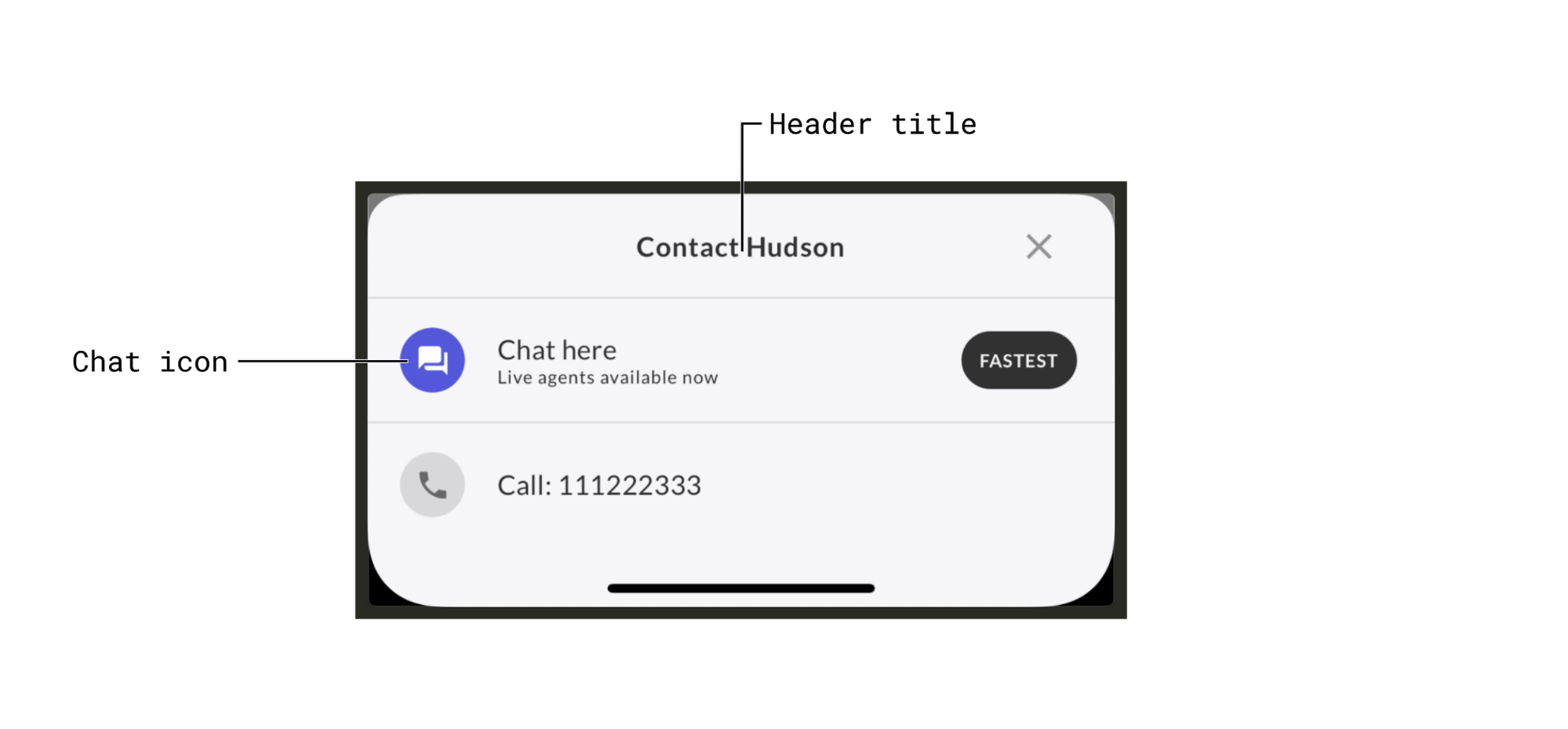 `ASAPPChatInsteadViewController` uses [ASAPPColors](https://docs-sdk.asapp.com/api/chatsdk/ios/latest/Classes/ASAPPColors.html) for styling, so it will automatically use the colors set there (e.g. `primary`, `background`, `onBackground`, etc.), which are the same colors used for customizing the ASAPP chat interface. There is no way to independently change the styling of the Chat Instead UI.
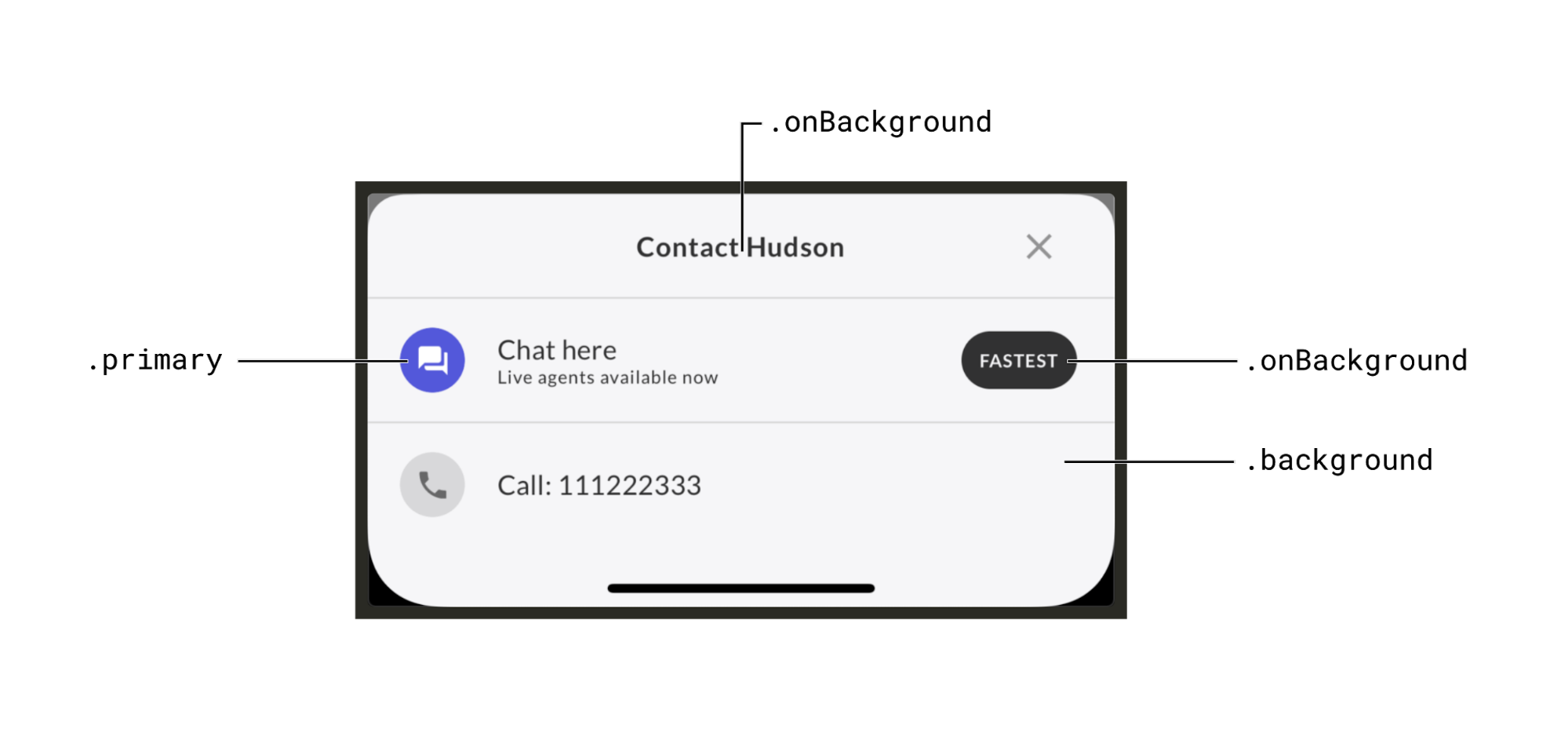 ASAPP supports [Dark Mode](../ios-sdk/customization#dark-mode-15935 "Dark Mode") by default as long as you enable it.
## Remote settings
When you create an instance of `ASAPPChatInsteadViewController`, it automatically fetches remote settings to indicate which channels to display. You can configure these settings.
ASAPP supports [Dark Mode](../ios-sdk/customization#dark-mode-15935 "Dark Mode") by default as long as you enable it.
## Remote settings
When you create an instance of `ASAPPChatInsteadViewController`, it automatically fetches remote settings to indicate which channels to display. You can configure these settings.
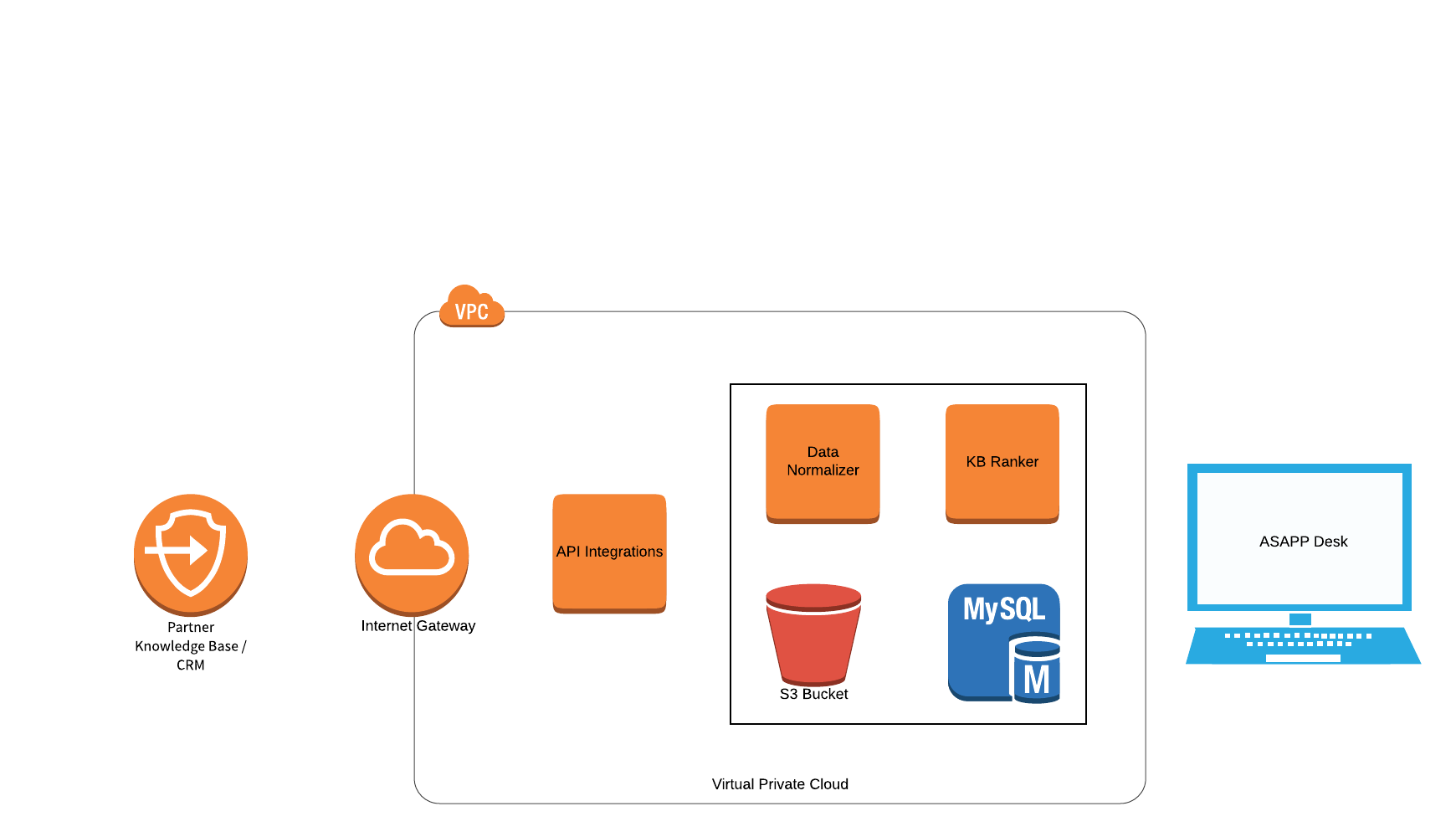 ## Integration
ASAPP integrates with customer Knowledge Base systems or CRMs to pull data and make it available to Agent Desk. A dedicated service accomplishes this by consuming data from external systems that support standard REST APIs. The service layer offers enough flexibility to integrate with various industry-standard Knowledge Base systems as well as proprietary in-house systems. The service programmatically retrieves new and updated articles regularly to surface fresh and accurate content to agents in real-time.
The system transforms data pulled from external systems into ASAPP's standard format and securely stores it in S3 and in a database. Refer to the [Data Storage](#data-storage) section below for more details.
### Configuration
The service that integrates with customers uses configuration-driven approaches to interface with different systems supporting various data formats and structures.
ASAPP requires the following information to integrate with APIs:
* REST endpoints and API definitions, data schemas and SLAs
* URLs, Connection info, and Test Accounts for each environment
* Authentication and Authorization requirements
* JSON schema defining requests and responses, preferably Swagger
* API Host that can handle HTTPS/TLS traffic
* Resource
* HTTP Method(s) supported
* Content Type(s) supported and other Request Headers
* Error handling documentation
* Response sizes to expect
* API Call Rate limits, if any
* Response time SLAs
* API Response Requirements
* Every 'article' should contain at least a unique identifier and last updated date timestamp.
* Hierarchical data needs to clearly define the parent-child relationships
* Content should not contain any PII/PCI related information
* Refreshing Data
* On a set cadence as determined and agreed upon by both parties
* Size of data to help in capacity planning and scaling
## Data Storage
Once the service receives KB content, it stores the data in a secure S3 bucket that serves as the source of truth for all Knowledge Base articles. The system then structures and packages the data into standard Knowledge Base types: Category, Folder, and Article. The service then cleans, processes, and stores the packaged data in a database for further usage.
## Data Processing
ASAPP runs all Knowledge Base articles stored in the database through a Knowledge Base Ranker service, which ranks articles and feeds Agent Augmentation. Given a set of user utterances, the KB Ranker service assigns a score to every article in the Knowledge Base based on how relevant those articles are for that agent at that moment in the conversation. ASAPP determines relevance by considering the frequency of words in an article within the corpus of articles and words from a given subset of utterances.
## Data Refresh
ASAPP can refresh data periodically and schedule it to meet customer needs. ASAPP uses a Unix cron style scheduler to run the refresh job, which allows flexible configuration.
Data Refresh replaces all current folders and articles with new ones received. The refresh does not affect article ranking, as the system maintains their state separately.
---
# Source: https://docs.asapp.com/agent-desk/virtual-agent/links.md
> ## Documentation Index
> Fetch the complete documentation index at: https://docs.asapp.com/llms.txt
> Use this file to discover all available pages before exploring further.
# Links
> Learn how to manage external links and URLs that direct customers to web pages.
ASAPP provides a powerful mechanism to manage external links and URLs that direct customers to web pages. Flows, core dialogs, and customer profiles predominantly use links.
## Links List
The Links list page displays a list of all links available to use in AI-Console. When you create a link, you can attach it to content in a node in Flow Tooling, include it in the Customer Profile panels, assign it to a View, etc.
Here, you'll find the **Link name & URL**. When adding a link to a flow or other feature, you must add it from a list of all link names.
## Integration
ASAPP integrates with customer Knowledge Base systems or CRMs to pull data and make it available to Agent Desk. A dedicated service accomplishes this by consuming data from external systems that support standard REST APIs. The service layer offers enough flexibility to integrate with various industry-standard Knowledge Base systems as well as proprietary in-house systems. The service programmatically retrieves new and updated articles regularly to surface fresh and accurate content to agents in real-time.
The system transforms data pulled from external systems into ASAPP's standard format and securely stores it in S3 and in a database. Refer to the [Data Storage](#data-storage) section below for more details.
### Configuration
The service that integrates with customers uses configuration-driven approaches to interface with different systems supporting various data formats and structures.
ASAPP requires the following information to integrate with APIs:
* REST endpoints and API definitions, data schemas and SLAs
* URLs, Connection info, and Test Accounts for each environment
* Authentication and Authorization requirements
* JSON schema defining requests and responses, preferably Swagger
* API Host that can handle HTTPS/TLS traffic
* Resource
* HTTP Method(s) supported
* Content Type(s) supported and other Request Headers
* Error handling documentation
* Response sizes to expect
* API Call Rate limits, if any
* Response time SLAs
* API Response Requirements
* Every 'article' should contain at least a unique identifier and last updated date timestamp.
* Hierarchical data needs to clearly define the parent-child relationships
* Content should not contain any PII/PCI related information
* Refreshing Data
* On a set cadence as determined and agreed upon by both parties
* Size of data to help in capacity planning and scaling
## Data Storage
Once the service receives KB content, it stores the data in a secure S3 bucket that serves as the source of truth for all Knowledge Base articles. The system then structures and packages the data into standard Knowledge Base types: Category, Folder, and Article. The service then cleans, processes, and stores the packaged data in a database for further usage.
## Data Processing
ASAPP runs all Knowledge Base articles stored in the database through a Knowledge Base Ranker service, which ranks articles and feeds Agent Augmentation. Given a set of user utterances, the KB Ranker service assigns a score to every article in the Knowledge Base based on how relevant those articles are for that agent at that moment in the conversation. ASAPP determines relevance by considering the frequency of words in an article within the corpus of articles and words from a given subset of utterances.
## Data Refresh
ASAPP can refresh data periodically and schedule it to meet customer needs. ASAPP uses a Unix cron style scheduler to run the refresh job, which allows flexible configuration.
Data Refresh replaces all current folders and articles with new ones received. The refresh does not affect article ranking, as the system maintains their state separately.
---
# Source: https://docs.asapp.com/agent-desk/virtual-agent/links.md
> ## Documentation Index
> Fetch the complete documentation index at: https://docs.asapp.com/llms.txt
> Use this file to discover all available pages before exploring further.
# Links
> Learn how to manage external links and URLs that direct customers to web pages.
ASAPP provides a powerful mechanism to manage external links and URLs that direct customers to web pages. Flows, core dialogs, and customer profiles predominantly use links.
## Links List
The Links list page displays a list of all links available to use in AI-Console. When you create a link, you can attach it to content in a node in Flow Tooling, include it in the Customer Profile panels, assign it to a View, etc.
Here, you'll find the **Link name & URL**. When adding a link to a flow or other feature, you must add it from a list of all link names.
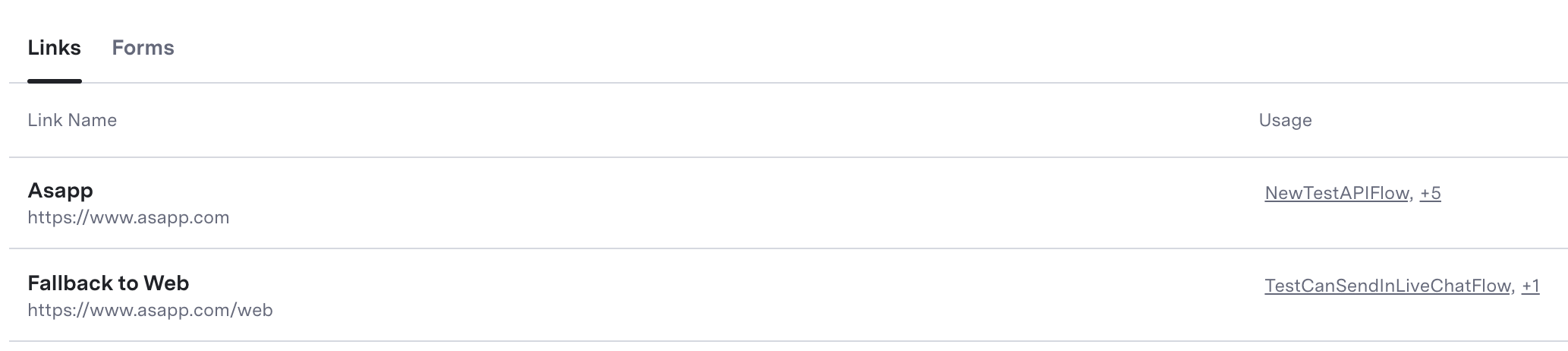 ## Create a Link
To create a link:
1. From the **Links** landing page, click the **+** button at the bottom right.
2. A modal window will open.
3. **Link name:** Provide a name for the link. Make the name descriptive so that other users can recognize its purpose.
4. **URL:** Include the full external URL, including **http\://** (e.g., `http://example.com/about`).
5. **Channel Targets:** This feature is optional. It allows users to create a link variant that targets customers using a specific channel. See details below.
## Create a Link
To create a link:
1. From the **Links** landing page, click the **+** button at the bottom right.
2. A modal window will open.
3. **Link name:** Provide a name for the link. Make the name descriptive so that other users can recognize its purpose.
4. **URL:** Include the full external URL, including **http\://** (e.g., `http://example.com/about`).
5. **Channel Targets:** This feature is optional. It allows users to create a link variant that targets customers using a specific channel. See details below.
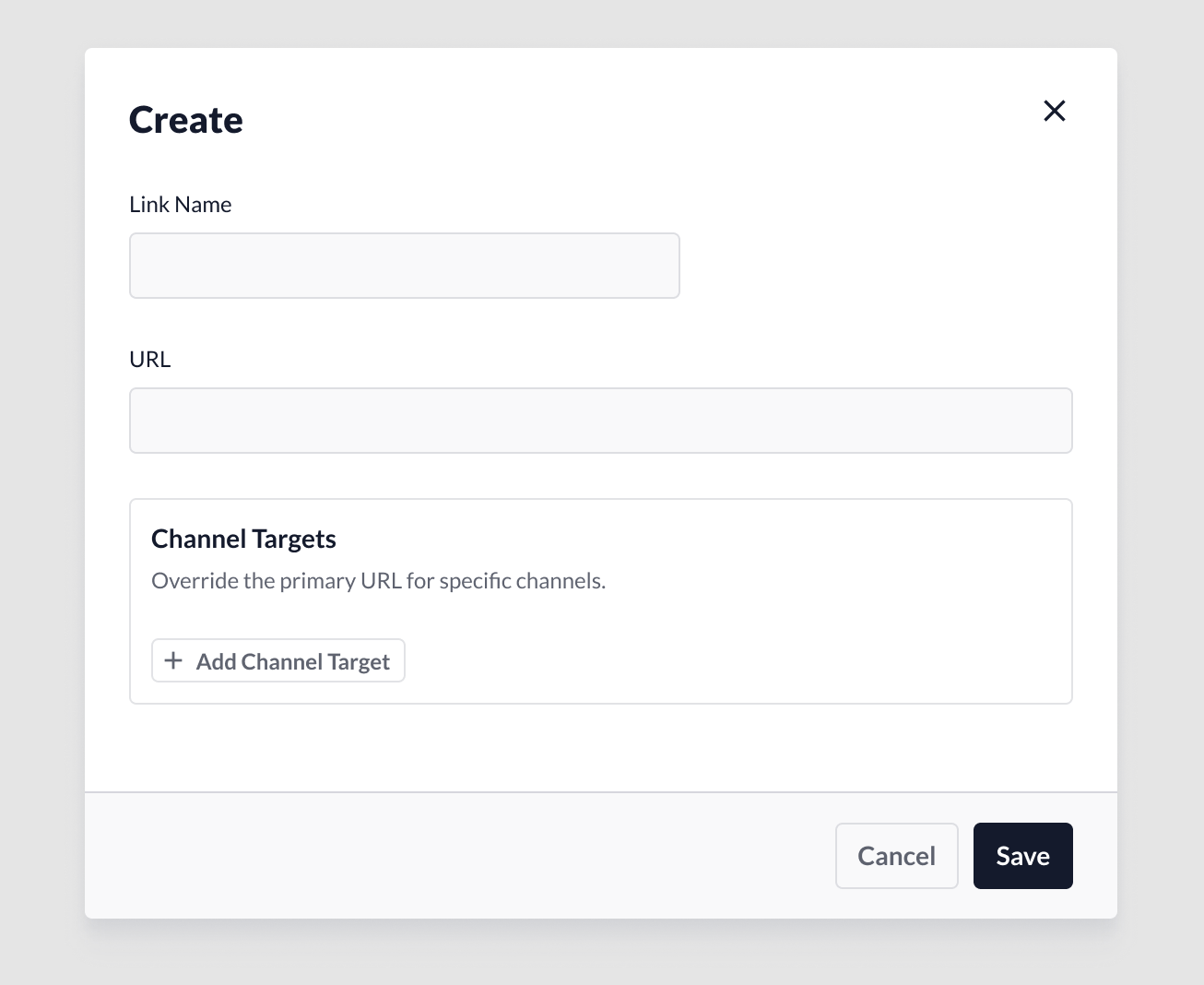 ### Add a Channel Target Variant
1. Click **Add Channel Target** to add a URL variant. The system adds a new input field.
a. **URL Override:** Include the URL variant for the targeted channel. Please follow the same URL syntax as described under **Create a Link**.
b. **Channel Target:** From the drop-down menu, select which channel to target. Bear in mind that a single variant per channel is currently supported.
2. **Delete targets:** To remove a target, click the **Delete** icon.
3. **Save:** To save the link, click the **Save** button. The link will not be active until it is assigned to a flow, customer profile or any other feature that supports **Links**.
4. **Cancel:** When you click, the system clears all changes.
### Add a Channel Target Variant
1. Click **Add Channel Target** to add a URL variant. The system adds a new input field.
a. **URL Override:** Include the URL variant for the targeted channel. Please follow the same URL syntax as described under **Create a Link**.
b. **Channel Target:** From the drop-down menu, select which channel to target. Bear in mind that a single variant per channel is currently supported.
2. **Delete targets:** To remove a target, click the **Delete** icon.
3. **Save:** To save the link, click the **Save** button. The link will not be active until it is assigned to a flow, customer profile or any other feature that supports **Links**.
4. **Cancel:** When you click, the system clears all changes.
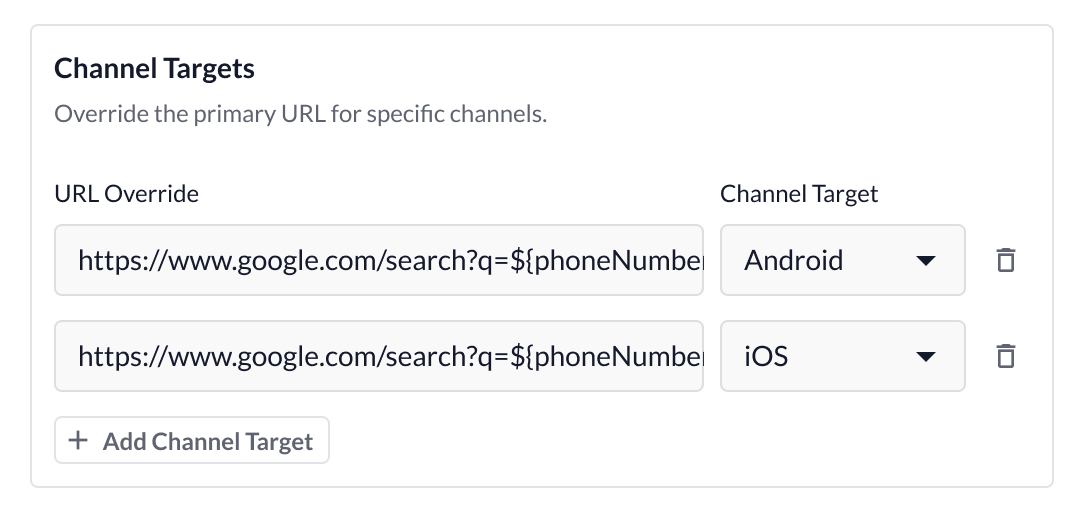 ### Link Assignments
Once you create a link, you can send it to customers in flows. The **Links** feature will keep tabs on where each link has been assigned and provide quick access to those feature areas.
When viewing a specific link, the Usage section indicates which flows are currently using the respective link. When you click, you can navigate directly to the flow. When a link is not assigned in any flow, the system displays 'Not yet assigned'.
### Link Assignments
Once you create a link, you can send it to customers in flows. The **Links** feature will keep tabs on where each link has been assigned and provide quick access to those feature areas.
When viewing a specific link, the Usage section indicates which flows are currently using the respective link. When you click, you can navigate directly to the flow. When a link is not assigned in any flow, the system displays 'Not yet assigned'.
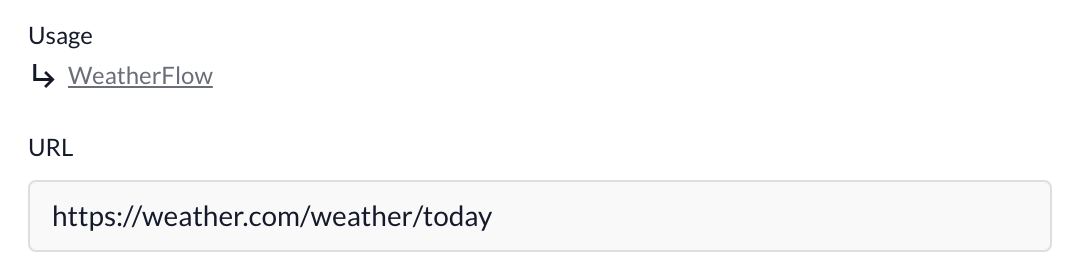 ## Edit a Link
Link changes are global, which means that the system immediately pushes saved changes to all features that reference the link.
1. From the **Links** landing page, click the **link name** you want to edit.
2. **Link ID:** After you save a link for the first time, the system automatically assigns a unique identifier to the link. This identifier does not change over time, including when you edit the link.
a. The **Link ID** can be referenced in **Historical Reporting** for your reporting needs.
3. Assign changes to the configurations.
4. **Save:** When changes are complete, click **Save** to automatically apply the changes.
## Delete a Link
Links can be deleted, but only if they are not currently assigned. To delete a link that is assigned, remove the assignments first.
## Edit a Link
Link changes are global, which means that the system immediately pushes saved changes to all features that reference the link.
1. From the **Links** landing page, click the **link name** you want to edit.
2. **Link ID:** After you save a link for the first time, the system automatically assigns a unique identifier to the link. This identifier does not change over time, including when you edit the link.
a. The **Link ID** can be referenced in **Historical Reporting** for your reporting needs.
3. Assign changes to the configurations.
4. **Save:** When changes are complete, click **Save** to automatically apply the changes.
## Delete a Link
Links can be deleted, but only if they are not currently assigned. To delete a link that is assigned, remove the assignments first.
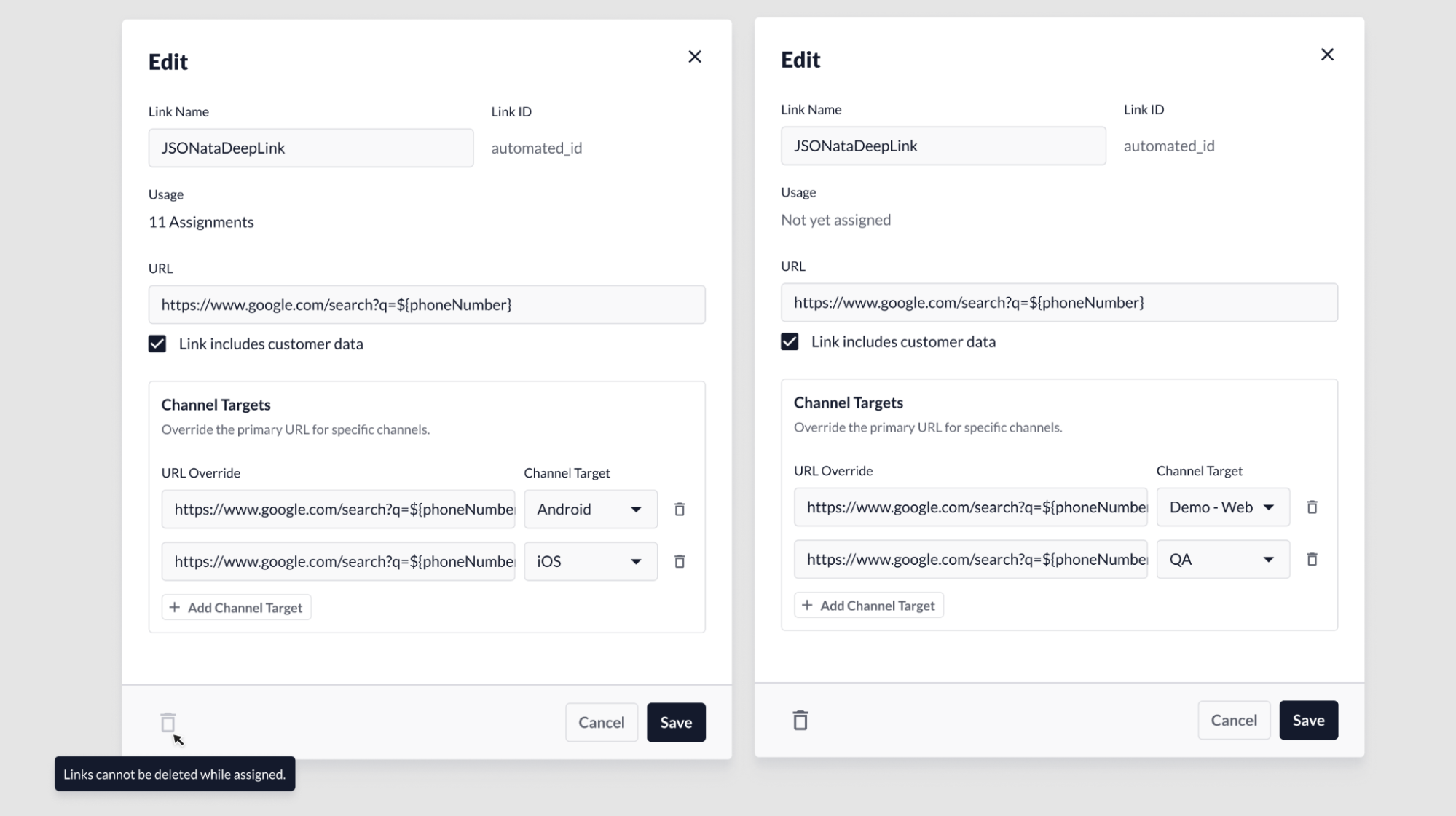 1. If the link is assigned: When opening the Link modal, the **Delete** button will be disabled. The delete function will remain disabled until all link assignments have been removed.
2. If the link is not assigned: The link can be deleted by clicking on the **Delete** button on the bottom-left area of the link modal.
---
# Source: https://docs.asapp.com/apis/conversations/list-conversations.md
> ## Documentation Index
> Fetch the complete documentation index at: https://docs.asapp.com/llms.txt
> Use this file to discover all available pages before exploring further.
# List conversations
> Retrieves a list of conversation resources that match the specified criteria.
You must provide at least one search criterion in the query parameters.
## OpenAPI
````yaml api-specs/conversations.yaml get /conversation/v1/conversations
openapi: 3.0.1
info:
title: Conversations API
description: Operations to manage ASAPP conversations
contact:
email: api-info@asapp.com
license:
name: ASAPP Software License
url: https://api.asapp.com/LICENSE
version: '0.1'
servers:
- url: https://api.sandbox.asapp.com
security:
- API-ID: []
API-Secret: []
tags:
- name: Conversations
description: Operations to send conversational inputs to ASAPP AI services
paths:
/conversation/v1/conversations:
get:
tags:
- Conversations
summary: List conversations
description: >
Retrieves a list of conversation resources that match the specified
criteria.
You must provide at least one search criterion in the query parameters.
operationId: getConversations
parameters:
- name: externalId
description: Your identifier for a conversation.
in: query
required: true
schema:
type: string
example:
externalId: id-111
responses:
'200':
description: Successfully fetched conversations
content:
application/json:
schema:
description: A list of conversations
type: object
properties:
items:
type: array
items:
description: >-
Represents a conversation between an agent and a
customer.
type: object
properties:
id:
type: string
description: >-
The unique identifier for the conversation within
the ASAPP system.
externalId:
type: string
description: >-
The unique identifier for the conversation in your
external chat or voice system.
agent:
type: object
description: >-
Information about the agent participating in the
conversation.
properties:
externalId:
type: string
description: >-
The unique identifier for the agent in your
external system.
name:
type: string
description: The display name of the agent.
required:
- externalId
customer:
type: object
description: >-
Information about the customer participating in the
conversation.
properties:
externalId:
type: string
description: >-
The unique identifier for the customer in your
external system.
name:
type: string
description: The display name of the customer.
required:
- externalId
metadata:
type: object
additionalProperties:
type: string
description: >-
Additional key-value pairs to store custom metadata
about the conversation. Use this for filtering or
categorization purposes.
required:
- externalId
- customer
example:
id: 01BX5ZZKBKACTAV9WEVGEMMVRZ
externalId: id-111
agent:
externalId: agent-111
name: agent-x
customer:
externalId: customer-x
name: customer-name-x
metadata:
organizationalGroup: some-group
subdivision: some-division
queue: some-queue
'400':
description: 400 - Bad request
content:
application/json:
schema:
description: Bad request response
type: object
properties:
error:
example:
requestId: 8e033668-9f1a-11ec-b909-0242ac120002
code: 400-01
message: Bad request
description: Error details
type: object
properties:
requestId:
type: string
description: Unique ID of the failing request
message:
type: string
description: Error message
code:
type: string
description: Error code
required:
- requestId
- message
'401':
description: 401 - Unauthorized
content:
application/json:
schema:
description: Unauthorized response
type: object
properties:
error:
example:
requestId: 8e033668-9f1a-11ec-b909-0242ac120002
code: 401-01
message: Unauthorized
description: Error details
type: object
properties:
requestId:
type: string
description: Unique ID of the failing request
message:
type: string
description: Error message
code:
type: string
description: Error code
required:
- requestId
- message
'403':
description: 403 - Forbidden
content:
application/json:
schema:
description: Forbidden response
type: object
properties:
error:
example:
requestId: 8e033668-9f1a-11ec-b909-0242ac120002
code: 403-01
message: Forbidden Response
description: Error details
type: object
properties:
requestId:
type: string
description: Unique ID of the failing request
message:
type: string
description: Error message
code:
type: string
description: Error code
required:
- requestId
- message
'404':
description: 404 - Not Found
content:
application/json:
schema:
description: Not Found response
type: object
properties:
error:
example:
requestId: 8e033668-9f1a-11ec-b909-0242ac120002
code: 404-01
message: Not Found
description: Error details
type: object
properties:
requestId:
type: string
description: Unique ID of the failing request
message:
type: string
description: Error message
code:
type: string
description: Error code
required:
- requestId
- message
'422':
description: 422 - Unprocessable Entity
content:
application/json:
schema:
description: Unprocessable Entity response
type: object
properties:
error:
example:
requestId: 8e033668-9f1a-11ec-b909-0242ac120002
code: 422-01
message: Unprocessable Entity
description: Error details
type: object
properties:
requestId:
type: string
description: Unique ID of the failing request
message:
type: string
description: Error message
code:
type: string
description: Error code
required:
- requestId
- message
'429':
description: 429 - Too Many Requests
content:
application/json:
schema:
description: Too Many Requests response
type: object
properties:
error:
example:
requestId: 8e033668-9f1a-11ec-b909-0242ac120002
code: 429-01
message: Too Many Requests
description: Error details
type: object
properties:
requestId:
type: string
description: Unique ID of the failing request
message:
type: string
description: Error message
code:
type: string
description: Error code
required:
- requestId
- message
'503':
description: 503 - Service Unavailable
content:
application/json:
schema:
description: Service Unavailable response
type: object
properties:
error:
example:
requestId: 8e033668-9f1a-11ec-b909-0242ac120002
code: 503-01
message: Service Unavailable
description: Error details
type: object
properties:
requestId:
type: string
description: Unique ID of the failing request
message:
type: string
description: Error message
code:
type: string
description: Error code
required:
- requestId
- message
default:
description: 500 - Internal Server Error
content:
application/json:
schema:
description: Default error response
type: object
properties:
error:
example:
requestId: 8e033668-9f1a-11ec-b909-0242ac120002
code: 500-01
message: Internal server error
description: Error details
type: object
properties:
requestId:
type: string
description: Unique ID of the failing request
message:
type: string
description: Error message
code:
type: string
description: Error code
required:
- requestId
- message
components:
securitySchemes:
API-ID:
type: apiKey
in: header
name: asapp-api-id
API-Secret:
type: apiKey
in: header
name: asapp-api-secret
````
---
# Source: https://docs.asapp.com/apis/configuration/custom-vocabularies/list-custom-vocabularies.md
> ## Documentation Index
> Fetch the complete documentation index at: https://docs.asapp.com/llms.txt
> Use this file to discover all available pages before exploring further.
# List custom vocabularies
> Retrieves all custom vocabulary configurations.
## OpenAPI
````yaml api-specs/partner-configuration.yaml get /configuration/v1/custom-vocabularies
openapi: 3.0.0
info:
title: Partner Configuration API
description: >
This is the Partner Configuration API which allows ASAPP partners to manage
configurations. Currently we are offering:
- Custom Vocabularies: API endpoints to create, delete, update, and retrieve custom vocabularies.
- Redaction Entities: API endpoints to update and retrieve redaction entities.
- Structured Data Fields: API endpoints to create, delete, update, and retrieve structured data fields.
Important Note: Custom Vocabularies and Redaction Entities do not support
concurrent operations within the same category. You can perform updates,
creations or deletes concurrently between Custom Vocabularies and Redaction
Entities, but not within each one. Each operation may take up to 45 seconds
to complete.
version: 1.0.0
servers:
- url: https://api.sandbox.asapp.com
security:
- API-ID: []
API-Secret: []
tags:
- name: Configuration
description: Operations to manage ASAPP configurations
paths:
/configuration/v1/custom-vocabularies:
get:
tags:
- Configuration
summary: List custom vocabularies
description: |
Retrieves all custom vocabulary configurations.
operationId: getCustomVocabularyConfigurations
parameters:
- in: query
name: cursor
schema:
type: string
nullable: true
description: The cursor pointing to the current position
- in: query
name: limit
schema:
type: integer
nullable: true
minimum: 1
maximum: 100
default: 20
description: The maximum amount of objects to retrieve
responses:
'200':
description: Custom vocabulary configurations.
content:
application/json:
schema:
type: object
properties:
customVocabularies:
type: array
items:
description: A list of custom vocabularies.
example:
id: '1'
phrase: IEEE
soundsLike:
- I triple E
type: object
allOf:
- type: object
properties:
phrase:
type: string
description: >-
The phrase to be added to the custom vocabulary.
This is the phrase you want to end up with in
the transcription.
soundsLike:
type: array
description: >-
An array of phonetic representations of the
phrase.
items:
type: string
required:
- phrase
- soundsLike
example:
phrase: IEEE
soundsLike:
- I triple E
- type: object
properties:
id:
type: string
description: The id of the custom vocabulary
nextCursor:
type: string
nullable: true
description: The next cursor to fetch
example: 6b29fc40-ca47-1067-b31d-00dd010662da
prevCursor:
type: string
nullable: true
description: The previous cursor to fetch
example: 04719ebd-13e1-40e9-8b92-0941cd16a19c
required:
- customVocabularies
- nextCursor
- prevCursor
'400':
description: 400 - Bad request
content:
application/json:
schema:
description: Bad request response
type: object
properties:
error:
example:
requestId: 8e033668-9f1a-11ec-b909-0242ac120002
code: 400-01
message: Bad request
description: Error details
type: object
properties:
requestId:
type: string
description: Unique ID of the failing request
message:
type: string
description: Error message
code:
type: string
description: Error code
required:
- requestId
- message
'401':
description: 401 - Unauthorized
content:
application/json:
schema:
description: Unauthorized response
type: object
properties:
error:
example:
requestId: 8e033668-9f1a-11ec-b909-0242ac120002
code: 401-01
message: Unauthorized
description: Error details
type: object
properties:
requestId:
type: string
description: Unique ID of the failing request
message:
type: string
description: Error message
code:
type: string
description: Error code
required:
- requestId
- message
'403':
description: 403 - Forbidden
content:
application/json:
schema:
description: Forbidden response
type: object
properties:
error:
example:
requestId: 8e033668-9f1a-11ec-b909-0242ac120002
code: 403-01
message: Forbidden Response
description: Error details
type: object
properties:
requestId:
type: string
description: Unique ID of the failing request
message:
type: string
description: Error message
code:
type: string
description: Error code
required:
- requestId
- message
'404':
description: 404 - Not Found
content:
application/json:
schema:
description: Not Found response
type: object
properties:
error:
example:
requestId: 8e033668-9f1a-11ec-b909-0242ac120002
code: 404-01
message: Not Found
description: Error details
type: object
properties:
requestId:
type: string
description: Unique ID of the failing request
message:
type: string
description: Error message
code:
type: string
description: Error code
required:
- requestId
- message
'409':
description: 409 - Conflict
content:
application/json:
schema:
description: Conflict response
type: object
properties:
error:
example:
requestId: 8e033668-9f1a-11ec-b909-0242ac120002
code: 409-01
message: Conflict
description: Error details
type: object
properties:
requestId:
type: string
description: Unique ID of the failing request
message:
type: string
description: Error message
code:
type: string
description: Error code
required:
- requestId
- message
'413':
description: 413 - Request Entity Too Large
content:
application/json:
schema:
description: Request Entity Too Large response
type: object
properties:
error:
example:
requestId: 8e033668-9f1a-11ec-b909-0242ac120002
code: 413-01
message: Request Entity Too Large
description: Error details
type: object
properties:
requestId:
type: string
description: Unique ID of the failing request
message:
type: string
description: Error message
code:
type: string
description: Error code
required:
- requestId
- message
'422':
description: 422 - Unprocessable Entity
content:
application/json:
schema:
description: Unprocessable Entity response
type: object
properties:
error:
example:
requestId: 8e033668-9f1a-11ec-b909-0242ac120002
code: 422-01
message: Unprocessable Entity
description: Error details
type: object
properties:
requestId:
type: string
description: Unique ID of the failing request
message:
type: string
description: Error message
code:
type: string
description: Error code
required:
- requestId
- message
'429':
description: 429 - Too Many Requests
content:
application/json:
schema:
description: Too Many Requests response
type: object
properties:
error:
example:
requestId: 8e033668-9f1a-11ec-b909-0242ac120002
code: 429-01
message: Too Many Requests
description: Error details
type: object
properties:
requestId:
type: string
description: Unique ID of the failing request
message:
type: string
description: Error message
code:
type: string
description: Error code
required:
- requestId
- message
'500':
description: 500 - Internal Server Error
content:
application/json:
schema:
description: Default error response
type: object
properties:
error:
example:
requestId: 8e033668-9f1a-11ec-b909-0242ac120002
code: 500-01
message: Internal server error
description: Error details
type: object
properties:
requestId:
type: string
description: Unique ID of the failing request
message:
type: string
description: Error message
code:
type: string
description: Error code
required:
- requestId
- message
'503':
description: 503 - Service Unavailable
content:
application/json:
schema:
description: Service Unavailable response
type: object
properties:
error:
example:
requestId: 8e033668-9f1a-11ec-b909-0242ac120002
code: 503-01
message: Service Unavailable
description: Error details
type: object
properties:
requestId:
type: string
description: Unique ID of the failing request
message:
type: string
description: Error message
code:
type: string
description: Error code
required:
- requestId
- message
components:
securitySchemes:
API-ID:
type: apiKey
in: header
name: asapp-api-id
API-Secret:
type: apiKey
in: header
name: asapp-api-secret
````
---
# Source: https://docs.asapp.com/apis/file-exporter/list-feed-dates.md
> ## Documentation Index
> Fetch the complete documentation index at: https://docs.asapp.com/llms.txt
> Use this file to discover all available pages before exploring further.
# List feed dates
> Lists dates for a company feed/version/format
## OpenAPI
````yaml api-specs/fileexporter.yaml post /fileexporter/v1/static/listfeeddates
openapi: 3.0.1
info:
title: File Exporter API
description: >
The File Exporter API is a batch mechanism for exporting data to your data
warehouse. The service provides a file link to access requested data based
on the parameters of the request that include the feed, version, format,
date, and time interval of interest.
version: 1.0.0
servers:
- url: https://api.sandbox.asapp.com
security:
- API-ID: []
API-Secret: []
tags:
- name: File Exporter
description: API to get client exports
paths:
/fileexporter/v1/static/listfeeddates:
post:
tags:
- File Exporter
summary: List feed dates
description: |
Lists dates for a company feed/version/format
operationId: listFeedDates
requestBody:
required: true
content:
application/json:
schema:
description: Get dates for a company feed/version/format
type: object
properties:
feed:
type: string
example: feed_test
version:
type: string
example: '1'
format:
type: string
example: jsonl
required:
- feed
- version
- format
example:
feed: feed_test
version: '1'
format: jsonl
responses:
'200':
description: Successfully requested feed dates
content:
application/json:
schema:
description: Get Dates for a company feed/version/format
type: object
properties:
feed:
type: string
example: feed_test
version:
type: string
example: '1'
format:
type: string
example: format=jsonl
dates:
type: array
items:
type: string
example:
- '2022-06-27'
- '2022-05-20'
- '2022-05-21'
'400':
description: 400 - Bad request
content:
application/json:
schema:
description: Bad request response
type: object
properties:
error:
example:
requestId: 8e033668-9f1a-11ec-b909-0242ac120002
code: 400-01
message: Bad request
description: Error details
type: object
properties:
requestId:
type: string
description: Unique ID of the failing request
message:
type: string
description: Error message
code:
type: string
description: Error code
required:
- requestId
- message
'401':
description: 401 - Unauthorized
content:
application/json:
schema:
description: Unauthorized response
type: object
properties:
error:
example:
requestId: 8e033668-9f1a-11ec-b909-0242ac120002
code: 401-01
message: Unauthorized
description: Error details
type: object
properties:
requestId:
type: string
description: Unique ID of the failing request
message:
type: string
description: Error message
code:
type: string
description: Error code
required:
- requestId
- message
'403':
description: 403 - Forbidden
content:
application/json:
schema:
description: Forbidden response
type: object
properties:
error:
example:
requestId: 8e033668-9f1a-11ec-b909-0242ac120002
code: 403-01
message: Forbidden Response
description: Error details
type: object
properties:
requestId:
type: string
description: Unique ID of the failing request
message:
type: string
description: Error message
code:
type: string
description: Error code
required:
- requestId
- message
'404':
description: 404 - Not Found
content:
application/json:
schema:
description: Not Found response
type: object
properties:
error:
example:
requestId: 8e033668-9f1a-11ec-b909-0242ac120002
code: 404-01
message: Not Found
description: Error details
type: object
properties:
requestId:
type: string
description: Unique ID of the failing request
message:
type: string
description: Error message
code:
type: string
description: Error code
required:
- requestId
- message
'409':
description: 409 - Conflict
content:
application/json:
schema:
description: Conflict response
type: object
properties:
error:
example:
requestId: 8e033668-9f1a-11ec-b909-0242ac120002
code: 409-01
message: Conflict
description: Error details
type: object
properties:
requestId:
type: string
description: Unique ID of the failing request
message:
type: string
description: Error message
code:
type: string
description: Error code
required:
- requestId
- message
'413':
description: 413 - Request Entity Too Large
content:
application/json:
schema:
description: Request Entity Too Large response
type: object
properties:
error:
example:
requestId: 8e033668-9f1a-11ec-b909-0242ac120002
code: 413-01
message: Request Entity Too Large
description: Error details
type: object
properties:
requestId:
type: string
description: Unique ID of the failing request
message:
type: string
description: Error message
code:
type: string
description: Error code
required:
- requestId
- message
'422':
description: 422 - Unprocessable Entity
content:
application/json:
schema:
description: Unprocessable Entity response
type: object
properties:
error:
example:
requestId: 8e033668-9f1a-11ec-b909-0242ac120002
code: 422-01
message: Unprocessable Entity
description: Error details
type: object
properties:
requestId:
type: string
description: Unique ID of the failing request
message:
type: string
description: Error message
code:
type: string
description: Error code
required:
- requestId
- message
'429':
description: 429 - Too Many Requests
content:
application/json:
schema:
description: Too Many Requests response
type: object
properties:
error:
example:
requestId: 8e033668-9f1a-11ec-b909-0242ac120002
code: 429-01
message: Too Many Requests
description: Error details
type: object
properties:
requestId:
type: string
description: Unique ID of the failing request
message:
type: string
description: Error message
code:
type: string
description: Error code
required:
- requestId
- message
'503':
description: 503 - Service Unavailable
content:
application/json:
schema:
description: Service Unavailable response
type: object
properties:
error:
example:
requestId: 8e033668-9f1a-11ec-b909-0242ac120002
code: 503-01
message: Service Unavailable
description: Error details
type: object
properties:
requestId:
type: string
description: Unique ID of the failing request
message:
type: string
description: Error message
code:
type: string
description: Error code
required:
- requestId
- message
default:
description: 500 - Internal Server Error
content:
application/json:
schema:
description: Default error response
type: object
properties:
error:
example:
requestId: 8e033668-9f1a-11ec-b909-0242ac120002
code: 500-01
message: Internal server error
description: Error details
type: object
properties:
requestId:
type: string
description: Unique ID of the failing request
message:
type: string
description: Error message
code:
type: string
description: Error code
required:
- requestId
- message
components:
securitySchemes:
API-ID:
type: apiKey
in: header
name: asapp-api-id
API-Secret:
type: apiKey
in: header
name: asapp-api-secret
````
---
# Source: https://docs.asapp.com/apis/file-exporter/list-feed-files.md
> ## Documentation Index
> Fetch the complete documentation index at: https://docs.asapp.com/llms.txt
> Use this file to discover all available pages before exploring further.
# List feed files
> Lists files for a company feed/version/format/date/interval
## OpenAPI
````yaml api-specs/fileexporter.yaml post /fileexporter/v1/static/listfeedfiles
openapi: 3.0.1
info:
title: File Exporter API
description: >
The File Exporter API is a batch mechanism for exporting data to your data
warehouse. The service provides a file link to access requested data based
on the parameters of the request that include the feed, version, format,
date, and time interval of interest.
version: 1.0.0
servers:
- url: https://api.sandbox.asapp.com
security:
- API-ID: []
API-Secret: []
tags:
- name: File Exporter
description: API to get client exports
paths:
/fileexporter/v1/static/listfeedfiles:
post:
tags:
- File Exporter
summary: List feed files
description: |
Lists files for a company feed/version/format/date/interval
operationId: listFeedFiles
requestBody:
required: true
content:
application/json:
schema:
description: Get files for a company feed/version/format/date/interval
type: object
properties:
feed:
type: string
example: feed_test
version:
type: string
example: '1'
format:
type: string
example: jsonl
date:
type: string
example: '2022-06-27'
interval:
type: string
example: hr=23
required:
- feed
- version
- format
- date
example:
feed: feed_test
version: '1'
format: jsonl
date: '2022-06-27'
interval: hr=23
responses:
'200':
description: Successfully requested feed files
content:
application/json:
schema:
description: Get files for a company feed/version/format/date/interval
type: object
properties:
feed:
type: string
example: feed_test
version:
type: string
example: '1'
format:
type: string
example: jsonl
date:
type: string
example: '2022-06-27'
interval:
type: string
example: hr=23
files:
type: array
items:
type: string
example:
- file1.jsonl
- file2.json1
'400':
description: 400 - Bad request
content:
application/json:
schema:
description: Bad request response
type: object
properties:
error:
example:
requestId: 8e033668-9f1a-11ec-b909-0242ac120002
code: 400-01
message: Bad request
description: Error details
type: object
properties:
requestId:
type: string
description: Unique ID of the failing request
message:
type: string
description: Error message
code:
type: string
description: Error code
required:
- requestId
- message
'401':
description: 401 - Unauthorized
content:
application/json:
schema:
description: Unauthorized response
type: object
properties:
error:
example:
requestId: 8e033668-9f1a-11ec-b909-0242ac120002
code: 401-01
message: Unauthorized
description: Error details
type: object
properties:
requestId:
type: string
description: Unique ID of the failing request
message:
type: string
description: Error message
code:
type: string
description: Error code
required:
- requestId
- message
'403':
description: 403 - Forbidden
content:
application/json:
schema:
description: Forbidden response
type: object
properties:
error:
example:
requestId: 8e033668-9f1a-11ec-b909-0242ac120002
code: 403-01
message: Forbidden Response
description: Error details
type: object
properties:
requestId:
type: string
description: Unique ID of the failing request
message:
type: string
description: Error message
code:
type: string
description: Error code
required:
- requestId
- message
'404':
description: 404 - Not Found
content:
application/json:
schema:
description: Not Found response
type: object
properties:
error:
example:
requestId: 8e033668-9f1a-11ec-b909-0242ac120002
code: 404-01
message: Not Found
description: Error details
type: object
properties:
requestId:
type: string
description: Unique ID of the failing request
message:
type: string
description: Error message
code:
type: string
description: Error code
required:
- requestId
- message
'409':
description: 409 - Conflict
content:
application/json:
schema:
description: Conflict response
type: object
properties:
error:
example:
requestId: 8e033668-9f1a-11ec-b909-0242ac120002
code: 409-01
message: Conflict
description: Error details
type: object
properties:
requestId:
type: string
description: Unique ID of the failing request
message:
type: string
description: Error message
code:
type: string
description: Error code
required:
- requestId
- message
'413':
description: 413 - Request Entity Too Large
content:
application/json:
schema:
description: Request Entity Too Large response
type: object
properties:
error:
example:
requestId: 8e033668-9f1a-11ec-b909-0242ac120002
code: 413-01
message: Request Entity Too Large
description: Error details
type: object
properties:
requestId:
type: string
description: Unique ID of the failing request
message:
type: string
description: Error message
code:
type: string
description: Error code
required:
- requestId
- message
'422':
description: 422 - Unprocessable Entity
content:
application/json:
schema:
description: Unprocessable Entity response
type: object
properties:
error:
example:
requestId: 8e033668-9f1a-11ec-b909-0242ac120002
code: 422-01
message: Unprocessable Entity
description: Error details
type: object
properties:
requestId:
type: string
description: Unique ID of the failing request
message:
type: string
description: Error message
code:
type: string
description: Error code
required:
- requestId
- message
'429':
description: 429 - Too Many Requests
content:
application/json:
schema:
description: Too Many Requests response
type: object
properties:
error:
example:
requestId: 8e033668-9f1a-11ec-b909-0242ac120002
code: 429-01
message: Too Many Requests
description: Error details
type: object
properties:
requestId:
type: string
description: Unique ID of the failing request
message:
type: string
description: Error message
code:
type: string
description: Error code
required:
- requestId
- message
'503':
description: 503 - Service Unavailable
content:
application/json:
schema:
description: Service Unavailable response
type: object
properties:
error:
example:
requestId: 8e033668-9f1a-11ec-b909-0242ac120002
code: 503-01
message: Service Unavailable
description: Error details
type: object
properties:
requestId:
type: string
description: Unique ID of the failing request
message:
type: string
description: Error message
code:
type: string
description: Error code
required:
- requestId
- message
default:
description: 500 - Internal Server Error
content:
application/json:
schema:
description: Default error response
type: object
properties:
error:
example:
requestId: 8e033668-9f1a-11ec-b909-0242ac120002
code: 500-01
message: Internal server error
description: Error details
type: object
properties:
requestId:
type: string
description: Unique ID of the failing request
message:
type: string
description: Error message
code:
type: string
description: Error code
required:
- requestId
- message
components:
securitySchemes:
API-ID:
type: apiKey
in: header
name: asapp-api-id
API-Secret:
type: apiKey
in: header
name: asapp-api-secret
````
---
# Source: https://docs.asapp.com/apis/file-exporter/list-feed-formats.md
> ## Documentation Index
> Fetch the complete documentation index at: https://docs.asapp.com/llms.txt
> Use this file to discover all available pages before exploring further.
# List feed formats
> Lists feed formats for a company feed/version/
## OpenAPI
````yaml api-specs/fileexporter.yaml post /fileexporter/v1/static/listfeedformats
openapi: 3.0.1
info:
title: File Exporter API
description: >
The File Exporter API is a batch mechanism for exporting data to your data
warehouse. The service provides a file link to access requested data based
on the parameters of the request that include the feed, version, format,
date, and time interval of interest.
version: 1.0.0
servers:
- url: https://api.sandbox.asapp.com
security:
- API-ID: []
API-Secret: []
tags:
- name: File Exporter
description: API to get client exports
paths:
/fileexporter/v1/static/listfeedformats:
post:
tags:
- File Exporter
summary: List feed formats
description: |
Lists feed formats for a company feed/version/
operationId: listFeedFormats
requestBody:
required: true
content:
application/json:
schema:
description: Get format for a company feed/version
type: object
properties:
feed:
type: string
example: feed_test
version:
type: string
example: '1'
required:
- feed
- version
example:
feed: feed_test
version: '1'
responses:
'200':
description: Successfully requested feed formats
content:
application/json:
schema:
description: Get formats for a company feed
type: object
properties:
feed:
type: string
example: feed_test
version:
type: string
example: '1'
formats:
type: array
items:
type: string
example:
- jsonl
- csv
'400':
description: 400 - Bad request
content:
application/json:
schema:
description: Bad request response
type: object
properties:
error:
example:
requestId: 8e033668-9f1a-11ec-b909-0242ac120002
code: 400-01
message: Bad request
description: Error details
type: object
properties:
requestId:
type: string
description: Unique ID of the failing request
message:
type: string
description: Error message
code:
type: string
description: Error code
required:
- requestId
- message
'401':
description: 401 - Unauthorized
content:
application/json:
schema:
description: Unauthorized response
type: object
properties:
error:
example:
requestId: 8e033668-9f1a-11ec-b909-0242ac120002
code: 401-01
message: Unauthorized
description: Error details
type: object
properties:
requestId:
type: string
description: Unique ID of the failing request
message:
type: string
description: Error message
code:
type: string
description: Error code
required:
- requestId
- message
'403':
description: 403 - Forbidden
content:
application/json:
schema:
description: Forbidden response
type: object
properties:
error:
example:
requestId: 8e033668-9f1a-11ec-b909-0242ac120002
code: 403-01
message: Forbidden Response
description: Error details
type: object
properties:
requestId:
type: string
description: Unique ID of the failing request
message:
type: string
description: Error message
code:
type: string
description: Error code
required:
- requestId
- message
'404':
description: 404 - Not Found
content:
application/json:
schema:
description: Not Found response
type: object
properties:
error:
example:
requestId: 8e033668-9f1a-11ec-b909-0242ac120002
code: 404-01
message: Not Found
description: Error details
type: object
properties:
requestId:
type: string
description: Unique ID of the failing request
message:
type: string
description: Error message
code:
type: string
description: Error code
required:
- requestId
- message
'409':
description: 409 - Conflict
content:
application/json:
schema:
description: Conflict response
type: object
properties:
error:
example:
requestId: 8e033668-9f1a-11ec-b909-0242ac120002
code: 409-01
message: Conflict
description: Error details
type: object
properties:
requestId:
type: string
description: Unique ID of the failing request
message:
type: string
description: Error message
code:
type: string
description: Error code
required:
- requestId
- message
'413':
description: 413 - Request Entity Too Large
content:
application/json:
schema:
description: Request Entity Too Large response
type: object
properties:
error:
example:
requestId: 8e033668-9f1a-11ec-b909-0242ac120002
code: 413-01
message: Request Entity Too Large
description: Error details
type: object
properties:
requestId:
type: string
description: Unique ID of the failing request
message:
type: string
description: Error message
code:
type: string
description: Error code
required:
- requestId
- message
'422':
description: 422 - Unprocessable Entity
content:
application/json:
schema:
description: Unprocessable Entity response
type: object
properties:
error:
example:
requestId: 8e033668-9f1a-11ec-b909-0242ac120002
code: 422-01
message: Unprocessable Entity
description: Error details
type: object
properties:
requestId:
type: string
description: Unique ID of the failing request
message:
type: string
description: Error message
code:
type: string
description: Error code
required:
- requestId
- message
'429':
description: 429 - Too Many Requests
content:
application/json:
schema:
description: Too Many Requests response
type: object
properties:
error:
example:
requestId: 8e033668-9f1a-11ec-b909-0242ac120002
code: 429-01
message: Too Many Requests
description: Error details
type: object
properties:
requestId:
type: string
description: Unique ID of the failing request
message:
type: string
description: Error message
code:
type: string
description: Error code
required:
- requestId
- message
'503':
description: 503 - Service Unavailable
content:
application/json:
schema:
description: Service Unavailable response
type: object
properties:
error:
example:
requestId: 8e033668-9f1a-11ec-b909-0242ac120002
code: 503-01
message: Service Unavailable
description: Error details
type: object
properties:
requestId:
type: string
description: Unique ID of the failing request
message:
type: string
description: Error message
code:
type: string
description: Error code
required:
- requestId
- message
default:
description: 500 - Internal Server Error
content:
application/json:
schema:
description: Default error response
type: object
properties:
error:
example:
requestId: 8e033668-9f1a-11ec-b909-0242ac120002
code: 500-01
message: Internal server error
description: Error details
type: object
properties:
requestId:
type: string
description: Unique ID of the failing request
message:
type: string
description: Error message
code:
type: string
description: Error code
required:
- requestId
- message
components:
securitySchemes:
API-ID:
type: apiKey
in: header
name: asapp-api-id
API-Secret:
type: apiKey
in: header
name: asapp-api-secret
````
---
# Source: https://docs.asapp.com/apis/file-exporter/list-feed-intervals.md
> ## Documentation Index
> Fetch the complete documentation index at: https://docs.asapp.com/llms.txt
> Use this file to discover all available pages before exploring further.
# List feed intervals
> Lists intervals for a company feed/version/format/date
## OpenAPI
````yaml api-specs/fileexporter.yaml post /fileexporter/v1/static/listfeedintervals
openapi: 3.0.1
info:
title: File Exporter API
description: >
The File Exporter API is a batch mechanism for exporting data to your data
warehouse. The service provides a file link to access requested data based
on the parameters of the request that include the feed, version, format,
date, and time interval of interest.
version: 1.0.0
servers:
- url: https://api.sandbox.asapp.com
security:
- API-ID: []
API-Secret: []
tags:
- name: File Exporter
description: API to get client exports
paths:
/fileexporter/v1/static/listfeedintervals:
post:
tags:
- File Exporter
summary: List feed intervals
description: |
Lists intervals for a company feed/version/format/date
operationId: listFeedIntervals
requestBody:
required: true
content:
application/json:
schema:
description: Get intervals for a company feed/version/format/date
type: object
properties:
feed:
type: string
example: feed_test
version:
type: string
example: '1'
format:
type: string
example: jsonl
date:
type: string
example: '2022-06-27'
required:
- feed
- version
- format
- date
example:
feed: feed_test
version: '1'
format: jsonl
date: '2022-06-27'
responses:
'200':
description: Successfully requested feed intervals
content:
application/json:
schema:
description: Get Dates for a company feed/version/format
type: object
properties:
feed:
type: string
example: feed_test
version:
type: string
example: '1'
format:
type: string
example: jsonl
date:
type: string
example: '2022-06-27'
intervals:
type: array
items:
type: string
example:
- hr=01/mi=01
- hr=01/mi=02
'400':
description: 400 - Bad request
content:
application/json:
schema:
description: Bad request response
type: object
properties:
error:
example:
requestId: 8e033668-9f1a-11ec-b909-0242ac120002
code: 400-01
message: Bad request
description: Error details
type: object
properties:
requestId:
type: string
description: Unique ID of the failing request
message:
type: string
description: Error message
code:
type: string
description: Error code
required:
- requestId
- message
'401':
description: 401 - Unauthorized
content:
application/json:
schema:
description: Unauthorized response
type: object
properties:
error:
example:
requestId: 8e033668-9f1a-11ec-b909-0242ac120002
code: 401-01
message: Unauthorized
description: Error details
type: object
properties:
requestId:
type: string
description: Unique ID of the failing request
message:
type: string
description: Error message
code:
type: string
description: Error code
required:
- requestId
- message
'403':
description: 403 - Forbidden
content:
application/json:
schema:
description: Forbidden response
type: object
properties:
error:
example:
requestId: 8e033668-9f1a-11ec-b909-0242ac120002
code: 403-01
message: Forbidden Response
description: Error details
type: object
properties:
requestId:
type: string
description: Unique ID of the failing request
message:
type: string
description: Error message
code:
type: string
description: Error code
required:
- requestId
- message
'404':
description: 404 - Not Found
content:
application/json:
schema:
description: Not Found response
type: object
properties:
error:
example:
requestId: 8e033668-9f1a-11ec-b909-0242ac120002
code: 404-01
message: Not Found
description: Error details
type: object
properties:
requestId:
type: string
description: Unique ID of the failing request
message:
type: string
description: Error message
code:
type: string
description: Error code
required:
- requestId
- message
'409':
description: 409 - Conflict
content:
application/json:
schema:
description: Conflict response
type: object
properties:
error:
example:
requestId: 8e033668-9f1a-11ec-b909-0242ac120002
code: 409-01
message: Conflict
description: Error details
type: object
properties:
requestId:
type: string
description: Unique ID of the failing request
message:
type: string
description: Error message
code:
type: string
description: Error code
required:
- requestId
- message
'413':
description: 413 - Request Entity Too Large
content:
application/json:
schema:
description: Request Entity Too Large response
type: object
properties:
error:
example:
requestId: 8e033668-9f1a-11ec-b909-0242ac120002
code: 413-01
message: Request Entity Too Large
description: Error details
type: object
properties:
requestId:
type: string
description: Unique ID of the failing request
message:
type: string
description: Error message
code:
type: string
description: Error code
required:
- requestId
- message
'422':
description: 422 - Unprocessable Entity
content:
application/json:
schema:
description: Unprocessable Entity response
type: object
properties:
error:
example:
requestId: 8e033668-9f1a-11ec-b909-0242ac120002
code: 422-01
message: Unprocessable Entity
description: Error details
type: object
properties:
requestId:
type: string
description: Unique ID of the failing request
message:
type: string
description: Error message
code:
type: string
description: Error code
required:
- requestId
- message
'429':
description: 429 - Too Many Requests
content:
application/json:
schema:
description: Too Many Requests response
type: object
properties:
error:
example:
requestId: 8e033668-9f1a-11ec-b909-0242ac120002
code: 429-01
message: Too Many Requests
description: Error details
type: object
properties:
requestId:
type: string
description: Unique ID of the failing request
message:
type: string
description: Error message
code:
type: string
description: Error code
required:
- requestId
- message
'503':
description: 503 - Service Unavailable
content:
application/json:
schema:
description: Service Unavailable response
type: object
properties:
error:
example:
requestId: 8e033668-9f1a-11ec-b909-0242ac120002
code: 503-01
message: Service Unavailable
description: Error details
type: object
properties:
requestId:
type: string
description: Unique ID of the failing request
message:
type: string
description: Error message
code:
type: string
description: Error code
required:
- requestId
- message
default:
description: 500 - Internal Server Error
content:
application/json:
schema:
description: Default error response
type: object
properties:
error:
example:
requestId: 8e033668-9f1a-11ec-b909-0242ac120002
code: 500-01
message: Internal server error
description: Error details
type: object
properties:
requestId:
type: string
description: Unique ID of the failing request
message:
type: string
description: Error message
code:
type: string
description: Error code
required:
- requestId
- message
components:
securitySchemes:
API-ID:
type: apiKey
in: header
name: asapp-api-id
API-Secret:
type: apiKey
in: header
name: asapp-api-secret
````
---
# Source: https://docs.asapp.com/apis/file-exporter/list-feed-versions.md
> ## Documentation Index
> Fetch the complete documentation index at: https://docs.asapp.com/llms.txt
> Use this file to discover all available pages before exploring further.
# List feed versions
> Lists feed versions for a company
## OpenAPI
````yaml api-specs/fileexporter.yaml post /fileexporter/v1/static/listfeedversions
openapi: 3.0.1
info:
title: File Exporter API
description: >
The File Exporter API is a batch mechanism for exporting data to your data
warehouse. The service provides a file link to access requested data based
on the parameters of the request that include the feed, version, format,
date, and time interval of interest.
version: 1.0.0
servers:
- url: https://api.sandbox.asapp.com
security:
- API-ID: []
API-Secret: []
tags:
- name: File Exporter
description: API to get client exports
paths:
/fileexporter/v1/static/listfeedversions:
post:
tags:
- File Exporter
summary: List feed versions
description: |
Lists feed versions for a company
operationId: listFeedVersions
requestBody:
required: true
content:
application/json:
schema:
description: Get versions for a company feed
type: object
properties:
feed:
type: string
example: feed_test
required:
- feed
example:
feed: feed_test
responses:
'200':
description: Successfully requested feed versions
content:
application/json:
schema:
description: Get versions for a company feed
type: object
properties:
feed:
type: string
example: feed_test
versions:
type: array
items:
type: string
example:
- '1'
- '2'
- '3'
'400':
description: 400 - Bad request
content:
application/json:
schema:
description: Bad request response
type: object
properties:
error:
example:
requestId: 8e033668-9f1a-11ec-b909-0242ac120002
code: 400-01
message: Bad request
description: Error details
type: object
properties:
requestId:
type: string
description: Unique ID of the failing request
message:
type: string
description: Error message
code:
type: string
description: Error code
required:
- requestId
- message
'401':
description: 401 - Unauthorized
content:
application/json:
schema:
description: Unauthorized response
type: object
properties:
error:
example:
requestId: 8e033668-9f1a-11ec-b909-0242ac120002
code: 401-01
message: Unauthorized
description: Error details
type: object
properties:
requestId:
type: string
description: Unique ID of the failing request
message:
type: string
description: Error message
code:
type: string
description: Error code
required:
- requestId
- message
'403':
description: 403 - Forbidden
content:
application/json:
schema:
description: Forbidden response
type: object
properties:
error:
example:
requestId: 8e033668-9f1a-11ec-b909-0242ac120002
code: 403-01
message: Forbidden Response
description: Error details
type: object
properties:
requestId:
type: string
description: Unique ID of the failing request
message:
type: string
description: Error message
code:
type: string
description: Error code
required:
- requestId
- message
'404':
description: 404 - Not Found
content:
application/json:
schema:
description: Not Found response
type: object
properties:
error:
example:
requestId: 8e033668-9f1a-11ec-b909-0242ac120002
code: 404-01
message: Not Found
description: Error details
type: object
properties:
requestId:
type: string
description: Unique ID of the failing request
message:
type: string
description: Error message
code:
type: string
description: Error code
required:
- requestId
- message
'409':
description: 409 - Conflict
content:
application/json:
schema:
description: Conflict response
type: object
properties:
error:
example:
requestId: 8e033668-9f1a-11ec-b909-0242ac120002
code: 409-01
message: Conflict
description: Error details
type: object
properties:
requestId:
type: string
description: Unique ID of the failing request
message:
type: string
description: Error message
code:
type: string
description: Error code
required:
- requestId
- message
'413':
description: 413 - Request Entity Too Large
content:
application/json:
schema:
description: Request Entity Too Large response
type: object
properties:
error:
example:
requestId: 8e033668-9f1a-11ec-b909-0242ac120002
code: 413-01
message: Request Entity Too Large
description: Error details
type: object
properties:
requestId:
type: string
description: Unique ID of the failing request
message:
type: string
description: Error message
code:
type: string
description: Error code
required:
- requestId
- message
'422':
description: 422 - Unprocessable Entity
content:
application/json:
schema:
description: Unprocessable Entity response
type: object
properties:
error:
example:
requestId: 8e033668-9f1a-11ec-b909-0242ac120002
code: 422-01
message: Unprocessable Entity
description: Error details
type: object
properties:
requestId:
type: string
description: Unique ID of the failing request
message:
type: string
description: Error message
code:
type: string
description: Error code
required:
- requestId
- message
'429':
description: 429 - Too Many Requests
content:
application/json:
schema:
description: Too Many Requests response
type: object
properties:
error:
example:
requestId: 8e033668-9f1a-11ec-b909-0242ac120002
code: 429-01
message: Too Many Requests
description: Error details
type: object
properties:
requestId:
type: string
description: Unique ID of the failing request
message:
type: string
description: Error message
code:
type: string
description: Error code
required:
- requestId
- message
'503':
description: 503 - Service Unavailable
content:
application/json:
schema:
description: Service Unavailable response
type: object
properties:
error:
example:
requestId: 8e033668-9f1a-11ec-b909-0242ac120002
code: 503-01
message: Service Unavailable
description: Error details
type: object
properties:
requestId:
type: string
description: Unique ID of the failing request
message:
type: string
description: Error message
code:
type: string
description: Error code
required:
- requestId
- message
default:
description: 500 - Internal Server Error
content:
application/json:
schema:
description: Default error response
type: object
properties:
error:
example:
requestId: 8e033668-9f1a-11ec-b909-0242ac120002
code: 500-01
message: Internal server error
description: Error details
type: object
properties:
requestId:
type: string
description: Unique ID of the failing request
message:
type: string
description: Error message
code:
type: string
description: Error code
required:
- requestId
- message
components:
securitySchemes:
API-ID:
type: apiKey
in: header
name: asapp-api-id
API-Secret:
type: apiKey
in: header
name: asapp-api-secret
````
---
# Source: https://docs.asapp.com/apis/file-exporter/list-feeds.md
> ## Documentation Index
> Fetch the complete documentation index at: https://docs.asapp.com/llms.txt
> Use this file to discover all available pages before exploring further.
# List feeds
> Lists feed names for a company
## OpenAPI
````yaml api-specs/fileexporter.yaml post /fileexporter/v1/static/listfeeds
openapi: 3.0.1
info:
title: File Exporter API
description: >
The File Exporter API is a batch mechanism for exporting data to your data
warehouse. The service provides a file link to access requested data based
on the parameters of the request that include the feed, version, format,
date, and time interval of interest.
version: 1.0.0
servers:
- url: https://api.sandbox.asapp.com
security:
- API-ID: []
API-Secret: []
tags:
- name: File Exporter
description: API to get client exports
paths:
/fileexporter/v1/static/listfeeds:
post:
tags:
- File Exporter
summary: List feeds
description: |
Lists feed names for a company
operationId: listFeeds
responses:
'200':
description: Successfully requested feed names
content:
application/json:
schema:
description: Get feed names for a company
type: object
properties:
feeds:
type: array
items:
type: string
example:
- feed_1
- feed_2
- feed_3
'422':
description: 422 - Unprocessable Entity
content:
application/json:
schema:
description: Unprocessable Entity response
type: object
properties:
error:
example:
requestId: 8e033668-9f1a-11ec-b909-0242ac120002
code: 422-01
message: Unprocessable Entity
description: Error details
type: object
properties:
requestId:
type: string
description: Unique ID of the failing request
message:
type: string
description: Error message
code:
type: string
description: Error code
required:
- requestId
- message
default:
description: 500 - Internal Server Error
content:
application/json:
schema:
description: Default error response
type: object
properties:
error:
example:
requestId: 8e033668-9f1a-11ec-b909-0242ac120002
code: 500-01
message: Internal server error
description: Error details
type: object
properties:
requestId:
type: string
description: Unique ID of the failing request
message:
type: string
description: Error message
code:
type: string
description: Error code
required:
- requestId
- message
components:
securitySchemes:
API-ID:
type: apiKey
in: header
name: asapp-api-id
API-Secret:
type: apiKey
in: header
name: asapp-api-secret
````
---
# Source: https://docs.asapp.com/apis/messages/list-messages-with-an-externalid.md
> ## Documentation Index
> Fetch the complete documentation index at: https://docs.asapp.com/llms.txt
> Use this file to discover all available pages before exploring further.
# List messages with an externalId
> Get all messages from a conversation.
## OpenAPI
````yaml get /conversation/v1/conversation/messages
openapi: 3.0.1
info:
title: Conversations API
description: Operations to manage ASAPP conversations
contact:
email: api-info@asapp.com
license:
name: ASAPP Software License
url: https://api.asapp.com/LICENSE
version: '0.1'
servers:
- url: https://api.sandbox.asapp.com
security:
- API-ID: []
API-Secret: []
tags:
- name: Conversations
description: Operations to send conversational inputs to ASAPP AI services
paths:
/conversation/v1/conversation/messages:
get:
tags:
- Conversations
summary: List messages with an externalId
description: |
Get all messages from a conversation.
operationId: getMessagesByExternalId
parameters:
- name: externalId
description: Your identifier for a conversation.
in: query
required: true
schema:
type: string
example:
externalId: id-111
responses:
'200':
description: Successfully fetched messages from a conversation
content:
application/json:
schema:
description: Response for GetMessages
type: object
properties:
items:
type: array
items:
description: A message sent by a participant of a conversation
type: object
properties:
text:
type: string
minLength: 1
description: Text sent
sender:
description: A participant within a conversation
type: object
properties:
role:
description: >
A participant role, usually the customer or an
agent for human participants. System participant
is also allowed but keep in mind
that this role won't be considered a participant
in a conversation, just a message sender.
type: string
enum:
- agent
- customer
- system
externalId:
type: string
nullable: true
description: >-
The unique identifier for the relevant
participant role.
required:
- role
messageId:
type: string
minLength: 1
description: The identifier of the message.
createdTimestamp:
type: string
format: date-time
description: >-
The time when the message objectwas created in the
ASAPP system.
clientTimestamp:
type: string
format: date-time
description: The timestamp of when the message was sent.
required:
- text
- sender
- messageId
- createdTimestamp
- clientTimestamp
example:
text: >-
Hello, I would like to upgrade my internet plan to
GOLD.
sender:
role: customer
externalId: '123456'
messageId: 01GMXE90AEV7H3J4DPBDKB1R79
createdTimestamp: '2021-11-23T12:13:16.853Z'
clientTimestamp: '2021-11-23T12:13:14.555Z'
'400':
description: 400 - Bad request
content:
application/json:
schema:
description: Bad request response
type: object
properties:
error:
example:
requestId: 8e033668-9f1a-11ec-b909-0242ac120002
code: 400-01
message: Bad request
description: Error details
type: object
properties:
requestId:
type: string
description: Unique ID of the failing request
message:
type: string
description: Error message
code:
type: string
description: Error code
required:
- requestId
- message
'401':
description: 401 - Unauthorized
content:
application/json:
schema:
description: Unauthorized response
type: object
properties:
error:
example:
requestId: 8e033668-9f1a-11ec-b909-0242ac120002
code: 401-01
message: Unauthorized
description: Error details
type: object
properties:
requestId:
type: string
description: Unique ID of the failing request
message:
type: string
description: Error message
code:
type: string
description: Error code
required:
- requestId
- message
'403':
description: 403 - Forbidden
content:
application/json:
schema:
description: Forbidden response
type: object
properties:
error:
example:
requestId: 8e033668-9f1a-11ec-b909-0242ac120002
code: 403-01
message: Forbidden Response
description: Error details
type: object
properties:
requestId:
type: string
description: Unique ID of the failing request
message:
type: string
description: Error message
code:
type: string
description: Error code
required:
- requestId
- message
'404':
description: 404 - Not Found
content:
application/json:
schema:
description: Not Found response
type: object
properties:
error:
example:
requestId: 8e033668-9f1a-11ec-b909-0242ac120002
code: 404-01
message: Not Found
description: Error details
type: object
properties:
requestId:
type: string
description: Unique ID of the failing request
message:
type: string
description: Error message
code:
type: string
description: Error code
required:
- requestId
- message
'409':
description: 409 - Conflict
content:
application/json:
schema:
description: Conflict response
type: object
properties:
error:
example:
requestId: 8e033668-9f1a-11ec-b909-0242ac120002
code: 409-01
message: Conflict
description: Error details
type: object
properties:
requestId:
type: string
description: Unique ID of the failing request
message:
type: string
description: Error message
code:
type: string
description: Error code
required:
- requestId
- message
'413':
description: 413 - Request Entity Too Large
content:
application/json:
schema:
description: Request Entity Too Large response
type: object
properties:
error:
example:
requestId: 8e033668-9f1a-11ec-b909-0242ac120002
code: 413-01
message: Request Entity Too Large
description: Error details
type: object
properties:
requestId:
type: string
description: Unique ID of the failing request
message:
type: string
description: Error message
code:
type: string
description: Error code
required:
- requestId
- message
'422':
description: 422 - Unprocessable Entity
content:
application/json:
schema:
description: Unprocessable Entity response
type: object
properties:
error:
example:
requestId: 8e033668-9f1a-11ec-b909-0242ac120002
code: 422-01
message: Unprocessable Entity
description: Error details
type: object
properties:
requestId:
type: string
description: Unique ID of the failing request
message:
type: string
description: Error message
code:
type: string
description: Error code
required:
- requestId
- message
'429':
description: 429 - Too Many Requests
content:
application/json:
schema:
description: Too Many Requests response
type: object
properties:
error:
example:
requestId: 8e033668-9f1a-11ec-b909-0242ac120002
code: 429-01
message: Too Many Requests
description: Error details
type: object
properties:
requestId:
type: string
description: Unique ID of the failing request
message:
type: string
description: Error message
code:
type: string
description: Error code
required:
- requestId
- message
'503':
description: 503 - Service Unavailable
content:
application/json:
schema:
description: Service Unavailable response
type: object
properties:
error:
example:
requestId: 8e033668-9f1a-11ec-b909-0242ac120002
code: 503-01
message: Service Unavailable
description: Error details
type: object
properties:
requestId:
type: string
description: Unique ID of the failing request
message:
type: string
description: Error message
code:
type: string
description: Error code
required:
- requestId
- message
default:
description: 500 - Internal Server Error
content:
application/json:
schema:
description: Default error response
type: object
properties:
error:
example:
requestId: 8e033668-9f1a-11ec-b909-0242ac120002
code: 500-01
message: Internal server error
description: Error details
type: object
properties:
requestId:
type: string
description: Unique ID of the failing request
message:
type: string
description: Error message
code:
type: string
description: Error code
required:
- requestId
- message
components:
securitySchemes:
API-ID:
type: apiKey
in: header
name: asapp-api-id
API-Secret:
type: apiKey
in: header
name: asapp-api-secret
````
---
# Source: https://docs.asapp.com/apis/messages/list-messages.md
> ## Documentation Index
> Fetch the complete documentation index at: https://docs.asapp.com/llms.txt
> Use this file to discover all available pages before exploring further.
# List messages
> Lists all messages within a conversation.
This messages are returned in chronological order.
## OpenAPI
````yaml get /conversation/v1/conversations/{conversationId}/messages
openapi: 3.0.1
info:
title: Conversations API
description: Operations to manage ASAPP conversations
contact:
email: api-info@asapp.com
license:
name: ASAPP Software License
url: https://api.asapp.com/LICENSE
version: '0.1'
servers:
- url: https://api.sandbox.asapp.com
security:
- API-ID: []
API-Secret: []
tags:
- name: Conversations
description: Operations to send conversational inputs to ASAPP AI services
paths:
/conversation/v1/conversations/{conversationId}/messages:
parameters:
- name: conversationId
description: The identifier for a conversation.
in: path
required: true
schema:
type: string
pattern: ^[A-Z0-9]+$
get:
tags:
- Conversations
summary: List messages
description: |
Lists all messages within a conversation.
This messages are returned in chronological order.
operationId: getMessages
responses:
'200':
description: Successfully fetched messages from a conversation
content:
application/json:
schema:
description: Response for GetMessages
type: object
properties:
items:
type: array
items:
description: A message sent by a participant of a conversation
type: object
properties:
text:
type: string
minLength: 1
description: Text sent
sender:
description: A participant within a conversation
type: object
properties:
role:
description: >
A participant role, usually the customer or an
agent for human participants. System participant
is also allowed but keep in mind
that this role won't be considered a participant
in a conversation, just a message sender.
type: string
enum:
- agent
- customer
- system
externalId:
type: string
nullable: true
description: >-
The unique identifier for the relevant
participant role.
required:
- role
messageId:
type: string
minLength: 1
description: The identifier of the message.
createdTimestamp:
type: string
format: date-time
description: >-
The time when the message objectwas created in the
ASAPP system.
clientTimestamp:
type: string
format: date-time
description: The timestamp of when the message was sent.
required:
- text
- sender
- messageId
- createdTimestamp
- clientTimestamp
example:
text: >-
Hello, I would like to upgrade my internet plan to
GOLD.
sender:
role: customer
externalId: '123456'
messageId: 01GMXE90AEV7H3J4DPBDKB1R79
createdTimestamp: '2021-11-23T12:13:16.853Z'
clientTimestamp: '2021-11-23T12:13:14.555Z'
'400':
description: 400 - Bad request
content:
application/json:
schema:
description: Bad request response
type: object
properties:
error:
example:
requestId: 8e033668-9f1a-11ec-b909-0242ac120002
code: 400-01
message: Bad request
description: Error details
type: object
properties:
requestId:
type: string
description: Unique ID of the failing request
message:
type: string
description: Error message
code:
type: string
description: Error code
required:
- requestId
- message
'401':
description: 401 - Unauthorized
content:
application/json:
schema:
description: Unauthorized response
type: object
properties:
error:
example:
requestId: 8e033668-9f1a-11ec-b909-0242ac120002
code: 401-01
message: Unauthorized
description: Error details
type: object
properties:
requestId:
type: string
description: Unique ID of the failing request
message:
type: string
description: Error message
code:
type: string
description: Error code
required:
- requestId
- message
'403':
description: 403 - Forbidden
content:
application/json:
schema:
description: Forbidden response
type: object
properties:
error:
example:
requestId: 8e033668-9f1a-11ec-b909-0242ac120002
code: 403-01
message: Forbidden Response
description: Error details
type: object
properties:
requestId:
type: string
description: Unique ID of the failing request
message:
type: string
description: Error message
code:
type: string
description: Error code
required:
- requestId
- message
'404':
description: 404 - Not Found
content:
application/json:
schema:
description: Not Found response
type: object
properties:
error:
example:
requestId: 8e033668-9f1a-11ec-b909-0242ac120002
code: 404-01
message: Not Found
description: Error details
type: object
properties:
requestId:
type: string
description: Unique ID of the failing request
message:
type: string
description: Error message
code:
type: string
description: Error code
required:
- requestId
- message
'409':
description: 409 - Conflict
content:
application/json:
schema:
description: Conflict response
type: object
properties:
error:
example:
requestId: 8e033668-9f1a-11ec-b909-0242ac120002
code: 409-01
message: Conflict
description: Error details
type: object
properties:
requestId:
type: string
description: Unique ID of the failing request
message:
type: string
description: Error message
code:
type: string
description: Error code
required:
- requestId
- message
'413':
description: 413 - Request Entity Too Large
content:
application/json:
schema:
description: Request Entity Too Large response
type: object
properties:
error:
example:
requestId: 8e033668-9f1a-11ec-b909-0242ac120002
code: 413-01
message: Request Entity Too Large
description: Error details
type: object
properties:
requestId:
type: string
description: Unique ID of the failing request
message:
type: string
description: Error message
code:
type: string
description: Error code
required:
- requestId
- message
'422':
description: 422 - Unprocessable Entity
content:
application/json:
schema:
description: Unprocessable Entity response
type: object
properties:
error:
example:
requestId: 8e033668-9f1a-11ec-b909-0242ac120002
code: 422-01
message: Unprocessable Entity
description: Error details
type: object
properties:
requestId:
type: string
description: Unique ID of the failing request
message:
type: string
description: Error message
code:
type: string
description: Error code
required:
- requestId
- message
'429':
description: 429 - Too Many Requests
content:
application/json:
schema:
description: Too Many Requests response
type: object
properties:
error:
example:
requestId: 8e033668-9f1a-11ec-b909-0242ac120002
code: 429-01
message: Too Many Requests
description: Error details
type: object
properties:
requestId:
type: string
description: Unique ID of the failing request
message:
type: string
description: Error message
code:
type: string
description: Error code
required:
- requestId
- message
'503':
description: 503 - Service Unavailable
content:
application/json:
schema:
description: Service Unavailable response
type: object
properties:
error:
example:
requestId: 8e033668-9f1a-11ec-b909-0242ac120002
code: 503-01
message: Service Unavailable
description: Error details
type: object
properties:
requestId:
type: string
description: Unique ID of the failing request
message:
type: string
description: Error message
code:
type: string
description: Error code
required:
- requestId
- message
default:
description: 500 - Internal Server Error
content:
application/json:
schema:
description: Default error response
type: object
properties:
error:
example:
requestId: 8e033668-9f1a-11ec-b909-0242ac120002
code: 500-01
message: Internal server error
description: Error details
type: object
properties:
requestId:
type: string
description: Unique ID of the failing request
message:
type: string
description: Error message
code:
type: string
description: Error code
required:
- requestId
- message
components:
securitySchemes:
API-ID:
type: apiKey
in: header
name: asapp-api-id
API-Secret:
type: apiKey
in: header
name: asapp-api-secret
````
---
# Source: https://docs.asapp.com/apis/configuration/redaction-entities/list-redaction-entities.md
> ## Documentation Index
> Fetch the complete documentation index at: https://docs.asapp.com/llms.txt
> Use this file to discover all available pages before exploring further.
# List redaction entities
> Lists all available redaction entities and their current activation status across different policies.
Redaction entities represent different types of sensitive information that can be automatically
redacted from conversations. Each entity can be independently enabled or disabled for different
redaction policies:
- Customer Immediate: Redaction in real-time for customer-facing content
- Customer Delayed: Redaction for stored customer-facing content
- Agent Immediate: Real-time redaction for agent-facing content
- Auto Transcribe: Redaction in transcription output
- Voice: Redaction in voice content
The API returns immediately, but the redaction service can take up to 1 minute to incorporate the redaction change.
## OpenAPI
````yaml api-specs/partner-configuration.yaml get /configuration/v1/redaction-entities
openapi: 3.0.0
info:
title: Partner Configuration API
description: >
This is the Partner Configuration API which allows ASAPP partners to manage
configurations. Currently we are offering:
- Custom Vocabularies: API endpoints to create, delete, update, and retrieve custom vocabularies.
- Redaction Entities: API endpoints to update and retrieve redaction entities.
- Structured Data Fields: API endpoints to create, delete, update, and retrieve structured data fields.
Important Note: Custom Vocabularies and Redaction Entities do not support
concurrent operations within the same category. You can perform updates,
creations or deletes concurrently between Custom Vocabularies and Redaction
Entities, but not within each one. Each operation may take up to 45 seconds
to complete.
version: 1.0.0
servers:
- url: https://api.sandbox.asapp.com
security:
- API-ID: []
API-Secret: []
tags:
- name: Configuration
description: Operations to manage ASAPP configurations
paths:
/configuration/v1/redaction-entities:
get:
tags:
- Configuration
summary: List redaction entities
description: >
Lists all available redaction entities and their current activation
status across different policies.
Redaction entities represent different types of sensitive information
that can be automatically
redacted from conversations. Each entity can be independently enabled or
disabled for different
redaction policies:
- Customer Immediate: Redaction in real-time for customer-facing content
- Customer Delayed: Redaction for stored customer-facing content
- Agent Immediate: Real-time redaction for agent-facing content
- Auto Transcribe: Redaction in transcription output
- Voice: Redaction in voice content
The API returns immediately, but the redaction service can take up to 1
minute to incorporate the redaction change.
operationId: listRedactionEntities
parameters:
- in: query
name: cursor
schema:
type: string
nullable: true
description: The cursor pointing to the current position
- in: query
name: limit
schema:
type: integer
nullable: true
minimum: 1
maximum: 100
default: 20
description: The maximum amount of objects to retrieve
responses:
'200':
description: Successfully retrieved the redaction entities.
content:
application/json:
schema:
type: object
properties:
redactionEntities:
type: array
description: The list of redaction entities
items:
type: object
properties:
id:
type: string
description: The id of the redaction entity
example: CREDIT_CARD_NUMBER
description:
type: string
description: The description of the redaction entity
example: ''
policies:
description: >-
A set of policies that control when and how
redaction is applied. Each policy can be enabled or
disabled independently. Some entities may have a
subset of policies. Specifying a policy that is not
applicable to an entity will be ignored.
type: object
properties:
customerImmediate:
type: boolean
description: >-
Immediately redact sensitive information from
the customer's view during the live
conversation. This is typically used for highly
sensitive data like credit card numbers that
should never be visible to customers.
example: true
customerDelayed:
type: boolean
description: >-
Temporarily show sensitive information to the
customer before applying redaction. This allows
customers to verify the information was captured
correctly before it gets redacted.
example: false
agentImmediate:
type: boolean
description: >-
Immediately redact sensitive information from
the agent's view. This prevents agents from
seeing confidential customer data while still
allowing them to assist with the interaction.
example: false
autoTranscribe:
type: boolean
description: >-
Redact sensitive information from conversation
transcripts. This ensures sensitive data is not
stored in transcription records while preserving
the context of the conversation.
example: false
voice:
type: boolean
description: Redact sensitive information during voice calls.
example: false
required:
- id
- description
- policies
example:
id: CREDIT_CARD_NUMBER
description: Redacts credit card number
policies:
customerImmediate: false
customerDelayed: false
agentImmediate: false
nextCursor:
type: string
nullable: true
description: The next cursor to fetch
example: 6b29fc40-ca47-1067-b31d-00dd010662da
prevCursor:
type: string
nullable: true
description: The previous cursor to fetch
example: 04719ebd-13e1-40e9-8b92-0941cd16a19c
required:
- redactionEntities
- nextCursor
- prevCursor
example:
redactionEntities:
- id: CREDIT_CARD_NUMBER
description: Redacts credit card number
policies:
customerImmediate: false
customerDelayed: false
agentImmediate: false
nextCursor: CVV
prevCursor: PHONE_NUMBER
'400':
description: 400 - Bad request
content:
application/json:
schema:
description: Bad request response
type: object
properties:
error:
example:
requestId: 8e033668-9f1a-11ec-b909-0242ac120002
code: 400-01
message: Bad request
description: Error details
type: object
properties:
requestId:
type: string
description: Unique ID of the failing request
message:
type: string
description: Error message
code:
type: string
description: Error code
required:
- requestId
- message
'401':
description: 401 - Unauthorized
content:
application/json:
schema:
description: Unauthorized response
type: object
properties:
error:
example:
requestId: 8e033668-9f1a-11ec-b909-0242ac120002
code: 401-01
message: Unauthorized
description: Error details
type: object
properties:
requestId:
type: string
description: Unique ID of the failing request
message:
type: string
description: Error message
code:
type: string
description: Error code
required:
- requestId
- message
'403':
description: 403 - Forbidden
content:
application/json:
schema:
description: Forbidden response
type: object
properties:
error:
example:
requestId: 8e033668-9f1a-11ec-b909-0242ac120002
code: 403-01
message: Forbidden Response
description: Error details
type: object
properties:
requestId:
type: string
description: Unique ID of the failing request
message:
type: string
description: Error message
code:
type: string
description: Error code
required:
- requestId
- message
'404':
description: 404 - Not Found
content:
application/json:
schema:
description: Not Found response
type: object
properties:
error:
example:
requestId: 8e033668-9f1a-11ec-b909-0242ac120002
code: 404-01
message: Not Found
description: Error details
type: object
properties:
requestId:
type: string
description: Unique ID of the failing request
message:
type: string
description: Error message
code:
type: string
description: Error code
required:
- requestId
- message
'409':
description: 409 - Conflict
content:
application/json:
schema:
description: Conflict response
type: object
properties:
error:
example:
requestId: 8e033668-9f1a-11ec-b909-0242ac120002
code: 409-01
message: Conflict
description: Error details
type: object
properties:
requestId:
type: string
description: Unique ID of the failing request
message:
type: string
description: Error message
code:
type: string
description: Error code
required:
- requestId
- message
'413':
description: 413 - Request Entity Too Large
content:
application/json:
schema:
description: Request Entity Too Large response
type: object
properties:
error:
example:
requestId: 8e033668-9f1a-11ec-b909-0242ac120002
code: 413-01
message: Request Entity Too Large
description: Error details
type: object
properties:
requestId:
type: string
description: Unique ID of the failing request
message:
type: string
description: Error message
code:
type: string
description: Error code
required:
- requestId
- message
'422':
description: 422 - Unprocessable Entity
content:
application/json:
schema:
description: Unprocessable Entity response
type: object
properties:
error:
example:
requestId: 8e033668-9f1a-11ec-b909-0242ac120002
code: 422-01
message: Unprocessable Entity
description: Error details
type: object
properties:
requestId:
type: string
description: Unique ID of the failing request
message:
type: string
description: Error message
code:
type: string
description: Error code
required:
- requestId
- message
'429':
description: 429 - Too Many Requests
content:
application/json:
schema:
description: Too Many Requests response
type: object
properties:
error:
example:
requestId: 8e033668-9f1a-11ec-b909-0242ac120002
code: 429-01
message: Too Many Requests
description: Error details
type: object
properties:
requestId:
type: string
description: Unique ID of the failing request
message:
type: string
description: Error message
code:
type: string
description: Error code
required:
- requestId
- message
'500':
description: 500 - Internal Server Error
content:
application/json:
schema:
description: Default error response
type: object
properties:
error:
example:
requestId: 8e033668-9f1a-11ec-b909-0242ac120002
code: 500-01
message: Internal server error
description: Error details
type: object
properties:
requestId:
type: string
description: Unique ID of the failing request
message:
type: string
description: Error message
code:
type: string
description: Error code
required:
- requestId
- message
'503':
description: 503 - Service Unavailable
content:
application/json:
schema:
description: Service Unavailable response
type: object
properties:
error:
example:
requestId: 8e033668-9f1a-11ec-b909-0242ac120002
code: 503-01
message: Service Unavailable
description: Error details
type: object
properties:
requestId:
type: string
description: Unique ID of the failing request
message:
type: string
description: Error message
code:
type: string
description: Error code
required:
- requestId
- message
components:
securitySchemes:
API-ID:
type: apiKey
in: header
name: asapp-api-id
API-Secret:
type: apiKey
in: header
name: asapp-api-secret
````
---
# Source: https://docs.asapp.com/apis/configuration/segments/list-segments.md
> ## Documentation Index
> Fetch the complete documentation index at: https://docs.asapp.com/llms.txt
> Use this file to discover all available pages before exploring further.
# List segments
> Retrieves a list of all segments.
## OpenAPI
````yaml api-specs/partner-configuration.yaml get /configuration/v1/segments
openapi: 3.0.0
info:
title: Partner Configuration API
description: >
This is the Partner Configuration API which allows ASAPP partners to manage
configurations. Currently we are offering:
- Custom Vocabularies: API endpoints to create, delete, update, and retrieve custom vocabularies.
- Redaction Entities: API endpoints to update and retrieve redaction entities.
- Structured Data Fields: API endpoints to create, delete, update, and retrieve structured data fields.
Important Note: Custom Vocabularies and Redaction Entities do not support
concurrent operations within the same category. You can perform updates,
creations or deletes concurrently between Custom Vocabularies and Redaction
Entities, but not within each one. Each operation may take up to 45 seconds
to complete.
version: 1.0.0
servers:
- url: https://api.sandbox.asapp.com
security:
- API-ID: []
API-Secret: []
tags:
- name: Configuration
description: Operations to manage ASAPP configurations
paths:
/configuration/v1/segments:
get:
tags:
- Configuration
summary: List segments
description: |
Retrieves a list of all segments.
operationId: getSegments
parameters:
- in: query
name: cursor
schema:
type: string
nullable: true
description: The cursor pointing to the current position
- in: query
name: limit
schema:
type: integer
nullable: true
minimum: 1
maximum: 100
default: 20
description: The maximum amount of objects to retrieve
responses:
'200':
description: Get all segments.
content:
application/json:
schema:
description: Response for get segments.
type: object
properties:
segments:
type: array
description: Segments list
items:
description: Segment
type: object
properties:
id:
type: string
description: The id of the segment
name:
type: string
description: The name of the segment
query:
description: >-
A query that defines which conversations belong to
this segment based on their metadata.
type: object
properties:
type:
type: string
description: Query type (only `raw` supported)
raw:
type: string
description: >
An [SQL-like query string
expression](/autosummary/structured-data/segments-and-customization#query)
to match conversations based on their metadata.
structuredDataFieldIds:
type: array
items:
type: string
description: >-
The ids of the structured data fields that will be
used to generate the structured data for the
conversation.
example:
id: USER_SUPPORT
name: Support
query:
type: raw
raw: 'TRUE'
structuredDataFieldIds: []
nextCursor:
type: string
nullable: true
description: The next cursor to fetch
example: 6b29fc40-ca47-1067-b31d-00dd010662da
prevCursor:
type: string
nullable: true
description: The previous cursor to fetch
example: 04719ebd-13e1-40e9-8b92-0941cd16a19c
required:
- segments
- nextCursor
- prevCursor
example:
segments:
- id: USER_SUPPORT
name: Support
query:
type: raw
raw: 'TRUE'
nextCursor: CHAT
prevCursor: ''
'400':
description: 400 - Bad request
content:
application/json:
schema:
description: Bad request response
type: object
properties:
error:
example:
requestId: 8e033668-9f1a-11ec-b909-0242ac120002
code: 400-01
message: Bad request
description: Error details
type: object
properties:
requestId:
type: string
description: Unique ID of the failing request
message:
type: string
description: Error message
code:
type: string
description: Error code
required:
- requestId
- message
'401':
description: 401 - Unauthorized
content:
application/json:
schema:
description: Unauthorized response
type: object
properties:
error:
example:
requestId: 8e033668-9f1a-11ec-b909-0242ac120002
code: 401-01
message: Unauthorized
description: Error details
type: object
properties:
requestId:
type: string
description: Unique ID of the failing request
message:
type: string
description: Error message
code:
type: string
description: Error code
required:
- requestId
- message
'403':
description: 403 - Forbidden
content:
application/json:
schema:
description: Forbidden response
type: object
properties:
error:
example:
requestId: 8e033668-9f1a-11ec-b909-0242ac120002
code: 403-01
message: Forbidden Response
description: Error details
type: object
properties:
requestId:
type: string
description: Unique ID of the failing request
message:
type: string
description: Error message
code:
type: string
description: Error code
required:
- requestId
- message
'404':
description: 404 - Not Found
content:
application/json:
schema:
description: Not Found response
type: object
properties:
error:
example:
requestId: 8e033668-9f1a-11ec-b909-0242ac120002
code: 404-01
message: Not Found
description: Error details
type: object
properties:
requestId:
type: string
description: Unique ID of the failing request
message:
type: string
description: Error message
code:
type: string
description: Error code
required:
- requestId
- message
'409':
description: 409 - Conflict
content:
application/json:
schema:
description: Conflict response
type: object
properties:
error:
example:
requestId: 8e033668-9f1a-11ec-b909-0242ac120002
code: 409-01
message: Conflict
description: Error details
type: object
properties:
requestId:
type: string
description: Unique ID of the failing request
message:
type: string
description: Error message
code:
type: string
description: Error code
required:
- requestId
- message
'413':
description: 413 - Request Entity Too Large
content:
application/json:
schema:
description: Request Entity Too Large response
type: object
properties:
error:
example:
requestId: 8e033668-9f1a-11ec-b909-0242ac120002
code: 413-01
message: Request Entity Too Large
description: Error details
type: object
properties:
requestId:
type: string
description: Unique ID of the failing request
message:
type: string
description: Error message
code:
type: string
description: Error code
required:
- requestId
- message
'422':
description: 422 - Unprocessable Entity
content:
application/json:
schema:
description: Unprocessable Entity response
type: object
properties:
error:
example:
requestId: 8e033668-9f1a-11ec-b909-0242ac120002
code: 422-01
message: Unprocessable Entity
description: Error details
type: object
properties:
requestId:
type: string
description: Unique ID of the failing request
message:
type: string
description: Error message
code:
type: string
description: Error code
required:
- requestId
- message
'429':
description: 429 - Too Many Requests
content:
application/json:
schema:
description: Too Many Requests response
type: object
properties:
error:
example:
requestId: 8e033668-9f1a-11ec-b909-0242ac120002
code: 429-01
message: Too Many Requests
description: Error details
type: object
properties:
requestId:
type: string
description: Unique ID of the failing request
message:
type: string
description: Error message
code:
type: string
description: Error code
required:
- requestId
- message
'500':
description: 500 - Internal Server Error
content:
application/json:
schema:
description: Default error response
type: object
properties:
error:
example:
requestId: 8e033668-9f1a-11ec-b909-0242ac120002
code: 500-01
message: Internal server error
description: Error details
type: object
properties:
requestId:
type: string
description: Unique ID of the failing request
message:
type: string
description: Error message
code:
type: string
description: Error code
required:
- requestId
- message
'503':
description: 503 - Service Unavailable
content:
application/json:
schema:
description: Service Unavailable response
type: object
properties:
error:
example:
requestId: 8e033668-9f1a-11ec-b909-0242ac120002
code: 503-01
message: Service Unavailable
description: Error details
type: object
properties:
requestId:
type: string
description: Unique ID of the failing request
message:
type: string
description: Error message
code:
type: string
description: Error code
required:
- requestId
- message
components:
securitySchemes:
API-ID:
type: apiKey
in: header
name: asapp-api-id
API-Secret:
type: apiKey
in: header
name: asapp-api-secret
````
---
# Source: https://docs.asapp.com/apis/configuration/structured-data-fields/list-structured-data-fields.md
> ## Documentation Index
> Fetch the complete documentation index at: https://docs.asapp.com/llms.txt
> Use this file to discover all available pages before exploring further.
# List structured data fields
> Retrieves a list of all configured structured data fields.
## OpenAPI
````yaml api-specs/partner-configuration.yaml get /configuration/v1/structured-data-fields
openapi: 3.0.0
info:
title: Partner Configuration API
description: >
This is the Partner Configuration API which allows ASAPP partners to manage
configurations. Currently we are offering:
- Custom Vocabularies: API endpoints to create, delete, update, and retrieve custom vocabularies.
- Redaction Entities: API endpoints to update and retrieve redaction entities.
- Structured Data Fields: API endpoints to create, delete, update, and retrieve structured data fields.
Important Note: Custom Vocabularies and Redaction Entities do not support
concurrent operations within the same category. You can perform updates,
creations or deletes concurrently between Custom Vocabularies and Redaction
Entities, but not within each one. Each operation may take up to 45 seconds
to complete.
version: 1.0.0
servers:
- url: https://api.sandbox.asapp.com
security:
- API-ID: []
API-Secret: []
tags:
- name: Configuration
description: Operations to manage ASAPP configurations
paths:
/configuration/v1/structured-data-fields:
get:
tags:
- Configuration
summary: List structured data fields
description: |
Retrieves a list of all configured structured data fields.
operationId: getStructuredDataFields
parameters:
- in: query
name: active
schema:
type: boolean
nullable: true
description: Filter by active or non active redaction entities
- in: query
name: cursor
schema:
type: string
nullable: true
description: The cursor pointing to the current position
- in: query
name: limit
schema:
type: integer
nullable: true
minimum: 1
maximum: 100
default: 20
description: The maximum amount of objects to retrieve
responses:
'200':
description: Get all structured data fields.
content:
application/json:
schema:
type: object
properties:
structuredDataFields:
type: array
description: Structured data fields list
items:
oneOf:
- title: Question
type: object
properties:
id:
type: string
description: The id of the structured data field
example: q_promotion_was_offered
name:
type: string
description: The name of the structured data field
example: Promotion was offered
categoryId:
type: string
description: |
The category of the structured data field.
Possible values:
- OUTCOME
example: OUTCOME
type:
type: string
description: >
The type of the structured data field. Must be
either:
- QUESTION
- ENTITY
example: QUESTION
active:
type: boolean
description: >-
Indicates if the structured data is active or
not.
example: false
question:
type: object
properties:
question:
type: string
description: >-
The question that will be answered using the
context of the conversation
example: Did the agent offer the correct promotion?
required:
- question
segmentIds:
type: array
items:
type: string
description: >-
The segment ids that the structured data field
is associated with
example: GLOBAL
required:
- id
- active
- question
- type
- categoryId
- name
- segmentIds
example:
id: q_promotion_was_offered
name: Promotion was offered
categoryId: OUTCOME
type: QUESTION
question:
question: Did the agent offer the correct promotion?
active: true
- title: Entity
type: object
properties:
id:
type: string
description: The id of the structured data field
example: e_product
name:
type: string
description: The name of the structured data field
example: Product Name
categoryId:
type: string
description: The category id assigned
example: OUTCOME
type:
type: string
description: >
The type of the structured data field. Must be
either:
- QUESTION
- ENTITY
example: ENTITY
active:
type: boolean
description: >-
Indicates if the structured data is active or
not
example: false
entity:
type: object
properties:
name:
type: string
description: The name of the entity.
example: Product Name
description:
type: string
description: The description of the entity.
example: >-
Product of the company being discussed in
the conversation.
examples:
type: array
items:
type: string
example: Special trekking socks
description: >-
A list of example entities that can be
extracted from the conversation.
required:
- name
- description
- examples
segmentIds:
type: array
items:
type: string
description: >-
The segment ids that the structured data field
is associated with
example: GLOBAL
required:
- id
- active
- entity
- type
- categoryId
- name
- segmentIds
example:
id: e_product
name: Product Name
categoryId: OUTCOME
type: ENTITY
entity:
name: Product Name
description: >-
Product of the company being discussed in the
conversation
examples:
- Pink blazer
- Special trekking socks
- Super Backpack
active: true
nextCursor:
type: string
nullable: true
description: The next cursor to fetch
example: 6b29fc40-ca47-1067-b31d-00dd010662da
prevCursor:
type: string
nullable: true
description: The previous cursor to fetch
example: 04719ebd-13e1-40e9-8b92-0941cd16a19c
required:
- structuredDataFields
- nextCursor
- prevCursor
example:
structuredDataFields:
- id: q_promotion_was_offered
name: Promotion was offered
categoryId: OUTCOME
type: QUESTION
question:
question: Did the agent offer the correct promotion?
active: true
nextCursor: e_product
prevCursor: q_call_transferred
'400':
description: 400 - Bad request
content:
application/json:
schema:
description: Bad request response
type: object
properties:
error:
example:
requestId: 8e033668-9f1a-11ec-b909-0242ac120002
code: 400-01
message: Bad request
description: Error details
type: object
properties:
requestId:
type: string
description: Unique ID of the failing request
message:
type: string
description: Error message
code:
type: string
description: Error code
required:
- requestId
- message
'401':
description: 401 - Unauthorized
content:
application/json:
schema:
description: Unauthorized response
type: object
properties:
error:
example:
requestId: 8e033668-9f1a-11ec-b909-0242ac120002
code: 401-01
message: Unauthorized
description: Error details
type: object
properties:
requestId:
type: string
description: Unique ID of the failing request
message:
type: string
description: Error message
code:
type: string
description: Error code
required:
- requestId
- message
'403':
description: 403 - Forbidden
content:
application/json:
schema:
description: Forbidden response
type: object
properties:
error:
example:
requestId: 8e033668-9f1a-11ec-b909-0242ac120002
code: 403-01
message: Forbidden Response
description: Error details
type: object
properties:
requestId:
type: string
description: Unique ID of the failing request
message:
type: string
description: Error message
code:
type: string
description: Error code
required:
- requestId
- message
'404':
description: 404 - Not Found
content:
application/json:
schema:
description: Not Found response
type: object
properties:
error:
example:
requestId: 8e033668-9f1a-11ec-b909-0242ac120002
code: 404-01
message: Not Found
description: Error details
type: object
properties:
requestId:
type: string
description: Unique ID of the failing request
message:
type: string
description: Error message
code:
type: string
description: Error code
required:
- requestId
- message
'409':
description: 409 - Conflict
content:
application/json:
schema:
description: Conflict response
type: object
properties:
error:
example:
requestId: 8e033668-9f1a-11ec-b909-0242ac120002
code: 409-01
message: Conflict
description: Error details
type: object
properties:
requestId:
type: string
description: Unique ID of the failing request
message:
type: string
description: Error message
code:
type: string
description: Error code
required:
- requestId
- message
'413':
description: 413 - Request Entity Too Large
content:
application/json:
schema:
description: Request Entity Too Large response
type: object
properties:
error:
example:
requestId: 8e033668-9f1a-11ec-b909-0242ac120002
code: 413-01
message: Request Entity Too Large
description: Error details
type: object
properties:
requestId:
type: string
description: Unique ID of the failing request
message:
type: string
description: Error message
code:
type: string
description: Error code
required:
- requestId
- message
'422':
description: 422 - Unprocessable Entity
content:
application/json:
schema:
description: Unprocessable Entity response
type: object
properties:
error:
example:
requestId: 8e033668-9f1a-11ec-b909-0242ac120002
code: 422-01
message: Unprocessable Entity
description: Error details
type: object
properties:
requestId:
type: string
description: Unique ID of the failing request
message:
type: string
description: Error message
code:
type: string
description: Error code
required:
- requestId
- message
'429':
description: 429 - Too Many Requests
content:
application/json:
schema:
description: Too Many Requests response
type: object
properties:
error:
example:
requestId: 8e033668-9f1a-11ec-b909-0242ac120002
code: 429-01
message: Too Many Requests
description: Error details
type: object
properties:
requestId:
type: string
description: Unique ID of the failing request
message:
type: string
description: Error message
code:
type: string
description: Error code
required:
- requestId
- message
'500':
description: 500 - Internal Server Error
content:
application/json:
schema:
description: Default error response
type: object
properties:
error:
example:
requestId: 8e033668-9f1a-11ec-b909-0242ac120002
code: 500-01
message: Internal server error
description: Error details
type: object
properties:
requestId:
type: string
description: Unique ID of the failing request
message:
type: string
description: Error message
code:
type: string
description: Error code
required:
- requestId
- message
'503':
description: 503 - Service Unavailable
content:
application/json:
schema:
description: Service Unavailable response
type: object
properties:
error:
example:
requestId: 8e033668-9f1a-11ec-b909-0242ac120002
code: 503-01
message: Service Unavailable
description: Error details
type: object
properties:
requestId:
type: string
description: Unique ID of the failing request
message:
type: string
description: Error message
code:
type: string
description: Error code
required:
- requestId
- message
components:
securitySchemes:
API-ID:
type: apiKey
in: header
name: asapp-api-id
API-Secret:
type: apiKey
in: header
name: asapp-api-secret
````
---
# Source: https://docs.asapp.com/apis/autocompose/list-the-global-responses.md
> ## Documentation Index
> Fetch the complete documentation index at: https://docs.asapp.com/llms.txt
> Use this file to discover all available pages before exploring further.
# List the global responses
> Get the global responses and folder organization for a company. Responses are sorted by text, and folders are sorted by name.
## OpenAPI
````yaml api-specs/autocompose.yaml get /autocompose/v1/responses/globals
openapi: 3.0.1
info:
title: AutoCompose API
description: >
Autocompose API to suggest the next agent message.
Suggestions are based on the conversation history, conversation metadata,
and
the in-progress message text the agent has already typed into the composer.
version: 0.0.3
servers:
- url: https://api.sandbox.asapp.com
security:
- API-ID: []
API-Secret: []
tags:
- name: AutoCompose
description: Improve agent productivity with AutoCompose API
paths:
/autocompose/v1/responses/globals:
get:
tags:
- AutoCompose
summary: List the global responses
description: >-
Get the global responses and folder organization for a company.
Responses are sorted by text, and folders are sorted by name.
operationId: getGlobalResponses
parameters:
- in: query
name: folderId
schema:
type: string
required: false
description: >-
Optional identifier for the ID of the folder containing responses to
be retrieved. If this is omitted, all global responses are
returned. Data format is expected to be UUID. The special value
'__root' can also be used to retrieve top level folders/responses.
- in: query
name: resourceType
schema:
type: string
enum:
- folders
- responses
- all
default: all
required: false
description: >-
Optional identifier for the ID of the type of responses to be
retrieved. A value of 'folders' will return only folder information
describing the way responses are organized. A value of 'responses'
will return only responses. A value of 'all' will return a mix of
folders and responses. Note that if the folderId parameter is
specified as well, only the resource type identified here that
exists within the specified folder will be returned. If this is
omitted, all resources are returned.
- in: query
name: searchTerm
schema:
type: string
required: false
description: >-
Search term to search for global responses. This will search for
matching folder names, response text or both, depending on the
resourceType parameter value.
example: greetings
- in: query
name: pageToken
description: >-
This service responds with a set of global responses. These are
divided into pages, with maxPerPage items in each page. This
parameter is the page token returned in the call prior to this one.
If this is the first call being made, this field should be omitted.
The server will respond with global responses following the one
previously sent.
required: false
schema:
type: string
example: '3'
- in: query
name: maxPerPage
description: >-
The maximum number of custom responses the client can handle within
one page
required: false
schema:
type: integer
default: 1000
responses:
'200':
description: The global responses for this company
content:
application/json:
schema:
type: object
properties:
responses:
type: object
description: A set of responses and folders for an agent
properties:
responsesList:
type: array
description: the list of responses with their associated metadata
items:
type: object
properties:
id:
type: string
description: The ID of this response, data format is UUID
readOnly: true
text:
type: string
description: The text of the response
title:
type: string
description: >-
The title of the response. Always non-empty for
custom responses, but may be empty for other
types of responses (global and organic).
folderId:
type: string
description: the ID of the folder the response belongs to.
metadata:
type: array
items:
type: object
properties:
name:
type: string
description: the name of this metadata item
allowedValues:
type: array
items:
type: string
description: >-
the list of allowed values for this
metadata item
description: >-
free-form metadata, in the form of a map of keys
to lists of allowed values for each key, that
can be added to any response. At least one of
the values in the list for each key included
here must match what gets sent when requesting
suggestions, so that responses can be filtered
appropriately.
folderList:
type: array
description: the list of folders
items:
type: object
description: A folder of responses
properties:
id:
type: string
description: The ID of the folder
readOnly: true
parentFolderId:
type: string
description: The ID of the parent folder.
name:
type: string
description: the name of the folder
required:
- name
example:
id: '123'
parentFolderId: '456'
name: folder name
pageToken:
type: string
description: >-
the token to the next page if there is one, otherwise
empty
version:
type: object
properties:
id:
type: string
description: The ID of this version of the global responses
readOnly: true
description:
type: string
description: A human-readable description of the version
'400':
description: 400 - Bad request
content:
application/json:
schema:
description: Bad request response
type: object
properties:
error:
example:
requestId: 8e033668-9f1a-11ec-b909-0242ac120002
code: 400-01
message: Bad request
description: Error details
type: object
properties:
requestId:
type: string
description: Unique ID of the failing request
message:
type: string
description: Error message
code:
type: string
description: Error code
required:
- requestId
- message
'401':
description: 401 - Unauthorized
content:
application/json:
schema:
description: Unauthorized response
type: object
properties:
error:
example:
requestId: 8e033668-9f1a-11ec-b909-0242ac120002
code: 401-01
message: Unauthorized
description: Error details
type: object
properties:
requestId:
type: string
description: Unique ID of the failing request
message:
type: string
description: Error message
code:
type: string
description: Error code
required:
- requestId
- message
'403':
description: 403 - Forbidden
content:
application/json:
schema:
description: Forbidden response
type: object
properties:
error:
example:
requestId: 8e033668-9f1a-11ec-b909-0242ac120002
code: 403-01
message: Forbidden Response
description: Error details
type: object
properties:
requestId:
type: string
description: Unique ID of the failing request
message:
type: string
description: Error message
code:
type: string
description: Error code
required:
- requestId
- message
'404':
description: 404 - Not Found
content:
application/json:
schema:
description: Not Found response
type: object
properties:
error:
example:
requestId: 8e033668-9f1a-11ec-b909-0242ac120002
code: 404-01
message: Not Found
description: Error details
type: object
properties:
requestId:
type: string
description: Unique ID of the failing request
message:
type: string
description: Error message
code:
type: string
description: Error code
required:
- requestId
- message
'409':
description: 409 - Conflict
content:
application/json:
schema:
description: Conflict response
type: object
properties:
error:
example:
requestId: 8e033668-9f1a-11ec-b909-0242ac120002
code: 409-01
message: Conflict
description: Error details
type: object
properties:
requestId:
type: string
description: Unique ID of the failing request
message:
type: string
description: Error message
code:
type: string
description: Error code
required:
- requestId
- message
'413':
description: 413 - Request Entity Too Large
content:
application/json:
schema:
description: Request Entity Too Large response
type: object
properties:
error:
example:
requestId: 8e033668-9f1a-11ec-b909-0242ac120002
code: 413-01
message: Request Entity Too Large
description: Error details
type: object
properties:
requestId:
type: string
description: Unique ID of the failing request
message:
type: string
description: Error message
code:
type: string
description: Error code
required:
- requestId
- message
'422':
description: 422 - Unprocessable Entity
content:
application/json:
schema:
description: Unprocessable Entity response
type: object
properties:
error:
example:
requestId: 8e033668-9f1a-11ec-b909-0242ac120002
code: 422-01
message: Unprocessable Entity
description: Error details
type: object
properties:
requestId:
type: string
description: Unique ID of the failing request
message:
type: string
description: Error message
code:
type: string
description: Error code
required:
- requestId
- message
'429':
description: 429 - Too Many Requests
content:
application/json:
schema:
description: Too Many Requests response
type: object
properties:
error:
example:
requestId: 8e033668-9f1a-11ec-b909-0242ac120002
code: 429-01
message: Too Many Requests
description: Error details
type: object
properties:
requestId:
type: string
description: Unique ID of the failing request
message:
type: string
description: Error message
code:
type: string
description: Error code
required:
- requestId
- message
'503':
description: 503 - Service Unavailable
content:
application/json:
schema:
description: Service Unavailable response
type: object
properties:
error:
example:
requestId: 8e033668-9f1a-11ec-b909-0242ac120002
code: 503-01
message: Service Unavailable
description: Error details
type: object
properties:
requestId:
type: string
description: Unique ID of the failing request
message:
type: string
description: Error message
code:
type: string
description: Error code
required:
- requestId
- message
default:
description: 500 - Internal Server Error
content:
application/json:
schema:
description: Default error response
type: object
properties:
error:
example:
requestId: 8e033668-9f1a-11ec-b909-0242ac120002
code: 500-01
message: Internal server error
description: Error details
type: object
properties:
requestId:
type: string
description: Unique ID of the failing request
message:
type: string
description: Error message
code:
type: string
description: Error code
required:
- requestId
- message
components:
securitySchemes:
API-ID:
type: apiKey
in: header
name: asapp-api-id
API-Secret:
type: apiKey
in: header
name: asapp-api-secret
````
---
# Source: https://docs.asapp.com/agent-desk/digital-agent-desk/live-agent-summary.md
> ## Documentation Index
> Fetch the complete documentation index at: https://docs.asapp.com/llms.txt
> Use this file to discover all available pages before exploring further.
# Live Agent Summary - GenAgent
> Learn how to receive summaries from GenerativeAgent conversations.
When using GenerativeAgent (GA), conversations may escalate to human agents. **Live Agent Summary** automatically generates concise summaries of these conversations, giving your agents the key context they need without requiring them to read through lengthy chat transcripts.
Live Agent Summary helps improve Average Handling Time (AHT) by generating concise, structured summaries that present key information to agents at handoff. The summary highlights:
* Customer intent
* Key actions taken
* Unresolved issues
1. If the link is assigned: When opening the Link modal, the **Delete** button will be disabled. The delete function will remain disabled until all link assignments have been removed.
2. If the link is not assigned: The link can be deleted by clicking on the **Delete** button on the bottom-left area of the link modal.
---
# Source: https://docs.asapp.com/apis/conversations/list-conversations.md
> ## Documentation Index
> Fetch the complete documentation index at: https://docs.asapp.com/llms.txt
> Use this file to discover all available pages before exploring further.
# List conversations
> Retrieves a list of conversation resources that match the specified criteria.
You must provide at least one search criterion in the query parameters.
## OpenAPI
````yaml api-specs/conversations.yaml get /conversation/v1/conversations
openapi: 3.0.1
info:
title: Conversations API
description: Operations to manage ASAPP conversations
contact:
email: api-info@asapp.com
license:
name: ASAPP Software License
url: https://api.asapp.com/LICENSE
version: '0.1'
servers:
- url: https://api.sandbox.asapp.com
security:
- API-ID: []
API-Secret: []
tags:
- name: Conversations
description: Operations to send conversational inputs to ASAPP AI services
paths:
/conversation/v1/conversations:
get:
tags:
- Conversations
summary: List conversations
description: >
Retrieves a list of conversation resources that match the specified
criteria.
You must provide at least one search criterion in the query parameters.
operationId: getConversations
parameters:
- name: externalId
description: Your identifier for a conversation.
in: query
required: true
schema:
type: string
example:
externalId: id-111
responses:
'200':
description: Successfully fetched conversations
content:
application/json:
schema:
description: A list of conversations
type: object
properties:
items:
type: array
items:
description: >-
Represents a conversation between an agent and a
customer.
type: object
properties:
id:
type: string
description: >-
The unique identifier for the conversation within
the ASAPP system.
externalId:
type: string
description: >-
The unique identifier for the conversation in your
external chat or voice system.
agent:
type: object
description: >-
Information about the agent participating in the
conversation.
properties:
externalId:
type: string
description: >-
The unique identifier for the agent in your
external system.
name:
type: string
description: The display name of the agent.
required:
- externalId
customer:
type: object
description: >-
Information about the customer participating in the
conversation.
properties:
externalId:
type: string
description: >-
The unique identifier for the customer in your
external system.
name:
type: string
description: The display name of the customer.
required:
- externalId
metadata:
type: object
additionalProperties:
type: string
description: >-
Additional key-value pairs to store custom metadata
about the conversation. Use this for filtering or
categorization purposes.
required:
- externalId
- customer
example:
id: 01BX5ZZKBKACTAV9WEVGEMMVRZ
externalId: id-111
agent:
externalId: agent-111
name: agent-x
customer:
externalId: customer-x
name: customer-name-x
metadata:
organizationalGroup: some-group
subdivision: some-division
queue: some-queue
'400':
description: 400 - Bad request
content:
application/json:
schema:
description: Bad request response
type: object
properties:
error:
example:
requestId: 8e033668-9f1a-11ec-b909-0242ac120002
code: 400-01
message: Bad request
description: Error details
type: object
properties:
requestId:
type: string
description: Unique ID of the failing request
message:
type: string
description: Error message
code:
type: string
description: Error code
required:
- requestId
- message
'401':
description: 401 - Unauthorized
content:
application/json:
schema:
description: Unauthorized response
type: object
properties:
error:
example:
requestId: 8e033668-9f1a-11ec-b909-0242ac120002
code: 401-01
message: Unauthorized
description: Error details
type: object
properties:
requestId:
type: string
description: Unique ID of the failing request
message:
type: string
description: Error message
code:
type: string
description: Error code
required:
- requestId
- message
'403':
description: 403 - Forbidden
content:
application/json:
schema:
description: Forbidden response
type: object
properties:
error:
example:
requestId: 8e033668-9f1a-11ec-b909-0242ac120002
code: 403-01
message: Forbidden Response
description: Error details
type: object
properties:
requestId:
type: string
description: Unique ID of the failing request
message:
type: string
description: Error message
code:
type: string
description: Error code
required:
- requestId
- message
'404':
description: 404 - Not Found
content:
application/json:
schema:
description: Not Found response
type: object
properties:
error:
example:
requestId: 8e033668-9f1a-11ec-b909-0242ac120002
code: 404-01
message: Not Found
description: Error details
type: object
properties:
requestId:
type: string
description: Unique ID of the failing request
message:
type: string
description: Error message
code:
type: string
description: Error code
required:
- requestId
- message
'422':
description: 422 - Unprocessable Entity
content:
application/json:
schema:
description: Unprocessable Entity response
type: object
properties:
error:
example:
requestId: 8e033668-9f1a-11ec-b909-0242ac120002
code: 422-01
message: Unprocessable Entity
description: Error details
type: object
properties:
requestId:
type: string
description: Unique ID of the failing request
message:
type: string
description: Error message
code:
type: string
description: Error code
required:
- requestId
- message
'429':
description: 429 - Too Many Requests
content:
application/json:
schema:
description: Too Many Requests response
type: object
properties:
error:
example:
requestId: 8e033668-9f1a-11ec-b909-0242ac120002
code: 429-01
message: Too Many Requests
description: Error details
type: object
properties:
requestId:
type: string
description: Unique ID of the failing request
message:
type: string
description: Error message
code:
type: string
description: Error code
required:
- requestId
- message
'503':
description: 503 - Service Unavailable
content:
application/json:
schema:
description: Service Unavailable response
type: object
properties:
error:
example:
requestId: 8e033668-9f1a-11ec-b909-0242ac120002
code: 503-01
message: Service Unavailable
description: Error details
type: object
properties:
requestId:
type: string
description: Unique ID of the failing request
message:
type: string
description: Error message
code:
type: string
description: Error code
required:
- requestId
- message
default:
description: 500 - Internal Server Error
content:
application/json:
schema:
description: Default error response
type: object
properties:
error:
example:
requestId: 8e033668-9f1a-11ec-b909-0242ac120002
code: 500-01
message: Internal server error
description: Error details
type: object
properties:
requestId:
type: string
description: Unique ID of the failing request
message:
type: string
description: Error message
code:
type: string
description: Error code
required:
- requestId
- message
components:
securitySchemes:
API-ID:
type: apiKey
in: header
name: asapp-api-id
API-Secret:
type: apiKey
in: header
name: asapp-api-secret
````
---
# Source: https://docs.asapp.com/apis/configuration/custom-vocabularies/list-custom-vocabularies.md
> ## Documentation Index
> Fetch the complete documentation index at: https://docs.asapp.com/llms.txt
> Use this file to discover all available pages before exploring further.
# List custom vocabularies
> Retrieves all custom vocabulary configurations.
## OpenAPI
````yaml api-specs/partner-configuration.yaml get /configuration/v1/custom-vocabularies
openapi: 3.0.0
info:
title: Partner Configuration API
description: >
This is the Partner Configuration API which allows ASAPP partners to manage
configurations. Currently we are offering:
- Custom Vocabularies: API endpoints to create, delete, update, and retrieve custom vocabularies.
- Redaction Entities: API endpoints to update and retrieve redaction entities.
- Structured Data Fields: API endpoints to create, delete, update, and retrieve structured data fields.
Important Note: Custom Vocabularies and Redaction Entities do not support
concurrent operations within the same category. You can perform updates,
creations or deletes concurrently between Custom Vocabularies and Redaction
Entities, but not within each one. Each operation may take up to 45 seconds
to complete.
version: 1.0.0
servers:
- url: https://api.sandbox.asapp.com
security:
- API-ID: []
API-Secret: []
tags:
- name: Configuration
description: Operations to manage ASAPP configurations
paths:
/configuration/v1/custom-vocabularies:
get:
tags:
- Configuration
summary: List custom vocabularies
description: |
Retrieves all custom vocabulary configurations.
operationId: getCustomVocabularyConfigurations
parameters:
- in: query
name: cursor
schema:
type: string
nullable: true
description: The cursor pointing to the current position
- in: query
name: limit
schema:
type: integer
nullable: true
minimum: 1
maximum: 100
default: 20
description: The maximum amount of objects to retrieve
responses:
'200':
description: Custom vocabulary configurations.
content:
application/json:
schema:
type: object
properties:
customVocabularies:
type: array
items:
description: A list of custom vocabularies.
example:
id: '1'
phrase: IEEE
soundsLike:
- I triple E
type: object
allOf:
- type: object
properties:
phrase:
type: string
description: >-
The phrase to be added to the custom vocabulary.
This is the phrase you want to end up with in
the transcription.
soundsLike:
type: array
description: >-
An array of phonetic representations of the
phrase.
items:
type: string
required:
- phrase
- soundsLike
example:
phrase: IEEE
soundsLike:
- I triple E
- type: object
properties:
id:
type: string
description: The id of the custom vocabulary
nextCursor:
type: string
nullable: true
description: The next cursor to fetch
example: 6b29fc40-ca47-1067-b31d-00dd010662da
prevCursor:
type: string
nullable: true
description: The previous cursor to fetch
example: 04719ebd-13e1-40e9-8b92-0941cd16a19c
required:
- customVocabularies
- nextCursor
- prevCursor
'400':
description: 400 - Bad request
content:
application/json:
schema:
description: Bad request response
type: object
properties:
error:
example:
requestId: 8e033668-9f1a-11ec-b909-0242ac120002
code: 400-01
message: Bad request
description: Error details
type: object
properties:
requestId:
type: string
description: Unique ID of the failing request
message:
type: string
description: Error message
code:
type: string
description: Error code
required:
- requestId
- message
'401':
description: 401 - Unauthorized
content:
application/json:
schema:
description: Unauthorized response
type: object
properties:
error:
example:
requestId: 8e033668-9f1a-11ec-b909-0242ac120002
code: 401-01
message: Unauthorized
description: Error details
type: object
properties:
requestId:
type: string
description: Unique ID of the failing request
message:
type: string
description: Error message
code:
type: string
description: Error code
required:
- requestId
- message
'403':
description: 403 - Forbidden
content:
application/json:
schema:
description: Forbidden response
type: object
properties:
error:
example:
requestId: 8e033668-9f1a-11ec-b909-0242ac120002
code: 403-01
message: Forbidden Response
description: Error details
type: object
properties:
requestId:
type: string
description: Unique ID of the failing request
message:
type: string
description: Error message
code:
type: string
description: Error code
required:
- requestId
- message
'404':
description: 404 - Not Found
content:
application/json:
schema:
description: Not Found response
type: object
properties:
error:
example:
requestId: 8e033668-9f1a-11ec-b909-0242ac120002
code: 404-01
message: Not Found
description: Error details
type: object
properties:
requestId:
type: string
description: Unique ID of the failing request
message:
type: string
description: Error message
code:
type: string
description: Error code
required:
- requestId
- message
'409':
description: 409 - Conflict
content:
application/json:
schema:
description: Conflict response
type: object
properties:
error:
example:
requestId: 8e033668-9f1a-11ec-b909-0242ac120002
code: 409-01
message: Conflict
description: Error details
type: object
properties:
requestId:
type: string
description: Unique ID of the failing request
message:
type: string
description: Error message
code:
type: string
description: Error code
required:
- requestId
- message
'413':
description: 413 - Request Entity Too Large
content:
application/json:
schema:
description: Request Entity Too Large response
type: object
properties:
error:
example:
requestId: 8e033668-9f1a-11ec-b909-0242ac120002
code: 413-01
message: Request Entity Too Large
description: Error details
type: object
properties:
requestId:
type: string
description: Unique ID of the failing request
message:
type: string
description: Error message
code:
type: string
description: Error code
required:
- requestId
- message
'422':
description: 422 - Unprocessable Entity
content:
application/json:
schema:
description: Unprocessable Entity response
type: object
properties:
error:
example:
requestId: 8e033668-9f1a-11ec-b909-0242ac120002
code: 422-01
message: Unprocessable Entity
description: Error details
type: object
properties:
requestId:
type: string
description: Unique ID of the failing request
message:
type: string
description: Error message
code:
type: string
description: Error code
required:
- requestId
- message
'429':
description: 429 - Too Many Requests
content:
application/json:
schema:
description: Too Many Requests response
type: object
properties:
error:
example:
requestId: 8e033668-9f1a-11ec-b909-0242ac120002
code: 429-01
message: Too Many Requests
description: Error details
type: object
properties:
requestId:
type: string
description: Unique ID of the failing request
message:
type: string
description: Error message
code:
type: string
description: Error code
required:
- requestId
- message
'500':
description: 500 - Internal Server Error
content:
application/json:
schema:
description: Default error response
type: object
properties:
error:
example:
requestId: 8e033668-9f1a-11ec-b909-0242ac120002
code: 500-01
message: Internal server error
description: Error details
type: object
properties:
requestId:
type: string
description: Unique ID of the failing request
message:
type: string
description: Error message
code:
type: string
description: Error code
required:
- requestId
- message
'503':
description: 503 - Service Unavailable
content:
application/json:
schema:
description: Service Unavailable response
type: object
properties:
error:
example:
requestId: 8e033668-9f1a-11ec-b909-0242ac120002
code: 503-01
message: Service Unavailable
description: Error details
type: object
properties:
requestId:
type: string
description: Unique ID of the failing request
message:
type: string
description: Error message
code:
type: string
description: Error code
required:
- requestId
- message
components:
securitySchemes:
API-ID:
type: apiKey
in: header
name: asapp-api-id
API-Secret:
type: apiKey
in: header
name: asapp-api-secret
````
---
# Source: https://docs.asapp.com/apis/file-exporter/list-feed-dates.md
> ## Documentation Index
> Fetch the complete documentation index at: https://docs.asapp.com/llms.txt
> Use this file to discover all available pages before exploring further.
# List feed dates
> Lists dates for a company feed/version/format
## OpenAPI
````yaml api-specs/fileexporter.yaml post /fileexporter/v1/static/listfeeddates
openapi: 3.0.1
info:
title: File Exporter API
description: >
The File Exporter API is a batch mechanism for exporting data to your data
warehouse. The service provides a file link to access requested data based
on the parameters of the request that include the feed, version, format,
date, and time interval of interest.
version: 1.0.0
servers:
- url: https://api.sandbox.asapp.com
security:
- API-ID: []
API-Secret: []
tags:
- name: File Exporter
description: API to get client exports
paths:
/fileexporter/v1/static/listfeeddates:
post:
tags:
- File Exporter
summary: List feed dates
description: |
Lists dates for a company feed/version/format
operationId: listFeedDates
requestBody:
required: true
content:
application/json:
schema:
description: Get dates for a company feed/version/format
type: object
properties:
feed:
type: string
example: feed_test
version:
type: string
example: '1'
format:
type: string
example: jsonl
required:
- feed
- version
- format
example:
feed: feed_test
version: '1'
format: jsonl
responses:
'200':
description: Successfully requested feed dates
content:
application/json:
schema:
description: Get Dates for a company feed/version/format
type: object
properties:
feed:
type: string
example: feed_test
version:
type: string
example: '1'
format:
type: string
example: format=jsonl
dates:
type: array
items:
type: string
example:
- '2022-06-27'
- '2022-05-20'
- '2022-05-21'
'400':
description: 400 - Bad request
content:
application/json:
schema:
description: Bad request response
type: object
properties:
error:
example:
requestId: 8e033668-9f1a-11ec-b909-0242ac120002
code: 400-01
message: Bad request
description: Error details
type: object
properties:
requestId:
type: string
description: Unique ID of the failing request
message:
type: string
description: Error message
code:
type: string
description: Error code
required:
- requestId
- message
'401':
description: 401 - Unauthorized
content:
application/json:
schema:
description: Unauthorized response
type: object
properties:
error:
example:
requestId: 8e033668-9f1a-11ec-b909-0242ac120002
code: 401-01
message: Unauthorized
description: Error details
type: object
properties:
requestId:
type: string
description: Unique ID of the failing request
message:
type: string
description: Error message
code:
type: string
description: Error code
required:
- requestId
- message
'403':
description: 403 - Forbidden
content:
application/json:
schema:
description: Forbidden response
type: object
properties:
error:
example:
requestId: 8e033668-9f1a-11ec-b909-0242ac120002
code: 403-01
message: Forbidden Response
description: Error details
type: object
properties:
requestId:
type: string
description: Unique ID of the failing request
message:
type: string
description: Error message
code:
type: string
description: Error code
required:
- requestId
- message
'404':
description: 404 - Not Found
content:
application/json:
schema:
description: Not Found response
type: object
properties:
error:
example:
requestId: 8e033668-9f1a-11ec-b909-0242ac120002
code: 404-01
message: Not Found
description: Error details
type: object
properties:
requestId:
type: string
description: Unique ID of the failing request
message:
type: string
description: Error message
code:
type: string
description: Error code
required:
- requestId
- message
'409':
description: 409 - Conflict
content:
application/json:
schema:
description: Conflict response
type: object
properties:
error:
example:
requestId: 8e033668-9f1a-11ec-b909-0242ac120002
code: 409-01
message: Conflict
description: Error details
type: object
properties:
requestId:
type: string
description: Unique ID of the failing request
message:
type: string
description: Error message
code:
type: string
description: Error code
required:
- requestId
- message
'413':
description: 413 - Request Entity Too Large
content:
application/json:
schema:
description: Request Entity Too Large response
type: object
properties:
error:
example:
requestId: 8e033668-9f1a-11ec-b909-0242ac120002
code: 413-01
message: Request Entity Too Large
description: Error details
type: object
properties:
requestId:
type: string
description: Unique ID of the failing request
message:
type: string
description: Error message
code:
type: string
description: Error code
required:
- requestId
- message
'422':
description: 422 - Unprocessable Entity
content:
application/json:
schema:
description: Unprocessable Entity response
type: object
properties:
error:
example:
requestId: 8e033668-9f1a-11ec-b909-0242ac120002
code: 422-01
message: Unprocessable Entity
description: Error details
type: object
properties:
requestId:
type: string
description: Unique ID of the failing request
message:
type: string
description: Error message
code:
type: string
description: Error code
required:
- requestId
- message
'429':
description: 429 - Too Many Requests
content:
application/json:
schema:
description: Too Many Requests response
type: object
properties:
error:
example:
requestId: 8e033668-9f1a-11ec-b909-0242ac120002
code: 429-01
message: Too Many Requests
description: Error details
type: object
properties:
requestId:
type: string
description: Unique ID of the failing request
message:
type: string
description: Error message
code:
type: string
description: Error code
required:
- requestId
- message
'503':
description: 503 - Service Unavailable
content:
application/json:
schema:
description: Service Unavailable response
type: object
properties:
error:
example:
requestId: 8e033668-9f1a-11ec-b909-0242ac120002
code: 503-01
message: Service Unavailable
description: Error details
type: object
properties:
requestId:
type: string
description: Unique ID of the failing request
message:
type: string
description: Error message
code:
type: string
description: Error code
required:
- requestId
- message
default:
description: 500 - Internal Server Error
content:
application/json:
schema:
description: Default error response
type: object
properties:
error:
example:
requestId: 8e033668-9f1a-11ec-b909-0242ac120002
code: 500-01
message: Internal server error
description: Error details
type: object
properties:
requestId:
type: string
description: Unique ID of the failing request
message:
type: string
description: Error message
code:
type: string
description: Error code
required:
- requestId
- message
components:
securitySchemes:
API-ID:
type: apiKey
in: header
name: asapp-api-id
API-Secret:
type: apiKey
in: header
name: asapp-api-secret
````
---
# Source: https://docs.asapp.com/apis/file-exporter/list-feed-files.md
> ## Documentation Index
> Fetch the complete documentation index at: https://docs.asapp.com/llms.txt
> Use this file to discover all available pages before exploring further.
# List feed files
> Lists files for a company feed/version/format/date/interval
## OpenAPI
````yaml api-specs/fileexporter.yaml post /fileexporter/v1/static/listfeedfiles
openapi: 3.0.1
info:
title: File Exporter API
description: >
The File Exporter API is a batch mechanism for exporting data to your data
warehouse. The service provides a file link to access requested data based
on the parameters of the request that include the feed, version, format,
date, and time interval of interest.
version: 1.0.0
servers:
- url: https://api.sandbox.asapp.com
security:
- API-ID: []
API-Secret: []
tags:
- name: File Exporter
description: API to get client exports
paths:
/fileexporter/v1/static/listfeedfiles:
post:
tags:
- File Exporter
summary: List feed files
description: |
Lists files for a company feed/version/format/date/interval
operationId: listFeedFiles
requestBody:
required: true
content:
application/json:
schema:
description: Get files for a company feed/version/format/date/interval
type: object
properties:
feed:
type: string
example: feed_test
version:
type: string
example: '1'
format:
type: string
example: jsonl
date:
type: string
example: '2022-06-27'
interval:
type: string
example: hr=23
required:
- feed
- version
- format
- date
example:
feed: feed_test
version: '1'
format: jsonl
date: '2022-06-27'
interval: hr=23
responses:
'200':
description: Successfully requested feed files
content:
application/json:
schema:
description: Get files for a company feed/version/format/date/interval
type: object
properties:
feed:
type: string
example: feed_test
version:
type: string
example: '1'
format:
type: string
example: jsonl
date:
type: string
example: '2022-06-27'
interval:
type: string
example: hr=23
files:
type: array
items:
type: string
example:
- file1.jsonl
- file2.json1
'400':
description: 400 - Bad request
content:
application/json:
schema:
description: Bad request response
type: object
properties:
error:
example:
requestId: 8e033668-9f1a-11ec-b909-0242ac120002
code: 400-01
message: Bad request
description: Error details
type: object
properties:
requestId:
type: string
description: Unique ID of the failing request
message:
type: string
description: Error message
code:
type: string
description: Error code
required:
- requestId
- message
'401':
description: 401 - Unauthorized
content:
application/json:
schema:
description: Unauthorized response
type: object
properties:
error:
example:
requestId: 8e033668-9f1a-11ec-b909-0242ac120002
code: 401-01
message: Unauthorized
description: Error details
type: object
properties:
requestId:
type: string
description: Unique ID of the failing request
message:
type: string
description: Error message
code:
type: string
description: Error code
required:
- requestId
- message
'403':
description: 403 - Forbidden
content:
application/json:
schema:
description: Forbidden response
type: object
properties:
error:
example:
requestId: 8e033668-9f1a-11ec-b909-0242ac120002
code: 403-01
message: Forbidden Response
description: Error details
type: object
properties:
requestId:
type: string
description: Unique ID of the failing request
message:
type: string
description: Error message
code:
type: string
description: Error code
required:
- requestId
- message
'404':
description: 404 - Not Found
content:
application/json:
schema:
description: Not Found response
type: object
properties:
error:
example:
requestId: 8e033668-9f1a-11ec-b909-0242ac120002
code: 404-01
message: Not Found
description: Error details
type: object
properties:
requestId:
type: string
description: Unique ID of the failing request
message:
type: string
description: Error message
code:
type: string
description: Error code
required:
- requestId
- message
'409':
description: 409 - Conflict
content:
application/json:
schema:
description: Conflict response
type: object
properties:
error:
example:
requestId: 8e033668-9f1a-11ec-b909-0242ac120002
code: 409-01
message: Conflict
description: Error details
type: object
properties:
requestId:
type: string
description: Unique ID of the failing request
message:
type: string
description: Error message
code:
type: string
description: Error code
required:
- requestId
- message
'413':
description: 413 - Request Entity Too Large
content:
application/json:
schema:
description: Request Entity Too Large response
type: object
properties:
error:
example:
requestId: 8e033668-9f1a-11ec-b909-0242ac120002
code: 413-01
message: Request Entity Too Large
description: Error details
type: object
properties:
requestId:
type: string
description: Unique ID of the failing request
message:
type: string
description: Error message
code:
type: string
description: Error code
required:
- requestId
- message
'422':
description: 422 - Unprocessable Entity
content:
application/json:
schema:
description: Unprocessable Entity response
type: object
properties:
error:
example:
requestId: 8e033668-9f1a-11ec-b909-0242ac120002
code: 422-01
message: Unprocessable Entity
description: Error details
type: object
properties:
requestId:
type: string
description: Unique ID of the failing request
message:
type: string
description: Error message
code:
type: string
description: Error code
required:
- requestId
- message
'429':
description: 429 - Too Many Requests
content:
application/json:
schema:
description: Too Many Requests response
type: object
properties:
error:
example:
requestId: 8e033668-9f1a-11ec-b909-0242ac120002
code: 429-01
message: Too Many Requests
description: Error details
type: object
properties:
requestId:
type: string
description: Unique ID of the failing request
message:
type: string
description: Error message
code:
type: string
description: Error code
required:
- requestId
- message
'503':
description: 503 - Service Unavailable
content:
application/json:
schema:
description: Service Unavailable response
type: object
properties:
error:
example:
requestId: 8e033668-9f1a-11ec-b909-0242ac120002
code: 503-01
message: Service Unavailable
description: Error details
type: object
properties:
requestId:
type: string
description: Unique ID of the failing request
message:
type: string
description: Error message
code:
type: string
description: Error code
required:
- requestId
- message
default:
description: 500 - Internal Server Error
content:
application/json:
schema:
description: Default error response
type: object
properties:
error:
example:
requestId: 8e033668-9f1a-11ec-b909-0242ac120002
code: 500-01
message: Internal server error
description: Error details
type: object
properties:
requestId:
type: string
description: Unique ID of the failing request
message:
type: string
description: Error message
code:
type: string
description: Error code
required:
- requestId
- message
components:
securitySchemes:
API-ID:
type: apiKey
in: header
name: asapp-api-id
API-Secret:
type: apiKey
in: header
name: asapp-api-secret
````
---
# Source: https://docs.asapp.com/apis/file-exporter/list-feed-formats.md
> ## Documentation Index
> Fetch the complete documentation index at: https://docs.asapp.com/llms.txt
> Use this file to discover all available pages before exploring further.
# List feed formats
> Lists feed formats for a company feed/version/
## OpenAPI
````yaml api-specs/fileexporter.yaml post /fileexporter/v1/static/listfeedformats
openapi: 3.0.1
info:
title: File Exporter API
description: >
The File Exporter API is a batch mechanism for exporting data to your data
warehouse. The service provides a file link to access requested data based
on the parameters of the request that include the feed, version, format,
date, and time interval of interest.
version: 1.0.0
servers:
- url: https://api.sandbox.asapp.com
security:
- API-ID: []
API-Secret: []
tags:
- name: File Exporter
description: API to get client exports
paths:
/fileexporter/v1/static/listfeedformats:
post:
tags:
- File Exporter
summary: List feed formats
description: |
Lists feed formats for a company feed/version/
operationId: listFeedFormats
requestBody:
required: true
content:
application/json:
schema:
description: Get format for a company feed/version
type: object
properties:
feed:
type: string
example: feed_test
version:
type: string
example: '1'
required:
- feed
- version
example:
feed: feed_test
version: '1'
responses:
'200':
description: Successfully requested feed formats
content:
application/json:
schema:
description: Get formats for a company feed
type: object
properties:
feed:
type: string
example: feed_test
version:
type: string
example: '1'
formats:
type: array
items:
type: string
example:
- jsonl
- csv
'400':
description: 400 - Bad request
content:
application/json:
schema:
description: Bad request response
type: object
properties:
error:
example:
requestId: 8e033668-9f1a-11ec-b909-0242ac120002
code: 400-01
message: Bad request
description: Error details
type: object
properties:
requestId:
type: string
description: Unique ID of the failing request
message:
type: string
description: Error message
code:
type: string
description: Error code
required:
- requestId
- message
'401':
description: 401 - Unauthorized
content:
application/json:
schema:
description: Unauthorized response
type: object
properties:
error:
example:
requestId: 8e033668-9f1a-11ec-b909-0242ac120002
code: 401-01
message: Unauthorized
description: Error details
type: object
properties:
requestId:
type: string
description: Unique ID of the failing request
message:
type: string
description: Error message
code:
type: string
description: Error code
required:
- requestId
- message
'403':
description: 403 - Forbidden
content:
application/json:
schema:
description: Forbidden response
type: object
properties:
error:
example:
requestId: 8e033668-9f1a-11ec-b909-0242ac120002
code: 403-01
message: Forbidden Response
description: Error details
type: object
properties:
requestId:
type: string
description: Unique ID of the failing request
message:
type: string
description: Error message
code:
type: string
description: Error code
required:
- requestId
- message
'404':
description: 404 - Not Found
content:
application/json:
schema:
description: Not Found response
type: object
properties:
error:
example:
requestId: 8e033668-9f1a-11ec-b909-0242ac120002
code: 404-01
message: Not Found
description: Error details
type: object
properties:
requestId:
type: string
description: Unique ID of the failing request
message:
type: string
description: Error message
code:
type: string
description: Error code
required:
- requestId
- message
'409':
description: 409 - Conflict
content:
application/json:
schema:
description: Conflict response
type: object
properties:
error:
example:
requestId: 8e033668-9f1a-11ec-b909-0242ac120002
code: 409-01
message: Conflict
description: Error details
type: object
properties:
requestId:
type: string
description: Unique ID of the failing request
message:
type: string
description: Error message
code:
type: string
description: Error code
required:
- requestId
- message
'413':
description: 413 - Request Entity Too Large
content:
application/json:
schema:
description: Request Entity Too Large response
type: object
properties:
error:
example:
requestId: 8e033668-9f1a-11ec-b909-0242ac120002
code: 413-01
message: Request Entity Too Large
description: Error details
type: object
properties:
requestId:
type: string
description: Unique ID of the failing request
message:
type: string
description: Error message
code:
type: string
description: Error code
required:
- requestId
- message
'422':
description: 422 - Unprocessable Entity
content:
application/json:
schema:
description: Unprocessable Entity response
type: object
properties:
error:
example:
requestId: 8e033668-9f1a-11ec-b909-0242ac120002
code: 422-01
message: Unprocessable Entity
description: Error details
type: object
properties:
requestId:
type: string
description: Unique ID of the failing request
message:
type: string
description: Error message
code:
type: string
description: Error code
required:
- requestId
- message
'429':
description: 429 - Too Many Requests
content:
application/json:
schema:
description: Too Many Requests response
type: object
properties:
error:
example:
requestId: 8e033668-9f1a-11ec-b909-0242ac120002
code: 429-01
message: Too Many Requests
description: Error details
type: object
properties:
requestId:
type: string
description: Unique ID of the failing request
message:
type: string
description: Error message
code:
type: string
description: Error code
required:
- requestId
- message
'503':
description: 503 - Service Unavailable
content:
application/json:
schema:
description: Service Unavailable response
type: object
properties:
error:
example:
requestId: 8e033668-9f1a-11ec-b909-0242ac120002
code: 503-01
message: Service Unavailable
description: Error details
type: object
properties:
requestId:
type: string
description: Unique ID of the failing request
message:
type: string
description: Error message
code:
type: string
description: Error code
required:
- requestId
- message
default:
description: 500 - Internal Server Error
content:
application/json:
schema:
description: Default error response
type: object
properties:
error:
example:
requestId: 8e033668-9f1a-11ec-b909-0242ac120002
code: 500-01
message: Internal server error
description: Error details
type: object
properties:
requestId:
type: string
description: Unique ID of the failing request
message:
type: string
description: Error message
code:
type: string
description: Error code
required:
- requestId
- message
components:
securitySchemes:
API-ID:
type: apiKey
in: header
name: asapp-api-id
API-Secret:
type: apiKey
in: header
name: asapp-api-secret
````
---
# Source: https://docs.asapp.com/apis/file-exporter/list-feed-intervals.md
> ## Documentation Index
> Fetch the complete documentation index at: https://docs.asapp.com/llms.txt
> Use this file to discover all available pages before exploring further.
# List feed intervals
> Lists intervals for a company feed/version/format/date
## OpenAPI
````yaml api-specs/fileexporter.yaml post /fileexporter/v1/static/listfeedintervals
openapi: 3.0.1
info:
title: File Exporter API
description: >
The File Exporter API is a batch mechanism for exporting data to your data
warehouse. The service provides a file link to access requested data based
on the parameters of the request that include the feed, version, format,
date, and time interval of interest.
version: 1.0.0
servers:
- url: https://api.sandbox.asapp.com
security:
- API-ID: []
API-Secret: []
tags:
- name: File Exporter
description: API to get client exports
paths:
/fileexporter/v1/static/listfeedintervals:
post:
tags:
- File Exporter
summary: List feed intervals
description: |
Lists intervals for a company feed/version/format/date
operationId: listFeedIntervals
requestBody:
required: true
content:
application/json:
schema:
description: Get intervals for a company feed/version/format/date
type: object
properties:
feed:
type: string
example: feed_test
version:
type: string
example: '1'
format:
type: string
example: jsonl
date:
type: string
example: '2022-06-27'
required:
- feed
- version
- format
- date
example:
feed: feed_test
version: '1'
format: jsonl
date: '2022-06-27'
responses:
'200':
description: Successfully requested feed intervals
content:
application/json:
schema:
description: Get Dates for a company feed/version/format
type: object
properties:
feed:
type: string
example: feed_test
version:
type: string
example: '1'
format:
type: string
example: jsonl
date:
type: string
example: '2022-06-27'
intervals:
type: array
items:
type: string
example:
- hr=01/mi=01
- hr=01/mi=02
'400':
description: 400 - Bad request
content:
application/json:
schema:
description: Bad request response
type: object
properties:
error:
example:
requestId: 8e033668-9f1a-11ec-b909-0242ac120002
code: 400-01
message: Bad request
description: Error details
type: object
properties:
requestId:
type: string
description: Unique ID of the failing request
message:
type: string
description: Error message
code:
type: string
description: Error code
required:
- requestId
- message
'401':
description: 401 - Unauthorized
content:
application/json:
schema:
description: Unauthorized response
type: object
properties:
error:
example:
requestId: 8e033668-9f1a-11ec-b909-0242ac120002
code: 401-01
message: Unauthorized
description: Error details
type: object
properties:
requestId:
type: string
description: Unique ID of the failing request
message:
type: string
description: Error message
code:
type: string
description: Error code
required:
- requestId
- message
'403':
description: 403 - Forbidden
content:
application/json:
schema:
description: Forbidden response
type: object
properties:
error:
example:
requestId: 8e033668-9f1a-11ec-b909-0242ac120002
code: 403-01
message: Forbidden Response
description: Error details
type: object
properties:
requestId:
type: string
description: Unique ID of the failing request
message:
type: string
description: Error message
code:
type: string
description: Error code
required:
- requestId
- message
'404':
description: 404 - Not Found
content:
application/json:
schema:
description: Not Found response
type: object
properties:
error:
example:
requestId: 8e033668-9f1a-11ec-b909-0242ac120002
code: 404-01
message: Not Found
description: Error details
type: object
properties:
requestId:
type: string
description: Unique ID of the failing request
message:
type: string
description: Error message
code:
type: string
description: Error code
required:
- requestId
- message
'409':
description: 409 - Conflict
content:
application/json:
schema:
description: Conflict response
type: object
properties:
error:
example:
requestId: 8e033668-9f1a-11ec-b909-0242ac120002
code: 409-01
message: Conflict
description: Error details
type: object
properties:
requestId:
type: string
description: Unique ID of the failing request
message:
type: string
description: Error message
code:
type: string
description: Error code
required:
- requestId
- message
'413':
description: 413 - Request Entity Too Large
content:
application/json:
schema:
description: Request Entity Too Large response
type: object
properties:
error:
example:
requestId: 8e033668-9f1a-11ec-b909-0242ac120002
code: 413-01
message: Request Entity Too Large
description: Error details
type: object
properties:
requestId:
type: string
description: Unique ID of the failing request
message:
type: string
description: Error message
code:
type: string
description: Error code
required:
- requestId
- message
'422':
description: 422 - Unprocessable Entity
content:
application/json:
schema:
description: Unprocessable Entity response
type: object
properties:
error:
example:
requestId: 8e033668-9f1a-11ec-b909-0242ac120002
code: 422-01
message: Unprocessable Entity
description: Error details
type: object
properties:
requestId:
type: string
description: Unique ID of the failing request
message:
type: string
description: Error message
code:
type: string
description: Error code
required:
- requestId
- message
'429':
description: 429 - Too Many Requests
content:
application/json:
schema:
description: Too Many Requests response
type: object
properties:
error:
example:
requestId: 8e033668-9f1a-11ec-b909-0242ac120002
code: 429-01
message: Too Many Requests
description: Error details
type: object
properties:
requestId:
type: string
description: Unique ID of the failing request
message:
type: string
description: Error message
code:
type: string
description: Error code
required:
- requestId
- message
'503':
description: 503 - Service Unavailable
content:
application/json:
schema:
description: Service Unavailable response
type: object
properties:
error:
example:
requestId: 8e033668-9f1a-11ec-b909-0242ac120002
code: 503-01
message: Service Unavailable
description: Error details
type: object
properties:
requestId:
type: string
description: Unique ID of the failing request
message:
type: string
description: Error message
code:
type: string
description: Error code
required:
- requestId
- message
default:
description: 500 - Internal Server Error
content:
application/json:
schema:
description: Default error response
type: object
properties:
error:
example:
requestId: 8e033668-9f1a-11ec-b909-0242ac120002
code: 500-01
message: Internal server error
description: Error details
type: object
properties:
requestId:
type: string
description: Unique ID of the failing request
message:
type: string
description: Error message
code:
type: string
description: Error code
required:
- requestId
- message
components:
securitySchemes:
API-ID:
type: apiKey
in: header
name: asapp-api-id
API-Secret:
type: apiKey
in: header
name: asapp-api-secret
````
---
# Source: https://docs.asapp.com/apis/file-exporter/list-feed-versions.md
> ## Documentation Index
> Fetch the complete documentation index at: https://docs.asapp.com/llms.txt
> Use this file to discover all available pages before exploring further.
# List feed versions
> Lists feed versions for a company
## OpenAPI
````yaml api-specs/fileexporter.yaml post /fileexporter/v1/static/listfeedversions
openapi: 3.0.1
info:
title: File Exporter API
description: >
The File Exporter API is a batch mechanism for exporting data to your data
warehouse. The service provides a file link to access requested data based
on the parameters of the request that include the feed, version, format,
date, and time interval of interest.
version: 1.0.0
servers:
- url: https://api.sandbox.asapp.com
security:
- API-ID: []
API-Secret: []
tags:
- name: File Exporter
description: API to get client exports
paths:
/fileexporter/v1/static/listfeedversions:
post:
tags:
- File Exporter
summary: List feed versions
description: |
Lists feed versions for a company
operationId: listFeedVersions
requestBody:
required: true
content:
application/json:
schema:
description: Get versions for a company feed
type: object
properties:
feed:
type: string
example: feed_test
required:
- feed
example:
feed: feed_test
responses:
'200':
description: Successfully requested feed versions
content:
application/json:
schema:
description: Get versions for a company feed
type: object
properties:
feed:
type: string
example: feed_test
versions:
type: array
items:
type: string
example:
- '1'
- '2'
- '3'
'400':
description: 400 - Bad request
content:
application/json:
schema:
description: Bad request response
type: object
properties:
error:
example:
requestId: 8e033668-9f1a-11ec-b909-0242ac120002
code: 400-01
message: Bad request
description: Error details
type: object
properties:
requestId:
type: string
description: Unique ID of the failing request
message:
type: string
description: Error message
code:
type: string
description: Error code
required:
- requestId
- message
'401':
description: 401 - Unauthorized
content:
application/json:
schema:
description: Unauthorized response
type: object
properties:
error:
example:
requestId: 8e033668-9f1a-11ec-b909-0242ac120002
code: 401-01
message: Unauthorized
description: Error details
type: object
properties:
requestId:
type: string
description: Unique ID of the failing request
message:
type: string
description: Error message
code:
type: string
description: Error code
required:
- requestId
- message
'403':
description: 403 - Forbidden
content:
application/json:
schema:
description: Forbidden response
type: object
properties:
error:
example:
requestId: 8e033668-9f1a-11ec-b909-0242ac120002
code: 403-01
message: Forbidden Response
description: Error details
type: object
properties:
requestId:
type: string
description: Unique ID of the failing request
message:
type: string
description: Error message
code:
type: string
description: Error code
required:
- requestId
- message
'404':
description: 404 - Not Found
content:
application/json:
schema:
description: Not Found response
type: object
properties:
error:
example:
requestId: 8e033668-9f1a-11ec-b909-0242ac120002
code: 404-01
message: Not Found
description: Error details
type: object
properties:
requestId:
type: string
description: Unique ID of the failing request
message:
type: string
description: Error message
code:
type: string
description: Error code
required:
- requestId
- message
'409':
description: 409 - Conflict
content:
application/json:
schema:
description: Conflict response
type: object
properties:
error:
example:
requestId: 8e033668-9f1a-11ec-b909-0242ac120002
code: 409-01
message: Conflict
description: Error details
type: object
properties:
requestId:
type: string
description: Unique ID of the failing request
message:
type: string
description: Error message
code:
type: string
description: Error code
required:
- requestId
- message
'413':
description: 413 - Request Entity Too Large
content:
application/json:
schema:
description: Request Entity Too Large response
type: object
properties:
error:
example:
requestId: 8e033668-9f1a-11ec-b909-0242ac120002
code: 413-01
message: Request Entity Too Large
description: Error details
type: object
properties:
requestId:
type: string
description: Unique ID of the failing request
message:
type: string
description: Error message
code:
type: string
description: Error code
required:
- requestId
- message
'422':
description: 422 - Unprocessable Entity
content:
application/json:
schema:
description: Unprocessable Entity response
type: object
properties:
error:
example:
requestId: 8e033668-9f1a-11ec-b909-0242ac120002
code: 422-01
message: Unprocessable Entity
description: Error details
type: object
properties:
requestId:
type: string
description: Unique ID of the failing request
message:
type: string
description: Error message
code:
type: string
description: Error code
required:
- requestId
- message
'429':
description: 429 - Too Many Requests
content:
application/json:
schema:
description: Too Many Requests response
type: object
properties:
error:
example:
requestId: 8e033668-9f1a-11ec-b909-0242ac120002
code: 429-01
message: Too Many Requests
description: Error details
type: object
properties:
requestId:
type: string
description: Unique ID of the failing request
message:
type: string
description: Error message
code:
type: string
description: Error code
required:
- requestId
- message
'503':
description: 503 - Service Unavailable
content:
application/json:
schema:
description: Service Unavailable response
type: object
properties:
error:
example:
requestId: 8e033668-9f1a-11ec-b909-0242ac120002
code: 503-01
message: Service Unavailable
description: Error details
type: object
properties:
requestId:
type: string
description: Unique ID of the failing request
message:
type: string
description: Error message
code:
type: string
description: Error code
required:
- requestId
- message
default:
description: 500 - Internal Server Error
content:
application/json:
schema:
description: Default error response
type: object
properties:
error:
example:
requestId: 8e033668-9f1a-11ec-b909-0242ac120002
code: 500-01
message: Internal server error
description: Error details
type: object
properties:
requestId:
type: string
description: Unique ID of the failing request
message:
type: string
description: Error message
code:
type: string
description: Error code
required:
- requestId
- message
components:
securitySchemes:
API-ID:
type: apiKey
in: header
name: asapp-api-id
API-Secret:
type: apiKey
in: header
name: asapp-api-secret
````
---
# Source: https://docs.asapp.com/apis/file-exporter/list-feeds.md
> ## Documentation Index
> Fetch the complete documentation index at: https://docs.asapp.com/llms.txt
> Use this file to discover all available pages before exploring further.
# List feeds
> Lists feed names for a company
## OpenAPI
````yaml api-specs/fileexporter.yaml post /fileexporter/v1/static/listfeeds
openapi: 3.0.1
info:
title: File Exporter API
description: >
The File Exporter API is a batch mechanism for exporting data to your data
warehouse. The service provides a file link to access requested data based
on the parameters of the request that include the feed, version, format,
date, and time interval of interest.
version: 1.0.0
servers:
- url: https://api.sandbox.asapp.com
security:
- API-ID: []
API-Secret: []
tags:
- name: File Exporter
description: API to get client exports
paths:
/fileexporter/v1/static/listfeeds:
post:
tags:
- File Exporter
summary: List feeds
description: |
Lists feed names for a company
operationId: listFeeds
responses:
'200':
description: Successfully requested feed names
content:
application/json:
schema:
description: Get feed names for a company
type: object
properties:
feeds:
type: array
items:
type: string
example:
- feed_1
- feed_2
- feed_3
'422':
description: 422 - Unprocessable Entity
content:
application/json:
schema:
description: Unprocessable Entity response
type: object
properties:
error:
example:
requestId: 8e033668-9f1a-11ec-b909-0242ac120002
code: 422-01
message: Unprocessable Entity
description: Error details
type: object
properties:
requestId:
type: string
description: Unique ID of the failing request
message:
type: string
description: Error message
code:
type: string
description: Error code
required:
- requestId
- message
default:
description: 500 - Internal Server Error
content:
application/json:
schema:
description: Default error response
type: object
properties:
error:
example:
requestId: 8e033668-9f1a-11ec-b909-0242ac120002
code: 500-01
message: Internal server error
description: Error details
type: object
properties:
requestId:
type: string
description: Unique ID of the failing request
message:
type: string
description: Error message
code:
type: string
description: Error code
required:
- requestId
- message
components:
securitySchemes:
API-ID:
type: apiKey
in: header
name: asapp-api-id
API-Secret:
type: apiKey
in: header
name: asapp-api-secret
````
---
# Source: https://docs.asapp.com/apis/messages/list-messages-with-an-externalid.md
> ## Documentation Index
> Fetch the complete documentation index at: https://docs.asapp.com/llms.txt
> Use this file to discover all available pages before exploring further.
# List messages with an externalId
> Get all messages from a conversation.
## OpenAPI
````yaml get /conversation/v1/conversation/messages
openapi: 3.0.1
info:
title: Conversations API
description: Operations to manage ASAPP conversations
contact:
email: api-info@asapp.com
license:
name: ASAPP Software License
url: https://api.asapp.com/LICENSE
version: '0.1'
servers:
- url: https://api.sandbox.asapp.com
security:
- API-ID: []
API-Secret: []
tags:
- name: Conversations
description: Operations to send conversational inputs to ASAPP AI services
paths:
/conversation/v1/conversation/messages:
get:
tags:
- Conversations
summary: List messages with an externalId
description: |
Get all messages from a conversation.
operationId: getMessagesByExternalId
parameters:
- name: externalId
description: Your identifier for a conversation.
in: query
required: true
schema:
type: string
example:
externalId: id-111
responses:
'200':
description: Successfully fetched messages from a conversation
content:
application/json:
schema:
description: Response for GetMessages
type: object
properties:
items:
type: array
items:
description: A message sent by a participant of a conversation
type: object
properties:
text:
type: string
minLength: 1
description: Text sent
sender:
description: A participant within a conversation
type: object
properties:
role:
description: >
A participant role, usually the customer or an
agent for human participants. System participant
is also allowed but keep in mind
that this role won't be considered a participant
in a conversation, just a message sender.
type: string
enum:
- agent
- customer
- system
externalId:
type: string
nullable: true
description: >-
The unique identifier for the relevant
participant role.
required:
- role
messageId:
type: string
minLength: 1
description: The identifier of the message.
createdTimestamp:
type: string
format: date-time
description: >-
The time when the message objectwas created in the
ASAPP system.
clientTimestamp:
type: string
format: date-time
description: The timestamp of when the message was sent.
required:
- text
- sender
- messageId
- createdTimestamp
- clientTimestamp
example:
text: >-
Hello, I would like to upgrade my internet plan to
GOLD.
sender:
role: customer
externalId: '123456'
messageId: 01GMXE90AEV7H3J4DPBDKB1R79
createdTimestamp: '2021-11-23T12:13:16.853Z'
clientTimestamp: '2021-11-23T12:13:14.555Z'
'400':
description: 400 - Bad request
content:
application/json:
schema:
description: Bad request response
type: object
properties:
error:
example:
requestId: 8e033668-9f1a-11ec-b909-0242ac120002
code: 400-01
message: Bad request
description: Error details
type: object
properties:
requestId:
type: string
description: Unique ID of the failing request
message:
type: string
description: Error message
code:
type: string
description: Error code
required:
- requestId
- message
'401':
description: 401 - Unauthorized
content:
application/json:
schema:
description: Unauthorized response
type: object
properties:
error:
example:
requestId: 8e033668-9f1a-11ec-b909-0242ac120002
code: 401-01
message: Unauthorized
description: Error details
type: object
properties:
requestId:
type: string
description: Unique ID of the failing request
message:
type: string
description: Error message
code:
type: string
description: Error code
required:
- requestId
- message
'403':
description: 403 - Forbidden
content:
application/json:
schema:
description: Forbidden response
type: object
properties:
error:
example:
requestId: 8e033668-9f1a-11ec-b909-0242ac120002
code: 403-01
message: Forbidden Response
description: Error details
type: object
properties:
requestId:
type: string
description: Unique ID of the failing request
message:
type: string
description: Error message
code:
type: string
description: Error code
required:
- requestId
- message
'404':
description: 404 - Not Found
content:
application/json:
schema:
description: Not Found response
type: object
properties:
error:
example:
requestId: 8e033668-9f1a-11ec-b909-0242ac120002
code: 404-01
message: Not Found
description: Error details
type: object
properties:
requestId:
type: string
description: Unique ID of the failing request
message:
type: string
description: Error message
code:
type: string
description: Error code
required:
- requestId
- message
'409':
description: 409 - Conflict
content:
application/json:
schema:
description: Conflict response
type: object
properties:
error:
example:
requestId: 8e033668-9f1a-11ec-b909-0242ac120002
code: 409-01
message: Conflict
description: Error details
type: object
properties:
requestId:
type: string
description: Unique ID of the failing request
message:
type: string
description: Error message
code:
type: string
description: Error code
required:
- requestId
- message
'413':
description: 413 - Request Entity Too Large
content:
application/json:
schema:
description: Request Entity Too Large response
type: object
properties:
error:
example:
requestId: 8e033668-9f1a-11ec-b909-0242ac120002
code: 413-01
message: Request Entity Too Large
description: Error details
type: object
properties:
requestId:
type: string
description: Unique ID of the failing request
message:
type: string
description: Error message
code:
type: string
description: Error code
required:
- requestId
- message
'422':
description: 422 - Unprocessable Entity
content:
application/json:
schema:
description: Unprocessable Entity response
type: object
properties:
error:
example:
requestId: 8e033668-9f1a-11ec-b909-0242ac120002
code: 422-01
message: Unprocessable Entity
description: Error details
type: object
properties:
requestId:
type: string
description: Unique ID of the failing request
message:
type: string
description: Error message
code:
type: string
description: Error code
required:
- requestId
- message
'429':
description: 429 - Too Many Requests
content:
application/json:
schema:
description: Too Many Requests response
type: object
properties:
error:
example:
requestId: 8e033668-9f1a-11ec-b909-0242ac120002
code: 429-01
message: Too Many Requests
description: Error details
type: object
properties:
requestId:
type: string
description: Unique ID of the failing request
message:
type: string
description: Error message
code:
type: string
description: Error code
required:
- requestId
- message
'503':
description: 503 - Service Unavailable
content:
application/json:
schema:
description: Service Unavailable response
type: object
properties:
error:
example:
requestId: 8e033668-9f1a-11ec-b909-0242ac120002
code: 503-01
message: Service Unavailable
description: Error details
type: object
properties:
requestId:
type: string
description: Unique ID of the failing request
message:
type: string
description: Error message
code:
type: string
description: Error code
required:
- requestId
- message
default:
description: 500 - Internal Server Error
content:
application/json:
schema:
description: Default error response
type: object
properties:
error:
example:
requestId: 8e033668-9f1a-11ec-b909-0242ac120002
code: 500-01
message: Internal server error
description: Error details
type: object
properties:
requestId:
type: string
description: Unique ID of the failing request
message:
type: string
description: Error message
code:
type: string
description: Error code
required:
- requestId
- message
components:
securitySchemes:
API-ID:
type: apiKey
in: header
name: asapp-api-id
API-Secret:
type: apiKey
in: header
name: asapp-api-secret
````
---
# Source: https://docs.asapp.com/apis/messages/list-messages.md
> ## Documentation Index
> Fetch the complete documentation index at: https://docs.asapp.com/llms.txt
> Use this file to discover all available pages before exploring further.
# List messages
> Lists all messages within a conversation.
This messages are returned in chronological order.
## OpenAPI
````yaml get /conversation/v1/conversations/{conversationId}/messages
openapi: 3.0.1
info:
title: Conversations API
description: Operations to manage ASAPP conversations
contact:
email: api-info@asapp.com
license:
name: ASAPP Software License
url: https://api.asapp.com/LICENSE
version: '0.1'
servers:
- url: https://api.sandbox.asapp.com
security:
- API-ID: []
API-Secret: []
tags:
- name: Conversations
description: Operations to send conversational inputs to ASAPP AI services
paths:
/conversation/v1/conversations/{conversationId}/messages:
parameters:
- name: conversationId
description: The identifier for a conversation.
in: path
required: true
schema:
type: string
pattern: ^[A-Z0-9]+$
get:
tags:
- Conversations
summary: List messages
description: |
Lists all messages within a conversation.
This messages are returned in chronological order.
operationId: getMessages
responses:
'200':
description: Successfully fetched messages from a conversation
content:
application/json:
schema:
description: Response for GetMessages
type: object
properties:
items:
type: array
items:
description: A message sent by a participant of a conversation
type: object
properties:
text:
type: string
minLength: 1
description: Text sent
sender:
description: A participant within a conversation
type: object
properties:
role:
description: >
A participant role, usually the customer or an
agent for human participants. System participant
is also allowed but keep in mind
that this role won't be considered a participant
in a conversation, just a message sender.
type: string
enum:
- agent
- customer
- system
externalId:
type: string
nullable: true
description: >-
The unique identifier for the relevant
participant role.
required:
- role
messageId:
type: string
minLength: 1
description: The identifier of the message.
createdTimestamp:
type: string
format: date-time
description: >-
The time when the message objectwas created in the
ASAPP system.
clientTimestamp:
type: string
format: date-time
description: The timestamp of when the message was sent.
required:
- text
- sender
- messageId
- createdTimestamp
- clientTimestamp
example:
text: >-
Hello, I would like to upgrade my internet plan to
GOLD.
sender:
role: customer
externalId: '123456'
messageId: 01GMXE90AEV7H3J4DPBDKB1R79
createdTimestamp: '2021-11-23T12:13:16.853Z'
clientTimestamp: '2021-11-23T12:13:14.555Z'
'400':
description: 400 - Bad request
content:
application/json:
schema:
description: Bad request response
type: object
properties:
error:
example:
requestId: 8e033668-9f1a-11ec-b909-0242ac120002
code: 400-01
message: Bad request
description: Error details
type: object
properties:
requestId:
type: string
description: Unique ID of the failing request
message:
type: string
description: Error message
code:
type: string
description: Error code
required:
- requestId
- message
'401':
description: 401 - Unauthorized
content:
application/json:
schema:
description: Unauthorized response
type: object
properties:
error:
example:
requestId: 8e033668-9f1a-11ec-b909-0242ac120002
code: 401-01
message: Unauthorized
description: Error details
type: object
properties:
requestId:
type: string
description: Unique ID of the failing request
message:
type: string
description: Error message
code:
type: string
description: Error code
required:
- requestId
- message
'403':
description: 403 - Forbidden
content:
application/json:
schema:
description: Forbidden response
type: object
properties:
error:
example:
requestId: 8e033668-9f1a-11ec-b909-0242ac120002
code: 403-01
message: Forbidden Response
description: Error details
type: object
properties:
requestId:
type: string
description: Unique ID of the failing request
message:
type: string
description: Error message
code:
type: string
description: Error code
required:
- requestId
- message
'404':
description: 404 - Not Found
content:
application/json:
schema:
description: Not Found response
type: object
properties:
error:
example:
requestId: 8e033668-9f1a-11ec-b909-0242ac120002
code: 404-01
message: Not Found
description: Error details
type: object
properties:
requestId:
type: string
description: Unique ID of the failing request
message:
type: string
description: Error message
code:
type: string
description: Error code
required:
- requestId
- message
'409':
description: 409 - Conflict
content:
application/json:
schema:
description: Conflict response
type: object
properties:
error:
example:
requestId: 8e033668-9f1a-11ec-b909-0242ac120002
code: 409-01
message: Conflict
description: Error details
type: object
properties:
requestId:
type: string
description: Unique ID of the failing request
message:
type: string
description: Error message
code:
type: string
description: Error code
required:
- requestId
- message
'413':
description: 413 - Request Entity Too Large
content:
application/json:
schema:
description: Request Entity Too Large response
type: object
properties:
error:
example:
requestId: 8e033668-9f1a-11ec-b909-0242ac120002
code: 413-01
message: Request Entity Too Large
description: Error details
type: object
properties:
requestId:
type: string
description: Unique ID of the failing request
message:
type: string
description: Error message
code:
type: string
description: Error code
required:
- requestId
- message
'422':
description: 422 - Unprocessable Entity
content:
application/json:
schema:
description: Unprocessable Entity response
type: object
properties:
error:
example:
requestId: 8e033668-9f1a-11ec-b909-0242ac120002
code: 422-01
message: Unprocessable Entity
description: Error details
type: object
properties:
requestId:
type: string
description: Unique ID of the failing request
message:
type: string
description: Error message
code:
type: string
description: Error code
required:
- requestId
- message
'429':
description: 429 - Too Many Requests
content:
application/json:
schema:
description: Too Many Requests response
type: object
properties:
error:
example:
requestId: 8e033668-9f1a-11ec-b909-0242ac120002
code: 429-01
message: Too Many Requests
description: Error details
type: object
properties:
requestId:
type: string
description: Unique ID of the failing request
message:
type: string
description: Error message
code:
type: string
description: Error code
required:
- requestId
- message
'503':
description: 503 - Service Unavailable
content:
application/json:
schema:
description: Service Unavailable response
type: object
properties:
error:
example:
requestId: 8e033668-9f1a-11ec-b909-0242ac120002
code: 503-01
message: Service Unavailable
description: Error details
type: object
properties:
requestId:
type: string
description: Unique ID of the failing request
message:
type: string
description: Error message
code:
type: string
description: Error code
required:
- requestId
- message
default:
description: 500 - Internal Server Error
content:
application/json:
schema:
description: Default error response
type: object
properties:
error:
example:
requestId: 8e033668-9f1a-11ec-b909-0242ac120002
code: 500-01
message: Internal server error
description: Error details
type: object
properties:
requestId:
type: string
description: Unique ID of the failing request
message:
type: string
description: Error message
code:
type: string
description: Error code
required:
- requestId
- message
components:
securitySchemes:
API-ID:
type: apiKey
in: header
name: asapp-api-id
API-Secret:
type: apiKey
in: header
name: asapp-api-secret
````
---
# Source: https://docs.asapp.com/apis/configuration/redaction-entities/list-redaction-entities.md
> ## Documentation Index
> Fetch the complete documentation index at: https://docs.asapp.com/llms.txt
> Use this file to discover all available pages before exploring further.
# List redaction entities
> Lists all available redaction entities and their current activation status across different policies.
Redaction entities represent different types of sensitive information that can be automatically
redacted from conversations. Each entity can be independently enabled or disabled for different
redaction policies:
- Customer Immediate: Redaction in real-time for customer-facing content
- Customer Delayed: Redaction for stored customer-facing content
- Agent Immediate: Real-time redaction for agent-facing content
- Auto Transcribe: Redaction in transcription output
- Voice: Redaction in voice content
The API returns immediately, but the redaction service can take up to 1 minute to incorporate the redaction change.
## OpenAPI
````yaml api-specs/partner-configuration.yaml get /configuration/v1/redaction-entities
openapi: 3.0.0
info:
title: Partner Configuration API
description: >
This is the Partner Configuration API which allows ASAPP partners to manage
configurations. Currently we are offering:
- Custom Vocabularies: API endpoints to create, delete, update, and retrieve custom vocabularies.
- Redaction Entities: API endpoints to update and retrieve redaction entities.
- Structured Data Fields: API endpoints to create, delete, update, and retrieve structured data fields.
Important Note: Custom Vocabularies and Redaction Entities do not support
concurrent operations within the same category. You can perform updates,
creations or deletes concurrently between Custom Vocabularies and Redaction
Entities, but not within each one. Each operation may take up to 45 seconds
to complete.
version: 1.0.0
servers:
- url: https://api.sandbox.asapp.com
security:
- API-ID: []
API-Secret: []
tags:
- name: Configuration
description: Operations to manage ASAPP configurations
paths:
/configuration/v1/redaction-entities:
get:
tags:
- Configuration
summary: List redaction entities
description: >
Lists all available redaction entities and their current activation
status across different policies.
Redaction entities represent different types of sensitive information
that can be automatically
redacted from conversations. Each entity can be independently enabled or
disabled for different
redaction policies:
- Customer Immediate: Redaction in real-time for customer-facing content
- Customer Delayed: Redaction for stored customer-facing content
- Agent Immediate: Real-time redaction for agent-facing content
- Auto Transcribe: Redaction in transcription output
- Voice: Redaction in voice content
The API returns immediately, but the redaction service can take up to 1
minute to incorporate the redaction change.
operationId: listRedactionEntities
parameters:
- in: query
name: cursor
schema:
type: string
nullable: true
description: The cursor pointing to the current position
- in: query
name: limit
schema:
type: integer
nullable: true
minimum: 1
maximum: 100
default: 20
description: The maximum amount of objects to retrieve
responses:
'200':
description: Successfully retrieved the redaction entities.
content:
application/json:
schema:
type: object
properties:
redactionEntities:
type: array
description: The list of redaction entities
items:
type: object
properties:
id:
type: string
description: The id of the redaction entity
example: CREDIT_CARD_NUMBER
description:
type: string
description: The description of the redaction entity
example: ''
policies:
description: >-
A set of policies that control when and how
redaction is applied. Each policy can be enabled or
disabled independently. Some entities may have a
subset of policies. Specifying a policy that is not
applicable to an entity will be ignored.
type: object
properties:
customerImmediate:
type: boolean
description: >-
Immediately redact sensitive information from
the customer's view during the live
conversation. This is typically used for highly
sensitive data like credit card numbers that
should never be visible to customers.
example: true
customerDelayed:
type: boolean
description: >-
Temporarily show sensitive information to the
customer before applying redaction. This allows
customers to verify the information was captured
correctly before it gets redacted.
example: false
agentImmediate:
type: boolean
description: >-
Immediately redact sensitive information from
the agent's view. This prevents agents from
seeing confidential customer data while still
allowing them to assist with the interaction.
example: false
autoTranscribe:
type: boolean
description: >-
Redact sensitive information from conversation
transcripts. This ensures sensitive data is not
stored in transcription records while preserving
the context of the conversation.
example: false
voice:
type: boolean
description: Redact sensitive information during voice calls.
example: false
required:
- id
- description
- policies
example:
id: CREDIT_CARD_NUMBER
description: Redacts credit card number
policies:
customerImmediate: false
customerDelayed: false
agentImmediate: false
nextCursor:
type: string
nullable: true
description: The next cursor to fetch
example: 6b29fc40-ca47-1067-b31d-00dd010662da
prevCursor:
type: string
nullable: true
description: The previous cursor to fetch
example: 04719ebd-13e1-40e9-8b92-0941cd16a19c
required:
- redactionEntities
- nextCursor
- prevCursor
example:
redactionEntities:
- id: CREDIT_CARD_NUMBER
description: Redacts credit card number
policies:
customerImmediate: false
customerDelayed: false
agentImmediate: false
nextCursor: CVV
prevCursor: PHONE_NUMBER
'400':
description: 400 - Bad request
content:
application/json:
schema:
description: Bad request response
type: object
properties:
error:
example:
requestId: 8e033668-9f1a-11ec-b909-0242ac120002
code: 400-01
message: Bad request
description: Error details
type: object
properties:
requestId:
type: string
description: Unique ID of the failing request
message:
type: string
description: Error message
code:
type: string
description: Error code
required:
- requestId
- message
'401':
description: 401 - Unauthorized
content:
application/json:
schema:
description: Unauthorized response
type: object
properties:
error:
example:
requestId: 8e033668-9f1a-11ec-b909-0242ac120002
code: 401-01
message: Unauthorized
description: Error details
type: object
properties:
requestId:
type: string
description: Unique ID of the failing request
message:
type: string
description: Error message
code:
type: string
description: Error code
required:
- requestId
- message
'403':
description: 403 - Forbidden
content:
application/json:
schema:
description: Forbidden response
type: object
properties:
error:
example:
requestId: 8e033668-9f1a-11ec-b909-0242ac120002
code: 403-01
message: Forbidden Response
description: Error details
type: object
properties:
requestId:
type: string
description: Unique ID of the failing request
message:
type: string
description: Error message
code:
type: string
description: Error code
required:
- requestId
- message
'404':
description: 404 - Not Found
content:
application/json:
schema:
description: Not Found response
type: object
properties:
error:
example:
requestId: 8e033668-9f1a-11ec-b909-0242ac120002
code: 404-01
message: Not Found
description: Error details
type: object
properties:
requestId:
type: string
description: Unique ID of the failing request
message:
type: string
description: Error message
code:
type: string
description: Error code
required:
- requestId
- message
'409':
description: 409 - Conflict
content:
application/json:
schema:
description: Conflict response
type: object
properties:
error:
example:
requestId: 8e033668-9f1a-11ec-b909-0242ac120002
code: 409-01
message: Conflict
description: Error details
type: object
properties:
requestId:
type: string
description: Unique ID of the failing request
message:
type: string
description: Error message
code:
type: string
description: Error code
required:
- requestId
- message
'413':
description: 413 - Request Entity Too Large
content:
application/json:
schema:
description: Request Entity Too Large response
type: object
properties:
error:
example:
requestId: 8e033668-9f1a-11ec-b909-0242ac120002
code: 413-01
message: Request Entity Too Large
description: Error details
type: object
properties:
requestId:
type: string
description: Unique ID of the failing request
message:
type: string
description: Error message
code:
type: string
description: Error code
required:
- requestId
- message
'422':
description: 422 - Unprocessable Entity
content:
application/json:
schema:
description: Unprocessable Entity response
type: object
properties:
error:
example:
requestId: 8e033668-9f1a-11ec-b909-0242ac120002
code: 422-01
message: Unprocessable Entity
description: Error details
type: object
properties:
requestId:
type: string
description: Unique ID of the failing request
message:
type: string
description: Error message
code:
type: string
description: Error code
required:
- requestId
- message
'429':
description: 429 - Too Many Requests
content:
application/json:
schema:
description: Too Many Requests response
type: object
properties:
error:
example:
requestId: 8e033668-9f1a-11ec-b909-0242ac120002
code: 429-01
message: Too Many Requests
description: Error details
type: object
properties:
requestId:
type: string
description: Unique ID of the failing request
message:
type: string
description: Error message
code:
type: string
description: Error code
required:
- requestId
- message
'500':
description: 500 - Internal Server Error
content:
application/json:
schema:
description: Default error response
type: object
properties:
error:
example:
requestId: 8e033668-9f1a-11ec-b909-0242ac120002
code: 500-01
message: Internal server error
description: Error details
type: object
properties:
requestId:
type: string
description: Unique ID of the failing request
message:
type: string
description: Error message
code:
type: string
description: Error code
required:
- requestId
- message
'503':
description: 503 - Service Unavailable
content:
application/json:
schema:
description: Service Unavailable response
type: object
properties:
error:
example:
requestId: 8e033668-9f1a-11ec-b909-0242ac120002
code: 503-01
message: Service Unavailable
description: Error details
type: object
properties:
requestId:
type: string
description: Unique ID of the failing request
message:
type: string
description: Error message
code:
type: string
description: Error code
required:
- requestId
- message
components:
securitySchemes:
API-ID:
type: apiKey
in: header
name: asapp-api-id
API-Secret:
type: apiKey
in: header
name: asapp-api-secret
````
---
# Source: https://docs.asapp.com/apis/configuration/segments/list-segments.md
> ## Documentation Index
> Fetch the complete documentation index at: https://docs.asapp.com/llms.txt
> Use this file to discover all available pages before exploring further.
# List segments
> Retrieves a list of all segments.
## OpenAPI
````yaml api-specs/partner-configuration.yaml get /configuration/v1/segments
openapi: 3.0.0
info:
title: Partner Configuration API
description: >
This is the Partner Configuration API which allows ASAPP partners to manage
configurations. Currently we are offering:
- Custom Vocabularies: API endpoints to create, delete, update, and retrieve custom vocabularies.
- Redaction Entities: API endpoints to update and retrieve redaction entities.
- Structured Data Fields: API endpoints to create, delete, update, and retrieve structured data fields.
Important Note: Custom Vocabularies and Redaction Entities do not support
concurrent operations within the same category. You can perform updates,
creations or deletes concurrently between Custom Vocabularies and Redaction
Entities, but not within each one. Each operation may take up to 45 seconds
to complete.
version: 1.0.0
servers:
- url: https://api.sandbox.asapp.com
security:
- API-ID: []
API-Secret: []
tags:
- name: Configuration
description: Operations to manage ASAPP configurations
paths:
/configuration/v1/segments:
get:
tags:
- Configuration
summary: List segments
description: |
Retrieves a list of all segments.
operationId: getSegments
parameters:
- in: query
name: cursor
schema:
type: string
nullable: true
description: The cursor pointing to the current position
- in: query
name: limit
schema:
type: integer
nullable: true
minimum: 1
maximum: 100
default: 20
description: The maximum amount of objects to retrieve
responses:
'200':
description: Get all segments.
content:
application/json:
schema:
description: Response for get segments.
type: object
properties:
segments:
type: array
description: Segments list
items:
description: Segment
type: object
properties:
id:
type: string
description: The id of the segment
name:
type: string
description: The name of the segment
query:
description: >-
A query that defines which conversations belong to
this segment based on their metadata.
type: object
properties:
type:
type: string
description: Query type (only `raw` supported)
raw:
type: string
description: >
An [SQL-like query string
expression](/autosummary/structured-data/segments-and-customization#query)
to match conversations based on their metadata.
structuredDataFieldIds:
type: array
items:
type: string
description: >-
The ids of the structured data fields that will be
used to generate the structured data for the
conversation.
example:
id: USER_SUPPORT
name: Support
query:
type: raw
raw: 'TRUE'
structuredDataFieldIds: []
nextCursor:
type: string
nullable: true
description: The next cursor to fetch
example: 6b29fc40-ca47-1067-b31d-00dd010662da
prevCursor:
type: string
nullable: true
description: The previous cursor to fetch
example: 04719ebd-13e1-40e9-8b92-0941cd16a19c
required:
- segments
- nextCursor
- prevCursor
example:
segments:
- id: USER_SUPPORT
name: Support
query:
type: raw
raw: 'TRUE'
nextCursor: CHAT
prevCursor: ''
'400':
description: 400 - Bad request
content:
application/json:
schema:
description: Bad request response
type: object
properties:
error:
example:
requestId: 8e033668-9f1a-11ec-b909-0242ac120002
code: 400-01
message: Bad request
description: Error details
type: object
properties:
requestId:
type: string
description: Unique ID of the failing request
message:
type: string
description: Error message
code:
type: string
description: Error code
required:
- requestId
- message
'401':
description: 401 - Unauthorized
content:
application/json:
schema:
description: Unauthorized response
type: object
properties:
error:
example:
requestId: 8e033668-9f1a-11ec-b909-0242ac120002
code: 401-01
message: Unauthorized
description: Error details
type: object
properties:
requestId:
type: string
description: Unique ID of the failing request
message:
type: string
description: Error message
code:
type: string
description: Error code
required:
- requestId
- message
'403':
description: 403 - Forbidden
content:
application/json:
schema:
description: Forbidden response
type: object
properties:
error:
example:
requestId: 8e033668-9f1a-11ec-b909-0242ac120002
code: 403-01
message: Forbidden Response
description: Error details
type: object
properties:
requestId:
type: string
description: Unique ID of the failing request
message:
type: string
description: Error message
code:
type: string
description: Error code
required:
- requestId
- message
'404':
description: 404 - Not Found
content:
application/json:
schema:
description: Not Found response
type: object
properties:
error:
example:
requestId: 8e033668-9f1a-11ec-b909-0242ac120002
code: 404-01
message: Not Found
description: Error details
type: object
properties:
requestId:
type: string
description: Unique ID of the failing request
message:
type: string
description: Error message
code:
type: string
description: Error code
required:
- requestId
- message
'409':
description: 409 - Conflict
content:
application/json:
schema:
description: Conflict response
type: object
properties:
error:
example:
requestId: 8e033668-9f1a-11ec-b909-0242ac120002
code: 409-01
message: Conflict
description: Error details
type: object
properties:
requestId:
type: string
description: Unique ID of the failing request
message:
type: string
description: Error message
code:
type: string
description: Error code
required:
- requestId
- message
'413':
description: 413 - Request Entity Too Large
content:
application/json:
schema:
description: Request Entity Too Large response
type: object
properties:
error:
example:
requestId: 8e033668-9f1a-11ec-b909-0242ac120002
code: 413-01
message: Request Entity Too Large
description: Error details
type: object
properties:
requestId:
type: string
description: Unique ID of the failing request
message:
type: string
description: Error message
code:
type: string
description: Error code
required:
- requestId
- message
'422':
description: 422 - Unprocessable Entity
content:
application/json:
schema:
description: Unprocessable Entity response
type: object
properties:
error:
example:
requestId: 8e033668-9f1a-11ec-b909-0242ac120002
code: 422-01
message: Unprocessable Entity
description: Error details
type: object
properties:
requestId:
type: string
description: Unique ID of the failing request
message:
type: string
description: Error message
code:
type: string
description: Error code
required:
- requestId
- message
'429':
description: 429 - Too Many Requests
content:
application/json:
schema:
description: Too Many Requests response
type: object
properties:
error:
example:
requestId: 8e033668-9f1a-11ec-b909-0242ac120002
code: 429-01
message: Too Many Requests
description: Error details
type: object
properties:
requestId:
type: string
description: Unique ID of the failing request
message:
type: string
description: Error message
code:
type: string
description: Error code
required:
- requestId
- message
'500':
description: 500 - Internal Server Error
content:
application/json:
schema:
description: Default error response
type: object
properties:
error:
example:
requestId: 8e033668-9f1a-11ec-b909-0242ac120002
code: 500-01
message: Internal server error
description: Error details
type: object
properties:
requestId:
type: string
description: Unique ID of the failing request
message:
type: string
description: Error message
code:
type: string
description: Error code
required:
- requestId
- message
'503':
description: 503 - Service Unavailable
content:
application/json:
schema:
description: Service Unavailable response
type: object
properties:
error:
example:
requestId: 8e033668-9f1a-11ec-b909-0242ac120002
code: 503-01
message: Service Unavailable
description: Error details
type: object
properties:
requestId:
type: string
description: Unique ID of the failing request
message:
type: string
description: Error message
code:
type: string
description: Error code
required:
- requestId
- message
components:
securitySchemes:
API-ID:
type: apiKey
in: header
name: asapp-api-id
API-Secret:
type: apiKey
in: header
name: asapp-api-secret
````
---
# Source: https://docs.asapp.com/apis/configuration/structured-data-fields/list-structured-data-fields.md
> ## Documentation Index
> Fetch the complete documentation index at: https://docs.asapp.com/llms.txt
> Use this file to discover all available pages before exploring further.
# List structured data fields
> Retrieves a list of all configured structured data fields.
## OpenAPI
````yaml api-specs/partner-configuration.yaml get /configuration/v1/structured-data-fields
openapi: 3.0.0
info:
title: Partner Configuration API
description: >
This is the Partner Configuration API which allows ASAPP partners to manage
configurations. Currently we are offering:
- Custom Vocabularies: API endpoints to create, delete, update, and retrieve custom vocabularies.
- Redaction Entities: API endpoints to update and retrieve redaction entities.
- Structured Data Fields: API endpoints to create, delete, update, and retrieve structured data fields.
Important Note: Custom Vocabularies and Redaction Entities do not support
concurrent operations within the same category. You can perform updates,
creations or deletes concurrently between Custom Vocabularies and Redaction
Entities, but not within each one. Each operation may take up to 45 seconds
to complete.
version: 1.0.0
servers:
- url: https://api.sandbox.asapp.com
security:
- API-ID: []
API-Secret: []
tags:
- name: Configuration
description: Operations to manage ASAPP configurations
paths:
/configuration/v1/structured-data-fields:
get:
tags:
- Configuration
summary: List structured data fields
description: |
Retrieves a list of all configured structured data fields.
operationId: getStructuredDataFields
parameters:
- in: query
name: active
schema:
type: boolean
nullable: true
description: Filter by active or non active redaction entities
- in: query
name: cursor
schema:
type: string
nullable: true
description: The cursor pointing to the current position
- in: query
name: limit
schema:
type: integer
nullable: true
minimum: 1
maximum: 100
default: 20
description: The maximum amount of objects to retrieve
responses:
'200':
description: Get all structured data fields.
content:
application/json:
schema:
type: object
properties:
structuredDataFields:
type: array
description: Structured data fields list
items:
oneOf:
- title: Question
type: object
properties:
id:
type: string
description: The id of the structured data field
example: q_promotion_was_offered
name:
type: string
description: The name of the structured data field
example: Promotion was offered
categoryId:
type: string
description: |
The category of the structured data field.
Possible values:
- OUTCOME
example: OUTCOME
type:
type: string
description: >
The type of the structured data field. Must be
either:
- QUESTION
- ENTITY
example: QUESTION
active:
type: boolean
description: >-
Indicates if the structured data is active or
not.
example: false
question:
type: object
properties:
question:
type: string
description: >-
The question that will be answered using the
context of the conversation
example: Did the agent offer the correct promotion?
required:
- question
segmentIds:
type: array
items:
type: string
description: >-
The segment ids that the structured data field
is associated with
example: GLOBAL
required:
- id
- active
- question
- type
- categoryId
- name
- segmentIds
example:
id: q_promotion_was_offered
name: Promotion was offered
categoryId: OUTCOME
type: QUESTION
question:
question: Did the agent offer the correct promotion?
active: true
- title: Entity
type: object
properties:
id:
type: string
description: The id of the structured data field
example: e_product
name:
type: string
description: The name of the structured data field
example: Product Name
categoryId:
type: string
description: The category id assigned
example: OUTCOME
type:
type: string
description: >
The type of the structured data field. Must be
either:
- QUESTION
- ENTITY
example: ENTITY
active:
type: boolean
description: >-
Indicates if the structured data is active or
not
example: false
entity:
type: object
properties:
name:
type: string
description: The name of the entity.
example: Product Name
description:
type: string
description: The description of the entity.
example: >-
Product of the company being discussed in
the conversation.
examples:
type: array
items:
type: string
example: Special trekking socks
description: >-
A list of example entities that can be
extracted from the conversation.
required:
- name
- description
- examples
segmentIds:
type: array
items:
type: string
description: >-
The segment ids that the structured data field
is associated with
example: GLOBAL
required:
- id
- active
- entity
- type
- categoryId
- name
- segmentIds
example:
id: e_product
name: Product Name
categoryId: OUTCOME
type: ENTITY
entity:
name: Product Name
description: >-
Product of the company being discussed in the
conversation
examples:
- Pink blazer
- Special trekking socks
- Super Backpack
active: true
nextCursor:
type: string
nullable: true
description: The next cursor to fetch
example: 6b29fc40-ca47-1067-b31d-00dd010662da
prevCursor:
type: string
nullable: true
description: The previous cursor to fetch
example: 04719ebd-13e1-40e9-8b92-0941cd16a19c
required:
- structuredDataFields
- nextCursor
- prevCursor
example:
structuredDataFields:
- id: q_promotion_was_offered
name: Promotion was offered
categoryId: OUTCOME
type: QUESTION
question:
question: Did the agent offer the correct promotion?
active: true
nextCursor: e_product
prevCursor: q_call_transferred
'400':
description: 400 - Bad request
content:
application/json:
schema:
description: Bad request response
type: object
properties:
error:
example:
requestId: 8e033668-9f1a-11ec-b909-0242ac120002
code: 400-01
message: Bad request
description: Error details
type: object
properties:
requestId:
type: string
description: Unique ID of the failing request
message:
type: string
description: Error message
code:
type: string
description: Error code
required:
- requestId
- message
'401':
description: 401 - Unauthorized
content:
application/json:
schema:
description: Unauthorized response
type: object
properties:
error:
example:
requestId: 8e033668-9f1a-11ec-b909-0242ac120002
code: 401-01
message: Unauthorized
description: Error details
type: object
properties:
requestId:
type: string
description: Unique ID of the failing request
message:
type: string
description: Error message
code:
type: string
description: Error code
required:
- requestId
- message
'403':
description: 403 - Forbidden
content:
application/json:
schema:
description: Forbidden response
type: object
properties:
error:
example:
requestId: 8e033668-9f1a-11ec-b909-0242ac120002
code: 403-01
message: Forbidden Response
description: Error details
type: object
properties:
requestId:
type: string
description: Unique ID of the failing request
message:
type: string
description: Error message
code:
type: string
description: Error code
required:
- requestId
- message
'404':
description: 404 - Not Found
content:
application/json:
schema:
description: Not Found response
type: object
properties:
error:
example:
requestId: 8e033668-9f1a-11ec-b909-0242ac120002
code: 404-01
message: Not Found
description: Error details
type: object
properties:
requestId:
type: string
description: Unique ID of the failing request
message:
type: string
description: Error message
code:
type: string
description: Error code
required:
- requestId
- message
'409':
description: 409 - Conflict
content:
application/json:
schema:
description: Conflict response
type: object
properties:
error:
example:
requestId: 8e033668-9f1a-11ec-b909-0242ac120002
code: 409-01
message: Conflict
description: Error details
type: object
properties:
requestId:
type: string
description: Unique ID of the failing request
message:
type: string
description: Error message
code:
type: string
description: Error code
required:
- requestId
- message
'413':
description: 413 - Request Entity Too Large
content:
application/json:
schema:
description: Request Entity Too Large response
type: object
properties:
error:
example:
requestId: 8e033668-9f1a-11ec-b909-0242ac120002
code: 413-01
message: Request Entity Too Large
description: Error details
type: object
properties:
requestId:
type: string
description: Unique ID of the failing request
message:
type: string
description: Error message
code:
type: string
description: Error code
required:
- requestId
- message
'422':
description: 422 - Unprocessable Entity
content:
application/json:
schema:
description: Unprocessable Entity response
type: object
properties:
error:
example:
requestId: 8e033668-9f1a-11ec-b909-0242ac120002
code: 422-01
message: Unprocessable Entity
description: Error details
type: object
properties:
requestId:
type: string
description: Unique ID of the failing request
message:
type: string
description: Error message
code:
type: string
description: Error code
required:
- requestId
- message
'429':
description: 429 - Too Many Requests
content:
application/json:
schema:
description: Too Many Requests response
type: object
properties:
error:
example:
requestId: 8e033668-9f1a-11ec-b909-0242ac120002
code: 429-01
message: Too Many Requests
description: Error details
type: object
properties:
requestId:
type: string
description: Unique ID of the failing request
message:
type: string
description: Error message
code:
type: string
description: Error code
required:
- requestId
- message
'500':
description: 500 - Internal Server Error
content:
application/json:
schema:
description: Default error response
type: object
properties:
error:
example:
requestId: 8e033668-9f1a-11ec-b909-0242ac120002
code: 500-01
message: Internal server error
description: Error details
type: object
properties:
requestId:
type: string
description: Unique ID of the failing request
message:
type: string
description: Error message
code:
type: string
description: Error code
required:
- requestId
- message
'503':
description: 503 - Service Unavailable
content:
application/json:
schema:
description: Service Unavailable response
type: object
properties:
error:
example:
requestId: 8e033668-9f1a-11ec-b909-0242ac120002
code: 503-01
message: Service Unavailable
description: Error details
type: object
properties:
requestId:
type: string
description: Unique ID of the failing request
message:
type: string
description: Error message
code:
type: string
description: Error code
required:
- requestId
- message
components:
securitySchemes:
API-ID:
type: apiKey
in: header
name: asapp-api-id
API-Secret:
type: apiKey
in: header
name: asapp-api-secret
````
---
# Source: https://docs.asapp.com/apis/autocompose/list-the-global-responses.md
> ## Documentation Index
> Fetch the complete documentation index at: https://docs.asapp.com/llms.txt
> Use this file to discover all available pages before exploring further.
# List the global responses
> Get the global responses and folder organization for a company. Responses are sorted by text, and folders are sorted by name.
## OpenAPI
````yaml api-specs/autocompose.yaml get /autocompose/v1/responses/globals
openapi: 3.0.1
info:
title: AutoCompose API
description: >
Autocompose API to suggest the next agent message.
Suggestions are based on the conversation history, conversation metadata,
and
the in-progress message text the agent has already typed into the composer.
version: 0.0.3
servers:
- url: https://api.sandbox.asapp.com
security:
- API-ID: []
API-Secret: []
tags:
- name: AutoCompose
description: Improve agent productivity with AutoCompose API
paths:
/autocompose/v1/responses/globals:
get:
tags:
- AutoCompose
summary: List the global responses
description: >-
Get the global responses and folder organization for a company.
Responses are sorted by text, and folders are sorted by name.
operationId: getGlobalResponses
parameters:
- in: query
name: folderId
schema:
type: string
required: false
description: >-
Optional identifier for the ID of the folder containing responses to
be retrieved. If this is omitted, all global responses are
returned. Data format is expected to be UUID. The special value
'__root' can also be used to retrieve top level folders/responses.
- in: query
name: resourceType
schema:
type: string
enum:
- folders
- responses
- all
default: all
required: false
description: >-
Optional identifier for the ID of the type of responses to be
retrieved. A value of 'folders' will return only folder information
describing the way responses are organized. A value of 'responses'
will return only responses. A value of 'all' will return a mix of
folders and responses. Note that if the folderId parameter is
specified as well, only the resource type identified here that
exists within the specified folder will be returned. If this is
omitted, all resources are returned.
- in: query
name: searchTerm
schema:
type: string
required: false
description: >-
Search term to search for global responses. This will search for
matching folder names, response text or both, depending on the
resourceType parameter value.
example: greetings
- in: query
name: pageToken
description: >-
This service responds with a set of global responses. These are
divided into pages, with maxPerPage items in each page. This
parameter is the page token returned in the call prior to this one.
If this is the first call being made, this field should be omitted.
The server will respond with global responses following the one
previously sent.
required: false
schema:
type: string
example: '3'
- in: query
name: maxPerPage
description: >-
The maximum number of custom responses the client can handle within
one page
required: false
schema:
type: integer
default: 1000
responses:
'200':
description: The global responses for this company
content:
application/json:
schema:
type: object
properties:
responses:
type: object
description: A set of responses and folders for an agent
properties:
responsesList:
type: array
description: the list of responses with their associated metadata
items:
type: object
properties:
id:
type: string
description: The ID of this response, data format is UUID
readOnly: true
text:
type: string
description: The text of the response
title:
type: string
description: >-
The title of the response. Always non-empty for
custom responses, but may be empty for other
types of responses (global and organic).
folderId:
type: string
description: the ID of the folder the response belongs to.
metadata:
type: array
items:
type: object
properties:
name:
type: string
description: the name of this metadata item
allowedValues:
type: array
items:
type: string
description: >-
the list of allowed values for this
metadata item
description: >-
free-form metadata, in the form of a map of keys
to lists of allowed values for each key, that
can be added to any response. At least one of
the values in the list for each key included
here must match what gets sent when requesting
suggestions, so that responses can be filtered
appropriately.
folderList:
type: array
description: the list of folders
items:
type: object
description: A folder of responses
properties:
id:
type: string
description: The ID of the folder
readOnly: true
parentFolderId:
type: string
description: The ID of the parent folder.
name:
type: string
description: the name of the folder
required:
- name
example:
id: '123'
parentFolderId: '456'
name: folder name
pageToken:
type: string
description: >-
the token to the next page if there is one, otherwise
empty
version:
type: object
properties:
id:
type: string
description: The ID of this version of the global responses
readOnly: true
description:
type: string
description: A human-readable description of the version
'400':
description: 400 - Bad request
content:
application/json:
schema:
description: Bad request response
type: object
properties:
error:
example:
requestId: 8e033668-9f1a-11ec-b909-0242ac120002
code: 400-01
message: Bad request
description: Error details
type: object
properties:
requestId:
type: string
description: Unique ID of the failing request
message:
type: string
description: Error message
code:
type: string
description: Error code
required:
- requestId
- message
'401':
description: 401 - Unauthorized
content:
application/json:
schema:
description: Unauthorized response
type: object
properties:
error:
example:
requestId: 8e033668-9f1a-11ec-b909-0242ac120002
code: 401-01
message: Unauthorized
description: Error details
type: object
properties:
requestId:
type: string
description: Unique ID of the failing request
message:
type: string
description: Error message
code:
type: string
description: Error code
required:
- requestId
- message
'403':
description: 403 - Forbidden
content:
application/json:
schema:
description: Forbidden response
type: object
properties:
error:
example:
requestId: 8e033668-9f1a-11ec-b909-0242ac120002
code: 403-01
message: Forbidden Response
description: Error details
type: object
properties:
requestId:
type: string
description: Unique ID of the failing request
message:
type: string
description: Error message
code:
type: string
description: Error code
required:
- requestId
- message
'404':
description: 404 - Not Found
content:
application/json:
schema:
description: Not Found response
type: object
properties:
error:
example:
requestId: 8e033668-9f1a-11ec-b909-0242ac120002
code: 404-01
message: Not Found
description: Error details
type: object
properties:
requestId:
type: string
description: Unique ID of the failing request
message:
type: string
description: Error message
code:
type: string
description: Error code
required:
- requestId
- message
'409':
description: 409 - Conflict
content:
application/json:
schema:
description: Conflict response
type: object
properties:
error:
example:
requestId: 8e033668-9f1a-11ec-b909-0242ac120002
code: 409-01
message: Conflict
description: Error details
type: object
properties:
requestId:
type: string
description: Unique ID of the failing request
message:
type: string
description: Error message
code:
type: string
description: Error code
required:
- requestId
- message
'413':
description: 413 - Request Entity Too Large
content:
application/json:
schema:
description: Request Entity Too Large response
type: object
properties:
error:
example:
requestId: 8e033668-9f1a-11ec-b909-0242ac120002
code: 413-01
message: Request Entity Too Large
description: Error details
type: object
properties:
requestId:
type: string
description: Unique ID of the failing request
message:
type: string
description: Error message
code:
type: string
description: Error code
required:
- requestId
- message
'422':
description: 422 - Unprocessable Entity
content:
application/json:
schema:
description: Unprocessable Entity response
type: object
properties:
error:
example:
requestId: 8e033668-9f1a-11ec-b909-0242ac120002
code: 422-01
message: Unprocessable Entity
description: Error details
type: object
properties:
requestId:
type: string
description: Unique ID of the failing request
message:
type: string
description: Error message
code:
type: string
description: Error code
required:
- requestId
- message
'429':
description: 429 - Too Many Requests
content:
application/json:
schema:
description: Too Many Requests response
type: object
properties:
error:
example:
requestId: 8e033668-9f1a-11ec-b909-0242ac120002
code: 429-01
message: Too Many Requests
description: Error details
type: object
properties:
requestId:
type: string
description: Unique ID of the failing request
message:
type: string
description: Error message
code:
type: string
description: Error code
required:
- requestId
- message
'503':
description: 503 - Service Unavailable
content:
application/json:
schema:
description: Service Unavailable response
type: object
properties:
error:
example:
requestId: 8e033668-9f1a-11ec-b909-0242ac120002
code: 503-01
message: Service Unavailable
description: Error details
type: object
properties:
requestId:
type: string
description: Unique ID of the failing request
message:
type: string
description: Error message
code:
type: string
description: Error code
required:
- requestId
- message
default:
description: 500 - Internal Server Error
content:
application/json:
schema:
description: Default error response
type: object
properties:
error:
example:
requestId: 8e033668-9f1a-11ec-b909-0242ac120002
code: 500-01
message: Internal server error
description: Error details
type: object
properties:
requestId:
type: string
description: Unique ID of the failing request
message:
type: string
description: Error message
code:
type: string
description: Error code
required:
- requestId
- message
components:
securitySchemes:
API-ID:
type: apiKey
in: header
name: asapp-api-id
API-Secret:
type: apiKey
in: header
name: asapp-api-secret
````
---
# Source: https://docs.asapp.com/agent-desk/digital-agent-desk/live-agent-summary.md
> ## Documentation Index
> Fetch the complete documentation index at: https://docs.asapp.com/llms.txt
> Use this file to discover all available pages before exploring further.
# Live Agent Summary - GenAgent
> Learn how to receive summaries from GenerativeAgent conversations.
When using GenerativeAgent (GA), conversations may escalate to human agents. **Live Agent Summary** automatically generates concise summaries of these conversations, giving your agents the key context they need without requiring them to read through lengthy chat transcripts.
Live Agent Summary helps improve Average Handling Time (AHT) by generating concise, structured summaries that present key information to agents at handoff. The summary highlights:
* Customer intent
* Key actions taken
* Unresolved issues
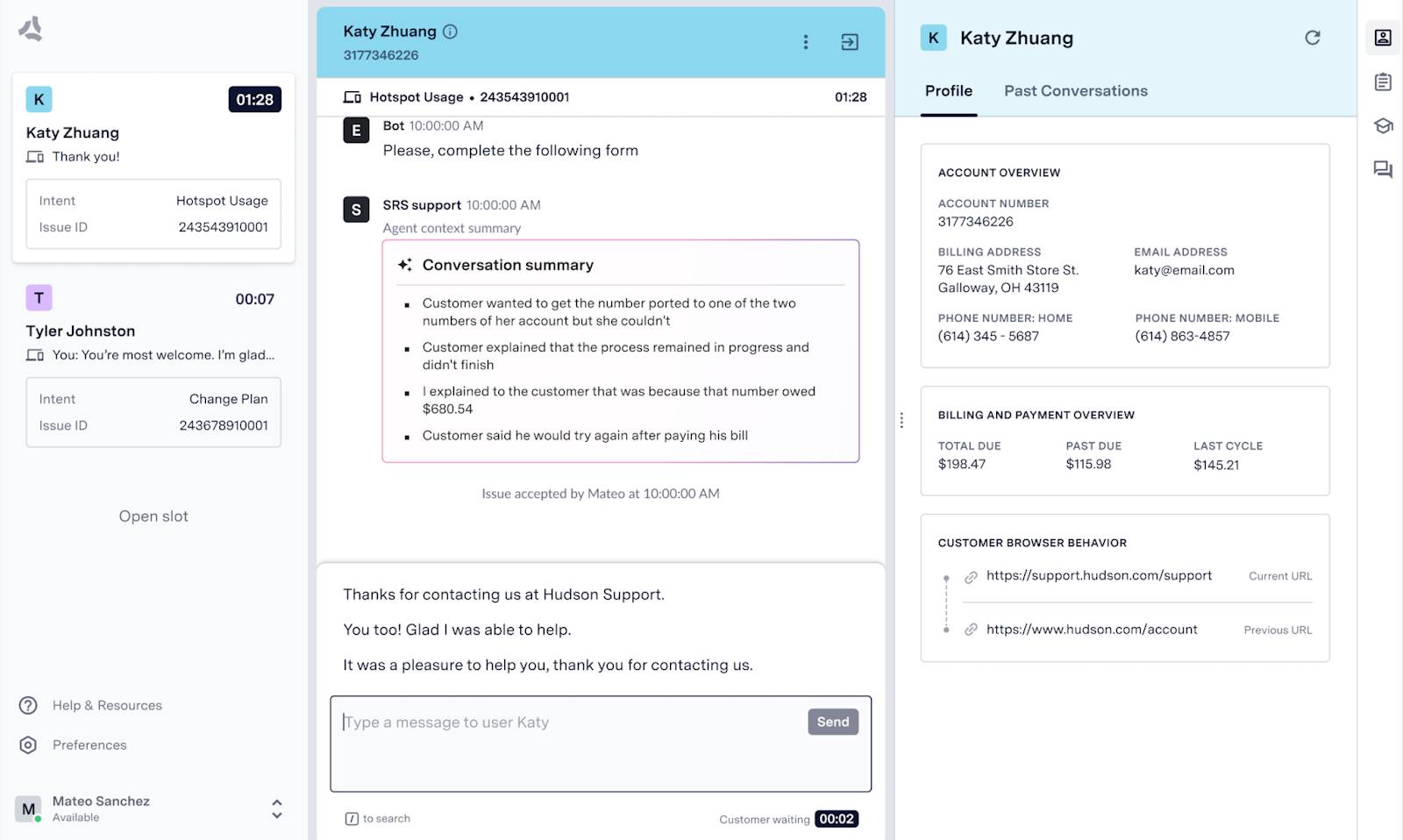 ## How Live Agent Summary Works
Live Agent Summary enhances your existing Digital Agent Desk by automatically generating context during escalations:
* **Smart Context Generation**: The system analyzes GA conversations and creates concise summaries when escalations occur
* **Inline Integration**: The system displays summaries directly in the transcript panel with highlight styling, so agents don't need to switch between views
* **Complete Context**: Agents maintain access to all standard transcript information (customer profile, conversation history) plus the generated insights inline
* **Immediate Understanding**: No need to read through entire conversations - the system highlights key information and makes it easily accessible
## Set Up Live Agent Summary
To set up Live Agent Summary, you need to work with ASAPP to enable the feature in your environment and configure the summary generation parameters:
## How Live Agent Summary Works
Live Agent Summary enhances your existing Digital Agent Desk by automatically generating context during escalations:
* **Smart Context Generation**: The system analyzes GA conversations and creates concise summaries when escalations occur
* **Inline Integration**: The system displays summaries directly in the transcript panel with highlight styling, so agents don't need to switch between views
* **Complete Context**: Agents maintain access to all standard transcript information (customer profile, conversation history) plus the generated insights inline
* **Immediate Understanding**: No need to read through entire conversations - the system highlights key information and makes it easily accessible
## Set Up Live Agent Summary
To set up Live Agent Summary, you need to work with ASAPP to enable the feature in your environment and configure the summary generation parameters:
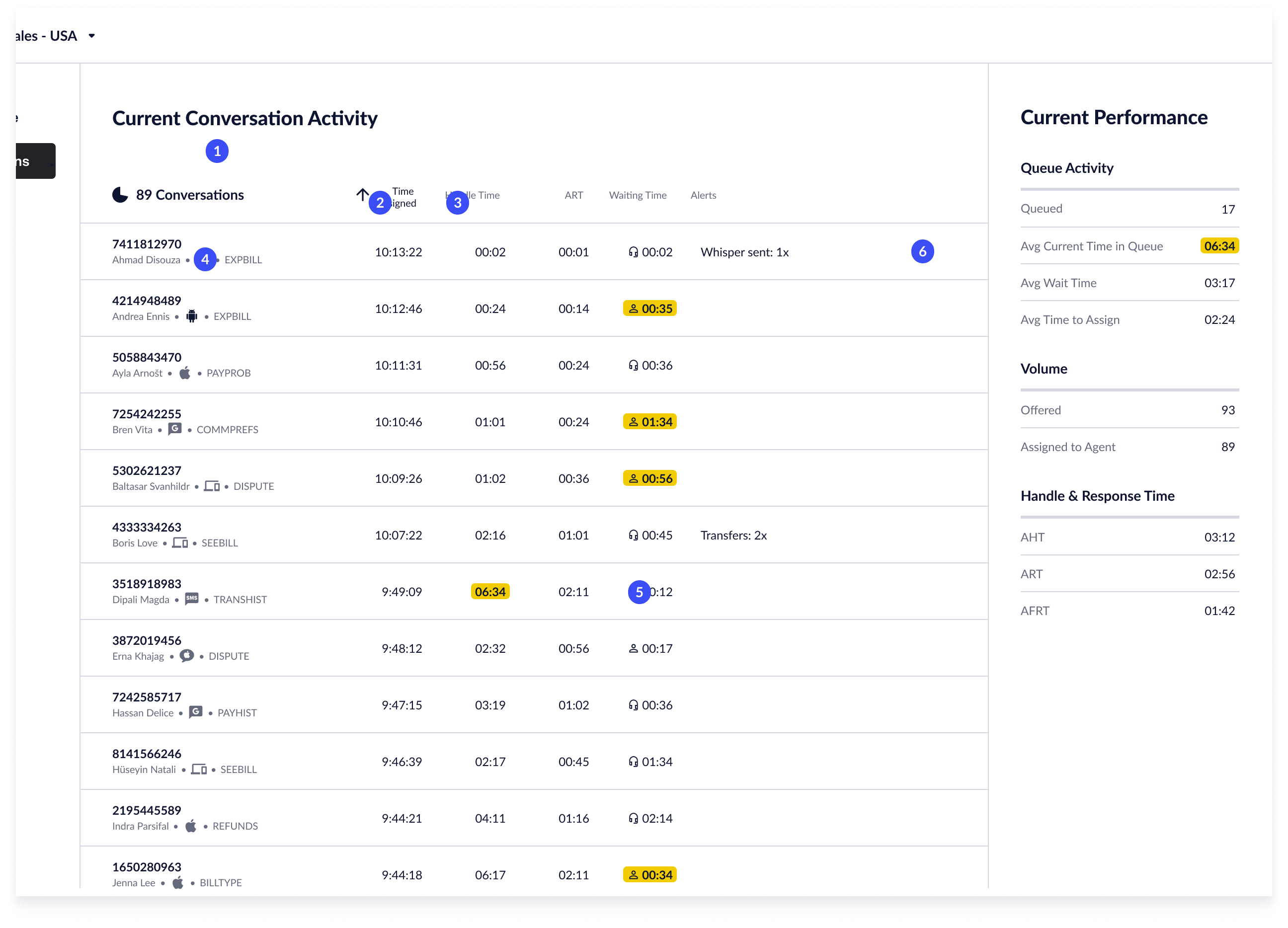 1. **Links**: Provides a quick entry point to view historical transcripts or performance data.
2. **Conversation count & refresh**: Displays the total conversations displayed in the table. Live Insights updates the content automatically every 15 seconds.
3. **Sorting**: You can sort the content by each of the metrics captured for each conversation. You can sort all columns in ascending/descending order. To sort, click the **column header**. Click the **header** again to reverse the sorting order. Default: Ascending by time assigned.
4. **Conversations**: Each conversation currently assigned to an agent displays as a row in the Conversation Activity table. Metrics associated with the conversation display and update dynamically.
5. **Metric highlighting**: Metrics that have assigned thresholds are highlighted. See 'Metrics Highlighting' for more information.
6. **Alerts**: When an event is recorded, it displays in the column. Not all conversations will include an event.
1. **Links**: Provides a quick entry point to view historical transcripts or performance data.
2. **Conversation count & refresh**: Displays the total conversations displayed in the table. Live Insights updates the content automatically every 15 seconds.
3. **Sorting**: You can sort the content by each of the metrics captured for each conversation. You can sort all columns in ascending/descending order. To sort, click the **column header**. Click the **header** again to reverse the sorting order. Default: Ascending by time assigned.
4. **Conversations**: Each conversation currently assigned to an agent displays as a row in the Conversation Activity table. Metrics associated with the conversation display and update dynamically.
5. **Metric highlighting**: Metrics that have assigned thresholds are highlighted. See 'Metrics Highlighting' for more information.
6. **Alerts**: When an event is recorded, it displays in the column. Not all conversations will include an event.
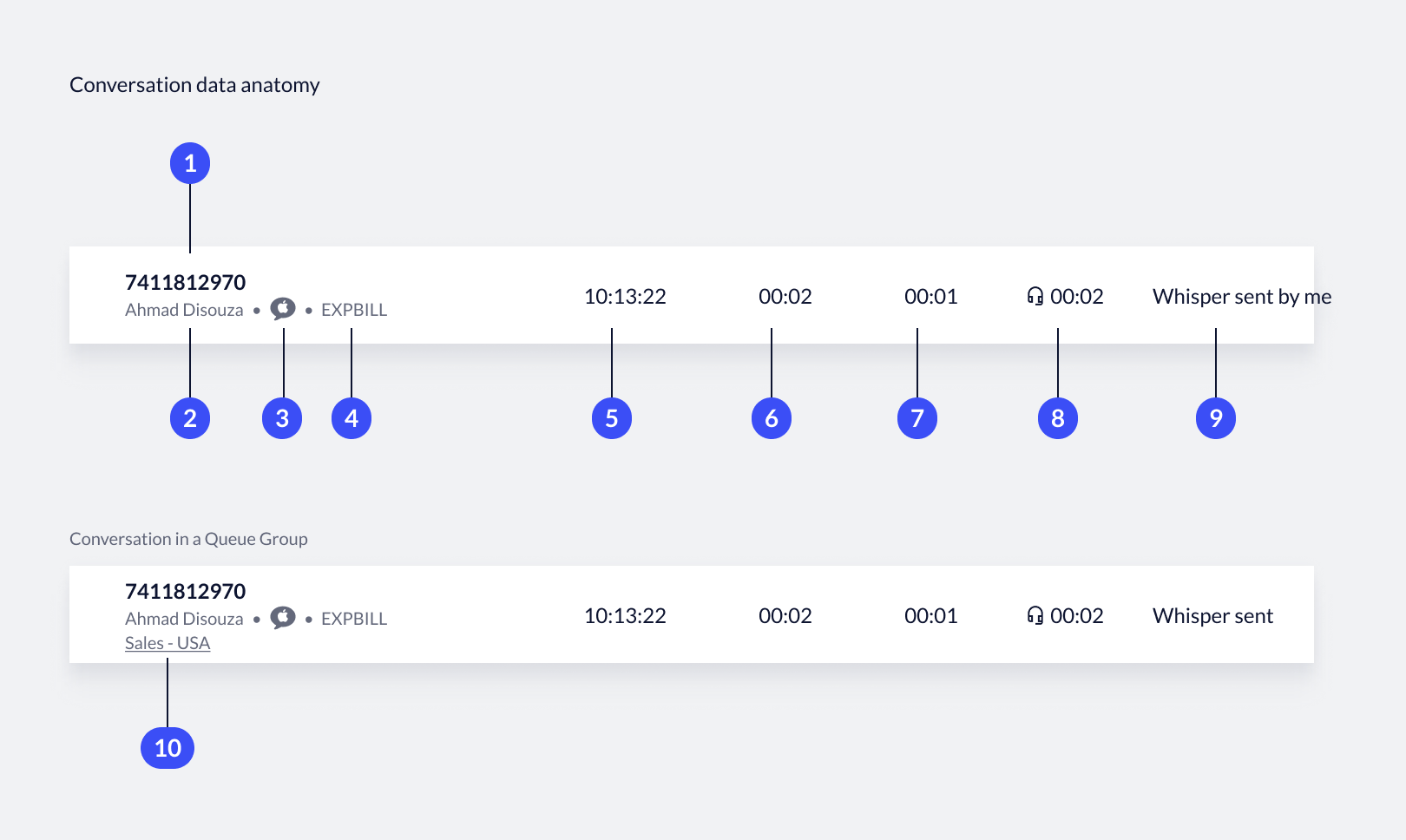 1. **Issue ID**: Unique conversation identifier that the system assigns to a customer intent.
2. **Agent name**: Name of the agent handling the conversation.
3. **Channel**: Detected channel the customer is engaging with.
4. **Intent**: Last detected intent before the system assigns the user to the queue.
5. **Time Assigned**: Time when the system assigned the conversation to an agent.
6. **Handle time**: Current handle time of the conversation.
7. **Average Response Time**: Average time it takes an agent to reply to customer utterances.
8. **Time Waiting**: Time since the last message that the sender has been waiting for a response.
9. **Alerts**: Event-based signals recorded throughout the conversation.
10. **Queue name**: Name of the queue that received the issue assignment. This feature only displays in Queue Groups. Click the **queue name** to go to the queue details view.
## View a Live Transcript
Each conversation connected to an agent includes a live transcript that you can view.
The transcript updates in real time. You can send a Whisper to the agent from the transcript.
1. **Issue ID**: Unique conversation identifier that the system assigns to a customer intent.
2. **Agent name**: Name of the agent handling the conversation.
3. **Channel**: Detected channel the customer is engaging with.
4. **Intent**: Last detected intent before the system assigns the user to the queue.
5. **Time Assigned**: Time when the system assigned the conversation to an agent.
6. **Handle time**: Current handle time of the conversation.
7. **Average Response Time**: Average time it takes an agent to reply to customer utterances.
8. **Time Waiting**: Time since the last message that the sender has been waiting for a response.
9. **Alerts**: Event-based signals recorded throughout the conversation.
10. **Queue name**: Name of the queue that received the issue assignment. This feature only displays in Queue Groups. Click the **queue name** to go to the queue details view.
## View a Live Transcript
Each conversation connected to an agent includes a live transcript that you can view.
The transcript updates in real time. You can send a Whisper to the agent from the transcript.
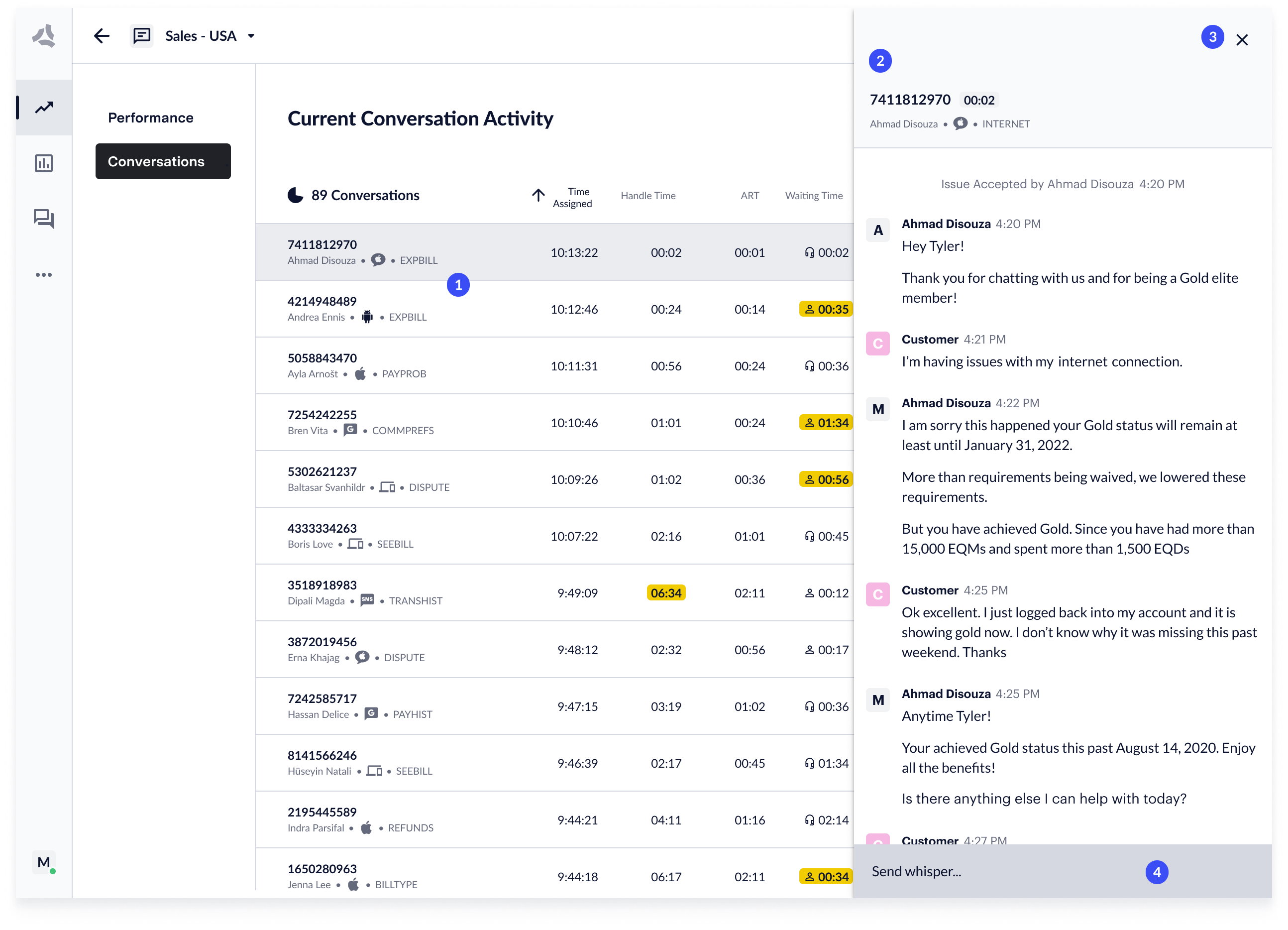 1. **Open transcripts**: To view a transcript, click any **row** in the Conversation Activity table.
2. **Transcript**: The transcript updates in real time. The system displays handle time alongside conversation data (issue ID, agent, channel and intent).
3. **Close transcripts:** To close a transcript, click the **Close** icon.
4. **Whisper**: A Whisper allows you to send a discrete message within the transcript that agents can see but that the system hides from customers.
## Conversations: Current Performance Data
Current queue performance data appears to the right of the activity table.
These metrics encompass all conversations currently in the queue or connected to an agent.
You can view a drill-down, enhanced view of the performance data under the Performance page.
1. **Open transcripts**: To view a transcript, click any **row** in the Conversation Activity table.
2. **Transcript**: The transcript updates in real time. The system displays handle time alongside conversation data (issue ID, agent, channel and intent).
3. **Close transcripts:** To close a transcript, click the **Close** icon.
4. **Whisper**: A Whisper allows you to send a discrete message within the transcript that agents can see but that the system hides from customers.
## Conversations: Current Performance Data
Current queue performance data appears to the right of the activity table.
These metrics encompass all conversations currently in the queue or connected to an agent.
You can view a drill-down, enhanced view of the performance data under the Performance page.
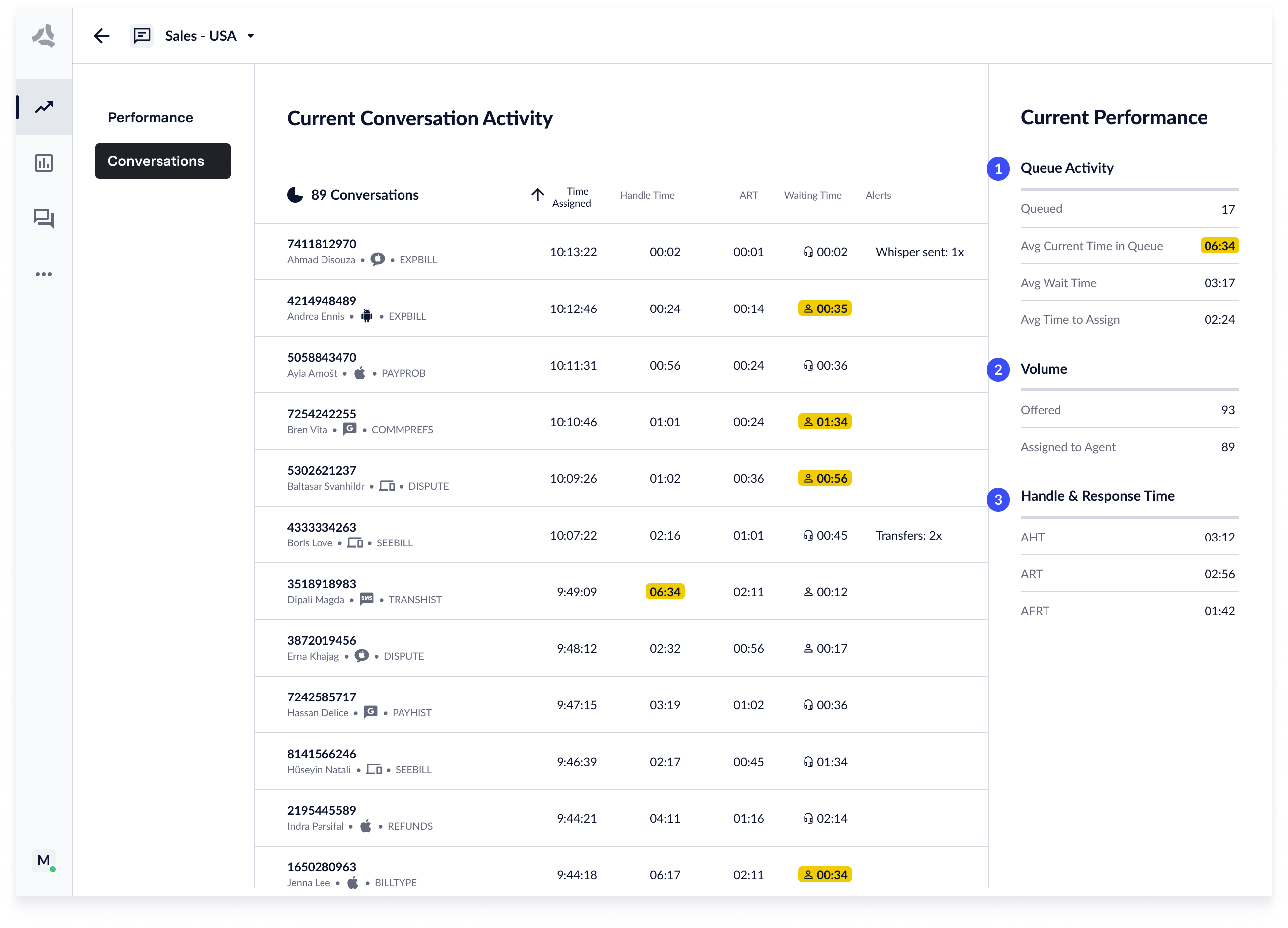 1. **Queue Activity**: Includes 'Queued', 'Avg current time in queue', 'Average wait time', and 'Average time to assign'.
2. **Volume**: Includes 'Offered', 'Assigned to agent', and 'Time out by agent'.
3. **Handle & Response Time**: Includes 'Average handle time (AHT)', 'Average response time (ART)', and 'Average first response time (AFRT)'
---
# Source: https://docs.asapp.com/agent-desk/insights-manager/live-insights.md
> ## Documentation Index
> Fetch the complete documentation index at: https://docs.asapp.com/llms.txt
> Use this file to discover all available pages before exploring further.
# Live Insights Overview
> Learn how to use Live Insights to monitor and analyze real-time contact center activity.
Live Insights provides tools to track agent and conversation performance in real time. You can:
* Monitor all queues
* Monitor alerts
* Drill down into each queue to gain insight into what areas need attention
1. **Queue Activity**: Includes 'Queued', 'Avg current time in queue', 'Average wait time', and 'Average time to assign'.
2. **Volume**: Includes 'Offered', 'Assigned to agent', and 'Time out by agent'.
3. **Handle & Response Time**: Includes 'Average handle time (AHT)', 'Average response time (ART)', and 'Average first response time (AFRT)'
---
# Source: https://docs.asapp.com/agent-desk/insights-manager/live-insights.md
> ## Documentation Index
> Fetch the complete documentation index at: https://docs.asapp.com/llms.txt
> Use this file to discover all available pages before exploring further.
# Live Insights Overview
> Learn how to use Live Insights to monitor and analyze real-time contact center activity.
Live Insights provides tools to track agent and conversation performance in real time. You can:
* Monitor all queues
* Monitor alerts
* Drill down into each queue to gain insight into what areas need attention
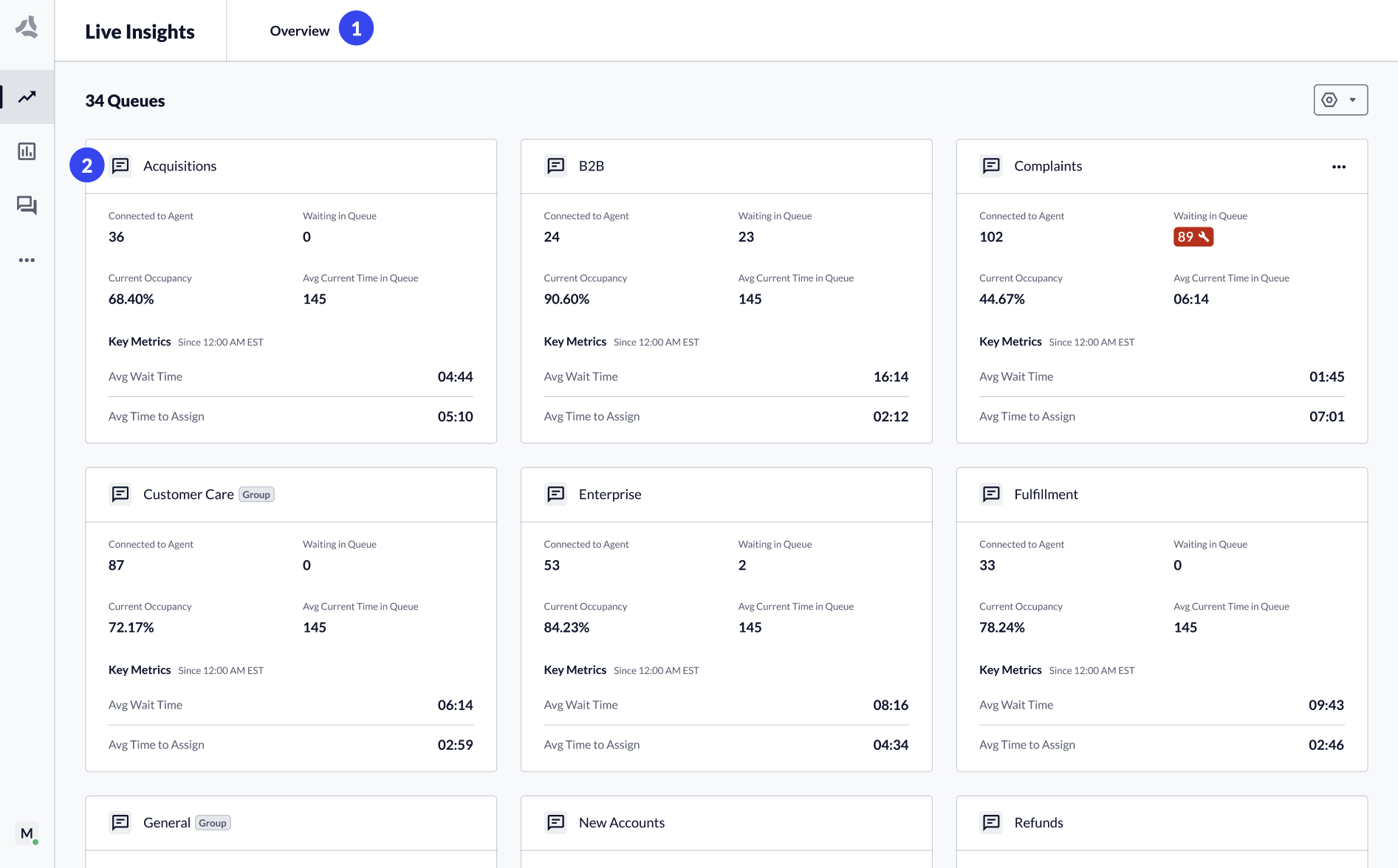 1. The Overview page (All Queues) shows a summary widget for each configured queue.
2. Click a **queue tile** or select a **queue** from the header dropdown to navigate to the Queue Details page.
## Monitor Performance per Queue
The Queue Details page for each queue shows performance across the most important metrics.
All metrics that the dashboard displays update in true real time. You can categorize metrics either as "Right Now" or "Current Period":
* Right Now metrics update immediately upon a change in the ecosystem.
* Current Period metrics will constantly update in aggregate over the day.
## Information Architecture
ASAPP continues to improve the Live Insights experience with new touch points to host live transcripts and to scale up when introducing new metrics and performance signals.
1. The Overview page (All Queues) shows a summary widget for each configured queue.
2. Click a **queue tile** or select a **queue** from the header dropdown to navigate to the Queue Details page.
## Monitor Performance per Queue
The Queue Details page for each queue shows performance across the most important metrics.
All metrics that the dashboard displays update in true real time. You can categorize metrics either as "Right Now" or "Current Period":
* Right Now metrics update immediately upon a change in the ecosystem.
* Current Period metrics will constantly update in aggregate over the day.
## Information Architecture
ASAPP continues to improve the Live Insights experience with new touch points to host live transcripts and to scale up when introducing new metrics and performance signals.
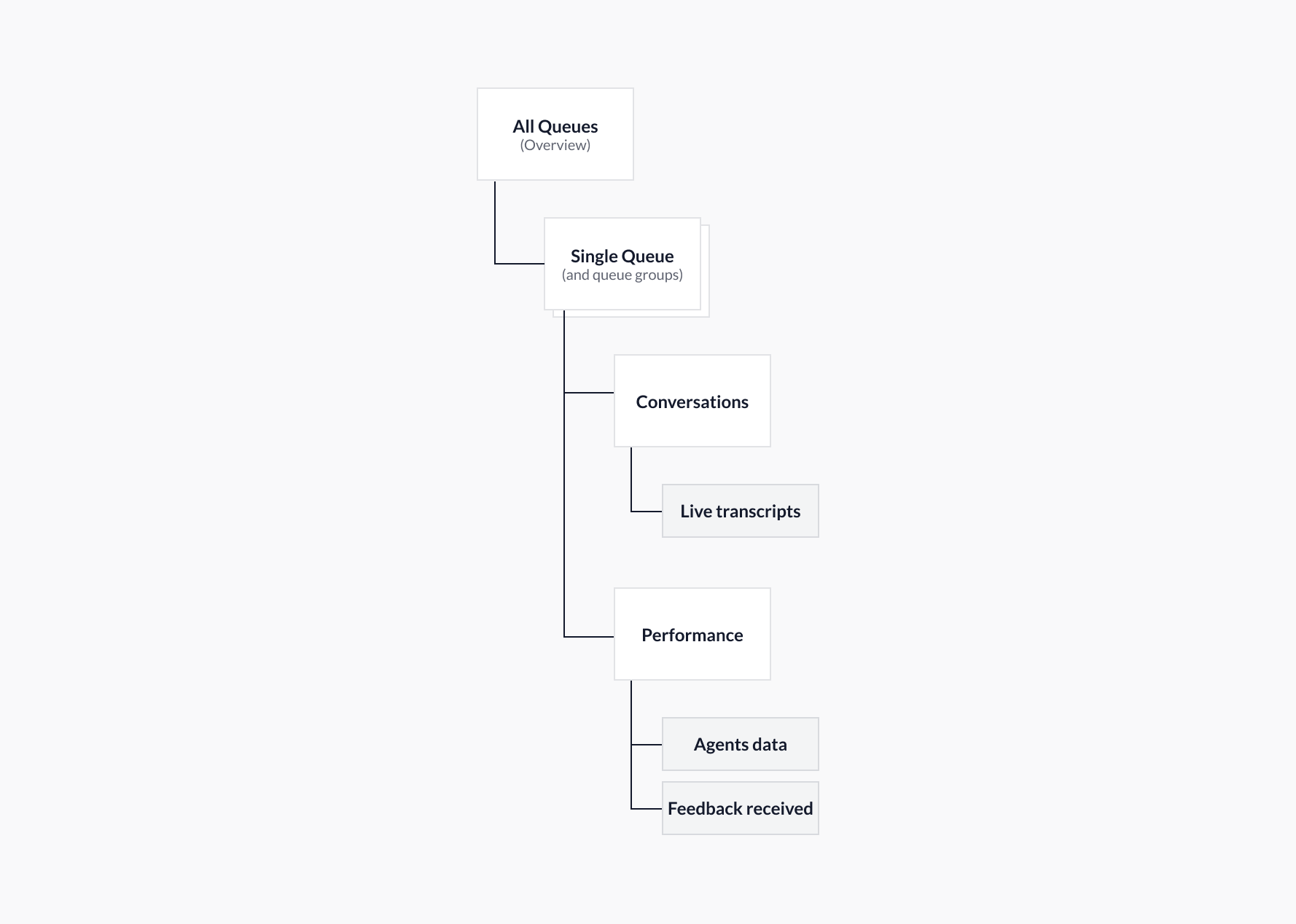 1. **All Queues** → Provides a performance overview of all queues and queue groups. Also provides customization tools to show/hide queues and create/manage queue groups.
2. **Single Queue and Queue Groups** → These now include two pages:
* **Conversations:** Displays performance data for all conversations currently connected to an agent, as well as live transcripts and alerts.
* **Performance:** Displays queue performance data, both for 'right now' and rolling 'since 12 am'. It also provides agent performance data and showcases feedback that customers send.
### Two Views: Conversations & Performance
1. **All Queues** → Provides a performance overview of all queues and queue groups. Also provides customization tools to show/hide queues and create/manage queue groups.
2. **Single Queue and Queue Groups** → These now include two pages:
* **Conversations:** Displays performance data for all conversations currently connected to an agent, as well as live transcripts and alerts.
* **Performance:** Displays queue performance data, both for 'right now' and rolling 'since 12 am'. It also provides agent performance data and showcases feedback that customers send.
### Two Views: Conversations & Performance
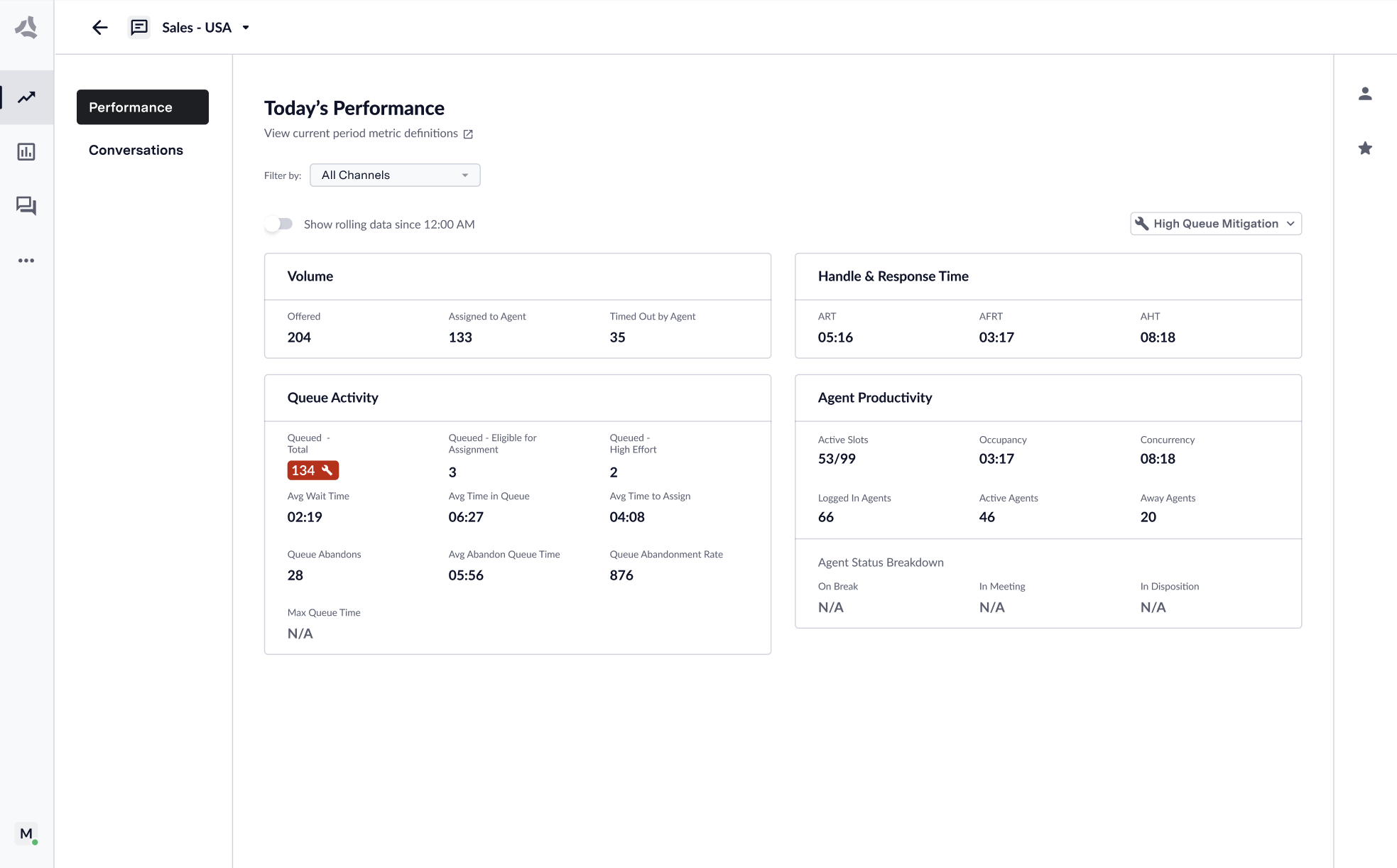 ## Editing Configurations in a Branch
Within a local branch, you can edit tasks, functions, and settings:
* Access the configurations you wish to change.
* Make your edits safely, knowing they won't affect the main versions.
* Be aware that changes to the knowledge base, test users, and API connections will be visible across all environments and branches.
> **Note:** Knowledge articles do not support branching yet, so all branches will use the knowledge articles from draft.
## Previewing Configurations
To preview configurations in a local branch:
1. Select the branch you’re working on.
2. Click the "Preview" button.
3. The previewer will display the current state of your configurations within the branch.
> **Limitations:** You cannot switch branches/environments during a conversation. To do so, you must restart the conversation and select a different branch or environment.
## Managing Branches
### Switching Branches
* Use the "Branch Switcher" to select the desired branch for viewing or editing configurations.
### Deleting a Branch
1. Click "Delete branch" button in the header.
2. Confirm the deletion. This action is irreversible, and the system will lose all configurations in the branch.
## Editing Configurations in a Branch
Within a local branch, you can edit tasks, functions, and settings:
* Access the configurations you wish to change.
* Make your edits safely, knowing they won't affect the main versions.
* Be aware that changes to the knowledge base, test users, and API connections will be visible across all environments and branches.
> **Note:** Knowledge articles do not support branching yet, so all branches will use the knowledge articles from draft.
## Previewing Configurations
To preview configurations in a local branch:
1. Select the branch you’re working on.
2. Click the "Preview" button.
3. The previewer will display the current state of your configurations within the branch.
> **Limitations:** You cannot switch branches/environments during a conversation. To do so, you must restart the conversation and select a different branch or environment.
## Managing Branches
### Switching Branches
* Use the "Branch Switcher" to select the desired branch for viewing or editing configurations.
### Deleting a Branch
1. Click "Delete branch" button in the header.
2. Confirm the deletion. This action is irreversible, and the system will lose all configurations in the branch.
 ## Promoting Changes to Main Environments
When ready to implement changes:
* Copy adjustments from your local branch to the main environments.
* Review and test thoroughly to ensure seamless integration.
> **Best Practices:** Document changes and collaborate with team members to maintain alignment and ensure successful deployment.
With these steps, you can leverage the full power of configuration branching in GenerativeAgent, fostering a collaborative and flexible development process.
---
# Source: https://docs.asapp.com/getting-started/setup/manage-users.md
> ## Documentation Index
> Fetch the complete documentation index at: https://docs.asapp.com/llms.txt
> Use this file to discover all available pages before exploring further.
# Manage Users
> Learn how to set up and manage users.
You are in control of user management within ASAPP. This includes inviting users, granting access to applications, and assigning specific permissions for features and tooling.
## Promoting Changes to Main Environments
When ready to implement changes:
* Copy adjustments from your local branch to the main environments.
* Review and test thoroughly to ensure seamless integration.
> **Best Practices:** Document changes and collaborate with team members to maintain alignment and ensure successful deployment.
With these steps, you can leverage the full power of configuration branching in GenerativeAgent, fostering a collaborative and flexible development process.
---
# Source: https://docs.asapp.com/getting-started/setup/manage-users.md
> ## Documentation Index
> Fetch the complete documentation index at: https://docs.asapp.com/llms.txt
> Use this file to discover all available pages before exploring further.
# Manage Users
> Learn how to set up and manage users.
You are in control of user management within ASAPP. This includes inviting users, granting access to applications, and assigning specific permissions for features and tooling.
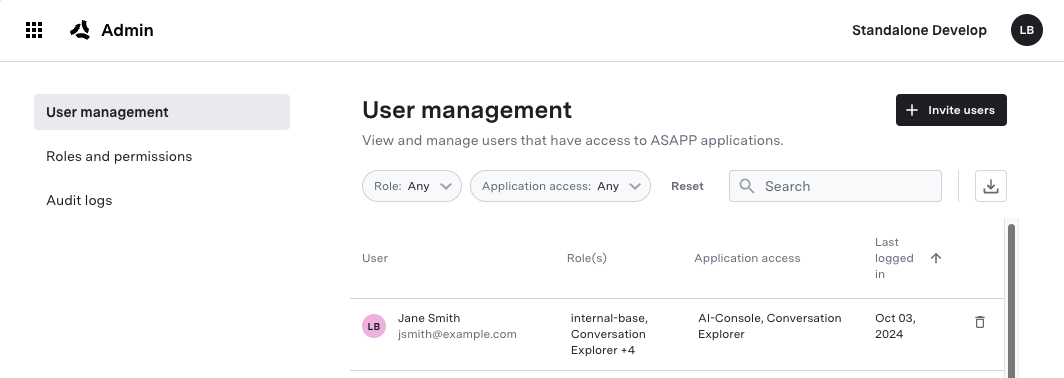 * Click Invite Users
* Enter in the email and name for the user.
* By default, users have the "Basic" role, but you may choose others. We will cover roles and permissions further below.
* You may invite multiple users at once.
* Click Invite Users
* Enter in the email and name for the user.
* By default, users have the "Basic" role, but you may choose others. We will cover roles and permissions further below.
* You may invite multiple users at once.
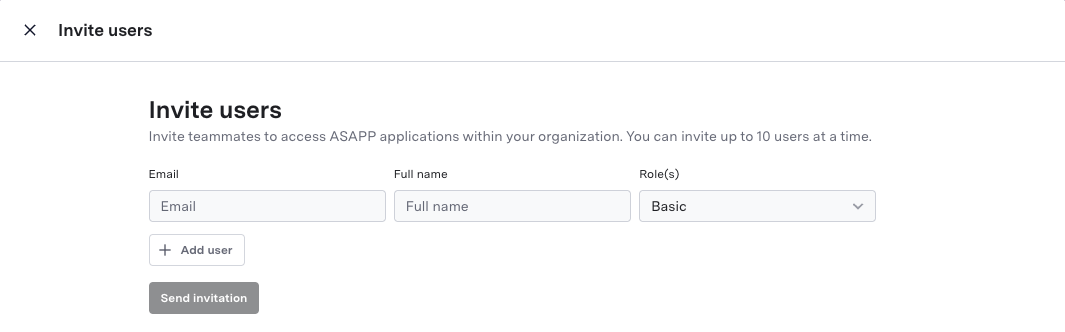 ## Roles and Permissions
Access to ASAPP is managed via roles. A role is a collection of permissions which dictate what UI elements a user has access to.
By default, all users must have the Basic role, allowing them to log in to the dashboard. But you may create and assign as many roles as you like per given user.
## Roles and Permissions
Access to ASAPP is managed via roles. A role is a collection of permissions which dictate what UI elements a user has access to.
By default, all users must have the Basic role, allowing them to log in to the dashboard. But you may create and assign as many roles as you like per given user.
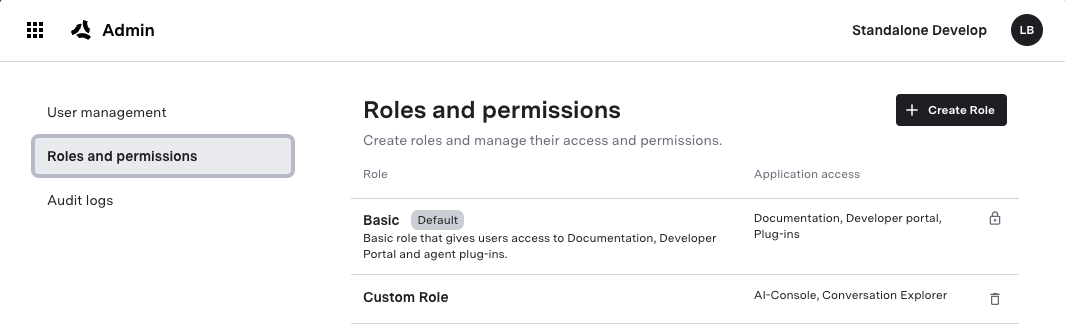 ### Creating a Role
To create a role:
1. Navigate to Home > Admin > Roles & Permissions.
2. Click "Create Role".
3. Enter a name and description for the role.
4. Select the permissions for the role.
5. Optionally, if you are using SSO, [add IDP mapping](#idp-mapping) to the role user.
6. Click "Save Permission".
### IDP Mapping
If you are using SSO, you can map roles in your Identity Provider (IDP) to the roles in ASAPP, allowing you to manage access to ASAPP via your own IDP.
You must work with your ASAPP account team to determine which claim from your IDP contains the roles list.
For each role in ASAPP, you specify one or more roles within your IDP that the system should map to it. You can map multiple ASAPP roles to the same IDP role.
### Creating a Role
To create a role:
1. Navigate to Home > Admin > Roles & Permissions.
2. Click "Create Role".
3. Enter a name and description for the role.
4. Select the permissions for the role.
5. Optionally, if you are using SSO, [add IDP mapping](#idp-mapping) to the role user.
6. Click "Save Permission".
### IDP Mapping
If you are using SSO, you can map roles in your Identity Provider (IDP) to the roles in ASAPP, allowing you to manage access to ASAPP via your own IDP.
You must work with your ASAPP account team to determine which claim from your IDP contains the roles list.
For each role in ASAPP, you specify one or more roles within your IDP that the system should map to it. You can map multiple ASAPP roles to the same IDP role.
 ## SSO
ASAPP supports Single Sign-On (SSO). SSO allows you to manage your team's access through an Identity Provider (IDP). ASAPP supports SSO using OpenID Connect and SAML.
When using SSO, your IDP manages the creation and authentication of user accounts, and determines which roles a user should have in ASAPP. You still need to manage the permissions for a given role within ASAPP via [IDP mapping](#idp-mapping).
If you are interested in using SSO, please reach out to your ASAPP account team to get set up.
---
# Source: https://docs.asapp.com/generativeagent/configuring/connect-apis/mcp-server.md
> ## Documentation Index
> Fetch the complete documentation index at: https://docs.asapp.com/llms.txt
> Use this file to discover all available pages before exploring further.
# MCP Servers in API Connections
> Learn how to connect GenerativeAgent to an MCP server
MCP ([Model Context Protocol](https://modelcontextprotocol.io/)) servers provide a standardized way to expose tools and capabilities to LLMs. Unlike traditional APIs that implicitly require a developer to read docs, trial and error, and technical support to successfully use, MCP servers are designed with LLM use from the start, making them easier to integrate with GenerativeAgent.
## Use MCP Server
## SSO
ASAPP supports Single Sign-On (SSO). SSO allows you to manage your team's access through an Identity Provider (IDP). ASAPP supports SSO using OpenID Connect and SAML.
When using SSO, your IDP manages the creation and authentication of user accounts, and determines which roles a user should have in ASAPP. You still need to manage the permissions for a given role within ASAPP via [IDP mapping](#idp-mapping).
If you are interested in using SSO, please reach out to your ASAPP account team to get set up.
---
# Source: https://docs.asapp.com/generativeagent/configuring/connect-apis/mcp-server.md
> ## Documentation Index
> Fetch the complete documentation index at: https://docs.asapp.com/llms.txt
> Use this file to discover all available pages before exploring further.
# MCP Servers in API Connections
> Learn how to connect GenerativeAgent to an MCP server
MCP ([Model Context Protocol](https://modelcontextprotocol.io/)) servers provide a standardized way to expose tools and capabilities to LLMs. Unlike traditional APIs that implicitly require a developer to read docs, trial and error, and technical support to successfully use, MCP servers are designed with LLM use from the start, making them easier to integrate with GenerativeAgent.
## Use MCP Server
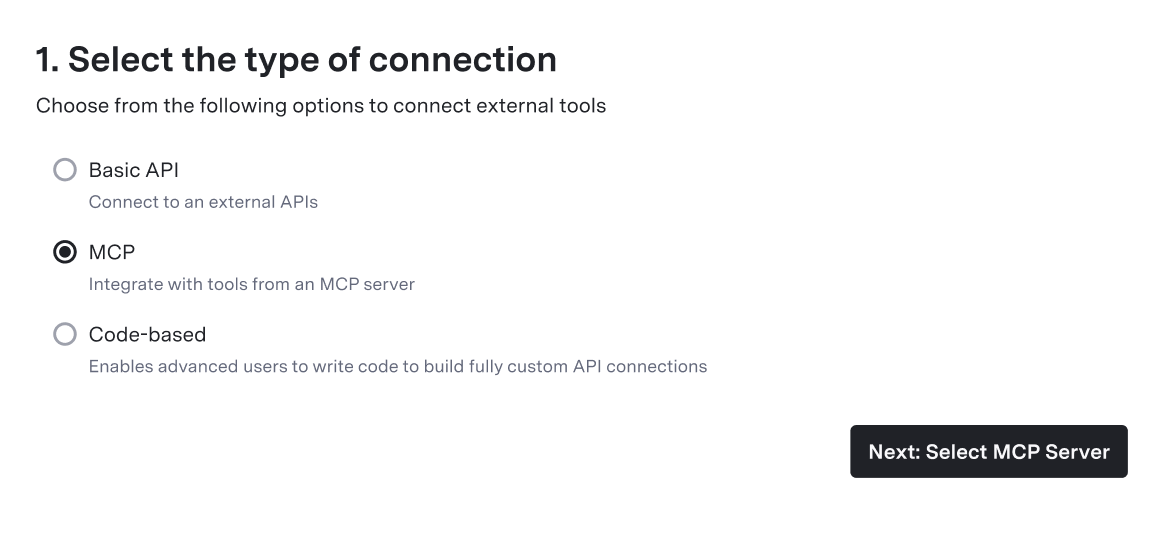 4. Click **Add New** to create a new MCP server source

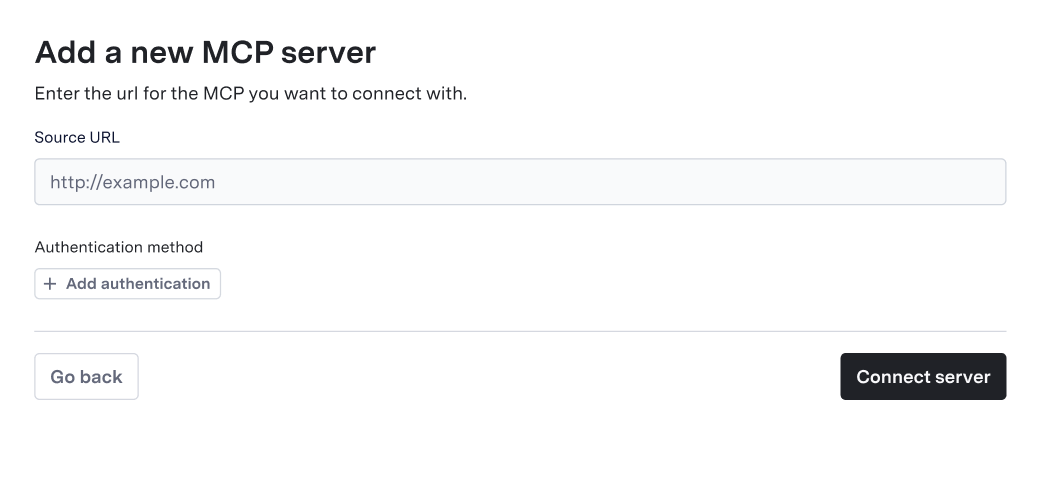
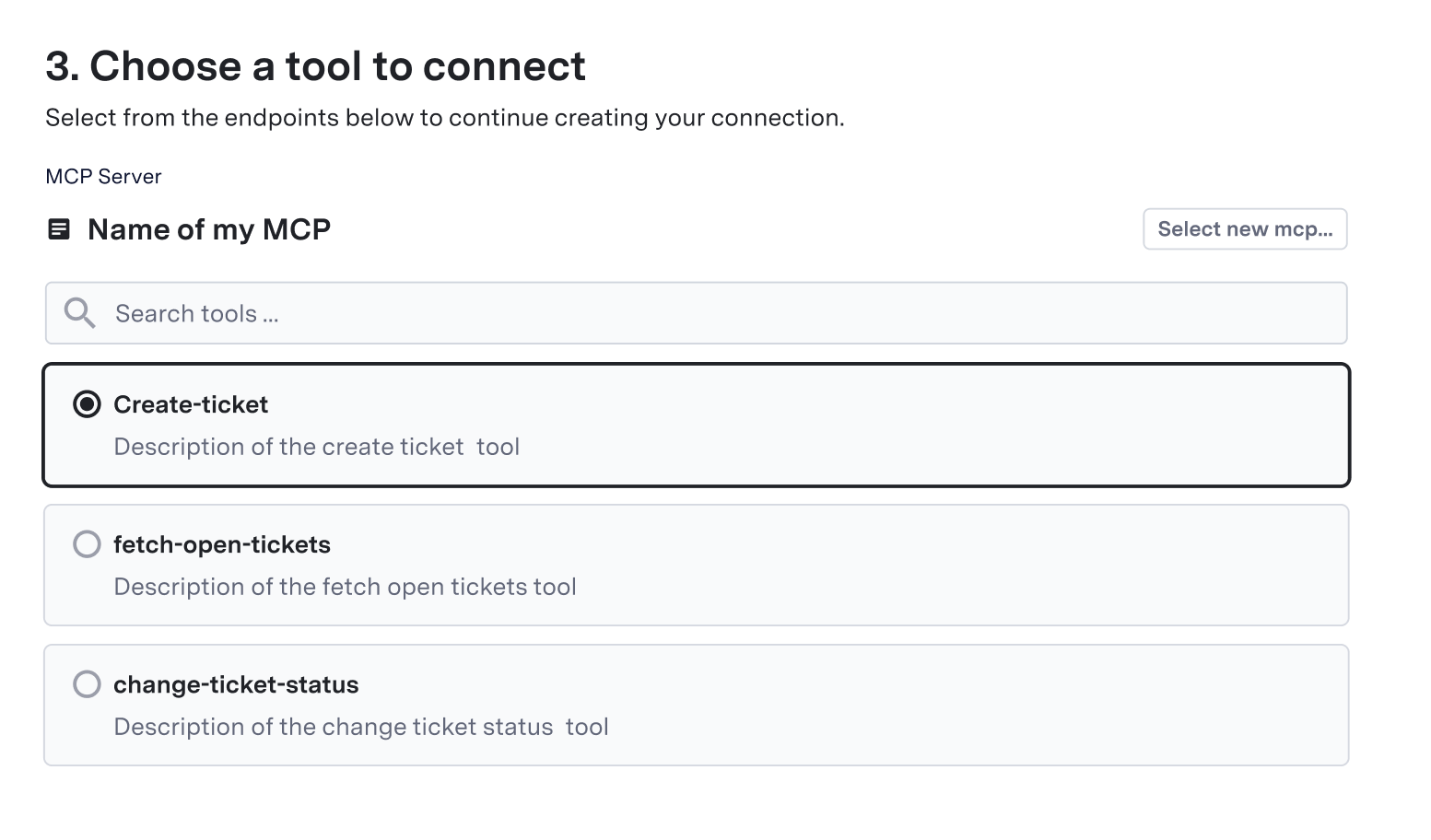
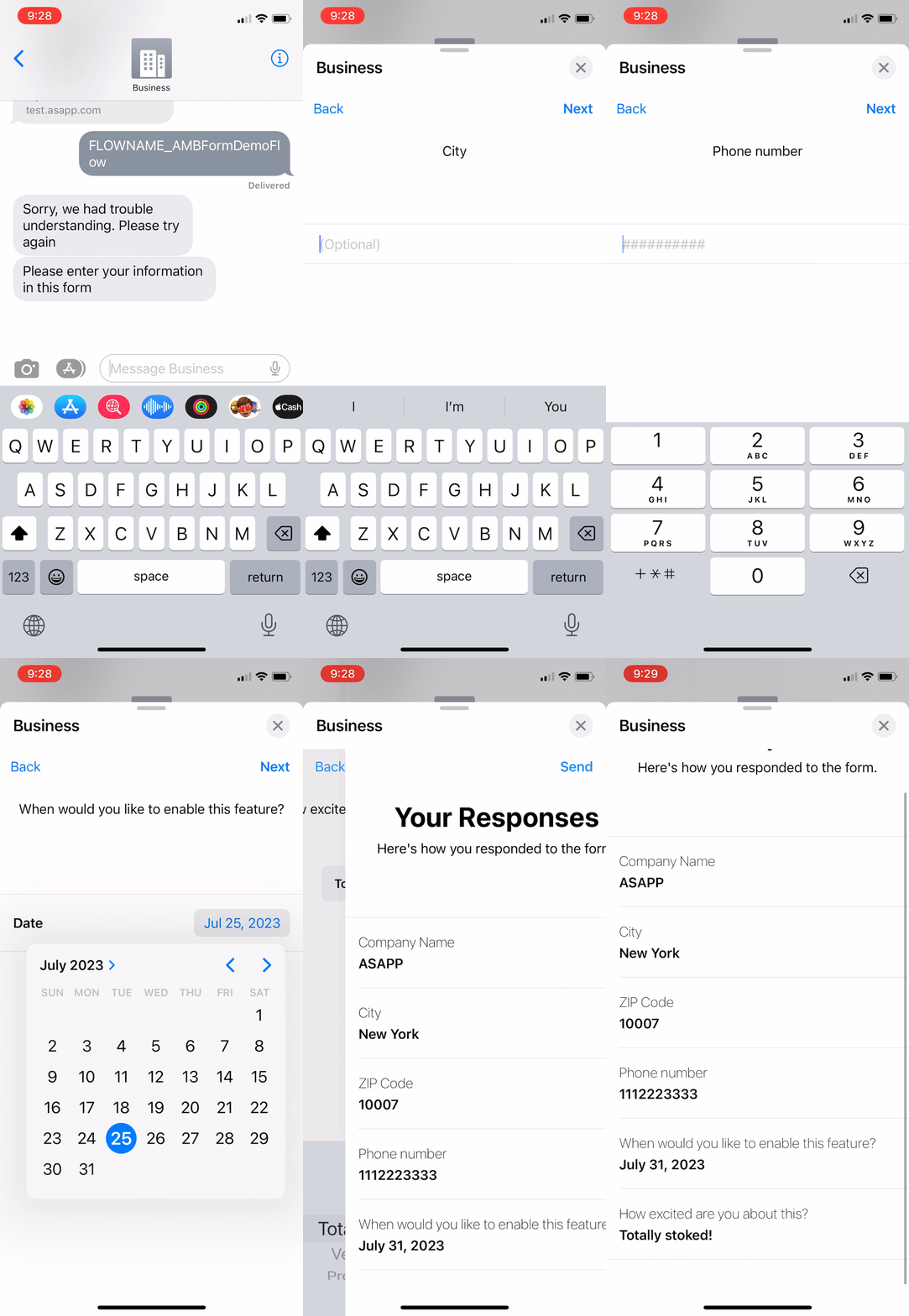
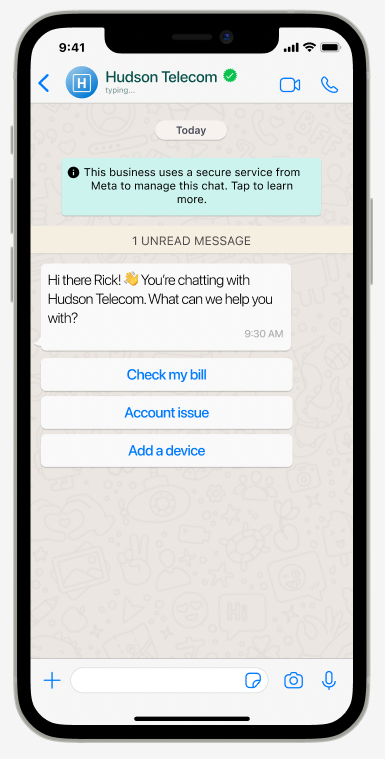
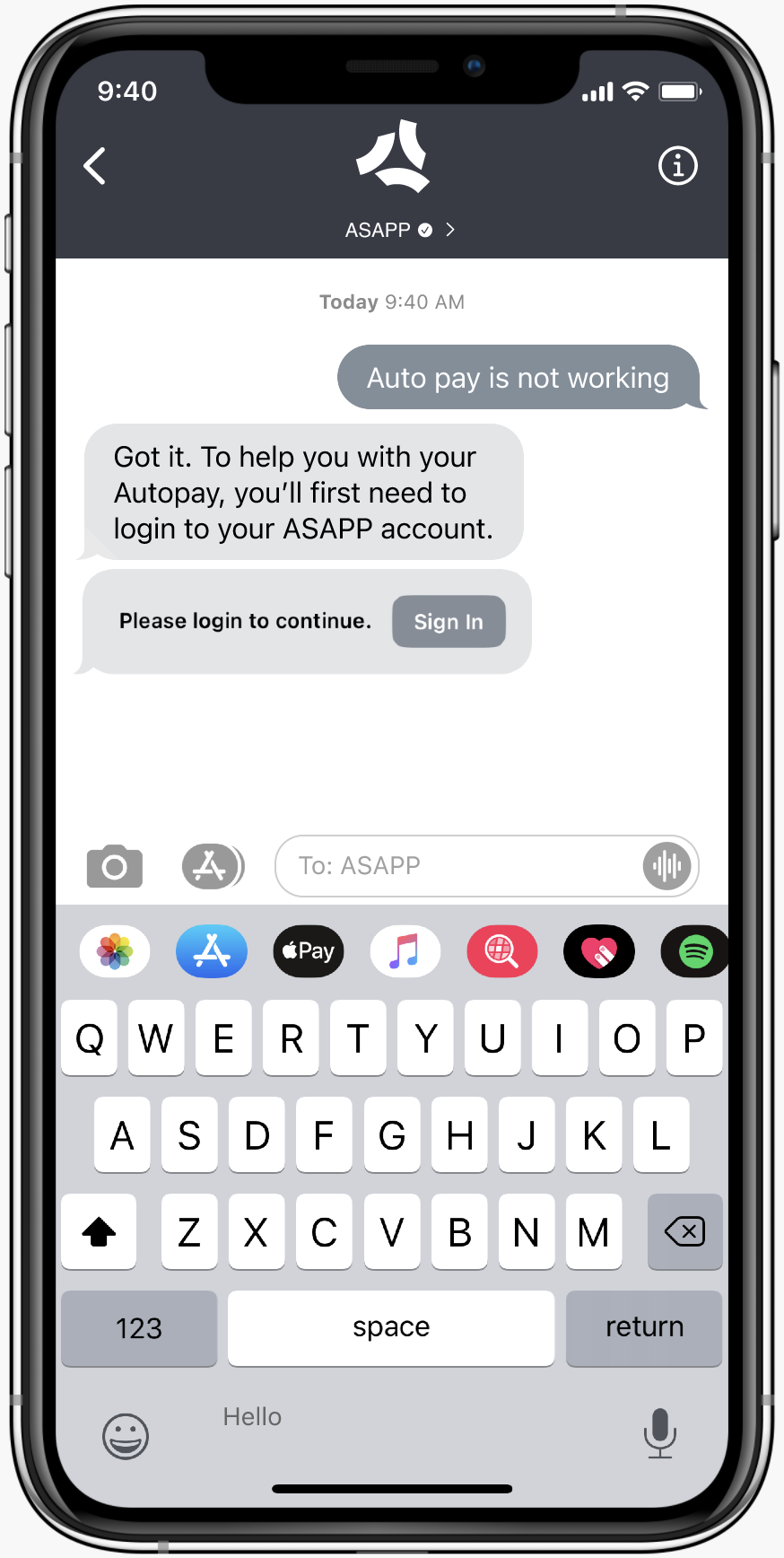 |
| 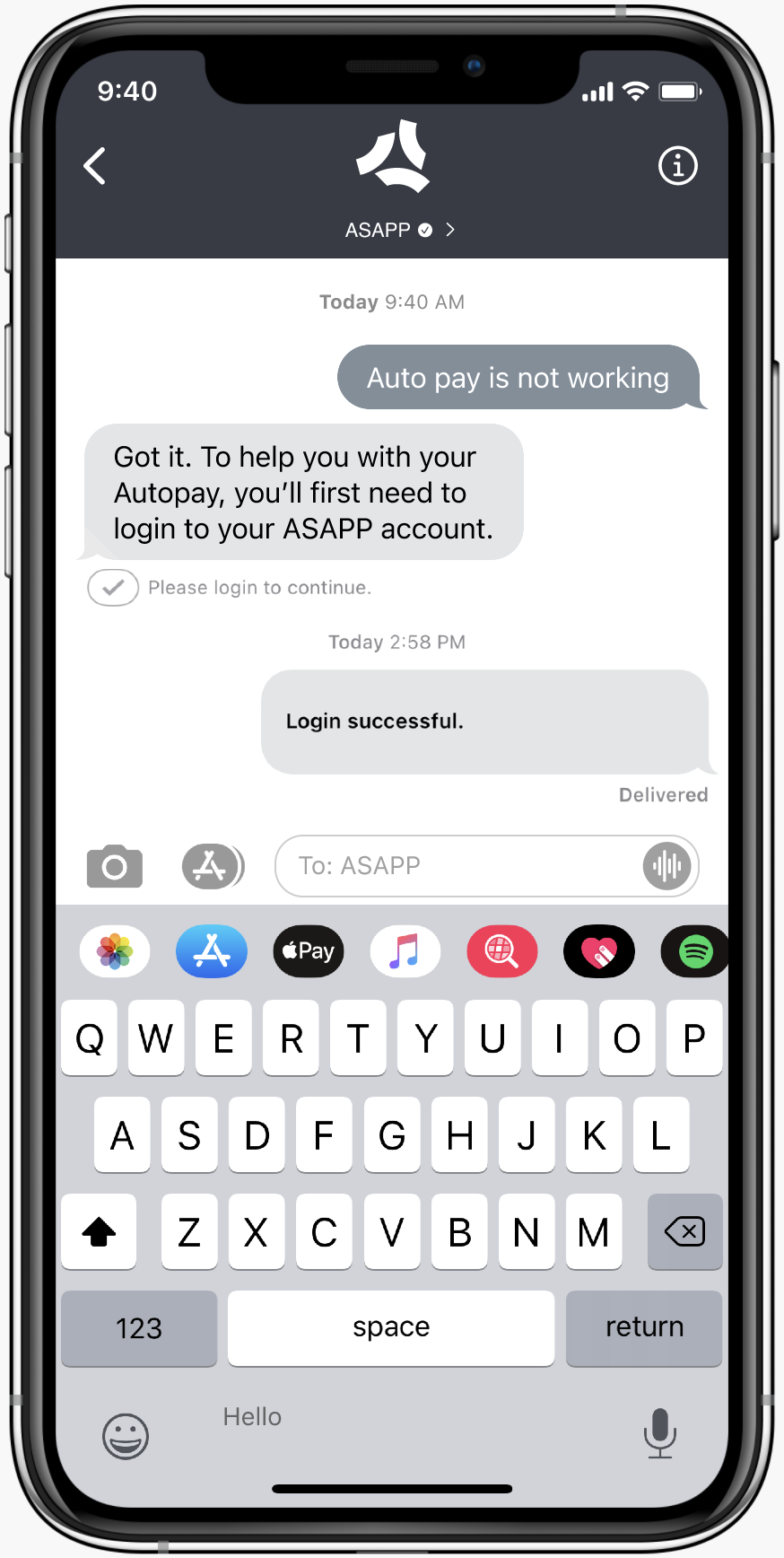 |
|
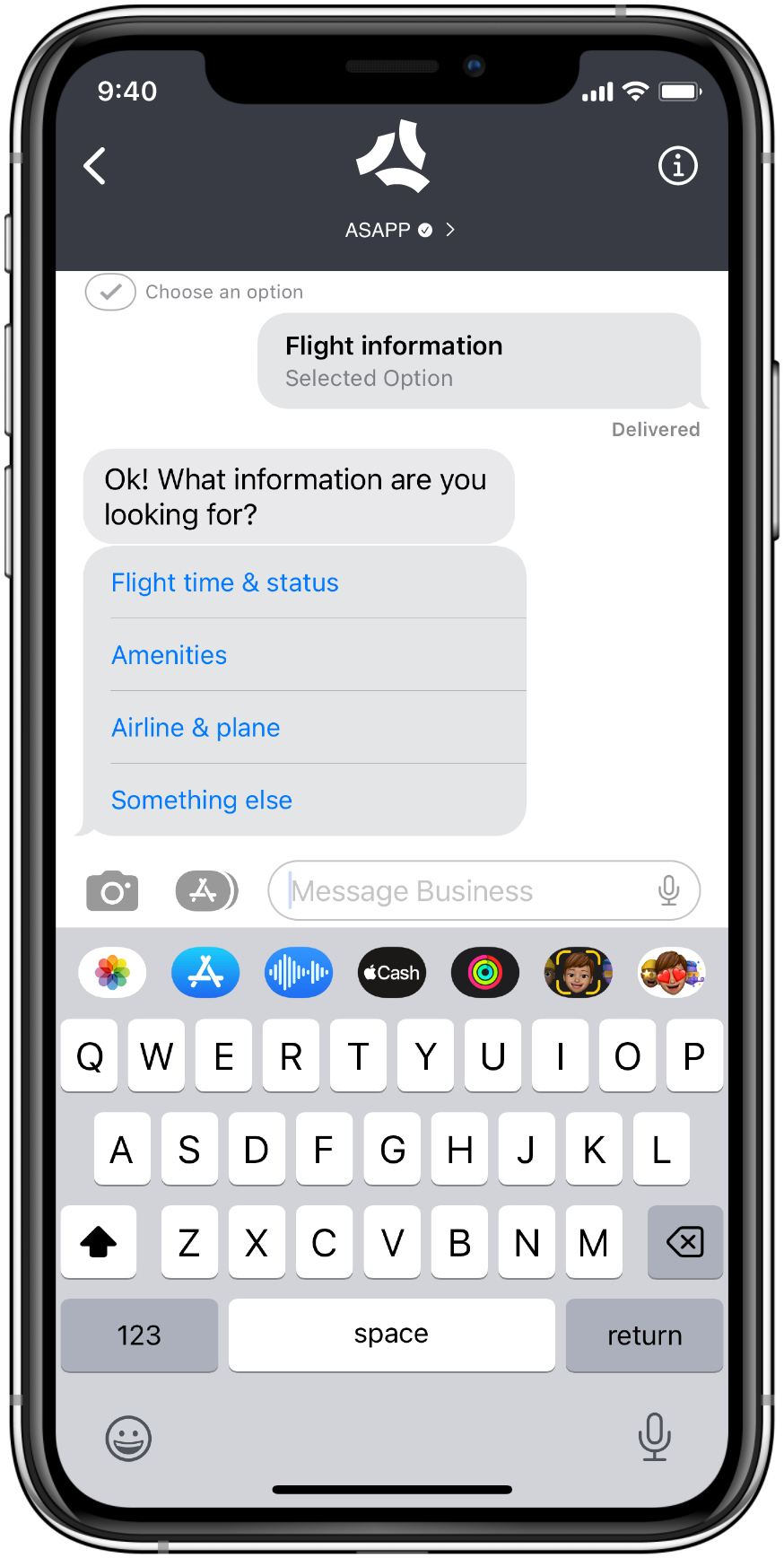
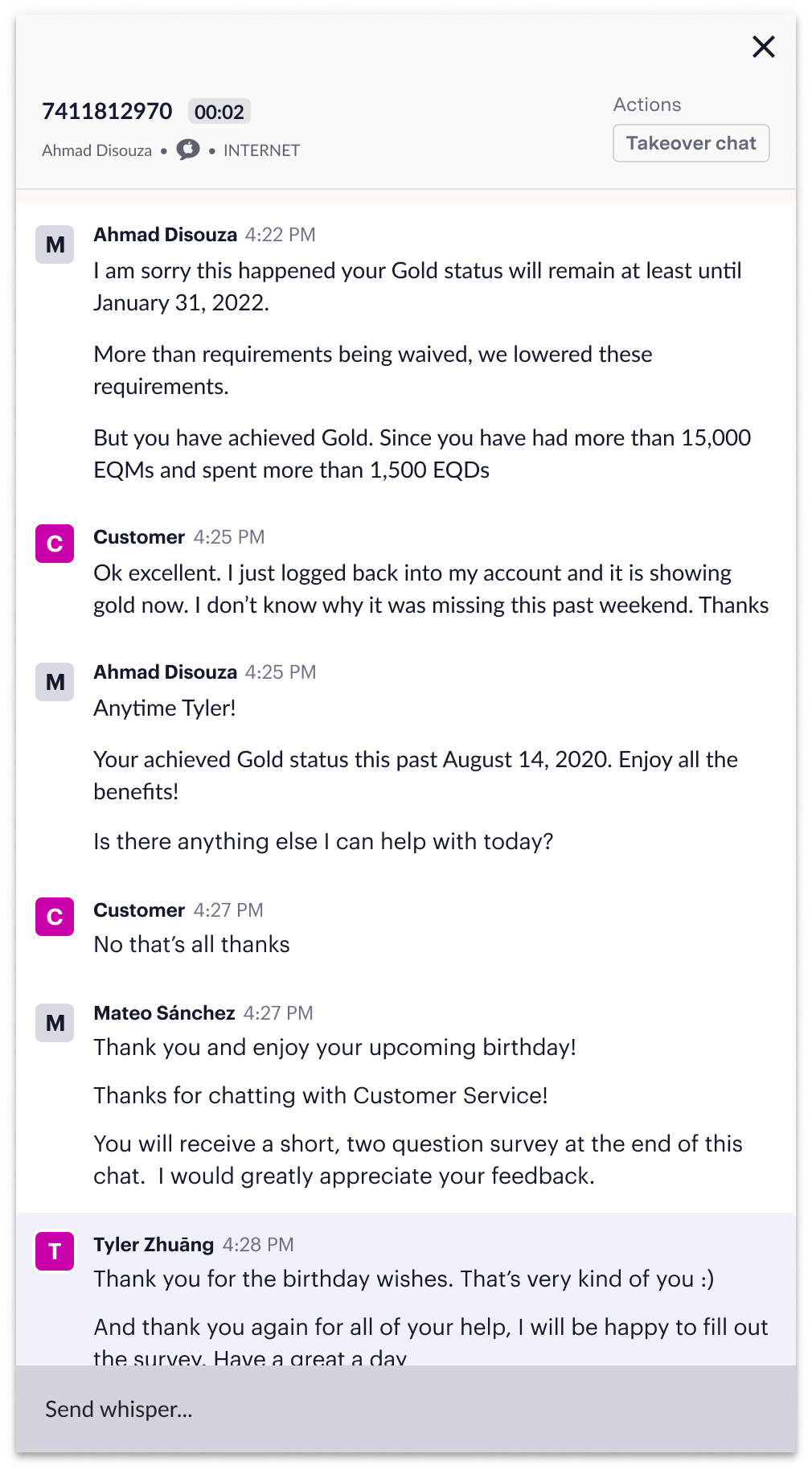 A confirmation modal will appear:
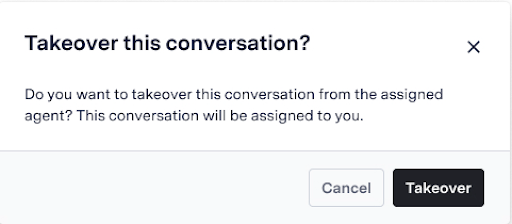 ## How it Works
Managers can take over a chat by navigating to a specific conversation in Live Insights and clicking on it to open the transcript area. The user can then click on the Takeover button in the upper left-hand corner. A confirmation prompt will appear to ensure the user wants to take over the chat. Once the chat has been transferred, the user will be notified. There is no limit to the number of chats a user can take over.
After that, admins can continue the chat and manage it at will. Users need to ensure they have access to Agent Desk to service the chat they have taken over. Access to the takeover functionality is granted through permissions set up by ASAPP.
## How it Works
Managers can take over a chat by navigating to a specific conversation in Live Insights and clicking on it to open the transcript area. The user can then click on the Takeover button in the upper left-hand corner. A confirmation prompt will appear to ensure the user wants to take over the chat. Once the chat has been transferred, the user will be notified. There is no limit to the number of chats a user can take over.
After that, admins can continue the chat and manage it at will. Users need to ensure they have access to Agent Desk to service the chat they have taken over. Access to the takeover functionality is granted through permissions set up by ASAPP.
 |
|  |
## How it Works
Agents can see the attachment component in a chat with a customer.
Agents can view images in a separate modal and can download and view a PDF.
Supported file types
* JPEG
* JPG
* PNG
* PDF
The capability is currently supported on:
* Apple Messaged for Business
Maximum size is 10MB for images and 20MB for PDFs.
|
## How it Works
Agents can see the attachment component in a chat with a customer.
Agents can view images in a separate modal and can download and view a PDF.
Supported file types
* JPEG
* JPG
* PNG
* PDF
The capability is currently supported on:
* Apple Messaged for Business
Maximum size is 10MB for images and 20MB for PDFs.
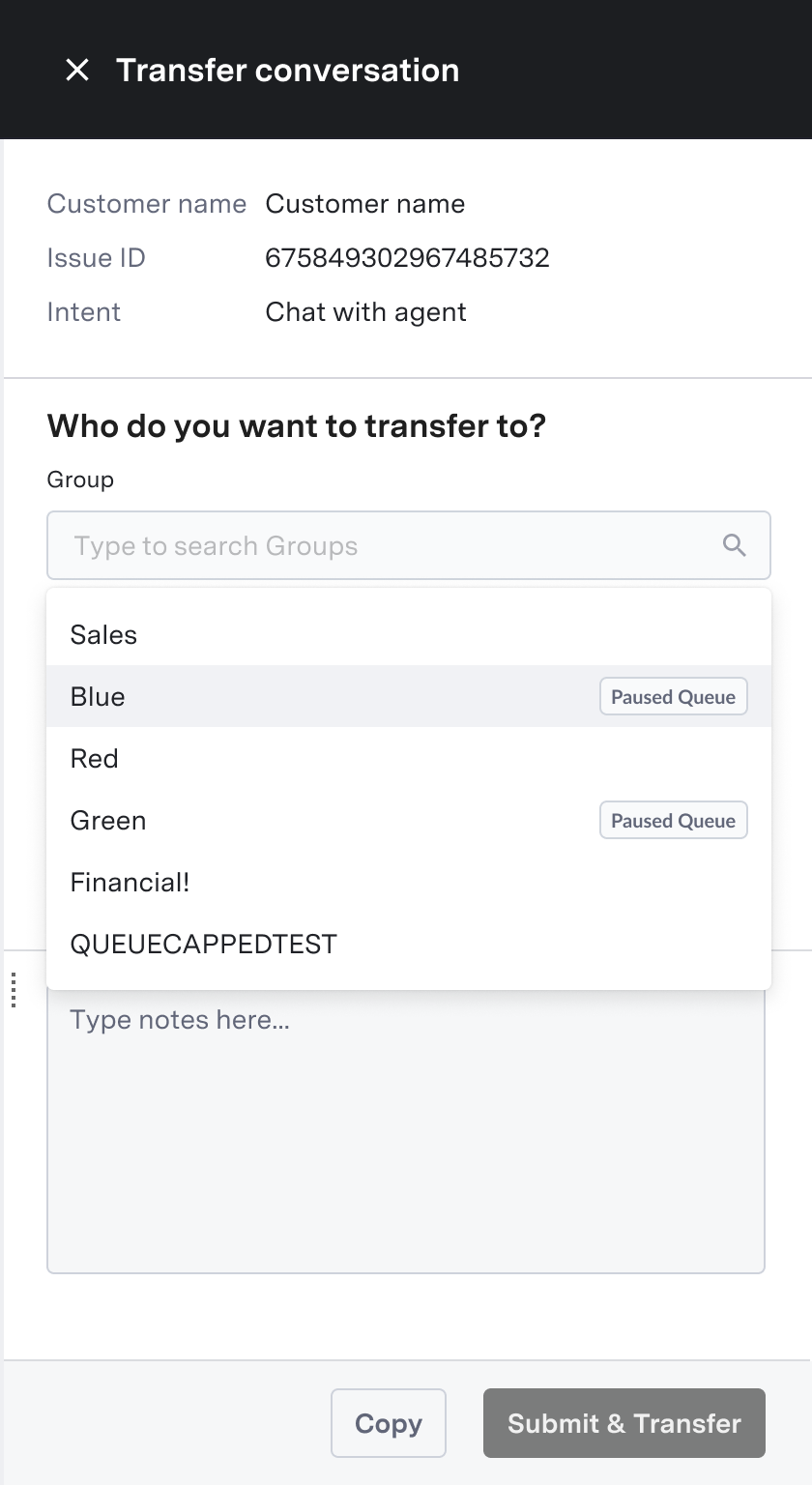 *Search queue name in queue transfer menu.*
## How It Works
Agents can select the queue to which they want to transfer the conversation by entering its name and choosing it from a filtered list.
*Search queue name in queue transfer menu.*
## How It Works
Agents can select the queue to which they want to transfer the conversation by entering its name and choosing it from a filtered list.
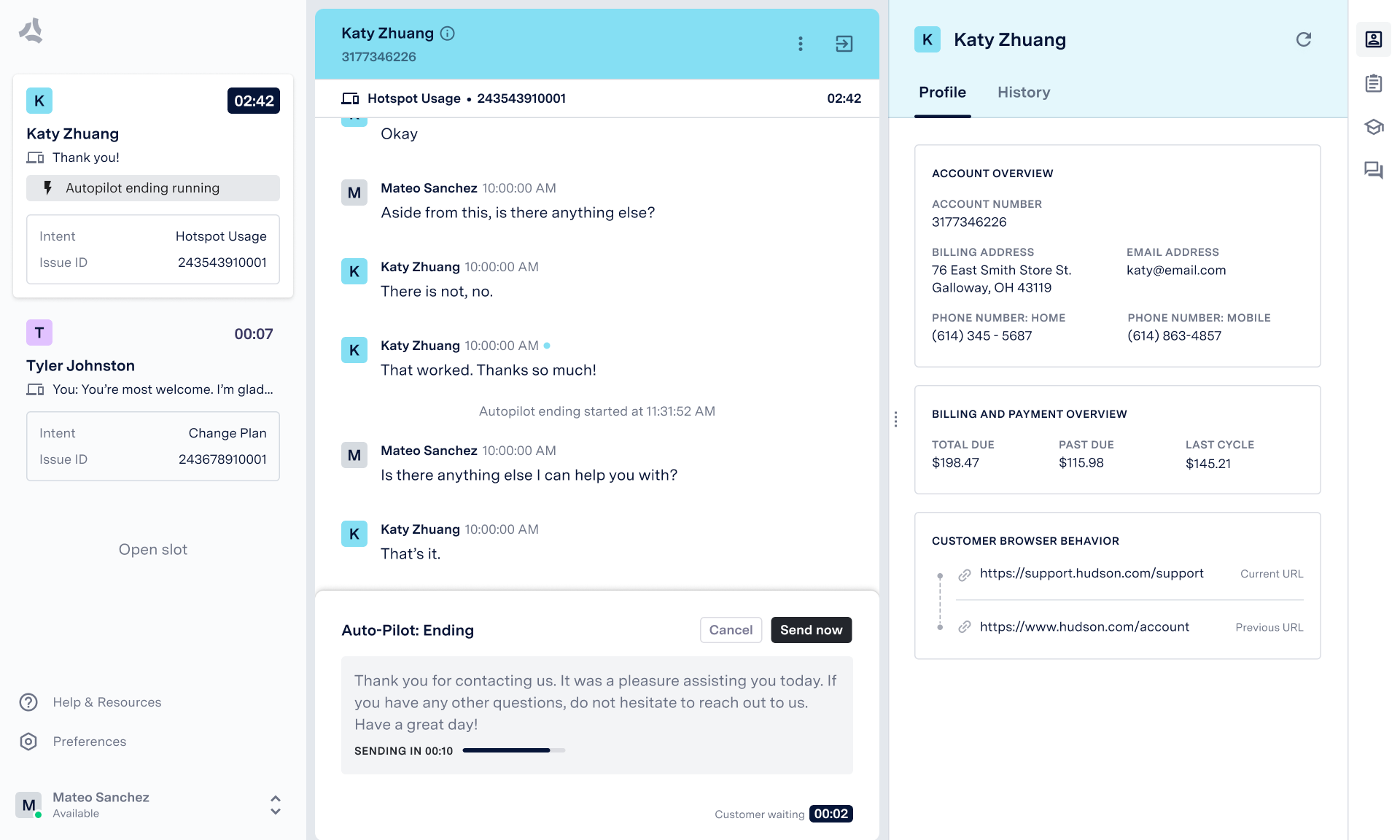 *Auto-Pilot Endings running in Agent Desk with Initial Message queued.*
Customers often become unresponsive once they do not need anything else from the agent. To free up their slots to serve other customers waiting in the queue, agents must confirm there is nothing more they can help the customer with before closing the chat.
To ensure the customer has a grace period to respond before being disconnected, agents follow a formulaic, multi-step check-in process with the customer prior to ending the chat. In these situations, Auto-Pilot Endings is intended to free up agents' attention for more active conversations, leading to greater agent efficiency.
*Auto-Pilot Endings running in Agent Desk with Initial Message queued.*
Customers often become unresponsive once they do not need anything else from the agent. To free up their slots to serve other customers waiting in the queue, agents must confirm there is nothing more they can help the customer with before closing the chat.
To ensure the customer has a grace period to respond before being disconnected, agents follow a formulaic, multi-step check-in process with the customer prior to ending the chat. In these situations, Auto-Pilot Endings is intended to free up agents' attention for more active conversations, leading to greater agent efficiency.
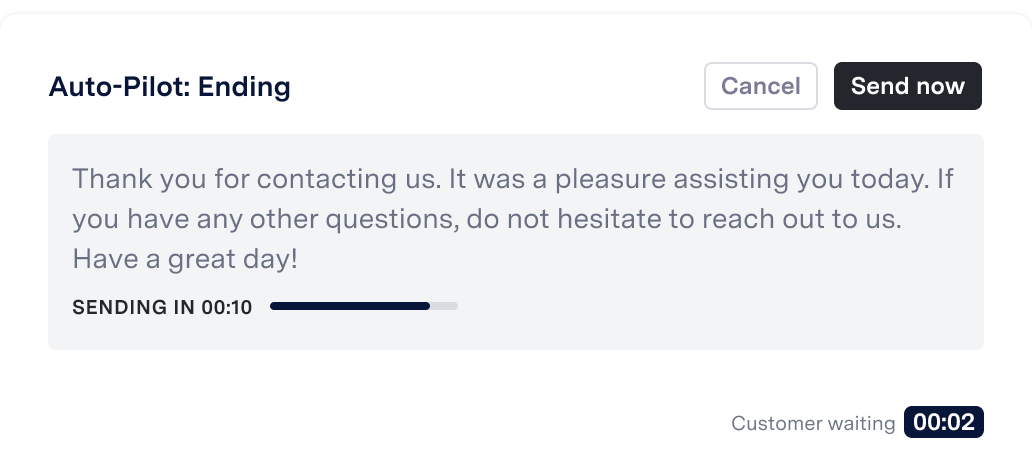 |
| B. Customer confirms they need more help | The Auto-Pilot Endings flow is canceled; the conversation continues as normal. A "new message" signal is sent to the agent to inform him that the customer returned the interaction.
|
| B. Customer confirms they need more help | The Auto-Pilot Endings flow is canceled; the conversation continues as normal. A "new message" signal is sent to the agent to inform him that the customer returned the interaction. 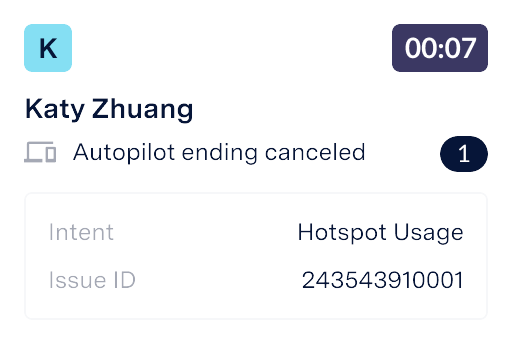 |
| C. Unresponsive customer | A Check-in Message is sent and another timer begins. If the customer remains unresponsive, the Closing Message is sent and the chat issue ends. If the customer responds with any message, the Auto-Pilot Endings flow is canceled and the conversation continues as normal. |
### Agent Capabilities
**Manually Ending Auto-Pilot Endings Flow**\
At any time, an agent can click **Cancel** in the Composer window to end the Auto-Pilot Ending flow and return the conversation to its normal state.
**Manually Sending Ending Messages**\
Any time a message is queued, an agent can click **Send now** in the Composer window to bypass the countdown timer, send the message, and move to the next step in the flow.
**Managing Auto-Pilot Endings**\
Under the **Ending** tab in the **Responses** drawer of the right rail of Agent Desk, agents can:
* Enable or disable AutoPilot Endings using a toggle at the top of the tab.
* Customize the wording of the Closing Message; there are two versions of the message, accounting for when Agent Desk is aware and unaware of the customer's first name.
|
| C. Unresponsive customer | A Check-in Message is sent and another timer begins. If the customer remains unresponsive, the Closing Message is sent and the chat issue ends. If the customer responds with any message, the Auto-Pilot Endings flow is canceled and the conversation continues as normal. |
### Agent Capabilities
**Manually Ending Auto-Pilot Endings Flow**\
At any time, an agent can click **Cancel** in the Composer window to end the Auto-Pilot Ending flow and return the conversation to its normal state.
**Manually Sending Ending Messages**\
Any time a message is queued, an agent can click **Send now** in the Composer window to bypass the countdown timer, send the message, and move to the next step in the flow.
**Managing Auto-Pilot Endings**\
Under the **Ending** tab in the **Responses** drawer of the right rail of Agent Desk, agents can:
* Enable or disable AutoPilot Endings using a toggle at the top of the tab.
* Customize the wording of the Closing Message; there are two versions of the message, accounting for when Agent Desk is aware and unaware of the customer's first name.
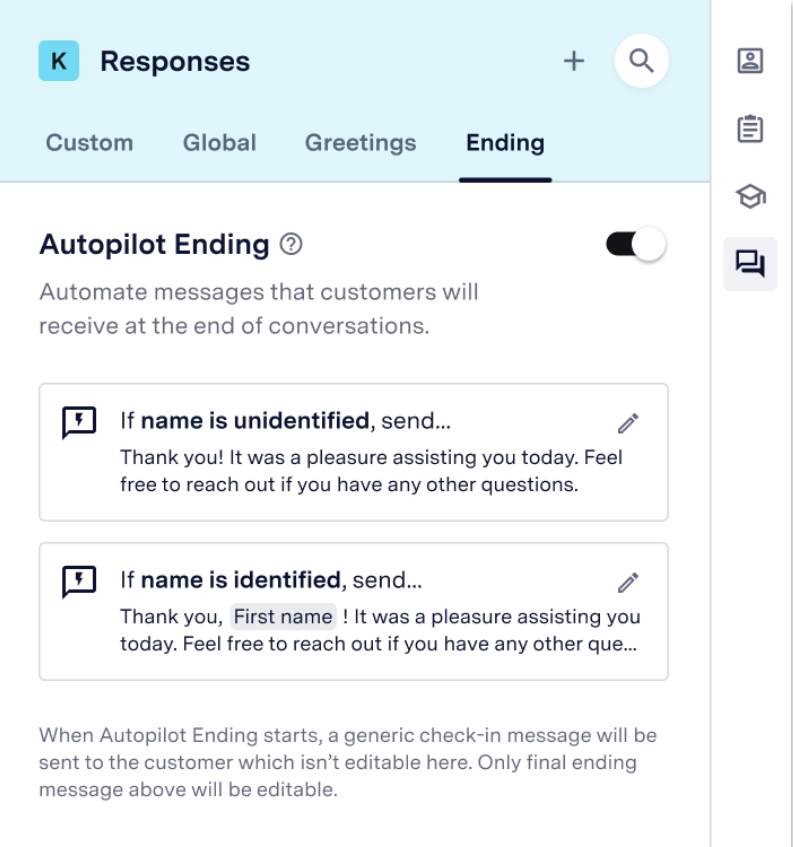 ### Feature Configuration
Customers must reach out to their ASAPP contact to configure Auto-Pilot Endings globally for their program:
**Global Default Auto-Pilot Ending Messages**
* Initial Message
* Check-in message
* Closing Message (named customer)
* Closing Message (unidentified customer)
### Feature Configuration
Customers must reach out to their ASAPP contact to configure Auto-Pilot Endings globally for their program:
**Global Default Auto-Pilot Ending Messages**
* Initial Message
* Check-in message
* Closing Message (named customer)
* Closing Message (unidentified customer)
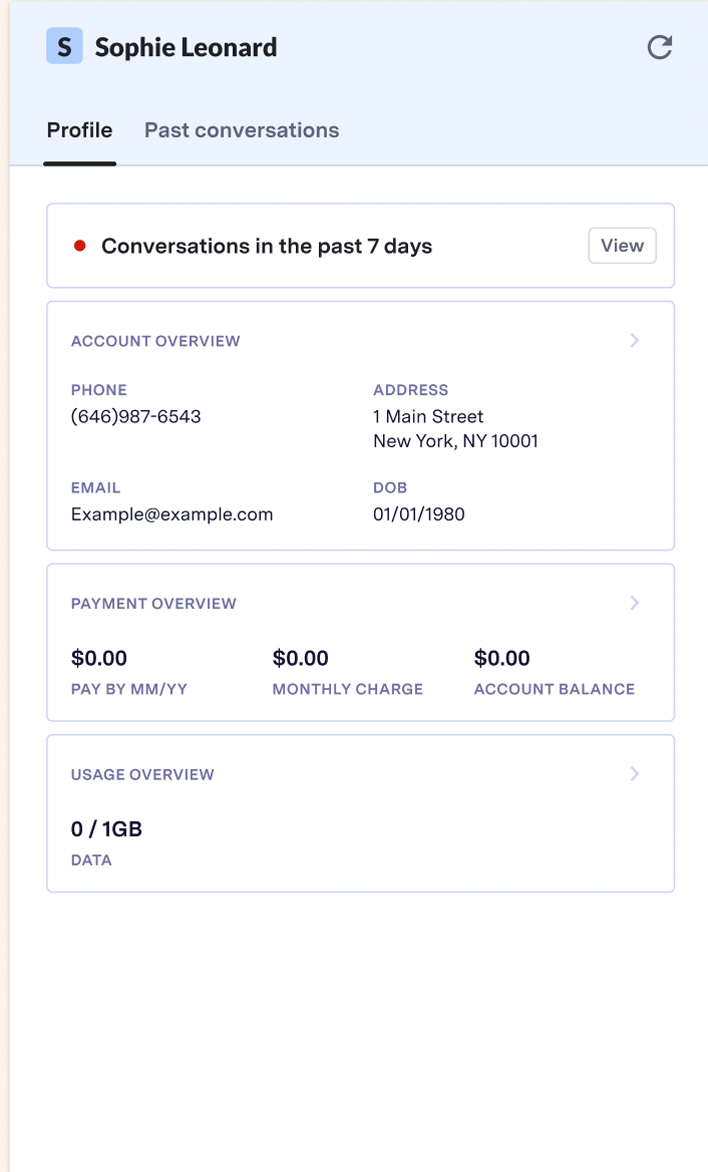
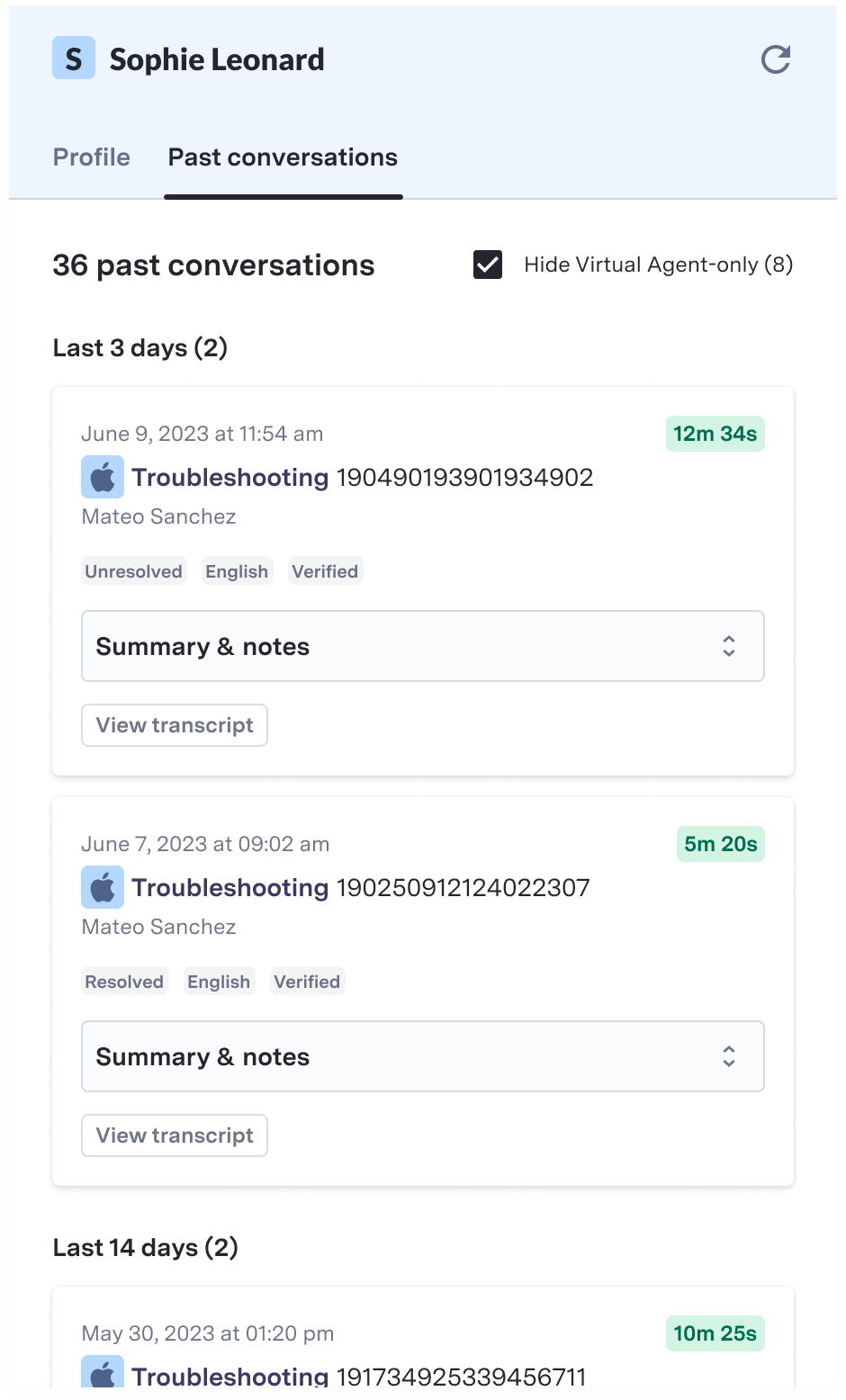 **Updated "past conversation" indicator in the "Profile" tab, and updated "Past Conversation" tab.**
## Use and Impact
Past Conversations enables agents to provide customers with a more confident, informed, and tailored experience by displaying information about previous conversations with those customers.
This feature improves agents' efficiency and effectiveness by enhancing the retrievability and usefulness of historical conversation data.
As a result, it helps to reduce operational metrics such as Average Handling Time (AHT) and increase effectiveness indicators like the Customer Satisfaction (CSAT) score.
**Updated "past conversation" indicator in the "Profile" tab, and updated "Past Conversation" tab.**
## Use and Impact
Past Conversations enables agents to provide customers with a more confident, informed, and tailored experience by displaying information about previous conversations with those customers.
This feature improves agents' efficiency and effectiveness by enhancing the retrievability and usefulness of historical conversation data.
As a result, it helps to reduce operational metrics such as Average Handling Time (AHT) and increase effectiveness indicators like the Customer Satisfaction (CSAT) score.
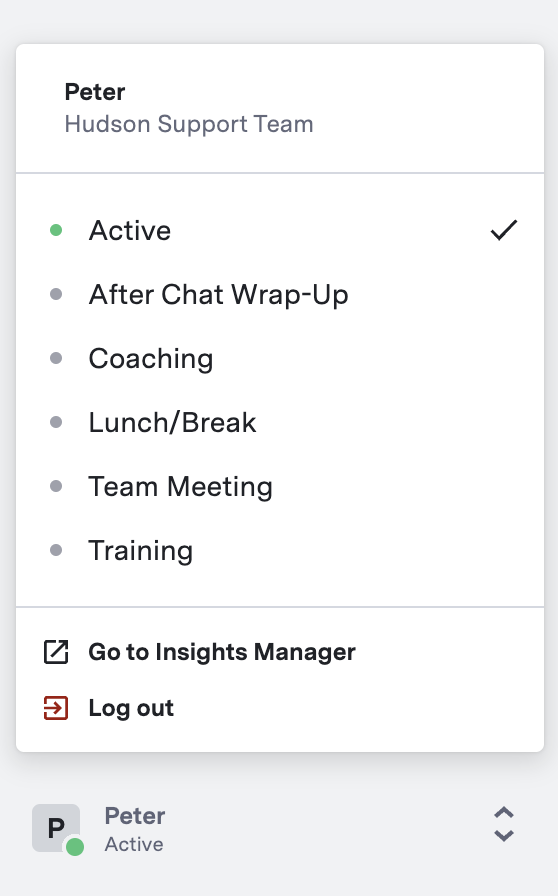 *Active status selected by default in the Status selection menu.*
By default, when agents log in to the platform, they inherit the same status they had when they last logged out. This behavior often leads to downtime if the agents fail to update their status to an active state, creating backlogs in queues as there are fewer agents to allocate chats to than there should be.
This feature allows customers to set a default status, such as available, every time an agent logs in. Administrators can configure this default status for both Voice and Agent desks.
*Active status selected by default in the Status selection menu.*
By default, when agents log in to the platform, they inherit the same status they had when they last logged out. This behavior often leads to downtime if the agents fail to update their status to an active state, creating backlogs in queues as there are fewer agents to allocate chats to than there should be.
This feature allows customers to set a default status, such as available, every time an agent logs in. Administrators can configure this default status for both Voice and Agent desks.
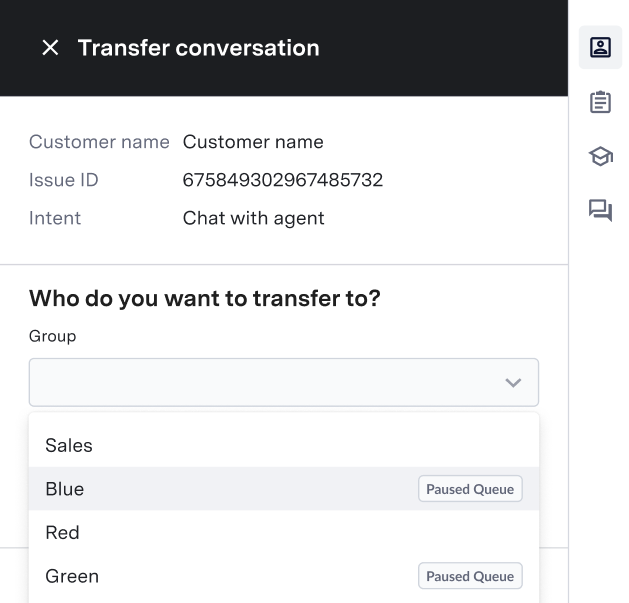 In some cases, the only agents that can properly address a customer's issue are part of a queue that is temporarily paused. To ensure that agents can always redirect customers to the applicable queue, this feature allows agents to transfer customers to a paused queue, even if the wait times are long.
This feature prevents poor customer experience by telling customers to reach out later or sending them to a queue that cannot appropriately help them.
It also saves agents time by enabling them to route the customer to the proper queue when they cannot address the issue.
In some cases, the only agents that can properly address a customer's issue are part of a queue that is temporarily paused. To ensure that agents can always redirect customers to the applicable queue, this feature allows agents to transfer customers to a paused queue, even if the wait times are long.
This feature prevents poor customer experience by telling customers to reach out later or sending them to a queue that cannot appropriately help them.
It also saves agents time by enabling them to route the customer to the proper queue when they cannot address the issue.
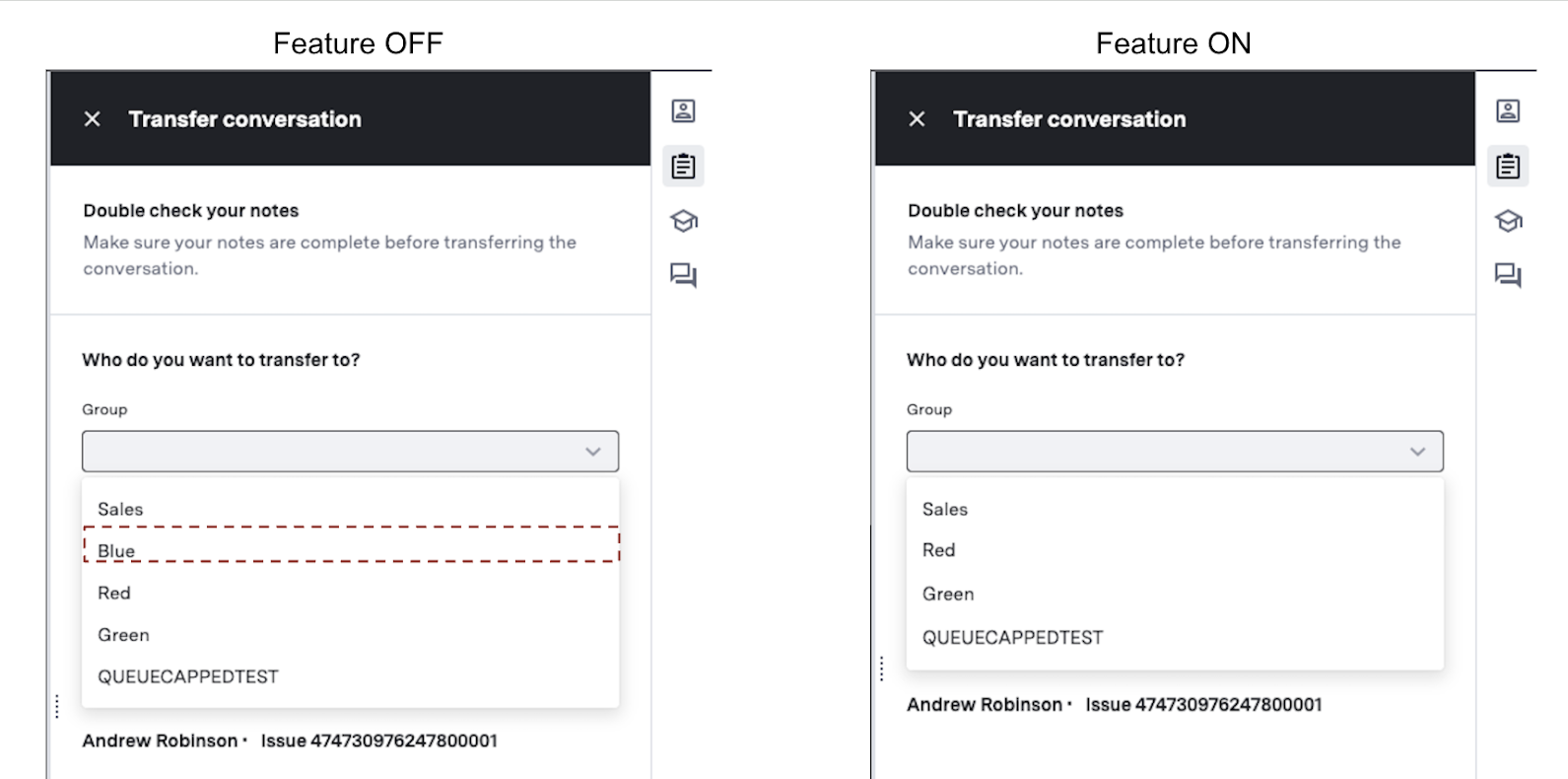 In some situations, transferring customers to the same queue they were waiting in can cause a poor customer experience.
Additionally, agents might transfer customers to the same queue to unassign themselves from the case, causing other agents to have to pick up new or complicated cases.
This feature gives administrators more flexibility in configuring which queues are available to their agents for transfer. It also prevents agents from transferring customers with difficult or time-consuming requests to another agent.
Overall, this feature ensures a better customer experience by preventing possible delays by transferring waiting customers to the same queue.
In some situations, transferring customers to the same queue they were waiting in can cause a poor customer experience.
Additionally, agents might transfer customers to the same queue to unassign themselves from the case, causing other agents to have to pick up new or complicated cases.
This feature gives administrators more flexibility in configuring which queues are available to their agents for transfer. It also prevents agents from transferring customers with difficult or time-consuming requests to another agent.
Overall, this feature ensures a better customer experience by preventing possible delays by transferring waiting customers to the same queue.
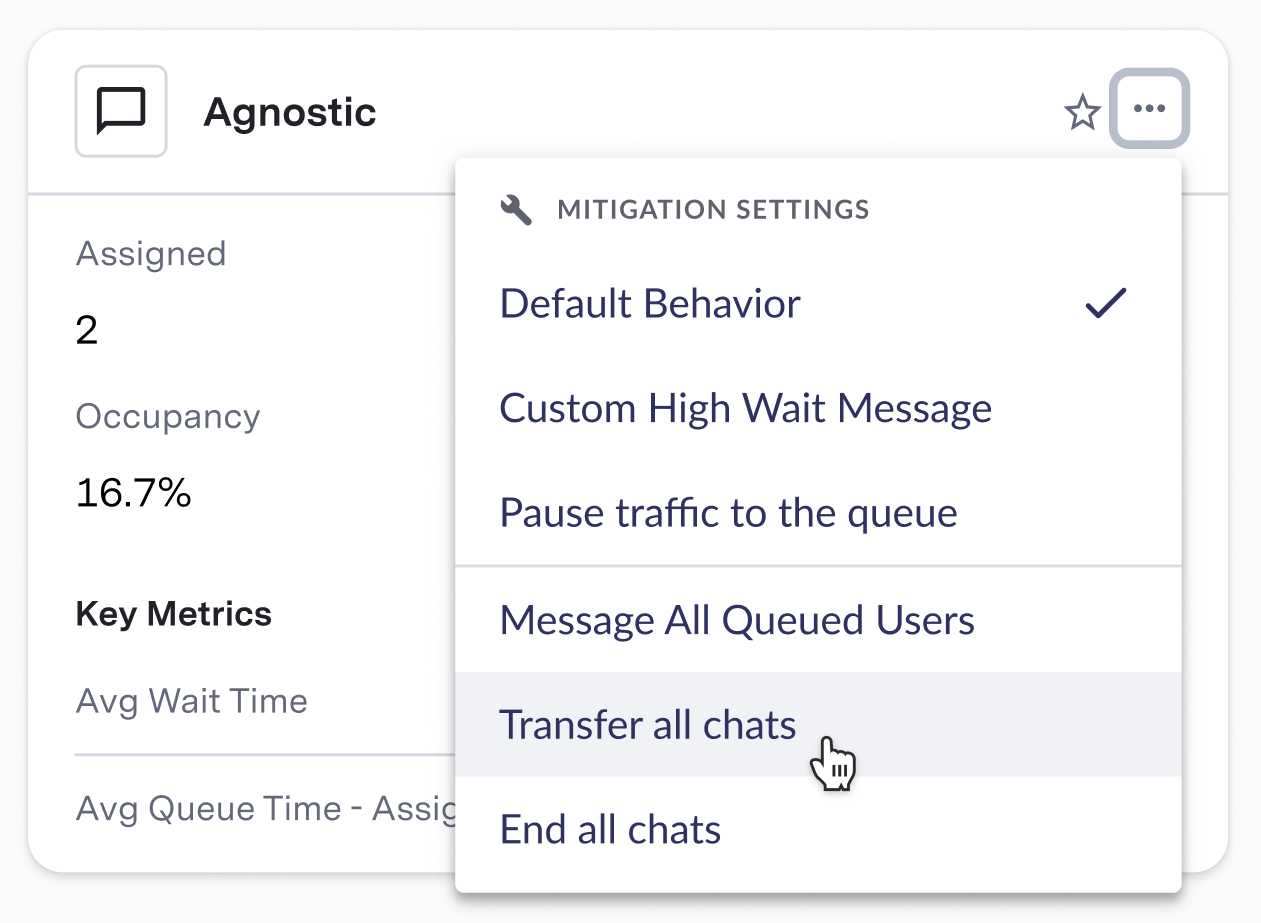 ### Bulk Chat Transfer
A user sees a dropdown list and selects the “Transfer all chats” item from the dropdown menu.
A queue selection modal appears to ask: “Select the queue which you want to transfer all chats to?” and they see a downdrop list of all the queue names and need to select a queue name and click transfer chats button.
A toast message appears informing the user that all chats have been transferred.
The end customer does not see a change on their side and assumes they are still waiting in a queue.
### Bulk Chat Closure
A user clicks on the 3 dots in the upper right hand corner of the queue card they want to impact.
The user sees a dropdown list and selects the “End all chats” item from the dropdown menu. A confirmation modal appears to ask: “Are you sure you want to end all chats in this queue?” and they need to select confirm/yes to complete the action of ending all chats.
A toast message appears informing the user that all chats are ended.
The end customer sees the normal “Conversation has ended” component.
### Bulk Chat Transfer
A user sees a dropdown list and selects the “Transfer all chats” item from the dropdown menu.
A queue selection modal appears to ask: “Select the queue which you want to transfer all chats to?” and they see a downdrop list of all the queue names and need to select a queue name and click transfer chats button.
A toast message appears informing the user that all chats have been transferred.
The end customer does not see a change on their side and assumes they are still waiting in a queue.
### Bulk Chat Closure
A user clicks on the 3 dots in the upper right hand corner of the queue card they want to impact.
The user sees a dropdown list and selects the “End all chats” item from the dropdown menu. A confirmation modal appears to ask: “Are you sure you want to end all chats in this queue?” and they need to select confirm/yes to complete the action of ending all chats.
A toast message appears informing the user that all chats are ended.
The end customer sees the normal “Conversation has ended” component.
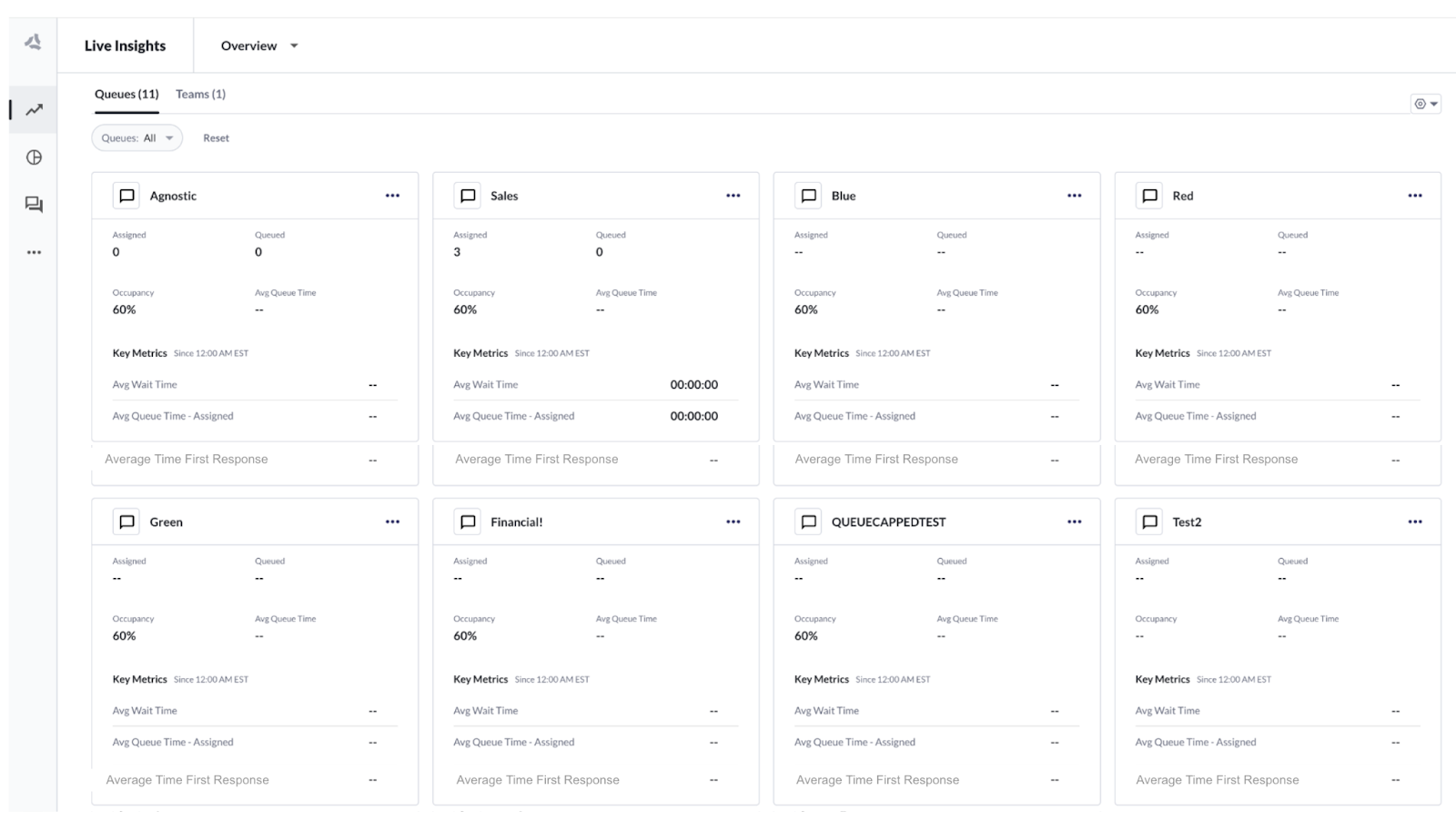 These additions help workforce managers monitor capacity and meet contractual SLA commitments.
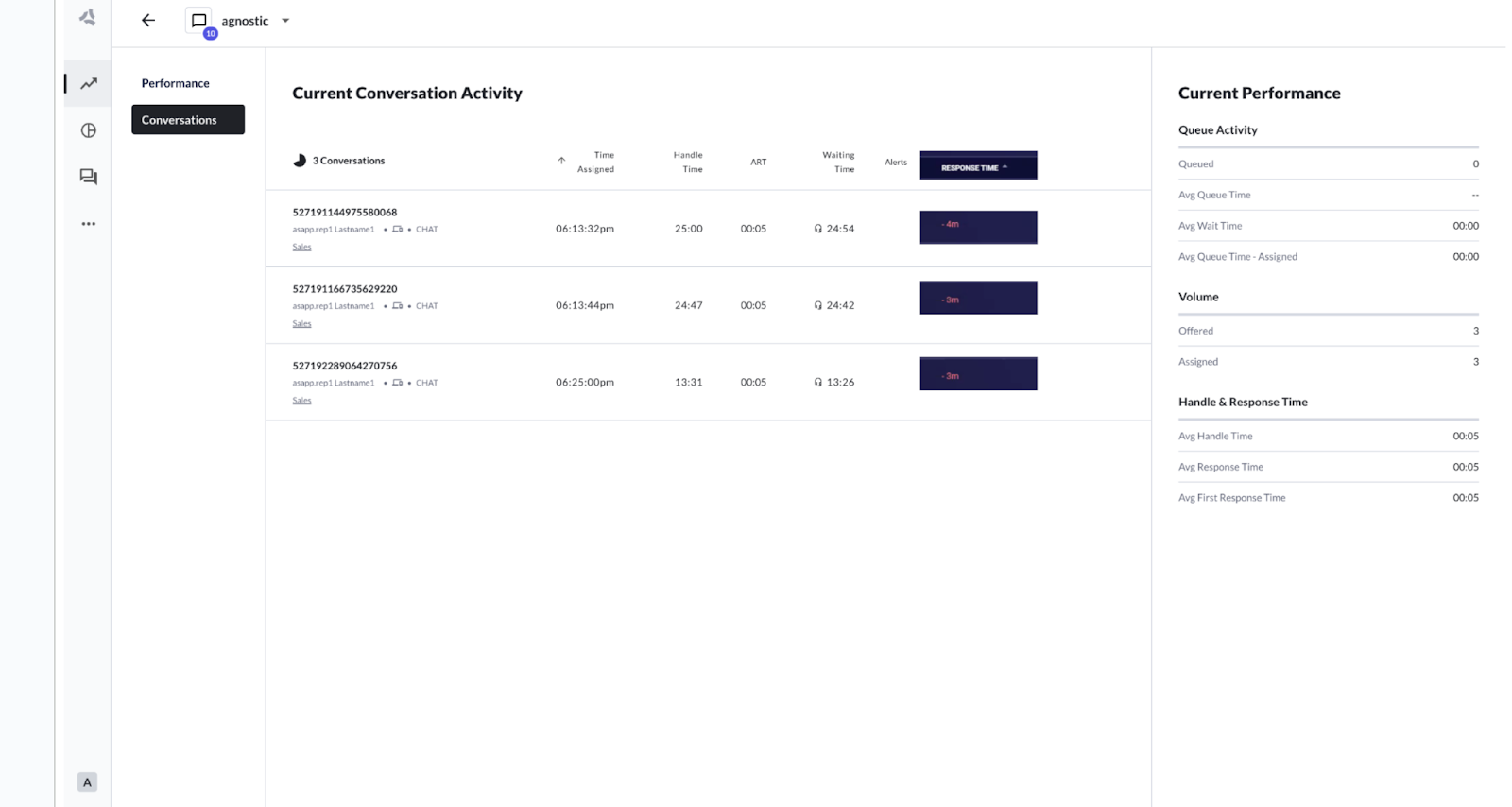
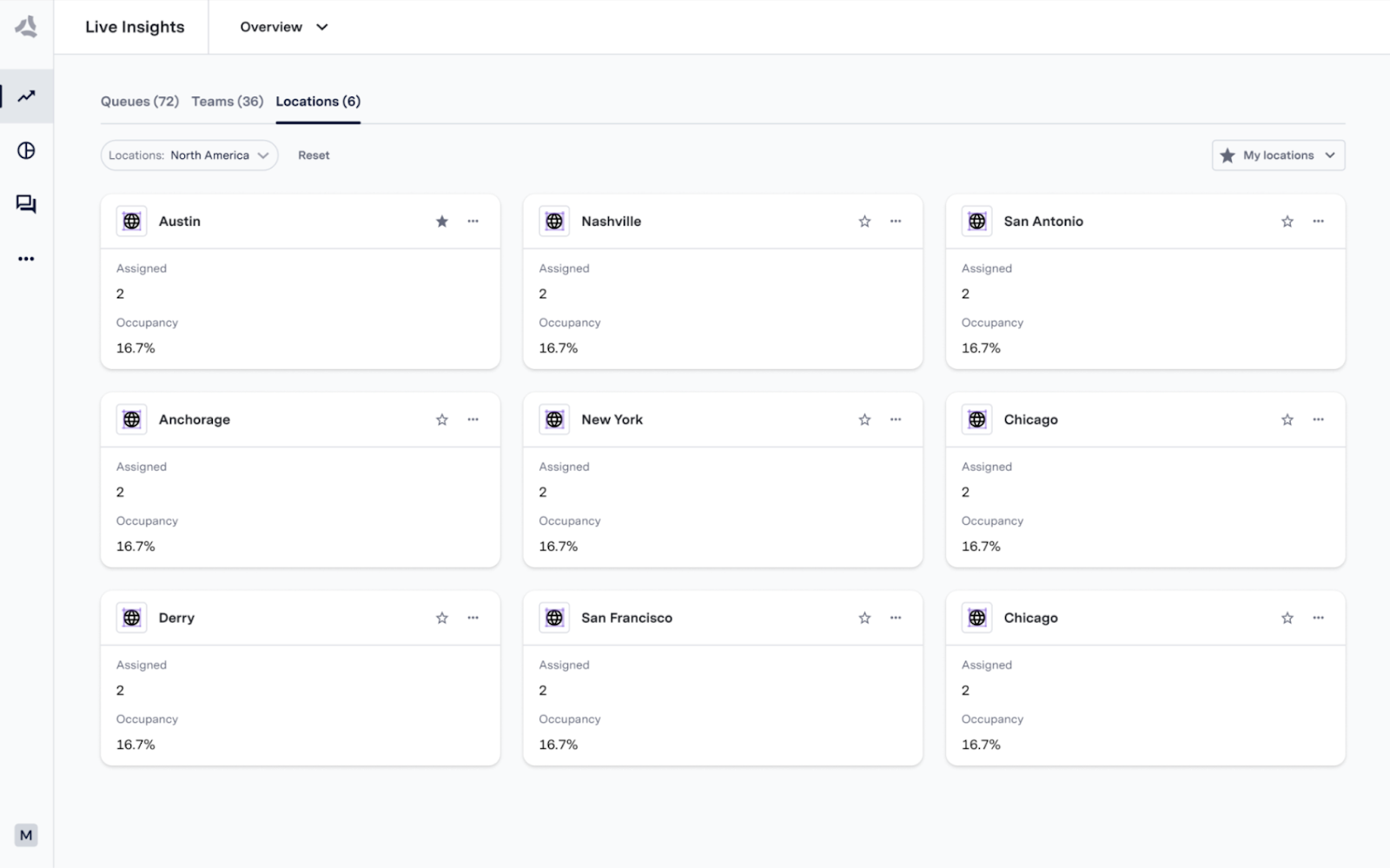
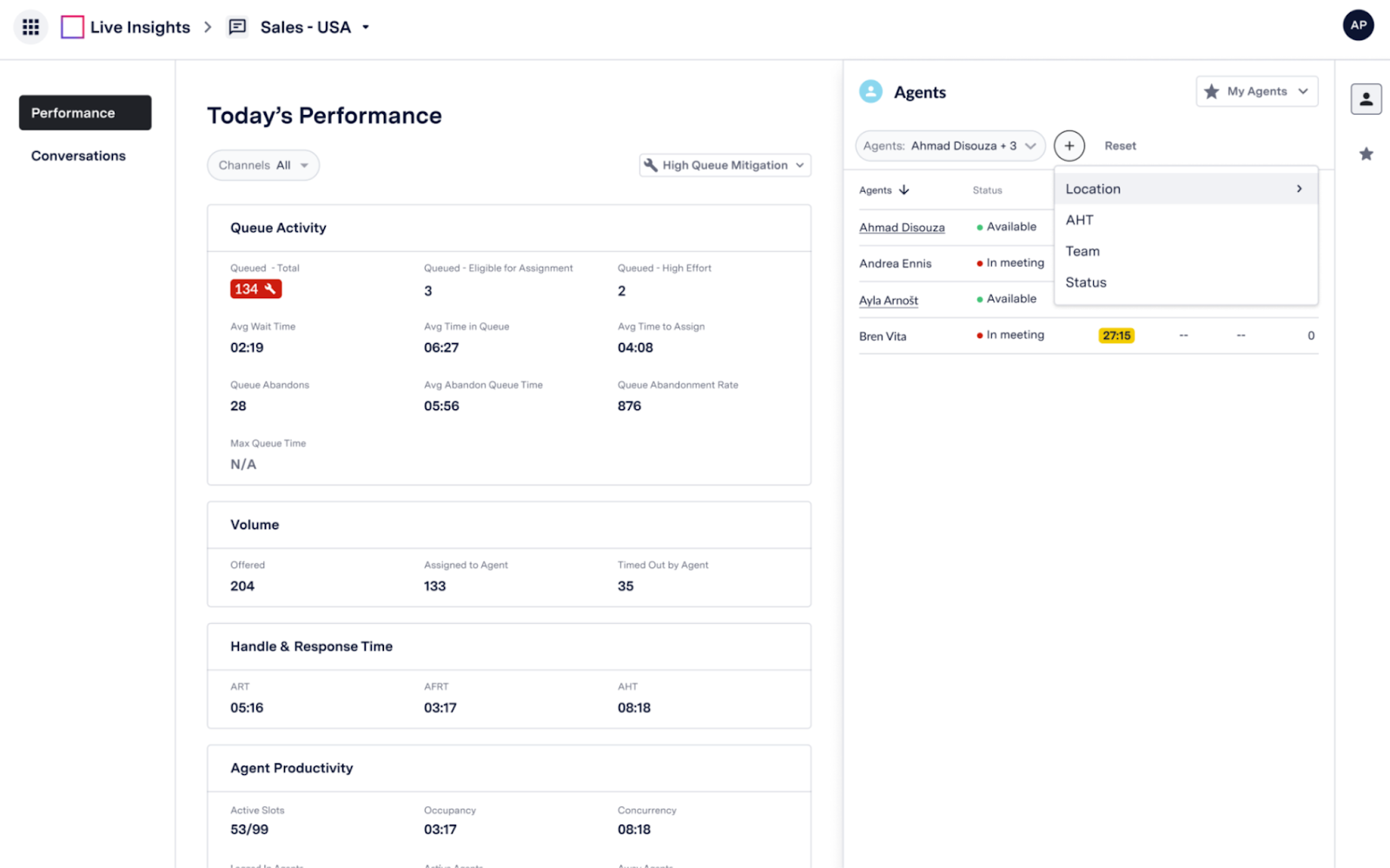 ### Management Capabilities
**Filtering by location**
Each location provides updates of performance and agents names.
**Filtering by site**
Each administrator can provide an hourly update of how many agents are active, on lunch, or in a different state as well as view corresponding metrics
### Feature Configuration
All information on which location and teams an agent belongs to is sourced through the SSO integration with ASAPP. Customers that require any changes to the data should change the respective attribute being passed to ASAPP.
Please contact your ASAPP representative for further information.
ASAPP Messaging is an end-to-end AI-native® messaging platform designed for digital customer service. It enhances digital adoption, maintains customer satisfaction (CSAT), and increases contact center capacity efficiently.
At its core, ASAPP Messaging uses an AI-Native design approach. AI is not just an added feature, but the foundation upon which the entire platform is built.
ASAPP Messaging leverages advanced machine learning algorithms and generative AI to provide comprehensive support for digital customer service. This holistic approach benefits agents, leaders, and customers alike, offering a seamless and intelligent messaging experience across various channels.
### Supported Channels
ASAPP Messaging supports [multiple messaging channels](/messaging-platform/integrations), including:
* [Android SDK](/messaging-platform/integrations/android-sdk "Android SDK")
* [Apple Messages for Business](/messaging-platform/integrations/apple-messages-for-business "Apple Messages for Business")
* [iOS SDK](/messaging-platform/integrations/ios-sdk "iOS SDK")
* [Voice](/messaging-platform/integrations/voice "Voice")
* [Web SDK](/messaging-platform/integrations/web-sdk "Web SDK")
* [WhatsApp Business](/messaging-platform/integrations/whatsapp-business "WhatsApp Business")
## How it works
ASAPP Messaging seamlessly integrates with your existing channels, creating a unified ecosystem for customer interactions and agent support. Here's how it enhances the experience for all stakeholders:
**For your customers**:
* Seamlessly connect with your [preferred messaging channels](#implement-messaging-platform) for a consistent brand experience.
* Benefit from intelligent automation with [**Virtual Agent**](#virtual-agent).
**For your agents**:
* Leverage the powerful [**Digital Agent Desk**](#digital-agent-desk).
* Boost productivity with built-in AI-powered tools like **AutoSummary** and **AutoCompose**.
**For your management team**:
* Gain valuable insights with [**Insights Manager**](#insights-manager)
By seamlessly blending AI capabilities with human expertise, ASAPP Messaging elevates your customer service operations to new heights of efficiency and satisfaction.
### Virtual Agent
Virtual Agent is our cutting-edge automation solution that enables:
* Intelligent intent recognition and seamless routing
* Automating common customer inquiries with natural language.
* Handling dynamic input and secure forms.
* Customizable workflows tailored to your brand's unique requirements
### Management Capabilities
**Filtering by location**
Each location provides updates of performance and agents names.
**Filtering by site**
Each administrator can provide an hourly update of how many agents are active, on lunch, or in a different state as well as view corresponding metrics
### Feature Configuration
All information on which location and teams an agent belongs to is sourced through the SSO integration with ASAPP. Customers that require any changes to the data should change the respective attribute being passed to ASAPP.
Please contact your ASAPP representative for further information.
ASAPP Messaging is an end-to-end AI-native® messaging platform designed for digital customer service. It enhances digital adoption, maintains customer satisfaction (CSAT), and increases contact center capacity efficiently.
At its core, ASAPP Messaging uses an AI-Native design approach. AI is not just an added feature, but the foundation upon which the entire platform is built.
ASAPP Messaging leverages advanced machine learning algorithms and generative AI to provide comprehensive support for digital customer service. This holistic approach benefits agents, leaders, and customers alike, offering a seamless and intelligent messaging experience across various channels.
### Supported Channels
ASAPP Messaging supports [multiple messaging channels](/messaging-platform/integrations), including:
* [Android SDK](/messaging-platform/integrations/android-sdk "Android SDK")
* [Apple Messages for Business](/messaging-platform/integrations/apple-messages-for-business "Apple Messages for Business")
* [iOS SDK](/messaging-platform/integrations/ios-sdk "iOS SDK")
* [Voice](/messaging-platform/integrations/voice "Voice")
* [Web SDK](/messaging-platform/integrations/web-sdk "Web SDK")
* [WhatsApp Business](/messaging-platform/integrations/whatsapp-business "WhatsApp Business")
## How it works
ASAPP Messaging seamlessly integrates with your existing channels, creating a unified ecosystem for customer interactions and agent support. Here's how it enhances the experience for all stakeholders:
**For your customers**:
* Seamlessly connect with your [preferred messaging channels](#implement-messaging-platform) for a consistent brand experience.
* Benefit from intelligent automation with [**Virtual Agent**](#virtual-agent).
**For your agents**:
* Leverage the powerful [**Digital Agent Desk**](#digital-agent-desk).
* Boost productivity with built-in AI-powered tools like **AutoSummary** and **AutoCompose**.
**For your management team**:
* Gain valuable insights with [**Insights Manager**](#insights-manager)
By seamlessly blending AI capabilities with human expertise, ASAPP Messaging elevates your customer service operations to new heights of efficiency and satisfaction.
### Virtual Agent
Virtual Agent is our cutting-edge automation solution that enables:
* Intelligent intent recognition and seamless routing
* Automating common customer inquiries with natural language.
* Handling dynamic input and secure forms.
* Customizable workflows tailored to your brand's unique requirements
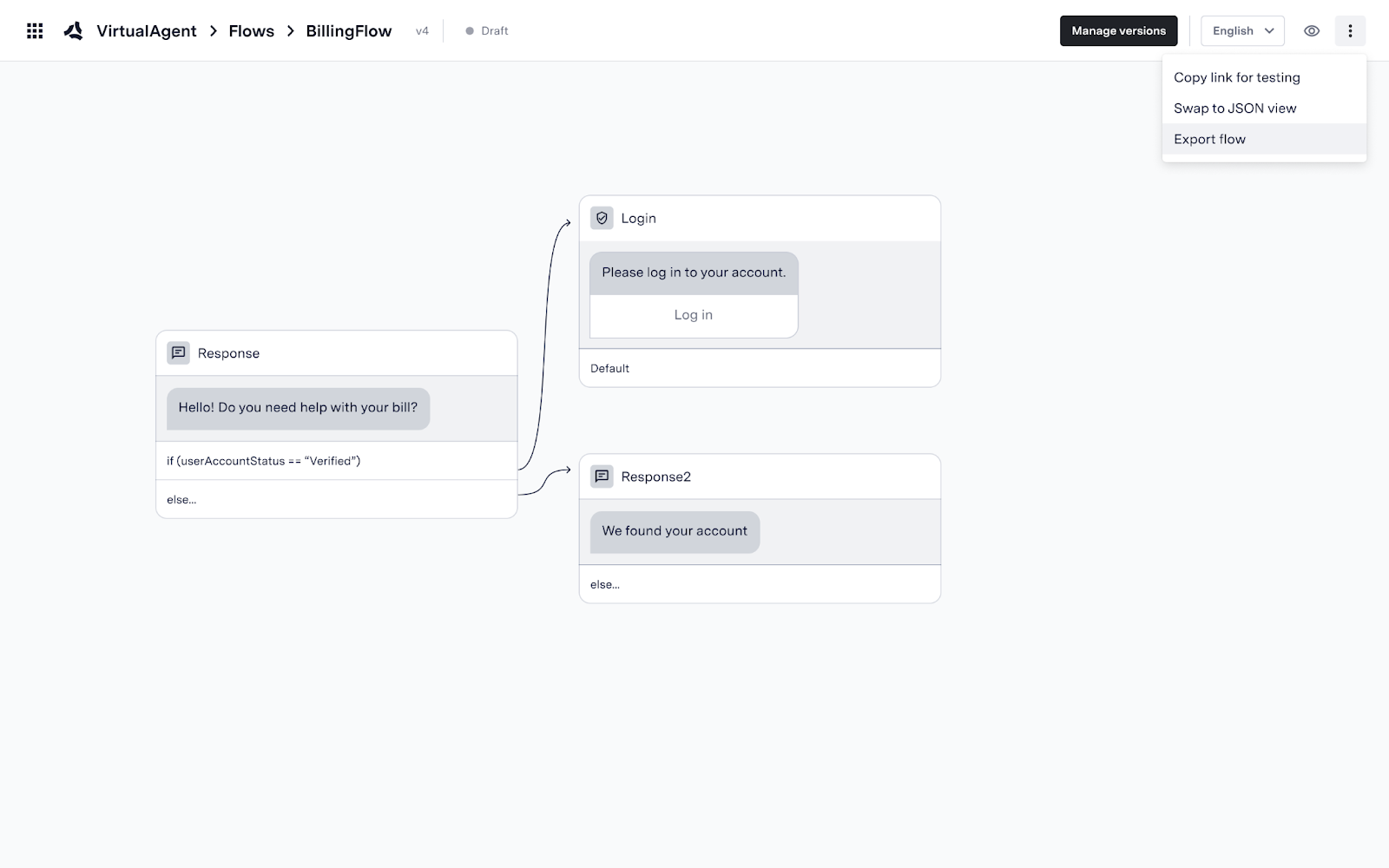
 Export pop-up allows users to select the version to export.
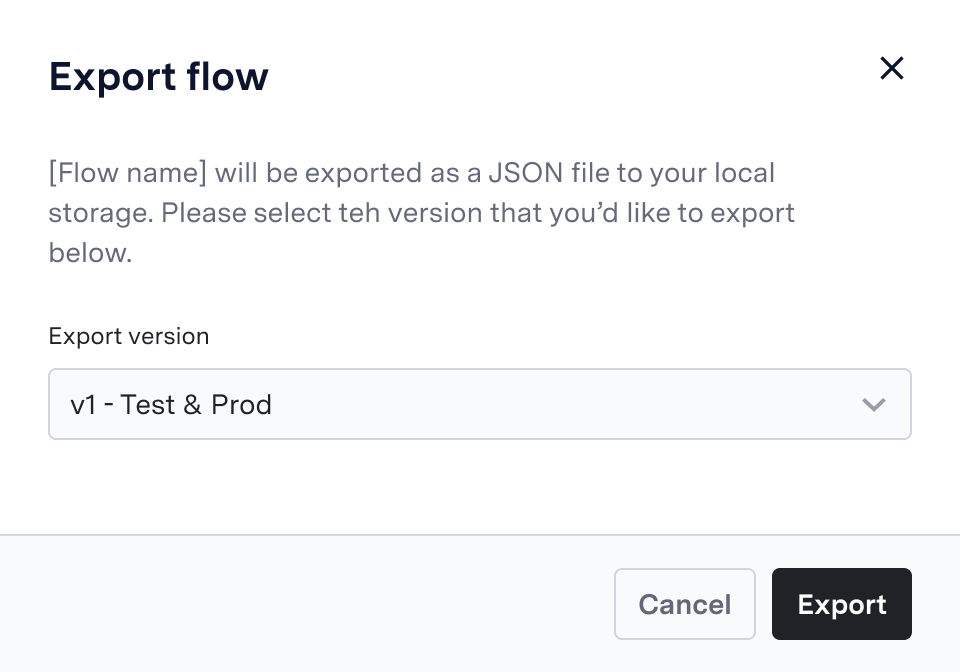 | | |
| :----------------------------------------------------------------------------------------------------------------------------------------------------------------------------------------------------------------------------------------------------------------------------------------------------------------------------------------------------------------------------------------------------------------------------------------------------------------------------------------------------------------------------------------------------------------------------------------------------------------------------------------------------------------------------------------------------------------------------------------------------------------------------------------------------------------------------------------------------------------------------------------------------------------------------------------------------------------------------------------------------------------------------------------------------------------------------------------------------------------------------------------------------------------------------------------------------------------------------------------------------------------------------------------------------------------------------------------------------------------------------------------------------------------------------------------------------------------------------------------------------------------------------------------------------------- | :----------------------------------------------------------------------------------------------------------------------------------------------------------------------------------------------------------------------------------------------------------------------------------------------------------------------------------------------------------------------------------------------------------------------------------------------------------------------------------------------------------------------------------------------------------------------------------------------------------------------------------------------------------------------------------------------------------------------------------------------------------------------------------------------------------------------------------------------------------------------------------------------------------------------------------------------------------------------------------------------------------------------------------------------------------------------------------------------------------------------------------------------------------------------------------------------------------------------------------------------------------------------------------------------------------------------------------------------------------------------------------------------------------------------------------------------------------------------------------------------------------------------------------------------------------- |
|
| | |
| :----------------------------------------------------------------------------------------------------------------------------------------------------------------------------------------------------------------------------------------------------------------------------------------------------------------------------------------------------------------------------------------------------------------------------------------------------------------------------------------------------------------------------------------------------------------------------------------------------------------------------------------------------------------------------------------------------------------------------------------------------------------------------------------------------------------------------------------------------------------------------------------------------------------------------------------------------------------------------------------------------------------------------------------------------------------------------------------------------------------------------------------------------------------------------------------------------------------------------------------------------------------------------------------------------------------------------------------------------------------------------------------------------------------------------------------------------------------------------------------------------------------------------------------------------------- | :----------------------------------------------------------------------------------------------------------------------------------------------------------------------------------------------------------------------------------------------------------------------------------------------------------------------------------------------------------------------------------------------------------------------------------------------------------------------------------------------------------------------------------------------------------------------------------------------------------------------------------------------------------------------------------------------------------------------------------------------------------------------------------------------------------------------------------------------------------------------------------------------------------------------------------------------------------------------------------------------------------------------------------------------------------------------------------------------------------------------------------------------------------------------------------------------------------------------------------------------------------------------------------------------------------------------------------------------------------------------------------------------------------------------------------------------------------------------------------------------------------------------------------------------------------- |
|  |
|  |
They can also choose an environment to import a flow.
|
They can also choose an environment to import a flow.
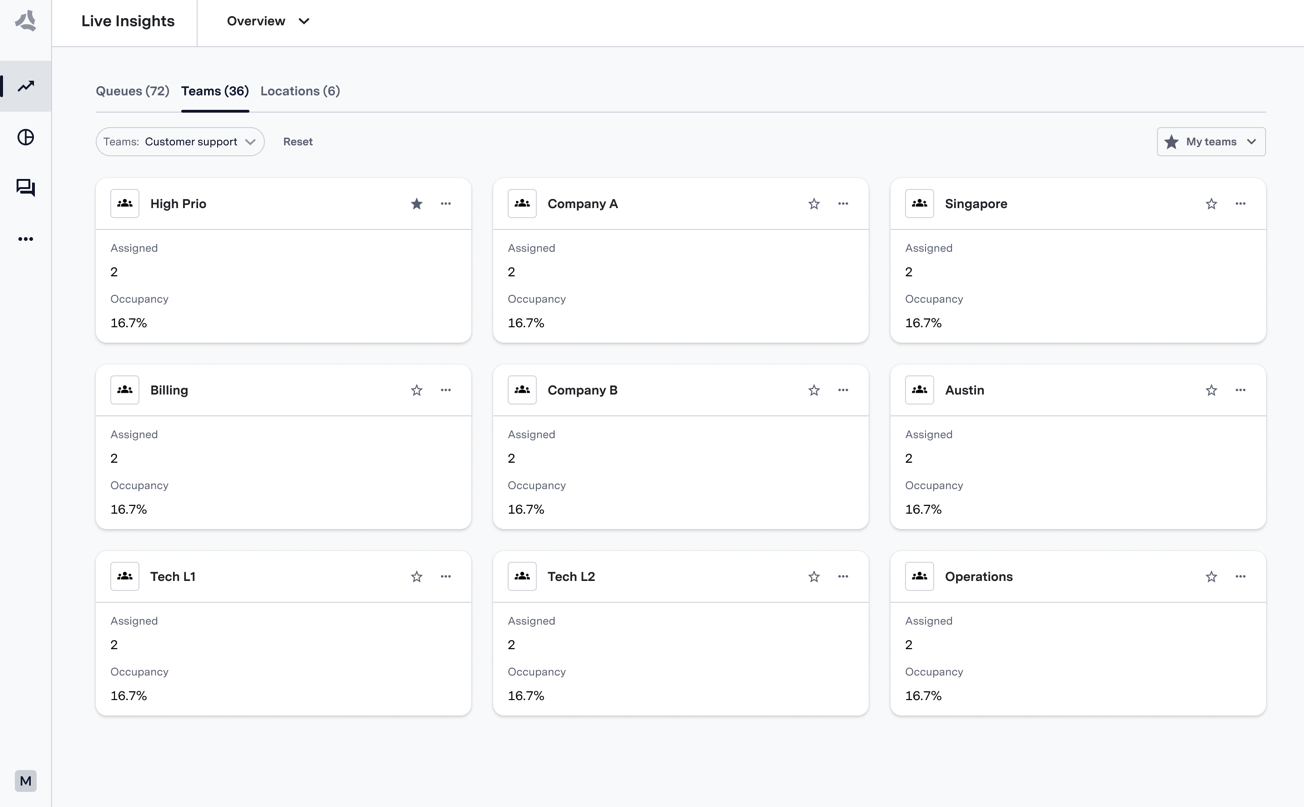 ### Location Table
Admins can filter locations by region and review the occupancy and size of each location.
Each location provides updates of performance and agent names.
### Location Table
Admins can filter locations by region and review the occupancy and size of each location.
Each location provides updates of performance and agent names.
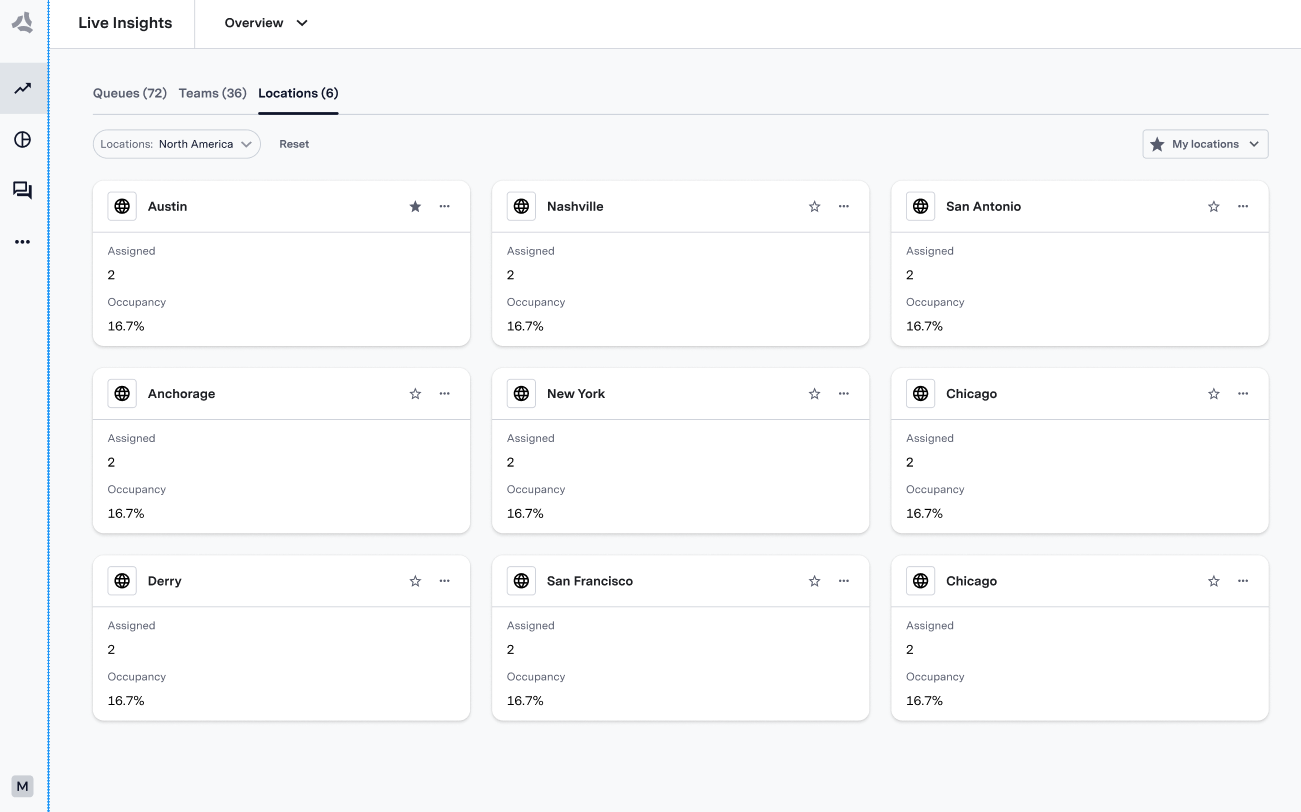 ---
# Source: https://docs.asapp.com/agent-desk/integrations/ios-sdk/miscellaneous-apis.md
# Source: https://docs.asapp.com/agent-desk/integrations/android-sdk/miscellaneous-apis.md
> ## Documentation Index
> Fetch the complete documentation index at: https://docs.asapp.com/llms.txt
> Use this file to discover all available pages before exploring further.
# Miscellaneous APIs
## Conversation Status
To get the current `ASAPPConversationStatus`, implement the `conversationStatusHandler` callback:
```kotlin theme={null}
ASAPP.instance.conversationStatusHandler = { conversationStatus ->
// Handle conversationStatus.isLiveChat and conversationStatus.unreadMessages
}
```
* If `isLiveChat` is `true`, the customer is currently connected to a live support agent or in a queue.
* The `unreadMessages` integer indicates the number of new messages received since last entering Chat.
### Trigger the Conversation Status Handler
You can trigger this handler in two ways:
1. Manually trigger it with:
```kotlin theme={null}
ASAPP.instance.fetchConversationStatus()
```
The Chat SDK fetches the status asynchronously and calls back to `conversationStatusHandler` once it becomes available.
2. The system may trigger the handler when you receive a push notification if the application is in the foreground. If your application handles Firebase push notifications, use:
```kotlin theme={null}
class MyFirebaseMessagingService : FirebaseMessagingService() {
override fun onMessageReceived(message: RemoteMessage) {
super.onMessageReceived(message)
val wasFromAsapp = ASAPP.instance.onFirebaseMessageReceived(message)
// Additional handling...
}
}
```
---
# Source: https://docs.asapp.com/agent-desk/integrations/ios-sdk/miscellaneous-apis.md
# Source: https://docs.asapp.com/agent-desk/integrations/android-sdk/miscellaneous-apis.md
> ## Documentation Index
> Fetch the complete documentation index at: https://docs.asapp.com/llms.txt
> Use this file to discover all available pages before exploring further.
# Miscellaneous APIs
## Conversation Status
To get the current `ASAPPConversationStatus`, implement the `conversationStatusHandler` callback:
```kotlin theme={null}
ASAPP.instance.conversationStatusHandler = { conversationStatus ->
// Handle conversationStatus.isLiveChat and conversationStatus.unreadMessages
}
```
* If `isLiveChat` is `true`, the customer is currently connected to a live support agent or in a queue.
* The `unreadMessages` integer indicates the number of new messages received since last entering Chat.
### Trigger the Conversation Status Handler
You can trigger this handler in two ways:
1. Manually trigger it with:
```kotlin theme={null}
ASAPP.instance.fetchConversationStatus()
```
The Chat SDK fetches the status asynchronously and calls back to `conversationStatusHandler` once it becomes available.
2. The system may trigger the handler when you receive a push notification if the application is in the foreground. If your application handles Firebase push notifications, use:
```kotlin theme={null}
class MyFirebaseMessagingService : FirebaseMessagingService() {
override fun onMessageReceived(message: RemoteMessage) {
super.onMessageReceived(message)
val wasFromAsapp = ASAPP.instance.onFirebaseMessageReceived(message)
// Additional handling...
}
}
```
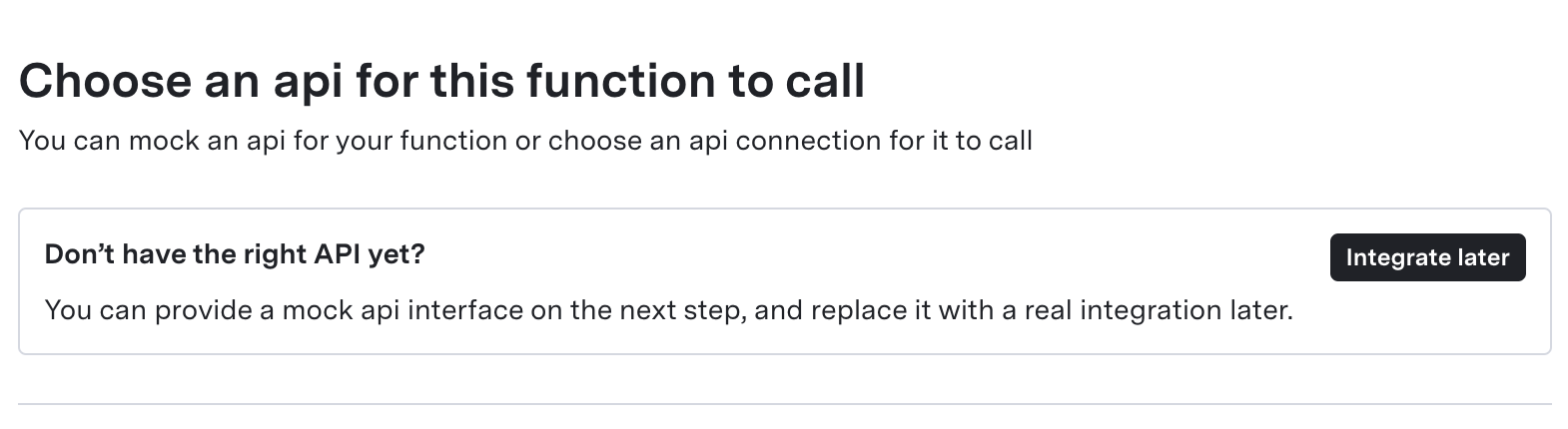 3. Name and describe the new Function
* **Function Name**: Give it a concise, unique name
* **Function Purpose**: Briefly describe what the Mock Function is for
* **Example Request**
```json theme={null}
{
"name": "name_of_function",
"description": "Brief description of what the Function is for",
"strict": true,
"parameters": {
"type": "object",
"required": ["account_number"],
"properties": {
"account_number": {
"type": "string",
"description": "The user’s account number."
},
"include_details": {
"type": "boolean",
"description": "Whether to include itemized details."
}
}
}
}
```
3. Name and describe the new Function
* **Function Name**: Give it a concise, unique name
* **Function Purpose**: Briefly describe what the Mock Function is for
* **Example Request**
```json theme={null}
{
"name": "name_of_function",
"description": "Brief description of what the Function is for",
"strict": true,
"parameters": {
"type": "object",
"required": ["account_number"],
"properties": {
"account_number": {
"type": "string",
"description": "The user’s account number."
},
"include_details": {
"type": "boolean",
"description": "Whether to include itemized details."
}
}
}
}
```
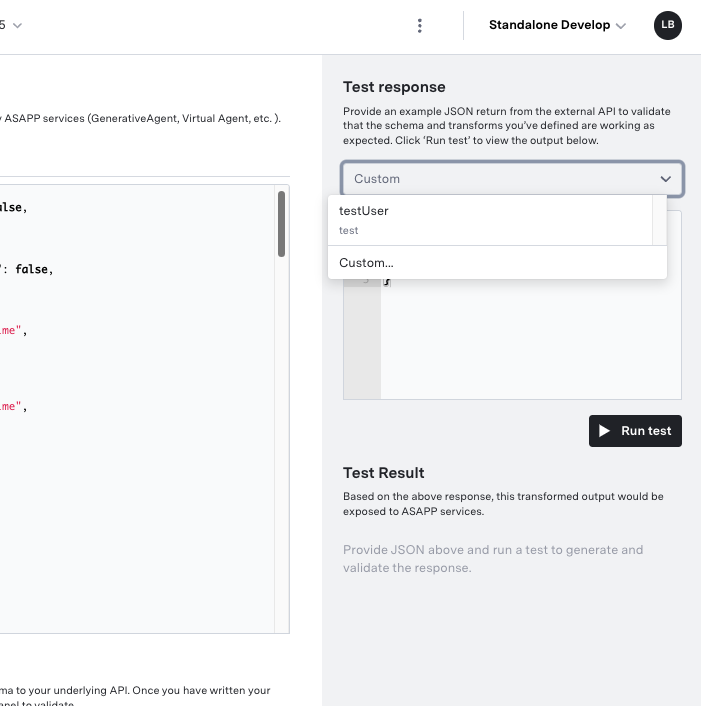 This allows you to save common responses from your server in sets of Mock users. As you iterate on your API Connection, you can test your transformation using the same mock responses.
## Next Steps
This allows you to save common responses from your server in sets of Mock users. As you iterate on your API Connection, you can test your transformation using the same mock responses.
## Next Steps
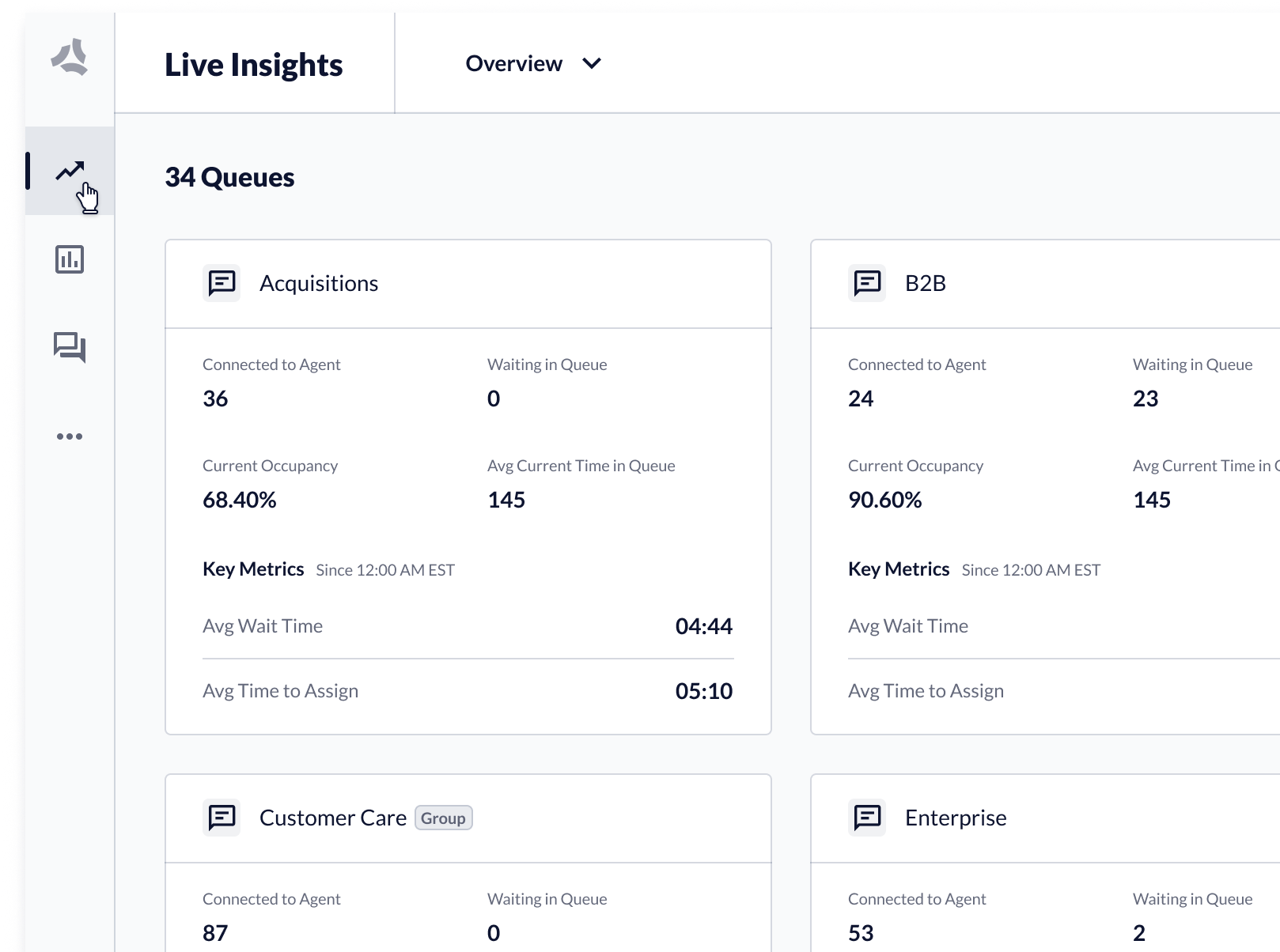 ## How to Access a Queue or Queue Group
Live Insights provides different views of queue performance data:
* Overview of all queue activity, including queue groups and organizational groups.
* Single queue and queue groups, which display queue and agent performance data.
## How to Access a Queue or Queue Group
Live Insights provides different views of queue performance data:
* Overview of all queue activity, including queue groups and organizational groups.
* Single queue and queue groups, which display queue and agent performance data.
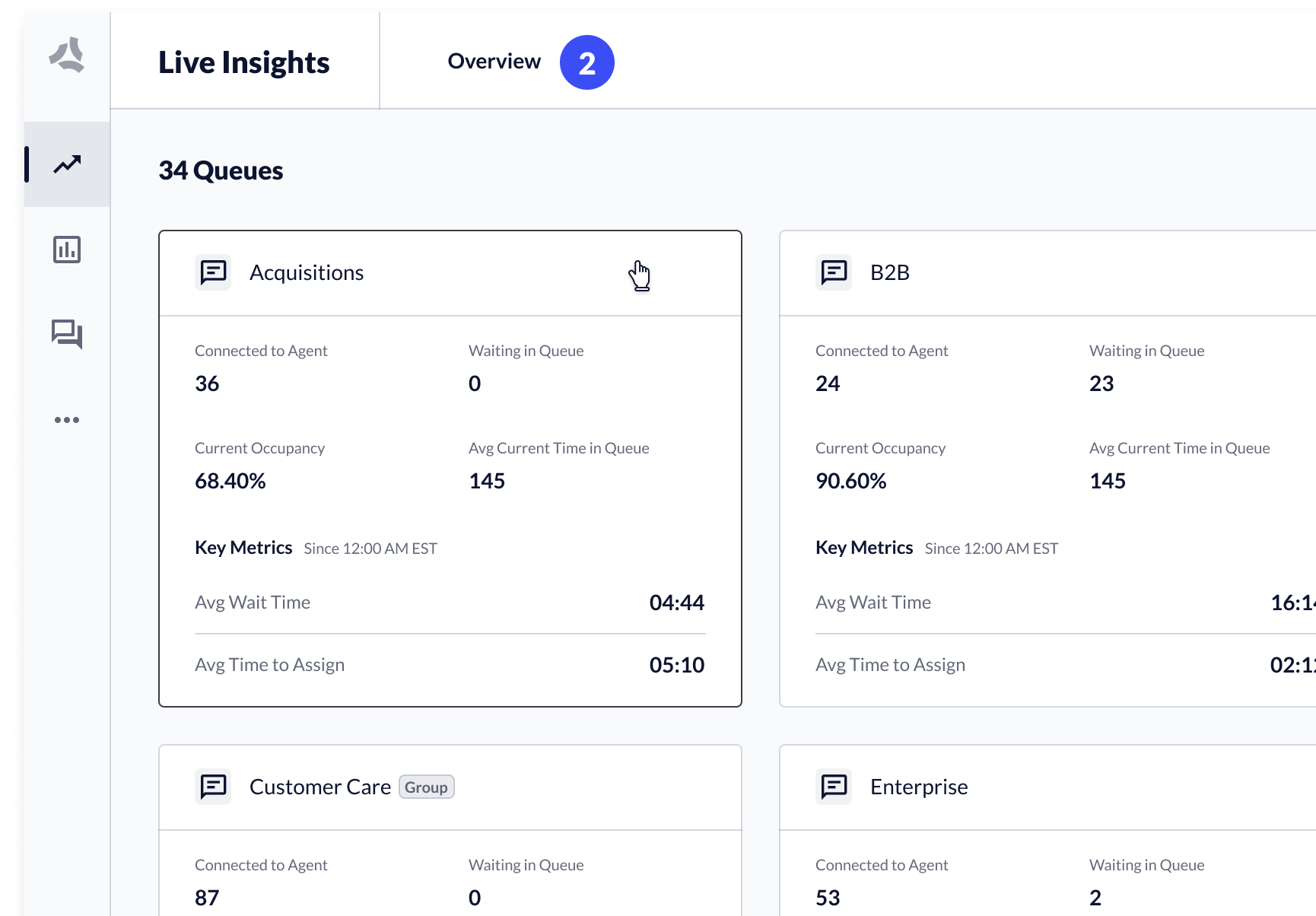 You can access a single queue or queue group in two ways:
1. From Overview, **click a tile** → the system opens the relevant queue details page.
2. From the **queue dropdown**, select a **queue** or **queue group**.
## Navigate Away from a Single Queue or Queue Group
You can navigate back to the Live Insights Overview, or to a different queue or queue group.
You can access a single queue or queue group in two ways:
1. From Overview, **click a tile** → the system opens the relevant queue details page.
2. From the **queue dropdown**, select a **queue** or **queue group**.
## Navigate Away from a Single Queue or Queue Group
You can navigate back to the Live Insights Overview, or to a different queue or queue group.
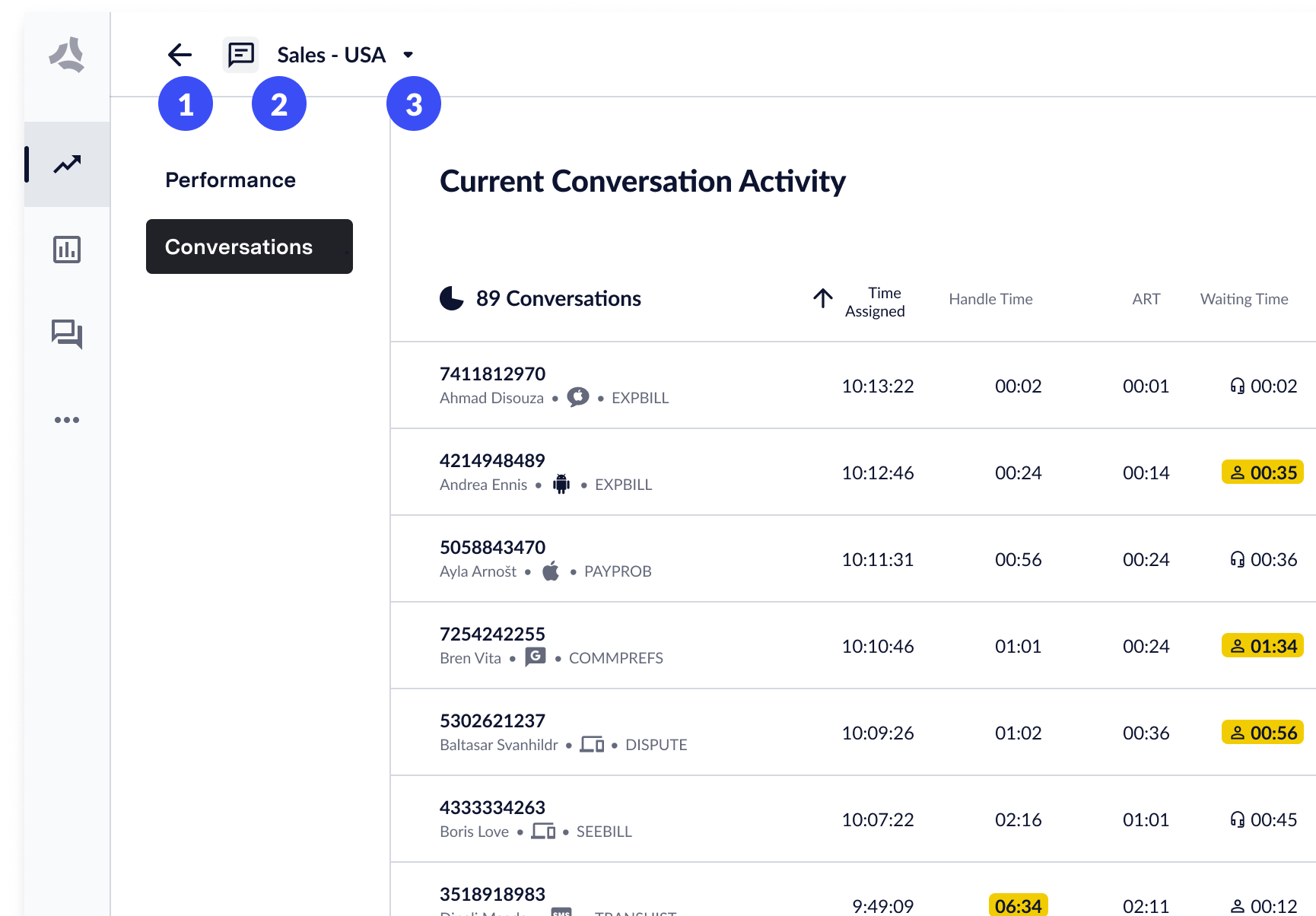 1. **Back arrow**: when you click, the system opens the Live Insights Overview.
2. **Queue channel indicator**: indicates if the queue is a voice or chat queue.
3. **Queue dropdown**: when you click, you can select a different queue or queue group.
## Channel-based Queues
Queues and queue groups host channel-specific content. ASAPP supports three queue types:
1. **Back arrow**: when you click, the system opens the Live Insights Overview.
2. **Queue channel indicator**: indicates if the queue is a voice or chat queue.
3. **Queue dropdown**: when you click, you can select a different queue or queue group.
## Channel-based Queues
Queues and queue groups host channel-specific content. ASAPP supports three queue types:
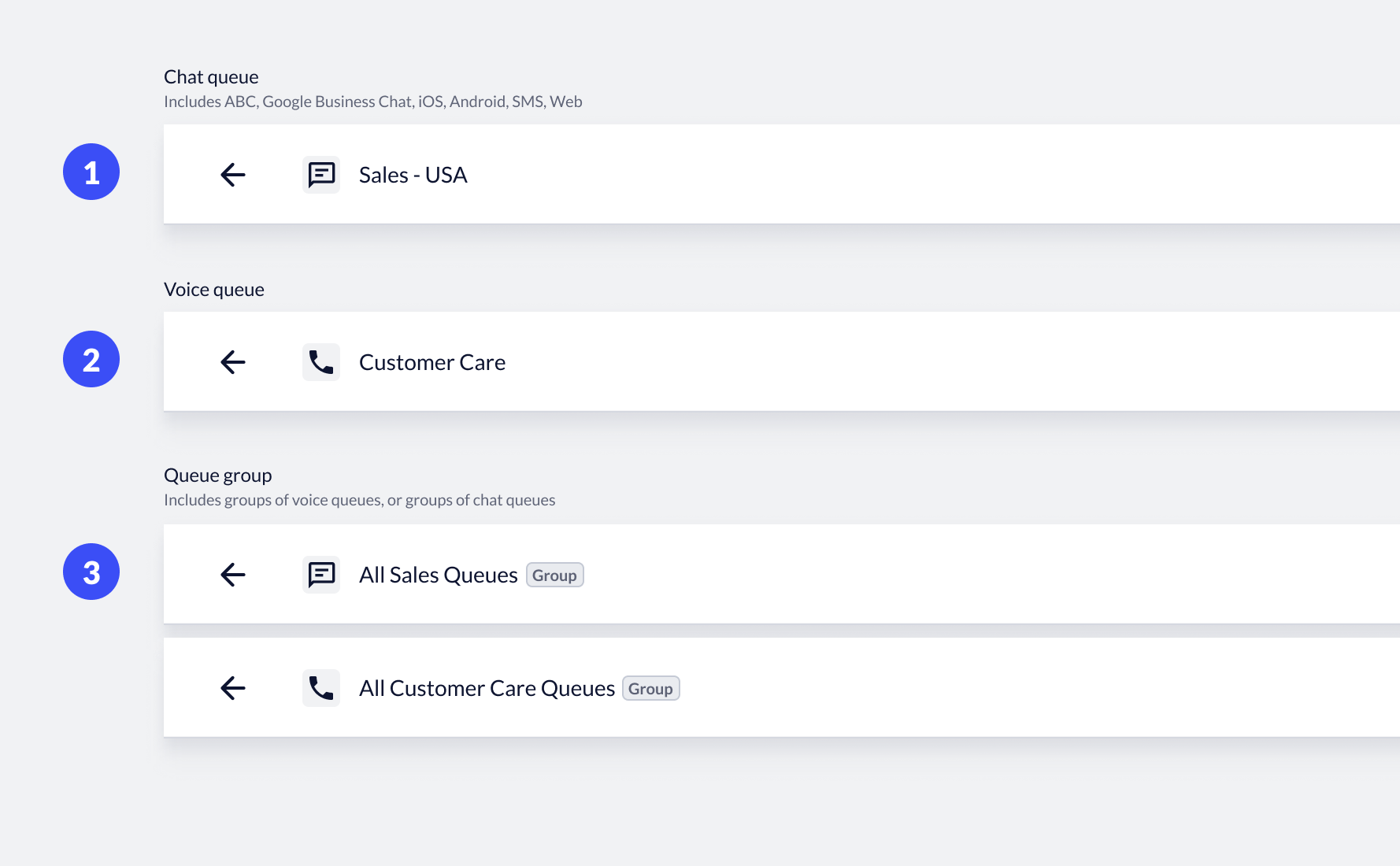 1. **Chat queues**: includes all digital channels such as Apple Messages for Business, Web, SMS, iOS and Android.
2. **Voice queues**: includes all voice channels in one queue.
3. **Queue groups**: groups consist of aggregated queues of a single type. Each group contains either chat queues or voice queues. The number of queues in the queue group displays below the channel icon.
## Access Queue Performance and Conversation Data
Single queues and queue groups include two views: performance data about the queue and conversation activity data.
1. **Chat queues**: includes all digital channels such as Apple Messages for Business, Web, SMS, iOS and Android.
2. **Voice queues**: includes all voice channels in one queue.
3. **Queue groups**: groups consist of aggregated queues of a single type. Each group contains either chat queues or voice queues. The number of queues in the queue group displays below the channel icon.
## Access Queue Performance and Conversation Data
Single queues and queue groups include two views: performance data about the queue and conversation activity data.
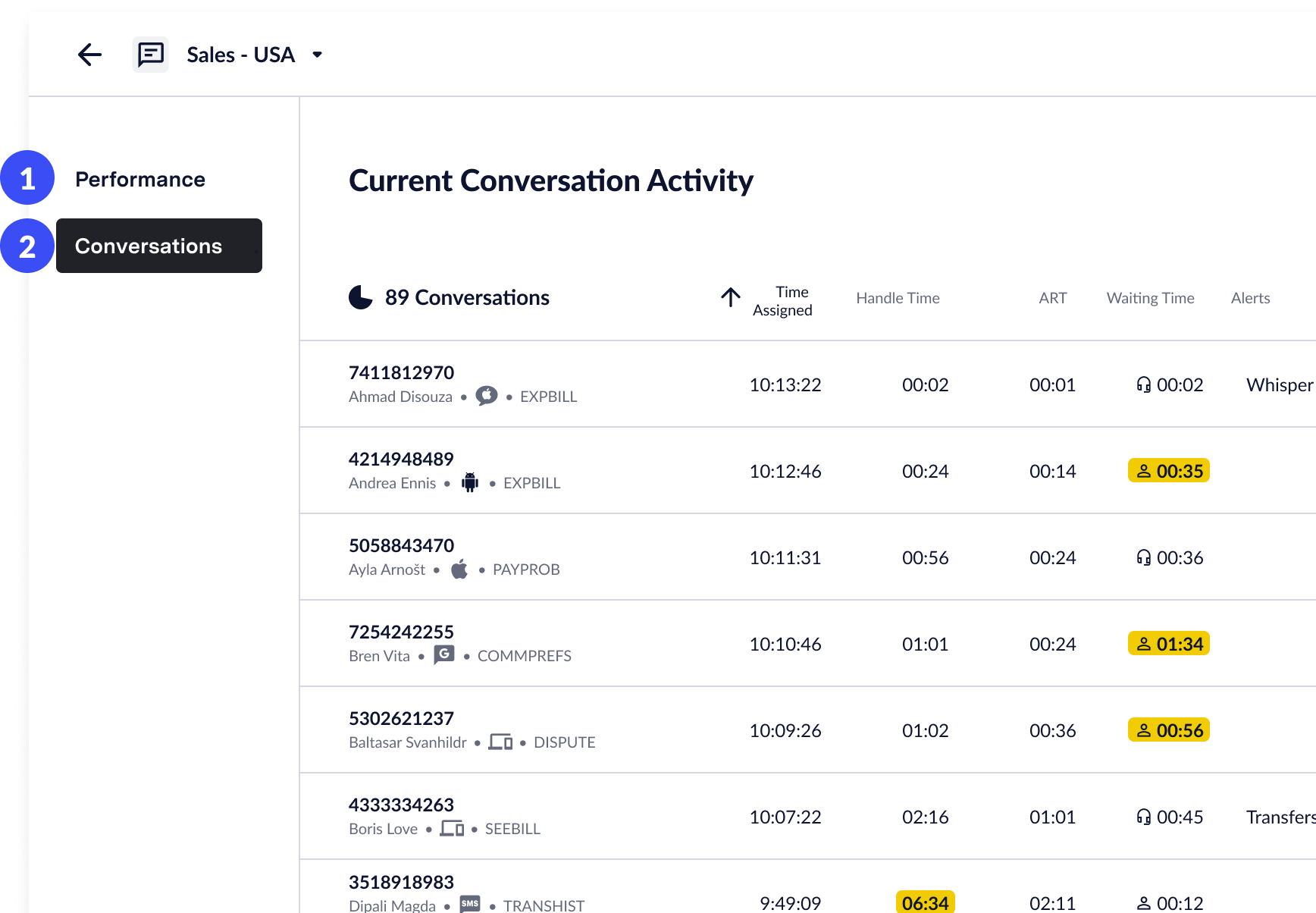 1. **Performance**: Click to access the performance data of the queue, as well as agent performance data and customer feedback.
2. **Conversations**: Click to access conversation activity, view transcripts, and send whisper messages.
---
# Source: https://docs.asapp.com/agent-desk/integrations/android-sdk/notifications.md
> ## Documentation Index
> Fetch the complete documentation index at: https://docs.asapp.com/llms.txt
> Use this file to discover all available pages before exploring further.
# Notifications
ASAPP provides the following notifications:
* [Push Notifications](#push-notifications "Push Notifications")
* [Persistent Notifications](#persistent-notifications "Persistent Notifications")
## Push Notifications
ASAPP's systems may trigger push notifications at certain times, such as when an agent sends a message to an end customer who does not currently have the chat interface open. In such scenarios, ASAPP calls your company's API with data that identifies the recipient's device, which triggers push notifications. ASAPP's servers do not communicate with Firebase directly.
ASAPP provides methods in the SDK to register and deregister the customer's device for push notifications.
For a deeper dive on how ASAPP and your company's API handle push notifications, please see our documentation on [Push Notifications and the Mobile SDKs](../push-notifications-and-the-mobile-sdks "Push Notifications and the Mobile SDKs").
In addition to this section, see Android's documentation about [Firebase Cloud Messaging](https://firebase.google.com/docs/cloud-messaging) and specifically how to setup [Android Cloud Messaging](https://firebase.google.com/docs/cloud-messaging/android/client).
### Enable Push Notifications
1. Identify which token you will use to send push notifications to the current user. This token is usually either the Firebase instance ID or an identifier that your company's API generates for this purpose.
2. Then, register the push notification token using:
```kotlin theme={null}
ASAPP.instance.updatePushNotificationsToken(newToken: String)
```
In case you issue a new token to the current user, you also need to update it in the SDK.
### Disable Push Notifications
In case the user logs out of the application or other related scenarios, you can disable push notifications for the current user by calling:
`ASAPP.instance.disablePushNotifications().`
1. **Performance**: Click to access the performance data of the queue, as well as agent performance data and customer feedback.
2. **Conversations**: Click to access conversation activity, view transcripts, and send whisper messages.
---
# Source: https://docs.asapp.com/agent-desk/integrations/android-sdk/notifications.md
> ## Documentation Index
> Fetch the complete documentation index at: https://docs.asapp.com/llms.txt
> Use this file to discover all available pages before exploring further.
# Notifications
ASAPP provides the following notifications:
* [Push Notifications](#push-notifications "Push Notifications")
* [Persistent Notifications](#persistent-notifications "Persistent Notifications")
## Push Notifications
ASAPP's systems may trigger push notifications at certain times, such as when an agent sends a message to an end customer who does not currently have the chat interface open. In such scenarios, ASAPP calls your company's API with data that identifies the recipient's device, which triggers push notifications. ASAPP's servers do not communicate with Firebase directly.
ASAPP provides methods in the SDK to register and deregister the customer's device for push notifications.
For a deeper dive on how ASAPP and your company's API handle push notifications, please see our documentation on [Push Notifications and the Mobile SDKs](../push-notifications-and-the-mobile-sdks "Push Notifications and the Mobile SDKs").
In addition to this section, see Android's documentation about [Firebase Cloud Messaging](https://firebase.google.com/docs/cloud-messaging) and specifically how to setup [Android Cloud Messaging](https://firebase.google.com/docs/cloud-messaging/android/client).
### Enable Push Notifications
1. Identify which token you will use to send push notifications to the current user. This token is usually either the Firebase instance ID or an identifier that your company's API generates for this purpose.
2. Then, register the push notification token using:
```kotlin theme={null}
ASAPP.instance.updatePushNotificationsToken(newToken: String)
```
In case you issue a new token to the current user, you also need to update it in the SDK.
### Disable Push Notifications
In case the user logs out of the application or other related scenarios, you can disable push notifications for the current user by calling:
`ASAPP.instance.disablePushNotifications().`
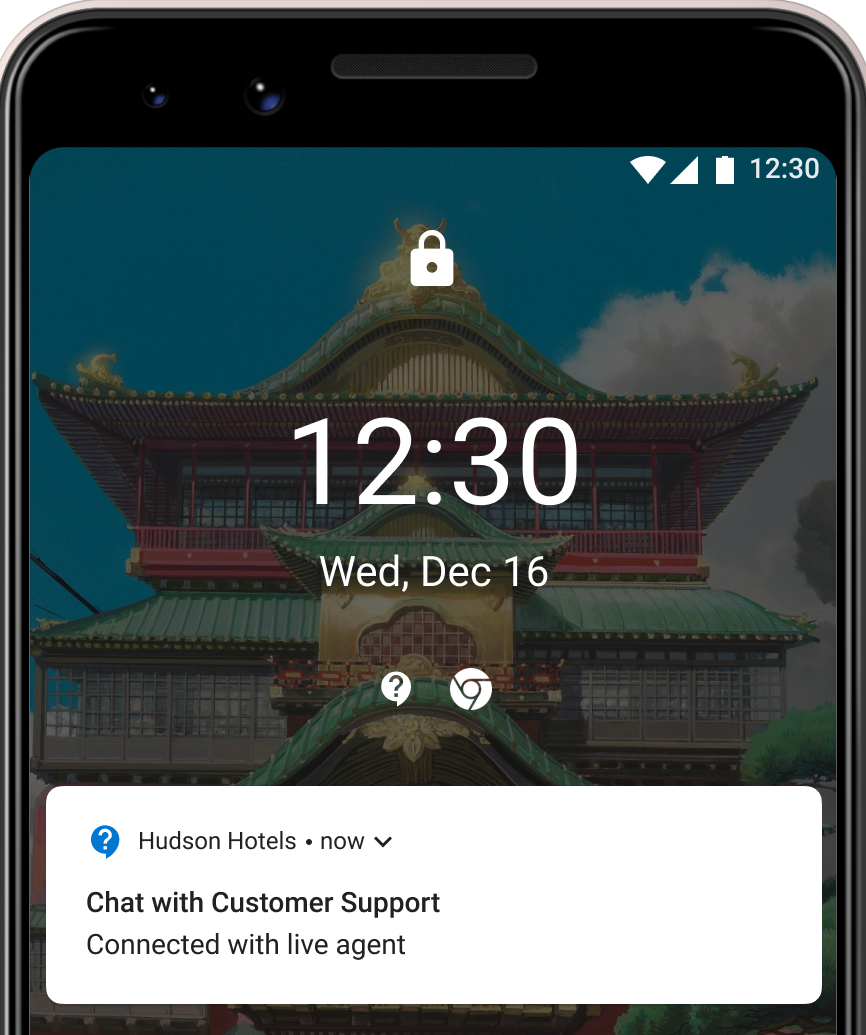 The ASAPP Android SDK automatically surfaces a persistent notification when a user joins a queue or connects to a live agent (starting on v8.4.0). Tapping the notification triggers an intent that takes the user directly into ASAPP Chat. Once the live chat ends or the user leaves the queue, the SDK dismisses the notification.
Persistent notifications are:
* ongoing, not dismissible [notifications](https://developer.android.com/reference/android/app/Notification).
* low priority and do not vibrate or make sounds.
* managed directly by the SDK and do not require integration changes.
ASAPP enables this feature by default. To disable it, please reach out to your ASAPP Implementation Manager.
The ASAPP Android SDK automatically surfaces a persistent notification when a user joins a queue or connects to a live agent (starting on v8.4.0). Tapping the notification triggers an intent that takes the user directly into ASAPP Chat. Once the live chat ends or the user leaves the queue, the SDK dismisses the notification.
Persistent notifications are:
* ongoing, not dismissible [notifications](https://developer.android.com/reference/android/app/Notification).
* low priority and do not vibrate or make sounds.
* managed directly by the SDK and do not require integration changes.
ASAPP enables this feature by default. To disable it, please reach out to your ASAPP Implementation Manager.
 To customize the title of persistent notifications, override the following string resource:
```json theme={null}
1. **Data definitions**: On click, opens a link to view metric definitions within Historical Reporting.
2. **Channel filter**: Filter performance data by channel. When you click, the system displays channel options. Select options to automatically filter data.
3. **Performance metrics**: Displays all performance metrics currently available. By default, the system shows performance metrics in a 'Right Now' view.
4. **Intraday**: Rolling data since the beginning of the day (12 am) is available upon activation. When active, the system displays the rolling count or averages since 12 am.
5. **Agent metrics and feedback data**: When you click, the system shows the Agent performance data or customer feedback received.
## Intraday Data
You can view current performance data ('right now') or view aggregate counts and averages since the beginning of the day ('current period').
These two views provide you with a fuller picture of queue performance and facilitate investigations and contextualization of events.
To customize the title of persistent notifications, override the following string resource:
```json theme={null}
1. **Data definitions**: On click, opens a link to view metric definitions within Historical Reporting.
2. **Channel filter**: Filter performance data by channel. When you click, the system displays channel options. Select options to automatically filter data.
3. **Performance metrics**: Displays all performance metrics currently available. By default, the system shows performance metrics in a 'Right Now' view.
4. **Intraday**: Rolling data since the beginning of the day (12 am) is available upon activation. When active, the system displays the rolling count or averages since 12 am.
5. **Agent metrics and feedback data**: When you click, the system shows the Agent performance data or customer feedback received.
## Intraday Data
You can view current performance data ('right now') or view aggregate counts and averages since the beginning of the day ('current period').
These two views provide you with a fuller picture of queue performance and facilitate investigations and contextualization of events.
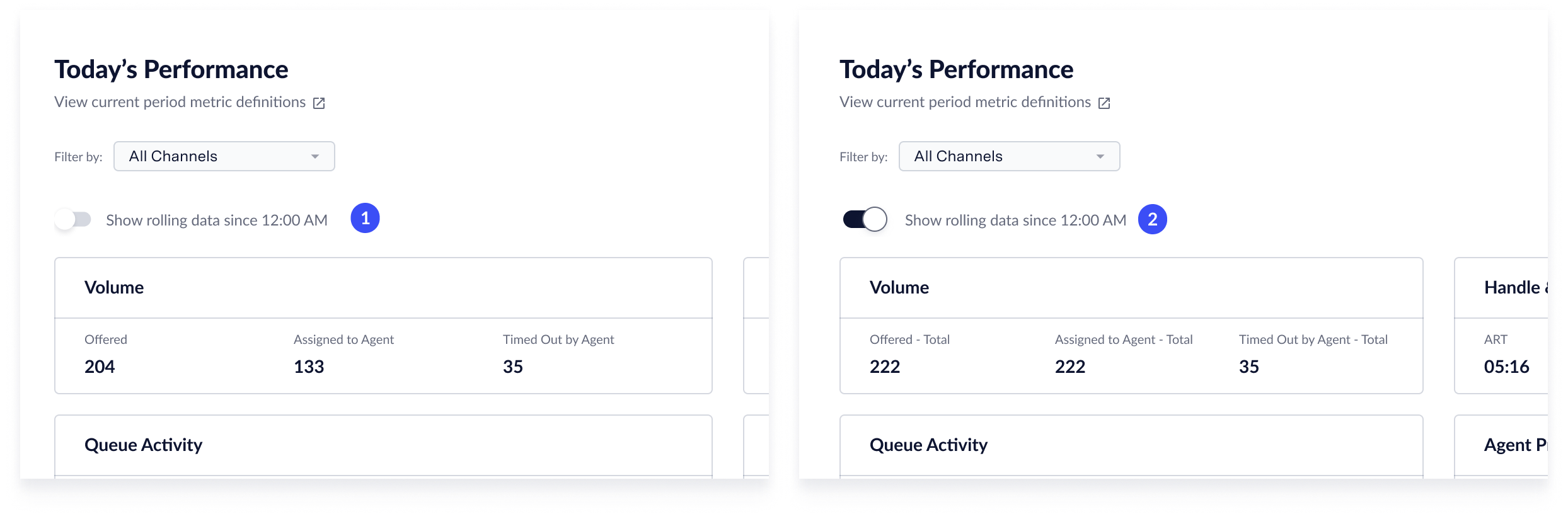 1. **Right Now**: Default view. Provides performance data currently captured.
2. **Since 12 am**: Click the **toggle** to display 'current period' metrics.
The system does not provide some metrics in this configuration.
1. **Right Now**: Default view. Provides performance data currently captured.
2. **Since 12 am**: Click the **toggle** to display 'current period' metrics.
The system does not provide some metrics in this configuration.
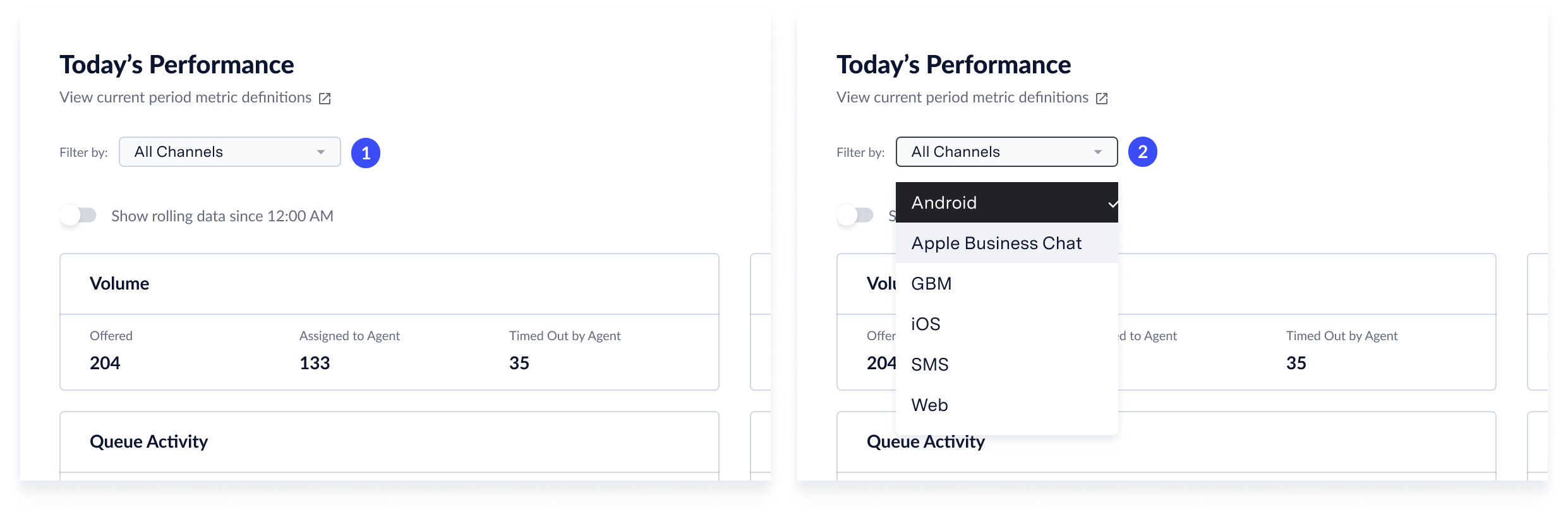 1. **Channel dropdown**: To filter data per channel, click the **channel** dropdown to activate channel selection.
2. **Channel options**: The channel dropdown shows all available channels. You can select one or more **channels** to filter data by. Once selected, the data will automatically update.
---
# Source: https://docs.asapp.com/generativeagent/configuring/previewer.md
> ## Documentation Index
> Fetch the complete documentation index at: https://docs.asapp.com/llms.txt
> Use this file to discover all available pages before exploring further.
# Previewer
> Learn how to use the Previewer in AI Console to test and refine your GenerativeAgent's behavior
The Previewer is a testing and simulation tool that allows you to try out different configurations of your GenerativeAgent's behavior.
The Previewer makes it easy to rapidly iterate on GenerativeAgent's design and provides a quick tool to test GenerativeAgent's capabilities.
1. **Channel dropdown**: To filter data per channel, click the **channel** dropdown to activate channel selection.
2. **Channel options**: The channel dropdown shows all available channels. You can select one or more **channels** to filter data by. Once selected, the data will automatically update.
---
# Source: https://docs.asapp.com/generativeagent/configuring/previewer.md
> ## Documentation Index
> Fetch the complete documentation index at: https://docs.asapp.com/llms.txt
> Use this file to discover all available pages before exploring further.
# Previewer
> Learn how to use the Previewer in AI Console to test and refine your GenerativeAgent's behavior
The Previewer is a testing and simulation tool that allows you to try out different configurations of your GenerativeAgent's behavior.
The Previewer makes it easy to rapidly iterate on GenerativeAgent's design and provides a quick tool to test GenerativeAgent's capabilities.
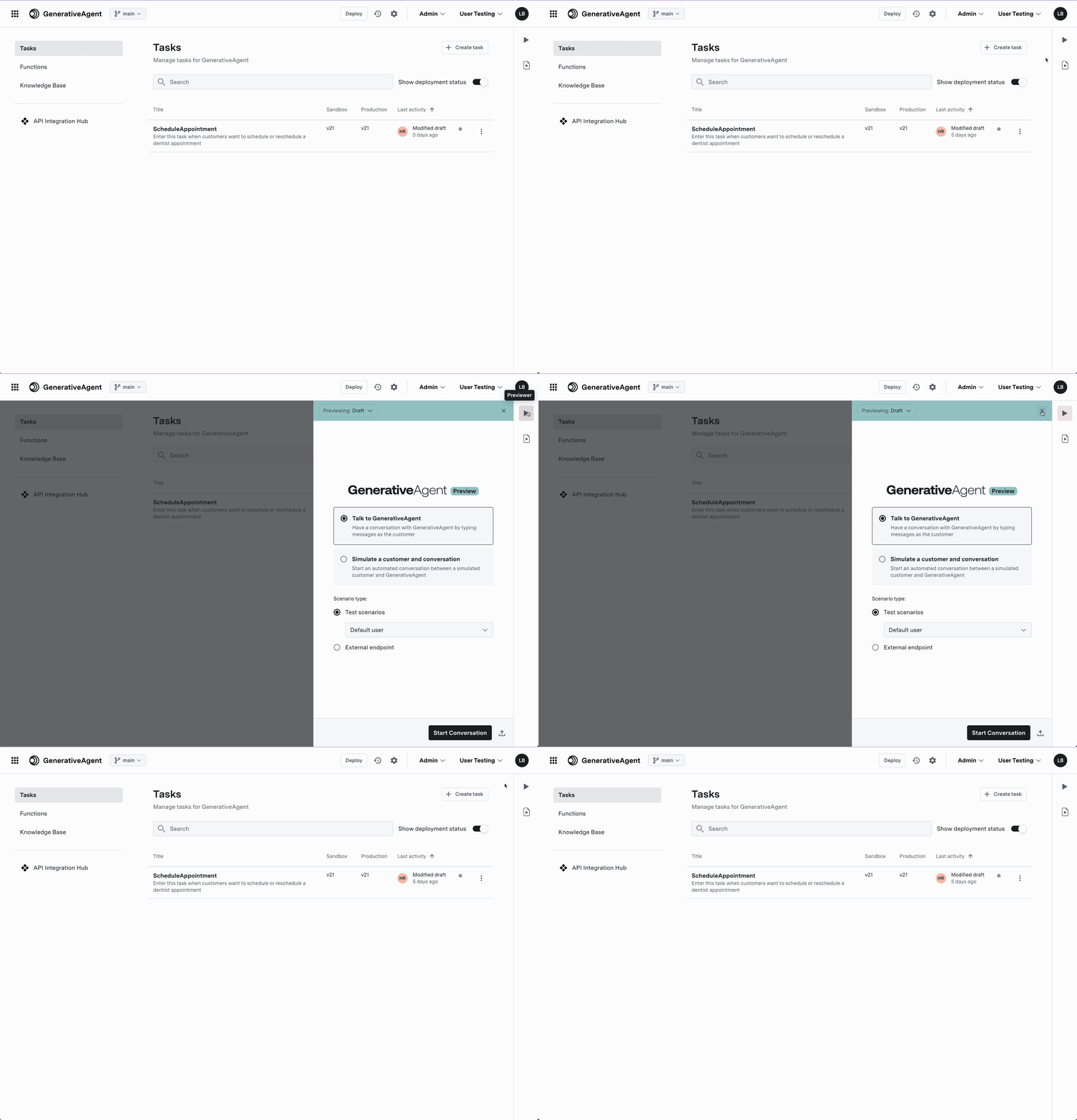 ## Using Previewer
To use the Previewer, select one of two modes:
1. **"Talk to GenerativeAgent"** to manually interact with GenerativeAgent by typing out messages as the customer.
2. **"Simulate a customer and conversation"** to automatically generate a conversation from a Test Scenario. This is useful when you want to test GenerativeAgent's behavior with a specific set of data.
Starting the conversation will run the Test scenario.
## Using Previewer
To use the Previewer, select one of two modes:
1. **"Talk to GenerativeAgent"** to manually interact with GenerativeAgent by typing out messages as the customer.
2. **"Simulate a customer and conversation"** to automatically generate a conversation from a Test Scenario. This is useful when you want to test GenerativeAgent's behavior with a specific set of data.
Starting the conversation will run the Test scenario.
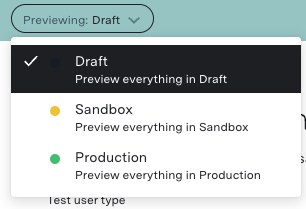 ## Talk to GenerativeAgent
"Talk to GenerativeAgent" enables you to manually interact with GenerativeAgent. This is useful for initial testing of your task and function configurations.
### Test Scenario Type
When directly talking to GenerativeAgent, you can choose what kind of data GenerativeAgent will use for its function calls by selecting the "Scenario type":
* **Test Scenario**: This uses the data from a previously created [Test Scenario](/generativeagent/configuring/tasks-and-functions/test-scenarios) where you have already defined a simulated mock data that a function would return. This allows you to try out different Tasks and iterate on tasks definitions or on Functions without concern of hitting actual APIs.
* **External Endpoint**: This will use the actual API Connections, allowing you to test GenerativeAgent using real APIs and data.
Most preview testing uses test scenarios as it is faster to design iterations. The External Endpoint is helpful for final QA testing and pre-launch validation.
## Talk to GenerativeAgent
"Talk to GenerativeAgent" enables you to manually interact with GenerativeAgent. This is useful for initial testing of your task and function configurations.
### Test Scenario Type
When directly talking to GenerativeAgent, you can choose what kind of data GenerativeAgent will use for its function calls by selecting the "Scenario type":
* **Test Scenario**: This uses the data from a previously created [Test Scenario](/generativeagent/configuring/tasks-and-functions/test-scenarios) where you have already defined a simulated mock data that a function would return. This allows you to try out different Tasks and iterate on tasks definitions or on Functions without concern of hitting actual APIs.
* **External Endpoint**: This will use the actual API Connections, allowing you to test GenerativeAgent using real APIs and data.
Most preview testing uses test scenarios as it is faster to design iterations. The External Endpoint is helpful for final QA testing and pre-launch validation.
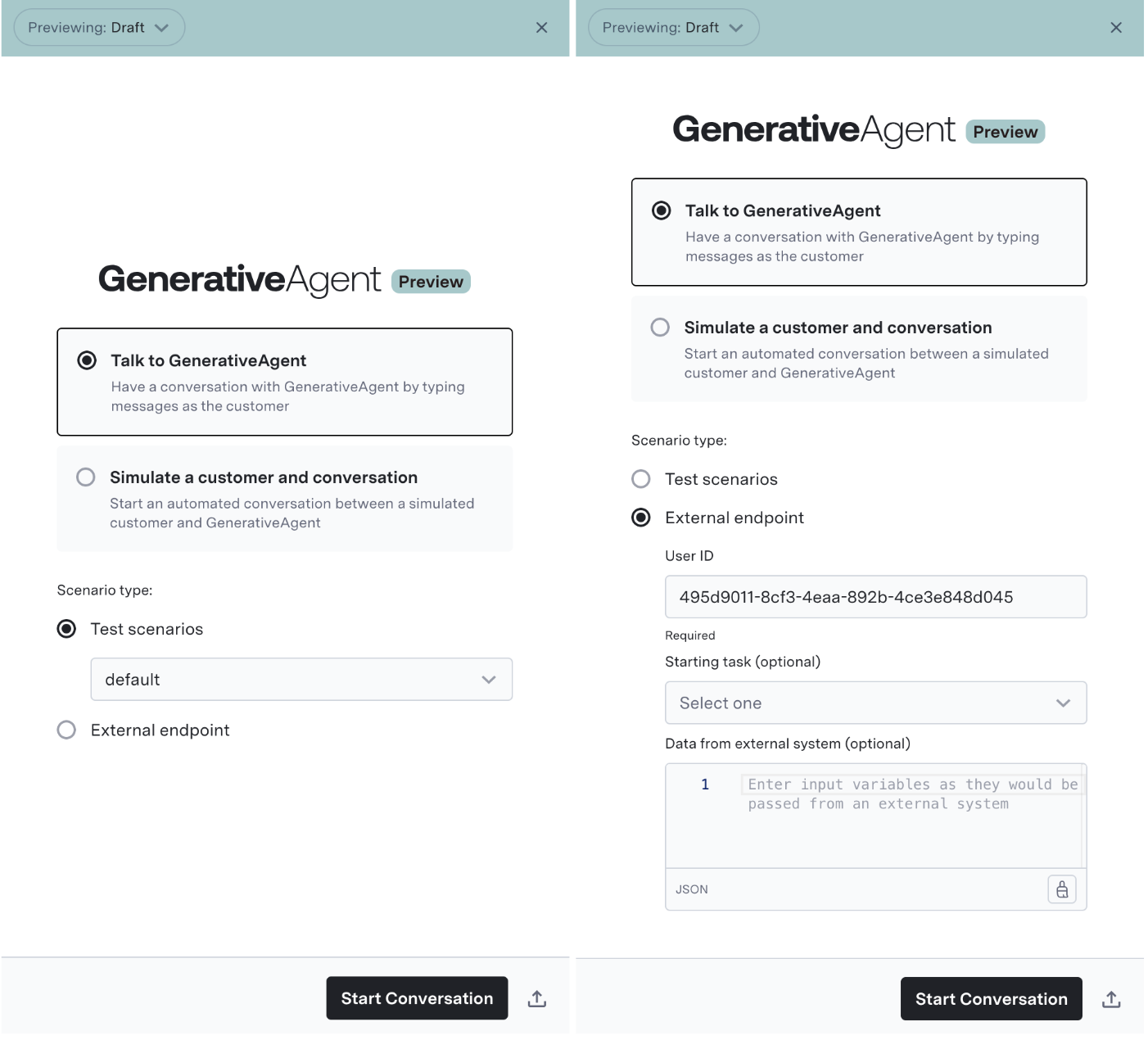 ### External Endpoint
When using the External Endpoint, you can provide:
* User ID: This is an id of the user for the conversation. This is needed as ASAPP's APIs require it and many APIs rely on it.
* Task Name: The [specific task for GenerativeAgent to enter](/generativeagent/configuring/tasks-and-functions/enter-specific-task).
* Input Variables: This is the [input variables data](/generativeagent/configuring/tasks-and-functions/input-variables) that GenerativeAgent will use to perform the Task.
## Observing GenerativeAgent's Behavior
Previewer gives you insight into the actions that GenerativeAgent is taking with the **Turn inspector**. This includes its thoughts during the conversation, the Knowledge Base articles it references, and the API calls it makes.
Use the Turn Inspector to examine how instructions are processed within GenerativeAgent.
Turn Inspector includes detailed visibility into:
* Active Task Configuration
* Current reference variables
* Precise instruction parsing
* Function call context and parameters
* Execution state at each conversational turn
### Using Live Preview
The Live Preview feature allows you to test changes in real-time during a conversation. You have the ability to:
* **Regenerate a response**: For a given bot response, regenerate it using the latest state of the draft settings.
* **Send a different message**: For a given customer message, change what is sent to see how GenerativeAgent would respond with that conversation context.
### External Endpoint
When using the External Endpoint, you can provide:
* User ID: This is an id of the user for the conversation. This is needed as ASAPP's APIs require it and many APIs rely on it.
* Task Name: The [specific task for GenerativeAgent to enter](/generativeagent/configuring/tasks-and-functions/enter-specific-task).
* Input Variables: This is the [input variables data](/generativeagent/configuring/tasks-and-functions/input-variables) that GenerativeAgent will use to perform the Task.
## Observing GenerativeAgent's Behavior
Previewer gives you insight into the actions that GenerativeAgent is taking with the **Turn inspector**. This includes its thoughts during the conversation, the Knowledge Base articles it references, and the API calls it makes.
Use the Turn Inspector to examine how instructions are processed within GenerativeAgent.
Turn Inspector includes detailed visibility into:
* Active Task Configuration
* Current reference variables
* Precise instruction parsing
* Function call context and parameters
* Execution state at each conversational turn
### Using Live Preview
The Live Preview feature allows you to test changes in real-time during a conversation. You have the ability to:
* **Regenerate a response**: For a given bot response, regenerate it using the latest state of the draft settings.
* **Send a different message**: For a given customer message, change what is sent to see how GenerativeAgent would respond with that conversation context.
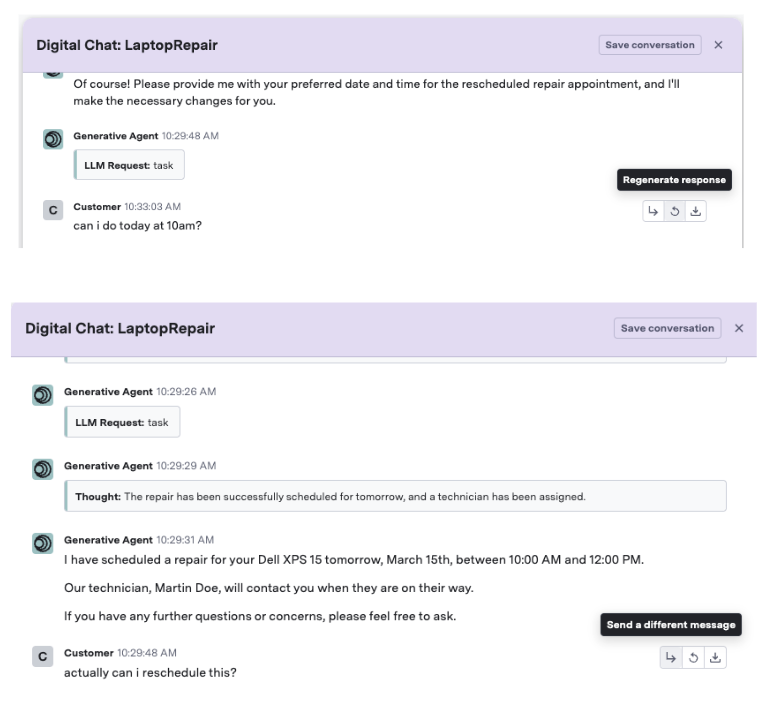 ### Replaying Conversations
During testing and configuration, you may want to replay conversations while trying out changes or validating GenerativeAgent across new versions. In Previewer, you can save the conversation to replay it again in the future.
### Replaying Conversations
During testing and configuration, you may want to replay conversations while trying out changes or validating GenerativeAgent across new versions. In Previewer, you can save the conversation to replay it again in the future.
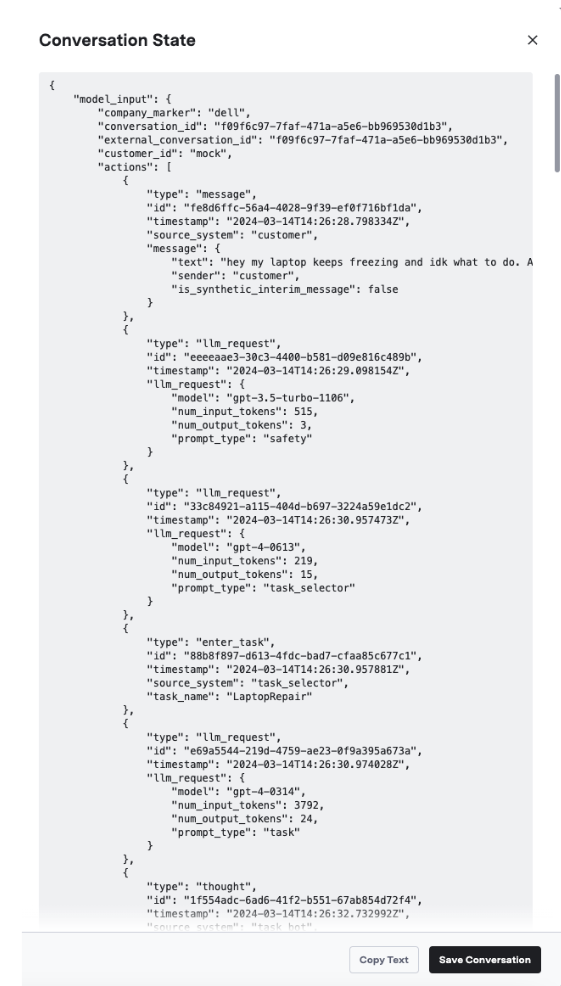 ## Next Steps
You may find one of the following sections helpful in advancing your integration:
## Next Steps
You may find one of the following sections helpful in advancing your integration:
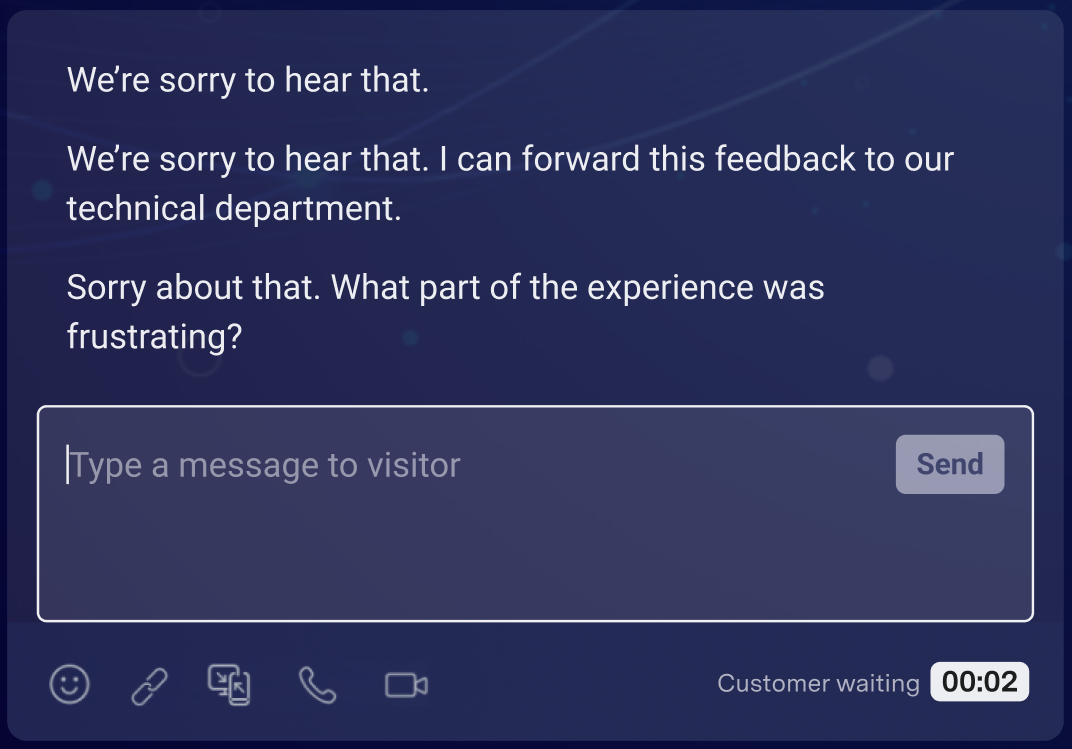 ### Response Library
AI Compose suggests responses from a library curated from a wide range of domain-specific conversation topics. The response library combines three lists:
### Response Library
AI Compose suggests responses from a library curated from a wide range of domain-specific conversation topics. The response library combines three lists:
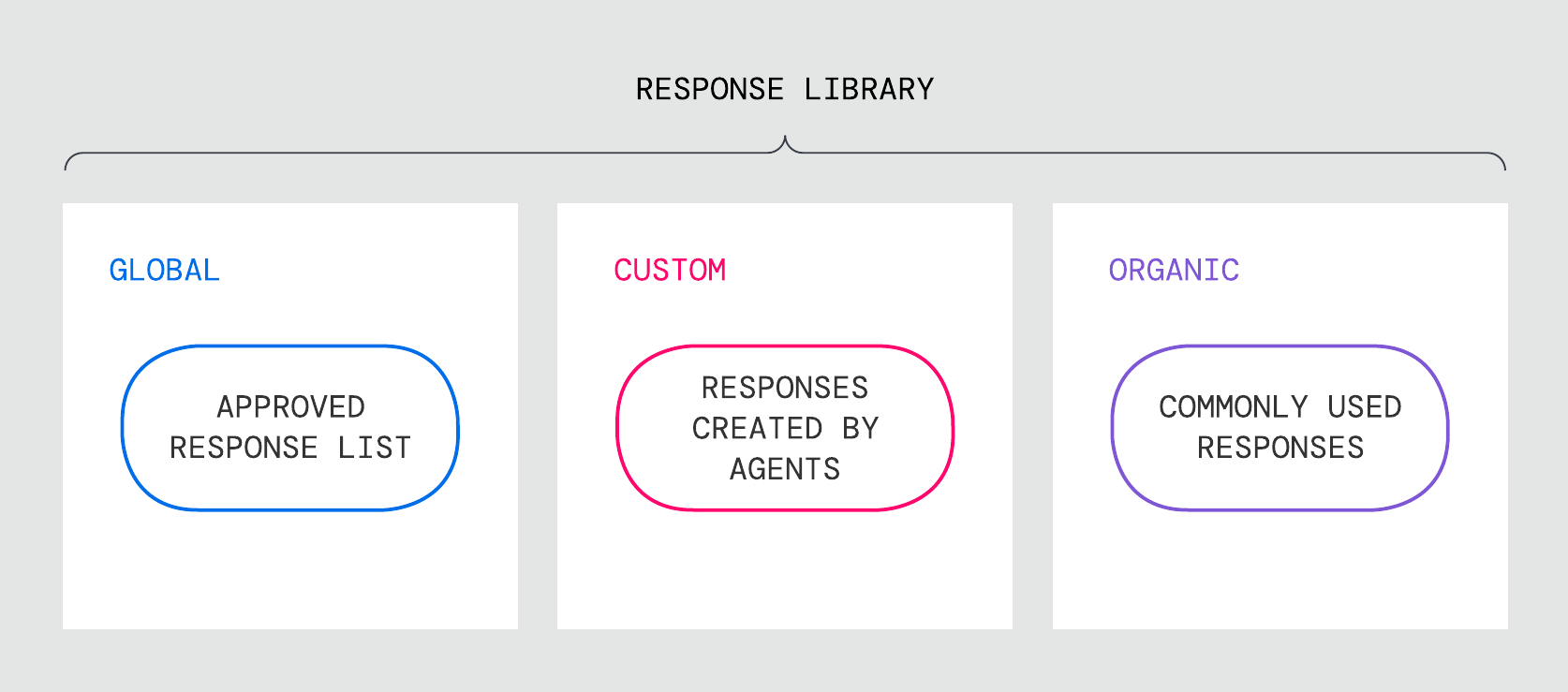 1. **Global response list:** Messages created and maintained by program administrators available to a designated full agent population.
2. **Custom response list:** Messages created and maintained directly in AI Compose by individual agents; only available to the agent that created the message.
3. **Organically growing response list:** Messages that ASAPP automatically creates for each agent based on their most commonly used messages that do not already exist in the global response list or the agent's curated custom response list.
1. **Global response list:** Messages created and maintained by program administrators available to a designated full agent population.
2. **Custom response list:** Messages created and maintained directly in AI Compose by individual agents; only available to the agent that created the message.
3. **Organically growing response list:** Messages that ASAPP automatically creates for each agent based on their most commonly used messages that do not already exist in the global response list or the agent's curated custom response list.
 2. **Response panel:** In the response panel, agents can browse both the global and custom response lists, either using a folder hierarchy or with the provided search field.

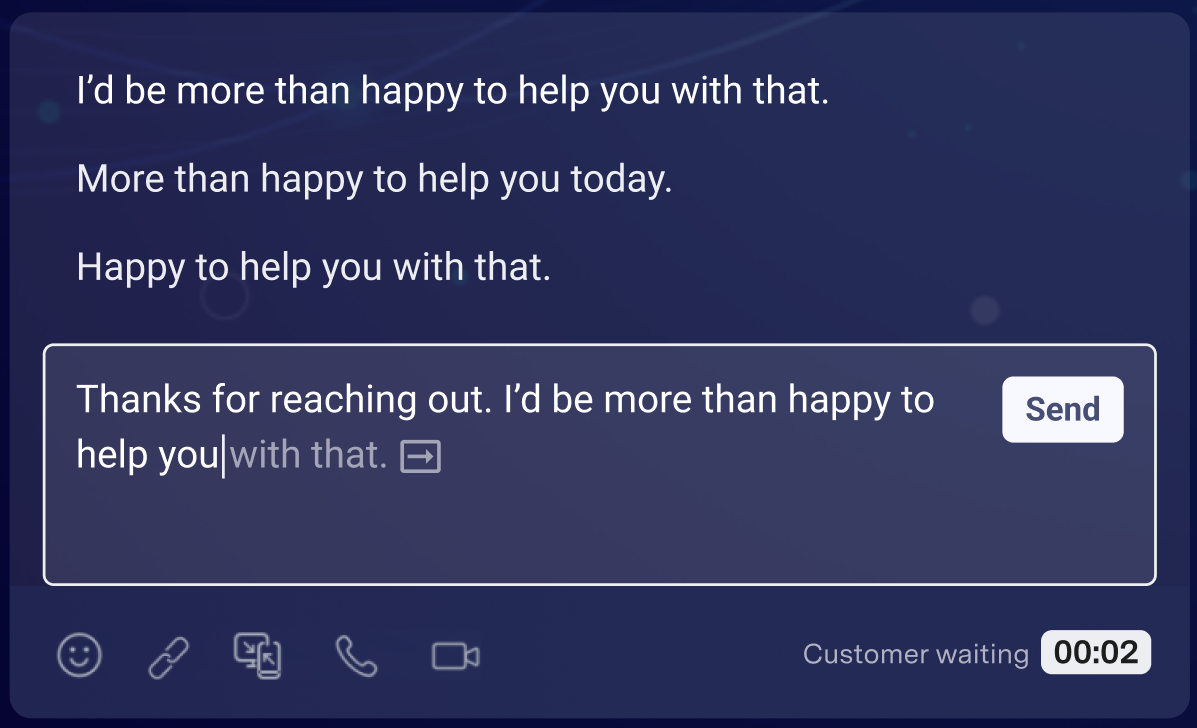 AI Compose provides phrase completions from common, high-frequency phrases used in each implementation's production conversations. AI Compose only makes phrase suggestions when a sufficiently high-confidence phrase is available and only uses language found in the global and custom response library.
### Templated Responses
AI Compose can dynamically insert metadata into designated templated responses in the global response list.
For example, a customer's first name can be automatically populated into this templated response: "Hi *\{name}*, how can I help you today?".
By default, AI Compose supports inserting customer first name, agent first name and the customer's time of day (morning, afternoon, evening) into templated responses. Time of day can be set to a single zone or be dynamically determined for each conversation.
AI Compose also supports inserting custom conversation-specific metadata passed to ASAPP. For more information on custom inserts, reach out to your ASAPP account team.
AI Compose provides phrase completions from common, high-frequency phrases used in each implementation's production conversations. AI Compose only makes phrase suggestions when a sufficiently high-confidence phrase is available and only uses language found in the global and custom response library.
### Templated Responses
AI Compose can dynamically insert metadata into designated templated responses in the global response list.
For example, a customer's first name can be automatically populated into this templated response: "Hi *\{name}*, how can I help you today?".
By default, AI Compose supports inserting customer first name, agent first name and the customer's time of day (morning, afternoon, evening) into templated responses. Time of day can be set to a single zone or be dynamically determined for each conversation.
AI Compose also supports inserting custom conversation-specific metadata passed to ASAPP. For more information on custom inserts, reach out to your ASAPP account team.
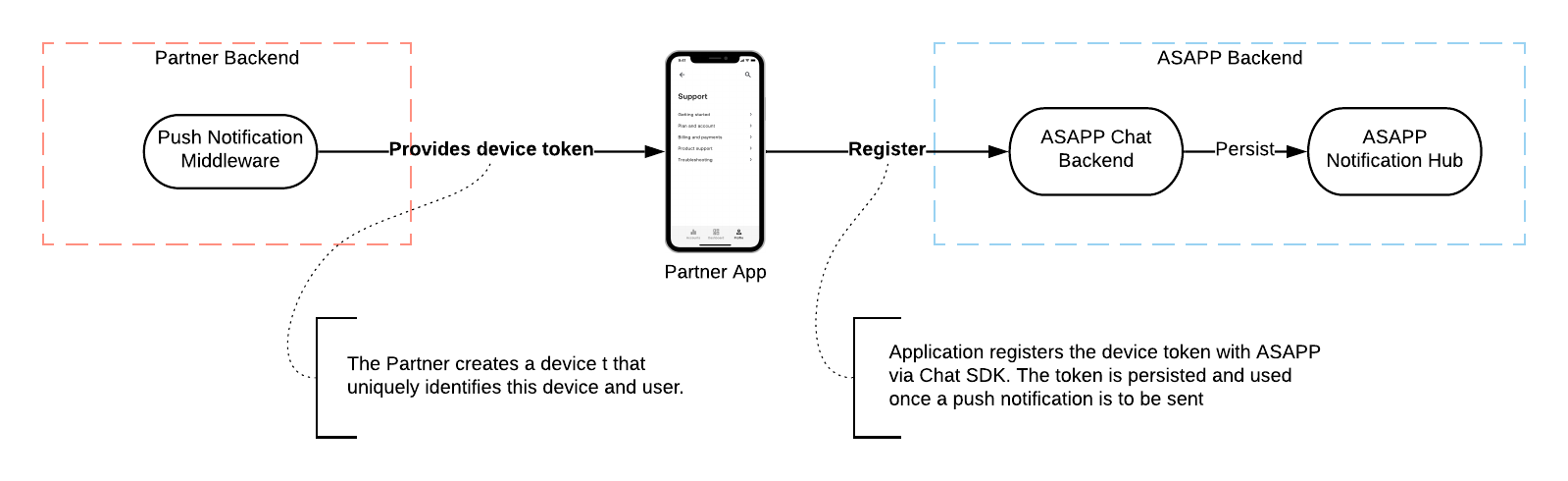 Figure 1: Push Notification Overview 1 - Device Token Registration.
### Overview 2 - Sending Push Notifications
Figure 1: Push Notification Overview 1 - Device Token Registration.
### Overview 2 - Sending Push Notifications
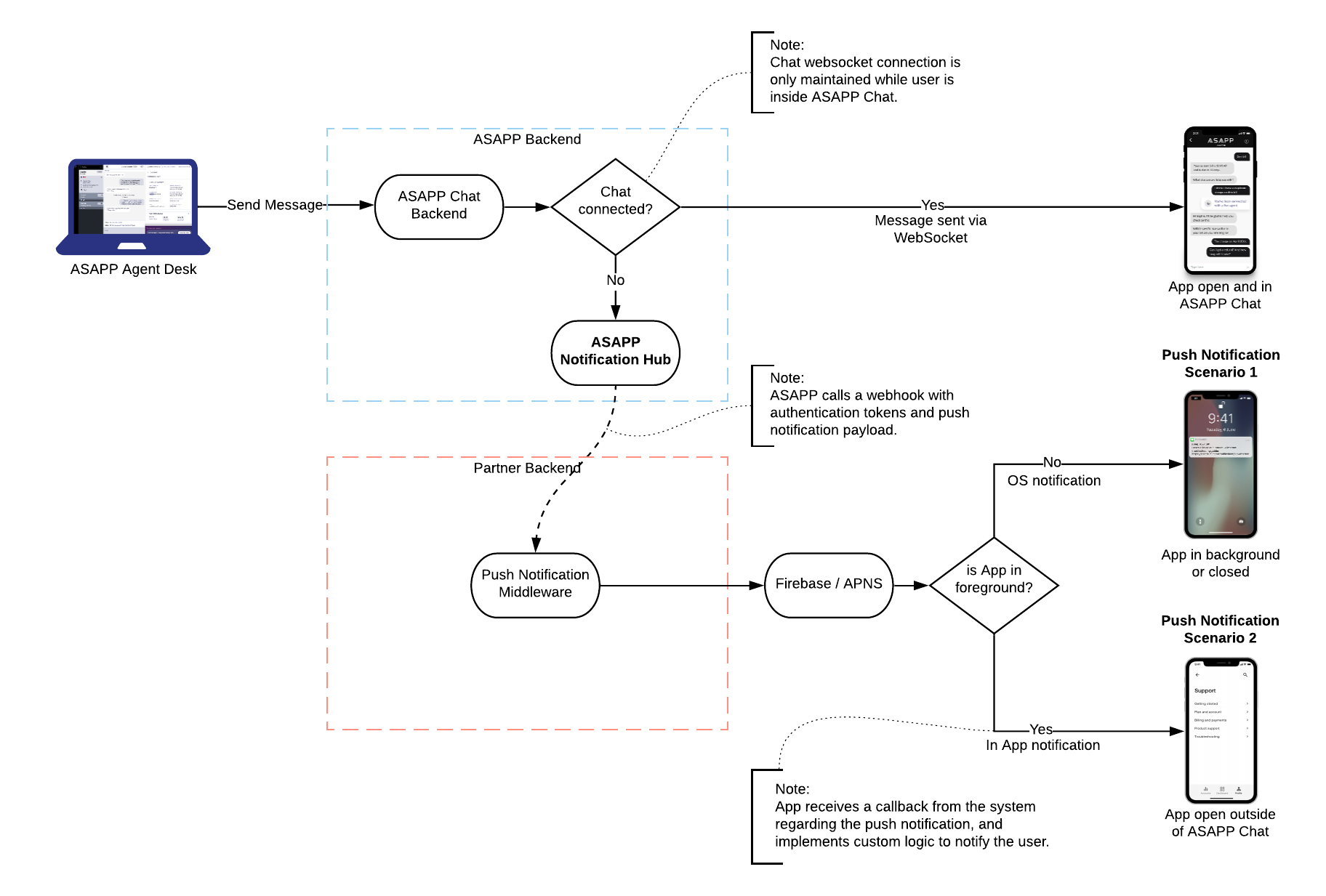 Figure 2: Push Notification Overview 2 - Sending Push Notifications
## Device Token
After the Customer App (Figure 1) acquires the Device Token, it is then responsible to register it to the ASAPP SDK. ASAPP's servers use this token to send push notification requests to a Customer-provided API endpoint (Customer Backend), which in turn sends requests to Firebase and/or APNs.
The ASAPP SDK and servers act as the middle-man with regards to the Device Token. In general, the Device Token must be a string that uniquely identifies the device that is defined and generated by the customer.
The Device Token format and content can be customized to include the necessary information for the Customer's Backend service to send the push notifications. As an example, the Device Token can be a base64-encoded JSON Web Token (JWT) that contains the end user information required by the Customer's Backend service.
ASAPP does not need to understand the content of the Device Token; however, the ASAPP Push Notification system persists the Device Token.
Figure 2: Push Notification Overview 2 - Sending Push Notifications
## Device Token
After the Customer App (Figure 1) acquires the Device Token, it is then responsible to register it to the ASAPP SDK. ASAPP's servers use this token to send push notification requests to a Customer-provided API endpoint (Customer Backend), which in turn sends requests to Firebase and/or APNs.
The ASAPP SDK and servers act as the middle-man with regards to the Device Token. In general, the Device Token must be a string that uniquely identifies the device that is defined and generated by the customer.
The Device Token format and content can be customized to include the necessary information for the Customer's Backend service to send the push notifications. As an example, the Device Token can be a base64-encoded JSON Web Token (JWT) that contains the end user information required by the Customer's Backend service.
ASAPP does not need to understand the content of the Device Token; however, the ASAPP Push Notification system persists the Device Token.
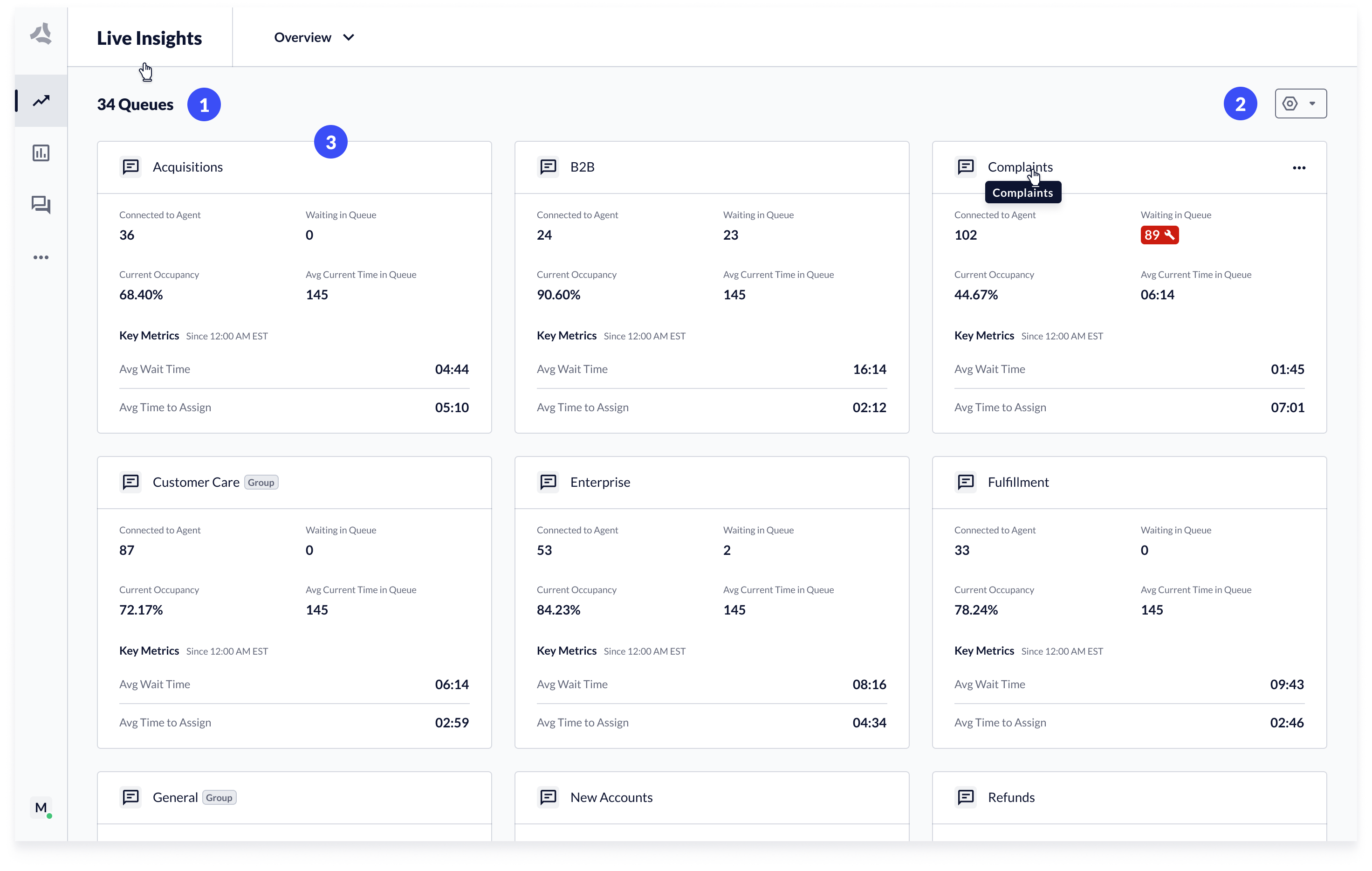 1. **Queue count**: Displays the total number of queues available.
2. **Customization**: Users can access tools to customize the display of queues.
* Queue visibility: Show/hide queues to customize the Overview page
* Queue groups: Create new queue groups, edit existing groups.
3. **Single Queues & Queue groups**: Displays performance overview for each queue and queue groups. Each tile leads to a drilled down view.
## Customization
ASAPP supports customization features to change the display of queues, as well as create and manage queue groupings.
1. **Queue count**: Displays the total number of queues available.
2. **Customization**: Users can access tools to customize the display of queues.
* Queue visibility: Show/hide queues to customize the Overview page
* Queue groups: Create new queue groups, edit existing groups.
3. **Single Queues & Queue groups**: Displays performance overview for each queue and queue groups. Each tile leads to a drilled down view.
## Customization
ASAPP supports customization features to change the display of queues, as well as create and manage queue groupings.
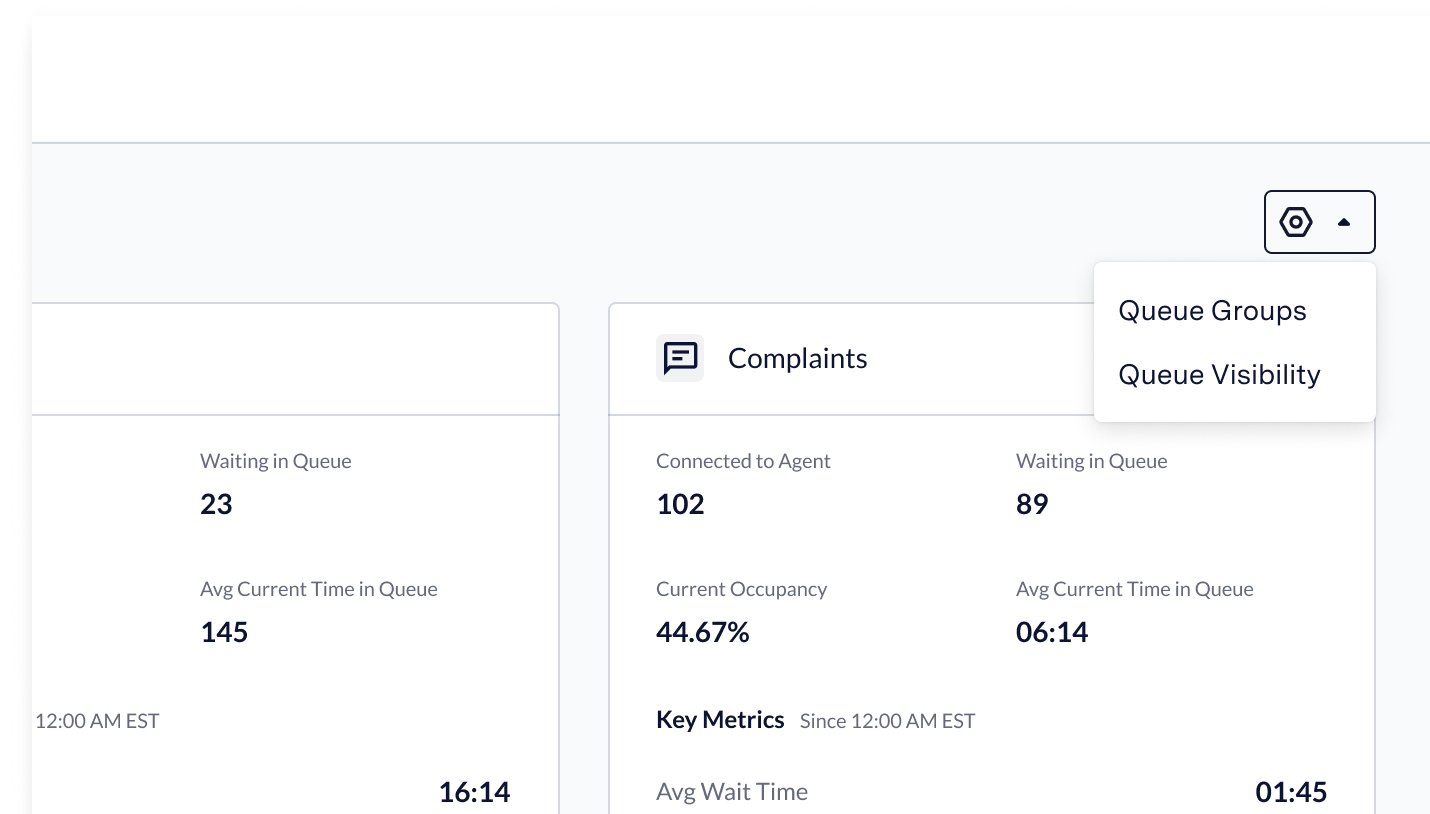 To access customization features: click the **Customize** button on the Overview page. Two options appear. Click an **option** to launch the associated customization feature.
## Change Queue Visibility
ASAPP provides tools for you to customize the queues showcased on the Overview page. You can hide Queues based on customization needs.
Click the **Customize** button on the All Queues page to sort and select the **queues** to display.
To access customization features: click the **Customize** button on the Overview page. Two options appear. Click an **option** to launch the associated customization feature.
## Change Queue Visibility
ASAPP provides tools for you to customize the queues showcased on the Overview page. You can hide Queues based on customization needs.
Click the **Customize** button on the All Queues page to sort and select the **queues** to display.
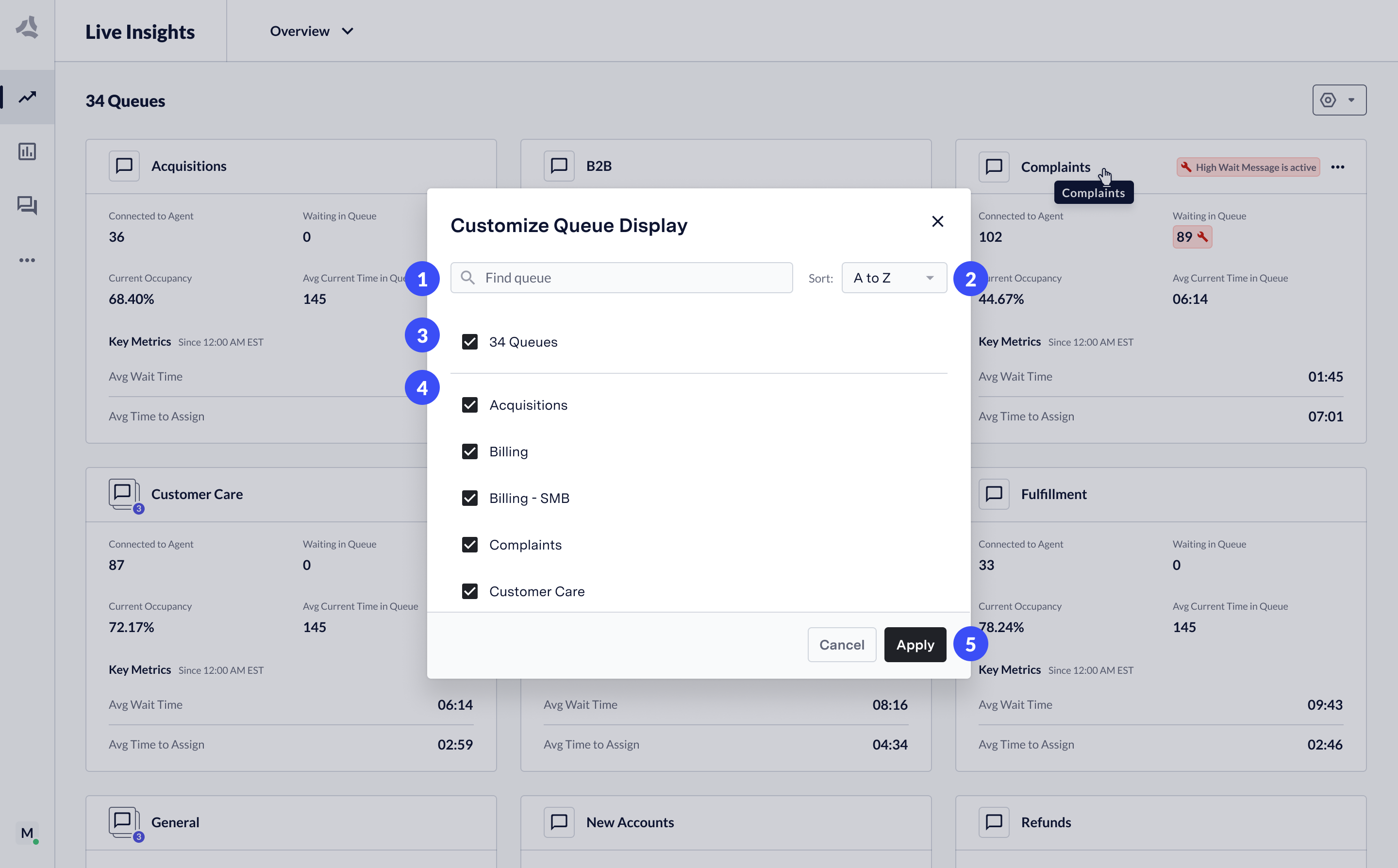 1. **Find a queue**: Use the search field to find a specific queue. Type in the **queue name** to filter the list of queues down to relevant matches.
2. **Sort queues**: You can sort in ascending or descending order. Click the **Sort** dropdown to select the desired sort order.
3. **Bulk selection**: To select all queues, or deselect all queues, click the **bulk selection feature** to view all queues. Click again to deselect all queues.
4. **Single queue selection**: Select and deselect **queues** in the list. The system hides deselected queues on the Overview page.
5. **Apply and cancel**: To confirm your selection, click **Apply**. To dismiss changes or close the modal, select **Cancel**.
## Create and Edit Queue Groups
You can create groups of queues to more efficiently monitor performance across multiple queues. When you create a queue group, the system displays a drill-down view of the queue group.
A queue group behaves similarly to a single queue: you get access to all live transcripts across all queues selected in the group.
You can access Performance data for all agents in the group, as well as consolidated customer feedback.
Queue groups are unique to each user. You can edit and create an unlimited number of queue groups.
1. **Find a queue**: Use the search field to find a specific queue. Type in the **queue name** to filter the list of queues down to relevant matches.
2. **Sort queues**: You can sort in ascending or descending order. Click the **Sort** dropdown to select the desired sort order.
3. **Bulk selection**: To select all queues, or deselect all queues, click the **bulk selection feature** to view all queues. Click again to deselect all queues.
4. **Single queue selection**: Select and deselect **queues** in the list. The system hides deselected queues on the Overview page.
5. **Apply and cancel**: To confirm your selection, click **Apply**. To dismiss changes or close the modal, select **Cancel**.
## Create and Edit Queue Groups
You can create groups of queues to more efficiently monitor performance across multiple queues. When you create a queue group, the system displays a drill-down view of the queue group.
A queue group behaves similarly to a single queue: you get access to all live transcripts across all queues selected in the group.
You can access Performance data for all agents in the group, as well as consolidated customer feedback.
Queue groups are unique to each user. You can edit and create an unlimited number of queue groups.
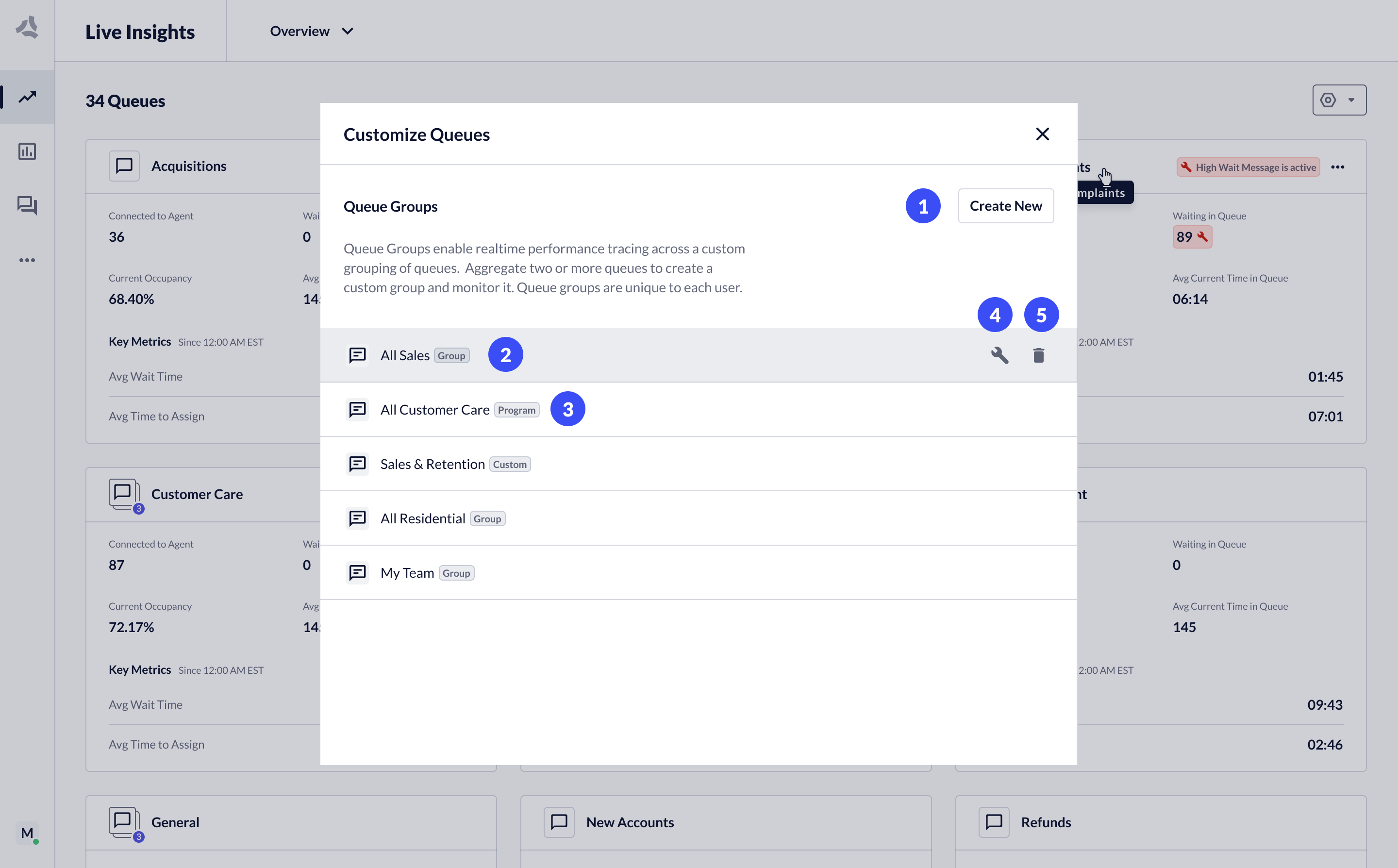 1. **Create new group**: Click this **button** to create a new queue group.
2. **Existing queue group**: You can view, edit or delete them.
3. **Organizational group**: Your organization creates queue groups that display with a 'Preset' tag. Queues with this tag are visible by all Live Insights users. These groups cannot be edited or deleted.
4. **Edit a group**: To edit an existing queue group, click the **Edit** icon.
5. **Delete a group**: To delete an existing queue group, click the **Delete** icon.
1. **Create new group**: Click this **button** to create a new queue group.
2. **Existing queue group**: You can view, edit or delete them.
3. **Organizational group**: Your organization creates queue groups that display with a 'Preset' tag. Queues with this tag are visible by all Live Insights users. These groups cannot be edited or deleted.
4. **Edit a group**: To edit an existing queue group, click the **Edit** icon.
5. **Delete a group**: To delete an existing queue group, click the **Delete** icon.
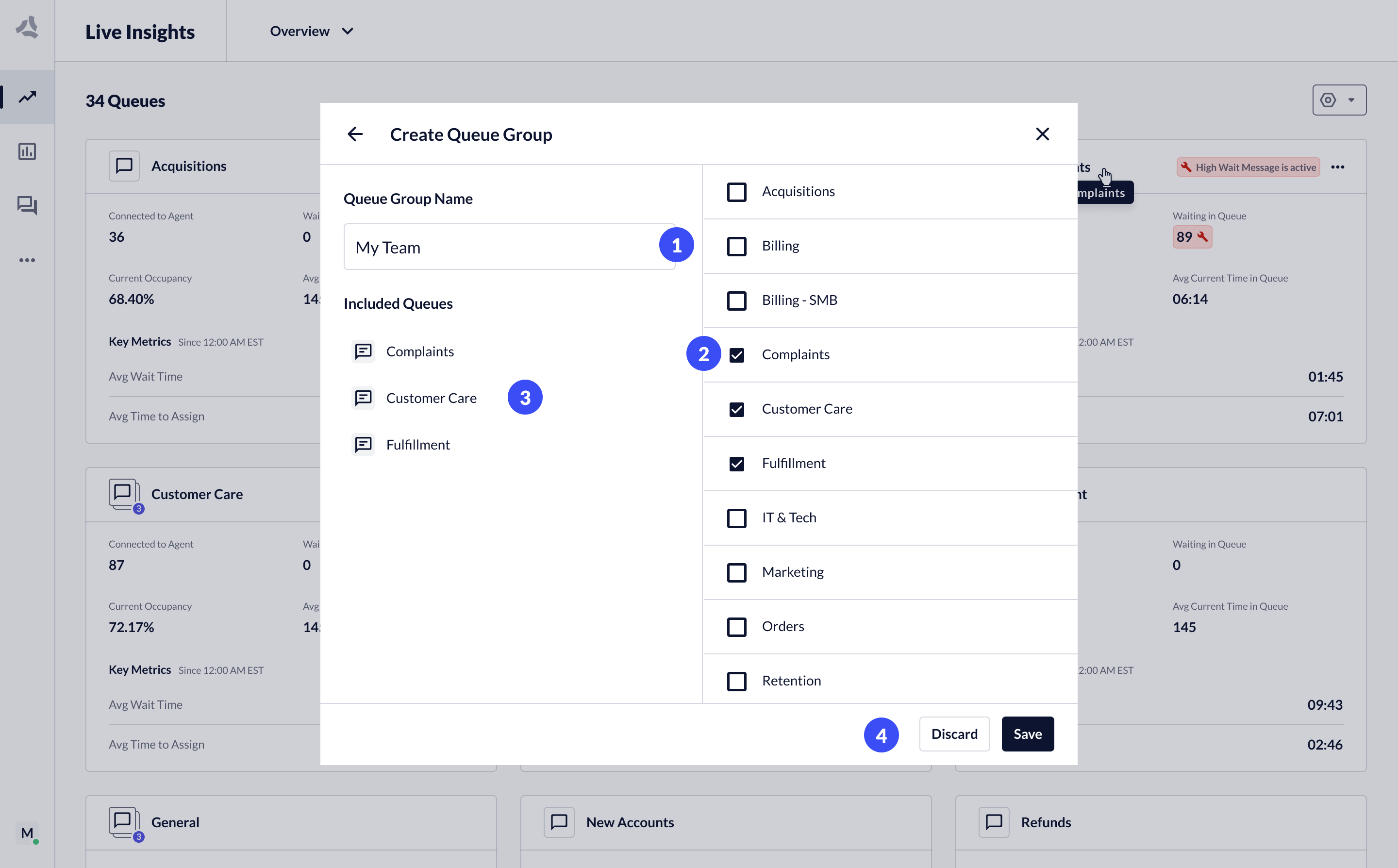 **Edit a queue group:**
1. **Queue group name**: Name assigned to the queue group.
2. **Available queues**: List of all queues that you can add to a group. Select **queues** to add the queues to the group, and vice versa.
3. **Queues added to group**: The system displays currently selected queues under the queue name.
4. **Apply and cancel**: To apply changes, click the **Apply** button. To dismiss changes or close the modal, click the **Cancel** button.
## Overflow Queue Routing
Overflow Queue Routing enables administrators to redirect traffic from one queue to another to reduce estimated wait times for end-customers and support closed queues when it is a legal requirement.
Overflow Queue Routing can use two rules:
1. **Business Hours Rule**: The system redirects traffic from Queue A to Queue B when it is outside the operating business hours for Queue B.
2. **Agent Availability Rule**: The system redirects traffic from Queue A to Queue B when there are no available agents serving Queue A.
**Edit a queue group:**
1. **Queue group name**: Name assigned to the queue group.
2. **Available queues**: List of all queues that you can add to a group. Select **queues** to add the queues to the group, and vice versa.
3. **Queues added to group**: The system displays currently selected queues under the queue name.
4. **Apply and cancel**: To apply changes, click the **Apply** button. To dismiss changes or close the modal, click the **Cancel** button.
## Overflow Queue Routing
Overflow Queue Routing enables administrators to redirect traffic from one queue to another to reduce estimated wait times for end-customers and support closed queues when it is a legal requirement.
Overflow Queue Routing can use two rules:
1. **Business Hours Rule**: The system redirects traffic from Queue A to Queue B when it is outside the operating business hours for Queue B.
2. **Agent Availability Rule**: The system redirects traffic from Queue A to Queue B when there are no available agents serving Queue A.
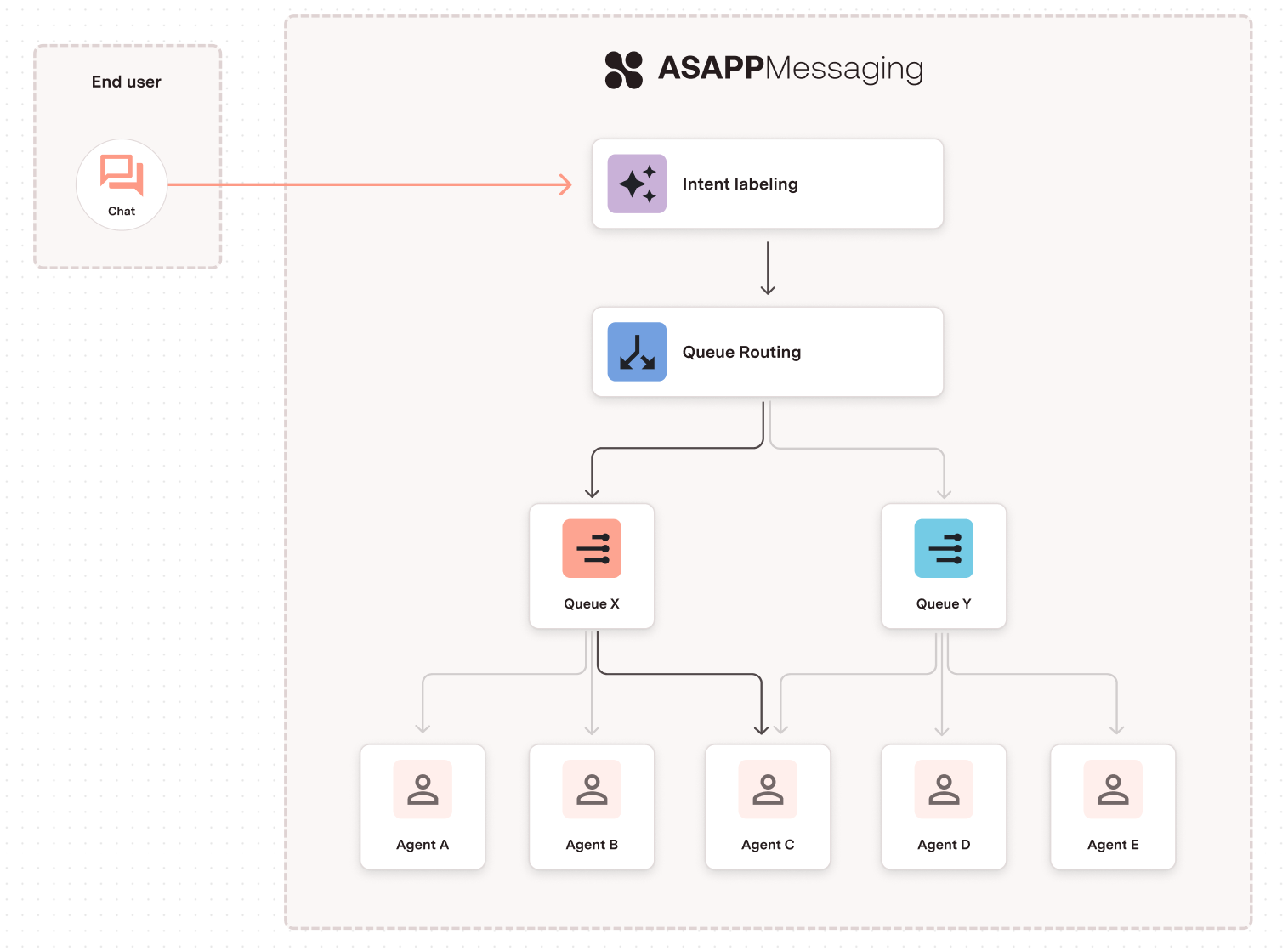 Work with your ASAPP account team to configure intents, queues, and routing logic that align with your business needs.
## Managing Intents and Queues
An **Intent** classifies each customer conversation (issue) and serves as the primary method of categorization. ASAPP analyzes conversation data and business requirements to determine the available intents.
During runtime, Machine Learning (ML) models automatically assign the most appropriate Intent to each new issue.
**Queue Routing** uses these Intents along with other defined criteria to direct conversations to specific queues (referred to as [Attributes Based Routing](/agent-desk/digital-agent-desk/queues-and-routing/attributes-based-routing)). Each **queue** represents a group of agents qualified to handle particular types of issues.
Work with your ASAPP account team to configure intents, queues, and routing logic that align with your business needs.
## Managing Intents and Queues
An **Intent** classifies each customer conversation (issue) and serves as the primary method of categorization. ASAPP analyzes conversation data and business requirements to determine the available intents.
During runtime, Machine Learning (ML) models automatically assign the most appropriate Intent to each new issue.
**Queue Routing** uses these Intents along with other defined criteria to direct conversations to specific queues (referred to as [Attributes Based Routing](/agent-desk/digital-agent-desk/queues-and-routing/attributes-based-routing)). Each **queue** represents a group of agents qualified to handle particular types of issues.
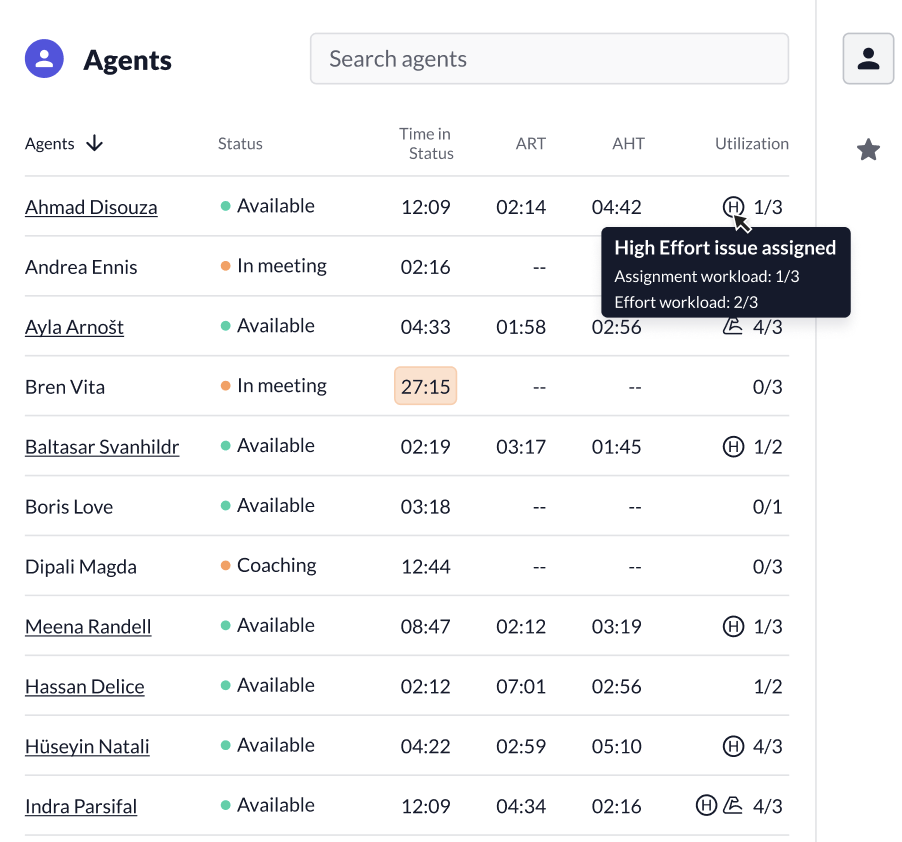 ### Flexible Concurrency
Flexible Concurrency maximizes agent productivity by temporarily increasing their conversation capacity during natural downtimes, such as:
* When conversations enter auto-pilot timeout (a period of customer inactivity)
* While agents complete disposition tasks
### Flexible Concurrency
Flexible Concurrency maximizes agent productivity by temporarily increasing their conversation capacity during natural downtimes, such as:
* When conversations enter auto-pilot timeout (a period of customer inactivity)
* While agents complete disposition tasks
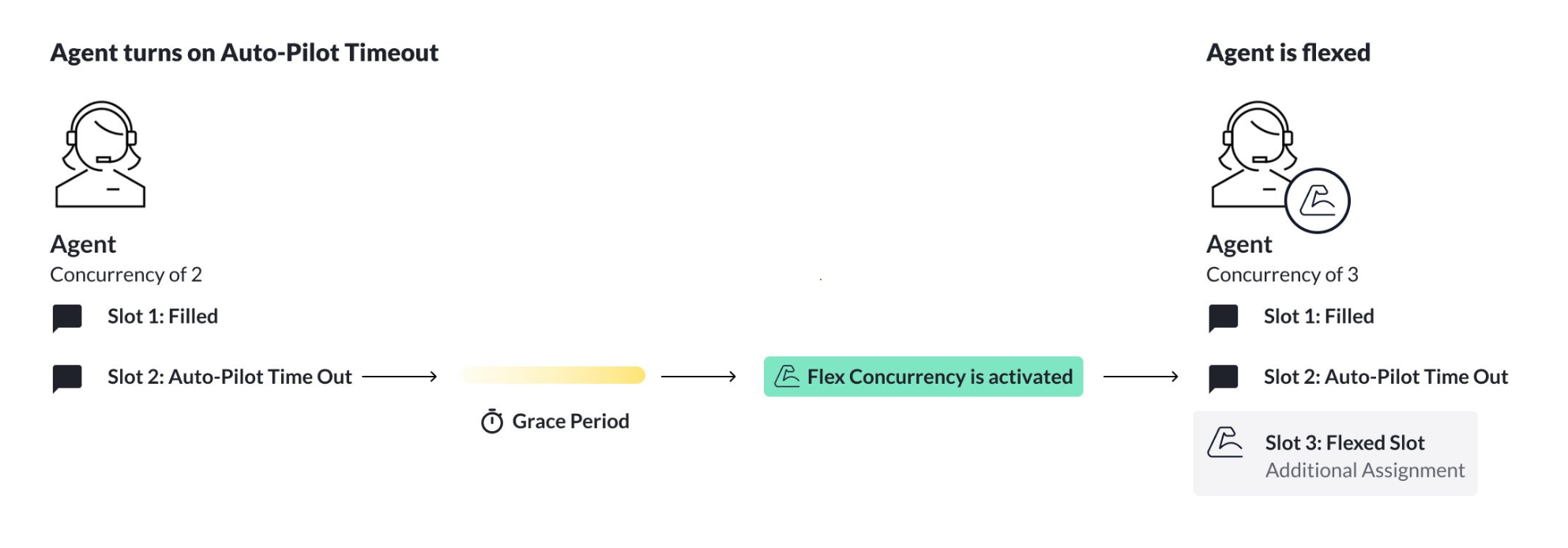 Configure Flexible Concurrency settings per queue to match different conversation types and agent capabilities.
#### Protecting Agents with Flex Protect
During auto-pilot timeout, the system assumes a conversation is temporarily inactive due to customer inactivity. However, customers may return and resume their conversation at any point during this timeout period. Without protection, this creates a challenging situation where an agent who received a new flexible assignment suddenly needs to handle both the returning customer and their new conversation simultaneously.
Flex Protect prevents this type of overload by:
* Assigning protected status to the agent
* Providing a configurable rest period where the system blocks new flexible assignments for that agent
Configure Flexible Concurrency settings per queue to match different conversation types and agent capabilities.
#### Protecting Agents with Flex Protect
During auto-pilot timeout, the system assumes a conversation is temporarily inactive due to customer inactivity. However, customers may return and resume their conversation at any point during this timeout period. Without protection, this creates a challenging situation where an agent who received a new flexible assignment suddenly needs to handle both the returning customer and their new conversation simultaneously.
Flex Protect prevents this type of overload by:
* Assigning protected status to the agent
* Providing a configurable rest period where the system blocks new flexible assignments for that agent
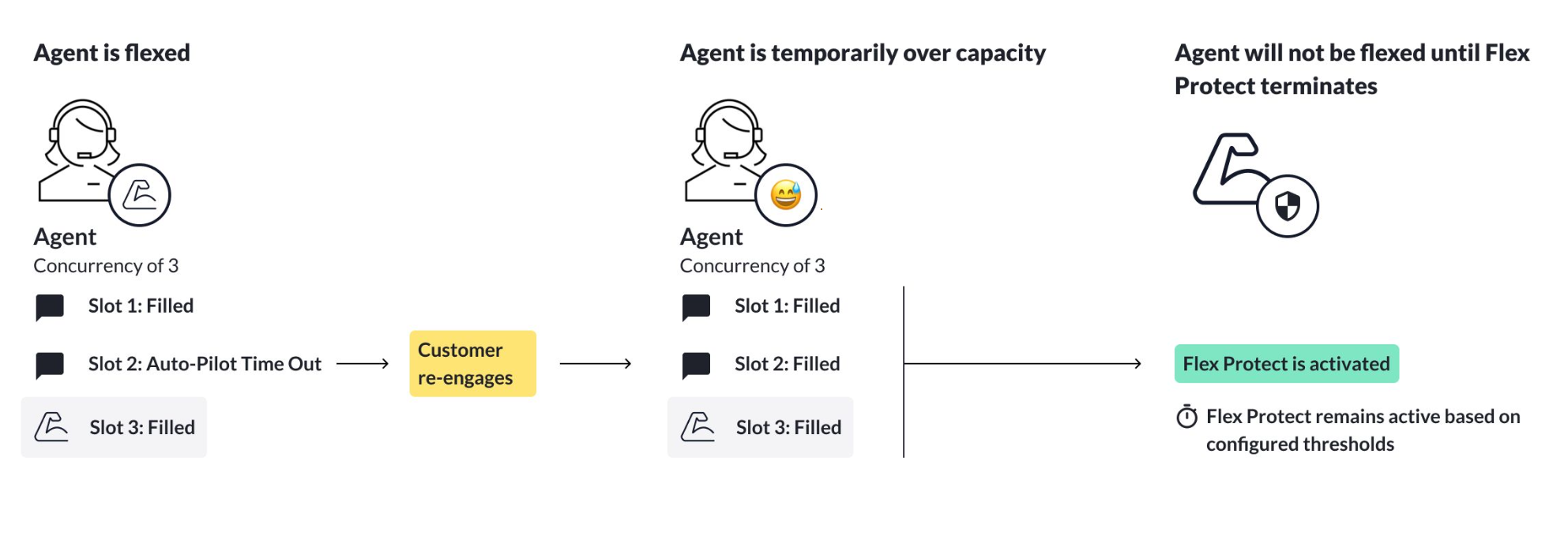 #### Monitoring Flexible Assignments
The Real Time Dashboard displays agents handling flexible assignments with a "flex" icon. Select any agent's name to view their current conversation assignments.
#### Monitoring Flexible Assignments
The Real Time Dashboard displays agents handling flexible assignments with a "flex" icon. Select any agent's name to view their current conversation assignments.
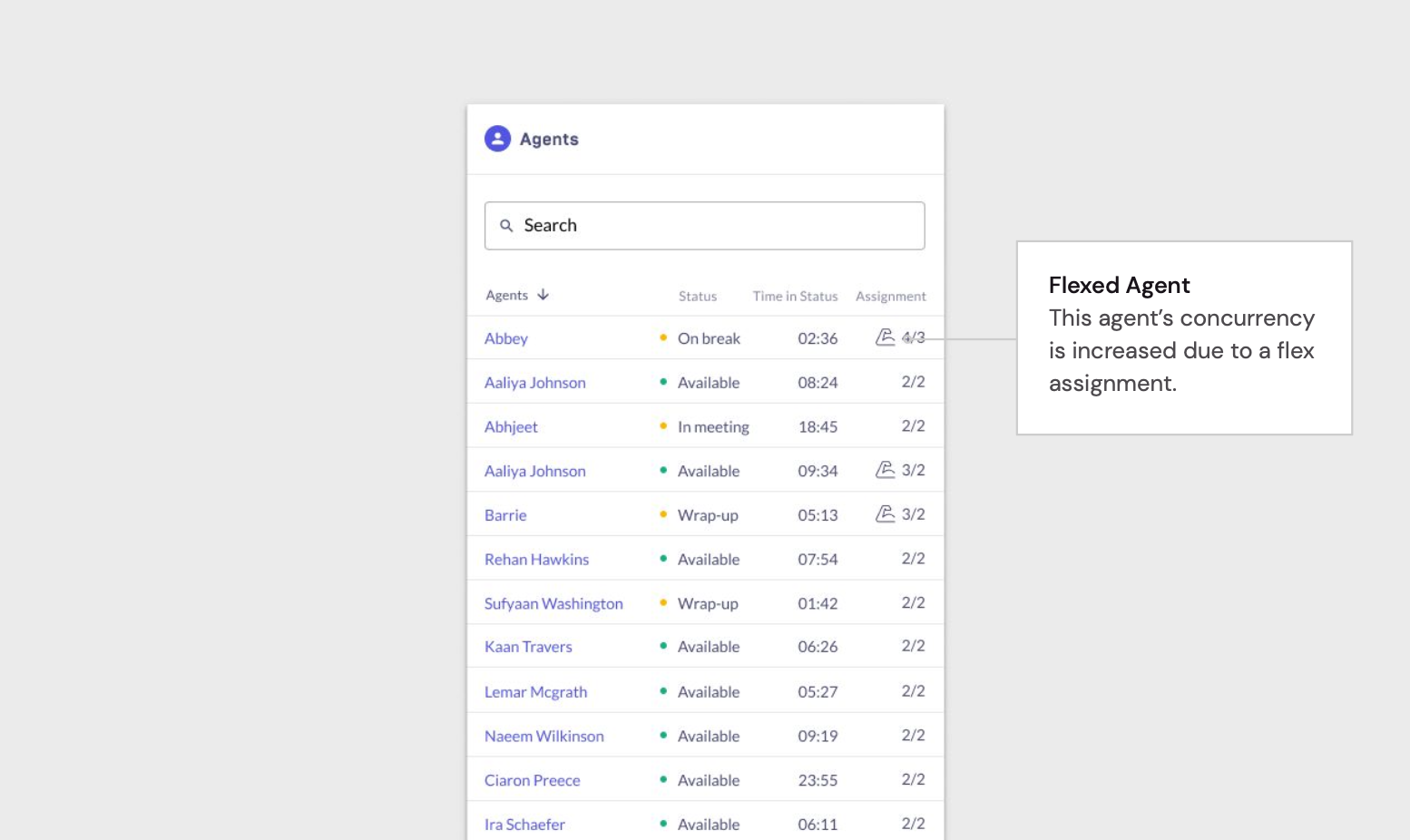 ---
# Source: https://docs.asapp.com/getting-started/developers/rate-limits.md
> ## Documentation Index
> Fetch the complete documentation index at: https://docs.asapp.com/llms.txt
> Use this file to discover all available pages before exploring further.
# API Rate Limits and Retry Logic
> Learn about API rate limits and recommended retry logic.
ASAPP implements rate limits on our APIs to ensure system stability and optimal performance for all users. To maintain a smooth integration with our APIs, you need to:
1. Be aware of the rate limits in different environments
2. Implement retry logic to handle rate limit errors effectively
## Spike Arrest Limits
ASAPP sets a **100 requests per second** limit to prevent API abuse rather than restrict regular expected usage. If your implementation is expected to approach or exceed these limits, contact your ASAPP account team in advance to discuss potential changes and prevent service interruptions.
## Behavior When Limits are Reached
If you reach daily limits:
* Calls to the endpoint will receive a 429 'Too Many Requests' response status code for the remainder of the day.
* In cases of suspected abuse, ASAPP may revoke API tokens to temporarily suspend access to production services. ASAPP will inform you via ServiceDesk in such cases.
## Recommended Retry Logic
ASAPP recommends implementing the following retry logic using an exponential backoff strategy only in response to **429** and **5xx** errors:
### On 429 Errors
* 1st retry: 1s delay
* 2nd retry: 2s delay
* 3rd retry: 4s delay
### On 5xx Errors and Other Retriable Codes
* 1st retry: 250ms delay
* 2nd retry: 500ms delay
* 3rd retry: 1000ms delay
### Other 4XX errors
**Do not implement retries** for 4xx error codes except for 429.
---
# Source: https://docs.asapp.com/getting-started/developers/rate-limits.md
> ## Documentation Index
> Fetch the complete documentation index at: https://docs.asapp.com/llms.txt
> Use this file to discover all available pages before exploring further.
# API Rate Limits and Retry Logic
> Learn about API rate limits and recommended retry logic.
ASAPP implements rate limits on our APIs to ensure system stability and optimal performance for all users. To maintain a smooth integration with our APIs, you need to:
1. Be aware of the rate limits in different environments
2. Implement retry logic to handle rate limit errors effectively
## Spike Arrest Limits
ASAPP sets a **100 requests per second** limit to prevent API abuse rather than restrict regular expected usage. If your implementation is expected to approach or exceed these limits, contact your ASAPP account team in advance to discuss potential changes and prevent service interruptions.
## Behavior When Limits are Reached
If you reach daily limits:
* Calls to the endpoint will receive a 429 'Too Many Requests' response status code for the remainder of the day.
* In cases of suspected abuse, ASAPP may revoke API tokens to temporarily suspend access to production services. ASAPP will inform you via ServiceDesk in such cases.
## Recommended Retry Logic
ASAPP recommends implementing the following retry logic using an exponential backoff strategy only in response to **429** and **5xx** errors:
### On 429 Errors
* 1st retry: 1s delay
* 2nd retry: 2s delay
* 3rd retry: 4s delay
### On 5xx Errors and Other Retriable Codes
* 1st retry: 250ms delay
* 2nd retry: 500ms delay
* 3rd retry: 1000ms delay
### Other 4XX errors
**Do not implement retries** for 4xx error codes except for 429.
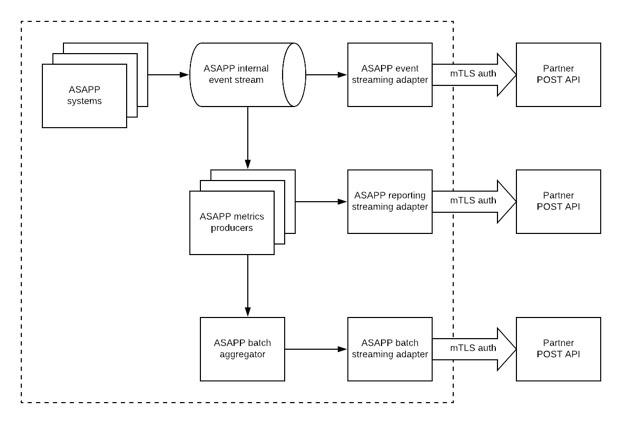 The diagram above provides a high-level view of how a customer-maintained service that receives real-time ASAPP events might be designed; a service that runs on ASAPP-controlled infrastructure will push real-time event data to one or more HTTP endpoints maintained by the customer. For each individual event, the ASAPP service makes one POST request to the endpoint.
ASAPP transmits event data using mTLS-based authentication (See the separate document [Securing Endpoints with Mutual TLS](/reporting/secure-data-retrieval#certificate-configuration) for details).
### Customer Requirements
* The customer must implement a POST API endpoint to handle the event messages.
* The customer and ASAPP must develop the mTLS authentication integration to secure the API endpoint
* All ASAPP real-time "raw" events will post to the same endpoint; the customer is expected to filter the received events to their needs based on name and event type.
* Each ASAPP real-time "processed" reporting feed can be configured to post to one arbitrary endpoint, at the customer's specified preference (i.e., each feed can post to a separate URI, or each can post to the same URI, or any combination required by the customer's use case.)
It should be noted that real-time events do not implement the de-duplication and grouping of ASAPP's batch reporting feeds; rather these real-time events provide building blocks for the customer to aggregate and build on. When making use of ASAPP's real-time events, the customer will be responsible for grouping, de-duplication, and aggregation of related events as required by the customer's particular use case. The events include metadata fields to facilitate such tasks.
### Endpoint Sizing
The endpoint configured by the customer should provisioned with sufficient scale to receive events at the rate generated by the customer's ASAPP implementation. As a rule of thumb, customers can expect:
* A voice call will generate on the order of 100 events per issue
* A text chat will generate on the order of 10 events per issue
So, for example, if the customer's application services 1000 issues per minute, that customer should expect their endpoint to receive 10,000 -- 100,000 messages per minute, or on the order of 1,000 messages per second.
### Endpoint Configuration
ASAPP can configure its service with the following parameters:
* **url:** The destination URL of the customer API endpoint that is set up to handle POST http requests.
* **timeout\_ms:** The number of milliseconds to wait for a HTTP 200 "OK" response before timing out.
* **retries:** The number of times to retry to send a message after a failed delivery.
* **(optional)event\_list:** List of `event_types` to send.
The diagram above provides a high-level view of how a customer-maintained service that receives real-time ASAPP events might be designed; a service that runs on ASAPP-controlled infrastructure will push real-time event data to one or more HTTP endpoints maintained by the customer. For each individual event, the ASAPP service makes one POST request to the endpoint.
ASAPP transmits event data using mTLS-based authentication (See the separate document [Securing Endpoints with Mutual TLS](/reporting/secure-data-retrieval#certificate-configuration) for details).
### Customer Requirements
* The customer must implement a POST API endpoint to handle the event messages.
* The customer and ASAPP must develop the mTLS authentication integration to secure the API endpoint
* All ASAPP real-time "raw" events will post to the same endpoint; the customer is expected to filter the received events to their needs based on name and event type.
* Each ASAPP real-time "processed" reporting feed can be configured to post to one arbitrary endpoint, at the customer's specified preference (i.e., each feed can post to a separate URI, or each can post to the same URI, or any combination required by the customer's use case.)
It should be noted that real-time events do not implement the de-duplication and grouping of ASAPP's batch reporting feeds; rather these real-time events provide building blocks for the customer to aggregate and build on. When making use of ASAPP's real-time events, the customer will be responsible for grouping, de-duplication, and aggregation of related events as required by the customer's particular use case. The events include metadata fields to facilitate such tasks.
### Endpoint Sizing
The endpoint configured by the customer should provisioned with sufficient scale to receive events at the rate generated by the customer's ASAPP implementation. As a rule of thumb, customers can expect:
* A voice call will generate on the order of 100 events per issue
* A text chat will generate on the order of 10 events per issue
So, for example, if the customer's application services 1000 issues per minute, that customer should expect their endpoint to receive 10,000 -- 100,000 messages per minute, or on the order of 1,000 messages per second.
### Endpoint Configuration
ASAPP can configure its service with the following parameters:
* **url:** The destination URL of the customer API endpoint that is set up to handle POST http requests.
* **timeout\_ms:** The number of milliseconds to wait for a HTTP 200 "OK" response before timing out.
* **retries:** The number of times to retry to send a message after a failed delivery.
* **(optional)event\_list:** List of `event_types` to send.
 Reference variables can be configured in the GenerativeAgent Function edit page under the "Reference vars" option.
## Define a Reference Variable
To create a reference variable in the GenerativeAgent UI:
1. Navigate to the Function's settings
2. Find the "Reference vars (Optional)" section and click "Add"
3. Configure the following fields:
* **Name**
* **Response Keypath**
* **Transform Expression** (Optional)
### Name
This is the identifier you'll use to reference this variable in Jinja expressions.
```jinja theme={null}
vars.get("variable_name")
```
### Response Keypath
This is the JSON path where the data will be extracted from, using dot notation.
```json theme={null}
// For a response like:
{
"available_rooms": [...]
}
// Use keypath:
response.available_rooms
```
### Transform Expression (Optional)
This is a Jinja expression to transform the extracted value. Common patterns include:
```jinja theme={null}
# Check for specific string value
val == "COMPLIANT"
# Check boolean values
val == true or val == false
# Check for non-empty arrays/strings
val is not none and val|length > 0
```
Once saved, GenerativeAgent will automatically update these variables whenever the Function executes successfully and returns data matching the specified keypath.
Reference variables can be configured in the GenerativeAgent Function edit page under the "Reference vars" option.
## Define a Reference Variable
To create a reference variable in the GenerativeAgent UI:
1. Navigate to the Function's settings
2. Find the "Reference vars (Optional)" section and click "Add"
3. Configure the following fields:
* **Name**
* **Response Keypath**
* **Transform Expression** (Optional)
### Name
This is the identifier you'll use to reference this variable in Jinja expressions.
```jinja theme={null}
vars.get("variable_name")
```
### Response Keypath
This is the JSON path where the data will be extracted from, using dot notation.
```json theme={null}
// For a response like:
{
"available_rooms": [...]
}
// Use keypath:
response.available_rooms
```
### Transform Expression (Optional)
This is a Jinja expression to transform the extracted value. Common patterns include:
```jinja theme={null}
# Check for specific string value
val == "COMPLIANT"
# Check boolean values
val == true or val == false
# Check for non-empty arrays/strings
val is not none and val|length > 0
```
Once saved, GenerativeAgent will automatically update these variables whenever the Function executes successfully and returns data matching the specified keypath.
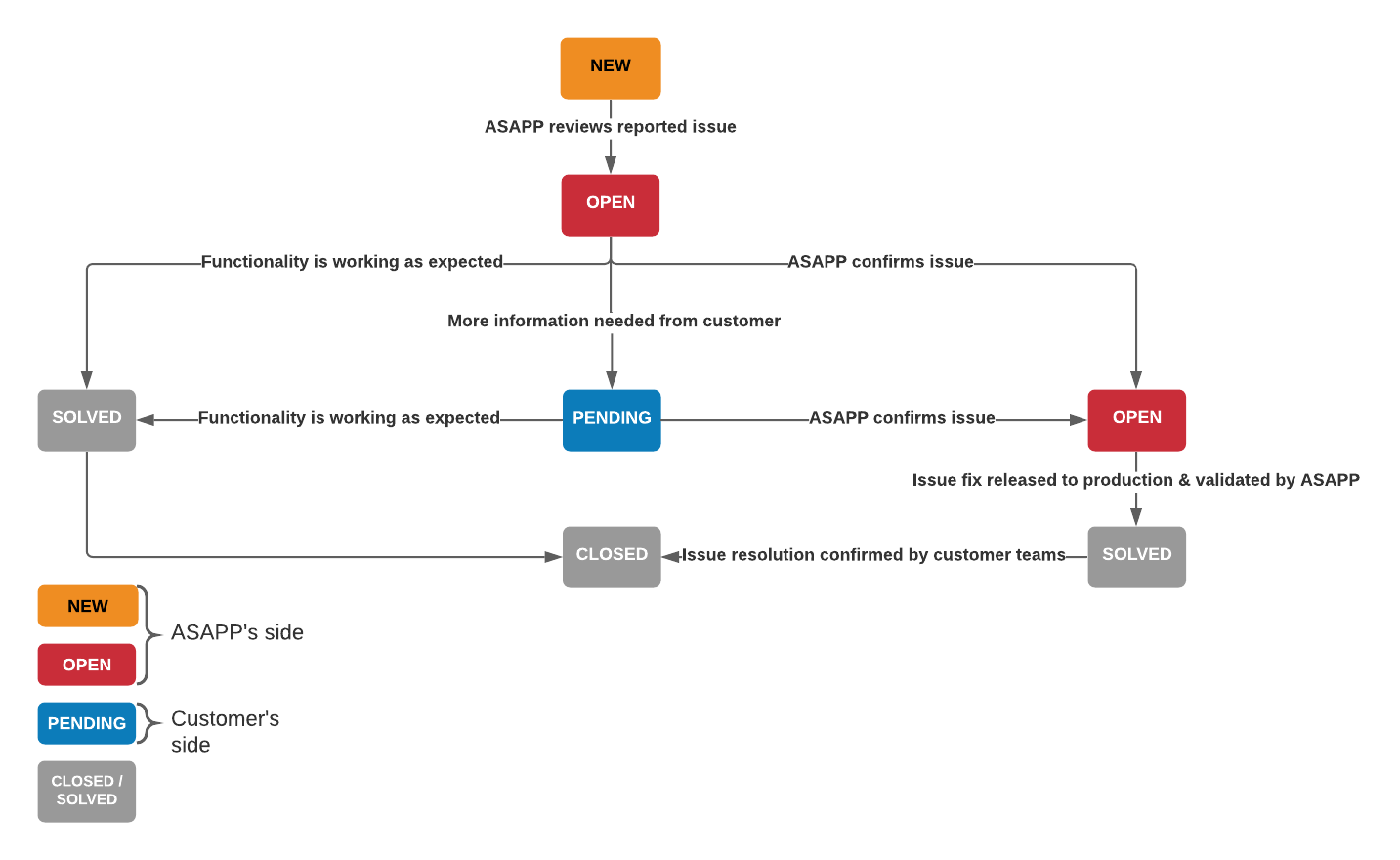 ### Issue Reporting Template
When you report issues to ASAPP, please provide the following information whenever possible.
* **Issue ID**: provide the Issue ID if the bug took place during a specific conversation.
* **Hashed, encrypted customer ID:** (see below)
* **Severity\*:** provide the severity level based on the 4 point severity scale.
* **Subject\*:** provide a brief, accurate summary of the observed behavior.
* **Date Observed\*:** provide the date you observed the issue. (please note: the observed date may differ from the date the issue is being reported)
* **Description\*:** provide a detailed description of the observed issue, including number of impacted users, the specific users experiencing the issue, impacted sites, and the timestamp when the issue began.
* **Steps to Reproduce\*:** provide detailed list of steps taken at the time you observed the issue.
* **ASAPP Portal\*:** indicate environment if the bug does not occur in production.
* **Device/Operating System\*:** provide the device / OS being utilized at the time you observed the issue.
* **Browser\*:** provide the browser being utilized at the time you observed the issue.
* **Attachments**: include any screenshots or videos that may help clearly illustrate the issue.
* **\*** Indicates a required field.
### Issue Reporting Template
When you report issues to ASAPP, please provide the following information whenever possible.
* **Issue ID**: provide the Issue ID if the bug took place during a specific conversation.
* **Hashed, encrypted customer ID:** (see below)
* **Severity\*:** provide the severity level based on the 4 point severity scale.
* **Subject\*:** provide a brief, accurate summary of the observed behavior.
* **Date Observed\*:** provide the date you observed the issue. (please note: the observed date may differ from the date the issue is being reported)
* **Description\*:** provide a detailed description of the observed issue, including number of impacted users, the specific users experiencing the issue, impacted sites, and the timestamp when the issue began.
* **Steps to Reproduce\*:** provide detailed list of steps taken at the time you observed the issue.
* **ASAPP Portal\*:** indicate environment if the bug does not occur in production.
* **Device/Operating System\*:** provide the device / OS being utilized at the time you observed the issue.
* **Browser\*:** provide the browser being utilized at the time you observed the issue.
* **Attachments**: include any screenshots or videos that may help clearly illustrate the issue.
* **\*** Indicates a required field.
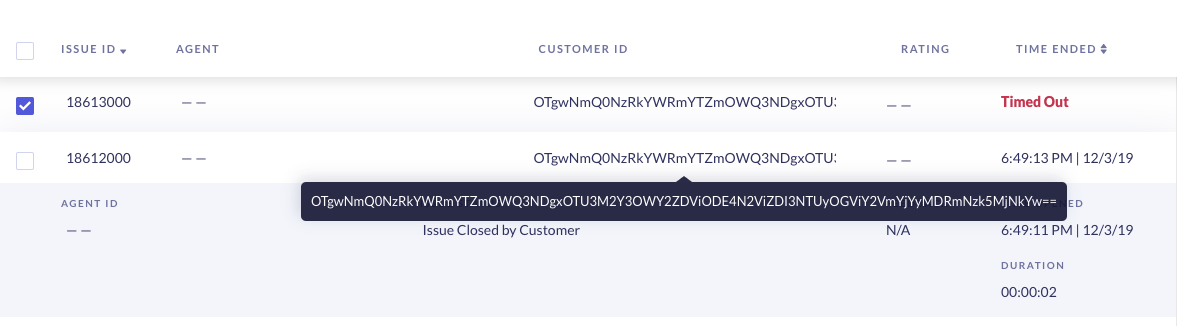 ### Locate the Issue ID
**In Desk:** During the conversation, click on the **Notes** icon at the top of the center panel.
The issue ID is next to the date. The issue ID is also in the Left Hand Panel and End Chat modal window.
### Locate the Issue ID
**In Desk:** During the conversation, click on the **Notes** icon at the top of the center panel.
The issue ID is next to the date. The issue ID is also in the Left Hand Panel and End Chat modal window.
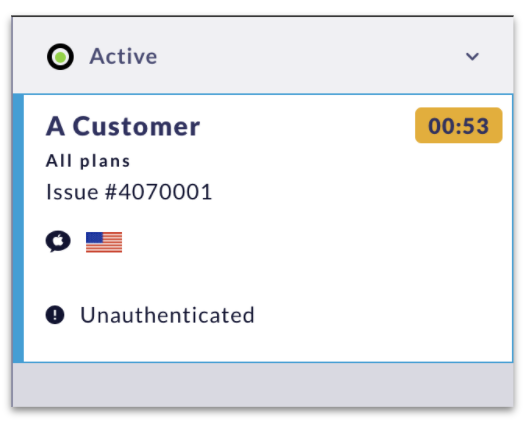
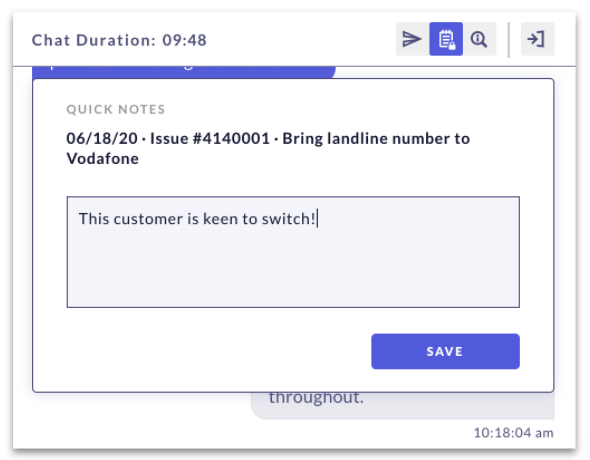 **In Admin:** Go to Conversation Manager.
Issue IDs appear in the first column for both live and ended conversations.
**In Admin:** Go to Conversation Manager.
Issue IDs appear in the first column for both live and ended conversations.
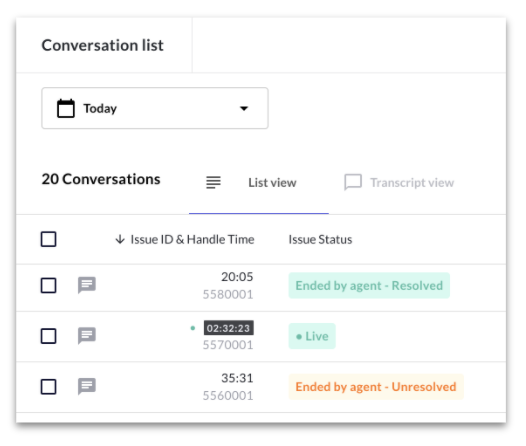 ---
# Source: https://docs.asapp.com/reporting.md
# Source: https://docs.asapp.com/generativeagent/reporting.md
# Source: https://docs.asapp.com/changelog/reporting.md
> ## Documentation Index
> Fetch the complete documentation index at: https://docs.asapp.com/llms.txt
> Use this file to discover all available pages before exploring further.
# Reporting Updates
> New updates and improvements for the Conversation and Reporting
---
# Source: https://docs.asapp.com/reporting.md
# Source: https://docs.asapp.com/generativeagent/reporting.md
# Source: https://docs.asapp.com/changelog/reporting.md
> ## Documentation Index
> Fetch the complete documentation index at: https://docs.asapp.com/llms.txt
> Use this file to discover all available pages before exploring further.
# Reporting Updates
> New updates and improvements for the Conversation and Reporting
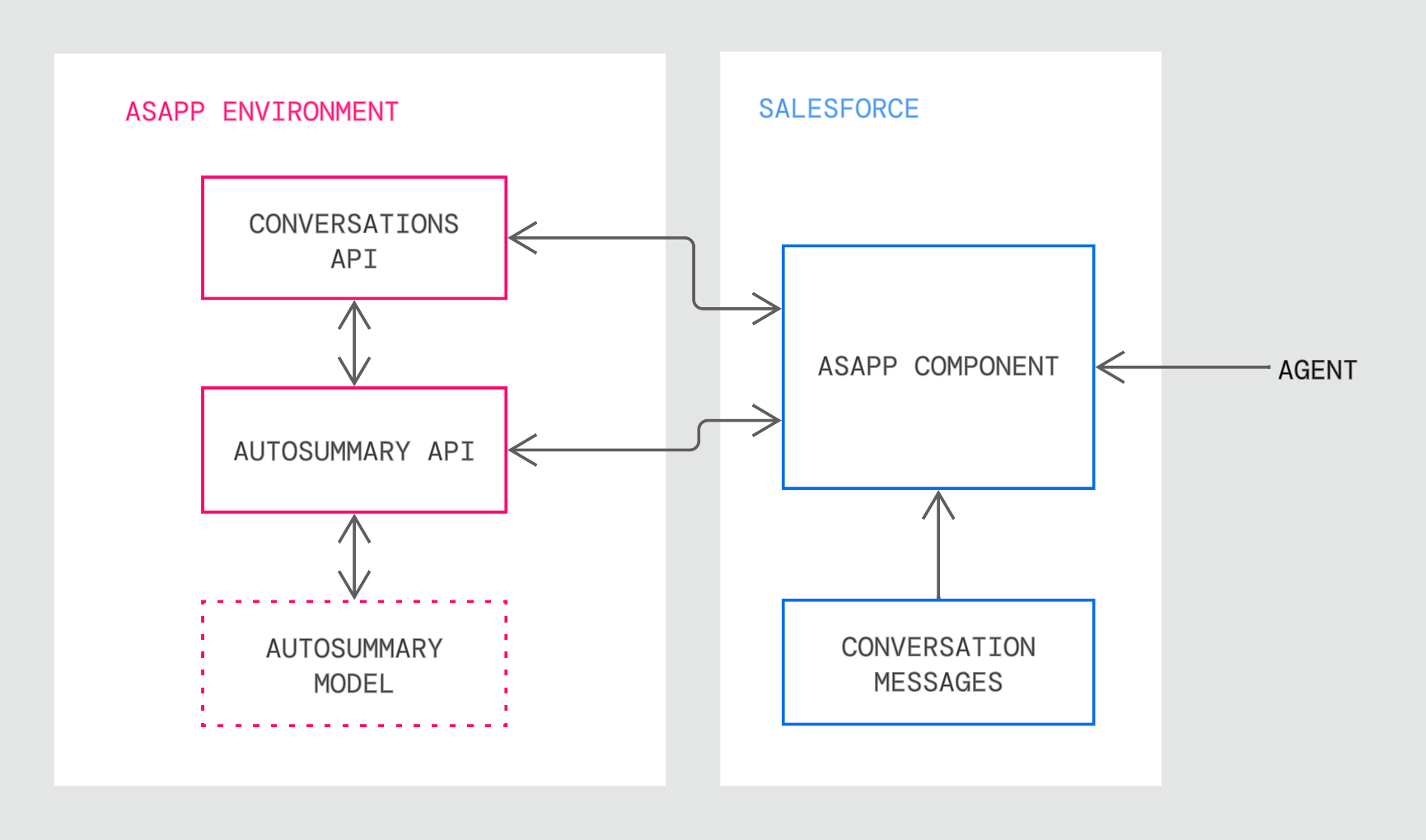 ## Setup
### Requirements
**Browser Support**
ASAPP AI Summary is supported in Google Chrome and Microsoft Edge
**SSO Support**
AI Summary supports SP-initiated SSO with either OIDC (preferred method) or SAML.
**Domain Whitelisting**
In order for AI Summary to interact with ASAPP's backend and third-party support services, the following domains need to be accessible from end-user environments:
| Domain | Description |
| :------------------------------------------- | :----------------------------------------------------------------- |
| `*.asapp.com` | ASAPP service URLs |
| `*.ingest.sentry.io` | Application performance monitoring tool |
| `fonts.googleapis.com` | Fonts |
| `google-analytics.com` | Page analytics |
| `asapp-chat-sdk-production.s3.amazonaws.com` | Static ASAPP AWS URL for desktop network connectivity health check |
### Procedure
There are two parts to the AI Summary setup process. Use the links below to skip to information about a specific part of the process:
1. [Configure the Salesforce organization](#1-configure-the-salesforce-organization-centrally-35766 "1. Configure the Salesforce Organization Centrally") centrally using an administrator account
2. [Setup agent/user authentication](#2-set-up-single-sign-on-sso-user-authentication-35766 "2. Set Up Single Sign-On (SSO) User Authentication") through the existing single sign-on (SSO) service
* Choose **Install for All Users** (as shown above).
* Check the acknowledgment statement and click the **Install** button:
* The Installation runs. An **Installation Complete!** message appears:
* Click the **Done** button.
**2. Add ASAPP to the Chat Transcript Page**
* Open the 'Service Console' page (or your chat page).
* Choose an existing chat session or start a new chat session so that the chat transcript page appears (the exact mechanism is organization-specific).
* In the top-right, click the **gear** icon, then right-click **Edit Page**, and **Open Link in a New Tab**.
* Navigate to the new tab to see the chat transcript edit page:
* Select the conversation panel (middle) and delete it.
* Drag the **chatAsapp** component (left), inside the conversation panel:
* Drag the **exploreAsapp** component (left), to the right column. Next, add your organization's **API key** and **API URL** (found in the ASAPP Developer Portal) in the rightmost panel:
* Click **Save**, then click **Activate**
* Click **Assign as org default**.
* Choose **Desktop** form factor, then click **Save**.
* Return to the chat transcript page and refresh - the ASAPP composer should appear.
**3. Add a new Salesforce field to populate AI Summary results**
AI Summary writes only to the **Chat Transcript** object. You need to create a new field on the Chat Transcript object that will be used by the ASAPP component.
* Go to **Setup** > **Object Manager** > **Chat Transcript** > **Fields & Relationships** page (in this specific example, we choose to add the field for summarization on the Chat Transcript page).
* Click on the **New** button.
## Setup
### Requirements
**Browser Support**
ASAPP AI Summary is supported in Google Chrome and Microsoft Edge
**SSO Support**
AI Summary supports SP-initiated SSO with either OIDC (preferred method) or SAML.
**Domain Whitelisting**
In order for AI Summary to interact with ASAPP's backend and third-party support services, the following domains need to be accessible from end-user environments:
| Domain | Description |
| :------------------------------------------- | :----------------------------------------------------------------- |
| `*.asapp.com` | ASAPP service URLs |
| `*.ingest.sentry.io` | Application performance monitoring tool |
| `fonts.googleapis.com` | Fonts |
| `google-analytics.com` | Page analytics |
| `asapp-chat-sdk-production.s3.amazonaws.com` | Static ASAPP AWS URL for desktop network connectivity health check |
### Procedure
There are two parts to the AI Summary setup process. Use the links below to skip to information about a specific part of the process:
1. [Configure the Salesforce organization](#1-configure-the-salesforce-organization-centrally-35766 "1. Configure the Salesforce Organization Centrally") centrally using an administrator account
2. [Setup agent/user authentication](#2-set-up-single-sign-on-sso-user-authentication-35766 "2. Set Up Single Sign-On (SSO) User Authentication") through the existing single sign-on (SSO) service
* Choose **Install for All Users** (as shown above).
* Check the acknowledgment statement and click the **Install** button:
* The Installation runs. An **Installation Complete!** message appears:
* Click the **Done** button.
**2. Add ASAPP to the Chat Transcript Page**
* Open the 'Service Console' page (or your chat page).
* Choose an existing chat session or start a new chat session so that the chat transcript page appears (the exact mechanism is organization-specific).
* In the top-right, click the **gear** icon, then right-click **Edit Page**, and **Open Link in a New Tab**.
* Navigate to the new tab to see the chat transcript edit page:
* Select the conversation panel (middle) and delete it.
* Drag the **chatAsapp** component (left), inside the conversation panel:
* Drag the **exploreAsapp** component (left), to the right column. Next, add your organization's **API key** and **API URL** (found in the ASAPP Developer Portal) in the rightmost panel:
* Click **Save**, then click **Activate**
* Click **Assign as org default**.
* Choose **Desktop** form factor, then click **Save**.
* Return to the chat transcript page and refresh - the ASAPP composer should appear.
**3. Add a new Salesforce field to populate AI Summary results**
AI Summary writes only to the **Chat Transcript** object. You need to create a new field on the Chat Transcript object that will be used by the ASAPP component.
* Go to **Setup** > **Object Manager** > **Chat Transcript** > **Fields & Relationships** page (in this specific example, we choose to add the field for summarization on the Chat Transcript page).
* Click on the **New** button.
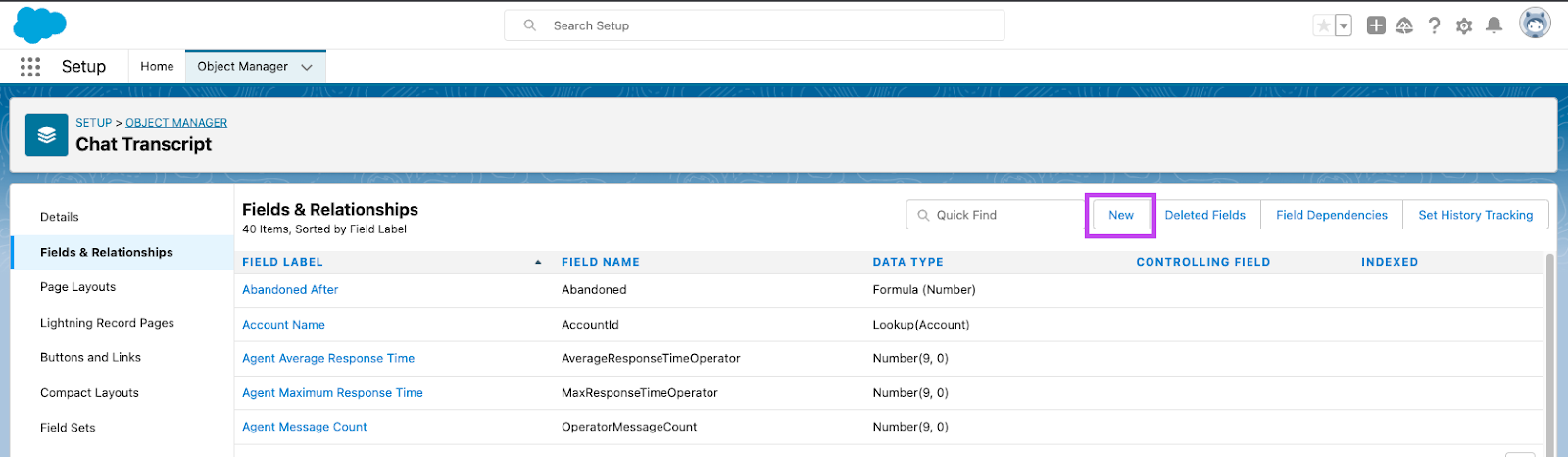 * **Choose the field type (Step 1)**: we suggest setting this field as **Text Area (Long)**. Once this radio button is selected, click on the **Next** button.
* **Enter the field details (Step 2)**: Add a **Field Label** and a **Field Name**. Click **Next**.
* **Choose the field type (Step 1)**: we suggest setting this field as **Text Area (Long)**. Once this radio button is selected, click on the **Next** button.
* **Enter the field details (Step 2)**: Add a **Field Label** and a **Field Name**. Click **Next**.
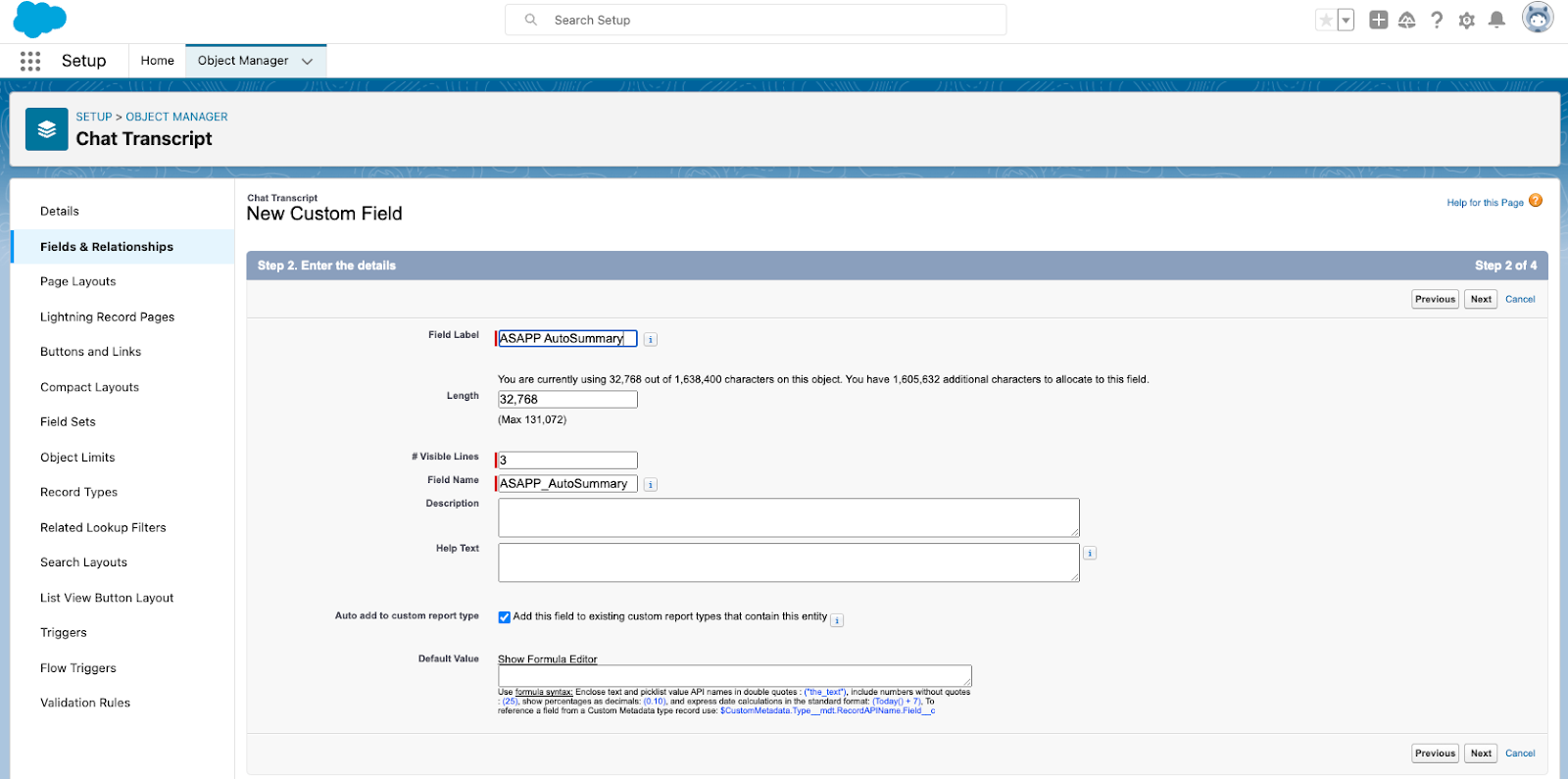 * **Establish field-level security (Step 3)**: no need to modify anything. Click on **Next**.
* **Add to page layouts (Step 4)**: ensure to add the new field to page layouts for this implementation and then click **Save**.
* Once created, you will be able to see the field on the following page:
* **Establish field-level security (Step 3)**: no need to modify anything. Click on **Next**.
* **Add to page layouts (Step 4)**: ensure to add the new field to page layouts for this implementation and then click **Save**.
* Once created, you will be able to see the field on the following page:
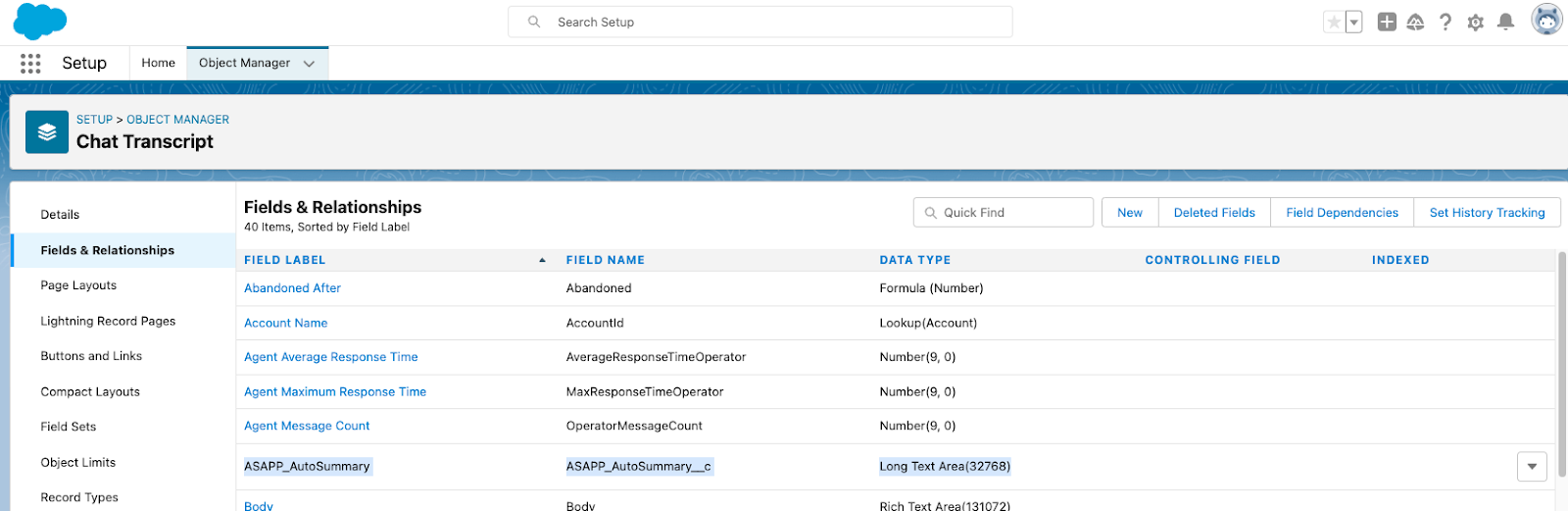 **4. Configure AI Summary Widget**
* On the Service Console page, click on **Configuration** (gear icon) and then click **Edit Page**.
**4. Configure AI Summary Widget**
* On the Service Console page, click on **Configuration** (gear icon) and then click **Edit Page**.
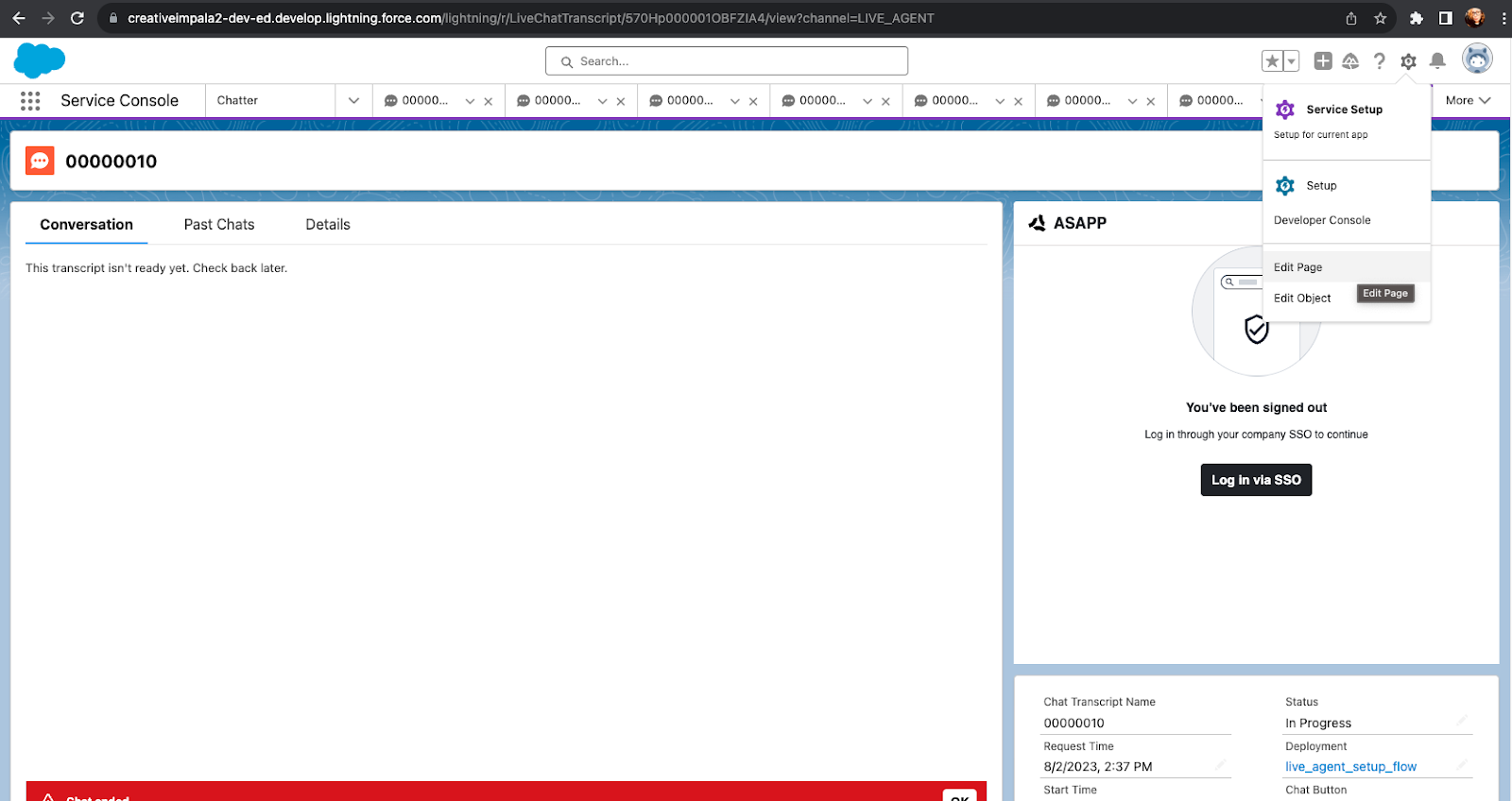 * Click the **ASAPP** panel. Then the configuration panel will appear on the right of the page. Enter the following information into the fields:
* **API key**: this is the **API Id** found in the ASAPP Developer Portal.
* **API URL**: this is found in the ASAPP Developer Portal; use `https://api.sandbox.asapp.com` in lower environments and `https://api.asapp.com`in production.
* Select the checkbox for **ASAPP AI Summary**.
* **ASAPP AI Summary field**: enter the **Field Name** created as part of Step 3. This is the field where the ASAPP-generated summary will appear.
* Click the **ASAPP** panel. Then the configuration panel will appear on the right of the page. Enter the following information into the fields:
* **API key**: this is the **API Id** found in the ASAPP Developer Portal.
* **API URL**: this is found in the ASAPP Developer Portal; use `https://api.sandbox.asapp.com` in lower environments and `https://api.asapp.com`in production.
* Select the checkbox for **ASAPP AI Summary**.
* **ASAPP AI Summary field**: enter the **Field Name** created as part of Step 3. This is the field where the ASAPP-generated summary will appear.
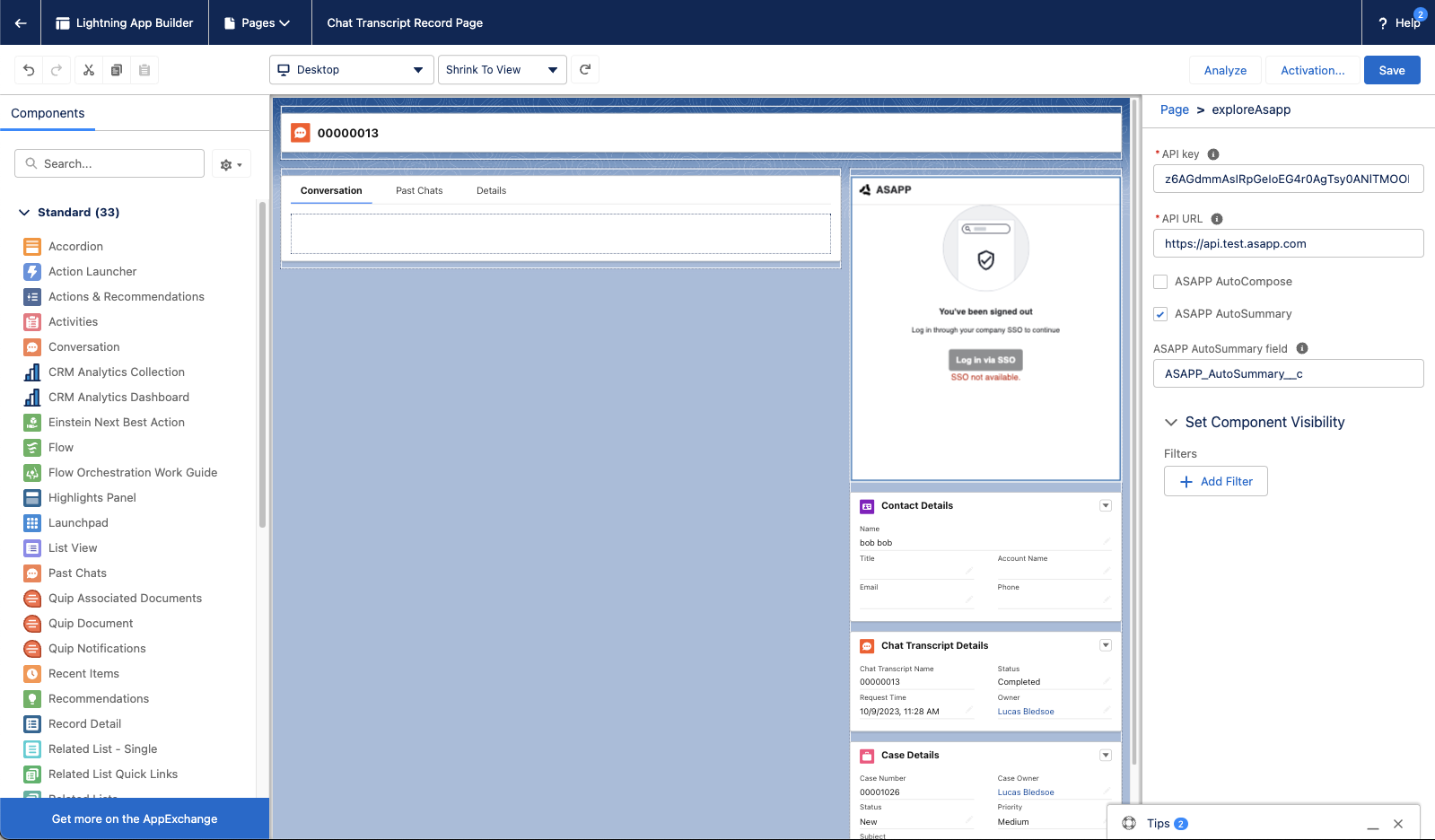
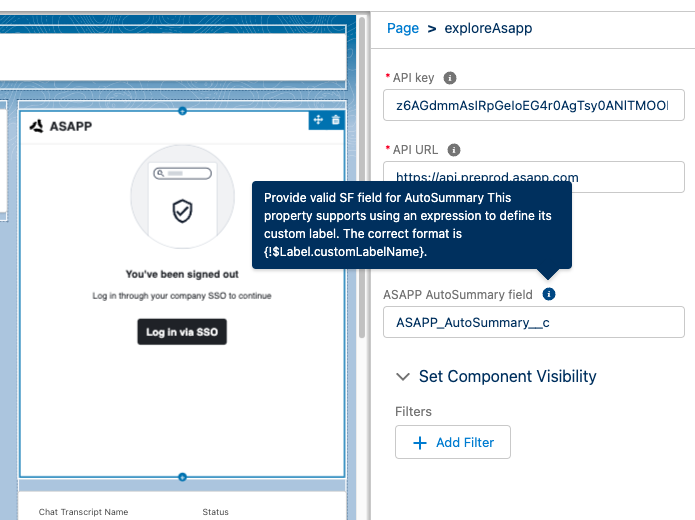 * Click on the **Save** button to apply the changes.
These configuration steps add the AI Summary field to the Chat Transcript object. From this point forward, you may use this summary field as part of your agent-facing or internal summary data use case. A common use case is to display this field to the agent in the Record Detail widget.
**5. Add Record Detail Widget (OPTIONAL)**
* If the Record Detail widget is not already on the Chat Transcript page, drag the **Record Detail** widget from the left panel and place it on the page.
* Click on the **Save** button to apply the changes.
* Refresh the page to see the changes applied to the page.
The AI Summary field should now be visible under the **Transcription** section of the Record Detail widget. Once the conversation is ended, summarization will be displayed in this newly configured field in the Record Detail widget.
#### 2. Set Up Single Sign-On (SSO) User Authentication
ASAPP handles authentication through the customer's SSO service to confirm the identity of the agent.
ASAPP acts as the Service Provider (SP) with the customer acting as the Identity Provider (IDP). The customer's authentication system performs user authentication using their existing user credentials.
ASAPP supports SP-initiated SSO with either OIDC (preferred method) and SAML. Once the user initiates sign-in, ASAPP detects that the user is authenticated and requests an assertion from the customer's SSO service.
**Configuration Steps for OIDC (preferred method)**
1. Create a new IDP OIDC application with type `Web`
2. Set the following attributes for the app:
| Attribute | Value\* |
| :-------------------- | :--------------------------------------------------------------------------------------------------------------------------------------------------------------------------------- |
| Grant Type | authorization code |
| Sign-in Redirect URIs |
* Click on the **Save** button to apply the changes.
These configuration steps add the AI Summary field to the Chat Transcript object. From this point forward, you may use this summary field as part of your agent-facing or internal summary data use case. A common use case is to display this field to the agent in the Record Detail widget.
**5. Add Record Detail Widget (OPTIONAL)**
* If the Record Detail widget is not already on the Chat Transcript page, drag the **Record Detail** widget from the left panel and place it on the page.
* Click on the **Save** button to apply the changes.
* Refresh the page to see the changes applied to the page.
The AI Summary field should now be visible under the **Transcription** section of the Record Detail widget. Once the conversation is ended, summarization will be displayed in this newly configured field in the Record Detail widget.
#### 2. Set Up Single Sign-On (SSO) User Authentication
ASAPP handles authentication through the customer's SSO service to confirm the identity of the agent.
ASAPP acts as the Service Provider (SP) with the customer acting as the Identity Provider (IDP). The customer's authentication system performs user authentication using their existing user credentials.
ASAPP supports SP-initiated SSO with either OIDC (preferred method) and SAML. Once the user initiates sign-in, ASAPP detects that the user is authenticated and requests an assertion from the customer's SSO service.
**Configuration Steps for OIDC (preferred method)**
1. Create a new IDP OIDC application with type `Web`
2. Set the following attributes for the app:
| Attribute | Value\* |
| :-------------------- | :--------------------------------------------------------------------------------------------------------------------------------------------------------------------------------- |
| Grant Type | authorization code |
| Sign-in Redirect URIs | - Production: `https://api.asapp.com/auth/v1/callback/{company_marker}`
- Sandbox: `https://api.sandbox.asapp.com/auth/v1/callback/{company_marker}-sandbox`
- Production: `https://sso.asapp.com/auth/realms/standalone-{company_marker}-auth/broker/saml/endpoint/clients/asapp-saml`
- Sandbox: `https://sso.asapp.com/auth/realms/standalone-{company_marker}-auth/broker/saml-sandbox/endpoint/clients/asapp-saml-sandbox`
- Production: `https://sso.asapp.com/auth/realms/standalone-{company_marker}-auth/broker/saml/endpoint/clients/asapp-saml`
- Sandbox: `https://sso.asapp.com/auth/realms/standalone-{company_marker}-auth/broker/saml-sandbox/endpoint/clients/asapp-saml-sandbox`
- Production: `https://sso.asapp.com/auth/realms/standalone-{company_marker}-auth/broker/saml/endpoint/clients/asapp-saml`
- Sandbox: `https://sso.asapp.com/auth/realms/standalone-{company_marker}-auth/broker/saml-sandbox/endpoint/clients/asapp-saml-sandbox`
- Production: `https://sso.asapp.com/auth/realms/standalone-{company_marker}-auth/broker/saml/endpoint/clients/asapp-saml`
- Sandbox: `https://sso.asapp.com/auth/realms/standalone-{company_marker}-auth/broker/saml-sandbox/endpoint/clients/asapp-saml-sandbox`
Full |
Abbreviated |
|---|---|
|
Agent: Choose an option from the list below Agent: (A) 1-way ticket (B) 2-way ticket (C) None of the above Customer: (A) 1-way ticket |
Agent: Choose an option from the list below Customer: (A) |
## Creating Test Conversations
The AI Summary Sandbox supports two methods for testing summary generation:
**Simulate Conversations**
* Create new conversations by switching between customer and agent roles
* Test voice conversations using real-time transcription via AI Transcribe
* Validate summary generation on different conversation types and scenarios
**Upload Transcripts**
* Load existing conversation transcripts
* Test summary generation on historical conversations
* Validate model performance on real customer interactions
## Available Summary Types
The Sandbox generates summaries based on your environment's configuration:
| Type | Description | Availability |
| :---------------- | :-------------------------------------------------------- | :------------------------------------------------------------- |
| Free Text Summary | Concise narrative summary of the conversation | Always available |
| Intent | Topic-level categorization of customer's primary issue | Available after custom model training |
| Structured Data | Extracted data points and answers to predefined questions | Available after customizing your structured data configuration |
Key |
Description |
|---|---|
env |
Environment (prod, pre\_prod, test) |
company\_name |
The company name: acme, duff, stark\_industries, etc. Note: company name should not have spaces within. |
aws-region |
us-east-1 Note: this is the current region supported for your ASAPP instance. |
FIELD NAME |
REQUIRED? |
FORMAT |
EXAMPLE |
NOTES |
|---|---|---|---|---|
customer\_id |
Yes |
String |
347bdddb-d3a1-45fc-bbcd-dbd3a175fc1c |
External User ID. This is a hashed version of the client ID. |
conversation\_id |
No |
String |
21352352 |
If filled in, should map to ASAPP's system. May be empty, if the customer has not had a conversation with ASAPP. |
call\_start |
Yes |
Timestamp |
2020-01-03T20:02:13Z |
ISO 8601 formatted UTC timestamp. Time/date call is received by the system. |
call\_end |
Yes |
Timestamp |
2020-01-03T20:02:13Z |
ISO 8601 formatted UTC timestamp. Time/date call ends. Note: duration of call should be Call End - Call Start. |
call\_assigned\_to\_agent |
No |
Timestamp |
2020-01-03T20:02:13Z |
ISO 8601 formatted UTC timestamp. The date/time the call was answered by the agent. |
customer\_type |
No |
String |
Wireless Premier |
Customer account classification by client. |
survey\_offered |
No |
Bool |
true/false |
Whether a survey was offered or not. |
survey\_taken |
No |
Bool |
true/false |
When a survey was offered, whether it was completed or not. |
survey\_answer |
No |
String |
Survey answer |
|
toll\_free\_number |
No |
String |
888-929-1467 |
Client phone number (toll free number) used to call in that allows for tracking different numbers, particularly ones referred directly by SRS. If websource or click to call, the web campaign is passed instead of TFN. |
ivr\_intent |
No |
String |
Power Outage |
Phone pathing logic for routing to the appropriate agent group or providing self-service resolution. Could be multiple values. |
ivr\_resolved |
No |
Bool |
true/false |
Caller triggered a self-service response from the IVR and then disconnected. |
ivr\_abandoned |
No |
Bool |
true/false |
Caller disconnected without receiving a self-service response from IVR nor being placed in live agent queue. |
agent\_queue\_assigned |
No |
String |
Wireless Sales |
Agent group/agent skill group (aka queue name) |
time\_in\_queue |
No |
Integer |
600 |
Seconds caller waits in queue to be assigned to an agent. |
queue\_abandoned |
No |
Bool |
true/false |
Caller disconnected after being assigned to a live agent queue but before being assigned to an agent. |
call\_handle\_time |
No |
Integer |
650 |
Call duration in seconds from call assignment event to call disconnect event. |
call\_wrap\_time |
No |
Integer |
30 |
Duration in seconds from call disconnect event to end of agent wrap event. |
transfer |
No |
String |
Sales Group |
Agent queue name if call was transferred. NA or Null value for calls not transferred. |
disposition\_category |
No |
String |
Change plan |
Categorical outcome selection from agent. Alternatively, could be category like 'Resolved', 'Unresolved', 'Transferred', 'Referred'. |
disposition\_notes |
No |
String |
Notes from agent regarding the disposition of the call. |
|
transaction\_completed |
No |
String |
Upgrade Completed, Payment Processed |
Name of transaction type completed by call agent on behalf of customer. Could contain multiple delimited values. May not be available for all agents. |
caller\_account\_value |
No |
Decimal |
129.45 |
Current account value of customer. |
Full |
Abbreviated |
|---|---|
|
Agent: Choose an option from the list below Agent: (A) 1-way ticket (B) 2-way ticket (C) None of the above Customer: (A) 1-way ticket |
Agent: Choose an option from the list below Customer: (A) |
FIELD NAME |
REQUIRED? |
FORMAT |
EXAMPLE |
NOTES |
|---|---|---|---|---|
customer\_id |
Yes |
String |
347bdddb-d3a1-45fc-bbcd-dbd3a175fc1c |
External User ID. This is a hashed version of the client ID. |
conversation\_id |
No |
String |
21352352 |
If filled in, should map to ASAPP's system. May be empty, if the customer has not had a conversation with ASAPP. |
call\_start |
Yes |
Timestamp |
2020-01-03T20:02:13Z |
ISO 8601 formatted UTC timestamp. Time/date call is received by the system. |
call\_end |
Yes |
Timestamp |
2020-01-03T20:02:13Z |
ISO 8601 formatted UTC timestamp. Time/date call ends. Note: duration of call should be Call End - Call Start. |
call\_assigned\_to\_agent |
No |
Timestamp |
2020-01-03T20:02:13Z |
ISO 8601 formatted UTC timestamp. The date/time the call was answered by the agent. |
customer\_type |
No |
String |
Wireless Premier |
Customer account classification by client. |
survey\_offered |
No |
Bool |
true/false |
Whether a survey was offered or not. |
survey\_taken |
No |
Bool |
true/false |
When a survey was offered, whether it was completed or not. |
survey\_answer |
No |
String |
Survey answer |
|
toll\_free\_number |
No |
String |
888-929-1467 |
Client phone number (toll free number) used to call in that allows for tracking different numbers, particularly ones referred directly by SRS. If websource or click to call, the web campaign is passed instead of TFN. |
ivr\_intent |
No |
String |
Power Outage |
Phone pathing logic for routing to the appropriate agent group or providing self-service resolution. Could be multiple values. |
ivr\_resolved |
No |
Bool |
true/false |
Caller triggered a self-service response from the IVR and then disconnected. |
ivr\_abandoned |
No |
Bool |
true/false |
Caller disconnected without receiving a self-service response from IVR nor being placed in live agent queue. |
agent\_queue\_assigned |
No |
String |
Wireless Sales |
Agent group/agent skill group (aka queue name) |
time\_in\_queue |
No |
Integer |
600 |
Seconds caller waits in queue to be assigned to an agent. |
queue\_abandoned |
No |
Bool |
true/false |
Caller disconnected after being assigned to a live agent queue but before being assigned to an agent. |
call\_handle\_time |
No |
Integer |
650 |
Call duration in seconds from call assignment event to call disconnect event. |
call\_wrap\_time |
No |
Integer |
30 |
Duration in seconds from call disconnect event to end of agent wrap event. |
transfer |
No |
String |
Sales Group |
Agent queue name if call was transferred. NA or Null value for calls not transferred. |
disposition\_category |
No |
String |
Change plan |
Categorical outcome selection from agent. Alternatively, could be category like 'Resolved', 'Unresolved', 'Transferred', 'Referred'. |
disposition\_notes |
No |
String |
Notes from agent regarding the disposition of the call. |
|
transaction\_completed |
No |
String |
Upgrade Completed, Payment Processed |
Name of transaction type completed by call agent on behalf of customer. Could contain multiple delimited values. May not be available for all agents. |
caller\_account\_value |
No |
Decimal |
129.45 |
Current account value of customer. |
Full |
Abbreviated |
|---|---|
|
Agent: Choose an option from the list below Agent: (A) 1-way ticket (B) 2-way ticket (C) None of the above Customer: (A) 1-way ticket |
Agent: Choose an option from the list below Customer: (A) |
 #### 2. Provide the Public Key to ASAPP
Save the public and private key. Only send the public file for your key pair to ASAPP. This is not a secret and can be emailed.
#### 3. Upload Files
Use an SFTP utility such as Cyberduck (available from [Cyberduck](https://cyberduck.io/) ) to upload files to ASAPP. Click **Open Connection**, add sftp.us-east-1.asapp.com as the Server, and add `sftpcompanymarker` as the Username. Choose the private key you generated in step 2 as the SSH Private Key and click **connect**. The following screenshots show how to do this using Cyberduck.
#### 2. Provide the Public Key to ASAPP
Save the public and private key. Only send the public file for your key pair to ASAPP. This is not a secret and can be emailed.
#### 3. Upload Files
Use an SFTP utility such as Cyberduck (available from [Cyberduck](https://cyberduck.io/) ) to upload files to ASAPP. Click **Open Connection**, add sftp.us-east-1.asapp.com as the Server, and add `sftpcompanymarker` as the Username. Choose the private key you generated in step 2 as the SSH Private Key and click **connect**. The following screenshots show how to do this using Cyberduck.
 A pop-up window appears. Click to allow the unknown fingerprint. You will then see the `in` and `out` directories.
 Double click the `in` directory and click **Upload** to choose files to send to ASAPP.
### Mac/Linux Users
If you are using a Mac or Linux, follow the steps below:
#### 1. Generate an SSH Key Pair
If you are using a Mac or Linux, you can generate a key pair from the terminal as follows.
If you already have an `id_rsa` file in the `.ssh` directory that you use with other applications, you should specify a different filename for the key so you do not overwrite it. You can either do that with the `-f` option or type in a `filename` when prompted.
`ssh-keygen -t rsa -b 4096 -C sftp
Double click the `in` directory and click **Upload** to choose files to send to ASAPP.
### Mac/Linux Users
If you are using a Mac or Linux, follow the steps below:
#### 1. Generate an SSH Key Pair
If you are using a Mac or Linux, you can generate a key pair from the terminal as follows.
If you already have an `id_rsa` file in the `.ssh` directory that you use with other applications, you should specify a different filename for the key so you do not overwrite it. You can either do that with the `-f` option or type in a `filename` when prompted.
`ssh-keygen -t rsa -b 4096 -C sftp 2. Specify the Name and Purpose of the Function
* **Function Name**: Provide a concise, unique name, using underscores (e.g., `get_lap_child_policy`).
* **Function Purpose**: Briefly describe what the function does (e.g., "Determines whether a child can fly as a lap child").
* GenerativeAgent uses this description to decide if and when it should invoke the function.
## Step 2: Define Input Parameters (JSON)
The input parameters are the values that GenerativeAgent needs to pass when calling this function.
You can leave the input parameters empty if you won't need new values from the conversation.
2. Specify the Name and Purpose of the Function
* **Function Name**: Provide a concise, unique name, using underscores (e.g., `get_lap_child_policy`).
* **Function Purpose**: Briefly describe what the function does (e.g., "Determines whether a child can fly as a lap child").
* GenerativeAgent uses this description to decide if and when it should invoke the function.
## Step 2: Define Input Parameters (JSON)
The input parameters are the values that GenerativeAgent needs to pass when calling this function.
You can leave the input parameters empty if you won't need new values from the conversation.
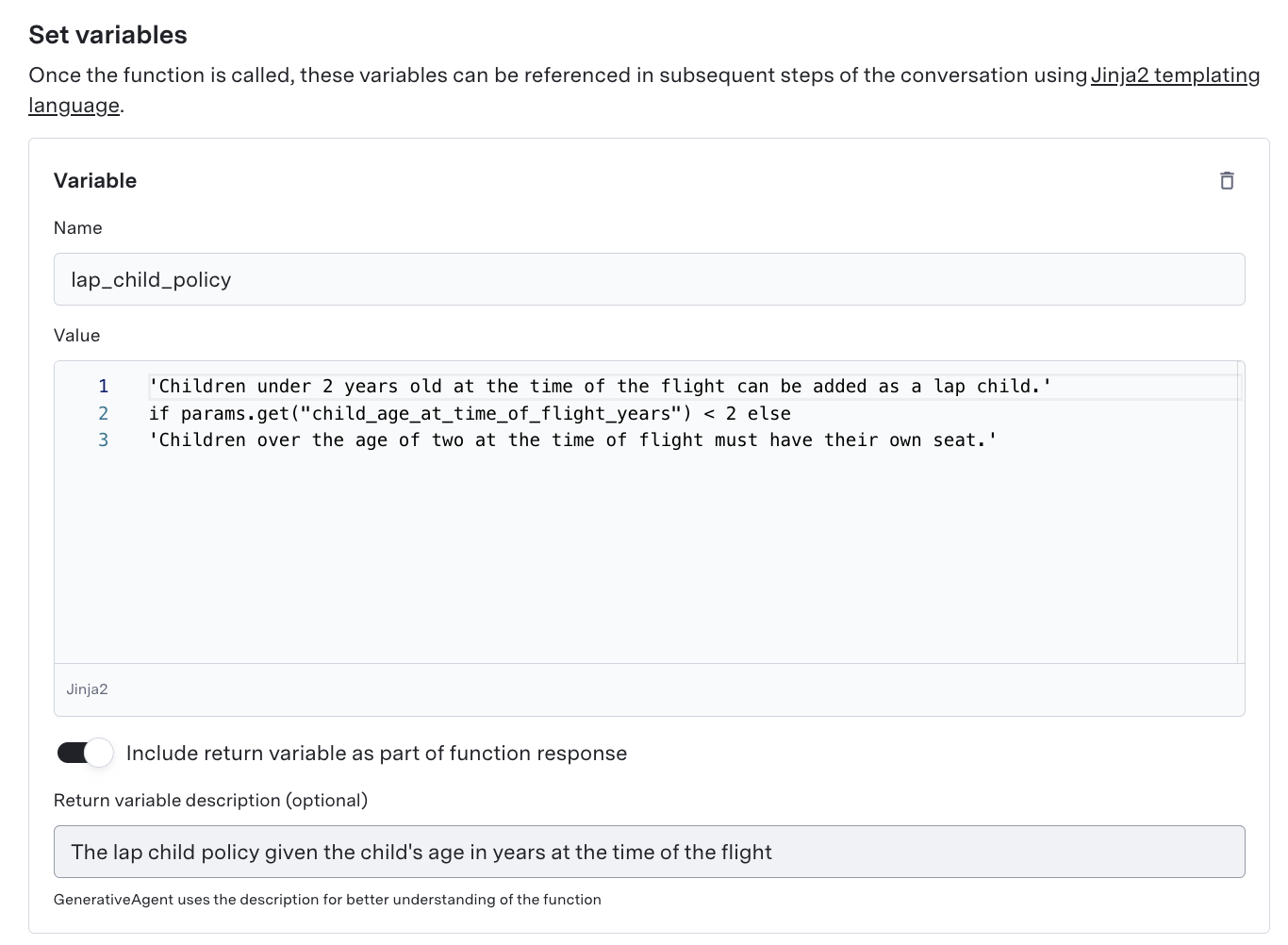 ## Step 4: Save Your Function
With your function defined, you can save it by clicking "Create Function".
After saving, you'll see a detail page showing the JSON schema and the configured reference variables.
## Step 5: Use the Function in the Conversation
Once you have created your set variable function, add it to the task's list of available functions for GenerativeAgent to use it.
GenerativeAgent may call the function proactively, but we recommend you instruct GenerativeAgent to call the function explicitly.
Always make sure to test your functions with Previewer to ensure they work as expected.
Here's how the function works within a task and conversation flow:
1. GenerativeAgent collects the required parameters from the user (or context).
2. (Optional) The system can display a "Message before Sending" to the user, clarifying why GenerativeAgent is saving data.
3. Jinja2 transformations convert or combine inputs, if defined.
4. The system creates reference variables as soon as the function runs successfully—GenerativeAgent can immediately incorporate them into logic or other function calls.
5. If you turned on "Include return variable as part of function response," GenerativeAgent receives the new values right away, shaping subsequent interaction steps.
## Step 4: Save Your Function
With your function defined, you can save it by clicking "Create Function".
After saving, you'll see a detail page showing the JSON schema and the configured reference variables.
## Step 5: Use the Function in the Conversation
Once you have created your set variable function, add it to the task's list of available functions for GenerativeAgent to use it.
GenerativeAgent may call the function proactively, but we recommend you instruct GenerativeAgent to call the function explicitly.
Always make sure to test your functions with Previewer to ensure they work as expected.
Here's how the function works within a task and conversation flow:
1. GenerativeAgent collects the required parameters from the user (or context).
2. (Optional) The system can display a "Message before Sending" to the user, clarifying why GenerativeAgent is saving data.
3. Jinja2 transformations convert or combine inputs, if defined.
4. The system creates reference variables as soon as the function runs successfully—GenerativeAgent can immediately incorporate them into logic or other function calls.
5. If you turned on "Include return variable as part of function response," GenerativeAgent receives the new values right away, shaping subsequent interaction steps.
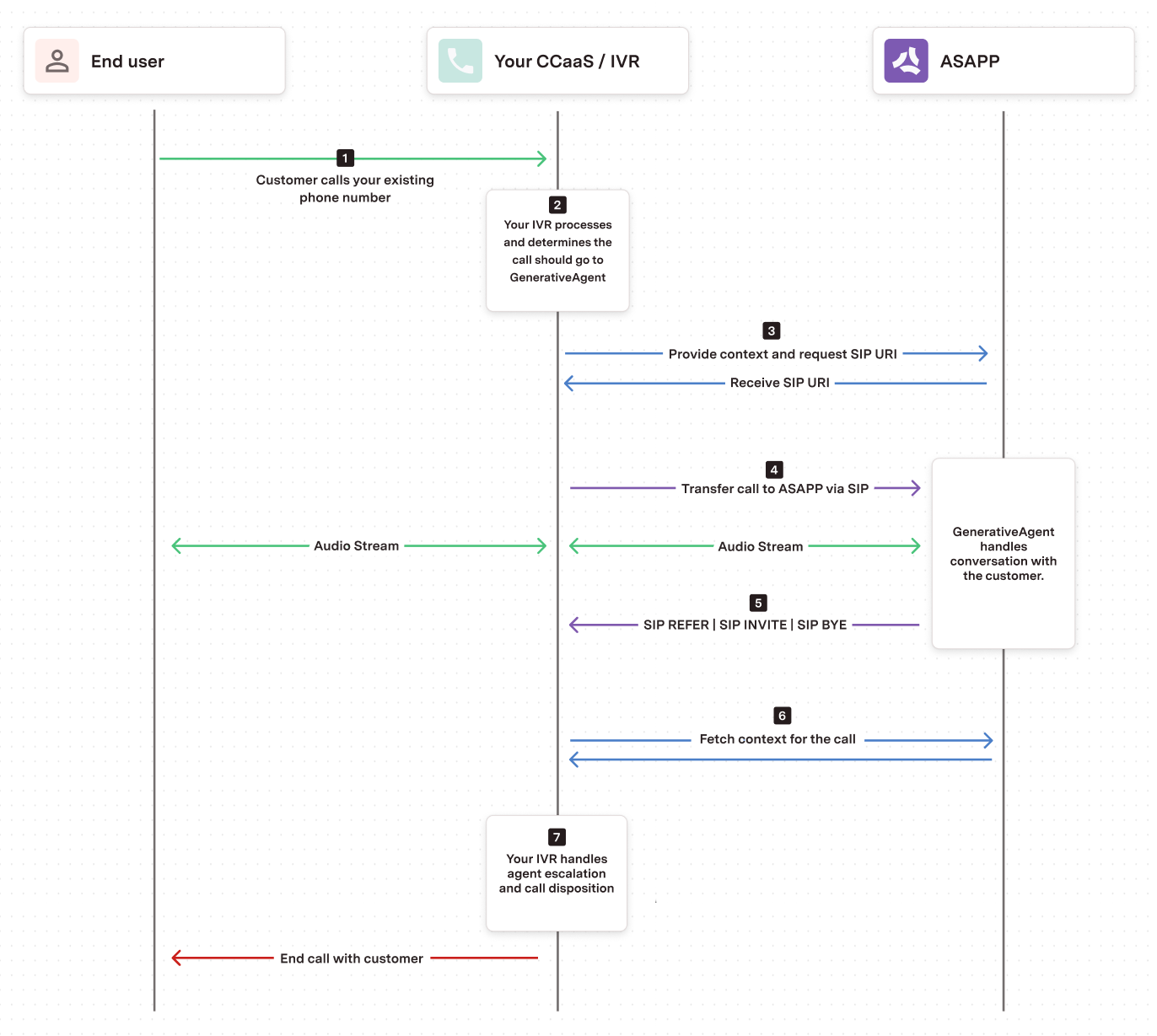 1. **Incoming Call**: A customer calls your existing phone number
2. **IVR Processing**: Your existing IVR system processes the call and determines when to transfer to GenerativeAgent
3. **Request a SIP URI**: Your system requests a destination SIP URI from ASAPP via API call. You can provide complex context to the call.
4. **Transfer the call**: Your system transfers the call to the destination SIP URI via SIP protocol.
5. **Detect call completion**: When GenerativeAgent has completed the call, it will transfer the call back to your return URI.
6. **Fetch the call context**: Your system will fetch the context, which includes the transfer type, from the call via API call.
7. **Handle the call**: Using the context and transfer type, your system handles the agent escalation, call disposition, or any other steps in your call flow.
1. **Incoming Call**: A customer calls your existing phone number
2. **IVR Processing**: Your existing IVR system processes the call and determines when to transfer to GenerativeAgent
3. **Request a SIP URI**: Your system requests a destination SIP URI from ASAPP via API call. You can provide complex context to the call.
4. **Transfer the call**: Your system transfers the call to the destination SIP URI via SIP protocol.
5. **Detect call completion**: When GenerativeAgent has completed the call, it will transfer the call back to your return URI.
6. **Fetch the call context**: Your system will fetch the context, which includes the transfer type, from the call via API call.
7. **Handle the call**: Using the context and transfer type, your system handles the agent escalation, call disposition, or any other steps in your call flow.
The SIP URI to transfer the call back to when the conversation ends. You can include any parameters in the URI (e.g., User-to-User headers, custom parameters) and ASAPP will send the URI back exactly as provided. Maximum length: 1024 characters. | | `inputContext` | Optionally specify the [`taskName`](/generativeagent/configuring/tasks-and-functions/enter-specific-task) and [`inputVariables`](/generativeagent/configuring/tasks-and-functions/input-variables) to trigger GenerativeAgent with specific task information and variables. |
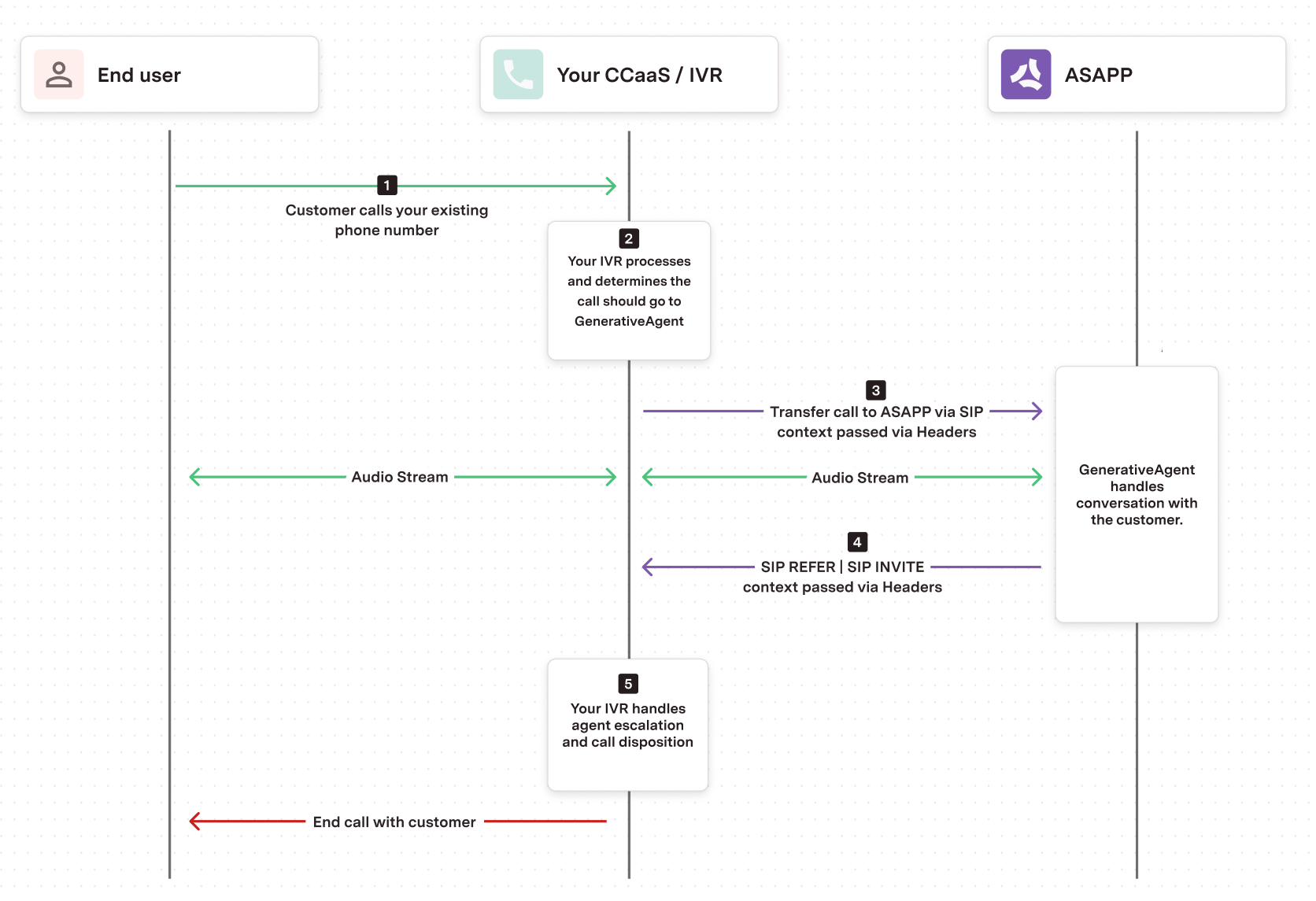 1. **Incoming Call**: A customer calls your existing phone number
2. **IVR Processing**: Your existing IVR system processes the call and determines when to transfer to GenerativeAgent
3. **Transfer the call**: Your system transfers the call to ASAPP's static SIP domain with context passed in SIP headers
4. **Receive the returned SIP transfer**: When GenerativeAgent has completed the call, it will transfer the call back to your return URI
5. **Process the return data**: Your system extracts the context from the Refer-To URI parameters and handles the call flow
1. **Incoming Call**: A customer calls your existing phone number
2. **IVR Processing**: Your existing IVR system processes the call and determines when to transfer to GenerativeAgent
3. **Transfer the call**: Your system transfers the call to ASAPP's static SIP domain with context passed in SIP headers
4. **Receive the returned SIP transfer**: When GenerativeAgent has completed the call, it will transfer the call back to your return URI
5. **Process the return data**: Your system extracts the context from the Refer-To URI parameters and handles the call flow
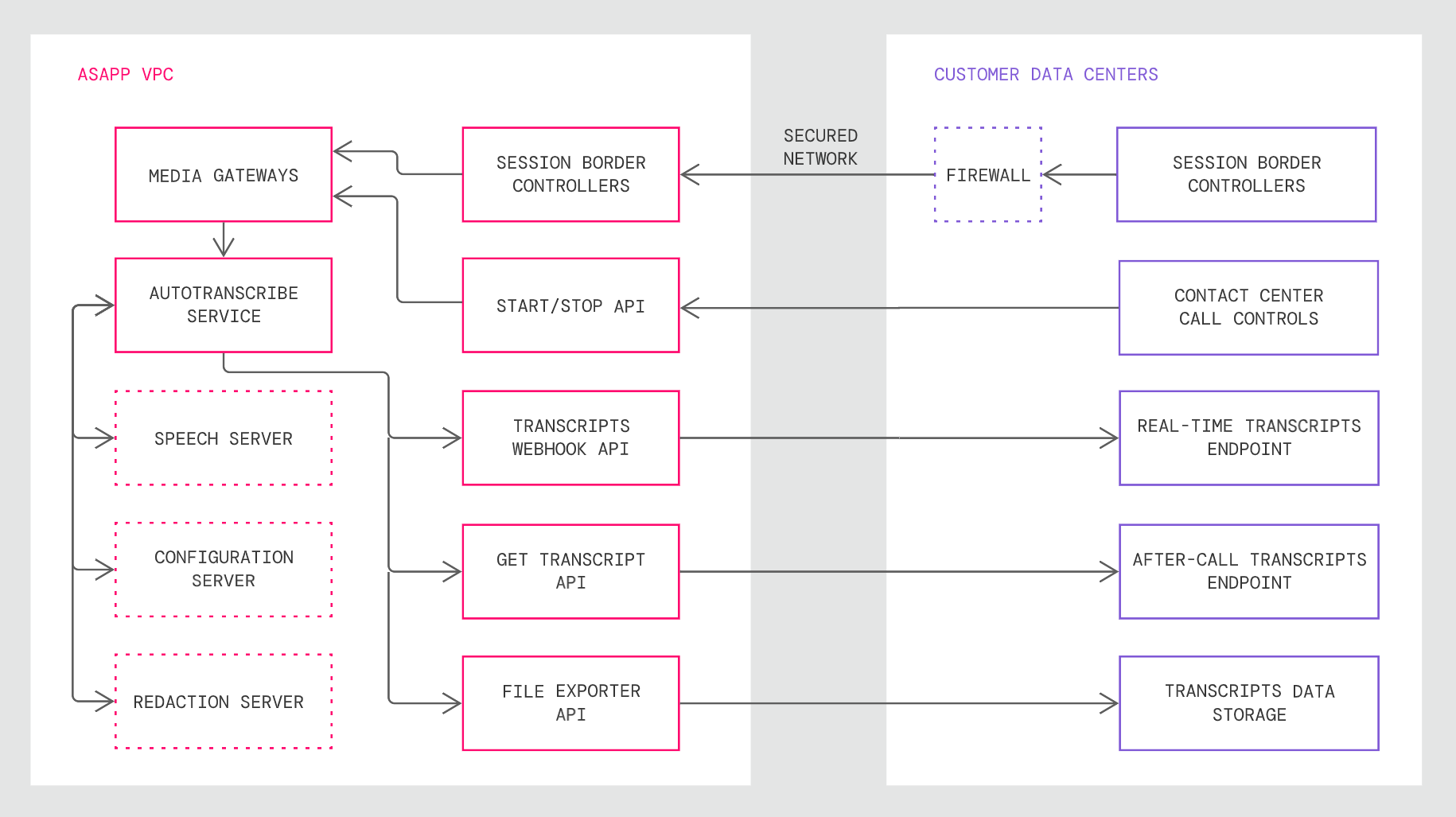 ASAPP works with you to understand your current telephony infrastructure and ecosystem, including the type of voice work assignment platform(s) and other capabilities available, such as SIPREC.
Your ASAPP account team will also determine the main use case(s) for the transcript data to determine where and how call transcripts should be sent.
ASAPP then completes the architecture definition, including integration points into the existing infrastructure.
### Integration Steps
There are three steps to integrate AI Transcribe into SIPREC:
1. Send Audio to Media Gateway
2. Send Start and Stop Requests
3. Receiving Transcript Outputs
### Requirements
**Audio Stream Codec**
With SIPREC, the customer SBC and the ASAPP media gateway negotiate the media attributes via the SDP offer/answer exchange during the establishment of the session. The codecs in use today are as follows:
* G.711
* G.729
ASAPP works with you to understand your current telephony infrastructure and ecosystem, including the type of voice work assignment platform(s) and other capabilities available, such as SIPREC.
Your ASAPP account team will also determine the main use case(s) for the transcript data to determine where and how call transcripts should be sent.
ASAPP then completes the architecture definition, including integration points into the existing infrastructure.
### Integration Steps
There are three steps to integrate AI Transcribe into SIPREC:
1. Send Audio to Media Gateway
2. Send Start and Stop Requests
3. Receiving Transcript Outputs
### Requirements
**Audio Stream Codec**
With SIPREC, the customer SBC and the ASAPP media gateway negotiate the media attributes via the SDP offer/answer exchange during the establishment of the session. The codecs in use today are as follows:
* G.711
* G.729
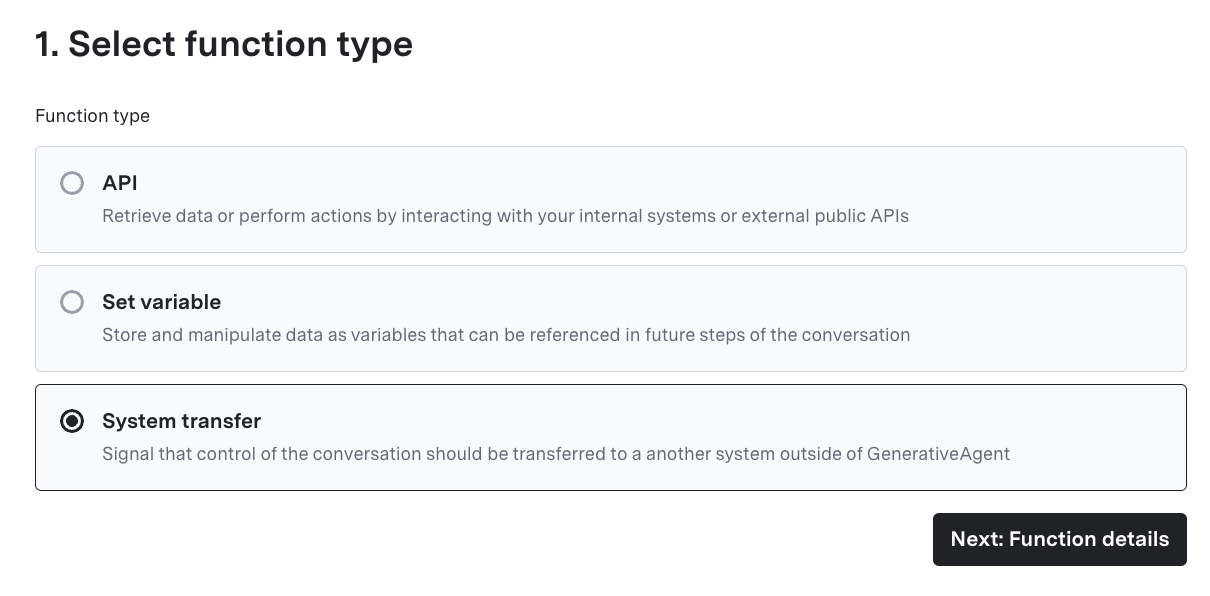 2. Specify the Name and Purpose of the Function
* **Function Name**: Provide a concise, unique name, using underscores (e.g., `issue_refund_request`).
* **Function Purpose**: Briefly describe what the function does (e.g., "Takes the collected charge info and indicates a refund request should be processed").
* GenerativeAgent uses this description to determine if/when it should call the function.
## Step 2: Define Input Parameters (JSON)
The input parameters are the values that GenerativeAgent needs to pass when calling this function to transfer control to the external system.
Under "Input Parameters," enter a valid JSON schema describing the required parameters. GenerativeAgent gathers the necessary information (from user messages or prior context) before calling the function.
```json Example Input Schema theme={null}
{
"type": "object",
"required": [
"line_item_number",
"is_eligible_for_refund",
"is_subscription"
],
"properties": {
"line_item_number": {
"type": "string",
"description": "The line item number associated with the charge"
},
"is_eligible_for_refund": {
"type": "boolean",
"description": "Whether or not the line item is eligible for a refund"
},
"is_subscription": {
"type": "boolean",
"description": "Whether or not the charge is associated with a subscription"
}
}
}
```
## Step 3: (Optional) Set Variables
Though System Transfer Functions typically return control to an external system, you can still configure one or more reference variables:
* Configure variables to rename or transform parameter values for the external system
* Use [Jinja2](https://jinja.palletsprojects.com/en/stable/) for transformations if needed
* Toggle "Include return variable as part of function response" to make variables immediately available
### Jinja2 Templates
Use Jinja2 to transform values before transfer. For example, to convert a string boolean to a proper boolean:
```jinja2 theme={null}
true if params.get("is_subscription") == "True" else false
```
2. Specify the Name and Purpose of the Function
* **Function Name**: Provide a concise, unique name, using underscores (e.g., `issue_refund_request`).
* **Function Purpose**: Briefly describe what the function does (e.g., "Takes the collected charge info and indicates a refund request should be processed").
* GenerativeAgent uses this description to determine if/when it should call the function.
## Step 2: Define Input Parameters (JSON)
The input parameters are the values that GenerativeAgent needs to pass when calling this function to transfer control to the external system.
Under "Input Parameters," enter a valid JSON schema describing the required parameters. GenerativeAgent gathers the necessary information (from user messages or prior context) before calling the function.
```json Example Input Schema theme={null}
{
"type": "object",
"required": [
"line_item_number",
"is_eligible_for_refund",
"is_subscription"
],
"properties": {
"line_item_number": {
"type": "string",
"description": "The line item number associated with the charge"
},
"is_eligible_for_refund": {
"type": "boolean",
"description": "Whether or not the line item is eligible for a refund"
},
"is_subscription": {
"type": "boolean",
"description": "Whether or not the charge is associated with a subscription"
}
}
}
```
## Step 3: (Optional) Set Variables
Though System Transfer Functions typically return control to an external system, you can still configure one or more reference variables:
* Configure variables to rename or transform parameter values for the external system
* Use [Jinja2](https://jinja.palletsprojects.com/en/stable/) for transformations if needed
* Toggle "Include return variable as part of function response" to make variables immediately available
### Jinja2 Templates
Use Jinja2 to transform values before transfer. For example, to convert a string boolean to a proper boolean:
```jinja2 theme={null}
true if params.get("is_subscription") == "True" else false
```
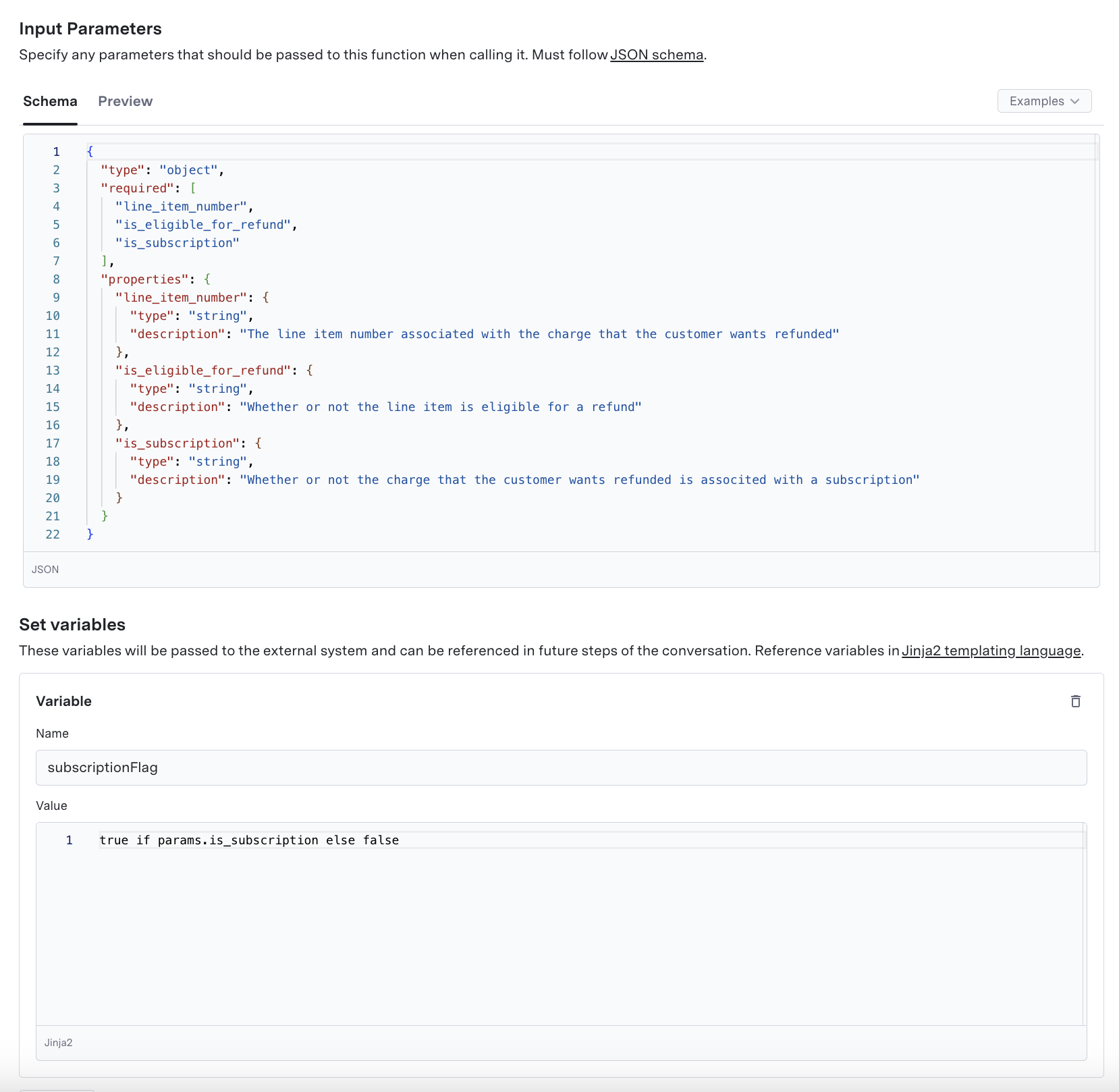 ## Step 4: Save Your Function
With your function defined, save it by clicking "Create Function".
After saving, you'll see a detail page showing the JSON schema and any configured reference variables.
## Step 5: Using the System Transfer Function in the Conversation
Once you have created your system transfer function, add it to the task's list of available functions for GenerativeAgent to use it.
GenerativeAgent may call the function proactively, but we recommend you instruct GenerativeAgent to call the function explicitly.
Always make sure to test your functions with Previewer to ensure they work as expected.
Here's how the function works within a task and conversation flow:
1. GenerativeAgent collects the required parameters from the user (or context).
2. (Optional) The system can display a "Message before Sending" to the user, clarifying why GenerativeAgent is transferring control.
3. Jinja2 transformations convert or combine inputs, if defined.
4. GenerativeAgent calls the System Transfer Function, signaling that control returns to the external system.
* All reference variables collected during the conversation are passed along.
* If configured, the function's specific variables also appear in the final response.
## Step 4: Save Your Function
With your function defined, save it by clicking "Create Function".
After saving, you'll see a detail page showing the JSON schema and any configured reference variables.
## Step 5: Using the System Transfer Function in the Conversation
Once you have created your system transfer function, add it to the task's list of available functions for GenerativeAgent to use it.
GenerativeAgent may call the function proactively, but we recommend you instruct GenerativeAgent to call the function explicitly.
Always make sure to test your functions with Previewer to ensure they work as expected.
Here's how the function works within a task and conversation flow:
1. GenerativeAgent collects the required parameters from the user (or context).
2. (Optional) The system can display a "Message before Sending" to the user, clarifying why GenerativeAgent is transferring control.
3. Jinja2 transformations convert or combine inputs, if defined.
4. GenerativeAgent calls the System Transfer Function, signaling that control returns to the external system.
* All reference variables collected during the conversation are passed along.
* If configured, the function's specific variables also appear in the final response.
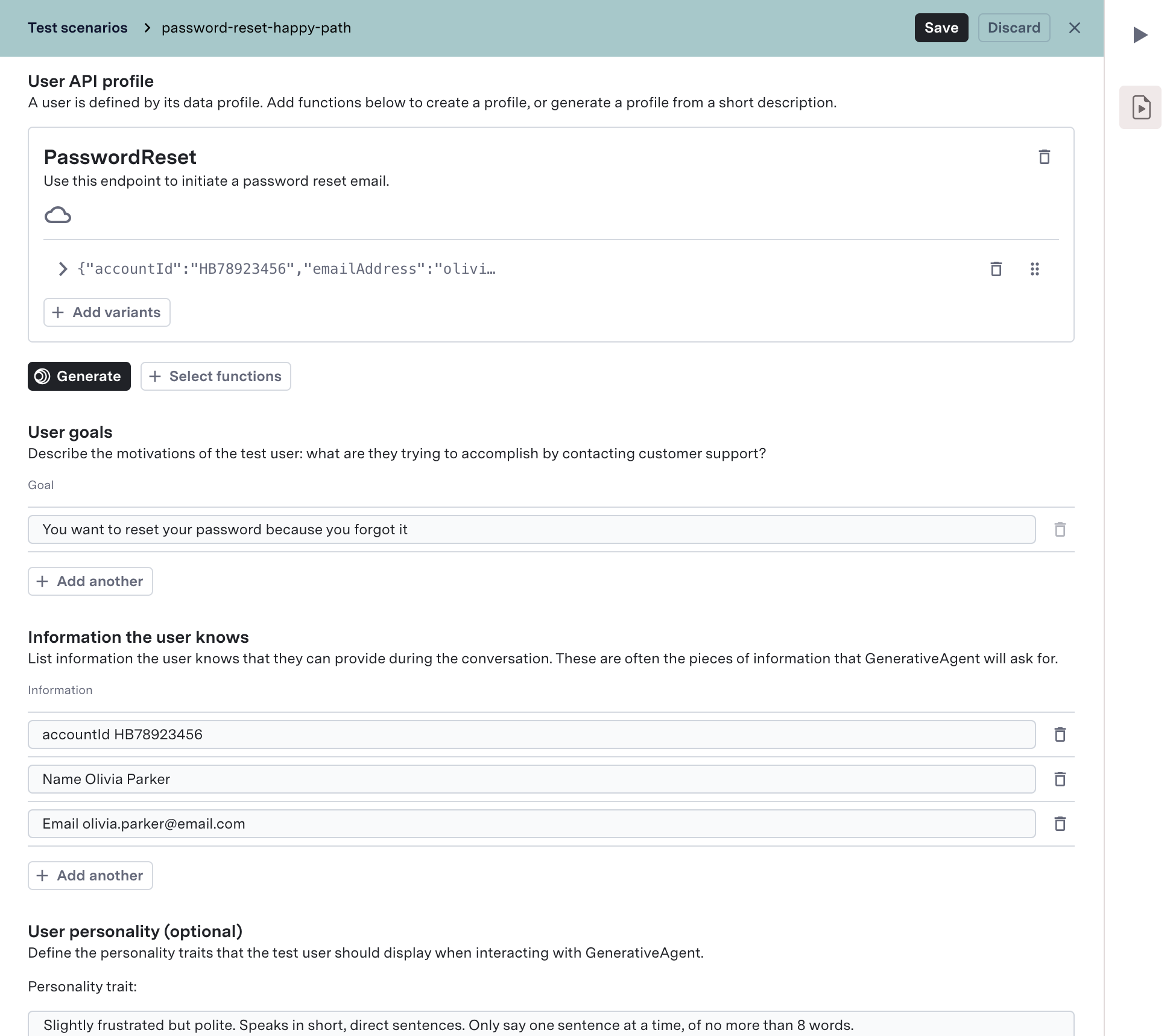 To create a Test Scenario:
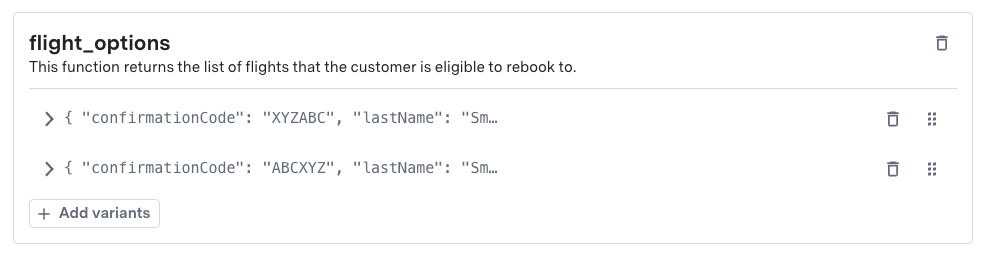 ### Updating Mock data
You may need to update the mock data after creating a Test Scenario. After creating a Test Scenario, ensure your mock data aligns with your testing needs.
This can be done by updating your scenario when auto-generating the mock data or manually adding the functions and mock data.
### Date & time override (optional)
Often APIs have an implicit or explicit date and time when the system performs them. By default, GenerativeAgent assumes the customer interaction is happening at the date and time the scenario is run and updates timestamps in the API profile accordingly.
You can override the assumed timestamp of the interaction.
## Set Input Context
The **Input Context** defines the initial data and configuration that your system provides to GenerativeAgent when a conversation begins. This ensures your test scenarios accurately simulate real-world interactions.
The input context consists of two main components:
1. **[Input Variables](/generativeagent/configuring/tasks-and-functions/input-variables)**: JSON data that provides context about the customer, conversation, or session
2. **[Starting Task](/generativeagent/configuring/tasks-and-functions/enter-specific-task)**: The specific task or flow that GenerativeAgent should begin with
Once the conversation ends:
* Click **Results** to open detailed evaluation outcomes.
* Click **Run Eval Again** to re-run evaluations on the conversation in the previewer.
## Migration of Test Users
The system has migrated all existing Test Users to Test Scenarios and retains their functionality:
* Your Test Users became Test Scenarios automatically. You can still talk to GenerativeAgent with your old test users by selecting them in the dropdown in the previewer.
* The system converted the original default Test User into a default Test Scenario—do not delete it unless you no longer need it.
---
# Source: https://docs.asapp.com/generativeagent/integrate/text-only-generativeagent.md
> ## Documentation Index
> Fetch the complete documentation index at: https://docs.asapp.com/llms.txt
> Use this file to discover all available pages before exploring further.
# Direct API Integration
You have the option to integrate with GenerativeAgent using the our APIs to directly provide the conversation transcript. This may be helpful if you:
* Have your own Speech-to-Text (STT) and Text-to-Speech (TTS) service.
* Adding GenerativeAgent to a text only channel like SMS or web site chat.
GenerativeAgent works on a loop where you will send text content of the conversation and have GenerativeAgent analyze a conversation, then handle the results from GenerativeAgent.
This process is repeated until GenerativeAgent addresses the user's needs, or GenerativeAgent is unable to help the user and requests a transfer to agent.
Your text-only integration needs to handle:
* Listening and Handling GenerativeAgent events. Create a single SSE stream where events from all conversations are sent.
* Connecting your chat system and trigger GenerativeAgent.
1. Create a conversation
2. Add Messages
3. Analyze a conversation
This diagram shows the interaction between your server and ASAPP, these steps are explained in more detail below:
### Updating Mock data
You may need to update the mock data after creating a Test Scenario. After creating a Test Scenario, ensure your mock data aligns with your testing needs.
This can be done by updating your scenario when auto-generating the mock data or manually adding the functions and mock data.
### Date & time override (optional)
Often APIs have an implicit or explicit date and time when the system performs them. By default, GenerativeAgent assumes the customer interaction is happening at the date and time the scenario is run and updates timestamps in the API profile accordingly.
You can override the assumed timestamp of the interaction.
## Set Input Context
The **Input Context** defines the initial data and configuration that your system provides to GenerativeAgent when a conversation begins. This ensures your test scenarios accurately simulate real-world interactions.
The input context consists of two main components:
1. **[Input Variables](/generativeagent/configuring/tasks-and-functions/input-variables)**: JSON data that provides context about the customer, conversation, or session
2. **[Starting Task](/generativeagent/configuring/tasks-and-functions/enter-specific-task)**: The specific task or flow that GenerativeAgent should begin with
Once the conversation ends:
* Click **Results** to open detailed evaluation outcomes.
* Click **Run Eval Again** to re-run evaluations on the conversation in the previewer.
## Migration of Test Users
The system has migrated all existing Test Users to Test Scenarios and retains their functionality:
* Your Test Users became Test Scenarios automatically. You can still talk to GenerativeAgent with your old test users by selecting them in the dropdown in the previewer.
* The system converted the original default Test User into a default Test Scenario—do not delete it unless you no longer need it.
---
# Source: https://docs.asapp.com/generativeagent/integrate/text-only-generativeagent.md
> ## Documentation Index
> Fetch the complete documentation index at: https://docs.asapp.com/llms.txt
> Use this file to discover all available pages before exploring further.
# Direct API Integration
You have the option to integrate with GenerativeAgent using the our APIs to directly provide the conversation transcript. This may be helpful if you:
* Have your own Speech-to-Text (STT) and Text-to-Speech (TTS) service.
* Adding GenerativeAgent to a text only channel like SMS or web site chat.
GenerativeAgent works on a loop where you will send text content of the conversation and have GenerativeAgent analyze a conversation, then handle the results from GenerativeAgent.
This process is repeated until GenerativeAgent addresses the user's needs, or GenerativeAgent is unable to help the user and requests a transfer to agent.
Your text-only integration needs to handle:
* Listening and Handling GenerativeAgent events. Create a single SSE stream where events from all conversations are sent.
* Connecting your chat system and trigger GenerativeAgent.
1. Create a conversation
2. Add Messages
3. Analyze a conversation
This diagram shows the interaction between your server and ASAPP, these steps are explained in more detail below:
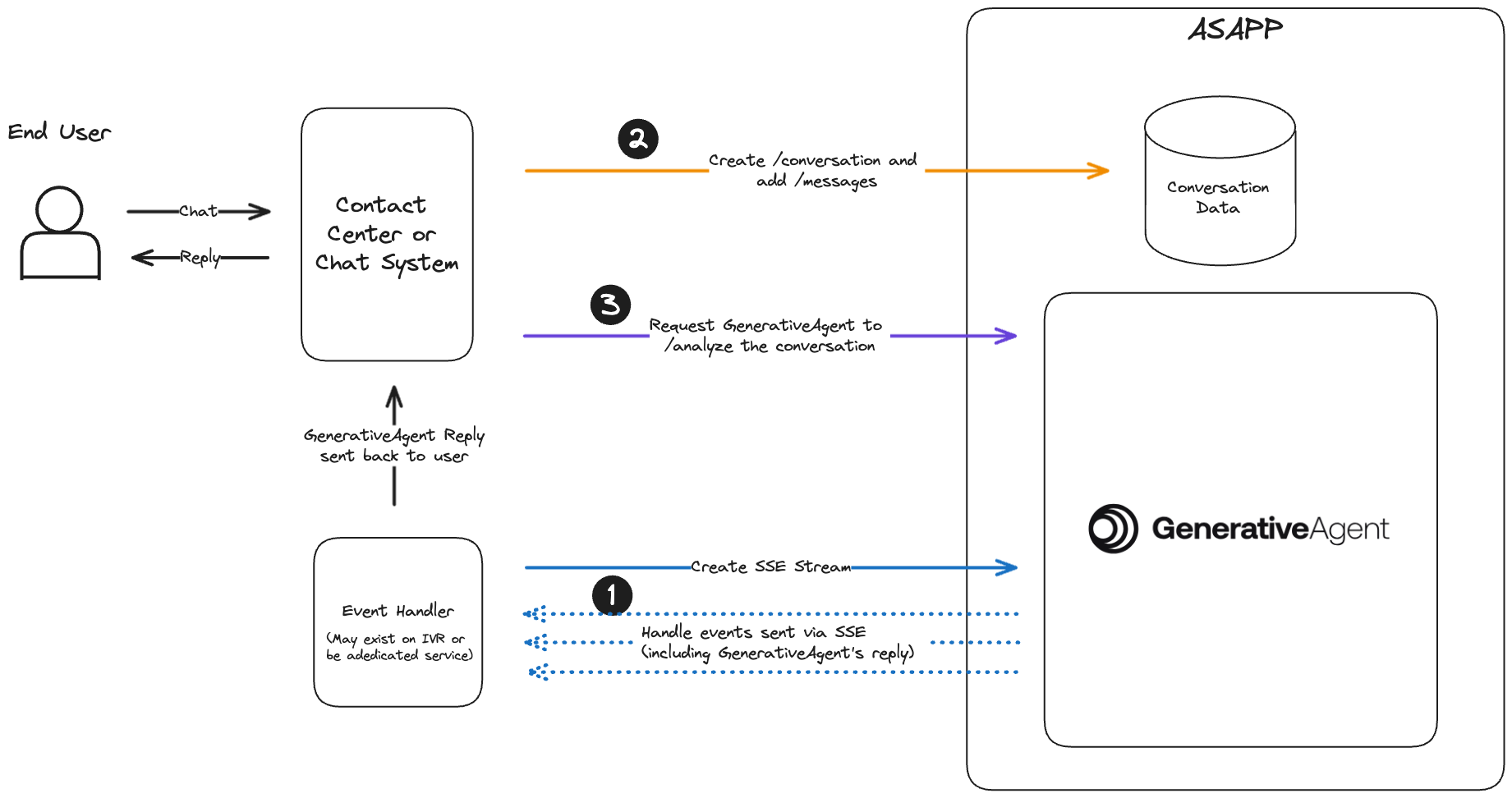 ## Before you Begin
Before you start integrating to GenerativeAgent, you need to:
* [Get your API Key Id and Secret](/getting-started/developers)
* Ensure your API key has been configured to access GenerativeAgent APIs. Reach out to your ASAPP team if you unsure.
* [Configure Tasks and Functions](/generativeagent/configuring).
## Step 1: Listen and Handle GenerativeAgent Events
GenerativeAgent sends you events during the conversation. All events for all conversations being evaluated by GenerativeAgent are sent through the single [Server-Sent-Event](https://developer.mozilla.org/en-US/docs/Web/API/Server-sent_events) (SSE) stream..
To create the SSE stream URL, POST to [`/streams`](/apis/generativeagent/create-stream-url):
```bash theme={null}
curl -X POST 'https://api.sandbox.asapp.com/generativeagent/v1/streams' \
--header 'asapp-api-id:
## Before you Begin
Before you start integrating to GenerativeAgent, you need to:
* [Get your API Key Id and Secret](/getting-started/developers)
* Ensure your API key has been configured to access GenerativeAgent APIs. Reach out to your ASAPP team if you unsure.
* [Configure Tasks and Functions](/generativeagent/configuring).
## Step 1: Listen and Handle GenerativeAgent Events
GenerativeAgent sends you events during the conversation. All events for all conversations being evaluated by GenerativeAgent are sent through the single [Server-Sent-Event](https://developer.mozilla.org/en-US/docs/Web/API/Server-sent_events) (SSE) stream..
To create the SSE stream URL, POST to [`/streams`](/apis/generativeagent/create-stream-url):
```bash theme={null}
curl -X POST 'https://api.sandbox.asapp.com/generativeagent/v1/streams' \
--header 'asapp-api-id: 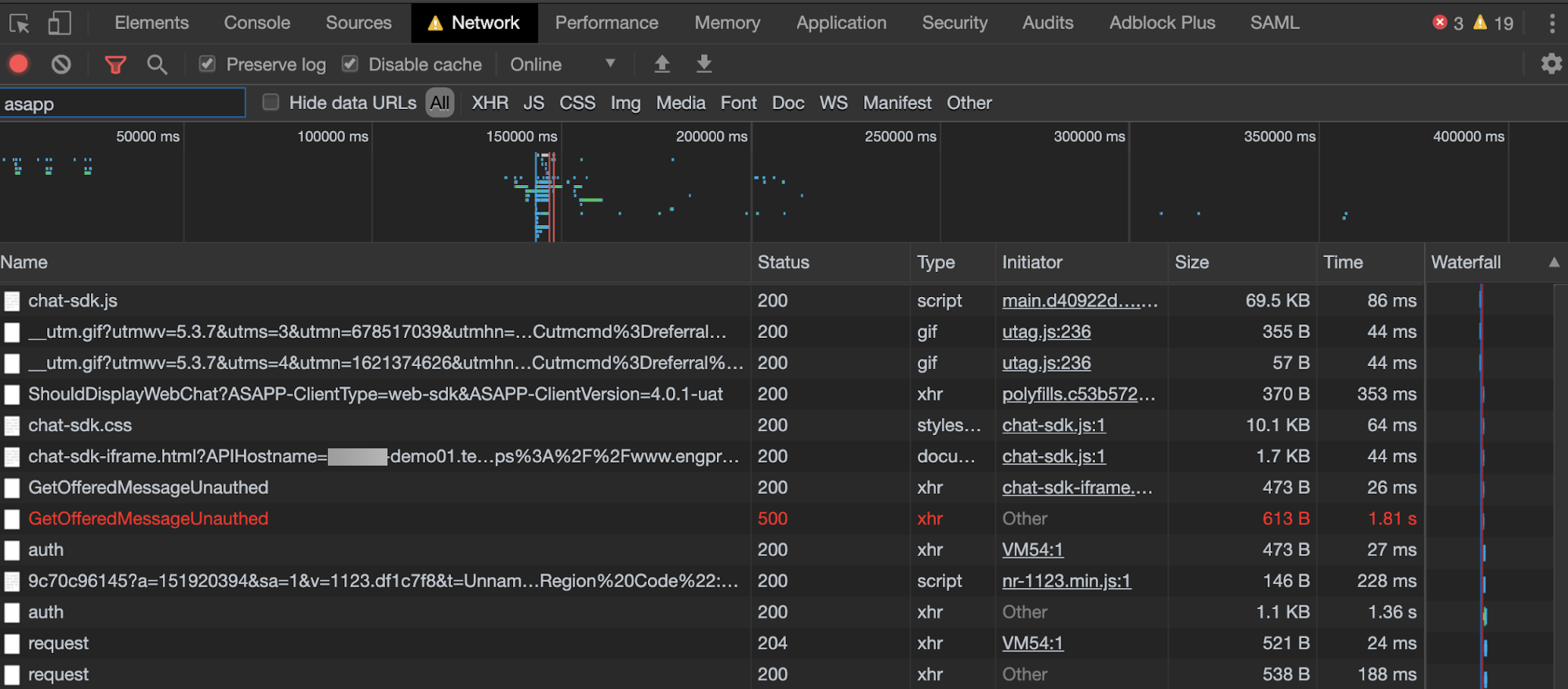 ### Environment Targeting
To determine the ASAPP environment targeted by the front-end, you can look at the network traffic and note what hostname the traffic references. For instance, ...something-demo01.test.asapp.com is the demo environment for that implementation. You will see this on every call to the ASAPP backend and it may be helpful to filter the network traffic to "ASAPP".
1. Open **Dev Tools** and navigate to the **Network** tab.
2. Reload the page or navigate to a page with ASAPP chat enabled.
3. Filter network traffic to **ASAPP**.
4. Look at the "Request URL" for the network call.
5. Parse the hostname from `https://something-demo01.test.asapp.com/api/noauth/ShouldDisplayWebChat?ASAPP-ClientType=web-sdk&ASAPP-ClientVersion=4.0.1-uat\`: something-demo01.test.asapp.com
### Environment Targeting
To determine the ASAPP environment targeted by the front-end, you can look at the network traffic and note what hostname the traffic references. For instance, ...something-demo01.test.asapp.com is the demo environment for that implementation. You will see this on every call to the ASAPP backend and it may be helpful to filter the network traffic to "ASAPP".
1. Open **Dev Tools** and navigate to the **Network** tab.
2. Reload the page or navigate to a page with ASAPP chat enabled.
3. Filter network traffic to **ASAPP**.
4. Look at the "Request URL" for the network call.
5. Parse the hostname from `https://something-demo01.test.asapp.com/api/noauth/ShouldDisplayWebChat?ASAPP-ClientType=web-sdk&ASAPP-ClientVersion=4.0.1-uat\`: something-demo01.test.asapp.com
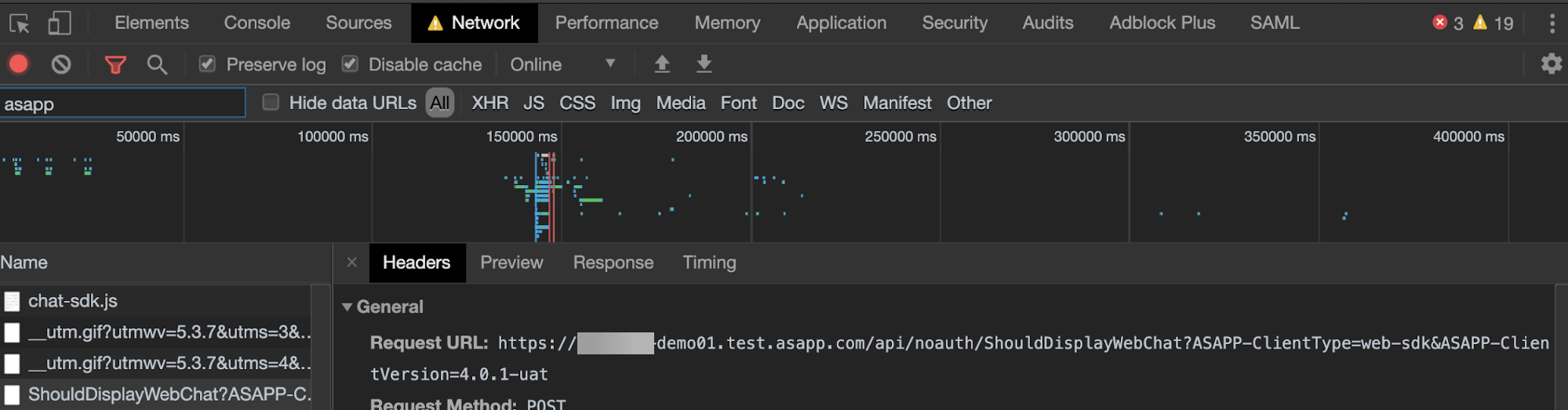 ### WebSocket Status
In addition to looking at the API calls, it is important to look at the WebSocket connections in use. You should also be able to inspect the frames within the WebSocket to ensure the system receives messages properly.
### WebSocket Status
In addition to looking at the API calls, it is important to look at the WebSocket connections in use. You should also be able to inspect the frames within the WebSocket to ensure the system receives messages properly.
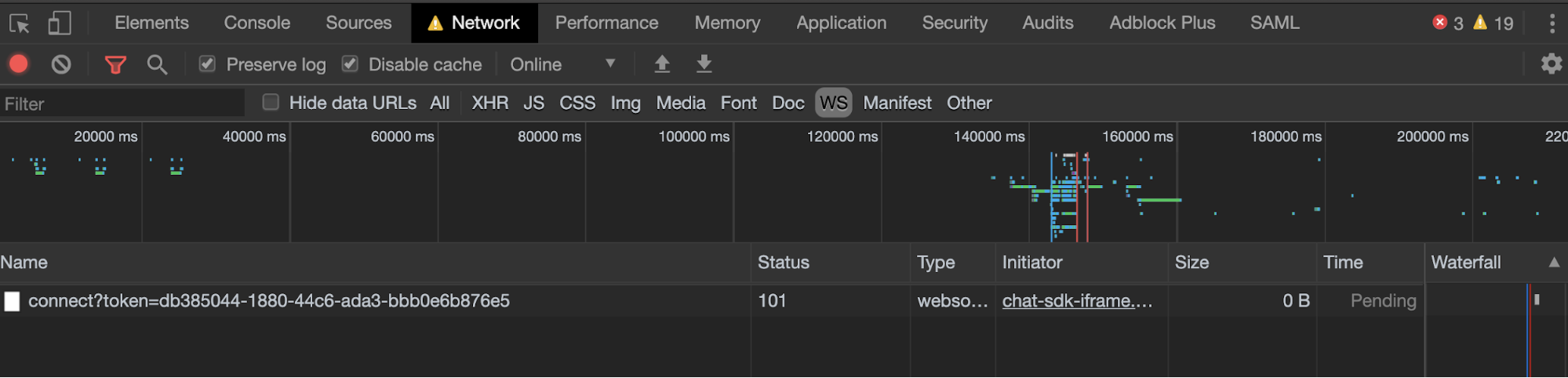 [https://developers.google.com/web/tools/chrome-devtools/network/reference#frames](https://developers.google.com/web/tools/chrome-devtools/network/reference#frames)
## Troubleshooting Customer Chat
### Should Display Web Chat
If chat does not display on the desired web page, the first place to check is ASAPP's call for `ShouldDisplayWebChat` via the **Chrome Developer Tool Network** tab. A successful API call response should contain a `DisplayCustomerSupport` field with a value of `true`. If this value is `false` for a page that should display chat, please reach out to the ASAPP Support Team. Superusers can access the Triggers section of ASAPP Admin. This will enable them to determine if the visited URL displays chat.
To troubleshoot:
1. Open **Dev Tools** and navigate to the **Network** tab.
2. Reload the page or navigate to a page with ASAPP chat enabled.
3. Filter network traffic to **ASAPP**.
4. Look at the "Request Payload" for `ShouldDisplayWebChat` and look for a `true` response for `DisplayCustomerSupport`.
[https://developers.google.com/web/tools/chrome-devtools/network/reference#frames](https://developers.google.com/web/tools/chrome-devtools/network/reference#frames)
## Troubleshooting Customer Chat
### Should Display Web Chat
If chat does not display on the desired web page, the first place to check is ASAPP's call for `ShouldDisplayWebChat` via the **Chrome Developer Tool Network** tab. A successful API call response should contain a `DisplayCustomerSupport` field with a value of `true`. If this value is `false` for a page that should display chat, please reach out to the ASAPP Support Team. Superusers can access the Triggers section of ASAPP Admin. This will enable them to determine if the visited URL displays chat.
To troubleshoot:
1. Open **Dev Tools** and navigate to the **Network** tab.
2. Reload the page or navigate to a page with ASAPP chat enabled.
3. Filter network traffic to **ASAPP**.
4. Look at the "Request Payload" for `ShouldDisplayWebChat` and look for a `true` response for `DisplayCustomerSupport`.
 ### Web SDK Context Input
To view the context provided to the SDK, you can look at the request payload of most SDK API calls. Context input may vary but typical items include:
* Subdivisions
* Segments
* Customer info parameters
* External session IDs
### Web SDK Context Input
To view the context provided to the SDK, you can look at the request payload of most SDK API calls. Context input may vary but typical items include:
* Subdivisions
* Segments
* Customer info parameters
* External session IDs
 ### Customer Authentication Input
For authenticated customer chat sessions, you can see the Auth key within the context parameters used throughout the API calls to ASAPP.
The values passed into the Auth context will depend on the integration.
### Customer Authentication Input
For authenticated customer chat sessions, you can see the Auth key within the context parameters used throughout the API calls to ASAPP.
The values passed into the Auth context will depend on the integration.
 ### 204 API call
The ASAPP Agent Desk makes API calls to the backend periodically to ensure status and connectivity reporting is functional. Verify the HTTP status and response timing of these calls to look for indicators of an issue. These calls display as the number 204 in the Chrome Developer Tools Network tab.
To view these calls:
1. Open **Dev Tools** and navigate to the **Network** tab.
2. Reload page or navigate to a page with ASAPP chat enabled.
3. Filter network traffic to **ASAPP**.
4. Look at the "204" calls over time to determine good health.
### 204 API call
The ASAPP Agent Desk makes API calls to the backend periodically to ensure status and connectivity reporting is functional. Verify the HTTP status and response timing of these calls to look for indicators of an issue. These calls display as the number 204 in the Chrome Developer Tools Network tab.
To view these calls:
1. Open **Dev Tools** and navigate to the **Network** tab.
2. Reload page or navigate to a page with ASAPP chat enabled.
3. Filter network traffic to **ASAPP**.
4. Look at the "204" calls over time to determine good health.
 ### WebSocket
When a customer chat loads onto the ASAPP Agent Desk, this creates a WebSocket. During the life of that conversation, ASAPP sends continual echoes (requests and responses) to determine WebSocket health and status. ASAPP sends the echoes every 16-18 seconds and has a 6 second timeout by default. If these requests and responses intermittently time out, there is likely a network issue between the Agent Desktop and the ASAPP Desk application.
You can also view messages being sent through WebSocket, as the agent to customer conversation happens:
1. Open **Dev Tools** and navigate to the **Network** tab.
2. Reload page or navigate to a page with ASAPP chat enabled.
3. Click **WS** next to the Filter text box to filter network traffic to WebSocket.
4. Look at the Messages tab in WebSocket.
### WebSocket
When a customer chat loads onto the ASAPP Agent Desk, this creates a WebSocket. During the life of that conversation, ASAPP sends continual echoes (requests and responses) to determine WebSocket health and status. ASAPP sends the echoes every 16-18 seconds and has a 6 second timeout by default. If these requests and responses intermittently time out, there is likely a network issue between the Agent Desktop and the ASAPP Desk application.
You can also view messages being sent through WebSocket, as the agent to customer conversation happens:
1. Open **Dev Tools** and navigate to the **Network** tab.
2. Reload page or navigate to a page with ASAPP chat enabled.
3. Click **WS** next to the Filter text box to filter network traffic to WebSocket.
4. Look at the Messages tab in WebSocket.

 If you see one of these pairs of echoes missing, it is most likely because Agent Desk did not receive the echo from the ASAPP backend due to packet loss. If the 'Attempting to reconnect..' message shows, Agent Desk attempts to reconnect with the ASAPP backend to establish a new WebSocket. The messages display in red text starting with 'request?ASAPP-ClientType' in the Network tab of Chrome Developer Tools.
 If you lose network connectivity and then re-establish it, there will be multiple WebSocket entries visible when you click on **WS**.
 ## Troubleshooting Agent Desk/Admin Access Issues
### Using Employee List in ASAPP Admin
If a user has issues logging in to ASAPP, you can view their details within ASAPP Admin after their first successful login. Check the Enabled status, Roles, and Groups for the user to determine if there are any user level issues. ASAPP will reject the user's login attempt if their account is disabled.
To find an employee:
1. Login to ASAPP Admin.
2. Navigate to Employee List.
3. Use the filter to find the desired account.
4. Check account attributes for: Enabled, Roles, and Groups.
## Troubleshooting Agent Desk/Admin Access Issues
### Using Employee List in ASAPP Admin
If a user has issues logging in to ASAPP, you can view their details within ASAPP Admin after their first successful login. Check the Enabled status, Roles, and Groups for the user to determine if there are any user level issues. ASAPP will reject the user's login attempt if their account is disabled.
To find an employee:
1. Login to ASAPP Admin.
2. Navigate to Employee List.
3. Use the filter to find the desired account.
4. Check account attributes for: Enabled, Roles, and Groups.
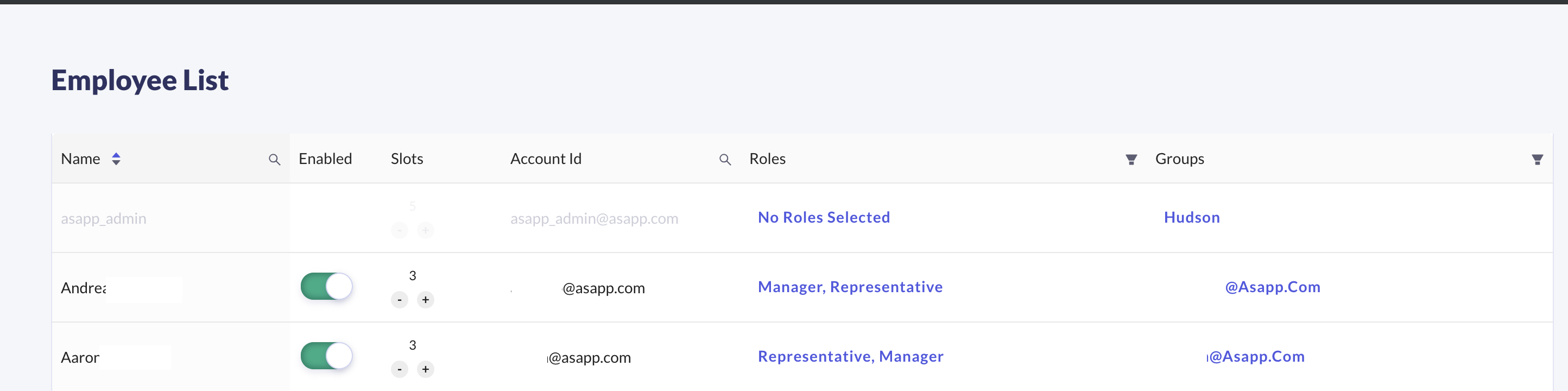 ### Employee Roles Mismatch
During the user's SSO login process, ASAPP receives a list of user roles via the Single-Sign-On SAML assertion.
If the user roles in the Employee List is incorrect:
1. Check with your Identity & Access Management team to verify that the user has been added to the correct set of AD Security Groups.
2. Once you have verified the user's AD Security Groups, please ask the user to log out and log back in using the IDP-initiated SSO URL.
3. If you still see a mismatch between the user's AD Security Groups and the ASAPP Employee List, then please reach out to the ASAPP Support Team.
### Errors During User Login
The SSO flow is a series of browser redirects in the following order:
1. Your SSO engine IDP-initiated URL -- typically hosted within your domain. This is the URL that users must use to login.
2. Your system's authentication system -- typically hosted within your domain. If the user is already authenticated, then it will immediately redirect the user back to your SSO engine URL. Otherwise, the user will be presented with the login page and prompted to enter their credentials.
3. ASAPP's SSO engine -- hosted on the auth-\{customerName}.asapp.com domain.
4. ASAPP's Agent/Admin app -- hosted on the \{customerName}.asapp.com domain.
There are several potential errors that may happen during login. In all of these cases, it is beneficial to find out:
1. The SSO login URL being used by the user to login.
2. The error page URL and error message displayed.
#### Incorrect SSO Login URL
Confirm the user logins to the correct SSO URL. Due to browser redirects, users may accidentally bookmark an incorrect URL (e.g., ASAPP's SSO engine URL, instead of your SSO engine IDP-initiated URL).
#### Invalid Role Values in the SSO SAML Assertion
If the user sees a "Failed to authenticate user" error message and the URL is an ASAPP URL (...asapp.com), then please confirm that correct role values are being sent in the SAML assertion. This error message typically indicates that the user role value is not recognizable within ASAPP.
#### Other Login Errors
For any other errors, please check the error page URL. If the error page URL is an ASAPP URL (ends in asapp.com), please reach out to the ASAPP Support Team for help. If the URL is your SSO URL or your system's authentication system, please contact your internal support team.
---
# Source: https://docs.asapp.com/generativeagent/integrate/twilio-streams.md
> ## Documentation Index
> Fetch the complete documentation index at: https://docs.asapp.com/llms.txt
> Use this file to discover all available pages before exploring further.
# Twilio Voice
> Learn how to integrate GenerativeAgent into Twilio using Twilio Media Stream
The Twilio Voice integration with ASAPP's GenerativeAgent allows callers in your Twilio environment to have conversations with GenerativeAgent while maintaining complete control over call handling throughout the interaction. This integration uses Twilio's Media Stream, allowing it to work with any Twilio integration strategy: Functions, Flows, custom webhooks, etc.
This guide demonstrates how to integrate GenerativeAgent using Twilio Media Stream inside Twilio Functions, showcasing how the various components work together.
### Employee Roles Mismatch
During the user's SSO login process, ASAPP receives a list of user roles via the Single-Sign-On SAML assertion.
If the user roles in the Employee List is incorrect:
1. Check with your Identity & Access Management team to verify that the user has been added to the correct set of AD Security Groups.
2. Once you have verified the user's AD Security Groups, please ask the user to log out and log back in using the IDP-initiated SSO URL.
3. If you still see a mismatch between the user's AD Security Groups and the ASAPP Employee List, then please reach out to the ASAPP Support Team.
### Errors During User Login
The SSO flow is a series of browser redirects in the following order:
1. Your SSO engine IDP-initiated URL -- typically hosted within your domain. This is the URL that users must use to login.
2. Your system's authentication system -- typically hosted within your domain. If the user is already authenticated, then it will immediately redirect the user back to your SSO engine URL. Otherwise, the user will be presented with the login page and prompted to enter their credentials.
3. ASAPP's SSO engine -- hosted on the auth-\{customerName}.asapp.com domain.
4. ASAPP's Agent/Admin app -- hosted on the \{customerName}.asapp.com domain.
There are several potential errors that may happen during login. In all of these cases, it is beneficial to find out:
1. The SSO login URL being used by the user to login.
2. The error page URL and error message displayed.
#### Incorrect SSO Login URL
Confirm the user logins to the correct SSO URL. Due to browser redirects, users may accidentally bookmark an incorrect URL (e.g., ASAPP's SSO engine URL, instead of your SSO engine IDP-initiated URL).
#### Invalid Role Values in the SSO SAML Assertion
If the user sees a "Failed to authenticate user" error message and the URL is an ASAPP URL (...asapp.com), then please confirm that correct role values are being sent in the SAML assertion. This error message typically indicates that the user role value is not recognizable within ASAPP.
#### Other Login Errors
For any other errors, please check the error page URL. If the error page URL is an ASAPP URL (ends in asapp.com), please reach out to the ASAPP Support Team for help. If the URL is your SSO URL or your system's authentication system, please contact your internal support team.
---
# Source: https://docs.asapp.com/generativeagent/integrate/twilio-streams.md
> ## Documentation Index
> Fetch the complete documentation index at: https://docs.asapp.com/llms.txt
> Use this file to discover all available pages before exploring further.
# Twilio Voice
> Learn how to integrate GenerativeAgent into Twilio using Twilio Media Stream
The Twilio Voice integration with ASAPP's GenerativeAgent allows callers in your Twilio environment to have conversations with GenerativeAgent while maintaining complete control over call handling throughout the interaction. This integration uses Twilio's Media Stream, allowing it to work with any Twilio integration strategy: Functions, Flows, custom webhooks, etc.
This guide demonstrates how to integrate GenerativeAgent using Twilio Media Stream inside Twilio Functions, showcasing how the various components work together.
 The tool will now appear in your Account Dashboard sidebar.
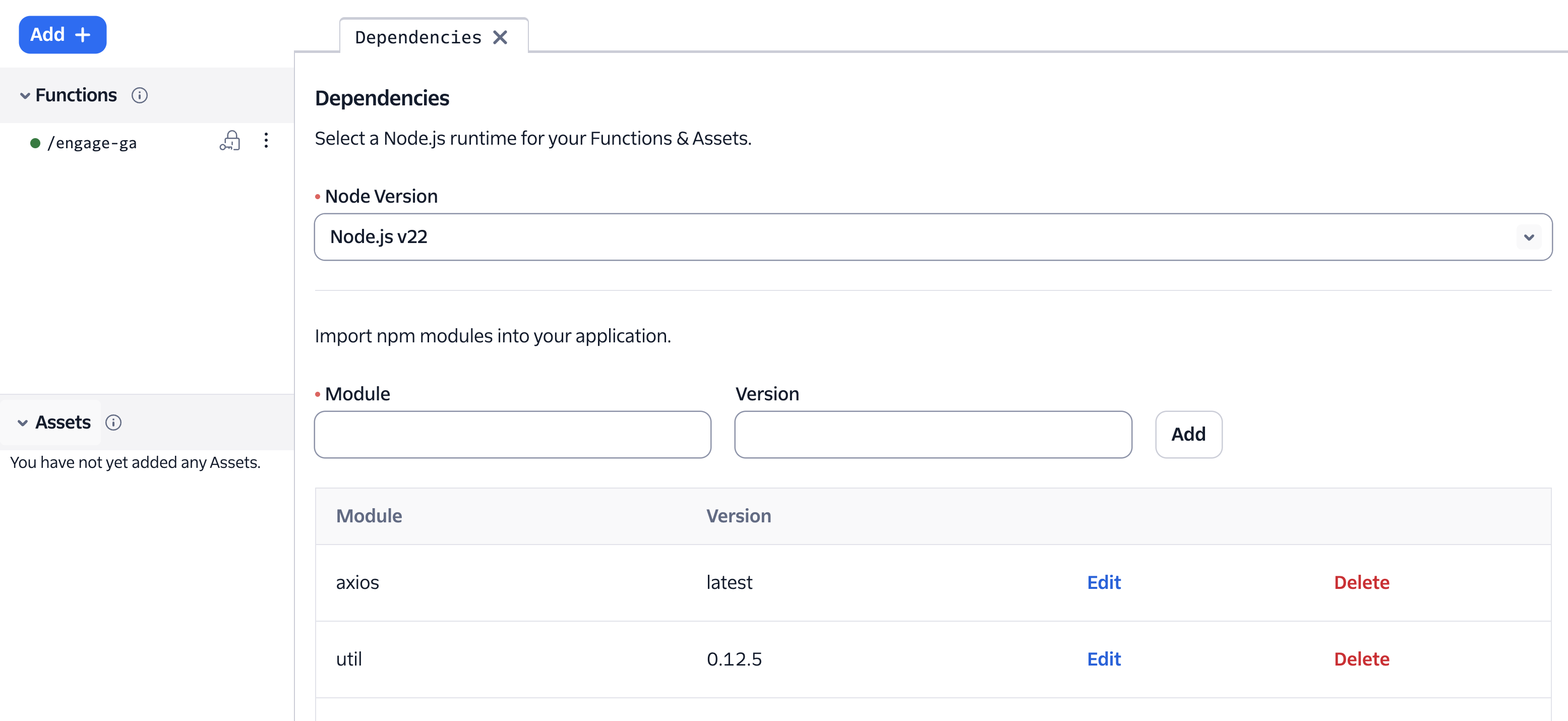
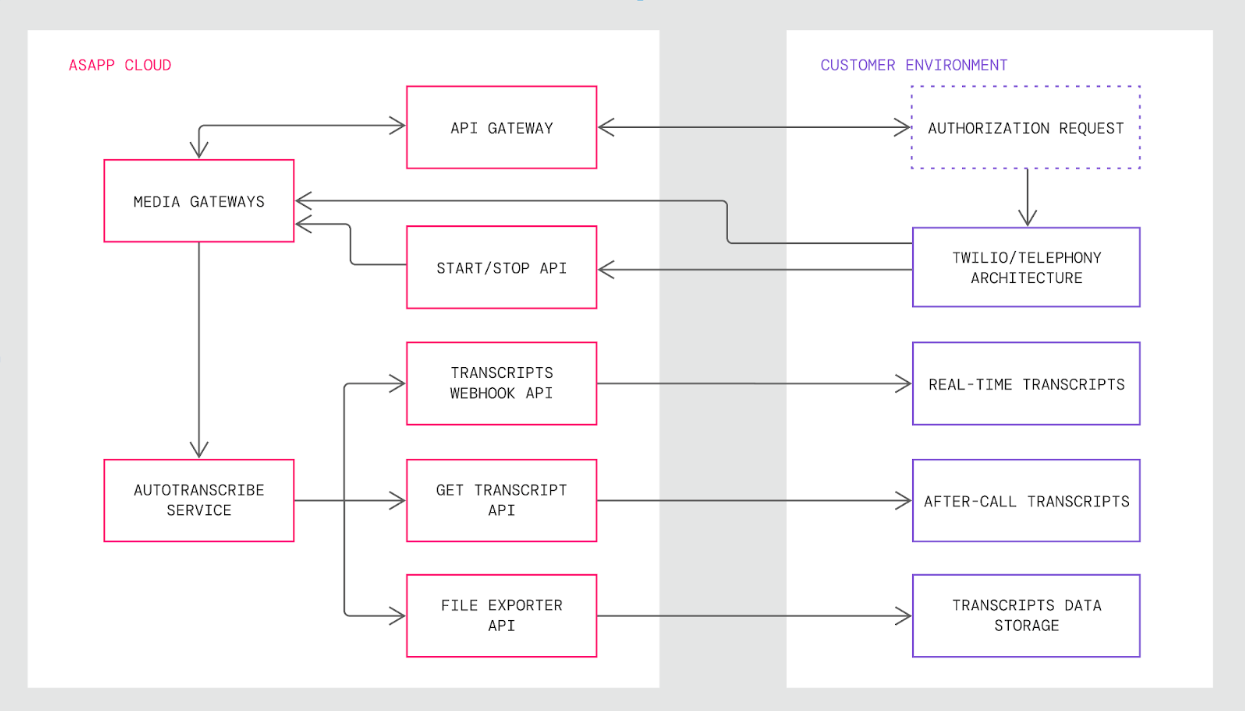 ### Integration Steps
There are four steps to integrate AI Transcribe into Twilio:
1. Authenticate with ASAPP and Obtain a Twilio Media Stream URL
2. Send Audio to Media Gateway
3. Send Start and Stop Requests
4. Receive Transcript Outputs
### Requirements
**Audio Stream Codec**
Twilio provides audio in the mu-law format with 8000 sample rate, which ASAPP supports. You do not need any modification or additional transcoding when forking audio to ASAPP.
### Integration Steps
There are four steps to integrate AI Transcribe into Twilio:
1. Authenticate with ASAPP and Obtain a Twilio Media Stream URL
2. Send Audio to Media Gateway
3. Send Start and Stop Requests
4. Receive Transcript Outputs
### Requirements
**Audio Stream Codec**
Twilio provides audio in the mu-law format with 8000 sample rate, which ASAPP supports. You do not need any modification or additional transcoding when forking audio to ASAPP.
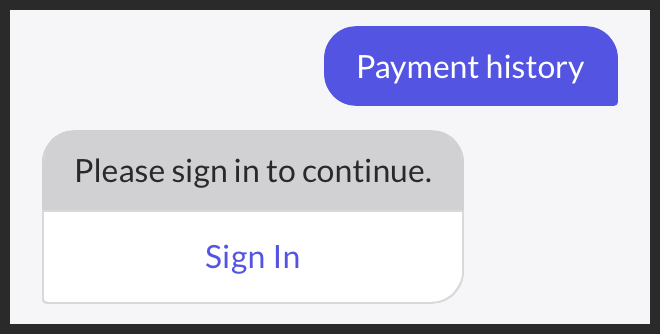 If you then tap the **Sign In** button, the SDK will use the `ASAPPUserLoginHandler` to call to the application. Due to the asynchronous nature of this flow, your application should use the activity lifecycle to provide a result to the SDK.
How to Implement the Sign In Flow
1. Implement the `ASAPPUserLoginHandler` and start your application's `LoginActivity`, including the given request code.
```kotlin theme={null}
ASAPP.instance.userLoginHandler = object: ASAPPUserLoginHandler {
override fun loginASAPPUser(requestCode: Int, activity: Activity) {
val loginIntent = new Intent(activity, LoginActivity::class.java)
activity.startActivityForResult(loginIntent, requestCode)
}
}
```
2. If a user successfully signs into your application, update the user instance and then finish your `LoginActivity` with `Activity.RESULT_OK`.
```kotlin theme={null}
ASAPP.instance.user = ASAPPUser(userIdentifier, contextProvider)
setResult(Activity.RESULT_OK)
finish()
```
3. In case a user cancels the operation, finish your `LoginActivity` with `Activity.RESULT_CANCELED`.
```kotlin theme={null}
setResult(Activity.RESULT_CANCELED)
finish()
```
After your `LoginActivity` finishes, the SDK will capture the result and resume the chat conversation.
## Token Expiration and Refreshing the Context
If the provided token has expired, the SDK will call the [ASAPPRequestContextProvider](https://docs-sdk.asapp.com/api/chatsdk/android/latest/chatsdk/com.asapp.chatsdk/-a-s-a-p-p-request-context-provider) with an `refreshContext` parameter set to `true` indicating that the context must be refreshed. In that case, please make sure to return a map with fresh credentials that can be used to authenticate the user. In case an API call is required to refresh the credentials, make sure to block the calling thread until the updated context can be returned.
---
# Source: https://docs.asapp.com/agent-desk/integrations/user-management.md
# Source: https://docs.asapp.com/agent-desk/digital-agent-desk/user-management.md
> ## Documentation Index
> Fetch the complete documentation index at: https://docs.asapp.com/llms.txt
> Use this file to discover all available pages before exploring further.
# User Management
> Learn how to manage users and roles in the Digital Agent Desk.
You control User Management (roles and permissions) within the Digital Agent Desk.
These roles determine whether a user can authenticate to *Agent Desk*, *Admin Dashboard*, or both. Additionally, roles determine what views and data users see in the Admin Dashboard. You can pass user data to ASAPP via *SSO*, AD/LDAP, or other approved integrations.
If you then tap the **Sign In** button, the SDK will use the `ASAPPUserLoginHandler` to call to the application. Due to the asynchronous nature of this flow, your application should use the activity lifecycle to provide a result to the SDK.
How to Implement the Sign In Flow
1. Implement the `ASAPPUserLoginHandler` and start your application's `LoginActivity`, including the given request code.
```kotlin theme={null}
ASAPP.instance.userLoginHandler = object: ASAPPUserLoginHandler {
override fun loginASAPPUser(requestCode: Int, activity: Activity) {
val loginIntent = new Intent(activity, LoginActivity::class.java)
activity.startActivityForResult(loginIntent, requestCode)
}
}
```
2. If a user successfully signs into your application, update the user instance and then finish your `LoginActivity` with `Activity.RESULT_OK`.
```kotlin theme={null}
ASAPP.instance.user = ASAPPUser(userIdentifier, contextProvider)
setResult(Activity.RESULT_OK)
finish()
```
3. In case a user cancels the operation, finish your `LoginActivity` with `Activity.RESULT_CANCELED`.
```kotlin theme={null}
setResult(Activity.RESULT_CANCELED)
finish()
```
After your `LoginActivity` finishes, the SDK will capture the result and resume the chat conversation.
## Token Expiration and Refreshing the Context
If the provided token has expired, the SDK will call the [ASAPPRequestContextProvider](https://docs-sdk.asapp.com/api/chatsdk/android/latest/chatsdk/com.asapp.chatsdk/-a-s-a-p-p-request-context-provider) with an `refreshContext` parameter set to `true` indicating that the context must be refreshed. In that case, please make sure to return a map with fresh credentials that can be used to authenticate the user. In case an API call is required to refresh the credentials, make sure to block the calling thread until the updated context can be returned.
---
# Source: https://docs.asapp.com/agent-desk/integrations/user-management.md
# Source: https://docs.asapp.com/agent-desk/digital-agent-desk/user-management.md
> ## Documentation Index
> Fetch the complete documentation index at: https://docs.asapp.com/llms.txt
> Use this file to discover all available pages before exploring further.
# User Management
> Learn how to manage users and roles in the Digital Agent Desk.
You control User Management (roles and permissions) within the Digital Agent Desk.
These roles determine whether a user can authenticate to *Agent Desk*, *Admin Dashboard*, or both. Additionally, roles determine what views and data users see in the Admin Dashboard. You can pass user data to ASAPP via *SSO*, AD/LDAP, or other approved integrations.
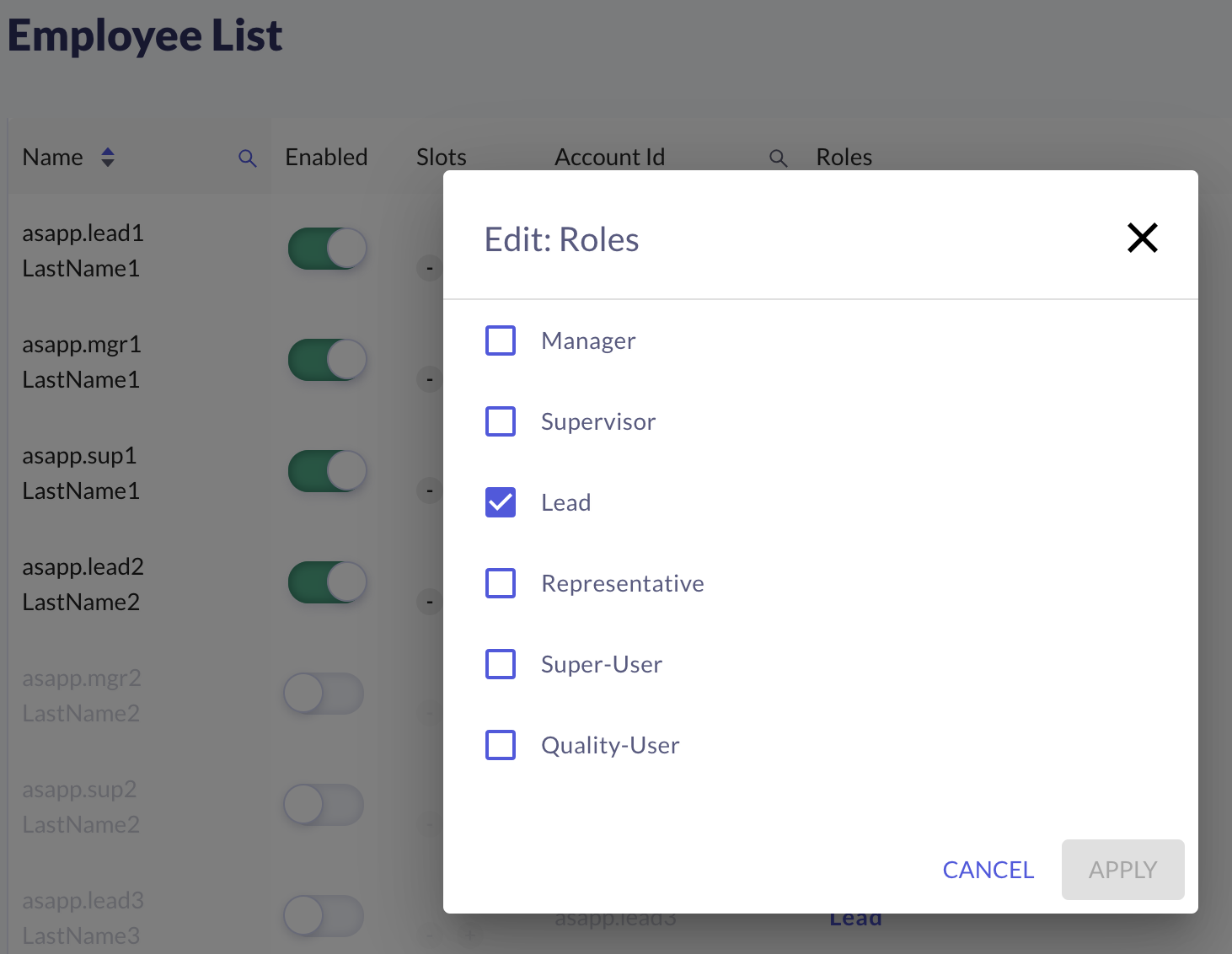 This section describes the following:
* [Process Overview](#process-overview)
* [Resource Overview](#resource-overview)
* [Definitions](#definitions "Definitions")
## Process Overview
This is a high-level overview of the User Management setup process.
1. ASAPP demonstrates the Desk/Admin Interface.
2. ASAPP calls with you to confirm access and permission requirements. ASAPP and you complete a configuration spreadsheet defining all roles and permissions.
3. ASAPP sends you a copy of the configuration spreadsheet for review and approval. ASAPP makes additional changes if needed and sends them to you for approval.
4. ASAPP implements and tests the configuration.
5. ASAPP trains you to set up and modify user management.
6. ASAPP launches your new customer interaction system.
## Resource Overview
The following table lists and defines all resources:
This section describes the following:
* [Process Overview](#process-overview)
* [Resource Overview](#resource-overview)
* [Definitions](#definitions "Definitions")
## Process Overview
This is a high-level overview of the User Management setup process.
1. ASAPP demonstrates the Desk/Admin Interface.
2. ASAPP calls with you to confirm access and permission requirements. ASAPP and you complete a configuration spreadsheet defining all roles and permissions.
3. ASAPP sends you a copy of the configuration spreadsheet for review and approval. ASAPP makes additional changes if needed and sends them to you for approval.
4. ASAPP implements and tests the configuration.
5. ASAPP trains you to set up and modify user management.
6. ASAPP launches your new customer interaction system.
## Resource Overview
The following table lists and defines all resources:
Feature |
Overview |
Resource |
Definition |
|---|---|---|---|
Agent Desk |
The App where Agents communicate with customers. |
Authorization |
Enables you to successfully authenticate via Single Sign-On (SSO) into the ASAPP Agent Desk. |
Go to Desk |
Enables you to click Go to Desk from the Nav to open Agent Desk in a new tab. Requires Agent Desk access. |
||
Default Concurrency |
The default value for the maximum number of chats a newly added agent can handle at the same time. |
Default Concurrency |
Sets the default concurrency of all new users with access to Agent Desk if no concurrency was set via the ingest method. |
Admin Dashboard |
The App where you can monitor agent activity in real-time, view agent metrics, and take operational actions (e.g. biz hours adjustments) |
Authorization |
Enables you to successfully authenticate via SSO into the ASAPP Admin Dashboard. |
Live Insights |
Dashboard in Admin that displays how each of your queues are performing in real-time. You can drill down into each queue to gain insight into what areas need attention. |
Access |
Enables you to see Live Insights in the Admin navigation and access it. |
Data Security |
Limits the agent-level data that certain users can see in Live Insights. If a user is not allowed to see data for any agents who belong to a given queue, that queue will not be visible to that user in Live Insights. |
||
Historical Reporting |
Dashboard in Admin where you can find data and insights from customer experience and automation all the way to agent performance and workforce management. |
Power Analyst Access |
Enables you to see the Historical Reporting page in the Admin Navigation with Power Analyst access type, which includes the following:
|
Creator Access |
Enables you to see the Historical Reporting page in the Admin Navigation with Creator access type, which includes the following:
|
||
Reporting Groups |
Out-of-the-box groups are:
If a client has data security enabled for Historical Reporting, policies need to be written to add users to the following 3 groups:
If you have any Creator users, you may want custom groups created. This can be achieved by writing a policy to create reporting groups based on a specific user attribute (i.e. I need reporting groups per queue, where queue is the attribute). |
||
Data Security |
Limits the agent-level data that certain users can see in Historical Reporting. If anyone has these policies, then the Core, Contact Center, and All Reports groups should be enabled. |
||
Business Hours |
Allows Admin users to set their business hours of operation and holidays on a per queue basis. |
Access |
Enables you to see Business Hours in the Admin navigation, access it, and make changes. |
Triggers |
An ASAPP feature that allows you to specify which pages display the ASAPP Chat UI. You can show the ASAPP Chat UI on all pages with the ASAPP Chat SDK embedded and loaded, or on just a subset of those pages. |
Access |
Allows you to see Triggers in the Admin navigation, access it, and make changes. |
Knowledge Base |
An ASAPP feature that helps agents access information without needing to navigate external systems by surfacing KB content directly within Agent Desk. |
Access |
Enables you to see Knowledge Base content in the Admin navigation, access it, and make changes. |
Conversation Manager |
Admin Feature where you can monitor current conversations individually in the Conversation Manager. The Conversation Manager shows all current, queued, and historical conversations handled by SRS, bot, or by a live agent. |
Access |
Enables you to see Conversation Manager in the Admin navigation and access it. |
Conversation Download |
Enables you to select 1 or more conversations in Conversation Manager to export to either an HTML or CSV file. |
||
Whisper |
Enables you to send an inline, private message to an agent within a currently live chat, selected from the Conversation Manager. |
||
SRS Issues |
Enables you to see conversations only handled by SRS in the Conversation Manager. |
||
Data Security |
Limits the agent-assisted conversations that certain users can see at the agent-level in the Conversation Manager. |
||
User Management |
Admin Feature to edit user roles and permissions. |
Access |
Enables you to see User Management in their Admin navigation, access it, and make changes to queue membership, status, and concurrency per user. |
Editable Roles |
Enables you to change the role(s) of a user in User Management. |
||
Editable Custom Attributes |
Enables you to change the value of a custom user attribute per user in User Management. If disabled, these custom attributes will be read-only in the list of users. |
||
Data Security |
Limits the users that certain users can see or edit in User Management. |
Role |
Definition |
|---|---|
Resource |
The ASAPP functionality that you can permission in a certain way. ASAPP determines Resources when features are built. |
Action |
Describes the possible privileges a user can have on a given resource. (i.e. View Only vs. Edit) |
Permission |
Action + Resource. ex. "can view Live Insights" |
Target |
The user or a set of users who are given a permission. |
User Attribute |
A describing attribute for a client user. User Attributes are either sent to ASAPP via accepted method by the client, or ASAPP Native. |
ASAPP Native User Attribute |
A user attribute that exists within the ASAPP platform without the client needing to send it. Currently:
|
Custom User Attribute |
An attribute specific to the client's organization that is sent to ASAPP. |
Clarifier |
An additional and optional layer of restriction in a policy. Must be defined by a user attribute that already exists in the system. |
Policy |
An individual rule that assigns a permission to a user or set of users. The structure is generally: Target + Permission (opt. + Clarifier) = Target + Action + Resource (opt. + Clarifier) |
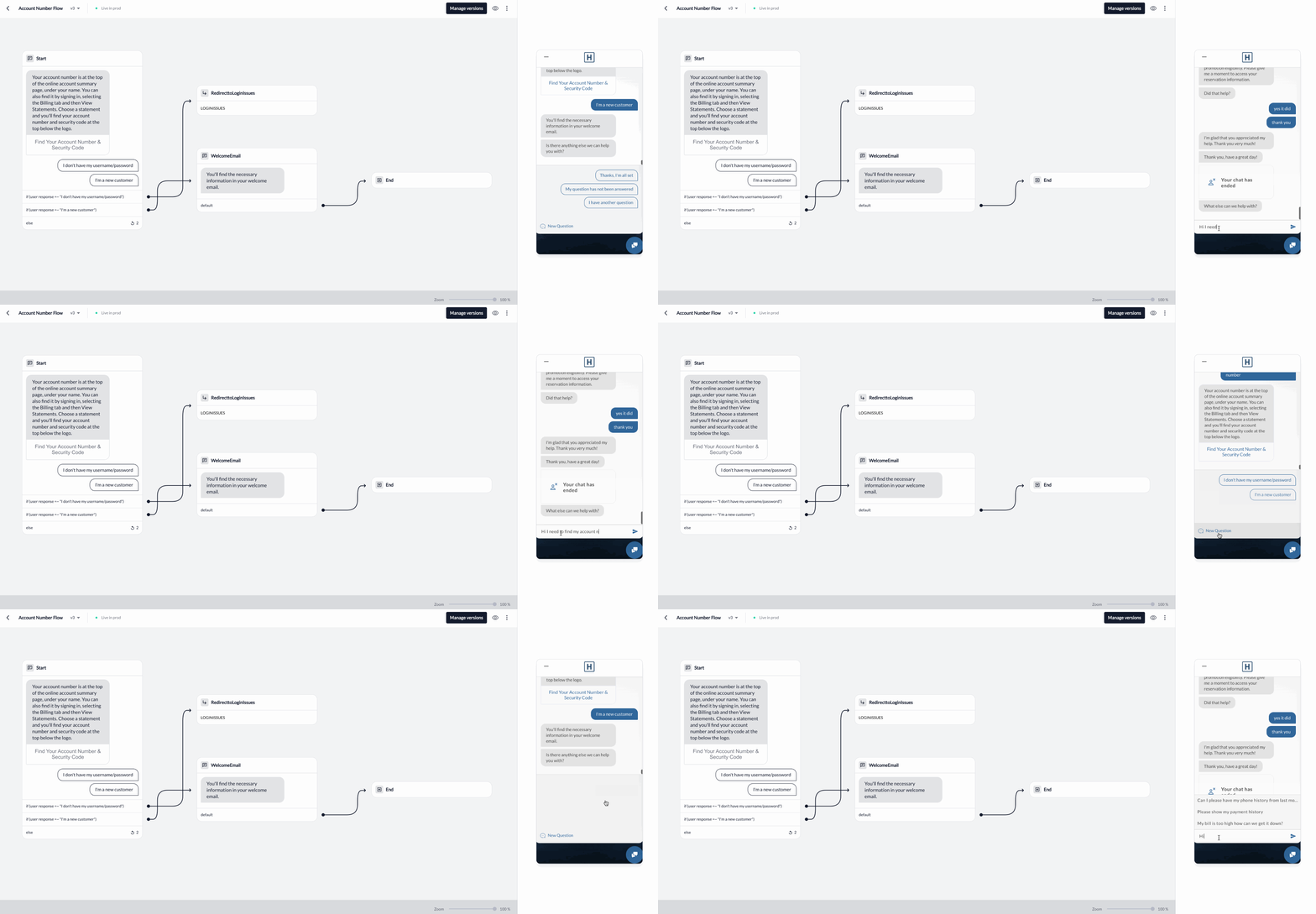 ## Customization
Virtual Agent is fully customizable to fit your brand's unique needs. This includes:
* Determining the list of Intents and how they are routed.
* Advanced flows to take in structured and unstructured input.
* Reach out to APIs to receive and send data.
### Access
You configure the Virtual Agent through the AI-Console. To access AI-Console, log into [Insights Manager](/agent-desk/insights-manager "Insights Manager"), click on your user icon, and then **Go to AI-Console**. This option becomes available only if your organization grants you permission to access AI-Console.
## How It Works
The Virtual Agent understands what customers say and transforms it into structured data that you can use to define how the Virtual Agent responds. This is accomplished via the following core concepts and components:
### Intents
The Virtual Agent recognizes Intents when customers first reach out, representing the set of reasons that customers might contact your business.
The Virtual Agent can also understand when a user changes intent in the middle of a conversation (see: [digressions](#core-dialog "Core Dialog")).
Our teams can work with you to refine your intent list on an ongoing basis and train the Virtual Agent to recognize them. Examples include requests to "Pay Bill" or "Reset Password".
Once the Virtual Agent recognizes an intent, you can use it to determine what happens next in the dialog.
### Intent Routes
Once the Virtual Agent has recognized an intent, the next question is "so what?". Intent routes house the logic that determines what will happen after the Virtual Agent recognizes an intent.
* Once the Virtual Agent classifies a customer's intent, the default behavior places the customer in an agent queue
* Alternatively, you can use an intent route to specify a pre-defined flow for the Virtual Agent to execute, which can collect additional information, offer solutions, or link customers out to self-serve elsewhere.
* To promote flexibility, intent routes can point to different flows based on conditional logic that uses contextual data, like customer channels.
## Customization
Virtual Agent is fully customizable to fit your brand's unique needs. This includes:
* Determining the list of Intents and how they are routed.
* Advanced flows to take in structured and unstructured input.
* Reach out to APIs to receive and send data.
### Access
You configure the Virtual Agent through the AI-Console. To access AI-Console, log into [Insights Manager](/agent-desk/insights-manager "Insights Manager"), click on your user icon, and then **Go to AI-Console**. This option becomes available only if your organization grants you permission to access AI-Console.
## How It Works
The Virtual Agent understands what customers say and transforms it into structured data that you can use to define how the Virtual Agent responds. This is accomplished via the following core concepts and components:
### Intents
The Virtual Agent recognizes Intents when customers first reach out, representing the set of reasons that customers might contact your business.
The Virtual Agent can also understand when a user changes intent in the middle of a conversation (see: [digressions](#core-dialog "Core Dialog")).
Our teams can work with you to refine your intent list on an ongoing basis and train the Virtual Agent to recognize them. Examples include requests to "Pay Bill" or "Reset Password".
Once the Virtual Agent recognizes an intent, you can use it to determine what happens next in the dialog.
### Intent Routes
Once the Virtual Agent has recognized an intent, the next question is "so what?". Intent routes house the logic that determines what will happen after the Virtual Agent recognizes an intent.
* Once the Virtual Agent classifies a customer's intent, the default behavior places the customer in an agent queue
* Alternatively, you can use an intent route to specify a pre-defined flow for the Virtual Agent to execute, which can collect additional information, offer solutions, or link customers out to self-serve elsewhere.
* To promote flexibility, intent routes can point to different flows based on conditional logic that uses contextual data, like customer channels.
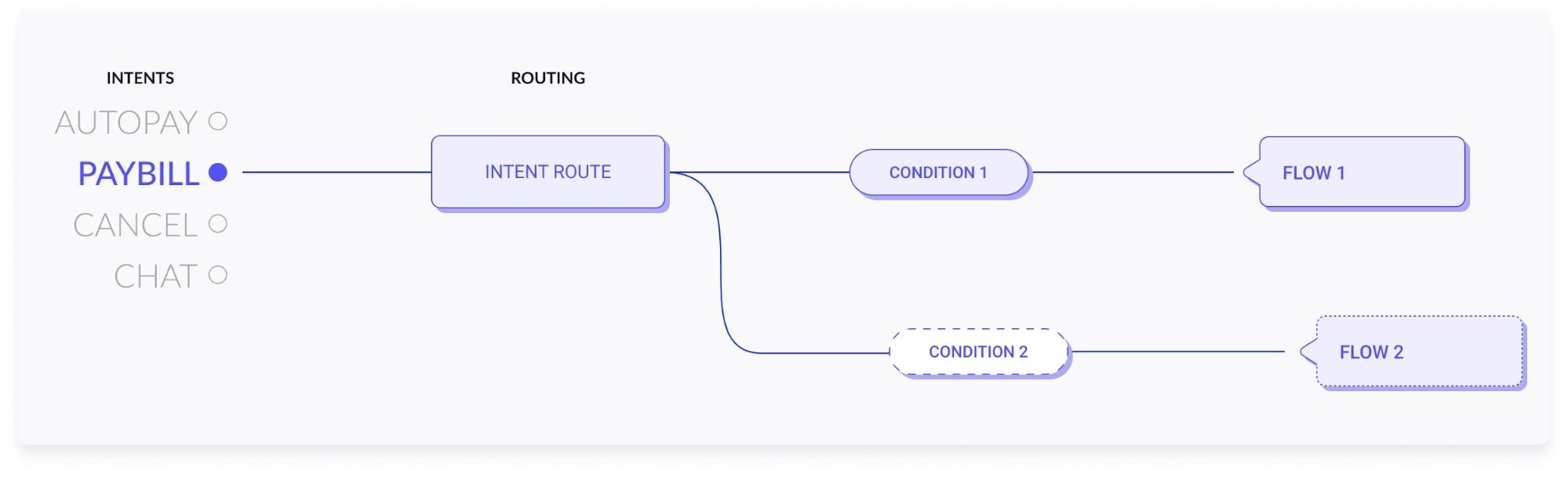 ### Flows
Flows define how the Virtual Agent interacts with the customer given a specific situation. They can be as simple as an answer to an FAQ, or as complex as a multi-turn dialog that offers self-service recommendations. You build flows through a series of [nodes](#flow-nodes "Flow Nodes") that dictate the flow of the conversation as well as any business logic it needs to perform. Once you build them, flows can reach through [intent routing](#intent-routes "Intent Routes"), or redirect from other flows.
### Flows
Flows define how the Virtual Agent interacts with the customer given a specific situation. They can be as simple as an answer to an FAQ, or as complex as a multi-turn dialog that offers self-service recommendations. You build flows through a series of [nodes](#flow-nodes "Flow Nodes") that dictate the flow of the conversation as well as any business logic it needs to perform. Once you build them, flows can reach through [intent routing](#intent-routes "Intent Routes"), or redirect from other flows.
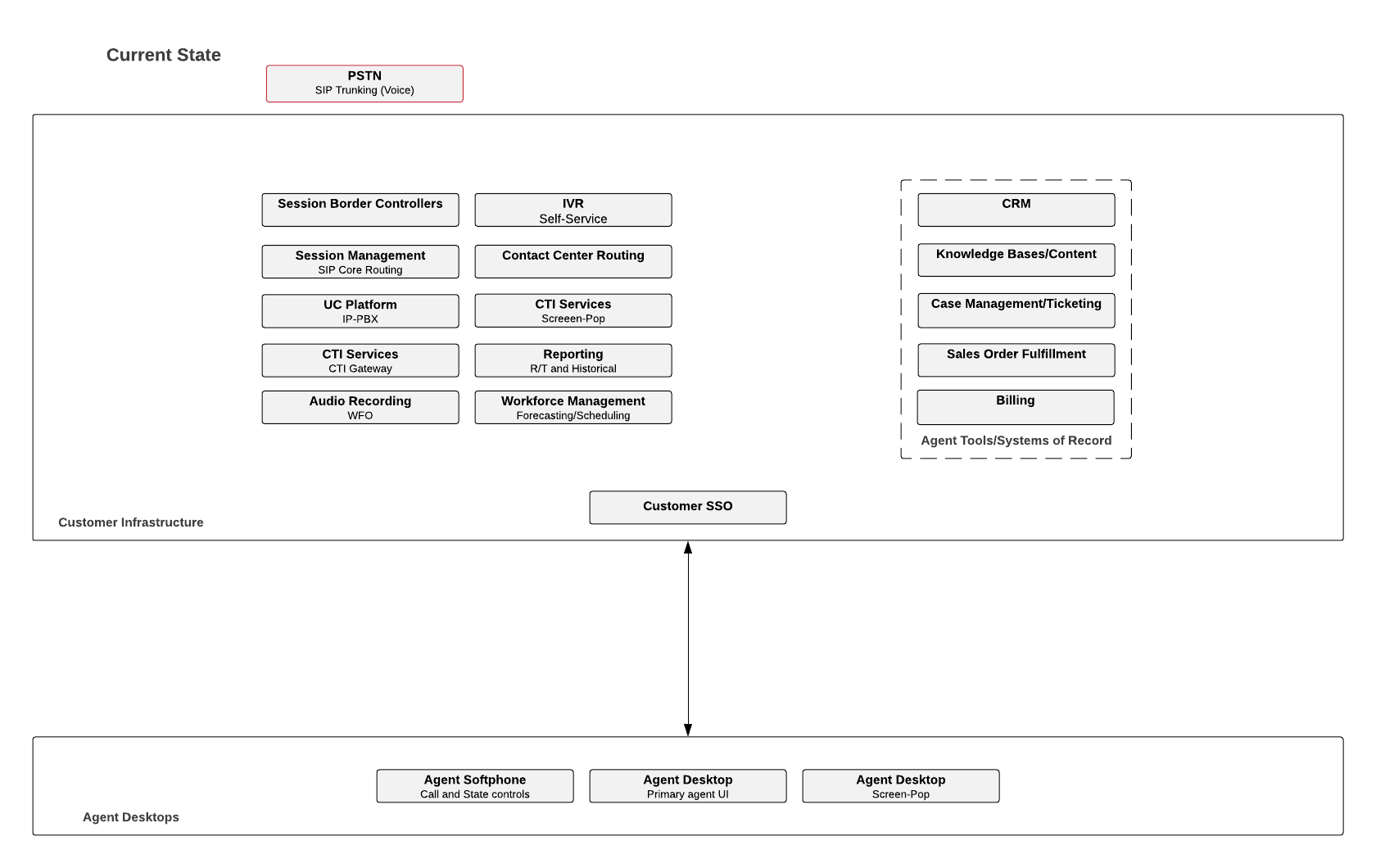 ## Solution Architecture
After ASAPP completes the discovery of the customer's current state, ASAPP completes the architecture definition, including integration points into the existing infrastructure. You can deploy the ASAPP [media gateways and media gateway proxies](#glossary "Glossary") within your existing AWS instance or within ASAPP's, providing additional flexibility and control.
## Solution Architecture
After ASAPP completes the discovery of the customer's current state, ASAPP completes the architecture definition, including integration points into the existing infrastructure. You can deploy the ASAPP [media gateways and media gateway proxies](#glossary "Glossary") within your existing AWS instance or within ASAPP's, providing additional flexibility and control.
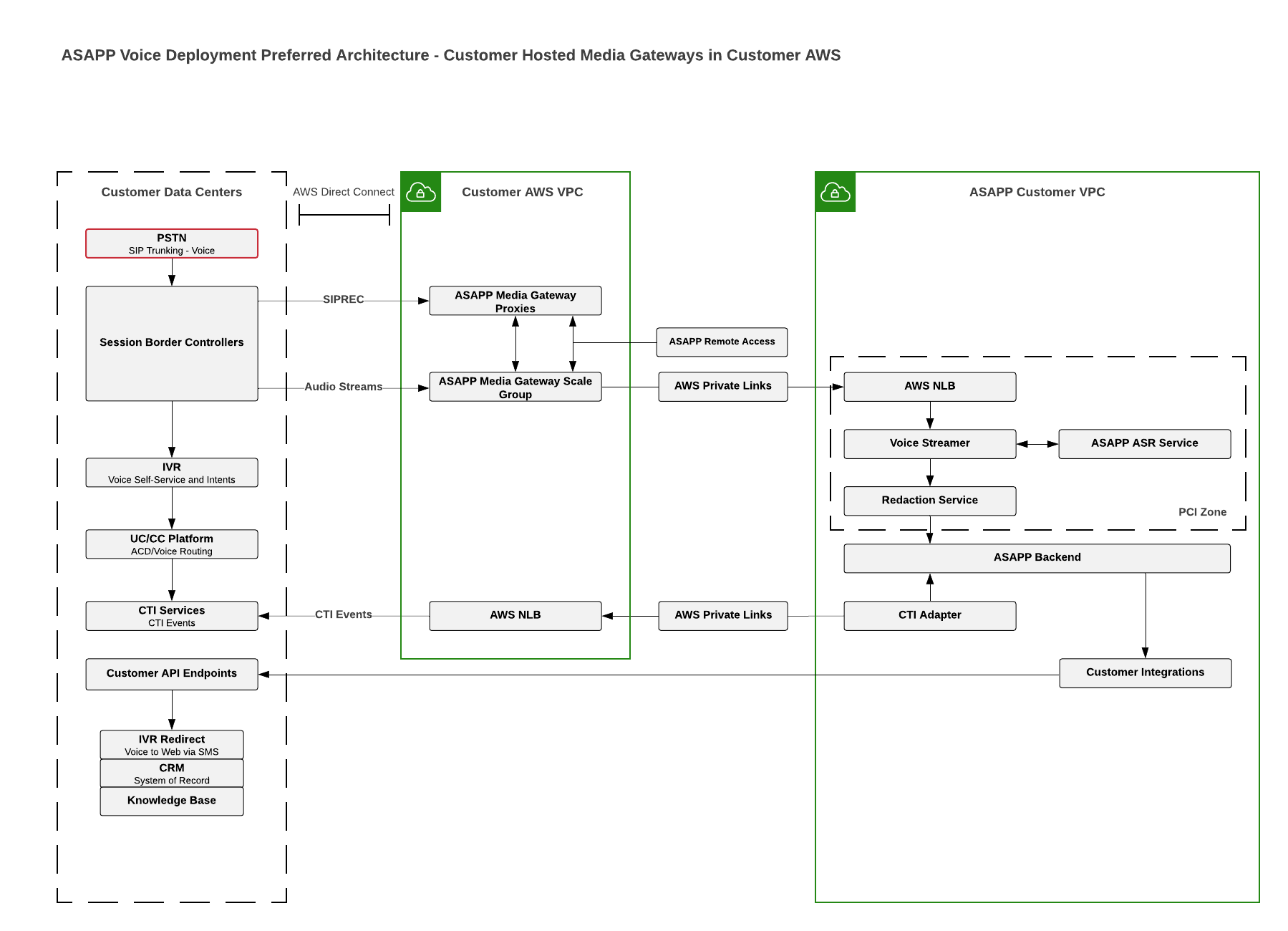
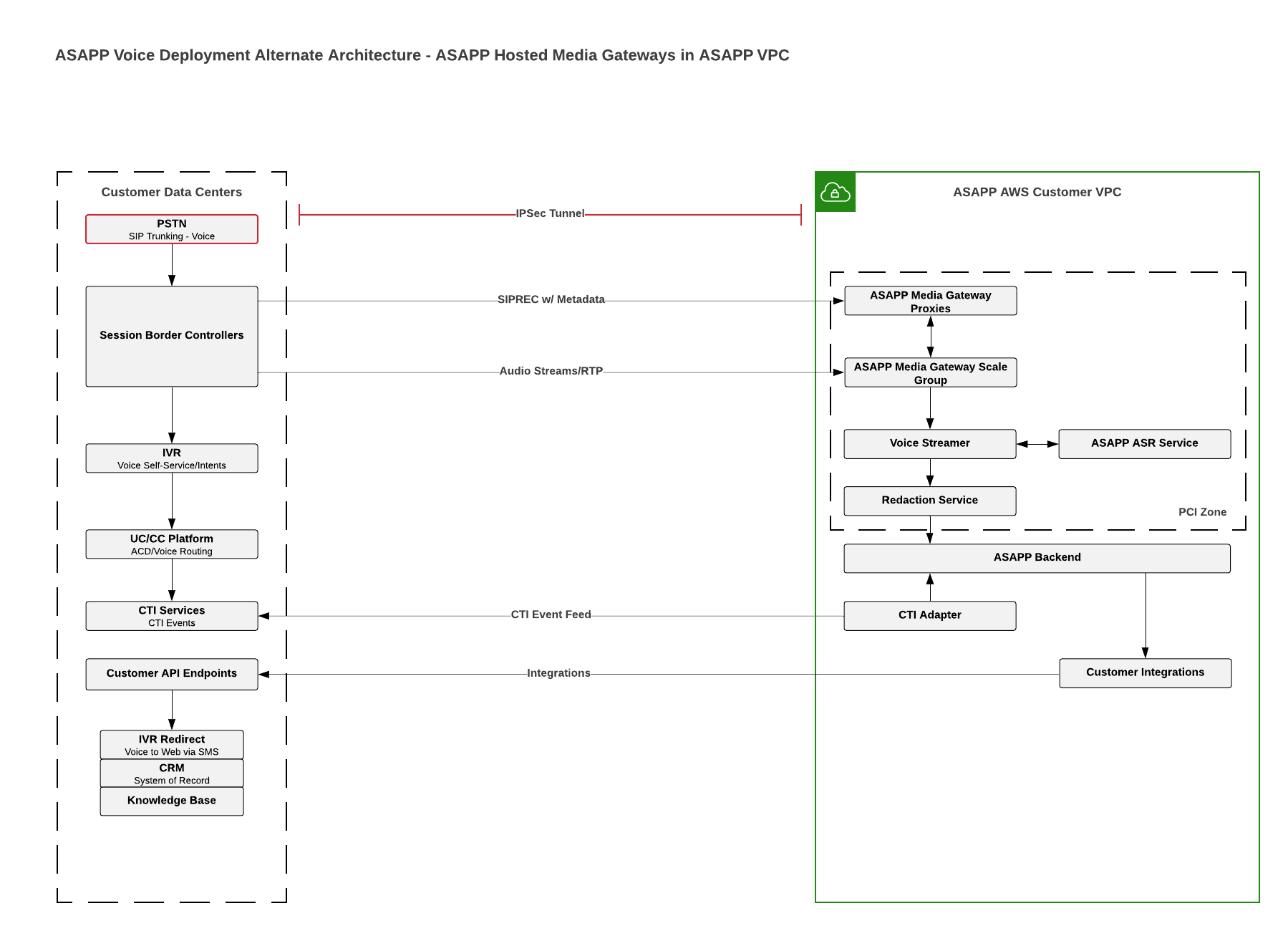 ### Network Connectivity
ASAPP will determine the network connectivity between your infrastructure and the ASAPP AWS Virtual Private Cloud (VPC) based on the architecture, however, ASAPP will deploy secure connections between your data centers and the ASAPP VPC.
### Network Connectivity
ASAPP will determine the network connectivity between your infrastructure and the ASAPP AWS Virtual Private Cloud (VPC) based on the architecture, however, ASAPP will deploy secure connections between your data centers and the ASAPP VPC.
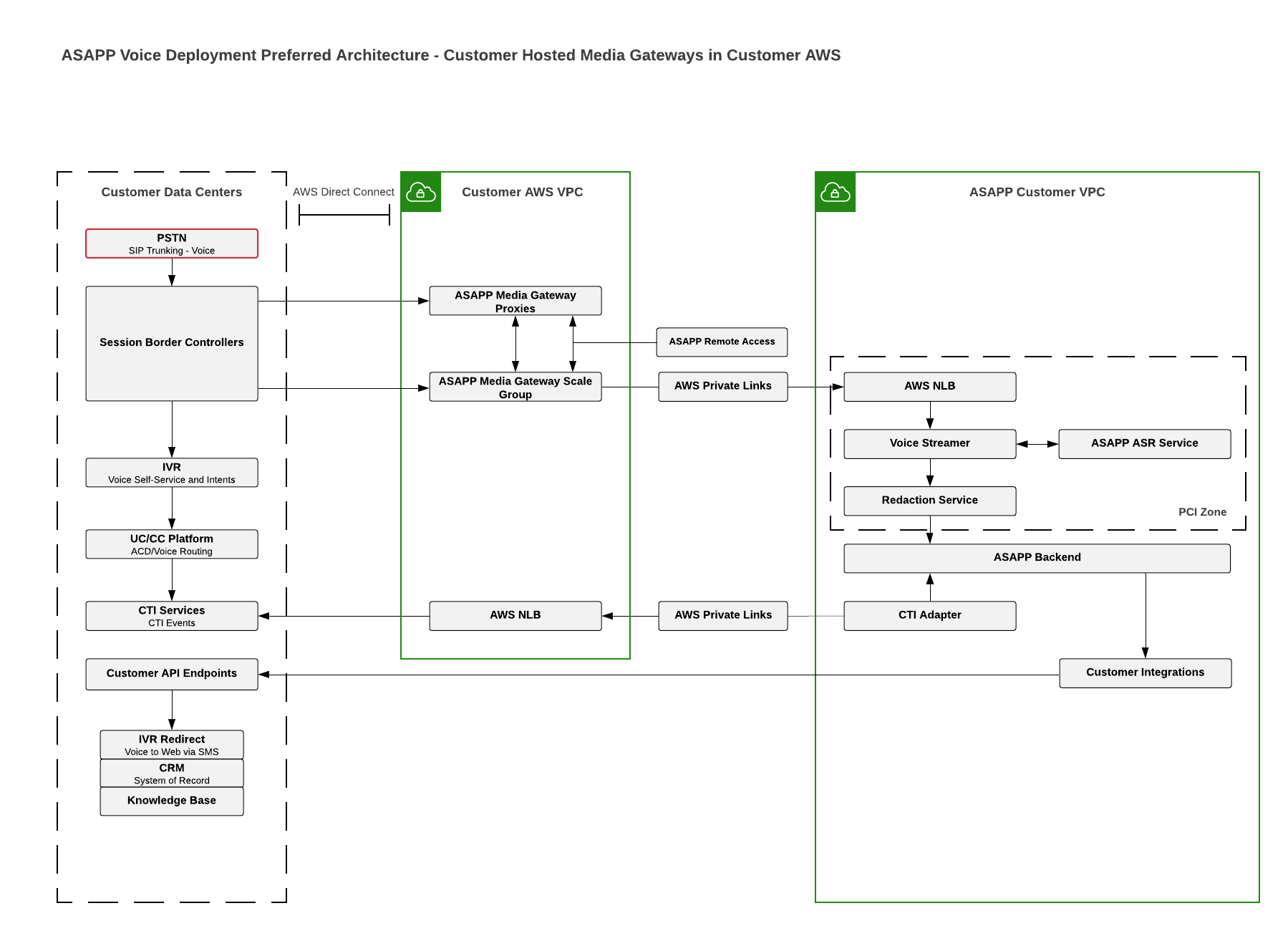
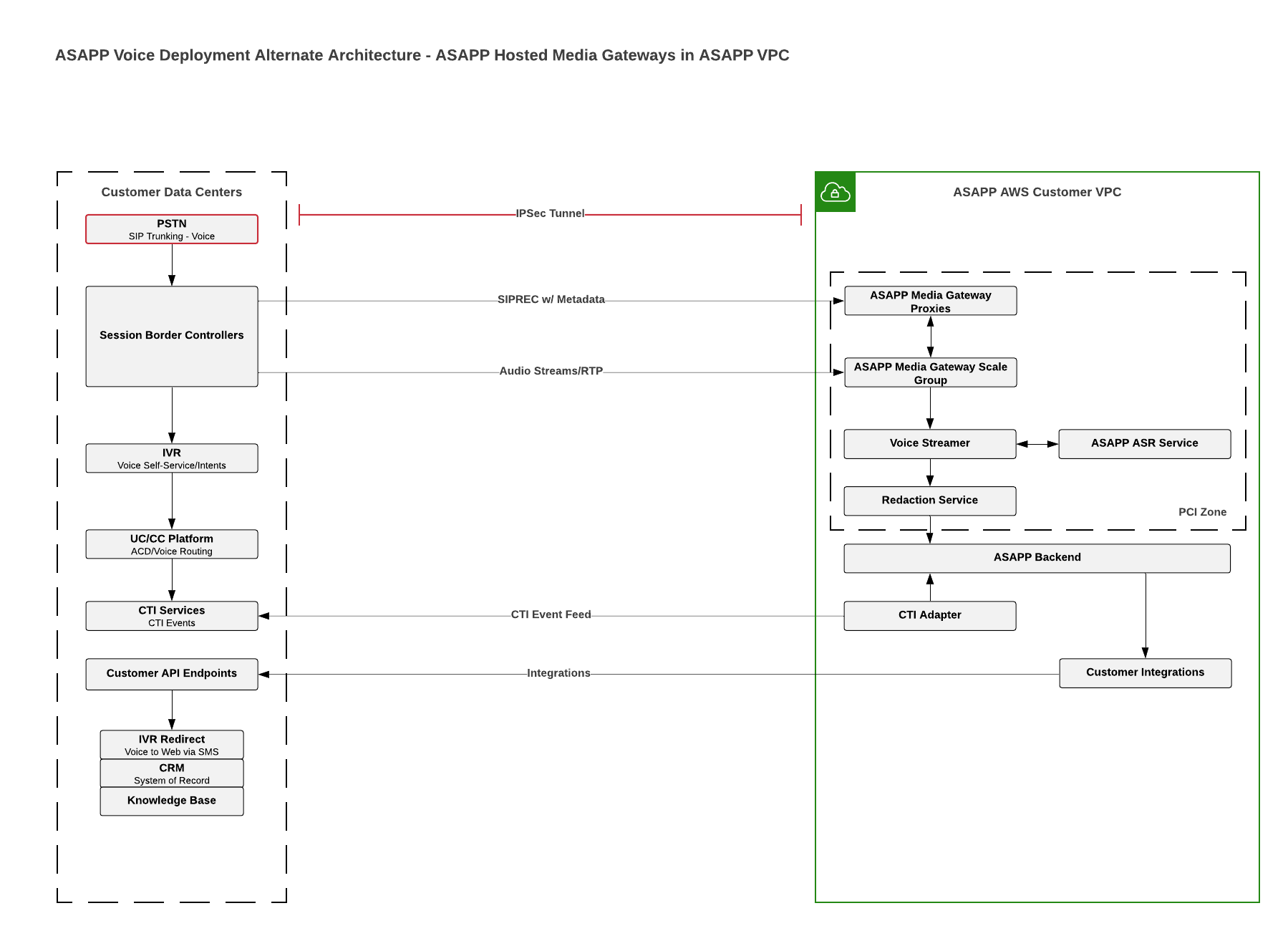 ### Port Details
You can see ports and protocols in use for the Voice implementation depicted in the following diagram. These definitions provide visibility to your security teams for the provisioning of firewalls and ACL's.
* SIP/SIPREC - TCP (5060, 5070-5072)
* SBC to Media Gateway Proxies
* SBC to Media Gateway/s
* Audio Streams - UDP \
### Port Details
You can see ports and protocols in use for the Voice implementation depicted in the following diagram. These definitions provide visibility to your security teams for the provisioning of firewalls and ACL's.
* SIP/SIPREC - TCP (5060, 5070-5072)
* SBC to Media Gateway Proxies
* SBC to Media Gateway/s
* Audio Streams - UDP \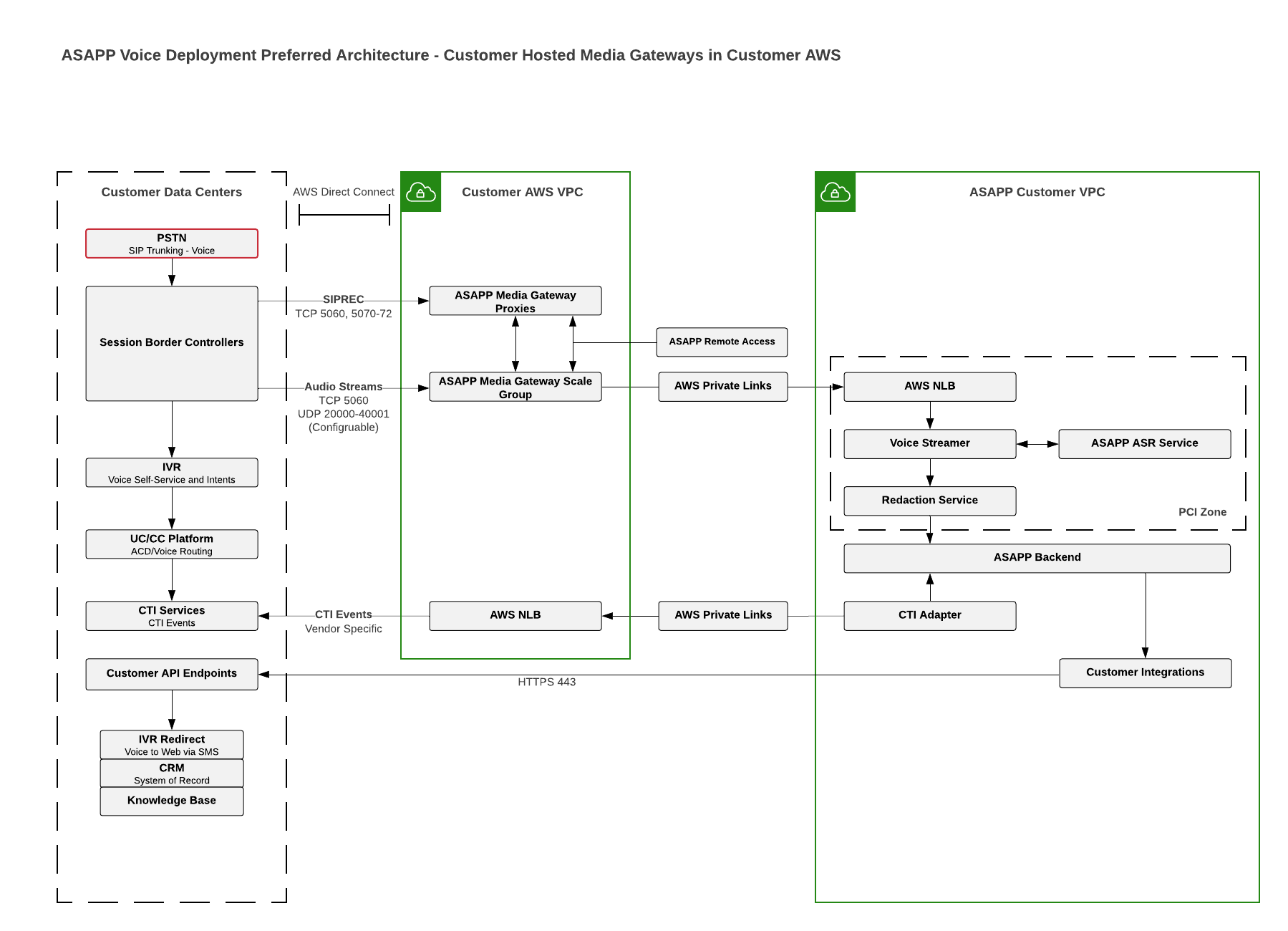
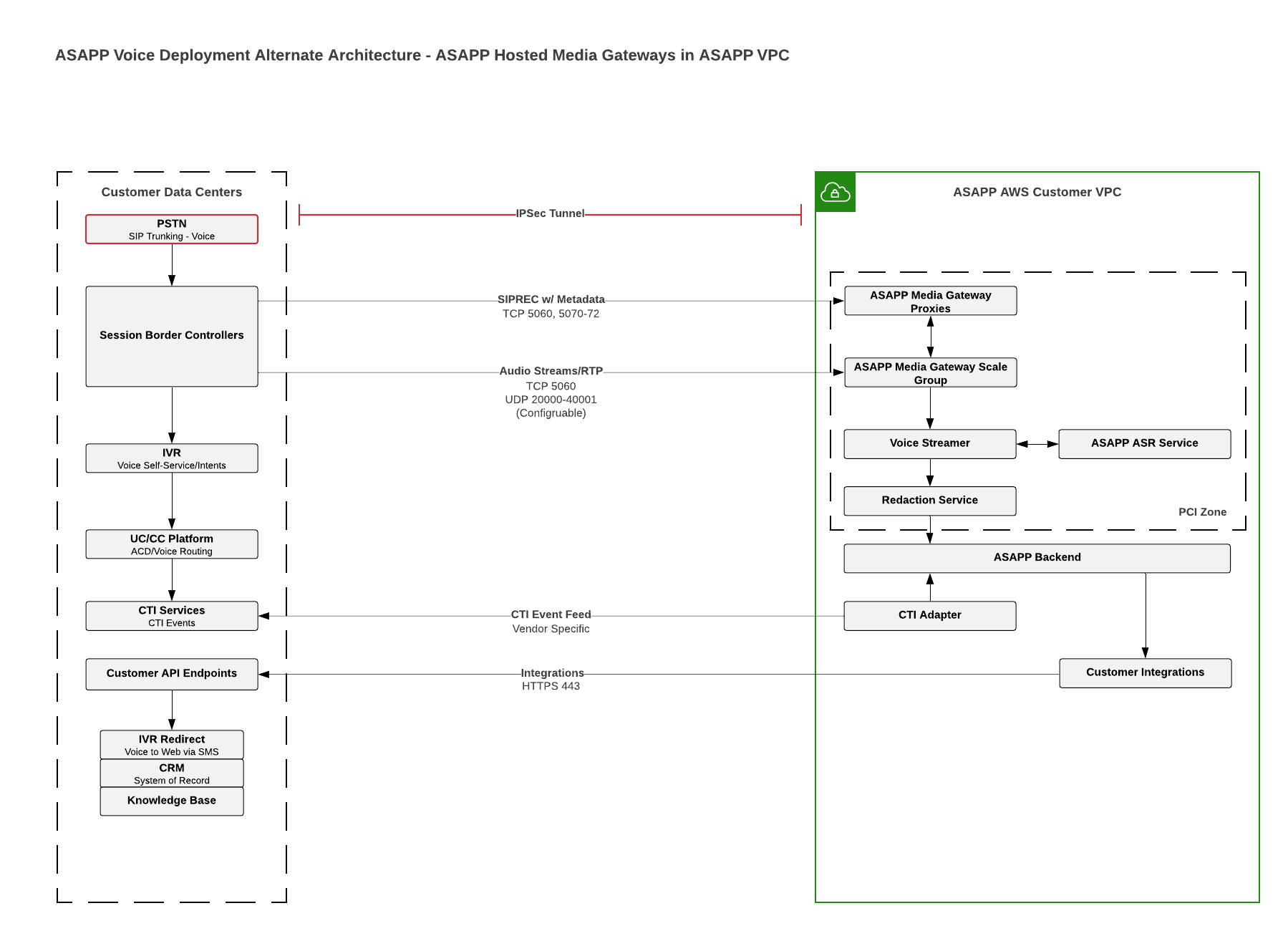 ### Data Flow
The Voice Agent Desk Data Flow diagram illustrates the [PCI Zone](#glossary "Glossary") within the ASAPP solution. The customer SBC originates the SIPREC sessions and the media streams and sends them to ASAPP media gateways, which repackage the streams into secure WebSockets and send them to the [Voice Streamer](#glossary "Glossary") within the PCI zone. ASAPP encrypts the data in transit and at rest.
The SBC does not typically encrypt the SIPREC sessions and associated media streams from the SBC to the ASAPP media gateways, but usually encapsulates them within a secure connection. You are responsible for the compliance/security of the network path between the SBC and the media gateways, in accordance with applicable customer policies.
### Data Flow
The Voice Agent Desk Data Flow diagram illustrates the [PCI Zone](#glossary "Glossary") within the ASAPP solution. The customer SBC originates the SIPREC sessions and the media streams and sends them to ASAPP media gateways, which repackage the streams into secure WebSockets and send them to the [Voice Streamer](#glossary "Glossary") within the PCI zone. ASAPP encrypts the data in transit and at rest.
The SBC does not typically encrypt the SIPREC sessions and associated media streams from the SBC to the ASAPP media gateways, but usually encapsulates them within a secure connection. You are responsible for the compliance/security of the network path between the SBC and the media gateways, in accordance with applicable customer policies.
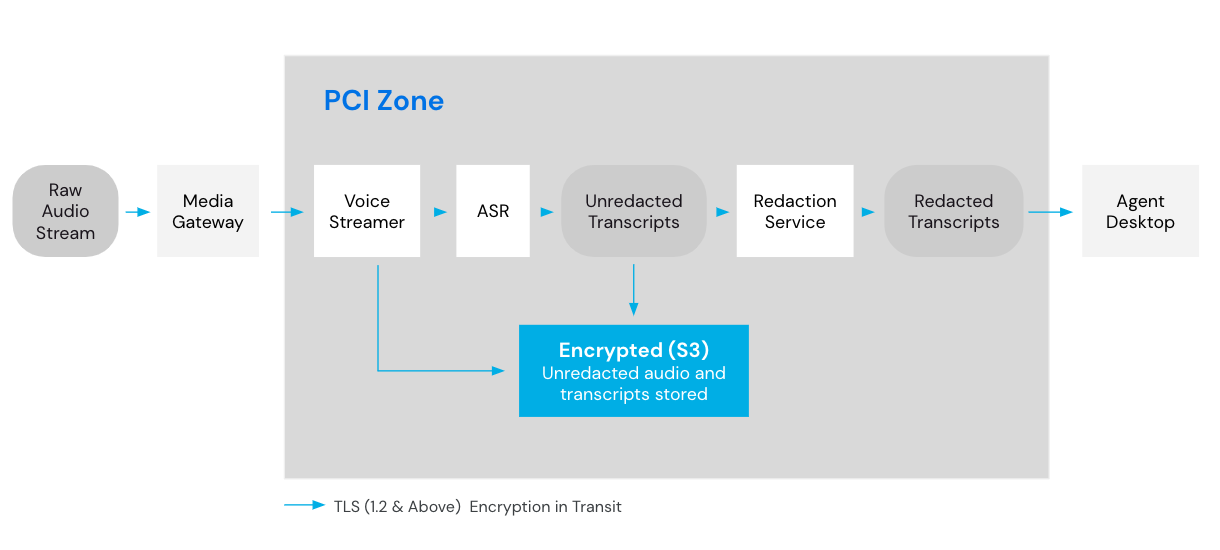 ## SIPREC and CTI Correlation and Association
In order to be able to associate the correct audio stream and the correct agent and agent desktop, ASAPP must associate the audio session and the CTI events of the particular agent.
ASAPP assigns voice agents a unique Agent ID and adds it to the SSO profile as a custom attribute. ASAPP will then map this to the Agent ID within ASAPP.
You configure the SBCs to set a unique call identifier, such as [UCID](#glossary "Glossary") (Avaya) or [GUID](#glossary "Glossary")/GUCID (Cisco), etc. on inbound calls, which provides ASAPP the means to correlate the individual SIPREC stream with the CTI events of the correct agent.
The SBCs will initiate a SIPREC session INVITE for each new call. With SIPREC, the customer SBC and the ASAPP media gateway negotiate the media attributes via the [SDP](#glossary "Glossary") offer/answer exchange during the establishment of the session. The codec/s in use today are:
1. G.711
2. G.729
Traffic and load considerations:
* Total number of voice agents using ASAPP -\
## SIPREC and CTI Correlation and Association
In order to be able to associate the correct audio stream and the correct agent and agent desktop, ASAPP must associate the audio session and the CTI events of the particular agent.
ASAPP assigns voice agents a unique Agent ID and adds it to the SSO profile as a custom attribute. ASAPP will then map this to the Agent ID within ASAPP.
You configure the SBCs to set a unique call identifier, such as [UCID](#glossary "Glossary") (Avaya) or [GUID](#glossary "Glossary")/GUCID (Cisco), etc. on inbound calls, which provides ASAPP the means to correlate the individual SIPREC stream with the CTI events of the correct agent.
The SBCs will initiate a SIPREC session INVITE for each new call. With SIPREC, the customer SBC and the ASAPP media gateway negotiate the media attributes via the [SDP](#glossary "Glossary") offer/answer exchange during the establishment of the session. The codec/s in use today are:
1. G.711
2. G.729
Traffic and load considerations:
* Total number of voice agents using ASAPP -\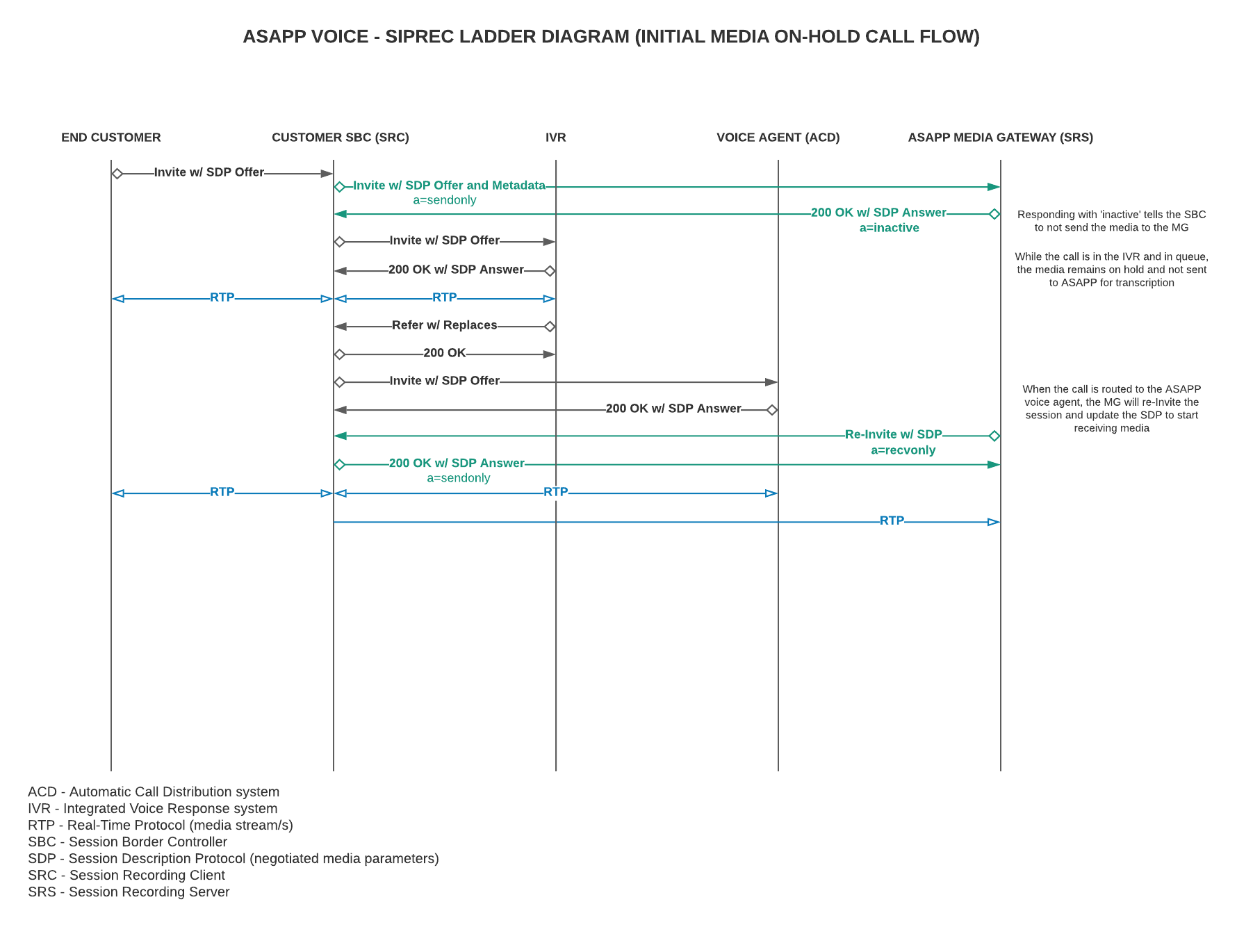 * SIP RFC handles some level of packet loss and re-transmissions but if the SIP signal is lost, the SIPREC dialog will be torn down and the media will no longer be sent.
* Media is sent via UDP.
* No retransmissions so packet loss or disconnects result in permanent loss of the audio.
* Proxies are transactionally stateless.
* No audio is ever sent to/through proxies, all audio goes directly to media gateways.
* Proxies are no longer in the signal path after the first transaction.
* If a proxy fails or is disconnected, SBCs can "hunt" or failover to the next proxy in it's configuration.
* No existing calls are impacted.
* If media gateways fail or are disconnected, the next SIP transaction will fail and the existing media stream (if resumed) will send via UDP to nothing (media is lost).
* Media gateways use regular SIP OPTIONS sent to static proxies that indicate if they are available and their current number of calls.
* Proxies use this active call load to evenly load balance to the least used media gateway.
* As well as dynamically pick up when a media gateway is no longer available or new ones come online.
* Any inbound calls coming in over ISDN-PRI/TDM trunk facilities will not have associated SIPREC sessions, as these calls do not traverse the SBC.
### Media Gateways to ASAPP Voice Streamers
* Secure websocket initiated per stream (2 per call) to the ASAPP Voice Streamer
* Media gateways do not store media, all processing is done in memory.
* Packet loss can be tolerated a little with TCP retransmissions.
* Buffer overrun audio data in the media gateway is purged instantly (per stream).
* If a secure websocket connection is lost, the media gateway will attempt a limited number of reconnections and then fail.
* If a voice streamer fails, a media gateway will reconnect to a new streamer.
* If a media gateway fails, the SIPREC stream is lost and the SBC can no longer send audio for that group of calls.
## Integration
### API Integration
Integration to existing customer systems enable ASAPP to call for information from those systems to present to the agent, such as:
* customer profile information
* billing history/statements
* customer product purchases
* Knowledge Base
Integration also enables ASAPP to push information to those systems, such as disposition notes and account changes/updates.
ASAPP will work with you to determine use cases for each integration that will add value to the agent and customer experience.
### Custom Call Data from CTI Information
In many instances, CTI will carry end customer specific information about the end customer and the call. This may be in the form of [User-to-User Information (UUI)](#glossary "Glossary"), `Call Variables`, Custom `NamedVariables`, or Custom `KVList UserData`. ASAPP uses this data to provide more information to agents and admins. It may contain information that provides customer identity information, route codes, queue information, customer authentication status, IVR interactions/ outputs, or simply unique identifiers for further data lookup from APIs. ASAPP extracts the custom fields and leverages the data in real-time to provide agents as much information as possible as part of the initial part of the interaction.
Each environment is uniquely different and ASAPP needs to understand what data is available from the CTI events to maximize relevant data to the agent and for voice intelligence processing.
Examples:
**Avaya**
```json theme={null}
UserToUserInfo: “10000002321489708161;verify=T;english;2012134581”
```
**Cisco**
```json theme={null}
CallVariable1:10000002321489708161
CallVariable7:en-us
user.AuthDetect:87
```
**Genesys**
```json theme={null}
userAccount:10000002321489708161
userLanguage:en
userFirstName:John
```
**Twilio**
```json theme={null}
* SIP RFC handles some level of packet loss and re-transmissions but if the SIP signal is lost, the SIPREC dialog will be torn down and the media will no longer be sent.
* Media is sent via UDP.
* No retransmissions so packet loss or disconnects result in permanent loss of the audio.
* Proxies are transactionally stateless.
* No audio is ever sent to/through proxies, all audio goes directly to media gateways.
* Proxies are no longer in the signal path after the first transaction.
* If a proxy fails or is disconnected, SBCs can "hunt" or failover to the next proxy in it's configuration.
* No existing calls are impacted.
* If media gateways fail or are disconnected, the next SIP transaction will fail and the existing media stream (if resumed) will send via UDP to nothing (media is lost).
* Media gateways use regular SIP OPTIONS sent to static proxies that indicate if they are available and their current number of calls.
* Proxies use this active call load to evenly load balance to the least used media gateway.
* As well as dynamically pick up when a media gateway is no longer available or new ones come online.
* Any inbound calls coming in over ISDN-PRI/TDM trunk facilities will not have associated SIPREC sessions, as these calls do not traverse the SBC.
### Media Gateways to ASAPP Voice Streamers
* Secure websocket initiated per stream (2 per call) to the ASAPP Voice Streamer
* Media gateways do not store media, all processing is done in memory.
* Packet loss can be tolerated a little with TCP retransmissions.
* Buffer overrun audio data in the media gateway is purged instantly (per stream).
* If a secure websocket connection is lost, the media gateway will attempt a limited number of reconnections and then fail.
* If a voice streamer fails, a media gateway will reconnect to a new streamer.
* If a media gateway fails, the SIPREC stream is lost and the SBC can no longer send audio for that group of calls.
## Integration
### API Integration
Integration to existing customer systems enable ASAPP to call for information from those systems to present to the agent, such as:
* customer profile information
* billing history/statements
* customer product purchases
* Knowledge Base
Integration also enables ASAPP to push information to those systems, such as disposition notes and account changes/updates.
ASAPP will work with you to determine use cases for each integration that will add value to the agent and customer experience.
### Custom Call Data from CTI Information
In many instances, CTI will carry end customer specific information about the end customer and the call. This may be in the form of [User-to-User Information (UUI)](#glossary "Glossary"), `Call Variables`, Custom `NamedVariables`, or Custom `KVList UserData`. ASAPP uses this data to provide more information to agents and admins. It may contain information that provides customer identity information, route codes, queue information, customer authentication status, IVR interactions/ outputs, or simply unique identifiers for further data lookup from APIs. ASAPP extracts the custom fields and leverages the data in real-time to provide agents as much information as possible as part of the initial part of the interaction.
Each environment is uniquely different and ASAPP needs to understand what data is available from the CTI events to maximize relevant data to the agent and for voice intelligence processing.
Examples:
**Avaya**
```json theme={null}
UserToUserInfo: “10000002321489708161;verify=T;english;2012134581”
```
**Cisco**
```json theme={null}
CallVariable1:10000002321489708161
CallVariable7:en-us
user.AuthDetect:87
```
**Genesys**
```json theme={null}
userAccount:10000002321489708161
userLanguage:en
userFirstName:John
```
**Twilio**
```json theme={null}
SAML Attribute Values |
ASAPP Usage |
Examples |
Agent Login ID |
Provides mapping of the customer telephony agent ID to ASAPP’s internal user ID. |
or
|
Givenname |
Given name |
|
Surname |
Surname |
|
Email address |
|
|
Unique User Identifier |
The User ID (authRepId); can be represented as an employee ID or email address. |
|
PhysicalDeliveryOfficeName |
Physical delivery office name |
|
HireDate |
Hire date attribute used by reporting. |
|
Title |
Can be used for reporting. |
|
Role |
The roles define what agents can see in the UI and have access to when they login. |
|
Group |
For Voice, this is only for reporting purposes. For digital chat this also can be used for queue management. |
|
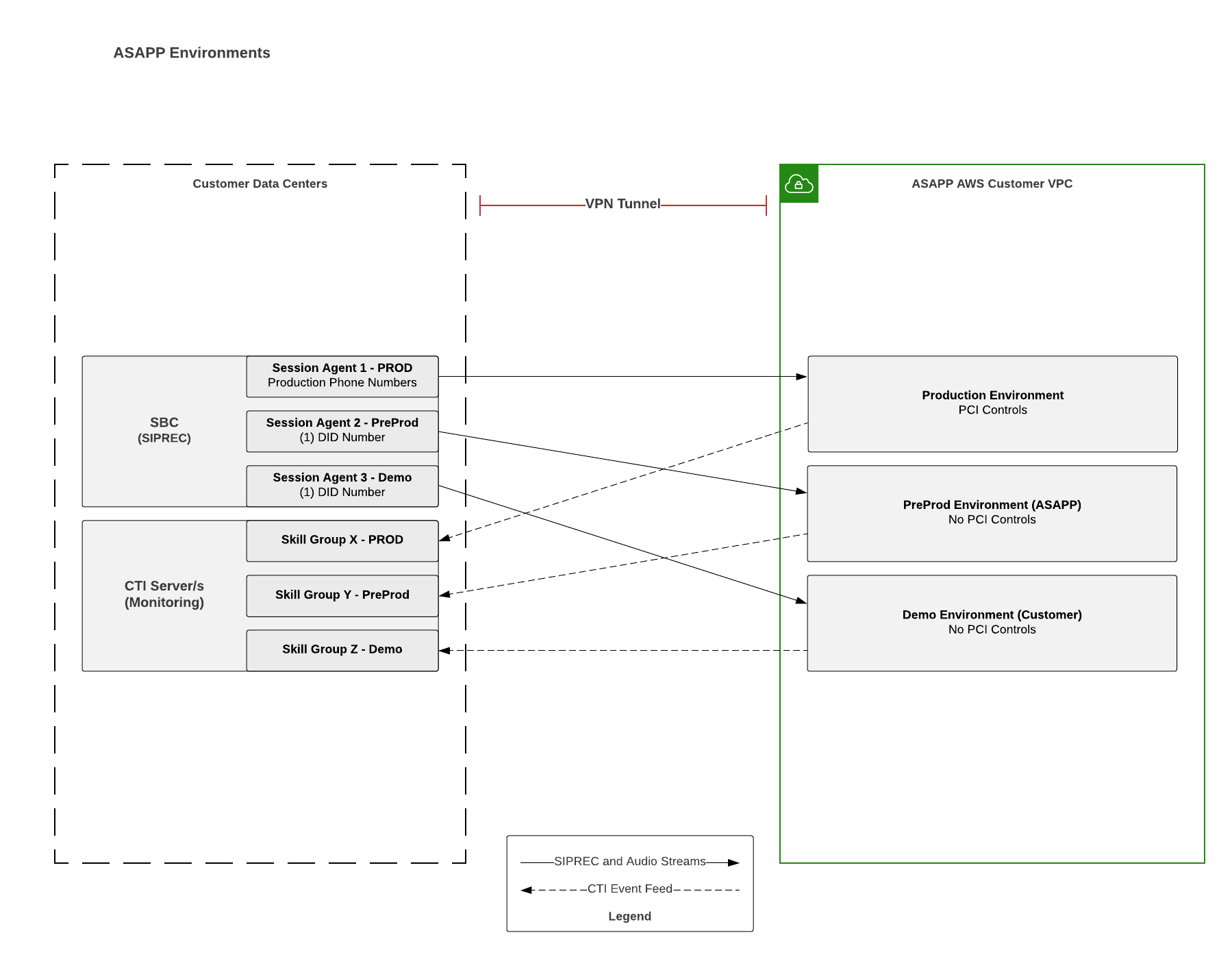 ## Appendix A - Avaya Configuration Details
This section provides specific configuration details for the solution that leverages Avaya telephony infrastructure.
**Avaya Communication Manager**
* Set Avaya [Internet Protocol - Private Branch Exchange (IP-PBX)](#glossary "Glossary") SIP trunks to 'shared' to ensure the UCID is not reset by the PBX.
* Change trunk-group x -> page 3 -> UUI Treatment:shared
* Set `SendtoASAI` parameter to 'yes.'
* Change system-parameters features -> page 13 -> Send UCID to ASAI? Y
* Add ASAPP voice agents to a new skill, one that is not used for queuing or routing.
* Configure AES to monitor the new skill.
* ASAPP will use the `cstaMonitorDevice` service to monitor the ACD skill.
* ASAPP may also call `cstaMonitorCallsViaDevice` if more call data is needed.
**Avaya AES [TSAPI](#glossary "Glossary") configuration**
* Networking -> Ports -> TSAPI Ports
* Enabled
* TSAPI Service Port (450)
* Firewalls will also need to allow these ports.
| **Connection Type** | **TCP Min Port** | **TCP Max Port** |
| :------------------ | :--------------- | :--------------- |
| unencrypted/TCP | 1050 | 1065 |
| encrypted/TLS | 1066 | 1081 |
* AES link to ASAPP connection provisioning
* Provisioning of new ASAPP Voice skill for monitoring.
## Appendix B - Cisco Configuration Details
This section provides specific configuration details for the solution that leverages Cisco telephony infrastructure.
**Cisco CTI Server configuration**
* ASAPP will connect with the `CTI_SERVICE_ALL_EVENTS`
* You will need the Preferred `ClientID` (identifier for ASAPP) and `ClientPassword` (if not null) to send the `OPEN_REQ` message.
* Ports 42027 (side A) and 43027 (side B)
* Instance number if not 0 will increase these ports
* Firewalls will also need to allow these ports
* `CallVariable`1-10 Definitions/usages
* Custom `NamedVariables` and `NamedArrays` Definitions/usages
* Events currently used by ASAPP:
* `OPEN_REQ`
* `OPEN_CONF`
* `SYSTEM`
* `AGENT_STATE`
* `AGENT_PRE_CALL`
* `BEGIN_CALL`
* `CALL_DATA_UPDATE`
* `CALL_CLEARED`
* `END_CALL`
## Appendix C - Oracle (Acme) Session Border Controller
In order to provide the correlation between the SIPREC session and specific CTI events, ASAPP will use the following approach:
* Session Border Controller
* Configure the SBC to create an Avaya UCID (universal call identifier) in the SIP header.
* UCID generation is a native feature for Oracle/Acme Packet session border controller platforms.
* [Oracle SBC UCID Admin](https://docs.oracle.com/en/industries/communications/enterprise-session-border-controller/8.4.0/configuration/universal-call-identifier-spl#GUID-97456BB9-264F-4290-AB92-8C60F64B9734)
* In the Oracle (Acme Packet) SBCs, load balancing across the ASAPP Media Gateway Proxies requires the use of static IP addresses versus the use of dynamic hostnames.
* SBC Settings for Media Gateway Proxies - Production and Lower Environments:
* Transport = TCP
* SIP OPTIONS = disabled
* Load Balancing strategy = "hunt"
* Session-recording-required = disabled
* Port = 5070
## Glossary
| **Term** | **Acronym** | **Definition** |
| :-------------------------------------------------------- | :---------- | :----------------------------------------------------------------------------------------------------------------------------------------------------------------------------------------------------------------------------- |
| **Automated Speech Recognition** | ASR | The service that converts speech (audio) to text. |
| **Automatic Call Distributor** | ACD | A telephony system that automatically receives incoming calls and distributes them to available agents. Its purpose is to help inbound contact centers sort and manage large volumes of calls to avoid overwhelming the team. |
| **Computer Telephony Integration** | CTI | The means of linking a call center's telephone systems to a business application. In this case, ASAPP monitors agents and receives call state event data via CTI. |
| **Direct Inward Dialing** | DID | A service that allows a company to provide individual phone numbers for each employee without a separate physical line. |
| **Globally Unique IDentifier** | GUID | A numeric label used for information in communications systems. When generated according to the standard methods, GUIDs are, for practical purposes, unique. Also known as Universally Unique IDentifier (UUID) |
| **Internet Protocol Private Branch Exchange** | IP-PBX | A system that connects phone extensions to the Public Switched Telephone Network (PSTN) and provides internal business communication. |
| **Media Gateway** | MG | Entry point for all calls from Customer. Receives and forwards SIP and audio data. |
| **Media Gateway Proxy** | MGP | SIP Proxy, used for SIP signaling to/from customer SBC. |
| **Payment Card Industry Data Security Standard** | PCI DSS | Payment card industry compliance refers to the technical and operational standards that businesses follow to secure and protect credit card data provided by cardholders and transmitted through card processing transactions. |
| **Payment Card Industry Zone** | PCI Zone | PCI Level I Certified environment for cardholder data and other sensitive customer data storage (Transport layer security for encryption in transit, encryption at rest, access tightly restricted and monitored). |
| **Pulse-Code Modulation** | PCM | Pulse-code modulation is a method used to digitally represent sampled analog signals. It is the standard form of digital audio in digital telephony. |
| **Security Assertion Markup Language** | SAML | An open standard for exchanging authentication and authorization data between an identity provider and a service provider. |
| **Session Border Controller** | SBC | SIP-based voice security platform; source of the SIPREC sessions to ASAPP. |
| **Session Description Protocol** | SDP | Used between endpoints for negotiation of network metrics, media types, and other associated properties, such as codec and sample size. |
| **Session Initiation Protocol Application-Level Gateway** | SIP ALG | A firewall function that enables the firewall to inspect the SIP dialog/s. This function should be disabled to prevent SIP dialog interruption. |
| **Session Initiation Protocol Recording** | SIPREC | IETF standard used for establishing recording sessions and reporting of the metadata of the communication sessions. |
| **Single Sign On** | SSO | Single sign-on is an authentication scheme that allows a user to log in with a single ID and password to any of several related, yet independent, software systems. |
| **Toll-Free Number** | TFN | A service that allows callers to reach businesses without being charged for the call. The called person is charged for the toll-free number. |
| **Telephony Services API** | TSAPI | Telephony server application programming interface (TSAPI) is a computer telephony integration standard that enables telephony and computer telephony integration (CTI) application programming. |
| **Universal Call IDentifier** | UCID | UCID assigns a unique number to a call when it enters that call center network. The single UCID can be passed among platforms, and can be used to compile call-related information across platforms and sites. |
| **User to User Information** | UUI | The SIP UUI header allows the IVR to insert information about the call/caller and pass it to downstream elements, in this case, Communication Manager. The UUI information is then available via CTI. |
| **Voice Streamer** | VS | Receives SIP and audio data from MG. Gets the audio transcribed into text through the ASR and sends that downstream. |
---
# Source: https://docs.asapp.com/security/warning-about-customerinfo-and-sensitive-data.md
> ## Documentation Index
> Fetch the complete documentation index at: https://docs.asapp.com/llms.txt
> Use this file to discover all available pages before exploring further.
# Warning about CustomerInfo and Sensitive Data
> Learn how to securely handle Customer Information.
## Appendix A - Avaya Configuration Details
This section provides specific configuration details for the solution that leverages Avaya telephony infrastructure.
**Avaya Communication Manager**
* Set Avaya [Internet Protocol - Private Branch Exchange (IP-PBX)](#glossary "Glossary") SIP trunks to 'shared' to ensure the UCID is not reset by the PBX.
* Change trunk-group x -> page 3 -> UUI Treatment:shared
* Set `SendtoASAI` parameter to 'yes.'
* Change system-parameters features -> page 13 -> Send UCID to ASAI? Y
* Add ASAPP voice agents to a new skill, one that is not used for queuing or routing.
* Configure AES to monitor the new skill.
* ASAPP will use the `cstaMonitorDevice` service to monitor the ACD skill.
* ASAPP may also call `cstaMonitorCallsViaDevice` if more call data is needed.
**Avaya AES [TSAPI](#glossary "Glossary") configuration**
* Networking -> Ports -> TSAPI Ports
* Enabled
* TSAPI Service Port (450)
* Firewalls will also need to allow these ports.
| **Connection Type** | **TCP Min Port** | **TCP Max Port** |
| :------------------ | :--------------- | :--------------- |
| unencrypted/TCP | 1050 | 1065 |
| encrypted/TLS | 1066 | 1081 |
* AES link to ASAPP connection provisioning
* Provisioning of new ASAPP Voice skill for monitoring.
## Appendix B - Cisco Configuration Details
This section provides specific configuration details for the solution that leverages Cisco telephony infrastructure.
**Cisco CTI Server configuration**
* ASAPP will connect with the `CTI_SERVICE_ALL_EVENTS`
* You will need the Preferred `ClientID` (identifier for ASAPP) and `ClientPassword` (if not null) to send the `OPEN_REQ` message.
* Ports 42027 (side A) and 43027 (side B)
* Instance number if not 0 will increase these ports
* Firewalls will also need to allow these ports
* `CallVariable`1-10 Definitions/usages
* Custom `NamedVariables` and `NamedArrays` Definitions/usages
* Events currently used by ASAPP:
* `OPEN_REQ`
* `OPEN_CONF`
* `SYSTEM`
* `AGENT_STATE`
* `AGENT_PRE_CALL`
* `BEGIN_CALL`
* `CALL_DATA_UPDATE`
* `CALL_CLEARED`
* `END_CALL`
## Appendix C - Oracle (Acme) Session Border Controller
In order to provide the correlation between the SIPREC session and specific CTI events, ASAPP will use the following approach:
* Session Border Controller
* Configure the SBC to create an Avaya UCID (universal call identifier) in the SIP header.
* UCID generation is a native feature for Oracle/Acme Packet session border controller platforms.
* [Oracle SBC UCID Admin](https://docs.oracle.com/en/industries/communications/enterprise-session-border-controller/8.4.0/configuration/universal-call-identifier-spl#GUID-97456BB9-264F-4290-AB92-8C60F64B9734)
* In the Oracle (Acme Packet) SBCs, load balancing across the ASAPP Media Gateway Proxies requires the use of static IP addresses versus the use of dynamic hostnames.
* SBC Settings for Media Gateway Proxies - Production and Lower Environments:
* Transport = TCP
* SIP OPTIONS = disabled
* Load Balancing strategy = "hunt"
* Session-recording-required = disabled
* Port = 5070
## Glossary
| **Term** | **Acronym** | **Definition** |
| :-------------------------------------------------------- | :---------- | :----------------------------------------------------------------------------------------------------------------------------------------------------------------------------------------------------------------------------- |
| **Automated Speech Recognition** | ASR | The service that converts speech (audio) to text. |
| **Automatic Call Distributor** | ACD | A telephony system that automatically receives incoming calls and distributes them to available agents. Its purpose is to help inbound contact centers sort and manage large volumes of calls to avoid overwhelming the team. |
| **Computer Telephony Integration** | CTI | The means of linking a call center's telephone systems to a business application. In this case, ASAPP monitors agents and receives call state event data via CTI. |
| **Direct Inward Dialing** | DID | A service that allows a company to provide individual phone numbers for each employee without a separate physical line. |
| **Globally Unique IDentifier** | GUID | A numeric label used for information in communications systems. When generated according to the standard methods, GUIDs are, for practical purposes, unique. Also known as Universally Unique IDentifier (UUID) |
| **Internet Protocol Private Branch Exchange** | IP-PBX | A system that connects phone extensions to the Public Switched Telephone Network (PSTN) and provides internal business communication. |
| **Media Gateway** | MG | Entry point for all calls from Customer. Receives and forwards SIP and audio data. |
| **Media Gateway Proxy** | MGP | SIP Proxy, used for SIP signaling to/from customer SBC. |
| **Payment Card Industry Data Security Standard** | PCI DSS | Payment card industry compliance refers to the technical and operational standards that businesses follow to secure and protect credit card data provided by cardholders and transmitted through card processing transactions. |
| **Payment Card Industry Zone** | PCI Zone | PCI Level I Certified environment for cardholder data and other sensitive customer data storage (Transport layer security for encryption in transit, encryption at rest, access tightly restricted and monitored). |
| **Pulse-Code Modulation** | PCM | Pulse-code modulation is a method used to digitally represent sampled analog signals. It is the standard form of digital audio in digital telephony. |
| **Security Assertion Markup Language** | SAML | An open standard for exchanging authentication and authorization data between an identity provider and a service provider. |
| **Session Border Controller** | SBC | SIP-based voice security platform; source of the SIPREC sessions to ASAPP. |
| **Session Description Protocol** | SDP | Used between endpoints for negotiation of network metrics, media types, and other associated properties, such as codec and sample size. |
| **Session Initiation Protocol Application-Level Gateway** | SIP ALG | A firewall function that enables the firewall to inspect the SIP dialog/s. This function should be disabled to prevent SIP dialog interruption. |
| **Session Initiation Protocol Recording** | SIPREC | IETF standard used for establishing recording sessions and reporting of the metadata of the communication sessions. |
| **Single Sign On** | SSO | Single sign-on is an authentication scheme that allows a user to log in with a single ID and password to any of several related, yet independent, software systems. |
| **Toll-Free Number** | TFN | A service that allows callers to reach businesses without being charged for the call. The called person is charged for the toll-free number. |
| **Telephony Services API** | TSAPI | Telephony server application programming interface (TSAPI) is a computer telephony integration standard that enables telephony and computer telephony integration (CTI) application programming. |
| **Universal Call IDentifier** | UCID | UCID assigns a unique number to a call when it enters that call center network. The single UCID can be passed among platforms, and can be used to compile call-related information across platforms and sites. |
| **User to User Information** | UUI | The SIP UUI header allows the IVR to insert information about the call/caller and pass it to downstream elements, in this case, Communication Manager. The UUI information is then available via CTI. |
| **Voice Streamer** | VS | Receives SIP and audio data from MG. Gets the audio transcribed into text through the ASR and sends that downstream. |
---
# Source: https://docs.asapp.com/security/warning-about-customerinfo-and-sensitive-data.md
> ## Documentation Index
> Fetch the complete documentation index at: https://docs.asapp.com/llms.txt
> Use this file to discover all available pages before exploring further.
# Warning about CustomerInfo and Sensitive Data
> Learn how to securely handle Customer Information.
 `BadgeType: 'badge'`
 Customizes the display of the [Chat SDK Badge](/agent-desk/integrations/web-sdk/web-customization#badge "Badge"). When you set the type to `'tray'`, you may also enter a `BadgeText` value. When you set this to 'none', the badge will not render.
### FrameDraggable
* Key: `FrameDraggable`
* Value Type: `Boolean`
Enabling this setting allows a user to reposition the placement of the [Chat SDK iframe](/agent-desk/integrations/web-sdk/web-customization#iframe "iframe").
When this is set to `true`, a user can hover over the frame's heading region, then click and drag to reposition the frame. The user's frame position will be recalled as they navigate your site or minimize/open the Chat SDK.
If the user has repositioned the frame, a button will appear allowing them to reset the Chat SDK to its default position.
### FrameStyle
* Key: `FrameStyle`
* Value Type: `String`
Accepted Values: `'sidebar'`, `'default'` (default)
Customizes the layout of the [Chat SDK iframe](/agent-desk/integrations/web-sdk/web-customization#iframe "iframe").
By default, the frame will appear as a floating window with a responsive height and width. When set to `'sidebar'`, the frame will be docked to the side of the page and take 100% of the browser's viewport height. The`'sidebar'` setting will adjust your page's content as though the user resized their browser viewport.
Use the `Align` setting if you wish to change which side of the page the frame appears on.
### HideBadgeOnLoad
* Key: `HideBadgeOnLoad`
* Value Type: `Boolean`
* Accepted Values: `'true'`,`'false'`(default)
When set to true, [Chat Badge](/agent-desk/integrations/web-sdk/web-customization#badge "Badge") is not visible on load. You can open the [Chat SDK iframe](/agent-desk/integrations/web-sdk/web-customization#iframe "iframe") via Proactive Message, [Chat Instead](../chat-instead/web "Web"), or [Show API](/agent-desk/integrations/web-sdk/web-javascript-api#show "'show'").
Once you open the Chat SDK iframe, Chat Badge will become visible allowing a user to minimize/reopen.
### Identity
* Key: `Identity`
* Value Type: `String`
A string that represents the branding you wish to display on the SDK. Your ASAPP Implementation Manager will help you determine this value.
If set to a non-supported value the Chat SDK will display in a generic, non-branded experience.
### PrimaryColor
* Key: `PrimaryColor`
* Value Type: `String`
* Accepted Values: `Color Keyword`,`RGB hex value`
Customizes the primary color of Proactive Messages and [Chat Instead](/agent-desk/integrations/chat-instead/web "Web").
This will be the background color of the [Chat SDK Badge](/agent-desk/integrations/web-sdk/web-customization#badge "Badge") if the BadgeColor is not provided.
## Intent
* Key: `Intent`
* Available APIs: [Load](/agent-desk/integrations/web-sdk/web-javascript-api#-load- "'load'")
* Value Type: `String`
The intent code that you wish for a user's conversation to initialize with. The setting takes an object, with a required key of `Code`. `Code` accepts a string.
Your team and your ASAPP Implementation Manager will determine the available values.
```javascript theme={null}
ASAPP('load', {
APIHostname: 'example-co-api.asapp.com',
AppId: 'example-co',
Intent: {
Code: 'PAYBILL'
}
});
```
## Language
* Key: `Language`
* Available APIs: [Load](/agent-desk/integrations/web-sdk/web-javascript-api#load "'load'")
* Value Type: `String`
By Default, the SDK will use English (`en`). You can override this by setting the `Language` property. It accepts a value of:
* `en` for English
* `fr` for French
* `es` for Spanish
ASAPP does not support switching languages mid-session, after a conversation has started. You must set a language before starting a conversation.
Customizes the display of the [Chat SDK Badge](/agent-desk/integrations/web-sdk/web-customization#badge "Badge"). When you set the type to `'tray'`, you may also enter a `BadgeText` value. When you set this to 'none', the badge will not render.
### FrameDraggable
* Key: `FrameDraggable`
* Value Type: `Boolean`
Enabling this setting allows a user to reposition the placement of the [Chat SDK iframe](/agent-desk/integrations/web-sdk/web-customization#iframe "iframe").
When this is set to `true`, a user can hover over the frame's heading region, then click and drag to reposition the frame. The user's frame position will be recalled as they navigate your site or minimize/open the Chat SDK.
If the user has repositioned the frame, a button will appear allowing them to reset the Chat SDK to its default position.
### FrameStyle
* Key: `FrameStyle`
* Value Type: `String`
Accepted Values: `'sidebar'`, `'default'` (default)
Customizes the layout of the [Chat SDK iframe](/agent-desk/integrations/web-sdk/web-customization#iframe "iframe").
By default, the frame will appear as a floating window with a responsive height and width. When set to `'sidebar'`, the frame will be docked to the side of the page and take 100% of the browser's viewport height. The`'sidebar'` setting will adjust your page's content as though the user resized their browser viewport.
Use the `Align` setting if you wish to change which side of the page the frame appears on.
### HideBadgeOnLoad
* Key: `HideBadgeOnLoad`
* Value Type: `Boolean`
* Accepted Values: `'true'`,`'false'`(default)
When set to true, [Chat Badge](/agent-desk/integrations/web-sdk/web-customization#badge "Badge") is not visible on load. You can open the [Chat SDK iframe](/agent-desk/integrations/web-sdk/web-customization#iframe "iframe") via Proactive Message, [Chat Instead](../chat-instead/web "Web"), or [Show API](/agent-desk/integrations/web-sdk/web-javascript-api#show "'show'").
Once you open the Chat SDK iframe, Chat Badge will become visible allowing a user to minimize/reopen.
### Identity
* Key: `Identity`
* Value Type: `String`
A string that represents the branding you wish to display on the SDK. Your ASAPP Implementation Manager will help you determine this value.
If set to a non-supported value the Chat SDK will display in a generic, non-branded experience.
### PrimaryColor
* Key: `PrimaryColor`
* Value Type: `String`
* Accepted Values: `Color Keyword`,`RGB hex value`
Customizes the primary color of Proactive Messages and [Chat Instead](/agent-desk/integrations/chat-instead/web "Web").
This will be the background color of the [Chat SDK Badge](/agent-desk/integrations/web-sdk/web-customization#badge "Badge") if the BadgeColor is not provided.
## Intent
* Key: `Intent`
* Available APIs: [Load](/agent-desk/integrations/web-sdk/web-javascript-api#-load- "'load'")
* Value Type: `String`
The intent code that you wish for a user's conversation to initialize with. The setting takes an object, with a required key of `Code`. `Code` accepts a string.
Your team and your ASAPP Implementation Manager will determine the available values.
```javascript theme={null}
ASAPP('load', {
APIHostname: 'example-co-api.asapp.com',
AppId: 'example-co',
Intent: {
Code: 'PAYBILL'
}
});
```
## Language
* Key: `Language`
* Available APIs: [Load](/agent-desk/integrations/web-sdk/web-javascript-api#load "'load'")
* Value Type: `String`
By Default, the SDK will use English (`en`). You can override this by setting the `Language` property. It accepts a value of:
* `en` for English
* `fr` for French
* `es` for Spanish
ASAPP does not support switching languages mid-session, after a conversation has started. You must set a language before starting a conversation.
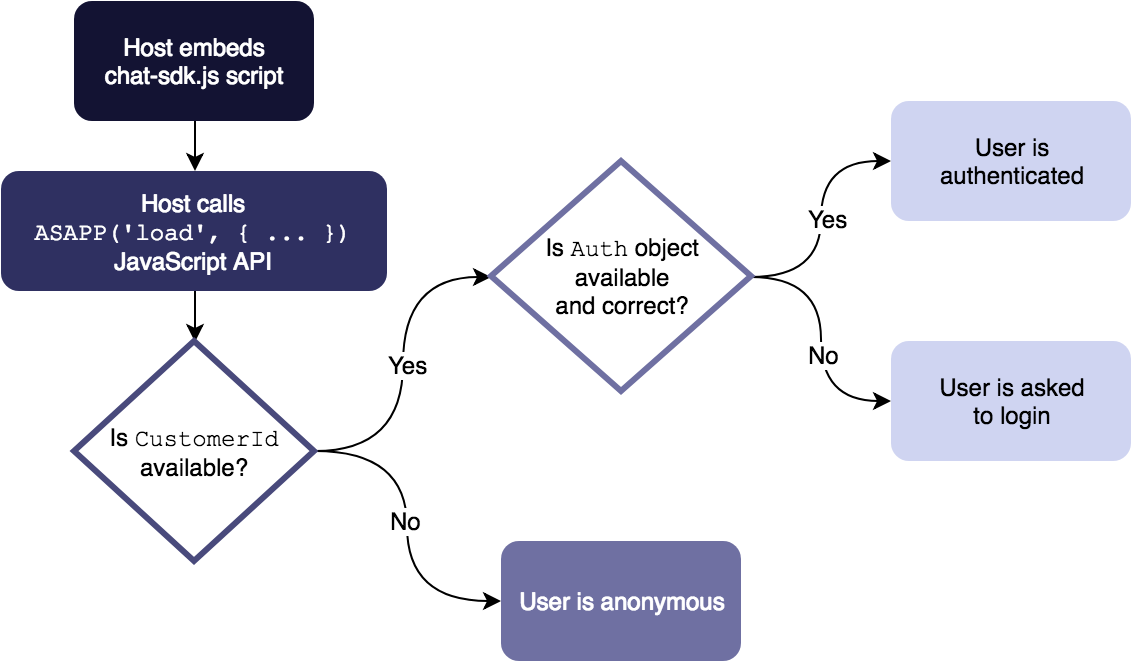 ## Authenticating at Page Load
If a user who is already authenticated with your site requests a page that includes ASAPP chat functionality, you can proactively authenticate that user to the ASAPP SDK at page load time. This allows an authenticated user who initiates a chat session to have immediate access to their account details without having to login again.
To authenticate a user to the ASAPP Chat SDK on page load, use the ASAPP [Load API](/agent-desk/integrations/web-sdk/web-javascript-api#load "'load'") providing both [ContextProvider](/agent-desk/integrations/web-sdk/web-app-settings#contextprovider "ContextProvider") and [CustomerId](/agent-desk/integrations/web-sdk/web-app-settings#customerid "CustomerId") as additional keys in the [Load method](/agent-desk/integrations/web-sdk/web-javascript-api#load "'load'").
For example:
```javascript theme={null}
```
The sample above initializes the ASAPP Chat SDK with your user's `CustomerId` and a `ContextProvider` incorporating that user's `Auth`.
When a user opens the ASAPP Chat SDK, they are already authenticated to the chat client and can access account information within the chat without being asked to login again.
## Authenticating Asynchronously
If a user's authentication credentials are not available at page load time, you can authenticate asynchronously using the ASAPP [SetCustomer](/agent-desk/integrations/web-sdk/web-javascript-api#setcustomer "'setCustomer'") API.
After you've retrieved your user's credentials, you can call the API to authenticate that user with the ASAPP Chat SDK mid-session.
You might want to asynchronously authenticate a user to the ASAPP Chat SDK when (for example) that user has just completed a login flow, or if their credentials are retrieved after the page initially loads, or if a session expires and the user needs to reauthenticate.
The following sample snippet shows how to call the SetCustomer API:
```javascript theme={null}
```
Once you call the [SetCustomer](/agent-desk/integrations/web-sdk/web-javascript-api#setcustomer "'setCustomer'") method, and as long as the provided `Auth` information remains valid on your backend, any ASAPP Chat SDK actions that require authentication authenticate properly.
## Authenticating at Page Load
If a user who is already authenticated with your site requests a page that includes ASAPP chat functionality, you can proactively authenticate that user to the ASAPP SDK at page load time. This allows an authenticated user who initiates a chat session to have immediate access to their account details without having to login again.
To authenticate a user to the ASAPP Chat SDK on page load, use the ASAPP [Load API](/agent-desk/integrations/web-sdk/web-javascript-api#load "'load'") providing both [ContextProvider](/agent-desk/integrations/web-sdk/web-app-settings#contextprovider "ContextProvider") and [CustomerId](/agent-desk/integrations/web-sdk/web-app-settings#customerid "CustomerId") as additional keys in the [Load method](/agent-desk/integrations/web-sdk/web-javascript-api#load "'load'").
For example:
```javascript theme={null}
```
The sample above initializes the ASAPP Chat SDK with your user's `CustomerId` and a `ContextProvider` incorporating that user's `Auth`.
When a user opens the ASAPP Chat SDK, they are already authenticated to the chat client and can access account information within the chat without being asked to login again.
## Authenticating Asynchronously
If a user's authentication credentials are not available at page load time, you can authenticate asynchronously using the ASAPP [SetCustomer](/agent-desk/integrations/web-sdk/web-javascript-api#setcustomer "'setCustomer'") API.
After you've retrieved your user's credentials, you can call the API to authenticate that user with the ASAPP Chat SDK mid-session.
You might want to asynchronously authenticate a user to the ASAPP Chat SDK when (for example) that user has just completed a login flow, or if their credentials are retrieved after the page initially loads, or if a session expires and the user needs to reauthenticate.
The following sample snippet shows how to call the SetCustomer API:
```javascript theme={null}
```
Once you call the [SetCustomer](/agent-desk/integrations/web-sdk/web-javascript-api#setcustomer "'setCustomer'") method, and as long as the provided `Auth` information remains valid on your backend, any ASAPP Chat SDK actions that require authentication authenticate properly.
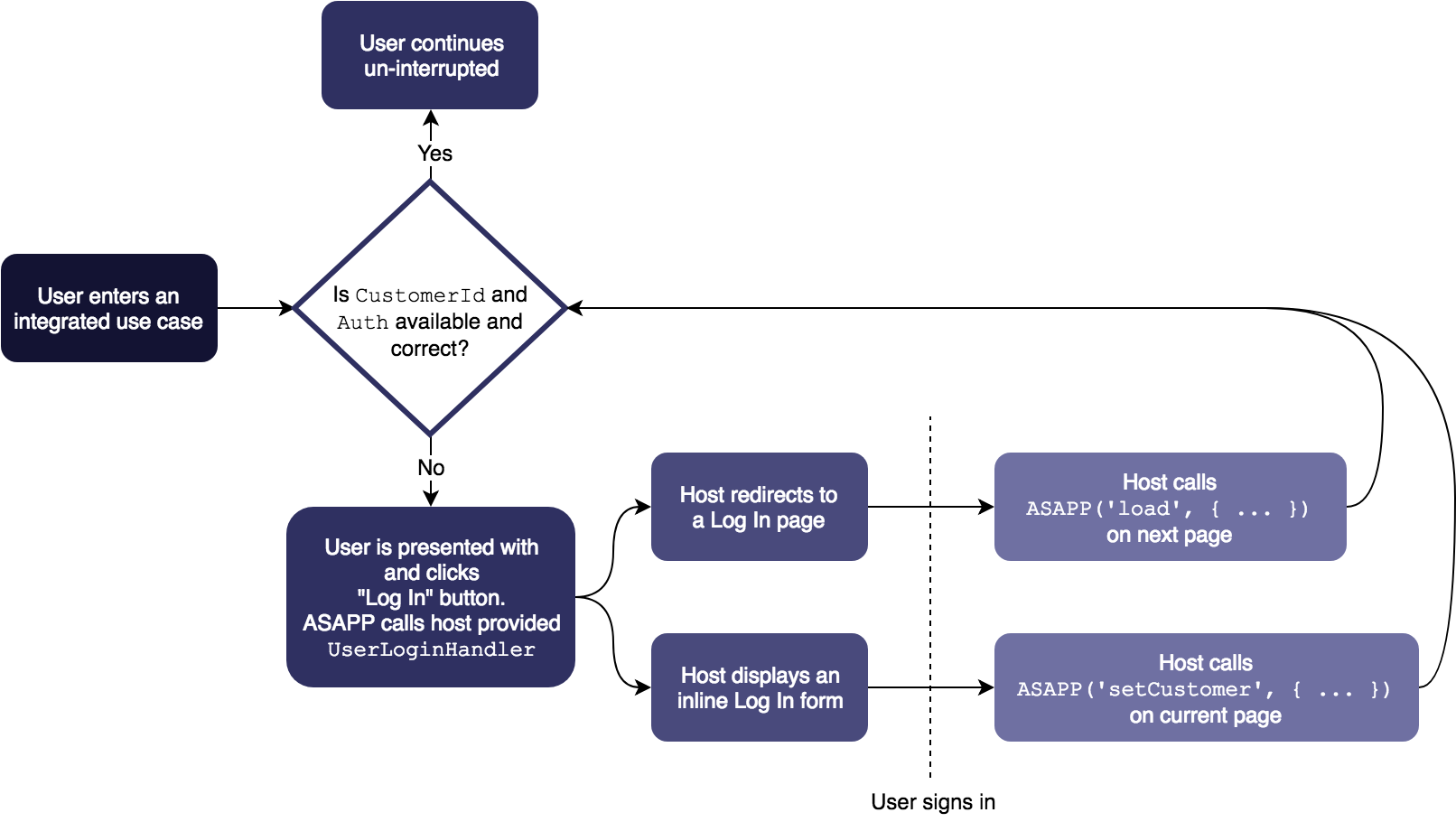 ```javascript theme={null}
```
---
# Source: https://docs.asapp.com/agent-desk/integrations/web-sdk/web-contextprovider.md
> ## Documentation Index
> Fetch the complete documentation index at: https://docs.asapp.com/llms.txt
> Use this file to discover all available pages before exploring further.
# Web ContextProvider
This section details the various ways you can use the ASAPP ContextProvider with the Chat SDK API. Before using the ContextProvider, make sure you've [integrated the ASAPP SDK](/agent-desk/integrations/web-sdk/web-quick-start "Web Quick Start") script on your page.
The ASAPP `ContextProvider` is used for passing various information about your users or their sessions to the Chat SDK. It is a key that may be set in the [Load and SetCustomer](/agent-desk/integrations/web-sdk/web-javascript-api) APIs. The key must be assigned a function that will receive two arguments.
The first argument is a `callback` function. The second argument is a `needsRefresh` boolean indicating whether or not the authorization information needs to be refreshed.
The `ContextProvider` is called whenever the user types in the Chat SDK.
## 'Callback'
After you've retrieved all the context needed for a user, call the `callback` argument with your context object as the sole argument. This will pass your context object to the ASAPP Chat SDK.
## 'needsRefresh'
The `needsRefresh` argument returns a boolean value indicating whether or not your user's authorization has expired.
```javascript theme={null}
function contextProviderHandler(callback, needsRefresh) {
var contextObject = Object.assign(
{},
yourGetAnalyticsMethod(),
yourGetSessionMethod(),
yourGetAuthenticationMethod()
);
if (needsRefresh) {
Object.assign(contextObject.Auth,
getUpdatedAuthorization()
);
}
callback(contextObject);
}
ASAPP('setCustomer', {
CustomerId: yourGetCustomerIdMethod(),
ContextProvider: contextProviderHandler
}
)
\
;
```
## Authentication
The `ContextProvider` plays an important role in authorizing your users with the ASAPP Chat SDK. Whether your users are always authenticated or transitioning from an anonymous to integrated use case, you must use the ContextProvider's `Auth` key to provide a user's authorization.
```javascript theme={null}
```
---
# Source: https://docs.asapp.com/agent-desk/integrations/web-sdk/web-contextprovider.md
> ## Documentation Index
> Fetch the complete documentation index at: https://docs.asapp.com/llms.txt
> Use this file to discover all available pages before exploring further.
# Web ContextProvider
This section details the various ways you can use the ASAPP ContextProvider with the Chat SDK API. Before using the ContextProvider, make sure you've [integrated the ASAPP SDK](/agent-desk/integrations/web-sdk/web-quick-start "Web Quick Start") script on your page.
The ASAPP `ContextProvider` is used for passing various information about your users or their sessions to the Chat SDK. It is a key that may be set in the [Load and SetCustomer](/agent-desk/integrations/web-sdk/web-javascript-api) APIs. The key must be assigned a function that will receive two arguments.
The first argument is a `callback` function. The second argument is a `needsRefresh` boolean indicating whether or not the authorization information needs to be refreshed.
The `ContextProvider` is called whenever the user types in the Chat SDK.
## 'Callback'
After you've retrieved all the context needed for a user, call the `callback` argument with your context object as the sole argument. This will pass your context object to the ASAPP Chat SDK.
## 'needsRefresh'
The `needsRefresh` argument returns a boolean value indicating whether or not your user's authorization has expired.
```javascript theme={null}
function contextProviderHandler(callback, needsRefresh) {
var contextObject = Object.assign(
{},
yourGetAnalyticsMethod(),
yourGetSessionMethod(),
yourGetAuthenticationMethod()
);
if (needsRefresh) {
Object.assign(contextObject.Auth,
getUpdatedAuthorization()
);
}
callback(contextObject);
}
ASAPP('setCustomer', {
CustomerId: yourGetCustomerIdMethod(),
ContextProvider: contextProviderHandler
}
)
\
;
```
## Authentication
The `ContextProvider` plays an important role in authorizing your users with the ASAPP Chat SDK. Whether your users are always authenticated or transitioning from an anonymous to integrated use case, you must use the ContextProvider's `Auth` key to provide a user's authorization.
 ## Basic Integration (With Authentication)
Integrating the Chat SDK with authenticated users requires the addition of the `CustomerId`, `ContextProvider`, and `UserLoginHandler` keys.
See the [App Settings](/agent-desk/integrations/web-sdk/web-app-settings "Web App Settings") page for more detailed information on their usage. With each of these keys set, a user will be able to access integrated use cases or be capable of logging in if they are not already.
The following code snippet is an example of providing user credentials for allowing a user to enter integrated use cases.
```json theme={null}
document.addEventListener('DOMContentLoaded', function () {
ASAPP('load', {
APIHostname: 'example-co.api.asapp.com',
AppId: 'example-co',
CustomerId: 'hashed-customer-identifier',
ContextProvider: function (callback, tokenIsExpired) {
var context = {
Auth: {
Token: 'secure-session-user-token'
}
};
callback(context);
},
// If a user's token expires or their user credentials
// are not available, handle their login path
UserLoginHandler: function () {
window.location.href = '/login';
}
});
});
```
With the above information set, a user will be able to access integrated use cases. If their session or token information has expired, then the user will be presented with a "Sign In" button.
Once the user clicks the Sign In button, the Chat SDK will call your provided `UserLoginHandler`, allowing them to authorize.
Here's a sample of what the Sign In button looks like.
## Basic Integration (With Authentication)
Integrating the Chat SDK with authenticated users requires the addition of the `CustomerId`, `ContextProvider`, and `UserLoginHandler` keys.
See the [App Settings](/agent-desk/integrations/web-sdk/web-app-settings "Web App Settings") page for more detailed information on their usage. With each of these keys set, a user will be able to access integrated use cases or be capable of logging in if they are not already.
The following code snippet is an example of providing user credentials for allowing a user to enter integrated use cases.
```json theme={null}
document.addEventListener('DOMContentLoaded', function () {
ASAPP('load', {
APIHostname: 'example-co.api.asapp.com',
AppId: 'example-co',
CustomerId: 'hashed-customer-identifier',
ContextProvider: function (callback, tokenIsExpired) {
var context = {
Auth: {
Token: 'secure-session-user-token'
}
};
callback(context);
},
// If a user's token expires or their user credentials
// are not available, handle their login path
UserLoginHandler: function () {
window.location.href = '/login';
}
});
});
```
With the above information set, a user will be able to access integrated use cases. If their session or token information has expired, then the user will be presented with a "Sign In" button.
Once the user clicks the Sign In button, the Chat SDK will call your provided `UserLoginHandler`, allowing them to authorize.
Here's a sample of what the Sign In button looks like.
 ## Customizing the Interface
The Chat SDK offers a few basic keys for customizing the interface to your liking.
The `Display` key enables you to perform those customizations as needed. Please see the [Display Settings](/agent-desk/integrations/web-sdk/web-app-settings#display "Display") section for detailed information on each of the available keys.
The following code snippet shows how to add the Display key to your integration to customize the display settings of the Chat SDK.
```json theme={null}
document.addEventListener('DOMContentLoaded', function () {
ASAPP('load', {
APIHostname: 'example-co.api.asapp.com',
AppId: 'example-co',
Display: {
Align: 'left',
AlwaysShowMinimize: true,
BadgeColor: '#36393A',
BadgeText: 'Chat With Us',
BadgeType: 'tray',
FrameDraggable: true,
FrameStyle: 'sideBar'
}
});
});
```
For cases in which you have more specific styling needs, you may utilize the available IDs or classnames for targeting and customizing the Chat SDK elements with CSS.
These selectors are stable and can be used to target the ASAPP Badge and iFrame for specific styling needs.
The following code snippet provides a CSS example showcasing a few advanced style changes.
```json theme={null}
#asapp-chat-sdk-badge,
#asapp-chat-sdk-badge,
#asapp-chat-sdk-badge {
border-radius: 25px;
bottom: 10px;
box-shadow: 0 0 0 2px #fff, 0 0 0 4px #36393A;
}
#asapp-chat-sdk-iframe {
border-radius: 0;
}
```
With the above customizations in place, the Chat SDK Badge will look like the following.
## Customizing the Interface
The Chat SDK offers a few basic keys for customizing the interface to your liking.
The `Display` key enables you to perform those customizations as needed. Please see the [Display Settings](/agent-desk/integrations/web-sdk/web-app-settings#display "Display") section for detailed information on each of the available keys.
The following code snippet shows how to add the Display key to your integration to customize the display settings of the Chat SDK.
```json theme={null}
document.addEventListener('DOMContentLoaded', function () {
ASAPP('load', {
APIHostname: 'example-co.api.asapp.com',
AppId: 'example-co',
Display: {
Align: 'left',
AlwaysShowMinimize: true,
BadgeColor: '#36393A',
BadgeText: 'Chat With Us',
BadgeType: 'tray',
FrameDraggable: true,
FrameStyle: 'sideBar'
}
});
});
```
For cases in which you have more specific styling needs, you may utilize the available IDs or classnames for targeting and customizing the Chat SDK elements with CSS.
These selectors are stable and can be used to target the ASAPP Badge and iFrame for specific styling needs.
The following code snippet provides a CSS example showcasing a few advanced style changes.
```json theme={null}
#asapp-chat-sdk-badge,
#asapp-chat-sdk-badge,
#asapp-chat-sdk-badge {
border-radius: 25px;
bottom: 10px;
box-shadow: 0 0 0 2px #fff, 0 0 0 4px #36393A;
}
#asapp-chat-sdk-iframe {
border-radius: 0;
}
```
With the above customizations in place, the Chat SDK Badge will look like the following.
 ## Advanced Integration
Here's a more robust example showing how to utilize most of the ASAPP Chat SDK settings.
In the examples below we will define a few helper methods, then pass those helpers to the [Load](/agent-desk/integrations/web-sdk/web-javascript-api#load "'load'") or [SetCustomer](/agent-desk/integrations/web-sdk/web-javascript-api#setcustomer "'setCustomer'") APIs.
The following example showcases a [ContextProvider](/agent-desk/integrations/web-sdk/web-contextprovider "Web ContextProvider") that sets some basic session information, then sets any available user authentication information. Once that information is retrieved, it passes the prepared context to the `callback` so that ASAPP can process each Chat SDK request.
The following code snippet is a ContextProvider example utilizing session expiration conditionals.
```javascript theme={null}
function asappContextProvider (callback, tokenIsExpired, sessionInfo) {
var context = {
CustomerInfo: {
Region: 'north-america',
ViewingProduct: 'New Smartphone',
}
};
if (tokenIsExpired || !sessionInfo) {
sessionInfo = retrieveSessionInfo();
};
if (sessionInfo) {
context.Auth = {
Cookies: {
'X-User-Header': sessionInfo.cookies.userValue
},
Token: sessionInfo.access_token
};
}
callback(context);
}
```
The next example shows conditional logic for logging a user in on single or multi-page application. You'll likely only need to handle one of the cases in your application.
If a user enters a use case they are not authorized for, they will be presented with a "Sign In" button within the SDK.
When the user clicks that link, it will trigger your provided [UserLoginHandler](/agent-desk/integrations/web-sdk/web-app-settings#userloginhandler "UserLoginHandler") so you can allow the user to authenticate.
The following code snippet shows a UserLoginHandler utilizing page redirection or modals to log a user in.
```javascript theme={null}
function asappUserLoginHandler () {
if (isSinglePageApp) {
displayUserLoginModal()
.then(function (customer, sessionInfo) {
ASAPP('SetCustomer', {
CustomerId: customer,
ContextProvider: function (callback, tokenIsExpired) {
asappContextProvider(callback, tokenIsExpired, sessionInfo)
}
});
})
} else {
window.location.href = '/login';
}
}
```
The next helper defines the [onLoadComplete](/agent-desk/integrations/web-sdk/web-app-settings#onloadcomplete "onLoadComplete") handler.
It is used for preparing any additional logic you wish to tie to ASAPP or your own page functionality. The below example checks whether the Chat SDK loaded via a [Trigger](/agent-desk/integrations/web-sdk/web-features#triggers "Triggers") (via the `isDisplayingChat` argument).
If it's configured to display, it prepares some event bindings through the [Action API](/agent-desk/integrations/web-sdk/web-javascript-api#action-on-or-off "action: 'on' or 'off'") which in turn call an example metrics service.
The following code snippet shows an `onLoadComplete` handler being used with the isDisplayingChat conditional and Action API.
```javascript theme={null}
function asappOnLoadComplete (isDisplayingChat) {
if (isDisplayingChat) {
// Chat SDK has loaded and exists on the page
document.body.classList.add('chat-sdk-loaded');
var customerId = retrieveCurrentSessionOrUserId();
ASAPP('on', 'issue:new', function (event) {
metricService('set', 'chat:action', {
actionName: event.type,
customerId: customerId,
externalCustomerId: event.detail.customerId,
issueId: event.detail.issueId
})
});
ASAPP('on', 'message:received', function (event) {
metricService('set', 'chat:action', {
actionName: event.type,
customerId: customerId,
externalCustomerId: event.detail.customerId,
isLiveChat: event.detail.isLiveChat,
issueId: event.detail.issueId,
senderType: event.detail.senderType
})
});
} else {
// Chat SDK is not configured to display on this page.
// See Display Settings: Triggers documentation
}
}
```
Finally, we tie everything together. The example below shows a combination of adding the above helper functions to the ASAPP [Load API](/agent-desk/integrations/web-sdk/web-javascript-api#load "'load'").
It also combines many of the [App Settings](/agent-desk/integrations/web-sdk/web-app-settings "Web App Settings") available to you and your integration.
```javascript theme={null}
document.addEventListener('DOMContentLoaded', function () {
var customerId = retrieveCustomerIdentifier();
ASAPP('load', {
APIHostname: 'example-co.api.asapp.com',
AppId: 'example-co',
Display: {
Align: 'left',
AlwaysShowMinimize: true,
BadgeColor: 'rebeccapurple',
BadgeText: 'Chat With Us',
BadgeType: 'tray',
FrameDraggable: true,
FrameStyle: 'sideBar',
Identity: 'subsidiary-branding'
},
Intent: {
Code: 'PAYBILL'
},
RegionCode: 'US',
Sound: true,
CustomerId: customerId,
ContextProvider: asappContextProvider,
UserLoginHandler: asappUserLoginHandler,
onLoadComplete: asappOnLoadComplete
});
});
```
---
# Source: https://docs.asapp.com/agent-desk/integrations/web-sdk/web-features.md
> ## Documentation Index
> Fetch the complete documentation index at: https://docs.asapp.com/llms.txt
> Use this file to discover all available pages before exploring further.
# Web Features
This section describes various features that are unique to the ASAPP Web SDK:
* [Triggers](#triggers "Triggers")
* [Deeplinks](#deeplinks-11865 "Deeplinks")
In addition, please see [Chat Instead](/agent-desk/integrations/chat-instead/web "Web").
## Triggers
A Trigger is an ASAPP feature that allows you to specify which pages display the ASAPP Chat UI. You may choose to show the ASAPP Chat UI on all pages where the ASAPP Chat SDK is [embedded and loaded](/agent-desk/integrations/web-sdk/web-quick-start "Web Quick Start"), or on just a subset of those pages.
## Advanced Integration
Here's a more robust example showing how to utilize most of the ASAPP Chat SDK settings.
In the examples below we will define a few helper methods, then pass those helpers to the [Load](/agent-desk/integrations/web-sdk/web-javascript-api#load "'load'") or [SetCustomer](/agent-desk/integrations/web-sdk/web-javascript-api#setcustomer "'setCustomer'") APIs.
The following example showcases a [ContextProvider](/agent-desk/integrations/web-sdk/web-contextprovider "Web ContextProvider") that sets some basic session information, then sets any available user authentication information. Once that information is retrieved, it passes the prepared context to the `callback` so that ASAPP can process each Chat SDK request.
The following code snippet is a ContextProvider example utilizing session expiration conditionals.
```javascript theme={null}
function asappContextProvider (callback, tokenIsExpired, sessionInfo) {
var context = {
CustomerInfo: {
Region: 'north-america',
ViewingProduct: 'New Smartphone',
}
};
if (tokenIsExpired || !sessionInfo) {
sessionInfo = retrieveSessionInfo();
};
if (sessionInfo) {
context.Auth = {
Cookies: {
'X-User-Header': sessionInfo.cookies.userValue
},
Token: sessionInfo.access_token
};
}
callback(context);
}
```
The next example shows conditional logic for logging a user in on single or multi-page application. You'll likely only need to handle one of the cases in your application.
If a user enters a use case they are not authorized for, they will be presented with a "Sign In" button within the SDK.
When the user clicks that link, it will trigger your provided [UserLoginHandler](/agent-desk/integrations/web-sdk/web-app-settings#userloginhandler "UserLoginHandler") so you can allow the user to authenticate.
The following code snippet shows a UserLoginHandler utilizing page redirection or modals to log a user in.
```javascript theme={null}
function asappUserLoginHandler () {
if (isSinglePageApp) {
displayUserLoginModal()
.then(function (customer, sessionInfo) {
ASAPP('SetCustomer', {
CustomerId: customer,
ContextProvider: function (callback, tokenIsExpired) {
asappContextProvider(callback, tokenIsExpired, sessionInfo)
}
});
})
} else {
window.location.href = '/login';
}
}
```
The next helper defines the [onLoadComplete](/agent-desk/integrations/web-sdk/web-app-settings#onloadcomplete "onLoadComplete") handler.
It is used for preparing any additional logic you wish to tie to ASAPP or your own page functionality. The below example checks whether the Chat SDK loaded via a [Trigger](/agent-desk/integrations/web-sdk/web-features#triggers "Triggers") (via the `isDisplayingChat` argument).
If it's configured to display, it prepares some event bindings through the [Action API](/agent-desk/integrations/web-sdk/web-javascript-api#action-on-or-off "action: 'on' or 'off'") which in turn call an example metrics service.
The following code snippet shows an `onLoadComplete` handler being used with the isDisplayingChat conditional and Action API.
```javascript theme={null}
function asappOnLoadComplete (isDisplayingChat) {
if (isDisplayingChat) {
// Chat SDK has loaded and exists on the page
document.body.classList.add('chat-sdk-loaded');
var customerId = retrieveCurrentSessionOrUserId();
ASAPP('on', 'issue:new', function (event) {
metricService('set', 'chat:action', {
actionName: event.type,
customerId: customerId,
externalCustomerId: event.detail.customerId,
issueId: event.detail.issueId
})
});
ASAPP('on', 'message:received', function (event) {
metricService('set', 'chat:action', {
actionName: event.type,
customerId: customerId,
externalCustomerId: event.detail.customerId,
isLiveChat: event.detail.isLiveChat,
issueId: event.detail.issueId,
senderType: event.detail.senderType
})
});
} else {
// Chat SDK is not configured to display on this page.
// See Display Settings: Triggers documentation
}
}
```
Finally, we tie everything together. The example below shows a combination of adding the above helper functions to the ASAPP [Load API](/agent-desk/integrations/web-sdk/web-javascript-api#load "'load'").
It also combines many of the [App Settings](/agent-desk/integrations/web-sdk/web-app-settings "Web App Settings") available to you and your integration.
```javascript theme={null}
document.addEventListener('DOMContentLoaded', function () {
var customerId = retrieveCustomerIdentifier();
ASAPP('load', {
APIHostname: 'example-co.api.asapp.com',
AppId: 'example-co',
Display: {
Align: 'left',
AlwaysShowMinimize: true,
BadgeColor: 'rebeccapurple',
BadgeText: 'Chat With Us',
BadgeType: 'tray',
FrameDraggable: true,
FrameStyle: 'sideBar',
Identity: 'subsidiary-branding'
},
Intent: {
Code: 'PAYBILL'
},
RegionCode: 'US',
Sound: true,
CustomerId: customerId,
ContextProvider: asappContextProvider,
UserLoginHandler: asappUserLoginHandler,
onLoadComplete: asappOnLoadComplete
});
});
```
---
# Source: https://docs.asapp.com/agent-desk/integrations/web-sdk/web-features.md
> ## Documentation Index
> Fetch the complete documentation index at: https://docs.asapp.com/llms.txt
> Use this file to discover all available pages before exploring further.
# Web Features
This section describes various features that are unique to the ASAPP Web SDK:
* [Triggers](#triggers "Triggers")
* [Deeplinks](#deeplinks-11865 "Deeplinks")
In addition, please see [Chat Instead](/agent-desk/integrations/chat-instead/web "Web").
## Triggers
A Trigger is an ASAPP feature that allows you to specify which pages display the ASAPP Chat UI. You may choose to show the ASAPP Chat UI on all pages where the ASAPP Chat SDK is [embedded and loaded](/agent-desk/integrations/web-sdk/web-quick-start "Web Quick Start"), or on just a subset of those pages.
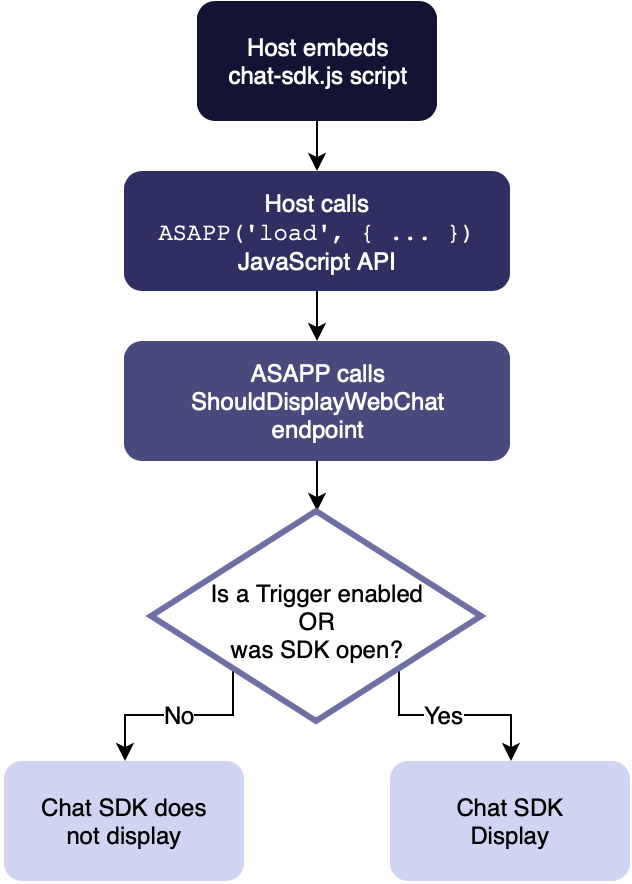 Once you've [embedded](/agent-desk/integrations/web-sdk/web-quick-start#1-embed-the-script "1. Embed the Script") and [loaded](/agent-desk/integrations/web-sdk/web-javascript-api#load "'load'") the Chat SDK on your web pages, ASAPP will determine whether or not to display the Chat UI on the user's current URL.
URLs that are enabled for displaying the UI are configured by a feature known as Triggers.
Once you've [embedded](/agent-desk/integrations/web-sdk/web-quick-start#1-embed-the-script "1. Embed the Script") and [loaded](/agent-desk/integrations/web-sdk/web-javascript-api#load "'load'") the Chat SDK on your web pages, ASAPP will determine whether or not to display the Chat UI on the user's current URL.
URLs that are enabled for displaying the UI are configured by a feature known as Triggers.
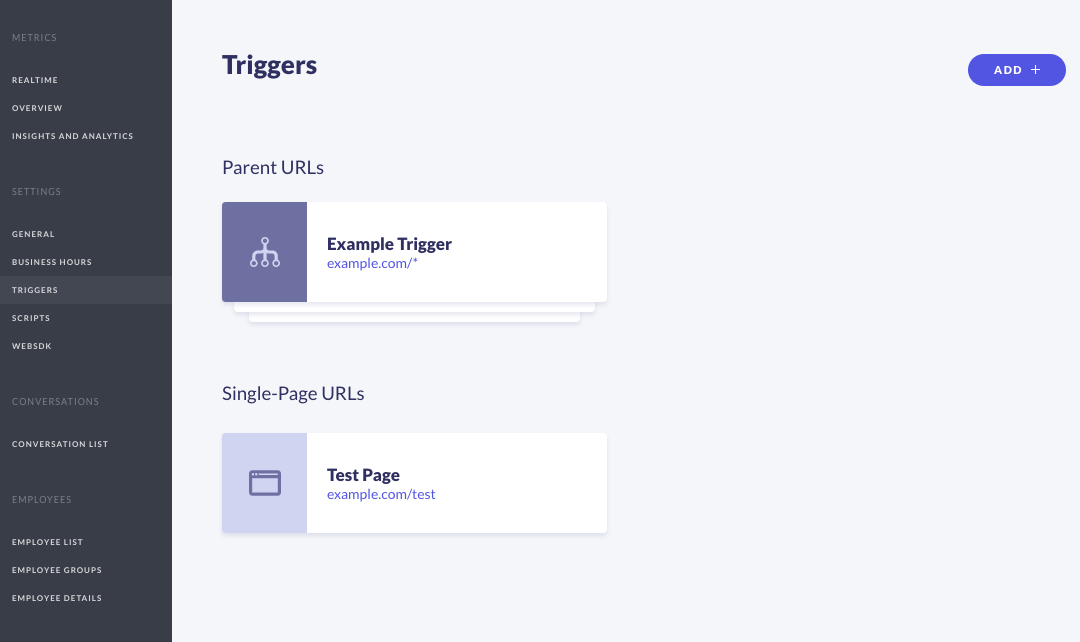 1. Visit the **Admin > Triggers** section of your Admin Desk.
2. Click the **Add +** button from the Triggers settings page.
3. In the **URL Link** field, enter the URL for the page where you would like to display the ASAPP Chat UI. (See the **Types of Triggers** section below for some example values.)
4. Click **Next >**.
5. Give the Trigger a display name. (Display names are used only on the Triggers settings page to help you organize and manage your triggers.)
6. Click **Save**.
7. You should now see the new entry on your Trigger settings page.
8. Visit the newly configured page on your site to double-check that the ASAPP Chat UI is loading or hiding as you expect.
### Types of Triggers
You may finely control the display of the ASAPP Chat UI on your site by adding as many Triggers as you like.
Triggers can be defined in two different ways: as **Wildcard** and as **Single-Page Triggers**.
#### Wildcard Triggers
You can use the wildcard character in the URL Link field of a Trigger to enable the display of the Chat SDK pages that follow a URL pattern.
The asterisk (i.e., `/*` is the wildcard character you use when defining a Trigger. When you use an asterisk in the URL Link of your Trigger definition, that character will match any sequence of one or more characters.
To set a wildcard for your entire domain, enter a **URL Link** value for your domain name, followed by `/*` (e.g., `example.com/*` ). This will enable the display of the ASAPP Chat UI on all pages of your site.
To enable the ASAPP Chat UI to appear on a more limited set of pages, enter a **URL Link** value that includes the appropriate sub-route path, followed by the `/*` wildcard (e.g., `example.com/settings/*`).
This will cause the Chat UI to display on any pages that start with the URL and sub-route `example.com/settings/`, such as `example.com/settings/profile` and `example.com/settings/payment`.
#### Single-Page Triggers
If you want the ASAPP Chat UI to display on only a few specific pages, you can create a separate Trigger for each of those pages, one at a time, by entering the exact URL for the page you wish to enable in the URL Link field of the Trigger definition.
For example, entering `example.com/customer-support/shipping.html` in the URL Link field of your Trigger definition will enable the ASAPP Chat UI to display on that single page.
## Deeplinks
A feature that defines how the SDK opens hyperlinks when a user clicks a link to another document. In the ASAPP Web SDK, we use the browser's `window.location.origin` API to determine whether the link should open in the same window or a new window.
In order for a link to open in the same window as the user's current SDK window, the `window.location.origin` must return a matching protocol and hostname.
1. Visit the **Admin > Triggers** section of your Admin Desk.
2. Click the **Add +** button from the Triggers settings page.
3. In the **URL Link** field, enter the URL for the page where you would like to display the ASAPP Chat UI. (See the **Types of Triggers** section below for some example values.)
4. Click **Next >**.
5. Give the Trigger a display name. (Display names are used only on the Triggers settings page to help you organize and manage your triggers.)
6. Click **Save**.
7. You should now see the new entry on your Trigger settings page.
8. Visit the newly configured page on your site to double-check that the ASAPP Chat UI is loading or hiding as you expect.
### Types of Triggers
You may finely control the display of the ASAPP Chat UI on your site by adding as many Triggers as you like.
Triggers can be defined in two different ways: as **Wildcard** and as **Single-Page Triggers**.
#### Wildcard Triggers
You can use the wildcard character in the URL Link field of a Trigger to enable the display of the Chat SDK pages that follow a URL pattern.
The asterisk (i.e., `/*` is the wildcard character you use when defining a Trigger. When you use an asterisk in the URL Link of your Trigger definition, that character will match any sequence of one or more characters.
To set a wildcard for your entire domain, enter a **URL Link** value for your domain name, followed by `/*` (e.g., `example.com/*` ). This will enable the display of the ASAPP Chat UI on all pages of your site.
To enable the ASAPP Chat UI to appear on a more limited set of pages, enter a **URL Link** value that includes the appropriate sub-route path, followed by the `/*` wildcard (e.g., `example.com/settings/*`).
This will cause the Chat UI to display on any pages that start with the URL and sub-route `example.com/settings/`, such as `example.com/settings/profile` and `example.com/settings/payment`.
#### Single-Page Triggers
If you want the ASAPP Chat UI to display on only a few specific pages, you can create a separate Trigger for each of those pages, one at a time, by entering the exact URL for the page you wish to enable in the URL Link field of the Trigger definition.
For example, entering `example.com/customer-support/shipping.html` in the URL Link field of your Trigger definition will enable the ASAPP Chat UI to display on that single page.
## Deeplinks
A feature that defines how the SDK opens hyperlinks when a user clicks a link to another document. In the ASAPP Web SDK, we use the browser's `window.location.origin` API to determine whether the link should open in the same window or a new window.
In order for a link to open in the same window as the user's current SDK window, the `window.location.origin` must return a matching protocol and hostname.
Key |
Description |
Required |
|---|---|---|
|
Phone number used when a user clicks phone in Chat Instead. |
Yes |
Sets the ASAPP APIHostName for connecting customers with customer support. |
No (Required if you have not initialized the WebSDK via the |
|
Your unique Company Identifier. |
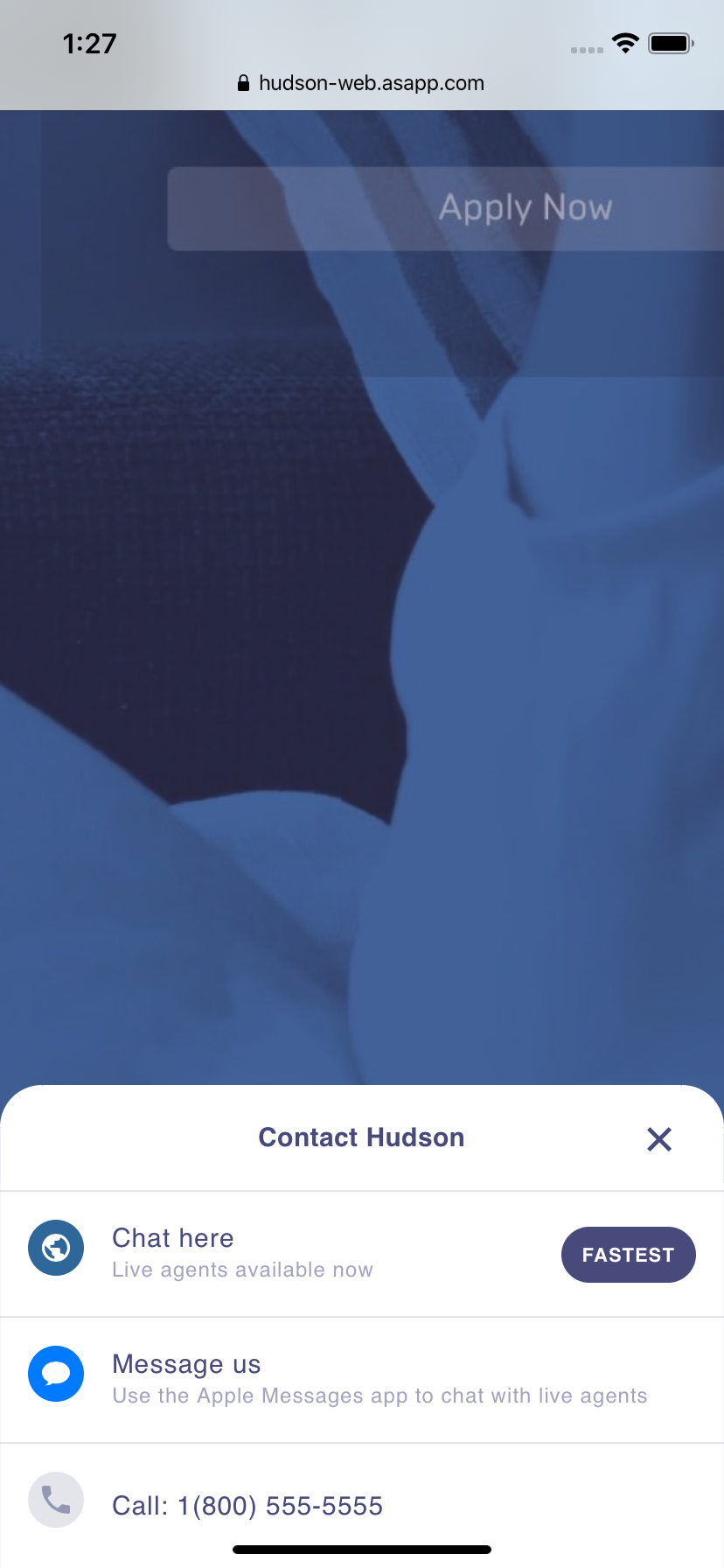 |
| 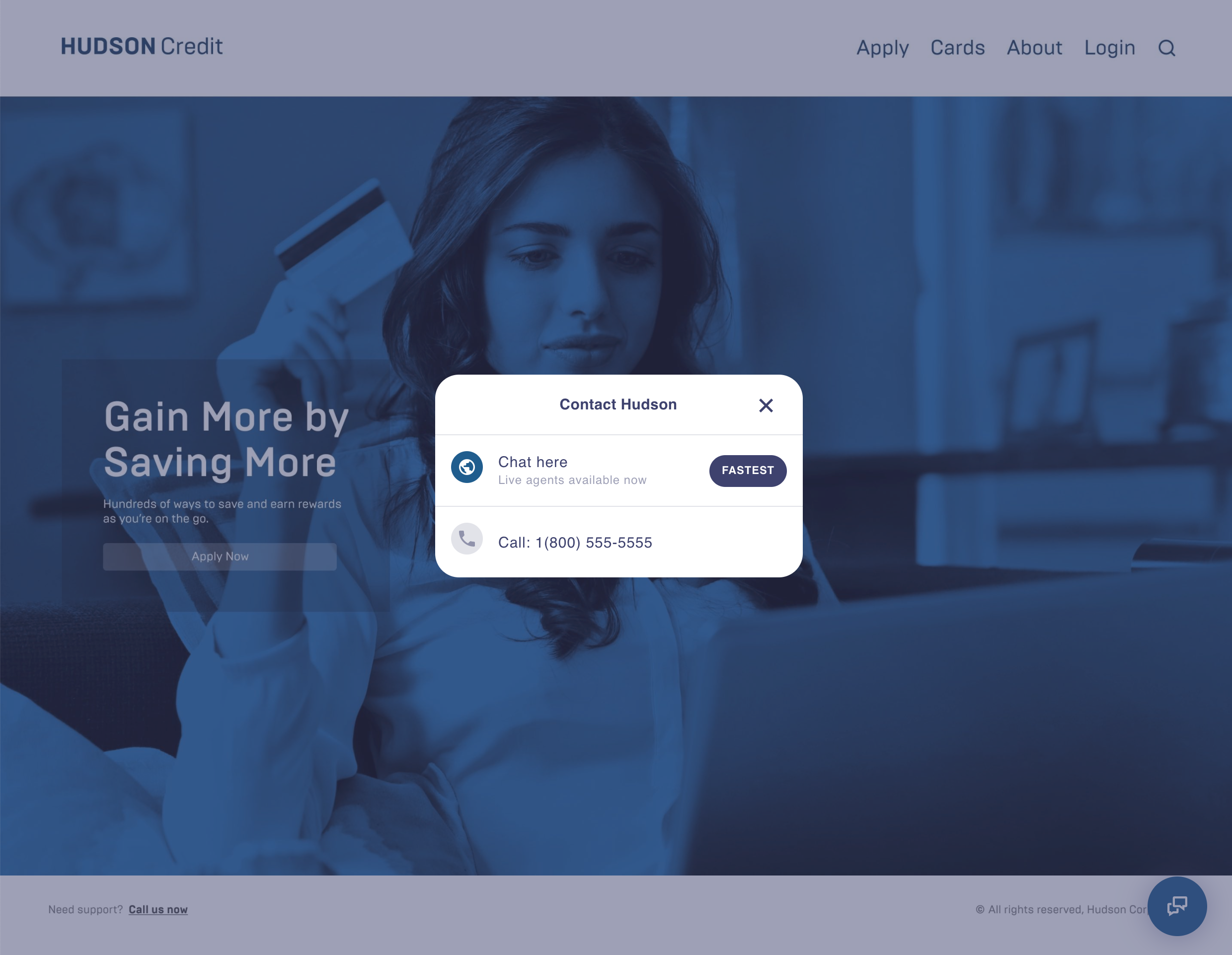 |
---
# Source: https://docs.asapp.com/welcome.md
> ## Documentation Index
> Fetch the complete documentation index at: https://docs.asapp.com/llms.txt
> Use this file to discover all available pages before exploring further.
# Welcome to ASAPP
> A personal AI agent for every customer with ASAPP Customer Experience Platform (CXP)
Welcome to the ASAPP documentation! This is the place to find information on how to deploy the **ASAPP CXP**, with **GenerativeAgent**.
|
---
# Source: https://docs.asapp.com/welcome.md
> ## Documentation Index
> Fetch the complete documentation index at: https://docs.asapp.com/llms.txt
> Use this file to discover all available pages before exploring further.
# Welcome to ASAPP
> A personal AI agent for every customer with ASAPP Customer Experience Platform (CXP)
Welcome to the ASAPP documentation! This is the place to find information on how to deploy the **ASAPP CXP**, with **GenerativeAgent**.
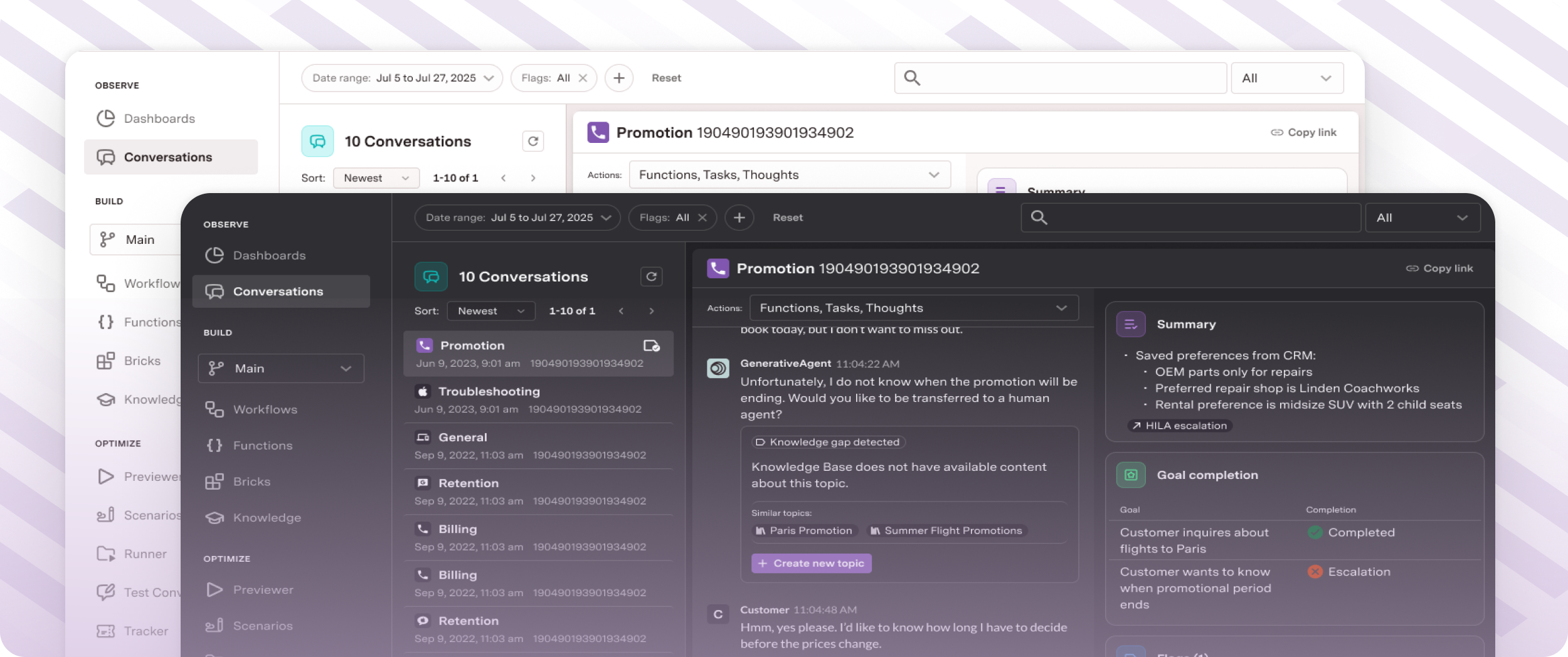 ## Getting Started with GenerativeAgent
If you're new to ASAPP CXP, start here to learn how to build your first GenerativeAgent.
## Getting Started with GenerativeAgent
If you're new to ASAPP CXP, start here to learn how to build your first GenerativeAgent.
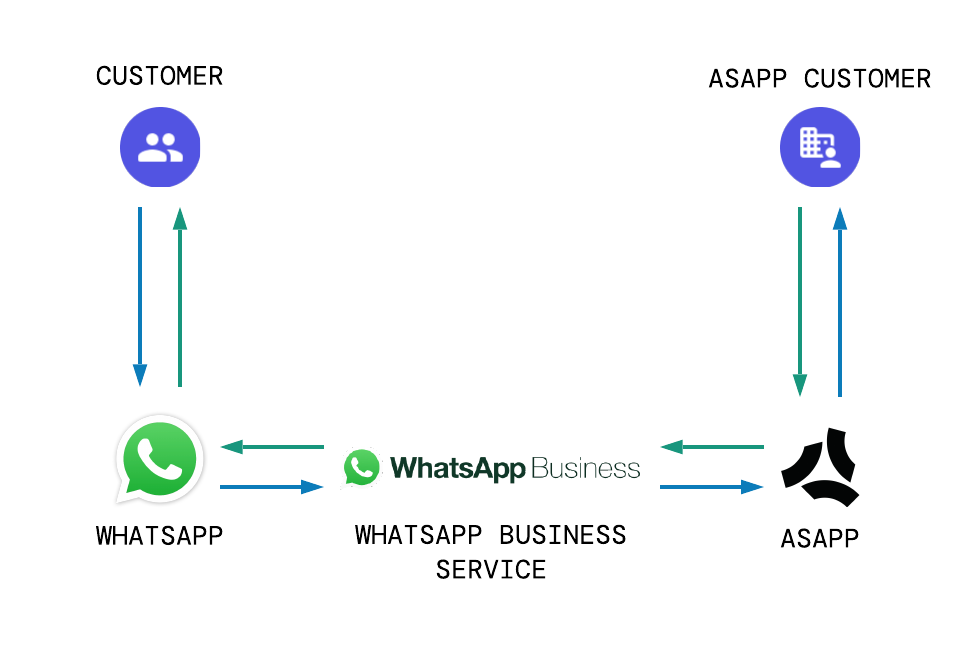 ## Quick Start Guide
1. Create a Business Manager (BM) Account with Meta
2. Create WhatsApp Business Accounts (WABA) in AI-Console
3. Modify Flows and Test
4. Create and Implement Entry Points
5. Determine Launch and Throttling Strategy
### Create a Business Manager (BM) Account
Before integrating with ASAPP's WhatsApp adapter, you must create a Business Manager (BM) account with Meta - visit [this page for account creation](https://www.facebook.com/business/help/1710077379203657?id=180505742745347).
Following account creation, Meta will also request you follow a [business verification](https://www.facebook.com/business/help/1095661473946872?id=180505742745347) process before proceeding.
### Create WhatsApp Business Accounts (WABAs)
Once a Business Manager account is created and verified, proceed to set up WhatsApp Business Accounts (WABAs) using Meta's embedded signup flow in AI-Console's **Messaging Channels** section.
## Quick Start Guide
1. Create a Business Manager (BM) Account with Meta
2. Create WhatsApp Business Accounts (WABA) in AI-Console
3. Modify Flows and Test
4. Create and Implement Entry Points
5. Determine Launch and Throttling Strategy
### Create a Business Manager (BM) Account
Before integrating with ASAPP's WhatsApp adapter, you must create a Business Manager (BM) account with Meta - visit [this page for account creation](https://www.facebook.com/business/help/1710077379203657?id=180505742745347).
Following account creation, Meta will also request you follow a [business verification](https://www.facebook.com/business/help/1095661473946872?id=180505742745347) process before proceeding.
### Create WhatsApp Business Accounts (WABAs)
Once a Business Manager account is created and verified, proceed to set up WhatsApp Business Accounts (WABAs) using Meta's embedded signup flow in AI-Console's **Messaging Channels** section.
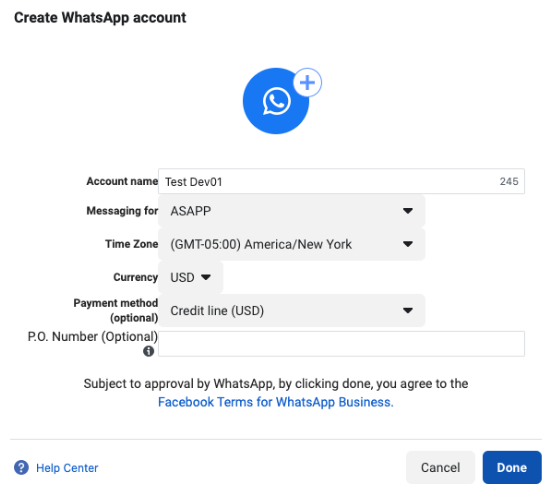 #### Register Phone Numbers
As part of the signup flow, each WABA must have at least one phone number assigned to it (multiple phone numbers per WABA are supported). Before adding a number, you must also create a profile display name, **which must match the name of the Business Manager (BM) account.**
#### Register Phone Numbers
As part of the signup flow, each WABA must have at least one phone number assigned to it (multiple phone numbers per WABA are supported). Before adding a number, you must also create a profile display name, **which must match the name of the Business Manager (BM) account.**
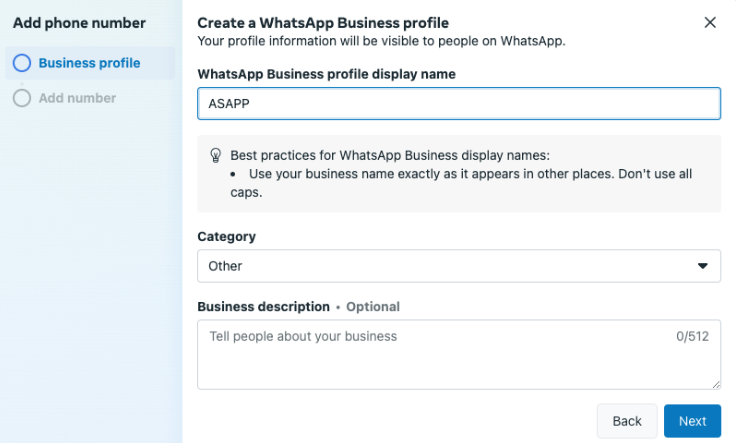
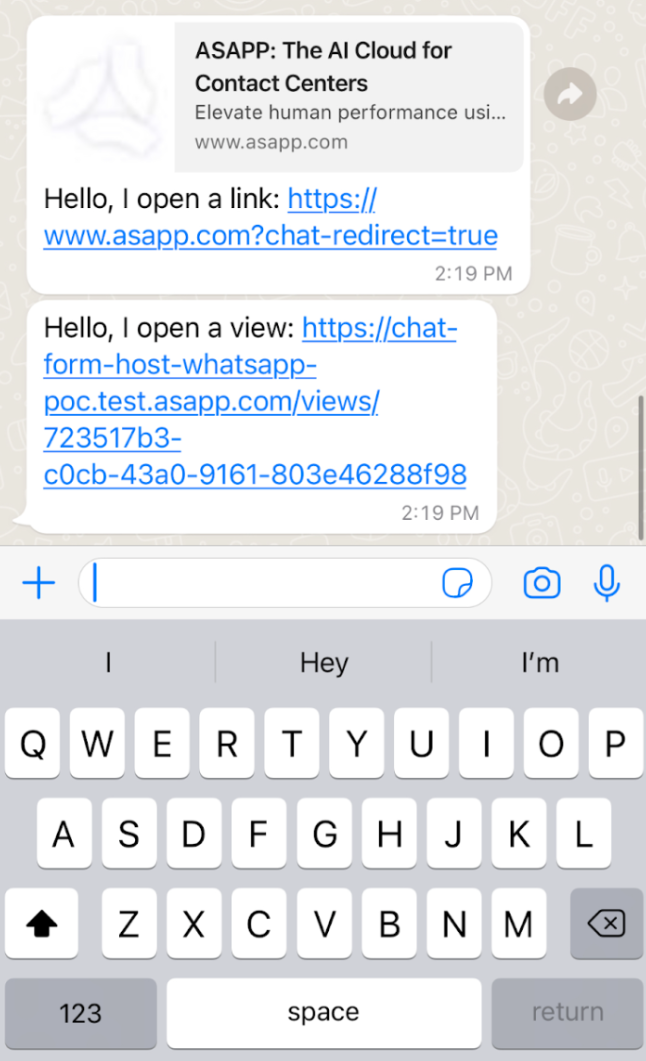 Similarly, forms that agents send and feedback forms at the end of chat also send messages with links to a separate page to complete the survey. Once users complete the survey, the system redirects them back to WhatsApp.
#### Quick Reply Limitations
Quick replies in WhatsApp also have different limitations from other ASAPP SDKs:
* Each node may only include up to three quick reply options; the system truncates a node with more than three replies and shows only the first three replies.
* Each quick reply may only include up to 20 characters; the system truncates a quick reply with more than 20 characters and shows only the first 17 characters, followed by an ellipsis
* You can send a node that includes both a button in the message and quick replies, but this is not recommended, as the system will send the links to the customer out of order
#### Authentication
The WhatsApp Cloud API currently **does not support authentication**. As such, login nodes should not be used in flows that can be reached by users on WhatsApp.
#### Attachments Cards
Nodes that include attachments, such as cards and carousels, are not supported in this channel.
Similarly, forms that agents send and feedback forms at the end of chat also send messages with links to a separate page to complete the survey. Once users complete the survey, the system redirects them back to WhatsApp.
#### Quick Reply Limitations
Quick replies in WhatsApp also have different limitations from other ASAPP SDKs:
* Each node may only include up to three quick reply options; the system truncates a node with more than three replies and shows only the first three replies.
* Each quick reply may only include up to 20 characters; the system truncates a quick reply with more than 20 characters and shows only the first 17 characters, followed by an ellipsis
* You can send a node that includes both a button in the message and quick replies, but this is not recommended, as the system will send the links to the customer out of order
#### Authentication
The WhatsApp Cloud API currently **does not support authentication**. As such, login nodes should not be used in flows that can be reached by users on WhatsApp.
#### Attachments Cards
Nodes that include attachments, such as cards and carousels, are not supported in this channel.
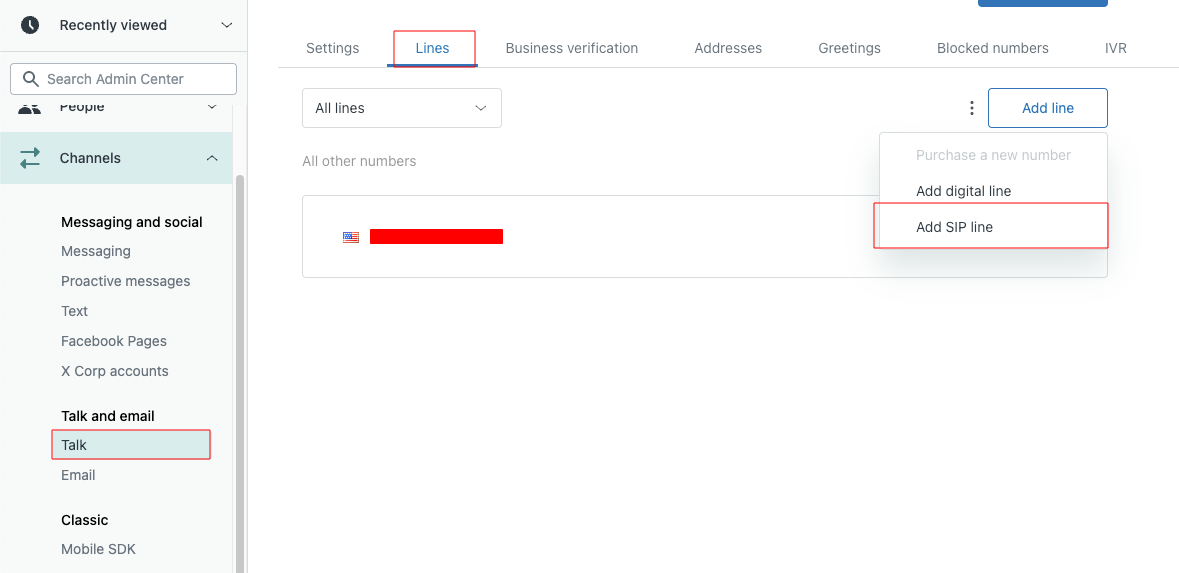 Follow the [Zendesk documentation for adding a SIP-IN line](https://support.zendesk.com/hc/en-us/articles/8397091234586-Adding-a-SIP-IN-line) to complete this step.